In this module we will discuss :
1. What is a commission update?
2. How to approve updated commission?
3. How to check the commission approval status?
4. How to check commission structure?
Commission : Update and
Approval
What is a commission update?
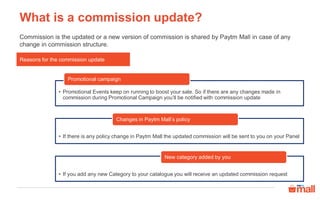
Commission is the updated or a new version of commission is shared by Paytm Mall in case of any
change in commission structure.
Reasons for the commission update
• Promotional Events keep on running to boost your sale. So if there are any changes made in
commission during Promotional Campaign you’ll be notified with commission update
Promotional campaign
• If there is any policy change in Paytm Mall the updated commission will be sent to you on your Panel
Changes in Paytm Mall’s policy
• If you add any new Category to your catalogue you will receive an updated commission request
New category added by you
How to approve the updated commission?
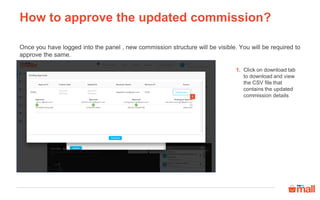
Once you have logged into the panel , new commission structure will be visible. You will be required to
approve the same.
Click on download tab
to download and view
the CSV file that
contains the updated
commission details
1.
1
How to approve the updated commission?
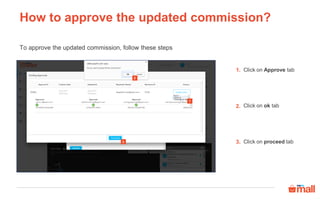
To approve the updated commission, follow these steps
Click on Approve tab
Click on ok tab
Click on proceed tab
1.
2.
3.
2
1
3
How to approve the updated commission?
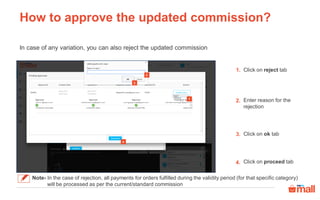
In case of any variation, you can also reject the updated commission
Click on reject tab
Enter reason for the
rejection
Click on ok tab
Click on proceed tab
1.
2.
3.
4.
Note- In the case of rejection, all payments for orders fulfilled during the validity period (for that specific category)
will be processed as per the current/standard commission
1
2
3
4
How to check the commission approval
status?
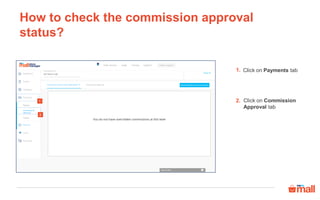
Click on Payments tab
Click on Commission
Approval tab
1.
2.
2
1
How to check the commission approval
status?
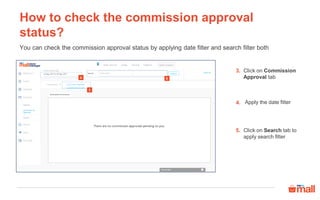
You can check the commission approval status by applying date filter and search filter both
Click on Commission
Approval tab
Apply the date filter
Click on Search tab to
apply search filter
3.
4.
5.
5
3
4
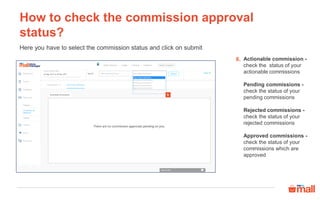
How to check the commission approval
status?
Actionable commission -
check the status of your
actionable commissions
Pending commissions -
check the status of your
pending commissions
Rejected commissions -
check the status of your
rejected commissions
Approved commissions -
check the status of your
commissions which are
approved
Here you have to select the commission status and click on submit
6.
6
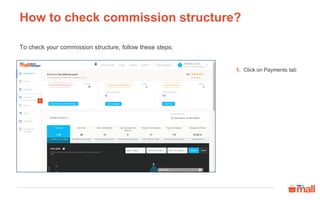
How to check commission structure?
To check your commission structure, follow these steps:
Click on Payments tab1.
1
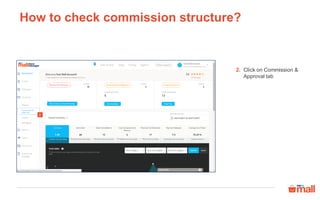
How to check commission structure?
Click on Commission &
Approval tab
2.
2
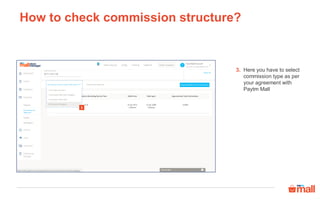
How to check commission structure?
Here you have to select
commission type as per
your agreement with
Paytm Mall
3.
3
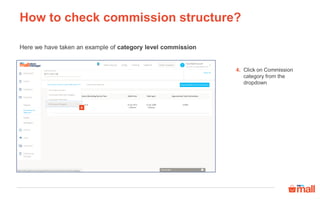
How to check commission structure?
Click on Commission
category from the
dropdown
4.
4
Here we have taken an example of category level commission
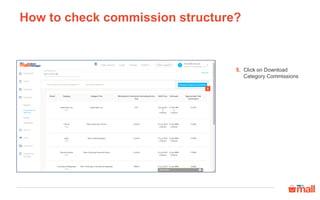
How to check commission structure?
Click on Download
Category Commissions
5.
5
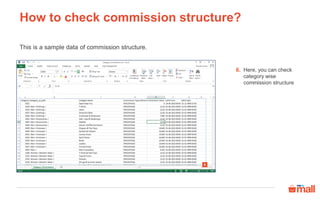
How to check commission structure?
Here, you can check
category wise
commission structure
6.
This is a sample data of commission structure.
6
Thanks everyone!
For any query please raise a ticket on support

Commission : Update and Approval

  • 1.
    In this modulewe will discuss : 1. What is a commission update? 2. How to approve updated commission? 3. How to check the commission approval status? 4. How to check commission structure? Commission : Update and Approval
  • 2.
    What is acommission update? Commission is the updated or a new version of commission is shared by Paytm Mall in case of any change in commission structure. Reasons for the commission update • Promotional Events keep on running to boost your sale. So if there are any changes made in commission during Promotional Campaign you’ll be notified with commission update Promotional campaign • If there is any policy change in Paytm Mall the updated commission will be sent to you on your Panel Changes in Paytm Mall’s policy • If you add any new Category to your catalogue you will receive an updated commission request New category added by you
  • 3.
    How to approvethe updated commission? Once you have logged into the panel , new commission structure will be visible. You will be required to approve the same. Click on download tab to download and view the CSV file that contains the updated commission details 1. 1
  • 4.
    How to approvethe updated commission? To approve the updated commission, follow these steps Click on Approve tab Click on ok tab Click on proceed tab 1. 2. 3. 2 1 3
  • 5.
    How to approvethe updated commission? In case of any variation, you can also reject the updated commission Click on reject tab Enter reason for the rejection Click on ok tab Click on proceed tab 1. 2. 3. 4. Note- In the case of rejection, all payments for orders fulfilled during the validity period (for that specific category) will be processed as per the current/standard commission 1 2 3 4
  • 6.
    How to checkthe commission approval status? Click on Payments tab Click on Commission Approval tab 1. 2. 2 1
  • 7.
    How to checkthe commission approval status? You can check the commission approval status by applying date filter and search filter both Click on Commission Approval tab Apply the date filter Click on Search tab to apply search filter 3. 4. 5. 5 3 4
  • 8.
    How to checkthe commission approval status? Actionable commission - check the status of your actionable commissions Pending commissions - check the status of your pending commissions Rejected commissions - check the status of your rejected commissions Approved commissions - check the status of your commissions which are approved Here you have to select the commission status and click on submit 6. 6
  • 9.
    How to checkcommission structure? To check your commission structure, follow these steps: Click on Payments tab1. 1
  • 10.
    How to checkcommission structure? Click on Commission & Approval tab 2. 2
  • 11.
    How to checkcommission structure? Here you have to select commission type as per your agreement with Paytm Mall 3. 3
  • 12.
    How to checkcommission structure? Click on Commission category from the dropdown 4. 4 Here we have taken an example of category level commission
  • 13.
    How to checkcommission structure? Click on Download Category Commissions 5. 5
  • 14.
    How to checkcommission structure? Here, you can check category wise commission structure 6. This is a sample data of commission structure. 6
  • 15.
    Thanks everyone! For anyquery please raise a ticket on support