INTRODUCTION TO GIT
ERIC SODJA AND JUSTIN TIRRELL
LINUS TORVALDS
• Creator of linux os
• Needed to collaborate with developers across
the world at the push of the button
• Develops git!
WHAT IS GIT FOR
• Managing different versions of code/documents
• Group collaboration on coding projects
• Downloading projects
• Reverting to old versions ‘what if’ (reduces clutter)
DOWNLOAD GIT (DO THIS FIRST)
• Linux (Debian)
- Command: sudo apt-get install git
• Linux (Fedora)
- Command: sudo yum install git
• Mac
- http://git-scm.com/download/mac
• Windows
- http://git-scm.com/download/win
CREATING A GITHUB ACCOUNT
• Sign Up for Github
https://github.com/join?source=header
• Request to join our repository
https://github.com/SeedscapeEcology
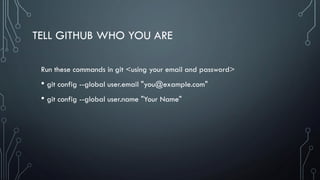
TELL GITHUB WHO YOU ARE
Run these commands in git <using your email and password>
• git config --global user.email "you@example.com"
• git config --global user.name "Your Name"
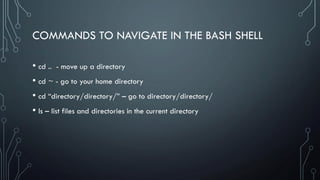
COMMANDS TO NAVIGATE IN THE BASH SHELL
• cd .. - move up a directory
• cd ~ - go to your home directory
• cd “directory/directory/” – go to directory/directory/
• ls – list files and directories in the current directory
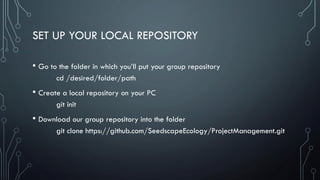
SET UP YOUR LOCAL REPOSITORY
• Go to the folder in which you’ll put your group repository
cd /desired/folder/path
• Create a local repository on your PC
git init
• Download our group repository into the folder
git clone https://github.com/SeedscapeEcology/ProjectManagement.git
IMPORTANT GIT COMMANDS
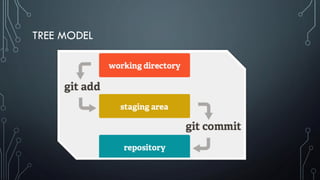
TREE MODEL
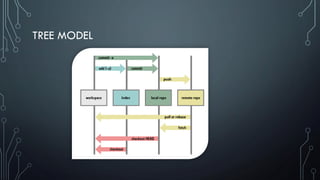
TREE MODEL
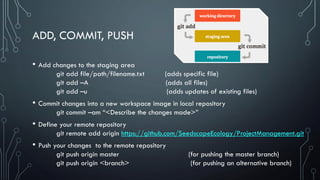
ADD, COMMIT, PUSH
• Add changes to the staging area
git add file/path/filename.txt (adds specific file)
git add –A (adds all files)
git add –u (adds updates of existing files)
• Commit changes into a new workspace image in local repository
git commit –am “<Describe the changes made>”
• Define your remote repository
git remote add origin https://github.com/SeedscapeEcology/ProjectManagement.git
• Push your changes to the remote repository
git push origin master (for pushing the master branch)
git push origin <branch> (for pushing an alternative branch)
STATUS, LOG, DIFF
• git status
shows which files are tracked/untracked in the index
• git log
shows a list of the commit history in the local repository
• git diff <branch name>
shows the differences between the current branch and the named branch
PULLING & FETCHING
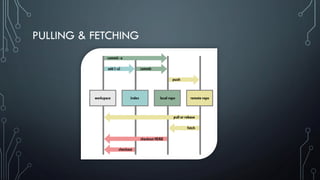
• git pull
merges the remote repository into the workspace
• git fetch
merges the remote repository into the local repository
PULLING & FETCHING
PURPOSE OF BRANCHES
• Testing new ideas
• Maintaining the stability of the master branch
TYPES OF BRANCHES
• Local Branches
• On your computer
• Tracking Branches
• In the remote repository
Resource: https://longair.net/blog/2009/04/16/git-fetch-and-merge/
BRANCHES
• Creating Branches (locally)
git branch <name of branch>
• Merging Branches
git merge <name of branch> (merges named branch into current)
• Deleting Branches
git branch –d <name of branch>
MANAGING MERGE CONFLICTS
• Git manages most merges by itself. When it can’t there are a few options:
• Search through the files that have the merge conflicts for ==== <<< signs that highlight
the issues
• Git mergetool
Have the mergetool walk you through addressing the conflict
WHAT IS GITHUB
• A site that hosts the different versions of your project
• A company with a name. (Other options are available)
• Website
ALTERNATIVES TO BASH: GUI
• gitk
command that opens an in-built GUI
• Git Kraken
https://www.gitkraken.com/
• Github
https://github.com/
TABBING!
• If you can’t remember a full command, you can just press the tab button to
auto-complete the command or list potential commands for you!
FAVORITE RESOURCES
• http://rogerdudler.github.io/git-guide/

Fall18 Git presentation

  • 1.
    INTRODUCTION TO GIT ERICSODJA AND JUSTIN TIRRELL
  • 2.
    LINUS TORVALDS • Creatorof linux os • Needed to collaborate with developers across the world at the push of the button • Develops git!
  • 3.
    WHAT IS GITFOR • Managing different versions of code/documents • Group collaboration on coding projects • Downloading projects • Reverting to old versions ‘what if’ (reduces clutter)
  • 4.
    DOWNLOAD GIT (DOTHIS FIRST) • Linux (Debian) - Command: sudo apt-get install git • Linux (Fedora) - Command: sudo yum install git • Mac - http://git-scm.com/download/mac • Windows - http://git-scm.com/download/win
  • 5.
    CREATING A GITHUBACCOUNT • Sign Up for Github https://github.com/join?source=header • Request to join our repository https://github.com/SeedscapeEcology
  • 6.
    TELL GITHUB WHOYOU ARE Run these commands in git <using your email and password> • git config --global user.email "you@example.com" • git config --global user.name "Your Name"
  • 7.
    COMMANDS TO NAVIGATEIN THE BASH SHELL • cd .. - move up a directory • cd ~ - go to your home directory • cd “directory/directory/” – go to directory/directory/ • ls – list files and directories in the current directory
  • 8.
    SET UP YOURLOCAL REPOSITORY • Go to the folder in which you’ll put your group repository cd /desired/folder/path • Create a local repository on your PC git init • Download our group repository into the folder git clone https://github.com/SeedscapeEcology/ProjectManagement.git
  • 9.
  • 10.
  • 11.
  • 12.
    ADD, COMMIT, PUSH •Add changes to the staging area git add file/path/filename.txt (adds specific file) git add –A (adds all files) git add –u (adds updates of existing files) • Commit changes into a new workspace image in local repository git commit –am “<Describe the changes made>” • Define your remote repository git remote add origin https://github.com/SeedscapeEcology/ProjectManagement.git • Push your changes to the remote repository git push origin master (for pushing the master branch) git push origin <branch> (for pushing an alternative branch)
  • 13.
    STATUS, LOG, DIFF •git status shows which files are tracked/untracked in the index • git log shows a list of the commit history in the local repository • git diff <branch name> shows the differences between the current branch and the named branch
  • 14.
    PULLING & FETCHING •git pull merges the remote repository into the workspace • git fetch merges the remote repository into the local repository
  • 15.
  • 16.
    PURPOSE OF BRANCHES •Testing new ideas • Maintaining the stability of the master branch
  • 17.
    TYPES OF BRANCHES •Local Branches • On your computer • Tracking Branches • In the remote repository Resource: https://longair.net/blog/2009/04/16/git-fetch-and-merge/
  • 18.
    BRANCHES • Creating Branches(locally) git branch <name of branch> • Merging Branches git merge <name of branch> (merges named branch into current) • Deleting Branches git branch –d <name of branch>
  • 19.
    MANAGING MERGE CONFLICTS •Git manages most merges by itself. When it can’t there are a few options: • Search through the files that have the merge conflicts for ==== <<< signs that highlight the issues • Git mergetool Have the mergetool walk you through addressing the conflict
  • 20.
    WHAT IS GITHUB •A site that hosts the different versions of your project • A company with a name. (Other options are available) • Website
  • 21.
    ALTERNATIVES TO BASH:GUI • gitk command that opens an in-built GUI • Git Kraken https://www.gitkraken.com/ • Github https://github.com/
  • 22.
    TABBING! • If youcan’t remember a full command, you can just press the tab button to auto-complete the command or list potential commands for you!
  • 23.