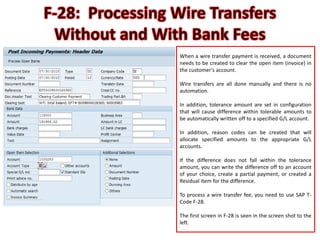
When a wire transfer payment is received, a document
needs to be created to clear the open item (invoice) in
the customer's account.
Wire transfers are all done manually and there is no
automation.
In addition, tolerance amount are set in configuration
that will cause difference within tolerable amounts to
be automatically written off to a specified G/L account.
In addition, reason codes can be created that will
allocate specified amounts to the appropriate G/L
accounts.
If the difference does not fall within the tolerance
amount, you can write the difference off to an account
of your choice, create a partial payment, or created a
Residual item for the difference.
To process a wire transfer fee, you need to use SAP T-
Code F-28.
The first screen in F-28 is seen in the screen shot to the
left.
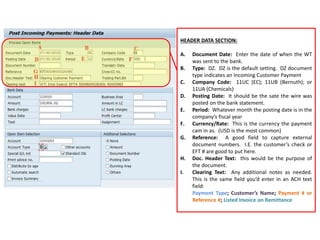
HEADER DATA SECTION:
A. Document Date: Enter the date of when the WT
was sent to the bank.
B. Type: DZ. DZ is the default setting. DZ document
type indicates an Incoming Customer Payment
C. Company Code: 11UC (EC); 11UB (Bernuth); or
11UA (Chemicals)
D. Posting Date: It should be the sate the wire was
posted on the bank statement.
E. Period: Whatever month the posting date is in the
company’s fiscal year
F. Currency/Rate: This is the currency the payment
cam in as. (USD is the most common)
G. Reference: A good field to capture external
document numbers. I.E. the customer’s check or
EFT # are good to put here.
H. Doc. Header Text: this would be the purpose of
the document.
I. Clearing Text: Any additional notes as needed.
This is the same field you’d enter in an ACH text
field:
Payment Type; Customer’s Name; Payment # or
Reference #; Listed Invoice on Remittance
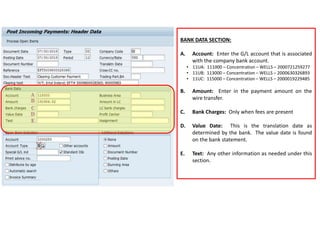
BANK DATA SECTION:
A. Account: Enter the G/L account that is associated
with the company bank account.
• 11UA: 111000 – Concentration – WELLS – 2000721259277
• 11UB: 113000 – Concentration – WELLS – 2000630326893
• 11UC: 115000 – Concentration – WELLS – 2000019229485
B. Amount: Enter in the payment amount on the
wire transfer.
C. Bank Charges: Only when fees are present
D. Value Date: This is the translation date as
determined by the bank. The value date is found
on the bank statement.
E. Text: Any other information as needed under this
section.
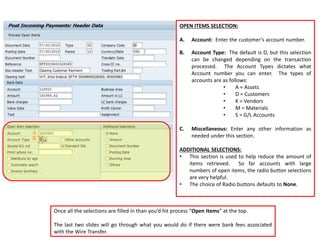
OPEN ITEMS SELECTION:
A. Account: Enter the customer’s account number.
B. Account Type: The default is D, but this selection
can be changed depending on the transaction
processed. The Account Types dictates what
Account number you can enter. The types of
accounts are as follows:
• A = Assets
• D = Customers
• K = Vendors
• M = Materials
• S = G/L Accounts
C. Miscellaneous: Enter any other information as
needed under this section.
ADDITIONAL SELECTIONS:
• This section is used to help reduce the amount of
items retrieved. So far accounts with large
numbers of open items, the radio button selections
are very helpful.
• The choice of Radio buttons defaults to None.
Once all the selections are filled in than you’d hit process “Open Items” at the top.
The last two slides will go through what you would do if there were bank fees associated
with the Wire Transfer.
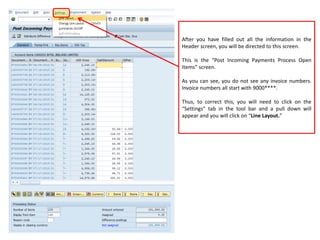
After you have filled out all the information in the
Header screen, you will be directed to this screen.
This is the “Post Incoming Payments Process Open
Items” screen.
As you can see, you do not see any invoice numbers.
Invoice numbers all start with 9000****.
Thus, to correct this, you will need to click on the
“Settings” tab in the tool bar and a pull down will
appear and you will click on “Line Layout.”
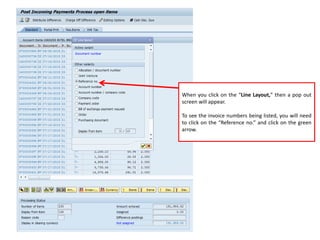
When you click on the “Line Layout,” then a pop out
screen will appear.
To see the invoice numbers being listed, you will need
to click on the “Reference no.” and click on the green
arrow.
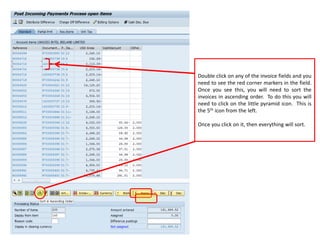
Double click on any of the invoice fields and you
need to see the red corner markers in the field.
Once you see this, you will need to sort the
invoices in ascending order. To do this you will
need to click on the little pyramid icon. This is
the 5th icon from the left.
Once you click on it, then everything will sort.
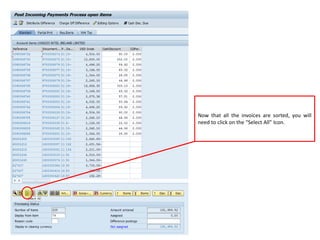
Now that all the invoices are sorted, you will
need to click on the “Select All” Icon.
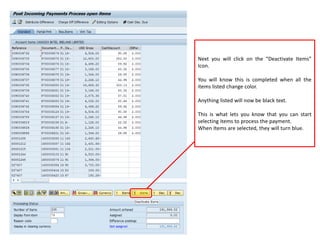
Next you will click on the “Deactivate Items”
Icon.
You will know this is completed when all the
items listed change color.
Anything listed will now be black text.
This is what lets you know that you can start
selecting items to process the payment.
When Items are selected, they will turn blue.
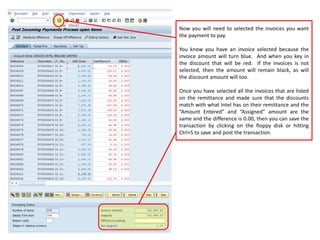
Now you will need to selected the invoices you want
the payment to pay.
You know you have an invoice selected because the
invoice amount will turn blue. And when you key in
the discount that will be red. If the invoices is not
selected, then the amount will remain black, as will
the discount amount will too.
Once you have selected all the invoices that are listed
on the remittance and made sure that the discounts
match with what Intel has on their remittance and the
“Amount Entered” and “Assigned” amount are the
same and the difference is 0.00, then you can save the
transaction by clicking on the floppy disk or hitting
Ctrl+S to save and post the transaction.
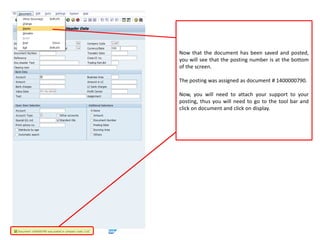
Now that the document has been saved and posted,
you will see that the posting number is at the bottom
of the screen.
The posting was assigned as document # 1400000790.
Now, you will need to attach your support to your
posting, thus you will need to go to the tool bar and
click on document and click on display.
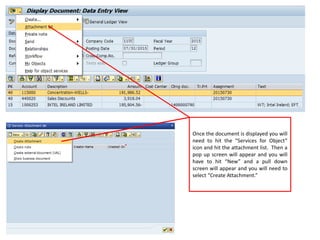
Once the document is displayed you will
need to hit the “Services for Object”
icon and hit the attachment list. Then a
pop up screen will appear and you will
have to hit “New” and a pull down
screen will appear and you will need to
select “Create Attachment.”
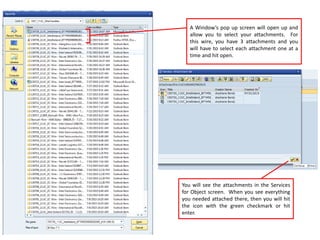
A Window’s pop up screen will open up and
allow you to select your attachments. For
this wire, you have 3 attachments and you
will have to select each attachment one at a
time and hit open.
You will see the attachments in the Services
for Object screen. When you see everything
you needed attached there, then you will hit
the icon with the green checkmark or hit
enter.
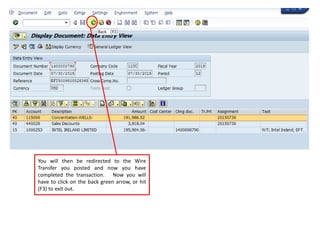
You will then be redirected to the Wire
Transfer you posted and now you have
completed the transaction. Now you will
have to click on the back green arrow, or hit
(F3) to exit out.
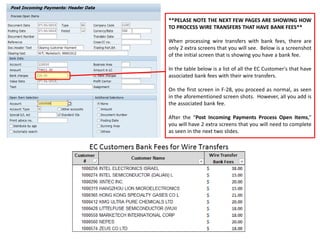
**PELASE NOTE THE NEXT FEW PAGES ARE SHOWING HOW
TO PROCESS WIRE TRANSFERS THAT HAVE BANK FEES**
When processing wire transfers with bank fees, there are
only 2 extra screens that you will see. Below is a screenshot
of the initial screen that is showing you have a bank fee.
In the table below is a list of all the EC Customer's that have
associated bank fees with their wire transfers.
On the first screen in F-28, you proceed as normal, as seen
in the aforementioned screen shots. However, all you add is
the associated bank fee.
After the “Post Incoming Payments Process Open Items,”
you will have 2 extra screens that you will need to complete
as seen in the next two slides.
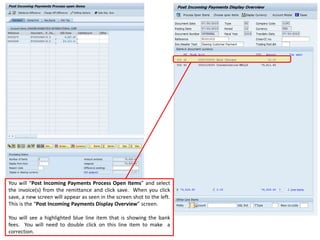
You will “Post Incoming Payments Process Open Items” and select
the invoice(s) from the remittance and click save. When you click
save, a new screen will appear as seen in the screen shot to the left.
This is the “Post Incoming Payments Display Overview” screen.
You will see a highlighted blue line item that is showing the bank
fees. You will need to double click on this line item to make a
correction.
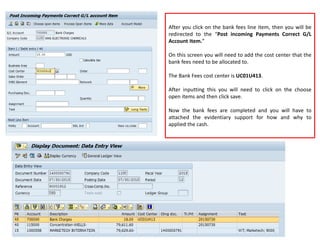
After you click on the bank fees line item, then you will be
redirected to the “Post incoming Payments Correct G/L
Account Item.”
On this screen you will need to add the cost center that the
bank fees need to be allocated to.
The Bank Fees cost center is UC01U413.
After inputting this you will need to click on the choose
open items and then click save.
Now the bank fees are completed and you will have to
attached the evidentiary support for how and why to
applied the cash.

F-28_WireTransfers

  • 1.
    When a wiretransfer payment is received, a document needs to be created to clear the open item (invoice) in the customer's account. Wire transfers are all done manually and there is no automation. In addition, tolerance amount are set in configuration that will cause difference within tolerable amounts to be automatically written off to a specified G/L account. In addition, reason codes can be created that will allocate specified amounts to the appropriate G/L accounts. If the difference does not fall within the tolerance amount, you can write the difference off to an account of your choice, create a partial payment, or created a Residual item for the difference. To process a wire transfer fee, you need to use SAP T- Code F-28. The first screen in F-28 is seen in the screen shot to the left.
  • 2.
    HEADER DATA SECTION: A.Document Date: Enter the date of when the WT was sent to the bank. B. Type: DZ. DZ is the default setting. DZ document type indicates an Incoming Customer Payment C. Company Code: 11UC (EC); 11UB (Bernuth); or 11UA (Chemicals) D. Posting Date: It should be the sate the wire was posted on the bank statement. E. Period: Whatever month the posting date is in the company’s fiscal year F. Currency/Rate: This is the currency the payment cam in as. (USD is the most common) G. Reference: A good field to capture external document numbers. I.E. the customer’s check or EFT # are good to put here. H. Doc. Header Text: this would be the purpose of the document. I. Clearing Text: Any additional notes as needed. This is the same field you’d enter in an ACH text field: Payment Type; Customer’s Name; Payment # or Reference #; Listed Invoice on Remittance
  • 3.
    BANK DATA SECTION: A.Account: Enter the G/L account that is associated with the company bank account. • 11UA: 111000 – Concentration – WELLS – 2000721259277 • 11UB: 113000 – Concentration – WELLS – 2000630326893 • 11UC: 115000 – Concentration – WELLS – 2000019229485 B. Amount: Enter in the payment amount on the wire transfer. C. Bank Charges: Only when fees are present D. Value Date: This is the translation date as determined by the bank. The value date is found on the bank statement. E. Text: Any other information as needed under this section.
  • 4.
    OPEN ITEMS SELECTION: A.Account: Enter the customer’s account number. B. Account Type: The default is D, but this selection can be changed depending on the transaction processed. The Account Types dictates what Account number you can enter. The types of accounts are as follows: • A = Assets • D = Customers • K = Vendors • M = Materials • S = G/L Accounts C. Miscellaneous: Enter any other information as needed under this section. ADDITIONAL SELECTIONS: • This section is used to help reduce the amount of items retrieved. So far accounts with large numbers of open items, the radio button selections are very helpful. • The choice of Radio buttons defaults to None. Once all the selections are filled in than you’d hit process “Open Items” at the top. The last two slides will go through what you would do if there were bank fees associated with the Wire Transfer.
  • 5.
    After you havefilled out all the information in the Header screen, you will be directed to this screen. This is the “Post Incoming Payments Process Open Items” screen. As you can see, you do not see any invoice numbers. Invoice numbers all start with 9000****. Thus, to correct this, you will need to click on the “Settings” tab in the tool bar and a pull down will appear and you will click on “Line Layout.”
  • 6.
    When you clickon the “Line Layout,” then a pop out screen will appear. To see the invoice numbers being listed, you will need to click on the “Reference no.” and click on the green arrow.
  • 7.
    Double click onany of the invoice fields and you need to see the red corner markers in the field. Once you see this, you will need to sort the invoices in ascending order. To do this you will need to click on the little pyramid icon. This is the 5th icon from the left. Once you click on it, then everything will sort.
  • 8.
    Now that allthe invoices are sorted, you will need to click on the “Select All” Icon.
  • 9.
    Next you willclick on the “Deactivate Items” Icon. You will know this is completed when all the items listed change color. Anything listed will now be black text. This is what lets you know that you can start selecting items to process the payment. When Items are selected, they will turn blue.
  • 10.
    Now you willneed to selected the invoices you want the payment to pay. You know you have an invoice selected because the invoice amount will turn blue. And when you key in the discount that will be red. If the invoices is not selected, then the amount will remain black, as will the discount amount will too. Once you have selected all the invoices that are listed on the remittance and made sure that the discounts match with what Intel has on their remittance and the “Amount Entered” and “Assigned” amount are the same and the difference is 0.00, then you can save the transaction by clicking on the floppy disk or hitting Ctrl+S to save and post the transaction.
  • 11.
    Now that thedocument has been saved and posted, you will see that the posting number is at the bottom of the screen. The posting was assigned as document # 1400000790. Now, you will need to attach your support to your posting, thus you will need to go to the tool bar and click on document and click on display.
  • 12.
    Once the documentis displayed you will need to hit the “Services for Object” icon and hit the attachment list. Then a pop up screen will appear and you will have to hit “New” and a pull down screen will appear and you will need to select “Create Attachment.”
  • 13.
    A Window’s popup screen will open up and allow you to select your attachments. For this wire, you have 3 attachments and you will have to select each attachment one at a time and hit open. You will see the attachments in the Services for Object screen. When you see everything you needed attached there, then you will hit the icon with the green checkmark or hit enter.
  • 14.
    You will thenbe redirected to the Wire Transfer you posted and now you have completed the transaction. Now you will have to click on the back green arrow, or hit (F3) to exit out.
  • 15.
    **PELASE NOTE THENEXT FEW PAGES ARE SHOWING HOW TO PROCESS WIRE TRANSFERS THAT HAVE BANK FEES** When processing wire transfers with bank fees, there are only 2 extra screens that you will see. Below is a screenshot of the initial screen that is showing you have a bank fee. In the table below is a list of all the EC Customer's that have associated bank fees with their wire transfers. On the first screen in F-28, you proceed as normal, as seen in the aforementioned screen shots. However, all you add is the associated bank fee. After the “Post Incoming Payments Process Open Items,” you will have 2 extra screens that you will need to complete as seen in the next two slides.
  • 16.
    You will “PostIncoming Payments Process Open Items” and select the invoice(s) from the remittance and click save. When you click save, a new screen will appear as seen in the screen shot to the left. This is the “Post Incoming Payments Display Overview” screen. You will see a highlighted blue line item that is showing the bank fees. You will need to double click on this line item to make a correction.
  • 17.
    After you clickon the bank fees line item, then you will be redirected to the “Post incoming Payments Correct G/L Account Item.” On this screen you will need to add the cost center that the bank fees need to be allocated to. The Bank Fees cost center is UC01U413. After inputting this you will need to click on the choose open items and then click save. Now the bank fees are completed and you will have to attached the evidentiary support for how and why to applied the cash.