Express Bulk Order
Processing
Orders tab
Here you can check
your all orders
Date filter
You can use this filter
to view your old
orders
Search filter
You can use this filter
to search orders
using their different
ids or stages
E.g. Order id, Item id
Tip- You can search multiple values separated by comma in search filter.
Overview of orders tab
1.
2.
2
1
3.
3
How can you process all orders in bulk?
Click on Download
order detail CSV
1.
1
How can you process all orders in bulk?
Select the Date
Filter
2.
2
How can you process all orders in bulk?
Click on Download
button
3.
3
How can you process all orders in bulk?
Click on the recent
file to view the order
file
4.
4
How can you process all orders in bulk?
Click on download
icon
Orders CSV will be
downloaded
5.
5
How can you process all orders in bulk?
Sample of order csv file
How can you process all orders in bulk?
Click on Assign courier
in bulk from the
dropdown
6.
6
How can you process all orders in bulk?
Click on choose file and
select the order csv file
7.
Click on upload8.
8
7
How can you process all orders in bulk?
Packing Slip and success file (.csv) for all successful orders will be available in file center pop-up
Click on download icon9.
9
How can you process all orders in bulk?
Note– File will have multiple PDFs depending on grouping of items. Maximum files can be 20 and Maximum
packing slips can be 250/file
A Zip file will be downloaded containing- PDF + Success File
1)PDF- Combination of 250 packing slips per file
2)CSV- Use this CSV to generate manifest in bulk
How can you process all orders in bulk?
11
Now you have to request for the pickup and download their manifest
Click on Request Pickup tab10.
Click on Request pickup
in Bulk (csv) from the
dropdown
11.
10
How can you process all orders in bulk?
Click on Upload button and
select the success file
12.
Click on Upload13.12
13
How can you process all orders in bulk?
Manifest slip for all successful orders will be available in file center pop-up and orders will move
to “To Handover” stage
Click on the download icon
to download the manifest in
your system
14.
14
Logistics –
EXPRESSMERCHANTBULKMANIFEST_CSV
upload job
This is a sample Manifest which contains the details of your courier partner, you have to take
two copies of the manifest
How can you process all orders in bulk?
Note– If you generate the manifest before 12:00pm your order will be picked on the same day and if you
generate after 12:00pm your order will be picked till 8 pm the following day.
a
b
c
d
Here you can see
courier partner name
a.
Here you can see
Order details with
AWB number
b.
Merchant signature and
courier signature are
required on both copies
of manifest
c.
Here you can see total
number of packets
d.
15
16
Click on dispatched
tab
15.
Click on shipped tab
Here you can check all
shipped orders
16.
To view shipped orders, follow these steps-
How can you process all orders in bulk?
Click on delivered tab
Here you can check all
delivered orders
17.
To view delivered orders, follow this step-
How can you process all orders in bulk?
17
How can you process all orders in bulk?
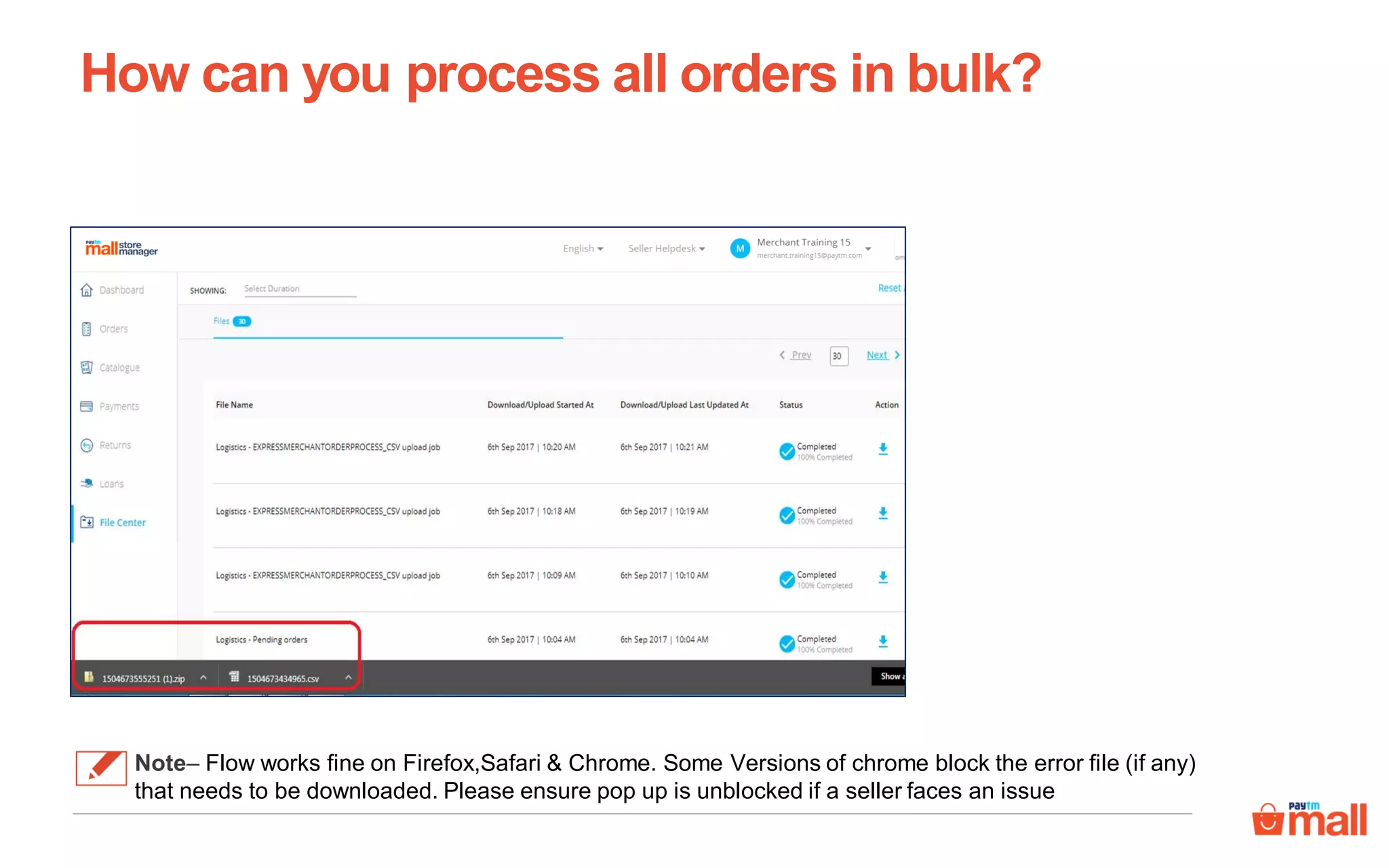
Note– Flow works fine on Firefox,Safari & Chrome. Some Versions of chrome block the error file (if any)
that needs to be downloaded. Please ensure pop up is unblocked if a seller faces an issue
How can you process all orders in bulk?
Note– Flow works fine on Firefox,Safari & Chrome. Some Versions of chrome block the error file (if any)
that needs to be downloaded. Please ensure pop up is unblocked if a seller faces an issue
Thanks everyone!
For any query please raise a ticket on support

Express bulk order processing

  • 1.
  • 2.
    Orders tab Here youcan check your all orders Date filter You can use this filter to view your old orders Search filter You can use this filter to search orders using their different ids or stages E.g. Order id, Item id Tip- You can search multiple values separated by comma in search filter. Overview of orders tab 1. 2. 2 1 3. 3
  • 3.
    How can youprocess all orders in bulk? Click on Download order detail CSV 1. 1
  • 4.
    How can youprocess all orders in bulk? Select the Date Filter 2. 2
  • 5.
    How can youprocess all orders in bulk? Click on Download button 3. 3
  • 6.
    How can youprocess all orders in bulk? Click on the recent file to view the order file 4. 4
  • 7.
    How can youprocess all orders in bulk? Click on download icon Orders CSV will be downloaded 5. 5
  • 8.
    How can youprocess all orders in bulk? Sample of order csv file
  • 9.
    How can youprocess all orders in bulk? Click on Assign courier in bulk from the dropdown 6. 6
  • 10.
    How can youprocess all orders in bulk? Click on choose file and select the order csv file 7. Click on upload8. 8 7
  • 11.
    How can youprocess all orders in bulk? Packing Slip and success file (.csv) for all successful orders will be available in file center pop-up Click on download icon9. 9
  • 12.
    How can youprocess all orders in bulk? Note– File will have multiple PDFs depending on grouping of items. Maximum files can be 20 and Maximum packing slips can be 250/file A Zip file will be downloaded containing- PDF + Success File 1)PDF- Combination of 250 packing slips per file 2)CSV- Use this CSV to generate manifest in bulk
  • 13.
    How can youprocess all orders in bulk? 11 Now you have to request for the pickup and download their manifest Click on Request Pickup tab10. Click on Request pickup in Bulk (csv) from the dropdown 11. 10
  • 14.
    How can youprocess all orders in bulk? Click on Upload button and select the success file 12. Click on Upload13.12 13
  • 15.
    How can youprocess all orders in bulk? Manifest slip for all successful orders will be available in file center pop-up and orders will move to “To Handover” stage Click on the download icon to download the manifest in your system 14. 14 Logistics – EXPRESSMERCHANTBULKMANIFEST_CSV upload job
  • 16.
    This is asample Manifest which contains the details of your courier partner, you have to take two copies of the manifest How can you process all orders in bulk? Note– If you generate the manifest before 12:00pm your order will be picked on the same day and if you generate after 12:00pm your order will be picked till 8 pm the following day. a b c d Here you can see courier partner name a. Here you can see Order details with AWB number b. Merchant signature and courier signature are required on both copies of manifest c. Here you can see total number of packets d.
  • 17.
    15 16 Click on dispatched tab 15. Clickon shipped tab Here you can check all shipped orders 16. To view shipped orders, follow these steps- How can you process all orders in bulk?
  • 18.
    Click on deliveredtab Here you can check all delivered orders 17. To view delivered orders, follow this step- How can you process all orders in bulk? 17
  • 19.
    How can youprocess all orders in bulk? Note– Flow works fine on Firefox,Safari & Chrome. Some Versions of chrome block the error file (if any) that needs to be downloaded. Please ensure pop up is unblocked if a seller faces an issue
  • 20.
    How can youprocess all orders in bulk? Note– Flow works fine on Firefox,Safari & Chrome. Some Versions of chrome block the error file (if any) that needs to be downloaded. Please ensure pop up is unblocked if a seller faces an issue
  • 21.
    Thanks everyone! For anyquery please raise a ticket on support