Firstly, I went onto www.slideshare.net and
logged into my account. Then I selected
Upload on the toolbar at the top of the
page.
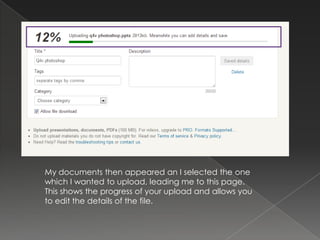
My documents then appeared an I selected the one
which I wanted to upload, leading me to this page.
This shows the progress of your upload and allows you
to edit the details of the file.
One detail I changed was the category to ‘Education’. This allows
others to search ‘Education’ on the website and my upload will
appear.
Once it had uploaded I wanted to embed it into a new post on Blogger. To
do this I highlighted the code, right-clicked and selected ‘Copy’.


      I then went into blogger and created a new post. I switched
      from ‘Compose’ to ‘HTML’ and pasted the code into the text
      box, by right-clicking and selecting ‘Paste’, and clicked
      publish.
The Finished Result

Evaluation q4 slideshare

  • 3.
    Firstly, I wentonto www.slideshare.net and logged into my account. Then I selected Upload on the toolbar at the top of the page.
  • 4.
    My documents thenappeared an I selected the one which I wanted to upload, leading me to this page. This shows the progress of your upload and allows you to edit the details of the file.
  • 5.
    One detail Ichanged was the category to ‘Education’. This allows others to search ‘Education’ on the website and my upload will appear.
  • 6.
    Once it haduploaded I wanted to embed it into a new post on Blogger. To do this I highlighted the code, right-clicked and selected ‘Copy’. I then went into blogger and created a new post. I switched from ‘Compose’ to ‘HTML’ and pasted the code into the text box, by right-clicking and selecting ‘Paste’, and clicked publish.
  • 7.