Evaluating Internet Resources
BY: TR. MJ FERNANDEZ
JOY IN LEARNING SCHOOL
INC.
Here are the tips to evaluate the
credibility of website.
1. Start with the sites you know.
◦ Start with websites created by Authors or organizations that you know.
2. Check when the information was created.
◦ Its is important to check if the information you find is recent or outdated.
3. Check the author’s credentials.
◦ The Author’s credentials is one of the most important criteria in evaluating the reliability of any
information.
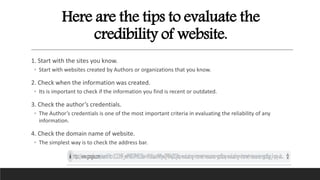
4. Check the domain name of website.
◦ The simplest way is to check the address bar.
The following is the different top-level
domains
edu = college or university
gov = government agency or organization
org = non-profit organization
mil = military organization
com = commercial organization
info = general information site
net = network provider
int = intergovernmental organization
Creating & Organizing Bookmark
for Website
In the upper
right,
displayed on
your
browser a
STAR ICON. It
is the
browser
bookmark.
How to see the Bookmark
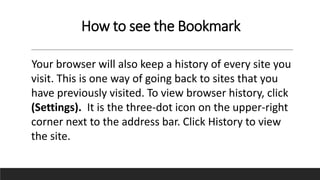
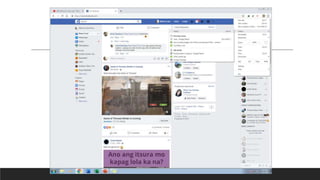
Your browser will also keep a history of every site you
visit. This is one way of going back to sites that you
have previously visited. To view browser history, click
(Settings). It is the three-dot icon on the upper-right
corner next to the address bar. Click History to view
the site.
References:
My Computer 5: Applying Basic ICT skills.
THANK YOU FOR LISTENING!

Evaluating internet resources

  • 1.
    Evaluating Internet Resources BY:TR. MJ FERNANDEZ JOY IN LEARNING SCHOOL INC.
  • 2.
    Here are thetips to evaluate the credibility of website. 1. Start with the sites you know. ◦ Start with websites created by Authors or organizations that you know. 2. Check when the information was created. ◦ Its is important to check if the information you find is recent or outdated. 3. Check the author’s credentials. ◦ The Author’s credentials is one of the most important criteria in evaluating the reliability of any information. 4. Check the domain name of website. ◦ The simplest way is to check the address bar.
  • 3.
    The following isthe different top-level domains edu = college or university gov = government agency or organization org = non-profit organization mil = military organization com = commercial organization info = general information site net = network provider int = intergovernmental organization
  • 4.
    Creating & OrganizingBookmark for Website
  • 5.
    In the upper right, displayedon your browser a STAR ICON. It is the browser bookmark.
  • 6.
    How to seethe Bookmark Your browser will also keep a history of every site you visit. This is one way of going back to sites that you have previously visited. To view browser history, click (Settings). It is the three-dot icon on the upper-right corner next to the address bar. Click History to view the site.
  • 8.
    References: My Computer 5:Applying Basic ICT skills. THANK YOU FOR LISTENING!