Default address Avenue, 4214,
Postal code 80.250-210 / Curitiba PR BR
+55 32 3836 55 55
+55 32 9685 55 55| | www.default.com
SHINE A LIGHT ON YOUR BUSINESS
Software Solutions Behind Successful Enterprises
201, 202 & 402, Mohd & Sons
Building,Burdubai, Dubai
+971-4-3529915
+971-4-3511377
www.facts.ae
www.factsuae.com
Our USPs
Successfully completed 16+ years in the market.
Direct from creators of the software, and not through
channel partners or third party implementers.
Modelled with global solutions like Microsoft dynamics
Axapta (we have Axapta implementation division)
5,000+ users, 1,000+ projects, 500+ customers
spreading from small, medium to large enterprises like
McDonalds, Lufthansa, Bulgari, Bose, Nikon, Adani,
7Eleven, Circle K, Shapoorji Pallonji are few to name.
We have strong local presence, 50+ implementers based
in our HQ here in Dubai.
Strong client references and solid client
retention.
2
To work professionally and
ethically, delivering quality
services for the development of
viable, successful, & sustainable
projects
Mission
To be a World-Class Solution
Provider in the field of Business
Solutions
Vision
“The best as seen elsewhere, need not be
the best for you. What is your best is
what can be successfully implemented”
3
1
Integrity & Honesty, delivery
exceeding expectations,
customer satisfaction,
proactive than responsive,
quality delivery with
professionalism, result oriented
and well documented
Core Values
Proud to be a “Microsoft Gold Certified partner” for last 8+ years
We are “Microsoft Gold Certified Partner”
 We have 24-hour
access to Microsoft
Support
 Every Microsoft Gold
Certified Partner has to
be in business for at
least 5 years which
minimum qualification
criteria
 Highest level of
Partnership provided
to any independent
software vendor (ISV)
 Right to use all
Microsoft products for
development
21
• Strong references in customer satisfaction
survey conducted by Microsoft
• Testing products at Microsoft labs
• Microsoft certified developers, system
engineers, technology specialists
Requisites to maintain Microsoft
Gold certified partnership
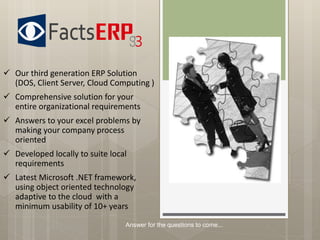
 Our third generation ERP Solution
(DOS, Client Server, Cloud Computing )
 Comprehensive solution for your
entire organizational requirements
 Answers to your excel problems by
making your company process
oriented
 Developed locally to suite local
requirements
 Latest Microsoft .NET framework,
using object oriented technology
adaptive to the cloud with a
minimum usability of 10+ years
Answer for the questions to come...
 Faster recovery in case of a
disaster.
 Minimum capital expenditure
 Reduced Maintenance cost
 No need to compromise your
own process flow
Answer for the questions to come...
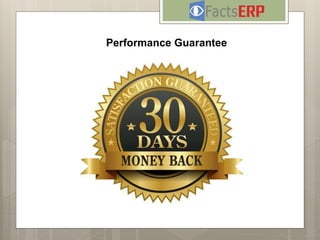
Performance Guarantee
What would you like to See
Benefits of FactsERP over
other ERP solutions
 Drastic cut-down on
licensing (upto 70%??) ,
implementation cost
(upto 80%??) compared
to other ERP solutions
(SAP and ORACLE).
 In case of any
customization required,
standard ERP will
become an extremely
expensive affair.
 Eg:- Oracle Per Seat Cost
would be around $5000/-
and typical implementation
would take a minimum of
4-8 months for roll out; 3-6
months for stabilization
post go live. User training
and familiarization are
major investments for any
ERP solution compared to
our user friendly
application.
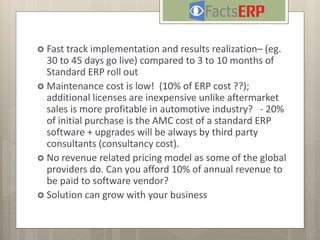
 Fast track implementation and results realization– (eg.
30 to 45 days go live) compared to 3 to 10 months of
Standard ERP roll out
 Maintenance cost is low! (10% of ERP cost ??);
additional licenses are inexpensive unlike aftermarket
sales is more profitable in automotive industry? - 20%
of initial purchase is the AMC cost of a standard ERP
software + upgrades will be always by third party
consultants (consultancy cost).
 No revenue related pricing model as some of the global
providers do. Can you afford 10% of annual revenue to
be paid to software vendor?
 Solution can grow with your business
Answer for the questions to come...
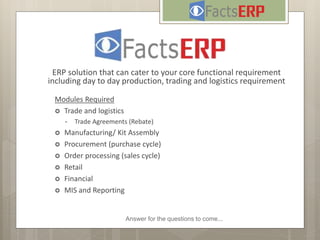
ERP solution that can cater to your core functional requirement
including day to day production, trading and logistics requirement
Modules Required
 Trade and logistics
• Trade Agreements (Rebate)
 Manufacturing/ Kit Assembly
 Procurement (purchase cycle)
 Order processing (sales cycle)
 Retail
 Financial
 MIS and Reporting
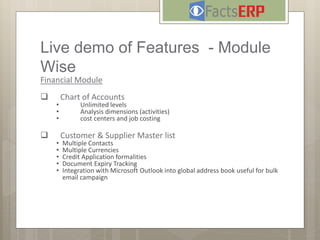
Live demo of Features - Module
Wise
Financial Module
 Chart of Accounts
• Unlimited levels
• Analysis dimensions (activities)
• cost centers and job costing
 Customer & Supplier Master list
• Multiple Contacts
• Multiple Currencies
• Credit Application formalities
• Document Expiry Tracking
• Integration with Microsoft Outlook into global address book useful for bulk
email campaign
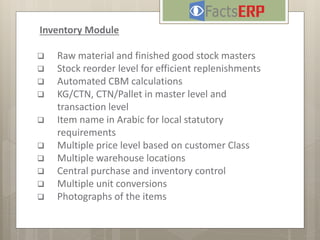
Inventory Module
 Raw material and finished good stock masters
 Stock reorder level for efficient replenishments
 Automated CBM calculations
 KG/CTN, CTN/Pallet in master level and
transaction level
 Item name in Arabic for local statutory
requirements
 Multiple price level based on customer Class
 Multiple warehouse locations
 Central purchase and inventory control
 Multiple unit conversions
 Photographs of the items
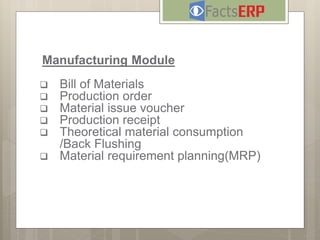
Manufacturing Module
 Bill of Materials
 Production order
 Material issue voucher
 Production receipt
 Theoretical material consumption
/Back Flushing
 Material requirement planning(MRP)
Connected Business Platform
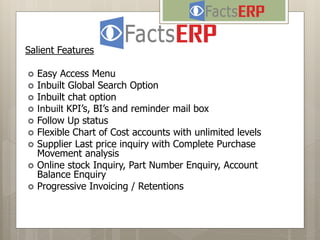
Salient Features
 Easy Access Menu
 Inbuilt Global Search Option
 Inbuilt chat option
 Inbuilt KPI’s, BI’s and reminder mail box
 Follow Up status
 Flexible Chart of Cost accounts with unlimited levels
 Supplier Last price inquiry with Complete Purchase
Movement analysis
 Online stock Inquiry, Part Number Enquiry, Account
Balance Enquiry
 Progressive Invoicing / Retentions
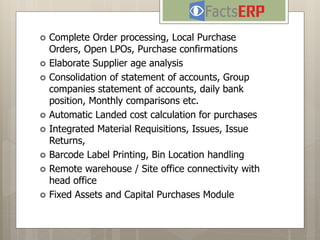
 Complete Order processing, Local Purchase
Orders, Open LPOs, Purchase confirmations
 Elaborate Supplier age analysis
 Consolidation of statement of accounts, Group
companies statement of accounts, daily bank
position, Monthly comparisons etc.
 Automatic Landed cost calculation for purchases
 Integrated Material Requisitions, Issues, Issue
Returns,
 Barcode Label Printing, Bin Location handling
 Remote warehouse / Site office connectivity with
head office
 Fixed Assets and Capital Purchases Module
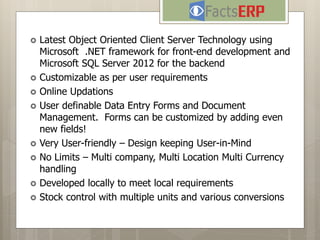
 Latest Object Oriented Client Server Technology using
Microsoft .NET framework for front-end development and
Microsoft SQL Server 2012 for the backend
 Customizable as per user requirements
 Online Updations
 User definable Data Entry Forms and Document
Management. Forms can be customized by adding even
new fields!
 Very User-friendly – Design keeping User-in-Mind
 No Limits – Multi company, Multi Location Multi Currency
handling
 Developed locally to meet local requirements
 Stock control with multiple units and various conversions
Answer for the questions to come...
 Damage and other outgoing entry for perfect
inventory management
 Customer Last price inquiry with Complete Sales /
Purchase Movement analysis
 Automatic Landed cost calculation
 Various Grouping structures Templates for
Financial Statements
 Integrated or Non Integrated Post-dated Cheques
Handling
 Unlimited User Access Levels
 User Activity Logs
 Add/Edit/Delete/Print Logs
 Audit Trails
Answer for the questions to come...
HR & payroll software solution
ERP Software Provider UAE

ERP Software Provider UAE

  • 1.
    Default address Avenue,4214, Postal code 80.250-210 / Curitiba PR BR +55 32 3836 55 55 +55 32 9685 55 55| | www.default.com SHINE A LIGHT ON YOUR BUSINESS Software Solutions Behind Successful Enterprises 201, 202 & 402, Mohd & Sons Building,Burdubai, Dubai +971-4-3529915 +971-4-3511377 www.facts.ae www.factsuae.com
  • 2.
    Our USPs Successfully completed16+ years in the market. Direct from creators of the software, and not through channel partners or third party implementers. Modelled with global solutions like Microsoft dynamics Axapta (we have Axapta implementation division) 5,000+ users, 1,000+ projects, 500+ customers spreading from small, medium to large enterprises like McDonalds, Lufthansa, Bulgari, Bose, Nikon, Adani, 7Eleven, Circle K, Shapoorji Pallonji are few to name. We have strong local presence, 50+ implementers based in our HQ here in Dubai. Strong client references and solid client retention.
  • 3.
    2 To work professionallyand ethically, delivering quality services for the development of viable, successful, & sustainable projects Mission To be a World-Class Solution Provider in the field of Business Solutions Vision “The best as seen elsewhere, need not be the best for you. What is your best is what can be successfully implemented” 3 1 Integrity & Honesty, delivery exceeding expectations, customer satisfaction, proactive than responsive, quality delivery with professionalism, result oriented and well documented Core Values
  • 4.
    Proud to bea “Microsoft Gold Certified partner” for last 8+ years We are “Microsoft Gold Certified Partner”  We have 24-hour access to Microsoft Support  Every Microsoft Gold Certified Partner has to be in business for at least 5 years which minimum qualification criteria  Highest level of Partnership provided to any independent software vendor (ISV)  Right to use all Microsoft products for development 21
  • 5.
    • Strong referencesin customer satisfaction survey conducted by Microsoft • Testing products at Microsoft labs • Microsoft certified developers, system engineers, technology specialists Requisites to maintain Microsoft Gold certified partnership
  • 6.
     Our thirdgeneration ERP Solution (DOS, Client Server, Cloud Computing )  Comprehensive solution for your entire organizational requirements  Answers to your excel problems by making your company process oriented  Developed locally to suite local requirements  Latest Microsoft .NET framework, using object oriented technology adaptive to the cloud with a minimum usability of 10+ years Answer for the questions to come...
  • 7.
     Faster recoveryin case of a disaster.  Minimum capital expenditure  Reduced Maintenance cost  No need to compromise your own process flow Answer for the questions to come...
  • 8.
  • 9.
    What would youlike to See
  • 10.
    Benefits of FactsERPover other ERP solutions  Drastic cut-down on licensing (upto 70%??) , implementation cost (upto 80%??) compared to other ERP solutions (SAP and ORACLE).  In case of any customization required, standard ERP will become an extremely expensive affair.  Eg:- Oracle Per Seat Cost would be around $5000/- and typical implementation would take a minimum of 4-8 months for roll out; 3-6 months for stabilization post go live. User training and familiarization are major investments for any ERP solution compared to our user friendly application.
  • 11.
     Fast trackimplementation and results realization– (eg. 30 to 45 days go live) compared to 3 to 10 months of Standard ERP roll out  Maintenance cost is low! (10% of ERP cost ??); additional licenses are inexpensive unlike aftermarket sales is more profitable in automotive industry? - 20% of initial purchase is the AMC cost of a standard ERP software + upgrades will be always by third party consultants (consultancy cost).  No revenue related pricing model as some of the global providers do. Can you afford 10% of annual revenue to be paid to software vendor?  Solution can grow with your business
  • 12.
    Answer for thequestions to come... ERP solution that can cater to your core functional requirement including day to day production, trading and logistics requirement Modules Required  Trade and logistics • Trade Agreements (Rebate)  Manufacturing/ Kit Assembly  Procurement (purchase cycle)  Order processing (sales cycle)  Retail  Financial  MIS and Reporting
  • 13.
    Live demo ofFeatures - Module Wise Financial Module  Chart of Accounts • Unlimited levels • Analysis dimensions (activities) • cost centers and job costing  Customer & Supplier Master list • Multiple Contacts • Multiple Currencies • Credit Application formalities • Document Expiry Tracking • Integration with Microsoft Outlook into global address book useful for bulk email campaign
  • 14.
    Inventory Module  Rawmaterial and finished good stock masters  Stock reorder level for efficient replenishments  Automated CBM calculations  KG/CTN, CTN/Pallet in master level and transaction level  Item name in Arabic for local statutory requirements  Multiple price level based on customer Class  Multiple warehouse locations  Central purchase and inventory control  Multiple unit conversions  Photographs of the items
  • 15.
    Manufacturing Module  Billof Materials  Production order  Material issue voucher  Production receipt  Theoretical material consumption /Back Flushing  Material requirement planning(MRP)
  • 16.
  • 17.
    Salient Features  EasyAccess Menu  Inbuilt Global Search Option  Inbuilt chat option  Inbuilt KPI’s, BI’s and reminder mail box  Follow Up status  Flexible Chart of Cost accounts with unlimited levels  Supplier Last price inquiry with Complete Purchase Movement analysis  Online stock Inquiry, Part Number Enquiry, Account Balance Enquiry  Progressive Invoicing / Retentions
  • 18.
     Complete Orderprocessing, Local Purchase Orders, Open LPOs, Purchase confirmations  Elaborate Supplier age analysis  Consolidation of statement of accounts, Group companies statement of accounts, daily bank position, Monthly comparisons etc.  Automatic Landed cost calculation for purchases  Integrated Material Requisitions, Issues, Issue Returns,  Barcode Label Printing, Bin Location handling  Remote warehouse / Site office connectivity with head office  Fixed Assets and Capital Purchases Module
  • 19.
     Latest ObjectOriented Client Server Technology using Microsoft .NET framework for front-end development and Microsoft SQL Server 2012 for the backend  Customizable as per user requirements  Online Updations  User definable Data Entry Forms and Document Management. Forms can be customized by adding even new fields!  Very User-friendly – Design keeping User-in-Mind  No Limits – Multi company, Multi Location Multi Currency handling  Developed locally to meet local requirements  Stock control with multiple units and various conversions Answer for the questions to come...
  • 20.
     Damage andother outgoing entry for perfect inventory management  Customer Last price inquiry with Complete Sales / Purchase Movement analysis  Automatic Landed cost calculation  Various Grouping structures Templates for Financial Statements  Integrated or Non Integrated Post-dated Cheques Handling  Unlimited User Access Levels  User Activity Logs  Add/Edit/Delete/Print Logs  Audit Trails
  • 21.
    Answer for thequestions to come... HR & payroll software solution

Editor's Notes

  • #23 Light Bulb Questions (Intermediate)   To reproduce the box effects on this slide, do the following: On the Home tab, in the Slides group, click Layout, and then click Blank. On the Design tab, in the Themes group, click the arrow next to Colors and then click Oriel. On the Insert tab, in the Illustrations group click the arrow under Shapes, and then under Rectangles, select rectangle (first row, first option from left). On the slide, drag to draw a rectangle. Under Drawing Tools, in the Format tab, in the Size group, click the arrow at the bottom right corner launching the Format Shape dialog box. In the Format Shape dialog box, select Size in the left pane, under Size and rotate in the right pane set Height to 1.88” and Width to 2”. Also in the Format Shape dialog box, select Fill in the left pane, and under Fill in the right pane select No Fill. Also in the Format Shape dialog box, select Line Color in the left pane, under Line Color in the right pane, select Solid Line, and then click the arrow to the right of Color, and under Theme Colors, select Black, Text 1 (first row, second option from left). Also in the Format Shape dialog box, select Line Style in the left pane, under Line Style in the right pane set Width to 0.25 pt. Close the Format Shape dialog box. Select the rectangle. On the Home tab, in the Drawing group, click Arrange, point to Align, and then do the following: Click Align Left. Click Align Top. Select the rectangle. On the Home tab, in the Clipboard group, click the arrow to the right of Copy, and then click Duplicate. Repeat this process three more times for a total of five rectangles. Select duplicate on right side. On the Home tab, in the Drawing group, click Arrange, point to Align, and then do the following: Click Align Right. Click Align Top. Select all five rectangles. On the Home tab, in the Drawing group, click Arrange, point to Align, and then do the following: Click Align Top. Click Distribute Horizontally. Under Drawing Tools, on the Format tab, in the Arrange group, click the arrow to the right of Group and select Group. Select the grouped rectangles. On the Home tab, in the Clipboard group, click the arrow to the right of Copy, and then click Duplicate. Repeat this process two more times for a total of four grouped sets. Select one grouped set. On the Home tab, in the Drawing group, click Arrange, point to Align, and then do the following: Click Align Center. Click Align Bottom. Select all other grouped sets, and also on the Home tab, in the Drawing group, click Arrange, point to Align, do the following: Click Align Center. Click Distribute Vertically. Select all grouped rectangles. Under Drawing Tools, on the Format tab, in the Arrange group, click the arrow to the right of Group and select Ungroup.   To reproduce the video effects on this slide, do the following: On the Insert tab, in the Media group, click Video, and then click Video from File. In the left pane of the Insert Video dialog box, click the drive or library that contains the video. In the right pane of the dialog box, click the first video that you want, and then click Insert. Under Video Tools, on the Format tab, in the Size group, click the arrow at the bottom right corner to launch the Format Video dialog box. In the Format Video dialog box, select Size in the left pane, under Size and Rotate in the right pane, set Height to 1.88” and Width to 1.99”. In the Animations tab, in the Animation group, select Play. Also on the Animations tab, in the Timing group, click the arrow to the right of Start and select With Previous. On the Home tab, in the Drawing group, click Arrange, point to Align, and then do the following: Click Align Left. Click Align Top. Also on the Home tab, in the Drawing group, click Arrange, under Order Objects, click Send to Back. On the Insert tab, in the Media group, click Video, and then click Video from File.   In the left pane of the Insert Video dialog box, click the drive or library that contains the video. In the right pane of the dialog box, click the second video that you want and then click Insert. In the Format Video dialog box, select Size in the left pane, under Size and Rotate in the right pane, and set Height to 1.88” and Width to 1.99”. In the Animations tab, in the Animation group, select Play. Also on the Animations tab, in the Timing group, click the arrow to the right of Start and select With Previous. On the Home tab, in the Drawing group, click Arrange, point to Align, and then click Align Top. Press and hold CTRL, select second video and second rectangle from top left. On the Home tab, in the Drawing group, click Arrange, point to Align, and then select Align Left or Align Right (depending on which way the video needs to move to match up with rectangle). Select the second video, on the Home tab, in the Drawing group, click Arrange, under Order Objects, click Send to Back. On the Insert tab, in the Media group, click Video, and then click Video from File. In the left pane of the Insert Video dialog box, click the drive or library that contains the video. In the right pane of the dialog box, click the third video that you want and then click Insert. Under Video Tools on the Format tab, in the Size group, click the arrow at the bottom right corner to launch the Format Video dialog box. In the Format Video dialog box, select Size in the left pane, under Size and Rotate in the right pane, set the Height to 3.75” and the Width to 4”. In the Animations tab, in the Animation group, select Play. Also on the Animations tab, in the Timing group, click the arrow to the right of Start and select With Previous. On the Home tab, in the Drawing group, click Arrange, point to Align, and then do the following: Click Align Right. Click Align Top. Also on the Home tab, in the Drawing group, click Arrange, under Order Objects, click Send to Back. On the Insert tab, in the Media group, click Video, and then click Video from file. In the left pane of the Insert Video dialog box, click the drive or library that contains the video. In the right pane of the dialog box, click the fourth video that you want and then click Insert. In the Format Video dialog box, select Size in the left pane, under Size and Rotate in the right pane, set the Height to 1.88” and the Width to 1.99”. In the Animations tab, in the Animation group, select Play. Also on the Animations tab, in the Timing group, click the arrow to the right of Start and select With Previous. On the Home tab, in the Drawing group, click Arrange, point to Align, and then click Align Bottom. Press and hold CTRL, select fourth video and seventeenth rectangle (fourth row, second option from left). On the Home tab, in the Drawing group, click Arrange, point to Align, and then select Align Left or Align Right (depending on which way the video needs to move to match up with rectangle). Select just the video, on the Home tab, in the Drawing group, click Arrange, under Order Objects, click Send to Back. On the Insert tab, in the Media group, click Video, and then click Video from file. In the left pane of the Insert Video dialog box, click the drive or library that contains the video. In the right pane of the dialog box, click the fifth video that you want and then click Insert. In the Format Video dialog box, select Size in the left pane, under Size and Rotate in the right pane, set the Height to 1.88” and the Width to 1.99”. In the Animations tab, in the Animation group, select Play. Also on the Animations tab, in the Timing group, click the arrow to the right of Start and select With Previous. Press and hold CTRL, select fifth video and thirteenth rectangle (third row, third option from left). On the Home tab, in the Drawing group, click Arrange, point to Align, and then select Align Left or Align Right, and then Align Top or Align Bottom (depending on which way the video needs to move to match up with rectangle). Select just the video, on the Home tab, in the Drawing group, click Arrange, under Order Objects, click Send to Back. On the Insert tab, in the Media group, click Video, and then click Video from file. In the left pane of the Insert Video dialog box, click the drive or library that contains the video. In the right pane of the dialog box, click the sixth video that you want and then click Insert. In the Format Video dialog box, select Size in the left pane, under Size and Rotate in the right pane, set Height to 1.88” and Width to 1.99”. Close the Format Video dialog box. In the Animations tab, in the Animation group, select Play. Also on the Animations tab, in the Timing group, click the arrow to the right of Start and select With Previous. On the Home tab, in the Drawing group, click Arrange, point to Align, and then click Align Bottom. Press and hold CTRL, select sixth video and nineteenth rectangle (fifth row, fourth option from left). On the Home tab, in the Drawing group, click Arrange, point to Align, and then select Align Left or Align Right (depending on which way the video needs to move to match up with rectangle). Select just the video, on the Home tab, in the Drawing group, click Arrange, under Order Objects, click Send to Back.   To reproduce the text effects on this slide, do the following: Press and hold CTRL, select rectangles six, seven and eight (second row, first, second and third options from left), then under the Home tab, in the Clipboard group, click the Cut icon. On the Insert tab, in the Text group, click Text Box, and then on the slide drag to draw your text box in the area you just cut. Type text, Questions, in the text box, and then select the text. On the Home tab, in the Font group, select Book Antiqua from the Font list, with a Font Size of 88 pt. Under Drawing Tools, on the Format tab, in the WordArt Styles group, click the arrow at the bottom right to launch the Format Text Effects dialog box. In the Format Text Effects dialog box, select Text Fill in the left pane, under Text Fill in the right pane select Solid fill, then click the arrow to the right of Color and under Theme Colors, select Light Yellow, Background 2, Darker 75% (fifth row, third option from left). Also in the Format Text Effects dialog box, select Shadow in the left pane, under Shadow in the right pane, click the arrow to the right of Color and under Theme Colors, select Black, Text 1 (first row, second option from left), and the do the following: In the Transparency box, enter 35%. In the Size box, enter 100%. In the Blur box, enter 6 pt. In the Angle box, enter 90 degrees. In the Distance box, enter 4 pt. Also in the Format Text Effects dialog box, select 3-D Format in the left pane, under 3-D Format in the right pane, click the arrow to the right of Top, under Bevel select Art Deco (third row, fourth option from left), and then do the following: To the right of Top, in the Width box, enter 2 pt. To the right of Top, in the Height box, enter 4.4 pt. Under Contour, click arrow to right of Color and under Theme Colors, select Light Yellow, Background 2, Darker 10% (second row, third option from left), then set Size to 2pt. Under Surface, click the arrow to the right of Lighting and under Neutral, select Soft (first row, third option from left). Select text. On the Home tab, in the Paragraph group, select Center Text. Close the Format Text Effects dialog box.   To reproduce the background effects on this slide, do the following: On the Design tab, in the bottom right corner of the Background group, click the arrow at the bottom right to launch the Format Background dialog box. In the Format Background dialog box, select Fill in the left pane, under Fill in the right pane, select Gradient fill, then click the arrow to the right of Type and select Radial. Still in the Fill pane, under Gradient stops, click Add gradient stop or Remove gradient stop until four stops appear on the slider. Customize the gradient stops as follows: Select the first stop on the slider, and then do the following: In the Position box, enter 0%. Click the button next to Color, and then under Theme Colors select Gold, Accent 4, Lighter 80% (second row, eighth option from the left). Select the second stop on the slider, and then do the following: In the Position box, enter 26%. Click the button next to Color, and then under Theme Colors select Gold, Accent 4, Lighter 60% (second row, eighth option from the left). Select the third stop on the slider, and then do the following: In the Position box, enter 59%. Click the button next to Color, and then under Theme Colors select Gold, Accent 4, Lighter 40% (fourth row, eighth option from the left). Select the last stop on the slider, and then do the following: In the Position box, enter 100%. Click the button next to Color, and then under Theme Colors select Gold, Accent 4, Darker 25% (fifth row, eighth option from the left).   Close the Format Background dialog box.