A Deep
Dive into the PeopleSoft Alert
Framework
Steve Canter
Director, Global Service Delivery
Smart ERP Solutions
steve.c@smarterp.com
www.smarterp.com
About your Presenter
• Director, Global Solution Delivery for Smart ERP since 2013
• Formerly CIO of Berlin Packaging
• Working with PeopleSoft applications since 2000
• 15+ years on the leadership team for the PeopleSoft
Supply Chain SIG
• Steve.Canter@SmartERP.com
2
Achieve Best-In-Class Performance
Our mission is to provide innovative, configurable, flexible, cost-effective solutions and services
to common business challenges, enabling our clients to save time,
increase productivity, minimize costs, and maximize their return on investment.
Solutions
Business applications that
offer organizations an end-
to-end solution providing
the right design and
implementation from start
to finish.
Services
A 24/7 seasoned and
experienced staff of experts to
help you implement, upgrade,
and manage your business
solutions efficiently and
effectively at a cost-effective
rate.
Cloud
Cloud applications provide
solutions and services built
on proven enterprise class
architecture that enable
high configurability and
ease of monitoring.
Events and Notification Framework
The Framework provides 3 features that can be used to monitor
business process and create messages when unusual situations
occur.
• Events
• Notifications
• Alerts
Events
• Define, implement and run business logic for specified events
• Define event and then build event handlers to automatically
manage the event with minimal impact to delivered code
• Business logic is contained within an Application Package
• Requires Programming
Steps to Set Up and Event
• Define the Event in the Event Registry
• Write an Event Handler using PeopleCode to execute the
desired business logic
• Register the Event Handler in the Event Registry
Notifications
• Monitor the system and send notifications when exceptions are found
• Notifications can be sent to the Notification Dashboard, email, Worklist, or external
system via XML.
• Some notifications pre-delivered such as those related to inventory pegging. Others
require configuration.
• Notifications occur in “real time”
• Requires Programming
Steps to Set Up a Notification
• Add a Process Name and Category to the Notification Registry
• Create a Context Record to pass information to the framework
(record must contain the EOEN_LOG_KEY subrecord)
• Write code to implement the Notification using the
EOEN_MVC:EOEN_MODEL.EOEN_INTERFACE class
Alerts
• Functionality is similar to Notifications
• Instead of system customizations to send alerts in real time,
the system relies on PeopleSoft Query.
• Benefit is simplicity – if you can write a PeopleSoft query, you
can create an alert.
• An Application Engine program is run to generate the alerts
based on whatever schedule you feel is appropriate
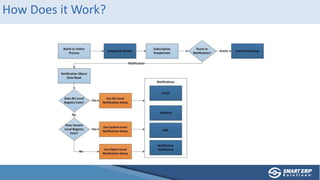
How Does it Work?
Deep Dive into Alerts
Prerequisites for Defining an Alert
Example of Condition Requiring Alert
Important to Understand Key Fields on the Search Page
Make Note of Portal Object Name
Define the Query to be Used
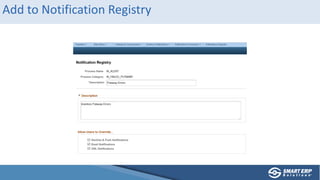
Add to Notification Registry
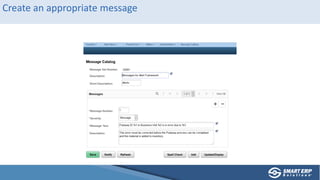
Create an appropriate message
Alert Definitions
Setting up the Alert Step-by-Step
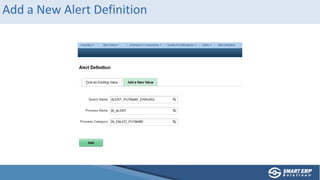
Add a New Alert Definition
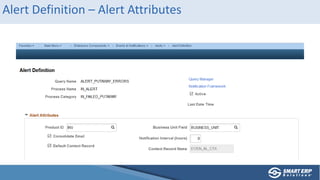
Alert Definition – Alert Attributes
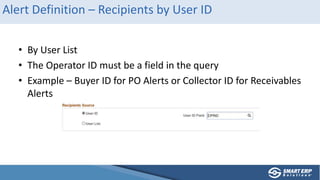
Alert Definition – Recipients by User ID
• By User List
• The Operator ID must be a field in the query
• Example – Buyer ID for PO Alerts or Collector ID for Receivables
Alerts
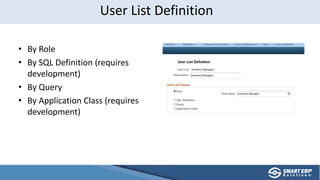
• By Role
• By SQL Definition (requires
development)
• By Query
• By Application Class (requires
development)
User List Definition
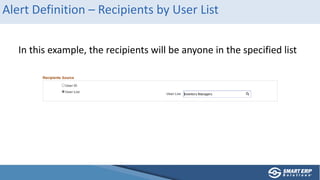
Alert Definition – Recipients by User List
In this example, the recipients will be anyone in the specified list
Alert Setup – Push Notifications
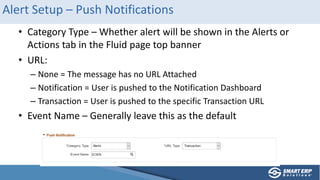
• Category Type – Whether alert will be shown in the Alerts or
Actions tab in the Fluid page top banner
• URL:
– None = The message has no URL Attached
– Notification = User is pushed to the Notification Dashboard
– Transaction = User is pushed to the specific Transaction URL
• Event Name – Generally leave this as the default
Alert Setup – Email Subject
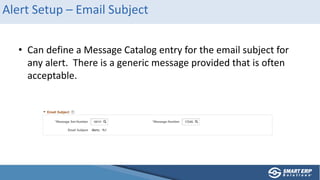
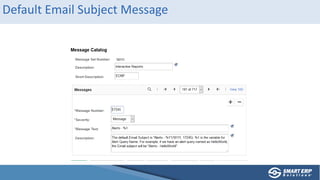
• Can define a Message Catalog entry for the email subject for
any alert. There is a generic message provided that is often
acceptable.
Default Email Subject Message
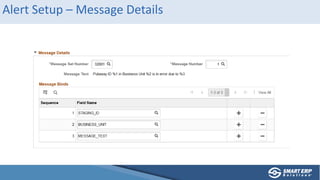
Alert Setup – Message Details
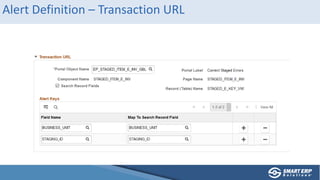
Alert Definition – Transaction URL
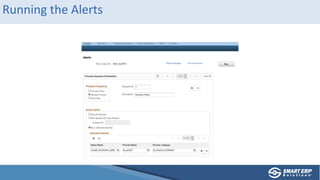
Running the Alerts
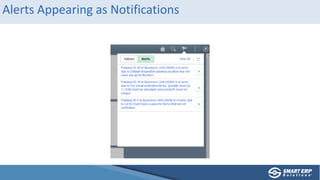
Alerts Appearing as Notifications
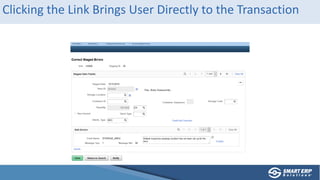
Clicking the Link Brings User Directly to the Transaction
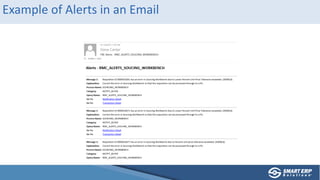
Example of Alerts in an Email
Recipient Overrides
Defining Recipients Universally or by Business Unit – Regardless of other settings
Notification Overrides
• If you put a User ID in the Query results, then the Alert can be
sent to that individual
• Option to send all notifications for a single BU to a specific user
or list of users
• Option to send all notifications for the entire system to a
specific user or list of users
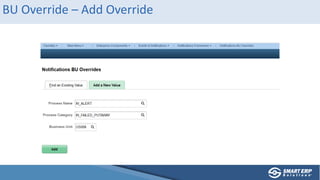
BU Override – Add Override
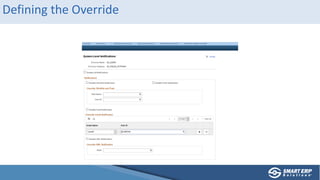
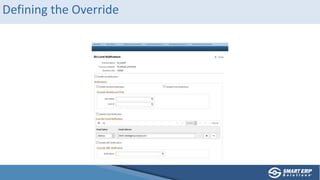
Defining the Override
Additional Comments on Overrides
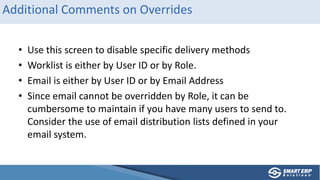
• Use this screen to disable specific delivery methods
• Worklist is either by User ID or by Role.
• Email is either by User ID or by Email Address
• Since email cannot be overridden by Role, it can be
cumbersome to maintain if you have many users to send to.
Consider the use of email distribution lists defined in your
email system.
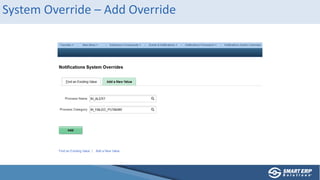
System Override – Add Override
Defining the Override
Final Thoughts
Potential Uses for Alerts
• Transactions Past Due Date
– Sales Orders Not Shipped
– Purchase Orders Not Received
– PIDs Not Completed
• Inventory Stage Errors
• Inventory Confirmation Errors
• Billing Interface Errors
• Inbound EDI Errors
• PO Stage Errors
• Any area where you have Exception Reports Today
Additional Considerations
• Put some thought into Process Name/Category
– Allows you to control the Notification Overrides
– Allows you to group the batch processing
• Considerations for notification method
– Email Alerts are proactive, but want to avoid “spamming” users with
many unneeded Alerts
– If relying on Worklist, then users need to be conditioned to look
there regularly
– Use XML Notifications to feed external systems
Technical Topic – Editing the Email Template
• If you don’t like the default email format, it can be altered via
customization.
• Code is found at the following location:
EOEN_MVC.EOEN_MODEL.EoenNotificationByEmail.OnExecute
• Email template is controlled by the HTML object
EOEN_EMAIL_TEXT
• By modifying this code and/or the HTML object, the contents
and/or style of the email can be changed.
Any Questions?
Special Offer from Smart ERP Solutions
• Smart Quick Start for Alert Framework
• Fixed fee of $5,000 includes
– Training workshop
– Configuration/testing of up to 3 custom Alerts
– Full knowledge transfer on Query creation, Alert configuration, and
Alert Scheduling
• Discounts available when combined with other Quick Start
services

Alert framework2021

  • 1.
    A Deep Dive intothe PeopleSoft Alert Framework Steve Canter Director, Global Service Delivery Smart ERP Solutions steve.c@smarterp.com www.smarterp.com
  • 2.
    About your Presenter •Director, Global Solution Delivery for Smart ERP since 2013 • Formerly CIO of Berlin Packaging • Working with PeopleSoft applications since 2000 • 15+ years on the leadership team for the PeopleSoft Supply Chain SIG • Steve.Canter@SmartERP.com 2
  • 3.
    Achieve Best-In-Class Performance Ourmission is to provide innovative, configurable, flexible, cost-effective solutions and services to common business challenges, enabling our clients to save time, increase productivity, minimize costs, and maximize their return on investment. Solutions Business applications that offer organizations an end- to-end solution providing the right design and implementation from start to finish. Services A 24/7 seasoned and experienced staff of experts to help you implement, upgrade, and manage your business solutions efficiently and effectively at a cost-effective rate. Cloud Cloud applications provide solutions and services built on proven enterprise class architecture that enable high configurability and ease of monitoring.
  • 4.
    Events and NotificationFramework The Framework provides 3 features that can be used to monitor business process and create messages when unusual situations occur. • Events • Notifications • Alerts
  • 5.
    Events • Define, implementand run business logic for specified events • Define event and then build event handlers to automatically manage the event with minimal impact to delivered code • Business logic is contained within an Application Package • Requires Programming
  • 6.
    Steps to SetUp and Event • Define the Event in the Event Registry • Write an Event Handler using PeopleCode to execute the desired business logic • Register the Event Handler in the Event Registry
  • 7.
    Notifications • Monitor thesystem and send notifications when exceptions are found • Notifications can be sent to the Notification Dashboard, email, Worklist, or external system via XML. • Some notifications pre-delivered such as those related to inventory pegging. Others require configuration. • Notifications occur in “real time” • Requires Programming
  • 8.
    Steps to SetUp a Notification • Add a Process Name and Category to the Notification Registry • Create a Context Record to pass information to the framework (record must contain the EOEN_LOG_KEY subrecord) • Write code to implement the Notification using the EOEN_MVC:EOEN_MODEL.EOEN_INTERFACE class
  • 9.
    Alerts • Functionality issimilar to Notifications • Instead of system customizations to send alerts in real time, the system relies on PeopleSoft Query. • Benefit is simplicity – if you can write a PeopleSoft query, you can create an alert. • An Application Engine program is run to generate the alerts based on whatever schedule you feel is appropriate
  • 10.
  • 11.
    Deep Dive intoAlerts Prerequisites for Defining an Alert
  • 12.
    Example of ConditionRequiring Alert
  • 13.
    Important to UnderstandKey Fields on the Search Page
  • 14.
    Make Note ofPortal Object Name
  • 15.
    Define the Queryto be Used
  • 16.
  • 17.
  • 18.
    Alert Definitions Setting upthe Alert Step-by-Step
  • 19.
    Add a NewAlert Definition
  • 20.
    Alert Definition –Alert Attributes
  • 21.
    Alert Definition –Recipients by User ID • By User List • The Operator ID must be a field in the query • Example – Buyer ID for PO Alerts or Collector ID for Receivables Alerts
  • 22.
    • By Role •By SQL Definition (requires development) • By Query • By Application Class (requires development) User List Definition
  • 23.
    Alert Definition –Recipients by User List In this example, the recipients will be anyone in the specified list
  • 24.
    Alert Setup –Push Notifications • Category Type – Whether alert will be shown in the Alerts or Actions tab in the Fluid page top banner • URL: – None = The message has no URL Attached – Notification = User is pushed to the Notification Dashboard – Transaction = User is pushed to the specific Transaction URL • Event Name – Generally leave this as the default
  • 25.
    Alert Setup –Email Subject • Can define a Message Catalog entry for the email subject for any alert. There is a generic message provided that is often acceptable.
  • 26.
  • 27.
    Alert Setup –Message Details
  • 28.
    Alert Definition –Transaction URL
  • 29.
  • 30.
    Alerts Appearing asNotifications
  • 31.
    Clicking the LinkBrings User Directly to the Transaction
  • 32.
    Example of Alertsin an Email
  • 33.
    Recipient Overrides Defining RecipientsUniversally or by Business Unit – Regardless of other settings
  • 34.
    Notification Overrides • Ifyou put a User ID in the Query results, then the Alert can be sent to that individual • Option to send all notifications for a single BU to a specific user or list of users • Option to send all notifications for the entire system to a specific user or list of users
  • 35.
    BU Override –Add Override
  • 36.
  • 37.
    Additional Comments onOverrides • Use this screen to disable specific delivery methods • Worklist is either by User ID or by Role. • Email is either by User ID or by Email Address • Since email cannot be overridden by Role, it can be cumbersome to maintain if you have many users to send to. Consider the use of email distribution lists defined in your email system.
  • 38.
    System Override –Add Override
  • 39.
  • 40.
  • 41.
    Potential Uses forAlerts • Transactions Past Due Date – Sales Orders Not Shipped – Purchase Orders Not Received – PIDs Not Completed • Inventory Stage Errors • Inventory Confirmation Errors • Billing Interface Errors • Inbound EDI Errors • PO Stage Errors • Any area where you have Exception Reports Today
  • 42.
    Additional Considerations • Putsome thought into Process Name/Category – Allows you to control the Notification Overrides – Allows you to group the batch processing • Considerations for notification method – Email Alerts are proactive, but want to avoid “spamming” users with many unneeded Alerts – If relying on Worklist, then users need to be conditioned to look there regularly – Use XML Notifications to feed external systems
  • 43.
    Technical Topic –Editing the Email Template • If you don’t like the default email format, it can be altered via customization. • Code is found at the following location: EOEN_MVC.EOEN_MODEL.EoenNotificationByEmail.OnExecute • Email template is controlled by the HTML object EOEN_EMAIL_TEXT • By modifying this code and/or the HTML object, the contents and/or style of the email can be changed.
  • 44.
  • 45.
    Special Offer fromSmart ERP Solutions • Smart Quick Start for Alert Framework • Fixed fee of $5,000 includes – Training workshop – Configuration/testing of up to 3 custom Alerts – Full knowledge transfer on Query creation, Alert configuration, and Alert Scheduling • Discounts available when combined with other Quick Start services

Editor's Notes

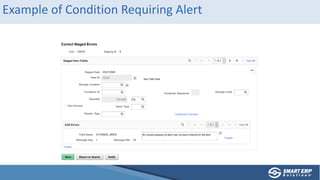
  • #13 This is the screen that shows failed inventory Putaways. We want to alert people when this occurs.
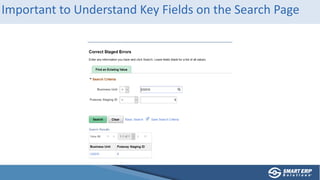
  • #14 The Alert Framework has the ability to include a hyperlink to send the user directly to the page where the condition exists and can be corrected. The key fields on the search page must be included in the query in order to have that ability.
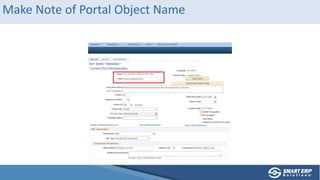
  • #15 We will need the Portal Object name to be able to send the user to the correct page.
  • #17 Every alert needs to be tied to a Process Name and Process Category. We can have an unlimited number of Process Names and Categories. Strategically, we should limit the number of Process Categories. If we can identify groupings of queries that should be sent to the same people, then we can put them all in one Process Category. For example, if we have several queries that look for inventory issues, we could group them together under a Process Name of IN_ALERT so that we have one place to maintain the recipients for all of them.
  • #18 Messages are added to the normal message catalog. Recommend creating a separate message set number specifically for alert messages. This message text will be in the email or Worklist item. Parameters are used to pass values from the query into the message. It is also possible to embed a URL into this message. An example where that might be helpful would be to include a link to the UPK lesson that tells the user how to resolve this Alert.
  • #21 Use the active checkbox to activate or inactivate any Alert. Product ID can be used to group Alerts together so that all Alerts for a Product can be run together. Notification Interval limits the frequency that Alert emails will be sent if the process to generate the alerts is run frequently. It doesn’t apply to dashboard or worklist notifications. If an Alert is BU specific, the BU field in the query must be specified. This can be especially important since there could be multiple BU fields in the same query (GL and AP units or IN and PO units for example). Consolidate Email is used to group all alerts created from a single process into a single email (recommended). I’ve never had reason to use anything other than the Default Context Record.
  • #28 This is the same message we defined earlier. All variables must be fields in the query and must be mapped as shown.
  • #30 Note the ability to run all queries for 1 Product. This is the advantage of properly grouping Alerts by Product, to be able to group these into a single Run Control easily.
  • #31 If configured for email, then the email will be sent per the parameters. If Consolidated, then a single email will be sent per Alert Query with all entries.
  • #37 Note the ability to disable notifications of different types. This method is great if the distribution list varies by BU.
  • #40 Defining overrides at the System Level is less useful than the BU override since System Override actions can be replicated in the alert definition itself and User Lists there are more flexible. But, this screen is still useful for disabling types of notification on a systemwide level.