FactsVSM January 1, 2018
Facts Computer Software House P a g e | 1
FactsVSM
 What?
Facts Van Sales Module is a PDA application which will works on Android 6.0/Windows
Mobile 6.5 OS.
 Van Sales Module
1. Van Sales Module is an online data entry for Customer Adding, Sales Invoice, Sales
Return and Receipt Voucher including printouts (Thermal/Dot Matrix)
2. Van Sales Module has live Stock Balance and Account Balance in the Van.
 Pre-Requisite in ERP (back office)
1. Each Van is considered as a location in ERP
2. Create a user in ERP for the Van driver(Salesman) and tag his default division,
department, location, salesman code and employee code
3. Create Invoice, Receipt Voucher, Sales Return document with location code as Suffix
FactsVSM January 1, 2018
Facts Computer Software House P a g e | 2
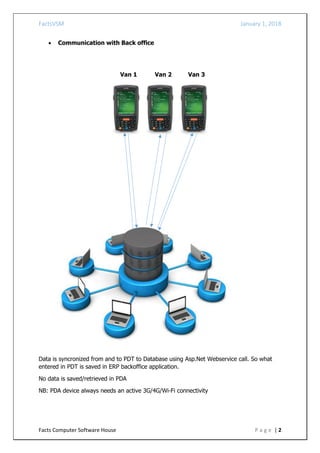
 Communication with Back office
Van 1 Van 2 Van 3
Data is syncronized from and to PDT to Database using Asp.Net Webservice call. So what
entered in PDT is saved in ERP backoffice application.
No data is saved/retrieved in PDA
NB: PDA device always needs an active 3G/4G/Wi-Fi connectivity
FactsVSM January 1, 2018
Facts Computer Software House P a g e | 3
 Installation of FactsVSM
FactsVSM consist of two installation kits.
1. FactsVSMServices
2. FactsVSM cab
FactsVSMServices is the service calls which synchronize the PDA and the server database.
It is hosted in the server. To access Service data through internet in PDA device, a static IP
is required.
Hosting Requirements for FactsVSM services
Option 1
Hosting both website and database in local/in-house server with ONLY intranet access,
website will not be accessible from outside the local area network.
 Web server should be MS Windows Server based.
 Latest versions of IIS, .Net framework, ASP.Net etc. required in web server.
 Full access permissions required in implementation phase
Option 2
Hosting both website and database in local/in-house server with public access.
 Local web server should be accessible for the public users through a static IP or third
party services like Dyndns, no-ip etc.
 Web server should be MS Windows Server based.
 Latest versions of IIS, .Net framework, ASP.Net etc. required in web server.
 Full access permissions required in implementation phase
Working with Dyndns
You can purchase Dyndns from their website (http://dyn.com/dns/) and select a
suitable plan for your needs. You will get a domain name from team Dyndns. Then you can
configure the Dyndns on your router.
If you already have a third-party service other than Dyndns, please send us the
link of the domain name which is configured to your server, so that we can install
our service on it.
FactsVSM cab is the installation kit for the PDT device. It is installed in the PDA device,
and icon will appear on the home screen.
Upgrading versions of FactsVSM cab and FactsVSM services
Both installation kits for FactsVSM can be downloaded from the path ftp://factscsh.com/ .
FactsVSM January 1, 2018
Facts Computer Software House P a g e | 4
The administrator needs to copy the latest FactsVSMServices in to Facts
folderFactsVSMExe in the server.
The copied version of FactsVSM cab must be copied to the PDA device and must install it.
To copy the application to device,
Connect PDT to computer with the cable and open the windows mobile device center in My
Computer. Open the Windows Mobile there and copy the folder in to the Flash Disk folder.
Now disconnect the device and open the folder and install the application.
FactsVSM January 1, 2018
Facts Computer Software House P a g e | 5
 FactsVSM Quick Look
1. Login Screen
User name: The van driver/salesman’s login id registered in back office
Password: Password of user
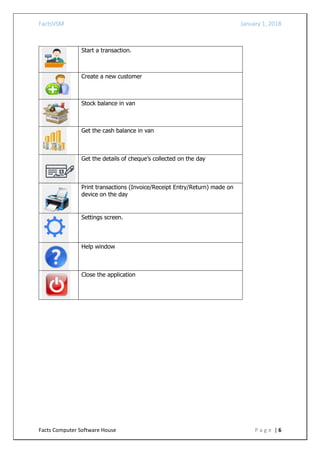
2. Menu
After successful login, user will show a menu option
FactsVSM January 1, 2018
Facts Computer Software House P a g e | 6
Start a transaction.
Create a new customer
Stock balance in van
Get the cash balance in van
Get the details of cheque’s collected on the day
Print transactions (Invoice/Receipt Entry/Return) made on
device on the day
Settings screen.
Help window
Close the application
FactsVSM January 1, 2018
Facts Computer Software House P a g e | 7
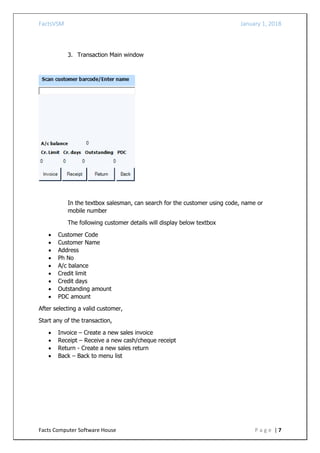
3. Transaction Main window
In the textbox salesman, can search for the customer using code, name or
mobile number
The following customer details will display below textbox
 Customer Code
 Customer Name
 Address
 Ph No
 A/c balance
 Credit limit
 Credit days
 Outstanding amount
 PDC amount
After selecting a valid customer,
Start any of the transaction,
 Invoice – Create a new sales invoice
 Receipt – Receive a new cash/cheque receipt
 Return - Create a new sales return
 Back – Back to menu list
FactsVSM January 1, 2018
Facts Computer Software House P a g e | 8
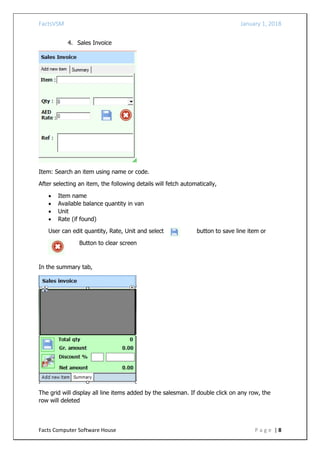
4. Sales Invoice
Item: Search an item using name or code.
After selecting an item, the following details will fetch automatically,
 Item name
 Available balance quantity in van
 Unit
 Rate (if found)
User can edit quantity, Rate, Unit and select button to save line item or
Button to clear screen
In the summary tab,
The grid will display all line items added by the salesman. If double click on any row, the
row will deleted
FactsVSM January 1, 2018
Facts Computer Software House P a g e | 9
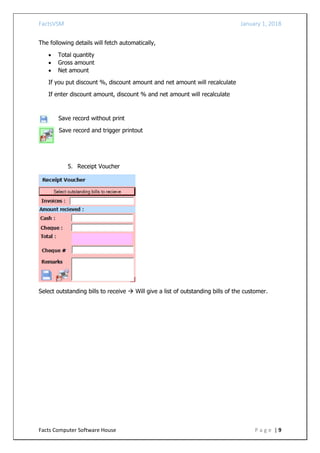
The following details will fetch automatically,
 Total quantity
 Gross amount
 Net amount
If you put discount %, discount amount and net amount will recalculate
If enter discount amount, discount % and net amount will recalculate
Save record without print
Save record and trigger printout
5. Receipt Voucher
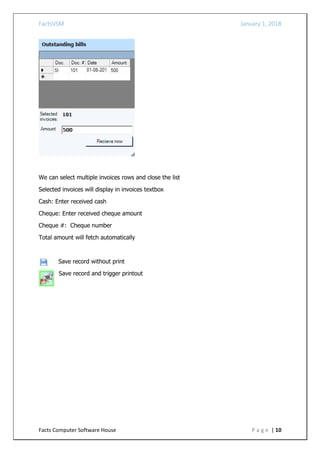
Select outstanding bills to receive  Will give a list of outstanding bills of the customer.
FactsVSM January 1, 2018
Facts Computer Software House P a g e | 10
We can select multiple invoices rows and close the list
Selected invoices will display in invoices textbox
Cash: Enter received cash
Cheque: Enter received cheque amount
Cheque #: Cheque number
Total amount will fetch automatically
Save record without print
Save record and trigger printout
FactsVSM January 1, 2018
Facts Computer Software House P a g e | 11
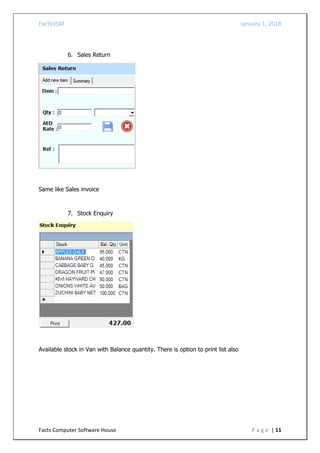
6. Sales Return
Same like Sales invoice
7. Stock Enquiry
Available stock in Van with Balance quantity. There is option to print list also
FactsVSM January 1, 2018
Facts Computer Software House P a g e | 12
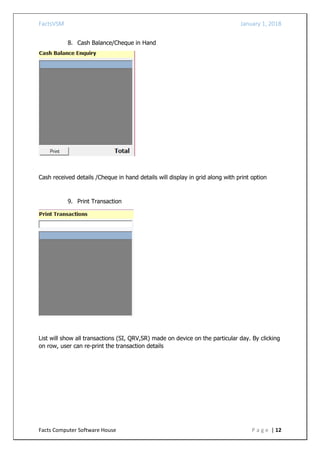
8. Cash Balance/Cheque in Hand
Cash received details /Cheque in hand details will display in grid along with print option
9. Print Transaction
List will show all transactions (SI, QRV,SR) made on device on the particular day. By clicking
on row, user can re-print the transaction details
FactsVSM January 1, 2018
Facts Computer Software House P a g e | 13
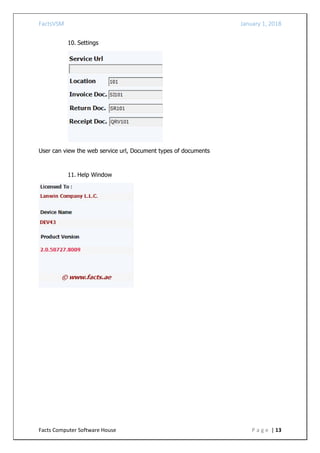
10. Settings
User can view the web service url, Document types of documents
11. Help Window
FactsVSM January 1, 2018
Facts Computer Software House P a g e | 14
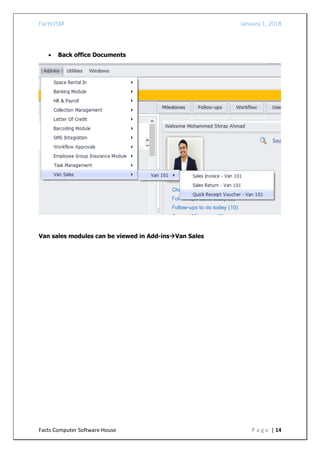
 Back office Documents
Van sales modules can be viewed in Add-insVan Sales

FactsVSM - Vansales Module

  • 1.
    FactsVSM January 1,2018 Facts Computer Software House P a g e | 1 FactsVSM  What? Facts Van Sales Module is a PDA application which will works on Android 6.0/Windows Mobile 6.5 OS.  Van Sales Module 1. Van Sales Module is an online data entry for Customer Adding, Sales Invoice, Sales Return and Receipt Voucher including printouts (Thermal/Dot Matrix) 2. Van Sales Module has live Stock Balance and Account Balance in the Van.  Pre-Requisite in ERP (back office) 1. Each Van is considered as a location in ERP 2. Create a user in ERP for the Van driver(Salesman) and tag his default division, department, location, salesman code and employee code 3. Create Invoice, Receipt Voucher, Sales Return document with location code as Suffix
  • 2.
    FactsVSM January 1,2018 Facts Computer Software House P a g e | 2  Communication with Back office Van 1 Van 2 Van 3 Data is syncronized from and to PDT to Database using Asp.Net Webservice call. So what entered in PDT is saved in ERP backoffice application. No data is saved/retrieved in PDA NB: PDA device always needs an active 3G/4G/Wi-Fi connectivity
  • 3.
    FactsVSM January 1,2018 Facts Computer Software House P a g e | 3  Installation of FactsVSM FactsVSM consist of two installation kits. 1. FactsVSMServices 2. FactsVSM cab FactsVSMServices is the service calls which synchronize the PDA and the server database. It is hosted in the server. To access Service data through internet in PDA device, a static IP is required. Hosting Requirements for FactsVSM services Option 1 Hosting both website and database in local/in-house server with ONLY intranet access, website will not be accessible from outside the local area network.  Web server should be MS Windows Server based.  Latest versions of IIS, .Net framework, ASP.Net etc. required in web server.  Full access permissions required in implementation phase Option 2 Hosting both website and database in local/in-house server with public access.  Local web server should be accessible for the public users through a static IP or third party services like Dyndns, no-ip etc.  Web server should be MS Windows Server based.  Latest versions of IIS, .Net framework, ASP.Net etc. required in web server.  Full access permissions required in implementation phase Working with Dyndns You can purchase Dyndns from their website (http://dyn.com/dns/) and select a suitable plan for your needs. You will get a domain name from team Dyndns. Then you can configure the Dyndns on your router. If you already have a third-party service other than Dyndns, please send us the link of the domain name which is configured to your server, so that we can install our service on it. FactsVSM cab is the installation kit for the PDT device. It is installed in the PDA device, and icon will appear on the home screen. Upgrading versions of FactsVSM cab and FactsVSM services Both installation kits for FactsVSM can be downloaded from the path ftp://factscsh.com/ .
  • 4.
    FactsVSM January 1,2018 Facts Computer Software House P a g e | 4 The administrator needs to copy the latest FactsVSMServices in to Facts folderFactsVSMExe in the server. The copied version of FactsVSM cab must be copied to the PDA device and must install it. To copy the application to device, Connect PDT to computer with the cable and open the windows mobile device center in My Computer. Open the Windows Mobile there and copy the folder in to the Flash Disk folder. Now disconnect the device and open the folder and install the application.
  • 5.
    FactsVSM January 1,2018 Facts Computer Software House P a g e | 5  FactsVSM Quick Look 1. Login Screen User name: The van driver/salesman’s login id registered in back office Password: Password of user 2. Menu After successful login, user will show a menu option
  • 6.
    FactsVSM January 1,2018 Facts Computer Software House P a g e | 6 Start a transaction. Create a new customer Stock balance in van Get the cash balance in van Get the details of cheque’s collected on the day Print transactions (Invoice/Receipt Entry/Return) made on device on the day Settings screen. Help window Close the application
  • 7.
    FactsVSM January 1,2018 Facts Computer Software House P a g e | 7 3. Transaction Main window In the textbox salesman, can search for the customer using code, name or mobile number The following customer details will display below textbox  Customer Code  Customer Name  Address  Ph No  A/c balance  Credit limit  Credit days  Outstanding amount  PDC amount After selecting a valid customer, Start any of the transaction,  Invoice – Create a new sales invoice  Receipt – Receive a new cash/cheque receipt  Return - Create a new sales return  Back – Back to menu list
  • 8.
    FactsVSM January 1,2018 Facts Computer Software House P a g e | 8 4. Sales Invoice Item: Search an item using name or code. After selecting an item, the following details will fetch automatically,  Item name  Available balance quantity in van  Unit  Rate (if found) User can edit quantity, Rate, Unit and select button to save line item or Button to clear screen In the summary tab, The grid will display all line items added by the salesman. If double click on any row, the row will deleted
  • 9.
    FactsVSM January 1,2018 Facts Computer Software House P a g e | 9 The following details will fetch automatically,  Total quantity  Gross amount  Net amount If you put discount %, discount amount and net amount will recalculate If enter discount amount, discount % and net amount will recalculate Save record without print Save record and trigger printout 5. Receipt Voucher Select outstanding bills to receive  Will give a list of outstanding bills of the customer.
  • 10.
    FactsVSM January 1,2018 Facts Computer Software House P a g e | 10 We can select multiple invoices rows and close the list Selected invoices will display in invoices textbox Cash: Enter received cash Cheque: Enter received cheque amount Cheque #: Cheque number Total amount will fetch automatically Save record without print Save record and trigger printout
  • 11.
    FactsVSM January 1,2018 Facts Computer Software House P a g e | 11 6. Sales Return Same like Sales invoice 7. Stock Enquiry Available stock in Van with Balance quantity. There is option to print list also
  • 12.
    FactsVSM January 1,2018 Facts Computer Software House P a g e | 12 8. Cash Balance/Cheque in Hand Cash received details /Cheque in hand details will display in grid along with print option 9. Print Transaction List will show all transactions (SI, QRV,SR) made on device on the particular day. By clicking on row, user can re-print the transaction details
  • 13.
    FactsVSM January 1,2018 Facts Computer Software House P a g e | 13 10. Settings User can view the web service url, Document types of documents 11. Help Window
  • 14.
    FactsVSM January 1,2018 Facts Computer Software House P a g e | 14  Back office Documents Van sales modules can be viewed in Add-insVan Sales