ENTERPRISE RESOURCE
PLANNING
REPORTED BY: JHON LANTACA
I. Definition of ERP
II. Types of ERP Systems
III. Vendor Selection by Application
IV. ERP: Where It Starts
V. Departments Involved
VI. Field it Serves
VII. ERP Implementation
1. Gain Approval
2. Plan the Program
3. Configure Software
4. Deploy the System
5. Stabilize the System
VIII. Hidden Cost
IX. Reasons for Failure
X. ERP Sample Input: Microsoft AX
Dynamics 2012
TABLE
OF
CONTENTS
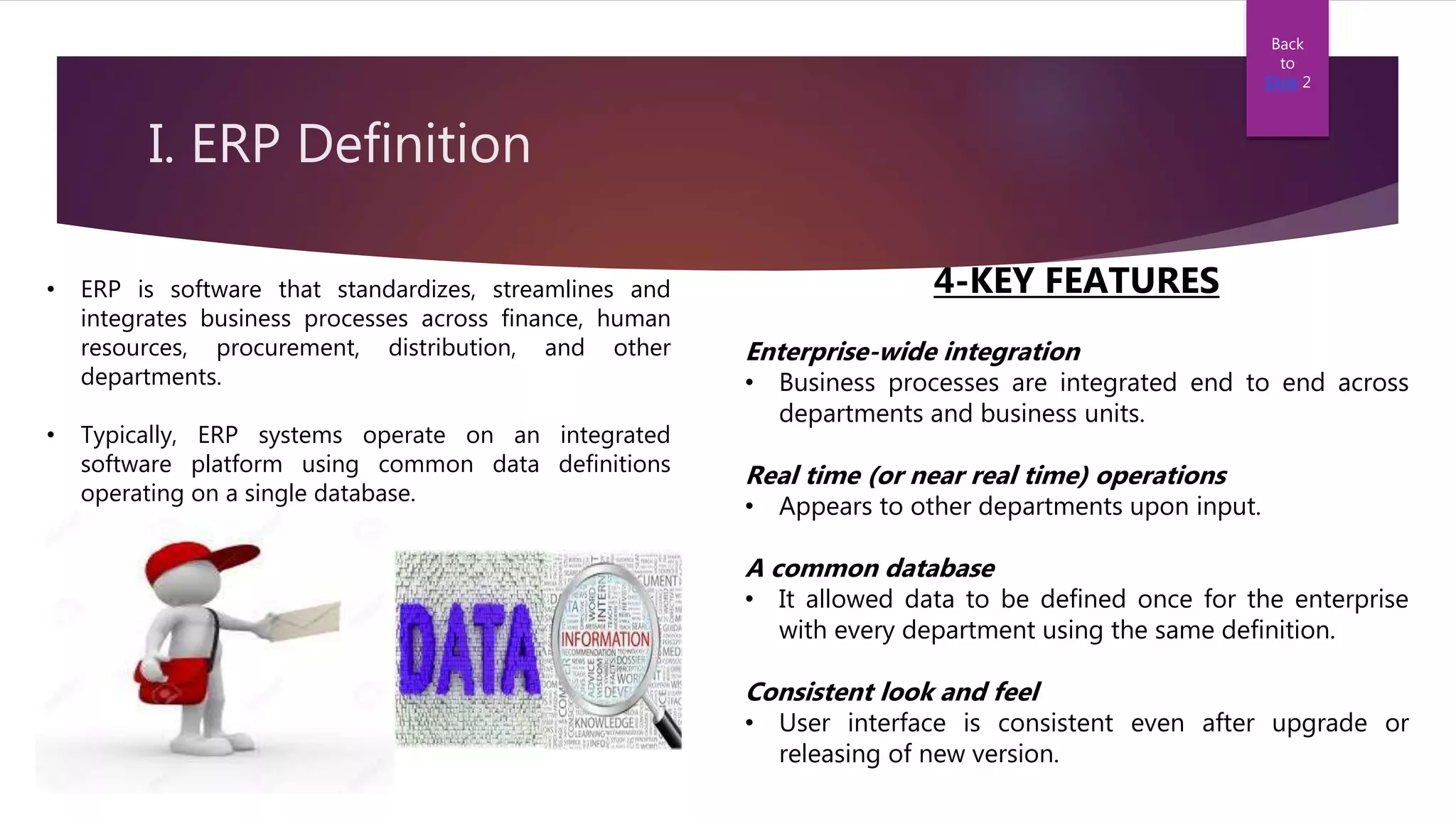
I. ERP Definition
• ERP is software that standardizes, streamlines and
integrates business processes across finance, human
resources, procurement, distribution, and other
departments.
• Typically, ERP systems operate on an integrated
software platform using common data definitions
operating on a single database.
Back
to
Slide 2
4-KEY FEATURES
Enterprise-wide integration
• Business processes are integrated end to end across
departments and business units.
Real time (or near real time) operations
• Appears to other departments upon input.
A common database
• It allowed data to be defined once for the enterprise
with every department using the same definition.
Consistent look and feel
• User interface is consistent even after upgrade or
releasing of new version.
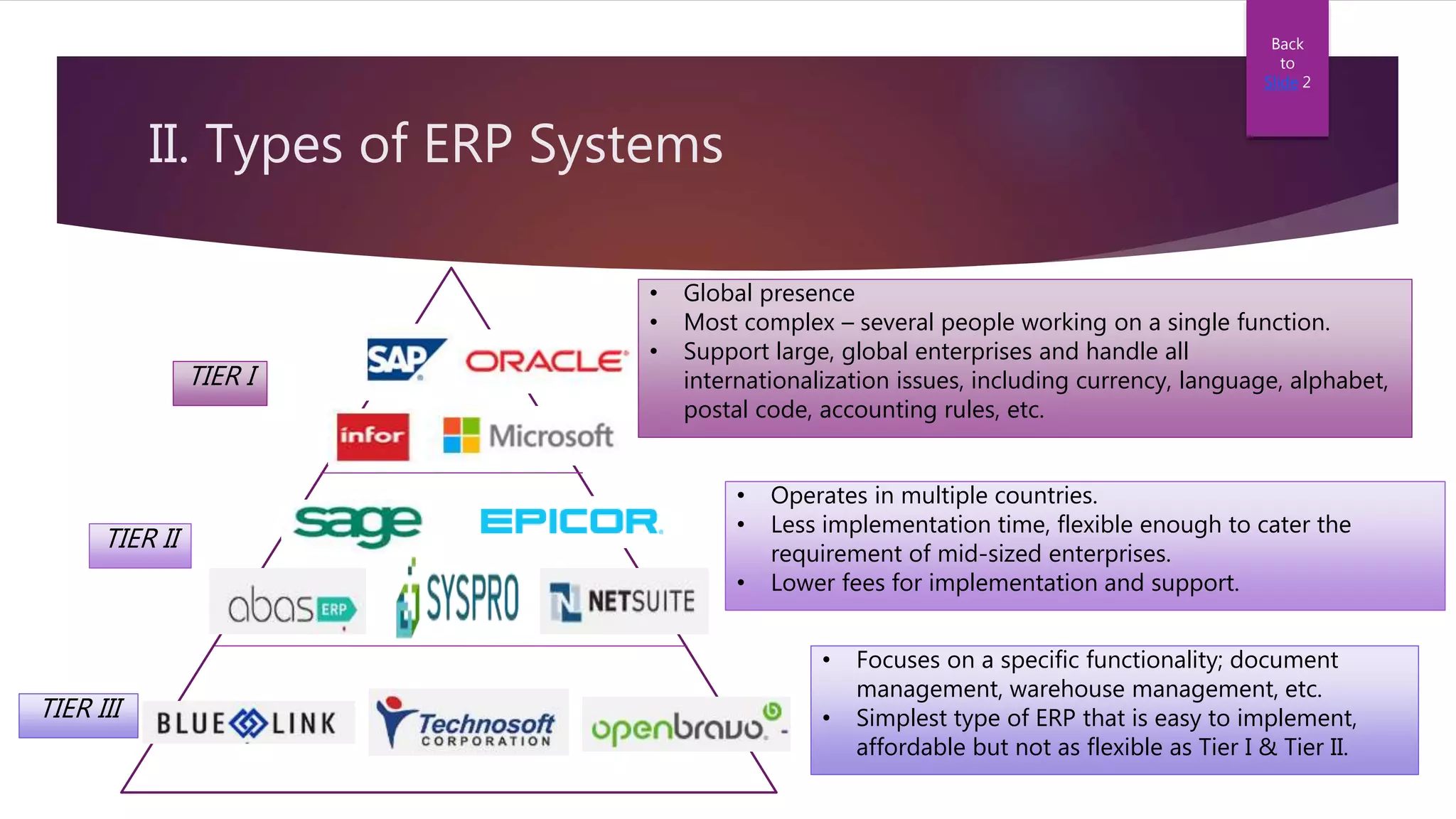
II. Types of ERP Systems
TIER I
TIER II
TIER III
• Global presence
• Most complex – several people working on a single function.
• Support large, global enterprises and handle all
internationalization issues, including currency, language, alphabet,
postal code, accounting rules, etc.
• Focuses on a specific functionality; document
management, warehouse management, etc.
• Simplest type of ERP that is easy to implement,
affordable but not as flexible as Tier I & Tier II.
• Operates in multiple countries.
• Less implementation time, flexible enough to cater the
requirement of mid-sized enterprises.
• Lower fees for implementation and support.
Back
to
Slide 2
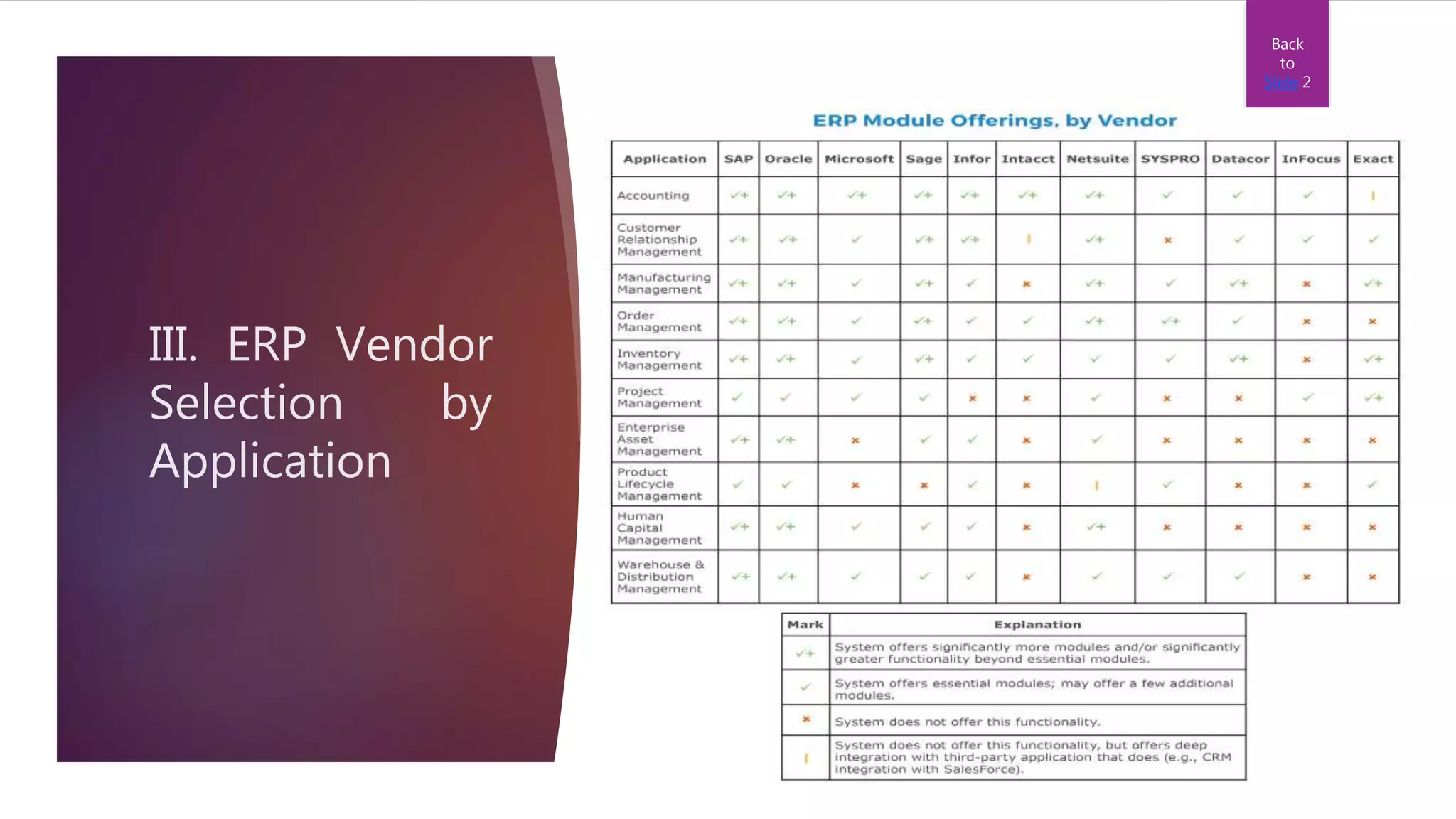
III. ERP Vendor
Selection by
Application
Back
to
Slide 2
IV. ERP: Where it starts?
Sales Person Site Requirement
Rough Estimate
then Quotation
Purchasing Officer
/ Personnel In-
charge / Approver
Purchase Order
Project SiteDelivery
Sales Invoice
Warranty Claims /
Replacement of
Defective Units
Reputable Vendor
Purchasing Officer
/ Personnel In-
charge
Back
to
Slide 2
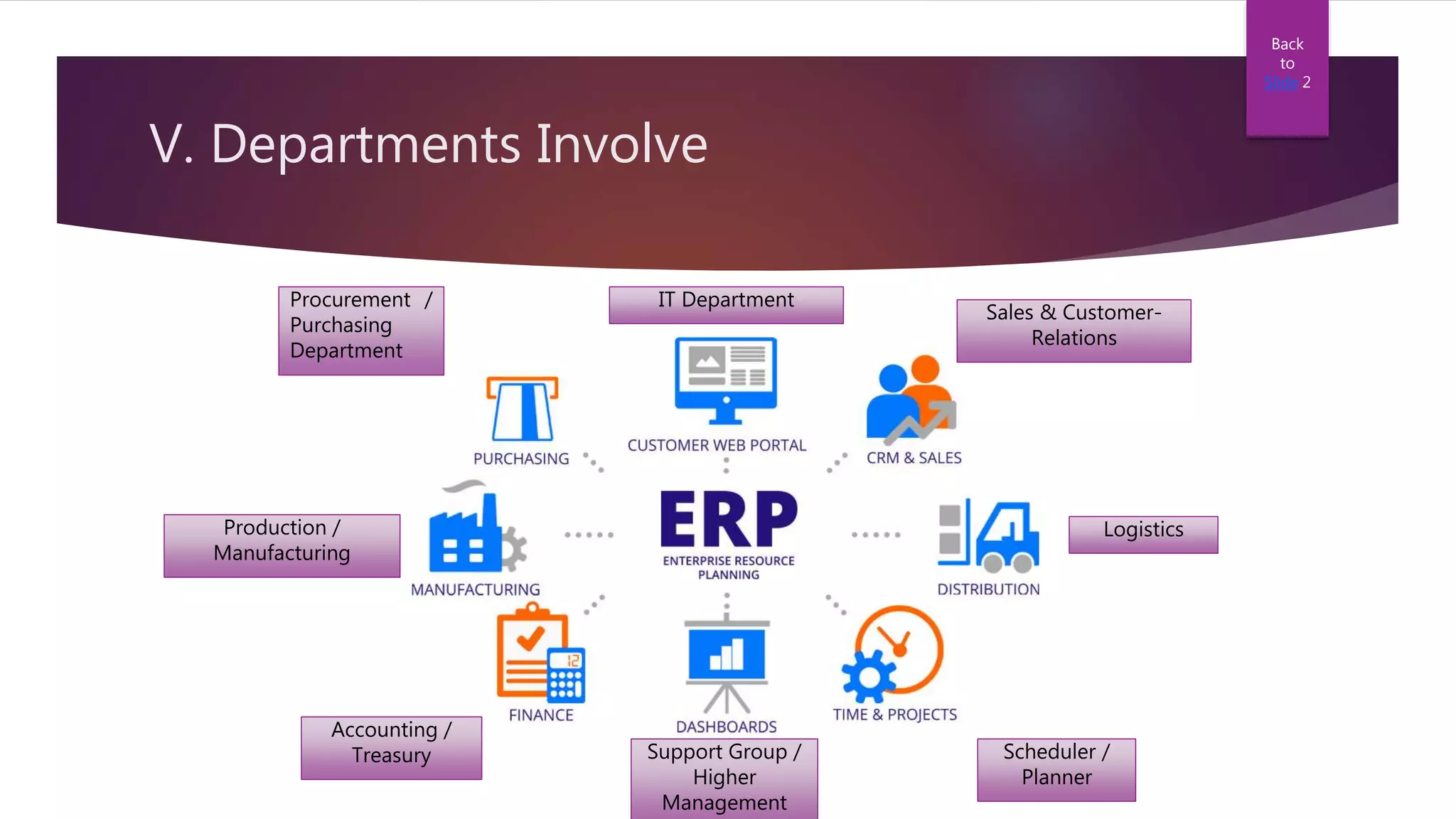
V. Departments Involve
Procurement /
Purchasing
Department
IT Department
Sales & Customer-
Relations
Logistics
Scheduler /
Planner
Production /
Manufacturing
Support Group /
Higher
Management
Accounting /
Treasury
Back
to
Slide 2
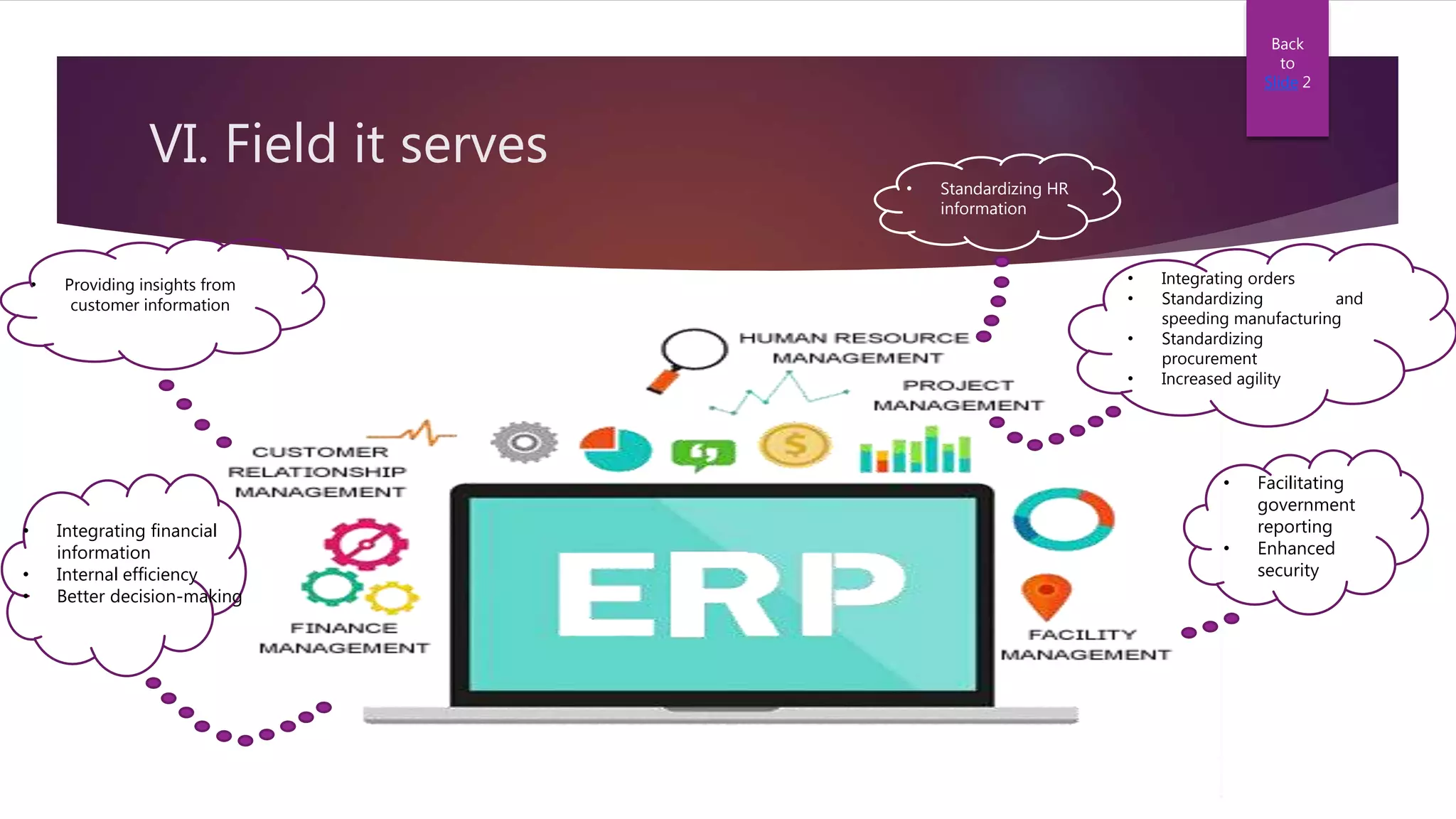
VI. Field it serves
• Providing insights from
customer information
• Standardizing HR
information
• Integrating orders
• Standardizing and
speeding manufacturing
• Standardizing
procurement
• Increased agility
• Facilitating
government
reporting
• Enhanced
security
Back
to
Slide 2
• Integrating financial
information
• Internal efficiency
• Better decision-making
VII. ERP Implementation
1. Gain Approval
 Business Case
o Problems description
o Description of the program’s objective and scope
o Assumptions
o Implementation costs
o Implementation schedule
o Development and operational risks
o Projected benefits
Back
to
Slide 2
VII. ERP Implementation
2. Plan the program
 Finalize Team Members
o Implementation Specialist (Key internal individuals)
o Organization Change Management Specialist (Role Player)
o Technical Specialist (Role Player and External Partners)
 Complete Contracts
o New Software, Technology and Services
 Plan Infrastructure Upgrades
 Create a Work Plan and Timeline
o Tasks, Dependencies, Resources and Timing must be SPECIFIC.
Back
to
Slide 2
VII. ERP Implementation
3. Configure Software
 Analyze Gaps
 Configure Parameters
 Complete Required Programming
 Migrate Data
 Test System
 Document System
 Modify Infrastructure
Back
to
Slide 2
VII. ERP Implementation
4. Deploy the system
 Train staff
 Plan support
 Test the system
 Make the “Go Live” decision
Back
to
Slide 2
VII. ERP Implementation
5. Stabilize the system
 Note all the system imperfection such as loopholes, gaps and irrelevant/illogical input
experienced by the ERP Team to be able to study and furnish by the support group.
Back
to
Slide 2
VIII. Hidden Cost of ERP
 Business Process Change
o Decrease in productivity due to unfamiliarity to the system in the first few period
 Organization Change Management
o Uncertainty of staffs to accept changes
 Data Migration
o Time consuming due to overlapping data base and weak editing rules
 Custom Code
o ERP user takes a lot of burden whenever there’s new release/upgrade of product
such as increase of implementation cost due to additional features
Back
to
Slide 2
IX. Reasons for Failure
 Inappropriate Package Selection
o Proper selection of ERP System to be used plays the most important factor for it to
become successful. Tier I ERP may considered be the “best” but may experience
implementation delay by feature overload if the enterprise is not complex enough.
 Internal Resistance
o Critics from staff using the ERP System may experience if the Support Team doesn’t
render appropriate assistance when needed. Furthermore, strict implementation is
needed if the site is ERP-ready as it serves as familiarity for the system.
Back
to
Slide 2
X. ERP Sample Input: Microsoft AX
Dynamics 2012
START Open the browser
Input the company
provided link
Input your account,
then click OK
Select your
respective
department /
company
Wait for the
Remote App to
appear, then
click YES
Wait for the
product logo to
appear
A survey will
pop-up, click
Cancel
Choose your
respective field
of work
Click Purchase
requisition
prepared by me
Input data for
new purchase
requisition
Add
attachments for
justification
Check the status
of your input (and
do the necessary
follow-ups)
Check for the
Purchase Order /
Work Order
Number to verify
the amount
Once the item has
been delivered,
request to
Confirm the P.O.
Prepare the
Delivery
Receiving
Report
Gather the necessary hard
copy of documents for
payment and submit it to
the Accounting
Department
END
1 2 3 4 5
68 711 9
12 13 14 15
16
10
ERP Sample: Microsoft AX Dynamics
Step 1: Open the Browser
Back
to
Slide
16
ERP Sample: Microsoft AX Dynamics
Step 2: Input the company provided link
Back
to
Slide
16
ERP Sample: Microsoft AX Dynamics
Step 3: Input your account then click OK
Back
to
Slide
16
ERP Sample: Microsoft AX Dynamics
Step 4: Select your respective department/company
Back
to
Slide
16
ERP Sample: Microsoft AX Dynamics
Step 5: Wait then click Yes
Back
to
Slide
16
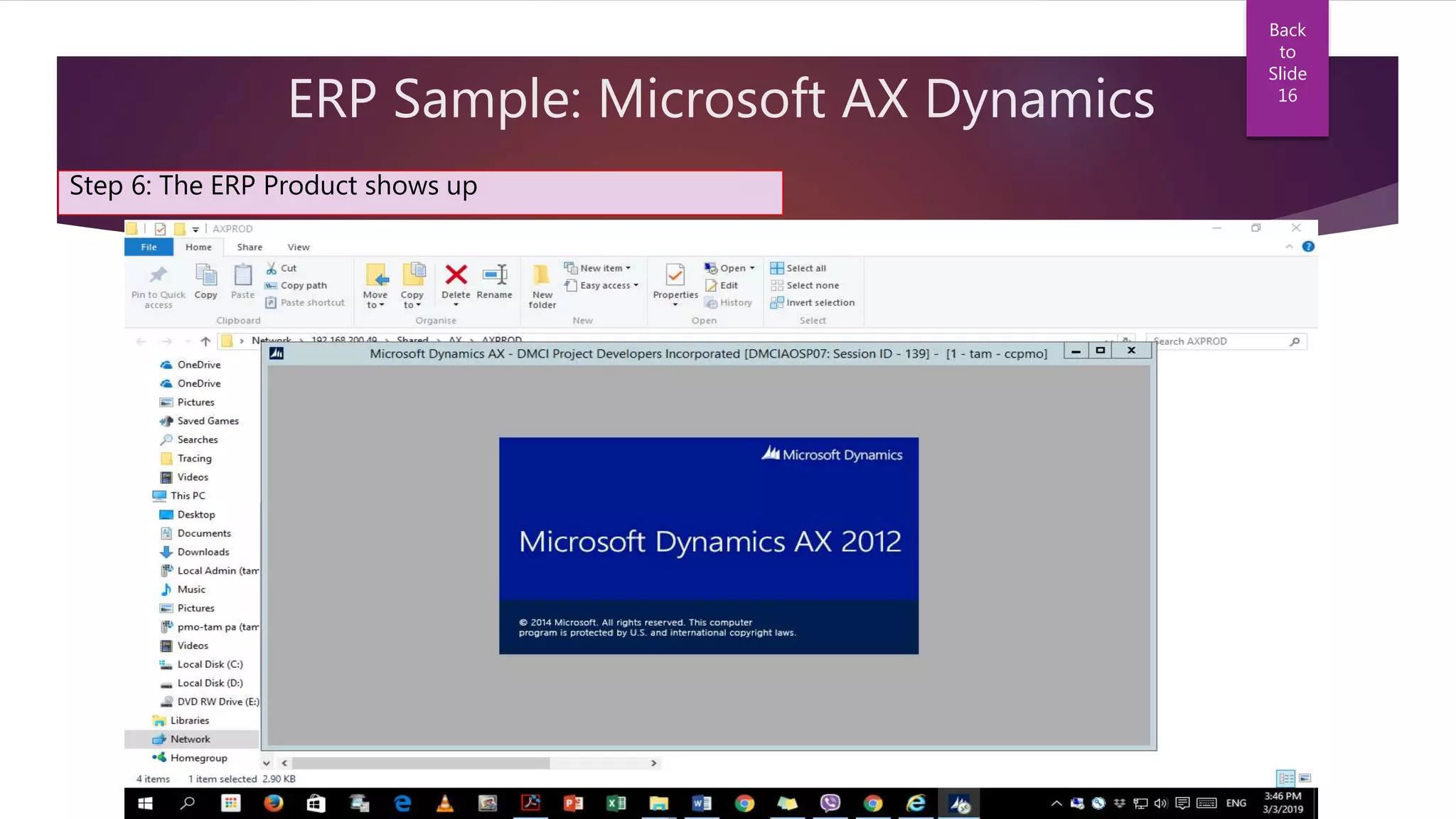
ERP Sample: Microsoft AX Dynamics
Step 6: The ERP Product shows up
Back
to
Slide
16
ERP Sample: Microsoft AX Dynamics
Step 7: A survey will pop-up, click Cancel
Back
to
Slide
16
ERP Sample: Microsoft AX Dynamics
Step 8: Choose your respective field
Back
to
Slide
16
ERP Sample: Microsoft AX Dynamics
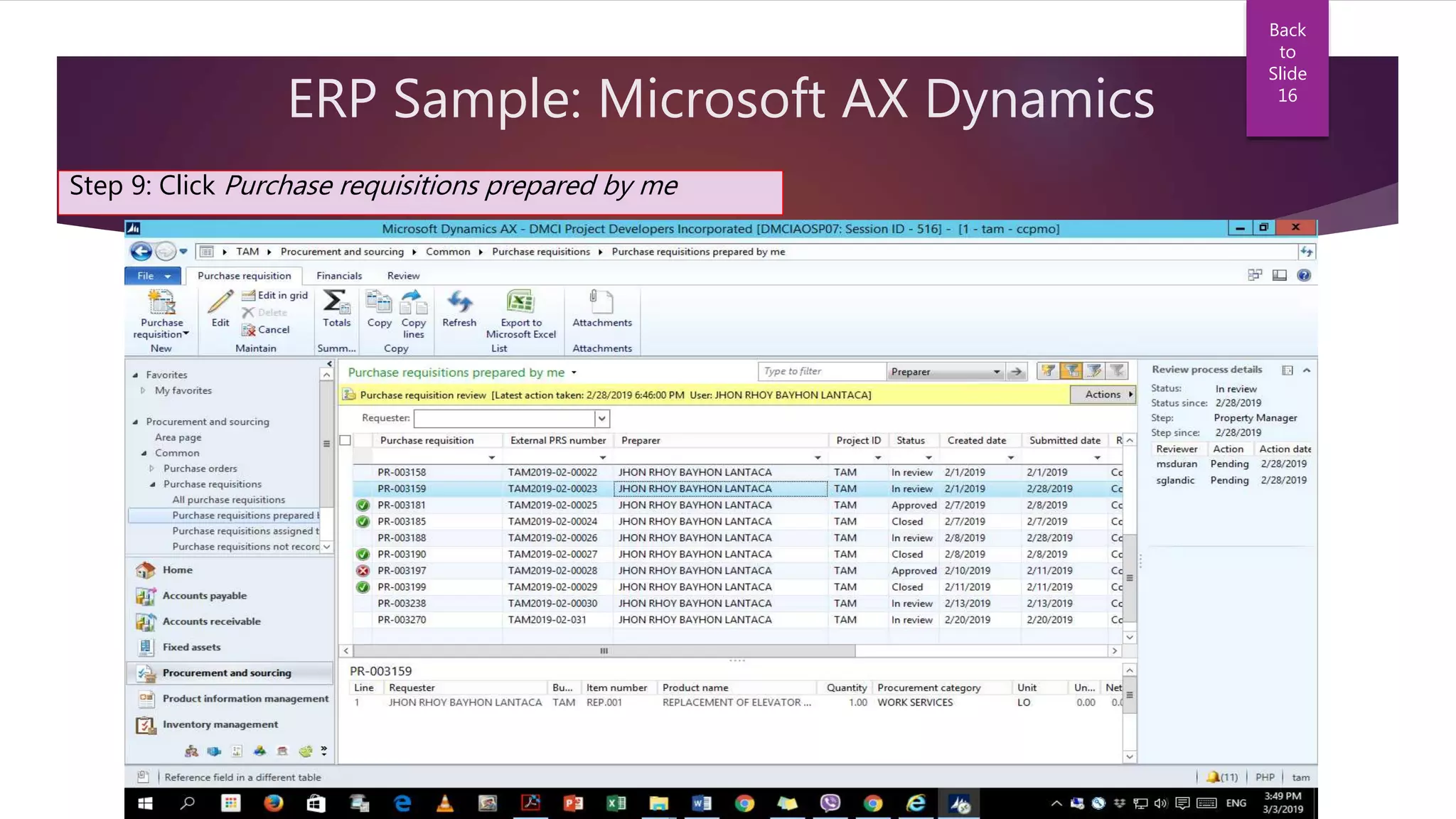
Step 9: Click Purchase requisitions prepared by me
Back
to
Slide
16
ERP Sample: Microsoft AX Dynamics
Step 10: Input data for new purchase requisition
Back
to
Slide
16
ERP Sample: Microsoft AX Dynamics
Step 11: Add / Check the attachments (it can be any file format that justifies why you need that item)
Back
to
Slide
16
ERP Sample: Microsoft AX Dynamics
Step 12: Check the status of your input / add attachments
Back
to
Slide
16
ERP Sample: Microsoft AX Dynamics
Step 13: Check for the Purchase Order / Work Order Number to verify the Amount
Back
to
Slide
16
ERP Sample: Microsoft AX Dynamics
Step 14: Request to Confirmed the Approval Status to the Purchasing Department
• If Approval Status is Confirmed and Status is Received, then the good has been delivered and
must be paid accordingly.
• Any discrepancy in amount from Sales Invoice to the amount reflected in AX must be reported
to the Support Group.
Back
to
Slide
16
ERP Sample: Microsoft AX Dynamics
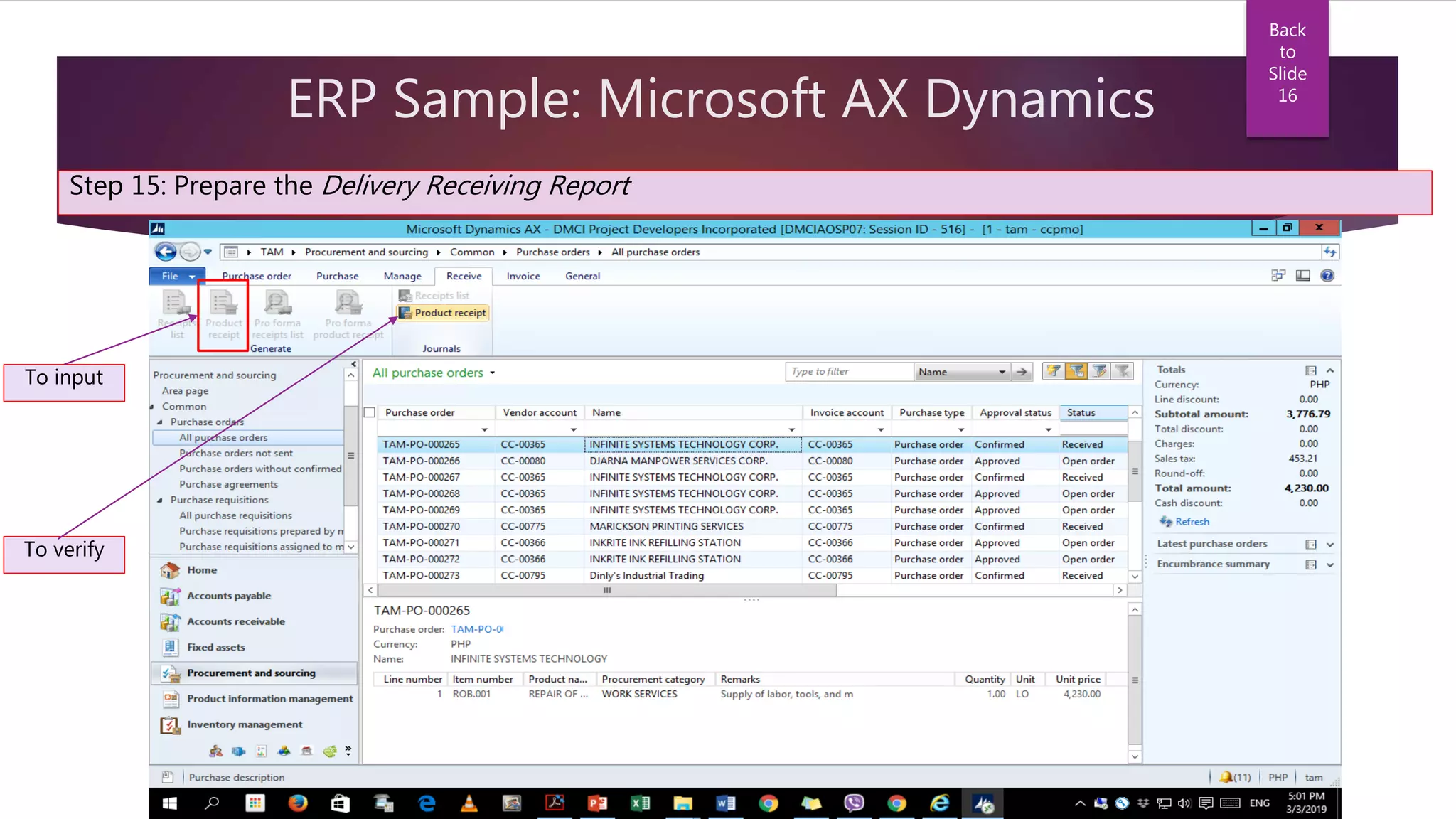
Step 15: Prepare the Delivery Receiving Report
To input
To verify
Back
to
Slide
16
ERP Sample: Microsoft AX Dynamics
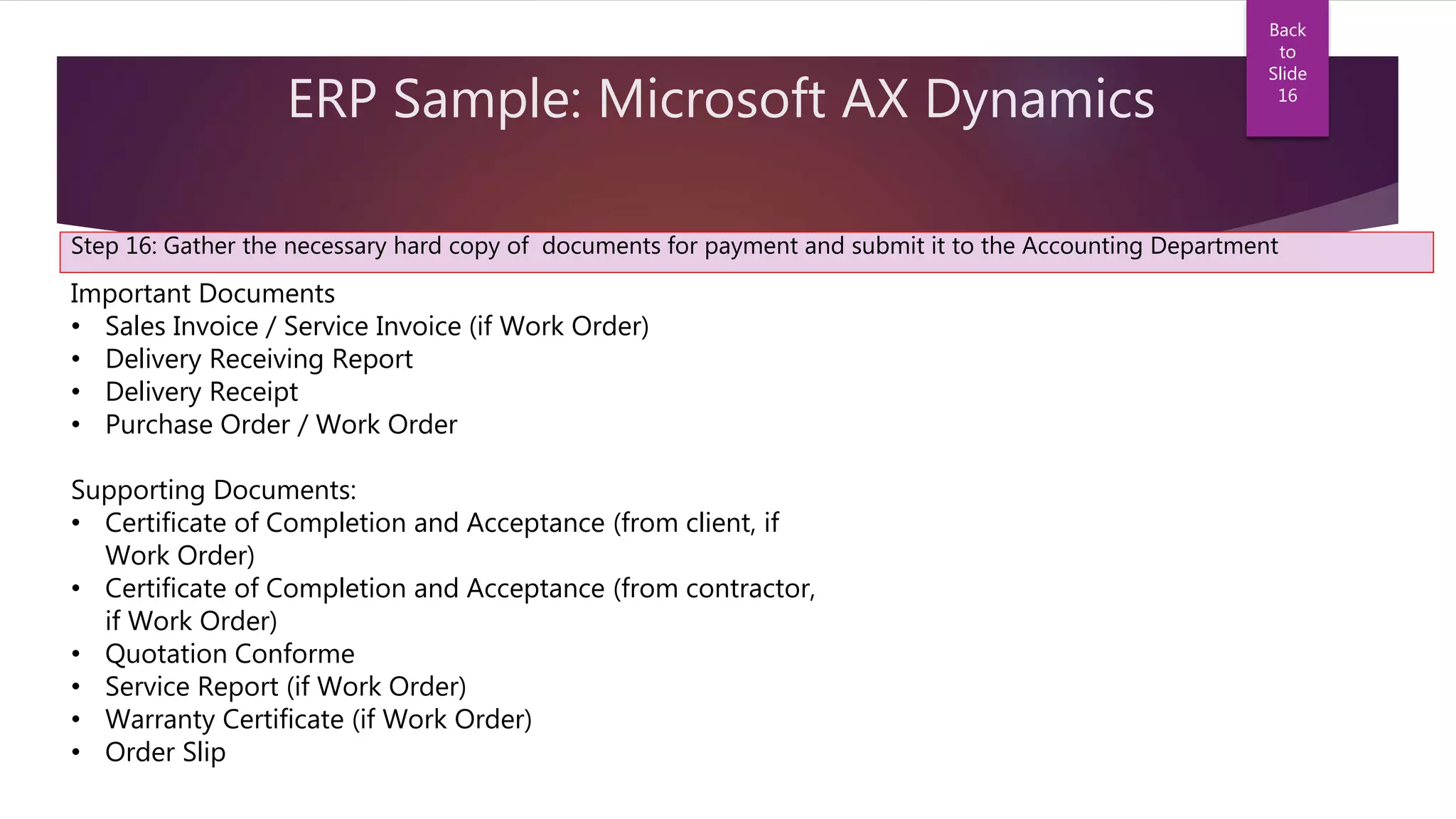
Step 16: Gather the necessary hard copy of documents for payment and submit it to the Accounting Department
Important Documents
• Sales Invoice / Service Invoice (if Work Order)
• Delivery Receiving Report
• Delivery Receipt
• Purchase Order / Work Order
Supporting Documents:
• Certificate of Completion and Acceptance (from client, if
Work Order)
• Certificate of Completion and Acceptance (from contractor,
if Work Order)
• Quotation Conforme
• Service Report (if Work Order)
• Warranty Certificate (if Work Order)
• Order Slip
Back
to
Slide
16
https://searcherp.techtarget.com/ne
ws/991375236/Understanding-the-
difference-between-MRP-and-ERP-
systems
https://www.cio.com/article/2439502
/what-is-erp-key-features-of-top-
enterprise-resource-planning-
systems.html
https://www.compudata.com/blog/t
he-difference-between-erp-tier-1-
erp-tier-2-and-erp-tier-3/
http://factumsoft.com/blog/whats-
the-real-difference-between-tier1-
tier2-and-tier3-erp-vendors
REFERENCES

Enterprise Resource Planning (ERP)

  • 1.
  • 2.
    I. Definition ofERP II. Types of ERP Systems III. Vendor Selection by Application IV. ERP: Where It Starts V. Departments Involved VI. Field it Serves VII. ERP Implementation 1. Gain Approval 2. Plan the Program 3. Configure Software 4. Deploy the System 5. Stabilize the System VIII. Hidden Cost IX. Reasons for Failure X. ERP Sample Input: Microsoft AX Dynamics 2012 TABLE OF CONTENTS
  • 3.
    I. ERP Definition •ERP is software that standardizes, streamlines and integrates business processes across finance, human resources, procurement, distribution, and other departments. • Typically, ERP systems operate on an integrated software platform using common data definitions operating on a single database. Back to Slide 2 4-KEY FEATURES Enterprise-wide integration • Business processes are integrated end to end across departments and business units. Real time (or near real time) operations • Appears to other departments upon input. A common database • It allowed data to be defined once for the enterprise with every department using the same definition. Consistent look and feel • User interface is consistent even after upgrade or releasing of new version.
  • 4.
    II. Types ofERP Systems TIER I TIER II TIER III • Global presence • Most complex – several people working on a single function. • Support large, global enterprises and handle all internationalization issues, including currency, language, alphabet, postal code, accounting rules, etc. • Focuses on a specific functionality; document management, warehouse management, etc. • Simplest type of ERP that is easy to implement, affordable but not as flexible as Tier I & Tier II. • Operates in multiple countries. • Less implementation time, flexible enough to cater the requirement of mid-sized enterprises. • Lower fees for implementation and support. Back to Slide 2
  • 5.
    III. ERP Vendor Selectionby Application Back to Slide 2
  • 6.
    IV. ERP: Whereit starts? Sales Person Site Requirement Rough Estimate then Quotation Purchasing Officer / Personnel In- charge / Approver Purchase Order Project SiteDelivery Sales Invoice Warranty Claims / Replacement of Defective Units Reputable Vendor Purchasing Officer / Personnel In- charge Back to Slide 2
  • 7.
    V. Departments Involve Procurement/ Purchasing Department IT Department Sales & Customer- Relations Logistics Scheduler / Planner Production / Manufacturing Support Group / Higher Management Accounting / Treasury Back to Slide 2
  • 8.
    VI. Field itserves • Providing insights from customer information • Standardizing HR information • Integrating orders • Standardizing and speeding manufacturing • Standardizing procurement • Increased agility • Facilitating government reporting • Enhanced security Back to Slide 2 • Integrating financial information • Internal efficiency • Better decision-making
  • 9.
    VII. ERP Implementation 1.Gain Approval  Business Case o Problems description o Description of the program’s objective and scope o Assumptions o Implementation costs o Implementation schedule o Development and operational risks o Projected benefits Back to Slide 2
  • 10.
    VII. ERP Implementation 2.Plan the program  Finalize Team Members o Implementation Specialist (Key internal individuals) o Organization Change Management Specialist (Role Player) o Technical Specialist (Role Player and External Partners)  Complete Contracts o New Software, Technology and Services  Plan Infrastructure Upgrades  Create a Work Plan and Timeline o Tasks, Dependencies, Resources and Timing must be SPECIFIC. Back to Slide 2
  • 11.
    VII. ERP Implementation 3.Configure Software  Analyze Gaps  Configure Parameters  Complete Required Programming  Migrate Data  Test System  Document System  Modify Infrastructure Back to Slide 2
  • 12.
    VII. ERP Implementation 4.Deploy the system  Train staff  Plan support  Test the system  Make the “Go Live” decision Back to Slide 2
  • 13.
    VII. ERP Implementation 5.Stabilize the system  Note all the system imperfection such as loopholes, gaps and irrelevant/illogical input experienced by the ERP Team to be able to study and furnish by the support group. Back to Slide 2
  • 14.
    VIII. Hidden Costof ERP  Business Process Change o Decrease in productivity due to unfamiliarity to the system in the first few period  Organization Change Management o Uncertainty of staffs to accept changes  Data Migration o Time consuming due to overlapping data base and weak editing rules  Custom Code o ERP user takes a lot of burden whenever there’s new release/upgrade of product such as increase of implementation cost due to additional features Back to Slide 2
  • 15.
    IX. Reasons forFailure  Inappropriate Package Selection o Proper selection of ERP System to be used plays the most important factor for it to become successful. Tier I ERP may considered be the “best” but may experience implementation delay by feature overload if the enterprise is not complex enough.  Internal Resistance o Critics from staff using the ERP System may experience if the Support Team doesn’t render appropriate assistance when needed. Furthermore, strict implementation is needed if the site is ERP-ready as it serves as familiarity for the system. Back to Slide 2
  • 16.
    X. ERP SampleInput: Microsoft AX Dynamics 2012 START Open the browser Input the company provided link Input your account, then click OK Select your respective department / company Wait for the Remote App to appear, then click YES Wait for the product logo to appear A survey will pop-up, click Cancel Choose your respective field of work Click Purchase requisition prepared by me Input data for new purchase requisition Add attachments for justification Check the status of your input (and do the necessary follow-ups) Check for the Purchase Order / Work Order Number to verify the amount Once the item has been delivered, request to Confirm the P.O. Prepare the Delivery Receiving Report Gather the necessary hard copy of documents for payment and submit it to the Accounting Department END 1 2 3 4 5 68 711 9 12 13 14 15 16 10
  • 17.
    ERP Sample: MicrosoftAX Dynamics Step 1: Open the Browser Back to Slide 16
  • 18.
    ERP Sample: MicrosoftAX Dynamics Step 2: Input the company provided link Back to Slide 16
  • 19.
    ERP Sample: MicrosoftAX Dynamics Step 3: Input your account then click OK Back to Slide 16
  • 20.
    ERP Sample: MicrosoftAX Dynamics Step 4: Select your respective department/company Back to Slide 16
  • 21.
    ERP Sample: MicrosoftAX Dynamics Step 5: Wait then click Yes Back to Slide 16
  • 22.
    ERP Sample: MicrosoftAX Dynamics Step 6: The ERP Product shows up Back to Slide 16
  • 23.
    ERP Sample: MicrosoftAX Dynamics Step 7: A survey will pop-up, click Cancel Back to Slide 16
  • 24.
    ERP Sample: MicrosoftAX Dynamics Step 8: Choose your respective field Back to Slide 16
  • 25.
    ERP Sample: MicrosoftAX Dynamics Step 9: Click Purchase requisitions prepared by me Back to Slide 16
  • 26.
    ERP Sample: MicrosoftAX Dynamics Step 10: Input data for new purchase requisition Back to Slide 16
  • 27.
    ERP Sample: MicrosoftAX Dynamics Step 11: Add / Check the attachments (it can be any file format that justifies why you need that item) Back to Slide 16
  • 28.
    ERP Sample: MicrosoftAX Dynamics Step 12: Check the status of your input / add attachments Back to Slide 16
  • 29.
    ERP Sample: MicrosoftAX Dynamics Step 13: Check for the Purchase Order / Work Order Number to verify the Amount Back to Slide 16
  • 30.
    ERP Sample: MicrosoftAX Dynamics Step 14: Request to Confirmed the Approval Status to the Purchasing Department • If Approval Status is Confirmed and Status is Received, then the good has been delivered and must be paid accordingly. • Any discrepancy in amount from Sales Invoice to the amount reflected in AX must be reported to the Support Group. Back to Slide 16
  • 31.
    ERP Sample: MicrosoftAX Dynamics Step 15: Prepare the Delivery Receiving Report To input To verify Back to Slide 16
  • 32.
    ERP Sample: MicrosoftAX Dynamics Step 16: Gather the necessary hard copy of documents for payment and submit it to the Accounting Department Important Documents • Sales Invoice / Service Invoice (if Work Order) • Delivery Receiving Report • Delivery Receipt • Purchase Order / Work Order Supporting Documents: • Certificate of Completion and Acceptance (from client, if Work Order) • Certificate of Completion and Acceptance (from contractor, if Work Order) • Quotation Conforme • Service Report (if Work Order) • Warranty Certificate (if Work Order) • Order Slip Back to Slide 16
  • 33.