Download to read offline
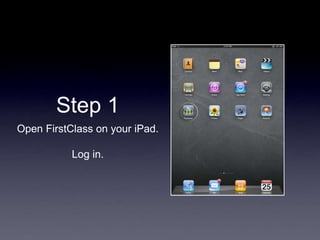
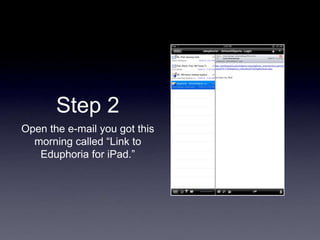
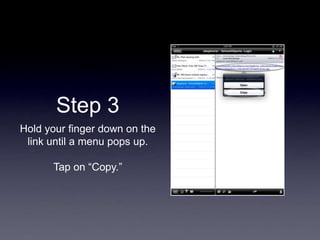
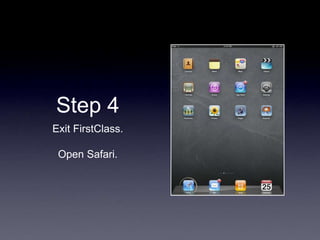
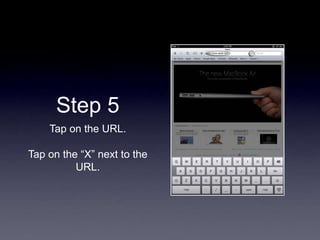
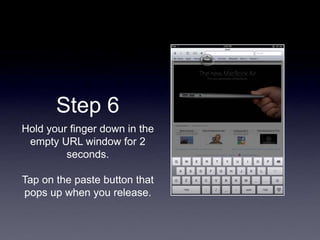
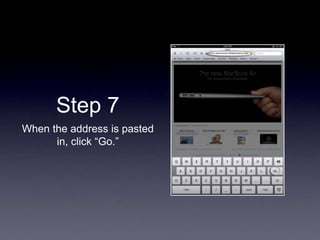
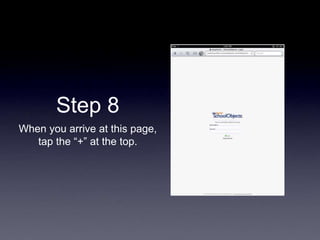
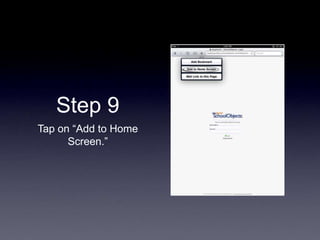
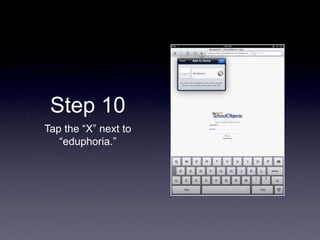
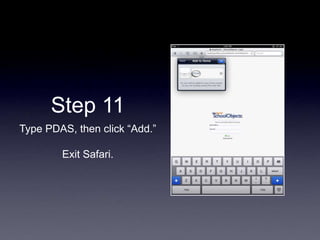
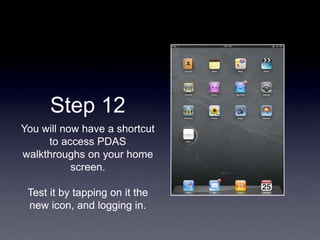
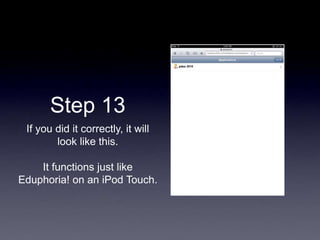
This document provides 13 step-by-step instructions for adding a shortcut to the Eduphoria app directly on an iPad home screen for easy access. The steps include opening the email with the Eduphoria link, copying the URL, pasting it into Safari, adding it to the home screen and naming the shortcut. Upon completing all the steps correctly, tapping the new icon should open the Eduphoria app interface, functioning similarly to on an iPod Touch.


![Takin the Pads 2 Class [Public Version]](https://cdn.slidesharecdn.com/ss_thumbnails/takinipads2classpublic-120629071254-phpapp02-thumbnail.jpg?width=640&height=640&fit=bounds)


