Using the New VolunteerUsing the New Volunteer
Management System:Management System:
How to Obtain a LoginHow to Obtain a Login
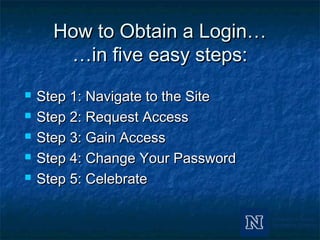
How to Obtain a Login…How to Obtain a Login…
…in five easy steps:…in five easy steps:
 Step 1: Navigate to the SiteStep 1: Navigate to the Site
 Step 2: Request AccessStep 2: Request Access
 Step 3: Gain AccessStep 3: Gain Access
 Step 4: Change Your PasswordStep 4: Change Your Password
 Step 5: CelebrateStep 5: Celebrate
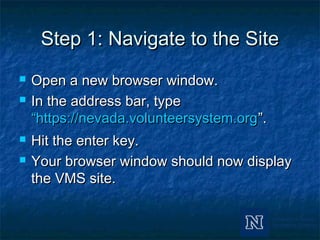
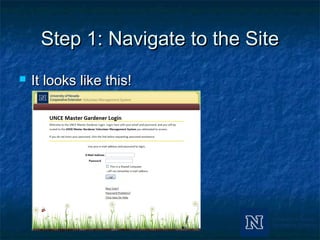
Step 1: Navigate to the SiteStep 1: Navigate to the Site
 Open a new browser window.Open a new browser window.
 In the address bar, typeIn the address bar, type
“https://nevada.volunteersystem.org“https://nevada.volunteersystem.org”.”.
 Hit the enter key.Hit the enter key.
 Your browser window should now displayYour browser window should now display
the VMS site.the VMS site.
Step 1: Navigate to the SiteStep 1: Navigate to the Site
 It looks like this!It looks like this!
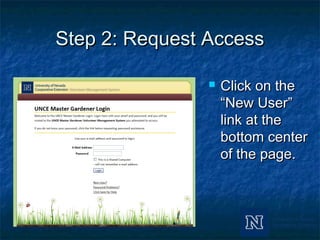
Step 2: Request AccessStep 2: Request Access
 Click on theClick on the
“New User”“New User”
link at thelink at the
bottom centerbottom center
of the page.of the page.
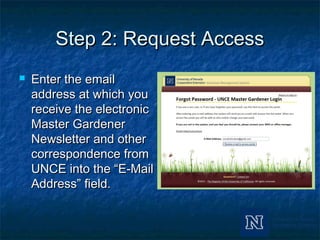
Step 2: Request AccessStep 2: Request Access
 Enter the emailEnter the email
address at which youaddress at which you
receive the electronicreceive the electronic
Master GardenerMaster Gardener
Newsletter and otherNewsletter and other
correspondence fromcorrespondence from
UNCE into the “E-MailUNCE into the “E-Mail
Address” field.Address” field.
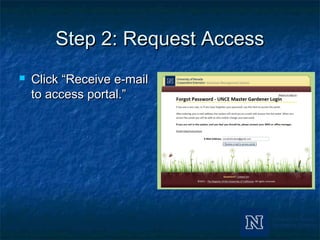
Step 2: Request AccessStep 2: Request Access
 Click “Receive e-mailClick “Receive e-mail
to access portal.”to access portal.”
Step 2: Request AccessStep 2: Request Access
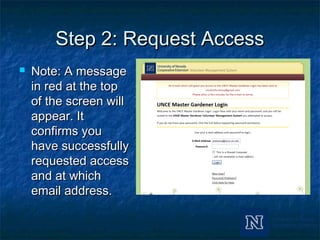
 Note: A messageNote: A message
in red at the topin red at the top
of the screen willof the screen will
appear. Itappear. It
confirms youconfirms you
have successfullyhave successfully
requested accessrequested access
and at whichand at which
email address.email address.
Step 3: Gain AccessStep 3: Gain Access
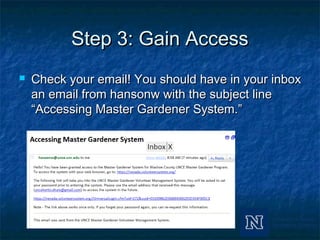
 Check your email! You should have in your inboxCheck your email! You should have in your inbox
an email from hansonw with the subject linean email from hansonw with the subject line
“Accessing Master Gardener System.”“Accessing Master Gardener System.”
Step 3: Gain AccessStep 3: Gain Access
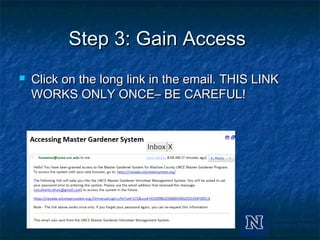
 Click on the long link in the email. THIS LINKClick on the long link in the email. THIS LINK
WORKS ONLY ONCE– BE CAREFUL!WORKS ONLY ONCE– BE CAREFUL!
Step 3: Gain AccessStep 3: Gain Access
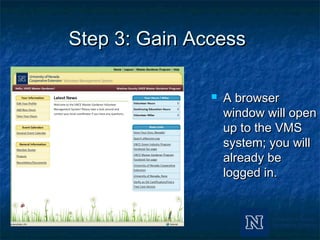
 A browserA browser
window will openwindow will open
up to the VMSup to the VMS
system; you willsystem; you will
already bealready be
logged in.logged in.
Step 3: Gain AccessStep 3: Gain Access
 BEFORE YOU DO ANYTHING ELSE, CHANGEBEFORE YOU DO ANYTHING ELSE, CHANGE
YOUR PASSWORD!YOUR PASSWORD!
 You must add a personal password to be able toYou must add a personal password to be able to
get into the site again.get into the site again.
Step 4: Change Your PasswordStep 4: Change Your Password
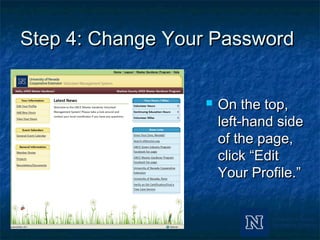
 On the top,On the top,
left-hand sideleft-hand side
of the page,of the page,
click “Editclick “Edit
Your Profile.”Your Profile.”
Step 4: Change Your PasswordStep 4: Change Your Password
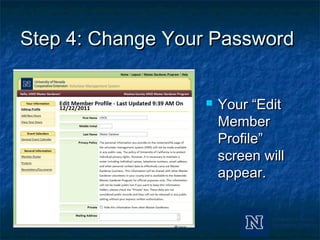
 Your “EditYour “Edit
MemberMember
Profile”Profile”
screen willscreen will
appear.appear.
Step 4: Change Your PasswordStep 4: Change Your Password
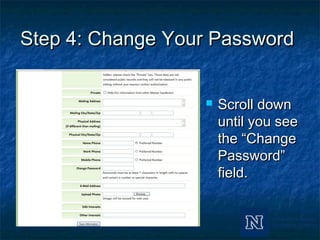
 Scroll downScroll down
until you seeuntil you see
the “Changethe “Change
Password”Password”
field.field.
Step 4: Change Your PasswordStep 4: Change Your Password
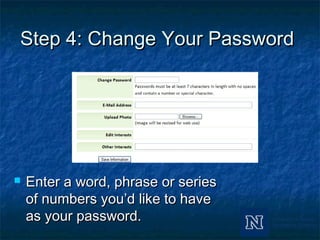
 Enter a word, phrase or seriesEnter a word, phrase or series
of numbers you’d like to haveof numbers you’d like to have
as your password.as your password.
Step 4: Change Your PasswordStep 4: Change Your Password
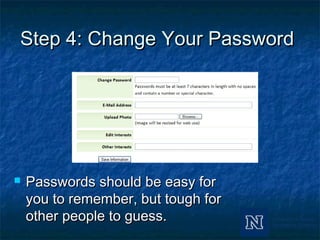
 Passwords should be easy forPasswords should be easy for
you to remember, but tough foryou to remember, but tough for
other people to guess.other people to guess.
Step 4: Change Your PasswordStep 4: Change Your Password
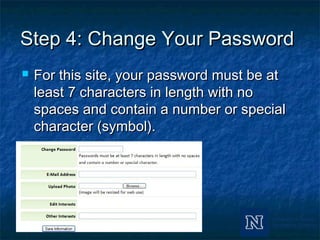
 For this site, your password must be atFor this site, your password must be at
least 7 characters in length with noleast 7 characters in length with no
spaces and contain a number or specialspaces and contain a number or special
character (symbol).character (symbol).
Step 4: Change Your PasswordStep 4: Change Your Password
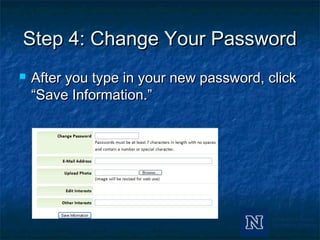
 After you type in your new password, clickAfter you type in your new password, click
“Save Information.”“Save Information.”
Step 5: CelebrateStep 5: Celebrate
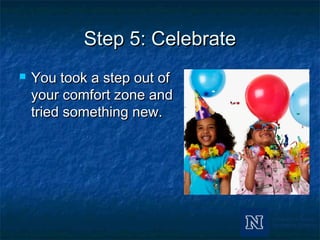
 You took a step out ofYou took a step out of
your comfort zone andyour comfort zone and
tried something new.tried something new.
Step 5: CelebrateStep 5: Celebrate
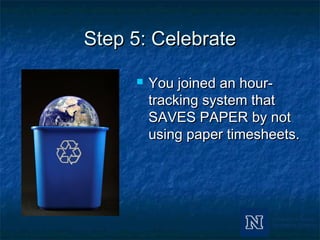
 You joined an hour-You joined an hour-
tracking system thattracking system that
SAVES PAPER by notSAVES PAPER by not
using paper timesheets.using paper timesheets.
Step 5: CelebrateStep 5: Celebrate
 Because you are willing to use this onlineBecause you are willing to use this online
system to keep track of your volunteersystem to keep track of your volunteer
time, every yeartime, every year you will conserveyou will conserve
hundreds of hourshundreds of hours of Wendy’s andof Wendy’s and
Ashley’s time. Formerly spent performingAshley’s time. Formerly spent performing
data-entry, this time can now be spent ondata-entry, this time can now be spent on
nurturing the programnurturing the program..
Questions?Questions?
 This system is new to all of us. It may beThis system is new to all of us. It may be
confusing to use at first.confusing to use at first.
 If you get stuck, lost or have a question,If you get stuck, lost or have a question,
we’re here for you!we’re here for you!
 Ashley’s contact info:Ashley’s contact info:
andrewsa@unce.unr.eduandrewsa@unce.unr.edu, 775-336-0231., 775-336-0231.
 Wendy’s contact info:Wendy’s contact info:
hansonw@unce.unr.eduhansonw@unce.unr.edu, 775-336-0246., 775-336-0246.

Master Gardener Volunteer Management System Instructions

  • 1.
    Using the NewVolunteerUsing the New Volunteer Management System:Management System: How to Obtain a LoginHow to Obtain a Login
  • 2.
    How to Obtaina Login…How to Obtain a Login… …in five easy steps:…in five easy steps:  Step 1: Navigate to the SiteStep 1: Navigate to the Site  Step 2: Request AccessStep 2: Request Access  Step 3: Gain AccessStep 3: Gain Access  Step 4: Change Your PasswordStep 4: Change Your Password  Step 5: CelebrateStep 5: Celebrate
  • 3.
    Step 1: Navigateto the SiteStep 1: Navigate to the Site  Open a new browser window.Open a new browser window.  In the address bar, typeIn the address bar, type “https://nevada.volunteersystem.org“https://nevada.volunteersystem.org”.”.  Hit the enter key.Hit the enter key.  Your browser window should now displayYour browser window should now display the VMS site.the VMS site.
  • 4.
    Step 1: Navigateto the SiteStep 1: Navigate to the Site  It looks like this!It looks like this!
  • 5.
    Step 2: RequestAccessStep 2: Request Access  Click on theClick on the “New User”“New User” link at thelink at the bottom centerbottom center of the page.of the page.
  • 6.
    Step 2: RequestAccessStep 2: Request Access  Enter the emailEnter the email address at which youaddress at which you receive the electronicreceive the electronic Master GardenerMaster Gardener Newsletter and otherNewsletter and other correspondence fromcorrespondence from UNCE into the “E-MailUNCE into the “E-Mail Address” field.Address” field.
  • 7.
    Step 2: RequestAccessStep 2: Request Access  Click “Receive e-mailClick “Receive e-mail to access portal.”to access portal.”
  • 8.
    Step 2: RequestAccessStep 2: Request Access  Note: A messageNote: A message in red at the topin red at the top of the screen willof the screen will appear. Itappear. It confirms youconfirms you have successfullyhave successfully requested accessrequested access and at whichand at which email address.email address.
  • 9.
    Step 3: GainAccessStep 3: Gain Access  Check your email! You should have in your inboxCheck your email! You should have in your inbox an email from hansonw with the subject linean email from hansonw with the subject line “Accessing Master Gardener System.”“Accessing Master Gardener System.”
  • 10.
    Step 3: GainAccessStep 3: Gain Access  Click on the long link in the email. THIS LINKClick on the long link in the email. THIS LINK WORKS ONLY ONCE– BE CAREFUL!WORKS ONLY ONCE– BE CAREFUL!
  • 11.
    Step 3: GainAccessStep 3: Gain Access  A browserA browser window will openwindow will open up to the VMSup to the VMS system; you willsystem; you will already bealready be logged in.logged in.
  • 12.
    Step 3: GainAccessStep 3: Gain Access  BEFORE YOU DO ANYTHING ELSE, CHANGEBEFORE YOU DO ANYTHING ELSE, CHANGE YOUR PASSWORD!YOUR PASSWORD!  You must add a personal password to be able toYou must add a personal password to be able to get into the site again.get into the site again.
  • 13.
    Step 4: ChangeYour PasswordStep 4: Change Your Password  On the top,On the top, left-hand sideleft-hand side of the page,of the page, click “Editclick “Edit Your Profile.”Your Profile.”
  • 14.
    Step 4: ChangeYour PasswordStep 4: Change Your Password  Your “EditYour “Edit MemberMember Profile”Profile” screen willscreen will appear.appear.
  • 15.
    Step 4: ChangeYour PasswordStep 4: Change Your Password  Scroll downScroll down until you seeuntil you see the “Changethe “Change Password”Password” field.field.
  • 16.
    Step 4: ChangeYour PasswordStep 4: Change Your Password  Enter a word, phrase or seriesEnter a word, phrase or series of numbers you’d like to haveof numbers you’d like to have as your password.as your password.
  • 17.
    Step 4: ChangeYour PasswordStep 4: Change Your Password  Passwords should be easy forPasswords should be easy for you to remember, but tough foryou to remember, but tough for other people to guess.other people to guess.
  • 18.
    Step 4: ChangeYour PasswordStep 4: Change Your Password  For this site, your password must be atFor this site, your password must be at least 7 characters in length with noleast 7 characters in length with no spaces and contain a number or specialspaces and contain a number or special character (symbol).character (symbol).
  • 19.
    Step 4: ChangeYour PasswordStep 4: Change Your Password  After you type in your new password, clickAfter you type in your new password, click “Save Information.”“Save Information.”
  • 20.
    Step 5: CelebrateStep5: Celebrate  You took a step out ofYou took a step out of your comfort zone andyour comfort zone and tried something new.tried something new.
  • 21.
    Step 5: CelebrateStep5: Celebrate  You joined an hour-You joined an hour- tracking system thattracking system that SAVES PAPER by notSAVES PAPER by not using paper timesheets.using paper timesheets.
  • 22.
    Step 5: CelebrateStep5: Celebrate  Because you are willing to use this onlineBecause you are willing to use this online system to keep track of your volunteersystem to keep track of your volunteer time, every yeartime, every year you will conserveyou will conserve hundreds of hourshundreds of hours of Wendy’s andof Wendy’s and Ashley’s time. Formerly spent performingAshley’s time. Formerly spent performing data-entry, this time can now be spent ondata-entry, this time can now be spent on nurturing the programnurturing the program..
  • 23.
    Questions?Questions?  This systemis new to all of us. It may beThis system is new to all of us. It may be confusing to use at first.confusing to use at first.  If you get stuck, lost or have a question,If you get stuck, lost or have a question, we’re here for you!we’re here for you!  Ashley’s contact info:Ashley’s contact info: andrewsa@unce.unr.eduandrewsa@unce.unr.edu, 775-336-0231., 775-336-0231.  Wendy’s contact info:Wendy’s contact info: hansonw@unce.unr.eduhansonw@unce.unr.edu, 775-336-0246., 775-336-0246.