Hints & Help for Using
EDUCREATIONS
Email or call me for additional
support using Educreations!
alyson.carpenter@acs-k12.org
Alyson :)
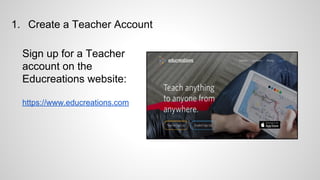
1. Create a Teacher Account
Sign up for a Teacher
account on the
Educreations website:
https://www.educreations.com
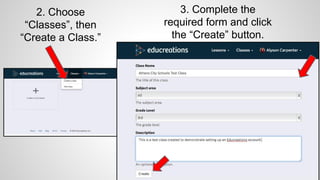
2. Choose
“Classes”, then
“Create a Class.”
3. Complete the
required form and click
the “Create” button.
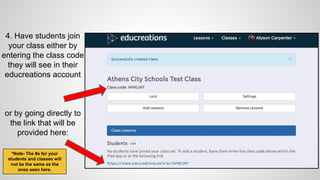
4. Have students join
your class either by
entering the class code
they will see in their
educreations account
or by going directly to
the link that will be
provided here:
*Note- The #s for your
students and classes will
not be the same as the
ones seen here.
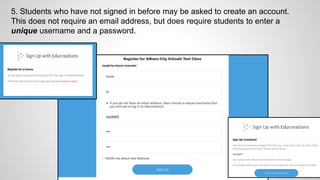
5. Students who have not signed in before may be asked to create an account.
This does not require an email address, but does require students to enter a
unique username and a password.
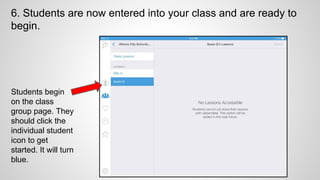
6. Students are now entered into your class and are ready to
begin.
Students begin
on the class
group page. They
should click the
individual student
icon to get
started. It will turn
blue.
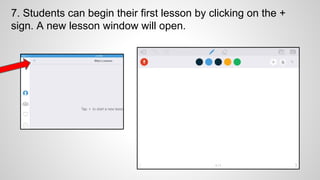
7. Students can begin their first lesson by clicking on the +
sign. A new lesson window will open.
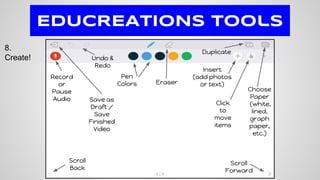
Pen
Colors
Insert
(add photos
or text)
Record
or
Pause
Audio
Duplicate
Choose
Paper
(white,
lined,
graph
paper,
etc.)
Scroll
Back
Scroll
Forward
Click
to
move
items
Undo &
Redo
EDUCREATIONS Tools
Eraser
Save as
Draft /
Save
Finished
Video
8.
Create!
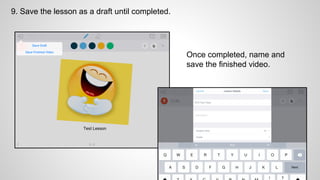
9. Save the lesson as a draft until completed.
Once completed, name and
save the finished video.
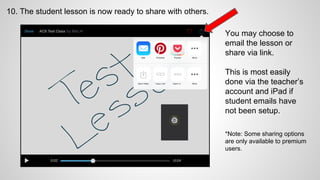
10. The student lesson is now ready to share with others.
You may choose to
email the lesson or
share via link.
This is most easily
done via the teacher’s
account and iPad if
student emails have
not been setup.
*Note: Some sharing options
are only available to premium
users.
Ideas for Educreations Integration:
● Browse the lessons other teachers and students have created in
Educreations: https://www.educreations.com/browse/
● ICT w/ Mrs. C- lots of elementary examples: http://ictwithmissc.weebly.
com/educreations-ideas.html
● 7 Ways to Use Educreations in Different Subject Areas: http:
//ilive2learnilove2grow.blogspot.com/2015/01/7-ways-to-use-
educreations-in-different.html
● What has your class done with educreations? Please share! alyson.
carpenter@acs-k12.org
Let me know if you need
additional support!
alyson.carpenter@acs-k12.org
Alyson Carpenter
Instructional Technology Specialist
Athens City Schools

Educreations Hints & Help for ACS Teachers

  • 1.
    Hints & Helpfor Using EDUCREATIONS Email or call me for additional support using Educreations! alyson.carpenter@acs-k12.org Alyson :)
  • 2.
    1. Create aTeacher Account Sign up for a Teacher account on the Educreations website: https://www.educreations.com
  • 3.
    2. Choose “Classes”, then “Createa Class.” 3. Complete the required form and click the “Create” button.
  • 4.
    4. Have studentsjoin your class either by entering the class code they will see in their educreations account or by going directly to the link that will be provided here: *Note- The #s for your students and classes will not be the same as the ones seen here.
  • 5.
    5. Students whohave not signed in before may be asked to create an account. This does not require an email address, but does require students to enter a unique username and a password.
  • 6.
    6. Students arenow entered into your class and are ready to begin. Students begin on the class group page. They should click the individual student icon to get started. It will turn blue.
  • 7.
    7. Students canbegin their first lesson by clicking on the + sign. A new lesson window will open.
  • 8.
  • 9.
    9. Save thelesson as a draft until completed. Once completed, name and save the finished video.
  • 10.
    10. The studentlesson is now ready to share with others. You may choose to email the lesson or share via link. This is most easily done via the teacher’s account and iPad if student emails have not been setup. *Note: Some sharing options are only available to premium users.
  • 11.
    Ideas for EducreationsIntegration: ● Browse the lessons other teachers and students have created in Educreations: https://www.educreations.com/browse/ ● ICT w/ Mrs. C- lots of elementary examples: http://ictwithmissc.weebly. com/educreations-ideas.html ● 7 Ways to Use Educreations in Different Subject Areas: http: //ilive2learnilove2grow.blogspot.com/2015/01/7-ways-to-use- educreations-in-different.html ● What has your class done with educreations? Please share! alyson. carpenter@acs-k12.org
  • 12.
    Let me knowif you need additional support! alyson.carpenter@acs-k12.org Alyson Carpenter Instructional Technology Specialist Athens City Schools