Download to read offline
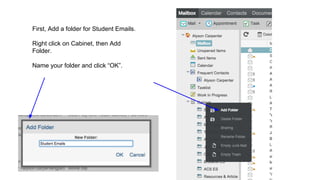


The document provides instructions for setting up email rules on a MacBook to manage student emails effectively. It guides users to create a specific folder for student emails, configure rules to filter these emails, and ensure they do not clutter the main inbox. By following these steps, users can streamline their email management and easily track new student messages.


