Getting Started:
Popplet
Ready, Set, Create!
Alyson Carpenter
Instructional Technology Specialist
Athens City Schools
alyson.carpenter@acs-k12.org
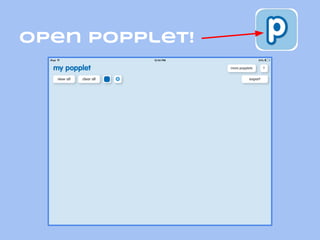
Open Popplet!
Select Background color:
Gear → Make New Popple
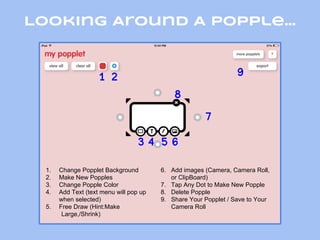
Looking Around A Popple...
1 2
3 4 5 6
7
8
9
1. Change Popplet Background
2. Make New Popples
3. Change Popple Color
4. Add Text (text menu will pop up
when selected)
5. Free Draw (Hint:Make
Large,/Shrink)
6. Add images (Camera, Camera Roll,
or ClipBoard)
7. Tap Any Dot to Make New Popple
8. Delete Popple
9. Share Your Popplet / Save to Your
Camera Roll
Select a popple color:
Adding Text:
Let’s Add Popples!
Create Subheadings:
Insert Drawings:
Insert
Photos
from your
camera
roll:
1
2
Insert
Photo
Using the
Camera:
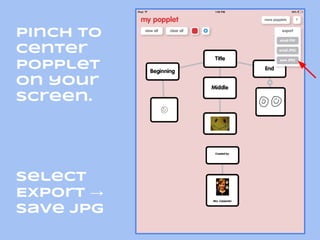
Pinch to
Center
popplet
on your
screen.
Select
Export →
Save JPG
Select
ok
The
finished
popplet
can now
be found
in your
photos:
Open your Google
Drive
Click + →
Upload
photos
1
2
Select
photos
Choose
the
photo
you
want to
add:
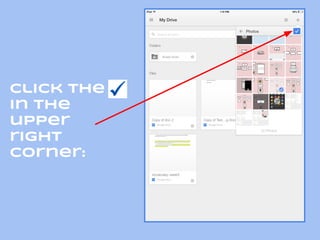
Click the
in the
upper
right
corner:
Find &
open
your
saved
popplet
in
Google
Drive:
click on
the
white
info
button in
the top
right
corner:
Select
Share:
Enter Your
teacher’s
email
address →
Click Can
Edit → Click
the :
1
2
3
Your
teacher’s
name
should
now
appear
under
“Who has
access”
How might you
use Popplet?
● Create a Presentation
● Create a Timeline
● Divide Words into Syllables w/ Popplet
Boxes
● Practice Adjectives (Put pic in Center &
Describe)
● Word Webs
● Use Pictures to Show A Concept
(Example: How many ways can you
make the #15?)
● Brainstorm
● Create a StoryBoard
● Create a Character Analysis
● Plan a Story / Paragraph (Main Idea &
Details)
Source: http://suprtektalk.blogspot.com/2014/11/awesome-ipad-app-popplet.html
Popplet Challenge
#1:
1. Create a new popplet.
2. Insert a picture of an animal you copied from
the web. In Safari tap and hold the picture and
select Copy. (Try this site for photos: http:
//pics4learning.com/)
3. Create popples around the picture and type in
adjectives to describe that animal.
4. Tap export and save the popplet as a JPEG.
Source: http://suprtektalk.blogspot.com/2014/11/awesome-ipad-app-popplet.html
Popplet Challenge
#2:
1. Create a new popplet.
2.In the center use the iPad camera to take a
picture of yourself. Add your name.
3.Add popples to the right and enter important
dates and events from your life.
4.Tap export and save the popplet as a JPEG.
Source: http://suprtektalk.blogspot.com/2014/11/awesome-ipad-app-popplet.html
Let me know if you
need additional
support!
alyson.carpenter@acs-k12.org
Alyson Carpenter
Instructional Technology Specialist
Athens City Schools

Getting Started with Popplet