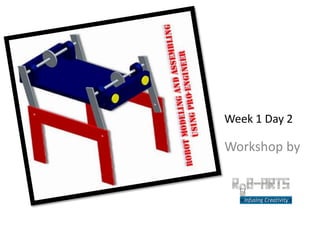
Week 1 Day 2

Workshop by
Highlights of Previous Lecture
• Learnt what a robot is?

• Robot Uses

• Common Robotic Parts
Today’s Lecture
•   Working Areas in Robotics
•   Introduction to Computer Aided Drafting (CAD)
•   CAD Advantages
•   Different Types of CAD softwares
•   Introduction to Pro Engineer (Features)
•   Environment Familiarization
•   Different types of file extentions
•   Working Directory Setting
•   Making Our First Sketch
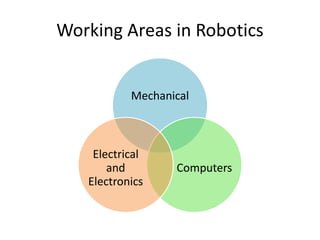
Working Areas in Robotics


           Mechanical


    Electrical
       and        Computers
   Electronics
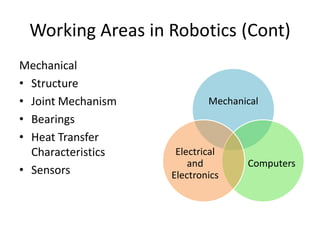
Working Areas in Robotics (Cont)
Mechanical
• Structure
• Joint Mechanism           Mechanical
• Bearings
• Heat Transfer
  Characteristics    Electrical
                        and        Computers
• Sensors           Electronics
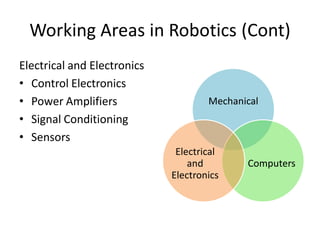
Working Areas in Robotics (Cont)
Electrical and Electronics
• Control Electronics
• Power Amplifiers                   Mechanical
• Signal Conditioning
• Sensors
                              Electrical
                                 and        Computers
                             Electronics
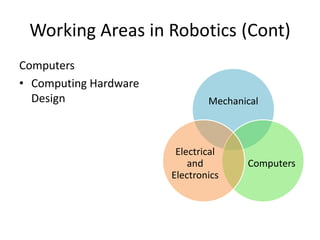
Working Areas in Robotics (Cont)
Computers
• Computing Hardware
  Design                       Mechanical


                        Electrical
                           and        Computers
                       Electronics
Lets Make Things Easy
• In order to master
  robotics we will focus
  on subsystems.
• Mechanical is a huge
  field therefore we’ll
  only be working on       Mechanical
  structures only
History of Drawing
• All the drawings were previously made on paper using
  special tools (Pictures of manual drafts to follow)

• Tools also to be displayed

• Engineering design graphics has made significant
  changes since the early 1980s. For the most part, these
  changes are a result of the evolution of computer-
  aided design (CAD). Before CAD, design was
  accomplished by traditional board drafting utilizing
  paper, pencil, straightedges, and various other manual
  drafting devices.
Introduction to CAD
• All the products today are designed using
  computer (examples to follow of different
  products and robots)
Introduction to CAD
• CAD stands Computer Aided Drafting
  (Common sense says that we use computer to
  product our drafts)
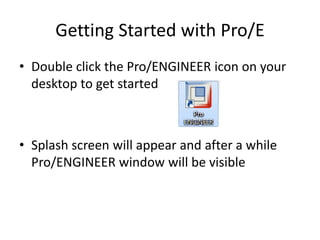
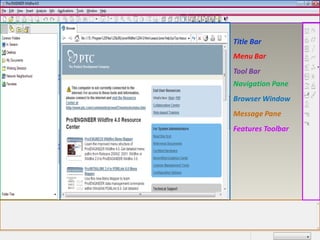
Getting Started with Pro/E
• Double click the Pro/ENGINEER icon on your
  desktop to get started


• Splash screen will appear and after a while
  Pro/ENGINEER window will be visible
Title Bar
Menu Bar
Tool Bar
Navigation Pane
Browser Window
Message Pane
Features Toolbar
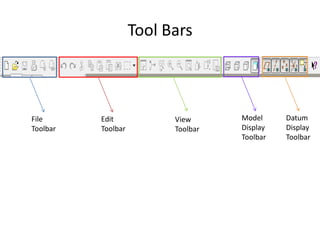
Tool Bars


File      Edit            View      Model     Datum
Toolbar   Toolbar         Toolbar   Display   Display
                                    Toolbar   Toolbar
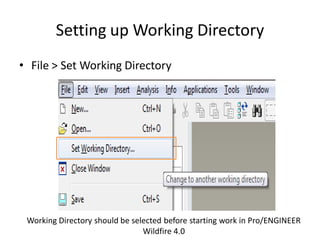
Setting up Working Directory
• File > Set Working Directory


 Working Directory should be selected before starting work in Pro/ENGINEER
                                Wildfire 4.0
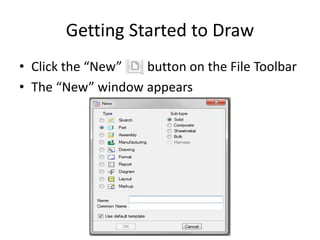
Getting Started to Draw
• Click the “New”  button on the File Toolbar
• The “New” window appears
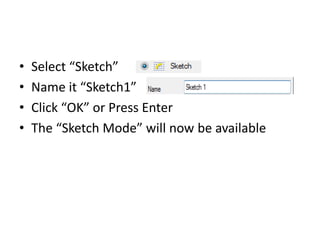
•   Select “Sketch”
•   Name it “Sketch1”
•   Click “OK” or Press Enter
•   The “Sketch Mode” will now be available
Some Definitions
• Sketcher
  – A 2D drafting/drawing mode
• Sketch
  – The entities of a section that define the basic
    shape of a feature
• Entity
  – An element within the sketcher environment, such
    as a line, arc, or circle
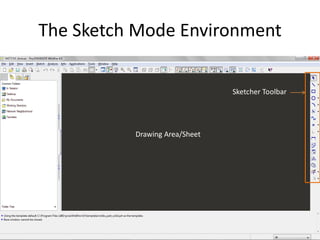
The Sketch Mode Environment

                               Sketcher Toolbar


          Drawing Area/Sheet
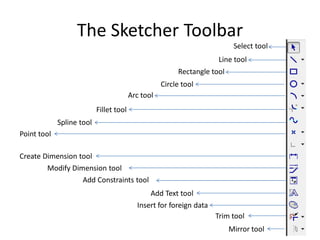
The Sketcher Toolbar
                                                                           Select tool
                                                                      Line tool
                                                         Rectangle tool
                                                    Circle tool
                                         Arc tool
                           Fillet tool
             Spline tool
Point tool

Create Dimension tool
        Modify Dimension tool
                  Add Constraints tool
                                               Add Text tool
                                           Insert for foreign data
                                                                     Trim tool
                                                                          Mirror tool
Drawing Basic Entities
•   Lines
•   Rectangle
•   Circles
•   Arcs
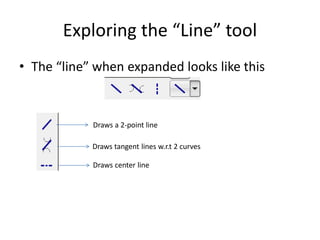
Exploring the “Line” tool
• The “line” when expanded looks like this


            Draws a 2-point line

            Draws tangent lines w.r.t 2 curves

            Draws center line
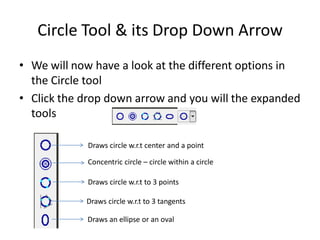
Circle Tool & its Drop Down Arrow
• We will now have a look at the different options in
  the Circle tool
• Click the drop down arrow and you will the expanded
  tools

            Draws circle w.r.t center and a point

            Concentric circle – circle within a circle

            Draws circle w.r.t to 3 points

            Draws circle w.r.t to 3 tangents

            Draws an ellipse or an oval
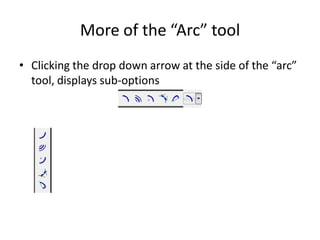
More of the “Arc” tool
• Clicking the drop down arrow at the side of the “arc”
  tool, displays sub-options
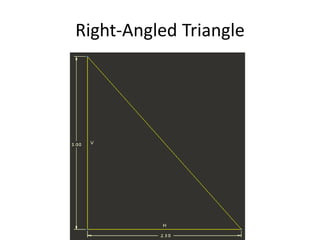
Right-Angled Triangle
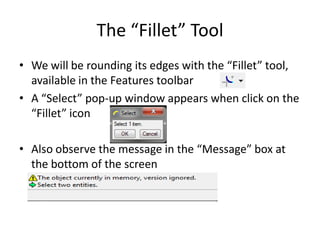
The “Fillet” Tool
• We will be rounding its edges with the “Fillet” tool,
  available in the Features toolbar
• A “Select” pop-up window appears when click on the
  “Fillet” icon

• Also observe the message in the “Message” box at
  the bottom of the screen
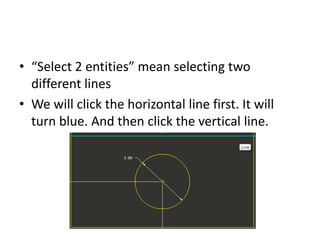
• “Select 2 entities” mean selecting two
  different lines
• We will click the horizontal line first. It will
  turn blue. And then click the vertical line.
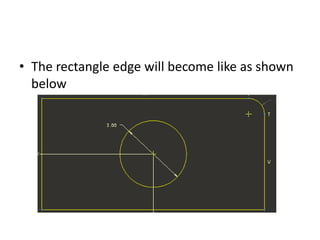
• The rectangle edge will become like as shown
  below
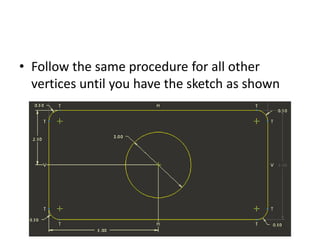
• Follow the same procedure for all other
  vertices until you have the sketch as shown
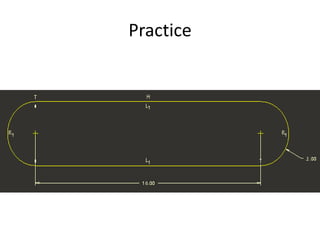
Practice

Robot Modelling and Assembling Day 2

  • 1.
    Week 1 Day2 Workshop by
  • 2.
    Highlights of PreviousLecture • Learnt what a robot is? • Robot Uses • Common Robotic Parts
  • 3.
    Today’s Lecture • Working Areas in Robotics • Introduction to Computer Aided Drafting (CAD) • CAD Advantages • Different Types of CAD softwares • Introduction to Pro Engineer (Features) • Environment Familiarization • Different types of file extentions • Working Directory Setting • Making Our First Sketch
  • 4.
    Working Areas inRobotics Mechanical Electrical and Computers Electronics
  • 5.
    Working Areas inRobotics (Cont) Mechanical • Structure • Joint Mechanism Mechanical • Bearings • Heat Transfer Characteristics Electrical and Computers • Sensors Electronics
  • 6.
    Working Areas inRobotics (Cont) Electrical and Electronics • Control Electronics • Power Amplifiers Mechanical • Signal Conditioning • Sensors Electrical and Computers Electronics
  • 7.
    Working Areas inRobotics (Cont) Computers • Computing Hardware Design Mechanical Electrical and Computers Electronics
  • 8.
    Lets Make ThingsEasy • In order to master robotics we will focus on subsystems. • Mechanical is a huge field therefore we’ll only be working on Mechanical structures only
  • 9.
    History of Drawing •All the drawings were previously made on paper using special tools (Pictures of manual drafts to follow) • Tools also to be displayed • Engineering design graphics has made significant changes since the early 1980s. For the most part, these changes are a result of the evolution of computer- aided design (CAD). Before CAD, design was accomplished by traditional board drafting utilizing paper, pencil, straightedges, and various other manual drafting devices.
  • 10.
    Introduction to CAD •All the products today are designed using computer (examples to follow of different products and robots)
  • 11.
    Introduction to CAD •CAD stands Computer Aided Drafting (Common sense says that we use computer to product our drafts)
  • 12.
    Getting Started withPro/E • Double click the Pro/ENGINEER icon on your desktop to get started • Splash screen will appear and after a while Pro/ENGINEER window will be visible
  • 13.
    Title Bar Menu Bar ToolBar Navigation Pane Browser Window Message Pane Features Toolbar
  • 14.
    Tool Bars File Edit View Model Datum Toolbar Toolbar Toolbar Display Display Toolbar Toolbar
  • 15.
    Setting up WorkingDirectory • File > Set Working Directory Working Directory should be selected before starting work in Pro/ENGINEER Wildfire 4.0
  • 16.
    Getting Started toDraw • Click the “New” button on the File Toolbar • The “New” window appears
  • 17.
    Select “Sketch” • Name it “Sketch1” • Click “OK” or Press Enter • The “Sketch Mode” will now be available
  • 18.
    Some Definitions • Sketcher – A 2D drafting/drawing mode • Sketch – The entities of a section that define the basic shape of a feature • Entity – An element within the sketcher environment, such as a line, arc, or circle
  • 19.
    The Sketch ModeEnvironment Sketcher Toolbar Drawing Area/Sheet
  • 20.
    The Sketcher Toolbar Select tool Line tool Rectangle tool Circle tool Arc tool Fillet tool Spline tool Point tool Create Dimension tool Modify Dimension tool Add Constraints tool Add Text tool Insert for foreign data Trim tool Mirror tool
  • 21.
    Drawing Basic Entities • Lines • Rectangle • Circles • Arcs
  • 22.
    Exploring the “Line”tool • The “line” when expanded looks like this Draws a 2-point line Draws tangent lines w.r.t 2 curves Draws center line
  • 23.
    Circle Tool &its Drop Down Arrow • We will now have a look at the different options in the Circle tool • Click the drop down arrow and you will the expanded tools Draws circle w.r.t center and a point Concentric circle – circle within a circle Draws circle w.r.t to 3 points Draws circle w.r.t to 3 tangents Draws an ellipse or an oval
  • 24.
    More of the“Arc” tool • Clicking the drop down arrow at the side of the “arc” tool, displays sub-options
  • 25.
  • 26.
    The “Fillet” Tool •We will be rounding its edges with the “Fillet” tool, available in the Features toolbar • A “Select” pop-up window appears when click on the “Fillet” icon • Also observe the message in the “Message” box at the bottom of the screen
  • 27.
    • “Select 2entities” mean selecting two different lines • We will click the horizontal line first. It will turn blue. And then click the vertical line.
  • 28.
    • The rectangleedge will become like as shown below
  • 29.
    • Follow thesame procedure for all other vertices until you have the sketch as shown
  • 30.