1Ā© University of Stirling 2005
Java applets & the BlueJ IDE
• Java applets must be
– Prepared as source text in the Java language
– Then compiled (translated) into runnable form
– Then run or viewed by a WWW browser (or an appletviewer)
• To do this we will use the BlueJ IDE
• IDE stands for ā€œintegrated development environmentā€
• The IDE helps to manage the process of
– Preparing the program (applet)
– Translating the program so it can be run
– Running/viewing the program
• BlueJ organizes your work into projects
– A project is all the files for a particular program
– All in one folder
2Ā© University of Stirling 2005
Starting the BlueJ IDE
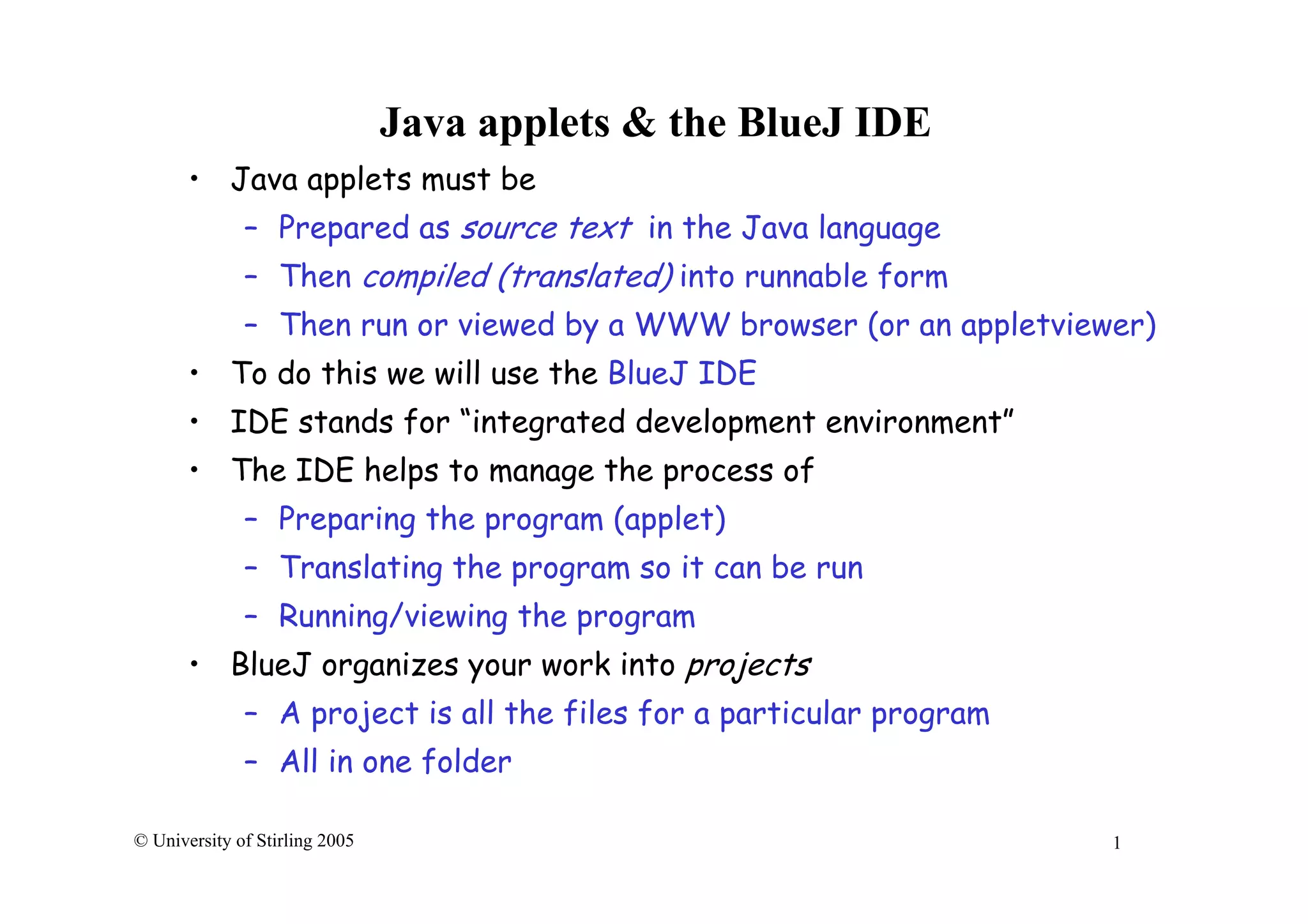
• Always launch BlueJ from the Start menu:
Start / Programs / BlueJ / BlueJ
• The BlueJ window will appear, with a menu bar across the top:
• It may open a
previous project
immediately –
If so we can select
Project menu/Close
3Ā© University of Stirling 2005
Creating a simple project
• The easiest way to start is to ask BlueJ to take a copy of an
already existing project. For example…
• Select BlueJ’s Project menu/Open Project – a file chooser
dialogue box will pop up
• In the usual way navigate to My Computer / Groups on Wide
(V:) / CSC941 / Java
• Click ONCE on the folder HelloWorld
(it might have a strange ā€œpackageā€ icon )
• Click Open
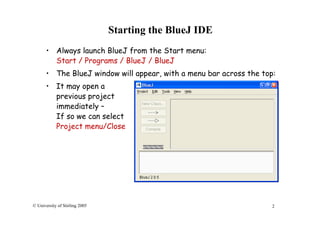
• BlueJ will open
and display the
contents of the project:
4Ā© University of Stirling 2005
Saving a new copy of the project
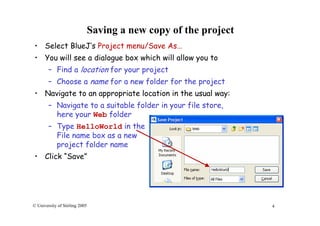
• Select BlueJ’s Project menu/Save As…
• You will see a dialogue box which will allow you to
– Find a location for your project
– Choose a name for a new folder for the project
• Navigate to an appropriate location in the usual way:
– Navigate to a suitable folder in your file store,
here your Web folder
– Type HelloWorld in the
File name box as a new
project folder name
• Click ā€œSaveā€
5Ā© University of Stirling 2005
The BlueJ Window
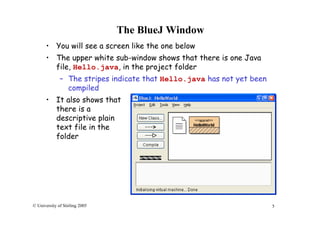
• You will see a screen like the one below
• The upper white sub-window shows that there is one Java
file, Hello.java, in the project folder
– The stripes indicate that Hello.java has not yet been
compiled
• It also shows that
there is a
descriptive plain
text file in the
folder
6Ā© University of Stirling 2005
The project folder
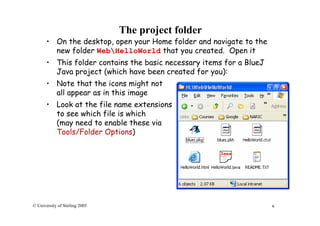
• On the desktop, open your Home folder and navigate to the
new folder WebHelloWorld that you created. Open it
• This folder contains the basic necessary items for a BlueJ
Java project (which have been created for you):
• Note that the icons might not
all appear as in this image
• Look at the file name extensions
to see which file is which
(may need to enable these via
Tools/Folder Options)
7Ā© University of Stirling 2005
The descriptive notes file
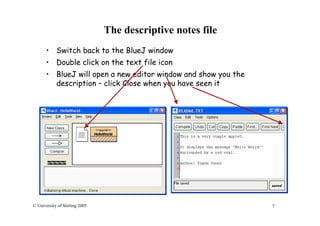
• Switch back to the BlueJ window
• Double click on the text file icon
• BlueJ will open a new editor window and show you the
description – click Close when you have seen it
8Ā© University of Stirling 2005
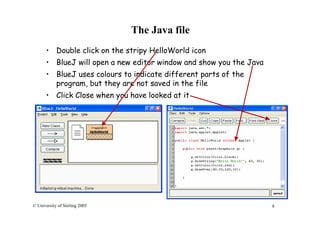
The Java file
• Double click on the stripy HelloWorld icon
• BlueJ will open a new editor window and show you the Java
• BlueJ uses colours to indicate different parts of the
program, but they are not saved in the file
• Click Close when you have looked at it
9Ā© University of Stirling 2005
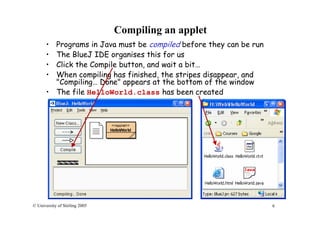
Compiling an applet
• Programs in Java must be compiled before they can be run
• The BlueJ IDE organises this for us
• Click the Compile button, and wait a bit…
• When compiling has finished, the stripes disappear, and
"Compiling… Done" appears at the bottom of the window
• The file HelloWorld.class has been created
10Ā© University of Stirling 2005
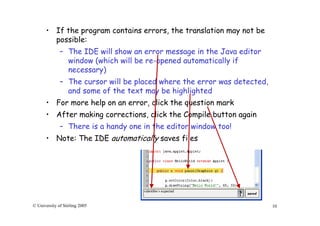
• If the program contains errors, the translation may not be
possible:
– The IDE will show an error message in the Java editor
window (which will be re-opened automatically if
necessary)
– The cursor will be placed where the error was detected,
and some of the text may be highlighted
• For more help on an error, click the question mark
• After making corrections, click the Compile button again
– There is a handy one in the editor window too!
• Note: The IDE automatically saves files
11Ā© University of Stirling 2005
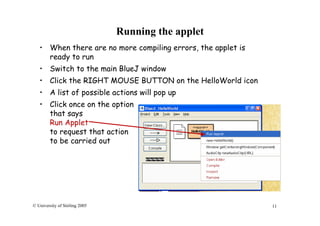
Running the applet
• When there are no more compiling errors, the applet is
ready to run
• Switch to the main BlueJ window
• Click the RIGHT MOUSE BUTTON on the HelloWorld icon
• A list of possible actions will pop up
• Click once on the option
that says
Run Applet
to request that action
to be carried out
12Ā© University of Stirling 2005
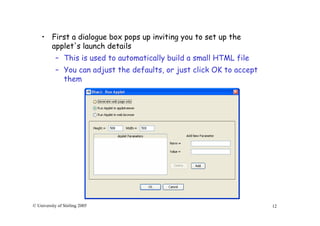
• First a dialogue box pops up inviting you to set up the
applet's launch details
– This is used to automatically build a small HTML file
– You can adjust the defaults, or just click OK to accept
them
13Ā© University of Stirling 2005
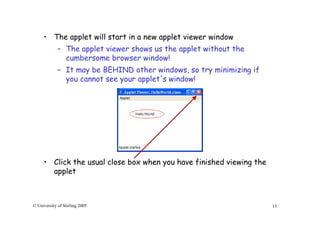
• The applet will start in a new applet viewer window
– The applet viewer shows us the applet without the
cumbersome browser window!
– It may be BEHIND other windows, so try minimizing if
you cannot see your applet's window!
• Click the usual close box when you have finished viewing the
applet
14Ā© University of Stirling 2005
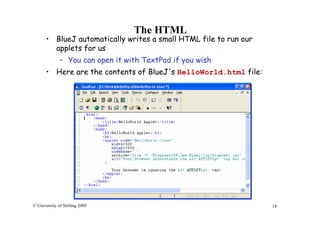
The HTML
• BlueJ automatically writes a small HTML file to run our
applets for us
– You can open it with TextPad if you wish
• Here are the contents of BlueJ's HelloWorld.html file:
15Ā© University of Stirling 2005
End of basic introduction to BlueJ
for developing applets

Applet blue j-intro_applets

  • 1.
    1Ā© University ofStirling 2005 Java applets & the BlueJ IDE • Java applets must be – Prepared as source text in the Java language – Then compiled (translated) into runnable form – Then run or viewed by a WWW browser (or an appletviewer) • To do this we will use the BlueJ IDE • IDE stands for ā€œintegrated development environmentā€ • The IDE helps to manage the process of – Preparing the program (applet) – Translating the program so it can be run – Running/viewing the program • BlueJ organizes your work into projects – A project is all the files for a particular program – All in one folder
  • 2.
    2Ā© University ofStirling 2005 Starting the BlueJ IDE • Always launch BlueJ from the Start menu: Start / Programs / BlueJ / BlueJ • The BlueJ window will appear, with a menu bar across the top: • It may open a previous project immediately – If so we can select Project menu/Close
  • 3.
    3Ā© University ofStirling 2005 Creating a simple project • The easiest way to start is to ask BlueJ to take a copy of an already existing project. For example… • Select BlueJ’s Project menu/Open Project – a file chooser dialogue box will pop up • In the usual way navigate to My Computer / Groups on Wide (V:) / CSC941 / Java • Click ONCE on the folder HelloWorld (it might have a strange ā€œpackageā€ icon ) • Click Open • BlueJ will open and display the contents of the project:
  • 4.
    4Ā© University ofStirling 2005 Saving a new copy of the project • Select BlueJ’s Project menu/Save As… • You will see a dialogue box which will allow you to – Find a location for your project – Choose a name for a new folder for the project • Navigate to an appropriate location in the usual way: – Navigate to a suitable folder in your file store, here your Web folder – Type HelloWorld in the File name box as a new project folder name • Click ā€œSaveā€
  • 5.
    5Ā© University ofStirling 2005 The BlueJ Window • You will see a screen like the one below • The upper white sub-window shows that there is one Java file, Hello.java, in the project folder – The stripes indicate that Hello.java has not yet been compiled • It also shows that there is a descriptive plain text file in the folder
  • 6.
    6Ā© University ofStirling 2005 The project folder • On the desktop, open your Home folder and navigate to the new folder WebHelloWorld that you created. Open it • This folder contains the basic necessary items for a BlueJ Java project (which have been created for you): • Note that the icons might not all appear as in this image • Look at the file name extensions to see which file is which (may need to enable these via Tools/Folder Options)
  • 7.
    7Ā© University ofStirling 2005 The descriptive notes file • Switch back to the BlueJ window • Double click on the text file icon • BlueJ will open a new editor window and show you the description – click Close when you have seen it
  • 8.
    8Ā© University ofStirling 2005 The Java file • Double click on the stripy HelloWorld icon • BlueJ will open a new editor window and show you the Java • BlueJ uses colours to indicate different parts of the program, but they are not saved in the file • Click Close when you have looked at it
  • 9.
    9Ā© University ofStirling 2005 Compiling an applet • Programs in Java must be compiled before they can be run • The BlueJ IDE organises this for us • Click the Compile button, and wait a bit… • When compiling has finished, the stripes disappear, and "Compiling… Done" appears at the bottom of the window • The file HelloWorld.class has been created
  • 10.
    10Ā© University ofStirling 2005 • If the program contains errors, the translation may not be possible: – The IDE will show an error message in the Java editor window (which will be re-opened automatically if necessary) – The cursor will be placed where the error was detected, and some of the text may be highlighted • For more help on an error, click the question mark • After making corrections, click the Compile button again – There is a handy one in the editor window too! • Note: The IDE automatically saves files
  • 11.
    11Ā© University ofStirling 2005 Running the applet • When there are no more compiling errors, the applet is ready to run • Switch to the main BlueJ window • Click the RIGHT MOUSE BUTTON on the HelloWorld icon • A list of possible actions will pop up • Click once on the option that says Run Applet to request that action to be carried out
  • 12.
    12Ā© University ofStirling 2005 • First a dialogue box pops up inviting you to set up the applet's launch details – This is used to automatically build a small HTML file – You can adjust the defaults, or just click OK to accept them
  • 13.
    13Ā© University ofStirling 2005 • The applet will start in a new applet viewer window – The applet viewer shows us the applet without the cumbersome browser window! – It may be BEHIND other windows, so try minimizing if you cannot see your applet's window! • Click the usual close box when you have finished viewing the applet
  • 14.
    14Ā© University ofStirling 2005 The HTML • BlueJ automatically writes a small HTML file to run our applets for us – You can open it with TextPad if you wish • Here are the contents of BlueJ's HelloWorld.html file:
  • 15.
    15Ā© University ofStirling 2005 End of basic introduction to BlueJ for developing applets