Chapter 2 Sending form details via emails
PHP Sending E-mails PHP allows you to send e-mails directly from a script. The PHP mail() Function The PHP mail() function is used to send emails from inside a script.
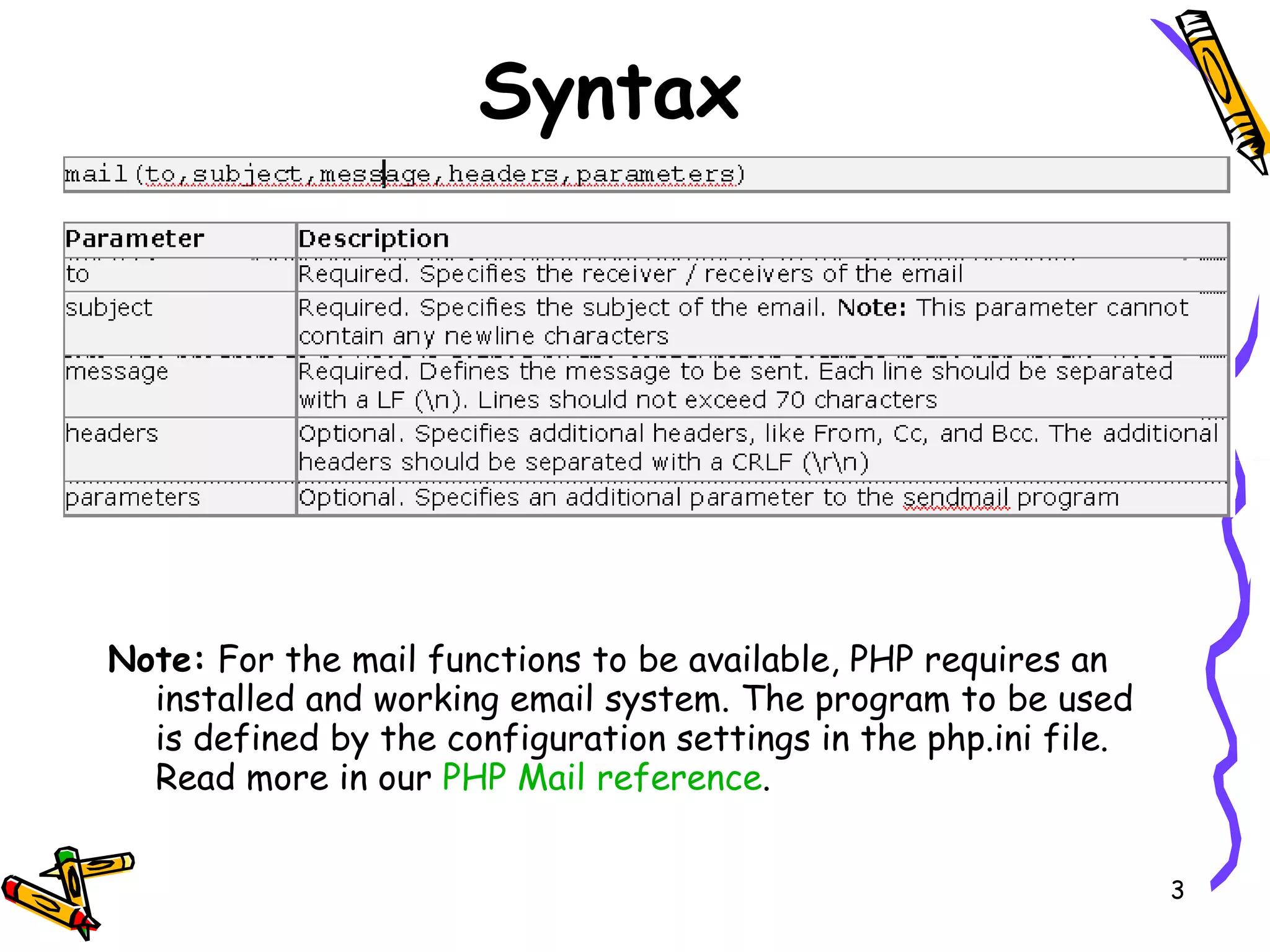
Syntax Note:  For the mail functions to be available, PHP requires an installed and working email system. The program to be used is defined by the configuration settings in the php.ini file. Read more in our  PHP Mail reference .
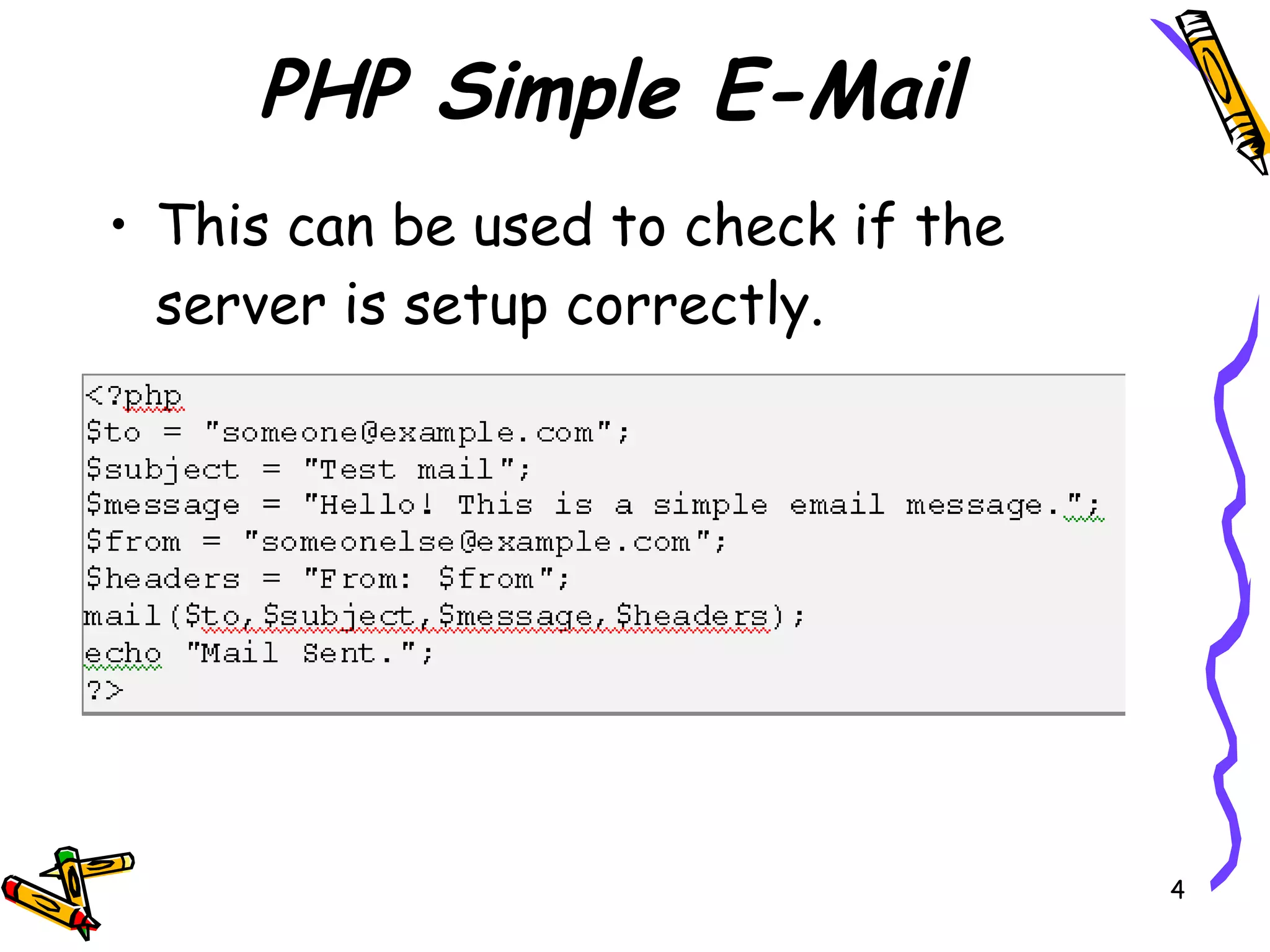
PHP Simple E-Mail This can be used to check if the server is setup correctly.
Sending Emails - 1 1 st  check that SMTP is installed. Through the window component wizard. Highlight IIS and click on details.  If the SMTP is ticked then it is installed if not you need to install it.
Sending Emails - 2 Overview:  In this task you will create a message sent page that will transfer the data to an email. The page that obtains the email data is the contact.php page. You will add a table with no borders and a form to send the information to the message_sent.php page.
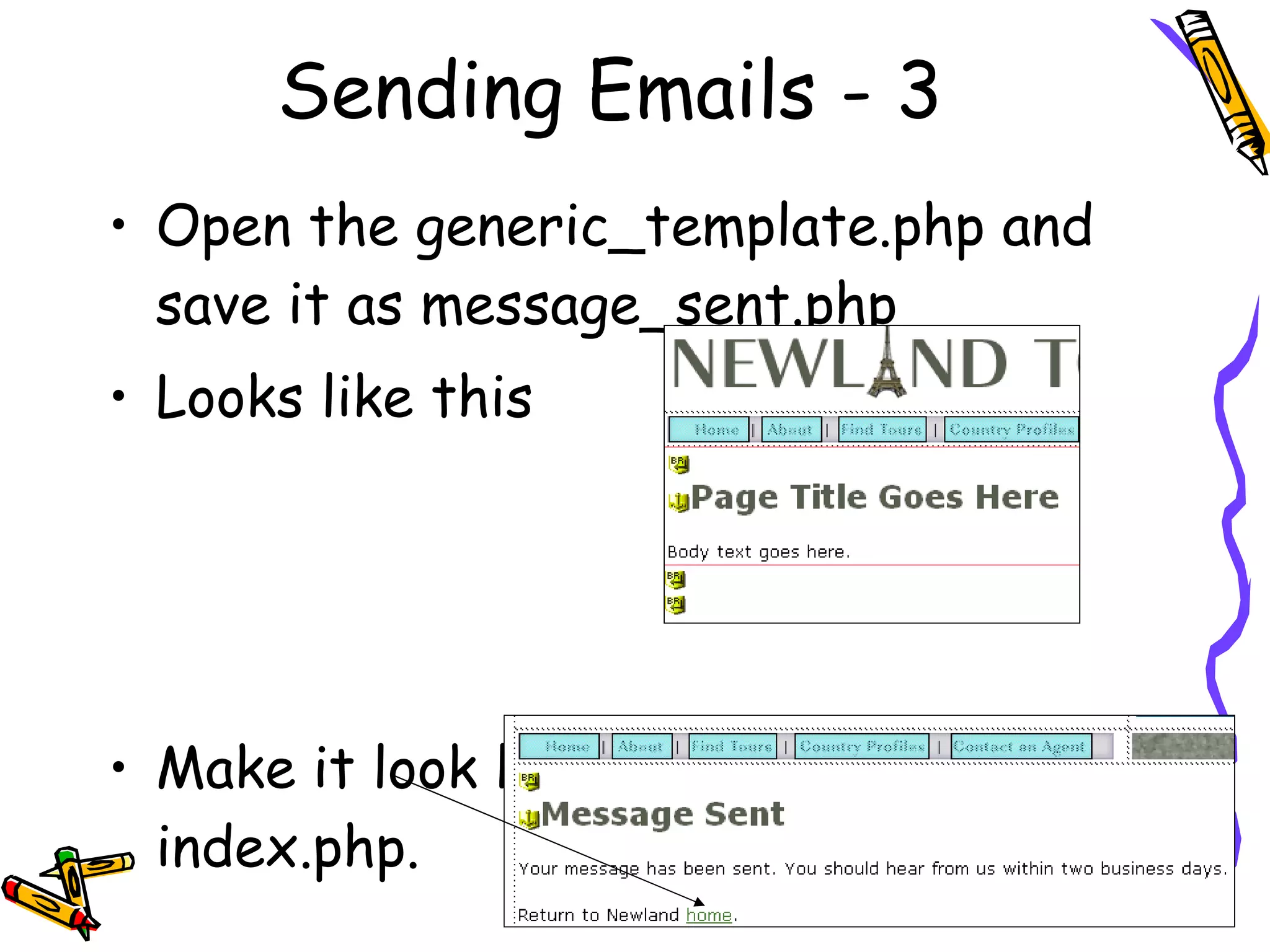
Sending Emails - 3 Open the generic_template.php and save it as message_sent.php Looks like this Make it look like this, with link to index.php.
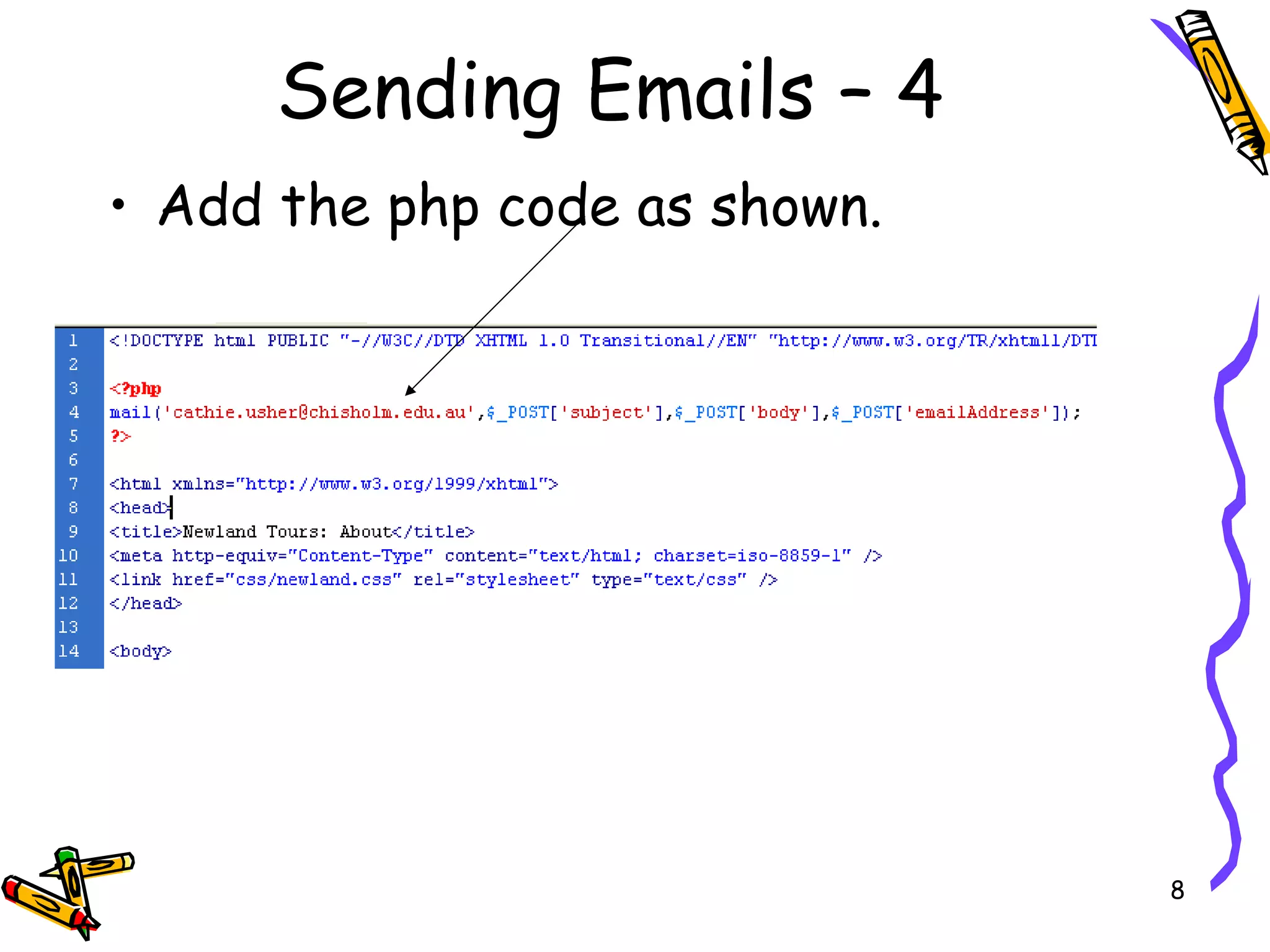
Sending Emails – 4 Add the php code as shown.
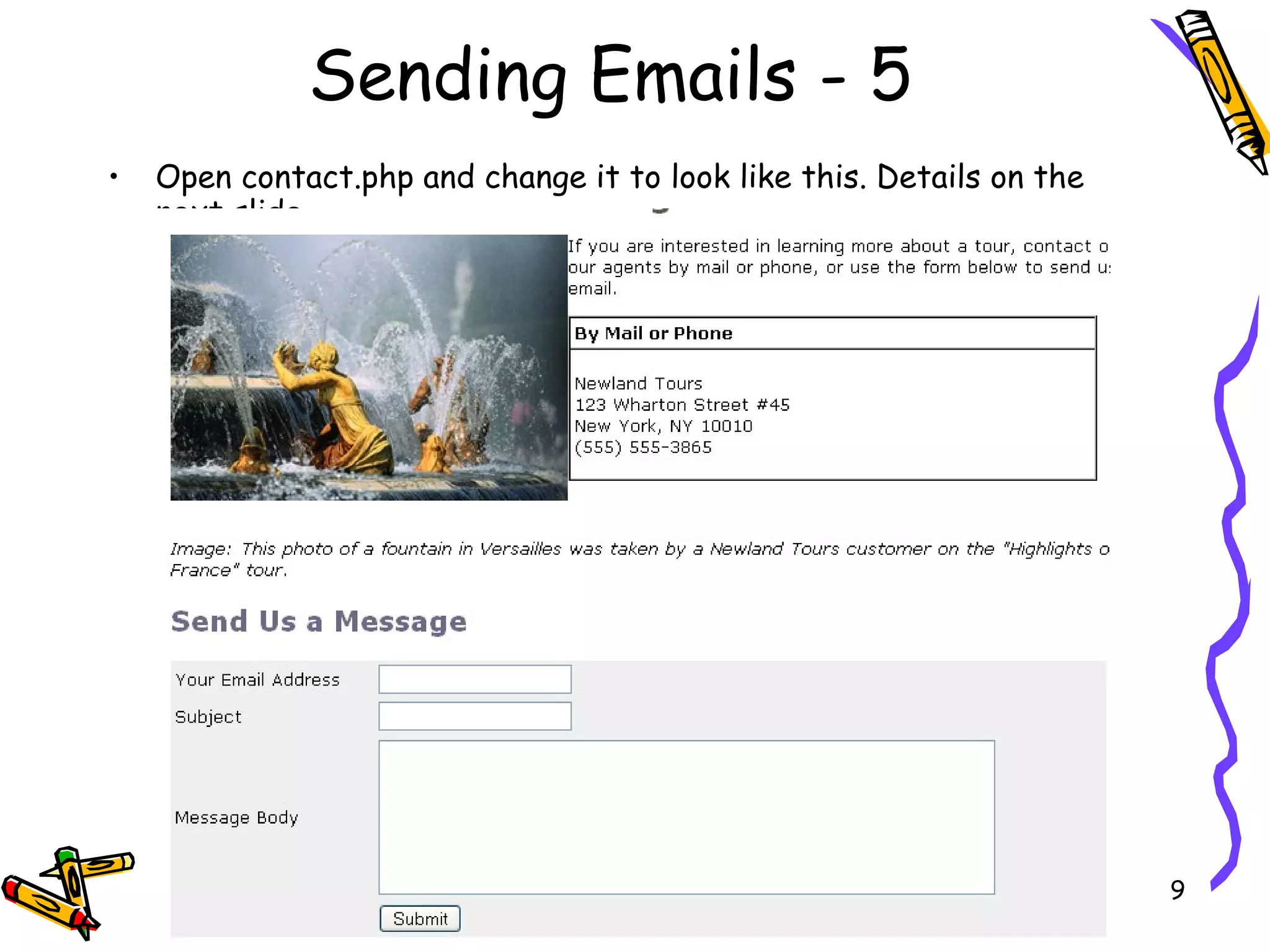
Sending Emails - 5 Open contact.php and change it to look like this. Details on the next slide.
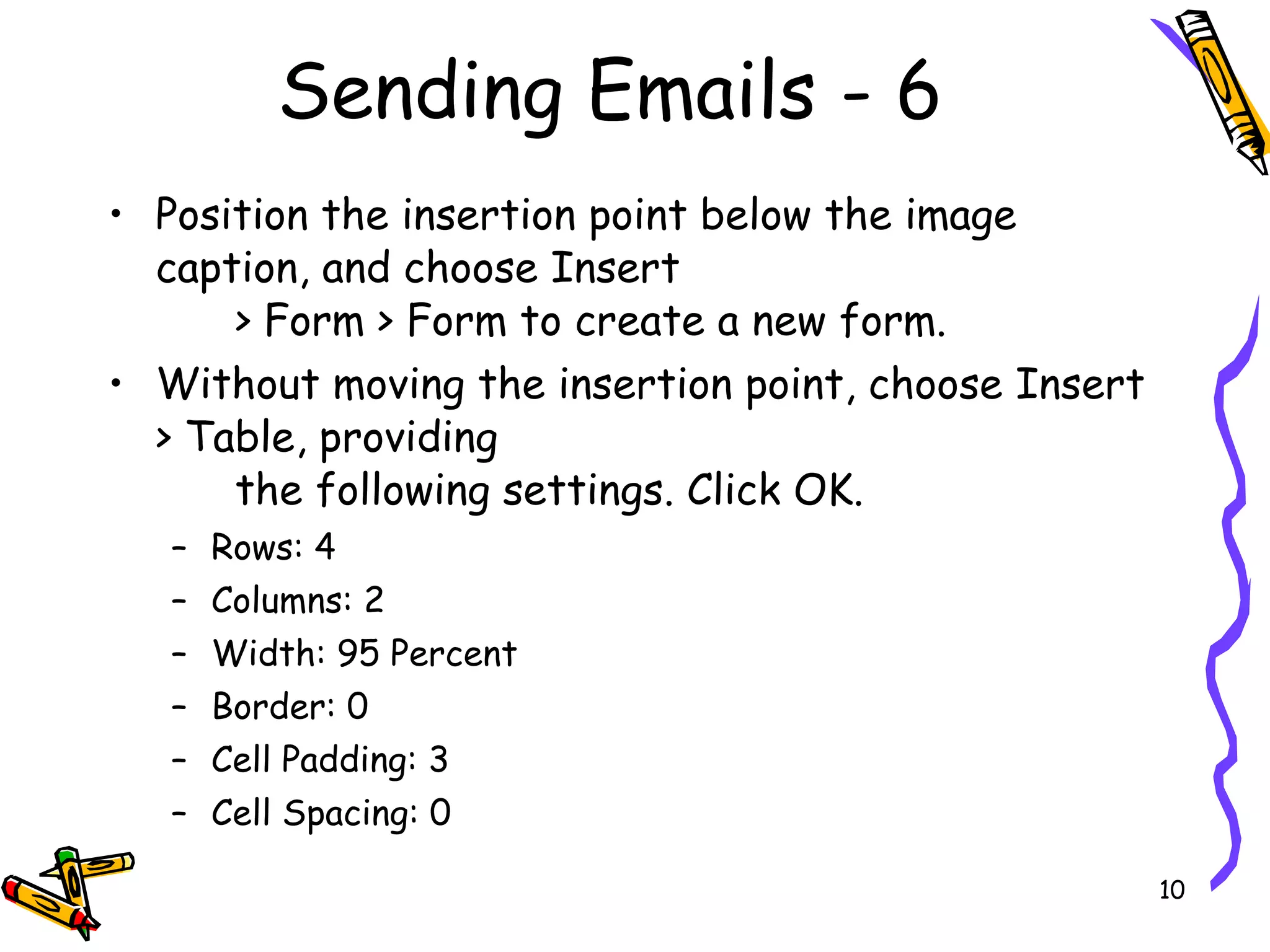
Sending Emails - 6 Position the insertion point below the image caption, and choose Insert  > Form > Form to create a new form.  Without moving the insertion point, choose Insert > Table, providing  the following settings. Click OK.  Rows: 4  Columns: 2  Width: 95 Percent  Border: 0  Cell Padding: 3  Cell Spacing: 0
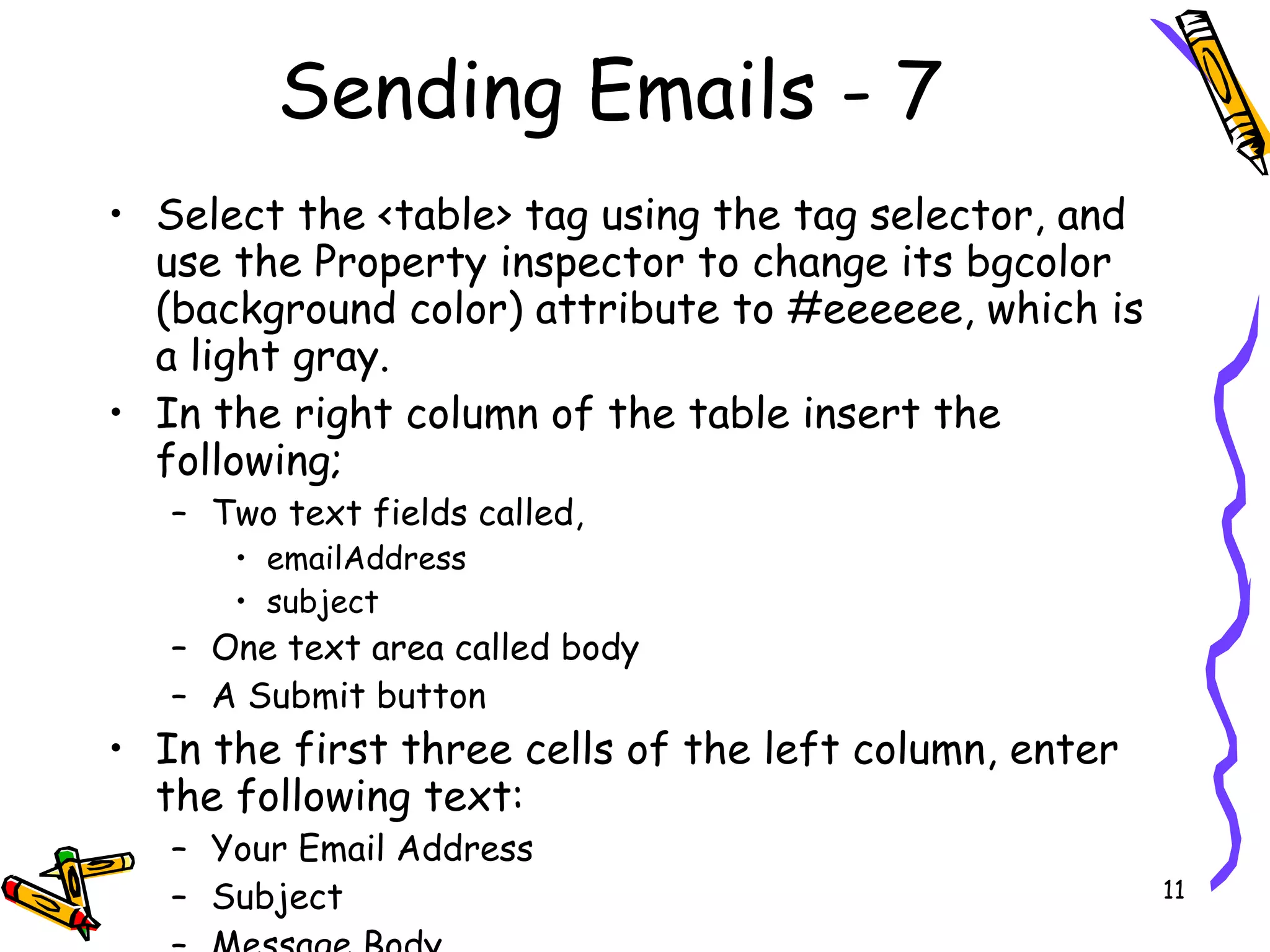
Sending Emails - 7 Select the <table> tag using the tag selector, and use the Property inspector to change its bgcolor (background color) attribute to #eeeeee, which is a light gray.  In the right column of the table insert the following;  Two text fields called, emailAddress subject One text area called body A Submit button  In the first three cells of the left column, enter the following text:  Your Email Address  Subject  Message Body
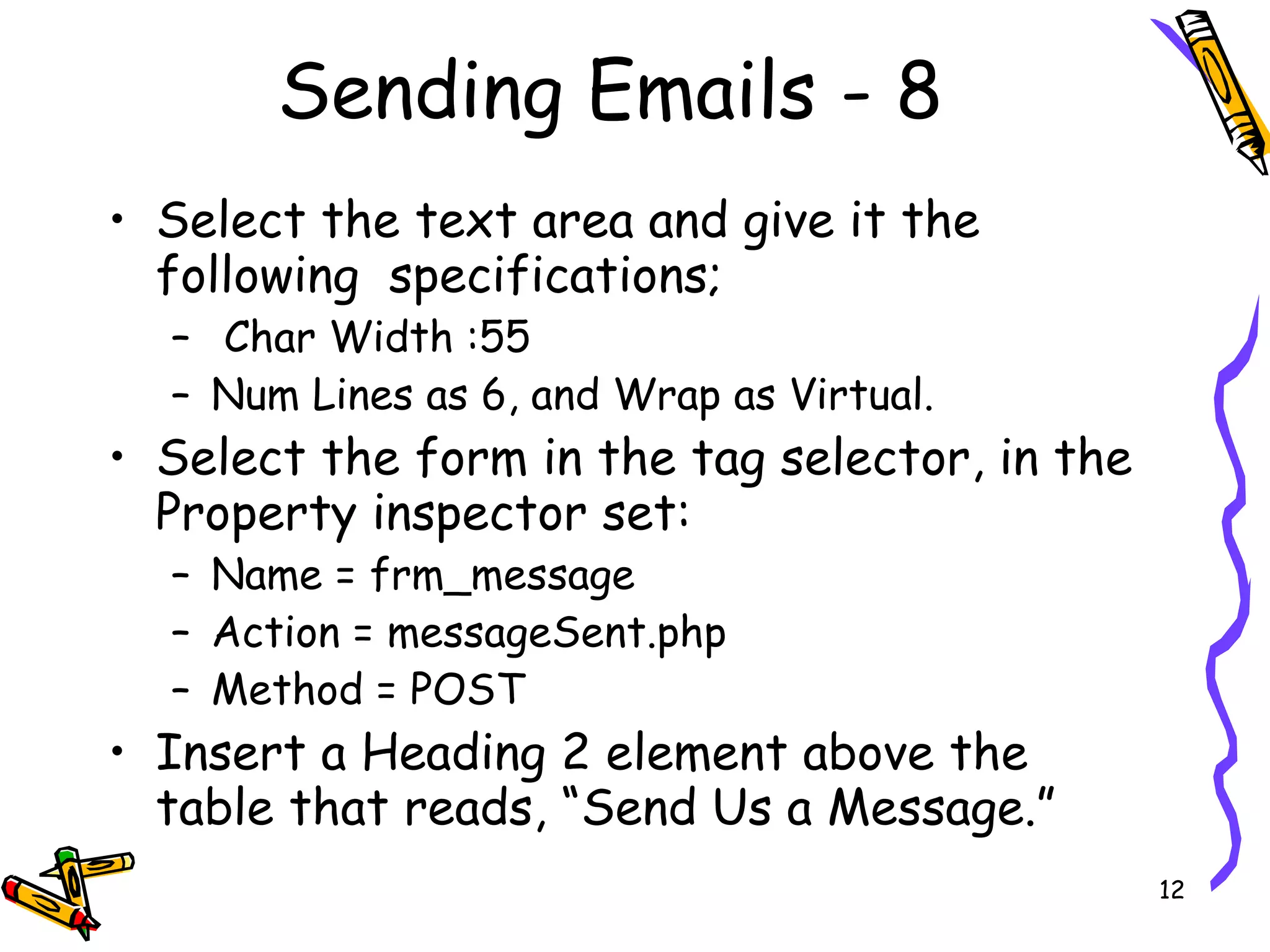
Sending Emails - 8 Select the text area and give it the following  specifications; Char Width :55 Num Lines as 6, and Wrap as Virtual.  Select the form in the tag selector, in the Property inspector set:  Name = frm_message  Action = messageSent.php  Method = POST  Insert a Heading 2 element above the table that reads, “Send Us a Message.”
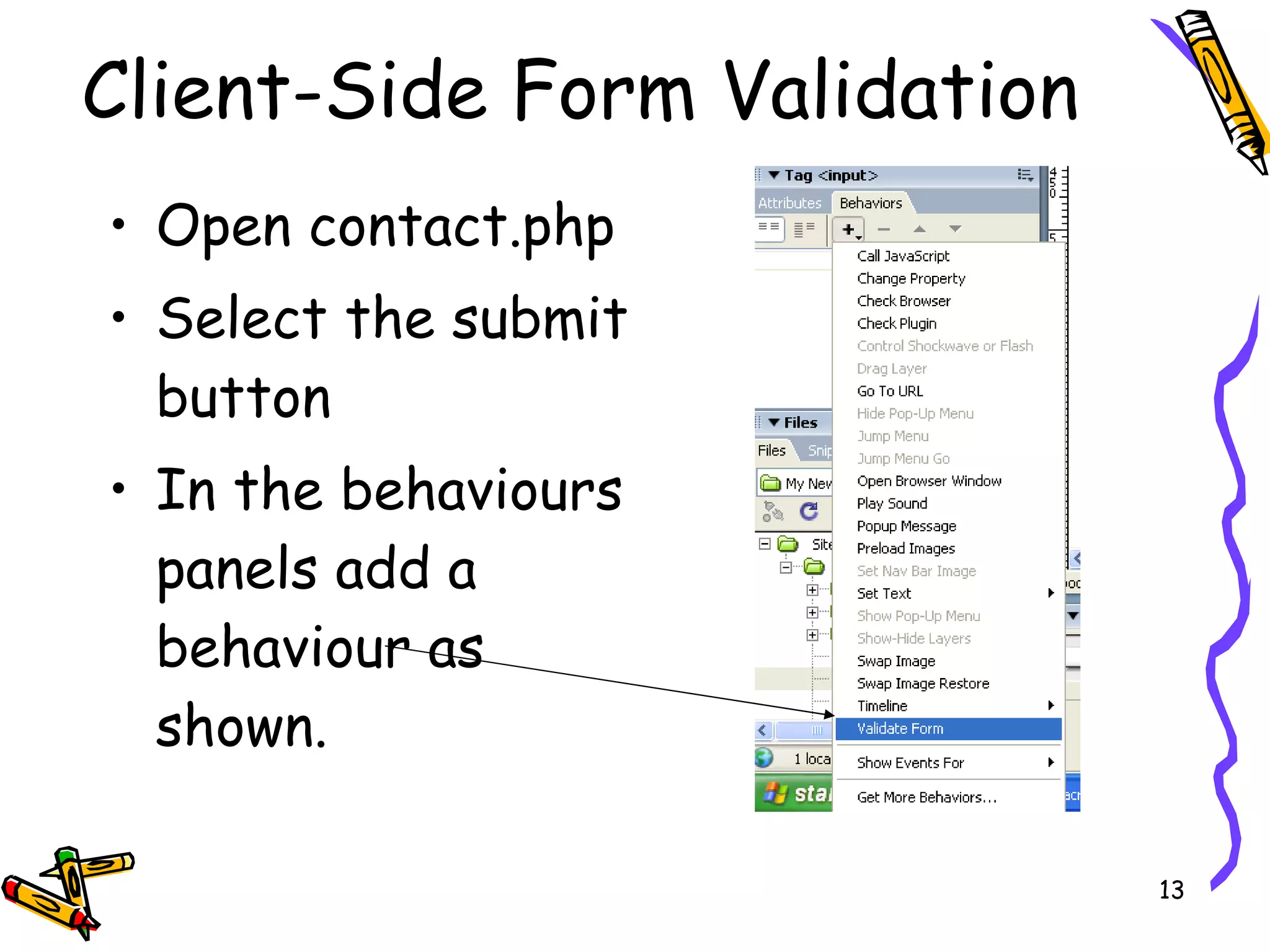
Client-Side Form Validation Open contact.php Select the submit button In the behaviours panels add a behaviour as shown.
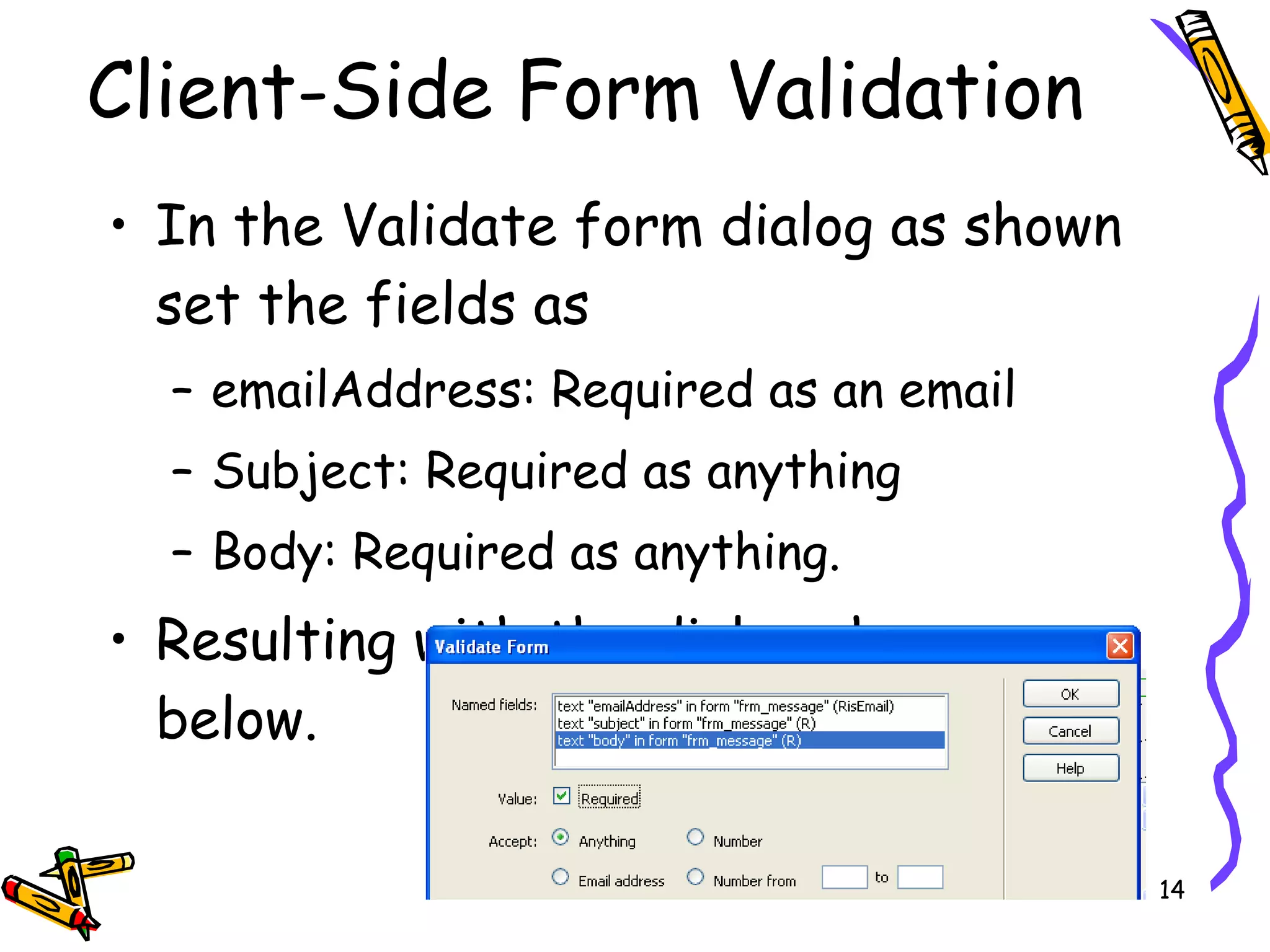
Client-Side Form Validation In the Validate form dialog as shown set the fields as emailAddress: Required as an email Subject: Required as anything Body: Required as anything. Resulting with the dialog shown below.
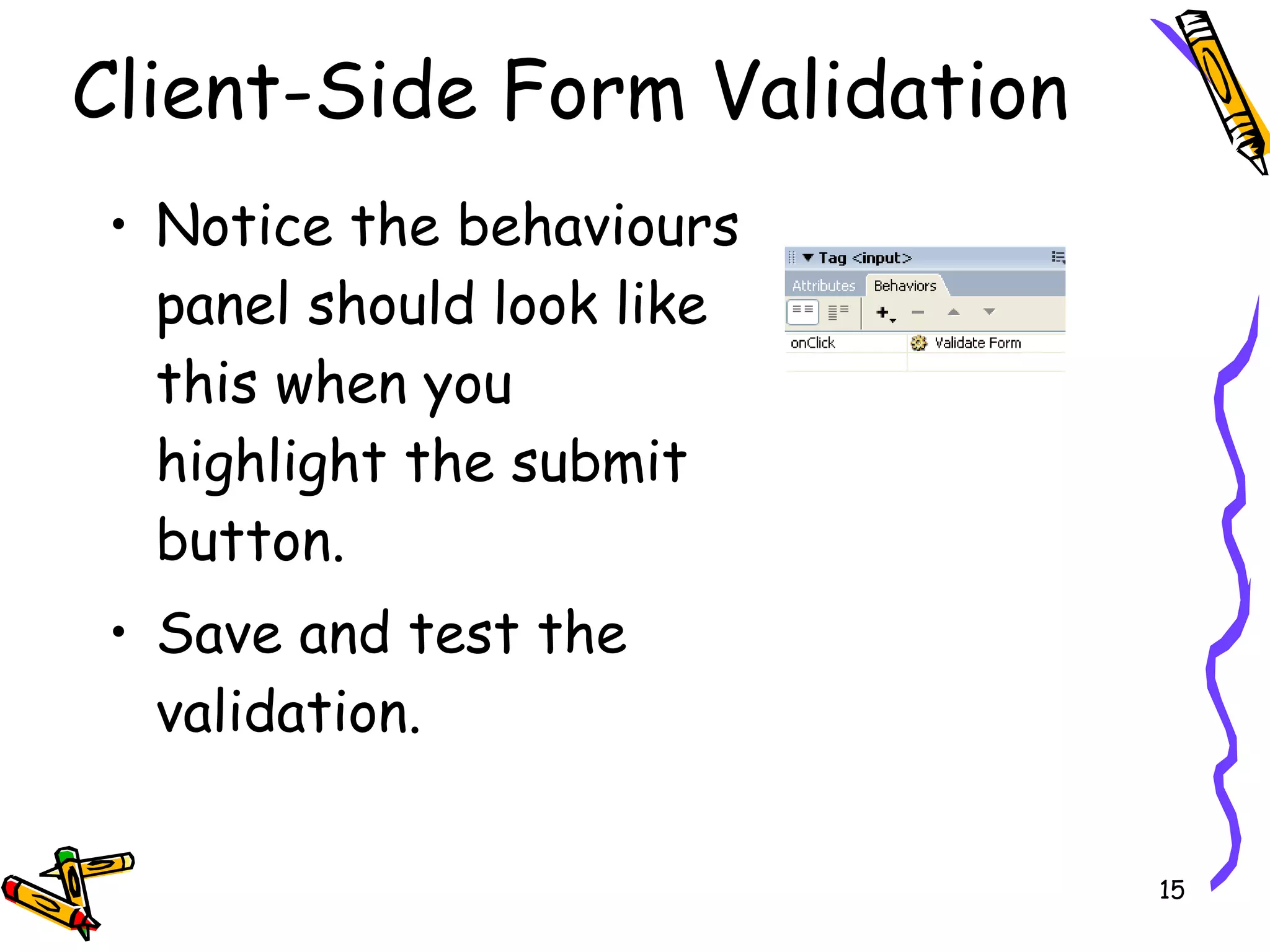
Client-Side Form Validation Notice the behaviours panel should look like this when you highlight the submit button. Save and test the validation.
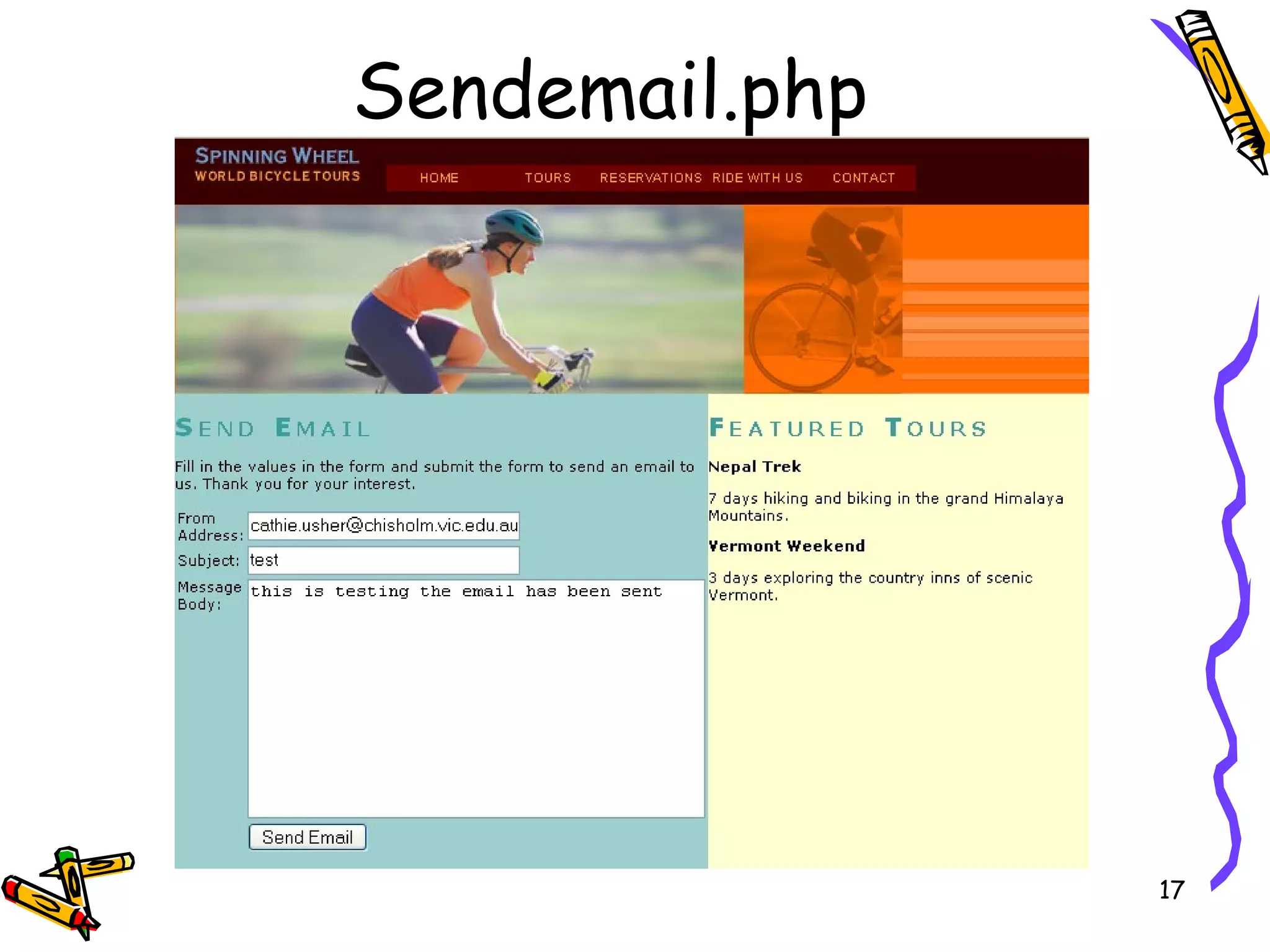
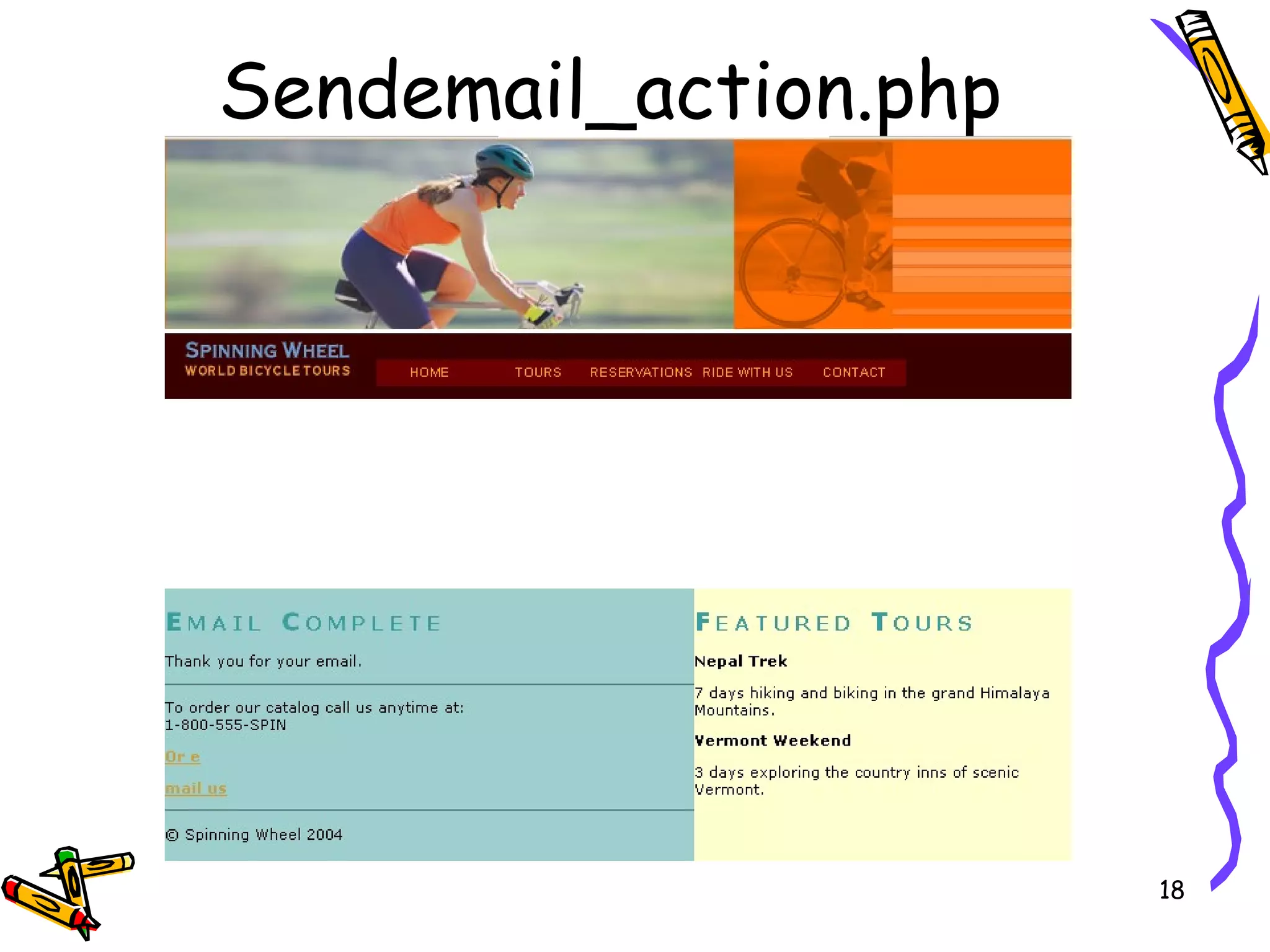
Lab 2 - 1 Overview: Create a html form with client-side validation Create an action page to send an email. Your overview instructions located in the next section of the book: lab section.  Your two pages will look like the following 2 slides.
Sendemail.php
Sendemail_action.php
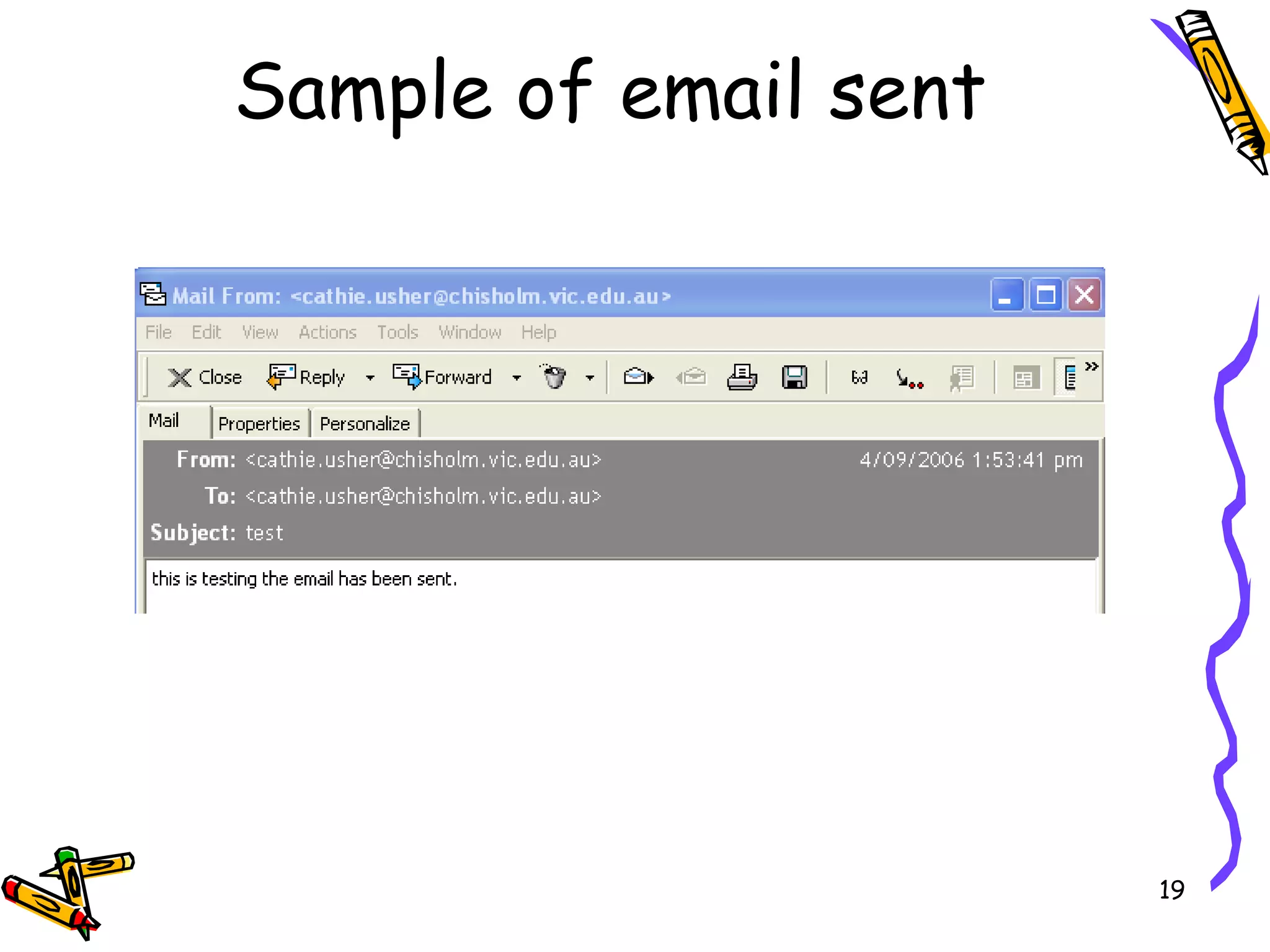
Sample of email sent
Lab 2 - 1 Open server_side_scripting site Open tourtemplate.php.  Change to Split view.  In the Design view pane, click on the link Or email us.  In the Property inspector change the link to link to sendemail.php. Hit the enter key after putting in the link (if you don’t hit enter, the value will not be saved).  Save tourtemplate.php.
Lab 2 - 2 Create an Email Form Page  Save tourtemplate.php as sendemail.php.  Replace the generic left heading with Send Email.  Replace the generic Left Side Text with the text “Fill in the values in the form and submit the form to send an email to us. Thank you for your interest.”  Create a new form below the text.  Name the form email.  Set the action to sendemail_action.php.  Make sure that the Method is Post.
Lab 2 - 3 Create a table inside the form with 2 columns and 4 rows.  Type in the labels as shown in the table below.  From Address  Subject  Message Body  In the second column,  first row put a text field and name it from With a width of 30 and max of 50.  In the second row,  put a text field and name it subject with the same width and max.  In the third row,  put a textarea control and name it message  with a width of 40 and 10 rows.  In the last row,  first column put a submit button control  with a label of Send Email.
Lab 2 – 4 Create Action Page  Create a new page from tourtemplate.php  name : sendemail_action.php.  Note that the email link now points to sendemail.php.  Change the left section title to Email Complete and the text to “Thank you for your email.”  In bindings, create 3 new Request variables:  from  subject  message
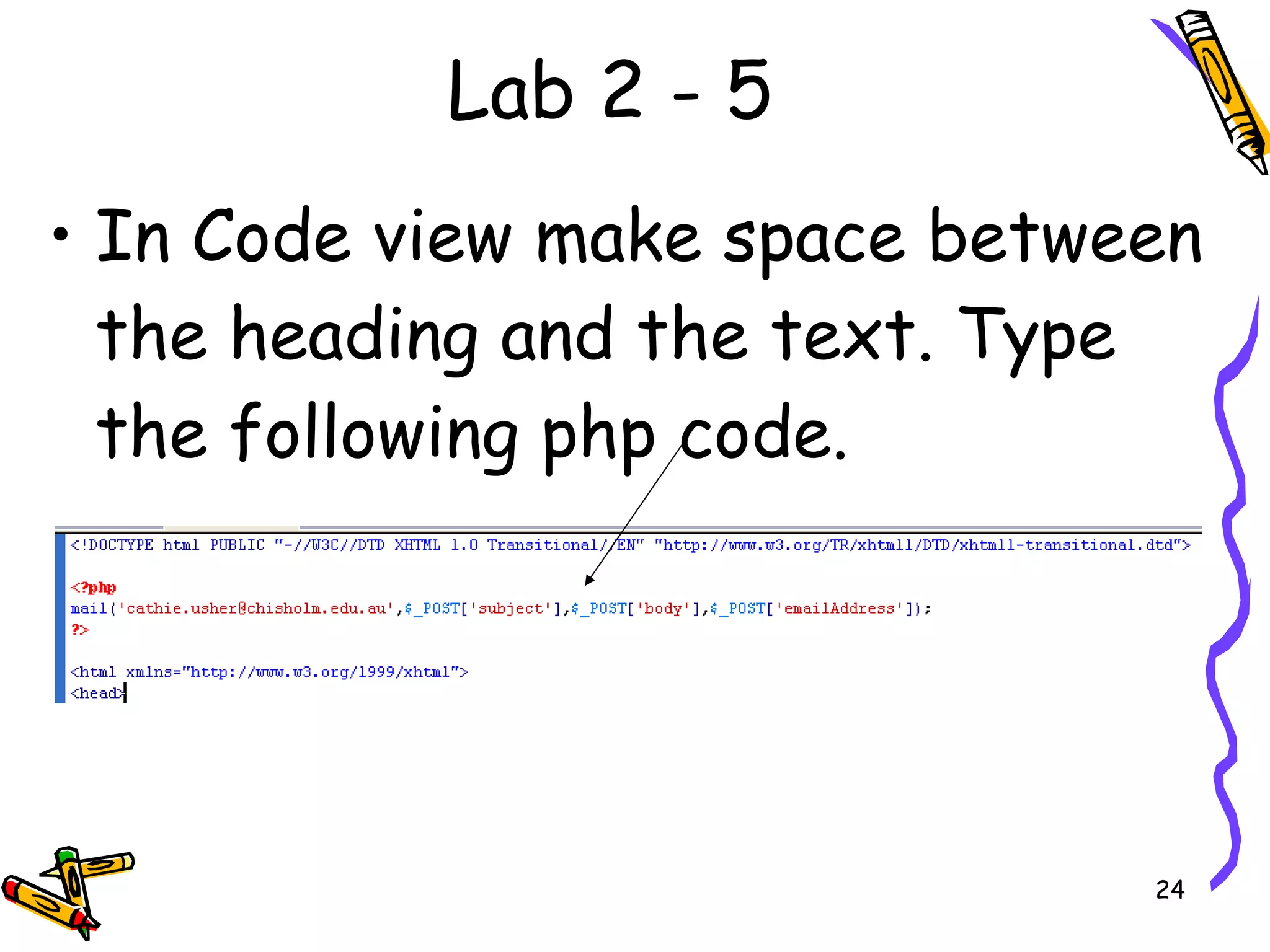
Lab 2 - 5 In Code view make space between the heading and the text. Type the following php code.
Lab 2 - 6 Replace your email address with mine. The From address would normally be hard coded with the site’s email address.  Save the page.  Preview the sendemail.php page. Fill out the form and submit it using your email address as the sender.
Lab 2 - 7 Client Side Validation  Return to Dreamweaver and the sendemail.php page.  Select the Submit button.  In the Behaviours panel, click Add Behaviour and choose Validate Form.  Make all of the fields are required and validate the email address.  Save the page.  Preview sendemail.php.  Check that validation is working by trying to submit an empty form and also try an invalid email address format.
Dynamic Web Pages Ch 2 V1.0

  • 1.
    Chapter 2 Sendingform details via emails
  • 2.
    PHP Sending E-mailsPHP allows you to send e-mails directly from a script. The PHP mail() Function The PHP mail() function is used to send emails from inside a script.
  • 3.
    Syntax Note: For the mail functions to be available, PHP requires an installed and working email system. The program to be used is defined by the configuration settings in the php.ini file. Read more in our PHP Mail reference .
  • 4.
    PHP Simple E-MailThis can be used to check if the server is setup correctly.
  • 5.
    Sending Emails -1 1 st check that SMTP is installed. Through the window component wizard. Highlight IIS and click on details. If the SMTP is ticked then it is installed if not you need to install it.
  • 6.
    Sending Emails -2 Overview: In this task you will create a message sent page that will transfer the data to an email. The page that obtains the email data is the contact.php page. You will add a table with no borders and a form to send the information to the message_sent.php page.
  • 7.
    Sending Emails -3 Open the generic_template.php and save it as message_sent.php Looks like this Make it look like this, with link to index.php.
  • 8.
    Sending Emails –4 Add the php code as shown.
  • 9.
    Sending Emails -5 Open contact.php and change it to look like this. Details on the next slide.
  • 10.
    Sending Emails -6 Position the insertion point below the image caption, and choose Insert > Form > Form to create a new form. Without moving the insertion point, choose Insert > Table, providing the following settings. Click OK. Rows: 4 Columns: 2 Width: 95 Percent Border: 0 Cell Padding: 3 Cell Spacing: 0
  • 11.
    Sending Emails -7 Select the <table> tag using the tag selector, and use the Property inspector to change its bgcolor (background color) attribute to #eeeeee, which is a light gray. In the right column of the table insert the following; Two text fields called, emailAddress subject One text area called body A Submit button In the first three cells of the left column, enter the following text: Your Email Address Subject Message Body
  • 12.
    Sending Emails -8 Select the text area and give it the following specifications; Char Width :55 Num Lines as 6, and Wrap as Virtual. Select the form in the tag selector, in the Property inspector set: Name = frm_message Action = messageSent.php Method = POST Insert a Heading 2 element above the table that reads, “Send Us a Message.”
  • 13.
    Client-Side Form ValidationOpen contact.php Select the submit button In the behaviours panels add a behaviour as shown.
  • 14.
    Client-Side Form ValidationIn the Validate form dialog as shown set the fields as emailAddress: Required as an email Subject: Required as anything Body: Required as anything. Resulting with the dialog shown below.
  • 15.
    Client-Side Form ValidationNotice the behaviours panel should look like this when you highlight the submit button. Save and test the validation.
  • 16.
    Lab 2 -1 Overview: Create a html form with client-side validation Create an action page to send an email. Your overview instructions located in the next section of the book: lab section. Your two pages will look like the following 2 slides.
  • 17.
  • 18.
  • 19.
  • 20.
    Lab 2 -1 Open server_side_scripting site Open tourtemplate.php. Change to Split view. In the Design view pane, click on the link Or email us. In the Property inspector change the link to link to sendemail.php. Hit the enter key after putting in the link (if you don’t hit enter, the value will not be saved). Save tourtemplate.php.
  • 21.
    Lab 2 -2 Create an Email Form Page Save tourtemplate.php as sendemail.php. Replace the generic left heading with Send Email. Replace the generic Left Side Text with the text “Fill in the values in the form and submit the form to send an email to us. Thank you for your interest.” Create a new form below the text. Name the form email. Set the action to sendemail_action.php. Make sure that the Method is Post.
  • 22.
    Lab 2 -3 Create a table inside the form with 2 columns and 4 rows. Type in the labels as shown in the table below. From Address Subject Message Body In the second column, first row put a text field and name it from With a width of 30 and max of 50. In the second row, put a text field and name it subject with the same width and max. In the third row, put a textarea control and name it message with a width of 40 and 10 rows. In the last row, first column put a submit button control with a label of Send Email.
  • 23.
    Lab 2 –4 Create Action Page Create a new page from tourtemplate.php name : sendemail_action.php. Note that the email link now points to sendemail.php. Change the left section title to Email Complete and the text to “Thank you for your email.” In bindings, create 3 new Request variables: from subject message
  • 24.
    Lab 2 -5 In Code view make space between the heading and the text. Type the following php code.
  • 25.
    Lab 2 -6 Replace your email address with mine. The From address would normally be hard coded with the site’s email address. Save the page. Preview the sendemail.php page. Fill out the form and submit it using your email address as the sender.
  • 26.
    Lab 2 -7 Client Side Validation Return to Dreamweaver and the sendemail.php page. Select the Submit button. In the Behaviours panel, click Add Behaviour and choose Validate Form. Make all of the fields are required and validate the email address. Save the page. Preview sendemail.php. Check that validation is working by trying to submit an empty form and also try an invalid email address format.