A FUN & EASY 
DIY TRAINING 
FROM 
VERSION 
2.0
Using This Training 
• Make sure you can connect to YouTube so you can 
access the links to our short tutorial videos. 
• Make sure you’re running this presentation as a slide 
show so you don’t miss any of the built-in features. 
• Advance through the presentation as you normally 
would, by clicking, pressing enter, or using the arrow 
keys. 
• Links within the presentation will let you skip around and 
customize your DIY training if you wish. You’ll need to 
click directly on those links to use them.
DDIIYY 
TTRRAAIINNIINN 
GG MMEENNUU 
Click the orange 
arrow to begin the 
training 
Begin the Training 
- OR - 
Just show me how Drafting Board works 
Show me the classroom & teaching 
materials 
Remind me about the special features in DB -OR-Select 
the part of 
Walk me through the teacher report data 
Help me set up a class and assign DB 
Quiz me about what DB is and what it isn’t 
the training you’d 
like to view first. 
Don’t worry – you 
can always return to 
the menu!
GETTING STARTED: 
Before you use DB… 
… you’ll need to take care of a few 
housekeeping tasks on iCivics.org. 
Back to Menu
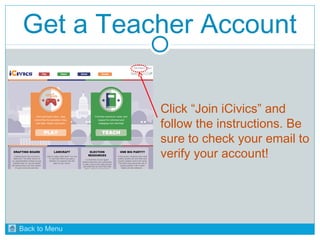
Get a Teacher Account 
Click “Join iCivics” and 
follow the instructions. Be 
sure to check your email to 
verify your account! 
Back to Menu
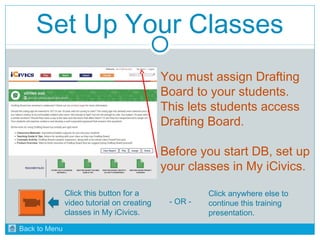
Set Up Your Classes 
You must assign Drafting 
Board to your students. 
This lets students access 
Drafting Board. 
Before you start DB, set up 
your classes in My iCivics. 
Click this button for a 
video tutorial on creating 
classes in My iCivics. 
- OR - 
Click anywhere else to 
continue this training 
presentation. 
Back to Menu
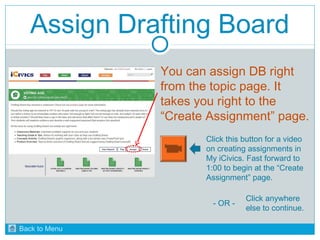
Assign Drafting Board 
You can assign DB right 
from the topic page. It 
takes you right to the 
“Create Assignment” page. 
Click this button for a video 
on creating assignments in 
My iCivics. Fast forward to 
1:00 to begin at the “Create 
Assignment” page. 
- OR - Click anywhere 
else to continue. 
Back to Menu
USING DRAFTING BOARD: 
Get to know the tool… 
… before your students dive in! 
Back to Menu
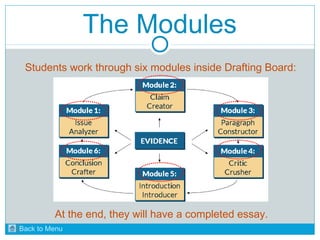
The Modules 
Students work through six modules inside Drafting Board: 
At the end, they will have a completed essay. 
Back to Menu
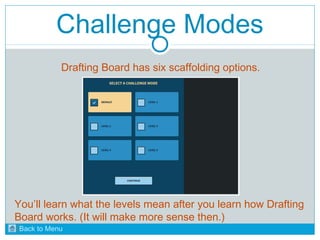
Challenge Modes 
Drafting Board has six scaffolding options. 
You’ll learn what the levels mean after you learn how Drafting 
Board works. (It will make more sense then.) 
Back to Menu
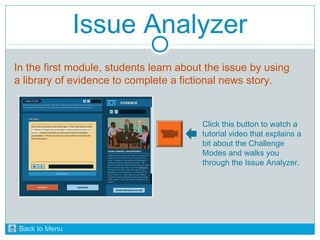
Issue Analyzer 
In the first module, students learn about the issue by using 
a library of evidence to complete a fictional news story. 
Click this button to watch a 
tutorial video that explains a 
bit about the Challenge 
Modes and walks you 
through the Issue Analyzer. 
Back to Menu
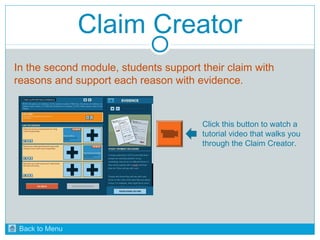
Claim Creator 
In the second module, students support their claim with 
reasons and support each reason with evidence. 
Click this button to watch a 
tutorial video that walks you 
through the Claim Creator. 
Back to Menu
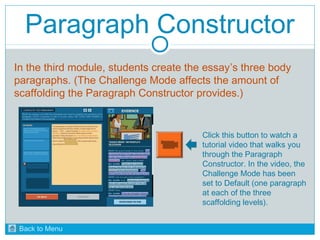
Paragraph Constructor 
In the third module, students create the essay’s three body 
paragraphs. (The Challenge Mode affects the amount of 
scaffolding the Paragraph Constructor provides.) 
Click this button to watch a 
tutorial video that walks you 
through the Paragraph 
Constructor. In the video, the 
Challenge Mode has been 
set to Default (one paragraph 
at each of the three 
scaffolding levels). 
Back to Menu
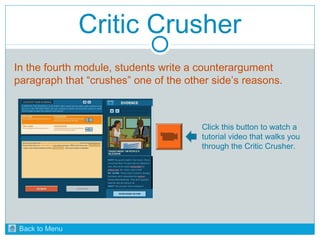
Critic Crusher 
In the fourth module, students write a counterargument 
paragraph that “crushes” one of the other side’s reasons. 
Click this button to watch a 
tutorial video that walks you 
through the Critic Crusher. 
Back to Menu
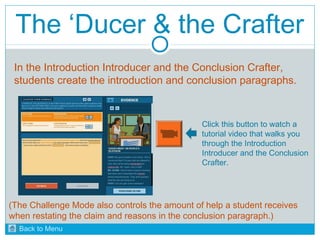
The ‘Ducer & the Crafter 
In the Introduction Introducer and the Conclusion Crafter, 
students create the introduction and conclusion paragraphs. 
Click this button to watch a 
tutorial video that walks you 
through the Introduction 
Introducer and the Conclusion 
Crafter. 
(The Challenge Mode also controls the amount of help a student receives 
when restating the claim and reasons in the conclusion paragraph.) 
Back to Menu
FEATURE REVIEW: 
Look a little deeper… 
… at some of the key features 
Drafting Board offers. 
Back to Menu
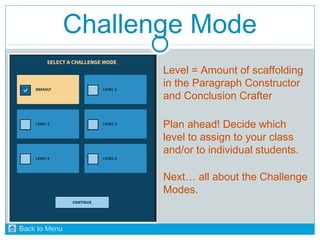
Challenge Mode 
Level = Amount of scaffolding 
in the Paragraph Constructor 
and Conclusion Crafter 
Plan ahead! Decide which 
level to assign to your class 
and/or to individual students. 
Next… all about the Challenge 
Modes. 
Back to Menu
Challenge Mode 
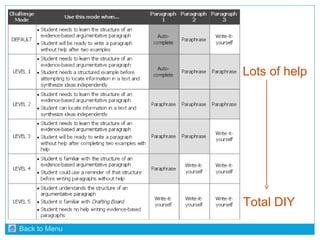
There are three possible scaffolding types: 
• AUTO-COMPLETE. This is the highest level of scaffolding. The 
paragraph is pre-written and contains blank spaces. As students click 
highlighted sentences in the evidence, Drafting Board auto-completes 
the space. Students must determine if the auto-complete response 
makes sense. 
• PARAPHRASE. This is the mid-level scaffolding. The paragraph is pre-written 
and contains blank areas. Based on the evidence, students 
must complete the blank areas in their own words. 
• WRITE-IT-YOURSELF. This level offers no scaffolding. Except for the 
topic sentence, students write the paragraph completely on their own 
based on information in the evidence. 
Back to Menu
Lots of help 
Total DIY 
Back to Menu
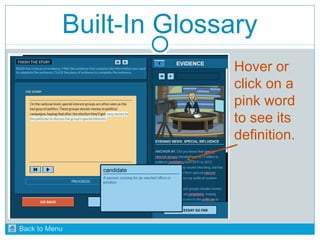
Built-In Glossary 
Hover or 
click on a 
pink word 
to see its 
definition. 
Back to Menu
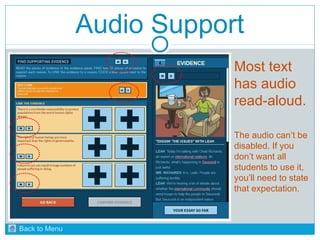
Audio Support 
Most text 
has audio 
read-aloud. 
The audio can’t be 
disabled. If you 
don’t want all 
students to use it, 
you’ll need to state 
that expectation. 
Back to Menu
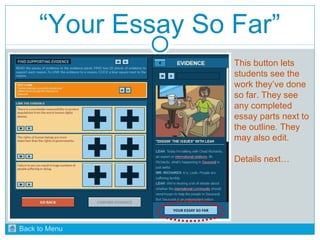
“Your Essay So Far” 
This button lets 
students see the 
work they’ve done 
so far. They see 
any completed 
essay parts next to 
the outline. They 
may also edit. 
Details next… 
Back to Menu
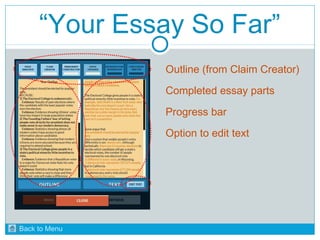
“Your Essay So Far” 
Outline (from Claim Creator) 
Completed essay parts 
Progress bar 
Option to edit text 
Back to Menu
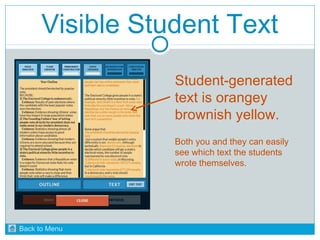
Visible Student Text 
Student-generated 
text is orangey 
brownish yellow. 
Both you and they can easily 
see which text the students 
wrote themselves. 
Back to Menu
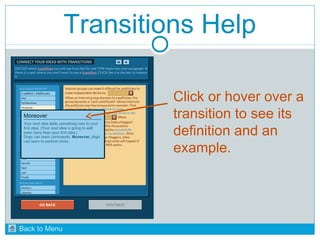
Transitions Help 
Click or hover over a 
transition to see its 
definition and an 
example. 
Back to Menu
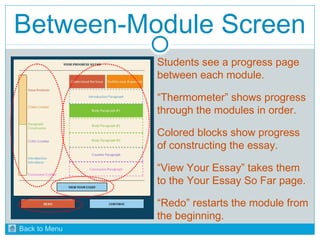
Between-Module Screen 
Students see a progress page 
between each module. 
“Thermometer” shows progress 
through the modules in order. 
Colored blocks show progress 
of constructing the essay. 
“View Your Essay” takes them 
to the Your Essay So Far page. 
“Redo” restarts the module from 
the beginning. 
Back to Menu
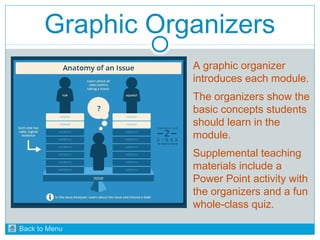
Graphic Organizers 
A graphic organizer 
introduces each module. 
The organizers show the 
basic concepts students 
should learn in the 
module. 
Supplemental teaching 
materials include a 
Power Point activity with 
the organizers and a fun 
whole-class quiz. 
Back to Menu
CLASSROOM SUPPORT: 
Drafting Board needs… 
… teacher facilitation! We’ve made 
materials to help you. 
Back to Menu
Classroom Materials 
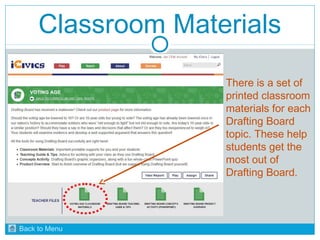
There is a set of 
printed classroom 
materials for each 
Drafting Board 
topic. These help 
students get the 
most out of 
Drafting Board. 
Back to Menu
Classroom Materials 
Each set of classroom materials includes guidance for you 
and worksheets for them… 
• “Challenge mode” matrix 
• Printable pre-writing activity options 
• Printable glossary 
• Guiding questions to help you help them 
• Printable evidence for students who need it 
• Printable “Progress Tracker” (highly recommended!) 
• Peer-editing mini-worksheet 
Back to Menu
Teaching Guide 
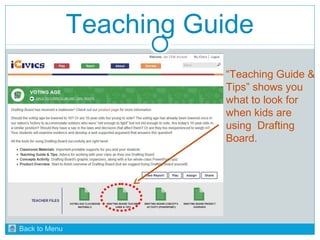
“Teaching Guide & 
Tips” shows you 
what to look for 
when kids are 
using Drafting 
Board. 
Back to Menu
Teaching Guide 
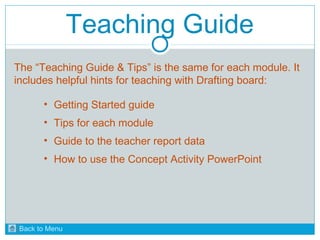
The “Teaching Guide & Tips” is the same for each module. It 
includes helpful hints for teaching with Drafting board: 
• Getting Started guide 
• Tips for each module 
• Guide to the teacher report data 
• How to use the Concept Activity PowerPoint 
Back to Menu
Teaching Guide 
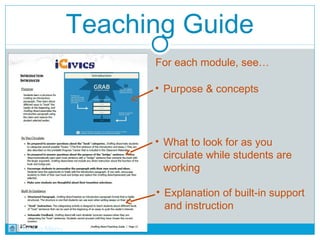
For each module, see… 
• Purpose & concepts 
• What to look for as you 
circulate while students are 
working 
• Explanation of built-in support 
and instruction 
Back to Menu
Teaching Guide 
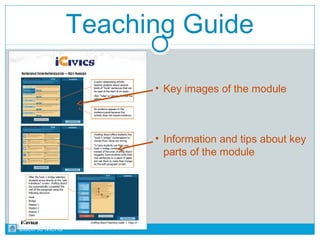
• Key images of the module 
• Information and tips about key 
parts of the module 
Back to Menu
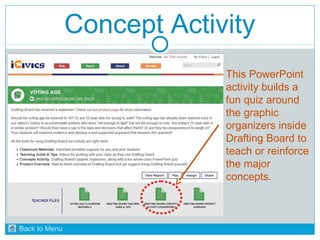
Concept Activity 
This PowerPoint 
activity builds a 
fun quiz around 
the graphic 
organizers inside 
Drafting Board to 
teach or reinforce 
the major 
concepts. 
Back to Menu
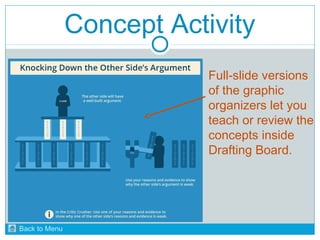
Concept Activity 
Full-slide versions 
of the graphic 
organizers let you 
teach or review the 
concepts inside 
Drafting Board. 
Back to Menu
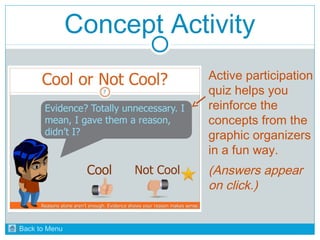
Concept Activity 
Active participation 
quiz helps you 
reinforce the 
concepts from the 
graphic organizers 
in a fun way. 
(Answers appear 
on click.) 
Back to Menu
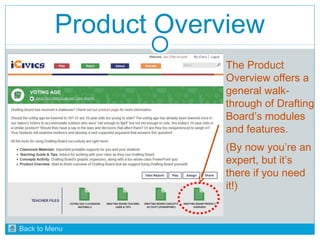
Product Overview 
The Product 
Overview offers a 
general walk-through 
of Drafting 
Board’s modules 
and features. 
(By now you’re an 
expert, but it’s 
there if you need 
it!) 
Back to Menu
TEACHER REPORTING: 
Your students’ results… 
… are only a click away! 
Back to Menu
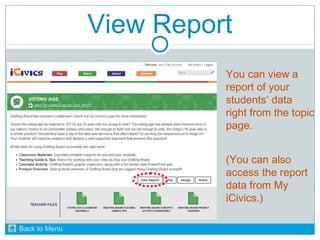
View Report 
You can view a 
report of your 
students’ data 
right from the topic 
page. 
(You can also 
access the report 
data from My 
iCivics.) 
Back to Menu
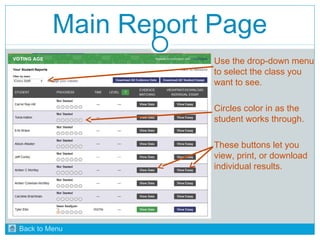
Main Report Page 
Use the drop-down menu 
to select the class you 
want to see. 
Circles color in as the 
student works through. 
These buttons let you 
view, print, or download 
individual results. 
Back to Menu
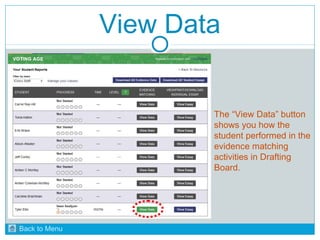
View Data 
The “View Data” button 
shows you how the 
student performed in the 
evidence matching 
activities in Drafting 
Board. 
Back to Menu
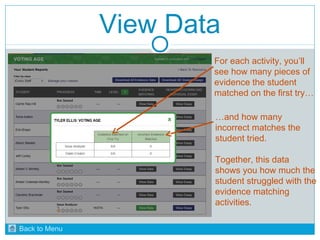
View Data 
For each activity, you’ll 
see how many pieces of 
evidence the student 
matched on the first try… 
…and how many 
incorrect matches the 
student tried. 
Together, this data 
shows you how much the 
student struggled with the 
evidence matching 
activities. 
Back to Menu
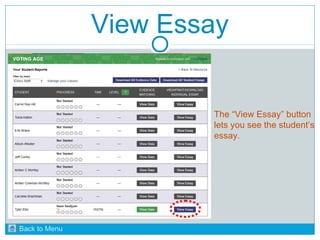
View Essay 
The “View Essay” button 
lets you see the student’s 
essay. 
Back to Menu
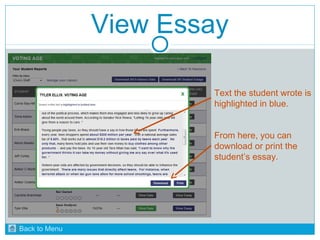
View Essay 
Text the student wrote is 
highlighted in blue. 
From here, you can 
download or print the 
student’s essay. 
Back to Menu
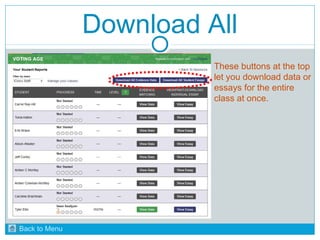
Download All 
These buttons at the top 
let you download data or 
essays for the entire 
class at once. 
Back to Menu
QUIZ: 
Drafting Board is… 
For each statement, show 
if the statement is true 
if the statement is false 
Back to Menu
1) Drafting Board is… 
… a tool to help teach essay 
structure and format. 
True 
False 
Drafting Board models and supports writing quality but cannot assess it. 
Back to Menu
2) Drafting Board is… 
… a replacement for teaching 
about argumentative writing. 
True 
False 
Drafting Board helps you teach, but it can’t replace the teacher. 
Back to Menu
3) Drafting Board is… 
… a game. 
True 
False 
Drafting Board is a writing tool that requires facilitation to be most effective. 
Back to Menu
4) Drafting Board is… 
… a way to model what good 
arguments look & sound like. 
True 
False 
Modeling is embedded throughout Drafting Board. 
Back to Menu
5) Drafting Board is… 
… a way to teach kids how to 
conduct good research. 
True 
False 
It doesn’t teach how to conduct research, but it can be a good discussion starter. 
Back to Menu
6) Drafting Board is… 
… a way to practice working 
with evidence and support. 
True 
False 
Students work with the built-in evidence library throughout Drafting Board. 
Back to Menu
7) Drafting Board is… 
… a way to support literacy in 
the Social Studies classroom. 
True 
False 
Drafting Board supports writing skills students learn in ELA classes. 
Back to Menu
8) Drafting Board is… 
… a replacement for writing 
essays independently. 
True 
False 
Drafting Board is meant to help students learn to write independent essays. 
Back to Menu
9) Drafting Board is… 
… a way to explore topics 
relevant to civics. 
True 
False 
Drafting Board lets students dig deeper into a variety of civics topics. 
Back to Menu
10) Drafting Board is… 
… a good way to keep kids 
busy while you grade papers. 
True 
False 
You probably won’t get good results out of the Drafting Board experience this way. 
Back to Menu
THANK YOU! 
Was this DIY training useful? Please let us know what you 
thought by clicking the button to take a quick survey. 
If you have any questions about Drafting Board, please 
email support@icivics.org. A friendly iCivics staff member 
will be happy to help. 
Back to Menu

Drafting Board self-guided training

  • 1.
    A FUN &EASY DIY TRAINING FROM VERSION 2.0
  • 2.
    Using This Training • Make sure you can connect to YouTube so you can access the links to our short tutorial videos. • Make sure you’re running this presentation as a slide show so you don’t miss any of the built-in features. • Advance through the presentation as you normally would, by clicking, pressing enter, or using the arrow keys. • Links within the presentation will let you skip around and customize your DIY training if you wish. You’ll need to click directly on those links to use them.
  • 3.
    DDIIYY TTRRAAIINNIINN GGMMEENNUU Click the orange arrow to begin the training Begin the Training - OR - Just show me how Drafting Board works Show me the classroom & teaching materials Remind me about the special features in DB -OR-Select the part of Walk me through the teacher report data Help me set up a class and assign DB Quiz me about what DB is and what it isn’t the training you’d like to view first. Don’t worry – you can always return to the menu!
  • 4.
    GETTING STARTED: Beforeyou use DB… … you’ll need to take care of a few housekeeping tasks on iCivics.org. Back to Menu
  • 5.
    Get a TeacherAccount Click “Join iCivics” and follow the instructions. Be sure to check your email to verify your account! Back to Menu
  • 6.
    Set Up YourClasses You must assign Drafting Board to your students. This lets students access Drafting Board. Before you start DB, set up your classes in My iCivics. Click this button for a video tutorial on creating classes in My iCivics. - OR - Click anywhere else to continue this training presentation. Back to Menu
  • 7.
    Assign Drafting Board You can assign DB right from the topic page. It takes you right to the “Create Assignment” page. Click this button for a video on creating assignments in My iCivics. Fast forward to 1:00 to begin at the “Create Assignment” page. - OR - Click anywhere else to continue. Back to Menu
  • 8.
    USING DRAFTING BOARD: Get to know the tool… … before your students dive in! Back to Menu
  • 9.
    The Modules Studentswork through six modules inside Drafting Board: At the end, they will have a completed essay. Back to Menu
  • 10.
    Challenge Modes DraftingBoard has six scaffolding options. You’ll learn what the levels mean after you learn how Drafting Board works. (It will make more sense then.) Back to Menu
  • 11.
    Issue Analyzer Inthe first module, students learn about the issue by using a library of evidence to complete a fictional news story. Click this button to watch a tutorial video that explains a bit about the Challenge Modes and walks you through the Issue Analyzer. Back to Menu
  • 12.
    Claim Creator Inthe second module, students support their claim with reasons and support each reason with evidence. Click this button to watch a tutorial video that walks you through the Claim Creator. Back to Menu
  • 13.
    Paragraph Constructor Inthe third module, students create the essay’s three body paragraphs. (The Challenge Mode affects the amount of scaffolding the Paragraph Constructor provides.) Click this button to watch a tutorial video that walks you through the Paragraph Constructor. In the video, the Challenge Mode has been set to Default (one paragraph at each of the three scaffolding levels). Back to Menu
  • 14.
    Critic Crusher Inthe fourth module, students write a counterargument paragraph that “crushes” one of the other side’s reasons. Click this button to watch a tutorial video that walks you through the Critic Crusher. Back to Menu
  • 15.
    The ‘Ducer &the Crafter In the Introduction Introducer and the Conclusion Crafter, students create the introduction and conclusion paragraphs. Click this button to watch a tutorial video that walks you through the Introduction Introducer and the Conclusion Crafter. (The Challenge Mode also controls the amount of help a student receives when restating the claim and reasons in the conclusion paragraph.) Back to Menu
  • 16.
    FEATURE REVIEW: Looka little deeper… … at some of the key features Drafting Board offers. Back to Menu
  • 17.
    Challenge Mode Level= Amount of scaffolding in the Paragraph Constructor and Conclusion Crafter Plan ahead! Decide which level to assign to your class and/or to individual students. Next… all about the Challenge Modes. Back to Menu
  • 18.
    Challenge Mode Thereare three possible scaffolding types: • AUTO-COMPLETE. This is the highest level of scaffolding. The paragraph is pre-written and contains blank spaces. As students click highlighted sentences in the evidence, Drafting Board auto-completes the space. Students must determine if the auto-complete response makes sense. • PARAPHRASE. This is the mid-level scaffolding. The paragraph is pre-written and contains blank areas. Based on the evidence, students must complete the blank areas in their own words. • WRITE-IT-YOURSELF. This level offers no scaffolding. Except for the topic sentence, students write the paragraph completely on their own based on information in the evidence. Back to Menu
  • 19.
    Lots of help Total DIY Back to Menu
  • 20.
    Built-In Glossary Hoveror click on a pink word to see its definition. Back to Menu
  • 21.
    Audio Support Mosttext has audio read-aloud. The audio can’t be disabled. If you don’t want all students to use it, you’ll need to state that expectation. Back to Menu
  • 22.
    “Your Essay SoFar” This button lets students see the work they’ve done so far. They see any completed essay parts next to the outline. They may also edit. Details next… Back to Menu
  • 23.
    “Your Essay SoFar” Outline (from Claim Creator) Completed essay parts Progress bar Option to edit text Back to Menu
  • 24.
    Visible Student Text Student-generated text is orangey brownish yellow. Both you and they can easily see which text the students wrote themselves. Back to Menu
  • 25.
    Transitions Help Clickor hover over a transition to see its definition and an example. Back to Menu
  • 26.
    Between-Module Screen Studentssee a progress page between each module. “Thermometer” shows progress through the modules in order. Colored blocks show progress of constructing the essay. “View Your Essay” takes them to the Your Essay So Far page. “Redo” restarts the module from the beginning. Back to Menu
  • 27.
    Graphic Organizers Agraphic organizer introduces each module. The organizers show the basic concepts students should learn in the module. Supplemental teaching materials include a Power Point activity with the organizers and a fun whole-class quiz. Back to Menu
  • 28.
    CLASSROOM SUPPORT: DraftingBoard needs… … teacher facilitation! We’ve made materials to help you. Back to Menu
  • 29.
    Classroom Materials Thereis a set of printed classroom materials for each Drafting Board topic. These help students get the most out of Drafting Board. Back to Menu
  • 30.
    Classroom Materials Eachset of classroom materials includes guidance for you and worksheets for them… • “Challenge mode” matrix • Printable pre-writing activity options • Printable glossary • Guiding questions to help you help them • Printable evidence for students who need it • Printable “Progress Tracker” (highly recommended!) • Peer-editing mini-worksheet Back to Menu
  • 31.
    Teaching Guide “TeachingGuide & Tips” shows you what to look for when kids are using Drafting Board. Back to Menu
  • 32.
    Teaching Guide The“Teaching Guide & Tips” is the same for each module. It includes helpful hints for teaching with Drafting board: • Getting Started guide • Tips for each module • Guide to the teacher report data • How to use the Concept Activity PowerPoint Back to Menu
  • 33.
    Teaching Guide Foreach module, see… • Purpose & concepts • What to look for as you circulate while students are working • Explanation of built-in support and instruction Back to Menu
  • 34.
    Teaching Guide •Key images of the module • Information and tips about key parts of the module Back to Menu
  • 35.
    Concept Activity ThisPowerPoint activity builds a fun quiz around the graphic organizers inside Drafting Board to teach or reinforce the major concepts. Back to Menu
  • 36.
    Concept Activity Full-slideversions of the graphic organizers let you teach or review the concepts inside Drafting Board. Back to Menu
  • 37.
    Concept Activity Activeparticipation quiz helps you reinforce the concepts from the graphic organizers in a fun way. (Answers appear on click.) Back to Menu
  • 38.
    Product Overview TheProduct Overview offers a general walk-through of Drafting Board’s modules and features. (By now you’re an expert, but it’s there if you need it!) Back to Menu
  • 39.
    TEACHER REPORTING: Yourstudents’ results… … are only a click away! Back to Menu
  • 40.
    View Report Youcan view a report of your students’ data right from the topic page. (You can also access the report data from My iCivics.) Back to Menu
  • 41.
    Main Report Page Use the drop-down menu to select the class you want to see. Circles color in as the student works through. These buttons let you view, print, or download individual results. Back to Menu
  • 42.
    View Data The“View Data” button shows you how the student performed in the evidence matching activities in Drafting Board. Back to Menu
  • 43.
    View Data Foreach activity, you’ll see how many pieces of evidence the student matched on the first try… …and how many incorrect matches the student tried. Together, this data shows you how much the student struggled with the evidence matching activities. Back to Menu
  • 44.
    View Essay The“View Essay” button lets you see the student’s essay. Back to Menu
  • 45.
    View Essay Textthe student wrote is highlighted in blue. From here, you can download or print the student’s essay. Back to Menu
  • 46.
    Download All Thesebuttons at the top let you download data or essays for the entire class at once. Back to Menu
  • 47.
    QUIZ: Drafting Boardis… For each statement, show if the statement is true if the statement is false Back to Menu
  • 48.
    1) Drafting Boardis… … a tool to help teach essay structure and format. True False Drafting Board models and supports writing quality but cannot assess it. Back to Menu
  • 49.
    2) Drafting Boardis… … a replacement for teaching about argumentative writing. True False Drafting Board helps you teach, but it can’t replace the teacher. Back to Menu
  • 50.
    3) Drafting Boardis… … a game. True False Drafting Board is a writing tool that requires facilitation to be most effective. Back to Menu
  • 51.
    4) Drafting Boardis… … a way to model what good arguments look & sound like. True False Modeling is embedded throughout Drafting Board. Back to Menu
  • 52.
    5) Drafting Boardis… … a way to teach kids how to conduct good research. True False It doesn’t teach how to conduct research, but it can be a good discussion starter. Back to Menu
  • 53.
    6) Drafting Boardis… … a way to practice working with evidence and support. True False Students work with the built-in evidence library throughout Drafting Board. Back to Menu
  • 54.
    7) Drafting Boardis… … a way to support literacy in the Social Studies classroom. True False Drafting Board supports writing skills students learn in ELA classes. Back to Menu
  • 55.
    8) Drafting Boardis… … a replacement for writing essays independently. True False Drafting Board is meant to help students learn to write independent essays. Back to Menu
  • 56.
    9) Drafting Boardis… … a way to explore topics relevant to civics. True False Drafting Board lets students dig deeper into a variety of civics topics. Back to Menu
  • 57.
    10) Drafting Boardis… … a good way to keep kids busy while you grade papers. True False You probably won’t get good results out of the Drafting Board experience this way. Back to Menu
  • 58.
    THANK YOU! Wasthis DIY training useful? Please let us know what you thought by clicking the button to take a quick survey. If you have any questions about Drafting Board, please email support@icivics.org. A friendly iCivics staff member will be happy to help. Back to Menu