Free-NAS Server
2018
Hagar Aly
CtrlSoft
1/1/2018
By
 Soaad Mahmoud
 Hagar Aly
 Enas Mohamed
 Shymaa Masoud
 Moaaz Magdy
 Rana Yahia
What is FreeNAS?
FreeNAS is a Free and Open Source Network Attached Storage (NAS) software
appliance. This means that you can use FreeNAS to share data over file-based sharing
protocols, including CIFS for Windows users, NFS for Unix-like operating systems, and
AFP for Mac OS X users. FreeNAS uses the ZFS file system to store, manage, and
protect data. ZFS provides advanced features like snapshots to keep old versions of files,
incremental remote backups to keep your data safe on another device without huge file
transfers, and intelligent compression, which reduces the size of files so quickly and
efficiently that it actually helps transfers happen faster.
Link or video to know how to install Free-NasServer:
https://www.youtube.com/watch?v=_H4YfhqfSB8&t=181s
Steps for Free-NAS configuration:
At first give your machine a static ip to be able to open GUI of this machine by using this
command
ifconfig em0 inet 192.168.65.65 netmask 255.255.255.0
route add default 192.168.65.2
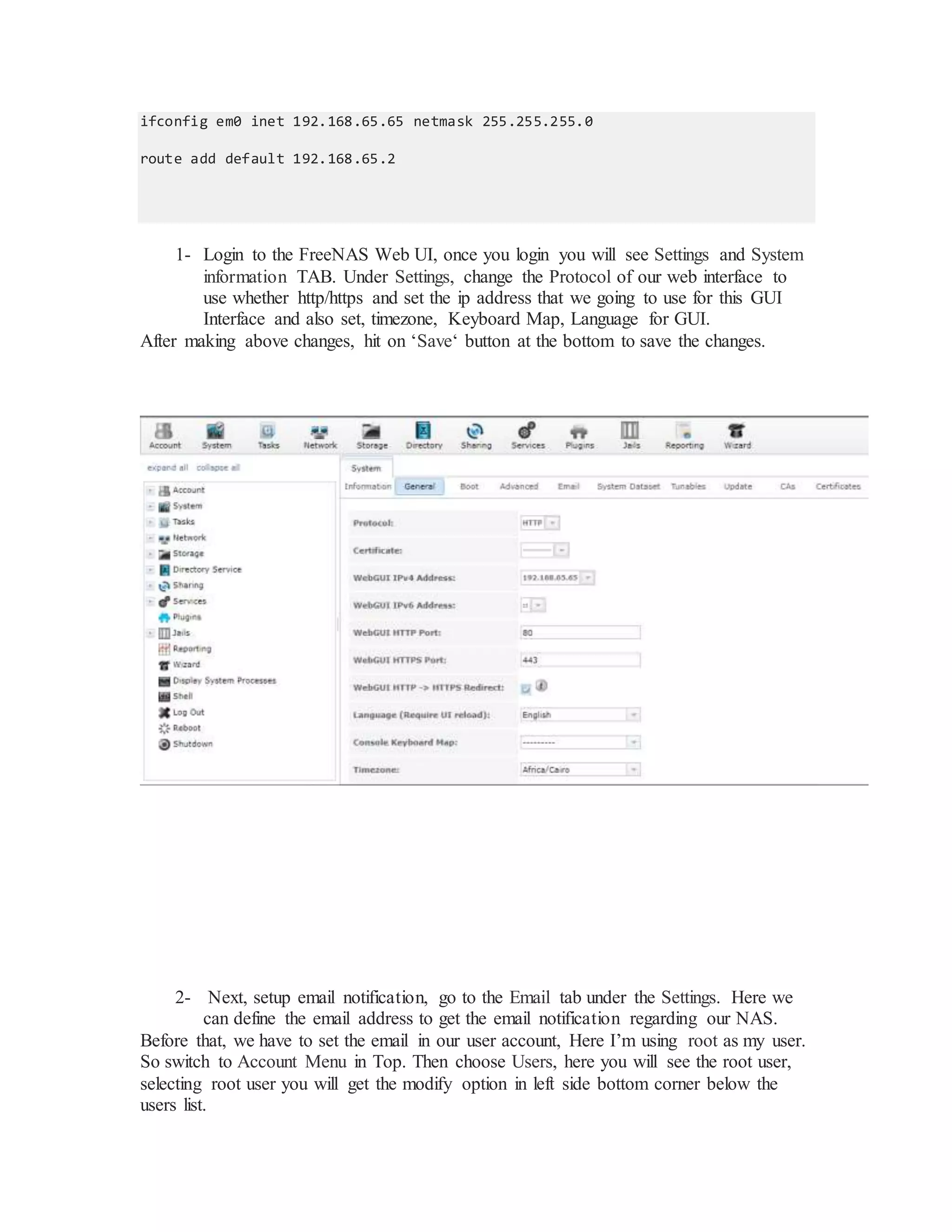
1- Login to the FreeNAS Web UI, once you login you will see Settings and System
information TAB. Under Settings, change the Protocol of our web interface to
use whether http/https and set the ip address that we going to use for this GUI
Interface and also set, timezone, Keyboard Map, Language for GUI.
After making above changes, hit on ‘Save‘ button at the bottom to save the changes.
2- Next, setup email notification, go to the Email tab under the Settings. Here we
can define the email address to get the email notification regarding our NAS.
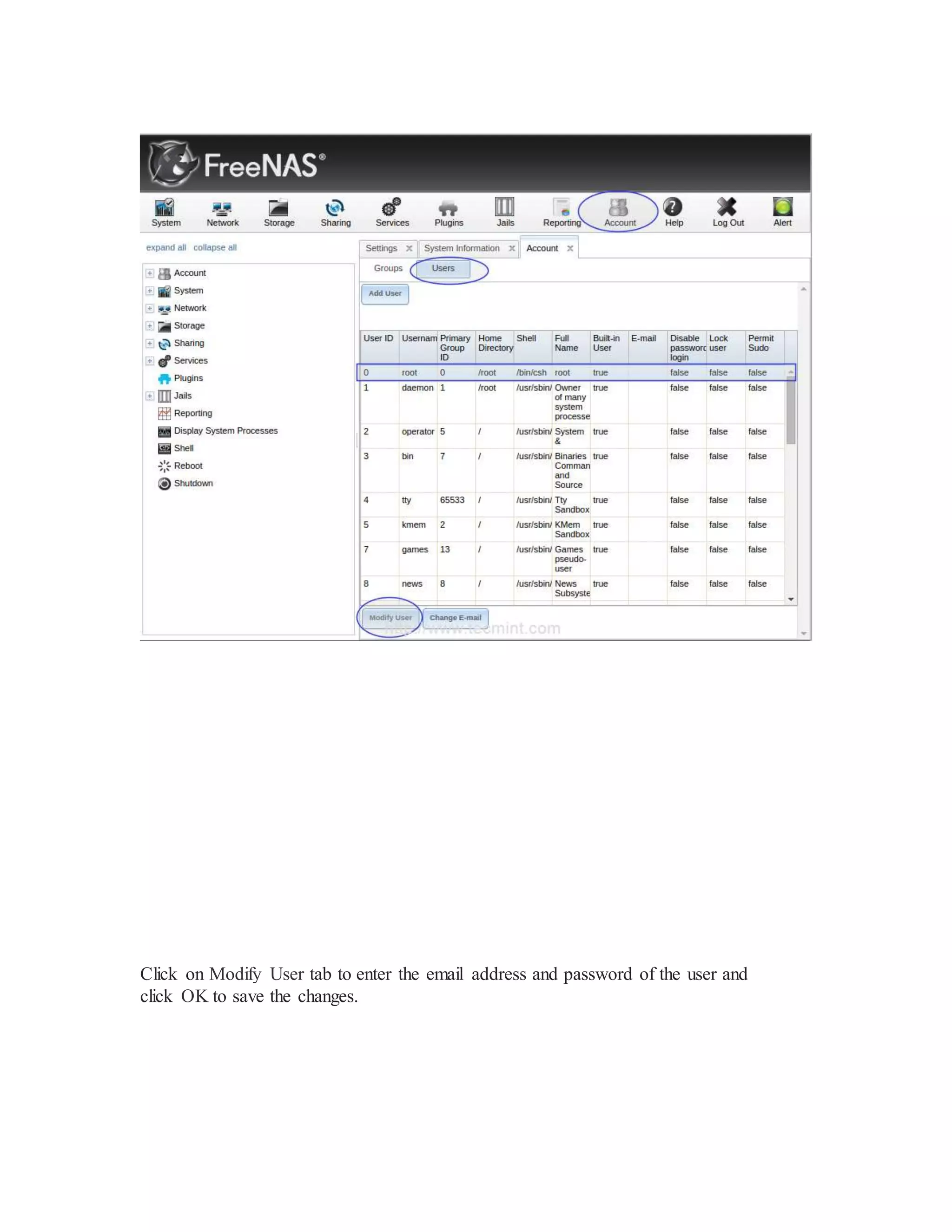
Before that, we have to set the email in our user account, Here I’m using root as my user.
So switch to Account Menu in Top. Then choose Users, here you will see the root user,
selecting root user you will get the modify option in left side bottom corner below the
users list.
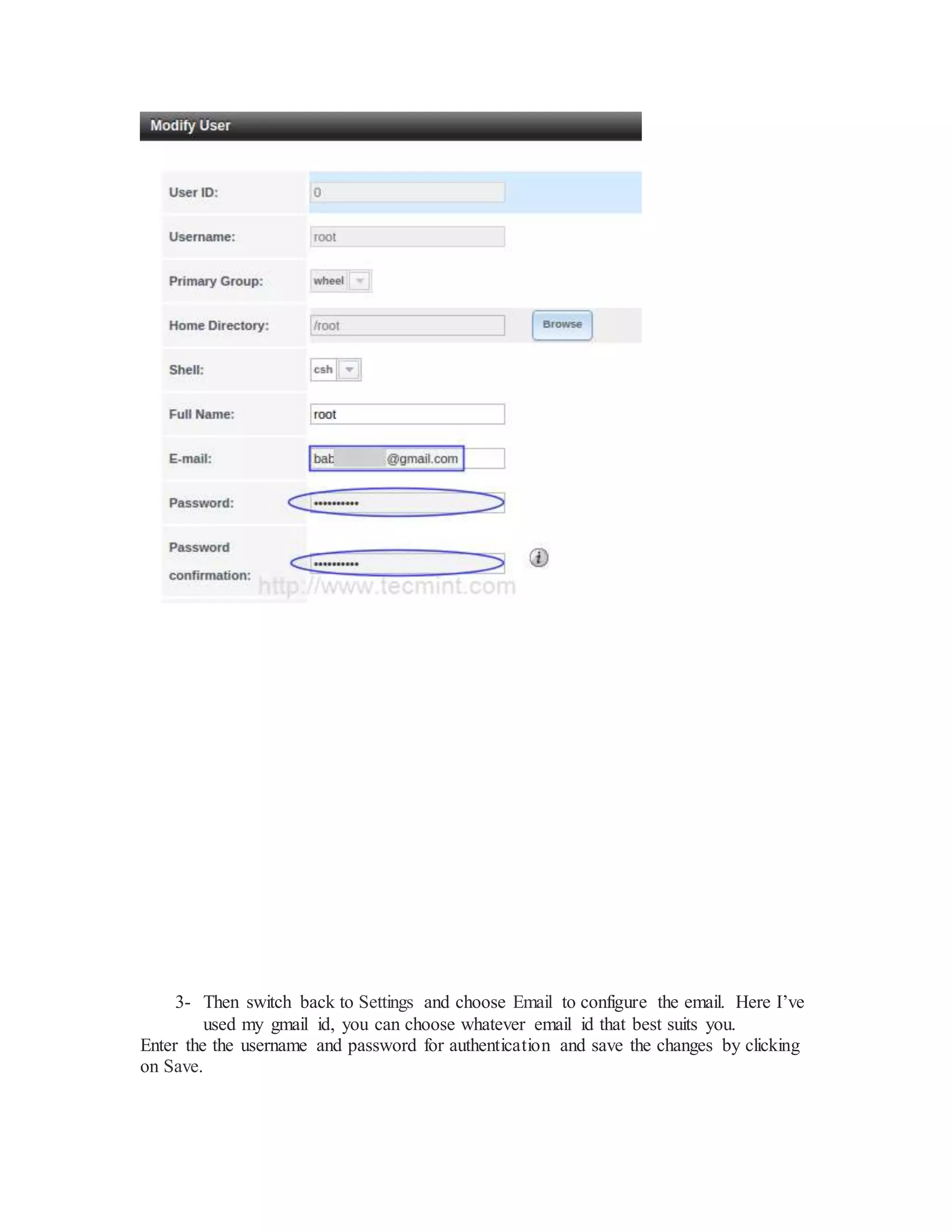
Click on Modify User tab to enter the email address and password of the user and
click OK to save the changes.
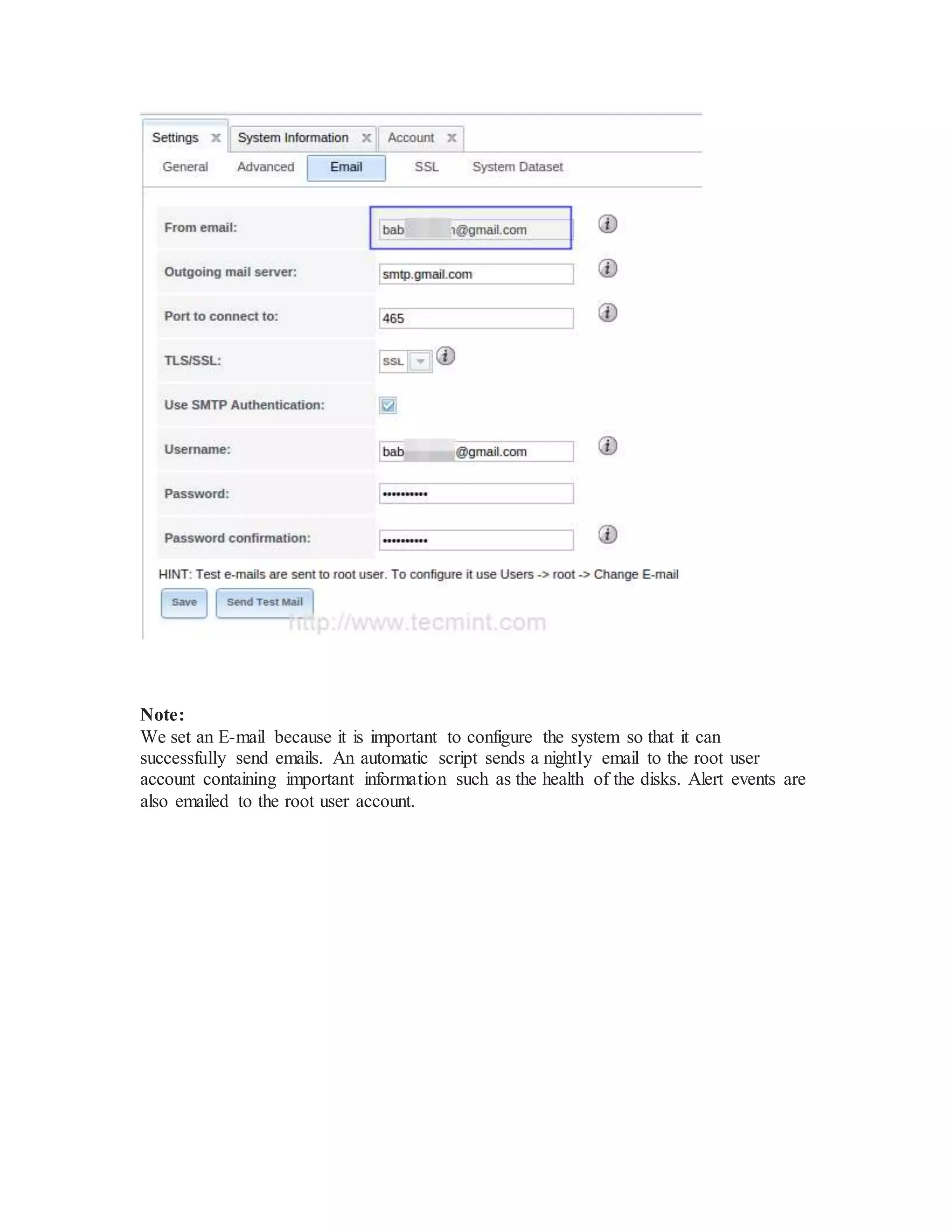
3- Then switch back to Settings and choose Email to configure the email. Here I’ve
used my gmail id, you can choose whatever email id that best suits you.
Enter the the username and password for authentication and save the changes by clicking
on Save.
Note:
We set an E-mail because it is important to configure the system so that it can
successfully send emails. An automatic script sends a nightly email to the root user
account containing important information such as the health of the disks. Alert events are
also emailed to the root user account.
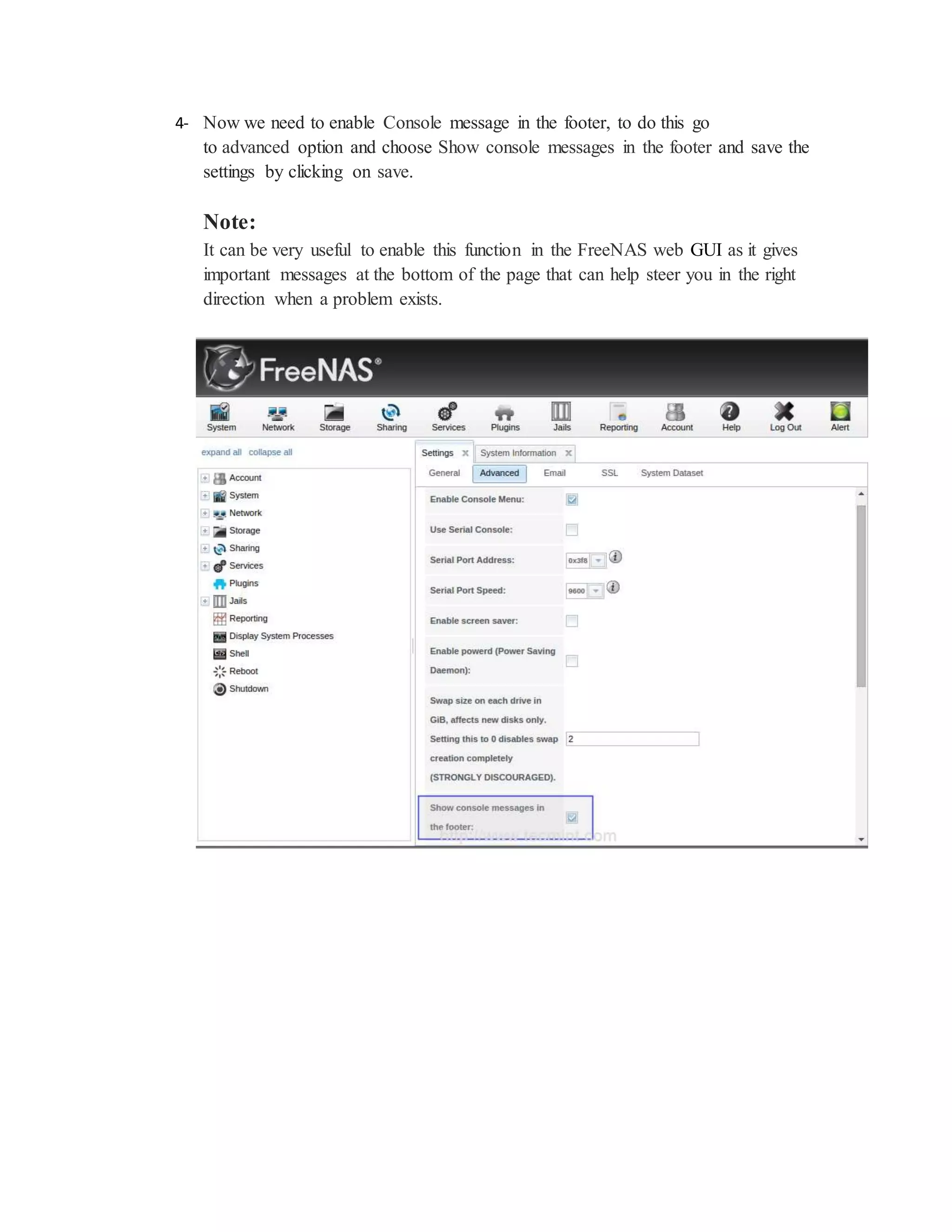
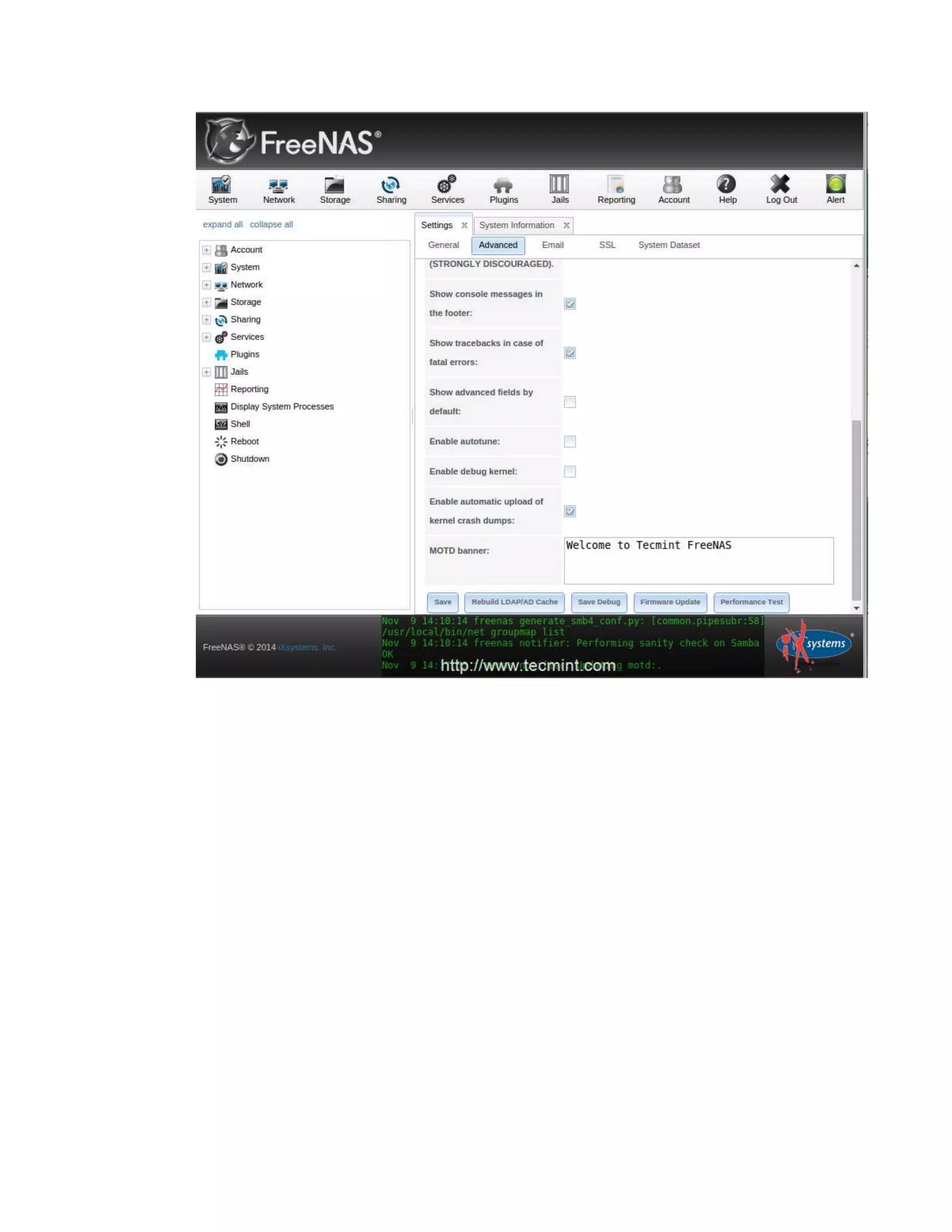
4- Now we need to enable Console message in the footer, to do this go
to advanced option and choose Show console messages in the footer and save the
settings by clicking on save.
Note:
It can be very useful to enable this function in the FreeNAS web GUI as it gives
important messages at the bottom of the page that can help steer you in the right
direction when a problem exists.
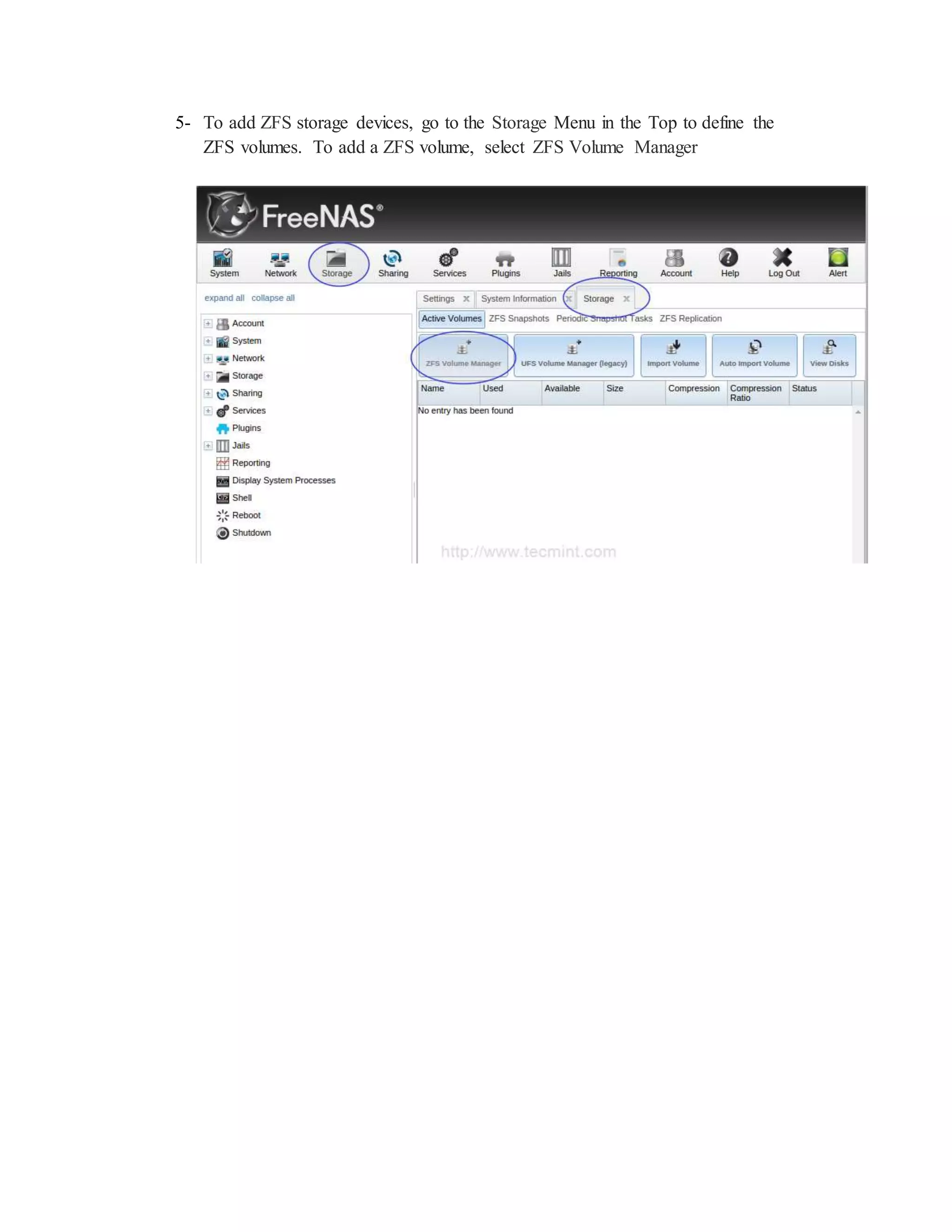
5- To add ZFS storage devices, go to the Storage Menu in the Top to define the
ZFS volumes. To add a ZFS volume, select ZFS Volume Manager
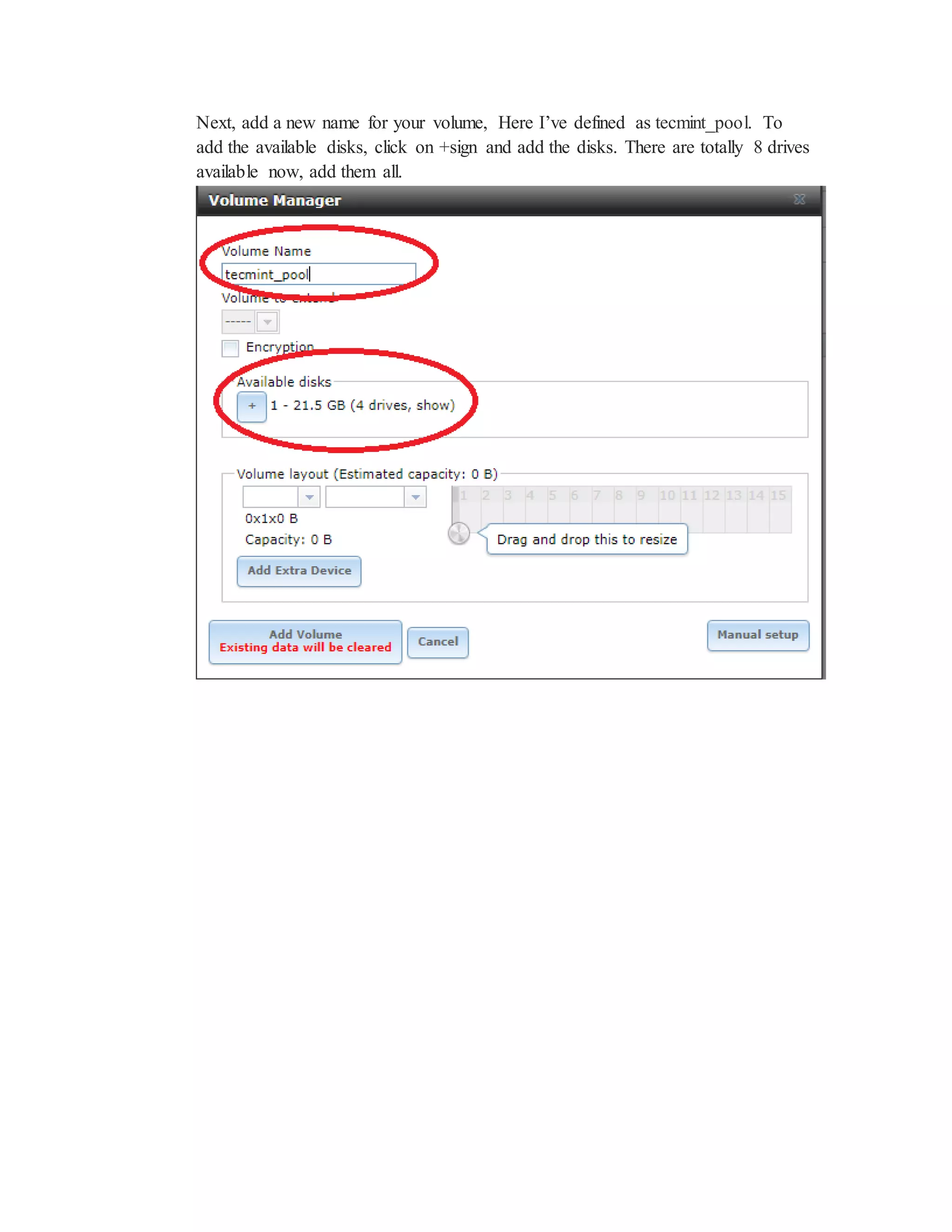
Next, add a new name for your volume, Here I’ve defined as tecmint_pool. To
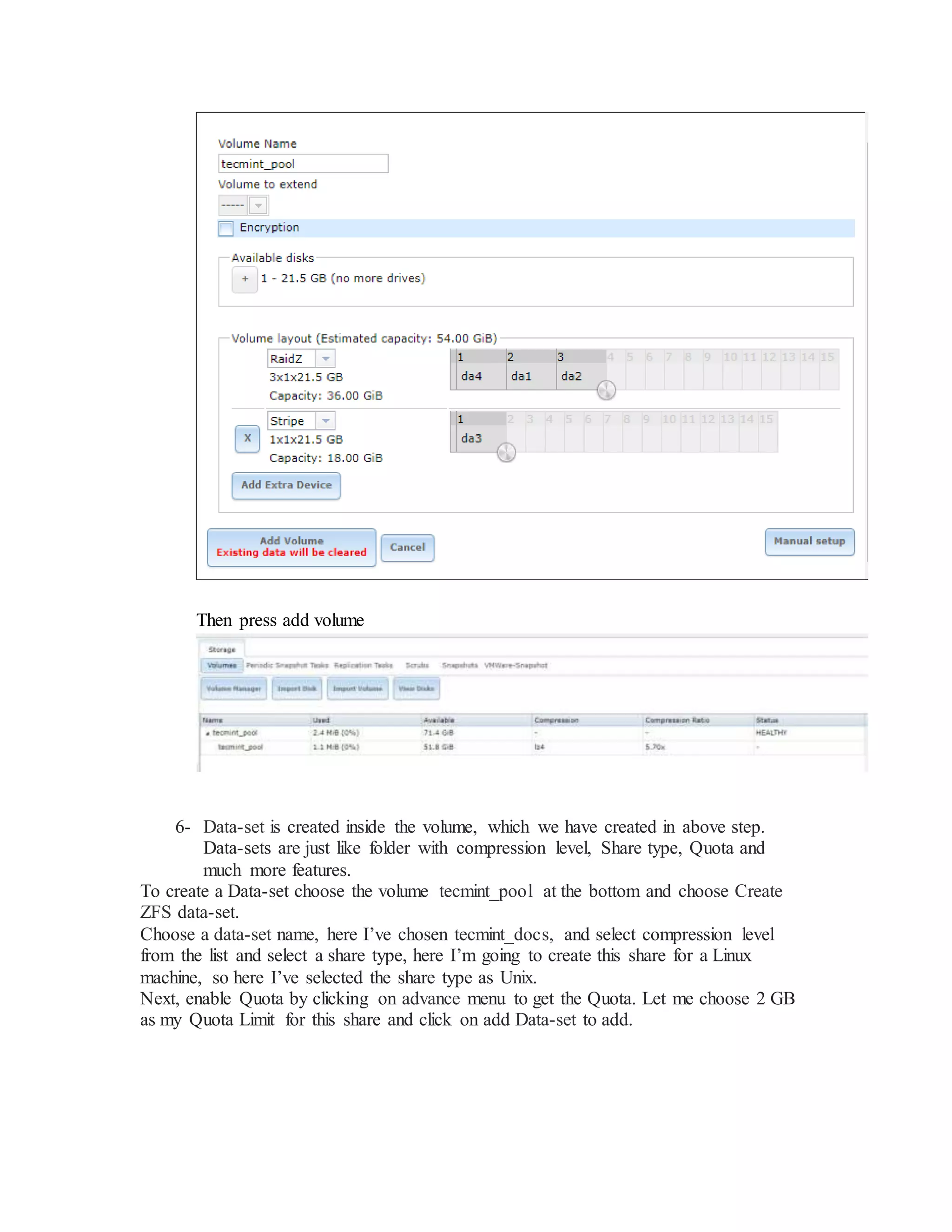
add the available disks, click on +sign and add the disks. There are totally 8 drives
available now, add them all.
Then press add volume
6- Data-set is created inside the volume, which we have created in above step.
Data-sets are just like folder with compression level, Share type, Quota and
much more features.
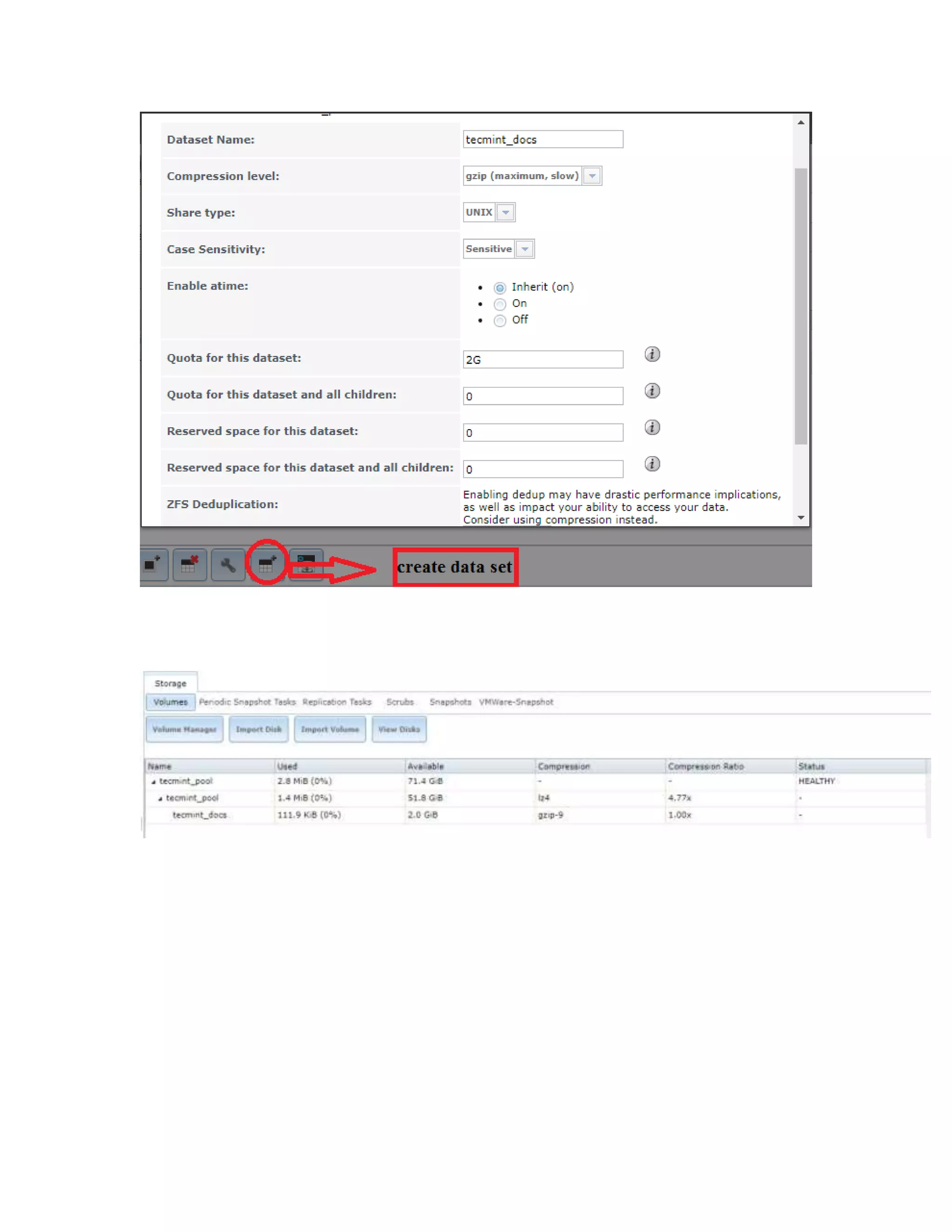
To create a Data-set choose the volume tecmint_pool at the bottom and choose Create
ZFS data-set.
Choose a data-set name, here I’ve chosen tecmint_docs, and select compression level
from the list and select a share type, here I’m going to create this share for a Linux
machine, so here I’ve selected the share type as Unix.
Next, enable Quota by clicking on advance menu to get the Quota. Let me choose 2 GB
as my Quota Limit for this share and click on add Data-set to add.
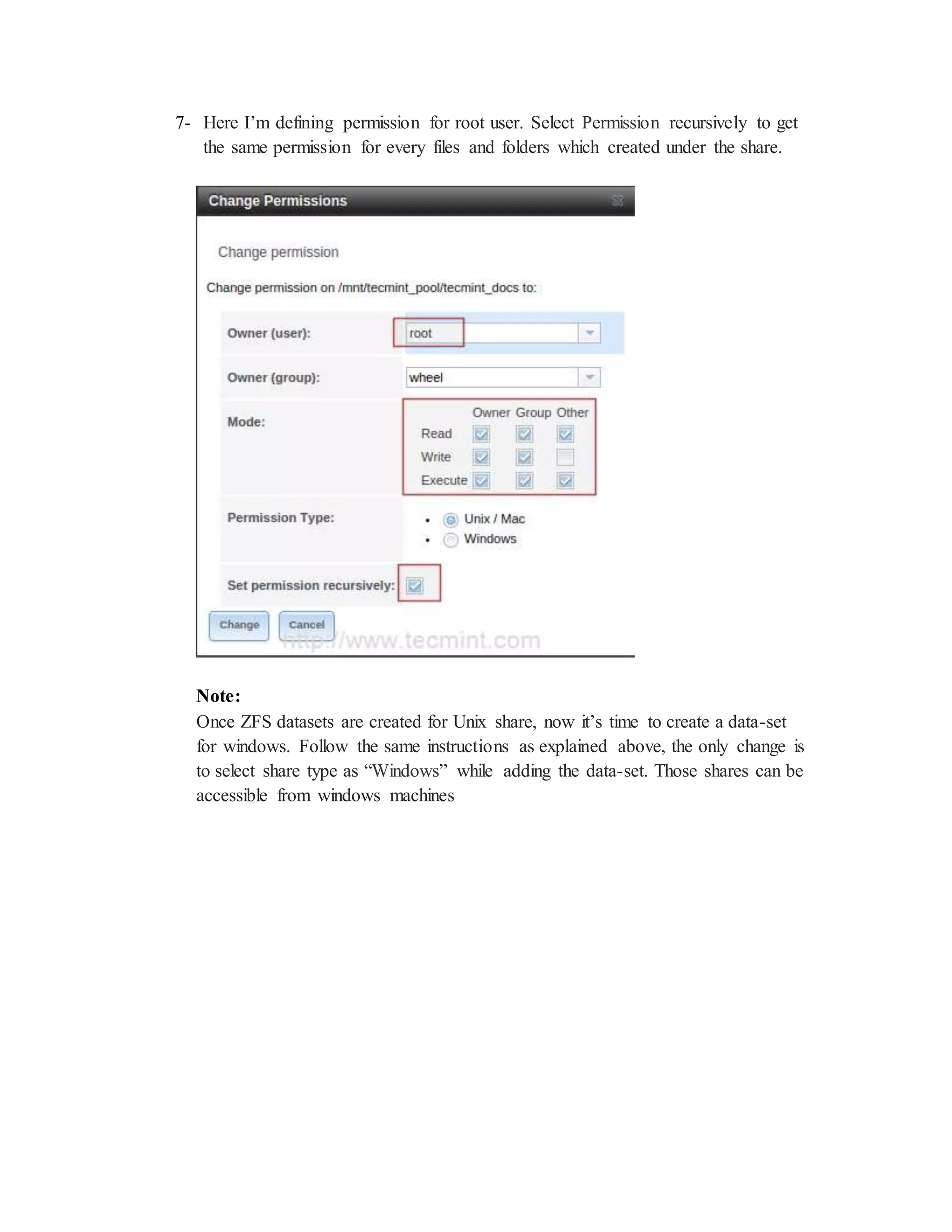
7- Here I’m defining permission for root user. Select Permission recursively to get
the same permission for every files and folders which created under the share.
Note:
Once ZFS datasets are created for Unix share, now it’s time to create a data-set
for windows. Follow the same instructions as explained above, the only change is
to select share type as “Windows” while adding the data-set. Those shares can be
accessible from windows machines
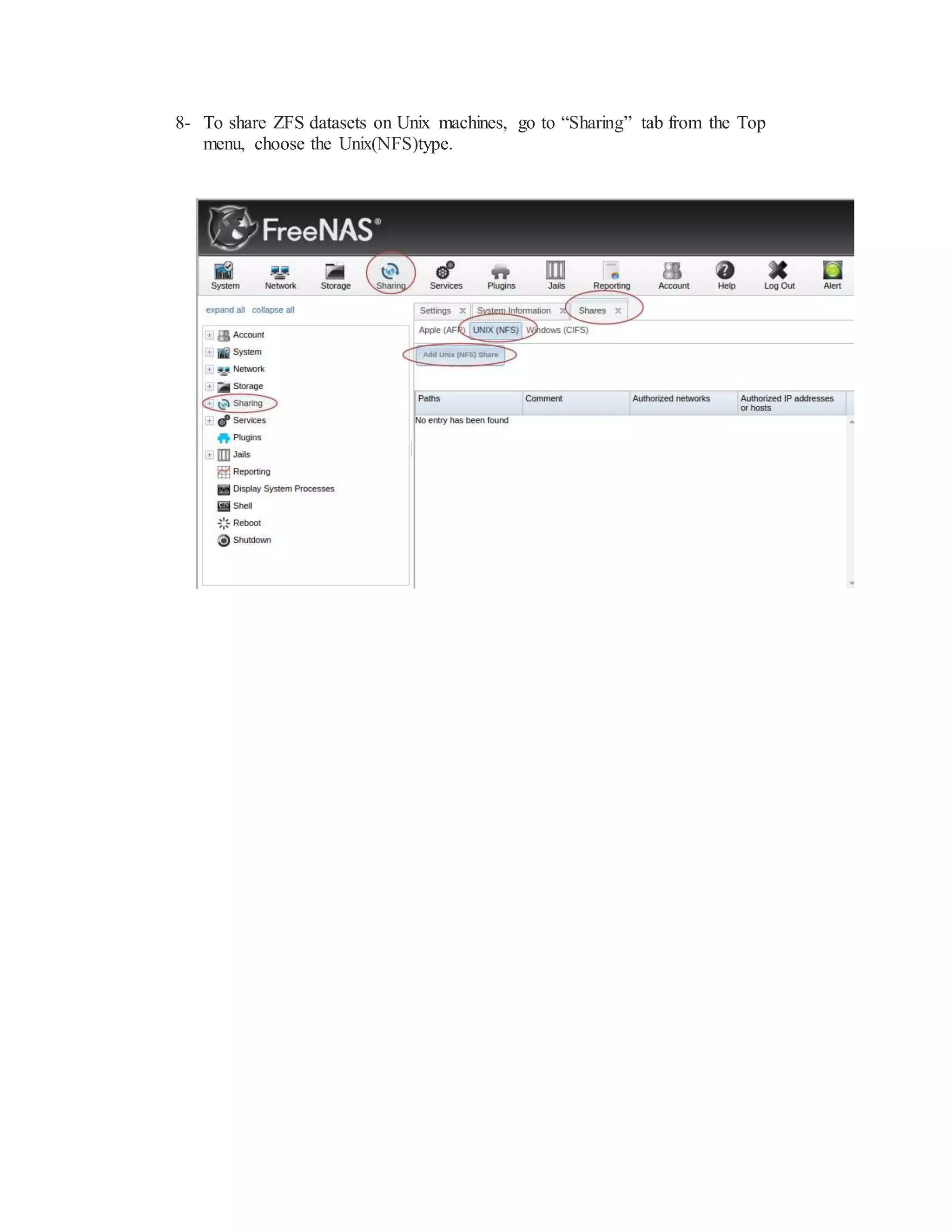
8- To share ZFS datasets on Unix machines, go to “Sharing” tab from the Top
menu, choose the Unix(NFS)type.
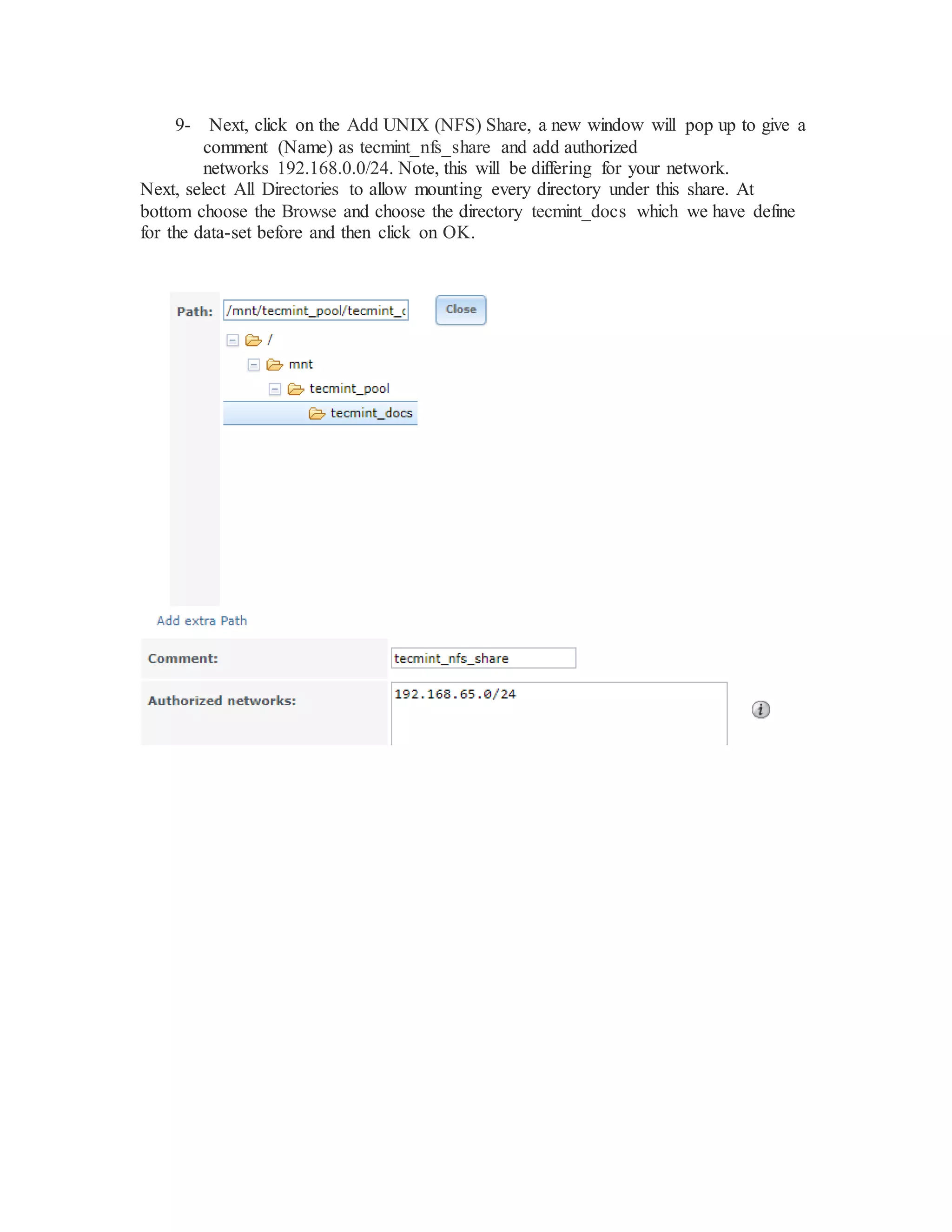
9- Next, click on the Add UNIX (NFS) Share, a new window will pop up to give a
comment (Name) as tecmint_nfs_share and add authorized
networks 192.168.0.0/24. Note, this will be differing for your network.
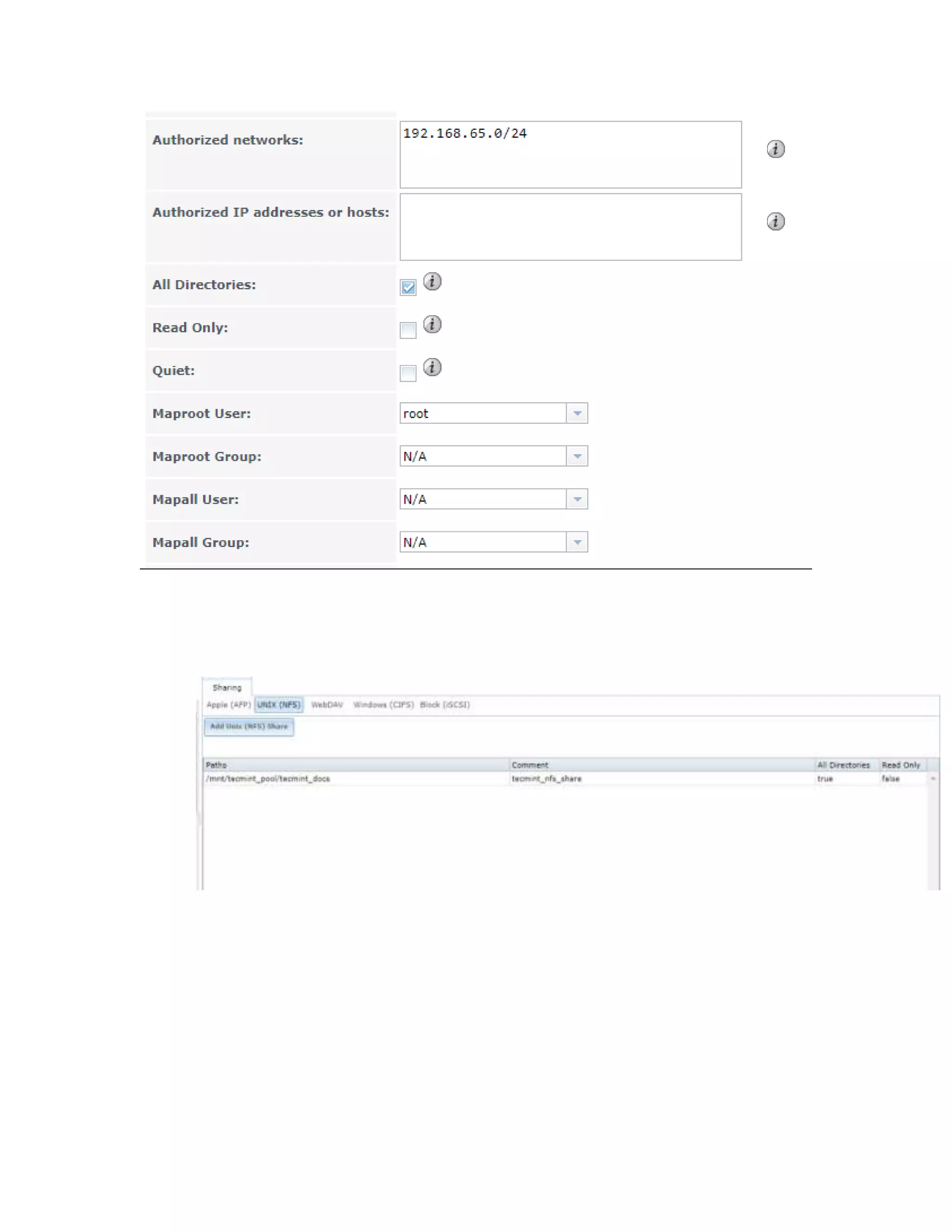
Next, select All Directories to allow mounting every directory under this share. At
bottom choose the Browse and choose the directory tecmint_docs which we have define
for the data-set before and then click on OK.
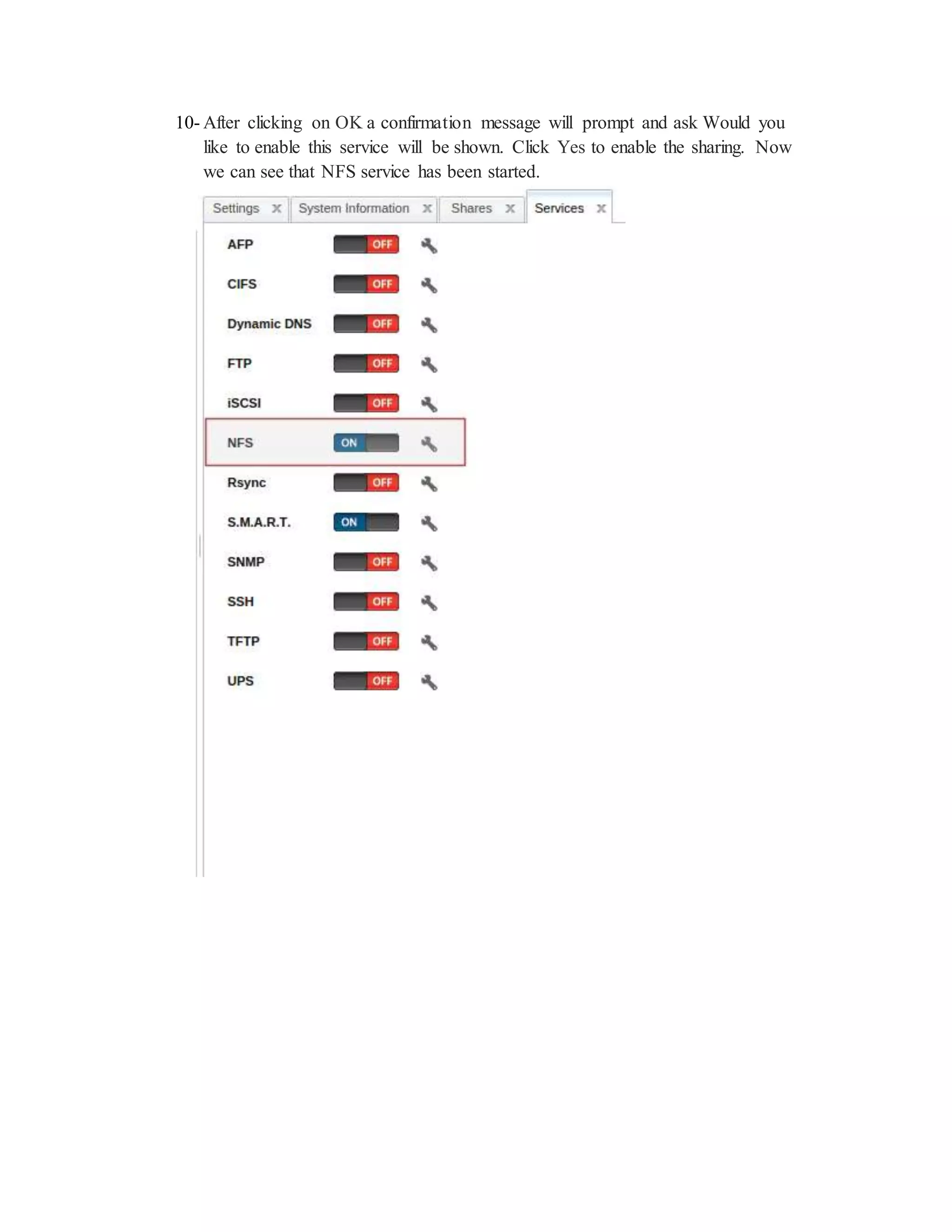
10- After clicking on OK a confirmation message will prompt and ask Would you
like to enable this service will be shown. Click Yes to enable the sharing. Now
we can see that NFS service has been started.
11- Now login to your Unix client machine (Here I’ve used Redhat 7
and with IP Address 192.168.65.136), and check whether NFS share from
FreeNAS works or not.
But, before checking FreeNAS NFS shares, your client machine must have NFS package
installed on the system.
# yum install nfs-utils -y [On RedHat systems]
12- After NFS installed, use the following command to list the NFS share from
FreeNAS.
[root@localhost ~]# showmount -e 192.168.65.65
O/P:
Export list for 192.168.65.65:
/mnt/tecmint_pool/tecmint_docs 192.168.65.0
13- Now, create a mount directory under ‘/mnt/FreeNAS_Share‘ in Client machine
and mount the FreeNAS NFS Share in this mount point and confirm it using ‘df‘
command.
# sudo mkdir /mnt/Free
# sudo mount 192.168.65.65:/mnt/tecmint_pool/tecmint_docs
/mnt/FreeNAS_Share/
#df -h
O/P
[root@main_host~]#df -h
Filesystem Size UsedAvail Use% Mountedon
/dev/sda3 18G 4.9G 13G 28% /
devtmpfs 485M 0 485M 0% /dev
tmpfs 490M 0 490M 0% /dev/shm
tmpfs 490M 6.8M 484M 2% /run
tmpfs 490M 0 490M 0% /sys/fs/cgroup
/dev/mapper/data--vg-vol2 2.0G 6.0M 1.8G 1% /data
/dev/mapper/data--vg-vol1 4.9G 3.6M 4.7G 1% /data02
/dev/sda1 297M 80M 218M 27% /boot
192.168.65.65:/mnt/ tecmint_pool/tecmint_docs 15G 384K 15G 1% /mnt/Free/
14- Once NFS share is mounted, go inside that directory and try to create a file
under this share to confirm that the root user having permissions to this share.
15- # sudo su
16- # cd /mnt/FreeNAS_Share/
17- # touch tecmint.txt
15- Once NFS share is mounted, go inside that directory and try to create a file under this
share to confirm that the root user having permissions to this share.
# sudo su
# cd /mnt/FreeNAS_Share/
# touch tecmint.txt
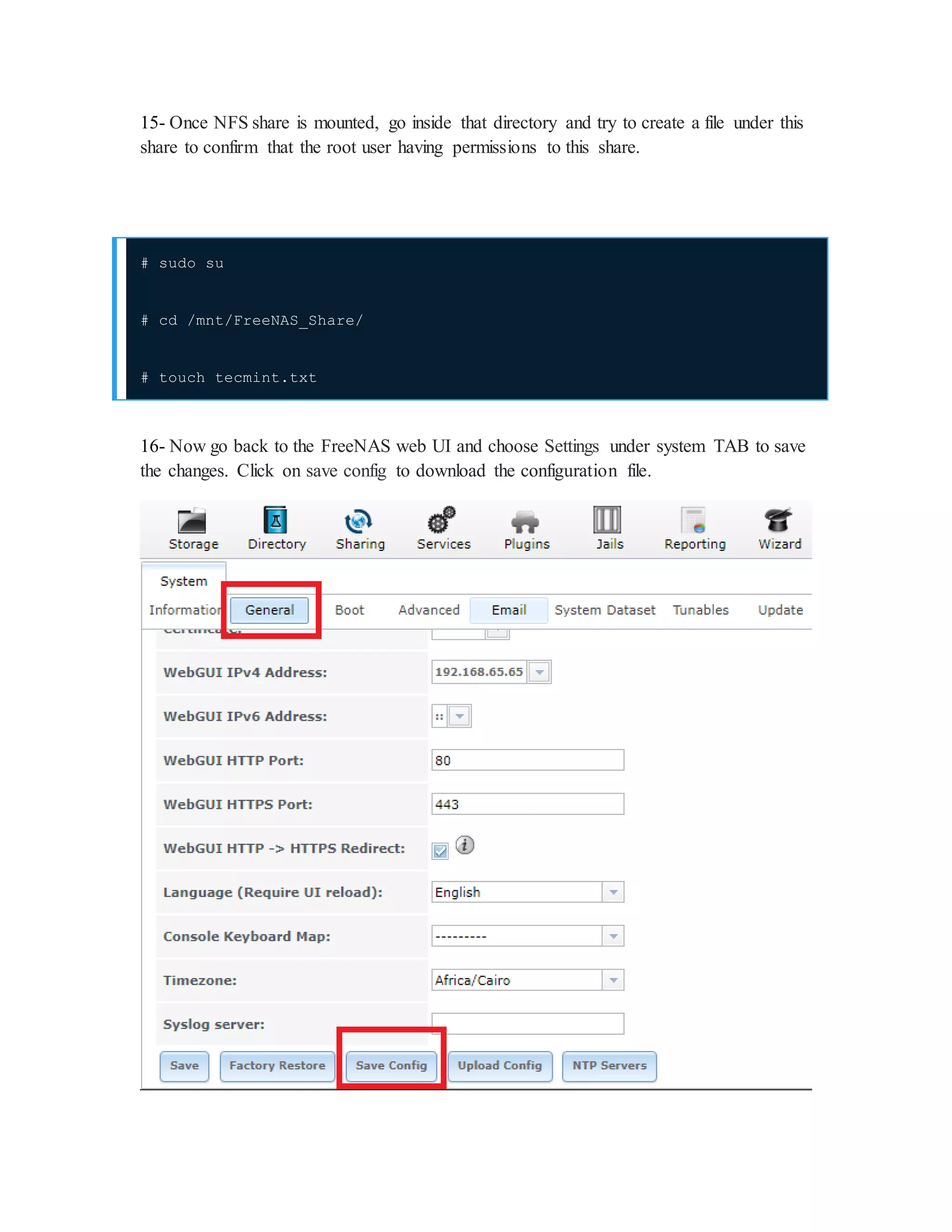
16- Now go back to the FreeNAS web UI and choose Settings under system TAB to save
the changes. Click on save config to download the configuration file.
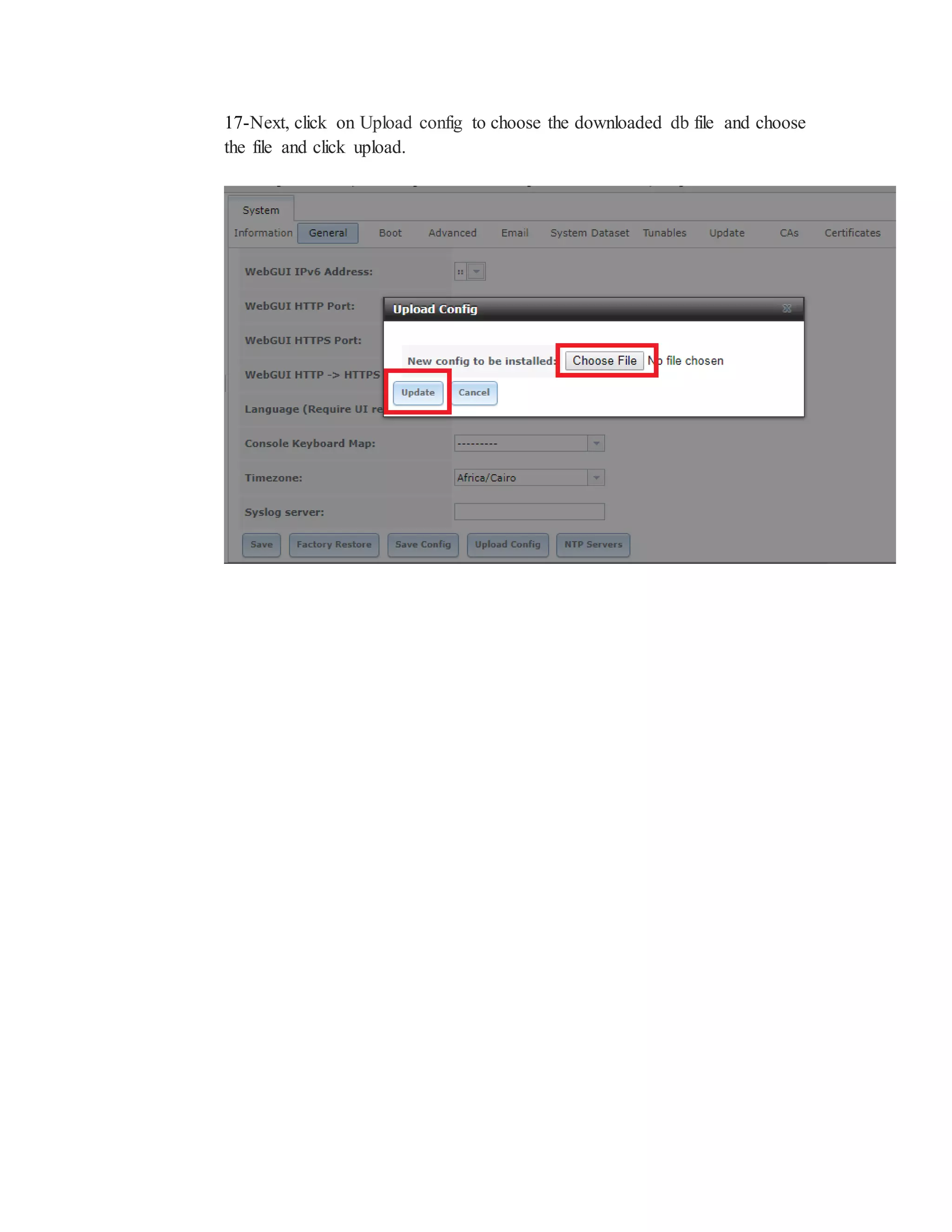
17-Next, click on Upload config to choose the downloaded db file and choose
the file and click upload.
Plugin & Jails
FreeNAS introduced the ability to extend the built-in NAS services by providing a
mechanism for installing additional software. This mechanism was known as the Plugins
architecture and is based on FreeBSD jails . This allowed users to install and configure
additional applications once they had created and configured a plugins jail.
FreeNAS simplifies this procedure by providing two methods for software installation.
The Plugins method, described in this section, is meant for users who prefer to browse
for, install, and configure available software using the GUI. This method is very easy to
use, but is limited in the amount of software that is available. Each application will
automatically be installed into its own jail, meaning that this method may not be suitable
for users who wish to run multiple applications within the same jail.
The Jails method provides much more control over software installation but assumes that
the user is comfortable working from the command line can and has a good
understanding of networking basics and software installation on FreeBSD-based systems
Jails on FreeNAS are how you add extra services like a database or a bittorrent client.
They are based on FreeBSD Jails but there some FreeNAS specific features in their
plugin jail type to integrate with the FreeNAS web interface. The other jail types work
the same as a FreeBSD jail.
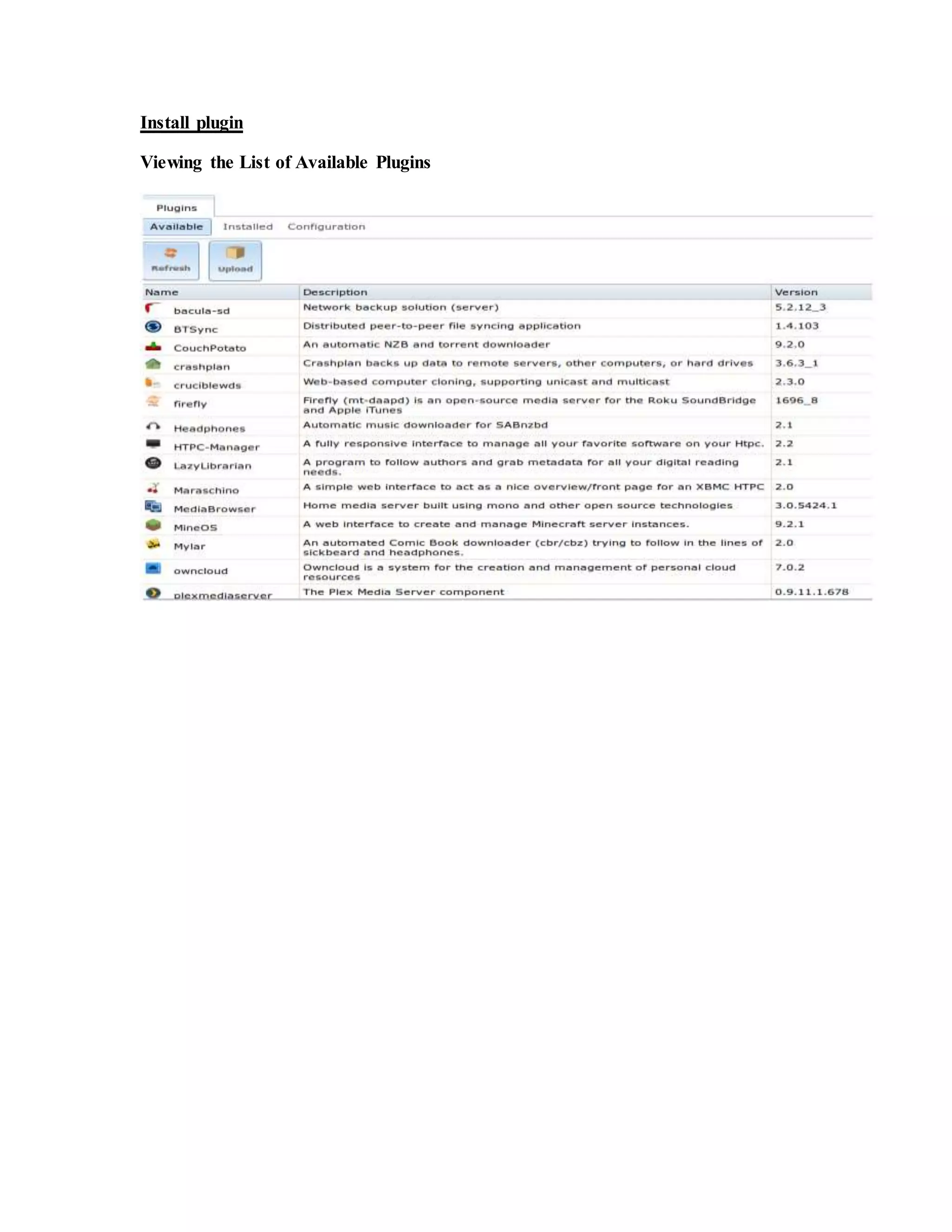
Install plugin
Viewing the List of Available Plugins
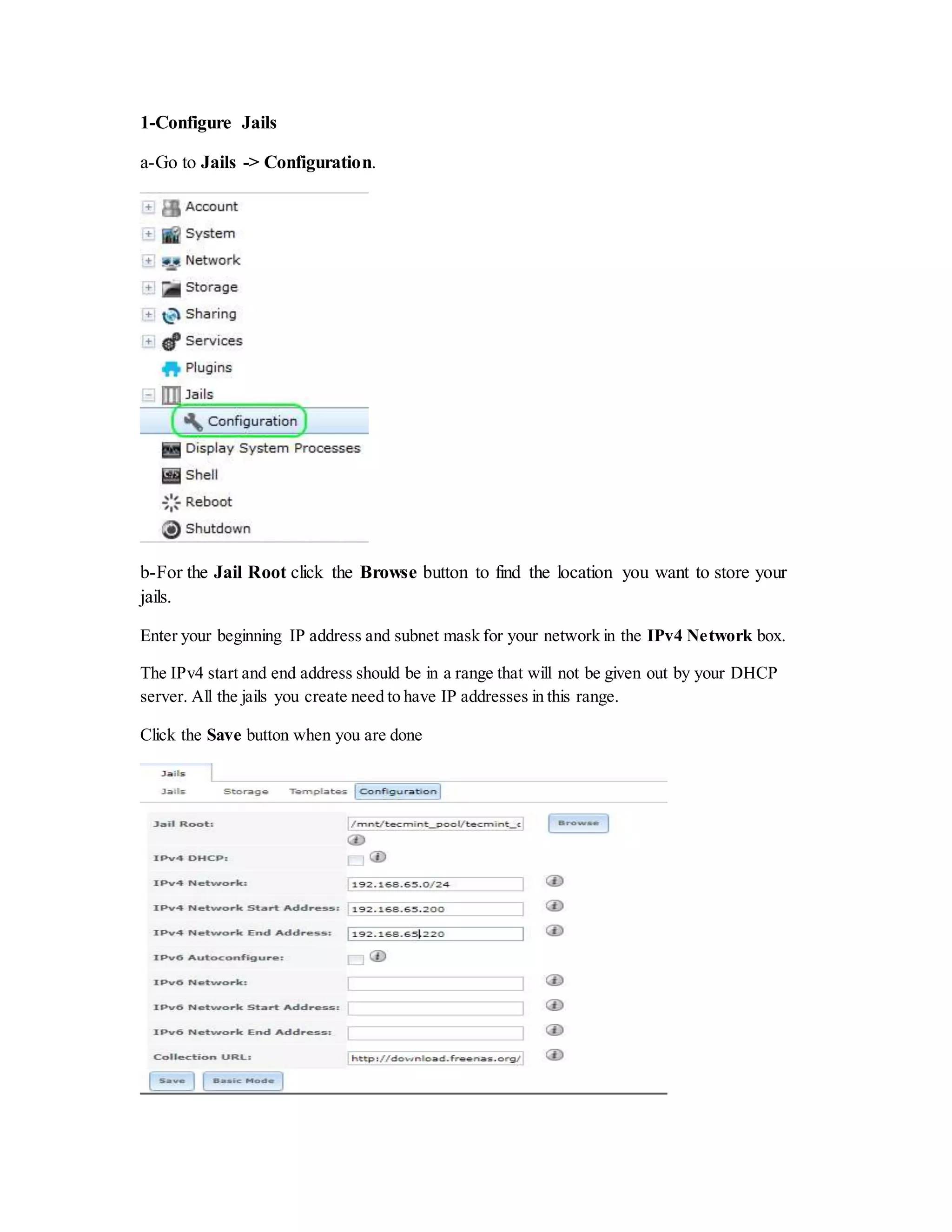
1-Configure Jails
a-Go to Jails -> Configuration.
b-For the Jail Root click the Browse button to find the location you want to store your
jails.
Enter your beginning IP address and subnet mask for your network in the IPv4 Network box.
The IPv4 start and end address should be in a range that will not be given out by your DHCP
server. All the jails you create need to have IP addresses in this range.
Click the Save button when you are done
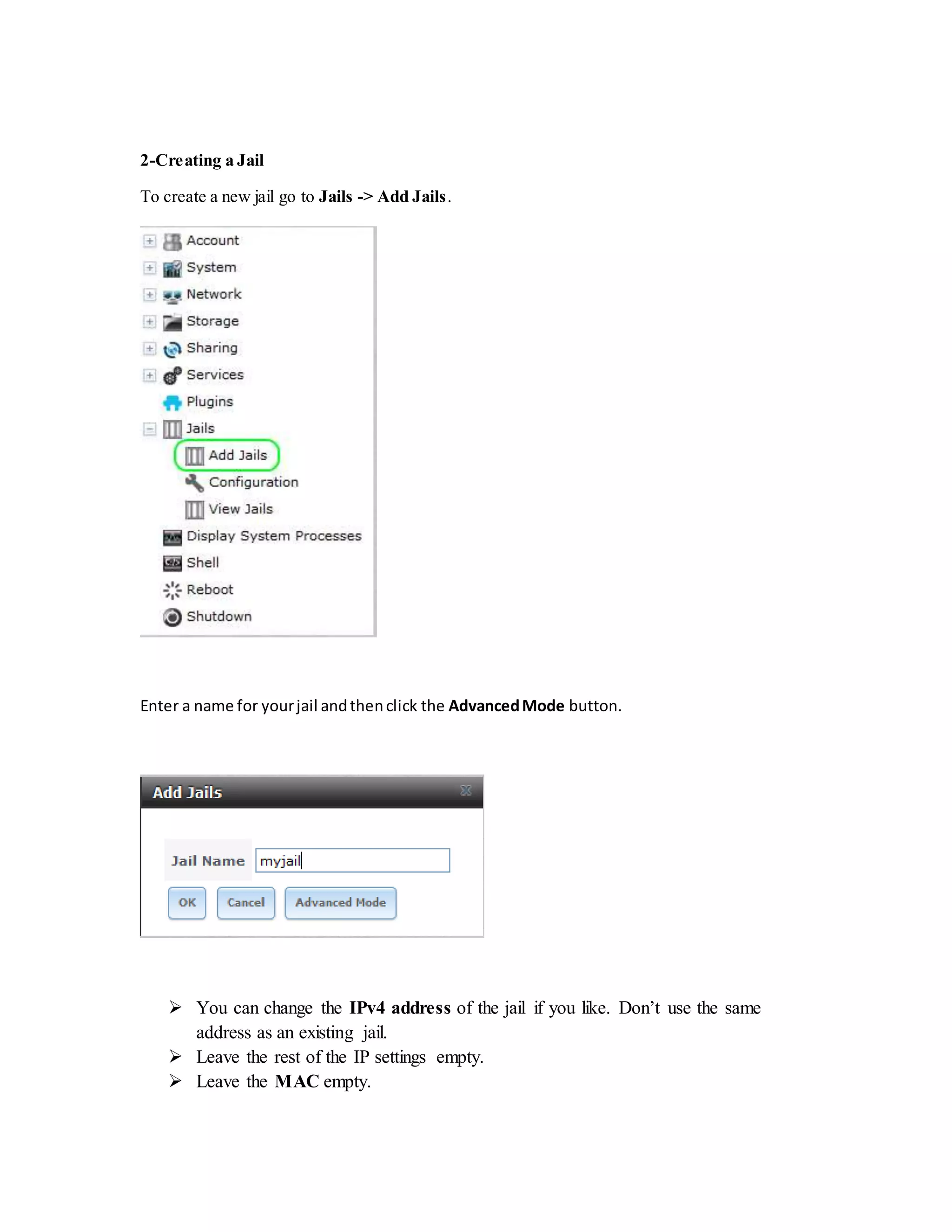
2-Creating a Jail
To create a new jail go to Jails -> Add Jails.
Enter a name for yourjail andthenclick the AdvancedMode button.
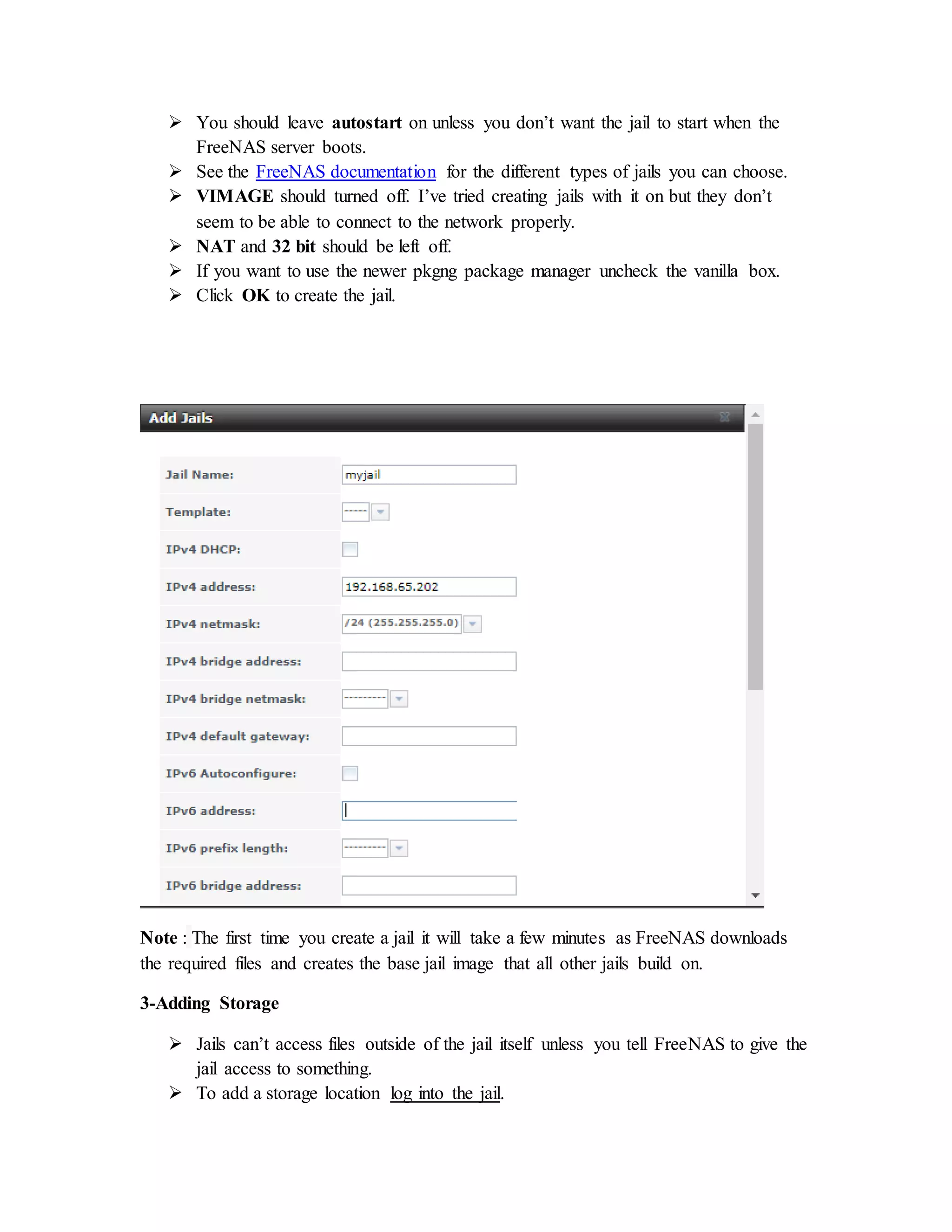
 You can change the IPv4 address of the jail if you like. Don’t use the same
address as an existing jail.
 Leave the rest of the IP settings empty.
 Leave the MAC empty.
 You should leave autostart on unless you don’t want the jail to start when the
FreeNAS server boots.
 See the FreeNAS documentation for the different types of jails you can choose.
 VIMAGE should turned off. I’ve tried creating jails with it on but they don’t
seem to be able to connect to the network properly.
 NAT and 32 bit should be left off.
 If you want to use the newer pkgng package manager uncheck the vanilla box.
 Click OK to create the jail.
Note : The first time you create a jail it will take a few minutes as FreeNAS downloads
the required files and creates the base jail image that all other jails build on.
3-Adding Storage
 Jails can’t access files outside of the jail itself unless you tell FreeNAS to give the
jail access to something.
 To add a storage location log into the jail.
 Create a directory in the jail to map the external directory to.
$mkdir -p /mnt/shares/Video
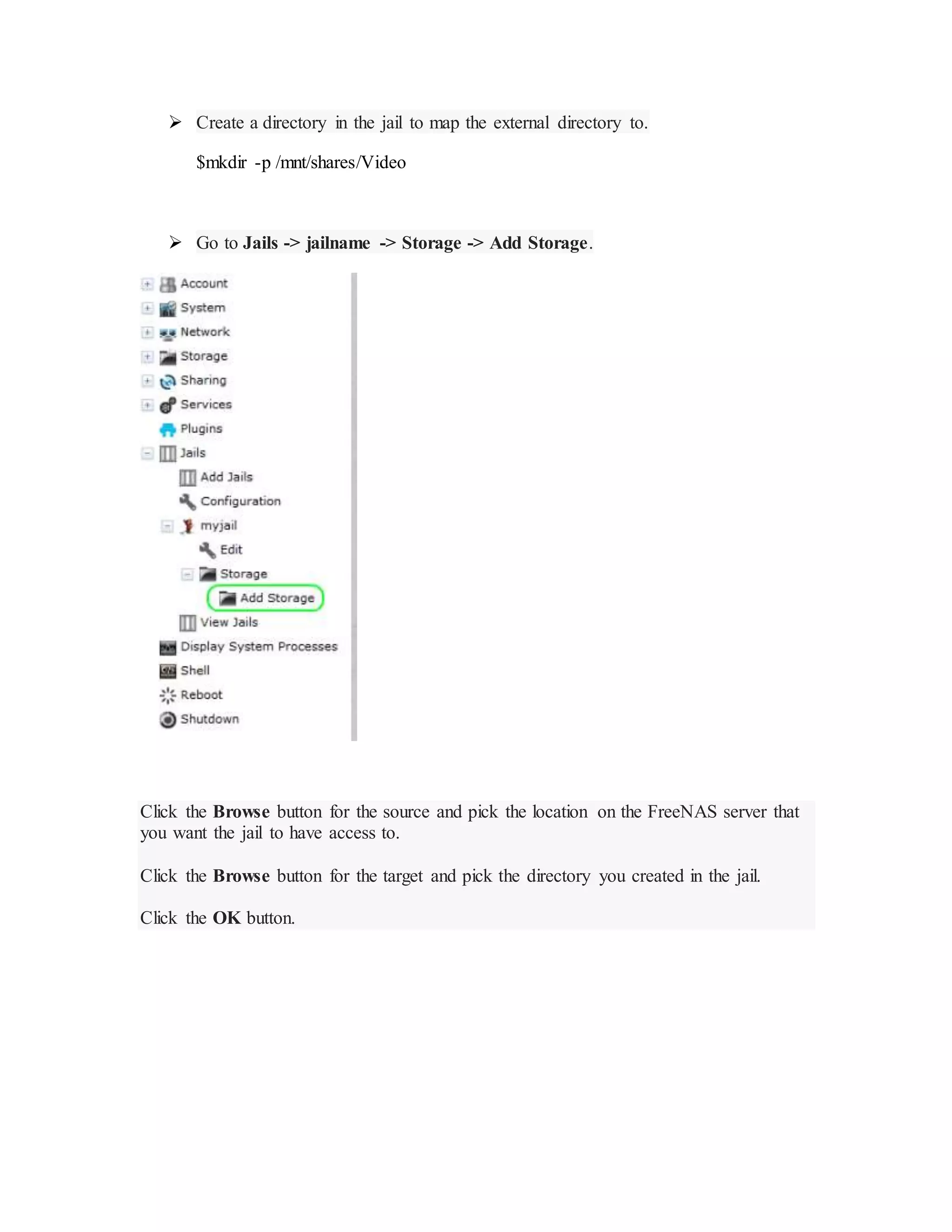
 Go to Jails -> jailname -> Storage -> Add Storage.
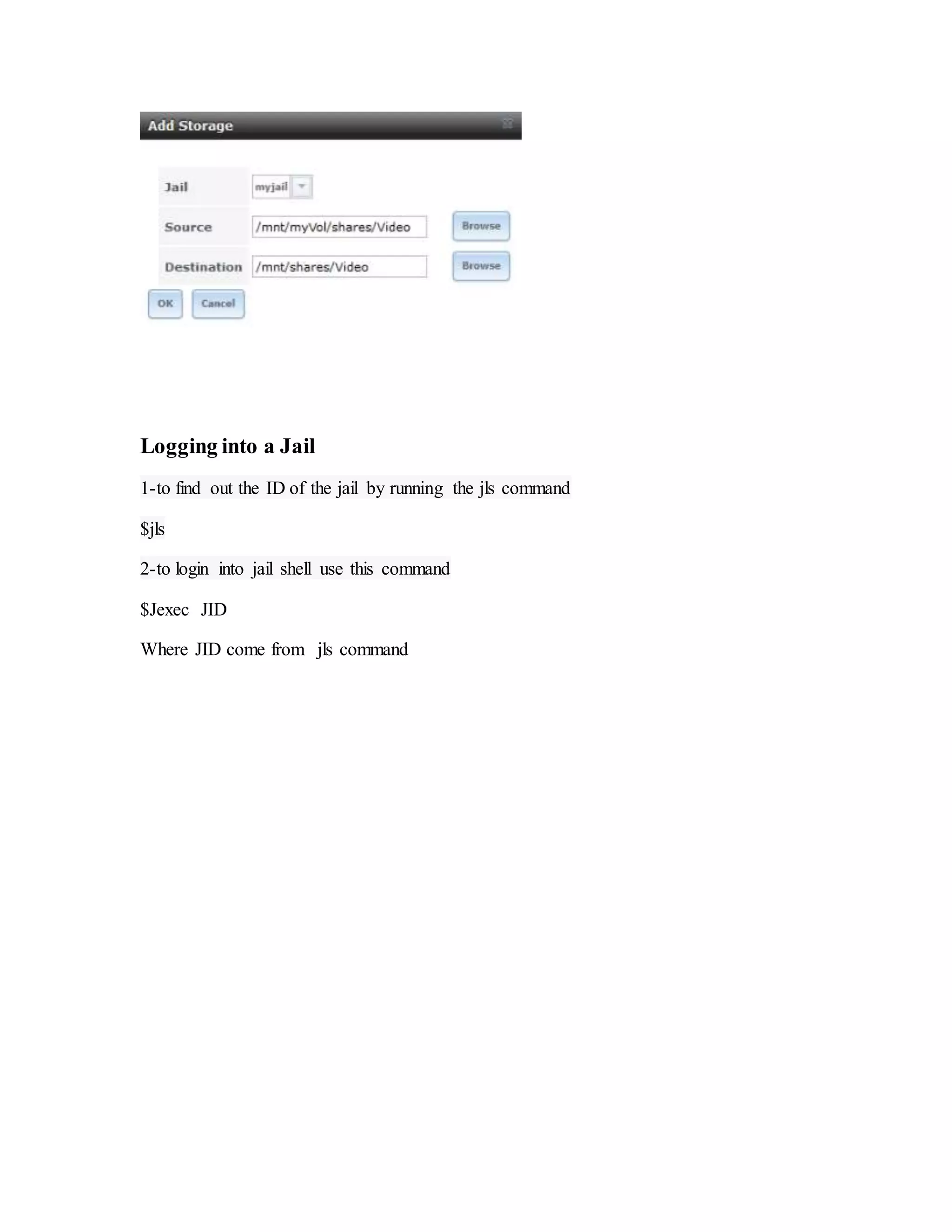
Click the Browse button for the source and pick the location on the FreeNAS server that
you want the jail to have access to.
Click the Browse button for the target and pick the directory you created in the jail.
Click the OK button.
Logging into a Jail
1-to find out the ID of the jail by running the jls command
$jls
2-to login into jail shell use this command
$Jexec JID
Where JID come from jls command

Documentation free nas

  • 1.
    Free-NAS Server 2018 Hagar Aly CtrlSoft 1/1/2018 By Soaad Mahmoud  Hagar Aly  Enas Mohamed  Shymaa Masoud  Moaaz Magdy  Rana Yahia
  • 2.
    What is FreeNAS? FreeNASis a Free and Open Source Network Attached Storage (NAS) software appliance. This means that you can use FreeNAS to share data over file-based sharing protocols, including CIFS for Windows users, NFS for Unix-like operating systems, and AFP for Mac OS X users. FreeNAS uses the ZFS file system to store, manage, and protect data. ZFS provides advanced features like snapshots to keep old versions of files, incremental remote backups to keep your data safe on another device without huge file transfers, and intelligent compression, which reduces the size of files so quickly and efficiently that it actually helps transfers happen faster. Link or video to know how to install Free-NasServer: https://www.youtube.com/watch?v=_H4YfhqfSB8&t=181s Steps for Free-NAS configuration: At first give your machine a static ip to be able to open GUI of this machine by using this command
  • 3.
    ifconfig em0 inet192.168.65.65 netmask 255.255.255.0 route add default 192.168.65.2 1- Login to the FreeNAS Web UI, once you login you will see Settings and System information TAB. Under Settings, change the Protocol of our web interface to use whether http/https and set the ip address that we going to use for this GUI Interface and also set, timezone, Keyboard Map, Language for GUI. After making above changes, hit on ‘Save‘ button at the bottom to save the changes. 2- Next, setup email notification, go to the Email tab under the Settings. Here we can define the email address to get the email notification regarding our NAS. Before that, we have to set the email in our user account, Here I’m using root as my user. So switch to Account Menu in Top. Then choose Users, here you will see the root user, selecting root user you will get the modify option in left side bottom corner below the users list.
  • 4.
    Click on ModifyUser tab to enter the email address and password of the user and click OK to save the changes.
  • 5.
    3- Then switchback to Settings and choose Email to configure the email. Here I’ve used my gmail id, you can choose whatever email id that best suits you. Enter the the username and password for authentication and save the changes by clicking on Save.
  • 6.
    Note: We set anE-mail because it is important to configure the system so that it can successfully send emails. An automatic script sends a nightly email to the root user account containing important information such as the health of the disks. Alert events are also emailed to the root user account.
  • 7.
    4- Now weneed to enable Console message in the footer, to do this go to advanced option and choose Show console messages in the footer and save the settings by clicking on save. Note: It can be very useful to enable this function in the FreeNAS web GUI as it gives important messages at the bottom of the page that can help steer you in the right direction when a problem exists.
  • 9.
    5- To addZFS storage devices, go to the Storage Menu in the Top to define the ZFS volumes. To add a ZFS volume, select ZFS Volume Manager
  • 10.
    Next, add anew name for your volume, Here I’ve defined as tecmint_pool. To add the available disks, click on +sign and add the disks. There are totally 8 drives available now, add them all.
  • 11.
    Then press addvolume 6- Data-set is created inside the volume, which we have created in above step. Data-sets are just like folder with compression level, Share type, Quota and much more features. To create a Data-set choose the volume tecmint_pool at the bottom and choose Create ZFS data-set. Choose a data-set name, here I’ve chosen tecmint_docs, and select compression level from the list and select a share type, here I’m going to create this share for a Linux machine, so here I’ve selected the share type as Unix. Next, enable Quota by clicking on advance menu to get the Quota. Let me choose 2 GB as my Quota Limit for this share and click on add Data-set to add.
  • 13.
    7- Here I’mdefining permission for root user. Select Permission recursively to get the same permission for every files and folders which created under the share. Note: Once ZFS datasets are created for Unix share, now it’s time to create a data-set for windows. Follow the same instructions as explained above, the only change is to select share type as “Windows” while adding the data-set. Those shares can be accessible from windows machines
  • 14.
    8- To shareZFS datasets on Unix machines, go to “Sharing” tab from the Top menu, choose the Unix(NFS)type.
  • 15.
    9- Next, clickon the Add UNIX (NFS) Share, a new window will pop up to give a comment (Name) as tecmint_nfs_share and add authorized networks 192.168.0.0/24. Note, this will be differing for your network. Next, select All Directories to allow mounting every directory under this share. At bottom choose the Browse and choose the directory tecmint_docs which we have define for the data-set before and then click on OK.
  • 17.
    10- After clickingon OK a confirmation message will prompt and ask Would you like to enable this service will be shown. Click Yes to enable the sharing. Now we can see that NFS service has been started.
  • 18.
    11- Now loginto your Unix client machine (Here I’ve used Redhat 7 and with IP Address 192.168.65.136), and check whether NFS share from FreeNAS works or not. But, before checking FreeNAS NFS shares, your client machine must have NFS package installed on the system. # yum install nfs-utils -y [On RedHat systems] 12- After NFS installed, use the following command to list the NFS share from FreeNAS. [root@localhost ~]# showmount -e 192.168.65.65 O/P: Export list for 192.168.65.65: /mnt/tecmint_pool/tecmint_docs 192.168.65.0 13- Now, create a mount directory under ‘/mnt/FreeNAS_Share‘ in Client machine and mount the FreeNAS NFS Share in this mount point and confirm it using ‘df‘ command. # sudo mkdir /mnt/Free # sudo mount 192.168.65.65:/mnt/tecmint_pool/tecmint_docs /mnt/FreeNAS_Share/ #df -h
  • 19.
    O/P [root@main_host~]#df -h Filesystem SizeUsedAvail Use% Mountedon /dev/sda3 18G 4.9G 13G 28% / devtmpfs 485M 0 485M 0% /dev tmpfs 490M 0 490M 0% /dev/shm tmpfs 490M 6.8M 484M 2% /run tmpfs 490M 0 490M 0% /sys/fs/cgroup /dev/mapper/data--vg-vol2 2.0G 6.0M 1.8G 1% /data /dev/mapper/data--vg-vol1 4.9G 3.6M 4.7G 1% /data02 /dev/sda1 297M 80M 218M 27% /boot 192.168.65.65:/mnt/ tecmint_pool/tecmint_docs 15G 384K 15G 1% /mnt/Free/ 14- Once NFS share is mounted, go inside that directory and try to create a file under this share to confirm that the root user having permissions to this share. 15- # sudo su 16- # cd /mnt/FreeNAS_Share/ 17- # touch tecmint.txt
  • 20.
    15- Once NFSshare is mounted, go inside that directory and try to create a file under this share to confirm that the root user having permissions to this share. # sudo su # cd /mnt/FreeNAS_Share/ # touch tecmint.txt 16- Now go back to the FreeNAS web UI and choose Settings under system TAB to save the changes. Click on save config to download the configuration file.
  • 21.
    17-Next, click onUpload config to choose the downloaded db file and choose the file and click upload.
  • 22.
    Plugin & Jails FreeNASintroduced the ability to extend the built-in NAS services by providing a mechanism for installing additional software. This mechanism was known as the Plugins architecture and is based on FreeBSD jails . This allowed users to install and configure additional applications once they had created and configured a plugins jail. FreeNAS simplifies this procedure by providing two methods for software installation. The Plugins method, described in this section, is meant for users who prefer to browse for, install, and configure available software using the GUI. This method is very easy to use, but is limited in the amount of software that is available. Each application will automatically be installed into its own jail, meaning that this method may not be suitable for users who wish to run multiple applications within the same jail. The Jails method provides much more control over software installation but assumes that the user is comfortable working from the command line can and has a good understanding of networking basics and software installation on FreeBSD-based systems Jails on FreeNAS are how you add extra services like a database or a bittorrent client. They are based on FreeBSD Jails but there some FreeNAS specific features in their plugin jail type to integrate with the FreeNAS web interface. The other jail types work the same as a FreeBSD jail.
  • 23.
    Install plugin Viewing theList of Available Plugins
  • 24.
    1-Configure Jails a-Go toJails -> Configuration. b-For the Jail Root click the Browse button to find the location you want to store your jails. Enter your beginning IP address and subnet mask for your network in the IPv4 Network box. The IPv4 start and end address should be in a range that will not be given out by your DHCP server. All the jails you create need to have IP addresses in this range. Click the Save button when you are done
  • 25.
    2-Creating a Jail Tocreate a new jail go to Jails -> Add Jails. Enter a name for yourjail andthenclick the AdvancedMode button.  You can change the IPv4 address of the jail if you like. Don’t use the same address as an existing jail.  Leave the rest of the IP settings empty.  Leave the MAC empty.
  • 26.
     You shouldleave autostart on unless you don’t want the jail to start when the FreeNAS server boots.  See the FreeNAS documentation for the different types of jails you can choose.  VIMAGE should turned off. I’ve tried creating jails with it on but they don’t seem to be able to connect to the network properly.  NAT and 32 bit should be left off.  If you want to use the newer pkgng package manager uncheck the vanilla box.  Click OK to create the jail. Note : The first time you create a jail it will take a few minutes as FreeNAS downloads the required files and creates the base jail image that all other jails build on. 3-Adding Storage  Jails can’t access files outside of the jail itself unless you tell FreeNAS to give the jail access to something.  To add a storage location log into the jail.
  • 27.
     Create adirectory in the jail to map the external directory to. $mkdir -p /mnt/shares/Video  Go to Jails -> jailname -> Storage -> Add Storage. Click the Browse button for the source and pick the location on the FreeNAS server that you want the jail to have access to. Click the Browse button for the target and pick the directory you created in the jail. Click the OK button.
  • 28.
    Logging into aJail 1-to find out the ID of the jail by running the jls command $jls 2-to login into jail shell use this command $Jexec JID Where JID come from jls command