Digital Integrated Circuits
Applications Laboratory
Software Used
XILINX ISE DESIGN
SUITE 12.1
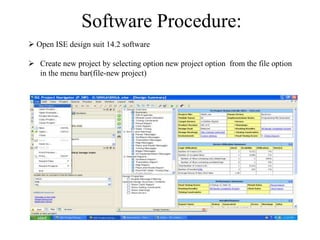
Software Procedure:
 Open ISE design suit 14.2 software
 Create new project by selecting option new project option from the file option
in the menu bar(file-new project)
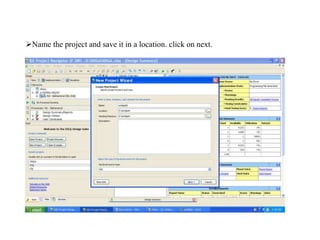
Name the project and save it in a location. click on next.
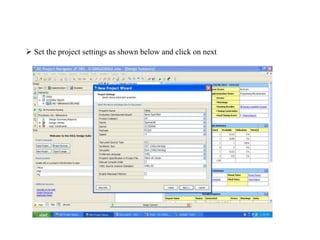
 Set the project settings as shown below and click on next
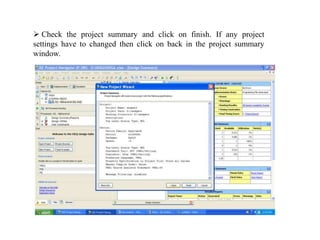
 Check the project summary and click on finish. If any project
settings have to changed then click on back in the project summary
window.
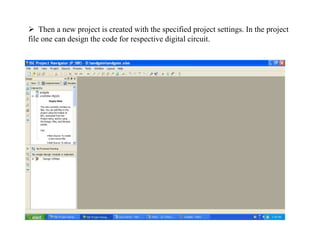
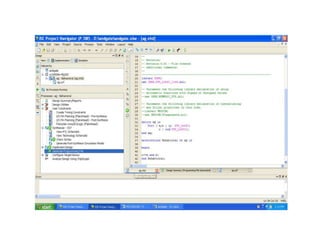
 Then a new project is created with the specified project settings. In the project
file one can design the code for respective digital circuit.
Creation of New Source:
 Right click on the project file and select new source
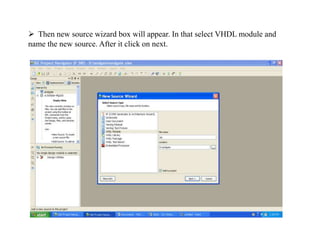
 Then new source wizard box will appear. In that select VHDL module and
name the new source. After it click on next.
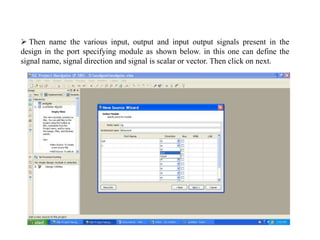
 Then name the various input, output and input output signals present in the
design in the port specifying module as shown below. in this one can define the
signal name, signal direction and signal is scalar or vector. Then click on next.
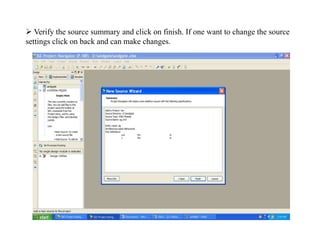
 Verify the source summary and click on finish. If one want to change the source
settings click on back and can make changes.
Steps to verify design on SPARTAN 3E FPGA hardware kit:
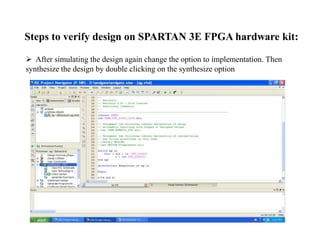
 After simulating the design again change the option to implementation. Then
synthesize the design by double clicking on the synthesize option
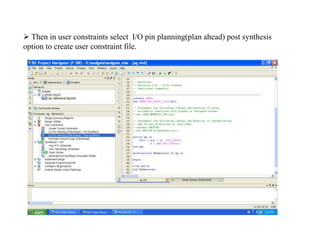
 Then in user constraints select I/O pin planning(plan ahead) post synthesis
option to create user constraint file.
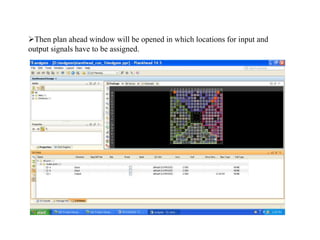
Then plan ahead window will be opened in which locations for input and
output signals have to be assigned.
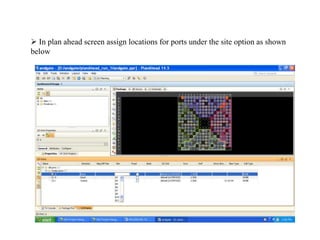
 In plan ahead screen assign locations for ports under the site option as shown
below
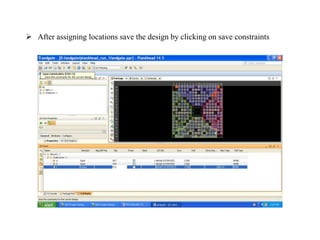
 After assigning locations save the design by clicking on save constraints
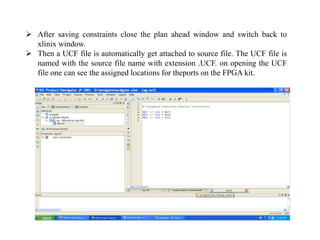
 After saving constraints close the plan ahead window and switch back to
xlinix window.
 Then a UCF file is automatically get attached to source file. The UCF file is
named with the source file name with extension .UCF. on opening the UCF
file one can see the assigned locations for theports on the FPGA kit.
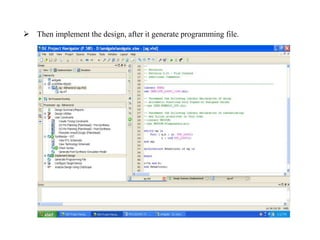
 Then implement the design, after it generate programming file.
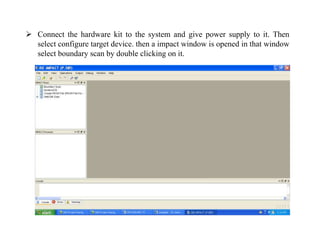
 Connect the hardware kit to the system and give power supply to it. Then
select configure target device. then a impact window is opened in that window
select boundary scan by double clicking on it.
 Right click on the screen and select initialize chain.
 then the hardware is identified by the software as shown below-
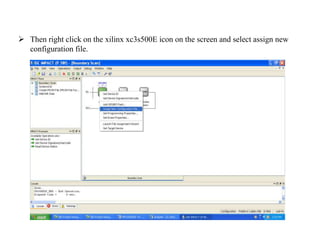
 Then right click on the xilinx xc3s500E icon on the screen and select assign new
configuration file.
 Then open the bit file as shown below-
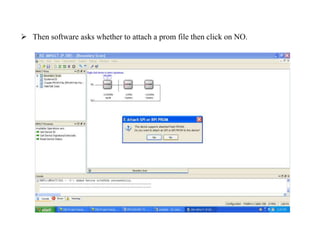
 Then software asks whether to attach a prom file then click on NO.
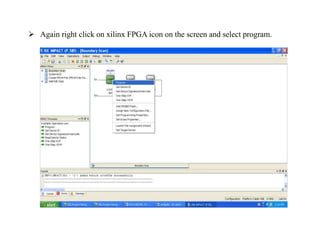
 Again right click on xilinx FPGA icon on the screen and select program.
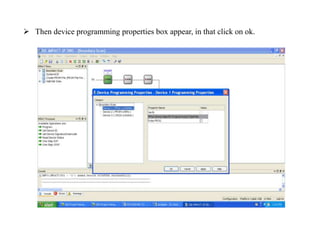
 Then device programming properties box appear, in that click on ok.
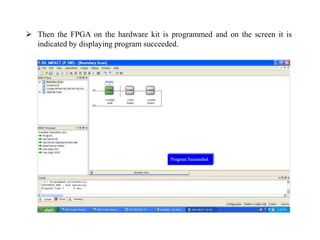
 Then the FPGA on the hardware kit is programmed and on the screen it is
indicated by displaying program succeeded.
 The operation of the design can be verified on the hardware kit by applying
inputs
Digital system design lab procedure ppt

Digital system design lab procedure ppt

  • 1.
  • 2.
    Software Used XILINX ISEDESIGN SUITE 12.1
  • 3.
    Software Procedure:  OpenISE design suit 14.2 software  Create new project by selecting option new project option from the file option in the menu bar(file-new project)
  • 4.
    Name the projectand save it in a location. click on next.
  • 5.
     Set theproject settings as shown below and click on next
  • 6.
     Check theproject summary and click on finish. If any project settings have to changed then click on back in the project summary window.
  • 7.
     Then anew project is created with the specified project settings. In the project file one can design the code for respective digital circuit.
  • 8.
    Creation of NewSource:  Right click on the project file and select new source
  • 9.
     Then newsource wizard box will appear. In that select VHDL module and name the new source. After it click on next.
  • 10.
     Then namethe various input, output and input output signals present in the design in the port specifying module as shown below. in this one can define the signal name, signal direction and signal is scalar or vector. Then click on next.
  • 11.
     Verify thesource summary and click on finish. If one want to change the source settings click on back and can make changes.
  • 12.
    Steps to verifydesign on SPARTAN 3E FPGA hardware kit:  After simulating the design again change the option to implementation. Then synthesize the design by double clicking on the synthesize option
  • 13.
     Then inuser constraints select I/O pin planning(plan ahead) post synthesis option to create user constraint file.
  • 14.
    Then plan aheadwindow will be opened in which locations for input and output signals have to be assigned.
  • 15.
     In planahead screen assign locations for ports under the site option as shown below
  • 16.
     After assigninglocations save the design by clicking on save constraints
  • 17.
     After savingconstraints close the plan ahead window and switch back to xlinix window.  Then a UCF file is automatically get attached to source file. The UCF file is named with the source file name with extension .UCF. on opening the UCF file one can see the assigned locations for theports on the FPGA kit.
  • 18.
     Then implementthe design, after it generate programming file.
  • 20.
     Connect thehardware kit to the system and give power supply to it. Then select configure target device. then a impact window is opened in that window select boundary scan by double clicking on it.
  • 21.
     Right clickon the screen and select initialize chain.
  • 22.
     then thehardware is identified by the software as shown below-
  • 23.
     Then rightclick on the xilinx xc3s500E icon on the screen and select assign new configuration file.
  • 24.
     Then openthe bit file as shown below-
  • 25.
     Then softwareasks whether to attach a prom file then click on NO.
  • 26.
     Again rightclick on xilinx FPGA icon on the screen and select program.
  • 27.
     Then deviceprogramming properties box appear, in that click on ok.
  • 28.
     Then theFPGA on the hardware kit is programmed and on the screen it is indicated by displaying program succeeded.
  • 29.
     The operationof the design can be verified on the hardware kit by applying inputs