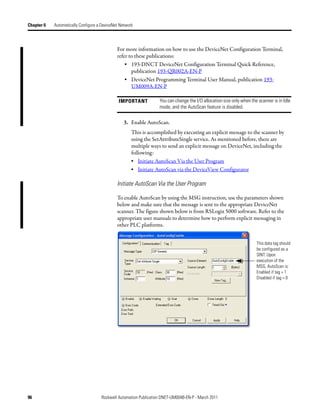
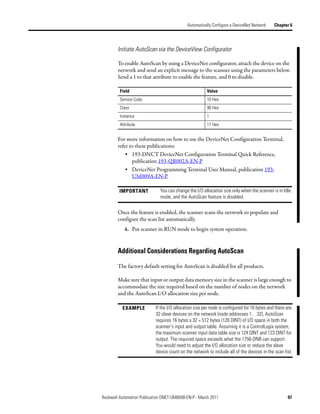
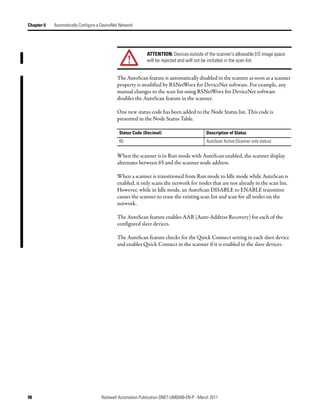
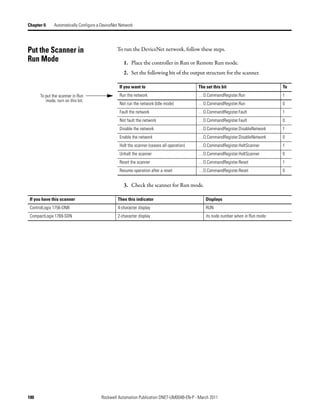
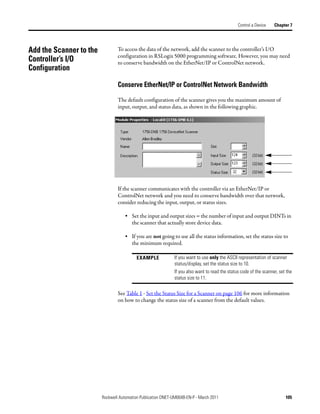
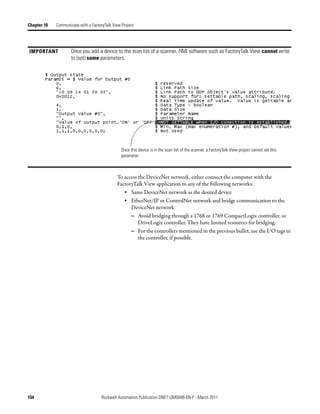
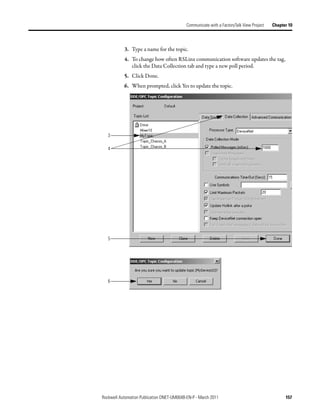
User Manual


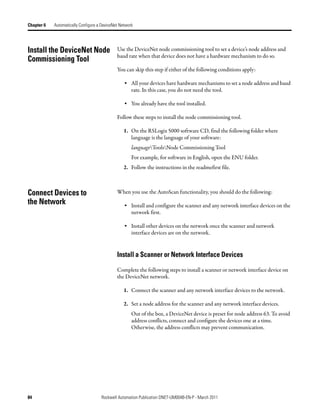
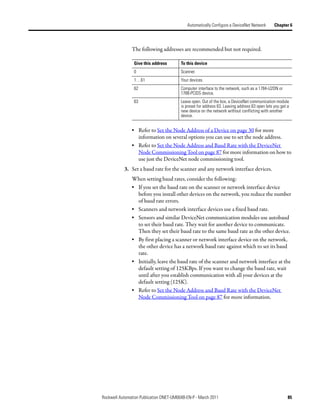
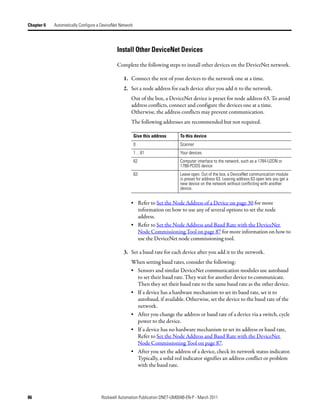
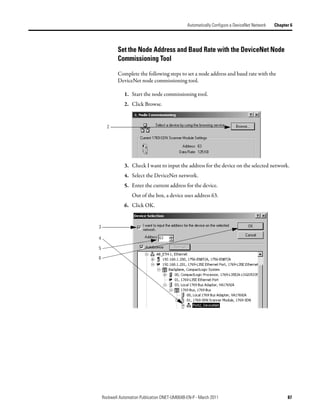
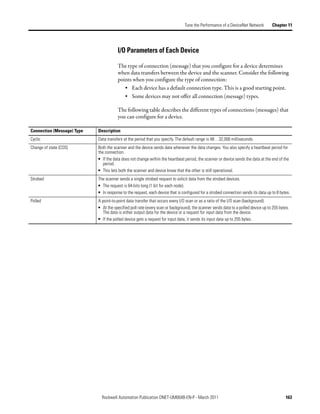
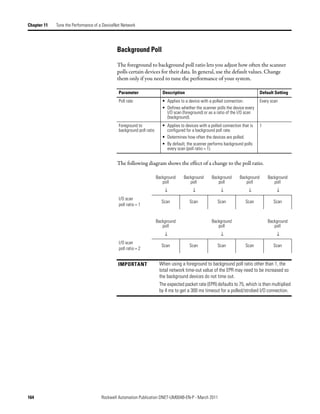
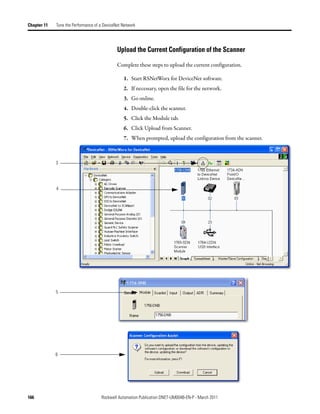
DeviceNet Network Configuration
Important User Information
Solid-state equipment has operational characteristics differing from those of electromechanical equipment. Safety
Guidelines for the Application, Installation and Maintenance of Solid State Controls (publication SGI-1.1 available from
your local Rockwell Automation sales office or online at http://www.rockwellautomation.com/literature/) describes some
important differences between solid-state equipment and hard-wired electromechanical devices. Because of this difference,
and also because of the wide variety of uses for solid-state equipment, all persons responsible for applying this equipment
must satisfy themselves that each intended application of this equipment is acceptable.
In no event will Rockwell Automation, Inc. be responsible or liable for indirect or consequential damages resulting from
the use or application of this equipment.
The examples and diagrams in this manual are included solely for illustrative purposes. Because of the many variables and
requirements associated with any particular installation, Rockwell Automation, Inc. cannot assume responsibility or
liability for actual use based on the examples and diagrams.
No patent liability is assumed by Rockwell Automation, Inc. with respect to use of information, circuits, equipment, or
software described in this manual.
Reproduction of the contents of this manual, in whole or in part, without written permission of Rockwell Automation,
Inc., is prohibited.
Throughout this manual, when necessary, we use notes to make you aware of safety considerations.

                              WARNING: Identifies information about practices or circumstances that can cause an explosion in a hazardous
                              environment, which may lead to personal injury or death, property damage, or economic loss.

                              ATTENTION: Identifies information about practices or circumstances that can lead to personal injury or death,
                              property damage, or economic loss. Attentions help you identify a hazard, avoid a hazard, and recognize the
                              consequence

                              SHOCK HAZARD: Labels may be on or inside the equipment, for example, a drive or motor, to alert people that
                              dangerous voltage may be present.


                              BURN HAZARD: Labels may be on or inside the equipment, for example, a drive or motor, to alert people that
                              surfaces may reach dangerous temperatures.

 IMPORTANT                    Identifies information that is critical for successful application and understanding of the product.


Allen-Bradley, Compact I/O, CompactLogix, ControlLogix, ControlNet, DriveLogix, EtherNet/IP, FactoryTalk View, FlexLogix, PanelBuilder, PanelView, PowerFlex, Rockwell Software, Rockwell Automation, RSLinx,
RSLogix, SoftLogix, and TechConnect are trademarks of Rockwell Automation, Inc.

Trademarks not belonging to Rockwell Automation are property of their respective companies.
Summary of Changes


                          This manual contains new and updated information. Changes throughout this
                          revision are marked by change bars, as shown to the right of this paragraph.


New and Updated           This table contains the changes made to this revision.
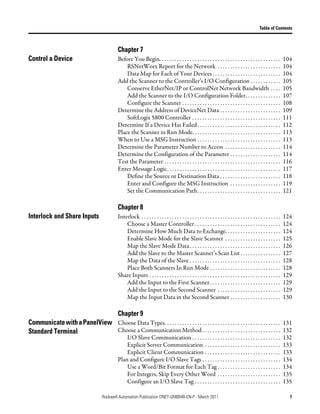
Information                Topic                                                     Page
                           Addition of 1769-ADN module                               Throughout
                           Automatically Configure a DeviceNet Network               Chapter 6


                  Rockwell Automation Publication DNET-UM004B-EN-P - March 2011                          3
Summary of Changes


Notes:


4                    Rockwell Automation Publication DNET-UM004B-EN-P - March 2011
Table of Contents

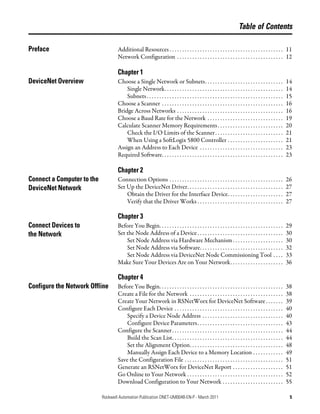
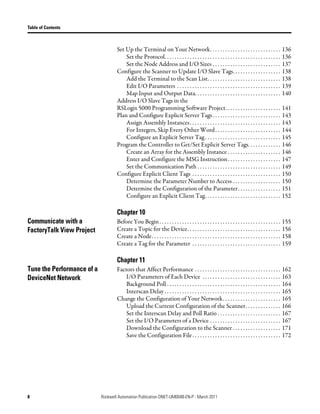
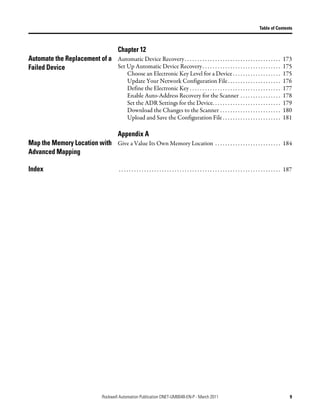
Preface                             Additional Resources . . . . . . . . . . . . . . . . . . . . . . . . . . . . . . . . . . . . . . . . . . . . . 11
                                    Network Configuration . . . . . . . . . . . . . . . . . . . . . . . . . . . . . . . . . . . . . . . . . . 12

                                    Chapter 1
DeviceNet Overview                  Choose a Single Network or Subnets. . . . . . . . . . . . . . . . . . . . . . . . . . . . . . .                           14
                                        Single Network. . . . . . . . . . . . . . . . . . . . . . . . . . . . . . . . . . . . . . . . . . . . . . .           14
                                        Subnets . . . . . . . . . . . . . . . . . . . . . . . . . . . . . . . . . . . . . . . . . . . . . . . . . . . . . .   15
                                    Choose a Scanner . . . . . . . . . . . . . . . . . . . . . . . . . . . . . . . . . . . . . . . . . . . . . . . .          16
                                    Bridge Across Networks . . . . . . . . . . . . . . . . . . . . . . . . . . . . . . . . . . . . . . . . . .                16
                                    Choose a Baud Rate for the Network . . . . . . . . . . . . . . . . . . . . . . . . . . . . . .                            19
                                    Calculate Scanner Memory Requirements . . . . . . . . . . . . . . . . . . . . . . . . . .                                 20
                                        Check the I/O Limits of the Scanner. . . . . . . . . . . . . . . . . . . . . . . . . . .                              21
                                        When Using a SoftLogix 5800 Controller . . . . . . . . . . . . . . . . . . . . . .                                    21
                                    Assign an Address to Each Device . . . . . . . . . . . . . . . . . . . . . . . . . . . . . . . . .                        23
                                    Required Software. . . . . . . . . . . . . . . . . . . . . . . . . . . . . . . . . . . . . . . . . . . . . . . .          23

                                    Chapter 2
Connect a Computer to the           Connection Options . . . . . . . . . . . . . . . . . . . . . . . . . . . . . . . . . . . . . . . . . . . . .              26
DeviceNet Network                   Set Up the DeviceNet Driver. . . . . . . . . . . . . . . . . . . . . . . . . . . . . . . . . . . . . .                    27
                                        Obtain the Driver for the Interface Device. . . . . . . . . . . . . . . . . . . . . .                                 27
                                        Verify that the Driver Works . . . . . . . . . . . . . . . . . . . . . . . . . . . . . . . . . .                      27

                                    Chapter 3
Connect Devices to                  Before You Begin. . . . . . . . . . . . . . . . . . . . . . . . . . . . . . . . . . . . . . . . . . . . . . . . .         29
the Network                         Set the Node Address of a Device . . . . . . . . . . . . . . . . . . . . . . . . . . . . . . . . . .                      30
                                        Set Node Address via Hardware Mechanism . . . . . . . . . . . . . . . . . . . .                                       30
                                        Set Node Address via Software. . . . . . . . . . . . . . . . . . . . . . . . . . . . . . . . .                        32
                                        Set Node Address via DeviceNet Node Commissioning Tool . . . .                                                        33
                                    Make Sure Your Devices Are on Your Network. . . . . . . . . . . . . . . . . . . . .                                       36

                                    Chapter 4
Configure the Network Offline       Before You Begin. . . . . . . . . . . . . . . . . . . . . . . . . . . . . . . . . . . . . . . . . . . . . . . . .         38
                                    Create a File for the Network . . . . . . . . . . . . . . . . . . . . . . . . . . . . . . . . . . . . .                   38
                                    Create Your Network in RSNetWorx for DeviceNet Software . . . . . . .                                                     39
                                    Configure Each Device . . . . . . . . . . . . . . . . . . . . . . . . . . . . . . . . . . . . . . . . . . .               40
                                        Specify a Device Node Address . . . . . . . . . . . . . . . . . . . . . . . . . . . . . . . .                         40
                                        Configure Device Parameters. . . . . . . . . . . . . . . . . . . . . . . . . . . . . . . . . .                        43
                                    Configure the Scanner . . . . . . . . . . . . . . . . . . . . . . . . . . . . . . . . . . . . . . . . . . . .             44
                                        Build the Scan List. . . . . . . . . . . . . . . . . . . . . . . . . . . . . . . . . . . . . . . . . . . .            44
                                        Set the Alignment Option. . . . . . . . . . . . . . . . . . . . . . . . . . . . . . . . . . . . .                     48
                                        Manually Assign Each Device to a Memory Location . . . . . . . . . . . .                                              49
                                    Save the Configuration File . . . . . . . . . . . . . . . . . . . . . . . . . . . . . . . . . . . . . . .                 51
                                    Generate an RSNetWorx for DeviceNet Report . . . . . . . . . . . . . . . . . . . .                                        51
                                    Go Online to Your Network . . . . . . . . . . . . . . . . . . . . . . . . . . . . . . . . . . . . . .                     52
                                    Download Configuration to Your Network . . . . . . . . . . . . . . . . . . . . . . . .                                    55

                            Rockwell Automation Publication DNET-UM004B-EN-P - March 2011                                                                      5
Table of Contents


                                    Chapter 5
Configure the Network Online        Before You Begin . . . . . . . . . . . . . . . . . . . . . . . . . . . . . . . . . . . . . . . . . . . . . . . . .   58
                                    Verify Communication Between the Computer and Devices . . . . . . . . .                                              58
                                    Create a New File for the Network. . . . . . . . . . . . . . . . . . . . . . . . . . . . . . . . .                   60
                                    Go Online to Your Network . . . . . . . . . . . . . . . . . . . . . . . . . . . . . . . . . . . . . .                60
                                    Configure Each Device. . . . . . . . . . . . . . . . . . . . . . . . . . . . . . . . . . . . . . . . . . . .         63
                                       Upload the Configuration of a Device . . . . . . . . . . . . . . . . . . . . . . . . . .                          63
                                       Change and Download Device Configuration . . . . . . . . . . . . . . . . . . .                                    64
                                    Configure the Scanner . . . . . . . . . . . . . . . . . . . . . . . . . . . . . . . . . . . . . . . . . . . .        66
                                       Upload the Current Scanner Configuration. . . . . . . . . . . . . . . . . . . . .                                 67
                                       Define the Scanner Properties. . . . . . . . . . . . . . . . . . . . . . . . . . . . . . . . . .                  68
                                       Build the Scan List . . . . . . . . . . . . . . . . . . . . . . . . . . . . . . . . . . . . . . . . . . . .       69
                                       Set the Alignment Option . . . . . . . . . . . . . . . . . . . . . . . . . . . . . . . . . . . . .                72
                                       Manually Assign Each Device to a Memory Location . . . . . . . . . . . .                                          73
                                       Download the Configuration to the Scanner . . . . . . . . . . . . . . . . . . . .                                 75
                                    Upload and Save the Configuration File . . . . . . . . . . . . . . . . . . . . . . . . . . . .                       76
                                    Generate an RSNetWorx for DeviceNet Report. . . . . . . . . . . . . . . . . . . . .                                  77

                                    Chapter 6
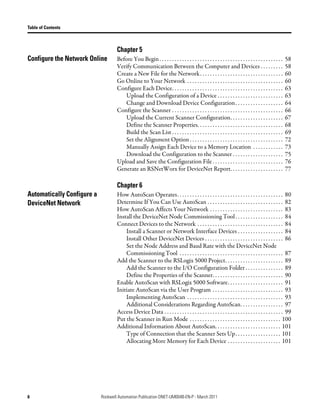
Automatically Configure a           How AutoScan Operates. . . . . . . . . . . . . . . . . . . . . . . . . . . . . . . . . . . . . . . . . . 80
DeviceNet Network                   Determine If You Can Use AutoScan . . . . . . . . . . . . . . . . . . . . . . . . . . . . . . 82
                                    How AutoScan Affects Your Network . . . . . . . . . . . . . . . . . . . . . . . . . . . . . 83
                                    Install the DeviceNet Node Commissioning Tool . . . . . . . . . . . . . . . . . . . 84
                                    Connect Devices to the Network . . . . . . . . . . . . . . . . . . . . . . . . . . . . . . . . . . 84
                                        Install a Scanner or Network Interface Devices . . . . . . . . . . . . . . . . . . 84
                                        Install Other DeviceNet Devices . . . . . . . . . . . . . . . . . . . . . . . . . . . . . . . 86
                                        Set the Node Address and Baud Rate with the DeviceNet Node
                                        Commissioning Tool . . . . . . . . . . . . . . . . . . . . . . . . . . . . . . . . . . . . . . . . . 87
                                    Add the Scanner to the RSLogix 5000 Project. . . . . . . . . . . . . . . . . . . . . . . 89
                                        Add the Scanner to the I/O Configuration Folder . . . . . . . . . . . . . . . 89
                                        Define the Properties of the Scanner. . . . . . . . . . . . . . . . . . . . . . . . . . . . 90
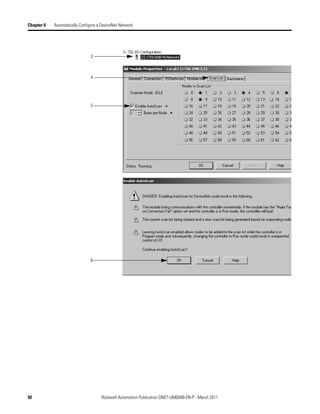
                                    Enable AutoScan with RSLogix 5000 Software. . . . . . . . . . . . . . . . . . . . . . 91
                                    Initiate AutoScan via the User Program . . . . . . . . . . . . . . . . . . . . . . . . . . . . 93
                                        Implementing AutoScan . . . . . . . . . . . . . . . . . . . . . . . . . . . . . . . . . . . . . . 93
                                        Additional Considerations Regarding AutoScan. . . . . . . . . . . . . . . . . 97
                                    Access Device Data . . . . . . . . . . . . . . . . . . . . . . . . . . . . . . . . . . . . . . . . . . . . . . . 99
                                    Put the Scanner in Run Mode . . . . . . . . . . . . . . . . . . . . . . . . . . . . . . . . . . . . 100
                                    Additional Information About AutoScan. . . . . . . . . . . . . . . . . . . . . . . . . . 101
                                        Type of Connection that the Scanner Sets Up. . . . . . . . . . . . . . . . . . 101
                                        Allocating More Memory for Each Device . . . . . . . . . . . . . . . . . . . . . 101


6                           Rockwell Automation Publication DNET-UM004B-EN-P - March 2011
Table of Contents


                                               Chapter 7
Control a Device                               Before You Begin. . . . . . . . . . . . . . . . . . . . . . . . . . . . . . . . . . . . . . . . . . . . . . . .           104
                                                   RSNetWorx Report for the Network . . . . . . . . . . . . . . . . . . . . . . . . .                                    104
                                                   Data Map for Each of Your Devices . . . . . . . . . . . . . . . . . . . . . . . . . . .                               104
                                               Add the Scanner to the Controller’s I/O Configuration . . . . . . . . . . . .                                             105
                                                   Conserve EtherNet/IP or ControlNet Network Bandwidth . . . .                                                          105
                                                   Add the Scanner to the I/O Configuration Folder. . . . . . . . . . . . . .                                            107
                                                   Configure the Scanner . . . . . . . . . . . . . . . . . . . . . . . . . . . . . . . . . . . . . . .                   108
                                               Determine the Address of DeviceNet Data . . . . . . . . . . . . . . . . . . . . . . . .                                   109
                                                   SoftLogix 5800 Controller . . . . . . . . . . . . . . . . . . . . . . . . . . . . . . . . . . .                       111
                                               Determine If a Device Has Failed . . . . . . . . . . . . . . . . . . . . . . . . . . . . . . . . .                        112
                                               Place the Scanner in Run Mode. . . . . . . . . . . . . . . . . . . . . . . . . . . . . . . . . . .                        113
                                               When to Use a MSG Instruction . . . . . . . . . . . . . . . . . . . . . . . . . . . . . . . . .                           113
                                               Determine the Parameter Number to Access . . . . . . . . . . . . . . . . . . . . . .                                      114
                                               Determine the Configuration of the Parameter . . . . . . . . . . . . . . . . . . . .                                      114
                                               Test the Parameter . . . . . . . . . . . . . . . . . . . . . . . . . . . . . . . . . . . . . . . . . . . . . .            116
                                               Enter Message Logic . . . . . . . . . . . . . . . . . . . . . . . . . . . . . . . . . . . . . . . . . . . . .             117
                                                   Define the Source or Destination Data . . . . . . . . . . . . . . . . . . . . . . . .                                 118
                                                   Enter and Configure the MSG Instruction . . . . . . . . . . . . . . . . . . . .                                       119
                                                   Set the Communication Path. . . . . . . . . . . . . . . . . . . . . . . . . . . . . . . . .                           121

                                               Chapter 8
Interlock and Share Inputs                     Interlock . . . . . . . . . . . . . . . . . . . . . . . . . . . . . . . . . . . . . . . . . . . . . . . . . . . . . . .   124
                                                   Choose a Master Controller . . . . . . . . . . . . . . . . . . . . . . . . . . . . . . . . . .                        124
                                                   Determine How Much Data to Exchange. . . . . . . . . . . . . . . . . . . . . .                                        124
                                                   Enable Slave Mode for the Slave Scanner . . . . . . . . . . . . . . . . . . . . . .                                   125
                                                   Map the Slave Mode Data . . . . . . . . . . . . . . . . . . . . . . . . . . . . . . . . . . . .                       126
                                                   Add the Slave to the Master Scanner’s Scan List . . . . . . . . . . . . . . . .                                       127
                                                   Map the Data of the Slave . . . . . . . . . . . . . . . . . . . . . . . . . . . . . . . . . . . .                     128
                                                   Place Both Scanners In Run Mode . . . . . . . . . . . . . . . . . . . . . . . . . . . .                               128
                                               Share Inputs . . . . . . . . . . . . . . . . . . . . . . . . . . . . . . . . . . . . . . . . . . . . . . . . . . . .      129
                                                   Add the Input to the First Scanner . . . . . . . . . . . . . . . . . . . . . . . . . . . .                            129
                                                   Add the Input to the Second Scanner . . . . . . . . . . . . . . . . . . . . . . . . .                                 129
                                                   Map the Input Data in the Second Scanner . . . . . . . . . . . . . . . . . . . .                                      130

                                               Chapter 9
Communicate with a PanelView Choose Data Types. . . . . . . . . . . . . . . . . . . . . . . . . . . . . . . . . . . . . . . . . . . . . . 131
Standard Terminal            Choose a Communication Method . . . . . . . . . . . . . . . . . . . . . . . . . . . . . . . 132
                                                   I/O Slave Communication . . . . . . . . . . . . . . . . . . . . . . . . . . . . . . . . . . .                         132
                                                   Explicit Server Communication . . . . . . . . . . . . . . . . . . . . . . . . . . . . . .                             133
                                                   Explicit Client Communication . . . . . . . . . . . . . . . . . . . . . . . . . . . . . .                             133
                                               Plan and Configure I/O Slave Tags . . . . . . . . . . . . . . . . . . . . . . . . . . . . . . .                           134
                                                   Use a Word/Bit Format for Each Tag . . . . . . . . . . . . . . . . . . . . . . . . .                                  134
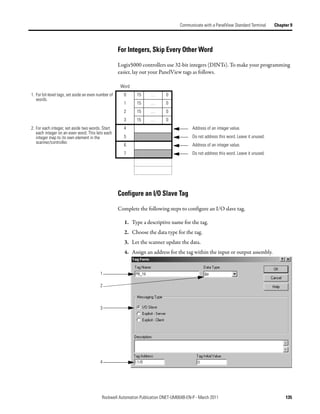
                                                   For Integers, Skip Every Other Word . . . . . . . . . . . . . . . . . . . . . . . . .                                 135
                                                   Configure an I/O Slave Tag . . . . . . . . . . . . . . . . . . . . . . . . . . . . . . . . . .                        135

                                       Rockwell Automation Publication DNET-UM004B-EN-P - March 2011                                                                       7
Table of Contents


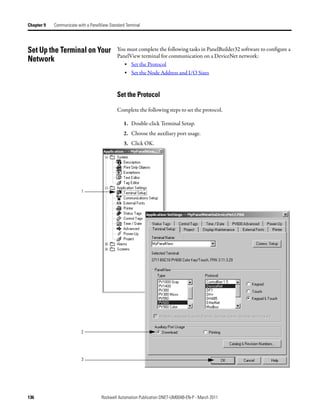
                                    Set Up the Terminal on Your Network. . . . . . . . . . . . . . . . . . . . . . . . . . . .                           136
                                        Set the Protocol. . . . . . . . . . . . . . . . . . . . . . . . . . . . . . . . . . . . . . . . . . . . . .      136
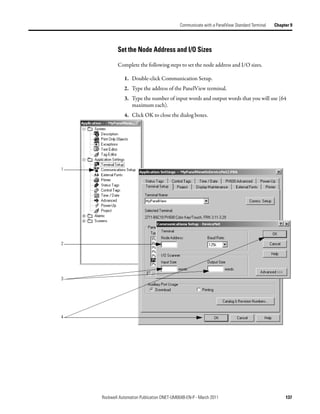
                                        Set the Node Address and I/O Sizes . . . . . . . . . . . . . . . . . . . . . . . . . . .                         137
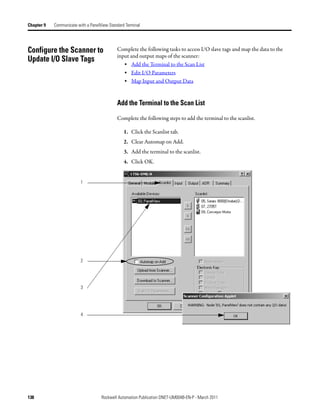
                                    Configure the Scanner to Update I/O Slave Tags. . . . . . . . . . . . . . . . . . .                                  138
                                        Add the Terminal to the Scan List. . . . . . . . . . . . . . . . . . . . . . . . . . . . .                       138
                                        Edit I/O Parameters . . . . . . . . . . . . . . . . . . . . . . . . . . . . . . . . . . . . . . . . .            139
                                        Map Input and Output Data. . . . . . . . . . . . . . . . . . . . . . . . . . . . . . . . . .                     140
                                    Address I/O Slave Tags in the
                                    RSLogix 5000 Programming Software Project. . . . . . . . . . . . . . . . . . . . . .                                 141
                                    Plan and Configure Explicit Server Tags . . . . . . . . . . . . . . . . . . . . . . . . . . .                        143
                                        Assign Assembly Instances. . . . . . . . . . . . . . . . . . . . . . . . . . . . . . . . . . . .                 143
                                        For Integers, Skip Every Other Word . . . . . . . . . . . . . . . . . . . . . . . . . .                          144
                                        Configure an Explicit Server Tag . . . . . . . . . . . . . . . . . . . . . . . . . . . . . .                     145
                                    Program the Controller to Get/Set Explicit Server Tags. . . . . . . . . . . . .                                      146
                                        Create an Array for the Assembly Instance . . . . . . . . . . . . . . . . . . . . .                              146
                                        Enter and Configure the MSG Instruction . . . . . . . . . . . . . . . . . . . . .                                147
                                        Set the Communication Path . . . . . . . . . . . . . . . . . . . . . . . . . . . . . . . . .                     149
                                    Configure Explicit Client Tags . . . . . . . . . . . . . . . . . . . . . . . . . . . . . . . . . . .                 150
                                        Determine the Parameter Number to Access . . . . . . . . . . . . . . . . . . .                                   150
                                        Determine the Configuration of the Parameter. . . . . . . . . . . . . . . . .                                    151
                                        Configure an Explicit Client Tag. . . . . . . . . . . . . . . . . . . . . . . . . . . . . .                      152

                                    Chapter 10
Communicate with a                  Before You Begin . . . . . . . . . . . . . . . . . . . . . . . . . . . . . . . . . . . . . . . . . . . . . . . .     155
FactoryTalk View Project            Create a Topic for the Device. . . . . . . . . . . . . . . . . . . . . . . . . . . . . . . . . . . . .               156
                                    Create a Node. . . . . . . . . . . . . . . . . . . . . . . . . . . . . . . . . . . . . . . . . . . . . . . . . . .   158
                                    Create a Tag for the Parameter . . . . . . . . . . . . . . . . . . . . . . . . . . . . . . . . . . .                 159

                                    Chapter 11
Tune the Performance of a           Factors that Affect Performance . . . . . . . . . . . . . . . . . . . . . . . . . . . . . . . . . .                  162
DeviceNet Network                       I/O Parameters of Each Device . . . . . . . . . . . . . . . . . . . . . . . . . . . . . . .                      163
                                        Background Poll . . . . . . . . . . . . . . . . . . . . . . . . . . . . . . . . . . . . . . . . . . . . .        164
                                        Interscan Delay . . . . . . . . . . . . . . . . . . . . . . . . . . . . . . . . . . . . . . . . . . . . . .      165
                                    Change the Configuration of Your Network. . . . . . . . . . . . . . . . . . . . . . .                                165
                                        Upload the Current Configuration of the Scanner. . . . . . . . . . . . . .                                       166
                                        Set the Interscan Delay and Poll Ratio . . . . . . . . . . . . . . . . . . . . . . . . .                         167
                                        Set the I/O Parameters of a Device . . . . . . . . . . . . . . . . . . . . . . . . . . . .                       167
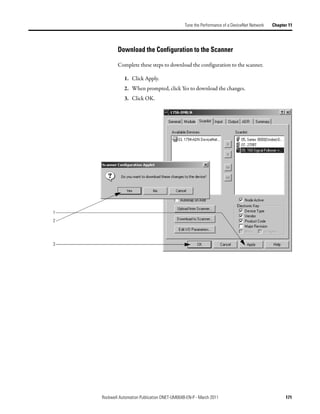
                                        Download the Configuration to the Scanner . . . . . . . . . . . . . . . . . . .                                  171
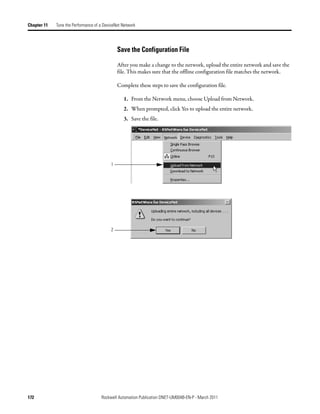
                                        Save the Configuration File . . . . . . . . . . . . . . . . . . . . . . . . . . . . . . . . . . .                172


8                           Rockwell Automation Publication DNET-UM004B-EN-P - March 2011
Table of Contents


                                             Chapter 12
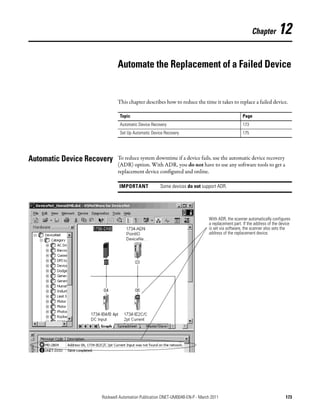
Automate the Replacement of a Automatic Device Recovery . . . . . . . . . . . . . . . . . . . . . . . . . . . . . . . . . . . . . . 173
Failed Device                 Set Up Automatic Device Recovery . . . . . . . . . . . . . . . . . . . . . . . . . . . . . . . 175
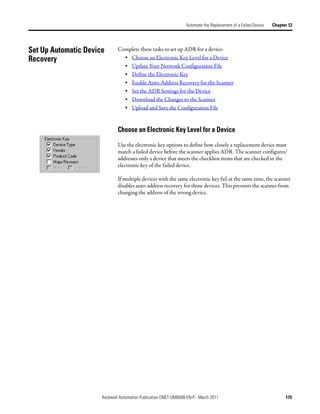
                                                    Choose an Electronic Key Level for a Device . . . . . . . . . . . . . . . . . . .                                     175
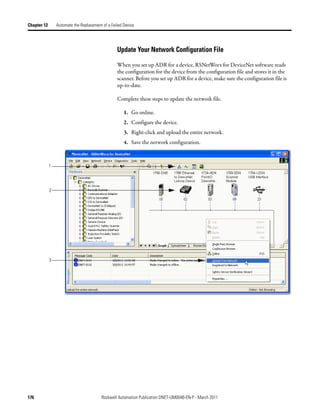
                                                    Update Your Network Configuration File . . . . . . . . . . . . . . . . . . . . .                                      176
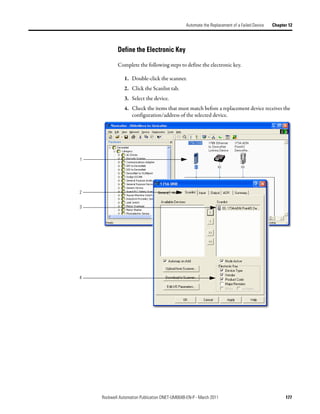
                                                    Define the Electronic Key . . . . . . . . . . . . . . . . . . . . . . . . . . . . . . . . . . . .                     177
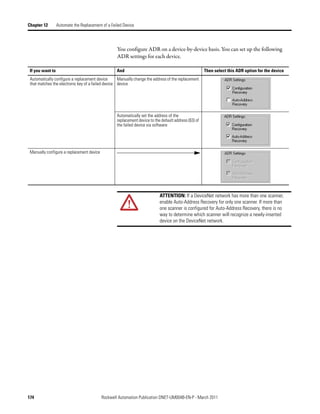
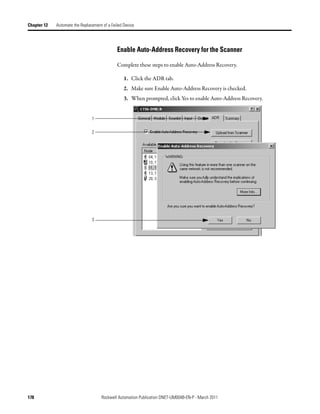
                                                    Enable Auto-Address Recovery for the Scanner . . . . . . . . . . . . . . . .                                          178
                                                    Set the ADR Settings for the Device. . . . . . . . . . . . . . . . . . . . . . . . . . .                              179
                                                    Download the Changes to the Scanner . . . . . . . . . . . . . . . . . . . . . . . .                                   180
                                                    Upload and Save the Configuration File . . . . . . . . . . . . . . . . . . . . . . .                                  181

                                             Appendix A
Map the Memory Location with Give a Value Its Own Memory Location . . . . . . . . . . . . . . . . . . . . . . . . . . 184
Advanced Mapping

Index                                         . . . . . . . . . . . . . . . . . . . . . . . . . . . . . . . . . . . . . . . . . . . . . . . . . . . . . . . . . . . . . . . . 187


                                     Rockwell Automation Publication DNET-UM004B-EN-P - March 2011                                                                             9
Table of Contents


Notes:


10                  Rockwell Automation Publication DNET-UM004B-EN-P - March 2011
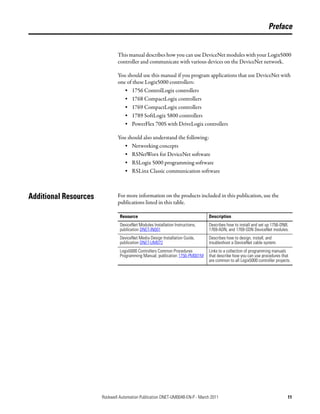
Preface


                               This manual describes how you can use DeviceNet modules with your Logix5000
                               controller and communicate with various devices on the DeviceNet network.

                               You should use this manual if you program applications that use DeviceNet with
                               one of these Logix5000 controllers:
                                  • 1756 ControlLogix controllers
                                  • 1768 CompactLogix controllers
                                  • 1769 CompactLogix controllers
                                  • 1789 SoftLogix 5800 controllers
                                  • PowerFlex 700S with DriveLogix controllers

                               You should also understand the following:
                                  • Networking concepts
                                  • RSNetWorx for DeviceNet software
                                  • RSLogix 5000 programming software
                                  • RSLinx Classic communication software


Additional Resources           For more information on the products included in this publication, use the
                               publications listed in this table.

                                Resource                                       Description
                                DeviceNet Modules Installation Instructions,   Describes how to install and set up 1756-DNB,
                                publication DNET-IN001                         1769-ADN, and 1769-SDN DeviceNet modules.
                                DeviceNet Media Design Installation Guide,     Describes how to design, install, and
                                publication DNET-UM072                         troubleshoot a DeviceNet cable system.
                                Logix5000 Controllers Common Procedures        Links to a collection of programming manuals
                                Programming Manual, publication 1756-PM001M    that describe how you can use procedures that
                                                                               are common to all Logix5000 controller projects.


                       Rockwell Automation Publication DNET-UM004B-EN-P - March 2011                                         11
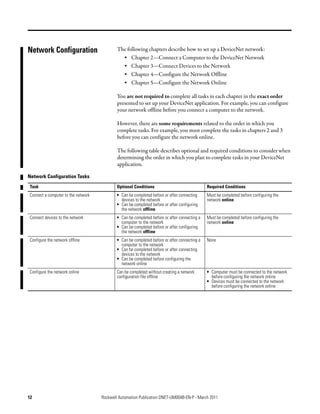
Network Configuration                        The following chapters describe how to set up a DeviceNet network:
                                               • Chapter 2—Connect a Computer to the DeviceNet Network
                                               • Chapter 3—Connect Devices to the Network
                                               • Chapter 4—Configure the Network Offline
                                               • Chapter 5—Configure the Network Online

                                             You are not required to complete all tasks in each chapter in the exact order
                                             presented to set up your DeviceNet application. For example, you can configure
                                             your network offline before you connect a computer to the network.

                                             However, there are some requirements related to the order in which you
                                             complete tasks. For example, you must complete the tasks in chapters 2 and 3
                                             before you can configure the network online.

                                             The following table describes optional and required conditions to consider when
                                             determining the order in which you plan to complete tasks in your DeviceNet
                                             application.

Network Configuration Tasks
 Task                                        Optional Conditions                               Required Conditions
 Connect a computer to the network           • Can be completed before or after connecting     Must be completed before configuring the
                                               devices to the network                          network online
                                             • Can be completed before or after configuring
                                               the network offline
 Connect devices to the network              • Can be completed before or after connecting a   Must be completed before configuring the
                                               computer to the network                         network online
                                             • Can be completed before or after configuring
                                               the network offline
 Configure the network offline               • Can be completed before or after connecting a   None
                                               computer to the network
                                             • Can be completed before or after connecting
                                               devices to the network
                                             • Can be completed before configuring the
                                               network online
 Configure the network online                Can be completed without creating a network       • Computer must be connected to the network
                                             configuration file offline                          before configuring the network online
                                                                                               • Devices must be connected to the network
                                                                                                 before configuring the network online


12                                   Rockwell Automation Publication DNET-UM004B-EN-P - March 2011
Chapter      1

        DeviceNet Overview


        The Logix5000 family of controllers operates with many DeviceNet
        communication modules. This chapter describes each communication module
        and the preliminary tasks you must complete before your configure and program
        the DeviceNet network.

         Topic                                                          Page
         Choose a Single Network or Subnets                             14
         Choose a Scanner                                               16
         Bridge Across Networks                                         16
         Choose a Baud Rate for the Network                             19
         Calculate Scanner Memory Requirements                          20
         Assign an Address to Each Device                               23


        DeviceNet communication modules share these features:
          • Interface via cabling systems using either round or flat media that provide
              both power and communication
          • Use network protocols
          • Require no network scheduling
          • Support messaging, produced/consumed data, and distributed I/O


Rockwell Automation Publication DNET-UM004B-EN-P - March 2011                         13
Chapter 1   DeviceNet Overview


Choose a Single Network                  You can organize the devices on the network in a single network or several,
                                         smaller distributed networks known as subnets.
or Subnets

                                         Single Network

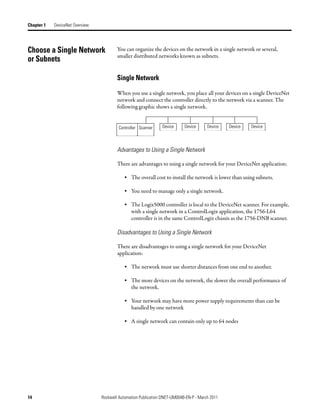
                                         When you use a single network, you place all your devices on a single DeviceNet
                                         network and connect the controller directly to the network via a scanner. The
                                         following graphic shows a single network.


                                          Controller Scanner    Device      Device      Device   Device   Device


                                         Advantages to Using a Single Network

                                         There are advantages to using a single network for your DeviceNet application:

                                             • The overall cost to install the network is lower than using subnets.

                                             • You need to manage only a single network.

                                             • The Logix5000 controller is local to the DeviceNet scanner. For example,
                                               with a single network in a ControlLogix application, the 1756-L64
                                               controller is in the same ControlLogix chassis as the 1756-DNB scanner.

                                         Disadvantages to Using a Single Network

                                         There are disadvantages to using a single network for your DeviceNet
                                         application:

                                             • The network must use shorter distances from one end to another.

                                             • The more devices on the network, the slower the overall performance of
                                               the network.

                                             • Your network may have more power supply requirements than can be
                                               handled by one network

                                             • A single network can contain only up to 64 nodes


14                               Rockwell Automation Publication DNET-UM004B-EN-P - March 2011
DeviceNet Overview   Chapter 1


        Subnets

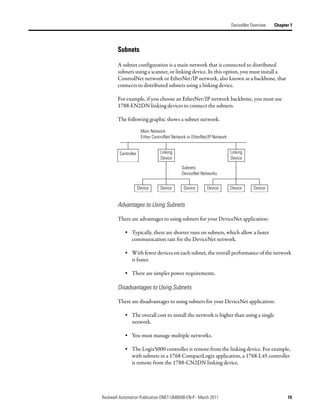
        A subnet configuration is a main network that is connected to distributed
        subnets using a scanner, or linking device. In this option, you must install a
        ControlNet network or EtherNet/IP network, also known as a backbone, that
        connects to distributed subnets using a linking device.

        For example, if you choose an EtherNet/IP network backbone, you must use
        1788-EN2DN linking devices to connect the subnets.

        The following graphic shows a subnet network.

                       Main Network
                       Either ControlNet Network or EtherNet/IP Network


         Controller              Linking                                  Linking
                                 Device                                   Device

                                             Subnets
                                             DeviceNet Networks


                      Device      Device       Device       Device        Device     Device


        Advantages to Using Subnets

        There are advantages to using subnets for your DeviceNet application:

            • Typically, there are shorter runs on subnets, which allow a faster
              communication rate for the DeviceNet network.

            • With fewer devices on each subnet, the overall performance of the network
              is faster.

            • There are simpler power requirements.

        Disadvantages to Using Subnets

        There are disadvantages to using subnets for your DeviceNet application:

            • The overall cost to install the network is higher than using a single
              network.

            • You must manage multiple networks.

            • The Logix5000 controller is remote from the linking device. For example,
              with subnets in a 1768 CompactLogix application, a 1768-L45 controller
              is remote from the 1788-CN2DN linking device.


Rockwell Automation Publication DNET-UM004B-EN-P - March 2011                                        15
Chapter 1      DeviceNet Overview


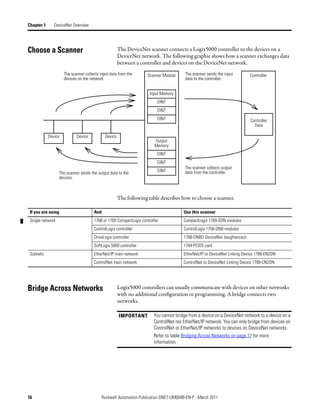
Choose a Scanner                                      The DeviceNet scanner connects a Logix5000 controller to the devices on a
                                                      DeviceNet network. The following graphic shows how a scanner exchanges data
                                                      between a controller and devices on the DeviceNet network.
                     The scanner collects input data from the       Scanner Module     The scanner sends the input        Controller
                     devices on the network.                                           data to the controller.


                                                                     Input Memory
                                                                         DINT
                                                                         DINT
                                                                         DINT                                             Controller
                                                                                                                            Data

            Device          Device           Device
                                                                       Output
                                                                       Memory
                                                                         DINT
                                                                         DINT
                                                                                       The scanner collects output
                  The scanner sends the output data to the               DINT          data from the controller.
                  devices.


                                                      The following table describes how to choose a scanner.

 If you are using                     And                                             Use this scanner
 Single network                       1768 or 1769 CompactLogix controller            CompactLogix 1769-SDN modules
                                      ControlLogix controller                         ControlLogix 1756-DNB modules
                                      DriveLogix controller                           1788-DNBO DeviceNet daughtercard
                                      SoftLogix 5800 controller                       1784-PCIDS card
 Subnets                              EtherNet/IP main network                        EtherNet/IP to DeviceNet Linking Device 1788-EN2DN
                                      ControlNet main network                         ControlNet to DeviceNet Linking Device 1788-CN2DN


Bridge Across Networks                                Logix5000 controllers can usually communicate with devices on other networks
                                                      with no additional configuration or programming. A bridge connects two
                                                      networks.

                                                      IMPORTANT        You cannot bridge from a device on a DeviceNet network to a device on a
                                                                       ControlNet nor EtherNet/IP network. You can only bridge from devices on
                                                                       ControlNet or EtherNet/IP networks to devices on DeviceNet networks.
                                                                       Refer to table Bridging Across Networks on page 17 for more
                                                                       information.


16                                         Rockwell Automation Publication DNET-UM004B-EN-P - March 2011
DeviceNet Overview          Chapter 1


        The bridge is one of the following:

              • A single device with communication ports for two different networks,
                such as a 1788-EN2DN linking device

              • A separate communication device in the same chassis

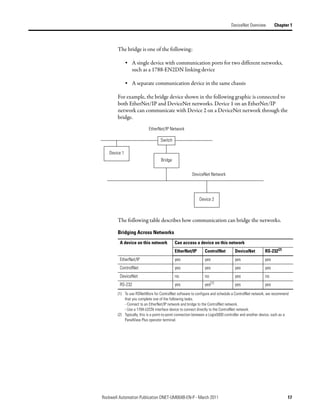
        For example, the bridge device shown in the following graphic is connected to
        both EtherNet/IP and DeviceNet networks. Device 1 on an EtherNet/IP
        network can communicate with Device 2 on a DeviceNet network through the
        bridge.

                            EtherNet/IP Network

                                   Switch

   Device 1
                                    Bridge


                                                        DeviceNet Network


                                                             Device 2


        The following table describes how communication can bridge the networks.

        Bridging Across Networks
         A device on this network            Can access a device on this network
                                             EtherNet/IP        ControlNet          DeviceNet          RS-232(2)
         EtherNet/IP                         yes                yes                 yes                yes
         ControlNet                          yes                yes                 yes                yes
         DeviceNet                           no                 no                  yes                no
         RS-232                              yes                yes(1)              yes                yes
        (1) To use RSNetWorx for ControlNet software to configure and schedule a ControlNet network, we recommend
            that you complete one of the following tasks.
            - Connect to an EtherNet/IP network and bridge to the ControlNet network.
            - Use a 1784-U2CN interface device to connect directly to the ControlNet network.
        (2) Typically, this is a point-to-point connection between a Logix5000 controller and another device, such as a
            PanelView Plus operator terminal.


Rockwell Automation Publication DNET-UM004B-EN-P - March 2011                                                         17
Chapter 1      DeviceNet Overview


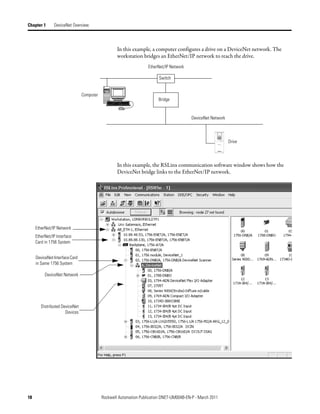
                                                   In this example, a computer configures a drive on a DeviceNet network. The
                                                   workstation bridges an EtherNet/IP network to reach the drive.
                                                                   EtherNet/IP Network

                                                                         Switch


                                Computer
                                                                        Bridge


                                                                                          DeviceNet Network


                                                                                                              Drive


                                                   In this example, the RSLinx communication software window shows how the
                                                   DeviceNet bridge links to the EtherNet/IP network.


     EtherNet/IP Network
     EtherNet/IP Interface
     Card in 1756 System


     DeviceNet Interface Card
     in Same 1756 System

          DeviceNet Network


        Distributed DeviceNet
                      Devices


18                                         Rockwell Automation Publication DNET-UM004B-EN-P - March 2011
DeviceNet Overview        Chapter 1


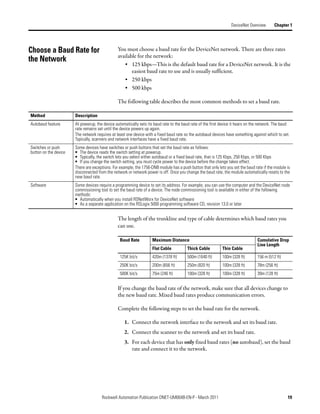
Choose a Baud Rate for                          You must choose a baud rate for the DeviceNet network. There are three rates
                                                available for the network:
the Network
                                                   • 125 kbps—This is the default baud rate for a DeviceNet network. It is the
                                                       easiest baud rate to use and is usually sufficient.
                                                   • 250 kbps
                                                   • 500 kbps

                                                The following table describes the most common methods to set a baud rate.

Method                 Description
Autobaud feature       At powerup, the device automatically sets its baud rate to the baud rate of the first device it hears on the network. The baud
                       rate remains set until the device powers up again.
                       The network requires at least one device with a fixed baud rate so the autobaud devices have something against which to set.
                       Typically, scanners and network interfaces have a fixed baud rate.
Switches or push       Some devices have switches or push buttons that set the baud rate as follows:
button on the device   • The device reads the switch setting at powerup.
                       • Typically, the switch lets you select either autobaud or a fixed baud rate, that is 125 Kbps, 250 Kbps, or 500 Kbps
                       • If you change the switch setting, you must cycle power to the device before the change takes effect.
                       There are exceptions. For example, the 1756-DNB module has a push button that only lets you set the baud rate if the module is
                       disconnected from the network or network power is off. Once you change the baud rate, the module automatically resets to the
                       new baud rate.
Software               Some devices require a programming device to set its address. For example, you can use the computer and the DeviceNet node
                       commissioning tool to set the baud rate of a device. The node commissioning tool is available in either of the following
                       methods:
                       • Automatically when you install RSNetWorx for DeviceNet software
                       • As a separate application on the RSLogix 5000 programming software CD, revision 13.0 or later


                                                The length of the trunkline and type of cable determines which baud rates you
                                                can use.

                                                 Baud Rate          Maximum Distance                                              Cumulative Drop
                                                                                                                                  Line Length
                                                                    Flat Cable          Thick Cable          Thin Cable
                                                 125K bit/s         420m (1378 ft)      500m (1640 ft)       100m (328 ft)        156 m (512 ft)
                                                 250K bit/s         200m (656 ft)       250m (820 ft)        100m (328 ft)        78m (256 ft)
                                                 500K bit/s         75m (246 ft)        100m (328 ft)        100m (328 ft)        39m (128 ft)


                                                If you change the baud rate of the network, make sure that all devices change to
                                                the new baud rate. Mixed baud rates produce communication errors.

                                                Complete the following steps to set the baud rate for the network.

                                                   1. Connect the network interface to the network and set its baud rate.
                                                   2. Connect the scanner to the network and set its baud rate.
                                                   3. For each device that has only fixed baud rates (no autobaud), set the baud
                                                      rate and connect it to the network.


                                      Rockwell Automation Publication DNET-UM004B-EN-P - March 2011                                                 19
Chapter 1      DeviceNet Overview


                                                           4. Connect the remaining devices to the network and enable autobaud for
                                                              each of them.

                                                               If a device                         Then
                                                               has a switch to enable autobaud     1. Set the switch to autobaud.
                                                                                                   2. Connect the device to the network.
                                                               does not have a switch to enable    1. Connect the device to the network.
                                                               autobaud                            2. Use RSNetWorx for DeviceNet software to enable
                                                                                                      autobaud.


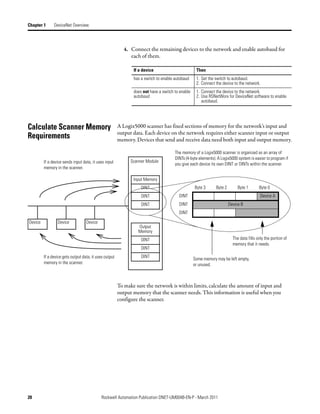
Calculate Scanner Memory                                A Logix5000 scanner has fixed sections of memory for the network’s input and
                                                        output data. Each device on the network requires either scanner input or output
Requirements                                            memory. Devices that send and receive data need both input and output memory.

                                                                                      The memory of a Logix5000 scanner is organized as an array of
                                                                                      DINTs (4-byte elements). A Logix5000 system is easier to program if
         If a device sends input data, it uses input          Scanner Module
                                                                                      you give each device its own DINT or DINTs within the scanner.
         memory in the scanner.

                                                               Input Memory
                                                                   DINT                           Byte 3      Byte 2        Byte 1       Byte 0
                                                                   DINT                 DINT                                              Device A
                                                                   DINT                 DINT                           Device B
                                                                                        DINT

Device           Device            Device
                                                                 Output
                                                                 Memory
                                                                   DINT                                                  The data fills only the portion of
                                                                                                                         memory that it needs.
                                                                   DINT
         If a device gets output data, it uses output              DINT
                                                                                                  Some memory may be left empty,
         memory in the scanner.                                                                   or unused.


                                                        To make sure the network is within limits, calculate the amount of input and
                                                        output memory that the scanner needs. This information is useful when you
                                                        configure the scanner.


20                                          Rockwell Automation Publication DNET-UM004B-EN-P - March 2011
DeviceNet Overview       Chapter 1


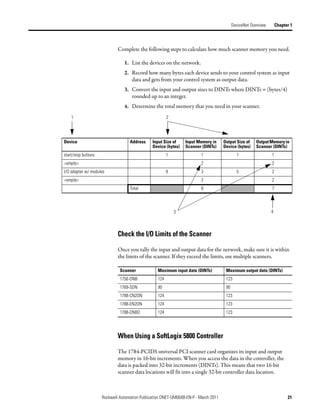
                             Complete the following steps to calculate how much scanner memory you need.

                                1. List the devices on the network.
                                2. Record how many bytes each device sends to your control system as input
                                   data and gets from your control system as output data.
                                3. Convert the input and output sizes to DINTs where DINTs = (bytes/4)
                                   rounded up to an integer.
                                4. Determine the total memory that you need in your scanner.
    1                                                   2


Device                             Address     Input Size of    Input Memory in      Output Size of    Output Memory in
                                               Device (bytes)   Scanner (DINTs)      Device (bytes)    Scanner (DINTs)
start/stop buttons                                      1                1                   1                  1
<empty>                                                                  2                                      2
I/O adapter w/ modules                                  9               3                    5                  2
<empty>                                                                  2                                      2
                                   Total                                 8                                      7


                                                            3                                                   4


                             Check the I/O Limits of the Scanner

                             Once you tally the input and output data for the network, make sure it is within
                             the limits of the scanner. If they exceed the limits, use multiple scanners.

                              Scanner             Maximum input data (DINTs)          Maximum output data (DINTs)
                              1756-DNB            124                                 123
                              1769-SDN            90                                  90
                              1788-CN2DN          124                                 123
                              1788-EN2DN          124                                 123
                              1788-DNBO           124                                 123


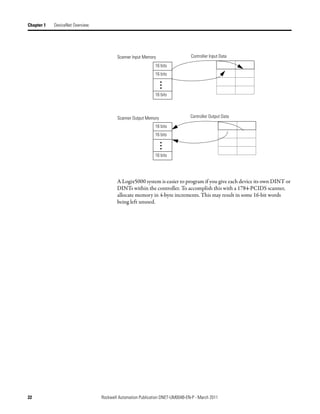
                             When Using a SoftLogix 5800 Controller

                             The 1784-PCIDS universal PCI scanner card organizes its input and output
                             memory in 16-bit increments. When you access the data in the controller, the
                             data is packed into 32-bit increments (DINTs). This means that two 16-bit
                             scanner data locations will fit into a single 32-bit controller data location.


                     Rockwell Automation Publication DNET-UM004B-EN-P - March 2011                                        21
Chapter 1   DeviceNet Overview


                                         Scanner Input Memory                  Controller Input Data

                                                             16 bits
                                                             16 bits


                                                             16 bits


                                         Scanner Output Memory                 Controller Output Data

                                                             16 bits
                                                             16 bits


                                                             16 bits


                                         A Logix5000 system is easier to program if you give each device its own DINT or
                                         DINTs within the controller. To accomplish this with a 1784-PCIDS scanner,
                                         allocate memory in 4-byte increments. This may result in some 16-bit words
                                         being left unused.


22                               Rockwell Automation Publication DNET-UM004B-EN-P - March 2011
DeviceNet Overview        Chapter 1


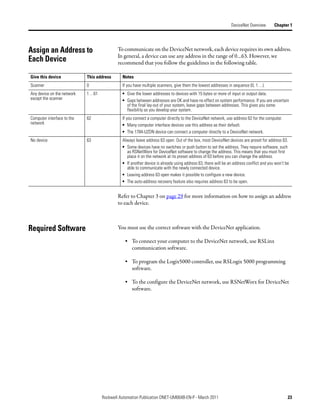
Assign an Address to                       To communicate on the DeviceNet network, each device requires its own address.
                                           In general, a device can use any address in the range of 0…63. However, we
Each Device                                recommend that you follow the guidelines in the following table.

Give this device            This address     Notes
Scanner                     0                If you have multiple scanners, give them the lowest addresses in sequence (0, 1…).
Any device on the network   1…61             • Give the lower addresses to devices with 15 bytes or more of input or output data.
except the scanner                           • Gaps between addresses are OK and have no effect on system performance. If you are uncertain
                                               of the final lay-out of your system, leave gaps between addresses. This gives you some
                                               flexibility as you develop your system.
Computer interface to the   62               If you connect a computer directly to the DeviceNet network, use address 62 for the computer.
network                                      • Many computer interface devices use this address as their default.
                                             • The 1784-U2DN device can connect a computer directly to a DeviceNet network.
No device                   63               Always leave address 63 open. Out of the box, most DeviceNet devices are preset for address 63.
                                             • Some devices have no switches or push button to set the address. They require software, such
                                               as RSNetWorx for DeviceNet software to change the address. This means that you must first
                                               place it on the network at its preset address of 63 before you can change the address.
                                             • If another device is already using address 63, there will be an address conflict and you won’t be
                                               able to communicate with the newly connected device.
                                             • Leaving address 63 open makes it possible to configure a new device.
                                             • The auto-address recovery feature also requires address 63 to be open.


                                           Refer to Chapter 3 on page 29 for more information on how to assign an address
                                           to each device.


Required Software                          You must use the correct software with the DeviceNet application.

                                               • To connect your computer to the DeviceNet network, use RSLinx
                                                 communication software.

                                               • To program the Logix5000 controller, use RSLogix 5000 programming
                                                 software.

                                               • To the configure the DeviceNet network, use RSNetWorx for DeviceNet
                                                 software.


                                   Rockwell Automation Publication DNET-UM004B-EN-P - March 2011                                               23
Chapter 1   DeviceNet Overview


Notes:


24                               Rockwell Automation Publication DNET-UM004B-EN-P - March 2011
Chapter        2

        Connect a Computer to the DeviceNet
        Network


        This chapter shows how to connect a computer to the network. After you
        physically connect a computer to the network, you must configure a driver in
        RSLinx communication software to communicate over the network.

         Topic                                                  Page
         Connection Options                                     26
         Set Up the DeviceNet Driver                            27


        After you connect a computer to the network and configure a driver in RSLinx
        communication software, you can complete these tasks:
           • Configure the devices on the network
           • Configure network parameters
           • Upload, download, monitor, and program projects for Logix5000
               controllers

        Some networks let you bridge to other networks in your system. This lets you
        connect to one network and access devices or controllers on other networks.


Rockwell Automation Publication DNET-UM004B-EN-P - March 2011                          25
Chapter 2   Connect a Computer to the DeviceNet Network


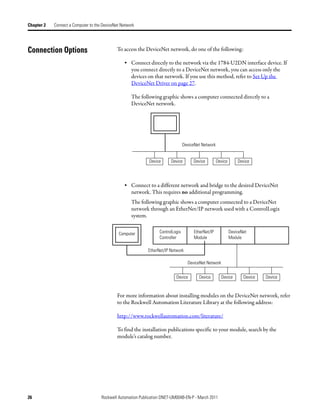
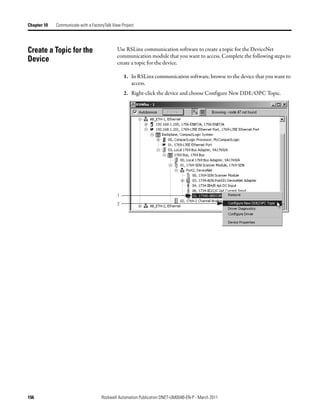
Connection Options                           To access the DeviceNet network, do one of the following:

                                                 • Connect directly to the network via the 1784-U2DN interface device. If
                                                   you connect directly to a DeviceNet network, you can access only the
                                                   devices on that network. If you use this method, refer to Set Up the
                                                   DeviceNet Driver on page 27.

                                                     The following graphic shows a computer connected directly to a
                                                     DeviceNet network.


                                                                                  DeviceNet Network


                                                              Device     Device        Device         Device       Device


                                                 • Connect to a different network and bridge to the desired DeviceNet
                                                   network. This requires no additional programming.
                                                     The following graphic shows a computer connected to a DeviceNet
                                                     network through an EtherNet/IP network used with a ControlLogix
                                                     system.


                                              Computer             ControlLogix        EtherNet/IP             DeviceNet
                                                                   Controller          Module                  Module

                                                             EtherNet/IP Network

                                                                                    DeviceNet Network


                                                                            Device        Device        Device        Device   Device


                                             For more information about installing modules on the DeviceNet network, refer
                                             to the Rockwell Automation Literature Library at the following address:

                                             http://www.rockwellautomation.com/literature/

                                             To find the installation publications specific to your module, search by the
                                             module’s catalog number.


26                                   Rockwell Automation Publication DNET-UM004B-EN-P - March 2011
Connect a Computer to the DeviceNet Network        Chapter 2


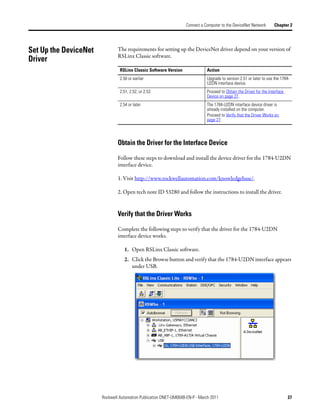
Set Up the DeviceNet           The requirements for setting up the DeviceNet driver depend on your version of
                               RSLinx Classic software.
Driver
                                RSLinx Classic Software Version               Action
                                2.50 or earlier                               Upgrade to version 2.51 or later to use the 1784-
                                                                              U2DN interface device.
                                2.51, 2.52, or 2.53                           Proceed to Obtain the Driver for the Interface
                                                                              Device on page 27.
                                2.54 or later                                 The 1784-U2DN interface device driver is
                                                                              already installed on the computer.
                                                                              Proceed to Verify that the Driver Works on
                                                                              page 27.


                               Obtain the Driver for the Interface Device

                               Follow these steps to download and install the device driver for the 1784-U2DN
                               interface device.

                               1. Visit http://www.rockwellautomation.com/knowledgebase/.

                               2. Open tech note ID 53280 and follow the instructions to install the driver.


                               Verify that the Driver Works

                               Complete the following steps to verify that the driver for the 1784-U2DN
                               interface device works.

                                  1. Open RSLinx Classic software.
                                  2. Click the Browse button and verify that the 1784-U2DN interface appears
                                     under USB.


                       Rockwell Automation Publication DNET-UM004B-EN-P - March 2011                                           27
Chapter 2   Connect a Computer to the DeviceNet Network


Notes:


28                                   Rockwell Automation Publication DNET-UM004B-EN-P - March 2011
Chapter     3

                                   Connect Devices to the Network


                                   This chapter describes how to connect a device to the network and set the device’s
                                   address so it can communicate on the DeviceNet network.

                                       Topic                                                            Page
                                       Before You Begin                                                 29
                                       Set the Node Address of a Device                                 30
                                       Make Sure Your Devices Are on Your Network                       36


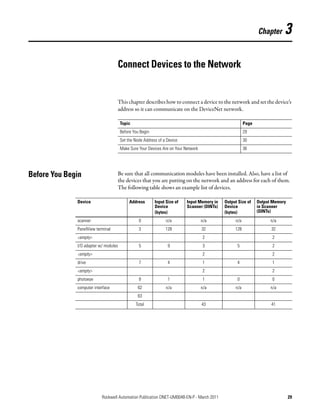
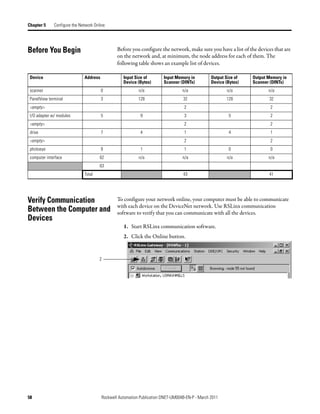
Before You Begin                   Be sure that all communication modules have been installed. Also, have a list of
                                   the devices that you are putting on the network and an address for each of them.
                                   The following table shows an example list of devices.

              Device                        Address       Input Size of    Input Memory in   Output Size of    Output Memory
                                                          Device           Scanner (DINTs)   Device            in Scanner
                                                          (bytes)                            (bytes)           (DINTs)

              scanner                            0              n/a                 n/a           n/a                n/a
              PanelView terminal                 3              128                 32            128                32
              <empty>                                                               2                                2
              I/O adapter w/ modules             5               9                  3              5                  2
              <empty>                                                               2                                2
              drive                              7               4                  1              4                 1
              <empty>                                                               2                                2
              photoeye                           9               1                  1              0                 0
              computer interface                62              n/a                 n/a           n/a                n/a
                                                63
                                               Total                                43                               41


                           Rockwell Automation Publication DNET-UM004B-EN-P - March 2011                                       29
Chapter 3   Connect Devices to the Network


Set the Node Address of                      You can use the following options to set the node address of DeviceNet devices.
                                             However, not all options apply to every DeviceNet device.
a Device
                                             For example, you can use all three options with the 1756-DNB ControlLogix
                                             DeviceNet scanner, but you can use only the second and third methods with the
                                             1769-SDN Compact I/O DeviceNet scanner.
                                                • Set Node Address via Hardware Mechanism
                                                • Set Node Address via Software
                                                • Set Node Address via DeviceNet Node Commissioning Tool

                                             All DeviceNet devices ship with their node addresses set to 63. To avoid duplicate
                                             node number conditions on the network, you should change the node address for
                                             each device to a unique number as you add it to the network.

                                              Give this address       To this device
                                              0                       Scanner
                                              1…61                    Devices
                                              62                      Computer interface to the network, such as a 1784-U2DN device
                                              63                      None
                                                                      Out of the box, a DeviceNet communication module is preset for address
                                                                      63. Leaving address 63 open lets you get a new device on the network
                                                                      without conflicting with another device.


                                             For more information about setting the node address of DeviceNet devices, refer
                                             to the Rockwell Automation Literature Library at the following address:

                                             http://www.rockwellautomation.com/literature/

                                             To find the publications specific to your module, search by the module’s catalog
                                             number.


                                             Set Node Address via Hardware Mechanism
                                             Many DeviceNet devices have a hardware mechanism that you can use to set the
                                             node address. If a device has a hardware mechanism to set the node address, use
                                             that mechanism.


30                                   Rockwell Automation Publication DNET-UM004B-EN-P - March 2011
Connect Devices to the Network        Chapter 3


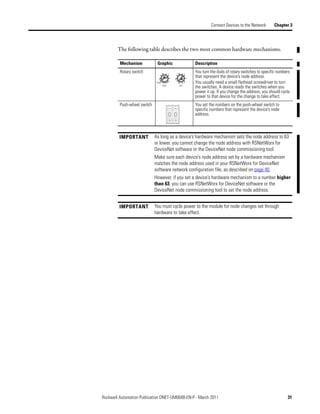
        The following table describes the two most common hardware mechanisms.

         Mechanism            Graphic                           Description
         Rotary switch              2     4       2         4
                                                                You turn the dials of rotary switches to specific numbers
                                              0
                                                                that represent the device’s node address.
                                0
                              PGM         6       8         6   You usually need a small flathead screwdriver to turn
                                    MSD               LSD
                                                                the switches. A device reads the switches when you
                                                                power it up. If you change the address, you should cycle
                                                                power to that device for the change to take effect.
         Push-wheel switch                                      You set the numbers on the push-wheel switch to
                                                                specific numbers that represent the device’s node
                                                                address.


         IMPORTANT           As long as a device’s hardware mechanism sets the node address to 63
                             or lower, you cannot change the node address with RSNetWorx for
                             DeviceNet software or the DeviceNet node commissioning tool.
                             Make sure each device’s node address set by a hardware mechanism
                             matches the node address used in your RSNetWorx for DeviceNet
                             software network configuration file, as described on page 40.
                             However, if you set a device’s hardware mechanism to a number higher
                             than 63, you can use RSNetWorx for DeviceNet software or the
                             DeviceNet node commissioning tool to set the node address.


         IMPORTANT           You must cycle power to the module for node changes set through
                             hardware to take effect.


Rockwell Automation Publication DNET-UM004B-EN-P - March 2011                                                          31
Chapter 3   Connect Devices to the Network


                                                 Set Node Address via Software

                                                 You can set a device’s node address in RSNetWorx for DeviceNet software.

                                                 IMPORTANT       Setting a device’s node address is only one task used when configuring a
                                                                 device with RSNetWorx for DeviceNet software.
                                                                 For complete information on how to configure all parameters with
                                                                 RSNetWorx for DeviceNet software, including setting a device’s node
                                                                 address, refer to Chapter 4 on page 37.

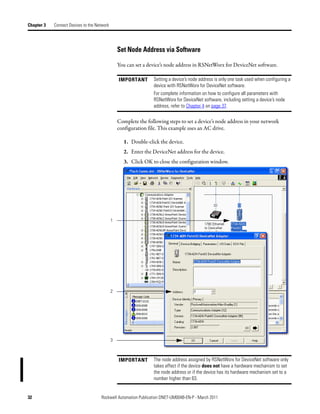
                                                 Complete the following steps to set a device’s node address in your network
                                                 configuration file. This example uses an AC drive.

                                                    1. Double-click the device.
                                                    2. Enter the DeviceNet address for the device.
                                                    3. Click OK to close the configuration window.


                                             1


                                             2


                                             3


                                                 IMPORTANT       The node address assigned by RSNetWorx for DeviceNet software only
                                                                 takes effect if the device does not have a hardware mechanism to set
                                                                 the node address or if the device has its hardware mechanism set to a
                                                                 number higher than 63.


32                                   Rockwell Automation Publication DNET-UM004B-EN-P - March 2011
Connect Devices to the Network   Chapter 3


        Set Node Address via DeviceNet Node Commissioning Tool

        You can use the DeviceNet node commissioning tool available in RSNetWorx for
        DeviceNet software to set the node addresses of devices on the DeviceNet
        network. Remember the following when you decide to use the DeviceNet node
        commissioning tool.

            • You can only use this tool with a DeviceNet network that is online.

            • You can only use this tool as you add new devices to the network that
              either do not have hardware mechanisms to set their node address or have
              their hardware mechanism set to a number higher than 63.

               If you add a device to the network with a hardware mechanism setting the
               node address to 63 or lower, this tool does not change the device’s node
               address.

            • You should complete the tasks described in this section each time a new
              device is added to the network.

            • If you add more than one device to the online network before using the
              DeviceNet node commissioning tool, you will experience duplicate node
              address conflicts on the network because all new devices initially use node
              address 63.

            • Keep track of the node addresses you set with the DeviceNet node
              commissioning tool and verify they match the device’s configuration in the
              RSNetWorx for DeviceNet software configuration file.


Rockwell Automation Publication DNET-UM004B-EN-P - March 2011                                   33
Chapter 3   Connect Devices to the Network


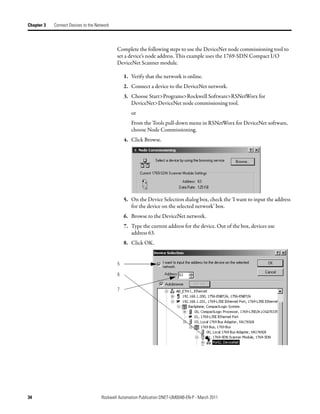
                                             Complete the following steps to use the DeviceNet node commissioning tool to
                                             set a device’s node address. This example uses the 1769-SDN Compact I/O
                                             DeviceNet Scanner module.

                                                 1. Verify that the network is online.
                                                 2. Connect a device to the DeviceNet network.
                                                 3. Choose Start>Programs>Rockwell Software>RSNetWorx for
                                                    DeviceNet>DeviceNet node commissioning tool.
                                                    or
                                                    From the Tools pull-down menu in RSNetWorx for DeviceNet software,
                                                    choose Node Commissioning.
                                                 4. Click Browse.


                                                 5. On the Device Selection dialog box, check the ‘I want to input the address
                                                    for the device on the selected network’ box.
                                                 6. Browse to the DeviceNet network.
                                                 7. Type the current address for the device. Out of the box, devices use
                                                    address 63.
                                                 8. Click OK.


                                             5

                                             6


                                             7


34                                   Rockwell Automation Publication DNET-UM004B-EN-P - March 2011
Connect Devices to the Network   Chapter 3


             9. When you return to the Node Commissioning dialog box, enter the new
                address for the device.
            10. Click Apply.
            11. Look for confirmation.


        9

        10


        11


            12. If you need to use the DeviceNet node commissioning tool to set another
                device’s node address, return to step 2 on page 34 and repeat the process.


Rockwell Automation Publication DNET-UM004B-EN-P - March 2011                                   35
Chapter 3   Connect Devices to the Network


Make Sure Your Devices                       Once you have assigned a node address to each device, make sure that the devices
                                             are communicating on the network. Complete these steps to make sure your
Are on Your Network                          devices are on the network.

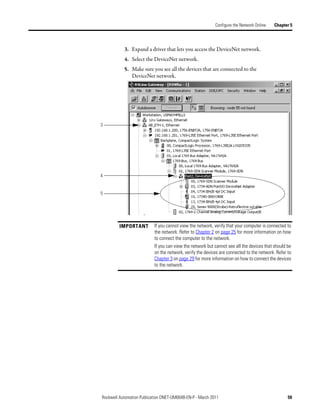
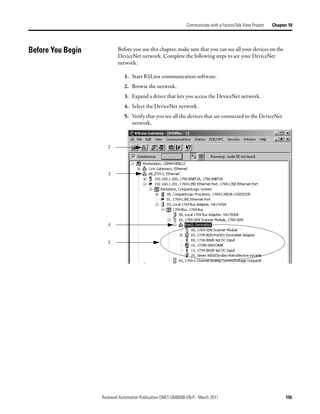
                                                1. Start RSLinx communication software.
                                                2. Go online.
                                                3. Expand a driver that lets you access the DeviceNet network.
                                                4. Browse to the DeviceNet network.
                                                5. Make sure you see all the devices that are connected to the DeviceNet
                                                   network.


                                    2


                                    3


                                    4


                                    5


36                                   Rockwell Automation Publication DNET-UM004B-EN-P - March 2011
Chapter     4

        Configure the Network Offline


        This chapter describes how to configure the network offline with RSNetWorx for
        DeviceNet software.
         Topic                                                        Page
         Before You Begin                                             38
         Create a File for the Network                                38
         Create Your Network in RSNetWorx for DeviceNet Software      39
         Configure Each Device                                        40
         Configure the Scanner                                        44
         Save the Configuration File                                  51
         Generate an RSNetWorx for DeviceNet Report                   51
         Download Configuration to Your Network                       55


Rockwell Automation Publication DNET-UM004B-EN-P - March 2011                       37
Chapter 4     Configure the Network Offline


Before You Begin                                Before you configure the DeviceNet network, make sure you have a list of the
                                                devices that you put on the DeviceNet network and, at minimum, the address for
                                                each. The following table shows an example list of devices.

 Device                         Address              Input Size of         Input Memory in       Output Size of   Output Memory in
                                                     Device (Bytes)        Scanner (DINTs)       Device (Bytes)   Scanner (DINTs)
 scanner                                  0                   n/a                  n/a                  n/a              n/a
 PanelView terminal                       3                   128                   32                  128              32
 <empty>                                                                            2                                     2
 I/O adapter w/ modules                   5                    9                    3                    5                2
 <empty>                                                                            2                                     2
 drive                                    7                    4                    1                    4                1
 <empty>                                                                            2                                     2
 photoeye                                 9                    1                    1                    0                0
 computer interface                       62                  n/a                  n/a                  n/a              n/a
                                          63
                                        Total                                       43                                   41


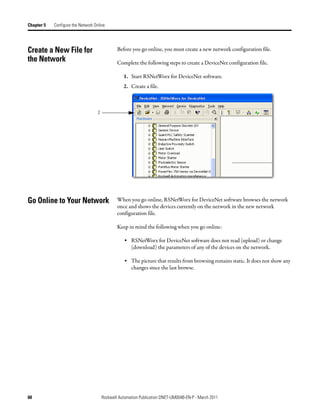
Create a File for                               Complete the following steps to create a DeviceNet configuration file.
the Network                                        1. Start RSNetWorx for DeviceNet software.
                                                   2. Create a file.
                                                   3. Select DeviceNet Configuration.


                                                   4. Click OK.
                                                   5. Save the file.
                                                       Make sure you give the file a name that identifies this specific DeviceNet
                                                       network.


38                                      Rockwell Automation Publication DNET-UM004B-EN-P - March 2011
Configure the Network Offline   Chapter 4


Create Your Network in         Before you configure a DeviceNet communication module in RSNetWorx for
                               DeviceNet software, you must add it to the network configuration file.
RSNetWorx for DeviceNet
Software                       The finished picture should match the collection of devices that are or will be
                               physically connected to the DeviceNet network. If the network configuration file
                               you create offline does not match the physical collection of devices on the
                               network, you may experience issues when you go online with your project.

                               Complete the following steps to add each device to network configuration file.

                                  1. Browse the hardware list for the device.
                                  2. If there is a [+] sign next to the device, click the sign to expand the choices
                                     in that section.
                                  3. Double-click the major revision of the device.
                                     We recommend that the major revision of all devices added to the offline
                                     network match the devices that will be connected to the online network.
                                  4. For a device without a list of major revisions, that is, no [+] or [-] sign,
                                     double-click the device.


                           1
                           2


                           3


                           4


                     Rockwell Automation Publication DNET-UM004B-EN-P - March 2011                                    39
Chapter 4   Configure the Network Offline


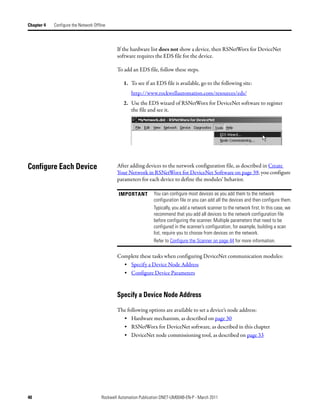
                                              If the hardware list does not show a device, then RSNetWorx for DeviceNet
                                              software requires the EDS file for the device.

                                              To add an EDS file, follow these steps.

                                                 1. To see if an EDS file is available, go to the following site:
                                                     http://www.rockwellautomation.com/resources/eds/
                                                 2. Use the EDS wizard of RSNetWorx for DeviceNet software to register
                                                    the file and see it.


Configure Each Device                         After adding devices to the network configuration file, as described in Create
                                              Your Network in RSNetWorx for DeviceNet Software on page 39, you configure
                                              parameters for each device to define the modules’ behavior.

                                               IMPORTANT         You can configure most devices as you add them to the network
                                                                 configuration file or you can add all the devices and then configure them.
                                                                 Typically, you add a network scanner to the network first. In this case, we
                                                                 recommend that you add all devices to the network configuration file
                                                                 before configuring the scanner. Multiple parameters that need to be
                                                                 configured in the scanner’s configuration, for example, building a scan
                                                                 list, require you to choose from devices on the network.
                                                                 Refer to Configure the Scanner on page 44 for more information.

                                              Complete these tasks when configuring DeviceNet communication modules:
                                                • Specify a Device Node Address
                                                • Configure Device Parameters


                                              Specify a Device Node Address

                                              The following options are available to set a device’s node address:
                                                • Hardware mechanism, as described on page 30
                                                • RSNetWorx for DeviceNet software, as described in this chapter
                                                • DeviceNet node commissioning tool, as described on page 33


40                                    Rockwell Automation Publication DNET-UM004B-EN-P - March 2011
Configure the Network Offline     Chapter 4


        All DeviceNet devices ship with their node addresses set to 63. To avoid duplicate
        node number conditions on the network, you should change the node address for
        each device to unique numbers.

         Give this address       To this device
         0                       Scanner
         1…61                    Your devices
         62                      Computer interface to the network, such as a 1784-U2DN device
         63                      None
                                 Out of the box, a DeviceNet communication module is preset for address
                                 63. Leaving address 63 open lets you get a new device on the network
                                 without conflicting with another device.


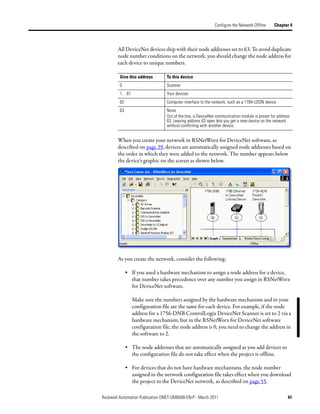
        When you create your network in RSNetWorx for DeviceNet software, as
        described on page 39, devices are automatically assigned node addresses based on
        the order in which they were added to the network. The number appears below
        the device’s graphic on the screen as shown below.


        As you create the network, consider the following:

              • If you used a hardware mechanism to assign a node address for a device,
                that number takes precedence over any number you assign in RSNetWorx
                for DeviceNet software.

                 Make sure the numbers assigned by the hardware mechanism and in your
                 configuration file are the same for each device. For example, if the node
                 address for a 1756-DNB ControlLogix DeviceNet Scanner is set to 2 via a
                 hardware mechanism, but in the RSNetWorx for DeviceNet software
                 configuration file, the node address is 0, you need to change the address in
                 the software to 2.

              • The node addresses that are automatically assigned as you add devices to
                the configuration file do not take effect when the project is offline.

              • For devices that do not have hardware mechanisms, the node number
                assigned in the network configuration file takes effect when you download
                the project to the DeviceNet network, as described on page 55.

Rockwell Automation Publication DNET-UM004B-EN-P - March 2011                                        41
Chapter 4   Configure the Network Offline


                                                Change a Device Node Address

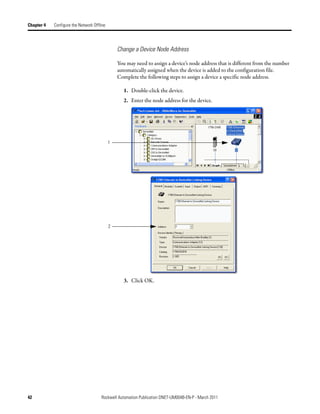
                                                You may need to assign a device’s node address that is different from the number
                                                automatically assigned when the device is added to the configuration file.
                                                Complete the following steps to assign a device a specific node address.

                                                   1. Double-click the device.
                                                   2. Enter the node address for the device.


                                            1


                                            2


                                                   3. Click OK.


42                                    Rockwell Automation Publication DNET-UM004B-EN-P - March 2011
Configure the Network Offline   Chapter 4


        Configure Device Parameters

        Complete the following steps to configure device parameters.

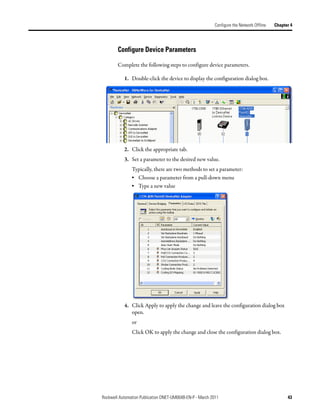
           1. Double-click the device to display the configuration dialog box.


           2. Click the appropriate tab.
           3. Set a parameter to the desired new value.
               Typically, there are two methods to set a parameter:
               • Choose a parameter from a pull-down menu
               • Type a new value


           4. Click Apply to apply the change and leave the configuration dialog box
              open.
               or
               Click OK to apply the change and close the configuration dialog box.


Rockwell Automation Publication DNET-UM004B-EN-P - March 2011                                    43
Chapter 4   Configure the Network Offline


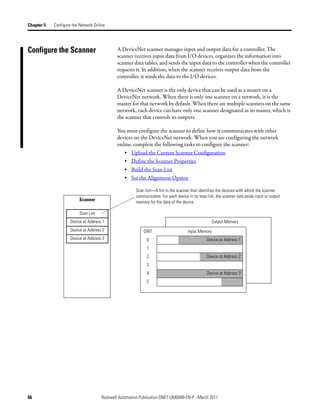
Configure the Scanner                            A DeviceNet scanner manages input and output data for a controller. The
                                                 scanner receives input data from I/O devices, organizes the information into
                                                 scanner data tables, and sends the input data to the controller when the controller
                                                 requests it. In addition, when the scanner receives output data from the
                                                 controller, it sends the data to the I/O devices.

                                                 A DeviceNet scanner is the only device that can be used as a master on a
                                                 DeviceNet network. When there is only one scanner on a network, it is the
                                                 master for that network by default. When there are multiple scanners on the same
                                                 network, each device can have only one scanner designated as its master, which is
                                                 the scanner that controls its outputs.

                                                 You must configure the scanner to define how it communicates with other
                                                 devices on the DeviceNet network. You must complete the following tasks to
                                                 configure the scanner to communicate with the devices on the network:
                                                    • Build the Scan List
                                                    • Set the Alignment Option
                                                    • Manually Assign Each Device to a Memory Location

                                                 IMPORTANT        Make sure you configure the scanner after you add all devices to the
                                                                  network. When you add a device to the network, it automatically appears
                                                                  in the list of available devices for the scanner’s scan list.
                                                                  If you build a scan list and then add another device to the network, it will
                                                                  not be included in the scan list until you repeat the steps in the next
                                                                  section.


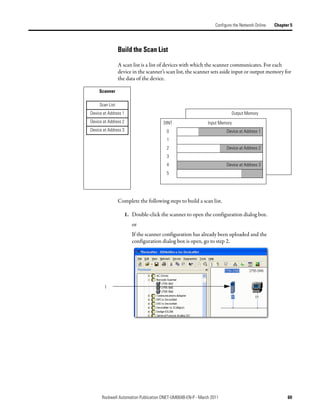
                                                 Build the Scan List

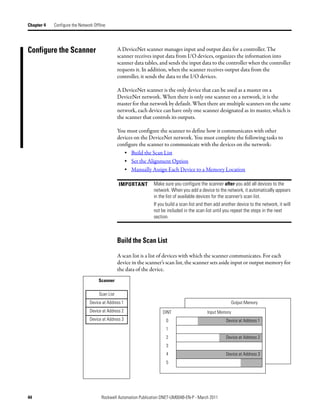
                                                 A scan list is a list of devices with which the scanner communicates. For each
                                                 device in the scanner’s scan list, the scanner sets aside input or output memory for
                                                 the data of the device.
                                     Scanner

                                     Scan List
                                Device at Address 1                                                         Output Memory
                                Device at Address 2                    DINT                    Input Memory
                                Device at Address 3                     0                                 Device at Address 1
                                                                        1
                                                                        2                                 Device at Address 2
                                                                        3
                                                                        4                                 Device at Address 3
                                                                        5


44                                    Rockwell Automation Publication DNET-UM004B-EN-P - March 2011
Configure the Network Offline   Chapter 4


         Complete the following steps to build a scan list.

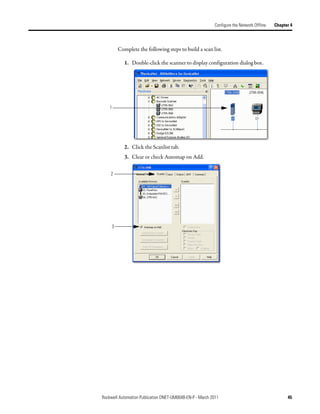
            1. Double-click the scanner to display configuration dialog box.


    1


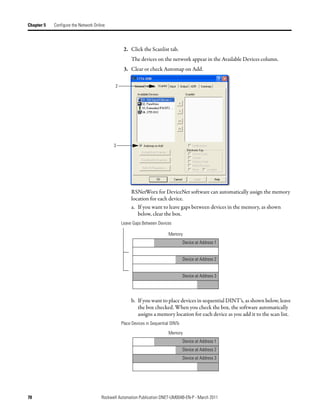
            2. Click the Scanlist tab.
            3. Clear or check Automap on Add.

    2


     3


Rockwell Automation Publication DNET-UM004B-EN-P - March 2011                                    45
Chapter 4   Configure the Network Offline


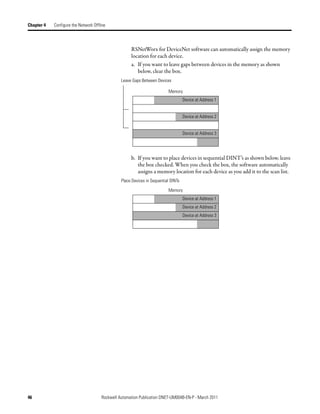
                                                     RSNetWorx for DeviceNet software can automatically assign the memory
                                                     location for each device.
                                                     a. If you want to leave gaps between devices in the memory as shown
                                                        below, clear the box.
                                                Leave Gaps Between Devices

                                                                          Memory
                                                                                    Device at Address 1


                                                                                    Device at Address 2


                                                                                    Device at Address 3


                                                     b. If you want to place devices in sequential DINT’s as shown below, leave
                                                        the box checked. When you check the box, the software automatically
                                                        assigns a memory location for each device as you add it to the scan list.
                                                Place Devices in Sequential DINTs

                                                                          Memory
                                                                                    Device at Address 1
                                                                                    Device at Address 2
                                                                                    Device at Address 3


46                                    Rockwell Automation Publication DNET-UM004B-EN-P - March 2011
Configure the Network Offline   Chapter 4


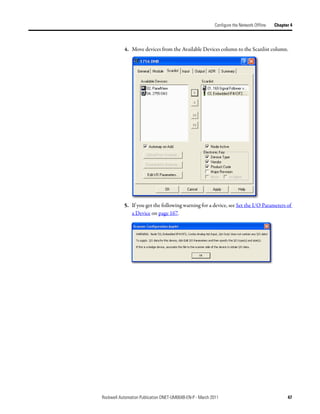
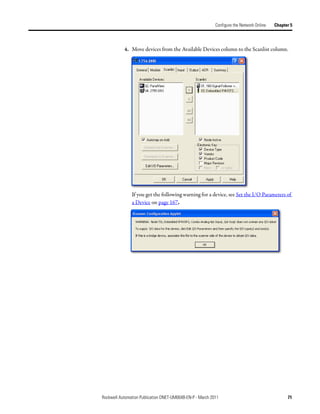
           4. Move devices from the Available Devices column to the Scanlist column.


           5. If you get the following warning for a device, see Set the I/O Parameters of
              a Device on page 167.


Rockwell Automation Publication DNET-UM004B-EN-P - March 2011                                    47
Chapter 4   Configure the Network Offline


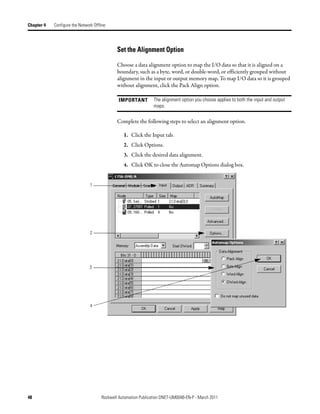
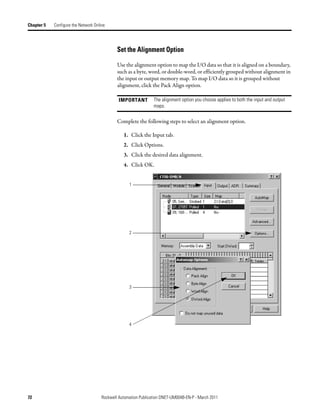
                                              Set the Alignment Option

                                              Choose a data alignment option to map the I/O data so that it is aligned on a
                                              boundary, such as a byte, word, or double-word, or efficiently grouped without
                                              alignment in the input or output memory map. To map I/O data so it is grouped
                                              without alignment, click the Pack Align option.

                                               IMPORTANT         The alignment option you choose applies to both the input and output
                                                                 maps.

                                              Complete the following steps to select an alignment option.

                                                 1. Click the Input tab.
                                                 2. Click Options.
                                                 3. Click the desired data alignment.
                                                 4. Click OK to close the Automap Options dialog box.


                                1


                                2


                                3


                                4


48                                    Rockwell Automation Publication DNET-UM004B-EN-P - March 2011
Configure the Network Offline   Chapter 4


            SoftLogix 5800 Controller

            The SoftLogix 5800 scanner 1784-PCIDS organizes its input and output
            memory in 16-bit words. For that scanner, click the Word Align option.


            Manually Assign Each Device to a Memory Location
            You can manually assign locations for device data.

             IMPORTANT            If you configured the software to automatically assign memory
                                  locations as devices are added, as described on page 45, skip
                                  this section.

               1. Click the Input tab.
               2. Select the device.


1


2


    Rockwell Automation Publication DNET-UM004B-EN-P - March 2011                                    49
Chapter 4   Configure the Network Offline


                                                   3. In the Start DWord field, enter the element number to which you want to
                                                      assign the data.
                                                      This is the starting point for the data. Larger data sizes wrap to several
                                                      elements. For example, to start the data in . . . Data[3], enter 3 in the Start
                                                      DWord box.
                                                   4. Click Automap.
                                                      An entry for the device appears in the input array.


                                            3

                                            4


                                                   5. Click the Output tab and repeat step 2 through step 4.
                                                   6. Click OK to complete the scanner configuration.

                                                Sometimes, a specific input or output value may end up as the upper bytes of a
                                                DINT in the scanner.


                                                To make your programming easier, use advanced mapping to re-map the value to
                                                its own memory location. For more information, see Map the Memory Location
                                                with Advanced Mapping on page 183.


50                                    Rockwell Automation Publication DNET-UM004B-EN-P - March 2011
Configure the Network Offline   Chapter 4


Save the Configuration File     After you configure each device on the network, including the scanner, save
                                the file.


Generate an RSNetWorx for       An RSNetWorx for DeviceNet report shows these items:
DeviceNet Report                   • Devices on the network
                                   • Memory addresses of those devices in the scanner
                                   • Device configurations

                                The report is a useful reference when you program your system. Complete the
                                following steps to generate a report.

                                   1. From the File menu in RSNetWorx for DeviceNet software, choose
                                      Generate Report.


                                   2. Click Generate report for entire network.


                        Rockwell Automation Publication DNET-UM004B-EN-P - March 2011                                    51
Chapter 4   Configure the Network Offline


                                                     The report appears in your web browser.


Go Online to Your Network                     When you are finished configuring the network configuration file offline, you
                                              may be ready to go online and download the network configuration file to the
                                              network.

                                               IMPORTANT         Before you can go online and download the network configuration file to
                                                                 the DeviceNet network, you must have completed the following tasks:
                                                                 • Connect a computer to the network, as described in Chapter 2
                                                                 • Connect all required devices to the network, as described in Chapter 3

                                              When you go online to a DeviceNet network, RSNetWorx for DeviceNet
                                              software browses the network once and shows the devices on the network.
                                              Remember the following when you go online:

                                                  • RSNetWorx for DeviceNet software does not read (upload) or change
                                                    (download) the parameters of any of the devices.

                                                  • The picture you see remains static. It does not show any changes since the
                                                    last browse.

                                                  • The network configuration file configured offline must match the picture
                                                    created when RSNetWorx for DeviceNet software browses the network.


52                                    Rockwell Automation Publication DNET-UM004B-EN-P - March 2011
Configure the Network Offline   Chapter 4


                Complete the following steps to go online.

                   1. Click the Online button.
                   2. Select the DeviceNet network.
                   3. Click OK.


1


2


3


                   4. When the pop-up message appears, click OK.


    4


        Rockwell Automation Publication DNET-UM004B-EN-P - March 2011                                    53
Chapter 4   Configure the Network Offline


                                                 5. Verify that you are online.


                                                                                5


54                                    Rockwell Automation Publication DNET-UM004B-EN-P - March 2011
Configure the Network Offline   Chapter 4


Download Configuration to     After you go online with the network configuration file you created while offline,
Your Network                  you can download the configuration to the network.

                               IMPORTANT            Before you download configuration to the network, make sure the
                                                    scanner is in Idle mode. To put the scanner in Idle mode, do one of the
                                                    following:
                                                    • Place the controller in program/remote program mode.
                                                    • Turn off the …O.CommandRegister.Run bit of the scanner.

                              Complete the following steps to download configuration to the DeviceNet
                              network.

                                 1. From the File menu in Network>Download to Network.


                                 2. When prompted, click Yes to download the entire network.


                      Rockwell Automation Publication DNET-UM004B-EN-P - March 2011                                      55
Chapter 4   Configure the Network Offline


Notes:


56                                    Rockwell Automation Publication DNET-UM004B-EN-P - March 2011
Chapter        5

        Configure the Network Online


        This chapter explains how to configure the network online with RSNetWorx for
        DeviceNet software.

         Topic                                                          Page
         Before You Begin                                               58
         Verify Communication Between the Computer and Devices          58
         Create a New File for the Network                              60
         Go Online to Your Network                                      60
         Configure Each Device                                          63
         Configure the Scanner                                          66
         Upload and Save the Configuration File                         76
         Generate an RSNetWorx for DeviceNet Report                     77


        Configuring the network online reduces the number of configuration tasks you
        must complete compared to configuring the network offline. Configuring the
        network online has these advantages:

            • Devices on the network automatically appear in your network
              configuration file as soon as you go online. You do not need to add the
              devices to the network configuration file.

            • The network configuration file automatically matches the physical setup of
              devices on the network as well as the major and minor revisions of the
              online devices.

            • The configuration is guaranteed to match the major and minor revisions of
              the online devices.

            • You can easily upload device configurations to your network configuration
              file, make changes to the configuration parameters, and download them to
              the device.


Rockwell Automation Publication DNET-UM004B-EN-P - March 2011                           57
Chapter 5     Configure the Network Online


Before You Begin                                Before you configure the network, make sure you have a list of the devices that are
                                                on the network and, at minimum, the node address for each of them. The
                                                following table shows an example list of devices.

 Device                       Address              Input Size of        Input Memory in          Output Size of   Output Memory in
                                                   Device (Bytes)       Scanner (DINTs)          Device (Bytes)   Scanner (DINTs)
 scanner                                0                  n/a                    n/a                    n/a             n/a
 PanelView terminal                     3                  128                    32                    128              32
 <empty>                                                                           2                                      2
 I/O adapter w/ modules                 5                   9                      3                     5                2
 <empty>                                                                           2                                      2
 drive                                  7                   4                      1                     4                1
 <empty>                                                                           2                                      2
 photoeye                               9                   1                      1                     0                0
 computer interface                    62                  n/a                    n/a                    n/a             n/a
                                       63
                              Total                                               43                                     41


Verify Communication                            To configure your network online, your computer must be able to communicate
                                                with each device on the DeviceNet network. Use RSLinx communication
Between the Computer and                        software to verify that you can communicate with all the devices.
Devices
                                                   1. Start RSLinx communication software.
                                                   2. Click the Online button.


                                       2


58                                      Rockwell Automation Publication DNET-UM004B-EN-P - March 2011
Configure the Network Online    Chapter 5


           3. Expand a driver that lets you access the DeviceNet network.
           4. Select the DeviceNet network.
           5. Make sure you see all the devices that are connected to the
              DeviceNet network.


3


4


5


         IMPORTANT         If you cannot view the network, verify that your computer is connected to
                           the network. Refer to Chapter 2 on page 25 for more information on how
                           to connect the computer to the network.
                           If you can view the network but cannot see all the devices that should be
                           on the network, verify the devices are connected to the network. Refer to
                           Chapter 3 on page 29 for more information on how to connect the devices
                           to the network.


Rockwell Automation Publication DNET-UM004B-EN-P - March 2011                                     59
Chapter 5   Configure the Network Online


Create a New File for                           Before you go online, you must create a new network configuration file.
the Network                                     Complete the following steps to create a DeviceNet configuration file.

                                                   1. Start RSNetWorx for DeviceNet software.
                                                   2. Create a file.


                                    2


Go Online to Your Network                       When you go online, RSNetWorx for DeviceNet software browses the network
                                                once and shows the devices currently on the network in the new network
                                                configuration file.

                                                Keep in mind the following when you go online:

                                                    • RSNetWorx for DeviceNet software does not read (upload) or change
                                                      (download) the parameters of any of the devices on the network.

                                                    • The picture that results from browsing remains static. It does not show any
                                                      changes since the last browse.


60                                      Rockwell Automation Publication DNET-UM004B-EN-P - March 2011
Configure the Network Online   Chapter 5


            Complete the following steps to go online.

               1. Click the Online button.
               2. Select the DeviceNet network.
               3. Click OK.


1


2


3


               4. When the pop-up message appears, click OK.


4


    Rockwell Automation Publication DNET-UM004B-EN-P - March 2011                                   61
Chapter 5   Configure the Network Online


                                                 5. Verify that you are online.


                                                                                5


62                                    Rockwell Automation Publication DNET-UM004B-EN-P - March 2011
Configure the Network Online   Chapter 5


Configure Each Device           Once the devices on the DeviceNet network appear in the network configuration
                                file, complete these tasks to change the configuration for a device:
                                     • Upload the Configuration of a Device
                                     • Change and Download Device Configuration


                                Upload the Configuration of a Device

                                When you configure the network online, the devices on the network have
                                parameters configured. Complete the following steps to upload configuration
                                from a device to the network configuration file.

                                   1. Double-click the device to open the configuration dialog box.
                                   2. Click the Parameters tab.


       1


       2


                        Rockwell Automation Publication DNET-UM004B-EN-P - March 2011                                   63
Chapter 5   Configure the Network Online


                                                  3. When prompted, upload the configuration from the device to the network
                                                     configuration file.


                                           3


                                               Change and Download Device Configuration

                                               After you upload a device’s configuration to the network configuration file, you
                                               can make changes to the configuration and download it.

                                               Complete the following steps to change and download new configuration
                                               parameters.

                                                  1. Double-click the device to open the configuration dialog box.
                                                     or
                                                     If the device configuration has already been uploaded and the
                                                     configuration dialog box is open, go to step 2.


                                           1


                                                     The configuration dialog box appears.
                                                  2. Click the appropriate tab.
                                                  3. Set a parameter to the desired new value.
                                                     Typically, there are two methods to change a parameter:
                                                     • Choose a parameter from a pull-down menu
                                                     • Type a new value
                                                  4. Apply the changes.
                                                  5. Click OK to close the dialog box.
                                                  6. When prompted, download the changes.


64                                    Rockwell Automation Publication DNET-UM004B-EN-P - March 2011
Configure the Network Online   Chapter 5


2


3


4


5


6


    Rockwell Automation Publication DNET-UM004B-EN-P - March 2011                                   65
Chapter 5   Configure the Network Online


Configure the Scanner                         A DeviceNet scanner manages input and output data for a controller. The
                                              scanner receives input data from I/O devices, organizes the information into
                                              scanner data tables, and sends the input data to the controller when the controller
                                              requests it. In addition, when the scanner receives output data from the
                                              controller, it sends the data to the I/O devices.

                                              A DeviceNet scanner is the only device that can be used as a master on a
                                              DeviceNet network. When there is only one scanner on a network, it is the
                                              master for that network by default. When there are multiple scanners on the same
                                              network, each device can have only one scanner designated as its master, which is
                                              the scanner that controls its outputs.

                                              You must configure the scanner to define how it communicates with other
                                              devices on the DeviceNet network. When you are configuring the network
                                              online, complete the following tasks to configure the scanner:
                                                 • Upload the Current Scanner Configuration
                                                 • Define the Scanner Properties
                                                 • Build the Scan List
                                                 • Set the Alignment Option

                                                        Scan list—A list in the scanner that identifies the devices with which the scanner
                                                        communicates. For each device in its scan list, the scanner sets aside input or output
                         Scanner
                                                        memory for the data of the device.

                          Scan List
                    Device at Address 1                                                              Output Memory
                    Device at Address 2                     DINT                       Input Memory
                    Device at Address 3                       0                                   Device at Address 1
                                                              1
                                                              2                                   Device at Address 2
                                                              3
                                                              4                                   Device at Address 3
                                                              5


66                                    Rockwell Automation Publication DNET-UM004B-EN-P - March 2011
Configure the Network Online   Chapter 5


            Upload the Current Scanner Configuration

            Complete the following steps to upload the current scanner configuration.

               1. Double-click the scanner to open the configuration dialog box.
               2. Click the Module tab.
               3. When prompted, upload the configuration from the scanner.


1


2


3


    Rockwell Automation Publication DNET-UM004B-EN-P - March 2011                                   67
Chapter 5   Configure the Network Online


                                                  Define the Scanner Properties

                                                  Complete the following steps to change the scanner properties, if necessary.

                                                     1. Click the Module tab.
                                                     2. Make the necessary changes.
                                                     3. Click Apply to make the changes.
                                                     4. When a message prompts you to indicate whether to download your
                                                        changes to the scanner, click No to continue configuring the scanner on
                                                        additional tabs.


                                      1


                                  2


                                  3


68                                        Rockwell Automation Publication DNET-UM004B-EN-P - March 2011
Configure the Network Online   Chapter 5


                 Build the Scan List

                 A scan list is a list of devices with which the scanner communicates. For each
                 device in the scanner’s scan list, the scanner sets aside input or output memory for
                 the data of the device.

     Scanner

     Scan List
Device at Address 1                                                       Output Memory
Device at Address 2                    DINT                  Input Memory
Device at Address 3                      0                             Device at Address 1
                                         1
                                         2                             Device at Address 2
                                         3
                                         4                             Device at Address 3
                                         5


                 Complete the following steps to build a scan list.

                      1. Double-click the scanner to open the configuration dialog box.
                         or
                         If the scanner configuration has already been uploaded and the
                         configuration dialog box is open, go to step 2.


        1


      Rockwell Automation Publication DNET-UM004B-EN-P - March 2011                                   69
Chapter 5   Configure the Network Online


                                                  2. Click the Scanlist tab.
                                                      The devices on the network appear in the Available Devices column.
                                                  3. Clear or check Automap on Add.

                                             2


                                            3


                                                      RSNetWorx for DeviceNet software can automatically assign the memory
                                                      location for each device.
                                                      a. If you want to leave gaps between devices in the memory, as shown
                                                         below, clear the box.
                                                 Leave Gaps Between Devices

                                                                           Memory
                                                                                     Device at Address 1


                                                                                     Device at Address 2


                                                                                     Device at Address 3


                                                      b. If you want to place devices in sequential DINT’s, as shown below, leave
                                                         the box checked. When you check the box, the software automatically
                                                         assigns a memory location for each device as you add it to the scan list.
                                                 Place Devices in Sequential DINTs

                                                                           Memory
                                                                                     Device at Address 1
                                                                                     Device at Address 2
                                                                                     Device at Address 3


70                                    Rockwell Automation Publication DNET-UM004B-EN-P - March 2011
Configure the Network Online   Chapter 5


           4. Move devices from the Available Devices column to the Scanlist column.


               If you get the following warning for a device, see Set the I/O Parameters of
               a Device on page 167.


Rockwell Automation Publication DNET-UM004B-EN-P - March 2011                                   71
Chapter 5   Configure the Network Online


                                              Set the Alignment Option

                                              Use the alignment option to map the I/O data so that it is aligned on a boundary,
                                              such as a byte, word, or double-word, or efficiently grouped without alignment in
                                              the input or output memory map. To map I/O data so it is grouped without
                                              alignment, click the Pack Align option.

                                               IMPORTANT         The alignment option you choose applies to both the input and output
                                                                 maps.

                                              Complete the following steps to select an alignment option.

                                                 1. Click the Input tab.
                                                 2. Click Options.
                                                 3. Click the desired data alignment.
                                                 4. Click OK.


                                                    1


                                                    2


                                                    3


                                                    4


72                                    Rockwell Automation Publication DNET-UM004B-EN-P - March 2011
Configure the Network Online   Chapter 5


        SoftLogix 5800 Controller

        In SoftLogix 5800 applications, the 1784-PCIDS scanner organizes its input and
        output memory in 16-bit words. For that scanner, click Word Align.


        Manually Assign Each Device to a Memory Location

        You can manually assign locations for device data.

         IMPORTANT            If you configured the software to automatically assign memory
                              locations as devices are added, as described on page 70, skip
                              this section.

        Complete the following steps to manually assign each device to a memory
        location.

           1. Click the Input tab.
           2. Select the device.


1


2


Rockwell Automation Publication DNET-UM004B-EN-P - March 2011                                   73
Chapter 5   Configure the Network Online


                                                  3. In the Start DWord field, enter the element number to which you want to
                                                     assign the data.
                                                      This is the starting point for the data. Larger data sizes wrap to several
                                                      elements. For example, to start the data in . . . Data[3], type 3 in the Start
                                                      DWord box.
                                                  4. Click Automap.
                                                      An entry for the device shows up in the input array.


                                   3
                                   4


                                                  5. Click the Output tab and repeat step 2 through step 4.
                                                  6. Click OK to complete scanner configuration.

                                               Sometimes, a specific input or output value may end up as the upper bytes of a
                                               DINT in the scanner.


                                               To make your programming easier, use advanced mapping to re-map the value to
                                               its own memory location. For more information, see Map the Memory Location
                                               with Advanced Mapping on page 183.


74                                     Rockwell Automation Publication DNET-UM004B-EN-P - March 2011
Configure the Network Online   Chapter 5


        Download the Configuration to the Scanner

         IMPORTANT            Make sure the scanner is in Idle mode. Complete one of the following
                              tasks to put the scanner in Idle mode:
                               • Turn off the …O.CommandRegister.Run bit of the scanner.
                               • Place the controller in program/remote program mode.

        Complete the following steps to download configuration to the scanner.

            1. Apply the changes.
            2. When the Scanner Configuration Applet warning appears, click Yes to
               download the changes to the device.
            3. Click OK.


        1


        2


        3


Rockwell Automation Publication DNET-UM004B-EN-P - March 2011                                   75
Chapter 5   Configure the Network Online


Upload and Save the                           Once you finish configuring the devices on the network, upload the entire
                                              network and save the file. This stores the configuration of each device in an
Configuration File                            offline file.

                                              Complete the following steps to upload and save the configuration file.

                                                 1. From the File menu in RSNetWorx for DeviceNet software, choose
                                                    Upload from Network.
                                                 2. When the warning appears, click Yes to upload the entire network.
                                                 3. Save the file.


                                       1


                                       2


76                                    Rockwell Automation Publication DNET-UM004B-EN-P - March 2011
Configure the Network Online   Chapter 5


Generate an RSNetWorx for     An RSNetWorx for DeviceNet software report shows these items:
DeviceNet Report                 • Devices on the network
                                 • Memory addresses of devices in the scanner
                                 • Device configurations

                              The report is a useful reference when you program your system. Complete the
                              following steps to generate a report.

                                 1. From the File menu in RSNetWorx for DeviceNet software, choose
                                    Generate Report.


                                 2. Click Generate report for entire network and click OK.


                                     The report appears in your web browser.


                      Rockwell Automation Publication DNET-UM004B-EN-P - March 2011                                   77
Chapter 5   Configure the Network Online


Notes:


78                                    Rockwell Automation Publication DNET-UM004B-EN-P - March 2011
Chapter      6

        Automatically Configure a DeviceNet
        Network


        This chapter provides a quick method for configuring a DeviceNet network. It
        uses the AutoScan feature to establish communication between the controller
        and the devices on the DeviceNet network with minimal steps.

         Topic                                                            Page
         How AutoScan Operates                                            80
         Determine If You Can Use AutoScan                                82
         How AutoScan Affects Your Network                                83
         Install the DeviceNet Node Commissioning Tool                    84
         Connect Devices to the Network                                   84
         Add the Scanner to the RSLogix 5000 Project                      89
         Enable AutoScan with RSLogix 5000 Software                       91
         Access Device Data                                               99
         Put the Scanner in Run Mode                                      100
         Additional Information About AutoScan                            101


        The DeviceNet AutoScan feature enables a scanner to automatically map a
        network of slave devices into its scan list without the use of RSNetWorx for
        DeviceNet software. This greatly improves the ease of setting up a DeviceNet
        network, especially networks comprised of simple devices.

        When the feature is enabled, a DeviceNet scanner continuously searches for
        devices on the network. Once a qualifying slave device is found, it is added to the
        scanner's scan list and its I/O data is mapped into a predefined location in the
        scanner's I/O memory table based on the device's node address.


Rockwell Automation Publication DNET-UM004B-EN-P - March 2011                            79
Chapter 6   Automatically Configure a DeviceNet Network


How AutoScan Operates                          IMPORTANT        AutoScan works only with 1756-DNB and 1769-SDN modules in Logix
                                                                controller applications.

                                              AutoScan is active when the feature is enabled and the scanner is in Idle mode.
                                              When active, the scanner attempts to connect to each device not enabled in the
                                              scan list. The scanner only checks for devices with node addresses between 0 and
                                              61, inclusive. The connections to these devices are made on a round-robin basis.

                                              When a device is found, the scanner gets the produced and consumed data sizes
                                              from the slave device’s Connection Object instances.

                                                  • If the produced data size is greater than the configured I/O allocation size,
                                                    the device is added to the scan list with a produced size set equal to the I/O
                                                    allocation size.

                                                      When this happens, an I/O connection is made with the device, but an
                                                      error occurs and error code #77 appears on the 1769-SDN for the device’s
                                                      node number.

                                                  • If the consumed data size is greater than the configured I/O allocation size,
                                                    then the node is rejected and not entered into the scan list.

                                              However, you can change the I/O allocation size, as described in Configure I/O
                                              Allocation Size Via the User Program, to accommodate the device with the
                                              largest produced and consumed data sizes in your scan list.

                                              For qualifying nodes, the scanner enters the device into the scan list and attempts
                                              to allocate an I/O connection using one of the following communication format
                                              choices in this particular order:
                                                  • Change Of State (COS) EPR = 250ms
                                                  • Poll EPR = 75ms
                                                  • Strobe EPR = 75ms
                                                  • Cyclic EPR = 500ms

                                                 EXAMPLE           If a photoeye is connected on a network that only supported strobed
                                                                   connections, the scanner executes the following tasks:
                                                                   • The scanner recognizes that a device exists for which memory is
                                                                     available for the node number with the configured allocation size
                                                                     on a network that is not currently mapped.
                                                                   • The scanner attempts to initiate both COS and polled connections
                                                                     first, but the strobed connection is selected as that is the only
                                                                     connection that the photoeye supported.


80                                   Rockwell Automation Publication DNET-UM004B-EN-P - March 2011
Automatically Configure a DeviceNet Network     Chapter 6


                                   The input and output data is mapped into the scanner's I/O data table based on
                                   the device's node address and the configured fixed mapping size. The DINT-
                                   based formula that is used with the CompactLogix controller for calculating the
                                   input or output data location is as follows:

                                   Input (Output) Offset = [(Node Address) x (Allocation Size)] / 4

EXAMPLE   When using the default fixed mapping size of 4 bytes, the input data for the devices shown in the example below is
          allocated in the 1769-SDN's input table as shown below. Notice node 1 is in the data map at DINT location 1, node 2
          at DINT location 2, and so on.


                                 01               02              03                05
          Notice that, in this example, node 4 is unused. However, the I/O memory slot remains allocated for it.


                                      IMPORTANT          If you are using a MicroLogix 1500 controller with a 1769-SDN
                                                         scanner, you must use the following WORD-based formula for
                                                         calculating the input or output data location:
                                                         Input (Output) Offset = ([(Node Address) x (Allocation Size)] / 2) + Data
                                                         Offset
                                                         In this formula the Data Offset = 66 for Input Offset and 2 for Output
                                                         Offset.


                                   The data offset value is used to account for scanners that have a fixed status field
                                   at the start of the input or output data, such as the 1769-SDN scanner.


                          Rockwell Automation Publication DNET-UM004B-EN-P - March 2011                                         81
Chapter 6   Automatically Configure a DeviceNet Network


Determine If You Can                          Make sure your network meets these requirements to use this chapter:
Use AutoScan                                    • You have completed all the tasks required to do the following:
                                                   – Connect a computer and devices to the network.
                                                   – Create a network configuration file.
                                                   – Go online.
                                                   – Download the configuration file to the network.
                                                      Refer to Chapter 2 through Chapter 5 to complete the tasks listed above.

                                                  • Your DeviceNet scanner must support the AutoScan feature. For more
                                                    information, refer to your firmware release notes.

                                                  • Your application uses RSLogix 5000 programming software, version 13
                                                    or later.

                                                  • The scanner’s I/O allocation size is configured to accommodate the input
                                                    and output data sizes of all devices on your DeviceNet network.

                                                      The default AutoScan setting allocates a 4-byte entry in both the input and
                                                      output memory maps in the scanner for each slave device detected on the
                                                      network. This default size is chosen to accommodate the default Logix
                                                      native data size of 32 bits, that is a DINT.
                                                      If you use a device that sends more than 4 bytes of input or output data,
                                                      such as an E3 Solid State Overload Relay (catalog number 193-ECxx), you
                                                      must change the I/O allocation size.


82                                   Rockwell Automation Publication DNET-UM004B-EN-P - March 2011
Automatically Configure a DeviceNet Network          Chapter 6


How AutoScan Affects                             As you use AutoScan, keep in mind the considerations described in the following
                                                table.
Your Network
Consideration                       Description
AutoScan clears the current         With AutoScan, the scanner automatically sets up communication with the devices on your DeviceNet network.
configuration.                      When you turn on the AutoScan option, the scanner removes any previous configuration that was done to the
                                    scanner.
AutoScan allocates a fixed memory   At its default setting, AutoScan allocates 1 DINT of input memory and 1 DINT of output memory for each device on
size for each device.               the DeviceNet network.

                                                                                           DINT                       Input Memory
                                                  The actual data for the device             0                                Device at Address 0
                                                  fills the portion that it needs and
                                                  the rest remains unused.                   1                                Device at Address 1
                                                                                             2                                Device at Address 2

The bytes/node value defines how    AutoScan lets you specify how much input and output memory to give to each address on your network.
much memory for each address.
                                              For example, if you specify 2                DINT                       Input Memory
                                              DINTs (8 bytes) per address, the               0                                Device at Address 0
                                              scanner sets aside 2 DINTs for
                                              each address.                                  1
                                                                                             2                                Device at Address 1
                                               The actual data for the device                3
                                               fills the portion that it needs
                                               and the rest remains unused.                  4                                Device at Address 2
                                                                                             5

New devices are automatically       While the scanner is in Idle mode, AutoScan continues to establish communication with devices that you connect
available.                          to the network, as long as the devices use input data and output data sizes that fit in the scanner’s I/O allocation
                                    size.
The Automatic Device Recovery       You have to use RSNetWorx for DeviceNet software to edit the configuration of the scanner to use the Automatic
(ADR) option is not available.      Device Recovery (ADR) option of a DeviceNet scanner. This turns off AutoScan.


                                       Rockwell Automation Publication DNET-UM004B-EN-P - March 2011                                                   83
Chapter 6   Automatically Configure a DeviceNet Network


Install the DeviceNet Node                    Use the DeviceNet node commissioning tool to set a device’s node address and
                                              baud rate when that device does not have a hardware mechanism to do so.
Commissioning Tool
                                              You can skip this step if either of the following conditions apply:

                                                  • All your devices have hardware mechanisms to set a node address and baud
                                                    rate. In this case, you do not need the tool.

                                                  • You already have the tool installed.

                                              Follow these steps to install the node commissioning tool.

                                                  1. On the RSLogix 5000 software CD, find the following folder where
                                                     language is the language of your software:
                                                      languageToolsNode Commissioning Tool
                                                      For example, for software in English, open the ENU folder.
                                                  2. Follow the instructions in the readmefirst file.


Connect Devices to                            When you use the AutoScan functionality, you should do the following:
the Network                                       • Install and configure the scanner and any network interface devices on the
                                                    network first.

                                                  • Install other devices on the network once the scanner and network
                                                    interface devices are on the network.


                                              Install a Scanner or Network Interface Devices

                                              Complete the following steps to install a scanner or network interface device on
                                              the DeviceNet network.

                                                  1. Connect the scanner and any network interface devices to the network.

                                                  2. Set a node address for the scanner and any network interface devices.
                                                      Out of the box, a DeviceNet device is preset for node address 63. To avoid
                                                      address conflicts, connect and configure the devices one at a time.
                                                      Otherwise, the address conflicts may prevent communication.


84                                   Rockwell Automation Publication DNET-UM004B-EN-P - March 2011
Automatically Configure a DeviceNet Network         Chapter 6


               The following addresses are recommended but not required.

                Give this address        To this device
                0                        Scanner.
                1…61                     Your devices.
                62                       Computer interface to the network, such as a 1784-U2DN or
                                         1788-PCIDS device.
                63                       Leave open. Out of the box, a DeviceNet communication module
                                         is preset for address 63. Leaving address 63 open lets you get a
                                         new device on the network without conflicting with another
                                         device.


               • Refer to Set the Node Address of a Device on page 30 for more
                 information on several options you can use to set the node address.
               • Refer to Set the Node Address and Baud Rate with the DeviceNet
                 Node Commissioning Tool on page 87 for more information on how to
                 use just the DeviceNet node commissioning tool.
           3. Set a baud rate for the scanner and any network interface devices.
               When setting baud rates, consider the following:
               • If you set the baud rate on the scanner or network interface device
                 before you install other devices on the network, you reduce the number
                 of baud rate errors.
               • Scanners and network interface devices use a fixed baud rate.
               • Sensors and similar DeviceNet communication modules use autobaud
                 to set their baud rate. They wait for another device to communicate.
                 Then they set their baud rate to the same baud rate as the other device.
               • By first placing a scanner or network interface device on the network,
                 the other device has a network baud rate against which to set its baud
                 rate.
               • Initially, leave the baud rate of the scanner and network interface at the
                 default setting of 125KBps. If you want to change the baud rate, wait
                 until after you establish communication with all your devices at the
                 default setting (125K).
               • Refer to Set the Node Address and Baud Rate with the DeviceNet
                 Node Commissioning Tool on page 87 for more information.


Rockwell Automation Publication DNET-UM004B-EN-P - March 2011                                           85
Chapter 6   Automatically Configure a DeviceNet Network


                                              Install Other DeviceNet Devices

                                              Complete the following steps to install other devices on the DeviceNet network.

                                                  1. Connect the rest of your devices to the network one at a time.
                                                  2. Set a node address for each device after you add it to the network.
                                                      Out of the box, a DeviceNet device is preset for node address 63. To avoid
                                                      address conflicts, connect and configure the devices one at a time.
                                                      Otherwise, the address conflicts may prevent communication.
                                                      The following addresses are recommended but not required.

                                                          Give this address   To this device
                                                          0                   Scanner
                                                          1…61                Your devices
                                                          62                  Computer interface to the network, such as a 1784-U2DN or
                                                                              1788-PCIDS device
                                                          63                  Leave open. Out of the box, a DeviceNet communication module
                                                                              is preset for address 63. Leaving address 63 open lets you get a
                                                                              new device on the network without conflicting with another
                                                                              device.


                                                      • Refer to Set the Node Address of a Device on page 30 for more
                                                        information on how to use any of several options to set the node
                                                        address.
                                                      • Refer to Set the Node Address and Baud Rate with the DeviceNet
                                                        Node Commissioning Tool on page 87 for more information on how to
                                                        use the DeviceNet node commissioning tool.

                                                  3. Set a baud rate for each device after you add it to the network.
                                                      When setting baud rates, consider the following:
                                                      • Sensors and similar DeviceNet communication modules use autobaud
                                                        to set their baud rate. They wait for another device to communicate.
                                                        Then they set their baud rate to the same baud rate as the other device.
                                                      • If a device has a hardware mechanism to set its baud rate, set it to
                                                        autobaud, if available. Otherwise, set the device to the baud rate of the
                                                        network.
                                                      • After you change the address or baud rate of a device via a switch, cycle
                                                        power to the device.
                                                      • If a device has no hardware mechanism to set its address or baud rate,
                                                        Refer to Set the Node Address and Baud Rate with the DeviceNet
                                                        Node Commissioning Tool on page 87.
                                                      • After you set the address of a device, check its network status indicator.
                                                        Typically, a solid red indicator signifies an address conflict or problem
                                                        with the baud rate.


86                                   Rockwell Automation Publication DNET-UM004B-EN-P - March 2011
Automatically Configure a DeviceNet Network   Chapter 6


            Set the Node Address and Baud Rate with the DeviceNet Node
            Commissioning Tool
            Complete the following steps to set a node address and baud rate with the
            DeviceNet node commissioning tool.

               1. Start the node commissioning tool.
               2. Click Browse.


      2


               3. Check I want to input the address for the device on the selected network.
               4. Select the DeviceNet network.
               5. Enter the current address for the device.
                   Out of the box, a device uses address 63.
               6. Click OK.


3

4

5

6


    Rockwell Automation Publication DNET-UM004B-EN-P - March 2011                                   87
Chapter 6   Automatically Configure a DeviceNet Network


                                                  7. Enter the new address for the device.
                                                  8. Choose the baud rate for the device.
                                                  9. Click Apply.


                                        7
                                        8


                                        9


88                                   Rockwell Automation Publication DNET-UM004B-EN-P - March 2011
Automatically Configure a DeviceNet Network   Chapter 6


Add the Scanner to the               To access the data of the network, add the scanner to the I/O configuration of the
                                     controller.
RSLogix 5000 Project

                                     Add the Scanner to the I/O Configuration Folder

                                        1. Right-click the I/O Configuration folder and choose New Module.
                                        2. Select the type of scanner.
                                        3. Click OK.
                                        4. From the Major Revision pull-down menu, choose a scanner revision
                                           number.
                                        5. Click OK.

                         1


                         2


                         3


                     4

                         5


                             Rockwell Automation Publication DNET-UM004B-EN-P - March 2011                                   89
Chapter 6   Automatically Configure a DeviceNet Network


                                              Define the Properties of the Scanner

                                                  1. Type a name for the scanner.
                                                  2. Enter the scanner node number.
                                                  3. Enter the scanner slot number.
                                                  4. Enter the scanner minor revision.
                                                  5. Enter the size of the input and output memory maps that the scanner will
                                                     allocate for each device it detects on the network.
                                                      Valid values range from 0…32 bytes per node.
                                                  6. If you need to make additional configuration changes, such as setting the
                                                     Requested Packet Interval (RPI), check Open Module Properties.
                                                  7. Click OK.


            1
                                                                                                                            5


            2


            3
            4


            6
            7

                                                  8. If the Module Properties dialog box appears, make any additional
                                                     configuration changes.


90                                   Rockwell Automation Publication DNET-UM004B-EN-P - March 2011
Automatically Configure a DeviceNet Network    Chapter 6


Enable AutoScan with            To enable AutoScan with RSLogix 5000 software, follow these steps.
RSLogix 5000 Software              1. Save changes to your RSLogix 5000 project.
                                   2. Download the project to the Logix5000 controller.

                                        IMPORTANT          In the following steps, you clear any existing configuration from
                                                           the scanner and reconfigure it to communicate with the devices
                                                           on the network. In the controller, this may change the tag
                                                           addresses of the devices. If you have already programmed your
                                                           logic, make sure that it still addresses the correct data.

                                   3. Double-click the scanner in the Controller Organizer to access
                                      its properties.
                                   4. Click the Scan List tab.
                                       A blue dot in the Nodes in Scan List section indicates a device that the
                                       scanner now controls.
                                   5. Check Enable AutoScan.
                                   6. When the Enable AutoScan warning appears, click OK.


                        Rockwell Automation Publication DNET-UM004B-EN-P - March 2011                                      91
Chapter 6   Automatically Configure a DeviceNet Network


                                3


                                4


                                5


                                6


92                                   Rockwell Automation Publication DNET-UM004B-EN-P - March 2011
Automatically Configure a DeviceNet Network   Chapter 6


Initiate AutoScan via the       The DeviceNet AutoScan feature enables a scanner to automatically map a
                                network of slave devices into its scan list without the use of RSNetWorx for
User Program                    DeviceNet software. This greatly improves the ease of setting up a DeviceNet
                                network, especially networks comprised of simple devices.

                                When the feature is enabled, a DeviceNet scanner continuously searches for
                                devices on the network. Once a qualifying slave device is found, it is added to the
                                scanner's scan list and, based on the device's node address, its I/O data is mapped
                                into a predefined location in the scanner's I/O memory table.


                                Implementing AutoScan

                                To implement this feature, make sure that the appropriate version of DeviceNet
                                scanner is used. See page 97 for the list of compatible products supporting this
                                feature.

                                This section describes how to set up the feature and how it operates. Notice that
                                explicit messaging is used for some of the steps. An explicit message can be sent
                                on a DeviceNet network in the following ways:
                                   • A user ladder program
                                   • External programming/configuration devices, such as the hand-held
                                       DeviceNet Configuration Terminal, catalog number 193-DNCT
                                   • RSNetWorx for DeviceNet software

                                Since the purpose of the feature is to eliminate the use of RSNetWorx for
                                DeviceNet software, instructions on how to send an explicit message via the class
                                instance editor in the software are not covered in this document.


                        Rockwell Automation Publication DNET-UM004B-EN-P - March 2011                                   93
Chapter 6   Automatically Configure a DeviceNet Network


                                              To implement the feature, follow these steps.

                                                  1. Set up the physical network.
                                                      Make sure all devices are addressed appropriately. For example, be sure
                                                      there are no address conflicts and devices are communicating at the same
                                                      baud rate.
                                                      The diagram below shows an example system using the 1756-DNB
                                                      scanner.


                                                                         00


                                                                                                    04
                                                              01
                                                                         02


                                                                                   03

                                                      You can commission the node addresses via hardware switches on the
                                                      devices or through other DeviceNet configurators, such as the hand-held
                                                      DeviceNet Configuration Terminal. For more information on how to set
                                                      up the DeviceNet Configuration Terminal’s node address, see the
                                                      DeviceNet Configuration Terminal User Manual, publication 193-
                                                      UM009A-EN-P.
                                                  2. Set up I/O allocation size in the scanner.

                                                           TIP             This step is optional.

                                                      The default AutoScan setting allocates a 4-byte entry in both the input and
                                                      output memory maps in the scanner for each slave device detected on the
                                                      network. This default size is chosen to accommodate the default Logix
                                                      native data size of 32 bits (DINT). If that is adequate for the application,
                                                      go to step 3.
                                                      For applications where you want to customize the I/O allocation size, the
                                                      4-byte allocation can be adjusted through an explicit message to the
                                                      scanner using the SetAttributeSingle service. The entry allocation can be
                                                      configured for 1 to 32 bytes per node.
                                                      Configure the allocation size using one of these methods:
                                                      • Configure I/O Allocation Size Via the User Program
                                                      • Configure I/O Allocation Via a DeviceView Configurator


94                                   Rockwell Automation Publication DNET-UM004B-EN-P - March 2011
Automatically Configure a DeviceNet Network     Chapter 6


        Configure I/O Allocation Size Via the User Program

        Use the parameters shown in the Message Configuration dialog box below to
        adjust the I/O allocation size. Make sure that the message is sent to the
        appropriate DeviceNet scanner.


                                                                                  This data tag should
                                                                                  be configured as an
                                                                                  SINT, and should
                                                                                  contain the value of
                                                                                  the desired per-
                                                                                  node fixed mapping
                                                                                  size (1 - 32).


        Configure I/O Allocation Via a DeviceView Configurator

        Rockwell Automation offers the hand-held DeviceNet Configuration Terminal,
        catalog number 193-DNCT, to configure individual devices on a DeviceNet
        network.

        To configure the I/O allocation size, attach a configurator device on the network
        and send an explicit message to the scanner by using the parameters below. Send
        the desired allocation size (1…32 bytes) to the attribute below to configure the
        per-node I/O allocation.

         Field                                        Value
         Service Code                                 10 Hex
         Class                                         90 Hex
         Instance                                     1
         Attribute                                    11 Hex


Rockwell Automation Publication DNET-UM004B-EN-P - March 2011                                       95
Chapter 6   Automatically Configure a DeviceNet Network


                                              For more information on how to use the DeviceNet Configuration Terminal,
                                              refer to these publications:
                                                  • 193-DNCT DeviceNet Configuration Terminal Quick Reference,
                                                     publication 193-QR002A-EN-P
                                                  • DeviceNet Programming Terminal User Manual, publication 193-
                                                     UM009A-EN-P

                                               IMPORTANT           You can change the I/O allocation size only when the scanner is in Idle
                                                                   mode, and the AutoScan feature is disabled.

                                                  3. Enable AutoScan.
                                                      This is accomplished by executing an explicit message to the scanner by
                                                      using the SetAttributeSingle service. As mentioned before, there are
                                                      multiple ways to send an explicit message on DeviceNet, including the
                                                      following:
                                                      • Initiate AutoScan Via the User Program
                                                      • Initiate AutoScan via the DeviceView Configurator

                                              Initiate AutoScan Via the User Program

                                              To enable AutoScan by using the MSG instruction, use the parameters shown
                                              below and make sure that the message is sent to the appropriate DeviceNet
                                              scanner. The figure shown below is from RSLogix 5000 software. Refer to the
                                              appropriate user manuals to determine how to perform explicit messaging in
                                              other PLC platforms.


                                                                                                                       This data tag should
                                                                                                                       be configured as a
                                                                                                                       SINT. Upon
                                                                                                                       execution of the
                                                                                                                       MSG, AutoScan is:
                                                                                                                       Enabled if tag = 1
                                                                                                                       Disabled if tag = 0


96                                   Rockwell Automation Publication DNET-UM004B-EN-P - March 2011
Automatically Configure a DeviceNet Network      Chapter 6


        Initiate AutoScan via the DeviceView Configurator

        To enable AutoScan by using a DeviceNet configurator, attach the device on the
        network and send an explicit message to the scanner using the parameters below.
        Send a 1 to that attribute to enable the feature, and 0 to disable.

         Field                                          Value
         Service Code                                   10 Hex
         Class                                          90 Hex
         Instance                                       1
         Attribute                                      11 Hex


        For more information on how to use the DeviceNet Configuration Terminal,
        refer to these publications:
            • 193-DNCT DeviceNet Configuration Terminal Quick Reference,
               publication 193-QR002A-EN-P
            • DeviceNet Programming Terminal User Manual, publication 193-
               UM009A-EN-P.

         IMPORTANT            You can change the I/O allocation size only when the scanner is in Idle
                              mode, and the AutoScan feature is disabled.

        Once the feature is enabled, the scanner scans the network to populate and
        configure the scan list automatically.
           4. Put scanner in RUN mode to begin system operation.


        Additional Considerations Regarding AutoScan

        The factory default setting for AutoScan is disabled for all products.

        Make sure that input or output data memory size in the scanner is large enough to
        accommodate the size required based on the number of nodes on the network
        and the AutoScan I/O allocation size per node.

          EXAMPLE           If the I/O allocation size per node is configured for 16 bytes and there are
                            32 slave devices on the network (node addresses 1…32), AutoScan
                            requires 16 bytes x 32 = 512 bytes (128 DINT) of I/O space in both the
                            scanner's input and output table. Assuming it is a ControlLogix system,
                            the maximum scanner input data table size is 124 DINT and 123 DINT for
                            output. The required space exceeds what the 1756-DNB can support.
                            You would need to adjust the I/O allocation size or reduce the slave
                            device count on the network to include all of the devices in the scan list.


Rockwell Automation Publication DNET-UM004B-EN-P - March 2011                                        97
Chapter 6   Automatically Configure a DeviceNet Network


                                                            ATTENTION: Devices outside of the scanner's allowable I/O image space
                                                            will be rejected and will not be included in the scan list.


                                              The AutoScan feature is automatically disabled in the scanner as soon as a scanner
                                              property is modified by RSNetWorx for DeviceNet software. For example, any
                                              manual changes to the scan list using RSNetWorx for DeviceNet software
                                              disables the AutoScan feature in the scanner.

                                              One new status code has been added to the Node Status list. This code is
                                              presented in the Node Status Table.

                                               Status Code (Decimal)                       Description of Status
                                               65                                          AutoScan Active (Scanner only status)


                                              When the scanner is in Run mode with AutoScan enabled, the scanner display
                                              alternates between 65 and the scanner node address.

                                              When a scanner is transitioned from Run mode to Idle mode while AutoScan is
                                              enabled, it only scans the network for nodes that are not already in the scan list.
                                              However, while in Idle mode, an AutoScan DISABLE to ENABLE transition
                                              causes the scanner to erase the existing scan list and scan for all nodes on the
                                              network.

                                              The AutoScan feature enables AAR (Auto-Address Recovery) for each of the
                                              configured slave devices.

                                              The AutoScan feature checks for the Quick Connect setting in each slave device
                                              and enables Quick Connect in the scanner if it is enabled in the slave devices.


98                                   Rockwell Automation Publication DNET-UM004B-EN-P - March 2011
Automatically Configure a DeviceNet Network        Chapter 6


Access Device Data                       When you add the scanner to the I/O configuration of the controller,
                                         RSLogix 5000 software automatically creates a set of tags for the input, output,
                                         and status data of the network.


                     Input data from the scanner

                     Output data for the scanner

                    Status data from the scanner


                                         The tags for your DeviceNet data follow this format.

                                          location                 :type       .Data              [dnet_address]                 .bit


                                                                                                                                        = Optional


Where          Is
location       location of the scanner in the system
               If you have this scanner            In a                    Then location is
               ControlLogix 1756-DNB               local chassis           Local:slot_number_of_scanner
                                                   remote chassis          adapter:slot_number_of_scanner
                                                                           where:
                                                                           adapter is the name of the EtherNet/IP or ControlNet module in the
                                                                           remote chassis.
type           type of data:
               Where                               Is
               input from a device                 I
               output to a device                  O
dnet_address   address of the device on the DeviceNet network (based on only 4 bytes per node)
bit            specific bit within the data of the device


                                         While you can use the input and output tags of the scanner directly in your logic,
                                         it is a lot easier to use alias tags. Alias tags can be used whether you use AutoScan
                                         or not to configure the scanner.


                               Rockwell Automation Publication DNET-UM004B-EN-P - March 2011                                                         99
Chapter 6     Automatically Configure a DeviceNet Network


Put the Scanner in                              To run the DeviceNet network, follow these steps.
Run Mode                                            1. Place the controller in Run or Remote Run mode.
                                                    2. Set the following bit of the output structure for the scanner.

                                                 If you want to                            The set this bit                       To
      To put the scanner in Run                  Run the network                           …O.CommandRegister.Run                 1
         mode, turn on this bit.
                                                 Not run the network (Idle mode)           …O.CommandRegister.Run                 0
                                                 Fault the network                         …O.CommandRegister.Fault               1
                                                 Not fault the network                     …O.CommandRegister.Fault               0
                                                 Disable the network                       …O.CommandRegister.DisableNetwork      1
                                                 Enable the network                        …O.CommandRegister.DisableNetwork      0
                                                 Halt the scanner (ceases all operation)   …O.CommandRegister.HaltScanner         1
                                                 Unhalt the scanner                        …O.CommandRegister.HaltScanner         0
                                                 Reset the scanner                         …O.CommandRegister.Reset               1
                                                 Resume operation after a reset            …O.CommandRegister.Reset               0


                                                    3. Check the scanner for Run mode.

 If you have this scanner                       Then this indicator                            Displays
 ControlLogix 1756-DNB                          4-character display                            RUN
 CompactLogix 1769-SDN                          2-character display                            its node number when in Run mode


100                                    Rockwell Automation Publication DNET-UM004B-EN-P - March 2011
Automatically Configure a DeviceNet Network   Chapter 6


Additional Information                         Type of Connection that the Scanner Sets Up
About AutoScan
                                               The type of update (connection) that the scanner sets up with each device
                                               depends on the device. The scanner chooses the first connection type that the
                                               device supports in this order:

                                                   1. Change-of-state (COS)
                                                   2. Polled
                                                   3. Strobed
                                                   4. Cyclic at 1000 ms

                                               The scanner tries to set up a change-of-state connection. If the device does not
                                               support change-of-state, then the scanner tries to set up a polled connection and
                                               so on. The type of connection that the scanner sets up may not be the default for
                                               the device.


                                               Allocating More Memory for Each Device

                                               The AutoScan feature is easiest to use if you leave it set to 1 DINT (4 bytes) of
                                               input memory and output memory for each address.


     Number of bytes of input memory and output memory to
                                allocate in for each address


                                      Rockwell Automation Publication DNET-UM004B-EN-P - March 2011                                  101
Chapter 6      Automatically Configure a DeviceNet Network


                                                    As an option, you can allocate more memory for each device.

 Consideration                                      Description
 The bytes/node value defines the amount of         AutoScan lets you specify how much input and output memory to give to each address on the
 memory for each address.                           network.

                                                                                              DINT                      Input Memory
                                                    For example, if you
                                                    specify 2 DINTs                             0                                Device at Address 0
                                                    (8 bytes) per address,
                                                    the scanner sets aside 2                    1
                                                    DINTs for each address.
                                                                                                2                                Device at Address 1
                                                     The actual data for the                    3
                                                     device fills the portion
                                                     that it needs and the                      4                                Device at Address 2
                                                     rest remains unused.
                                                                                                5


 The scanner sets-up communication with any         The scanner automatically sets up communication with those devices that fit within the memory
 device that fits within the allocated memory size. allocated for each address.
                                                    • For example, if you allocate 2 DINTs (8 bytes) per address, the scanner sets up communication with
                                                       any device that sends or receives 1…8 bytes of data.
                                                    • The scanner adds as many device as it can until it runs out of memory.
                                                    • If you give too much memory to each address, you may not have enough memory for all your
                                                       devices.
 The scanner skips devices that are too large.      If a device needs more memory than is allocated, the scanner skips it and does not set up
                                                    communication with it.
                                                    For example, if you specify 2 DINTs (8 bytes) per address but a device sends 9 bytes, the scanner does
                                                    not add the device to the scan list.
 Manually editing the scan list turns off AutoScan. If you use RSNetWorx for DeviceNet software to edit the configuration of the scanner, the scanner
                                                    turns off AutoScan. Do not turn it back on or you will clear the configuration that you just entered.
                                                    For example, if you use RSNetWorx for DeviceNet software to manually add a device to the scan list,
                                                    the scanner turns off AutoScan. If turn on AutoScan again, the scanner clears it current configuration
                                                    and starts over.


102                                        Rockwell Automation Publication DNET-UM004B-EN-P - March 2011
Chapter         7

        Control a Device


        Use this chapter to develop the logic that examines and controls your devices.

         Topic                                                          Page
         Before You Begin                                               104
         Determine the Address of DeviceNet Data                        109
         Determine If a Device Has Failed                               112
         Place the Scanner in Run Mode                                  113
         When to Use a MSG Instruction                                  113
         Determine the Parameter Number to Access                       114
         Determine the Configuration of the Parameter                   114
         Test the Parameter                                             116
         Enter Message Logic                                            117


Rockwell Automation Publication DNET-UM004B-EN-P - March 2011                            103
Chapter 7   Control a Device


Before You Begin                       Before you use this chapter, get the following information:
                                          • RSNetWorx Report for the Network
                                          • Data Map for Each of Your Devices


                                       RSNetWorx Report for the Network


                                       Data Map for Each of Your Devices


104                            Rockwell Automation Publication DNET-UM004B-EN-P - March 2011
Control a Device    Chapter 7


Add the Scanner to the           To access the data of the network, add the scanner to the controller’s I/O
                                 configuration in RSLogix 5000 programming software. However, you may need
Controller’s I/O                 to conserve bandwidth on the EtherNet/IP or ControlNet network.
Configuration
                                 Conserve EtherNet/IP or ControlNet Network Bandwidth

                                 The default configuration of the scanner gives you the maximum amount of
                                 input, output, and status data, as shown in the following graphic.


                                 If the scanner communicates with the controller via an EtherNet/IP or
                                 ControlNet network and you need to conserve bandwidth over that network,
                                 consider reducing the input, output, or status sizes.

                                     • Set the input and output sizes = the number of input and output DINTs in
                                       the scanner that actually store device data.

                                     • If you are not going to use all the status information, set the status size to
                                       the minimum required.

                                           EXAMPLE            If you want to use only the ASCII representation of scanner
                                                              status/display, set the status size to 10.
                                                              If you also want to read the status code of the scanner, set the
                                                              status size to 11.

                                 See Table 1 - Set the Status Size for a Scanner on page 106 for more information
                                 on how to change the status size of a scanner from the default values.


                         Rockwell Automation Publication DNET-UM004B-EN-P - March 2011                                    105
Chapter 7      Control a Device


Table 1 - Set the Status Size for a Scanner
 If you want the following information                                           Set the status     This setting gives you the following
                                                                                 size (DINTs) to    parameter values.
                                                                                 the following
                                                                                 value              Member                      Data Type

 Count of I/O scans                                                                     10          ScanCounter                 DINT
 Indication that a device has failed:                                                               DeviceFailureRegister       SINT[8]
 • There is 1 bit for each address on the DeviceNet network (0 - 63).
 • The position of a bit = address of a device.
 • If a bit = 1, then the device at that address has failed.
 Indication that the data size of a device does not match the amount of memory                      AutoverifyFailureRegister   SINT[8]
 allocated for the device in the scanner:
 • There is 1 bit for each address on the DeviceNet network (0 - 63).
 • The position of a bit = address of a device.
 • If a bit = 1, then their is a mismatch with that address.
 Indication that a device is idle:                                                                  DeviceIdleRegister          SINT[8]
 • There is 1 bit for each address on the DeviceNet network (0 - 63).
 • The position of a bit = address of a device.
 • If a bit = 1, then the device at that address is idle.
 Indication that a device is online:                                                                ActiveNodeRegister          SINT[8]
 • There is 1 bit for each address on the DeviceNet network (0 - 63).
 • The position of a bit = address of a device.
 • If a bit = 1, then the device at that address is online.
 ASCII representation of scanner status/display                                                     StatusDisplay               SINT[4]
 Address of the scanner                                                                 11          ScannerAddress              SINT
 Status code of scanner                                                                             ScannerStatus               SINT
 Address with an error:                                                                             ScrollingDeviceAddress      SINT
 • Scrolls through the addresses with errors
 • ScrollingDeviceStatus member shows the status code
 Status code of an address with an error:                                                           ScrollingDeviceStatus       SINT
 • Scrolls through addresses with errors
 • ScrollingDeviceAddress member shows the address
 Possible future expansion of the structure—5 DINTs                                     16
 Status code of lower 32 devices—1 byte per device                                      24          DeviceStatus                SINT[32]
 Status code of all devices—1 byte per device                                           32          DeviceStatus                SINT[64]


106                                        Rockwell Automation Publication DNET-UM004B-EN-P - March 2011
Control a Device   Chapter 7


            Add the Scanner to the I/O Configuration Folder

            Complete the following steps to add the scanner to the I/O configuration file.

               1. Right-click and choose New Module.
               2. Select the type of scanner.
               3. Click OK.
               4. From the Major Revision pull-down menu, choose a major revision
                  number for the scanner.
               5. Click OK.


1


2


3


4

5


    Rockwell Automation Publication DNET-UM004B-EN-P - March 2011                            107
Chapter 7   Control a Device


                                       Configure the Scanner

                                       Complete the following steps to configure the scanner.

                                          1. Type a name for the scanner.
                                          2. Enter a node number.
                                          3. Enter the slot number.
                                          4. Enter the minor revision.
                                          5. Enter the size of the input and output memory maps that the scanner will
                                             allocate for each device it detects on the network.
                                              Valid values range from 0…32 bytes per node.
                                          6. If you need to make additional configuration changes, such as setting the
                                             requested packet interval (RPI), check Open Module Properties.
                                          7. Click OK.


                 1
                                                                                                                    5


                 2


                 3
                 4


                 6
                 7

                                          8. If the Module Properties dialog box appears, make additional
                                             configuration changes.
                                              You can change scanner configuration on the following tabs:
                                              • General
                                              • Connection
                                              • RSNetWorx


108                            Rockwell Automation Publication DNET-UM004B-EN-P - March 2011
Control a Device     Chapter 7


Determine the Address of                             When you add the scanner to the I/O configuration of the controller,
                                                     RSLogix 5000 programming software automatically creates a set of tags for the
DeviceNet Data                                       input, output, and status data of the network.


                                Input Data from the Scanner

                                Output Data for the Scanner

                               Status Data from the Scanner


                                                     The tags for your DeviceNet data follow this format.

           The scanner memory uses this format...                                               which is this tag in the controller.

slot       type        .Data          [element]          .bit                location            :type         .Data         [element]           .bit


                                                                                                                                             = Optional


Where             Is
Slot              The slot number of the scanner
Location          If you have this scanner                      Then location is
                  Local ControlLogix 1756-DNB                   Local:slot_number_of_scanner
                  Remote ControlLogix 1756-DNB                  name_of_remote_bridge:slot_number_of_scanner
                  CompactLogix 1769-SDN                         Local:slot_number_of_scanner
                  SoftLogix 5800 1784-PCIDS                     Local:slot_number_of_scanner
                  Linking Device 1788-EN2DN or 1788-            The name of the linking device in the I/O configuration of the controller
                  CN2DN
Type              If the data is                                Then type is
                  Input from a device                           I
                  Output to a device                            O
                  The status of the network                     S
Element           A specific DINT (DWord, 32-bit integer) within the array
Bit               A specific bit within an integer


                                           Rockwell Automation Publication DNET-UM004B-EN-P - March 2011                                                109
Chapter 7      Control a Device


                                          Complete the following steps to determine the tag name, or address, for
                                          DeviceNet data.

                                             1. On the RSNetWorx report for the network, find the memory address for
                                                the input or output data of the device.
                                             2. Find the corresponding tag in the controller-scoped tags of the controller.
                                             3. Find the required data within the controller tag.
                                                 Use the data map for the device as a reference.


                             1


                             2

                             3


                   Local:2:I.Data[0] 0 0 0 0 0 0 0 0 0 0 0 0 0 0 0 0 0 0 0 0 0 0 0 0 0 0 0 0 0 0 0 0


  Data Map for
  Bulletin 160 AC drive


110                               Rockwell Automation Publication DNET-UM004B-EN-P - March 2011
Control a Device   Chapter 7


        SoftLogix 5800 Controller

        The SoftLogix 5800 scanner 1784-PCIDS organizes input and output memory
        in 16-bit words. It uses address format word.bit.

         Where                         Is
         Word                          INT (16-bit integer) with the memory of the scanner
         Bit                           A specific bit within an integer


        While you can use the input and output tags of the scanner directly in your logic,
        it is easier to use alias tags.


Rockwell Automation Publication DNET-UM004B-EN-P - March 2011                                     111
Chapter 7   Control a Device


Determine If a Device Has              If a DeviceNet communication device stops communicating, such as because of a
                                       device failure, the tag for the device stays at its last value. To make sure that your
Failed                                 input data is valid, we recommend that you buffer the input data and examine the
                                       device failure register.


                                                                                             Indication that a device has failed.
                                                                                             • There is 1 bit for each address on the
                                                                                                DeviceNet network.
                                                                                             • If a bit = 1, then the device at that address
                                                                                                has failed.

                                                                                                   Addresses 0 to 7
                                                                                                         Address 0
                                                                                                         Address 1


                                                                                                   Addresses 8 to 15


                                   On every scan of the controller, execute logic similar to the following:
                                   If PhotoEye_RawData = 1 and PhotoEye_Failed = 0 then
                                       PhoteEye = 1
                                   Otherwise PhoteEye = 0
                                   Use the PhotoEye tag in the rest of your logic (not PhotoEye_RawData).

                                                      Input Data from            Failure Bit for Device                Data for Your Logic
                                                          Device


112                            Rockwell Automation Publication DNET-UM004B-EN-P - March 2011
Control a Device   Chapter 7


Place the Scanner in                                Complete the following steps to run the DeviceNet network.
Run Mode                                                1. Set the following bit of the output structure for the scanner.

                                                     If you want to                                Set this bit                                To
    To put the scanner in Run
       mode, turn on this bit.                       Run the network                               …O.CommandRegister.Run                      1
                                                     Not run the network (idle mode)               …O.CommandRegister.Run                      0
                                                     Fault the network                             …O.CommandRegister.Fault                    1
                                                     Not fault the network                         …O.CommandRegister.Fault                    0
                                                     Disable the network                           …O.CommandRegister.DisableNetwork           1
                                                     Enable the network                            …O.CommandRegister.DisableNetwork           0
                                                     Halt the scanner (ceases all operation)       …O.CommandRegister.HaltScanner              1
                                                     Unhalt the scanner                            …O.CommandRegister.HaltScanner              0
                                                     Reset the scanner                             …O.CommandRegister.Reset                    1
                                                     Resume operation after a reset                …O.CommandRegister.Reset                    0


                                                        2. Place the controller in Run or Remote Run mode.


When to Use a MSG                                   If you want to set or get a parameter based on conditions in your logic, use a
                                                    Message (MSG) instruction in ladder logic to access the parameter.
Instruction
                                                                                      Controller     Scanner

                                 Logic in the controller triggers
                                      the read or write of data.                            MSG


                                                                                                                     DeviceNet Network


                                                                                                                                   Device
                                                                                                                                 Parameter 1
                                                                                                                                 Parameter 2
                                                                                                                                 Parameter 3
                                                                                                                                     …
                                                                                                                                     …
                                                                                                                                     …


                                                    Some parameters do not require ongoing updates. For example, initializing
                                                    configuration parameters may occur only when the controller goes to Run mode.
                                                    By using a MSG instruction for those parameters, you save bandwidth on the
                                                    DeviceNet network for more critical or ongoing data.


                                          Rockwell Automation Publication DNET-UM004B-EN-P - March 2011                                            113
Chapter 7   Control a Device


Determine the Parameter                        In RSNetWorx for DeviceNet software, determine the parameter number that
                                               you want to access. Some parameters are locked, as shown in the following
Number to Access                               graphic.


                                               Parameter Number


                           This symbol means you can only get the
                                value of the parameter (read-only).


Determine the                                  To get or set a parameter, you must find the following information about it:
Configuration of the                              • Class # (hex)
Parameter                                         • Instance # (hex)
                                                  • Attribute # (hex
                                                  • Number of bytes (size)
                                                  • Minimum value
                                                  • Maximum value
                                                  • Decimal places

                                               Some devices assume a specific number of decimal places in a value.

                                               In addition to the documentation for the device, the EDS file may also give you
                                               the required information.


114                                   Rockwell Automation Publication DNET-UM004B-EN-P - March 2011
Control a Device   Chapter 7


       Parameter #
             Class


          Instance
         Attribute
   Number of Bytes


Min and Max Values


Rockwell Automation Publication DNET-UM004B-EN-P - March 2011                           115
Chapter 7   Control a Device


Test the Parameter                         A simple way to make sure that you have the correct configuration for a
                                           parameter, such as data size or values, is to use the Class Instance editor in
                                           RSNetWorx for DeviceNet software.

                                           Complete the following steps to test the parameter.

                                              1. In RSNetWorx for DeviceNet software, go online to the DeviceNet
                                                 network.
                                              2. Right-click the device and choose Class Instance Editor.
                                              3. Type the class, instance, and attribute for the parameter.
                                              4. Change the parameter.
                                                 a. Choose Set Single Attribute.
                                                 b. Choose the number of bytes.
                                                 c. Type the new value in hexadecimal format.


                               1


                               2


                               3


                               4


116                                Rockwell Automation Publication DNET-UM004B-EN-P - March 2011
Control a Device   Chapter 7


                                                   5. From the Description pull-down menu, choose Get Single Attribute to
                                                      read the parameter.
                                                   6. Click Execute.
                                                   7. To change how output data is displayed, choose the size and format.


                                        5


                                        6


                                        7


Enter Message Logic                             To access the parameter of a device (get or set the parameter), configure the MSG
                                                instruction as CIP Generic.
       Change the current limit of the drive.


                                   Rockwell Automation Publication DNET-UM004B-EN-P - March 2011                                117
Chapter 7    Control a Device


                                                   You must complete the following tasks to configure the MSG instruction:
                                                      • Define the Source or Destination Data
                                                      • Enter and Configure the MSG Instruction
                                                      • Set the Communication Path


                                                   Define the Source or Destination Data
                                                                                         Tag that controls the instruction.
                                                                                               • Scope—Controller.
                                                                                              • Data type—MESSAGE.
                                                                                              • The tag cannot be part of an array or a user-
                                                                                                 defined data type.


                                                                                                 Source or destination for the data that the
                                                                                                 instruction sets or gets.
                                                                                                       • Scope—Controller.
                                                                                                       • Data type—In general, use the DINT
                                                                                                          data type, even when you set or get less
                                                                                                          than 4 bytes.
                                                                                                       • Value—Make sure the source value
                                                                                                          stays within the minimum and maximum
                                                                                                          values for the parameter that you are
                                                                                                          setting.

                                                                                                 Number of bytes (only if setting a value).


                                                   In general, follow these guidelines:
                                                       • Use the DINT data type for the source or destination tag, even when you
                                                         set or get less than 4 bytes.
                                                       • Make sure the source value stays within the minimum and maximum
                                                         values for the parameter that you are setting.

                                                   When setting a value, the CIP Generic MSG instruction takes only the specified
                                                   number of bits from the source tag.
                     MySource_1 0 0 0 0 0 0 0 0 0 0 0 0 0 0 0 0 0 0 0 0 0 0 0 0 0 0 0 0 0 0 0 0


       For example, if Source Length = 1 byte, then the CIP Generic MSG instruction
                                                 sends the first byte of MySource_1.


118                                      Rockwell Automation Publication DNET-UM004B-EN-P - March 2011
Control a Device   Chapter 7


            To increase the efficiency of your logic, minimize the use of SINT or INT data
            types. Whenever possible, use the DINT data type for integers.
               • A Logix5000 controller typically compares or manipulates values as 32-bit
                   values (DINTs or REALs).
               • The controller typically converts a SINT or INT value to a DINT or
                   REAL value before it uses the value.
               • If the destination is a SINT or INT tag, the controller typically converts
                   the value back to a SINT or INT value.
               • The conversion to or from SINTs or INTs occurs automatically with no
                   extra programming. However, it takes extra execution time and memory.


            Enter and Configure the MSG Instruction

            Complete the following steps to enter and configure the Message (MSG)
            instruction.

               1. Enter the condition for the data transfer.
               2. Enter the MSG instruction.

1
2


    Rockwell Automation Publication DNET-UM004B-EN-P - March 2011                           119
Chapter 7   Control a Device


                                              3. Choose CIP Generic.
                                              4. To change a parameter:
                                                 • Choose Set Attribute Single.
                                                 • Choose the tag that has the new value.
                                                 • Enter the number of bytes.
                                                 • Type the class, instance, and attribute for the parameter in hexadecimal
                                                    format.


                               3


                               4


120                                Rockwell Automation Publication DNET-UM004B-EN-P - March 2011
Control a Device     Chapter 7


           5. To read a parameter:
              • Choose Get Attribute Single from the Service Type pull-down menu.
              • Choose the tag to store the value from the Destination pull-down
                 menu.
              • Type the class, instance, and attribute for the parameter in hexadecimal
                 format.


        Set the Communication Path

        The communication path specifies the route to the device. A communication
        path follows this format:

        scanner_name,2,device_address

         Where                         Is
         scanner_name                  The name of the scanner in the I/O Configuration folder of the
                                       controller.
         device_address                The address of the device on the DeviceNet network.


          EXAMPLE          If the name of the scanner is MyScanner and the device is at address 3,
                           the path is as follows:
                           MyScanner,2,3


Rockwell Automation Publication DNET-UM004B-EN-P - March 2011                                           121
Chapter 7   Control a Device


                                                  Complete the following steps to set the communication path.

                                                     1. Click the Communication tab.
                                                     2. Click the Browse button and select the scanner.
                                                     3. Type the rest of the path.
                                                     4. Click OK.


                                 1
                                 2


                                 3


                                 4


                                                  Typically, a CIP Generic MSG instruction requires no connection to transfer its
                                                  data.

                   This type of message                                    Using this communication method   Uses a connection
                   CIP data table read or write                            CIP                               Yes
                   PLC2, PLC3, PLC5, or SLC (all types)                    CIP                               No
                                                                           CIP with Source ID                No
                                                                           DH+                               Yes
                   CIP Generic                                             CIP                               Your choice(1)
                   Block-transfer read or write                            N/A                               Yes

                  (1) You can connect CIP generic messages, but for most applications we recommend you leave CIP Generic messages
                      unconnected.

                                                  For more information on programming MSG instructions, see the Logix5000
                                                  Controller General Instructions Reference Manual, publication 1756-RM003.


122                                    Rockwell Automation Publication DNET-UM004B-EN-P - March 2011
Chapter      8

        Interlock and Share Inputs


        The chapter describes how to interlock and share inputs over a DeviceNet
        network.

          Topic                                                                       Page
          Interlock                                                                   124
          Share Inputs                                                                129


Interlocking                                       DeviceNet Network


                 Controller Scanner                                          Controller Scanner
                    A                 Scanners (controllers) exchange data      B
                                                with each other.


Sharing Inputs                                     DeviceNet Network


                                                    Device


                 Controller Scanner         Input data goes to both          Controller Scanner
                    A                        scanners (controllers).            B


Rockwell Automation Publication DNET-UM004B-EN-P - March 2011                                     123
Chapter 8   Interlock and Share Inputs


Interlock                                        To set up an interlock between two controllers over a DeviceNet network,
                                                 complete the following tasks:
                                                    • Choose a Master Controller
                                                    • Determine How Much Data to Exchange
                                                    • Enable Slave Mode for the Slave Scanner
                                                    • Map the Slave Mode Data
                                                    • Add the Slave to the Master Scanner’s Scan List
                                                    • Map the Data of the Slave
                                                    • Place Both Scanners In Run Mode


                                                 Choose a Master Controller

                                                 To interlock, choose a controller to serve as the master. The other controller
                                                 becomes a slave to the master. This defines the relationship between the
                                                 controllers. The scanners of each controller still scan and control their own
                                                 devices, if desired.
                                                                                          DeviceNet Network


                                                       Controller Scanner                                      Controller Scanner
                                                          A                                                       B
                                                            Master                                                     Slave


                                                 Determine How Much Data to Exchange

                                                 Before you configure the scanners for the interlock, determine how much data
                                                 you want to exchange between the controllers.
                                                                                          DeviceNet Network


                                                       Controller Scanner                                      Controller Scanner
                                                          A                                                       B
                                                            Master                                                    Slave

                                                     Scanner Input Tag                                        Scanner Input Tag
                                                         …I.Data[0]      DINT                                     …I.Data[0]      DINT

                                                     Scanner Output Tag                                       Scanner Output Tag
                                                         …O.Data[0]     DINT                                      …O.Data[0]     DINT


124                                      Rockwell Automation Publication DNET-UM004B-EN-P - March 2011
Interlock and Share Inputs   Chapter 8


            Enable Slave Mode for the Slave Scanner

            Complete the following steps to enable Slave mode.

               1. In RSNetWorx for DeviceNet software, double-click the slave scanner to
                  open its properties.
               2. Click the Module tab.
               3. Click Slave Mode.
               4. Check the Enable Slave Mode check box.
               5. Define the I/O parameters.


1


2


3


4


5


    Rockwell Automation Publication DNET-UM004B-EN-P - March 2011                                     125
Chapter 8   Interlock and Share Inputs


                                                 Map the Slave Mode Data

                                                 Complete the following steps to map Slave mode data.

                                                    1. Map the Slave mode data to the input memory of the slave scanner.
                                                        This is the data that the scanner (controller) gets from the master.
                                                    2. Repeat for the data that the slave scanner (controller) sends to the master.


                              1


                              2


126                                      Rockwell Automation Publication DNET-UM004B-EN-P - March 2011
Interlock and Share Inputs   Chapter 8


        Add the Slave to the Master Scanner’s Scan List

        Complete the following steps to add the slave to the master’s scan list.

           1. In RSNetWorx for DeviceNet software, double-click the master scanner to
              open its properties.
           2. Add the slave to the scan list.


 1


 2


Rockwell Automation Publication DNET-UM004B-EN-P - March 2011                                     127
Chapter 8   Interlock and Share Inputs


                                                 Map the Data of the Slave

                                                 Complete the following steps to map the data.

                                                    1. Map the slave scanner to the input memory of the master scanner.
                                                        This is the data that the scanner (controller) gets from the slave.
                                                    2. Repeat for the data that the master scanner (controller) sends to the slave.


                             1


                             2


                                                 Place Both Scanners In Run Mode

                                                 To exchange data, place both scanners in Run mode. Refer to Place the Scanner in
                                                 Run Mode on page 113 for more information on placing both scanners in Run
                                                 mode.


128                                      Rockwell Automation Publication DNET-UM004B-EN-P - March 2011
Interlock and Share Inputs   Chapter 8


Share Inputs           To let multiple scanners (controllers) consume input data from the same input
                       device, complete the tasks in this section.


                       Add the Input to the First Scanner

                       Establish communication between the input and one of the scanners. Use one of
                       the following sections to establish communication:
                          • Configure the Network Offline on page 37
                          • Configure the Network Online on page 57


                       Add the Input to the Second Scanner

                       Complete the following steps to add the input to the second scanner.

                          1. In RSNetWorx for DeviceNet software, display the scan list for the second
                             scanner.
                          2. In the Available Devices list, right-click and choose Shared Inputs.
                          3. Add the input to the scan list.


 1


 2


 2


               Rockwell Automation Publication DNET-UM004B-EN-P - March 2011                                     129
Chapter 8   Interlock and Share Inputs


                                                 Map the Input Data in the Second Scanner
                                    Map the input data to the input memory of the second scanner.


130                                      Rockwell Automation Publication DNET-UM004B-EN-P - March 2011
Chapter      9

                                              Communicate with a PanelView Standard
                                              Terminal


                                              This chapter describes how to configure and program communication with a
                                              PanelView Standard terminal on a DeviceNet network.

                                              Topic                                                                       Page
                                              Choose Data Types                                                           131
                                              Choose a Communication Method                                               132
                                              Plan and Configure I/O Slave Tags                                           134
                                              Set Up the Terminal on Your Network                                         136
                                              Configure the Scanner to Update I/O Slave Tags                              138
                                              Address I/O Slave Tags in the RSLogix 5000 Programming Software Project     141
                                              Plan and Configure Explicit Server Tags                                     143
                                              Program the Controller to Get/Set Explicit Server Tags                      146
                                              Configure Explicit Client Tags                                              150


Choose Data Types                             For the tags in the PanelView terminal, use the data types described in the
                                              following table as a starting point.

If the object on the PanelView screen reads   Then use this data type                            Which uses this many bits in the PanelView
or writes                                                                                        terminal
Single bit                                    Bit                                                1
Integer                                       Unsigned integer                                   16


                                              Data types, such as signed integer and float, also work with Logix5000
                                              controllers. However, they require additional configuration and programming.


                                    Rockwell Automation Publication DNET-UM004B-EN-P - March 2011                                        131
Chapter 9       Communicate with a PanelView Standard Terminal


Choose a Communication                              You have three options to send data to and from a PanelView terminal.
Method
 If you want to                                      Use this method                 Considerations
 Communicate with the PanelView terminal using       I/O slave                       • Easiest to use—requires no additional programming.
 the regular I/O communication of the DeviceNet                                      • Use this as your first choice.
 network                                                                             • Higher priority on the network than explicit server and
                                                                                       explicit client updates.
 Communicate with the PanelView terminal based       Explicit server                 • Provides additional data when you use up the I/O slave
 on conditions in your logic                                                           assemblies.
                                                                                     • Lower priority on the network than I/O slave updates.
 Use the PanelView terminal to get or set a          Explicit client                 • Does not use the controller or scanner.
 parameter of a device on your DeviceNet network                                     • Lower priority on the network than I/O slave updates.
 (not a controller)


                                                    I/O Slave Communication
      I/O Slave
                                                         Write Tags in PanelView                            Scanner Input Map
      Scanner polls PanelView Terminal for I/O
      data.                                                                                  …I.Data[0]
                                                      Assembly     I:0    16 bits
      • You define the input and output sizes up     Instance 1
         to 64 words.                                              I:1    16 bits
      • Assembly instance 1 gives input data to
         the controller.
      • Assembly instance 2 gets output data
         from the controller.                                      I:63   16 bits


                                                            Read Tags in PanelView                          Scanner Output Map

                                                      Assembly     O:0    16 bits            …O.Data[0]
                                                     Instance 2
                                                                   O:1    16 bits


                                                                   O:63   16 bits


132                                         Rockwell Automation Publication DNET-UM004B-EN-P - March 2011
Communicate with a PanelView Standard Terminal       Chapter 9


                                                 Explicit Server Communication
Explicit Server
                                                     Write Tags in PanelView                                            Controller Tags
Controller executes a MSG instruction that
gets or sets data in the PanelView                                                                        Array_1[0]
                                                  Assembly     I:0    16 bits
terminal.                                         Instance 3
      • 14 assembly instances are                              I:1    16 bits
         available for explicit - server
         transfers.                                                                        MSG
     • Instance #s are 3…16.                                   I:63   16 bits           CIP Generic
     • You define an instance as either
        input data (I) or output data (O), but
        not both.                                       Read Tags in PanelView                                          Controller Tags
     • Each instance provides 64 words            Assembly     O:0    16 bits                             Array_2[0]
        of either input or output data for        Instance 4
        the terminal.                                          O:1    16 bits


                                                                                           MSG
                                                               O:63   16 bits           CIP Generic


                                                 Explicit Client Communication
Explicit Client
                                                                        PanelView Terminal                        Device
PanelView terminal sets or gets data in
another device on a tag-by-tag basis.                                    Read Tag                                   Parameter

                                                                         Read Tag                                   Parameter


                                                                         Write Tag                                  Parameter


                                         Rockwell Automation Publication DNET-UM004B-EN-P - March 2011                                         133
Chapter 9    Communicate with a PanelView Standard Terminal


Plan and Configure I/O                             Like the other DeviceNet communication modules, I/O slave tags use space in
                                                   the input and output maps of the scanner. The scanner gets or sets the data on
Slave Tags                                         each scan of the DeviceNet network.

                                                   A PanelView terminal gives you two blocks of 16-bit words (assembly instances)
                                                   for I/O slave tags.
                      Assembly instance 1 stores the data for                    Input Data    I:0   16 bits         Write Tag
                         write tags. It gives input data to the
                                                     controller.                               I:1   16 bits


                                                                                              I:63   16 bits


            Assembly instance 2 stores the data for read tags.                    Output      O:0    16 bits         Read Tag
                       It gets output data from the controller.                    Data
                                                                                              O:1    16 bits


                   You define the input and output sizes, up to                               O:63   16 bits
                                                    64 words.


                                                   Use a Word/Bit Format for Each Tag

                                                   Each I/O slave tag requires a specific address in the corresponding assembly
                                                   instance. A tag address uses the following format:

                                                    Type           :Word              /Bit


                                                             = Optional


                                                     Where         Is
                                                     Type          Type of tag
                                                                   If the tag is a                                     Then use
                                                                   Write tag (sends input data to the controller)      I
                                                                   Read tag (gets output data from the controller)     O
                                                     Word          Specific 16-bit word within the assembly
                                                     Bit           Specific bit within Word (0…15)


134                                      Rockwell Automation Publication DNET-UM004B-EN-P - March 2011
Communicate with a PanelView Standard Terminal      Chapter 9


                                                     For Integers, Skip Every Other Word

                                                     Logix5000 controllers use 32-bit integers (DINTs). To make your programming
                                                     easier, lay out your PanelView tags as follows.

                                                      Word
1. For bit-level tags, set aside an even number of     0     15     …       0
   words.
                                                       1     15     …       0
                                                       2     15     …       0
                                                       3     15     …       0
2. For each integer, set aside two words. Start        4                                  Address of an integer value.
   each integer on an even word. This lets each
   integer map to its own element in the               5                                  Do not address this word. Leave it unused.
   scanner/controller.
                                                       6                                  Address of an integer value.
                                                       7                                  Do not address this word. Leave it unused.


                                                     Configure an I/O Slave Tag

                                                     Complete the following steps to configure an I/O slave tag.

                                                        1. Type a descriptive name for the tag.
                                                        2. Choose the data type for the tag.
                                                        3. Let the scanner update the data.
                                                        4. Assign an address for the tag within the input or output assembly.


                                          1

                                          2


                                          3


                                          4


                                           Rockwell Automation Publication DNET-UM004B-EN-P - March 2011                                    135
Chapter 9   Communicate with a PanelView Standard Terminal


Set Up the Terminal on Your                  You must complete the following tasks in PanelBuilder32 software to configure a
                                             PanelView terminal for communication on a DeviceNet network:
Network
                                                • Set the Protocol
                                                • Set the Node Address and I/O Sizes


                                             Set the Protocol

                                             Complete the following steps to set the protocol.

                                                 1. Double-click Terminal Setup.
                                                 2. Choose the auxiliary port usage.
                                                 3. Click OK.


                          1


                          2


                          3


136                                  Rockwell Automation Publication DNET-UM004B-EN-P - March 2011
Communicate with a PanelView Standard Terminal   Chapter 9


            Set the Node Address and I/O Sizes

            Complete the following steps to set the node address and I/O sizes.

               1. Double-click Communication Setup.
               2. Type the address of the PanelView terminal.
               3. Type the number of input words and output words that you will use (64
                  maximum each).
               4. Click OK to close the dialog boxes.


1


2


3


4


    Rockwell Automation Publication DNET-UM004B-EN-P - March 2011                                 137
Chapter 9   Communicate with a PanelView Standard Terminal


Configure the Scanner to                     Complete the following tasks to access I/O slave tags and map the data to the
                                             input and output maps of the scanner:
Update I/O Slave Tags
                                                • Add the Terminal to the Scan List
                                                • Edit I/O Parameters
                                                • Map Input and Output Data


                                             Add the Terminal to the Scan List

                                             Complete the following steps to add the terminal to the scanlist.

                                                 1. Click the Scanlist tab.
                                                 2. Clear Automap on Add.
                                                 3. Add the terminal to the scanlist.
                                                 4. Click OK.


                          1


                          2


                          3


                          4


138                                  Rockwell Automation Publication DNET-UM004B-EN-P - March 2011
Communicate with a PanelView Standard Terminal   Chapter 9


        Edit I/O Parameters

        Complete the following steps to edit I/O parameters.

           1. Select the terminals.
           2. Click Edit I/O Parameters.
           3. Enter the input and output sizes in bytes. Make sure each number is two
              times the number you entered in the communication set-up of the terminal
              (1 word = 2 bytes).
           4. Click OK.


    1


    2


    3


    4


Rockwell Automation Publication DNET-UM004B-EN-P - March 2011                                 139
Chapter 9   Communicate with a PanelView Standard Terminal


                                             Map Input and Output Data

                                             Complete the following steps to map input and output data.

                                                 1. Click the Input tab.
                                                 2. Select the terminal.
                                                 3. Enter the starting element for the data in the input array.
                                                 4. Set the alignment option (typically DWord align).
                                                 5. Click AutoMap.
                                                     An entry for the device shows up in the input array.
                                                 6. Click the Output tab and repeat steps 2 through 5.


                                         1


                                         2


                                         3


                                         4


                                         5


140                                  Rockwell Automation Publication DNET-UM004B-EN-P - March 2011
Communicate with a PanelView Standard Terminal   Chapter 9


Address I/O Slave Tags in             You must get the following information to find the data for an I/O slave tag in
                                      your RSLogix 5000 programming software project:
the RSLogix 5000
                                         • RSNetWorx for DeviceNet report for the network
Programming Software                     • Address for the tag in the PanelView terminal
Project
                                      Complete the following steps to get the information described previously.

                                         1. On the report for the network, find the memory address for the PanelView
                                            terminal.
                                         2. Find the corresponding tag in the controller-scoped tags of the controller.
                                         3. Find the data within the controller tag.
                                             Use the tag address as a reference.


     1


     2


     3


          Local:2:I.Data[10] 0 0 0 0 0 0 0 0 0 0 0 0 0 0 0 0 0 0 0 0 0 0 0 0 0 0 0 0 0 0 0 0


              Tag addresses in the                                     I:0 0 0 0 0 0 0 0 0 0 0 0 0 0 0 0 0
              PanelView terminal.
                                                                       I:1 0 0 0 0 0 0 0 0 0 0 0 0 0 0 0 0


                              Rockwell Automation Publication DNET-UM004B-EN-P - March 2011                                 141
Chapter 9   Communicate with a PanelView Standard Terminal


                                                   DeviceNet tags use the format described below.

                     Scanner Memory Format                                            Tag in Controller
                     slot:type.Data[element].bit                                      location:type.Data[element].bit


 Where          Is
 Location       Location of the scanner in the system
                If you have this scanner                      Then location is
                ControlLogix 1756-DNB                         In a                  Location is
                                                              local chassis         Local:slot_number_of_scanner
                                                              remote chassis        adapter:slot_number_of_scanner
                                                                                    where:
                                                                                    adapter is the name of the EtherNet/IP or ControlNet module in
                                                                                    the remote chassis.
                CompactLogix 1769-SDN                         Local:slot_number_of_scanner
                SoftLogix 5800 1784-PCIDS
                EtherNet/IP to DeviceNet Linking Device       The name of the scanner in the I/O configuration of the controller
                (1788-EN2DN)
                ControlNet to DeviceNet Linking Device
                (1788-CN2DN)
 Type           Type of data:
                Where                                         Is
                Input from a device                           I
                Output to a device                            O
                Status of the network                         S
 Element        A specific DINT (DWord, 32-bit integer) within the array
 Bit            A specific bit within an integer


                                                   SoftLogix 5800 Controller

                                                   The SoftLogix 5800 scanner 1784-PCIDS organizes input and output memory
                                                   in 16-bit words. It uses the following address format.

                                                   word.bit

                                                    Where                           Is
                                                    Word                            INT (16-bit integer) with the memory of the scanner
                                                    Bit                             A specific bit within an integer


142                                     Rockwell Automation Publication DNET-UM004B-EN-P - March 2011
Communicate with a PanelView Standard Terminal            Chapter 9


Plan and Configure Explicit               Explicit server tags are similar to I/O tags except that the controller initiates the
                                          communication with the terminal. Explicit server tags do not show up on the
Server Tags                               input and output maps of the scanner.


                                          Assign Assembly Instances
           A PanelView terminal gives you 14 assembly       Assembly      0       16 bits                  Write Tag
              instances (3…16) for explicit server tags.    Instance 3
                                                                          1       16 bits                 Tag address = I:0
                                                                                                          If a bit-level tag, then tag address
                                                                                                          = I:0/bit # (0…15)

             Each instance give you 64 words for either                   63      16 bits
                                  input or output data.
                                                                                                           Read Tag


                                                            Assembly      0      16 bits                   Read Tag
                                                            Instance 4
                                                                          1      16 bits                  Tag address = O:0
                                                                                                          If a bit-level tag, then tag address
                                                                                                          = O:0/bit # (0…15)
                                                                          63     16 bits

                                                                                                           Write Tag


                                                             Assembly     0      16 bits
                                                             Instance
                                                                16        1      16 bits         Use an assembly instance for either input
                                                                                                 (write) or output (read) tags, but not both.


                                                                          63     16 bits


                                          Determine how you will use each assembly instance.

             Instance Number             Input (Write) or Output (Read)        Instance Number          Input (Write) or Output (Read)
                         1               input                                              9
                         2               output                                             10
                         3                                                                  11
                         4                                                                  12
                         5                                                                  13
                         6                                                                  14
                         7                                                                  15
                         8                                                                  16


                                 Rockwell Automation Publication DNET-UM004B-EN-P - March 2011                                              143
Chapter 9   Communicate with a PanelView Standard Terminal


                                             For Integers, Skip Every Other Word

                                             Logix5000 controllers use 32-bit integers (DINTs). Complete the following steps
                                             to lay out your PanelView tags in a method that makes programming easier.

                                                 1. For bit-level tags, set aside an even number of words.
                                                 2. For each integer, set aside 2 words.
                                                      Start each integer on an even word. This method lets each integer map to
                                                      its own element in the scanner/controller.

                                               Word
                                                 0      15    …       0
                                                 1      15    …       0
                                                 2      15    …       0
                                                 3      15    …       0
                                                 4                                  Address of an integer value.
                                                 5                                  Do not address this word. Leave it unused.
                                                 6                                  Address of an integer value.
                                                 7                                  Do not address this word. Leave it unused.


144                                  Rockwell Automation Publication DNET-UM004B-EN-P - March 2011
Communicate with a PanelView Standard Terminal   Chapter 9


        Configure an Explicit Server Tag

        Complete the following steps to configure an Explicit-Server tag.

            1. Type a descriptive name for the tag.
            2. Choose the data type for the tag.
            3. Let the controller initiate the update.
            4. Choose the assembly instance for the tag.
            5. Assign an address for the tag within the assembly instance.
               • Write tag = I:word/bit
               • Read tag = O:word/bit


        1


        2


        3

        4


        5


Rockwell Automation Publication DNET-UM004B-EN-P - March 2011                                 145
Chapter 9   Communicate with a PanelView Standard Terminal


Program the Controller to                       Complete the following tasks to let the controller read or write data from or to an
                                                Explicit-Server tag:
Get/Set Explicit Server Tags
                                                   • Create an Array for the Assembly Instance
                                                   • Enter and Configure the MSG Instruction
                                                   • Set the Communication Path


                                                Create an Array for the Assembly Instance

                                                For each assembly instance that you use for explicit server tags, create an array in
                                                the RSLogix 5000 project for the data.

                    Write Tags in PanelView                                          Controller Tags

                                                                       Array_1[0]                         Data Type = DINT[32]
                  Assembly    I:0    16 bits
                 Instance 3
                              I:1    16 bits


                                                                       Array_1[31]
                              I:63   16 bits


                       Read Tags in PanelView                                        Controller Tags

                                                                       Array_2[0]                         Data Type = DINT[32]
                  Assembly    O:0    16 bits
                 Instance 4
                              O:1    16 bits


                                                                       Array_2[31]
                              O:63   16 bits


146                                   Rockwell Automation Publication DNET-UM004B-EN-P - March 2011
Communicate with a PanelView Standard Terminal   Chapter 9


            Enter and Configure the MSG Instruction

            Complete the following steps to enter and configure the MSG instruction.

               1. Enter a condition for the data transfer, such as the DN bit of a timer.
               2. Enter a MSG instruction.

1


2

               3. Select CIP Generic.
               4. Complete the configuration to send output data.
                  a. From the Service Type pull-down menu, choose Set Attribute Single.
                  b. From the Source Element pull-down menu, choose the array that has
                     the data.
                  c. In the Source Length field, enter the number of bytes that you have
                     addressed in the PanelView instance (words x 2).
                  d. In the Class field, type 4.
                  e. In the Instance field, type the assembly instance of the data in the
                     PanelView terminal. Convert it to hexadecimal format.
                  f. In the Attribute field, type 3.


3


4


    Rockwell Automation Publication DNET-UM004B-EN-P - March 2011                                 147
Chapter 9   Communicate with a PanelView Standard Terminal


                                                 5. Complete the configuration to get input data.
                                                    a. From the Service Type pull-down menu, choose Get Attribute Single.
                                                    b. From the Destination pull-down menu, choose the array to store the
                                                       data.
                                                    c. In the Class field, type 4.
                                                    d. In the Instance field, type the assembly instance of the data in the
                                                       PanelView terminal.
                                                       Convert it to hexadecimal format.
                                                    e. In the Attribute field, type 3.


             5


148                                  Rockwell Automation Publication DNET-UM004B-EN-P - March 2011
Communicate with a PanelView Standard Terminal       Chapter 9


            Set the Communication Path

            The communication path specifies the route to the PanelView terminal. A
            communication path uses the following format:

            scanner_name,2,device_address

             Where                        Is
             scanner_name                 The name of the scanner in the I/O Configuration folder of the
                                          controller.
             device_address               The address of the device on the DeviceNet network.


            Complete the following steps to set the communication path.

               1. Click the Communication tab.
               2. Click the Browse button and select the scanner.
               3. Type the rest of the path.
               4. Click OK.


1


2


3


4


            For more information on programming MSG instructions, see the Logix5000
            Controller General Instructions Reference Manual, publication 1756-RM003.


    Rockwell Automation Publication DNET-UM004B-EN-P - March 2011                                          149
Chapter 9   Communicate with a PanelView Standard Terminal


Configure Explicit Client                        Use an Explicit Client tag to let the PanelView terminal get or set a parameter of
                                                 another device on the DeviceNet network.
Tags
                                                                PanelView Terminal                      Device

                                                                 Read Tag                                Parameter

                                                                 Read Tag                                Parameter


                                                                 Write Tag                               Parameter


                                                 An Explicit Client tag does not do the following:
                                                    • Show up on the input or output map of the scanner
                                                    • Involve the controller
                                                    • Use an address in an assembly instance of the PanelView terminal

                                                 Complete the following tasks to configure Explicit Client tags:
                                                   • Determine the Parameter Number to Access
                                                   • Determine the Configuration of the Parameter
                                                   • Configure an Explicit Client Tag


                                                 Determine the Parameter Number to Access

                                                 Use RSNetWorx for DeviceNet software to determine the parameter number
                                                 that you want to access. Some parameters are read-only and are shown with a lock
                                                 symbol.


                                Parameter Number


               This symbol means you can get only
             the value of the parameter (read-only.)


150                                     Rockwell Automation Publication DNET-UM004B-EN-P - March 2011
Communicate with a PanelView Standard Terminal   Chapter 9


              Determine the Configuration of the Parameter

              Find the information about the parameters listed in the following table to get or
              set a parameter.

               Item                                                         Value
               Class # (hex)
               Instance # (hex)
               Attribute # (hex)
               Number of bytes (size)
               Minimum value
               Maximum value
               Decimal places
               Some devices assume a specific number of decimal places in
               a value.


              In addition to the documentation for the device, the EDS file may also give you
              the required information.


            Parameter #

                   Class

               Instance
              Attribute
         Number of Bytes

     Min and Max Values

Number of Decimal Places


      Rockwell Automation Publication DNET-UM004B-EN-P - March 2011                                   151
Chapter 9   Communicate with a PanelView Standard Terminal


                                              Configure an Explicit Client Tag

                                              Complete the following steps to configure an Explicit Client tag.

                                                 1. Type a descriptive name for the tag.
                                                 2. Choose the data type for the tag.
                                                     Let the PanelView terminal initiate the update.
                                                 3. Type the address of the device.
                                                 4. If the PanelView terminal sets the parameter, check the Write Tag box.
                                                 5. Type the number of bytes in the parameter.
                                                 6. Type the class, instance, and attribute numbers for the parameter.


                                  1


                                  2


                                  3


                                  4

                                  5

                                  6


152                                   Rockwell Automation Publication DNET-UM004B-EN-P - March 2011
Chapter       10

        Communicate with a FactoryTalk View
        Project


        This chapter describes how use a FactoryTalk View project to get or set a
        parameter of a DeviceNet communication module.

         Topic                                                           Page
         Before You Begin                                                155
         Create a Topic for the Device                                   156
         Create a Node                                                   158
         Create a Tag for the Parameter                                  159


    My FactoryTalk View Screen


Rockwell Automation Publication DNET-UM004B-EN-P - March 2011                        153
Chapter 10   Communicate with a FactoryTalk View Project


IMPORTANT            Once you add a device to the scan list of a scanner, HMI software such as FactoryTalk View cannot write
                     to (set) some parameters.


                                                 Once this device is in the scan list of the scanner, a FactoryTalk View project cannot set this
                                                 parameter.


                                              To access the DeviceNet network, either connect the computer with the
                                              FactoryTalk View application to any of the following networks:
                                                 • Same DeviceNet network as the desired device
                                                 • EtherNet/IP or ControlNet network and bridge communication to the
                                                    DeviceNet network
                                                    – Avoid bridging through a 1768 or 1769 CompactLogix controller, or
                                                        DriveLogix controller. They have limited resources for bridging.
                                                    – For the controllers mentioned in the previous bullet, use the I/O tags in
                                                        the controller, if possible.


154                                   Rockwell Automation Publication DNET-UM004B-EN-P - March 2011
Communicate with a FactoryTalk View Project   Chapter 10


Before You Begin           Before you use this chapter, make sure that you can see all your devices on the
                           DeviceNet network. Complete the following steps to see your DeviceNet
                           network.

                              1. Start RSLinx communication software.
                              2. Browse the network.
                              3. Expand a driver that lets you access the DeviceNet network.
                              4. Select the DeviceNet network.
                              5. Verify that you see all the devices that are connected to the DeviceNet
                                 network.


                      2


                      3


                      4


                      5


                   Rockwell Automation Publication DNET-UM004B-EN-P - March 2011                                   155
Chapter 10   Communicate with a FactoryTalk View Project


Create a Topic for the                        Use RSLinx communication software to create a topic for the DeviceNet
                                              communication module that you want to access. Complete the following steps to
Device                                        create a topic for the device.

                                                   1. In RSLinx communication software, browse to the device that you want to
                                                      access.
                                                   2. Right-click the device and choose Configure New DDE/OPC Topic.


                                               1
                                               2


156                                   Rockwell Automation Publication DNET-UM004B-EN-P - March 2011
Communicate with a FactoryTalk View Project   Chapter 10


           3. Type a name for the topic.
           4. To change how often RSLinx communication software updates the tag,
              click the Data Collection tab and type a new poll period.
           5. Click Done.
           6. When prompted, click Yes to update the topic.


   3

   4


   5


   6


Rockwell Automation Publication DNET-UM004B-EN-P - March 2011                                   157
Chapter 10   Communicate with a FactoryTalk View Project


Create a Node                                 In the FactoryTalk View project, create a node for your RSLinx topics. Complete
                                              the following steps to create a node.

                                                  1. Open the list of nodes for the project.
                                                  2. Choose OPC Server.
                                                  3. Type a name for the node.
                                                  4. Select RSLinx.
                                                  5. Click Accept.


                            1


                            2

                            3

                            4


                            5


158                                   Rockwell Automation Publication DNET-UM004B-EN-P - March 2011
Communicate with a FactoryTalk View Project   Chapter 10


Create a Tag for the           Complete the following steps to create a tag for the parameter in FactoryTalk
                               View software.
Parameter
                                  1. Type the name of the tag.
                                  2. Choose the type of tag.
                                  3. Choose Device.
                                  4. Select the node that contains the topic for the device.
                                  5. Open the address browser.
                                  6. Browse to the offline list of tags for the topic, that is, device.
                                  7. Select the parameter and click OK.


                   1

                   2


                   3
                   4
                   5


                   6


                   7


                       Rockwell Automation Publication DNET-UM004B-EN-P - March 2011                                   159
Chapter 10   Communicate with a FactoryTalk View Project


Notes:


160                                   Rockwell Automation Publication DNET-UM004B-EN-P - March 2011
Chapter          11

                                                     Tune the Performance of a DeviceNet
                                                     Network


                                                     This chapter describes how to improve the performance of the network.

                                                      Topic                                                                            Page
                                                      Factors that Affect Performance                                                  162
                                                      Change the Configuration of Your Network                                         165


                                                     As you configure and program the network, use the default settings whenever
                                                     possible. Once the network is running, determine if you need to improve
                                                     performance.

                                                     To improve the performance of the network, consider the information in the
                                                     following table.

If                                                                            Then
A specific device requires a faster update                                    Change the I/O parameters of the device to change of state (COS).
An analog device does either of the following:                                Change the I/O parameters of the device to cyclic.
• Changes slower than the scan cycle
• Requires a repeatable update period, such as for PID calculations
Multiple devices are input only and I/O parameters are currently set to       For each of those devices, change their I/O parameters to strobed.
polled with an input size less than or equal to 8 bytes
Two or more devices send or receive large amounts of data, such as the        • For each of those devices, set their I/O parameters to polled with a poll
PanelView operator terminal                                                     rate = background.
                                                                              • For the scanner, set the poll ratio = 2. Increase the poll ratio if needed.
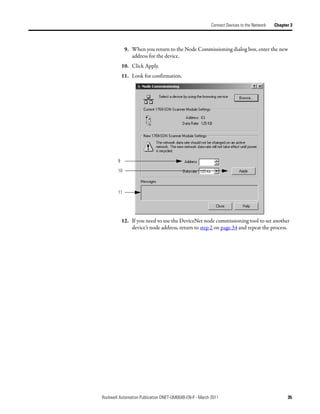
Communication intermittently stops (status code 78) with a device that        Increase the interscan delay.
sends or receives large amounts of data, such as the PanelView operator
terminal, and has the I/O parameters currently set to polled


                                             Rockwell Automation Publication DNET-UM004B-EN-P - March 2011                                               161
Chapter 11      Tune the Performance of a DeviceNet Network


Factors that Affect                                The following example shows how different I/O or network parameters affect
                                                   the performance of the network.
Performance
                                                                         Scan Cycle


 Polled update                                3 Data at address 3 changes.                                               Scanner gets the data.


 P1       Pr1      P2      Pr2      P3 Pr3 P4 Pr4 P5 Pr5                       P1          Pr1        P2          Pr2      P3 Pr3 P4 Pr4 P5 Pr5


      Px—Scanner sends data to a polled device.                          Interscan delay
      Prx—Polled device sends input data to scanner.
                                                                         • Scanner continues to get polled data from slower responders or larger devices.
       x is the address of a device.                                     • Communication with software, such as RSLinx and RSNetWorx occurs, for
                                                                            uploading, downloading, and browsing, for example.


 Change of state (COS)                        3 Data at address 3 changes.
                                                            Scanner gets the data.
 P1       Pr1      P2      Pr2      P4 Pr4 P5 C3 Pr5                      P1         Pr1         P2         Pr2         P4 Pr4 P5 Pr5


 Strobed update                               3 Data at address 3 changes.
                                                                                     Scanner gets the data.

 S    Sr3 Sr4 Sr5 P1        Pr1      P2      Pr2                    S     Sr3 Sr4 Sr5 P1              Pr1         P2       Pr2


          S—Scanner sends strobe request.
          Srx—Strobed devices send input data to scanner.
          x is the address of a device.


 Background poll                              3 Data at address 3 changes.
                                                                                                 Scanner gets the data.

 P1       Pr1      P3 Pr3 P4 Pr4 P5 Pr5                     P2      Pr2        P3 Pr3 P4 Pr4 P5 Pr5


 Shorter interscan delay                      3 Data at address 3 changes.                                   Scanner gets the data.


 P1       Pr1      P2      Pr2      P3 Pr3 P4 Pr4 P5 Pr5            P1         Pr1         P2         Pr2         P3 Pr3 P4 Pr4 P5 Pr5


162                                       Rockwell Automation Publication DNET-UM004B-EN-P - March 2011
Tune the Performance of a DeviceNet Network         Chapter 11


                                       I/O Parameters of Each Device

                                       The type of connection (message) that you configure for a device determines
                                       when data transfers between the device and the scanner. Consider the following
                                       points when you configure the type of connection:
                                          • Each device has a default connection type. This is a good starting point.
                                          • Some devices may not offer all connection (message) types.

                                       The following table describes the different types of connections (messages) that
                                       you can configure for a device.

Connection (Message) Type   Description
Cyclic                      Data transfers at the period that you specify. The default range is 48…32,000 milliseconds.
Change of state (COS)       Both the scanner and the device sends data whenever the data changes. You also specify a heartbeat period for
                            the connection.
                            • If the data does not change within the heartbeat period, the scanner or device sends the data at the end of the
                               period.
                            • This lets both the scanner and device know that the other is still operational.
Strobed                     The scanner sends a single strobed request to solicit data from the strobed devices.
                            • The request is 64-bits long (1 bit for each node).
                            • In response to the request, each device that is configured for a strobed connection sends its data up to 8 bytes.
Polled                      A point-to-point data transfer that occurs every I/O scan or as a ratio of the I/O scan (background).
                            • At the specified poll rate (every scan or background), the scanner sends data to a polled device up to 255 bytes.
                               The data is either output data for the device or a request for input data from the device.
                            • If the polled device gets a request for input data, it sends its input data up to 255 bytes.


                              Rockwell Automation Publication DNET-UM004B-EN-P - March 2011                                                  163
Chapter 11   Tune the Performance of a DeviceNet Network


                                              Background Poll

                                              The foreground to background poll ratio lets you adjust how often the scanner
                                              polls certain devices for their data. In general, use the default values. Change
                                              them only if you need to tune the performance of your system.

                                               Parameter                  Description                                               Default Setting
                                               Poll rate                  • Applies to a device with a polled connection.           Every scan
                                                                          • Defines whether the scanner polls the device every
                                                                            I/O scan (foreground) or as a ratio of the I/O scan
                                                                            (background).
                                               Foreground to              • Applies to devices with a polled connection that is     1
                                               background poll ratio        configured for a background poll rate.
                                                                          • Determines how often the devices are polled.
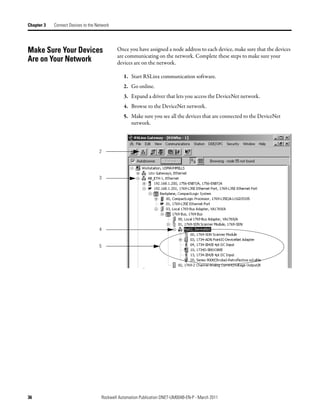
                                                                          • By default, the scanner performs background polls
                                                                            every scan (poll ratio = 1).


                                              The following diagram shows the effect of a change to the poll ratio.

                                                                       Background     Background      Background       Background       Background
                                                                          poll           poll            poll             poll             poll
                                                                           ↓               ↓                ↓               ↓                ↓
                                               I/O scan
                                                                         Scan            Scan             Scan            Scan             Scan
                                               poll ratio = 1


                                                                       Background                     Background                        Background
                                                                          poll                           poll                              poll
                                                                           ↓                                ↓                                ↓
                                               I/O scan
                                                                         Scan            Scan             Scan            Scan             Scan
                                               poll ratio = 2


                                              IMPORTANT                 When using a foreground to background poll ratio other than 1, the
                                                                        total network time-out value of the EPR may need to be increased so
                                                                        the background devices do not time out.
                                                                        The expected packet rate (EPR) defaults to 75, which is then multiplied
                                                                        by 4 ms to get a 300 ms timeout for a polled/strobed I/O connection.


164                                  Rockwell Automation Publication DNET-UM004B-EN-P - March 2011
Tune the Performance of a DeviceNet Network          Chapter 11


                               Interscan Delay

                               The interscan delay determines how long the scanner waits before it starts
                               another I/O scan. Follow these guidelines:
                                  • In general, leave the interscan delay at its default value. Change it only if
                                     you need to tune the performance of your system.
                                  • Keep the interscan delay ≥ 5 ms. Otherwise, you may have trouble
                                     accessing the network.

                                Parameter          Description                                                          Default
                                                                                                                        Setting
                                Interscan delay    • Last segment of the I/O scan.                                      10 ms
                                                   • Starts after the last packet of the poll to the last node in the
                                                     scanner’s scan list.
                                                   • Provides time for larger devices and slower responders to
                                                     return their polled data.
                                                   • Provides time for software, such as RSLinx and RSNetWorx,
                                                     to access the network for uploading, downloading, and
                                                     browsing, for example.
                                                   • Scanner waits for the interscan delay before it strobes or
                                                     polls devices again.
                                                   • A shorter interscan delay may improve the update time of
                                                     strobed or polled data.


Change the Configuration of    Complete these tasks to change the configuration of the network with
                               RSNetWorx for DeviceNet software:
Your Network
                                 • Upload the Current Configuration of the Scanner
                                 • Set the Interscan Delay and Poll Ratio
                                 • Set the I/O Parameters of a Device
                                 • Download the Configuration to the Scanner
                                 • Save the Configuration File


                       Rockwell Automation Publication DNET-UM004B-EN-P - March 2011                                              165
Chapter 11   Tune the Performance of a DeviceNet Network


                                              Upload the Current Configuration of the Scanner

                                              Complete these steps to upload the current configuration.

                                                 1. Start RSNetWorx for DeviceNet software.
                                                 2. If necessary, open the file for the network.
                                                 3. Go online.
                                                 4. Double-click the scanner.
                                                 5. Click the Module tab.
                                                 6. Click Upload from Scanner.
                                                 7. When prompted, upload the configuration from the scanner.


             3


             4


             5


             6


166                                  Rockwell Automation Publication DNET-UM004B-EN-P - March 2011
Tune the Performance of a DeviceNet Network   Chapter 11


        Set the Interscan Delay and Poll Ratio

        Change the parameters shown below if needed.
          • For information on changing the Interscan Delay parameter, refer to
             page 165.
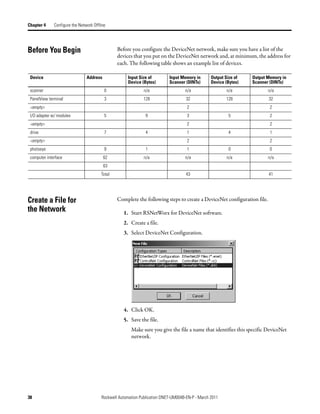
          • For information on changing the Foreground to Background Poll Ratio
             parameter, refer to page 164.


        Set the I/O Parameters of a Device

        Complete these steps to set the I/O parameters of a device.

           1. Click the Scanlist tab.
           2. Select the device.
           3. Click Edit I/O Parameters to display the Edit I/O Parameters dialog box.


 1


 2


 3


Rockwell Automation Publication DNET-UM004B-EN-P - March 2011                                  167
Chapter 11   Tune the Performance of a DeviceNet Network


                                               Change of State or Cyclic Transfer

                                               Complete these steps to configure the I/O parameters for the Change of State
                                               setting.

                                                 1. Check Change of State/Cyclic checkbox.
                                                 2. Click the Change of State or Cyclic option.
                                                 3. Enter the number of bytes that the devices sends to the controller.
                                                 4. Enter the number of bytes that the controller sends to the device.
                                                 5. For a cyclic update, enter the period of the update.
                                                 6. Click OK.


                                           1
                                           2

                                           3

                                           4

                                           5


                                           6


168                                  Rockwell Automation Publication DNET-UM004B-EN-P - March 2011
Tune the Performance of a DeviceNet Network   Chapter 11


        Strobed Transfer

        Complete these steps to configure the I/O parameters for the Strobed Transfer
        setting.

           1. Check Strobed.
           2. If the single bit being sent to the strobed device needs to be accessed by the
              Logix controller, check Use Output Bit.
               This lets you map the bit into the I/O data being transferred with the
               controller.
           3. Enter the number of bytes that the device sends to the controller.
           4. Click OK.


1


2


3


Rockwell Automation Publication DNET-UM004B-EN-P - March 2011                                  169
Chapter 11   Tune the Performance of a DeviceNet Network


                                              Polled Transfer

                                              Complete these steps to configure the I/O parameters for the Polled setting.

                                                 1. Check Polled.
                                                 2. Enter the number of bytes that the device sends to the controller.
                                                 3. Enter the number of bytes that the controller sends to the device.
                                                 4. Choose whether to poll the device every scan or in the background.
                                                 5. Click OK.


                                        1
                                        2

                                        3

                                        4


                                        5


170                                  Rockwell Automation Publication DNET-UM004B-EN-P - March 2011
Tune the Performance of a DeviceNet Network   Chapter 11


            Download the Configuration to the Scanner

            Complete these steps to download the configuration to the scanner.

               1. Click Apply.
               2. When prompted, click Yes to download the changes.
               3. Click OK.


1
2


3


    Rockwell Automation Publication DNET-UM004B-EN-P - March 2011                                  171
Chapter 11   Tune the Performance of a DeviceNet Network


                                              Save the Configuration File

                                              After you make a change to the network, upload the entire network and save the
                                              file. This makes sure that the offline configuration file matches the network.

                                              Complete these steps to save the configuration file.

                                                 1. From the Network menu, choose Upload from Network.
                                                 2. When prompted, click Yes to upload the entire network.
                                                 3. Save the file.


                                          1


                                          2


172                                  Rockwell Automation Publication DNET-UM004B-EN-P - March 2011
Chapter         12

                             Automate the Replacement of a Failed Device


                             This chapter describes how to reduce the time it takes to replace a failed device.

                              Topic                                                             Page
                              Automatic Device Recovery                                         173
                              Set Up Automatic Device Recovery                                  175


Automatic Device Recovery    To reduce system downtime if a device fails, use the automatic device recovery
                             (ADR) option. With ADR, you do not have to use any software tools to get a
                             replacement device configured and online.

                              IMPORTANT            Some devices do not support ADR.


                                                                             With ADR, the scanner automatically configures
                                                                             a replacement part. If the address of the device
                                                                             is set via software, the scanner also sets the
                                                                             address of the replacement device.


                     Rockwell Automation Publication DNET-UM004B-EN-P - March 2011                                        173
Chapter 12        Automate the Replacement of a Failed Device


                                                   You configure ADR on a device-by-device basis. You can set up the following
                                                   ADR settings for each device.

 If you want to                                    And                                                 Then select this ADR option for the device
 Automatically configure a replacement device       Manually change the address of the replacement
 that matches the electronic key of a failed device device


                                                   Automatically set the address of the
                                                   replacement device to the default address (63) of
                                                   the failed device via software


 Manually configure a replacement device


                                                                            ATTENTION: If a DeviceNet network has more than one scanner,
                                                                            enable Auto-Address Recovery for only one scanner. If more than
                                                                            one scanner is configured for Auto-Address Recovery, there is no
                                                                            way to determine which scanner will recognize a newly-inserted
                                                                            device on the DeviceNet network.


174                                        Rockwell Automation Publication DNET-UM004B-EN-P - March 2011
Automate the Replacement of a Failed Device   Chapter 12


Set Up Automatic Device       Complete these tasks to set up ADR for a device:
Recovery                        • Choose an Electronic Key Level for a Device
                                • Update Your Network Configuration File
                                • Define the Electronic Key
                                • Enable Auto-Address Recovery for the Scanner
                                • Set the ADR Settings for the Device
                                • Download the Changes to the Scanner
                                • Upload and Save the Configuration File


                              Choose an Electronic Key Level for a Device
                              Use the electronic key options to define how closely a replacement device must
                              match a failed device before the scanner applies ADR. The scanner configures/
                              addresses only a device that meets the checkbox items that are checked in the
                              electronic key of the failed device.

                              If multiple devices with the same electronic key fail at the same time, the scanner
                              disables auto-address recovery for those devices. This prevents the scanner from
                              changing the address of the wrong device.


                      Rockwell Automation Publication DNET-UM004B-EN-P - March 2011                                   175
Chapter 12       Automate the Replacement of a Failed Device


                                                  Update Your Network Configuration File

                                                  When you set up ADR for a device, RSNetWorx for DeviceNet software reads
                                                  the configuration for the device from the configuration file and stores it in the
                                                  scanner. Before you set up ADR for a device, make sure the configuration file is
                                                  up-to-date.

                                                  Complete these steps to update the network file.

                                                      1. Go online.
                                                      2. Configure the device.
                                                      3. Right-click and upload the entire network.
                                                      4. Save the network configuration.


             1


             2


             3


176                                       Rockwell Automation Publication DNET-UM004B-EN-P - March 2011
Automate the Replacement of a Failed Device   Chapter 12


            Define the Electronic Key

            Complete the following steps to define the electronic key.

               1. Double-click the scanner.
               2. Click the Scanlist tab.
               3. Select the device.
               4. Check the items that must match before a replacement device receives the
                  configuration/address of the selected device.


1


2


3


4


    Rockwell Automation Publication DNET-UM004B-EN-P - March 2011                                   177
Chapter 12   Automate the Replacement of a Failed Device


                                              Enable Auto-Address Recovery for the Scanner

                                              Complete these steps to enable Auto-Address Recovery.

                                                  1. Click the ADR tab.
                                                  2. Make sure Enable Auto-Address Recovery is checked.
                                                  3. When prompted, click Yes to enable Auto-Address Recovery.


                                1

                                2


                                3


178                                   Rockwell Automation Publication DNET-UM004B-EN-P - March 2011
Automate the Replacement of a Failed Device   Chapter 12


        Set the ADR Settings for the Device

        Complete these steps to set the ADR settings for the device.

           1. Select the device.
           2. Select the ADR settings for the device.
           3. Read the configuration data of the device into the ADR configuration of
              the RSNetWorx project.

                IMPORTANT         Make sure you upload all changes made to a device online into
                                  the RSNetWorx project before you click the Load Device Config
                                  button.


1


2


3


Rockwell Automation Publication DNET-UM004B-EN-P - March 2011                                   179
Chapter 12   Automate the Replacement of a Failed Device


                                                Download the Changes to the Scanner

                                                Complete these steps to download changes to the scanner.

                                                  1. Click Apply.
                                                  2. When prompted, click Yes to download the changes.
                                                  3. Click OK.


                                            1


                                            2


                                            3


180                                   Rockwell Automation Publication DNET-UM004B-EN-P - March 2011
Automate the Replacement of a Failed Device   Chapter 12


        Upload and Save the Configuration File

        Complete these steps to upload and save the configuration file.

           1. Choose Network>Upload from Network.
           2. When prompted, click Yes to upload the entire network.
           3. Save the file.


   1


   2


Rockwell Automation Publication DNET-UM004B-EN-P - March 2011                                   181
Chapter 12   Automate the Replacement of a Failed Device


Notes:


182                                   Rockwell Automation Publication DNET-UM004B-EN-P - March 2011
Appendix       A

                                 Map the Memory Location with Advanced
                                 Mapping


                                 Sometimes, an input or output value for a device may end up encapsulated within
                                 a larger tag. For example, a speed value may end up as the upper 16 bits of a
                                 DINT element in the scanner. To access the value, you would have to use
                                 additional programming.

               2:I.Data[0] 0 0 0 0 0 0 0 0 0 0 0 0 0 0 0 0 0 0 0 0 0 0 0 0 0 0 0 0 0 0 0 0


Data map for
Bulletin 160
AC drive


                                 To make your programming easier, re-map the value to its own tag within the data
                                 array of the scanner. This lets you access the value without additional
                                 programming.


                         Rockwell Automation Publication DNET-UM004B-EN-P - March 2011                        183
Appendix A         Map the Memory Location with Advanced Mapping


                                                                                When you use AutoMap, all of the data for a device ends up packed together.


      Advanced mapping lets you unpack the data into several map entries.
      In this example, the upper 16 bits of the original map entry are now in
      an individual tag.


Give a Value Its Own                                   Complete these steps to give a value its own memory location in the input or
                                                       output memory of the scanner.
Memory Location
                                                           1. Select the device and click the Advanced button.
                                                           2. For the first map entry, specify the first bit of the data.
                                                              a. Choose a connection type.
                                                              b. Enter the starting byte of the data.
                                                              c. Enter the starting bit of the data.
                                                           3. Specify the map location for the data.
                                                              a. Choose the element number in the map.
                                                              b. Enter the starting bit.
                                                              c. Enter the number of bits.


184                                          Rockwell Automation Publication DNET-UM004B-EN-P - March 2011
Map the Memory Location with Advanced Mapping   Appendix A


           4. Click Apply Mapping.


1


 2                                                                                   3


 4


           5. Select the next map number.
           6. Specify the first bit of the data for the next map entry for this device.
              a. Choose a connection type.
              b. Enter the starting byte of the data.
              c. Enter the starting bit of the data.
           7. Specify the map location for the data.
              a. Choose the element number in the map.
              b. Enter the starting bit.
              c. Enter the number of bits.
           8. Click Apply Mapping.


Rockwell Automation Publication DNET-UM004B-EN-P - March 2011                               185
Appendix A   Map the Memory Location with Advanced Mapping


                                              9. Click Close when you are done.


                                     5


                                     6                                                             7


                                     8
                                     9


186                                Rockwell Automation Publication DNET-UM004B-EN-P - March 2011
Index

         Numerics                                    baud rate
1756-DNB                                                 cable limits 19
                                                         options for setting 19
    I/O limits 21                                    bridge across networks 16, 26
    use 16
1769-SDN
    I/O limits 21                                              C
    use 16
1784-PCIDS                                           change of state
    data alignment 49, 73                                configure 168
    I/O limits 21                                        overview 163
    map data 21                                      class instance editor
    memory organization 21                               use 116
    use 16                                           command register
1784-U2DN                                                use 113
    driver 27                                        communication card
    node address 23, 85                                  select 26
    use 26, 41, 86                                   computer
1788-CN2DN                                               connect to network 26
    I/O limits 21                                    configuration recovery
    use 16                                               use 173
1788-DNB                                             configure
    I/O limits 21                                        automatic device recovery 175
    use 16                                               change of state 168
1788-EN2DN                                               cyclic 168
    I/O limits 21                                        device 40, 63
    use 16                                               driver 27
                                                         I/O parameters 167
                                                         interscan delay 167
         A                                               message 117
address                                                  network offline 37
                                                         network online 37, 57
     assign 23                                           poll 170
     automatic recovery 173
                                                         shared inputs 129
     device data 109
                                                         strobed 169
     device replacement 173
                                                     connect
     options for setting 30
     specify offline 40                                  computer 26
ADR                                                  ControlNet
     See automatic device recovery                       bridge options 16
advanced mapping                                     COS
     configure 184                                       See change of state
alias tags                                           cyclic
     use 111                                             configure 168
auto-address recovery                                    overview 163
     use 173
autobaud                                                       D
     use 19
automatic device recovery                            DDE
     configure 175                                       access parameter 153
     use 173                                         device
autoscan                                                 access via RSView software 153
     allocation size 101                                 address data 109
     enable 91                                           auto-address recovery 173
     firmware requirements 82                            automate replacement 173
     overview 83                                         configuration recovery 173
     when to use 82                                      configure 40, 63
                                                         configure I/O parameters 167
                                                         configure offline 37
         B                                               configure online 37, 57
                                                         detect failure 112
background poll                                          download configuration 64
    use 164                                              get or set parameter 116


   Rockwell Automation Publication DNET-UM004B-EN-P - March 2011                             187
Index


            get or set parameter via logic 113                interscan delay
            I/O parameters 163                                     configure 167
            specify address offline 40                             examples 162
            update options 163                                     overview 165
            upload configuration 64
        DeviceNet
            bridge options 16                                           L
            cable limts 19                                    logic
            configure PanelView terminal 136
            run network 113                                       detect failed device
        diagnostics                                                    112
            detect failure of device 112
        download                                                        M
            device configuration 64
            network configuration 55                          message
            scanner configuration 75                              configure 117
        driver                                                    path 121
            configure 27                                          send from PanelView terminal 150
                                                                  send to PanelView terminal 146
                                                                  use 113
                 E                                            mode
                                                                  scanner 113
        EDS file                                              MSG instruction
            interpret 114                                         See message
        EtherNet/IP                                           multicast input data
            bridge options 16                                     set up 129
        explicit client tags
            configure 150
        explicit server tags                                            N
            access from controller 146                        network
            configure 145
            plan 143                                              add devices to diagram 39
                                                                  configuration file 38, 60
                                                                  download configuration 55
                 F                                                go online 60
                                                                  interscan delay 165
        foreground to background poll ratio 164                   run 113
                                                                  upload configuration 76
                                                              node
                 G                                                See address
        generate                                              node commissioning tool
            report 51, 77                                         install 84


                 I                                                      O
        I/O allocation                                        online
             in CompactLogix controller 81                        go 60
             in MicroLogix 1500 controller 81                 OPC
        I/O data                                                  access parameter 153
             define for device 167
        I/O memory
             assign slave mode data 126                                 P
             assign slave scanner 128                         PanelView terminal
             autoscan 101                                        add to scan list 138
             estimate 20                                          address data 141
             limits 21                                           configure communication 136
        I/O parameters                                           configure explicit client tags 150
             configure 167                                        configure explicit server tags 145
             options 163                                          configure I/O slave tags 134
             overview 163                                        explicit client overview 133
        interlock                                                explicit server overview 133
             set up 124                                           plan explicit server tags 143


188         Rockwell Automation Publication DNET-UM004B-EN-P - March 2011
Index


     select communication method 132                       change poll ratio 167
     send message 150                                      configure ADR 175
     send message to 146                                   configure automatically 79
parameter                                                  configure I/O parameters for device 167
     determine class, instance, attribute numbers          configure offline 37
               114                                         configure online 37, 57
path                                                       download configuration 75
     define for message 121                                enable auto-address recovery 178
poll                                                       enable slave mode 125
                                                           I/O maps 20
     change poll ratio 167                                 I/O memory 20
     configure 170                                         interscan delay 165
     overview 163                                          scan list 44, 66
     rate 164                                              select 16
     ratio 164                                             slave mode 124
                                                           upload configuration 67
                                                      select
         R                                                 communication card 26
report                                                     scanner 16
    generate 51, 77                                   shared input
RS-232                                                     add to scan list 129
    bridge options 16                                 slave mode
RSView software                                            enable for scanner 125
    access device 153                                      map data 126
                                                           use 124
                                                      SoftLogix 5800 controller
         S                                                 See 1784-PCIDS
scan cycle                                            status
    examples 162                                           adjust scanner status size 105
    factors of performance 162                        strobed
    interscan delay 162, 165                               configure 169
scan list                                                  overview 163
    add shared input 129
    add slave scanner 127
    I/O parameters 163                                          U
    overview 44, 66                                   U2DN
    set I/O parameters 167                                node address 30
scanner                                               upload
    add PanelView terminal 138                            device configuration 64
    adjust the status size 105                            network 76
    change interscan delay 167                            scanner configuration 67
    change mode 113


    Rockwell Automation Publication DNET-UM004B-EN-P - March 2011                                    189
Index


Notes:


190      Rockwell Automation Publication DNET-UM004B-EN-P - March 2011
Rockwell Automation Support

Rockwell Automation provides technical information on the Web to assist you in using its products.
At http://www.rockwellautomation.com/support/, you can find technical manuals, a knowledge base of FAQs, technical and
application notes, sample code and links to software service packs, and a MySupport feature that you can customize to make the
best use of these tools.

For an additional level of technical phone support for installation, configuration, and troubleshooting, we offer TechConnect
support programs. For more information, contact your local distributor or Rockwell Automation representative,
or visit http://www.rockwellautomation.com/support/.


Installation Assistance

If you experience a problem within the first 24 hours of installation, review the information that is contained in this manual.
You can contact Customer Support for initial help in getting your product up and running.

 United States or Canada                 1.440.646.3434
 Outside United States or                Use the Worldwide Locator at http://www.rockwellautomation.com/support/americas/phone_en.html, or contact
 Canada                                  your local Rockwell Automation representative.


New Product Satisfaction Return

Rockwell Automation tests all of its products to ensure that they are fully operational when shipped from the manufacturing facility.
However, if your product is not functioning and needs to be returned, follow these procedures.

 United States                           Contact your distributor. You must provide a Customer Support case number (call the phone number above to obtain
                                         one) to your distributor to complete the return process.
 Outside United States                   Please contact your local Rockwell Automation representative for the return procedure.


Documentation Feedback

Your comments will help us serve your documentation needs better. If you have any suggestions on how to improve this document,
complete this form, publication RA-DU002, available at http://www.rockwellautomation.com/literature/.


Rockwell Otomasyon Ticaret A.Ş., Kar Plaza İş Merkezi E Blok Kat:6 34752 İçerenköy, İstanbul, Tel: +90 (216) 5698400


Publication DNET-UM004B-EN-P - March 2011 192
Supersedes Publication DNET-UM004A-EN-P - March 2004                                                       Copyright © 2011 Rockwell Automation, Inc. All rights reserved. Printed in the U.S.A.

Device net guide

  • 1.
  • 2.
    Important User Information Solid-stateequipment has operational characteristics differing from those of electromechanical equipment. Safety Guidelines for the Application, Installation and Maintenance of Solid State Controls (publication SGI-1.1 available from your local Rockwell Automation sales office or online at http://www.rockwellautomation.com/literature/) describes some important differences between solid-state equipment and hard-wired electromechanical devices. Because of this difference, and also because of the wide variety of uses for solid-state equipment, all persons responsible for applying this equipment must satisfy themselves that each intended application of this equipment is acceptable. In no event will Rockwell Automation, Inc. be responsible or liable for indirect or consequential damages resulting from the use or application of this equipment. The examples and diagrams in this manual are included solely for illustrative purposes. Because of the many variables and requirements associated with any particular installation, Rockwell Automation, Inc. cannot assume responsibility or liability for actual use based on the examples and diagrams. No patent liability is assumed by Rockwell Automation, Inc. with respect to use of information, circuits, equipment, or software described in this manual. Reproduction of the contents of this manual, in whole or in part, without written permission of Rockwell Automation, Inc., is prohibited. Throughout this manual, when necessary, we use notes to make you aware of safety considerations. WARNING: Identifies information about practices or circumstances that can cause an explosion in a hazardous environment, which may lead to personal injury or death, property damage, or economic loss. ATTENTION: Identifies information about practices or circumstances that can lead to personal injury or death, property damage, or economic loss. Attentions help you identify a hazard, avoid a hazard, and recognize the consequence SHOCK HAZARD: Labels may be on or inside the equipment, for example, a drive or motor, to alert people that dangerous voltage may be present. BURN HAZARD: Labels may be on or inside the equipment, for example, a drive or motor, to alert people that surfaces may reach dangerous temperatures. IMPORTANT Identifies information that is critical for successful application and understanding of the product. Allen-Bradley, Compact I/O, CompactLogix, ControlLogix, ControlNet, DriveLogix, EtherNet/IP, FactoryTalk View, FlexLogix, PanelBuilder, PanelView, PowerFlex, Rockwell Software, Rockwell Automation, RSLinx, RSLogix, SoftLogix, and TechConnect are trademarks of Rockwell Automation, Inc. Trademarks not belonging to Rockwell Automation are property of their respective companies.
  • 3.
    Summary of Changes This manual contains new and updated information. Changes throughout this revision are marked by change bars, as shown to the right of this paragraph. New and Updated This table contains the changes made to this revision. Information Topic Page Addition of 1769-ADN module Throughout Automatically Configure a DeviceNet Network Chapter 6 Rockwell Automation Publication DNET-UM004B-EN-P - March 2011 3
  • 4.
    Summary of Changes Notes: 4 Rockwell Automation Publication DNET-UM004B-EN-P - March 2011
  • 5.
    Table of Contents Preface Additional Resources . . . . . . . . . . . . . . . . . . . . . . . . . . . . . . . . . . . . . . . . . . . . . 11 Network Configuration . . . . . . . . . . . . . . . . . . . . . . . . . . . . . . . . . . . . . . . . . . 12 Chapter 1 DeviceNet Overview Choose a Single Network or Subnets. . . . . . . . . . . . . . . . . . . . . . . . . . . . . . . 14 Single Network. . . . . . . . . . . . . . . . . . . . . . . . . . . . . . . . . . . . . . . . . . . . . . . 14 Subnets . . . . . . . . . . . . . . . . . . . . . . . . . . . . . . . . . . . . . . . . . . . . . . . . . . . . . . 15 Choose a Scanner . . . . . . . . . . . . . . . . . . . . . . . . . . . . . . . . . . . . . . . . . . . . . . . . 16 Bridge Across Networks . . . . . . . . . . . . . . . . . . . . . . . . . . . . . . . . . . . . . . . . . . 16 Choose a Baud Rate for the Network . . . . . . . . . . . . . . . . . . . . . . . . . . . . . . 19 Calculate Scanner Memory Requirements . . . . . . . . . . . . . . . . . . . . . . . . . . 20 Check the I/O Limits of the Scanner. . . . . . . . . . . . . . . . . . . . . . . . . . . 21 When Using a SoftLogix 5800 Controller . . . . . . . . . . . . . . . . . . . . . . 21 Assign an Address to Each Device . . . . . . . . . . . . . . . . . . . . . . . . . . . . . . . . . 23 Required Software. . . . . . . . . . . . . . . . . . . . . . . . . . . . . . . . . . . . . . . . . . . . . . . . 23 Chapter 2 Connect a Computer to the Connection Options . . . . . . . . . . . . . . . . . . . . . . . . . . . . . . . . . . . . . . . . . . . . . 26 DeviceNet Network Set Up the DeviceNet Driver. . . . . . . . . . . . . . . . . . . . . . . . . . . . . . . . . . . . . . 27 Obtain the Driver for the Interface Device. . . . . . . . . . . . . . . . . . . . . . 27 Verify that the Driver Works . . . . . . . . . . . . . . . . . . . . . . . . . . . . . . . . . . 27 Chapter 3 Connect Devices to Before You Begin. . . . . . . . . . . . . . . . . . . . . . . . . . . . . . . . . . . . . . . . . . . . . . . . . 29 the Network Set the Node Address of a Device . . . . . . . . . . . . . . . . . . . . . . . . . . . . . . . . . . 30 Set Node Address via Hardware Mechanism . . . . . . . . . . . . . . . . . . . . 30 Set Node Address via Software. . . . . . . . . . . . . . . . . . . . . . . . . . . . . . . . . 32 Set Node Address via DeviceNet Node Commissioning Tool . . . . 33 Make Sure Your Devices Are on Your Network. . . . . . . . . . . . . . . . . . . . . 36 Chapter 4 Configure the Network Offline Before You Begin. . . . . . . . . . . . . . . . . . . . . . . . . . . . . . . . . . . . . . . . . . . . . . . . . 38 Create a File for the Network . . . . . . . . . . . . . . . . . . . . . . . . . . . . . . . . . . . . . 38 Create Your Network in RSNetWorx for DeviceNet Software . . . . . . . 39 Configure Each Device . . . . . . . . . . . . . . . . . . . . . . . . . . . . . . . . . . . . . . . . . . . 40 Specify a Device Node Address . . . . . . . . . . . . . . . . . . . . . . . . . . . . . . . . 40 Configure Device Parameters. . . . . . . . . . . . . . . . . . . . . . . . . . . . . . . . . . 43 Configure the Scanner . . . . . . . . . . . . . . . . . . . . . . . . . . . . . . . . . . . . . . . . . . . . 44 Build the Scan List. . . . . . . . . . . . . . . . . . . . . . . . . . . . . . . . . . . . . . . . . . . . 44 Set the Alignment Option. . . . . . . . . . . . . . . . . . . . . . . . . . . . . . . . . . . . . 48 Manually Assign Each Device to a Memory Location . . . . . . . . . . . . 49 Save the Configuration File . . . . . . . . . . . . . . . . . . . . . . . . . . . . . . . . . . . . . . . 51 Generate an RSNetWorx for DeviceNet Report . . . . . . . . . . . . . . . . . . . . 51 Go Online to Your Network . . . . . . . . . . . . . . . . . . . . . . . . . . . . . . . . . . . . . . 52 Download Configuration to Your Network . . . . . . . . . . . . . . . . . . . . . . . . 55 Rockwell Automation Publication DNET-UM004B-EN-P - March 2011 5
  • 6.
    Table of Contents Chapter 5 Configure the Network Online Before You Begin . . . . . . . . . . . . . . . . . . . . . . . . . . . . . . . . . . . . . . . . . . . . . . . . . 58 Verify Communication Between the Computer and Devices . . . . . . . . . 58 Create a New File for the Network. . . . . . . . . . . . . . . . . . . . . . . . . . . . . . . . . 60 Go Online to Your Network . . . . . . . . . . . . . . . . . . . . . . . . . . . . . . . . . . . . . . 60 Configure Each Device. . . . . . . . . . . . . . . . . . . . . . . . . . . . . . . . . . . . . . . . . . . . 63 Upload the Configuration of a Device . . . . . . . . . . . . . . . . . . . . . . . . . . 63 Change and Download Device Configuration . . . . . . . . . . . . . . . . . . . 64 Configure the Scanner . . . . . . . . . . . . . . . . . . . . . . . . . . . . . . . . . . . . . . . . . . . . 66 Upload the Current Scanner Configuration. . . . . . . . . . . . . . . . . . . . . 67 Define the Scanner Properties. . . . . . . . . . . . . . . . . . . . . . . . . . . . . . . . . . 68 Build the Scan List . . . . . . . . . . . . . . . . . . . . . . . . . . . . . . . . . . . . . . . . . . . . 69 Set the Alignment Option . . . . . . . . . . . . . . . . . . . . . . . . . . . . . . . . . . . . . 72 Manually Assign Each Device to a Memory Location . . . . . . . . . . . . 73 Download the Configuration to the Scanner . . . . . . . . . . . . . . . . . . . . 75 Upload and Save the Configuration File . . . . . . . . . . . . . . . . . . . . . . . . . . . . 76 Generate an RSNetWorx for DeviceNet Report. . . . . . . . . . . . . . . . . . . . . 77 Chapter 6 Automatically Configure a How AutoScan Operates. . . . . . . . . . . . . . . . . . . . . . . . . . . . . . . . . . . . . . . . . . 80 DeviceNet Network Determine If You Can Use AutoScan . . . . . . . . . . . . . . . . . . . . . . . . . . . . . . 82 How AutoScan Affects Your Network . . . . . . . . . . . . . . . . . . . . . . . . . . . . . 83 Install the DeviceNet Node Commissioning Tool . . . . . . . . . . . . . . . . . . . 84 Connect Devices to the Network . . . . . . . . . . . . . . . . . . . . . . . . . . . . . . . . . . 84 Install a Scanner or Network Interface Devices . . . . . . . . . . . . . . . . . . 84 Install Other DeviceNet Devices . . . . . . . . . . . . . . . . . . . . . . . . . . . . . . . 86 Set the Node Address and Baud Rate with the DeviceNet Node Commissioning Tool . . . . . . . . . . . . . . . . . . . . . . . . . . . . . . . . . . . . . . . . . 87 Add the Scanner to the RSLogix 5000 Project. . . . . . . . . . . . . . . . . . . . . . . 89 Add the Scanner to the I/O Configuration Folder . . . . . . . . . . . . . . . 89 Define the Properties of the Scanner. . . . . . . . . . . . . . . . . . . . . . . . . . . . 90 Enable AutoScan with RSLogix 5000 Software. . . . . . . . . . . . . . . . . . . . . . 91 Initiate AutoScan via the User Program . . . . . . . . . . . . . . . . . . . . . . . . . . . . 93 Implementing AutoScan . . . . . . . . . . . . . . . . . . . . . . . . . . . . . . . . . . . . . . 93 Additional Considerations Regarding AutoScan. . . . . . . . . . . . . . . . . 97 Access Device Data . . . . . . . . . . . . . . . . . . . . . . . . . . . . . . . . . . . . . . . . . . . . . . . 99 Put the Scanner in Run Mode . . . . . . . . . . . . . . . . . . . . . . . . . . . . . . . . . . . . 100 Additional Information About AutoScan. . . . . . . . . . . . . . . . . . . . . . . . . . 101 Type of Connection that the Scanner Sets Up. . . . . . . . . . . . . . . . . . 101 Allocating More Memory for Each Device . . . . . . . . . . . . . . . . . . . . . 101 6 Rockwell Automation Publication DNET-UM004B-EN-P - March 2011
  • 7.
    Table of Contents Chapter 7 Control a Device Before You Begin. . . . . . . . . . . . . . . . . . . . . . . . . . . . . . . . . . . . . . . . . . . . . . . . 104 RSNetWorx Report for the Network . . . . . . . . . . . . . . . . . . . . . . . . . 104 Data Map for Each of Your Devices . . . . . . . . . . . . . . . . . . . . . . . . . . . 104 Add the Scanner to the Controller’s I/O Configuration . . . . . . . . . . . . 105 Conserve EtherNet/IP or ControlNet Network Bandwidth . . . . 105 Add the Scanner to the I/O Configuration Folder. . . . . . . . . . . . . . 107 Configure the Scanner . . . . . . . . . . . . . . . . . . . . . . . . . . . . . . . . . . . . . . . 108 Determine the Address of DeviceNet Data . . . . . . . . . . . . . . . . . . . . . . . . 109 SoftLogix 5800 Controller . . . . . . . . . . . . . . . . . . . . . . . . . . . . . . . . . . . 111 Determine If a Device Has Failed . . . . . . . . . . . . . . . . . . . . . . . . . . . . . . . . . 112 Place the Scanner in Run Mode. . . . . . . . . . . . . . . . . . . . . . . . . . . . . . . . . . . 113 When to Use a MSG Instruction . . . . . . . . . . . . . . . . . . . . . . . . . . . . . . . . . 113 Determine the Parameter Number to Access . . . . . . . . . . . . . . . . . . . . . . 114 Determine the Configuration of the Parameter . . . . . . . . . . . . . . . . . . . . 114 Test the Parameter . . . . . . . . . . . . . . . . . . . . . . . . . . . . . . . . . . . . . . . . . . . . . . 116 Enter Message Logic . . . . . . . . . . . . . . . . . . . . . . . . . . . . . . . . . . . . . . . . . . . . . 117 Define the Source or Destination Data . . . . . . . . . . . . . . . . . . . . . . . . 118 Enter and Configure the MSG Instruction . . . . . . . . . . . . . . . . . . . . 119 Set the Communication Path. . . . . . . . . . . . . . . . . . . . . . . . . . . . . . . . . 121 Chapter 8 Interlock and Share Inputs Interlock . . . . . . . . . . . . . . . . . . . . . . . . . . . . . . . . . . . . . . . . . . . . . . . . . . . . . . . 124 Choose a Master Controller . . . . . . . . . . . . . . . . . . . . . . . . . . . . . . . . . . 124 Determine How Much Data to Exchange. . . . . . . . . . . . . . . . . . . . . . 124 Enable Slave Mode for the Slave Scanner . . . . . . . . . . . . . . . . . . . . . . 125 Map the Slave Mode Data . . . . . . . . . . . . . . . . . . . . . . . . . . . . . . . . . . . . 126 Add the Slave to the Master Scanner’s Scan List . . . . . . . . . . . . . . . . 127 Map the Data of the Slave . . . . . . . . . . . . . . . . . . . . . . . . . . . . . . . . . . . . 128 Place Both Scanners In Run Mode . . . . . . . . . . . . . . . . . . . . . . . . . . . . 128 Share Inputs . . . . . . . . . . . . . . . . . . . . . . . . . . . . . . . . . . . . . . . . . . . . . . . . . . . . 129 Add the Input to the First Scanner . . . . . . . . . . . . . . . . . . . . . . . . . . . . 129 Add the Input to the Second Scanner . . . . . . . . . . . . . . . . . . . . . . . . . 129 Map the Input Data in the Second Scanner . . . . . . . . . . . . . . . . . . . . 130 Chapter 9 Communicate with a PanelView Choose Data Types. . . . . . . . . . . . . . . . . . . . . . . . . . . . . . . . . . . . . . . . . . . . . . 131 Standard Terminal Choose a Communication Method . . . . . . . . . . . . . . . . . . . . . . . . . . . . . . . 132 I/O Slave Communication . . . . . . . . . . . . . . . . . . . . . . . . . . . . . . . . . . . 132 Explicit Server Communication . . . . . . . . . . . . . . . . . . . . . . . . . . . . . . 133 Explicit Client Communication . . . . . . . . . . . . . . . . . . . . . . . . . . . . . . 133 Plan and Configure I/O Slave Tags . . . . . . . . . . . . . . . . . . . . . . . . . . . . . . . 134 Use a Word/Bit Format for Each Tag . . . . . . . . . . . . . . . . . . . . . . . . . 134 For Integers, Skip Every Other Word . . . . . . . . . . . . . . . . . . . . . . . . . 135 Configure an I/O Slave Tag . . . . . . . . . . . . . . . . . . . . . . . . . . . . . . . . . . 135 Rockwell Automation Publication DNET-UM004B-EN-P - March 2011 7
  • 8.
    Table of Contents Set Up the Terminal on Your Network. . . . . . . . . . . . . . . . . . . . . . . . . . . . 136 Set the Protocol. . . . . . . . . . . . . . . . . . . . . . . . . . . . . . . . . . . . . . . . . . . . . . 136 Set the Node Address and I/O Sizes . . . . . . . . . . . . . . . . . . . . . . . . . . . 137 Configure the Scanner to Update I/O Slave Tags. . . . . . . . . . . . . . . . . . . 138 Add the Terminal to the Scan List. . . . . . . . . . . . . . . . . . . . . . . . . . . . . 138 Edit I/O Parameters . . . . . . . . . . . . . . . . . . . . . . . . . . . . . . . . . . . . . . . . . 139 Map Input and Output Data. . . . . . . . . . . . . . . . . . . . . . . . . . . . . . . . . . 140 Address I/O Slave Tags in the RSLogix 5000 Programming Software Project. . . . . . . . . . . . . . . . . . . . . . 141 Plan and Configure Explicit Server Tags . . . . . . . . . . . . . . . . . . . . . . . . . . . 143 Assign Assembly Instances. . . . . . . . . . . . . . . . . . . . . . . . . . . . . . . . . . . . 143 For Integers, Skip Every Other Word . . . . . . . . . . . . . . . . . . . . . . . . . . 144 Configure an Explicit Server Tag . . . . . . . . . . . . . . . . . . . . . . . . . . . . . . 145 Program the Controller to Get/Set Explicit Server Tags. . . . . . . . . . . . . 146 Create an Array for the Assembly Instance . . . . . . . . . . . . . . . . . . . . . 146 Enter and Configure the MSG Instruction . . . . . . . . . . . . . . . . . . . . . 147 Set the Communication Path . . . . . . . . . . . . . . . . . . . . . . . . . . . . . . . . . 149 Configure Explicit Client Tags . . . . . . . . . . . . . . . . . . . . . . . . . . . . . . . . . . . 150 Determine the Parameter Number to Access . . . . . . . . . . . . . . . . . . . 150 Determine the Configuration of the Parameter. . . . . . . . . . . . . . . . . 151 Configure an Explicit Client Tag. . . . . . . . . . . . . . . . . . . . . . . . . . . . . . 152 Chapter 10 Communicate with a Before You Begin . . . . . . . . . . . . . . . . . . . . . . . . . . . . . . . . . . . . . . . . . . . . . . . . 155 FactoryTalk View Project Create a Topic for the Device. . . . . . . . . . . . . . . . . . . . . . . . . . . . . . . . . . . . . 156 Create a Node. . . . . . . . . . . . . . . . . . . . . . . . . . . . . . . . . . . . . . . . . . . . . . . . . . . 158 Create a Tag for the Parameter . . . . . . . . . . . . . . . . . . . . . . . . . . . . . . . . . . . 159 Chapter 11 Tune the Performance of a Factors that Affect Performance . . . . . . . . . . . . . . . . . . . . . . . . . . . . . . . . . . 162 DeviceNet Network I/O Parameters of Each Device . . . . . . . . . . . . . . . . . . . . . . . . . . . . . . . 163 Background Poll . . . . . . . . . . . . . . . . . . . . . . . . . . . . . . . . . . . . . . . . . . . . . 164 Interscan Delay . . . . . . . . . . . . . . . . . . . . . . . . . . . . . . . . . . . . . . . . . . . . . . 165 Change the Configuration of Your Network. . . . . . . . . . . . . . . . . . . . . . . 165 Upload the Current Configuration of the Scanner. . . . . . . . . . . . . . 166 Set the Interscan Delay and Poll Ratio . . . . . . . . . . . . . . . . . . . . . . . . . 167 Set the I/O Parameters of a Device . . . . . . . . . . . . . . . . . . . . . . . . . . . . 167 Download the Configuration to the Scanner . . . . . . . . . . . . . . . . . . . 171 Save the Configuration File . . . . . . . . . . . . . . . . . . . . . . . . . . . . . . . . . . . 172 8 Rockwell Automation Publication DNET-UM004B-EN-P - March 2011
  • 9.
    Table of Contents Chapter 12 Automate the Replacement of a Automatic Device Recovery . . . . . . . . . . . . . . . . . . . . . . . . . . . . . . . . . . . . . . 173 Failed Device Set Up Automatic Device Recovery . . . . . . . . . . . . . . . . . . . . . . . . . . . . . . . 175 Choose an Electronic Key Level for a Device . . . . . . . . . . . . . . . . . . . 175 Update Your Network Configuration File . . . . . . . . . . . . . . . . . . . . . 176 Define the Electronic Key . . . . . . . . . . . . . . . . . . . . . . . . . . . . . . . . . . . . 177 Enable Auto-Address Recovery for the Scanner . . . . . . . . . . . . . . . . 178 Set the ADR Settings for the Device. . . . . . . . . . . . . . . . . . . . . . . . . . . 179 Download the Changes to the Scanner . . . . . . . . . . . . . . . . . . . . . . . . 180 Upload and Save the Configuration File . . . . . . . . . . . . . . . . . . . . . . . 181 Appendix A Map the Memory Location with Give a Value Its Own Memory Location . . . . . . . . . . . . . . . . . . . . . . . . . . 184 Advanced Mapping Index . . . . . . . . . . . . . . . . . . . . . . . . . . . . . . . . . . . . . . . . . . . . . . . . . . . . . . . . . . . . . . . . 187 Rockwell Automation Publication DNET-UM004B-EN-P - March 2011 9
  • 10.
    Table of Contents Notes: 10 Rockwell Automation Publication DNET-UM004B-EN-P - March 2011
  • 11.
    Preface This manual describes how you can use DeviceNet modules with your Logix5000 controller and communicate with various devices on the DeviceNet network. You should use this manual if you program applications that use DeviceNet with one of these Logix5000 controllers: • 1756 ControlLogix controllers • 1768 CompactLogix controllers • 1769 CompactLogix controllers • 1789 SoftLogix 5800 controllers • PowerFlex 700S with DriveLogix controllers You should also understand the following: • Networking concepts • RSNetWorx for DeviceNet software • RSLogix 5000 programming software • RSLinx Classic communication software Additional Resources For more information on the products included in this publication, use the publications listed in this table. Resource Description DeviceNet Modules Installation Instructions, Describes how to install and set up 1756-DNB, publication DNET-IN001 1769-ADN, and 1769-SDN DeviceNet modules. DeviceNet Media Design Installation Guide, Describes how to design, install, and publication DNET-UM072 troubleshoot a DeviceNet cable system. Logix5000 Controllers Common Procedures Links to a collection of programming manuals Programming Manual, publication 1756-PM001M that describe how you can use procedures that are common to all Logix5000 controller projects. Rockwell Automation Publication DNET-UM004B-EN-P - March 2011 11
  • 12.
    Network Configuration The following chapters describe how to set up a DeviceNet network: • Chapter 2—Connect a Computer to the DeviceNet Network • Chapter 3—Connect Devices to the Network • Chapter 4—Configure the Network Offline • Chapter 5—Configure the Network Online You are not required to complete all tasks in each chapter in the exact order presented to set up your DeviceNet application. For example, you can configure your network offline before you connect a computer to the network. However, there are some requirements related to the order in which you complete tasks. For example, you must complete the tasks in chapters 2 and 3 before you can configure the network online. The following table describes optional and required conditions to consider when determining the order in which you plan to complete tasks in your DeviceNet application. Network Configuration Tasks Task Optional Conditions Required Conditions Connect a computer to the network • Can be completed before or after connecting Must be completed before configuring the devices to the network network online • Can be completed before or after configuring the network offline Connect devices to the network • Can be completed before or after connecting a Must be completed before configuring the computer to the network network online • Can be completed before or after configuring the network offline Configure the network offline • Can be completed before or after connecting a None computer to the network • Can be completed before or after connecting devices to the network • Can be completed before configuring the network online Configure the network online Can be completed without creating a network • Computer must be connected to the network configuration file offline before configuring the network online • Devices must be connected to the network before configuring the network online 12 Rockwell Automation Publication DNET-UM004B-EN-P - March 2011
  • 13.
    Chapter 1 DeviceNet Overview The Logix5000 family of controllers operates with many DeviceNet communication modules. This chapter describes each communication module and the preliminary tasks you must complete before your configure and program the DeviceNet network. Topic Page Choose a Single Network or Subnets 14 Choose a Scanner 16 Bridge Across Networks 16 Choose a Baud Rate for the Network 19 Calculate Scanner Memory Requirements 20 Assign an Address to Each Device 23 DeviceNet communication modules share these features: • Interface via cabling systems using either round or flat media that provide both power and communication • Use network protocols • Require no network scheduling • Support messaging, produced/consumed data, and distributed I/O Rockwell Automation Publication DNET-UM004B-EN-P - March 2011 13
  • 14.
    Chapter 1 DeviceNet Overview Choose a Single Network You can organize the devices on the network in a single network or several, smaller distributed networks known as subnets. or Subnets Single Network When you use a single network, you place all your devices on a single DeviceNet network and connect the controller directly to the network via a scanner. The following graphic shows a single network. Controller Scanner Device Device Device Device Device Advantages to Using a Single Network There are advantages to using a single network for your DeviceNet application: • The overall cost to install the network is lower than using subnets. • You need to manage only a single network. • The Logix5000 controller is local to the DeviceNet scanner. For example, with a single network in a ControlLogix application, the 1756-L64 controller is in the same ControlLogix chassis as the 1756-DNB scanner. Disadvantages to Using a Single Network There are disadvantages to using a single network for your DeviceNet application: • The network must use shorter distances from one end to another. • The more devices on the network, the slower the overall performance of the network. • Your network may have more power supply requirements than can be handled by one network • A single network can contain only up to 64 nodes 14 Rockwell Automation Publication DNET-UM004B-EN-P - March 2011
  • 15.
    DeviceNet Overview Chapter 1 Subnets A subnet configuration is a main network that is connected to distributed subnets using a scanner, or linking device. In this option, you must install a ControlNet network or EtherNet/IP network, also known as a backbone, that connects to distributed subnets using a linking device. For example, if you choose an EtherNet/IP network backbone, you must use 1788-EN2DN linking devices to connect the subnets. The following graphic shows a subnet network. Main Network Either ControlNet Network or EtherNet/IP Network Controller Linking Linking Device Device Subnets DeviceNet Networks Device Device Device Device Device Device Advantages to Using Subnets There are advantages to using subnets for your DeviceNet application: • Typically, there are shorter runs on subnets, which allow a faster communication rate for the DeviceNet network. • With fewer devices on each subnet, the overall performance of the network is faster. • There are simpler power requirements. Disadvantages to Using Subnets There are disadvantages to using subnets for your DeviceNet application: • The overall cost to install the network is higher than using a single network. • You must manage multiple networks. • The Logix5000 controller is remote from the linking device. For example, with subnets in a 1768 CompactLogix application, a 1768-L45 controller is remote from the 1788-CN2DN linking device. Rockwell Automation Publication DNET-UM004B-EN-P - March 2011 15
  • 16.
    Chapter 1 DeviceNet Overview Choose a Scanner The DeviceNet scanner connects a Logix5000 controller to the devices on a DeviceNet network. The following graphic shows how a scanner exchanges data between a controller and devices on the DeviceNet network. The scanner collects input data from the Scanner Module The scanner sends the input Controller devices on the network. data to the controller. Input Memory DINT DINT DINT Controller Data Device Device Device Output Memory DINT DINT The scanner collects output The scanner sends the output data to the DINT data from the controller. devices. The following table describes how to choose a scanner. If you are using And Use this scanner Single network 1768 or 1769 CompactLogix controller CompactLogix 1769-SDN modules ControlLogix controller ControlLogix 1756-DNB modules DriveLogix controller 1788-DNBO DeviceNet daughtercard SoftLogix 5800 controller 1784-PCIDS card Subnets EtherNet/IP main network EtherNet/IP to DeviceNet Linking Device 1788-EN2DN ControlNet main network ControlNet to DeviceNet Linking Device 1788-CN2DN Bridge Across Networks Logix5000 controllers can usually communicate with devices on other networks with no additional configuration or programming. A bridge connects two networks. IMPORTANT You cannot bridge from a device on a DeviceNet network to a device on a ControlNet nor EtherNet/IP network. You can only bridge from devices on ControlNet or EtherNet/IP networks to devices on DeviceNet networks. Refer to table Bridging Across Networks on page 17 for more information. 16 Rockwell Automation Publication DNET-UM004B-EN-P - March 2011
  • 17.
    DeviceNet Overview Chapter 1 The bridge is one of the following: • A single device with communication ports for two different networks, such as a 1788-EN2DN linking device • A separate communication device in the same chassis For example, the bridge device shown in the following graphic is connected to both EtherNet/IP and DeviceNet networks. Device 1 on an EtherNet/IP network can communicate with Device 2 on a DeviceNet network through the bridge. EtherNet/IP Network Switch Device 1 Bridge DeviceNet Network Device 2 The following table describes how communication can bridge the networks. Bridging Across Networks A device on this network Can access a device on this network EtherNet/IP ControlNet DeviceNet RS-232(2) EtherNet/IP yes yes yes yes ControlNet yes yes yes yes DeviceNet no no yes no RS-232 yes yes(1) yes yes (1) To use RSNetWorx for ControlNet software to configure and schedule a ControlNet network, we recommend that you complete one of the following tasks. - Connect to an EtherNet/IP network and bridge to the ControlNet network. - Use a 1784-U2CN interface device to connect directly to the ControlNet network. (2) Typically, this is a point-to-point connection between a Logix5000 controller and another device, such as a PanelView Plus operator terminal. Rockwell Automation Publication DNET-UM004B-EN-P - March 2011 17
  • 18.
    Chapter 1 DeviceNet Overview In this example, a computer configures a drive on a DeviceNet network. The workstation bridges an EtherNet/IP network to reach the drive. EtherNet/IP Network Switch Computer Bridge DeviceNet Network Drive In this example, the RSLinx communication software window shows how the DeviceNet bridge links to the EtherNet/IP network. EtherNet/IP Network EtherNet/IP Interface Card in 1756 System DeviceNet Interface Card in Same 1756 System DeviceNet Network Distributed DeviceNet Devices 18 Rockwell Automation Publication DNET-UM004B-EN-P - March 2011
  • 19.
    DeviceNet Overview Chapter 1 Choose a Baud Rate for You must choose a baud rate for the DeviceNet network. There are three rates available for the network: the Network • 125 kbps—This is the default baud rate for a DeviceNet network. It is the easiest baud rate to use and is usually sufficient. • 250 kbps • 500 kbps The following table describes the most common methods to set a baud rate. Method Description Autobaud feature At powerup, the device automatically sets its baud rate to the baud rate of the first device it hears on the network. The baud rate remains set until the device powers up again. The network requires at least one device with a fixed baud rate so the autobaud devices have something against which to set. Typically, scanners and network interfaces have a fixed baud rate. Switches or push Some devices have switches or push buttons that set the baud rate as follows: button on the device • The device reads the switch setting at powerup. • Typically, the switch lets you select either autobaud or a fixed baud rate, that is 125 Kbps, 250 Kbps, or 500 Kbps • If you change the switch setting, you must cycle power to the device before the change takes effect. There are exceptions. For example, the 1756-DNB module has a push button that only lets you set the baud rate if the module is disconnected from the network or network power is off. Once you change the baud rate, the module automatically resets to the new baud rate. Software Some devices require a programming device to set its address. For example, you can use the computer and the DeviceNet node commissioning tool to set the baud rate of a device. The node commissioning tool is available in either of the following methods: • Automatically when you install RSNetWorx for DeviceNet software • As a separate application on the RSLogix 5000 programming software CD, revision 13.0 or later The length of the trunkline and type of cable determines which baud rates you can use. Baud Rate Maximum Distance Cumulative Drop Line Length Flat Cable Thick Cable Thin Cable 125K bit/s 420m (1378 ft) 500m (1640 ft) 100m (328 ft) 156 m (512 ft) 250K bit/s 200m (656 ft) 250m (820 ft) 100m (328 ft) 78m (256 ft) 500K bit/s 75m (246 ft) 100m (328 ft) 100m (328 ft) 39m (128 ft) If you change the baud rate of the network, make sure that all devices change to the new baud rate. Mixed baud rates produce communication errors. Complete the following steps to set the baud rate for the network. 1. Connect the network interface to the network and set its baud rate. 2. Connect the scanner to the network and set its baud rate. 3. For each device that has only fixed baud rates (no autobaud), set the baud rate and connect it to the network. Rockwell Automation Publication DNET-UM004B-EN-P - March 2011 19
  • 20.
    Chapter 1 DeviceNet Overview 4. Connect the remaining devices to the network and enable autobaud for each of them. If a device Then has a switch to enable autobaud 1. Set the switch to autobaud. 2. Connect the device to the network. does not have a switch to enable 1. Connect the device to the network. autobaud 2. Use RSNetWorx for DeviceNet software to enable autobaud. Calculate Scanner Memory A Logix5000 scanner has fixed sections of memory for the network’s input and output data. Each device on the network requires either scanner input or output Requirements memory. Devices that send and receive data need both input and output memory. The memory of a Logix5000 scanner is organized as an array of DINTs (4-byte elements). A Logix5000 system is easier to program if If a device sends input data, it uses input Scanner Module you give each device its own DINT or DINTs within the scanner. memory in the scanner. Input Memory DINT Byte 3 Byte 2 Byte 1 Byte 0 DINT DINT Device A DINT DINT Device B DINT Device Device Device Output Memory DINT The data fills only the portion of memory that it needs. DINT If a device gets output data, it uses output DINT Some memory may be left empty, memory in the scanner. or unused. To make sure the network is within limits, calculate the amount of input and output memory that the scanner needs. This information is useful when you configure the scanner. 20 Rockwell Automation Publication DNET-UM004B-EN-P - March 2011
  • 21.
    DeviceNet Overview Chapter 1 Complete the following steps to calculate how much scanner memory you need. 1. List the devices on the network. 2. Record how many bytes each device sends to your control system as input data and gets from your control system as output data. 3. Convert the input and output sizes to DINTs where DINTs = (bytes/4) rounded up to an integer. 4. Determine the total memory that you need in your scanner. 1 2 Device Address Input Size of Input Memory in Output Size of Output Memory in Device (bytes) Scanner (DINTs) Device (bytes) Scanner (DINTs) start/stop buttons 1 1 1 1 <empty> 2 2 I/O adapter w/ modules 9 3 5 2 <empty> 2 2 Total 8 7 3 4 Check the I/O Limits of the Scanner Once you tally the input and output data for the network, make sure it is within the limits of the scanner. If they exceed the limits, use multiple scanners. Scanner Maximum input data (DINTs) Maximum output data (DINTs) 1756-DNB 124 123 1769-SDN 90 90 1788-CN2DN 124 123 1788-EN2DN 124 123 1788-DNBO 124 123 When Using a SoftLogix 5800 Controller The 1784-PCIDS universal PCI scanner card organizes its input and output memory in 16-bit increments. When you access the data in the controller, the data is packed into 32-bit increments (DINTs). This means that two 16-bit scanner data locations will fit into a single 32-bit controller data location. Rockwell Automation Publication DNET-UM004B-EN-P - March 2011 21
  • 22.
    Chapter 1 DeviceNet Overview Scanner Input Memory Controller Input Data 16 bits 16 bits 16 bits Scanner Output Memory Controller Output Data 16 bits 16 bits 16 bits A Logix5000 system is easier to program if you give each device its own DINT or DINTs within the controller. To accomplish this with a 1784-PCIDS scanner, allocate memory in 4-byte increments. This may result in some 16-bit words being left unused. 22 Rockwell Automation Publication DNET-UM004B-EN-P - March 2011
  • 23.
    DeviceNet Overview Chapter 1 Assign an Address to To communicate on the DeviceNet network, each device requires its own address. In general, a device can use any address in the range of 0…63. However, we Each Device recommend that you follow the guidelines in the following table. Give this device This address Notes Scanner 0 If you have multiple scanners, give them the lowest addresses in sequence (0, 1…). Any device on the network 1…61 • Give the lower addresses to devices with 15 bytes or more of input or output data. except the scanner • Gaps between addresses are OK and have no effect on system performance. If you are uncertain of the final lay-out of your system, leave gaps between addresses. This gives you some flexibility as you develop your system. Computer interface to the 62 If you connect a computer directly to the DeviceNet network, use address 62 for the computer. network • Many computer interface devices use this address as their default. • The 1784-U2DN device can connect a computer directly to a DeviceNet network. No device 63 Always leave address 63 open. Out of the box, most DeviceNet devices are preset for address 63. • Some devices have no switches or push button to set the address. They require software, such as RSNetWorx for DeviceNet software to change the address. This means that you must first place it on the network at its preset address of 63 before you can change the address. • If another device is already using address 63, there will be an address conflict and you won’t be able to communicate with the newly connected device. • Leaving address 63 open makes it possible to configure a new device. • The auto-address recovery feature also requires address 63 to be open. Refer to Chapter 3 on page 29 for more information on how to assign an address to each device. Required Software You must use the correct software with the DeviceNet application. • To connect your computer to the DeviceNet network, use RSLinx communication software. • To program the Logix5000 controller, use RSLogix 5000 programming software. • To the configure the DeviceNet network, use RSNetWorx for DeviceNet software. Rockwell Automation Publication DNET-UM004B-EN-P - March 2011 23
  • 24.
    Chapter 1 DeviceNet Overview Notes: 24 Rockwell Automation Publication DNET-UM004B-EN-P - March 2011
  • 25.
    Chapter 2 Connect a Computer to the DeviceNet Network This chapter shows how to connect a computer to the network. After you physically connect a computer to the network, you must configure a driver in RSLinx communication software to communicate over the network. Topic Page Connection Options 26 Set Up the DeviceNet Driver 27 After you connect a computer to the network and configure a driver in RSLinx communication software, you can complete these tasks: • Configure the devices on the network • Configure network parameters • Upload, download, monitor, and program projects for Logix5000 controllers Some networks let you bridge to other networks in your system. This lets you connect to one network and access devices or controllers on other networks. Rockwell Automation Publication DNET-UM004B-EN-P - March 2011 25
  • 26.
    Chapter 2 Connect a Computer to the DeviceNet Network Connection Options To access the DeviceNet network, do one of the following: • Connect directly to the network via the 1784-U2DN interface device. If you connect directly to a DeviceNet network, you can access only the devices on that network. If you use this method, refer to Set Up the DeviceNet Driver on page 27. The following graphic shows a computer connected directly to a DeviceNet network. DeviceNet Network Device Device Device Device Device • Connect to a different network and bridge to the desired DeviceNet network. This requires no additional programming. The following graphic shows a computer connected to a DeviceNet network through an EtherNet/IP network used with a ControlLogix system. Computer ControlLogix EtherNet/IP DeviceNet Controller Module Module EtherNet/IP Network DeviceNet Network Device Device Device Device Device For more information about installing modules on the DeviceNet network, refer to the Rockwell Automation Literature Library at the following address: http://www.rockwellautomation.com/literature/ To find the installation publications specific to your module, search by the module’s catalog number. 26 Rockwell Automation Publication DNET-UM004B-EN-P - March 2011
  • 27.
    Connect a Computerto the DeviceNet Network Chapter 2 Set Up the DeviceNet The requirements for setting up the DeviceNet driver depend on your version of RSLinx Classic software. Driver RSLinx Classic Software Version Action 2.50 or earlier Upgrade to version 2.51 or later to use the 1784- U2DN interface device. 2.51, 2.52, or 2.53 Proceed to Obtain the Driver for the Interface Device on page 27. 2.54 or later The 1784-U2DN interface device driver is already installed on the computer. Proceed to Verify that the Driver Works on page 27. Obtain the Driver for the Interface Device Follow these steps to download and install the device driver for the 1784-U2DN interface device. 1. Visit http://www.rockwellautomation.com/knowledgebase/. 2. Open tech note ID 53280 and follow the instructions to install the driver. Verify that the Driver Works Complete the following steps to verify that the driver for the 1784-U2DN interface device works. 1. Open RSLinx Classic software. 2. Click the Browse button and verify that the 1784-U2DN interface appears under USB. Rockwell Automation Publication DNET-UM004B-EN-P - March 2011 27
  • 28.
    Chapter 2 Connect a Computer to the DeviceNet Network Notes: 28 Rockwell Automation Publication DNET-UM004B-EN-P - March 2011
  • 29.
    Chapter 3 Connect Devices to the Network This chapter describes how to connect a device to the network and set the device’s address so it can communicate on the DeviceNet network. Topic Page Before You Begin 29 Set the Node Address of a Device 30 Make Sure Your Devices Are on Your Network 36 Before You Begin Be sure that all communication modules have been installed. Also, have a list of the devices that you are putting on the network and an address for each of them. The following table shows an example list of devices. Device Address Input Size of Input Memory in Output Size of Output Memory Device Scanner (DINTs) Device in Scanner (bytes) (bytes) (DINTs) scanner 0 n/a n/a n/a n/a PanelView terminal 3 128 32 128 32 <empty> 2 2 I/O adapter w/ modules 5 9 3 5 2 <empty> 2 2 drive 7 4 1 4 1 <empty> 2 2 photoeye 9 1 1 0 0 computer interface 62 n/a n/a n/a n/a 63 Total 43 41 Rockwell Automation Publication DNET-UM004B-EN-P - March 2011 29
  • 30.
    Chapter 3 Connect Devices to the Network Set the Node Address of You can use the following options to set the node address of DeviceNet devices. However, not all options apply to every DeviceNet device. a Device For example, you can use all three options with the 1756-DNB ControlLogix DeviceNet scanner, but you can use only the second and third methods with the 1769-SDN Compact I/O DeviceNet scanner. • Set Node Address via Hardware Mechanism • Set Node Address via Software • Set Node Address via DeviceNet Node Commissioning Tool All DeviceNet devices ship with their node addresses set to 63. To avoid duplicate node number conditions on the network, you should change the node address for each device to a unique number as you add it to the network. Give this address To this device 0 Scanner 1…61 Devices 62 Computer interface to the network, such as a 1784-U2DN device 63 None Out of the box, a DeviceNet communication module is preset for address 63. Leaving address 63 open lets you get a new device on the network without conflicting with another device. For more information about setting the node address of DeviceNet devices, refer to the Rockwell Automation Literature Library at the following address: http://www.rockwellautomation.com/literature/ To find the publications specific to your module, search by the module’s catalog number. Set Node Address via Hardware Mechanism Many DeviceNet devices have a hardware mechanism that you can use to set the node address. If a device has a hardware mechanism to set the node address, use that mechanism. 30 Rockwell Automation Publication DNET-UM004B-EN-P - March 2011
  • 31.
    Connect Devices tothe Network Chapter 3 The following table describes the two most common hardware mechanisms. Mechanism Graphic Description Rotary switch 2 4 2 4 You turn the dials of rotary switches to specific numbers 0 that represent the device’s node address. 0 PGM 6 8 6 You usually need a small flathead screwdriver to turn MSD LSD the switches. A device reads the switches when you power it up. If you change the address, you should cycle power to that device for the change to take effect. Push-wheel switch You set the numbers on the push-wheel switch to specific numbers that represent the device’s node address. IMPORTANT As long as a device’s hardware mechanism sets the node address to 63 or lower, you cannot change the node address with RSNetWorx for DeviceNet software or the DeviceNet node commissioning tool. Make sure each device’s node address set by a hardware mechanism matches the node address used in your RSNetWorx for DeviceNet software network configuration file, as described on page 40. However, if you set a device’s hardware mechanism to a number higher than 63, you can use RSNetWorx for DeviceNet software or the DeviceNet node commissioning tool to set the node address. IMPORTANT You must cycle power to the module for node changes set through hardware to take effect. Rockwell Automation Publication DNET-UM004B-EN-P - March 2011 31
  • 32.
    Chapter 3 Connect Devices to the Network Set Node Address via Software You can set a device’s node address in RSNetWorx for DeviceNet software. IMPORTANT Setting a device’s node address is only one task used when configuring a device with RSNetWorx for DeviceNet software. For complete information on how to configure all parameters with RSNetWorx for DeviceNet software, including setting a device’s node address, refer to Chapter 4 on page 37. Complete the following steps to set a device’s node address in your network configuration file. This example uses an AC drive. 1. Double-click the device. 2. Enter the DeviceNet address for the device. 3. Click OK to close the configuration window. 1 2 3 IMPORTANT The node address assigned by RSNetWorx for DeviceNet software only takes effect if the device does not have a hardware mechanism to set the node address or if the device has its hardware mechanism set to a number higher than 63. 32 Rockwell Automation Publication DNET-UM004B-EN-P - March 2011
  • 33.
    Connect Devices tothe Network Chapter 3 Set Node Address via DeviceNet Node Commissioning Tool You can use the DeviceNet node commissioning tool available in RSNetWorx for DeviceNet software to set the node addresses of devices on the DeviceNet network. Remember the following when you decide to use the DeviceNet node commissioning tool. • You can only use this tool with a DeviceNet network that is online. • You can only use this tool as you add new devices to the network that either do not have hardware mechanisms to set their node address or have their hardware mechanism set to a number higher than 63. If you add a device to the network with a hardware mechanism setting the node address to 63 or lower, this tool does not change the device’s node address. • You should complete the tasks described in this section each time a new device is added to the network. • If you add more than one device to the online network before using the DeviceNet node commissioning tool, you will experience duplicate node address conflicts on the network because all new devices initially use node address 63. • Keep track of the node addresses you set with the DeviceNet node commissioning tool and verify they match the device’s configuration in the RSNetWorx for DeviceNet software configuration file. Rockwell Automation Publication DNET-UM004B-EN-P - March 2011 33
  • 34.
    Chapter 3 Connect Devices to the Network Complete the following steps to use the DeviceNet node commissioning tool to set a device’s node address. This example uses the 1769-SDN Compact I/O DeviceNet Scanner module. 1. Verify that the network is online. 2. Connect a device to the DeviceNet network. 3. Choose Start>Programs>Rockwell Software>RSNetWorx for DeviceNet>DeviceNet node commissioning tool. or From the Tools pull-down menu in RSNetWorx for DeviceNet software, choose Node Commissioning. 4. Click Browse. 5. On the Device Selection dialog box, check the ‘I want to input the address for the device on the selected network’ box. 6. Browse to the DeviceNet network. 7. Type the current address for the device. Out of the box, devices use address 63. 8. Click OK. 5 6 7 34 Rockwell Automation Publication DNET-UM004B-EN-P - March 2011
  • 35.
    Connect Devices tothe Network Chapter 3 9. When you return to the Node Commissioning dialog box, enter the new address for the device. 10. Click Apply. 11. Look for confirmation. 9 10 11 12. If you need to use the DeviceNet node commissioning tool to set another device’s node address, return to step 2 on page 34 and repeat the process. Rockwell Automation Publication DNET-UM004B-EN-P - March 2011 35
  • 36.
    Chapter 3 Connect Devices to the Network Make Sure Your Devices Once you have assigned a node address to each device, make sure that the devices are communicating on the network. Complete these steps to make sure your Are on Your Network devices are on the network. 1. Start RSLinx communication software. 2. Go online. 3. Expand a driver that lets you access the DeviceNet network. 4. Browse to the DeviceNet network. 5. Make sure you see all the devices that are connected to the DeviceNet network. 2 3 4 5 36 Rockwell Automation Publication DNET-UM004B-EN-P - March 2011
  • 37.
    Chapter 4 Configure the Network Offline This chapter describes how to configure the network offline with RSNetWorx for DeviceNet software. Topic Page Before You Begin 38 Create a File for the Network 38 Create Your Network in RSNetWorx for DeviceNet Software 39 Configure Each Device 40 Configure the Scanner 44 Save the Configuration File 51 Generate an RSNetWorx for DeviceNet Report 51 Download Configuration to Your Network 55 Rockwell Automation Publication DNET-UM004B-EN-P - March 2011 37
  • 38.
    Chapter 4 Configure the Network Offline Before You Begin Before you configure the DeviceNet network, make sure you have a list of the devices that you put on the DeviceNet network and, at minimum, the address for each. The following table shows an example list of devices. Device Address Input Size of Input Memory in Output Size of Output Memory in Device (Bytes) Scanner (DINTs) Device (Bytes) Scanner (DINTs) scanner 0 n/a n/a n/a n/a PanelView terminal 3 128 32 128 32 <empty> 2 2 I/O adapter w/ modules 5 9 3 5 2 <empty> 2 2 drive 7 4 1 4 1 <empty> 2 2 photoeye 9 1 1 0 0 computer interface 62 n/a n/a n/a n/a 63 Total 43 41 Create a File for Complete the following steps to create a DeviceNet configuration file. the Network 1. Start RSNetWorx for DeviceNet software. 2. Create a file. 3. Select DeviceNet Configuration. 4. Click OK. 5. Save the file. Make sure you give the file a name that identifies this specific DeviceNet network. 38 Rockwell Automation Publication DNET-UM004B-EN-P - March 2011
  • 39.
    Configure the NetworkOffline Chapter 4 Create Your Network in Before you configure a DeviceNet communication module in RSNetWorx for DeviceNet software, you must add it to the network configuration file. RSNetWorx for DeviceNet Software The finished picture should match the collection of devices that are or will be physically connected to the DeviceNet network. If the network configuration file you create offline does not match the physical collection of devices on the network, you may experience issues when you go online with your project. Complete the following steps to add each device to network configuration file. 1. Browse the hardware list for the device. 2. If there is a [+] sign next to the device, click the sign to expand the choices in that section. 3. Double-click the major revision of the device. We recommend that the major revision of all devices added to the offline network match the devices that will be connected to the online network. 4. For a device without a list of major revisions, that is, no [+] or [-] sign, double-click the device. 1 2 3 4 Rockwell Automation Publication DNET-UM004B-EN-P - March 2011 39
  • 40.
    Chapter 4 Configure the Network Offline If the hardware list does not show a device, then RSNetWorx for DeviceNet software requires the EDS file for the device. To add an EDS file, follow these steps. 1. To see if an EDS file is available, go to the following site: http://www.rockwellautomation.com/resources/eds/ 2. Use the EDS wizard of RSNetWorx for DeviceNet software to register the file and see it. Configure Each Device After adding devices to the network configuration file, as described in Create Your Network in RSNetWorx for DeviceNet Software on page 39, you configure parameters for each device to define the modules’ behavior. IMPORTANT You can configure most devices as you add them to the network configuration file or you can add all the devices and then configure them. Typically, you add a network scanner to the network first. In this case, we recommend that you add all devices to the network configuration file before configuring the scanner. Multiple parameters that need to be configured in the scanner’s configuration, for example, building a scan list, require you to choose from devices on the network. Refer to Configure the Scanner on page 44 for more information. Complete these tasks when configuring DeviceNet communication modules: • Specify a Device Node Address • Configure Device Parameters Specify a Device Node Address The following options are available to set a device’s node address: • Hardware mechanism, as described on page 30 • RSNetWorx for DeviceNet software, as described in this chapter • DeviceNet node commissioning tool, as described on page 33 40 Rockwell Automation Publication DNET-UM004B-EN-P - March 2011
  • 41.
    Configure the NetworkOffline Chapter 4 All DeviceNet devices ship with their node addresses set to 63. To avoid duplicate node number conditions on the network, you should change the node address for each device to unique numbers. Give this address To this device 0 Scanner 1…61 Your devices 62 Computer interface to the network, such as a 1784-U2DN device 63 None Out of the box, a DeviceNet communication module is preset for address 63. Leaving address 63 open lets you get a new device on the network without conflicting with another device. When you create your network in RSNetWorx for DeviceNet software, as described on page 39, devices are automatically assigned node addresses based on the order in which they were added to the network. The number appears below the device’s graphic on the screen as shown below. As you create the network, consider the following: • If you used a hardware mechanism to assign a node address for a device, that number takes precedence over any number you assign in RSNetWorx for DeviceNet software. Make sure the numbers assigned by the hardware mechanism and in your configuration file are the same for each device. For example, if the node address for a 1756-DNB ControlLogix DeviceNet Scanner is set to 2 via a hardware mechanism, but in the RSNetWorx for DeviceNet software configuration file, the node address is 0, you need to change the address in the software to 2. • The node addresses that are automatically assigned as you add devices to the configuration file do not take effect when the project is offline. • For devices that do not have hardware mechanisms, the node number assigned in the network configuration file takes effect when you download the project to the DeviceNet network, as described on page 55. Rockwell Automation Publication DNET-UM004B-EN-P - March 2011 41
  • 42.
    Chapter 4 Configure the Network Offline Change a Device Node Address You may need to assign a device’s node address that is different from the number automatically assigned when the device is added to the configuration file. Complete the following steps to assign a device a specific node address. 1. Double-click the device. 2. Enter the node address for the device. 1 2 3. Click OK. 42 Rockwell Automation Publication DNET-UM004B-EN-P - March 2011
  • 43.
    Configure the NetworkOffline Chapter 4 Configure Device Parameters Complete the following steps to configure device parameters. 1. Double-click the device to display the configuration dialog box. 2. Click the appropriate tab. 3. Set a parameter to the desired new value. Typically, there are two methods to set a parameter: • Choose a parameter from a pull-down menu • Type a new value 4. Click Apply to apply the change and leave the configuration dialog box open. or Click OK to apply the change and close the configuration dialog box. Rockwell Automation Publication DNET-UM004B-EN-P - March 2011 43
  • 44.
    Chapter 4 Configure the Network Offline Configure the Scanner A DeviceNet scanner manages input and output data for a controller. The scanner receives input data from I/O devices, organizes the information into scanner data tables, and sends the input data to the controller when the controller requests it. In addition, when the scanner receives output data from the controller, it sends the data to the I/O devices. A DeviceNet scanner is the only device that can be used as a master on a DeviceNet network. When there is only one scanner on a network, it is the master for that network by default. When there are multiple scanners on the same network, each device can have only one scanner designated as its master, which is the scanner that controls its outputs. You must configure the scanner to define how it communicates with other devices on the DeviceNet network. You must complete the following tasks to configure the scanner to communicate with the devices on the network: • Build the Scan List • Set the Alignment Option • Manually Assign Each Device to a Memory Location IMPORTANT Make sure you configure the scanner after you add all devices to the network. When you add a device to the network, it automatically appears in the list of available devices for the scanner’s scan list. If you build a scan list and then add another device to the network, it will not be included in the scan list until you repeat the steps in the next section. Build the Scan List A scan list is a list of devices with which the scanner communicates. For each device in the scanner’s scan list, the scanner sets aside input or output memory for the data of the device. Scanner Scan List Device at Address 1 Output Memory Device at Address 2 DINT Input Memory Device at Address 3 0 Device at Address 1 1 2 Device at Address 2 3 4 Device at Address 3 5 44 Rockwell Automation Publication DNET-UM004B-EN-P - March 2011
  • 45.
    Configure the NetworkOffline Chapter 4 Complete the following steps to build a scan list. 1. Double-click the scanner to display configuration dialog box. 1 2. Click the Scanlist tab. 3. Clear or check Automap on Add. 2 3 Rockwell Automation Publication DNET-UM004B-EN-P - March 2011 45
  • 46.
    Chapter 4 Configure the Network Offline RSNetWorx for DeviceNet software can automatically assign the memory location for each device. a. If you want to leave gaps between devices in the memory as shown below, clear the box. Leave Gaps Between Devices Memory Device at Address 1 Device at Address 2 Device at Address 3 b. If you want to place devices in sequential DINT’s as shown below, leave the box checked. When you check the box, the software automatically assigns a memory location for each device as you add it to the scan list. Place Devices in Sequential DINTs Memory Device at Address 1 Device at Address 2 Device at Address 3 46 Rockwell Automation Publication DNET-UM004B-EN-P - March 2011
  • 47.
    Configure the NetworkOffline Chapter 4 4. Move devices from the Available Devices column to the Scanlist column. 5. If you get the following warning for a device, see Set the I/O Parameters of a Device on page 167. Rockwell Automation Publication DNET-UM004B-EN-P - March 2011 47
  • 48.
    Chapter 4 Configure the Network Offline Set the Alignment Option Choose a data alignment option to map the I/O data so that it is aligned on a boundary, such as a byte, word, or double-word, or efficiently grouped without alignment in the input or output memory map. To map I/O data so it is grouped without alignment, click the Pack Align option. IMPORTANT The alignment option you choose applies to both the input and output maps. Complete the following steps to select an alignment option. 1. Click the Input tab. 2. Click Options. 3. Click the desired data alignment. 4. Click OK to close the Automap Options dialog box. 1 2 3 4 48 Rockwell Automation Publication DNET-UM004B-EN-P - March 2011
  • 49.
    Configure the NetworkOffline Chapter 4 SoftLogix 5800 Controller The SoftLogix 5800 scanner 1784-PCIDS organizes its input and output memory in 16-bit words. For that scanner, click the Word Align option. Manually Assign Each Device to a Memory Location You can manually assign locations for device data. IMPORTANT If you configured the software to automatically assign memory locations as devices are added, as described on page 45, skip this section. 1. Click the Input tab. 2. Select the device. 1 2 Rockwell Automation Publication DNET-UM004B-EN-P - March 2011 49
  • 50.
    Chapter 4 Configure the Network Offline 3. In the Start DWord field, enter the element number to which you want to assign the data. This is the starting point for the data. Larger data sizes wrap to several elements. For example, to start the data in . . . Data[3], enter 3 in the Start DWord box. 4. Click Automap. An entry for the device appears in the input array. 3 4 5. Click the Output tab and repeat step 2 through step 4. 6. Click OK to complete the scanner configuration. Sometimes, a specific input or output value may end up as the upper bytes of a DINT in the scanner. To make your programming easier, use advanced mapping to re-map the value to its own memory location. For more information, see Map the Memory Location with Advanced Mapping on page 183. 50 Rockwell Automation Publication DNET-UM004B-EN-P - March 2011
  • 51.
    Configure the NetworkOffline Chapter 4 Save the Configuration File After you configure each device on the network, including the scanner, save the file. Generate an RSNetWorx for An RSNetWorx for DeviceNet report shows these items: DeviceNet Report • Devices on the network • Memory addresses of those devices in the scanner • Device configurations The report is a useful reference when you program your system. Complete the following steps to generate a report. 1. From the File menu in RSNetWorx for DeviceNet software, choose Generate Report. 2. Click Generate report for entire network. Rockwell Automation Publication DNET-UM004B-EN-P - March 2011 51
  • 52.
    Chapter 4 Configure the Network Offline The report appears in your web browser. Go Online to Your Network When you are finished configuring the network configuration file offline, you may be ready to go online and download the network configuration file to the network. IMPORTANT Before you can go online and download the network configuration file to the DeviceNet network, you must have completed the following tasks: • Connect a computer to the network, as described in Chapter 2 • Connect all required devices to the network, as described in Chapter 3 When you go online to a DeviceNet network, RSNetWorx for DeviceNet software browses the network once and shows the devices on the network. Remember the following when you go online: • RSNetWorx for DeviceNet software does not read (upload) or change (download) the parameters of any of the devices. • The picture you see remains static. It does not show any changes since the last browse. • The network configuration file configured offline must match the picture created when RSNetWorx for DeviceNet software browses the network. 52 Rockwell Automation Publication DNET-UM004B-EN-P - March 2011
  • 53.
    Configure the NetworkOffline Chapter 4 Complete the following steps to go online. 1. Click the Online button. 2. Select the DeviceNet network. 3. Click OK. 1 2 3 4. When the pop-up message appears, click OK. 4 Rockwell Automation Publication DNET-UM004B-EN-P - March 2011 53
  • 54.
    Chapter 4 Configure the Network Offline 5. Verify that you are online. 5 54 Rockwell Automation Publication DNET-UM004B-EN-P - March 2011
  • 55.
    Configure the NetworkOffline Chapter 4 Download Configuration to After you go online with the network configuration file you created while offline, Your Network you can download the configuration to the network. IMPORTANT Before you download configuration to the network, make sure the scanner is in Idle mode. To put the scanner in Idle mode, do one of the following: • Place the controller in program/remote program mode. • Turn off the …O.CommandRegister.Run bit of the scanner. Complete the following steps to download configuration to the DeviceNet network. 1. From the File menu in Network>Download to Network. 2. When prompted, click Yes to download the entire network. Rockwell Automation Publication DNET-UM004B-EN-P - March 2011 55
  • 56.
    Chapter 4 Configure the Network Offline Notes: 56 Rockwell Automation Publication DNET-UM004B-EN-P - March 2011
  • 57.
    Chapter 5 Configure the Network Online This chapter explains how to configure the network online with RSNetWorx for DeviceNet software. Topic Page Before You Begin 58 Verify Communication Between the Computer and Devices 58 Create a New File for the Network 60 Go Online to Your Network 60 Configure Each Device 63 Configure the Scanner 66 Upload and Save the Configuration File 76 Generate an RSNetWorx for DeviceNet Report 77 Configuring the network online reduces the number of configuration tasks you must complete compared to configuring the network offline. Configuring the network online has these advantages: • Devices on the network automatically appear in your network configuration file as soon as you go online. You do not need to add the devices to the network configuration file. • The network configuration file automatically matches the physical setup of devices on the network as well as the major and minor revisions of the online devices. • The configuration is guaranteed to match the major and minor revisions of the online devices. • You can easily upload device configurations to your network configuration file, make changes to the configuration parameters, and download them to the device. Rockwell Automation Publication DNET-UM004B-EN-P - March 2011 57
  • 58.
    Chapter 5 Configure the Network Online Before You Begin Before you configure the network, make sure you have a list of the devices that are on the network and, at minimum, the node address for each of them. The following table shows an example list of devices. Device Address Input Size of Input Memory in Output Size of Output Memory in Device (Bytes) Scanner (DINTs) Device (Bytes) Scanner (DINTs) scanner 0 n/a n/a n/a n/a PanelView terminal 3 128 32 128 32 <empty> 2 2 I/O adapter w/ modules 5 9 3 5 2 <empty> 2 2 drive 7 4 1 4 1 <empty> 2 2 photoeye 9 1 1 0 0 computer interface 62 n/a n/a n/a n/a 63 Total 43 41 Verify Communication To configure your network online, your computer must be able to communicate with each device on the DeviceNet network. Use RSLinx communication Between the Computer and software to verify that you can communicate with all the devices. Devices 1. Start RSLinx communication software. 2. Click the Online button. 2 58 Rockwell Automation Publication DNET-UM004B-EN-P - March 2011
  • 59.
    Configure the NetworkOnline Chapter 5 3. Expand a driver that lets you access the DeviceNet network. 4. Select the DeviceNet network. 5. Make sure you see all the devices that are connected to the DeviceNet network. 3 4 5 IMPORTANT If you cannot view the network, verify that your computer is connected to the network. Refer to Chapter 2 on page 25 for more information on how to connect the computer to the network. If you can view the network but cannot see all the devices that should be on the network, verify the devices are connected to the network. Refer to Chapter 3 on page 29 for more information on how to connect the devices to the network. Rockwell Automation Publication DNET-UM004B-EN-P - March 2011 59
  • 60.
    Chapter 5 Configure the Network Online Create a New File for Before you go online, you must create a new network configuration file. the Network Complete the following steps to create a DeviceNet configuration file. 1. Start RSNetWorx for DeviceNet software. 2. Create a file. 2 Go Online to Your Network When you go online, RSNetWorx for DeviceNet software browses the network once and shows the devices currently on the network in the new network configuration file. Keep in mind the following when you go online: • RSNetWorx for DeviceNet software does not read (upload) or change (download) the parameters of any of the devices on the network. • The picture that results from browsing remains static. It does not show any changes since the last browse. 60 Rockwell Automation Publication DNET-UM004B-EN-P - March 2011
  • 61.
    Configure the NetworkOnline Chapter 5 Complete the following steps to go online. 1. Click the Online button. 2. Select the DeviceNet network. 3. Click OK. 1 2 3 4. When the pop-up message appears, click OK. 4 Rockwell Automation Publication DNET-UM004B-EN-P - March 2011 61
  • 62.
    Chapter 5 Configure the Network Online 5. Verify that you are online. 5 62 Rockwell Automation Publication DNET-UM004B-EN-P - March 2011
  • 63.
    Configure the NetworkOnline Chapter 5 Configure Each Device Once the devices on the DeviceNet network appear in the network configuration file, complete these tasks to change the configuration for a device: • Upload the Configuration of a Device • Change and Download Device Configuration Upload the Configuration of a Device When you configure the network online, the devices on the network have parameters configured. Complete the following steps to upload configuration from a device to the network configuration file. 1. Double-click the device to open the configuration dialog box. 2. Click the Parameters tab. 1 2 Rockwell Automation Publication DNET-UM004B-EN-P - March 2011 63
  • 64.
    Chapter 5 Configure the Network Online 3. When prompted, upload the configuration from the device to the network configuration file. 3 Change and Download Device Configuration After you upload a device’s configuration to the network configuration file, you can make changes to the configuration and download it. Complete the following steps to change and download new configuration parameters. 1. Double-click the device to open the configuration dialog box. or If the device configuration has already been uploaded and the configuration dialog box is open, go to step 2. 1 The configuration dialog box appears. 2. Click the appropriate tab. 3. Set a parameter to the desired new value. Typically, there are two methods to change a parameter: • Choose a parameter from a pull-down menu • Type a new value 4. Apply the changes. 5. Click OK to close the dialog box. 6. When prompted, download the changes. 64 Rockwell Automation Publication DNET-UM004B-EN-P - March 2011
  • 65.
    Configure the NetworkOnline Chapter 5 2 3 4 5 6 Rockwell Automation Publication DNET-UM004B-EN-P - March 2011 65
  • 66.
    Chapter 5 Configure the Network Online Configure the Scanner A DeviceNet scanner manages input and output data for a controller. The scanner receives input data from I/O devices, organizes the information into scanner data tables, and sends the input data to the controller when the controller requests it. In addition, when the scanner receives output data from the controller, it sends the data to the I/O devices. A DeviceNet scanner is the only device that can be used as a master on a DeviceNet network. When there is only one scanner on a network, it is the master for that network by default. When there are multiple scanners on the same network, each device can have only one scanner designated as its master, which is the scanner that controls its outputs. You must configure the scanner to define how it communicates with other devices on the DeviceNet network. When you are configuring the network online, complete the following tasks to configure the scanner: • Upload the Current Scanner Configuration • Define the Scanner Properties • Build the Scan List • Set the Alignment Option Scan list—A list in the scanner that identifies the devices with which the scanner communicates. For each device in its scan list, the scanner sets aside input or output Scanner memory for the data of the device. Scan List Device at Address 1 Output Memory Device at Address 2 DINT Input Memory Device at Address 3 0 Device at Address 1 1 2 Device at Address 2 3 4 Device at Address 3 5 66 Rockwell Automation Publication DNET-UM004B-EN-P - March 2011
  • 67.
    Configure the NetworkOnline Chapter 5 Upload the Current Scanner Configuration Complete the following steps to upload the current scanner configuration. 1. Double-click the scanner to open the configuration dialog box. 2. Click the Module tab. 3. When prompted, upload the configuration from the scanner. 1 2 3 Rockwell Automation Publication DNET-UM004B-EN-P - March 2011 67
  • 68.
    Chapter 5 Configure the Network Online Define the Scanner Properties Complete the following steps to change the scanner properties, if necessary. 1. Click the Module tab. 2. Make the necessary changes. 3. Click Apply to make the changes. 4. When a message prompts you to indicate whether to download your changes to the scanner, click No to continue configuring the scanner on additional tabs. 1 2 3 68 Rockwell Automation Publication DNET-UM004B-EN-P - March 2011
  • 69.
    Configure the NetworkOnline Chapter 5 Build the Scan List A scan list is a list of devices with which the scanner communicates. For each device in the scanner’s scan list, the scanner sets aside input or output memory for the data of the device. Scanner Scan List Device at Address 1 Output Memory Device at Address 2 DINT Input Memory Device at Address 3 0 Device at Address 1 1 2 Device at Address 2 3 4 Device at Address 3 5 Complete the following steps to build a scan list. 1. Double-click the scanner to open the configuration dialog box. or If the scanner configuration has already been uploaded and the configuration dialog box is open, go to step 2. 1 Rockwell Automation Publication DNET-UM004B-EN-P - March 2011 69
  • 70.
    Chapter 5 Configure the Network Online 2. Click the Scanlist tab. The devices on the network appear in the Available Devices column. 3. Clear or check Automap on Add. 2 3 RSNetWorx for DeviceNet software can automatically assign the memory location for each device. a. If you want to leave gaps between devices in the memory, as shown below, clear the box. Leave Gaps Between Devices Memory Device at Address 1 Device at Address 2 Device at Address 3 b. If you want to place devices in sequential DINT’s, as shown below, leave the box checked. When you check the box, the software automatically assigns a memory location for each device as you add it to the scan list. Place Devices in Sequential DINTs Memory Device at Address 1 Device at Address 2 Device at Address 3 70 Rockwell Automation Publication DNET-UM004B-EN-P - March 2011
  • 71.
    Configure the NetworkOnline Chapter 5 4. Move devices from the Available Devices column to the Scanlist column. If you get the following warning for a device, see Set the I/O Parameters of a Device on page 167. Rockwell Automation Publication DNET-UM004B-EN-P - March 2011 71
  • 72.
    Chapter 5 Configure the Network Online Set the Alignment Option Use the alignment option to map the I/O data so that it is aligned on a boundary, such as a byte, word, or double-word, or efficiently grouped without alignment in the input or output memory map. To map I/O data so it is grouped without alignment, click the Pack Align option. IMPORTANT The alignment option you choose applies to both the input and output maps. Complete the following steps to select an alignment option. 1. Click the Input tab. 2. Click Options. 3. Click the desired data alignment. 4. Click OK. 1 2 3 4 72 Rockwell Automation Publication DNET-UM004B-EN-P - March 2011
  • 73.
    Configure the NetworkOnline Chapter 5 SoftLogix 5800 Controller In SoftLogix 5800 applications, the 1784-PCIDS scanner organizes its input and output memory in 16-bit words. For that scanner, click Word Align. Manually Assign Each Device to a Memory Location You can manually assign locations for device data. IMPORTANT If you configured the software to automatically assign memory locations as devices are added, as described on page 70, skip this section. Complete the following steps to manually assign each device to a memory location. 1. Click the Input tab. 2. Select the device. 1 2 Rockwell Automation Publication DNET-UM004B-EN-P - March 2011 73
  • 74.
    Chapter 5 Configure the Network Online 3. In the Start DWord field, enter the element number to which you want to assign the data. This is the starting point for the data. Larger data sizes wrap to several elements. For example, to start the data in . . . Data[3], type 3 in the Start DWord box. 4. Click Automap. An entry for the device shows up in the input array. 3 4 5. Click the Output tab and repeat step 2 through step 4. 6. Click OK to complete scanner configuration. Sometimes, a specific input or output value may end up as the upper bytes of a DINT in the scanner. To make your programming easier, use advanced mapping to re-map the value to its own memory location. For more information, see Map the Memory Location with Advanced Mapping on page 183. 74 Rockwell Automation Publication DNET-UM004B-EN-P - March 2011
  • 75.
    Configure the NetworkOnline Chapter 5 Download the Configuration to the Scanner IMPORTANT Make sure the scanner is in Idle mode. Complete one of the following tasks to put the scanner in Idle mode: • Turn off the …O.CommandRegister.Run bit of the scanner. • Place the controller in program/remote program mode. Complete the following steps to download configuration to the scanner. 1. Apply the changes. 2. When the Scanner Configuration Applet warning appears, click Yes to download the changes to the device. 3. Click OK. 1 2 3 Rockwell Automation Publication DNET-UM004B-EN-P - March 2011 75
  • 76.
    Chapter 5 Configure the Network Online Upload and Save the Once you finish configuring the devices on the network, upload the entire network and save the file. This stores the configuration of each device in an Configuration File offline file. Complete the following steps to upload and save the configuration file. 1. From the File menu in RSNetWorx for DeviceNet software, choose Upload from Network. 2. When the warning appears, click Yes to upload the entire network. 3. Save the file. 1 2 76 Rockwell Automation Publication DNET-UM004B-EN-P - March 2011
  • 77.
    Configure the NetworkOnline Chapter 5 Generate an RSNetWorx for An RSNetWorx for DeviceNet software report shows these items: DeviceNet Report • Devices on the network • Memory addresses of devices in the scanner • Device configurations The report is a useful reference when you program your system. Complete the following steps to generate a report. 1. From the File menu in RSNetWorx for DeviceNet software, choose Generate Report. 2. Click Generate report for entire network and click OK. The report appears in your web browser. Rockwell Automation Publication DNET-UM004B-EN-P - March 2011 77
  • 78.
    Chapter 5 Configure the Network Online Notes: 78 Rockwell Automation Publication DNET-UM004B-EN-P - March 2011
  • 79.
    Chapter 6 Automatically Configure a DeviceNet Network This chapter provides a quick method for configuring a DeviceNet network. It uses the AutoScan feature to establish communication between the controller and the devices on the DeviceNet network with minimal steps. Topic Page How AutoScan Operates 80 Determine If You Can Use AutoScan 82 How AutoScan Affects Your Network 83 Install the DeviceNet Node Commissioning Tool 84 Connect Devices to the Network 84 Add the Scanner to the RSLogix 5000 Project 89 Enable AutoScan with RSLogix 5000 Software 91 Access Device Data 99 Put the Scanner in Run Mode 100 Additional Information About AutoScan 101 The DeviceNet AutoScan feature enables a scanner to automatically map a network of slave devices into its scan list without the use of RSNetWorx for DeviceNet software. This greatly improves the ease of setting up a DeviceNet network, especially networks comprised of simple devices. When the feature is enabled, a DeviceNet scanner continuously searches for devices on the network. Once a qualifying slave device is found, it is added to the scanner's scan list and its I/O data is mapped into a predefined location in the scanner's I/O memory table based on the device's node address. Rockwell Automation Publication DNET-UM004B-EN-P - March 2011 79
  • 80.
    Chapter 6 Automatically Configure a DeviceNet Network How AutoScan Operates IMPORTANT AutoScan works only with 1756-DNB and 1769-SDN modules in Logix controller applications. AutoScan is active when the feature is enabled and the scanner is in Idle mode. When active, the scanner attempts to connect to each device not enabled in the scan list. The scanner only checks for devices with node addresses between 0 and 61, inclusive. The connections to these devices are made on a round-robin basis. When a device is found, the scanner gets the produced and consumed data sizes from the slave device’s Connection Object instances. • If the produced data size is greater than the configured I/O allocation size, the device is added to the scan list with a produced size set equal to the I/O allocation size. When this happens, an I/O connection is made with the device, but an error occurs and error code #77 appears on the 1769-SDN for the device’s node number. • If the consumed data size is greater than the configured I/O allocation size, then the node is rejected and not entered into the scan list. However, you can change the I/O allocation size, as described in Configure I/O Allocation Size Via the User Program, to accommodate the device with the largest produced and consumed data sizes in your scan list. For qualifying nodes, the scanner enters the device into the scan list and attempts to allocate an I/O connection using one of the following communication format choices in this particular order: • Change Of State (COS) EPR = 250ms • Poll EPR = 75ms • Strobe EPR = 75ms • Cyclic EPR = 500ms EXAMPLE If a photoeye is connected on a network that only supported strobed connections, the scanner executes the following tasks: • The scanner recognizes that a device exists for which memory is available for the node number with the configured allocation size on a network that is not currently mapped. • The scanner attempts to initiate both COS and polled connections first, but the strobed connection is selected as that is the only connection that the photoeye supported. 80 Rockwell Automation Publication DNET-UM004B-EN-P - March 2011
  • 81.
    Automatically Configure aDeviceNet Network Chapter 6 The input and output data is mapped into the scanner's I/O data table based on the device's node address and the configured fixed mapping size. The DINT- based formula that is used with the CompactLogix controller for calculating the input or output data location is as follows: Input (Output) Offset = [(Node Address) x (Allocation Size)] / 4 EXAMPLE When using the default fixed mapping size of 4 bytes, the input data for the devices shown in the example below is allocated in the 1769-SDN's input table as shown below. Notice node 1 is in the data map at DINT location 1, node 2 at DINT location 2, and so on. 01 02 03 05 Notice that, in this example, node 4 is unused. However, the I/O memory slot remains allocated for it. IMPORTANT If you are using a MicroLogix 1500 controller with a 1769-SDN scanner, you must use the following WORD-based formula for calculating the input or output data location: Input (Output) Offset = ([(Node Address) x (Allocation Size)] / 2) + Data Offset In this formula the Data Offset = 66 for Input Offset and 2 for Output Offset. The data offset value is used to account for scanners that have a fixed status field at the start of the input or output data, such as the 1769-SDN scanner. Rockwell Automation Publication DNET-UM004B-EN-P - March 2011 81
  • 82.
    Chapter 6 Automatically Configure a DeviceNet Network Determine If You Can Make sure your network meets these requirements to use this chapter: Use AutoScan • You have completed all the tasks required to do the following: – Connect a computer and devices to the network. – Create a network configuration file. – Go online. – Download the configuration file to the network. Refer to Chapter 2 through Chapter 5 to complete the tasks listed above. • Your DeviceNet scanner must support the AutoScan feature. For more information, refer to your firmware release notes. • Your application uses RSLogix 5000 programming software, version 13 or later. • The scanner’s I/O allocation size is configured to accommodate the input and output data sizes of all devices on your DeviceNet network. The default AutoScan setting allocates a 4-byte entry in both the input and output memory maps in the scanner for each slave device detected on the network. This default size is chosen to accommodate the default Logix native data size of 32 bits, that is a DINT. If you use a device that sends more than 4 bytes of input or output data, such as an E3 Solid State Overload Relay (catalog number 193-ECxx), you must change the I/O allocation size. 82 Rockwell Automation Publication DNET-UM004B-EN-P - March 2011
  • 83.
    Automatically Configure aDeviceNet Network Chapter 6 How AutoScan Affects As you use AutoScan, keep in mind the considerations described in the following table. Your Network Consideration Description AutoScan clears the current With AutoScan, the scanner automatically sets up communication with the devices on your DeviceNet network. configuration. When you turn on the AutoScan option, the scanner removes any previous configuration that was done to the scanner. AutoScan allocates a fixed memory At its default setting, AutoScan allocates 1 DINT of input memory and 1 DINT of output memory for each device on size for each device. the DeviceNet network. DINT Input Memory The actual data for the device 0 Device at Address 0 fills the portion that it needs and the rest remains unused. 1 Device at Address 1 2 Device at Address 2 The bytes/node value defines how AutoScan lets you specify how much input and output memory to give to each address on your network. much memory for each address. For example, if you specify 2 DINT Input Memory DINTs (8 bytes) per address, the 0 Device at Address 0 scanner sets aside 2 DINTs for each address. 1 2 Device at Address 1 The actual data for the device 3 fills the portion that it needs and the rest remains unused. 4 Device at Address 2 5 New devices are automatically While the scanner is in Idle mode, AutoScan continues to establish communication with devices that you connect available. to the network, as long as the devices use input data and output data sizes that fit in the scanner’s I/O allocation size. The Automatic Device Recovery You have to use RSNetWorx for DeviceNet software to edit the configuration of the scanner to use the Automatic (ADR) option is not available. Device Recovery (ADR) option of a DeviceNet scanner. This turns off AutoScan. Rockwell Automation Publication DNET-UM004B-EN-P - March 2011 83
  • 84.
    Chapter 6 Automatically Configure a DeviceNet Network Install the DeviceNet Node Use the DeviceNet node commissioning tool to set a device’s node address and baud rate when that device does not have a hardware mechanism to do so. Commissioning Tool You can skip this step if either of the following conditions apply: • All your devices have hardware mechanisms to set a node address and baud rate. In this case, you do not need the tool. • You already have the tool installed. Follow these steps to install the node commissioning tool. 1. On the RSLogix 5000 software CD, find the following folder where language is the language of your software: languageToolsNode Commissioning Tool For example, for software in English, open the ENU folder. 2. Follow the instructions in the readmefirst file. Connect Devices to When you use the AutoScan functionality, you should do the following: the Network • Install and configure the scanner and any network interface devices on the network first. • Install other devices on the network once the scanner and network interface devices are on the network. Install a Scanner or Network Interface Devices Complete the following steps to install a scanner or network interface device on the DeviceNet network. 1. Connect the scanner and any network interface devices to the network. 2. Set a node address for the scanner and any network interface devices. Out of the box, a DeviceNet device is preset for node address 63. To avoid address conflicts, connect and configure the devices one at a time. Otherwise, the address conflicts may prevent communication. 84 Rockwell Automation Publication DNET-UM004B-EN-P - March 2011
  • 85.
    Automatically Configure aDeviceNet Network Chapter 6 The following addresses are recommended but not required. Give this address To this device 0 Scanner. 1…61 Your devices. 62 Computer interface to the network, such as a 1784-U2DN or 1788-PCIDS device. 63 Leave open. Out of the box, a DeviceNet communication module is preset for address 63. Leaving address 63 open lets you get a new device on the network without conflicting with another device. • Refer to Set the Node Address of a Device on page 30 for more information on several options you can use to set the node address. • Refer to Set the Node Address and Baud Rate with the DeviceNet Node Commissioning Tool on page 87 for more information on how to use just the DeviceNet node commissioning tool. 3. Set a baud rate for the scanner and any network interface devices. When setting baud rates, consider the following: • If you set the baud rate on the scanner or network interface device before you install other devices on the network, you reduce the number of baud rate errors. • Scanners and network interface devices use a fixed baud rate. • Sensors and similar DeviceNet communication modules use autobaud to set their baud rate. They wait for another device to communicate. Then they set their baud rate to the same baud rate as the other device. • By first placing a scanner or network interface device on the network, the other device has a network baud rate against which to set its baud rate. • Initially, leave the baud rate of the scanner and network interface at the default setting of 125KBps. If you want to change the baud rate, wait until after you establish communication with all your devices at the default setting (125K). • Refer to Set the Node Address and Baud Rate with the DeviceNet Node Commissioning Tool on page 87 for more information. Rockwell Automation Publication DNET-UM004B-EN-P - March 2011 85
  • 86.
    Chapter 6 Automatically Configure a DeviceNet Network Install Other DeviceNet Devices Complete the following steps to install other devices on the DeviceNet network. 1. Connect the rest of your devices to the network one at a time. 2. Set a node address for each device after you add it to the network. Out of the box, a DeviceNet device is preset for node address 63. To avoid address conflicts, connect and configure the devices one at a time. Otherwise, the address conflicts may prevent communication. The following addresses are recommended but not required. Give this address To this device 0 Scanner 1…61 Your devices 62 Computer interface to the network, such as a 1784-U2DN or 1788-PCIDS device 63 Leave open. Out of the box, a DeviceNet communication module is preset for address 63. Leaving address 63 open lets you get a new device on the network without conflicting with another device. • Refer to Set the Node Address of a Device on page 30 for more information on how to use any of several options to set the node address. • Refer to Set the Node Address and Baud Rate with the DeviceNet Node Commissioning Tool on page 87 for more information on how to use the DeviceNet node commissioning tool. 3. Set a baud rate for each device after you add it to the network. When setting baud rates, consider the following: • Sensors and similar DeviceNet communication modules use autobaud to set their baud rate. They wait for another device to communicate. Then they set their baud rate to the same baud rate as the other device. • If a device has a hardware mechanism to set its baud rate, set it to autobaud, if available. Otherwise, set the device to the baud rate of the network. • After you change the address or baud rate of a device via a switch, cycle power to the device. • If a device has no hardware mechanism to set its address or baud rate, Refer to Set the Node Address and Baud Rate with the DeviceNet Node Commissioning Tool on page 87. • After you set the address of a device, check its network status indicator. Typically, a solid red indicator signifies an address conflict or problem with the baud rate. 86 Rockwell Automation Publication DNET-UM004B-EN-P - March 2011
  • 87.
    Automatically Configure aDeviceNet Network Chapter 6 Set the Node Address and Baud Rate with the DeviceNet Node Commissioning Tool Complete the following steps to set a node address and baud rate with the DeviceNet node commissioning tool. 1. Start the node commissioning tool. 2. Click Browse. 2 3. Check I want to input the address for the device on the selected network. 4. Select the DeviceNet network. 5. Enter the current address for the device. Out of the box, a device uses address 63. 6. Click OK. 3 4 5 6 Rockwell Automation Publication DNET-UM004B-EN-P - March 2011 87
  • 88.
    Chapter 6 Automatically Configure a DeviceNet Network 7. Enter the new address for the device. 8. Choose the baud rate for the device. 9. Click Apply. 7 8 9 88 Rockwell Automation Publication DNET-UM004B-EN-P - March 2011
  • 89.
    Automatically Configure aDeviceNet Network Chapter 6 Add the Scanner to the To access the data of the network, add the scanner to the I/O configuration of the controller. RSLogix 5000 Project Add the Scanner to the I/O Configuration Folder 1. Right-click the I/O Configuration folder and choose New Module. 2. Select the type of scanner. 3. Click OK. 4. From the Major Revision pull-down menu, choose a scanner revision number. 5. Click OK. 1 2 3 4 5 Rockwell Automation Publication DNET-UM004B-EN-P - March 2011 89
  • 90.
    Chapter 6 Automatically Configure a DeviceNet Network Define the Properties of the Scanner 1. Type a name for the scanner. 2. Enter the scanner node number. 3. Enter the scanner slot number. 4. Enter the scanner minor revision. 5. Enter the size of the input and output memory maps that the scanner will allocate for each device it detects on the network. Valid values range from 0…32 bytes per node. 6. If you need to make additional configuration changes, such as setting the Requested Packet Interval (RPI), check Open Module Properties. 7. Click OK. 1 5 2 3 4 6 7 8. If the Module Properties dialog box appears, make any additional configuration changes. 90 Rockwell Automation Publication DNET-UM004B-EN-P - March 2011
  • 91.
    Automatically Configure aDeviceNet Network Chapter 6 Enable AutoScan with To enable AutoScan with RSLogix 5000 software, follow these steps. RSLogix 5000 Software 1. Save changes to your RSLogix 5000 project. 2. Download the project to the Logix5000 controller. IMPORTANT In the following steps, you clear any existing configuration from the scanner and reconfigure it to communicate with the devices on the network. In the controller, this may change the tag addresses of the devices. If you have already programmed your logic, make sure that it still addresses the correct data. 3. Double-click the scanner in the Controller Organizer to access its properties. 4. Click the Scan List tab. A blue dot in the Nodes in Scan List section indicates a device that the scanner now controls. 5. Check Enable AutoScan. 6. When the Enable AutoScan warning appears, click OK. Rockwell Automation Publication DNET-UM004B-EN-P - March 2011 91
  • 92.
    Chapter 6 Automatically Configure a DeviceNet Network 3 4 5 6 92 Rockwell Automation Publication DNET-UM004B-EN-P - March 2011
  • 93.
    Automatically Configure aDeviceNet Network Chapter 6 Initiate AutoScan via the The DeviceNet AutoScan feature enables a scanner to automatically map a network of slave devices into its scan list without the use of RSNetWorx for User Program DeviceNet software. This greatly improves the ease of setting up a DeviceNet network, especially networks comprised of simple devices. When the feature is enabled, a DeviceNet scanner continuously searches for devices on the network. Once a qualifying slave device is found, it is added to the scanner's scan list and, based on the device's node address, its I/O data is mapped into a predefined location in the scanner's I/O memory table. Implementing AutoScan To implement this feature, make sure that the appropriate version of DeviceNet scanner is used. See page 97 for the list of compatible products supporting this feature. This section describes how to set up the feature and how it operates. Notice that explicit messaging is used for some of the steps. An explicit message can be sent on a DeviceNet network in the following ways: • A user ladder program • External programming/configuration devices, such as the hand-held DeviceNet Configuration Terminal, catalog number 193-DNCT • RSNetWorx for DeviceNet software Since the purpose of the feature is to eliminate the use of RSNetWorx for DeviceNet software, instructions on how to send an explicit message via the class instance editor in the software are not covered in this document. Rockwell Automation Publication DNET-UM004B-EN-P - March 2011 93
  • 94.
    Chapter 6 Automatically Configure a DeviceNet Network To implement the feature, follow these steps. 1. Set up the physical network. Make sure all devices are addressed appropriately. For example, be sure there are no address conflicts and devices are communicating at the same baud rate. The diagram below shows an example system using the 1756-DNB scanner. 00 04 01 02 03 You can commission the node addresses via hardware switches on the devices or through other DeviceNet configurators, such as the hand-held DeviceNet Configuration Terminal. For more information on how to set up the DeviceNet Configuration Terminal’s node address, see the DeviceNet Configuration Terminal User Manual, publication 193- UM009A-EN-P. 2. Set up I/O allocation size in the scanner. TIP This step is optional. The default AutoScan setting allocates a 4-byte entry in both the input and output memory maps in the scanner for each slave device detected on the network. This default size is chosen to accommodate the default Logix native data size of 32 bits (DINT). If that is adequate for the application, go to step 3. For applications where you want to customize the I/O allocation size, the 4-byte allocation can be adjusted through an explicit message to the scanner using the SetAttributeSingle service. The entry allocation can be configured for 1 to 32 bytes per node. Configure the allocation size using one of these methods: • Configure I/O Allocation Size Via the User Program • Configure I/O Allocation Via a DeviceView Configurator 94 Rockwell Automation Publication DNET-UM004B-EN-P - March 2011
  • 95.
    Automatically Configure aDeviceNet Network Chapter 6 Configure I/O Allocation Size Via the User Program Use the parameters shown in the Message Configuration dialog box below to adjust the I/O allocation size. Make sure that the message is sent to the appropriate DeviceNet scanner. This data tag should be configured as an SINT, and should contain the value of the desired per- node fixed mapping size (1 - 32). Configure I/O Allocation Via a DeviceView Configurator Rockwell Automation offers the hand-held DeviceNet Configuration Terminal, catalog number 193-DNCT, to configure individual devices on a DeviceNet network. To configure the I/O allocation size, attach a configurator device on the network and send an explicit message to the scanner by using the parameters below. Send the desired allocation size (1…32 bytes) to the attribute below to configure the per-node I/O allocation. Field Value Service Code 10 Hex Class 90 Hex Instance 1 Attribute 11 Hex Rockwell Automation Publication DNET-UM004B-EN-P - March 2011 95
  • 96.
    Chapter 6 Automatically Configure a DeviceNet Network For more information on how to use the DeviceNet Configuration Terminal, refer to these publications: • 193-DNCT DeviceNet Configuration Terminal Quick Reference, publication 193-QR002A-EN-P • DeviceNet Programming Terminal User Manual, publication 193- UM009A-EN-P IMPORTANT You can change the I/O allocation size only when the scanner is in Idle mode, and the AutoScan feature is disabled. 3. Enable AutoScan. This is accomplished by executing an explicit message to the scanner by using the SetAttributeSingle service. As mentioned before, there are multiple ways to send an explicit message on DeviceNet, including the following: • Initiate AutoScan Via the User Program • Initiate AutoScan via the DeviceView Configurator Initiate AutoScan Via the User Program To enable AutoScan by using the MSG instruction, use the parameters shown below and make sure that the message is sent to the appropriate DeviceNet scanner. The figure shown below is from RSLogix 5000 software. Refer to the appropriate user manuals to determine how to perform explicit messaging in other PLC platforms. This data tag should be configured as a SINT. Upon execution of the MSG, AutoScan is: Enabled if tag = 1 Disabled if tag = 0 96 Rockwell Automation Publication DNET-UM004B-EN-P - March 2011
  • 97.
    Automatically Configure aDeviceNet Network Chapter 6 Initiate AutoScan via the DeviceView Configurator To enable AutoScan by using a DeviceNet configurator, attach the device on the network and send an explicit message to the scanner using the parameters below. Send a 1 to that attribute to enable the feature, and 0 to disable. Field Value Service Code 10 Hex Class 90 Hex Instance 1 Attribute 11 Hex For more information on how to use the DeviceNet Configuration Terminal, refer to these publications: • 193-DNCT DeviceNet Configuration Terminal Quick Reference, publication 193-QR002A-EN-P • DeviceNet Programming Terminal User Manual, publication 193- UM009A-EN-P. IMPORTANT You can change the I/O allocation size only when the scanner is in Idle mode, and the AutoScan feature is disabled. Once the feature is enabled, the scanner scans the network to populate and configure the scan list automatically. 4. Put scanner in RUN mode to begin system operation. Additional Considerations Regarding AutoScan The factory default setting for AutoScan is disabled for all products. Make sure that input or output data memory size in the scanner is large enough to accommodate the size required based on the number of nodes on the network and the AutoScan I/O allocation size per node. EXAMPLE If the I/O allocation size per node is configured for 16 bytes and there are 32 slave devices on the network (node addresses 1…32), AutoScan requires 16 bytes x 32 = 512 bytes (128 DINT) of I/O space in both the scanner's input and output table. Assuming it is a ControlLogix system, the maximum scanner input data table size is 124 DINT and 123 DINT for output. The required space exceeds what the 1756-DNB can support. You would need to adjust the I/O allocation size or reduce the slave device count on the network to include all of the devices in the scan list. Rockwell Automation Publication DNET-UM004B-EN-P - March 2011 97
  • 98.
    Chapter 6 Automatically Configure a DeviceNet Network ATTENTION: Devices outside of the scanner's allowable I/O image space will be rejected and will not be included in the scan list. The AutoScan feature is automatically disabled in the scanner as soon as a scanner property is modified by RSNetWorx for DeviceNet software. For example, any manual changes to the scan list using RSNetWorx for DeviceNet software disables the AutoScan feature in the scanner. One new status code has been added to the Node Status list. This code is presented in the Node Status Table. Status Code (Decimal) Description of Status 65 AutoScan Active (Scanner only status) When the scanner is in Run mode with AutoScan enabled, the scanner display alternates between 65 and the scanner node address. When a scanner is transitioned from Run mode to Idle mode while AutoScan is enabled, it only scans the network for nodes that are not already in the scan list. However, while in Idle mode, an AutoScan DISABLE to ENABLE transition causes the scanner to erase the existing scan list and scan for all nodes on the network. The AutoScan feature enables AAR (Auto-Address Recovery) for each of the configured slave devices. The AutoScan feature checks for the Quick Connect setting in each slave device and enables Quick Connect in the scanner if it is enabled in the slave devices. 98 Rockwell Automation Publication DNET-UM004B-EN-P - March 2011
  • 99.
    Automatically Configure aDeviceNet Network Chapter 6 Access Device Data When you add the scanner to the I/O configuration of the controller, RSLogix 5000 software automatically creates a set of tags for the input, output, and status data of the network. Input data from the scanner Output data for the scanner Status data from the scanner The tags for your DeviceNet data follow this format. location :type .Data [dnet_address] .bit = Optional Where Is location location of the scanner in the system If you have this scanner In a Then location is ControlLogix 1756-DNB local chassis Local:slot_number_of_scanner remote chassis adapter:slot_number_of_scanner where: adapter is the name of the EtherNet/IP or ControlNet module in the remote chassis. type type of data: Where Is input from a device I output to a device O dnet_address address of the device on the DeviceNet network (based on only 4 bytes per node) bit specific bit within the data of the device While you can use the input and output tags of the scanner directly in your logic, it is a lot easier to use alias tags. Alias tags can be used whether you use AutoScan or not to configure the scanner. Rockwell Automation Publication DNET-UM004B-EN-P - March 2011 99
  • 100.
    Chapter 6 Automatically Configure a DeviceNet Network Put the Scanner in To run the DeviceNet network, follow these steps. Run Mode 1. Place the controller in Run or Remote Run mode. 2. Set the following bit of the output structure for the scanner. If you want to The set this bit To To put the scanner in Run Run the network …O.CommandRegister.Run 1 mode, turn on this bit. Not run the network (Idle mode) …O.CommandRegister.Run 0 Fault the network …O.CommandRegister.Fault 1 Not fault the network …O.CommandRegister.Fault 0 Disable the network …O.CommandRegister.DisableNetwork 1 Enable the network …O.CommandRegister.DisableNetwork 0 Halt the scanner (ceases all operation) …O.CommandRegister.HaltScanner 1 Unhalt the scanner …O.CommandRegister.HaltScanner 0 Reset the scanner …O.CommandRegister.Reset 1 Resume operation after a reset …O.CommandRegister.Reset 0 3. Check the scanner for Run mode. If you have this scanner Then this indicator Displays ControlLogix 1756-DNB 4-character display RUN CompactLogix 1769-SDN 2-character display its node number when in Run mode 100 Rockwell Automation Publication DNET-UM004B-EN-P - March 2011
  • 101.
    Automatically Configure aDeviceNet Network Chapter 6 Additional Information Type of Connection that the Scanner Sets Up About AutoScan The type of update (connection) that the scanner sets up with each device depends on the device. The scanner chooses the first connection type that the device supports in this order: 1. Change-of-state (COS) 2. Polled 3. Strobed 4. Cyclic at 1000 ms The scanner tries to set up a change-of-state connection. If the device does not support change-of-state, then the scanner tries to set up a polled connection and so on. The type of connection that the scanner sets up may not be the default for the device. Allocating More Memory for Each Device The AutoScan feature is easiest to use if you leave it set to 1 DINT (4 bytes) of input memory and output memory for each address. Number of bytes of input memory and output memory to allocate in for each address Rockwell Automation Publication DNET-UM004B-EN-P - March 2011 101
  • 102.
    Chapter 6 Automatically Configure a DeviceNet Network As an option, you can allocate more memory for each device. Consideration Description The bytes/node value defines the amount of AutoScan lets you specify how much input and output memory to give to each address on the memory for each address. network. DINT Input Memory For example, if you specify 2 DINTs 0 Device at Address 0 (8 bytes) per address, the scanner sets aside 2 1 DINTs for each address. 2 Device at Address 1 The actual data for the 3 device fills the portion that it needs and the 4 Device at Address 2 rest remains unused. 5 The scanner sets-up communication with any The scanner automatically sets up communication with those devices that fit within the memory device that fits within the allocated memory size. allocated for each address. • For example, if you allocate 2 DINTs (8 bytes) per address, the scanner sets up communication with any device that sends or receives 1…8 bytes of data. • The scanner adds as many device as it can until it runs out of memory. • If you give too much memory to each address, you may not have enough memory for all your devices. The scanner skips devices that are too large. If a device needs more memory than is allocated, the scanner skips it and does not set up communication with it. For example, if you specify 2 DINTs (8 bytes) per address but a device sends 9 bytes, the scanner does not add the device to the scan list. Manually editing the scan list turns off AutoScan. If you use RSNetWorx for DeviceNet software to edit the configuration of the scanner, the scanner turns off AutoScan. Do not turn it back on or you will clear the configuration that you just entered. For example, if you use RSNetWorx for DeviceNet software to manually add a device to the scan list, the scanner turns off AutoScan. If turn on AutoScan again, the scanner clears it current configuration and starts over. 102 Rockwell Automation Publication DNET-UM004B-EN-P - March 2011
  • 103.
    Chapter 7 Control a Device Use this chapter to develop the logic that examines and controls your devices. Topic Page Before You Begin 104 Determine the Address of DeviceNet Data 109 Determine If a Device Has Failed 112 Place the Scanner in Run Mode 113 When to Use a MSG Instruction 113 Determine the Parameter Number to Access 114 Determine the Configuration of the Parameter 114 Test the Parameter 116 Enter Message Logic 117 Rockwell Automation Publication DNET-UM004B-EN-P - March 2011 103
  • 104.
    Chapter 7 Control a Device Before You Begin Before you use this chapter, get the following information: • RSNetWorx Report for the Network • Data Map for Each of Your Devices RSNetWorx Report for the Network Data Map for Each of Your Devices 104 Rockwell Automation Publication DNET-UM004B-EN-P - March 2011
  • 105.
    Control a Device Chapter 7 Add the Scanner to the To access the data of the network, add the scanner to the controller’s I/O configuration in RSLogix 5000 programming software. However, you may need Controller’s I/O to conserve bandwidth on the EtherNet/IP or ControlNet network. Configuration Conserve EtherNet/IP or ControlNet Network Bandwidth The default configuration of the scanner gives you the maximum amount of input, output, and status data, as shown in the following graphic. If the scanner communicates with the controller via an EtherNet/IP or ControlNet network and you need to conserve bandwidth over that network, consider reducing the input, output, or status sizes. • Set the input and output sizes = the number of input and output DINTs in the scanner that actually store device data. • If you are not going to use all the status information, set the status size to the minimum required. EXAMPLE If you want to use only the ASCII representation of scanner status/display, set the status size to 10. If you also want to read the status code of the scanner, set the status size to 11. See Table 1 - Set the Status Size for a Scanner on page 106 for more information on how to change the status size of a scanner from the default values. Rockwell Automation Publication DNET-UM004B-EN-P - March 2011 105
  • 106.
    Chapter 7 Control a Device Table 1 - Set the Status Size for a Scanner If you want the following information Set the status This setting gives you the following size (DINTs) to parameter values. the following value Member Data Type Count of I/O scans 10 ScanCounter DINT Indication that a device has failed: DeviceFailureRegister SINT[8] • There is 1 bit for each address on the DeviceNet network (0 - 63). • The position of a bit = address of a device. • If a bit = 1, then the device at that address has failed. Indication that the data size of a device does not match the amount of memory AutoverifyFailureRegister SINT[8] allocated for the device in the scanner: • There is 1 bit for each address on the DeviceNet network (0 - 63). • The position of a bit = address of a device. • If a bit = 1, then their is a mismatch with that address. Indication that a device is idle: DeviceIdleRegister SINT[8] • There is 1 bit for each address on the DeviceNet network (0 - 63). • The position of a bit = address of a device. • If a bit = 1, then the device at that address is idle. Indication that a device is online: ActiveNodeRegister SINT[8] • There is 1 bit for each address on the DeviceNet network (0 - 63). • The position of a bit = address of a device. • If a bit = 1, then the device at that address is online. ASCII representation of scanner status/display StatusDisplay SINT[4] Address of the scanner 11 ScannerAddress SINT Status code of scanner ScannerStatus SINT Address with an error: ScrollingDeviceAddress SINT • Scrolls through the addresses with errors • ScrollingDeviceStatus member shows the status code Status code of an address with an error: ScrollingDeviceStatus SINT • Scrolls through addresses with errors • ScrollingDeviceAddress member shows the address Possible future expansion of the structure—5 DINTs 16 Status code of lower 32 devices—1 byte per device 24 DeviceStatus SINT[32] Status code of all devices—1 byte per device 32 DeviceStatus SINT[64] 106 Rockwell Automation Publication DNET-UM004B-EN-P - March 2011
  • 107.
    Control a Device Chapter 7 Add the Scanner to the I/O Configuration Folder Complete the following steps to add the scanner to the I/O configuration file. 1. Right-click and choose New Module. 2. Select the type of scanner. 3. Click OK. 4. From the Major Revision pull-down menu, choose a major revision number for the scanner. 5. Click OK. 1 2 3 4 5 Rockwell Automation Publication DNET-UM004B-EN-P - March 2011 107
  • 108.
    Chapter 7 Control a Device Configure the Scanner Complete the following steps to configure the scanner. 1. Type a name for the scanner. 2. Enter a node number. 3. Enter the slot number. 4. Enter the minor revision. 5. Enter the size of the input and output memory maps that the scanner will allocate for each device it detects on the network. Valid values range from 0…32 bytes per node. 6. If you need to make additional configuration changes, such as setting the requested packet interval (RPI), check Open Module Properties. 7. Click OK. 1 5 2 3 4 6 7 8. If the Module Properties dialog box appears, make additional configuration changes. You can change scanner configuration on the following tabs: • General • Connection • RSNetWorx 108 Rockwell Automation Publication DNET-UM004B-EN-P - March 2011
  • 109.
    Control a Device Chapter 7 Determine the Address of When you add the scanner to the I/O configuration of the controller, RSLogix 5000 programming software automatically creates a set of tags for the DeviceNet Data input, output, and status data of the network. Input Data from the Scanner Output Data for the Scanner Status Data from the Scanner The tags for your DeviceNet data follow this format. The scanner memory uses this format... which is this tag in the controller. slot type .Data [element] .bit location :type .Data [element] .bit = Optional Where Is Slot The slot number of the scanner Location If you have this scanner Then location is Local ControlLogix 1756-DNB Local:slot_number_of_scanner Remote ControlLogix 1756-DNB name_of_remote_bridge:slot_number_of_scanner CompactLogix 1769-SDN Local:slot_number_of_scanner SoftLogix 5800 1784-PCIDS Local:slot_number_of_scanner Linking Device 1788-EN2DN or 1788- The name of the linking device in the I/O configuration of the controller CN2DN Type If the data is Then type is Input from a device I Output to a device O The status of the network S Element A specific DINT (DWord, 32-bit integer) within the array Bit A specific bit within an integer Rockwell Automation Publication DNET-UM004B-EN-P - March 2011 109
  • 110.
    Chapter 7 Control a Device Complete the following steps to determine the tag name, or address, for DeviceNet data. 1. On the RSNetWorx report for the network, find the memory address for the input or output data of the device. 2. Find the corresponding tag in the controller-scoped tags of the controller. 3. Find the required data within the controller tag. Use the data map for the device as a reference. 1 2 3 Local:2:I.Data[0] 0 0 0 0 0 0 0 0 0 0 0 0 0 0 0 0 0 0 0 0 0 0 0 0 0 0 0 0 0 0 0 0 Data Map for Bulletin 160 AC drive 110 Rockwell Automation Publication DNET-UM004B-EN-P - March 2011
  • 111.
    Control a Device Chapter 7 SoftLogix 5800 Controller The SoftLogix 5800 scanner 1784-PCIDS organizes input and output memory in 16-bit words. It uses address format word.bit. Where Is Word INT (16-bit integer) with the memory of the scanner Bit A specific bit within an integer While you can use the input and output tags of the scanner directly in your logic, it is easier to use alias tags. Rockwell Automation Publication DNET-UM004B-EN-P - March 2011 111
  • 112.
    Chapter 7 Control a Device Determine If a Device Has If a DeviceNet communication device stops communicating, such as because of a device failure, the tag for the device stays at its last value. To make sure that your Failed input data is valid, we recommend that you buffer the input data and examine the device failure register. Indication that a device has failed. • There is 1 bit for each address on the DeviceNet network. • If a bit = 1, then the device at that address has failed. Addresses 0 to 7 Address 0 Address 1 Addresses 8 to 15 On every scan of the controller, execute logic similar to the following: If PhotoEye_RawData = 1 and PhotoEye_Failed = 0 then PhoteEye = 1 Otherwise PhoteEye = 0 Use the PhotoEye tag in the rest of your logic (not PhotoEye_RawData). Input Data from Failure Bit for Device Data for Your Logic Device 112 Rockwell Automation Publication DNET-UM004B-EN-P - March 2011
  • 113.
    Control a Device Chapter 7 Place the Scanner in Complete the following steps to run the DeviceNet network. Run Mode 1. Set the following bit of the output structure for the scanner. If you want to Set this bit To To put the scanner in Run mode, turn on this bit. Run the network …O.CommandRegister.Run 1 Not run the network (idle mode) …O.CommandRegister.Run 0 Fault the network …O.CommandRegister.Fault 1 Not fault the network …O.CommandRegister.Fault 0 Disable the network …O.CommandRegister.DisableNetwork 1 Enable the network …O.CommandRegister.DisableNetwork 0 Halt the scanner (ceases all operation) …O.CommandRegister.HaltScanner 1 Unhalt the scanner …O.CommandRegister.HaltScanner 0 Reset the scanner …O.CommandRegister.Reset 1 Resume operation after a reset …O.CommandRegister.Reset 0 2. Place the controller in Run or Remote Run mode. When to Use a MSG If you want to set or get a parameter based on conditions in your logic, use a Message (MSG) instruction in ladder logic to access the parameter. Instruction Controller Scanner Logic in the controller triggers the read or write of data. MSG DeviceNet Network Device Parameter 1 Parameter 2 Parameter 3 … … … Some parameters do not require ongoing updates. For example, initializing configuration parameters may occur only when the controller goes to Run mode. By using a MSG instruction for those parameters, you save bandwidth on the DeviceNet network for more critical or ongoing data. Rockwell Automation Publication DNET-UM004B-EN-P - March 2011 113
  • 114.
    Chapter 7 Control a Device Determine the Parameter In RSNetWorx for DeviceNet software, determine the parameter number that you want to access. Some parameters are locked, as shown in the following Number to Access graphic. Parameter Number This symbol means you can only get the value of the parameter (read-only). Determine the To get or set a parameter, you must find the following information about it: Configuration of the • Class # (hex) Parameter • Instance # (hex) • Attribute # (hex • Number of bytes (size) • Minimum value • Maximum value • Decimal places Some devices assume a specific number of decimal places in a value. In addition to the documentation for the device, the EDS file may also give you the required information. 114 Rockwell Automation Publication DNET-UM004B-EN-P - March 2011
  • 115.
    Control a Device Chapter 7 Parameter # Class Instance Attribute Number of Bytes Min and Max Values Rockwell Automation Publication DNET-UM004B-EN-P - March 2011 115
  • 116.
    Chapter 7 Control a Device Test the Parameter A simple way to make sure that you have the correct configuration for a parameter, such as data size or values, is to use the Class Instance editor in RSNetWorx for DeviceNet software. Complete the following steps to test the parameter. 1. In RSNetWorx for DeviceNet software, go online to the DeviceNet network. 2. Right-click the device and choose Class Instance Editor. 3. Type the class, instance, and attribute for the parameter. 4. Change the parameter. a. Choose Set Single Attribute. b. Choose the number of bytes. c. Type the new value in hexadecimal format. 1 2 3 4 116 Rockwell Automation Publication DNET-UM004B-EN-P - March 2011
  • 117.
    Control a Device Chapter 7 5. From the Description pull-down menu, choose Get Single Attribute to read the parameter. 6. Click Execute. 7. To change how output data is displayed, choose the size and format. 5 6 7 Enter Message Logic To access the parameter of a device (get or set the parameter), configure the MSG instruction as CIP Generic. Change the current limit of the drive. Rockwell Automation Publication DNET-UM004B-EN-P - March 2011 117
  • 118.
    Chapter 7 Control a Device You must complete the following tasks to configure the MSG instruction: • Define the Source or Destination Data • Enter and Configure the MSG Instruction • Set the Communication Path Define the Source or Destination Data Tag that controls the instruction. • Scope—Controller. • Data type—MESSAGE. • The tag cannot be part of an array or a user- defined data type. Source or destination for the data that the instruction sets or gets. • Scope—Controller. • Data type—In general, use the DINT data type, even when you set or get less than 4 bytes. • Value—Make sure the source value stays within the minimum and maximum values for the parameter that you are setting. Number of bytes (only if setting a value). In general, follow these guidelines: • Use the DINT data type for the source or destination tag, even when you set or get less than 4 bytes. • Make sure the source value stays within the minimum and maximum values for the parameter that you are setting. When setting a value, the CIP Generic MSG instruction takes only the specified number of bits from the source tag. MySource_1 0 0 0 0 0 0 0 0 0 0 0 0 0 0 0 0 0 0 0 0 0 0 0 0 0 0 0 0 0 0 0 0 For example, if Source Length = 1 byte, then the CIP Generic MSG instruction sends the first byte of MySource_1. 118 Rockwell Automation Publication DNET-UM004B-EN-P - March 2011
  • 119.
    Control a Device Chapter 7 To increase the efficiency of your logic, minimize the use of SINT or INT data types. Whenever possible, use the DINT data type for integers. • A Logix5000 controller typically compares or manipulates values as 32-bit values (DINTs or REALs). • The controller typically converts a SINT or INT value to a DINT or REAL value before it uses the value. • If the destination is a SINT or INT tag, the controller typically converts the value back to a SINT or INT value. • The conversion to or from SINTs or INTs occurs automatically with no extra programming. However, it takes extra execution time and memory. Enter and Configure the MSG Instruction Complete the following steps to enter and configure the Message (MSG) instruction. 1. Enter the condition for the data transfer. 2. Enter the MSG instruction. 1 2 Rockwell Automation Publication DNET-UM004B-EN-P - March 2011 119
  • 120.
    Chapter 7 Control a Device 3. Choose CIP Generic. 4. To change a parameter: • Choose Set Attribute Single. • Choose the tag that has the new value. • Enter the number of bytes. • Type the class, instance, and attribute for the parameter in hexadecimal format. 3 4 120 Rockwell Automation Publication DNET-UM004B-EN-P - March 2011
  • 121.
    Control a Device Chapter 7 5. To read a parameter: • Choose Get Attribute Single from the Service Type pull-down menu. • Choose the tag to store the value from the Destination pull-down menu. • Type the class, instance, and attribute for the parameter in hexadecimal format. Set the Communication Path The communication path specifies the route to the device. A communication path follows this format: scanner_name,2,device_address Where Is scanner_name The name of the scanner in the I/O Configuration folder of the controller. device_address The address of the device on the DeviceNet network. EXAMPLE If the name of the scanner is MyScanner and the device is at address 3, the path is as follows: MyScanner,2,3 Rockwell Automation Publication DNET-UM004B-EN-P - March 2011 121
  • 122.
    Chapter 7 Control a Device Complete the following steps to set the communication path. 1. Click the Communication tab. 2. Click the Browse button and select the scanner. 3. Type the rest of the path. 4. Click OK. 1 2 3 4 Typically, a CIP Generic MSG instruction requires no connection to transfer its data. This type of message Using this communication method Uses a connection CIP data table read or write CIP Yes PLC2, PLC3, PLC5, or SLC (all types) CIP No CIP with Source ID No DH+ Yes CIP Generic CIP Your choice(1) Block-transfer read or write N/A Yes (1) You can connect CIP generic messages, but for most applications we recommend you leave CIP Generic messages unconnected. For more information on programming MSG instructions, see the Logix5000 Controller General Instructions Reference Manual, publication 1756-RM003. 122 Rockwell Automation Publication DNET-UM004B-EN-P - March 2011
  • 123.
    Chapter 8 Interlock and Share Inputs The chapter describes how to interlock and share inputs over a DeviceNet network. Topic Page Interlock 124 Share Inputs 129 Interlocking DeviceNet Network Controller Scanner Controller Scanner A Scanners (controllers) exchange data B with each other. Sharing Inputs DeviceNet Network Device Controller Scanner Input data goes to both Controller Scanner A scanners (controllers). B Rockwell Automation Publication DNET-UM004B-EN-P - March 2011 123
  • 124.
    Chapter 8 Interlock and Share Inputs Interlock To set up an interlock between two controllers over a DeviceNet network, complete the following tasks: • Choose a Master Controller • Determine How Much Data to Exchange • Enable Slave Mode for the Slave Scanner • Map the Slave Mode Data • Add the Slave to the Master Scanner’s Scan List • Map the Data of the Slave • Place Both Scanners In Run Mode Choose a Master Controller To interlock, choose a controller to serve as the master. The other controller becomes a slave to the master. This defines the relationship between the controllers. The scanners of each controller still scan and control their own devices, if desired. DeviceNet Network Controller Scanner Controller Scanner A B Master Slave Determine How Much Data to Exchange Before you configure the scanners for the interlock, determine how much data you want to exchange between the controllers. DeviceNet Network Controller Scanner Controller Scanner A B Master Slave Scanner Input Tag Scanner Input Tag …I.Data[0] DINT …I.Data[0] DINT Scanner Output Tag Scanner Output Tag …O.Data[0] DINT …O.Data[0] DINT 124 Rockwell Automation Publication DNET-UM004B-EN-P - March 2011
  • 125.
    Interlock and ShareInputs Chapter 8 Enable Slave Mode for the Slave Scanner Complete the following steps to enable Slave mode. 1. In RSNetWorx for DeviceNet software, double-click the slave scanner to open its properties. 2. Click the Module tab. 3. Click Slave Mode. 4. Check the Enable Slave Mode check box. 5. Define the I/O parameters. 1 2 3 4 5 Rockwell Automation Publication DNET-UM004B-EN-P - March 2011 125
  • 126.
    Chapter 8 Interlock and Share Inputs Map the Slave Mode Data Complete the following steps to map Slave mode data. 1. Map the Slave mode data to the input memory of the slave scanner. This is the data that the scanner (controller) gets from the master. 2. Repeat for the data that the slave scanner (controller) sends to the master. 1 2 126 Rockwell Automation Publication DNET-UM004B-EN-P - March 2011
  • 127.
    Interlock and ShareInputs Chapter 8 Add the Slave to the Master Scanner’s Scan List Complete the following steps to add the slave to the master’s scan list. 1. In RSNetWorx for DeviceNet software, double-click the master scanner to open its properties. 2. Add the slave to the scan list. 1 2 Rockwell Automation Publication DNET-UM004B-EN-P - March 2011 127
  • 128.
    Chapter 8 Interlock and Share Inputs Map the Data of the Slave Complete the following steps to map the data. 1. Map the slave scanner to the input memory of the master scanner. This is the data that the scanner (controller) gets from the slave. 2. Repeat for the data that the master scanner (controller) sends to the slave. 1 2 Place Both Scanners In Run Mode To exchange data, place both scanners in Run mode. Refer to Place the Scanner in Run Mode on page 113 for more information on placing both scanners in Run mode. 128 Rockwell Automation Publication DNET-UM004B-EN-P - March 2011
  • 129.
    Interlock and ShareInputs Chapter 8 Share Inputs To let multiple scanners (controllers) consume input data from the same input device, complete the tasks in this section. Add the Input to the First Scanner Establish communication between the input and one of the scanners. Use one of the following sections to establish communication: • Configure the Network Offline on page 37 • Configure the Network Online on page 57 Add the Input to the Second Scanner Complete the following steps to add the input to the second scanner. 1. In RSNetWorx for DeviceNet software, display the scan list for the second scanner. 2. In the Available Devices list, right-click and choose Shared Inputs. 3. Add the input to the scan list. 1 2 2 Rockwell Automation Publication DNET-UM004B-EN-P - March 2011 129
  • 130.
    Chapter 8 Interlock and Share Inputs Map the Input Data in the Second Scanner Map the input data to the input memory of the second scanner. 130 Rockwell Automation Publication DNET-UM004B-EN-P - March 2011
  • 131.
    Chapter 9 Communicate with a PanelView Standard Terminal This chapter describes how to configure and program communication with a PanelView Standard terminal on a DeviceNet network. Topic Page Choose Data Types 131 Choose a Communication Method 132 Plan and Configure I/O Slave Tags 134 Set Up the Terminal on Your Network 136 Configure the Scanner to Update I/O Slave Tags 138 Address I/O Slave Tags in the RSLogix 5000 Programming Software Project 141 Plan and Configure Explicit Server Tags 143 Program the Controller to Get/Set Explicit Server Tags 146 Configure Explicit Client Tags 150 Choose Data Types For the tags in the PanelView terminal, use the data types described in the following table as a starting point. If the object on the PanelView screen reads Then use this data type Which uses this many bits in the PanelView or writes terminal Single bit Bit 1 Integer Unsigned integer 16 Data types, such as signed integer and float, also work with Logix5000 controllers. However, they require additional configuration and programming. Rockwell Automation Publication DNET-UM004B-EN-P - March 2011 131
  • 132.
    Chapter 9 Communicate with a PanelView Standard Terminal Choose a Communication You have three options to send data to and from a PanelView terminal. Method If you want to Use this method Considerations Communicate with the PanelView terminal using I/O slave • Easiest to use—requires no additional programming. the regular I/O communication of the DeviceNet • Use this as your first choice. network • Higher priority on the network than explicit server and explicit client updates. Communicate with the PanelView terminal based Explicit server • Provides additional data when you use up the I/O slave on conditions in your logic assemblies. • Lower priority on the network than I/O slave updates. Use the PanelView terminal to get or set a Explicit client • Does not use the controller or scanner. parameter of a device on your DeviceNet network • Lower priority on the network than I/O slave updates. (not a controller) I/O Slave Communication I/O Slave Write Tags in PanelView Scanner Input Map Scanner polls PanelView Terminal for I/O data. …I.Data[0] Assembly I:0 16 bits • You define the input and output sizes up Instance 1 to 64 words. I:1 16 bits • Assembly instance 1 gives input data to the controller. • Assembly instance 2 gets output data from the controller. I:63 16 bits Read Tags in PanelView Scanner Output Map Assembly O:0 16 bits …O.Data[0] Instance 2 O:1 16 bits O:63 16 bits 132 Rockwell Automation Publication DNET-UM004B-EN-P - March 2011
  • 133.
    Communicate with aPanelView Standard Terminal Chapter 9 Explicit Server Communication Explicit Server Write Tags in PanelView Controller Tags Controller executes a MSG instruction that gets or sets data in the PanelView Array_1[0] Assembly I:0 16 bits terminal. Instance 3 • 14 assembly instances are I:1 16 bits available for explicit - server transfers. MSG • Instance #s are 3…16. I:63 16 bits CIP Generic • You define an instance as either input data (I) or output data (O), but not both. Read Tags in PanelView Controller Tags • Each instance provides 64 words Assembly O:0 16 bits Array_2[0] of either input or output data for Instance 4 the terminal. O:1 16 bits MSG O:63 16 bits CIP Generic Explicit Client Communication Explicit Client PanelView Terminal Device PanelView terminal sets or gets data in another device on a tag-by-tag basis. Read Tag Parameter Read Tag Parameter Write Tag Parameter Rockwell Automation Publication DNET-UM004B-EN-P - March 2011 133
  • 134.
    Chapter 9 Communicate with a PanelView Standard Terminal Plan and Configure I/O Like the other DeviceNet communication modules, I/O slave tags use space in the input and output maps of the scanner. The scanner gets or sets the data on Slave Tags each scan of the DeviceNet network. A PanelView terminal gives you two blocks of 16-bit words (assembly instances) for I/O slave tags. Assembly instance 1 stores the data for Input Data I:0 16 bits Write Tag write tags. It gives input data to the controller. I:1 16 bits I:63 16 bits Assembly instance 2 stores the data for read tags. Output O:0 16 bits Read Tag It gets output data from the controller. Data O:1 16 bits You define the input and output sizes, up to O:63 16 bits 64 words. Use a Word/Bit Format for Each Tag Each I/O slave tag requires a specific address in the corresponding assembly instance. A tag address uses the following format: Type :Word /Bit = Optional Where Is Type Type of tag If the tag is a Then use Write tag (sends input data to the controller) I Read tag (gets output data from the controller) O Word Specific 16-bit word within the assembly Bit Specific bit within Word (0…15) 134 Rockwell Automation Publication DNET-UM004B-EN-P - March 2011
  • 135.
    Communicate with aPanelView Standard Terminal Chapter 9 For Integers, Skip Every Other Word Logix5000 controllers use 32-bit integers (DINTs). To make your programming easier, lay out your PanelView tags as follows. Word 1. For bit-level tags, set aside an even number of 0 15 … 0 words. 1 15 … 0 2 15 … 0 3 15 … 0 2. For each integer, set aside two words. Start 4 Address of an integer value. each integer on an even word. This lets each integer map to its own element in the 5 Do not address this word. Leave it unused. scanner/controller. 6 Address of an integer value. 7 Do not address this word. Leave it unused. Configure an I/O Slave Tag Complete the following steps to configure an I/O slave tag. 1. Type a descriptive name for the tag. 2. Choose the data type for the tag. 3. Let the scanner update the data. 4. Assign an address for the tag within the input or output assembly. 1 2 3 4 Rockwell Automation Publication DNET-UM004B-EN-P - March 2011 135
  • 136.
    Chapter 9 Communicate with a PanelView Standard Terminal Set Up the Terminal on Your You must complete the following tasks in PanelBuilder32 software to configure a PanelView terminal for communication on a DeviceNet network: Network • Set the Protocol • Set the Node Address and I/O Sizes Set the Protocol Complete the following steps to set the protocol. 1. Double-click Terminal Setup. 2. Choose the auxiliary port usage. 3. Click OK. 1 2 3 136 Rockwell Automation Publication DNET-UM004B-EN-P - March 2011
  • 137.
    Communicate with aPanelView Standard Terminal Chapter 9 Set the Node Address and I/O Sizes Complete the following steps to set the node address and I/O sizes. 1. Double-click Communication Setup. 2. Type the address of the PanelView terminal. 3. Type the number of input words and output words that you will use (64 maximum each). 4. Click OK to close the dialog boxes. 1 2 3 4 Rockwell Automation Publication DNET-UM004B-EN-P - March 2011 137
  • 138.
    Chapter 9 Communicate with a PanelView Standard Terminal Configure the Scanner to Complete the following tasks to access I/O slave tags and map the data to the input and output maps of the scanner: Update I/O Slave Tags • Add the Terminal to the Scan List • Edit I/O Parameters • Map Input and Output Data Add the Terminal to the Scan List Complete the following steps to add the terminal to the scanlist. 1. Click the Scanlist tab. 2. Clear Automap on Add. 3. Add the terminal to the scanlist. 4. Click OK. 1 2 3 4 138 Rockwell Automation Publication DNET-UM004B-EN-P - March 2011
  • 139.
    Communicate with aPanelView Standard Terminal Chapter 9 Edit I/O Parameters Complete the following steps to edit I/O parameters. 1. Select the terminals. 2. Click Edit I/O Parameters. 3. Enter the input and output sizes in bytes. Make sure each number is two times the number you entered in the communication set-up of the terminal (1 word = 2 bytes). 4. Click OK. 1 2 3 4 Rockwell Automation Publication DNET-UM004B-EN-P - March 2011 139
  • 140.
    Chapter 9 Communicate with a PanelView Standard Terminal Map Input and Output Data Complete the following steps to map input and output data. 1. Click the Input tab. 2. Select the terminal. 3. Enter the starting element for the data in the input array. 4. Set the alignment option (typically DWord align). 5. Click AutoMap. An entry for the device shows up in the input array. 6. Click the Output tab and repeat steps 2 through 5. 1 2 3 4 5 140 Rockwell Automation Publication DNET-UM004B-EN-P - March 2011
  • 141.
    Communicate with aPanelView Standard Terminal Chapter 9 Address I/O Slave Tags in You must get the following information to find the data for an I/O slave tag in your RSLogix 5000 programming software project: the RSLogix 5000 • RSNetWorx for DeviceNet report for the network Programming Software • Address for the tag in the PanelView terminal Project Complete the following steps to get the information described previously. 1. On the report for the network, find the memory address for the PanelView terminal. 2. Find the corresponding tag in the controller-scoped tags of the controller. 3. Find the data within the controller tag. Use the tag address as a reference. 1 2 3 Local:2:I.Data[10] 0 0 0 0 0 0 0 0 0 0 0 0 0 0 0 0 0 0 0 0 0 0 0 0 0 0 0 0 0 0 0 0 Tag addresses in the I:0 0 0 0 0 0 0 0 0 0 0 0 0 0 0 0 0 PanelView terminal. I:1 0 0 0 0 0 0 0 0 0 0 0 0 0 0 0 0 Rockwell Automation Publication DNET-UM004B-EN-P - March 2011 141
  • 142.
    Chapter 9 Communicate with a PanelView Standard Terminal DeviceNet tags use the format described below. Scanner Memory Format Tag in Controller slot:type.Data[element].bit location:type.Data[element].bit Where Is Location Location of the scanner in the system If you have this scanner Then location is ControlLogix 1756-DNB In a Location is local chassis Local:slot_number_of_scanner remote chassis adapter:slot_number_of_scanner where: adapter is the name of the EtherNet/IP or ControlNet module in the remote chassis. CompactLogix 1769-SDN Local:slot_number_of_scanner SoftLogix 5800 1784-PCIDS EtherNet/IP to DeviceNet Linking Device The name of the scanner in the I/O configuration of the controller (1788-EN2DN) ControlNet to DeviceNet Linking Device (1788-CN2DN) Type Type of data: Where Is Input from a device I Output to a device O Status of the network S Element A specific DINT (DWord, 32-bit integer) within the array Bit A specific bit within an integer SoftLogix 5800 Controller The SoftLogix 5800 scanner 1784-PCIDS organizes input and output memory in 16-bit words. It uses the following address format. word.bit Where Is Word INT (16-bit integer) with the memory of the scanner Bit A specific bit within an integer 142 Rockwell Automation Publication DNET-UM004B-EN-P - March 2011
  • 143.
    Communicate with aPanelView Standard Terminal Chapter 9 Plan and Configure Explicit Explicit server tags are similar to I/O tags except that the controller initiates the communication with the terminal. Explicit server tags do not show up on the Server Tags input and output maps of the scanner. Assign Assembly Instances A PanelView terminal gives you 14 assembly Assembly 0 16 bits Write Tag instances (3…16) for explicit server tags. Instance 3 1 16 bits Tag address = I:0 If a bit-level tag, then tag address = I:0/bit # (0…15) Each instance give you 64 words for either 63 16 bits input or output data. Read Tag Assembly 0 16 bits Read Tag Instance 4 1 16 bits Tag address = O:0 If a bit-level tag, then tag address = O:0/bit # (0…15) 63 16 bits Write Tag Assembly 0 16 bits Instance 16 1 16 bits Use an assembly instance for either input (write) or output (read) tags, but not both. 63 16 bits Determine how you will use each assembly instance. Instance Number Input (Write) or Output (Read) Instance Number Input (Write) or Output (Read) 1 input 9 2 output 10 3 11 4 12 5 13 6 14 7 15 8 16 Rockwell Automation Publication DNET-UM004B-EN-P - March 2011 143
  • 144.
    Chapter 9 Communicate with a PanelView Standard Terminal For Integers, Skip Every Other Word Logix5000 controllers use 32-bit integers (DINTs). Complete the following steps to lay out your PanelView tags in a method that makes programming easier. 1. For bit-level tags, set aside an even number of words. 2. For each integer, set aside 2 words. Start each integer on an even word. This method lets each integer map to its own element in the scanner/controller. Word 0 15 … 0 1 15 … 0 2 15 … 0 3 15 … 0 4 Address of an integer value. 5 Do not address this word. Leave it unused. 6 Address of an integer value. 7 Do not address this word. Leave it unused. 144 Rockwell Automation Publication DNET-UM004B-EN-P - March 2011
  • 145.
    Communicate with aPanelView Standard Terminal Chapter 9 Configure an Explicit Server Tag Complete the following steps to configure an Explicit-Server tag. 1. Type a descriptive name for the tag. 2. Choose the data type for the tag. 3. Let the controller initiate the update. 4. Choose the assembly instance for the tag. 5. Assign an address for the tag within the assembly instance. • Write tag = I:word/bit • Read tag = O:word/bit 1 2 3 4 5 Rockwell Automation Publication DNET-UM004B-EN-P - March 2011 145
  • 146.
    Chapter 9 Communicate with a PanelView Standard Terminal Program the Controller to Complete the following tasks to let the controller read or write data from or to an Explicit-Server tag: Get/Set Explicit Server Tags • Create an Array for the Assembly Instance • Enter and Configure the MSG Instruction • Set the Communication Path Create an Array for the Assembly Instance For each assembly instance that you use for explicit server tags, create an array in the RSLogix 5000 project for the data. Write Tags in PanelView Controller Tags Array_1[0] Data Type = DINT[32] Assembly I:0 16 bits Instance 3 I:1 16 bits Array_1[31] I:63 16 bits Read Tags in PanelView Controller Tags Array_2[0] Data Type = DINT[32] Assembly O:0 16 bits Instance 4 O:1 16 bits Array_2[31] O:63 16 bits 146 Rockwell Automation Publication DNET-UM004B-EN-P - March 2011
  • 147.
    Communicate with aPanelView Standard Terminal Chapter 9 Enter and Configure the MSG Instruction Complete the following steps to enter and configure the MSG instruction. 1. Enter a condition for the data transfer, such as the DN bit of a timer. 2. Enter a MSG instruction. 1 2 3. Select CIP Generic. 4. Complete the configuration to send output data. a. From the Service Type pull-down menu, choose Set Attribute Single. b. From the Source Element pull-down menu, choose the array that has the data. c. In the Source Length field, enter the number of bytes that you have addressed in the PanelView instance (words x 2). d. In the Class field, type 4. e. In the Instance field, type the assembly instance of the data in the PanelView terminal. Convert it to hexadecimal format. f. In the Attribute field, type 3. 3 4 Rockwell Automation Publication DNET-UM004B-EN-P - March 2011 147
  • 148.
    Chapter 9 Communicate with a PanelView Standard Terminal 5. Complete the configuration to get input data. a. From the Service Type pull-down menu, choose Get Attribute Single. b. From the Destination pull-down menu, choose the array to store the data. c. In the Class field, type 4. d. In the Instance field, type the assembly instance of the data in the PanelView terminal. Convert it to hexadecimal format. e. In the Attribute field, type 3. 5 148 Rockwell Automation Publication DNET-UM004B-EN-P - March 2011
  • 149.
    Communicate with aPanelView Standard Terminal Chapter 9 Set the Communication Path The communication path specifies the route to the PanelView terminal. A communication path uses the following format: scanner_name,2,device_address Where Is scanner_name The name of the scanner in the I/O Configuration folder of the controller. device_address The address of the device on the DeviceNet network. Complete the following steps to set the communication path. 1. Click the Communication tab. 2. Click the Browse button and select the scanner. 3. Type the rest of the path. 4. Click OK. 1 2 3 4 For more information on programming MSG instructions, see the Logix5000 Controller General Instructions Reference Manual, publication 1756-RM003. Rockwell Automation Publication DNET-UM004B-EN-P - March 2011 149
  • 150.
    Chapter 9 Communicate with a PanelView Standard Terminal Configure Explicit Client Use an Explicit Client tag to let the PanelView terminal get or set a parameter of another device on the DeviceNet network. Tags PanelView Terminal Device Read Tag Parameter Read Tag Parameter Write Tag Parameter An Explicit Client tag does not do the following: • Show up on the input or output map of the scanner • Involve the controller • Use an address in an assembly instance of the PanelView terminal Complete the following tasks to configure Explicit Client tags: • Determine the Parameter Number to Access • Determine the Configuration of the Parameter • Configure an Explicit Client Tag Determine the Parameter Number to Access Use RSNetWorx for DeviceNet software to determine the parameter number that you want to access. Some parameters are read-only and are shown with a lock symbol. Parameter Number This symbol means you can get only the value of the parameter (read-only.) 150 Rockwell Automation Publication DNET-UM004B-EN-P - March 2011
  • 151.
    Communicate with aPanelView Standard Terminal Chapter 9 Determine the Configuration of the Parameter Find the information about the parameters listed in the following table to get or set a parameter. Item Value Class # (hex) Instance # (hex) Attribute # (hex) Number of bytes (size) Minimum value Maximum value Decimal places Some devices assume a specific number of decimal places in a value. In addition to the documentation for the device, the EDS file may also give you the required information. Parameter # Class Instance Attribute Number of Bytes Min and Max Values Number of Decimal Places Rockwell Automation Publication DNET-UM004B-EN-P - March 2011 151
  • 152.
    Chapter 9 Communicate with a PanelView Standard Terminal Configure an Explicit Client Tag Complete the following steps to configure an Explicit Client tag. 1. Type a descriptive name for the tag. 2. Choose the data type for the tag. Let the PanelView terminal initiate the update. 3. Type the address of the device. 4. If the PanelView terminal sets the parameter, check the Write Tag box. 5. Type the number of bytes in the parameter. 6. Type the class, instance, and attribute numbers for the parameter. 1 2 3 4 5 6 152 Rockwell Automation Publication DNET-UM004B-EN-P - March 2011
  • 153.
    Chapter 10 Communicate with a FactoryTalk View Project This chapter describes how use a FactoryTalk View project to get or set a parameter of a DeviceNet communication module. Topic Page Before You Begin 155 Create a Topic for the Device 156 Create a Node 158 Create a Tag for the Parameter 159 My FactoryTalk View Screen Rockwell Automation Publication DNET-UM004B-EN-P - March 2011 153
  • 154.
    Chapter 10 Communicate with a FactoryTalk View Project IMPORTANT Once you add a device to the scan list of a scanner, HMI software such as FactoryTalk View cannot write to (set) some parameters. Once this device is in the scan list of the scanner, a FactoryTalk View project cannot set this parameter. To access the DeviceNet network, either connect the computer with the FactoryTalk View application to any of the following networks: • Same DeviceNet network as the desired device • EtherNet/IP or ControlNet network and bridge communication to the DeviceNet network – Avoid bridging through a 1768 or 1769 CompactLogix controller, or DriveLogix controller. They have limited resources for bridging. – For the controllers mentioned in the previous bullet, use the I/O tags in the controller, if possible. 154 Rockwell Automation Publication DNET-UM004B-EN-P - March 2011
  • 155.
    Communicate with aFactoryTalk View Project Chapter 10 Before You Begin Before you use this chapter, make sure that you can see all your devices on the DeviceNet network. Complete the following steps to see your DeviceNet network. 1. Start RSLinx communication software. 2. Browse the network. 3. Expand a driver that lets you access the DeviceNet network. 4. Select the DeviceNet network. 5. Verify that you see all the devices that are connected to the DeviceNet network. 2 3 4 5 Rockwell Automation Publication DNET-UM004B-EN-P - March 2011 155
  • 156.
    Chapter 10 Communicate with a FactoryTalk View Project Create a Topic for the Use RSLinx communication software to create a topic for the DeviceNet communication module that you want to access. Complete the following steps to Device create a topic for the device. 1. In RSLinx communication software, browse to the device that you want to access. 2. Right-click the device and choose Configure New DDE/OPC Topic. 1 2 156 Rockwell Automation Publication DNET-UM004B-EN-P - March 2011
  • 157.
    Communicate with aFactoryTalk View Project Chapter 10 3. Type a name for the topic. 4. To change how often RSLinx communication software updates the tag, click the Data Collection tab and type a new poll period. 5. Click Done. 6. When prompted, click Yes to update the topic. 3 4 5 6 Rockwell Automation Publication DNET-UM004B-EN-P - March 2011 157
  • 158.
    Chapter 10 Communicate with a FactoryTalk View Project Create a Node In the FactoryTalk View project, create a node for your RSLinx topics. Complete the following steps to create a node. 1. Open the list of nodes for the project. 2. Choose OPC Server. 3. Type a name for the node. 4. Select RSLinx. 5. Click Accept. 1 2 3 4 5 158 Rockwell Automation Publication DNET-UM004B-EN-P - March 2011
  • 159.
    Communicate with aFactoryTalk View Project Chapter 10 Create a Tag for the Complete the following steps to create a tag for the parameter in FactoryTalk View software. Parameter 1. Type the name of the tag. 2. Choose the type of tag. 3. Choose Device. 4. Select the node that contains the topic for the device. 5. Open the address browser. 6. Browse to the offline list of tags for the topic, that is, device. 7. Select the parameter and click OK. 1 2 3 4 5 6 7 Rockwell Automation Publication DNET-UM004B-EN-P - March 2011 159
  • 160.
    Chapter 10 Communicate with a FactoryTalk View Project Notes: 160 Rockwell Automation Publication DNET-UM004B-EN-P - March 2011
  • 161.
    Chapter 11 Tune the Performance of a DeviceNet Network This chapter describes how to improve the performance of the network. Topic Page Factors that Affect Performance 162 Change the Configuration of Your Network 165 As you configure and program the network, use the default settings whenever possible. Once the network is running, determine if you need to improve performance. To improve the performance of the network, consider the information in the following table. If Then A specific device requires a faster update Change the I/O parameters of the device to change of state (COS). An analog device does either of the following: Change the I/O parameters of the device to cyclic. • Changes slower than the scan cycle • Requires a repeatable update period, such as for PID calculations Multiple devices are input only and I/O parameters are currently set to For each of those devices, change their I/O parameters to strobed. polled with an input size less than or equal to 8 bytes Two or more devices send or receive large amounts of data, such as the • For each of those devices, set their I/O parameters to polled with a poll PanelView operator terminal rate = background. • For the scanner, set the poll ratio = 2. Increase the poll ratio if needed. Communication intermittently stops (status code 78) with a device that Increase the interscan delay. sends or receives large amounts of data, such as the PanelView operator terminal, and has the I/O parameters currently set to polled Rockwell Automation Publication DNET-UM004B-EN-P - March 2011 161
  • 162.
    Chapter 11 Tune the Performance of a DeviceNet Network Factors that Affect The following example shows how different I/O or network parameters affect the performance of the network. Performance Scan Cycle Polled update 3 Data at address 3 changes. Scanner gets the data. P1 Pr1 P2 Pr2 P3 Pr3 P4 Pr4 P5 Pr5 P1 Pr1 P2 Pr2 P3 Pr3 P4 Pr4 P5 Pr5 Px—Scanner sends data to a polled device. Interscan delay Prx—Polled device sends input data to scanner. • Scanner continues to get polled data from slower responders or larger devices. x is the address of a device. • Communication with software, such as RSLinx and RSNetWorx occurs, for uploading, downloading, and browsing, for example. Change of state (COS) 3 Data at address 3 changes. Scanner gets the data. P1 Pr1 P2 Pr2 P4 Pr4 P5 C3 Pr5 P1 Pr1 P2 Pr2 P4 Pr4 P5 Pr5 Strobed update 3 Data at address 3 changes. Scanner gets the data. S Sr3 Sr4 Sr5 P1 Pr1 P2 Pr2 S Sr3 Sr4 Sr5 P1 Pr1 P2 Pr2 S—Scanner sends strobe request. Srx—Strobed devices send input data to scanner. x is the address of a device. Background poll 3 Data at address 3 changes. Scanner gets the data. P1 Pr1 P3 Pr3 P4 Pr4 P5 Pr5 P2 Pr2 P3 Pr3 P4 Pr4 P5 Pr5 Shorter interscan delay 3 Data at address 3 changes. Scanner gets the data. P1 Pr1 P2 Pr2 P3 Pr3 P4 Pr4 P5 Pr5 P1 Pr1 P2 Pr2 P3 Pr3 P4 Pr4 P5 Pr5 162 Rockwell Automation Publication DNET-UM004B-EN-P - March 2011
  • 163.
    Tune the Performanceof a DeviceNet Network Chapter 11 I/O Parameters of Each Device The type of connection (message) that you configure for a device determines when data transfers between the device and the scanner. Consider the following points when you configure the type of connection: • Each device has a default connection type. This is a good starting point. • Some devices may not offer all connection (message) types. The following table describes the different types of connections (messages) that you can configure for a device. Connection (Message) Type Description Cyclic Data transfers at the period that you specify. The default range is 48…32,000 milliseconds. Change of state (COS) Both the scanner and the device sends data whenever the data changes. You also specify a heartbeat period for the connection. • If the data does not change within the heartbeat period, the scanner or device sends the data at the end of the period. • This lets both the scanner and device know that the other is still operational. Strobed The scanner sends a single strobed request to solicit data from the strobed devices. • The request is 64-bits long (1 bit for each node). • In response to the request, each device that is configured for a strobed connection sends its data up to 8 bytes. Polled A point-to-point data transfer that occurs every I/O scan or as a ratio of the I/O scan (background). • At the specified poll rate (every scan or background), the scanner sends data to a polled device up to 255 bytes. The data is either output data for the device or a request for input data from the device. • If the polled device gets a request for input data, it sends its input data up to 255 bytes. Rockwell Automation Publication DNET-UM004B-EN-P - March 2011 163
  • 164.
    Chapter 11 Tune the Performance of a DeviceNet Network Background Poll The foreground to background poll ratio lets you adjust how often the scanner polls certain devices for their data. In general, use the default values. Change them only if you need to tune the performance of your system. Parameter Description Default Setting Poll rate • Applies to a device with a polled connection. Every scan • Defines whether the scanner polls the device every I/O scan (foreground) or as a ratio of the I/O scan (background). Foreground to • Applies to devices with a polled connection that is 1 background poll ratio configured for a background poll rate. • Determines how often the devices are polled. • By default, the scanner performs background polls every scan (poll ratio = 1). The following diagram shows the effect of a change to the poll ratio. Background Background Background Background Background poll poll poll poll poll ↓ ↓ ↓ ↓ ↓ I/O scan Scan Scan Scan Scan Scan poll ratio = 1 Background Background Background poll poll poll ↓ ↓ ↓ I/O scan Scan Scan Scan Scan Scan poll ratio = 2 IMPORTANT When using a foreground to background poll ratio other than 1, the total network time-out value of the EPR may need to be increased so the background devices do not time out. The expected packet rate (EPR) defaults to 75, which is then multiplied by 4 ms to get a 300 ms timeout for a polled/strobed I/O connection. 164 Rockwell Automation Publication DNET-UM004B-EN-P - March 2011
  • 165.
    Tune the Performanceof a DeviceNet Network Chapter 11 Interscan Delay The interscan delay determines how long the scanner waits before it starts another I/O scan. Follow these guidelines: • In general, leave the interscan delay at its default value. Change it only if you need to tune the performance of your system. • Keep the interscan delay ≥ 5 ms. Otherwise, you may have trouble accessing the network. Parameter Description Default Setting Interscan delay • Last segment of the I/O scan. 10 ms • Starts after the last packet of the poll to the last node in the scanner’s scan list. • Provides time for larger devices and slower responders to return their polled data. • Provides time for software, such as RSLinx and RSNetWorx, to access the network for uploading, downloading, and browsing, for example. • Scanner waits for the interscan delay before it strobes or polls devices again. • A shorter interscan delay may improve the update time of strobed or polled data. Change the Configuration of Complete these tasks to change the configuration of the network with RSNetWorx for DeviceNet software: Your Network • Upload the Current Configuration of the Scanner • Set the Interscan Delay and Poll Ratio • Set the I/O Parameters of a Device • Download the Configuration to the Scanner • Save the Configuration File Rockwell Automation Publication DNET-UM004B-EN-P - March 2011 165
  • 166.
    Chapter 11 Tune the Performance of a DeviceNet Network Upload the Current Configuration of the Scanner Complete these steps to upload the current configuration. 1. Start RSNetWorx for DeviceNet software. 2. If necessary, open the file for the network. 3. Go online. 4. Double-click the scanner. 5. Click the Module tab. 6. Click Upload from Scanner. 7. When prompted, upload the configuration from the scanner. 3 4 5 6 166 Rockwell Automation Publication DNET-UM004B-EN-P - March 2011
  • 167.
    Tune the Performanceof a DeviceNet Network Chapter 11 Set the Interscan Delay and Poll Ratio Change the parameters shown below if needed. • For information on changing the Interscan Delay parameter, refer to page 165. • For information on changing the Foreground to Background Poll Ratio parameter, refer to page 164. Set the I/O Parameters of a Device Complete these steps to set the I/O parameters of a device. 1. Click the Scanlist tab. 2. Select the device. 3. Click Edit I/O Parameters to display the Edit I/O Parameters dialog box. 1 2 3 Rockwell Automation Publication DNET-UM004B-EN-P - March 2011 167
  • 168.
    Chapter 11 Tune the Performance of a DeviceNet Network Change of State or Cyclic Transfer Complete these steps to configure the I/O parameters for the Change of State setting. 1. Check Change of State/Cyclic checkbox. 2. Click the Change of State or Cyclic option. 3. Enter the number of bytes that the devices sends to the controller. 4. Enter the number of bytes that the controller sends to the device. 5. For a cyclic update, enter the period of the update. 6. Click OK. 1 2 3 4 5 6 168 Rockwell Automation Publication DNET-UM004B-EN-P - March 2011
  • 169.
    Tune the Performanceof a DeviceNet Network Chapter 11 Strobed Transfer Complete these steps to configure the I/O parameters for the Strobed Transfer setting. 1. Check Strobed. 2. If the single bit being sent to the strobed device needs to be accessed by the Logix controller, check Use Output Bit. This lets you map the bit into the I/O data being transferred with the controller. 3. Enter the number of bytes that the device sends to the controller. 4. Click OK. 1 2 3 Rockwell Automation Publication DNET-UM004B-EN-P - March 2011 169
  • 170.
    Chapter 11 Tune the Performance of a DeviceNet Network Polled Transfer Complete these steps to configure the I/O parameters for the Polled setting. 1. Check Polled. 2. Enter the number of bytes that the device sends to the controller. 3. Enter the number of bytes that the controller sends to the device. 4. Choose whether to poll the device every scan or in the background. 5. Click OK. 1 2 3 4 5 170 Rockwell Automation Publication DNET-UM004B-EN-P - March 2011
  • 171.
    Tune the Performanceof a DeviceNet Network Chapter 11 Download the Configuration to the Scanner Complete these steps to download the configuration to the scanner. 1. Click Apply. 2. When prompted, click Yes to download the changes. 3. Click OK. 1 2 3 Rockwell Automation Publication DNET-UM004B-EN-P - March 2011 171
  • 172.
    Chapter 11 Tune the Performance of a DeviceNet Network Save the Configuration File After you make a change to the network, upload the entire network and save the file. This makes sure that the offline configuration file matches the network. Complete these steps to save the configuration file. 1. From the Network menu, choose Upload from Network. 2. When prompted, click Yes to upload the entire network. 3. Save the file. 1 2 172 Rockwell Automation Publication DNET-UM004B-EN-P - March 2011
  • 173.
    Chapter 12 Automate the Replacement of a Failed Device This chapter describes how to reduce the time it takes to replace a failed device. Topic Page Automatic Device Recovery 173 Set Up Automatic Device Recovery 175 Automatic Device Recovery To reduce system downtime if a device fails, use the automatic device recovery (ADR) option. With ADR, you do not have to use any software tools to get a replacement device configured and online. IMPORTANT Some devices do not support ADR. With ADR, the scanner automatically configures a replacement part. If the address of the device is set via software, the scanner also sets the address of the replacement device. Rockwell Automation Publication DNET-UM004B-EN-P - March 2011 173
  • 174.
    Chapter 12 Automate the Replacement of a Failed Device You configure ADR on a device-by-device basis. You can set up the following ADR settings for each device. If you want to And Then select this ADR option for the device Automatically configure a replacement device Manually change the address of the replacement that matches the electronic key of a failed device device Automatically set the address of the replacement device to the default address (63) of the failed device via software Manually configure a replacement device ATTENTION: If a DeviceNet network has more than one scanner, enable Auto-Address Recovery for only one scanner. If more than one scanner is configured for Auto-Address Recovery, there is no way to determine which scanner will recognize a newly-inserted device on the DeviceNet network. 174 Rockwell Automation Publication DNET-UM004B-EN-P - March 2011
  • 175.
    Automate the Replacementof a Failed Device Chapter 12 Set Up Automatic Device Complete these tasks to set up ADR for a device: Recovery • Choose an Electronic Key Level for a Device • Update Your Network Configuration File • Define the Electronic Key • Enable Auto-Address Recovery for the Scanner • Set the ADR Settings for the Device • Download the Changes to the Scanner • Upload and Save the Configuration File Choose an Electronic Key Level for a Device Use the electronic key options to define how closely a replacement device must match a failed device before the scanner applies ADR. The scanner configures/ addresses only a device that meets the checkbox items that are checked in the electronic key of the failed device. If multiple devices with the same electronic key fail at the same time, the scanner disables auto-address recovery for those devices. This prevents the scanner from changing the address of the wrong device. Rockwell Automation Publication DNET-UM004B-EN-P - March 2011 175
  • 176.
    Chapter 12 Automate the Replacement of a Failed Device Update Your Network Configuration File When you set up ADR for a device, RSNetWorx for DeviceNet software reads the configuration for the device from the configuration file and stores it in the scanner. Before you set up ADR for a device, make sure the configuration file is up-to-date. Complete these steps to update the network file. 1. Go online. 2. Configure the device. 3. Right-click and upload the entire network. 4. Save the network configuration. 1 2 3 176 Rockwell Automation Publication DNET-UM004B-EN-P - March 2011
  • 177.
    Automate the Replacementof a Failed Device Chapter 12 Define the Electronic Key Complete the following steps to define the electronic key. 1. Double-click the scanner. 2. Click the Scanlist tab. 3. Select the device. 4. Check the items that must match before a replacement device receives the configuration/address of the selected device. 1 2 3 4 Rockwell Automation Publication DNET-UM004B-EN-P - March 2011 177
  • 178.
    Chapter 12 Automate the Replacement of a Failed Device Enable Auto-Address Recovery for the Scanner Complete these steps to enable Auto-Address Recovery. 1. Click the ADR tab. 2. Make sure Enable Auto-Address Recovery is checked. 3. When prompted, click Yes to enable Auto-Address Recovery. 1 2 3 178 Rockwell Automation Publication DNET-UM004B-EN-P - March 2011
  • 179.
    Automate the Replacementof a Failed Device Chapter 12 Set the ADR Settings for the Device Complete these steps to set the ADR settings for the device. 1. Select the device. 2. Select the ADR settings for the device. 3. Read the configuration data of the device into the ADR configuration of the RSNetWorx project. IMPORTANT Make sure you upload all changes made to a device online into the RSNetWorx project before you click the Load Device Config button. 1 2 3 Rockwell Automation Publication DNET-UM004B-EN-P - March 2011 179
  • 180.
    Chapter 12 Automate the Replacement of a Failed Device Download the Changes to the Scanner Complete these steps to download changes to the scanner. 1. Click Apply. 2. When prompted, click Yes to download the changes. 3. Click OK. 1 2 3 180 Rockwell Automation Publication DNET-UM004B-EN-P - March 2011
  • 181.
    Automate the Replacementof a Failed Device Chapter 12 Upload and Save the Configuration File Complete these steps to upload and save the configuration file. 1. Choose Network>Upload from Network. 2. When prompted, click Yes to upload the entire network. 3. Save the file. 1 2 Rockwell Automation Publication DNET-UM004B-EN-P - March 2011 181
  • 182.
    Chapter 12 Automate the Replacement of a Failed Device Notes: 182 Rockwell Automation Publication DNET-UM004B-EN-P - March 2011
  • 183.
    Appendix A Map the Memory Location with Advanced Mapping Sometimes, an input or output value for a device may end up encapsulated within a larger tag. For example, a speed value may end up as the upper 16 bits of a DINT element in the scanner. To access the value, you would have to use additional programming. 2:I.Data[0] 0 0 0 0 0 0 0 0 0 0 0 0 0 0 0 0 0 0 0 0 0 0 0 0 0 0 0 0 0 0 0 0 Data map for Bulletin 160 AC drive To make your programming easier, re-map the value to its own tag within the data array of the scanner. This lets you access the value without additional programming. Rockwell Automation Publication DNET-UM004B-EN-P - March 2011 183
  • 184.
    Appendix A Map the Memory Location with Advanced Mapping When you use AutoMap, all of the data for a device ends up packed together. Advanced mapping lets you unpack the data into several map entries. In this example, the upper 16 bits of the original map entry are now in an individual tag. Give a Value Its Own Complete these steps to give a value its own memory location in the input or output memory of the scanner. Memory Location 1. Select the device and click the Advanced button. 2. For the first map entry, specify the first bit of the data. a. Choose a connection type. b. Enter the starting byte of the data. c. Enter the starting bit of the data. 3. Specify the map location for the data. a. Choose the element number in the map. b. Enter the starting bit. c. Enter the number of bits. 184 Rockwell Automation Publication DNET-UM004B-EN-P - March 2011
  • 185.
    Map the MemoryLocation with Advanced Mapping Appendix A 4. Click Apply Mapping. 1 2 3 4 5. Select the next map number. 6. Specify the first bit of the data for the next map entry for this device. a. Choose a connection type. b. Enter the starting byte of the data. c. Enter the starting bit of the data. 7. Specify the map location for the data. a. Choose the element number in the map. b. Enter the starting bit. c. Enter the number of bits. 8. Click Apply Mapping. Rockwell Automation Publication DNET-UM004B-EN-P - March 2011 185
  • 186.
    Appendix A Map the Memory Location with Advanced Mapping 9. Click Close when you are done. 5 6 7 8 9 186 Rockwell Automation Publication DNET-UM004B-EN-P - March 2011
  • 187.
    Index Numerics baud rate 1756-DNB cable limits 19 options for setting 19 I/O limits 21 bridge across networks 16, 26 use 16 1769-SDN I/O limits 21 C use 16 1784-PCIDS change of state data alignment 49, 73 configure 168 I/O limits 21 overview 163 map data 21 class instance editor memory organization 21 use 116 use 16 command register 1784-U2DN use 113 driver 27 communication card node address 23, 85 select 26 use 26, 41, 86 computer 1788-CN2DN connect to network 26 I/O limits 21 configuration recovery use 16 use 173 1788-DNB configure I/O limits 21 automatic device recovery 175 use 16 change of state 168 1788-EN2DN cyclic 168 I/O limits 21 device 40, 63 use 16 driver 27 I/O parameters 167 interscan delay 167 A message 117 address network offline 37 network online 37, 57 assign 23 poll 170 automatic recovery 173 shared inputs 129 device data 109 strobed 169 device replacement 173 connect options for setting 30 specify offline 40 computer 26 ADR ControlNet See automatic device recovery bridge options 16 advanced mapping COS configure 184 See change of state alias tags cyclic use 111 configure 168 auto-address recovery overview 163 use 173 autobaud D use 19 automatic device recovery DDE configure 175 access parameter 153 use 173 device autoscan access via RSView software 153 allocation size 101 address data 109 enable 91 auto-address recovery 173 firmware requirements 82 automate replacement 173 overview 83 configuration recovery 173 when to use 82 configure 40, 63 configure I/O parameters 167 configure offline 37 B configure online 37, 57 detect failure 112 background poll download configuration 64 use 164 get or set parameter 116 Rockwell Automation Publication DNET-UM004B-EN-P - March 2011 187
  • 188.
    Index get or set parameter via logic 113 interscan delay I/O parameters 163 configure 167 specify address offline 40 examples 162 update options 163 overview 165 upload configuration 64 DeviceNet bridge options 16 L cable limts 19 logic configure PanelView terminal 136 run network 113 detect failed device diagnostics 112 detect failure of device 112 download M device configuration 64 network configuration 55 message scanner configuration 75 configure 117 driver path 121 configure 27 send from PanelView terminal 150 send to PanelView terminal 146 use 113 E mode scanner 113 EDS file MSG instruction interpret 114 See message EtherNet/IP multicast input data bridge options 16 set up 129 explicit client tags configure 150 explicit server tags N access from controller 146 network configure 145 plan 143 add devices to diagram 39 configuration file 38, 60 download configuration 55 F go online 60 interscan delay 165 foreground to background poll ratio 164 run 113 upload configuration 76 node G See address generate node commissioning tool report 51, 77 install 84 I O I/O allocation online in CompactLogix controller 81 go 60 in MicroLogix 1500 controller 81 OPC I/O data access parameter 153 define for device 167 I/O memory assign slave mode data 126 P assign slave scanner 128 PanelView terminal autoscan 101 add to scan list 138 estimate 20 address data 141 limits 21 configure communication 136 I/O parameters configure explicit client tags 150 configure 167 configure explicit server tags 145 options 163 configure I/O slave tags 134 overview 163 explicit client overview 133 interlock explicit server overview 133 set up 124 plan explicit server tags 143 188 Rockwell Automation Publication DNET-UM004B-EN-P - March 2011
  • 189.
    Index select communication method 132 change poll ratio 167 send message 150 configure ADR 175 send message to 146 configure automatically 79 parameter configure I/O parameters for device 167 determine class, instance, attribute numbers configure offline 37 114 configure online 37, 57 path download configuration 75 define for message 121 enable auto-address recovery 178 poll enable slave mode 125 I/O maps 20 change poll ratio 167 I/O memory 20 configure 170 interscan delay 165 overview 163 scan list 44, 66 rate 164 select 16 ratio 164 slave mode 124 upload configuration 67 select R communication card 26 report scanner 16 generate 51, 77 shared input RS-232 add to scan list 129 bridge options 16 slave mode RSView software enable for scanner 125 access device 153 map data 126 use 124 SoftLogix 5800 controller S See 1784-PCIDS scan cycle status examples 162 adjust scanner status size 105 factors of performance 162 strobed interscan delay 162, 165 configure 169 scan list overview 163 add shared input 129 add slave scanner 127 I/O parameters 163 U overview 44, 66 U2DN set I/O parameters 167 node address 30 scanner upload add PanelView terminal 138 device configuration 64 adjust the status size 105 network 76 change interscan delay 167 scanner configuration 67 change mode 113 Rockwell Automation Publication DNET-UM004B-EN-P - March 2011 189
  • 190.
    Index Notes: 190 Rockwell Automation Publication DNET-UM004B-EN-P - March 2011
  • 192.
    Rockwell Automation Support RockwellAutomation provides technical information on the Web to assist you in using its products. At http://www.rockwellautomation.com/support/, you can find technical manuals, a knowledge base of FAQs, technical and application notes, sample code and links to software service packs, and a MySupport feature that you can customize to make the best use of these tools. For an additional level of technical phone support for installation, configuration, and troubleshooting, we offer TechConnect support programs. For more information, contact your local distributor or Rockwell Automation representative, or visit http://www.rockwellautomation.com/support/. Installation Assistance If you experience a problem within the first 24 hours of installation, review the information that is contained in this manual. You can contact Customer Support for initial help in getting your product up and running. United States or Canada 1.440.646.3434 Outside United States or Use the Worldwide Locator at http://www.rockwellautomation.com/support/americas/phone_en.html, or contact Canada your local Rockwell Automation representative. New Product Satisfaction Return Rockwell Automation tests all of its products to ensure that they are fully operational when shipped from the manufacturing facility. However, if your product is not functioning and needs to be returned, follow these procedures. United States Contact your distributor. You must provide a Customer Support case number (call the phone number above to obtain one) to your distributor to complete the return process. Outside United States Please contact your local Rockwell Automation representative for the return procedure. Documentation Feedback Your comments will help us serve your documentation needs better. If you have any suggestions on how to improve this document, complete this form, publication RA-DU002, available at http://www.rockwellautomation.com/literature/. Rockwell Otomasyon Ticaret A.Ş., Kar Plaza İş Merkezi E Blok Kat:6 34752 İçerenköy, İstanbul, Tel: +90 (216) 5698400 Publication DNET-UM004B-EN-P - March 2011 192 Supersedes Publication DNET-UM004A-EN-P - March 2004 Copyright © 2011 Rockwell Automation, Inc. All rights reserved. Printed in the U.S.A.