Oracle 10g Database Administrator: Implementation and Administration 1
Oracle Architecture
10g
Oracle 10g Database Administrator: Implementation and Administration 2
Oracle 10g Database Administrator: Implementation and Administration 3
Objectives
• Identify the main DBA tools in the Oracle10g
software suite
• Configure Oracle Net Services to connect to the
database
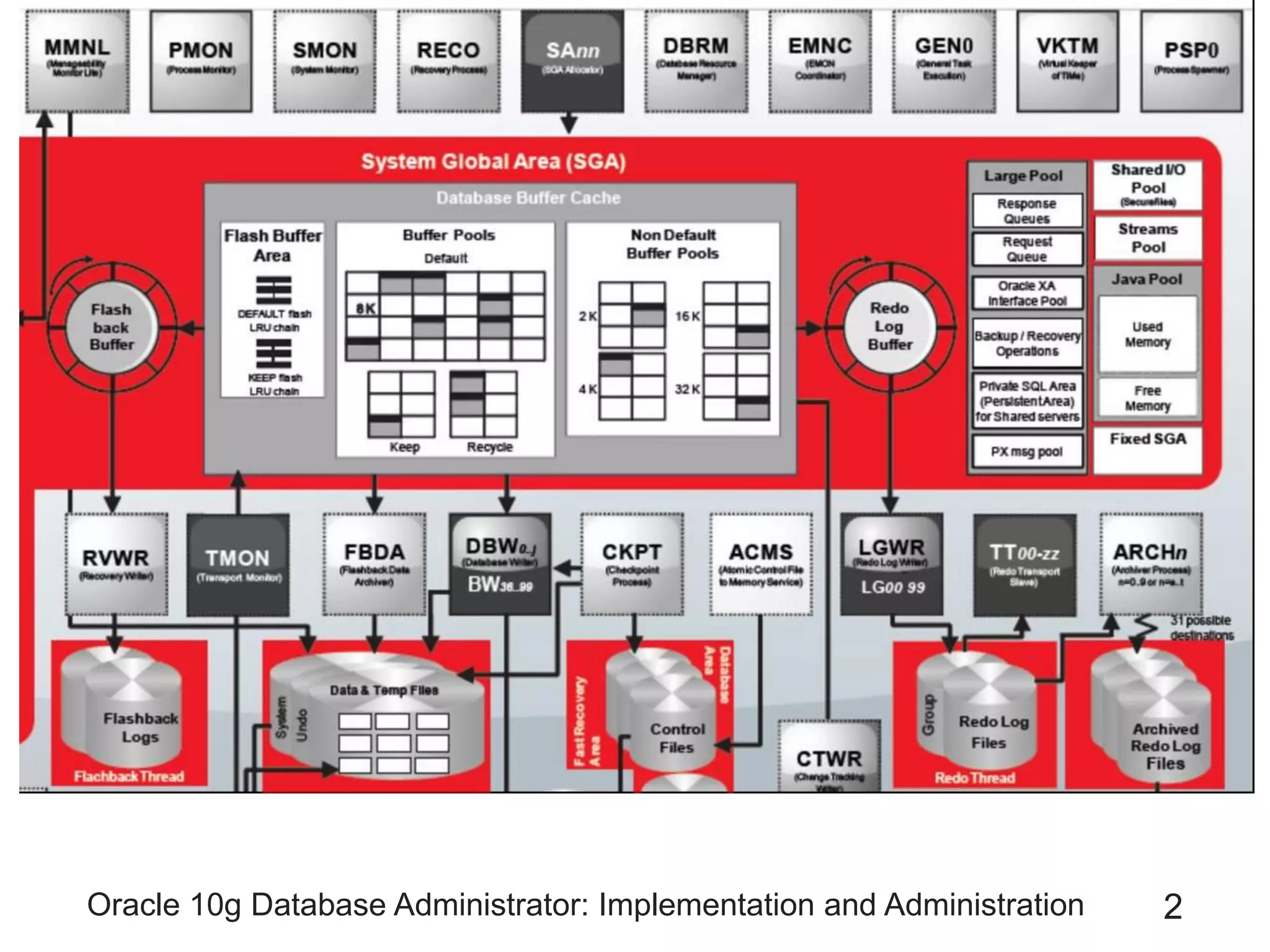
• Examine Oracle database instance architecture
• Examine Oracle database memory architecture
Oracle 10g Database Administrator: Implementation and Administration 4
Oracle 10g Database Administrator: Implementation and Administration 5
Objectives (continued)
• Examine Oracle database process architecture
• Examine Oracle database connection management
architecture
• Start using the Enterprise Manager
• Go through a brief introduction to the Database
Control
Oracle 10g Database Administrator: Implementation and Administration 6
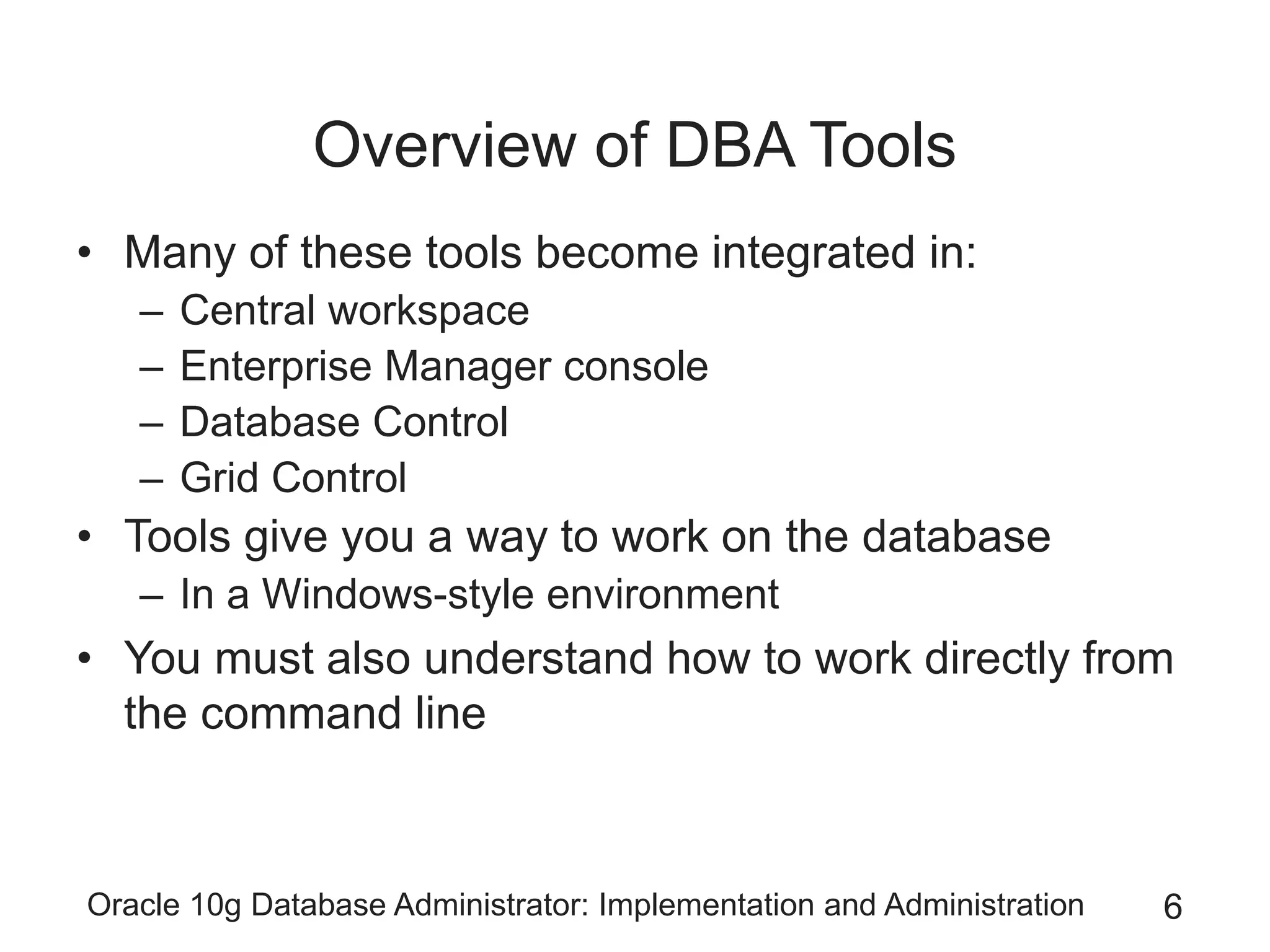
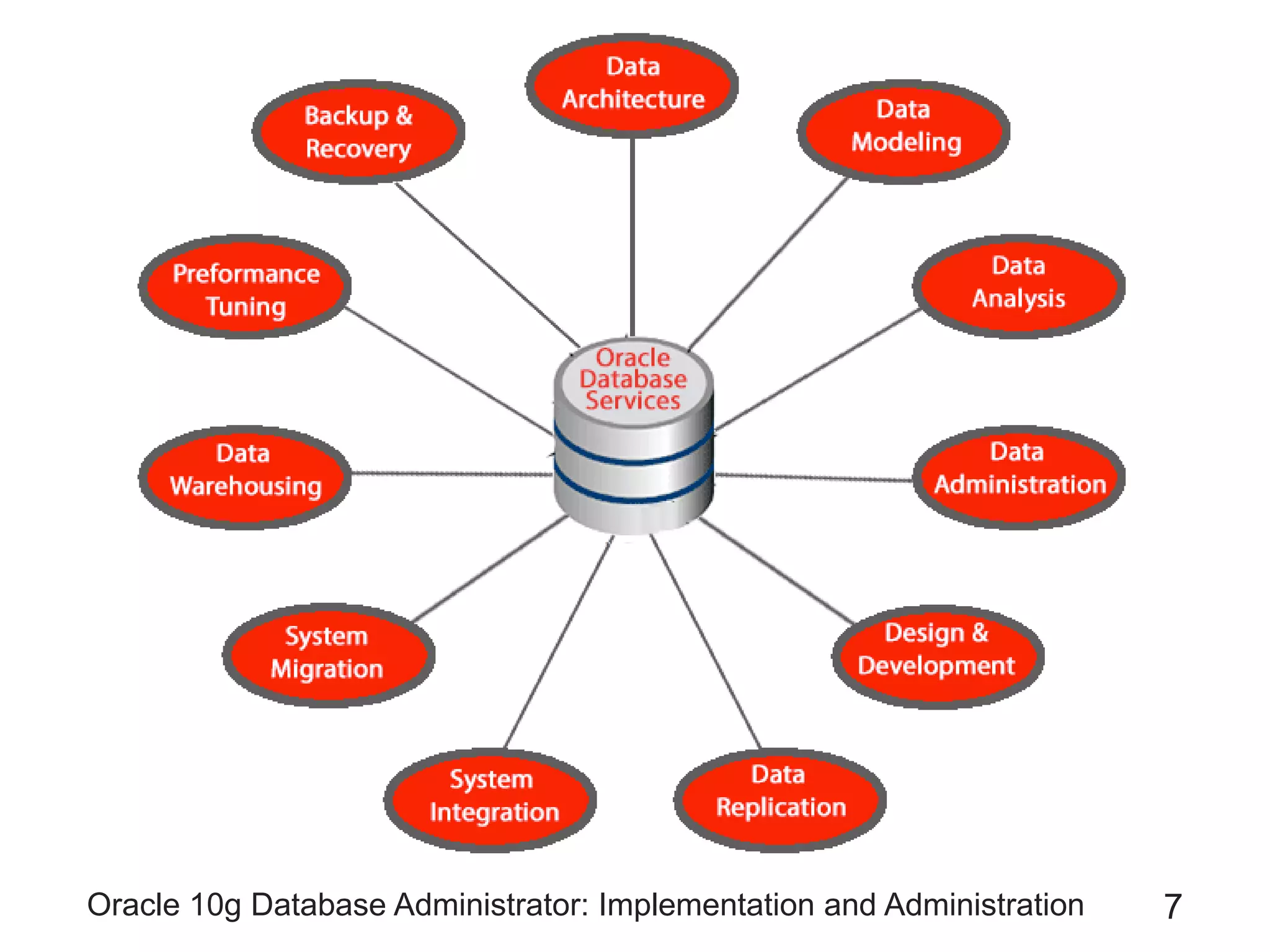
Overview of DBA Tools
• Many of these tools become integrated in:
– Central workspace
– Enterprise Manager console
– Database Control
– Grid Control
• Tools give you a way to work on the database
– In a Windows-style environment
• You must also understand how to work directly from
the command line
Oracle 10g Database Administrator: Implementation and Administration 7
Oracle 10g Database Administrator: Implementation and Administration 8
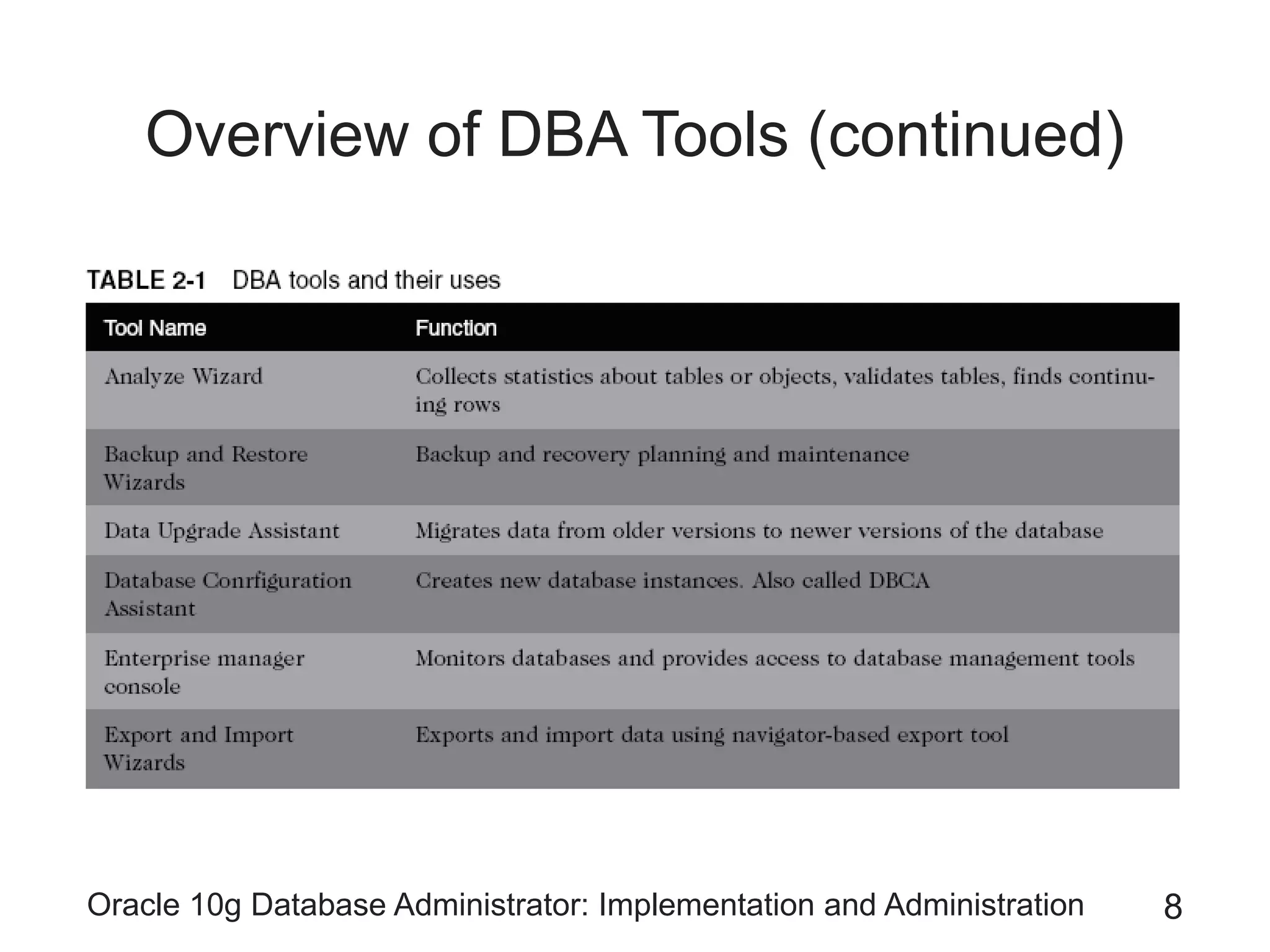
Overview of DBA Tools (continued)
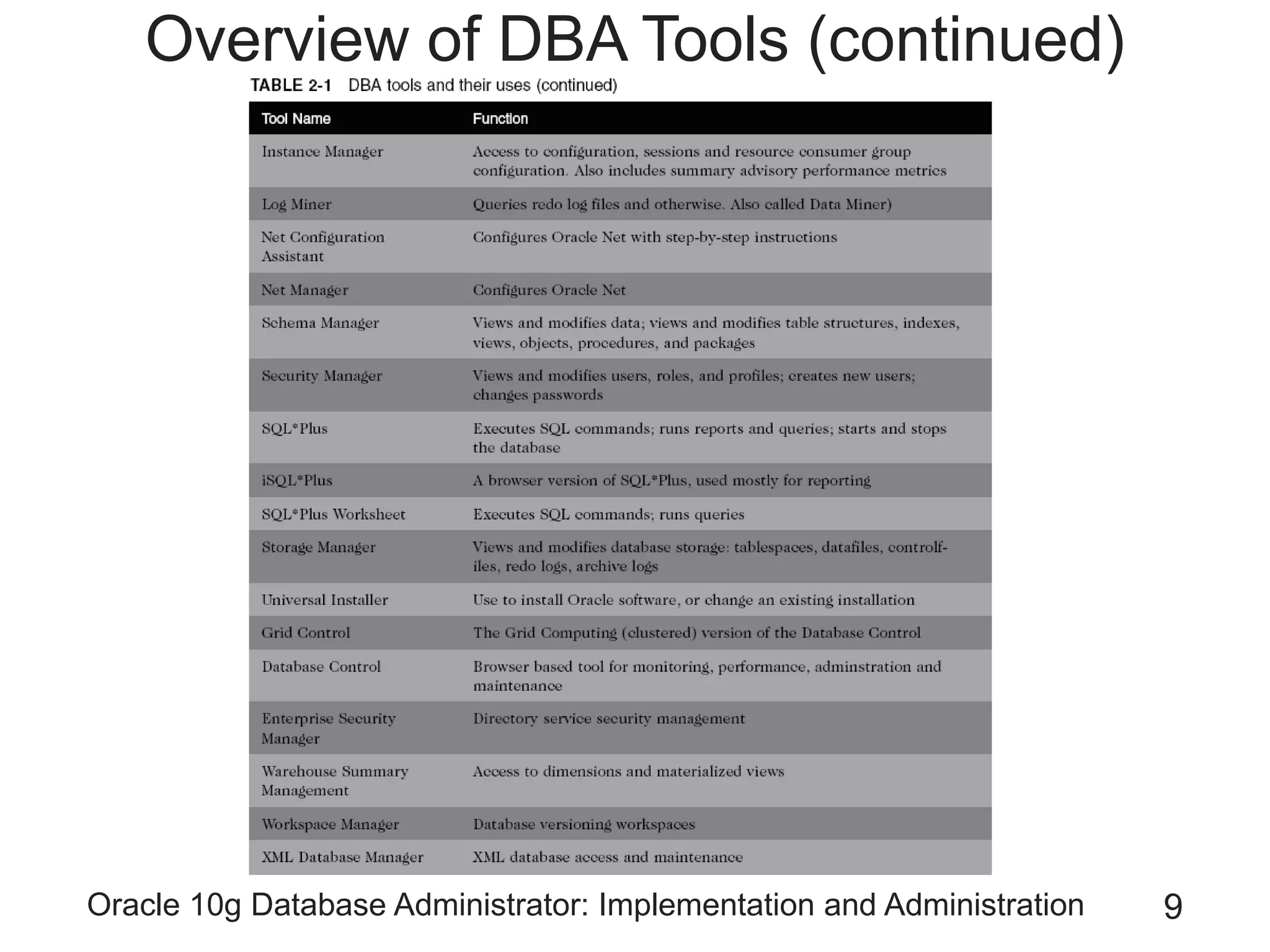
Oracle 10g Database Administrator: Implementation and Administration 9
Overview of DBA Tools (continued)
Oracle 10g Database Administrator: Implementation and Administration 10
Overview of DBA Tools (continued)
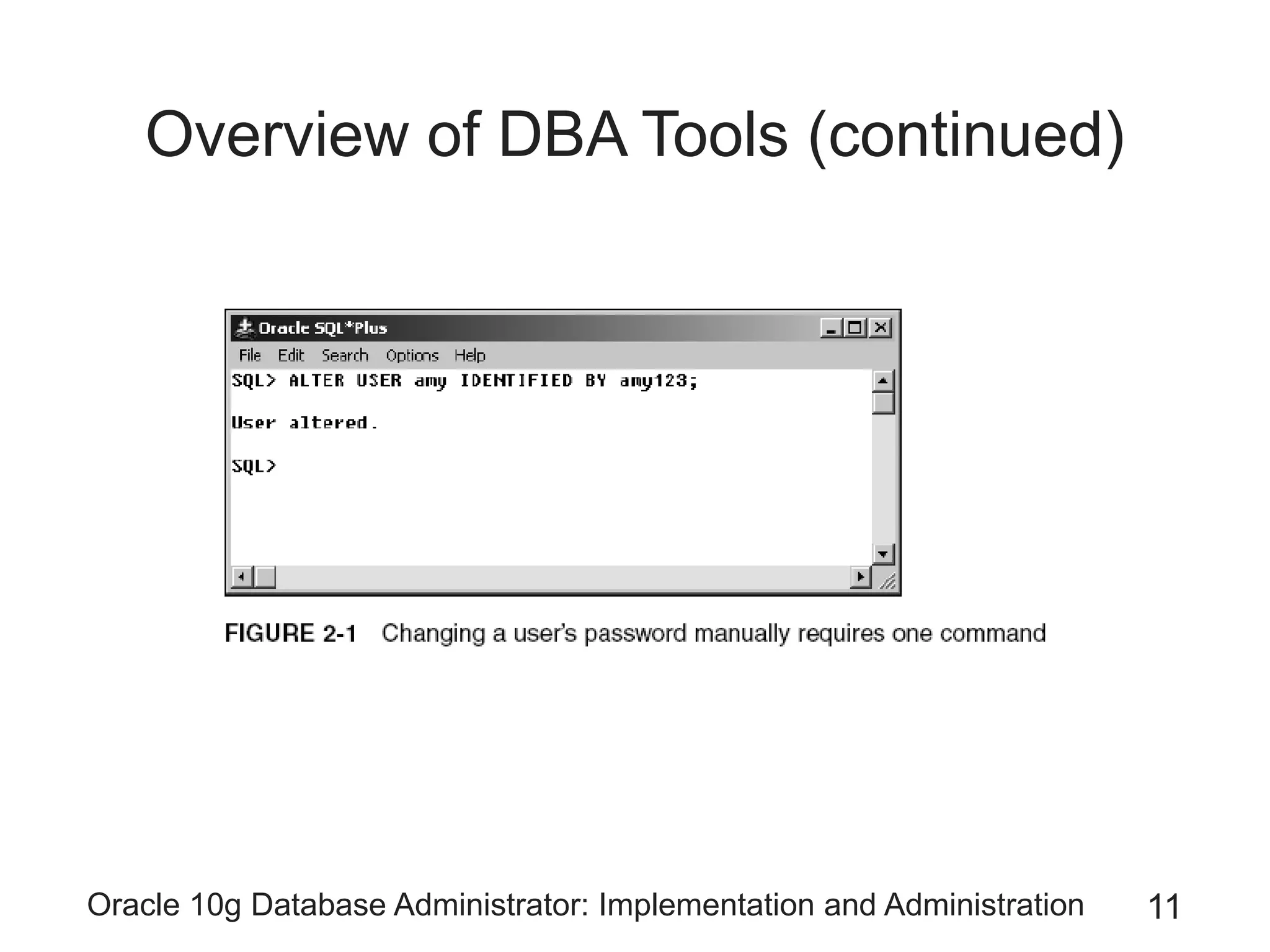
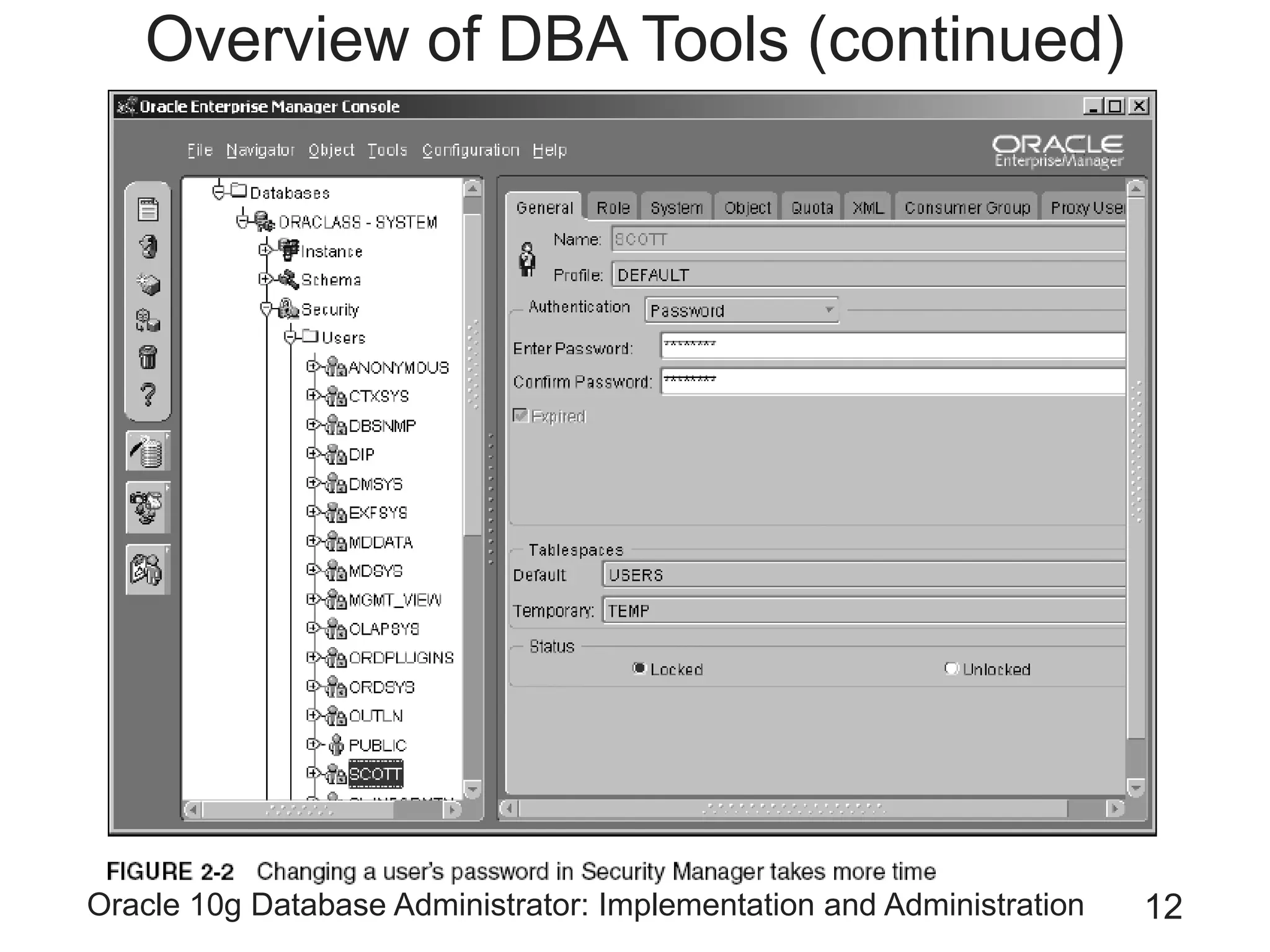
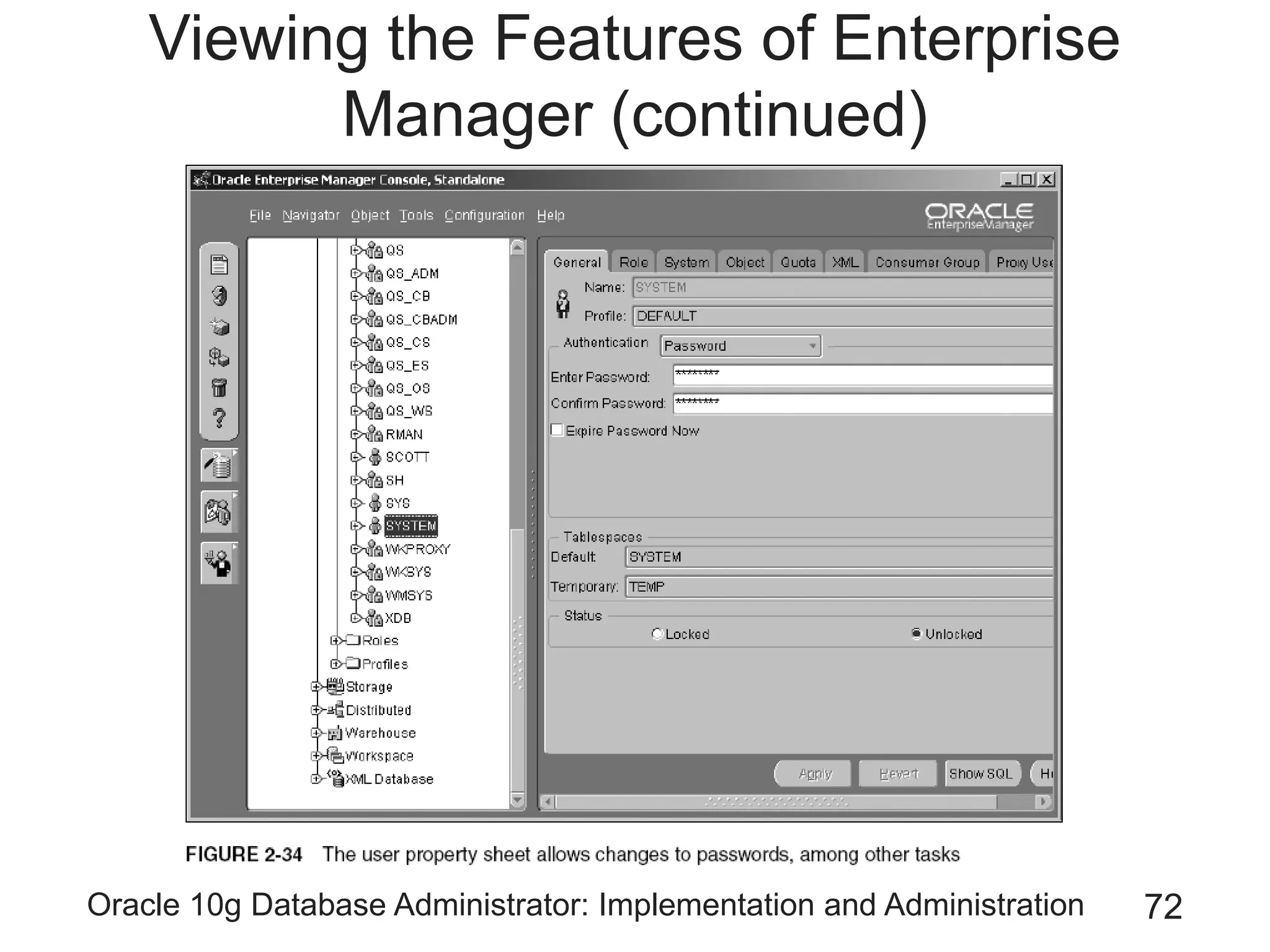
• Changing a user’s password
– Using a command-line tool
• See Figure 2-1
– Using Security Manager
• See Figure 2-2
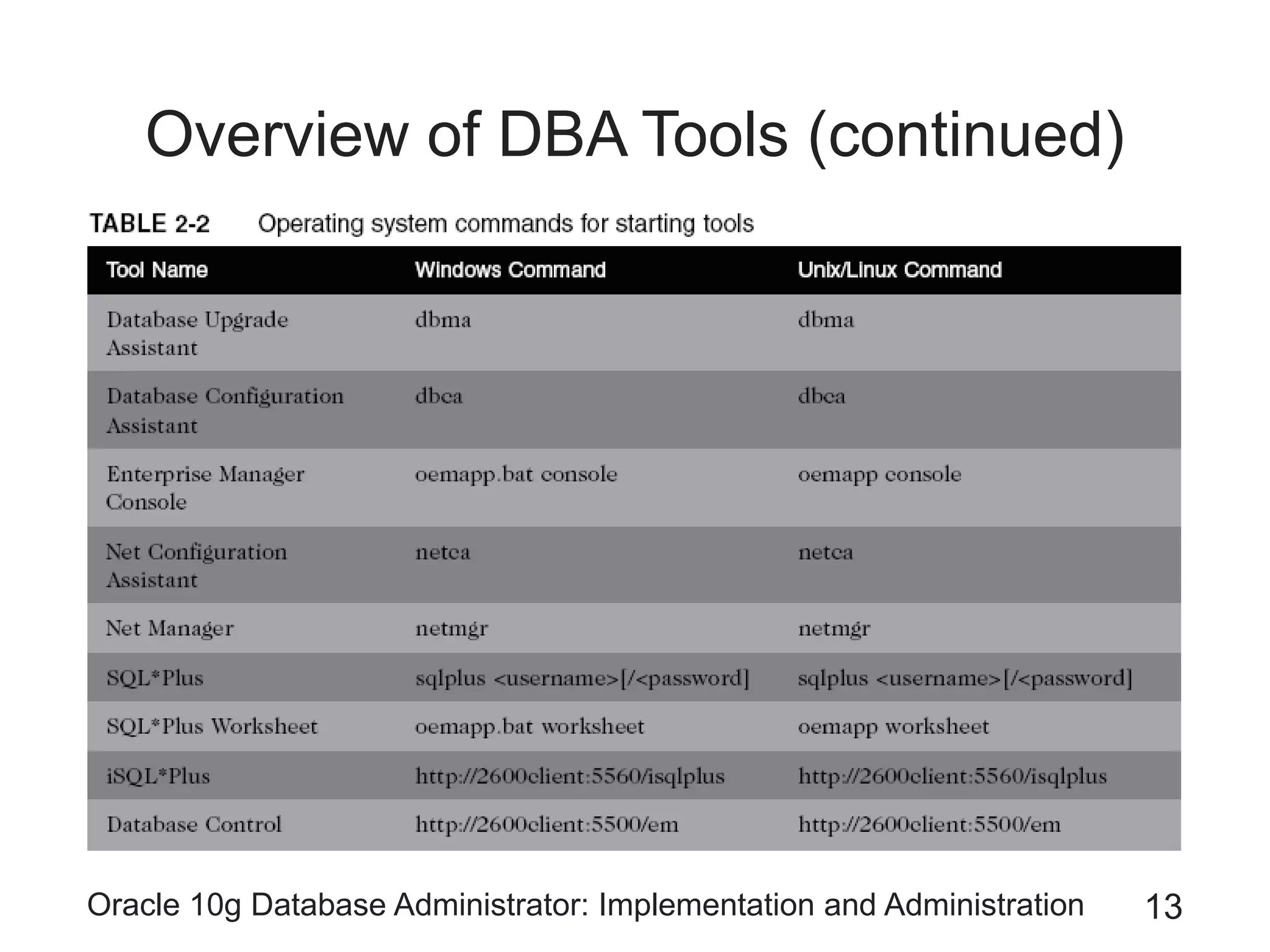
• Some tasks can be handled by more than one tool
– Oracle Net Services is a common denominator for
these tools
Oracle 10g Database Administrator: Implementation and Administration 11
Overview of DBA Tools (continued)
Oracle 10g Database Administrator: Implementation and Administration 12
Overview of DBA Tools (continued)
Oracle 10g Database Administrator: Implementation and Administration 13
Overview of DBA Tools (continued)
Oracle 10g Database Administrator: Implementation and Administration 14
Configuring Oracle Net Services to
Connect to the Database
• Nearly every time you access Oracle10g
– You go through Oracle Net Services
Oracle 10g Database Administrator: Implementation and Administration 15
Overview of Oracle Net Service
Architecture
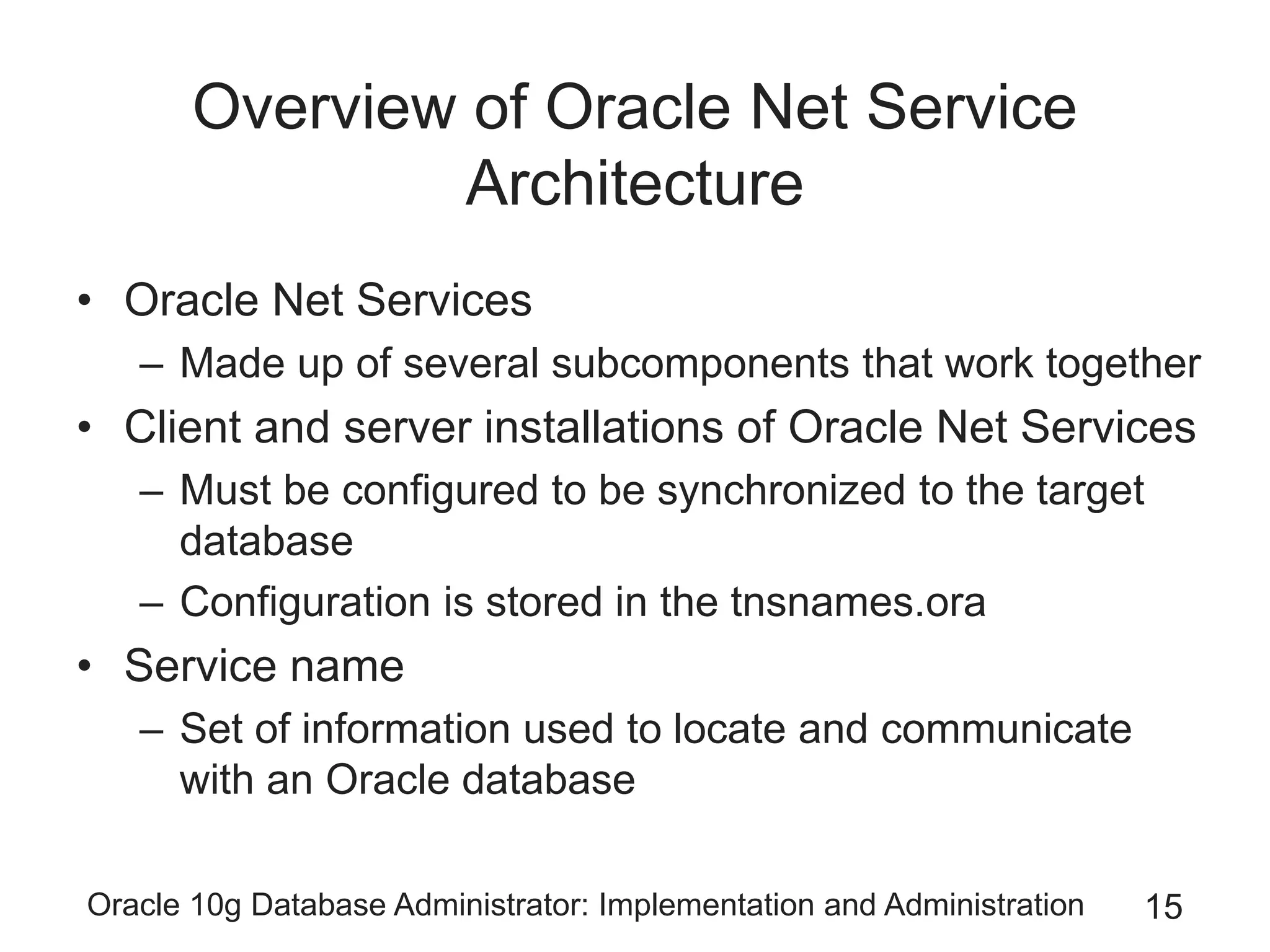
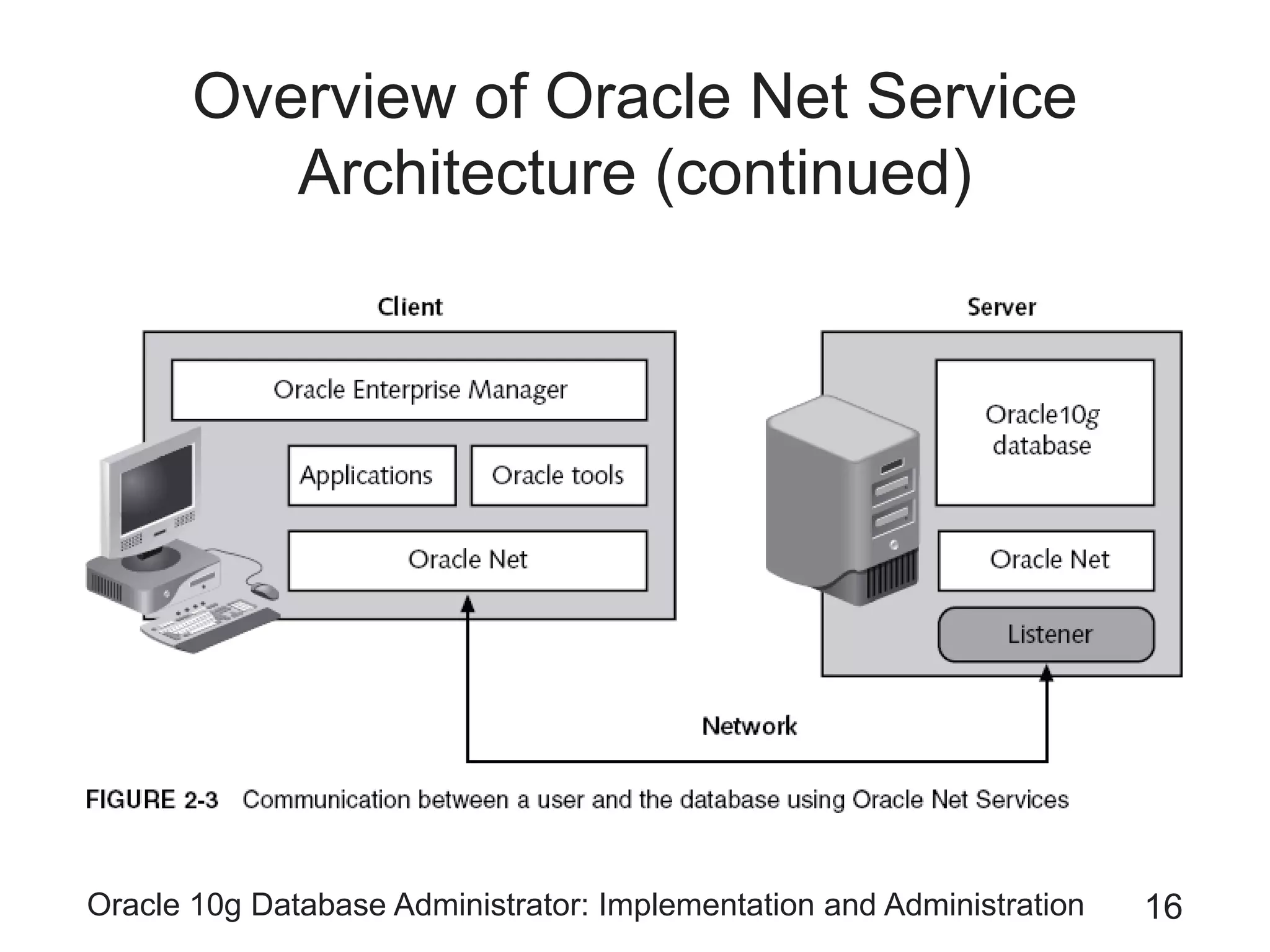
• Oracle Net Services
– Made up of several subcomponents that work together
• Client and server installations of Oracle Net Services
– Must be configured to be synchronized to the target
database
– Configuration is stored in the tnsnames.ora
• Service name
– Set of information used to locate and communicate
with an Oracle database
Oracle 10g Database Administrator: Implementation and Administration 16
Overview of Oracle Net Service
Architecture (continued)
Oracle 10g Database Administrator: Implementation and Administration 17
Overview of Oracle Net Service
Architecture (continued)
• Client side can reach the server-side database
– By using the service name
– Combined with a valid user name and password
• Bequeath protocol
– Allows a direct connection to a database
• On a database server computer
• Without going through Oracle Net services
• Without requiring a network name
– Allowed only when you are logged on to the database
machine
Oracle 10g Database Administrator: Implementation and Administration 18
Overview of Oracle Net Service
Architecture (continued)
Oracle 10g Database Administrator: Implementation and Administration 19
Overview of Oracle Net Service
Architecture (continued)
• Path of communication
– Client with Oracle Net
– Client with JDBC driver
– Terminal with direct connection
• Network naming methods
– Local naming
– Directory naming
– Host naming
– External naming
– Easy connect
Oracle 10g Database Administrator: Implementation and Administration 20
Overview of Oracle Net Service
Architecture (continued)
Oracle 10g Database Administrator: Implementation and Administration 21
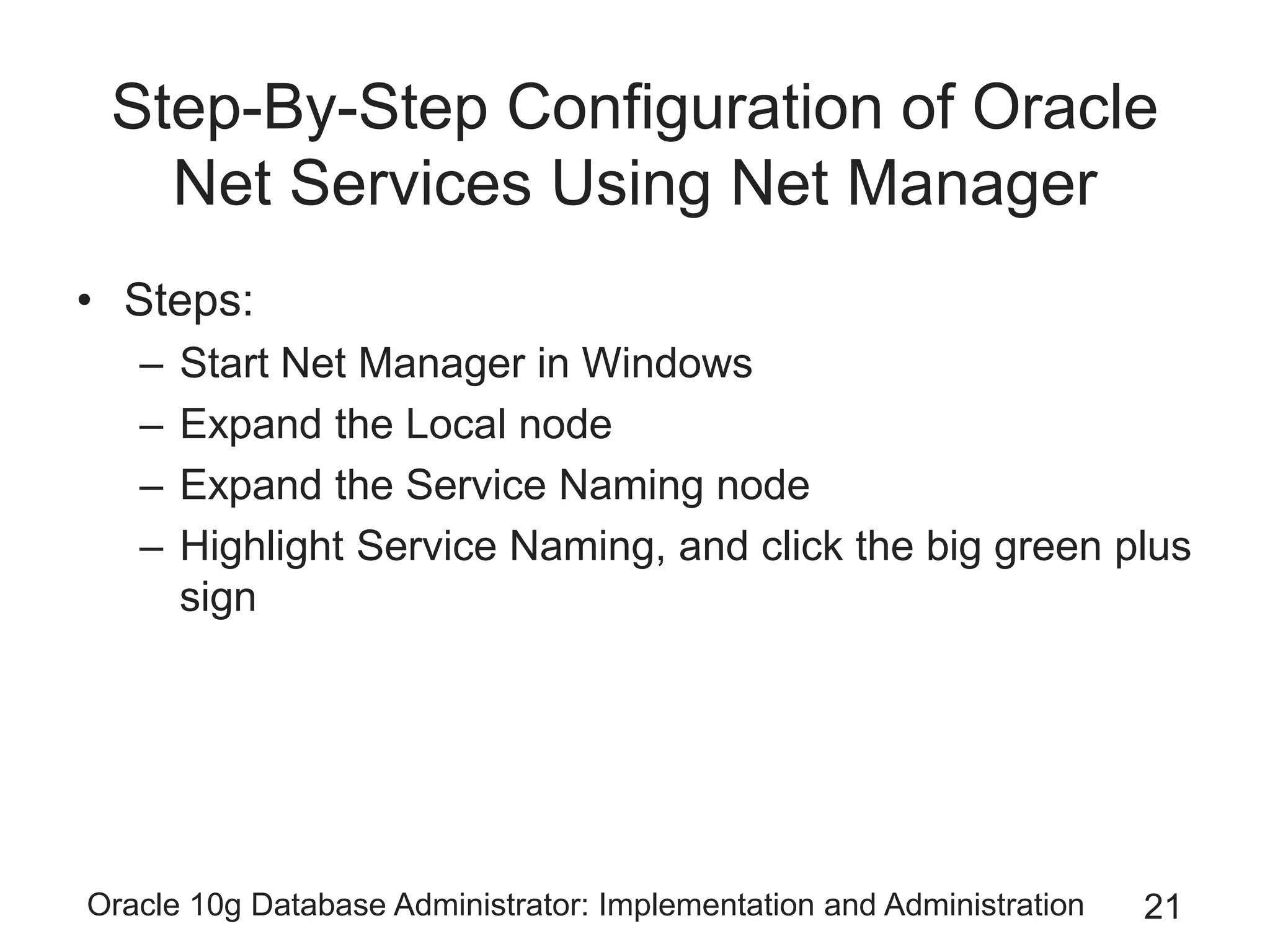
Step-By-Step Configuration of Oracle
Net Services Using Net Manager
• Steps:
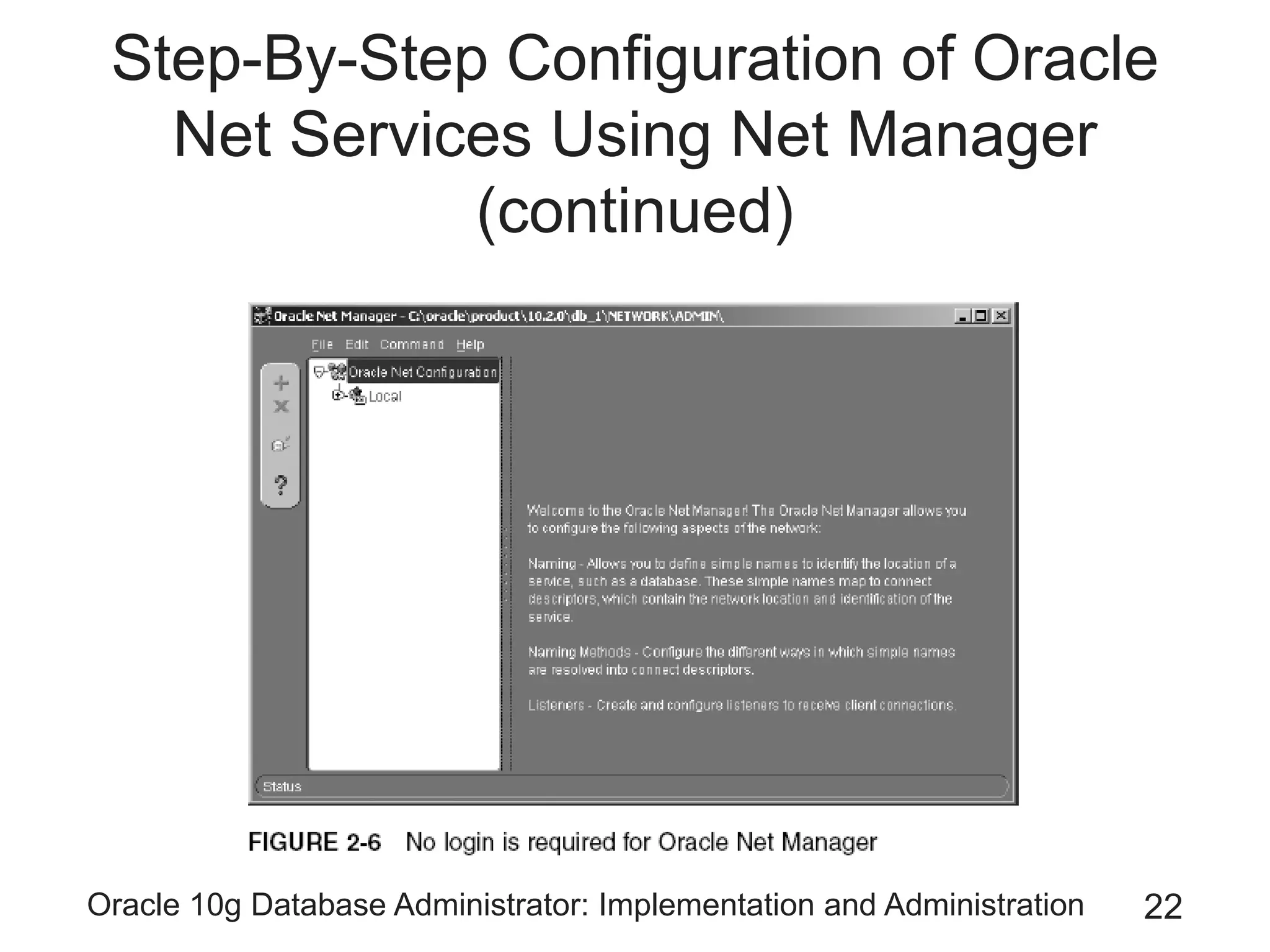
– Start Net Manager in Windows
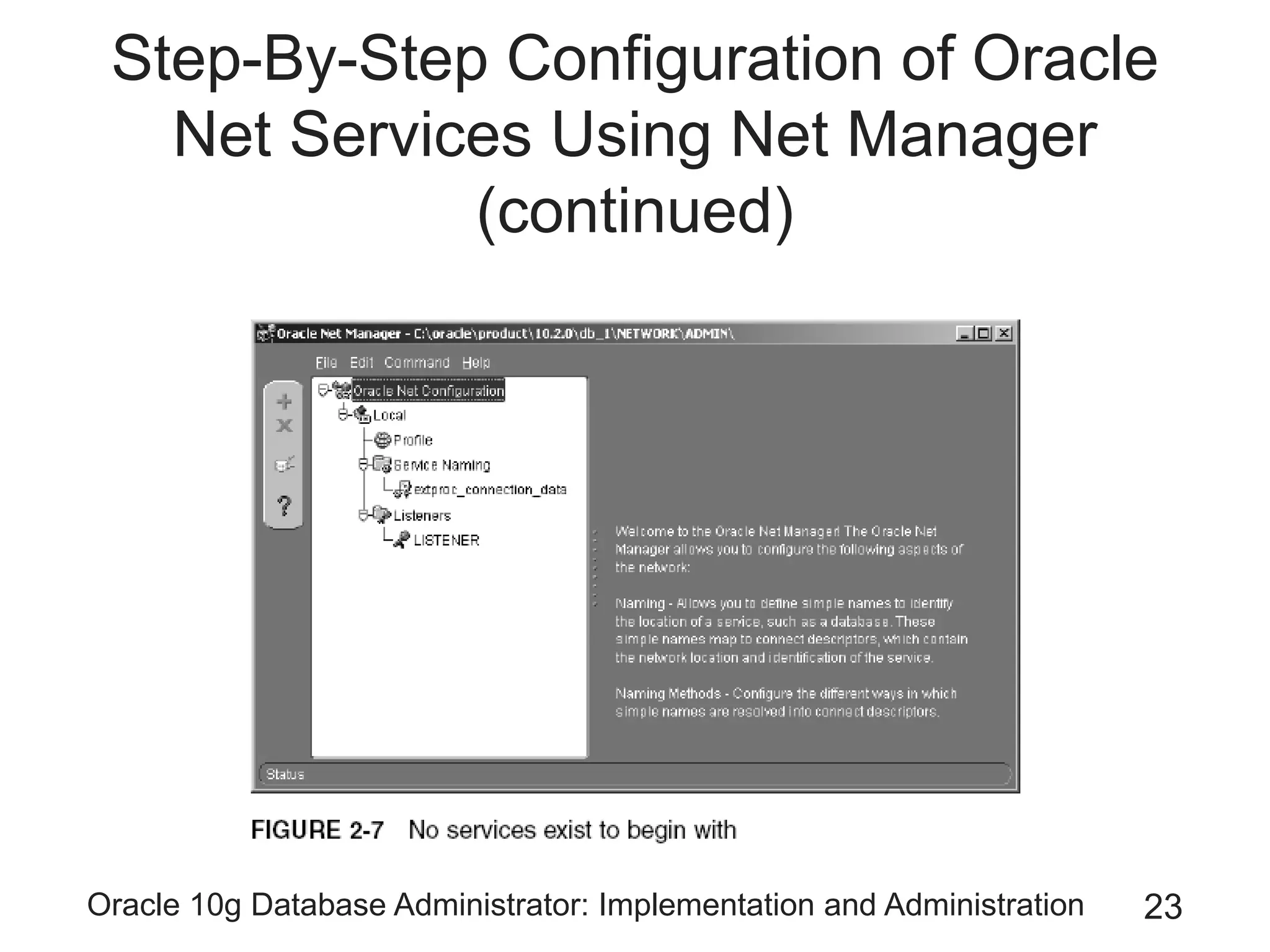
– Expand the Local node
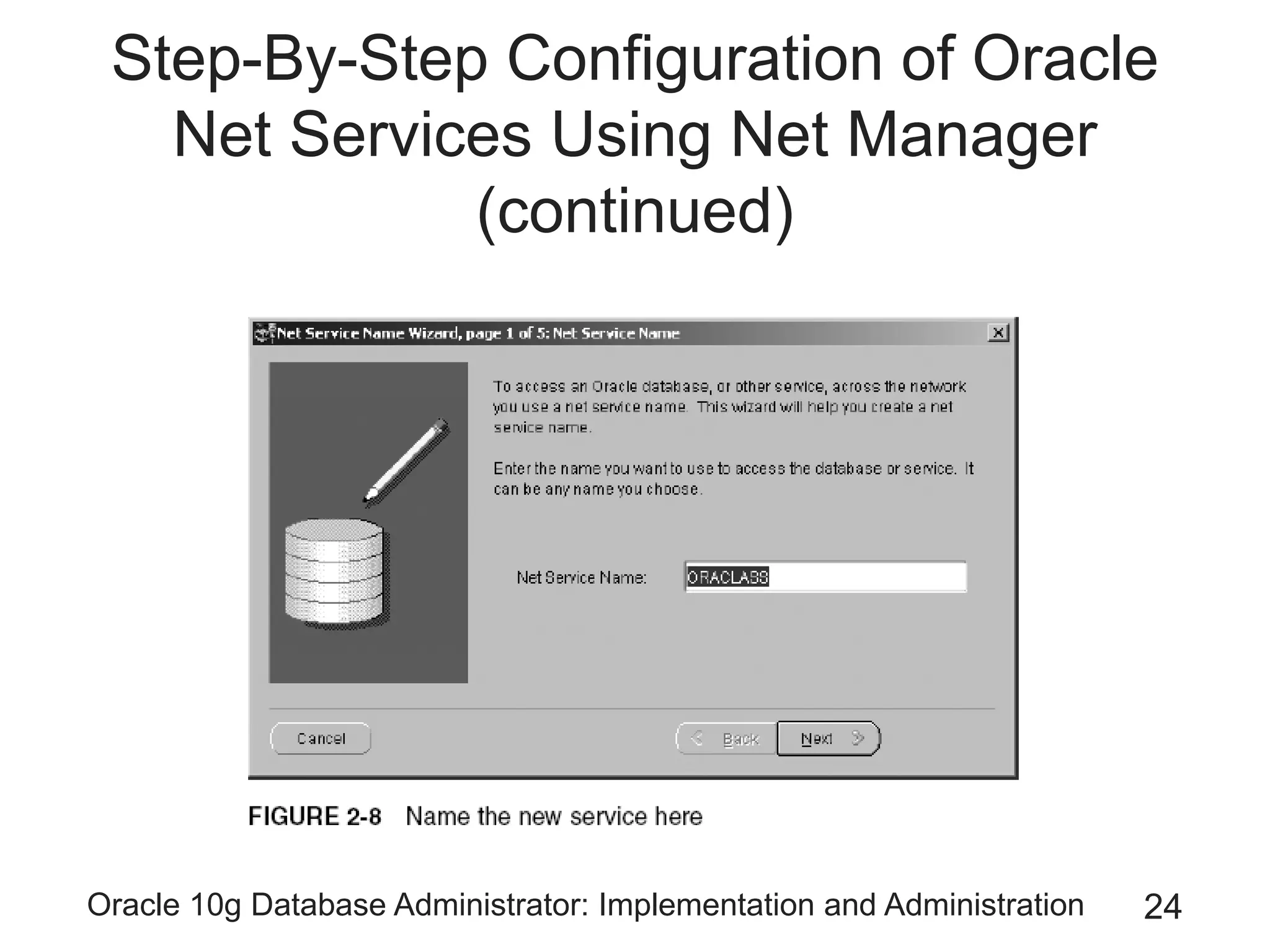
– Expand the Service Naming node
– Highlight Service Naming, and click the big green plus
sign
Oracle 10g Database Administrator: Implementation and Administration 22
Step-By-Step Configuration of Oracle
Net Services Using Net Manager
(continued)
Oracle 10g Database Administrator: Implementation and Administration 23
Step-By-Step Configuration of Oracle
Net Services Using Net Manager
(continued)
Oracle 10g Database Administrator: Implementation and Administration 24
Step-By-Step Configuration of Oracle
Net Services Using Net Manager
(continued)
Oracle 10g Database Administrator: Implementation and Administration 25
Step-By-Step Configuration of Oracle
Net Services Using Net Manager
(continued)
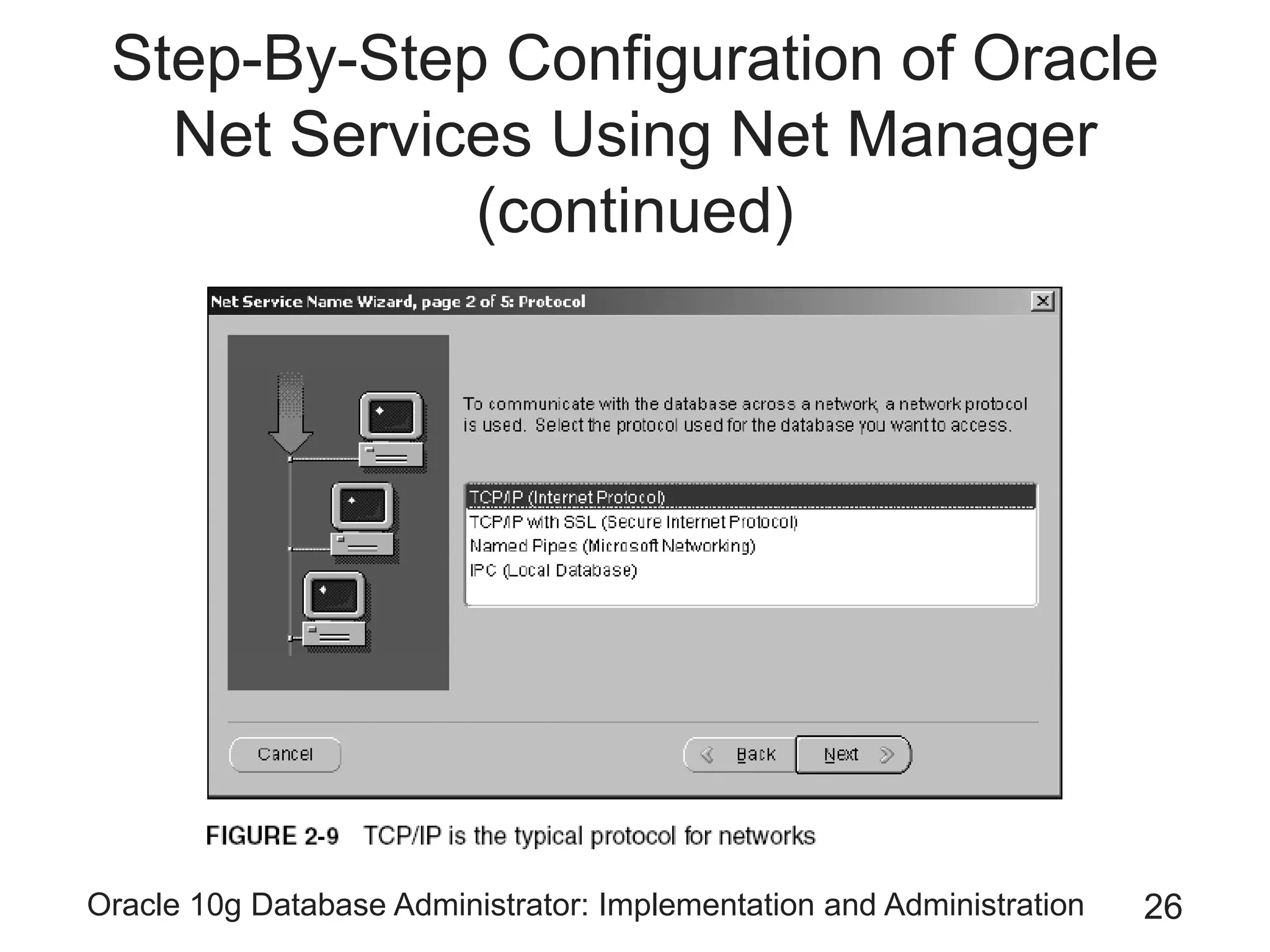
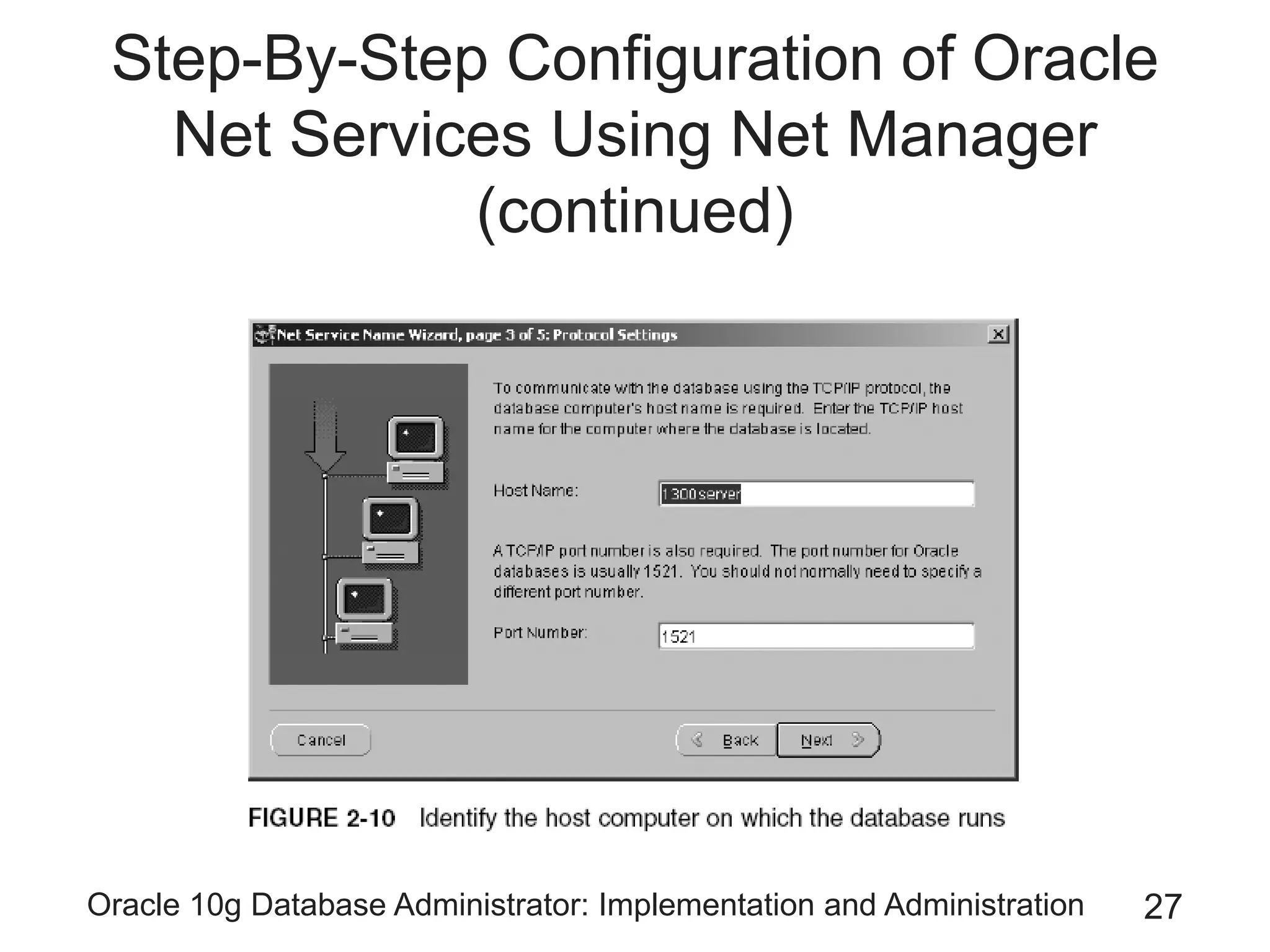
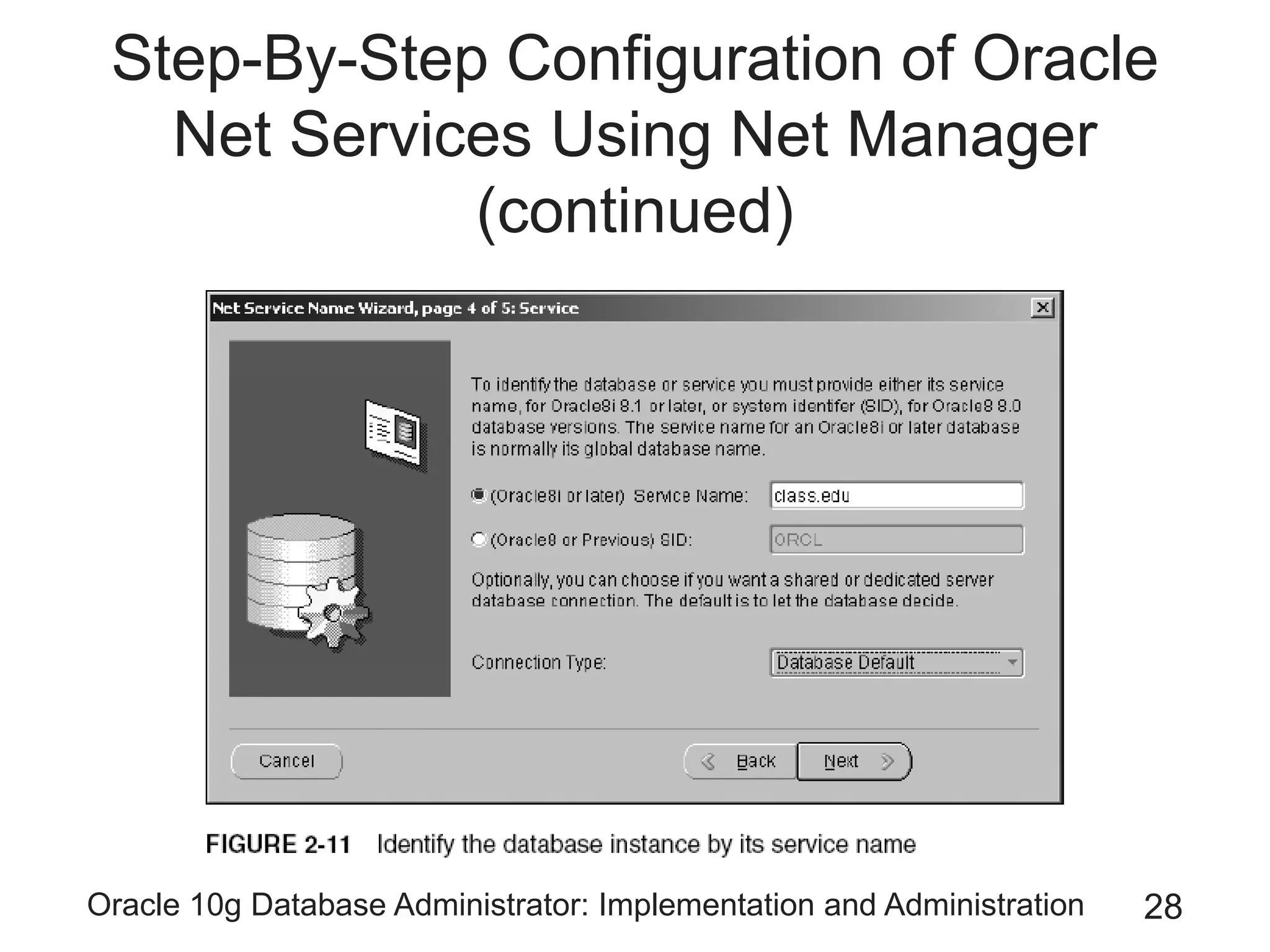
• Steps (continued):
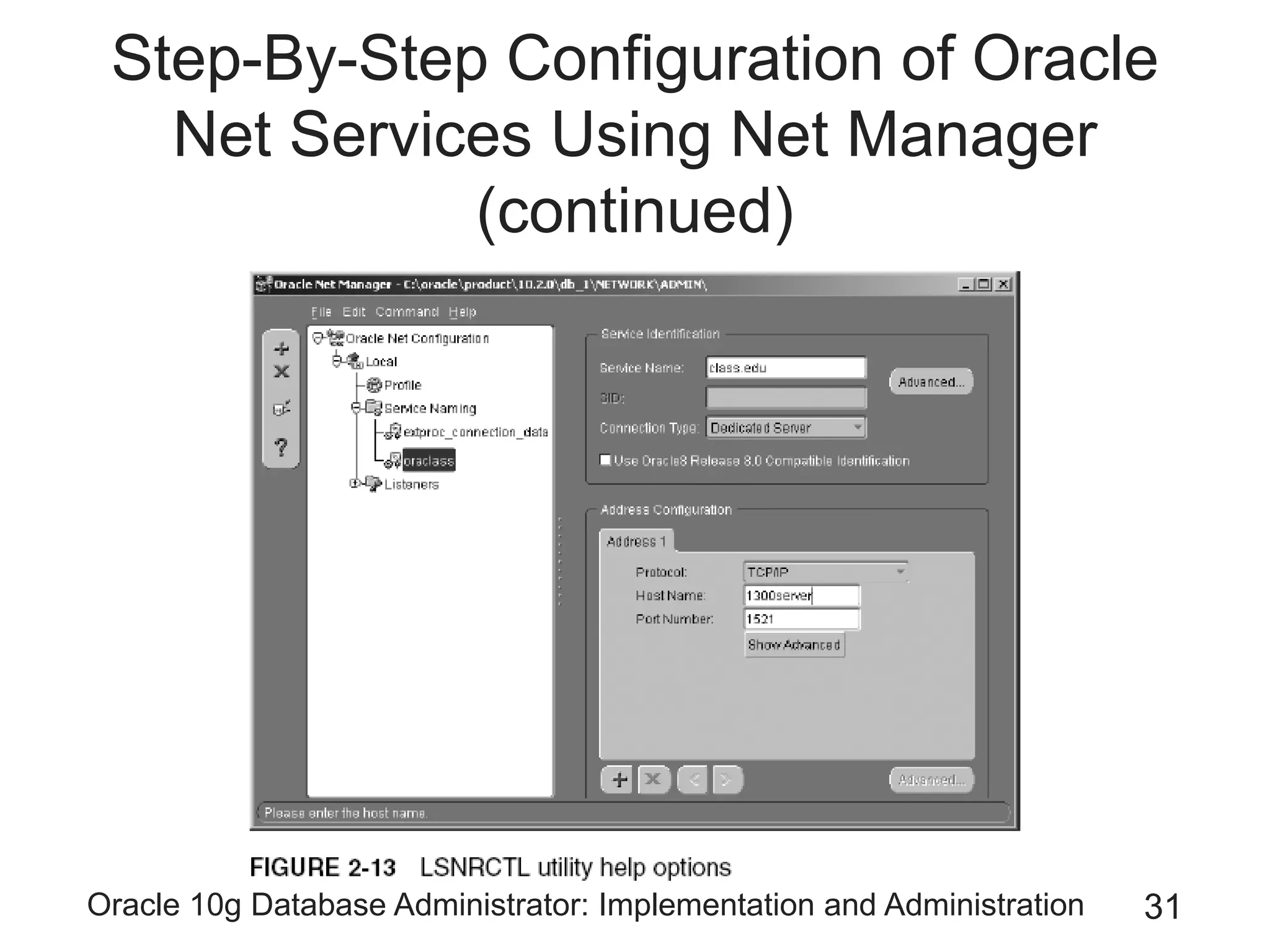
– For the connection, select TCP/IP (Internet Protocol)
as the protocol
– Type the computer name on which the database
resides in the Host Name box
– Accept the default selection of Oracle8i or later
Oracle 10g Database Administrator: Implementation and Administration 26
Step-By-Step Configuration of Oracle
Net Services Using Net Manager
(continued)
Oracle 10g Database Administrator: Implementation and Administration 27
Step-By-Step Configuration of Oracle
Net Services Using Net Manager
(continued)
Oracle 10g Database Administrator: Implementation and Administration 28
Step-By-Step Configuration of Oracle
Net Services Using Net Manager
(continued)
Oracle 10g Database Administrator: Implementation and Administration 29
Step-By-Step Configuration of Oracle
Net Services Using Net Manager
(continued)
• Steps (continued):
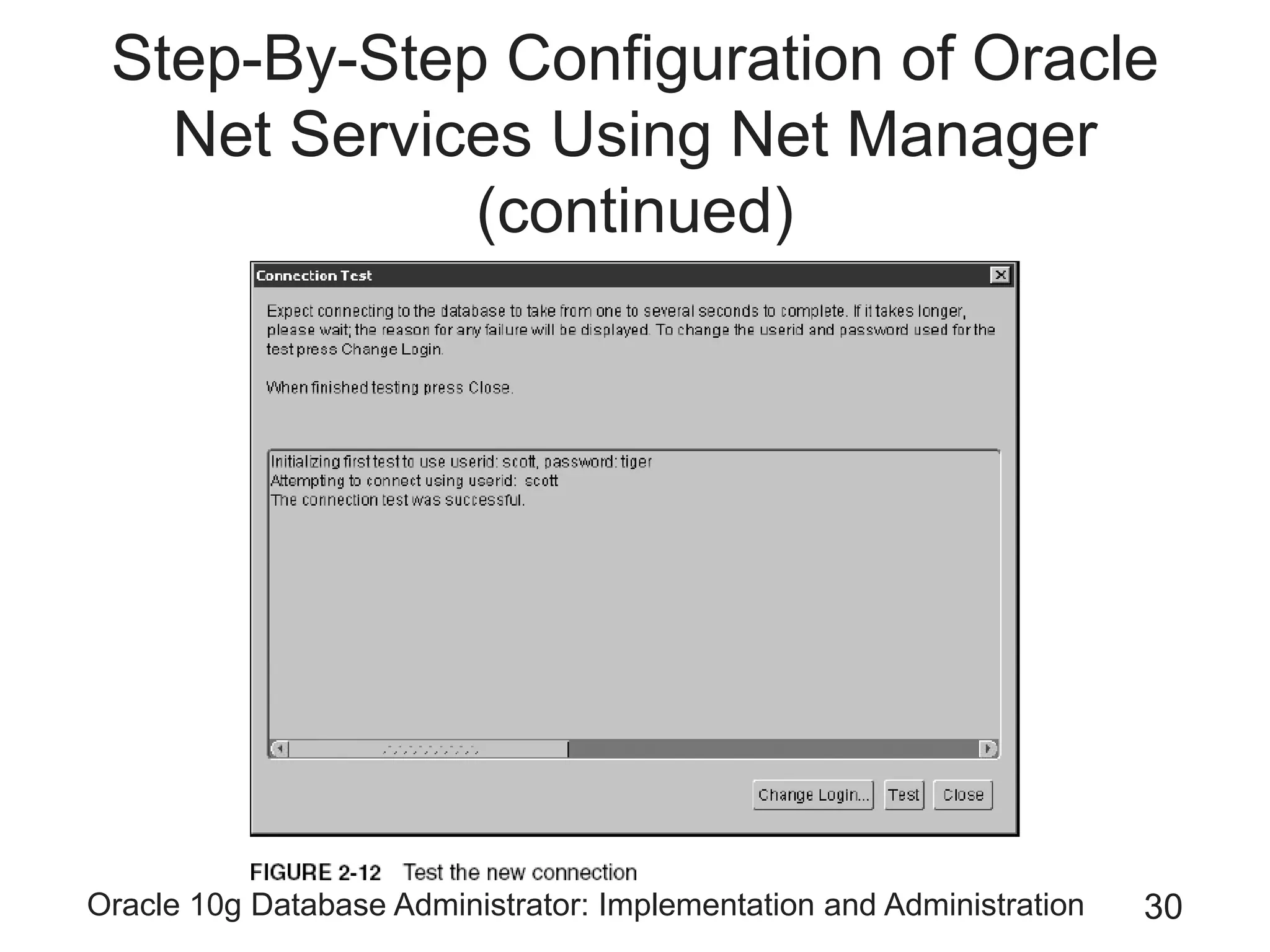
– Click Test
– Click Close to close the test window
– Click Finish to complete the definition
– Save the configuration
• By selecting File/Save Network Configuration from the
menu
– Close Net Manager
Oracle 10g Database Administrator: Implementation and Administration 30
Step-By-Step Configuration of Oracle
Net Services Using Net Manager
(continued)
Oracle 10g Database Administrator: Implementation and Administration 31
Step-By-Step Configuration of Oracle
Net Services Using Net Manager
(continued)
Oracle 10g Database Administrator: Implementation and Administration 32
Step-By-Step Configuration of Oracle
Net Services Using Net Manager
(continued)
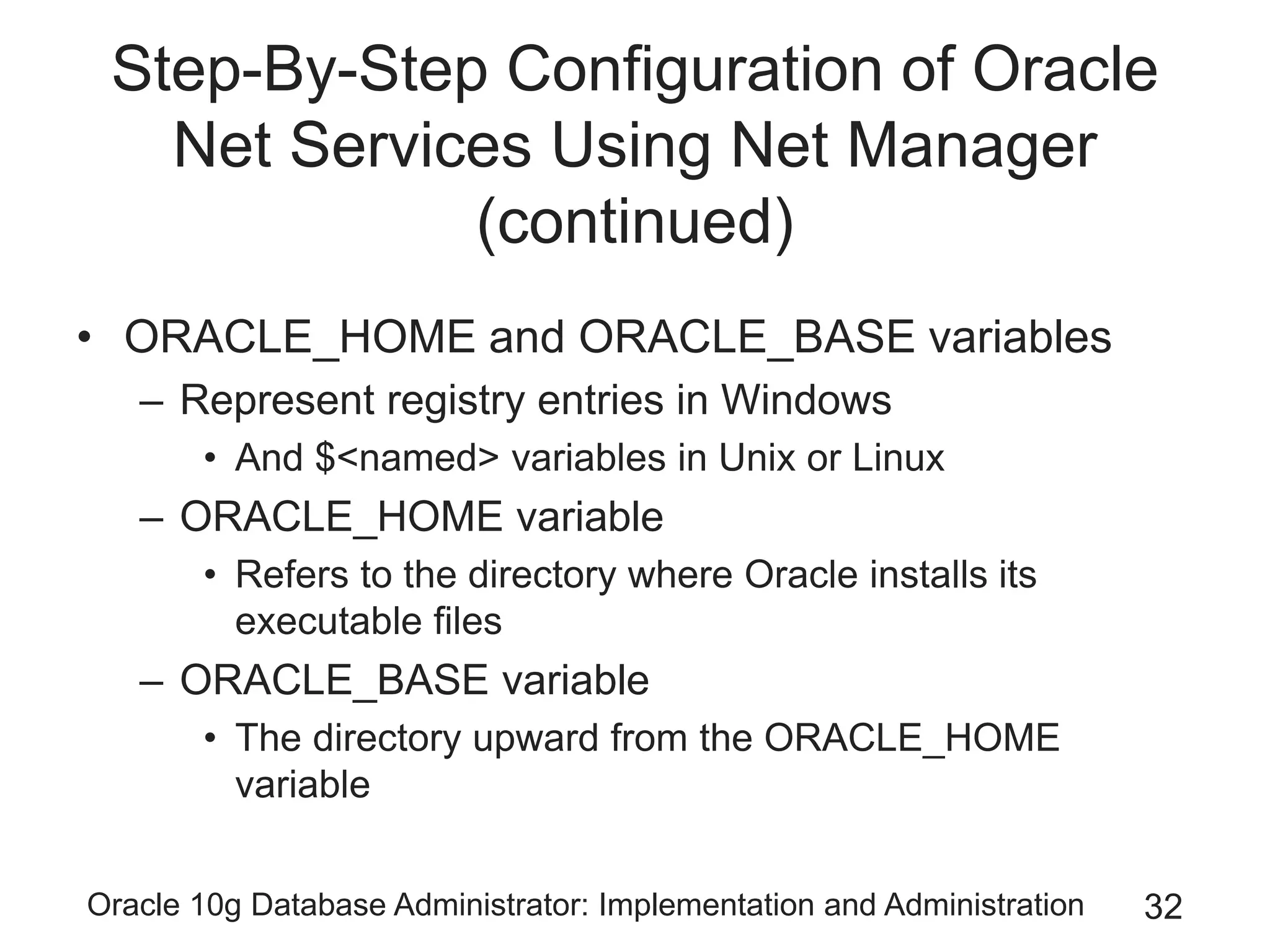
• ORACLE_HOME and ORACLE_BASE variables
– Represent registry entries in Windows
• And $<named> variables in Unix or Linux
– ORACLE_HOME variable
• Refers to the directory where Oracle installs its
executable files
– ORACLE_BASE variable
• The directory upward from the ORACLE_HOME
variable
Oracle 10g Database Administrator: Implementation and Administration 33
TNS Configuration Files
• The listener.ora file
– Stored on the database server
– Provides configuration for how the listener process
listens over the network, for connection requests
– Stored in $ORACLE_HOME/network/admin
• The tnsnames.ora file
– Placed onto the client machine
– Allows communication between client machine and
listener on the database sever
Oracle 10g Database Administrator: Implementation and Administration 34
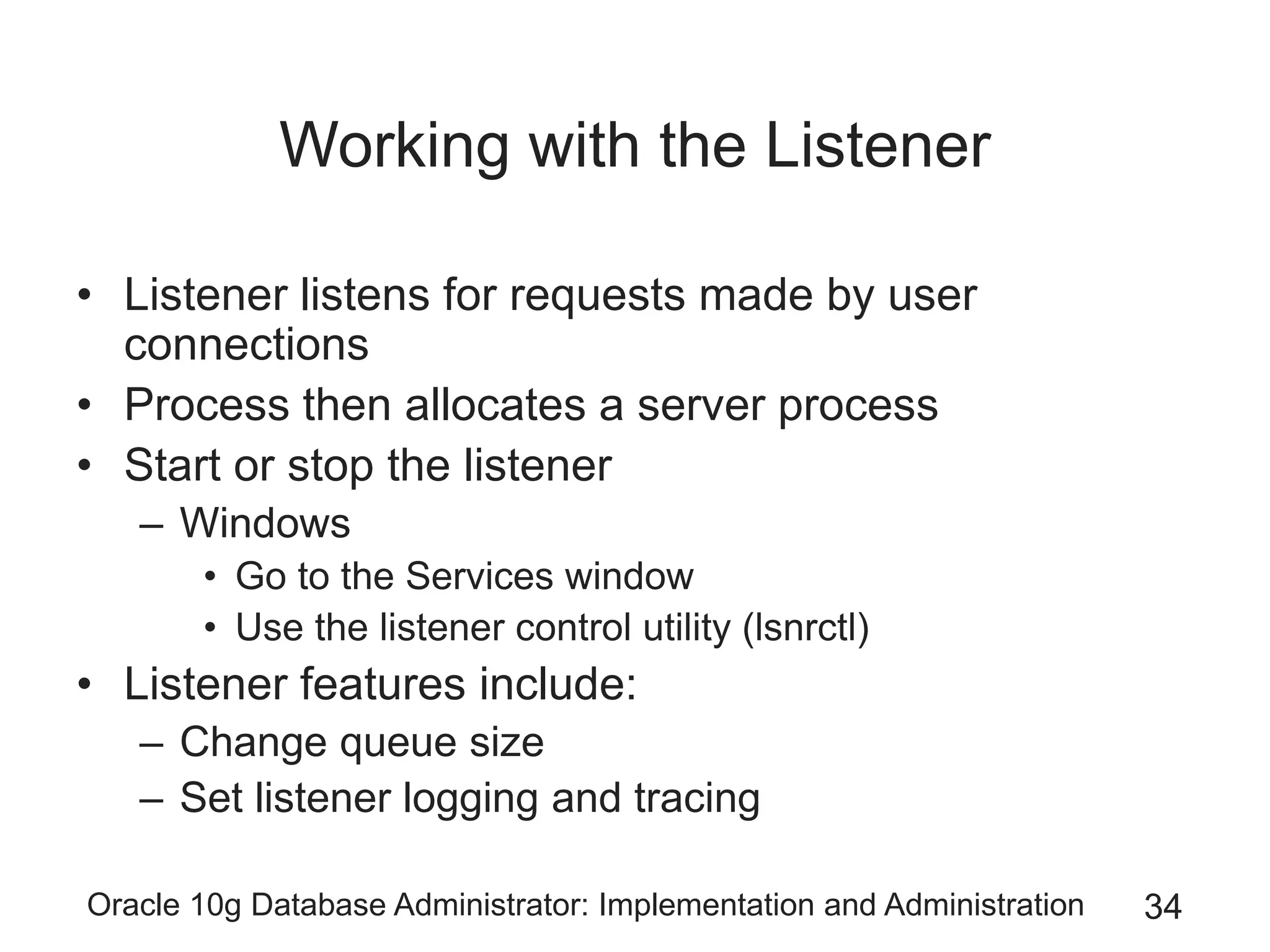
Working with the Listener
• Listener listens for requests made by user
connections
• Process then allocates a server process
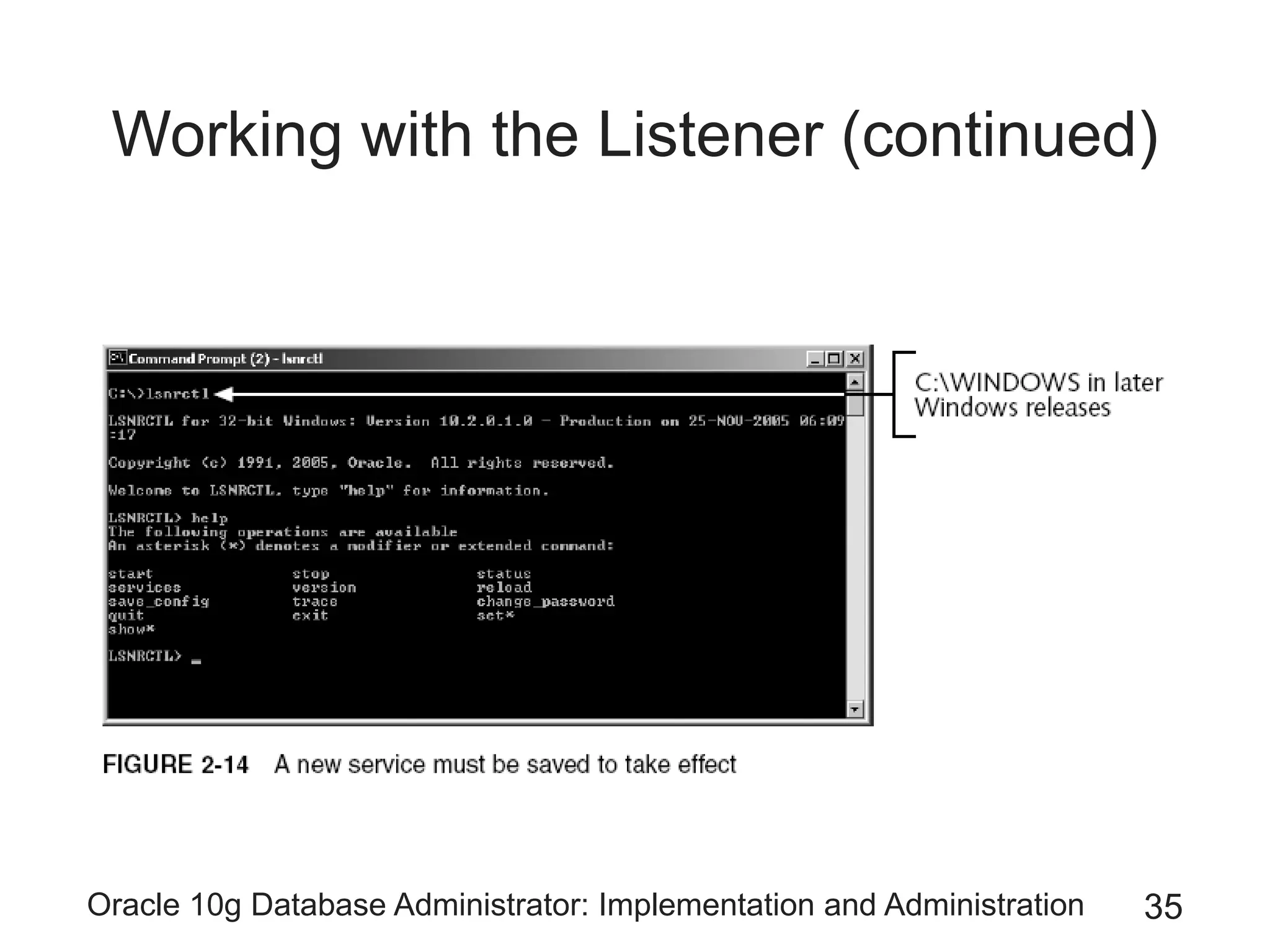
• Start or stop the listener
– Windows
• Go to the Services window
• Use the listener control utility (lsnrctl)
• Listener features include:
– Change queue size
– Set listener logging and tracing
Oracle 10g Database Administrator: Implementation and Administration 35
Working with the Listener (continued)
Oracle 10g Database Administrator: Implementation and Administration 36
Working with the Listener (continued)
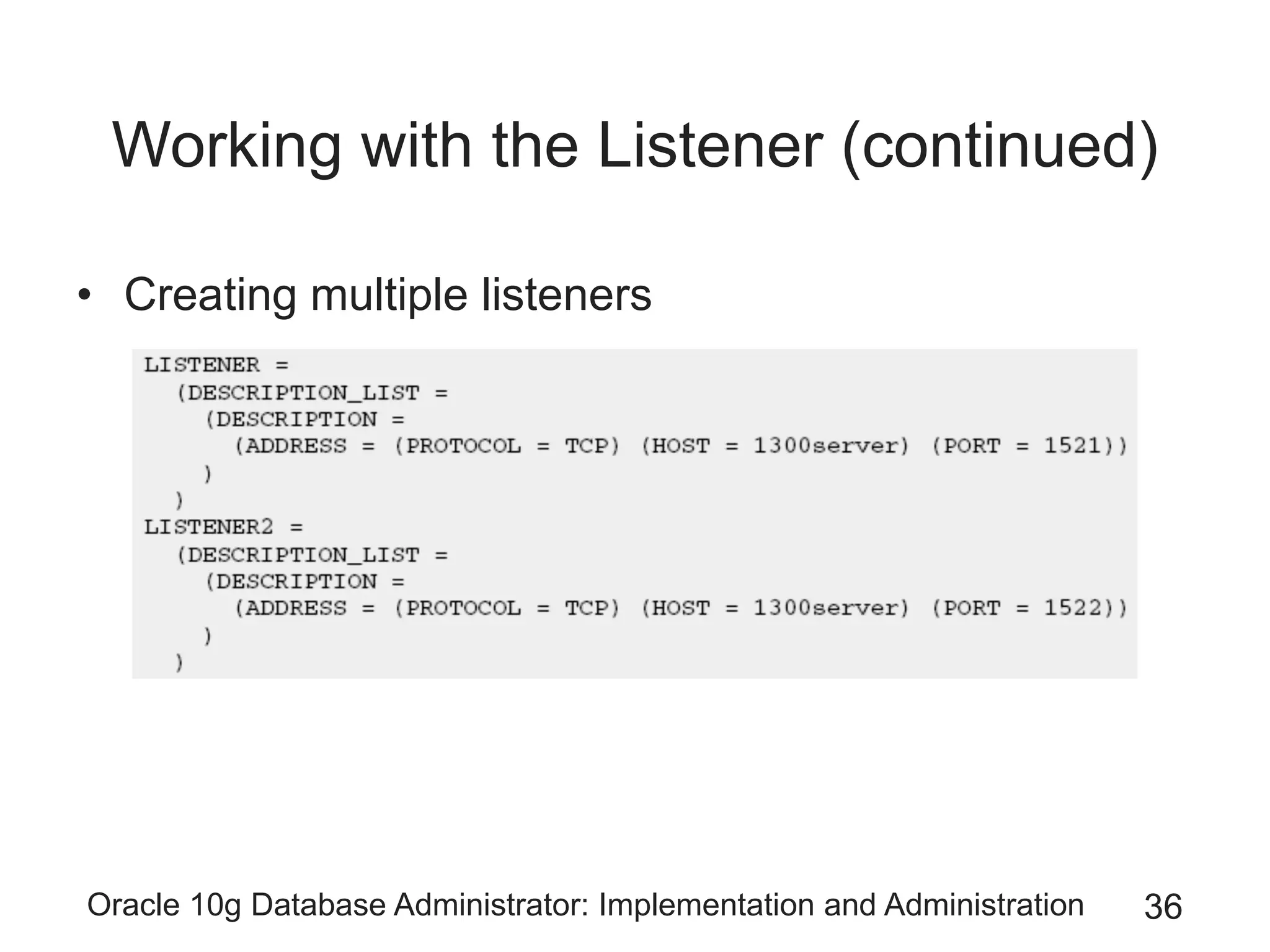
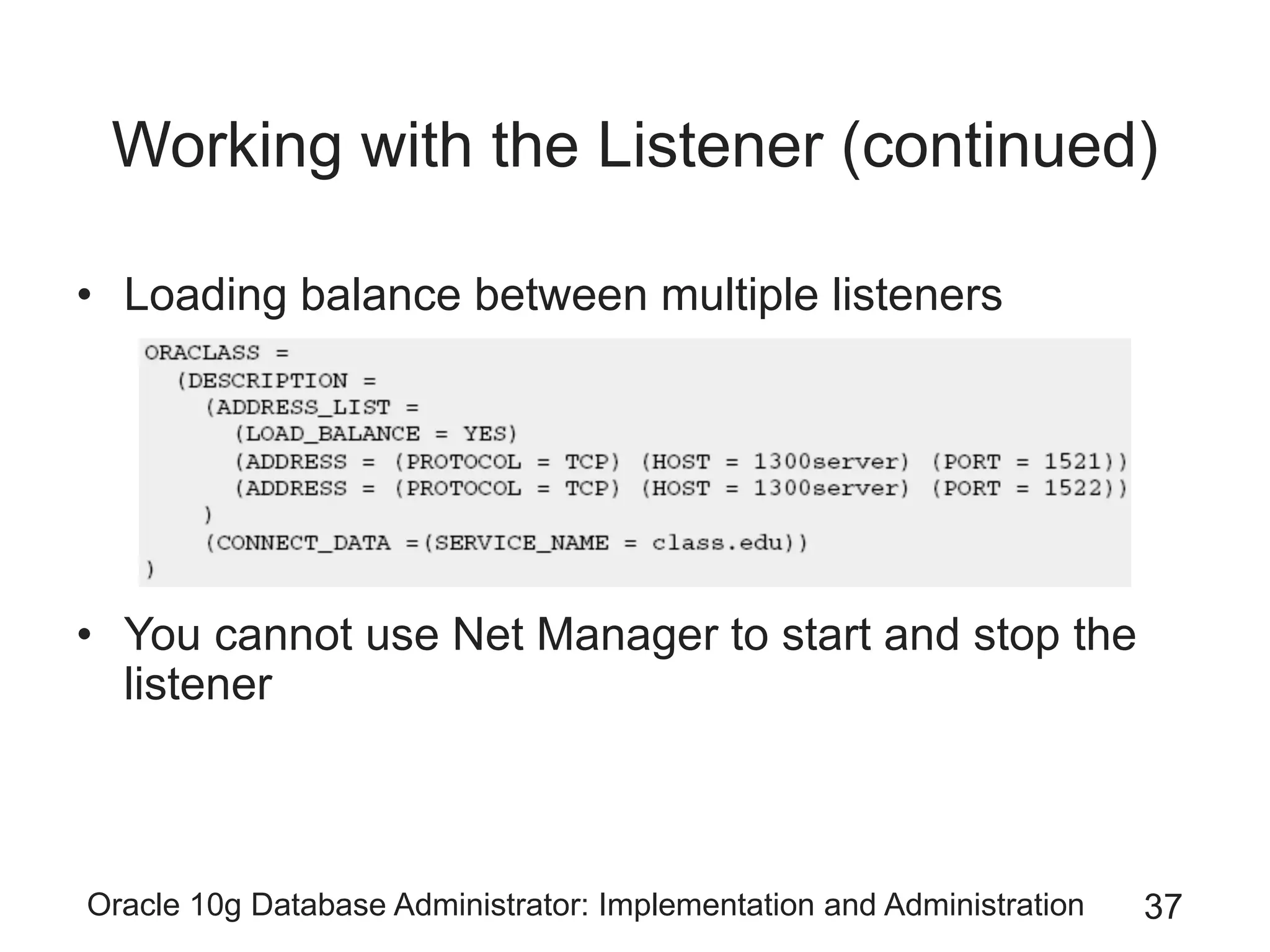
• Creating multiple listeners
Oracle 10g Database Administrator: Implementation and Administration 37
Working with the Listener (continued)
• Loading balance between multiple listeners
• You cannot use Net Manager to start and stop the
listener
Oracle 10g Database Administrator: Implementation and Administration 38
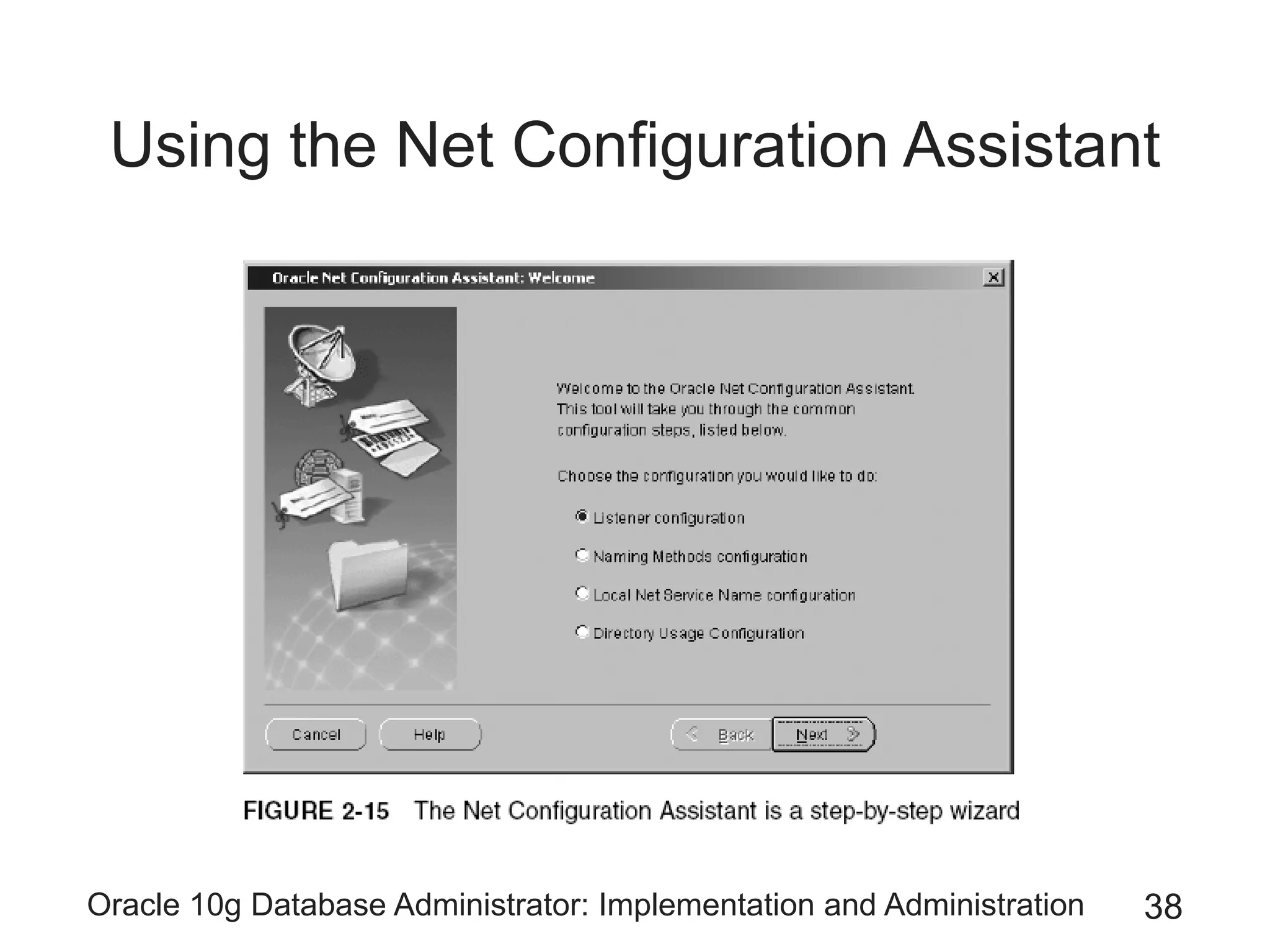
Using the Net Configuration Assistant
Oracle 10g Database Administrator: Implementation and Administration 39
Using SQL*Plus, SQL*Plus
Worksheet, and iSQL*Plus
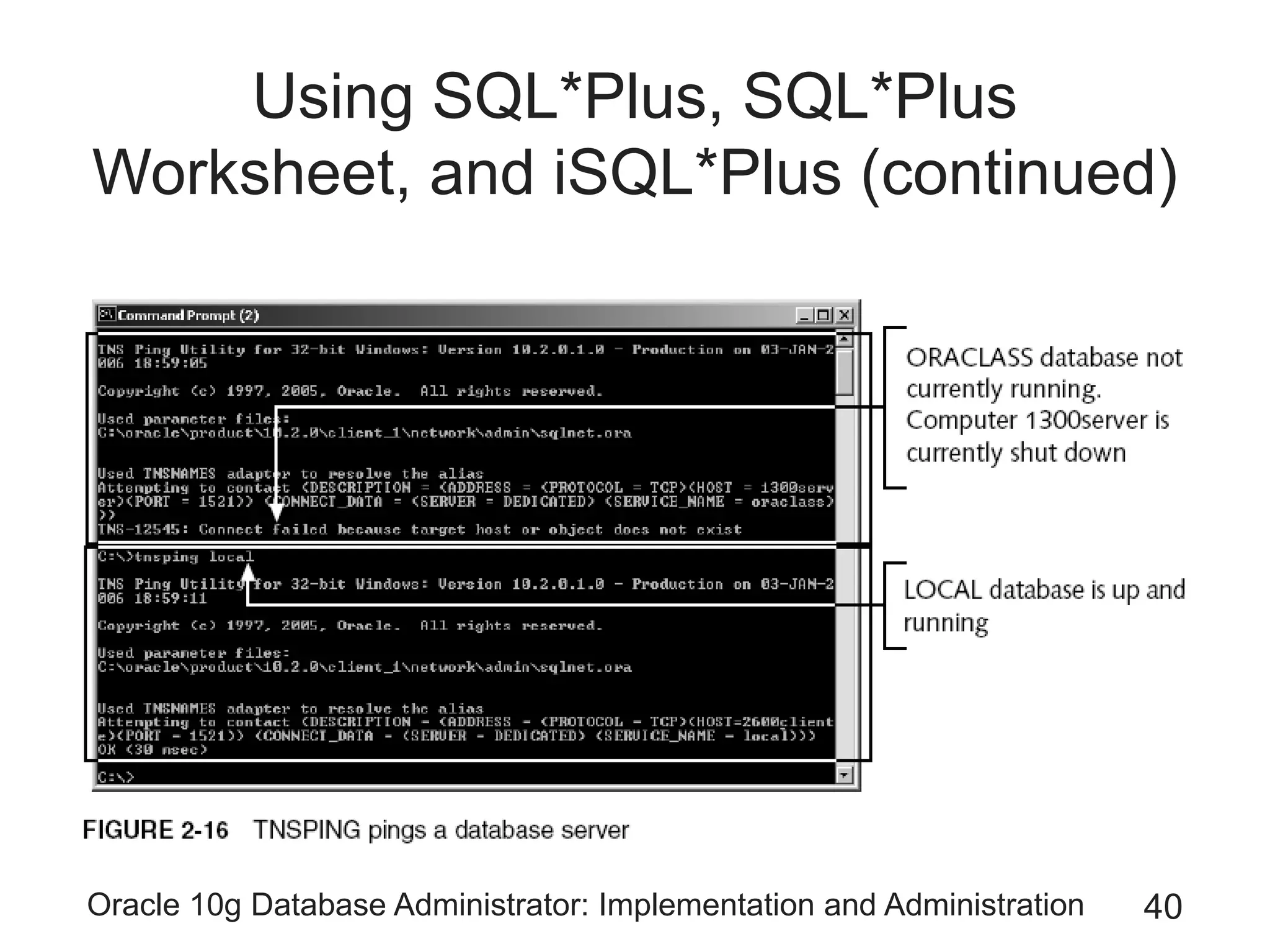
• Troubleshooting SQL *Plus
– Configuration of the listener on the server is incorrect
– Client configuration of the tnsnames.ora file is
incorrect
– Validate configuration using tnsping
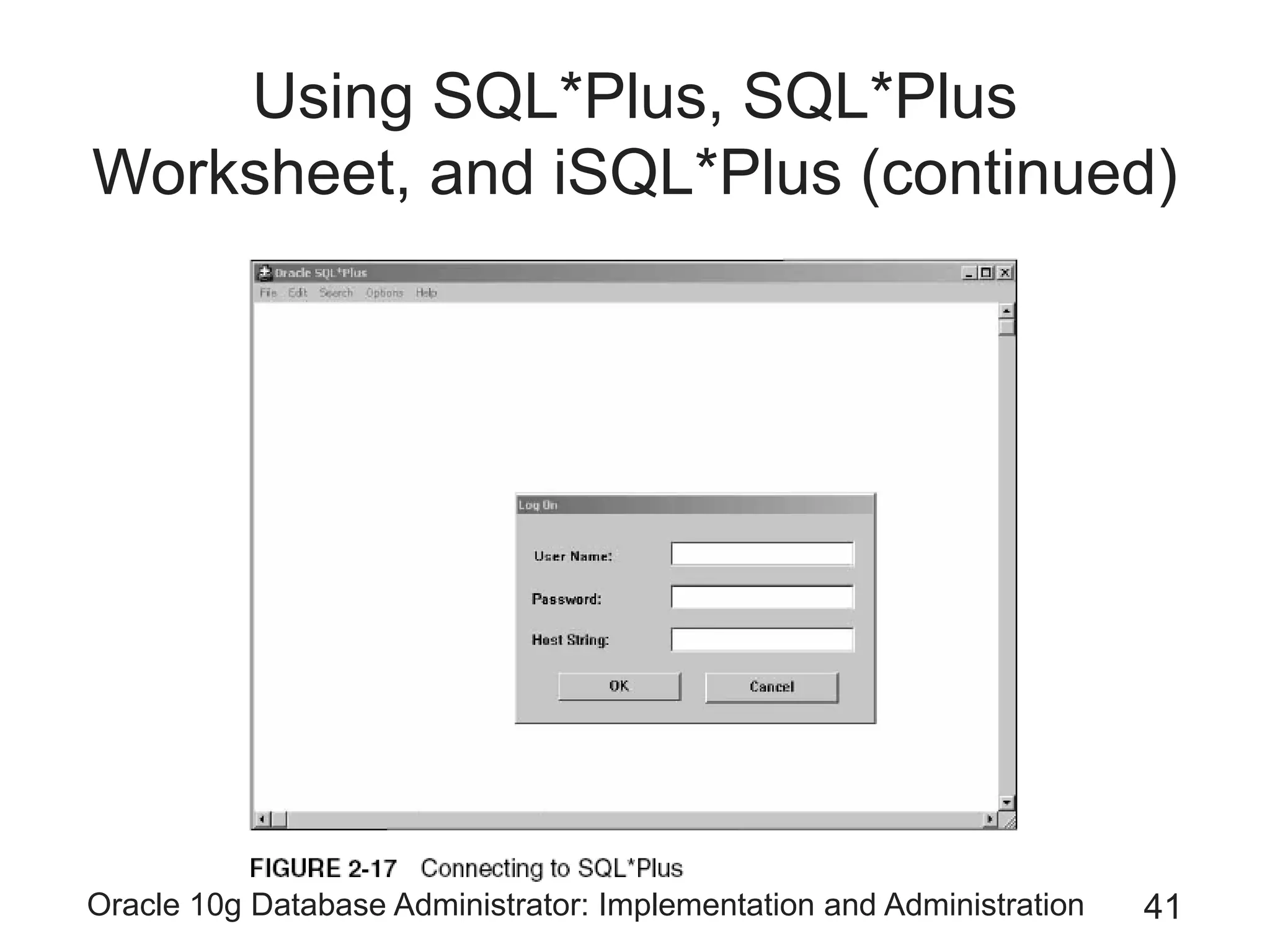
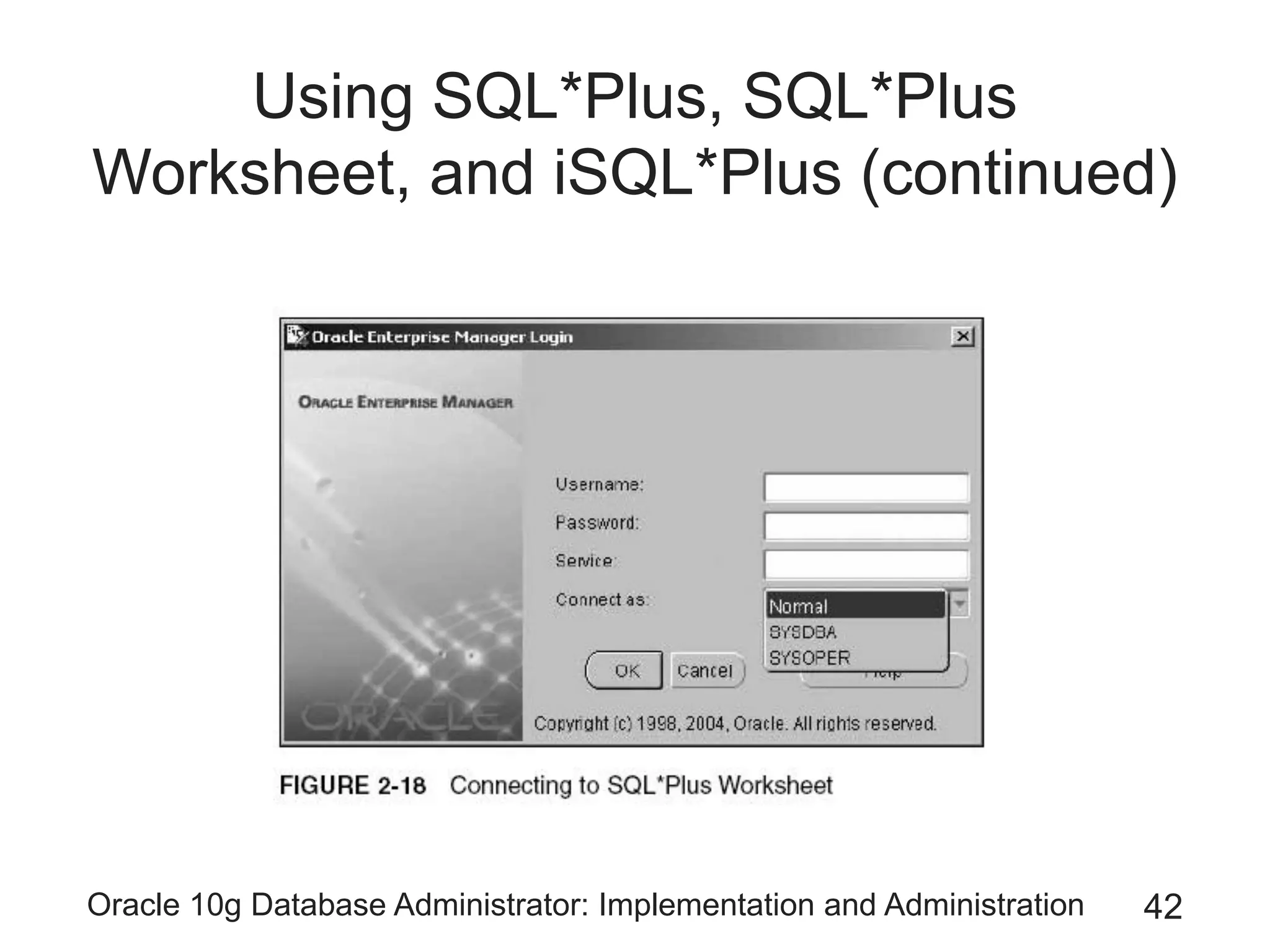
• Execute SQL *Plus
– Select Start/All Programs/Oracle .../Application
Development/SQL Plus from the menu
• Execute SQL *Plus Worksheet
– Select Start/Programs/Oracle/Application
Development/SQLPlus Worksheet from the menu
Oracle 10g Database Administrator: Implementation and Administration 40
Using SQL*Plus, SQL*Plus
Worksheet, and iSQL*Plus (continued)
Oracle 10g Database Administrator: Implementation and Administration 41
Using SQL*Plus, SQL*Plus
Worksheet, and iSQL*Plus (continued)
Oracle 10g Database Administrator: Implementation and Administration 42
Using SQL*Plus, SQL*Plus
Worksheet, and iSQL*Plus (continued)
Oracle 10g Database Administrator: Implementation and Administration 43
Using SQL*Plus, SQL*Plus
Worksheet, and iSQL*Plus (continued)
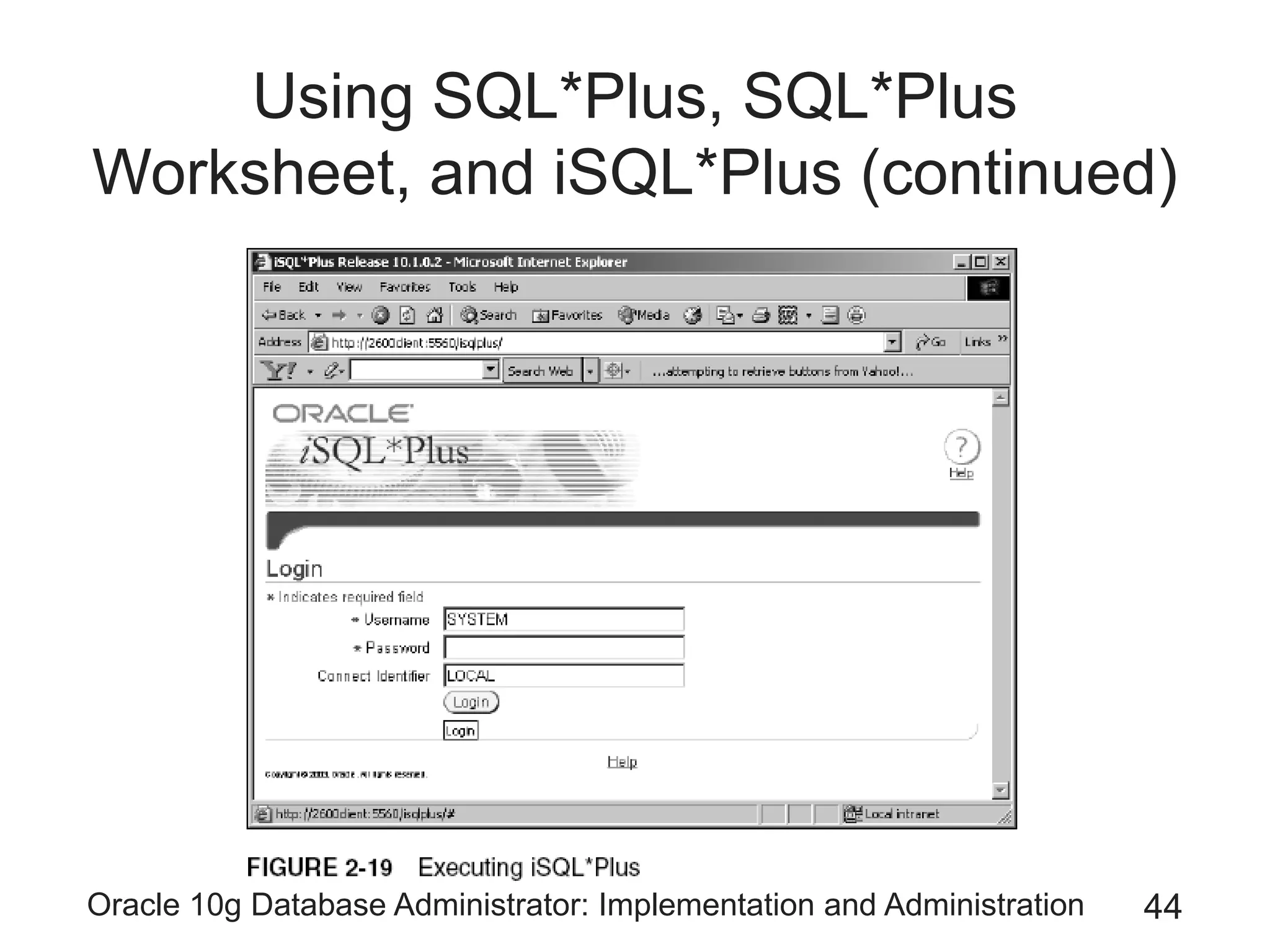
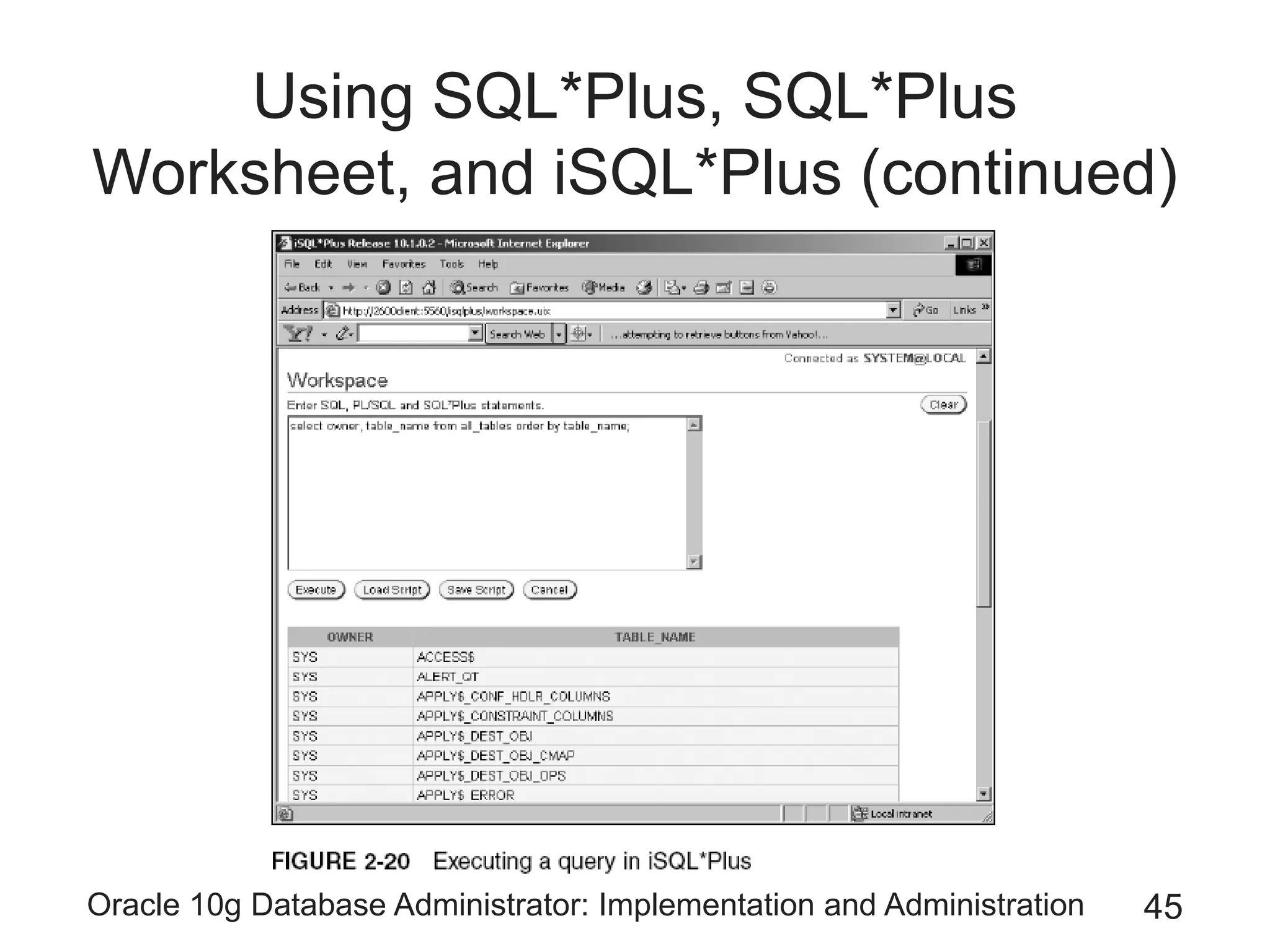
• iSQL *Plus (Internet SQL *Plus)
– Web-based version of SQL*Plus
– Allows you to write queries and other SQL commands
across a network
• Returning results in a Web browser
– Application server is an HTTP Web server
– iSQL*Plus output looks like an HTML table
Oracle 10g Database Administrator: Implementation and Administration 44
Using SQL*Plus, SQL*Plus
Worksheet, and iSQL*Plus (continued)
Oracle 10g Database Administrator: Implementation and Administration 45
Using SQL*Plus, SQL*Plus
Worksheet, and iSQL*Plus (continued)
Oracle 10g Database Administrator: Implementation and Administration 46
Oracle Instance Architecture
• Database instance
– Runs on a database server and uses data inside the
database
• Oracle instance
– Part of an Oracle database executing in memory
– Made up of processes and memory structures
Oracle 10g Database Administrator: Implementation and Administration 47
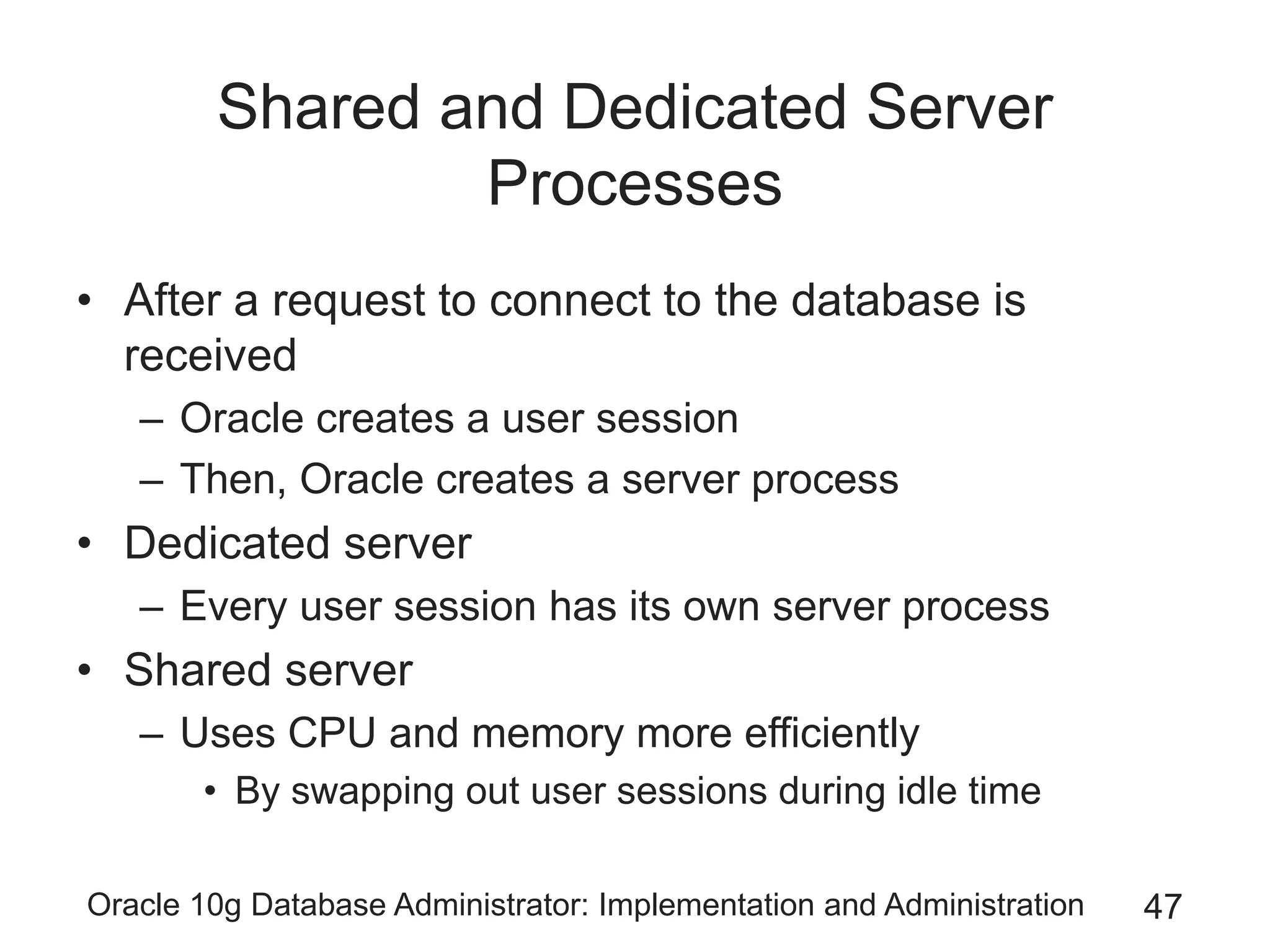
Shared and Dedicated Server
Processes
• After a request to connect to the database is
received
– Oracle creates a user session
– Then, Oracle creates a server process
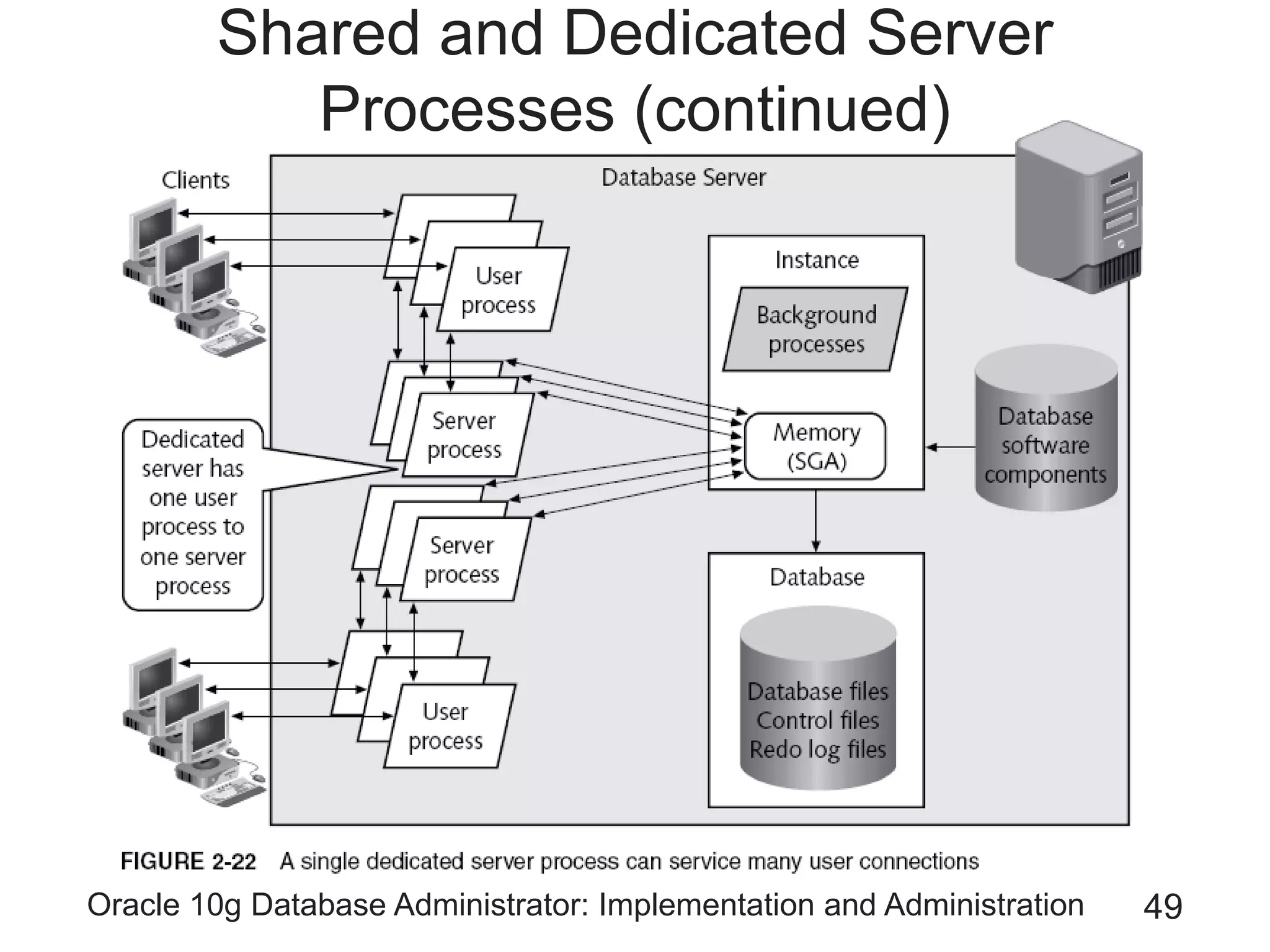
• Dedicated server
– Every user session has its own server process
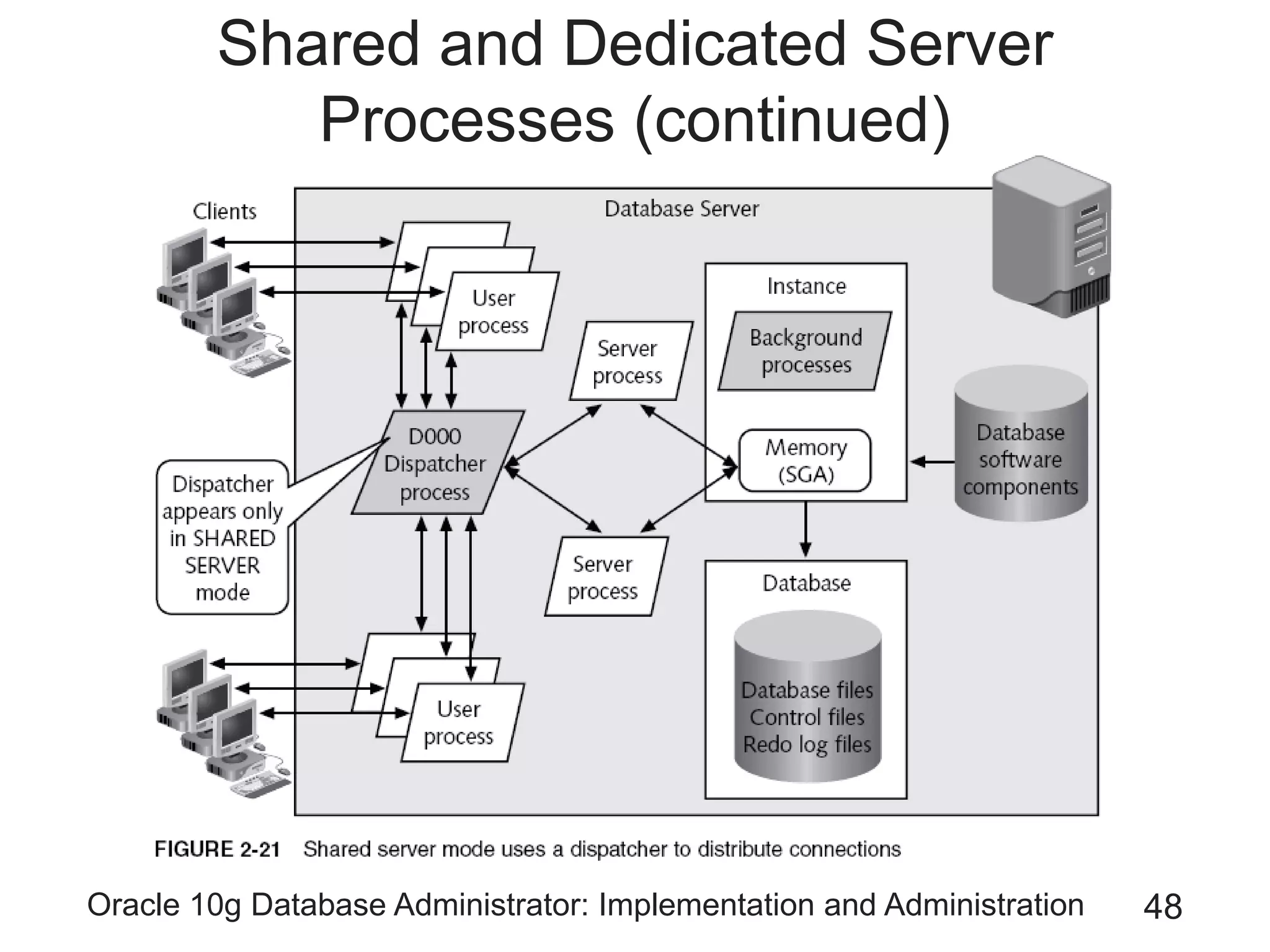
• Shared server
– Uses CPU and memory more efficiently
• By swapping out user sessions during idle time
Oracle 10g Database Administrator: Implementation and Administration 48
Shared and Dedicated Server
Processes (continued)
Oracle 10g Database Administrator: Implementation and Administration 49
Shared and Dedicated Server
Processes (continued)
Oracle 10g Database Administrator: Implementation and Administration 50
Shared and Dedicated Server
Processes (continued)
• Connection
– Link from the user session, through the server
session, and to the database instance
– Controlled in the client-side configuration of Oracle
Net Services
• In the tnsnames.ora file
Oracle 10g Database Administrator: Implementation and Administration 51
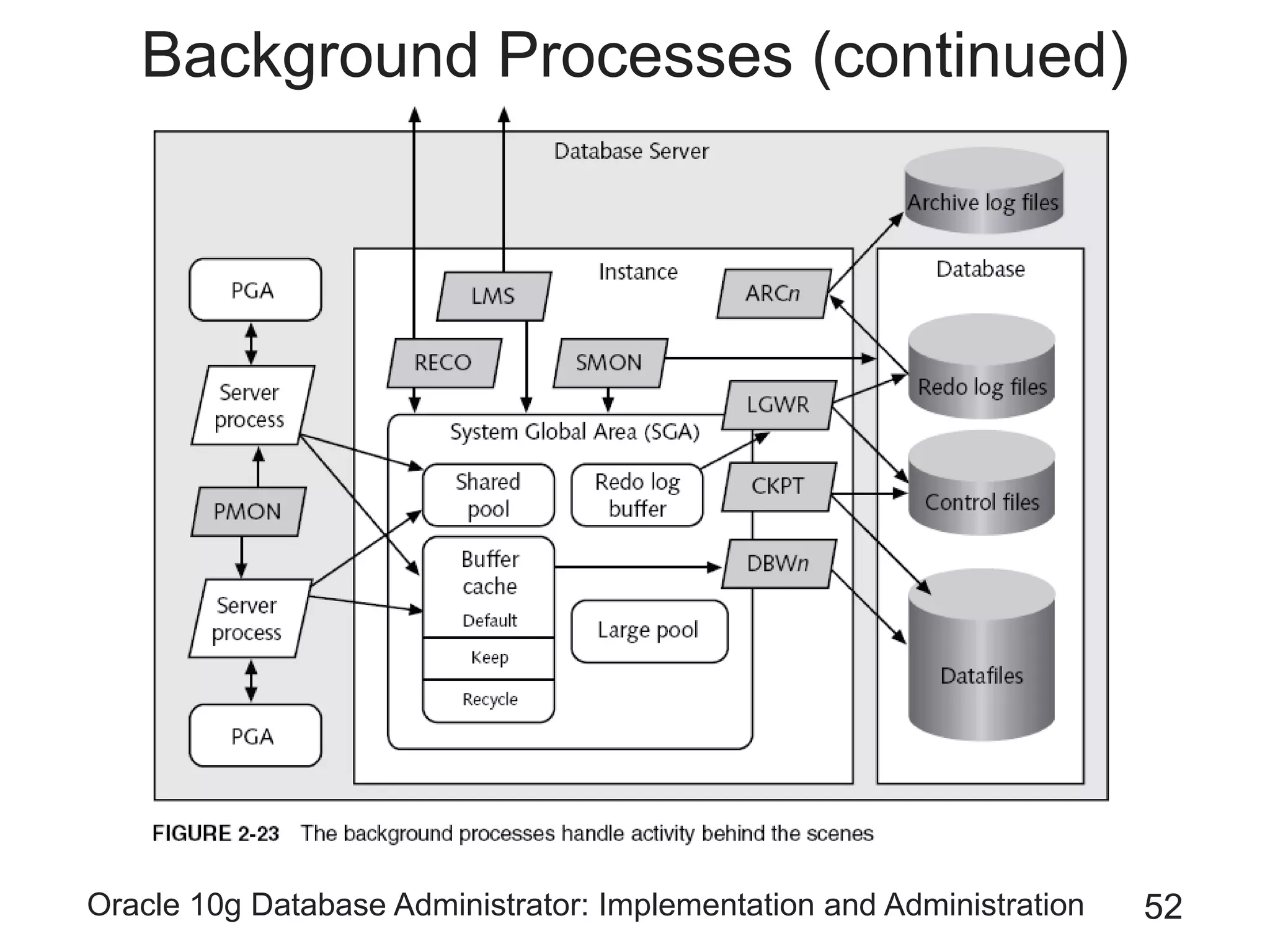
Background Processes
• Support and monitor the server processes
• Handle database management tasks
– To keep the database running efficiently
– To help maintain fast performance
Oracle 10g Database Administrator: Implementation and Administration 52
Background Processes (continued)
Oracle 10g Database Administrator: Implementation and Administration 53
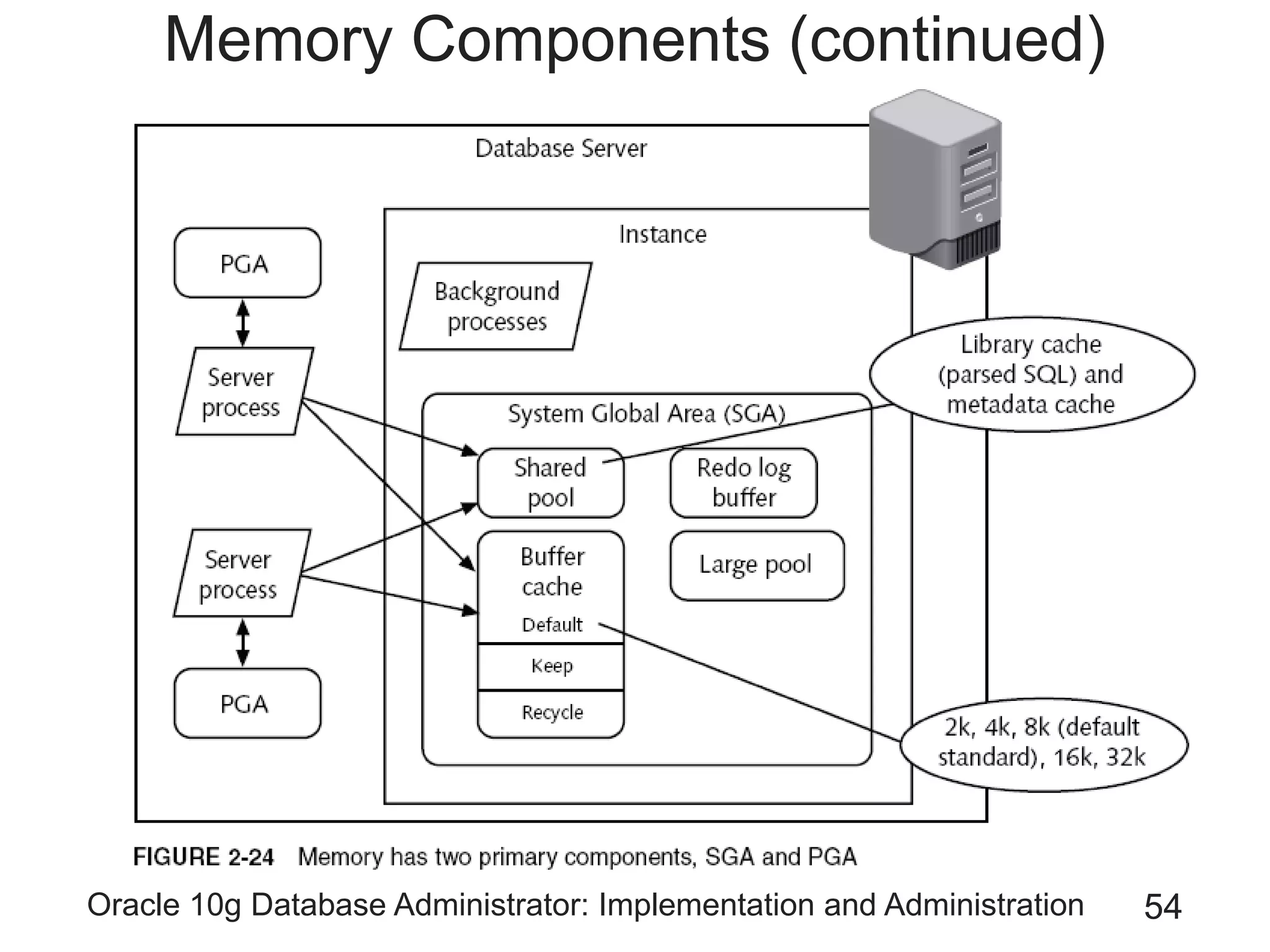
Memory Components
• Two main sections of memory
– System Global Area (SGA)
• Allocated when an instance is started
• Deallocated when the instance is shut down
– Program Global Area (PGA)
• Effectively used in session connection memory
• Broken into private chunks for each server process
Oracle 10g Database Administrator: Implementation and Administration 54
Memory Components (continued)
Oracle 10g Database Administrator: Implementation and Administration 55
Introducing Enterprise Manager
• In previous versions of Oracle
– Executing the Enterprise Manager console was
complicated
– Too much power was placed into the console
software
• Oracle10g divides power
– Between the console and the Database Control
Oracle 10g Database Administrator: Implementation and Administration 56
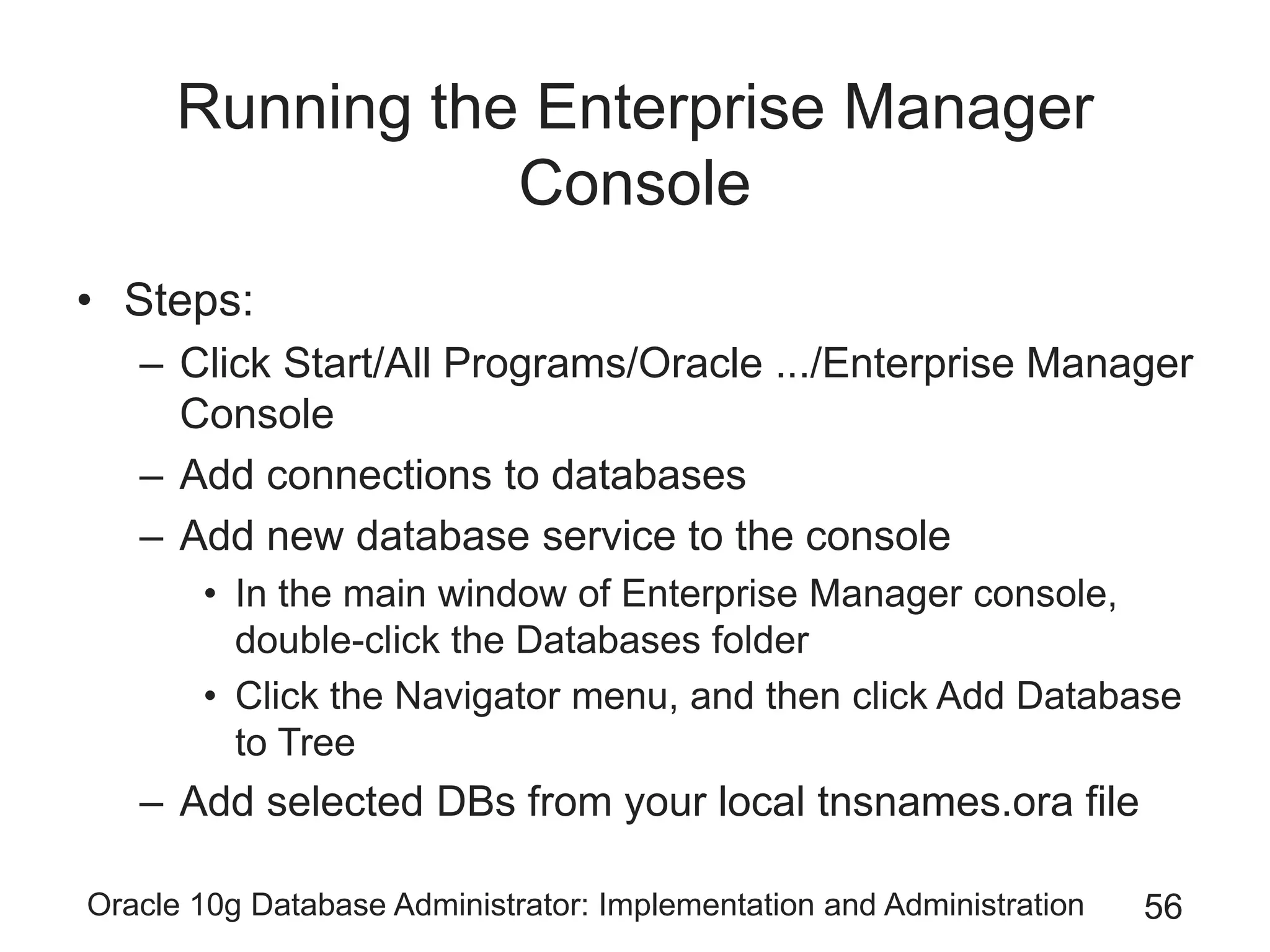
Running the Enterprise Manager
Console
• Steps:
– Click Start/All Programs/Oracle .../Enterprise Manager
Console
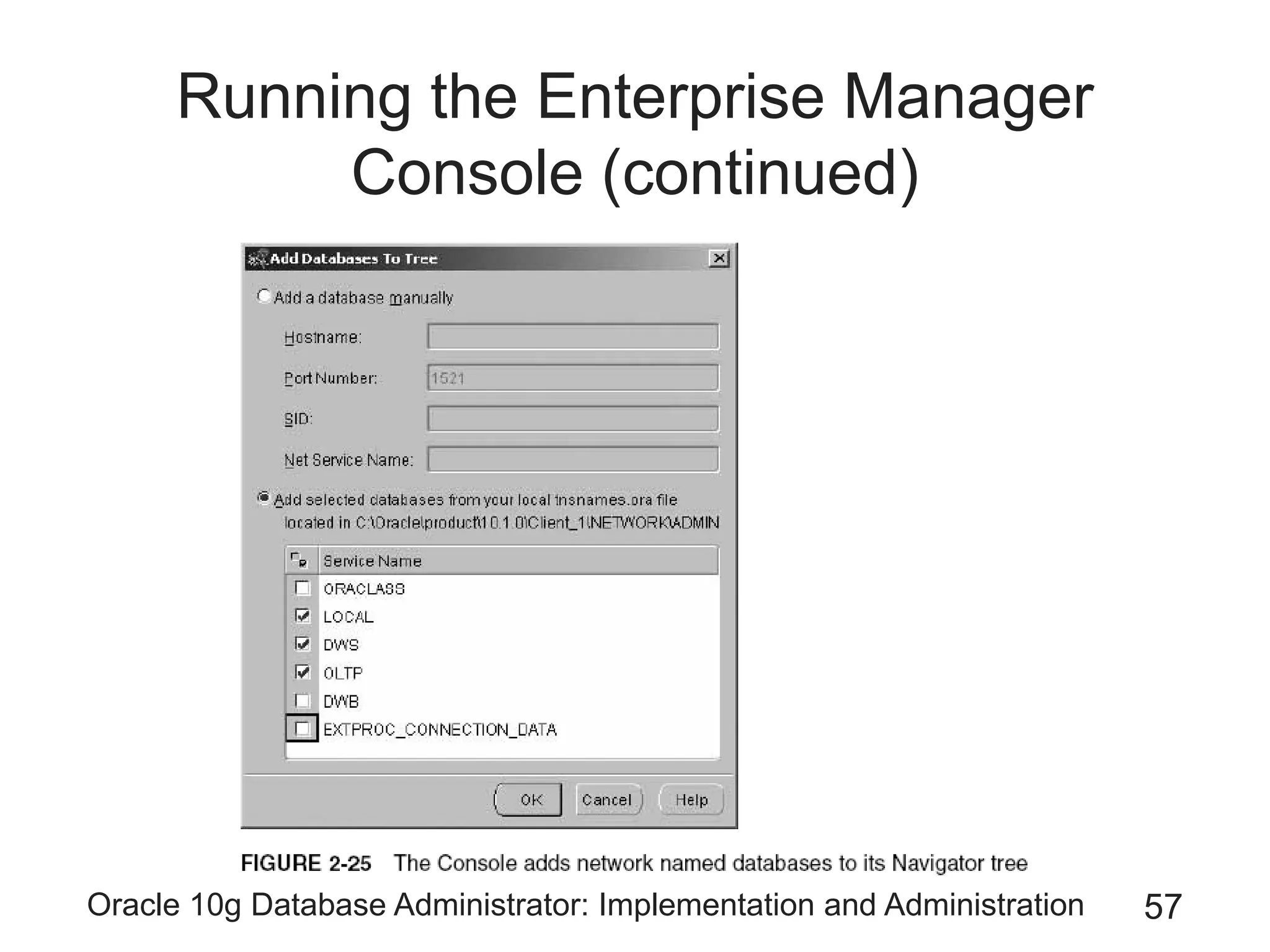
– Add connections to databases
– Add new database service to the console
• In the main window of Enterprise Manager console,
double-click the Databases folder
• Click the Navigator menu, and then click Add Database
to Tree
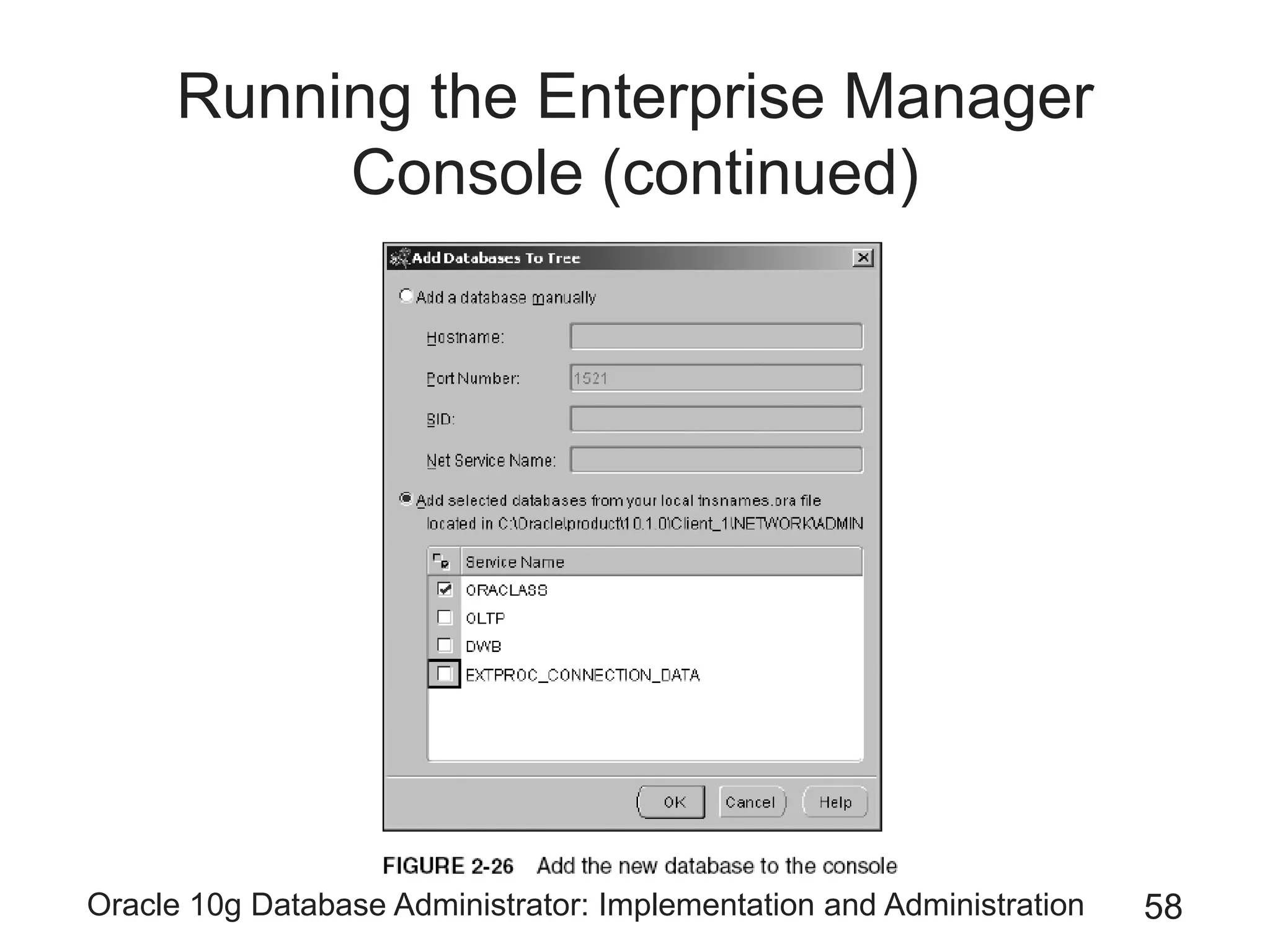
– Add selected DBs from your local tnsnames.ora file
Oracle 10g Database Administrator: Implementation and Administration 57
Running the Enterprise Manager
Console (continued)
Oracle 10g Database Administrator: Implementation and Administration 58
Running the Enterprise Manager
Console (continued)
Oracle 10g Database Administrator: Implementation and Administration 59
Running the Enterprise Manager
Console (continued)
• Steps (continued):
– Expand the ORACLASS database node
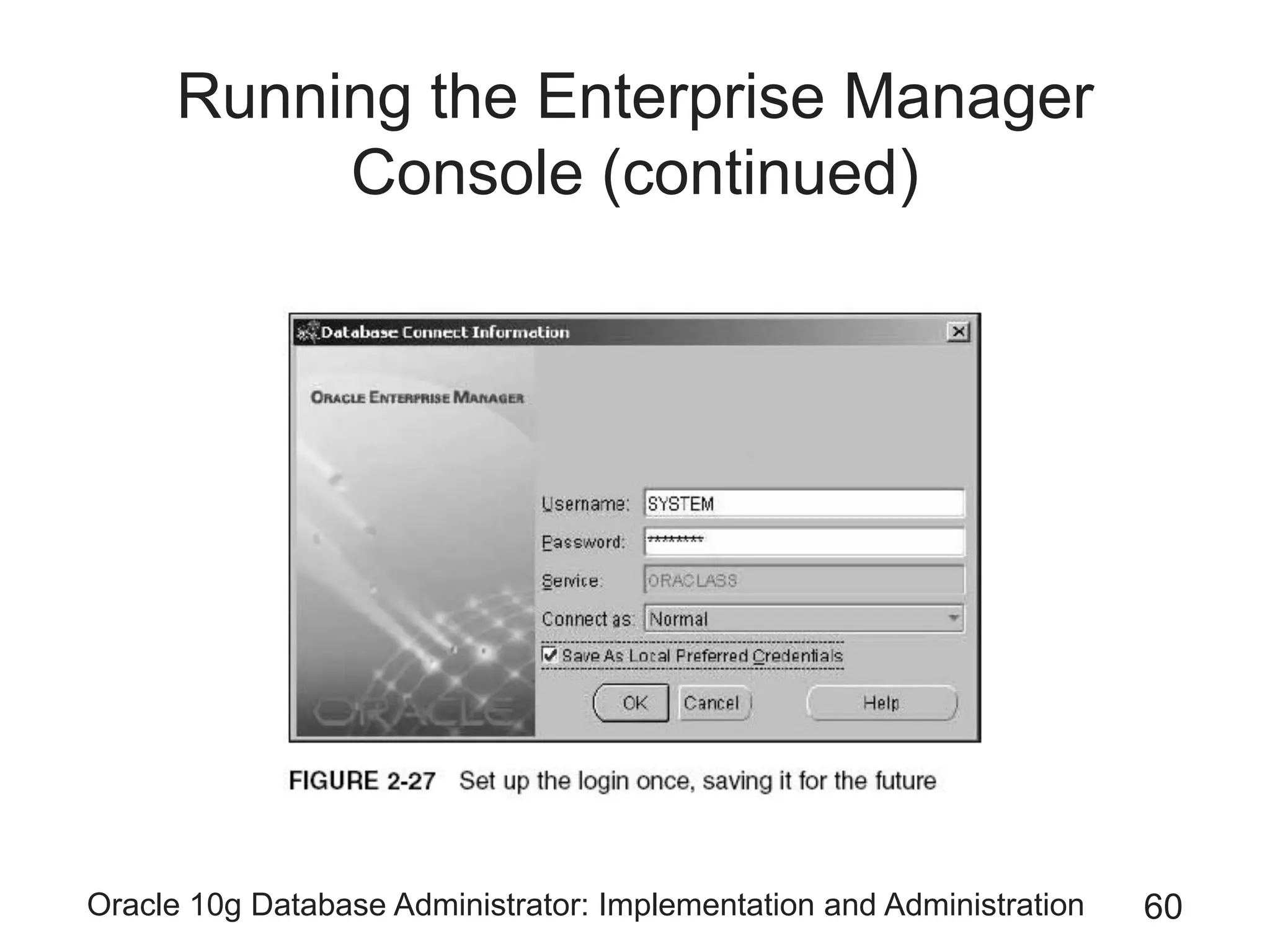
– Log on to the database as SYSTEM
Oracle 10g Database Administrator: Implementation and Administration 60
Running the Enterprise Manager
Console (continued)
Oracle 10g Database Administrator: Implementation and Administration 61
Viewing the Features of Enterprise
Manager
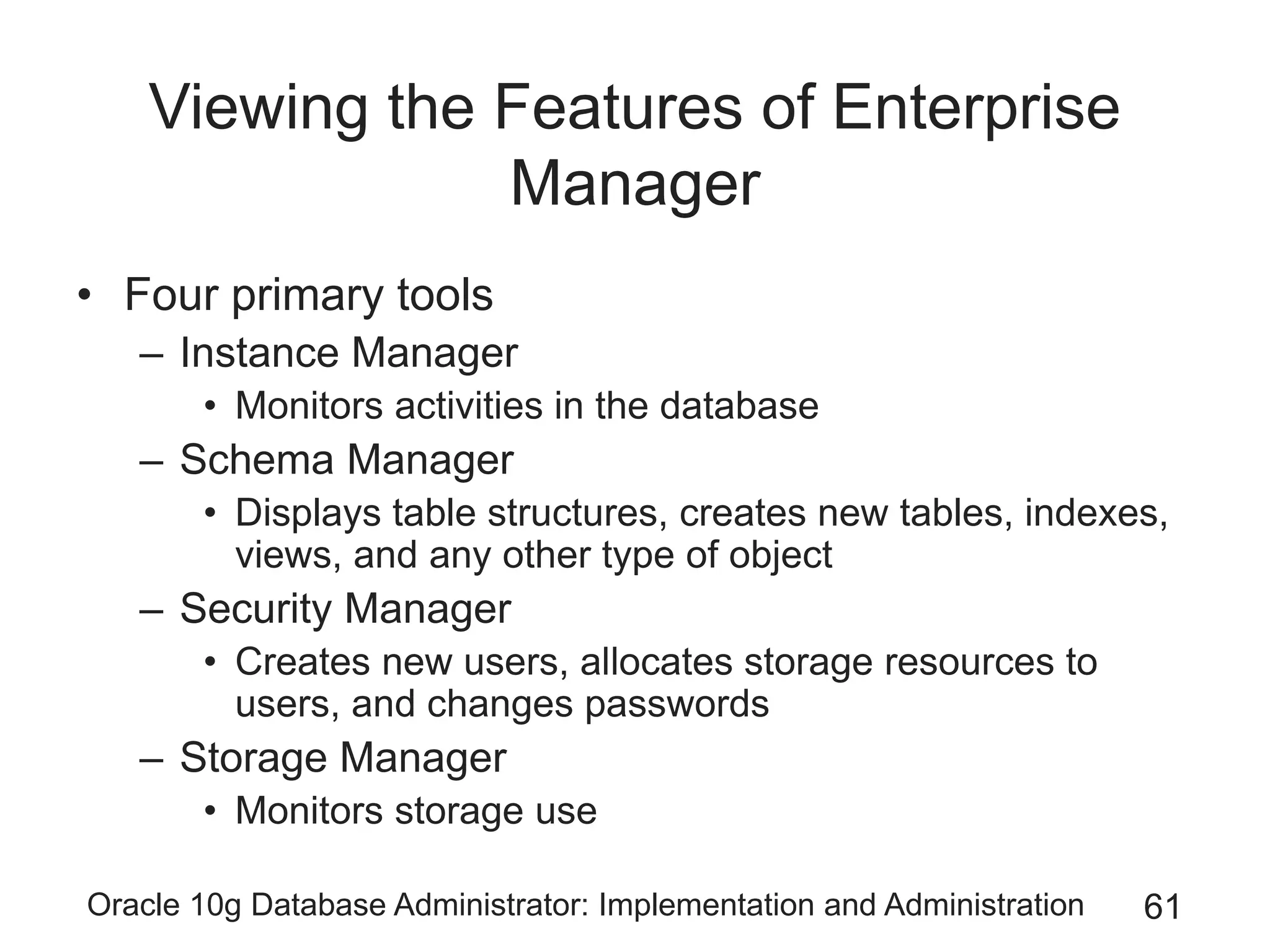
• Four primary tools
– Instance Manager
• Monitors activities in the database
– Schema Manager
• Displays table structures, creates new tables, indexes,
views, and any other type of object
– Security Manager
• Creates new users, allocates storage resources to
users, and changes passwords
– Storage Manager
• Monitors storage use
Oracle 10g Database Administrator: Implementation and Administration 62
Viewing the Features of Enterprise
Manager (continued)
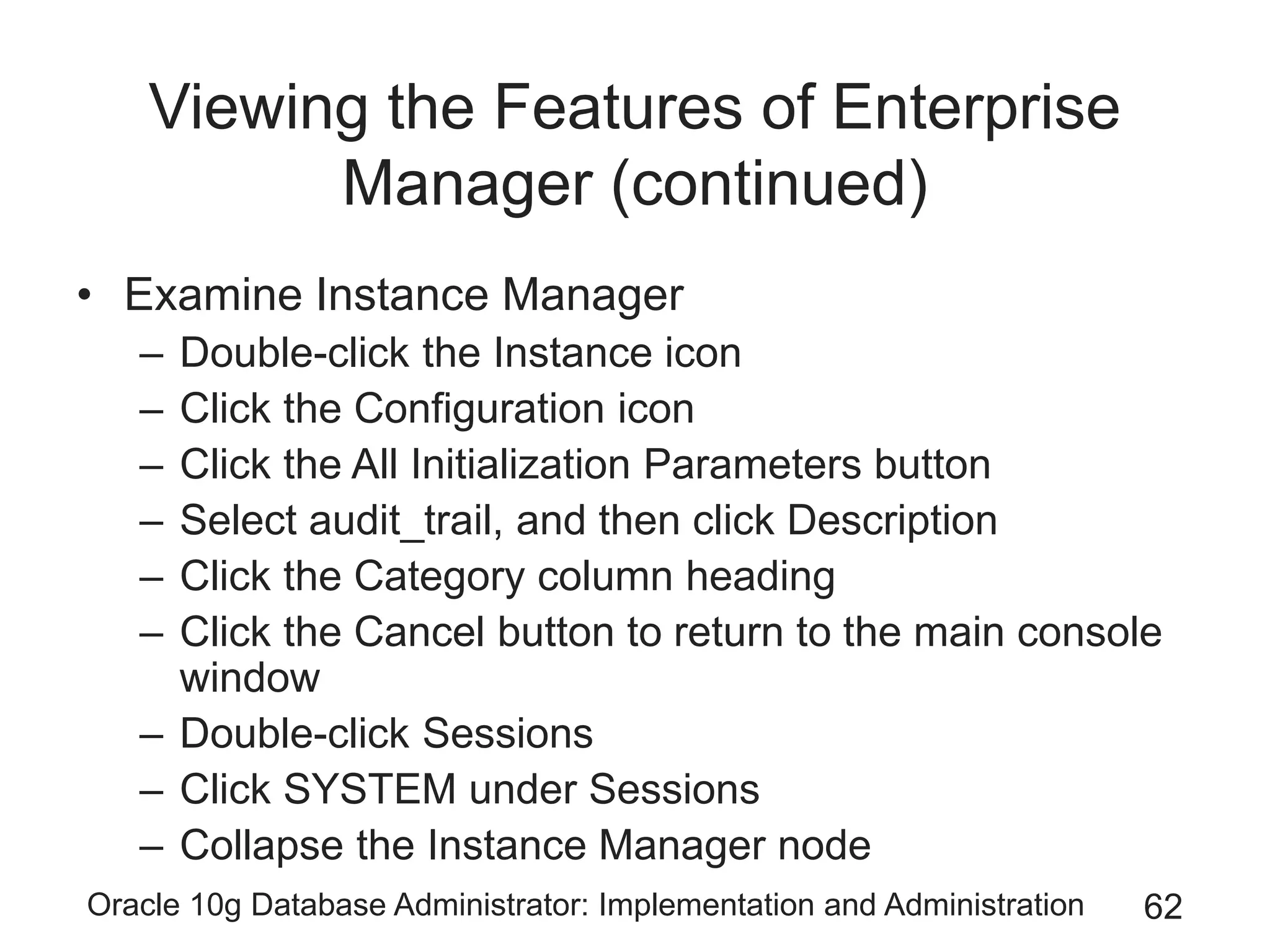
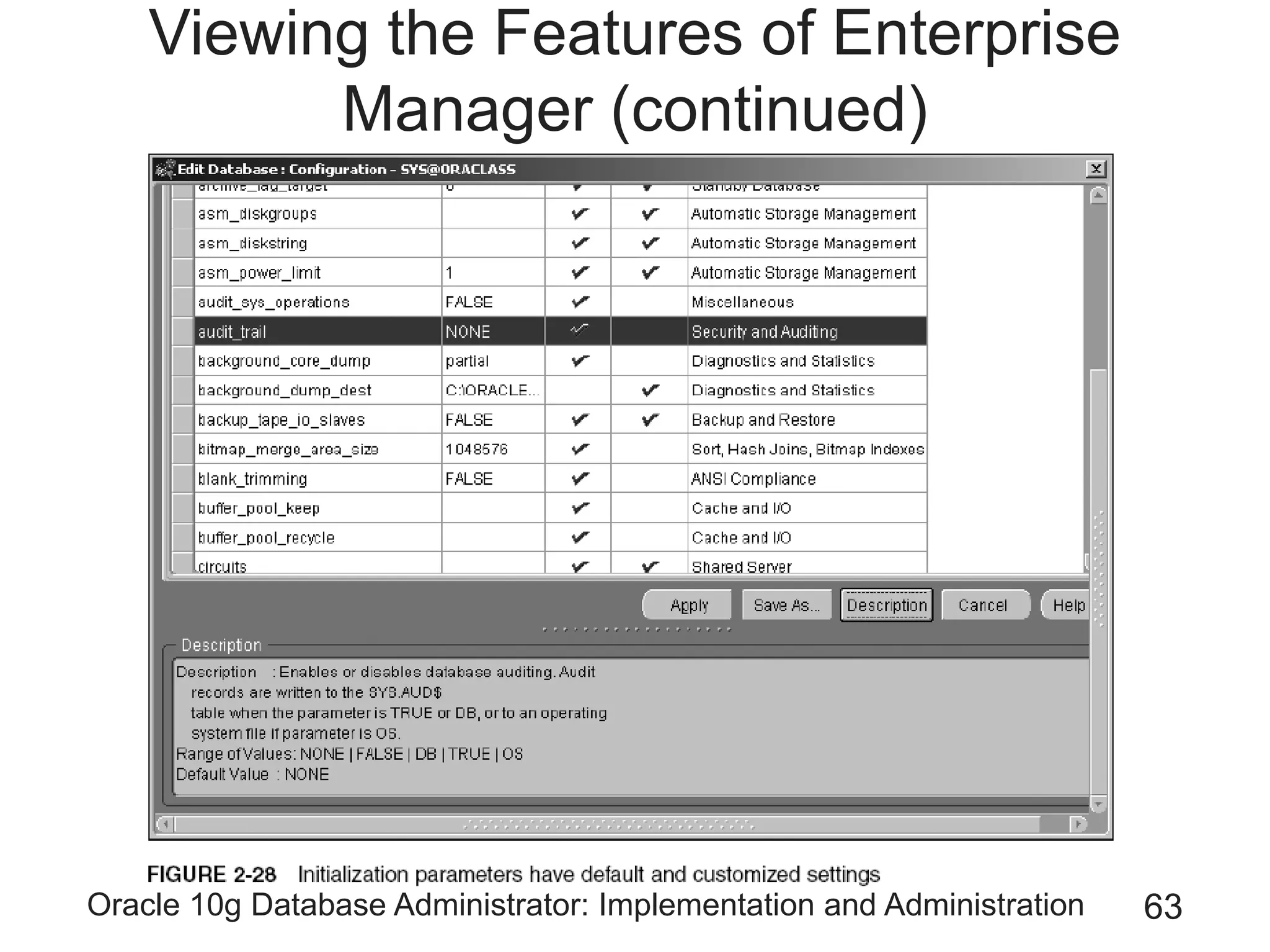
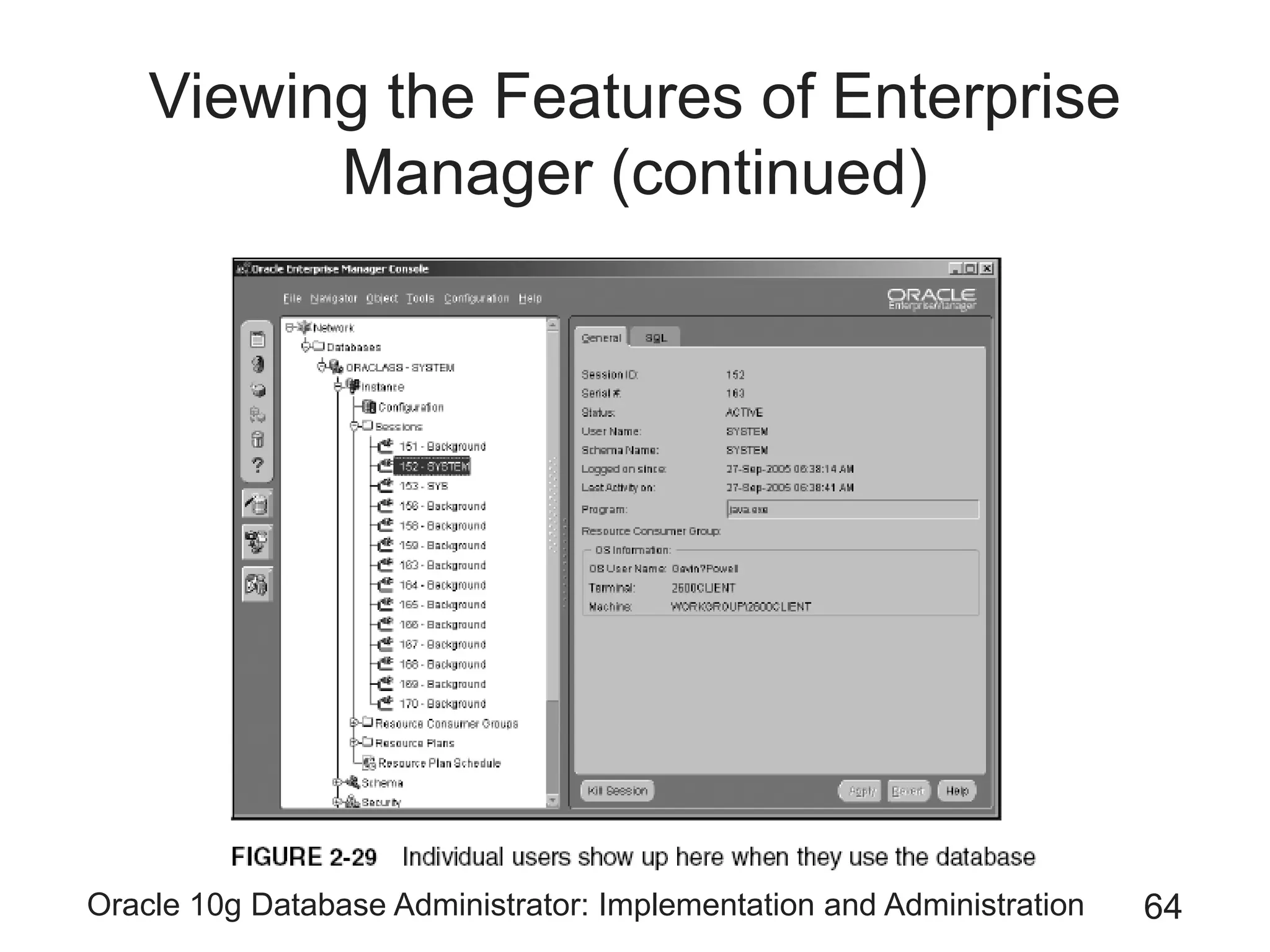
• Examine Instance Manager
– Double-click the Instance icon
– Click the Configuration icon
– Click the All Initialization Parameters button
– Select audit_trail, and then click Description
– Click the Category column heading
– Click the Cancel button to return to the main console
window
– Double-click Sessions
– Click SYSTEM under Sessions
– Collapse the Instance Manager node
Oracle 10g Database Administrator: Implementation and Administration 63
Viewing the Features of Enterprise
Manager (continued)
Oracle 10g Database Administrator: Implementation and Administration 64
Viewing the Features of Enterprise
Manager (continued)
Oracle 10g Database Administrator: Implementation and Administration 65
Viewing the Features of Enterprise
Manager (continued)
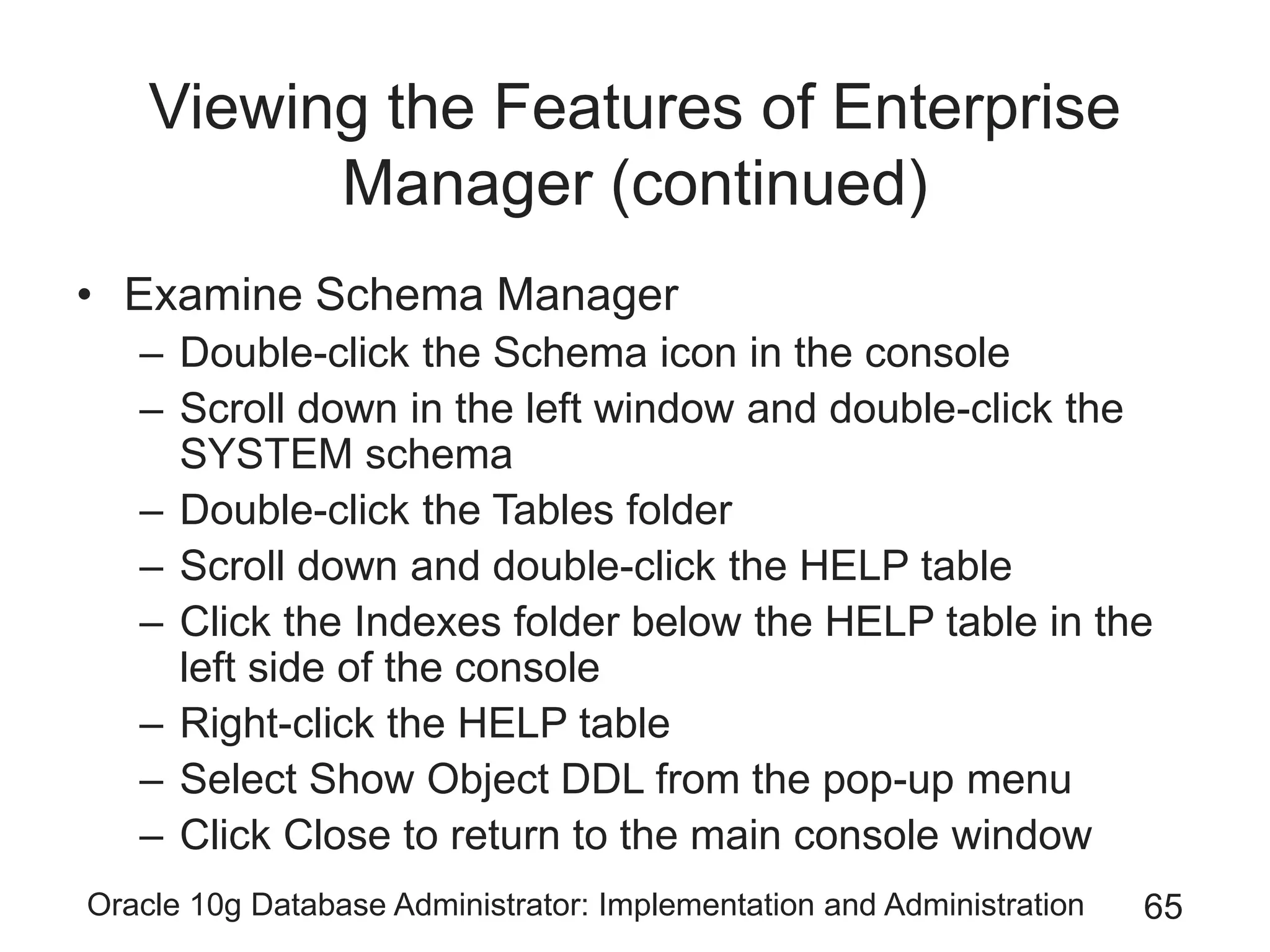
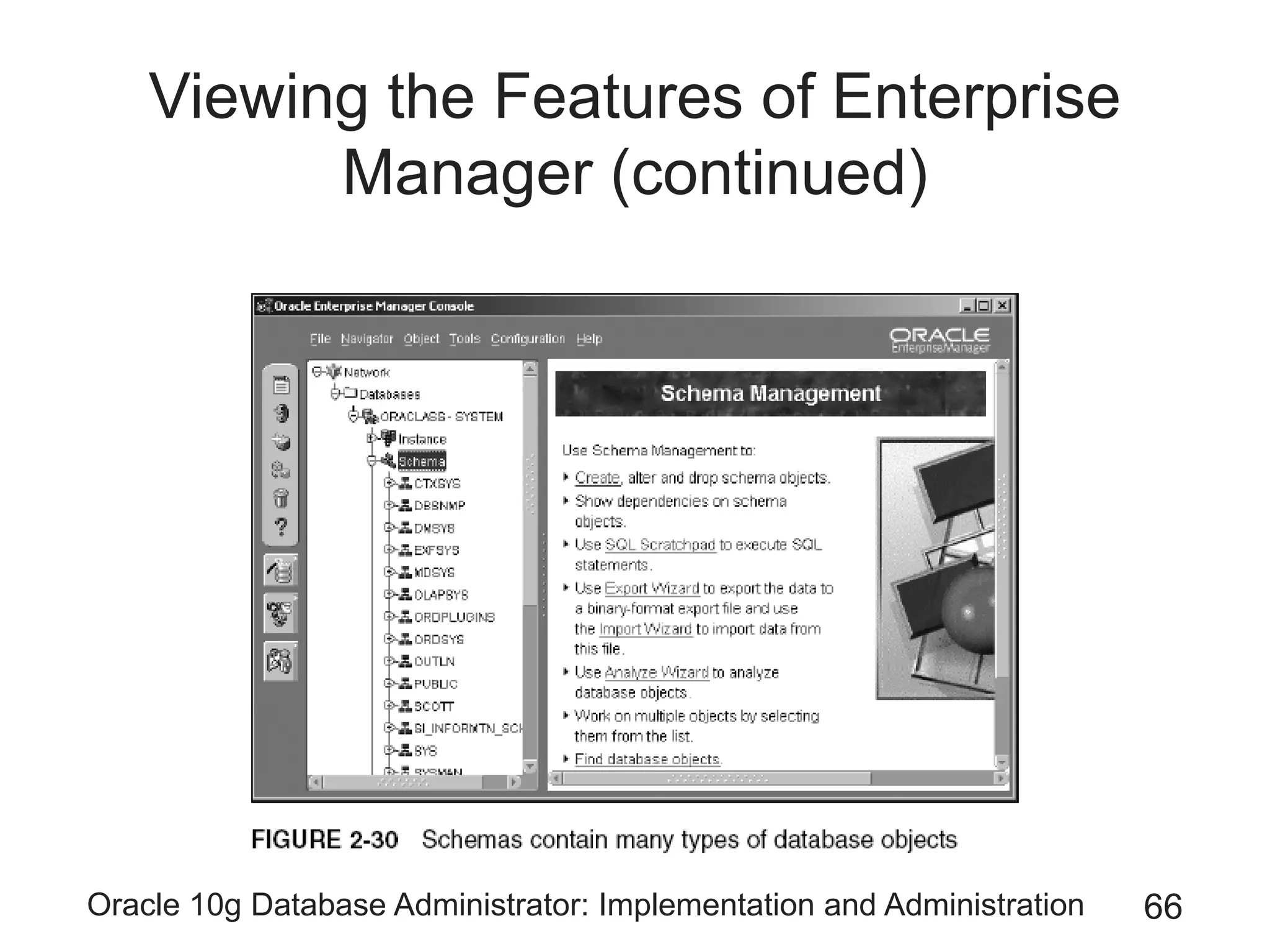
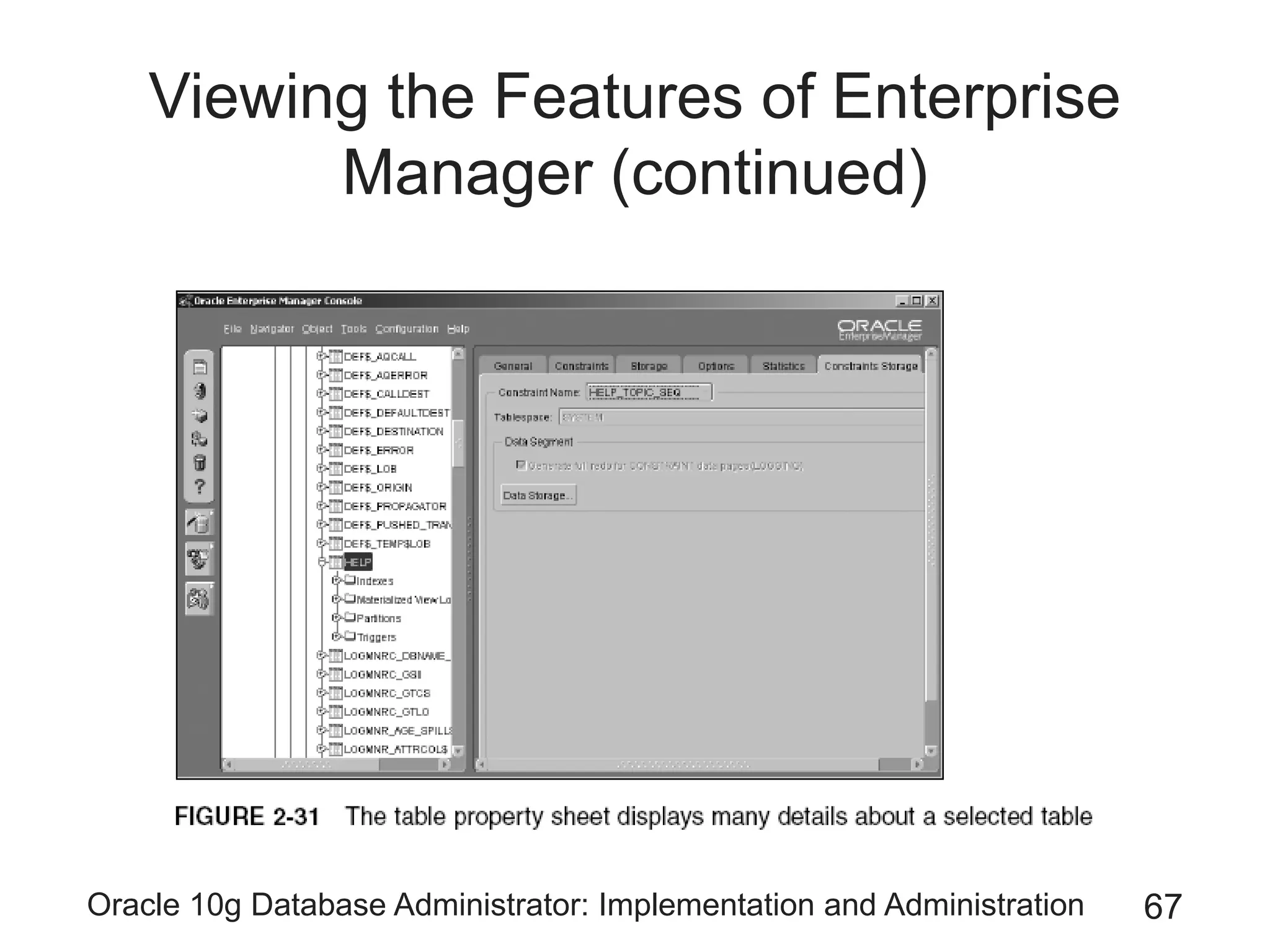
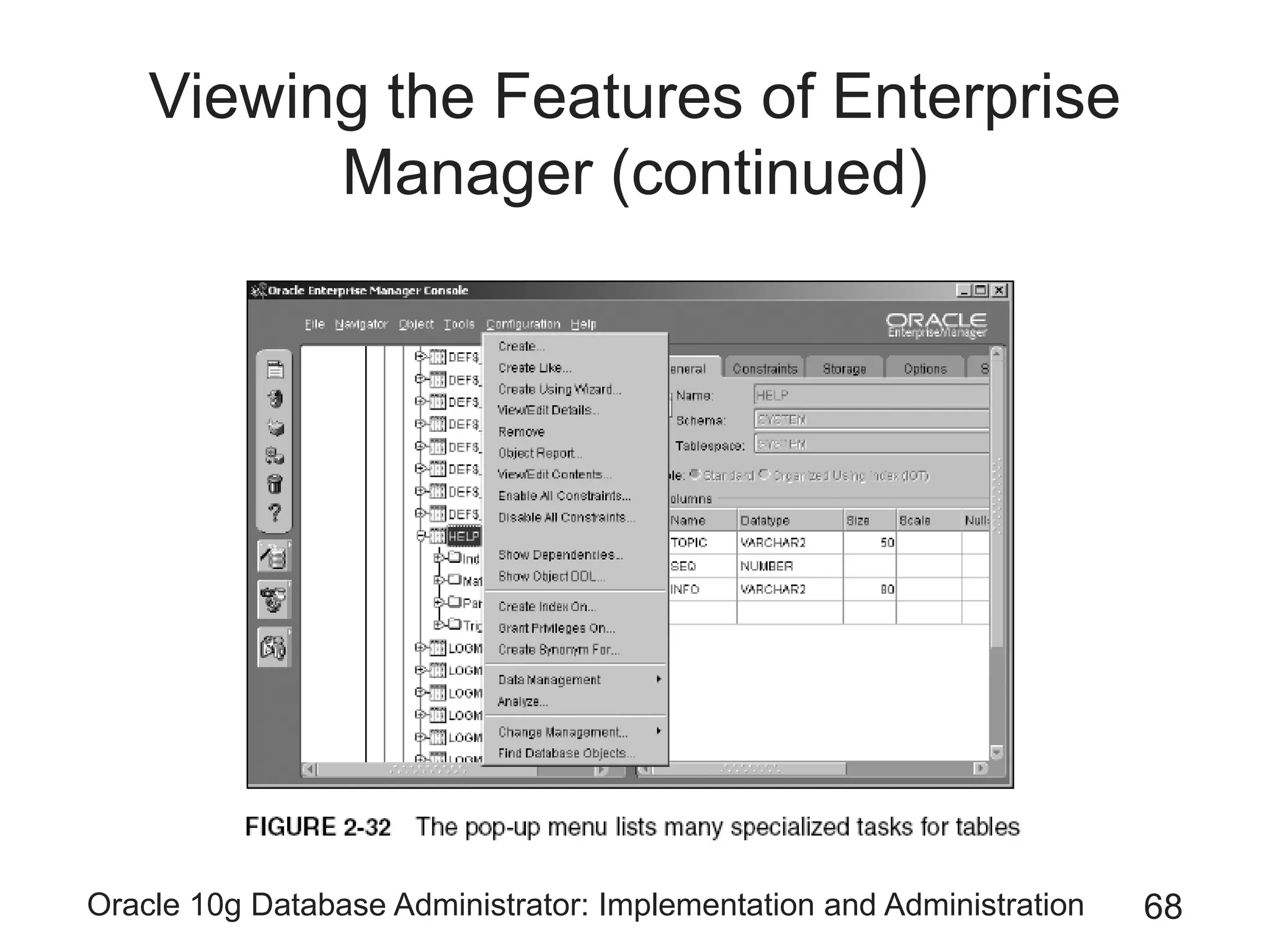
• Examine Schema Manager
– Double-click the Schema icon in the console
– Scroll down in the left window and double-click the
SYSTEM schema
– Double-click the Tables folder
– Scroll down and double-click the HELP table
– Click the Indexes folder below the HELP table in the
left side of the console
– Right-click the HELP table
– Select Show Object DDL from the pop-up menu
– Click Close to return to the main console window
Oracle 10g Database Administrator: Implementation and Administration 66
Viewing the Features of Enterprise
Manager (continued)
Oracle 10g Database Administrator: Implementation and Administration 67
Viewing the Features of Enterprise
Manager (continued)
Oracle 10g Database Administrator: Implementation and Administration 68
Viewing the Features of Enterprise
Manager (continued)
Oracle 10g Database Administrator: Implementation and Administration 69
Viewing the Features of Enterprise
Manager (continued)
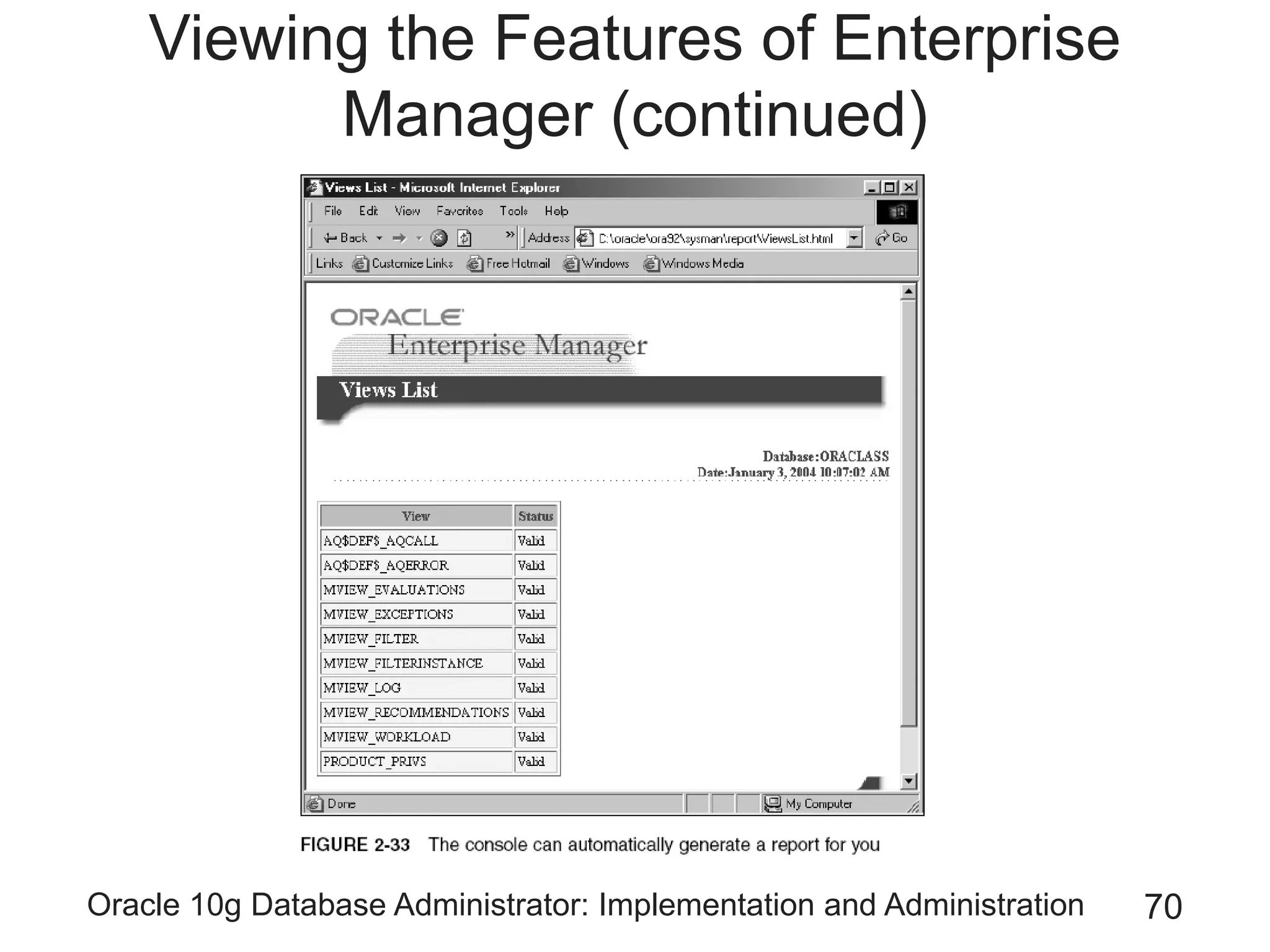
• Examine Schema Manager (continued)
– Scroll down and right-click the Views folder
– Select Save List in the pop-up window
– Click Cancel to return to the console window
Oracle 10g Database Administrator: Implementation and Administration 70
Viewing the Features of Enterprise
Manager (continued)
Oracle 10g Database Administrator: Implementation and Administration 71
Viewing the Features of Enterprise
Manager (continued)
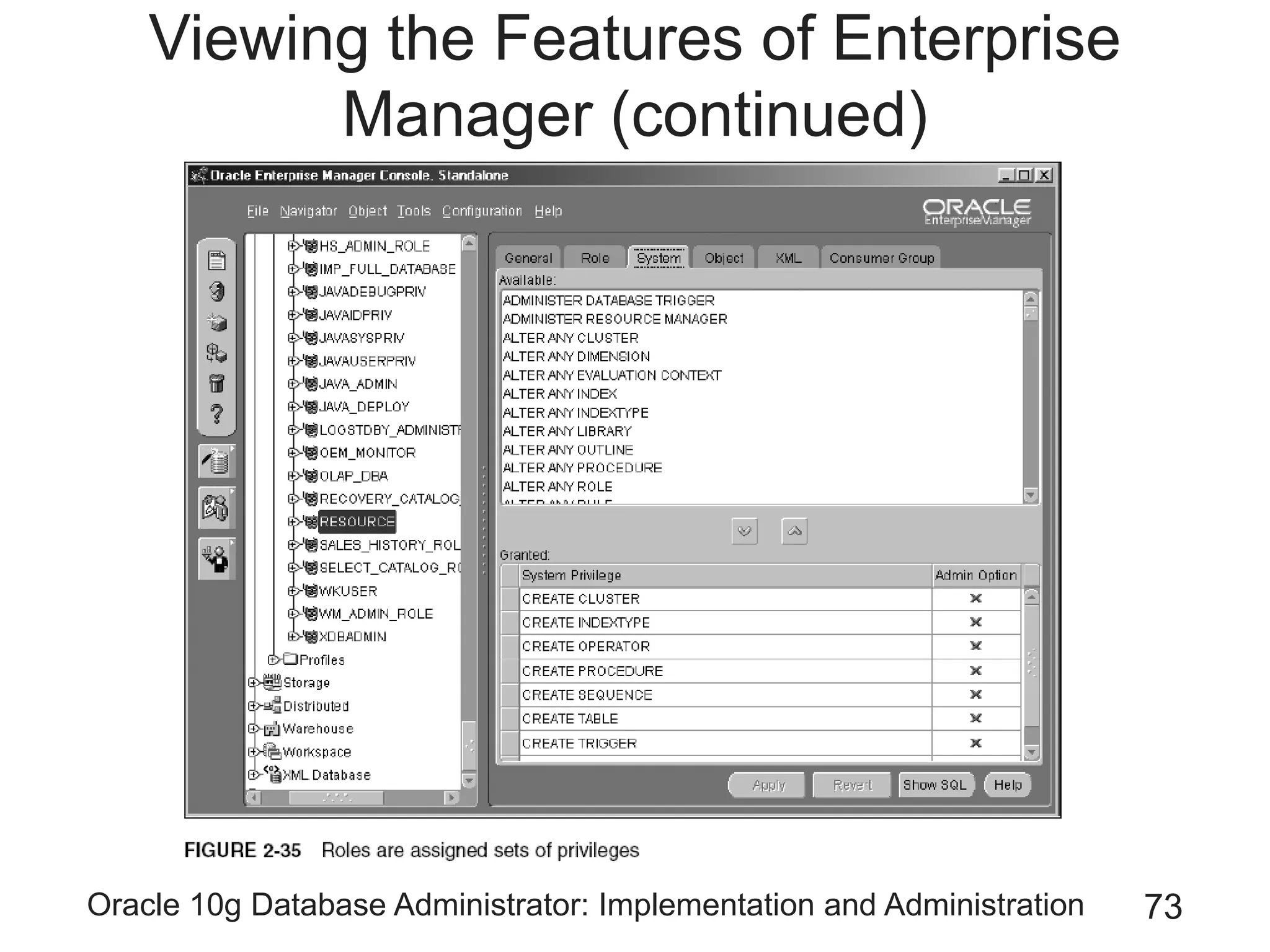
• Examine Security Manager
– In the console, double-click the Security icon
– Double-click the Users folder
– Scroll down and select the SYSTEM user
– Double-click the Roles folder
– Scroll down on the left side of the console and select
the RESOURCE role
– Click the System tab
Oracle 10g Database Administrator: Implementation and Administration 72
Viewing the Features of Enterprise
Manager (continued)
Oracle 10g Database Administrator: Implementation and Administration 73
Viewing the Features of Enterprise
Manager (continued)
Oracle 10g Database Administrator: Implementation and Administration 74
Viewing the Features of Enterprise
Manager (continued)
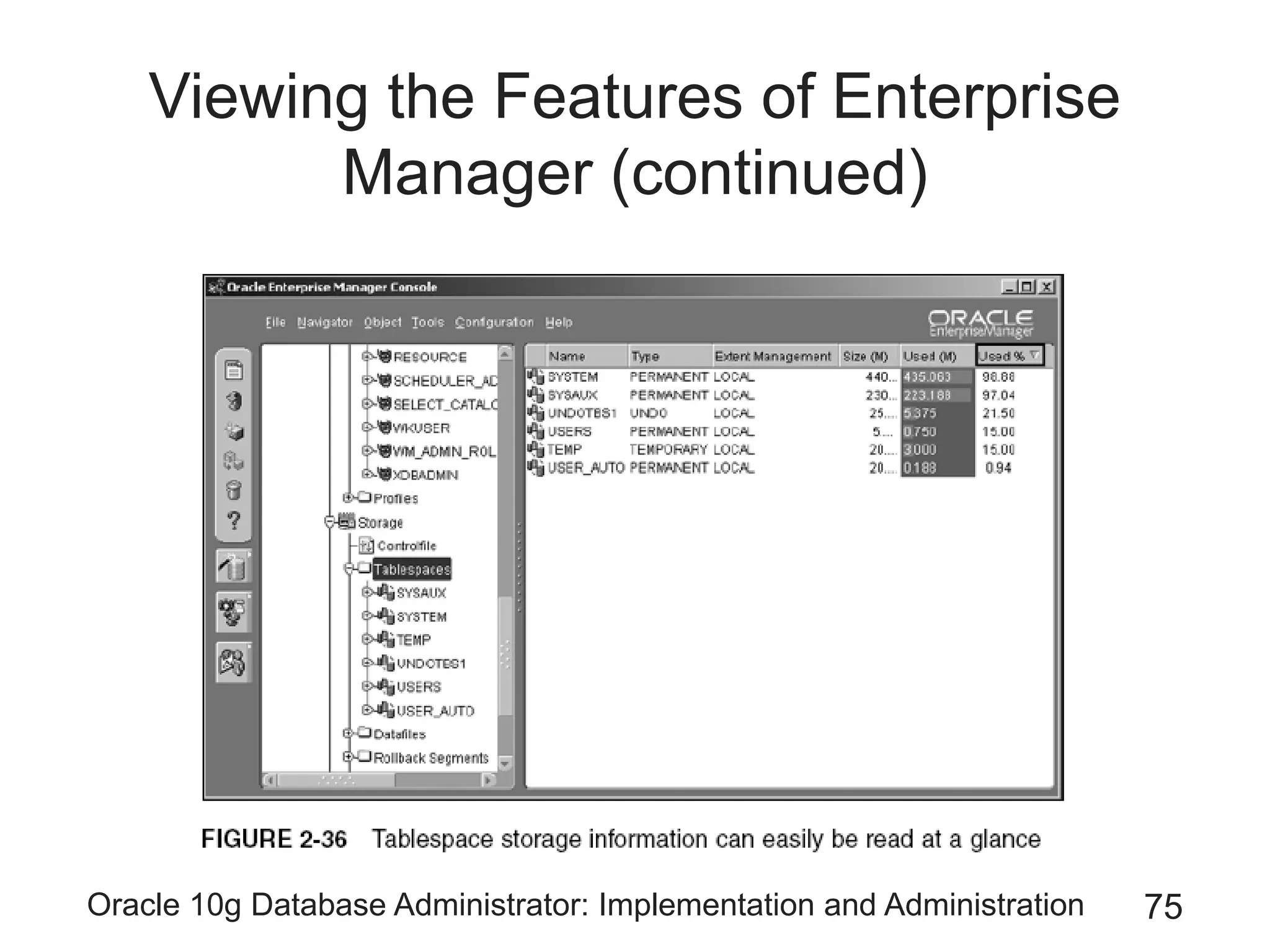
• Examine Storage Manager
– Double-click the Storage icon on the left side of the
console
– Select Tablespaces under the Storage icon
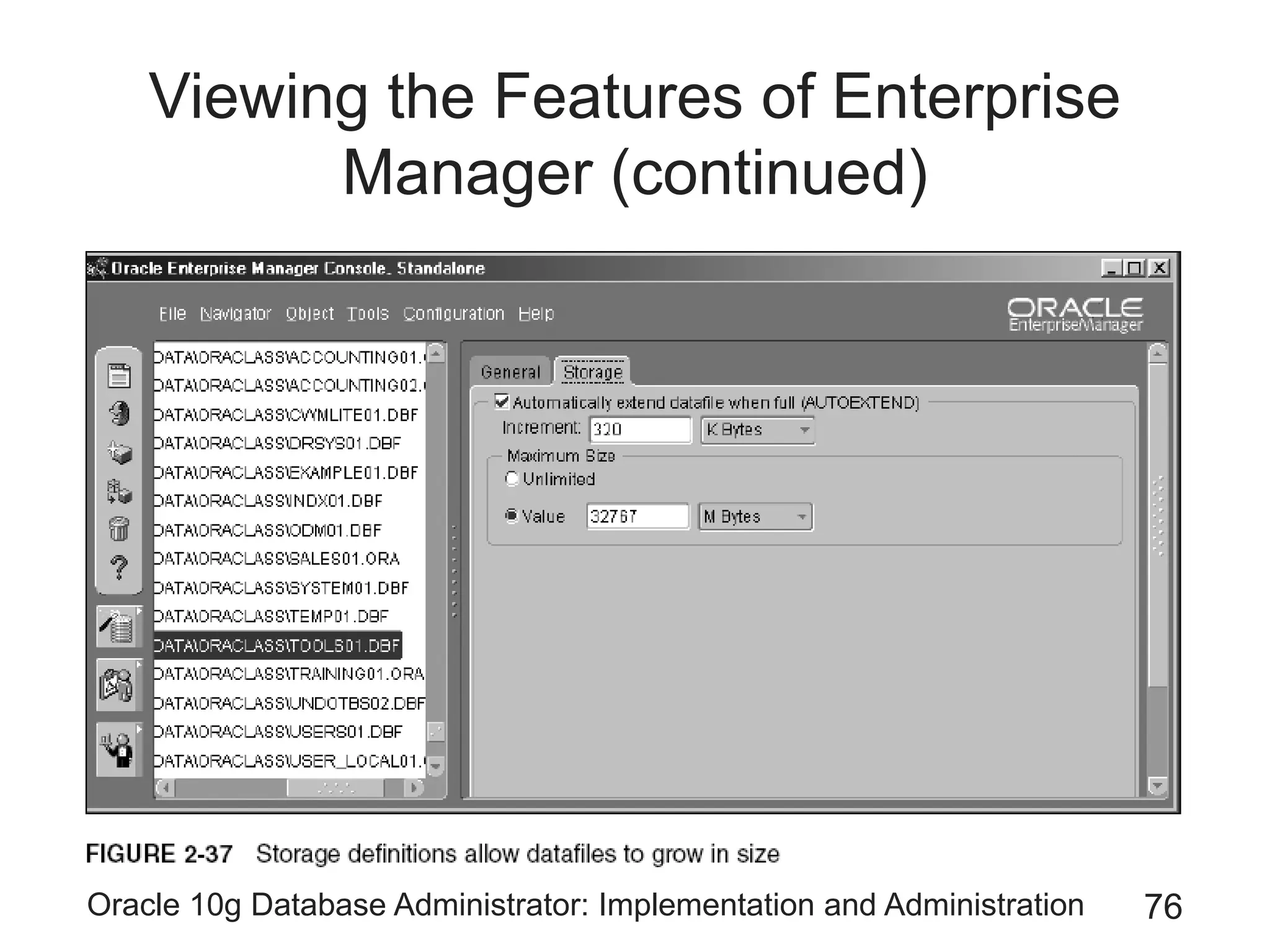
– Double-click the Datafiles folder
– Click the datafile with the name TEMP01.DBF
– Click the Storage tab
– Close the console by clicking the X in the top-right
corner of the window
Oracle 10g Database Administrator: Implementation and Administration 75
Viewing the Features of Enterprise
Manager (continued)
Oracle 10g Database Administrator: Implementation and Administration 76
Viewing the Features of Enterprise
Manager (continued)
Oracle 10g Database Administrator: Implementation and Administration 77
The Database Control Interface
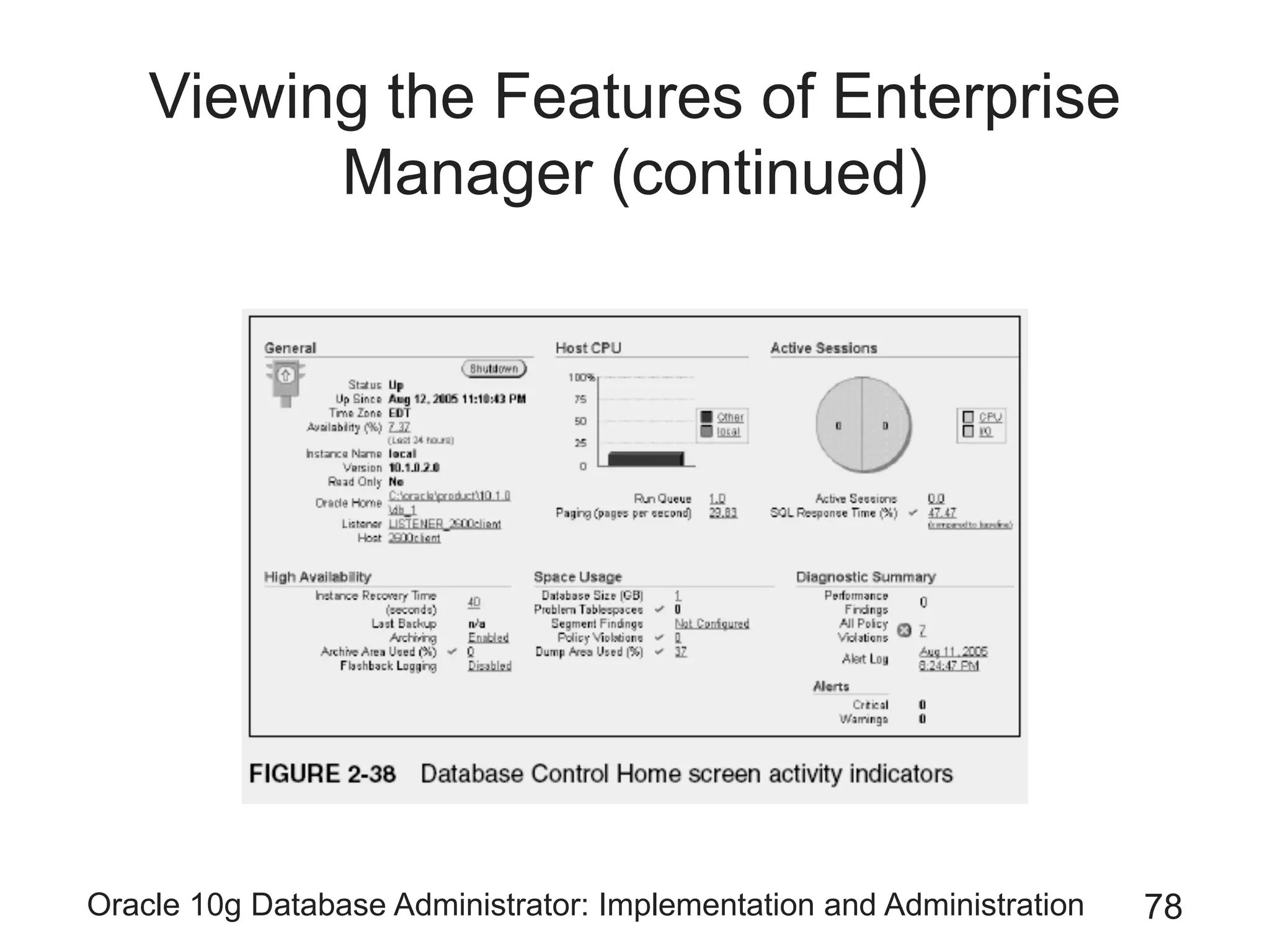
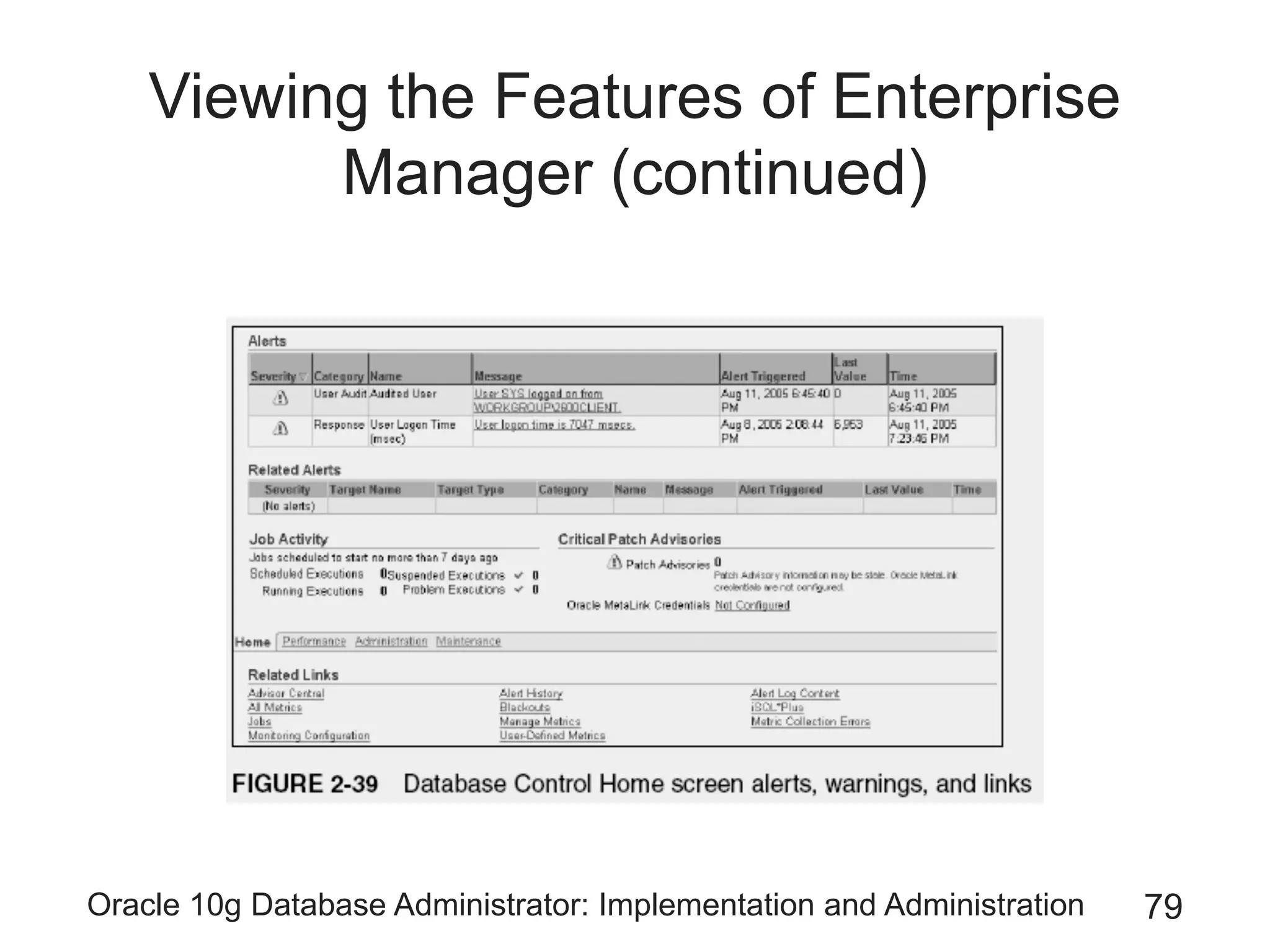
• Get the Database Control up and running
– By typing this URL into a browser:
• http://2600client:1158/em
• Tabs
– Home
• Provides general information about the database and
the Oracle installation
Oracle 10g Database Administrator: Implementation and Administration 78
Viewing the Features of Enterprise
Manager (continued)
Oracle 10g Database Administrator: Implementation and Administration 79
Viewing the Features of Enterprise
Manager (continued)
Oracle 10g Database Administrator: Implementation and Administration 80
The Database Control Interface
(continued)
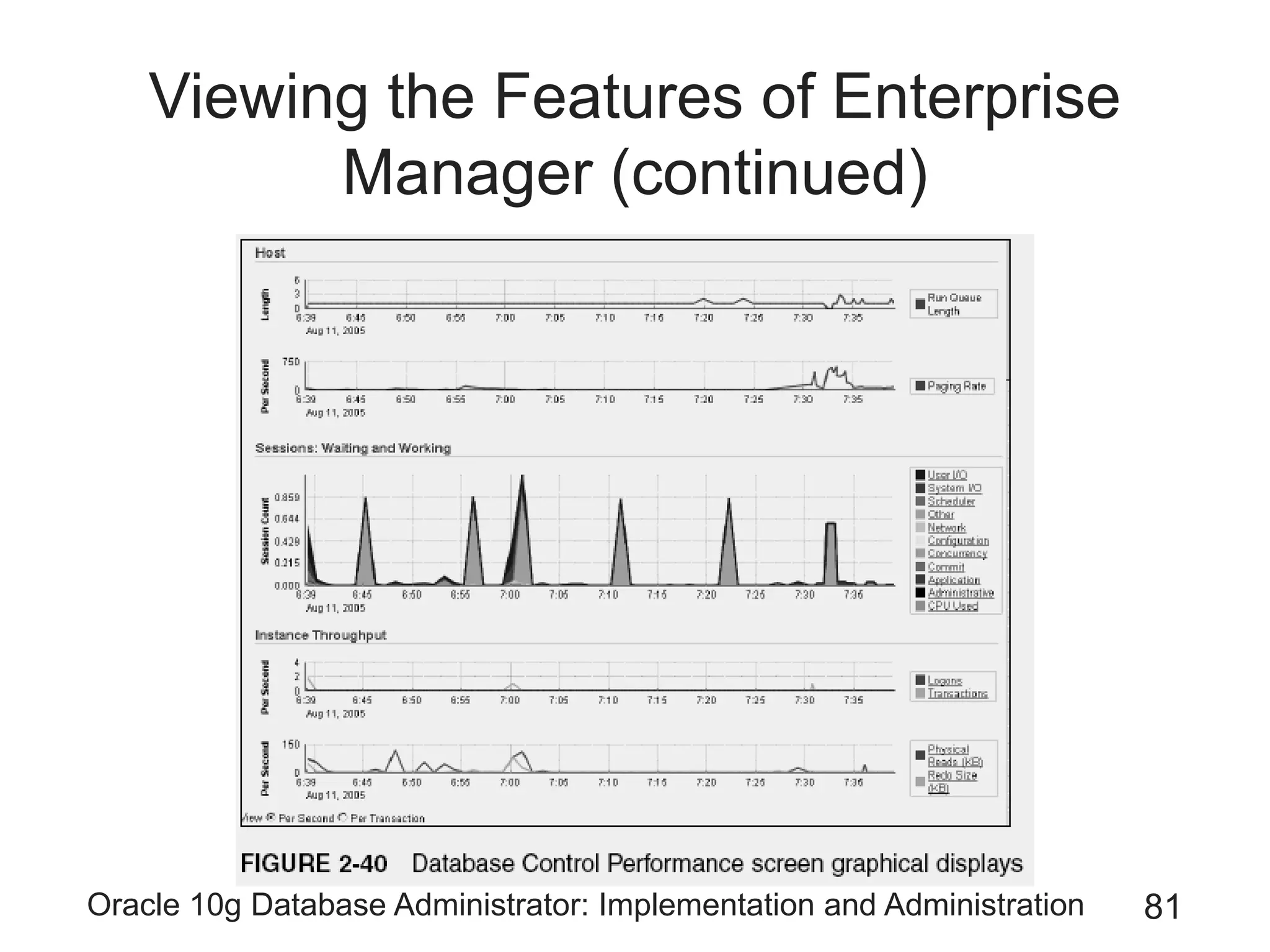
• Tabs (continued)
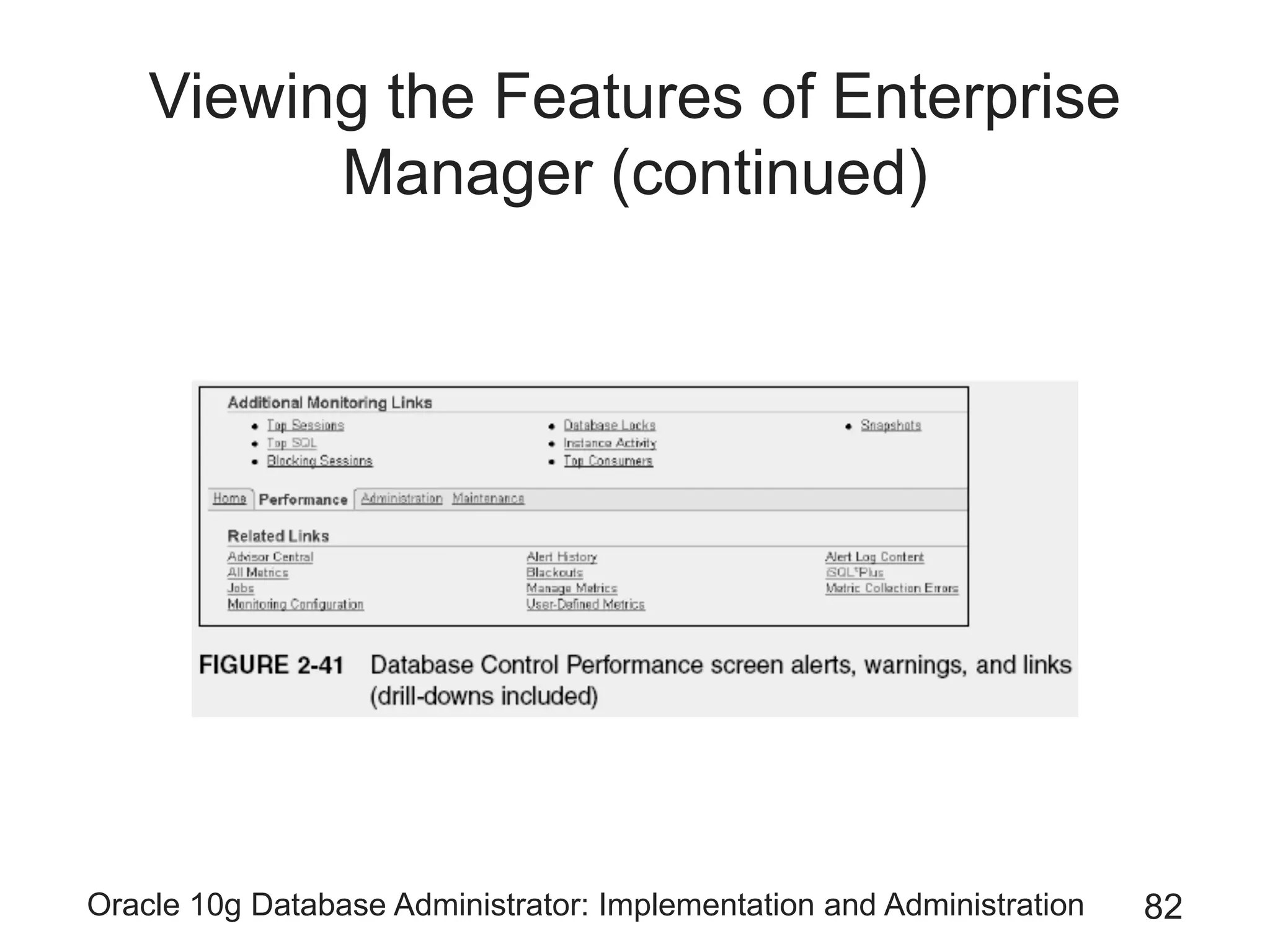
– Performance
• Shows performance information, both good and bad
Oracle 10g Database Administrator: Implementation and Administration 81
Viewing the Features of Enterprise
Manager (continued)
Oracle 10g Database Administrator: Implementation and Administration 82
Viewing the Features of Enterprise
Manager (continued)
Oracle 10g Database Administrator: Implementation and Administration 83
The Database Control Interface
(continued)
• Tabs (continued)
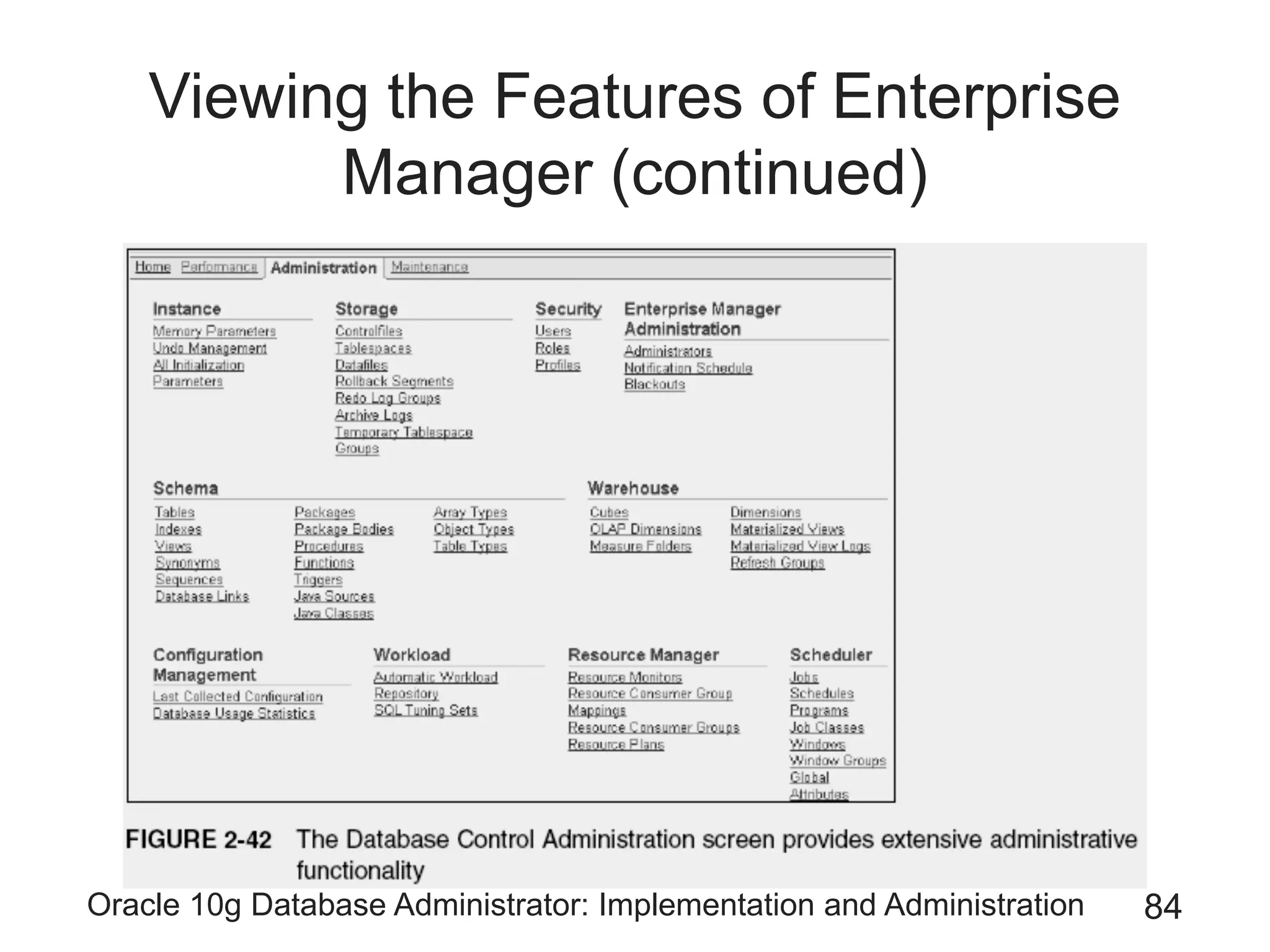
– Administration
• Provides a multitude of options for administration
functionality
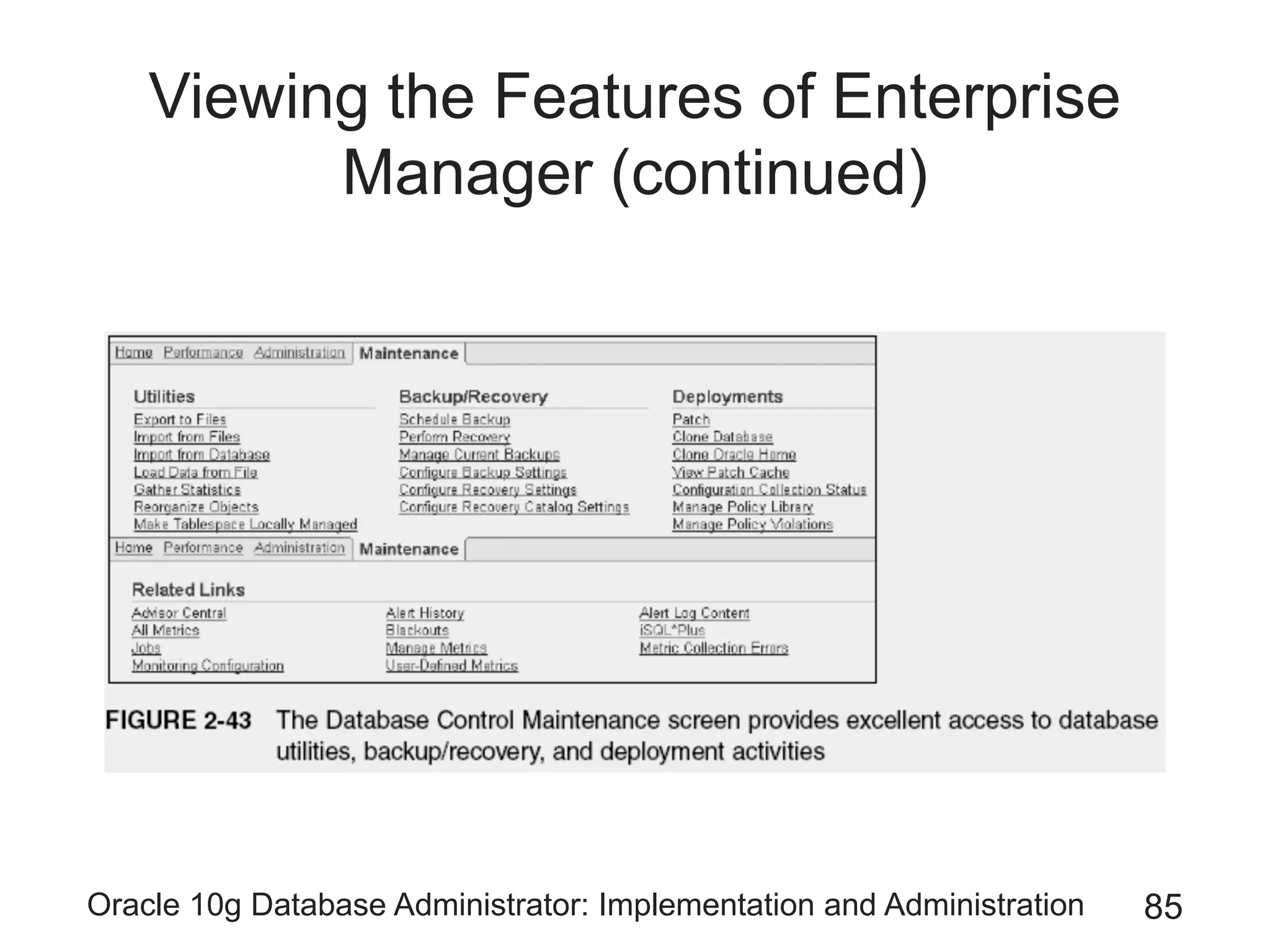
– Maintenance
• Provides comprehensive maintenance access to:
– Database utilities
– Backup/recovery
– Deployment activities
Oracle 10g Database Administrator: Implementation and Administration 84
Viewing the Features of Enterprise
Manager (continued)
Oracle 10g Database Administrator: Implementation and Administration 85
Viewing the Features of Enterprise
Manager (continued)
Oracle 10g Database Administrator: Implementation and Administration 86
Summary
• Using command-line interfaces to manually execute
commands may be necessary
• Oracle Net Services
– Allows communication between a tool and database
– Must be configured on both the client and the server
• The Listener Oracle service waits to receive requests
sent to the database
• Service name defines the DB’s name, location, and
listening port
• Use Net Manager and the Net Configuration
Assistant to configure Oracle Net Services
Oracle 10g Database Administrator: Implementation and Administration 87
Summary (continued)
• Net Manager guides you through the steps of
configuring a new service name
• File tnsnames.ora stores Oracle Net Services
configuration settings on the client side
• File listener.ora stores Oracle Net Services
configuration settings on the server side
• Server process reads data from datafiles and places
it in the buffer cache
– Dedicated server
– Shared server
Oracle 10g Database Administrator: Implementation and Administration 88
Summary (continued)
• PGA stores shared connection memory allocations,
separately for each application
• Managers
– Instance Manager tracks database activity
• Set the user and password as preferred credentials
– Schema Manager provides details on schema objects
– Security Manager is focused on users and privileges
• Roles group privileges into related sets
– Storage Manager displays information about datafiles
and tablespaces

DBA oracle

  • 1.
    Oracle 10g DatabaseAdministrator: Implementation and Administration 1 Oracle Architecture 10g
  • 2.
    Oracle 10g DatabaseAdministrator: Implementation and Administration 2
  • 3.
    Oracle 10g DatabaseAdministrator: Implementation and Administration 3 Objectives • Identify the main DBA tools in the Oracle10g software suite • Configure Oracle Net Services to connect to the database • Examine Oracle database instance architecture • Examine Oracle database memory architecture
  • 4.
    Oracle 10g DatabaseAdministrator: Implementation and Administration 4
  • 5.
    Oracle 10g DatabaseAdministrator: Implementation and Administration 5 Objectives (continued) • Examine Oracle database process architecture • Examine Oracle database connection management architecture • Start using the Enterprise Manager • Go through a brief introduction to the Database Control
  • 6.
    Oracle 10g DatabaseAdministrator: Implementation and Administration 6 Overview of DBA Tools • Many of these tools become integrated in: – Central workspace – Enterprise Manager console – Database Control – Grid Control • Tools give you a way to work on the database – In a Windows-style environment • You must also understand how to work directly from the command line
  • 7.
    Oracle 10g DatabaseAdministrator: Implementation and Administration 7
  • 8.
    Oracle 10g DatabaseAdministrator: Implementation and Administration 8 Overview of DBA Tools (continued)
  • 9.
    Oracle 10g DatabaseAdministrator: Implementation and Administration 9 Overview of DBA Tools (continued)
  • 10.
    Oracle 10g DatabaseAdministrator: Implementation and Administration 10 Overview of DBA Tools (continued) • Changing a user’s password – Using a command-line tool • See Figure 2-1 – Using Security Manager • See Figure 2-2 • Some tasks can be handled by more than one tool – Oracle Net Services is a common denominator for these tools
  • 11.
    Oracle 10g DatabaseAdministrator: Implementation and Administration 11 Overview of DBA Tools (continued)
  • 12.
    Oracle 10g DatabaseAdministrator: Implementation and Administration 12 Overview of DBA Tools (continued)
  • 13.
    Oracle 10g DatabaseAdministrator: Implementation and Administration 13 Overview of DBA Tools (continued)
  • 14.
    Oracle 10g DatabaseAdministrator: Implementation and Administration 14 Configuring Oracle Net Services to Connect to the Database • Nearly every time you access Oracle10g – You go through Oracle Net Services
  • 15.
    Oracle 10g DatabaseAdministrator: Implementation and Administration 15 Overview of Oracle Net Service Architecture • Oracle Net Services – Made up of several subcomponents that work together • Client and server installations of Oracle Net Services – Must be configured to be synchronized to the target database – Configuration is stored in the tnsnames.ora • Service name – Set of information used to locate and communicate with an Oracle database
  • 16.
    Oracle 10g DatabaseAdministrator: Implementation and Administration 16 Overview of Oracle Net Service Architecture (continued)
  • 17.
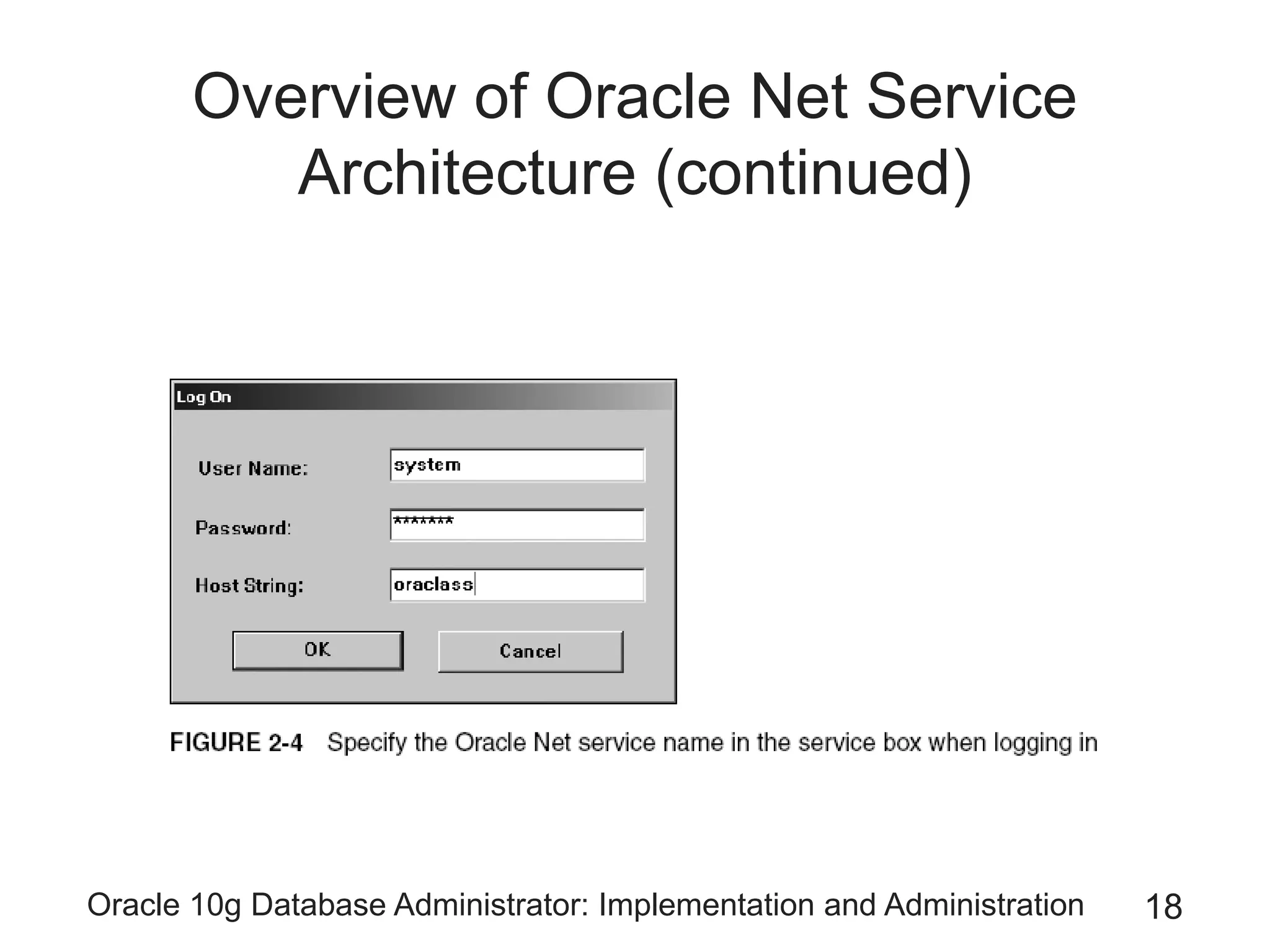
    Oracle 10g DatabaseAdministrator: Implementation and Administration 17 Overview of Oracle Net Service Architecture (continued) • Client side can reach the server-side database – By using the service name – Combined with a valid user name and password • Bequeath protocol – Allows a direct connection to a database • On a database server computer • Without going through Oracle Net services • Without requiring a network name – Allowed only when you are logged on to the database machine
  • 18.
    Oracle 10g DatabaseAdministrator: Implementation and Administration 18 Overview of Oracle Net Service Architecture (continued)
  • 19.
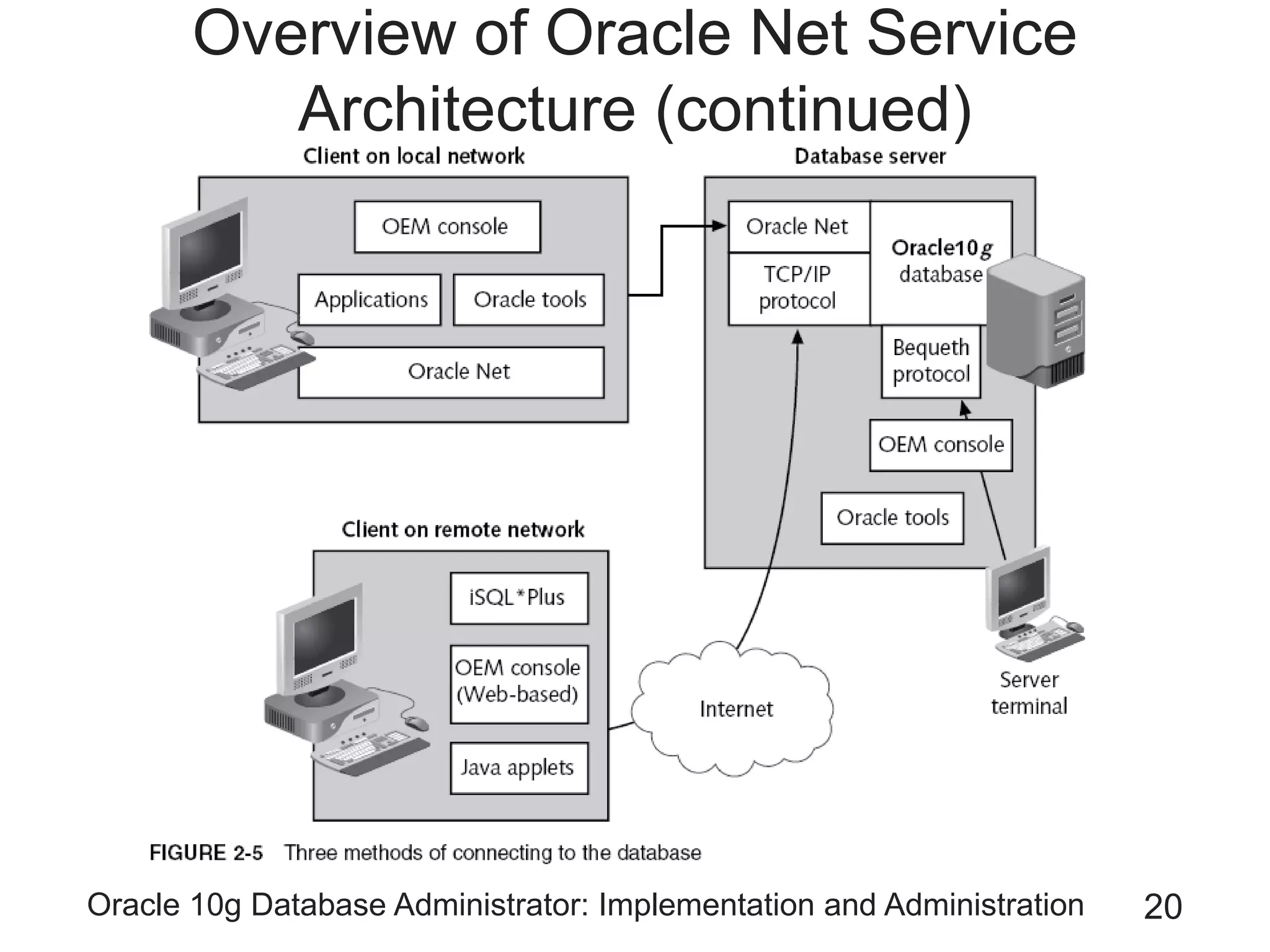
    Oracle 10g DatabaseAdministrator: Implementation and Administration 19 Overview of Oracle Net Service Architecture (continued) • Path of communication – Client with Oracle Net – Client with JDBC driver – Terminal with direct connection • Network naming methods – Local naming – Directory naming – Host naming – External naming – Easy connect
  • 20.
    Oracle 10g DatabaseAdministrator: Implementation and Administration 20 Overview of Oracle Net Service Architecture (continued)
  • 21.
    Oracle 10g DatabaseAdministrator: Implementation and Administration 21 Step-By-Step Configuration of Oracle Net Services Using Net Manager • Steps: – Start Net Manager in Windows – Expand the Local node – Expand the Service Naming node – Highlight Service Naming, and click the big green plus sign
  • 22.
    Oracle 10g DatabaseAdministrator: Implementation and Administration 22 Step-By-Step Configuration of Oracle Net Services Using Net Manager (continued)
  • 23.
    Oracle 10g DatabaseAdministrator: Implementation and Administration 23 Step-By-Step Configuration of Oracle Net Services Using Net Manager (continued)
  • 24.
    Oracle 10g DatabaseAdministrator: Implementation and Administration 24 Step-By-Step Configuration of Oracle Net Services Using Net Manager (continued)
  • 25.
    Oracle 10g DatabaseAdministrator: Implementation and Administration 25 Step-By-Step Configuration of Oracle Net Services Using Net Manager (continued) • Steps (continued): – For the connection, select TCP/IP (Internet Protocol) as the protocol – Type the computer name on which the database resides in the Host Name box – Accept the default selection of Oracle8i or later
  • 26.
    Oracle 10g DatabaseAdministrator: Implementation and Administration 26 Step-By-Step Configuration of Oracle Net Services Using Net Manager (continued)
  • 27.
    Oracle 10g DatabaseAdministrator: Implementation and Administration 27 Step-By-Step Configuration of Oracle Net Services Using Net Manager (continued)
  • 28.
    Oracle 10g DatabaseAdministrator: Implementation and Administration 28 Step-By-Step Configuration of Oracle Net Services Using Net Manager (continued)
  • 29.
    Oracle 10g DatabaseAdministrator: Implementation and Administration 29 Step-By-Step Configuration of Oracle Net Services Using Net Manager (continued) • Steps (continued): – Click Test – Click Close to close the test window – Click Finish to complete the definition – Save the configuration • By selecting File/Save Network Configuration from the menu – Close Net Manager
  • 30.
    Oracle 10g DatabaseAdministrator: Implementation and Administration 30 Step-By-Step Configuration of Oracle Net Services Using Net Manager (continued)
  • 31.
    Oracle 10g DatabaseAdministrator: Implementation and Administration 31 Step-By-Step Configuration of Oracle Net Services Using Net Manager (continued)
  • 32.
    Oracle 10g DatabaseAdministrator: Implementation and Administration 32 Step-By-Step Configuration of Oracle Net Services Using Net Manager (continued) • ORACLE_HOME and ORACLE_BASE variables – Represent registry entries in Windows • And $<named> variables in Unix or Linux – ORACLE_HOME variable • Refers to the directory where Oracle installs its executable files – ORACLE_BASE variable • The directory upward from the ORACLE_HOME variable
  • 33.
    Oracle 10g DatabaseAdministrator: Implementation and Administration 33 TNS Configuration Files • The listener.ora file – Stored on the database server – Provides configuration for how the listener process listens over the network, for connection requests – Stored in $ORACLE_HOME/network/admin • The tnsnames.ora file – Placed onto the client machine – Allows communication between client machine and listener on the database sever
  • 34.
    Oracle 10g DatabaseAdministrator: Implementation and Administration 34 Working with the Listener • Listener listens for requests made by user connections • Process then allocates a server process • Start or stop the listener – Windows • Go to the Services window • Use the listener control utility (lsnrctl) • Listener features include: – Change queue size – Set listener logging and tracing
  • 35.
    Oracle 10g DatabaseAdministrator: Implementation and Administration 35 Working with the Listener (continued)
  • 36.
    Oracle 10g DatabaseAdministrator: Implementation and Administration 36 Working with the Listener (continued) • Creating multiple listeners
  • 37.
    Oracle 10g DatabaseAdministrator: Implementation and Administration 37 Working with the Listener (continued) • Loading balance between multiple listeners • You cannot use Net Manager to start and stop the listener
  • 38.
    Oracle 10g DatabaseAdministrator: Implementation and Administration 38 Using the Net Configuration Assistant
  • 39.
    Oracle 10g DatabaseAdministrator: Implementation and Administration 39 Using SQL*Plus, SQL*Plus Worksheet, and iSQL*Plus • Troubleshooting SQL *Plus – Configuration of the listener on the server is incorrect – Client configuration of the tnsnames.ora file is incorrect – Validate configuration using tnsping • Execute SQL *Plus – Select Start/All Programs/Oracle .../Application Development/SQL Plus from the menu • Execute SQL *Plus Worksheet – Select Start/Programs/Oracle/Application Development/SQLPlus Worksheet from the menu
  • 40.
    Oracle 10g DatabaseAdministrator: Implementation and Administration 40 Using SQL*Plus, SQL*Plus Worksheet, and iSQL*Plus (continued)
  • 41.
    Oracle 10g DatabaseAdministrator: Implementation and Administration 41 Using SQL*Plus, SQL*Plus Worksheet, and iSQL*Plus (continued)
  • 42.
    Oracle 10g DatabaseAdministrator: Implementation and Administration 42 Using SQL*Plus, SQL*Plus Worksheet, and iSQL*Plus (continued)
  • 43.
    Oracle 10g DatabaseAdministrator: Implementation and Administration 43 Using SQL*Plus, SQL*Plus Worksheet, and iSQL*Plus (continued) • iSQL *Plus (Internet SQL *Plus) – Web-based version of SQL*Plus – Allows you to write queries and other SQL commands across a network • Returning results in a Web browser – Application server is an HTTP Web server – iSQL*Plus output looks like an HTML table
  • 44.
    Oracle 10g DatabaseAdministrator: Implementation and Administration 44 Using SQL*Plus, SQL*Plus Worksheet, and iSQL*Plus (continued)
  • 45.
    Oracle 10g DatabaseAdministrator: Implementation and Administration 45 Using SQL*Plus, SQL*Plus Worksheet, and iSQL*Plus (continued)
  • 46.
    Oracle 10g DatabaseAdministrator: Implementation and Administration 46 Oracle Instance Architecture • Database instance – Runs on a database server and uses data inside the database • Oracle instance – Part of an Oracle database executing in memory – Made up of processes and memory structures
  • 47.
    Oracle 10g DatabaseAdministrator: Implementation and Administration 47 Shared and Dedicated Server Processes • After a request to connect to the database is received – Oracle creates a user session – Then, Oracle creates a server process • Dedicated server – Every user session has its own server process • Shared server – Uses CPU and memory more efficiently • By swapping out user sessions during idle time
  • 48.
    Oracle 10g DatabaseAdministrator: Implementation and Administration 48 Shared and Dedicated Server Processes (continued)
  • 49.
    Oracle 10g DatabaseAdministrator: Implementation and Administration 49 Shared and Dedicated Server Processes (continued)
  • 50.
    Oracle 10g DatabaseAdministrator: Implementation and Administration 50 Shared and Dedicated Server Processes (continued) • Connection – Link from the user session, through the server session, and to the database instance – Controlled in the client-side configuration of Oracle Net Services • In the tnsnames.ora file
  • 51.
    Oracle 10g DatabaseAdministrator: Implementation and Administration 51 Background Processes • Support and monitor the server processes • Handle database management tasks – To keep the database running efficiently – To help maintain fast performance
  • 52.
    Oracle 10g DatabaseAdministrator: Implementation and Administration 52 Background Processes (continued)
  • 53.
    Oracle 10g DatabaseAdministrator: Implementation and Administration 53 Memory Components • Two main sections of memory – System Global Area (SGA) • Allocated when an instance is started • Deallocated when the instance is shut down – Program Global Area (PGA) • Effectively used in session connection memory • Broken into private chunks for each server process
  • 54.
    Oracle 10g DatabaseAdministrator: Implementation and Administration 54 Memory Components (continued)
  • 55.
    Oracle 10g DatabaseAdministrator: Implementation and Administration 55 Introducing Enterprise Manager • In previous versions of Oracle – Executing the Enterprise Manager console was complicated – Too much power was placed into the console software • Oracle10g divides power – Between the console and the Database Control
  • 56.
    Oracle 10g DatabaseAdministrator: Implementation and Administration 56 Running the Enterprise Manager Console • Steps: – Click Start/All Programs/Oracle .../Enterprise Manager Console – Add connections to databases – Add new database service to the console • In the main window of Enterprise Manager console, double-click the Databases folder • Click the Navigator menu, and then click Add Database to Tree – Add selected DBs from your local tnsnames.ora file
  • 57.
    Oracle 10g DatabaseAdministrator: Implementation and Administration 57 Running the Enterprise Manager Console (continued)
  • 58.
    Oracle 10g DatabaseAdministrator: Implementation and Administration 58 Running the Enterprise Manager Console (continued)
  • 59.
    Oracle 10g DatabaseAdministrator: Implementation and Administration 59 Running the Enterprise Manager Console (continued) • Steps (continued): – Expand the ORACLASS database node – Log on to the database as SYSTEM
  • 60.
    Oracle 10g DatabaseAdministrator: Implementation and Administration 60 Running the Enterprise Manager Console (continued)
  • 61.
    Oracle 10g DatabaseAdministrator: Implementation and Administration 61 Viewing the Features of Enterprise Manager • Four primary tools – Instance Manager • Monitors activities in the database – Schema Manager • Displays table structures, creates new tables, indexes, views, and any other type of object – Security Manager • Creates new users, allocates storage resources to users, and changes passwords – Storage Manager • Monitors storage use
  • 62.
    Oracle 10g DatabaseAdministrator: Implementation and Administration 62 Viewing the Features of Enterprise Manager (continued) • Examine Instance Manager – Double-click the Instance icon – Click the Configuration icon – Click the All Initialization Parameters button – Select audit_trail, and then click Description – Click the Category column heading – Click the Cancel button to return to the main console window – Double-click Sessions – Click SYSTEM under Sessions – Collapse the Instance Manager node
  • 63.
    Oracle 10g DatabaseAdministrator: Implementation and Administration 63 Viewing the Features of Enterprise Manager (continued)
  • 64.
    Oracle 10g DatabaseAdministrator: Implementation and Administration 64 Viewing the Features of Enterprise Manager (continued)
  • 65.
    Oracle 10g DatabaseAdministrator: Implementation and Administration 65 Viewing the Features of Enterprise Manager (continued) • Examine Schema Manager – Double-click the Schema icon in the console – Scroll down in the left window and double-click the SYSTEM schema – Double-click the Tables folder – Scroll down and double-click the HELP table – Click the Indexes folder below the HELP table in the left side of the console – Right-click the HELP table – Select Show Object DDL from the pop-up menu – Click Close to return to the main console window
  • 66.
    Oracle 10g DatabaseAdministrator: Implementation and Administration 66 Viewing the Features of Enterprise Manager (continued)
  • 67.
    Oracle 10g DatabaseAdministrator: Implementation and Administration 67 Viewing the Features of Enterprise Manager (continued)
  • 68.
    Oracle 10g DatabaseAdministrator: Implementation and Administration 68 Viewing the Features of Enterprise Manager (continued)
  • 69.
    Oracle 10g DatabaseAdministrator: Implementation and Administration 69 Viewing the Features of Enterprise Manager (continued) • Examine Schema Manager (continued) – Scroll down and right-click the Views folder – Select Save List in the pop-up window – Click Cancel to return to the console window
  • 70.
    Oracle 10g DatabaseAdministrator: Implementation and Administration 70 Viewing the Features of Enterprise Manager (continued)
  • 71.
    Oracle 10g DatabaseAdministrator: Implementation and Administration 71 Viewing the Features of Enterprise Manager (continued) • Examine Security Manager – In the console, double-click the Security icon – Double-click the Users folder – Scroll down and select the SYSTEM user – Double-click the Roles folder – Scroll down on the left side of the console and select the RESOURCE role – Click the System tab
  • 72.
    Oracle 10g DatabaseAdministrator: Implementation and Administration 72 Viewing the Features of Enterprise Manager (continued)
  • 73.
    Oracle 10g DatabaseAdministrator: Implementation and Administration 73 Viewing the Features of Enterprise Manager (continued)
  • 74.
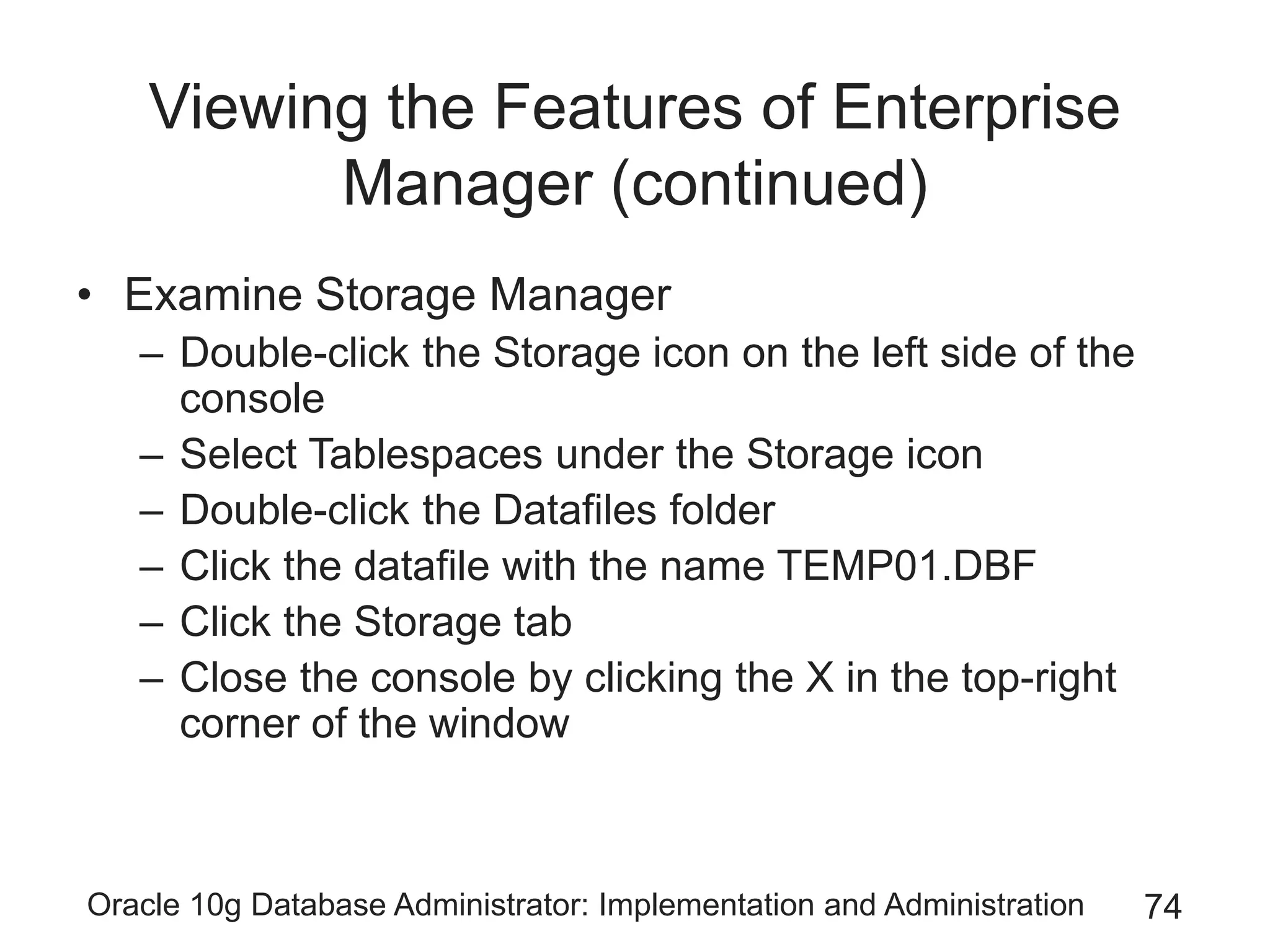
    Oracle 10g DatabaseAdministrator: Implementation and Administration 74 Viewing the Features of Enterprise Manager (continued) • Examine Storage Manager – Double-click the Storage icon on the left side of the console – Select Tablespaces under the Storage icon – Double-click the Datafiles folder – Click the datafile with the name TEMP01.DBF – Click the Storage tab – Close the console by clicking the X in the top-right corner of the window
  • 75.
    Oracle 10g DatabaseAdministrator: Implementation and Administration 75 Viewing the Features of Enterprise Manager (continued)
  • 76.
    Oracle 10g DatabaseAdministrator: Implementation and Administration 76 Viewing the Features of Enterprise Manager (continued)
  • 77.
    Oracle 10g DatabaseAdministrator: Implementation and Administration 77 The Database Control Interface • Get the Database Control up and running – By typing this URL into a browser: • http://2600client:1158/em • Tabs – Home • Provides general information about the database and the Oracle installation
  • 78.
    Oracle 10g DatabaseAdministrator: Implementation and Administration 78 Viewing the Features of Enterprise Manager (continued)
  • 79.
    Oracle 10g DatabaseAdministrator: Implementation and Administration 79 Viewing the Features of Enterprise Manager (continued)
  • 80.
    Oracle 10g DatabaseAdministrator: Implementation and Administration 80 The Database Control Interface (continued) • Tabs (continued) – Performance • Shows performance information, both good and bad
  • 81.
    Oracle 10g DatabaseAdministrator: Implementation and Administration 81 Viewing the Features of Enterprise Manager (continued)
  • 82.
    Oracle 10g DatabaseAdministrator: Implementation and Administration 82 Viewing the Features of Enterprise Manager (continued)
  • 83.
    Oracle 10g DatabaseAdministrator: Implementation and Administration 83 The Database Control Interface (continued) • Tabs (continued) – Administration • Provides a multitude of options for administration functionality – Maintenance • Provides comprehensive maintenance access to: – Database utilities – Backup/recovery – Deployment activities
  • 84.
    Oracle 10g DatabaseAdministrator: Implementation and Administration 84 Viewing the Features of Enterprise Manager (continued)
  • 85.
    Oracle 10g DatabaseAdministrator: Implementation and Administration 85 Viewing the Features of Enterprise Manager (continued)
  • 86.
    Oracle 10g DatabaseAdministrator: Implementation and Administration 86 Summary • Using command-line interfaces to manually execute commands may be necessary • Oracle Net Services – Allows communication between a tool and database – Must be configured on both the client and the server • The Listener Oracle service waits to receive requests sent to the database • Service name defines the DB’s name, location, and listening port • Use Net Manager and the Net Configuration Assistant to configure Oracle Net Services
  • 87.
    Oracle 10g DatabaseAdministrator: Implementation and Administration 87 Summary (continued) • Net Manager guides you through the steps of configuring a new service name • File tnsnames.ora stores Oracle Net Services configuration settings on the client side • File listener.ora stores Oracle Net Services configuration settings on the server side • Server process reads data from datafiles and places it in the buffer cache – Dedicated server – Shared server
  • 88.
    Oracle 10g DatabaseAdministrator: Implementation and Administration 88 Summary (continued) • PGA stores shared connection memory allocations, separately for each application • Managers – Instance Manager tracks database activity • Set the user and password as preferred credentials – Schema Manager provides details on schema objects – Security Manager is focused on users and privileges • Roles group privileges into related sets – Storage Manager displays information about datafiles and tablespaces