© 2002, Cisco Systems, Inc. All rights reserved. ICND v2.0—1-1© 2002, Cisco Systems, Inc. All rights reserved. 1
Starting a Switch
© 2002, Cisco Systems, Inc. All rights reserved. ICND v2.0—1-2
Objectives
Upon completing this lesson, you will be
able to:
• Start an access layer switch and recognize the
normal boot sequence
• Use the command-line interface to interact with
the Cisco IOS software, given an operational
access layer switch
• Use the online help facilities associated with the
command-line interfaces, given an operational
access layer switch
© 2002, Cisco Systems, Inc. All rights reserved. ICND v2.0—1-3
• System startup routines initiate switch software.
• Initial startup uses default configuration
parameters.
Initial Startup of the Catalyst Switch
© 2002, Cisco Systems, Inc. All rights reserved. ICND v2.0—1-4
Catalyst 1900
Switch LED Indicators
© 2002, Cisco Systems, Inc. All rights reserved. ICND v2.0—1-5
Catalyst 2950
Switch LED Indicators
© 2002, Cisco Systems, Inc. All rights reserved. ICND v2.0—1-6
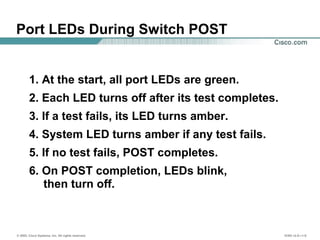
Port LEDs During Switch POST
1. At the start, all port LEDs are green.
2. Each LED turns off after its test completes.
3. If a test fails, its LED turns amber.
4. System LED turns amber if any test fails.
5. If no test fails, POST completes.
6. On POST completion, LEDs blink,
then turn off.
© 2002, Cisco Systems, Inc. All rights reserved. ICND v2.0—1-7
Initial Bootup Output from the
Catalyst 1900 Switch
© 2002, Cisco Systems, Inc. All rights reserved. ICND v2.0—1-8
Initial Bootup Output
from the Catalyst 2950 Switch
--- System Configuration Dialog ---
At any point you may enter a question mark '?' for help.
Use ctrl-c to abort configuration dialog at any prompt.
Default settings are in square brackets '[ ]'.
Continue with configuration dialog? [yes/no]: yes
Enter IP address: ip_address
Enter IP netmask: ip_netmask
Would you like to enter a default gateway address? [yes]: yes
IP address of the default gateway: ip_address
Enter a host name: host_name
Enter enable secret: secret_password
Would you like to configure a Telnet password? [yes] yes
Enter Telnet password: telnet_password
Would you like to enable as a cluster command switch? no
Enter cluster name: cls_name
© 2002, Cisco Systems, Inc. All rights reserved. ICND v2.0—1-9
Logging In to the Switch and
Entering the Enable Password
© 2002, Cisco Systems, Inc. All rights reserved. ICND v2.0—1-10
Context-Sensitive Help Console Error Messages
Identifies problems with any
switch commands that are
incorrectly entered so that
you can alter or correct them
Allows recall of long or
complex commands or
entries for reentry, review, or
correction
Command History Buffer
Provides a list of
commands and the
arguments associated
with a specific command
Switch Command-Line Help Facilities
© 2002, Cisco Systems, Inc. All rights reserved. ICND v2.0—1-11
Configuration Modes:
• Global configuration mode
– wg_sw_a#configure terminal
– wg_sw_a(config)#
• Interface configuration mode
– wg_sw_a(config)#interface e0/1
– wg_sw_a(config-if)#
Configuring the Switch
© 2002, Cisco Systems, Inc. All rights reserved. ICND v2.0—1-12
• Sets the local identity for the switch
Configuring Switch Identification
© 2002, Cisco Systems, Inc. All rights reserved. ICND v2.0—1-13
wg_sw_a(config)#ip address {ip address}
{mask}
Example:
wg_sw_a(config)#ip address 10.5.5.11 255.255.255.0
Configuring the Switch IP Address
© 2002, Cisco Systems, Inc. All rights reserved. ICND v2.0—1-14
wg_sw_a(config)#ip default-gateway
{ip address}
Example:
wg_sw_a(config)#ip default-gateway 172.20.137.1
Configuring the
Switch Default Gateway
© 2002, Cisco Systems, Inc. All rights reserved. ICND v2.0—1-15
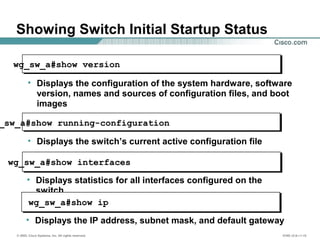
Showing Switch Initial Startup Status
wg_sw_a#show version
• Displays the configuration of the system hardware, software
version, names and sources of configuration files, and boot
images
_sw_a#show running-configuration
• Displays the switch’s current active configuration file
wg_sw_a#show interfaces
• Displays statistics for all interfaces configured on the
switch
wg_sw_a#show ip
• Displays the IP address, subnet mask, and default gateway
© 2002, Cisco Systems, Inc. All rights reserved. ICND v2.0—1-16
Switch show version Command
wg_sw_a#show version
Cisco Catalyst 1900/2820 Enterprise Edition Software
Version V8.01.01 written from 171.068.229.225
Copyright (c) Cisco Systems, Inc. 1993-2001
wg_sw_c uptime is 15day(s) 21hour(s) 53minute(s) 11second(s)
cisco Catalyst 1900 (486sxl) processor with 2048K/1024K bytes of memory
Hardware board revision is 5
Upgrade Status: No upgrade currently in progress.
Config File Status: No configuration upload/download is in progress
27 Fixed Ethernet/IEEE 802.3 interface(s)
Base Ethernet Address: 00-50-BD-73-E2-C0
© 2002, Cisco Systems, Inc. All rights reserved. ICND v2.0—1-17
wg_sw_a#show running-configuration
Building configuration...
Current configuration:
!
hostname "wg_sw_c"
!
ip address 10.1.1.33 255.255.255.0
ip default-gateway 10.3.3.3
!
interface Ethernet 0/1
<text omitted>
interface Ethernet 0/24
!
Interface Ethernet 0/25
!
interface FastEthernet 0/26
!
interface FastEthernet 0/27
wg_sw_a#show running-configuration
Building configuration...
Current configuration:
!
hostname "wg_sw_c"
!
ip address 10.1.1.33 255.255.255.0
ip default-gateway 10.3.3.3
!
interface Ethernet 0/1
<text omitted>
interface Ethernet 0/24
!
Interface Ethernet 0/25
!
interface FastEthernet 0/26
!
interface FastEthernet 0/27
wg_sw_a#show running-configuration
Building configuration...
Current configuration:
!
hostname "wg_sw_c"
!
ip address 10.1.1.33 255.255.255.0
ip default-gateway 10.3.3.3
!
interface Ethernet 0/1
<text omitted>
interface Ethernet 0/12
!
Interface Ethernet 0/25
!
interface FastEthernet 0/26
!
interface FastEthernet 0/27
wg_sw_a#show running-configuration
Building configuration...
Current configuration:
!
hostname "wg_sw_c"
!
ip address 10.1.1.33 255.255.255.0
ip default-gateway 10.3.3.3
!
interface Ethernet 0/1
<text omitted>
interface Ethernet 0/12
!
Interface Ethernet 0/25
!
interface FastEthernet 0/26
!
interface FastEthernet 0/27
Catalyst 1924 Switch Catalyst 1912 Switch
Switch show running-configuration
Command
© 2002, Cisco Systems, Inc. All rights reserved. ICND v2.0—1-18
wg_sw_a#show interfaces ethernet 0/1
Ethernet 0/1 is Enabled
Hardware is Built-in 10Base-T
Address is 0050.BD73.E2C1
MTU 1500 bytes, BW 10000 Kbits
802.1d STP State: Forwarding Forward Transitions: 1
Port monitoring: Disabled
Unknown unicast flooding: Enabled
Unregistered multicast flooding: Enabled
Description:
Duplex setting: Half duplex
Back pressure: Disabled
--More--
Switch show interfaces Command
© 2002, Cisco Systems, Inc. All rights reserved. ICND v2.0—1-19
wg_sw_c#show ip
IP Address: 10.5.5.11
Subnet Mask: 255.255.255.0
Default Gateway: 10.5.5.3
Management VLAN: 1
Domain name:
Name server 1: 0.0.0.0
Name server 2: 0.0.0.0
HTTP server : Enabled
HTTP port : 80
RIP : Enabled
wg_sw_a#
Showing the Switch IP Address
© 2002, Cisco Systems, Inc. All rights reserved. ICND v2.0—1-20
Summary
• The startup of a Catalyst switch requires that you verify
the physical installation, power up the switch, and view
the Cisco IOS software output on the console.
• The Catalyst switches have several status LEDs that are
generally lit in green when the switch is functioning
normally but turn amber when there is a malfunction.
• The Catalyst POST is executed only when the switch is
powered up. The POST uses the switch port LEDs to
indicate test progress and status.
• During initial startup, if POST test failures are detected,
they are reported to the console. If POST completes
successfully, you can configure the switch.
© 2002, Cisco Systems, Inc. All rights reserved. ICND v2.0—1-21
Summary (Cont.)
• When you start any mode on a Catalyst switch, begin in
user EXEC mode. To change modes, you must enter a
password.
• The Catalyst switch uses Cisco IOS software with several
command-line input help facilities, including context-
sensitive help.
• The Catalyst switch IOS software has the global
configuration mode and the interface configuration mode.
• After logging in to a Catalyst switch, you can verify the
switch initial startup status using the switch status
commands: show version, show running-configuration,
and show interfaces.
Day 13.1 startingaswitch

Day 13.1 startingaswitch

  • 1.
    © 2002, CiscoSystems, Inc. All rights reserved. ICND v2.0—1-1© 2002, Cisco Systems, Inc. All rights reserved. 1 Starting a Switch
  • 2.
    © 2002, CiscoSystems, Inc. All rights reserved. ICND v2.0—1-2 Objectives Upon completing this lesson, you will be able to: • Start an access layer switch and recognize the normal boot sequence • Use the command-line interface to interact with the Cisco IOS software, given an operational access layer switch • Use the online help facilities associated with the command-line interfaces, given an operational access layer switch
  • 3.
    © 2002, CiscoSystems, Inc. All rights reserved. ICND v2.0—1-3 • System startup routines initiate switch software. • Initial startup uses default configuration parameters. Initial Startup of the Catalyst Switch
  • 4.
    © 2002, CiscoSystems, Inc. All rights reserved. ICND v2.0—1-4 Catalyst 1900 Switch LED Indicators
  • 5.
    © 2002, CiscoSystems, Inc. All rights reserved. ICND v2.0—1-5 Catalyst 2950 Switch LED Indicators
  • 6.
    © 2002, CiscoSystems, Inc. All rights reserved. ICND v2.0—1-6 Port LEDs During Switch POST 1. At the start, all port LEDs are green. 2. Each LED turns off after its test completes. 3. If a test fails, its LED turns amber. 4. System LED turns amber if any test fails. 5. If no test fails, POST completes. 6. On POST completion, LEDs blink, then turn off.
  • 7.
    © 2002, CiscoSystems, Inc. All rights reserved. ICND v2.0—1-7 Initial Bootup Output from the Catalyst 1900 Switch
  • 8.
    © 2002, CiscoSystems, Inc. All rights reserved. ICND v2.0—1-8 Initial Bootup Output from the Catalyst 2950 Switch --- System Configuration Dialog --- At any point you may enter a question mark '?' for help. Use ctrl-c to abort configuration dialog at any prompt. Default settings are in square brackets '[ ]'. Continue with configuration dialog? [yes/no]: yes Enter IP address: ip_address Enter IP netmask: ip_netmask Would you like to enter a default gateway address? [yes]: yes IP address of the default gateway: ip_address Enter a host name: host_name Enter enable secret: secret_password Would you like to configure a Telnet password? [yes] yes Enter Telnet password: telnet_password Would you like to enable as a cluster command switch? no Enter cluster name: cls_name
  • 9.
    © 2002, CiscoSystems, Inc. All rights reserved. ICND v2.0—1-9 Logging In to the Switch and Entering the Enable Password
  • 10.
    © 2002, CiscoSystems, Inc. All rights reserved. ICND v2.0—1-10 Context-Sensitive Help Console Error Messages Identifies problems with any switch commands that are incorrectly entered so that you can alter or correct them Allows recall of long or complex commands or entries for reentry, review, or correction Command History Buffer Provides a list of commands and the arguments associated with a specific command Switch Command-Line Help Facilities
  • 11.
    © 2002, CiscoSystems, Inc. All rights reserved. ICND v2.0—1-11 Configuration Modes: • Global configuration mode – wg_sw_a#configure terminal – wg_sw_a(config)# • Interface configuration mode – wg_sw_a(config)#interface e0/1 – wg_sw_a(config-if)# Configuring the Switch
  • 12.
    © 2002, CiscoSystems, Inc. All rights reserved. ICND v2.0—1-12 • Sets the local identity for the switch Configuring Switch Identification
  • 13.
    © 2002, CiscoSystems, Inc. All rights reserved. ICND v2.0—1-13 wg_sw_a(config)#ip address {ip address} {mask} Example: wg_sw_a(config)#ip address 10.5.5.11 255.255.255.0 Configuring the Switch IP Address
  • 14.
    © 2002, CiscoSystems, Inc. All rights reserved. ICND v2.0—1-14 wg_sw_a(config)#ip default-gateway {ip address} Example: wg_sw_a(config)#ip default-gateway 172.20.137.1 Configuring the Switch Default Gateway
  • 15.
    © 2002, CiscoSystems, Inc. All rights reserved. ICND v2.0—1-15 Showing Switch Initial Startup Status wg_sw_a#show version • Displays the configuration of the system hardware, software version, names and sources of configuration files, and boot images _sw_a#show running-configuration • Displays the switch’s current active configuration file wg_sw_a#show interfaces • Displays statistics for all interfaces configured on the switch wg_sw_a#show ip • Displays the IP address, subnet mask, and default gateway
  • 16.
    © 2002, CiscoSystems, Inc. All rights reserved. ICND v2.0—1-16 Switch show version Command wg_sw_a#show version Cisco Catalyst 1900/2820 Enterprise Edition Software Version V8.01.01 written from 171.068.229.225 Copyright (c) Cisco Systems, Inc. 1993-2001 wg_sw_c uptime is 15day(s) 21hour(s) 53minute(s) 11second(s) cisco Catalyst 1900 (486sxl) processor with 2048K/1024K bytes of memory Hardware board revision is 5 Upgrade Status: No upgrade currently in progress. Config File Status: No configuration upload/download is in progress 27 Fixed Ethernet/IEEE 802.3 interface(s) Base Ethernet Address: 00-50-BD-73-E2-C0
  • 17.
    © 2002, CiscoSystems, Inc. All rights reserved. ICND v2.0—1-17 wg_sw_a#show running-configuration Building configuration... Current configuration: ! hostname "wg_sw_c" ! ip address 10.1.1.33 255.255.255.0 ip default-gateway 10.3.3.3 ! interface Ethernet 0/1 <text omitted> interface Ethernet 0/24 ! Interface Ethernet 0/25 ! interface FastEthernet 0/26 ! interface FastEthernet 0/27 wg_sw_a#show running-configuration Building configuration... Current configuration: ! hostname "wg_sw_c" ! ip address 10.1.1.33 255.255.255.0 ip default-gateway 10.3.3.3 ! interface Ethernet 0/1 <text omitted> interface Ethernet 0/24 ! Interface Ethernet 0/25 ! interface FastEthernet 0/26 ! interface FastEthernet 0/27 wg_sw_a#show running-configuration Building configuration... Current configuration: ! hostname "wg_sw_c" ! ip address 10.1.1.33 255.255.255.0 ip default-gateway 10.3.3.3 ! interface Ethernet 0/1 <text omitted> interface Ethernet 0/12 ! Interface Ethernet 0/25 ! interface FastEthernet 0/26 ! interface FastEthernet 0/27 wg_sw_a#show running-configuration Building configuration... Current configuration: ! hostname "wg_sw_c" ! ip address 10.1.1.33 255.255.255.0 ip default-gateway 10.3.3.3 ! interface Ethernet 0/1 <text omitted> interface Ethernet 0/12 ! Interface Ethernet 0/25 ! interface FastEthernet 0/26 ! interface FastEthernet 0/27 Catalyst 1924 Switch Catalyst 1912 Switch Switch show running-configuration Command
  • 18.
    © 2002, CiscoSystems, Inc. All rights reserved. ICND v2.0—1-18 wg_sw_a#show interfaces ethernet 0/1 Ethernet 0/1 is Enabled Hardware is Built-in 10Base-T Address is 0050.BD73.E2C1 MTU 1500 bytes, BW 10000 Kbits 802.1d STP State: Forwarding Forward Transitions: 1 Port monitoring: Disabled Unknown unicast flooding: Enabled Unregistered multicast flooding: Enabled Description: Duplex setting: Half duplex Back pressure: Disabled --More-- Switch show interfaces Command
  • 19.
    © 2002, CiscoSystems, Inc. All rights reserved. ICND v2.0—1-19 wg_sw_c#show ip IP Address: 10.5.5.11 Subnet Mask: 255.255.255.0 Default Gateway: 10.5.5.3 Management VLAN: 1 Domain name: Name server 1: 0.0.0.0 Name server 2: 0.0.0.0 HTTP server : Enabled HTTP port : 80 RIP : Enabled wg_sw_a# Showing the Switch IP Address
  • 20.
    © 2002, CiscoSystems, Inc. All rights reserved. ICND v2.0—1-20 Summary • The startup of a Catalyst switch requires that you verify the physical installation, power up the switch, and view the Cisco IOS software output on the console. • The Catalyst switches have several status LEDs that are generally lit in green when the switch is functioning normally but turn amber when there is a malfunction. • The Catalyst POST is executed only when the switch is powered up. The POST uses the switch port LEDs to indicate test progress and status. • During initial startup, if POST test failures are detected, they are reported to the console. If POST completes successfully, you can configure the switch.
  • 21.
    © 2002, CiscoSystems, Inc. All rights reserved. ICND v2.0—1-21 Summary (Cont.) • When you start any mode on a Catalyst switch, begin in user EXEC mode. To change modes, you must enter a password. • The Catalyst switch uses Cisco IOS software with several command-line input help facilities, including context- sensitive help. • The Catalyst switch IOS software has the global configuration mode and the interface configuration mode. • After logging in to a Catalyst switch, you can verify the switch initial startup status using the switch status commands: show version, show running-configuration, and show interfaces.

Editor's Notes

  • #2 Purpose: This chapter introduces the Cisco IOS™ CLI on the Catalyst® 1900 switch and router. Timing: This chapter should take about 2 hours to present. Note: The Catalyst 1900 switch only has a subset of the router Cisco IOS commands available. Contents: Introduction to Cisco IOS. Explain to the student what is IOS? Cisco Device startup procedures in general. IOS configuration source. General introduction to the IOS CLI. Cat 1900 switch startup procedures. Intro to Cat 1900 CLI. This part covers the basic configuration on the switch, like setting the IP address and hostname. More details about the various Cat 1900 switch configuration commands are explained in Chapter 6 and 7. Router startup procedures. More details on the router startup process is discussed in chapter 5. Router IOS CLI.
  • #3 Slide 1 of 2 Purpose: This slide states the chapter objectives. Emphasize: Read or state each objective so that each student has a clear understanding of the chapter objectives. Note: Catalyst switches have different CLIs. The Catalyst 2900xl and the Catalyst 1900 has a Cisco IOS CLI. The Cisco IOS CLI commands available on the 2900xl is different from the 1900. The Catalyst 5000 family has no Cisco IOS CLI, and use the set commands instead. This class only covers the configuration on the Catalyst 1900 switch.
  • #4 Purpose: This slide describes the Catalyst 1900 switch startup procedures. Emphasize: This slide states the tasks that students will be doing for one of the lab exercises in this module: start the switch, check POST LED display lights, set up required parameters, and check initial configuration messages. Present this page as a listing of the major activities that your students will learn about in the next several pages, and then practice in the lab. Item 1 should have been completed with the last chapter. This juncture in the chapter is a good place for you to make sure that these preparations have indeed been done in all the work-groups. Point out with the item 2 that the Catalyst 1900 switch does not have a power on switch. Plugging in the power cable powers up the switch. Transition: Use item 3 to transition to the next page for presentation details.
  • #5 Purpose: This slide describe the LEDs on the Catalyst 1900 switch. Emphasize: Refer to the table in the Student Guide for presentation details. Students will not be able to try out the various port LED display modes until they have powered up their switch. Tell your students to put a placeholder on this page so that they can return to it. Before students can see the three port LED display modes, they will first see the port LEDs indicate a power-on self-test (POST). Transition: POST indications on the switch port lights.
  • #6 Purpose: This slide describe the LEDs on the Catalyst 1900 switch. Emphasize: Refer to the table in the Student Guide for presentation details. Students will not be able to try out the various port LED display modes until they have powered up their switch. Tell your students to put a placeholder on this page so that they can return to it. Before students can see the three port LED display modes, they will first see the port LEDs indicate a power-on self-test (POST). Transition: POST indications on the switch port lights.
  • #7 Purpose: This slide describes the POST on the Catalyst 1900 switch. Emphasize: As you present this, the bullet points are like a flowchart of events, tests, and alternate outcomes (depending on test failure or completion without failure). The Catalyst POST is executed only when the switch is powered up and verifies that the hardware can properly function. This slide covers the LED perspective of initial startup. Transition: For another perspective of initial startup, refer students to what they will see on the console the next presentation slide.
  • #8 Purpose: This slide describes the console output on the Catalyst 1900 switch during startup. Emphasize: If a POST fails, a corresponding console message will be displayed indicating the POST failure. In this slide, the switch started up without any POST error. From the User Interface menu, select K to access the command-line interface. In this class, we will only discuss the Catalyst 1900 CLI configuration method.
  • #9 Purpose: This slide describes the console output on the Catalyst 1900 switch during startup. Emphasize: If a POST fails, a corresponding console message will be displayed indicating the POST failure. In this slide, the switch started up without any POST error. From the User Interface menu, select K to access the command-line interface. In this class, we will only discuss the Catalyst 1900 CLI configuration method.
  • #10 Purpose: This slide describes logging in the Catalyst 1900 switch. Emphasize: Earlier you presented an introduction to the two primary EXEC modes with the slides on Cisco IOS user interface fundamentals. Now teach your students about the specifics of the user mode and privileged mode on the Catalyst switch. Note: The default prompt on the Catalyst 1900 switch is “&amp;gt;” and “#”, without the word “switch” in front of the prompt. Transition: An overview of the three major types of switch command-line help facilities.
  • #11 Purpose: This slide describes the Help facilities on the Catalyst 1900 switch. Emphasize: After showing how to log in to the Catalyst 1900 Cisco IOS CLI and enabled EXEC privileged mode, use this slide to present the three main types of command-line help available. This list is similar to, but not as extensive as the types of command-line help on the router that you present later with a similar slide. If at this point you can demonstrate what you are presenting, so much the better. The help on the switch is very similar to the help on the router, so the details are only presented once, in the router section.
  • #12 Purpose: This slide describes the configuration modes on the Catalyst 1900 switch. Emphasize: The Catalyst 1900 Cisco IOS CLI has global and specific configuration modes like the router Cisco IOS CLI.
  • #13 Purpose: This slide describes configuring the host name on the Catalyst 1900 switch. Emphasize: To make configuring and maintaining a network easier, several features provide recording and descriptive information in the configuration. The first is the host name, which is simply a name by which this switch is known in the network. When you log in to a switch, the host name is displayed in the prompt. This feature is very convenient when you are remotely configuring switches, because it is a quick reminder of which switch you are accessing. Note: The Catalyst 1900 switch has no default host name. By default, the global configuration prompt is (config)#.
  • #14 Purpose: This slide describes the ip address global configuration command on the Catalyst 1900 switch. Emphasize: Why does a Layer 2 switch require an IP address? It is used for switch management purposes, for example, to Telnet to the switch, or to use the Web-based Visual Switch Manager to manage the switch. Note: On the Catalyst 1900 and 2900xl switches, the IP address is always in VLAN1. It cannot be moved to any other VLAN like the Catalyst 5000 SC0 port.
  • #15 Purpose: This slide describes the ip address global configuration command on the Catalyst 1900 switch. Emphasize: Why does a Layer 2 switch require an IP address? It is used for switch management purposes, for example, to Telnet to the switch, or to use the Web-based Visual Switch Manager to manage the switch. Note: On the Catalyst 1900 and 2900xl switches, the IP address is always in VLAN1. It cannot be moved to any other VLAN like the Catalyst 5000 SC0 port.
  • #16 Purpose: This slide describes three basic show commands on the Catalyst 1900 switch. Emphasize: The next few slides will show the outputs of these show commands.
  • #17 Purpose: This slide describes the show version command output on the Catalyst 1924 switch. The 1924 has 27 fixed ports (24 10BaseT, 1 AUI, 2 100BaseT). Emphasize: Point out that this command is useful when troubleshooting problems because it gives the versions of the Cisco IOS software. It also displays how long the switch has been in operation. Note: The MAC address on each port is based on the base Ethernet address. For example, from this slide, the first port (e0/1) on the switch will have a MAC address of 00-50-BD-73-E2-C1.
  • #18 Purpose: This slide describes the show run command output on the Catalyst 1900 switch. Emphasize: This page shows the format and output of the command on the Catalyst 1912 and 1924. There is a slide in Chapter 6, “Catalyst Switch Operations,” that covers the port numberings on the Catalyst 1912 and 1924. Note: There is no show start command on the Catalyst 1900 switch. The Catalyst 1900 switch works like the Catalyst 5000—it automatically saves the running config to NVRAM.
  • #19 Purpose: This slide describes the show interfaces command output on the Catalyst 1900 switch. Emphasize: The top line of the output tells us that the interface is enabled (active state). Other states are disabled (inactive state, must be manually return to the active state), or suspended (inactive state, will automatically return to the enabled state when conditions causing the suspension are removed; for example, a port security violation error can cause a port to go to the suspended state). Note: The slide only shows the beginning portion of the show interfaces output.
  • #20 Purpose: This slide describes the show ip command output on the Catalyst 1900 switch. Note: RIP-enabled means the Catalyst 1900 switch will listen to the RIP updates so it can learn the default gateway IP address automatically. This is enabled by default. To disable this feature, use the no rip global configuration command.
  • #21 Purpose: This slide discuss the initial configurations on the routers and switches. Note: There is no setup mode on the Catalyst 1900 switch.