Americas Headquarters
Cisco Systems, Inc.
170 West Tasman Drive
San Jose, CA 95134-1706
USA
http://www.cisco.com
Tel: 408 526-4000
800 553-NETS (6387)
Fax: 408 527-0883
Catalyst 2960 Switch Software
Configuration Guide
Cisco IOS Release 12.2(50)SE
March 2009
Text Part Number: OL-8603-06
THE SPECIFICATIONS AND INFORMATION REGARDING THE PRODUCTS IN THIS MANUAL ARE SUBJECT TO CHANGE WITHOUT NOTICE. ALL
STATEMENTS, INFORMATION, AND RECOMMENDATIONS IN THIS MANUAL ARE BELIEVED TO BE ACCURATE BUT ARE PRESENTED WITHOUT
WARRANTY OF ANY KIND, EXPRESS OR IMPLIED. USERS MUST TAKE FULL RESPONSIBILITY FOR THEIR APPLICATION OF ANY PRODUCTS.
THE SOFTWARE LICENSE AND LIMITED WARRANTY FOR THE ACCOMPANYING PRODUCT ARE SET FORTH IN THE INFORMATION PACKET THAT
SHIPPED WITH THE PRODUCT AND ARE INCORPORATED HEREIN BY THIS REFERENCE. IF YOU ARE UNABLE TO LOCATE THE SOFTWARE LICENSE
OR LIMITED WARRANTY, CONTACT YOUR CISCO REPRESENTATIVE FOR A COPY.
The Cisco implementation of TCP header compression is an adaptation of a program developed by the University of California, Berkeley (UCB) as part of UCB’s public
domain version of the UNIX operating system. All rights reserved. Copyright © 1981, Regents of the University of California.
NOTWITHSTANDING ANY OTHER WARRANTY HEREIN, ALL DOCUMENT FILES AND SOFTWARE OF THESE SUPPLIERS ARE PROVIDED “AS IS” WITH
ALL FAULTS. CISCO AND THE ABOVE-NAMED SUPPLIERS DISCLAIM ALL WARRANTIES, EXPRESSED OR IMPLIED, INCLUDING, WITHOUT
LIMITATION, THOSE OF MERCHANTABILITY, FITNESS FOR A PARTICULAR PURPOSE AND NONINFRINGEMENT OR ARISING FROM A COURSE OF
DEALING, USAGE, OR TRADE PRACTICE.
IN NO EVENT SHALL CISCO OR ITS SUPPLIERS BE LIABLE FOR ANY INDIRECT, SPECIAL, CONSEQUENTIAL, OR INCIDENTAL DAMAGES, INCLUDING,
WITHOUT LIMITATION, LOST PROFITS OR LOSS OR DAMAGE TO DATA ARISING OUT OF THE USE OR INABILITY TO USE THIS MANUAL, EVEN IF CISCO
OR ITS SUPPLIERS HAVE BEEN ADVISED OF THE POSSIBILITY OF SUCH DAMAGES.
CCDE, CCENT, Cisco Eos, Cisco HealthPresence, the Cisco logo, Cisco Lumin, Cisco Nexus, Cisco StadiumVision, Cisco TelePresence, Cisco WebEx, DCE, and Welcome
to the Human Network are trademarks; Changing the Way We Work, Live, Play, and Learn and Cisco Store are service marks; and Access Registrar, Aironet, AsyncOS,
Bringing the Meeting To You, Catalyst, CCDA, CCDP, CCIE, CCIP, CCNA, CCNP, CCSP, CCVP, Cisco, the Cisco Certified Internetwork Expert logo, Cisco IOS,
Cisco Press, Cisco Systems, Cisco Systems Capital, the Cisco Systems logo, Cisco Unity, Collaboration Without Limitation, EtherFast, EtherSwitch, Event Center, Fast Step,
Follow Me Browsing, FormShare, GigaDrive, HomeLink, Internet Quotient, IOS, iPhone, iQuick Study, IronPort, the IronPort logo, LightStream, Linksys, MediaTone,
MeetingPlace, MeetingPlace Chime Sound, MGX, Networkers, Networking Academy, Network Registrar, PCNow, PIX, PowerPanels, ProConnect, ScriptShare, SenderBase,
SMARTnet, Spectrum Expert, StackWise, The Fastest Way to Increase Your Internet Quotient, TransPath, WebEx, and the WebEx logo are registered trademarks of
Cisco Systems, Inc. and/or its affiliates in the United States and certain other countries.
All other trademarks mentioned in this document or website are the property of their respective owners. The use of the word partner does not imply a partnership relationship
between Cisco and any other company. (0812R)
Any Internet Protocol (IP) addresses used in this document are not intended to be actual addresses. Any examples, command display output, and figures included in the
document are shown for illustrative purposes only. Any use of actual IP addresses in illustrative content is unintentional and coincidental.
Catalyst 2960 Switch Software Configuration Guide
Copyright © 2004–2009 Cisco Systems, Inc. All rights reserved.
iii
Catalyst 2960 Switch Software Configuration Guide
OL-8603-06
C O N T E N T S
Preface xxxiii
Audience xxxiii
Purpose xxxiii
Conventions xxxiii
Related Publications xxxiv
Obtaining Documentation, Obtaining Support, and Security Guidelines xxxv
C H A P T E R 1 Overview 1-1
Features 1-1
Ease-of-Deployment and Ease-of-Use Features 1-2
Performance Features 1-3
Management Options 1-4
Manageability Features 1-5
Availability and Redundancy Features 1-6
VLAN Features 1-7
Security Features 1-8
QoS and CoS Features 1-11
Layer 3 Features 1-12
Power over Ethernet Features 1-12
Monitoring Features 1-13
Default Settings After Initial Switch Configuration 1-13
Network Configuration Examples 1-16
Design Concepts for Using the Switch 1-16
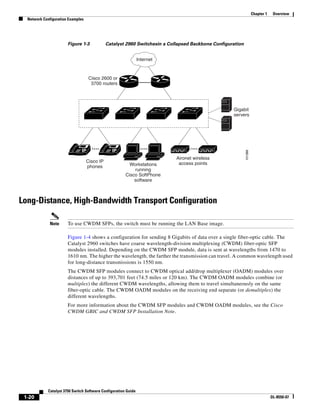
Small to Medium-Sized Network Using Catalyst 2960 Switches 1-19
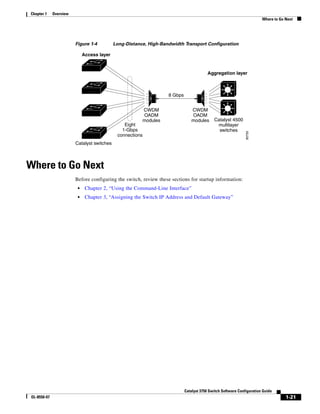
Long-Distance, High-Bandwidth Transport Configuration 1-20
Where to Go Next 1-21
C H A P T E R 2 Using the Command-Line Interface 2-1
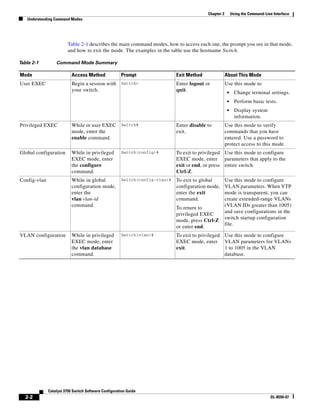
Understanding Command Modes 2-1
Understanding the Help System 2-3
Understanding Abbreviated Commands 2-4
Understanding no and default Forms of Commands 2-4
Understanding CLI Error Messages 2-5
Contents
iv
Catalyst 2960 Switch Software Configuration Guide
OL-8603-06
Using Configuration Logging 2-5
Using Command History 2-6
Changing the Command History Buffer Size 2-6
Recalling Commands 2-6
Disabling the Command History Feature 2-7
Using Editing Features 2-7
Enabling and Disabling Editing Features 2-7
Editing Commands through Keystrokes 2-7
Editing Command Lines that Wrap 2-9
Searching and Filtering Output of show and more Commands 2-10
Accessing the CLI 2-10
Accessing the CLI through a Console Connection or through Telnet 2-10
C H A P T E R 3 Assigning the Switch IP Address and Default Gateway 3-1
Understanding the Boot Process 3-1
Assigning Switch Information 3-2
Default Switch Information 3-3
Understanding DHCP-Based Autoconfiguration 3-3
DHCP Client Request Process 3-4
Understanding DHCP-based Autoconfiguration and Image Update 3-4
DHCP Autoconfiguration 3-5
DHCP Auto-Image Update 3-5
Limitations and Restrictions 3-5
Configuring DHCP-Based Autoconfiguration 3-6
DHCP Server Configuration Guidelines 3-6
Configuring the TFTP Server 3-7
Configuring the DNS 3-7
Configuring the Relay Device 3-7
Obtaining Configuration Files 3-8
Example Configuration 3-9
Configuring the DHCP Auto Configuration and Image Update Features 3-11
Configuring DHCP Autoconfiguration (Only Configuration File) 3-11
Configuring DHCP Auto-Image Update (Configuration File and Image) 3-12
Configuring the Client 3-13
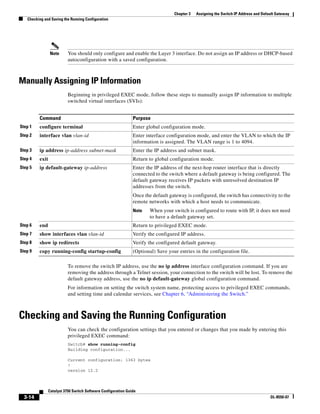
Manually Assigning IP Information 3-14
Checking and Saving the Running Configuration 3-14
Modifying the Startup Configuration 3-15
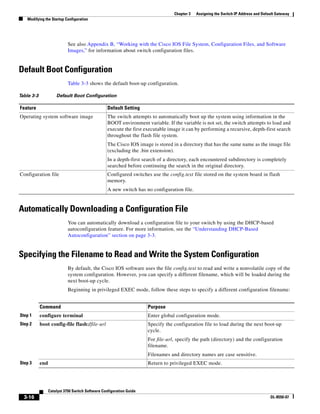
Default Boot Configuration 3-16
Automatically Downloading a Configuration File 3-16
Contents
v
Catalyst 2960 Switch Software Configuration Guide
OL-8603-06
Specifying the Filename to Read and Write the System Configuration 3-16
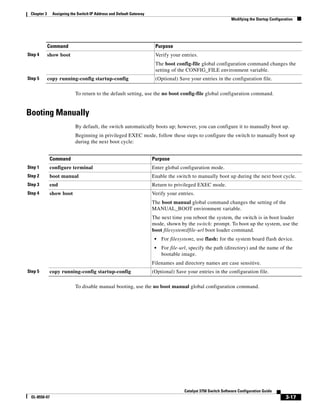
Booting Manually 3-17
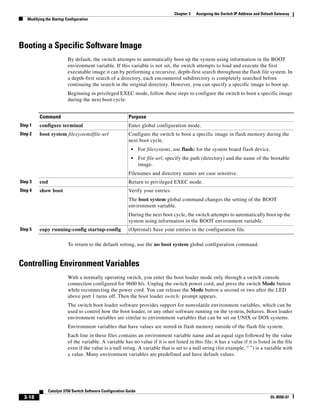
Booting a Specific Software Image 3-18
Controlling Environment Variables 3-18
Scheduling a Reload of the Software Image 3-20
Configuring a Scheduled Reload 3-20
Displaying Scheduled Reload Information 3-21
C H A P T E R 4 Configuring Cisco EnergyWise 4-1
Managing Single Entities 4-1
EnergyWise Entity 4-1
EnergyWise Domain 4-2
EnergyWise Network 4-2
Single PoE Switch Scenario 4-3
EnergyWise Power Level 4-4
EnergyWise Importance 4-5
EnergyWise Names, Roles, and Keywords 4-5
Configuration Guidelines 4-5
PoE and EnergyWise Interactions 4-5
Manually Managing Power 4-6
Powering the Entity 4-6
Configuring Entity Attributes 4-7
Powering the PoE Port 4-8
Configuring PoE-Port Attributes 4-8
Automatically Managing Power (Recurrence) 4-9
Examples 4-11
Setting Up the Domain 4-11
Manually Managing Power 4-12
Automatically Managing Power 4-12
Managing Multiple Entities 4-12
Multiple PoE Switch Scenario 4-13
EnergyWise Query 4-13
Using Queries to Manage Power in the Domain 4-14
Examples 4-15
Querying with the Name Attribute 4-15
Querying with Keywords 4-16
Querying to Set Power Levels 4-16
Contents
vi
Catalyst 2960 Switch Software Configuration Guide
OL-8603-06
Troubleshooting EnergyWise 4-16
Using CLI Commands 4-17
Verifying the Power Usage 4-17
Additional Information 4-18
Managing Power in a LAN 4-18
Managing Power with IP Routing 4-18
C H A P T E R 5 Clustering Switches 5-1
Understanding Switch Clusters 5-1
Cluster Command Switch Characteristics 5-3
Standby Cluster Command Switch Characteristics 5-3
Candidate Switch and Cluster Member Switch Characteristics 5-3
Planning a Switch Cluster 5-4
Automatic Discovery of Cluster Candidates and Members 5-4
Discovery Through CDP Hops 5-5
Discovery Through Non-CDP-Capable and Noncluster-Capable Devices 5-6
Discovery Through Different VLANs 5-6
Discovery Through Different Management VLANs 5-7
Discovery of Newly Installed Switches 5-8
HSRP and Standby Cluster Command Switches 5-9
Virtual IP Addresses 5-10
Other Considerations for Cluster Standby Groups 5-10
Automatic Recovery of Cluster Configuration 5-11
IP Addresses 5-12
Hostnames 5-12
Passwords 5-12
SNMP Community Strings 5-13
TACACS+ and RADIUS 5-13
LRE Profiles 5-13
Using the CLI to Manage Switch Clusters 5-14
Catalyst 1900 and Catalyst 2820 CLI Considerations 5-14
Using SNMP to Manage Switch Clusters 5-14
Contents
vii
Catalyst 2960 Switch Software Configuration Guide
OL-8603-06
C H A P T E R 6 Administering the Switch 6-1
Managing the System Time and Date 6-1
Understanding the System Clock 6-1
Understanding Network Time Protocol 6-2
Configuring NTP 6-3
Default NTP Configuration 6-4
Configuring NTP Authentication 6-4
Configuring NTP Associations 6-5
Configuring NTP Broadcast Service 6-6
Configuring NTP Access Restrictions 6-8
Configuring the Source IP Address for NTP Packets 6-10
Displaying the NTP Configuration 6-11
Configuring Time and Date Manually 6-11
Setting the System Clock 6-11
Displaying the Time and Date Configuration 6-12
Configuring the Time Zone 6-12
Configuring Summer Time (Daylight Saving Time) 6-13
Configuring a System Name and Prompt 6-14
Default System Name and Prompt Configuration 6-15
Configuring a System Name 6-15
Understanding DNS 6-15
Default DNS Configuration 6-16
Setting Up DNS 6-16
Displaying the DNS Configuration 6-17
Creating a Banner 6-17
Default Banner Configuration 6-17
Configuring a Message-of-the-Day Login Banner 6-18
Configuring a Login Banner 6-18
Managing the MAC Address Table 6-19
Building the Address Table 6-20
MAC Addresses and VLANs 6-20
Default MAC Address Table Configuration 6-20
Changing the Address Aging Time 6-21
Removing Dynamic Address Entries 6-21
Configuring MAC Address Notification Traps 6-21
Adding and Removing Static Address Entries 6-24
Configuring Unicast MAC Address Filtering 6-25
Contents
viii
Catalyst 2960 Switch Software Configuration Guide
OL-8603-06
Disabling MAC Address Learning on a VLAN 6-26
Displaying Address Table Entries 6-27
Managing the ARP Table 6-27
C H A P T E R 7 Configuring SDM Templates 7-1
Understanding the SDM Templates 7-1
Configuring the Switch SDM Template 7-2
Default SDM Template 7-2
SDM Template Configuration Guidelines 7-2
Setting the SDM Template 7-3
.Displaying the SDM Templates 7-3
C H A P T E R 8 Configuring Switch-Based Authentication 8-1
Preventing Unauthorized Access to Your Switch 8-1
Protecting Access to Privileged EXEC Commands 8-2
Default Password and Privilege Level Configuration 8-2
Setting or Changing a Static Enable Password 8-3
Protecting Enable and Enable Secret Passwords with Encryption 8-3
Disabling Password Recovery 8-5
Setting a Telnet Password for a Terminal Line 8-6
Configuring Username and Password Pairs 8-6
Configuring Multiple Privilege Levels 8-7
Setting the Privilege Level for a Command 8-8
Changing the Default Privilege Level for Lines 8-9
Logging into and Exiting a Privilege Level 8-9
Controlling Switch Access with TACACS+ 8-10
Understanding TACACS+ 8-10
TACACS+ Operation 8-12
Configuring TACACS+ 8-12
Default TACACS+ Configuration 8-13
Identifying the TACACS+ Server Host and Setting the Authentication Key 8-13
Configuring TACACS+ Login Authentication 8-14
Configuring TACACS+ Authorization for Privileged EXEC Access and Network Services 8-16
Starting TACACS+ Accounting 8-17
Displaying the TACACS+ Configuration 8-17
Controlling Switch Access with RADIUS 8-17
Understanding RADIUS 8-18
RADIUS Operation 8-19
Configuring RADIUS 8-19
Contents
ix
Catalyst 2960 Switch Software Configuration Guide
OL-8603-06
Default RADIUS Configuration 8-20
Identifying the RADIUS Server Host 8-20
Configuring RADIUS Login Authentication 8-23
Defining AAA Server Groups 8-25
Configuring RADIUS Authorization for User Privileged Access and Network Services 8-27
Starting RADIUS Accounting 8-28
Configuring Settings for All RADIUS Servers 8-29
Configuring the Switch to Use Vendor-Specific RADIUS Attributes 8-29
Configuring the Switch for Vendor-Proprietary RADIUS Server Communication 8-31
Configuring RADIUS Server Load Balancing 8-31
Displaying the RADIUS Configuration 8-32
Configuring the Switch for Local Authentication and Authorization 8-32
Configuring the Switch for Secure Shell 8-33
Understanding SSH 8-33
SSH Servers, Integrated Clients, and Supported Versions 8-33
Limitations 8-34
Configuring SSH 8-34
Configuration Guidelines 8-34
Setting Up the Switch to Run SSH 8-35
Configuring the SSH Server 8-36
Displaying the SSH Configuration and Status 8-37
Configuring the Switch for Secure Socket Layer HTTP 8-37
Understanding Secure HTTP Servers and Clients 8-37
Certificate Authority Trustpoints 8-38
CipherSuites 8-39
Configuring Secure HTTP Servers and Clients 8-40
Default SSL Configuration 8-40
SSL Configuration Guidelines 8-40
Configuring a CA Trustpoint 8-40
Configuring the Secure HTTP Server 8-41
Configuring the Secure HTTP Client 8-43
Displaying Secure HTTP Server and Client Status 8-44
Configuring the Switch for Secure Copy Protocol 8-44
Information About Secure Copy 8-44
C H A P T E R 9 Configuring IEEE 802.1x Port-Based Authentication 9-1
Understanding IEEE 802.1x Port-Based Authentication 9-1
Device Roles 9-3
Authentication Process 9-4
Contents
x
Catalyst 2960 Switch Software Configuration Guide
OL-8603-06
Authentication Initiation and Message Exchange 9-6
Authentication Manager 9-8
Port-Based Authentication Methods 9-8
Per-User ACLs and Filter-Ids 9-9
Authentication Manager CLI Commands 9-9
Ports in Authorized and Unauthorized States 9-10
802.1x Host Mode 9-11
Multidomain Authentication 9-12
802.1x Multiple Authentication Mode 9-13
802.1x Accounting 9-13
802.1x Accounting Attribute-Value Pairs 9-14
802.1x Readiness Check 9-15
802.1x Authentication with VLAN Assignment 9-15
802.1x Authentication with Downloadable ACLs and Redirect URLs 9-17
Cisco Secure ACS and Attribute-Value Pairs for the Redirect URL 9-17
Cisco Secure ACS and Attribute-Value Pairs for Downloadable ACLs 9-18
802.1x Authentication with Guest VLAN 9-18
802.1x Authentication with Restricted VLAN 9-19
802.1x Authentication with Inaccessible Authentication Bypass 9-20
802.1x Authentication with Voice VLAN Ports 9-21
802.1x Authentication with Port Security 9-22
802.1x Authentication with Wake-on-LAN 9-23
802.1x Authentication with MAC Authentication Bypass 9-24
Network Admission Control Layer 2 802.1x Validation 9-25
Flexible Authentication Ordering 9-25
Open1x Authentication 9-25
Using Voice Aware 802.1x Security 9-26
802.1x Switch Supplicant with Network Edge Access Topology (NEAT) 9-26
Web Authentication 9-27
Web Authentication with Automatic MAC Check 9-28
Local Web Authentication Banner 9-28
Using IEEE 802.1x Authentication with ACLs and the RADIUS Filter-Id Attribute 9-30
Configuring 802.1x Authentication 9-31
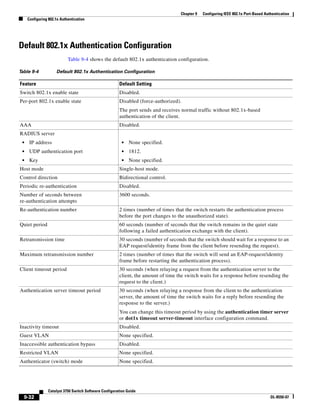
Default 802.1x Authentication Configuration 9-32
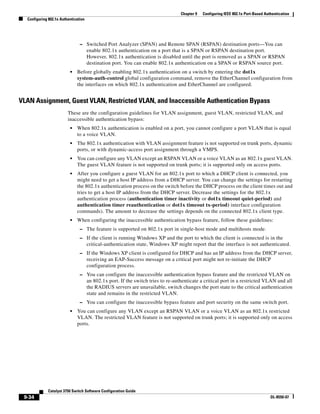
802.1x Authentication Configuration Guidelines 9-33
802.1x Authentication 9-33
VLAN Assignment, Guest VLAN, Restricted VLAN, and Inaccessible Authentication
Bypass 9-34
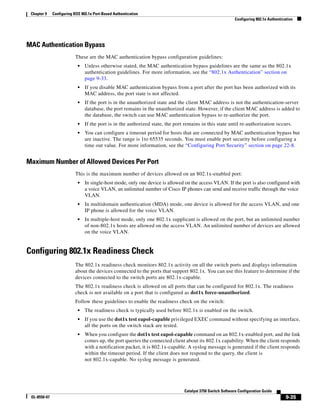
MAC Authentication Bypass 9-35
Maximum Number of Allowed Devices Per Port 9-35
Contents
xi
Catalyst 2960 Switch Software Configuration Guide
OL-8603-06
Configuring 802.1x Readiness Check 9-35
Configuring Voice Aware 802.1x Security 9-36
Configuring 802.1x Violation Modes 9-37
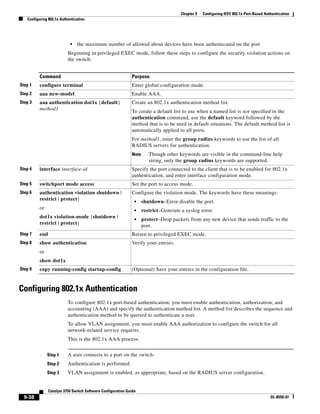
Configuring 802.1x Authentication 9-38
Configuring the Switch-to-RADIUS-Server Communication 9-40
Configuring the Host Mode 9-41
Configuring Periodic Re-Authentication 9-42
Manually Re-Authenticating a Client Connected to a Port 9-43
Changing the Quiet Period 9-44
Changing the Switch-to-Client Retransmission Time 9-44
Setting the Switch-to-Client Frame-Retransmission Number 9-45
Setting the Re-Authentication Number 9-46
Configuring 802.1x Accounting 9-46
Configuring a Guest VLAN 9-47
Configuring a Restricted VLAN 9-48
Configuring the Inaccessible Authentication Bypass Feature 9-50
Configuring 802.1x Authentication with WoL 9-53
Configuring MAC Authentication Bypass 9-54
Configuring NAC Layer 2 802.1x Validation 9-55
Configuring 802.1x Switch Supplicant with NEAT 9-56
Configuring 802.1x Authentication with Downloadable ACLs and Redirect URLs 9-58
Configuring Downloadable ACLs 9-58
Configuring a Downloadable Policy 9-59
Configuring Flexible Authentication Ordering 9-60
Configuring Open1x 9-61
Configuring Web Authentication 9-62
Configuring a Web Authentication Local Banner 9-64
Disabling 802.1x Authentication on the Port 9-65
Resetting the 802.1x Authentication Configuration to the Default Values 9-66
Displaying 802.1x Statistics and Status 9-66
C H A P T E R 10 Configuring Interface Characteristics 10-1
Understanding Interface Types 10-1
Port-Based VLANs 10-2
Switch Ports 10-2
Access Ports 10-2
Trunk Ports 10-3
EtherChannel Port Groups 10-3
Dual-Purpose Uplink Ports 10-4
Contents
xii
Catalyst 2960 Switch Software Configuration Guide
OL-8603-06
Power over Ethernet Ports 10-4
Supported Protocols and Standards 10-4
Powered-Device Detection and Initial Power Allocation 10-5
Power Management Modes 10-6
Power Monitoring and Power Policing 10-7
Connecting Interfaces 10-9
Using Interface Configuration Mode 10-9
Procedures for Configuring Interfaces 10-10
Configuring a Range of Interfaces 10-10
Configuring and Using Interface Range Macros 10-12
Configuring Ethernet Interfaces 10-14
Default Ethernet Interface Configuration 10-14
Setting the Type of a Dual-Purpose Uplink Port 10-15
Configuring Interface Speed and Duplex Mode 10-17
Speed and Duplex Configuration Guidelines 10-17
Setting the Interface Speed and Duplex Parameters 10-18
Configuring IEEE 802.3x Flow Control 10-19
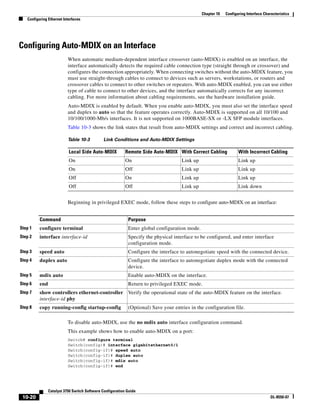
Configuring Auto-MDIX on an Interface 10-20
Configuring a Power Management Mode on a PoE Port 10-21
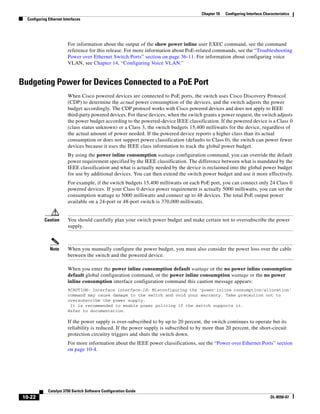
Budgeting Power for Devices Connected to a PoE Port 10-22
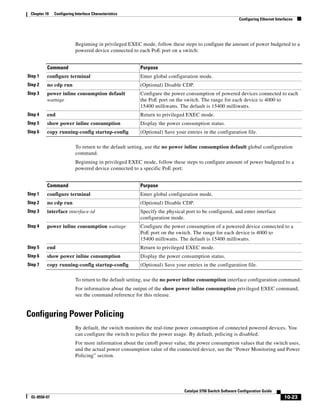
Configuring Power Policing 10-23
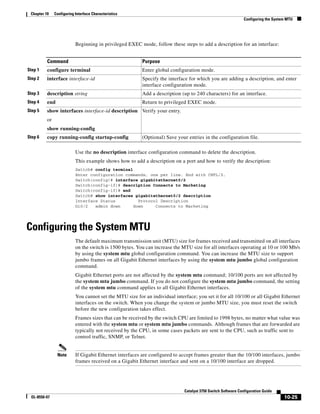
Adding a Description for an Interface 10-24
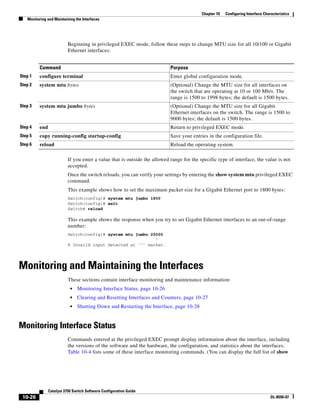
Configuring the System MTU 10-25
Monitoring and Maintaining the Interfaces 10-26
Monitoring Interface Status 10-26
Clearing and Resetting Interfaces and Counters 10-27
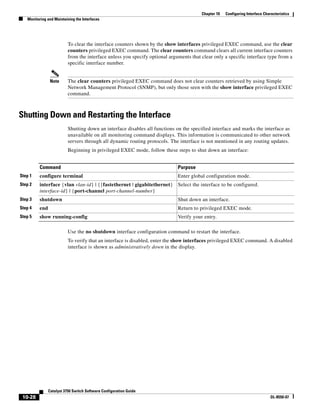
Shutting Down and Restarting the Interface 10-28
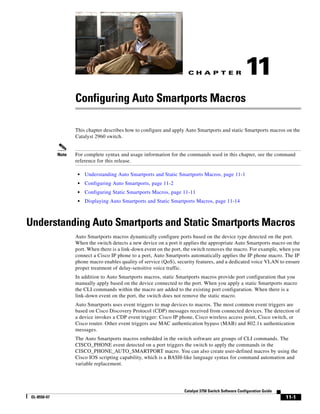
C H A P T E R 11 Configuring Auto Smartports Macros 11-1
Understanding Auto Smartports and Static Smartports Macros 11-1
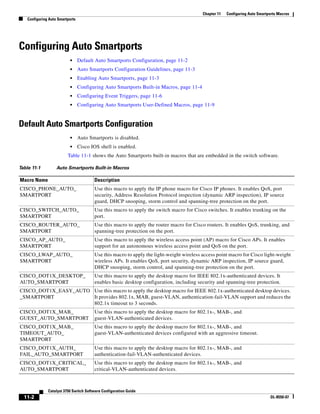
Configuring Auto Smartports 11-2
Default Auto Smartports Configuration 11-2
Auto Smartports Configuration Guidelines 11-3
Enabling Auto Smartports 11-3
Configuring Auto Smartports Built-in Macros 11-4
Configuring Event Triggers 11-6
Configuring Auto Smartports User-Defined Macros 11-9
Contents
xiii
Catalyst 2960 Switch Software Configuration Guide
OL-8603-06
Configuring Static Smartports Macros 11-11
Default Static Smartports Configuration 11-11
Static Smartports Configuration Guidelines 11-12
Applying Static Smartports Macros 11-12
Displaying Auto Smartports and Static Smartports Macros 11-14
C H A P T E R 12 Configuring VLANs 12-1
Understanding VLANs 12-1
Supported VLANs 12-2
VLAN Port Membership Modes 12-3
Configuring Normal-Range VLANs 12-4
Token Ring VLANs 12-5
Normal-Range VLAN Configuration Guidelines 12-5
VLAN Configuration Mode Options 12-6
VLAN Configuration in config-vlan Mode 12-6
VLAN Configuration in VLAN Database Configuration Mode 12-6
Saving VLAN Configuration 12-7
Default Ethernet VLAN Configuration 12-7
Creating or Modifying an Ethernet VLAN 12-8
Deleting a VLAN 12-10
Assigning Static-Access Ports to a VLAN 12-10
Configuring Extended-Range VLANs 12-11
Default VLAN Configuration 12-12
Extended-Range VLAN Configuration Guidelines 12-12
Creating an Extended-Range VLAN 12-13
Displaying VLANs 12-14
Configuring VLAN Trunks 12-14
Trunking Overview 12-14
IEEE 802.1Q Configuration Considerations 12-15
Default Layer 2 Ethernet Interface VLAN Configuration 12-16
Configuring an Ethernet Interface as a Trunk Port 12-16
Interaction with Other Features 12-16
Configuring a Trunk Port 12-17
Defining the Allowed VLANs on a Trunk 12-18
Changing the Pruning-Eligible List 12-19
Configuring the Native VLAN for Untagged Traffic 12-19
Configuring Trunk Ports for Load Sharing 12-20
Load Sharing Using STP Port Priorities 12-20
Load Sharing Using STP Path Cost 12-22
Contents
xiv
Catalyst 2960 Switch Software Configuration Guide
OL-8603-06
Configuring VMPS 12-23
Understanding VMPS 12-24
Dynamic-Access Port VLAN Membership 12-24
Default VMPS Client Configuration 12-25
VMPS Configuration Guidelines 12-25
Configuring the VMPS Client 12-25
Entering the IP Address of the VMPS 12-26
Configuring Dynamic-Access Ports on VMPS Clients 12-26
Reconfirming VLAN Memberships 12-27
Changing the Reconfirmation Interval 12-27
Changing the Retry Count 12-28
Monitoring the VMPS 12-28
Troubleshooting Dynamic-Access Port VLAN Membership 12-29
VMPS Configuration Example 12-29
C H A P T E R 13 Configuring VTP 13-1
Understanding VTP 13-1
The VTP Domain 13-2
VTP Modes 13-3
VTP Advertisements 13-3
VTP Version 2 13-4
VTP Pruning 13-4
Configuring VTP 13-6
Default VTP Configuration 13-6
VTP Configuration Options 13-7
VTP Configuration in Global Configuration Mode 13-7
VTP Configuration in VLAN Database Configuration Mode 13-7
VTP Configuration Guidelines 13-8
Domain Names 13-8
Passwords 13-8
VTP Version 13-8
Configuration Requirements 13-9
Configuring a VTP Server 13-9
Configuring a VTP Client 13-11
Disabling VTP (VTP Transparent Mode) 13-12
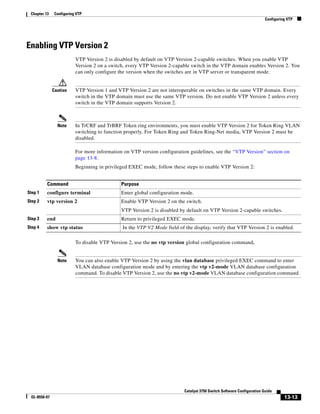
Enabling VTP Version 2 13-13
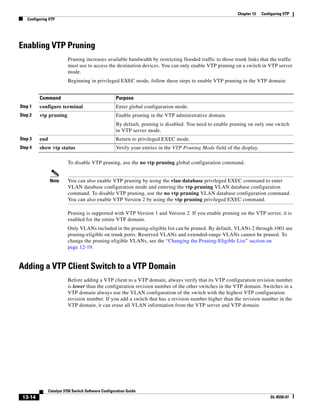
Enabling VTP Pruning 13-14
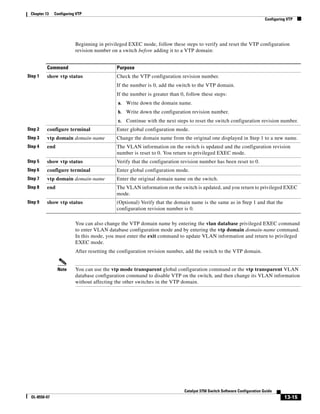
Adding a VTP Client Switch to a VTP Domain 13-14
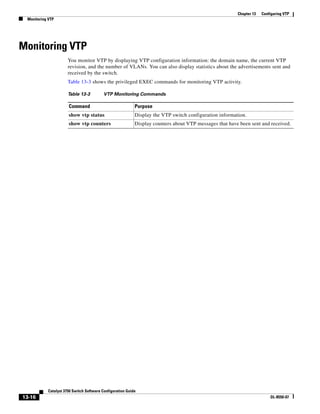
Monitoring VTP 13-16
Contents
xv
Catalyst 2960 Switch Software Configuration Guide
OL-8603-06
C H A P T E R 14 Configuring Voice VLAN 14-1
Understanding Voice VLAN 14-1
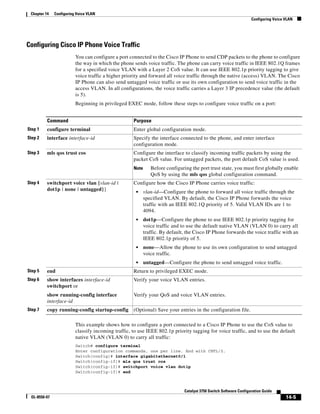
Cisco IP Phone Voice Traffic 14-2
Cisco IP Phone Data Traffic 14-2
Configuring Voice VLAN 14-3
Default Voice VLAN Configuration 14-3
Voice VLAN Configuration Guidelines 14-3
Configuring a Port Connected to a Cisco 7960 IP Phone 14-4
Configuring Cisco IP Phone Voice Traffic 14-5
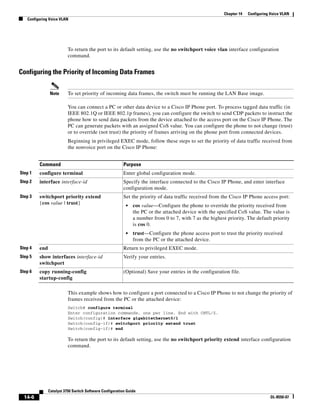
Configuring the Priority of Incoming Data Frames 14-6
Displaying Voice VLAN 14-7
C H A P T E R 15 Configuring STP 15-1
Understanding Spanning-Tree Features 15-1
STP Overview 15-2
Spanning-Tree Topology and BPDUs 15-3
Bridge ID, Switch Priority, and Extended System ID 15-4
Spanning-Tree Interface States 15-4
Blocking State 15-5
Listening State 15-6
Learning State 15-6
Forwarding State 15-6
Disabled State 15-7
How a Switch or Port Becomes the Root Switch or Root Port 15-7
Spanning Tree and Redundant Connectivity 15-8
Spanning-Tree Address Management 15-8
Accelerated Aging to Retain Connectivity 15-8
Spanning-Tree Modes and Protocols 15-9
Supported Spanning-Tree Instances 15-9
Spanning-Tree Interoperability and Backward Compatibility 15-10
STP and IEEE 802.1Q Trunks 15-10
Configuring Spanning-Tree Features 15-10
Default Spanning-Tree Configuration 15-11
Spanning-Tree Configuration Guidelines 15-12
Changing the Spanning-Tree Mode. 15-13
Disabling Spanning Tree 15-14
Configuring the Root Switch 15-14
Configuring a Secondary Root Switch 15-16
Configuring Port Priority 15-16
Contents
xvi
Catalyst 2960 Switch Software Configuration Guide
OL-8603-06
Configuring Path Cost 15-18
Configuring the Switch Priority of a VLAN 15-19
Configuring Spanning-Tree Timers 15-20
Configuring the Hello Time 15-20
Configuring the Forwarding-Delay Time for a VLAN 15-21
Configuring the Maximum-Aging Time for a VLAN 15-21
Configuring the Transmit Hold-Count 15-22
Displaying the Spanning-Tree Status 15-22
C H A P T E R 16 Configuring MSTP 16-1
Understanding MSTP 16-2
Multiple Spanning-Tree Regions 16-2
IST, CIST, and CST 16-2
Operations Within an MST Region 16-3
Operations Between MST Regions 16-3
IEEE 802.1s Terminology 16-5
Hop Count 16-5
Boundary Ports 16-6
IEEE 802.1s Implementation 16-6
Port Role Naming Change 16-6
Interoperation Between Legacy and Standard Switches 16-7
Detecting Unidirectional Link Failure 16-7
Interoperability with IEEE 802.1D STP 16-8
Understanding RSTP 16-8
Port Roles and the Active Topology 16-9
Rapid Convergence 16-9
Synchronization of Port Roles 16-11
Bridge Protocol Data Unit Format and Processing 16-12
Processing Superior BPDU Information 16-12
Processing Inferior BPDU Information 16-13
Topology Changes 16-13
Configuring MSTP Features 16-13
Default MSTP Configuration 16-14
MSTP Configuration Guidelines 16-14
Specifying the MST Region Configuration and Enabling MSTP 16-15
Configuring the Root Switch 16-17
Configuring a Secondary Root Switch 16-18
Configuring Port Priority 16-19
Configuring Path Cost 16-20
Contents
xvii
Catalyst 2960 Switch Software Configuration Guide
OL-8603-06
Configuring the Switch Priority 16-21
Configuring the Hello Time 16-22
Configuring the Forwarding-Delay Time 16-23
Configuring the Maximum-Aging Time 16-23
Configuring the Maximum-Hop Count 16-24
Specifying the Link Type to Ensure Rapid Transitions 16-24
Designating the Neighbor Type 16-25
Restarting the Protocol Migration Process 16-25
Displaying the MST Configuration and Status 16-26
C H A P T E R 17 Configuring Optional Spanning-Tree Features 17-1
Understanding Optional Spanning-Tree Features 17-1
Understanding Port Fast 17-2
Understanding BPDU Guard 17-2
Understanding BPDU Filtering 17-3
Understanding UplinkFast 17-3
Understanding BackboneFast 17-5
Understanding EtherChannel Guard 17-7
Understanding Root Guard 17-8
Understanding Loop Guard 17-9
Configuring Optional Spanning-Tree Features 17-9
Default Optional Spanning-Tree Configuration 17-9
Optional Spanning-Tree Configuration Guidelines 17-10
Enabling Port Fast 17-10
Enabling BPDU Guard 17-11
Enabling BPDU Filtering 17-12
Enabling UplinkFast for Use with Redundant Links 17-13
Enabling BackboneFast 17-13
Enabling EtherChannel Guard 17-14
Enabling Root Guard 17-15
Enabling Loop Guard 17-15
Displaying the Spanning-Tree Status 17-16
C H A P T E R 18 Configuring Flex Links and the MAC Address-Table Move Update Feature 18-1
Understanding Flex Links and the MAC Address-Table Move Update 18-1
Flex Links 18-2
VLAN Flex Link Load Balancing and Support 18-2
Contents
xviii
Catalyst 2960 Switch Software Configuration Guide
OL-8603-06
Flex Link Multicast Fast Convergence 18-3
Learning the Other Flex Link Port as the mrouter Port 18-3
Generating IGMP Reports 18-4
Leaking IGMP Reports 18-4
Configuration Examples 18-4
MAC Address-Table Move Update 18-6
Configuring Flex Links and the MAC Address-Table Move Update 18-7
Default Configuration 18-8
Configuration Guidelines 18-8
Configuring Flex Links 18-9
Configuring VLAN Load Balancing on Flex Links 18-11
Configuring the MAC Address-Table Move Update Feature 18-12
Monitoring Flex Links and the MAC Address-Table Move Update 18-14
C H A P T E R 19 Configuring DHCP Features and IP Source Guard 19-1
Understanding DHCP Snooping 19-1
DHCP Server 19-2
DHCP Relay Agent 19-2
DHCP Snooping 19-2
Option-82 Data Insertion 19-3
DHCP Snooping Binding Database 19-5
Configuring DHCP Snooping 19-7
Default DHCP Snooping Configuration 19-7
DHCP Snooping Configuration Guidelines 19-7
Configuring the DHCP Relay Agent 19-9
Enabling DHCP Snooping and Option 82 19-9
Enabling the Cisco IOS DHCP Server Database 19-10
Enabling the DHCP Snooping Binding Database Agent 19-11
Displaying DHCP Snooping Information 19-12
Understanding IP Source Guard 19-12
Source IP Address Filtering 19-13
Source IP and MAC Address Filtering 19-13
Configuring IP Source Guard 19-13
Default IP Source Guard Configuration 19-13
IP Source Guard Configuration Guidelines 19-14
Enabling IP Source Guard 19-14
Displaying IP Source Guard Information 19-16
Understanding DHCP Server Port-Based Address Allocation 19-16
Contents
xix
Catalyst 2960 Switch Software Configuration Guide
OL-8603-06
Configuring DHCP Server Port-Based Address Allocation 19-16
Default Port-Based Address Allocation Configuration 19-16
Port-Based Address Allocation Configuration Guidelines 19-17
Enabling DHCP Server Port-Based Address Allocation 19-17
Displaying DHCP Server Port-Based Address Allocation 19-19
C H A P T E R 20 Configuring Dynamic ARP Inspection 20-1
Understanding Dynamic ARP Inspection 20-1
Interface Trust States and Network Security 20-3
Rate Limiting of ARP Packets 20-4
Relative Priority of ARP ACLs and DHCP Snooping Entries 20-4
Logging of Dropped Packets 20-4
Configuring Dynamic ARP Inspection 20-5
Default Dynamic ARP Inspection Configuration 20-5
Dynamic ARP Inspection Configuration Guidelines 20-6
Configuring Dynamic ARP Inspection in DHCP Environments 20-7
Configuring ARP ACLs for Non-DHCP Environments 20-8
Limiting the Rate of Incoming ARP Packets 20-10
Performing Validation Checks 20-11
Configuring the Log Buffer 20-12
Displaying Dynamic ARP Inspection Information 20-14
C H A P T E R 21 Configuring IGMP Snooping and MVR 21-1
Understanding IGMP Snooping 21-1
IGMP Versions 21-2
Joining a Multicast Group 21-3
Leaving a Multicast Group 21-5
Immediate Leave 21-5
IGMP Configurable-Leave Timer 21-5
IGMP Report Suppression 21-5
Configuring IGMP Snooping 21-6
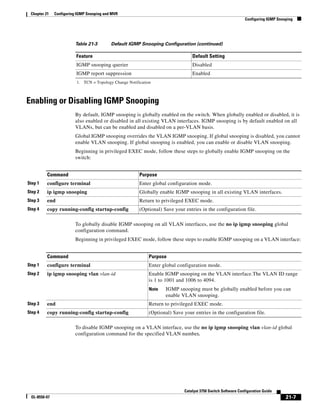
Default IGMP Snooping Configuration 21-6
Enabling or Disabling IGMP Snooping 21-7
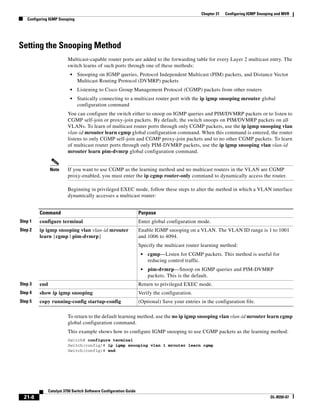
Setting the Snooping Method 21-8
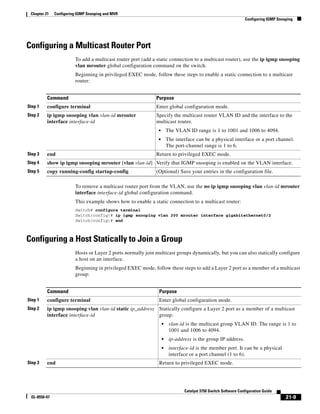
Configuring a Multicast Router Port 21-9
Configuring a Host Statically to Join a Group 21-9
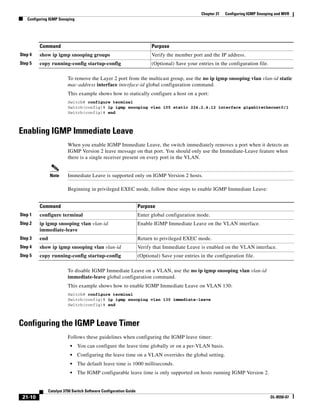
Enabling IGMP Immediate Leave 21-10
Configuring the IGMP Leave Timer 21-10
Contents
xx
Catalyst 2960 Switch Software Configuration Guide
OL-8603-06
Configuring TCN-Related Commands 21-11
Controlling the Multicast Flooding Time After a TCN Event 21-11
Recovering from Flood Mode 21-12
Disabling Multicast Flooding During a TCN Event 21-12
Configuring the IGMP Snooping Querier 21-13
Disabling IGMP Report Suppression 21-14
Displaying IGMP Snooping Information 21-15
Understanding Multicast VLAN Registration 21-16
Using MVR in a Multicast Television Application 21-17
Configuring MVR 21-19
Default MVR Configuration 21-19
MVR Configuration Guidelines and Limitations 21-19
Configuring MVR Global Parameters 21-20
Configuring MVR Interfaces 21-21
Displaying MVR Information 21-23
Configuring IGMP Filtering and Throttling 21-23
Default IGMP Filtering and Throttling Configuration 21-24
Configuring IGMP Profiles 21-24
Applying IGMP Profiles 21-25
Setting the Maximum Number of IGMP Groups 21-26
Configuring the IGMP Throttling Action 21-27
Displaying IGMP Filtering and Throttling Configuration 21-28
C H A P T E R 22 Configuring Port-Based Traffic Control 22-1
Configuring Storm Control 22-1
Understanding Storm Control 22-1
Default Storm Control Configuration 22-3
Configuring Storm Control and Threshold Levels 22-3
Configuring Small-Frame Arrival Rate 22-5
Configuring Protected Ports 22-6
Default Protected Port Configuration 22-6
Protected Port Configuration Guidelines 22-7
Configuring a Protected Port 22-7
Configuring Port Blocking 22-7
Default Port Blocking Configuration 22-7
Blocking Flooded Traffic on an Interface 22-8
Contents
xxi
Catalyst 2960 Switch Software Configuration Guide
OL-8603-06
Configuring Port Security 22-8
Understanding Port Security 22-9
Secure MAC Addresses 22-9
Security Violations 22-10
Default Port Security Configuration 22-11
Port Security Configuration Guidelines 22-11
Enabling and Configuring Port Security 22-12
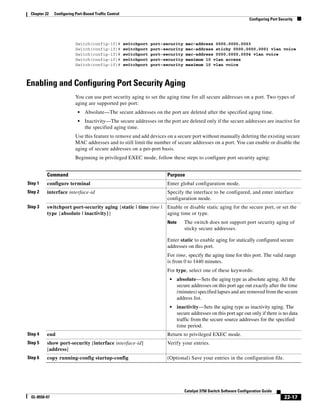
Enabling and Configuring Port Security Aging 22-17
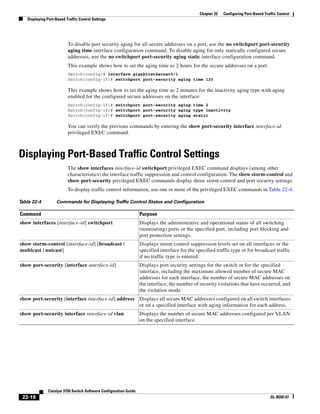
Displaying Port-Based Traffic Control Settings 22-18
C H A P T E R 23 Configuring CDP 23-1
Understanding CDP 23-1
Configuring CDP 23-2
Default CDP Configuration 23-2
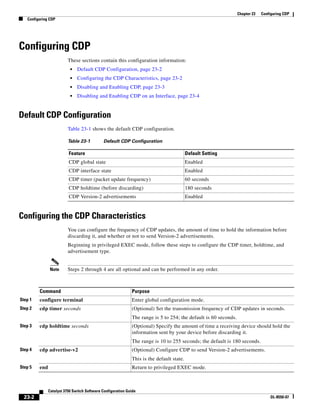
Configuring the CDP Characteristics 23-2
Disabling and Enabling CDP 23-3
Disabling and Enabling CDP on an Interface 23-4
Monitoring and Maintaining CDP 23-4
C H A P T E R 24 Configuring LLDP, LLDP-MED, and Wired Location Service 24-1
Understanding LLDP, LLDP-MED, and Wired Location Service 24-1
LLDP 24-1
LLDP-MED 24-2
Wired Location Service 24-3
Configuring LLDP, LLDP-MED, and Wired Location Service 24-4
Default LLDP Configuration 24-4
Configuration Guidelines 24-5
Enabling LLDP 24-5
Configuring LLDP Characteristics 24-6
Configuring LLDP-MED TLVs 24-6
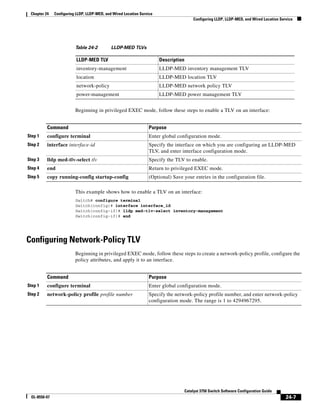
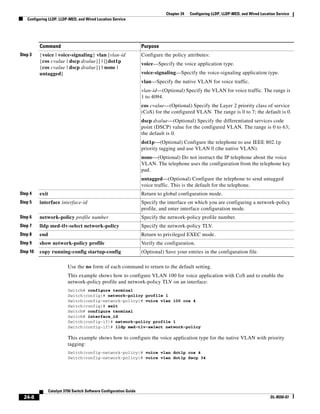
Configuring Network-Policy TLV 24-7
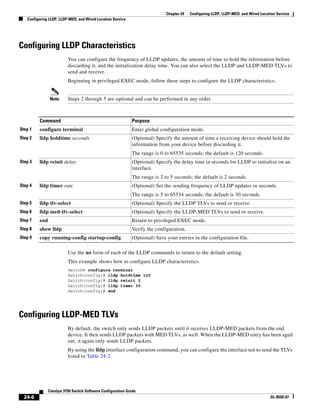
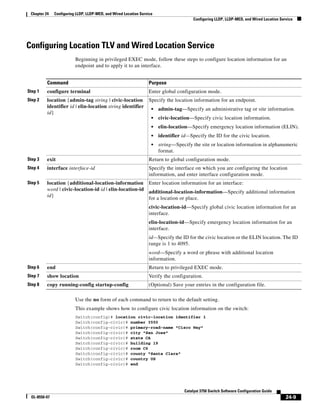
Configuring Location TLV and Wired Location Service 24-9
Monitoring and Maintaining LLDP, LLDP-MED, and Wired Location Service 24-10
C H A P T E R 25 Configuring UDLD 25-1
Understanding UDLD 25-1
Modes of Operation 25-1
Methods to Detect Unidirectional Links 25-2
Contents
xxii
Catalyst 2960 Switch Software Configuration Guide
OL-8603-06
Configuring UDLD 25-3
Default UDLD Configuration 25-4
Configuration Guidelines 25-4
Enabling UDLD Globally 25-5
Enabling UDLD on an Interface 25-5
Resetting an Interface Disabled by UDLD 25-6
Displaying UDLD Status 25-6
C H A P T E R 26 Configuring SPAN and RSPAN 26-1
Understanding SPAN and RSPAN 26-1
Local SPAN 26-2
Remote SPAN 26-2
SPAN and RSPAN Concepts and Terminology 26-3
SPAN Sessions 26-3
Monitored Traffic 26-4
Source Ports 26-5
Source VLANs 26-6
VLAN Filtering 26-6
Destination Port 26-6
RSPAN VLAN 26-7
SPAN and RSPAN Interaction with Other Features 26-8
Configuring SPAN and RSPAN 26-9
Default SPAN and RSPAN Configuration 26-9
Configuring Local SPAN 26-9
SPAN Configuration Guidelines 26-10
Creating a Local SPAN Session 26-10
Creating a Local SPAN Session and Configuring Incoming Traffic 26-13
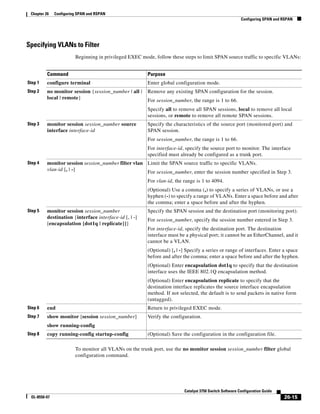
Specifying VLANs to Filter 26-15
Configuring RSPAN 26-16
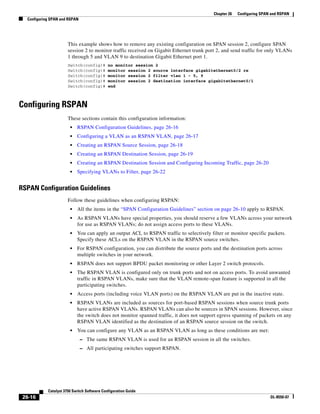
RSPAN Configuration Guidelines 26-16
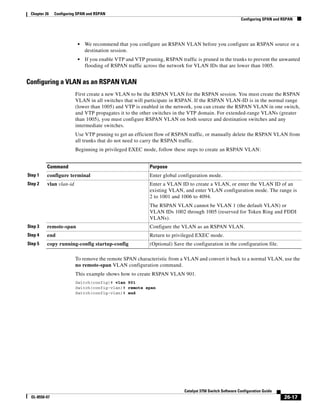
Configuring a VLAN as an RSPAN VLAN 26-17
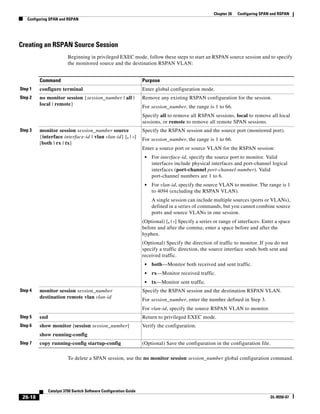
Creating an RSPAN Source Session 26-18
Creating an RSPAN Destination Session 26-19
Creating an RSPAN Destination Session and Configuring Incoming Traffic 26-20
Specifying VLANs to Filter 26-22
Displaying SPAN and RSPAN Status 26-23
Contents
xxiii
Catalyst 2960 Switch Software Configuration Guide
OL-8603-06
C H A P T E R 27 Configuring RMON 27-1
Understanding RMON 27-1
Configuring RMON 27-2
Default RMON Configuration 27-3
Configuring RMON Alarms and Events 27-3
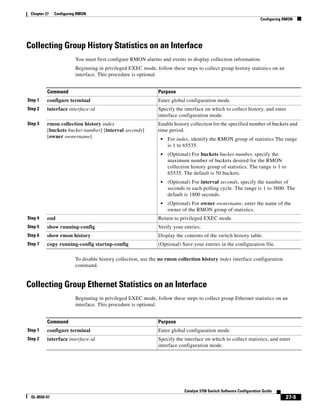
Collecting Group History Statistics on an Interface 27-5
Collecting Group Ethernet Statistics on an Interface 27-5
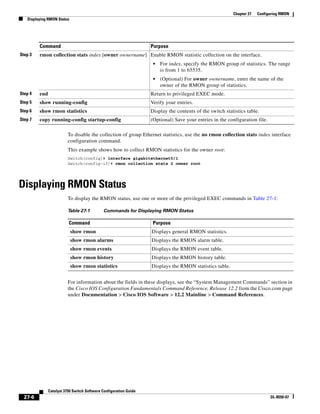
Displaying RMON Status 27-6
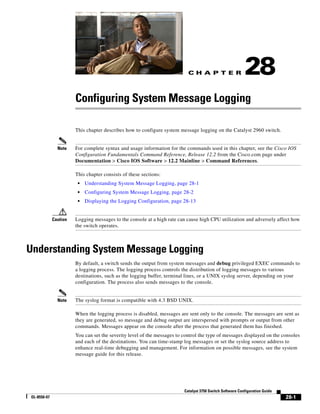
C H A P T E R 28 Configuring System Message Logging 28-1
Understanding System Message Logging 28-1
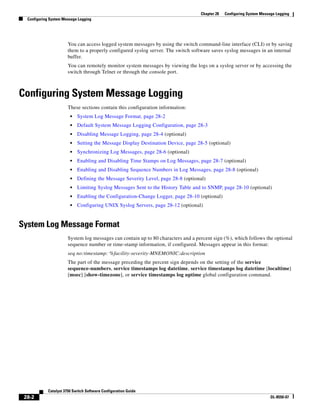
Configuring System Message Logging 28-2
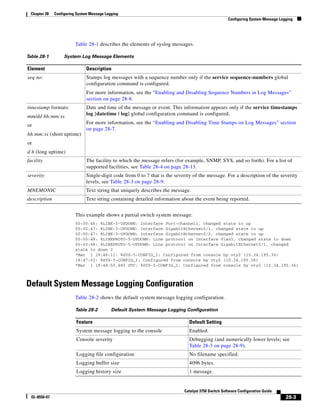
System Log Message Format 28-2
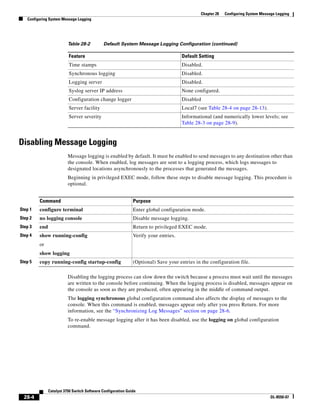
Default System Message Logging Configuration 28-3
Disabling Message Logging 28-4
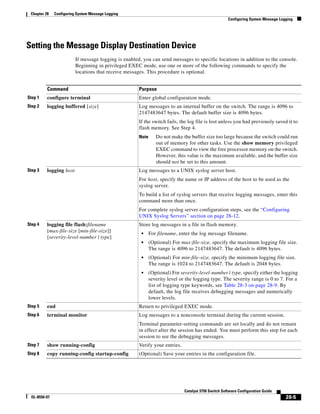
Setting the Message Display Destination Device 28-5
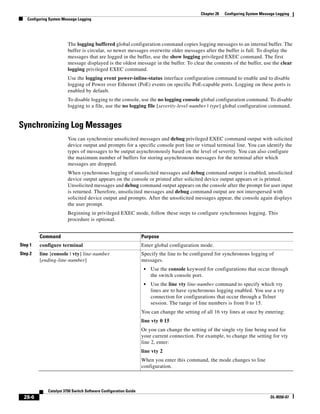
Synchronizing Log Messages 28-6
Enabling and Disabling Time Stamps on Log Messages 28-7
Enabling and Disabling Sequence Numbers in Log Messages 28-8
Defining the Message Severity Level 28-8
Limiting Syslog Messages Sent to the History Table and to SNMP 28-10
Enabling the Configuration-Change Logger 28-10
Configuring UNIX Syslog Servers 28-12
Logging Messages to a UNIX Syslog Daemon 28-12
Configuring the UNIX System Logging Facility 28-12
Displaying the Logging Configuration 28-13
C H A P T E R 29 Configuring SNMP 29-1
Understanding SNMP 29-1
SNMP Versions 29-2
SNMP Manager Functions 29-3
SNMP Agent Functions 29-3
SNMP Community Strings 29-4
Using SNMP to Access MIB Variables 29-4
SNMP Notifications 29-5
SNMP ifIndex MIB Object Values 29-5
Contents
xxiv
Catalyst 2960 Switch Software Configuration Guide
OL-8603-06
Configuring SNMP 29-6
Default SNMP Configuration 29-6
SNMP Configuration Guidelines 29-6
Disabling the SNMP Agent 29-7
Configuring Community Strings 29-8
Configuring SNMP Groups and Users 29-9
Configuring SNMP Notifications 29-11
Setting the CPU Threshold Notification Types and Values 29-15
Setting the Agent Contact and Location Information 29-16
Limiting TFTP Servers Used Through SNMP 29-16
SNMP Examples 29-17
Displaying SNMP Status 29-18
C H A P T E R 30 Configuring Network Security with ACLs 30-19
Understanding ACLs 30-19
Port ACLs 30-20
Handling Fragmented and Unfragmented Traffic 30-21
Configuring IPv4 ACLs 30-22
Creating Standard and Extended IPv4 ACLs 30-23
Access List Numbers 30-24
Creating a Numbered Standard ACL 30-25
Creating a Numbered Extended ACL 30-26
Resequencing ACEs in an ACL 30-30
Creating Named Standard and Extended ACLs 30-30
Using Time Ranges with ACLs 30-32
Including Comments in ACLs 30-33
Applying an IPv4 ACL to a Terminal Line 30-34
Applying an IPv4 ACL to an Interface 30-34
Hardware and Software Treatment of IP ACLs 30-35
Troubleshooting ACLs 30-35
IPv4 ACL Configuration Examples 30-36
Numbered ACLs 30-37
Extended ACLs 30-37
Named ACLs 30-37
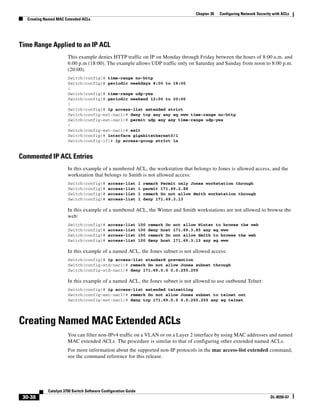
Time Range Applied to an IP ACL 30-38
Commented IP ACL Entries 30-38
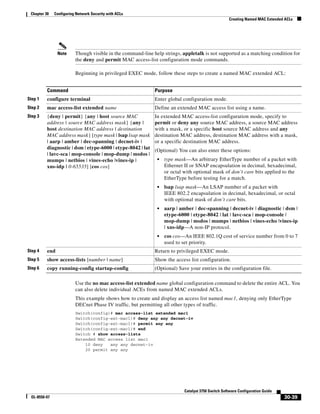
Creating Named MAC Extended ACLs 30-38
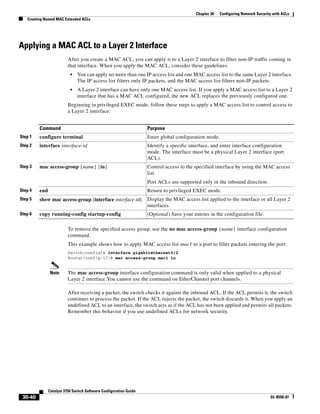
Applying a MAC ACL to a Layer 2 Interface 30-40
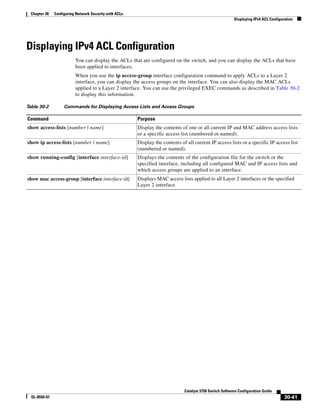
Displaying IPv4 ACL Configuration 30-41
Contents
xxv
Catalyst 2960 Switch Software Configuration Guide
OL-8603-06
C H A P T E R 31 Configuring Cisco IOS IP SLAs Operations 31-1
Understanding Cisco IOS IP SLAs 31-1
Using Cisco IOS IP SLAs to Measure Network Performance 31-3
IP SLAs Responder and IP SLAs Control Protocol 31-4
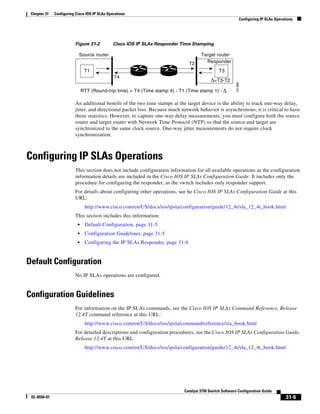
Response Time Computation for IP SLAs 31-4
Configuring IP SLAs Operations 31-5
Default Configuration 31-5
Configuration Guidelines 31-5
Configuring the IP SLAs Responder 31-6
Monitoring IP SLAs Operations 31-6
C H A P T E R 32 Configuring QoS 32-1
Understanding QoS 32-2
Basic QoS Model 32-3
Classification 32-5
Classification Based on QoS ACLs 32-7
Classification Based on Class Maps and Policy Maps 32-7
Policing and Marking 32-8
Policing on Physical Ports 32-9
Mapping Tables 32-10
Queueing and Scheduling Overview 32-11
Weighted Tail Drop 32-12
SRR Shaping and Sharing 32-12
Queueing and Scheduling on Ingress Queues 32-13
Queueing and Scheduling on Egress Queues 32-15
Packet Modification 32-18
Configuring Auto-QoS 32-19
Generated Auto-QoS Configuration 32-19
Effects of Auto-QoS on the Configuration 32-24
Auto-QoS Configuration Guidelines 32-24
Enabling Auto-QoS for VoIP 32-25
Auto-QoS Configuration Example 32-27
Displaying Auto-QoS Information 32-28
Configuring Standard QoS 32-29
Default Standard QoS Configuration 32-29
Default Ingress Queue Configuration 32-30
Default Egress Queue Configuration 32-30
Default Mapping Table Configuration 32-31
Contents
xxvi
Catalyst 2960 Switch Software Configuration Guide
OL-8603-06
Standard QoS Configuration Guidelines 32-32
QoS ACL Guidelines 32-32
Policing Guidelines 32-32
General QoS Guidelines 32-33
A switchEnabling QoS Globally 32-33
Configuring Classification Using Port Trust States 32-33
Configuring the Trust State on Ports within the QoS Domain 32-34
Configuring the CoS Value for an Interface 32-35
Configuring a Trusted Boundary to Ensure Port Security 32-36
Enabling DSCP Transparency Mode 32-37
Configuring the DSCP Trust State on a Port Bordering Another QoS Domain 32-38
Configuring a QoS Policy 32-40
Classifying Traffic by Using ACLs 32-41
Classifying Traffic by Using Class Maps 32-44
Classifying, Policing, and Marking Traffic on Physical Ports by Using Policy Maps 32-46
Classifying, Policing, and Marking Traffic by Using Aggregate Policers 32-49
Configuring DSCP Maps 32-51
Configuring the CoS-to-DSCP Map 32-52
Configuring the IP-Precedence-to-DSCP Map 32-53
Configuring the Policed-DSCP Map 32-54
Configuring the DSCP-to-CoS Map 32-55
Configuring the DSCP-to-DSCP-Mutation Map 32-56
Configuring Ingress Queue Characteristics 32-57
Mapping DSCP or CoS Values to an Ingress Queue and Setting WTD Thresholds 32-58
Allocating Buffer Space Between the Ingress Queues 32-59
Allocating Bandwidth Between the Ingress Queues 32-60
Configuring the Ingress Priority Queue 32-61
Configuring Egress Queue Characteristics 32-62
Configuration Guidelines 32-62
Allocating Buffer Space to and Setting WTD Thresholds for an Egress Queue-Set 32-62
Mapping DSCP or CoS Values to an Egress Queue and to a Threshold ID 32-65
Configuring SRR Shaped Weights on Egress Queues 32-66
Configuring SRR Shared Weights on Egress Queues 32-67
Configuring the Egress Expedite Queue 32-68
Limiting the Bandwidth on an Egress Interface 32-68
Displaying Standard QoS Information 32-69
Contents
xxvii
Catalyst 2960 Switch Software Configuration Guide
OL-8603-06
C H A P T E R 33 Configuring IPv6 Host Functions 33-1
Understanding IPv6 33-1
IPv6 Addresses 33-2
Supported IPv6 Host Features 33-2
128-Bit Wide Unicast Addresses 33-3
DNS for IPv6 33-3
ICMPv6 33-3
Neighbor Discovery 33-3
Default Router Preference 33-4
IPv6 Stateless Autoconfiguration and Duplicate Address Detection 33-4
IPv6 Applications 33-4
Dual IPv4 and IPv6 Protocol Stacks 33-5
Static Routes for IPv6 33-5
SNMP and Syslog Over IPv6 33-5
HTTP(S) Over IPv6 33-6
Configuring IPv6 33-6
Default IPv6 Configuration 33-7
Configuring IPv6 Addressing and Enabling IPv6 Host 33-7
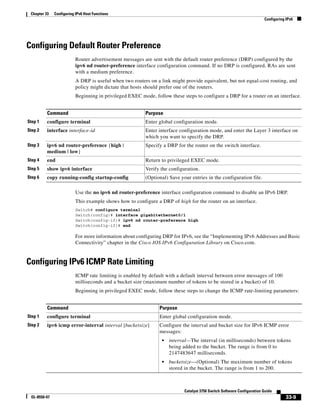
Configuring Default Router Preference 33-9
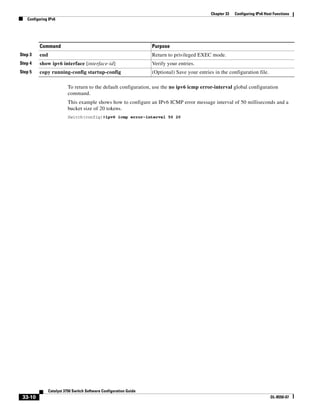
Configuring IPv6 ICMP Rate Limiting 33-9
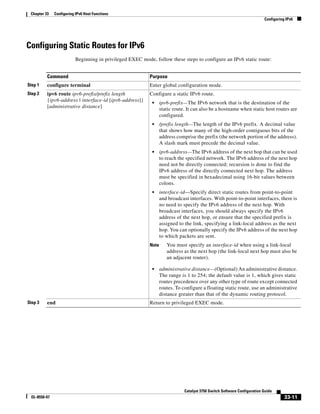
Configuring Static Routes for IPv6 33-11
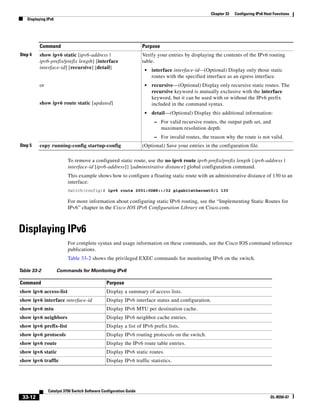
Displaying IPv6 33-12
C H A P T E R 34 Configuring IPv6 MLD Snooping 34-1
Understanding MLD Snooping 34-1
MLD Messages 34-2
MLD Queries 34-3
Multicast Client Aging Robustness 34-3
Multicast Router Discovery 34-3
MLD Reports 34-4
MLD Done Messages and Immediate-Leave 34-4
Topology Change Notification Processing 34-5
Configuring IPv6 MLD Snooping 34-5
Default MLD Snooping Configuration 34-5
MLD Snooping Configuration Guidelines 34-6
Enabling or Disabling MLD Snooping 34-6
Configuring a Static Multicast Group 34-7
Configuring a Multicast Router Port 34-8
Enabling MLD Immediate Leave 34-9
Contents
xxviii
Catalyst 2960 Switch Software Configuration Guide
OL-8603-06
Configuring MLD Snooping Queries 34-9
Disabling MLD Listener Message Suppression 34-10
Displaying MLD Snooping Information 34-11
C H A P T E R 35 Configuring EtherChannels and Link-State Tracking 35-1
Understanding EtherChannels 35-1
EtherChannel Overview 35-2
Port-Channel Interfaces 35-3
Port Aggregation Protocol 35-4
PAgP Modes 35-4
PAgP Interaction with Virtual Switches and Dual-Active Detection 35-5
PAgP Interaction with Other Features 35-5
Link Aggregation Control Protocol 35-5
LACP Modes 35-6
LACP Interaction with Other Features 35-6
EtherChannel On Mode 35-6
Load Balancing and Forwarding Methods 35-7
Configuring EtherChannels 35-8
Default EtherChannel Configuration 35-9
EtherChannel Configuration Guidelines 35-9
Configuring Layer 2 EtherChannels 35-10
Configuring EtherChannel Load Balancing 35-13
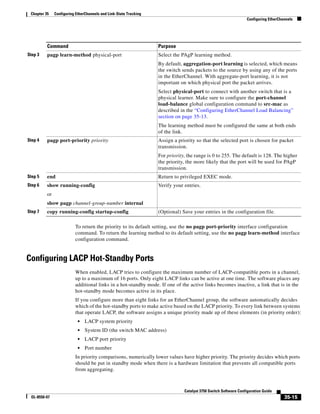
Configuring the PAgP Learn Method and Priority 35-14
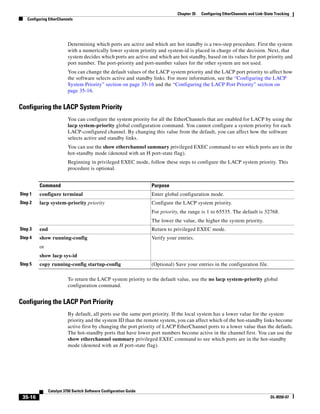
Configuring LACP Hot-Standby Ports 35-15
Configuring the LACP System Priority 35-16
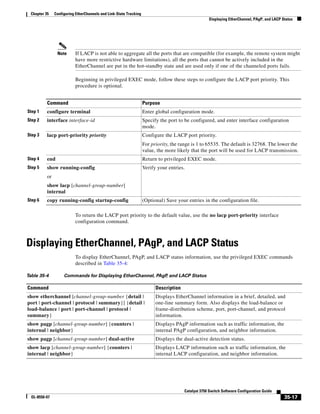
Configuring the LACP Port Priority 35-16
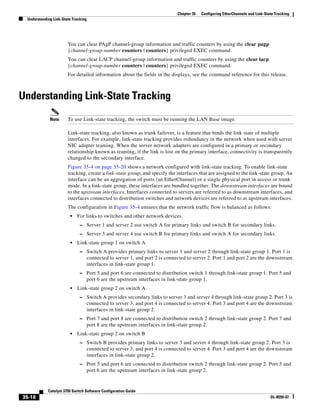
Displaying EtherChannel, PAgP, and LACP Status 35-17
Understanding Link-State Tracking 35-18
Configuring Link-State Tracking 35-20
Default Link-State Tracking Configuration 35-21
Link-State Tracking Configuration Guidelines 35-21
Configuring Link-State Tracking 35-21
Displaying Link-State Tracking Status 35-22
C H A P T E R 36 Troubleshooting 36-1
Recovering from a Software Failure 36-2
Recovering from a Lost or Forgotten Password 36-3
Procedure with Password Recovery Enabled 36-4
Procedure with Password Recovery Disabled 36-6
Contents
xxix
Catalyst 2960 Switch Software Configuration Guide
OL-8603-06
Recovering from a Command Switch Failure 36-7
Replacing a Failed Command Switch with a Cluster Member 36-8
Replacing a Failed Command Switch with Another Switch 36-9
Recovering from Lost Cluster Member Connectivity 36-11
Preventing Autonegotiation Mismatches 36-11
Troubleshooting Power over Ethernet Switch Ports 36-11
Disabled Port Caused by Power Loss 36-11
Disabled Port Caused by False Link Up 36-12
SFP Module Security and Identification 36-12
Monitoring SFP Module Status 36-13
Using Ping 36-13
Understanding Ping 36-13
Executing Ping 36-13
Using Layer 2 Traceroute 36-14
Understanding Layer 2 Traceroute 36-14
Usage Guidelines 36-15
Displaying the Physical Path 36-16
Using IP Traceroute 36-16
Understanding IP Traceroute 36-16
Executing IP Traceroute 36-17
Using TDR 36-18
Understanding TDR 36-18
Running TDR and Displaying the Results 36-18
Using Debug Commands 36-18
Enabling Debugging on a Specific Feature 36-19
Enabling All-System Diagnostics 36-19
Redirecting Debug and Error Message Output 36-20
Using the show platform forward Command 36-20
Using the crashinfo Files 36-22
Basic crashinfo Files 36-22
Extended crashinfo Files 36-22
Troubleshooting Tables 36-22
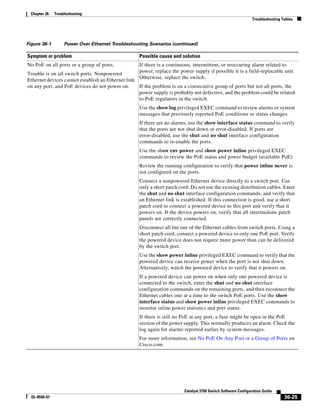
Troubleshooting CPU Utilization 36-23
Possible Symptoms of High CPU Utilization 36-23
Verifying the Problem and Cause 36-23
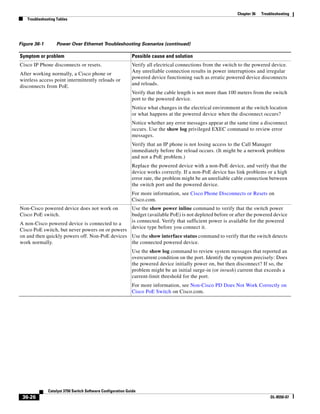
Troubleshooting Power over Ethernet (PoE) 36-24
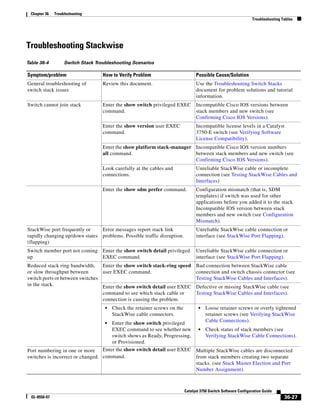
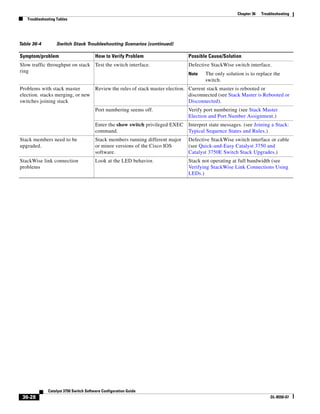
Troubleshooting Stackwise 36-27
Contents
xxx
Catalyst 2960 Switch Software Configuration Guide
OL-8603-06
A P P E N D I X A Supported MIBs A-1
MIB List A-1
Using FTP to Access the MIB Files A-3
A P P E N D I X B Working with the Cisco IOS File System, Configuration Files, and Software Images B-1
Working with the Flash File System B-1
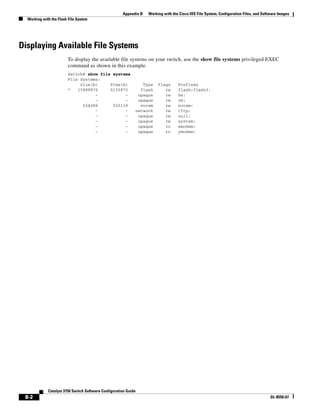
Displaying Available File Systems B-2
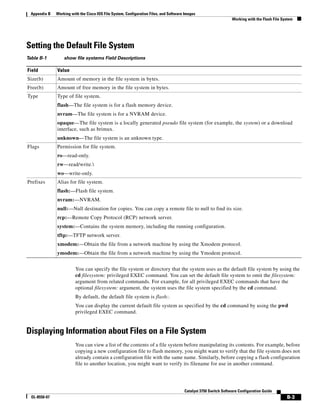
Setting the Default File System B-3
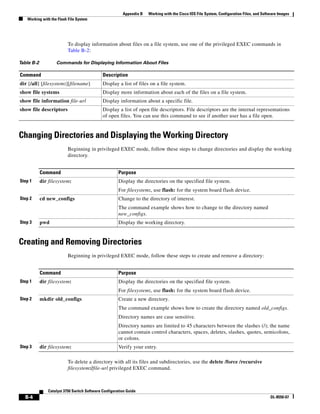
Displaying Information about Files on a File System B-3
Changing Directories and Displaying the Working Directory B-4
Creating and Removing Directories B-4
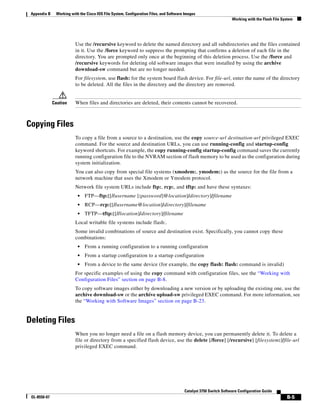
Copying Files B-5
Deleting Files B-5
Creating, Displaying, and Extracting tar Files B-6
Creating a tar File B-6
Displaying the Contents of a tar File B-7
Extracting a tar File B-7
Displaying the Contents of a File B-8
Working with Configuration Files B-8
Guidelines for Creating and Using Configuration Files B-9
Configuration File Types and Location n B-10
Creating a Configuration File By Using a Text Editor B-10
Copying Configuration Files By Using TFTP B-10
Preparing to Download or Upload a Configuration File B y Using TFTP B-10
Downloading the Configuration File By Using TFTP B-11
Uploading the Configuration File By Using TFTP B-12
Copying Configuration Files By Using FTP B-12
Preparing to Download or Upload a Configuration File By Using FTP B-13
Downloading a Configuration File By Using FTP B-13
Uploading a Configuration File By Using FTP B-14
Copying Configuration Files By Using RCP B-15
Preparing to Download or Upload a Configuration File By Using RCP B-16
Downloading a Configuration File By Using RCP B-17
Uploading a Configuration File By Using RCP B-18
Clearing Configuration Information B-18
Clearing the Startup Configuration File B-19
Deleting a Stored Configuration File B-19
Contents
xxxi
Catalyst 2960 Switch Software Configuration Guide
OL-8603-06
Replacing and Rolling Back Configurations B-19
Understanding Configuration Replacement and Rollback B-19
Configuration Guidelines B-21
Configuring the Configuration Archive B-21
Performing a Configuration Replacement or Rollback Operation B-22
Working with Software Images B-23
Image Location on the Switch B-24
tar File Format of Images on a Server or Cisco.com B-24
Copying Image Files By Using TFTP B-25
Preparing to Download or Upload an Image File By Using TFTP B-25
Downloading an Image File By Using TFTP B-26
Uploading an Image File By Using TFTP B-28
Copying Image Files By Using FTP B-28
Preparing to Download or Upload an Image File By Using FTP B-29
Downloading an Image File By Using FTP B-30
Uploading an Image File By Using FTP B-31
Copying Image Files By Using RCP B-32
Preparing to Download or Upload an Image File By Using RCP B-33
Downloading an Image File By Using RCP B-34
Uploading an Image File By Using RCP B-36
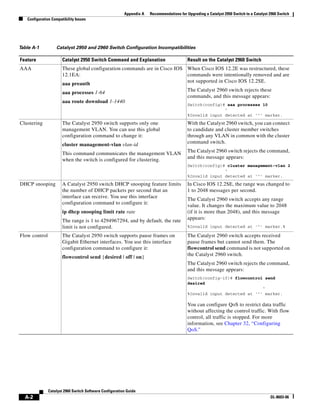
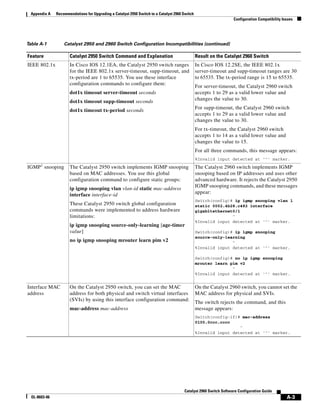
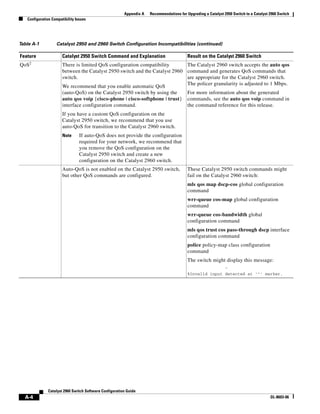
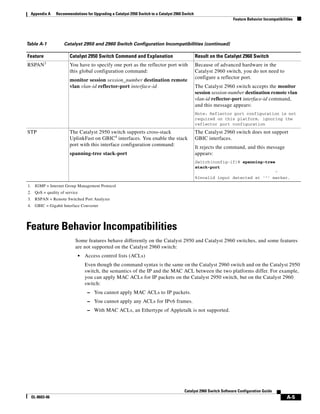
A P P E N D I X C Recommendations for Upgrading a Catalyst 2950 Switch to a Catalyst 2960 Switch C-1
Configuration Compatibility Issues C-1
Feature Behavior Incompatibilities C-5
A P P E N D I X D Unsupported Commands in Cisco IOS Release 12.2(50)SE D-1
Access Control Lists D-1
Unsupported Privileged EXEC Commands D-1
Unsupported Global Configuration Commands D-2
Unsupported Route-Map Configuration Commands D-2
Boot Loader Commands D-2
Unsupported Global Configuration Commands D-2
Debug Commands D-2
Unsupported Privileged EXEC Commands D-2
|IGMP Snooping Commands D-2
Unsupported Global Configuration Commands D-2
Contents
xxxii
Catalyst 2960 Switch Software Configuration Guide
OL-8603-06
Interface Commands D-3
Unsupported Privileged EXEC Commands D-3
Unsupported Global Configuration Commands D-3
Unsupported Interface Configuration Commands D-3
MAC Address Commands D-3
Unsupported Privileged EXEC Commands D-3
Unsupported Global Configuration Commands D-3
Miscellaneous D-4
Unsupported User EXEC Commands D-4
Unsupported Privileged EXEC Commands D-4
Unsupported Global Configuration Commands D-4
Network Address Translation (NAT) Commands D-4
Unsupported Privileged EXEC Commands D-4
QoS D-4
Unsupported Global Configuration Command D-4
Unsupported Interface Configuration Commands D-5
Unsupported Policy-Map Configuration Command D-5
RADIUS D-5
Unsupported Global Configuration Commands D-5
SNMP D-5
Unsupported Global Configuration Commands D-5
SNMPv3 D-5
Unsupported 3DES Encryption Commands D-5
Spanning Tree D-6
Unsupported Global Configuration Command D-6
Unsupported Interface Configuration Command D-6
VLAN D-6
Unsupported Global Configuration Command D-6
Unsupported vlan-config Command D-6
Unsupported User EXEC Commands D-6
VTP D-6
Unsupported Privileged EXEC Commands D-6
I N D E X
xxxiii
Catalyst 3750 Switch Software Configuration Guide
OL-8550-07
Preface
Audience
This guide is for the networking professional managing the Catalyst 2960 switch, hereafter referred to
as the switch. Before using this guide, you should have experience working with the Cisco IOS software
and be familiar with the concepts and terminology of Ethernet and local area networking.
Purpose
This guide provides the information that you need to configure Cisco IOS software features on your
switch. The Catalyst 2960 software provides enterprise-class intelligent services such as access control
lists (ACLs) and quality of service (QoS) features.
This guide provides procedures for using the commands that have been created or changed for use with
the switch. It does not provide detailed information about these commands. For detailed information
about these commands, see the Catalyst 2960 Switch Command Reference for this release. For
information about the standard Cisco IOS Release 12.2 commands, see the Cisco IOS documentation set
available from the Cisco.com home page at Documentation > Cisco IOS Software.
This guide does not provide detailed information on the graphical user interfaces (GUIs) for the
embedded device manager or for Cisco Network Assistant (hereafter referred to as Network Assistant)
that you can use to manage the switch. However, the concepts in this guide are applicable to the GUI
user. For information about the device manager, see the switch online help. For information about
Network Assistant, see Getting Started with Cisco Network Assistant, available on Cisco.com.
This guide does not describe system messages you might encounter or how to install your switch. For
more information, see the Catalyst 2960 Switch System Message Guide for this release and the
Catalyst 2960 Switch Hardware Installation Guide.
For documentation updates, see the release notes for this release.
Conventions
This publication uses these conventions to convey instructions and information:
Command descriptions use these conventions:
• Commands and keywords are in boldface text.
• Arguments for which you supply values are in italic.
xxxiv
Catalyst 3750 Switch Software Configuration Guide
OL-8550-07
Preface
• Square brackets ([ ]) mean optional elements.
• Braces ({ }) group required choices, and vertical bars ( | ) separate the alternative elements.
• Braces and vertical bars within square brackets ([{ | }]) mean a required choice within an optional
element.
Interactive examples use these conventions:
• Terminal sessions and system displays are in screen font.
• Information you enter is in boldface screen font.
• Nonprinting characters, such as passwords or tabs, are in angle brackets (< >).
Notes, cautions, and timesavers use these conventions and symbols:
Note Means reader take note. Notes contain helpful suggestions or references to materials not contained in
this manual.
Caution Means reader be careful. In this situation, you might do something that could result in equipment
damage or loss of data.
Related Publications
These documents provide complete information about the switch and are available from this Cisco.com
site:
http://www.cisco.com/en/US/products/ps6406/tsd_products_support_series_home.html
Note Before installing, configuring, or upgrading the switch, see these documents:
• For initial configuration information, see the “Using Express Setup” section in the getting started
guide or the “Configuring the Switch with the CLI-Based Setup Program” appendix in the hardware
installation guide.
• For device manager requirements, see the “System Requirements” section in the release notes (not
orderable but available on Cisco.com).
• For Network Assistant requirements, see the Getting Started with Cisco Network Assistant (not
orderable but available on Cisco.com).
• For cluster requirements, see the Release Notes for Cisco Network Assistant (not orderable but
available on Cisco.com).
• For upgrading information, see the “Downloading Software” section in the release notes.
See these documents for other information about the switch:
• Release Notes for the Catalyst 3750, 3560, 2970, and 2960 Switches
• Catalyst 3750, 3560, 3550, 2975, 2975, 2970, and 2960 Switch System Message Guide
• Catalyst 2960 Switch Software Configuration Guide
• Catalyst 2960 Switch Command Reference
xxxv
Catalyst 3750 Switch Software Configuration Guide
OL-8550-07
Preface
• Device manager online help (available on the switch)
• Catalyst 2960 Switch Hardware Installation Guide
• Catalyst 2960 Switch Getting Started Guide
• Regulatory Compliance and Safety Information for the Catalyst 2960 Switch
• Getting Started with Cisco Network Assistant
• Release Notes for Cisco Network Assistant
• Cisco Small Form-Factor Pluggable Modules Installation Notes
• Cisco RPS 300 Redundant Power System Hardware Installation Guide
• Cisco RPS 675 Redundant Power System Hardware Installation Guide
• Cisco Redundant Power System 2300 Hardware Installation Guide
• For more information about the Network Admission Control (NAC) features, see the Network
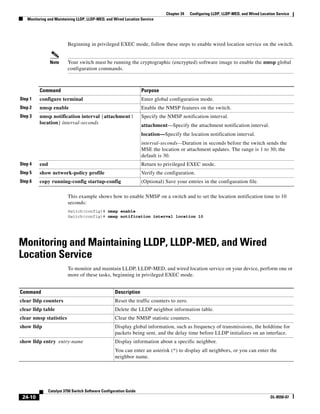
Admission Control Software Configuration Guide
• These compatibility matrix documents are available from this Cisco.com site:
http://www.cisco.com/en/US/products/hw/modules/ps5455/products_device_support_tables_list.html
– Cisco Gigabit Ethernet Transceiver Modules Compatibility Matrix
– Cisco 100-Megabit Ethernet SFP Modules Compatibility Matrix
– Cisco Small Form-Factor Pluggable Modules Compatibility Matrix
– Compatibility Matrix for 1000BASE-T Small Form-Factor Pluggable Modules
Obtaining Documentation, Obtaining Support, and Security
Guidelines
For information on obtaining documentation, submitting a service request, and gathering additional
information, see the monthly What’s New in Cisco Product Documentation, which also lists all new and
revised Cisco technical documentation, at:
http://www.cisco.com/en/US/docs/general/whatsnew/whatsnew.html
Subscribe to the What’s New in Cisco Product Documentation as a Really Simple Syndication (RSS) feed
and set content to be delivered directly to your desktop using a reader application. The RSS feeds are a free
service and Cisco currently supports RSS version 2.0.
xxxvi
Catalyst 3750 Switch Software Configuration Guide
OL-8550-07
Preface
C H A P T E R
1-1
Catalyst 3750 Switch Software Configuration Guide
OL-8550-07
1
Overview
This chapter provides these topics about the Catalyst 2960 switch software:
• Features, page 1-1
• Default Settings After Initial Switch Configuration, page 1-13
• Network Configuration Examples, page 1-16
• Where to Go Next, page 1-21
In this document, IP refers to IP Version 4 (IPv4) unless there is a specific reference to IP Version 6
(IPv6).
Features
Some features described in this chapter are available only on the cryptographic (supports encryption)
version of the software. You must obtain authorization to use this feature and to download the
cryptographic version of the software from Cisco.com. For more information, see the release notes for
this release.
• Ease-of-Deployment and Ease-of-Use Features, page 1-2
• Performance Features, page 1-3
• Management Options, page 1-4
• Manageability Features, page 1-5 (includes a feature requiring the cryptographic version of the
software)
• Availability and Redundancy Features, page 1-6
• VLAN Features, page 1-7
• Security Features, page 1-8 (includes a feature requiring the cryptographic version of the software)
• QoS and CoS Features, page 1-11
• Monitoring Features, page 1-13
1-2
Catalyst 3750 Switch Software Configuration Guide
OL-8550-07
Chapter 1 Overview
Features
Ease-of-Deployment and Ease-of-Use Features
• Express Setup for quickly configuring a switch for the first time with basic IP information, contact
information, switch and Telnet passwords, and Simple Network Management Protocol (SNMP)
information through a browser-based program. For more information about Express Setup, see the
getting started guide.
• User-defined and Cisco-default Smartports macros for creating custom switch configurations for
simplified deployment across the network.
• An embedded device manager GUI for configuring and monitoring a single switch through a web
browser. For information about launching the device manager, see the getting started guide. For more
information about the device manager, see the switch online help.
• Cisco Network Assistant (hereafter referred to as Network Assistant) for
– Managing communities, which are device groups like clusters, except that they can contain
routers and access points and can be made more secure.
– Simplifying and minimizing switch and switch cluster management from anywhere in your
intranet.
– Accomplishing multiple configuration tasks from a single graphical interface without needing
to remember command-line interface (CLI) commands to accomplish specific tasks.
– Interactive guide mode that guides you in configuring complex features such as VLANs, ACLs,
and quality of service (QoS).
Note If the switch is running the LAN Lite image, you can configure ACLs, but you cannot attach
them to interfaces or VLANs.
– Configuration wizards that prompt you to provide only the minimum required information to
configure complex features such as QoS priorities for traffic, priority levels for data
applications, and security.
– Downloading an image to a switch.
– Applying actions to multiple ports and multiple switches at the same time, such as VLAN and
QoS settings, inventory and statistic reports, link- and switch-level monitoring and
troubleshooting, and multiple switch software upgrades.
– Viewing a topology of interconnected devices to identify existing switch clusters and eligible
switches that can join a cluster and to identify link information between switches.
– Monitoring real-time status of a switch or multiple switches from the LEDs on the front-panel
images. The system, redundant power system (RPS), and port LED colors on the images are
similar to those used on the physical LEDs.
Note To use the RPS, the switch must be running the LAN Base image.
Note The Network Assistant must be downloaded from cisco.com/go/cna.
1-3
Catalyst 3750 Switch Software Configuration Guide
OL-8550-07
Chapter 1 Overview
Features
• Switch clustering technology for
– Unified configuration, monitoring, authentication, and software upgrade of multiple,
cluster-capable switches, regardless of their geographic proximity and interconnection media,
including Ethernet, Fast Ethernet, Fast EtherChannel, small form-factor pluggable (SFP)
modules, Gigabit Ethernet, and Gigabit EtherChannel connections. For a list of cluster-capable
switches, see the release notes.
– Automatic discovery of candidate switches and creation of clusters of up to 16 switches that can
be managed through a single IP address.
– Extended discovery of cluster candidates that are not directly connected to the command switch.
• Auto Smartports Cisco-default and user-defined macros for dynamic port configuration based on the
device type detected on the port.
Performance Features
• Cisco EnergyWise manages the energy usage of power over Ethernet (PoE) entities.
• Autosensing of port speed and autonegotiation of duplex mode on all switch ports for optimizing
bandwidth
• Automatic-medium-dependent interface crossover (auto-MDIX) capability on 10/100 and
10/100/1000 Mb/s interfaces and on 10/100/1000 BASE-TX SFP module interfaces that enables the
interface to automatically detect the required cable connection type (straight-through or crossover)
and to configure the connection appropriately
• Support for up to 9000 bytes for frames that are bridged in hardware, and up to 2000 bytes for frames
that are bridged by software
• IEEE 802.3x flow control on all ports (the switch does not send pause frames)
• EtherChannel for enhanced fault tolerance and for providing up to 8 Gb/s (Gigabit EtherChannel)
or 800 Mb/s (Fast EtherChannel) full-duplex bandwidth among switches, routers, and servers
• Port Aggregation Protocol (PAgP) and Link Aggregation Control Protocol (LACP) for automatic
creation of EtherChannel links
• Forwarding of Layer 2 packets at Gigabit line rate
• Per-port storm control for preventing broadcast, multicast, and unicast storms
• Port blocking on forwarding unknown Layer 2 unknown unicast, multicast, and bridged broadcast
traffic
• Internet Group Management Protocol (IGMP) snooping for IGMP Versions 1, 2, and 3 for
efficiently forwarding multimedia and multicast traffic
• IGMP report suppression for sending only one IGMP report per multicast router query to the
multicast devices (supported only for IGMPv1 or IGMPv2 queries)
• IGMP snooping querier support to configure switch to generate periodic IGMP general query
messages
• IPv6 host support for basic IPv6 management
• Multicast Listener Discovery (MLD) snooping to enable efficient distribution of IP version 6 (IPv6)
multicast data to clients and routers in a switched network
Note To use IPv6 features, the switch must be running the LAN Base image.
1-4
Catalyst 3750 Switch Software Configuration Guide
OL-8550-07
Chapter 1 Overview
Features
• Multicast VLAN registration (MVR) to continuously send multicast streams in a multicast VLAN
while isolating the streams from subscriber VLANs for bandwidth and security reasons
Note To use MVR, the switch must be running the LAN Base image.
• IGMP filtering for controlling the set of multicast groups to which hosts on a switch port can belong
• IGMP throttling for configuring the action when the maximum number of entries is in the IGMP
forwarding table
• IGMP leave timer for configuring the leave latency for the network
• Switch Database Management (SDM) templates for allocating system resources to maximize
support for user-selected features
• Support for Cisco IOS IP Service Level Agreements (SLAs) responder that allows the system to
anticipate and respond to Cisco IOS IP SLAs request packets for monitoring network performance.
See the release notes for responder configuration.
• Configurable small-frame arrival threshold to prevent storm control when small frames (64 bytes or
less) arrive on an interface at a specified rate (the threshold)
• Flex Link Multicast Fast Convergence to reduce the multicast traffic convergence time after a Flex
Link failure
Note To use Flex Link Multicast Fast Convergence, the switch must be running the LAN Base image.
• RADIUS server load balancing to allow access and authentication requests to be distributed evenly
across a server group.
Management Options
• An embedded device manager—The device manager is a GUI that is integrated in the software
image. You use it to configure and to monitor a single switch. For information about launching the
device manager, see the getting started guide. For more information about the device manager, see the
switch online help.
• Network Assistant—Network Assistant is a network management application that can be
downloaded from Cisco.com. You use it to manage a single switch, a cluster of switches, or a
community of devices. For more information about Network Assistant, see Getting Started with
Cisco Network Assistant, available on Cisco.com.
• CLI—The Cisco IOS software supports desktop- and multilayer-switching features. You can access
the CLI either by connecting your management station directly to the switch console port or by using
Telnet from a remote management station. For more information about the CLI, see Chapter 2,
“Using the Command-Line Interface.”
• SNMP—SNMP management applications such as CiscoWorks2000 LAN Management Suite (LMS)
and HP OpenView. You can manage from an SNMP-compatible management station that is running
platforms such as HP OpenView or SunNet Manager. The switch supports a comprehensive set of
MIB extensions and four remote monitoring (RMON) groups. For more information about using
SNMP, see Chapter 29, “Configuring SNMP.”
1-5
Catalyst 3750 Switch Software Configuration Guide
OL-8550-07
Chapter 1 Overview
Features
• Cisco IOS Configuration Engine (previously known to as the Cisco IOS CNS
agent)-—Configuration service automates the deployment and management of network devices and
services. You can automate initial configurations and configuration updates by generating
switch-specific configuration changes, sending them to the switch, executing the configuration
change, and logging the results.
For more information about CNS, see Chapter 5, “Configuring Cisco IOS Configuration Engine.”
Manageability Features
• CNS embedded agents for automating switch management, configuration storage, and delivery
• DHCP for automating configuration of switch information (such as IP address, default gateway,
hostname, and Domain Name System [DNS] and TFTP server names)
• DHCP relay for forwarding User Datagram Protocol (UDP) broadcasts, including IP address
requests, from DHCP clients
• DHCP server for automatic assignment of IP addresses and other DHCP options to IP hosts
• DHCP-based autoconfiguration and image update to download a specified configuration a new
image to a large number of switches
• DHCP server port-based address allocation for the preassignment of an IP address to a switch port
• Directed unicast requests to a DNS server for identifying a switch through its IP address and its
corresponding hostname and to a TFTP server for administering software upgrades from a TFTP
server
• Address Resolution Protocol (ARP) for identifying a switch through its IP address and its
corresponding MAC address
• Unicast MAC address filtering to drop packets with specific source or destination MAC addresses
• Configurable MAC address scaling that allows disabling MAC address learning on a VLAN to limit
the size of the MAC address table
• Cisco Discovery Protocol (CDP) Versions 1 and 2 for network topology discovery and mapping
between the switch and other Cisco devices on the network
• Link Layer Discovery Protocol (LLDP) and LLDP Media Endpoint Discovery (LLDP-MED) for
interoperability with third-party IP phones
• LLDP media extensions (LLDP-MED) location TLV that provides location information from the
switch to the endpoint device
Note To use LLDP-MED, the switch must be running the LAN Base image.
• Network Time Protocol (NTP) for providing a consistent time stamp to all switches from an external
source
• Cisco IOS File System (IFS) for providing a single interface to all file systems that the switch uses
• Support for the SSM PIM protocol to optimize multicast applications, such as video
• Source Specific Multicast (SSM) mapping for multicast applications provides a mapping of source
to group, allowing listeners to connect to multicast sources dynamically and reduces dependencies
on the application
• Support for Enhanced Interior Gateway Routing Protocol (EIGRP) IPv6 to utilize IPv6 transport,
communicate with IPv6 peers, and advertise IPv6 routes
1-6
Catalyst 3750 Switch Software Configuration Guide
OL-8550-07
Chapter 1 Overview
Features
• Support for these IP services, making them VRF aware so that they can operate on multiple routing
instances: HSRP, GLBP, uRPF, ARP, SNMP, IP SLA, TFTP, FTP, syslog, traceroute, and ping
• Configuration logging to log and to view changes to the switch configuration
• Unique device identifier to provide product identification information through a show inventory
user EXEC command display
• In-band management access through the device manager over a Netscape Navigator or Microsoft
Internet Explorer browser session
• In-band management access for up to 16 simultaneous Telnet connections for multiple CLI-based
sessions over the network
• In-band management access for up to five simultaneous, encrypted Secure Shell (SSH) connections
for multiple CLI-based sessions over the network (requires the cryptographic version of the
software)
• In-band management access through SNMP Versions 1, 2c, and 3 get and set requests
• Out-of-band management access through the switch console port to a directly attached terminal or
to a remote terminal through a serial connection or a modem
• Secure Copy Protocol (SCP) feature to provide a secure and authenticated method for copying
switch configuration or switch image files (requires the cryptographic version of the software)
• Configuration replacement and rollback to replace the running configuration on a switch with any
saved Cisco IOS configuration file
• The HTTP client in Cisco IOS supports can send requests to both IPv4 and IPv6 HTTP server, and
the HTTP server in Cisco IOS can service HTTP requests from both IPv4 and IPv6 HTTP clients
• Simple Network and Management Protocol (SNMP) can be configured over IPv6 transport so that
an IPv6 host can send SNMP queries and receive SNMP notifications from a device running IPv6
• IPv6 stateless autoconfiguration to manage link, subnet, and site addressing changes, such as
management of host and mobile IP addresses
• Disabling MAC address learning on a VLAN
• DHCP server port-based address allocation for the preassignment of an IP address to a switch port.
• Wired location service sends location and attachment tracking information for connected devices to
a Cisco Mobility Services Engine (MSE).
• CPU utilization threshold trap monitors CPU utilization.
• LLDP-MED network-policy profile time, length, value (TLV) for creating a profile for voice and
voice-signalling by specifying the values for VLAN, class of service (CoS), differentiated services
code point (DSCP), and tagging mode
Availability and Redundancy Features
• UniDirectional Link Detection (UDLD) and aggressive UDLD for detecting and disabling
unidirectional links on fiber-optic interfaces caused by incorrect fiber-optic wiring or port faults
• IEEE 802.1D Spanning Tree Protocol (STP) for redundant backbone connections and loop-free
networks. STP has these features:
– Up to 128 spanning-tree instances supported
1-7
Catalyst 3750 Switch Software Configuration Guide
OL-8550-07
Chapter 1 Overview
Features
Note Up to 64 spanning-tree instances are supported when the switch is running the LAN Lite
image.
– Per-VLAN spanning-tree plus (PVST+) for load balancing across VLANs
• Rapid PVST+ for load balancing across VLANs and providing rapid convergence of spanning-tree
instances
– UplinkFast and BackboneFast for fast convergence after a spanning-tree topology change and
for achieving load balancing between redundant uplinks, including Gigabit uplinks
• IEEE 802.1s Multiple Spanning Tree Protocol (MSTP) for grouping VLANs into a spanning-tree
instance and for providing multiple forwarding paths for data traffic and load balancing and rapid
per-VLAN Spanning-Tree plus (rapid-PVST+) based on the IEEE 802.1w Rapid Spanning Tree
Protocol (RSTP) for rapid convergence of the spanning tree by immediately changing root and
designated ports to the forwarding state
• Optional spanning-tree features available in PVST+, rapid-PVST+, and MSTP mode:
– Port Fast for eliminating the forwarding delay by enabling a port to immediately change from
the blocking state to the forwarding state
– BPDU guard for shutting down Port Fast-enabled ports that receive bridge protocol data units
(BPDUs)
– BPDU filtering for preventing a Port Fast-enabled port from sending or receiving BPDUs
– Root guard for preventing switches outside the network core from becoming the spanning-tree
root
– Loop guard for preventing alternate or root ports from becoming designated ports because of a
failure that leads to a unidirectional link
• Flex Link Layer 2 interfaces to back up one another as an alternative to STP for basic link
redundancy
Note To use Flex Links, the switch must be running the LAN Base image.
• Link-state tracking to mirror the state of the ports that carry upstream traffic from connected hosts
and servers, and to allow the failover of the server traffic to an operational link on another Cisco
Ethernet switch.
Note To use Link-state Tracking, the switch must be running the LAN Base image.
VLAN Features
• Support for up to 255 VLANs for assigning users to VLANs associated with appropriate network
resources, traffic patterns, and bandwidth
Note Up to 64 VLANs are supported when the switch is running the LAN Lite image.
1-8
Catalyst 3750 Switch Software Configuration Guide
OL-8550-07
Chapter 1 Overview
Features
• Support for VLAN IDs in the 1 to 4094 range as allowed by the IEEE 802.1Q standard
• VLAN Query Protocol (VQP) for dynamic VLAN membership
• IEEE 802.1Q trunking encapsulation on all ports for network moves, adds, and changes;
management and control of broadcast and multicast traffic; and network security by establishing
VLAN groups for high-security users and network resources
• Dynamic Trunking Protocol (DTP) for negotiating trunking on a link between two devices and for
negotiating the type of trunking encapsulation (IEEE 802.1Q) to be used
• VLAN Trunking Protocol (VTP) and VTP pruning for reducing network traffic by restricting
flooded traffic to links destined for stations receiving the traffic
• Voice VLAN for creating subnets for voice traffic from Cisco IP Phones
• VLAN 1 minimization for reducing the risk of spanning-tree loops or storms by allowing VLAN 1
to be disabled on any individual VLAN trunk link. With this feature enabled, no user traffic is sent
or received on the trunk. The switch CPU continues to send and receive control protocol frames.
• VLAN Flex Link Load Balancing to provide Layer 2 redundancy without requiring Spanning Tree
Protocol (STP). A pair of interfaces configured as primary and backup links can load balance traffic
based on VLAN.
Note To use VLAN Flex Link Load Balancing, the switch must be running the LAN Base image.
• Support for 802.1x authentication with restricted VLANs (also known as authentication failed
VLANs) in all switch images.
Security Features
• IP Service Level Agreements (IP SLAs) responder support that allows the switch to be a target
device for IP SLAs active traffic monitoring
Note To use IP SLAs, the switch must be running the LAN Base image.
• Web authentication to allow a supplicant (client) that does not support IEEE 802.1x functionality to
be authenticated using a web browser
Note To use Web Authentication, the switch must be running the LAN Base image.
• Local web authentication banner so that a custom banner or an image file can be displayed at a web
authentication login screen
• IEEE 802.1x Authentication with ACLs and the RADIUS Filter-Id Attribute
Note To use this feature, the switch must be running the LAN Base image.
• Password-protected access (read-only and read-write access) to management interfaces (device
manager, Network Assistant, and the CLI) for protection against unauthorized configuration
changes
• Multilevel security for a choice of security level, notification, and resulting actions
1-9
Catalyst 3750 Switch Software Configuration Guide
OL-8550-07
Chapter 1 Overview
Features
• Static MAC addressing for ensuring security
• Protected port option for restricting the forwarding of traffic to designated ports on the same switch
• Port security option for limiting and identifying MAC addresses of the stations allowed to access
the port
• VLAN aware port security option to shut down the VLAN on the port when a violation occurs,
instead of shutting down the entire port.
• Port security aging to set the aging time for secure addresses on a port
• BPDU guard for shutting down a Port Fast-configured port when an invalid configuration occurs
• Standard and extended IP access control lists (ACLs) for defining inbound security policies on
Layer 2 interfaces (port ACLs)
• Extended MAC access control lists for defining security policies in the inbound direction on Layer 2
interfaces
• Source and destination MAC-based ACLs for filtering non-IP traffic
• DHCP snooping to filter untrusted DHCP messages between untrusted hosts and DHCP servers
• IP source guard to restrict traffic on nonrouted interfaces by filtering traffic based on the DHCP
snooping database and IP source bindings
• Dynamic ARP inspection to prevent malicious attacks on the switch by not relaying invalid ARP
requests and responses to other ports in the same VLAN
• IEEE 802.1x port-based authentication to prevent unauthorized devices (clients) from gaining
access to the network. These features are supported:
– Multidomain authentication (MDA) to allow both a data device and a voice device, such as an
IP phone (Cisco or non-Cisco), to independently authenticate on the same IEEE 802.1x-enabled
switch port
Note To use MDA, the switch must be running the LAN Base image.
– Dynamic voice virtual LAN (VLAN) for MDA to allow a dynamic voice VLAN on an
MDA-enabled port
– VLAN assignment for restricting 802.1x-authenticated users to a specified VLAN
– Port security for controlling access to 802.1x ports
– Voice VLAN to permit a Cisco IP Phone to access the voice VLAN regardless of the authorized
or unauthorized state of the port
– IP phone detection enhancement to detect and recognize a Cisco IP phone.
– Guest VLAN to provide limited services to non-802.1x-compliant users
– Restricted VLAN to provide limited services to users who are 802.1x compliant, but do not have
the credentials to authenticate via the standard 802.1x processes
Note To use authentication with restricted VLANs, the switch must be running the LAN Base
image.
– 802.1x accounting to track network usage
1-10
Catalyst 3750 Switch Software Configuration Guide
OL-8550-07
Chapter 1 Overview
Features
– 802.1x with wake-on-LAN to allow dormant PCs to be powered on based on the receipt of a
specific Ethernet frame
Note To use authentication with wake-on-LAN, the switch must be running the LAN Base image
– 802.1x readiness check to determine the readiness of connected end hosts before configuring
IEEE 802.1x on the switch
Note To use 802.1x readiness check, the switch must be running the LAN Base image.
– Voice aware 802.1x security to apply traffic violation actions only on the VLAN on which a
security violation occurs.
Note To use voice aware 802.1x authentication, the switch must be running the LAN Base image.
– MAC authentication bypass to authorize clients based on the client MAC address.
Note To use MAC authentication bypass, the switch must be running the LAN Base image.
– Network Admission Control (NAC) Layer 2 802.1x validation of the antivirus condition or
posture of endpoint systems or clients before granting the devices network access.
For information about configuring NAC Layer 2 802.1x validation, see the “Configuring NAC
Layer 2 802.1x Validation” section on page 9-55.
Note To use NAC, the switch must be running the LAN Base image.
– Network Edge Access Topology (NEAT) with 802.1X switch supplicant, host authorization
with CISP, and auto enablement to authenticate a switch outside a wiring closet as a supplicant
to another switch.
– IEEE 802.1x with open access to allow a host to access the network before being authenticated.
– IEEE 802.1x authentication with downloadable ACLs and redirect URLs to allow per-user ACL
downloads from a Cisco Secure ACS server to an authenticated switch.
– Flexible-authentication sequencing to configure the order of the authentication methods that a
port tries when authenticating a new host.
– Multiple-user authentication to allow more than one host to authenticate on an 802.1x-enabled
port.
• TACACS+, a proprietary feature for managing network security through a TACACS server
• RADIUS for verifying the identity of, granting access to, and tracking the actions of remote users
through authentication, authorization, and accounting (AAA) services
• Secure Socket Layer (SSL) Version 3.0 support for the HTTP 1.1 server authentication, encryption,
and message integrity and HTTP client authentication to allow secure HTTP communications
(requires the cryptographic version of the software)
• IEEE 802.1x Authentication with ACLs and the RADIUS Filter-Id Attribute
1-11
Catalyst 3750 Switch Software Configuration Guide
OL-8550-07
Chapter 1 Overview
Features
QoS and CoS Features
• Automatic QoS (auto-QoS) to simplify the deployment of existing QoS features by classifying
traffic and configuring egress queues
Note To use auto-QoS, the switch must be running the LAN Base image.
• Classification
– IP type-of-service/Differentiated Services Code Point (IP ToS/DSCP) and IEEE 802.1p CoS
marking priorities on a per-port basis for protecting the performance of mission-critical
applications
Note To use DSCP, the switch must be running the LAN Base image.
– IP ToS/DSCP and IEEE 802.1p CoS marking based on flow-based packet classification
(classification based on information in the MAC, IP, and TCP/UDP headers) for
high-performance quality of service at the network edge, allowing for differentiated service
levels for different types of network traffic and for prioritizing mission-critical traffic in the
network
Note To use flow-based packet classification, the switch must be running the LAN Base image.
– Trusted port states (CoS, DSCP, and IP precedence) within a QoS domain and with a port
bordering another QoS domain
– Trusted boundary for detecting the presence of a Cisco IP Phone, trusting the CoS value
received, and ensuring port security
• Policing
Note To use policy maps, the switch must be running the LAN Base image
– Traffic-policing policies on the switch port for managing how much of the port bandwidth
should be allocated to a specific traffic flow
– If you configure multiple class maps for a hierarchical policy map, each class map can be
associated with its own port-level (second-level) policy map. Each second-level policy map can
have a different policer.
– Aggregate policing for policing traffic flows in aggregate to restrict specific applications or
traffic flows to metered, predefined rates
• Out-of-Profile
– Out-of-profile markdown for packets that exceed bandwidth utilization limits
• Ingress queueing and scheduling
– Two configurable ingress queues for user traffic (one queue can be the priority queue)
– Weighted tail drop (WTD) as the congestion-avoidance mechanism for managing the queue
lengths and providing drop precedences for different traffic classifications
1-12
Catalyst 3750 Switch Software Configuration Guide
OL-8550-07
Chapter 1 Overview
Features
Note To use WTD, the switch must be running the LAN Base image.
– Shaped round robin (SRR) as the scheduling service for specifying the rate at which packets are
sent to the internal ring (sharing is the only supported mode on ingress queues)
Note To use ingress queueing, the switch must be running the LAN Base image.
• Egress queues and scheduling
– Four egress queues per port
– WTD as the congestion-avoidance mechanism for managing the queue lengths and providing
drop precedences for different traffic classifications
– SRR as the scheduling service for specifying the rate at which packets are dequeued to the
egress interface (shaping or sharing is supported on egress queues). Shaped egress queues are
guaranteed but limited to using a share of port bandwidth. Shared egress queues are also
guaranteed a configured share of bandwidth, but can use more than the guarantee if other queues
become empty and do not use their share of the bandwidth.
Note To use egress queueing, the switch must be running the LAN Base image.
Layer 3 Features
• IPv6 default router preference (DRP) for improving the ability of a host to select an appropriate
router (requires the LAN Base image)
Power over Ethernet Features
• Ability to provide power to connected Cisco pre-standard and IEEE 802.3af-compliant powered
devices from Power over Ethernet (PoE)-capable ports if the switch detects that there is no power
on the circuit.
• Support for CDP with power consumption. The powered device notifies the switch of the amount of
power it is consuming.
• Support for Cisco intelligent power management. The powered device and the switch negotiate
through power-negotiation CDP messages for an agreed power-consumption level. The negotiation
allows a high-power Cisco powered device to operate at its highest power mode.
• Automatic detection and power budgeting; the switch maintains a power budget, monitors and tracks
requests for power, and grants power only when it is available.
• Ability to monitor the real-time power consumption. On a per-PoE port basis, the switch senses the
total power consumption, polices the power usage, and reports the power usage.
1-13
Catalyst 3750 Switch Software Configuration Guide
OL-8550-07
Chapter 1 Overview
Default Settings After Initial Switch Configuration
Monitoring Features
• Switch LEDs that provide port- and switch-level status
• MAC address notification traps and RADIUS accounting for tracking users on a network by storing
the MAC addresses that the switch has learned or removed
• Switched Port Analyzer (SPAN) and Remote SPAN (RSPAN) for traffic monitoring on any port or
VLAN
• SPAN and RSPAN support of Intrusion Detection Systems (IDS) to monitor, repel, and report
network security violations
• Four groups (history, statistics, alarms, and events) of embedded RMON agents for network
monitoring and traffic analysis
• Syslog facility for logging system messages about authentication or authorization errors, resource
issues, and time-out events
• Layer 2 traceroute to identify the physical path that a packet takes from a source device to a
destination device
• Time Domain Reflector (TDR) to diagnose and resolve cabling problems on 10/100 and
10/100/1000 copper Ethernet ports
• SFP module diagnostic management interface to monitor physical or operational status of an SFP
module
Default Settings After Initial Switch Configuration
The switch is designed for plug-and-play operation, requiring only that you assign basic IP information
to the switch and connect it to the other devices in your network. If you have specific network needs,
you can change the interface-specific and system-wide settings.
Note For information about assigning an IP address by using the browser-based Express Setup program, see
the getting started guide. For information about assigning an IP address by using the CLI-based setup
program, see the hardware installation guide.
If you do not configure the switch at all, the switch operates with these default settings:
• Default switch IP address, subnet mask, and default gateway is 0.0.0.0. For more information, see
Chapter 3, “Assigning the Switch IP Address and Default Gateway,” and Chapter 19, “Configuring
DHCP Features and IP Source Guard.”
• Default domain name is not configured. For more information, see Chapter 3, “Assigning the Switch
IP Address and Default Gateway.”
• DHCP client is enabled, the DHCP server is enabled (only if the device acting as a DHCP server is
configured and is enabled), and the DHCP relay agent is enabled (only if the device is acting as a
DHCP relay agent is configured and is enabled). For more information, see Chapter 3, “Assigning
the Switch IP Address and Default Gateway,” and Chapter 19, “Configuring DHCP Features and IP
Source Guard.”
• Switch cluster is disabled. For more information about switch clusters, see Chapter 5, “Clustering
Switches,” and the Getting Started with Cisco Network Assistant, available on Cisco.com.
• No passwords are defined. For more information, see Chapter 6, “Administering the Switch.”
1-14
Catalyst 3750 Switch Software Configuration Guide
OL-8550-07
Chapter 1 Overview
Default Settings After Initial Switch Configuration
• System name and prompt is Switch. For more information, see Chapter 6, “Administering the
Switch.”
• NTP is enabled. For more information, see Chapter 6, “Administering the Switch.”
• DNS is enabled. For more information, see Chapter 6, “Administering the Switch.”
• TACACS+ is disabled. For more information, see Chapter 8, “Configuring Switch-Based
Authentication.”
• RADIUS is disabled. For more information, see Chapter 8, “Configuring Switch-Based
Authentication.”
• The standard HTTP server and Secure Socket Layer (SSL) HTTPS server are both enabled. For more
information, see Chapter 8, “Configuring Switch-Based Authentication.”
• IEEE 802.1x is disabled. For more information, see Chapter 9, “Configuring IEEE 802.1x
Port-Based Authentication.”
• Port parameters
– Interface speed and duplex mode is autonegotiate. For more information, see Chapter 10,
“Configuring Interface Characteristics.”
– Auto-MDIX is enabled. For more information, see Chapter 10, “Configuring Interface
Characteristics.”
– Flow control is off. For more information, see Chapter 10, “Configuring Interface
Characteristics.”
– PoE is autonegotiate. For more information, see Chapter 10, “Configuring Interface
Characteristics.”
• VLANs
– Default VLAN is VLAN 1. For more information, see Chapter 12, “Configuring VLANs.”
– VLAN trunking setting is dynamic auto (DTP). For more information, see Chapter 12,
“Configuring VLANs.”
– Trunk encapsulation is negotiate. For more information, see Chapter 12, “Configuring VLANs.”
– VTP mode is server. For more information, see Chapter 13, “Configuring VTP.”
– VTP version is Version 1. For more information, see Chapter 13, “Configuring VTP.”
– Voice VLAN is disabled. For more information, see Chapter 14, “Configuring Voice VLAN.”
• STP, PVST+ is enabled on VLAN 1. For more information, see Chapter 15, “Configuring STP.”
• MSTP is disabled. For more information, see Chapter 16, “Configuring MSTP.”
• Optional spanning-tree features are disabled. For more information, see Chapter 17, “Configuring
Optional Spanning-Tree Features.”
• Flex Links are not configured. For more information, see Chapter 18, “Configuring Flex Links and
the MAC Address-Table Move Update Feature.”
Note To use Flex Links, the switch must be running the LAN Base image.
• DHCP snooping is disabled. The DHCP snooping information option is enabled. For more
information, see Chapter 19, “Configuring DHCP Features and IP Source Guard.”
• DHCP server port-based address allocation is disabled. For more information, see Chapter 19,
“Configuring DHCP Features and IP Source Guard.”
1-15
Catalyst 3750 Switch Software Configuration Guide
OL-8550-07
Chapter 1 Overview
Default Settings After Initial Switch Configuration
• IGMP snooping is enabled. No IGMP filters are applied. For more information, see Chapter 21,
“Configuring IGMP Snooping and MVR.”
• IGMP throttling setting is deny. For more information, see Chapter 21, “Configuring IGMP
Snooping and MVR.”
• The IGMP snooping querier feature is disabled. For more information, see Chapter 21, “Configuring
IGMP Snooping and MVR.”
• MVR is disabled. For more information, see Chapter 21, “Configuring IGMP Snooping and MVR.”
Note To use MVR, the switch must be running the LAN Base image.
• Port-based traffic
– Broadcast, multicast, and unicast storm control is disabled. For more information, see
Chapter 22, “Configuring Port-Based Traffic Control.”
– No protected ports are defined. For more information, see Chapter 22, “Configuring Port-Based
Traffic Control.”
– Unicast and multicast traffic flooding is not blocked. For more information, see Chapter 22,
“Configuring Port-Based Traffic Control.”
– No secure ports are configured. For more information, see Chapter 22, “Configuring Port-Based
Traffic Control.”
• CDP is enabled. For more information, see Chapter 23, “Configuring CDP.”
• UDLD is disabled. For more information, see Chapter 25, “Configuring UDLD.”
• SPAN and RSPAN are disabled. For more information, see Chapter 26, “Configuring SPAN and
RSPAN.”
Note To use RSPAN, the switch must be running the LAN Base image.
• RMON is disabled. For more information, see Chapter 27, “Configuring RMON.”
• Syslog messages are enabled and appear on the console. For more information, see Chapter 28,
“Configuring System Message Logging.”
• SNMP is enabled (Version 1). For more information, see Chapter 29, “Configuring SNMP.”
• No ACLs are configured. For more information, see Chapter 30, “Configuring Network Security
with ACLs.”
• QoS is disabled. For more information, see Chapter 32, “Configuring QoS.”
• No EtherChannels are configured. For more information, see Chapter 35, “Configuring
EtherChannels and Link-State Tracking.”
1-16
Catalyst 3750 Switch Software Configuration Guide
OL-8550-07
Chapter 1 Overview
Network Configuration Examples
This section provides network configuration concepts and includes examples of using the switch to
create dedicated network segments and interconnecting the segments through Fast Ethernet and Gigabit
Ethernet connections.
• “Design Concepts for Using the Switch” section on page 1-16
• “Small to Medium-Sized Network Using Catalyst 2960 Switches” section on page 1-19
• “Long-Distance, High-Bandwidth Transport Configuration” section on page 1-20
Design Concepts for Using the Switch
As your network users compete for network bandwidth, it takes longer to send and receive data. When
you configure your network, consider the bandwidth required by your network users and the relative
priority of the network applications that they use.
Table 1-1 describes what can cause network performance to degrade and how you can configure your
network to increase the bandwidth available to your network users.
Bandwidth alone is not the only consideration when designing your network. As your network traffic
profiles evolve, consider providing network services that can support applications for voice and data
integration, multimedia integration, application prioritization, and security. Table 1-2 describes some
network demands and how you can meet them.
Table 1-1 Increasing Network Performance
Network Demands Suggested Design Methods
Too many users on a single network
segment and a growing number of
users accessing the Internet
• Create smaller network segments so that fewer users share the bandwidth, and use
VLANs and IP subnets to place the network resources in the same logical network
as the users who access those resources most.
• Use full-duplex operation between the switch and its connected workstations.
• Increased power of new PCs,
workstations, and servers
• High bandwidth demand from
networked applications (such as
e-mail with large attached files)
and from bandwidth-intensive
applications (such as
multimedia)
• Connect global resources—such as servers and routers to which the network users
require equal access—directly to the high-speed switch ports so that they have
their own high-speed segment.
• Use the EtherChannel feature between the switch and its connected servers and
routers.
1-17
Catalyst 3750 Switch Software Configuration Guide
OL-8550-07
Chapter 1 Overview
Network Configuration Examples
You can use the switches to create the following:
• Cost-effective Gigabit-to-the-desktop for high-performance workgroups (Figure 1-1)—For
high-speed access to network resources, you can use the Cisco Catalyst 2960 switches in the access
layer to provide Gigabit Ethernet to the desktop. To prevent congestion, use QoS DSCP marking
priorities on these switches. For high-speed IP forwarding at the distribution layer, connect the
switches in the access layer to a Gigabit multilayer switch with routing capability, such as a
Catalyst 3750 switch, or to a router.
The first illustration is of an isolated high-performance workgroup, where the Catalyst 2960
switches are connected to Catalyst 3750 switches in the distribution layer. The second illustration is
of a high-performance workgroup in a branch office, where the Catalyst 2960 switches are
connected to a router in the distribution layer.
Each switch in this configuration provides users with a dedicated 1-Gb/s connection to network
resources. Using SFP modules also provides flexibility in media and distance options through
fiber-optic connections.
Table 1-2 Providing Network Services
Network Demands Suggested Design Methods
Efficient bandwidth usage for
multimedia applications and
guaranteed bandwidth for critical
applications
• Use IGMP snooping to efficiently forward multimedia and multicast traffic.
• Use other QoS mechanisms such as packet classification, marking, scheduling,
and congestion avoidance to classify traffic with the appropriate priority level,
thereby providing maximum flexibility and support for mission-critical, unicast,
and multicast and multimedia applications.
• Use MVR to continuously send multicast streams in a multicast VLAN but to
isolate the streams from subscriber VLANs for bandwidth and security reasons.
High demand on network redundancy
and availability to provide always on
mission-critical applications
• Use VLAN trunks and BackboneFast for traffic-load balancing on the uplink ports
so that the uplink port with a lower relative port cost is selected to carry the VLAN
traffic.
An evolving demand for IP telephony • Use QoS to prioritize applications such as IP telephony during congestion and to
help control both delay and jitter within the network.
• Use switches that support at least two queues per port to prioritize voice and data
traffic as either high- or low-priority, based on IEEE 802.1p/Q. The switch
supports at least four queues per port.
• Use voice VLAN IDs (VVIDs) to provide separate VLANs for voice traffic.
A growing demand for using existing
infrastructure to transport data and
voice from a home or office to the
Internet or an intranet at higher
speeds
Use the Catalyst Long-Reach Ethernet (LRE) switches to provide up to 15 Mb of IP
connectivity over existing infrastructure, such as existing telephone lines.
Note To use LRE, the switch must be running the LAN Base image.
Note LRE is the technology used in the Catalyst 2900 LRE XL and Catalyst 2950
LRE switches. See the documentation sets specific to these switches for LRE
information.
1-18
Catalyst 3750 Switch Software Configuration Guide
OL-8550-07
Chapter 1 Overview
Network Configuration Examples
Figure 1-1 High-Performance Workgroup (Gigabit-to-the-Desktop)
• Server aggregation (Figure 1-2)—You can use the switches to interconnect groups of servers,
centralizing physical security and administration of your network. For high-speed IP forwarding at
the distribution layer, connect the switches in the access layer to multilayer switches with routing
capability. The Gigabit interconnections minimize latency in the data flow.
QoS and policing on the switches provide preferential treatment for certain data streams. They
segment traffic streams into different paths for processing. Security features on the switch ensure
rapid handling of packets.
Fault tolerance from the server racks to the core is achieved through dual homing of servers
connected to switches, which have redundant Gigabit EtherChannels.
Using dual SFP module uplinks from the switches provides redundant uplinks to the network core.
Using SFP modules provides flexibility in media and distance options through fiber-optic
connections.
89373
Access-layer
Catalyst
switches
Catalyst 3750
switches
89374
Cisco 2600
router
Access-layer
Catalyst
switches
WAN
1-19
Catalyst 3750 Switch Software Configuration Guide
OL-8550-07
Chapter 1 Overview
Network Configuration Examples
Figure 1-2 Server Aggregation
Small to Medium-Sized Network Using Catalyst 2960 Switches
Figure 1-3 shows a configuration for a network of up to 500 employees. This network uses Catalyst 2960
switches with high-speed connections to two routers. This ensures connectivity to the Internet, WAN,
and mission-critical network resources if one of the routers fails. The switches are using EtherChannel
for load sharing.
The switches are connected to workstations and local servers. The server farm includes a call-processing
server running Cisco CallManager software. Cisco CallManager controls call processing, routing, and
Cisco IP Phone features and configuration. The switches are interconnected through Gigabit interfaces.
This network uses VLANs to logically segment the network into well-defined broadcast groups and for
security management. Data and multimedia traffic are configured on the same VLAN. Voice traffic from
the Cisco IP Phones are configured on separate VVIDs. If data, multimedia, and voice traffic are
assigned to the same VLAN, only one VLAN can be configured per wiring closet.
When an end station in one VLAN needs to communicate with an end station in another VLAN, a router
routes the traffic to the destination VLAN. In this network, the routers are providing inter-VLAN
routing. VLAN access control lists (VLAN maps) on the switch provide intra-VLAN security and
prevent unauthorized users from accessing critical areas of the network.
In addition to inter-VLAN routing, the routers provide QoS mechanisms such as DSCP priorities to
prioritize the different types of network traffic and to deliver high-priority traffic. If congestion occurs,
QoS drops low-priority traffic to allow delivery of high-priority traffic.
Cisco CallManager controls call processing, routing, and Cisco IP Phone features and configuration.
Users with workstations running Cisco SoftPhone software can place, receive, and control calls from
their PCs. Using Cisco IP Phones, Cisco CallManager software, and Cisco SoftPhone software integrates
telephony and IP networks, and the IP network supports both voice and data.
The routers also provide firewall services, Network Address Translation (NAT) services, voice-over-IP
(VoIP) gateway services, and WAN and Internet access.
89376
Campus
core
Catalyst
6500 switches
Catalyst 3750
StackWise
switch stacks
Access-layer
Catalyst
switches
Server racks
1-20
Catalyst 3750 Switch Software Configuration Guide
OL-8550-07
Chapter 1 Overview
Network Configuration Examples
Figure 1-3 Catalyst 2960 Switchesin a Collapsed Backbone Configuration
Long-Distance, High-Bandwidth Transport Configuration
Note To use CWDM SFPs, the switch must be running the LAN Base image.
Figure 1-4 shows a configuration for sending 8 Gigabits of data over a single fiber-optic cable. The
Catalyst 2960 switches have coarse wavelength-division multiplexing (CWDM) fiber-optic SFP
modules installed. Depending on the CWDM SFP module, data is sent at wavelengths from 1470 to
1610 nm. The higher the wavelength, the farther the transmission can travel. A common wavelength used
for long-distance transmissions is 1550 nm.
The CWDM SFP modules connect to CWDM optical add/drop multiplexer (OADM) modules over
distances of up to 393,701 feet (74.5 miles or 120 km). The CWDM OADM modules combine (or
multiplex) the different CWDM wavelengths, allowing them to travel simultaneously on the same
fiber-optic cable. The CWDM OADM modules on the receiving end separate (or demultiplex) the
different wavelengths.
For more information about the CWDM SFP modules and CWDM OADM modules, see the Cisco
CWDM GBIC and CWDM SFP Installation Note.
Gigabit
servers
101388
Cisco 2600 or
3700 routers
Internet
Cisco IP
phones Workstations
running
Cisco SoftPhone
software
Aironet wireless
access points
IP IP
1-21
Catalyst 3750 Switch Software Configuration Guide
OL-8550-07
Chapter 1 Overview
Where to Go Next
Figure 1-4 Long-Distance, High-Bandwidth Transport Configuration
Where to Go Next
Before configuring the switch, review these sections for startup information:
• Chapter 2, “Using the Command-Line Interface”
• Chapter 3, “Assigning the Switch IP Address and Default Gateway”
95750
Access layer
Catalyst 4500
multilayer
switches
Eight
1-Gbps
connections
8 Gbps
Catalyst switches
CWDM
OADM
modules
CWDM
OADM
modules
Aggregation layer
1-22
Catalyst 3750 Switch Software Configuration Guide
OL-8550-07
Chapter 1 Overview
Where to Go Next
C H A P T E R
2-1
Catalyst 3750 Switch Software Configuration Guide
OL-8550-07
2
Using the Command-Line Interface
This chapter describes the Cisco IOS command-line interface (CLI) and how to use it to configure your
Catalyst 2960 switch. It contains these sections:
• Understanding Command Modes, page 2-1
• Understanding the Help System, page 2-3
• Understanding Abbreviated Commands, page 2-4
• Understanding no and default Forms of Commands, page 2-4
• Understanding CLI Error Messages, page 2-5
• Using Configuration Logging, page 2-5
• Using Command History, page 2-6
• Using Editing Features, page 2-7
• Searching and Filtering Output of show and more Commands, page 2-10
• Accessing the CLI, page 2-10
Understanding Command Modes
The Cisco IOS user interface is divided into many different modes. The commands available to you
depend on which mode you are currently in. Enter a question mark (?) at the system prompt to obtain a
list of commands available for each command mode.
When you start a session on the switch, you begin in user mode, often called user EXEC mode. Only a
limited subset of the commands are available in user EXEC mode. For example, most of the user EXEC
commands are one-time commands, such as show commands, which show the current configuration
status, and clear commands, which clear counters or interfaces. The user EXEC commands are not saved
when the switch reboots.
To have access to all commands, you must enter privileged EXEC mode. Normally, you must enter a
password to enter privileged EXEC mode. From this mode, you can enter any privileged EXEC
command or enter global configuration mode.
Using the configuration modes (global, interface, and line), you can make changes to the running
configuration. If you save the configuration, these commands are stored and used when the switch
reboots. To access the various configuration modes, you must start at global configuration mode. From
global configuration mode, you can enter interface configuration mode and line configuration mode.
2-2
Catalyst 3750 Switch Software Configuration Guide
OL-8550-07
Chapter 2 Using the Command-Line Interface
Understanding Command Modes
Table 2-1 describes the main command modes, how to access each one, the prompt you see in that mode,
and how to exit the mode. The examples in the table use the hostname Switch.
Table 2-1 Command Mode Summary
Mode Access Method Prompt Exit Method About This Mode
User EXEC Begin a session with
your switch.
Switch> Enter logout or
quit.
Use this mode to
• Change terminal settings.
• Perform basic tests.
• Display system
information.
Privileged EXEC While in user EXEC
mode, enter the
enable command.
Switch# Enter disable to
exit.
Use this mode to verify
commands that you have
entered. Use a password to
protect access to this mode.
Global configuration While in privileged
EXEC mode, enter
the configure
command.
Switch(config)# To exit to privileged
EXEC mode, enter
exit or end, or press
Ctrl-Z.
Use this mode to configure
parameters that apply to the
entire switch.
Config-vlan While in global
configuration mode,
enter the
vlan vlan-id
command.
Switch(config-vlan)# To exit to global
configuration mode,
enter the exit
command.
To return to
privileged EXEC
mode, press Ctrl-Z
or enter end.
Use this mode to configure
VLAN parameters. When VTP
mode is transparent, you can
create extended-range VLANs
(VLAN IDs greater than 1005)
and save configurations in the
switch startup configuration
file.
VLAN configuration While in privileged
EXEC mode, enter
the vlan database
command.
Switch(vlan)# To exit to privileged
EXEC mode, enter
exit.
Use this mode to configure
VLAN parameters for VLANs
1 to 1005 in the VLAN
database.
2-3
Catalyst 3750 Switch Software Configuration Guide
OL-8550-07
Chapter 2 Using the Command-Line Interface
Understanding the Help System
For more detailed information on the command modes, see the command reference guide for this release.
Understanding the Help System
You can enter a question mark (?) at the system prompt to display a list of commands available for each
command mode. You can also obtain a list of associated keywords and arguments for any command, as
shown in Table 2-2.
Interface
configuration
While in global
configuration mode,
enter the interface
command (with a
specific interface).
Switch(config-if)# To exit to global
configuration mode,
enter exit.
To return to
privileged EXEC
mode, press Ctrl-Z
or enter end.
Use this mode to configure
parameters for the Ethernet
ports.
For information about defining
interfaces, see the “Using
Interface Configuration Mode”
section on page 10-9.
To configure multiple
interfaces with the same
parameters, see the
“Configuring a Range of
Interfaces” section on
page 10-10.
Line configuration While in global
configuration mode,
specify a line with
the line vty or line
console command.
Switch(config-line)# To exit to global
configuration mode,
enter exit.
To return to
privileged EXEC
mode, press Ctrl-Z
or enter end.
Use this mode to configure
parameters for the terminal
line.
Table 2-1 Command Mode Summary (continued)
Mode Access Method Prompt Exit Method About This Mode
Table 2-2 Help Summary
Command Purpose
help Obtain a brief description of the help system in any command mode.
abbreviated-command-entry? Obtain a list of commands that begin with a particular character string.
For example:
Switch# di?
dir disable disconnect
abbreviated-command-entry<Tab> Complete a partial command name.
For example:
Switch# sh conf<tab>
Switch# show configuration
2-4
Catalyst 3750 Switch Software Configuration Guide
OL-8550-07
Chapter 2 Using the Command-Line Interface
Understanding Abbreviated Commands
You need to enter only enough characters for the switch to recognize the command as unique.
This example shows how to enter the show configuration privileged EXEC command in an abbreviated
form:
Switch# show conf
Understanding no and default Forms of Commands
Almost every configuration command also has a no form. In general, use the no form to disable a feature
or function or reverse the action of a command. For example, the no shutdown interface configuration
command reverses the shutdown of an interface. Use the command without the keyword no to re-enable
a disabled feature or to enable a feature that is disabled by default.
Configuration commands can also have a default form. The default form of a command returns the
command setting to its default. Most commands are disabled by default, so the default form is the same
as the no form. However, some commands are enabled by default and have variables set to certain
default values. In these cases, the default command enables the command and sets variables to their
default values.
? List all commands available for a particular command mode.
For example:
Switch> ?
command ? List the associated keywords for a command.
For example:
Switch> show ?
command keyword ? List the associated arguments for a keyword.
For example:
Switch(config)# cdp holdtime ?
<10-255> Length of time (in sec) that receiver must keep this packet
Table 2-2 Help Summary (continued)
Command Purpose
2-5
Catalyst 3750 Switch Software Configuration Guide
OL-8550-07
Chapter 2 Using the Command-Line Interface
Understanding CLI Error Messages
Table 2-3 lists some error messages that you might encounter while using the CLI to configure your
switch.
Using Configuration Logging
You can log and view changes to the switch configuration. You can use the Configuration Change
Logging and Notification feature to track changes on a per-session and per-user basis. The logger tracks
each configuration command that is applied, the user who entered the command, the time that the
command was entered, and the parser return code for the command. This feature includes a mechanism
for asynchronous notification to registered applications whenever the configuration changes. You can
choose to have the notifications sent to the syslog.
For more information, see the Configuration Change Notification and Logging feature module at this
URL:
http://www.cisco.com/en/US/products/sw/iosswrel/ps5207/products_feature_guide09186a00801d1e81
.html
Note Only CLI or HTTP changes are logged.
Table 2-3 Common CLI Error Messages
Error Message Meaning How to Get Help
% Ambiguous command:
"show con"
You did not enter enough characters
for your switch to recognize the
command.
Re-enter the command followed by a question mark (?)
with a space between the command and the question
mark.
The possible keywords that you can enter with the
command appear.
% Incomplete command. You did not enter all the keywords or
values required by this command.
Re-enter the command followed by a question mark (?)
with a space between the command and the question
mark.
The possible keywords that you can enter with the
command appear.
% Invalid input detected
at ‘^’ marker.
You entered the command
incorrectly. The caret (^) marks the
point of the error.
Enter a question mark (?) to display all the commands
that are available in this command mode.
The possible keywords that you can enter with the
command appear.
2-6
Catalyst 3750 Switch Software Configuration Guide
OL-8550-07
Chapter 2 Using the Command-Line Interface
Using Command History
The software provides a history or record of commands that you have entered. The command history
feature is particularly useful for recalling long or complex commands or entries, including access lists.
You can customize this feature to suit your needs as described in these sections:
• Changing the Command History Buffer Size, page 2-6 (optional)
• Recalling Commands, page 2-6 (optional)
• Disabling the Command History Feature, page 2-7 (optional)
Changing the Command History Buffer Size
By default, the switch records ten command lines in its history buffer. You can alter this number for a
current terminal session or for all sessions on a particular line. These procedures are optional.
Beginning in privileged EXEC mode, enter this command to change the number of command lines that
the switch records during the current terminal session:
Switch# terminal history [size number-of-lines]
The range is from 0 to 256.
Beginning in line configuration mode, enter this command to configure the number of command lines
the switch records for all sessions on a particular line:
Switch(config-line)# history [size number-of-lines]
The range is from 0 to 256.
Recalling Commands
To recall commands from the history buffer, perform one of the actions listed in Table 2-4. These actions
are optional.
Table 2-4 Recalling Commands
Action1
1. The arrow keys function only on ANSI-compatible terminals such as VT100s.
Result
Press Ctrl-P or the up arrow key. Recall commands in the history buffer, beginning with the most recent command.
Repeat the key sequence to recall successively older commands.
Press Ctrl-N or the down arrow key. Return to more recent commands in the history buffer after recalling commands
with Ctrl-P or the up arrow key. Repeat the key sequence to recall successively
more recent commands.
show history While in privileged EXEC mode, list the last several commands that you just
entered. The number of commands that appear is controlled by the setting of the
terminal history global configuration command and the history line configuration
command.
2-7
Catalyst 3750 Switch Software Configuration Guide
OL-8550-07
Chapter 2 Using the Command-Line Interface
Using Editing Features
Disabling the Command History Feature
The command history feature is automatically enabled. You can disable it for the current terminal session
or for the command line. These procedures are optional.
To disable the feature during the current terminal session, enter the terminal no history privileged
EXEC command.
To disable command history for the line, enter the no history line configuration command.
Using Editing Features
This section describes the editing features that can help you manipulate the command line. It contains
these sections:
• Enabling and Disabling Editing Features, page 2-7 (optional)
• Editing Commands through Keystrokes, page 2-7 (optional)
• Editing Command Lines that Wrap, page 2-9 (optional)
Enabling and Disabling Editing Features
Although enhanced editing mode is automatically enabled, you can disable it, re-enable it, or configure
a specific line to have enhanced editing. These procedures are optional.
To globally disable enhanced editing mode, enter this command in line configuration mode:
Switch (config-line)# no editing
To re-enable the enhanced editing mode for the current terminal session, enter this command in
privileged EXEC mode:
Switch# terminal editing
To reconfigure a specific line to have enhanced editing mode, enter this command in line configuration
mode:
Switch(config-line)# editing
Editing Commands through Keystrokes
Table 2-5 shows the keystrokes that you need to edit command lines. These keystrokes are optional.
Table 2-5 Editing Commands through Keystrokes
Capability Keystroke1
Purpose
Move around the command line to
make changes or corrections.
Press Ctrl-B, or press the
left arrow key.
Move the cursor back one character.
2-8
Catalyst 3750 Switch Software Configuration Guide
OL-8550-07
Chapter 2 Using the Command-Line Interface
Using Editing Features
Press Ctrl-F, or press the
right arrow key.
Move the cursor forward one character.
Press Ctrl-A. Move the cursor to the beginning of the command line.
Press Ctrl-E. Move the cursor to the end of the command line.
Press Esc B. Move the cursor back one word.
Press Esc F. Move the cursor forward one word.
Press Ctrl-T. Transpose the character to the left of the cursor with the
character located at the cursor.
Recall commands from the buffer
and paste them in the command line.
The switch provides a buffer with the
last ten items that you deleted.
Press Ctrl-Y. Recall the most recent entry in the buffer.
Press Esc Y. Recall the next buffer entry.
The buffer contains only the last 10 items that you have
deleted or cut. If you press Esc Y more than ten times, you
cycle to the first buffer entry.
Delete entries if you make a mistake
or change your mind.
Press the Delete or
Backspace key.
Erase the character to the left of the cursor.
Press Ctrl-D. Delete the character at the cursor.
Press Ctrl-K. Delete all characters from the cursor to the end of the
command line.
Press Ctrl-U or Ctrl-X. Delete all characters from the cursor to the beginning of
the command line.
Press Ctrl-W. Delete the word to the left of the cursor.
Press Esc D. Delete from the cursor to the end of the word.
Capitalize or lowercase words or
capitalize a set of letters.
Press Esc C. Capitalize at the cursor.
Press Esc L. Change the word at the cursor to lowercase.
Press Esc U. Capitalize letters from the cursor to the end of the word.
Designate a particular keystroke as
an executable command, perhaps as a
shortcut.
Press Ctrl-V or Esc Q.
Table 2-5 Editing Commands through Keystrokes (continued)
Capability Keystroke1
Purpose
2-9
Catalyst 3750 Switch Software Configuration Guide
OL-8550-07
Chapter 2 Using the Command-Line Interface
Using Editing Features
Editing Command Lines that Wrap
You can use a wraparound feature for commands that extend beyond a single line on the screen. When
the cursor reaches the right margin, the command line shifts ten spaces to the left. You cannot see the
first ten characters of the line, but you can scroll back and check the syntax at the beginning of the
command. The keystroke actions are optional.
To scroll back to the beginning of the command entry, press Ctrl-B or the left arrow key repeatedly. You
can also press Ctrl-A to immediately move to the beginning of the line.
The arrow keys function only on ANSI-compatible terminals such as VT100s.
In this example, the access-list global configuration command entry extends beyond one line. When the
cursor first reaches the end of the line, the line is shifted ten spaces to the left and redisplayed. The dollar
sign ($) shows that the line has been scrolled to the left. Each time the cursor reaches the end of the line,
the line is again shifted ten spaces to the left.
Switch(config)# access-list 101 permit tcp 131.108.2.5 255.255.255.0 131.108.1
Switch(config)# $ 101 permit tcp 131.108.2.5 255.255.255.0 131.108.1.20 255.25
Switch(config)# $t tcp 131.108.2.5 255.255.255.0 131.108.1.20 255.255.255.0 eq
Switch(config)# $108.2.5 255.255.255.0 131.108.1.20 255.255.255.0 eq 45
After you complete the entry, press Ctrl-A to check the complete syntax before pressing the Return key
to execute the command. The dollar sign ($) appears at the end of the line to show that the line has been
scrolled to the right:
Switch(config)# access-list 101 permit tcp 131.108.2.5 255.255.255.0 131.108.1$
The software assumes you have a terminal screen that is 80 columns wide. If you have a width other than
that, use the terminal width privileged EXEC command to set the width of your terminal.
Use line wrapping with the command history feature to recall and modify previous complex command
entries. For information about recalling previous command entries, see the “Editing Commands through
Keystrokes” section on page 2-7.
Scroll down a line or screen on
displays that are longer than the
terminal screen can display.
Note The More prompt is used for
any output that has more
lines than can be displayed
on the terminal screen,
including show command
output. You can use the
Return and Space bar
keystrokes whenever you see
the More prompt.
Press the Return key. Scroll down one line.
Press the Space bar. Scroll down one screen.
Redisplay the current command line
if the switch suddenly sends a
message to your screen.
Press Ctrl-L or Ctrl-R. Redisplay the current command line.
1. The arrow keys function only on ANSI-compatible terminals such as VT100s.
Table 2-5 Editing Commands through Keystrokes (continued)
Capability Keystroke1
Purpose
2-10
Catalyst 3750 Switch Software Configuration Guide
OL-8550-07
Chapter 2 Using the Command-Line Interface
Searching and Filtering Output of show and more Commands
You can search and filter the output for show and more commands. This is useful when you need to sort
through large amounts of output or if you want to exclude output that you do not need to see. Using these
commands is optional.
To use this functionality, enter a show or more command followed by the pipe character (|), one of the
keywords begin, include, or exclude, and an expression that you want to search for or filter out:
command | {begin | include | exclude} regular-expression
Expressions are case sensitive. For example, if you enter | exclude output, the lines that contain output
are not displayed, but the lines that contain Output appear.
This example shows how to include in the output display only lines where the expression protocol
appears:
Switch# show interfaces | include protocol
Vlan1 is up, line protocol is up
Vlan10 is up, line protocol is down
GigabitEthernet0/1 is up, line protocol is down
GigabitEthernet0/2 is up, line protocol is up
Accessing the CLI
You can access the CLI through a console connection, through Telnet, or by using the browser.
Accessing the CLI through a Console Connection or through Telnet
Before you can access the CLI, you must connect a terminal or PC to the switch console port and power
on the switch, as described in the getting started guide that shipped with your switch. Then, to understand
the boot process and the options available for assigning IP information, see Chapter 3, “Assigning the
Switch IP Address and Default Gateway.”
If your switch is already configured, you can access the CLI through a local console connection or
through a remote Telnet session, but your switch must first be configured for this type of access. For
more information, see the “Setting a Telnet Password for a Terminal Line” section on page 8-6.
You can use one of these methods to establish a connection with the switch:
• Connect the switch console port to a management station or dial-up modem. For information about
connecting to the console port, see the switch getting started guide or hardware installation guide.
• Use any Telnet TCP/IP or encrypted Secure Shell (SSH) package from a remote management
station. The switch must have network connectivity with the Telnet or SSH client, and the switch
must have an enable secret password configured.
For information about configuring the switch for Telnet access, see the “Setting a Telnet Password
for a Terminal Line” section on page 8-6. The switch supports up to 16 simultaneous Telnet sessions.
Changes made by one Telnet user are reflected in all other Telnet sessions.
For information about configuring the switch for SSH, see the “Configuring the Switch for Secure
Shell” section on page 8-33. The switch supports up to five simultaneous secure SSH sessions.
After you connect through the console port, through a Telnet session or through an SSH session, the
user EXEC prompt appears on the management station.
C H A P T E R
3-1
Catalyst 3750 Switch Software Configuration Guide
OL-8550-07
3
Assigning the Switch IP Address and Default
Gateway
This chapter describes how to create the initial switch configuration (for example, assigning the IP
address and default gateway information) for the Catalyst 2960 switch by using a variety of automatic
and manual methods. It also describes how to modify the switch startup configuration.
Note For complete syntax and usage information for the commands used in this chapter, see the command
reference for this release and the Cisco IOS IP Command Reference, Volume 1 of 3: Addressing and
Services from the Cisco.com page under Documentation > Cisco IOS Software > 12.2 Mainline >
Command References.
This chapter consists of these sections:
• Understanding the Boot Process, page 3-1
• Assigning Switch Information, page 3-2
• Checking and Saving the Running Configuration, page 3-14
• Modifying the Startup Configuration, page 3-15
• Scheduling a Reload of the Software Image, page 3-20
Understanding the Boot Process
To start your switch, you need to follow the procedures in the Getting Started Guide or the hardware
installation guide for installing and powering on the switch and for setting up the initial switch
configuration (IP address, subnet mask, default gateway, secret and Telnet passwords, and so forth).
The normal boot process involves the operation of the boot loader software, which performs these
activities:
• Performs low-level CPU initialization. It initializes the CPU registers, which control where physical
memory is mapped, its quantity, its speed, and so forth.
• Performs power-on self-test (POST) for the CPU subsystem. It tests the CPU DRAM and the portion
of the flash device that makes up the flash file system.
• Loads a default operating system software image into memory and boots up the switch.
3-2
Catalyst 3750 Switch Software Configuration Guide
OL-8550-07
Chapter 3 Assigning the Switch IP Address and Default Gateway
Assigning Switch Information
The boot loader provides access to the flash file system before the operating system is loaded. Normally,
the boot loader is used only to load, uncompress, and launch the operating system. After the boot loader
gives the operating system control of the CPU, the boot loader is not active until the next system reset
or power-on.
The boot loader also provides trap-door access into the system if the operating system has problems
serious enough that it cannot be used. The trap-door mechanism provides enough access to the system
so that if it is necessary, you can format the flash file system, reinstall the operating system software
image by using the Xmodem Protocol, recover from a lost or forgotten password, and finally restart the
operating system. For more information, see the “Recovering from a Software Failure” section on
page 36-2 and the “Recovering from a Lost or Forgotten Password” section on page 36-3.
Note You can disable password recovery. For more information, see the “Disabling Password Recovery”
section on page 8-5.
Before you can assign switch information, make sure you have connected a PC or terminal to the console
port, and configured the PC or terminal-emulation software baud rate and character format to match
these of the switch console port:
• Baud rate default is 9600.
• Data bits default is 8.
Note If the data bits option is set to 8, set the parity option to none.
• Stop bits default is 1.
• Parity settings default is none.
Assigning Switch Information
You can assign IP information through the switch setup program, through a DHCP server, or manually.
Use the switch setup program if you want to be prompted for specific IP information. With this program,
you can also configure a hostname and an enable secret password. It gives you the option of assigning a
Telnet password (to provide security during remote management) and configuring your switch as a
command or member switch of a cluster or as a standalone switch. For more information about the setup
program, see the hardware installation guide.
Use a DHCP server for centralized control and automatic assignment of IP information after the server
is configured.
Note If you are using DHCP, do not respond to any of the questions in the setup program until the switch
receives the dynamically assigned IP address and reads the configuration file.
If you are an experienced user familiar with the switch configuration steps, manually configure the
switch. Otherwise, use the setup program described previously.
3-3
Catalyst 3750 Switch Software Configuration Guide
OL-8550-07
Chapter 3 Assigning the Switch IP Address and Default Gateway
Assigning Switch Information
These sections contain this configuration information:
• Default Switch Information, page 3-3
• Understanding DHCP-Based Autoconfiguration, page 3-3
• Manually Assigning IP Information, page 3-14
Default Switch Information
Table 3-1 shows the default switch information.
Understanding DHCP-Based Autoconfiguration
DHCP provides configuration information to Internet hosts and internetworking devices. This protocol
consists of two components: one for delivering configuration parameters from a DHCP server to a device
and a mechanism for allocating network addresses to devices. DHCP is built on a client-server model,
in which designated DHCP servers allocate network addresses and deliver configuration parameters to
dynamically configured devices. The switch can act as both a DHCP client and a DHCP server.
During DHCP-based autoconfiguration, your switch (DHCP client) is automatically configured at
startup with IP address information and a configuration file.
With DHCP-based autoconfiguration, no DHCP client-side configuration is needed on your switch.
However, you need to configure the DHCP server for various lease options associated with IP addresses.
If you are using DHCP to relay the configuration file location on the network, you might also need to
configure a Trivial File Transfer Protocol (TFTP) server and a Domain Name System (DNS) server.
The DHCP server for your switch can be on the same LAN or on a different LAN than the switch. If the
DHCP server is running on a different LAN, you should configure a DHCP relay device between your
switch and the DHCP server. A relay device forwards broadcast traffic between two directly connected
LANs. A router does not forward broadcast packets, but it forwards packets based on the destination IP
address in the received packet.
DHCP-based autoconfiguration replaces the BOOTP client functionality on your switch.
Table 3-1 Default Switch Information
Feature Default Setting
IP address and subnet mask No IP address or subnet mask are defined.
Default gateway No default gateway is defined.
Enable secret password No password is defined.
Hostname The factory-assigned default hostname is Switch.
Telnet password No password is defined.
Cluster command switch functionality Disabled.
Cluster name No cluster name is defined.
3-4
Catalyst 3750 Switch Software Configuration Guide
OL-8550-07
Chapter 3 Assigning the Switch IP Address and Default Gateway
Assigning Switch Information
DHCP Client Request Process
When you boot up your switch, the DHCP client is invoked and requests configuration information from
a DHCP server when the configuration file is not present on the switch. If the configuration file is present
and the configuration includes the ip address dhcp interface configuration command on specific routed
interfaces, the DHCP client is invoked and requests the IP address information for those interfaces.
Figure 3-1 shows the sequence of messages that are exchanged between the DHCP client and the DHCP
server.
Figure 3-1 DHCP Client and Server Message Exchange
The client, Switch A, broadcasts a DHCPDISCOVER message to locate a DHCP server. The DHCP
server offers configuration parameters (such as an IP address, subnet mask, gateway IP address, DNS IP
address, a lease for the IP address, and so forth) to the client in a DHCPOFFER unicast message.
In a DHCPREQUEST broadcast message, the client returns a formal request for the offered
configuration information to the DHCP server. The formal request is broadcast so that all other DHCP
servers that received the DHCPDISCOVER broadcast message from the client can reclaim the IP
addresses that they offered to the client.
The DHCP server confirms that the IP address has been allocated to the client by returning a DHCPACK
unicast message to the client. With this message, the client and server are bound, and the client uses
configuration information received from the server. The amount of information the switch receives
depends on how you configure the DHCP server. For more information, see the “Configuring the TFTP
Server” section on page 3-7.
If the configuration parameters sent to the client in the DHCPOFFER unicast message are invalid (a
configuration error exists), the client returns a DHCPDECLINE broadcast message to the DHCP server.
The DHCP server sends the client a DHCPNAK denial broadcast message, which means that the offered
configuration parameters have not been assigned, that an error has occurred during the negotiation of the
parameters, or that the client has been slow in responding to the DHCPOFFER message. (The DHCP
server assigned the parameters to another client.)
A DHCP client might receive offers from multiple DHCP or BOOTP servers and can accept any of the
offers; however, the client usually accepts the first offer it receives. The offer from the DHCP server is
not a guarantee that the IP address is allocated to the. However, the server usually reserves the address
until the client has had a chance to formally request the address. If the switch accepts replies from a
BOOTP server and configures itself, the switch broadcasts, instead of unicasts, TFTP requests to obtain
the switch configuration file.
Understanding DHCP-based Autoconfiguration and Image Update
You can use the DHCP image upgrade features to configure a DHCP server to download both a new
image and a new configuration file to one or more switches in a network. This helps ensure that each
new switch added to a network receives the same image and configuration.
Switch A
DHCPACK (unicast)
DHCPREQUEST (broadcast)
DHCPOFFER (unicast)
DHCPDISCOVER (broadcast)
DHCP server
51807
3-5
Catalyst 3750 Switch Software Configuration Guide
OL-8550-07
Chapter 3 Assigning the Switch IP Address and Default Gateway
Assigning Switch Information
There are two types of DHCP image upgrades: DHCP autoconfiguration and DHCP auto-image update.
DHCP Autoconfiguration
DHCP autoconfiguration downloads a configuration file to one or more switches in your network from
a DHCP server. The downloaded configuration file becomes the running configuration of the switch. It
does not over write the bootup configuration saved in the flash, until you reload the switch.
DHCP Auto-Image Update
You can use DHCP auto-image upgrade with DHCP autoconfiguration to download both a configuration
and a new image to one or more switches in your network. The switch (or switches) downloading the
new configuration and the new image can be blank (or only have a default factory configuration loaded).
If the new configuration is downloaded to a switch that already has a configuration, the downloaded
configuration is appended to the configuration file stored on the switch. (Any existing configuration is
not overwritten by the downloaded one.)
Note To enable a DHCP auto-image update on the switch, the TFTP server where the image and configuration
files are located must be configured with the correct option 67 (the configuration filename), option 66
(the DHCP server hostname) option 150 (the TFTP server address), and option 125 (description of the
file) settings.
For procedures to configure the switch as a DHCP server, see the “Configuring DHCP-Based
Autoconfiguration” section on page 3-6 and the “Configuring DHCP” section of the “IP addressing and
Services” section of the Cisco IOS IP Configuration Guide, Release 12.2.
After you install the switch in your network, the auto-image update feature starts. The downloaded
configuration file is saved in the running configuration of the switch, and the new image is downloaded
and installed on the switch. When you reboot the switch, the configuration is stored in the saved
configuration on the switch.
Limitations and Restrictions
These are the limitations:
• The DHCP-based autoconfiguration with a saved configuration process stops if there is not at least
one Layer 3 interface in an up state without an assigned IP address in the network.
• Unless you configure a timeout, the DHCP-based autoconfiguration with a saved configuration
feature tries indefinitely to download an IP address.
• The auto-install process stops if a configuration file cannot be downloaded or it the configuration
file is corrupted.
Note The configuration file that is downloaded from TFTP is merged with the existing configuration in the
running configuration but is not saved in the NVRAM unless you enter the write memory or
copy running-configuration startup-configuration privileged EXEC command. Note that if the
downloaded configuration is saved to the startup configuration, the feature is not triggered during
subsequent system restarts.
3-6
Catalyst 3750 Switch Software Configuration Guide
OL-8550-07
Chapter 3 Assigning the Switch IP Address and Default Gateway
Assigning Switch Information
Configuring DHCP-Based Autoconfiguration
These sections contain this configuration information:
• DHCP Server Configuration Guidelines, page 3-6
• Configuring the TFTP Server, page 3-7
• Configuring the DNS, page 3-7
• Configuring the Relay Device, page 3-7
• Obtaining Configuration Files, page 3-8
• Example Configuration, page 3-9
If your DHCP server is a Cisco device, for additional information about configuring DHCP, see the
“Configuring DHCP” section of the “IP Addressing and Services” section of the Cisco IOS IP
Configuration Guide from the Cisco.com page under Documentation > Cisco IOS Software > 12.2
Mainline > Configuration Guides.
DHCP Server Configuration Guidelines
Follow these guidelines if you are configuring a device as a DHCP server:
You should configure the DHCP server with reserved leases that are bound to each switch by the switch
hardware address.
If you want the switch to receive IP address information, you must configure the DHCP server with these
lease options:
• IP address of the client (required)
• Subnet mask of the client (required)
• Router IP address (default gateway address to be used by the switch) (required)
• DNS server IP address (optional)
If you want the switch to receive the configuration file from a TFTP server, you must configure the
DHCP server with these lease options:
• TFTP server name (required)
• Boot filename (the name of the configuration file that the client needs) (recommended)
• Hostname (optional)
Depending on the settings of the DHCP server, the switch can receive IP address information, the
configuration file, or both.
If you do not configure the DHCP server with the lease options described previously, it replies to client
requests with only those parameters that are configured. If the IP address and the subnet mask are not in
the reply, the switch is not configured. If the router IP address or the TFTP server name are not found,
the switch might send broadcast, instead of unicast, TFTP requests. Unavailability of other lease options
does not affect autoconfiguration.
3-7
Catalyst 3750 Switch Software Configuration Guide
OL-8550-07
Chapter 3 Assigning the Switch IP Address and Default Gateway
Assigning Switch Information
Configuring the TFTP Server
Based on the DHCP server configuration, the switch attempts to download one or more configuration
files from the TFTP server. If you configured the DHCP server to respond to the switch with all the
options required for IP connectivity to the TFTP server, and if you configured the DHCP server with a
TFTP server name, address, and configuration filename, the switch attempts to download the specified
configuration file from the specified TFTP server.
If you did not specify the configuration filename, the TFTP server, or if the configuration file could not
be downloaded, the switch attempts to download a configuration file by using various combinations of
filenames and TFTP server addresses. The files include the specified configuration filename (if any) and
these files: network-config, cisconet.cfg, hostname.config, or hostname.cfg, where hostname is the
switch’s current hostname. The TFTP server addresses used include the specified TFTP server address
(if any) and the broadcast address (255.255.255.255).
For the switch to successfully download a configuration file, the TFTP server must contain one or more
configuration files in its base directory. The files can include these files:
• The configuration file named in the DHCP reply (the actual switch configuration file).
• The network-confg or the cisconet.cfg file (known as the default configuration files).
• The router-confg or the ciscortr.cfg file (These files contain commands common to all switches.
Normally, if the DHCP and TFTP servers are properly configured, these files are not accessed.)
If you specify the TFTP server name in the DHCP server-lease database, you must also configure the
TFTP server name-to-IP-address mapping in the DNS-server database.
If the TFTP server to be used is on a different LAN from the switch, or if it is to be accessed by the switch
through the broadcast address (which occurs if the DHCP server response does not contain all the
required information described previously), a relay must be configured to forward the TFTP packets to
the TFTP server. For more information, see the “Configuring the Relay Device” section on page 3-7. The
preferred solution is to configure the DHCP server with all the required information.
Configuring the DNS
The DHCP server uses the DNS server to resolve the TFTP server name to an IP address. You must
configure the TFTP server name-to-IP address map on the DNS server. The TFTP server contains the
configuration files for the switch.
You can configure the IP addresses of the DNS servers in the lease database of the DHCP server from
where the DHCP replies will retrieve them. You can enter up to two DNS server IP addresses in the lease
database.
The DNS server can be on the same or on a different LAN as the switch. If it is on a different LAN, the
switch must be able to access it through a router.
Configuring the Relay Device
You must configure a relay device, also referred to as a relay agent, when a switch sends broadcast
packets that require a response from a host on a different LAN. Examples of broadcast packets that the
switch might send are DHCP, DNS, and in some cases, TFTP packets. You must configure this relay
device to forward received broadcast packets on an interface to the destination host.
If the relay device is a Cisco router, enable IP routing (ip routing global configuration command), and
configure helper addresses by using the ip helper-address interface configuration command.
3-8
Catalyst 3750 Switch Software Configuration Guide
OL-8550-07
Chapter 3 Assigning the Switch IP Address and Default Gateway
Assigning Switch Information
For example, in Figure 3-2, configure the router interfaces as follows:
On interface 10.0.0.2:
router(config-if)# ip helper-address 20.0.0.2
router(config-if)# ip helper-address 20.0.0.3
router(config-if)# ip helper-address 20.0.0.4
On interface 20.0.0.1
router(config-if)# ip helper-address 10.0.0.1
Figure 3-2 Relay Device Used in Autoconfiguration
Obtaining Configuration Files
Depending on the availability of the IP address and the configuration filename in the DHCP reserved
lease, the switch obtains its configuration information in these ways:
• The IP address and the configuration filename is reserved for the switch and provided in the DHCP
reply (one-file read method).
The switch receives its IP address, subnet mask, TFTP server address, and the configuration
filename from the DHCP server. The switch sends a unicast message to the TFTP server to retrieve
the named configuration file from the base directory of the server and upon receipt, it completes its
boot-up process.
• The IP address and the configuration filename is reserved for the switch, but the TFTP server
address is not provided in the DHCP reply (one-file read method).
The switch receives its IP address, subnet mask, and the configuration filename from the DHCP
server. The switch sends a broadcast message to a TFTP server to retrieve the named configuration
file from the base directory of the server, and upon receipt, it completes its boot-up process.
• Only the IP address is reserved for the switch and provided in the DHCP reply. The configuration
filename is not provided (two-file read method).
The switch receives its IP address, subnet mask, and the TFTP server address from the DHCP server.
The switch sends a unicast message to the TFTP server to retrieve the network-confg or cisconet.cfg
default configuration file. (If the network-confg file cannot be read, the switch reads the cisconet.cfg
file.)
Switch
(DHCP client)
Cisco router
(Relay)
49068
DHCP server TFTP server DNS server
20.0.0.2 20.0.0.3
20.0.0.1
10.0.0.2
10.0.0.1
20.0.0.4
3-9
Catalyst 3750 Switch Software Configuration Guide
OL-8550-07
Chapter 3 Assigning the Switch IP Address and Default Gateway
Assigning Switch Information
The default configuration file contains the hostnames-to-IP-address mapping for the switch. The
switch fills its host table with the information in the file and obtains its hostname. If the hostname
is not found in the file, the switch uses the hostname in the DHCP reply. If the hostname is not
specified in the DHCP reply, the switch uses the default Switch as its hostname.
After obtaining its hostname from the default configuration file or the DHCP reply, the switch reads
the configuration file that has the same name as its hostname (hostname-confg or hostname.cfg,
depending on whether network-confg or cisconet.cfg was read earlier) from the TFTP server. If the
cisconet.cfg file is read, the filename of the host is truncated to eight characters.
If the switch cannot read the network-confg, cisconet.cfg, or the hostname file, it reads the
router-confg file. If the switch cannot read the router-confg file, it reads the ciscortr.cfg file.
Note The switch broadcasts TFTP server requests if the TFTP server is not obtained from the DHCP replies,
if all attempts to read the configuration file through unicast transmissions fail, or if the TFTP server
name cannot be resolved to an IP address.
Example Configuration
Figure 3-3 shows a sample network for retrieving IP information by using DHCP-based autoconfiguration.
Figure 3-3 DHCP-Based Autoconfiguration Network Example
Table 3-2 shows the configuration of the reserved leases on the DHCP server.
Switch 1
00e0.9f1e.2001
Cisco router
111394
Switch 2
00e0.9f1e.2002
Switch 3
00e0.9f1e.2003
DHCP server DNS server TFTP server
(tftpserver)
10.0.0.1
10.0.0.10
10.0.0.2 10.0.0.3
Switch 4
00e0.9f1e.2004
Table 3-2 DHCP Server Configuration
Switch A Switch B Switch C Switch D
Binding key (hardware address) 00e0.9f1e.2001 00e0.9f1e.2002 00e0.9f1e.2003 00e0.9f1e.2004
IP address 10.0.0.21 10.0.0.22 10.0.0.23 10.0.0.24
Subnet mask 255.255.255.0 255.255.255.0 255.255.255.0 255.255.255.0
Router address 10.0.0.10 10.0.0.10 10.0.0.10 10.0.0.10
DNS server address 10.0.0.2 10.0.0.2 10.0.0.2 10.0.0.2
TFTP server name tftpserver or
10.0.0.3
tftpserver or
10.0.0.3
tftpserver or
10.0.0.3
tftpserver or
10.0.0.3
3-10
Catalyst 3750 Switch Software Configuration Guide
OL-8550-07
Chapter 3 Assigning the Switch IP Address and Default Gateway
Assigning Switch Information
DNS Server Configuration
The DNS server maps the TFTP server name tftpserver to IP address 10.0.0.3.
TFTP Server Configuration (on UNIX)
The TFTP server base directory is set to /tftpserver/work/. This directory contains the network-confg file
used in the two-file read method. This file contains the hostname to be assigned to the switch based on
its IP address. The base directory also contains a configuration file for each switch (switcha-confg,
switchb-confg, and so forth) as shown in this display:
prompt> cd /tftpserver/work/
prompt> ls
network-confg
switcha-confg
switchb-confg
switchc-confg
switchd-confg
prompt> cat network-confg
ip host switcha 10.0.0.21
ip host switchb 10.0.0.22
ip host switchc 10.0.0.23
ip host switchd 10.0.0.24
DHCP Client Configuration
No configuration file is present on Switch A through Switch D.
Configuration Explanation
In Figure 3-3, Switch A reads its configuration file as follows:
• It obtains its IP address 10.0.0.21 from the DHCP server.
• If no configuration filename is given in the DHCP server reply, Switch A reads the network-confg
file from the base directory of the TFTP server.
• It adds the contents of the network-confg file to its host table.
• It reads its host table by indexing its IP address 10.0.0.21 to its hostname (switcha).
• It reads the configuration file that corresponds to its hostname; for example, it reads switch1-confg
from the TFTP server.
Switches B through D retrieve their configuration files and IP addresses in the same way.
Boot filename (configuration file)
(optional)
switcha-confg switchb-confg switchc-confg switchd-confg
Hostname (optional) switcha switchb switchc switchd
Table 3-2 DHCP Server Configuration (continued)
Switch A Switch B Switch C Switch D
3-11
Catalyst 3750 Switch Software Configuration Guide
OL-8550-07
Chapter 3 Assigning the Switch IP Address and Default Gateway
Assigning Switch Information
Configuring the DHCP Auto Configuration and Image Update Features
Using DHCP to download a new image and a new configuration to a switch requires that you configure
at least two switches: One switch acts as a DHCP and TFTP server. The client switch is configured to
download either a new configuration file or a new configuration file and a new image file.
Configuring DHCP Autoconfiguration (Only Configuration File)
Beginning in privileged EXEC mode, follow these steps to configure DHCP autoconfiguration of the
TFTP and DHCP settings on a new switch to download a new configuration file.
This example shows how to configure a switch as a DHCP server so that it will download a configura-
tion file:
Switch# configure terminal
Switch(config)# ip dhcp pool pool1
Switch(dhcp-config)# network 10.10.10.0 255.255.255.0
Switch(dhcp-config)# bootfile config-boot.text
Switch(dhcp-config)# default-router 10.10.10.1
Switch(dhcp-config)# option 150 10.10.10.1
Switch(dhcp-config)# exit
Switch(config)# tftp-server flash:config-boot.text
Switch(config)# interface gigabitethernet0/4
Switch(config-if)# no switchport
Switch(config-if)# ip address 10.10.10.1 255.255.255.0
Switch(config-if)# end
Command Purpose
Step 1 configure terminal Enter global configuration mode.
Step 2 ip dhcp poolname Create a name for the DHCP Server address pool, and enter DHCP
pool configuration mode.
Step 3 bootfile filename Specify the name of the configuration file that is used as a boot image.
Step 4 network network-number mask
prefix-length
Specify the subnet network number and mask of the DHCP address
pool.
Note The prefix length specifies the number of bits that comprise
the address prefix. The prefix is an alternative way of
specifying the network mask of the client. The prefix length
must be preceded by a forward slash (/).
Step 5 default-router address Specify the IP address of the default router for a DHCP client.
Step 6 option 150 address Specify the IP address of the TFTP server.
Step 7 exit Return to global configuration mode.
Step 8 tftp-server flash:filename.text Specify the configuration file on the TFTP server.
Step 9 interface interface-id Specify the address of the client that will receive the configuration
file.
Step 10 no switchport Put the interface into Layer 3 mode.
Step 11 ip address address mask Specify the IP address and mask for the interface.
Step 12 end Return to privileged EXEC mode.
Step 13 copy running-config startup-config (Optional) Save your entries in the configuration file.
3-12
Catalyst 3750 Switch Software Configuration Guide
OL-8550-07
Chapter 3 Assigning the Switch IP Address and Default Gateway
Assigning Switch Information
Configuring DHCP Auto-Image Update (Configuration File and Image)
Beginning in privileged EXEC mode, follow these steps to configure DHCP autoconfiguration to
configure TFTP and DHCP settings on a new switch to download a new image and a new configuration
file.
Note Before following the steps in this table, you must create a text file (for example, autoinstall_dhcp) that
will be uploaded to the switch. In the text file, put the name of the image that you want to download (for
example, c2960-lanbase-tar.122-46.SE.tar ). This image must be a tar and not a bin file.
This example shows how to configure a switch as a DHCP server so it downloads a configuration file:
Switch# config terminal
Switch(config)# ip dhcp pool pool1
Switch(dhcp-config)# network 10.10.10.0 255.255.255.0
Switch(dhcp-config)# bootfile config-boot.text
Switch(dhcp-config)# default-router 10.10.10.1
Switch(dhcp-config)# option 150 10.10.10.1
Switch(dhcp-config)# option 125 hex
0000.0009.0a05.08661.7574.6f69.6e73.7461.6c6c.5f64.686370
Command Purpose
Step 1 configure terminal Enter global configuration mode.
Step 2 ip dhcp pool name Create a name for the DHCP server address pool and enter DHCP pool
configuration mode.
Step 3 bootfile filename Specify the name of the file that is used as a boot image.
Step 4 network network-number mask
prefix-length
Specify the subnet network number and mask of the DHCP address pool.
Note The prefix length specifies the number of bits that comprise the
address prefix. The prefix is an alternative way of specifying the
network mask of the client. The prefix length must be preceded
by a forward slash (/).
Step 5 default-router address Specify the IP address of the default router for a DHCP client.
Step 6 option 150 address Specify the IP address of the TFTP server.
Step 7 option 125 hex Specify the path to the text file that describes the path to the image file.
Step 8 copy tftp flash filename.txt Upload the text file to the switch.
Step 9 copy tftp flash imagename.tar Upload the tar file for the new image to the switch.
Step 10 exit Return to global configuration mode.
Step 11 tftp-server flash:config.text Specify the Cisco IOS configuration file on the TFTP server.
Step 12 tftp-server flash:imagename.tar Specify the image name on the TFTP server.
Step 13 tftp-server flash:filename.txt Specify the text file that contains the name of the image file to download
Step 14 interface interface-id Specify the address of the client that will receive the configuration file.
Step 15 no switchport Put the interface into Layer 3 mode.
Step 16 ip address address mask Specify the IP address and mask for the interface.
Step 17 end Return to privileged EXEC mode.
Step 18 copy running-config startup-config (Optional) Save your entries in the configuration file.
3-13
Catalyst 3750 Switch Software Configuration Guide
OL-8550-07
Chapter 3 Assigning the Switch IP Address and Default Gateway
Assigning Switch Information
Switch(dhcp-config)# exit
Switch(config)# tftp-server flash:config-boot.text
Switch(config)# tftp-server flash:c2960-lanbase-tar.122-46.SE.tar
Switch(config)# tftp-server flash:boot-config.text
Switch(config)# tftp-server flash: autoinstall_dhcp
Switch(config)# interface gigabitethernet0/4
Switch(config-if)# no switchport
Switch(config-if)# ip address 10.10.10.1 255.255.255.0
Switch(config-if)# end
Configuring the Client
Beginning in privileged EXEC mode, follow these steps to configure a switch to download a
configuration file and new image from a DHCP server:
This example uses a Layer 3 SVI interface on VLAN 99 to enable DHCP-based autoconfiguration with
a saved configuration:
Switch# configure terminal
Switch(conf)# boot host dhcp
Switch(conf)# boot host retry timeout 300
Switch(conf)# banner config-save ^C Caution - Saving Configuration File to NVRAM May Cause
You to Nolonger Automatically Download Configuration Files at Reboot^C
Switch(config)# vlan 99
Switch(config-vlan)# interface vlan 99
Switch(config-if)# no shutdown
Switch(config-if)# end
Switch# show boot
BOOT path-list:
Config file: flash:/config.text
Private Config file: flash:/private-config.text
Enable Break: no
Manual Boot: no
HELPER path-list:
NVRAM/Config file
buffer size: 32768
Timeout for Config
Download: 300 seconds
Config Download
via DHCP: enabled (next boot: enabled)
Switch#
Command Purpose
Step 1 configure terminal Enter global configuration mode.
Step 2 boot host dhcp Enable autoconfiguration with a saved configuration.
Step 3 boot host retry timeout timeout-value (Optional) Set the amount of time the system tries to
download a configuration file.
Note If you do not set a timeout the system will
indefinitely try to obtain an IP address from the
DHCP server.
Step 4 banner config-save ^C warning-message ^C (Optional) Create warning messages to be displayed
when you try to save the configuration file to NVRAM.
Step 5 end Return to privileged EXEC mode.
Step 6 show boot Verify the configuration.
3-14
Catalyst 3750 Switch Software Configuration Guide
OL-8550-07
Chapter 3 Assigning the Switch IP Address and Default Gateway
Checking and Saving the Running Configuration
Note You should only configure and enable the Layer 3 interface. Do not assign an IP address or DHCP-based
autoconfiguration with a saved configuration.
Manually Assigning IP Information
Beginning in privileged EXEC mode, follow these steps to manually assign IP information to multiple
switched virtual interfaces (SVIs):
To remove the switch IP address, use the no ip address interface configuration command. If you are
removing the address through a Telnet session, your connection to the switch will be lost. To remove the
default gateway address, use the no ip default-gateway global configuration command.
For information on setting the switch system name, protecting access to privileged EXEC commands,
and setting time and calendar services, see Chapter 6, “Administering the Switch.”
Checking and Saving the Running Configuration
You can check the configuration settings that you entered or changes that you made by entering this
privileged EXEC command:
Switch# show running-config
Building configuration...
Current configuration: 1363 bytes
!
version 12.2
Command Purpose
Step 1 configure terminal Enter global configuration mode.
Step 2 interface vlan vlan-id Enter interface configuration mode, and enter the VLAN to which the IP
information is assigned. The VLAN range is 1 to 4094.
Step 3 ip address ip-address subnet-mask Enter the IP address and subnet mask.
Step 4 exit Return to global configuration mode.
Step 5 ip default-gateway ip-address Enter the IP address of the next-hop router interface that is directly
connected to the switch where a default gateway is being configured. The
default gateway receives IP packets with unresolved destination IP
addresses from the switch.
Once the default gateway is configured, the switch has connectivity to the
remote networks with which a host needs to communicate.
Note When your switch is configured to route with IP, it does not need
to have a default gateway set.
Step 6 end Return to privileged EXEC mode.
Step 7 show interfaces vlan vlan-id Verify the configured IP address.
Step 8 show ip redirects Verify the configured default gateway.
Step 9 copy running-config startup-config (Optional) Save your entries in the configuration file.
3-15
Catalyst 3750 Switch Software Configuration Guide
OL-8550-07
Chapter 3 Assigning the Switch IP Address and Default Gateway
Modifying the Startup Configuration
no service pad
service timestamps debug uptime
service timestamps log uptime
no service password-encryption
!
hostname Switch A
!
enable secret 5 $1$ej9.$DMUvAUnZOAmvmgqBEzIxE0
!
.
<output truncated>
.
interface gigabitethernet0/1
ip address 172.20.137.50 255.255.255.0
!
interface gigabitethernet0/2
mvr type source
<output truncated>
...!
interface VLAN1
ip address 172.20.137.50 255.255.255.0
no ip directed-broadcast
!
ip default-gateway 172.20.137.1 !
!
snmp-server community private RW
snmp-server community public RO
snmp-server community private@es0 RW
snmp-server community public@es0 RO
snmp-server chassis-id 0x12
!
end
To store the configuration or changes you have made to your startup configuration in flash memory,
enter this privileged EXEC command:
Switch# copy running-config startup-config
Destination filename [startup-config]?
Building configuration...
This command saves the configuration settings that you made. If you fail to do this, your configuration
will be lost the next time you reload the system. To display information stored in the NVRAM section
of flash memory, use the show startup-config or more startup-config privileged EXEC command.
For more information about alternative locations from which to copy the configuration file, see
Appendix B, “Working with the Cisco IOS File System, Configuration Files, and Software Images.”
Modifying the Startup Configuration
These sections describe how to modify the switch startup configuration:
• Default Boot Configuration, page 3-16
• Automatically Downloading a Configuration File, page 3-16
• Booting Manually, page 3-17
• Booting a Specific Software Image, page 3-18
• Controlling Environment Variables, page 3-18
3-16
Catalyst 3750 Switch Software Configuration Guide
OL-8550-07
Chapter 3 Assigning the Switch IP Address and Default Gateway
Modifying the Startup Configuration
See also Appendix B, “Working with the Cisco IOS File System, Configuration Files, and Software
Images,” for information about switch configuration files.
Default Boot Configuration
Table 3-3 shows the default boot-up configuration.
Automatically Downloading a Configuration File
You can automatically download a configuration file to your switch by using the DHCP-based
autoconfiguration feature. For more information, see the “Understanding DHCP-Based
Autoconfiguration” section on page 3-3.
Specifying the Filename to Read and Write the System Configuration
By default, the Cisco IOS software uses the file config.text to read and write a nonvolatile copy of the
system configuration. However, you can specify a different filename, which will be loaded during the
next boot-up cycle.
Beginning in privileged EXEC mode, follow these steps to specify a different configuration filename:
Table 3-3 Default Boot Configuration
Feature Default Setting
Operating system software image The switch attempts to automatically boot up the system using information in the
BOOT environment variable. If the variable is not set, the switch attempts to load and
execute the first executable image it can by performing a recursive, depth-first search
throughout the flash file system.
The Cisco IOS image is stored in a directory that has the same name as the image file
(excluding the .bin extension).
In a depth-first search of a directory, each encountered subdirectory is completely
searched before continuing the search in the original directory.
Configuration file Configured switches use the config.text file stored on the system board in flash
memory.
A new switch has no configuration file.
Command Purpose
Step 1 configure terminal Enter global configuration mode.
Step 2 boot config-file flash:/file-url Specify the configuration file to load during the next boot-up
cycle.
For file-url, specify the path (directory) and the configuration
filename.
Filenames and directory names are case sensitive.
Step 3 end Return to privileged EXEC mode.
3-17
Catalyst 3750 Switch Software Configuration Guide
OL-8550-07
Chapter 3 Assigning the Switch IP Address and Default Gateway
Modifying the Startup Configuration
To return to the default setting, use the no boot config-file global configuration command.
Booting Manually
By default, the switch automatically boots up; however, you can configure it to manually boot up.
Beginning in privileged EXEC mode, follow these steps to configure the switch to manually boot up
during the next boot cycle:
To disable manual booting, use the no boot manual global configuration command.
Step 4 show boot Verify your entries.
The boot config-file global configuration command changes the
setting of the CONFIG_FILE environment variable.
Step 5 copy running-config startup-config (Optional) Save your entries in the configuration file.
Command Purpose
Command Purpose
Step 1 configure terminal Enter global configuration mode.
Step 2 boot manual Enable the switch to manually boot up during the next boot cycle.
Step 3 end Return to privileged EXEC mode.
Step 4 show boot Verify your entries.
The boot manual global command changes the setting of the
MANUAL_BOOT environment variable.
The next time you reboot the system, the switch is in boot loader
mode, shown by the switch: prompt. To boot up the system, use the
boot filesystem:/file-url boot loader command.
• For filesystem:, use flash: for the system board flash device.
• For file-url, specify the path (directory) and the name of the
bootable image.
Filenames and directory names are case sensitive.
Step 5 copy running-config startup-config (Optional) Save your entries in the configuration file.
3-18
Catalyst 3750 Switch Software Configuration Guide
OL-8550-07
Chapter 3 Assigning the Switch IP Address and Default Gateway
Modifying the Startup Configuration
Booting a Specific Software Image
By default, the switch attempts to automatically boot up the system using information in the BOOT
environment variable. If this variable is not set, the switch attempts to load and execute the first
executable image it can by performing a recursive, depth-first search throughout the flash file system. In
a depth-first search of a directory, each encountered subdirectory is completely searched before
continuing the search in the original directory. However, you can specify a specific image to boot up.
Beginning in privileged EXEC mode, follow these steps to configure the switch to boot a specific image
during the next boot cycle:
To return to the default setting, use the no boot system global configuration command.
Controlling Environment Variables
With a normally operating switch, you enter the boot loader mode only through a switch console
connection configured for 9600 b/s. Unplug the switch power cord, and press the switch Mode button
while reconnecting the power cord. You can release the Mode button a second or two after the LED
above port 1 turns off. Then the boot loader switch: prompt appears.
The switch boot loader software provides support for nonvolatile environment variables, which can be
used to control how the boot loader, or any other software running on the system, behaves. Boot loader
environment variables are similar to environment variables that can be set on UNIX or DOS systems.
Environment variables that have values are stored in flash memory outside of the flash file system.
Each line in these files contains an environment variable name and an equal sign followed by the value
of the variable. A variable has no value if it is not listed in this file; it has a value if it is listed in the file
even if the value is a null string. A variable that is set to a null string (for example, “ ”) is a variable with
a value. Many environment variables are predefined and have default values.
Command Purpose
Step 1 configure terminal Enter global configuration mode.
Step 2 boot system filesystem:/file-url Configure the switch to boot a specific image in flash memory during the
next boot cycle.
• For filesystem:, use flash: for the system board flash device.
• For file-url, specify the path (directory) and the name of the bootable
image.
Filenames and directory names are case sensitive.
Step 3 end Return to privileged EXEC mode.
Step 4 show boot Verify your entries.
The boot system global command changes the setting of the BOOT
environment variable.
During the next boot cycle, the switch attempts to automatically boot up the
system using information in the BOOT environment variable.
Step 5 copy running-config startup-config (Optional) Save your entries in the configuration file.
3-19
Catalyst 3750 Switch Software Configuration Guide
OL-8550-07
Chapter 3 Assigning the Switch IP Address and Default Gateway
Modifying the Startup Configuration
Environment variables store two kinds of data:
• Data that controls code, which does not read the Cisco IOS configuration file. For example, the
name of a boot loader helper file, which extends or patches the functionality of the boot loader can
be stored as an environment variable.
• Data that controls code, which is responsible for reading the Cisco IOS configuration file. For
example, the name of the Cisco IOS configuration file can be stored as an environment variable.
You can change the settings of the environment variables by accessing the boot loader or by using Cisco
IOS commands. Under normal circumstances, it is not necessary to alter the setting of the environment
variables.
Note For complete syntax and usage information for the boot loader commands and environment variables,
see the command reference for this release.
Table 3-4 describes the function of the most common environment variables.
Table 3-4 Environment Variables
Variable Boot Loader Command Cisco IOS Global Configuration Command
BOOT set BOOT filesystem:/file-url ...
A semicolon-separated list of executable files to
try to load and execute when automatically
booting. If the BOOT environment variable is not
set, the system attempts to load and execute the
first executable image it can find by using a
recursive, depth-first search through the flash file
system. If the BOOT variable is set but the
specified images cannot be loaded, the system
attempts to boot the first bootable file that it can
find in the flash file system.
boot system filesystem:/file-url ...
Specifies the Cisco IOS image to load during the
next boot cycle. This command changes the
setting of the BOOT environment variable.
MANUAL_BOOT set MANUAL_BOOT yes
Decides whether the switch automatically or
manually boots up.
Valid values are 1, yes, 0, and no. If it is set to no
or 0, the boot loader attempts to automatically
boot up the system. If it is set to anything else,
you must manually boot up the switch from the
boot loader mode.
boot manual
Enables manually booting up the switch during
the next boot cycle and changes the setting of the
MANUAL_BOOT environment variable.
The next time you reboot the system, the switch is
in boot loader mode. To boot up the system, use
the boot flash:filesystem:/file-url boot loader
command, and specify the name of the bootable
image.
CONFIG_FILE set CONFIG_FILE flash:/file-url
Changes the filename that Cisco IOS uses to read
and write a nonvolatile copy of the system
configuration.
boot config-file flash:/file-url
Specifies the filename that Cisco IOS uses to read
and write a nonvolatile copy of the system
configuration. This command changes the
CONFIG_FILE environment variable.
3-20
Catalyst 3750 Switch Software Configuration Guide
OL-8550-07
Chapter 3 Assigning the Switch IP Address and Default Gateway
Scheduling a Reload of the Software Image
You can schedule a reload of the software image to occur on the switch at a later time (for example, late
at night or during the weekend when the switch is used less), or you can synchronize a reload
network-wide (for example, to perform a software upgrade on all switches in the network).
Note A scheduled reload must take place within approximately 24 days.
Configuring a Scheduled Reload
To configure your switch to reload the software image at a later time, use one of these commands in
privileged EXEC mode:
• reload in [hh:]mm [text]
This command schedules a reload of the software to take affect in the specified minutes or hours and
minutes. The reload must take place within approximately 24 days. You can specify the reason for
the reload in a string up to 255 characters in length.
• reload at hh:mm [month day | day month] [text]
This command schedules a reload of the software to take place at the specified time (using a 24-hour
clock). If you specify the month and day, the reload is scheduled to take place at the specified time
and date. If you do not specify the month and day, the reload takes place at the specified time on the
current day (if the specified time is later than the current time) or on the next day (if the specified
time is earlier than the current time). Specifying 00:00 schedules the reload for midnight.
Note Use the at keyword only if the switch system clock has been set (through Network Time
Protocol (NTP), the hardware calendar, or manually). The time is relative to the configured
time zone on the switch. To schedule reloads across several switches to occur
simultaneously, the time on each switch must be synchronized with NTP.
The reload command halts the system. If the system is not set to manually boot up, it reboots itself. Use
the reload command after you save the switch configuration information to the startup configuration
(copy running-config startup-config).
If your switch is configured for manual booting, do not reload it from a virtual terminal. This restriction
prevents the switch from entering the boot loader mode and thereby taking it from the remote user’s
control.
If you modify your configuration file, the switch prompts you to save the configuration before reloading.
During the save operation, the system requests whether you want to proceed with the save if the
CONFIG_FILE environment variable points to a startup configuration file that no longer exists. If you
proceed in this situation, the system enters setup mode upon reload.
This example shows how to reload the software on the switch on the current day at 7:30 p.m:
Switch# reload at 19:30
Reload scheduled for 19:30:00 UTC Wed Jun 5 1996 (in 2 hours and 25 minutes)
Proceed with reload? [confirm]
This example shows how to reload the software on the switch at a future time:
Switch# reload at 02:00 jun 20
Reload scheduled for 02:00:00 UTC Thu Jun 20 1996 (in 344 hours and 53 minutes)
3-21
Catalyst 3750 Switch Software Configuration Guide
OL-8550-07
Chapter 3 Assigning the Switch IP Address and Default Gateway
Scheduling a Reload of the Software Image
Proceed with reload? [confirm]
To cancel a previously scheduled reload, use the reload cancel privileged EXEC command.
Displaying Scheduled Reload Information
To display information about a previously scheduled reload or to find out if a reload has been scheduled
on the switch, use the show reload privileged EXEC command.
It displays reload information including the time the reload is scheduled to occur and the reason for the
reload (if it was specified when the reload was scheduled).
3-22
Catalyst 3750 Switch Software Configuration Guide
OL-8550-07
Chapter 3 Assigning the Switch IP Address and Default Gateway
Scheduling a Reload of the Software Image
C H A P T E R
4-1
Catalyst 3750 Switch Software Configuration Guide
OL-8550-07
4
Configuring Cisco EnergyWise
The Catalyst 2960 switch command reference has command syntax and usage information.
• Managing Single Entities, page 4-1
• Managing Multiple Entities, page 4-12
• Troubleshooting EnergyWise, page 4-16
• Additional Information, page 4-18
For more information about EnergyWise, go to
http://www.cisco.com/en/US/products/ps10195/tsd_products_support_series_home.html.
Managing Single Entities
Use Cisco EnergyWise to manage the energy usage of entities in an EnergyWise network.
• EnergyWise Entity, page 4-1
• EnergyWise Domain, page 4-2
• EnergyWise Network, page 4-2
• Single PoE Switch Scenario, page 4-3
• EnergyWise Power Level, page 4-4
• EnergyWise Importance, page 4-5
• Configuration Guidelines, page 4-5
• PoE and EnergyWise Interactions, page 4-5
• Manually Managing Power, page 4-6
• Automatically Managing Power (Recurrence), page 4-9
• Examples, page 4-11
EnergyWise Entity
An EnergyWise entity is a physical or logical device with EnergyWise enabled, such as a Catalyst
switch, a power over Ethernet (PoE) port, or a PoE device.
4-2
Catalyst 3750 Switch Software Configuration Guide
OL-8550-07
Chapter 4 Configuring Cisco EnergyWise
Managing Single Entities
EnergyWise uses a distributed model to manage energy usage.
• Switches are grouped in an EnergyWise domain and become domain entities. They receive messages
from and send them to other domain entities.
• An entity in the EnergyWise domain responds to queries.
• An entity participating in EnergyWise controls the power usage of connected PoE devices, such as
an IP phone, an IP camera, or a PoE-enabled device. For example, a Catalyst switch sends a
power-off message to an IP phone.
On an EnergyWise-enabled entity
• The entity always participates in EnergyWise.
• PoE ports participate in EnergyWise.
• Non-PoE ports do not participate in EnergyWise.
EnergyWise Domain
An EnergyWise domain can be an EnergyWise network.
The domain is treated as one unit of power management.
Entities have neighbor-to-neighbor relationships with other domain entities.
For more information, see the “Additional Information” section on page 4-18.
EnergyWise Network
An EnergyWise network has EnergyWise entities in a domain.
4-3
Catalyst 3750 Switch Software Configuration Guide
OL-8550-07
Chapter 4 Configuring Cisco EnergyWise
Managing Single Entities
Figure 4-1 Typical Network
Single PoE Switch Scenario
Managing the power usage when
• A PoE entity powers on or off the connected entities.
• A PoE entity applies a network policy that powers on and powers off connected entities. The
specified times are local times based on the PoE-entity time zone. For example, IP phones are
powered on at 7:00 a.m. (0700) local time, and they are powered off at 7:00 p.m. (1900) local time.
This is also known as the recurrence scenario.
1 Entity managing power usage 3 Entities
2 Domain
IP
1
2
3
3
3
3
3 3
3
3
3
3
SNMP Manager
TCP
Catalyst 6500
switches
Catalyst PoE
switches
Catalyst non-PoE
switches
Wireless
controller
Access
point
Cisco IP cameraIP phone
SNMP
205655
4-4
Catalyst 3750 Switch Software Configuration Guide
OL-8550-07
Chapter 4 Configuring Cisco EnergyWise
Managing Single Entities
Figure 4-2 Single PoE Switch Example
EnergyWise Power Level
The EnergyWise power level is for both a PoE port and a switch.
The range is from 0 to 10.
The default power level is 10.
A Catalyst switch does not support level 0.
A PoE port supports level 0 to level 10.
If the power level is 0, the port is powered off.
If the power level is from 1 to 10, the port is powered on. If the power level is 0, enter any value in this
range to power on the PoE port or the switch.
When the power level changes, the port determines the action for the connected entities.
1 Entity managing power usage 3 Entities
2 Domain
IP
1
3
1
3
1
3
1
3
3
2
3 3 3
Cisco IP camera
Router
Catalyst PoE
switch
Catalyst non-PoE
switch
Catalyst PoE switch
IP phone
IP
IP phone
Catalyst non-PoE
switch
WAN
205656
4-5
Catalyst 3750 Switch Software Configuration Guide
OL-8550-07
Chapter 4 Configuring Cisco EnergyWise
Managing Single Entities
EnergyWise Importance
Set the EnergyWise importance value on a PoE port or a switch to rank domain entities.
The range is from 1 to 100.
The default importance value is 1.
EnergyWise Names, Roles, and Keywords
Set an EnergyWise-specific entity name to identify the domain entity.
• For a PoE port, the default is a short version of the port name; for example, Gi0.2 for Gigabit
Ethernet 0/2.
• For a switch, the default is the hostname.
Set the role of the domain entity to differentiate it from other entities.
• For a PoE port, the default is interface.
• For a switch, the default is the model number.
Set at least one keyword describing an entity to differentiate it from other entities.
Configuration Guidelines
By default, EnergyWise is disabled.
When you add an entity to a domain, EnergyWise is enabled on the entity and its PoE ports.
Use the energywise level 0 interface configuration command to power off a PoE port.
You cannot use the energywise level 0 global configuration command to power off the entity.
If you schedule the entity to power on the PoE port at 7:00 a.m. (0700), the port powers on within 1
minute, between 7:00 a.m.(0700) and 7:01 a.m. (0701) local time.
PoE and EnergyWise Interactions
If the PoE port mode is never, the port power is off, but EnergyWise is not disabled. You can
• Configure EnergyWise on the port.
• Configure the port power level. The level takes effect after you change the port mode to auto or
static. You do not need to restart the switch.
If EnergyWise is disabled, the entity can use PoE to manage port power.
Table 4-1 Does the Entity Participate in EnergyWise?
EnergyWise Entity
PoE Mode
auto never static
PoE port Yes No Yes
Non-PoE port No No No
4-6
Catalyst 3750 Switch Software Configuration Guide
OL-8550-07
Chapter 4 Configuring Cisco EnergyWise
Managing Single Entities
Manually Managing Power
• Powering the Entity, page 4-6
• Configuring Entity Attributes, page 4-7
• Powering the PoE Port, page 4-8
• Configuring PoE-Port Attributes, page 4-8
Powering the Entity
Beginning in privileged EXEC mode:
Command Purpose
Step 1 show energywise (Optional) Verify that EnergyWise is disabled.
Step 2 configure terminal Enter global configuration mode.
Step 3 energywise domain domain-name secret [0 | 7]
password [protocol udp port udp-port-number
[interface interface-id | ip ip-address]]
Enable EnergyWise on the entity, assign the entity to a domain
with the specified domain-name, and set the password for secure
communication among the entities in the domain.
• (Optional) 0—Use an unencrypted password. This is the
default.
• (Optional) 7—Use a hidden password.
If you do not enter 0 or 7, the entity uses the default value of
0.
• (Optional) port udp-port-number—Specify the UDP port
that sends and receives queries.
The range is from 1 to 65000. The default is 43440.
• (Optional) interface interface-id—Specify the port from
which the EnergyWise messages are sent.
• (Optional) ip ip-address—Specify the IP address from which
the EnergyWise messages are sent.
For the domain-name and password
• You can enter alphanumeric characters and symbols such as
#, (, %, !, or &.
• Do not use an asterisk (*) or a blank space between the
characters and symbols.
By default, no domain and password are assigned.
Step 4 end Return to privileged EXEC mode.
Step 5 show energywise
show energywise domain
Verify your entries.
Step 6 copy running-config startup-config (Optional) Save your entries in the configuration file.
4-7
Catalyst 3750 Switch Software Configuration Guide
OL-8550-07
Chapter 4 Configuring Cisco EnergyWise
Managing Single Entities
Configuring Entity Attributes
Beginning in privileged EXEC mode:
Command Purpose
Step 1 show energywise (Optional) Verify that EnergyWise is enabled.
Step 2 configure terminal Enter global configuration mode.
Step 3 energywise importance importance (Optional) Set the importance of the entity.
The range is from 1 to 100.
The default is 1.
Step 4 energywise keywords word,word,... (Optional) Assign at least one keyword for the entity.
When assigning multiple keywords, separate the keywords with
commas, and do not use spaces between keywords.
• You can enter alphanumeric characters and symbols such as
#, (, %, !, or &.
• Do not use an asterisk (*) or a blank space between the
characters and symbols.
By default, no keywords are defined.
Step 5 energywise management udp-port-number (Optional) Specify the UDP port that sends and receives queries.
The range is from 1 to 65000.
The default is 43440.
Step 6 energywise name name (Optional) Specify the EnergyWise-specific entity name.
• You can enter alphanumeric characters and symbols such as
#, (, %, !, or &.
• Do not use an asterisk (*) or a blank space between the
characters and symbols.
The default is the hostname.
Step 7 energywise neighbor [hostname| ip-address]
udp-port-number
(Optional) Assign a static neighbor.
• (Optional) Hostname (hostname) or IP address (ip-address).
• UDP port (udp-port-number) that sends and receives queries.
The range is from 1 to 65000.
By default, no static neighbors are assigned.
Step 8 energywise role role (Optional) Specify the role of the entity in the EnergyWise
domain. For example, lobby.b20.
• You can enter alphanumeric characters and symbols such as
#, (, %, !, or &.
• Do not use an asterisk (*) or a blank space between the
characters and symbols.
The default is the model number.
Step 9 end Return to privileged EXEC mode.
4-8
Catalyst 3750 Switch Software Configuration Guide
OL-8550-07
Chapter 4 Configuring Cisco EnergyWise
Managing Single Entities
Powering the PoE Port
Beginning in privileged EXEC mode:
Configuring PoE-Port Attributes
Beginning in privileged EXEC mode:
Step 10 show energywise
show energywise domain
Verify your entries.
Step 11 copy running-config startup-config (Optional) Save your entries in the configuration file.
Command Purpose
Command Purpose
Step 1 configure terminal Enter global configuration mode.
Step 2 interface interface-id Specify the port or the range of ports to be configured, and enter
interface configuration mode.
Step 3 energywise level 0
or
energywise level 10
(Optional) Manually power off the port, or
Manually power on the port.
Step 4 end Return to privileged EXEC mode.
Step 5 show energywise domain
show energywise children
Verify your entries.
Step 6 copy running-config startup-config (Optional) Save your entries in the configuration file.
Note The power level that you set in Step 3 is the default power
level when the switch restarts.
Command Purpose
Step 1 configure terminal Enter global configuration mode.
Step 2 interface interface-id Specify the port or the range of ports to be configured, and enter
interface configuration mode.
Step 3 energywise importance importance (Optional) Set the importance of the port.
The range is from 1 to 100.
The default is 1.
4-9
Catalyst 3750 Switch Software Configuration Guide
OL-8550-07
Chapter 4 Configuring Cisco EnergyWise
Managing Single Entities
Automatically Managing Power (Recurrence)
Beginning in privileged EXEC mode:
Step 4 energywise keywords word,word,... (Optional) Assign at least one keyword for the port.
When assigning multiple keywords, separate the keywords with
commas, and do not use spaces between keywords.
• You can enter alphanumeric characters and symbols such as
#, (, %, !, or &.
• Do not use an asterisk (*) or a blank space between the
characters and symbols.
By default, no keywords are defined.
Step 5 energywise name name (Optional) Specify the EnergyWise-specific port name.
• You can enter alphanumeric characters and symbols such as
#, (, %, !, or &.
• Do not use an asterisk (*) or a blank space between the
characters and symbols.
The default is a short version of the port name; for example, Gi0.2
for Gigabit Ethernet 0/2.
Step 6 energywise role role (Optional) Specify the role of the port in the domain. For
example, lobbyport.
• You can enter alphanumeric characters and symbols such as
#, (, %, !, or &.
• Do not use an asterisk (*) or a blank space between the
characters and symbols.
By default, the role is interface.
Step 7 end Return to privileged EXEC mode.
Step 8 show energywise domain
show energywise children
Verify your entries.
Step 9 copy running-config startup-config (Optional) Save your entries in the configuration file.
Command Purpose
Command Purpose
Step 1 show energywise (Optional) Verify that EnergyWise is enabled.
Step 2 configure terminal Enter global configuration mode.
4-10
Catalyst 3750 Switch Software Configuration Guide
OL-8550-07
Chapter 4 Configuring Cisco EnergyWise
Managing Single Entities
Step 3 energywise domain domain-name secret [0 | 7]
password [protocol udp port udp-port-number
[interface interface-id | ip ip-address]]
Enable EnergyWise on the entity, assign the entity to a domain
with the specified domain-name, and set the password for secure
communication among the entities in the domain.
• (Optional) 0—Use an unencrypted password. This is the
default.
• (Optional) 7—Use a hidden password.
If you do not enter 0 or 7, the entity uses the default value of
0.
• (Optional) port udp-port-number—Specify the UDP port
that sends and receives queries.
The range is from 1 to 65000.
The default is 43440.
• (Optional) interface interface-id—Specify the port that
sends EnergyWise messages.
• (Optional) ip ip-address—Specify the IP address of the port
that sends EnergyWise messages.
For the domain-name and password,
• You can enter alphanumeric characters and symbols such as
#, (, %, !, or &.
• Do not use an asterisk (*) or a blank space between the
characters and symbols.
By default, no domain and password are assigned.
Step 4 interface interface-id Specify the port or a range of ports to be configured, and enter
interface configuration mode.
Step 5 energywise level 10 recurrence importance
importance at minute hour day_of_month month
day_of_week
(Optional) Schedule the power-on recurrence.
• importance importance—Set the importance of the port in
the domain. The range is from 1 to 100. The default is 1.
• minute—The range is from 0 to 59. Use * for the wildcard.
• hour—The range is from 0 to 23. Use * for the wildcard.
• day_of_month—The range is from 1 to 31. Use * for the
wildcard.
• month—The range is from 1 (January) to 12 (December). Use
* for the wildcard.
• day_of_week—The range is from 0 (Sunday) to 6 (Saturday).
Use * for the wildcard.
Note The specified time is the local time based on the
PoE-entity time zone.
Command Purpose
4-11
Catalyst 3750 Switch Software Configuration Guide
OL-8550-07
Chapter 4 Configuring Cisco EnergyWise
Managing Single Entities
Examples
• Setting Up the Domain, page 4-11
• Manually Managing Power, page 4-12
• Automatically Managing Power, page 4-12
Setting Up the Domain
Switch# configure terminal
Enter configuration commands, one per line. End with CNTL/Z.
Switch(config)# energywise domain cisco secret cisco protocol udp port 43440 ip 2.2.4.30
Switch(config)# energywise importance 50
Switch(config)# energywise keywords lab1,devlab
Switch(config)# energywise name LabSwitch
Switch(config)# energywise neighbor TG3560G-21 43440
Switch(config)# energywise role role.labaccess
Switch(config)# end
Switch# show energywise domain
Name : TG3560G-41
Domain : cisco
Protocol : udp
IP : 2.2.2.21
Port : 43440
Switch# show energywise neighbors
Capability Codes: R - Router, T - Trans Bridge, B - Source Route Bridge
S - Switch, H - Host, I - IGMP, r - Repeater, P - Phone
Id Neighbor Name Ip:Port Prot Capability
-- ------------- ------- ---- ----------
1 TG3560G-21 2.2.2.21:43440 udp S I
2 TG3560G-31 2.2.4.31:43440 static S I
3 TG3560G-22 2.2.2.22:43440 cdp S I
Step 6 energywise level 0 recurrence importance
importance at minute hour day_of_month month
day_of_week
(Optional) Schedule the power-off recurrence.
• importance importance—Set the importance of the port in
the domain. The range is from 1 to 100. The default is 1.
• minute—The range is from 0 to 59. Use * for the wildcard.
• hour—The range is from 0 to 23. Use * for the wildcard.
• day_of_month—The range is from 1 to 31. Use * for the
wildcard.
• month—The range is from 1 (January) to 12 (December). Use
* for the wildcard.
• day_of_week—The range is from 0 (Sunday) to 6 (Saturday).
Use * for the wildcard.
Note The specified time is the local time based on the
PoE-entity time zone.
Step 7 end Return to privileged EXEC mode.
Step 8 show energywise recurrence Verify your entries.
Step 9 copy running-config startup-config (Optional) Save your entries in the configuration file.
Command Purpose
4-12
Catalyst 3750 Switch Software Configuration Guide
OL-8550-07
Chapter 4 Configuring Cisco EnergyWise
Managing Multiple Entities
Manually Managing Power
To power on the lab IP phones now:
Switch# configure terminal
Enter configuration commands, one per line. End with CNTL/Z.
Switch(config)# energywise domain cisco secret cisco protocol udp port 43440 ip 2.2.4.44
Switch(config)# interface gigabitethernet0/3
Switch(config-if)# energywise importance 65
Switch(config-if)# energywise name labphone.5
Switch(config-if)# energywise role role.labphone
Switch(config-if)# end
Automatically Managing Power
The lab IP phones automatically power on at 8:00 a.m. (0800) local time and power off at
8:00 p.m.(2000) local time.
Switch# configure terminal
Enter configuration commands, one per line. End with CNTL/Z.
Switch(config)# energywise domain cisco secret cisco protocol udp port 43440 ip 2.2.4.30
Switch(config)# interface gigabitethernet0/3
Switch(config-if)# energywise level 10 recurrence importance 90 at 0 8 * * *
Switch(config-if)# energywise level 0 recurrence importance 90 at 0 20 * * *
Switch(config-if)# energywise importance 50
Switch(config-if)# energywise name labInterface.3
Switch(config-if)# energywise role role.labphone
Switch(config-if)# end
Switch# show energywise recurrences
Id Addr Class Action Lvl Cron
-- ---- ----- ------ --- ----
1 Gi0/3 QUERY SET 10 minutes: 0 hour: 8 day: * month: * weekday: *
2 Gi0/3 QUERY SET 0 minutes: 0 hour: 20 day: * month: * weekday: *
Switch# show running-config
<output truncated>
interface GigabitEthernet0/3
energywise level 10 recurrence at 0 8 * * *
energywise level 0 recurrence at 0 20 * * *
energywise importance 50
energywise role role.lobbyaccess
energywise name lobbyInterface.3
end
<output truncated>
Managing Multiple Entities
• Multiple PoE Switch Scenario, page 4-13
• EnergyWise Query, page 4-13
• Using Queries to Manage Power in the Domain, page 4-14
• Examples, page 4-15
4-13
Catalyst 3750 Switch Software Configuration Guide
OL-8550-07
Chapter 4 Configuring Cisco EnergyWise
Managing Multiple Entities
Multiple PoE Switch Scenario
Figure 4-3 Multiple PoE Switches Example
EnergyWise Query
• Collect power usage information.
• Summarize power information from entities.
• Set parameters.
Use these attributes to filter results:
• Importance.
• Entity name.
• One or more keywords for a port or for a group of ports.
1 Entity managing power usage 3 Entities
2 Domain
IP
1
2
3 3
3
3
1
3
1
3
3
Router
Catalyst PoE
switches
Catalyst PoE switch
IP phone
IP
IP phone
IP
Cisco IP camera
Router
Catalyst PoE
switches
Catalyst
non-PoE
switches
Catalyst
non-PoE
switches
IP phone
WAN
205657
3 33 3
4-14
Catalyst 3750 Switch Software Configuration Guide
OL-8550-07
Chapter 4 Configuring Cisco EnergyWise
Managing Multiple Entities
Use EnergyWise importance values to select entities in a query. For example, an office phone is less
important than an emergency phone that should never be in sleep mode.
Query results show entities, such as PoE ports, with importance values less than or equal to the specified
value in the query.
The entity sending a query to all domain entities receives the results.
Using Queries to Manage Power in the Domain
Beginning in privileged EXEC mode:
Command Purpose
Step 1 energywise query importance importance
{keywords word,word,... | name name} collect
{delta | usage}
or
energywise query importance importance
{keywords word,word,... | name name} sum
{delta | usage}
(Optional) Run a query to display power information for the
domain entities and PoE ports.
• importance importance—Filter the results based on the
importance value. Only entities with values less than or equal
to the specified value appear. The importance range is from
1 to 100.
• (Optional) keywords word,word,...—Filter the results based
on one or more of the specified keywords.
• (Optional) name name —Filter the results based on the name.
For the wildcard, use * or name* with the asterisk at the end
of the name phrase.
• collect {delta | usage}—Display the delta or usage values
for the entities and PoE ports.
– delta—Display only the differences between the current
and available power usage.
– usage—Display only the current power usage.
• sum {delta | usage}—Display the sum of the delta or usage
values for the entities and PoE ports.
– delta—Display only the sum of the differences between
the current and available power usage.
– usage—Display the sum of the current power usage.
Note In the results with the sum keyword, the Responded total
is not accurate. The Queried total is accurate and is the
total number of entities that respond to the query.
Repeat this step to run another query.
4-15
Catalyst 3750 Switch Software Configuration Guide
OL-8550-07
Chapter 4 Configuring Cisco EnergyWise
Managing Multiple Entities
Examples
• Querying with the Name Attribute, page 4-15
• Querying with Keywords, page 4-16
• Querying to Set Power Levels, page 4-16
In these examples, Switch 1 and Switch 2 are in the same domain. The entity called shipping.1 is a PoE
port on Switch 1, and the entity called shipping.2 is a PoE port on Switch 2.
Querying with the Name Attribute
To show the power usage of the domain entities with names beginning with shipping and with
importance values less than or equal to 80, run this query on Switch 1:
Switch# energywise query importance 80 name shipping.* collect usage
EnergyWise query, timeout is 3 seconds:
Host Name Usage
---- ---- -----
192.168.20.1 shipping.1 6.3 (W)
192.168.20.2 shipping.2 8.5 (W)
Queried: 2 Responded: 2 Time: 0.4 seconds
The first row (shipping.1) is from Switch 1. The second row (shipping.2) is from Switch 2, a neighbor
of Switch 1.
Step 2 energywise query importance importance
{keywords word,word,... | name name} set level
level
(Optional) Run a query to power on or power off the domain
entities or PoE ports.
Caution Use this query with care because it affects the entity on
which you enter the command and other domain
entities that match the query criteria.
• importance importance—Filter the results based on the
importance value. Only entities with values less than or equal
to the specified value appear. The importance range is from
1 to 100.
• (Optional) keywords word,word,...—Filter the results based
on one or more of the specified keywords.
• (Optional) name name —Filter the results based on the name.
For the wildcard, use * or name* with the asterisk at the end
of the name phrase.
• set level level—Set the power level of the entities or PoE
ports. The range is from 0 to 10.
Repeat this step to run another query.
Command Purpose
4-16
Catalyst 3750 Switch Software Configuration Guide
OL-8550-07
Chapter 4 Configuring Cisco EnergyWise
Troubleshooting EnergyWise
Querying with Keywords
To show the power usage of IP phones with different names, different roles, and importance values less
than or equal to 80, but all with the Admin keyword, run this query on Switch 1:
Switch# energywise query importance 80 keyword Admin collect usage
EnergyWise query, timeout is 3 seconds:
Host Name Usage
---- ---- -----
192.168.40.2 shipping.1 6.3 (W)
192.168.50.2 orders.1 10.3 (W)
Queried: 2 Responded: 2 Time: 0.5 seconds
Switch 1 reports two phones are connected to Switch 2, a neighbor of Switch 1.
Querying to Set Power Levels
Run these queries on Switch 1 to
• Set the power level of the shipping.2 entity to 0:
Switch# energywise query importance 80 name shipping.2 set level 0
• Manually set the power level of the shipping.1 entity and the shipping.2 entity to 0:
Switch# energywise query importance 90 name shipping.* set level 0
• Set the power level of entities with the keyword Admin to 10:
Switch# energywise query importance 60 keyword Admin set level 10
EnergyWise query, timeout is 3 seconds:
!!!!
Success rate is (2/2) setting entities
Queried: 2 Responded: 2 Time: 0.15 seconds
Verify the power levels:
Switch# energywise query importance 85 keyword Admin collect usage
EnergyWise query, timeout is 3 seconds:
Host Name Usage
---- ---- -----
192.168.40.2 shipping.1 0.0 (W)
192.168.50.2 orders.1 0.0 (W)
Queried: 2 Responded: 2 Time: 0.9 seconds
You can also use the show energywise usage privileged EXEC command on Switch 1 and Switch 2
to verify the power levels.
Troubleshooting EnergyWise
• Using CLI Commands, page 4-17
• Verifying the Power Usage, page 4-17
4-17
Catalyst 3750 Switch Software Configuration Guide
OL-8550-07
Chapter 4 Configuring Cisco EnergyWise
Troubleshooting EnergyWise
Using CLI Commands
For more information about the commands, see the command reference for this release.
Verifying the Power Usage
• This example shows that the Cisco 7960 IP Phone uses 6.3 watts and that the Cisco 7970G IP Phone
uses 10.3 watts.
Switch# show energywise usage children
Interface Name Usage Caliber
--------- ---- ----- -------
Switch 144.0 (W) max
Gi0/1 Gi1.0.1 6.3 (W) trusted
Gi0/2 Gi1.0.2 10.3 (W) trusted
Table 4-2 EnergyWise Commands
Command Purpose
clear energywise neighbors privileged EXEC Delete the EnergyWise neighbor tables on the entity. It immediately
discovers the neighbors and recreates the table.
no energywise interface configuration Disable EnergyWise on the PoE port.
no energywise domain global configuration Disable EnergyWise on the entity.
Table 4-3 show Privileged EXEC Commands
Command Purpose
show energywise Display the settings and status for the entity.
show energywise children Display the status of the entity and the PoE ports in the
domain.
show energywise domain Display the domain to which the entity belongs.
show energywise events Display the last ten events (messages) sent to other entities
in the domain.
show energywise neighbors Display the neighbor tables for the domains to which the
entity belongs.
show energywise recurrences Display the EnergyWise settings and status for recurrence.
show energywise statistics Display the counters for events and errors.
show energywise usage Display the current power usage on the entity.
show energywise version Display the current EnergyWise version.
show power inline Display the PoE status.
show cdp neighbors Display the neighbors discovered by CDP.
4-18
Catalyst 3750 Switch Software Configuration Guide
OL-8550-07
Chapter 4 Configuring Cisco EnergyWise
Additional Information
• Managing Power in a LAN, page 4-18
• Managing Power with IP Routing, page 4-18
Managing Power in a LAN
Multiple switches connected in the same LAN and in the same EnergyWise domain.
Figure 4-4 EnergyWise with LANs
The domain configuration includes
• UDP default port (43440)
• Gigabit Ethernet port 0/23 on Switch 2 with a connected Catalyst PoE switch.
On Switch 1, configure the domain:
Switch(config): energywise domain cisco secret 0 cisco protocol udp port 43440 interface
gigabitethernet1/0/23
On Switch 1, verify that the EnergyWise protocols discovered the neighbors:
Switch# show energywise neighbors
Capability Codes: R - Router, T - Trans Bridge, B - Source Route Bridge
S - Switch, H - Host, I - IGMP, r - Repeater, P - Phone
Id Neighbor Name Ip:Port Prot Capability
-- ------------- ------- ---- ----------
4 Switch-2 192.168.20.2:43440 udp S I
Managing Power with IP Routing
Switch 1 and Switch 2 are in a disjointed domain. Neighbors might not be discovered automatically.
Switch 1 Switch 2
Catalyst PoE switch
Port 24 Port 1
Port 23
Port 24
205694
4-19
Catalyst 3750 Switch Software Configuration Guide
OL-8550-07
Chapter 4 Configuring Cisco EnergyWise
Additional Information
Figure 4-5 EnergyWise with IP Routing
On Switch 1, to prevent a disjointed domain, manually assign Switch 2 as a static neighbor or the reverse.
Switch(config)# energywise neighbor 192.168.2.2 43440
Switch 1 discovers Switch 3 as a neighbor because they are in the same LAN.
On Switch 1, verify neighbor discovery.
Switch# show energywise neighbors
Capability Codes: R-Router, T-Trans Bridge, B-Source Route Bridge
S-Switch, H-Host, I-IGMP, r-Repeater, P-Phone
Id Neighbor Name Ip:Port Prot Capability
-- ------------- ------- ---- ----------
6 Switch-2 192.168.2.2:43440 static S I
9 Switch-3 192.168.1.3:43440 cdp S I
Switch 1 uses both static and dynamic protocols to detect neighbors.
Verify that switches are in the same domain:
Switch# energywise query name * collect usage
EnergyWise query, timeout is 3 seconds:
Host Name Usage
---- ---- -----
192.168.1.2 Switch-1 96.0 (W)
192.168.40.2 shipping.1 6.3 (W)
192.168.40.2 guest.1 10.3 (W)
192.168.50.2 shipping.2 8.5 (W)
192.168.50.2 lobby.1 10.3 (W)
Queried: 72 Responded: 72 Time: 0.65 second
In a routed network, a switch port assigned to a VLAN can be connected to a router interface. The IP
address of the VLAN SVI is 192.168.1.2, and the IP address of the router interface is 192.168.1.1.
Configure the domain:
Switch(config)# energywise domain cisco secret 0 cisco protocol udp port 43440 ip
192.168.1.2
Switch 1
Switch 3
192.168.1.3
LAN 10
192.168.1.2 Port 1
192.168.1.1/24
Port 24
192.168.2.1/24
Port 24
Switch 2
Port 1
192.168.2.2
205695
LAN 20
Router A
4-20
Catalyst 3750 Switch Software Configuration Guide
OL-8550-07
Chapter 4 Configuring Cisco EnergyWise
Additional Information
Note To prevent a disjointed domain, you can also configure a helper address on Router A and specify that the
router use UDP to forward broadcast packets with the
ip helper-address address interface configuration command.
ip forward-protocol udp [port] global configuration command.
C H A P T E R
5-1
Catalyst 3750 Switch Software Configuration Guide
OL-8550-07
5
Clustering Switches
This chapter provides the concepts and procedures to create and manage Catalyst 2960 switch clusters.
You can create and manage switch clusters by using Cisco Network Assistant (hereafter known as
Network Assistant), the command-line interface (CLI), or SNMP. For complete procedures, see the
online help. For the CLI cluster commands, see the switch command reference.
Note Network Assistant supports switch clusters, but we recommend that you instead group switches into
communities. Network Assistant has a Cluster Conversion Wizard to help you convert a cluster to a
community. For more information about Network Assistant, including introductory information on
managing switch clusters and converting a switch cluster to a community, see Getting Started with Cisco
Network Assistant, available on Cisco.com.
This chapter focuses on Catalyst 2960 switch clusters. It also includes guidelines and limitations for
clusters mixed with other cluster-capable Catalyst switches, but it does not provide complete
descriptions of the cluster features for these other switches. For complete cluster information for a
specific Catalyst platform, refer to the software configuration guide for that switch.
This chapter consists of these sections:
• Understanding Switch Clusters, page 5-1
• Planning a Switch Cluster, page 5-4
• Using the CLI to Manage Switch Clusters, page 5-14
• Using SNMP to Manage Switch Clusters, page 5-14
Note We do not recommend using the ip http access-class global configuration command to limit access to
specific hosts or networks. Access should be controlled through the cluster command switch or by
applying access control lists (ACLs) on interfaces that are configured with IP address. For more
information on ACLs, see Chapter 30, “Configuring Network Security with ACLs.”.
Understanding Switch Clusters
A switch cluster is a set of up to 16 connected, cluster-capable Catalyst switches that are managed as a
single entity. The switches in the cluster use the switch clustering technology so that you can configure
and troubleshoot a group of different Catalyst desktop switch platforms through a single IP address.
5-2
Catalyst 3750 Switch Software Configuration Guide
OL-8550-07
Chapter 5 Clustering Switches
Understanding Switch Clusters
In a switch cluster, 1 switch must be the cluster command switch and up to 15 other switches can be
cluster member switches. The total number of switches in a cluster cannot exceed 16 switches. The
cluster command switch is the single point of access used to configure, manage, and monitor the cluster
member switches. Cluster members can belong to only one cluster at a time.
The benefits of clustering switches include:
• Management of Catalyst switches regardless of their interconnection media and their physical
locations. The switches can be in the same location, or they can be distributed across a Layer 2 or
Layer 3 (if your cluster is using a Catalyst 3550, Catalyst 3560, or Catalyst 3750 switch as a Layer 3
router between the Layer 2 switches in the cluster) network.
Cluster members are connected to the cluster command switch according to the connectivity
guidelines described in the “Automatic Discovery of Cluster Candidates and Members” section on
page 5-4. This section includes management VLAN considerations for the Catalyst 1900,
Catalyst 2820, Catalyst 2900 XL, Catalyst 2950, and Catalyst 3500 XL switches. For complete
information about these switches in a switch-cluster environment, refer to the software
configuration guide for that specific switch.
• Command-switch redundancy if a cluster command switch fails. One or more switches can be
designated as standby cluster command switches to avoid loss of contact with cluster members. A
cluster standby group is a group of standby cluster command switches.
• Management of a variety of Catalyst switches through a single IP address. This conserves on IP
addresses, especially if you have a limited number of them. All communication with the switch
cluster is through the cluster command switch IP address.
Table 5-1 lists the Catalyst switches eligible for switch clustering, including which ones can be cluster
command switches and which ones can only be cluster member switches, and the required software
versions.
Table 5-1 Switch Software and Cluster Capability
Switch Cisco IOS Release Cluster Capability
Catalyst 3750-E or Catalyst 3560-E 12.2(35)SE2 or later Member or command switch
Catalyst 3750 12.1(11)AX or later Member or command switch
Catalyst 3560 12.1(19)EA1b or later Member or command switch
Catalyst 3550 12.1(4)EA1 or later Member or command switch
Catalyst 2975 12.2(46)EX or later Member or command switch
Catalyst 2970 12.1(11)AX or later Member or command switch
Catalyst 2960 12.2(25)FX or later Member or command switch
Catalyst 2955 12.1(12c)EA1 or later Member or command switch
Catalyst 2950 12.0(5.2)WC(1) or later Member or command switch
Catalyst 2950 LRE 12.1(11)JY or later Member or command switch
Catalyst 2940 12.1(13)AY or later Member or command switch
Catalyst 3500 XL 12.0(5.1)XU or later Member or command switch
Catalyst 2900 XL (8-MB switches) 12.0(5.1)XU or later Member or command switch
Catalyst 2900 XL (4-MB switches) 11.2(8.5)SA6 (recommended) Member switch only
Catalyst 1900 and 2820 9.00(-A or -EN) or later Member switch only
5-3
Catalyst 3750 Switch Software Configuration Guide
OL-8550-07
Chapter 5 Clustering Switches
Understanding Switch Clusters
Cluster Command Switch Characteristics
A cluster command switch must meet these requirements:
• It is running Cisco IOS Release 12.2(25)FX or later.
• It has an IP address.
• It has Cisco Discovery Protocol (CDP) version 2 enabled (the default).
• It is not a command or cluster member switch of another cluster.
• It is connected to the standby cluster command switches through the management VLAN and to the
cluster member switches through a common VLAN.
Standby Cluster Command Switch Characteristics
A standby cluster command switch must meet these requirements:
• It is running Cisco IOS 12.2(25)FX or later.
• It has an IP address.
• It has CDP version 2 enabled.
• It is connected to the command switch and to other standby command switches through its
management VLAN.
• It is connected to all other cluster member switches (except the cluster command and standby
command switches) through a common VLAN.
• It is redundantly connected to the cluster so that connectivity to cluster member switches is
maintained.
• It is not a command or member switch of another cluster.
Note Standby cluster command switches must be the same type of switches as the cluster command
switch. For example, if the cluster command switch is a Catalyst 2960 switch, the standby
cluster command switches must also be Catalyst 2960 switches. Refer to the switch
configuration guide of other cluster-capable switches for their requirements on standby cluster
command switches.
Candidate Switch and Cluster Member Switch Characteristics
Candidate switches are cluster-capable switches that have not yet been added to a cluster. Cluster
member switches are switches that have actually been added to a switch cluster. Although not required,
a candidate or cluster member switch can have its own IP address and password (for related
considerations, see the “IP Addresses” section on page 5-12 and “Passwords” section on page 5-12).
To join a cluster, a candidate switch must meet these requirements:
• It is running cluster-capable software.
• It has CDP version 2 enabled.
• It is not a command or cluster member switch of another cluster.
5-4
Catalyst 3750 Switch Software Configuration Guide
OL-8550-07
Chapter 5 Clustering Switches
Planning a Switch Cluster
• If a cluster standby group exists, it is connected to every standby cluster command switch through
at least one common VLAN. The VLAN to each standby cluster command switch can be different.
• It is connected to the cluster command switch through at least one common VLAN.
Note Catalyst 1900, Catalyst 2820, Catalyst 2900 XL, Catalyst 2950, and Catalyst 3500 XL
candidate and cluster member switches must be connected through their management VLAN
to the cluster command switch and standby cluster command switches. For complete
information about these switches in a switch-cluster environment, refer to the software
configuration guide for that specific switch.
This requirement does not apply if you have a Catalyst 2970, Catalyst 3550, Catalyst 3560,
or Catalyst 3750 cluster command switch. Candidate and cluster member switches can
connect through any VLAN in common with the cluster command switch.
Planning a Switch Cluster
Anticipating conflicts and compatibility issues is a high priority when you manage several switches
through a cluster. This section describes these guidelines, requirements, and caveats that you should
understand before you create the cluster:
• Automatic Discovery of Cluster Candidates and Members, page 5-4
• HSRP and Standby Cluster Command Switches, page 5-9
• IP Addresses, page 5-12
• Hostnames, page 5-12
• Passwords, page 5-12
• SNMP Community Strings, page 5-13
• TACACS+ and RADIUS, page 5-13
• LRE Profiles, page 5-13
Refer to the release notes for the list of Catalyst switches eligible for switch clustering, including which
ones can be cluster command switches and which ones can only be cluster member switches, and for the
required software versions and browser and Java plug-in configurations.
Automatic Discovery of Cluster Candidates and Members
The cluster command switch uses Cisco Discovery Protocol (CDP) to discover cluster member switches,
candidate switches, neighboring switch clusters, and edge devices across multiple VLANs and in star or
cascaded topologies.
Note Do not disable CDP on the cluster command switch, on cluster members, or on any cluster-capable
switches that you might want a cluster command switch to discover. For more information about CDP,
see Chapter 23, “Configuring CDP.”
5-5
Catalyst 3750 Switch Software Configuration Guide
OL-8550-07
Chapter 5 Clustering Switches
Planning a Switch Cluster
Following these connectivity guidelines ensures automatic discovery of the switch cluster, cluster
candidates, connected switch clusters, and neighboring edge devices:
• Discovery Through CDP Hops, page 5-5
• Discovery Through Non-CDP-Capable and Noncluster-Capable Devices, page 5-6
• Discovery Through Different VLANs, page 5-6
• Discovery Through Different Management VLANs, page 5-7
• Discovery of Newly Installed Switches, page 5-8
Discovery Through CDP Hops
By using CDP, a cluster command switch can discover switches up to seven CDP hops away (the default
is three hops) from the edge of the cluster. The edge of the cluster is where the last cluster member
switches are connected to the cluster and to candidate switches. For example, cluster member switches 9
and 10 in Figure 5-1 are at the edge of the cluster.
In Figure 5-1, the cluster command switch has ports assigned to VLANs 16 and 62. The CDP hop count
is three. The cluster command switch discovers switches 11, 12, 13, and 14 because they are within three
hops from the edge of the cluster. It does not discover switch 15 because it is four hops from the edge
of the cluster.
Figure 5-1 Discovery Through CDP Hops
5-6
Catalyst 3750 Switch Software Configuration Guide
OL-8550-07
Chapter 5 Clustering Switches
Planning a Switch Cluster
Discovery Through Non-CDP-Capable and Noncluster-Capable Devices
If a cluster command switch is connected to a non-CDP-capable third-party hub (such as a non-Cisco
hub), it can discover cluster-enabled devices connected to that third-party hub. However, if the cluster
command switch is connected to a noncluster-capable Cisco device, it cannot discover a cluster-enabled
device connected beyond the noncluster-capable Cisco device.
Figure 5-2 shows that the cluster command switch discovers the switch that is connected to a third-party
hub. However, the cluster command switch does not discover the switch that is connected to a
Catalyst 5000 switch.
Figure 5-2 Discovery Through Non-CDP-Capable and Noncluster-Capable Devices
Discovery Through Different VLANs
If the cluster command switch is a Catalyst 2970, Catalyst 3550, Catalyst 3560, or Catalyst 3750 switch,
the cluster can have cluster member switches in different VLANs. As cluster member switches, they
must be connected through at least one VLAN in common with the cluster command switch. The cluster
command switch in Figure 5-3 has ports assigned to VLANs 9, 16, and 62 and therefore discovers the
switches in those VLANs. It does not discover the switch in VLAN 50. It also does not discover the
switch in VLAN 16 in the first column because the cluster command switch has no VLAN connectivity
to it.
Catalyst 2900 XL, Catalyst 2950, and Catalyst 3500 XL cluster member switches must be connected to
the cluster command switch through their management VLAN. For information about discovery through
management VLANs, see the “Discovery Through Different Management VLANs” section on page 5-7.
For more information about VLANs, see Chapter 12, “Configuring VLANs.”
5-7
Catalyst 3750 Switch Software Configuration Guide
OL-8550-07
Chapter 5 Clustering Switches
Planning a Switch Cluster
Figure 5-3 Discovery Through Different VLANs
Discovery Through Different Management VLANs
Catalyst 2970, Catalyst 3550, Catalyst 3560, or Catalyst 3750 cluster command switches can discover
and manage cluster member switches in different VLANs and different management VLANs. As cluster
member switches, they must be connected through at least one VLAN in common with the cluster
command switch. They do not need to be connected to the cluster command switch through their
management VLAN. The default management VLAN is VLAN 1.
Note If the switch cluster has a Catalyst 3750 or 2975 switch or has a switch stack, that switch or switch stack
must be the cluster command switch.
The cluster command switch and standby command switch in Figure 5-4 (assuming they are
Catalyst 2960, Catalyst 2970, Catalyst 2975, Catalyst 3550, Catalyst 3560, or Catalyst 3750 cluster
command switches) have ports assigned to VLANs 9, 16, and 62. The management VLAN on the cluster
command switch is VLAN 9. Each cluster command switch discovers the switches in the different
management VLANs except these:
• Switches 7 and 10 (switches in management VLAN 4) because they are not connected through a
common VLAN (meaning VLANs 62 and 9) with the cluster command switch
• Switch 9 because automatic discovery does not extend beyond a noncandidate device, which is
switch 7
5-8
Catalyst 3750 Switch Software Configuration Guide
OL-8550-07
Chapter 5 Clustering Switches
Planning a Switch Cluster
Figure 5-4 Discovery Through Different Management VLANs with a Layer 3 Cluster Command
Switch
Discovery of Newly Installed Switches
To join a cluster, the new, out-of-the-box switch must be connected to the cluster through one of its
access ports. An access port (AP) carries the traffic of and belongs to only one VLAN. By default, the
new switch and its access ports are assigned to VLAN 1.
When the new switch joins a cluster, its default VLAN changes to the VLAN of the immediately
upstream neighbor. The new switch also configures its access port to belong to the VLAN of the
immediately upstream neighbor.
The cluster command switch in Figure 5-5 belongs to VLANs 9 and 16. When new cluster-capable
switches join the cluster:
• One cluster-capable switch and its access port are assigned to VLAN 9.
• The other cluster-capable switch and its access port are assigned to management VLAN 16.
5-9
Catalyst 3750 Switch Software Configuration Guide
OL-8550-07
Chapter 5 Clustering Switches
Planning a Switch Cluster
Figure 5-5 Discovery of Newly Installed Switches
HSRP and Standby Cluster Command Switches
The switch uses Hot Standby Router Protocol (HSRP) so that you can configure a group of standby
cluster command switches. Because a cluster command switch manages the forwarding of all
communication and configuration information to all the cluster member switches, we strongly
recommend the following:
• For a cluster command switch stack, a standby cluster command switch is necessary if the entire
switch stack fails. However, if only the stack master in the command switch stack fails, the switch
stack elects a new stack master and resumes its role as the cluster command switch stack.
• For a cluster command switch that is a standalone switch, configure a standby cluster command
switch to take over if the primary cluster command switch fails.
A cluster standby group is a group of command-capable switches that meet the requirements described
in the “Standby Cluster Command Switch Characteristics” section on page 5-3. Only one cluster standby
group can be assigned per cluster.
The switches in the cluster standby group are ranked according to HSRP priorities. The switch with the
highest priority in the group is the active cluster command switch (AC). The switch with the next highest
priority is the standby cluster command switch (SC). The other switches in the cluster standby group are
the passive cluster command switches (PC). If the active cluster command switch and the standby cluster
command switch become disabled at the same time, the passive cluster command switch with the highest
priority becomes the active cluster command switch. For the limitations to automatic discovery, see the
“Automatic Recovery of Cluster Configuration” section on page 5-11.
Note The HSRP standby hold time interval should be greater than or equal to three times the hello time
interval. The default HSRP standby hold time interval is 10 seconds. The default HSRP standby hello
time interval is 3 seconds.
These connectivity guidelines ensure automatic discovery of the switch cluster, cluster candidates,
connected switch clusters, and neighboring edge devices. These topics also provide more detail about
standby cluster command switches:
• Virtual IP Addresses, page 5-10
• Other Considerations for Cluster Standby Groups, page 5-10
5-10
Catalyst 3750 Switch Software Configuration Guide
OL-8550-07
Chapter 5 Clustering Switches
Planning a Switch Cluster
• Automatic Recovery of Cluster Configuration, page 5-11
Virtual IP Addresses
You need to assign a unique virtual IP address and group number and name to the cluster standby group.
This information must be configured on a specific VLAN or routed port on the active cluster command
switch. The active cluster command switch receives traffic destined for the virtual IP address. To manage
the cluster, you must access the active cluster command switch through the virtual IP address, not
through the command-switch IP address. This is in case the IP address of the active cluster command
switch is different from the virtual IP address of the cluster standby group.
If the active cluster command switch fails, the standby cluster command switch assumes ownership of
the virtual IP address and becomes the active cluster command switch. The passive switches in the
cluster standby group compare their assigned priorities to decide the new standby cluster command
switch. The passive standby switch with the highest priority then becomes the standby cluster command
switch. When the previously active cluster command switch becomes active again, it resumes its role as
the active cluster command switch, and the current active cluster command switch becomes the standby
cluster command switch again. For more information about IP address in switch clusters, see the “IP
Addresses” section on page 5-12.
Other Considerations for Cluster Standby Groups
These requirements also apply:
• Standby cluster command switches must be the same type of switches as the cluster command
switch. For example, if the cluster command switch is a Catalyst switch, the standby cluster
command switches must also be Catalyst switches. Refer to the switch configuration guide of other
cluster-capable switches for their requirements on standby cluster command switches.
If your switch cluster has a Catalyst switch, it should be the cluster command switch.
• Only one cluster standby group can be assigned to a cluster. You can have more than one
router-redundancy standby group.
• All standby-group members must be members of the cluster.
Note There is no limit to the number of switches that you can assign as standby cluster command
switches. However, the total number of switches in the cluster—which would include the
active cluster command switch, standby-group members, and cluster member
switches—cannot be more than 16.
• Each standby-group member (Figure 5-6) must be connected to the cluster command switch through
the same VLAN. In this example, the cluster command switch and standby cluster command
switches are Catalyst 2970, Catalyst 3550, Catalyst 3560, or Catalyst 3750 cluster command
switches. Each standby-group member must also be redundantly connected to each other through at
least one VLAN in common with the switch cluster.
5-11
Catalyst 3750 Switch Software Configuration Guide
OL-8550-07
Chapter 5 Clustering Switches
Planning a Switch Cluster
Catalyst 1900, Catalyst 2820, Catalyst 2900 XL, Catalyst 2950, and Catalyst 3500 XL cluster
member switches must be connected to the cluster standby group through their management
VLANs. For more information about VLANs in switch clusters, see these sections:
– “Discovery Through Different VLANs” section on page 5-6
– “Discovery Through Different Management VLANs” section on page 5-7
Figure 5-6 VLAN Connectivity between Standby-Group Members and Cluster Members
Automatic Recovery of Cluster Configuration
The active cluster command switch continually forwards cluster-configuration information (but not
device-configuration information) to the standby cluster command switch. This ensures that the standby
cluster command switch can take over the cluster immediately after the active cluster command switch
fails.
Automatic discovery has these limitations:
• This limitation applies only to clusters that have Catalyst 2950, Catalyst 3550, Catalyst 3560, and
Catalyst 3750 command and standby cluster command switches: If the active cluster command
switch and standby cluster command switch become disabled at the same time, the passive cluster
command switch with the highest priority becomes the active cluster command switch. However,
because it was a passive standby cluster command switch, the previous cluster command switch did
not forward cluster-configuration information to it. The active cluster command switch only
forwards cluster-configuration information to the standby cluster command switch. You must
therefore rebuild the cluster.
• This limitation applies to all clusters: If the active cluster command switch fails and there are more
than two switches in the cluster standby group, the new cluster command switch does not discover
any Catalyst 1900, Catalyst 2820, and Catalyst 2916M XL cluster member switches. You must
re-add these cluster member switches to the cluster.
• This limitation applies to all clusters: If the active cluster command switch fails and becomes active
again, it does not discover any Catalyst 1900, Catalyst 2820, and Catalyst 2916M XL cluster
member switches. You must again add these cluster member switches to the cluster.
5-12
Catalyst 3750 Switch Software Configuration Guide
OL-8550-07
Chapter 5 Clustering Switches
Planning a Switch Cluster
When the previously active cluster command switch resumes its active role, it receives a copy of the
latest cluster configuration from the active cluster command switch, including members that were added
while it was down. The active cluster command switch sends a copy of the cluster configuration to the
cluster standby group.
IP Addresses
You must assign IP information to a cluster command switch. You can assign more than one IP address
to the cluster command switch, and you can access the cluster through any of the command-switch IP
addresses. If you configure a cluster standby group, you must use the standby-group virtual IP address
to manage the cluster from the active cluster command switch. Using the virtual IP address ensures that
you retain connectivity to the cluster if the active cluster command switch fails and that a standby cluster
command switch becomes the active cluster command switch.
If the active cluster command switch fails and the standby cluster command switch takes over, you must
either use the standby-group virtual IP address or any of the IP addresses available on the new active
cluster command switch to access the cluster.
You can assign an IP address to a cluster-capable switch, but it is not necessary. A cluster member switch
is managed and communicates with other cluster member switches through the command-switch IP
address. If the cluster member switch leaves the cluster and it does not have its own IP address, you must
assign an IP address to manage it as a standalone switch.
For more information about IP addresses, see Chapter 3, “Assigning the Switch IP Address and Default
Gateway.”
Hostnames
You do not need to assign a host name to either a cluster command switch or an eligible cluster member.
However, a hostname assigned to the cluster command switch can help to identify the switch cluster. The
default hostname for the switch is Switch.
If a switch joins a cluster and it does not have a hostname, the cluster command switch appends a unique
member number to its own hostname and assigns it sequentially as each switch joins the cluster. The
number means the order in which the switch was added to the cluster. For example, a cluster command
switch named eng-cluster could name the fifth cluster member eng-cluster-5.
If a switch has a hostname, it retains that name when it joins a cluster and when it leaves the cluster.
If a switch received its hostname from the cluster command switch, was removed from a cluster, was
then added to a new cluster, and kept the same member number (such as 5), the switch overwrites the
old hostname (such as eng-cluster-5) with the hostname of the cluster command switch in the new cluster
(such as mkg-cluster-5). If the switch member number changes in the new cluster (such as 3), the switch
retains the previous name (eng-cluster-5).
Passwords
You do not need to assign passwords to an individual switch if it will be a cluster member. When a switch
joins a cluster, it inherits the command-switch password and retains it when it leaves the cluster. If no
command-switch password is configured, the cluster member switch inherits a null password. Cluster
member switches only inherit the command-switch password.
5-13
Catalyst 3750 Switch Software Configuration Guide
OL-8550-07
Chapter 5 Clustering Switches
Planning a Switch Cluster
If you change the member-switch password to be different from the command-switch password and save
the change, the switch is not manageable by the cluster command switch until you change the
member-switch password to match the command-switch password. Rebooting the member switch does
not revert the password back to the command-switch password. We recommend that you do not change
the member-switch password after it joins a cluster.
For more information about passwords, see the “Preventing Unauthorized Access to Your Switch”
section on page 8-1.
For password considerations specific to the Catalyst 1900 and Catalyst 2820 switches, refer to the
installation and configuration guides for those switches.
SNMP Community Strings
A cluster member switch inherits the command-switch first read-only (RO) and read-write (RW)
community strings with @esN appended to the community strings:
• command-switch-readonly-community-string@esN, where N is the member-switch number.
• command-switch-readwrite-community-string@esN, where N is the member-switch number.
If the cluster command switch has multiple read-only or read-write community strings, only the first
read-only and read-write strings are propagated to the cluster member switch.
The switches support an unlimited number of community strings and string lengths. For more
information about SNMP and community strings, see Chapter 29, “Configuring SNMP.”
For SNMP considerations specific to the Catalyst 1900 and Catalyst 2820 switches, refer to the
installation and configuration guides specific to those switches.
TACACS+ and RADIUS
If Terminal Access Controller Access Control System Plus (TACACS+) is configured on a cluster
member, it must be configured on all cluster members. Similarly, if RADIUS is configured on a cluster
member, it must be configured on all cluster members. Further, the same switch cluster cannot have some
members configured with TACACS+ and other members configured with RADIUS.
For more information about TACACS+, see the “Controlling Switch Access with TACACS+” section on
page 8-10. For more information about RADIUS, see the “Controlling Switch Access with RADIUS”
section on page 8-17.
LRE Profiles
A configuration conflict occurs if a switch cluster has Long-Reach Ethernet (LRE) switches that use both
private and public profiles. If one LRE switch in a cluster is assigned a public profile, all LRE switches
in that cluster must have that same public profile. Before you add an LRE switch to a cluster, make sure
that you assign it the same public profile used by other LRE switches in the cluster.
A cluster can have a mix of LRE switches that use different private profiles.
5-14
Catalyst 3750 Switch Software Configuration Guide
OL-8550-07
Chapter 5 Clustering Switches
Using the CLI to Manage Switch Clusters
You can configure cluster member switches from the CLI by first logging into the cluster command
switch. Enter the rcommand user EXEC command and the cluster member switch number to start a
Telnet session (through a console or Telnet connection) and to access the cluster member switch CLI.
The command mode changes, and the Cisco IOS commands operate as usual. Enter the exit privileged
EXEC command on the cluster member switch to return to the command-switch CLI.
This example shows how to log into member-switch 3 from the command-switch CLI:
switch# rcommand 3
If you do not know the member-switch number, enter the show cluster members privileged EXEC
command on the cluster command switch. For more information about the rcommand command and all
other cluster commands, refer to the switch command reference.
The Telnet session accesses the member-switch CLI at the same privilege level as on the cluster
command switch. The Cisco IOS commands then operate as usual. For instructions on configuring the
switch for a Telnet session, see the “Disabling Password Recovery” section on page 8-5.
Catalyst 1900 and Catalyst 2820 CLI Considerations
If your switch cluster has Catalyst 1900 and Catalyst 2820 switches running standard edition software,
the Telnet session accesses the management console (a menu-driven interface) if the cluster command
switch is at privilege level 15. If the cluster command switch is at privilege level 1 to 14, you are
prompted for the password to access the menu console.
Command-switch privilege levels map to the Catalyst 1900 and Catalyst 2820 cluster member switches
running standard and Enterprise Edition Software as follows:
• If the command-switch privilege level is 1 to 14, the cluster member switch is accessed at privilege
level 1.
• If the command-switch privilege level is 15, the cluster member switch is accessed at privilege level
15.
Note The Catalyst 1900 and Catalyst 2820 CLI is available only on switches running Enterprise
Edition Software.
For more information about the Catalyst 1900 and Catalyst 2820 switches, refer to the installation and
configuration guides for those switches.
Using SNMP to Manage Switch Clusters
When you first power on the switch, SNMP is enabled if you enter the IP information by using the setup
program and accept its proposed configuration. If you did not use the setup program to enter the IP
information and SNMP was not enabled, you can enable it as described in the “Configuring SNMP”
section on page 29-6. On Catalyst 1900 and Catalyst 2820 switches, SNMP is enabled by default.
When you create a cluster, the cluster command switch manages the exchange of messages between
cluster member switches and an SNMP application. The cluster software on the cluster command switch
appends the cluster member switch number (@esN, where N is the switch number) to the first configured
read-write and read-only community strings on the cluster command switch and propagates them to the
5-15
Catalyst 3750 Switch Software Configuration Guide
OL-8550-07
Chapter 5 Clustering Switches
Using SNMP to Manage Switch Clusters
cluster member switch. The cluster command switch uses this community string to control the
forwarding of gets, sets, and get-next messages between the SNMP management station and the cluster
member switches.
Note When a cluster standby group is configured, the cluster command switch can change without your
knowledge. Use the first read-write and read-only community strings to communicate with the cluster
command switch if there is a cluster standby group configured for the cluster.
If the cluster member switch does not have an IP address, the cluster command switch redirects traps
from the cluster member switch to the management station, as shown in Figure 5-7. If a cluster member
switch has its own IP address and community strings, the cluster member switch can send traps directly
to the management station, without going through the cluster command switch.
If a cluster member switch has its own IP address and community strings, they can be used in addition
to the access provided by the cluster command switch. For more information about SNMP and
community strings, see Chapter 29, “Configuring SNMP.”
Figure 5-7 SNMP Management for a Cluster
Trap
Trap
Trap
Command switch
Trap 1, Trap 2, Trap 3
Member 1 Member 2 Member 3
33020
SNMP Manager
5-16
Catalyst 3750 Switch Software Configuration Guide
OL-8550-07
Chapter 5 Clustering Switches
Using SNMP to Manage Switch Clusters
C H A P T E R
6-1
Catalyst 3750 Switch Software Configuration Guide
OL-8550-07
6
Administering the Switch
This chapter describes how to perform one-time operations to administer the Catalyst 2960 switch.
This chapter consists of these sections:
• Managing the System Time and Date, page 6-1
• Configuring a System Name and Prompt, page 6-14
• Creating a Banner, page 6-17
• Managing the MAC Address Table, page 6-19
• Managing the ARP Table, page 6-27
Managing the System Time and Date
You can manage the system time and date on your switch using automatic configuration, such as the
Network Time Protocol (NTP), or manual configuration methods.
Note For complete syntax and usage information for the commands used in this section, see the Cisco IOS
Configuration Fundamentals Command Reference from the Cisco.com page under Documentation >
Cisco IOS Software > 12.2 Mainline > Command References.
These sections contain this configuration information:
• Understanding the System Clock, page 6-1
• Understanding Network Time Protocol, page 6-2
• Configuring NTP, page 6-3
• Configuring Time and Date Manually, page 6-11
Understanding the System Clock
The heart of the time service is the system clock. This clock runs from the moment the system starts up
and keeps track of the date and time.
The system clock can then be set from these sources:
• NTP
• Manual configuration
6-2
Catalyst 3750 Switch Software Configuration Guide
OL-8550-07
Chapter 6 Administering the Switch
Managing the System Time and Date
The system clock can provide time to these services:
• User show commands
• Logging and debugging messages
The system clock keeps track of time internally based on Universal Time Coordinated (UTC), also
known as Greenwich Mean Time (GMT). You can configure information about the local time zone and
summer time (daylight saving time) so that the time appears correctly for the local time zone.
The system clock keeps track of whether the time is authoritative or not (that is, whether it has been set
by a time source considered to be authoritative). If it is not authoritative, the time is available only for
display purposes and is not redistributed. For configuration information, see the “Configuring Time and
Date Manually” section on page 6-11.
Understanding Network Time Protocol
The NTP is designed to time-synchronize a network of devices. NTP runs over User Datagram Protocol
(UDP), which runs over IP. NTP is documented in RFC 1305.
An NTP network usually gets its time from an authoritative time source, such as a radio clock or an
atomic clock attached to a time server. NTP then distributes this time across the network. NTP is
extremely efficient; no more than one packet per minute is necessary to synchronize two devices to
within a millisecond of one another.
NTP uses the concept of a stratum to describe how many NTP hops away a device is from an
authoritative time source. A stratum 1 time server has a radio or atomic clock directly attached, a
stratum 2 time server receives its time through NTP from a stratum 1 time server, and so on. A device
running NTP automatically chooses as its time source the device with the lowest stratum number with
which it communicates through NTP. This strategy effectively builds a self-organizing tree of NTP
speakers.
NTP avoids synchronizing to a device whose time might not be accurate by never synchronizing to a
device that is not synchronized. NTP also compares the time reported by several devices and does not
synchronize to a device whose time is significantly different than the others, even if its stratum is lower.
The communications between devices running NTP (known as associations) are usually statically
configured; each device is given the IP address of all devices with which it should form associations.
Accurate timekeeping is possible by exchanging NTP messages between each pair of devices with an
association. However, in a LAN environment, NTP can be configured to use IP broadcast messages
instead. This alternative reduces configuration complexity because each device can simply be
configured to send or receive broadcast messages. However, in that case, information flow is one-way
only.
The time kept on a device is a critical resource; you should use the security features of NTP to avoid the
accidental or malicious setting of an incorrect time. Two mechanisms are available: an access list-based
restriction scheme and an encrypted authentication mechanism.
Cisco’s implementation of NTP does not support stratum 1 service; it is not possible to connect to a radio
or atomic clock. We recommend that the time service for your network be derived from the public NTP
servers available on the IP Internet.
6-3
Catalyst 3750 Switch Software Configuration Guide
OL-8550-07
Chapter 6 Administering the Switch
Managing the System Time and Date
Figure 6-1 shows a typical network example using NTP. Switch A is the NTP master, with Switches B,
C, and D configured in NTP server mode, in server association with Switch A. Switch E is configured
as an NTP peer to the upstream and downstream switches, Switch B and Switch F.
Figure 6-1 Typical NTP Network Configuration
If the network is isolated from the Internet, Cisco’s implementation of NTP allows a device to act as if
it is synchronized through NTP, when in fact it has learned the time by using other means. Other devices
then synchronize to that device through NTP.
When multiple sources of time are available, NTP is always considered to be more authoritative. NTP
time overrides the time set by any other method.
Several manufacturers include NTP software for their host systems, and a publicly available version for
systems running UNIX and its various derivatives is also available. This software allows host systems
to be time-synchronized as well.
Configuring NTP
The switch does not have a hardware-supported clock and cannot function as an NTP master clock to
which peers synchronize themselves when an external NTP source is not available. The switch also has
no hardware support for a calendar. As a result, the ntp update-calendar and the ntp master global
configuration commands are not available.
Switch F
Switch A
Workstations
Workstations
Local
workgroup
servers
101349
Switch B
Switch E
Switch C Switch D
6-4
Catalyst 3750 Switch Software Configuration Guide
OL-8550-07
Chapter 6 Administering the Switch
Managing the System Time and Date
These sections contain this configuration information:
• Default NTP Configuration, page 6-4
• Configuring NTP Authentication, page 6-4
• Configuring NTP Associations, page 6-5
• Configuring NTP Broadcast Service, page 6-6
• Configuring NTP Access Restrictions, page 6-8
• Configuring the Source IP Address for NTP Packets, page 6-10
• Displaying the NTP Configuration, page 6-11
Default NTP Configuration
Table 6-1 shows the default NTP configuration.
NTP is enabled on all interfaces by default. All interfaces receive NTP packets.
Configuring NTP Authentication
This procedure must be coordinated with the administrator of the NTP server; the information you
configure in this procedure must be matched by the servers used by the switch to synchronize its time to
the NTP server.
Beginning in privileged EXEC mode, follow these steps to authenticate the associations (communications
between devices running NTP that provide for accurate timekeeping) with other devices for security
purposes:
Table 6-1 Default NTP Configuration
Feature Default Setting
NTP authentication Disabled. No authentication key is specified.
NTP peer or server associations None configured.
NTP broadcast service Disabled; no interface sends or receives NTP broadcast packets.
NTP access restrictions No access control is specified.
NTP packet source IP address The source address is set by the outgoing interface.
Command Purpose
Step 1 configure terminal Enter global configuration mode.
Step 2 ntp authenticate Enable the NTP authentication feature, which is disabled by
default.
6-5
Catalyst 3750 Switch Software Configuration Guide
OL-8550-07
Chapter 6 Administering the Switch
Managing the System Time and Date
To disable NTP authentication, use the no ntp authenticate global configuration command. To remove
an authentication key, use the no ntp authentication-key number global configuration command. To
disable authentication of the identity of a device, use the no ntp trusted-key key-number global
configuration command.
This example shows how to configure the switch to synchronize only to devices providing authentication
key 42 in the device’s NTP packets:
Switch(config)# ntp authenticate
Switch(config)# ntp authentication-key 42 md5 aNiceKey
Switch(config)# ntp trusted-key 42
Configuring NTP Associations
An NTP association can be a peer association (this switch can either synchronize to the other device or
allow the other device to synchronize to it), or it can be a server association (meaning that only this
switch synchronizes to the other device, and not the other way around).
Step 3 ntp authentication-key number md5 value Define the authentication keys. By default, none are defined.
• For number, specify a key number. The range is 1 to
4294967295.
• md5 specifies that message authentication support is provided
by using the message digest algorithm 5 (MD5).
• For value, enter an arbitrary string of up to eight characters for
the key.
The switch does not synchronize to a device unless both have one
of these authentication keys, and the key number is specified by the
ntp trusted-key key-number command.
Step 4 ntp trusted-key key-number Specify one or more key numbers (defined in Step 3) that a peer
NTP device must provide in its NTP packets for this switch to
synchronize to it.
By default, no trusted keys are defined.
For key-number, specify the key defined in Step 3.
This command provides protection against accidentally
synchronizing the switch to a device that is not trusted.
Step 5 end Return to privileged EXEC mode.
Step 6 show running-config Verify your entries.
Step 7 copy running-config startup-config (Optional) Save your entries in the configuration file.
Command Purpose
6-6
Catalyst 3750 Switch Software Configuration Guide
OL-8550-07
Chapter 6 Administering the Switch
Managing the System Time and Date
Beginning in privileged EXEC mode, follow these steps to form an NTP association with another device:
You need to configure only one end of an association; the other device can automatically establish the
association. If you are using the default NTP version (Version 3) and NTP synchronization does not
occur, try using NTP Version 2. Many NTP servers on the Internet run Version 2.
To remove a peer or server association, use the no ntp peer ip-address or the no ntp server ip-address
global configuration command.
This example shows how to configure the switch to synchronize its system clock with the clock of the
peer at IP address 172.16.22.44 using NTP Version 2:
Switch(config)# ntp server 172.16.22.44 version 2
Configuring NTP Broadcast Service
The communications between devices running NTP (known as associations) are usually statically
configured; each device is given the IP addresses of all devices with which it should form associations.
Accurate timekeeping is possible by exchanging NTP messages between each pair of devices with an
association. However, in a LAN environment, NTP can be configured to use IP broadcast messages
instead. This alternative reduces configuration complexity because each device can simply be
configured to send or receive broadcast messages. However, the information flow is one-way only.
Command Purpose
Step 1 configure terminal Enter global configuration mode.
Step 2 ntp peer ip-address [version number]
[key keyid] [source interface] [prefer]
or
ntp server ip-address [version number]
[key keyid] [source interface] [prefer]
Configure the switch system clock to synchronize a peer or to be
synchronized by a peer (peer association).
or
Configure the switch system clock to be synchronized by a time server
(server association).
No peer or server associations are defined by default.
• For ip-address in a peer association, specify either the IP address of
the peer providing, or being provided, the clock synchronization. For
a server association, specify the IP address of the time server
providing the clock synchronization.
• (Optional) For number, specify the NTP version number. The range
is 1 to 3. By default, Version 3 is selected.
• (Optional) For keyid, enter the authentication key defined with the
ntp authentication-key global configuration command.
• (Optional) For interface, specify the interface from which to pick the
IP source address. By default, the source IP address is taken from the
outgoing interface.
• (Optional) Enter the prefer keyword to make this peer or server the
preferred one that provides synchronization. This keyword reduces
switching back and forth between peers and servers.
Step 3 end Return to privileged EXEC mode.
Step 4 show running-config Verify your entries.
Step 5 copy running-config startup-config (Optional) Save your entries in the configuration file.
6-7
Catalyst 3750 Switch Software Configuration Guide
OL-8550-07
Chapter 6 Administering the Switch
Managing the System Time and Date
The switch can send or receive NTP broadcast packets on an interface-by-interface basis if there is an
NTP broadcast server, such as a router, broadcasting time information on the network. The switch can
send NTP broadcast packets to a peer so that the peer can synchronize to it. The switch can also receive
NTP broadcast packets to synchronize its own clock. This section provides procedures for both sending
and receiving NTP broadcast packets.
Beginning in privileged EXEC mode, follow these steps to configure the switch to send NTP broadcast
packets to peers so that they can synchronize their clock to the switch:
To disable the interface from sending NTP broadcast packets, use the no ntp broadcast interface
configuration command.
This example shows how to configure a port to send NTP Version 2 packets:
Switch(config)# interface gigabitethernet0/1
Switch(config-if)# ntp broadcast version 2
Beginning in privileged EXEC mode, follow these steps to configure the switch to receive NTP
broadcast packets from connected peers:
Command Purpose
Step 1 configure terminal Enter global configuration mode.
Step 2 interface interface-id Specify the interface to send NTP broadcast packets, and enter
interface configuration mode.
Step 3 ntp broadcast [version number] [key keyid]
[destination-address]
Enable the interface to send NTP broadcast packets to a peer.
By default, this feature is disabled on all interfaces.
• (Optional) For number, specify the NTP version number. The
range is 1 to 3. If you do not specify a version, Version 3 is used.
• (Optional) For keyid, specify the authentication key to use when
sending packets to the peer.
• (Optional) For destination-address, specify the IP address of the
peer that is synchronizing its clock to this switch.
Step 4 end Return to privileged EXEC mode.
Step 5 show running-config Verify your entries.
Step 6 copy running-config startup-config (Optional) Save your entries in the configuration file.
Step 7 Configure the connected peers to receive NTP broadcast packets as
described in the next procedure.
Command Purpose
Step 1 configure terminal Enter global configuration mode.
Step 2 interface interface-id Specify the interface to receive NTP broadcast packets, and enter
interface configuration mode.
Step 3 ntp broadcast client Enable the interface to receive NTP broadcast packets.
By default, no interfaces receive NTP broadcast packets.
Step 4 exit Return to global configuration mode.
6-8
Catalyst 3750 Switch Software Configuration Guide
OL-8550-07
Chapter 6 Administering the Switch
Managing the System Time and Date
To disable an interface from receiving NTP broadcast packets, use the no ntp broadcast client interface
configuration command. To change the estimated round-trip delay to the default, use the no ntp
broadcastdelay global configuration command.
This example shows how to configure a port to receive NTP broadcast packets:
Switch(config)# interface gigabitethernet0/1
Switch(config-if)# ntp broadcast client
Configuring NTP Access Restrictions
You can control NTP access on two levels as described in these sections:
• Creating an Access Group and Assigning a Basic IP Access List, page 6-8
• Disabling NTP Services on a Specific Interface, page 6-10
Creating an Access Group and Assigning a Basic IP Access List
Beginning in privileged EXEC mode, follow these steps to control access to NTP services by using
access lists:
Step 5 ntp broadcastdelay microseconds (Optional) Change the estimated round-trip delay between the switch and
the NTP broadcast server.
The default is 3000 microseconds; the range is 1 to 999999.
Step 6 end Return to privileged EXEC mode.
Step 7 show running-config Verify your entries.
Step 8 copy running-config startup-config (Optional) Save your entries in the configuration file.
Command Purpose
Command Purpose
Step 1 configure terminal Enter global configuration mode.
Step 2 ntp access-group {query-only |
serve-only | serve | peer}
access-list-number
Create an access group, and apply a basic IP access list.
The keywords have these meanings:
• query-only—Allows only NTP control queries.
• serve-only—Allows only time requests.
• serve—Allows time requests and NTP control queries, but does not
allow the switch to synchronize to the remote device.
• peer—Allows time requests and NTP control queries and allows the
switch to synchronize to the remote device.
For access-list-number, enter a standard IP access list number from 1
to 99.
6-9
Catalyst 3750 Switch Software Configuration Guide
OL-8550-07
Chapter 6 Administering the Switch
Managing the System Time and Date
The access group keywords are scanned in this order, from least restrictive to most restrictive:
1. peer—Allows time requests and NTP control queries and allows the switch to synchronize itself to
a device whose address passes the access list criteria.
2. serve—Allows time requests and NTP control queries, but does not allow the switch to synchronize
itself to a device whose address passes the access list criteria.
3. serve-only—Allows only time requests from a device whose address passes the access list criteria.
4. query-only—Allows only NTP control queries from a device whose address passes the access list
criteria.
If the source IP address matches the access lists for more than one access type, the first type is granted.
If no access groups are specified, all access types are granted to all devices. If any access groups are
specified, only the specified access types are granted.
To remove access control to the switch NTP services, use the no ntp access-group {query-only |
serve-only | serve | peer} global configuration command.
This example shows how to configure the switch to allow itself to synchronize to a peer from access
list 99. However, the switch restricts access to allow only time requests from access list 42:
Switch# configure terminal
Switch(config)# ntp access-group peer 99
Switch(config)# ntp access-group serve-only 42
Switch(config)# access-list 99 permit 172.20.130.5
Switch(config)# access list 42 permit 172.20.130.6
Step 3 access-list access-list-number permit
source [source-wildcard]
Create the access list.
• For access-list-number, enter the number specified in Step 2.
• Enter the permit keyword to permit access if the conditions are
matched.
• For source, enter the IP address of the device that is permitted access
to the switch.
• (Optional) For source-wildcard, enter the wildcard bits to be applied
to the source.
Note When creating an access list, remember that, by default, the end
of the access list contains an implicit deny statement for
everything if it did not find a match before reaching the end.
Step 4 end Return to privileged EXEC mode.
Step 5 show running-config Verify your entries.
Step 6 copy running-config startup-config (Optional) Save your entries in the configuration file.
Command Purpose
6-10
Catalyst 3750 Switch Software Configuration Guide
OL-8550-07
Chapter 6 Administering the Switch
Managing the System Time and Date
Disabling NTP Services on a Specific Interface
NTP services are enabled on all interfaces by default.
Beginning in privileged EXEC mode, follow these steps to disable NTP packets from being received on
an interface:
To re-enable receipt of NTP packets on an interface, use the no ntp disable interface configuration
command.
Configuring the Source IP Address for NTP Packets
When the switch sends an NTP packet, the source IP address is normally set to the address of the
interface through which the NTP packet is sent. Use the ntp source global configuration command when
you want to use a particular source IP address for all NTP packets. The address is taken from the
specified interface. This command is useful if the address on an interface cannot be used as the
destination for reply packets.
Beginning in privileged EXEC mode, follow these steps to configure a specific interface from which the
IP source address is to be taken:
The specified interface is used for the source address for all packets sent to all destinations. If a source
address is to be used for a specific association, use the source keyword in the ntp peer or ntp server
global configuration command as described in the “Configuring NTP Associations” section on page 6-5.
Command Purpose
Step 1 configure terminal Enter global configuration mode.
Step 2 interface interface-id Enter interface configuration mode, and specify the interface to disable.
Step 3 ntp disable Disable NTP packets from being received on the interface.
By default, all interfaces receive NTP packets.
Step 4 end Return to privileged EXEC mode.
Step 5 show running-config Verify your entries.
Step 6 copy running-config startup-config (Optional) Save your entries in the configuration file.
Command Purpose
Step 1 configure terminal Enter global configuration mode.
Step 2 ntp source type number Specify the interface type and number from which the IP source address
is taken.
By default, the source address is set by the outgoing interface.
Step 3 end Return to privileged EXEC mode.
Step 4 show running-config Verify your entries.
Step 5 copy running-config startup-config (Optional) Save your entries in the configuration file.
6-11
Catalyst 3750 Switch Software Configuration Guide
OL-8550-07
Chapter 6 Administering the Switch
Managing the System Time and Date
Displaying the NTP Configuration
You can use two privileged EXEC commands to display NTP information:
• show ntp associations [detail]
• show ntp status
Note For detailed information about the fields in these displays, see the Cisco IOS Configuration
Fundamentals Command Reference, Release 12.2 from the Cisco.com page under Documentation >
Cisco IOS Software > 12.2 Mainline > Command References.
Configuring Time and Date Manually
If no other source of time is available, you can manually configure the time and date after the system is
restarted. The time remains accurate until the next system restart. We recommend that you use manual
configuration only as a last resort. If you have an outside source to which the switch can synchronize,
you do not need to manually set the system clock.
These sections contain this configuration information:
• Setting the System Clock, page 6-11
• Displaying the Time and Date Configuration, page 6-12
• Configuring the Time Zone, page 6-12
• Configuring Summer Time (Daylight Saving Time), page 6-13
Setting the System Clock
If you have an outside source on the network that provides time services, such as an NTP server, you do
not need to manually set the system clock.
Beginning in privileged EXEC mode, follow these steps to set the system clock:
This example shows how to manually set the system clock to 1:32 p.m. on July 23, 2001:
Switch# clock set 13:32:00 23 July 2001
Command Purpose
Step 1 clock set hh:mm:ss day month year
or
clock set hh:mm:ss month day year
Manually set the system clock using one of these formats.
• For hh:mm:ss, specify the time in hours (24-hour format), minutes,
and seconds. The time specified is relative to the configured time
zone.
• For day, specify the day by date in the month.
• For month, specify the month by name.
• For year, specify the year (no abbreviation).
6-12
Catalyst 3750 Switch Software Configuration Guide
OL-8550-07
Chapter 6 Administering the Switch
Managing the System Time and Date
Displaying the Time and Date Configuration
To display the time and date configuration, use the show clock [detail] privileged EXEC command.
The system clock keeps an authoritative flag that shows whether the time is authoritative (believed to be
accurate). If the system clock has been set by a timing source such as NTP, the flag is set. If the time is
not authoritative, it is used only for display purposes. Until the clock is authoritative and the
authoritative flag is set, the flag prevents peers from synchronizing to the clock when the peers’ time is
invalid.
The symbol that precedes the show clock display has this meaning:
• *—Time is not authoritative.
• (blank)—Time is authoritative.
• .—Time is authoritative, but NTP is not synchronized.
Configuring the Time Zone
Beginning in privileged EXEC mode, follow these steps to manually configure the time zone:
The minutes-offset variable in the clock timezone global configuration command is available for those
cases where a local time zone is a percentage of an hour different from UTC. For example, the time zone
for some sections of Atlantic Canada (AST) is UTC-3.5, where the 3 means 3 hours and .5 means 50
percent. In this case, the necessary command is clock timezone AST -3 30.
To set the time to UTC, use the no clock timezone global configuration command.
Command Purpose
Step 1 configure terminal Enter global configuration mode.
Step 2 clock timezone zone hours-offset
[minutes-offset]
Set the time zone.
The switch keeps internal time in universal time coordinated (UTC), so
this command is used only for display purposes and when the time is
manually set.
• For zone, enter the name of the time zone to be displayed when
standard time is in effect. The default is UTC.
• For hours-offset, enter the hours offset from UTC.
• (Optional) For minutes-offset, enter the minutes offset from UTC.
Step 3 end Return to privileged EXEC mode.
Step 4 show running-config Verify your entries.
Step 5 copy running-config startup-config (Optional) Save your entries in the configuration file.
6-13
Catalyst 3750 Switch Software Configuration Guide
OL-8550-07
Chapter 6 Administering the Switch
Managing the System Time and Date
Configuring Summer Time (Daylight Saving Time)
Beginning in privileged EXEC mode, follow these steps to configure summer time (daylight saving time)
in areas where it starts and ends on a particular day of the week each year:
The first part of the clock summer-time global configuration command specifies when summer time
begins, and the second part specifies when it ends. All times are relative to the local time zone. The start
time is relative to standard time. The end time is relative to summer time. If the starting month is after
the ending month, the system assumes that you are in the southern hemisphere.
This example shows how to specify that summer time starts on the first Sunday in April at 02:00 and
ends on the last Sunday in October at 02:00:
Switch(config)# clock summer-time PDT recurring 1 Sunday April 2:00 last Sunday October
2:00
Command Purpose
Step 1 configure terminal Enter global configuration mode.
Step 2 clock summer-time zone recurring
[week day month hh:mm week day month
hh:mm [offset]]
Configure summer time to start and end on the specified days every year.
Summer time is disabled by default. If you specify clock summer-time
zone recurring without parameters, the summer time rules default to the
United States rules.
• For zone, specify the name of the time zone (for example, PDT) to be
displayed when summer time is in effect.
• (Optional) For week, specify the week of the month (1 to 5 or last).
• (Optional) For day, specify the day of the week (Sunday, Monday...).
• (Optional) For month, specify the month (January, February...).
• (Optional) For hh:mm, specify the time (24-hour format) in hours and
minutes.
• (Optional) For offset, specify the number of minutes to add during
summer time. The default is 60.
Step 3 end Return to privileged EXEC mode.
Step 4 show running-config Verify your entries.
Step 5 copy running-config startup-config (Optional) Save your entries in the configuration file.
6-14
Catalyst 3750 Switch Software Configuration Guide
OL-8550-07
Chapter 6 Administering the Switch
Configuring a System Name and Prompt
Beginning in privileged EXEC mode, follow these steps if summer time in your area does not follow a
recurring pattern (configure the exact date and time of the next summer time events):
The first part of the clock summer-time global configuration command specifies when summer time
begins, and the second part specifies when it ends. All times are relative to the local time zone. The start
time is relative to standard time. The end time is relative to summer time. If the starting month is after
the ending month, the system assumes that you are in the southern hemisphere.
To disable summer time, use the no clock summer-time global configuration command.
This example shows how to set summer time to start on October 12, 2000, at 02:00, and end on April 26,
2001, at 02:00:
Switch(config)# clock summer-time pdt date 12 October 2000 2:00 26 April 2001 2:00
Configuring a System Name and Prompt
You configure the system name on the switch to identify it. By default, the system name and prompt are
Switch.
If you have not configured a system prompt, the first 20 characters of the system name are used as the
system prompt. A greater-than symbol [>] is appended. The prompt is updated whenever the system
name changes.
For complete syntax and usage information for the commands used in this section, from the Cisco.com
page, select Documentation > Cisco IOS Software > 12.2 Mainline > Command References and see
the Cisco IOS Configuration Fundamentals Command Reference and the Cisco IOS IP Command
Reference, Volume 2 of 3: Routing Protocols.
Command Purpose
Step 1 configure terminal Enter global configuration mode.
Step 2 clock summer-time zone date [month
date year hh:mm month date year hh:mm
[offset]]
or
clock summer-time zone date [date
month year hh:mm date month year
hh:mm [offset]]
Configure summer time to start on the first date and end on the second
date.
Summer time is disabled by default.
• For zone, specify the name of the time zone (for example, PDT) to be
displayed when summer time is in effect.
• (Optional) For week, specify the week of the month (1 to 5 or last).
• (Optional) For day, specify the day of the week (Sunday, Monday...).
• (Optional) For month, specify the month (January, February...).
• (Optional) For hh:mm, specify the time (24-hour format) in hours and
minutes.
• (Optional) For offset, specify the number of minutes to add during
summer time. The default is 60.
Step 3 end Return to privileged EXEC mode.
Step 4 show running-config Verify your entries.
Step 5 copy running-config startup-config (Optional) Save your entries in the configuration file.
6-15
Catalyst 3750 Switch Software Configuration Guide
OL-8550-07
Chapter 6 Administering the Switch
Configuring a System Name and Prompt
These sections contain this configuration information:
• Default System Name and Prompt Configuration, page 6-15
• Configuring a System Name, page 6-15
• Understanding DNS, page 6-15
Default System Name and Prompt Configuration
The default switch system name and prompt is Switch.
Configuring a System Name
Beginning in privileged EXEC mode, follow these steps to manually configure a system name:
When you set the system name, it is also used as the system prompt.
To return to the default hostname, use the no hostname global configuration command.
Understanding DNS
The DNS protocol controls the Domain Name System (DNS), a distributed database with which you can
map hostnames to IP addresses. When you configure DNS on your switch, you can substitute the
hostname for the IP address with all IP commands, such as ping, telnet, connect, and related Telnet
support operations.
IP defines a hierarchical naming scheme that allows a device to be identified by its location or domain.
Domain names are pieced together with periods (.) as the delimiting characters. For example, Cisco
Systems is a commercial organization that IP identifies by a com domain name, so its domain name is
cisco.com. A specific device in this domain, for example, the File Transfer Protocol (FTP) system is
identified as ftp.cisco.com.
To keep track of domain names, IP has defined the concept of a domain name server, which holds a cache
(or database) of names mapped to IP addresses. To map domain names to IP addresses, you must first
identify the hostnames, specify the name server that is present on your network, and enable the DNS.
Command Purpose
Step 1 configure terminal Enter global configuration mode.
Step 2 hostname name Manually configure a system name.
The default setting is switch.
The name must follow the rules for ARPANET hostnames. They must start
with a letter, end with a letter or digit, and have as interior characters only
letters, digits, and hyphens. Names can be up to 63 characters.
Step 3 end Return to privileged EXEC mode.
Step 4 show running-config Verify your entries.
Step 5 copy running-config startup-config (Optional) Save your entries in the configuration file.
6-16
Catalyst 3750 Switch Software Configuration Guide
OL-8550-07
Chapter 6 Administering the Switch
Configuring a System Name and Prompt
These sections contain this configuration information:
• Default DNS Configuration, page 6-16
• Setting Up DNS, page 6-16
• Displaying the DNS Configuration, page 6-17
Default DNS Configuration
Table 6-2 shows the default DNS configuration.
Setting Up DNS
Beginning in privileged EXEC mode, follow these steps to set up your switch to use the DNS:
Table 6-2 Default DNS Configuration
Feature Default Setting
DNS enable state Enabled.
DNS default domain name None configured.
DNS servers No name server addresses are configured.
Command Purpose
Step 1 configure terminal Enter global configuration mode.
Step 2 ip domain-name name Define a default domain name that the software uses to complete unqualified
hostnames (names without a dotted-decimal domain name).
Do not include the initial period that separates an unqualified name from the
domain name.
At boot-up time, no domain name is configured; however, if the switch
configuration comes from a BOOTP or Dynamic Host Configuration Protocol
(DHCP) server, then the default domain name might be set by the BOOTP or
DHCP server (if the servers were configured with this information).
Step 3 ip name-server server-address1
[server-address2 ...
server-address6]
Specify the address of one or more name servers to use for name and address
resolution.
You can specify up to six name servers. Separate each server address with a
space. The first server specified is the primary server. The switch sends DNS
queries to the primary server first. If that query fails, the backup servers are
queried.
Step 4 ip domain-lookup (Optional) Enable DNS-based hostname-to-address translation on your switch.
This feature is enabled by default.
If your network devices require connectivity with devices in networks for which
you do not control name assignment, you can dynamically assign device names
that uniquely identify your devices by using the global Internet naming scheme
(DNS).
Step 5 end Return to privileged EXEC mode.
6-17
Catalyst 3750 Switch Software Configuration Guide
OL-8550-07
Chapter 6 Administering the Switch
Creating a Banner
If you use the switch IP address as its hostname, the IP address is used and no DNS query occurs. If you
configure a hostname that contains no periods (.), a period followed by the default domain name is
appended to the hostname before the DNS query is made to map the name to an IP address. The default
domain name is the value set by the ip domain-name global configuration command. If there is a
period (.) in the hostname, the Cisco IOS software looks up the IP address without appending any default
domain name to the hostname.
To remove a domain name, use the no ip domain-name name global configuration command. To
remove a name server address, use the no ip name-server server-address global configuration
command. To disable DNS on the switch, use the no ip domain-lookup global configuration command.
Displaying the DNS Configuration
To display the DNS configuration information, use the show running-config privileged EXEC
command.
Creating a Banner
You can configure a message-of-the-day (MOTD) and a login banner. The MOTD banner displays on
all connected terminals at login and is useful for sending messages that affect all network users (such as
impending system shutdowns).
The login banner also displays on all connected terminals. It appears after the MOTD banner and before
the login prompts.
Note For complete syntax and usage information for the commands used in this section, see the Cisco IOS
Configuration Fundamentals Command Reference, Release 12.2 from the Cisco.com page under
Documentation > Cisco IOS Software > 12.2 Mainline > Command References.
These sections contain this configuration information:
• Default Banner Configuration, page 6-17
• Configuring a Message-of-the-Day Login Banner, page 6-18
• Configuring a Login Banner, page 6-18
Default Banner Configuration
The MOTD and login banners are not configured.
Step 6 show running-config Verify your entries.
Step 7 copy running-config
startup-config
(Optional) Save your entries in the configuration file.
Command Purpose
6-18
Catalyst 3750 Switch Software Configuration Guide
OL-8550-07
Chapter 6 Administering the Switch
Creating a Banner
Configuring a Message-of-the-Day Login Banner
You can create a single or multiline message banner that appears on the screen when someone logs in to
the switch.
Beginning in privileged EXEC mode, follow these steps to configure a MOTD login banner:
To delete the MOTD banner, use the no banner motd global configuration command.
This example shows how to configure a MOTD banner for the switch by using the pound sign (#) symbol
as the beginning and ending delimiter:
Switch(config)# banner motd #
This is a secure site. Only authorized users are allowed.
For access, contact technical support.
#
Switch(config)#
This example shows the banner that appears from the previous configuration:
Unix> telnet 172.2.5.4
Trying 172.2.5.4...
Connected to 172.2.5.4.
Escape character is '^]'.
This is a secure site. Only authorized users are allowed.
For access, contact technical support.
User Access Verification
Password:
Configuring a Login Banner
You can configure a login banner to be displayed on all connected terminals. This banner appears after
the MOTD banner and before the login prompt.
Command Purpose
Step 1 configure terminal Enter global configuration mode.
Step 2 banner motd c message c Specify the message of the day.
For c, enter the delimiting character of your choice, for example, a
pound sign (#), and press the Return key. The delimiting character
signifies the beginning and end of the banner text. Characters after the
ending delimiter are discarded.
For message, enter a banner message up to 255 characters. You cannot
use the delimiting character in the message.
Step 3 end Return to privileged EXEC mode.
Step 4 show running-config Verify your entries.
Step 5 copy running-config startup-config (Optional) Save your entries in the configuration file.
6-19
Catalyst 3750 Switch Software Configuration Guide
OL-8550-07
Chapter 6 Administering the Switch
Managing the MAC Address Table
Beginning in privileged EXEC mode, follow these steps to configure a login banner:
To delete the login banner, use the no banner login global configuration command.
This example shows how to configure a login banner for the switch by using the dollar sign ($) symbol
as the beginning and ending delimiter:
Switch(config)# banner login $
Access for authorized users only. Please enter your username and password.
$
Switch(config)#
Managing the MAC Address Table
The MAC address table contains address information that the switch uses to forward traffic between
ports. All MAC addresses in the address table are associated with one or more ports. The address table
includes these types of addresses:
• Dynamic address: a source MAC address that the switch learns and then ages when it is not in use.
• Static address: a manually entered unicast address that does not age and that is not lost when the
switch resets.
The address table lists the destination MAC address, the associated VLAN ID, and port number
associated with the address and the type (static or dynamic).
Note For complete syntax and usage information for the commands used in this section, see the command
reference for this release.
These sections contain this configuration information:
• Building the Address Table, page 6-20
• MAC Addresses and VLANs, page 6-20
• Default MAC Address Table Configuration, page 6-20
• Changing the Address Aging Time, page 6-21
• Removing Dynamic Address Entries, page 6-21
Command Purpose
Step 1 configure terminal Enter global configuration mode.
Step 2 banner login c message c Specify the login message.
For c, enter the delimiting character of your choice, for example, a pound
sign (#), and press the Return key. The delimiting character signifies the
beginning and end of the banner text. Characters after the ending delimiter
are discarded.
For message, enter a login message up to 255 characters. You cannot use the
delimiting character in the message.
Step 3 end Return to privileged EXEC mode.
Step 4 show running-config Verify your entries.
Step 5 copy running-config startup-config (Optional) Save your entries in the configuration file.
6-20
Catalyst 3750 Switch Software Configuration Guide
OL-8550-07
Chapter 6 Administering the Switch
Managing the MAC Address Table
• Configuring MAC Address Notification Traps, page 6-21
• Adding and Removing Static Address Entries, page 6-24
• Configuring Unicast MAC Address Filtering, page 6-25
• Disabling MAC Address Learning on a VLAN, page 6-26
• Displaying Address Table Entries, page 6-27
Building the Address Table
With multiple MAC addresses supported on all ports, you can connect any port on the switch to
individual workstations, repeaters, switches, routers, or other network devices. The switch provides
dynamic addressing by learning the source address of packets it receives on each port and adding the
address and its associated port number to the address table. As stations are added or removed from the
network, the switch updates the address table, adding new dynamic addresses and aging out those that
are not in use.
The aging interval is globally configured. However, the switch maintains an address table for each
VLAN, and STP can accelerate the aging interval on a per-VLAN basis.
The switch sends packets between any combination of ports, based on the destination address of the
received packet. Using the MAC address table, the switch forwards the packet only to the port associated
with the destination address. If the destination address is on the port that sent the packet, the packet is
filtered and not forwarded. The switch always uses the store-and-forward method: complete packets are
stored and checked for errors before transmission.
MAC Addresses and VLANs
All addresses are associated with a VLAN. An address can exist in more than one VLAN and have
different destinations in each. Unicast addresses, for example, could be forwarded to port 1 in VLAN 1
and ports 9, 10, and 1 in VLAN 5.
Each VLAN maintains its own logical address table. A known address in one VLAN is unknown in
another until it is learned or statically associated with a port in the other VLAN.
Default MAC Address Table Configuration
Table 6-3 shows the default MAC address table configuration.
Table 6-3 Default MAC Address Table Configuration
Feature Default Setting
Aging time 300 seconds
Dynamic addresses Automatically learned
Static addresses None configured
6-21
Catalyst 3750 Switch Software Configuration Guide
OL-8550-07
Chapter 6 Administering the Switch
Managing the MAC Address Table
Changing the Address Aging Time
Dynamic addresses are source MAC addresses that the switch learns and then ages when they are not in
use. You can change the aging time setting for all VLANs or for a specified VLAN.
Setting too short an aging time can cause addresses to be prematurely removed from the table. Then
when the switch receives a packet for an unknown destination, it floods the packet to all ports in the same
VLAN as the receiving port. This unnecessary flooding can impact performance. Setting too long an
aging time can cause the address table to be filled with unused addresses, which prevents new addresses
from being learned. Flooding results, which can impact switch performance.
Beginning in privileged EXEC mode, follow these steps to configure the dynamic address table aging
time:
To return to the default value, use the no mac address-table aging-time global configuration command.
Removing Dynamic Address Entries
To remove all dynamic entries, use the clear mac address-table dynamic command in privileged EXEC
mode. You can also remove a specific MAC address (clear mac address-table dynamic address
mac-address), remove all addresses on the specified physical port or port channel (clear mac
address-table dynamic interface interface-id), or remove all addresses on a specified VLAN (clear
mac address-table dynamic vlan vlan-id).
To verify that dynamic entries have been removed, use the show mac address-table dynamic privileged
EXEC command.
Configuring MAC Address Notification Traps
MAC address notification enables you to track users on a network by storing the MAC address activity
on the switch. Whenever the switch learns or removes a MAC address, an SNMP notification can be
generated and sent to the NMS. If you have many users coming and going from the network, you can set
a trap interval time to bundle the notification traps and reduce network traffic. The MAC notification
history table stores the MAC address activity for each hardware port for which the trap is enabled. MAC
address notifications are generated for dynamic and secure MAC addresses; events are not generated for
self addresses, multicast addresses, or other static addresses.
Command Purpose
Step 1 configure terminal Enter global configuration mode.
Step 2 mac address-table aging-time [0 |
10-1000000] [vlan vlan-id]
Set the length of time that a dynamic entry remains in the MAC
address table after the entry is used or updated.
The range is 10 to 1000000 seconds. The default is 300. You can also
enter 0, which disables aging. Static address entries are never aged
or removed from the table.
For vlan-id, valid IDs are 1 to 4094.
Step 3 end Return to privileged EXEC mode.
Step 4 show mac address-table aging-time Verify your entries.
Step 5 copy running-config startup-config (Optional) Save your entries in the configuration file.
6-22
Catalyst 3750 Switch Software Configuration Guide
OL-8550-07
Chapter 6 Administering the Switch
Managing the MAC Address Table
Beginning in privileged EXEC mode, follow these steps to configure the switch to send MAC address
notification traps to an NMS host:
Command Purpose
Step 1 configure terminal Enter global configuration mode.
Step 2 snmp-server host host-addr {traps | informs} {version {1
| 2c | 3}} community-string notification-type
Specify the recipient of the trap message.
• For host-addr, specify the name or address of the
NMS.
• Specify traps (the default) to send SNMP traps
to the host. Specify informs to send SNMP
informs to the host.
• Specify the SNMP version to support. Version 1,
the default, is not available with informs.
• For community-string, specify the string to send
with the notification operation. Though you can
set this string by using the snmp-server host
command, we recommend that you define this
string by using the snmp-server community
command before using the snmp-server host
command.
• For notification-type, use the mac-notification
keyword.
Step 3 snmp-server enable traps mac-notification Enable the switch to send MAC address traps to the
NMS.
Step 4 mac address-table notification Enable the MAC address notification feature.
Step 5 mac address-table notification [interval value] |
[history-size value]
Enter the trap interval time and the history table size.
• (Optional) For interval value, specify the
notification trap interval in seconds between
each set of traps that are generated to the NMS.
The range is 0 to 2147483647 seconds; the
default is 1 second.
• (Optional) For history-size value, specify the
maximum number of entries in the MAC
notification history table. The range is 0 to 500;
the default is 1.
Step 6 interface interface-id Enter interface configuration mode, and specify the
interface on which to enable the SNMP MAC
address notification trap.
Step 7 snmp trap mac-notification {added | removed} Enable the MAC address notification trap.
• Enable the MAC notification trap whenever a
MAC address is added on this interface.
• Enable the MAC notification trap whenever a
MAC address is removed from this interface.
Step 8 end Return to privileged EXEC mode.
6-23
Catalyst 3750 Switch Software Configuration Guide
OL-8550-07
Chapter 6 Administering the Switch
Managing the MAC Address Table
To disable the switch from sending MAC address notification traps, use the no snmp-server enable
traps mac-notification global configuration command. To disable the MAC address notification traps
on a specific interface, use the no snmp trap mac-notification {added | removed} interface
configuration command. To disable the MAC address notification feature, use the no mac address-table
notification global configuration command.
This example shows how to specify 172.20.10.10 as the NMS, enable the switch to send MAC address
notification traps to the NMS, enable the MAC address notification feature, set the interval time to
60 seconds, set the history-size to 100 entries, and enable traps whenever a MAC address is added on
the specified port.
Switch(config)# snmp-server host 172.20.10.10 traps private
Switch(config)# snmp-server enable traps mac-notification
Switch(config)# mac address-table notification
Switch(config)# mac address-table notification interval 60
Switch(config)# mac address-table notification history-size 100
Switch(config)# interface gigabitethernet0/2
Switch(config-if)# snmp trap mac-notification added
You can verify the previous commands by entering the show mac address-table notification interface
and the show mac address-table notification privileged EXEC commands.
Step 4 mac address-table notification Enable the MAC address notification feature.
Step 5 mac address-table notification [interval value] |
[history-size value]
Enter the trap interval time and the history table size.
• (Optional) For interval value, specify the
notification trap interval in seconds between
each set of traps that are generated to the NMS.
The range is 0 to 2147483647 seconds; the
default is 1 second.
• (Optional) For history-size value, specify the
maximum number of entries in the MAC
notification history table. The range is 0 to 500;
the default is 1.
Step 6 interface interface-id Enter interface configuration mode, and specify the
interface on which to enable the SNMP MAC
address notification trap.
Step 7 snmp trap mac-notification {added | removed} Enable the MAC address notification trap.
• Enable the MAC notification trap whenever a
MAC address is added on this interface.
• Enable the MAC notification trap whenever a
MAC address is removed from this interface.
Step 8 end Return to privileged EXEC mode.
6-24
Catalyst 3750 Switch Software Configuration Guide
OL-8550-07
Chapter 6 Administering the Switch
Managing the MAC Address Table
Adding and Removing Static Address Entries
A static address has these characteristics:
• It is manually entered in the address table and must be manually removed.
• It can be a unicast or multicast address.
• It does not age and is retained when the switch restarts.
You can add and remove static addresses and define the forwarding behavior for them. The forwarding
behavior defines how a port that receives a packet forwards it to another port for transmission. Because
all ports are associated with at least one VLAN, the switch acquires the VLAN ID for the address from
the ports that you specify. You can specify a different list of destination ports for each source port.
A packet with a static address that arrives on a VLAN where it has not been statically entered is flooded
to all ports and not learned.
You add a static address to the address table by specifying the destination MAC unicast address and the
VLAN from which it is received. Packets received with this destination address are forwarded to the
interface specified with the interface-id option.
Beginning in privileged EXEC mode, follow these steps to add a static address:
To remove static entries from the address table, use the no mac address-table static mac-addr vlan
vlan-id [interface interface-id] global configuration command.
This example shows how to add the static address c2f3.220a.12f4 to the MAC address table. When a
packet is received in VLAN 4 with this MAC address as its destination address, the packet is forwarded
to the specified port:
Switch(config)# mac address-table static c2f3.220a.12f4 vlan 4 interface
gigabitethernet0/1
Command Purpose
Step 1 configure terminal Enter global configuration mode.
Step 2 mac address-table static mac-addr
vlan vlan-id interface interface-id
Add a static address to the MAC address table.
• For mac-addr, specify the destination MAC unicast address to add to
the address table. Packets with this destination address received in the
specified VLAN are forwarded to the specified interface.
• For vlan-id, specify the VLAN for which the packet with the
specified MAC address is received. Valid VLAN IDs are 1 to 4094.
• For interface-id, specify the interface to which the received packet is
forwarded. Valid interfaces include physical ports or port channels.
For static multicast addresses, you can enter multiple interface IDs.
For static unicast addresses, you can enter only one interface at a
time, but you can enter the command multiple times with the same
MAC address and VLAN ID.
Step 3 end Return to privileged EXEC mode.
Step 4 show mac address-table static Verify your entries.
Step 5 copy running-config startup-config (Optional) Save your entries in the configuration file.
6-25
Catalyst 3750 Switch Software Configuration Guide
OL-8550-07
Chapter 6 Administering the Switch
Managing the MAC Address Table
Configuring Unicast MAC Address Filtering
When unicast MAC address filtering is enabled, the switch drops packets with specific source or
destination MAC addresses. This feature is disabled by default and only supports unicast static
addresses.
Follow these guidelines when using this feature:
• Multicast MAC addresses, broadcast MAC addresses, and router MAC addresses are not supported.
If you specify one of these addresses when entering the mac address-table static mac-addr vlan
vlan-id drop global configuration command, one of these messages appears:
% Only unicast addresses can be configured to be dropped
% CPU destined address cannot be configured as drop address
• Packets that are forwarded to the CPU are also not supported.
• If you add a unicast MAC address as a static address and configure unicast MAC address filtering,
the switch either adds the MAC address as a static address or drops packets with that MAC address,
depending on which command was entered last. The second command that you entered overrides
the first command.
For example, if you enter the mac address-table static mac-addr vlan vlan-id interface
interface-id global configuration command followed by the mac address-table static mac-addr
vlan vlan-id drop command, the switch drops packets with the specified MAC address as a source
or destination.
If you enter the mac address-table static mac-addr vlan vlan-id drop global configuration
command followed by the mac address-table static mac-addr vlan vlan-id interface interface-id
command, the switch adds the MAC address as a static address.
You enable unicast MAC address filtering and configure the switch to drop packets with a specific
address by specifying the source or destination unicast MAC address and the VLAN from which it is
received.
Beginning in privileged EXEC mode, follow these steps to configure the switch to drop a source or
destination unicast static address:
To disable unicast MAC address filtering, use the no mac address-table static mac-addr vlan vlan-id
global configuration command.
Command Purpose
Step 1 configure terminal Enter global configuration mode.
Step 2 mac address-table static mac-addr
vlan vlan-id drop
Enable unicast MAC address filtering and configure the switch to drop a
packet with the specified source or destination unicast static address.
• For mac-addr, specify a source or destination unicast MAC address.
Packets with this MAC address are dropped.
• For vlan-id, specify the VLAN for which the packet with the
specified MAC address is received. Valid VLAN IDs are 1 to 4094.
Step 3 end Return to privileged EXEC mode.
Step 4 show mac address-table static Verify your entries.
Step 5 copy running-config startup-config (Optional) Save your entries in the configuration file.
6-26
Catalyst 3750 Switch Software Configuration Guide
OL-8550-07
Chapter 6 Administering the Switch
Managing the MAC Address Table
This example shows how to enable unicast MAC address filtering and to configure the switch to drop
packets that have a source or destination address of c2f3.220a.12f4. When a packet is received in
VLAN 4 with this MAC address as its source or destination, the packet is dropped:
Switch(config)# mac address-table static c2f3.220a.12f4 vlan 4 drop
Disabling MAC Address Learning on a VLAN
By default, MAC address learning is enabled on all VLANs on the switch. You can control MAC address
learning on a VLAN to manage the available MAC address table space by controlling which VLANs,
and therefore which ports, can learn MAC addresses. Before you disable MAC address learning, be sure
that you are familiar with the network topology and the switch system configuration. Disabling MAC
address learning on a VLAN could cause flooding in the network.
Follow these guidelines when disabling MAC address learning on a VLAN:
• Disabling MAC address learning on a VLAN is supported only if the switch is running the IP base
image.
• Use caution before disabling MAC address learning on a VLAN with a configured switch virtual
interface (SVI). The switch then floods all IP packets in the Layer 2 domain.
• You can disa ble MAC address learning on a single VLAN ID (for example, no mac address-table
learning vlan 223) or on a range of VLAN IDs (for example, no mac address-table learning vlan
1-20, 15).
• We recommend that you disable MAC address learning only in VLANs with two ports. If you
disable MAC address learning on a VLAN with more than two ports, every packet entering the
switch is flooded in that VLAN domain.
• You cannot disable MAC address learning on a VLAN that is used internally by the switch. If the
VLAN ID that you enter is an internal VLAN, the switch generates an error message and rejects the
command. To view internal VLANs in use, enter the show vlan internal usage privileged EXEC
command.
• If you disable MAC address learning on a VLAN configured as a private-VLAN primary VLAN,
MAC addresses are still learned on the secondary VLAN that belongs to the private VLAN and are
then replicated on the primary VLAN. If you disable MAC address learning on the secondary
VLAN, but not the primary VLAN of a private VLAN, MAC address learning occurs on the primary
VLAN and is replicated on the secondary VLAN.
• You cannot disable MAC address learning on an RSPAN VLAN. The configuration is not allowed.
• If you disable MAC address learning on a VLAN that includes a secure port, MAC address learning
is not disabled on that port. If you disable port security, the configured MAC address learning state
is enabled.
Beginning in privileged EXEC mode, follow these steps to disable MAC address learning on a VLAN:
Command Purpose
Step 1 configure terminal Enter global configuration mode.
Step 2 no mac address-table learning vlan
vlan-id
Disable MAC address learning on the specified VLAN or VLANs. You
can specify a single VLAN ID or a range of VLAN IDs separated by a
hyphen or comma. Valid VLAN IDs are 1 to 4094.
Step 3 end Return to privileged EXEC mode.
6-27
Catalyst 3750 Switch Software Configuration Guide
OL-8550-07
Chapter 6 Administering the Switch
Managing the ARP Table
To reenable MAC address learning on a VLAN, use the default mac address-table learning vlan
vlan-id global configuration command. You can also reenable MAC address learning on a VLAN by
entering the mac address-table learning vlan vlan-id global configuration command. The first
(default) command returns to a default condition and therefore does not appear in the output from the
show running-config command. The second command causes the configuration to appear in the show
running-config privileged EXEC command display.
This example shows how to disable MAC address learning on VLAN 200:
Switch(config)# no mac address-table learning vlan 200
You can display the MAC address learning status of all VLANs or a specified VLAN by entering the
show mac-address-table learning [vlan vlan-id] privileged EXEC command.
Displaying Address Table Entries
You can display the MAC address table by using one or more of the privileged EXEC commands
described in Table 6-4:
Managing the ARP Table
To communicate with a device (over Ethernet, for example), the software first must learn the 48-bit MAC
address or the local data link address of that device. The process of learning the local data link address
from an IP address is called address resolution.
The Address Resolution Protocol (ARP) associates a host IP address with the corresponding media or
MAC addresses and the VLAN ID. Using an IP address, ARP finds the associated MAC address. When
a MAC address is found, the IP-MAC address association is stored in an ARP cache for rapid retrieval.
Step 4 show mac address-table learning [vlan
vlan-id]
Verify the configuration.
Step 5 copy running-config startup-config (Optional) Save your entries in the configuration file.
Command Purpose
Table 6-4 Commands for Displaying the MAC Address Table
Command Description
show ip igmp snooping groups Displays the Layer 2 multicast entries for all VLANs or the specified VLAN.
show mac address-table address Displays MAC address table information for the specified MAC address.
show mac address-table aging-time Displays the aging time in all VLANs or the specified VLAN.
show mac address-table count Displays the number of addresses present in all VLANs or the specified VLAN.
show mac address-table dynamic Displays only dynamic MAC address table entries.
show mac address-table interface Displays the MAC address table information for the specified interface.
show mac address-table learning Displays MAC address learning status of all VLANs or the specified VLAN.
show mac address-table notification Displays the MAC notification parameters and history table.
show mac address-table static Displays only static MAC address table entries.
show mac address-table vlan Displays the MAC address table information for the specified VLAN.
6-28
Catalyst 3750 Switch Software Configuration Guide
OL-8550-07
Chapter 6 Administering the Switch
Managing the ARP Table
Then the IP datagram is encapsulated in a link-layer frame and sent over the network. Encapsulation of
IP datagrams and ARP requests and replies on IEEE 802 networks other than Ethernet is specified by
the Subnetwork Access Protocol (SNAP). By default, standard Ethernet-style ARP encapsulation
(represented by the arpa keyword) is enabled on the IP interface.
ARP entries added manually to the table do not age and must be manually removed.
Note For CLI procedures, see the Cisco IOS Release 12.2 documentation from the Cisco.com page under
Documentation > Cisco IOS Software > 12.2 Mainline.
C H A P T E R
7-1
Catalyst 3750 Switch Software Configuration Guide
OL-8550-07
7
Configuring SDM Templates
This chapter describes how to configure the Switch Database Management (SDM) templates on the
Catalyst 2960 switch.
Note For complete syntax and usage information for the commands used in this chapter, see the command
reference for this release.
This chapter consists of these sections:
• Understanding the SDM Templates, page 7-1
• Configuring the Switch SDM Template, page 7-2
• .Displaying the SDM Templates, page 7-3
Understanding the SDM Templates
You can use SDM templates to configure system resources in the switch to optimize support for specific
features, depending on how the switch is used in the network. You can select a template to provide
maximum system usage for some functions or use the default template to balance resources.
To allocate ternary content addressable memory (TCAM) resources for different usages, the switch SDM
templates prioritize system resources to optimize support for certain features. You can select SDM
templates to optimize these features:
• Default—The default template gives balance to all functions.
• QoS—The QoS template maximizes system resources for quality of service (QoS) access control
entries (ACEs).
• Dual—The dual IPv4 and IPv6 template allows the switch to be used in dual stack environments
(supporting both IPv4 and IPv6). Using the dual stack templates results in less TCAM capacity
allowed for each resource. Do not use them if you plan to forward only IPv4 traffic.
Table 7-1 lists the approximate numbers of each resource supported in each template.
Table 7-1 Approximate Number of Feature Resources Allowed by Each Template
Resource Default QoS Dual
Unicast MAC addresses 8 K 8 K 8 K
IPv4 IGMP groups 256 256 256
7-2
Catalyst 3750 Switch Software Configuration Guide
OL-8550-07
Chapter 7 Configuring SDM Templates
Configuring the Switch SDM Template
The rows in the tables represent approximate hardware boundaries set when a template is selected. If a
section of a hardware resource is full, all processing overflow is sent to the CPU, seriously impacting
switch performance.
Configuring the Switch SDM Template
These sections contain this configuration information:
• Default SDM Template, page 7-2
• SDM Template Configuration Guidelines, page 7-2
• Setting the SDM Template, page 7-3
Default SDM Template
The default template is the default.
SDM Template Configuration Guidelines
Follow these guidelines when selecting and configuring SDM templates:
• When you select and configure SDM templates, you must reload the switch for the configuration to
take effect.
• If you try to configure IPv6 features without first selecting a dual IPv4 and IPv6 template, a warning
message is generated.
• Using the dual stack templates results in less TCAM capacity allowed for each resource, so do not
use if you plan to forward only IPv4 traffic.
IPv4 unicast routes 0 0 0
IPv6 multicast groups 0 0 0
Directly connected IPv6 addresses 0 0 0
Indirect IPv6 unicast routes 0 0 0
IPv4 policy-based routing aces 0 0 0
IPv4 MAC QoS ACEs 128 384 0
IPv4 MAC security ACEs 384 128 256
IPv6 policy-based routing aces 0 0 0
IPv4 MAC QoS ACEs 0 0 0
IPv4 MAC security ACEs 0 0 0
Table 7-1 Approximate Number of Feature Resources Allowed by Each Template (continued)
Resource Default QoS Dual
7-3
Catalyst 3750 Switch Software Configuration Guide
OL-8550-07
Chapter 7 Configuring SDM Templates
.Displaying the SDM Templates
Setting the SDM Template
Beginning in privileged EXEC mode, follow these steps to use the SDM template to maximize feature
usage:
After the system reboots, you can use the show sdm prefer privileged EXEC command to verify the new
template configuration. If you enter the show sdm prefer command before you enter the reload
privileged EXEC command, the show sdm prefer command shows the template currently in use and the
template that will become active after a reload.
.Displaying the SDM Templates
Use the show sdm prefer privileged EXEC command with no parameters to display the active template.
Use the show sdm prefer [default | dual-ipv4-and-ipv6 default | qos] privileged EXEC command to
display the resource numbers supported by the specified template.
Command Purpose
Step 1 configure terminal Enter global configuration mode.
Step 2 sdm prefer {default | dual-ipv4-and-ipv6
default | qos}
Specify the SDM template to be used on the switch:
The keywords have these meanings:
• default—Gives balance to all functions.
• dual-ipv4-and-ipv6 default—Allows the switch to be used in
dual stack environments (supporting both IPv4 and IPv6).
• qos—Maximizes system resources for QoS ACEs.
Use the no sdm prefer command to set the switch to the default
template.
The default template balances the use of system resources.
Step 3 end Return to privileged EXEC mode.
Step 4 reload Reload the operating system.
7-4
Catalyst 3750 Switch Software Configuration Guide
OL-8550-07
Chapter 7 Configuring SDM Templates
.Displaying the SDM Templates
C H A P T E R
8-1
Catalyst 3750 Switch Software Configuration Guide
OL-8550-07
8
Configuring Switch-Based Authentication
This chapter describes how to configure switch-based authentication on the Catalyst 2960 switch.
It consists of these sections:
• Preventing Unauthorized Access to Your Switch, page 8-1
• Protecting Access to Privileged EXEC Commands, page 8-2
• Controlling Switch Access with TACACS+, page 8-10
• Controlling Switch Access with RADIUS, page 8-17
• Configuring the Switch for Local Authentication and Authorization, page 8-32
• Configuring the Switch for Secure Shell, page 8-33
• Configuring the Switch for Secure Socket Layer HTTP, page 8-37
• Configuring the Switch for Secure Copy Protocol, page 8-44
Preventing Unauthorized Access to Your Switch
You can prevent unauthorized users from reconfiguring your switch and viewing configuration
information. Typically, you want network administrators to have access to your switch while you restrict
access to users who dial from outside the network through an asynchronous port, connect from outside
the network through a serial port, or connect through a terminal or workstation from within the local
network.
To prevent unauthorized access into your switch, you should configure one or more of these security
features:
• At a minimum, you should configure passwords and privileges at each switch port. These passwords
are locally stored on the switch. When users attempt to access the switch through a port or line, they
must enter the password specified for the port or line before they can access the switch. For more
information, see the “Protecting Access to Privileged EXEC Commands” section on page 8-2.
• For an additional layer of security, you can also configure username and password pairs, which are
locally stored on the switch. These pairs are assigned to lines or ports and authenticate each user
before that user can access the switch. If you have defined privilege levels, you can also assign a
specific privilege level (with associated rights and privileges) to each username and password pair.
For more information, see the “Configuring Username and Password Pairs” section on page 8-6.
8-2
Catalyst 3750 Switch Software Configuration Guide
OL-8550-07
Chapter 8 Configuring Switch-Based Authentication
Protecting Access to Privileged EXEC Commands
• If you want to use username and password pairs, but you want to store them centrally on a server
instead of locally, you can store them in a database on a security server. Multiple networking devices
can then use the same database to obtain user authentication (and, if necessary, authorization)
information. For more information, see the “Controlling Switch Access with TACACS+” section on
page 8-10.
Protecting Access to Privileged EXEC Commands
A simple way of providing terminal access control in your network is to use passwords and assign
privilege levels. Password protection restricts access to a network or network device. Privilege levels
define what commands users can enter after they have logged into a network device.
Note For complete syntax and usage information for the commands used in this section, see the Cisco IOS
Security Command Reference, Release 12.2 from the Cisco.com page under Documentation > Cisco
IOS Software > 12.2 Mainline > Command References.
These sections contain this configuration information:
• Default Password and Privilege Level Configuration, page 8-2
• Setting or Changing a Static Enable Password, page 8-3
• Protecting Enable and Enable Secret Passwords with Encryption, page 8-3
• Disabling Password Recovery, page 8-5
• Setting a Telnet Password for a Terminal Line, page 8-6
• Configuring Username and Password Pairs, page 8-6
• Configuring Multiple Privilege Levels, page 8-7
Default Password and Privilege Level Configuration
Table 8-1 shows the default password and privilege level configuration.
Table 8-1 Default Password and Privilege Levels
Feature Default Setting
Enable password and privilege level No password is defined. The default is level 15 (privileged EXEC level).
The password is not encrypted in the configuration file.
Enable secret password and privilege level No password is defined. The default is level 15 (privileged EXEC level).
The password is encrypted before it is written to the configuration file.
Line password No password is defined.
8-3
Catalyst 3750 Switch Software Configuration Guide
OL-8550-07
Chapter 8 Configuring Switch-Based Authentication
Protecting Access to Privileged EXEC Commands
Setting or Changing a Static Enable Password
The enable password controls access to the privileged EXEC mode. Beginning in privileged EXEC
mode, follow these steps to set or change a static enable password:
To remove the password, use the no enable password global configuration command.
This example shows how to change the enable password to l1u2c3k4y5. The password is not encrypted
and provides access to level 15 (traditional privileged EXEC mode access):
Switch(config)# enable password l1u2c3k4y5
Protecting Enable and Enable Secret Passwords with Encryption
To provide an additional layer of security, particularly for passwords that cross the network or that are
stored on a Trivial File Transfer Protocol (TFTP) server, you can use either the enable password or
enable secret global configuration commands. Both commands accomplish the same thing; that is, you
can establish an encrypted password that users must enter to access privileged EXEC mode (the default)
or any privilege level you specify.
We recommend that you use the enable secret command because it uses an improved encryption
algorithm.
If you configure the enable secret command, it takes precedence over the enable password command;
the two commands cannot be in effect simultaneously.
Command Purpose
Step 1 configure terminal Enter global configuration mode.
Step 2 enable password password Define a new password or change an existing password for access to
privileged EXEC mode.
By default, no password is defined.
For password, specify a string from 1 to 25 alphanumeric characters. The
string cannot start with a number, is case sensitive, and allows spaces but
ignores leading spaces. It can contain the question mark (?) character if
you precede the question mark with the key combination Crtl-v when you
create the password; for example, to create the password abc?123, do this:
Enter abc.
Enter Crtl-v.
Enter ?123.
When the system prompts you to enter the enable password, you need not
precede the question mark with the Ctrl-v; you can simply enter abc?123
at the password prompt.
Step 3 end Return to privileged EXEC mode.
Step 4 show running-config Verify your entries.
Step 5 copy running-config startup-config (Optional) Save your entries in the configuration file.
The enable password is not encrypted and can be read in the switch
configuration file.
8-4
Catalyst 3750 Switch Software Configuration Guide
OL-8550-07
Chapter 8 Configuring Switch-Based Authentication
Protecting Access to Privileged EXEC Commands
Beginning in privileged EXEC mode, follow these steps to configure encryption for enable and enable
secret passwords:
If both the enable and enable secret passwords are defined, users must enter the enable secret password.
Use the level keyword to define a password for a specific privilege level. After you specify the level and
set a password, give the password only to users who need to have access at this level. Use the privilege
level global configuration command to specify commands accessible at various levels. For more
information, see the “Configuring Multiple Privilege Levels” section on page 8-7.
If you enable password encryption, it applies to all passwords including username passwords,
authentication key passwords, the privileged command password, and console and virtual terminal line
passwords.
To remove a password and level, use the no enable password [level level] or no enable secret [level
level] global configuration command. To disable password encryption, use the no service
password-encryption global configuration command.
Command Purpose
Step 1 configure terminal Enter global configuration mode.
Step 2 enable password [level level] {password |
encryption-type encrypted-password}
or
enable secret [level level] {password |
encryption-type encrypted-password}
Define a new password or change an existing password for
access to privileged EXEC mode.
or
Define a secret password, which is saved using a
nonreversible encryption method.
• (Optional) For level, the range is from 0 to 15. Level 1
is normal user EXEC mode privileges. The default level
is 15 (privileged EXEC mode privileges).
• For password, specify a string from 1 to 25
alphanumeric characters. The string cannot start with a
number, is case sensitive, and allows spaces but ignores
leading spaces. By default, no password is defined.
• (Optional) For encryption-type, only type 5, a Cisco
proprietary encryption algorithm, is available. If you
specify an encryption type, you must provide an
encrypted password—an encrypted password that you
copy from another switch configuration.
Note If you specify an encryption type and then enter a
clear text password, you can not re-enter privileged
EXEC mode. You cannot recover a lost encrypted
password by any method.
Step 3 service password-encryption (Optional) Encrypt the password when the password is
defined or when the configuration is written.
Encryption prevents the password from being readable in the
configuration file.
Step 4 end Return to privileged EXEC mode.
Step 5 copy running-config startup-config (Optional) Save your entries in the configuration file.
8-5
Catalyst 3750 Switch Software Configuration Guide
OL-8550-07
Chapter 8 Configuring Switch-Based Authentication
Protecting Access to Privileged EXEC Commands
This example shows how to configure the encrypted password $1$FaD0$Xyti5Rkls3LoyxzS8 for
privilege level 2:
Switch(config)# enable secret level 2 5 $1$FaD0$Xyti5Rkls3LoyxzS8
Disabling Password Recovery
By default, any end user with physical access to the switch can recover from a lost password by
interrupting the boot process while the switch is powering on and then by entering a new password.
The password-recovery disable feature protects access to the switch password by disabling part of this
functionality. When this feature is enabled, the end user can interrupt the boot process only by agreeing
to set the system back to the default configuration. With password recovery disabled, you can still
interrupt the boot process and change the password, but the configuration file (config.text) and the
VLAN database file (vlan.dat) are deleted.
Note If you disable password recovery, we recommend that you keep a backup copy of the configuration file
on a secure server in case the end user interrupts the boot process and sets the system back to default
values. Do not keep a backup copy of the configuration file on the switch. If the switch is operating in
VTP transparent mode, we recommend that you also keep a backup copy of the VLAN database file on
a secure server. When the switch is returned to the default system configuration, you can download the
saved files to the switch by using the Xmodem protocol. For more information, see the “Recovering from
a Lost or Forgotten Password” section on page 36-3.
Beginning in privileged EXEC mode, follow these steps to disable password recovery:
To re-enable password recovery, use the service password-recovery global configuration command.
Note Disabling password recovery will not work if you have set the switch to boot up manually by using the
boot manual global configuration command. This command produces the boot loader prompt (switch:)
after the switch is power cycled.
Command Purpose
Step 1 configure terminal Enter global configuration mode.
Step 2 no service password-recovery Disable password recovery.
This setting is saved in an area of the flash memory that is accessible by
the boot loader and the Cisco IOS image, but it is not part of the file
system and is not accessible by any user.
Step 3 end Return to privileged EXEC mode.
Step 4 show version Verify the configuration by checking the last few lines of the command
output.
8-6
Catalyst 3750 Switch Software Configuration Guide
OL-8550-07
Chapter 8 Configuring Switch-Based Authentication
Protecting Access to Privileged EXEC Commands
Setting a Telnet Password for a Terminal Line
When you power-up your switch for the first time, an automatic setup program runs to assign IP
information and to create a default configuration for continued use. The setup program also prompts you
to configure your switch for Telnet access through a password. If you did not configure this password
during the setup program, you can configure it now through the command-line interface (CLI).
Beginning in privileged EXEC mode, follow these steps to configure your switch for Telnet access:
To remove the password, use the no password global configuration command.
This example shows how to set the Telnet password to let45me67in89:
Switch(config)# line vty 10
Switch(config-line)# password let45me67in89
Configuring Username and Password Pairs
You can configure username and password pairs, which are locally stored on the switch. These pairs are
assigned to lines or ports and authenticate each user before that user can access the switch. If you have
defined privilege levels, you can also assign a specific privilege level (with associated rights and
privileges) to each username and password pair.
Command Purpose
Step 1 Attach a PC or workstation with emulation software to the switch console
port.
The default data characteristics of the console port are 9600, 8, 1, no
parity. You might need to press the Return key several times to see the
command-line prompt.
Step 2 enable password password Enter privileged EXEC mode.
Step 3 configure terminal Enter global configuration mode.
Step 4 line vty 0 15 Configure the number of Telnet sessions (lines), and enter line
configuration mode.
There are 16 possible sessions on a command-capable switch. The 0
and 15 mean that you are configuring all 16 possible Telnet sessions.
Step 5 password password Enter a Telnet password for the line or lines.
For password, specify a string from 1 to 25 alphanumeric characters. The
string cannot start with a number, is case sensitive, and allows spaces but
ignores leading spaces. By default, no password is defined.
Step 6 end Return to privileged EXEC mode.
Step 7 show running-config Verify your entries.
The password is listed under the command line vty 0 15.
Step 8 copy running-config startup-config (Optional) Save your entries in the configuration file.
8-7
Catalyst 3750 Switch Software Configuration Guide
OL-8550-07
Chapter 8 Configuring Switch-Based Authentication
Protecting Access to Privileged EXEC Commands
Beginning in privileged EXEC mode, follow these steps to establish a username-based authentication
system that requests a login username and a password:
To disable username authentication for a specific user, use the no username name global configuration
command. To disable password checking and allow connections without a password, use the no login
line configuration command.
Configuring Multiple Privilege Levels
By default, the Cisco IOS software has two modes of password security: user EXEC and privileged
EXEC. You can configure up to 16 hierarchical levels of commands for each mode. By configuring
multiple passwords, you can allow different sets of users to have access to specified commands.
For example, if you want many users to have access to the clear line command, you can assign it
level 2 security and distribute the level 2 password fairly widely. But if you want more restricted access
to the configure command, you can assign it level 3 security and distribute that password to a more
restricted group of users.
These sections contain this configuration information:
• Setting the Privilege Level for a Command, page 8-8
• Changing the Default Privilege Level for Lines, page 8-9
• Logging into and Exiting a Privilege Level, page 8-9
Command Purpose
Step 1 configure terminal Enter global configuration mode.
Step 2 username name [privilege level]
{password encryption-type password}
Enter the username, privilege level, and password for each user.
• For name, specify the user ID as one word. Spaces and quotation
marks are not allowed.
• (Optional) For level, specify the privilege level the user has after
gaining access. The range is 0 to 15. Level 15 gives privileged EXEC
mode access. Level 1 gives user EXEC mode access.
• For encryption-type, enter 0 to specify that an unencrypted password
will follow. Enter 7 to specify that a hidden password will follow.
• For password, specify the password the user must enter to gain access
to the switch. The password must be from 1 to 25 characters, can
contain embedded spaces, and must be the last option specified in the
username command.
Step 3 line console 0
or
line vty 0 15
Enter line configuration mode, and configure the console port (line 0) or
the VTY lines (line 0 to 15).
Step 4 login local Enable local password checking at login time. Authentication is based on
the username specified in Step 2.
Step 5 end Return to privileged EXEC mode.
Step 6 show running-config Verify your entries.
Step 7 copy running-config startup-config (Optional) Save your entries in the configuration file.
8-8
Catalyst 3750 Switch Software Configuration Guide
OL-8550-07
Chapter 8 Configuring Switch-Based Authentication
Protecting Access to Privileged EXEC Commands
Setting the Privilege Level for a Command
Beginning in privileged EXEC mode, follow these steps to set the privilege level for a command mode:
When you set a command to a privilege level, all commands whose syntax is a subset of that command
are also set to that level. For example, if you set the show ip traffic command to level 15, the show
commands and show ip commands are automatically set to privilege level 15 unless you set them
individually to different levels.
To return to the default privilege for a given command, use the no privilege mode level level command
global configuration command.
This example shows how to set the configure command to privilege level 14 and define SecretPswd14
as the password users must enter to use level 14 commands:
Switch(config)# privilege exec level 14 configure
Switch(config)# enable password level 14 SecretPswd14
Command Purpose
Step 1 configure terminal Enter global configuration mode.
Step 2 privilege mode level level command Set the privilege level for a command.
• For mode, enter configure for global configuration mode, exec for
EXEC mode, interface for interface configuration mode, or line for
line configuration mode.
• For level, the range is from 0 to 15. Level 1 is for normal user EXEC
mode privileges. Level 15 is the level of access permitted by the
enable password.
• For command, specify the command to which you want to restrict
access.
Step 3 enable password level level password Specify the enable password for the privilege level.
• For level, the range is from 0 to 15. Level 1 is for normal user EXEC
mode privileges.
• For password, specify a string from 1 to 25 alphanumeric characters.
The string cannot start with a number, is case sensitive, and allows
spaces but ignores leading spaces. By default, no password is
defined.
Step 4 end Return to privileged EXEC mode.
Step 5 show running-config
or
show privilege
Verify your entries.
The first command shows the password and access level configuration.
The second command shows the privilege level configuration.
Step 6 copy running-config startup-config (Optional) Save your entries in the configuration file.
8-9
Catalyst 3750 Switch Software Configuration Guide
OL-8550-07
Chapter 8 Configuring Switch-Based Authentication
Protecting Access to Privileged EXEC Commands
Changing the Default Privilege Level for Lines
Beginning in privileged EXEC mode, follow these steps to change the default privilege level for a line:
Users can override the privilege level you set using the privilege level line configuration command by
logging in to the line and enabling a different privilege level. They can lower the privilege level by using
the disable command. If users know the password to a higher privilege level, they can use that password
to enable the higher privilege level. You might specify a high level or privilege level for your console
line to restrict line usage.
To return to the default line privilege level, use the no privilege level line configuration command.
Logging into and Exiting a Privilege Level
Beginning in privileged EXEC mode, follow these steps to log in to a specified privilege level and to exit
to a specified privilege level:
Command Purpose
Step 1 configure terminal Enter global configuration mode.
Step 2 line vty line Select the virtual terminal line on which to restrict access.
Step 3 privilege level level Change the default privilege level for the line.
For level, the range is from 0 to 15. Level 1 is for normal user EXEC mode
privileges. Level 15 is the level of access permitted by the enable
password.
Step 4 end Return to privileged EXEC mode.
Step 5 show running-config
or
show privilege
Verify your entries.
The first command shows the password and access level configuration.
The second command shows the privilege level configuration.
Step 6 copy running-config startup-config (Optional) Save your entries in the configuration file.
Command Purpose
Step 1 enable level Log in to a specified privilege level.
For level, the range is 0 to 15.
Step 2 disable level Exit to a specified privilege level.
For level, the range is 0 to 15.
8-10
Catalyst 3750 Switch Software Configuration Guide
OL-8550-07
Chapter 8 Configuring Switch-Based Authentication
Controlling Switch Access with TACACS+
This section describes how to enable and configure Terminal Access Controller Access Control System
Plus (TACACS+), which provides detailed accounting information and flexible administrative control
over authentication and authorization processes. TACACS+ is facilitated through authentication,
authorization, accounting (AAA) and can be enabled only through AAA commands.
Note For complete syntax and usage information for the commands used in this section, see the Cisco IOS
Security Command Reference, Release 12.2.
These sections contain this configuration information:
• Understanding TACACS+, page 8-10
• TACACS+ Operation, page 8-12
• Configuring TACACS+, page 8-12
• Displaying the TACACS+ Configuration, page 8-17
Understanding TACACS+
TACACS+ is a security application that provides centralized validation of users attempting to gain
access to your switch. TACACS+ services are maintained in a database on a TACACS+ daemon
typically running on a UNIX or Windows NT workstation. You should have access to and should
configure a TACACS+ server before the configuring TACACS+ features on your switch.
TACACS+ provides for separate and modular authentication, authorization, and accounting facilities.
TACACS+ allows for a single access control server (the TACACS+ daemon) to provide each
service—authentication, authorization, and accounting—independently. Each service can be tied into its
own database to take advantage of other services available on that server or on the network, depending
on the capabilities of the daemon.
The goal of TACACS+ is to provide a method for managing multiple network access points from a single
management service. Your switch can be a network access server along with other Cisco routers and
access servers. A network access server provides connections to a single user, to a network or
subnetwork, and to interconnected networks as shown in Figure 8-1.
8-11
Catalyst 3750 Switch Software Configuration Guide
OL-8550-07
Chapter 8 Configuring Switch-Based Authentication
Controlling Switch Access with TACACS+
Figure 8-1 Typical TACACS+ Network Configuration
TACACS+, administered through the AAA security services, can provide these services:
• Authentication—Provides complete control of authentication through login and password dialog,
challenge and response, and messaging support.
The authentication facility can conduct a dialog with the user (for example, after a username and
password are provided, to challenge a user with several questions, such as home address, mother’s
maiden name, service type, and social security number). The TACACS+ authentication service can
also send messages to user screens. For example, a message could notify users that their passwords
must be changed because of the company’s password aging policy.
• Authorization—Provides fine-grained control over user capabilities for the duration of the user’s
session, including but not limited to setting autocommands, access control, session duration, or
protocol support. You can also enforce restrictions on what commands a user can execute with the
TACACS+ authorization feature.
• Accounting—Collects and sends information used for billing, auditing, and reporting to the
TACACS+ daemon. Network managers can use the accounting facility to track user activity for a
security audit or to provide information for user billing. Accounting records include user identities,
start and stop times, executed commands (such as PPP), number of packets, and number of bytes.
The TACACS+ protocol provides authentication between the switch and the TACACS+ daemon, and it
ensures confidentiality because all protocol exchanges between the switch and the TACACS+ daemon
are encrypted.
You need a system running the TACACS+ daemon software to use TACACS+ on your switch.
101230
UNIX workstation
(TACACS+
server 2)
UNIX workstation
(TACACS+
server 1)
Configure the switches with the
TACACS+ server addresses.
Set an authentication key
(also configure the same key on
the TACACS+ servers).
Enable AAA.
Create a login authentication method list.
Apply the list to the terminal lines.
Create an authorization and accounting
method list as required.
Catalyst 6500
series switch
Workstations
171.20.10.8
171.20.10.7
Workstations
8-12
Catalyst 3750 Switch Software Configuration Guide
OL-8550-07
Chapter 8 Configuring Switch-Based Authentication
Controlling Switch Access with TACACS+
TACACS+ Operation
When a user attempts a simple ASCII login by authenticating to a switch using TACACS+, this process
occurs:
1. When the connection is established, the switch contacts the TACACS+ daemon to obtain a username
prompt to show to the user. The user enters a username, and the switch then contacts the TACACS+
daemon to obtain a password prompt. The switch displays the password prompt to the user, the user
enters a password, and the password is then sent to the TACACS+ daemon.
TACACS+ allows a dialog between the daemon and the user until the daemon receives enough
information to authenticate the user. The daemon prompts for a username and password
combination, but can include other items, such as the user’s mother’s maiden name.
2. The switch eventually receives one of these responses from the TACACS+ daemon:
• ACCEPT—The user is authenticated and service can begin. If the switch is configured to
require authorization, authorization begins at this time.
• REJECT—The user is not authenticated. The user can be denied access or is prompted to retry
the login sequence, depending on the TACACS+ daemon.
• ERROR—An error occurred at some time during authentication with the daemon or in the
network connection between the daemon and the switch. If an ERROR response is received, the
switch typically tries to use an alternative method for authenticating the user.
• CONTINUE—The user is prompted for additional authentication information.
After authentication, the user undergoes an additional authorization phase if authorization has been
enabled on the switch. Users must first successfully complete TACACS+ authentication before
proceeding to TACACS+ authorization.
3. If TACACS+ authorization is required, the TACACS+ daemon is again contacted, and it returns an
ACCEPT or REJECT authorization response. If an ACCEPT response is returned, the response
contains data in the form of attributes that direct the EXEC or NETWORK session for that user and
the services that the user can access:
• Telnet, Secure Shell (SSH), rlogin, or privileged EXEC services
• Connection parameters, including the host or client IP address, access list, and user timeouts
Configuring TACACS+
This section describes how to configure your switch to support TACACS+. At a minimum, you must
identify the host or hosts maintaining the TACACS+ daemon and define the method lists for TACACS+
authentication. You can optionally define method lists for TACACS+ authorization and accounting. A
method list defines the sequence and methods to be used to authenticate, to authorize, or to keep accounts
on a user. You can use method lists to designate one or more security protocols to be used, thus ensuring
a backup system if the initial method fails. The software uses the first method listed to authenticate, to
authorize, or to keep accounts on users; if that method does not respond, the software selects the next
method in the list. This process continues until there is successful communication with a listed method
or the method list is exhausted.
8-13
Catalyst 3750 Switch Software Configuration Guide
OL-8550-07
Chapter 8 Configuring Switch-Based Authentication
Controlling Switch Access with TACACS+
These sections contain this configuration information:
• Default TACACS+ Configuration, page 8-13
• Identifying the TACACS+ Server Host and Setting the Authentication Key, page 8-13
• Configuring TACACS+ Login Authentication, page 8-14
• Configuring TACACS+ Authorization for Privileged EXEC Access and Network Services,
page 8-16
• Starting TACACS+ Accounting, page 8-17
Default TACACS+ Configuration
TACACS+ and AAA are disabled by default.
To prevent a lapse in security, you cannot configure TACACS+ through a network management
application. When enabled, TACACS+ can authenticate users accessing the switch through the CLI.
Note Although TACACS+ configuration is performed through the CLI, the TACACS+ server authenticates
HTTP connections that have been configured with a privilege level of 15.
Identifying the TACACS+ Server Host and Setting the Authentication Key
You can configure the switch to use a single server or AAA server groups to group existing server hosts
for authentication. You can group servers to select a subset of the configured server hosts and use them
for a particular service. The server group is used with a global server-host list and contains the list of IP
addresses of the selected server hosts.
Beginning in privileged EXEC mode, follow these steps to identify the IP host or host maintaining
TACACS+ server and optionally set the encryption key:
Command Purpose
Step 1 configure terminal Enter global configuration mode.
Step 2 tacacs-server host hostname [port
integer] [timeout integer] [key string]
Identify the IP host or hosts maintaining a TACACS+ server. Enter this
command multiple times to create a list of preferred hosts. The software
searches for hosts in the order in which you specify them.
• For hostname, specify the name or IP address of the host.
• (Optional) For port integer, specify a server port number. The default
is port 49. The range is 1 to 65535.
• (Optional) For timeout integer, specify a time in seconds the switch
waits for a response from the daemon before it times out and declares
an error. The default is 5 seconds. The range is 1 to 1000 seconds.
• (Optional) For key string, specify the encryption key for encrypting
and decrypting all traffic between the switch and the TACACS+
daemon. You must configure the same key on the TACACS+ daemon
for encryption to be successful.
Step 3 aaa new-model Enable AAA.
8-14
Catalyst 3750 Switch Software Configuration Guide
OL-8550-07
Chapter 8 Configuring Switch-Based Authentication
Controlling Switch Access with TACACS+
To remove the specified TACACS+ server name or address, use the no tacacs-server host hostname
global configuration command. To remove a server group from the configuration list, use the no aaa
group server tacacs+ group-name global configuration command. To remove the IP address of a
TACACS+ server, use the no server ip-address server group subconfiguration command.
Configuring TACACS+ Login Authentication
To configure AAA authentication, you define a named list of authentication methods and then apply that
list to various ports. The method list defines the types of authentication to be performed and the sequence
in which they are performed; it must be applied to a specific port before any of the defined authentication
methods are performed. The only exception is the default method list (which, by coincidence, is named
default). The default method list is automatically applied to all ports except those that have a named
method list explicitly defined. A defined method list overrides the default method list.
A method list describes the sequence and authentication methods to be queried to authenticate a user.
You can designate one or more security protocols to be used for authentication, thus ensuring a backup
system for authentication in case the initial method fails. The software uses the first method listed to
authenticate users; if that method fails to respond, the software selects the next authentication method
in the method list. This process continues until there is successful communication with a listed
authentication method or until all defined methods are exhausted. If authentication fails at any point in
this cycle—meaning that the security server or local username database responds by denying the user
access—the authentication process stops, and no other authentication methods are attempted.
Beginning in privileged EXEC mode, follow these steps to configure login authentication:
Step 4 aaa group server tacacs+ group-name (Optional) Define the AAA server-group with a group name.
This command puts the switch in a server group subconfiguration mode.
Step 5 server ip-address (Optional) Associate a particular TACACS+ server with the defined
server group. Repeat this step for each TACACS+ server in the AAA
server group.
Each server in the group must be previously defined in Step 2.
Step 6 end Return to privileged EXEC mode.
Step 7 show tacacs Verify your entries.
Step 8 copy running-config startup-config (Optional) Save your entries in the configuration file.
Command Purpose
Command Purpose
Step 1 configure terminal Enter global configuration mode.
Step 2 aaa new-model Enable AAA.
8-15
Catalyst 3750 Switch Software Configuration Guide
OL-8550-07
Chapter 8 Configuring Switch-Based Authentication
Controlling Switch Access with TACACS+
Step 3 aaa authentication login {default |
list-name} method1 [method2...]
Create a login authentication method list.
• To create a default list that is used when a named list is not specified
in the login authentication command, use the default keyword
followed by the methods that are to be used in default situations. The
default method list is automatically applied to all ports.
• For list-name, specify a character string to name the list you are
creating.
• For method1..., specify the actual method the authentication
algorithm tries. The additional methods of authentication are used
only if the previous method returns an error, not if it fails.
Select one of these methods:
• enable—Use the enable password for authentication. Before you can
use this authentication method, you must define an enable password
by using the enable password global configuration command.
• group tacacs+—Uses TACACS+ authentication. Before you can use
this authentication method, you must configure the TACACS+
server. For more information, see the “Identifying the TACACS+
Server Host and Setting the Authentication Key” section on
page 8-13.
• line—Use the line password for authentication. Before you can use
this authentication method, you must define a line password. Use the
password password line configuration command.
• local—Use the local username database for authentication. You must
enter username information in the database. Use the username
password global configuration command.
• local-case—Use a case-sensitive local username database for
authentication. You must enter username information in the database
by using the username name password global configuration
command.
• none—Do not use any authentication for login.
Step 4 line [console | tty | vty] line-number
[ending-line-number]
Enter line configuration mode, and configure the lines to which you want
to apply the authentication list.
Step 5 login authentication {default |
list-name}
Apply the authentication list to a line or set of lines.
• If you specify default, use the default list created with the aaa
authentication login command.
• For list-name, specify the list created with the aaa authentication
login command.
Step 6 end Return to privileged EXEC mode.
Step 7 show running-config Verify your entries.
Step 8 copy running-config startup-config (Optional) Save your entries in the configuration file.
Command Purpose
8-16
Catalyst 3750 Switch Software Configuration Guide
OL-8550-07
Chapter 8 Configuring Switch-Based Authentication
Controlling Switch Access with TACACS+
To disable AAA, use the no aaa new-model global configuration command. To disable AAA
authentication, use the no aaa authentication login {default | list-name} method1 [method2...] global
configuration command. To either disable TACACS+ authentication for logins or to return to the default
value, use the no login authentication {default | list-name} line configuration command.
Note To secure the switch for HTTP access by using AAA methods, you must configure the switch with the
ip http authentication aaa global configuration command. Configuring AAA authentication does not
secure the switch for HTTP access by using AAA methods.
For more information about the ip http authentication command, see the Cisco IOS Security Command
Reference, Release 12.2 from the Cisco.com page under Documentation > Cisco IOS Software > 12.2
Mainline > Command References.
Configuring TACACS+ Authorization for Privileged EXEC Access and Network Services
AAA authorization limits the services available to a user. When AAA authorization is enabled, the
switch uses information retrieved from the user’s profile, which is located either in the local user
database or on the security server, to configure the user’s session. The user is granted access to a
requested service only if the information in the user profile allows it.
You can use the aaa authorization global configuration command with the tacacs+ keyword to set
parameters that restrict a user’s network access to privileged EXEC mode.
The aaa authorization exec tacacs+ local command sets these authorization parameters:
• Use TACACS+ for privileged EXEC access authorization if authentication was performed by using
TACACS+.
• Use the local database if authentication was not performed by using TACACS+.
Note Authorization is bypassed for authenticated users who log in through the CLI even if authorization has
been configured.
Beginning in privileged EXEC mode, follow these steps to specify TACACS+ authorization for
privileged EXEC access and network services:
Command Purpose
Step 1 configure terminal Enter global configuration mode.
Step 2 aaa authorization network tacacs+ Configure the switch for user TACACS+ authorization for all
network-related service requests.
Step 3 aaa authorization exec tacacs+ Configure the switch for user TACACS+ authorization if the user has
privileged EXEC access.
The exec keyword might return user profile information (such as
autocommand information).
Step 4 end Return to privileged EXEC mode.
Step 5 show running-config Verify your entries.
Step 6 copy running-config startup-config (Optional) Save your entries in the configuration file.
8-17
Catalyst 3750 Switch Software Configuration Guide
OL-8550-07
Chapter 8 Configuring Switch-Based Authentication
Controlling Switch Access with RADIUS
To disable authorization, use the no aaa authorization {network | exec} method1 global configuration
command.
Starting TACACS+ Accounting
The AAA accounting feature tracks the services that users are accessing and the amount of network
resources that they are consuming. When AAA accounting is enabled, the switch reports user activity to
the TACACS+ security server in the form of accounting records. Each accounting record contains
accounting attribute-value (AV) pairs and is stored on the security server. This data can then be analyzed
for network management, client billing, or auditing.
Beginning in privileged EXEC mode, follow these steps to enable TACACS+ accounting for each Cisco
IOS privilege level and for network services:
To disable accounting, use the no aaa accounting {network | exec} {start-stop} method1... global
configuration command.
Displaying the TACACS+ Configuration
To display TACACS+ server statistics, use the show tacacs privileged EXEC command.
Controlling Switch Access with RADIUS
This section describes how to enable and configure the RADIUS, which provides detailed accounting
information and flexible administrative control over authentication and authorization processes.
RADIUS is facilitated through AAA and can be enabled only through AAA commands.
Note For complete syntax and usage information for the commands used in this section, see the Cisco IOS
Security Command Reference, Release 12.2 from the Cisco.com page under Documentation > Cisco
IOS Software > 12.2 Mainline > Command References.
These sections contain this configuration information:
• Understanding RADIUS, page 8-18
• RADIUS Operation, page 8-19
Command Purpose
Step 1 configure terminal Enter global configuration mode.
Step 2 aaa accounting network start-stop
tacacs+
Enable TACACS+ accounting for all network-related service requests.
Step 3 aaa accounting exec start-stop tacacs+ Enable TACACS+ accounting to send a start-record accounting notice
at the beginning of a privileged EXEC process and a stop-record at the
end.
Step 4 end Return to privileged EXEC mode.
Step 5 show running-config Verify your entries.
Step 6 copy running-config startup-config (Optional) Save your entries in the configuration file.
8-18
Catalyst 3750 Switch Software Configuration Guide
OL-8550-07
Chapter 8 Configuring Switch-Based Authentication
Controlling Switch Access with RADIUS
• Configuring RADIUS, page 8-19
• Displaying the RADIUS Configuration, page 8-32
Understanding RADIUS
RADIUS is a distributed client/server system that secures networks against unauthorized access.
RADIUS clients run on supported Cisco routers and switches. Clients send authentication requests to a
central RADIUS server, which contains all user authentication and network service access information.
The RADIUS host is normally a multiuser system running RADIUS server software from Cisco (Cisco
Secure Access Control Server Version 3.0), Livingston, Merit, Microsoft, or another software provider.
For more information, see the RADIUS server documentation.
Use RADIUS in these network environments that require access security:
• Networks with multiple-vendor access servers, each supporting RADIUS. For example, access
servers from several vendors use a single RADIUS server-based security database. In an IP-based
network with multiple vendors’ access servers, dial-in users are authenticated through a RADIUS
server that has been customized to work with the Kerberos security system.
• Turnkey network security environments in which applications support the RADIUS protocol, such
as in an access environment that uses a smart card access control system. In one case, RADIUS has
been used with Enigma’s security cards to validates users and to grant access to network resources.
• Networks already using RADIUS. You can add a Cisco switch containing a RADIUS client to the
network. This might be the first step when you make a transition to a TACACS+ server. See
Figure 8-2 on page 8-19.
• Network in which the user must only access a single service. Using RADIUS, you can control user
access to a single host, to a single utility such as Telnet, or to the network through a protocol such
as IEEE 802.1x. For more information about this protocol, see Chapter 9, “Configuring IEEE 802.1x
Port-Based Authentication.”
• Networks that require resource accounting. You can use RADIUS accounting independently of
RADIUS authentication or authorization. The RADIUS accounting functions allow data to be sent
at the start and end of services, showing the amount of resources (such as time, packets, bytes, and
so forth) used during the session. An Internet service provider might use a freeware-based version
of RADIUS access control and accounting software to meet special security and billing needs.
RADIUS is not suitable in these network security situations:
• Multiprotocol access environments. RADIUS does not support AppleTalk Remote Access (ARA),
NetBIOS Frame Control Protocol (NBFCP), NetWare Asynchronous Services Interface (NASI), or
X.25 PAD connections.
• Switch-to-switch or router-to-router situations. RADIUS does not provide two-way authentication.
RADIUS can be used to authenticate from one device to a non-Cisco device if the non-Cisco device
requires authentication.
• Networks using a variety of services. RADIUS generally binds a user to one service model.
8-19
Catalyst 3750 Switch Software Configuration Guide
OL-8550-07
Chapter 8 Configuring Switch-Based Authentication
Controlling Switch Access with RADIUS
Figure 8-2 Transitioning from RADIUS to TACACS+ Services
RADIUS Operation
When a user attempts to log in and authenticate to a switch that is access controlled by a RADIUS server,
these events occur:
1. The user is prompted to enter a username and password.
2. The username and encrypted password are sent over the network to the RADIUS server.
3. The user receives one of these responses from the RADIUS server:
a. ACCEPT—The user is authenticated.
b. REJECT—The user is either not authenticated and is prompted to re-enter the username and
password, or access is denied.
c. CHALLENGE—A challenge requires additional data from the user.
d. CHALLENGE PASSWORD—A response requests the user to select a new password.
The ACCEPT or REJECT response is bundled with additional data that is used for privileged EXEC or
network authorization. Users must first successfully complete RADIUS authentication before
proceeding to RADIUS authorization, if it is enabled. The additional data included with the ACCEPT or
REJECT packets includes these items:
• Telnet, SSH, rlogin, or privileged EXEC services
• Connection parameters, including the host or client IP address, access list, and user timeouts
Configuring RADIUS
This section describes how to configure your switch to support RADIUS. At a minimum, you must
identify the host or hosts that run the RADIUS server software and define the method lists for RADIUS
authentication. You can optionally define method lists for RADIUS authorization and accounting.
A method list defines the sequence and methods to be used to authenticate, to authorize, or to keep
accounts on a user. You can use method lists to designate one or more security protocols to be used (such
as TACACS+ or local username lookup), thus ensuring a backup system if the initial method fails. The
86891
RADIUS
server
RADIUS
server
TACACS+
server
TACACS+
server
R1
R2
T1
T2Remote
PC
Workstation
8-20
Catalyst 3750 Switch Software Configuration Guide
OL-8550-07
Chapter 8 Configuring Switch-Based Authentication
Controlling Switch Access with RADIUS
software uses the first method listed to authenticate, to authorize, or to keep accounts on users. If that
method does not respond, the software selects the next method in the list. This process continues until
there is successful communication with a listed method or the method list is exhausted.
You should have access to and should configure a RADIUS server before configuring RADIUS features
on your switch.
• Default RADIUS Configuration, page 8-20
• Identifying the RADIUS Server Host, page 8-20 (required)
• Configuring RADIUS Login Authentication, page 8-23 (required)
• Defining AAA Server Groups, page 8-25 (optional)
• Configuring RADIUS Authorization for User Privileged Access and Network Services, page 8-27
(optional)
• Starting RADIUS Accounting, page 8-28 (optional)
• Configuring Settings for All RADIUS Servers, page 8-29 (optional)
• Configuring the Switch to Use Vendor-Specific RADIUS Attributes, page 8-29 (optional)
• Configuring the Switch for Vendor-Proprietary RADIUS Server Communication, page 8-31
(optional)
• Configuring RADIUS Server Load Balancing, page 8-31 (optional)
Default RADIUS Configuration
RADIUS and AAA are disabled by default.
To prevent a lapse in security, you cannot configure RADIUS through a network management
application. When enabled, RADIUS can authenticate users accessing the switch through the CLI.
Identifying the RADIUS Server Host
Switch-to-RADIUS-server communication involves several components:
• Hostname or IP address
• Authentication destination port
• Accounting destination port
• Key string
• Timeout period
• Retransmission value
You identify RADIUS security servers by their hostname or IP address, hostname and specific UDP port
numbers, or their IP address and specific UDP port numbers. The combination of the IP address and the
UDP port number creates a unique identifier, allowing different ports to be individually defined as
RADIUS hosts providing a specific AAA service. This unique identifier enables RADIUS requests to be
sent to multiple UDP ports on a server at the same IP address.
If two different host entries on the same RADIUS server are configured for the same service—for
example, accounting—the second host entry configured acts as a fail-over backup to the first one. Using
this example, if the first host entry fails to provide accounting services, the %RADIUS-4-RADIUS_DEAD
message appears, and then the switch tries the second host entry configured on the same device for
accounting services. (The RADIUS host entries are tried in the order that they are configured.)
8-21
Catalyst 3750 Switch Software Configuration Guide
OL-8550-07
Chapter 8 Configuring Switch-Based Authentication
Controlling Switch Access with RADIUS
A RADIUS server and the switch use a shared secret text string to encrypt passwords and exchange
responses. To configure RADIUS to use the AAA security commands, you must specify the host running
the RADIUS server daemon and a secret text (key) string that it shares with the switch.
The timeout, retransmission, and encryption key values can be configured globally for all RADIUS
servers, on a per-server basis, or in some combination of global and per-server settings. To apply these
settings globally to all RADIUS servers communicating with the switch, use the three unique global
configuration commands: radius-server timeout, radius-server retransmit, and radius-server key.
To apply these values on a specific RADIUS server, use the radius-server host global configuration
command.
Note If you configure both global and per-server functions (timeout, retransmission, and key commands) on
the switch, the per-server timer, retransmission, and key value commands override global timer,
retransmission, and key value commands. For information on configuring these settings on all RADIUS
servers, see the “Configuring Settings for All RADIUS Servers” section on page 8-29.
You can configure the switch to use AAA server groups to group existing server hosts for authentication.
For more information, see the “Defining AAA Server Groups” section on page 8-25.
8-22
Catalyst 3750 Switch Software Configuration Guide
OL-8550-07
Chapter 8 Configuring Switch-Based Authentication
Controlling Switch Access with RADIUS
Beginning in privileged EXEC mode, follow these steps to configure per-server RADIUS server
communication. This procedure is required.
To remove the specified RADIUS server, use the no radius-server host hostname | ip-address global
configuration command.
This example shows how to configure one RADIUS server to be used for authentication and another to
be used for accounting:
Switch(config)# radius-server host 172.29.36.49 auth-port 1612 key rad1
Switch(config)# radius-server host 172.20.36.50 acct-port 1618 key rad2
Command Purpose
Step 1 configure terminal Enter global configuration mode.
Step 2 radius-server host {hostname |
ip-address} [auth-port port-number]
[acct-port port-number] [timeout
seconds] [retransmit retries] [key
string]
Specify the IP address or hostname of the remote RADIUS server host.
• (Optional) For auth-port port-number, specify the UDP destination
port for authentication requests.
• (Optional) For acct-port port-number, specify the UDP destination
port for accounting requests.
• (Optional) For timeout seconds, specify the time interval that the
switch waits for the RADIUS server to reply before resending. The
range is 1 to 1000. This setting overrides the radius-server timeout
global configuration command setting. If no timeout is set with the
radius-server host command, the setting of the radius-server
timeout command is used.
• (Optional) For retransmit retries, specify the number of times a
RADIUS request is resent to a server if that server is not responding
or responding slowly. The range is 1 to 1000. If no retransmit value
is set with the radius-server host command, the setting of the
radius-server retransmit global configuration command is used.
• (Optional) For key string, specify the authentication and encryption
key used between the switch and the RADIUS daemon running on the
RADIUS server.
Note The key is a text string that must match the encryption key used
on the RADIUS server. Always configure the key as the last item
in the radius-server host command. Leading spaces are ignored,
but spaces within and at the end of the key are used. If you use
spaces in your key, do not enclose the key in quotation marks
unless the quotation marks are part of the key.
To configure the switch to recognize more than one host entry associated
with a single IP address, enter this command as many times as necessary,
making sure that each UDP port number is different. The switch software
searches for hosts in the order in which you specify them. Set the timeout,
retransmit, and encryption key values to use with the specific RADIUS
host.
Step 3 end Return to privileged EXEC mode.
Step 4 show running-config Verify your entries.
Step 5 copy running-config startup-config (Optional) Save your entries in the configuration file.
8-23
Catalyst 3750 Switch Software Configuration Guide
OL-8550-07
Chapter 8 Configuring Switch-Based Authentication
Controlling Switch Access with RADIUS
This example shows how to configure host1 as the RADIUS server and to use the default ports for both
authentication and accounting:
Switch(config)# radius-server host host1
Note You also need to configure some settings on the RADIUS server. These settings include the IP address
of the switch and the key string to be shared by both the server and the switch. For more information,
see the RADIUS server documentation.
Configuring RADIUS Login Authentication
To configure AAA authentication, you define a named list of authentication methods and then apply that
list to various ports. The method list defines the types of authentication to be performed and the sequence
in which they are performed; it must be applied to a specific port before any of the defined authentication
methods are performed. The only exception is the default method list (which, by coincidence, is named
default). The default method list is automatically applied to all ports except those that have a named
method list explicitly defined.
A method list describes the sequence and authentication methods to be queried to authenticate a user.
You can designate one or more security protocols to be used for authentication, thus ensuring a backup
system for authentication in case the initial method fails. The software uses the first method listed to
authenticate users; if that method fails to respond, the software selects the next authentication method
in the method list. This process continues until there is successful communication with a listed
authentication method or until all defined methods are exhausted. If authentication fails at any point in
this cycle—meaning that the security server or local username database responds by denying the user
access—the authentication process stops, and no other authentication methods are attempted.
Beginning in privileged EXEC mode, follow these steps to configure login authentication. This
procedure is required.
Command Purpose
Step 1 configure terminal Enter global configuration mode.
Step 2 aaa new-model Enable AAA.
8-24
Catalyst 3750 Switch Software Configuration Guide
OL-8550-07
Chapter 8 Configuring Switch-Based Authentication
Controlling Switch Access with RADIUS
Step 3 aaa authentication login {default |
list-name} method1 [method2...]
Create a login authentication method list.
• To create a default list that is used when a named list is not specified
in the login authentication command, use the default keyword
followed by the methods that are to be used in default situations. The
default method list is automatically applied to all ports.
• For list-name, specify a character string to name the list you are
creating.
• For method1..., specify the actual method the authentication
algorithm tries. The additional methods of authentication are used
only if the previous method returns an error, not if it fails.
Select one of these methods:
– enable—Use the enable password for authentication. Before you
can use this authentication method, you must define an enable
password by using the enable password global configuration
command.
– group radius—Use RADIUS authentication. Before you can use
this authentication method, you must configure the RADIUS
server. For more information, see the “Identifying the RADIUS
Server Host” section on page 8-20.
– line—Use the line password for authentication. Before you can
use this authentication method, you must define a line password.
Use the password password line configuration command.
– local—Use the local username database for authentication. You
must enter username information in the database. Use the
username name password global configuration command.
– local-case—Use a case-sensitive local username database for
authentication. You must enter username information in the
database by using the username password global configuration
command.
– none—Do not use any authentication for login.
Step 4 line [console | tty | vty] line-number
[ending-line-number]
Enter line configuration mode, and configure the lines to which you want
to apply the authentication list.
Step 5 login authentication {default |
list-name}
Apply the authentication list to a line or set of lines.
• If you specify default, use the default list created with the aaa
authentication login command.
• For list-name, specify the list created with the aaa authentication
login command.
Step 6 end Return to privileged EXEC mode.
Step 7 show running-config Verify your entries.
Step 8 copy running-config startup-config (Optional) Save your entries in the configuration file.
Command Purpose
8-25
Catalyst 3750 Switch Software Configuration Guide
OL-8550-07
Chapter 8 Configuring Switch-Based Authentication
Controlling Switch Access with RADIUS
To disable AAA, use the no aaa new-model global configuration command. To disable AAA
authentication, use the no aaa authentication login {default | list-name} method1 [method2...] global
configuration command. To either disable RADIUS authentication for logins or to return to the default
value, use the no login authentication {default | list-name} line configuration command.
Note To secure the switch for HTTP access by using AAA methods, you must configure the switch with the
ip http authentication aaa global configuration command. Configuring AAA authentication does not
secure the switch for HTTP access by using AAA methods.
For more information about the ip http authentication command, see the Cisco IOS Security Command
Reference, Release 12.2 from the Cisco.com page under Documentation > Cisco IOS Software > 12.2
Mainline > Command References.
Defining AAA Server Groups
You can configure the switch to use AAA server groups to group existing server hosts for authentication.
You select a subset of the configured server hosts and use them for a particular service. The server group
is used with a global server-host list, which lists the IP addresses of the selected server hosts.
Server groups also can include multiple host entries for the same server if each entry has a unique
identifier (the combination of the IP address and UDP port number), allowing different ports to be
individually defined as RADIUS hosts providing a specific AAA service. If you configure two different
host entries on the same RADIUS server for the same service, (for example, accounting), the second
configured host entry acts as a fail-over backup to the first one.
You use the server group server configuration command to associate a particular server with a defined
group server. You can either identify the server by its IP address or identify multiple host instances or
entries by using the optional auth-port and acct-port keywords.
8-26
Catalyst 3750 Switch Software Configuration Guide
OL-8550-07
Chapter 8 Configuring Switch-Based Authentication
Controlling Switch Access with RADIUS
Beginning in privileged EXEC mode, follow these steps to define the AAA server group and associate
a particular RADIUS server with it:
Command Purpose
Step 1 configure terminal Enter global configuration mode.
Step 2 radius-server host {hostname |
ip-address} [auth-port port-number]
[acct-port port-number] [timeout
seconds] [retransmit retries] [key
string]
Specify the IP address or hostname of the remote RADIUS server host.
• (Optional) For auth-port port-number, specify the UDP destination
port for authentication requests.
• (Optional) For acct-port port-number, specify the UDP destination
port for accounting requests.
• (Optional) For timeout seconds, specify the time interval that the
switch waits for the RADIUS server to reply before resending. The
range is 1 to 1000. This setting overrides the radius-server timeout
global configuration command setting. If no timeout is set with the
radius-server host command, the setting of the radius-server
timeout command is used.
• (Optional) For retransmit retries, specify the number of times a
RADIUS request is resent to a server if that server is not responding
or responding slowly. The range is 1 to 1000. If no retransmit value
is set with the radius-server host command, the setting of the
radius-server retransmit global configuration command is used.
• (Optional) For key string, specify the authentication and encryption
key used between the switch and the RADIUS daemon running on the
RADIUS server.
Note The key is a text string that must match the encryption key used
on the RADIUS server. Always configure the key as the last item
in the radius-server host command. Leading spaces are ignored,
but spaces within and at the end of the key are used. If you use
spaces in your key, do not enclose the key in quotation marks
unless the quotation marks are part of the key.
To configure the switch to recognize more than one host entry associated
with a single IP address, enter this command as many times as necessary,
making sure that each UDP port number is different. The switch software
searches for hosts in the order in which you specify them. Set the timeout,
retransmit, and encryption key values to use with the specific RADIUS
host.
Step 3 aaa new-model Enable AAA.
Step 4 aaa group server radius group-name Define the AAA server-group with a group name.
This command puts the switch in a server group configuration mode.
Step 5 server ip-address Associate a particular RADIUS server with the defined server group.
Repeat this step for each RADIUS server in the AAA server group.
Each server in the group must be previously defined in Step 2.
Step 6 end Return to privileged EXEC mode.
Step 7 show running-config Verify your entries.
8-27
Catalyst 3750 Switch Software Configuration Guide
OL-8550-07
Chapter 8 Configuring Switch-Based Authentication
Controlling Switch Access with RADIUS
To remove the specified RADIUS server, use the no radius-server host hostname | ip-address global
configuration command. To remove a server group from the configuration list, use the no aaa group
server radius group-name global configuration command. To remove the IP address of a RADIUS
server, use the no server ip-address server group configuration command.
In this example, the switch is configured to recognize two different RADIUS group servers (group1 and
group2). Group1 has two different host entries on the same RADIUS server configured for the same
services. The second host entry acts as a fail-over backup to the first entry.
Switch(config)# radius-server host 172.20.0.1 auth-port 1000 acct-port 1001
Switch(config)# radius-server host 172.10.0.1 auth-port 1645 acct-port 1646
Switch(config)# aaa new-model
Switch(config)# aaa group server radius group1
Switch(config-sg-radius)# server 172.20.0.1 auth-port 1000 acct-port 1001
Switch(config-sg-radius)# exit
Switch(config)# aaa group server radius group2
Switch(config-sg-radius)# server 172.20.0.1 auth-port 2000 acct-port 2001
Switch(config-sg-radius)# exit
Configuring RADIUS Authorization for User Privileged Access and Network Services
AAA authorization limits the services available to a user. When AAA authorization is enabled, the
switch uses information retrieved from the user’s profile, which is in the local user database or on the
security server, to configure the user’s session. The user is granted access to a requested service only if
the information in the user profile allows it.
You can use the aaa authorization global configuration command with the radius keyword to set
parameters that restrict a user’s network access to privileged EXEC mode.
The aaa authorization exec radius local command sets these authorization parameters:
• Use RADIUS for privileged EXEC access authorization if authentication was performed by using
RADIUS.
• Use the local database if authentication was not performed by using RADIUS.
Note Authorization is bypassed for authenticated users who log in through the CLI even if authorization has
been configured.
Beginning in privileged EXEC mode, follow these steps to specify RADIUS authorization for privileged
EXEC access and network services:
Step 8 copy running-config startup-config (Optional) Save your entries in the configuration file.
Step 9 Enable RADIUS login authentication. See the “Configuring RADIUS
Login Authentication” section on page 8-23.
Command Purpose
Command Purpose
Step 1 configure terminal Enter global configuration mode.
Step 2 aaa authorization network radius Configure the switch for user RADIUS authorization for all
network-related service requests.
8-28
Catalyst 3750 Switch Software Configuration Guide
OL-8550-07
Chapter 8 Configuring Switch-Based Authentication
Controlling Switch Access with RADIUS
To disable authorization, use the no aaa authorization {network | exec} method1 global configuration
command.
Starting RADIUS Accounting
The AAA accounting feature tracks the services that users are accessing and the amount of network
resources that they are consuming. When AAA accounting is enabled, the switch reports user activity to
the RADIUS security server in the form of accounting records. Each accounting record contains
accounting attribute-value (AV) pairs and is stored on the security server. This data can then be analyzed
for network management, client billing, or auditing.
Beginning in privileged EXEC mode, follow these steps to enable RADIUS accounting for each Cisco
IOS privilege level and for network services:
To disable accounting, use the no aaa accounting {network | exec} {start-stop} method1... global
configuration command.
Step 3 aaa authorization exec radius Configure the switch for user RADIUS authorization if the user has
privileged EXEC access.
The exec keyword might return user profile information (such as
autocommand information).
Step 4 end Return to privileged EXEC mode.
Step 5 show running-config Verify your entries.
Step 6 copy running-config startup-config (Optional) Save your entries in the configuration file.
Command Purpose
Command Purpose
Step 1 configure terminal Enter global configuration mode.
Step 2 aaa accounting network start-stop
radius
Enable RADIUS accounting for all network-related service requests.
Step 3 aaa accounting exec start-stop radius Enable RADIUS accounting to send a start-record accounting notice at
the beginning of a privileged EXEC process and a stop-record at the
end.
Step 4 end Return to privileged EXEC mode.
Step 5 show running-config Verify your entries.
Step 6 copy running-config startup-config (Optional) Save your entries in the configuration file.
8-29
Catalyst 3750 Switch Software Configuration Guide
OL-8550-07
Chapter 8 Configuring Switch-Based Authentication
Controlling Switch Access with RADIUS
Configuring Settings for All RADIUS Servers
Beginning in privileged EXEC mode, follow these steps to configure global communication settings
between the switch and all RADIUS servers:
To return to the default setting for the retransmit, timeout, and deadtime, use the no forms of these
commands.
Configuring the Switch to Use Vendor-Specific RADIUS Attributes
The Internet Engineering Task Force (IETF) draft standard specifies a method for communicating
vendor-specific information between the switch and the RADIUS server by using the vendor-specific
attribute (attribute 26). Vendor-specific attributes (VSAs) allow vendors to support their own extended
attributes not suitable for general use. The Cisco RADIUS implementation supports one vendor-specific
option by using the format recommended in the specification. Cisco’s vendor-ID is 9, and the supported
option has vendor-type 1, which is named cisco-avpair. The value is a string with this format:
protocol : attribute sep value *
Protocol is a value of the Cisco protocol attribute for a particular type of authorization. Attribute and
value are an appropriate attribute-value (AV) pair defined in the Cisco TACACS+ specification, and sep
is = for mandatory attributes and is * for optional attributes. The full set of features available for
TACACS+ authorization can then be used for RADIUS.
For example, this AV pair activates Cisco’s multiple named ip address pools feature during IP
authorization (during PPP IPCP address assignment):
cisco-avpair= ”ip:addr-pool=first“
Command Purpose
Step 1 configure terminal Enter global configuration mode.
Step 2 radius-server key string Specify the shared secret text string used between the switch and all
RADIUS servers.
Note The key is a text string that must match the encryption key used on
the RADIUS server. Leading spaces are ignored, but spaces within
and at the end of the key are used. If you use spaces in your key, do
not enclose the key in quotation marks unless the quotation marks
are part of the key.
Step 3 radius-server retransmit retries Specify the number of times the switch sends each RADIUS request to the
server before giving up. The default is 3; the range 1 to 1000.
Step 4 radius-server timeout seconds Specify the number of seconds a switch waits for a reply to a RADIUS
request before resending the request. The default is 5 seconds; the range is
1 to 1000.
Step 5 radius-server deadtime minutes Specify the number of minutes a RADIUS server, which is not responding
to authentication requests, to be skipped, thus avoiding the wait for the
request to timeout before trying the next configured server. The default is
0; the range is 1 to 1440 minutes.
Step 6 end Return to privileged EXEC mode.
Step 7 show running-config Verify your settings.
Step 8 copy running-config startup-config (Optional) Save your entries in the configuration file.
8-30
Catalyst 3750 Switch Software Configuration Guide
OL-8550-07
Chapter 8 Configuring Switch-Based Authentication
Controlling Switch Access with RADIUS
This example shows how to provide a user logging in from a switch with immediate access to privileged
EXEC commands:
cisco-avpair= ”shell:priv-lvl=15“
This example shows how to specify an authorized VLAN in the RADIUS server database:
cisco-avpair= ”tunnel-type(#64)=VLAN(13)”
cisco-avpair= ”tunnel-medium-type(#65)=802 media(6)”
cisco-avpair= ”tunnel-private-group-ID(#81)=vlanid”
This example shows how to apply an input ACL in ASCII format to an interface for the duration of this
connection:
cisco-avpair= “ip:inacl#1=deny ip 10.10.10.10 0.0.255.255 20.20.20.20 255.255.0.0”
cisco-avpair= “ip:inacl#2=deny ip 10.10.10.10 0.0.255.255 any”
cisco-avpair= “mac:inacl#3=deny any any decnet-iv”
This example shows how to apply an output ACL in ASCII format to an interface for the duration of this
connection:
cisco-avpair= “ip:outacl#2=deny ip 10.10.10.10 0.0.255.255 any”
Other vendors have their own unique vendor-IDs, options, and associated VSAs. For more information
about vendor-IDs and VSAs, see RFC 2138, “Remote Authentication Dial-In User Service (RADIUS).”
Beginning in privileged EXEC mode, follow these steps to configure the switch to recognize and use
VSAs:
Note For a complete list of RADIUS attributes or more information about vendor-specific attribute 26, see the
“RADIUS Attributes” appendix in the Cisco IOS Security Configuration Guide, Release 12.2 from the
Cisco.com page under Documentation > Cisco IOS Software > 12.2 Mainline > Command
References.
Command Purpose
Step 1 configure terminal Enter global configuration mode.
Step 2 radius-server vsa send [accounting |
authentication]
Enable the switch to recognize and use VSAs as defined by RADIUS IETF
attribute 26.
• (Optional) Use the accounting keyword to limit the set of recognized
vendor-specific attributes to only accounting attributes.
• (Optional) Use the authentication keyword to limit the set of
recognized vendor-specific attributes to only authentication attributes.
If you enter this command without keywords, both accounting and
authentication vendor-specific attributes are used.
Step 3 end Return to privileged EXEC mode.
Step 4 show running-config Verify your settings.
Step 5 copy running-config startup-config (Optional) Save your entries in the configuration file.
8-31
Catalyst 3750 Switch Software Configuration Guide
OL-8550-07
Chapter 8 Configuring Switch-Based Authentication
Controlling Switch Access with RADIUS
Configuring the Switch for Vendor-Proprietary RADIUS Server Communication
Although an IETF draft standard for RADIUS specifies a method for communicating vendor-proprietary
information between the switch and the RADIUS server, some vendors have extended the RADIUS
attribute set in a unique way. Cisco IOS software supports a subset of vendor-proprietary RADIUS
attributes.
As mentioned earlier, to configure RADIUS (whether vendor-proprietary or IETF draft-compliant), you
must specify the host running the RADIUS server daemon and the secret text string it shares with the
switch. You specify the RADIUS host and secret text string by using the radius-server global
configuration commands.
Beginning in privileged EXEC mode, follow these steps to specify a vendor-proprietary RADIUS server
host and a shared secret text string:
To delete the vendor-proprietary RADIUS host, use the no radius-server host {hostname | ip-address}
non-standard global configuration command. To disable the key, use the no radius-server key global
configuration command.
This example shows how to specify a vendor-proprietary RADIUS host and to use a secret key of rad124
between the switch and the server:
Switch(config)# radius-server host 172.20.30.15 nonstandard
Switch(config)# radius-server key rad124
Configuring RADIUS Server Load Balancing
This feature allows access and authentication requests to be evenly across all RADIUS servers in a server
group. For more information, see the “RADIUS Server Load Balancing” chapter of the “Cisco IOS
Security Configuration Guide”, Release 12.2:
http://www.ciscosystems.com/en/US/docs/ios/12_2sb/feature/guide/sbrdldbl.html
Command Purpose
Step 1 configure terminal Enter global configuration mode.
Step 2 radius-server host {hostname | ip-address} non-standard Specify the IP address or hostname of the remote
RADIUS server host and identify that it is using a
vendor-proprietary implementation of RADIUS.
Step 3 radius-server key string Specify the shared secret text string used between the
switch and the vendor-proprietary RADIUS server.
The switch and the RADIUS server use this text
string to encrypt passwords and exchange responses.
Note The key is a text string that must match the
encryption key used on the RADIUS server.
Leading spaces are ignored, but spaces within
and at the end of the key are used. If you use
spaces in your key, do not enclose the key in
quotation marks unless the quotation marks
are part of the key.
Step 4 end Return to privileged EXEC mode.
Step 5 show running-config Verify your settings.
Step 6 copy running-config startup-config (Optional) Save your entries in the configuration file.
8-32
Catalyst 3750 Switch Software Configuration Guide
OL-8550-07
Chapter 8 Configuring Switch-Based Authentication
Configuring the Switch for Local Authentication and Authorization
Displaying the RADIUS Configuration
To display the RADIUS configuration, use the show running-config privileged EXEC command.
Configuring the Switch for Local Authentication and
Authorization
You can configure AAA to operate without a server by setting the switch to implement AAA in local
mode. The switch then handles authentication and authorization. No accounting is available in this
configuration.
Beginning in privileged EXEC mode, follow these steps to configure the switch for local AAA:
To disable AAA, use the no aaa new-model global configuration command. To disable authorization,
use the no aaa authorization {network | exec} method1 global configuration command.
Command Purpose
Step 1 configure terminal Enter global configuration mode.
Step 2 aaa new-model Enable AAA.
Step 3 aaa authentication login default local Set the login authentication to use the local username database. The
default keyword applies the local user database authentication to all
ports.
Step 4 aaa authorization exec local Configure user AAA authorization, check the local database, and allow
the user to run an EXEC shell.
Step 5 aaa authorization network local Configure user AAA authorization for all network-related service
requests.
Step 6 username name [privilege level]
{password encryption-type password}
Enter the local database, and establish a username-based authentication
system.
Repeat this command for each user.
• For name, specify the user ID as one word. Spaces and quotation
marks are not allowed.
• (Optional) For level, specify the privilege level the user has after
gaining access. The range is 0 to 15. Level 15 gives privileged EXEC
mode access. Level 0 gives user EXEC mode access.
• For encryption-type, enter 0 to specify that an unencrypted password
follows. Enter 7 to specify that a hidden password follows.
• For password, specify the password the user must enter to gain access
to the switch. The password must be from 1 to 25 characters, can
contain embedded spaces, and must be the last option specified in the
username command.
Step 7 end Return to privileged EXEC mode.
Step 8 show running-config Verify your entries.
Step 9 copy running-config startup-config (Optional) Save your entries in the configuration file.
8-33
Catalyst 3750 Switch Software Configuration Guide
OL-8550-07
Chapter 8 Configuring Switch-Based Authentication
Configuring the Switch for Secure Shell
Note To secure the switch for HTTP access by using AAA methods, you must configure the switch with the
ip http authentication aaa global configuration command. Configuring AAA authentication does not
secure the switch for HTTP access by using AAA methods.
For more information about the ip http authentication command, see the Cisco IOS Security Command
Reference, Release 12.2.
Configuring the Switch for Secure Shell
This section describes how to configure the Secure Shell (SSH) feature. To use this feature, you must
install the cryptographic (encrypted) software image on your switch. You must obtain authorization to
use this feature and to download the cryptographic software files from Cisco.com. For more information,
see the release notes for this release.
These sections contain this information:
• Understanding SSH, page 8-33
• Configuring SSH, page 8-34
• Displaying the SSH Configuration and Status, page 8-37
For SSH configuration examples, see the “SSH Configuration Examples” section in the “Configuring
Secure Shell” chapter of the Cisco IOS Security Configuration Guide, Cisco IOS Release 12.2, at
this URL:
http://www.cisco.com/en/US/products/sw/iosswrel/ps1835/products_configuration_guide_chapter0918
6a00800ca7d5.html
Note For complete syntax and usage information for the commands used in this section, see the command
reference for this release and the command reference for Cisco IOS Release 12.2 at this URL:
http://www.cisco.com/en/US/products/sw/iosswrel/ps1835/products_command_reference_book09186a
0080087e33.html
Understanding SSH
SSH is a protocol that provides a secure, remote connection to a device. SSH provides more security for
remote connections than Telnet does by providing strong encryption when a device is authenticated. This
software release supports SSH Version 1 (SSHv1) and SSH Version 2 (SSHv2).
This section consists of these topics:
• SSH Servers, Integrated Clients, and Supported Versions, page 8-33
• Limitations, page 8-34
SSH Servers, Integrated Clients, and Supported Versions
The SSH feature has an SSH server and an SSH integrated client, which are applications that run on the
switch. You can use an SSH client to connect to a switch running the SSH server. The SSH server works
with the SSH client supported in this release and with non-Cisco SSH clients. The SSH client also works
with the SSH server supported in this release and with non-Cisco SSH servers.
8-34
Catalyst 3750 Switch Software Configuration Guide
OL-8550-07
Chapter 8 Configuring Switch-Based Authentication
Configuring the Switch for Secure Shell
The switch supports an SSHv1 or an SSHv2 server.
The switch supports an SSHv1 client.
SSH supports the Data Encryption Standard (DES) encryption algorithm, the Triple DES (3DES)
encryption algorithm, and password-based user authentication.
SSH also supports these user authentication methods:
• TACACS+ (for more information, see the “Controlling Switch Access with TACACS+” section on
page 8-10)
• RADIUS (for more information, see the “Controlling Switch Access with RADIUS” section on
page 8-17)
• Local authentication and authorization (for more information, see the “Configuring the Switch for
Local Authentication and Authorization” section on page 8-32)
Note This software release does not support IP Security (IPSec).
Limitations
These limitations apply to SSH:
• The switch supports Rivest, Shamir, and Adelman (RSA) authentication.
• SSH supports only the execution-shell application.
• The SSH server and the SSH client are supported only on DES (56-bit) and 3DES (168-bit) data
encryption software.
• The switch does not support the Advanced Encryption Standard (AES) symmetric encryption
algorithm.
Configuring SSH
This section has this configuration information:
• Configuration Guidelines, page 8-34
• Setting Up the Switch to Run SSH, page 8-35 (required)
• Configuring the SSH Server, page 8-36 (required only if you are configuring the switch as an SSH
server)
Configuration Guidelines
Follow these guidelines when configuring the switch as an SSH server or SSH client:
• An RSA key pair generated by a SSHv1 server can be used by an SSHv2 server, and the reverse.
• If you get CLI error messages after entering the crypto key generate rsa global configuration
command, an RSA key pair has not been generated. Reconfigure the hostname and domain, and then
enter the crypto key generate rsa command. For more information, see the “Setting Up the Switch
to Run SSH” section on page 8-35.
• When generating the RSA key pair, the message No host name specified might appear. If it does,
you must configure a hostname by using the hostname global configuration command.
8-35
Catalyst 3750 Switch Software Configuration Guide
OL-8550-07
Chapter 8 Configuring Switch-Based Authentication
Configuring the Switch for Secure Shell
• When generating the RSA key pair, the message No domain specified might appear. If it does, you
must configure an IP domain name by using the ip domain-name global configuration command.
• When configuring the local authentication and authorization authentication method, make sure that
AAA is disabled on the console.
Setting Up the Switch to Run SSH
Follow these steps to set up your switch to run SSH:
1. Download the cryptographic software image from Cisco.com. This step is required. For more
information, see the release notes for this release.
2. Configure a hostname and IP domain name for the switch. Follow this procedure only if you are
configuring the switch as an SSH server.
3. Generate an RSA key pair for the switch, which automatically enables SSH. Follow this procedure
only if you are configuring the switch as an SSH server.
4. Configure user authentication for local or remote access. This step is required. For more
information, see the “Configuring the Switch for Local Authentication and Authorization” section
on page 8-32.
Beginning in privileged EXEC mode, follow these steps to configure a hostname and an IP domain name
and to generate an RSA key pair. This procedure is required if you are configuring the switch as an SSH
server.
To delete the RSA key pair, use the crypto key zeroize rsa global configuration command. After the
RSA key pair is deleted, the SSH server is automatically disabled.
Command Purpose
Step 1 configure terminal Enter global configuration mode.
Step 2 hostname hostname Configure a hostname for your switch.
Step 3 ip domain-name domain_name Configure a host domain for your switch.
Step 4 crypto key generate rsa Enable the SSH server for local and remote authentication on the switch
and generate an RSA key pair.
We recommend that a minimum modulus size of 1024 bits.
When you generate RSA keys, you are prompted to enter a modulus
length. A longer modulus length might be more secure, but it takes longer
to generate and to use.
Step 5 end Return to privileged EXEC mode.
Step 6 show ip ssh
or
show ssh
Show the version and configuration information for your SSH server.
Show the status of the SSH server on the switch.
Step 7 copy running-config startup-config (Optional) Save your entries in the configuration file.
8-36
Catalyst 3750 Switch Software Configuration Guide
OL-8550-07
Chapter 8 Configuring Switch-Based Authentication
Configuring the Switch for Secure Shell
Configuring the SSH Server
Beginning in privileged EXEC mode, follow these steps to configure the SSH server:
To return to the default SSH control parameters, use the no ip ssh {timeout | authentication-retries}
global configuration command.
Command Purpose
Step 1 configure terminal Enter global configuration mode.
Step 2 ip ssh version [1 | 2] (Optional) Configure the switch to run SSH Version 1 or SSH Version 2.
• 1—Configure the switch to run SSH Version 1.
• 2—Configure the switch to run SSH Version 2.
If you do not enter this command or do not specify a keyword, the SSH
server selects the latest SSH version supported by the SSH client. For
example, if the SSH client supports SSHv1 and SSHv2, the SSH server
selects SSHv2.
Step 3 ip ssh {timeout seconds |
authentication-retries number}
Configure the SSH control parameters:
• Specify the time-out value in seconds; the default is 120 seconds. The
range is 0 to 120 seconds. This parameter applies to the SSH
negotiation phase. After the connection is established, the switch uses
the default time-out values of the CLI-based sessions.
By default, up to five simultaneous, encrypted SSH connections for
multiple CLI-based sessions over the network are available (session
0 to session 4). After the execution shell starts, the CLI-based session
time-out value returns to the default of 10 minutes.
• Specify the number of times that a client can re-authenticate to the
server. The default is 3; the range is 0 to 5.
Repeat this step when configuring both parameters.
Step 4 line vty line_number
[ending_line_number]
transport input ssh
(Optional) Configure the virtual terminal line settings.
• Enter line configuration mode to configure the virtual terminal line
settings. For line_number and ending_line_number, specify a pair of
lines. The range is 0 to 15.
• Specify that the switch prevent non-SSH Telnet connections. This
limits the router to only SSH connections.
Step 5 end Return to privileged EXEC mode.
Step 6 show ip ssh
or
show ssh
Show the version and configuration information for your SSH server.
Show the status of the SSH server connections on the switch.
Step 7 copy running-config startup-config (Optional) Save your entries in the configuration file.
8-37
Catalyst 3750 Switch Software Configuration Guide
OL-8550-07
Chapter 8 Configuring Switch-Based Authentication
Configuring the Switch for Secure Socket Layer HTTP
Displaying the SSH Configuration and Status
To display the SSH server configuration and status, use one or more of the privileged EXEC commands
in Table 8-2:
For more information about these commands, see the “Secure Shell Commands” section in the “Other
Security Features” chapter of the Cisco IOS Security Command Reference, Cisco IOS Release 12.2, at
this URL:
http://www.cisco.com/en/US/products/sw/iosswrel/ps1835/products_command_reference_chapter0918
6a00800ca7cd.html
Configuring the Switch for Secure Socket Layer HTTP
This section describes how to configure Secure Socket Layer (SSL) version 3.0 support for the HTTP 1.1
server and client. SSL provides server authentication, encryption, and message integrity, as well as
HTTP client authentication, to allow secure HTTP communications.To use this feature, the
cryptographic (encrypted) software image must be installed on your switch. You must obtain
authorization to use this feature and to download the cryptographic software files from Cisco.com. For
more information about the crypto image, see the release notes for this release.
These sections contain this information:
• Understanding Secure HTTP Servers and Clients, page 8-37
• Configuring Secure HTTP Servers and Clients, page 8-40
• Displaying Secure HTTP Server and Client Status, page 8-44
For configuration examples and complete syntax and usage information for the commands used in this
section, see the “HTTPS - HTTP Server and Client with SSL 3.0” feature description for Cisco IOS
Release 12.2(15)T at this URL:
http://www.cisco.com/en/US/products/sw/iosswrel/ps1839/products_feature_guide09186a008015a4c6.
html
Understanding Secure HTTP Servers and Clients
On a secure HTTP connection, data to and from an HTTP server is encrypted before being sent over the
Internet. HTTP with SSL encryption provides a secure connection to allow such functions as configuring
a switch from a Web browser. Cisco's implementation of the secure HTTP server and secure HTTP client
uses an implementation of SSL Version 3.0 with application-layer encryption. HTTP over SSL is
abbreviated as HTTPS; the URL of a secure connection begins with https:// instead of http://.
Table 8-2 Commands for Displaying the SSH Server Configuration and Status
Command Purpose
show ip ssh Shows the version and configuration information for the SSH server.
show ssh Shows the status of the SSH server.
8-38
Catalyst 3750 Switch Software Configuration Guide
OL-8550-07
Chapter 8 Configuring Switch-Based Authentication
Configuring the Switch for Secure Socket Layer HTTP
The primary role of the HTTP secure server (the switch) is to listen for HTTPS requests on a designated
port (the default HTTPS port is 443) and pass the request to the HTTP 1.1 Web server. The HTTP 1.1
server processes requests and passes responses (pages) back to the HTTP secure server, which, in turn,
responds to the original request.
The primary role of the HTTP secure client (the web browser) is to respond to Cisco IOS application
requests for HTTPS User Agent services, perform HTTPS User Agent services for the application, and
pass the response back to the application.
Certificate Authority Trustpoints
Certificate authorities (CAs) manage certificate requests and issue certificates to participating network
devices. These services provide centralized security key and certificate management for the participating
devices. Specific CA servers are referred to as trustpoints.
When a connection attempt is made, the HTTPS server provides a secure connection by issuing a
certified X.509v3 certificate, obtained from a specified CA trustpoint, to the client. The client (usually
a Web browser), in turn, has a public key that allows it to authenticate the certificate.
For secure HTTP connections, we highly recommend that you configure a CA trustpoint. If a CA
trustpoint is not configured for the device running the HTTPS server, the server certifies itself and
generates the needed RSA key pair. Because a self-certified (self-signed) certificate does not provide
adequate security, the connecting client generates a notification that the certificate is self-certified, and
the user has the opportunity to accept or reject the connection. This option is useful for internal network
topologies (such as testing).
If you do not configure a CA trustpoint, when you enable a secure HTTP connection, either a temporary
or a persistent self-signed certificate for the secure HTTP server (or client) is automatically generated.
• If the switch is not configured with a hostname and a domain name, a temporary self-signed
certificate is generated. If the switch reboots, any temporary self-signed certificate is lost, and a new
temporary new self-signed certificate is assigned.
• If the switch has been configured with a host and domain name, a persistent self-signed certificate
is generated. This certificate remains active if you reboot the switch or if you disable the secure
HTTP server so that it will be there the next time you re-enable a secure HTTP connection.
Note The certificate authorities and trustpoints must be configured on each device individually. Copying them
from other devices makes them invalid on the switch.
If a self-signed certificate has been generated, this information is included in the output of the show
running-config privileged EXEC command. This is a partial sample output from that command
displaying a self-signed certificate.
Switch# show running-config
Building configuration...
<output truncated>
crypto pki trustpoint TP-self-signed-3080755072
enrollment selfsigned
subject-name cn=IOS-Self-Signed-Certificate-3080755072
revocation-check none
rsakeypair TP-self-signed-3080755072
!
!
crypto ca certificate chain TP-self-signed-3080755072
certificate self-signed 01
8-39
Catalyst 3750 Switch Software Configuration Guide
OL-8550-07
Chapter 8 Configuring Switch-Based Authentication
Configuring the Switch for Secure Socket Layer HTTP
3082029F 30820208 A0030201 02020101 300D0609 2A864886 F70D0101 04050030
59312F30 2D060355 04031326 494F532D 53656C66 2D536967 6E65642D 43657274
69666963 6174652D 33303830 37353530 37323126 30240609 2A864886 F70D0109
<output truncated>
You can remove this self-signed certificate by disabling the secure HTTP server and entering the no
crypto pki trustpoint TP-self-signed-30890755072 global configuration command. If you later
re-enable a secure HTTP server, a new self-signed certificate is generated.
Note The values that follow TP self-signed depend on the serial number of the device.
You can use an optional command (ip http secure-client-auth) to allow the HTTPS server to request
an X.509v3 certificate from the client. Authenticating the client provides more security than server
authentication by itself.
For additional information on Certificate Authorities, see the “Configuring Certification Authority
Interoperability” chapter in the Cisco IOS Security Configuration Guide, Release 12.2 from the
Cisco.com page under Documentation > Cisco IOS Software > 12.2 Mainline > Command
References.
CipherSuites
A CipherSuite specifies the encryption algorithm and the digest algorithm to use on a SSL connection.
When connecting to the HTTPS server, the client Web browser offers a list of supported CipherSuites,
and the client and server negotiate the best encryption algorithm to use from those on the list that are
supported by both. For example, Netscape Communicator 4.76 supports U.S. security with RSA Public
Key Cryptography, MD2, MD5, RC2-CBC, RC4, DES-CBC, and DES-EDE3-CBC.
For the best possible encryption, you should use a client browser that supports 128-bit encryption, such
as Microsoft Internet Explorer Version 5.5 (or later) or Netscape Communicator Version 4.76 (or later).
The SSL_RSA_WITH_DES_CBC_SHA CipherSuite provides less security than the other CipherSuites,
as it does not offer 128-bit encryption.
8-40
Catalyst 3750 Switch Software Configuration Guide
OL-8550-07
Chapter 8 Configuring Switch-Based Authentication
Configuring the Switch for Secure Socket Layer HTTP
The more secure and more complex CipherSuites require slightly more processing time. This list defines
the CipherSuites supported by the switch and ranks them from fastest to slowest in terms of router
processing load (speed):
1. SSL_RSA_WITH_DES_CBC_SHA—RSA key exchange (RSA Public Key Cryptography) with
DES-CBC for message encryption and SHA for message digest
2. SSL_RSA_WITH_RC4_128_MD5—RSA key exchange with RC4 128-bit encryption and MD5 for
message digest
3. SSL_RSA_WITH_RC4_128_SHA—RSA key exchange with RC4 128-bit encryption and SHA for
message digest
4. SSL_RSA_WITH_3DES_EDE_CBC_SHA—RSA key exchange with 3DES and DES-EDE3-CBC
for message encryption and SHA for message digest
RSA (in conjunction with the specified encryption and digest algorithm combinations) is used for both
key generation and authentication on SSL connections. This usage is independent of whether or not a
CA trustpoint is configured.
Configuring Secure HTTP Servers and Clients
These sections contain this configuration information:
• Default SSL Configuration, page 8-40
• SSL Configuration Guidelines, page 8-40
• Configuring a CA Trustpoint, page 8-40
• Configuring the Secure HTTP Server, page 8-41
• Configuring the Secure HTTP Client, page 8-43
Default SSL Configuration
The standard HTTP server is enabled.
SSL is enabled.
No CA trustpoints are configured.
No self-signed certificates are generated.
SSL Configuration Guidelines
When SSL is used in a switch cluster, the SSL session terminates at the cluster commander. Cluster
member switches must run standard HTTP.
Before you configure a CA trustpoint, you should ensure that the system clock is set. If the clock is not
set, the certificate is rejected due to an incorrect date.
Configuring a CA Trustpoint
For secure HTTP connections, we recommend that you configure an official CA trustpoint.
A CA trustpoint is more secure than a self-signed certificate.
8-41
Catalyst 3750 Switch Software Configuration Guide
OL-8550-07
Chapter 8 Configuring Switch-Based Authentication
Configuring the Switch for Secure Socket Layer HTTP
Beginning in privileged EXEC mode, follow these steps to configure a CA trustpoint:
Use the no crypto ca trustpoint name global configuration command to delete all identity information
and certificates associated with the CA.
Configuring the Secure HTTP Server
If you are using a certificate authority for certification, you should use the previous procedure to
configure the CA trustpoint on the switch before enabling the HTTP server. If you have not configured
a CA trustpoint, a self-signed certificate is generated the first time that you enable the secure HTTP
server. After you have configured the server, you can configure options (path, access list to apply,
maximum number of connections, or timeout policy) that apply to both standard and secure HTTP
servers.
Command Purpose
Step 1 configure terminal Enter global configuration mode.
Step 2 hostname hostname Specify the hostname of the switch (required only if you have not
previously configured a hostname). The hostname is required for security
keys and certificates.
Step 3 ip domain-name domain-name Specify the IP domain name of the switch (required only if you have not
previously configured an IP domain name). The domain name is required
for security keys and certificates.
Step 4 crypto key generate rsa (Optional) Generate an RSA key pair. RSA key pairs are required before
you can obtain a certificate for the switch. RSA key pairs are generated
automatically. You can use this command to regenerate the keys, if
needed.
Step 5 crypto ca trustpoint name Specify a local configuration name for the CA trustpoint and enter CA
trustpoint configuration mode.
Step 6 enrollment url url Specify the URL to which the switch should send certificate requests.
Step 7 enrollment http-proxy host-name
port-number
(Optional) Configure the switch to obtain certificates from the CA
through an HTTP proxy server.
Step 8 crl query url Configure the switch to request a certificate revocation list (CRL) to
ensure that the certificate of the peer has not been revoked.
Step 9 primary (Optional) Specify that the trustpoint should be used as the primary
(default) trustpoint for CA requests.
Step 10 exit Exit CA trustpoint configuration mode and return to global configuration
mode.
Step 11 crypto ca authentication name Authenticate the CA by getting the public key of the CA. Use the same
name used in Step 5.
Step 12 crypto ca enroll name Obtain the certificate from the specified CA trustpoint. This command
requests a signed certificate for each RSA key pair.
Step 13 end Return to privileged EXEC mode.
Step 14 show crypto ca trustpoints Verify the configuration.
Step 15 copy running-config startup-config (Optional) Save your entries in the configuration file.
8-42
Catalyst 3750 Switch Software Configuration Guide
OL-8550-07
Chapter 8 Configuring Switch-Based Authentication
Configuring the Switch for Secure Socket Layer HTTP
Beginning in privileged EXEC mode, follow these steps to configure a secure HTTP server:
Command Purpose
Step 1 show ip http server status (Optional) Display the status of the HTTP server to determine if the
secure HTTP server feature is supported in the software. You should see
one of these lines in the output:
HTTP secure server capability: Present
or
HTTP secure server capability: Not present
Step 2 configure terminal Enter global configuration mode.
Step 3 ip http secure-server Enable the HTTPS server if it has been disabled. The HTTPS server is
enabled by default.
Step 4 ip http secure-port port-number (Optional) Specify the port number to be used for the HTTPS server. The
default port number is 443. Valid options are 443 or any number in the
range 1025 to 65535.
Step 5 ip http secure-ciphersuite
{[3des-ede-cbc-sha] [rc4-128-md5]
[rc4-128-sha] [des-cbc-sha]}
(Optional) Specify the CipherSuites (encryption algorithms) to be used
for encryption over the HTTPS connection. If you do not have a reason to
specify a particularly CipherSuite, you should allow the server and client
to negotiate a CipherSuite that they both support. This is the default.
Step 6 ip http secure-client-auth (Optional) Configure the HTTP server to request an X.509v3 certificate
from the client for authentication during the connection process. The
default is for the client to request a certificate from the server, but the
server does not attempt to authenticate the client.
Step 7 ip http secure-trustpoint name Specify the CA trustpoint to use to get an X.509v3 security certificate and
to authenticate the client certificate connection.
Note Use of this command assumes you have already configured a CA
trustpoint according to the previous procedure.
Step 8 ip http path path-name (Optional) Set a base HTTP path for HTML files. The path specifies the
location of the HTTP server files on the local system (usually located in
system flash memory).
Step 9 ip http access-class access-list-number (Optional) Specify an access list to use to allow access to the HTTP
server.
Step 10 ip http max-connections value (Optional) Set the maximum number of concurrent connections that are
allowed to the HTTP server. The range is 1 to 16; the default value is 5.
Step 11 ip http timeout-policy idle seconds life
seconds requests value
(Optional) Specify how long a connection to the HTTP server can remain
open under the defined circumstances:
• idle—the maximum time period when no data is received or response
data cannot be sent. The range is 1 to 600 seconds. The default is
180 seconds (3 minutes).
• life—the maximum time period from the time that the connection is
established. The range is 1 to 86400 seconds (24 hours). The default
is 180 seconds.
• requests—the maximum number of requests processed on a
persistent connection. The maximum value is 86400. The default is 1.
Step 12 end Return to privileged EXEC mode.
8-43
Catalyst 3750 Switch Software Configuration Guide
OL-8550-07
Chapter 8 Configuring Switch-Based Authentication
Configuring the Switch for Secure Socket Layer HTTP
Use the no ip http server global configuration command to disable the standard HTTP server. Use the
no ip http secure-server global configuration command to disable the secure HTTP server. Use the no
ip http secure-port and the no ip http secure-ciphersuite global configuration commands to return to
the default settings. Use the no ip http secure-client-auth global configuration command to remove the
requirement for client authentication.
To verify the secure HTTP connection by using a Web browser, enter https://URL, where the URL is the
IP address or hostname of the server switch. If you configure a port other than the default port, you must
also specify the port number after the URL. For example:
https://209.165.129:1026
or
https://host.domain.com:1026
Configuring the Secure HTTP Client
The standard HTTP client and secure HTTP client are always enabled. A certificate authority is required
for secure HTTP client certification. This procedure assumes that you have previously configured a CA
trustpoint on the switch. If a CA trustpoint is not configured and the remote HTTPS server requires client
authentication, connections to the secure HTTP client fail.
Beginning in privileged EXEC mode, follow these steps to configure a secure HTTP client:
Use the no ip http client secure-trustpoint name to remove a client trustpoint configuration. Use the
no ip http client secure-ciphersuite to remove a previously configured CipherSuite specification for
the client.
Step 13 show ip http server secure status Display the status of the HTTP secure server to verify the configuration.
Step 14 copy running-config startup-config (Optional) Save your entries in the configuration file.
Command Purpose
Command Purpose
Step 1 configure terminal Enter global configuration mode.
Step 2 ip http client secure-trustpoint name (Optional) Specify the CA trustpoint to be used if the remote HTTP server
requests client authentication. Using this command assumes that you have
already configured a CA trustpoint by using the previous procedure. The
command is optional if client authentication is not needed or if a primary
trustpoint has been configured.
Step 3 ip http client secure-ciphersuite
{[3des-ede-cbc-sha] [rc4-128-md5]
[rc4-128-sha] [des-cbc-sha]}
(Optional) Specify the CipherSuites (encryption algorithms) to be used
for encryption over the HTTPS connection. If you do not have a reason to
specify a particular CipherSuite, you should allow the server and client to
negotiate a CipherSuite that they both support. This is the default.
Step 4 end Return to privileged EXEC mode.
Step 5 show ip http client secure status Display the status of the HTTP secure server to verify the configuration.
Step 6 copy running-config startup-config (Optional) Save your entries in the configuration file.
8-44
Catalyst 3750 Switch Software Configuration Guide
OL-8550-07
Chapter 8 Configuring Switch-Based Authentication
Configuring the Switch for Secure Copy Protocol
Displaying Secure HTTP Server and Client Status
To display the SSL secure server and client status, use the privileged EXEC commands in Table 8-3:
Configuring the Switch for Secure Copy Protocol
The Secure Copy Protocol (SCP) feature provides a secure and authenticated method for copying switch
configurations or switch image files. SCP relies on Secure Shell (SSH), an application and a protocol
that provides a secure replacement for the Berkeley r-tools.
For SSH to work, the switch needs an RSA public/private key pair. This is the same with SCP, which
relies on SSH for its secure transport.
Because SSH also relies on AAA authentication, and SCP relies further on AAA authorization, correct
configuration is necessary.
• Before enabling SCP, you must correctly configure SSH, authentication, and authorization on the
switch.
• Because SCP relies on SSH for its secure transport, the router must have an Rivest, Shamir, and
Adelman (RSA) key pair.
Note When using SCP, you cannot enter the password into the copy command. You must enter the password
when prompted.
Information About Secure Copy
To configure the Secure Copy feature, you should understand these concepts.
The behavior of SCP is similar to that of remote copy (rcp), which comes from the Berkeley r-tools
suite, except that SCP relies on SSH for security. SCP also requires that authentication, authorization,
and accounting (AAA) authorization be configured so the router can determine whether the user has the
correct privilege level.
A user who has appropriate authorization can use SCP to copy any file in the Cisco IOS File System
(IFS) to and from a switch by using the copy command. An authorized administrator can also do this
from a workstation.
For more information on how to configure and verify SCP, see the “Secure Copy Protocol” chapter of
the Cisco IOS New Features, Cisco IOS Release 12.2, at this URL:
http://www.cisco.com/en/US/products/sw/iosswrel/ps1839/products_feature_guide09186a0080087b18
.html
Table 8-3 Commands for Displaying the SSL Secure Server and Client Status
Command Purpose
show ip http client
secure status
Shows the HTTP secure client configuration.
show ip http server
secure status
Shows the HTTP secure server configuration.
show running-config Shows the generated self-signed certificate for secure HTTP connections.
C H A P T E R
9-1
Catalyst 3750 Switch Software Configuration Guide
OL-8550-07
9
Configuring IEEE 802.1x Port-Based
Authentication
IEEE 802.1x port-based authentication prevents unauthorized devices (clients) from gaining access to
the network.
The Catalyst 2960 switch command reference and the “RADIUS Commands” section in the Cisco IOS
Security Command Reference, Release 12.2, have command syntax and usage information.
• Understanding IEEE 802.1x Port-Based Authentication, page 9-1
• Configuring 802.1x Authentication, page 9-31
• Displaying 802.1x Statistics and Status, page 9-66
Understanding IEEE 802.1x Port-Based Authentication
The standard defines a client-server-based access control and authentication protocol that prevents
clients from connecting to a LAN through publicly accessible ports unless they are authenticated. The
authentication server authenticates each client connected to a switch port before making available any
switch or LAN services.
Until the client is authenticated, IEEE 802.1x access control allows only Extensible Authentication
Protocol over LAN (EAPOL), Cisco Discovery Protocol (CDP), and Spanning Tree Protocol (STP)
traffic through the port to which the client is connected. After authentication, normal traffic passes
through the port.
• Device Roles, page 9-3
• Authentication Process, page 9-4
• Authentication Initiation and Message Exchange, page 9-6
• Authentication Manager, page 9-8
• Ports in Authorized and Unauthorized States, page 9-10
• 802.1x Host Mode, page 9-11
• Multidomain Authentication, page 9-12
• 802.1x Multiple Authentication Mode, page 9-13
• 802.1x Accounting, page 9-13
• 802.1x Accounting Attribute-Value Pairs, page 9-14
• 802.1x Readiness Check, page 9-15
9-2
Catalyst 3750 Switch Software Configuration Guide
OL-8550-07
Chapter 9 Configuring IEEE 802.1x Port-Based Authentication
Understanding IEEE 802.1x Port-Based Authentication
• 802.1x Authentication with VLAN Assignment, page 9-15
• 802.1x Authentication with Guest VLAN, page 9-18
• 802.1x Authentication with Restricted VLAN, page 9-19
• 802.1x Authentication with Inaccessible Authentication Bypass, page 9-20
Note To use IEEE 802.1x authentication with inaccessible authentication bypass, the switch must be
running the LAN base image.
• 802.1x Authentication with Voice VLAN Ports, page 9-21
• 802.1x Authentication with Port Security, page 9-22
• 802.1x Authentication with Wake-on-LAN, page 9-23
Note To use IEEE 802.1x authentication with wake-on-LAN, the switch must be running the LAN
base image.
• 802.1x Authentication with MAC Authentication Bypass, page 9-23
• Network Admission Control Layer 2 802.1x Validation, page 9-25
Note To use Network Admission Control, the switch must be running the LAN base image.
• Flexible Authentication Ordering, page 9-25
• Open1x Authentication, page 9-25
• Using Voice Aware 802.1x Security, page 9-26
• 802.1x Switch Supplicant with Network Edge Access Topology (NEAT), page 9-26
• 802.1x Authentication with Downloadable ACLs and Redirect URLs, page 9-17
• Web Authentication, page 9-27
Note To use Web Authentication, the switch must be running the LAN base image.
• Using IEEE 802.1x Authentication with ACLs and the RADIUS Filter-Id Attribute, page 9-30
Note To use IEEE 802.1x authentication with ACLs and the Filter-Id attribute, the switch must be
running the LAN base image.
9-3
Catalyst 3750 Switch Software Configuration Guide
OL-8550-07
Chapter 9 Configuring IEEE 802.1x Port-Based Authentication
Understanding IEEE 802.1x Port-Based Authentication
Device Roles
Devices roles with 802.1x port-based authentication:
Figure 9-1 802.1x Device Roles
• Client—the device (workstation) that requests access to the LAN and switch services and responds
to requests from the switch. The workstation must be running 802.1x-compliant client software such
as that offered in the Microsoft Windows XP operating system. (The client is the supplicant in
the 802.1x standard.)
Note To resolve Windows XP network connectivity and 802.1x authentication issues, read the
Microsoft Knowledge Base article at this URL:
http://support.microsoft.com/support/kb/articles/Q303/5/97.ASP
• Authentication server—performs the actual authentication of the client. The authentication server
validates the identity of the client and notifies the switch whether or not the client is authorized to
access the LAN and switch services. Because the switch acts as the proxy, the authentication service
is transparent to the client. In this release, the RADIUS security system with Extensible
Authentication Protocol (EAP) extensions is the only supported authentication server. It is available
in Cisco Secure Access Control Server Version 3.0 or later. RADIUS operates in a client/server
model in which secure authentication information is exchanged between the RADIUS server and
one or more RADIUS clients.
• Switch (edge switch or wireless access point)—controls the physical access to the network based on
the authentication status of the client. The switch acts as an intermediary (proxy) between the client
and the authentication server, requesting identity information from the client, verifying that
information with the authentication server, and relaying a response to the client. The switch includes
the RADIUS client, which is responsible for encapsulating and decapsulating the EAP frames and
interacting with the authentication server. (The switch is the authenticator in the 802.1x standard.)
When the switch receives EAPOL frames and relays them to the authentication server, the Ethernet
header is stripped, and the remaining EAP frame is re-encapsulated in the RADIUS format. The
EAP frames are not modified during encapsulation, and the authentication server must support EAP
within the native frame format. When the switch receives frames from the authentication server, the
server’s frame header is removed, leaving the EAP frame, which is then encapsulated for Ethernet
and sent to the client.
The devices that can act as intermediaries include the Catalyst 3750-E, Catalyst 3560-E,
Catalyst 3750, Catalyst 3560, Catalyst 3550, Catalyst 2975, Catalyst 2970, Catalyst 2960,
Catalyst 2955, Catalyst 2950, Catalyst 2940 switches, or a wireless access point. These devices must
be running software that supports the RADIUS client and 802.1x authentication.
101229
Workstations
(clients)
Authentication
server
(RADIUS)
9-4
Catalyst 3750 Switch Software Configuration Guide
OL-8550-07
Chapter 9 Configuring IEEE 802.1x Port-Based Authentication
Understanding IEEE 802.1x Port-Based Authentication
Authentication Process
When 802.1x port-based authentication is enabled and the client supports 802.1x-compliant client
software, these events occur:
• If the client identity is valid and the 802.1x authentication succeeds, the switch grants the client
access to the network.
• If 802.1x authentication times out while waiting for an EAPOL message exchange and MAC
authentication bypass is enabled, the switch can use the client MAC address for authorization. If the
client MAC address is valid and the authorization succeeds, the switch grants the client access to the
network. If the client MAC address is invalid and the authorization fails, the switch assigns the client
to a guest VLAN that provides limited services if a guest VLAN is configured.
• If the switch gets an invalid identity from an 802.1x-capable client and a restricted VLAN is
specified, the switch can assign the client to a restricted VLAN that provides limited services.
• If the RADIUS authentication server is unavailable (down) and inaccessible authentication bypass
is enabled, the switch grants the client access to the network by putting the port in the
critical-authentication state in the RADIUS-configured or the user-specified access VLAN.
Note Inaccessible authentication bypass is also referred to as critical authentication or the AAA fail
policy.
9-5
Catalyst 3750 Switch Software Configuration Guide
OL-8550-07
Chapter 9 Configuring IEEE 802.1x Port-Based Authentication
Understanding IEEE 802.1x Port-Based Authentication
Figure 9-2 shows the authentication process.
Figure 9-2 Authentication Flowchart
The switch re-authenticates a client when one of these situations occurs:
• Periodic re-authentication is enabled, and the re-authentication timer expires.
You can configure the re-authentication timer to use a switch-specific value or to be based on values
from the RADIUS server.
After 802.1x authentication using a RADIUS server is configured, the switch uses timers based on
the Session-Timeout RADIUS attribute (Attribute[27]) and the Termination-Action RADIUS
attribute (Attribute [29]).
The Session-Timeout RADIUS attribute (Attribute[27]) specifies the time after which
re-authentication occurs.
141679
Yes
No
Client
identity is
invalid
All authentication
servers are down.
All authentication
servers are down.
Client
identity is
valid
The switch gets an
EAPOL message,
and the EAPOL
message
exchange begins.
Yes No
1
1
1
1 = This occurs if the switch does not detect EAPOL packets from the client.
Client MAC
address
identity
is invalid.
Client MAC
address
identity
is valid.
Is the client IEEE
802.1x capable?
Start IEEE 802.1x port-based
authentication.
Use inaccessible
authentication bypass
(critical authentication)
to assign the critical
port to a VLAN.
IEEE 802.1x authentication
process times out.
Is MAC authentication
bypass enabled?
Use MAC authentication
bypass.
Assign the port to
a guest VLAN.
Start
Done
Assign the port to
a VLAN.
Done
Done
Assign the port to
a VLAN.
Done
Assign the port to
a restricted VLAN.
Done
9-6
Catalyst 3750 Switch Software Configuration Guide
OL-8550-07
Chapter 9 Configuring IEEE 802.1x Port-Based Authentication
Understanding IEEE 802.1x Port-Based Authentication
The Termination-Action RADIUS attribute (Attribute [29]) specifies the action to take during
re-authentication. The actions are Initialize and ReAuthenticate. When the Initialize action is set (the
attribute value is DEFAULT), the 802.1x session ends, and connectivity is lost during
re-authentication. When the ReAuthenticate action is set (the attribute value is RADIUS-Request),
the session is not affected during re-authentication.
• You manually re-authenticate the client by entering the dot1x re-authenticate interface
interface-id privileged EXEC command.
If Multidomain authentication (MDA) is enabled on a port, this flow can be used with some exceptions
that are applicable to voice authorization. For more information on MDA, see “Multidomain
Authentication” section on page 9-12.
Authentication Initiation and Message Exchange
During 802.1x authentication, the switch or the client can initiate authentication. If you enable
authentication on a port by using the authentication port-control auto or dot1x port-control auto
interface configuration command, the switch initiates authentication when the link state changes from
down to up or periodically as long as the port remains up and unauthenticated. The switch sends an
EAP-request/identity frame to the client to request its identity. Upon receipt of the frame, the client
responds with an EAP-response/identity frame.
However, if during boot up, the client does not receive an EAP-request/identity frame from the switch,
the client can initiate authentication by sending an EAPOL-start frame, which prompts the switch to
request the client’s identity.
Note If 802.1x authentication is not enabled or supported on the network access device, any EAPOL frames
from the client are dropped. If the client does not receive an EAP-request/identity frame after three
attempts to start authentication, the client sends frames as if the port is in the authorized state. A port in
the authorized state effectively means that the client has been successfully authenticated. For more
information, see the “Ports in Authorized and Unauthorized States” section on page 9-10.
When the client supplies its identity, the switch begins its role as the intermediary, passing EAP frames
between the client and the authentication server until authentication succeeds or fails. If the
authentication succeeds, the switch port becomes authorized. If the authentication fails, authentication
can be retried, the port might be assigned to a VLAN that provides limited services, or network access
is not granted. For more information, see the “Ports in Authorized and Unauthorized States” section on
page 9-10.
The specific exchange of EAP frames depends on the authentication method being used. Figure 9-3
shows a message exchange initiated by the client when the client uses the One-Time-Password (OTP)
authentication method with a RADIUS server.
9-7
Catalyst 3750 Switch Software Configuration Guide
OL-8550-07
Chapter 9 Configuring IEEE 802.1x Port-Based Authentication
Understanding IEEE 802.1x Port-Based Authentication
Figure 9-3 Message Exchange
If 802.1x authentication times out while waiting for an EAPOL message exchange and MAC
authentication bypass is enabled, the switch can authorize the client when the switch detects an Ethernet
packet from the client. The switch uses the MAC address of the client as its identity and includes this
information in the RADIUS-access/request frame that is sent to the RADIUS server. After the server
sends the switch the RADIUS-access/accept frame (authorization is successful), the port becomes
authorized. If authorization fails and a guest VLAN is specified, the switch assigns the port to the guest
VLAN. If the switch detects an EAPOL packet while waiting for an Ethernet packet, the switch stops
the MAC authentication bypass process and stops 802.1x authentication.
Figure 9-4 shows the message exchange during MAC authentication bypass.
Figure 9-4 Message Exchange During MAC Authentication Bypass
101228
Client
Port Authorized
Port Unauthorized
EAPOL-Start
EAP-Request/Identity
EAP-Response/Identity
EAP-Request/OTP
EAP-Response/OTP
EAP-Success
RADIUS Access-Request
RADIUS Access-Challenge
RADIUS Access-Request
RADIUS Access-Accept
EAPOL-Logoff
Authentication
server
(RADIUS)
141681
Client
Switch
EAPOL Request/Identity
RADIUS Access/Request
RADIUS Access/Accept
Ethernet packet
Authentication
server
(RADIUS)
9-8
Catalyst 3750 Switch Software Configuration Guide
OL-8550-07
Chapter 9 Configuring IEEE 802.1x Port-Based Authentication
Understanding IEEE 802.1x Port-Based Authentication
Authentication Manager
In Cisco IOS Release 12.2(46)SE and earlier, you could not use the same authorization methods, including
CLI commands and messages, on this switch and also on other network devices, such as a Catalyst 6000.
You had to use separate authentication configurations. Cisco IOS Release 12.2(50)SE and later supports
the same authorization methods on all Catalyst switches in a network.
• Port-Based Authentication Methods, page 9-8
• Per-User ACLs and Filter-Ids, page 9-9
• Authentication Manager CLI Commands, page 9-9
Port-Based Authentication Methods
Table 9-1 802.1x Features
Authentication method
Mode
Single host Multiple host MDA1
1. MDA = Multidomain authentication.
Multiple
Authentication22
2. Also referred to as multiauth.
802.1x VLAN assignment
Per-user ACL
Filter-ID attribute
Downloadable
ACL3
Redirect URL 2
3. Supported in Cisco IOS Release 12.2(50)SE and later.
VLAN assignment VLAN assignment
Per-user ACL2
Filter-Id attribute2
Downloadable
ACL2
Redirect URL2
Per-user ACL2
Filter-Id attribute2
Downloadable
ACL2
Redirect URL2
MAC authentication bypass VLAN assignment
Per-user ACL
Filter-ID attribute
Downloadable
ACL2
Redirect URL2
VLAN assignment VLAN assignment
Per-user ACL2
Filter-Id attribute2
Downloadable
ACL2
Redirect URL2
Per-user ACL2
Filter-Id attribute2
Downloadable
ACL2
Redirect URL2
Standalone web authentication4
Proxy ACL, Filter-Id attribute, downloadable ACL2
NAC Layer 2 IP validation Filter-Id attribute2
Downloadable ACL
Redirect URL
Filter-Id attribute2
Downloadable ACL
Redirect URL
Filter-Id attribute2
Downloadable ACL
Redirect URL
Filter-Id attribute2
Downloadable
ACL2
Redirect URL2
Web authentication as fallback
method4
4. For clients that do not support 802.1x authentication.
Proxy ACL
Filter-Id attribute2
Downloadable
ACL2
Proxy ACL
Filter-Id attribute2
Downloadable
ACL2
Proxy ACL
Filter-Id attribute2
Downloadable
ACL2
Proxy ACL2
Filter-Id attribute2
Downloadable
ACL2
9-9
Catalyst 3750 Switch Software Configuration Guide
OL-8550-07
Chapter 9 Configuring IEEE 802.1x Port-Based Authentication
Understanding IEEE 802.1x Port-Based Authentication
Per-User ACLs and Filter-Ids
In releases earlier than Cisco IOS Release 12.2(50)SE, an ACL configured on the switch is not
compatible with an ACL configured on another device running Cisco IOS software, such as a
Catalyst 6000 switch.
In Cisco IOS Release 12.2(50)SE or later, the ACLs configured on the switch are compatible with other
devices running Cisco IOS release.
You can only set any as the source in the ACL.
Authentication Manager CLI Commands
The authentication-manager interface-configuration commands control all the authentication methods,
such as 802.1x, MAC authentication bypass, and web authentication. The authentication manager
commands determine the priority and order of authentication methods applied to a connected host.
The authentication manager commands control generic authentication features, such as host-mode,
violation mode, and the authentication timer. Generic authentication commands include the
authentication host-mode, authentication violation, and authentication timer interface
configuration commands.
802.1x-specific commands begin with the dot1x keyword. For example, the authentication
port-control auto interface configuration command enables authentication on an interface. However,
the dot1x system-authentication control global configuration command only globally enables or
disables 802.1x authentication.
Note If 802.1x authentication is globally disabled, other authentication methods are still enabled on that port,
such as web authentication.
The authentication manager commands provide the same functionality as earlier 802.1x commands.
Table 9-2 Authentication Manager Commands and Earlier 802.1x Commands
The authentication manager
commands in Cisco IOS
Release 12.2(50)SE or later
The equivalent 802.1x commands in
Cisco IOS Release 12.2(46)SE and
earlier Description
authentication control-direction
{both | in}
dot1x control-direction {both |
in}
Enable 802.1x authentication with the
wake-on-LAN (WoL) feature, and configure the
port control as unidirectional or bidirectional.
authentication event dot1x auth-fail vlan
dot1x critical (interface
configuration)
dot1x guest-vlan6
Enable the restricted VLAN on a port.
Enable the inaccessible-authentication-bypass
feature.
Specify an active VLAN as an 802.1x guest
VLAN.
authentication fallback
fallback-profile
dot1x fallback fallback-profile Configure a port to use web authentication as a
fallback method for clients that do not support
802.1x authentication.
authentication host-mode
[multi-auth | multi-domain |
multi-host | single-host]
dot1x host-mode {single-host |
multi-host | multi-domain}
Allow a single host (client) or multiple hosts on
an 802.1x-authorized port.
9-10
Catalyst 3750 Switch Software Configuration Guide
OL-8550-07
Chapter 9 Configuring IEEE 802.1x Port-Based Authentication
Understanding IEEE 802.1x Port-Based Authentication
For more information, see the command reference for this release.
Ports in Authorized and Unauthorized States
During 802.1x authentication, depending on the switch port state, the switch can grant a client access to
the network. The port starts in the unauthorized state. While in this state, the port that is not configured
as a voice VLAN port disallows all ingress and egress traffic except for 802.1x authentication, CDP, and
STP packets. When a client is successfully authenticated, the port changes to the authorized state,
allowing all traffic for the client to flow normally. If the port is configured as a voice VLAN port, the
port allows VoIP traffic and 802.1x protocol packets before the client is successfully authenticated.
If a client that does not support 802.1x authentication connects to an unauthorized 802.1x port, the
switch requests the client’s identity. In this situation, the client does not respond to the request, the port
remains in the unauthorized state, and the client is not granted access to the network.
In contrast, when an 802.1x-enabled client connects to a port that is not running the 802.1x standard, the
client initiates the authentication process by sending the EAPOL-start frame. When no response is
received, the client sends the request for a fixed number of times. Because no response is received, the
client begins sending frames as if the port is in the authorized state.
You control the port authorization state by using the authentication port-control or dot1x port-control
interface configuration command and these keywords:
• force-authorized—disables 802.1x authentication and causes the port to change to the authorized
state without any authentication exchange required. The port sends and receives normal traffic
without 802.1x-based authentication of the client. This is the default setting.
• force-unauthorized—causes the port to remain in the unauthorized state, ignoring all attempts by
the client to authenticate. The switch cannot provide authentication services to the client through the
port.
authentication order dot1x mac-auth-bypass Enable the MAC authentication bypass feature.
authentication periodic dot1x reauthentication Enable periodic re-authentication of the client.
authentication port-control {auto
| force-authorized | force-un
authorized}
dot1x port-control {auto |
force-authorized |
force-unauthorized}
Enable manual control of the authorization state of
the port.
authentication timer dot1x timeout Set the 802.1x timers.
authentication violation {protect |
restrict | shutdown}
dot1x violation-mode {shutdown
| restrict | protect}
Configure the violation modes that occur when a
new device connects to a port or when a new
device connects to a port after the maximum
number of devices are connected to that port.
show authentication show dot1x Display 802.1x statistics, administrative status,
and operational status for the switch or for the
specified port.
Table 9-2 Authentication Manager Commands and Earlier 802.1x Commands (continued)
The authentication manager
commands in Cisco IOS
Release 12.2(50)SE or later
The equivalent 802.1x commands in
Cisco IOS Release 12.2(46)SE and
earlier Description
9-11
Catalyst 3750 Switch Software Configuration Guide
OL-8550-07
Chapter 9 Configuring IEEE 802.1x Port-Based Authentication
Understanding IEEE 802.1x Port-Based Authentication
• auto—enables 802.1x authentication and causes the port to begin in the unauthorized state, allowing
only EAPOL frames to be sent and received through the port. The authentication process begins
when the link state of the port changes from down to up or when an EAPOL-start frame is received.
The switch requests the identity of the client and begins relaying authentication messages between
the client and the authentication server. Each client attempting to access the network is uniquely
identified by the switch by using the client MAC address.
If the client is successfully authenticated (receives an Accept frame from the authentication server), the
port state changes to authorized, and all frames from the authenticated client are allowed through the
port. If the authentication fails, the port remains in the unauthorized state, but authentication can be
retried. If the authentication server cannot be reached, the switch can resend the request. If no response
is received from the server after the specified number of attempts, authentication fails, and network
access is not granted.
When a client logs off, it sends an EAPOL-logoff message, causing the switch port to change to the
unauthorized state.
If the link state of a port changes from up to down, or if an EAPOL-logoff frame is received, the port
returns to the unauthorized state.
802.1x Host Mode
You can configure an 802.1x port for single-host or for multiple-hosts mode. In single-host mode (see
Figure 9-1 on page 9-3), only one client can be connected to the 802.1x-enabled switch port. The switch
detects the client by sending an EAPOL frame when the port link state changes to the up state. If a client
leaves or is replaced with another client, the switch changes the port link state to down, and the port
returns to the unauthorized state.
In multiple-hosts mode, you can attach multiple hosts to a single 802.1x-enabled port. Figure 9-5 on
page 9-11 shows 802.1x port-based authentication in a wireless LAN. In this mode, only one of the
attached clients must be authorized for all clients to be granted network access. If the port becomes
unauthorized (re-authentication fails or an EAPOL-logoff message is received), the switch denies
network access to all of the attached clients. In this topology, the wireless access point is responsible for
authenticating the clients attached to it, and it also acts as a client to the switch.
With the multiple-hosts mode enabled, you can use 802.1x authentication to authenticate the port and
port security to manage network access for all MAC addresses, including that of the client.
Figure 9-5 Multiple Host Mode Example
101227
Wireless clients
Access point
Authentication
server
(RADIUS)
9-12
Catalyst 3750 Switch Software Configuration Guide
OL-8550-07
Chapter 9 Configuring IEEE 802.1x Port-Based Authentication
Understanding IEEE 802.1x Port-Based Authentication
The switch supports Multi-Domain Authentication (MDA), which allows both a data device and a voice
device, such as an IP Phone (Cisco or non-Cisco), to connect to the same switch port. For more
information, see the “Multidomain Authentication” section on page 9-12.
Multidomain Authentication
The switch supports multidomain authentication (MDA), which allows both a data device and voice
device, such as an IP phone (Cisco or non-Cisco), to authenticate on the same switch port. The port is
divided into a data domain and a voice domain.
Note To use MDA, the switch must be running the LAN base image.
MDA does not enforce the order of device authentication. However, for best results, we recommend that
a voice device is authenticated before a data device on an MDA-enabled port.
Follow these guidelines for configuring MDA:
• To configure a switch port for MDA, see the “Configuring the Host Mode” section on page 9-41.
• You must configure the voice VLAN for the IP phone when the host mode is set to multidomain. For
more information, see Chapter 12, “Configuring VLANs.”
• Voice VLAN assignment on an MDA-enabled port is supported in Cisco IOS Release 12.2(40)SE
and later.
Note If you use a dynamic VLAN to assign a voice VLAN on an MDA-enabled switch port on a switch
running Cisco IOS Release 12.2(37)SE, the voice device fails authorization.
• To authorize a voice device, the AAA server must be configured to send a Cisco Attribute-Value
(AV) pair attribute with a value of device-traffic-class=voice. Without this value, the switch
treats the voice device as a data device.
• The guest VLAN and restricted VLAN features only apply to the data devices on an MDA-enabled
port. The switch treats a voice device that fails authorization as a data device.
• If more than one device attempts authorization on either the voice or the data domain of a port, it is
error disabled.
• Until a device is authorized, the port drops its traffic. Non-Cisco IP phones or voice devices are
allowed into both the data and voice VLANs. The data VLAN allows the voice device to contact a
DHCP server to obtain an IP address and acquire the voice VLAN information. After the voice
device starts sending on the voice VLAN, its access to the data VLAN is blocked.
• A voice device MAC address that is binding on the data VLAN is not counted towards the port
security MAC address limit.
• You can use dynamic VLAN assignment from a RADIUS server only for data devices.
• MDA can use MAC authentication bypass as a fallback mechanism to allow the switch port to
connect to devices that do not support 802.1x authentication. For more information, see the “MAC
Authentication Bypass” section on page 9-35.
• When a data or a voice device is detected on a port, its MAC address is blocked until authorization
succeeds. If the authorization fails, the MAC address remains blocked for 5 minutes.
• If more than five devices are detected on the data VLAN or more than one voice device is detected
on the voice VLAN while a port is unauthorized, the port is error disabled.
9-13
Catalyst 3750 Switch Software Configuration Guide
OL-8550-07
Chapter 9 Configuring IEEE 802.1x Port-Based Authentication
Understanding IEEE 802.1x Port-Based Authentication
• When a port host mode changes from single- or multihost to multidomain mode, an authorized data
device remains authorized on the port. However, a Cisco IP phone on the port voice VLAN is
automatically removed and must be reauthenticated on that port.
• Active fallback mechanisms such as guest VLAN and restricted VLAN remain configured after a
port changes from single-host or multiple-host mode to multidomain mode.
• Switching a port host mode from multidomain to single-host or multiple-hosts mode removes all
authorized devices from the port.
• If a data domain is authorized first and placed in the guest VLAN, non-802.1x-capable voice devices
need their packets tagged on the voice VLAN to trigger authentication.
• We do not recommend per-user ACLs with an MDA-enabled port. An authorized device with a
per-user ACL policy might impact traffic on both the port voice and data VLANs. You can use only
one device on the port to enforce per-user ACLs.
For more information, see the “Configuring the Host Mode” section on page 9-41.
802.1x Multiple Authentication Mode
Multiple-authentication (multiauth) mode allows one client on the voice VLAN and multiple
authenticated clients on the data VLAN. When a hub or access point is connected to an 802.1x-enabled
port, multiple-authentication mode provides enhanced security over multiple-hosts mode by requiring
authentication of each connected client. For non-802.1x devices, you can use MAC authentication
bypass or web authentication as the fallback method for individual host authentications to authenticate
different hosts through by different methods on a single port.
Note Multiple-authentication mode is limited to eight authentications (hosts) per port.
Multiple-authentication mode also supports MDA functionality on the voice VLAN by assigning
authenticated devices to either a data or voice VLAN, depending on the VSAs received from the
authentication server.
Note When a port is in multiple-authentication mode, all the VLAN assignment features, including the
RADIUS server supplied VLAN assignment, the Guest VLAN, the Inaccessible Authentication Bypass,
and the Authentication Failed VLAN do not activate.
For more information see the “Configuring the Host Mode” section on page 9-41.
802.1x Accounting
The 802.1x standard defines how users are authorized and authenticated for network access but does not
keep track of network usage. 802.1x accounting is disabled by default. You can enable 802.1x accounting
to monitor this activity on 802.1x-enabled ports:
• User successfully authenticates.
• User logs off.
• Link-down occurs.
• Re-authentication successfully occurs.
9-14
Catalyst 3750 Switch Software Configuration Guide
OL-8550-07
Chapter 9 Configuring IEEE 802.1x Port-Based Authentication
Understanding IEEE 802.1x Port-Based Authentication
• Re-authentication fails.
The switch does not log 802.1x accounting information. Instead, it sends this information to the
RADIUS server, which must be configured to log accounting messages.
802.1x Accounting Attribute-Value Pairs
The information sent to the RADIUS server is represented in the form of Attribute-Value (AV) pairs.
These AV pairs provide data for different applications. (For example, a billing application might require
information that is in the Acct-Input-Octets or the Acct-Output-Octets attributes of a RADIUS packet.)
AV pairs are automatically sent by a switch that is configured for 802.1x accounting. Three types of
RADIUS accounting packets are sent by a switch:
• START–sent when a new user session starts
• INTERIM–sent during an existing session for updates
• STOP–sent when a session terminates
Table 9-3 lists the AV pairs and when they are sent are sent by the switch:
Table 9-3 Accounting AV Pairs
Attribute Number AV Pair Name START INTERIM STOP
Attribute[1] User-Name Always Always Always
Attribute[4] NAS-IP-Address Always Always Always
Attribute[5] NAS-Port Always Always Always
Attribute[8] Framed-IP-Address Never Sometimes1
1. The Framed-IP-Address AV pair is sent only if a valid Dynamic Host Control Protocol (DHCP) binding
exists for the host in the DHCP snooping bindings table.
Sometimes1
Attribute[25] Class Always Always Always
Attribute[30] Called-Station-ID Always Always Always
Attribute[31] Calling-Station-ID Always Always Always
Attribute[40] Acct-Status-Type Always Always Always
Attribute[41] Acct-Delay-Time Always Always Always
Attribute[42] Acct-Input-Octets Never Always Always
Attribute[43] Acct-Output-Octets Never Always Always
Attribute[44] Acct-Session-ID Always Always Always
Attribute[45] Acct-Authentic Always Always Always
Attribute[46] Acct-Session-Time Never Always Always
Attribute[49] Acct-Terminate-Cause Never Never Always
Attribute[61] NAS-Port-Type Always Always Always
9-15
Catalyst 3750 Switch Software Configuration Guide
OL-8550-07
Chapter 9 Configuring IEEE 802.1x Port-Based Authentication
Understanding IEEE 802.1x Port-Based Authentication
You can view the AV pairs that are being sent by the switch by entering the debug radius accounting
privileged EXEC command. For more information about this command, see the Cisco IOS Debug
Command Reference, Release 12.2 at this URL:
http://www.cisco.com/en/US/products/sw/iosswrel/ps1835/products_command_reference_book09186a
00800872ce.html
For more information about AV pairs, see RFC 3580, “802.1x Remote Authentication Dial In User Service
(RADIUS) Usage Guidelines.”
802.1x Readiness Check
Note To use 802.1x readiness check, the switch must be running the LAN base image.
The 802.1x readiness check monitors 802.1x activity on all the switch ports and displays information
about the devices connected to the ports that support 802.1x. You can use this feature to determine if the
devices connected to the switch ports are 802.1x-capable. You use an alternate authentication such as
MAC authentication bypass or web authentication for the devices that do not support 802.1x
functionality.
This feature only works if the supplicant on the client supports a query with the NOTIFY EAP
notification packet. The client must respond within the 802.1x timeout value.
For information on configuring the switch for the 802.1x readiness check, see the “Configuring 802.1x
Readiness Check” section on page 9-35.
802.1x Authentication with VLAN Assignment
The RADIUS server sends the VLAN assignment to configure the switch port. The RADIUS server
database maintains the username-to-VLAN mappings, assigning the VLAN based on the username of
the client connected to the switch port. You can use this feature to limit network access for certain users.
Voice device authentication is supported with multidomain host mode in Cisco IOS Release 12.2(37)SE.
In Cisco IOS Release 12.2(40)SE and later, when a voice device is authorized and the RADIUS server
returned an authorized VLAN, the voice VLAN on the port is configured to send and receive packets on
9-16
Catalyst 3750 Switch Software Configuration Guide
OL-8550-07
Chapter 9 Configuring IEEE 802.1x Port-Based Authentication
Understanding IEEE 802.1x Port-Based Authentication
the assigned voice VLAN. Voice VLAN assignment behaves the same as data VLAN assignment on
multidomain authentication (MDA)-enabled ports. For more information, see the “Multidomain
Authentication” section on page 9-12.
When configured on the switch and the RADIUS server, 802.1x authentication with VLAN assignment
has these characteristics:
• If no VLAN is supplied by the RADIUS server or if 802.1x authentication is disabled, the port is
configured in its access VLAN after successful authentication. Recall that an access VLAN is a
VLAN assigned to an access port. All packets sent from or received on this port belong to this
VLAN.
• If 802.1x authentication is enabled but the VLAN information from the RADIUS server is not valid,
authorization fails and configured VLAN remains in use. This prevents ports from appearing
unexpectedly in an inappropriate VLAN because of a configuration error.
Configuration errors could include specifying a malformed VLAN ID, a nonexistent VLAN ID, an
RSPAN VLAN, a shut down or suspended VLAN. In the case of a mutlidomain host port,
configuration errors can also be due to an attempted assignment of a data VLAN that matches the
configured or assigned voice VLAN ID (or the reverse).
• If 802.1x authentication is enabled and all information from the RADIUS server is valid, the
authorized device is placed in the specified VLAN after authentication.
• If the multiple-hosts mode is enabled on an 802.1x port, all hosts are placed in the same VLAN
(specified by the RADIUS server) as the first authenticated host.
• Enabling port security does not impact the RADIUS server-assigned VLAN behavior.
• If 802.1x authentication is disabled on the port, it is returned to the configured access VLAN and
configured voice VLAN.
• If an 802.1x port is authenticated and put in the RADIUS server-assigned VLAN, any change to the
port access VLAN configuration does not take effect. In the case of a multidomain host, the same
applies to voice devices when the port is fully authorized with these exceptions:
– If the VLAN configuration change of one device results in matching the other device configured
or assigned VLAN, then authorization of all devices on the port is terminated and multidomain
host mode is disabled until a valid configuration is restored where data and voice device
configured VLANs no longer match.
– If a voice device is authorized and is using a downloaded voice VLAN, the removal of the voice
VLAN configuration, or modifying the configuration value to dot1p or untagged results in voice
device un-authorization and the disablement of multi-domain host mode.
When the port is in the force authorized, force unauthorized, unauthorized, or shutdown state, it is put
into the configured access VLAN.
The 802.1x authentication with VLAN assignment feature is not supported on trunk ports, dynamic
ports, or with dynamic-access port assignment through a VLAN Membership Policy Server (VMPS).
To configure VLAN assignment you need to perform these tasks:
• Enable AAA authorization by using the network keyword to allow interface configuration from the
RADIUS server.
• Enable 802.1x authentication. (The VLAN assignment feature is automatically enabled when you
configure 802.1x authentication on an access port).
9-17
Catalyst 3750 Switch Software Configuration Guide
OL-8550-07
Chapter 9 Configuring IEEE 802.1x Port-Based Authentication
Understanding IEEE 802.1x Port-Based Authentication
• Assign vendor-specific tunnel attributes in the RADIUS server. The RADIUS server must return
these attributes to the switch:
– [64] Tunnel-Type = VLAN
– [65] Tunnel-Medium-Type = 802
– [81] Tunnel-Private-Group-ID = VLAN name or VLAN ID
Attribute [64] must contain the value VLAN (type 13). Attribute [65] must contain the value 802
(type 6). Attribute [81] specifies the VLAN name or VLAN ID assigned to the 802.1x-authenticated
user.
For examples of tunnel attributes, see the “Configuring the Switch to Use Vendor-Specific RADIUS
Attributes” section on page 8-29.
For more configuration information, see the “Authentication Manager” section on page 9-8.
802.1x Authentication with Downloadable ACLs and Redirect URLs
You can download ACLs and redirect URLs from a RADIUS server to the switch during 802.1x
authentication or MAC authentication bypass of the host. You can also download ACLs during web
authentication.
Note A downloadable ACL is also referred to as a dACL.
If the host mode is single-host, MDA, or multiple-authentication mode, the switch modifies the source
address of the ACL to be the host IP address.
Note A port in multiple-host mode does not support the downloadable ACL and redirect URL feature.
You can apply the ACLs and redirect URLs to all the devices connected to the 802.1x-enabled port.
If no ACLs are downloaded during 802.1x authentication, the switch applies the static default ACL on
the port to the host. On a voice VLAN port, the switch applies the ACL only to the phone.
Note If a downloadable ACL or redirect URL is configured for a client on the authentication server, a default
port ACL on the connected client switch port must also be configured.
Cisco Secure ACS and Attribute-Value Pairs for the Redirect URL
The switch uses these cisco-av-pair VSAs:
• url-redirect is the HTTP to HTTPS URL.
• url-redirect-acl is the switch ACL name or number.
The switch uses the CiscoSecure-Defined-ACL AV pair to intercept an HTTP or HTTPS request from
the endpoint device. The switch then forwards the client web browser to the specified redirect address.
The url-redirect AV pair on the Cisco Secure ACS contains the URL to which the web browser is
redirected. The url-redirect-acl AV pair contains the name or number of an ACL that specifies the HTTP
or HTTPS traffic to redirect. Traffic that matches a permit ACE in the ACL is redirected.
9-18
Catalyst 3750 Switch Software Configuration Guide
OL-8550-07
Chapter 9 Configuring IEEE 802.1x Port-Based Authentication
Understanding IEEE 802.1x Port-Based Authentication
Note Define the URL redirect ACL and the default port ACL on the switch.
If a redirect URL configured for a client on the authentication server, a default port ACL on the
connected client switch port must also be configured
Cisco Secure ACS and Attribute-Value Pairs for Downloadable ACLs
You can set the CiscoSecure-Defined-ACL Attribute-Value (AV) pair on the Cisco Secure ACS with the
RADIUS cisco-av-pair vendor-specific attributes (VSAs). This pair specifies the names of the
downloadable ACLs on the Cisco Secure ACS with the #ACL#-IP-name-number attribute.
• The name is the ACL name.
• The number is the version number (for example, 3f783768).
If a downloadable ACL is configured for a client on the authentication server, a default port ACL on the
connected client switch port must also be configured.
If the default ACL is configured on the switch and the Cisco Secure ACS sends a host-access-policy to
the switch, it applies the policy to traffic from the host connected to a switch port. If the policy does not
apply, the switch applies the default ACL. If the Cisco Secure ACS sends the switch a downloadable
ACL, this ACL takes precedence over the default ACL that is configured on the switch port. However,
if the switch receives an host access policy from the Cisco Secure ACS but the default ACL is not
configured, the authorization failure is declared.
For configuration details, see the ““Authentication Manager” section on page 9-8 and the “Configuring
802.1x Authentication with Downloadable ACLs and Redirect URLs” section on page 9-58.
802.1x Authentication with Guest VLAN
You can configure a guest VLAN for each 802.1x port on the switch to provide limited services to
clients, such as downloading the 802.1x client. These clients might be upgrading their system for 802.1x
authentication, and some hosts, such as Windows 98 systems, might not be 802.1x-capable.
When you enable a guest VLAN on an 802.1x port, the switch assigns clients to a guest VLAN when the
switch does not receive a response to its EAP request/identity frame or when EAPOL packets are not
sent by the client.
The switch maintains the EAPOL packet history. If an EAPOL packet is detected on the interface during
the lifetime of the link, the switch determines that the device connected to that interface is
an 802.1x-capable supplicant, and the interface does not change to the guest VLAN state. EAPOL
history is cleared if the interface link status goes down. If no EAPOL packet is detected on the interface,
the interface changes to the guest VLAN state.
If devices send EAPOL packets to the switch during the lifetime of the link, the switch no longer allows
clients that fail authentication access to the guest VLAN.
9-19
Catalyst 3750 Switch Software Configuration Guide
OL-8550-07
Chapter 9 Configuring IEEE 802.1x Port-Based Authentication
Understanding IEEE 802.1x Port-Based Authentication
If the switch is trying to authorize an 802.1x-capable voice device and the AAA server is unavailable,
the authorization attempt fails, but the detection of the EAPOL packet is saved in the EAPOL history.
When the AAA server becomes available, the switch authorizes the voice device. However, the switch
no longer allows other devices access to the guest VLAN. To prevent this situation, use one of these
command sequences:
• Enter the dot1x guest-vlan supplicant global configuration command to allow access to the guest
VLAN.
• Enter the shutdown interface configuration command followed by the no shutdown interface
configuration command to restart the port.
Note If an EAPOL packet is detected after the interface has changed to the guest VLAN, the interface reverts
to an unauthorized state, and 802.1x authentication restarts.
Any number of 802.1x-incapable clients are allowed access when the switch port is moved to the guest
VLAN. If an 802.1x-capable client joins the same port on which the guest VLAN is configured, the port
is put into the unauthorized state in the user-configured access VLAN, and authentication is restarted.
Guest VLANs are supported on 802.1x ports in single-host or multiple-hosts mode.
You can configure any active VLAN except an RSPAN VLAN or a voice VLAN as an 802.1x guest
VLAN. The guest VLAN feature is not supported on trunk ports; it is supported only on access ports.
The switch supports MAC authentication bypass in Cisco IOS Release 12.2(25)SEE and later. When
MAC authentication bypass is enabled on an 802.1x port, the switch can authorize clients based on the
client MAC address when 802.1x authentication times out while waiting for an EAPOL message
exchange. After detecting a client on an 802.1x port, the switch waits for an Ethernet packet from the
client. The switch sends the authentication server a RADIUS-access/request frame with a username and
password based on the MAC address. If authorization succeeds, the switch grants the client access to the
network. If authorization fails, the switch assigns the port to the guest VLAN if one is specified. For
more information, see the“802.1x Authentication with MAC Authentication Bypass” section on
page 9-23.
For more information, see the “Configuring a Guest VLAN” section on page 9-47.
802.1x Authentication with Restricted VLAN
You can configure a restricted VLAN (also referred to as an authentication failed VLAN) for each 802.1x
port on a switch to provide limited services to clients that cannot access the guest VLAN. These clients
are 802.1x-compliant and cannot access another VLAN because they fail the authentication process. A
restricted VLAN allows users without valid credentials in an authentication server (typically, visitors to
an enterprise) to access a limited set of services. The administrator can control the services available to
the restricted VLAN.
Note You can configure a VLAN to be both the guest VLAN and the restricted VLAN if you want to provide
the same services to both types of users.
Without this feature, the client attempts and fails authentication indefinitely, and the switch port remains
in the spanning-tree blocking state. With this feature, you can configure the switch port to be in the
restricted VLAN after a specified number of authentication attempts (the default value is 3 attempts).
9-20
Catalyst 3750 Switch Software Configuration Guide
OL-8550-07
Chapter 9 Configuring IEEE 802.1x Port-Based Authentication
Understanding IEEE 802.1x Port-Based Authentication
The authenticator counts the failed authentication attempts for the client. When this count exceeds the
configured maximum number of authentication attempts, the port moves to the restricted VLAN. The
failed attempt count increments when the RADIUS server replies with either an EAP failure or an empty
response without an EAP packet. When the port moves into the restricted VLAN, the failed attempt
counter resets.
Users who fail authentication remain in the restricted VLAN until the next re-authentication attempt. A
port in the restricted VLAN tries to re-authenticate at configured intervals (the default is 60 seconds). If
re-authentication fails, the port remains in the restricted VLAN. If re-authentication is successful, the
port moves either to the configured VLAN or to a VLAN sent by the RADIUS server. You can disable
re-authentication. If you do this, the only way to restart the authentication process is for the port to
receive a link down or EAP logoff event. We recommend that you keep re-authentication enabled if a
client might connect through a hub. When a client disconnects from the hub, the port might not receive
the link down or EAP logoff event.
After a port moves to the restricted VLAN, a simulated EAP success message is sent to the client. This
prevents clients from indefinitely attempting authentication. Some clients (for example, devices running
Windows XP) cannot implement DHCP without EAP success.
Restricted VLANs are supported only on 802.1x ports in single-host mode and on Layer 2 ports.
You can configure any active VLAN except an RSPAN VLAN or a voice VLAN as an 802.1x restricted
VLAN. The restricted VLAN feature is not supported on trunk ports; it is supported only on access ports.
This feature works with port security. As soon as the port is authorized, a MAC address is provided to
port security. If port security does not permit the MAC address or if the maximum secure address count
is reached, the port becomes unauthorized and error disabled.
Other port security features such as dynamic ARP Inspection, DHCP snooping, and IP source guard can
be configured independently on a restricted VLAN.
For more information, see the “Configuring a Restricted VLAN” section on page 9-48.
802.1x Authentication with Inaccessible Authentication Bypass
Note To use IEEE 802.1x authentication with inaccessible authentication bypass, the switch must be running
the LAN base image.
When the switch cannot reach the configured RADIUS servers and hosts cannot be authenticated, you
can configure the switch to allow network access to the hosts connected to critical ports. A critical port
is enabled for the inaccessible authentication bypass feature, also referred to as critical authentication
or the AAA fail policy.
When this feature is enabled, the switch checks the status of the configured RADIUS servers whenever
the switch tries to authenticate a host connected to a critical port. If a server is available, the switch can
authenticate the host. However, if all the RADIUS servers are unavailable, the switch grants network
access to the host and puts the port in the critical-authentication state, which is a special case of the
authentication state.
9-21
Catalyst 3750 Switch Software Configuration Guide
OL-8550-07
Chapter 9 Configuring IEEE 802.1x Port-Based Authentication
Understanding IEEE 802.1x Port-Based Authentication
The behavior of the inaccessible authentication bypass feature depends on the authorization state of the
port:
• If the port is unauthorized when a host connected to a critical port tries to authenticate and all servers
are unavailable, the switch puts the port in the critical-authentication state in the
RADIUS-configured or user-specified access VLAN.
• If the port is already authorized and re-authentication occurs, the switch puts the critical port in the
critical-authentication state in the current VLAN, which might be the one previously assigned by
the RADIUS server.
• If the RADIUS server becomes unavailable during an authentication exchange, the current
exchanges times out, and the switch puts the critical port in the critical-authentication state during
the next authentication attempt.
When a RADIUS server that can authenticate the host is available, all critical ports in the
critical-authentication state are automatically re-authenticated.
Inaccessible authentication bypass interacts with these features:
• Guest VLAN—Inaccessible authentication bypass is compatible with guest VLAN. When a guest
VLAN is enabled on 8021.x port, the features interact as follows:
– If at least one RADIUS server is available, the switch assigns a client to a guest VLAN when
the switch does not receive a response to its EAP request/identity frame or when EAPOL
packets are not sent by the client.
– If all the RADIUS servers are not available and the client is connected to a critical port, the
switch authenticates the client and puts the critical port in the critical-authentication state in the
RADIUS-configured or user-specified access VLAN.
– If all the RADIUS servers are not available and the client is not connected to a critical port, the
switch might not assign clients to the guest VLAN if one is configured.
– If all the RADIUS servers are not available and if a client is connected to a critical port and was
previously assigned to a guest VLAN, the switch keeps the port in the guest VLAN.
• Restricted VLAN—If the port is already authorized in a restricted VLAN and the RADIUS servers
are unavailable, the switch puts the critical port in the critical-authentication state in the restricted
VLAN.
• 802.1x accounting—Accounting is not affected if the RADIUS servers are unavailable.
• Private VLAN—You can configure inaccessible authentication bypass on a private VLAN host port.
The access VLAN must be a secondary private VLAN.
• Voice VLAN—Inaccessible authentication bypass is compatible with voice VLAN, but the
RADIUS-configured or user-specified access VLAN and the voice VLAN must be different.
• Remote Switched Port Analyzer (RSPAN)—Do not configure an RSPAN VLAN as the
RADIUS-configured or user-specified access VLAN for inaccessible authentication bypass.
802.1x Authentication with Voice VLAN Ports
A voice VLAN port is a special access port associated with two VLAN identifiers:
• VVID to carry voice traffic to and from the IP phone. The VVID is used to configure the IP phone
connected to the port.
• PVID to carry the data traffic to and from the workstation connected to the switch through the IP
phone. The PVID is the native VLAN of the port.
9-22
Catalyst 3750 Switch Software Configuration Guide
OL-8550-07
Chapter 9 Configuring IEEE 802.1x Port-Based Authentication
Understanding IEEE 802.1x Port-Based Authentication
The IP phone uses the VVID for its voice traffic, regardless of the authorization state of the port. This
allows the phone to work independently of 802.1x authentication.
In single-host mode, only the IP phone is allowed on the voice VLAN. In multiple-hosts mode,
additional clients can send traffic on the voice VLAN after a supplicant is authenticated on the PVID.
When multiple-hosts mode is enabled, the supplicant authentication affects both the PVID and the
VVID.
A voice VLAN port becomes active when there is a link, and the device MAC address appears after the
first CDP message from the IP phone. Cisco IP phones do not relay CDP messages from other devices.
As a result, if several IP phones are connected in series, the switch recognizes only the one directly
connected to it. When 802.1x authentication is enabled on a voice VLAN port, the switch drops packets
from unrecognized IP phones more than one hop away.
When 802.1x authentication is enabled on a port, you cannot configure a port VLAN that is equal to a
voice VLAN.
Note If you enable 802.1x authentication on an access port on which a voice VLAN is configured and to which
a Cisco IP Phone is connected, the Cisco IP phone loses connectivity to the switch for up to 30 seconds.
For more information about voice VLANs, see Chapter 12, “Configuring VLANs.”
802.1x Authentication with Port Security
You can configure an 802.1x port with port security in either single-host or multiple-hosts mode. (You
also must configure port security on the port by using the switchport port-security interface
configuration command.) When you enable port security and 802.1x authentication on a port, 802.1x
authentication authenticates the port, and port security manages network access for all MAC addresses,
including that of the client. You can then limit the number or group of clients that can access the network
through an 802.1x port.
These are some examples of the interaction between 802.1x authentication and port security on the
switch:
• When a client is authenticated, and the port security table is not full, the client MAC address is added
to the port security list of secure hosts. The port then proceeds to come up normally.
When a client is authenticated and manually configured for port security, it is guaranteed an entry
in the secure host table (unless port security static aging has been enabled).
A security violation occurs if the client is authenticated, but the port security table is full. This can
happen if the maximum number of secure hosts has been statically configured or if the client ages
out of the secure host table. If the client address is aged, its place in the secure host table can be
taken by another host.
If the security violation is caused by the first authenticated host, the port becomes error-disabled and
immediately shuts down.
The port security violation modes determine the action for security violations. For more
information, see the “Security Violations” section on page 22-10.
• When you manually remove an 802.1x client address from the port security table by using the no
switchport port-security mac-address mac-address interface configuration command, you should
re-authenticate the 802.1x client by using the dot1x re-authenticate interface interface-id
privileged EXEC command.
9-23
Catalyst 3750 Switch Software Configuration Guide
OL-8550-07
Chapter 9 Configuring IEEE 802.1x Port-Based Authentication
Understanding IEEE 802.1x Port-Based Authentication
• When an 802.1x client logs off, the port changes to an unauthenticated state, and all dynamic entries
in the secure host table are cleared, including the entry for the client. Normal authentication then
takes place.
• If the port is administratively shut down, the port becomes unauthenticated, and all dynamic entries
are removed from the secure host table.
• Port security and a voice VLAN can be configured simultaneously on an 802.1x port that is in either
single-host or multiple-hosts mode. Port security applies to both the voice VLAN identifier (VVID)
and the port VLAN identifier (PVID).
• You can configure the authentication violation or dot1x violation-mode interface configuration
command so that a port shuts down, generates a syslog error, or discards packets from a new device
when it connects to an 802.1x-enabled port or when the maximum number of allowed devices have
been authenticated. For more information see the “Maximum Number of Allowed Devices Per Port”
section on page 9-35 and the command reference for this release.
For more information about enabling port security on your switch, see the “Configuring Port Security”
section on page 22-8.
802.1x Authentication with Wake-on-LAN
Note To use IEEE 802.1x authentication with wake-on-LAN, the switch must be running the LAN base image.
The 802.1x authentication with the wake-on-LAN (WoL) feature allows dormant PCs to be powered
when the switch receives a specific Ethernet frame, known as the magic packet. You can use this feature
in environments where administrators need to connect to systems that have been powered down.
When a host that uses WoL is attached through an 802.1x port and the host powers off, the 802.1x port
becomes unauthorized. The port can only receive and send EAPOL packets, and WoL magic packets
cannot reach the host. When the PC is powered off, it is not authorized, and the switch port is not opened.
When the switch uses 802.1x authentication with WoL, the switch forwards traffic to
unauthorized 802.1x ports, including magic packets. While the port is unauthorized, the switch
continues to block ingress traffic other than EAPOL packets. The host can receive packets but cannot
send packets to other devices in the network.
Note If PortFast is not enabled on the port, the port is forced to the bidirectional state.
When you configure a port as unidirectional by using the authentication control-direction in or dot1x
control-direction in interface configuration command, the port changes to the spanning-tree forwarding
state. The port can send packets to the host but cannot receive packets from the host.
When you configure a port as bidirectional by using the authentication control-direction both or dot1x
control-direction both interface configuration command, the port is access-controlled in both
directions. The port does not receive packets from or send packets to the host.
802.1x Authentication with MAC Authentication Bypass
You can configure the switch to authorize clients based on the client MAC address (see Figure 9-2 on
page 9-5) by using the MAC authentication bypass feature. For example, you can enable this feature
on 802.1x ports connected to devices such as printers.
9-24
Catalyst 3750 Switch Software Configuration Guide
OL-8550-07
Chapter 9 Configuring IEEE 802.1x Port-Based Authentication
Understanding IEEE 802.1x Port-Based Authentication
If 802.1x authentication times out while waiting for an EAPOL response from the client, the switch tries
to authorize the client by using MAC authentication bypass.
When the MAC authentication bypass feature is enabled on an 802.1x port, the switch uses the MAC
address as the client identity. The authentication server has a database of client MAC addresses that are
allowed network access. After detecting a client on an 802.1x port, the switch waits for an Ethernet
packet from the client. The switch sends the authentication server a RADIUS-access/request frame with
a username and password based on the MAC address. If authorization succeeds, the switch grants the
client access to the network. If authorization fails, the switch assigns the port to the guest VLAN if one
is configured.
If an EAPOL packet is detected on the interface during the lifetime of the link, the switch determines
that the device connected to that interface is an 802.1x-capable supplicant and uses 802.1x
authentication (not MAC authentication bypass) to authorize the interface. EAPOL history is cleared if
the interface link status goes down.
If the switch already authorized a port by using MAC authentication bypass and detects an 802.1x
supplicant, the switch does not unauthorize the client connected to the port. When re-authentication
occurs, the switch uses 802.1x authentication as the preferred re-authentication process if the previous
session ended because the Termination-Action RADIUS attribute value is DEFAULT.
Clients that were authorized with MAC authentication bypass can be re-authenticated. The
re-authentication process is the same as that for clients that were authenticated with 802.1x. During
re-authentication, the port remains in the previously assigned VLAN. If re-authentication is successful,
the switch keeps the port in the same VLAN. If re-authentication fails, the switch assigns the port to the
guest VLAN, if one is configured.
If re-authentication is based on the Session-Timeout RADIUS attribute (Attribute[27]) and the
Termination-Action RADIUS attribute (Attribute [29]) and if the Termination-Action RADIUS attribute
(Attribute [29]) action is Initialize, (the attribute value is DEFAULT), the MAC authentication bypass
session ends, and connectivity is lost during re-authentication. If MAC authentication bypass is enabled
and the 802.1x authentication times out, the switch uses the MAC authentication bypass feature to
initiate re-authorization. For more information about these AV pairs, see RFC 3580, “802.1X Remote
Authentication Dial In User Service (RADIUS) Usage Guidelines.”
MAC authentication bypass interacts with the features:
• 802.1x authentication—You can enable MAC authentication bypass only if 802.1x authentication is
enabled on the port.
• Guest VLAN—If a client has an invalid MAC address identity, the switch assigns the client to a
guest VLAN if one is configured.
• Restricted VLAN—This feature is not supported when the client connected to an 802.lx port is
authenticated with MAC authentication bypass.
• Port security—See the “802.1x Authentication with Port Security” section on page 9-22.
• Voice VLAN—See the “802.1x Authentication with Voice VLAN Ports” section on page 9-21.
• VLAN Membership Policy Server (VMPS)—802.1x and VMPS are mutually exclusive.
• Private VLAN—You can assign a client to a private VLAN.
For more configuration information, see the “Authentication Manager” section on page 9-8.
9-25
Catalyst 3750 Switch Software Configuration Guide
OL-8550-07
Chapter 9 Configuring IEEE 802.1x Port-Based Authentication
Understanding IEEE 802.1x Port-Based Authentication
Network Admission Control Layer 2 802.1x Validation
Note To use Network Admission Control, the switch must be running the LAN base image.
The switch supports the Network Admission Control (NAC) Layer 2 802.1x validation, which checks
the antivirus condition or posture of endpoint systems or clients before granting the devices network
access. With NAC Layer 2 802.1x validation, you can do these tasks:
• Download the Session-Timeout RADIUS attribute (Attribute[27]) and the Termination-Action
RADIUS attribute (Attribute[29]) from the authentication server.
• Set the number of seconds between re-authentication attempts as the value of the Session-Timeout
RADIUS attribute (Attribute[27]) and get an access policy against the client from the RADIUS
server.
• Set the action to be taken when the switch tries to re-authenticate the client by using the
Termination-Action RADIUS attribute (Attribute[29]). If the value is the DEFAULT or is not set, the
session ends. If the value is RADIUS-Request, the re-authentication process starts.
• View the NAC posture token, which shows the posture of the client, by using the show
authentication or show dot1x privileged EXEC command.
• Configure secondary private VLANs as guest VLANs.
Configuring NAC Layer 2 802.1x validation is similar to configuring 802.1x port-based authentication
except that you must configure a posture token on the RADIUS server. For information about
configuring NAC Layer 2 802.1x validation, see the “Configuring NAC Layer 2 802.1x Validation”
section on page 9-55 and the “Configuring Periodic Re-Authentication” section on page 9-42.
For more information about NAC, see the Network Admission Control Software Configuration Guide.
For more configuration information, see the “Authentication Manager” section on page 9-8.
Flexible Authentication Ordering
You can use flexible authentication ordering to configure the order of methods that a port uses to
authenticate a new host. MAC authentication bypass and 802.1x can be the primary or secondary
authentication methods, and web authentication can be the fallback method if either or both of those
authentication attempts fail. For more information see the “Configuring Flexible Authentication
Ordering” section on page 9-60.
Open1x Authentication
Open1x authentication allows a device access to a port before that device is authenticated. When open
authentication is configured, a new host on the port can only send traffic to the switch. After the host is
authenticated, the policies configured on the RADIUS server are applied to that host.
You can configure open authentication with these scenarios:
• Single-host mode with open authentication–Only one user is allowed network access before and
after authentication.
• MDA mode with open authentication–Only one user in the voice domain and one user in the data
domain are allowed.
9-26
Catalyst 3750 Switch Software Configuration Guide
OL-8550-07
Chapter 9 Configuring IEEE 802.1x Port-Based Authentication
Understanding IEEE 802.1x Port-Based Authentication
• Multiple-hosts mode with open authentication–Any host can access the network.
• Multiple-authentication mode with open authentication–Similar to MDA, except multiple hosts can
be authenticated.
For more information see the “Configuring the Host Mode” section on page 9-41.
Using Voice Aware 802.1x Security
Note To use voice aware IEEE 802.1x authentication, the switch must be running the LAN base image.
You use the voice aware 802.1x security feature to configure the switch to disable only the VLAN on
which a security violation occurs, whether it is a data or voice VLAN. When an attempt to authenticate
the data client caused a security violation in previous releases, the entire port shut down, resulting in a
complete loss of connectivity.
You can use this feature where a PC is connected to the IP phone. A security violation found on the data
VLAN shuts down only the data VLAN. The traffic on the voice VLAN continues without interruption.
For information on configuring voice aware 802.1x security, see the “Configuring Voice Aware 802.1x
Security” section on page 9-36.
802.1x Switch Supplicant with Network Edge Access Topology (NEAT)
NEAT extends identity to areas outside the wiring closet (such as conference rooms) through the
following:
• 802.1x switch supplicant: You can configure a switch to act as a supplicant to another switch by
using the 802.1x supplicant feature. This configuration is helpful in a scenario where, for example,
a switch is outside a wiring closet and is connected to an upstream switch through a trunk port. A
switch configured with the 802.1x switch supplicant feature authenticates with the upstream switch
for secure connectivity.
Note You cannot enable MDA or multiauth mode on the authenticator switch interface that connects
to one more supplicant switches.
• Host Authorization: NEAT ensures that only traffic from authorized hosts (connecting to the switch
with supplicant) is allowed on the network. The switches use Client Information Signalling Protocol
(CISP) to send the MAC addresses connecting to the supplicant switch to the authenticator switch,
as shown in Figure 9-6.
• Auto enablement: Automatically enables trunk configuration on the authenticator switch, allowing
user traffic from multiple VLANs coming from supplicant switches. This can be achieved by
configuring the cisco-av-pair as device-traffic-class=switch at the ACS. (You can configure this
under the group or user setttings.)
9-27
Catalyst 3750 Switch Software Configuration Guide
OL-8550-07
Chapter 9 Configuring IEEE 802.1x Port-Based Authentication
Understanding IEEE 802.1x Port-Based Authentication
Figure 9-6 Authenticator and Supplicant Switch using CISP
For more information, see the “Configuring 802.1x Switch Supplicant with NEAT” section on page 9-56.
Web Authentication
Note To use Web Authentication, the switch must be running the LAN base image.
You can use a web browser to authenticate a client that does not support 802.1x functionality. This
feature can authenticate up to eight users on the same shared port and apply the appropriate policies for
each end host on a shared port.
You can configure a port to use only web authentication. You can also configure the port to first try and
use 802.1x authentication and then to use web authorization if the client does not support 802.1x
authentication.
Web authentication requires two Cisco Attribute-Value (AV) pair attributes:
• The first attribute, priv-lvl=15, must always be set to 15. This sets the privilege level of the user
who is logging into the switch.
• The second attribute is an access list to be applied for web-authenticated hosts. The syntax is similar
to 802.1x per-user access control lists (ACLs). However, instead of ip:inacl, this attribute must
begin with proxyacl, and the source field in each entry must be any. (After authentication, the
client IP address replaces the any field when the ACL is applied.)
For example:
proxyacl# 10=permit ip any 10.0.0.0 255.0.0.0
proxyacl# 20=permit ip any 11.1.0.0 255.255.0.0
proxyacl# 30=permit udp any any eq syslog
proxyacl# 40=permit udp any any eq tftp
Note The proxyacl entry determines the type of allowed network access.
For more information, see the “Authentication Manager” section on page 9-8 and the “Configuring Web
Authentication” section on page 9-62.
1 Workstations (clients) 2 Supplicant switch (outside wiring closet)
3 Authenticator switch 4 Access control server (ACS)
5 Trunk port
205718
1
2 3
5
4
9-28
Catalyst 3750 Switch Software Configuration Guide
OL-8550-07
Chapter 9 Configuring IEEE 802.1x Port-Based Authentication
Understanding IEEE 802.1x Port-Based Authentication
Web Authentication with Automatic MAC Check
You can use web authentication with automatic MAC check to authenticate a client that does not
support 802.1x or web-browser functionality. End hosts, such as printers, can automatically authenticate
by using the MAC address without any other requirements.
Web authentication with automatic MAC check only works in web authentication standalone mode. You
cannot use this if web authentication is configured as a fallback to 802.1x authentication.
The MAC address of the device must be configured in the Access Control Server (ACS) for the automatic
MAC check to succeed. The automatic MAC check allows managed devices, such as printers, to skip
web authentication.
Note The interoperability of web authentication (with automatic MAC check) and 802.1x MAC authentication
configured on different ports of the same switch is not supported.
Local Web Authentication Banner
Note To use the Local Web Authentication Feature, the switch must be running the LAN base image.
You can create a banner that will appear when you log into a switch by using web authentication.
The Banner appears on both the login page and the authentication-result pop-up page. The banner
appears in these authentication-result pop-up pages:
• Authentication Successful
• Authentication Failed
• Authentication Expired
You create a banner by using the ip admission auth-proxy-banner http global configuration command.
The default banner Cisco Systems and Switch host-name Authentication appear on the Login Page. Cisco
System appears on the authentication result pop-up page, as shown in Figure 9-7.
9-29
Catalyst 3750 Switch Software Configuration Guide
OL-8550-07
Chapter 9 Configuring IEEE 802.1x Port-Based Authentication
Understanding IEEE 802.1x Port-Based Authentication
Figure 9-7 Authentication Successful” Banner
This banner can also be customized, as shown in Figure 9-8.
• Add a switch, router, or company name to the banner by using the ip admission auth-proxy-banner
http banner-text global configuration command.
• Add a logo or text file to the banner by using the ip admission auth-proxy-banner http file-path
global configuration command.
Figure 9-8 Customized Web Banner
If you do not enable a banner, only the username and password dialog boxes appear in the web
authentication login screen, and no banner appears when you log into the switch, as shown in Figure 9-9.
9-30
Catalyst 3750 Switch Software Configuration Guide
OL-8550-07
Chapter 9 Configuring IEEE 802.1x Port-Based Authentication
Understanding IEEE 802.1x Port-Based Authentication
Figure 9-9 Login Screen With No Banner
For more information, see the “Configuring a Web Authentication Local Banner” section on page 9-64.
Using IEEE 802.1x Authentication with ACLs and the RADIUS Filter-Id Attribute
Note To use IEEE 802.1x authentication with ACLs and the Filter-Id attribute, the switch must be running the
LAN base image.
The switch supports only IP standard and IP extended port access control lists (ACLs) applied to ingress
ports.
• ACLs that you configure
• ACLs from the Access Control Server (ACS)
An IEEE 802.1x port in single-host mode uses ACLs from the ACS to provide different levels of service
to an IEEE 802.1x-authenticated user. When the RADIUS server authenticates this type of user and port,
it sends ACL attributes based on the user identity to the switch. The switch applies the attributes to the
port for the duration of the user session. If the session is over, authentication fails, or a link fails, the port
becomes unauthorized, and the switch removes the ACL on the port.
Only IP standard and IP extended port ACLs from the ACS support the Filter-Id attribute. It specifies the
name or number of an ACL. The Filter-id attribute can also specify the direction (inbound or outbound)
and a user or a group to which the user belongs.
• The Filter-Id attribute for the user takes precedence over that for the group.
• If a Filter-Id attribute from the ACS specifies an ACL that is already configure, it takes precedence
over a user-configured ACL.
• If the RADIUS server sends more than one Filter-Id attribute, only the last attribute is applied.
9-31
Catalyst 3750 Switch Software Configuration Guide
OL-8550-07
Chapter 9 Configuring IEEE 802.1x Port-Based Authentication
Configuring 802.1x Authentication
If the Filter-Id attribute is not defined on the switch, authentication fails, and the port returns to the
unauthorized state.
Configuring 802.1x Authentication
These sections contain this configuration information:
• Default 802.1x Authentication Configuration, page 9-32
• 802.1x Authentication Configuration Guidelines, page 9-33
• Configuring 802.1x Readiness Check, page 9-35 (optional)
• Configuring Voice Aware 802.1x Security, page 9-36 (optional)
• Configuring 802.1x Violation Modes, page 9-37 (optional)
• Configuring the Switch-to-RADIUS-Server Communication, page 9-40 (required)
• Configuring the Host Mode, page 9-41 (optional)
• Configuring Periodic Re-Authentication, page 9-42 (optional)
• Manually Re-Authenticating a Client Connected to a Port, page 9-43 (optional)
• Changing the Quiet Period, page 9-44 (optional)
• Changing the Switch-to-Client Retransmission Time, page 9-44 (optional)
• Setting the Switch-to-Client Frame-Retransmission Number, page 9-45 (optional)
• Setting the Re-Authentication Number, page 9-46 (optional)
• Configuring 802.1x Accounting, page 9-46 (optional)
• Configuring a Guest VLAN, page 9-47 (optional)
• Configuring a Restricted VLAN, page 9-48 (optional)
• Configuring the Inaccessible Authentication Bypass Feature, page 9-50 (optional)
• Configuring 802.1x Authentication with WoL, page 9-53 (optional)
• Configuring MAC Authentication Bypass, page 9-54 (optional)
• Configuring NAC Layer 2 802.1x Validation, page 9-55 (optional)
• Configuring 802.1x Switch Supplicant with NEAT, page 9-56
• Configuring 802.1x Authentication with Downloadable ACLs and Redirect URLs, page 9-58
• Configuring Flexible Authentication Ordering, page 9-60
• Configuring Web Authentication, page 9-62 (optional)
• Configuring a Web Authentication Local Banner, page 9-64 (optional)
• Disabling 802.1x Authentication on the Port, page 9-65 (optional)
• Resetting the 802.1x Authentication Configuration to the Default Values, page 9-66 (optional)
9-32
Catalyst 3750 Switch Software Configuration Guide
OL-8550-07
Chapter 9 Configuring IEEE 802.1x Port-Based Authentication
Configuring 802.1x Authentication
Default 802.1x Authentication Configuration
Table 9-4 shows the default 802.1x authentication configuration.
Table 9-4 Default 802.1x Authentication Configuration
Feature Default Setting
Switch 802.1x enable state Disabled.
Per-port 802.1x enable state Disabled (force-authorized).
The port sends and receives normal traffic without 802.1x-based
authentication of the client.
AAA Disabled.
RADIUS server
• IP address
• UDP authentication port
• Key
• None specified.
• 1812.
• None specified.
Host mode Single-host mode.
Control direction Bidirectional control.
Periodic re-authentication Disabled.
Number of seconds between
re-authentication attempts
3600 seconds.
Re-authentication number 2 times (number of times that the switch restarts the authentication process
before the port changes to the unauthorized state).
Quiet period 60 seconds (number of seconds that the switch remains in the quiet state
following a failed authentication exchange with the client).
Retransmission time 30 seconds (number of seconds that the switch should wait for a response to an
EAP request/identity frame from the client before resending the request).
Maximum retransmission number 2 times (number of times that the switch will send an EAP-request/identity
frame before restarting the authentication process).
Client timeout period 30 seconds (when relaying a request from the authentication server to the
client, the amount of time the switch waits for a response before resending the
request to the client.)
Authentication server timeout period 30 seconds (when relaying a response from the client to the authentication
server, the amount of time the switch waits for a reply before resending the
response to the server.)
You can change this timeout period by using the authentication timer server
or dot1x timeout server-timeout interface configuration command.
Inactivity timeout Disabled.
Guest VLAN None specified.
Inaccessible authentication bypass Disabled.
Restricted VLAN None specified.
Authenticator (switch) mode None specified.
9-33
Catalyst 3750 Switch Software Configuration Guide
OL-8550-07
Chapter 9 Configuring IEEE 802.1x Port-Based Authentication
Configuring 802.1x Authentication
802.1x Authentication Configuration Guidelines
These section has configuration guidelines for these features:
• 802.1x Authentication, page 9-33
• VLAN Assignment, Guest VLAN, Restricted VLAN, and Inaccessible Authentication Bypass,
page 9-34
• MAC Authentication Bypass, page 9-35
• Maximum Number of Allowed Devices Per Port, page 9-35
802.1x Authentication
These are the 802.1x authentication configuration guidelines:
• When IEEE 802.1x authentication is enabled, ports are authenticated before any other Layer 2
feature is enabled.
• If you try to change the mode of an 802.1x-enabled port (for example, from access to trunk), an error
message appears, and the port mode is not changed.
• If the VLAN to which an 802.1x-enabled port is assigned changes, this change is transparent and
does not affect the switch. For example, this change occurs if a port is assigned to a RADIUS
server-assigned VLAN and is then assigned to a different VLAN after re-authentication.
If the VLAN to which an 802.1x port is assigned to shut down, disabled, or removed, the port
becomes unauthorized. For example, the port is unauthorized after the access VLAN to which a port
is assigned shuts down or is removed.
• The IEEE 802.1x protocol is supported on Layer 2 static-access ports and voice VLAN ports, but it
is not supported on these port types:
– Trunk port—If you try to enable 802.1x authentication on a trunk port, an error message
appears, and 802.1x authentication is not enabled. If you try to change the mode of
an 802.1x-enabled port to trunk, an error message appears, and the port mode is not changed.
– Dynamic ports—A port in dynamic mode can negotiate with its neighbor to become a trunk
port. If you try to enable 802.1x authentication on a dynamic port, an error message appears,
and 802.1x authentication is not enabled. If you try to change the mode of an 802.1x-enabled
port to dynamic, an error message appears, and the port mode is not changed.
– Dynamic-access ports—If you try to enable 802.1x authentication on a dynamic-access (VLAN
Query Protocol [VQP]) port, an error message appears, and 802.1x authentication is not
enabled. If you try to change an 802.1x-enabled port to dynamic VLAN assignment, an error
message appears, and the VLAN configuration is not changed.
– EtherChannel port—Do not configure a port that is an active or a not-yet-active member of an
EtherChannel as an 802.1x port. If you try to enable 802.1x authentication on an EtherChannel
port, an error message appears, and 802.1x authentication is not enabled.
MAC authentication bypass Disabled.
Voice-aware security Disabled
Table 9-4 Default 802.1x Authentication Configuration (continued)
Feature Default Setting
9-34
Catalyst 3750 Switch Software Configuration Guide
OL-8550-07
Chapter 9 Configuring IEEE 802.1x Port-Based Authentication
Configuring 802.1x Authentication
– Switched Port Analyzer (SPAN) and Remote SPAN (RSPAN) destination ports—You can
enable 802.1x authentication on a port that is a SPAN or RSPAN destination port.
However, 802.1x authentication is disabled until the port is removed as a SPAN or RSPAN
destination port. You can enable 802.1x authentication on a SPAN or RSPAN source port.
• Before globally enabling 802.1x authentication on a switch by entering the dot1x
system-auth-control global configuration command, remove the EtherChannel configuration from
the interfaces on which 802.1x authentication and EtherChannel are configured.
VLAN Assignment, Guest VLAN, Restricted VLAN, and Inaccessible Authentication Bypass
These are the configuration guidelines for VLAN assignment, guest VLAN, restricted VLAN, and
inaccessible authentication bypass:
• When 802.1x authentication is enabled on a port, you cannot configure a port VLAN that is equal
to a voice VLAN.
• The 802.1x authentication with VLAN assignment feature is not supported on trunk ports, dynamic
ports, or with dynamic-access port assignment through a VMPS.
• You can configure any VLAN except an RSPAN VLAN or a voice VLAN as an 802.1x guest VLAN.
The guest VLAN feature is not supported on trunk ports; it is supported only on access ports.
• After you configure a guest VLAN for an 802.1x port to which a DHCP client is connected, you
might need to get a host IP address from a DHCP server. You can change the settings for restarting
the 802.1x authentication process on the switch before the DHCP process on the client times out and
tries to get a host IP address from the DHCP server. Decrease the settings for the 802.1x
authentication process (authentication timer inactivity or dot1x timeout quiet-period) and
authentication timer reauthentication or dot1x timeout tx-period) interface configuration
commands). The amount to decrease the settings depends on the connected 802.1x client type.
• When configuring the inaccessible authentication bypass feature, follow these guidelines:
– The feature is supported on 802.1x port in single-host mode and multihosts mode.
– If the client is running Windows XP and the port to which the client is connected is in the
critical-authentication state, Windows XP might report that the interface is not authenticated.
– If the Windows XP client is configured for DHCP and has an IP address from the DHCP server,
receiving an EAP-Success message on a critical port might not re-initiate the DHCP
configuration process.
– You can configure the inaccessible authentication bypass feature and the restricted VLAN on
an 802.1x port. If the switch tries to re-authenticate a critical port in a restricted VLAN and all
the RADIUS servers are unavailable, switch changes the port state to the critical authentication
state and remains in the restricted VLAN.
– You can configure the inaccessible bypass feature and port security on the same switch port.
• You can configure any VLAN except an RSPAN VLAN or a voice VLAN as an 802.1x restricted
VLAN. The restricted VLAN feature is not supported on trunk ports; it is supported only on access
ports.
9-35
Catalyst 3750 Switch Software Configuration Guide
OL-8550-07
Chapter 9 Configuring IEEE 802.1x Port-Based Authentication
Configuring 802.1x Authentication
MAC Authentication Bypass
These are the MAC authentication bypass configuration guidelines:
• Unless otherwise stated, the MAC authentication bypass guidelines are the same as the 802.1x
authentication guidelines. For more information, see the “802.1x Authentication” section on
page 9-33.
• If you disable MAC authentication bypass from a port after the port has been authorized with its
MAC address, the port state is not affected.
• If the port is in the unauthorized state and the client MAC address is not the authentication-server
database, the port remains in the unauthorized state. However, if the client MAC address is added to
the database, the switch can use MAC authentication bypass to re-authorize the port.
• If the port is in the authorized state, the port remains in this state until re-authorization occurs.
• You can configure a timeout period for hosts that are connected by MAC authentication bypass but
are inactive. The range is 1to 65535 seconds. You must enable port security before configuring a
time out value. For more information, see the “Configuring Port Security” section on page 22-8.
Maximum Number of Allowed Devices Per Port
This is the maximum number of devices allowed on an 802.1x-enabled port:
• In single-host mode, only one device is allowed on the access VLAN. If the port is also configured with
a voice VLAN, an unlimited number of Cisco IP phones can send and receive traffic through the voice
VLAN.
• In multidomain authentication (MDA) mode, one device is allowed for the access VLAN, and one
IP phone is allowed for the voice VLAN.
• In multiple-host mode, only one 802.1x supplicant is allowed on the port, but an unlimited number
of non-802.1x hosts are allowed on the access VLAN. An unlimited number of devices are allowed
on the voice VLAN.
Configuring 802.1x Readiness Check
The 802.1x readiness check monitors 802.1x activity on all the switch ports and displays information
about the devices connected to the ports that support 802.1x. You can use this feature to determine if the
devices connected to the switch ports are 802.1x-capable.
The 802.1x readiness check is allowed on all ports that can be configured for 802.1x. The readiness
check is not available on a port that is configured as dot1x force-unauthorized.
Follow these guidelines to enable the readiness check on the switch:
• The readiness check is typically used before 802.1x is enabled on the switch.
• If you use the dot1x test eapol-capable privileged EXEC command without specifying an interface,
all the ports on the switch stack are tested.
• When you configure the dot1x test eapol-capable command on an 802.1x-enabled port, and the link
comes up, the port queries the connected client about its 802.1x capability. When the client responds
with a notification packet, it is 802.1x-capable. A syslog message is generated if the client responds
within the timeout period. If the client does not respond to the query, the client is
not 802.1x-capable. No syslog message is generated.
9-36
Catalyst 3750 Switch Software Configuration Guide
OL-8550-07
Chapter 9 Configuring IEEE 802.1x Port-Based Authentication
Configuring 802.1x Authentication
• The readiness check can be sent on a port that handles multiple hosts (for example, a PC that is
connected to an IP phone). A syslog message is generated for each of the clients that respond to the
readiness check within the timer period.
Beginning in privileged EXEC mode, follow these steps to enable the 802.1x readiness check on the
switch:
This example shows how to enable a readiness check on a switch to query a port. It also shows the
response received from the queried port verifying that the device connected to it is 802.1x-capable:
switch# dot1x test eapol-capable interface gigabitethernet0/13
DOT1X_PORT_EAPOL_CAPABLE:DOT1X: MAC 00-01-02-4b-f1-a3 on gigabitethernet0/13 is EAPOL
capable
Configuring Voice Aware 802.1x Security
Note To use voice aware IEEE 802.1x authentication, the switch must be running the LAN base image.
You use the voice aware 802.1x security feature on the switch to disable only the VLAN on which a
security violation occurs, whether it is a data or voice VLAN. You can use this feature in IP phone
deployments where a PC is connected to the IP phone. A security violation found on the data VLAN
results in the shutdown of only the data VLAN. The traffic on the voice VLAN flows through the switch
without interruption.
Follow these guidelines to configure voice aware 802.1x voice security on the switch:
• You enable voice aware 802.1x security by entering the errdisable detect cause security-violation
shutdown vlan global configuration command. You disable voice aware 802.1x security by entering
the no version of this command. This command applies to all 802.1x-configured ports in the switch.
Note If you do not include the shutdown vlan keywords, the entire port is shut down when it enters the
error-disabled state.
Command Purpose
Step 1 dot1x test eapol-capable [interface
interface-id]
Enable the 802.1x readiness check on the switch.
(Optional) For interface-id specify the port on which to check for 802.1x
readiness.
Note If you omit the optional interface keyword, all interfaces on the
switch are tested.
Step 1 configure terminal (Optional) Enter global configuration mode.
Step 2 dot1x test timeout timeout (Optional) Configure the timeout used to wait for EAPOL response. The
range is from 1 to 65535 seconds. The default is 10 seconds.
Step 3 end (Optional) Return to privileged EXEC mode.
Step 4 show running-config (Optional) Verify your modified timeout values.
9-37
Catalyst 3750 Switch Software Configuration Guide
OL-8550-07
Chapter 9 Configuring IEEE 802.1x Port-Based Authentication
Configuring 802.1x Authentication
• If you use the errdisable recovery cause security-violation global configuration command to
configure error-disabled recovery, the port is automatically re-enabled. If error-disabled recovery is
not configured for the port, you re-enable it by using the shutdown and no-shutdown interface
configuration commands.
• You can re-enable individual VLANs by using the clear errdisable interface interface-id vlan
[vlan-list] privileged EXEC command. If you do not specify a range, all VLANs on the port are
enabled.
Beginning in privileged EXEC mode, follow these steps to enable voice aware 802.1x security:
This example shows how to configure the switch to shut down any VLAN on which a security violation
error occurs:
Switch(config)# errdisable detect cause security-violation shutdown vlan
This example shows how to re-enable all VLANs that were error disabled on port Gigabit Ethernet 0/2.
Switch# clear errdisable interface gigabitethernet0/2 vlan
You can verify your settings by entering the show errdisable detect privileged EXEC command.
Configuring 802.1x Violation Modes
Note To configure violation modes, the switch must be running the LAN base image.
You can configure an 802.1x port so that it shuts down, generates a syslog error, or discards packets from
a new device when:
• a device connects to an 802.1x-enable port
Command Purpose
Step 1 configure terminal Enter global configuration mode.
Step 2 errdisable detect cause
security-violation shutdown vlan
Shut down any VLAN on which a security violation error occurs.
Note If the shutdown vlan keywords are not included, the entire port
enters the error-disabled state and shuts down.
Step 3 errdisable recovery cause
security-violation
(Optional) Enable automatic per-VLAN error recovery.
Step 4 clear errdisable interface interface-id
vlan [vlan-list]
(Optional) Reenable individual VLANs that have been error disabled.
• For interface-id specify the port on which to reenable individual
VLANs.
• (Optional) For vlan-list specify a list of VLANs to be re-enabled. If
vlan-list is not specified, all VLANs are re-enabled.
Step 5 shutdown
no-shutdown
(Optional) Re-enable an error-disabled VLAN, and clear all error-disable
indications.
Step 6 end Return to privileged EXEC mode.
Step 7 show errdisable detect Verify your entries.
Step 8 copy running-config startup-config (Optional) Save your entries in the configuration file.
9-38
Catalyst 3750 Switch Software Configuration Guide
OL-8550-07
Chapter 9 Configuring IEEE 802.1x Port-Based Authentication
Configuring 802.1x Authentication
• the maximum number of allowed about devices have been authenticated on the port
Beginning in privileged EXEC mode, follow these steps to configure the security violation actions on
the switch:
Configuring 802.1x Authentication
To configure 802.1x port-based authentication, you must enable authentication, authorization, and
accounting (AAA) and specify the authentication method list. A method list describes the sequence and
authentication method to be queried to authenticate a user.
To allow VLAN assignment, you must enable AAA authorization to configure the switch for all
network-related service requests.
This is the 802.1x AAA process:
Step 1 A user connects to a port on the switch.
Step 2 Authentication is performed.
Step 3 VLAN assignment is enabled, as appropriate, based on the RADIUS server configuration.
Command Purpose
Step 1 configure terminal Enter global configuration mode.
Step 2 aaa new-model Enable AAA.
Step 3 aaa authentication dot1x {default}
method1
Create an 802.1x authentication method list.
To create a default list to use when a named list is not specified in the
authentication command, use the default keyword followed by the
method that is to be used in default situations. The default method list is
automatically applied to all ports.
For method1, enter the group radius keywords to use the list of all
RADIUS servers for authentication.
Note Though other keywords are visible in the command-line help
string, only the group radius keywords are supported.
Step 4 interface interface-id Specify the port connected to the client that is to be enabled for 802.1x
authentication, and enter interface configuration mode.
Step 5 switchport mode access Set the port to access mode.
Step 6 authentication violation shutdown |
restrict | protect}
or
dot1x violation-mode {shutdown |
restrict | protect}
Configure the violation mode. The keywords have these meanings:
• shutdown–Error disable the port.
• restrict–Generate a syslog error.
• protect–Drop packets from any new device that sends traffic to the
port.
Step 7 end Return to privileged EXEC mode.
Step 8 show authentication
or
show dot1x
Verify your entries.
Step 9 copy running-config startup-config (Optional) Save your entries in the configuration file.
9-39
Catalyst 3750 Switch Software Configuration Guide
OL-8550-07
Chapter 9 Configuring IEEE 802.1x Port-Based Authentication
Configuring 802.1x Authentication
Step 4 The switch sends a start message to an accounting server.
Step 5 Re-authentication is performed, as necessary.
Step 6 The switch sends an interim accounting update to the accounting server, that is based on the result of
re-authentication.
Step 7 The user disconnects from the port.
Step 8 The switch sends a stop message to the accounting server.
Beginning in privileged EXEC mode, follow these steps to configure 802.1x port-based authentication:
Command Purpose
Step 1 configure terminal Enter global configuration mode.
Step 2 aaa new-model Enable AAA.
Step 3 aaa authentication dot1x {default}
method1
Create an 802.1x authentication method list.
To create a default list to use when a named list is not specified in the
authentication command, use the default keyword followed by the
method to use in default situations. The default method list is
automatically applied to all ports.
For method1, enter the group radius keywords to use the list of all
RADIUS servers for authentication.
Note Though other keywords are visible in the command-line help
string, only the group radius keywords are supported.
Step 4 dot1x system-auth-control Enable 802.1x authentication globally on the switch.
Step 5 aaa authorization network {default}
group radius
(Optional) Configure the switch to use user-RADIUS authorization for all
network-related service requests, such as VLAN assignment.
Step 6 radius-server host ip-address (Optional) Specify the IP address of the RADIUS server.
Step 7 radius-server key string (Optional) Specify the authentication and encryption key used between
the switch and the RADIUS daemon running on the RADIUS server.
Step 8 interface interface-id Specify the port connected to the client to enable for 802.1x
authentication, and enter interface configuration mode.
Step 9 switchport mode access (Optional) Set the port to access mode only if you configured the RADIUS
server in Step 6 and Step 7.
Step 10 authentication port-control auto
or
dot1x port-control auto
Enable 802.1x authentication on the port.
For feature interaction information, see the “802.1x Authentication
Configuration Guidelines” section on page 9-33.
Step 11 end Return to privileged EXEC mode.
Step 12 show authentication
or
show dot1x
Verify your entries.
Step 13 copy running-config startup-config (Optional) Save your entries in the configuration file.
9-40
Catalyst 3750 Switch Software Configuration Guide
OL-8550-07
Chapter 9 Configuring IEEE 802.1x Port-Based Authentication
Configuring 802.1x Authentication
Configuring the Switch-to-RADIUS-Server Communication
RADIUS security servers are identified by their hostname or IP address, hostname and specific UDP port
numbers, or IP address and specific UDP port numbers. The combination of the IP address and the UDP
port number creates a unique identifier, which enables RADIUS requests to be sent to multiple UDP
ports on a server at the same IP address. If two different host entries on the same RADIUS server are
configured for the same service—for example, authentication—the second host entry configured acts as
the fail-over backup to the first one. The RADIUS host entries are tried in the order in which they were
configured.
Beginning in privileged EXEC mode, follow these steps to configure the RADIUS server parameters on
the switch. This procedure is required.
To delete the specified RADIUS server, use the no radius-server host {hostname | ip-address} global
configuration command.
This example shows how to specify the server with IP address 172.20.39.46 as the RADIUS server, to
use port 1612 as the authorization port, and to set the encryption key to rad123, matching the key on the
RADIUS server:
Switch(config)# radius-server host 172.l20.39.46 auth-port 1612 key rad123
You can globally configure the timeout, retransmission, and encryption key values for all RADIUS
servers by using the radius-server host global configuration command. If you want to configure these
options on a per-server basis, use the radius-server timeout, radius-server retransmit and the
radius-server key global configuration commands. For more information, see the “Configuring Settings
for All RADIUS Servers” section on page 8-29.
Command Purpose
Step 1 configure terminal Enter global configuration mode.
Step 2 radius-server host {hostname |
ip-address} auth-port port-number key
string
Configure the RADIUS server parameters.
For hostname | ip-address, specify the hostname or IP address of the
remote RADIUS server.
For auth-port port-number, specify the UDP destination port for
authentication requests. The default is 1812. The range is 0 to 65536.
For key string, specify the authentication and encryption key used
between the switch and the RADIUS daemon running on the RADIUS
server. The key is a text string that must match the encryption key used on
the RADIUS server.
Note Always configure the key as the last item in the radius-server
host command syntax because leading spaces are ignored, but
spaces within and at the end of the key are used. If you use spaces
in the key, do not enclose the key in quotation marks unless the
quotation marks are part of the key. This key must match the
encryption used on the RADIUS daemon.
If you want to use multiple RADIUS servers, re-enter this command.
Step 3 end Return to privileged EXEC mode.
Step 4 show running-config Verify your entries.
Step 5 copy running-config startup-config (Optional) Save your entries in the configuration file.
9-41
Catalyst 3750 Switch Software Configuration Guide
OL-8550-07
Chapter 9 Configuring IEEE 802.1x Port-Based Authentication
Configuring 802.1x Authentication
You also need to configure some settings on the RADIUS server. These settings include the IP address
of the switch and the key string to be shared by both the server and the switch. For more information,
see the RADIUS server documentation.
Configuring the Host Mode
Beginning in privileged EXEC mode, follow these steps to allow a single host (client) or multiple hosts
on an 802.1x-authorized port that has the dot1x port-control interface configuration command set to
auto. Use the multi-domain keyword to configure multidomain authentication (MDA) to enable
authentication of both a host and a voice device, such as an IP phone (Cisco or non-Cisco) on the same
switch port. This procedure is optional.
Command Purpose
Step 1 configure terminal Enter global configuration mode.
Step 2 radius-server vsa send authentication Configure the network access server to recognize and use vendor-specific
attributes (VSAs).
Step 3 interface interface-id Specify the port to which multiple hosts are indirectly attached, and enter
interface configuration mode.
Step 4 authentication host-mode [multi-auth |
multi-domain | multi-host |
single-host]
or
dot1x host-mode {single-host |
multi-host | multi-domain}
The keywords have these meanings:
• multi-auth–Allow one client on the voice VLAN and multiple
authenticated clients on the data VLAN.
Note The multi-auth keyword is only available with the
authentication host-mode command.
• multi-host–Allow multiple hosts on an 802.1x-authorized port after
a single host has been authenticated.
• multi-domain–Allow both a host and a voice device, such as an IP
phone (Cisco or non-Cisco), to be authenticated on
an 802.1x-authorized port.
Note You must configure the voice VLAN for the IP phone when the
host mode is set to multi-domain. For more information, see
Chapter 14, “Configuring Voice VLAN.”
• single-host–Allow a single host (client) on an 802.1x-authorized
port.
Make sure that the authentication port-control or dot1x port-control
interface configuration command set is set to auto for the specified
interface.
Step 5 switchport voice vlan vlan-id (Optional) Configure the voice VLAN.
Step 6 end Return to privileged EXEC mode.
Step 7 show authentication interface
interface-id
or
show dot1x interface interface-id
Verify your entries.
Step 8 copy running-config startup-config (Optional) Save your entries in the configuration file.
9-42
Catalyst 3750 Switch Software Configuration Guide
OL-8550-07
Chapter 9 Configuring IEEE 802.1x Port-Based Authentication
Configuring 802.1x Authentication
To disable multiple hosts on the port, use the no authentication host-mode or the no dot1x host-mode
multi-host interface configuration command.
This example shows how to enable 802.1x authentication and to allow multiple hosts:
Switch(config)# interface gigabitethernet0/1
Switch(config-if)# dot1x port-control auto
Switch(config-if)# dot1x host-mode multi-host
Switch(config-if)# end
This example shows how to enable MDA and to allow both a host and a voice device on the port:
Switch(config)# interface gigabitethernet0/1
Switch(config-if)# dot1x port-control auto
Switch(config-if)# dot1x host-mode multi-domain
Switch(config-if)# switchport voice vlan 101
Switch(config-if)# end
Configuring Periodic Re-Authentication
You can enable periodic 802.1x client re-authentication and specify how often it occurs. If you do not
specify a time period before enabling re-authentication, the number of seconds between attempts
is 3600.
Beginning in privileged EXEC mode, follow these steps to enable periodic re-authentication of the client
and to configure the number of seconds between re-authentication attempts. This procedure is optional.
Command Purpose
Step 1 configure terminal Enter global configuration mode.
Step 2 interface interface-id Specify the port to be configured, and enter interface configuration mode.
Step 3 authentication periodic
or
dot1x reauthentication
Enable periodic re-authentication of the client, which is disabled by
default.
9-43
Catalyst 3750 Switch Software Configuration Guide
OL-8550-07
Chapter 9 Configuring IEEE 802.1x Port-Based Authentication
Configuring 802.1x Authentication
To disable periodic re-authentication, use the no authentication periodic or the no dot1x
reauthentication interface configuration command. To return to the default number of seconds between
re-authentication attempts, use the no authentication timer or the no dot1x timeout reauth-period
interface configuration command.
This example shows how to enable periodic re-authentication and set the number of seconds between
re-authentication attempts to 4000:
Switch(config-if)# dot1x reauthentication
Switch(config-if)# dot1x timeout reauth-period 4000
Manually Re-Authenticating a Client Connected to a Port
You can manually re-authenticate the client connected to a specific port at any time by entering the dot1x
re-authenticate interface interface-id privileged EXEC command. This step is optional. If you want to
enable or disable periodic re-authentication, see the “Configuring Periodic Re-Authentication” section
on page 9-42.
This example shows how to manually re-authenticate the client connected to a port:
Switch# dot1x re-authenticate interface gigabitethernet0/1
Step 4 authentication timer {{[inactivity |
reauthenticate] [server | am]} {restart
value}}
or
dot1x timeout reauth-period {seconds |
server}
Set the number of seconds between re-authentication attempts.
The authentication timer keywords have these meanings:
• inactivity—Interval in seconds after which if there is no activity from
the client then it is unauthorized
• reauthenticate—Time in seconds after which an automatic
re-authentication attempt is be initiated
• server am—Interval in seconds after which an attempt is made to
authenticate an unauthorized port
• restart value—Interval in seconds after which an attempt is made to
authenticate an unauthorized port
The dot1x timeout reauth-period keywords have these meanings:
• seconds—Sets the number of seconds from 1 to 65535; the default is
3600 seconds.
• server—Sets the number of seconds based on the value of the
Session-Timeout RADIUS attribute (Attribute[27]) and the
Termination-Action RADIUS attribute (Attribute [29]).
This command affects the behavior of the switch only if periodic
re-authentication is enabled.
Step 5 end Return to privileged EXEC mode.
Step 6 show authentication interface-id
or
show dot1x interface interface-id
Verify your entries.
Step 7 copy running-config startup-config (Optional) Save your entries in the configuration file.
Command Purpose
9-44
Catalyst 3750 Switch Software Configuration Guide
OL-8550-07
Chapter 9 Configuring IEEE 802.1x Port-Based Authentication
Configuring 802.1x Authentication
Changing the Quiet Period
When the switch cannot authenticate the client, the switch remains idle for a set period of time and then
tries again. The dot1x timeout quiet-period interface configuration command controls the idle period.
A failed client authentication might occur because the client provided an invalid password. You can
provide a faster response time to the user by entering a number smaller than the default.
Beginning in privileged EXEC mode, follow these steps to change the quiet period. This procedure is
optional.
To return to the default quiet time, use the no dot1x timeout quiet-period interface configuration
command.
This example shows how to set the quiet time on the switch to 30 seconds:
Switch(config-if)# dot1x timeout quiet-period 30
Changing the Switch-to-Client Retransmission Time
The client responds to the EAP-request/identity frame from the switch with an EAP-response/identity
frame. If the switch does not receive this response, it waits a set period of time (known as the
retransmission time) and then resends the frame.
Note You should change the default value of this command only to adjust for unusual circumstances such as
unreliable links or specific behavioral problems with certain clients and authentication servers.
Beginning in privileged EXEC mode, follow these steps to change the amount of time that the switch
waits for client notification. This procedure is optional.
Command Purpose
Step 1 configure terminal Enter global configuration mode.
Step 2 interface interface-id Specify the port to be configured, and enter interface configuration mode.
Step 3 dot1x timeout quiet-period seconds Set the number of seconds that the switch remains in the quiet state after
a failed authentication exchange with the client.
The range is 1 to 65535 seconds; the default is 60.
Step 4 end Return to privileged EXEC mode.
Step 5 show authentication interface-id
or
show dot1x interface interface-id
Verify your entries.
Step 6 copy running-config startup-config (Optional) Save your entries in the configuration file.
Command Purpose
Step 1 configure terminal Enter global configuration mode.
Step 2 interface interface-id Specify the port to configure, and enter interface configuration mode.
9-45
Catalyst 3750 Switch Software Configuration Guide
OL-8550-07
Chapter 9 Configuring IEEE 802.1x Port-Based Authentication
Configuring 802.1x Authentication
To return to the default retransmission time, use the no dot1x timeout tx-period interface configuration
command.
This example shows how to set 60 as the number of seconds that the switch waits for a response to an
EAP-request/identity frame from the client before resending the request:
Switch(config-if)# dot1x timeout tx-period 60
Setting the Switch-to-Client Frame-Retransmission Number
You can change the number of times that the switch sends an EAP-request/identity frame (assuming no
response is received) to the client before restarting the authentication process.
Note You should change the default value of this command only to adjust for unusual circumstances such as
unreliable links or specific behavioral problems with certain clients and authentication servers.
Beginning in privileged EXEC mode, follow these steps to set the switch-to-client frame-retransmission
number. This procedure is optional.
To return to the default retransmission number, use the no dot1x max-req interface configuration
command.
Step 3 dot1x timeout tx-period seconds Set the number of seconds that the switch waits for a response to an
EAP-request/identity frame from the client before resending the request.
The range is 1 to 65535 seconds; the default is 5.
Step 4 end Return to privileged EXEC mode.
Step 5 show authentication interface-id
or
show dot1x interface interface-id
Verify your entries.
Step 6 copy running-config startup-config (Optional) Save your entries in the configuration file.
Command Purpose
Command Purpose
Step 1 configure terminal Enter global configuration mode.
Step 2 interface interface-id Specify the port to be configured, and enter interface configuration mode.
Step 3 dot1x max-reauth-req count Set the number of times that the switch sends an EAP-request/identity
frame to the client before restarting the authentication process. The range
is 1 to 10; the default is 2.
Step 4 end Return to privileged EXEC mode.
Step 5 show authentication interface
interface-id
or
show dot1x interface interface-id
Verify your entries.
Step 6 copy running-config startup-config (Optional) Save your entries in the configuration file.
9-46
Catalyst 3750 Switch Software Configuration Guide
OL-8550-07
Chapter 9 Configuring IEEE 802.1x Port-Based Authentication
Configuring 802.1x Authentication
This example shows how to set 5 as the number of times that the switch sends an EAP-request/identity
request before restarting the authentication process:
Switch(config-if)# dot1x max-req 5
Setting the Re-Authentication Number
You can also change the number of times that the switch restarts the authentication process before the
port changes to the unauthorized state.
Note You should change the default value of this command only to adjust for unusual circumstances such as
unreliable links or specific behavioral problems with certain clients and authentication servers.
Beginning in privileged EXEC mode, follow these steps to set the re-authentication number. This
procedure is optional.
To return to the default re-authentication number, use the no dot1x max-reauth-req interface
configuration command.
This example shows how to set 4 as the number of times that the switch restarts the authentication
process before the port changes to the unauthorized state:
Switch(config-if)# dot1x max-reauth-req 4
Configuring 802.1x Accounting
Enabling AAA system accounting with 802.1x accounting allows system reload events to be sent to the
accounting RADIUS server for logging. The server can then infer that all active 802.1x sessions are
closed.
Because RADIUS uses the unreliable UDP transport protocol, accounting messages might be lost due to
poor network conditions. If the switch does not receive the accounting response message from the
RADIUS server after a configurable number of retransmissions of an accounting request, this system
message appears:
Accounting message %s for session %s failed to receive Accounting Response.
Command Purpose
Step 1 configure terminal Enter global configuration mode.
Step 2 interface interface-id Specify the port to be configured, and enter interface configuration mode.
Step 3 dot1x max-reauth-req count Set the number of times that the switch restarts the authentication process
before the port changes to the unauthorized state. The range is 0 to 10; the
default is 2.
Step 4 end Return to privileged EXEC mode.
Step 5 show authentication interface
interface-id
or
show dot1x interface interface-id
Verify your entries.
Step 6 copy running-config startup-config (Optional) Save your entries in the configuration file.
9-47
Catalyst 3750 Switch Software Configuration Guide
OL-8550-07
Chapter 9 Configuring IEEE 802.1x Port-Based Authentication
Configuring 802.1x Authentication
When the stop message is not sent successfully, this message appears:
00:09:55: %RADIUS-4-RADIUS_DEAD: RADIUS server 172.20.246.201:1645,1646 is not responding.
Note You must configure the RADIUS server to perform accounting tasks, such as logging start, stop, and
interim-update messages and time stamps. To turn on these functions, enable logging of
“Update/Watchdog packets from this AAA client” in your RADIUS server Network Configuration tab.
Next, enable “CVS RADIUS Accounting” in your RADIUS server System Configuration tab.
Beginning in privileged EXEC mode, follow these steps to configure 802.1x accounting after AAA is
enabled on your switch. This procedure is optional.
Use the show radius statistics privileged EXEC command to display the number of RADIUS messages
that do not receive the accounting response message.
This example shows how to configure 802.1x accounting. The first command configures the RADIUS
server, specifying 1813 as the UDP port for accounting:
Switch(config)# radius-server host 172.120.39.46 auth-port 1812 acct-port 1813 key rad123
Switch(config)# aaa accounting dot1x default start-stop group radius
Switch(config)# aaa accounting system default start-stop group radius
Configuring a Guest VLAN
When you configure a guest VLAN, clients that are not 802.1x-capable are put into the guest VLAN
when the server does not receive a response to its EAP request/identity frame. Clients that
are 802.1x-capable but that fail authentication are not granted network access. The switch supports guest
VLANs in single-host or multiple-hosts mode.
Command Purpose
Step 1 configure terminal Enter global configuration mode.
Step 2 interface interface-id Specify the port to be configured, and enter interface configuration mode.
Step 3 aaa accounting dot1x default
start-stop group radius
Enable 802.1x accounting using the list of all RADIUS servers.
Step 4 aaa accounting system default
start-stop group radius
(Optional) Enables system accounting (using the list of all RADIUS
servers) and generates system accounting reload event messages when the
switch reloads.
Step 5 end Return to privileged EXEc mode.
Step 6 show running-config Verify your entries.
Step 7 copy running-config startup-config (Optional) Saves your entries in the configuration file.
9-48
Catalyst 3750 Switch Software Configuration Guide
OL-8550-07
Chapter 9 Configuring IEEE 802.1x Port-Based Authentication
Configuring 802.1x Authentication
Beginning in privileged EXEC mode, follow these steps to configure a guest VLAN. This procedure is
optional.
To disable and remove the guest VLAN, use the no dot1x guest-vlan interface configuration command.
The port returns to the unauthorized state.
This example shows how to enable VLAN 2 as an 802.1x guest VLAN:
Switch(config)# interface gigabitethernet0/2
Switch(config-if)# dot1x guest-vlan 2
This example shows how to set 3 as the quiet time on the switch, to set 15 as the number of seconds that
the switch waits for a response to an EAP-request/identity frame from the client before re-sending the
request, and to enable VLAN 2 as an 802.1x guest VLAN when an 802.1x port is connected to a DHCP
client:
Switch(config-if)# dot1x timeout quiet-period 3
Switch(config-if)# dot1x timeout tx-period 15
Switch(config-if)# dot1x guest-vlan 2
Configuring a Restricted VLAN
When you configure a restricted VLAN on a switch, clients that are 802.1x-compliant are moved into
the restricted VLAN when the authentication server does not receive a valid username and password.
The switch supports restricted VLANs only in single-host mode.
Command Purpose
Step 1 configure terminal Enter global configuration mode.
Step 2 interface interface-id Specify the port to be configured, and enter interface configuration mode.
For the supported port types, see the “802.1x Authentication
Configuration Guidelines” section on page 9-33.
Step 3 switchport mode access Set the port to access mode.
Step 4 authentication port-control auto
or
dot1x port-control auto
Enable 802.1x authentication on the port.
Step 5 dot1x guest-vlan vlan-id Specify an active VLAN as an 802.1x guest VLAN. The range is 1
to 4094.
You can configure any active VLAN except an RSPAN VLAN or a voice
VLAN as an 802.1x guest VLAN.
Step 6 end Return to privileged EXEC mode.
Step 7 show authentication interface-id
or
show dot1x interface interface-id
Verify your entries.
Step 8 copy running-config startup-config (Optional) Save your entries in the configuration file.
9-49
Catalyst 3750 Switch Software Configuration Guide
OL-8550-07
Chapter 9 Configuring IEEE 802.1x Port-Based Authentication
Configuring 802.1x Authentication
Beginning in privileged EXEC mode, follow these steps to configure a restricted VLAN. This procedure
is optional.
To disable and remove the restricted VLAN, use the no dot1x auth-fail vlan interface configuration
command. The port returns to the unauthorized state.
This example shows how to enable VLAN 2 as an 802.1x restricted VLAN:
Switch(config)# interface gigabitethernet0/2
Switch(config-if)# dot1x auth-fail vlan 2
You can configure the maximum number of authentication attempts allowed before a user is assigned to
the restricted VLAN by using the dot1x auth-fail max-attempts interface configuration command. The
range of allowable authentication attempts is 1 to 3. The default is 3 attempts.
Beginning in privileged EXEC mode, follow these steps to configure the maximum number of allowed
authentication attempts. This procedure is optional.
Command Purpose
Step 1 configure terminal Enter global configuration mode.
Step 2 interface interface-id Specify the port to be configured, and enter interface configuration mode.
For the supported port types, see the “802.1x Authentication
Configuration Guidelines” section on page 9-33.
Step 3 switchport mode access Set the port to access mode.
Step 4 authentication port-control auto
or
dot1x port-control auto
Enable 802.1x authentication on the port.
Step 5 dot1x auth-fail vlan vlan-id Specify an active VLAN as an 802.1x restricted VLAN. The range is 1
to 4094.
You can configure any active VLAN except an RSPAN VLAN or a voice
VLAN as an 802.1x restricted VLAN.
Step 6 end Return to privileged EXEC mode.
Step 7 show authentication interface-id
or
show dot1x interface interface-id
(Optional) Verify your entries.
Step 8 copy running-config startup-config (Optional) Save your entries in the configuration file.
Command Purpose
Step 1 configure terminal Enter global configuration mode.
Step 2 interface interface-id Specify the port to be configured, and enter interface configuration mode.
For the supported port types, see the “802.1x Authentication
Configuration Guidelines” section on page 9-33.
Step 3 switchport mode access Set the port to access mode.
Step 4 authentication port-control auto
or
dot1x port-control auto
Enable 802.1x authentication on the port.
9-50
Catalyst 3750 Switch Software Configuration Guide
OL-8550-07
Chapter 9 Configuring IEEE 802.1x Port-Based Authentication
Configuring 802.1x Authentication
To return to the default value, use the no dot1x auth-fail max-attempts interface configuration
command.
This example shows how to set 2 as the number of authentication attempts allowed before the port moves
to the restricted VLAN:
Switch(config-if)# dot1x auth-fail max-attempts 2
Configuring the Inaccessible Authentication Bypass Feature
You can configure the inaccessible bypass feature, also referred to as critical authentication or the AAA
fail policy.
Note You must configure the RADIUS server parameters on the switch to monitor the RADIUS server state
(see the “Configuring the Switch-to-RADIUS-Server Communication” section on page 9-40). You must
also configure the idle time, dead time, and dead criteria.
If you do not configure these parameters, the switch prematurely changes the RADIUS server status to
dead.
Beginning in privileged EXEC mode, follow these steps to configure the port as a critical port and enable
the inaccessible authentication bypass feature. This procedure is optional.
Step 5 dot1x auth-fail vlan vlan-id Specify an active VLAN as an 802.1x restricted VLAN. The range is 1
to 4094.
You can configure any active VLAN except an RSPAN VLAN or a voice
VLAN as an 802.1x restricted VLAN.
Step 6 dot1x auth-fail max-attempts max
attempts
Specify a number of authentication attempts to allow before a port moves
to the restricted VLAN. The range is 1 to 3, and the default is 3.
Step 7 end Return to privileged EXEC mode.
Step 8 show authentication interface-id
or
show dot1x interface interface-id
(Optional) Verify your entries.
Step 9 copy running-config startup-config (Optional) Save your entries in the configuration file.
Command Purpose
Command Purpose
Step 1 configure terminal Enter global configuration mode.
Step 2 radius-server dead-criteria time time
tries tries
(Optional) Set the conditions that are used to decide when a RADIUS
server is considered unavailable or dead.
The range for time is from 1 to 120 seconds. The switch dynamically
determines the default seconds value that is 10 to 60 seconds.
The range for tries is from 1 to 100. The switch dynamically determines
the default tries parameter that is 10 to 100.
9-51
Catalyst 3750 Switch Software Configuration Guide
OL-8550-07
Chapter 9 Configuring IEEE 802.1x Port-Based Authentication
Configuring 802.1x Authentication
Step 3 radius-server deadtime minutes (Optional) Set the number of minutes that a RADIUS server is not sent
requests. The range is from 0 to 1440 minutes (24 hours). The default is
0 minutes.
Step 4 radius-server host ip-address
[acct-port udp-port] [auth-port
udp-port] [test username name
[idle-time time] [ignore-acct-port]
[ignore-auth-port]] [key string]
(Optional) Configure the RADIUS server parameters by using these
keywords:
• acct-port udp-port—Specify the UDP port for the RADIUS
accounting server. The range for the UDP port number is from 0 to
65536. The default is 1646.
• auth-port udp-port—Specify the UDP port for the RADIUS
authentication server. The range for the UDP port number is from 0
to 65536. The default is 1645.
Note You should configure the UDP port for the RADIUS accounting
server and the UDP port for the RADIUS authentication server to
nondefault values.
• test username name—Enable automated testing of the RADIUS
server status, and specify the username to be used.
• idle-time time—Set the interval of time in minutes after which the
switch sends test packets to the server. The range is from 1 to
35791 minutes. The default is 60 minutes (1 hour).
• ignore-acct-port—Disable testing on the RADIUS-server
accounting port.
• ignore-auth-port—Disable testing on the RADIUS-server
authentication port.
• key string—Specify the authentication and encryption key for all
RADIUS communication between the switch and the RADIUS
daemon.
Note Always configure the key as the last item in the radius-server
host command syntax because leading spaces are ignored, but
spaces within and at the end of the key are used. If you use spaces
in the key, do not enclose the key in quotation marks unless the
quotation marks are part of the key. This key must match the
encryption used on the RADIUS daemon.
You can also configure the authentication and encryption key by
using the radius-server key {0 string | 7 string | string} global
configuration command.
Step 5 dot1x critical {eapol | recovery delay
milliseconds}
(Optional) Configure the parameters for inaccessible authentication
bypass:
eapol—Specify that the switch sends an EAPOL-Success message when
the switch successfully authenticates the critical port.
recovery delay milliseconds—Set the recovery delay period during
which the switch waits to re-initialize a critical port when a RADIUS
server that was unavailable becomes available. The range is from 1 to
10000 milliseconds. The default is 1000 milliseconds (a port can be
re-initialized every second).
Command Purpose
9-52
Catalyst 3750 Switch Software Configuration Guide
OL-8550-07
Chapter 9 Configuring IEEE 802.1x Port-Based Authentication
Configuring 802.1x Authentication
To return to the RADIUS server default settings, use the no radius-server dead-criteria, the no
radius-server deadtime, and the no radius-server host global configuration commands. To return to
the default settings of inaccessible authentication bypass, use the no dot1x critical {eapol | recovery
delay} global configuration command. To disable inaccessible authentication bypass, use the no dot1x
critical interface configuration command.
This example shows how to configure the inaccessible authentication bypass feature:
Switch(config)# radius-server dead-criteria time 30 tries 20
Switch(config)# radius-server deadtime 60
Switch(config)# radius-server host 1.1.1.2 acct-port 1550 auth-port 1560 test username
user1 idle-time 30 key abc1234
Switch(config)# dot1x critical eapol
Switch(config)# dot1x critical recovery delay 2000
Switch(config)# interface gigabitethernet 0/1
Switch(config)# radius-server deadtime 60
Switch(config-if)# dot1x critical
Switch(config-if)# dot1x critical recovery action reinitialize
Switch(config-if)# dot1x critical vlan 20
Switch(config-if)# end
Configuring 802.1x Authentication with WoL
Beginning in privileged EXEC mode, follow these steps to enable 802.1x authentication with WoL. This
procedure is optional.
Step 6 interface interface-id Specify the port to be configured, and enter interface configuration mode.
For the supported port types, see the “802.1x Authentication
Configuration Guidelines” section on page 9-33.
Step 7 dot1x critical [recovery action
reinitialize | vlan vlan-id]
Enable the inaccessible authentication bypass feature, and use these
keywords to configure the feature:
• recovery action reinitialize—Enable the recovery feature, and
specify that the recovery action is to authenticate the port when an
authentication server is available.
• vlan vlan-id—Specify the access VLAN to which the switch can
assign a critical port. The range is from 1 to 4094.
Step 8 end Return to privileged EXEC mode.
Step 9 show authentication interface
interface-id
or
show dot1x interface interface-id
(Optional) Verify your entries.
Step 10 copy running-config startup-config (Optional) Save your entries in the configuration file.
Command Purpose
Command Purpose
Step 1 configure terminal Enter global configuration mode.
Step 2 interface interface-id Specify the port to be configured, and enter interface configuration mode.
For the supported port types, see the “802.1x Authentication
Configuration Guidelines” section on page 9-33.
9-53
Catalyst 3750 Switch Software Configuration Guide
OL-8550-07
Chapter 9 Configuring IEEE 802.1x Port-Based Authentication
Configuring 802.1x Authentication
To disable 802.1x authentication with WoL, use the no authentication control-direction or no dot1x
control-direction interface configuration command.
These examples show how to enable 802.1x authentication with WoL and set the port as bidirectional:
Switch(config-if)# authentication control-direction both
or
Switch(config-if)# dot1x control-direction both
Configuring MAC Authentication Bypass
Beginning in privileged EXEC mode, follow these steps to enable MAC authentication bypass. This
procedure is optional.
Step 3 authentication control-direction {both
| in}
or
dot1x control-direction {both | in}
Enable 802.1x authentication with WoL on the port, and use these
keywords to configure the port as bidirectional or unidirectional.
• both—Sets the port as bidirectional. The port cannot receive packets
from or send packets to the host. By default, the port is bidirectional.
• in—Sets the port as unidirectional. The port can send packets to the
host but cannot receive packets from the host.
Step 4 end Return to privileged EXEC mode.
Step 5 show authentication interface
interface-id
or
show dot1x interface interface-id
Verify your entries.
Step 6 copy running-config startup-config (Optional) Save your entries in the configuration file.
Command Purpose
Command Purpose
Step 1 configure terminal Enter global configuration mode.
Step 2 interface interface-id Specify the port to be configured, and enter interface configuration mode.
For the supported port types, see the “802.1x Authentication
Configuration Guidelines” section on page 9-33.
Step 3 authentication port-control auto
or
dot1x port-control auto
Enable 802.1x authentication on the port.
9-54
Catalyst 3750 Switch Software Configuration Guide
OL-8550-07
Chapter 9 Configuring IEEE 802.1x Port-Based Authentication
Configuring 802.1x Authentication
To disable MAC authentication bypass, use the no dot1x mac-auth-bypass interface configuration
command.
This example shows how to enable MAC authentication bypass:
Switch(config-if)# dot1x mac-auth-bypass
Configuring NAC Layer 2 802.1x Validation
You can configure NAC Layer 2 802.1x validation, which is also referred to as 802.1x authentication
with a RADIUS server.
Beginning in privileged EXEC mode, follow these steps to configure NAC Layer 2 802.1x validation.
The procedure is optional.
Step 4 dot1x mac-auth-bypass [eap | timeout
activity {value}]
Enable MAC authentication bypass.
(Optional) Use the eap keyword to configure the switch to use EAP for
authorization.
(Optional) Use the timeout activity keywords to configured the number
of seconds that a connected host can be inactive before it is placed in an
unauthorized state. The range is 1 to 65535.
You must enable port security before configuring a time out value. For
more information, see the “Configuring Port Security” section on
page 22-8.
Step 5 end Return to privileged EXEC mode.
Step 6 show authentication interface-id
or
show dot1x interface interface-id
Verify your entries.
Step 7 copy running-config startup-config (Optional) Save your entries in the configuration file.
Command Purpose
Command Purpose
Step 1 configure terminal Enter global configuration mode.
Step 2 interface interface-id Specify the port to be configured, and enter interface configuration mode.
Step 3 dot1x guest-vlan vlan-id Specify an active VLAN as an 802.1x guest VLAN. The range is 1 to
4094.
You can configure any active VLAN except an RSPAN VLAN, or a voice
VLAN as an 802.1x guest VLAN.
Step 4 authentication periodic
or
dot1x reauthentication
Enable periodic re-authentication of the client, which is disabled by
default.
9-55
Catalyst 3750 Switch Software Configuration Guide
OL-8550-07
Chapter 9 Configuring IEEE 802.1x Port-Based Authentication
Configuring 802.1x Authentication
This example shows how to configure NAC Layer 2 802.1x validation:
Switch# configure terminal
Switch(config)# interface gigabitethernet0/1
Switch(config-if)# dot1x reauthentication
Switch(config-if)# dot1x timeout reauth-period server
Configuring 802.1x Switch Supplicant with NEAT
Configuring this feature requires that one switch (outside a wiring closet) is configured as supplicant and
is connected to an authenticator switch.
Note You cannot enable MDA or multiauth mode on the authenticator switch interface that connects
to one more supplicant switches.
For overview information, see the “802.1x Switch Supplicant with Network Edge Access Topology
(NEAT)” section on page 9-26.
Note The cisco-av-pairs must be configured as device-traffic-class=switch on the ACS, which sets the
interface as a trunk after the supplicant is successfuly authenticated.
Beginning in privileged EXEC mode, follow these steps to configure a switch as an authenticator:
Step 5 dot1x timeout reauth-period {seconds |
server}
Set the number of seconds between re-authentication attempts.
The keywords have these meanings:
• seconds—Sets the number of seconds from 1 to 65535; the default is
3600 seconds.
• server—Sets the number of seconds based on the value of the
Session-Timeout RADIUS attribute (Attribute[27]) and the
Termination-Action RADIUS attribute (Attribute [29]).
This command affects the behavior of the switch only if periodic
re-authentication is enabled.
Step 6 end Return to privileged EXEC mode.
Step 7 show authentication interface
interface-id
or
show dot1x interface interface-id
Verify your 802.1x authentication configuration.
Step 8 copy running-config startup-config (Optional) Save your entries in the configuration file.
Command Purpose
Command Purpose
Step 1 configure terminal Enter global configuration mode.
Step 2 cisp enable Enable CISP.
9-56
Catalyst 3750 Switch Software Configuration Guide
OL-8550-07
Chapter 9 Configuring IEEE 802.1x Port-Based Authentication
Configuring 802.1x Authentication
This example shows how to configure a switch as an 802.1x authenticator:
Switch# configure terminal
Switch(config)# cisp enable
Switch(config)# interface gigabitethernet2/0/1
Switch(config-if)# switchport mode access
Switch(config-if)# authentication port-control auto
Switch(config-if)# dot1x pae authenticator
Switch(config-if)# spanning-tree portfast trunk
Beginning in privileged EXEC mode, follow these steps to configure a switch as a supplicant:
Step 3 interface interface-id Specify the port to be configured, and enter interface configuration
mode.
Step 4 switchport mode access (Optional) Set the port mode to access.
Step 5 authentication port-control auto Set the port-authentication mode to auto.
Step 6 dot1x pae authenticator Configure the interface as a port access entity (PAE) authenticator.
Step 7 spanning-tree portfast Enable Port Fast on an access port connected to a single workstation or
server..
Step 8 end Return to privileged EXEC mode.
Step 9 show running-config interface
interface-id
Verify your configuration.
Step 10 copy running-config startup-config (Optional) Save your entries in the configuration file.
Command Purpose
Command Purpose
Step 1 configure terminal Enter global configuration mode.
Step 2 cisp enable Enable CISP.
Step 3 dot1x credentials profile Create 802.1x credentials profile. This must be attached to the port that
is configured as supplicant.
Step 4 username suppswitch Create a username.
Step 5 password password Create a password for the new username.
Step 6 interface interface-id Specify the port to be configured, and enter interface configuration
mode.
Step 7 switchport trunk encapsulation
dot1q
Set the port to trunk mode.
Step 8 switchport mode trunk Configure the interface as a VLAN trunk port.
Step 9 dot1x pae supplicant Configure the interface as a port access entity (PAE) supplicant.
Step 10 dot1x credentials profile-name Attach the 802.1x credentials profile to the interface.
Step 11 end Return to privileged EXEC mode.
Step 12 show running-config interface
interface-id
Verify your configuration.
Step 13 copy running-config startup-config (Optional) Save your entries in the configuration file.
9-57
Catalyst 3750 Switch Software Configuration Guide
OL-8550-07
Chapter 9 Configuring IEEE 802.1x Port-Based Authentication
Configuring 802.1x Authentication
This example shows how to configure a switch as a supplicant:
Switch# configure terminal
Switch(config)# cisp enable
Switch(config)# dot1x credentials test
Switch(config)# username suppswitch
Switch(config)# password myswitch
Switch(config)# interface gigabitethernet 1/0/1
Switch(config-if)# switchport trunk encapsulation dot1q
Switch(config-if)# dot1x pae supplicant
Switch(config-if)# dot1x credentials test
Switch(config-if)# end
Configuring 802.1x Authentication with Downloadable ACLs and Redirect URLs
In addition to configuring 802.1x authentication on the switch, you need to configure the ACS. For more
information, see the Cisco Secure ACS configuration guides.
Note You must configure a downloadable ACL on the ACS before downloading it to the switch.
After authentication on the port, you can use the show ip access-list privileged EXEC command to
display the downloaded ACLs on the port.
Configuring Downloadable ACLs
The policies take effect after client authentication and the client IP address addition to the IP device
tracking table. The switch then applies the downloadable ACL to the port.
Beginning in privileged EXEC mode:
Command Purpose
Step 1 configure terminal Enter global configuration mode.
Step 2 ip device tracking Configure the ip device tracking table.
Step 3 aaa new-model Enables AAA.
Step 4 aaa authorization network default group
radius
Sets the authorization method to local. To remove the
authorization method, use the no aaa authorization network
default group radius command.
Step 5 radius-server vsa send authentication Configure the radius vsa send authentication.
Step 6 interface interface-id Specify the port to be configured, and enter interface
configuration mode.
Step 7 ip access-group acl-id in Configure the default ACL on the port in the input direction.
Note The acl-id is an access list name or number.
Step 8 show running-config interface interface-id Verify your configuration.
Step 9 copy running-config startup-config (Optional) Save your entries in the configuration file.
9-58
Catalyst 3750 Switch Software Configuration Guide
OL-8550-07
Chapter 9 Configuring IEEE 802.1x Port-Based Authentication
Configuring 802.1x Authentication
Configuring a Downloadable Policy
Beginning in privileged EXEC mode:
Command Purpose
Step 1 configure terminal Enter global configuration mode.
Step 2 access-list access-list-number deny
source source-wildcard log
Defines the default port ACL by using a source address and wildcard.
The access-list-number is a decimal number from 1 to 99 or 1300 to 1999.
Enter deny or permit to specify whether to deny or permit access if
conditions are matched.
The source is the source address of the network or host that sends a packet,
such as this:
• The 32-bit quantity in dotted-decimal format.
• The keyword any as an abbreviation for source and source-wildcard
value of 0.0.0.0 255.255.255.255. You do not need to enter a
source-wildcard value.
• The keyword host as an abbreviation for source and source-wildcard
of source 0.0.0.0.
(Optional) Applies the source-wildcard wildcard bits to the source.
(Optional) Enters log to cause an informational logging message about the
packet that matches the entry to be sent to the console.
Step 3 interface interface-id Enter interface configuration mode.
Step 4 ip access-group acl-id in Configure the default ACL on the port in the input direction.
Note The acl-id is an access list name or number.
Step 5 exit Returns to global configuration mode.
Step 6 aaa new-model Enables AAA.
Step 7 aaa authorization network default
group radius
Sets the authorization method to local. To remove the authorization
method, use the no aaa authorization network default group radius
command.
Step 8 ip device tracking Enables the IP device tracking table.
To disable the IP device tracking table, use the no ip device tracking
global configuration commands.
Step 9 ip device tracking probe count count (Optional) Configures the IP device tracking table:
• count count–Sets the number of times that the switch sends the ARP
probe. The range is from 1 to 5. The default is 3.
• interval interval–Sets the number of seconds that the switch waits for
a response before resending the ARP probe. The range is from 30 to
300 seconds. The default is 30 seconds.
Step 10 radius-server vsa send authentication Configures the network access server to recognize and use vendor-specific
attributes.
Note The downloadable ACL must be operational.
Step 11 end Returns to privileged EXEC mode.
9-59
Catalyst 3750 Switch Software Configuration Guide
OL-8550-07
Chapter 9 Configuring IEEE 802.1x Port-Based Authentication
Configuring 802.1x Authentication
This example shows how to configure a switch for a downloadable policy:
Switch# config terminal
Enter configuration commands, one per line. End with CNTL/Z.
Switch(config)# aaa new-model
Switch(config)# aaa authorization network default group radius
Switch(config)# ip device tracking
Switch(config)# ip access-list extended default_acl
Switch(config-ext-nacl)# permit ip any any
Switch(config-ext-nacl)# exit
Switch(config)# radius-server vsa send authentication
Switch(config)# int fastEthernet 2/13
Switch(config-if)# ip access-group default_acl in
Switch(config-if)# exit
Configuring Flexible Authentication Ordering
Beginning in privileged EXEC mode, follow these steps:
This example shows how to configure a port attempt 802.1x authentication first, followed by web
authentication as fallback method:
Switch# configure terminal
Switch(config)# interface gigabitethernet 1/0/1
Switch(config)# authentication order dot1x webauth
Step 12 show ip device tracking all Displays information about the entries in the IP device tracking table.
Step 13 copy running-config startup-config (Optional) Saves your entries in the configuration file.
Command Purpose
Command Purpose
Step 1 configure terminal Enter global configuration mode.
Step 2 interface interface-id Specify the port to be configured, and enter interface
configuration mode.
Step 3 authentication order [dot1x | mab] |
{webauth}
(Optional) Set the order of authentication methods used on a port.
Step 4 authentication priority [dot1x | mab] |
{webauth}
(Optional) Add an authentication method to the port-priority list.
Step 5 show authentication (Optional) Verify your entries.
Step 6 copy running-config startup-config (Optional) Save your entries in the configuration file.
9-60
Catalyst 3750 Switch Software Configuration Guide
OL-8550-07
Chapter 9 Configuring IEEE 802.1x Port-Based Authentication
Configuring 802.1x Authentication
Configuring Open1x
Beginning in privileged EXEC mode:
This example shows how to configure open 1x on a port:
Switch# configure terminal
Switch(config)# interface gigabitethernet 1/0/1
Switch(config)# authentication control-direction both
Switch(config)# autentication fallback profile1
Switch(config)# authentication host-mode multi-auth
Switch(config)# authentication open
Switch(config)# authentication order dot1x webauth
Switch(config)# authentication periodic
Switch(config)# authentication port-control auto
Command Purpose
Step 1 configure terminal Enter global configuration mode.
Step 2 interface interface-id Specify the port to be configured, and enter interface
configuration mode.
Step 3 authentication control-direction {both | in} (Optional) Configure the port control as unidirectional or
bidirectional.
Step 4 authentication fallback name (Optional) Configure a port to use web authentication as a
fallback method for clients that do not support 802.1x
authentication.
Step 5 authentication host-mode [multi-auth |
multi-domain | multi-host | single-host]
(Optional) Set the authorization manager mode on a port.
Step 6 authentication open (Optional) Enable or disable open access on a port.
Step 7 authentication order [dot1x | mab] |
{webauth}
(Optional) Set the order of authentication methods used on a port.
Step 8 authentication periodic (Optional) Enable or disable reauthentication on a port.
Step 9 authentication port-control {auto |
force-authorized | force-un authorized}
(Optional) Enable manual control of the port authorization state.
Step 10 show authentication (Optional) Verify your entries.
Step 11 copy running-config startup-config (Optional) Save your entries in the configuration file.
9-61
Catalyst 3750 Switch Software Configuration Guide
OL-8550-07
Chapter 9 Configuring IEEE 802.1x Port-Based Authentication
Configuring 802.1x Authentication
Configuring Web Authentication
Note To configure Web Authentication, the switch must be running the LAN base image.
Beginning in privileged EXEC mode, follow these steps to configure authentication, authorization,
accounting (AAA) and RADIUS on a switch before configuring web authentication. The steps enable
AAA by using RADIUS authentication and enable device tracking.
This example shows how to enable AAA, use RADIUS authentication and enable device tracking:
Switch(config) configure terminal
Switch(config)# aaa new-model
Switch(config)# aaa authentication login default group radius
Switch(config)# aaa authorization auth-proxy default group radius
Switch(config)# radius-server host 1.1.1.2 key key1
Switch(config)# radius-server attribute 8 include-in-access-req
Switch(config)# radius-server vsa send authentication
Command Purpose
Step 1 configure terminal Enter global configuration mode.
Step 2 aaa new-model Enable AAA.
Step 3 aaa authentication login default group
radius
Use RADIUS authentication. Before you can use this authentication
method, you must configure the RADIUS server. For more
information, see Chapter 8, “Configuring Switch-Based
Authentication.”
The console prompts you for a username and password on future
attempts to access the switch console after entering the aaa
authentication login command. If you do not want to be prompted for
a username and password, configure a second login authentication
list:
Switch# config t
Switch(config)# aaa authentication login line-console none
Switch(config)# line console 0
Switch(config-line)# login authentication line-console
Switch(config-line)# end
Step 4 aaa authorization auth-proxy default
group radius
Use RADIUS for authentication-proxy (auth-proxy) authorization.
Step 5 radius-server host key radius-key Specify the authentication and encryption key for RADIUS
communication between the switch and the RADIUS daemon.
Step 6 radius-server attribute 8
include-in-access-req
Configure the switch to send the Framed-IP-Address RADIUS
attribute (Attribute[8]) in access-request or accounting-request
packets.
Step 7 radius-server vsa send authentication Configure the network access server to recognize and use
vendor-specific attributes (VSAs).
Step 8 ip device tracking Enable the IP device tracking table.
To disable the IP device tracking table, use the no ip device tracking
global configuration commands.
Step 9 end Return to privileged EXEC mode.
9-62
Catalyst 3750 Switch Software Configuration Guide
OL-8550-07
Chapter 9 Configuring IEEE 802.1x Port-Based Authentication
Configuring 802.1x Authentication
Switch(config)# ip device tracking
Switch(config) end
Beginning in privileged EXEC mode, follow these steps to configure a port to use web authentication:
This example shows how to configure only web authentication on a switch port:
Switch# configure terminal
Switch(config)# ip admission name rule1 proxy http
Switch(config)# interface gigabitethernet0/1
Switch(config-if)# switchport mode access
Switch(config-if)# ip access-group policy1 in
Switch(config-if)# ip admission rule1
Switch(config-if)# end
Beginning in privileged EXEC mode, follow these steps to configure a switch port for 802.1x
authentication with web authentication as a fallback method:
Command Purpose
Step 1 configure terminal Enter global configuration mode.
Step 2 ip admission name rule proxy http Define a web authentication rule.
Note The same rule cannot be used for both web authentication and
NAC Layer 2 IP validation. For more information, see the
Network Admission Control Software Configuration Guide on
Cisco.com.
Step 3 interface interface-id Specify the port to be configured, and enter interface configuration
mode.
Step 4 switchport mode access Set the port to access mode.
Step 5 ip access-group access-list in Specify the default access control list to be applied to network traffic
before web authentication.
Step 6 ip admission rule Apply an IP admission rule to the interface.
Step 7 end Return to privileged EXEC mode.
Step 8 show running-config interface
interface-id
Verify your configuration.
Step 9 copy running-config startup-config (Optional) Save your entries in the configuration file.
Command Purpose
Step 1 configure terminal Enter global configuration mode.
Step 2 ip admission name rule proxy http Define a web authentication rule.
Step 3 fallback profile fallback-profile Define a fallback profile to allow an 802.1x port to authenticate a
client by using web authentication.
Step 4 ip access-group policy in Specify the default access control list to apply to network traffic
before web authentication.
Step 5 ip admission rule Associate an IP admission rule with the profile, and specify that
a client connecting by web authentication uses this rule.
Step 6 end Return to privileged EXEC mode.
9-63
Catalyst 3750 Switch Software Configuration Guide
OL-8550-07
Chapter 9 Configuring IEEE 802.1x Port-Based Authentication
Configuring 802.1x Authentication
This example shows how to configure 802.1x authentication with web authentication as a fallback
method.
Switch(config) configure terminal
Switch(config)# ip admission name rule1 proxy http
Switch(config)# fallback profile fallback1
Switch(config-fallback-profile)# ip access-group default-policy in
Switch(config-fallback-profile)# ip admission rule1
Switch(config-fallback-profile)# exit
Switch(config)# interface gigabitethernet0/1
Switch(config-if)# switchport mode access
Switch(config-if)# dot1x port-control auto
Switch(config-if)# dot1x fallback fallback1
Switch(config-if)# end
For more information about the authentication fallback and dot1x fallback commands, see the
command reference for this release. For more information about the ip admission name and ip
access-group commands, see the Network Admission Control Software Configuration Guide on
Cisco.com.
Configuring a Web Authentication Local Banner
Note To configure a Web Authentication Local Banner, the switch must be running the LAN base image.
Step 7 interface interface-id Specify the port to be configured, and enter interface
configuration mode.
Step 8 switchport mode access Set the port to access mode.
Step 9 authentication port-control auto
or
dot1x port-control auto
Enable 802.1x authentication on the interface.
Step 10 authentication fallback fallback-profile
or
dot1x fallback fallback-profile
Configure the port to authenticate a client by using web
authentication when no 802.1x supplicant is detected on the port.
Any change to the fallback-profile global configuration takes effect
the next time 802.1x fallback is invoked on the interface.
Note Web authorization cannot be used as a fallback method
for 802.1x if the port is configured for multidomain
authentication.
Step 11 exit Return to privileged EXEC mode.
Step 12 show authentication interface interface-id
or
show dot1x interface interface-id
Verify your configuration.
Step 13 copy running-config startup-config (Optional) Save your entries in the configuration file.
Command Purpose
9-64
Catalyst 3750 Switch Software Configuration Guide
OL-8550-07
Chapter 9 Configuring IEEE 802.1x Port-Based Authentication
Configuring 802.1x Authentication
Beginning in privileged EXEC mode, follow these steps to configure a local banner on a switch that has
web authentication configured.
This example shows how to configure a local banner with the custom message My Switch:
Switch(config) configure terminal
Switch(config)# aaa new-model
Switch(config)# aaa ip auth-proxy auth-proxy-banner C My Switch C
Switch(config) end
For more information about the ip auth-proxy auth-proxy-banner command, see the “Authentication
Proxy Commands” section of the Cisco IOS Security Command Reference on Cisco.com.
Disabling 802.1x Authentication on the Port
You can disable 802.1x authentication on the port by using the no dot1x pae interface configuration
command.
Beginning in privileged EXEC mode, follow these steps to disable 802.1x authentication on the port.
This procedure is optional.
To configure the port as an 802.1x port access entity (PAE) authenticator, which enables 802.1x on the
port but does not allow clients connected to the port to be authorized, use the dot1x pae authenticator
interface configuration command.
This example shows how to disable 802.1x authentication on the port:
Switch(config)# interface gigabitethernet0/1
Switch(config-if)# no dot1x pae authenticator
Command Purpose
Step 1 configure terminal Enter global configuration mode.
Step 2 ip admission auth-proxy-banner http
[banner-text | file-path]
Enable the local banner.
(Optional) Create a custom banner by entering C banner-text C, where
C is a delimiting character or file-path indicates a file (for example, a logo
or text file) that appears in the banner.
Step 3 end Return to privileged EXEC mode.
Command Purpose
Step 1 configure terminal Enter global configuration mode.
Step 2 interface interface-id Specify the port to be configured, and enter interface configuration mode.
Step 3 no dot1x pae Disable 802.1x authentication on the port.
Step 4 end Return to privileged EXEC mode.
Step 5 show authentication interface-id
or
show dot1x interface interface-id
Verify your entries.
Step 6 copy running-config startup-config (Optional) Save your entries in the configuration file.
9-65
Catalyst 3750 Switch Software Configuration Guide
OL-8550-07
Chapter 9 Configuring IEEE 802.1x Port-Based Authentication
Displaying 802.1x Statistics and Status
Resetting the 802.1x Authentication Configuration to the Default Values
Beginning in privileged EXEC mode, follow these steps to reset the 802.1x authentication configuration
to the default values. This procedure is optional.
Displaying 802.1x Statistics and Status
To display 802.1x statistics for all ports, use the show dot1x all statistics privileged EXEC command.
To display 802.1x statistics for a specific port, use the show dot1x statistics interface interface-id
privileged EXEC command.
To display the 802.1x administrative and operational status for the switch, use the show dot1x all
[details | statistics | summary] privileged EXEC command. To display the 802.1x administrative and
operational status for a specific port, use the show dot1x interface interface-id privileged EXEC
command.
For detailed information about the fields in these displays, see the command reference for this release.
Command Purpose
Step 1 configure terminal Enter global configuration mode.
Step 2 interface interface-id Enter interface configuration mode, and specify the port to be configured.
Step 3 dot1x default Reset the 802.1x parameters to the default values.
Step 4 end Return to privileged EXEC mode.
Step 5 show authentication interface
interface-id
or
show dot1x interface interface-id
Verify your entries.
Step 6 copy running-config startup-config (Optional) Save your entries in the configuration file.
9-66
Catalyst 3750 Switch Software Configuration Guide
OL-8550-07
Chapter 9 Configuring IEEE 802.1x Port-Based Authentication
Displaying 802.1x Statistics and Status
C H A P T E R
10-1
Catalyst 3750 Switch Software Configuration Guide
OL-8550-07
10
Configuring Interface Characteristics
This chapter defines the types of interfaces on the Catalyst 2960 switch and describes how to configure
them.
The chapter consists of these sections:
• Understanding Interface Types, page 10-1
• Using Interface Configuration Mode, page 10-9
• Configuring Ethernet Interfaces, page 10-14
• Configuring the System MTU, page 10-25
• Monitoring and Maintaining the Interfaces, page 10-26
Note For complete syntax and usage information for the commands used in this chapter, see the switch
command reference for this release and the Cisco IOS Interface Command Reference, Release 12.2 from
the Cisco.com page under Documentation > Cisco IOS Software > 12.2 Mainline > Command
References.
Understanding Interface Types
This section describes the different types of interfaces supported by the switch with references to
chapters that contain more detailed information about configuring these interface types. The rest of the
chapter describes configuration procedures for physical interface characteristics.
These sections describe the interface types:
• Port-Based VLANs, page 10-2
• Switch Ports, page 10-2
• EtherChannel Port Groups, page 10-3
• Dual-Purpose Uplink Ports, page 10-4
• Power over Ethernet Ports, page 10-4
• Connecting Interfaces, page 10-9
10-2
Catalyst 3750 Switch Software Configuration Guide
OL-8550-07
Chapter 10 Configuring Interface Characteristics
Understanding Interface Types
Port-Based VLANs
A VLAN is a switched network that is logically segmented by function, team, or application, without
regard to the physical location of the users. For more information about VLANs, see Chapter 12,
“Configuring VLANs.” Packets received on a port are forwarded only to ports that belong to the same
VLAN as the receiving port. Network devices in different VLANs cannot communicate with one another
without a Layer 3 device to route traffic between the VLANs.
VLAN partitions provide hard firewalls for traffic in the VLAN, and each VLAN has its own MAC
address table. A VLAN comes into existence when a local port is configured to be associated with the
VLAN, when the VLAN Trunking Protocol (VTP) learns of its existence from a neighbor on a trunk, or
when a user creates a VLAN.
To configure normal-range VLANs (VLAN IDs 1 to 1005), use the vlan vlan-id global configuration
command to enter config-vlan mode or the vlan database privileged EXEC command to enter VLAN
database configuration mode. The VLAN configurations for VLAN IDs 1 to 1005 are saved in the VLAN
database. To configure extended-range VLANs (VLAN IDs 1006 to 4094), you must use config-vlan
mode with VTP mode set to transparent. Extended-range VLANs are not added to the VLAN database.
When VTP mode is transparent, the VTP and VLAN configuration is saved in the switch running
configuration, and you can save it in the switch startup configuration file by entering the copy
running-config startup-config privileged EXEC command.
Add ports to a VLAN by using the switchport interface configuration commands:
• Identify the interface.
• For a trunk port, set trunk characteristics, and if desired, define the VLANs to which it can belong.
• For an access port, set and define the VLAN to which it belongs.
Switch Ports
Switch ports are Layer 2-only interfaces associated with a physical port. Switch ports belong to one or
more VLANs. A switch port can be an access port or a trunk port. You can configure a port as an access
port or trunk port or let the Dynamic Trunking Protocol (DTP) operate on a per-port basis to set the
switchport mode by negotiating with the port on the other end of the link. Switch ports are used for
managing the physical interface and associated Layer 2 protocols.
Configure switch ports by using the switchport interface configuration commands.
For detailed information about configuring access port and trunk port characteristics, see Chapter 12,
“Configuring VLANs.”
Access Ports
An access port belongs to and carries the traffic of only one VLAN (unless it is configured as a voice
VLAN port). Traffic is received and sent in native formats with no VLAN tagging. Traffic arriving on
an access port is assumed to belong to the VLAN assigned to the port. If an access port receives a tagged
packet (IEEE 802.1Q tagged), the packet is dropped, and the source address is not learned.
10-3
Catalyst 3750 Switch Software Configuration Guide
OL-8550-07
Chapter 10 Configuring Interface Characteristics
Understanding Interface Types
Two types of access ports are supported:
• Static access ports are manually assigned to a VLAN (or through a RADIUS server for use with
IEEE 802.1x. For more information, see the “802.1x Authentication with VLAN Assignment”
section on page 9-15.)
• VLAN membership of dynamic access ports is learned through incoming packets. By default, a
dynamic access port is not a member of any VLAN, and forwarding to and from the port is enabled
only when the VLAN membership of the port is discovered. Dynamic access ports on the switch are
assigned to a VLAN by a VLAN Membership Policy Server (VMPS). The VMPS can be a
Catalyst 6500 series switch; the Catalyst 2960 switch cannot be a VMPS server.
You can also configure an access port with an attached Cisco IP Phone to use one VLAN for voice traffic
and another VLAN for data traffic from a device attached to the phone. For more information about voice
VLAN ports, see Chapter 14, “Configuring Voice VLAN.”
Trunk Ports
A trunk port carries the traffic of multiple VLANs and by default is a member of all VLANs in the VLAN
database. Only IEEE 802.1Q trunk ports are supported.
An IEEE 802.1Q trunk port supports simultaneous tagged and untagged traffic. An IEEE 802.1Q trunk
port is assigned a default port VLAN ID (PVID), and all untagged traffic travels on the port default
PVID. All untagged traffic and tagged traffic with a NULL VLAN ID are assumed to belong to the port
default PVID. A packet with a VLAN ID equal to the outgoing port default PVID is sent untagged. All
other traffic is sent with a VLAN tag.
Although by default, a trunk port is a member of every VLAN known to the VTP, you can limit VLAN
membership by configuring an allowed list of VLANs for each trunk port. The list of allowed VLANs
does not affect any other port but the associated trunk port. By default, all possible VLANs (VLAN ID 1
to 4094) are in the allowed list. A trunk port can become a member of a VLAN only if VTP knows of
the VLAN and if the VLAN is in the enabled state. If VTP learns of a new, enabled VLAN and the VLAN
is in the allowed list for a trunk port, the trunk port automatically becomes a member of that VLAN and
traffic is forwarded to and from the trunk port for that VLAN. If VTP learns of a new, enabled VLAN
that is not in the allowed list for a trunk port, the port does not become a member of the VLAN, and no
traffic for the VLAN is forwarded to or from the port.
For more information about trunk ports, see Chapter 12, “Configuring VLANs.”
EtherChannel Port Groups
EtherChannel port groups treat multiple switch ports as one switch port. These port groups act as a single
logical port for high-bandwidth connections between switches or between switches and servers. An
EtherChannel balances the traffic load across the links in the channel. If a link within the EtherChannel
fails, traffic previously carried over the failed link changes to the remaining links. You can group
multiple trunk ports into one logical trunk port or multiple access ports into one logical access port. Most
protocols operate over either single ports or aggregated switch ports and do not recognize the physical
ports within the port group. Exceptions are the DTP, the Cisco Discovery Protocol (CDP), and the Port
Aggregation Protocol (PAgP), which operate only on physical ports.
When you configure an EtherChannel, you create a port-channel logical interface and assign an interface
to the EtherChannel. Use the channel-group interface configuration command to dynamically create the
port-channel logical interface. This command binds the physical and logical ports together. For more
information, see Chapter 35, “Configuring EtherChannels and Link-State Tracking.”
10-4
Catalyst 3750 Switch Software Configuration Guide
OL-8550-07
Chapter 10 Configuring Interface Characteristics
Understanding Interface Types
Dual-Purpose Uplink Ports
Some Catalyst 2960 switches support dual-purpose uplink ports. Each uplink port is considered as a
single interface with dual front ends—an RJ-45 connector and a small form-factor pluggable (SFP)
module connector. The dual front ends are not redundant interfaces, and the switch activates only one
connector of the pair.
By default, the switch dynamically selects the interface type that first links up. However, you can use the
media-type interface configuration command to manually select the RJ-45 connector or the SFP module
connector. For information about configuring speed and duplex settings for a dual-purpose uplink, see
the “Setting the Interface Speed and Duplex Parameters” section on page 10-18.
Each uplink port has two LEDs: one shows the status of the RJ-45 port, and one shows the status of the
SFP module port. The port LED is on for whichever connector is active. For more information about the
LEDs, see the hardware installation guide.
Power over Ethernet Ports
Note PoE is supported only when the switch is running the LAN base image.
Catalyst 2960 PoE-capable switch ports automatically supply power to these connected devices (if the
switch senses that there is no power on the circuit):
• Cisco pre-standard powered devices (such as Cisco IP Phones and Cisco Aironet access points)
• IEEE 802.3af-compliant powered devices
A powered device can receive redundant power when it is connected only to a PoE switch port and to an
AC power source.
After the switch detects a powered device,it determines the device power requirements and then grants
or denies power to the device. Beginning with Cisco IOS release 12.2(46)SE, the switch can also sense
the real-time power consumption of the device by monitoring and policing the power usage.
This section has this PoE information:
• Supported Protocols and Standards, page 10-4
• Powered-Device Detection and Initial Power Allocation, page 10-5
• Power Management Modes, page 10-6
• Power Monitoring and Power Policing, page 10-7
Supported Protocols and Standards
The switch uses these protocols and standards to support PoE:
• CDP with power consumption—The powered device notifies the switch of the amount of power it
is consuming. The switch does not reply to the power-consumption messages. The switch can only
supply power to or remove power from the PoE port.
• Cisco intelligent power management—The powered device and the switch negotiate through
power-negotiation CDP messages for an agreed power-consumption level. The negotiation allows a
high-power Cisco powered device, which consumes more than 7 W, to operate at its highest power
10-5
Catalyst 3750 Switch Software Configuration Guide
OL-8550-07
Chapter 10 Configuring Interface Characteristics
Understanding Interface Types
mode. The powered device first boots up in low-power mode, consumes less than 7 W, and
negotiates to obtain enough power to operate in high-power mode. The device changes to
high-power mode only when it receives confirmation from the switch.
High-power devices can operate in low-power mode on switches that do not support
power-negotiation CDP.
Cisco intelligent power management is backward-compatible with CDP with power consumption;
the switch responds according to the CDP message that it receives. CDP is not supported on
third-party powered devices; therefore, the switch uses the IEEE classification to determine the
power usage of the device.
• IEEE 802.3af—The major features of this standard are powered-device discovery, power
administration, disconnect detection, and optional powered-device power classification. For more
information, see the standard.
Powered-Device Detection and Initial Power Allocation
The switch detects a Cisco pre-standard or an IEEE-compliant powered device when the PoE-capable
port is in the no-shutdown state, PoE is enabled (the default), and the connected device is not being
powered by an AC adaptor.
After device detection, the switch determines the device power requirements based on its type:
• A Cisco pre-standard powered device does not provide its power requirement when the switch
detects it, so the switch allocates 15.4 W as the initial allocation for power budgeting.
The initial power allocation is the maximum amount of power that a powered device requires. The
switch initially allocates this amount of power when it detects and powers the powered device. As
the switch receives CDP messages from the powered device and as the powered device negotiates
power levels with the switch through CDP power-negotiation messages, the initial power allocation
might be adjusted.
• The switch classifies the detected IEEE device within a power consumption class. Based on the
available power in the power budget, the switch determines if a port can be powered. Table 10-1 lists
these levels.
The switch monitors and tracks requests for power and grants power only when it is available. The switch
tracks its power budget (the amount of power available on the switch for PoE). The switch performs
power-accounting calculations when a port is granted or denied power to keep the power budget up to
date.
After power is applied to the port, the switch uses CDP to determine the actual power consumption
requirement of the connected Cisco powered devices, and the switch adjusts the power budget
accordingly. This does not apply to third-party PoE devices. The switch processes a request and either
Table 10-1 IEEE Power Classifications
Class Maximum Power Level Required from the Switch
0 (class status unknown) 15.4 W
1 4 W
2 7 W
3 15.4 W
4 (reserved for future use) Treat as Class 0
10-6
Catalyst 3750 Switch Software Configuration Guide
OL-8550-07
Chapter 10 Configuring Interface Characteristics
Understanding Interface Types
grants or denies power. If the request is granted, the switch updates the power budget. If the request is
denied, the switch ensures that power to the port is turned off, generates a syslog message, and updates
the LEDs. Powered devices can also negotiate with the switch for more power.
If the switch detects a fault caused by an undervoltage, overvoltage, overtemperature, oscillator-fault, or
short-circuit condition, it turns off power to the port, generates a syslog message, and updates the power
budget and LEDs.
Power Management Modes
The switch supports these PoE modes:
• auto—The switch automatically detects if the connected device requires power. If the switch
discovers a powered device connected to the port and if the switch has enough power, it grants
power, updates the power budget, turns on power to the port on a first-come, first-served basis, and
updates the LEDs. For LED information, see the hardware installation guide.
If the switch has enough power for all the powered devices, they all come up. If enough power is
available for all powered devices connected to the switch, power is turned on to all devices. If there
is not enough available PoE, or if a device is disconnected and reconnected while other devices are
waiting for power, it cannot be determined which devices are granted or are denied power.
If granting power would exceed the system power budget, the switch denies power, ensures that
power to the port is turned off, generates a syslog message, and updates the LEDs. After power has
been denied, the switch periodically rechecks the power budget and continues to attempt to grant the
request for power.
If a device being powered by the switch is then connected to wall power, the switch might continue
to power the device. The switch might continue to report that it is still powering the device whether
the device is being powered by the switch or receiving power from an AC power source.
If a powered device is removed, the switch automatically detects the disconnect and removes power
from the port. You can connect a nonpowered device without damaging it.
You can specify the maximum wattage that is allowed on the port. If the IEEE class maximum
wattage of the powered device is greater than the configured maximum value, the switch does not
provide power to the port. If the switch powers a powered device, but the powered device later
requests through CDP messages more than the configured maximum value, the switch removes
power to the port. The power that was allocated to the powered device is reclaimed into the global
power budget. If you do not specify a wattage, the switch delivers the maximum value. Use the auto
setting on any PoE port. The auto mode is the default setting.
• static—The switch pre-allocates power to the port (even when no powered device is connected) and
guarantees that power will be available for the port. The switch allocates the port configured
maximum wattage, and the amount is never adjusted through the IEEE class or by CDP messages
from the powered device. Because power is pre-allocated, any powered device that uses less than or
equal to the maximum wattage is guaranteed to be powered when it is connected to the static port.
The port no longer participates in the first-come, first-served model.
However, if the powered-device IEEE class is greater than the maximum wattage, the switch does
not supply power to it. If the switch learns through CDP messages that the powered device needs
more than the maximum wattage, the powered device is shutdown.
If you do not specify a wattage, the switch pre-allocates the maximum value. The switch powers the
port only if it discovers a powered device. Use the static setting on a high-priority interface.
• never—The switch disables powered-device detection and never powers the PoE port even if an
unpowered device is connected. Use this mode only when you want to make sure power is never
applied to a PoE-capable port, making the port a data-only port.
10-7
Catalyst 3750 Switch Software Configuration Guide
OL-8550-07
Chapter 10 Configuring Interface Characteristics
Understanding Interface Types
For information on configuring a PoE port, see the “Configuring a Power Management Mode on a PoE
Port” section on page 10-21.
Power Monitoring and Power Policing
When policing of the real-time power consumption is enabled, the switch takes action when a powered
device consumes more power than the maximum amount allocated, also referred to as the cutoff-power
value.
When PoE is enabled, the switch senses the real-time power consumption of the powered device and
monitors the power consumption of the connected powered device; this is called power monitoring or
power sensing. The switch also uses the power policing feature to police the power usage.
Power monitoring is backward-compatible with Cisco intelligent power management and CDP-based
power consumption. It works with these features to ensure that the PoE port can supply power to the
powered device. For more information about these PoE features, see the “Powered-Device Detection and
Initial Power Allocation” section on page 10-5.
The switch senses the power consumption of the connected device as follows:
1. The switch monitors the real-time power consumption on individual ports.
2. The switch records the power consumption, including peak power usage, and reports the information
through an SNMP MIB, CISCO-POWER-ETHERNET-EXT-MIB.
3. If power policing is enabled, the switch polices power usage by comparing the real-time power
consumption to the maximum power allocated to the device. For more information about the
maximum power consumption, also referred to as the cutoff power, on a PoE port, see the
“Maximum Power Allocation (Cutoff Power) on a PoE Port” section on page 10-7.
If the device uses more than the maximum power allocation on the port, the switch can either turn
off power to the port, or the switch can generate a syslog message and update the LEDs (the port
LED is now blinking amber) while still providing power to the device based on the switch
configuration. By default, power-usage policing is disabled on all PoE ports.
If error recovery from the PoE error-disabled state is enabled, the switch automatically takes the PoE
port out of the error-disabled state after the specified amount of time.
If error recovery is disabled, you can manually re-enable the PoE port by using the shutdown and
no shutdown interface configuration commands.
4. If policing is disabled, no action occurs when the powered device consumes more than the maximum
power allocation on the PoE port, which could adversely affect the switch.
Maximum Power Allocation (Cutoff Power) on a PoE Port
When power policing is enabled, the switch determines the cutoff power on the PoE port in this order:
1. The user-defined power level that the switch budgets for the port when you enter the power inline
consumption default wattage global or interface configuration command.
2. The user-defined power level that limits the power allowed on the port when you enter the power
inline auto max max-wattage or the power inline static max max-wattage interface configuration
command.
3. The power usage of the device set by the switch by using CDP power negotiation or by the IEEE
classification.
4. The power usage set by the switch to the default value of 15.4 W.
10-8
Catalyst 3750 Switch Software Configuration Guide
OL-8550-07
Chapter 10 Configuring Interface Characteristics
Understanding Interface Types
Use the first or second method in the previous list to manually configure the cutoff-power value by
entering the power inline consumption default wattage or the power inline [auto | static max]
max-wattage command. If you are not manually configuring the cutoff-power value, the switch
automatically determines the value by using CDP power negotiation or the device IEEE classification,
which is the third method in the list. If the switch cannot determine the value by using one of these
methods, it uses the default value of 15.4 W, which is the fourth method in the list.
Power Consumption Values
You can configure the initial power allocation and the maximum power allocation on a port. However,
these values are only the configured values that determine when the switch should turn on or turn off
power on the PoE port. The maximum power allocation is not the same as the actual power consumption
of the powered device. The actual cutoff power value that the switch uses for power policing is not equal
to the configured power value.
When power policing is enabled, the switch polices the power usage at the switch port, which is greater
than the power consumption of the device. When you manually set the maximum power allocation, you
must consider the power loss over the cable from the switch port to the powered device. The cutoff power
is the sum of the rated power consumption of the powered device and the worst-case power loss over the
cable.
The actual amount of power consumed by a powered device on a PoE port is the cutoff-power value plus
a calibration factor of 500 mW (0.5 W). The actual cutoff value is approximate and varies from the
configured value by a percentage of the configured value. For example, if the configured cutoff power is
12 W, the actual cutoff-value is 11.4 W, which is 0.05% less than the configured value.
We recommend that you enable power policing when PoE is enabled on your switch. For example, if
policing is disabled and you set the cutoff-power value by using the power inline auto max 6300
interface configuration command, the configured maximum power allocation on the PoE port is 6.3 W
(6300 mW). The switch provides power to the connected devices on the port if the device needs up to
6.3 W. If the CDP-power negotiated value or the IEEE classification value exceeds the configured cutoff
value, the switch does not provide power to the connected device. After the switch turns on power to the
PoE port, the switch does not police the real-time power consumption of the device, and the device can
consume more power than the maximum allocated amount, which could adversely affect the switch and
the devices connected to the other PoE ports.
Because the switch supports internal power supplies and the Cisco Redundant Power System 2300 (also
referred to as the RPS 2300), the total amount of power available for the powered devices varies
depending on the power supply configuration.
• If a power supply is removed and replaced by a new power supply with less power and the switch
does not have enough power for the powered devices, the switch denies power to the PoE ports that
are in auto mode in descending order of the port numbers. If the switch still does not have enough
power, it denies power to the PoE ports in static mode in descending order of the port numbers.
• If the new power supply supports more power than the previous one and the switch now has more
power available, the switch grants power to the PoE ports in static mode in ascending order of the
port numbers. If it still has power available, the switch then grants power to the PoE ports in auto
mode in ascending order of the port numbers.
10-9
Catalyst 3750 Switch Software Configuration Guide
OL-8550-07
Chapter 10 Configuring Interface Characteristics
Using Interface Configuration Mode
Connecting Interfaces
Devices within a single VLAN can communicate directly through any switch. Ports in different VLANs
cannot exchange data without going through a routing device. In the configuration shown in Figure 10-1,
when Host A in VLAN 20 sends data to Host B in VLAN 30, the data must go from Host A to the switch,
to the router, back to the switch, and then to Host B.
Figure 10-1 Connecting VLANs with Layer 2 Switches
Using Interface Configuration Mode
The switch supports these interface types:
• Physical ports—switch ports
• VLANs—switch virtual interfaces
• Port channels—EtherChannel interfaces
You can also configure a range of interfaces (see the “Configuring a Range of Interfaces” section on
page 10-10).
To configure a physical interface (port), specify the interface type, module number, and switch port number,
and enter interface configuration mode.
• Type—Fast Ethernet (fastethernet or fa) for 10/100 Mb/s Ethernet, Gigabit Ethernet (gigabitethernet
or gi) for 10/100/1000 Mb/s Ethernet ports, or small form-factor pluggable (SFP) module Gigabit
Ethernet interfaces.
• Module number—The module or slot number on the switch (always 0 on the Catalyst 2960 switch).
• Port number—The interface number on the switch. The port numbers always begin at 1, starting with
the far left port when facing the front of the switch, for example, fastethernet0/1 or
gigabitethernet0/1. If there is more than one interface type (for example, 10/100 ports and SFP
module ports, the port numbers restart with the second interface type: gigabitethernet0/1. For a
switch with 10/100/1000 ports and SFP module ports, SFP module ports are numbered
consecutively following the 10/100/1000 ports.
Host A
Switch
Cisco router
VLAN 20
Host B
VLAN 30
46647
10-10
Catalyst 3750 Switch Software Configuration Guide
OL-8550-07
Chapter 10 Configuring Interface Characteristics
Using Interface Configuration Mode
You can identify physical interfaces by looking at the switch. You can also use the show privileged
EXEC commands to display information about a specific interface or all the interfaces. The remainder
of this chapter primarily provides physical interface configuration procedures.
Procedures for Configuring Interfaces
These general instructions apply to all interface configuration processes.
Step 1 Enter the configure terminal command at the privileged EXEC prompt:
Switch# configure terminal
Enter configuration commands, one per line. End with CNTL/Z.
Switch(config)#
Step 2 Enter the interface global configuration command. Identify the interface type and the interface number.
In this example, Gigabit Ethernet port 1 is selected:
Switch(config)# interface gigabitethernet0/1
Switch(config-if)#
Note You do not need to add a space between the interface type and interface number. For example,
in the preceding line, you can specify either gigabitethernet 0/1, gigabitethernet0/1, gi 1/0/1,
or gi1/0/1.
Step 3 Follow each interface command with the interface configuration commands that the interface requires.
The commands that you enter define the protocols and applications that will run on the interface. The
commands are collected and applied to the interface when you enter another interface command or enter
end to return to privileged EXEC mode.
You can also configure a range of interfaces by using the interface range or interface range macro
global configuration commands. Interfaces configured in a range must be the same type and must be
configured with the same feature options.
Step 4 After you configure an interface, verify its status by using the show privileged EXEC commands listed
in the “Monitoring and Maintaining the Interfaces” section on page 10-26.
Enter the show interfaces privileged EXEC command to see a list of all interfaces on or configured for
the switch. A report is provided for each interface that the device supports or for the specified interface.
Configuring a Range of Interfaces
You can use the interface range global configuration command to configure multiple interfaces with the
same configuration parameters. When you enter the interface-range configuration mode, all command
parameters that you enter are attributed to all interfaces within that range until you exit this mode.
10-11
Catalyst 3750 Switch Software Configuration Guide
OL-8550-07
Chapter 10 Configuring Interface Characteristics
Using Interface Configuration Mode
Beginning in privileged EXEC mode, follow these steps to configure a range of interfaces with the
same parameters:
When using the interface range global configuration command, note these guidelines:
• Valid entries for port-range:
– vlan vlan-ID, where the VLAN ID is 1 to 4094
Note Although the command-line interface shows options to set multiple VLANs, these
options are not supported.
– fastethernet stack member/module/{first port} - {last port}, where the module is always 0
– gigabitethernet module/{first port} - {last port}, where the module is always 0
– port-channel port-channel-number - port-channel-number, where the port-channel-number
is 1 to 6
Note When you use the interface range command with port channels, the first and last
port-channel number must be active port channels.
• You must add a space between the first interface number and the hyphen when using the
interface range command. For example, the command interface range gigabitethernet0/1 - 4 is a
valid range; the command interface range gigabitethernet0/1-4 is not a valid range.
• The interface range command only works with VLAN interfaces that have been configured with
the interface vlan command. The show running-config privileged EXEC command displays the
configured VLAN interfaces. VLAN interfaces not displayed by the show running-config
command cannot be used with the interface range command.
Command Purpose
Step 1 configure terminal Enter global configuration mode.
Step 2 interface range {port-range | macro
macro_name}
Specify the range of interfaces (VLANs or physical ports) to be
configured, and enter interface-range configuration mode.
• You can use the interface range command to configure up to five
port ranges or a previously defined macro.
• The macro variable is explained in the “Configuring and Using
Interface Range Macros” section on page 10-12.
• In a comma-separated port-range, you must enter the interface
type for each entry and enter spaces before and after the comma.
• In a hyphen-separated port-range, you do not need to re-enter the
interface type, but you must enter a space before the hyphen.
Step 3 Use the normal configuration commands to apply the configuration
parameters to all interfaces in the range. Each command is executed
as it is entered.
Step 4 end Return to privileged EXEC mode.
Step 5 show interfaces [interface-id] Verify the configuration of the interfaces in the range.
Step 6 copy running-config startup-config (Optional) Save your entries in the configuration file.
10-12
Catalyst 3750 Switch Software Configuration Guide
OL-8550-07
Chapter 10 Configuring Interface Characteristics
Using Interface Configuration Mode
• All interfaces defined in a range must be the same type (all Fast Ethernet ports, all Gigabit Ethernet
ports, all EtherChannel ports, or all VLANs), but you can enter multiple ranges in a command.
This example shows how to use the interface range global configuration command to set the speed on
ports 1 to 4 to 100 Mb/s:
Switch# configure terminal
Switch(config)# interface range gigabitethernet0/1 - 4
Switch(config-if-range)# speed 100
This example shows how to use a comma to add different interface type strings to the range to enable
Fast Ethernet ports 1 to 3 and Gigabit Ethernet ports 1 and 2 to receive flow-control pause frames:
Switch# configure terminal
Switch(config)# interface range fastethernet0/1 - 3, gigabitethernet0/1 - 2
Switch(config-if-range)# flowcontrol receive on
If you enter multiple configuration commands while you are in interface-range mode, each command is
executed as it is entered. The commands are not batched and executed after you exit interface-range
mode. If you exit interface-range configuration mode while the commands are being executed, some
commands might not be executed on all interfaces in the range. Wait until the command prompt
reappears before exiting interface-range configuration mode.
Configuring and Using Interface Range Macros
You can create an interface range macro to automatically select a range of interfaces for configuration.
Before you can use the macro keyword in the interface range macro global configuration command
string, you must use the define interface-range global configuration command to define the macro.
Beginning in privileged EXEC mode, follow these steps to define an interface range macro:
Use the no define interface-range macro_name global configuration command to delete a macro.
When using the define interface-range global configuration command, note these guidelines:
• Valid entries for interface-range:
– vlan vlan-ID, where the VLAN ID is 1 to 4094
Command Purpose
Step 1 configure terminal Enter global configuration mode.
Step 2 define interface-range macro_name
interface-range
Define the interface-range macro, and save it in NVRAM.
• The macro_name is a 32-character maximum character string.
• A macro can contain up to five comma-separated interface ranges.
• Each interface-range must consist of the same port type.
Step 3 interface range macro macro_name Select the interface range to be configured using the values saved in
the interface-range macro called macro_name.
You can now use the normal configuration commands to apply the
configuration to all interfaces in the defined macro.
Step 4 end Return to privileged EXEC mode.
Step 5 show running-config | include define Show the defined interface range macro configuration.
Step 6 copy running-config startup-config (Optional) Save your entries in the configuration file.
10-13
Catalyst 3750 Switch Software Configuration Guide
OL-8550-07
Chapter 10 Configuring Interface Characteristics
Using Interface Configuration Mode
Note Although the command-line interface shows options to set multiple VLANs, these
options are not supported.
– fastethernet module/{first port} - {last port}, where the module is always 0
– gigabitethernet module/{first port} - {last port}, where the module is always 0
– port-channel port-channel-number - port-channel-number, where the port-channel-number
is 1 to 6.
Note When you use the interface ranges with port channels, the first and last port-channel
number must be active port channels.
• You must add a space between the first interface number and the hyphen when entering an
interface-range. For example, gigabitethernet0/1 - 4 is a valid range; gigabitethernet0/1-4 is not
a valid range.
• The VLAN interfaces must have been configured with the interface vlan command. The show
running-config privileged EXEC command displays the configured VLAN interfaces. VLAN
interfaces not displayed by the show running-config command cannot be used as interface-ranges.
• All interfaces defined as in a range must be the same type (all Fast Ethernet ports, all Gigabit
Ethernet ports, all EtherChannel ports, or all VLANs), but you can combine multiple interface types
in a macro.
This example shows how to define an interface-range named enet_list to include ports 1 and 2 on
switch 1 and to verify the macro configuration:
Switch# configure terminal
Switch(config)# define interface-range enet_list gigabitethernet0/1 - 2
Switch(config)# end
Switch# show running-config | include define
Switch# define interface-range enet_list gigabitethernet0/1 - 2
This example shows how to create a multiple-interface macro named macro1:
Switch# configure terminal
Switch(config)# define interface-range macro1 fastethernet0/1 - 2, gigabitethernet0/1 - 2
Switch(config)# end
This example shows how to enter interface-range configuration mode for the interface-range
macro enet_list:
Switch# configure terminal
Switch(config)# interface range macro enet_list
Switch(config-if-range)#
This example shows how to delete the interface-range macro enet_list and to verify that it was deleted.
Switch# configure terminal
Switch(config)# no define interface-range enet_list
Switch(config)# end
Switch# show run | include define
Switch#
10-14
Catalyst 3750 Switch Software Configuration Guide
OL-8550-07
Chapter 10 Configuring Interface Characteristics
Configuring Ethernet Interfaces
These sections contain this configuration information:
• Default Ethernet Interface Configuration, page 10-14
• Setting the Type of a Dual-Purpose Uplink Port, page 10-15
• Configuring Interface Speed and Duplex Mode, page 10-17
• Configuring IEEE 802.3x Flow Control, page 10-19
• Configuring Auto-MDIX on an Interface, page 10-20
• Configuring a Power Management Mode on a PoE Port, page 10-21
• Budgeting Power for Devices Connected to a PoE Port, page 10-22
• Configuring Power Policing, page 10-23
• Adding a Description for an Interface, page 10-24
Default Ethernet Interface Configuration
Table 10-2 shows the Ethernet interface default configuration. For more details on the VLAN parameters
listed in the table, see Chapter 12, “Configuring VLANs.” For details on controlling traffic to the port,
see Chapter 22, “Configuring Port-Based Traffic Control.”
Table 10-2 Default Layer 2 Ethernet Interface Configuration
Feature Default Setting
Allowed VLAN range VLANs 1 to 4094.
Default VLAN (for access ports) VLAN 1.
Native VLAN (for IEEE 802.1Q
trunks)
VLAN 1.
VLAN trunking Switchport mode dynamic auto (supports DTP).
Port enable state All ports are enabled.
Port description None defined.
Speed Autonegotiate.
Duplex mode Autonegotiate.
Flow control Flow control is set to receive: off. It is always off for sent packets.
EtherChannel (PAgP) Disabled on all Ethernet ports. See Chapter 35, “Configuring
EtherChannels and Link-State Tracking.”
Port blocking (unknown multicast
and unknown unicast traffic)
Disabled (not blocked). See the “Configuring Port Blocking”
section on page 22-7.
Broadcast, multicast, and unicast
storm control
Disabled. See the “Default Storm Control Configuration” section
on page 22-3.
Protected port Disabled. See the “Configuring Protected Ports” section on
page 22-6.
Port security Disabled. See the “Default Port Security Configuration” section
on page 22-11.
10-15
Catalyst 3750 Switch Software Configuration Guide
OL-8550-07
Chapter 10 Configuring Interface Characteristics
Configuring Ethernet Interfaces
Setting the Type of a Dual-Purpose Uplink Port
Some Catalyst 2960 switches support dual-purpose uplink ports. By default, the switch dynamically
selects the interface type that first links up. However, you can use the media-type interface configuration
command to manually select the RJ-45 connector or the SFP module connector. For more information,
see the “Dual-Purpose Uplink Ports” section on page 10-4.
Beginning in privileged EXEC mode, follow these steps to select which dual-purpose uplink to activate so
that you can set the speed and duplex. This procedure is optional.
Port Fast Disabled. See the “Default Optional Spanning-Tree
Configuration” section on page 17-9.
Auto-MDIX Enabled.
Note The switch might not support a pre-standard powered
device—such as Cisco IP phones and access points that do
not fully support IEEE 802.3af—if that powered device is
connected to the switch through a crossover cable. This is
regardless of whether auto-MIDX is enabled on the switch
port.
Power over Ethernet (PoE) Enabled (auto).
Keepalive messages Disabled on SFP module ports; enabled on all other ports.
Table 10-2 Default Layer 2 Ethernet Interface Configuration (continued)
Feature Default Setting
Command Purpose
Step 1 configure terminal Enter global configuration mode.
Step 2 interface interface-id Specify the dual-purpose uplink port to be configured, and enter
interface configuration mode.
10-16
Catalyst 3750 Switch Software Configuration Guide
OL-8550-07
Chapter 10 Configuring Interface Characteristics
Configuring Ethernet Interfaces
To return to the default setting, use the media-type auto interface or the no media-type interface
configuration commands.
e switch configures both types to autonegotiate speed and duplex (the default). If you configure
auto-select, you cannot configure the speed and duplex interface configuration commands.
When the switch powers on or when you enable a dual-purpose uplink port through the shutdown and
the no shutdown interface configuration commands, the switch gives preference to the SFP module
interface. In all other situations, the switch selects the active link based on which type first links up.
The Catalyst 2960 switch operates with 100BASE-x (where -x is -BX, -FX-FE, -LX) SFP modules as
follows:
• When the 100BASE -x SFP module is inserted into the module slot and there is no link on the RJ-45
side, the switch disables the RJ-45 interface and selects the SFP module interface. This is the
behavior even if there is no cable connected and if there is no link on the SFP module side.
• When the 100BASE-x SFP module is inserted and there is a link on the RJ-45 side, the switch
continues with that link. If the link goes down, the switch disables the RJ-45 side and selects the
SFP module interface.
• When the 100BASE-x SFP module is removed, the switch again dynamically selects the type
(auto-select) and re-enables the RJ-45 side.
Step 3 media-type {auto-select | rj45 | sfp} Select the interface and type of a dual-purpose uplink port. The
keywords have these meanings:
• auto-select—The switch dynamically selects the type. When link
up is achieved, the switch disables the other type until the active
link goes down. When the active link goes down, the switch
enables both types until one of them links up. In auto-select
mode, the switch configures both types with autonegotiation of
speed and duplex (the default). Depending on the type of installed
SFP module, the switch might not be able to dynamically select
it. For more information, see the information that follows this
procedure.
• rj45—The switch disables the SFP module interface. If you
connect an SFP module to this port, it cannot attain a link even if
the RJ-45 side is down or is not connected. In this mode, the
dual-purpose port behaves like a 10/100/1000BASE-TX
interface. You can configure the speed and duplex settings
consistent with this interface type.
• sfp—The switch disables the RJ-45 interface. If you connect a
cable to the RJ-45 port, it cannot attain a link even if the SFP
module side is down or if the SFP module is not present. Based
on the type of installed SFP module, you can configure the speed
and duplex settings consistent with this interface type.
For information about setting the speed and duplex, see the “Speed
and Duplex Configuration Guidelines” section on page 10-17.
Step 4 end Return to privileged EXEC mode.
Step 5 show interfaces interface-id transceiver
properties
Verify your setting.
Step 6 copy running-config startup-config (Optional) Save your entries in the configuration file.
Command Purpose
10-17
Catalyst 3750 Switch Software Configuration Guide
OL-8550-07
Chapter 10 Configuring Interface Characteristics
Configuring Ethernet Interfaces
The switch does not have this behavior with 100BASE-FX-GE SFP modules.
Configuring Interface Speed and Duplex Mode
Ethernet interfaces on the switch operate at 10, 100, or 1000 Mb/s and in either full- or half-duplex mode.
In full-duplex mode, two stations can send and receive traffic at the same time. Normally, 10-Mb/s ports
operate in half-duplex mode, which means that stations can either receive or send traffic.
Switch models include combinations of Fast Ethernet (10/100-Mb/s) ports, Gigabit Ethernet
(10/100/1000-Mb/s) ports, and small form-factor pluggable (SFP) module slots supporting SFP
modules.
These sections describe how to configure the interface speed and duplex mode:
• Speed and Duplex Configuration Guidelines, page 10-17
• Setting the Interface Speed and Duplex Parameters, page 10-18
Speed and Duplex Configuration Guidelines
When configuring an interface speed and duplex mode, note these guidelines:
• Fast Ethernet (10/100-Mb/s) ports support all speed and duplex options.
• Gigabit Ethernet (10/100/1000-Mb/s) ports support all speed options and all duplex options (auto,
half, and full). However, Gigabit Ethernet ports operating at 1000 Mb/s do not support half-duplex
mode.
• For SFP module ports, the speed and duplex CLI options change depending on the SFP module type:
– The 1000BASE-x (where -x is -BX, -CWDM, -LX, -SX, and -ZX) SFP module ports support
the nonegotiate keyword in the speed interface configuration command. Duplex options are not
supported.
– The 1000BASE-T SFP module ports support the same speed and duplex options as the
10/100/1000-Mb/s ports.
– The 100BASE-x (where -x is -BX, -CWDM, -LX, -SX, and -ZX) SFP module ports support only
100 Mb/s. These modules support full- and half- duplex options but do not support
autonegotiation.
For information about which SFP modules are supported on your switch, see the product
release notes.
• If both ends of the line support autonegotiation, we highly recommend the default setting of auto
negotiation.
• If one interface supports autonegotiation and the other end does not, configure duplex and speed on
both interfaces; do not use the auto setting on the supported side.
• When STP is enabled and a port is reconfigured, the switch can take up to 30 seconds to check for
loops. The port LED is amber while STP reconfigures.
Caution Changing the interface speed and duplex mode configuration might shut down and re-enable the
interface during the reconfiguration.
10-18
Catalyst 3750 Switch Software Configuration Guide
OL-8550-07
Chapter 10 Configuring Interface Characteristics
Configuring Ethernet Interfaces
Setting the Interface Speed and Duplex Parameters
Beginning in privileged EXEC mode, follow these steps to set the speed and duplex mode for a physical
interface:
Use the no speed and no duplex interface configuration commands to return the interface to the default
speed and duplex settings (autonegotiate). To return all interface settings to the defaults, use the default
interface interface-id interface configuration command.
This example shows how to set the interface speed to 10 Mb/s and the duplex mode to half on a
10/100 Mb/s port:
Switch# configure terminal
Switch(config)# interface fasttethernet0/3
Switch(config-if)# speed 10
Switch(config-if)# duplex half
This example shows how to set the interface speed to 100 Mb/s on a 10/100/1000 Mb/s port:
Switch# configure terminal
Switch(config)# interface gigabitethernet0/2
Switch(config-if)# speed 100
Command Purpose
Step 1 configure terminal Enter global configuration mode.
Step 2 interface interface-id Specify the physical interface to be configured, and enter interface
configuration mode.
Step 3 speed {10 | 100 | 1000 | auto [10 | 100 |
1000] | nonegotiate}
Enter the appropriate speed parameter for the interface:
• Enter 10, 100, or 1000 to set a specific speed for the interface.
The 1000 keyword is available only for 10/100/1000 Mb/s ports.
• Enter auto to enable the interface to autonegotiate speed with the
connected device. If you use the 10, 100, or the 1000 keywords
with the auto keyword, the port autonegotiates only at the
specified speeds.
• The nonegotiate keyword is available only for SFP module ports.
SFP module ports operate only at 1000 Mb/s but can be
configured to not negotiate if connected to a device that does not
support autonegotiation.
For more information about speed settings, see the “Speed and Duplex
Configuration Guidelines” section on page 10-17.
Step 4 duplex {auto | full | half} Enter the duplex parameter for the interface.
Enable half-duplex mode (for interfaces operating only at 10 or
100 Mb/s). You cannot configure half-duplex mode for interfaces
operating at 1000 Mb/s.
For more information about duplex settings, see the “Speed and
Duplex Configuration Guidelines” section on page 10-17.
Step 5 end Return to privileged EXEC mode.
Step 6 show interfaces interface-id Display the interface speed and duplex mode configuration.
Step 7 copy running-config startup-config (Optional) Save your entries in the configuration file.
10-19
Catalyst 3750 Switch Software Configuration Guide
OL-8550-07
Chapter 10 Configuring Interface Characteristics
Configuring Ethernet Interfaces
Configuring IEEE 802.3x Flow Control
Flow control enables connected Ethernet ports to control traffic rates during congestion by allowing
congested nodes to pause link operation at the other end. If one port experiences congestion and cannot
receive any more traffic, it notifies the other port by sending a pause frame to stop sending until the
condition clears. Upon receipt of a pause frame, the sending device stops sending any data packets,
which prevents any loss of data packets during the congestion period.
Note Catalyst 2960 ports can receive, but not send, pause frames.
You use the flowcontrol interface configuration command to set the interface’s ability to receive pause
frames to on, off, or desired. The default state is off.
When set to desired, an interface can operate with an attached device that is required to send
flow-control packets or with an attached device that is not required to but can send flow-control packets.
These rules apply to flow control settings on the device:
• receive on (or desired): The port cannot send pause frames but can operate with an attached device
that is required to or can send pause frames; the port can receive pause frames.
• receive off: Flow control does not operate in either direction. In case of congestion, no indication is
given to the link partner, and no pause frames are sent or received by either device.
Note For details on the command settings and the resulting flow control resolution on local and remote ports,
see the flowcontrol interface configuration command in the command reference for this release.
Beginning in privileged EXEC mode, follow these steps to configure flow control on an interface:
To disable flow control, use the flowcontrol receive off interface configuration command.
This example shows how to turn on flow control on a port:
Switch# configure terminal
Switch(config)# interface gigabitethernet0/1
Switch(config-if)# flowcontrol receive on
Switch(config-if)# end
Command Purpose
Step 1 configure terminal Enter global configuration mode.
Step 2 interface interface-id Specify the physical interface to be configured, and enter
interface configuration mode.
Step 3 flowcontrol {receive} {on | off | desired} Configure the flow control mode for the port.
Step 4 end Return to privileged EXEC mode.
Step 5 show interfaces interface-id Verify the interface flow control settings.
Step 6 copy running-config startup-config (Optional) Save your entries in the configuration file.
10-20
Catalyst 3750 Switch Software Configuration Guide
OL-8550-07
Chapter 10 Configuring Interface Characteristics
Configuring Ethernet Interfaces
Configuring Auto-MDIX on an Interface
When automatic medium-dependent interface crossover (auto-MDIX) is enabled on an interface, the
interface automatically detects the required cable connection type (straight through or crossover) and
configures the connection appropriately. When connecting switches without the auto-MDIX feature, you
must use straight-through cables to connect to devices such as servers, workstations, or routers and
crossover cables to connect to other switches or repeaters. With auto-MDIX enabled, you can use either
type of cable to connect to other devices, and the interface automatically corrects for any incorrect
cabling. For more information about cabling requirements, see the hardware installation guide.
Auto-MDIX is enabled by default. When you enable auto-MDIX, you must also set the interface speed
and duplex to auto so that the feature operates correctly. Auto-MDIX is supported on all 10/100 and
10/100/1000-Mb/s interfaces. It is not supported on 1000BASE-SX or -LX SFP module interfaces.
Table 10-3 shows the link states that result from auto-MDIX settings and correct and incorrect cabling.
Beginning in privileged EXEC mode, follow these steps to configure auto-MDIX on an interface:
To disable auto-MDIX, use the no mdix auto interface configuration command.
This example shows how to enable auto-MDIX on a port:
Switch# configure terminal
Switch(config)# interface gigabitethernet0/1
Switch(config-if)# speed auto
Switch(config-if)# duplex auto
Switch(config-if)# mdix auto
Switch(config-if)# end
Table 10-3 Link Conditions and Auto-MDIX Settings
Local Side Auto-MDIX Remote Side Auto-MDIX With Correct Cabling With Incorrect Cabling
On On Link up Link up
On Off Link up Link up
Off On Link up Link up
Off Off Link up Link down
Command Purpose
Step 1 configure terminal Enter global configuration mode.
Step 2 interface interface-id Specify the physical interface to be configured, and enter interface
configuration mode.
Step 3 speed auto Configure the interface to autonegotiate speed with the connected device.
Step 4 duplex auto Configure the interface to autonegotiate duplex mode with the connected
device.
Step 5 mdix auto Enable auto-MDIX on the interface.
Step 6 end Return to privileged EXEC mode.
Step 7 show controllers ethernet-controller
interface-id phy
Verify the operational state of the auto-MDIX feature on the interface.
Step 8 copy running-config startup-config (Optional) Save your entries in the configuration file.
10-21
Catalyst 3750 Switch Software Configuration Guide
OL-8550-07
Chapter 10 Configuring Interface Characteristics
Configuring Ethernet Interfaces
Configuring a Power Management Mode on a PoE Port
Note PoE commands are supported only when the switch is running the LAN base image.
For most situations, the default configuration (auto mode) works well, providing plug-and-play
operation. No further configuration is required. However, use the following procedure to give a PoE port
higher priority, to make it data only, or to specify a maximum wattage to disallow high-power powered
devices on a port.
Note When you make PoE configuration changes, the port being configured drops power. Depending on the
new configuration, the state of the other PoE ports, and the state of the power budget, the port might not
be powered up again. For example, port 1 is in the auto and on state, and you configure it for static mode.
The switch removes power from port 1, detects the powered device, and repowers the port. If port 1 is
in the auto and on state and you configure it with a maximum wattage of 10 W, the switch removes power
from the port and then redetects the powered device. The switch repowers the port only if the powered
device is a Class 1, Class 2, or a Cisco-only powered device.
Beginning in privileged EXEC mode, follow these steps to configure a power management mode on a
PoE-capable port:
Command Purpose
Step 1 configure terminal Enter global configuration mode.
Step 2 interface interface-id Specify the physical port to be configured, and enter interface
configuration mode.
Step 3 power inline {auto [max max-wattage] |
never | static [max max-wattage]}
Configure the PoE mode on the port. The keywords have these meanings:
• auto—Enable powered-device detection. If enough power is
available, automatically allocate power to the PoE port after device
detection. This is the default setting.
• (Optional) max max-wattage—Limit the power allowed on the port.
The range is 4000 to 15400 milliwatts. If no value is specified, the
maximum is allowed (15400 milliwatts).
• never—Disable device detection, and disable power to the port.
Note If a port has a Cisco powered device connected to it, do not use
the power inline never command to configure the port. A false
link-up can occur, placing the port into an error-disabled state.
• static—Enable powered-device detection. Pre-allocate (reserve)
power for a port before the switch discovers the powered device. The
switch reserves power for this port even when no device is connected
and guarantees that power will be provided upon device detection.
The switch allocates power to a port configured in static mode before it
allocates power to a port configured in auto mode.
Step 4 end Return to privileged EXEC mode.
Step 5 show power inline [interface-id] Display PoE status for a switch or for the specified interface.
Step 6 copy running-config startup-config (Optional) Save your entries in the configuration file.
10-22
Catalyst 3750 Switch Software Configuration Guide
OL-8550-07
Chapter 10 Configuring Interface Characteristics
Configuring Ethernet Interfaces
For information about the output of the show power inline user EXEC command, see the command
reference for this release. For more information about PoE-related commands, see the “Troubleshooting
Power over Ethernet Switch Ports” section on page 36-11. For information about configuring voice
VLAN, see Chapter 14, “Configuring Voice VLAN.”
Budgeting Power for Devices Connected to a PoE Port
When Cisco powered devices are connected to PoE ports, the switch uses Cisco Discovery Protocol
(CDP) to determine the actual power consumption of the devices, and the switch adjusts the power
budget accordingly. The CDP protocol works with Cisco powered devices and does not apply to IEEE
third-party powered devices. For these devices, when the switch grants a power request, the switch adjusts
the power budget according to the powered-device IEEE classification. If the powered device is a Class 0
(class status unknown) or a Class 3, the switch budgets 15,400 milliwatts for the device, regardless of
the actual amount of power needed. If the powered device reports a higher class than its actual
consumption or does not support power classification (defaults to Class 0), the switch can power fewer
devices because it uses the IEEE class information to track the global power budget.
By using the power inline consumption wattage configuration command, you can override the default
power requirement specified by the IEEE classification. The difference between what is mandated by the
IEEE classification and what is actually needed by the device is reclaimed into the global power budget
for use by additional devices. You can then extend the switch power budget and use it more effectively.
For example, if the switch budgets 15,400 milliwatts on each PoE port, you can connect only 24 Class 0
powered devices. If your Class 0 device power requirement is actually 5000 milliwatts, you can set the
consumption wattage to 5000 milliwatts and connect up to 48 devices. The total PoE output power
available on a 24-port or 48-port switch is 370,000 milliwatts.
Caution You should carefully plan your switch power budget and make certain not to oversubscribe the power
supply.
Note When you manually configure the power budget, you must also consider the power loss over the cable
between the switch and the powered device.
When you enter the power inline consumption default wattage or the no power inline consumption
default global configuration command, or the power inline consumption wattage or the no power
inline consumption interface configuration command this caution message appears:
%CAUTION: Interface interface-id: Misconfiguring the 'power inline consumption/allocation'
command may cause damage to the switch and void your warranty. Take precaution not to
oversubscribe the power supply.
It is recommended to enable power policing if the switch supports it.
Refer to documentation.
If the power supply is over-subscribed to by up to 20 percent, the switch continues to operate but its
reliability is reduced. If the power supply is subscribed to by more than 20 percent, the short-circuit
protection circuitry triggers and shuts the switch down.
For more information about the IEEE power classifications, see the “Power over Ethernet Ports” section
on page 10-4.
10-23
Catalyst 3750 Switch Software Configuration Guide
OL-8550-07
Chapter 10 Configuring Interface Characteristics
Configuring Ethernet Interfaces
Beginning in privileged EXEC mode, follow these steps to configure the amount of power budgeted to a
powered device connected to each PoE port on a switch:
To return to the default setting, use the no power inline consumption default global configuration
command.
Beginning in privileged EXEC mode, follow these steps to configure amount of power budgeted to a
powered device connected to a specific PoE port:
To return to the default setting, use the no power inline consumption interface configuration command.
For information about the output of the show power inline consumption privileged EXEC command,
see the command reference for this release.
Configuring Power Policing
By default, the switch monitors the real-time power consumption of connected powered devices. You
can configure the switch to police the power usage. By default, policing is disabled.
For more information about the cutoff power value, the power consumption values that the switch uses,
and the actual power consumption value of the connected device, see the “Power Monitoring and Power
Policing” section.
Command Purpose
Step 1 configure terminal Enter global configuration mode.
Step 2 no cdp run (Optional) Disable CDP.
Step 3 power inline consumption default
wattage
Configure the power consumption of powered devices connected to each
the PoE port on the switch. The range for each device is 4000 to
15400 milliwatts. The default is 15400 milliwatts.
Step 4 end Return to privileged EXEC mode.
Step 5 show power inline consumption Display the power consumption status.
Step 6 copy running-config startup-config (Optional) Save your entries in the configuration file.
Command Purpose
Step 1 configure terminal Enter global configuration mode.
Step 2 no cdp run (Optional) Disable CDP.
Step 3 interface interface-id Specify the physical port to be configured, and enter interface
configuration mode.
Step 4 power inline consumption wattage Configure the power consumption of a powered device connected to a
PoE port on the switch. The range for each device is 4000 to
15400 milliwatts. The default is 15400 milliwatts.
Step 5 end Return to privileged EXEC mode.
Step 6 show power inline consumption Display the power consumption status.
Step 7 copy running-config startup-config (Optional) Save your entries in the configuration file.
10-24
Catalyst 3750 Switch Software Configuration Guide
OL-8550-07
Chapter 10 Configuring Interface Characteristics
Configuring Ethernet Interfaces
Beginning in privileged EXEC mode, follow these steps to enable policing of the real-time power
consumption of a powered device connected to a PoE port:
To disable policing of the real-time power consumption, use the no power inline police interface
configuration command. To disable error recovery for PoE error-disabled cause, use the no errdisable
recovery cause inline-power global configuration command.
For information about the output from the show power inline police privileged EXEC command, see
the command reference for this release.
Adding a Description for an Interface
You can add a description about an interface to help you remember its function. The description appears
in the output of these privileged EXEC commands: show configuration, show running-config, and
show interfaces.
Command Purpose
Step 1 configure terminal Enter global configuration mode.
Step 2 interface interface-id Specify the physical port to be configured, and enter interface
configuration mode.
Step 3 power inline police [action log] If the real-time power consumption exceeds the maximum power
allocation on the port, configure the switch to take one of these actions:
• Shut down the PoE port, turn off power to it, and put it in the
error-dsabled state—Enter the power inline police command.
Note You can enable error detection for the PoE error-disabled cause
by using the errdisable detect cause inline-power global
configuration command. You can also enable the timer to recover
from the PoE error-disabled state by using the errdisable
recovery cause inline-power interval interval global
configuration command.
• Generate a syslog message while still providing power to the
port—Enter the power inline police action log command.
If you do not enter the action log keywords, the default action shuts down
the port and puts the port in the error-disabled state.
Step 4 exit Return to global configuration mode.
Step 5 errdisable detect cause inline-power
and
errdisable recovery cause inline-power
and
errdisable recovery interval interval
(Optional) Enable error recovery from the PoE error-disabled state, and
configure the PoE recover mechanism variables.
For interval interval, specify the time in seconds to recover from the
error-disabled state. The range is 30 to 86400.
By default, the recovery interval is 300 seconds.
Step 6 exit Return to privileged EXEC mode.
Step 7 show power inline police
show errdisable recovery
Display the power monitoring status, and verify the error recovery
settings.
Step 8 copy running-config startup-config (Optional) Save your entries in the configuration file.
10-25
Catalyst 3750 Switch Software Configuration Guide
OL-8550-07
Chapter 10 Configuring Interface Characteristics
Configuring the System MTU
Beginning in privileged EXEC mode, follow these steps to add a description for an interface:
Use the no description interface configuration command to delete the description.
This example shows how to add a description on a port and how to verify the description:
Switch# config terminal
Enter configuration commands, one per line. End with CNTL/Z.
Switch(config)# interface gigabitethernet0/2
Switch(config-if)# description Connects to Marketing
Switch(config-if)# end
Switch# show interfaces gigabitethernet0/2 description
Interface Status Protocol Description
Gi0/2 admin down down Connects to Marketing
Configuring the System MTU
The default maximum transmission unit (MTU) size for frames received and transmitted on all interfaces
on the switch is 1500 bytes. You can increase the MTU size for all interfaces operating at 10 or 100 Mb/s
by using the system mtu global configuration command. You can increase the MTU size to support
jumbo frames on all Gigabit Ethernet interfaces by using the system mtu jumbo global configuration
command.
Gigabit Ethernet ports are not affected by the system mtu command; 10/100 ports are not affected by
the system mtu jumbo command. If you do not configure the system mtu jumbo command, the setting
of the system mtu command applies to all Gigabit Ethernet interfaces.
You cannot set the MTU size for an individual interface; you set it for all 10/100 or all Gigabit Ethernet
interfaces on the switch. When you change the system or jumbo MTU size, you must reset the switch
before the new configuration takes effect.
Frames sizes that can be received by the switch CPU are limited to 1998 bytes, no matter what value was
entered with the system mtu or system mtu jumbo commands. Although frames that are forwarded are
typically not received by the CPU, in some cases packets are sent to the CPU, such as traffic sent to
control traffic, SNMP, or Telnet.
Note If Gigabit Ethernet interfaces are configured to accept frames greater than the 10/100 interfaces, jumbo
frames received on a Gigabit Ethernet interface and sent on a 10/100 interface are dropped.
Command Purpose
Step 1 configure terminal Enter global configuration mode.
Step 2 interface interface-id Specify the interface for which you are adding a description, and enter
interface configuration mode.
Step 3 description string Add a description (up to 240 characters) for an interface.
Step 4 end Return to privileged EXEC mode.
Step 5 show interfaces interface-id description
or
show running-config
Verify your entry.
Step 6 copy running-config startup-config (Optional) Save your entries in the configuration file.
10-26
Catalyst 3750 Switch Software Configuration Guide
OL-8550-07
Chapter 10 Configuring Interface Characteristics
Monitoring and Maintaining the Interfaces
Beginning in privileged EXEC mode, follow these steps to change MTU size for all 10/100 or Gigabit
Ethernet interfaces:
If you enter a value that is outside the allowed range for the specific type of interface, the value is not
accepted.
Once the switch reloads, you can verify your settings by entering the show system mtu privileged EXEC
command.
This example shows how to set the maximum packet size for a Gigabit Ethernet port to 1800 bytes:
Switch(config)# system mtu jumbo 1800
Switch(config)# exit
Switch# reload
This example shows the response when you try to set Gigabit Ethernet interfaces to an out-of-range
number:
Switch(config)# system mtu jumbo 25000
^
% Invalid input detected at '^' marker.
Monitoring and Maintaining the Interfaces
These sections contain interface monitoring and maintenance information:
• Monitoring Interface Status, page 10-26
• Clearing and Resetting Interfaces and Counters, page 10-27
• Shutting Down and Restarting the Interface, page 10-28
Monitoring Interface Status
Commands entered at the privileged EXEC prompt display information about the interface, including
the versions of the software and the hardware, the configuration, and statistics about the interfaces.
Table 10-4 lists some of these interface monitoring commands. (You can display the full list of show
Command Purpose
Step 1 configure terminal Enter global configuration mode.
Step 2 system mtu bytes (Optional) Change the MTU size for all interfaces on
the switch that are operating at 10 or 100 Mb/s. The
range is 1500 to 1998 bytes; the default is 1500 bytes.
Step 3 system mtu jumbo bytes (Optional) Change the MTU size for all Gigabit
Ethernet interfaces on the switch. The range is 1500 to
9000 bytes; the default is 1500 bytes.
Step 4 end Return to privileged EXEC mode.
Step 5 copy running-config startup-config Save your entries in the configuration file.
Step 6 reload Reload the operating system.
10-27
Catalyst 3750 Switch Software Configuration Guide
OL-8550-07
Chapter 10 Configuring Interface Characteristics
Monitoring and Maintaining the Interfaces
commands by using the show ? command at the privileged EXEC prompt.) These commands are fully
described in the Cisco IOS Interface Command Reference, Release 12.2 from the Cisco.com page under
Documentation > Cisco IOS Software > 12.2 Mainline > Command References.
Clearing and Resetting Interfaces and Counters
Table 10-5 lists the privileged EXEC mode clear commands that you can use to clear counters and reset
interfaces.
Table 10-4 Show Commands for Interfaces
Command Purpose
show interfaces [interface-id] (Optional) Display the status and configuration of all interfaces or a
specific interface.
show interfaces interface-id status [err-disabled] (Optional) Display interface status or a list of interfaces in an
error-disabled state.
show interfaces [interface-id] switchport (Optional) Display administrative and operational status of switching
ports.
show interfaces [interface-id] description (Optional) Display the description configured on an interface or all
interfaces and the interface status.
show ip interface [interface-id] (Optional) Display the usability status of all interfaces configured for
IP routing or the specified interface.
show interface [interface-id] stats (Optional) Display the input and output packets by the switching path
for the interface.
show interfaces transceiver properties (Optional) Display speed and duplex settings on the interface.
show interfaces [interface-id] [{transceiver
properties | detail}] module number]
Display physical and operational status about an SFP module.
show running-config interface [interface-id] Display the running configuration in RAM for the interface.
show version Display the hardware configuration, software version, the names and
sources of configuration files, and the boot images.
show controllers ethernet-controller interface-id
phy
Display the operational state of the auto-MDIX feature on the
interface.
show power inline [interface-id] Display PoE status for a switch or for an interface.
show power inline police Display the power policing data.
Table 10-5 Clear Commands for Interfaces
Command Purpose
clear counters [interface-id] Clear interface counters.
clear interface interface-id Reset the hardware logic on an interface.
clear line [number | console 0 | vty number] Reset the hardware logic on an asynchronous serial line.
10-28
Catalyst 3750 Switch Software Configuration Guide
OL-8550-07
Chapter 10 Configuring Interface Characteristics
Monitoring and Maintaining the Interfaces
To clear the interface counters shown by the show interfaces privileged EXEC command, use the clear
counters privileged EXEC command. The clear counters command clears all current interface counters
from the interface unless you specify optional arguments that clear only a specific interface type from a
specific interface number.
Note The clear counters privileged EXEC command does not clear counters retrieved by using Simple
Network Management Protocol (SNMP), but only those seen with the show interface privileged EXEC
command.
Shutting Down and Restarting the Interface
Shutting down an interface disables all functions on the specified interface and marks the interface as
unavailable on all monitoring command displays. This information is communicated to other network
servers through all dynamic routing protocols. The interface is not mentioned in any routing updates.
Beginning in privileged EXEC mode, follow these steps to shut down an interface:
Use the no shutdown interface configuration command to restart the interface.
To verify that an interface is disabled, enter the show interfaces privileged EXEC command. A disabled
interface is shown as administratively down in the display.
Command Purpose
Step 1 configure terminal Enter global configuration mode.
Step 2 interface {vlan vlan-id} | {{fastethernet | gigabitethernet}
interface-id} | {port-channel port-channel-number}
Select the interface to be configured.
Step 3 shutdown Shut down an interface.
Step 4 end Return to privileged EXEC mode.
Step 5 show running-config Verify your entry.
C H A P T E R
11-1
Catalyst 3750 Switch Software Configuration Guide
OL-8550-07
11
Configuring Auto Smartports Macros
This chapter describes how to configure and apply Auto Smartports and static Smartports macros on the
Catalyst 2960 switch.
Note For complete syntax and usage information for the commands used in this chapter, see the command
reference for this release.
• Understanding Auto Smartports and Static Smartports Macros, page 11-1
• Configuring Auto Smartports, page 11-2
• Configuring Static Smartports Macros, page 11-11
• Displaying Auto Smartports and Static Smartports Macros, page 11-14
Understanding Auto Smartports and Static Smartports Macros
Auto Smartports macros dynamically configure ports based on the device type detected on the port.
When the switch detects a new device on a port it applies the appropriate Auto Smartports macro on the
port. When there is a link-down event on the port, the switch removes the macro. For example, when you
connect a Cisco IP phone to a port, Auto Smartports automatically applies the IP phone macro. The IP
phone macro enables quality of service (QoS), security features, and a dedicated voice VLAN to ensure
proper treatment of delay-sensitive voice traffic.
In addition to Auto Smartports macros, static Smartports macros provide port configuration that you
manually apply based on the device connected to the port. When you apply a static Smartports macro
the CLI commands within the macro are added to the existing port configuration. When there is a
link-down event on the port, the switch does not remove the static macro.
Auto Smartports uses event triggers to map devices to macros. The most common event triggers are
based on Cisco Discovery Protocol (CDP) messages received from connected devices. The detection of
a device invokes a CDP event trigger: Cisco IP phone, Cisco wireless access point, Cisco switch, or
Cisco router. Other event triggers use MAC authentication bypass (MAB) and 802.1x authentication
messages.
The Auto Smartports macros embedded in the switch software are groups of CLI commands. The
CISCO_PHONE event detected on a port triggers the switch to apply the commands in the
CISCO_PHONE_AUTO_SMARTPORT macro. You can also create user-defined macros by using the
Cisco IOS scripting capability, which is a BASH-like language syntax for command automation and
variable replacement.
11-2
Catalyst 3750 Switch Software Configuration Guide
OL-8550-07
Chapter 11 Configuring Auto Smartports Macros
Configuring Auto Smartports
• Default Auto Smartports Configuration, page 11-2
• Auto Smartports Configuration Guidelines, page 11-3
• Enabling Auto Smartports, page 11-3
• Configuring Auto Smartports Built-in Macros, page 11-4
• Configuring Event Triggers, page 11-6
• Configuring Auto Smartports User-Defined Macros, page 11-9
Default Auto Smartports Configuration
• Auto Smartports is disabled.
• Cisco IOS shell is enabled.
Table 11-1 shows the Auto Smartports built-in macros that are embedded in the switch software.
Table 11-1 Auto Smartports Built-in Macros
Macro Name Description
CISCO_PHONE_AUTO_
SMARTPORT
Use this macro to apply the IP phone macro for Cisco IP phones. It enables QoS, port
security, Address Resolution Protocol inspection (dynamic ARP inspection), IP source
guard, DHCP snooping, storm control and spanning-tree protection on the port.
CISCO_SWITCH_AUTO_
SMARTPORT
Use this macro to apply the switch macro for Cisco switches. It enables trunking on the
port.
CISCO_ROUTER_AUTO_
SMARTPORT
Use this macro to apply the router macro for Cisco routers. It enables QoS, trunking, and
spanning-tree protection on the port.
CISCO_AP_AUTO_
SMARTPORT
Use this macro to apply the wireless access point (AP) macro for Cisco APs. It enables
support for an autonomous wireless access point and QoS on the port.
CISCO_LWAP_AUTO_
SMARTPORT
Use this macro to apply the light-weight wireless access point macro for Cisco light-weight
wireless APs. It enables QoS, port security, dynamic ARP inspection, IP source guard,
DHCP snooping, storm control, and spanning-tree protection on the port.
CISCO_DOT1X_DESKTOP_
AUTO_SMARTPORT
Use this macro to apply the desktop macro for IEEE 802.1x-authenticated devices. It
enables basic desktop configuration, including security and spanning-tree protection.
CISCO_DOT1X_EASY_AUTO
_SMARTPORT
Use this macro to apply the desktop macro for IEEE 802.1x-authenticated desktop devices.
It provides 802.1x, MAB, guest-VLAN, authentication-fail-VLAN support and reduces the
802.1x timeout to 3 seconds.
CISCO_DOT1X_MAB_
GUEST_AUTO_SMARTPORT
Use this macro to apply the desktop macro for 802.1x-, MAB-, and
guest-VLAN-authenticated devices.
CISCO_DOT1X_MAB_
TIMEOUT_AUTO_
SMARTPORT
Use this macro to apply the desktop macro for 802.1x-, MAB-, and
guest-VLAN-authenticated devices configured with an aggressive timeout.
CISCO_DOT1X_AUTH_
FAIL_AUTO_SMARTPORT
Use this macro to apply the desktop macro for 802.1x-, MAB-, and
authentication-fail-VLAN-authenticated devices.
CISCO_DOT1X_CRITICAL_
AUTO_SMARTPORT
Use this macro to apply the desktop macro for 802.1x-, MAB-, and
critical-VLAN-authenticated devices.
11-3
Catalyst 3750 Switch Software Configuration Guide
OL-8550-07
Chapter 11 Configuring Auto Smartports Macros
Configuring Auto Smartports
Auto Smartports Configuration Guidelines
• The built-in macros cannot be deleted or changed. However, you can override a built-in macro by
creating a user-defined macro with the same name. To restore the original built-in macro, delete the
user-defined macro.
• To avoid system conflicts when Auto Smartports macros are applied, remove all port configuration
except for 802.1x authentication.
• If the macro conflicts with the original configuration, some macro commands might not be applied,
or some antimacro commands might not be removed. (The antimacro is the portion of the applied
macro that removes it at link down.)
For example, if 802.1x authentication is enabled, you cannot remove switchport-mode access
configuration. Remove the 802.1x authentication before removing the switchport mode
configuration.
• A port should not be a member of an EtherChannel when applying Auto Smartports macros.
• The built-in macro default data VLAN is VLAN 1. The default voice VLAN is VLAN 2. You should
modify the built-in macro default values if your switch uses different VLANs. To view all built-in
macro default values, use the show shell functions privileged EXEC command.
• For 802.1x authentication or MAB, configure the RADIUS server to support the Cisco
attribute-value (av) pair auto-smart-port=event trigger to detect non-Cisco devices.
• For stationary devices that do not support CDP, MAB, or 802.1x authentication, such as network
printers, we recommend that you disable Auto Smartports on the port.
• If authentication is enabled on a port, the switch ignores CDP unless the cdp-fallback keyword is
in the macro auto global processing global configuration command.
• The order of CLI commands within the macro and the corresponding antimacro can be different.
Enabling Auto Smartports
To configure the switch to automatically apply Auto Smartports macros on all ports, use the macro auto
global processing global configuration command. To disable Auto Smartports macros on a specific port,
use the no auto global processing in the interface mode.
Beginning in privileged EXEC mode, follow these steps.
To return to the default setting, use the no macro auto global processing global configuration
command.
Command Purpose
Step 1 configure terminal Enter global configuration mode.
Step 2 macro auto global processing
[cdp-fallback]
Globally enable Auto Smartports on the switch.
(Optional) Use the cdp-fallback keyword to enable the switch to use
CDP capability information when a port is 802.1x-enabled and the
RADIUS server does not send an event trigger.
Step 3 end Return to privileged EXEC mode.
Step 4 show running-config Verify that Auto Smartports is enabled.
Step 5 copy running-config startup-config (Optional) Save your entries in the configuration file.
11-4
Catalyst 3750 Switch Software Configuration Guide
OL-8550-07
Chapter 11 Configuring Auto Smartports Macros
Configuring Auto Smartports
You can use the show shell functions and the show shell triggers privileged EXEC command to display
the event triggers, the built-in macros, and the built-in macro default values.
This example shows how enable Auto Smartports on the switch and how to disable the feature on a
specific interface:
Switch(config)# macro auto global processing
Switch(config)# interface interface_id
Switch(config-if)# no macro auto processing
Configuring Auto Smartports Built-in Macros
The switch automatically maps from event triggers to built-in macros. You can replace the built-in macro
default values with values that are specific to your switch.
Beginning in privileged EXEC mode, follow these steps:
Command Purpose
Step 1 configure terminal Enter global configuration mode.
11-5
Catalyst 3750 Switch Software Configuration Guide
OL-8550-07
Chapter 11 Configuring Auto Smartports Macros
Configuring Auto Smartports
Step 2 macro auto execute event trigger
builtin built-in macro name
[parameter=value] [parameter=value]
Define mapping from an event trigger to a built-in macro.
Specify an event trigger:
• CISCO_PHONE_EVENT
• CISCO_SWITCH_EVENT
• CISCO_ROUTER_EVENT
• CISCO_WIRELESS_AP_EVENT
• CISCO_WIRELESS_LIGHTWEIGHT_AP_EVENT
• WORD—Apply a user-defined event trigger.
Specify a builtin built-in macro name:
• CISCO_PHONE_AUTO_SMARTPORT
(Optional) Specify the parameter values: $ACCESS_VLAN=(1) and
$VOICE_VLAN=(2).
• CISCO_SWITCH_AUTO_SMARTPORT
(Optional) Specify the parameter values: $NATIVE_VLAN=(1).
• CISCO_ROUTER_AUTO_SMARTPORT
(Optional) Specify the parameter values: $NATIVE_VLAN=(1).
• CISCO_AP_AUTO_SMARTPORT
(Optional) Specify the parameter values: $NATIVE_VLAN=(1).
• CISCO_LWAP_AUTO_SMARTPORT
(Optional) Specify the parameter values: $ACCESS_VLAN=(1).
• CISCO_DOT1X_DESKTOP_AUTO_SMARTPORT
(Optional) Specify the parameter values: $ACCESS_VLAN=(1).
• CISCO_DOT1X_EASY_AUTO_SMARTPORT
(Optional) Specify the parameter values: $ACCESS_VLAN=(1).
• CISCO_DOT1X_MAB_GUEST_AUTO_SMARTPORT
(Optional) Specify the parameter values: $ACCESS_VLAN=(1).
• CISCO_DOT1X_MAB_TIMEOUT_AUTO_SMARTPORT
(Optional) Specify the parameter values: $ACCESS_VLAN=(1).
• CISCO_DOT1X_AUTH_FAIL_AUTO_SMARTPORT
(Optional) Specify the parameter values: $ACCESS_VLAN=(1).
• CISCO_DOT1X_CRITICAL_AUTO_SMARTPORT
(Optional) Specify the parameter values: $CRITICAL_VLAN=(1).
(Optional) parameter=value—Replace default values that begin with $.
Enter new values in the form of name value pair separated by a space:
[<name1>=<value1> <name2>=<value2>...]. Default values are shown in
parenthesis.
Step 3 end Return to privileged EXEC mode.
Step 4 show running-config Verify your entries.
Step 5 copy running-config startup-config (Optional) Save your entries in the configuration file.
Command Purpose
11-6
Catalyst 3750 Switch Software Configuration Guide
OL-8550-07
Chapter 11 Configuring Auto Smartports Macros
Configuring Auto Smartports
This example shows how to use two built-in Auto Smartports macros for connecting Cisco switches and
Cisco IP phones to the switch. This example modifies the default voice VLAN, access VLAN, and native
VLAN for the trunk interface:
Switch# configure terminal
Switch(config)#!!! the next command modifies the access and voice vlans
Switch(config)#!!! for the built in Cisco IP phone auto smartport macro
Switch(config)# macro auto execute CISCO_PHONE_EVENT builtin CISCO_PHONE_AUTO_SMARTPORT
ACCESS_VLAN=10 VOICE_VLAN=20
Switch(config)#
Switch(config)#!!! the next command modifies the Native vlan used for inter switch trunks
Switch(config)# macro auto execute CISCO_SWITCH_EVENT builtin CISCO_SWITCH_AUTO_SMARTPORT
NATIVE_VLAN=10
Switch(config)#
Switch(config)#!!! the next command enables auto smart ports globally
Switch(config)# macro auto global processing cdp-fallback
Switch(config)#
Switch(config)# exit
Switch# !!! here's the running configuration of the interface connected
Switch# !!! to another Cisco Switch after the Macro is applied
Switch#
Switch# show running-config interface Gi1/0/1
Building configuration...
Current configuration : 284 bytes
!
interface GigabitEthernet1/0/1
switchport trunk encapsulation dot1q
switchport trunk native vlan 10
switchport mode trunk
srr-queue bandwidth share 10 10 60 20
queue-set 2
priority-queue out
mls qos trust cos
auto qos voip trust
macro description CISCO_SWITCH_EVENT
end
Configuring Event Triggers
When using MAB or 802.1x authentication to trigger Auto Smartports macros, you need to create an
event trigger that corresponds to the Cisco attribute-value pair (auto-smart-port=event trigger) sent by
the RADIUS server.
Beginning in privileged EXEC mode, follow these steps to configure an event trigger.
Command Purpose
Step 1 configure terminal Enter global configuration mode.
Step 2 shell trigger identifier description Specify the event trigger identifier and description. The identifier should
have no spaces or hyphens between words.
Step 3 end Return to privileged EXEC mode.
Step 4 show shell triggers Display the event triggers on the switch.
Step 5 copy running-config startup-config (Optional) Save your entries in the configuration file.
11-7
Catalyst 3750 Switch Software Configuration Guide
OL-8550-07
Chapter 11 Configuring Auto Smartports Macros
Configuring Auto Smartports
Use the no shell trigger identifier global configuration command to delete the event trigger.
This example shows how to map a user-defined event trigger called RADIUS_MAB_EVENT to the
built-in macro CISCO_DOT1X_MAB_GUEST_AUTO_SMARTPORT, replace the default VLAN with
VLAN 10, and how to verify the entries.
a. Connect the device to a MAB-enabled switch port.
b. On the RADIUS server, set the attribute-value pair to auto-smart-port=RADIUS_MAB_EVENT.
c. On the switch, create the event trigger RADIUS_MAB_EVENT.
d. The switch recognizes the attribute-value pair=RADIUS_MAB_EVENT response from the
RADIUS server and applies the macro CISCO_DOT1X_MAB_GUEST_AUTO_SMARTPORT.
Switch# configure terminal
Enter configuration commands, one per line. End with CNTL/Z.
Switch(config)# !!! create a user defined trigger and map
Switch(config)# !!! a system defined macro to it
Switch(config)# !!! first create the trigger event
Switch(config)# shell trigger RADIUS_MAB_EVENT MAC_AuthBypass Event
Switch(config)#
Switch(config)#!!! map a system defined macro to the trigger event
Switch(config)# macro auto execute RADIUS_MAB_EVENT builtin ?
CISCO_DOT1X_DESKTOP_AUTO_SMARTPORT
CISCO_DOT1X_EASY_AUTO_SMARTPORT
CISCO_DOT1X_MAB_GUEST_AUTO_SMARTPORT
CISCO_DOT1X_MAB_TIMEOUT_AUTO_SMARTPORT
CISCO_DOT1X_AUTH_FAIL_AUTO_SMARTPORT
CISCO_DOT1X_CRITICAL_AUTO_SMARTPORT
CISCO_AP_AUTO_SMARTPORT
CISCO_LWAP_AUTO_SMARTPORT
CISCO_PHONE_AUTO_SMARTPORT
CISCO_ROUTER_AUTO_SMARTPORT
CISCO_SWITCH_AUTO_SMARTPORT
LINE <cr>
Switch(config)# macro auto execute RADIUS_MAB_EVENT builtin
CISCO_DOT1X_MAB_GUEST_AUTO_SMARTPORT ACCESS_VLAN=10
Switch(config)# exit
Switch# show shell triggers
User defined triggers
---------------------
Trigger Id: RADIUS_MAB_EVENT
Trigger description: MAC_AuthBypass Event
Trigger environment:
Trigger mapping function: CISCO_DOT1X_MAB_GUEST_AUTO_SMARTPORT
<output truncated>
This example shows how to use the show shell triggers privileged EXEC command to view the event
triggers in the switch software:
Switch# show shell triggers
User defined triggers
---------------------
Built-in triggers
-----------------
Trigger Id: CISCO_PHONE_EVENT
Trigger description: Event for ip-phone macro
Trigger environment: ACCESS_VLAN=1 VOICE_VLAN=2
Trigger mapping function: CISCO_PHONE_AUTO_SMARTPORT
11-8
Catalyst 3750 Switch Software Configuration Guide
OL-8550-07
Chapter 11 Configuring Auto Smartports Macros
Configuring Auto Smartports
Trigger Id: CISCO_ROUTER_EVENT
Trigger description: Event for router macro
Trigger environment: NATIVE_VLAN=1
Trigger mapping function: CISCO_ROUTER_AUTO_SMARTPORT
Trigger Id: CISCO_SWITCH_EVENT
Trigger description: Event for switch macro
Trigger environment: NATIVE_VLAN=1
Trigger mapping function: CISCO_SWITCH_AUTO_SMARTPORT
Trigger Id: CISCO_WIRELESS_AP_EVENT
Trigger description: Event for Wireless Access Point macro
Trigger environment: NATIVE_VLAN=1
Trigger mapping function: CISCO_AP_AUTO_SMARTPORT
Trigger Id: CISCO_WIRELESS_LIGHTWEIGHT_AP_EVENT
Trigger description: Event for Wireless Lightweight Access Point macro
Trigger environment: NATIVE_VLAN=1
Trigger mapping function: CISCO_LWAP_AUTO_SMARTPORT
This example shows how to use the show shell functions privileged EXEC command to view the built-in
macros in the switch software:
Switch# show shell functions
#User defined functions:
#Built-in functions:
function CISCO_AP_AUTO_SMARTPORT () {
if [[ $LINKUP -eq YES ]]; then
conf t
interface $INTERFACE
macro description $TRIGGER
switchport trunk encapsulation dot1q
switchport trunk native vlan $NATIVE_VLAN
switchport trunk allowed vlan ALL
switchport mode trunk
switchport nonegotiate
auto qos voip trust
mls qos trust cos
exit
end
fi
if [[ $LINKUP -eq NO ]]; then
conf t
interface $INTERFACE
no macro description
no switchport nonegotiate
no switchport trunk native vlan $NATIVE_VLAN
no switchport trunk allowed vlan ALL
no auto qos voip trust
no mls qos trust cos
if [[ $AUTH_ENABLED -eq NO ]]; then
no switchport mode
no switchport trunk encapsulation
fi
exit
end
fi
}
11-9
Catalyst 3750 Switch Software Configuration Guide
OL-8550-07
Chapter 11 Configuring Auto Smartports Macros
Configuring Auto Smartports
function CISCO_SWITCH_AUTO_SMARTPORT () {
if [[ $LINKUP -eq YES ]]; then
conf t
interface $INTERFACE
macro description $TRIGGER
auto qos voip trust
switchport trunk encapsulation dot1q
switchport trunk native vlan $NATIVE_VLAN
switchport trunk allowed vlan ALL
switchport mode trunk
exit
end
else
conf t
interface $INTERFACE
no macro description
no auto qos voip trust
no switchport mode trunk
no switchport trunk encapsulation dot1q
no switchport trunk native vlan $NATIVE_VLAN
no switchport trunk allowed vlan ALL
exit
end
fi
}
<output truncated>
Configuring Auto Smartports User-Defined Macros
The Cisco IOS shell provides basic scripting capabilities for configuring the user-defined Auto
Smartports macros. These macros can contain multiple lines and can include any CLI command. You
can also define variable substitution, conditionals, functions, and triggers within the macro.
Beginning in privileged EXEC mode, follow these steps to map a user-defined event trigger to a
user-defined macro.
Command Purpose
Step 1 configure terminal Enter global configuration mode.
Step 2 macro auto execute event trigger
[parameter=value] { function
contents }
Specify a user-defined macro that maps to an event trigger.
{ function contents } Specify a user-defined macro to associate with the
trigger. Enter the macro contents within braces. Begin the IOS shell
commands with the left brace and end the command grouping with the right
brace.
(Optional) parameter=value—Replace default values that begin with $, enter
new values in the form of name value pair separated by a space:
[<name1>=<value1> <name2>=<value2>...].
Step 3 end Return to privileged EXEC mode.
Step 4 show running-config Verify your entries.
Step 5 copy running-config startup-config (Optional) Save your entries in the configuration file.
11-10
Catalyst 3750 Switch Software Configuration Guide
OL-8550-07
Chapter 11 Configuring Auto Smartports Macros
Configuring Auto Smartports
This example shows how to map a user-defined event trigger called Cisco Digital Media Player (DMP)
to a user-defined macro.
a. Connect the DMP to an 802.1x- or MAB-enabled switch port.
b. On the RADIUS server, set the attribute-value pair to auto-smart-port =CISCO_DMP_EVENT.
c. On the switch, create the event trigger CISCO_DMP_EVENT, and enter the user-defined macro
commands shown below.
d. The switch recognizes the attribute-value pair=CISCO_DMP_EVENT response from the RADIUS
server and applies the macro associated with this event trigger.
Switch(config)# shell trigger CISCO_DMP_EVENT Cisco DMP player
Switch(config)# macro auto execute CISCO_DMP_EVENT {
if [[ $LINKUP -eq YES ]]; then
conf t
interface $INTERFACE
macro description $TRIGGER
switchport access vlan 1
switchport mode access
switchport port-security
switchport port-security maximum 1
switchport port-security violation restrict
switchport port-security aging time 2
switchport port-security aging type inactivity
spanning-tree portfast
spanning-tree bpduguard enable
exit
fi
if [[ $LINKUP -eq NO ]]; then
conf t
interface $INTERFACE
no macro description $TRIGGER
no switchport access vlan 1
if [[ $AUTH_ENABLED -eq NO ]]; then
no switchport mode access
fi
no switchport port-security
no switchport port-security maximum 1
no switchport port-security violation restrict
no switchport port-security aging time 2
no switchport port-security aging type inactivity
no spanning-tree portfast
no spanning-tree bpduguard enable
exit
fi
}
Switch(config)# end
Table 11-2 Supported Cisco IOS Shell Keywords
Command Description
{ Begin the command grouping.
} End the command grouping.
[[ Use as a conditional construct.
]] Use as a conditional construct.
else Use as a conditional construct.
-eq Use as a conditional construct.
11-11
Catalyst 3750 Switch Software Configuration Guide
OL-8550-07
Chapter 11 Configuring Auto Smartports Macros
Configuring Static Smartports Macros
This section describes how to configure and enable static Smartports macros.
• Default Static Smartports Configuration, page 11-11
• Static Smartports Configuration Guidelines, page 11-12
• Applying Static Smartports Macros, page 11-12
Default Static Smartports Configuration
There are no static Smartports macros enabled on the switch.
fi Use as a conditional construct.
if Use as a conditional construct.
then Use as a conditional construct.
-z Use as a conditional construct.
$ Variables that begin with the $ character are
replaced with a parameter value.
# Use the # character to enter comment text.
Table 11-3 Unsupported Cisco IOS Shell Reserved Keywords
Command Description
| Pipeline.
case Conditional construct.
esac Conditional construct.
for Looping construct.
function Shell function.
in Conditional construct.
select Conditional construct.
time Pipeline.
until Looping construct.
while Looping construct.
Table 11-2 Supported Cisco IOS Shell Keywords (continued)
Command Description
11-12
Catalyst 3750 Switch Software Configuration Guide
OL-8550-07
Chapter 11 Configuring Auto Smartports Macros
Configuring Static Smartports Macros
Static Smartports Configuration Guidelines
• When a macro is applied globally to a switch or to a switch interface, all existing configuration on
the interface is retained. This is helpful when applying an incremental configuration.
• If a command fails because of a syntax or a configuration error, the macro continues to apply the
remaining commands. You can use the macro global trace macro-name global configuration
command or the macro trace macro-name interface configuration command to apply and debug a
macro to find any syntax or configuration errors.
• Some CLI commands are specific to certain interface types. If you apply a macro to an interface that
does not accept the configuration, the macro fails the syntax or the configuration check, and the
switch returns an error message.
• Applying a macro to an interface range is the same as applying a macro to a single interface. When
you use an interface range, the macro is applied sequentially to each interface within the range. If a
macro command fails on one interface, it is still applied to the remaining interfaces.
• When you apply a macro to a switch or a switch interface, the macro name is automatically added
to the switch or interface. You can display the applied commands and macro names by using the
show running-config user EXEC command.
Applying Static Smartports Macros
Beginning in privileged EXEC mode, follow these steps to apply a static Smartports macro:
Table 11-4 Default Static Smartports Macros
Macro Name1
1. Cisco-default Smartports macros vary, depending on the software version running on your switch.
Description
cisco-global Use this global configuration macro to enable rapid PVST+, loop guard, and dynamic port error recovery
for link state failures.
cisco-desktop Use this interface configuration macro for increased network security and reliability when connecting a
desktop device, such as a PC, to a switch port.
cisco-phone Use this interface configuration macro when connecting a desktop device such as a PC with a Cisco IP
Phone to a switch port. This macro is an extension of the cisco-desktop macro and provides the same
security and resiliency features, but with the addition of dedicated voice VLANs to ensure proper
treatment of delay-sensitive voice traffic.
cisco-switch Use this interface configuration macro when connecting an access switch and a distribution switch or
between access switches connected by using small form-factor pluggable (SFP) modules.
cisco-router Use this interface configuration macro when connecting the switch and a WAN router.
cisco-wireless Use this interface configuration macro when connecting the switch and a wireless access point.
Command Purpose
Step 1 show parser macro Display the Cisco-default static Smartports macros embedded in the
switch software.
Step 2 show parser macro name macro-name Display the specific macro that you want to apply.
Step 3 configure terminal Enter global configuration mode.
11-13
Catalyst 3750 Switch Software Configuration Guide
OL-8550-07
Chapter 11 Configuring Auto Smartports Macros
Configuring Static Smartports Macros
You can only delete a global macro-applied configuration on a switch by entering the no version of each
command in the macro. You can delete a macro-applied configuration on a port by entering the default
interface interface-id interface configuration command.
This example shows how to display the cisco-desktop macro, to apply the macro and to set the access
VLAN ID to 25 on an interface:
Switch# show parser macro cisco-desktop
--------------------------------------------------------------
Macro name : cisco-desktop
Step 4 macro global {apply | trace}
macro-name [parameter {value}]
[parameter {value}] [parameter
{value}]
Apply each individual command defined in the macro to the switch by
entering macro global apply macro-name. Specify macro global trace
macro-name to apply and to debug a macro to find any syntax or
configuration errors.
Append the macro with the required values by using the parameter
value keywords. Keywords that begin with $ require a unique parameter
value.
You can use the macro global apply macro-name ? command to display
a list of any required values for the macro. If you apply a macro without
entering the keyword values, the commands are invalid and are not
applied.
(Optional) Specify unique parameter values that are specific to the
switch. You can enter up to three keyword-value pairs. Parameter
keyword matching is case sensitive. The corresponding value replaces
all matching occurrences of the keyword.
Step 5 interface interface-id (Optional) Enter interface configuration mode, and specify the interface
on which to apply the macro.
Step 6 default interface interface-id (Optional) Clear all configuration from the specified interface.
Step 7 macro {apply | trace} macro-name
[parameter {value}] [parameter
{value}] [parameter {value}]
Apply each individual command defined in the macro to the port by
entering macro global apply macro-name. Specify macro global trace
macro-name to apply and to debug a macro to find any syntax or
configuration errors.
Append the macro with the required values by using the parameter
value keywords. Keywords that begin with $ require a unique parameter
value.
You can use the macro global apply macro-name ? command to display
a list of any required values for the macro. If you apply a macro without
entering the keyword values, the commands are invalid and are not
applied.
(Optional) Specify unique parameter values that are specific to the
switch. You can enter up to three keyword-value pairs. Parameter
keyword matching is case sensitive. The corresponding value replaces
all matching occurrences of the keyword.
Step 8 end Return to privileged EXEC mode.
Step 9 show running-config interface
interface-id
Verify that the macro is applied to an interface.
Step 10 copy running-config startup-config (Optional) Save your entries in the configuration file.
Command Purpose
11-14
Catalyst 3750 Switch Software Configuration Guide
OL-8550-07
Chapter 11 Configuring Auto Smartports Macros
Displaying Auto Smartports and Static Smartports Macros
Macro type : default
# Basic interface - Enable data VLAN only
# Recommended value for access vlan (AVID) should not be 1
switchport access vlan $AVID
switchport mode access
# Enable port security limiting port to a single
# MAC address -- that of desktop
switchport port-security
switchport port-security maximum 1
# Ensure port-security age is greater than one minute
# and use inactivity timer
switchport port-security violation restrict
switchport port-security aging time 2
switchport port-security aging type inactivity
# Configure port as an edge network port
spanning-tree portfast
spanning-tree bpduguard enable
--------------------------------------------------------------
Switch#
Switch# configure terminal
Switch(config)# interface gigabitethernet0/4
Switch(config-if)# macro apply cisco-desktop $AVID 25
Displaying Auto Smartports and Static Smartports Macros
To display the Auto Smartports and static Smartports macros, use one or more of the privileged EXEC
commands in Table 11-5.
Table 11-5 Commands for Displaying Auto Smartports and Static Smartports Macros
Command Purpose
show parser macro Displays all static Smartports macros.
show parser macro name macro-name Displays a specific static Smartports macro.
show parser macro brief Displays the static Smartports macro names.
show parser macro description [interface
interface-id]
Displays the static Smartports macro description for all interfaces or
for a specified interface.
show shell Displays information about Auto Smartports event triggers and
macros.
C H A P T E R
12-1
Catalyst 3750 Switch Software Configuration Guide
OL-8550-07
12
Configuring VLANs
This chapter describes how to configure normal-range VLANs (VLAN IDs 1 to 1005) and
extended-range VLANs (VLAN IDs 1006 to 4094) on the Catalyst 2960 switch. It includes information
about VLAN membership modes, VLAN configuration modes, VLAN trunks, and dynamic VLAN
assignment from a VLAN Membership Policy Server (VMPS).
Note For complete syntax and usage information for the commands used in this chapter, see the command
reference for this release.
The chapter consists of these sections:
• Understanding VLANs, page 12-1
• Configuring Normal-Range VLANs, page 12-4
• Configuring Extended-Range VLANs, page 12-11
• Displaying VLANs, page 12-14
• Configuring VLAN Trunks, page 12-14
• Configuring VMPS, page 12-23
Understanding VLANs
A VLAN is a switched network that is logically segmented by function, project team, or application,
without regard to the physical locations of the users. VLANs have the same attributes as physical LANs,
but you can group end stations even if they are not physically located on the same LAN segment. Any
switch port can belong to a VLAN, and unicast, broadcast, and multicast packets are forwarded and
flooded only to end stations in the VLAN. Each VLAN is considered a logical network, and packets
destined for stations that do not belong to the VLAN must be forwarded through a router or a switch
supporting fallback bridging, as shown in Figure 12-1. Because a VLAN is considered a separate logical
network, it contains its own bridge Management Information Base (MIB) information and can support
its own implementation of spanning tree. See Chapter 15, “Configuring STP.”
Note Before you create VLANs, you must decide whether to use VLAN Trunking Protocol (VTP) to maintain
global VLAN configuration for your network. For more information on VTP, see Chapter 13,
“Configuring VTP.”
12-2
Catalyst 3750 Switch Software Configuration Guide
OL-8550-07
Chapter 12 Configuring VLANs
Understanding VLANs
Figure 12-1 shows an example of VLANs segmented into logically defined networks.
Figure 12-1 VLANs as Logically Defined Networks
VLANs are often associated with IP subnetworks. For example, all the end stations in a particular IP
subnet belong to the same VLAN. Interface VLAN membership on the switch is assigned manually on
an interface-by-interface basis. When you assign switch interfaces to VLANs by using this method, it is
known as interface-based, or static, VLAN membership.
Traffic between VLANs must be routed or fallback bridged.
Supported VLANs
The switch supports VLANs in VTP client, server, and transparent modes. VLANs are identified by a
number from 1 to 4094. VLAN IDs 1002 through 1005 are reserved for Token Ring and FDDI VLANs.
VTP only learns normal-range VLANs, with VLAN IDs 1 to 1005; VLAN IDs greater than 1005 are
extended-range VLANs and are not stored in the VLAN database. The switch must be in VTP
transparent mode when you create VLAN IDs from 1006 to 4094.
Note Up to 64 VLANs are supported when the switch is running the LAN Lite image.
Although the switch supports a total of 255 (normal range and extended range) VLANs, the number of
configured features affects the use of the switch hardware.
The switch supports per-VLAN spanning-tree plus (PVST+) or rapid PVST+ with a maximum of 128
spanning-tree instances. One spanning-tree instance is allowed per VLAN. See the “Normal-Range
VLAN Configuration Guidelines” section on page 12-5 for more information about the number of
spanning-tree instances and the number of VLANs. The switch supports only IEEE 802.1Q trunking
methods for sending VLAN traffic over Ethernet ports.
Floor 1
Floor 2
Engineering
VLAN
Cisco router
Gigabit
Ethernet
Floor 3
Marketing
VLAN
Accounting
VLAN
90571
12-3
Catalyst 3750 Switch Software Configuration Guide
OL-8550-07
Chapter 12 Configuring VLANs
Understanding VLANs
Note Up to 64 spanning-tree instances are supported when the switch is running the LAN Lite image.
VLAN Port Membership Modes
You configure a port to belong to a VLAN by assigning a membership mode that specifies the kind of
traffic the port carries and the number of VLANs to which it can belong. Table 12-1 lists the membership
modes and membership and VTP characteristics.
Table 12-1 Port Membership Modes and Characteristics
Membership Mode VLAN Membership Characteristics VTP Characteristics
Static-access A static-access port can belong to one VLAN and is
manually assigned to that VLAN.
For more information, see the “Assigning Static-Access
Ports to a VLAN” section on page 12-10.
VTP is not required. If you do not want
VTP to globally propagate information, set
the VTP mode to transparent. To
participate in VTP, there must be at least
one trunk port on the switch connected to a
trunk port of a second switch.
Trunk (IEEE
802.1Q)
A trunk port is a member of all VLANs by default,
including extended-range VLANs, but membership can be
limited by configuring the allowed-VLAN list. You can
also modify the pruning-eligible list to block flooded
traffic to VLANs on trunk ports that are included in the
list.
For information about configuring trunk ports, see the
“Configuring an Ethernet Interface as a Trunk Port”
section on page 12-16.
VTP is recommended but not required.
VTP maintains VLAN configuration
consistency by managing the addition,
deletion, and renaming of VLANs on a
network-wide basis. VTP exchanges
VLAN configuration messages with other
switches over trunk links.
Dynamic access A dynamic-access port can belong to one VLAN (VLAN
ID 1 to 4094) and is dynamically assigned by a VMPS. The
VMPS can be a Catalyst 5000 or Catalyst 6500 series
switch, for example, but never a Catalyst 2960 switch. The
Catalyst 2960 switch is a VMPS client.
You can have dynamic-access ports and trunk ports on the
same switch, but you must connect the dynamic-access
port to an end station or hub and not to another switch.
For configuration information, see the “Configuring
Dynamic-Access Ports on VMPS Clients” section on
page 12-26.
VTP is required.
Configure the VMPS and the client with
the same VTP domain name.
To participate in VTP, at least one trunk
port on the switch must be connected to a
trunk port of a second switch.
Voice VLAN A voice VLAN port is an access port attached to a Cisco
IP Phone, configured to use one VLAN for voice traffic
and another VLAN for data traffic from a device attached
to the phone.
For more information about voice VLAN ports, see
Chapter 14, “Configuring Voice VLAN.”
VTP is not required; it has no effect on a
voice VLAN.
12-4
Catalyst 3750 Switch Software Configuration Guide
OL-8550-07
Chapter 12 Configuring VLANs
Configuring Normal-Range VLANs
For more detailed definitions of access and trunk modes and their functions, see Table 12-4 on
page 12-15.
When a port belongs to a VLAN, the switch learns and manages the addresses associated with the port
on a per-VLAN basis. For more information, see the “Managing the MAC Address Table” section on
page 6-19.
Configuring Normal-Range VLANs
Normal-range VLANs are VLANs with VLAN IDs 1 to 1005. If the switch is in VTP server or
VTP transparent mode, you can add, modify or remove configurations for VLANs 2 to 1001 in the
VLAN database. (VLAN IDs 1 and 1002 to 1005 are automatically created and cannot be removed.)
Note When the switch is in VTP transparent mode, you can also create extended-range VLANs (VLANs with
IDs from 1006 to 4094), but these VLANs are not saved in the VLAN database. See the “Configuring
Extended-Range VLANs” section on page 12-11.
Configurations for VLAN IDs 1 to 1005 are written to the file vlan.dat (VLAN database), and you can
display them by entering the show vlan privileged EXEC command. The vlan.dat file is stored in flash
memory.
Caution You can cause inconsistency in the VLAN database if you attempt to manually delete the vlan.dat file.
If you want to modify the VLAN configuration, use the commands described in these sections and in the
command reference for this release. To change the VTP configuration, see Chapter 13, “Configuring
VTP.”
You use the interface configuration mode to define the port membership mode and to add and remove
ports from VLANs. The results of these commands are written to the running-configuration file, and you
can display the file by entering the show running-config privileged EXEC command.
You can set these parameters when you create a new normal-range VLAN or modify an existing VLAN
in the VLAN database:
• VLAN ID
• VLAN name
• VLAN type (Ethernet, Fiber Distributed Data Interface [FDDI], FDDI network entity title [NET],
TrBRF, or TrCRF, Token Ring, Token Ring-Net)
• VLAN state (active or suspended)
• Maximum transmission unit (MTU) for the VLAN
• Security Association Identifier (SAID)
• Bridge identification number for TrBRF VLANs
• Ring number for FDDI and TrCRF VLANs
• Parent VLAN number for TrCRF VLANs
• Spanning Tree Protocol (STP) type for TrCRF VLANs
• VLAN number to use when translating from one VLAN type to another
12-5
Catalyst 3750 Switch Software Configuration Guide
OL-8550-07
Chapter 12 Configuring VLANs
Configuring Normal-Range VLANs
Note This section does not provide configuration details for most of these parameters. For complete
information on the commands and parameters that control VLAN configuration, see the command
reference for this release.
These sections contain normal-range VLAN configuration information:
• Token Ring VLANs, page 12-5
• Normal-Range VLAN Configuration Guidelines, page 12-5
• VLAN Configuration Mode Options, page 12-6
• Saving VLAN Configuration, page 12-7
• Default Ethernet VLAN Configuration, page 12-7
• Creating or Modifying an Ethernet VLAN, page 12-8
• Deleting a VLAN, page 12-10
• Assigning Static-Access Ports to a VLAN, page 12-10
Token Ring VLANs
Although the switch does not support Token Ring connections, a remote device such as a Catalyst 5000
series switch with Token Ring connections could be managed from one of the supported switches.
Switches running VTP Version 2 advertise information about these Token Ring VLANs:
• Token Ring TrBRF VLANs
• Token Ring TrCRF VLANs
For more information on configuring Token Ring VLANs, see the Catalyst 5000 Series Software
Configuration Guide.
Normal-Range VLAN Configuration Guidelines
Follow these guidelines when creating and modifying normal-range VLANs in your network:
• The switch supports 255 VLANs in VTP client, server, and transparent modes.
• Normal-range VLANs are identified with a number between 1 and 1001. VLAN numbers 1002
through 1005 are reserved for Token Ring and FDDI VLANs.
• VLAN configuration for VLANs 1 to 1005 are always saved in the VLAN database. If the VTP mode
is transparent, VTP and VLAN configuration are also saved in the switch running configuration file.
• The switch also supports VLAN IDs 1006 through 4094 in VTP transparent mode (VTP disabled).
These are extended-range VLANs and configuration options are limited. Extended-range VLANs
are not saved in the VLAN database. See the “Configuring Extended-Range VLANs” section on
page 12-11.
• Before you can create a VLAN, the switch must be in VTP server mode or VTP transparent mode.
If the switch is a VTP server, you must define a VTP domain or VTP will not function.
• The switch does not support Token Ring or FDDI media. The switch does not forward FDDI,
FDDI-Net, TrCRF, or TrBRF traffic, but it does propagate the VLAN configuration through VTP.
12-6
Catalyst 3750 Switch Software Configuration Guide
OL-8550-07
Chapter 12 Configuring VLANs
Configuring Normal-Range VLANs
• The switch supports 128 spanning-tree instances. If a switch has more active VLANs than supported
spanning-tree instances, spanning tree can be enabled on 128 VLANs and is disabled on the
remaining VLANs. If you have already used all available spanning-tree instances on a switch,
adding another VLAN anywhere in the VTP domain creates a VLAN on that switch that is not
running spanning-tree. If you have the default allowed list on the trunk ports of that switch (which
is to allow all VLANs), the new VLAN is carried on all trunk ports. Depending on the topology of
the network, this could create a loop in the new VLAN that would not be broken, particularly if there
are several adjacent switches that all have run out of spanning-tree instances. You can prevent this
possibility by setting allowed lists on the trunk ports of switches that have used up their allocation
of spanning-tree instances.
If the number of VLANs on the switch exceeds the number of supported spanning-tree instances,
we recommend that you configure the IEEE 802.1s Multiple STP (MSTP) on your switch to map
multiple VLANs to a single spanning-tree instance. For more information about MSTP, see
Chapter 16, “Configuring MSTP.”
VLAN Configuration Mode Options
You can configure normal-range VLANs (with VLAN IDs 1 to 1005) by using these two configuration
modes:
• VLAN Configuration in config-vlan Mode, page 12-6
You access config-vlan mode by entering the vlan vlan-id global configuration command.
• VLAN Configuration in VLAN Database Configuration Mode, page 12-6
You access VLAN database configuration mode by entering the vlan database privileged EXEC
command.
VLAN Configuration in config-vlan Mode
To access config-vlan mode, enter the vlan global configuration command with a VLAN ID. Enter a new
VLAN ID to create a VLAN, or enter an existing VLAN ID to modify that VLAN. You can use the
default VLAN configuration (Table 12-2) or enter multiple commands to configure the VLAN. For more
information about commands available in this mode, see the vlan global configuration command
description in the command reference for this release. When you have finished the configuration, you
must exit config-vlan mode for the configuration to take effect. To display the VLAN configuration,
enter the show vlan privileged EXEC command.
You must use this config-vlan mode when creating extended-range VLANs (VLAN IDs greater than
1005). See the “Configuring Extended-Range VLANs” section on page 12-11.
VLAN Configuration in VLAN Database Configuration Mode
To access VLAN database configuration mode, enter the vlan database privileged EXEC command.
Then enter the vlan command with a new VLAN ID to create a VLAN, or enter an existing VLAN ID
to modify the VLAN. You can use the default VLAN configuration (Table 12-2) or enter multiple
commands to configure the VLAN. For more information about keywords available in this mode, see the
vlan VLAN database configuration command description in the command reference for this release.
When you have finished the configuration, you must enter apply or exit for the configuration to take
effect. When you enter the exit command, it applies all commands and updates the VLAN database. VTP
messages are sent to other switches in the VTP domain, and the privileged EXEC mode prompt appears.
12-7
Catalyst 3750 Switch Software Configuration Guide
OL-8550-07
Chapter 12 Configuring VLANs
Configuring Normal-Range VLANs
Saving VLAN Configuration
The configurations of VLAN IDs 1 to 1005 are always saved in the VLAN database (vlan.dat file). If
the VTP mode is transparent, they are also saved in the switch running configuration file. You can enter
the copy running-config startup-config privileged EXEC command to save the configuration in the
startup configuration file. To display the VLAN configuration, enter the show vlan privileged EXEC
command.
When you save VLAN and VTP information (including extended-range VLAN configuration
information) in the startup configuration file and reboot the switch, the switch configuration is selected
as follows:
• If the VTP mode is transparent in the startup configuration, and the VLAN database and the VTP
domain name from the VLAN database matches that in the startup configuration file, the VLAN
database is ignored (cleared), and the VTP and VLAN configurations in the startup configuration
file are used. The VLAN database revision number remains unchanged in the VLAN database.
• If the VTP mode or domain name in the startup configuration does not match the VLAN database,
the domain name and VTP mode and configuration for the first 1005 VLANs use the VLAN
database information.
• If VTP mode is server, the domain name and VLAN configuration for the first 1005 VLANs use the
VLAN database information
Caution If the VLAN database configuration is used at startup and the startup configuration file contains
extended-range VLAN configuration, this information is lost when the system boots up.
Default Ethernet VLAN Configuration
Table 12-2 shows the default configuration for Ethernet VLANs.
Note The switch supports Ethernet interfaces exclusively. Because FDDI and Token Ring VLANs are not
locally supported, you only configure FDDI and Token Ring media-specific characteristics for VTP
global advertisements to other switches.
Table 12-2 Ethernet VLAN Defaults and Ranges
Parameter Default Range
VLAN ID 1 1 to 4094.
Note Extended-range VLANs (VLAN
IDs 1006 to 4094) are not saved in
the VLAN database.
VLAN name VLANxxxx, where xxxx
represents four numeric digits
(including leading zeros) equal
to the VLAN ID number
No range
IEEE 802.10 SAID 100001 (100000 plus the
VLAN ID)
1 to 4294967294
MTU size 1500 1500 to 18190
12-8
Catalyst 3750 Switch Software Configuration Guide
OL-8550-07
Chapter 12 Configuring VLANs
Configuring Normal-Range VLANs
Creating or Modifying an Ethernet VLAN
Each Ethernet VLAN in the VLAN database has a unique, 4-digit ID that can be a number from 1 to
1001. VLAN IDs 1002 to 1005 are reserved for Token Ring and FDDI VLANs. To create a normal-range
VLAN to be added to the VLAN database, assign a number and name to the VLAN.
Note When the switch is in VTP transparent mode, you can assign VLAN IDs greater than 1006, but they are
not added to the VLAN database. See the “Configuring Extended-Range VLANs” section on
page 12-11.
For the list of default parameters that are assigned when you add a VLAN, see the “Configuring
Normal-Range VLANs” section on page 12-4.
Beginning in privileged EXEC mode, follow these steps to use config-vlan mode to create or modify an
Ethernet VLAN:
Translational bridge 1 0 0 to 1005
Translational bridge 2 0 0 to 1005
VLAN state active active, suspend
Remote SPAN disabled enabled, disabled
Table 12-2 Ethernet VLAN Defaults and Ranges (continued)
Parameter Default Range
Command Purpose
Step 1 configure terminal Enter global configuration mode.
Step 2 vlan vlan-id Enter a VLAN ID, and enter config-vlan mode. Enter a new VLAN ID
to create a VLAN, or enter an existing VLAN ID to modify that VLAN.
Note The available VLAN ID range for this command is 1 to 4094.
For information about adding VLAN IDs greater than 1005
(extended-range VLANs), see the “Configuring
Extended-Range VLANs” section on page 12-11.
Step 3 name vlan-name (Optional) Enter a name for the VLAN. If no name is entered for the
VLAN, the default is to append the vlan-id with leading zeros to the
word VLAN. For example, VLAN0004 is a default VLAN name for
VLAN 4.
Step 4 mtu mtu-size (Optional) Change the MTU size (or other VLAN characteristic).
Step 5 remote-span (Optional) Configure the VLAN as the RSPAN VLAN for a remote
SPAN session. For more information on remote SPAN, see Chapter 26,
“Configuring SPAN and RSPAN.”
Note The switch must be running the LAN Base image to use RSPAN.
Step 6 end Return to privileged EXEC mode.
12-9
Catalyst 3750 Switch Software Configuration Guide
OL-8550-07
Chapter 12 Configuring VLANs
Configuring Normal-Range VLANs
To return the VLAN name to the default settings, use the no name, no mtu, or no remote-span
config-vlan commands.
This example shows how to use config-vlan mode to create Ethernet VLAN 20, name it test20, and add
it to the VLAN database:
Switch# configure terminal
Switch(config)# vlan 20
Switch(config-vlan)# name test20
Switch(config-vlan)# end
You can also create or modify Ethernet VLANs by using the VLAN database configuration mode.
Note VLAN database configuration mode does not support RSPAN VLAN configuration or extended-range
VLANs.
Beginning in privileged EXEC mode, follow these steps to use VLAN database configuration mode to
create or modify an Ethernet VLAN:
To return the VLAN name to the default settings, use the no vlan vlan-id name or no vlan vlan-id mtu
VLAN database configuration command.
Step 7 show vlan {name vlan-name | id vlan-id} Verify your entries.
Step 8 copy running-config startup config (Optional) If the switch is in VTP transparent mode, the VLAN
configuration is saved in the running configuration file as well as in the
VLAN database. This saves the configuration in the switch startup
configuration file.
Command Purpose
Command Purpose
Step 1 vlan database Enter VLAN database configuration mode.
Step 2 vlan vlan-id name vlan-name Add an Ethernet VLAN by assigning a number to it. The range is 1 to
1001. You can create or modify a range of consecutive VLANs by
entering vlan first-vlan-id end last-vlan-id.
Note When entering a VLAN ID in VLAN database configuration
mode, do not enter leading zeros.
If no name is entered for the VLAN, the default is to append the vlan-id
with leading zeros to the word VLAN. For example, VLAN0004 is a
default VLAN name for VLAN 4.
Step 3 vlan vlan-id mtu mtu-size (Optional) To modify a VLAN, identify the VLAN and change a
characteristic, such as the MTU size.
Step 4 exit Update the VLAN database, propagate it throughout the administrative
domain, and return to privileged EXEC mode.
Step 5 show vlan {name vlan-name | id vlan-id} Verify your entries.
Step 6 copy running-config startup config (Optional) If the switch is in VTP transparent mode, the VLAN
configuration is saved in the running configuration file as well as in the
VLAN database. This saves the configuration in the switch startup
configuration file.
12-10
Catalyst 3750 Switch Software Configuration Guide
OL-8550-07
Chapter 12 Configuring VLANs
Configuring Normal-Range VLANs
This example shows how to use VLAN configuration mode to create Ethernet VLAN 20, name it test20,
and add it to the VLAN database:
Switch# vlan database
Switch(vlan)# vlan 20 name test20
Switch(vlan)# exit
APPLY completed.
Exiting....
Deleting a VLAN
When you delete a VLAN from a switch that is in VTP server mode, the VLAN is removed from the
VLAN database for all switches in the VTP domain. When you delete a VLAN from a switch that is in
VTP transparent mode, the VLAN is deleted only on that specific switch.
You cannot delete the default VLANs for the different media types: Ethernet VLAN 1 and FDDI or
Token Ring VLANs 1002 to 1005.
Caution When you delete a VLAN, any ports assigned to that VLAN become inactive. They remain associated
with the VLAN (and thus inactive) until you assign them to a new VLAN.
Beginning in privileged EXEC mode, follow these steps to delete a VLAN on the switch:
To delete a VLAN by using VLAN database configuration mode, use the vlan database privileged
EXEC command to enter VLAN database configuration mode and the no vlan vlan-id VLAN database
configuration command.
Assigning Static-Access Ports to a VLAN
You can assign a static-access port to a VLAN without having VTP globally propagate VLAN
configuration information by disabling VTP (VTP transparent mode).
If you are assigning a port on a cluster member switch to a VLAN, first use the rcommand privileged
EXEC command to log in to the cluster member switch.
Note If you assign an interface to a VLAN that does not exist, the new VLAN is created. (See the “Creating
or Modifying an Ethernet VLAN” section on page 12-8.)
Command Purpose
Step 1 configure terminal Enter global configuration mode.
Step 2 no vlan vlan-id Remove the VLAN by entering the VLAN ID.
Step 3 end Return to privileged EXEC mode.
Step 4 show vlan brief Verify the VLAN removal.
Step 5 copy running-config startup config (Optional) If the switch is in VTP transparent mode, the VLAN
configuration is saved in the running configuration file as well as in
the VLAN database. This saves the configuration in the switch
startup configuration file.
12-11
Catalyst 3750 Switch Software Configuration Guide
OL-8550-07
Chapter 12 Configuring VLANs
Configuring Extended-Range VLANs
Beginning in privileged EXEC mode, follow these steps to assign a port to a VLAN in the VLAN
database:
To return an interface to its default configuration, use the default interface interface-id interface
configuration command.
This example shows how to configure a port as an access port in VLAN 2:
Switch# configure terminal
Enter configuration commands, one per line. End with CNTL/Z.
Switch(config)# interface gigabitethernet0/1
Switch(config-if)# switchport mode access
Switch(config-if)# switchport access vlan 2
Switch(config-if)# end
Configuring Extended-Range VLANs
When the switch is in VTP transparent mode (VTP disabled), you can create extended-range VLANs (in
the range 1006 to 4094). Extended-range VLANs enable service providers to extend their infrastructure
to a greater number of customers. The extended-range VLAN IDs are allowed for any switchport
commands that allow VLAN IDs. You always use config-vlan mode (accessed by entering the vlan
vlan-id global configuration command) to configure extended-range VLANs. The extended range is not
supported in VLAN database configuration mode (accessed by entering the vlan database privileged
EXEC command).
Extended-range VLAN configurations are not stored in the VLAN database, but because VTP mode is
transparent, they are stored in the switch running configuration file, and you can save the configuration
in the startup configuration file by using the copy running-config startup-config privileged EXEC
command.
Note Although the switch supports 4094 VLAN IDs, see the “Supported VLANs” section on page 12-2 for
the actual number of VLANs supported.
Command Purpose
Step 1 configure terminal Enter global configuration mode
Step 2 interface interface-id Enter the interface to be added to the VLAN.
Step 3 switchport mode access Define the VLAN membership mode for the port (Layer 2 access
port).
Step 4 switchport access vlan vlan-id Assign the port to a VLAN. Valid VLAN IDs are 1 to 4094.
Step 5 end Return to privileged EXEC mode.
Step 6 show running-config interface interface-id Verify the VLAN membership mode of the interface.
Step 7 show interfaces interface-id switchport Verify your entries in the Administrative Mode and the Access Mode
VLAN fields of the display.
Step 8 copy running-config startup-config (Optional) Save your entries in the configuration file.
12-12
Catalyst 3750 Switch Software Configuration Guide
OL-8550-07
Chapter 12 Configuring VLANs
Configuring Extended-Range VLANs
These sections contain extended-range VLAN configuration information:
• Default VLAN Configuration, page 12-12
• Extended-Range VLAN Configuration Guidelines, page 12-12
• Creating an Extended-Range VLAN, page 12-13
Default VLAN Configuration
See Table 12-2 on page 12-7 for the default configuration for Ethernet VLANs. You can change only the
MTU size and the remote SPAN configuration state on extended-range VLANs; all other characteristics
must remain at the default state.
Note The switch must be running the LAN Base image to support remote SPAN.
Extended-Range VLAN Configuration Guidelines
Follow these guidelines when creating extended-range VLANs:
• To add an extended-range VLAN, you must use the vlan vlan-id global configuration command and
access config-vlan mode. You cannot add extended-range VLANs in VLAN database configuration
mode (accessed by entering the vlan database privileged EXEC command).
• VLAN IDs in the extended range are not saved in the VLAN database and are not recognized by
VTP.
• You cannot include extended-range VLANs in the pruning eligible range.
• The switch must be in VTP transparent mode when you create extended-range VLANs. If VTP mode
is server or client, an error message is generated, and the extended-range VLAN is rejected.
• You can set the VTP mode to transparent in global configuration mode or in VLAN database
configuration mode. See the “Disabling VTP (VTP Transparent Mode)” section on page 13-12. You
should save this configuration to the startup configuration so that the switch boots up in VTP
transparent mode. Otherwise, you lose the extended-range VLAN configuration if the switch resets.
• STP is enabled by default on extended-range VLANs, but you can disable it by using the no
spanning-tree vlan vlan-id global configuration command. When the maximum number of
spanning-tree instances are on the switch, spanning tree is disabled on any newly created VLANs.
If the number of VLANs on the switch exceeds the maximum number of spanning-tree instances,
we recommend that you configure the IEEE 802.1s Multiple STP (MSTP) on your switch to map
multiple VLANs to a single spanning-tree instance. For more information about MSTP, see
Chapter 16, “Configuring MSTP.”
• Although the switch supports a total of 255 (normal-range and extended-range) VLANs, the number
of configured features affects the use of the switch hardware. If you try to create an extended-range
VLAN and there are not enough hardware resources available, an error message is generated, and
the extended-range VLAN is rejected.
12-13
Catalyst 3750 Switch Software Configuration Guide
OL-8550-07
Chapter 12 Configuring VLANs
Configuring Extended-Range VLANs
Creating an Extended-Range VLAN
You create an extended-range VLAN in global configuration mode by entering the vlan global
configuration command with a VLAN ID from 1006 to 4094. This command accesses the config-vlan
mode. The extended-range VLAN has the default Ethernet VLAN characteristics (see Table 12-2) and
the MTU size, and RSPAN configuration are the only parameters you can change. See the description of
the vlan global configuration command in the command reference for the default settings of all
parameters. If you enter an extended-range VLAN ID when the switch is not in VTP transparent mode,
an error message is generated when you exit from config-vlan mode, and the extended-range VLAN is
not created.
Extended-range VLANs are not saved in the VLAN database; they are saved in the switch running
configuration file. You can save the extended-range VLAN configuration in the switch startup
configuration file by using the copy running-config startup-config privileged EXEC command.
Beginning in privileged EXEC mode, follow these steps to create an extended-range VLAN:
To delete an extended-range VLAN, use the no vlan vlan-id global configuration command.
The procedure for assigning static-access ports to an extended-range VLAN is the same as for
normal-range VLANs. See the “Assigning Static-Access Ports to a VLAN” section on page 12-10.
This example shows how to create a new extended-range VLAN with all default characteristics, enter
config-vlan mode, and save the new VLAN in the switch startup configuration file:
Switch(config)# vtp mode transparent
Switch(config)# vlan 2000
Switch(config-vlan)# end
Switch# copy running-config startup config
Command Purpose
Step 1 configure terminal Enter global configuration mode.
Step 2 vtp mode transparent Configure the switch for VTP transparent mode, disabling VTP.
Step 3 vlan vlan-id Enter an extended-range VLAN ID and enter config-vlan mode. The
range is 1006 to 4094.
Step 4 mtu mtu-size (Optional) Modify the VLAN by changing the MTU size.
Note Although all VLAN commands appear in the CLI help in
config-vlan mode, only the mtu mtu-size, and remote-span
commands are supported for extended-range VLANs.
Step 5 remote-span (Optional) Configure the VLAN as the RSPAN VLAN. See the
“Configuring a VLAN as an RSPAN VLAN” section on page 26-17.
Note RSPAN is supported only if the switch is running the LAN Base
image.
Step 6 end Return to privileged EXEC mode.
Step 7 show vlan id vlan-id Verify that the VLAN has been created.
Step 8 copy running-config startup config Save your entries in the switch startup configuration file. To save
extended-range VLAN configurations, you need to save the VTP
transparent mode configuration and the extended-range VLAN
configuration in the switch startup configuration file. Otherwise, if the
switch resets, it will default to VTP server mode, and the extended-range
VLAN IDs will not be saved.
12-14
Catalyst 3750 Switch Software Configuration Guide
OL-8550-07
Chapter 12 Configuring VLANs
Displaying VLANs
Displaying VLANs
Use the show vlan privileged EXEC command to display a list of all VLANs on the switch, including
extended-range VLANs. The display includes VLAN status, ports, and configuration information. To
view normal-range VLANs in the VLAN database (1 to 1005), use the show VLAN database
configuration command (accessed by entering the vlan database privileged EXEC command).
Table 12-3 lists the commands for monitoring VLANs.
For more details about the show command options and explanations of output fields, see the command
reference for this release.
Configuring VLAN Trunks
These sections contain this conceptual information:
• Trunking Overview, page 12-14
• Default Layer 2 Ethernet Interface VLAN Configuration, page 12-16
• Configuring an Ethernet Interface as a Trunk Port, page 12-16
• Configuring Trunk Ports for Load Sharing, page 12-20
Trunking Overview
A trunk is a point-to-point link between one or more Ethernet switch interfaces and another networking device
such as a router or a switch. Ethernet trunks carry the traffic of multiple VLANs over a single link, and you
can extend the VLANs across an entire network. The switch supports IEEE 802.1Q encapsulation.
You can configure a trunk on a single Ethernet interface or on an EtherChannel bundle. For more
information about EtherChannel, see Chapter 35, “Configuring EtherChannels and Link-State
Tracking.”
Ethernet trunk interfaces support different trunking modes (see Table 12-4). You can set an interface as
trunking or nontrunking or to negotiate trunking with the neighboring interface. To autonegotiate
trunking, the interfaces must be in the same VTP domain.
Trunk negotiation is managed by the Dynamic Trunking Protocol (DTP), which is a Point-to-Point
Protocol. However, some internetworking devices might forward DTP frames improperly, which could
cause misconfigurations.
Table 12-3 VLAN Monitoring Commands
Command Command Mode Purpose
show VLAN database configuration Display status of VLANs in the VLAN database.
show current [vlan-id] VLAN database configuration Display status of all or the specified VLAN in the VLAN
database.
show interfaces [vlan
vlan-id]
Privileged EXEC Display characteristics for all interfaces or for the specified
VLAN configured on the switch.
show vlan [id vlan-id] Privileged EXEC Display parameters for all VLANs or the specified VLAN on
the switch.
12-15
Catalyst 3750 Switch Software Configuration Guide
OL-8550-07
Chapter 12 Configuring VLANs
Configuring VLAN Trunks
To avoid this, you should configure interfaces connected to devices that do not support DTP to not
forward DTP frames, that is, to turn off DTP.
• If you do not intend to trunk across those links, use the switchport mode access interface
configuration command to disable trunking.
• To enable trunking to a device that does not support DTP, use the switchport mode trunk and
switchport nonegotiate interface configuration commands to cause the interface to become a trunk
but to not generate DTP frames.
IEEE 802.1Q Configuration Considerations
The IEEE 802.1Q trunks impose these limitations on the trunking strategy for a network:
• In a network of Cisco switches connected through IEEE 802.1Q trunks, the switches maintain one
spanning-tree instance for each VLAN allowed on the trunks. Non-Cisco devices might support one
spanning-tree instance for all VLANs.
When you connect a Cisco switch to a non-Cisco device through an IEEE 802.1Q trunk, the Cisco
switch combines the spanning-tree instance of the VLAN of the trunk with the spanning-tree
instance of the non-Cisco IEEE 802.1Q switch. However, spanning-tree information for each VLAN
is maintained by Cisco switches separated by a cloud of non-Cisco IEEE 802.1Q switches. The
non-Cisco IEEE 802.1Q cloud separating the Cisco switches is treated as a single trunk link between
the switches.
• Make sure the native VLAN for an IEEE 802.1Q trunk is the same on both ends of the trunk link. If
the native VLAN on one end of the trunk is different from the native VLAN on the other end,
spanning-tree loops might result.
• Disabling spanning tree on the native VLAN of an IEEE 802.1Q trunk without disabling spanning
tree on every VLAN in the network can potentially cause spanning-tree loops. We recommend that
you leave spanning tree enabled on the native VLAN of an IEEE 802.1Q trunk or disable spanning
tree on every VLAN in the network. Make sure your network is loop-free before you disable
spanning tree.
Table 12-4 Layer 2 Interface Modes
Mode Function
switchport mode access Puts the interface (access port) into permanent nontrunking mode and negotiates to
convert the link into a nontrunk link. The interface becomes a nontrunk interface
regardless of whether or not the neighboring interface is a trunk interface.
switchport mode dynamic auto Makes the interface able to convert the link to a trunk link. The interface becomes a trunk
interface if the neighboring interface is set to trunk or desirable mode. The default
switchport mode for all Ethernet interfaces is dynamic auto.
switchport mode dynamic
desirable
Makes the interface actively attempt to convert the link to a trunk link. The interface
becomes a trunk interface if the neighboring interface is set to trunk, desirable, or auto
mode.
switchport mode trunk Puts the interface into permanent trunking mode and negotiates to convert the
neighboring link into a trunk link. The interface becomes a trunk interface even if the
neighboring interface is not a trunk interface.
switchport nonegotiate Prevents the interface from generating DTP frames. You can use this command only
when the interface switchport mode is access or trunk. You must manually configure the
neighboring interface as a trunk interface to establish a trunk link.
12-16
Catalyst 3750 Switch Software Configuration Guide
OL-8550-07
Chapter 12 Configuring VLANs
Configuring VLAN Trunks
Default Layer 2 Ethernet Interface VLAN Configuration
Table 12-5 shows the default Layer 2 Ethernet interface VLAN configuration.
Configuring an Ethernet Interface as a Trunk Port
Because trunk ports send and receive VTP advertisements, to use VTP you must ensure that at least one
trunk port is configured on the switch and that this trunk port is connected to the trunk port of a second
switch. Otherwise, the switch cannot receive any VTP advertisements.
These sections contain this configuration information:
• Interaction with Other Features, page 12-16
• Defining the Allowed VLANs on a Trunk, page 12-18
• Changing the Pruning-Eligible List, page 12-19
• Configuring the Native VLAN for Untagged Traffic, page 12-19
Interaction with Other Features
Trunking interacts with other features in these ways:
• A trunk port cannot be a secure port.
• Trunk ports can be grouped into EtherChannel port groups, but all trunks in the group must have the
same configuration. When a group is first created, all ports follow the parameters set for the first
port to be added to the group. If you change the configuration of one of these parameters, the switch
propagates the setting you entered to all ports in the group:
– allowed-VLAN list.
– STP port priority for each VLAN.
– STP Port Fast setting.
– trunk status: if one port in a port group ceases to be a trunk, all ports cease to be trunks.
• We recommend that you configure no more than 24 trunk ports in PVST mode and no more than 40
trunk ports in MST mode.
Table 12-5 Default Layer 2 Ethernet Interface VLAN Configuration
Feature Default Setting
Interface mode switchport mode dynamic auto
Allowed VLAN range VLANs 1 to 4094
VLAN range eligible for pruning VLANs 2 to 1001
Default VLAN (for access ports) VLAN 1
Native VLAN (for IEEE 802.1Q trunks) VLAN 1
12-17
Catalyst 3750 Switch Software Configuration Guide
OL-8550-07
Chapter 12 Configuring VLANs
Configuring VLAN Trunks
• If you try to enable IEEE 802.1x on a trunk port, an error message appears, and IEEE 802.1x is not
enabled. If you try to change the mode of an IEEE 802.1x-enabled port to trunk, the port mode is
not changed.
• A port in dynamic mode can negotiate with its neighbor to become a trunk port. If you try to enable
IEEE 802.1x on a dynamic port, an error message appears, and IEEE 802.1x is not enabled. If you
try to change the mode of an IEEE 802.1x-enabled port to dynamic, the port mode is not changed.
Configuring a Trunk Port
Beginning in privileged EXEC mode, follow these steps to configure a port as a trunk port:
To return an interface to its default configuration, use the default interface interface-id interface
configuration command. To reset all trunking characteristics of a trunking interface to the defaults, use
the no switchport trunk interface configuration command. To disable trunking, use the switchport
mode access interface configuration command to configure the port as a static-access port.
This example shows how to configure a port as an IEEE 802.1Q trunk. The example assumes that the
neighbor interface is configured to support IEEE 802.1Q trunking.
Switch# configure terminal
Enter configuration commands, one per line. End with CNTL/Z.
Switch(config)# interface gigabitethernet0/2
Switch(config-if)# switchport mode dynamic desirable
Switch(config-if)# end
Command Purpose
Step 1 configure terminal Enter global configuration mode.
Step 2 interface interface-id Specify the port to be configured for trunking, and enter interface
configuration mode.
Step 3 switchport mode {dynamic {auto |
desirable} | trunk}
Configure the interface as a Layer 2 trunk (required only if the interface
is a Layer 2 access port or to specify the trunking mode).
• dynamic auto—Set the interface to a trunk link if the neighboring
interface is set to trunk or desirable mode. This is the default.
• dynamic desirable—Set the interface to a trunk link if the
neighboring interface is set to trunk, desirable, or auto mode.
• trunk—Set the interface in permanent trunking mode and negotiate
to convert the link to a trunk link even if the neighboring interface is
not a trunk interface.
Step 4 switchport access vlan vlan-id (Optional) Specify the default VLAN, which is used if the interface stops
trunking.
Step 5 switchport trunk native vlan vlan-id Specify the native VLAN for IEEE 802.1Q trunks.
Step 6 end Return to privileged EXEC mode.
Step 7 show interfaces interface-id switchport Display the switchport configuration of the interface in the
Administrative Mode and the Administrative Trunking Encapsulation
fields of the display.
Step 8 show interfaces interface-id trunk Display the trunk configuration of the interface.
Step 9 copy running-config startup-config (Optional) Save your entries in the configuration file.
12-18
Catalyst 3750 Switch Software Configuration Guide
OL-8550-07
Chapter 12 Configuring VLANs
Configuring VLAN Trunks
Defining the Allowed VLANs on a Trunk
By default, a trunk port sends traffic to and receives traffic from all VLANs. All VLAN IDs, 1 to 4094,
are allowed on each trunk. However, you can remove VLANs from the allowed list, preventing traffic
from those VLANs from passing over the trunk. To restrict the traffic a trunk carries, use the switchport
trunk allowed vlan remove vlan-list interface configuration command to remove specific VLANs from
the allowed list.
Note VLAN 1 is the default VLAN on all trunk ports in all Cisco switches, and it has previously been a
requirement that VLAN 1 always be enabled on every trunk link. You can use the VLAN 1 minimization
feature to disable VLAN 1 on any individual VLAN trunk link so that no user traffic (including
spanning-tree advertisements) is sent or received on VLAN 1.
To reduce the risk of spanning-tree loops or storms, you can disable VLAN 1 on any individual VLAN
trunk port by removing VLAN 1 from the allowed list. When you remove VLAN 1 from a trunk port,
the interface continues to sent and receive management traffic, for example, Cisco Discovery Protocol
(CDP), Port Aggregation Protocol (PAgP), Link Aggregation Control Protocol (LACP), DTP, and VTP
in VLAN 1.
If a trunk port with VLAN 1 disabled is converted to a nontrunk port, it is added to the access VLAN. If
the access VLAN is set to 1, the port will be added to VLAN 1, regardless of the switchport trunk
allowed setting. The same is true for any VLAN that has been disabled on the port.
A trunk port can become a member of a VLAN if the VLAN is enabled, if VTP knows of the VLAN,
and if the VLAN is in the allowed list for the port. When VTP detects a newly enabled VLAN and the
VLAN is in the allowed list for a trunk port, the trunk port automatically becomes a member of the
enabled VLAN. When VTP detects a new VLAN and the VLAN is not in the allowed list for a trunk
port, the trunk port does not become a member of the new VLAN.
Beginning in privileged EXEC mode, follow these steps to modify the allowed list of a trunk:
Command Purpose
Step 1 configure terminal Enter global configuration mode.
Step 2 interface interface-id Specify the port to be configured, and enter interface configuration
mode.
Step 3 switchport mode trunk Configure the interface as a VLAN trunk port.
Step 4 switchport trunk allowed vlan {add |
all | except | remove} vlan-list
(Optional) Configure the list of VLANs allowed on the trunk.
For explanations about using the add, all, except, and remove keywords,
see the command reference for this release.
The vlan-list parameter is either a single VLAN number from 1 to 4094
or a range of VLANs described by two VLAN numbers, the lower one
first, separated by a hyphen. Do not enter any spaces between
comma-separated VLAN parameters or in hyphen-specified ranges.
All VLANs are allowed by default.
Step 5 end Return to privileged EXEC mode.
Step 6 show interfaces interface-id switchport Verify your entries in the Trunking VLANs Enabled field of the display.
Step 7 copy running-config startup-config (Optional) Save your entries in the configuration file.
12-19
Catalyst 3750 Switch Software Configuration Guide
OL-8550-07
Chapter 12 Configuring VLANs
Configuring VLAN Trunks
To return to the default allowed VLAN list of all VLANs, use the no switchport trunk allowed vlan
interface configuration command.
This example shows how to remove VLAN 2 from the allowed VLAN list on a port:
Switch(config)# interface gigabitethernet0/1
Switch(config-if)# switchport trunk allowed vlan remove 2
Switch(config-if)# end
Changing the Pruning-Eligible List
The pruning-eligible list applies only to trunk ports. Each trunk port has its own eligibility list. VTP
pruning must be enabled for this procedure to take effect. The “Enabling VTP Pruning” section on
page 13-14 describes how to enable VTP pruning.
Beginning in privileged EXEC mode, follow these steps to remove VLANs from the pruning-eligible list
on a trunk port:
To return to the default pruning-eligible list of all VLANs, use the no switchport trunk pruning vlan
interface configuration command.
Configuring the Native VLAN for Untagged Traffic
A trunk port configured with IEEE 802.1Q tagging can receive both tagged and untagged traffic. By
default, the switch forwards untagged traffic in the native VLAN configured for the port. The native
VLAN is VLAN 1 by default.
Note The native VLAN can be assigned any VLAN ID.
Command Purpose
Step 1 configure terminal Enter global configuration mode.
Step 2 interface interface-id Select the trunk port for which VLANs should be pruned, and enter
interface configuration mode.
Step 3 switchport trunk pruning vlan {add |
except | none | remove} vlan-list
[,vlan[,vlan[,,,]]
Configure the list of VLANs allowed to be pruned from the trunk. (See
the “VTP Pruning” section on page 13-4).
For explanations about using the add, except, none, and remove
keywords, see the command reference for this release.
Separate nonconsecutive VLAN IDs with a comma and no spaces; use a
hyphen to designate a range of IDs. Valid IDs are 2 to 1001.
Extended-range VLANs (VLAN IDs 1006 to 4094) cannot be pruned.
VLANs that are pruning-ineligible receive flooded traffic.
The default list of VLANs allowed to be pruned contains VLANs 2 to
1001.
Step 4 end Return to privileged EXEC mode.
Step 5 show interfaces interface-id switchport Verify your entries in the Pruning VLANs Enabled field of the display.
Step 6 copy running-config startup-config (Optional) Save your entries in the configuration file.
12-20
Catalyst 3750 Switch Software Configuration Guide
OL-8550-07
Chapter 12 Configuring VLANs
Configuring VLAN Trunks
For information about IEEE 802.1Q configuration issues, see the “IEEE 802.1Q Configuration
Considerations” section on page 12-15.
Beginning in privileged EXEC mode, follow these steps to configure the native VLAN on an
IEEE 802.1Q trunk:
To return to the default native VLAN, VLAN 1, use the no switchport trunk native vlan interface
configuration command.
If a packet has a VLAN ID that is the same as the outgoing port native VLAN ID, the packet is sent
untagged; otherwise, the switch sends the packet with a tag.
Configuring Trunk Ports for Load Sharing
Load sharing divides the bandwidth supplied by parallel trunks connecting switches. To avoid loops,
STP normally blocks all but one parallel link between switches. Using load sharing, you divide the traffic
between the links according to which VLAN the traffic belongs.
You configure load sharing on trunk ports by using STP port priorities or STP path costs. For load
sharing using STP port priorities, both load-sharing links must be connected to the same switch. For load
sharing using STP path costs, each load-sharing link can be connected to the same switch or to two
different switches. For more information about STP, see Chapter 15, “Configuring STP.”
Load Sharing Using STP Port Priorities
When two ports on the same switch form a loop, the switch uses the STP port priority to decide which
port is enabled and which port is in a blocking state. You can set the priorities on a parallel trunk port so
that the port carries all the traffic for a given VLAN. The trunk port with the higher priority (lower
values) for a VLAN is forwarding traffic for that VLAN. The trunk port with the lower priority (higher
values) for the same VLAN remains in a blocking state for that VLAN. One trunk port sends or receives
all traffic for the VLAN.
Figure 12-2 shows two trunks connecting supported switches. In this example, the switches are
configured as follows:
• VLANs 8 through 10 are assigned a port priority of 16 on Trunk 1.
• VLANs 3 through 6 retain the default port priority of 128 on Trunk 1.
Command Purpose
Step 1 configure terminal Enter global configuration mode.
Step 2 interface interface-id Define the interface that is configured as the IEEE 802.1Q trunk, and
enter interface configuration mode.
Step 3 switchport trunk native vlan vlan-id Configure the VLAN that is sending and receiving untagged traffic
on the trunk port.
For vlan-id, the range is 1 to 4094.
Step 4 end Return to privileged EXEC mode.
Step 5 show interfaces interface-id switchport Verify your entries in the Trunking Native Mode VLAN field.
Step 6 copy running-config startup-config (Optional) Save your entries in the configuration file.
12-21
Catalyst 3750 Switch Software Configuration Guide
OL-8550-07
Chapter 12 Configuring VLANs
Configuring VLAN Trunks
• VLANs 3 through 6 are assigned a port priority of 16 on Trunk 2.
• VLANs 8 through 10 retain the default port priority of 128 on Trunk 2.
In this way, Trunk 1 carries traffic for VLANs 8 through 10, and Trunk 2 carries traffic for VLANs 3
through 6. If the active trunk fails, the trunk with the lower priority takes over and carries the traffic for
all of the VLANs. No duplication of traffic occurs over any trunk port.
Figure 12-2 Load Sharing by Using STP Port Priorities
Beginning in privileged EXEC mode, follow these steps to configure the network shown in Figure 12-2.
93370
Switch A
Switch B
Trunk 2
VLANs 3 – 6 (priority 16)
VLANs 8 – 10 (priority 128)
Trunk 1
VLANs 8 – 10 (priority 16)
VLANs 3 – 6 (priority 128)
Command Purpose
Step 1 configure terminal Enter global configuration mode on Switch A.
Step 2 vtp domain domain-name Configure a VTP administrative domain.
The domain name can be 1 to 32 characters.
Step 3 vtp mode server Configure Switch A as the VTP server.
Step 4 end Return to privileged EXEC mode.
Step 5 show vtp status Verify the VTP configuration on both Switch A and Switch B.
In the display, check the VTP Operating Mode and the VTP Domain
Name fields.
Step 6 show vlan Verify that the VLANs exist in the database on Switch A.
Step 7 configure terminal Enter global configuration mode.
Step 8 interface gigabitethernet 0/1 Define the interface to be configured as a trunk, and enter interface
configuration mode.
Step 9 switchport mode trunk Configure the port as a trunk port.
Step 10 end Return to privileged EXEC mode.
Step 11 show interfaces gigabitethernet 0/1
switchport
Verify the VLAN configuration.
Step 12 Repeat Steps 7 through 10 on Switch A for a second port in the switch.
Step 13 Repeat Steps 7 through 10 on Switch B to configure the trunk ports
that connect to the trunk ports configured on Switch A.
Step 14 show vlan When the trunk links come up, VTP passes the VTP and VLAN
information to Switch B. Verify that Switch B has learned the VLAN
configuration.
Step 15 configure terminal Enter global configuration mode on Switch A.
12-22
Catalyst 3750 Switch Software Configuration Guide
OL-8550-07
Chapter 12 Configuring VLANs
Configuring VLAN Trunks
Load Sharing Using STP Path Cost
You can configure parallel trunks to share VLAN traffic by setting different path costs on a trunk and
associating the path costs with different sets of VLANs, blocking different ports for different VLANs.
The VLANs keep the traffic separate and maintain redundancy in the event of a lost link.
In Figure 12-3, Trunk ports 1 and 2 are configured as 100BASE-T ports. These VLAN path costs are
assigned:
• VLANs 2 through 4 are assigned a path cost of 30 on Trunk port 1.
• VLANs 8 through 10 retain the default 100BASE-T path cost on Trunk port 1 of 19.
• VLANs 8 through 10 are assigned a path cost of 30 on Trunk port 2.
• VLANs 2 through 4 retain the default 100BASE-T path cost on Trunk port 2 of 19.
Figure 12-3 Load-Sharing Trunks with Traffic Distributed by Path Cost
Beginning in privileged EXEC mode, follow these steps to configure the network shown in Figure 12-3:
Step 16 interface gigabitethernet 0/1 Define the interface to set the STP port priority, and enter interface
configuration mode.
Step 17 spanning-tree vlan 8-10 port-priority 16 Assign the port priority of 16 for VLANs 8 through 10.
Step 18 exit Return to global configuration mode.
Step 19 interface gigabitethernet0/2 Define the interface to set the STP port priority, and enter interface
configuration mode.
Step 20 spanning-tree vlan 3-6 port-priority 16 Assign the port priority of 16 for VLANs 3 through 6.
Step 21 end Return to privileged EXEC mode.
Step 22 show running-config Verify your entries.
Step 23 copy running-config startup-config (Optional) Save your entries in the configuration file.
Command Purpose
90573
Switch A
Switch B
Trunk port 1
VLANs 2 – 4 (path cost 30)
VLANs 8 – 10 (path cost 19)
Trunk port 2
VLANs 8 – 10 (path cost 30)
VLANs 2 – 4 (path cost 19)
Command Purpose
Step 1 configure terminal Enter global configuration mode on Switch A.
Step 2 interface gigabitethernet0/1 Define the interface to be configured as a trunk, and enter interface
configuration mode.
Step 3 switchport mode trunk Configure the port as a trunk port.
12-23
Catalyst 3750 Switch Software Configuration Guide
OL-8550-07
Chapter 12 Configuring VLANs
Configuring VMPS
Configuring VMPS
The VLAN Query Protocol (VQP) is used to support dynamic-access ports, which are not permanently
assigned to a VLAN, but give VLAN assignments based on the MAC source addresses seen on the port.
Each time an unknown MAC address is seen, the switch sends a VQP query to a remote VMPS; the query
includes the newly seen MAC address and the port on which it was seen. The VMPS responds with a
VLAN assignment for the port. The switch cannot be a VMPS server but can act as a client to the VMPS
and communicate with it through VQP.
These sections contain this information:
• “Understanding VMPS” section on page 12-24
• “Default VMPS Client Configuration” section on page 12-25
• “VMPS Configuration Guidelines” section on page 12-25
• “Configuring the VMPS Client” section on page 12-25
• “Monitoring the VMPS” section on page 12-28
• “Troubleshooting Dynamic-Access Port VLAN Membership” section on page 12-29
• “VMPS Configuration Example” section on page 12-29
Step 4 exit Return to global configuration mode.
Step 5 Repeat Steps 2 through 4 on a second interface in Switch A.
Step 6 end Return to privileged EXEC mode.
Step 7 show running-config Verify your entries. In the display, make sure that the interfaces are
configured as trunk ports.
Step 8 show vlan When the trunk links come up, Switch A receives the VTP information
from the other switches. Verify that Switch A has learned the VLAN
configuration.
Step 9 configure terminal Enter global configuration mode.
Step 10 interface gigabitethernet0/1 Define the interface on which to set the STP cost, and enter interface
configuration mode.
Step 11 spanning-tree vlan 2-4 cost 30 Set the spanning-tree path cost to 30 for VLANs 2 through 4.
Step 12 end Return to global configuration mode.
Step 13 Repeat Steps 9 through 12 on the other configured trunk interface on
Switch A, and set the spanning-tree path cost to 30 for VLANs 8, 9, and
10.
Step 14 exit Return to privileged EXEC mode.
Step 15 show running-config Verify your entries. In the display, verify that the path costs are set
correctly for both trunk interfaces.
Step 16 copy running-config startup-config (Optional) Save your entries in the configuration file.
Command Purpose
12-24
Catalyst 3750 Switch Software Configuration Guide
OL-8550-07
Chapter 12 Configuring VLANs
Configuring VMPS
Understanding VMPS
Each time the client switch receives the MAC address of a new host, it sends a VQP query to the VMPS.
When the VMPS receives this query, it searches its database for a MAC-address-to-VLAN mapping. The
server response is based on this mapping and whether or not the server is in open or secure mode. In
secure mode, the server shuts down the port when an illegal host is detected. In open mode, the server
simply denies the host access to the port.
If the port is currently unassigned (that is, it does not yet have a VLAN assignment), the VMPS provides
one of these responses:
• If the host is allowed on the port, the VMPS sends the client a vlan-assignment response containing
the assigned VLAN name and allowing access to the host.
• If the host is not allowed on the port and the VMPS is in open mode, the VMPS sends an
access-denied response.
• If the VLAN is not allowed on the port and the VMPS is in secure mode, the VMPS sends a
port-shutdown response.
If the port already has a VLAN assignment, the VMPS provides one of these responses:
• If the VLAN in the database matches the current VLAN on the port, the VMPS sends an success
response, allowing access to the host.
• If the VLAN in the database does not match the current VLAN on the port and active hosts exist on
the port, the VMPS sends an access-denied or a port-shutdown response, depending on the secure
mode of the VMPS.
If the switch receives an access-denied response from the VMPS, it continues to block traffic to and from
the host MAC address. The switch continues to monitor the packets directed to the port and sends a query
to the VMPS when it identifies a new host address. If the switch receives a port-shutdown response from
the VMPS, it disables the port. The port must be manually re-enabled by using Network Assistant, the
CLI, or SNMP.
Dynamic-Access Port VLAN Membership
A dynamic-access port can belong to only one VLAN with an ID from 1 to 4094. When the link comes
up, the switch does not forward traffic to or from this port until the VMPS provides the VLAN
assignment. The VMPS receives the source MAC address from the first packet of a new host connected
to the dynamic-access port and attempts to match the MAC address to a VLAN in the VMPS database.
If there is a match, the VMPS sends the VLAN number for that port. If the client switch was not
previously configured, it uses the domain name from the first VTP packet it receives on its trunk port
from the VMPS. If the client switch was previously configured, it includes its domain name in the query
packet to the VMPS to obtain its VLAN number. The VMPS verifies that the domain name in the packet
matches its own domain name before accepting the request and responds to the client with the assigned
VLAN number for the client. If there is no match, the VMPS either denies the request or shuts down the
port (depending on the VMPS secure mode setting).
Multiple hosts (MAC addresses) can be active on a dynamic-access port if they are all in the same
VLAN; however, the VMPS shuts down a dynamic-access port if more than 20 hosts are active on the
port.
If the link goes down on a dynamic-access port, the port returns to an isolated state and does not belong
to a VLAN. Any hosts that come online through the port are checked again through the VQP with the
VMPS before the port is assigned to a VLAN.
12-25
Catalyst 3750 Switch Software Configuration Guide
OL-8550-07
Chapter 12 Configuring VLANs
Configuring VMPS
Dynamic-access ports can be used for direct host connections, or they can connect to a network. A
maximum of 20 MAC addresses are allowed per port on the switch. A dynamic-access port can belong
to only one VLAN at a time, but the VLAN can change over time, depending on the MAC addresses seen.
Default VMPS Client Configuration
Table 12-6 shows the default VMPS and dynamic-access port configuration on client switches.
VMPS Configuration Guidelines
These guidelines and restrictions apply to dynamic-access port VLAN membership:
• You should configure the VMPS before you configure ports as dynamic-access ports.
• When you configure a port as a dynamic-access port, the spanning-tree Port Fast feature is
automatically enabled for that port. The Port Fast mode accelerates the process of bringing the port
into the forwarding state.
• IEEE 802.1x ports cannot be configured as dynamic-access ports. If you try to enable IEEE 802.1x
on a dynamic-access (VQP) port, an error message appears, and IEEE 802.1x is not enabled. If you
try to change an IEEE 802.1x-enabled port to dynamic VLAN assignment, an error message appears,
and the VLAN configuration is not changed.
• Trunk ports cannot be dynamic-access ports, but you can enter the switchport access vlan dynamic
interface configuration command for a trunk port. In this case, the switch retains the setting and
applies it if the port is later configured as an access port.
You must turn off trunking on the port before the dynamic-access setting takes effect.
• Dynamic-access ports cannot be monitor ports.
• Secure ports cannot be dynamic-access ports. You must disable port security on a port before it
becomes dynamic.
• Dynamic-access ports cannot be members of an EtherChannel group.
• Port channels cannot be configured as dynamic-access ports.
• The VTP management domain of the VMPS client and the VMPS server must be the same.
• The VLAN configured on the VMPS server should not be a voice VLAN.
Configuring the VMPS Client
You configure dynamic VLANs by using the VMPS (server). The switch can be a VMPS client; it cannot
be a VMPS server.
Table 12-6 Default VMPS Client and Dynamic-Access Port Configuration
Feature Default Setting
VMPS domain server None
VMPS reconfirm interval 60 minutes
VMPS server retry count 3
Dynamic-access ports None configured
12-26
Catalyst 3750 Switch Software Configuration Guide
OL-8550-07
Chapter 12 Configuring VLANs
Configuring VMPS
Entering the IP Address of the VMPS
You must first enter the IP address of the server to configure the switch as a client.
Note If the VMPS is being defined for a cluster of switches, enter the address on the command switch.
Beginning in privileged EXEC mode, follow these steps to enter the IP address of the VMPS:
Note You must have IP connectivity to the VMPS for dynamic-access ports to work. You can test for IP
connectivity by pinging the IP address of the VMPS and verifying that you get a response.
Configuring Dynamic-Access Ports on VMPS Clients
If you are configuring a port on a cluster member switch as a dynamic-access port, first use the
rcommand privileged EXEC command to log in to the cluster member switch.
Caution Dynamic-access port VLAN membership is for end stations or hubs connected to end stations.
Connecting dynamic-access ports to other switches can cause a loss of connectivity.
Beginning in privileged EXEC mode, follow these steps to configure a dynamic-access port on a VMPS
client switch:
Command Purpose
Step 1 configure terminal Enter global configuration mode.
Step 2 vmps server ipaddress primary Enter the IP address of the switch acting as the primary VMPS server.
Step 3 vmps server ipaddress (Optional) Enter the IP address of the switch acting as a secondary VMPS
server.
You can enter up to three secondary server addresses.
Step 4 end Return to privileged EXEC mode.
Step 5 show vmps Verify your entries in the VMPS Domain Server field of the display.
Step 6 copy running-config startup-config (Optional) Save your entries in the configuration file.
Command Purpose
Step 1 configure terminal Enter global configuration mode.
Step 2 interface interface-id Specify the switch port that is connected to the end station, and enter
interface configuration mode.
Step 3 switchport mode access Set the port to access mode.
Step 4 switchport access vlan dynamic Configure the port as eligible for dynamic VLAN membership.
The dynamic-access port must be connected to an end station.
Step 5 end Return to privileged EXEC mode.
12-27
Catalyst 3750 Switch Software Configuration Guide
OL-8550-07
Chapter 12 Configuring VLANs
Configuring VMPS
To return an interface to its default configuration, use the default interface interface-id interface
configuration command. To return an interface to its default switchport mode (dynamic auto), use the no
switchport mode interface configuration command. To reset the access mode to the default VLAN for
the switch, use the no switchport access vlan interface configuration command.
Reconfirming VLAN Memberships
Beginning in privileged EXEC mode, follow these steps to confirm the dynamic-access port VLAN
membership assignments that the switch has received from the VMPS:
Changing the Reconfirmation Interval
VMPS clients periodically reconfirm the VLAN membership information received from the VMPS.You
can set the number of minutes after which reconfirmation occurs.
If you are configuring a member switch in a cluster, this parameter must be equal to or greater than the
reconfirmation setting on the command switch. You must also first use the rcommand privileged EXEC
command to log in to the member switch.
Beginning in privileged EXEC mode, follow these steps to change the reconfirmation interval:
To return the switch to its default setting, use the no vmps reconfirm global configuration command.
Step 6 show interfaces interface-id switchport Verify your entries in the Operational Mode field of the display.
Step 7 copy running-config startup-config (Optional) Save your entries in the configuration file.
Command Purpose
Command Purpose
Step 1 vmps reconfirm Reconfirm dynamic-access port VLAN membership.
Step 2 show vmps Verify the dynamic VLAN reconfirmation status.
Command Purpose
Step 1 configure terminal Enter global configuration mode.
Step 2 vmps reconfirm minutes Enter the number of minutes between reconfirmations of the dynamic
VLAN membership. The range is 1 to 120. The default is 60 minutes.
Step 3 end Return to privileged EXEC mode.
Step 4 show vmps Verify the dynamic VLAN reconfirmation status in the Reconfirm Interval
field of the display.
Step 5 copy running-config startup-config (Optional) Save your entries in the configuration file.
12-28
Catalyst 3750 Switch Software Configuration Guide
OL-8550-07
Chapter 12 Configuring VLANs
Configuring VMPS
Changing the Retry Count
Beginning in privileged EXEC mode, follow these steps to change the number of times that the switch
attempts to contact the VMPS before querying the next server:
To return the switch to its default setting, use the no vmps retry global configuration command.
Monitoring the VMPS
You can display information about the VMPS by using the show vmps privileged EXEC command. The
switch displays this information about the VMPS:
• VMPS VQP Version—the version of VQP used to communicate with the VMPS. The switch queries
the VMPS that is using VQP Version 1.
• Reconfirm Interval—the number of minutes the switch waits before reconfirming the
VLAN-to-MAC-address assignments.
• Server Retry Count—the number of times VQP resends a query to the VMPS. If no response is
received after this many tries, the switch starts to query the secondary VMPS.
• VMPS domain server—the IP address of the configured VLAN membership policy servers. The
switch sends queries to the one marked current. The one marked primary is the primary server.
• VMPS Action—the result of the most recent reconfirmation attempt. A reconfirmation attempt can
occur automatically when the reconfirmation interval expires, or you can force it by entering the
vmps reconfirm privileged EXEC command or its Network Assistant or SNMP equivalent.
This is an example of output for the show vmps privileged EXEC command:
Switch# show vmps
VQP Client Status:
--------------------
VMPS VQP Version: 1
Reconfirm Interval: 60 min
Server Retry Count: 3
VMPS domain server: 172.20.128.86 (primary, current)
172.20.128.87
Reconfirmation status
---------------------
VMPS Action: other
Command Purpose
Step 1 configure terminal Enter global configuration mode.
Step 2 vmps retry count Change the retry count. The retry range is 1 to 10; the default is 3.
Step 3 end Return to privileged EXEC mode.
Step 4 show vmps Verify your entry in the Server Retry Count field of the display.
Step 5 copy running-config startup-config (Optional) Save your entries in the configuration file.
12-29
Catalyst 3750 Switch Software Configuration Guide
OL-8550-07
Chapter 12 Configuring VLANs
Configuring VMPS
Troubleshooting Dynamic-Access Port VLAN Membership
The VMPS shuts down a dynamic-access port under these conditions:
• The VMPS is in secure mode, and it does not allow the host to connect to the port. The VMPS shuts
down the port to prevent the host from connecting to the network.
• More than 20 active hosts reside on a dynamic-access port.
To re-enable a disabled dynamic-access port, enter the shutdown interface configuration command
followed by the no shutdown interface configuration command.
VMPS Configuration Example
Figure 12-4 shows a network with a VMPS server switch and VMPS client switches with
dynamic-access ports. In this example, these assumptions apply:
• The VMPS server and the VMPS client are separate switches.
• The Catalyst 6500 series Switch A is the primary VMPS server.
• The Catalyst 6500 series Switch C and Switch J are secondary VMPS servers.
• End stations are connected to the clients, Switch B and Switch I.
• The database configuration file is stored on the TFTP server with the IP address 172.20.22.7.
12-30
Catalyst 3750 Switch Software Configuration Guide
OL-8550-07
Chapter 12 Configuring VLANs
Configuring VMPS
Figure 12-4 Dynamic Port VLAN Membership Configuration
Primary VMPS
Server 1
Catalyst 6500 series
Secondary VMPS
Server 2
Catalyst 6500 series
Secondary VMPS
Server 3
172.20.26.150
172.20.26.151
Catalyst 6500 series switch A
172.20.26.152
Switch C
Ethernetsegment
(Trunklink)
172.20.26.153
172.20.26.154
172.20.26.155
172.20.26.156
172.20.26.157
172.20.26.158
172.20.26.159
Client switch I
Client switch B
End
station 2
End
station 1
TFTP server
Dynamic-access port
Dynamic-access port
Switch J
Switch D
Switch E
Switch F
Switch G
Switch H
172.20.22.7
101363t
Trunk port
Trunk port
Router
C H A P T E R
13-1
Catalyst 3750 Switch Software Configuration Guide
OL-8550-07
13
Configuring VTP
This chapter describes how to use the VLAN Trunking Protocol (VTP) and the VLAN database for
managing VLANs with the Catalyst 2960 switch.
Note For complete syntax and usage information for the commands used in this chapter, see the command
reference for this release.
The chapter consists of these sections:
• Understanding VTP, page 13-1
• Configuring VTP, page 13-6
• Monitoring VTP, page 13-16
Understanding VTP
VTP is a Layer 2 messaging protocol that maintains VLAN configuration consistency by managing the
addition, deletion, and renaming of VLANs on a network-wide basis. VTP minimizes misconfigurations
and configuration inconsistencies that can cause several problems, such as duplicate VLAN names,
incorrect VLAN-type specifications, and security violations.
Before you create VLANs, you must decide whether to use VTP in your network. Using VTP, you can
make configuration changes centrally on one or more switches and have those changes automatically
communicated to all the other switches in the network. Without VTP, you cannot send information about
VLANs to other switches.
VTP is designed to work in an environment where updates are made on a single switch and are sent
through VTP to other switches in the domain. It does not work well in a situation where multiple updates
to the VLAN database occur simultaneously on switches in the same domain, which would result in an
inconsistency in the VLAN database.
The switch supports 255 VLANs, but the number of configured features affects the usage of the switch
hardware. If the switch is notified by VTP of a new VLAN and the switch is already using the maximum
available hardware resources, it sends a message that there are not enough hardware resources available
and shuts down the VLAN. The output of the show vlan user EXEC command shows the VLAN in a
suspended state.
Note The switch supports up to 64 VLANs when it is running the LAN Lite image.
13-2
Catalyst 3750 Switch Software Configuration Guide
OL-8550-07
Chapter 13 Configuring VTP
Understanding VTP
VTP only learns about normal-range VLANs (VLAN IDs 1 to 1005). Extended-range VLANs (VLAN
IDs greater than 1005) are not supported by VTP or stored in the VTP VLAN database.
These sections contain this conceptual information:
• The VTP Domain, page 13-2
• VTP Modes, page 13-3
• VTP Advertisements, page 13-3
• VTP Version 2, page 13-4
• VTP Pruning, page 13-4
The VTP Domain
A VTP domain (also called a VLAN management domain) consists of one switch or several
interconnected switches under the same administrative responsibility sharing the same VTP domain
name. A switch can be in only one VTP domain. You make global VLAN configuration changes for the
domain.
By default, the switch is in the VTP no-management-domain state until it receives an advertisement for
a domain over a trunk link (a link that carries the traffic of multiple VLANs) or until you configure a
domain name. Until the management domain name is specified or learned, you cannot create or modify
VLANs on a VTP server, and VLAN information is not propagated over the network.
If the switch receives a VTP advertisement over a trunk link, it inherits the management domain name
and the VTP configuration revision number. The switch then ignores advertisements with a different
domain name or an earlier configuration revision number.
Caution Before adding a VTP client switch to a VTP domain, always verify that its VTP configuration revision
number is lower than the configuration revision number of the other switches in the VTP domain.
Switches in a VTP domain always use the VLAN configuration of the switch with the highest VTP
configuration revision number. If you add a switch that has a revision number higher than the revision
number in the VTP domain, it can erase all VLAN information from the VTP server and VTP domain.
See the “Adding a VTP Client Switch to a VTP Domain” section on page 13-14 for the procedure for
verifying and resetting the VTP configuration revision number.
When you make a change to the VLAN configuration on a VTP server, the change is propagated to all
switches in the VTP domain. VTP advertisements are sent over all IEEE trunk connections, including
IEEE 802.1Q. VTP dynamically maps VLANs with unique names and internal index associates across
multiple LAN types. Mapping eliminates excessive device administration required from network
administrators.
If you configure a switch for VTP transparent mode, you can create and modify VLANs, but the changes
are not sent to other switches in the domain, and they affect only the individual switch. However,
configuration changes made when the switch is in this mode are saved in the switch running
configuration and can be saved to the switch startup configuration file.
For domain name and password configuration guidelines, see the “VTP Configuration Guidelines”
section on page 13-8.
13-3
Catalyst 3750 Switch Software Configuration Guide
OL-8550-07
Chapter 13 Configuring VTP
Understanding VTP
VTP Modes
You can configure a supported switch to be in one of the VTP modes listed in Table 13-1.
VTP Advertisements
Each switch in the VTP domain sends periodic global configuration advertisements from each trunk port
to a reserved multicast address. Neighboring switches receive these advertisements and update their
VTP and VLAN configurations as necessary.
Note Because trunk ports send and receive VTP advertisements, you must ensure that at least one trunk port
is configured on the switch and that this trunk port is connected to the trunk port of another switch.
Otherwise, the switch cannot receive any VTP advertisements. For more information on trunk ports, see
the “Configuring VLAN Trunks” section on page 12-14.
VTP advertisements distribute this global domain information:
• VTP domain name
• VTP configuration revision number
• Update identity and update timestamp
Table 13-1 VTP Modes
VTP Mode Description
VTP server In VTP server mode, you can create, modify, and delete VLANs, and specify other configuration
parameters (such as the VTP version) for the entire VTP domain. VTP servers advertise their VLAN
configurations to other switches in the same VTP domain and synchronize their VLAN configurations with
other switches based on advertisements received over trunk links.
In VTP server mode, VLAN configurations are saved in NVRAM. VTP server is the default mode.
VTP client A VTP client behaves like a VTP server and transmits and receives VTP updates on its trunks, but you
cannot create, change, or delete VLANs on a VTP client. VLANs are configured on another switch in the
domain that is in server mode.
In VTP client mode, VLAN configurations are not saved in NVRAM.
VTP transparent VTP transparent switches do not participate in VTP. A VTP transparent switch does not advertise its
VLAN configuration and does not synchronize its VLAN configuration based on received advertisements.
However, in VTP Version 2, transparent switches do forward VTP advertisements that they receive from
other switches through their trunk interfaces. You can create, modify, and delete VLANs on a switch in
VTP transparent mode.
The switch must be in VTP transparent mode when you create extended-range VLANs. See the
“Configuring Extended-Range VLANs” section on page 12-11.
When the switch is in VTP transparent mode, the VTP and VLAN configurations are saved in NVRAM,
but they are not advertised to other switches. In this mode, VTP mode and domain name are saved in the
switch running configuration, and you can save this information in the switch startup configuration file by
using the copy running-config startup-config privileged EXEC command.
13-4
Catalyst 3750 Switch Software Configuration Guide
OL-8550-07
Chapter 13 Configuring VTP
Understanding VTP
• MD5 digest VLAN configuration, including maximum transmission unit (MTU) size for each
VLAN.
• Frame format
VTP advertisements distribute this VLAN information for each configured VLAN:
• VLAN IDs (IEEE 802.1Q)
• VLAN name
• VLAN type
• VLAN state
• Additional VLAN configuration information specific to the VLAN type
VTP Version 2
If you use VTP in your network, you must decide whether to use Version 1 or Version 2. By default,
VTP operates in Version 1.
VTP Version 2 supports these features that are not supported in Version 1:
• Token Ring support—VTP Version 2 supports Token Ring Bridge Relay Function (TrBRF) and
Token Ring Concentrator Relay Function (TrCRF) VLANs. For more information about Token
Ring VLANs, see the “Configuring Normal-Range VLANs” section on page 12-4.
• Unrecognized Type-Length-Value (TLV) support—A VTP server or client propagates
configuration changes to its other trunks, even for TLVs it is not able to parse. The unrecognized
TLV is saved in NVRAM when the switch is operating in VTP server mode.
• Version-Dependent Transparent Mode—In VTP Version 1, a VTP transparent switch inspects VTP
messages for the domain name and version and forwards a message only if the version and domain
name match. Because VTP Version 2 supports only one domain, it forwards VTP messages in
transparent mode without inspecting the version and domain name.
• Consistency Checks—In VTP Version 2, VLAN consistency checks (such as VLAN names and
values) are performed only when you enter new information through the CLI or SNMP. Consistency
checks are not performed when new information is obtained from a VTP message or when
information is read from NVRAM. If the MD5 digest on a received VTP message is correct, its
information is accepted.
VTP Pruning
VTP pruning increases network available bandwidth by restricting flooded traffic to those trunk links
that the traffic must use to reach the destination devices. Without VTP pruning, a switch floods
broadcast, multicast, and unknown unicast traffic across all trunk links within a VTP domain even
though receiving switches might discard them. VTP pruning is disabled by default.
VTP pruning blocks unneeded flooded traffic to VLANs on trunk ports that are included in the
pruning-eligible list. Only VLANs included in the pruning-eligible list can be pruned. By default,
VLANs 2 through 1001 are pruning eligible switch trunk ports. If the VLANs are configured as
pruning-ineligible, the flooding continues. VTP pruning is supported with VTP Version 1 and Version 2.
13-5
Catalyst 3750 Switch Software Configuration Guide
OL-8550-07
Chapter 13 Configuring VTP
Understanding VTP
Figure 13-1 shows a switched network without VTP pruning enabled. Port 1 on Switch A and Port 2 on
Switch D are assigned to the Red VLAN. If a broadcast is sent from the host connected to Switch A,
Switch A floods the broadcast and every switch in the network receives it, even though Switches C, E,
and F have no ports in the Red VLAN.
Figure 13-1 Flooding Traffic without VTP Pruning
Figure 13-2 shows a switched network with VTP pruning enabled. The broadcast traffic from Switch A
is not forwarded to Switches C, E, and F because traffic for the Red VLAN has been pruned on the links
shown (Port 5 on Switch B and Port 4 on Switch D).
Figure 13-2 Optimized Flooded Traffic with VTP Pruning
Enabling VTP pruning on a VTP server enables pruning for the entire management domain. Making
VLANs pruning-eligible or pruning-ineligible affects pruning eligibility for those VLANs on that trunk
only (not on all switches in the VTP domain).
Switch D
Switch E
Switch CSwitch F Switch A
Switch B
Port 1
Port 2
Red
VLAN
89240
Switch D
Switch E
Switch CSwitch F Switch A
Switch B
Port 1
Port 2
Red
VLAN
89241
Port
4
Flooded traffic
is pruned.
Port
5
Flooded traffic
is pruned.
13-6
Catalyst 3750 Switch Software Configuration Guide
OL-8550-07
Chapter 13 Configuring VTP
Configuring VTP
See the “Enabling VTP Pruning” section on page 13-14. VTP pruning takes effect several seconds after
you enable it. VTP pruning does not prune traffic from VLANs that are pruning-ineligible. VLAN 1 and
VLANs 1002 to 1005 are always pruning-ineligible; traffic from these VLANs cannot be pruned.
Extended-range VLANs (VLAN IDs higher than 1005) are also pruning-ineligible.
VTP pruning is not designed to function in VTP transparent mode. If one or more switches in the
network are in VTP transparent mode, you should do one of these:
• Turn off VTP pruning in the entire network.
• Turn off VTP pruning by making all VLANs on the trunk of the switch upstream to the VTP
transparent switch pruning ineligible.
To configure VTP pruning on an interface, use the switchport trunk pruning vlan interface
configuration command (see the “Changing the Pruning-Eligible List” section on page 12-19). VTP
pruning operates when an interface is trunking. You can set VLAN pruning-eligibility, whether or not
VTP pruning is enabled for the VTP domain, whether or not any given VLAN exists, and whether or not
the interface is currently trunking.
Configuring VTP
These sections contain this configuration information:
• Default VTP Configuration, page 13-6
• VTP Configuration Options, page 13-7
• VTP Configuration Guidelines, page 13-8
• Configuring a VTP Server, page 13-9
• Configuring a VTP Client, page 13-11
• Disabling VTP (VTP Transparent Mode), page 13-12
• Enabling VTP Version 2, page 13-13
• Enabling VTP Pruning, page 13-14
• Adding a VTP Client Switch to a VTP Domain, page 13-14
Default VTP Configuration
Table 13-2 shows the default VTP configuration.
Table 13-2 Default VTP Configuration
Feature Default Setting
VTP domain name Null.
VTP mode Server.
VTP version Version 1 (Version 2 is disabled).
VTP password None.
VTP pruning Disabled.
13-7
Catalyst 3750 Switch Software Configuration Guide
OL-8550-07
Chapter 13 Configuring VTP
Configuring VTP
VTP Configuration Options
You can configure VTP by using these configuration modes.
• VTP Configuration in Global Configuration Mode, page 13-7
• VTP Configuration in VLAN Database Configuration Mode, page 13-7
You access VLAN database configuration mode by entering the vlan database privileged EXEC
command.
For detailed information about vtp commands, see the command reference for this release.
VTP Configuration in Global Configuration Mode
You can use the vtp global configuration command to set the VTP password, the version, the VTP file
name, the interface providing updated VTP information, the domain name, and the mode, and to disable
or enable pruning. For more information about available keywords, see the command descriptions in the
command reference for this release. The VTP information is saved in the VTP VLAN database. When
VTP mode is transparent, the VTP domain name and mode are also saved in the switch running
configuration file, and you can save it in the switch startup configuration file by entering the copy
running-config startup-config privileged EXEC command. You must use this command if you want to
save VTP mode as transparent, even if the switch resets.
When you save VTP information in the switch startup configuration file and reboot the switch, the
switch configuration is selected as follows:
• If the VTP mode is transparent in the startup configuration and the VLAN database and the VTP
domain name from the VLAN database matches that in the startup configuration file, the VLAN
database is ignored (cleared), and the VTP and VLAN configurations in the startup configuration
file are used. The VLAN database revision number remains unchanged in the VLAN database.
• If the VTP mode or domain name in the startup configuration do not match the VLAN database, the
domain name and VTP mode and configuration for the first 255 VLANs use the VLAN database
information.
VTP Configuration in VLAN Database Configuration Mode
You can configure all VTP parameters in VLAN database configuration mode, which you access by
entering the vlan database privileged EXEC command. For more information about available keywords,
see the vtp VLAN database configuration command description in the command reference for this
release. When you enter the exit command in VLAN database configuration mode, it applies all the
commands that you entered and updates the VLAN database. VTP messages are sent to other switches
in the VTP domain, and the privileged EXEC mode prompt appears.
If VTP mode is transparent, the domain name and the mode (transparent) are saved in the switch running
configuration, and you can save this information in the switch startup configuration file by entering the
copy running-config startup-config privileged EXEC command.
13-8
Catalyst 3750 Switch Software Configuration Guide
OL-8550-07
Chapter 13 Configuring VTP
Configuring VTP
VTP Configuration Guidelines
These sections describe guidelines you should follow when implementing VTP in your network.
Domain Names
When configuring VTP for the first time, you must always assign a domain name. You must configure
all switches in the VTP domain with the same domain name. Switches in VTP transparent mode do not
exchange VTP messages with other switches, and you do not need to configure a VTP domain name
for them.
Note If NVRAM and DRAM storage is sufficient, all switches in a VTP domain should be in VTP server
mode.
Caution Do not configure a VTP domain if all switches are operating in VTP client mode. If you configure the
domain, it is impossible to make changes to the VLAN configuration of that domain. Make sure that you
configure at least one switch in the VTP domain for VTP server mode.
Passwords
You can configure a password for the VTP domain, but it is not required. If you do configure a domain
password, all domain switches must share the same password and you must configure the password on
each switch in the management domain. Switches without a password or with the wrong password reject
VTP advertisements.
If you configure a VTP password for a domain, a switch that is booted without a VTP configuration does
not accept VTP advertisements until you configure it with the correct password. After the configuration,
the switch accepts the next VTP advertisement that uses the same password and domain name in the
advertisement.
If you are adding a new switch to an existing network with VTP capability, the new switch learns the
domain name only after the applicable password has been configured on it.
Caution When you configure a VTP domain password, the management domain does not function properly if you
do not assign a management domain password to each switch in the domain.
VTP Version
Follow these guidelines when deciding which VTP version to implement:
• All switches in a VTP domain must run the same VTP version.
• A VTP Version 2-capable switch can operate in the same VTP domain as a switch running VTP
Version 1 if Version 2 is disabled on the Version 2-capable switch (Version 2 is disabled by default).
13-9
Catalyst 3750 Switch Software Configuration Guide
OL-8550-07
Chapter 13 Configuring VTP
Configuring VTP
• Do not enable VTP Version 2 on a switch unless all of the switches in the same VTP domain are
Version-2-capable. When you enable Version 2 on a switch, all of the Version-2-capable switches in
the domain enable Version 2. If there is a Version 1-only switch, it does not exchange VTP
information with switches that have Version 2 enabled.
• If there are TrBRF and TrCRF Token Ring networks in your environment, you must enable VTP
Version 2 for Token Ring VLAN switching to function properly. To run Token Ring and Token
Ring-Net, disable VTP Version 2.
Configuration Requirements
When you configure VTP, you must configure a trunk port so that the switch can send and receive VTP
advertisements to and from other switches in the domain.
For more information, see the “Configuring VLAN Trunks” section on page 12-14.
If you are configuring VTP on a cluster member switch to a VLAN, use the rcommand privileged EXEC
command to log in to the member switch. For more information about the command, see the command
reference for this release.
If you are configuring extended-range VLANs on the switch, the switch must be in VTP transparent
mode.
Configuring a VTP Server
When a switch is in VTP server mode, you can change the VLAN configuration and have it propagated
throughout the network.
Note If extended-range VLANs are configured on the switch, you cannot change VTP mode to server. You
receive an error message, and the configuration is not allowed.
Beginning in privileged EXEC mode, follow these steps to configure the switch as a VTP server:
Command Purpose
Step 1 configure terminal Enter global configuration mode.
Step 2 vtp mode server Configure the switch for VTP server mode (the default).
Step 3 vtp domain domain-name Configure the VTP administrative-domain name. The name can be 1 to 32
characters. All switches operating in VTP server or client mode under the
same administrative responsibility must be configured with the same
domain name.
Step 4 vtp password password (Optional) Set the password for the VTP domain. The password can be 8 to
64 characters.
If you configure a VTP password, the VTP domain does not function
properly if you do not assign the same password to each switch in the
domain.
Step 5 end Return to privileged EXEC mode.
Step 6 show vtp status Verify your entries in the VTP Operating Mode and the VTP Domain Name
fields of the display.
13-10
Catalyst 3750 Switch Software Configuration Guide
OL-8550-07
Chapter 13 Configuring VTP
Configuring VTP
When you configure a domain name, it cannot be removed; you can only reassign a switch to a different
domain.
To return the switch to a no-password state, use the no vtp password global configuration command.
This example shows how to use global configuration mode to configure the switch as a VTP server with
the domain name eng_group and the password mypassword:
Switch# config terminal
Switch(config)# vtp mode server
Switch(config)# vtp domain eng_group
Switch(config)# vtp password mypassword
Switch(config)# end
You can also use VLAN database configuration mode to configure VTP parameters.
Beginning in privileged EXEC mode, follow these steps to use VLAN database configuration mode to
configure the switch as a VTP server:
When you configure a domain name, it cannot be removed; you can only reassign a switch to a different
domain.
To return the switch to a no-password state, use the no vtp password VLAN database configuration
command.
This example shows how to use VLAN database configuration mode to configure the switch as a VTP
server with the domain name eng_group and the password mypassword:
Switch# vlan database
Switch(vlan)# vtp server
Switch(vlan)# vtp domain eng_group
Switch(vlan)# vtp password mypassword
Switch(vlan)# exit
APPLY completed.
Exiting....
Switch#
Command Purpose
Step 1 vlan database Enter VLAN database configuration mode.
Step 2 vtp server Configure the switch for VTP server mode (the default).
Step 3 vtp domain domain-name Configure a VTP administrative-domain name. The name can be 1 to 32
characters. All switches operating in VTP server or client mode under the
same administrative responsibility must be configured with the same domain
name.
Step 4 vtp password password (Optional) Set a password for the VTP domain. The password can be 8 to 64
characters.
If you configure a VTP password, the VTP domain does not function properly
if you do not assign the same password to each switch in the domain.
Step 5 exit Update the VLAN database, propagate it throughout the administrative
domain, and return to privileged EXEC mode.
Step 6 show vtp status Verify your entries in the VTP Operating Mode and the VTP Domain Name
fields of the display.
13-11
Catalyst 3750 Switch Software Configuration Guide
OL-8550-07
Chapter 13 Configuring VTP
Configuring VTP
Configuring a VTP Client
When a switch is in VTP client mode, you cannot change its VLAN configuration. The client switch
receives VTP updates from a VTP server in the VTP domain and then modifies its configuration
accordingly.
Follow these guidelines:
• If extended-range VLANs are configured on the switch, you cannot change VTP mode to client. You
receive an error message, and the configuration is not allowed.
• If you configure the switch for VTP client mode, the switch does not create the VLAN database file
(vlan.dat). If the switch is then powered off, it resets the VTP configuration to the default. To keep
the VTP configuration with VTP client mode after the switch restarts, you must first configure the
VTP domain name before the VTP mode.
Caution If all switches are operating in VTP client mode, do not configure a VTP domain name. If you do, it is
impossible to make changes to the VLAN configuration of that domain. Therefore, make sure you
configure at least one switch as a VTP server.
Beginning in privileged EXEC mode, follow these steps to configure the switch as a VTP client:
Use the no vtp mode global configuration command to return the switch to VTP server mode. To return
the switch to a no-password state, use the no vtp password privileged EXEC command. When you
configure a domain name, it cannot be removed; you can only reassign a switch to a different domain.
Note You can also configure a VTP client by using the vlan database privileged EXEC command to enter
VLAN database configuration mode and entering the vtp client command, similar to the second
procedure under “Configuring a VTP Server” section on page 13-9. Use the no vtp client VLAN
database configuration command to return the switch to VTP server mode or the no vtp password
VLAN database configuration command to return the switch to a no-password state. When you configure
a domain name, it cannot be removed; you can only reassign a switch to a different domain.
Command Purpose
Step 1 configure terminal Enter global configuration mode.
Step 2 vtp mode client Configure the switch for VTP client mode. The default setting is VTP
server.
Step 3 vtp domain domain-name (Optional) Enter the VTP administrative-domain name. The name can be 1
to 32 characters. This should be the same domain name as the VTP server.
All switches operating in VTP server or client mode under the same
administrative responsibility must be configured with the same domain
name.
Step 4 vtp password password (Optional) Enter the password for the VTP domain.
Step 5 end Return to privileged EXEC mode.
Step 6 show vtp status Verify your entries in the VTP Operating Mode and the VTP Domain Name
fields of the display.
13-12
Catalyst 3750 Switch Software Configuration Guide
OL-8550-07
Chapter 13 Configuring VTP
Configuring VTP
Disabling VTP (VTP Transparent Mode)
When you configure the switch for VTP transparent mode, VTP is disabled on the switch. The switch
does not send VTP updates and does not act on VTP updates received from other switches. However, a
VTP transparent switch running VTP Version 2 does forward received VTP advertisements on its trunk
links.
Note Before you create extended-range VLANs (VLAN IDs 1006 to 4094), you must set VTP mode to
transparent by using the vtp mode transparent global configuration command. Save this configuration
to the startup configuration so that the switch boots up in VTP transparent mode. Otherwise, you lose
the extended-range VLAN configuration if the switch resets and boots up in VTP server mode (the
default).
Beginning in privileged EXEC mode, follow these steps to configure VTP transparent mode and save
the VTP configuration in the switch startup configuration file:
To return the switch to VTP server mode, use the no vtp mode global configuration command.
Note If extended-range VLANs are configured on the switch, you cannot change the VTP mode to server. You
receive an error message, and the configuration is not allowed.
Note You can also configure VTP transparent mode by using the vlan database privileged EXEC command
to enter VLAN database configuration mode and by entering the vtp transparent command, similar to
the second procedure under the “Configuring a VTP Server” section on page 13-9. Use the no vtp
transparent VLAN database configuration command to return the switch to VTP server mode. If
extended-range VLANs are configured on the switch, you cannot change VTP mode to server. You
receive an error message, and the configuration is not allowed.
Command Purpose
Step 1 configure terminal Enter global configuration mode.
Step 2 vtp mode transparent Configure the switch for VTP transparent mode (disable VTP).
Step 3 end Return to privileged EXEC mode.
Step 4 show vtp status Verify your entries in the VTP Operating Mode and the VTP Domain
Name fields of the display.
Step 5 copy running-config startup-config (Optional) Save the configuration in the startup configuration file.
Note Only VTP mode and domain name are saved in the switch running
configuration and can be copied to the startup configuration file.
13-13
Catalyst 3750 Switch Software Configuration Guide
OL-8550-07
Chapter 13 Configuring VTP
Configuring VTP
Enabling VTP Version 2
VTP Version 2 is disabled by default on VTP Version 2-capable switches. When you enable VTP
Version 2 on a switch, every VTP Version 2-capable switch in the VTP domain enables Version 2. You
can only configure the version when the switches are in VTP server or transparent mode.
Caution VTP Version 1 and VTP Version 2 are not interoperable on switches in the same VTP domain. Every
switch in the VTP domain must use the same VTP version. Do not enable VTP Version 2 unless every
switch in the VTP domain supports Version 2.
Note In TrCRF and TrBRF Token ring environments, you must enable VTP Version 2 for Token Ring VLAN
switching to function properly. For Token Ring and Token Ring-Net media, VTP Version 2 must be
disabled.
For more information on VTP version configuration guidelines, see the “VTP Version” section on
page 13-8.
Beginning in privileged EXEC mode, follow these steps to enable VTP Version 2:
To disable VTP Version 2, use the no vtp version global configuration command.
Note You can also enable VTP Version 2 by using the vlan database privileged EXEC command to enter
VLAN database configuration mode and by entering the vtp v2-mode VLAN database configuration
command. To disable VTP Version 2, use the no vtp v2-mode VLAN database configuration command.
Command Purpose
Step 1 configure terminal Enter global configuration mode.
Step 2 vtp version 2 Enable VTP Version 2 on the switch.
VTP Version 2 is disabled by default on VTP Version 2-capable switches.
Step 3 end Return to privileged EXEC mode.
Step 4 show vtp status In the VTP V2 Mode field of the display, verify that VTP Version 2 is enabled.
13-14
Catalyst 3750 Switch Software Configuration Guide
OL-8550-07
Chapter 13 Configuring VTP
Configuring VTP
Enabling VTP Pruning
Pruning increases available bandwidth by restricting flooded traffic to those trunk links that the traffic
must use to access the destination devices. You can only enable VTP pruning on a switch in VTP server
mode.
Beginning in privileged EXEC mode, follow these steps to enable VTP pruning in the VTP domain:
To disable VTP pruning, use the no vtp pruning global configuration command.
Note You can also enable VTP pruning by using the vlan database privileged EXEC command to enter
VLAN database configuration mode and entering the vtp pruning VLAN database configuration
command. To disable VTP pruning, use the no vtp pruning VLAN database configuration command.
You can also enable VTP Version 2 by using the vtp pruning privileged EXEC command.
Pruning is supported with VTP Version 1 and Version 2. If you enable pruning on the VTP server, it is
enabled for the entire VTP domain.
Only VLANs included in the pruning-eligible list can be pruned. By default, VLANs 2 through 1001 are
pruning-eligible on trunk ports. Reserved VLANs and extended-range VLANs cannot be pruned. To
change the pruning-eligible VLANs, see the “Changing the Pruning-Eligible List” section on
page 12-19.
Adding a VTP Client Switch to a VTP Domain
Before adding a VTP client to a VTP domain, always verify that its VTP configuration revision number
is lower than the configuration revision number of the other switches in the VTP domain. Switches in a
VTP domain always use the VLAN configuration of the switch with the highest VTP configuration
revision number. If you add a switch that has a revision number higher than the revision number in the
VTP domain, it can erase all VLAN information from the VTP server and VTP domain.
Command Purpose
Step 1 configure terminal Enter global configuration mode.
Step 2 vtp pruning Enable pruning in the VTP administrative domain.
By default, pruning is disabled. You need to enable pruning on only one switch
in VTP server mode.
Step 3 end Return to privileged EXEC mode.
Step 4 show vtp status Verify your entries in the VTP Pruning Mode field of the display.
13-15
Catalyst 3750 Switch Software Configuration Guide
OL-8550-07
Chapter 13 Configuring VTP
Configuring VTP
Beginning in privileged EXEC mode, follow these steps to verify and reset the VTP configuration
revision number on a switch before adding it to a VTP domain:
You can also change the VTP domain name by entering the vlan database privileged EXEC command
to enter VLAN database configuration mode and by entering the vtp domain domain-name command.
In this mode, you must enter the exit command to update VLAN information and return to privileged
EXEC mode.
After resetting the configuration revision number, add the switch to the VTP domain.
Note You can use the vtp mode transparent global configuration command or the vtp transparent VLAN
database configuration command to disable VTP on the switch, and then change its VLAN information
without affecting the other switches in the VTP domain.
Command Purpose
Step 1 show vtp status Check the VTP configuration revision number.
If the number is 0, add the switch to the VTP domain.
If the number is greater than 0, follow these steps:
a. Write down the domain name.
b. Write down the configuration revision number.
c. Continue with the next steps to reset the switch configuration revision number.
Step 2 configure terminal Enter global configuration mode.
Step 3 vtp domain domain-name Change the domain name from the original one displayed in Step 1 to a new name.
Step 4 end The VLAN information on the switch is updated and the configuration revision
number is reset to 0. You return to privileged EXEC mode.
Step 5 show vtp status Verify that the configuration revision number has been reset to 0.
Step 6 configure terminal Enter global configuration mode.
Step 7 vtp domain domain-name Enter the original domain name on the switch.
Step 8 end The VLAN information on the switch is updated, and you return to privileged EXEC
mode.
Step 9 show vtp status (Optional) Verify that the domain name is the same as in Step 1 and that the
configuration revision number is 0.
13-16
Catalyst 3750 Switch Software Configuration Guide
OL-8550-07
Chapter 13 Configuring VTP
Monitoring VTP
Monitoring VTP
You monitor VTP by displaying VTP configuration information: the domain name, the current VTP
revision, and the number of VLANs. You can also display statistics about the advertisements sent and
received by the switch.
Table 13-3 shows the privileged EXEC commands for monitoring VTP activity.
Table 13-3 VTP Monitoring Commands
Command Purpose
show vtp status Display the VTP switch configuration information.
show vtp counters Display counters about VTP messages that have been sent and received.
C H A P T E R
14-1
Catalyst 3750 Switch Software Configuration Guide
OL-8550-07
14
Configuring Voice VLAN
This chapter describes how to configure the voice VLAN feature on the Catalyst 2960 switch. Voice
VLAN is referred to as an auxiliary VLAN in some Catalyst 6500 family switch documentation.
Note For complete syntax and usage information for the commands used in this chapter, see the command
reference for this release.
This chapter consists of these sections:
• Understanding Voice VLAN, page 14-1
• Configuring Voice VLAN, page 14-3
• Displaying Voice VLAN, page 14-7
Understanding Voice VLAN
The voice VLAN feature enables access ports to carry IP voice traffic from an IP phone. When the switch
is connected to a Cisco 7960 IP Phone, the phone sends voice traffic with Layer 3 IP precedence and
Layer 2 class of service (CoS) values, which are both set to 5 by default. Because the sound quality of
an IP phone call can deteriorate if the data is unevenly sent, the switch supports quality of service (QoS)
based on IEEE 802.1p CoS. QoS uses classification and scheduling to send network traffic from the
switch in a predictable manner. For more information on QoS, see Chapter 32, “Configuring QoS.”
The Cisco 7960 IP Phone is a configurable device, and you can configure it to forward traffic with an
IEEE 802.1p priority. You can configure the switch to trust or override the traffic priority assigned by a
Cisco IP Phone.
The Cisco IP Phone contains an integrated three-port 10/100 switch as shown in Figure 14-1. The ports
provide dedicated connections to these devices:
• Port 1 connects to the switch or other voice-over-IP (VoIP) device.
• Port 2 is an internal 10/100 interface that carries the IP Phone traffic.
• Port 3 (access port) connects to a PC or other device.
14-2
Catalyst 3750 Switch Software Configuration Guide
OL-8550-07
Chapter 14 Configuring Voice VLAN
Understanding Voice VLAN
Figure 14-1 shows one way to connect a Cisco 7960 IP Phone.
Figure 14-1 Cisco 7960 IP Phone Connected to a Switch
Cisco IP Phone Voice Traffic
You can configure an access port with an attached Cisco IP Phone to use one VLAN for voice traffic
and another VLAN for data traffic from a device attached to the phone. You can configure access ports
on the switch to send Cisco Discovery Protocol (CDP) packets that instruct an attached phone to send
voice traffic to the switch in any of these ways:
• In the voice VLAN tagged with a Layer 2 CoS priority value
• In the access VLAN tagged with a Layer 2 CoS priority value
• In the access VLAN, untagged (no Layer 2 CoS priority value)
Note In all configurations, the voice traffic carries a Layer 3 IP precedence value (the default is 5 for voice
traffic and 3 for voice control traffic).
Cisco IP Phone Data Traffic
The switch can also process tagged data traffic (traffic in IEEE 802.1Q or IEEE 802.1p frame types)
from the device attached to the access port on the Cisco IP Phone (see Figure 14-1). You can configure
Layer 2 access ports on the switch to send CDP packets that instruct the attached phone to configure the
phone access port in one of these modes:
• In trusted mode, all traffic received through the access port on the Cisco IP Phone passes through
the phone unchanged.
• In untrusted mode, all traffic in IEEE 802.1Q or IEEE 802.1p frames received through the access
port on the Cisco IP Phone receive a configured Layer 2 CoS value. The default Layer 2 CoS value
is 0. Untrusted mode is the default.
3-port
switch
P1 P3
P2
Access
port
Cisco IP Phone 7960
PC
101351
Phone
ASIC
14-3
Catalyst 3750 Switch Software Configuration Guide
OL-8550-07
Chapter 14 Configuring Voice VLAN
Configuring Voice VLAN
Note Untagged traffic from the device attached to the Cisco IP Phone passes through the phone unchanged,
regardless of the trust state of the access port on the phone.
Configuring Voice VLAN
These sections contain this configuration information:
• Default Voice VLAN Configuration, page 14-3
• Voice VLAN Configuration Guidelines, page 14-3
• Configuring a Port Connected to a Cisco 7960 IP Phone, page 14-4
Default Voice VLAN Configuration
The voice VLAN feature is disabled by default.
When the voice VLAN feature is enabled, all untagged traffic is sent according to the default CoS
priority of the port.
The CoS value is not trusted for IEEE 802.1p or IEEE 802.1Q tagged traffic.
Voice VLAN Configuration Guidelines
These are the voice VLAN configuration guidelines:
• Voice VLAN configuration is only supported on switch access ports; voice VLAN configuration is
not supported on trunk ports.
Note Trunk ports can carry any number of voice VLANs, similar to regular VLANs. The configuration of
voice VLANs is not required on trunk ports.
• The voice VLAN should be present and active on the switch for the IP phone to correctly
communicate on the voice VLAN. Use the show vlan privileged EXEC command to see if the
VLAN is present (listed in the display). If the VLAN is not listed, see Chapter 12, “Configuring
VLANs,” for information on how to create the voice VLAN.
• The Power over Ethernet (PoE) switches are capable of automatically providing power to Cisco
pre-standard and IEEE 802.3af-compliant powered devices if they are not being powered by an AC
power source. For information about PoE interfaces, see the “Configuring a Power Management
Mode on a PoE Port” section on page 10-21.
• Before you enable voice VLAN, we recommend that you enable QoS on the switch by entering the
mls qos global configuration command and configure the port trust state to trust by entering the mls
qos trust cos interface configuration command. If you use the auto-QoS feature, these settings are
automatically configured. For more information, see Chapter 32, “Configuring QoS.”
• You must enable CDP on the switch port connected to the Cisco IP Phone to send the configuration
to the phone. (CDP is globally enabled by default on all switch interfaces.)
• The Port Fast feature is automatically enabled when voice VLAN is configured. When you disable
voice VLAN, the Port Fast feature is not automatically disabled.
14-4
Catalyst 3750 Switch Software Configuration Guide
OL-8550-07
Chapter 14 Configuring Voice VLAN
Configuring Voice VLAN
• If the Cisco IP Phone and a device attached to the phone are in the same VLAN, they must be in the
same IP subnet. These conditions indicate that they are in the same VLAN:
– They both use IEEE 802.1p or untagged frames.
– The Cisco IP Phone uses IEEE 802.1p frames, and the device uses untagged frames.
– The Cisco IP Phone uses untagged frames, and the device uses IEEE 802.1p frames.
– The Cisco IP Phone uses IEEE 802.1Q frames, and the voice VLAN is the same as the access
VLAN.
• The Cisco IP Phone and a device attached to the phone cannot communicate if they are in the same
VLAN and subnet but use different frame types because traffic in the same subnet is not routed
(routing would eliminate the frame type difference).
• You cannot configure static secure MAC addresses in the voice VLAN.
• Voice VLAN ports can also be these port types:
– Dynamic access port. See the “Configuring Dynamic-Access Ports on VMPS Clients” section
on page 12-26 for more information.
– IEEE 802.1x authenticated port. See the “Configuring 802.1x Readiness Check” section on
page 9-35 for more information.
Note If you enable IEEE 802.1x on an access port on which a voice VLAN is configured and
to which a Cisco IP Phone is connected, the phone loses connectivity to the switch for
up to 30 seconds.
– Protected port. See the “Configuring Protected Ports” section on page 22-6 for more
information.
– A source or destination port for a SPAN or RSPAN session.
– Secure port. See the “Configuring Port Security” section on page 22-8 for more information.
Note When you enable port security on an interface that is also configured with a voice
VLAN, you must set the maximum allowed secure addresses on the port to two plus the
maximum number of secure addresses allowed on the access VLAN. When the port is
connected to a Cisco IP Phone, the phone requires up to two MAC addresses. The phone
address is learned on the voice VLAN and might also be learned on the access VLAN.
Connecting a PC to the phone requires additional MAC addresses.
Configuring a Port Connected to a Cisco 7960 IP Phone
Because a Cisco 7960 IP Phone also supports a connection to a PC or other device, a port connecting the
switch to a Cisco IP Phone can carry mixed traffic. You can configure a port to decide how the Cisco IP
Phone carries voice traffic and data traffic.
These sections contain this configuration information:
• Configuring Cisco IP Phone Voice Traffic, page 14-5
• Configuring the Priority of Incoming Data Frames, page 14-6
14-5
Catalyst 3750 Switch Software Configuration Guide
OL-8550-07
Chapter 14 Configuring Voice VLAN
Configuring Voice VLAN
Configuring Cisco IP Phone Voice Traffic
You can configure a port connected to the Cisco IP Phone to send CDP packets to the phone to configure
the way in which the phone sends voice traffic. The phone can carry voice traffic in IEEE 802.1Q frames
for a specified voice VLAN with a Layer 2 CoS value. It can use IEEE 802.1p priority tagging to give
voice traffic a higher priority and forward all voice traffic through the native (access) VLAN. The Cisco
IP Phone can also send untagged voice traffic or use its own configuration to send voice traffic in the
access VLAN. In all configurations, the voice traffic carries a Layer 3 IP precedence value (the default
is 5).
Beginning in privileged EXEC mode, follow these steps to configure voice traffic on a port:
This example shows how to configure a port connected to a Cisco IP Phone to use the CoS value to
classify incoming traffic, to use IEEE 802.1p priority tagging for voice traffic, and to use the default
native VLAN (VLAN 0) to carry all traffic:
Switch# configure terminal
Enter configuration commands, one per line. End with CNTL/Z.
Switch(config)# interface gigabitethernet0/1
Switch(config-if)# mls qos trust cos
Switch(config-if)# switchport voice vlan dot1p
Switch(config-if)# end
Command Purpose
Step 1 configure terminal Enter global configuration mode.
Step 2 interface interface-id Specify the interface connected to the phone, and enter interface
configuration mode.
Step 3 mls qos trust cos Configure the interface to classify incoming traffic packets by using the
packet CoS value. For untagged packets, the port default CoS value is used.
Note Before configuring the port trust state, you must first globally enable
QoS by using the mls qos global configuration command.
Step 4 switchport voice vlan {vlan-id |
dot1p | none | untagged}}
Configure how the Cisco IP Phone carries voice traffic:
• vlan-id—Configure the phone to forward all voice traffic through the
specified VLAN. By default, the Cisco IP Phone forwards the voice
traffic with an IEEE 802.1Q priority of 5. Valid VLAN IDs are 1 to
4094.
• dot1p—Configure the phone to use IEEE 802.1p priority tagging for
voice traffic and to use the default native VLAN (VLAN 0) to carry all
traffic. By default, the Cisco IP Phone forwards the voice traffic with an
IEEE 802.1p priority of 5.
• none—Allow the phone to use its own configuration to send untagged
voice traffic.
• untagged—Configure the phone to send untagged voice traffic.
Step 5 end Return to privileged EXEC mode.
Step 6 show interfaces interface-id
switchport or
show running-config interface
interface-id
Verify your voice VLAN entries.
Verify your QoS and voice VLAN entries.
Step 7 copy running-config startup-config (Optional) Save your entries in the configuration file.
14-6
Catalyst 3750 Switch Software Configuration Guide
OL-8550-07
Chapter 14 Configuring Voice VLAN
Configuring Voice VLAN
To return the port to its default setting, use the no switchport voice vlan interface configuration
command.
Configuring the Priority of Incoming Data Frames
Note To set priority of incoming data frames, the switch must be running the LAN Base image.
You can connect a PC or other data device to a Cisco IP Phone port. To process tagged data traffic (in
IEEE 802.1Q or IEEE 802.1p frames), you can configure the switch to send CDP packets to instruct the
phone how to send data packets from the device attached to the access port on the Cisco IP Phone. The
PC can generate packets with an assigned CoS value. You can configure the phone to not change (trust)
or to override (not trust) the priority of frames arriving on the phone port from connected devices.
Beginning in privileged EXEC mode, follow these steps to set the priority of data traffic received from
the nonvoice port on the Cisco IP Phone:
This example shows how to configure a port connected to a Cisco IP Phone to not change the priority of
frames received from the PC or the attached device:
Switch# configure terminal
Enter configuration commands, one per line. End with CNTL/Z.
Switch(config)# interface gigabitethernet0/1
Switch(config-if)# switchport priority extend trust
Switch(config-if)# end
To return the port to its default setting, use the no switchport priority extend interface configuration
command.
Command Purpose
Step 1 configure terminal Enter global configuration mode.
Step 2 interface interface-id Specify the interface connected to the Cisco IP Phone, and enter interface
configuration mode.
Step 3 switchport priority extend
{cos value | trust}
Set the priority of data traffic received from the Cisco IP Phone access port:
• cos value—Configure the phone to override the priority received from
the PC or the attached device with the specified CoS value. The value is
a number from 0 to 7, with 7 as the highest priority. The default priority
is cos 0.
• trust—Configure the phone access port to trust the priority received
from the PC or the attached device.
Step 4 end Return to privileged EXEC mode.
Step 5 show interfaces interface-id
switchport
Verify your entries.
Step 6 copy running-config
startup-config
(Optional) Save your entries in the configuration file.
14-7
Catalyst 3750 Switch Software Configuration Guide
OL-8550-07
Chapter 14 Configuring Voice VLAN
Displaying Voice VLAN
To display voice VLAN configuration for an interface, use the show interfaces interface-id switchport
privileged EXEC command.
14-8
Catalyst 3750 Switch Software Configuration Guide
OL-8550-07
Chapter 14 Configuring Voice VLAN
Displaying Voice VLAN
C H A P T E R
15-1
Catalyst 3750 Switch Software Configuration Guide
OL-8550-07
15
Configuring STP
This chapter describes how to configure the Spanning Tree Protocol (STP) on port-based VLANs on the
Catalyst 2960 switch. The switch can use either the per-VLAN spanning-tree plus (PVST+) protocol
based on the IEEE 802.1D standard and Cisco proprietary extensions, or the rapid per-VLAN
spanning-tree plus (rapid-PVST+) protocol based on the IEEE 802.1w standard.
For information about the Multiple Spanning Tree Protocol (MSTP) and how to map multiple VLANs
to the same spanning-tree instance, see Chapter 16, “Configuring MSTP.” For information about other
spanning-tree features such as Port Fast, UplinkFast, root guard, and so forth, see Chapter 17,
“Configuring Optional Spanning-Tree Features.”
Note For complete syntax and usage information for the commands used in this chapter, see the command
reference for this release.
This chapter consists of these sections:
• Understanding Spanning-Tree Features, page 15-1
• Configuring Spanning-Tree Features, page 15-10
• Displaying the Spanning-Tree Status, page 15-22
Understanding Spanning-Tree Features
These sections contain this conceptual information:
• STP Overview, page 15-2
• Spanning-Tree Topology and BPDUs, page 15-3
• Bridge ID, Switch Priority, and Extended System ID, page 15-4
• Spanning-Tree Interface States, page 15-4
• How a Switch or Port Becomes the Root Switch or Root Port, page 15-7
• Spanning Tree and Redundant Connectivity, page 15-8
• Spanning-Tree Address Management, page 15-8
• Accelerated Aging to Retain Connectivity, page 15-8
• Spanning-Tree Modes and Protocols, page 15-9
• Supported Spanning-Tree Instances, page 15-9
15-2
Catalyst 3750 Switch Software Configuration Guide
OL-8550-07
Chapter 15 Configuring STP
Understanding Spanning-Tree Features
• Spanning-Tree Interoperability and Backward Compatibility, page 15-10
• STP and IEEE 802.1Q Trunks, page 15-10
For configuration information, see the “Configuring Spanning-Tree Features” section on page 15-10.
For information about optional spanning-tree features, see Chapter 17, “Configuring Optional
Spanning-Tree Features.”
STP Overview
STP is a Layer 2 link management protocol that provides path redundancy while preventing loops in the
network. For a Layer 2 Ethernet network to function properly, only one active path can exist between
any two stations. Multiple active paths among end stations cause loops in the network. If a loop exists
in the network, end stations might receive duplicate messages. Switches might also learn end-station
MAC addresses on multiple Layer 2 interfaces. These conditions result in an unstable network.
Spanning-tree operation is transparent to end stations, which cannot detect whether they are connected
to a single LAN segment or a switched LAN of multiple segments.
The STP uses a spanning-tree algorithm to select one switch of a redundantly connected network as the
root of the spanning tree. The algorithm calculates the best loop-free path through a switched Layer 2
network by assigning a role to each port based on the role of the port in the active topology:
• Root—A forwarding port elected for the spanning-tree topology
• Designated—A forwarding port elected for every switched LAN segment
• Alternate—A blocked port providing an alternate path to the root bridge in the spanning tree
• Backup—A blocked port in a loopback configuration
The switch that has all of its ports as the designated role or as the backup role is the root switch. The
switch that has at least one of its ports in the designated role is called the designated switch.
Spanning tree forces redundant data paths into a standby (blocked) state. If a network segment in the
spanning tree fails and a redundant path exists, the spanning-tree algorithm recalculates the
spanning-tree topology and activates the standby path. Switches send and receive spanning-tree frames,
called bridge protocol data units (BPDUs), at regular intervals. The switches do not forward these frames
but use them to construct a loop-free path. BPDUs contain information about the sending switch and its
ports, including switch and MAC addresses, switch priority, port priority, and path cost. Spanning tree
uses this information to elect the root switch and root port for the switched network and the root port and
designated port for each switched segment.
When two ports on a switch are part of a loop, the spanning-tree port priority and path cost settings
control which port is put in the forwarding state and which is put in the blocking state. The spanning-tree
port priority value represents the location of a port in the network topology and how well it is located to
pass traffic. The path cost value represents the media speed.
Note The default is for the switch to send keepalive messages (to ensure the connection is up) only on
interfaces that do not have small form-factor pluggable (SFP) modules. You can use the [no] keepalive
interface configuration command to change the default for an interface.
15-3
Catalyst 3750 Switch Software Configuration Guide
OL-8550-07
Chapter 15 Configuring STP
Understanding Spanning-Tree Features
Spanning-Tree Topology and BPDUs
The stable, active spanning-tree topology of a switched network is controlled by these elements:
• The unique bridge ID (switch priority and MAC address) associated with each VLAN on each
switch.
• The spanning-tree path cost to the root switch.
• The port identifier (port priority and MAC address) associated with each Layer 2 interface.
When the switches in a network are powered up, each functions as the root switch. Each switch sends a
configuration BPDU through all of its ports. The BPDUs communicate and compute the spanning-tree
topology. Each configuration BPDU contains this information:
• The unique bridge ID of the switch that the sending switch identifies as the root switch
• The spanning-tree path cost to the root
• The bridge ID of the sending switch
• Message age
• The identifier of the sending interface
• Values for the hello, forward delay, and max-age protocol timers
When a switch receives a configuration BPDU that contains superior information (lower bridge ID,
lower path cost, and so forth), it stores the information for that port. If this BPDU is received on the root
port of the switch, the switch also forwards it with an updated message to all attached LANs for which
it is the designated switch.
If a switch receives a configuration BPDU that contains inferior information to that currently stored for
that port, it discards the BPDU. If the switch is a designated switch for the LAN from which the inferior
BPDU was received, it sends that LAN a BPDU containing the up-to-date information stored for that
port. In this way, inferior information is discarded, and superior information is propagated on the
network.
A BPDU exchange results in these actions:
• One switch in the network is elected as the root switch (the logical center of the spanning-tree
topology in a switched network).
For each VLAN, the switch with the highest switch priority (the lowest numerical priority value) is
elected as the root switch. If all switches are configured with the default priority (32768), the switch
with the lowest MAC address in the VLAN becomes the root switch. The switch priority value
occupies the most significant bits of the bridge ID, as shown in Table 15-1 on page 15-4.
• A root port is selected for each switch (except the root switch). This port provides the best path
(lowest cost) when the switch forwards packets to the root switch.
• The shortest distance to the root switch is calculated for each switch based on the path cost.
• A designated switch for each LAN segment is selected. The designated switch incurs the lowest path
cost when forwarding packets from that LAN to the root switch. The port through which the
designated switch is attached to the LAN is called the designated port.
All paths that are not needed to reach the root switch from anywhere in the switched network are placed
in the spanning-tree blocking mode.
15-4
Catalyst 3750 Switch Software Configuration Guide
OL-8550-07
Chapter 15 Configuring STP
Understanding Spanning-Tree Features
Bridge ID, Switch Priority, and Extended System ID
The IEEE 802.1D standard requires that each switch has an unique bridge identifier (bridge ID), which
controls the selection of the root switch. Because each VLAN is considered as a different logical bridge
with PVST+ and rapid PVST+, the same switch must have a different bridge IDs for each configured
VLAN. Each VLAN on the switch has a unique 8-byte bridge ID. The 2 most-significant bytes are used
for the switch priority, and the remaining 6 bytes are derived from the switch MAC address.
The switch supports the IEEE 802.1t spanning-tree extensions, and some of the bits previously used for
the switch priority are now used as the VLAN identifier. The result is that fewer MAC addresses are
reserved for the switch, and a larger range of VLAN IDs can be supported, all while maintaining the
uniqueness of the bridge ID. As shown in Table 15-1, the 2 bytes previously used for the switch priority
are reallocated into a 4-bit priority value and a 12-bit extended system ID value equal to the VLAN ID.
Spanning tree uses the extended system ID, the switch priority, and the allocated spanning-tree MAC
address to make the bridge ID unique for each VLAN.
Support for the extended system ID affects how you manually configure the root switch, the secondary
root switch, and the switch priority of a VLAN. For example, when you change the switch priority value,
you change the probability that the switch will be elected as the root switch. Configuring a higher value
decreases the probability; a lower value increases the probability. For more information, see the
“Configuring the Root Switch” section on page 15-14, the “Configuring a Secondary Root Switch”
section on page 15-16, and the “Configuring the Switch Priority of a VLAN” section on page 15-19.
Spanning-Tree Interface States
Propagation delays can occur when protocol information passes through a switched LAN. As a result,
topology changes can take place at different times and at different places in a switched network. When
an interface transitions directly from nonparticipation in the spanning-tree topology to the forwarding
state, it can create temporary data loops. Interfaces must wait for new topology information to propagate
through the switched LAN before starting to forward frames. They must allow the frame lifetime to
expire for forwarded frames that have used the old topology.
Each Layer 2 interface on a switch using spanning tree exists in one of these states:
• Blocking—The interface does not participate in frame forwarding.
• Listening—The first transitional state after the blocking state when the spanning tree decides that
the interface should participate in frame forwarding.
• Learning—The interface prepares to participate in frame forwarding.
• Forwarding—The interface forwards frames.
• Disabled—The interface is not participating in spanning tree because of a shutdown port, no link on
the port, or no spanning-tree instance running on the port.
Table 15-1 Switch Priority Value and Extended System ID
Switch Priority Value Extended System ID (Set Equal to the VLAN ID)
Bit 16 Bit 15 Bit 14 Bit 13 Bit 12 Bit 11 Bit 10 Bit 9 Bit 8 Bit 7 Bit 6 Bit 5 Bit 4 Bit 3 Bit 2 Bit 1
32768 16384 8192 4096 2048 1024 512 256 128 64 32 16 8 4 2 1
15-5
Catalyst 3750 Switch Software Configuration Guide
OL-8550-07
Chapter 15 Configuring STP
Understanding Spanning-Tree Features
An interface moves through these states:
• From initialization to blocking
• From blocking to listening or to disabled
• From listening to learning or to disabled
• From learning to forwarding or to disabled
• From forwarding to disabled
Figure 15-1 illustrates how an interface moves through the states.
Figure 15-1 Spanning-Tree Interface States
When you power up the switch, spanning tree is enabled by default, and every interface in the switch,
VLAN, or network goes through the blocking state and the transitory states of listening and learning.
Spanning tree stabilizes each interface at the forwarding or blocking state.
When the spanning-tree algorithm places a Layer 2 interface in the forwarding state, this process occurs:
1. The interface is in the listening state while spanning tree waits for protocol information to move the
interface to the blocking state.
2. While spanning tree waits the forward-delay timer to expire, it moves the interface to the learning
state and resets the forward-delay timer.
3. In the learning state, the interface continues to block frame forwarding as the switch learns
end-station location information for the forwarding database.
4. When the forward-delay timer expires, spanning tree moves the interface to the forwarding state,
where both learning and frame forwarding are enabled.
Blocking State
A Layer 2 interface in the blocking state does not participate in frame forwarding. After initialization, a
BPDU is sent to each switch interface. A switch initially functions as the root until it exchanges BPDUs
with other switches. This exchange establishes which switch in the network is the root or root switch. If
Power-on
initialization
Blocking
state
43569
Listening
state
Disabled
state
Learning
state
Forwarding
state
15-6
Catalyst 3750 Switch Software Configuration Guide
OL-8550-07
Chapter 15 Configuring STP
Understanding Spanning-Tree Features
there is only one switch in the network, no exchange occurs, the forward-delay timer expires, and the
interface moves to the listening state. An interface always enters the blocking state after switch
initialization.
An interface in the blocking state performs these functions:
• Discards frames received on the interface
• Discards frames switched from another interface for forwarding
• Does not learn addresses
• Receives BPDUs
Listening State
The listening state is the first state a Layer 2 interface enters after the blocking state. The interface enters
this state when the spanning tree decides that the interface should participate in frame forwarding.
An interface in the listening state performs these functions:
• Discards frames received on the interface
• Discards frames switched from another interface for forwarding
• Does not learn addresses
• Receives BPDUs
Learning State
A Layer 2 interface in the learning state prepares to participate in frame forwarding. The interface enters
the learning state from the listening state.
An interface in the learning state performs these functions:
• Discards frames received on the interface
• Discards frames switched from another interface for forwarding
• Learns addresses
• Receives BPDUs
Forwarding State
A Layer 2 interface in the forwarding state forwards frames. The interface enters the forwarding state
from the learning state.
An interface in the forwarding state performs these functions:
• Receives and forwards frames received on the interface
• Forwards frames switched from another interface
• Learns addresses
• Receives BPDUs
15-7
Catalyst 3750 Switch Software Configuration Guide
OL-8550-07
Chapter 15 Configuring STP
Understanding Spanning-Tree Features
Disabled State
A Layer 2 interface in the disabled state does not participate in frame forwarding or in the spanning tree.
An interface in the disabled state is nonoperational.
A disabled interface performs these functions:
• Discards frames received on the interface
• Discards frames switched from another interface for forwarding
• Does not learn addresses
• Does not receive BPDUs
How a Switch or Port Becomes the Root Switch or Root Port
If all switches in a network are enabled with default spanning-tree settings, the switch with the lowest
MAC address becomes the root switch. In Figure 15-2, Switch A is elected as the root switch because
the switch priority of all the switches is set to the default (32768) and Switch A has the lowest MAC
address. However, because of traffic patterns, number of forwarding interfaces, or link types, Switch A
might not be the ideal root switch. By increasing the priority (lowering the numerical value) of the ideal
switch so that it becomes the root switch, you force a spanning-tree recalculation to form a new topology
with the ideal switch as the root.
Figure 15-2 Spanning-Tree Topology
When the spanning-tree topology is calculated based on default parameters, the path between source and
destination end stations in a switched network might not be ideal. For instance, connecting higher-speed
links to an interface that has a higher number than the root port can cause a root-port change. The goal
is to make the fastest link the root port.
For example, assume that one port on Switch B is a Gigabit Ethernet link and that another port on
Switch B (a 10/100 link) is the root port. Network traffic might be more efficient over the Gigabit
Ethernet link. By changing the spanning-tree port priority on the Gigabit Ethernet port to a higher
priority (lower numerical value) than the root port, the Gigabit Ethernet port becomes the new root port.
86475
DP
DP
RP
DPRP
DP
RP = Root Port
DP = Designated Port
DP
RP
DA
CB
15-8
Catalyst 3750 Switch Software Configuration Guide
OL-8550-07
Chapter 15 Configuring STP
Understanding Spanning-Tree Features
Spanning Tree and Redundant Connectivity
You can create a redundant backbone with spanning tree by connecting two switch interfaces to another
device or to two different devices, as shown in Figure 15-3. Spanning tree automatically disables one
interface but enables it if the other one fails. If one link is high-speed and the other is low-speed, the
low-speed link is always disabled. If the speeds are the same, the port priority and port ID are added
together, and spanning tree disables the link with the lowest value.
Figure 15-3 Spanning Tree and Redundant Connectivity
You can also create redundant links between switches by using EtherChannel groups. For more
information, see Chapter 35, “Configuring EtherChannels and Link-State Tracking.”
Spanning-Tree Address Management
IEEE 802.1D specifies 17 multicast addresses, ranging from 0x00180C2000000 to 0x0180C2000010, to
be used by different bridge protocols. These addresses are static addresses that cannot be removed.
Regardless of the spanning-tree state, each switch receives but does not forward packets destined for
addresses between 0x0180C2000000 and 0x0180C200000F.
If spanning tree is enabled, the CPU on the switch receives packets destined for 0x0180C2000000 and
0x0180C2000010. If spanning tree is disabled, the switch forwards those packets as unknown multicast
addresses.
Accelerated Aging to Retain Connectivity
The default for aging dynamic addresses is 5 minutes, the default setting of the mac address-table
aging-time global configuration command. However, a spanning-tree reconfiguration can cause many
station locations to change. Because these stations could be unreachable for 5 minutes or more during a
reconfiguration, the address-aging time is accelerated so that station addresses can be dropped from the
address table and then relearned. The accelerated aging is the same as the forward-delay parameter value
(spanning-tree vlan vlan-id forward-time seconds global configuration command) when the spanning
tree reconfigures.
101226
Workstations
Active link
Blocked link
15-9
Catalyst 3750 Switch Software Configuration Guide
OL-8550-07
Chapter 15 Configuring STP
Understanding Spanning-Tree Features
Because each VLAN is a separate spanning-tree instance, the switch accelerates aging on a per-VLAN
basis. A spanning-tree reconfiguration on one VLAN can cause the dynamic addresses learned on that
VLAN to be subject to accelerated aging. Dynamic addresses on other VLANs can be unaffected and
remain subject to the aging interval entered for the switch.
Spanning-Tree Modes and Protocols
The switch supports these spanning-tree modes and protocols:
• PVST+—This spanning-tree mode is based on the IEEE 802.1D standard and Cisco proprietary
extensions. It is the default spanning-tree mode used on all Ethernet port-based VLANs. The PVST+
runs on each VLAN on the switch up to the maximum supported, ensuring that each has a loop-free
path through the network.
The PVST+ provides Layer 2 load balancing for the VLAN on which it runs. You can create different
logical topologies by using the VLANs on your network to ensure that all of your links are used but
that no one link is oversubscribed. Each instance of PVST+ on a VLAN has a single root switch.
This root switch propagates the spanning-tree information associated with that VLAN to all other
switches in the network. Because each switch has the same information about the network, this
process ensures that the network topology is maintained.
• Rapid PVST+—This spanning-tree mode is the same as PVST+ except that is uses a rapid
convergence based on the IEEE 802.1w standard. To provide rapid convergence, the rapid PVST+
immediately deletes dynamically learned MAC address entries on a per-port basis upon receiving a
topology change. By contrast, PVST+ uses a short aging time for dynamically learned MAC address
entries.
The rapid PVST+ uses the same configuration as PVST+ (except where noted), and the switch needs
only minimal extra configuration. The benefit of rapid PVST+ is that you can migrate a large PVST+
install base to rapid PVST+ without having to learn the complexities of the MSTP configuration and
without having to reprovision your network. In rapid-PVST+ mode, each VLAN runs its own
spanning-tree instance up to the maximum supported.
• MSTP—This spanning-tree mode is based on the IEEE 802.1s standard. You can map multiple
VLANs to the same spanning-tree instance, which reduces the number of spanning-tree instances
required to support a large number of VLANs. The MSTP runs on top of the RSTP (based on
IEEE 802.1w), which provides for rapid convergence of the spanning tree by eliminating the
forward delay and by quickly transitioning root ports and designated ports to the forwarding state.
You cannot run MSTP without RSTP.
The most common initial deployment of MSTP is in the backbone and distribution layers of a
Layer 2 switched network. For more information, see Chapter 16, “Configuring MSTP.”
For information about the number of supported spanning-tree instances, see the next section.
Supported Spanning-Tree Instances
In PVST+ or rapid-PVST+ mode, the switch supports up to 128 spanning-tree instances.
In MSTP mode, the switch supports up to 65 MST instances. The number of VLANs that can be mapped
to a particular MST instance is unlimited.
For information about how spanning tree interoperates with the VLAN Trunking Protocol (VTP), see
the “Spanning-Tree Configuration Guidelines” section on page 15-12.
15-10
Catalyst 3750 Switch Software Configuration Guide
OL-8550-07
Chapter 15 Configuring STP
Configuring Spanning-Tree Features
Spanning-Tree Interoperability and Backward Compatibility
Table 15-2 lists the interoperability and compatibility among the supported spanning-tree modes in a
network.
In a mixed MSTP and PVST+ network, the common spanning-tree (CST) root must be inside the MST
backbone, and a PVST+ switch cannot connect to multiple MST regions.
When a network contains switches running rapid PVST+ and switches running PVST+, we recommend
that the rapid-PVST+ switches and PVST+ switches be configured for different spanning-tree instances.
In the rapid-PVST+ spanning-tree instances, the root switch must be a rapid-PVST+ switch. In the
PVST+ instances, the root switch must be a PVST+ switch. The PVST+ switches should be at the edge
of the network.
STP and IEEE 802.1Q Trunks
The IEEE 802.1Q standard for VLAN trunks imposes some limitations on the spanning-tree strategy for
a network. The standard requires only one spanning-tree instance for all VLANs allowed on the trunks.
However, in a network of Cisco switches connected through IEEE 802.1Q trunks, the switches maintain
one spanning-tree instance for each VLAN allowed on the trunks.
When you connect a Cisco switch to a non-Cisco device through an IEEE 802.1Q trunk, the Cisco switch
uses PVST+ to provide spanning-tree interoperability. If rapid PVST+ is enabled, the switch uses it
instead of PVST+. The switch combines the spanning-tree instance of the IEEE 802.1Q VLAN of the
trunk with the spanning-tree instance of the non-Cisco IEEE 802.1Q switch.
However, all PVST+ or rapid-PVST+ information is maintained by Cisco switches separated by a cloud
of non-Cisco IEEE 802.1Q switches. The non-Cisco IEEE 802.1Q cloud separating the Cisco switches
is treated as a single trunk link between the switches.
PVST+ is automatically enabled on IEEE 802.1Q trunks, and no user configuration is required. The
external spanning-tree behavior on access ports and Inter-Switch Link (ISL) trunk ports is not affected
by PVST+.
For more information on IEEE 802.1Q trunks, see Chapter 12, “Configuring VLANs.”
Configuring Spanning-Tree Features
These sections contain this configuration information:
• Default Spanning-Tree Configuration, page 15-11
• Spanning-Tree Configuration Guidelines, page 15-12
• Changing the Spanning-Tree Mode., page 15-13 (required)
Table 15-2 PVST+, MSTP, and Rapid-PVST+ Interoperability
PVST+ MSTP Rapid PVST+
PVST+ Yes Yes (with restrictions) Yes (reverts to PVST+)
MSTP Yes (with restrictions) Yes Yes (reverts to PVST+)
Rapid PVST+ Yes (reverts to PVST+) Yes (reverts to PVST+) Yes
15-11
Catalyst 3750 Switch Software Configuration Guide
OL-8550-07
Chapter 15 Configuring STP
Configuring Spanning-Tree Features
• Disabling Spanning Tree, page 15-14 (optional)
• Configuring the Root Switch, page 15-14 (optional)
• Configuring a Secondary Root Switch, page 15-16 (optional)
• Configuring Port Priority, page 15-16 (optional)
• Configuring Path Cost, page 15-18 (optional)
• Configuring the Switch Priority of a VLAN, page 15-19 (optional)
• Configuring Spanning-Tree Timers, page 15-20 (optional)
Default Spanning-Tree Configuration
Table 15-3 shows the default spanning-tree configuration.
Table 15-3 Default Spanning-Tree Configuration
Feature Default Setting
Enable state Enabled on VLAN 1.
For more information, see the “Supported
Spanning-Tree Instances” section on
page 15-9.
Spanning-tree mode PVST+. (Rapid PVST+ and MSTP are
disabled.)
Switch priority 32768.
Spanning-tree port priority (configurable on a per-interface basis) 128.
Spanning-tree port cost (configurable on a per-interface basis) 1000 Mb/s: 4.
100 Mb/s: 19.
10 Mb/s: 100.
Spanning-tree VLAN port priority (configurable on a per-VLAN basis) 128.
Spanning-tree VLAN port cost (configurable on a per-VLAN basis) 1000 Mb/s: 4.
100 Mb/s: 19.
10 Mb/s: 100.
Spanning-tree timers Hello time: 2 seconds.
Forward-delay time: 15 seconds.
Maximum-aging time: 20 seconds.
Transmit hold count: 6 BPDUs
15-12
Catalyst 3750 Switch Software Configuration Guide
OL-8550-07
Chapter 15 Configuring STP
Configuring Spanning-Tree Features
Spanning-Tree Configuration Guidelines
If more VLANs are defined in the VTP than there are spanning-tree instances, you can enable PVST+
or rapid PVST+ on only 128 VLANs on the switch. The remaining VLANs operate with spanning tree
disabled. However, you can map multiple VLANs to the same spanning-tree instances by using MSTP.
For more information, see Chapter 16, “Configuring MSTP.”
If 128 instances of spanning tree are already in use, you can disable spanning tree on one of the VLANs
and then enable it on the VLAN where you want it to run. Use the no spanning-tree vlan vlan-id global
configuration command to disable spanning tree on a specific VLAN, and use the spanning-tree vlan
vlan-id global configuration command to enable spanning tree on the desired VLAN.
Caution Switches that are not running spanning tree still forward BPDUs that they receive so that the other
switches on the VLAN that have a running spanning-tree instance can break loops. Therefore, spanning
tree must be running on enough switches to break all the loops in the network; for example, at least one
switch on each loop in the VLAN must be running spanning tree. It is not absolutely necessary to run
spanning tree on all switches in the VLAN. However, if you are running spanning tree only on a minimal
set of switches, an incautious change to the network that introduces another loop into the VLAN can
result in a broadcast storm.
Note If you have already used all available spanning-tree instances on your switch, adding another VLAN
anywhere in the VTP domain creates a VLAN that is not running spanning tree on that switch. If you
have the default allowed list on the trunk ports of that switch, the new VLAN is carried on all trunk ports.
Depending on the topology of the network, this could create a loop in the new VLAN that will not be
broken, particularly if there are several adjacent switches that have all run out of spanning-tree instances.
You can prevent this possibility by setting up allowed lists on the trunk ports of switches that have used
up their allocation of spanning-tree instances. Setting up allowed lists is not necessary in many cases and
can make it more labor-intensive to add another VLAN to the network.
Spanning-tree commands control the configuration of VLAN spanning-tree instances. You create a
spanning-tree instance when you assign an interface to a VLAN. The spanning-tree instance is removed
when the last interface is moved to another VLAN. You can configure switch and port parameters before
a spanning-tree instance is created; these parameters are applied when the spanning-tree instance is
created.
The switch supports PVST+, rapid PVST+, and MSTP, but only one version can be active at any time.
(For example, all VLANs run PVST+, all VLANs run rapid PVST+, or all VLANs run MSTP.) For
information about the different spanning-tree modes and how they interoperate, see the “Spanning-Tree
Interoperability and Backward Compatibility” section on page 15-10.
For configuration guidelines about UplinkFast and BackboneFast, see the “Optional Spanning-Tree
Configuration Guidelines” section on page 17-10.
Caution Loop guard works only on point-to-point links. We recommend that each end of the link has a directly
connected device that is running STP.
15-13
Catalyst 3750 Switch Software Configuration Guide
OL-8550-07
Chapter 15 Configuring STP
Configuring Spanning-Tree Features
Changing the Spanning-Tree Mode.
The switch supports three spanning-tree modes: PVST+, rapid PVST+, or MSTP. By default, the switch
runs the PVST+ protocol.
Beginning in privileged EXEC mode, follow these steps to change the spanning-tree mode. If you want
to enable a mode that is different from the default mode, this procedure is required.
To return to the default setting, use the no spanning-tree mode global configuration command. To
return the port to its default setting, use the no spanning-tree link-type interface configuration
command.
Command Purpose
Step 1 configure terminal Enter global configuration mode.
Step 2 spanning-tree mode {pvst | mst |
rapid-pvst}
Configure a spanning-tree mode.
• Select pvst to enable PVST+ (the default setting).
• Select mst to enable MSTP (and RSTP). For more configuration
steps, see Chapter 16, “Configuring MSTP.”
• Select rapid-pvst to enable rapid PVST+.
Step 3 interface interface-id (Recommended for rapid-PVST+ mode only) Specify an interface to
configure, and enter interface configuration mode. Valid interfaces
include physical ports, VLANs, and port channels. The VLAN ID range
is 1 to 4094. The port-channel range is 1 to 6.
Step 4 spanning-tree link-type point-to-point (Recommended for rapid-PVST+ mode only) Specify that the link type
for this port is point-to-point.
If you connect this port (local port) to a remote port through a
point-to-point link and the local port becomes a designated port, the
switch negotiates with the remote port and rapidly changes the local
port to the forwarding state.
Step 5 end Return to privileged EXEC mode.
Step 6 clear spanning-tree detected-protocols (Recommended for rapid-PVST+ mode only) If any port on the switch
is connected to a port on a legacy IEEE 802.1D switch, restart the
protocol migration process on the entire switch.
This step is optional if the designated switch detects that this switch is
running rapid PVST+.
Step 7 show spanning-tree summary
and
show spanning-tree interface
interface-id
Verify your entries.
Step 8 copy running-config startup-config (Optional) Save your entries in the configuration file.
15-14
Catalyst 3750 Switch Software Configuration Guide
OL-8550-07
Chapter 15 Configuring STP
Configuring Spanning-Tree Features
Disabling Spanning Tree
Spanning tree is enabled by default on VLAN 1 and on all newly created VLANs up to the spanning-tree
limit specified in the “Supported Spanning-Tree Instances” section on page 15-9. Disable spanning tree
only if you are sure there are no loops in the network topology.
Caution When spanning tree is disabled and loops are present in the topology, excessive traffic and indefinite
packet duplication can drastically reduce network performance.
Beginning in privileged EXEC mode, follow these steps to disable spanning-tree on a per-VLAN basis.
This procedure is optional.
To re-enable spanning-tree, use the spanning-tree vlan vlan-id global configuration command.
Configuring the Root Switch
The switch maintains a separate spanning-tree instance for each active VLAN configured on it. A bridge
ID, consisting of the switch priority and the switch MAC address, is associated with each instance. For
each VLAN, the switch with the lowest bridge ID becomes the root switch for that VLAN.
To configure a switch to become the root for the specified VLAN, use the spanning-tree vlan vlan-id
root global configuration command to modify the switch priority from the default value (32768) to a
significantly lower value. When you enter this command, the software checks the switch priority of the
root switches for each VLAN. Because of the extended system ID support, the switch sets its own
priority for the specified VLAN to 24576 if this value will cause this switch to become the root for the
specified VLAN.
If any root switch for the specified VLAN has a switch priority lower than 24576, the switch sets its own
priority for the specified VLAN to 4096 less than the lowest switch priority. (4096 is the value of the
least-significant bit of a 4-bit switch priority value as shown in Table 15-1 on page 15-4.)
Note The spanning-tree vlan vlan-id root global configuration command fails if the value necessary to be
the root switch is less than 1.
Note If your network consists of switches that both do and do not support the extended system ID, it is
unlikely that the switch with the extended system ID support will become the root switch. The extended
system ID increases the switch priority value every time the VLAN number is greater than the priority
of the connected switches running older software.
Command Purpose
Step 1 configure terminal Enter global configuration mode.
Step 2 no spanning-tree vlan vlan-id For vlan-id, the range is 1 to 4094.
Step 3 end Return to privileged EXEC mode.
Step 4 show spanning-tree vlan vlan-id Verify your entries.
Step 5 copy running-config startup-config (Optional) Save your entries in the configuration file.
15-15
Catalyst 3750 Switch Software Configuration Guide
OL-8550-07
Chapter 15 Configuring STP
Configuring Spanning-Tree Features
Note The root switch for each spanning-tree instance should be a backbone or distribution switch. Do not
configure an access switch as the spanning-tree primary root.
Use the diameter keyword to specify the Layer 2 network diameter (that is, the maximum number of
switch hops between any two end stations in the Layer 2 network). When you specify the network
diameter, the switch automatically sets an optimal hello time, forward-delay time, and maximum-age
time for a network of that diameter, which can significantly reduce the convergence time. You can use
the hello keyword to override the automatically calculated hello time.
Note After configuring the switch as the root switch, we recommend that you avoid manually configuring the
hello time, forward-delay time, and maximum-age time through the spanning-tree vlan vlan-id
hello-time, spanning-tree vlan vlan-id forward-time, and the spanning-tree vlan vlan-id max-age
global configuration commands.
Beginning in privileged EXEC mode, follow these steps to configure a switch to become the root for the
specified VLAN. This procedure is optional.
To return to the default setting, use the no spanning-tree vlan vlan-id root global configuration
command.
Command Purpose
Step 1 configure terminal Enter global configuration mode.
Step 2 spanning-tree vlan vlan-id root primary
[diameter net-diameter [hello-time seconds]]
Configure a switch to become the root for the specified VLAN.
• For vlan-id, you can specify a single VLAN identified by
VLAN ID number, a range of VLANs separated by a
hyphen, or a series of VLANs separated by a comma. The
range is 1 to 4094.
• (Optional) For diameter net-diameter, specify the
maximum number of switches between any two end
stations. The range is 2 to 7.
• (Optional) For hello-time seconds, specify the interval in
seconds between the generation of configuration messages
by the root switch. The range is 1 to 10; the default is 2.
Step 3 end Return to privileged EXEC mode.
Step 4 show spanning-tree detail Verify your entries.
Step 5 copy running-config startup-config (Optional) Save your entries in the configuration file.
15-16
Catalyst 3750 Switch Software Configuration Guide
OL-8550-07
Chapter 15 Configuring STP
Configuring Spanning-Tree Features
Configuring a Secondary Root Switch
When you configure a switch as the secondary root, the switch priority is modified from the default value
(32768) to 28672. The switch is then likely to become the root switch for the specified VLAN if the
primary root switch fails. This is assuming that the other network switches use the default switch priority
of 32768 and therefore are unlikely to become the root switch.
You can execute this command on more than one switch to configure multiple backup root switches. Use
the same network diameter and hello-time values that you used when you configured the primary root
switch with the spanning-tree vlan vlan-id root primary global configuration command.
Beginning in privileged EXEC mode, follow these steps to configure a switch to become the secondary
root for the specified VLAN. This procedure is optional.
To return to the default setting, use the no spanning-tree vlan vlan-id root global configuration
command.
Configuring Port Priority
If a loop occurs, spanning tree uses the port priority when selecting an interface to put into the
forwarding state. You can assign higher priority values (lower numerical values) to interfaces that you
want selected first and lower priority values (higher numerical values) that you want selected last. If all
interfaces have the same priority value, spanning tree puts the interface with the lowest interface number
in the forwarding state and blocks the other interfaces.
Command Purpose
Step 1 configure terminal Enter global configuration mode.
Step 2 spanning-tree vlan vlan-id root secondary
[diameter net-diameter [hello-time
seconds]]
Configure a switch to become the secondary root for the specified
VLAN.
• For vlan-id, you can specify a single VLAN identified by VLAN
ID number, a range of VLANs separated by a hyphen, or a series
of VLANs separated by a comma. The range is 1 to 4094.
• (Optional) For diameter net-diameter, specify the maximum
number of switches between any two end stations. The range is
2 to 7.
• (Optional) For hello-time seconds, specify the interval in
seconds between the generation of configuration messages by
the root switch. The range is 1 to 10; the default is 2.
Use the same network diameter and hello-time values that you used
when configuring the primary root switch. See the “Configuring the
Root Switch” section on page 15-14.
Step 3 end Return to privileged EXEC mode.
Step 4 show spanning-tree detail Verify your entries.
Step 5 copy running-config startup-config (Optional) Save your entries in the configuration file.
15-17
Catalyst 3750 Switch Software Configuration Guide
OL-8550-07
Chapter 15 Configuring STP
Configuring Spanning-Tree Features
Beginning in privileged EXEC mode, follow these steps to configure the port priority of an interface.
This procedure is optional.
Note The show spanning-tree interface interface-id privileged EXEC command displays information only
if the port is in a link-up operative state. Otherwise, you can use the show running-config interface
privileged EXEC command to confirm the configuration.
To return to the default setting, use the no spanning-tree [vlan vlan-id] port-priority interface
configuration command. For information on how to configure load sharing on trunk ports by using
spanning-tree port priorities, see the “Configuring Trunk Ports for Load Sharing” section on page 12-20.
Command Purpose
Step 1 configure terminal Enter global configuration mode.
Step 2 interface interface-id Specify an interface to configure, and enter interface
configuration mode.
Valid interfaces include physical ports and port-channel
logical interfaces (port-channel port-channel-number).
Step 3 spanning-tree port-priority priority Configure the port priority for an interface.
For priority, the range is 0 to 240, in increments of 16; the
default is 128. Valid values are 0, 16, 32, 48, 64, 80, 96,
112, 128, 144, 160, 176, 192, 208, 224, and 240. All other
values are rejected. The lower the number, the higher the
priority.
Step 4 spanning-tree vlan vlan-id port-priority priority Configure the port priority for a VLAN.
• For vlan-id, you can specify a single VLAN identified
by VLAN ID number, a range of VLANs separated by
a hyphen, or a series of VLANs separated by a comma.
The range is 1 to 4094.
• For priority, the range is 0 to 240, in increments of 16;
the default is 128. Valid values are 0, 16, 32, 48, 64,
80, 96, 112, 128, 144, 160, 176, 192, 208, 224, and
240. All other values are rejected. The lower the
number, the higher the priority.
Step 5 end Return to privileged EXEC mode.
Step 6 show spanning-tree interface interface-id
or
show spanning-tree vlan vlan-id
Verify your entries.
Step 7 copy running-config startup-config (Optional) Save your entries in the configuration file.
15-18
Catalyst 3750 Switch Software Configuration Guide
OL-8550-07
Chapter 15 Configuring STP
Configuring Spanning-Tree Features
Configuring Path Cost
The spanning-tree path cost default value is derived from the media speed of an interface. If a loop
occurs, spanning tree uses cost when selecting an interface to put in the forwarding state. You can assign
lower cost values to interfaces that you want selected first and higher cost values that you want selected
last. If all interfaces have the same cost value, spanning tree puts the interface with the lowest interface
number in the forwarding state and blocks the other interfaces.
Beginning in privileged EXEC mode, follow these steps to configure the cost of an interface. This
procedure is optional.
Note The show spanning-tree interface interface-id privileged EXEC command displays information only
for ports that are in a link-up operative state. Otherwise, you can use the show running-config
privileged EXEC command to confirm the configuration.
Command Purpose
Step 1 configure terminal Enter global configuration mode.
Step 2 interface interface-id Specify an interface to configure, and enter interface
configuration mode. Valid interfaces include physical ports and
port-channel logical interfaces (port-channel
port-channel-number).
Step 3 spanning-tree cost cost Configure the cost for an interface.
If a loop occurs, spanning tree uses the path cost when selecting
an interface to place into the forwarding state. A lower path cost
represents higher-speed transmission.
For cost, the range is 1 to 200000000; the default value is derived
from the media speed of the interface.
Step 4 spanning-tree vlan vlan-id cost cost Configure the cost for a VLAN.
If a loop occurs, spanning tree uses the path cost when selecting
an interface to place into the forwarding state. A lower path cost
represents higher-speed transmission.
• For vlan-id, you can specify a single VLAN identified by
VLAN ID number, a range of VLANs separated by a hyphen,
or a series of VLANs separated by a comma. The range is 1
to 4094.
• For cost, the range is 1 to 200000000; the default value is
derived from the media speed of the interface.
Step 5 end Return to privileged EXEC mode.
Step 6 show spanning-tree interface interface-id
or
show spanning-tree vlan vlan-id
Verify your entries.
Step 7 copy running-config startup-config (Optional) Save your entries in the configuration file.
15-19
Catalyst 3750 Switch Software Configuration Guide
OL-8550-07
Chapter 15 Configuring STP
Configuring Spanning-Tree Features
To return to the default setting, use the no spanning-tree [vlan vlan-id] cost interface configuration
command. For information on how to configure load sharing on trunk ports by using spanning-tree path
costs, see the “Configuring Trunk Ports for Load Sharing” section on page 12-20.
Configuring the Switch Priority of a VLAN
You can configure the switch priority and make it more likely that the switch will be chosen as the
root switch.
Note Exercise care when using this command. For most situations, we recommend that you use the
spanning-tree vlan vlan-id root primary and the spanning-tree vlan vlan-id root secondary global
configuration commands to modify the switch priority.
Beginning in privileged EXEC mode, follow these steps to configure the switch priority of a VLAN.
This procedure is optional.
To return to the default setting, use the no spanning-tree vlan vlan-id priority global configuration
command.
Command Purpose
Step 1 configure terminal Enter global configuration mode.
Step 2 spanning-tree vlan vlan-id priority priority Configure the switch priority of a VLAN.
• For vlan-id, you can specify a single VLAN identified by
VLAN ID number, a range of VLANs separated by a
hyphen, or a series of VLANs separated by a comma. The
range is 1 to 4094.
• For priority, the range is 0 to 61440 in increments of
4096; the default is 32768. The lower the number, the
more likely the switch will be chosen as the root switch.
Valid priority values are 4096, 8192, 12288, 16384,
20480, 24576, 28672, 32768, 36864, 40960, 45056,
49152, 53248, 57344, and 61440. All other values are
rejected.
Step 3 end Return to privileged EXEC mode.
Step 4 show spanning-tree vlan vlan-id Verify your entries.
Step 5 copy running-config startup-config (Optional) Save your entries in the configuration file.
15-20
Catalyst 3750 Switch Software Configuration Guide
OL-8550-07
Chapter 15 Configuring STP
Configuring Spanning-Tree Features
Configuring Spanning-Tree Timers
Table 15-4 describes the timers that affect the entire spanning-tree performance.
The sections that follow provide the configuration steps.
Configuring the Hello Time
You can configure the interval between the generation of configuration messages by the root switch by
changing the hello time.
Note Exercise care when using this command. For most situations, we recommend that you use the
spanning-tree vlan vlan-id root primary and the spanning-tree vlan vlan-id root secondary global
configuration commands to modify the hello time.
Beginning in privileged EXEC mode, follow these steps to configure the hello time of a VLAN. This
procedure is optional.
To return to the default setting, use the no spanning-tree vlan vlan-id hello-time global configuration
command.
Table 15-4 Spanning-Tree Timers
Variable Description
Hello timer Controls how often the switch broadcasts hello messages to other switches.
Forward-delay timer Controls how long each of the listening and learning states last before the interface begins
forwarding.
Maximum-age timer Controls the amount of time the switch stores protocol information received on an interface.
Transmit hold count Controls the number of BPDUs that can be sent before pausing for 1 second.
Command Purpose
Step 1 configure terminal Enter global configuration mode.
Step 2 spanning-tree vlan vlan-id hello-time seconds Configure the hello time of a VLAN. The hello time is the
interval between the generation of configuration messages by
the root switch. These messages mean that the switch is alive.
• For vlan-id, you can specify a single VLAN identified by
VLAN ID number, a range of VLANs separated by a
hyphen, or a series of VLANs separated by a comma. The
range is 1 to 4094.
• For seconds, the range is 1 to 10; the default is 2.
Step 3 end Return to privileged EXEC mode.
Step 4 show spanning-tree vlan vlan-id Verify your entries.
Step 5 copy running-config startup-config (Optional) Save your entries in the configuration file.
15-21
Catalyst 3750 Switch Software Configuration Guide
OL-8550-07
Chapter 15 Configuring STP
Configuring Spanning-Tree Features
Configuring the Forwarding-Delay Time for a VLAN
Beginning in privileged EXEC mode, follow these steps to configure the forwarding-delay time for a
VLAN. This procedure is optional.
To return to the default setting, use the no spanning-tree vlan vlan-id forward-time global
configuration command.
Configuring the Maximum-Aging Time for a VLAN
Beginning in privileged EXEC mode, follow these steps to configure the maximum-aging time for a
VLAN. This procedure is optional.
To return to the default setting, use the no spanning-tree vlan vlan-id max-age global configuration
command.
Command Purpose
Step 1 configure terminal Enter global configuration mode.
Step 2 spanning-tree vlan vlan-id forward-time
seconds
Configure the forward time of a VLAN. The forward delay is the
number of seconds an interface waits before changing from its
spanning-tree learning and listening states to the forwarding state.
• For vlan-id, you can specify a single VLAN identified by
VLAN ID number, a range of VLANs separated by a hyphen,
or a series of VLANs separated by a comma. The range is 1 to
4094.
• For seconds, the range is 4 to 30; the default is 15.
Step 3 end Return to privileged EXEC mode.
Step 4 show spanning-tree vlan vlan-id Verify your entries.
Step 5 copy running-config startup-config (Optional) Save your entries in the configuration file.
Command Purpose
Step 1 configure terminal Enter global configuration mode.
Step 2 spanning-tree vlan vlan-id max-age seconds Configure the maximum-aging time of a VLAN. The
maximum-aging time is the number of seconds a switch waits
without receiving spanning-tree configuration messages before
attempting a reconfiguration.
• For vlan-id, you can specify a single VLAN identified by
VLAN ID number, a range of VLANs separated by a
hyphen, or a series of VLANs separated by a comma. The
range is 1 to 4094.
• For seconds, the range is 6 to 40; the default is 20.
Step 3 end Return to privileged EXEC mode.
Step 4 show spanning-tree vlan vlan-id Verify your entries.
Step 5 copy running-config startup-config (Optional) Save your entries in the configuration file.
15-22
Catalyst 3750 Switch Software Configuration Guide
OL-8550-07
Chapter 15 Configuring STP
Displaying the Spanning-Tree Status
Configuring the Transmit Hold-Count
You can configure the BPDU burst size by changing the transmit hold count value.
Note Changing this parameter to a higher value can have a significant impact on CPU utilization, especially
in Rapid-PVST mode. Lowering this value can slow down convergence in certain scenarios. We
recommend that you maintain the default setting.
Beginning in privileged EXEC mode, follow these steps to configure the transmit hold-count. This
procedure is optional.
To return to the default setting, use the no spanning-tree transmit hold-count value global
configuration command.
Displaying the Spanning-Tree Status
To display the spanning-tree status, use one or more of the privileged EXEC commands in Table 15-5:
You can clear spanning-tree counters by using the clear spanning-tree [interface interface-id]
privileged EXEC command.
For information about other keywords for the show spanning-tree privileged EXEC command, see the
command reference for this release.
Command Purpose
Step 1 configure terminal Enter global configuration mode.
Step 2 spanning-tree transmit hold-count value Configure the number of BPDUs that can be sent before pausing
for 1 second.
For value, the range is 1 to 20; the default is 6.
Step 3 end Return to privileged EXEC mode.
Step 4 show spanning-tree detail Verify your entries.
Step 5 copy running-config startup-config (Optional) Save your entries in the configuration file.
Table 15-5 Commands for Displaying Spanning-Tree Status
Command Purpose
show spanning-tree active Displays spanning-tree information on active interfaces only.
show spanning-tree detail Displays a detailed summary of interface information.
show spanning-tree interface interface-id Displays spanning-tree information for the specified interface.
show spanning-tree summary [totals] Displays a summary of interface states or displays the total lines of the STP
state section.
C H A P T E R
16-1
Catalyst 3750 Switch Software Configuration Guide
OL-8550-07
16
Configuring MSTP
This chapter describes how to configure the Cisco implementation of the IEEE 802.1s Multiple
STP (MSTP) on the Catalyst 2960 switch.
Note The multiple spanning-tree (MST) implementation in Cisco IOS Release 12.2(25)SED is based on the
IEEE 802.1s standard. The MST implementations in earlier Cisco IOS releases are prestandard.
The MSTP enables multiple VLANs to be mapped to the same spanning-tree instance, reducing the
number of spanning-tree instances needed to support a large number of VLANs. The MSTP provides for
multiple forwarding paths for data traffic and enables load balancing. It improves the fault tolerance of
the network because a failure in one instance (forwarding path) does not affect other instances
(forwarding paths). The most common initial deployment of MSTP is in the backbone and distribution
layers of a Layer 2 switched network. This deployment provides the highly available network required
in a service-provider environment.
When the switch is in the MST mode, the Rapid Spanning Tree Protocol (RSTP), which is based on
IEEE 802.1w, is automatically enabled. The RSTP provides rapid convergence of the spanning tree
through explicit handshaking that eliminates the IEEE 802.1D forwarding delay and quickly transitions
root ports and designated ports to the forwarding state.
Both MSTP and RSTP improve the spanning-tree operation and maintain backward compatibility with
equipment that is based on the (original) IEEE 802.1D spanning tree, with existing Cisco-proprietary
Multiple Instance STP (MISTP), and with existing Cisco per-VLAN spanning-tree plus (PVST+) and
rapid per-VLAN spanning-tree plus (rapid PVST+). For information about PVST+ and rapid PVST+,
see Chapter 15, “Configuring STP.” For information about other spanning-tree features such as Port Fast,
UplinkFast, root guard, and so forth, see Chapter 17, “Configuring Optional Spanning-Tree Features.”
Note For complete syntax and usage information for the commands used in this chapter, see the command
reference for this release.
This chapter consists of these sections:
• Understanding MSTP, page 16-2
• Understanding RSTP, page 16-8
• Configuring MSTP Features, page 16-13
• Displaying the MST Configuration and Status, page 16-26
16-2
Catalyst 3750 Switch Software Configuration Guide
OL-8550-07
Chapter 16 Configuring MSTP
Understanding MSTP
Understanding MSTP
MSTP, which uses RSTP for rapid convergence, enables VLANs to be grouped into a spanning-tree
instance, with each instance having a spanning-tree topology independent of other spanning-tree
instances. This architecture provides multiple forwarding paths for data traffic, enables load balancing,
and reduces the number of spanning-tree instances required to support a large number of VLANs.
These sections describe how the MSTP works:
• Multiple Spanning-Tree Regions, page 16-2
• IST, CIST, and CST, page 16-2
• Hop Count, page 16-5
• Boundary Ports, page 16-6
• IEEE 802.1s Implementation, page 16-6
• Interoperability with IEEE 802.1D STP, page 16-8
For configuration information, see the “Configuring MSTP Features” section on page 16-13.
Multiple Spanning-Tree Regions
For switches to participate in multiple spanning-tree (MST) instances, you must consistently configure
the switches with the same MST configuration information. A collection of interconnected switches that
have the same MST configuration comprises an MST region as shown in Figure 16-1 on page 16-4.
The MST configuration controls to which MST region each switch belongs. The configuration includes
the name of the region, the revision number, and the MST VLAN-to-instance assignment map. You
configure the switch for a region by using the spanning-tree mst configuration global configuration
command, after which the switch enters the MST configuration mode. From this mode, you can map
VLANs to an MST instance by using the instance MST configuration command, specify the region
name by using the name MST configuration command, and set the revision number by using the
revision MST configuration command.
A region can have one or multiple members with the same MST configuration. Each member must be
capable of processing RSTP bridge protocol data units (BPDUs). There is no limit to the number of MST
regions in a network, but each region can support up to 65 spanning-tree instances. Instances can be
identified by any number in the range from 0 to 4094. You can assign a VLAN to only one spanning-tree
instance at a time.
IST, CIST, and CST
Unlike PVST+ and rapid PVST+ in which all the spanning-tree instances are independent, the MSTP
establishes and maintains two types of spanning trees:
• An internal spanning tree (IST), which is the spanning tree that runs in an MST region.
Within each MST region, the MSTP maintains multiple spanning-tree instances. Instance 0 is a
special instance for a region, known as the internal spanning tree (IST). All other MST instances are
numbered from 1 to 4094.
16-3
Catalyst 3750 Switch Software Configuration Guide
OL-8550-07
Chapter 16 Configuring MSTP
Understanding MSTP
The IST is the only spanning-tree instance that sends and receives BPDUs. All of the other
spanning-tree instance information is contained in M-records, which are encapsulated within MSTP
BPDUs. Because the MSTP BPDU carries information for all instances, the number of BPDUs that
need to be processed to support multiple spanning-tree instances is significantly reduced.
All MST instances within the same region share the same protocol timers, but each MST instance
has its own topology parameters, such as root switch ID, root path cost, and so forth. By default, all
VLANs are assigned to the IST.
An MST instance is local to the region; for example, MST instance 1 in region A is independent of
MST instance 1 in region B, even if regions A and B are interconnected.
• A common and internal spanning tree (CIST), which is a collection of the ISTs in each MST region,
and the common spanning tree (CST) that interconnects the MST regions and single spanning trees.
The spanning tree computed in a region appears as a subtree in the CST that encompasses the entire
switched domain. The CIST is formed by the spanning-tree algorithm running among switches that
support the IEEE 802.1w, IEEE 802.1s, and IEEE 802.1D standards. The CIST inside an MST
region is the same as the CST outside a region.
For more information, see the “Operations Within an MST Region” section on page 16-3 and the
“Operations Between MST Regions” section on page 16-3.
Note The implementation of the IEEE 802.1s standard, changes some of the terminology associated with MST
implementations. For a summary of these changes, see Table 15-1 on page 15-4.
Operations Within an MST Region
The IST connects all the MSTP switches in a region. When the IST converges, the root of the IST
becomes the CIST regional root (called the IST master before the implementation of the IEEE 802.1s
standard) as shown in Figure 16-1 on page 16-4. It is the switch within the region with the lowest switch
ID and path cost to the CIST root. The CIST regional root is also the CIST root if there is only one region
in the network. If the CIST root is outside the region, one of the MSTP switches at the boundary of the
region is selected as the CIST regional root.
When an MSTP switch initializes, it sends BPDUs claiming itself as the root of the CIST and the CIST
regional root, with both of the path costs to the CIST root and to the CIST regional root set to zero. The
switch also initializes all of its MST instances and claims to be the root for all of them. If the switch
receives superior MST root information (lower switch ID, lower path cost, and so forth) than currently
stored for the port, it relinquishes its claim as the CIST regional root.
During initialization, a region might have many subregions, each with its own CIST regional root. As
switches receive superior IST information, they leave their old subregions and join the new subregion
that contains the true CIST regional root. Thus all subregions shrink, except for the one that contains the
true CIST regional root.
For correct operation, all switches in the MST region must agree on the same CIST regional root.
Therefore, any two switches in the region only synchronize their port roles for an MST instance if they
converge to a common CIST regional root.
Operations Between MST Regions
If there are multiple regions or legacy IEEE 802.1D switches within the network, MSTP establishes and
maintains the CST, which includes all MST regions and all legacy STP switches in the network. The
MST instances combine with the IST at the boundary of the region to become the CST.
16-4
Catalyst 3750 Switch Software Configuration Guide
OL-8550-07
Chapter 16 Configuring MSTP
Understanding MSTP
The IST connects all the MSTP switches in the region and appears as a subtree in the CIST that
encompasses the entire switched domain. The root of the subtree is the CIST regional root. The MST
region appears as a virtual switch to adjacent STP switches and MST regions.
Figure 16-1 shows a network with three MST regions and a legacy IEEE 802.1D switch (D). The CIST
regional root for region 1 (A) is also the CIST root. The CIST regional root for region 2 (B) and the CIST
regional root for region 3 (C) are the roots for their respective subtrees within the CIST. The RSTP runs
in all regions.
Figure 16-1 MST Regions, CIST Masters, and CST Root
Only the CST instance sends and receives BPDUs, and MST instances add their spanning-tree
information into the BPDUs to interact with neighboring switches and compute the final spanning-tree
topology. Because of this, the spanning-tree parameters related to BPDU transmission (for example,
hello time, forward time, max-age, and max-hops) are configured only on the CST instance but affect
all MST instances. Parameters related to the spanning-tree topology (for example, switch priority, port
VLAN cost, and port VLAN priority) can be configured on both the CST instance and the MST instance.
MSTP switches use Version 3 RSTP BPDUs or IEEE 802.1D STP BPDUs to communicate with legacy
IEEE 802.1D switches. MSTP switches use MSTP BPDUs to communicate with MSTP switches.
IST master
and CST root
IST master IST master
A
MST Region 1
D
Legacy IEEE 802.1D
B
MST Region 2 MST Region 3
C
92983
16-5
Catalyst 3750 Switch Software Configuration Guide
OL-8550-07
Chapter 16 Configuring MSTP
Understanding MSTP
IEEE 802.1s Terminology
Some MST naming conventions used in Cisco’s prestandard implementation have been changed to
identify some internal or regional parameters. These parameters are significant only within an MST
region, as opposed to external parameters that are relevant to the whole network. Because the CIST is
the only spanning-tree instance that spans the whole network, only the CIST parameters require the
external rather than the internal or regional qualifiers.
• The CIST root is the root switch for the unique instance that spans the whole network, the CIST.
• The CIST external root path cost is the cost to the CIST root. This cost is left unchanged within an
MST region. Remember that an MST region looks like a single switch for the CIST. The CIST
external root path cost is the root path cost calculated between these virtual switches and switches
that do not belong to any region.
• The CIST regional root was called the IST master in the prestandard implementation. If the CIST
root is in the region, the CIST regional root is the CIST root. Otherwise, the CIST regional root is
the closest switch to the CIST root in the region. The CIST regional root acts as a root switch for
the IST.
• The CIST internal root path cost is the cost to the CIST regional root in a region. This cost is only
relevant to the IST, instance 0.
Table 16-1 on page 16-5 compares the IEEE standard and the Cisco prestandard terminology.
Hop Count
The IST and MST instances do not use the message-age and maximum-age information in the
configuration BPDU to compute the spanning-tree topology. Instead, they use the path cost to the root
and a hop-count mechanism similar to the IP time-to-live (TTL) mechanism.
By using the spanning-tree mst max-hops global configuration command, you can configure the
maximum hops inside the region and apply it to the IST and all MST instances in that region. The hop
count achieves the same result as the message-age information (triggers a reconfiguration). The root
switch of the instance always sends a BPDU (or M-record) with a cost of 0 and the hop count set to the
maximum value. When a switch receives this BPDU, it decrements the received remaining hop count by
one and propagates this value as the remaining hop count in the BPDUs it generates. When the count
reaches zero, the switch discards the BPDU and ages the information held for the port.
The message-age and maximum-age information in the RSTP portion of the BPDU remain the same
throughout the region, and the same values are propagated by the region designated ports at the
boundary.
Table 16-1 Prestandard and Standard Terminology
IEEE Standard Cisco Prestandard Cisco Standard
CIST regional root IST master CIST regional root
CIST internal root path cost IST master path cost CIST internal path cost
CIST external root path cost Root path cost Root path cost
MSTI regional root Instance root Instance root
MSTI internal root path cost Root path cost Root path cost
16-6
Catalyst 3750 Switch Software Configuration Guide
OL-8550-07
Chapter 16 Configuring MSTP
Understanding MSTP
Boundary Ports
In the Cisco prestandard implementation, a boundary port connects an MST region to a single
spanning-tree region running RSTP, to a single spanning-tree region running PVST+ or rapid PVST+,
or to another MST region with a different MST configuration. A boundary port also connects to a LAN,
the designated switch of which is either a single spanning-tree switch or a switch with a different MST
configuration.
There is no definition of a boundary port in the IEEE 802.1s standard. The IEEE 802.1Q-2002 standard
identifies two kinds of messages that a port can receive: internal (coming from the same region) and
external. When a message is external, it is received only by the CIST. If the CIST role is root or alternate,
or if the external BPDU is a topology change, it could have an impact on the MST instances. When a
message is internal, the CIST part is received by the CIST, and each MST instance receives its respective
M-record. The Cisco prestandard implementation treats a port that receives an external message as a
boundary port. This means a port cannot receive a mix of internal and external messages.
An MST region includes both switches and LANs. A segment belongs to the region of its designated
port. Therefore, a port in a different region than the designated port for a segment is a boundary port.
This definition allows two ports internal to a region to share a segment with a port belonging to a
different region, creating the possibility of receiving both internal and external messages on a port.
The primary change from the Cisco prestandard implementation is that a designated port is not defined
as boundary, unless it is running in an STP-compatible mode.
Note If there is a legacy STP switch on the segment, messages are always considered external.
The other change from the prestandard implementation is that the CIST regional root switch ID field is
now inserted where an RSTP or legacy IEEE 802.1Q switch has the sender switch ID. The whole region
performs like a single virtual switch by sending a consistent sender switch ID to neighboring switches.
In this example, switch C would receive a BPDU with the same consistent sender switch ID of root,
whether or not A or B is designated for the segment.
IEEE 802.1s Implementation
The Cisco implementation of the IEEE MST standard includes features required to meet the standard, as
well as some of the desirable prestandard functionality that is not yet incorporated into the published
standard.
Port Role Naming Change
The boundary role is no longer in the final MST standard, but this boundary concept is maintained in
Cisco’s implementation. However, an MST instance port at a boundary of the region might not follow
the state of the corresponding CIST port. Two cases exist now:
• The boundary port is the root port of the CIST regional root—When the CIST instance port is
proposed and is in sync, it can send back an agreement and move to the forwarding state only after
all the corresponding MSTI ports are in sync (and thus forwarding). The MSTI ports now have a
special master role.
16-7
Catalyst 3750 Switch Software Configuration Guide
OL-8550-07
Chapter 16 Configuring MSTP
Understanding MSTP
• The boundary port is not the root port of the CIST regional root—The MSTI ports follow the state
and role of the CIST port. The standard provides less information, and it might be difficult to
understand why an MSTI port can be alternately blocking when it receives no BPDUs (MRecords).
In this case, although the boundary role no longer exists, the show commands identify a port as
boundary in the type column of the output.
Interoperation Between Legacy and Standard Switches
Because automatic detection of prestandard switches can fail, you can use an interface configuration
command to identify prestandard ports. A region cannot be formed between a standard and a prestandard
switch, but they can interoperate by using the CIST. Only the capability of load balancing over different
instances is lost in that particular case. The CLI displays different flags depending on the port
configuration when a port receives prestandard BPDUs. A syslog message also appears the first time a
switch receives a prestandard BPDU on a port that has not been configured for prestandard BPDU
transmission.
Figure 16-2 illustrates this scenario. Assume that A is a standard switch and B a prestandard switch, both
configured to be in the same region. A is the root switch for the CIST, and thus B has a root port (BX)
on segment X and an alternate port (BY) on segment Y. If segment Y flaps, and the port on BY becomes
the alternate before sending out a single prestandard BPDU, AY cannot detect that a prestandard switch
is connected to Y and continues to send standard BPDUs. The port BY is thus fixed in a boundary, and
no load balancing is possible between A and B. The same problem exists on segment X, but B might
transmit topology changes.
Figure 16-2 Standard and Prestandard Switch Interoperation
Note We recommend that you minimize the interaction between standard and prestandard MST
implementations.
Detecting Unidirectional Link Failure
This feature is not yet present in the IEEE MST standard, but it is included in this Cisco IOS release.
The software checks the consistency of the port role and state in the received BPDUs to detect
unidirectional link failures that could cause bridging loops.
When a designated port detects a conflict, it keeps its role, but reverts to discarding state because
disrupting connectivity in case of inconsistency is preferable to opening a bridging loop.
Segment X MST
Region
Segment Y
92721
Switch A
Switch B
16-8
Catalyst 3750 Switch Software Configuration Guide
OL-8550-07
Chapter 16 Configuring MSTP
Understanding RSTP
Figure 16-3 illustrates a unidirectional link failure that typically creates a bridging loop. Switch A is the
root switch, and its BPDUs are lost on the link leading to switch B. RSTP and MST BPDUs include the
role and state of the sending port. With this information, switch A can detect that switch B does not react
to the superior BPDUs it sends and that switch B is the designated, not root switch. As a result, switch
A blocks (or keeps blocking) its port, thus preventing the bridging loop.
Figure 16-3 Detecting Unidirectional Link Failure
Interoperability with IEEE 802.1D STP
A switch running MSTP supports a built-in protocol migration mechanism that enables it to interoperate
with legacy IEEE 802.1D switches. If this switch receives a legacy IEEE 802.1D configuration BPDU
(a BPDU with the protocol version set to 0), it sends only IEEE 802.1D BPDUs on that port. An MSTP
switch also can detect that a port is at the boundary of a region when it receives a legacy BPDU, an MSTP
BPDU (Version 3) associated with a different region, or an RSTP BPDU (Version 2).
However, the switch does not automatically revert to the MSTP mode if it no longer receives
IEEE 802.1D BPDUs because it cannot detect whether the legacy switch has been removed from the link
unless the legacy switch is the designated switch. A switch might also continue to assign a boundary role
to a port when the switch to which this switch is connected has joined the region. To restart the protocol
migration process (force the renegotiation with neighboring switches), use the clear spanning-tree
detected-protocols privileged EXEC command.
If all the legacy switches on the link are RSTP switches, they can process MSTP BPDUs as if they are
RSTP BPDUs. Therefore, MSTP switches send either a Version 0 configuration and TCN BPDUs or
Version 3 MSTP BPDUs on a boundary port. A boundary port connects to a LAN, the designated switch
of which is either a single spanning-tree switch or a switch with a different MST configuration.
Understanding RSTP
The RSTP takes advantage of point-to-point wiring and provides rapid convergence of the spanning tree.
Reconfiguration of the spanning tree can occur in less than 1 second (in contrast to 50 seconds with the
default settings in the IEEE 802.1D spanning tree).
These sections describe how the RSTP works:
• Port Roles and the Active Topology, page 16-9
• Rapid Convergence, page 16-9
• Synchronization of Port Roles, page 16-11
• Bridge Protocol Data Unit Format and Processing, page 16-12
For configuration information, see the “Configuring MSTP Features” section on page 16-13.
Inferior BPDU,
Designated + Learning bit set
Superior
BPDUSwitch
A
Switch
B
92722
16-9
Catalyst 3750 Switch Software Configuration Guide
OL-8550-07
Chapter 16 Configuring MSTP
Understanding RSTP
Port Roles and the Active Topology
The RSTP provides rapid convergence of the spanning tree by assigning port roles and by learning the
active topology. The RSTP builds upon the IEEE 802.1D STP to select the switch with the highest switch
priority (lowest numerical priority value) as the root switch as described in the “Spanning-Tree Topology
and BPDUs” section on page 15-3. Then the RSTP assigns one of these port roles to individual ports:
• Root port—Provides the best path (lowest cost) when the switch forwards packets to the root switch.
• Designated port—Connects to the designated switch, which incurs the lowest path cost when
forwarding packets from that LAN to the root switch. The port through which the designated switch
is attached to the LAN is called the designated port.
• Alternate port—Offers an alternate path toward the root switch to that provided by the current root
port.
• Backup port—Acts as a backup for the path provided by a designated port toward the leaves of the
spanning tree. A backup port can exist only when two ports are connected in a loopback by a
point-to-point link or when a switch has two or more connections to a shared LAN segment.
• Disabled port—Has no role within the operation of the spanning tree.
A port with the root or a designated port role is included in the active topology. A port with the alternate
or backup port role is excluded from the active topology.
In a stable topology with consistent port roles throughout the network, the RSTP ensures that every root
port and designated port immediately transition to the forwarding state while all alternate and backup
ports are always in the discarding state (equivalent to blocking in IEEE 802.1D). The port state controls
the operation of the forwarding and learning processes. Table 16-2 provides a comparison of
IEEE 802.1D and RSTP port states.
To be consistent with Cisco STP implementations, this guide defines the port state as blocking instead
of discarding. Designated ports start in the listening state.
Rapid Convergence
The RSTP provides for rapid recovery of connectivity following the failure of a switch, a switch port,
or a LAN. It provides rapid convergence for edge ports, new root ports, and ports connected through
point-to-point links as follows:
• Edge ports—If you configure a port as an edge port on an RSTP switch by using the spanning-tree
portfast interface configuration command, the edge port immediately transitions to the forwarding
state. An edge port is the same as a Port Fast-enabled port, and you should enable it only on ports
that connect to a single end station.
Table 16-2 Port State Comparison
Operational Status
STP Port State
(IEEE 802.1D) RSTP Port State
Is Port Included in the
Active Topology?
Enabled Blocking Discarding No
Enabled Listening Discarding No
Enabled Learning Learning Yes
Enabled Forwarding Forwarding Yes
Disabled Disabled Discarding No
16-10
Catalyst 3750 Switch Software Configuration Guide
OL-8550-07
Chapter 16 Configuring MSTP
Understanding RSTP
• Root ports—If the RSTP selects a new root port, it blocks the old root port and immediately
transitions the new root port to the forwarding state.
• Point-to-point links—If you connect a port to another port through a point-to-point link and the local
port becomes a designated port, it negotiates a rapid transition with the other port by using the
proposal-agreement handshake to ensure a loop-free topology.
As shown in Figure 16-4, Switch A is connected to Switch B through a point-to-point link, and all
of the ports are in the blocking state. Assume that the priority of Switch A is a smaller numerical
value than the priority of Switch B. Switch A sends a proposal message (a configuration BPDU with
the proposal flag set) to Switch B, proposing itself as the designated switch.
After receiving the proposal message, Switch B selects as its new root port the port from which the
proposal message was received, forces all nonedge ports to the blocking state, and sends an
agreement message (a BPDU with the agreement flag set) through its new root port.
After receiving Switch B’s agreement message, Switch A also immediately transitions its
designated port to the forwarding state. No loops in the network are formed because Switch B
blocked all of its nonedge ports and because there is a point-to-point link between Switches A and B.
When Switch C is connected to Switch B, a similar set of handshaking messages are exchanged.
Switch C selects the port connected to Switch B as its root port, and both ends immediately
transition to the forwarding state. With each iteration of this handshaking process, one more switch
joins the active topology. As the network converges, this proposal-agreement handshaking
progresses from the root toward the leaves of the spanning tree.
The switch learns the link type from the port duplex mode: a full-duplex port is considered to have
a point-to-point connection; a half-duplex port is considered to have a shared connection. You can
override the default setting that is controlled by the duplex setting by using the spanning-tree
link-type interface configuration command.
Figure 16-4 Proposal and Agreement Handshaking for Rapid Convergence
ProposalSwitch A Switch B
FF
RPDP
FF
RPDP
FF
RPDP
FF
RPDP
Switch C
88760
AgreementRoot
Designated
switch
Root
Designated
switch Proposal
Root
Designated
switch Agreement
DP = designated port
RP = root port
F = forwarding
16-11
Catalyst 3750 Switch Software Configuration Guide
OL-8550-07
Chapter 16 Configuring MSTP
Understanding RSTP
Synchronization of Port Roles
When the switch receives a proposal message on one of its ports and that port is selected as the new root
port, the RSTP forces all other ports to synchronize with the new root information.
The switch is synchronized with superior root information received on the root port if all other ports are
synchronized. An individual port on the switch is synchronized if
• That port is in the blocking state.
• It is an edge port (a port configured to be at the edge of the network).
If a designated port is in the forwarding state and is not configured as an edge port, it transitions to the
blocking state when the RSTP forces it to synchronize with new root information. In general, when the
RSTP forces a port to synchronize with root information and the port does not satisfy any of the above
conditions, its port state is set to blocking.
After ensuring that all of the ports are synchronized, the switch sends an agreement message to the
designated switch corresponding to its root port. When the switches connected by a point-to-point link
are in agreement about their port roles, the RSTP immediately transitions the port states to forwarding.
The sequence of events is shown in Figure 16-5.
Figure 16-5 Sequence of Events During Rapid Convergence
2. Block
9. Forward
1. Proposal4. Agreement
6. Proposal
Root port
Designated port
8. Agreement 10. Agreement
Edge port
7. Proposal
5. Forward
3. Block
11. Forward
88761
16-12
Catalyst 3750 Switch Software Configuration Guide
OL-8550-07
Chapter 16 Configuring MSTP
Understanding RSTP
Bridge Protocol Data Unit Format and Processing
The RSTP BPDU format is the same as the IEEE 802.1D BPDU format except that the protocol version
is set to 2. A new 1-byte Version 1 Length field is set to zero, which means that no version 1 protocol
information is present. Table 16-3 shows the RSTP flag fields.
The sending switch sets the proposal flag in the RSTP BPDU to propose itself as the designated switch
on that LAN. The port role in the proposal message is always set to the designated port.
The sending switch sets the agreement flag in the RSTP BPDU to accept the previous proposal. The port
role in the agreement message is always set to the root port.
The RSTP does not have a separate topology change notification (TCN) BPDU. It uses the topology
change (TC) flag to show the topology changes. However, for interoperability with IEEE 802.1D
switches, the RSTP switch processes and generates TCN BPDUs.
The learning and forwarding flags are set according to the state of the sending port.
Processing Superior BPDU Information
If a port receives superior root information (lower switch ID, lower path cost, and so forth) than currently
stored for the port, the RSTP triggers a reconfiguration. If the port is proposed and is selected as the new
root port, RSTP forces all the other ports to synchronize.
If the BPDU received is an RSTP BPDU with the proposal flag set, the switch sends an agreement
message after all of the other ports are synchronized. If the BPDU is an IEEE 802.1D BPDU, the switch
does not set the proposal flag and starts the forward-delay timer for the port. The new root port requires
twice the forward-delay time to transition to the forwarding state.
If the superior information received on the port causes the port to become a backup or alternate port,
RSTP sets the port to the blocking state but does not send the agreement message. The designated port
continues sending BPDUs with the proposal flag set until the forward-delay timer expires, at which time
the port transitions to the forwarding state.
Table 16-3 RSTP BPDU Flags
Bit Function
0 Topology change (TC)
1 Proposal
2–3:
00
01
10
11
Port role:
Unknown
Alternate port
Root port
Designated port
4 Learning
5 Forwarding
6 Agreement
7 Topology change acknowledgement (TCA)
16-13
Catalyst 3750 Switch Software Configuration Guide
OL-8550-07
Chapter 16 Configuring MSTP
Configuring MSTP Features
Processing Inferior BPDU Information
If a designated port receives an inferior BPDU (higher switch ID, higher path cost, and so forth than
currently stored for the port) with a designated port role, it immediately replies with its own information.
Topology Changes
This section describes the differences between the RSTP and the IEEE 802.1D in handling spanning-tree
topology changes.
• Detection—Unlike IEEE 802.1D in which any transition between the blocking and the forwarding
state causes a topology change, only transitions from the blocking to the forwarding state cause a
topology change with RSTP (only an increase in connectivity is considered a topology change).
State changes on an edge port do not cause a topology change. When an RSTP switch detects a
topology change, it deletes the learned information on all of its nonedge ports except on those from
which it received the TC notification.
• Notification—Unlike IEEE 802.1D, which uses TCN BPDUs, the RSTP does not use them.
However, for IEEE 802.1D interoperability, an RSTP switch processes and generates TCN BPDUs.
• Acknowledgement—When an RSTP switch receives a TCN message on a designated port from an
IEEE 802.1D switch, it replies with an IEEE 802.1D configuration BPDU with the TCA bit set.
However, if the TC-while timer (the same as the topology-change timer in IEEE 802.1D) is active
on a root port connected to an IEEE 802.1D switch and a configuration BPDU with the TCA bit set
is received, the TC-while timer is reset.
This behavior is only required to support IEEE 802.1D switches. The RSTP BPDUs never have the
TCA bit set.
• Propagation—When an RSTP switch receives a TC message from another switch through a
designated or root port, it propagates the change to all of its nonedge, designated ports and to the
root port (excluding the port on which it is received). The switch starts the TC-while timer for all
such ports and flushes the information learned on them.
• Protocol migration—For backward compatibility with IEEE 802.1D switches, RSTP selectively
sends IEEE 802.1D configuration BPDUs and TCN BPDUs on a per-port basis.
When a port is initialized, the migrate-delay timer is started (specifies the minimum time during
which RSTP BPDUs are sent), and RSTP BPDUs are sent. While this timer is active, the switch
processes all BPDUs received on that port and ignores the protocol type.
If the switch receives an IEEE 802.1D BPDU after the port migration-delay timer has expired, it
assumes that it is connected to an IEEE 802.1D switch and starts using only IEEE 802.1D BPDUs.
However, if the RSTP switch is using IEEE 802.1D BPDUs on a port and receives an RSTP BPDU
after the timer has expired, it restarts the timer and starts using RSTP BPDUs on that port.
Configuring MSTP Features
These sections contain this configuration information:
• Default MSTP Configuration, page 16-14
• MSTP Configuration Guidelines, page 16-14
• Specifying the MST Region Configuration and Enabling MSTP, page 16-15 (required)
• Configuring the Root Switch, page 16-17 (optional)
16-14
Catalyst 3750 Switch Software Configuration Guide
OL-8550-07
Chapter 16 Configuring MSTP
Configuring MSTP Features
• Configuring a Secondary Root Switch, page 16-18 (optional)
• Configuring Port Priority, page 16-19 (optional)
• Configuring Path Cost, page 16-20 (optional)
• Configuring the Switch Priority, page 16-21 (optional)
• Configuring the Hello Time, page 16-22 (optional)
• Configuring the Forwarding-Delay Time, page 16-23 (optional)
• Configuring the Maximum-Aging Time, page 16-23 (optional)
• Configuring the Maximum-Hop Count, page 16-24 (optional)
• Specifying the Link Type to Ensure Rapid Transitions, page 16-24 (optional)
• Designating the Neighbor Type, page 16-25 (optional)
• Restarting the Protocol Migration Process, page 16-25 (optional)
Default MSTP Configuration
Table 16-4 shows the default MSTP configuration.
For information about the supported number of spanning-tree instances, see the “Supported
Spanning-Tree Instances” section on page 15-9.
MSTP Configuration Guidelines
These are the configuration guidelines for MSTP:
• When you enable MST by using the spanning-tree mode mst global configuration command, RSTP
is automatically enabled.
• For two or more switches to be in the same MST region, they must have the same VLAN-to-instance
map, the same configuration revision number, and the same name.
Table 16-4 Default MSTP Configuration
Feature Default Setting
Spanning-tree mode PVST+ (Rapid PVST+ and MSTP are disabled).
Switch priority (configurable on a per-CIST port basis) 32768.
Spanning-tree port priority (configurable on a per-CIST port basis) 128.
Spanning-tree port cost (configurable on a per-CIST port basis) 1000 Mbps: 4.
100 Mbps: 19.
10 Mbps: 100.
Hello time 2 seconds.
Forward-delay time 15 seconds.
Maximum-aging time 20 seconds.
Maximum hop count 20 hops.
16-15
Catalyst 3750 Switch Software Configuration Guide
OL-8550-07
Chapter 16 Configuring MSTP
Configuring MSTP Features
• The switch supports up to 65 MST instances. The number of VLANs that can be mapped to a
particular MST instance is unlimited.
• PVST+, rapid PVST+, and MSTP are supported, but only one version can be active at any time. (For
example, all VLANs run PVST+, all VLANs run rapid PVST+, or all VLANs run MSTP.) For more
information, see the “Spanning-Tree Interoperability and Backward Compatibility” section on
page 15-10. For information on the recommended trunk port configuration, see the “Interaction with
Other Features” section on page 12-16.
• VTP propagation of the MST configuration is not supported. However, you can manually configure
the MST configuration (region name, revision number, and VLAN-to-instance mapping) on each
switch within the MST region by using the command-line interface (CLI) or through the SNMP
support.
• For load balancing across redundant paths in the network to work, all VLAN-to-instance mapping
assignments must match; otherwise, all traffic flows on a single link.
• All MST boundary ports must be forwarding for load balancing between a PVST+ and an MST
cloud or between a rapid-PVST+ and an MST cloud. For this to occur, the IST master of the MST
cloud should also be the root of the CST. If the MST cloud consists of multiple MST regions, one
of the MST regions must contain the CST root, and all of the other MST regions must have a better
path to the root contained within the MST cloud than a path through the PVST+ or rapid-PVST+
cloud. You might have to manually configure the switches in the clouds.
• Partitioning the network into a large number of regions is not recommended. However, if this
situation is unavoidable, we recommend that you partition the switched LAN into smaller LANs
interconnected by routers or non-Layer 2 devices.
• For configuration guidelines about UplinkFast and BackboneFast, see the “Optional Spanning-Tree
Configuration Guidelines” section on page 17-10.
Specifying the MST Region Configuration and Enabling MSTP
For two or more switches to be in the same MST region, they must have the same VLAN-to-instance
mapping, the same configuration revision number, and the same name.
A region can have one member or multiple members with the same MST configuration; each member
must be capable of processing RSTP BPDUs. There is no limit to the number of MST regions in a
network, but each region can only support up to 65 spanning-tree instances. You can assign a VLAN to
only one spanning-tree instance at a time.
Beginning in privileged EXEC mode, follow these steps to specify the MST region configuration and
enable MSTP. This procedure is required.
Command Purpose
Step 1 configure terminal Enter global configuration mode.
Step 2 spanning-tree mst configuration Enter MST configuration mode.
16-16
Catalyst 3750 Switch Software Configuration Guide
OL-8550-07
Chapter 16 Configuring MSTP
Configuring MSTP Features
To return to the default MST region configuration, use the no spanning-tree mst configuration global
configuration command. To return to the default VLAN-to-instance map, use the no instance
instance-id [vlan vlan-range] MST configuration command. To return to the default name, use the no
name MST configuration command. To return to the default revision number, use the no revision MST
configuration command. To re-enable PVST+, use the no spanning-tree mode or the spanning-tree
mode pvst global configuration command.
This example shows how to enter MST configuration mode, map VLANs 10 to 20 to MST instance 1,
name the region region1, set the configuration revision to 1, display the pending configuration, apply
the changes, and return to global configuration mode:
Switch(config)# spanning-tree mst configuration
Switch(config-mst)# instance 1 vlan 10-20
Switch(config-mst)# name region1
Switch(config-mst)# revision 1
Switch(config-mst)# show pending
Pending MST configuration
Name [region1]
Revision 1
Instance Vlans Mapped
-------- ---------------------
Step 3 instance instance-id vlan vlan-range Map VLANs to an MST instance.
• For instance-id, the range is 0 to 4094.
• For vlan vlan-range, the range is 1 to 4094.
When you map VLANs to an MST instance, the mapping is
incremental, and the VLANs specified in the command are added to
or removed from the VLANs that were previously mapped.
To specify a VLAN range, use a hyphen; for example, instance 1 vlan
1-63 maps VLANs 1 through 63 to MST instance 1.
To specify a VLAN series, use a comma; for example, instance 1 vlan
10, 20, 30 maps VLANs 10, 20, and 30 to MST instance 1.
Step 4 name name Specify the configuration name. The name string has a maximum length
of 32 characters and is case sensitive.
Step 5 revision version Specify the configuration revision number. The range is 0 to 65535.
Step 6 show pending Verify your configuration by displaying the pending configuration.
Step 7 exit Apply all changes, and return to global configuration mode.
Step 8 spanning-tree mode mst Enable MSTP. RSTP is also enabled.
Caution Changing spanning-tree modes can disrupt traffic because all
spanning-tree instances are stopped for the previous mode and
restarted in the new mode.
You cannot run both MSTP and PVST+ or both MSTP and rapid PVST+
at the same time.
Step 9 end Return to privileged EXEC mode.
Step 10 show running-config Verify your entries.
Step 11 copy running-config startup-config (Optional) Save your entries in the configuration file.
Command Purpose
16-17
Catalyst 3750 Switch Software Configuration Guide
OL-8550-07
Chapter 16 Configuring MSTP
Configuring MSTP Features
0 1-9,21-4094
1 10-20
-------------------------------
Switch(config-mst)# exit
Switch(config)#
Configuring the Root Switch
The switch maintains a spanning-tree instance for the group of VLANs mapped to it. A switch ID,
consisting of the switch priority and the switch MAC address, is associated with each instance. For a
group of VLANs, the switch with the lowest switch ID becomes the root switch.
To configure a switch to become the root, use the spanning-tree mst instance-id root global
configuration command to modify the switch priority from the default value (32768) to a significantly
lower value so that the switch becomes the root switch for the specified spanning-tree instance. When
you enter this command, the switch checks the switch priorities of the root switches. Because of the
extended system ID support, the switch sets its own priority for the specified instance to 24576 if this
value will cause this switch to become the root for the specified spanning-tree instance.
If any root switch for the specified instance has a switch priority lower than 24576, the switch sets its
own priority to 4096 less than the lowest switch priority. (4096 is the value of the least-significant bit
of a 4-bit switch priority value as shown in Table 15-1 on page 15-4.)
If your network consists of switches that both do and do not support the extended system ID, it is unlikely
that the switch with the extended system ID support will become the root switch. The extended system
ID increases the switch priority value every time the VLAN number is greater than the priority of the
connected switches running older software.
The root switch for each spanning-tree instance should be a backbone or distribution switch. Do not
configure an access switch as the spanning-tree primary root.
Use the diameter keyword, which is available only for MST instance 0, to specify the Layer 2 network
diameter (that is, the maximum number of switch hops between any two end stations in the Layer 2
network). When you specify the network diameter, the switch automatically sets an optimal hello time,
forward-delay time, and maximum-age time for a network of that diameter, which can significantly
reduce the convergence time. You can use the hello keyword to override the automatically calculated
hello time.
Note After configuring the switch as the root switch, we recommend that you avoid manually configuring the
hello time, forward-delay time, and maximum-age time through the spanning-tree mst hello-time,
spanning-tree mst forward-time, and the spanning-tree mst max-age global configuration
commands.
16-18
Catalyst 3750 Switch Software Configuration Guide
OL-8550-07
Chapter 16 Configuring MSTP
Configuring MSTP Features
Beginning in privileged EXEC mode, follow these steps to configure a switch as the root switch. This
procedure is optional.
To return the switch to its default setting, use the no spanning-tree mst instance-id root global
configuration command.
Configuring a Secondary Root Switch
When you configure a switch with the extended system ID support as the secondary root, the switch
priority is modified from the default value (32768) to 28672. The switch is then likely to become the
root switch for the specified instance if the primary root switch fails. This is assuming that the other
network switches use the default switch priority of 32768 and therefore are unlikely to become the root
switch.
You can execute this command on more than one switch to configure multiple backup root switches. Use
the same network diameter and hello-time values that you used when you configured the primary root
switch with the spanning-tree mst instance-id root primary global configuration command.
Command Purpose
Step 1 configure terminal Enter global configuration mode.
Step 2 spanning-tree mst instance-id root primary
[diameter net-diameter [hello-time seconds]]
Configure a switch as the root switch.
• For instance-id, you can specify a single instance, a range
of instances separated by a hyphen, or a series of instances
separated by a comma. The range is 0 to 4094.
• (Optional) For diameter net-diameter, specify the
maximum number of switches between any two end
stations. The range is 2 to 7. This keyword is available
only for MST instance 0.
• (Optional) For hello-time seconds, specify the interval in
seconds between the generation of configuration messages
by the root switch. The range is 1 to 10 seconds; the
default is 2 seconds.
Step 3 end Return to privileged EXEC mode.
Step 4 show spanning-tree mst instance-id Verify your entries.
Step 5 copy running-config startup-config (Optional) Save your entries in the configuration file.
16-19
Catalyst 3750 Switch Software Configuration Guide
OL-8550-07
Chapter 16 Configuring MSTP
Configuring MSTP Features
Beginning in privileged EXEC mode, follow these steps to configure a switch as the secondary root
switch. This procedure is optional.
To return the switch to its default setting, use the no spanning-tree mst instance-id root global
configuration command.
Configuring Port Priority
If a loop occurs, the MSTP uses the port priority when selecting an interface to put into the forwarding
state. You can assign higher priority values (lower numerical values) to interfaces that you want selected
first and lower priority values (higher numerical values) that you want selected last. If all interfaces have
the same priority value, the MSTP puts the interface with the lowest interface number in the forwarding
state and blocks the other interfaces.
Beginning in privileged EXEC mode, follow these steps to configure the MSTP port priority of an
interface. This procedure is optional.
Command Purpose
Step 1 configure terminal Enter global configuration mode.
Step 2 spanning-tree mst instance-id root
secondary [diameter net-diameter
[hello-time seconds]]
Configure a switch as the secondary root switch.
• For instance-id, you can specify a single instance, a range of
instances separated by a hyphen, or a series of instances
separated by a comma. The range is 0 to 4094.
• (Optional) For diameter net-diameter, specify the maximum
number of switches between any two end stations. The range is 2
to 7. This keyword is available only for MST instance 0.
• (Optional) For hello-time seconds, specify the interval in
seconds between the generation of configuration messages by
the root switch. The range is 1 to 10 seconds; the default
is 2 seconds.
Use the same network diameter and hello-time values that you used
when configuring the primary root switch. See the “Configuring the
Root Switch” section on page 16-17.
Step 3 end Return to privileged EXEC mode.
Step 4 show spanning-tree mst instance-id Verify your entries.
Step 5 copy running-config startup-config (Optional) Save your entries in the configuration file.
Command Purpose
Step 1 configure terminal Enter global configuration mode.
Step 2 interface interface-id Specify an interface to configure, and enter interface
configuration mode.
Valid interfaces include physical ports and port-channel
logical interfaces. The port-channel range is 1 to 6.
16-20
Catalyst 3750 Switch Software Configuration Guide
OL-8550-07
Chapter 16 Configuring MSTP
Configuring MSTP Features
Note The show spanning-tree mst interface interface-id privileged EXEC command displays information
only if the port is in a link-up operative state. Otherwise, you can use the show running-config interface
privileged EXEC command to confirm the configuration.
To return the interface to its default setting, use the no spanning-tree mst instance-id port-priority
interface configuration command.
Configuring Path Cost
The MSTP path cost default value is derived from the media speed of an interface. If a loop occurs, the
MSTP uses cost when selecting an interface to put in the forwarding state. You can assign lower cost
values to interfaces that you want selected first and higher cost values that you want selected last. If all
interfaces have the same cost value, the MSTP puts the interface with the lowest interface number in the
forwarding state and blocks the other interfaces.
Beginning in privileged EXEC mode, follow these steps to configure the MSTP cost of an interface. This
procedure is optional.
Step 3 spanning-tree mst instance-id port-priority priority Configure the port priority.
• For instance-id, you can specify a single instance, a
range of instances separated by a hyphen, or a series of
instances separated by a comma. The range is 0 to
4094.
• For priority, the range is 0 to 240 in increments of 16.
The default is 128. The lower the number, the higher
the priority.
The priority values are 0, 16, 32, 48, 64, 80, 96, 112,
128, 144, 160, 176, 192, 208, 224, and 240. All other
values are rejected.
Step 4 end Return to privileged EXEC mode.
Step 5 show spanning-tree mst interface interface-id
or
show spanning-tree mst instance-id
Verify your entries.
Step 6 copy running-config startup-config (Optional) Save your entries in the configuration file.
Command Purpose
Command Purpose
Step 1 configure terminal Enter global configuration mode.
Step 2 interface interface-id Specify an interface to configure, and enter interface
configuration mode. Valid interfaces include physical ports and
port-channel logical interfaces. The port-channel range is 1 to 6.
16-21
Catalyst 3750 Switch Software Configuration Guide
OL-8550-07
Chapter 16 Configuring MSTP
Configuring MSTP Features
Note The show spanning-tree mst interface interface-id privileged EXEC command displays information
only for ports that are in a link-up operative state. Otherwise, you can use the show running-config
privileged EXEC command to confirm the configuration.
To return the interface to its default setting, use the no spanning-tree mst instance-id cost interface
configuration command.
Configuring the Switch Priority
You can configure the switch priority and make it more likely that the switch will be chosen as the root
switch.
Note Exercise care when using this command. For most situations, we recommend that you use the
spanning-tree mst instance-id root primary and the spanning-tree mst instance-id root secondary
global configuration commands to modify the switch priority.
Step 3 spanning-tree mst instance-id cost cost Configure the cost.
If a loop occurs, the MSTP uses the path cost when selecting an
interface to place into the forwarding state. A lower path cost
represents higher-speed transmission.
• For instance-id, you can specify a single instance, a range of
instances separated by a hyphen, or a series of instances
separated by a comma. The range is 0 to 4094.
• For cost, the range is 1 to 200000000; the default value is
derived from the media speed of the interface.
Step 4 end Return to privileged EXEC mode.
Step 5 show spanning-tree mst interface interface-id
or
show spanning-tree mst instance-id
Verify your entries.
Step 6 copy running-config startup-config (Optional) Save your entries in the configuration file.
Command Purpose
16-22
Catalyst 3750 Switch Software Configuration Guide
OL-8550-07
Chapter 16 Configuring MSTP
Configuring MSTP Features
Beginning in privileged EXEC mode, follow these steps to configure the switch priority. This procedure
is optional.
To return the switch to its default setting, use the no spanning-tree mst instance-id priority global
configuration command.
Configuring the Hello Time
You can configure the interval between the generation of configuration messages by the root switch by
changing the hello time.
Beginning in privileged EXEC mode, follow these steps to configure the hello time for all MST
instances. This procedure is optional.
To return the switch to its default setting, use the no spanning-tree mst hello-time global configuration
command.
Command Purpose
Step 1 configure terminal Enter global configuration mode.
Step 2 spanning-tree mst instance-id priority priority Configure the switch priority.
• For instance-id, you can specify a single instance, a
range of instances separated by a hyphen, or a series of
instances separated by a comma. The range is 0 to 4094.
• For priority, the range is 0 to 61440 in increments of
4096; the default is 32768. The lower the number, the
more likely the switch will be chosen as the root switch.
Priority values are 0, 4096, 8192, 12288, 16384, 20480,
24576, 28672, 32768, 36864, 40960, 45056, 49152,
53248, 57344, and 61440. All other values are rejected.
Step 3 end Return to privileged EXEC mode.
Step 4 show spanning-tree mst instance-id Verify your entries.
Step 5 copy running-config startup-config (Optional) Save your entries in the configuration file.
Command Purpose
Step 1 configure terminal Enter global configuration mode.
Step 2 spanning-tree mst hello-time seconds Configure the hello time for all MST instances. The hello time
is the interval between the generation of configuration
messages by the root switch. These messages mean that the
switch is alive.
For seconds, the range is 1 to 10; the default is 2.
Step 3 end Return to privileged EXEC mode.
Step 4 show spanning-tree mst Verify your entries.
Step 5 copy running-config startup-config (Optional) Save your entries in the configuration file.
16-23
Catalyst 3750 Switch Software Configuration Guide
OL-8550-07
Chapter 16 Configuring MSTP
Configuring MSTP Features
Configuring the Forwarding-Delay Time
Beginning in privileged EXEC mode, follow these steps to configure the forwarding-delay time for all
MST instances. This procedure is optional.
To return the switch to its default setting, use the no spanning-tree mst forward-time global
configuration command.
Configuring the Maximum-Aging Time
Beginning in privileged EXEC mode, follow these steps to configure the maximum-aging time for all
MST instances. This procedure is optional.
To return the switch to its default setting, use the no spanning-tree mst max-age global configuration
command.
Command Purpose
Step 1 configure terminal Enter global configuration mode.
Step 2 spanning-tree mst forward-time seconds Configure the forward time for all MST instances. The forward
delay is the number of seconds a port waits before changing from
its spanning-tree learning and listening states to the forwarding
state.
For seconds, the range is 4 to 30; the default is 15.
Step 3 end Return to privileged EXEC mode.
Step 4 show spanning-tree mst Verify your entries.
Step 5 copy running-config startup-config (Optional) Save your entries in the configuration file.
Command Purpose
Step 1 configure terminal Enter global configuration mode.
Step 2 spanning-tree mst max-age seconds Configure the maximum-aging time for all MST instances. The
maximum-aging time is the number of seconds a switch waits
without receiving spanning-tree configuration messages before
attempting a reconfiguration.
For seconds, the range is 6 to 40; the default is 20.
Step 3 end Return to privileged EXEC mode.
Step 4 show spanning-tree mst Verify your entries.
Step 5 copy running-config startup-config (Optional) Save your entries in the configuration file.
16-24
Catalyst 3750 Switch Software Configuration Guide
OL-8550-07
Chapter 16 Configuring MSTP
Configuring MSTP Features
Configuring the Maximum-Hop Count
Beginning in privileged EXEC mode, follow these steps to configure the maximum-hop count for all
MST instances. This procedure is optional.
To return the switch to its default setting, use the no spanning-tree mst max-hops global configuration
command.
Specifying the Link Type to Ensure Rapid Transitions
If you connect a port to another port through a point-to-point link and the local port becomes a
designated port, the RSTP negotiates a rapid transition with the other port by using the
proposal-agreement handshake to ensure a loop-free topology as described in the “Rapid Convergence”
section on page 16-9.
By default, the link type is controlled from the duplex mode of the interface: a full-duplex port is
considered to have a point-to-point connection; a half-duplex port is considered to have a shared
connection. If you have a half-duplex link physically connected point-to-point to a single port on a
remote switch running MSTP, you can override the default setting of the link type and enable rapid
transitions to the forwarding state.
Beginning in privileged EXEC mode, follow these steps to override the default link-type setting. This
procedure is optional.
To return the port to its default setting, use the no spanning-tree link-type interface configuration
command.
Command Purpose
Step 1 configure terminal Enter global configuration mode.
Step 2 spanning-tree mst max-hops hop-count Specify the number of hops in a region before the BPDU is
discarded, and the information held for a port is aged.
For hop-count, the range is 1 to 255; the default is 20.
Step 3 end Return to privileged EXEC mode.
Step 4 show spanning-tree mst Verify your entries.
Step 5 copy running-config startup-config (Optional) Save your entries in the configuration file.
Command Purpose
Step 1 configure terminal Enter global configuration mode.
Step 2 interface interface-id Specify an interface to configure, and enter interface
configuration mode. Valid interfaces include physical ports,
VLANs, and port-channel logical interfaces. The VLAN ID
range is 1 to 4094. The port-channel range is 1 to 6.
Step 3 spanning-tree link-type point-to-point Specify that the link type of a port is point-to-point.
Step 4 end Return to privileged EXEC mode.
Step 5 show spanning-tree mst interface interface-id Verify your entries.
Step 6 copy running-config startup-config (Optional) Save your entries in the configuration file.
16-25
Catalyst 3750 Switch Software Configuration Guide
OL-8550-07
Chapter 16 Configuring MSTP
Configuring MSTP Features
Designating the Neighbor Type
A topology could contain both prestandard and IEEE 802.1s standard compliant devices. By default,
ports can automatically detect prestandard devices, but they can still receive both standard and
prestandard BPDUs. When there is a mismatch between a device and its neighbor, only the CIST runs
on the interface.
You can choose to set a port to send only prestandard BPDUs. The prestandard flag appears in all the
show commands, even if the port is in STP compatibility mode.
Beginning in privileged EXEC mode, follow these steps to override the default link-type setting. This
procedure is optional.
To return the port to its default setting, use the no spanning-tree mst prestandard interface
configuration command.
Restarting the Protocol Migration Process
A switch running MSTP supports a built-in protocol migration mechanism that enables it to interoperate
with legacy IEEE 802.1D switches. If this switch receives a legacy IEEE 802.1D configuration BPDU
(a BPDU with the protocol version set to 0), it sends only IEEE 802.1D BPDUs on that port. An MSTP
switch also can detect that a port is at the boundary of a region when it receives a legacy BPDU, an MST
BPDU (Version 3) associated with a different region, or an RST BPDU (Version 2).
However, the switch does not automatically revert to the MSTP mode if it no longer receives
IEEE 802.1D BPDUs because it cannot detect whether the legacy switch has been removed from the link
unless the legacy switch is the designated switch. A switch also might continue to assign a boundary role
to a port when the switch to which it is connected has joined the region.
To restart the protocol migration process (force the renegotiation with neighboring switches) on the
switch, use the clear spanning-tree detected-protocols privileged EXEC command.
To restart the protocol migration process on a specific interface, use the clear spanning-tree
detected-protocols interface interface-id privileged EXEC command.
Command Purpose
Step 1 configure terminal Enter global configuration mode.
Step 2 interface interface-id Specify an interface to configure, and enter interface
configuration mode. Valid interfaces include physical ports.
Step 3 spanning-tree mst pre-standard Specify that the port can send only prestandard BPDUs.
Step 4 end Return to privileged EXEC mode.
Step 5 show spanning-tree mst interface interface-id Verify your entries.
Step 6 copy running-config startup-config (Optional) Save your entries in the configuration file.
16-26
Catalyst 3750 Switch Software Configuration Guide
OL-8550-07
Chapter 16 Configuring MSTP
Displaying the MST Configuration and Status
To display the spanning-tree status, use one or more of the privileged EXEC commands in Table 16-5:
For information about other keywords for the show spanning-tree privileged EXEC command, see the
command reference for this release.
Table 16-5 Commands for Displaying MST Status
Command Purpose
show spanning-tree mst configuration Displays the MST region configuration.
show spanning-tree mst configuration digest Displays the MD5 digest included in the current MSTCI.
show spanning-tree mst instance-id Displays MST information for the specified instance.
show spanning-tree mst interface interface-id Displays MST information for the specified interface.
C H A P T E R
17-1
Catalyst 3750 Switch Software Configuration Guide
OL-8550-07
17
Configuring Optional Spanning-Tree Features
This chapter describes how to configure optional spanning-tree features on the Catalyst 2960 switch.
You can configure all of these features when your switch is running the per-VLAN spanning-tree plus
(PVST+). You can configure only the noted features when your switch is running the Multiple Spanning
Tree Protocol (MSTP) or the rapid per-VLAN spanning-tree plus (rapid-PVST+) protocol.
For information on configuring the PVST+ and rapid PVST+, see Chapter 15, “Configuring STP.” For
information about the Multiple Spanning Tree Protocol (MSTP) and how to map multiple VLANs to the
same spanning-tree instance, see Chapter 16, “Configuring MSTP.”
Note For complete syntax and usage information for the commands used in this chapter, see the command
reference for this release.
This chapter consists of these sections:
• Understanding Optional Spanning-Tree Features, page 17-1
• Configuring Optional Spanning-Tree Features, page 17-9
• Displaying the Spanning-Tree Status, page 17-16
Understanding Optional Spanning-Tree Features
These sections contain this conceptual information:
• Understanding Port Fast, page 17-2
• Understanding BPDU Guard, page 17-2
• Understanding BPDU Filtering, page 17-3
• Understanding UplinkFast, page 17-3
• Understanding BackboneFast, page 17-5
• Understanding EtherChannel Guard, page 17-7
• Understanding Root Guard, page 17-8
• Understanding Loop Guard, page 17-9
17-2
Catalyst 3750 Switch Software Configuration Guide
OL-8550-07
Chapter 17 Configuring Optional Spanning-Tree Features
Understanding Optional Spanning-Tree Features
Understanding Port Fast
Port Fast immediately brings an interface configured as an access or trunk port to the forwarding state
from a blocking state, bypassing the listening and learning states. You can use Port Fast on interfaces
connected to a single workstation or server, as shown in Figure 17-1, to allow those devices to
immediately connect to the network, rather than waiting for the spanning tree to converge.
Interfaces connected to a single workstation or server should not receive bridge protocol data units
(BPDUs). An interface with Port Fast enabled goes through the normal cycle of spanning-tree status
changes when the switch is restarted.
Note Because the purpose of Port Fast is to minimize the time interfaces must wait for spanning-tree to
converge, it is effective only when used on interfaces connected to end stations. If you enable Port Fast
on an interface connecting to another switch, you risk creating a spanning-tree loop.
You can enable this feature by using the spanning-tree portfast interface configuration or the
spanning-tree portfast default global configuration command.
Figure 17-1 Port Fast-Enabled Interfaces
Understanding BPDU Guard
The BPDU guard feature can be globally enabled on the switch or can be enabled per port, but the feature
operates with some differences.
At the global level, you enable BPDU guard on Port Fast-enabled ports by using the spanning-tree
portfast bpduguard default global configuration command. Spanning tree shuts down ports that are in
a Port Fast-operational state if any BPDU is received on them. In a valid configuration, Port Fast-enabled
ports do not receive BPDUs. Receiving a BPDU on a Port Fast-enabled port means an invalid
configuration, such as the connection of an unauthorized device, and the BPDU guard feature puts the
port in the error-disabled state. When this happens, the switch shuts down the entire port on which the
violation occurred.
To prevent the port from shutting down, you can use the errdisable detect cause bpduguard shutdown
vlan global configuration command to shut down just the offending VLAN on the port where the
violation occurred.
WorkstationsWorkstations
Server
Port
Fast-enabled portPort
Fast-enabled
ports
101225
17-3
Catalyst 3750 Switch Software Configuration Guide
OL-8550-07
Chapter 17 Configuring Optional Spanning-Tree Features
Understanding Optional Spanning-Tree Features
At the interface level, you enable BPDU guard on any port by using the spanning-tree bpduguard
enable interface configuration command without also enabling the Port Fast feature. When the port
receives a BPDU, it is put in the error-disabled state.
The BPDU guard feature provides a secure response to invalid configurations because you must
manually put the interface back in service. Use the BPDU guard feature in a service-provider network
to prevent an access port from participating in the spanning tree.
Understanding BPDU Filtering
The BPDU filtering feature can be globally enabled on the switch or can be enabled per interface, but
the feature operates with some differences.
At the global level, you can enable BPDU filtering on Port Fast-enabled interfaces by using the
spanning-tree portfast bpdufilter default global configuration command. This command prevents
interfaces that are in a Port Fast-operational state from sending or receiving BPDUs. The interfaces still
send a few BPDUs at link-up before the switch begins to filter outbound BPDUs. You should globally
enable BPDU filtering on a switch so that hosts connected to these interfaces do not receive BPDUs. If
a BPDU is received on a Port Fast-enabled interface, the interface loses its Port Fast-operational status,
and BPDU filtering is disabled.
At the interface level, you can enable BPDU filtering on any interface by using the spanning-tree
bpdufilter enable interface configuration command without also enabling the Port Fast feature. This
command prevents the interface from sending or receiving BPDUs.
Caution Enabling BPDU filtering on an interface is the same as disabling spanning tree on it and can result in
spanning-tree loops.
You can enable the BPDU filtering feature for the entire switch or for an interface.
Understanding UplinkFast
Switches in hierarchical networks can be grouped into backbone switches, distribution switches, and
access switches. Figure 17-2 shows a complex network where distribution switches and access switches
each have at least one redundant link that spanning tree blocks to prevent loops.
17-4
Catalyst 3750 Switch Software Configuration Guide
OL-8550-07
Chapter 17 Configuring Optional Spanning-Tree Features
Understanding Optional Spanning-Tree Features
Figure 17-2 Switches in a Hierarchical Network
If a switch loses connectivity, it begins using the alternate paths as soon as the spanning tree selects a
new root port. By enabling UplinkFast with the spanning-tree uplinkfast global configuration
command, you can accelerate the choice of a new root port when a link or switch fails or when the
spanning tree reconfigures itself. The root port transitions to the forwarding state immediately without
going through the listening and learning states, as it would with the normal spanning-tree procedures.
When the spanning tree reconfigures the new root port, other interfaces flood the network with multicast
packets, one for each address that was learned on the interface. You can limit these bursts of multicast
traffic by reducing the max-update-rate parameter (the default for this parameter is 150 packets per
second). However, if you enter zero, station-learning frames are not generated, so the spanning-tree
topology converges more slowly after a loss of connectivity.
Note UplinkFast is most useful in wiring-closet switches at the access or edge of the network. It is not
appropriate for backbone devices. This feature might not be useful for other types of applications.
UplinkFast provides fast convergence after a direct link failure and achieves load balancing between
redundant Layer 2 links using uplink groups. An uplink group is a set of Layer 2 interfaces (per VLAN),
only one of which is forwarding at any given time. Specifically, an uplink group consists of the root port
(which is forwarding) and a set of blocked ports, except for self-looping ports. The uplink group
provides an alternate path in case the currently forwarding link fails.
Figure 17-3 shows an example topology with no link failures. Switch A, the root switch, is connected
directly to Switch B over link L1 and to Switch C over link L2. The Layer 2 interface on Switch C that
is connected directly to Switch B is in a blocking state.
101231
Active link
Blocked link
Root bridge
Backbone switches
Distribution switches
Access switches
17-5
Catalyst 3750 Switch Software Configuration Guide
OL-8550-07
Chapter 17 Configuring Optional Spanning-Tree Features
Understanding Optional Spanning-Tree Features
Figure 17-3 UplinkFast Example Before Direct Link Failure
If Switch C detects a link failure on the currently active link L2 on the root port (a direct link failure),
UplinkFast unblocks the blocked interface on Switch C and transitions it to the forwarding state without
going through the listening and learning states, as shown in Figure 17-4. This change takes
approximately 1 to 5 seconds.
Figure 17-4 UplinkFast Example After Direct Link Failure
Understanding BackboneFast
BackboneFast detects indirect failures in the core of the backbone. BackboneFast is a complementary
technology to the UplinkFast feature, which responds to failures on links directly connected to access
switches. BackboneFast optimizes the maximum-age timer, which controls the amount of time the
switch stores protocol information received on an interface. When a switch receives an inferior BPDU
from the designated port of another switch, the BPDU is a signal that the other switch might have lost
its path to the root, and BackboneFast tries to find an alternate path to the root.
BackboneFast, which is enabled by using the spanning-tree backbonefast global configuration
command, starts when a root port or blocked interface on a switch receives inferior BPDUs from its
designated switch. An inferior BPDU identifies a switch that declares itself as both the root bridge and
the designated switch. When a switch receives an inferior BPDU, it means that a link to which the switch
is not directly connected (an indirect link) has failed (that is, the designated switch has lost its
connection to the root switch). Under spanning-tree rules, the switch ignores inferior BPDUs for the
configured maximum aging time specified by the spanning-tree vlan vlan-id max-age global
configuration command.
L1
L2 L3
Switch C
Switch A
(Root) Switch B
Blocked port
43575
L1
L2 L3
Switch C
Switch A
(Root) Switch B
UplinkFast transitions port
directly to forwarding state.
Link failure
43576
17-6
Catalyst 3750 Switch Software Configuration Guide
OL-8550-07
Chapter 17 Configuring Optional Spanning-Tree Features
Understanding Optional Spanning-Tree Features
The switch tries to find if it has an alternate path to the root switch. If the inferior BPDU arrives on a
blocked interface, the root port and other blocked interfaces on the switch become alternate paths to the
root switch. (Self-looped ports are not considered alternate paths to the root switch.) If the inferior
BPDU arrives on the root port, all blocked interfaces become alternate paths to the root switch. If the
inferior BPDU arrives on the root port and there are no blocked interfaces, the switch assumes that it has
lost connectivity to the root switch, causes the maximum aging time on the root port to expire, and
becomes the root switch according to normal spanning-tree rules.
If the switch has alternate paths to the root switch, it uses these alternate paths to send a root link query
(RLQ) request. The switch sends the RLQ request on all alternate paths and waits for an RLQ reply from
other switches in the network.
If the switch discovers that it still has an alternate path to the root, it expires the maximum aging time
on the interface that received the inferior BPDU. If all the alternate paths to the root switch indicate that
the switch has lost connectivity to the root switch, the switch expires the maximum aging time on the
interface that received the RLQ reply. If one or more alternate paths can still connect to the root switch,
the switch makes all interfaces on which it received an inferior BPDU its designated ports and moves
them from the blocking state (if they were in the blocking state), through the listening and learning
states, and into the forwarding state.
Figure 17-5 shows an example topology with no link failures. Switch A, the root switch, connects
directly to Switch B over link L1 and to Switch C over link L2. The Layer 2 interface on Switch C that
connects directly to Switch B is in the blocking state.
Figure 17-5 BackboneFast Example Before Indirect Link Failure
If link L1 fails as shown in Figure 17-6, Switch C cannot detect this failure because it is not connected
directly to link L1. However, because Switch B is directly connected to the root switch over L1, it detects
the failure, elects itself the root, and begins sending BPDUs to Switch C, identifying itself as the root.
When Switch C receives the inferior BPDUs from Switch B, Switch C assumes that an indirect failure
has occurred. At that point, BackboneFast allows the blocked interface on Switch C to move
immediately to the listening state without waiting for the maximum aging time for the interface to
expire. BackboneFast then transitions the Layer 2 interface on Switch C to the forwarding state,
providing a path from Switch B to Switch A. The root-switch election takes approximately 30 seconds,
twice the Forward Delay time if the default Forward Delay time of 15 seconds is set. Figure 17-6 shows
how BackboneFast reconfigures the topology to account for the failure of link L1.
L1
L2 L3
Switch C
Switch A
(Root) Switch B
Blocked port
44963
17-7
Catalyst 3750 Switch Software Configuration Guide
OL-8550-07
Chapter 17 Configuring Optional Spanning-Tree Features
Understanding Optional Spanning-Tree Features
Figure 17-6 BackboneFast Example After Indirect Link Failure
If a new switch is introduced into a shared-medium topology as shown in Figure 17-7, BackboneFast is
not activated because the inferior BPDUs did not come from the recognized designated switch
(Switch B). The new switch begins sending inferior BPDUs that indicate it is the root switch. However,
the other switches ignore these inferior BPDUs, and the new switch learns that Switch B is the
designated switch to Switch A, the root switch.
Figure 17-7 Adding a Switch in a Shared-Medium Topology
Understanding EtherChannel Guard
You can use EtherChannel guard to detect an EtherChannel misconfiguration between the switch and a
connected device. A misconfiguration can occur if the switch interfaces are configured in an
EtherChannel, but the interfaces on the other device are not. A misconfiguration can also occur if the
channel parameters are not the same at both ends of the EtherChannel. For EtherChannel configuration
guidelines, see the “EtherChannel Configuration Guidelines” section on page 35-9.
If the switch detects a misconfiguration on the other device, EtherChannel guard places the switch
interfaces in the error-disabled state, and displays an error message.
You can enable this feature by using the spanning-tree etherchannel guard misconfig global
configuration command.
L1
L2 L3
Switch C
Switch A
(Root) Switch B
Link failure
44964
BackboneFast changes port
through listening and learning
states to forwarding state.
Switch A
(Root)
Switch C Switch B
(Designated bridge)
Added switch
44965
Blocked port
17-8
Catalyst 3750 Switch Software Configuration Guide
OL-8550-07
Chapter 17 Configuring Optional Spanning-Tree Features
Understanding Optional Spanning-Tree Features
Understanding Root Guard
The Layer 2 network of a service provider (SP) can include many connections to switches that are not
owned by the SP. In such a topology, the spanning tree can reconfigure itself and select a customer
switch as the root switch, as shown in Figure 17-8. You can avoid this situation by enabling root guard
on SP switch interfaces that connect to switches in your customer’s network. If spanning-tree
calculations cause an interface in the customer network to be selected as the root port, root guard then
places the interface in the root-inconsistent (blocked) state to prevent the customer’s switch from
becoming the root switch or being in the path to the root.
If a switch outside the SP network becomes the root switch, the interface is blocked (root-inconsistent
state), and spanning tree selects a new root switch. The customer’s switch does not become the root
switch and is not in the path to the root.
If the switch is operating in multiple spanning-tree (MST) mode, root guard forces the interface to be a
designated port. If a boundary port is blocked in an internal spanning-tree (IST) instance because of root
guard, the interface also is blocked in all MST instances. A boundary port is an interface that connects
to a LAN, the designated switch of which is either an IEEE 802.1D switch or a switch with a different
MST region configuration.
Root guard enabled on an interface applies to all the VLANs to which the interface belongs. VLANs can
be grouped and mapped to an MST instance.
You can enable this feature by using the spanning-tree guard root interface configuration command.
Caution Misuse of the root-guard feature can cause a loss of connectivity.
Figure 17-8 Root Guard in a Service-Provider Network
101232
Desired
root switch
Customer network
Potential
spanning-tree root without
root guard enabled
Enable the root-guard feature
on these interfaces to prevent
switches in the customer
network from becoming
the root switch or being
in the path to the root.
Service-provider network
17-9
Catalyst 3750 Switch Software Configuration Guide
OL-8550-07
Chapter 17 Configuring Optional Spanning-Tree Features
Configuring Optional Spanning-Tree Features
Understanding Loop Guard
You can use loop guard to prevent alternate or root ports from becoming designated ports because of a
failure that leads to a unidirectional link. This feature is most effective when it is enabled on the entire
switched network. Loop guard prevents alternate and root ports from becoming designated ports, and
spanning tree does not send BPDUs on root or alternate ports.
You can enable this feature by using the spanning-tree loopguard default global configuration
command.
When the switch is operating in PVST+ or rapid-PVST+ mode, loop guard prevents alternate and root
ports from becoming designated ports, and spanning tree does not send BPDUs on root or alternate ports.
When the switch is operating in MST mode, BPDUs are not sent on nonboundary ports only if the
interface is blocked by loop guard in all MST instances. On a boundary port, loop guard blocks the
interface in all MST instances.
Configuring Optional Spanning-Tree Features
These sections contain this configuration information:
• Default Optional Spanning-Tree Configuration, page 17-9
• Optional Spanning-Tree Configuration Guidelines, page 17-10
• Enabling Port Fast, page 17-10 (optional)
• Enabling BPDU Guard, page 17-11 (optional)
• Enabling BPDU Filtering, page 17-12 (optional)
• Enabling UplinkFast for Use with Redundant Links, page 17-13 (optional)
• Enabling BackboneFast, page 17-13 (optional)
• Enabling EtherChannel Guard, page 17-14 (optional)
• Enabling Root Guard, page 17-15 (optional)
• Enabling Loop Guard, page 17-15 (optional)
Default Optional Spanning-Tree Configuration
Table 17-1 shows the default optional spanning-tree configuration.
Table 17-1 Default Optional Spanning-Tree Configuration
Feature Default Setting
Port Fast, BPDU filtering, BPDU guard Globally disabled (unless they are individually configured
per interface).
UplinkFast Globally disabled.
BackboneFast Globally disabled.
EtherChannel guard Globally enabled.
Root guard Disabled on all interfaces.
Loop guard Disabled on all interfaces.
17-10
Catalyst 3750 Switch Software Configuration Guide
OL-8550-07
Chapter 17 Configuring Optional Spanning-Tree Features
Configuring Optional Spanning-Tree Features
Optional Spanning-Tree Configuration Guidelines
You can configure PortFast, BPDU guard, BPDU filtering, EtherChannel guard, root guard, or loop
guard if your switch is running PVST+, rapid PVST+, or MSTP.
You can configure the UplinkFast or the BackboneFast feature for rapid PVST+ or for the MSTP, but the
feature remains disabled (inactive) until you change the spanning-tree mode to PVST+.
Enabling Port Fast
An interface with the Port Fast feature enabled is moved directly to the spanning-tree forwarding state
without waiting for the standard forward-time delay.
Caution Use Port Fast only when connecting a single end station to an access or trunk port. Enabling this feature
on an interface connected to a switch or hub could prevent spanning tree from detecting and disabling
loops in your network, which could cause broadcast storms and address-learning problems.
If you enable the voice VLAN feature, the Port Fast feature is automatically enabled. When you disable
voice VLAN, the Port Fast feature is not automatically disabled. For more information, see Chapter 14,
“Configuring Voice VLAN.”
You can enable this feature if your switch is running PVST+, rapid PVST+, or MSTP.
Beginning in privileged EXEC mode, follow these steps to enable Port Fast. This procedure is optional.
Command Purpose
Step 1 configure terminal Enter global configuration mode.
Step 2 interface interface-id Specify an interface to configure, and enter interface
configuration mode.
Step 3 spanning-tree portfast [trunk] Enable Port Fast on an access port connected to a single
workstation or server. By specifying the trunk keyword, you can
enable Port Fast on a trunk port.
Note To enable Port Fast on trunk ports, you must use the
spanning-tree portfast trunk interface configuration
command. The spanning-tree portfast command will
not work on trunk ports.
Caution Make sure that there are no loops in the network
between the trunk port and the workstation or server
before you enable Port Fast on a trunk port.
By default, Port Fast is disabled on all interfaces.
Step 4 end Return to privileged EXEC mode.
Step 5 show spanning-tree interface interface-id
portfast
Verify your entries.
Step 6 copy running-config startup-config (Optional) Save your entries in the configuration file.
17-11
Catalyst 3750 Switch Software Configuration Guide
OL-8550-07
Chapter 17 Configuring Optional Spanning-Tree Features
Configuring Optional Spanning-Tree Features
Note You can use the spanning-tree portfast default global configuration command to globally enable the
Port Fast feature on all nontrunking ports.
To disable the Port Fast feature, use the spanning-tree portfast disable interface configuration
command.
Enabling BPDU Guard
When you globally enable BPDU guard on ports that are Port Fast-enabled (the ports are in a Port
Fast-operational state), spanning tree continues to run on the ports. They remain up unless they receive
a BPDU.
In a valid configuration, Port Fast-enabled ports do not receive BPDUs. Receiving a BPDU on a Port
Fast-enabled port means an invalid configuration, such as the connection of an unauthorized device, and
the BPDU guard feature puts the port in the error-disabled state. When this happens, the switch shuts
down the entire port on which the violation occurred.
To prevent the port from shutting down, you can use the errdisable detect cause bpduguard shutdown
vlan global configuration command to shut down just the offending VLAN on the port where the
violation occurred.
The BPDU guard feature provides a secure response to invalid configurations because you must
manually put the port back in service. Use the BPDU guard feature in a service-provider network to
prevent an access port from participating in the spanning tree.
Caution Configure Port Fast only on ports that connect to end stations; otherwise, an accidental topology loop
could cause a data packet loop and disrupt switch and network operation.
You also can use the spanning-tree bpduguard enable interface configuration command to enable
BPDU guard on any port without also enabling the Port Fast feature. When the port receives a BPDU, it
is put it in the error-disabled state.
You can enable the BPDU guard feature if your switch is running PVST+, rapid PVST+, or MSTP.
Beginning in privileged EXEC mode, follow these steps to globally enable the BPDU guard feature. This
procedure is optional.
Command Purpose
Step 1 configure terminal Enter global configuration mode.
Step 2 spanning-tree portfast bpduguard default Globally enable BPDU guard.
By default, BPDU guard is disabled.
Step 3 interface interface-id Specify the interface connected to an end station, and enter
interface configuration mode.
Step 4 spanning-tree portfast Enable the Port Fast feature.
Step 5 end Return to privileged EXEC mode.
Step 6 show running-config Verify your entries.
Step 7 copy running-config startup-config (Optional) Save your entries in the configuration file.
17-12
Catalyst 3750 Switch Software Configuration Guide
OL-8550-07
Chapter 17 Configuring Optional Spanning-Tree Features
Configuring Optional Spanning-Tree Features
To disable BPDU guard, use the no spanning-tree portfast bpduguard default global configuration
command.
You can override the setting of the no spanning-tree portfast bpduguard default global configuration
command by using the spanning-tree bpduguard enable interface configuration command.
Enabling BPDU Filtering
When you globally enable BPDU filtering on Port Fast-enabled interfaces, it prevents interfaces that are
in a Port Fast-operational state from sending or receiving BPDUs. The interfaces still send a few BPDUs
at link-up before the switch begins to filter outbound BPDUs. You should globally enable BPDU
filtering on a switch so that hosts connected to these interfaces do not receive BPDUs. If a BPDU is
received on a Port Fast-enabled interface, the interface loses its Port Fast-operational status, and BPDU
filtering is disabled.
Caution Configure Port Fast only on interfaces that connect to end stations; otherwise, an accidental topology
loop could cause a data packet loop and disrupt switch and network operation.
You can also use the spanning-tree bpdufilter enable interface configuration command to enable
BPDU filtering on any interface without also enabling the Port Fast feature. This command prevents the
interface from sending or receiving BPDUs.
Caution Enabling BPDU filtering on an interface is the same as disabling spanning tree on it and can result in
spanning-tree loops.
You can enable the BPDU filtering feature if your switch is running PVST+, rapid PVST+, or MSTP.
Beginning in privileged EXEC mode, follow these steps to globally enable the BPDU filtering feature.
This procedure is optional.
To disable BPDU filtering, use the no spanning-tree portfast bpdufilter default global configuration
command.
You can override the setting of the no spanning-tree portfast bpdufilter default global configuration
command by using the spanning-tree bpdufilter enable interface configuration command.
Command Purpose
Step 1 configure terminal Enter global configuration mode.
Step 2 spanning-tree portfast bpdufilter default Globally enable BPDU filtering.
By default, BPDU filtering is disabled.
Step 3 interface interface-id Specify the interface connected to an end station, and enter
interface configuration mode.
Step 4 spanning-tree portfast Enable the Port Fast feature.
Step 5 end Return to privileged EXEC mode.
Step 6 show running-config Verify your entries.
Step 7 copy running-config startup-config (Optional) Save your entries in the configuration file.
17-13
Catalyst 3750 Switch Software Configuration Guide
OL-8550-07
Chapter 17 Configuring Optional Spanning-Tree Features
Configuring Optional Spanning-Tree Features
Enabling UplinkFast for Use with Redundant Links
UplinkFast cannot be enabled on VLANs that have been configured with a switch priority. To enable
UplinkFast on a VLAN with switch priority configured, first restore the switch priority on the VLAN to
the default value by using the no spanning-tree vlan vlan-id priority global configuration command.
Note When you enable UplinkFast, it affects all VLANs on the switch. You cannot configure UplinkFast on
an individual VLAN.
You can configure the UplinkFast feature for rapid PVST+ or for the MSTP, but the feature remains
disabled (inactive) until you change the spanning-tree mode to PVST+.
Beginning in privileged EXEC mode, follow these steps to enable UplinkFast. This procedure is
optional.
When UplinkFast is enabled, the switch priority of all VLANs is set to 49152. If you change the path
cost to a value less than 3000 and you enable UplinkFast or UplinkFast is already enabled, the path cost
of all interfaces and VLAN trunks is increased by 3000 (if you change the path cost to 3000 or above,
the path cost is not altered). The changes to the switch priority and the path cost reduce the chance that
a switch will become the root switch.
When UplinkFast is disabled, the switch priorities of all VLANs and path costs of all interfaces are set
to default values if you did not modify them from their defaults.
To return the update packet rate to the default setting, use the no spanning-tree uplinkfast
max-update-rate global configuration command. To disable UplinkFast, use the no spanning-tree
uplinkfast command.
Enabling BackboneFast
You can enable BackboneFast to detect indirect link failures and to start the spanning-tree
reconfiguration sooner.
Note If you use BackboneFast, you must enable it on all switches in the network. BackboneFast is not
supported on Token Ring VLANs. This feature is supported for use with third-party switches.
Command Purpose
Step 1 configure terminal Enter global configuration mode.
Step 2 spanning-tree uplinkfast [max-update-rate
pkts-per-second]
Enable UplinkFast.
(Optional) For pkts-per-second, the range is 0 to 32000 packets per
second; the default is 150.
If you set the rate to 0, station-learning frames are not generated,
and the spanning-tree topology converges more slowly after a loss
of connectivity.
Step 3 end Return to privileged EXEC mode.
Step 4 show spanning-tree summary Verify your entries.
Step 5 copy running-config startup-config (Optional) Save your entries in the configuration file.
17-14
Catalyst 3750 Switch Software Configuration Guide
OL-8550-07
Chapter 17 Configuring Optional Spanning-Tree Features
Configuring Optional Spanning-Tree Features
You can configure the BackboneFast feature for rapid PVST+ or for the MSTP, but the feature remains
disabled (inactive) until you change the spanning-tree mode to PVST+.
Beginning in privileged EXEC mode, follow these steps to enable BackboneFast. This procedure is
optional.
To disable the BackboneFast feature, use the no spanning-tree backbonefast global configuration
command.
Enabling EtherChannel Guard
You can enable EtherChannel guard to detect an EtherChannel misconfiguration if your switch is
running PVST+, rapid PVST+, or MSTP.
Beginning in privileged EXEC mode, follow these steps to enable EtherChannel guard. This procedure
is optional.
To disable the EtherChannel guard feature, use the no spanning-tree etherchannel guard misconfig
global configuration command.
You can use the show interfaces status err-disabled privileged EXEC command to show which switch
ports are disabled because of an EtherChannel misconfiguration. On the remote device, you can enter
the show etherchannel summary privileged EXEC command to verify the EtherChannel configuration.
After the configuration is corrected, enter the shutdown and no shutdown interface configuration
commands on the port-channel interfaces that were misconfigured.
Command Purpose
Step 1 configure terminal Enter global configuration mode.
Step 2 spanning-tree backbonefast Enable BackboneFast.
Step 3 end Return to privileged EXEC mode.
Step 4 show spanning-tree summary Verify your entries.
Step 5 copy running-config startup-config (Optional) Save your entries in the configuration file.
Command Purpose
Step 1 configure terminal Enter global configuration mode.
Step 2 spanning-tree etherchannel guard
misconfig
Enable EtherChannel guard.
Step 3 end Return to privileged EXEC mode.
Step 4 show spanning-tree summary Verify your entries.
Step 5 copy running-config startup-config (Optional) Save your entries in the configuration file.
17-15
Catalyst 3750 Switch Software Configuration Guide
OL-8550-07
Chapter 17 Configuring Optional Spanning-Tree Features
Configuring Optional Spanning-Tree Features
Enabling Root Guard
Root guard enabled on an interface applies to all the VLANs to which the interface belongs. Do not
enable the root guard on interfaces to be used by the UplinkFast feature. With UplinkFast, the backup
interfaces (in the blocked state) replace the root port in the case of a failure. However, if root guard is
also enabled, all the backup interfaces used by the UplinkFast feature are placed in the root-inconsistent
state (blocked) and are prevented from reaching the forwarding state.
Note You cannot enable both root guard and loop guard at the same time.
You can enable this feature if your switch is running PVST+, rapid PVST+, or MSTP.
Beginning in privileged EXEC mode, follow these steps to enable root guard on an interface. This
procedure is optional.
To disable root guard, use the no spanning-tree guard interface configuration command.
Enabling Loop Guard
You can use loop guard to prevent alternate or root ports from becoming designated ports because of a
failure that leads to a unidirectional link. This feature is most effective when it is configured on the entire
switched network. Loop guard operates only on interfaces that are considered point-to-point by the
spanning tree.
Note You cannot enable both loop guard and root guard at the same time.
You can enable this feature if your switch is running PVST+, rapid PVST+, or MSTP.
Beginning in privileged EXEC mode, follow these steps to enable loop guard. This procedure is optional.
Command Purpose
Step 1 configure terminal Enter global configuration mode.
Step 2 interface interface-id Specify an interface to configure, and enter interface configuration mode.
Step 3 spanning-tree guard root Enable root guard on the interface.
By default, root guard is disabled on all interfaces.
Step 4 end Return to privileged EXEC mode.
Step 5 show running-config Verify your entries.
Step 6 copy running-config startup-config (Optional) Save your entries in the configuration file.
Command Purpose
Step 1 show spanning-tree active
or
show spanning-tree mst
Verify which interfaces are alternate or root ports.
Step 2 configure terminal Enter global configuration mode.
17-16
Catalyst 3750 Switch Software Configuration Guide
OL-8550-07
Chapter 17 Configuring Optional Spanning-Tree Features
Displaying the Spanning-Tree Status
To globally disable loop guard, use the no spanning-tree loopguard default global configuration
command. You can override the setting of the no spanning-tree loopguard default global configuration
command by using the spanning-tree guard loop interface configuration command.
Displaying the Spanning-Tree Status
To display the spanning-tree status, use one or more of the privileged EXEC commands in Table 17-2:
You can clear spanning-tree counters by using the clear spanning-tree [interface interface-id]
privileged EXEC command.
For information about other keywords for the show spanning-tree privileged EXEC command, see the
command reference for this release.
Step 3 spanning-tree loopguard default Enable loop guard.
By default, loop guard is disabled.
Step 4 end Return to privileged EXEC mode.
Step 5 show running-config Verify your entries.
Step 6 copy running-config startup-config (Optional) Save your entries in the configuration file.
Command Purpose
Table 17-2 Commands for Displaying the Spanning-Tree Status
Command Purpose
show spanning-tree active Displays spanning-tree information on active interfaces only.
show spanning-tree detail Displays a detailed summary of interface information.
show spanning-tree interface interface-id Displays spanning-tree information for the specified interface.
show spanning-tree mst interface interface-id Displays MST information for the specified interface.
show spanning-tree summary [totals] Displays a summary of interface states or displays the total lines of the
spanning-tree state section.
C H A P T E R
18-1
Catalyst 3750 Switch Software Configuration Guide
OL-8550-07
18
Configuring Flex Links and the MAC
Address-Table Move Update Feature
Note To use Flex Links and the MAC address-table move update feature, the switch must be running the LAN
Base image.
This chapter describes how to configure Flex Links, a pair of interfaces on the Catalyst 2960 switch that
provide a mutual backup. It also describes how to configure the MAC address-table move update feature,
also referred to as the Flex Links bidirectional fast convergence feature.
Note For complete syntax and usage information for the commands used in this chapter, see the command
reference for this release.
The chapter consists of these sections:
• Understanding Flex Links and the MAC Address-Table Move Update, page 18-1
• Configuring Flex Links and the MAC Address-Table Move Update, page 18-7
• Monitoring Flex Links and the MAC Address-Table Move Update, page 18-14
Understanding Flex Links and the MAC Address-Table
Move Update
This section contains this information:
• Flex Links, page 18-2
• VLAN Flex Link Load Balancing and Support, page 18-2
• Flex Link Multicast Fast Convergence, page 18-3
• MAC Address-Table Move Update, page 18-6
18-2
Catalyst 3750 Switch Software Configuration Guide
OL-8550-07
Chapter 18 Configuring Flex Links and the MAC Address-Table Move Update Feature
Understanding Flex Links and the MAC Address-Table Move Update
Flex Links
Flex Links are a pair of a Layer 2 interfaces (switch ports or port channels) where one interface is
configured to act as a backup to the other. The feature provides an alternative solution to the Spanning
Tree Protocol (STP). Users can disable STP and still retain basic link redundancy. Flex Links are
typically configured in service provider or enterprise networks where customers do not want to run STP
on the switch. If the switch is running STP, Flex Links is not necessary because STP already provides
link-level redundancy or backup.
You configure Flex Links on one Layer 2 interface (the active link) by assigning another Layer 2
interface as the Flex Link or backup link. When one of the links is up and forwarding traffic, the other
link is in standby mode, ready to begin forwarding traffic if the other link shuts down. At any given time,
only one of the interfaces is in the linkup state and forwarding traffic. If the primary link shuts down,
the standby link starts forwarding traffic. When the active link comes back up, it goes into standby mode
and does not forward traffic. STP is disabled on Flex Link interfaces.
In Figure 18-1, ports 1 and 2 on switch A are connected to uplink switches B and C. Because they are
configured as Flex Links, only one of the interfaces is forwarding traffic; the other is in standby mode.
If port 1 is the active link, it begins forwarding traffic between port 1 and switch B; the link between
port 2 (the backup link) and switch C is not forwarding traffic. If port 1 goes down, port 2 comes up and
starts forwarding traffic to switch C. When port 1 comes back up, it goes into standby mode and does
not forward traffic; port 2 continues forwarding traffic.
You can also choose to configure a preemption mechanism, specifying the preferred port for forwarding
traffic. For example, in the example in Figure 18-1, you can configure the Flex Links pair with
preemption mode. In the scenario shown, when port 1 comes back up and has more bandwidth than port
2, port 1 begins forwarding traffic after 60 seconds. Port 2 becomes the standby port. You do this by
entering the interface configuration switchport backup interface preemption mode bandwidth and
switchport backup interface preemption delay commands.
Figure 18-1 Flex Links Configuration Example
If a primary (forwarding) link goes down, a trap notifies the network management stations. If the standby
link goes down, a trap notifies the users.
Flex Links are supported only on Layer 2 ports and port channels, not on VLANs.
VLAN Flex Link Load Balancing and Support
VLAN Flex Link load-balancing allows you to configure a Flex Link pair so that both ports
simultaneously forward the traffic for some mutually exclusive VLANs. For example, if Flex Link ports
are configured for 1-100 VLANs, the traffic of the first 50 VLANs can be forwarded on one port and the
rest on the other port. If one of the ports fail, the other active port forwards all the traffic. When the failed
Switch A
Uplink
switch B
Port 1 Port 2
Uplink
switch C
116082
18-3
Catalyst 3750 Switch Software Configuration Guide
OL-8550-07
Chapter 18 Configuring Flex Links and the MAC Address-Table Move Update Feature
Understanding Flex Links and the MAC Address-Table Move Update
port comes back up, it resumes forwarding traffic in the preferred VLANs. This way, apart from
providing the redundancy, this Flex Link pair can be used for load balancing. Also, Flex Link VLAN
load-balancing does not impose any restrictions on uplink switches.
Figure 18-2 VLAN Flex Links Load Balancing Configuration Example
Flex Link Multicast Fast Convergence
Note To use Flex Link Multicast Fast Convergence, the switch must be running the LAN Base image.
Flex Link Multicast Fast Convergence reduces the multicast traffic convergence time after a Flex Link
failure. This is implemented by a combination of these solutions:
• Learning the Other Flex Link Port as the mrouter Port, page 18-3
• Generating IGMP Reports, page 18-4
• Leaking IGMP Reports, page 18-4
• Configuration Examples, page 18-4
Learning the Other Flex Link Port as the mrouter Port
In a typical multicast network, there is a querier for each VLAN. A switch deployed at the edge of a
network has one of its Flex Link ports receiving queries. Flex Link ports are also always forwarding at
any given time.
A port that receives queries is added as an mrouter port on the switch. An mrouter port is part of all the
multicast groups learned by the switch. After a changeover, queries are received by the other Flex Link
port. The other Flex Link port is then learned as the mrouter port. After changeover, multicast traffic
then flows through the other Flex Link port. To achieve faster convergence of traffic, both Flex Link
ports are learned as mrouter ports whenever either Flex Link port is learned as the mrouter port. Both
Flex Link ports are always part of multicast groups.
Though both Flex Link ports are part of the groups in normal operation mode, all traffic on the backup
port is blocked. So the normal multicast data flow is not affected by the addition of the backup port as
an mrouter port. When the changeover happens, the backup port is unblocked, allowing the traffic to
flow. In this case, the upstream multicast data flows as soon as the backup port is unblocked.
Switch A
Uplink
switch B
gi2/0/6
Forwarding
(1-50)
gi2/0/8
Forwarding
(51-100)
Uplink
switch C
201398
18-4
Catalyst 3750 Switch Software Configuration Guide
OL-8550-07
Chapter 18 Configuring Flex Links and the MAC Address-Table Move Update Feature
Understanding Flex Links and the MAC Address-Table Move Update
Generating IGMP Reports
When the backup link comes up after the changeover, the upstream new distribution switch does not start
forwarding multicast data, because the port on the upstream router, which is connected to the blocked
Flex Link port, is not part of any multicast group. The reports for the multicast groups were not
forwarded by the downstream switch because the backup link is blocked. The data does not flow on this
port, until it learns the multicast groups, which occurs only after it receives reports.
The reports are sent by hosts when a general query is received, and a general query is sent within 60
seconds in normal scenarios. When the backup link starts forwarding, to achieve faster convergence of
multicast data, the downstream switch immediately sends proxy reports for all the learned groups on this
port without waiting for a general query.
Leaking IGMP Reports
To achieve multicast traffic convergence with minimal loss, a redundant data path must be set up before
the Flex Link active link goes down. This can be achieved by leaking only IGMP report packets on the
Flex Link backup link. These leaked IGMP report messages are processed by upstream distribution
routers, so multicast data traffic gets forwarded to the backup interface. Because all incoming traffic on
the backup interface is dropped at the ingress of the access switch, no duplicate multicast traffic is
received by the host. When the Flex Link active link fails, the access switch starts accepting traffic from
the backup link immediately. The only disadvantage of this scheme is that it consumes bandwidth on the
link between the distribution switches and on the backup link between the distribution and access
switches. This feature is disabled by default and can be configured by using the switchport backup
interface interface-id multicast fast-convergence command.
When this feature has been enabled at changeover, the switch does not generate the proxy reports on the
backup port, which became the forwarding port.
Configuration Examples
These are configuration examples for learning the other Flex Link port as the mrouter port when Flex
Link is configured on Gigabit Ethernet0/11 and Gigabit Ethernet0/12, with output for the
show interfaces switchport backup command:
Switch# configure terminal
Enter configuration commands, one per line. End with CNTL/Z.
Switch(config)# interface gigabitehernet0/11
Switch(config-if)# switchport trunk encapsulation dot1q
Switch(config-if)# switchport mode trunk
Switch(config-if)# switchport backup interface gigabitehernet0/12
Switch(config-if)# exit
Switch(config)# interface gigabitehernet0/12
Switch(config-if)# switchport trunk encapsulation dot1q
Switch(config-if)# switchport mode trunk
Switch(config-if)# end
Switch# show interfaces switchport backup detail
Switch Backup Interface Pairs:
Active Interface Backup Interface State
GigabitEthernet0/11 GigabitEthernet0/12 Active Up/Backup Standby
Preemption Mode : off
Multicast Fast Convergence : Off
Bandwidth : 100000 Kbit (Gi0/11), 100000 Kbit (Gi0/12)
Mac Address Move Update Vlan : auto
18-5
Catalyst 3750 Switch Software Configuration Guide
OL-8550-07
Chapter 18 Configuring Flex Links and the MAC Address-Table Move Update Feature
Understanding Flex Links and the MAC Address-Table Move Update
This output shows a querier for VLANs 1 and 401, with their queries reaching the switch through Gigabit
Ethernet0/11:
Switch# show ip igmp snooping querier
Vlan IP Address IGMP Version Port
-------------------------------------------------------------
1 1.1.1.1 v2 Gi0/11
401 41.41.41.1 v2 Gi0/11
Here is output for the show ip igmp snooping mrouter command for VLANs 1 and 401:
Switch# show ip igmp snooping mrouter
Vlan ports
---- -----
1 Gi0/11(dynamic), Gi0/12(dynamic)
401 Gi0/11(dynamic), Gi0/12(dynamic)
Similarly, both Flex Link ports are part of learned groups. In this example, Gigabit Ethernet0/11 is a
receiver/host in VLAN 1, which is interested in two multicast groups:
Switch# show ip igmp snooping groups
Vlan Group Type Version Port List
-----------------------------------------------------------------------
1 228.1.5.1 igmp v2 Gi0/11, Gi0/12, Gi0/11
1 228.1.5.2 igmp v2 Gi0/11, Gi0/12, Gi0/11
When a host responds to the general query, the switch forwards this report on all the mrouter ports. In
this example, when a host sends a report for the group 228.1.5.1, it is forwarded only on Gigabit
Ethernet0/11, because the backup port Gigabit Ethernet0/12 is blocked. When the active link, Gigabit
Ethernet0/11, goes down, the backup port, Gigabit Ethernet0/12, begins forwarding.
As soon as this port starts forwarding, the switch sends proxy reports for the groups 228.1.5.1 and
228.1.5.2 on behalf of the host. The upstream router learns the groups and starts forwarding multicast
data. This is the default behavior of Flex Link. This behavior changes when the user configures fast
convergence using the switchport backup interface gigabitEthernet 0/12 multicast fast-convergence
command. This example shows turning on this feature:
Switch# configure terminal
Enter configuration commands, one per line. End with CNTL/Z.
Switch(config)# interface gigabitethernet 0/11
Switch(config-if)# switchport backup interface gigabitethernet 0/12 multicast
fast-convergence
Switch(config-if)# exit
Switch# show interfaces switchport backup detail
Switch Backup Interface Pairs:
Active Interface Backup Interface State
------------------------------------------------------------------------
GigabitEthernet0/11 GigabitEthernet0/12 Active Up/Backup Standby
Preemption Mode : off
Multicast Fast Convergence : On
Bandwidth : 100000 Kbit (Gi0/11), 100000 Kbit (Gi0/12)
Mac Address Move Update Vlan : auto
This output shows a querier for VLAN 1 and 401 with their queries reaching the switch through Gigabit
Ethernet0/11:
Switch# show ip igmp snooping querier
Vlan IP Address IGMP Version Port
-------------------------------------------------------------
1 1.1.1.1 v2 Gi0/11
401 41.41.41.1 v2 Gi0/11
18-6
Catalyst 3750 Switch Software Configuration Guide
OL-8550-07
Chapter 18 Configuring Flex Links and the MAC Address-Table Move Update Feature
Understanding Flex Links and the MAC Address-Table Move Update
This is output for the show ip igmp snooping mrouter command for VLAN 1 and 401:
Switch# show ip igmp snooping mrouter
Vlan ports
---- -----
1 Gi0/11(dynamic), Gi0/12(dynamic)
401 Gi0/11(dynamic), Gi0/12(dynamic)
Similarly, both the Flex Link ports are a part of the learned groups. In this example, Gigabit Ethernet0/11
is a receiver/host in VLAN 1, which is interested in two multicast groups:
Switch# show ip igmp snooping groups
Vlan Group Type Version Port List
-----------------------------------------------------------------------
1 228.1.5.1 igmp v2 Gi0/11, Gi0/12, Gi0/11
1 228.1.5.2 igmp v2 Gi0/11, Gi0/12, Gi0/11
Whenever a host responds to the general query, the switch forwards this report on all the mrouter ports.
When you turn on this feature through the command-line port, and when a report is forwarded by the
switch on GigabitEthernet0/11, it is also leaked to the backup port GigabitEthernet0/12. The upstream
router learns the groups and starts forwarding multicast data, which is dropped at the ingress because
GigabitEthernet0/12 is blocked. When the active link, GigabitEthernet0/11, goes down, the backup port,
GigabitEthernet0/12, begins forwarding. You do not need to send any proxy reports because the
multicast data is already being forwarded by the upstream router. By leaking reports to the backup port,
a redundant multicast path has been set up, and the time taken for the multicast traffic convergence is
minimal.
MAC Address-Table Move Update
The MAC address-table move update feature allows the switch to provide rapid bidirectional
convergence when a primary (forwarding) link goes down and the standby link begins forwarding
traffic.
In Figure 18-3, switch A is an access switch, and ports 1 and 2 on switch A are connected to uplink
switches B and D through a Flex Link pair. Port 1 is forwarding traffic, and port 2 is in the backup state.
Traffic from the PC to the server is forwarded from port 1 to port 3. The MAC address of the PC has
been learned on port 3 of switch C. Traffic from the server to the PC is forwarded from port 3 to port 1.
If the MAC address-table move update feature is not configured and port 1 goes down, port 2 starts
forwarding traffic. However, for a short time, switch C keeps forwarding traffic from the server to the
PC through port 3, and the PC does not get the traffic because port 1 is down. If switch C removes the
MAC address of the PC on port 3 and relearns it on port 4, traffic can then be forwarded from the server
to the PC through port 2.
If the MAC address-table move update feature is configured and enabled on the switches in Figure 18-3
and port 1 goes down, port 2 starts forwarding traffic from the PC to the server. The switch sends a MAC
address-table move update packet from port 2. Switch C gets this packet on port 4 and immediately
learns the MAC address of the PC on port 4, which reduces the reconvergence time.
You can configure the access switch, switch A, to send MAC address-table move update messages. You
can also configure the uplink switches B, C, and D to get and process the MAC address-table move
update messages. When switch C gets a MAC address-table move update message from switch A,
switch C learns the MAC address of the PC on port 4. Switch C updates the MAC address table,
including the forwarding table entry for the PC.
18-7
Catalyst 3750 Switch Software Configuration Guide
OL-8550-07
Chapter 18 Configuring Flex Links and the MAC Address-Table Move Update Feature
Configuring Flex Links and the MAC Address-Table Move Update
Switch A does not need to wait for the MAC address-table update. The switch detects a failure on port 1
and immediately starts forwarding server traffic from port 2, the new forwarding port. This change
occurs in 100 milliseconds (ms). The PC is directly connected to switch A, and the connection status
does not change. Switch A does not need to update the PC entry in the MAC address table.
Figure 18-3 MAC Address-Table Move Update Example
Configuring Flex Links and the MAC Address-Table Move
Update
These sections contain this information:
• Default Configuration, page 18-8
• Configuration Guidelines, page 18-8
• Configuring Flex Links, page 18-9
• Configuring VLAN Load Balancing on Flex Links, page 18-11
• Configuring the MAC Address-Table Move Update Feature, page 18-12
Switch C
Port 3
Port 1 Port 2
Port 4
Switch A
Switch B Switch D
Server
PC
141223
18-8
Catalyst 3750 Switch Software Configuration Guide
OL-8550-07
Chapter 18 Configuring Flex Links and the MAC Address-Table Move Update Feature
Configuring Flex Links and the MAC Address-Table Move Update
Default Configuration
The Flex Links are not configured, and there are no backup interfaces defined.
The preemption mode is off.
The preemption delay is 35 seconds.
The MAC address-table move update feature is not configured on the switch.
Configuration Guidelines
Follow these guidelines to configure Flex Links:
• You can configure up to 16 backup links.
• You can configure only one Flex Link backup link for any active link, and it must be a different
interface from the active interface.
• An interface can belong to only one Flex Link pair. An interface can be a backup link for only one
active link. An active link cannot belong to another Flex Link pair.
• Neither of the links can be a port that belongs to an EtherChannel. However, you can configure two
port channels (EtherChannel logical interfaces) as Flex Links, and you can configure a port channel
and a physical interface as Flex Links, with either the port channel or the physical interface as the
active link.
• A backup link does not have to be the same type (Fast Ethernet, Gigabit Ethernet, or port channel)
as the active link. However, you should configure both Flex Links with similar characteristics so that
there are no loops or changes in behavior if the standby link begins to forward traffic.
• STP is disabled on Flex Link ports. A Flex Link port does not participate in STP, even if the VLANs
present on the port are configured for STP. When STP is not enabled, be sure that there are no loops
in the configured topology. Once the Flex Link configurations are removed, STP is re-enabled on
the ports.
Follow these guidelines to configure VLAN load balancing on the Flex Links feature:
• For Flex Link VLAN load balancing, you must choose the preferred VLANs on the backup interface.
• You cannot configure a preemption mechanism and VLAN load balancing for the same Flex Links
pair.
Follow these guidelines to configure the MAC address-table move update feature:
• You can enable and configure this feature on the access switch to send the MAC address-table move
updates.
• You can enable and configure this feature on the uplink switches to receive the MAC address-table
move updates.
18-9
Catalyst 3750 Switch Software Configuration Guide
OL-8550-07
Chapter 18 Configuring Flex Links and the MAC Address-Table Move Update Feature
Configuring Flex Links and the MAC Address-Table Move Update
Configuring Flex Links
Beginning in privileged EXEC mode, follow these steps to configure a pair of Flex Links:
To disable a Flex Link backup interface, use the no switchport backup interface interface-id interface
configuration command.
This example shows how to configure an interface with a backup interface and to verify the
configuration:
Switch# configure terminal
Switch(conf)# interface gigabitethernet0/1
Switch(conf-if)# switchport backup interface gigabitethernet0/2
Switch(conf-if)# end
Switch# show interfaces switchport backup
Switch Backup Interface Pairs:
Active Interface Backup Interface State
------------------------------------------------------------------------
GigabitEthernet0/1 GigabitEthernet0/3 Active Standby/Backup Up
Vlans Preferred on Active Interface: 1-3,5-4094
Vlans Preferred on Backup Interface: 4
Beginning in privileged EXEC mode, follow these steps to configure a preemption scheme for a pair of
Flex Links:
Command Purpose
Step 1 configure terminal Enter global configuration mode.
Step 2 interface interface-id Specify the interface, and enter interface configuration
mode. The interface can be a physical Layer 2 interface or
a port channel (logical interface). The port-channel range
is 1 to 6.
Step 3 switchport backup interface interface-id Configure a physical Layer 2 interface (or port channel)
as part of a Flex Link pair with the interface. When one
link is forwarding traffic, the other interface is in standby
mode.
Step 4 end Return to privileged EXEC mode.
Step 5 show interfaces [interface-id] switchport backup Verify the configuration.
Step 6 copy running-config startup config (Optional) Save your entries in the switch startup
configuration file.
Command Purpose
Step 1 configure terminal Enter global configuration mode.
Step 2 interface interface-id Specify the interface, and enter interface configuration
mode. The interface can be a physical Layer 2 interface or
a port channel (logical interface). The port-channel range
is 1 to 6.
18-10
Catalyst 3750 Switch Software Configuration Guide
OL-8550-07
Chapter 18 Configuring Flex Links and the MAC Address-Table Move Update Feature
Configuring Flex Links and the MAC Address-Table Move Update
To remove a preemption scheme, use the no switchport backup interface interface-id preemption
mode interface configuration command. To reset the delay time to the default, use the no switchport
backup interface interface-id preemption delay interface configuration command.
This example shows how to configure the preemption mode as forced for a backup interface pair and to
verify the configuration:
Switch# configure terminal
Switch(conf)# interface gigabitethernet0/1
Switch(conf-if)#switchport backup interface gigabitethernet0/2 preemption mode forced
Switch(conf-if)#switchport backup interface gigabitethernet0/2 preemption delay 50
Switch(conf-if)# end
Switch# show interfaces switchport backup detail
Active Interface Backup Interface State
------------------------------------------------------------------------
GigabitEthernet0/21 GigabitEthernet0/2 Active Up/Backup Standby
Interface Pair : Gi0/1, Gi0/2
Preemption Mode : forced
Preemption Delay : 50 seconds
Bandwidth : 100000 Kbit (Gi0/1), 100000 Kbit (Gi0/2)
Mac Address Move Update Vlan : auto
Step 3 switchport backup interface interface-id Configure a physical Layer 2 interface (or port channel)
as part of a Flex Links pair with the interface. When one
link is forwarding traffic, the other interface is in standby
mode.
Step 4 switchport backup interface interface-id preemption
mode [forced | bandwidth | off]
Configure a preemption mechanism and delay for a Flex
Link interface pair. You can configure the preemption as:
• Forced—the active interface always preempts the
backup.
• Bandwidth—the interface with the higher bandwidth
always acts as the active interface.
• Off—no preemption happens from active to backup.
Step 5 switchport backup interface interface-id preemption
delay delay-time
Configure the time delay until a port preempts another
port.
Note Setting a delay time only works with forced and
bandwidth modes.
Step 6 end Return to privileged EXEC mode.
Step 7 show interfaces [interface-id] switchport backup Verify the configuration.
Step 8 copy running-config startup config (Optional) Save your entries in the switch startup
configuration file.
Command Purpose
18-11
Catalyst 3750 Switch Software Configuration Guide
OL-8550-07
Chapter 18 Configuring Flex Links and the MAC Address-Table Move Update Feature
Configuring Flex Links and the MAC Address-Table Move Update
Configuring VLAN Load Balancing on Flex Links
Beginning in privileged EXEC mode, follow these steps to configure VLAN load balancing on Flex
Links:
To disable the VLAN load balancing feature, use the no switchport backup interface interface-id
prefer vlan vlan-range interface configuration command.
In the following example, VLANs 1 to 50, 60, and 100 to 120 are configured on the switch:
Switch(config)#interface gigabitethernet 0/6
Switch(config-if)#switchport backup interface gigabitethernet 0/8 prefer vlan 60,100-120
When both interfaces are up, Gi0/8 forwards traffic for VLANs 60 and 100 to 120, and Gi0/6 forwards
traffic for VLANs 1 to 50.
Switch#show interfaces switchport backup
Switch Backup Interface Pairs:
Active Interface Backup Interface State
------------------------------------------------------------------------
GigabitEthernet0/6 GigabitEthernet0/8 Active Up/Backup Up
Vlans Preferred on Active Interface: 1-50
Vlans Preferred on Backup Interface: 60, 100-120
When a Flex Link interface goes down (LINK_DOWN), VLANs preferred on this interface are moved
to the peer interface of the Flex Link pair. In this example, if interface Gi0/6 goes down, Gi0/8 carries
all VLANs of the Flex Link pair.
Switch#show interfaces switchport backup
Switch Backup Interface Pairs:
Active Interface Backup Interface State
------------------------------------------------------------------------
GigabitEthernet0/6 GigabitEthernet0/8 Active Down/Backup Up
Vlans Preferred on Active Interface: 1-50
Vlans Preferred on Backup Interface: 60, 100-120
Command Purpose
Step 1 configure terminal Enter global configuration mode.
Step 2 interface interface-id Specify the interface, and enter interface configuration
mode. The interface can be a physical Layer 2 interface or
a port channel (logical interface). The port-channel range
is 1 to 6.
Step 3 switchport backup interface interface-id prefer vlan
vlan-range
Configure a physical Layer 2 interface (or port channel)
as part of a Flex Links pair with the interface, and specify
the VLANs carried on the interface. The VLAN ID range
is 1 to 4094.
Step 4 end Return to privileged EXEC mode.
Step 5 show interfaces [interface-id] switchport backup Verify the configuration.
Step 6 copy running-config startup config (Optional) Save your entries in the switch startup
configuration file.
18-12
Catalyst 3750 Switch Software Configuration Guide
OL-8550-07
Chapter 18 Configuring Flex Links and the MAC Address-Table Move Update Feature
Configuring Flex Links and the MAC Address-Table Move Update
When a Flex Link interface comes up, VLANs preferred on this interface are blocked on the peer
interface and moved to the forwarding state on the interface that has just come up. In this example, if
interface Gi0/6 comes up, VLANs preferred on this interface are blocked on the peer interface Gi0/8 and
forwarded on Gi0/6.
Switch#show interfaces switchport backup
Switch Backup Interface Pairs:
Active Interface Backup Interface State
------------------------------------------------------------------------
GigabitEthernet0/6 GigabitEthernet0/8 Active Up/Backup Up
Vlans Preferred on Active Interface: 1-50
Vlans Preferred on Backup Interface: 60, 100-120
Switch#show interfaces switchport backup detail
Switch Backup Interface Pairs:
Active Interface Backup Interface State
------------------------------------------------------------------------
FastEthernet0/3 FastEthernet0/4 Active Down/Backup Up
Vlans Preferred on Active Interface: 1-2,5-4094
Vlans Preferred on Backup Interface: 3-4
Preemption Mode : off
Bandwidth : 10000 Kbit (Fa0/3), 100000 Kbit (Fa0/4)
Mac Address Move Update Vlan : auto
Configuring the MAC Address-Table Move Update Feature
This section contains this information:
• Configuring a switch to send MAC address-table move updates
• Configuring a switch to get MAC address-table move updates
Beginning in privileged EXEC mode, follow these steps to configure an access switch to send MAC
address-table move updates:
Command Purpose
Step 1 configure terminal Enter global configuration mode.
Step 2 interface interface-id Specify the interface, and enter interface configuration
mode. The interface can be a physical Layer 2 interface or
a port channel (logical interface). The port-channel range
is 1 to 6.
Step 3 switchport backup interface interface-id
or
switchport backup interface interface-id mmu
primary vlan vlan-id
Configure a physical Layer 2 interface (or port channel),
as part of a Flex Link pair with the interface. The MAC
address-table move update VLAN is the lowest VLAN ID
on the interface.
Configure a physical Layer 2 interface (or port channel)
and specify the VLAN ID on the interface, which is used
for sending the MAC address-table move update.
When one link is forwarding traffic, the other interface is
in standby mode.
18-13
Catalyst 3750 Switch Software Configuration Guide
OL-8550-07
Chapter 18 Configuring Flex Links and the MAC Address-Table Move Update Feature
Configuring Flex Links and the MAC Address-Table Move Update
To disable the MAC address-table move update feature, use the no mac address-table move update
transmit interface configuration command. To display the MAC address-table move update information,
use the show mac address-table move update privileged EXEC command.
This example shows how to configure an access switch to send MAC address-table move update
messages:
Switch(conf)# interface gigabitethernet0/1
Switch(conf-if)# switchport backup interface gigabitethernet0/2 mmu primary vlan 2
Switch(conf-if)# exit
Switch(conf)# mac address-table move update transmit
Switch(conf)# end
This example shows how to verify the configuration:
Switch# show mac-address-table move update
Switch-ID : 010b.4630.1780
Dst mac-address : 0180.c200.0010
Vlans/Macs supported : 1023/8320
Default/Current settings: Rcv Off/On, Xmt Off/On
Max packets per min : Rcv 40, Xmt 60
Rcv packet count : 5
Rcv conforming packet count : 5
Rcv invalid packet count : 0
Rcv packet count this min : 0
Rcv threshold exceed count : 0
Rcv last sequence# this min : 0
Rcv last interface : Po2
Rcv last src-mac-address : 000b.462d.c502
Rcv last switch-ID : 0403.fd6a.8700
Xmt packet count : 0
Xmt packet count this min : 0
Xmt threshold exceed count : 0
Xmt pak buf unavail cnt : 0
Xmt last interface : None
Beginning in privileged EXEC mode, follow these steps to configure a switch to get and process MAC
address-table move update messages:
Step 4 end Return to global configuration mode.
Step 5 mac address-table move update transmit Enable the access switch to send MAC address-table
move updates to other switches in the network if the
primary link goes down and the switch starts forwarding
traffic through the standby link.
Step 6 end Return to privileged EXEC mode.
Step 7 show mac address-table move update Verify the configuration.
Step 8 copy running-config startup config (Optional) Save your entries in the switch startup
configuration file.
Command Purpose
Command Purpose
Step 1 configure terminal Enter global configuration mode.
Step 2 mac address-table move update receive Enable the switch to get and process the MAC
address-table move updates.
Step 3 end Return to privileged EXEC mode.
18-14
Catalyst 3750 Switch Software Configuration Guide
OL-8550-07
Chapter 18 Configuring Flex Links and the MAC Address-Table Move Update Feature
Monitoring Flex Links and the MAC Address-Table Move Update
To disable the MAC address-table move update feature, use the no mac address-table move update
receive configuration command. To display the MAC address-table move update information, use the
show mac address-table move update privileged EXEC command.
This example shows how to configure a switch to get and process MAC address-table move update
messages:
Switch# configure terminal
Switch(conf)# mac address-table move update receive
Switch(conf)# end
Monitoring Flex Links and the MAC Address-Table
Move Update
Table 18-1 shows the privileged EXEC commands for monitoring the Flex Links configuration and the
MAC address-table move update information.
Step 4 show mac address-table move update Verify the configuration.
Step 5 copy running-config startup config (Optional) Save your entries in the switch startup
configuration file.
Command Purpose
Table 18-1 Flex Links and MAC Address-Table Move Update Monitoring Commands
Command Purpose
show interfaces [interface-id] switchport
backup
Displays the Flex Link backup interface configured for an interface or all the
configured Flex Links and the state of each active and backup interface (up
or standby mode). When VLAN load balancing is enabled, the output
displays the preferred VLANS on Active and Backup interfaces.
show mac address-table move update Displays the MAC address-table move update information on the switch.
C H A P T E R
19-1
Catalyst 3750 Switch Software Configuration Guide
OL-8550-07
19
Configuring DHCP Features and IP Source Guard
Note To use DHCP features, the switch must be running the LAN Base image.
This chapter describes how to configure DHCP snooping and option-82 data insertion, and the DHCP
server port-based address allocation features on the Catalyst 2960 switch. It also describes how to
configure the IP source guard feature.
Note For complete syntax and usage information for the commands used in this chapter, see the command
reference for this release, and see the “DHCP Commands” section in the Cisco IOS IP Command
Reference, Volume 1 of 3: Addressing and Services, Release 12.2 from the Cisco.com page under
Documentation > Cisco IOS Software > 12.2 Mainline > Command References.
This chapter consists of these sections:
• Understanding DHCP Snooping, page 19-1
• Configuring DHCP Snooping, page 19-7
• Displaying DHCP Snooping Information, page 19-12
• Understanding IP Source Guard, page 19-12
• Configuring IP Source Guard, page 19-13
• Displaying IP Source Guard Information, page 19-16
• Understanding DHCP Server Port-Based Address Allocation, page 19-16
• Configuring DHCP Server Port-Based Address Allocation, page 19-16
• Displaying DHCP Server Port-Based Address Allocation, page 19-19
Understanding DHCP Snooping
DHCP is widely used in LAN environments to dynamically assign host IP addresses from a centralized
server, which significantly reduces the overhead of administration of IP addresses. DHCP also helps
conserve the limited IP address space because IP addresses no longer need to be permanently assigned
to hosts; only those hosts that are connected to the network consume IP addresses.
These sections contain this information:
• DHCP Server, page 19-2
19-2
Catalyst 3750 Switch Software Configuration Guide
OL-8550-07
Chapter 19 Configuring DHCP Features and IP Source Guard
Understanding DHCP Snooping
• DHCP Relay Agent, page 19-2
• DHCP Snooping, page 19-2
• Option-82 Data Insertion, page 19-3
• DHCP Snooping Binding Database, page 19-5
For information about the DHCP client, see the “Configuring DHCP” section of the “IP Addressing and
Services” section of the Cisco IOS IP Configuration Guide, Release 12.2 from the Cisco.com page under
Documentation > Cisco IOS Software > 12.2 Mainline > Configuration Guides.
DHCP Server
The DHCP server assigns IP addresses from specified address pools on a switch or router to DHCP
clients and manages them. If the DHCP server cannot give the DHCP client the requested configuration
parameters from its database, it forwards the request to one or more secondary DHCP servers defined
by the network administrator.
DHCP Relay Agent
A DHCP relay agent is a Layer 3 device that forwards DHCP packets between clients and servers. Relay
agents forward requests and replies between clients and servers when they are not on the same physical
subnet. Relay agent forwarding is different from the normal Layer 2 forwarding, in which IP datagrams
are switched transparently between networks. Relay agents receive DHCP messages and generate new
DHCP messages to send on output interfaces.
DHCP Snooping
DHCP snooping is a DHCP security feature that provides network security by filtering untrusted DHCP
messages and by building and maintaining a DHCP snooping binding database, also referred to as a
DHCP snooping binding table.
DHCP snooping acts like a firewall between untrusted hosts and DHCP servers. You use DHCP
snooping to differentiate between untrusted interfaces connected to the end user and trusted interfaces
connected to the DHCP server or another switch.
Note For DHCP snooping to function properly, all DHCP servers must be connected to the switch through
trusted interfaces.
An untrusted DHCP message is a message that is received from outside the network or firewall. When
you use DHCP snooping in a service-provider environment, an untrusted message is sent from a device
that is not in the service-provider network, such as a customer’s switch. Messages from unknown
devices are untrusted because they can be sources of traffic attacks.
The DHCP snooping binding database has the MAC address, the IP address, the lease time, the binding
type, the VLAN number, and the interface information that corresponds to the local untrusted interfaces
of a switch. It does not have information regarding hosts interconnected with a trusted interface.
In a service-provider network, a trusted interface is connected to a port on a device in the same network.
An untrusted interface is connected to an untrusted interface in the network or to an interface on a device
that is not in the network.
19-3
Catalyst 3750 Switch Software Configuration Guide
OL-8550-07
Chapter 19 Configuring DHCP Features and IP Source Guard
Understanding DHCP Snooping
When a switch receives a packet on an untrusted interface and the interface belongs to a VLAN in which
DHCP snooping is enabled, the switch compares the source MAC address and the DHCP client hardware
address. If the addresses match (the default), the switch forwards the packet. If the addresses do not
match, the switch drops the packet.
The switch drops a DHCP packet when one of these situations occurs:
• A packet from a DHCP server, such as a DHCPOFFER, DHCPACK, DHCPNAK, or
DHCPLEASEQUERY packet, is received from outside the network or firewall.
• A packet is received on an untrusted interface, and the source MAC address and the DHCP client
hardware address do not match.
• The switch receives a DHCPRELEASE or DHCPDECLINE broadcast message that has a MAC
address in the DHCP snooping binding database, but the interface information in the binding
database does not match the interface on which the message was received.
• A DHCP relay agent forwards a DHCP packet that includes a relay-agent IP address that is not
0.0.0.0, or the relay agent forwards a packet that includes option-82 information to an untrusted port.
If the switch is an aggregation switch supporting DHCP snooping and is connected to an edge switch
that is inserting DHCP option-82 information, the switch drops packets with option-82 information when
packets are received on an untrusted interface. If DHCP snooping is enabled and packets are received
on a trusted port, the aggregation switch does not learn the DHCP snooping bindings for connected
devices and cannot build a complete DHCP snooping binding database.
When an aggregation switch can be connected to an edge switch through an untrusted interface and you
enter the ip dhcp snooping information option allow-untrusted global configuration command, the
aggregation switch accepts packets with option-82 information from the edge switch. The aggregation
switch learns the bindings for hosts connected through an untrusted switch interface. The DHCP security
features can still be enabled on the aggregation switch while the switch receives packets with option-82
information on untrusted input interfaces to which hosts are connected. The port on the edge switch that
connects to the aggregation switch must be configured as a trusted interface.
Option-82 Data Insertion
In residential, metropolitan Ethernet-access environments, DHCP can centrally manage the IP address
assignments for a large number of subscribers. When the DHCP option-82 feature is enabled on the
switch, a subscriber device is identified by the switch port through which it connects to the network (in
addition to its MAC address). Multiple hosts on the subscriber LAN can be connected to the same port
on the access switch and are uniquely identified.
Note The DHCP option-82 feature is supported only when DHCP snooping is globally enabled and on the
VLANs to which subscriber devices using this feature are assigned.
19-4
Catalyst 3750 Switch Software Configuration Guide
OL-8550-07
Chapter 19 Configuring DHCP Features and IP Source Guard
Understanding DHCP Snooping
Figure 19-1 is an example of a metropolitan Ethernet network in which a centralized DHCP server
assigns IP addresses to subscribers connected to the switch at the access layer. Because the DHCP clients
and their associated DHCP server do not reside on the same IP network or subnet, a DHCP relay agent
(the Catalyst switch) is configured with a helper address to enable broadcast forwarding and to transfer
DHCP messages between the clients and the server.
Figure 19-1 DHCP Relay Agent in a Metropolitan Ethernet Network
When you enable the DHCP snooping information option 82 on the switch, this sequence of
events occurs:
• The host (DHCP client) generates a DHCP request and broadcasts it on the network.
• When the switch receives the DHCP request, it adds the option-82 information in the packet. The
remote-ID suboption is the switch MAC address, and the circuit-ID suboption is the port identifier,
vlan-mod-port, from which the packet is received.
• If the IP address of the relay agent is configured, the switch adds this IP address in the DHCP packet.
• The switch forwards the DHCP request that includes the option-82 field to the DHCP server.
• The DHCP server receives the packet. If the server is option-82-capable, it can use the remote ID,
the circuit ID, or both to assign IP addresses and implement policies, such as restricting the number
of IP addresses that can be assigned to a single remote ID or circuit ID. Then the DHCP server
echoes the option-82 field in the DHCP reply.
• The DHCP server unicasts the reply to the switch if the request was relayed to the server by the
switch. The switch verifies that it originally inserted the option-82 data by inspecting the remote ID
and possibly the circuit ID fields. The switch removes the option-82 field and forwards the packet
to the switch port that connects to the DHCP client that sent the DHCP request.
When the described sequence of events occurs, the values in these fields in Figure 19-2 do not change:
• Circuit-ID suboption fields
– Suboption type
– Length of the suboption type
– Circuit-ID type
– Length of the circuit-ID type
Subscribers
Catalyst switch
(DHCP relay agent)
Host A
(DHCP client)
Access layer
DHCP
server
Host B
(DHCP client)
98813
VLAN 10
19-5
Catalyst 3750 Switch Software Configuration Guide
OL-8550-07
Chapter 19 Configuring DHCP Features and IP Source Guard
Understanding DHCP Snooping
• Remote-ID suboption fields
– Suboption type
– Length of the suboption type
– Remote-ID type
– Length of the remote-ID type
In the port field of the circuit-ID suboption, the port numbers start at 3. For example, on a switch with
24 10/100 ports and small form-factor pluggable (SFP) module slots, port 3 is the Fast Ethernet 0/1 port,
port 4 is the Fast Ethernet 0/2 port, and so forth. Port 27 is the SFP module slot 0/1, and so forth.
Figure 19-2 shows the packet formats for the remote-ID suboption and the circuit-ID suboption. The
switch uses the packet formats when you globally enable DHCP snooping and enter the ip dhcp
snooping information option global configuration command.
Figure 19-2 Suboption Packet Formats
DHCP Snooping Binding Database
When DHCP snooping is enabled, the switch uses the DHCP snooping binding database to store
information about untrusted interfaces. The database can have up to 8192 bindings.
Each database entry (binding) has an IP address, an associated MAC address, the lease time (in
hexadecimal format), the interface to which the binding applies, and the VLAN to which the interface
belongs. The database agent stores the bindings in a file at a configured location. At the end of each entry
is a checksum that accounts for all the bytes from the start of the file through all the bytes associated
with the entry. Each entry is 72 bytes, followed by a space and then the checksum value.
Length Length
Circuit
ID type
Suboption
type
Circuit ID Suboption Frame Format
Remote ID Suboption Frame Format
6 bytes
MAC address
1 byte 1 byte 1 byte
Suboption
type
1 byte
Length Length
Remote
ID type
1 byte 1 byte 1 byte1 byte
116300
4061
6082
Module Port
1 byte 1 byte2 bytes
VLAN
19-6
Catalyst 3750 Switch Software Configuration Guide
OL-8550-07
Chapter 19 Configuring DHCP Features and IP Source Guard
Understanding DHCP Snooping
To keep the bindings when the switch reloads, you must use the DHCP snooping database agent. If the
agent is disabled, dynamic ARP inspection or IP source guard is enabled, and the DHCP snooping
binding database has dynamic bindings, the switch loses its connectivity. If the agent is disabled and
only DHCP snooping is enabled, the switch does not lose its connectivity, but DHCP snooping might
not prevent DHCP spoofing attacks.
When reloading, the switch reads the binding file to build the DHCP snooping binding database. The
switch updates the file when the database changes.
When a switch learns of new bindings or when it loses bindings, the switch immediately updates the
entries in the database. The switch also updates the entries in the binding file. The frequency at which
the file is updated is based on a configurable delay, and the updates are batched. If the file is not updated
in a specified time (set by the write-delay and abort-timeout values), the update stops.
This is the format of the file with bindings:
<initial-checksum>
TYPE DHCP-SNOOPING
VERSION 1
BEGIN
<entry-1> <checksum-1>
<entry-2> <checksum-1-2>
...
...
<entry-n> <checksum-1-2-..-n>
END
Each entry in the file is tagged with a checksum value that the switch uses to verify the entries when it
reads the file. The initial-checksum entry on the first line distinguishes entries associated with the latest
file update from entries associated with a previous file update.
This is an example of a binding file:
2bb4c2a1
TYPE DHCP-SNOOPING
VERSION 1
BEGIN
192.1.168.1 3 0003.47d8.c91f 2BB6488E interface-id 21ae5fbb
192.1.168.3 3 0003.44d6.c52f 2BB648EB interface-id 1bdb223f
192.1.168.2 3 0003.47d9.c8f1 2BB648AB interface-id 584a38f0
END
When the switch starts and the calculated checksum value equals the stored checksum value, the switch
reads entries from the binding file and adds the bindings to its DHCP snooping binding database. The
switch ignores an entry when one of these situations occurs:
• The switch reads the entry and the calculated checksum value does not equal the stored checksum
value. The entry and the ones following it are ignored.
• An entry has an expired lease time (the switch might not remove a binding entry when the lease time
expires).
• The interface in the entry no longer exists on the system.
• The interface is a routed interface or a DHCP snooping-trusted interface.
19-7
Catalyst 3750 Switch Software Configuration Guide
OL-8550-07
Chapter 19 Configuring DHCP Features and IP Source Guard
Configuring DHCP Snooping
These sections contain this configuration information:
• Default DHCP Snooping Configuration, page 19-7
• DHCP Snooping Configuration Guidelines, page 19-7
• Configuring the DHCP Relay Agent, page 19-9
• Enabling DHCP Snooping and Option 82, page 19-9
• Enabling the DHCP Snooping Binding Database Agent, page 19-11
Default DHCP Snooping Configuration
Table 19-1 shows the default DHCP snooping configuration.
DHCP Snooping Configuration Guidelines
These are the configuration guidelines for DHCP snooping.
• You must globally enable DHCP snooping on the switch.
• DHCP snooping is not active until DHCP snooping is enabled on a VLAN.
Table 19-1 Default DHCP Snooping Configuration
Feature Default Setting
DHCP server Enabled in Cisco IOS software, requires configuration1
1. The switch responds to DHCP requests only if it is configured as a DHCP server.
DHCP relay agent Enabled2
2. The switch relays DHCP packets only if the IP address of the DHCP server is configured on the SVI of the DHCP client.
DHCP packet forwarding address None configured
Checking the relay agent information Enabled (invalid messages are dropped)2
DHCP relay agent forwarding policy Replace the existing relay agent information2
DHCP snooping enabled globally Disabled
DHCP snooping information option Enabled
DHCP snooping option to accept packets on
untrusted input interfaces3
3. Use this feature when the switch is an aggregation switch that receives packets with option-82 information from an edge switch.
Disabled
DHCP snooping limit rate None configured
DHCP snooping trust Untrusted
DHCP snooping VLAN Disabled
DHCP snooping MAC address verification Enabled
DHCP snooping binding database agent Enabled in Cisco IOS software, requires configuration. This feature is
operational only when a destination is configured.
19-8
Catalyst 3750 Switch Software Configuration Guide
OL-8550-07
Chapter 19 Configuring DHCP Features and IP Source Guard
Configuring DHCP Snooping
• Before globally enabling DHCP snooping on the switch, make sure that the devices acting as the
DHCP server and the DHCP relay agent are configured and enabled.
• When you globally enable DHCP snooping on the switch, these Cisco IOS commands are not
available until snooping is disabled. If you enter these commands, the switch returns an error
message, and the configuration is not applied.
– ip dhcp relay information check global configuration command
– ip dhcp relay information policy global configuration command
– ip dhcp relay information trust-all global configuration command
– ip dhcp relay information trusted interface configuration command
• Before configuring the DHCP snooping information option on your switch, be sure to configure the
device that is acting as the DHCP server. For example, you must specify the IP addresses that the
DHCP server can assign or exclude, or you must configure DHCP options for these devices.
• If the DHCP relay agent is enabled but DHCP snooping is disabled, the DHCP option-82 data
insertion feature is not supported.
• If a switch port is connected to a DHCP server, configure a port as trusted by entering the ip dhcp
snooping trust interface configuration command.
• If a switch port is connected to a DHCP client, configure a port as untrusted by entering the no ip
dhcp snooping trust interface configuration command.
• Follow these guidelines when configuring the DHCP snooping binding database:
– Because both NVRAM and the flash memory have limited storage capacity, we recommend that
you store the binding file on a TFTP server.
– For network-based URLs (such as TFTP and FTP), you must create an empty file at the
configured URL before the switch can write bindings to the binding file at that URL. See the
documentation for your TFTP server to determine whether you must first create an empty file
on the server; some TFTP servers cannot be configured this way.
– To ensure that the lease time in the database is accurate, we recommend that you enable and
configure NTP. For more information, see the “Configuring NTP” section on page 6-3.
– If NTP is configured, the switch writes binding changes to the binding file only when the switch
system clock is synchronized with NTP.
• Do not enter the ip dhcp snooping information option allow-untrusted command on an
aggregation switch to which an untrusted device is connected. If you enter this command, an
untrusted device might spoof the option-82 information.
• You can display DHCP snooping statistics by entering the show ip dhcp snooping statistics user
EXEC command, and you can clear the snooping statistics counters by entering the clear ip dhcp
snooping statistics privileged EXEC command.
Note Do not enable Dynamic Host Configuration Protocol (DHCP) snooping on RSPAN VLANs. If
DHCP snooping is enabled on RSPAN VLANs, DHCP packets might not reach the RSPAN
destination port.
19-9
Catalyst 3750 Switch Software Configuration Guide
OL-8550-07
Chapter 19 Configuring DHCP Features and IP Source Guard
Configuring DHCP Snooping
Configuring the DHCP Relay Agent
Beginning in privileged EXEC mode, follow these steps to enable the DHCP relay agent on the switch:
To disable the DHCP server and relay agent, use the no service dhcp global configuration command.
See the “Configuring DHCP” section of the “IP Addressing and Services” section of the Cisco IOS IP
Configuration Guide, Release 12.2 from the Cisco.com page under Documentation > Cisco IOS
Software > 12.2 Mainline > Configuration Guides for these procedures:
• Checking (validating) the relay agent information
• Configuring the relay agent forwarding policy
Enabling DHCP Snooping and Option 82
Beginning in privileged EXEC mode, follow these steps to enable DHCP snooping on the switch:
Command Purpose
Step 1 configure terminal Enter global configuration mode.
Step 2 service dhcp Enable the DHCP server and relay agent on your switch. By default, this
feature is enabled.
Step 3 end Return to privileged EXEC mode.
Step 4 show running-config Verify your entries.
Step 5 copy running-config startup-config (Optional) Save your entries in the configuration file.
Command Purpose
Step 1 configure terminal Enter global configuration mode.
Step 2 ip dhcp snooping Enable DHCP snooping globally.
Step 3 ip dhcp snooping vlan vlan-range Enable DHCP snooping on a VLAN or range of VLANs. The range is 1
to 4094.
You can enter a single VLAN ID identified by VLAN ID number, a series
of VLAN IDs separated by commas, a range of VLAN IDs separated by
hyphens, or a range of VLAN IDs separated by entering the starting and
ending VLAN IDs separated by a space.
Step 4 ip dhcp snooping information option Enable the switch to insert and remove DHCP relay information
(option-82 field) in forwarded DHCP request messages to the DHCP
server. This is the default setting.
Step 5 ip dhcp snooping information option
allow-untrusted
(Optional) If the switch is an aggregation switch connected to an edge
switch, enable the switch to accept incoming DHCP snooping packets
with option-82 information from the edge switch.
The default setting is disabled.
Note Enter this command only on aggregation switches that are
connected to trusted devices.
Step 6 interface interface-id Specify the interface to be configured, and enter interface configuration
mode.
19-10
Catalyst 3750 Switch Software Configuration Guide
OL-8550-07
Chapter 19 Configuring DHCP Features and IP Source Guard
Configuring DHCP Snooping
To disable DHCP snooping, use the no ip dhcp snooping global configuration command. To disable
DHCP snooping on a VLAN or range of VLANs, use the no ip dhcp snooping vlan vlan-range global
configuration command. To disable the insertion and removal of the option-82 field, use the no ip dhcp
snooping information option global configuration command. To configure an aggregation switch to
drop incoming DHCP snooping packets with option-82 information from an edge switch, use the no ip
dhcp snooping information option allow-untrusted global configuration command.
This example shows how to enable DHCP snooping globally and on VLAN 10 and to configure a rate
limit of 100 packets per second on a port:
Switch(config)# ip dhcp snooping
Switch(config)# ip dhcp snooping vlan 10
Switch(config)# ip dhcp snooping information option
Switch(config)# interface gigabitethernet0/1
Switch(config-if)# ip dhcp snooping limit rate 100
Enabling the Cisco IOS DHCP Server Database
For procedures to enable and configure the Cisco IOS DHCP server database, see the “DHCP
Configuration Task List” section in the “Configuring DHCP” chapter of the Cisco IOS IP Configuration
Guide, Release 12.2 from the Cisco.com page under Documentation > Cisco IOS Software > 12.2
Mainline > Configuration Guides.
Step 7 ip dhcp snooping trust (Optional) Configure the interface as trusted or untrusted. You can use
the no keyword to configure an interface to receive messages from an
untrusted client. The default setting is untrusted.
Step 8 ip dhcp snooping limit rate rate (Optional) Configure the number of DHCP packets per second that an
interface can receive. The range is 1 to 2048. By default, no rate limit is
configured.
Note We recommend an untrusted rate limit of not more than 100
packets per second. If you configure rate limiting for trusted
interfaces, you might need to increase the rate limit if the port is
a trunk port assigned to more than one VLAN on which DHCP
snooping is enabled.
Step 9 exit Return to global configuration mode.
Step 10 ip dhcp snooping verify mac-address (Optional) Configure the switch to verify that the source MAC address in
a DHCP packet that is received on untrusted ports matches the client
hardware address in the packet. The default is to verify that the source
MAC address matches the client hardware address in the packet.
Step 11 end Return to privileged EXEC mode.
Step 12 show running-config Verify your entries.
Step 13 copy running-config startup-config (Optional) Save your entries in the configuration file.
Command Purpose
19-11
Catalyst 3750 Switch Software Configuration Guide
OL-8550-07
Chapter 19 Configuring DHCP Features and IP Source Guard
Configuring DHCP Snooping
Enabling the DHCP Snooping Binding Database Agent
Beginning in privileged EXEC mode, follow these steps to enable and configure the DHCP snooping
binding database agent on the switch:
To stop using the database agent and binding files, use the no ip dhcp snooping database global
configuration command. To reset the timeout or delay values, use the ip dhcp snooping database
timeout seconds or the ip dhcp snooping database write-delay seconds global configuration
command.
To clear the statistics of the DHCP snooping binding database agent, use the clear ip dhcp snooping
database statistics privileged EXEC command. To renew the database, use the renew ip dhcp
snooping database privileged EXEC command.
To delete binding entries from the DHCP snooping binding database, use the no ip dhcp snooping
binding mac-address vlan vlan-id ip-address interface interface-id privileged EXEC command. Enter
this command for each entry that you want to delete.
Command Purpose
Step 1 configure terminal Enter global configuration mode.
Step 2 ip dhcp snooping database
{flash:/filename |
ftp://user:password@host/filename |
http://[[username:password]@]{hostna
me | host-ip}[/directory]
/image-name.tar |
rcp://user@host/filename}|
tftp://host/filename
Specify the URL for the database agent or the binding file by using one
of these forms:
• flash:/filename
• ftp://user:password@host/filename
• http://[[username:password]@]{hostname | host-ip}[/directory]
/image-name.tar
• rcp://user@host/filename
• tftp://host/filename
Step 3 ip dhcp snooping database timeout
seconds
Specify (in seconds) how long to wait for the database transfer process to
finish before stopping the process.
The default is 300 seconds. The range is 0 to 86400. Use 0 to define an
infinite duration, which means to continue trying the transfer
indefinitely.
Step 4 ip dhcp snooping database write-delay
seconds
Specify the duration for which the transfer should be delayed after the
binding database changes. The range is from 15 to 86400 seconds. The
default is 300 seconds (5 minutes).
Step 5 end Return to privileged EXEC mode.
Step 6 ip dhcp snooping binding mac-address
vlan vlan-id ip-address interface
interface-id expiry seconds
(Optional) Add binding entries to the DHCP snooping binding database.
The vlan-id range is from 1 to 4904. The seconds range is from 1 to
4294967295.
Enter this command for each entry that you add.
Note Use this command when you are testing or debugging the switch.
Step 7 show ip dhcp snooping database
[detail]
Display the status and statistics of the DHCP snooping binding database
agent.
Step 8 copy running-config startup-config (Optional) Save your entries in the configuration file.
19-12
Catalyst 3750 Switch Software Configuration Guide
OL-8550-07
Chapter 19 Configuring DHCP Features and IP Source Guard
Displaying DHCP Snooping Information
To display the DHCP snooping information, use the privileged EXEC commands in Table 19-2:
Note If DHCP snooping is enabled and an interface changes to the down state, the switch does not delete the
statically configured bindings.
Understanding IP Source Guard
IP source guard is a security feature that restricts IP traffic on nonrouted, Layer 2 interfaces by filtering
traffic based on the DHCP snooping binding database and on manually configured IP source bindings.
You can use IP source guard to prevent traffic attacks caused when a host tries to use the IP address of
its neighbor.
You can enable IP source guard when DHCP snooping is enabled on an untrusted interface. After IP
source guard is enabled on an interface, the switch blocks all IP traffic received on the interface, except
for DHCP packets allowed by DHCP snooping. A port access control list (ACL) is applied to the
interface. The port ACL allows only IP traffic with a source IP address in the IP source binding table and
denies all other traffic.
Note The port ACL takes precedence over any router ACLs or VLAN maps that affect the same interface.
The IP source binding table has bindings that are learned by DHCP snooping or are manually configured
(static IP source bindings). An entry in this table has an IP address with its associated MAC address and
VLAN number. The switch uses the IP source binding table only when IP source guard is enabled.
IP source guard is supported only on Layer 2 ports, including access and trunk ports.You can configure
IP source guard with source IP address filtering or with source IP and MAC address filtering.
Table 19-2 Commands for Displaying DHCP Information
Command Purpose
show ip dhcp snooping Displays the DHCP snooping configuration for a switch
show ip dhcp snooping binding Displays only the dynamically configured bindings in the DHCP snooping binding
database, also referred to as a binding table.
show ip dhcp snooping database Displays the DHCP snooping binding database status and statistics.
show ip dhcp snooping statistics Displays the DHCP snooping statistics in summary or detail form.
19-13
Catalyst 3750 Switch Software Configuration Guide
OL-8550-07
Chapter 19 Configuring DHCP Features and IP Source Guard
Configuring IP Source Guard
These sections contain this information:
• Source IP Address Filtering, page 19-13
• Source IP and MAC Address Filtering, page 19-13
Source IP Address Filtering
When IP source guard is enabled with this option, IP traffic is filtered based on the source IP address.
The switch forwards IP traffic when the source IP address matches an entry in the DHCP snooping
binding database or a binding in the IP source binding table.
When a DHCP snooping binding or static IP source binding is added, changed, or deleted on an interface,
the switch modifies the port ACL using the IP source binding changes, and re-applies the port ACL to
the interface.
If you enable IP source guard on an interface on which IP source bindings (dynamically learned by
DHCP snooping or manually configured) are not configured, the switch creates and applies a port ACL
that denies all IP traffic on the interface. If you disable IP source guard, the switch removes the port ACL
from the interface.
Source IP and MAC Address Filtering
When IP source guard is enabled with this option, IP traffic is filtered based on the source IP and MAC
addresses. The switch forwards traffic only when the source IP and MAC addresses match an entry in
the IP source binding table.
When IP source guard with source IP and MAC address filtering is enabled, the switch filters IP and
non-IP traffic. If the source MAC address of an IP or non-IP packet matches a valid IP source binding,
the switch forwards the packet. The switch drops all other types of packets except DHCP packets.
The switch uses port security to filter source MAC addresses. The interface can shut down when a
port-security violation occurs.
Configuring IP Source Guard
These sections contain this configuration information:
• Default IP Source Guard Configuration, page 19-13
• IP Source Guard Configuration Guidelines, page 19-14
• Enabling IP Source Guard, page 19-14
Default IP Source Guard Configuration
By default, IP source guard is disabled.
19-14
Catalyst 3750 Switch Software Configuration Guide
OL-8550-07
Chapter 19 Configuring DHCP Features and IP Source Guard
Configuring IP Source Guard
IP Source Guard Configuration Guidelines
These are the configuration guidelines for IP source guard:
• You can configure static IP bindings only on nonrouted ports. If you enter the ip source binding
mac-address vlan vlan-id ip-address interface interface-id global configuration command on a
routed interface, this error message appears:
Static IP source binding can only be configured on switch port.
• When IP source guard with source IP filtering is enabled on an interface, DHCP snooping must be
enabled on the access VLAN to which the interface belongs.
• If you are enabling IP source guard on a trunk interface with multiple VLANs and DHCP snooping
is enabled on all the VLANs, the source IP address filter is applied on all the VLANs.
Note If IP source guard is enabled and you enable or disable DHCP snooping on a VLAN on the
trunk interface, the switch might not properly filter traffic.
• When IP source guard with source IP and MAC address filtering is enabled, DHCP snooping and
port security must be enabled on the interface. You must also enter the ip dhcp snooping
information option global configuration command and ensure that the DHCP server supports
option 82. When IP source guard is enabled with MAC address filtering, the DHCP host MAC
address is not learned until the host is granted a lease. When forwarding packets from the server to
the host, DHCP snooping uses the option-82 data to identify the host port.
• When configuring IP source guard on interfaces on which a private VLAN is configured, port
security is not supported.
• IP source guard is not supported on EtherChannels.
• You can enable this feature when IEEE 802.1x port-based authentication is enabled.
• If the number of ternary content addressable memory (TCAM) entries exceeds the maximum
available, the CPU usage increases.
Enabling IP Source Guard
Beginning in privileged EXEC mode, follow these steps to enable and configure IP source guard on an
interface.
Command Purpose
Step 1 configure terminal Enter global configuration mode.
Step 2 interface interface-id Specify the interface to be configured, and enter interface configuration
mode.
19-15
Catalyst 3750 Switch Software Configuration Guide
OL-8550-07
Chapter 19 Configuring DHCP Features and IP Source Guard
Configuring IP Source Guard
To disable IP source guard with source IP address filtering, use the no ip verify source interface
configuration command.
To delete a static IP source binding entry, use the no ip source global configuration command.
This example shows how to enable IP source guard with source IP and MAC filtering on VLANs 10
and 11:
Switch# configure terminal
Enter configuration commands, one per line. End with CNTL/Z.
Switch(config)# interface gigabitethernet0/1
Switch(config-if)# ip verify source port-security
Switch(config-if)# exit
Switch(config)# ip source binding 0100.0022.0010 vlan 10 10.0.0.2 interface
gigabitethernet0/1
Switch(config)# ip source binding 0100.0230.0002 vlan 11 10.0.0.4 interface
gigabitethernet0/1
Switch(config)# end
Step 3 ip verify source
or
ip verify source port-security
Enable IP source guard with source IP address filtering.
Enable IP source guard with source IP and MAC address filtering.
Note When you enable both IP Source Guard and Port Security by
using the ip verify source port-security interface configuration
command, there are two caveats:
• The DHCP server must support option 82, or the client is not
assigned an IP address.
• The MAC address in the DHCP packet is not learned as a secure
address. The MAC address of the DHCP client is learned as a
secure address only when the switch receives non-DHCP data
traffic.
Step 4 exit Return to global configuration mode.
Step 5 ip source binding mac-address vlan
vlan-id ip-address inteface interface-id
Add a static IP source binding.
Enter this command for each static binding.
Step 6 end Return to privileged EXEC mode.
Step 7 show ip verify source [interface
interface-id]
Display the IP source guard configuration for all interfaces or for a
specific interface.
Step 8 show ip source binding [ip-address]
[mac-address] [dhcp-snooping | static]
[inteface interface-id] [vlan vlan-id]
Display the IP source bindings on the switch, on a specific VLAN, or on
a specific interface.
Step 9 copy running-config startup-config (Optional) Save your entries in the configuration file.
Command Purpose
19-16
Catalyst 3750 Switch Software Configuration Guide
OL-8550-07
Chapter 19 Configuring DHCP Features and IP Source Guard
Displaying IP Source Guard Information
To display the IP source guard information, use one or more of the privileged EXEC commands in
Table 19-3:
Understanding DHCP Server Port-Based Address Allocation
DHCP server port-based address allocation is a feature that enables DHCP to maintain the same IP
address on an Ethernet switch port regardless of the attached device client identifier or client hardware
address.
When Ethernet switches are deployed in the network, they offer connectivity to the directly connected
devices. In some environments, such as on a factory floor, if a device fails, the replacement device must
be working immediately in the existing network. With the current DHCP implementation, there is no
guarantee that DHCP would offer the same IP address to the replacement device. Control, monitoring,
and other software expect a stable IP address associated with each device. If a device is replaced, the
address assignment should remain stable even though the DHCP client has changed.
When configured, the DHCP server port-based address allocation feature ensures that the same IP
address is always offered to the same connected port even as the client identifier or client hardware
address changes in the DHCP messages received on that port. The DHCP protocol recognizes DHCP
clients by the client identifier option in the DHCP packet. Clients that do not include the client identifier
option are identified by the client hardware address. When you configure this feature, the port name of
the interface overrides the client identifier or hardware address and the actual point of connection, the
switch port, becomes the client identifier.
In all cases, by connecting the Ethernet cable to the same port, the same IP address is allocated through
DHCP to the attached device.
The DHCP server port-based address allocation feature is only supported on a Cisco IOS DHCP server
and not a third-party server.
Configuring DHCP Server Port-Based Address Allocation
This section contains this configuration information:
• Default Port-Based Address Allocation Configuration, page 19-16
• Port-Based Address Allocation Configuration Guidelines, page 19-17
• Enabling DHCP Server Port-Based Address Allocation, page 19-17
Default Port-Based Address Allocation Configuration
By default, DHCP server port-based address allocation is disabled.
Table 19-3 Commands for Displaying IP Source Guard Information
Command Purpose
show ip source binding Display the IP source bindings on a switch.
show ip verify source Display the IP source guard configuration on the switch.
19-17
Catalyst 3750 Switch Software Configuration Guide
OL-8550-07
Chapter 19 Configuring DHCP Features and IP Source Guard
Configuring DHCP Server Port-Based Address Allocation
Port-Based Address Allocation Configuration Guidelines
These are the configuration guidelines for DHCP port-based address allocation:
• Only one IP address can be assigned per port.
• Reserved addresses (preassigned) cannot be cleared by using the clear ip dhcp binding global
configuration command.
• Preassigned addresses are automatically excluded from normal dynamic IP address assignment.
Preassigned addresses cannot be used in host pools, but there can be multiple preassigned addresses
per DHCP address pool.
Enabling DHCP Server Port-Based Address Allocation
Beginning in privileged EXEC mode, follow these steps to globally enable port-based address allocation
and to automatically generate a subscriber identifier on an interface.
After enabling DHCP port-based address allocation on the switch, use the ip dhcp pool global
configuration command to preassign IP addresses and to associate them to clients.
Beginning in privileged EXEC mode follow these steps to preassign an IP address and to associate it to
a client identified by the interface name.
Command Purpose
Step 1 configure terminal Enter global configuration mode.
Step 2 ip dhcp use subscriber-id client-id Configure the DHCP server to globally use the
subscriber identifier as the client identifier on all
incoming DHCP messages.
Step 3 ip dhcp subscriber-id interface-name Automatically generate a subscriber identifier based
on the short name of the interface.
A subscriber identifier configured on a specific
interface takes precedence over this command.
Step 4 interface interface-id Specify the interface to be configured, and enter
interface configuration mode.
Step 5 ip dhcp server use subscriber-id client-id Configure the DHCP server to use the subscriber
identifier as the client identifier on all incoming
DHCP messages on the interface.
Step 6 end Return to privileged EXEC mode.
Step 7 show running config Verify your entries.
Step 8 copy running-config startup-config (Optional) Save your entries in the configuration file.
19-18
Catalyst 3750 Switch Software Configuration Guide
OL-8550-07
Chapter 19 Configuring DHCP Features and IP Source Guard
Configuring DHCP Server Port-Based Address Allocation
To disable DHCP port-based address allocation, use the no ip dhcp use subscriber-id client-id global
configuration command. To disable the automatic generation of a subscriber identifier, use the no ip
dhcp subscriber-id interface-name global configuration command. To disable the subscriber identifier
on an interface, use the no ip dhcp server use subscriber-id client-id interface configuration command.
To remove an IP address reservation from a DHCP pool, use the no address ip-address client-id string
DHCP pool configuration command.
In this example, a subscriber identifier is automatically generated, and the DHCP server ignores any
client identifier fields in the DHCP messages and uses the subscriber identifier instead. The subscriber
identifier is based on the short name of the interface and the client preassigned IP address 10.1.1.7.
switch# show running config
Building configuration...
Current configuration : 4899 bytes
!
version 12.2
!
hostname switch
!
no aaa new-model
clock timezone EST 0
ip subnet-zero
ip dhcp relay information policy removal pad
no ip dhcp use vrf connected
ip dhcp use subscriber-id client-id
ip dhcp subscriber-id interface-name
ip dhcp excluded-address 10.1.1.1 10.1.1.3
!
ip dhcp pool dhcppool
network 10.1.1.0 255.255.255.0
address 10.1.1.7 client-id “Et1/0” ascii
<output truncated>
This example shows that the preassigned address was correctly reserved in the DHCP pool:
switch# show ip dhcp pool dhcppool
Pool dhcp pool:
Utilization mark (high/low) : 100 / 0
Command Purpose
Step 1 configure terminal Enter global configuration mode.
Step 2 ip dhcp pool poolname Enter DHCP pool configuration mode, and define the
name for the DHCP pool. The pool name can be a
symbolic string (such as Engineering) or an integer
(such as 0).
Step 3 network network-number [mask | /prefix-length] Specify the subnet network number and mask of the
DHCP address pool.
Step 4 address ip-address client-id string [ascii] Reserve an IP address for a DHCP client identified by
the interface name.
string—can be an ASCII value or a hexadecimal
value.
Step 5 end Return to privileged EXEC mode.
Step 6 show ip dhcp pool Verify DHCP pool configuration.
Step 7 copy running-config startup-config (Optional) Save your entries in the configuration file.
19-19
Catalyst 3750 Switch Software Configuration Guide
OL-8550-07
Chapter 19 Configuring DHCP Features and IP Source Guard
Displaying DHCP Server Port-Based Address Allocation
Subnet size (first/next) : 0 / 0
Total addresses : 254
Leased addresses : 0
Excluded addresses : 4
Pending event : none
1 subnet is currently in the pool:
Current index IP address range Leased/Excluded/Total
10.1.1.1 10.1.1.1 - 10.1.1.254 0 / 4 / 254
1 reserved address is currently in the pool
Address Client
10.1.1.7 Et1/0
For more information about configuring the DHCP server port-based address allocation feature, go to
Cisco.com, and enter Cisco IOS IP Addressing Services in the Search field to access the Cisco IOS
software documentation. You can also access the documentation at this URL:
http://www.cisco.com/en/US/docs/ios/ipaddr/command/reference/iad_book.html
Displaying DHCP Server Port-Based Address Allocation
To display the DHCP server port-based address allocation information, use one or more of the privileged
EXEC commands
Cisco 2960 Switch Configuration

Cisco 2960 Switch Configuration

  • 1.
    Americas Headquarters Cisco Systems,Inc. 170 West Tasman Drive San Jose, CA 95134-1706 USA http://www.cisco.com Tel: 408 526-4000 800 553-NETS (6387) Fax: 408 527-0883 Catalyst 2960 Switch Software Configuration Guide Cisco IOS Release 12.2(50)SE March 2009 Text Part Number: OL-8603-06
  • 2.
    THE SPECIFICATIONS ANDINFORMATION REGARDING THE PRODUCTS IN THIS MANUAL ARE SUBJECT TO CHANGE WITHOUT NOTICE. ALL STATEMENTS, INFORMATION, AND RECOMMENDATIONS IN THIS MANUAL ARE BELIEVED TO BE ACCURATE BUT ARE PRESENTED WITHOUT WARRANTY OF ANY KIND, EXPRESS OR IMPLIED. USERS MUST TAKE FULL RESPONSIBILITY FOR THEIR APPLICATION OF ANY PRODUCTS. THE SOFTWARE LICENSE AND LIMITED WARRANTY FOR THE ACCOMPANYING PRODUCT ARE SET FORTH IN THE INFORMATION PACKET THAT SHIPPED WITH THE PRODUCT AND ARE INCORPORATED HEREIN BY THIS REFERENCE. IF YOU ARE UNABLE TO LOCATE THE SOFTWARE LICENSE OR LIMITED WARRANTY, CONTACT YOUR CISCO REPRESENTATIVE FOR A COPY. The Cisco implementation of TCP header compression is an adaptation of a program developed by the University of California, Berkeley (UCB) as part of UCB’s public domain version of the UNIX operating system. All rights reserved. Copyright © 1981, Regents of the University of California. NOTWITHSTANDING ANY OTHER WARRANTY HEREIN, ALL DOCUMENT FILES AND SOFTWARE OF THESE SUPPLIERS ARE PROVIDED “AS IS” WITH ALL FAULTS. CISCO AND THE ABOVE-NAMED SUPPLIERS DISCLAIM ALL WARRANTIES, EXPRESSED OR IMPLIED, INCLUDING, WITHOUT LIMITATION, THOSE OF MERCHANTABILITY, FITNESS FOR A PARTICULAR PURPOSE AND NONINFRINGEMENT OR ARISING FROM A COURSE OF DEALING, USAGE, OR TRADE PRACTICE. IN NO EVENT SHALL CISCO OR ITS SUPPLIERS BE LIABLE FOR ANY INDIRECT, SPECIAL, CONSEQUENTIAL, OR INCIDENTAL DAMAGES, INCLUDING, WITHOUT LIMITATION, LOST PROFITS OR LOSS OR DAMAGE TO DATA ARISING OUT OF THE USE OR INABILITY TO USE THIS MANUAL, EVEN IF CISCO OR ITS SUPPLIERS HAVE BEEN ADVISED OF THE POSSIBILITY OF SUCH DAMAGES. CCDE, CCENT, Cisco Eos, Cisco HealthPresence, the Cisco logo, Cisco Lumin, Cisco Nexus, Cisco StadiumVision, Cisco TelePresence, Cisco WebEx, DCE, and Welcome to the Human Network are trademarks; Changing the Way We Work, Live, Play, and Learn and Cisco Store are service marks; and Access Registrar, Aironet, AsyncOS, Bringing the Meeting To You, Catalyst, CCDA, CCDP, CCIE, CCIP, CCNA, CCNP, CCSP, CCVP, Cisco, the Cisco Certified Internetwork Expert logo, Cisco IOS, Cisco Press, Cisco Systems, Cisco Systems Capital, the Cisco Systems logo, Cisco Unity, Collaboration Without Limitation, EtherFast, EtherSwitch, Event Center, Fast Step, Follow Me Browsing, FormShare, GigaDrive, HomeLink, Internet Quotient, IOS, iPhone, iQuick Study, IronPort, the IronPort logo, LightStream, Linksys, MediaTone, MeetingPlace, MeetingPlace Chime Sound, MGX, Networkers, Networking Academy, Network Registrar, PCNow, PIX, PowerPanels, ProConnect, ScriptShare, SenderBase, SMARTnet, Spectrum Expert, StackWise, The Fastest Way to Increase Your Internet Quotient, TransPath, WebEx, and the WebEx logo are registered trademarks of Cisco Systems, Inc. and/or its affiliates in the United States and certain other countries. All other trademarks mentioned in this document or website are the property of their respective owners. The use of the word partner does not imply a partnership relationship between Cisco and any other company. (0812R) Any Internet Protocol (IP) addresses used in this document are not intended to be actual addresses. Any examples, command display output, and figures included in the document are shown for illustrative purposes only. Any use of actual IP addresses in illustrative content is unintentional and coincidental. Catalyst 2960 Switch Software Configuration Guide Copyright © 2004–2009 Cisco Systems, Inc. All rights reserved.
  • 3.
    iii Catalyst 2960 SwitchSoftware Configuration Guide OL-8603-06 C O N T E N T S Preface xxxiii Audience xxxiii Purpose xxxiii Conventions xxxiii Related Publications xxxiv Obtaining Documentation, Obtaining Support, and Security Guidelines xxxv C H A P T E R 1 Overview 1-1 Features 1-1 Ease-of-Deployment and Ease-of-Use Features 1-2 Performance Features 1-3 Management Options 1-4 Manageability Features 1-5 Availability and Redundancy Features 1-6 VLAN Features 1-7 Security Features 1-8 QoS and CoS Features 1-11 Layer 3 Features 1-12 Power over Ethernet Features 1-12 Monitoring Features 1-13 Default Settings After Initial Switch Configuration 1-13 Network Configuration Examples 1-16 Design Concepts for Using the Switch 1-16 Small to Medium-Sized Network Using Catalyst 2960 Switches 1-19 Long-Distance, High-Bandwidth Transport Configuration 1-20 Where to Go Next 1-21 C H A P T E R 2 Using the Command-Line Interface 2-1 Understanding Command Modes 2-1 Understanding the Help System 2-3 Understanding Abbreviated Commands 2-4 Understanding no and default Forms of Commands 2-4 Understanding CLI Error Messages 2-5
  • 4.
    Contents iv Catalyst 2960 SwitchSoftware Configuration Guide OL-8603-06 Using Configuration Logging 2-5 Using Command History 2-6 Changing the Command History Buffer Size 2-6 Recalling Commands 2-6 Disabling the Command History Feature 2-7 Using Editing Features 2-7 Enabling and Disabling Editing Features 2-7 Editing Commands through Keystrokes 2-7 Editing Command Lines that Wrap 2-9 Searching and Filtering Output of show and more Commands 2-10 Accessing the CLI 2-10 Accessing the CLI through a Console Connection or through Telnet 2-10 C H A P T E R 3 Assigning the Switch IP Address and Default Gateway 3-1 Understanding the Boot Process 3-1 Assigning Switch Information 3-2 Default Switch Information 3-3 Understanding DHCP-Based Autoconfiguration 3-3 DHCP Client Request Process 3-4 Understanding DHCP-based Autoconfiguration and Image Update 3-4 DHCP Autoconfiguration 3-5 DHCP Auto-Image Update 3-5 Limitations and Restrictions 3-5 Configuring DHCP-Based Autoconfiguration 3-6 DHCP Server Configuration Guidelines 3-6 Configuring the TFTP Server 3-7 Configuring the DNS 3-7 Configuring the Relay Device 3-7 Obtaining Configuration Files 3-8 Example Configuration 3-9 Configuring the DHCP Auto Configuration and Image Update Features 3-11 Configuring DHCP Autoconfiguration (Only Configuration File) 3-11 Configuring DHCP Auto-Image Update (Configuration File and Image) 3-12 Configuring the Client 3-13 Manually Assigning IP Information 3-14 Checking and Saving the Running Configuration 3-14 Modifying the Startup Configuration 3-15 Default Boot Configuration 3-16 Automatically Downloading a Configuration File 3-16
  • 5.
    Contents v Catalyst 2960 SwitchSoftware Configuration Guide OL-8603-06 Specifying the Filename to Read and Write the System Configuration 3-16 Booting Manually 3-17 Booting a Specific Software Image 3-18 Controlling Environment Variables 3-18 Scheduling a Reload of the Software Image 3-20 Configuring a Scheduled Reload 3-20 Displaying Scheduled Reload Information 3-21 C H A P T E R 4 Configuring Cisco EnergyWise 4-1 Managing Single Entities 4-1 EnergyWise Entity 4-1 EnergyWise Domain 4-2 EnergyWise Network 4-2 Single PoE Switch Scenario 4-3 EnergyWise Power Level 4-4 EnergyWise Importance 4-5 EnergyWise Names, Roles, and Keywords 4-5 Configuration Guidelines 4-5 PoE and EnergyWise Interactions 4-5 Manually Managing Power 4-6 Powering the Entity 4-6 Configuring Entity Attributes 4-7 Powering the PoE Port 4-8 Configuring PoE-Port Attributes 4-8 Automatically Managing Power (Recurrence) 4-9 Examples 4-11 Setting Up the Domain 4-11 Manually Managing Power 4-12 Automatically Managing Power 4-12 Managing Multiple Entities 4-12 Multiple PoE Switch Scenario 4-13 EnergyWise Query 4-13 Using Queries to Manage Power in the Domain 4-14 Examples 4-15 Querying with the Name Attribute 4-15 Querying with Keywords 4-16 Querying to Set Power Levels 4-16
  • 6.
    Contents vi Catalyst 2960 SwitchSoftware Configuration Guide OL-8603-06 Troubleshooting EnergyWise 4-16 Using CLI Commands 4-17 Verifying the Power Usage 4-17 Additional Information 4-18 Managing Power in a LAN 4-18 Managing Power with IP Routing 4-18 C H A P T E R 5 Clustering Switches 5-1 Understanding Switch Clusters 5-1 Cluster Command Switch Characteristics 5-3 Standby Cluster Command Switch Characteristics 5-3 Candidate Switch and Cluster Member Switch Characteristics 5-3 Planning a Switch Cluster 5-4 Automatic Discovery of Cluster Candidates and Members 5-4 Discovery Through CDP Hops 5-5 Discovery Through Non-CDP-Capable and Noncluster-Capable Devices 5-6 Discovery Through Different VLANs 5-6 Discovery Through Different Management VLANs 5-7 Discovery of Newly Installed Switches 5-8 HSRP and Standby Cluster Command Switches 5-9 Virtual IP Addresses 5-10 Other Considerations for Cluster Standby Groups 5-10 Automatic Recovery of Cluster Configuration 5-11 IP Addresses 5-12 Hostnames 5-12 Passwords 5-12 SNMP Community Strings 5-13 TACACS+ and RADIUS 5-13 LRE Profiles 5-13 Using the CLI to Manage Switch Clusters 5-14 Catalyst 1900 and Catalyst 2820 CLI Considerations 5-14 Using SNMP to Manage Switch Clusters 5-14
  • 7.
    Contents vii Catalyst 2960 SwitchSoftware Configuration Guide OL-8603-06 C H A P T E R 6 Administering the Switch 6-1 Managing the System Time and Date 6-1 Understanding the System Clock 6-1 Understanding Network Time Protocol 6-2 Configuring NTP 6-3 Default NTP Configuration 6-4 Configuring NTP Authentication 6-4 Configuring NTP Associations 6-5 Configuring NTP Broadcast Service 6-6 Configuring NTP Access Restrictions 6-8 Configuring the Source IP Address for NTP Packets 6-10 Displaying the NTP Configuration 6-11 Configuring Time and Date Manually 6-11 Setting the System Clock 6-11 Displaying the Time and Date Configuration 6-12 Configuring the Time Zone 6-12 Configuring Summer Time (Daylight Saving Time) 6-13 Configuring a System Name and Prompt 6-14 Default System Name and Prompt Configuration 6-15 Configuring a System Name 6-15 Understanding DNS 6-15 Default DNS Configuration 6-16 Setting Up DNS 6-16 Displaying the DNS Configuration 6-17 Creating a Banner 6-17 Default Banner Configuration 6-17 Configuring a Message-of-the-Day Login Banner 6-18 Configuring a Login Banner 6-18 Managing the MAC Address Table 6-19 Building the Address Table 6-20 MAC Addresses and VLANs 6-20 Default MAC Address Table Configuration 6-20 Changing the Address Aging Time 6-21 Removing Dynamic Address Entries 6-21 Configuring MAC Address Notification Traps 6-21 Adding and Removing Static Address Entries 6-24 Configuring Unicast MAC Address Filtering 6-25
  • 8.
    Contents viii Catalyst 2960 SwitchSoftware Configuration Guide OL-8603-06 Disabling MAC Address Learning on a VLAN 6-26 Displaying Address Table Entries 6-27 Managing the ARP Table 6-27 C H A P T E R 7 Configuring SDM Templates 7-1 Understanding the SDM Templates 7-1 Configuring the Switch SDM Template 7-2 Default SDM Template 7-2 SDM Template Configuration Guidelines 7-2 Setting the SDM Template 7-3 .Displaying the SDM Templates 7-3 C H A P T E R 8 Configuring Switch-Based Authentication 8-1 Preventing Unauthorized Access to Your Switch 8-1 Protecting Access to Privileged EXEC Commands 8-2 Default Password and Privilege Level Configuration 8-2 Setting or Changing a Static Enable Password 8-3 Protecting Enable and Enable Secret Passwords with Encryption 8-3 Disabling Password Recovery 8-5 Setting a Telnet Password for a Terminal Line 8-6 Configuring Username and Password Pairs 8-6 Configuring Multiple Privilege Levels 8-7 Setting the Privilege Level for a Command 8-8 Changing the Default Privilege Level for Lines 8-9 Logging into and Exiting a Privilege Level 8-9 Controlling Switch Access with TACACS+ 8-10 Understanding TACACS+ 8-10 TACACS+ Operation 8-12 Configuring TACACS+ 8-12 Default TACACS+ Configuration 8-13 Identifying the TACACS+ Server Host and Setting the Authentication Key 8-13 Configuring TACACS+ Login Authentication 8-14 Configuring TACACS+ Authorization for Privileged EXEC Access and Network Services 8-16 Starting TACACS+ Accounting 8-17 Displaying the TACACS+ Configuration 8-17 Controlling Switch Access with RADIUS 8-17 Understanding RADIUS 8-18 RADIUS Operation 8-19 Configuring RADIUS 8-19
  • 9.
    Contents ix Catalyst 2960 SwitchSoftware Configuration Guide OL-8603-06 Default RADIUS Configuration 8-20 Identifying the RADIUS Server Host 8-20 Configuring RADIUS Login Authentication 8-23 Defining AAA Server Groups 8-25 Configuring RADIUS Authorization for User Privileged Access and Network Services 8-27 Starting RADIUS Accounting 8-28 Configuring Settings for All RADIUS Servers 8-29 Configuring the Switch to Use Vendor-Specific RADIUS Attributes 8-29 Configuring the Switch for Vendor-Proprietary RADIUS Server Communication 8-31 Configuring RADIUS Server Load Balancing 8-31 Displaying the RADIUS Configuration 8-32 Configuring the Switch for Local Authentication and Authorization 8-32 Configuring the Switch for Secure Shell 8-33 Understanding SSH 8-33 SSH Servers, Integrated Clients, and Supported Versions 8-33 Limitations 8-34 Configuring SSH 8-34 Configuration Guidelines 8-34 Setting Up the Switch to Run SSH 8-35 Configuring the SSH Server 8-36 Displaying the SSH Configuration and Status 8-37 Configuring the Switch for Secure Socket Layer HTTP 8-37 Understanding Secure HTTP Servers and Clients 8-37 Certificate Authority Trustpoints 8-38 CipherSuites 8-39 Configuring Secure HTTP Servers and Clients 8-40 Default SSL Configuration 8-40 SSL Configuration Guidelines 8-40 Configuring a CA Trustpoint 8-40 Configuring the Secure HTTP Server 8-41 Configuring the Secure HTTP Client 8-43 Displaying Secure HTTP Server and Client Status 8-44 Configuring the Switch for Secure Copy Protocol 8-44 Information About Secure Copy 8-44 C H A P T E R 9 Configuring IEEE 802.1x Port-Based Authentication 9-1 Understanding IEEE 802.1x Port-Based Authentication 9-1 Device Roles 9-3 Authentication Process 9-4
  • 10.
    Contents x Catalyst 2960 SwitchSoftware Configuration Guide OL-8603-06 Authentication Initiation and Message Exchange 9-6 Authentication Manager 9-8 Port-Based Authentication Methods 9-8 Per-User ACLs and Filter-Ids 9-9 Authentication Manager CLI Commands 9-9 Ports in Authorized and Unauthorized States 9-10 802.1x Host Mode 9-11 Multidomain Authentication 9-12 802.1x Multiple Authentication Mode 9-13 802.1x Accounting 9-13 802.1x Accounting Attribute-Value Pairs 9-14 802.1x Readiness Check 9-15 802.1x Authentication with VLAN Assignment 9-15 802.1x Authentication with Downloadable ACLs and Redirect URLs 9-17 Cisco Secure ACS and Attribute-Value Pairs for the Redirect URL 9-17 Cisco Secure ACS and Attribute-Value Pairs for Downloadable ACLs 9-18 802.1x Authentication with Guest VLAN 9-18 802.1x Authentication with Restricted VLAN 9-19 802.1x Authentication with Inaccessible Authentication Bypass 9-20 802.1x Authentication with Voice VLAN Ports 9-21 802.1x Authentication with Port Security 9-22 802.1x Authentication with Wake-on-LAN 9-23 802.1x Authentication with MAC Authentication Bypass 9-24 Network Admission Control Layer 2 802.1x Validation 9-25 Flexible Authentication Ordering 9-25 Open1x Authentication 9-25 Using Voice Aware 802.1x Security 9-26 802.1x Switch Supplicant with Network Edge Access Topology (NEAT) 9-26 Web Authentication 9-27 Web Authentication with Automatic MAC Check 9-28 Local Web Authentication Banner 9-28 Using IEEE 802.1x Authentication with ACLs and the RADIUS Filter-Id Attribute 9-30 Configuring 802.1x Authentication 9-31 Default 802.1x Authentication Configuration 9-32 802.1x Authentication Configuration Guidelines 9-33 802.1x Authentication 9-33 VLAN Assignment, Guest VLAN, Restricted VLAN, and Inaccessible Authentication Bypass 9-34 MAC Authentication Bypass 9-35 Maximum Number of Allowed Devices Per Port 9-35
  • 11.
    Contents xi Catalyst 2960 SwitchSoftware Configuration Guide OL-8603-06 Configuring 802.1x Readiness Check 9-35 Configuring Voice Aware 802.1x Security 9-36 Configuring 802.1x Violation Modes 9-37 Configuring 802.1x Authentication 9-38 Configuring the Switch-to-RADIUS-Server Communication 9-40 Configuring the Host Mode 9-41 Configuring Periodic Re-Authentication 9-42 Manually Re-Authenticating a Client Connected to a Port 9-43 Changing the Quiet Period 9-44 Changing the Switch-to-Client Retransmission Time 9-44 Setting the Switch-to-Client Frame-Retransmission Number 9-45 Setting the Re-Authentication Number 9-46 Configuring 802.1x Accounting 9-46 Configuring a Guest VLAN 9-47 Configuring a Restricted VLAN 9-48 Configuring the Inaccessible Authentication Bypass Feature 9-50 Configuring 802.1x Authentication with WoL 9-53 Configuring MAC Authentication Bypass 9-54 Configuring NAC Layer 2 802.1x Validation 9-55 Configuring 802.1x Switch Supplicant with NEAT 9-56 Configuring 802.1x Authentication with Downloadable ACLs and Redirect URLs 9-58 Configuring Downloadable ACLs 9-58 Configuring a Downloadable Policy 9-59 Configuring Flexible Authentication Ordering 9-60 Configuring Open1x 9-61 Configuring Web Authentication 9-62 Configuring a Web Authentication Local Banner 9-64 Disabling 802.1x Authentication on the Port 9-65 Resetting the 802.1x Authentication Configuration to the Default Values 9-66 Displaying 802.1x Statistics and Status 9-66 C H A P T E R 10 Configuring Interface Characteristics 10-1 Understanding Interface Types 10-1 Port-Based VLANs 10-2 Switch Ports 10-2 Access Ports 10-2 Trunk Ports 10-3 EtherChannel Port Groups 10-3 Dual-Purpose Uplink Ports 10-4
  • 12.
    Contents xii Catalyst 2960 SwitchSoftware Configuration Guide OL-8603-06 Power over Ethernet Ports 10-4 Supported Protocols and Standards 10-4 Powered-Device Detection and Initial Power Allocation 10-5 Power Management Modes 10-6 Power Monitoring and Power Policing 10-7 Connecting Interfaces 10-9 Using Interface Configuration Mode 10-9 Procedures for Configuring Interfaces 10-10 Configuring a Range of Interfaces 10-10 Configuring and Using Interface Range Macros 10-12 Configuring Ethernet Interfaces 10-14 Default Ethernet Interface Configuration 10-14 Setting the Type of a Dual-Purpose Uplink Port 10-15 Configuring Interface Speed and Duplex Mode 10-17 Speed and Duplex Configuration Guidelines 10-17 Setting the Interface Speed and Duplex Parameters 10-18 Configuring IEEE 802.3x Flow Control 10-19 Configuring Auto-MDIX on an Interface 10-20 Configuring a Power Management Mode on a PoE Port 10-21 Budgeting Power for Devices Connected to a PoE Port 10-22 Configuring Power Policing 10-23 Adding a Description for an Interface 10-24 Configuring the System MTU 10-25 Monitoring and Maintaining the Interfaces 10-26 Monitoring Interface Status 10-26 Clearing and Resetting Interfaces and Counters 10-27 Shutting Down and Restarting the Interface 10-28 C H A P T E R 11 Configuring Auto Smartports Macros 11-1 Understanding Auto Smartports and Static Smartports Macros 11-1 Configuring Auto Smartports 11-2 Default Auto Smartports Configuration 11-2 Auto Smartports Configuration Guidelines 11-3 Enabling Auto Smartports 11-3 Configuring Auto Smartports Built-in Macros 11-4 Configuring Event Triggers 11-6 Configuring Auto Smartports User-Defined Macros 11-9
  • 13.
    Contents xiii Catalyst 2960 SwitchSoftware Configuration Guide OL-8603-06 Configuring Static Smartports Macros 11-11 Default Static Smartports Configuration 11-11 Static Smartports Configuration Guidelines 11-12 Applying Static Smartports Macros 11-12 Displaying Auto Smartports and Static Smartports Macros 11-14 C H A P T E R 12 Configuring VLANs 12-1 Understanding VLANs 12-1 Supported VLANs 12-2 VLAN Port Membership Modes 12-3 Configuring Normal-Range VLANs 12-4 Token Ring VLANs 12-5 Normal-Range VLAN Configuration Guidelines 12-5 VLAN Configuration Mode Options 12-6 VLAN Configuration in config-vlan Mode 12-6 VLAN Configuration in VLAN Database Configuration Mode 12-6 Saving VLAN Configuration 12-7 Default Ethernet VLAN Configuration 12-7 Creating or Modifying an Ethernet VLAN 12-8 Deleting a VLAN 12-10 Assigning Static-Access Ports to a VLAN 12-10 Configuring Extended-Range VLANs 12-11 Default VLAN Configuration 12-12 Extended-Range VLAN Configuration Guidelines 12-12 Creating an Extended-Range VLAN 12-13 Displaying VLANs 12-14 Configuring VLAN Trunks 12-14 Trunking Overview 12-14 IEEE 802.1Q Configuration Considerations 12-15 Default Layer 2 Ethernet Interface VLAN Configuration 12-16 Configuring an Ethernet Interface as a Trunk Port 12-16 Interaction with Other Features 12-16 Configuring a Trunk Port 12-17 Defining the Allowed VLANs on a Trunk 12-18 Changing the Pruning-Eligible List 12-19 Configuring the Native VLAN for Untagged Traffic 12-19 Configuring Trunk Ports for Load Sharing 12-20 Load Sharing Using STP Port Priorities 12-20 Load Sharing Using STP Path Cost 12-22
  • 14.
    Contents xiv Catalyst 2960 SwitchSoftware Configuration Guide OL-8603-06 Configuring VMPS 12-23 Understanding VMPS 12-24 Dynamic-Access Port VLAN Membership 12-24 Default VMPS Client Configuration 12-25 VMPS Configuration Guidelines 12-25 Configuring the VMPS Client 12-25 Entering the IP Address of the VMPS 12-26 Configuring Dynamic-Access Ports on VMPS Clients 12-26 Reconfirming VLAN Memberships 12-27 Changing the Reconfirmation Interval 12-27 Changing the Retry Count 12-28 Monitoring the VMPS 12-28 Troubleshooting Dynamic-Access Port VLAN Membership 12-29 VMPS Configuration Example 12-29 C H A P T E R 13 Configuring VTP 13-1 Understanding VTP 13-1 The VTP Domain 13-2 VTP Modes 13-3 VTP Advertisements 13-3 VTP Version 2 13-4 VTP Pruning 13-4 Configuring VTP 13-6 Default VTP Configuration 13-6 VTP Configuration Options 13-7 VTP Configuration in Global Configuration Mode 13-7 VTP Configuration in VLAN Database Configuration Mode 13-7 VTP Configuration Guidelines 13-8 Domain Names 13-8 Passwords 13-8 VTP Version 13-8 Configuration Requirements 13-9 Configuring a VTP Server 13-9 Configuring a VTP Client 13-11 Disabling VTP (VTP Transparent Mode) 13-12 Enabling VTP Version 2 13-13 Enabling VTP Pruning 13-14 Adding a VTP Client Switch to a VTP Domain 13-14 Monitoring VTP 13-16
  • 15.
    Contents xv Catalyst 2960 SwitchSoftware Configuration Guide OL-8603-06 C H A P T E R 14 Configuring Voice VLAN 14-1 Understanding Voice VLAN 14-1 Cisco IP Phone Voice Traffic 14-2 Cisco IP Phone Data Traffic 14-2 Configuring Voice VLAN 14-3 Default Voice VLAN Configuration 14-3 Voice VLAN Configuration Guidelines 14-3 Configuring a Port Connected to a Cisco 7960 IP Phone 14-4 Configuring Cisco IP Phone Voice Traffic 14-5 Configuring the Priority of Incoming Data Frames 14-6 Displaying Voice VLAN 14-7 C H A P T E R 15 Configuring STP 15-1 Understanding Spanning-Tree Features 15-1 STP Overview 15-2 Spanning-Tree Topology and BPDUs 15-3 Bridge ID, Switch Priority, and Extended System ID 15-4 Spanning-Tree Interface States 15-4 Blocking State 15-5 Listening State 15-6 Learning State 15-6 Forwarding State 15-6 Disabled State 15-7 How a Switch or Port Becomes the Root Switch or Root Port 15-7 Spanning Tree and Redundant Connectivity 15-8 Spanning-Tree Address Management 15-8 Accelerated Aging to Retain Connectivity 15-8 Spanning-Tree Modes and Protocols 15-9 Supported Spanning-Tree Instances 15-9 Spanning-Tree Interoperability and Backward Compatibility 15-10 STP and IEEE 802.1Q Trunks 15-10 Configuring Spanning-Tree Features 15-10 Default Spanning-Tree Configuration 15-11 Spanning-Tree Configuration Guidelines 15-12 Changing the Spanning-Tree Mode. 15-13 Disabling Spanning Tree 15-14 Configuring the Root Switch 15-14 Configuring a Secondary Root Switch 15-16 Configuring Port Priority 15-16
  • 16.
    Contents xvi Catalyst 2960 SwitchSoftware Configuration Guide OL-8603-06 Configuring Path Cost 15-18 Configuring the Switch Priority of a VLAN 15-19 Configuring Spanning-Tree Timers 15-20 Configuring the Hello Time 15-20 Configuring the Forwarding-Delay Time for a VLAN 15-21 Configuring the Maximum-Aging Time for a VLAN 15-21 Configuring the Transmit Hold-Count 15-22 Displaying the Spanning-Tree Status 15-22 C H A P T E R 16 Configuring MSTP 16-1 Understanding MSTP 16-2 Multiple Spanning-Tree Regions 16-2 IST, CIST, and CST 16-2 Operations Within an MST Region 16-3 Operations Between MST Regions 16-3 IEEE 802.1s Terminology 16-5 Hop Count 16-5 Boundary Ports 16-6 IEEE 802.1s Implementation 16-6 Port Role Naming Change 16-6 Interoperation Between Legacy and Standard Switches 16-7 Detecting Unidirectional Link Failure 16-7 Interoperability with IEEE 802.1D STP 16-8 Understanding RSTP 16-8 Port Roles and the Active Topology 16-9 Rapid Convergence 16-9 Synchronization of Port Roles 16-11 Bridge Protocol Data Unit Format and Processing 16-12 Processing Superior BPDU Information 16-12 Processing Inferior BPDU Information 16-13 Topology Changes 16-13 Configuring MSTP Features 16-13 Default MSTP Configuration 16-14 MSTP Configuration Guidelines 16-14 Specifying the MST Region Configuration and Enabling MSTP 16-15 Configuring the Root Switch 16-17 Configuring a Secondary Root Switch 16-18 Configuring Port Priority 16-19 Configuring Path Cost 16-20
  • 17.
    Contents xvii Catalyst 2960 SwitchSoftware Configuration Guide OL-8603-06 Configuring the Switch Priority 16-21 Configuring the Hello Time 16-22 Configuring the Forwarding-Delay Time 16-23 Configuring the Maximum-Aging Time 16-23 Configuring the Maximum-Hop Count 16-24 Specifying the Link Type to Ensure Rapid Transitions 16-24 Designating the Neighbor Type 16-25 Restarting the Protocol Migration Process 16-25 Displaying the MST Configuration and Status 16-26 C H A P T E R 17 Configuring Optional Spanning-Tree Features 17-1 Understanding Optional Spanning-Tree Features 17-1 Understanding Port Fast 17-2 Understanding BPDU Guard 17-2 Understanding BPDU Filtering 17-3 Understanding UplinkFast 17-3 Understanding BackboneFast 17-5 Understanding EtherChannel Guard 17-7 Understanding Root Guard 17-8 Understanding Loop Guard 17-9 Configuring Optional Spanning-Tree Features 17-9 Default Optional Spanning-Tree Configuration 17-9 Optional Spanning-Tree Configuration Guidelines 17-10 Enabling Port Fast 17-10 Enabling BPDU Guard 17-11 Enabling BPDU Filtering 17-12 Enabling UplinkFast for Use with Redundant Links 17-13 Enabling BackboneFast 17-13 Enabling EtherChannel Guard 17-14 Enabling Root Guard 17-15 Enabling Loop Guard 17-15 Displaying the Spanning-Tree Status 17-16 C H A P T E R 18 Configuring Flex Links and the MAC Address-Table Move Update Feature 18-1 Understanding Flex Links and the MAC Address-Table Move Update 18-1 Flex Links 18-2 VLAN Flex Link Load Balancing and Support 18-2
  • 18.
    Contents xviii Catalyst 2960 SwitchSoftware Configuration Guide OL-8603-06 Flex Link Multicast Fast Convergence 18-3 Learning the Other Flex Link Port as the mrouter Port 18-3 Generating IGMP Reports 18-4 Leaking IGMP Reports 18-4 Configuration Examples 18-4 MAC Address-Table Move Update 18-6 Configuring Flex Links and the MAC Address-Table Move Update 18-7 Default Configuration 18-8 Configuration Guidelines 18-8 Configuring Flex Links 18-9 Configuring VLAN Load Balancing on Flex Links 18-11 Configuring the MAC Address-Table Move Update Feature 18-12 Monitoring Flex Links and the MAC Address-Table Move Update 18-14 C H A P T E R 19 Configuring DHCP Features and IP Source Guard 19-1 Understanding DHCP Snooping 19-1 DHCP Server 19-2 DHCP Relay Agent 19-2 DHCP Snooping 19-2 Option-82 Data Insertion 19-3 DHCP Snooping Binding Database 19-5 Configuring DHCP Snooping 19-7 Default DHCP Snooping Configuration 19-7 DHCP Snooping Configuration Guidelines 19-7 Configuring the DHCP Relay Agent 19-9 Enabling DHCP Snooping and Option 82 19-9 Enabling the Cisco IOS DHCP Server Database 19-10 Enabling the DHCP Snooping Binding Database Agent 19-11 Displaying DHCP Snooping Information 19-12 Understanding IP Source Guard 19-12 Source IP Address Filtering 19-13 Source IP and MAC Address Filtering 19-13 Configuring IP Source Guard 19-13 Default IP Source Guard Configuration 19-13 IP Source Guard Configuration Guidelines 19-14 Enabling IP Source Guard 19-14 Displaying IP Source Guard Information 19-16 Understanding DHCP Server Port-Based Address Allocation 19-16
  • 19.
    Contents xix Catalyst 2960 SwitchSoftware Configuration Guide OL-8603-06 Configuring DHCP Server Port-Based Address Allocation 19-16 Default Port-Based Address Allocation Configuration 19-16 Port-Based Address Allocation Configuration Guidelines 19-17 Enabling DHCP Server Port-Based Address Allocation 19-17 Displaying DHCP Server Port-Based Address Allocation 19-19 C H A P T E R 20 Configuring Dynamic ARP Inspection 20-1 Understanding Dynamic ARP Inspection 20-1 Interface Trust States and Network Security 20-3 Rate Limiting of ARP Packets 20-4 Relative Priority of ARP ACLs and DHCP Snooping Entries 20-4 Logging of Dropped Packets 20-4 Configuring Dynamic ARP Inspection 20-5 Default Dynamic ARP Inspection Configuration 20-5 Dynamic ARP Inspection Configuration Guidelines 20-6 Configuring Dynamic ARP Inspection in DHCP Environments 20-7 Configuring ARP ACLs for Non-DHCP Environments 20-8 Limiting the Rate of Incoming ARP Packets 20-10 Performing Validation Checks 20-11 Configuring the Log Buffer 20-12 Displaying Dynamic ARP Inspection Information 20-14 C H A P T E R 21 Configuring IGMP Snooping and MVR 21-1 Understanding IGMP Snooping 21-1 IGMP Versions 21-2 Joining a Multicast Group 21-3 Leaving a Multicast Group 21-5 Immediate Leave 21-5 IGMP Configurable-Leave Timer 21-5 IGMP Report Suppression 21-5 Configuring IGMP Snooping 21-6 Default IGMP Snooping Configuration 21-6 Enabling or Disabling IGMP Snooping 21-7 Setting the Snooping Method 21-8 Configuring a Multicast Router Port 21-9 Configuring a Host Statically to Join a Group 21-9 Enabling IGMP Immediate Leave 21-10 Configuring the IGMP Leave Timer 21-10
  • 20.
    Contents xx Catalyst 2960 SwitchSoftware Configuration Guide OL-8603-06 Configuring TCN-Related Commands 21-11 Controlling the Multicast Flooding Time After a TCN Event 21-11 Recovering from Flood Mode 21-12 Disabling Multicast Flooding During a TCN Event 21-12 Configuring the IGMP Snooping Querier 21-13 Disabling IGMP Report Suppression 21-14 Displaying IGMP Snooping Information 21-15 Understanding Multicast VLAN Registration 21-16 Using MVR in a Multicast Television Application 21-17 Configuring MVR 21-19 Default MVR Configuration 21-19 MVR Configuration Guidelines and Limitations 21-19 Configuring MVR Global Parameters 21-20 Configuring MVR Interfaces 21-21 Displaying MVR Information 21-23 Configuring IGMP Filtering and Throttling 21-23 Default IGMP Filtering and Throttling Configuration 21-24 Configuring IGMP Profiles 21-24 Applying IGMP Profiles 21-25 Setting the Maximum Number of IGMP Groups 21-26 Configuring the IGMP Throttling Action 21-27 Displaying IGMP Filtering and Throttling Configuration 21-28 C H A P T E R 22 Configuring Port-Based Traffic Control 22-1 Configuring Storm Control 22-1 Understanding Storm Control 22-1 Default Storm Control Configuration 22-3 Configuring Storm Control and Threshold Levels 22-3 Configuring Small-Frame Arrival Rate 22-5 Configuring Protected Ports 22-6 Default Protected Port Configuration 22-6 Protected Port Configuration Guidelines 22-7 Configuring a Protected Port 22-7 Configuring Port Blocking 22-7 Default Port Blocking Configuration 22-7 Blocking Flooded Traffic on an Interface 22-8
  • 21.
    Contents xxi Catalyst 2960 SwitchSoftware Configuration Guide OL-8603-06 Configuring Port Security 22-8 Understanding Port Security 22-9 Secure MAC Addresses 22-9 Security Violations 22-10 Default Port Security Configuration 22-11 Port Security Configuration Guidelines 22-11 Enabling and Configuring Port Security 22-12 Enabling and Configuring Port Security Aging 22-17 Displaying Port-Based Traffic Control Settings 22-18 C H A P T E R 23 Configuring CDP 23-1 Understanding CDP 23-1 Configuring CDP 23-2 Default CDP Configuration 23-2 Configuring the CDP Characteristics 23-2 Disabling and Enabling CDP 23-3 Disabling and Enabling CDP on an Interface 23-4 Monitoring and Maintaining CDP 23-4 C H A P T E R 24 Configuring LLDP, LLDP-MED, and Wired Location Service 24-1 Understanding LLDP, LLDP-MED, and Wired Location Service 24-1 LLDP 24-1 LLDP-MED 24-2 Wired Location Service 24-3 Configuring LLDP, LLDP-MED, and Wired Location Service 24-4 Default LLDP Configuration 24-4 Configuration Guidelines 24-5 Enabling LLDP 24-5 Configuring LLDP Characteristics 24-6 Configuring LLDP-MED TLVs 24-6 Configuring Network-Policy TLV 24-7 Configuring Location TLV and Wired Location Service 24-9 Monitoring and Maintaining LLDP, LLDP-MED, and Wired Location Service 24-10 C H A P T E R 25 Configuring UDLD 25-1 Understanding UDLD 25-1 Modes of Operation 25-1 Methods to Detect Unidirectional Links 25-2
  • 22.
    Contents xxii Catalyst 2960 SwitchSoftware Configuration Guide OL-8603-06 Configuring UDLD 25-3 Default UDLD Configuration 25-4 Configuration Guidelines 25-4 Enabling UDLD Globally 25-5 Enabling UDLD on an Interface 25-5 Resetting an Interface Disabled by UDLD 25-6 Displaying UDLD Status 25-6 C H A P T E R 26 Configuring SPAN and RSPAN 26-1 Understanding SPAN and RSPAN 26-1 Local SPAN 26-2 Remote SPAN 26-2 SPAN and RSPAN Concepts and Terminology 26-3 SPAN Sessions 26-3 Monitored Traffic 26-4 Source Ports 26-5 Source VLANs 26-6 VLAN Filtering 26-6 Destination Port 26-6 RSPAN VLAN 26-7 SPAN and RSPAN Interaction with Other Features 26-8 Configuring SPAN and RSPAN 26-9 Default SPAN and RSPAN Configuration 26-9 Configuring Local SPAN 26-9 SPAN Configuration Guidelines 26-10 Creating a Local SPAN Session 26-10 Creating a Local SPAN Session and Configuring Incoming Traffic 26-13 Specifying VLANs to Filter 26-15 Configuring RSPAN 26-16 RSPAN Configuration Guidelines 26-16 Configuring a VLAN as an RSPAN VLAN 26-17 Creating an RSPAN Source Session 26-18 Creating an RSPAN Destination Session 26-19 Creating an RSPAN Destination Session and Configuring Incoming Traffic 26-20 Specifying VLANs to Filter 26-22 Displaying SPAN and RSPAN Status 26-23
  • 23.
    Contents xxiii Catalyst 2960 SwitchSoftware Configuration Guide OL-8603-06 C H A P T E R 27 Configuring RMON 27-1 Understanding RMON 27-1 Configuring RMON 27-2 Default RMON Configuration 27-3 Configuring RMON Alarms and Events 27-3 Collecting Group History Statistics on an Interface 27-5 Collecting Group Ethernet Statistics on an Interface 27-5 Displaying RMON Status 27-6 C H A P T E R 28 Configuring System Message Logging 28-1 Understanding System Message Logging 28-1 Configuring System Message Logging 28-2 System Log Message Format 28-2 Default System Message Logging Configuration 28-3 Disabling Message Logging 28-4 Setting the Message Display Destination Device 28-5 Synchronizing Log Messages 28-6 Enabling and Disabling Time Stamps on Log Messages 28-7 Enabling and Disabling Sequence Numbers in Log Messages 28-8 Defining the Message Severity Level 28-8 Limiting Syslog Messages Sent to the History Table and to SNMP 28-10 Enabling the Configuration-Change Logger 28-10 Configuring UNIX Syslog Servers 28-12 Logging Messages to a UNIX Syslog Daemon 28-12 Configuring the UNIX System Logging Facility 28-12 Displaying the Logging Configuration 28-13 C H A P T E R 29 Configuring SNMP 29-1 Understanding SNMP 29-1 SNMP Versions 29-2 SNMP Manager Functions 29-3 SNMP Agent Functions 29-3 SNMP Community Strings 29-4 Using SNMP to Access MIB Variables 29-4 SNMP Notifications 29-5 SNMP ifIndex MIB Object Values 29-5
  • 24.
    Contents xxiv Catalyst 2960 SwitchSoftware Configuration Guide OL-8603-06 Configuring SNMP 29-6 Default SNMP Configuration 29-6 SNMP Configuration Guidelines 29-6 Disabling the SNMP Agent 29-7 Configuring Community Strings 29-8 Configuring SNMP Groups and Users 29-9 Configuring SNMP Notifications 29-11 Setting the CPU Threshold Notification Types and Values 29-15 Setting the Agent Contact and Location Information 29-16 Limiting TFTP Servers Used Through SNMP 29-16 SNMP Examples 29-17 Displaying SNMP Status 29-18 C H A P T E R 30 Configuring Network Security with ACLs 30-19 Understanding ACLs 30-19 Port ACLs 30-20 Handling Fragmented and Unfragmented Traffic 30-21 Configuring IPv4 ACLs 30-22 Creating Standard and Extended IPv4 ACLs 30-23 Access List Numbers 30-24 Creating a Numbered Standard ACL 30-25 Creating a Numbered Extended ACL 30-26 Resequencing ACEs in an ACL 30-30 Creating Named Standard and Extended ACLs 30-30 Using Time Ranges with ACLs 30-32 Including Comments in ACLs 30-33 Applying an IPv4 ACL to a Terminal Line 30-34 Applying an IPv4 ACL to an Interface 30-34 Hardware and Software Treatment of IP ACLs 30-35 Troubleshooting ACLs 30-35 IPv4 ACL Configuration Examples 30-36 Numbered ACLs 30-37 Extended ACLs 30-37 Named ACLs 30-37 Time Range Applied to an IP ACL 30-38 Commented IP ACL Entries 30-38 Creating Named MAC Extended ACLs 30-38 Applying a MAC ACL to a Layer 2 Interface 30-40 Displaying IPv4 ACL Configuration 30-41
  • 25.
    Contents xxv Catalyst 2960 SwitchSoftware Configuration Guide OL-8603-06 C H A P T E R 31 Configuring Cisco IOS IP SLAs Operations 31-1 Understanding Cisco IOS IP SLAs 31-1 Using Cisco IOS IP SLAs to Measure Network Performance 31-3 IP SLAs Responder and IP SLAs Control Protocol 31-4 Response Time Computation for IP SLAs 31-4 Configuring IP SLAs Operations 31-5 Default Configuration 31-5 Configuration Guidelines 31-5 Configuring the IP SLAs Responder 31-6 Monitoring IP SLAs Operations 31-6 C H A P T E R 32 Configuring QoS 32-1 Understanding QoS 32-2 Basic QoS Model 32-3 Classification 32-5 Classification Based on QoS ACLs 32-7 Classification Based on Class Maps and Policy Maps 32-7 Policing and Marking 32-8 Policing on Physical Ports 32-9 Mapping Tables 32-10 Queueing and Scheduling Overview 32-11 Weighted Tail Drop 32-12 SRR Shaping and Sharing 32-12 Queueing and Scheduling on Ingress Queues 32-13 Queueing and Scheduling on Egress Queues 32-15 Packet Modification 32-18 Configuring Auto-QoS 32-19 Generated Auto-QoS Configuration 32-19 Effects of Auto-QoS on the Configuration 32-24 Auto-QoS Configuration Guidelines 32-24 Enabling Auto-QoS for VoIP 32-25 Auto-QoS Configuration Example 32-27 Displaying Auto-QoS Information 32-28 Configuring Standard QoS 32-29 Default Standard QoS Configuration 32-29 Default Ingress Queue Configuration 32-30 Default Egress Queue Configuration 32-30 Default Mapping Table Configuration 32-31
  • 26.
    Contents xxvi Catalyst 2960 SwitchSoftware Configuration Guide OL-8603-06 Standard QoS Configuration Guidelines 32-32 QoS ACL Guidelines 32-32 Policing Guidelines 32-32 General QoS Guidelines 32-33 A switchEnabling QoS Globally 32-33 Configuring Classification Using Port Trust States 32-33 Configuring the Trust State on Ports within the QoS Domain 32-34 Configuring the CoS Value for an Interface 32-35 Configuring a Trusted Boundary to Ensure Port Security 32-36 Enabling DSCP Transparency Mode 32-37 Configuring the DSCP Trust State on a Port Bordering Another QoS Domain 32-38 Configuring a QoS Policy 32-40 Classifying Traffic by Using ACLs 32-41 Classifying Traffic by Using Class Maps 32-44 Classifying, Policing, and Marking Traffic on Physical Ports by Using Policy Maps 32-46 Classifying, Policing, and Marking Traffic by Using Aggregate Policers 32-49 Configuring DSCP Maps 32-51 Configuring the CoS-to-DSCP Map 32-52 Configuring the IP-Precedence-to-DSCP Map 32-53 Configuring the Policed-DSCP Map 32-54 Configuring the DSCP-to-CoS Map 32-55 Configuring the DSCP-to-DSCP-Mutation Map 32-56 Configuring Ingress Queue Characteristics 32-57 Mapping DSCP or CoS Values to an Ingress Queue and Setting WTD Thresholds 32-58 Allocating Buffer Space Between the Ingress Queues 32-59 Allocating Bandwidth Between the Ingress Queues 32-60 Configuring the Ingress Priority Queue 32-61 Configuring Egress Queue Characteristics 32-62 Configuration Guidelines 32-62 Allocating Buffer Space to and Setting WTD Thresholds for an Egress Queue-Set 32-62 Mapping DSCP or CoS Values to an Egress Queue and to a Threshold ID 32-65 Configuring SRR Shaped Weights on Egress Queues 32-66 Configuring SRR Shared Weights on Egress Queues 32-67 Configuring the Egress Expedite Queue 32-68 Limiting the Bandwidth on an Egress Interface 32-68 Displaying Standard QoS Information 32-69
  • 27.
    Contents xxvii Catalyst 2960 SwitchSoftware Configuration Guide OL-8603-06 C H A P T E R 33 Configuring IPv6 Host Functions 33-1 Understanding IPv6 33-1 IPv6 Addresses 33-2 Supported IPv6 Host Features 33-2 128-Bit Wide Unicast Addresses 33-3 DNS for IPv6 33-3 ICMPv6 33-3 Neighbor Discovery 33-3 Default Router Preference 33-4 IPv6 Stateless Autoconfiguration and Duplicate Address Detection 33-4 IPv6 Applications 33-4 Dual IPv4 and IPv6 Protocol Stacks 33-5 Static Routes for IPv6 33-5 SNMP and Syslog Over IPv6 33-5 HTTP(S) Over IPv6 33-6 Configuring IPv6 33-6 Default IPv6 Configuration 33-7 Configuring IPv6 Addressing and Enabling IPv6 Host 33-7 Configuring Default Router Preference 33-9 Configuring IPv6 ICMP Rate Limiting 33-9 Configuring Static Routes for IPv6 33-11 Displaying IPv6 33-12 C H A P T E R 34 Configuring IPv6 MLD Snooping 34-1 Understanding MLD Snooping 34-1 MLD Messages 34-2 MLD Queries 34-3 Multicast Client Aging Robustness 34-3 Multicast Router Discovery 34-3 MLD Reports 34-4 MLD Done Messages and Immediate-Leave 34-4 Topology Change Notification Processing 34-5 Configuring IPv6 MLD Snooping 34-5 Default MLD Snooping Configuration 34-5 MLD Snooping Configuration Guidelines 34-6 Enabling or Disabling MLD Snooping 34-6 Configuring a Static Multicast Group 34-7 Configuring a Multicast Router Port 34-8 Enabling MLD Immediate Leave 34-9
  • 28.
    Contents xxviii Catalyst 2960 SwitchSoftware Configuration Guide OL-8603-06 Configuring MLD Snooping Queries 34-9 Disabling MLD Listener Message Suppression 34-10 Displaying MLD Snooping Information 34-11 C H A P T E R 35 Configuring EtherChannels and Link-State Tracking 35-1 Understanding EtherChannels 35-1 EtherChannel Overview 35-2 Port-Channel Interfaces 35-3 Port Aggregation Protocol 35-4 PAgP Modes 35-4 PAgP Interaction with Virtual Switches and Dual-Active Detection 35-5 PAgP Interaction with Other Features 35-5 Link Aggregation Control Protocol 35-5 LACP Modes 35-6 LACP Interaction with Other Features 35-6 EtherChannel On Mode 35-6 Load Balancing and Forwarding Methods 35-7 Configuring EtherChannels 35-8 Default EtherChannel Configuration 35-9 EtherChannel Configuration Guidelines 35-9 Configuring Layer 2 EtherChannels 35-10 Configuring EtherChannel Load Balancing 35-13 Configuring the PAgP Learn Method and Priority 35-14 Configuring LACP Hot-Standby Ports 35-15 Configuring the LACP System Priority 35-16 Configuring the LACP Port Priority 35-16 Displaying EtherChannel, PAgP, and LACP Status 35-17 Understanding Link-State Tracking 35-18 Configuring Link-State Tracking 35-20 Default Link-State Tracking Configuration 35-21 Link-State Tracking Configuration Guidelines 35-21 Configuring Link-State Tracking 35-21 Displaying Link-State Tracking Status 35-22 C H A P T E R 36 Troubleshooting 36-1 Recovering from a Software Failure 36-2 Recovering from a Lost or Forgotten Password 36-3 Procedure with Password Recovery Enabled 36-4 Procedure with Password Recovery Disabled 36-6
  • 29.
    Contents xxix Catalyst 2960 SwitchSoftware Configuration Guide OL-8603-06 Recovering from a Command Switch Failure 36-7 Replacing a Failed Command Switch with a Cluster Member 36-8 Replacing a Failed Command Switch with Another Switch 36-9 Recovering from Lost Cluster Member Connectivity 36-11 Preventing Autonegotiation Mismatches 36-11 Troubleshooting Power over Ethernet Switch Ports 36-11 Disabled Port Caused by Power Loss 36-11 Disabled Port Caused by False Link Up 36-12 SFP Module Security and Identification 36-12 Monitoring SFP Module Status 36-13 Using Ping 36-13 Understanding Ping 36-13 Executing Ping 36-13 Using Layer 2 Traceroute 36-14 Understanding Layer 2 Traceroute 36-14 Usage Guidelines 36-15 Displaying the Physical Path 36-16 Using IP Traceroute 36-16 Understanding IP Traceroute 36-16 Executing IP Traceroute 36-17 Using TDR 36-18 Understanding TDR 36-18 Running TDR and Displaying the Results 36-18 Using Debug Commands 36-18 Enabling Debugging on a Specific Feature 36-19 Enabling All-System Diagnostics 36-19 Redirecting Debug and Error Message Output 36-20 Using the show platform forward Command 36-20 Using the crashinfo Files 36-22 Basic crashinfo Files 36-22 Extended crashinfo Files 36-22 Troubleshooting Tables 36-22 Troubleshooting CPU Utilization 36-23 Possible Symptoms of High CPU Utilization 36-23 Verifying the Problem and Cause 36-23 Troubleshooting Power over Ethernet (PoE) 36-24 Troubleshooting Stackwise 36-27
  • 30.
    Contents xxx Catalyst 2960 SwitchSoftware Configuration Guide OL-8603-06 A P P E N D I X A Supported MIBs A-1 MIB List A-1 Using FTP to Access the MIB Files A-3 A P P E N D I X B Working with the Cisco IOS File System, Configuration Files, and Software Images B-1 Working with the Flash File System B-1 Displaying Available File Systems B-2 Setting the Default File System B-3 Displaying Information about Files on a File System B-3 Changing Directories and Displaying the Working Directory B-4 Creating and Removing Directories B-4 Copying Files B-5 Deleting Files B-5 Creating, Displaying, and Extracting tar Files B-6 Creating a tar File B-6 Displaying the Contents of a tar File B-7 Extracting a tar File B-7 Displaying the Contents of a File B-8 Working with Configuration Files B-8 Guidelines for Creating and Using Configuration Files B-9 Configuration File Types and Location n B-10 Creating a Configuration File By Using a Text Editor B-10 Copying Configuration Files By Using TFTP B-10 Preparing to Download or Upload a Configuration File B y Using TFTP B-10 Downloading the Configuration File By Using TFTP B-11 Uploading the Configuration File By Using TFTP B-12 Copying Configuration Files By Using FTP B-12 Preparing to Download or Upload a Configuration File By Using FTP B-13 Downloading a Configuration File By Using FTP B-13 Uploading a Configuration File By Using FTP B-14 Copying Configuration Files By Using RCP B-15 Preparing to Download or Upload a Configuration File By Using RCP B-16 Downloading a Configuration File By Using RCP B-17 Uploading a Configuration File By Using RCP B-18 Clearing Configuration Information B-18 Clearing the Startup Configuration File B-19 Deleting a Stored Configuration File B-19
  • 31.
    Contents xxxi Catalyst 2960 SwitchSoftware Configuration Guide OL-8603-06 Replacing and Rolling Back Configurations B-19 Understanding Configuration Replacement and Rollback B-19 Configuration Guidelines B-21 Configuring the Configuration Archive B-21 Performing a Configuration Replacement or Rollback Operation B-22 Working with Software Images B-23 Image Location on the Switch B-24 tar File Format of Images on a Server or Cisco.com B-24 Copying Image Files By Using TFTP B-25 Preparing to Download or Upload an Image File By Using TFTP B-25 Downloading an Image File By Using TFTP B-26 Uploading an Image File By Using TFTP B-28 Copying Image Files By Using FTP B-28 Preparing to Download or Upload an Image File By Using FTP B-29 Downloading an Image File By Using FTP B-30 Uploading an Image File By Using FTP B-31 Copying Image Files By Using RCP B-32 Preparing to Download or Upload an Image File By Using RCP B-33 Downloading an Image File By Using RCP B-34 Uploading an Image File By Using RCP B-36 A P P E N D I X C Recommendations for Upgrading a Catalyst 2950 Switch to a Catalyst 2960 Switch C-1 Configuration Compatibility Issues C-1 Feature Behavior Incompatibilities C-5 A P P E N D I X D Unsupported Commands in Cisco IOS Release 12.2(50)SE D-1 Access Control Lists D-1 Unsupported Privileged EXEC Commands D-1 Unsupported Global Configuration Commands D-2 Unsupported Route-Map Configuration Commands D-2 Boot Loader Commands D-2 Unsupported Global Configuration Commands D-2 Debug Commands D-2 Unsupported Privileged EXEC Commands D-2 |IGMP Snooping Commands D-2 Unsupported Global Configuration Commands D-2
  • 32.
    Contents xxxii Catalyst 2960 SwitchSoftware Configuration Guide OL-8603-06 Interface Commands D-3 Unsupported Privileged EXEC Commands D-3 Unsupported Global Configuration Commands D-3 Unsupported Interface Configuration Commands D-3 MAC Address Commands D-3 Unsupported Privileged EXEC Commands D-3 Unsupported Global Configuration Commands D-3 Miscellaneous D-4 Unsupported User EXEC Commands D-4 Unsupported Privileged EXEC Commands D-4 Unsupported Global Configuration Commands D-4 Network Address Translation (NAT) Commands D-4 Unsupported Privileged EXEC Commands D-4 QoS D-4 Unsupported Global Configuration Command D-4 Unsupported Interface Configuration Commands D-5 Unsupported Policy-Map Configuration Command D-5 RADIUS D-5 Unsupported Global Configuration Commands D-5 SNMP D-5 Unsupported Global Configuration Commands D-5 SNMPv3 D-5 Unsupported 3DES Encryption Commands D-5 Spanning Tree D-6 Unsupported Global Configuration Command D-6 Unsupported Interface Configuration Command D-6 VLAN D-6 Unsupported Global Configuration Command D-6 Unsupported vlan-config Command D-6 Unsupported User EXEC Commands D-6 VTP D-6 Unsupported Privileged EXEC Commands D-6 I N D E X
  • 33.
    xxxiii Catalyst 3750 SwitchSoftware Configuration Guide OL-8550-07 Preface Audience This guide is for the networking professional managing the Catalyst 2960 switch, hereafter referred to as the switch. Before using this guide, you should have experience working with the Cisco IOS software and be familiar with the concepts and terminology of Ethernet and local area networking. Purpose This guide provides the information that you need to configure Cisco IOS software features on your switch. The Catalyst 2960 software provides enterprise-class intelligent services such as access control lists (ACLs) and quality of service (QoS) features. This guide provides procedures for using the commands that have been created or changed for use with the switch. It does not provide detailed information about these commands. For detailed information about these commands, see the Catalyst 2960 Switch Command Reference for this release. For information about the standard Cisco IOS Release 12.2 commands, see the Cisco IOS documentation set available from the Cisco.com home page at Documentation > Cisco IOS Software. This guide does not provide detailed information on the graphical user interfaces (GUIs) for the embedded device manager or for Cisco Network Assistant (hereafter referred to as Network Assistant) that you can use to manage the switch. However, the concepts in this guide are applicable to the GUI user. For information about the device manager, see the switch online help. For information about Network Assistant, see Getting Started with Cisco Network Assistant, available on Cisco.com. This guide does not describe system messages you might encounter or how to install your switch. For more information, see the Catalyst 2960 Switch System Message Guide for this release and the Catalyst 2960 Switch Hardware Installation Guide. For documentation updates, see the release notes for this release. Conventions This publication uses these conventions to convey instructions and information: Command descriptions use these conventions: • Commands and keywords are in boldface text. • Arguments for which you supply values are in italic.
  • 34.
    xxxiv Catalyst 3750 SwitchSoftware Configuration Guide OL-8550-07 Preface • Square brackets ([ ]) mean optional elements. • Braces ({ }) group required choices, and vertical bars ( | ) separate the alternative elements. • Braces and vertical bars within square brackets ([{ | }]) mean a required choice within an optional element. Interactive examples use these conventions: • Terminal sessions and system displays are in screen font. • Information you enter is in boldface screen font. • Nonprinting characters, such as passwords or tabs, are in angle brackets (< >). Notes, cautions, and timesavers use these conventions and symbols: Note Means reader take note. Notes contain helpful suggestions or references to materials not contained in this manual. Caution Means reader be careful. In this situation, you might do something that could result in equipment damage or loss of data. Related Publications These documents provide complete information about the switch and are available from this Cisco.com site: http://www.cisco.com/en/US/products/ps6406/tsd_products_support_series_home.html Note Before installing, configuring, or upgrading the switch, see these documents: • For initial configuration information, see the “Using Express Setup” section in the getting started guide or the “Configuring the Switch with the CLI-Based Setup Program” appendix in the hardware installation guide. • For device manager requirements, see the “System Requirements” section in the release notes (not orderable but available on Cisco.com). • For Network Assistant requirements, see the Getting Started with Cisco Network Assistant (not orderable but available on Cisco.com). • For cluster requirements, see the Release Notes for Cisco Network Assistant (not orderable but available on Cisco.com). • For upgrading information, see the “Downloading Software” section in the release notes. See these documents for other information about the switch: • Release Notes for the Catalyst 3750, 3560, 2970, and 2960 Switches • Catalyst 3750, 3560, 3550, 2975, 2975, 2970, and 2960 Switch System Message Guide • Catalyst 2960 Switch Software Configuration Guide • Catalyst 2960 Switch Command Reference
  • 35.
    xxxv Catalyst 3750 SwitchSoftware Configuration Guide OL-8550-07 Preface • Device manager online help (available on the switch) • Catalyst 2960 Switch Hardware Installation Guide • Catalyst 2960 Switch Getting Started Guide • Regulatory Compliance and Safety Information for the Catalyst 2960 Switch • Getting Started with Cisco Network Assistant • Release Notes for Cisco Network Assistant • Cisco Small Form-Factor Pluggable Modules Installation Notes • Cisco RPS 300 Redundant Power System Hardware Installation Guide • Cisco RPS 675 Redundant Power System Hardware Installation Guide • Cisco Redundant Power System 2300 Hardware Installation Guide • For more information about the Network Admission Control (NAC) features, see the Network Admission Control Software Configuration Guide • These compatibility matrix documents are available from this Cisco.com site: http://www.cisco.com/en/US/products/hw/modules/ps5455/products_device_support_tables_list.html – Cisco Gigabit Ethernet Transceiver Modules Compatibility Matrix – Cisco 100-Megabit Ethernet SFP Modules Compatibility Matrix – Cisco Small Form-Factor Pluggable Modules Compatibility Matrix – Compatibility Matrix for 1000BASE-T Small Form-Factor Pluggable Modules Obtaining Documentation, Obtaining Support, and Security Guidelines For information on obtaining documentation, submitting a service request, and gathering additional information, see the monthly What’s New in Cisco Product Documentation, which also lists all new and revised Cisco technical documentation, at: http://www.cisco.com/en/US/docs/general/whatsnew/whatsnew.html Subscribe to the What’s New in Cisco Product Documentation as a Really Simple Syndication (RSS) feed and set content to be delivered directly to your desktop using a reader application. The RSS feeds are a free service and Cisco currently supports RSS version 2.0.
  • 36.
    xxxvi Catalyst 3750 SwitchSoftware Configuration Guide OL-8550-07 Preface
  • 37.
    C H AP T E R 1-1 Catalyst 3750 Switch Software Configuration Guide OL-8550-07 1 Overview This chapter provides these topics about the Catalyst 2960 switch software: • Features, page 1-1 • Default Settings After Initial Switch Configuration, page 1-13 • Network Configuration Examples, page 1-16 • Where to Go Next, page 1-21 In this document, IP refers to IP Version 4 (IPv4) unless there is a specific reference to IP Version 6 (IPv6). Features Some features described in this chapter are available only on the cryptographic (supports encryption) version of the software. You must obtain authorization to use this feature and to download the cryptographic version of the software from Cisco.com. For more information, see the release notes for this release. • Ease-of-Deployment and Ease-of-Use Features, page 1-2 • Performance Features, page 1-3 • Management Options, page 1-4 • Manageability Features, page 1-5 (includes a feature requiring the cryptographic version of the software) • Availability and Redundancy Features, page 1-6 • VLAN Features, page 1-7 • Security Features, page 1-8 (includes a feature requiring the cryptographic version of the software) • QoS and CoS Features, page 1-11 • Monitoring Features, page 1-13
  • 38.
    1-2 Catalyst 3750 SwitchSoftware Configuration Guide OL-8550-07 Chapter 1 Overview Features Ease-of-Deployment and Ease-of-Use Features • Express Setup for quickly configuring a switch for the first time with basic IP information, contact information, switch and Telnet passwords, and Simple Network Management Protocol (SNMP) information through a browser-based program. For more information about Express Setup, see the getting started guide. • User-defined and Cisco-default Smartports macros for creating custom switch configurations for simplified deployment across the network. • An embedded device manager GUI for configuring and monitoring a single switch through a web browser. For information about launching the device manager, see the getting started guide. For more information about the device manager, see the switch online help. • Cisco Network Assistant (hereafter referred to as Network Assistant) for – Managing communities, which are device groups like clusters, except that they can contain routers and access points and can be made more secure. – Simplifying and minimizing switch and switch cluster management from anywhere in your intranet. – Accomplishing multiple configuration tasks from a single graphical interface without needing to remember command-line interface (CLI) commands to accomplish specific tasks. – Interactive guide mode that guides you in configuring complex features such as VLANs, ACLs, and quality of service (QoS). Note If the switch is running the LAN Lite image, you can configure ACLs, but you cannot attach them to interfaces or VLANs. – Configuration wizards that prompt you to provide only the minimum required information to configure complex features such as QoS priorities for traffic, priority levels for data applications, and security. – Downloading an image to a switch. – Applying actions to multiple ports and multiple switches at the same time, such as VLAN and QoS settings, inventory and statistic reports, link- and switch-level monitoring and troubleshooting, and multiple switch software upgrades. – Viewing a topology of interconnected devices to identify existing switch clusters and eligible switches that can join a cluster and to identify link information between switches. – Monitoring real-time status of a switch or multiple switches from the LEDs on the front-panel images. The system, redundant power system (RPS), and port LED colors on the images are similar to those used on the physical LEDs. Note To use the RPS, the switch must be running the LAN Base image. Note The Network Assistant must be downloaded from cisco.com/go/cna.
  • 39.
    1-3 Catalyst 3750 SwitchSoftware Configuration Guide OL-8550-07 Chapter 1 Overview Features • Switch clustering technology for – Unified configuration, monitoring, authentication, and software upgrade of multiple, cluster-capable switches, regardless of their geographic proximity and interconnection media, including Ethernet, Fast Ethernet, Fast EtherChannel, small form-factor pluggable (SFP) modules, Gigabit Ethernet, and Gigabit EtherChannel connections. For a list of cluster-capable switches, see the release notes. – Automatic discovery of candidate switches and creation of clusters of up to 16 switches that can be managed through a single IP address. – Extended discovery of cluster candidates that are not directly connected to the command switch. • Auto Smartports Cisco-default and user-defined macros for dynamic port configuration based on the device type detected on the port. Performance Features • Cisco EnergyWise manages the energy usage of power over Ethernet (PoE) entities. • Autosensing of port speed and autonegotiation of duplex mode on all switch ports for optimizing bandwidth • Automatic-medium-dependent interface crossover (auto-MDIX) capability on 10/100 and 10/100/1000 Mb/s interfaces and on 10/100/1000 BASE-TX SFP module interfaces that enables the interface to automatically detect the required cable connection type (straight-through or crossover) and to configure the connection appropriately • Support for up to 9000 bytes for frames that are bridged in hardware, and up to 2000 bytes for frames that are bridged by software • IEEE 802.3x flow control on all ports (the switch does not send pause frames) • EtherChannel for enhanced fault tolerance and for providing up to 8 Gb/s (Gigabit EtherChannel) or 800 Mb/s (Fast EtherChannel) full-duplex bandwidth among switches, routers, and servers • Port Aggregation Protocol (PAgP) and Link Aggregation Control Protocol (LACP) for automatic creation of EtherChannel links • Forwarding of Layer 2 packets at Gigabit line rate • Per-port storm control for preventing broadcast, multicast, and unicast storms • Port blocking on forwarding unknown Layer 2 unknown unicast, multicast, and bridged broadcast traffic • Internet Group Management Protocol (IGMP) snooping for IGMP Versions 1, 2, and 3 for efficiently forwarding multimedia and multicast traffic • IGMP report suppression for sending only one IGMP report per multicast router query to the multicast devices (supported only for IGMPv1 or IGMPv2 queries) • IGMP snooping querier support to configure switch to generate periodic IGMP general query messages • IPv6 host support for basic IPv6 management • Multicast Listener Discovery (MLD) snooping to enable efficient distribution of IP version 6 (IPv6) multicast data to clients and routers in a switched network Note To use IPv6 features, the switch must be running the LAN Base image.
  • 40.
    1-4 Catalyst 3750 SwitchSoftware Configuration Guide OL-8550-07 Chapter 1 Overview Features • Multicast VLAN registration (MVR) to continuously send multicast streams in a multicast VLAN while isolating the streams from subscriber VLANs for bandwidth and security reasons Note To use MVR, the switch must be running the LAN Base image. • IGMP filtering for controlling the set of multicast groups to which hosts on a switch port can belong • IGMP throttling for configuring the action when the maximum number of entries is in the IGMP forwarding table • IGMP leave timer for configuring the leave latency for the network • Switch Database Management (SDM) templates for allocating system resources to maximize support for user-selected features • Support for Cisco IOS IP Service Level Agreements (SLAs) responder that allows the system to anticipate and respond to Cisco IOS IP SLAs request packets for monitoring network performance. See the release notes for responder configuration. • Configurable small-frame arrival threshold to prevent storm control when small frames (64 bytes or less) arrive on an interface at a specified rate (the threshold) • Flex Link Multicast Fast Convergence to reduce the multicast traffic convergence time after a Flex Link failure Note To use Flex Link Multicast Fast Convergence, the switch must be running the LAN Base image. • RADIUS server load balancing to allow access and authentication requests to be distributed evenly across a server group. Management Options • An embedded device manager—The device manager is a GUI that is integrated in the software image. You use it to configure and to monitor a single switch. For information about launching the device manager, see the getting started guide. For more information about the device manager, see the switch online help. • Network Assistant—Network Assistant is a network management application that can be downloaded from Cisco.com. You use it to manage a single switch, a cluster of switches, or a community of devices. For more information about Network Assistant, see Getting Started with Cisco Network Assistant, available on Cisco.com. • CLI—The Cisco IOS software supports desktop- and multilayer-switching features. You can access the CLI either by connecting your management station directly to the switch console port or by using Telnet from a remote management station. For more information about the CLI, see Chapter 2, “Using the Command-Line Interface.” • SNMP—SNMP management applications such as CiscoWorks2000 LAN Management Suite (LMS) and HP OpenView. You can manage from an SNMP-compatible management station that is running platforms such as HP OpenView or SunNet Manager. The switch supports a comprehensive set of MIB extensions and four remote monitoring (RMON) groups. For more information about using SNMP, see Chapter 29, “Configuring SNMP.”
  • 41.
    1-5 Catalyst 3750 SwitchSoftware Configuration Guide OL-8550-07 Chapter 1 Overview Features • Cisco IOS Configuration Engine (previously known to as the Cisco IOS CNS agent)-—Configuration service automates the deployment and management of network devices and services. You can automate initial configurations and configuration updates by generating switch-specific configuration changes, sending them to the switch, executing the configuration change, and logging the results. For more information about CNS, see Chapter 5, “Configuring Cisco IOS Configuration Engine.” Manageability Features • CNS embedded agents for automating switch management, configuration storage, and delivery • DHCP for automating configuration of switch information (such as IP address, default gateway, hostname, and Domain Name System [DNS] and TFTP server names) • DHCP relay for forwarding User Datagram Protocol (UDP) broadcasts, including IP address requests, from DHCP clients • DHCP server for automatic assignment of IP addresses and other DHCP options to IP hosts • DHCP-based autoconfiguration and image update to download a specified configuration a new image to a large number of switches • DHCP server port-based address allocation for the preassignment of an IP address to a switch port • Directed unicast requests to a DNS server for identifying a switch through its IP address and its corresponding hostname and to a TFTP server for administering software upgrades from a TFTP server • Address Resolution Protocol (ARP) for identifying a switch through its IP address and its corresponding MAC address • Unicast MAC address filtering to drop packets with specific source or destination MAC addresses • Configurable MAC address scaling that allows disabling MAC address learning on a VLAN to limit the size of the MAC address table • Cisco Discovery Protocol (CDP) Versions 1 and 2 for network topology discovery and mapping between the switch and other Cisco devices on the network • Link Layer Discovery Protocol (LLDP) and LLDP Media Endpoint Discovery (LLDP-MED) for interoperability with third-party IP phones • LLDP media extensions (LLDP-MED) location TLV that provides location information from the switch to the endpoint device Note To use LLDP-MED, the switch must be running the LAN Base image. • Network Time Protocol (NTP) for providing a consistent time stamp to all switches from an external source • Cisco IOS File System (IFS) for providing a single interface to all file systems that the switch uses • Support for the SSM PIM protocol to optimize multicast applications, such as video • Source Specific Multicast (SSM) mapping for multicast applications provides a mapping of source to group, allowing listeners to connect to multicast sources dynamically and reduces dependencies on the application • Support for Enhanced Interior Gateway Routing Protocol (EIGRP) IPv6 to utilize IPv6 transport, communicate with IPv6 peers, and advertise IPv6 routes
  • 42.
    1-6 Catalyst 3750 SwitchSoftware Configuration Guide OL-8550-07 Chapter 1 Overview Features • Support for these IP services, making them VRF aware so that they can operate on multiple routing instances: HSRP, GLBP, uRPF, ARP, SNMP, IP SLA, TFTP, FTP, syslog, traceroute, and ping • Configuration logging to log and to view changes to the switch configuration • Unique device identifier to provide product identification information through a show inventory user EXEC command display • In-band management access through the device manager over a Netscape Navigator or Microsoft Internet Explorer browser session • In-band management access for up to 16 simultaneous Telnet connections for multiple CLI-based sessions over the network • In-band management access for up to five simultaneous, encrypted Secure Shell (SSH) connections for multiple CLI-based sessions over the network (requires the cryptographic version of the software) • In-band management access through SNMP Versions 1, 2c, and 3 get and set requests • Out-of-band management access through the switch console port to a directly attached terminal or to a remote terminal through a serial connection or a modem • Secure Copy Protocol (SCP) feature to provide a secure and authenticated method for copying switch configuration or switch image files (requires the cryptographic version of the software) • Configuration replacement and rollback to replace the running configuration on a switch with any saved Cisco IOS configuration file • The HTTP client in Cisco IOS supports can send requests to both IPv4 and IPv6 HTTP server, and the HTTP server in Cisco IOS can service HTTP requests from both IPv4 and IPv6 HTTP clients • Simple Network and Management Protocol (SNMP) can be configured over IPv6 transport so that an IPv6 host can send SNMP queries and receive SNMP notifications from a device running IPv6 • IPv6 stateless autoconfiguration to manage link, subnet, and site addressing changes, such as management of host and mobile IP addresses • Disabling MAC address learning on a VLAN • DHCP server port-based address allocation for the preassignment of an IP address to a switch port. • Wired location service sends location and attachment tracking information for connected devices to a Cisco Mobility Services Engine (MSE). • CPU utilization threshold trap monitors CPU utilization. • LLDP-MED network-policy profile time, length, value (TLV) for creating a profile for voice and voice-signalling by specifying the values for VLAN, class of service (CoS), differentiated services code point (DSCP), and tagging mode Availability and Redundancy Features • UniDirectional Link Detection (UDLD) and aggressive UDLD for detecting and disabling unidirectional links on fiber-optic interfaces caused by incorrect fiber-optic wiring or port faults • IEEE 802.1D Spanning Tree Protocol (STP) for redundant backbone connections and loop-free networks. STP has these features: – Up to 128 spanning-tree instances supported
  • 43.
    1-7 Catalyst 3750 SwitchSoftware Configuration Guide OL-8550-07 Chapter 1 Overview Features Note Up to 64 spanning-tree instances are supported when the switch is running the LAN Lite image. – Per-VLAN spanning-tree plus (PVST+) for load balancing across VLANs • Rapid PVST+ for load balancing across VLANs and providing rapid convergence of spanning-tree instances – UplinkFast and BackboneFast for fast convergence after a spanning-tree topology change and for achieving load balancing between redundant uplinks, including Gigabit uplinks • IEEE 802.1s Multiple Spanning Tree Protocol (MSTP) for grouping VLANs into a spanning-tree instance and for providing multiple forwarding paths for data traffic and load balancing and rapid per-VLAN Spanning-Tree plus (rapid-PVST+) based on the IEEE 802.1w Rapid Spanning Tree Protocol (RSTP) for rapid convergence of the spanning tree by immediately changing root and designated ports to the forwarding state • Optional spanning-tree features available in PVST+, rapid-PVST+, and MSTP mode: – Port Fast for eliminating the forwarding delay by enabling a port to immediately change from the blocking state to the forwarding state – BPDU guard for shutting down Port Fast-enabled ports that receive bridge protocol data units (BPDUs) – BPDU filtering for preventing a Port Fast-enabled port from sending or receiving BPDUs – Root guard for preventing switches outside the network core from becoming the spanning-tree root – Loop guard for preventing alternate or root ports from becoming designated ports because of a failure that leads to a unidirectional link • Flex Link Layer 2 interfaces to back up one another as an alternative to STP for basic link redundancy Note To use Flex Links, the switch must be running the LAN Base image. • Link-state tracking to mirror the state of the ports that carry upstream traffic from connected hosts and servers, and to allow the failover of the server traffic to an operational link on another Cisco Ethernet switch. Note To use Link-state Tracking, the switch must be running the LAN Base image. VLAN Features • Support for up to 255 VLANs for assigning users to VLANs associated with appropriate network resources, traffic patterns, and bandwidth Note Up to 64 VLANs are supported when the switch is running the LAN Lite image.
  • 44.
    1-8 Catalyst 3750 SwitchSoftware Configuration Guide OL-8550-07 Chapter 1 Overview Features • Support for VLAN IDs in the 1 to 4094 range as allowed by the IEEE 802.1Q standard • VLAN Query Protocol (VQP) for dynamic VLAN membership • IEEE 802.1Q trunking encapsulation on all ports for network moves, adds, and changes; management and control of broadcast and multicast traffic; and network security by establishing VLAN groups for high-security users and network resources • Dynamic Trunking Protocol (DTP) for negotiating trunking on a link between two devices and for negotiating the type of trunking encapsulation (IEEE 802.1Q) to be used • VLAN Trunking Protocol (VTP) and VTP pruning for reducing network traffic by restricting flooded traffic to links destined for stations receiving the traffic • Voice VLAN for creating subnets for voice traffic from Cisco IP Phones • VLAN 1 minimization for reducing the risk of spanning-tree loops or storms by allowing VLAN 1 to be disabled on any individual VLAN trunk link. With this feature enabled, no user traffic is sent or received on the trunk. The switch CPU continues to send and receive control protocol frames. • VLAN Flex Link Load Balancing to provide Layer 2 redundancy without requiring Spanning Tree Protocol (STP). A pair of interfaces configured as primary and backup links can load balance traffic based on VLAN. Note To use VLAN Flex Link Load Balancing, the switch must be running the LAN Base image. • Support for 802.1x authentication with restricted VLANs (also known as authentication failed VLANs) in all switch images. Security Features • IP Service Level Agreements (IP SLAs) responder support that allows the switch to be a target device for IP SLAs active traffic monitoring Note To use IP SLAs, the switch must be running the LAN Base image. • Web authentication to allow a supplicant (client) that does not support IEEE 802.1x functionality to be authenticated using a web browser Note To use Web Authentication, the switch must be running the LAN Base image. • Local web authentication banner so that a custom banner or an image file can be displayed at a web authentication login screen • IEEE 802.1x Authentication with ACLs and the RADIUS Filter-Id Attribute Note To use this feature, the switch must be running the LAN Base image. • Password-protected access (read-only and read-write access) to management interfaces (device manager, Network Assistant, and the CLI) for protection against unauthorized configuration changes • Multilevel security for a choice of security level, notification, and resulting actions
  • 45.
    1-9 Catalyst 3750 SwitchSoftware Configuration Guide OL-8550-07 Chapter 1 Overview Features • Static MAC addressing for ensuring security • Protected port option for restricting the forwarding of traffic to designated ports on the same switch • Port security option for limiting and identifying MAC addresses of the stations allowed to access the port • VLAN aware port security option to shut down the VLAN on the port when a violation occurs, instead of shutting down the entire port. • Port security aging to set the aging time for secure addresses on a port • BPDU guard for shutting down a Port Fast-configured port when an invalid configuration occurs • Standard and extended IP access control lists (ACLs) for defining inbound security policies on Layer 2 interfaces (port ACLs) • Extended MAC access control lists for defining security policies in the inbound direction on Layer 2 interfaces • Source and destination MAC-based ACLs for filtering non-IP traffic • DHCP snooping to filter untrusted DHCP messages between untrusted hosts and DHCP servers • IP source guard to restrict traffic on nonrouted interfaces by filtering traffic based on the DHCP snooping database and IP source bindings • Dynamic ARP inspection to prevent malicious attacks on the switch by not relaying invalid ARP requests and responses to other ports in the same VLAN • IEEE 802.1x port-based authentication to prevent unauthorized devices (clients) from gaining access to the network. These features are supported: – Multidomain authentication (MDA) to allow both a data device and a voice device, such as an IP phone (Cisco or non-Cisco), to independently authenticate on the same IEEE 802.1x-enabled switch port Note To use MDA, the switch must be running the LAN Base image. – Dynamic voice virtual LAN (VLAN) for MDA to allow a dynamic voice VLAN on an MDA-enabled port – VLAN assignment for restricting 802.1x-authenticated users to a specified VLAN – Port security for controlling access to 802.1x ports – Voice VLAN to permit a Cisco IP Phone to access the voice VLAN regardless of the authorized or unauthorized state of the port – IP phone detection enhancement to detect and recognize a Cisco IP phone. – Guest VLAN to provide limited services to non-802.1x-compliant users – Restricted VLAN to provide limited services to users who are 802.1x compliant, but do not have the credentials to authenticate via the standard 802.1x processes Note To use authentication with restricted VLANs, the switch must be running the LAN Base image. – 802.1x accounting to track network usage
  • 46.
    1-10 Catalyst 3750 SwitchSoftware Configuration Guide OL-8550-07 Chapter 1 Overview Features – 802.1x with wake-on-LAN to allow dormant PCs to be powered on based on the receipt of a specific Ethernet frame Note To use authentication with wake-on-LAN, the switch must be running the LAN Base image – 802.1x readiness check to determine the readiness of connected end hosts before configuring IEEE 802.1x on the switch Note To use 802.1x readiness check, the switch must be running the LAN Base image. – Voice aware 802.1x security to apply traffic violation actions only on the VLAN on which a security violation occurs. Note To use voice aware 802.1x authentication, the switch must be running the LAN Base image. – MAC authentication bypass to authorize clients based on the client MAC address. Note To use MAC authentication bypass, the switch must be running the LAN Base image. – Network Admission Control (NAC) Layer 2 802.1x validation of the antivirus condition or posture of endpoint systems or clients before granting the devices network access. For information about configuring NAC Layer 2 802.1x validation, see the “Configuring NAC Layer 2 802.1x Validation” section on page 9-55. Note To use NAC, the switch must be running the LAN Base image. – Network Edge Access Topology (NEAT) with 802.1X switch supplicant, host authorization with CISP, and auto enablement to authenticate a switch outside a wiring closet as a supplicant to another switch. – IEEE 802.1x with open access to allow a host to access the network before being authenticated. – IEEE 802.1x authentication with downloadable ACLs and redirect URLs to allow per-user ACL downloads from a Cisco Secure ACS server to an authenticated switch. – Flexible-authentication sequencing to configure the order of the authentication methods that a port tries when authenticating a new host. – Multiple-user authentication to allow more than one host to authenticate on an 802.1x-enabled port. • TACACS+, a proprietary feature for managing network security through a TACACS server • RADIUS for verifying the identity of, granting access to, and tracking the actions of remote users through authentication, authorization, and accounting (AAA) services • Secure Socket Layer (SSL) Version 3.0 support for the HTTP 1.1 server authentication, encryption, and message integrity and HTTP client authentication to allow secure HTTP communications (requires the cryptographic version of the software) • IEEE 802.1x Authentication with ACLs and the RADIUS Filter-Id Attribute
  • 47.
    1-11 Catalyst 3750 SwitchSoftware Configuration Guide OL-8550-07 Chapter 1 Overview Features QoS and CoS Features • Automatic QoS (auto-QoS) to simplify the deployment of existing QoS features by classifying traffic and configuring egress queues Note To use auto-QoS, the switch must be running the LAN Base image. • Classification – IP type-of-service/Differentiated Services Code Point (IP ToS/DSCP) and IEEE 802.1p CoS marking priorities on a per-port basis for protecting the performance of mission-critical applications Note To use DSCP, the switch must be running the LAN Base image. – IP ToS/DSCP and IEEE 802.1p CoS marking based on flow-based packet classification (classification based on information in the MAC, IP, and TCP/UDP headers) for high-performance quality of service at the network edge, allowing for differentiated service levels for different types of network traffic and for prioritizing mission-critical traffic in the network Note To use flow-based packet classification, the switch must be running the LAN Base image. – Trusted port states (CoS, DSCP, and IP precedence) within a QoS domain and with a port bordering another QoS domain – Trusted boundary for detecting the presence of a Cisco IP Phone, trusting the CoS value received, and ensuring port security • Policing Note To use policy maps, the switch must be running the LAN Base image – Traffic-policing policies on the switch port for managing how much of the port bandwidth should be allocated to a specific traffic flow – If you configure multiple class maps for a hierarchical policy map, each class map can be associated with its own port-level (second-level) policy map. Each second-level policy map can have a different policer. – Aggregate policing for policing traffic flows in aggregate to restrict specific applications or traffic flows to metered, predefined rates • Out-of-Profile – Out-of-profile markdown for packets that exceed bandwidth utilization limits • Ingress queueing and scheduling – Two configurable ingress queues for user traffic (one queue can be the priority queue) – Weighted tail drop (WTD) as the congestion-avoidance mechanism for managing the queue lengths and providing drop precedences for different traffic classifications
  • 48.
    1-12 Catalyst 3750 SwitchSoftware Configuration Guide OL-8550-07 Chapter 1 Overview Features Note To use WTD, the switch must be running the LAN Base image. – Shaped round robin (SRR) as the scheduling service for specifying the rate at which packets are sent to the internal ring (sharing is the only supported mode on ingress queues) Note To use ingress queueing, the switch must be running the LAN Base image. • Egress queues and scheduling – Four egress queues per port – WTD as the congestion-avoidance mechanism for managing the queue lengths and providing drop precedences for different traffic classifications – SRR as the scheduling service for specifying the rate at which packets are dequeued to the egress interface (shaping or sharing is supported on egress queues). Shaped egress queues are guaranteed but limited to using a share of port bandwidth. Shared egress queues are also guaranteed a configured share of bandwidth, but can use more than the guarantee if other queues become empty and do not use their share of the bandwidth. Note To use egress queueing, the switch must be running the LAN Base image. Layer 3 Features • IPv6 default router preference (DRP) for improving the ability of a host to select an appropriate router (requires the LAN Base image) Power over Ethernet Features • Ability to provide power to connected Cisco pre-standard and IEEE 802.3af-compliant powered devices from Power over Ethernet (PoE)-capable ports if the switch detects that there is no power on the circuit. • Support for CDP with power consumption. The powered device notifies the switch of the amount of power it is consuming. • Support for Cisco intelligent power management. The powered device and the switch negotiate through power-negotiation CDP messages for an agreed power-consumption level. The negotiation allows a high-power Cisco powered device to operate at its highest power mode. • Automatic detection and power budgeting; the switch maintains a power budget, monitors and tracks requests for power, and grants power only when it is available. • Ability to monitor the real-time power consumption. On a per-PoE port basis, the switch senses the total power consumption, polices the power usage, and reports the power usage.
  • 49.
    1-13 Catalyst 3750 SwitchSoftware Configuration Guide OL-8550-07 Chapter 1 Overview Default Settings After Initial Switch Configuration Monitoring Features • Switch LEDs that provide port- and switch-level status • MAC address notification traps and RADIUS accounting for tracking users on a network by storing the MAC addresses that the switch has learned or removed • Switched Port Analyzer (SPAN) and Remote SPAN (RSPAN) for traffic monitoring on any port or VLAN • SPAN and RSPAN support of Intrusion Detection Systems (IDS) to monitor, repel, and report network security violations • Four groups (history, statistics, alarms, and events) of embedded RMON agents for network monitoring and traffic analysis • Syslog facility for logging system messages about authentication or authorization errors, resource issues, and time-out events • Layer 2 traceroute to identify the physical path that a packet takes from a source device to a destination device • Time Domain Reflector (TDR) to diagnose and resolve cabling problems on 10/100 and 10/100/1000 copper Ethernet ports • SFP module diagnostic management interface to monitor physical or operational status of an SFP module Default Settings After Initial Switch Configuration The switch is designed for plug-and-play operation, requiring only that you assign basic IP information to the switch and connect it to the other devices in your network. If you have specific network needs, you can change the interface-specific and system-wide settings. Note For information about assigning an IP address by using the browser-based Express Setup program, see the getting started guide. For information about assigning an IP address by using the CLI-based setup program, see the hardware installation guide. If you do not configure the switch at all, the switch operates with these default settings: • Default switch IP address, subnet mask, and default gateway is 0.0.0.0. For more information, see Chapter 3, “Assigning the Switch IP Address and Default Gateway,” and Chapter 19, “Configuring DHCP Features and IP Source Guard.” • Default domain name is not configured. For more information, see Chapter 3, “Assigning the Switch IP Address and Default Gateway.” • DHCP client is enabled, the DHCP server is enabled (only if the device acting as a DHCP server is configured and is enabled), and the DHCP relay agent is enabled (only if the device is acting as a DHCP relay agent is configured and is enabled). For more information, see Chapter 3, “Assigning the Switch IP Address and Default Gateway,” and Chapter 19, “Configuring DHCP Features and IP Source Guard.” • Switch cluster is disabled. For more information about switch clusters, see Chapter 5, “Clustering Switches,” and the Getting Started with Cisco Network Assistant, available on Cisco.com. • No passwords are defined. For more information, see Chapter 6, “Administering the Switch.”
  • 50.
    1-14 Catalyst 3750 SwitchSoftware Configuration Guide OL-8550-07 Chapter 1 Overview Default Settings After Initial Switch Configuration • System name and prompt is Switch. For more information, see Chapter 6, “Administering the Switch.” • NTP is enabled. For more information, see Chapter 6, “Administering the Switch.” • DNS is enabled. For more information, see Chapter 6, “Administering the Switch.” • TACACS+ is disabled. For more information, see Chapter 8, “Configuring Switch-Based Authentication.” • RADIUS is disabled. For more information, see Chapter 8, “Configuring Switch-Based Authentication.” • The standard HTTP server and Secure Socket Layer (SSL) HTTPS server are both enabled. For more information, see Chapter 8, “Configuring Switch-Based Authentication.” • IEEE 802.1x is disabled. For more information, see Chapter 9, “Configuring IEEE 802.1x Port-Based Authentication.” • Port parameters – Interface speed and duplex mode is autonegotiate. For more information, see Chapter 10, “Configuring Interface Characteristics.” – Auto-MDIX is enabled. For more information, see Chapter 10, “Configuring Interface Characteristics.” – Flow control is off. For more information, see Chapter 10, “Configuring Interface Characteristics.” – PoE is autonegotiate. For more information, see Chapter 10, “Configuring Interface Characteristics.” • VLANs – Default VLAN is VLAN 1. For more information, see Chapter 12, “Configuring VLANs.” – VLAN trunking setting is dynamic auto (DTP). For more information, see Chapter 12, “Configuring VLANs.” – Trunk encapsulation is negotiate. For more information, see Chapter 12, “Configuring VLANs.” – VTP mode is server. For more information, see Chapter 13, “Configuring VTP.” – VTP version is Version 1. For more information, see Chapter 13, “Configuring VTP.” – Voice VLAN is disabled. For more information, see Chapter 14, “Configuring Voice VLAN.” • STP, PVST+ is enabled on VLAN 1. For more information, see Chapter 15, “Configuring STP.” • MSTP is disabled. For more information, see Chapter 16, “Configuring MSTP.” • Optional spanning-tree features are disabled. For more information, see Chapter 17, “Configuring Optional Spanning-Tree Features.” • Flex Links are not configured. For more information, see Chapter 18, “Configuring Flex Links and the MAC Address-Table Move Update Feature.” Note To use Flex Links, the switch must be running the LAN Base image. • DHCP snooping is disabled. The DHCP snooping information option is enabled. For more information, see Chapter 19, “Configuring DHCP Features and IP Source Guard.” • DHCP server port-based address allocation is disabled. For more information, see Chapter 19, “Configuring DHCP Features and IP Source Guard.”
  • 51.
    1-15 Catalyst 3750 SwitchSoftware Configuration Guide OL-8550-07 Chapter 1 Overview Default Settings After Initial Switch Configuration • IGMP snooping is enabled. No IGMP filters are applied. For more information, see Chapter 21, “Configuring IGMP Snooping and MVR.” • IGMP throttling setting is deny. For more information, see Chapter 21, “Configuring IGMP Snooping and MVR.” • The IGMP snooping querier feature is disabled. For more information, see Chapter 21, “Configuring IGMP Snooping and MVR.” • MVR is disabled. For more information, see Chapter 21, “Configuring IGMP Snooping and MVR.” Note To use MVR, the switch must be running the LAN Base image. • Port-based traffic – Broadcast, multicast, and unicast storm control is disabled. For more information, see Chapter 22, “Configuring Port-Based Traffic Control.” – No protected ports are defined. For more information, see Chapter 22, “Configuring Port-Based Traffic Control.” – Unicast and multicast traffic flooding is not blocked. For more information, see Chapter 22, “Configuring Port-Based Traffic Control.” – No secure ports are configured. For more information, see Chapter 22, “Configuring Port-Based Traffic Control.” • CDP is enabled. For more information, see Chapter 23, “Configuring CDP.” • UDLD is disabled. For more information, see Chapter 25, “Configuring UDLD.” • SPAN and RSPAN are disabled. For more information, see Chapter 26, “Configuring SPAN and RSPAN.” Note To use RSPAN, the switch must be running the LAN Base image. • RMON is disabled. For more information, see Chapter 27, “Configuring RMON.” • Syslog messages are enabled and appear on the console. For more information, see Chapter 28, “Configuring System Message Logging.” • SNMP is enabled (Version 1). For more information, see Chapter 29, “Configuring SNMP.” • No ACLs are configured. For more information, see Chapter 30, “Configuring Network Security with ACLs.” • QoS is disabled. For more information, see Chapter 32, “Configuring QoS.” • No EtherChannels are configured. For more information, see Chapter 35, “Configuring EtherChannels and Link-State Tracking.”
  • 52.
    1-16 Catalyst 3750 SwitchSoftware Configuration Guide OL-8550-07 Chapter 1 Overview Network Configuration Examples Network Configuration Examples This section provides network configuration concepts and includes examples of using the switch to create dedicated network segments and interconnecting the segments through Fast Ethernet and Gigabit Ethernet connections. • “Design Concepts for Using the Switch” section on page 1-16 • “Small to Medium-Sized Network Using Catalyst 2960 Switches” section on page 1-19 • “Long-Distance, High-Bandwidth Transport Configuration” section on page 1-20 Design Concepts for Using the Switch As your network users compete for network bandwidth, it takes longer to send and receive data. When you configure your network, consider the bandwidth required by your network users and the relative priority of the network applications that they use. Table 1-1 describes what can cause network performance to degrade and how you can configure your network to increase the bandwidth available to your network users. Bandwidth alone is not the only consideration when designing your network. As your network traffic profiles evolve, consider providing network services that can support applications for voice and data integration, multimedia integration, application prioritization, and security. Table 1-2 describes some network demands and how you can meet them. Table 1-1 Increasing Network Performance Network Demands Suggested Design Methods Too many users on a single network segment and a growing number of users accessing the Internet • Create smaller network segments so that fewer users share the bandwidth, and use VLANs and IP subnets to place the network resources in the same logical network as the users who access those resources most. • Use full-duplex operation between the switch and its connected workstations. • Increased power of new PCs, workstations, and servers • High bandwidth demand from networked applications (such as e-mail with large attached files) and from bandwidth-intensive applications (such as multimedia) • Connect global resources—such as servers and routers to which the network users require equal access—directly to the high-speed switch ports so that they have their own high-speed segment. • Use the EtherChannel feature between the switch and its connected servers and routers.
  • 53.
    1-17 Catalyst 3750 SwitchSoftware Configuration Guide OL-8550-07 Chapter 1 Overview Network Configuration Examples You can use the switches to create the following: • Cost-effective Gigabit-to-the-desktop for high-performance workgroups (Figure 1-1)—For high-speed access to network resources, you can use the Cisco Catalyst 2960 switches in the access layer to provide Gigabit Ethernet to the desktop. To prevent congestion, use QoS DSCP marking priorities on these switches. For high-speed IP forwarding at the distribution layer, connect the switches in the access layer to a Gigabit multilayer switch with routing capability, such as a Catalyst 3750 switch, or to a router. The first illustration is of an isolated high-performance workgroup, where the Catalyst 2960 switches are connected to Catalyst 3750 switches in the distribution layer. The second illustration is of a high-performance workgroup in a branch office, where the Catalyst 2960 switches are connected to a router in the distribution layer. Each switch in this configuration provides users with a dedicated 1-Gb/s connection to network resources. Using SFP modules also provides flexibility in media and distance options through fiber-optic connections. Table 1-2 Providing Network Services Network Demands Suggested Design Methods Efficient bandwidth usage for multimedia applications and guaranteed bandwidth for critical applications • Use IGMP snooping to efficiently forward multimedia and multicast traffic. • Use other QoS mechanisms such as packet classification, marking, scheduling, and congestion avoidance to classify traffic with the appropriate priority level, thereby providing maximum flexibility and support for mission-critical, unicast, and multicast and multimedia applications. • Use MVR to continuously send multicast streams in a multicast VLAN but to isolate the streams from subscriber VLANs for bandwidth and security reasons. High demand on network redundancy and availability to provide always on mission-critical applications • Use VLAN trunks and BackboneFast for traffic-load balancing on the uplink ports so that the uplink port with a lower relative port cost is selected to carry the VLAN traffic. An evolving demand for IP telephony • Use QoS to prioritize applications such as IP telephony during congestion and to help control both delay and jitter within the network. • Use switches that support at least two queues per port to prioritize voice and data traffic as either high- or low-priority, based on IEEE 802.1p/Q. The switch supports at least four queues per port. • Use voice VLAN IDs (VVIDs) to provide separate VLANs for voice traffic. A growing demand for using existing infrastructure to transport data and voice from a home or office to the Internet or an intranet at higher speeds Use the Catalyst Long-Reach Ethernet (LRE) switches to provide up to 15 Mb of IP connectivity over existing infrastructure, such as existing telephone lines. Note To use LRE, the switch must be running the LAN Base image. Note LRE is the technology used in the Catalyst 2900 LRE XL and Catalyst 2950 LRE switches. See the documentation sets specific to these switches for LRE information.
  • 54.
    1-18 Catalyst 3750 SwitchSoftware Configuration Guide OL-8550-07 Chapter 1 Overview Network Configuration Examples Figure 1-1 High-Performance Workgroup (Gigabit-to-the-Desktop) • Server aggregation (Figure 1-2)—You can use the switches to interconnect groups of servers, centralizing physical security and administration of your network. For high-speed IP forwarding at the distribution layer, connect the switches in the access layer to multilayer switches with routing capability. The Gigabit interconnections minimize latency in the data flow. QoS and policing on the switches provide preferential treatment for certain data streams. They segment traffic streams into different paths for processing. Security features on the switch ensure rapid handling of packets. Fault tolerance from the server racks to the core is achieved through dual homing of servers connected to switches, which have redundant Gigabit EtherChannels. Using dual SFP module uplinks from the switches provides redundant uplinks to the network core. Using SFP modules provides flexibility in media and distance options through fiber-optic connections. 89373 Access-layer Catalyst switches Catalyst 3750 switches 89374 Cisco 2600 router Access-layer Catalyst switches WAN
  • 55.
    1-19 Catalyst 3750 SwitchSoftware Configuration Guide OL-8550-07 Chapter 1 Overview Network Configuration Examples Figure 1-2 Server Aggregation Small to Medium-Sized Network Using Catalyst 2960 Switches Figure 1-3 shows a configuration for a network of up to 500 employees. This network uses Catalyst 2960 switches with high-speed connections to two routers. This ensures connectivity to the Internet, WAN, and mission-critical network resources if one of the routers fails. The switches are using EtherChannel for load sharing. The switches are connected to workstations and local servers. The server farm includes a call-processing server running Cisco CallManager software. Cisco CallManager controls call processing, routing, and Cisco IP Phone features and configuration. The switches are interconnected through Gigabit interfaces. This network uses VLANs to logically segment the network into well-defined broadcast groups and for security management. Data and multimedia traffic are configured on the same VLAN. Voice traffic from the Cisco IP Phones are configured on separate VVIDs. If data, multimedia, and voice traffic are assigned to the same VLAN, only one VLAN can be configured per wiring closet. When an end station in one VLAN needs to communicate with an end station in another VLAN, a router routes the traffic to the destination VLAN. In this network, the routers are providing inter-VLAN routing. VLAN access control lists (VLAN maps) on the switch provide intra-VLAN security and prevent unauthorized users from accessing critical areas of the network. In addition to inter-VLAN routing, the routers provide QoS mechanisms such as DSCP priorities to prioritize the different types of network traffic and to deliver high-priority traffic. If congestion occurs, QoS drops low-priority traffic to allow delivery of high-priority traffic. Cisco CallManager controls call processing, routing, and Cisco IP Phone features and configuration. Users with workstations running Cisco SoftPhone software can place, receive, and control calls from their PCs. Using Cisco IP Phones, Cisco CallManager software, and Cisco SoftPhone software integrates telephony and IP networks, and the IP network supports both voice and data. The routers also provide firewall services, Network Address Translation (NAT) services, voice-over-IP (VoIP) gateway services, and WAN and Internet access. 89376 Campus core Catalyst 6500 switches Catalyst 3750 StackWise switch stacks Access-layer Catalyst switches Server racks
  • 56.
    1-20 Catalyst 3750 SwitchSoftware Configuration Guide OL-8550-07 Chapter 1 Overview Network Configuration Examples Figure 1-3 Catalyst 2960 Switchesin a Collapsed Backbone Configuration Long-Distance, High-Bandwidth Transport Configuration Note To use CWDM SFPs, the switch must be running the LAN Base image. Figure 1-4 shows a configuration for sending 8 Gigabits of data over a single fiber-optic cable. The Catalyst 2960 switches have coarse wavelength-division multiplexing (CWDM) fiber-optic SFP modules installed. Depending on the CWDM SFP module, data is sent at wavelengths from 1470 to 1610 nm. The higher the wavelength, the farther the transmission can travel. A common wavelength used for long-distance transmissions is 1550 nm. The CWDM SFP modules connect to CWDM optical add/drop multiplexer (OADM) modules over distances of up to 393,701 feet (74.5 miles or 120 km). The CWDM OADM modules combine (or multiplex) the different CWDM wavelengths, allowing them to travel simultaneously on the same fiber-optic cable. The CWDM OADM modules on the receiving end separate (or demultiplex) the different wavelengths. For more information about the CWDM SFP modules and CWDM OADM modules, see the Cisco CWDM GBIC and CWDM SFP Installation Note. Gigabit servers 101388 Cisco 2600 or 3700 routers Internet Cisco IP phones Workstations running Cisco SoftPhone software Aironet wireless access points IP IP
  • 57.
    1-21 Catalyst 3750 SwitchSoftware Configuration Guide OL-8550-07 Chapter 1 Overview Where to Go Next Figure 1-4 Long-Distance, High-Bandwidth Transport Configuration Where to Go Next Before configuring the switch, review these sections for startup information: • Chapter 2, “Using the Command-Line Interface” • Chapter 3, “Assigning the Switch IP Address and Default Gateway” 95750 Access layer Catalyst 4500 multilayer switches Eight 1-Gbps connections 8 Gbps Catalyst switches CWDM OADM modules CWDM OADM modules Aggregation layer
  • 58.
    1-22 Catalyst 3750 SwitchSoftware Configuration Guide OL-8550-07 Chapter 1 Overview Where to Go Next
  • 59.
    C H AP T E R 2-1 Catalyst 3750 Switch Software Configuration Guide OL-8550-07 2 Using the Command-Line Interface This chapter describes the Cisco IOS command-line interface (CLI) and how to use it to configure your Catalyst 2960 switch. It contains these sections: • Understanding Command Modes, page 2-1 • Understanding the Help System, page 2-3 • Understanding Abbreviated Commands, page 2-4 • Understanding no and default Forms of Commands, page 2-4 • Understanding CLI Error Messages, page 2-5 • Using Configuration Logging, page 2-5 • Using Command History, page 2-6 • Using Editing Features, page 2-7 • Searching and Filtering Output of show and more Commands, page 2-10 • Accessing the CLI, page 2-10 Understanding Command Modes The Cisco IOS user interface is divided into many different modes. The commands available to you depend on which mode you are currently in. Enter a question mark (?) at the system prompt to obtain a list of commands available for each command mode. When you start a session on the switch, you begin in user mode, often called user EXEC mode. Only a limited subset of the commands are available in user EXEC mode. For example, most of the user EXEC commands are one-time commands, such as show commands, which show the current configuration status, and clear commands, which clear counters or interfaces. The user EXEC commands are not saved when the switch reboots. To have access to all commands, you must enter privileged EXEC mode. Normally, you must enter a password to enter privileged EXEC mode. From this mode, you can enter any privileged EXEC command or enter global configuration mode. Using the configuration modes (global, interface, and line), you can make changes to the running configuration. If you save the configuration, these commands are stored and used when the switch reboots. To access the various configuration modes, you must start at global configuration mode. From global configuration mode, you can enter interface configuration mode and line configuration mode.
  • 60.
    2-2 Catalyst 3750 SwitchSoftware Configuration Guide OL-8550-07 Chapter 2 Using the Command-Line Interface Understanding Command Modes Table 2-1 describes the main command modes, how to access each one, the prompt you see in that mode, and how to exit the mode. The examples in the table use the hostname Switch. Table 2-1 Command Mode Summary Mode Access Method Prompt Exit Method About This Mode User EXEC Begin a session with your switch. Switch> Enter logout or quit. Use this mode to • Change terminal settings. • Perform basic tests. • Display system information. Privileged EXEC While in user EXEC mode, enter the enable command. Switch# Enter disable to exit. Use this mode to verify commands that you have entered. Use a password to protect access to this mode. Global configuration While in privileged EXEC mode, enter the configure command. Switch(config)# To exit to privileged EXEC mode, enter exit or end, or press Ctrl-Z. Use this mode to configure parameters that apply to the entire switch. Config-vlan While in global configuration mode, enter the vlan vlan-id command. Switch(config-vlan)# To exit to global configuration mode, enter the exit command. To return to privileged EXEC mode, press Ctrl-Z or enter end. Use this mode to configure VLAN parameters. When VTP mode is transparent, you can create extended-range VLANs (VLAN IDs greater than 1005) and save configurations in the switch startup configuration file. VLAN configuration While in privileged EXEC mode, enter the vlan database command. Switch(vlan)# To exit to privileged EXEC mode, enter exit. Use this mode to configure VLAN parameters for VLANs 1 to 1005 in the VLAN database.
  • 61.
    2-3 Catalyst 3750 SwitchSoftware Configuration Guide OL-8550-07 Chapter 2 Using the Command-Line Interface Understanding the Help System For more detailed information on the command modes, see the command reference guide for this release. Understanding the Help System You can enter a question mark (?) at the system prompt to display a list of commands available for each command mode. You can also obtain a list of associated keywords and arguments for any command, as shown in Table 2-2. Interface configuration While in global configuration mode, enter the interface command (with a specific interface). Switch(config-if)# To exit to global configuration mode, enter exit. To return to privileged EXEC mode, press Ctrl-Z or enter end. Use this mode to configure parameters for the Ethernet ports. For information about defining interfaces, see the “Using Interface Configuration Mode” section on page 10-9. To configure multiple interfaces with the same parameters, see the “Configuring a Range of Interfaces” section on page 10-10. Line configuration While in global configuration mode, specify a line with the line vty or line console command. Switch(config-line)# To exit to global configuration mode, enter exit. To return to privileged EXEC mode, press Ctrl-Z or enter end. Use this mode to configure parameters for the terminal line. Table 2-1 Command Mode Summary (continued) Mode Access Method Prompt Exit Method About This Mode Table 2-2 Help Summary Command Purpose help Obtain a brief description of the help system in any command mode. abbreviated-command-entry? Obtain a list of commands that begin with a particular character string. For example: Switch# di? dir disable disconnect abbreviated-command-entry<Tab> Complete a partial command name. For example: Switch# sh conf<tab> Switch# show configuration
  • 62.
    2-4 Catalyst 3750 SwitchSoftware Configuration Guide OL-8550-07 Chapter 2 Using the Command-Line Interface Understanding Abbreviated Commands Understanding Abbreviated Commands You need to enter only enough characters for the switch to recognize the command as unique. This example shows how to enter the show configuration privileged EXEC command in an abbreviated form: Switch# show conf Understanding no and default Forms of Commands Almost every configuration command also has a no form. In general, use the no form to disable a feature or function or reverse the action of a command. For example, the no shutdown interface configuration command reverses the shutdown of an interface. Use the command without the keyword no to re-enable a disabled feature or to enable a feature that is disabled by default. Configuration commands can also have a default form. The default form of a command returns the command setting to its default. Most commands are disabled by default, so the default form is the same as the no form. However, some commands are enabled by default and have variables set to certain default values. In these cases, the default command enables the command and sets variables to their default values. ? List all commands available for a particular command mode. For example: Switch> ? command ? List the associated keywords for a command. For example: Switch> show ? command keyword ? List the associated arguments for a keyword. For example: Switch(config)# cdp holdtime ? <10-255> Length of time (in sec) that receiver must keep this packet Table 2-2 Help Summary (continued) Command Purpose
  • 63.
    2-5 Catalyst 3750 SwitchSoftware Configuration Guide OL-8550-07 Chapter 2 Using the Command-Line Interface Understanding CLI Error Messages Understanding CLI Error Messages Table 2-3 lists some error messages that you might encounter while using the CLI to configure your switch. Using Configuration Logging You can log and view changes to the switch configuration. You can use the Configuration Change Logging and Notification feature to track changes on a per-session and per-user basis. The logger tracks each configuration command that is applied, the user who entered the command, the time that the command was entered, and the parser return code for the command. This feature includes a mechanism for asynchronous notification to registered applications whenever the configuration changes. You can choose to have the notifications sent to the syslog. For more information, see the Configuration Change Notification and Logging feature module at this URL: http://www.cisco.com/en/US/products/sw/iosswrel/ps5207/products_feature_guide09186a00801d1e81 .html Note Only CLI or HTTP changes are logged. Table 2-3 Common CLI Error Messages Error Message Meaning How to Get Help % Ambiguous command: "show con" You did not enter enough characters for your switch to recognize the command. Re-enter the command followed by a question mark (?) with a space between the command and the question mark. The possible keywords that you can enter with the command appear. % Incomplete command. You did not enter all the keywords or values required by this command. Re-enter the command followed by a question mark (?) with a space between the command and the question mark. The possible keywords that you can enter with the command appear. % Invalid input detected at ‘^’ marker. You entered the command incorrectly. The caret (^) marks the point of the error. Enter a question mark (?) to display all the commands that are available in this command mode. The possible keywords that you can enter with the command appear.
  • 64.
    2-6 Catalyst 3750 SwitchSoftware Configuration Guide OL-8550-07 Chapter 2 Using the Command-Line Interface Using Command History Using Command History The software provides a history or record of commands that you have entered. The command history feature is particularly useful for recalling long or complex commands or entries, including access lists. You can customize this feature to suit your needs as described in these sections: • Changing the Command History Buffer Size, page 2-6 (optional) • Recalling Commands, page 2-6 (optional) • Disabling the Command History Feature, page 2-7 (optional) Changing the Command History Buffer Size By default, the switch records ten command lines in its history buffer. You can alter this number for a current terminal session or for all sessions on a particular line. These procedures are optional. Beginning in privileged EXEC mode, enter this command to change the number of command lines that the switch records during the current terminal session: Switch# terminal history [size number-of-lines] The range is from 0 to 256. Beginning in line configuration mode, enter this command to configure the number of command lines the switch records for all sessions on a particular line: Switch(config-line)# history [size number-of-lines] The range is from 0 to 256. Recalling Commands To recall commands from the history buffer, perform one of the actions listed in Table 2-4. These actions are optional. Table 2-4 Recalling Commands Action1 1. The arrow keys function only on ANSI-compatible terminals such as VT100s. Result Press Ctrl-P or the up arrow key. Recall commands in the history buffer, beginning with the most recent command. Repeat the key sequence to recall successively older commands. Press Ctrl-N or the down arrow key. Return to more recent commands in the history buffer after recalling commands with Ctrl-P or the up arrow key. Repeat the key sequence to recall successively more recent commands. show history While in privileged EXEC mode, list the last several commands that you just entered. The number of commands that appear is controlled by the setting of the terminal history global configuration command and the history line configuration command.
  • 65.
    2-7 Catalyst 3750 SwitchSoftware Configuration Guide OL-8550-07 Chapter 2 Using the Command-Line Interface Using Editing Features Disabling the Command History Feature The command history feature is automatically enabled. You can disable it for the current terminal session or for the command line. These procedures are optional. To disable the feature during the current terminal session, enter the terminal no history privileged EXEC command. To disable command history for the line, enter the no history line configuration command. Using Editing Features This section describes the editing features that can help you manipulate the command line. It contains these sections: • Enabling and Disabling Editing Features, page 2-7 (optional) • Editing Commands through Keystrokes, page 2-7 (optional) • Editing Command Lines that Wrap, page 2-9 (optional) Enabling and Disabling Editing Features Although enhanced editing mode is automatically enabled, you can disable it, re-enable it, or configure a specific line to have enhanced editing. These procedures are optional. To globally disable enhanced editing mode, enter this command in line configuration mode: Switch (config-line)# no editing To re-enable the enhanced editing mode for the current terminal session, enter this command in privileged EXEC mode: Switch# terminal editing To reconfigure a specific line to have enhanced editing mode, enter this command in line configuration mode: Switch(config-line)# editing Editing Commands through Keystrokes Table 2-5 shows the keystrokes that you need to edit command lines. These keystrokes are optional. Table 2-5 Editing Commands through Keystrokes Capability Keystroke1 Purpose Move around the command line to make changes or corrections. Press Ctrl-B, or press the left arrow key. Move the cursor back one character.
  • 66.
    2-8 Catalyst 3750 SwitchSoftware Configuration Guide OL-8550-07 Chapter 2 Using the Command-Line Interface Using Editing Features Press Ctrl-F, or press the right arrow key. Move the cursor forward one character. Press Ctrl-A. Move the cursor to the beginning of the command line. Press Ctrl-E. Move the cursor to the end of the command line. Press Esc B. Move the cursor back one word. Press Esc F. Move the cursor forward one word. Press Ctrl-T. Transpose the character to the left of the cursor with the character located at the cursor. Recall commands from the buffer and paste them in the command line. The switch provides a buffer with the last ten items that you deleted. Press Ctrl-Y. Recall the most recent entry in the buffer. Press Esc Y. Recall the next buffer entry. The buffer contains only the last 10 items that you have deleted or cut. If you press Esc Y more than ten times, you cycle to the first buffer entry. Delete entries if you make a mistake or change your mind. Press the Delete or Backspace key. Erase the character to the left of the cursor. Press Ctrl-D. Delete the character at the cursor. Press Ctrl-K. Delete all characters from the cursor to the end of the command line. Press Ctrl-U or Ctrl-X. Delete all characters from the cursor to the beginning of the command line. Press Ctrl-W. Delete the word to the left of the cursor. Press Esc D. Delete from the cursor to the end of the word. Capitalize or lowercase words or capitalize a set of letters. Press Esc C. Capitalize at the cursor. Press Esc L. Change the word at the cursor to lowercase. Press Esc U. Capitalize letters from the cursor to the end of the word. Designate a particular keystroke as an executable command, perhaps as a shortcut. Press Ctrl-V or Esc Q. Table 2-5 Editing Commands through Keystrokes (continued) Capability Keystroke1 Purpose
  • 67.
    2-9 Catalyst 3750 SwitchSoftware Configuration Guide OL-8550-07 Chapter 2 Using the Command-Line Interface Using Editing Features Editing Command Lines that Wrap You can use a wraparound feature for commands that extend beyond a single line on the screen. When the cursor reaches the right margin, the command line shifts ten spaces to the left. You cannot see the first ten characters of the line, but you can scroll back and check the syntax at the beginning of the command. The keystroke actions are optional. To scroll back to the beginning of the command entry, press Ctrl-B or the left arrow key repeatedly. You can also press Ctrl-A to immediately move to the beginning of the line. The arrow keys function only on ANSI-compatible terminals such as VT100s. In this example, the access-list global configuration command entry extends beyond one line. When the cursor first reaches the end of the line, the line is shifted ten spaces to the left and redisplayed. The dollar sign ($) shows that the line has been scrolled to the left. Each time the cursor reaches the end of the line, the line is again shifted ten spaces to the left. Switch(config)# access-list 101 permit tcp 131.108.2.5 255.255.255.0 131.108.1 Switch(config)# $ 101 permit tcp 131.108.2.5 255.255.255.0 131.108.1.20 255.25 Switch(config)# $t tcp 131.108.2.5 255.255.255.0 131.108.1.20 255.255.255.0 eq Switch(config)# $108.2.5 255.255.255.0 131.108.1.20 255.255.255.0 eq 45 After you complete the entry, press Ctrl-A to check the complete syntax before pressing the Return key to execute the command. The dollar sign ($) appears at the end of the line to show that the line has been scrolled to the right: Switch(config)# access-list 101 permit tcp 131.108.2.5 255.255.255.0 131.108.1$ The software assumes you have a terminal screen that is 80 columns wide. If you have a width other than that, use the terminal width privileged EXEC command to set the width of your terminal. Use line wrapping with the command history feature to recall and modify previous complex command entries. For information about recalling previous command entries, see the “Editing Commands through Keystrokes” section on page 2-7. Scroll down a line or screen on displays that are longer than the terminal screen can display. Note The More prompt is used for any output that has more lines than can be displayed on the terminal screen, including show command output. You can use the Return and Space bar keystrokes whenever you see the More prompt. Press the Return key. Scroll down one line. Press the Space bar. Scroll down one screen. Redisplay the current command line if the switch suddenly sends a message to your screen. Press Ctrl-L or Ctrl-R. Redisplay the current command line. 1. The arrow keys function only on ANSI-compatible terminals such as VT100s. Table 2-5 Editing Commands through Keystrokes (continued) Capability Keystroke1 Purpose
  • 68.
    2-10 Catalyst 3750 SwitchSoftware Configuration Guide OL-8550-07 Chapter 2 Using the Command-Line Interface Searching and Filtering Output of show and more Commands Searching and Filtering Output of show and more Commands You can search and filter the output for show and more commands. This is useful when you need to sort through large amounts of output or if you want to exclude output that you do not need to see. Using these commands is optional. To use this functionality, enter a show or more command followed by the pipe character (|), one of the keywords begin, include, or exclude, and an expression that you want to search for or filter out: command | {begin | include | exclude} regular-expression Expressions are case sensitive. For example, if you enter | exclude output, the lines that contain output are not displayed, but the lines that contain Output appear. This example shows how to include in the output display only lines where the expression protocol appears: Switch# show interfaces | include protocol Vlan1 is up, line protocol is up Vlan10 is up, line protocol is down GigabitEthernet0/1 is up, line protocol is down GigabitEthernet0/2 is up, line protocol is up Accessing the CLI You can access the CLI through a console connection, through Telnet, or by using the browser. Accessing the CLI through a Console Connection or through Telnet Before you can access the CLI, you must connect a terminal or PC to the switch console port and power on the switch, as described in the getting started guide that shipped with your switch. Then, to understand the boot process and the options available for assigning IP information, see Chapter 3, “Assigning the Switch IP Address and Default Gateway.” If your switch is already configured, you can access the CLI through a local console connection or through a remote Telnet session, but your switch must first be configured for this type of access. For more information, see the “Setting a Telnet Password for a Terminal Line” section on page 8-6. You can use one of these methods to establish a connection with the switch: • Connect the switch console port to a management station or dial-up modem. For information about connecting to the console port, see the switch getting started guide or hardware installation guide. • Use any Telnet TCP/IP or encrypted Secure Shell (SSH) package from a remote management station. The switch must have network connectivity with the Telnet or SSH client, and the switch must have an enable secret password configured. For information about configuring the switch for Telnet access, see the “Setting a Telnet Password for a Terminal Line” section on page 8-6. The switch supports up to 16 simultaneous Telnet sessions. Changes made by one Telnet user are reflected in all other Telnet sessions. For information about configuring the switch for SSH, see the “Configuring the Switch for Secure Shell” section on page 8-33. The switch supports up to five simultaneous secure SSH sessions. After you connect through the console port, through a Telnet session or through an SSH session, the user EXEC prompt appears on the management station.
  • 69.
    C H AP T E R 3-1 Catalyst 3750 Switch Software Configuration Guide OL-8550-07 3 Assigning the Switch IP Address and Default Gateway This chapter describes how to create the initial switch configuration (for example, assigning the IP address and default gateway information) for the Catalyst 2960 switch by using a variety of automatic and manual methods. It also describes how to modify the switch startup configuration. Note For complete syntax and usage information for the commands used in this chapter, see the command reference for this release and the Cisco IOS IP Command Reference, Volume 1 of 3: Addressing and Services from the Cisco.com page under Documentation > Cisco IOS Software > 12.2 Mainline > Command References. This chapter consists of these sections: • Understanding the Boot Process, page 3-1 • Assigning Switch Information, page 3-2 • Checking and Saving the Running Configuration, page 3-14 • Modifying the Startup Configuration, page 3-15 • Scheduling a Reload of the Software Image, page 3-20 Understanding the Boot Process To start your switch, you need to follow the procedures in the Getting Started Guide or the hardware installation guide for installing and powering on the switch and for setting up the initial switch configuration (IP address, subnet mask, default gateway, secret and Telnet passwords, and so forth). The normal boot process involves the operation of the boot loader software, which performs these activities: • Performs low-level CPU initialization. It initializes the CPU registers, which control where physical memory is mapped, its quantity, its speed, and so forth. • Performs power-on self-test (POST) for the CPU subsystem. It tests the CPU DRAM and the portion of the flash device that makes up the flash file system. • Loads a default operating system software image into memory and boots up the switch.
  • 70.
    3-2 Catalyst 3750 SwitchSoftware Configuration Guide OL-8550-07 Chapter 3 Assigning the Switch IP Address and Default Gateway Assigning Switch Information The boot loader provides access to the flash file system before the operating system is loaded. Normally, the boot loader is used only to load, uncompress, and launch the operating system. After the boot loader gives the operating system control of the CPU, the boot loader is not active until the next system reset or power-on. The boot loader also provides trap-door access into the system if the operating system has problems serious enough that it cannot be used. The trap-door mechanism provides enough access to the system so that if it is necessary, you can format the flash file system, reinstall the operating system software image by using the Xmodem Protocol, recover from a lost or forgotten password, and finally restart the operating system. For more information, see the “Recovering from a Software Failure” section on page 36-2 and the “Recovering from a Lost or Forgotten Password” section on page 36-3. Note You can disable password recovery. For more information, see the “Disabling Password Recovery” section on page 8-5. Before you can assign switch information, make sure you have connected a PC or terminal to the console port, and configured the PC or terminal-emulation software baud rate and character format to match these of the switch console port: • Baud rate default is 9600. • Data bits default is 8. Note If the data bits option is set to 8, set the parity option to none. • Stop bits default is 1. • Parity settings default is none. Assigning Switch Information You can assign IP information through the switch setup program, through a DHCP server, or manually. Use the switch setup program if you want to be prompted for specific IP information. With this program, you can also configure a hostname and an enable secret password. It gives you the option of assigning a Telnet password (to provide security during remote management) and configuring your switch as a command or member switch of a cluster or as a standalone switch. For more information about the setup program, see the hardware installation guide. Use a DHCP server for centralized control and automatic assignment of IP information after the server is configured. Note If you are using DHCP, do not respond to any of the questions in the setup program until the switch receives the dynamically assigned IP address and reads the configuration file. If you are an experienced user familiar with the switch configuration steps, manually configure the switch. Otherwise, use the setup program described previously.
  • 71.
    3-3 Catalyst 3750 SwitchSoftware Configuration Guide OL-8550-07 Chapter 3 Assigning the Switch IP Address and Default Gateway Assigning Switch Information These sections contain this configuration information: • Default Switch Information, page 3-3 • Understanding DHCP-Based Autoconfiguration, page 3-3 • Manually Assigning IP Information, page 3-14 Default Switch Information Table 3-1 shows the default switch information. Understanding DHCP-Based Autoconfiguration DHCP provides configuration information to Internet hosts and internetworking devices. This protocol consists of two components: one for delivering configuration parameters from a DHCP server to a device and a mechanism for allocating network addresses to devices. DHCP is built on a client-server model, in which designated DHCP servers allocate network addresses and deliver configuration parameters to dynamically configured devices. The switch can act as both a DHCP client and a DHCP server. During DHCP-based autoconfiguration, your switch (DHCP client) is automatically configured at startup with IP address information and a configuration file. With DHCP-based autoconfiguration, no DHCP client-side configuration is needed on your switch. However, you need to configure the DHCP server for various lease options associated with IP addresses. If you are using DHCP to relay the configuration file location on the network, you might also need to configure a Trivial File Transfer Protocol (TFTP) server and a Domain Name System (DNS) server. The DHCP server for your switch can be on the same LAN or on a different LAN than the switch. If the DHCP server is running on a different LAN, you should configure a DHCP relay device between your switch and the DHCP server. A relay device forwards broadcast traffic between two directly connected LANs. A router does not forward broadcast packets, but it forwards packets based on the destination IP address in the received packet. DHCP-based autoconfiguration replaces the BOOTP client functionality on your switch. Table 3-1 Default Switch Information Feature Default Setting IP address and subnet mask No IP address or subnet mask are defined. Default gateway No default gateway is defined. Enable secret password No password is defined. Hostname The factory-assigned default hostname is Switch. Telnet password No password is defined. Cluster command switch functionality Disabled. Cluster name No cluster name is defined.
  • 72.
    3-4 Catalyst 3750 SwitchSoftware Configuration Guide OL-8550-07 Chapter 3 Assigning the Switch IP Address and Default Gateway Assigning Switch Information DHCP Client Request Process When you boot up your switch, the DHCP client is invoked and requests configuration information from a DHCP server when the configuration file is not present on the switch. If the configuration file is present and the configuration includes the ip address dhcp interface configuration command on specific routed interfaces, the DHCP client is invoked and requests the IP address information for those interfaces. Figure 3-1 shows the sequence of messages that are exchanged between the DHCP client and the DHCP server. Figure 3-1 DHCP Client and Server Message Exchange The client, Switch A, broadcasts a DHCPDISCOVER message to locate a DHCP server. The DHCP server offers configuration parameters (such as an IP address, subnet mask, gateway IP address, DNS IP address, a lease for the IP address, and so forth) to the client in a DHCPOFFER unicast message. In a DHCPREQUEST broadcast message, the client returns a formal request for the offered configuration information to the DHCP server. The formal request is broadcast so that all other DHCP servers that received the DHCPDISCOVER broadcast message from the client can reclaim the IP addresses that they offered to the client. The DHCP server confirms that the IP address has been allocated to the client by returning a DHCPACK unicast message to the client. With this message, the client and server are bound, and the client uses configuration information received from the server. The amount of information the switch receives depends on how you configure the DHCP server. For more information, see the “Configuring the TFTP Server” section on page 3-7. If the configuration parameters sent to the client in the DHCPOFFER unicast message are invalid (a configuration error exists), the client returns a DHCPDECLINE broadcast message to the DHCP server. The DHCP server sends the client a DHCPNAK denial broadcast message, which means that the offered configuration parameters have not been assigned, that an error has occurred during the negotiation of the parameters, or that the client has been slow in responding to the DHCPOFFER message. (The DHCP server assigned the parameters to another client.) A DHCP client might receive offers from multiple DHCP or BOOTP servers and can accept any of the offers; however, the client usually accepts the first offer it receives. The offer from the DHCP server is not a guarantee that the IP address is allocated to the. However, the server usually reserves the address until the client has had a chance to formally request the address. If the switch accepts replies from a BOOTP server and configures itself, the switch broadcasts, instead of unicasts, TFTP requests to obtain the switch configuration file. Understanding DHCP-based Autoconfiguration and Image Update You can use the DHCP image upgrade features to configure a DHCP server to download both a new image and a new configuration file to one or more switches in a network. This helps ensure that each new switch added to a network receives the same image and configuration. Switch A DHCPACK (unicast) DHCPREQUEST (broadcast) DHCPOFFER (unicast) DHCPDISCOVER (broadcast) DHCP server 51807
  • 73.
    3-5 Catalyst 3750 SwitchSoftware Configuration Guide OL-8550-07 Chapter 3 Assigning the Switch IP Address and Default Gateway Assigning Switch Information There are two types of DHCP image upgrades: DHCP autoconfiguration and DHCP auto-image update. DHCP Autoconfiguration DHCP autoconfiguration downloads a configuration file to one or more switches in your network from a DHCP server. The downloaded configuration file becomes the running configuration of the switch. It does not over write the bootup configuration saved in the flash, until you reload the switch. DHCP Auto-Image Update You can use DHCP auto-image upgrade with DHCP autoconfiguration to download both a configuration and a new image to one or more switches in your network. The switch (or switches) downloading the new configuration and the new image can be blank (or only have a default factory configuration loaded). If the new configuration is downloaded to a switch that already has a configuration, the downloaded configuration is appended to the configuration file stored on the switch. (Any existing configuration is not overwritten by the downloaded one.) Note To enable a DHCP auto-image update on the switch, the TFTP server where the image and configuration files are located must be configured with the correct option 67 (the configuration filename), option 66 (the DHCP server hostname) option 150 (the TFTP server address), and option 125 (description of the file) settings. For procedures to configure the switch as a DHCP server, see the “Configuring DHCP-Based Autoconfiguration” section on page 3-6 and the “Configuring DHCP” section of the “IP addressing and Services” section of the Cisco IOS IP Configuration Guide, Release 12.2. After you install the switch in your network, the auto-image update feature starts. The downloaded configuration file is saved in the running configuration of the switch, and the new image is downloaded and installed on the switch. When you reboot the switch, the configuration is stored in the saved configuration on the switch. Limitations and Restrictions These are the limitations: • The DHCP-based autoconfiguration with a saved configuration process stops if there is not at least one Layer 3 interface in an up state without an assigned IP address in the network. • Unless you configure a timeout, the DHCP-based autoconfiguration with a saved configuration feature tries indefinitely to download an IP address. • The auto-install process stops if a configuration file cannot be downloaded or it the configuration file is corrupted. Note The configuration file that is downloaded from TFTP is merged with the existing configuration in the running configuration but is not saved in the NVRAM unless you enter the write memory or copy running-configuration startup-configuration privileged EXEC command. Note that if the downloaded configuration is saved to the startup configuration, the feature is not triggered during subsequent system restarts.
  • 74.
    3-6 Catalyst 3750 SwitchSoftware Configuration Guide OL-8550-07 Chapter 3 Assigning the Switch IP Address and Default Gateway Assigning Switch Information Configuring DHCP-Based Autoconfiguration These sections contain this configuration information: • DHCP Server Configuration Guidelines, page 3-6 • Configuring the TFTP Server, page 3-7 • Configuring the DNS, page 3-7 • Configuring the Relay Device, page 3-7 • Obtaining Configuration Files, page 3-8 • Example Configuration, page 3-9 If your DHCP server is a Cisco device, for additional information about configuring DHCP, see the “Configuring DHCP” section of the “IP Addressing and Services” section of the Cisco IOS IP Configuration Guide from the Cisco.com page under Documentation > Cisco IOS Software > 12.2 Mainline > Configuration Guides. DHCP Server Configuration Guidelines Follow these guidelines if you are configuring a device as a DHCP server: You should configure the DHCP server with reserved leases that are bound to each switch by the switch hardware address. If you want the switch to receive IP address information, you must configure the DHCP server with these lease options: • IP address of the client (required) • Subnet mask of the client (required) • Router IP address (default gateway address to be used by the switch) (required) • DNS server IP address (optional) If you want the switch to receive the configuration file from a TFTP server, you must configure the DHCP server with these lease options: • TFTP server name (required) • Boot filename (the name of the configuration file that the client needs) (recommended) • Hostname (optional) Depending on the settings of the DHCP server, the switch can receive IP address information, the configuration file, or both. If you do not configure the DHCP server with the lease options described previously, it replies to client requests with only those parameters that are configured. If the IP address and the subnet mask are not in the reply, the switch is not configured. If the router IP address or the TFTP server name are not found, the switch might send broadcast, instead of unicast, TFTP requests. Unavailability of other lease options does not affect autoconfiguration.
  • 75.
    3-7 Catalyst 3750 SwitchSoftware Configuration Guide OL-8550-07 Chapter 3 Assigning the Switch IP Address and Default Gateway Assigning Switch Information Configuring the TFTP Server Based on the DHCP server configuration, the switch attempts to download one or more configuration files from the TFTP server. If you configured the DHCP server to respond to the switch with all the options required for IP connectivity to the TFTP server, and if you configured the DHCP server with a TFTP server name, address, and configuration filename, the switch attempts to download the specified configuration file from the specified TFTP server. If you did not specify the configuration filename, the TFTP server, or if the configuration file could not be downloaded, the switch attempts to download a configuration file by using various combinations of filenames and TFTP server addresses. The files include the specified configuration filename (if any) and these files: network-config, cisconet.cfg, hostname.config, or hostname.cfg, where hostname is the switch’s current hostname. The TFTP server addresses used include the specified TFTP server address (if any) and the broadcast address (255.255.255.255). For the switch to successfully download a configuration file, the TFTP server must contain one or more configuration files in its base directory. The files can include these files: • The configuration file named in the DHCP reply (the actual switch configuration file). • The network-confg or the cisconet.cfg file (known as the default configuration files). • The router-confg or the ciscortr.cfg file (These files contain commands common to all switches. Normally, if the DHCP and TFTP servers are properly configured, these files are not accessed.) If you specify the TFTP server name in the DHCP server-lease database, you must also configure the TFTP server name-to-IP-address mapping in the DNS-server database. If the TFTP server to be used is on a different LAN from the switch, or if it is to be accessed by the switch through the broadcast address (which occurs if the DHCP server response does not contain all the required information described previously), a relay must be configured to forward the TFTP packets to the TFTP server. For more information, see the “Configuring the Relay Device” section on page 3-7. The preferred solution is to configure the DHCP server with all the required information. Configuring the DNS The DHCP server uses the DNS server to resolve the TFTP server name to an IP address. You must configure the TFTP server name-to-IP address map on the DNS server. The TFTP server contains the configuration files for the switch. You can configure the IP addresses of the DNS servers in the lease database of the DHCP server from where the DHCP replies will retrieve them. You can enter up to two DNS server IP addresses in the lease database. The DNS server can be on the same or on a different LAN as the switch. If it is on a different LAN, the switch must be able to access it through a router. Configuring the Relay Device You must configure a relay device, also referred to as a relay agent, when a switch sends broadcast packets that require a response from a host on a different LAN. Examples of broadcast packets that the switch might send are DHCP, DNS, and in some cases, TFTP packets. You must configure this relay device to forward received broadcast packets on an interface to the destination host. If the relay device is a Cisco router, enable IP routing (ip routing global configuration command), and configure helper addresses by using the ip helper-address interface configuration command.
  • 76.
    3-8 Catalyst 3750 SwitchSoftware Configuration Guide OL-8550-07 Chapter 3 Assigning the Switch IP Address and Default Gateway Assigning Switch Information For example, in Figure 3-2, configure the router interfaces as follows: On interface 10.0.0.2: router(config-if)# ip helper-address 20.0.0.2 router(config-if)# ip helper-address 20.0.0.3 router(config-if)# ip helper-address 20.0.0.4 On interface 20.0.0.1 router(config-if)# ip helper-address 10.0.0.1 Figure 3-2 Relay Device Used in Autoconfiguration Obtaining Configuration Files Depending on the availability of the IP address and the configuration filename in the DHCP reserved lease, the switch obtains its configuration information in these ways: • The IP address and the configuration filename is reserved for the switch and provided in the DHCP reply (one-file read method). The switch receives its IP address, subnet mask, TFTP server address, and the configuration filename from the DHCP server. The switch sends a unicast message to the TFTP server to retrieve the named configuration file from the base directory of the server and upon receipt, it completes its boot-up process. • The IP address and the configuration filename is reserved for the switch, but the TFTP server address is not provided in the DHCP reply (one-file read method). The switch receives its IP address, subnet mask, and the configuration filename from the DHCP server. The switch sends a broadcast message to a TFTP server to retrieve the named configuration file from the base directory of the server, and upon receipt, it completes its boot-up process. • Only the IP address is reserved for the switch and provided in the DHCP reply. The configuration filename is not provided (two-file read method). The switch receives its IP address, subnet mask, and the TFTP server address from the DHCP server. The switch sends a unicast message to the TFTP server to retrieve the network-confg or cisconet.cfg default configuration file. (If the network-confg file cannot be read, the switch reads the cisconet.cfg file.) Switch (DHCP client) Cisco router (Relay) 49068 DHCP server TFTP server DNS server 20.0.0.2 20.0.0.3 20.0.0.1 10.0.0.2 10.0.0.1 20.0.0.4
  • 77.
    3-9 Catalyst 3750 SwitchSoftware Configuration Guide OL-8550-07 Chapter 3 Assigning the Switch IP Address and Default Gateway Assigning Switch Information The default configuration file contains the hostnames-to-IP-address mapping for the switch. The switch fills its host table with the information in the file and obtains its hostname. If the hostname is not found in the file, the switch uses the hostname in the DHCP reply. If the hostname is not specified in the DHCP reply, the switch uses the default Switch as its hostname. After obtaining its hostname from the default configuration file or the DHCP reply, the switch reads the configuration file that has the same name as its hostname (hostname-confg or hostname.cfg, depending on whether network-confg or cisconet.cfg was read earlier) from the TFTP server. If the cisconet.cfg file is read, the filename of the host is truncated to eight characters. If the switch cannot read the network-confg, cisconet.cfg, or the hostname file, it reads the router-confg file. If the switch cannot read the router-confg file, it reads the ciscortr.cfg file. Note The switch broadcasts TFTP server requests if the TFTP server is not obtained from the DHCP replies, if all attempts to read the configuration file through unicast transmissions fail, or if the TFTP server name cannot be resolved to an IP address. Example Configuration Figure 3-3 shows a sample network for retrieving IP information by using DHCP-based autoconfiguration. Figure 3-3 DHCP-Based Autoconfiguration Network Example Table 3-2 shows the configuration of the reserved leases on the DHCP server. Switch 1 00e0.9f1e.2001 Cisco router 111394 Switch 2 00e0.9f1e.2002 Switch 3 00e0.9f1e.2003 DHCP server DNS server TFTP server (tftpserver) 10.0.0.1 10.0.0.10 10.0.0.2 10.0.0.3 Switch 4 00e0.9f1e.2004 Table 3-2 DHCP Server Configuration Switch A Switch B Switch C Switch D Binding key (hardware address) 00e0.9f1e.2001 00e0.9f1e.2002 00e0.9f1e.2003 00e0.9f1e.2004 IP address 10.0.0.21 10.0.0.22 10.0.0.23 10.0.0.24 Subnet mask 255.255.255.0 255.255.255.0 255.255.255.0 255.255.255.0 Router address 10.0.0.10 10.0.0.10 10.0.0.10 10.0.0.10 DNS server address 10.0.0.2 10.0.0.2 10.0.0.2 10.0.0.2 TFTP server name tftpserver or 10.0.0.3 tftpserver or 10.0.0.3 tftpserver or 10.0.0.3 tftpserver or 10.0.0.3
  • 78.
    3-10 Catalyst 3750 SwitchSoftware Configuration Guide OL-8550-07 Chapter 3 Assigning the Switch IP Address and Default Gateway Assigning Switch Information DNS Server Configuration The DNS server maps the TFTP server name tftpserver to IP address 10.0.0.3. TFTP Server Configuration (on UNIX) The TFTP server base directory is set to /tftpserver/work/. This directory contains the network-confg file used in the two-file read method. This file contains the hostname to be assigned to the switch based on its IP address. The base directory also contains a configuration file for each switch (switcha-confg, switchb-confg, and so forth) as shown in this display: prompt> cd /tftpserver/work/ prompt> ls network-confg switcha-confg switchb-confg switchc-confg switchd-confg prompt> cat network-confg ip host switcha 10.0.0.21 ip host switchb 10.0.0.22 ip host switchc 10.0.0.23 ip host switchd 10.0.0.24 DHCP Client Configuration No configuration file is present on Switch A through Switch D. Configuration Explanation In Figure 3-3, Switch A reads its configuration file as follows: • It obtains its IP address 10.0.0.21 from the DHCP server. • If no configuration filename is given in the DHCP server reply, Switch A reads the network-confg file from the base directory of the TFTP server. • It adds the contents of the network-confg file to its host table. • It reads its host table by indexing its IP address 10.0.0.21 to its hostname (switcha). • It reads the configuration file that corresponds to its hostname; for example, it reads switch1-confg from the TFTP server. Switches B through D retrieve their configuration files and IP addresses in the same way. Boot filename (configuration file) (optional) switcha-confg switchb-confg switchc-confg switchd-confg Hostname (optional) switcha switchb switchc switchd Table 3-2 DHCP Server Configuration (continued) Switch A Switch B Switch C Switch D
  • 79.
    3-11 Catalyst 3750 SwitchSoftware Configuration Guide OL-8550-07 Chapter 3 Assigning the Switch IP Address and Default Gateway Assigning Switch Information Configuring the DHCP Auto Configuration and Image Update Features Using DHCP to download a new image and a new configuration to a switch requires that you configure at least two switches: One switch acts as a DHCP and TFTP server. The client switch is configured to download either a new configuration file or a new configuration file and a new image file. Configuring DHCP Autoconfiguration (Only Configuration File) Beginning in privileged EXEC mode, follow these steps to configure DHCP autoconfiguration of the TFTP and DHCP settings on a new switch to download a new configuration file. This example shows how to configure a switch as a DHCP server so that it will download a configura- tion file: Switch# configure terminal Switch(config)# ip dhcp pool pool1 Switch(dhcp-config)# network 10.10.10.0 255.255.255.0 Switch(dhcp-config)# bootfile config-boot.text Switch(dhcp-config)# default-router 10.10.10.1 Switch(dhcp-config)# option 150 10.10.10.1 Switch(dhcp-config)# exit Switch(config)# tftp-server flash:config-boot.text Switch(config)# interface gigabitethernet0/4 Switch(config-if)# no switchport Switch(config-if)# ip address 10.10.10.1 255.255.255.0 Switch(config-if)# end Command Purpose Step 1 configure terminal Enter global configuration mode. Step 2 ip dhcp poolname Create a name for the DHCP Server address pool, and enter DHCP pool configuration mode. Step 3 bootfile filename Specify the name of the configuration file that is used as a boot image. Step 4 network network-number mask prefix-length Specify the subnet network number and mask of the DHCP address pool. Note The prefix length specifies the number of bits that comprise the address prefix. The prefix is an alternative way of specifying the network mask of the client. The prefix length must be preceded by a forward slash (/). Step 5 default-router address Specify the IP address of the default router for a DHCP client. Step 6 option 150 address Specify the IP address of the TFTP server. Step 7 exit Return to global configuration mode. Step 8 tftp-server flash:filename.text Specify the configuration file on the TFTP server. Step 9 interface interface-id Specify the address of the client that will receive the configuration file. Step 10 no switchport Put the interface into Layer 3 mode. Step 11 ip address address mask Specify the IP address and mask for the interface. Step 12 end Return to privileged EXEC mode. Step 13 copy running-config startup-config (Optional) Save your entries in the configuration file.
  • 80.
    3-12 Catalyst 3750 SwitchSoftware Configuration Guide OL-8550-07 Chapter 3 Assigning the Switch IP Address and Default Gateway Assigning Switch Information Configuring DHCP Auto-Image Update (Configuration File and Image) Beginning in privileged EXEC mode, follow these steps to configure DHCP autoconfiguration to configure TFTP and DHCP settings on a new switch to download a new image and a new configuration file. Note Before following the steps in this table, you must create a text file (for example, autoinstall_dhcp) that will be uploaded to the switch. In the text file, put the name of the image that you want to download (for example, c2960-lanbase-tar.122-46.SE.tar ). This image must be a tar and not a bin file. This example shows how to configure a switch as a DHCP server so it downloads a configuration file: Switch# config terminal Switch(config)# ip dhcp pool pool1 Switch(dhcp-config)# network 10.10.10.0 255.255.255.0 Switch(dhcp-config)# bootfile config-boot.text Switch(dhcp-config)# default-router 10.10.10.1 Switch(dhcp-config)# option 150 10.10.10.1 Switch(dhcp-config)# option 125 hex 0000.0009.0a05.08661.7574.6f69.6e73.7461.6c6c.5f64.686370 Command Purpose Step 1 configure terminal Enter global configuration mode. Step 2 ip dhcp pool name Create a name for the DHCP server address pool and enter DHCP pool configuration mode. Step 3 bootfile filename Specify the name of the file that is used as a boot image. Step 4 network network-number mask prefix-length Specify the subnet network number and mask of the DHCP address pool. Note The prefix length specifies the number of bits that comprise the address prefix. The prefix is an alternative way of specifying the network mask of the client. The prefix length must be preceded by a forward slash (/). Step 5 default-router address Specify the IP address of the default router for a DHCP client. Step 6 option 150 address Specify the IP address of the TFTP server. Step 7 option 125 hex Specify the path to the text file that describes the path to the image file. Step 8 copy tftp flash filename.txt Upload the text file to the switch. Step 9 copy tftp flash imagename.tar Upload the tar file for the new image to the switch. Step 10 exit Return to global configuration mode. Step 11 tftp-server flash:config.text Specify the Cisco IOS configuration file on the TFTP server. Step 12 tftp-server flash:imagename.tar Specify the image name on the TFTP server. Step 13 tftp-server flash:filename.txt Specify the text file that contains the name of the image file to download Step 14 interface interface-id Specify the address of the client that will receive the configuration file. Step 15 no switchport Put the interface into Layer 3 mode. Step 16 ip address address mask Specify the IP address and mask for the interface. Step 17 end Return to privileged EXEC mode. Step 18 copy running-config startup-config (Optional) Save your entries in the configuration file.
  • 81.
    3-13 Catalyst 3750 SwitchSoftware Configuration Guide OL-8550-07 Chapter 3 Assigning the Switch IP Address and Default Gateway Assigning Switch Information Switch(dhcp-config)# exit Switch(config)# tftp-server flash:config-boot.text Switch(config)# tftp-server flash:c2960-lanbase-tar.122-46.SE.tar Switch(config)# tftp-server flash:boot-config.text Switch(config)# tftp-server flash: autoinstall_dhcp Switch(config)# interface gigabitethernet0/4 Switch(config-if)# no switchport Switch(config-if)# ip address 10.10.10.1 255.255.255.0 Switch(config-if)# end Configuring the Client Beginning in privileged EXEC mode, follow these steps to configure a switch to download a configuration file and new image from a DHCP server: This example uses a Layer 3 SVI interface on VLAN 99 to enable DHCP-based autoconfiguration with a saved configuration: Switch# configure terminal Switch(conf)# boot host dhcp Switch(conf)# boot host retry timeout 300 Switch(conf)# banner config-save ^C Caution - Saving Configuration File to NVRAM May Cause You to Nolonger Automatically Download Configuration Files at Reboot^C Switch(config)# vlan 99 Switch(config-vlan)# interface vlan 99 Switch(config-if)# no shutdown Switch(config-if)# end Switch# show boot BOOT path-list: Config file: flash:/config.text Private Config file: flash:/private-config.text Enable Break: no Manual Boot: no HELPER path-list: NVRAM/Config file buffer size: 32768 Timeout for Config Download: 300 seconds Config Download via DHCP: enabled (next boot: enabled) Switch# Command Purpose Step 1 configure terminal Enter global configuration mode. Step 2 boot host dhcp Enable autoconfiguration with a saved configuration. Step 3 boot host retry timeout timeout-value (Optional) Set the amount of time the system tries to download a configuration file. Note If you do not set a timeout the system will indefinitely try to obtain an IP address from the DHCP server. Step 4 banner config-save ^C warning-message ^C (Optional) Create warning messages to be displayed when you try to save the configuration file to NVRAM. Step 5 end Return to privileged EXEC mode. Step 6 show boot Verify the configuration.
  • 82.
    3-14 Catalyst 3750 SwitchSoftware Configuration Guide OL-8550-07 Chapter 3 Assigning the Switch IP Address and Default Gateway Checking and Saving the Running Configuration Note You should only configure and enable the Layer 3 interface. Do not assign an IP address or DHCP-based autoconfiguration with a saved configuration. Manually Assigning IP Information Beginning in privileged EXEC mode, follow these steps to manually assign IP information to multiple switched virtual interfaces (SVIs): To remove the switch IP address, use the no ip address interface configuration command. If you are removing the address through a Telnet session, your connection to the switch will be lost. To remove the default gateway address, use the no ip default-gateway global configuration command. For information on setting the switch system name, protecting access to privileged EXEC commands, and setting time and calendar services, see Chapter 6, “Administering the Switch.” Checking and Saving the Running Configuration You can check the configuration settings that you entered or changes that you made by entering this privileged EXEC command: Switch# show running-config Building configuration... Current configuration: 1363 bytes ! version 12.2 Command Purpose Step 1 configure terminal Enter global configuration mode. Step 2 interface vlan vlan-id Enter interface configuration mode, and enter the VLAN to which the IP information is assigned. The VLAN range is 1 to 4094. Step 3 ip address ip-address subnet-mask Enter the IP address and subnet mask. Step 4 exit Return to global configuration mode. Step 5 ip default-gateway ip-address Enter the IP address of the next-hop router interface that is directly connected to the switch where a default gateway is being configured. The default gateway receives IP packets with unresolved destination IP addresses from the switch. Once the default gateway is configured, the switch has connectivity to the remote networks with which a host needs to communicate. Note When your switch is configured to route with IP, it does not need to have a default gateway set. Step 6 end Return to privileged EXEC mode. Step 7 show interfaces vlan vlan-id Verify the configured IP address. Step 8 show ip redirects Verify the configured default gateway. Step 9 copy running-config startup-config (Optional) Save your entries in the configuration file.
  • 83.
    3-15 Catalyst 3750 SwitchSoftware Configuration Guide OL-8550-07 Chapter 3 Assigning the Switch IP Address and Default Gateway Modifying the Startup Configuration no service pad service timestamps debug uptime service timestamps log uptime no service password-encryption ! hostname Switch A ! enable secret 5 $1$ej9.$DMUvAUnZOAmvmgqBEzIxE0 ! . <output truncated> . interface gigabitethernet0/1 ip address 172.20.137.50 255.255.255.0 ! interface gigabitethernet0/2 mvr type source <output truncated> ...! interface VLAN1 ip address 172.20.137.50 255.255.255.0 no ip directed-broadcast ! ip default-gateway 172.20.137.1 ! ! snmp-server community private RW snmp-server community public RO snmp-server community private@es0 RW snmp-server community public@es0 RO snmp-server chassis-id 0x12 ! end To store the configuration or changes you have made to your startup configuration in flash memory, enter this privileged EXEC command: Switch# copy running-config startup-config Destination filename [startup-config]? Building configuration... This command saves the configuration settings that you made. If you fail to do this, your configuration will be lost the next time you reload the system. To display information stored in the NVRAM section of flash memory, use the show startup-config or more startup-config privileged EXEC command. For more information about alternative locations from which to copy the configuration file, see Appendix B, “Working with the Cisco IOS File System, Configuration Files, and Software Images.” Modifying the Startup Configuration These sections describe how to modify the switch startup configuration: • Default Boot Configuration, page 3-16 • Automatically Downloading a Configuration File, page 3-16 • Booting Manually, page 3-17 • Booting a Specific Software Image, page 3-18 • Controlling Environment Variables, page 3-18
  • 84.
    3-16 Catalyst 3750 SwitchSoftware Configuration Guide OL-8550-07 Chapter 3 Assigning the Switch IP Address and Default Gateway Modifying the Startup Configuration See also Appendix B, “Working with the Cisco IOS File System, Configuration Files, and Software Images,” for information about switch configuration files. Default Boot Configuration Table 3-3 shows the default boot-up configuration. Automatically Downloading a Configuration File You can automatically download a configuration file to your switch by using the DHCP-based autoconfiguration feature. For more information, see the “Understanding DHCP-Based Autoconfiguration” section on page 3-3. Specifying the Filename to Read and Write the System Configuration By default, the Cisco IOS software uses the file config.text to read and write a nonvolatile copy of the system configuration. However, you can specify a different filename, which will be loaded during the next boot-up cycle. Beginning in privileged EXEC mode, follow these steps to specify a different configuration filename: Table 3-3 Default Boot Configuration Feature Default Setting Operating system software image The switch attempts to automatically boot up the system using information in the BOOT environment variable. If the variable is not set, the switch attempts to load and execute the first executable image it can by performing a recursive, depth-first search throughout the flash file system. The Cisco IOS image is stored in a directory that has the same name as the image file (excluding the .bin extension). In a depth-first search of a directory, each encountered subdirectory is completely searched before continuing the search in the original directory. Configuration file Configured switches use the config.text file stored on the system board in flash memory. A new switch has no configuration file. Command Purpose Step 1 configure terminal Enter global configuration mode. Step 2 boot config-file flash:/file-url Specify the configuration file to load during the next boot-up cycle. For file-url, specify the path (directory) and the configuration filename. Filenames and directory names are case sensitive. Step 3 end Return to privileged EXEC mode.
  • 85.
    3-17 Catalyst 3750 SwitchSoftware Configuration Guide OL-8550-07 Chapter 3 Assigning the Switch IP Address and Default Gateway Modifying the Startup Configuration To return to the default setting, use the no boot config-file global configuration command. Booting Manually By default, the switch automatically boots up; however, you can configure it to manually boot up. Beginning in privileged EXEC mode, follow these steps to configure the switch to manually boot up during the next boot cycle: To disable manual booting, use the no boot manual global configuration command. Step 4 show boot Verify your entries. The boot config-file global configuration command changes the setting of the CONFIG_FILE environment variable. Step 5 copy running-config startup-config (Optional) Save your entries in the configuration file. Command Purpose Command Purpose Step 1 configure terminal Enter global configuration mode. Step 2 boot manual Enable the switch to manually boot up during the next boot cycle. Step 3 end Return to privileged EXEC mode. Step 4 show boot Verify your entries. The boot manual global command changes the setting of the MANUAL_BOOT environment variable. The next time you reboot the system, the switch is in boot loader mode, shown by the switch: prompt. To boot up the system, use the boot filesystem:/file-url boot loader command. • For filesystem:, use flash: for the system board flash device. • For file-url, specify the path (directory) and the name of the bootable image. Filenames and directory names are case sensitive. Step 5 copy running-config startup-config (Optional) Save your entries in the configuration file.
  • 86.
    3-18 Catalyst 3750 SwitchSoftware Configuration Guide OL-8550-07 Chapter 3 Assigning the Switch IP Address and Default Gateway Modifying the Startup Configuration Booting a Specific Software Image By default, the switch attempts to automatically boot up the system using information in the BOOT environment variable. If this variable is not set, the switch attempts to load and execute the first executable image it can by performing a recursive, depth-first search throughout the flash file system. In a depth-first search of a directory, each encountered subdirectory is completely searched before continuing the search in the original directory. However, you can specify a specific image to boot up. Beginning in privileged EXEC mode, follow these steps to configure the switch to boot a specific image during the next boot cycle: To return to the default setting, use the no boot system global configuration command. Controlling Environment Variables With a normally operating switch, you enter the boot loader mode only through a switch console connection configured for 9600 b/s. Unplug the switch power cord, and press the switch Mode button while reconnecting the power cord. You can release the Mode button a second or two after the LED above port 1 turns off. Then the boot loader switch: prompt appears. The switch boot loader software provides support for nonvolatile environment variables, which can be used to control how the boot loader, or any other software running on the system, behaves. Boot loader environment variables are similar to environment variables that can be set on UNIX or DOS systems. Environment variables that have values are stored in flash memory outside of the flash file system. Each line in these files contains an environment variable name and an equal sign followed by the value of the variable. A variable has no value if it is not listed in this file; it has a value if it is listed in the file even if the value is a null string. A variable that is set to a null string (for example, “ ”) is a variable with a value. Many environment variables are predefined and have default values. Command Purpose Step 1 configure terminal Enter global configuration mode. Step 2 boot system filesystem:/file-url Configure the switch to boot a specific image in flash memory during the next boot cycle. • For filesystem:, use flash: for the system board flash device. • For file-url, specify the path (directory) and the name of the bootable image. Filenames and directory names are case sensitive. Step 3 end Return to privileged EXEC mode. Step 4 show boot Verify your entries. The boot system global command changes the setting of the BOOT environment variable. During the next boot cycle, the switch attempts to automatically boot up the system using information in the BOOT environment variable. Step 5 copy running-config startup-config (Optional) Save your entries in the configuration file.
  • 87.
    3-19 Catalyst 3750 SwitchSoftware Configuration Guide OL-8550-07 Chapter 3 Assigning the Switch IP Address and Default Gateway Modifying the Startup Configuration Environment variables store two kinds of data: • Data that controls code, which does not read the Cisco IOS configuration file. For example, the name of a boot loader helper file, which extends or patches the functionality of the boot loader can be stored as an environment variable. • Data that controls code, which is responsible for reading the Cisco IOS configuration file. For example, the name of the Cisco IOS configuration file can be stored as an environment variable. You can change the settings of the environment variables by accessing the boot loader or by using Cisco IOS commands. Under normal circumstances, it is not necessary to alter the setting of the environment variables. Note For complete syntax and usage information for the boot loader commands and environment variables, see the command reference for this release. Table 3-4 describes the function of the most common environment variables. Table 3-4 Environment Variables Variable Boot Loader Command Cisco IOS Global Configuration Command BOOT set BOOT filesystem:/file-url ... A semicolon-separated list of executable files to try to load and execute when automatically booting. If the BOOT environment variable is not set, the system attempts to load and execute the first executable image it can find by using a recursive, depth-first search through the flash file system. If the BOOT variable is set but the specified images cannot be loaded, the system attempts to boot the first bootable file that it can find in the flash file system. boot system filesystem:/file-url ... Specifies the Cisco IOS image to load during the next boot cycle. This command changes the setting of the BOOT environment variable. MANUAL_BOOT set MANUAL_BOOT yes Decides whether the switch automatically or manually boots up. Valid values are 1, yes, 0, and no. If it is set to no or 0, the boot loader attempts to automatically boot up the system. If it is set to anything else, you must manually boot up the switch from the boot loader mode. boot manual Enables manually booting up the switch during the next boot cycle and changes the setting of the MANUAL_BOOT environment variable. The next time you reboot the system, the switch is in boot loader mode. To boot up the system, use the boot flash:filesystem:/file-url boot loader command, and specify the name of the bootable image. CONFIG_FILE set CONFIG_FILE flash:/file-url Changes the filename that Cisco IOS uses to read and write a nonvolatile copy of the system configuration. boot config-file flash:/file-url Specifies the filename that Cisco IOS uses to read and write a nonvolatile copy of the system configuration. This command changes the CONFIG_FILE environment variable.
  • 88.
    3-20 Catalyst 3750 SwitchSoftware Configuration Guide OL-8550-07 Chapter 3 Assigning the Switch IP Address and Default Gateway Scheduling a Reload of the Software Image Scheduling a Reload of the Software Image You can schedule a reload of the software image to occur on the switch at a later time (for example, late at night or during the weekend when the switch is used less), or you can synchronize a reload network-wide (for example, to perform a software upgrade on all switches in the network). Note A scheduled reload must take place within approximately 24 days. Configuring a Scheduled Reload To configure your switch to reload the software image at a later time, use one of these commands in privileged EXEC mode: • reload in [hh:]mm [text] This command schedules a reload of the software to take affect in the specified minutes or hours and minutes. The reload must take place within approximately 24 days. You can specify the reason for the reload in a string up to 255 characters in length. • reload at hh:mm [month day | day month] [text] This command schedules a reload of the software to take place at the specified time (using a 24-hour clock). If you specify the month and day, the reload is scheduled to take place at the specified time and date. If you do not specify the month and day, the reload takes place at the specified time on the current day (if the specified time is later than the current time) or on the next day (if the specified time is earlier than the current time). Specifying 00:00 schedules the reload for midnight. Note Use the at keyword only if the switch system clock has been set (through Network Time Protocol (NTP), the hardware calendar, or manually). The time is relative to the configured time zone on the switch. To schedule reloads across several switches to occur simultaneously, the time on each switch must be synchronized with NTP. The reload command halts the system. If the system is not set to manually boot up, it reboots itself. Use the reload command after you save the switch configuration information to the startup configuration (copy running-config startup-config). If your switch is configured for manual booting, do not reload it from a virtual terminal. This restriction prevents the switch from entering the boot loader mode and thereby taking it from the remote user’s control. If you modify your configuration file, the switch prompts you to save the configuration before reloading. During the save operation, the system requests whether you want to proceed with the save if the CONFIG_FILE environment variable points to a startup configuration file that no longer exists. If you proceed in this situation, the system enters setup mode upon reload. This example shows how to reload the software on the switch on the current day at 7:30 p.m: Switch# reload at 19:30 Reload scheduled for 19:30:00 UTC Wed Jun 5 1996 (in 2 hours and 25 minutes) Proceed with reload? [confirm] This example shows how to reload the software on the switch at a future time: Switch# reload at 02:00 jun 20 Reload scheduled for 02:00:00 UTC Thu Jun 20 1996 (in 344 hours and 53 minutes)
  • 89.
    3-21 Catalyst 3750 SwitchSoftware Configuration Guide OL-8550-07 Chapter 3 Assigning the Switch IP Address and Default Gateway Scheduling a Reload of the Software Image Proceed with reload? [confirm] To cancel a previously scheduled reload, use the reload cancel privileged EXEC command. Displaying Scheduled Reload Information To display information about a previously scheduled reload or to find out if a reload has been scheduled on the switch, use the show reload privileged EXEC command. It displays reload information including the time the reload is scheduled to occur and the reason for the reload (if it was specified when the reload was scheduled).
  • 90.
    3-22 Catalyst 3750 SwitchSoftware Configuration Guide OL-8550-07 Chapter 3 Assigning the Switch IP Address and Default Gateway Scheduling a Reload of the Software Image
  • 91.
    C H AP T E R 4-1 Catalyst 3750 Switch Software Configuration Guide OL-8550-07 4 Configuring Cisco EnergyWise The Catalyst 2960 switch command reference has command syntax and usage information. • Managing Single Entities, page 4-1 • Managing Multiple Entities, page 4-12 • Troubleshooting EnergyWise, page 4-16 • Additional Information, page 4-18 For more information about EnergyWise, go to http://www.cisco.com/en/US/products/ps10195/tsd_products_support_series_home.html. Managing Single Entities Use Cisco EnergyWise to manage the energy usage of entities in an EnergyWise network. • EnergyWise Entity, page 4-1 • EnergyWise Domain, page 4-2 • EnergyWise Network, page 4-2 • Single PoE Switch Scenario, page 4-3 • EnergyWise Power Level, page 4-4 • EnergyWise Importance, page 4-5 • Configuration Guidelines, page 4-5 • PoE and EnergyWise Interactions, page 4-5 • Manually Managing Power, page 4-6 • Automatically Managing Power (Recurrence), page 4-9 • Examples, page 4-11 EnergyWise Entity An EnergyWise entity is a physical or logical device with EnergyWise enabled, such as a Catalyst switch, a power over Ethernet (PoE) port, or a PoE device.
  • 92.
    4-2 Catalyst 3750 SwitchSoftware Configuration Guide OL-8550-07 Chapter 4 Configuring Cisco EnergyWise Managing Single Entities EnergyWise uses a distributed model to manage energy usage. • Switches are grouped in an EnergyWise domain and become domain entities. They receive messages from and send them to other domain entities. • An entity in the EnergyWise domain responds to queries. • An entity participating in EnergyWise controls the power usage of connected PoE devices, such as an IP phone, an IP camera, or a PoE-enabled device. For example, a Catalyst switch sends a power-off message to an IP phone. On an EnergyWise-enabled entity • The entity always participates in EnergyWise. • PoE ports participate in EnergyWise. • Non-PoE ports do not participate in EnergyWise. EnergyWise Domain An EnergyWise domain can be an EnergyWise network. The domain is treated as one unit of power management. Entities have neighbor-to-neighbor relationships with other domain entities. For more information, see the “Additional Information” section on page 4-18. EnergyWise Network An EnergyWise network has EnergyWise entities in a domain.
  • 93.
    4-3 Catalyst 3750 SwitchSoftware Configuration Guide OL-8550-07 Chapter 4 Configuring Cisco EnergyWise Managing Single Entities Figure 4-1 Typical Network Single PoE Switch Scenario Managing the power usage when • A PoE entity powers on or off the connected entities. • A PoE entity applies a network policy that powers on and powers off connected entities. The specified times are local times based on the PoE-entity time zone. For example, IP phones are powered on at 7:00 a.m. (0700) local time, and they are powered off at 7:00 p.m. (1900) local time. This is also known as the recurrence scenario. 1 Entity managing power usage 3 Entities 2 Domain IP 1 2 3 3 3 3 3 3 3 3 3 3 SNMP Manager TCP Catalyst 6500 switches Catalyst PoE switches Catalyst non-PoE switches Wireless controller Access point Cisco IP cameraIP phone SNMP 205655
  • 94.
    4-4 Catalyst 3750 SwitchSoftware Configuration Guide OL-8550-07 Chapter 4 Configuring Cisco EnergyWise Managing Single Entities Figure 4-2 Single PoE Switch Example EnergyWise Power Level The EnergyWise power level is for both a PoE port and a switch. The range is from 0 to 10. The default power level is 10. A Catalyst switch does not support level 0. A PoE port supports level 0 to level 10. If the power level is 0, the port is powered off. If the power level is from 1 to 10, the port is powered on. If the power level is 0, enter any value in this range to power on the PoE port or the switch. When the power level changes, the port determines the action for the connected entities. 1 Entity managing power usage 3 Entities 2 Domain IP 1 3 1 3 1 3 1 3 3 2 3 3 3 Cisco IP camera Router Catalyst PoE switch Catalyst non-PoE switch Catalyst PoE switch IP phone IP IP phone Catalyst non-PoE switch WAN 205656
  • 95.
    4-5 Catalyst 3750 SwitchSoftware Configuration Guide OL-8550-07 Chapter 4 Configuring Cisco EnergyWise Managing Single Entities EnergyWise Importance Set the EnergyWise importance value on a PoE port or a switch to rank domain entities. The range is from 1 to 100. The default importance value is 1. EnergyWise Names, Roles, and Keywords Set an EnergyWise-specific entity name to identify the domain entity. • For a PoE port, the default is a short version of the port name; for example, Gi0.2 for Gigabit Ethernet 0/2. • For a switch, the default is the hostname. Set the role of the domain entity to differentiate it from other entities. • For a PoE port, the default is interface. • For a switch, the default is the model number. Set at least one keyword describing an entity to differentiate it from other entities. Configuration Guidelines By default, EnergyWise is disabled. When you add an entity to a domain, EnergyWise is enabled on the entity and its PoE ports. Use the energywise level 0 interface configuration command to power off a PoE port. You cannot use the energywise level 0 global configuration command to power off the entity. If you schedule the entity to power on the PoE port at 7:00 a.m. (0700), the port powers on within 1 minute, between 7:00 a.m.(0700) and 7:01 a.m. (0701) local time. PoE and EnergyWise Interactions If the PoE port mode is never, the port power is off, but EnergyWise is not disabled. You can • Configure EnergyWise on the port. • Configure the port power level. The level takes effect after you change the port mode to auto or static. You do not need to restart the switch. If EnergyWise is disabled, the entity can use PoE to manage port power. Table 4-1 Does the Entity Participate in EnergyWise? EnergyWise Entity PoE Mode auto never static PoE port Yes No Yes Non-PoE port No No No
  • 96.
    4-6 Catalyst 3750 SwitchSoftware Configuration Guide OL-8550-07 Chapter 4 Configuring Cisco EnergyWise Managing Single Entities Manually Managing Power • Powering the Entity, page 4-6 • Configuring Entity Attributes, page 4-7 • Powering the PoE Port, page 4-8 • Configuring PoE-Port Attributes, page 4-8 Powering the Entity Beginning in privileged EXEC mode: Command Purpose Step 1 show energywise (Optional) Verify that EnergyWise is disabled. Step 2 configure terminal Enter global configuration mode. Step 3 energywise domain domain-name secret [0 | 7] password [protocol udp port udp-port-number [interface interface-id | ip ip-address]] Enable EnergyWise on the entity, assign the entity to a domain with the specified domain-name, and set the password for secure communication among the entities in the domain. • (Optional) 0—Use an unencrypted password. This is the default. • (Optional) 7—Use a hidden password. If you do not enter 0 or 7, the entity uses the default value of 0. • (Optional) port udp-port-number—Specify the UDP port that sends and receives queries. The range is from 1 to 65000. The default is 43440. • (Optional) interface interface-id—Specify the port from which the EnergyWise messages are sent. • (Optional) ip ip-address—Specify the IP address from which the EnergyWise messages are sent. For the domain-name and password • You can enter alphanumeric characters and symbols such as #, (, %, !, or &. • Do not use an asterisk (*) or a blank space between the characters and symbols. By default, no domain and password are assigned. Step 4 end Return to privileged EXEC mode. Step 5 show energywise show energywise domain Verify your entries. Step 6 copy running-config startup-config (Optional) Save your entries in the configuration file.
  • 97.
    4-7 Catalyst 3750 SwitchSoftware Configuration Guide OL-8550-07 Chapter 4 Configuring Cisco EnergyWise Managing Single Entities Configuring Entity Attributes Beginning in privileged EXEC mode: Command Purpose Step 1 show energywise (Optional) Verify that EnergyWise is enabled. Step 2 configure terminal Enter global configuration mode. Step 3 energywise importance importance (Optional) Set the importance of the entity. The range is from 1 to 100. The default is 1. Step 4 energywise keywords word,word,... (Optional) Assign at least one keyword for the entity. When assigning multiple keywords, separate the keywords with commas, and do not use spaces between keywords. • You can enter alphanumeric characters and symbols such as #, (, %, !, or &. • Do not use an asterisk (*) or a blank space between the characters and symbols. By default, no keywords are defined. Step 5 energywise management udp-port-number (Optional) Specify the UDP port that sends and receives queries. The range is from 1 to 65000. The default is 43440. Step 6 energywise name name (Optional) Specify the EnergyWise-specific entity name. • You can enter alphanumeric characters and symbols such as #, (, %, !, or &. • Do not use an asterisk (*) or a blank space between the characters and symbols. The default is the hostname. Step 7 energywise neighbor [hostname| ip-address] udp-port-number (Optional) Assign a static neighbor. • (Optional) Hostname (hostname) or IP address (ip-address). • UDP port (udp-port-number) that sends and receives queries. The range is from 1 to 65000. By default, no static neighbors are assigned. Step 8 energywise role role (Optional) Specify the role of the entity in the EnergyWise domain. For example, lobby.b20. • You can enter alphanumeric characters and symbols such as #, (, %, !, or &. • Do not use an asterisk (*) or a blank space between the characters and symbols. The default is the model number. Step 9 end Return to privileged EXEC mode.
  • 98.
    4-8 Catalyst 3750 SwitchSoftware Configuration Guide OL-8550-07 Chapter 4 Configuring Cisco EnergyWise Managing Single Entities Powering the PoE Port Beginning in privileged EXEC mode: Configuring PoE-Port Attributes Beginning in privileged EXEC mode: Step 10 show energywise show energywise domain Verify your entries. Step 11 copy running-config startup-config (Optional) Save your entries in the configuration file. Command Purpose Command Purpose Step 1 configure terminal Enter global configuration mode. Step 2 interface interface-id Specify the port or the range of ports to be configured, and enter interface configuration mode. Step 3 energywise level 0 or energywise level 10 (Optional) Manually power off the port, or Manually power on the port. Step 4 end Return to privileged EXEC mode. Step 5 show energywise domain show energywise children Verify your entries. Step 6 copy running-config startup-config (Optional) Save your entries in the configuration file. Note The power level that you set in Step 3 is the default power level when the switch restarts. Command Purpose Step 1 configure terminal Enter global configuration mode. Step 2 interface interface-id Specify the port or the range of ports to be configured, and enter interface configuration mode. Step 3 energywise importance importance (Optional) Set the importance of the port. The range is from 1 to 100. The default is 1.
  • 99.
    4-9 Catalyst 3750 SwitchSoftware Configuration Guide OL-8550-07 Chapter 4 Configuring Cisco EnergyWise Managing Single Entities Automatically Managing Power (Recurrence) Beginning in privileged EXEC mode: Step 4 energywise keywords word,word,... (Optional) Assign at least one keyword for the port. When assigning multiple keywords, separate the keywords with commas, and do not use spaces between keywords. • You can enter alphanumeric characters and symbols such as #, (, %, !, or &. • Do not use an asterisk (*) or a blank space between the characters and symbols. By default, no keywords are defined. Step 5 energywise name name (Optional) Specify the EnergyWise-specific port name. • You can enter alphanumeric characters and symbols such as #, (, %, !, or &. • Do not use an asterisk (*) or a blank space between the characters and symbols. The default is a short version of the port name; for example, Gi0.2 for Gigabit Ethernet 0/2. Step 6 energywise role role (Optional) Specify the role of the port in the domain. For example, lobbyport. • You can enter alphanumeric characters and symbols such as #, (, %, !, or &. • Do not use an asterisk (*) or a blank space between the characters and symbols. By default, the role is interface. Step 7 end Return to privileged EXEC mode. Step 8 show energywise domain show energywise children Verify your entries. Step 9 copy running-config startup-config (Optional) Save your entries in the configuration file. Command Purpose Command Purpose Step 1 show energywise (Optional) Verify that EnergyWise is enabled. Step 2 configure terminal Enter global configuration mode.
  • 100.
    4-10 Catalyst 3750 SwitchSoftware Configuration Guide OL-8550-07 Chapter 4 Configuring Cisco EnergyWise Managing Single Entities Step 3 energywise domain domain-name secret [0 | 7] password [protocol udp port udp-port-number [interface interface-id | ip ip-address]] Enable EnergyWise on the entity, assign the entity to a domain with the specified domain-name, and set the password for secure communication among the entities in the domain. • (Optional) 0—Use an unencrypted password. This is the default. • (Optional) 7—Use a hidden password. If you do not enter 0 or 7, the entity uses the default value of 0. • (Optional) port udp-port-number—Specify the UDP port that sends and receives queries. The range is from 1 to 65000. The default is 43440. • (Optional) interface interface-id—Specify the port that sends EnergyWise messages. • (Optional) ip ip-address—Specify the IP address of the port that sends EnergyWise messages. For the domain-name and password, • You can enter alphanumeric characters and symbols such as #, (, %, !, or &. • Do not use an asterisk (*) or a blank space between the characters and symbols. By default, no domain and password are assigned. Step 4 interface interface-id Specify the port or a range of ports to be configured, and enter interface configuration mode. Step 5 energywise level 10 recurrence importance importance at minute hour day_of_month month day_of_week (Optional) Schedule the power-on recurrence. • importance importance—Set the importance of the port in the domain. The range is from 1 to 100. The default is 1. • minute—The range is from 0 to 59. Use * for the wildcard. • hour—The range is from 0 to 23. Use * for the wildcard. • day_of_month—The range is from 1 to 31. Use * for the wildcard. • month—The range is from 1 (January) to 12 (December). Use * for the wildcard. • day_of_week—The range is from 0 (Sunday) to 6 (Saturday). Use * for the wildcard. Note The specified time is the local time based on the PoE-entity time zone. Command Purpose
  • 101.
    4-11 Catalyst 3750 SwitchSoftware Configuration Guide OL-8550-07 Chapter 4 Configuring Cisco EnergyWise Managing Single Entities Examples • Setting Up the Domain, page 4-11 • Manually Managing Power, page 4-12 • Automatically Managing Power, page 4-12 Setting Up the Domain Switch# configure terminal Enter configuration commands, one per line. End with CNTL/Z. Switch(config)# energywise domain cisco secret cisco protocol udp port 43440 ip 2.2.4.30 Switch(config)# energywise importance 50 Switch(config)# energywise keywords lab1,devlab Switch(config)# energywise name LabSwitch Switch(config)# energywise neighbor TG3560G-21 43440 Switch(config)# energywise role role.labaccess Switch(config)# end Switch# show energywise domain Name : TG3560G-41 Domain : cisco Protocol : udp IP : 2.2.2.21 Port : 43440 Switch# show energywise neighbors Capability Codes: R - Router, T - Trans Bridge, B - Source Route Bridge S - Switch, H - Host, I - IGMP, r - Repeater, P - Phone Id Neighbor Name Ip:Port Prot Capability -- ------------- ------- ---- ---------- 1 TG3560G-21 2.2.2.21:43440 udp S I 2 TG3560G-31 2.2.4.31:43440 static S I 3 TG3560G-22 2.2.2.22:43440 cdp S I Step 6 energywise level 0 recurrence importance importance at minute hour day_of_month month day_of_week (Optional) Schedule the power-off recurrence. • importance importance—Set the importance of the port in the domain. The range is from 1 to 100. The default is 1. • minute—The range is from 0 to 59. Use * for the wildcard. • hour—The range is from 0 to 23. Use * for the wildcard. • day_of_month—The range is from 1 to 31. Use * for the wildcard. • month—The range is from 1 (January) to 12 (December). Use * for the wildcard. • day_of_week—The range is from 0 (Sunday) to 6 (Saturday). Use * for the wildcard. Note The specified time is the local time based on the PoE-entity time zone. Step 7 end Return to privileged EXEC mode. Step 8 show energywise recurrence Verify your entries. Step 9 copy running-config startup-config (Optional) Save your entries in the configuration file. Command Purpose
  • 102.
    4-12 Catalyst 3750 SwitchSoftware Configuration Guide OL-8550-07 Chapter 4 Configuring Cisco EnergyWise Managing Multiple Entities Manually Managing Power To power on the lab IP phones now: Switch# configure terminal Enter configuration commands, one per line. End with CNTL/Z. Switch(config)# energywise domain cisco secret cisco protocol udp port 43440 ip 2.2.4.44 Switch(config)# interface gigabitethernet0/3 Switch(config-if)# energywise importance 65 Switch(config-if)# energywise name labphone.5 Switch(config-if)# energywise role role.labphone Switch(config-if)# end Automatically Managing Power The lab IP phones automatically power on at 8:00 a.m. (0800) local time and power off at 8:00 p.m.(2000) local time. Switch# configure terminal Enter configuration commands, one per line. End with CNTL/Z. Switch(config)# energywise domain cisco secret cisco protocol udp port 43440 ip 2.2.4.30 Switch(config)# interface gigabitethernet0/3 Switch(config-if)# energywise level 10 recurrence importance 90 at 0 8 * * * Switch(config-if)# energywise level 0 recurrence importance 90 at 0 20 * * * Switch(config-if)# energywise importance 50 Switch(config-if)# energywise name labInterface.3 Switch(config-if)# energywise role role.labphone Switch(config-if)# end Switch# show energywise recurrences Id Addr Class Action Lvl Cron -- ---- ----- ------ --- ---- 1 Gi0/3 QUERY SET 10 minutes: 0 hour: 8 day: * month: * weekday: * 2 Gi0/3 QUERY SET 0 minutes: 0 hour: 20 day: * month: * weekday: * Switch# show running-config <output truncated> interface GigabitEthernet0/3 energywise level 10 recurrence at 0 8 * * * energywise level 0 recurrence at 0 20 * * * energywise importance 50 energywise role role.lobbyaccess energywise name lobbyInterface.3 end <output truncated> Managing Multiple Entities • Multiple PoE Switch Scenario, page 4-13 • EnergyWise Query, page 4-13 • Using Queries to Manage Power in the Domain, page 4-14 • Examples, page 4-15
  • 103.
    4-13 Catalyst 3750 SwitchSoftware Configuration Guide OL-8550-07 Chapter 4 Configuring Cisco EnergyWise Managing Multiple Entities Multiple PoE Switch Scenario Figure 4-3 Multiple PoE Switches Example EnergyWise Query • Collect power usage information. • Summarize power information from entities. • Set parameters. Use these attributes to filter results: • Importance. • Entity name. • One or more keywords for a port or for a group of ports. 1 Entity managing power usage 3 Entities 2 Domain IP 1 2 3 3 3 3 1 3 1 3 3 Router Catalyst PoE switches Catalyst PoE switch IP phone IP IP phone IP Cisco IP camera Router Catalyst PoE switches Catalyst non-PoE switches Catalyst non-PoE switches IP phone WAN 205657 3 33 3
  • 104.
    4-14 Catalyst 3750 SwitchSoftware Configuration Guide OL-8550-07 Chapter 4 Configuring Cisco EnergyWise Managing Multiple Entities Use EnergyWise importance values to select entities in a query. For example, an office phone is less important than an emergency phone that should never be in sleep mode. Query results show entities, such as PoE ports, with importance values less than or equal to the specified value in the query. The entity sending a query to all domain entities receives the results. Using Queries to Manage Power in the Domain Beginning in privileged EXEC mode: Command Purpose Step 1 energywise query importance importance {keywords word,word,... | name name} collect {delta | usage} or energywise query importance importance {keywords word,word,... | name name} sum {delta | usage} (Optional) Run a query to display power information for the domain entities and PoE ports. • importance importance—Filter the results based on the importance value. Only entities with values less than or equal to the specified value appear. The importance range is from 1 to 100. • (Optional) keywords word,word,...—Filter the results based on one or more of the specified keywords. • (Optional) name name —Filter the results based on the name. For the wildcard, use * or name* with the asterisk at the end of the name phrase. • collect {delta | usage}—Display the delta or usage values for the entities and PoE ports. – delta—Display only the differences between the current and available power usage. – usage—Display only the current power usage. • sum {delta | usage}—Display the sum of the delta or usage values for the entities and PoE ports. – delta—Display only the sum of the differences between the current and available power usage. – usage—Display the sum of the current power usage. Note In the results with the sum keyword, the Responded total is not accurate. The Queried total is accurate and is the total number of entities that respond to the query. Repeat this step to run another query.
  • 105.
    4-15 Catalyst 3750 SwitchSoftware Configuration Guide OL-8550-07 Chapter 4 Configuring Cisco EnergyWise Managing Multiple Entities Examples • Querying with the Name Attribute, page 4-15 • Querying with Keywords, page 4-16 • Querying to Set Power Levels, page 4-16 In these examples, Switch 1 and Switch 2 are in the same domain. The entity called shipping.1 is a PoE port on Switch 1, and the entity called shipping.2 is a PoE port on Switch 2. Querying with the Name Attribute To show the power usage of the domain entities with names beginning with shipping and with importance values less than or equal to 80, run this query on Switch 1: Switch# energywise query importance 80 name shipping.* collect usage EnergyWise query, timeout is 3 seconds: Host Name Usage ---- ---- ----- 192.168.20.1 shipping.1 6.3 (W) 192.168.20.2 shipping.2 8.5 (W) Queried: 2 Responded: 2 Time: 0.4 seconds The first row (shipping.1) is from Switch 1. The second row (shipping.2) is from Switch 2, a neighbor of Switch 1. Step 2 energywise query importance importance {keywords word,word,... | name name} set level level (Optional) Run a query to power on or power off the domain entities or PoE ports. Caution Use this query with care because it affects the entity on which you enter the command and other domain entities that match the query criteria. • importance importance—Filter the results based on the importance value. Only entities with values less than or equal to the specified value appear. The importance range is from 1 to 100. • (Optional) keywords word,word,...—Filter the results based on one or more of the specified keywords. • (Optional) name name —Filter the results based on the name. For the wildcard, use * or name* with the asterisk at the end of the name phrase. • set level level—Set the power level of the entities or PoE ports. The range is from 0 to 10. Repeat this step to run another query. Command Purpose
  • 106.
    4-16 Catalyst 3750 SwitchSoftware Configuration Guide OL-8550-07 Chapter 4 Configuring Cisco EnergyWise Troubleshooting EnergyWise Querying with Keywords To show the power usage of IP phones with different names, different roles, and importance values less than or equal to 80, but all with the Admin keyword, run this query on Switch 1: Switch# energywise query importance 80 keyword Admin collect usage EnergyWise query, timeout is 3 seconds: Host Name Usage ---- ---- ----- 192.168.40.2 shipping.1 6.3 (W) 192.168.50.2 orders.1 10.3 (W) Queried: 2 Responded: 2 Time: 0.5 seconds Switch 1 reports two phones are connected to Switch 2, a neighbor of Switch 1. Querying to Set Power Levels Run these queries on Switch 1 to • Set the power level of the shipping.2 entity to 0: Switch# energywise query importance 80 name shipping.2 set level 0 • Manually set the power level of the shipping.1 entity and the shipping.2 entity to 0: Switch# energywise query importance 90 name shipping.* set level 0 • Set the power level of entities with the keyword Admin to 10: Switch# energywise query importance 60 keyword Admin set level 10 EnergyWise query, timeout is 3 seconds: !!!! Success rate is (2/2) setting entities Queried: 2 Responded: 2 Time: 0.15 seconds Verify the power levels: Switch# energywise query importance 85 keyword Admin collect usage EnergyWise query, timeout is 3 seconds: Host Name Usage ---- ---- ----- 192.168.40.2 shipping.1 0.0 (W) 192.168.50.2 orders.1 0.0 (W) Queried: 2 Responded: 2 Time: 0.9 seconds You can also use the show energywise usage privileged EXEC command on Switch 1 and Switch 2 to verify the power levels. Troubleshooting EnergyWise • Using CLI Commands, page 4-17 • Verifying the Power Usage, page 4-17
  • 107.
    4-17 Catalyst 3750 SwitchSoftware Configuration Guide OL-8550-07 Chapter 4 Configuring Cisco EnergyWise Troubleshooting EnergyWise Using CLI Commands For more information about the commands, see the command reference for this release. Verifying the Power Usage • This example shows that the Cisco 7960 IP Phone uses 6.3 watts and that the Cisco 7970G IP Phone uses 10.3 watts. Switch# show energywise usage children Interface Name Usage Caliber --------- ---- ----- ------- Switch 144.0 (W) max Gi0/1 Gi1.0.1 6.3 (W) trusted Gi0/2 Gi1.0.2 10.3 (W) trusted Table 4-2 EnergyWise Commands Command Purpose clear energywise neighbors privileged EXEC Delete the EnergyWise neighbor tables on the entity. It immediately discovers the neighbors and recreates the table. no energywise interface configuration Disable EnergyWise on the PoE port. no energywise domain global configuration Disable EnergyWise on the entity. Table 4-3 show Privileged EXEC Commands Command Purpose show energywise Display the settings and status for the entity. show energywise children Display the status of the entity and the PoE ports in the domain. show energywise domain Display the domain to which the entity belongs. show energywise events Display the last ten events (messages) sent to other entities in the domain. show energywise neighbors Display the neighbor tables for the domains to which the entity belongs. show energywise recurrences Display the EnergyWise settings and status for recurrence. show energywise statistics Display the counters for events and errors. show energywise usage Display the current power usage on the entity. show energywise version Display the current EnergyWise version. show power inline Display the PoE status. show cdp neighbors Display the neighbors discovered by CDP.
  • 108.
    4-18 Catalyst 3750 SwitchSoftware Configuration Guide OL-8550-07 Chapter 4 Configuring Cisco EnergyWise Additional Information Additional Information • Managing Power in a LAN, page 4-18 • Managing Power with IP Routing, page 4-18 Managing Power in a LAN Multiple switches connected in the same LAN and in the same EnergyWise domain. Figure 4-4 EnergyWise with LANs The domain configuration includes • UDP default port (43440) • Gigabit Ethernet port 0/23 on Switch 2 with a connected Catalyst PoE switch. On Switch 1, configure the domain: Switch(config): energywise domain cisco secret 0 cisco protocol udp port 43440 interface gigabitethernet1/0/23 On Switch 1, verify that the EnergyWise protocols discovered the neighbors: Switch# show energywise neighbors Capability Codes: R - Router, T - Trans Bridge, B - Source Route Bridge S - Switch, H - Host, I - IGMP, r - Repeater, P - Phone Id Neighbor Name Ip:Port Prot Capability -- ------------- ------- ---- ---------- 4 Switch-2 192.168.20.2:43440 udp S I Managing Power with IP Routing Switch 1 and Switch 2 are in a disjointed domain. Neighbors might not be discovered automatically. Switch 1 Switch 2 Catalyst PoE switch Port 24 Port 1 Port 23 Port 24 205694
  • 109.
    4-19 Catalyst 3750 SwitchSoftware Configuration Guide OL-8550-07 Chapter 4 Configuring Cisco EnergyWise Additional Information Figure 4-5 EnergyWise with IP Routing On Switch 1, to prevent a disjointed domain, manually assign Switch 2 as a static neighbor or the reverse. Switch(config)# energywise neighbor 192.168.2.2 43440 Switch 1 discovers Switch 3 as a neighbor because they are in the same LAN. On Switch 1, verify neighbor discovery. Switch# show energywise neighbors Capability Codes: R-Router, T-Trans Bridge, B-Source Route Bridge S-Switch, H-Host, I-IGMP, r-Repeater, P-Phone Id Neighbor Name Ip:Port Prot Capability -- ------------- ------- ---- ---------- 6 Switch-2 192.168.2.2:43440 static S I 9 Switch-3 192.168.1.3:43440 cdp S I Switch 1 uses both static and dynamic protocols to detect neighbors. Verify that switches are in the same domain: Switch# energywise query name * collect usage EnergyWise query, timeout is 3 seconds: Host Name Usage ---- ---- ----- 192.168.1.2 Switch-1 96.0 (W) 192.168.40.2 shipping.1 6.3 (W) 192.168.40.2 guest.1 10.3 (W) 192.168.50.2 shipping.2 8.5 (W) 192.168.50.2 lobby.1 10.3 (W) Queried: 72 Responded: 72 Time: 0.65 second In a routed network, a switch port assigned to a VLAN can be connected to a router interface. The IP address of the VLAN SVI is 192.168.1.2, and the IP address of the router interface is 192.168.1.1. Configure the domain: Switch(config)# energywise domain cisco secret 0 cisco protocol udp port 43440 ip 192.168.1.2 Switch 1 Switch 3 192.168.1.3 LAN 10 192.168.1.2 Port 1 192.168.1.1/24 Port 24 192.168.2.1/24 Port 24 Switch 2 Port 1 192.168.2.2 205695 LAN 20 Router A
  • 110.
    4-20 Catalyst 3750 SwitchSoftware Configuration Guide OL-8550-07 Chapter 4 Configuring Cisco EnergyWise Additional Information Note To prevent a disjointed domain, you can also configure a helper address on Router A and specify that the router use UDP to forward broadcast packets with the ip helper-address address interface configuration command. ip forward-protocol udp [port] global configuration command.
  • 111.
    C H AP T E R 5-1 Catalyst 3750 Switch Software Configuration Guide OL-8550-07 5 Clustering Switches This chapter provides the concepts and procedures to create and manage Catalyst 2960 switch clusters. You can create and manage switch clusters by using Cisco Network Assistant (hereafter known as Network Assistant), the command-line interface (CLI), or SNMP. For complete procedures, see the online help. For the CLI cluster commands, see the switch command reference. Note Network Assistant supports switch clusters, but we recommend that you instead group switches into communities. Network Assistant has a Cluster Conversion Wizard to help you convert a cluster to a community. For more information about Network Assistant, including introductory information on managing switch clusters and converting a switch cluster to a community, see Getting Started with Cisco Network Assistant, available on Cisco.com. This chapter focuses on Catalyst 2960 switch clusters. It also includes guidelines and limitations for clusters mixed with other cluster-capable Catalyst switches, but it does not provide complete descriptions of the cluster features for these other switches. For complete cluster information for a specific Catalyst platform, refer to the software configuration guide for that switch. This chapter consists of these sections: • Understanding Switch Clusters, page 5-1 • Planning a Switch Cluster, page 5-4 • Using the CLI to Manage Switch Clusters, page 5-14 • Using SNMP to Manage Switch Clusters, page 5-14 Note We do not recommend using the ip http access-class global configuration command to limit access to specific hosts or networks. Access should be controlled through the cluster command switch or by applying access control lists (ACLs) on interfaces that are configured with IP address. For more information on ACLs, see Chapter 30, “Configuring Network Security with ACLs.”. Understanding Switch Clusters A switch cluster is a set of up to 16 connected, cluster-capable Catalyst switches that are managed as a single entity. The switches in the cluster use the switch clustering technology so that you can configure and troubleshoot a group of different Catalyst desktop switch platforms through a single IP address.
  • 112.
    5-2 Catalyst 3750 SwitchSoftware Configuration Guide OL-8550-07 Chapter 5 Clustering Switches Understanding Switch Clusters In a switch cluster, 1 switch must be the cluster command switch and up to 15 other switches can be cluster member switches. The total number of switches in a cluster cannot exceed 16 switches. The cluster command switch is the single point of access used to configure, manage, and monitor the cluster member switches. Cluster members can belong to only one cluster at a time. The benefits of clustering switches include: • Management of Catalyst switches regardless of their interconnection media and their physical locations. The switches can be in the same location, or they can be distributed across a Layer 2 or Layer 3 (if your cluster is using a Catalyst 3550, Catalyst 3560, or Catalyst 3750 switch as a Layer 3 router between the Layer 2 switches in the cluster) network. Cluster members are connected to the cluster command switch according to the connectivity guidelines described in the “Automatic Discovery of Cluster Candidates and Members” section on page 5-4. This section includes management VLAN considerations for the Catalyst 1900, Catalyst 2820, Catalyst 2900 XL, Catalyst 2950, and Catalyst 3500 XL switches. For complete information about these switches in a switch-cluster environment, refer to the software configuration guide for that specific switch. • Command-switch redundancy if a cluster command switch fails. One or more switches can be designated as standby cluster command switches to avoid loss of contact with cluster members. A cluster standby group is a group of standby cluster command switches. • Management of a variety of Catalyst switches through a single IP address. This conserves on IP addresses, especially if you have a limited number of them. All communication with the switch cluster is through the cluster command switch IP address. Table 5-1 lists the Catalyst switches eligible for switch clustering, including which ones can be cluster command switches and which ones can only be cluster member switches, and the required software versions. Table 5-1 Switch Software and Cluster Capability Switch Cisco IOS Release Cluster Capability Catalyst 3750-E or Catalyst 3560-E 12.2(35)SE2 or later Member or command switch Catalyst 3750 12.1(11)AX or later Member or command switch Catalyst 3560 12.1(19)EA1b or later Member or command switch Catalyst 3550 12.1(4)EA1 or later Member or command switch Catalyst 2975 12.2(46)EX or later Member or command switch Catalyst 2970 12.1(11)AX or later Member or command switch Catalyst 2960 12.2(25)FX or later Member or command switch Catalyst 2955 12.1(12c)EA1 or later Member or command switch Catalyst 2950 12.0(5.2)WC(1) or later Member or command switch Catalyst 2950 LRE 12.1(11)JY or later Member or command switch Catalyst 2940 12.1(13)AY or later Member or command switch Catalyst 3500 XL 12.0(5.1)XU or later Member or command switch Catalyst 2900 XL (8-MB switches) 12.0(5.1)XU or later Member or command switch Catalyst 2900 XL (4-MB switches) 11.2(8.5)SA6 (recommended) Member switch only Catalyst 1900 and 2820 9.00(-A or -EN) or later Member switch only
  • 113.
    5-3 Catalyst 3750 SwitchSoftware Configuration Guide OL-8550-07 Chapter 5 Clustering Switches Understanding Switch Clusters Cluster Command Switch Characteristics A cluster command switch must meet these requirements: • It is running Cisco IOS Release 12.2(25)FX or later. • It has an IP address. • It has Cisco Discovery Protocol (CDP) version 2 enabled (the default). • It is not a command or cluster member switch of another cluster. • It is connected to the standby cluster command switches through the management VLAN and to the cluster member switches through a common VLAN. Standby Cluster Command Switch Characteristics A standby cluster command switch must meet these requirements: • It is running Cisco IOS 12.2(25)FX or later. • It has an IP address. • It has CDP version 2 enabled. • It is connected to the command switch and to other standby command switches through its management VLAN. • It is connected to all other cluster member switches (except the cluster command and standby command switches) through a common VLAN. • It is redundantly connected to the cluster so that connectivity to cluster member switches is maintained. • It is not a command or member switch of another cluster. Note Standby cluster command switches must be the same type of switches as the cluster command switch. For example, if the cluster command switch is a Catalyst 2960 switch, the standby cluster command switches must also be Catalyst 2960 switches. Refer to the switch configuration guide of other cluster-capable switches for their requirements on standby cluster command switches. Candidate Switch and Cluster Member Switch Characteristics Candidate switches are cluster-capable switches that have not yet been added to a cluster. Cluster member switches are switches that have actually been added to a switch cluster. Although not required, a candidate or cluster member switch can have its own IP address and password (for related considerations, see the “IP Addresses” section on page 5-12 and “Passwords” section on page 5-12). To join a cluster, a candidate switch must meet these requirements: • It is running cluster-capable software. • It has CDP version 2 enabled. • It is not a command or cluster member switch of another cluster.
  • 114.
    5-4 Catalyst 3750 SwitchSoftware Configuration Guide OL-8550-07 Chapter 5 Clustering Switches Planning a Switch Cluster • If a cluster standby group exists, it is connected to every standby cluster command switch through at least one common VLAN. The VLAN to each standby cluster command switch can be different. • It is connected to the cluster command switch through at least one common VLAN. Note Catalyst 1900, Catalyst 2820, Catalyst 2900 XL, Catalyst 2950, and Catalyst 3500 XL candidate and cluster member switches must be connected through their management VLAN to the cluster command switch and standby cluster command switches. For complete information about these switches in a switch-cluster environment, refer to the software configuration guide for that specific switch. This requirement does not apply if you have a Catalyst 2970, Catalyst 3550, Catalyst 3560, or Catalyst 3750 cluster command switch. Candidate and cluster member switches can connect through any VLAN in common with the cluster command switch. Planning a Switch Cluster Anticipating conflicts and compatibility issues is a high priority when you manage several switches through a cluster. This section describes these guidelines, requirements, and caveats that you should understand before you create the cluster: • Automatic Discovery of Cluster Candidates and Members, page 5-4 • HSRP and Standby Cluster Command Switches, page 5-9 • IP Addresses, page 5-12 • Hostnames, page 5-12 • Passwords, page 5-12 • SNMP Community Strings, page 5-13 • TACACS+ and RADIUS, page 5-13 • LRE Profiles, page 5-13 Refer to the release notes for the list of Catalyst switches eligible for switch clustering, including which ones can be cluster command switches and which ones can only be cluster member switches, and for the required software versions and browser and Java plug-in configurations. Automatic Discovery of Cluster Candidates and Members The cluster command switch uses Cisco Discovery Protocol (CDP) to discover cluster member switches, candidate switches, neighboring switch clusters, and edge devices across multiple VLANs and in star or cascaded topologies. Note Do not disable CDP on the cluster command switch, on cluster members, or on any cluster-capable switches that you might want a cluster command switch to discover. For more information about CDP, see Chapter 23, “Configuring CDP.”
  • 115.
    5-5 Catalyst 3750 SwitchSoftware Configuration Guide OL-8550-07 Chapter 5 Clustering Switches Planning a Switch Cluster Following these connectivity guidelines ensures automatic discovery of the switch cluster, cluster candidates, connected switch clusters, and neighboring edge devices: • Discovery Through CDP Hops, page 5-5 • Discovery Through Non-CDP-Capable and Noncluster-Capable Devices, page 5-6 • Discovery Through Different VLANs, page 5-6 • Discovery Through Different Management VLANs, page 5-7 • Discovery of Newly Installed Switches, page 5-8 Discovery Through CDP Hops By using CDP, a cluster command switch can discover switches up to seven CDP hops away (the default is three hops) from the edge of the cluster. The edge of the cluster is where the last cluster member switches are connected to the cluster and to candidate switches. For example, cluster member switches 9 and 10 in Figure 5-1 are at the edge of the cluster. In Figure 5-1, the cluster command switch has ports assigned to VLANs 16 and 62. The CDP hop count is three. The cluster command switch discovers switches 11, 12, 13, and 14 because they are within three hops from the edge of the cluster. It does not discover switch 15 because it is four hops from the edge of the cluster. Figure 5-1 Discovery Through CDP Hops
  • 116.
    5-6 Catalyst 3750 SwitchSoftware Configuration Guide OL-8550-07 Chapter 5 Clustering Switches Planning a Switch Cluster Discovery Through Non-CDP-Capable and Noncluster-Capable Devices If a cluster command switch is connected to a non-CDP-capable third-party hub (such as a non-Cisco hub), it can discover cluster-enabled devices connected to that third-party hub. However, if the cluster command switch is connected to a noncluster-capable Cisco device, it cannot discover a cluster-enabled device connected beyond the noncluster-capable Cisco device. Figure 5-2 shows that the cluster command switch discovers the switch that is connected to a third-party hub. However, the cluster command switch does not discover the switch that is connected to a Catalyst 5000 switch. Figure 5-2 Discovery Through Non-CDP-Capable and Noncluster-Capable Devices Discovery Through Different VLANs If the cluster command switch is a Catalyst 2970, Catalyst 3550, Catalyst 3560, or Catalyst 3750 switch, the cluster can have cluster member switches in different VLANs. As cluster member switches, they must be connected through at least one VLAN in common with the cluster command switch. The cluster command switch in Figure 5-3 has ports assigned to VLANs 9, 16, and 62 and therefore discovers the switches in those VLANs. It does not discover the switch in VLAN 50. It also does not discover the switch in VLAN 16 in the first column because the cluster command switch has no VLAN connectivity to it. Catalyst 2900 XL, Catalyst 2950, and Catalyst 3500 XL cluster member switches must be connected to the cluster command switch through their management VLAN. For information about discovery through management VLANs, see the “Discovery Through Different Management VLANs” section on page 5-7. For more information about VLANs, see Chapter 12, “Configuring VLANs.”
  • 117.
    5-7 Catalyst 3750 SwitchSoftware Configuration Guide OL-8550-07 Chapter 5 Clustering Switches Planning a Switch Cluster Figure 5-3 Discovery Through Different VLANs Discovery Through Different Management VLANs Catalyst 2970, Catalyst 3550, Catalyst 3560, or Catalyst 3750 cluster command switches can discover and manage cluster member switches in different VLANs and different management VLANs. As cluster member switches, they must be connected through at least one VLAN in common with the cluster command switch. They do not need to be connected to the cluster command switch through their management VLAN. The default management VLAN is VLAN 1. Note If the switch cluster has a Catalyst 3750 or 2975 switch or has a switch stack, that switch or switch stack must be the cluster command switch. The cluster command switch and standby command switch in Figure 5-4 (assuming they are Catalyst 2960, Catalyst 2970, Catalyst 2975, Catalyst 3550, Catalyst 3560, or Catalyst 3750 cluster command switches) have ports assigned to VLANs 9, 16, and 62. The management VLAN on the cluster command switch is VLAN 9. Each cluster command switch discovers the switches in the different management VLANs except these: • Switches 7 and 10 (switches in management VLAN 4) because they are not connected through a common VLAN (meaning VLANs 62 and 9) with the cluster command switch • Switch 9 because automatic discovery does not extend beyond a noncandidate device, which is switch 7
  • 118.
    5-8 Catalyst 3750 SwitchSoftware Configuration Guide OL-8550-07 Chapter 5 Clustering Switches Planning a Switch Cluster Figure 5-4 Discovery Through Different Management VLANs with a Layer 3 Cluster Command Switch Discovery of Newly Installed Switches To join a cluster, the new, out-of-the-box switch must be connected to the cluster through one of its access ports. An access port (AP) carries the traffic of and belongs to only one VLAN. By default, the new switch and its access ports are assigned to VLAN 1. When the new switch joins a cluster, its default VLAN changes to the VLAN of the immediately upstream neighbor. The new switch also configures its access port to belong to the VLAN of the immediately upstream neighbor. The cluster command switch in Figure 5-5 belongs to VLANs 9 and 16. When new cluster-capable switches join the cluster: • One cluster-capable switch and its access port are assigned to VLAN 9. • The other cluster-capable switch and its access port are assigned to management VLAN 16.
  • 119.
    5-9 Catalyst 3750 SwitchSoftware Configuration Guide OL-8550-07 Chapter 5 Clustering Switches Planning a Switch Cluster Figure 5-5 Discovery of Newly Installed Switches HSRP and Standby Cluster Command Switches The switch uses Hot Standby Router Protocol (HSRP) so that you can configure a group of standby cluster command switches. Because a cluster command switch manages the forwarding of all communication and configuration information to all the cluster member switches, we strongly recommend the following: • For a cluster command switch stack, a standby cluster command switch is necessary if the entire switch stack fails. However, if only the stack master in the command switch stack fails, the switch stack elects a new stack master and resumes its role as the cluster command switch stack. • For a cluster command switch that is a standalone switch, configure a standby cluster command switch to take over if the primary cluster command switch fails. A cluster standby group is a group of command-capable switches that meet the requirements described in the “Standby Cluster Command Switch Characteristics” section on page 5-3. Only one cluster standby group can be assigned per cluster. The switches in the cluster standby group are ranked according to HSRP priorities. The switch with the highest priority in the group is the active cluster command switch (AC). The switch with the next highest priority is the standby cluster command switch (SC). The other switches in the cluster standby group are the passive cluster command switches (PC). If the active cluster command switch and the standby cluster command switch become disabled at the same time, the passive cluster command switch with the highest priority becomes the active cluster command switch. For the limitations to automatic discovery, see the “Automatic Recovery of Cluster Configuration” section on page 5-11. Note The HSRP standby hold time interval should be greater than or equal to three times the hello time interval. The default HSRP standby hold time interval is 10 seconds. The default HSRP standby hello time interval is 3 seconds. These connectivity guidelines ensure automatic discovery of the switch cluster, cluster candidates, connected switch clusters, and neighboring edge devices. These topics also provide more detail about standby cluster command switches: • Virtual IP Addresses, page 5-10 • Other Considerations for Cluster Standby Groups, page 5-10
  • 120.
    5-10 Catalyst 3750 SwitchSoftware Configuration Guide OL-8550-07 Chapter 5 Clustering Switches Planning a Switch Cluster • Automatic Recovery of Cluster Configuration, page 5-11 Virtual IP Addresses You need to assign a unique virtual IP address and group number and name to the cluster standby group. This information must be configured on a specific VLAN or routed port on the active cluster command switch. The active cluster command switch receives traffic destined for the virtual IP address. To manage the cluster, you must access the active cluster command switch through the virtual IP address, not through the command-switch IP address. This is in case the IP address of the active cluster command switch is different from the virtual IP address of the cluster standby group. If the active cluster command switch fails, the standby cluster command switch assumes ownership of the virtual IP address and becomes the active cluster command switch. The passive switches in the cluster standby group compare their assigned priorities to decide the new standby cluster command switch. The passive standby switch with the highest priority then becomes the standby cluster command switch. When the previously active cluster command switch becomes active again, it resumes its role as the active cluster command switch, and the current active cluster command switch becomes the standby cluster command switch again. For more information about IP address in switch clusters, see the “IP Addresses” section on page 5-12. Other Considerations for Cluster Standby Groups These requirements also apply: • Standby cluster command switches must be the same type of switches as the cluster command switch. For example, if the cluster command switch is a Catalyst switch, the standby cluster command switches must also be Catalyst switches. Refer to the switch configuration guide of other cluster-capable switches for their requirements on standby cluster command switches. If your switch cluster has a Catalyst switch, it should be the cluster command switch. • Only one cluster standby group can be assigned to a cluster. You can have more than one router-redundancy standby group. • All standby-group members must be members of the cluster. Note There is no limit to the number of switches that you can assign as standby cluster command switches. However, the total number of switches in the cluster—which would include the active cluster command switch, standby-group members, and cluster member switches—cannot be more than 16. • Each standby-group member (Figure 5-6) must be connected to the cluster command switch through the same VLAN. In this example, the cluster command switch and standby cluster command switches are Catalyst 2970, Catalyst 3550, Catalyst 3560, or Catalyst 3750 cluster command switches. Each standby-group member must also be redundantly connected to each other through at least one VLAN in common with the switch cluster.
  • 121.
    5-11 Catalyst 3750 SwitchSoftware Configuration Guide OL-8550-07 Chapter 5 Clustering Switches Planning a Switch Cluster Catalyst 1900, Catalyst 2820, Catalyst 2900 XL, Catalyst 2950, and Catalyst 3500 XL cluster member switches must be connected to the cluster standby group through their management VLANs. For more information about VLANs in switch clusters, see these sections: – “Discovery Through Different VLANs” section on page 5-6 – “Discovery Through Different Management VLANs” section on page 5-7 Figure 5-6 VLAN Connectivity between Standby-Group Members and Cluster Members Automatic Recovery of Cluster Configuration The active cluster command switch continually forwards cluster-configuration information (but not device-configuration information) to the standby cluster command switch. This ensures that the standby cluster command switch can take over the cluster immediately after the active cluster command switch fails. Automatic discovery has these limitations: • This limitation applies only to clusters that have Catalyst 2950, Catalyst 3550, Catalyst 3560, and Catalyst 3750 command and standby cluster command switches: If the active cluster command switch and standby cluster command switch become disabled at the same time, the passive cluster command switch with the highest priority becomes the active cluster command switch. However, because it was a passive standby cluster command switch, the previous cluster command switch did not forward cluster-configuration information to it. The active cluster command switch only forwards cluster-configuration information to the standby cluster command switch. You must therefore rebuild the cluster. • This limitation applies to all clusters: If the active cluster command switch fails and there are more than two switches in the cluster standby group, the new cluster command switch does not discover any Catalyst 1900, Catalyst 2820, and Catalyst 2916M XL cluster member switches. You must re-add these cluster member switches to the cluster. • This limitation applies to all clusters: If the active cluster command switch fails and becomes active again, it does not discover any Catalyst 1900, Catalyst 2820, and Catalyst 2916M XL cluster member switches. You must again add these cluster member switches to the cluster.
  • 122.
    5-12 Catalyst 3750 SwitchSoftware Configuration Guide OL-8550-07 Chapter 5 Clustering Switches Planning a Switch Cluster When the previously active cluster command switch resumes its active role, it receives a copy of the latest cluster configuration from the active cluster command switch, including members that were added while it was down. The active cluster command switch sends a copy of the cluster configuration to the cluster standby group. IP Addresses You must assign IP information to a cluster command switch. You can assign more than one IP address to the cluster command switch, and you can access the cluster through any of the command-switch IP addresses. If you configure a cluster standby group, you must use the standby-group virtual IP address to manage the cluster from the active cluster command switch. Using the virtual IP address ensures that you retain connectivity to the cluster if the active cluster command switch fails and that a standby cluster command switch becomes the active cluster command switch. If the active cluster command switch fails and the standby cluster command switch takes over, you must either use the standby-group virtual IP address or any of the IP addresses available on the new active cluster command switch to access the cluster. You can assign an IP address to a cluster-capable switch, but it is not necessary. A cluster member switch is managed and communicates with other cluster member switches through the command-switch IP address. If the cluster member switch leaves the cluster and it does not have its own IP address, you must assign an IP address to manage it as a standalone switch. For more information about IP addresses, see Chapter 3, “Assigning the Switch IP Address and Default Gateway.” Hostnames You do not need to assign a host name to either a cluster command switch or an eligible cluster member. However, a hostname assigned to the cluster command switch can help to identify the switch cluster. The default hostname for the switch is Switch. If a switch joins a cluster and it does not have a hostname, the cluster command switch appends a unique member number to its own hostname and assigns it sequentially as each switch joins the cluster. The number means the order in which the switch was added to the cluster. For example, a cluster command switch named eng-cluster could name the fifth cluster member eng-cluster-5. If a switch has a hostname, it retains that name when it joins a cluster and when it leaves the cluster. If a switch received its hostname from the cluster command switch, was removed from a cluster, was then added to a new cluster, and kept the same member number (such as 5), the switch overwrites the old hostname (such as eng-cluster-5) with the hostname of the cluster command switch in the new cluster (such as mkg-cluster-5). If the switch member number changes in the new cluster (such as 3), the switch retains the previous name (eng-cluster-5). Passwords You do not need to assign passwords to an individual switch if it will be a cluster member. When a switch joins a cluster, it inherits the command-switch password and retains it when it leaves the cluster. If no command-switch password is configured, the cluster member switch inherits a null password. Cluster member switches only inherit the command-switch password.
  • 123.
    5-13 Catalyst 3750 SwitchSoftware Configuration Guide OL-8550-07 Chapter 5 Clustering Switches Planning a Switch Cluster If you change the member-switch password to be different from the command-switch password and save the change, the switch is not manageable by the cluster command switch until you change the member-switch password to match the command-switch password. Rebooting the member switch does not revert the password back to the command-switch password. We recommend that you do not change the member-switch password after it joins a cluster. For more information about passwords, see the “Preventing Unauthorized Access to Your Switch” section on page 8-1. For password considerations specific to the Catalyst 1900 and Catalyst 2820 switches, refer to the installation and configuration guides for those switches. SNMP Community Strings A cluster member switch inherits the command-switch first read-only (RO) and read-write (RW) community strings with @esN appended to the community strings: • command-switch-readonly-community-string@esN, where N is the member-switch number. • command-switch-readwrite-community-string@esN, where N is the member-switch number. If the cluster command switch has multiple read-only or read-write community strings, only the first read-only and read-write strings are propagated to the cluster member switch. The switches support an unlimited number of community strings and string lengths. For more information about SNMP and community strings, see Chapter 29, “Configuring SNMP.” For SNMP considerations specific to the Catalyst 1900 and Catalyst 2820 switches, refer to the installation and configuration guides specific to those switches. TACACS+ and RADIUS If Terminal Access Controller Access Control System Plus (TACACS+) is configured on a cluster member, it must be configured on all cluster members. Similarly, if RADIUS is configured on a cluster member, it must be configured on all cluster members. Further, the same switch cluster cannot have some members configured with TACACS+ and other members configured with RADIUS. For more information about TACACS+, see the “Controlling Switch Access with TACACS+” section on page 8-10. For more information about RADIUS, see the “Controlling Switch Access with RADIUS” section on page 8-17. LRE Profiles A configuration conflict occurs if a switch cluster has Long-Reach Ethernet (LRE) switches that use both private and public profiles. If one LRE switch in a cluster is assigned a public profile, all LRE switches in that cluster must have that same public profile. Before you add an LRE switch to a cluster, make sure that you assign it the same public profile used by other LRE switches in the cluster. A cluster can have a mix of LRE switches that use different private profiles.
  • 124.
    5-14 Catalyst 3750 SwitchSoftware Configuration Guide OL-8550-07 Chapter 5 Clustering Switches Using the CLI to Manage Switch Clusters Using the CLI to Manage Switch Clusters You can configure cluster member switches from the CLI by first logging into the cluster command switch. Enter the rcommand user EXEC command and the cluster member switch number to start a Telnet session (through a console or Telnet connection) and to access the cluster member switch CLI. The command mode changes, and the Cisco IOS commands operate as usual. Enter the exit privileged EXEC command on the cluster member switch to return to the command-switch CLI. This example shows how to log into member-switch 3 from the command-switch CLI: switch# rcommand 3 If you do not know the member-switch number, enter the show cluster members privileged EXEC command on the cluster command switch. For more information about the rcommand command and all other cluster commands, refer to the switch command reference. The Telnet session accesses the member-switch CLI at the same privilege level as on the cluster command switch. The Cisco IOS commands then operate as usual. For instructions on configuring the switch for a Telnet session, see the “Disabling Password Recovery” section on page 8-5. Catalyst 1900 and Catalyst 2820 CLI Considerations If your switch cluster has Catalyst 1900 and Catalyst 2820 switches running standard edition software, the Telnet session accesses the management console (a menu-driven interface) if the cluster command switch is at privilege level 15. If the cluster command switch is at privilege level 1 to 14, you are prompted for the password to access the menu console. Command-switch privilege levels map to the Catalyst 1900 and Catalyst 2820 cluster member switches running standard and Enterprise Edition Software as follows: • If the command-switch privilege level is 1 to 14, the cluster member switch is accessed at privilege level 1. • If the command-switch privilege level is 15, the cluster member switch is accessed at privilege level 15. Note The Catalyst 1900 and Catalyst 2820 CLI is available only on switches running Enterprise Edition Software. For more information about the Catalyst 1900 and Catalyst 2820 switches, refer to the installation and configuration guides for those switches. Using SNMP to Manage Switch Clusters When you first power on the switch, SNMP is enabled if you enter the IP information by using the setup program and accept its proposed configuration. If you did not use the setup program to enter the IP information and SNMP was not enabled, you can enable it as described in the “Configuring SNMP” section on page 29-6. On Catalyst 1900 and Catalyst 2820 switches, SNMP is enabled by default. When you create a cluster, the cluster command switch manages the exchange of messages between cluster member switches and an SNMP application. The cluster software on the cluster command switch appends the cluster member switch number (@esN, where N is the switch number) to the first configured read-write and read-only community strings on the cluster command switch and propagates them to the
  • 125.
    5-15 Catalyst 3750 SwitchSoftware Configuration Guide OL-8550-07 Chapter 5 Clustering Switches Using SNMP to Manage Switch Clusters cluster member switch. The cluster command switch uses this community string to control the forwarding of gets, sets, and get-next messages between the SNMP management station and the cluster member switches. Note When a cluster standby group is configured, the cluster command switch can change without your knowledge. Use the first read-write and read-only community strings to communicate with the cluster command switch if there is a cluster standby group configured for the cluster. If the cluster member switch does not have an IP address, the cluster command switch redirects traps from the cluster member switch to the management station, as shown in Figure 5-7. If a cluster member switch has its own IP address and community strings, the cluster member switch can send traps directly to the management station, without going through the cluster command switch. If a cluster member switch has its own IP address and community strings, they can be used in addition to the access provided by the cluster command switch. For more information about SNMP and community strings, see Chapter 29, “Configuring SNMP.” Figure 5-7 SNMP Management for a Cluster Trap Trap Trap Command switch Trap 1, Trap 2, Trap 3 Member 1 Member 2 Member 3 33020 SNMP Manager
  • 126.
    5-16 Catalyst 3750 SwitchSoftware Configuration Guide OL-8550-07 Chapter 5 Clustering Switches Using SNMP to Manage Switch Clusters
  • 127.
    C H AP T E R 6-1 Catalyst 3750 Switch Software Configuration Guide OL-8550-07 6 Administering the Switch This chapter describes how to perform one-time operations to administer the Catalyst 2960 switch. This chapter consists of these sections: • Managing the System Time and Date, page 6-1 • Configuring a System Name and Prompt, page 6-14 • Creating a Banner, page 6-17 • Managing the MAC Address Table, page 6-19 • Managing the ARP Table, page 6-27 Managing the System Time and Date You can manage the system time and date on your switch using automatic configuration, such as the Network Time Protocol (NTP), or manual configuration methods. Note For complete syntax and usage information for the commands used in this section, see the Cisco IOS Configuration Fundamentals Command Reference from the Cisco.com page under Documentation > Cisco IOS Software > 12.2 Mainline > Command References. These sections contain this configuration information: • Understanding the System Clock, page 6-1 • Understanding Network Time Protocol, page 6-2 • Configuring NTP, page 6-3 • Configuring Time and Date Manually, page 6-11 Understanding the System Clock The heart of the time service is the system clock. This clock runs from the moment the system starts up and keeps track of the date and time. The system clock can then be set from these sources: • NTP • Manual configuration
  • 128.
    6-2 Catalyst 3750 SwitchSoftware Configuration Guide OL-8550-07 Chapter 6 Administering the Switch Managing the System Time and Date The system clock can provide time to these services: • User show commands • Logging and debugging messages The system clock keeps track of time internally based on Universal Time Coordinated (UTC), also known as Greenwich Mean Time (GMT). You can configure information about the local time zone and summer time (daylight saving time) so that the time appears correctly for the local time zone. The system clock keeps track of whether the time is authoritative or not (that is, whether it has been set by a time source considered to be authoritative). If it is not authoritative, the time is available only for display purposes and is not redistributed. For configuration information, see the “Configuring Time and Date Manually” section on page 6-11. Understanding Network Time Protocol The NTP is designed to time-synchronize a network of devices. NTP runs over User Datagram Protocol (UDP), which runs over IP. NTP is documented in RFC 1305. An NTP network usually gets its time from an authoritative time source, such as a radio clock or an atomic clock attached to a time server. NTP then distributes this time across the network. NTP is extremely efficient; no more than one packet per minute is necessary to synchronize two devices to within a millisecond of one another. NTP uses the concept of a stratum to describe how many NTP hops away a device is from an authoritative time source. A stratum 1 time server has a radio or atomic clock directly attached, a stratum 2 time server receives its time through NTP from a stratum 1 time server, and so on. A device running NTP automatically chooses as its time source the device with the lowest stratum number with which it communicates through NTP. This strategy effectively builds a self-organizing tree of NTP speakers. NTP avoids synchronizing to a device whose time might not be accurate by never synchronizing to a device that is not synchronized. NTP also compares the time reported by several devices and does not synchronize to a device whose time is significantly different than the others, even if its stratum is lower. The communications between devices running NTP (known as associations) are usually statically configured; each device is given the IP address of all devices with which it should form associations. Accurate timekeeping is possible by exchanging NTP messages between each pair of devices with an association. However, in a LAN environment, NTP can be configured to use IP broadcast messages instead. This alternative reduces configuration complexity because each device can simply be configured to send or receive broadcast messages. However, in that case, information flow is one-way only. The time kept on a device is a critical resource; you should use the security features of NTP to avoid the accidental or malicious setting of an incorrect time. Two mechanisms are available: an access list-based restriction scheme and an encrypted authentication mechanism. Cisco’s implementation of NTP does not support stratum 1 service; it is not possible to connect to a radio or atomic clock. We recommend that the time service for your network be derived from the public NTP servers available on the IP Internet.
  • 129.
    6-3 Catalyst 3750 SwitchSoftware Configuration Guide OL-8550-07 Chapter 6 Administering the Switch Managing the System Time and Date Figure 6-1 shows a typical network example using NTP. Switch A is the NTP master, with Switches B, C, and D configured in NTP server mode, in server association with Switch A. Switch E is configured as an NTP peer to the upstream and downstream switches, Switch B and Switch F. Figure 6-1 Typical NTP Network Configuration If the network is isolated from the Internet, Cisco’s implementation of NTP allows a device to act as if it is synchronized through NTP, when in fact it has learned the time by using other means. Other devices then synchronize to that device through NTP. When multiple sources of time are available, NTP is always considered to be more authoritative. NTP time overrides the time set by any other method. Several manufacturers include NTP software for their host systems, and a publicly available version for systems running UNIX and its various derivatives is also available. This software allows host systems to be time-synchronized as well. Configuring NTP The switch does not have a hardware-supported clock and cannot function as an NTP master clock to which peers synchronize themselves when an external NTP source is not available. The switch also has no hardware support for a calendar. As a result, the ntp update-calendar and the ntp master global configuration commands are not available. Switch F Switch A Workstations Workstations Local workgroup servers 101349 Switch B Switch E Switch C Switch D
  • 130.
    6-4 Catalyst 3750 SwitchSoftware Configuration Guide OL-8550-07 Chapter 6 Administering the Switch Managing the System Time and Date These sections contain this configuration information: • Default NTP Configuration, page 6-4 • Configuring NTP Authentication, page 6-4 • Configuring NTP Associations, page 6-5 • Configuring NTP Broadcast Service, page 6-6 • Configuring NTP Access Restrictions, page 6-8 • Configuring the Source IP Address for NTP Packets, page 6-10 • Displaying the NTP Configuration, page 6-11 Default NTP Configuration Table 6-1 shows the default NTP configuration. NTP is enabled on all interfaces by default. All interfaces receive NTP packets. Configuring NTP Authentication This procedure must be coordinated with the administrator of the NTP server; the information you configure in this procedure must be matched by the servers used by the switch to synchronize its time to the NTP server. Beginning in privileged EXEC mode, follow these steps to authenticate the associations (communications between devices running NTP that provide for accurate timekeeping) with other devices for security purposes: Table 6-1 Default NTP Configuration Feature Default Setting NTP authentication Disabled. No authentication key is specified. NTP peer or server associations None configured. NTP broadcast service Disabled; no interface sends or receives NTP broadcast packets. NTP access restrictions No access control is specified. NTP packet source IP address The source address is set by the outgoing interface. Command Purpose Step 1 configure terminal Enter global configuration mode. Step 2 ntp authenticate Enable the NTP authentication feature, which is disabled by default.
  • 131.
    6-5 Catalyst 3750 SwitchSoftware Configuration Guide OL-8550-07 Chapter 6 Administering the Switch Managing the System Time and Date To disable NTP authentication, use the no ntp authenticate global configuration command. To remove an authentication key, use the no ntp authentication-key number global configuration command. To disable authentication of the identity of a device, use the no ntp trusted-key key-number global configuration command. This example shows how to configure the switch to synchronize only to devices providing authentication key 42 in the device’s NTP packets: Switch(config)# ntp authenticate Switch(config)# ntp authentication-key 42 md5 aNiceKey Switch(config)# ntp trusted-key 42 Configuring NTP Associations An NTP association can be a peer association (this switch can either synchronize to the other device or allow the other device to synchronize to it), or it can be a server association (meaning that only this switch synchronizes to the other device, and not the other way around). Step 3 ntp authentication-key number md5 value Define the authentication keys. By default, none are defined. • For number, specify a key number. The range is 1 to 4294967295. • md5 specifies that message authentication support is provided by using the message digest algorithm 5 (MD5). • For value, enter an arbitrary string of up to eight characters for the key. The switch does not synchronize to a device unless both have one of these authentication keys, and the key number is specified by the ntp trusted-key key-number command. Step 4 ntp trusted-key key-number Specify one or more key numbers (defined in Step 3) that a peer NTP device must provide in its NTP packets for this switch to synchronize to it. By default, no trusted keys are defined. For key-number, specify the key defined in Step 3. This command provides protection against accidentally synchronizing the switch to a device that is not trusted. Step 5 end Return to privileged EXEC mode. Step 6 show running-config Verify your entries. Step 7 copy running-config startup-config (Optional) Save your entries in the configuration file. Command Purpose
  • 132.
    6-6 Catalyst 3750 SwitchSoftware Configuration Guide OL-8550-07 Chapter 6 Administering the Switch Managing the System Time and Date Beginning in privileged EXEC mode, follow these steps to form an NTP association with another device: You need to configure only one end of an association; the other device can automatically establish the association. If you are using the default NTP version (Version 3) and NTP synchronization does not occur, try using NTP Version 2. Many NTP servers on the Internet run Version 2. To remove a peer or server association, use the no ntp peer ip-address or the no ntp server ip-address global configuration command. This example shows how to configure the switch to synchronize its system clock with the clock of the peer at IP address 172.16.22.44 using NTP Version 2: Switch(config)# ntp server 172.16.22.44 version 2 Configuring NTP Broadcast Service The communications between devices running NTP (known as associations) are usually statically configured; each device is given the IP addresses of all devices with which it should form associations. Accurate timekeeping is possible by exchanging NTP messages between each pair of devices with an association. However, in a LAN environment, NTP can be configured to use IP broadcast messages instead. This alternative reduces configuration complexity because each device can simply be configured to send or receive broadcast messages. However, the information flow is one-way only. Command Purpose Step 1 configure terminal Enter global configuration mode. Step 2 ntp peer ip-address [version number] [key keyid] [source interface] [prefer] or ntp server ip-address [version number] [key keyid] [source interface] [prefer] Configure the switch system clock to synchronize a peer or to be synchronized by a peer (peer association). or Configure the switch system clock to be synchronized by a time server (server association). No peer or server associations are defined by default. • For ip-address in a peer association, specify either the IP address of the peer providing, or being provided, the clock synchronization. For a server association, specify the IP address of the time server providing the clock synchronization. • (Optional) For number, specify the NTP version number. The range is 1 to 3. By default, Version 3 is selected. • (Optional) For keyid, enter the authentication key defined with the ntp authentication-key global configuration command. • (Optional) For interface, specify the interface from which to pick the IP source address. By default, the source IP address is taken from the outgoing interface. • (Optional) Enter the prefer keyword to make this peer or server the preferred one that provides synchronization. This keyword reduces switching back and forth between peers and servers. Step 3 end Return to privileged EXEC mode. Step 4 show running-config Verify your entries. Step 5 copy running-config startup-config (Optional) Save your entries in the configuration file.
  • 133.
    6-7 Catalyst 3750 SwitchSoftware Configuration Guide OL-8550-07 Chapter 6 Administering the Switch Managing the System Time and Date The switch can send or receive NTP broadcast packets on an interface-by-interface basis if there is an NTP broadcast server, such as a router, broadcasting time information on the network. The switch can send NTP broadcast packets to a peer so that the peer can synchronize to it. The switch can also receive NTP broadcast packets to synchronize its own clock. This section provides procedures for both sending and receiving NTP broadcast packets. Beginning in privileged EXEC mode, follow these steps to configure the switch to send NTP broadcast packets to peers so that they can synchronize their clock to the switch: To disable the interface from sending NTP broadcast packets, use the no ntp broadcast interface configuration command. This example shows how to configure a port to send NTP Version 2 packets: Switch(config)# interface gigabitethernet0/1 Switch(config-if)# ntp broadcast version 2 Beginning in privileged EXEC mode, follow these steps to configure the switch to receive NTP broadcast packets from connected peers: Command Purpose Step 1 configure terminal Enter global configuration mode. Step 2 interface interface-id Specify the interface to send NTP broadcast packets, and enter interface configuration mode. Step 3 ntp broadcast [version number] [key keyid] [destination-address] Enable the interface to send NTP broadcast packets to a peer. By default, this feature is disabled on all interfaces. • (Optional) For number, specify the NTP version number. The range is 1 to 3. If you do not specify a version, Version 3 is used. • (Optional) For keyid, specify the authentication key to use when sending packets to the peer. • (Optional) For destination-address, specify the IP address of the peer that is synchronizing its clock to this switch. Step 4 end Return to privileged EXEC mode. Step 5 show running-config Verify your entries. Step 6 copy running-config startup-config (Optional) Save your entries in the configuration file. Step 7 Configure the connected peers to receive NTP broadcast packets as described in the next procedure. Command Purpose Step 1 configure terminal Enter global configuration mode. Step 2 interface interface-id Specify the interface to receive NTP broadcast packets, and enter interface configuration mode. Step 3 ntp broadcast client Enable the interface to receive NTP broadcast packets. By default, no interfaces receive NTP broadcast packets. Step 4 exit Return to global configuration mode.
  • 134.
    6-8 Catalyst 3750 SwitchSoftware Configuration Guide OL-8550-07 Chapter 6 Administering the Switch Managing the System Time and Date To disable an interface from receiving NTP broadcast packets, use the no ntp broadcast client interface configuration command. To change the estimated round-trip delay to the default, use the no ntp broadcastdelay global configuration command. This example shows how to configure a port to receive NTP broadcast packets: Switch(config)# interface gigabitethernet0/1 Switch(config-if)# ntp broadcast client Configuring NTP Access Restrictions You can control NTP access on two levels as described in these sections: • Creating an Access Group and Assigning a Basic IP Access List, page 6-8 • Disabling NTP Services on a Specific Interface, page 6-10 Creating an Access Group and Assigning a Basic IP Access List Beginning in privileged EXEC mode, follow these steps to control access to NTP services by using access lists: Step 5 ntp broadcastdelay microseconds (Optional) Change the estimated round-trip delay between the switch and the NTP broadcast server. The default is 3000 microseconds; the range is 1 to 999999. Step 6 end Return to privileged EXEC mode. Step 7 show running-config Verify your entries. Step 8 copy running-config startup-config (Optional) Save your entries in the configuration file. Command Purpose Command Purpose Step 1 configure terminal Enter global configuration mode. Step 2 ntp access-group {query-only | serve-only | serve | peer} access-list-number Create an access group, and apply a basic IP access list. The keywords have these meanings: • query-only—Allows only NTP control queries. • serve-only—Allows only time requests. • serve—Allows time requests and NTP control queries, but does not allow the switch to synchronize to the remote device. • peer—Allows time requests and NTP control queries and allows the switch to synchronize to the remote device. For access-list-number, enter a standard IP access list number from 1 to 99.
  • 135.
    6-9 Catalyst 3750 SwitchSoftware Configuration Guide OL-8550-07 Chapter 6 Administering the Switch Managing the System Time and Date The access group keywords are scanned in this order, from least restrictive to most restrictive: 1. peer—Allows time requests and NTP control queries and allows the switch to synchronize itself to a device whose address passes the access list criteria. 2. serve—Allows time requests and NTP control queries, but does not allow the switch to synchronize itself to a device whose address passes the access list criteria. 3. serve-only—Allows only time requests from a device whose address passes the access list criteria. 4. query-only—Allows only NTP control queries from a device whose address passes the access list criteria. If the source IP address matches the access lists for more than one access type, the first type is granted. If no access groups are specified, all access types are granted to all devices. If any access groups are specified, only the specified access types are granted. To remove access control to the switch NTP services, use the no ntp access-group {query-only | serve-only | serve | peer} global configuration command. This example shows how to configure the switch to allow itself to synchronize to a peer from access list 99. However, the switch restricts access to allow only time requests from access list 42: Switch# configure terminal Switch(config)# ntp access-group peer 99 Switch(config)# ntp access-group serve-only 42 Switch(config)# access-list 99 permit 172.20.130.5 Switch(config)# access list 42 permit 172.20.130.6 Step 3 access-list access-list-number permit source [source-wildcard] Create the access list. • For access-list-number, enter the number specified in Step 2. • Enter the permit keyword to permit access if the conditions are matched. • For source, enter the IP address of the device that is permitted access to the switch. • (Optional) For source-wildcard, enter the wildcard bits to be applied to the source. Note When creating an access list, remember that, by default, the end of the access list contains an implicit deny statement for everything if it did not find a match before reaching the end. Step 4 end Return to privileged EXEC mode. Step 5 show running-config Verify your entries. Step 6 copy running-config startup-config (Optional) Save your entries in the configuration file. Command Purpose
  • 136.
    6-10 Catalyst 3750 SwitchSoftware Configuration Guide OL-8550-07 Chapter 6 Administering the Switch Managing the System Time and Date Disabling NTP Services on a Specific Interface NTP services are enabled on all interfaces by default. Beginning in privileged EXEC mode, follow these steps to disable NTP packets from being received on an interface: To re-enable receipt of NTP packets on an interface, use the no ntp disable interface configuration command. Configuring the Source IP Address for NTP Packets When the switch sends an NTP packet, the source IP address is normally set to the address of the interface through which the NTP packet is sent. Use the ntp source global configuration command when you want to use a particular source IP address for all NTP packets. The address is taken from the specified interface. This command is useful if the address on an interface cannot be used as the destination for reply packets. Beginning in privileged EXEC mode, follow these steps to configure a specific interface from which the IP source address is to be taken: The specified interface is used for the source address for all packets sent to all destinations. If a source address is to be used for a specific association, use the source keyword in the ntp peer or ntp server global configuration command as described in the “Configuring NTP Associations” section on page 6-5. Command Purpose Step 1 configure terminal Enter global configuration mode. Step 2 interface interface-id Enter interface configuration mode, and specify the interface to disable. Step 3 ntp disable Disable NTP packets from being received on the interface. By default, all interfaces receive NTP packets. Step 4 end Return to privileged EXEC mode. Step 5 show running-config Verify your entries. Step 6 copy running-config startup-config (Optional) Save your entries in the configuration file. Command Purpose Step 1 configure terminal Enter global configuration mode. Step 2 ntp source type number Specify the interface type and number from which the IP source address is taken. By default, the source address is set by the outgoing interface. Step 3 end Return to privileged EXEC mode. Step 4 show running-config Verify your entries. Step 5 copy running-config startup-config (Optional) Save your entries in the configuration file.
  • 137.
    6-11 Catalyst 3750 SwitchSoftware Configuration Guide OL-8550-07 Chapter 6 Administering the Switch Managing the System Time and Date Displaying the NTP Configuration You can use two privileged EXEC commands to display NTP information: • show ntp associations [detail] • show ntp status Note For detailed information about the fields in these displays, see the Cisco IOS Configuration Fundamentals Command Reference, Release 12.2 from the Cisco.com page under Documentation > Cisco IOS Software > 12.2 Mainline > Command References. Configuring Time and Date Manually If no other source of time is available, you can manually configure the time and date after the system is restarted. The time remains accurate until the next system restart. We recommend that you use manual configuration only as a last resort. If you have an outside source to which the switch can synchronize, you do not need to manually set the system clock. These sections contain this configuration information: • Setting the System Clock, page 6-11 • Displaying the Time and Date Configuration, page 6-12 • Configuring the Time Zone, page 6-12 • Configuring Summer Time (Daylight Saving Time), page 6-13 Setting the System Clock If you have an outside source on the network that provides time services, such as an NTP server, you do not need to manually set the system clock. Beginning in privileged EXEC mode, follow these steps to set the system clock: This example shows how to manually set the system clock to 1:32 p.m. on July 23, 2001: Switch# clock set 13:32:00 23 July 2001 Command Purpose Step 1 clock set hh:mm:ss day month year or clock set hh:mm:ss month day year Manually set the system clock using one of these formats. • For hh:mm:ss, specify the time in hours (24-hour format), minutes, and seconds. The time specified is relative to the configured time zone. • For day, specify the day by date in the month. • For month, specify the month by name. • For year, specify the year (no abbreviation).
  • 138.
    6-12 Catalyst 3750 SwitchSoftware Configuration Guide OL-8550-07 Chapter 6 Administering the Switch Managing the System Time and Date Displaying the Time and Date Configuration To display the time and date configuration, use the show clock [detail] privileged EXEC command. The system clock keeps an authoritative flag that shows whether the time is authoritative (believed to be accurate). If the system clock has been set by a timing source such as NTP, the flag is set. If the time is not authoritative, it is used only for display purposes. Until the clock is authoritative and the authoritative flag is set, the flag prevents peers from synchronizing to the clock when the peers’ time is invalid. The symbol that precedes the show clock display has this meaning: • *—Time is not authoritative. • (blank)—Time is authoritative. • .—Time is authoritative, but NTP is not synchronized. Configuring the Time Zone Beginning in privileged EXEC mode, follow these steps to manually configure the time zone: The minutes-offset variable in the clock timezone global configuration command is available for those cases where a local time zone is a percentage of an hour different from UTC. For example, the time zone for some sections of Atlantic Canada (AST) is UTC-3.5, where the 3 means 3 hours and .5 means 50 percent. In this case, the necessary command is clock timezone AST -3 30. To set the time to UTC, use the no clock timezone global configuration command. Command Purpose Step 1 configure terminal Enter global configuration mode. Step 2 clock timezone zone hours-offset [minutes-offset] Set the time zone. The switch keeps internal time in universal time coordinated (UTC), so this command is used only for display purposes and when the time is manually set. • For zone, enter the name of the time zone to be displayed when standard time is in effect. The default is UTC. • For hours-offset, enter the hours offset from UTC. • (Optional) For minutes-offset, enter the minutes offset from UTC. Step 3 end Return to privileged EXEC mode. Step 4 show running-config Verify your entries. Step 5 copy running-config startup-config (Optional) Save your entries in the configuration file.
  • 139.
    6-13 Catalyst 3750 SwitchSoftware Configuration Guide OL-8550-07 Chapter 6 Administering the Switch Managing the System Time and Date Configuring Summer Time (Daylight Saving Time) Beginning in privileged EXEC mode, follow these steps to configure summer time (daylight saving time) in areas where it starts and ends on a particular day of the week each year: The first part of the clock summer-time global configuration command specifies when summer time begins, and the second part specifies when it ends. All times are relative to the local time zone. The start time is relative to standard time. The end time is relative to summer time. If the starting month is after the ending month, the system assumes that you are in the southern hemisphere. This example shows how to specify that summer time starts on the first Sunday in April at 02:00 and ends on the last Sunday in October at 02:00: Switch(config)# clock summer-time PDT recurring 1 Sunday April 2:00 last Sunday October 2:00 Command Purpose Step 1 configure terminal Enter global configuration mode. Step 2 clock summer-time zone recurring [week day month hh:mm week day month hh:mm [offset]] Configure summer time to start and end on the specified days every year. Summer time is disabled by default. If you specify clock summer-time zone recurring without parameters, the summer time rules default to the United States rules. • For zone, specify the name of the time zone (for example, PDT) to be displayed when summer time is in effect. • (Optional) For week, specify the week of the month (1 to 5 or last). • (Optional) For day, specify the day of the week (Sunday, Monday...). • (Optional) For month, specify the month (January, February...). • (Optional) For hh:mm, specify the time (24-hour format) in hours and minutes. • (Optional) For offset, specify the number of minutes to add during summer time. The default is 60. Step 3 end Return to privileged EXEC mode. Step 4 show running-config Verify your entries. Step 5 copy running-config startup-config (Optional) Save your entries in the configuration file.
  • 140.
    6-14 Catalyst 3750 SwitchSoftware Configuration Guide OL-8550-07 Chapter 6 Administering the Switch Configuring a System Name and Prompt Beginning in privileged EXEC mode, follow these steps if summer time in your area does not follow a recurring pattern (configure the exact date and time of the next summer time events): The first part of the clock summer-time global configuration command specifies when summer time begins, and the second part specifies when it ends. All times are relative to the local time zone. The start time is relative to standard time. The end time is relative to summer time. If the starting month is after the ending month, the system assumes that you are in the southern hemisphere. To disable summer time, use the no clock summer-time global configuration command. This example shows how to set summer time to start on October 12, 2000, at 02:00, and end on April 26, 2001, at 02:00: Switch(config)# clock summer-time pdt date 12 October 2000 2:00 26 April 2001 2:00 Configuring a System Name and Prompt You configure the system name on the switch to identify it. By default, the system name and prompt are Switch. If you have not configured a system prompt, the first 20 characters of the system name are used as the system prompt. A greater-than symbol [>] is appended. The prompt is updated whenever the system name changes. For complete syntax and usage information for the commands used in this section, from the Cisco.com page, select Documentation > Cisco IOS Software > 12.2 Mainline > Command References and see the Cisco IOS Configuration Fundamentals Command Reference and the Cisco IOS IP Command Reference, Volume 2 of 3: Routing Protocols. Command Purpose Step 1 configure terminal Enter global configuration mode. Step 2 clock summer-time zone date [month date year hh:mm month date year hh:mm [offset]] or clock summer-time zone date [date month year hh:mm date month year hh:mm [offset]] Configure summer time to start on the first date and end on the second date. Summer time is disabled by default. • For zone, specify the name of the time zone (for example, PDT) to be displayed when summer time is in effect. • (Optional) For week, specify the week of the month (1 to 5 or last). • (Optional) For day, specify the day of the week (Sunday, Monday...). • (Optional) For month, specify the month (January, February...). • (Optional) For hh:mm, specify the time (24-hour format) in hours and minutes. • (Optional) For offset, specify the number of minutes to add during summer time. The default is 60. Step 3 end Return to privileged EXEC mode. Step 4 show running-config Verify your entries. Step 5 copy running-config startup-config (Optional) Save your entries in the configuration file.
  • 141.
    6-15 Catalyst 3750 SwitchSoftware Configuration Guide OL-8550-07 Chapter 6 Administering the Switch Configuring a System Name and Prompt These sections contain this configuration information: • Default System Name and Prompt Configuration, page 6-15 • Configuring a System Name, page 6-15 • Understanding DNS, page 6-15 Default System Name and Prompt Configuration The default switch system name and prompt is Switch. Configuring a System Name Beginning in privileged EXEC mode, follow these steps to manually configure a system name: When you set the system name, it is also used as the system prompt. To return to the default hostname, use the no hostname global configuration command. Understanding DNS The DNS protocol controls the Domain Name System (DNS), a distributed database with which you can map hostnames to IP addresses. When you configure DNS on your switch, you can substitute the hostname for the IP address with all IP commands, such as ping, telnet, connect, and related Telnet support operations. IP defines a hierarchical naming scheme that allows a device to be identified by its location or domain. Domain names are pieced together with periods (.) as the delimiting characters. For example, Cisco Systems is a commercial organization that IP identifies by a com domain name, so its domain name is cisco.com. A specific device in this domain, for example, the File Transfer Protocol (FTP) system is identified as ftp.cisco.com. To keep track of domain names, IP has defined the concept of a domain name server, which holds a cache (or database) of names mapped to IP addresses. To map domain names to IP addresses, you must first identify the hostnames, specify the name server that is present on your network, and enable the DNS. Command Purpose Step 1 configure terminal Enter global configuration mode. Step 2 hostname name Manually configure a system name. The default setting is switch. The name must follow the rules for ARPANET hostnames. They must start with a letter, end with a letter or digit, and have as interior characters only letters, digits, and hyphens. Names can be up to 63 characters. Step 3 end Return to privileged EXEC mode. Step 4 show running-config Verify your entries. Step 5 copy running-config startup-config (Optional) Save your entries in the configuration file.
  • 142.
    6-16 Catalyst 3750 SwitchSoftware Configuration Guide OL-8550-07 Chapter 6 Administering the Switch Configuring a System Name and Prompt These sections contain this configuration information: • Default DNS Configuration, page 6-16 • Setting Up DNS, page 6-16 • Displaying the DNS Configuration, page 6-17 Default DNS Configuration Table 6-2 shows the default DNS configuration. Setting Up DNS Beginning in privileged EXEC mode, follow these steps to set up your switch to use the DNS: Table 6-2 Default DNS Configuration Feature Default Setting DNS enable state Enabled. DNS default domain name None configured. DNS servers No name server addresses are configured. Command Purpose Step 1 configure terminal Enter global configuration mode. Step 2 ip domain-name name Define a default domain name that the software uses to complete unqualified hostnames (names without a dotted-decimal domain name). Do not include the initial period that separates an unqualified name from the domain name. At boot-up time, no domain name is configured; however, if the switch configuration comes from a BOOTP or Dynamic Host Configuration Protocol (DHCP) server, then the default domain name might be set by the BOOTP or DHCP server (if the servers were configured with this information). Step 3 ip name-server server-address1 [server-address2 ... server-address6] Specify the address of one or more name servers to use for name and address resolution. You can specify up to six name servers. Separate each server address with a space. The first server specified is the primary server. The switch sends DNS queries to the primary server first. If that query fails, the backup servers are queried. Step 4 ip domain-lookup (Optional) Enable DNS-based hostname-to-address translation on your switch. This feature is enabled by default. If your network devices require connectivity with devices in networks for which you do not control name assignment, you can dynamically assign device names that uniquely identify your devices by using the global Internet naming scheme (DNS). Step 5 end Return to privileged EXEC mode.
  • 143.
    6-17 Catalyst 3750 SwitchSoftware Configuration Guide OL-8550-07 Chapter 6 Administering the Switch Creating a Banner If you use the switch IP address as its hostname, the IP address is used and no DNS query occurs. If you configure a hostname that contains no periods (.), a period followed by the default domain name is appended to the hostname before the DNS query is made to map the name to an IP address. The default domain name is the value set by the ip domain-name global configuration command. If there is a period (.) in the hostname, the Cisco IOS software looks up the IP address without appending any default domain name to the hostname. To remove a domain name, use the no ip domain-name name global configuration command. To remove a name server address, use the no ip name-server server-address global configuration command. To disable DNS on the switch, use the no ip domain-lookup global configuration command. Displaying the DNS Configuration To display the DNS configuration information, use the show running-config privileged EXEC command. Creating a Banner You can configure a message-of-the-day (MOTD) and a login banner. The MOTD banner displays on all connected terminals at login and is useful for sending messages that affect all network users (such as impending system shutdowns). The login banner also displays on all connected terminals. It appears after the MOTD banner and before the login prompts. Note For complete syntax and usage information for the commands used in this section, see the Cisco IOS Configuration Fundamentals Command Reference, Release 12.2 from the Cisco.com page under Documentation > Cisco IOS Software > 12.2 Mainline > Command References. These sections contain this configuration information: • Default Banner Configuration, page 6-17 • Configuring a Message-of-the-Day Login Banner, page 6-18 • Configuring a Login Banner, page 6-18 Default Banner Configuration The MOTD and login banners are not configured. Step 6 show running-config Verify your entries. Step 7 copy running-config startup-config (Optional) Save your entries in the configuration file. Command Purpose
  • 144.
    6-18 Catalyst 3750 SwitchSoftware Configuration Guide OL-8550-07 Chapter 6 Administering the Switch Creating a Banner Configuring a Message-of-the-Day Login Banner You can create a single or multiline message banner that appears on the screen when someone logs in to the switch. Beginning in privileged EXEC mode, follow these steps to configure a MOTD login banner: To delete the MOTD banner, use the no banner motd global configuration command. This example shows how to configure a MOTD banner for the switch by using the pound sign (#) symbol as the beginning and ending delimiter: Switch(config)# banner motd # This is a secure site. Only authorized users are allowed. For access, contact technical support. # Switch(config)# This example shows the banner that appears from the previous configuration: Unix> telnet 172.2.5.4 Trying 172.2.5.4... Connected to 172.2.5.4. Escape character is '^]'. This is a secure site. Only authorized users are allowed. For access, contact technical support. User Access Verification Password: Configuring a Login Banner You can configure a login banner to be displayed on all connected terminals. This banner appears after the MOTD banner and before the login prompt. Command Purpose Step 1 configure terminal Enter global configuration mode. Step 2 banner motd c message c Specify the message of the day. For c, enter the delimiting character of your choice, for example, a pound sign (#), and press the Return key. The delimiting character signifies the beginning and end of the banner text. Characters after the ending delimiter are discarded. For message, enter a banner message up to 255 characters. You cannot use the delimiting character in the message. Step 3 end Return to privileged EXEC mode. Step 4 show running-config Verify your entries. Step 5 copy running-config startup-config (Optional) Save your entries in the configuration file.
  • 145.
    6-19 Catalyst 3750 SwitchSoftware Configuration Guide OL-8550-07 Chapter 6 Administering the Switch Managing the MAC Address Table Beginning in privileged EXEC mode, follow these steps to configure a login banner: To delete the login banner, use the no banner login global configuration command. This example shows how to configure a login banner for the switch by using the dollar sign ($) symbol as the beginning and ending delimiter: Switch(config)# banner login $ Access for authorized users only. Please enter your username and password. $ Switch(config)# Managing the MAC Address Table The MAC address table contains address information that the switch uses to forward traffic between ports. All MAC addresses in the address table are associated with one or more ports. The address table includes these types of addresses: • Dynamic address: a source MAC address that the switch learns and then ages when it is not in use. • Static address: a manually entered unicast address that does not age and that is not lost when the switch resets. The address table lists the destination MAC address, the associated VLAN ID, and port number associated with the address and the type (static or dynamic). Note For complete syntax and usage information for the commands used in this section, see the command reference for this release. These sections contain this configuration information: • Building the Address Table, page 6-20 • MAC Addresses and VLANs, page 6-20 • Default MAC Address Table Configuration, page 6-20 • Changing the Address Aging Time, page 6-21 • Removing Dynamic Address Entries, page 6-21 Command Purpose Step 1 configure terminal Enter global configuration mode. Step 2 banner login c message c Specify the login message. For c, enter the delimiting character of your choice, for example, a pound sign (#), and press the Return key. The delimiting character signifies the beginning and end of the banner text. Characters after the ending delimiter are discarded. For message, enter a login message up to 255 characters. You cannot use the delimiting character in the message. Step 3 end Return to privileged EXEC mode. Step 4 show running-config Verify your entries. Step 5 copy running-config startup-config (Optional) Save your entries in the configuration file.
  • 146.
    6-20 Catalyst 3750 SwitchSoftware Configuration Guide OL-8550-07 Chapter 6 Administering the Switch Managing the MAC Address Table • Configuring MAC Address Notification Traps, page 6-21 • Adding and Removing Static Address Entries, page 6-24 • Configuring Unicast MAC Address Filtering, page 6-25 • Disabling MAC Address Learning on a VLAN, page 6-26 • Displaying Address Table Entries, page 6-27 Building the Address Table With multiple MAC addresses supported on all ports, you can connect any port on the switch to individual workstations, repeaters, switches, routers, or other network devices. The switch provides dynamic addressing by learning the source address of packets it receives on each port and adding the address and its associated port number to the address table. As stations are added or removed from the network, the switch updates the address table, adding new dynamic addresses and aging out those that are not in use. The aging interval is globally configured. However, the switch maintains an address table for each VLAN, and STP can accelerate the aging interval on a per-VLAN basis. The switch sends packets between any combination of ports, based on the destination address of the received packet. Using the MAC address table, the switch forwards the packet only to the port associated with the destination address. If the destination address is on the port that sent the packet, the packet is filtered and not forwarded. The switch always uses the store-and-forward method: complete packets are stored and checked for errors before transmission. MAC Addresses and VLANs All addresses are associated with a VLAN. An address can exist in more than one VLAN and have different destinations in each. Unicast addresses, for example, could be forwarded to port 1 in VLAN 1 and ports 9, 10, and 1 in VLAN 5. Each VLAN maintains its own logical address table. A known address in one VLAN is unknown in another until it is learned or statically associated with a port in the other VLAN. Default MAC Address Table Configuration Table 6-3 shows the default MAC address table configuration. Table 6-3 Default MAC Address Table Configuration Feature Default Setting Aging time 300 seconds Dynamic addresses Automatically learned Static addresses None configured
  • 147.
    6-21 Catalyst 3750 SwitchSoftware Configuration Guide OL-8550-07 Chapter 6 Administering the Switch Managing the MAC Address Table Changing the Address Aging Time Dynamic addresses are source MAC addresses that the switch learns and then ages when they are not in use. You can change the aging time setting for all VLANs or for a specified VLAN. Setting too short an aging time can cause addresses to be prematurely removed from the table. Then when the switch receives a packet for an unknown destination, it floods the packet to all ports in the same VLAN as the receiving port. This unnecessary flooding can impact performance. Setting too long an aging time can cause the address table to be filled with unused addresses, which prevents new addresses from being learned. Flooding results, which can impact switch performance. Beginning in privileged EXEC mode, follow these steps to configure the dynamic address table aging time: To return to the default value, use the no mac address-table aging-time global configuration command. Removing Dynamic Address Entries To remove all dynamic entries, use the clear mac address-table dynamic command in privileged EXEC mode. You can also remove a specific MAC address (clear mac address-table dynamic address mac-address), remove all addresses on the specified physical port or port channel (clear mac address-table dynamic interface interface-id), or remove all addresses on a specified VLAN (clear mac address-table dynamic vlan vlan-id). To verify that dynamic entries have been removed, use the show mac address-table dynamic privileged EXEC command. Configuring MAC Address Notification Traps MAC address notification enables you to track users on a network by storing the MAC address activity on the switch. Whenever the switch learns or removes a MAC address, an SNMP notification can be generated and sent to the NMS. If you have many users coming and going from the network, you can set a trap interval time to bundle the notification traps and reduce network traffic. The MAC notification history table stores the MAC address activity for each hardware port for which the trap is enabled. MAC address notifications are generated for dynamic and secure MAC addresses; events are not generated for self addresses, multicast addresses, or other static addresses. Command Purpose Step 1 configure terminal Enter global configuration mode. Step 2 mac address-table aging-time [0 | 10-1000000] [vlan vlan-id] Set the length of time that a dynamic entry remains in the MAC address table after the entry is used or updated. The range is 10 to 1000000 seconds. The default is 300. You can also enter 0, which disables aging. Static address entries are never aged or removed from the table. For vlan-id, valid IDs are 1 to 4094. Step 3 end Return to privileged EXEC mode. Step 4 show mac address-table aging-time Verify your entries. Step 5 copy running-config startup-config (Optional) Save your entries in the configuration file.
  • 148.
    6-22 Catalyst 3750 SwitchSoftware Configuration Guide OL-8550-07 Chapter 6 Administering the Switch Managing the MAC Address Table Beginning in privileged EXEC mode, follow these steps to configure the switch to send MAC address notification traps to an NMS host: Command Purpose Step 1 configure terminal Enter global configuration mode. Step 2 snmp-server host host-addr {traps | informs} {version {1 | 2c | 3}} community-string notification-type Specify the recipient of the trap message. • For host-addr, specify the name or address of the NMS. • Specify traps (the default) to send SNMP traps to the host. Specify informs to send SNMP informs to the host. • Specify the SNMP version to support. Version 1, the default, is not available with informs. • For community-string, specify the string to send with the notification operation. Though you can set this string by using the snmp-server host command, we recommend that you define this string by using the snmp-server community command before using the snmp-server host command. • For notification-type, use the mac-notification keyword. Step 3 snmp-server enable traps mac-notification Enable the switch to send MAC address traps to the NMS. Step 4 mac address-table notification Enable the MAC address notification feature. Step 5 mac address-table notification [interval value] | [history-size value] Enter the trap interval time and the history table size. • (Optional) For interval value, specify the notification trap interval in seconds between each set of traps that are generated to the NMS. The range is 0 to 2147483647 seconds; the default is 1 second. • (Optional) For history-size value, specify the maximum number of entries in the MAC notification history table. The range is 0 to 500; the default is 1. Step 6 interface interface-id Enter interface configuration mode, and specify the interface on which to enable the SNMP MAC address notification trap. Step 7 snmp trap mac-notification {added | removed} Enable the MAC address notification trap. • Enable the MAC notification trap whenever a MAC address is added on this interface. • Enable the MAC notification trap whenever a MAC address is removed from this interface. Step 8 end Return to privileged EXEC mode.
  • 149.
    6-23 Catalyst 3750 SwitchSoftware Configuration Guide OL-8550-07 Chapter 6 Administering the Switch Managing the MAC Address Table To disable the switch from sending MAC address notification traps, use the no snmp-server enable traps mac-notification global configuration command. To disable the MAC address notification traps on a specific interface, use the no snmp trap mac-notification {added | removed} interface configuration command. To disable the MAC address notification feature, use the no mac address-table notification global configuration command. This example shows how to specify 172.20.10.10 as the NMS, enable the switch to send MAC address notification traps to the NMS, enable the MAC address notification feature, set the interval time to 60 seconds, set the history-size to 100 entries, and enable traps whenever a MAC address is added on the specified port. Switch(config)# snmp-server host 172.20.10.10 traps private Switch(config)# snmp-server enable traps mac-notification Switch(config)# mac address-table notification Switch(config)# mac address-table notification interval 60 Switch(config)# mac address-table notification history-size 100 Switch(config)# interface gigabitethernet0/2 Switch(config-if)# snmp trap mac-notification added You can verify the previous commands by entering the show mac address-table notification interface and the show mac address-table notification privileged EXEC commands. Step 4 mac address-table notification Enable the MAC address notification feature. Step 5 mac address-table notification [interval value] | [history-size value] Enter the trap interval time and the history table size. • (Optional) For interval value, specify the notification trap interval in seconds between each set of traps that are generated to the NMS. The range is 0 to 2147483647 seconds; the default is 1 second. • (Optional) For history-size value, specify the maximum number of entries in the MAC notification history table. The range is 0 to 500; the default is 1. Step 6 interface interface-id Enter interface configuration mode, and specify the interface on which to enable the SNMP MAC address notification trap. Step 7 snmp trap mac-notification {added | removed} Enable the MAC address notification trap. • Enable the MAC notification trap whenever a MAC address is added on this interface. • Enable the MAC notification trap whenever a MAC address is removed from this interface. Step 8 end Return to privileged EXEC mode.
  • 150.
    6-24 Catalyst 3750 SwitchSoftware Configuration Guide OL-8550-07 Chapter 6 Administering the Switch Managing the MAC Address Table Adding and Removing Static Address Entries A static address has these characteristics: • It is manually entered in the address table and must be manually removed. • It can be a unicast or multicast address. • It does not age and is retained when the switch restarts. You can add and remove static addresses and define the forwarding behavior for them. The forwarding behavior defines how a port that receives a packet forwards it to another port for transmission. Because all ports are associated with at least one VLAN, the switch acquires the VLAN ID for the address from the ports that you specify. You can specify a different list of destination ports for each source port. A packet with a static address that arrives on a VLAN where it has not been statically entered is flooded to all ports and not learned. You add a static address to the address table by specifying the destination MAC unicast address and the VLAN from which it is received. Packets received with this destination address are forwarded to the interface specified with the interface-id option. Beginning in privileged EXEC mode, follow these steps to add a static address: To remove static entries from the address table, use the no mac address-table static mac-addr vlan vlan-id [interface interface-id] global configuration command. This example shows how to add the static address c2f3.220a.12f4 to the MAC address table. When a packet is received in VLAN 4 with this MAC address as its destination address, the packet is forwarded to the specified port: Switch(config)# mac address-table static c2f3.220a.12f4 vlan 4 interface gigabitethernet0/1 Command Purpose Step 1 configure terminal Enter global configuration mode. Step 2 mac address-table static mac-addr vlan vlan-id interface interface-id Add a static address to the MAC address table. • For mac-addr, specify the destination MAC unicast address to add to the address table. Packets with this destination address received in the specified VLAN are forwarded to the specified interface. • For vlan-id, specify the VLAN for which the packet with the specified MAC address is received. Valid VLAN IDs are 1 to 4094. • For interface-id, specify the interface to which the received packet is forwarded. Valid interfaces include physical ports or port channels. For static multicast addresses, you can enter multiple interface IDs. For static unicast addresses, you can enter only one interface at a time, but you can enter the command multiple times with the same MAC address and VLAN ID. Step 3 end Return to privileged EXEC mode. Step 4 show mac address-table static Verify your entries. Step 5 copy running-config startup-config (Optional) Save your entries in the configuration file.
  • 151.
    6-25 Catalyst 3750 SwitchSoftware Configuration Guide OL-8550-07 Chapter 6 Administering the Switch Managing the MAC Address Table Configuring Unicast MAC Address Filtering When unicast MAC address filtering is enabled, the switch drops packets with specific source or destination MAC addresses. This feature is disabled by default and only supports unicast static addresses. Follow these guidelines when using this feature: • Multicast MAC addresses, broadcast MAC addresses, and router MAC addresses are not supported. If you specify one of these addresses when entering the mac address-table static mac-addr vlan vlan-id drop global configuration command, one of these messages appears: % Only unicast addresses can be configured to be dropped % CPU destined address cannot be configured as drop address • Packets that are forwarded to the CPU are also not supported. • If you add a unicast MAC address as a static address and configure unicast MAC address filtering, the switch either adds the MAC address as a static address or drops packets with that MAC address, depending on which command was entered last. The second command that you entered overrides the first command. For example, if you enter the mac address-table static mac-addr vlan vlan-id interface interface-id global configuration command followed by the mac address-table static mac-addr vlan vlan-id drop command, the switch drops packets with the specified MAC address as a source or destination. If you enter the mac address-table static mac-addr vlan vlan-id drop global configuration command followed by the mac address-table static mac-addr vlan vlan-id interface interface-id command, the switch adds the MAC address as a static address. You enable unicast MAC address filtering and configure the switch to drop packets with a specific address by specifying the source or destination unicast MAC address and the VLAN from which it is received. Beginning in privileged EXEC mode, follow these steps to configure the switch to drop a source or destination unicast static address: To disable unicast MAC address filtering, use the no mac address-table static mac-addr vlan vlan-id global configuration command. Command Purpose Step 1 configure terminal Enter global configuration mode. Step 2 mac address-table static mac-addr vlan vlan-id drop Enable unicast MAC address filtering and configure the switch to drop a packet with the specified source or destination unicast static address. • For mac-addr, specify a source or destination unicast MAC address. Packets with this MAC address are dropped. • For vlan-id, specify the VLAN for which the packet with the specified MAC address is received. Valid VLAN IDs are 1 to 4094. Step 3 end Return to privileged EXEC mode. Step 4 show mac address-table static Verify your entries. Step 5 copy running-config startup-config (Optional) Save your entries in the configuration file.
  • 152.
    6-26 Catalyst 3750 SwitchSoftware Configuration Guide OL-8550-07 Chapter 6 Administering the Switch Managing the MAC Address Table This example shows how to enable unicast MAC address filtering and to configure the switch to drop packets that have a source or destination address of c2f3.220a.12f4. When a packet is received in VLAN 4 with this MAC address as its source or destination, the packet is dropped: Switch(config)# mac address-table static c2f3.220a.12f4 vlan 4 drop Disabling MAC Address Learning on a VLAN By default, MAC address learning is enabled on all VLANs on the switch. You can control MAC address learning on a VLAN to manage the available MAC address table space by controlling which VLANs, and therefore which ports, can learn MAC addresses. Before you disable MAC address learning, be sure that you are familiar with the network topology and the switch system configuration. Disabling MAC address learning on a VLAN could cause flooding in the network. Follow these guidelines when disabling MAC address learning on a VLAN: • Disabling MAC address learning on a VLAN is supported only if the switch is running the IP base image. • Use caution before disabling MAC address learning on a VLAN with a configured switch virtual interface (SVI). The switch then floods all IP packets in the Layer 2 domain. • You can disa ble MAC address learning on a single VLAN ID (for example, no mac address-table learning vlan 223) or on a range of VLAN IDs (for example, no mac address-table learning vlan 1-20, 15). • We recommend that you disable MAC address learning only in VLANs with two ports. If you disable MAC address learning on a VLAN with more than two ports, every packet entering the switch is flooded in that VLAN domain. • You cannot disable MAC address learning on a VLAN that is used internally by the switch. If the VLAN ID that you enter is an internal VLAN, the switch generates an error message and rejects the command. To view internal VLANs in use, enter the show vlan internal usage privileged EXEC command. • If you disable MAC address learning on a VLAN configured as a private-VLAN primary VLAN, MAC addresses are still learned on the secondary VLAN that belongs to the private VLAN and are then replicated on the primary VLAN. If you disable MAC address learning on the secondary VLAN, but not the primary VLAN of a private VLAN, MAC address learning occurs on the primary VLAN and is replicated on the secondary VLAN. • You cannot disable MAC address learning on an RSPAN VLAN. The configuration is not allowed. • If you disable MAC address learning on a VLAN that includes a secure port, MAC address learning is not disabled on that port. If you disable port security, the configured MAC address learning state is enabled. Beginning in privileged EXEC mode, follow these steps to disable MAC address learning on a VLAN: Command Purpose Step 1 configure terminal Enter global configuration mode. Step 2 no mac address-table learning vlan vlan-id Disable MAC address learning on the specified VLAN or VLANs. You can specify a single VLAN ID or a range of VLAN IDs separated by a hyphen or comma. Valid VLAN IDs are 1 to 4094. Step 3 end Return to privileged EXEC mode.
  • 153.
    6-27 Catalyst 3750 SwitchSoftware Configuration Guide OL-8550-07 Chapter 6 Administering the Switch Managing the ARP Table To reenable MAC address learning on a VLAN, use the default mac address-table learning vlan vlan-id global configuration command. You can also reenable MAC address learning on a VLAN by entering the mac address-table learning vlan vlan-id global configuration command. The first (default) command returns to a default condition and therefore does not appear in the output from the show running-config command. The second command causes the configuration to appear in the show running-config privileged EXEC command display. This example shows how to disable MAC address learning on VLAN 200: Switch(config)# no mac address-table learning vlan 200 You can display the MAC address learning status of all VLANs or a specified VLAN by entering the show mac-address-table learning [vlan vlan-id] privileged EXEC command. Displaying Address Table Entries You can display the MAC address table by using one or more of the privileged EXEC commands described in Table 6-4: Managing the ARP Table To communicate with a device (over Ethernet, for example), the software first must learn the 48-bit MAC address or the local data link address of that device. The process of learning the local data link address from an IP address is called address resolution. The Address Resolution Protocol (ARP) associates a host IP address with the corresponding media or MAC addresses and the VLAN ID. Using an IP address, ARP finds the associated MAC address. When a MAC address is found, the IP-MAC address association is stored in an ARP cache for rapid retrieval. Step 4 show mac address-table learning [vlan vlan-id] Verify the configuration. Step 5 copy running-config startup-config (Optional) Save your entries in the configuration file. Command Purpose Table 6-4 Commands for Displaying the MAC Address Table Command Description show ip igmp snooping groups Displays the Layer 2 multicast entries for all VLANs or the specified VLAN. show mac address-table address Displays MAC address table information for the specified MAC address. show mac address-table aging-time Displays the aging time in all VLANs or the specified VLAN. show mac address-table count Displays the number of addresses present in all VLANs or the specified VLAN. show mac address-table dynamic Displays only dynamic MAC address table entries. show mac address-table interface Displays the MAC address table information for the specified interface. show mac address-table learning Displays MAC address learning status of all VLANs or the specified VLAN. show mac address-table notification Displays the MAC notification parameters and history table. show mac address-table static Displays only static MAC address table entries. show mac address-table vlan Displays the MAC address table information for the specified VLAN.
  • 154.
    6-28 Catalyst 3750 SwitchSoftware Configuration Guide OL-8550-07 Chapter 6 Administering the Switch Managing the ARP Table Then the IP datagram is encapsulated in a link-layer frame and sent over the network. Encapsulation of IP datagrams and ARP requests and replies on IEEE 802 networks other than Ethernet is specified by the Subnetwork Access Protocol (SNAP). By default, standard Ethernet-style ARP encapsulation (represented by the arpa keyword) is enabled on the IP interface. ARP entries added manually to the table do not age and must be manually removed. Note For CLI procedures, see the Cisco IOS Release 12.2 documentation from the Cisco.com page under Documentation > Cisco IOS Software > 12.2 Mainline.
  • 155.
    C H AP T E R 7-1 Catalyst 3750 Switch Software Configuration Guide OL-8550-07 7 Configuring SDM Templates This chapter describes how to configure the Switch Database Management (SDM) templates on the Catalyst 2960 switch. Note For complete syntax and usage information for the commands used in this chapter, see the command reference for this release. This chapter consists of these sections: • Understanding the SDM Templates, page 7-1 • Configuring the Switch SDM Template, page 7-2 • .Displaying the SDM Templates, page 7-3 Understanding the SDM Templates You can use SDM templates to configure system resources in the switch to optimize support for specific features, depending on how the switch is used in the network. You can select a template to provide maximum system usage for some functions or use the default template to balance resources. To allocate ternary content addressable memory (TCAM) resources for different usages, the switch SDM templates prioritize system resources to optimize support for certain features. You can select SDM templates to optimize these features: • Default—The default template gives balance to all functions. • QoS—The QoS template maximizes system resources for quality of service (QoS) access control entries (ACEs). • Dual—The dual IPv4 and IPv6 template allows the switch to be used in dual stack environments (supporting both IPv4 and IPv6). Using the dual stack templates results in less TCAM capacity allowed for each resource. Do not use them if you plan to forward only IPv4 traffic. Table 7-1 lists the approximate numbers of each resource supported in each template. Table 7-1 Approximate Number of Feature Resources Allowed by Each Template Resource Default QoS Dual Unicast MAC addresses 8 K 8 K 8 K IPv4 IGMP groups 256 256 256
  • 156.
    7-2 Catalyst 3750 SwitchSoftware Configuration Guide OL-8550-07 Chapter 7 Configuring SDM Templates Configuring the Switch SDM Template The rows in the tables represent approximate hardware boundaries set when a template is selected. If a section of a hardware resource is full, all processing overflow is sent to the CPU, seriously impacting switch performance. Configuring the Switch SDM Template These sections contain this configuration information: • Default SDM Template, page 7-2 • SDM Template Configuration Guidelines, page 7-2 • Setting the SDM Template, page 7-3 Default SDM Template The default template is the default. SDM Template Configuration Guidelines Follow these guidelines when selecting and configuring SDM templates: • When you select and configure SDM templates, you must reload the switch for the configuration to take effect. • If you try to configure IPv6 features without first selecting a dual IPv4 and IPv6 template, a warning message is generated. • Using the dual stack templates results in less TCAM capacity allowed for each resource, so do not use if you plan to forward only IPv4 traffic. IPv4 unicast routes 0 0 0 IPv6 multicast groups 0 0 0 Directly connected IPv6 addresses 0 0 0 Indirect IPv6 unicast routes 0 0 0 IPv4 policy-based routing aces 0 0 0 IPv4 MAC QoS ACEs 128 384 0 IPv4 MAC security ACEs 384 128 256 IPv6 policy-based routing aces 0 0 0 IPv4 MAC QoS ACEs 0 0 0 IPv4 MAC security ACEs 0 0 0 Table 7-1 Approximate Number of Feature Resources Allowed by Each Template (continued) Resource Default QoS Dual
  • 157.
    7-3 Catalyst 3750 SwitchSoftware Configuration Guide OL-8550-07 Chapter 7 Configuring SDM Templates .Displaying the SDM Templates Setting the SDM Template Beginning in privileged EXEC mode, follow these steps to use the SDM template to maximize feature usage: After the system reboots, you can use the show sdm prefer privileged EXEC command to verify the new template configuration. If you enter the show sdm prefer command before you enter the reload privileged EXEC command, the show sdm prefer command shows the template currently in use and the template that will become active after a reload. .Displaying the SDM Templates Use the show sdm prefer privileged EXEC command with no parameters to display the active template. Use the show sdm prefer [default | dual-ipv4-and-ipv6 default | qos] privileged EXEC command to display the resource numbers supported by the specified template. Command Purpose Step 1 configure terminal Enter global configuration mode. Step 2 sdm prefer {default | dual-ipv4-and-ipv6 default | qos} Specify the SDM template to be used on the switch: The keywords have these meanings: • default—Gives balance to all functions. • dual-ipv4-and-ipv6 default—Allows the switch to be used in dual stack environments (supporting both IPv4 and IPv6). • qos—Maximizes system resources for QoS ACEs. Use the no sdm prefer command to set the switch to the default template. The default template balances the use of system resources. Step 3 end Return to privileged EXEC mode. Step 4 reload Reload the operating system.
  • 158.
    7-4 Catalyst 3750 SwitchSoftware Configuration Guide OL-8550-07 Chapter 7 Configuring SDM Templates .Displaying the SDM Templates
  • 159.
    C H AP T E R 8-1 Catalyst 3750 Switch Software Configuration Guide OL-8550-07 8 Configuring Switch-Based Authentication This chapter describes how to configure switch-based authentication on the Catalyst 2960 switch. It consists of these sections: • Preventing Unauthorized Access to Your Switch, page 8-1 • Protecting Access to Privileged EXEC Commands, page 8-2 • Controlling Switch Access with TACACS+, page 8-10 • Controlling Switch Access with RADIUS, page 8-17 • Configuring the Switch for Local Authentication and Authorization, page 8-32 • Configuring the Switch for Secure Shell, page 8-33 • Configuring the Switch for Secure Socket Layer HTTP, page 8-37 • Configuring the Switch for Secure Copy Protocol, page 8-44 Preventing Unauthorized Access to Your Switch You can prevent unauthorized users from reconfiguring your switch and viewing configuration information. Typically, you want network administrators to have access to your switch while you restrict access to users who dial from outside the network through an asynchronous port, connect from outside the network through a serial port, or connect through a terminal or workstation from within the local network. To prevent unauthorized access into your switch, you should configure one or more of these security features: • At a minimum, you should configure passwords and privileges at each switch port. These passwords are locally stored on the switch. When users attempt to access the switch through a port or line, they must enter the password specified for the port or line before they can access the switch. For more information, see the “Protecting Access to Privileged EXEC Commands” section on page 8-2. • For an additional layer of security, you can also configure username and password pairs, which are locally stored on the switch. These pairs are assigned to lines or ports and authenticate each user before that user can access the switch. If you have defined privilege levels, you can also assign a specific privilege level (with associated rights and privileges) to each username and password pair. For more information, see the “Configuring Username and Password Pairs” section on page 8-6.
  • 160.
    8-2 Catalyst 3750 SwitchSoftware Configuration Guide OL-8550-07 Chapter 8 Configuring Switch-Based Authentication Protecting Access to Privileged EXEC Commands • If you want to use username and password pairs, but you want to store them centrally on a server instead of locally, you can store them in a database on a security server. Multiple networking devices can then use the same database to obtain user authentication (and, if necessary, authorization) information. For more information, see the “Controlling Switch Access with TACACS+” section on page 8-10. Protecting Access to Privileged EXEC Commands A simple way of providing terminal access control in your network is to use passwords and assign privilege levels. Password protection restricts access to a network or network device. Privilege levels define what commands users can enter after they have logged into a network device. Note For complete syntax and usage information for the commands used in this section, see the Cisco IOS Security Command Reference, Release 12.2 from the Cisco.com page under Documentation > Cisco IOS Software > 12.2 Mainline > Command References. These sections contain this configuration information: • Default Password and Privilege Level Configuration, page 8-2 • Setting or Changing a Static Enable Password, page 8-3 • Protecting Enable and Enable Secret Passwords with Encryption, page 8-3 • Disabling Password Recovery, page 8-5 • Setting a Telnet Password for a Terminal Line, page 8-6 • Configuring Username and Password Pairs, page 8-6 • Configuring Multiple Privilege Levels, page 8-7 Default Password and Privilege Level Configuration Table 8-1 shows the default password and privilege level configuration. Table 8-1 Default Password and Privilege Levels Feature Default Setting Enable password and privilege level No password is defined. The default is level 15 (privileged EXEC level). The password is not encrypted in the configuration file. Enable secret password and privilege level No password is defined. The default is level 15 (privileged EXEC level). The password is encrypted before it is written to the configuration file. Line password No password is defined.
  • 161.
    8-3 Catalyst 3750 SwitchSoftware Configuration Guide OL-8550-07 Chapter 8 Configuring Switch-Based Authentication Protecting Access to Privileged EXEC Commands Setting or Changing a Static Enable Password The enable password controls access to the privileged EXEC mode. Beginning in privileged EXEC mode, follow these steps to set or change a static enable password: To remove the password, use the no enable password global configuration command. This example shows how to change the enable password to l1u2c3k4y5. The password is not encrypted and provides access to level 15 (traditional privileged EXEC mode access): Switch(config)# enable password l1u2c3k4y5 Protecting Enable and Enable Secret Passwords with Encryption To provide an additional layer of security, particularly for passwords that cross the network or that are stored on a Trivial File Transfer Protocol (TFTP) server, you can use either the enable password or enable secret global configuration commands. Both commands accomplish the same thing; that is, you can establish an encrypted password that users must enter to access privileged EXEC mode (the default) or any privilege level you specify. We recommend that you use the enable secret command because it uses an improved encryption algorithm. If you configure the enable secret command, it takes precedence over the enable password command; the two commands cannot be in effect simultaneously. Command Purpose Step 1 configure terminal Enter global configuration mode. Step 2 enable password password Define a new password or change an existing password for access to privileged EXEC mode. By default, no password is defined. For password, specify a string from 1 to 25 alphanumeric characters. The string cannot start with a number, is case sensitive, and allows spaces but ignores leading spaces. It can contain the question mark (?) character if you precede the question mark with the key combination Crtl-v when you create the password; for example, to create the password abc?123, do this: Enter abc. Enter Crtl-v. Enter ?123. When the system prompts you to enter the enable password, you need not precede the question mark with the Ctrl-v; you can simply enter abc?123 at the password prompt. Step 3 end Return to privileged EXEC mode. Step 4 show running-config Verify your entries. Step 5 copy running-config startup-config (Optional) Save your entries in the configuration file. The enable password is not encrypted and can be read in the switch configuration file.
  • 162.
    8-4 Catalyst 3750 SwitchSoftware Configuration Guide OL-8550-07 Chapter 8 Configuring Switch-Based Authentication Protecting Access to Privileged EXEC Commands Beginning in privileged EXEC mode, follow these steps to configure encryption for enable and enable secret passwords: If both the enable and enable secret passwords are defined, users must enter the enable secret password. Use the level keyword to define a password for a specific privilege level. After you specify the level and set a password, give the password only to users who need to have access at this level. Use the privilege level global configuration command to specify commands accessible at various levels. For more information, see the “Configuring Multiple Privilege Levels” section on page 8-7. If you enable password encryption, it applies to all passwords including username passwords, authentication key passwords, the privileged command password, and console and virtual terminal line passwords. To remove a password and level, use the no enable password [level level] or no enable secret [level level] global configuration command. To disable password encryption, use the no service password-encryption global configuration command. Command Purpose Step 1 configure terminal Enter global configuration mode. Step 2 enable password [level level] {password | encryption-type encrypted-password} or enable secret [level level] {password | encryption-type encrypted-password} Define a new password or change an existing password for access to privileged EXEC mode. or Define a secret password, which is saved using a nonreversible encryption method. • (Optional) For level, the range is from 0 to 15. Level 1 is normal user EXEC mode privileges. The default level is 15 (privileged EXEC mode privileges). • For password, specify a string from 1 to 25 alphanumeric characters. The string cannot start with a number, is case sensitive, and allows spaces but ignores leading spaces. By default, no password is defined. • (Optional) For encryption-type, only type 5, a Cisco proprietary encryption algorithm, is available. If you specify an encryption type, you must provide an encrypted password—an encrypted password that you copy from another switch configuration. Note If you specify an encryption type and then enter a clear text password, you can not re-enter privileged EXEC mode. You cannot recover a lost encrypted password by any method. Step 3 service password-encryption (Optional) Encrypt the password when the password is defined or when the configuration is written. Encryption prevents the password from being readable in the configuration file. Step 4 end Return to privileged EXEC mode. Step 5 copy running-config startup-config (Optional) Save your entries in the configuration file.
  • 163.
    8-5 Catalyst 3750 SwitchSoftware Configuration Guide OL-8550-07 Chapter 8 Configuring Switch-Based Authentication Protecting Access to Privileged EXEC Commands This example shows how to configure the encrypted password $1$FaD0$Xyti5Rkls3LoyxzS8 for privilege level 2: Switch(config)# enable secret level 2 5 $1$FaD0$Xyti5Rkls3LoyxzS8 Disabling Password Recovery By default, any end user with physical access to the switch can recover from a lost password by interrupting the boot process while the switch is powering on and then by entering a new password. The password-recovery disable feature protects access to the switch password by disabling part of this functionality. When this feature is enabled, the end user can interrupt the boot process only by agreeing to set the system back to the default configuration. With password recovery disabled, you can still interrupt the boot process and change the password, but the configuration file (config.text) and the VLAN database file (vlan.dat) are deleted. Note If you disable password recovery, we recommend that you keep a backup copy of the configuration file on a secure server in case the end user interrupts the boot process and sets the system back to default values. Do not keep a backup copy of the configuration file on the switch. If the switch is operating in VTP transparent mode, we recommend that you also keep a backup copy of the VLAN database file on a secure server. When the switch is returned to the default system configuration, you can download the saved files to the switch by using the Xmodem protocol. For more information, see the “Recovering from a Lost or Forgotten Password” section on page 36-3. Beginning in privileged EXEC mode, follow these steps to disable password recovery: To re-enable password recovery, use the service password-recovery global configuration command. Note Disabling password recovery will not work if you have set the switch to boot up manually by using the boot manual global configuration command. This command produces the boot loader prompt (switch:) after the switch is power cycled. Command Purpose Step 1 configure terminal Enter global configuration mode. Step 2 no service password-recovery Disable password recovery. This setting is saved in an area of the flash memory that is accessible by the boot loader and the Cisco IOS image, but it is not part of the file system and is not accessible by any user. Step 3 end Return to privileged EXEC mode. Step 4 show version Verify the configuration by checking the last few lines of the command output.
  • 164.
    8-6 Catalyst 3750 SwitchSoftware Configuration Guide OL-8550-07 Chapter 8 Configuring Switch-Based Authentication Protecting Access to Privileged EXEC Commands Setting a Telnet Password for a Terminal Line When you power-up your switch for the first time, an automatic setup program runs to assign IP information and to create a default configuration for continued use. The setup program also prompts you to configure your switch for Telnet access through a password. If you did not configure this password during the setup program, you can configure it now through the command-line interface (CLI). Beginning in privileged EXEC mode, follow these steps to configure your switch for Telnet access: To remove the password, use the no password global configuration command. This example shows how to set the Telnet password to let45me67in89: Switch(config)# line vty 10 Switch(config-line)# password let45me67in89 Configuring Username and Password Pairs You can configure username and password pairs, which are locally stored on the switch. These pairs are assigned to lines or ports and authenticate each user before that user can access the switch. If you have defined privilege levels, you can also assign a specific privilege level (with associated rights and privileges) to each username and password pair. Command Purpose Step 1 Attach a PC or workstation with emulation software to the switch console port. The default data characteristics of the console port are 9600, 8, 1, no parity. You might need to press the Return key several times to see the command-line prompt. Step 2 enable password password Enter privileged EXEC mode. Step 3 configure terminal Enter global configuration mode. Step 4 line vty 0 15 Configure the number of Telnet sessions (lines), and enter line configuration mode. There are 16 possible sessions on a command-capable switch. The 0 and 15 mean that you are configuring all 16 possible Telnet sessions. Step 5 password password Enter a Telnet password for the line or lines. For password, specify a string from 1 to 25 alphanumeric characters. The string cannot start with a number, is case sensitive, and allows spaces but ignores leading spaces. By default, no password is defined. Step 6 end Return to privileged EXEC mode. Step 7 show running-config Verify your entries. The password is listed under the command line vty 0 15. Step 8 copy running-config startup-config (Optional) Save your entries in the configuration file.
  • 165.
    8-7 Catalyst 3750 SwitchSoftware Configuration Guide OL-8550-07 Chapter 8 Configuring Switch-Based Authentication Protecting Access to Privileged EXEC Commands Beginning in privileged EXEC mode, follow these steps to establish a username-based authentication system that requests a login username and a password: To disable username authentication for a specific user, use the no username name global configuration command. To disable password checking and allow connections without a password, use the no login line configuration command. Configuring Multiple Privilege Levels By default, the Cisco IOS software has two modes of password security: user EXEC and privileged EXEC. You can configure up to 16 hierarchical levels of commands for each mode. By configuring multiple passwords, you can allow different sets of users to have access to specified commands. For example, if you want many users to have access to the clear line command, you can assign it level 2 security and distribute the level 2 password fairly widely. But if you want more restricted access to the configure command, you can assign it level 3 security and distribute that password to a more restricted group of users. These sections contain this configuration information: • Setting the Privilege Level for a Command, page 8-8 • Changing the Default Privilege Level for Lines, page 8-9 • Logging into and Exiting a Privilege Level, page 8-9 Command Purpose Step 1 configure terminal Enter global configuration mode. Step 2 username name [privilege level] {password encryption-type password} Enter the username, privilege level, and password for each user. • For name, specify the user ID as one word. Spaces and quotation marks are not allowed. • (Optional) For level, specify the privilege level the user has after gaining access. The range is 0 to 15. Level 15 gives privileged EXEC mode access. Level 1 gives user EXEC mode access. • For encryption-type, enter 0 to specify that an unencrypted password will follow. Enter 7 to specify that a hidden password will follow. • For password, specify the password the user must enter to gain access to the switch. The password must be from 1 to 25 characters, can contain embedded spaces, and must be the last option specified in the username command. Step 3 line console 0 or line vty 0 15 Enter line configuration mode, and configure the console port (line 0) or the VTY lines (line 0 to 15). Step 4 login local Enable local password checking at login time. Authentication is based on the username specified in Step 2. Step 5 end Return to privileged EXEC mode. Step 6 show running-config Verify your entries. Step 7 copy running-config startup-config (Optional) Save your entries in the configuration file.
  • 166.
    8-8 Catalyst 3750 SwitchSoftware Configuration Guide OL-8550-07 Chapter 8 Configuring Switch-Based Authentication Protecting Access to Privileged EXEC Commands Setting the Privilege Level for a Command Beginning in privileged EXEC mode, follow these steps to set the privilege level for a command mode: When you set a command to a privilege level, all commands whose syntax is a subset of that command are also set to that level. For example, if you set the show ip traffic command to level 15, the show commands and show ip commands are automatically set to privilege level 15 unless you set them individually to different levels. To return to the default privilege for a given command, use the no privilege mode level level command global configuration command. This example shows how to set the configure command to privilege level 14 and define SecretPswd14 as the password users must enter to use level 14 commands: Switch(config)# privilege exec level 14 configure Switch(config)# enable password level 14 SecretPswd14 Command Purpose Step 1 configure terminal Enter global configuration mode. Step 2 privilege mode level level command Set the privilege level for a command. • For mode, enter configure for global configuration mode, exec for EXEC mode, interface for interface configuration mode, or line for line configuration mode. • For level, the range is from 0 to 15. Level 1 is for normal user EXEC mode privileges. Level 15 is the level of access permitted by the enable password. • For command, specify the command to which you want to restrict access. Step 3 enable password level level password Specify the enable password for the privilege level. • For level, the range is from 0 to 15. Level 1 is for normal user EXEC mode privileges. • For password, specify a string from 1 to 25 alphanumeric characters. The string cannot start with a number, is case sensitive, and allows spaces but ignores leading spaces. By default, no password is defined. Step 4 end Return to privileged EXEC mode. Step 5 show running-config or show privilege Verify your entries. The first command shows the password and access level configuration. The second command shows the privilege level configuration. Step 6 copy running-config startup-config (Optional) Save your entries in the configuration file.
  • 167.
    8-9 Catalyst 3750 SwitchSoftware Configuration Guide OL-8550-07 Chapter 8 Configuring Switch-Based Authentication Protecting Access to Privileged EXEC Commands Changing the Default Privilege Level for Lines Beginning in privileged EXEC mode, follow these steps to change the default privilege level for a line: Users can override the privilege level you set using the privilege level line configuration command by logging in to the line and enabling a different privilege level. They can lower the privilege level by using the disable command. If users know the password to a higher privilege level, they can use that password to enable the higher privilege level. You might specify a high level or privilege level for your console line to restrict line usage. To return to the default line privilege level, use the no privilege level line configuration command. Logging into and Exiting a Privilege Level Beginning in privileged EXEC mode, follow these steps to log in to a specified privilege level and to exit to a specified privilege level: Command Purpose Step 1 configure terminal Enter global configuration mode. Step 2 line vty line Select the virtual terminal line on which to restrict access. Step 3 privilege level level Change the default privilege level for the line. For level, the range is from 0 to 15. Level 1 is for normal user EXEC mode privileges. Level 15 is the level of access permitted by the enable password. Step 4 end Return to privileged EXEC mode. Step 5 show running-config or show privilege Verify your entries. The first command shows the password and access level configuration. The second command shows the privilege level configuration. Step 6 copy running-config startup-config (Optional) Save your entries in the configuration file. Command Purpose Step 1 enable level Log in to a specified privilege level. For level, the range is 0 to 15. Step 2 disable level Exit to a specified privilege level. For level, the range is 0 to 15.
  • 168.
    8-10 Catalyst 3750 SwitchSoftware Configuration Guide OL-8550-07 Chapter 8 Configuring Switch-Based Authentication Controlling Switch Access with TACACS+ Controlling Switch Access with TACACS+ This section describes how to enable and configure Terminal Access Controller Access Control System Plus (TACACS+), which provides detailed accounting information and flexible administrative control over authentication and authorization processes. TACACS+ is facilitated through authentication, authorization, accounting (AAA) and can be enabled only through AAA commands. Note For complete syntax and usage information for the commands used in this section, see the Cisco IOS Security Command Reference, Release 12.2. These sections contain this configuration information: • Understanding TACACS+, page 8-10 • TACACS+ Operation, page 8-12 • Configuring TACACS+, page 8-12 • Displaying the TACACS+ Configuration, page 8-17 Understanding TACACS+ TACACS+ is a security application that provides centralized validation of users attempting to gain access to your switch. TACACS+ services are maintained in a database on a TACACS+ daemon typically running on a UNIX or Windows NT workstation. You should have access to and should configure a TACACS+ server before the configuring TACACS+ features on your switch. TACACS+ provides for separate and modular authentication, authorization, and accounting facilities. TACACS+ allows for a single access control server (the TACACS+ daemon) to provide each service—authentication, authorization, and accounting—independently. Each service can be tied into its own database to take advantage of other services available on that server or on the network, depending on the capabilities of the daemon. The goal of TACACS+ is to provide a method for managing multiple network access points from a single management service. Your switch can be a network access server along with other Cisco routers and access servers. A network access server provides connections to a single user, to a network or subnetwork, and to interconnected networks as shown in Figure 8-1.
  • 169.
    8-11 Catalyst 3750 SwitchSoftware Configuration Guide OL-8550-07 Chapter 8 Configuring Switch-Based Authentication Controlling Switch Access with TACACS+ Figure 8-1 Typical TACACS+ Network Configuration TACACS+, administered through the AAA security services, can provide these services: • Authentication—Provides complete control of authentication through login and password dialog, challenge and response, and messaging support. The authentication facility can conduct a dialog with the user (for example, after a username and password are provided, to challenge a user with several questions, such as home address, mother’s maiden name, service type, and social security number). The TACACS+ authentication service can also send messages to user screens. For example, a message could notify users that their passwords must be changed because of the company’s password aging policy. • Authorization—Provides fine-grained control over user capabilities for the duration of the user’s session, including but not limited to setting autocommands, access control, session duration, or protocol support. You can also enforce restrictions on what commands a user can execute with the TACACS+ authorization feature. • Accounting—Collects and sends information used for billing, auditing, and reporting to the TACACS+ daemon. Network managers can use the accounting facility to track user activity for a security audit or to provide information for user billing. Accounting records include user identities, start and stop times, executed commands (such as PPP), number of packets, and number of bytes. The TACACS+ protocol provides authentication between the switch and the TACACS+ daemon, and it ensures confidentiality because all protocol exchanges between the switch and the TACACS+ daemon are encrypted. You need a system running the TACACS+ daemon software to use TACACS+ on your switch. 101230 UNIX workstation (TACACS+ server 2) UNIX workstation (TACACS+ server 1) Configure the switches with the TACACS+ server addresses. Set an authentication key (also configure the same key on the TACACS+ servers). Enable AAA. Create a login authentication method list. Apply the list to the terminal lines. Create an authorization and accounting method list as required. Catalyst 6500 series switch Workstations 171.20.10.8 171.20.10.7 Workstations
  • 170.
    8-12 Catalyst 3750 SwitchSoftware Configuration Guide OL-8550-07 Chapter 8 Configuring Switch-Based Authentication Controlling Switch Access with TACACS+ TACACS+ Operation When a user attempts a simple ASCII login by authenticating to a switch using TACACS+, this process occurs: 1. When the connection is established, the switch contacts the TACACS+ daemon to obtain a username prompt to show to the user. The user enters a username, and the switch then contacts the TACACS+ daemon to obtain a password prompt. The switch displays the password prompt to the user, the user enters a password, and the password is then sent to the TACACS+ daemon. TACACS+ allows a dialog between the daemon and the user until the daemon receives enough information to authenticate the user. The daemon prompts for a username and password combination, but can include other items, such as the user’s mother’s maiden name. 2. The switch eventually receives one of these responses from the TACACS+ daemon: • ACCEPT—The user is authenticated and service can begin. If the switch is configured to require authorization, authorization begins at this time. • REJECT—The user is not authenticated. The user can be denied access or is prompted to retry the login sequence, depending on the TACACS+ daemon. • ERROR—An error occurred at some time during authentication with the daemon or in the network connection between the daemon and the switch. If an ERROR response is received, the switch typically tries to use an alternative method for authenticating the user. • CONTINUE—The user is prompted for additional authentication information. After authentication, the user undergoes an additional authorization phase if authorization has been enabled on the switch. Users must first successfully complete TACACS+ authentication before proceeding to TACACS+ authorization. 3. If TACACS+ authorization is required, the TACACS+ daemon is again contacted, and it returns an ACCEPT or REJECT authorization response. If an ACCEPT response is returned, the response contains data in the form of attributes that direct the EXEC or NETWORK session for that user and the services that the user can access: • Telnet, Secure Shell (SSH), rlogin, or privileged EXEC services • Connection parameters, including the host or client IP address, access list, and user timeouts Configuring TACACS+ This section describes how to configure your switch to support TACACS+. At a minimum, you must identify the host or hosts maintaining the TACACS+ daemon and define the method lists for TACACS+ authentication. You can optionally define method lists for TACACS+ authorization and accounting. A method list defines the sequence and methods to be used to authenticate, to authorize, or to keep accounts on a user. You can use method lists to designate one or more security protocols to be used, thus ensuring a backup system if the initial method fails. The software uses the first method listed to authenticate, to authorize, or to keep accounts on users; if that method does not respond, the software selects the next method in the list. This process continues until there is successful communication with a listed method or the method list is exhausted.
  • 171.
    8-13 Catalyst 3750 SwitchSoftware Configuration Guide OL-8550-07 Chapter 8 Configuring Switch-Based Authentication Controlling Switch Access with TACACS+ These sections contain this configuration information: • Default TACACS+ Configuration, page 8-13 • Identifying the TACACS+ Server Host and Setting the Authentication Key, page 8-13 • Configuring TACACS+ Login Authentication, page 8-14 • Configuring TACACS+ Authorization for Privileged EXEC Access and Network Services, page 8-16 • Starting TACACS+ Accounting, page 8-17 Default TACACS+ Configuration TACACS+ and AAA are disabled by default. To prevent a lapse in security, you cannot configure TACACS+ through a network management application. When enabled, TACACS+ can authenticate users accessing the switch through the CLI. Note Although TACACS+ configuration is performed through the CLI, the TACACS+ server authenticates HTTP connections that have been configured with a privilege level of 15. Identifying the TACACS+ Server Host and Setting the Authentication Key You can configure the switch to use a single server or AAA server groups to group existing server hosts for authentication. You can group servers to select a subset of the configured server hosts and use them for a particular service. The server group is used with a global server-host list and contains the list of IP addresses of the selected server hosts. Beginning in privileged EXEC mode, follow these steps to identify the IP host or host maintaining TACACS+ server and optionally set the encryption key: Command Purpose Step 1 configure terminal Enter global configuration mode. Step 2 tacacs-server host hostname [port integer] [timeout integer] [key string] Identify the IP host or hosts maintaining a TACACS+ server. Enter this command multiple times to create a list of preferred hosts. The software searches for hosts in the order in which you specify them. • For hostname, specify the name or IP address of the host. • (Optional) For port integer, specify a server port number. The default is port 49. The range is 1 to 65535. • (Optional) For timeout integer, specify a time in seconds the switch waits for a response from the daemon before it times out and declares an error. The default is 5 seconds. The range is 1 to 1000 seconds. • (Optional) For key string, specify the encryption key for encrypting and decrypting all traffic between the switch and the TACACS+ daemon. You must configure the same key on the TACACS+ daemon for encryption to be successful. Step 3 aaa new-model Enable AAA.
  • 172.
    8-14 Catalyst 3750 SwitchSoftware Configuration Guide OL-8550-07 Chapter 8 Configuring Switch-Based Authentication Controlling Switch Access with TACACS+ To remove the specified TACACS+ server name or address, use the no tacacs-server host hostname global configuration command. To remove a server group from the configuration list, use the no aaa group server tacacs+ group-name global configuration command. To remove the IP address of a TACACS+ server, use the no server ip-address server group subconfiguration command. Configuring TACACS+ Login Authentication To configure AAA authentication, you define a named list of authentication methods and then apply that list to various ports. The method list defines the types of authentication to be performed and the sequence in which they are performed; it must be applied to a specific port before any of the defined authentication methods are performed. The only exception is the default method list (which, by coincidence, is named default). The default method list is automatically applied to all ports except those that have a named method list explicitly defined. A defined method list overrides the default method list. A method list describes the sequence and authentication methods to be queried to authenticate a user. You can designate one or more security protocols to be used for authentication, thus ensuring a backup system for authentication in case the initial method fails. The software uses the first method listed to authenticate users; if that method fails to respond, the software selects the next authentication method in the method list. This process continues until there is successful communication with a listed authentication method or until all defined methods are exhausted. If authentication fails at any point in this cycle—meaning that the security server or local username database responds by denying the user access—the authentication process stops, and no other authentication methods are attempted. Beginning in privileged EXEC mode, follow these steps to configure login authentication: Step 4 aaa group server tacacs+ group-name (Optional) Define the AAA server-group with a group name. This command puts the switch in a server group subconfiguration mode. Step 5 server ip-address (Optional) Associate a particular TACACS+ server with the defined server group. Repeat this step for each TACACS+ server in the AAA server group. Each server in the group must be previously defined in Step 2. Step 6 end Return to privileged EXEC mode. Step 7 show tacacs Verify your entries. Step 8 copy running-config startup-config (Optional) Save your entries in the configuration file. Command Purpose Command Purpose Step 1 configure terminal Enter global configuration mode. Step 2 aaa new-model Enable AAA.
  • 173.
    8-15 Catalyst 3750 SwitchSoftware Configuration Guide OL-8550-07 Chapter 8 Configuring Switch-Based Authentication Controlling Switch Access with TACACS+ Step 3 aaa authentication login {default | list-name} method1 [method2...] Create a login authentication method list. • To create a default list that is used when a named list is not specified in the login authentication command, use the default keyword followed by the methods that are to be used in default situations. The default method list is automatically applied to all ports. • For list-name, specify a character string to name the list you are creating. • For method1..., specify the actual method the authentication algorithm tries. The additional methods of authentication are used only if the previous method returns an error, not if it fails. Select one of these methods: • enable—Use the enable password for authentication. Before you can use this authentication method, you must define an enable password by using the enable password global configuration command. • group tacacs+—Uses TACACS+ authentication. Before you can use this authentication method, you must configure the TACACS+ server. For more information, see the “Identifying the TACACS+ Server Host and Setting the Authentication Key” section on page 8-13. • line—Use the line password for authentication. Before you can use this authentication method, you must define a line password. Use the password password line configuration command. • local—Use the local username database for authentication. You must enter username information in the database. Use the username password global configuration command. • local-case—Use a case-sensitive local username database for authentication. You must enter username information in the database by using the username name password global configuration command. • none—Do not use any authentication for login. Step 4 line [console | tty | vty] line-number [ending-line-number] Enter line configuration mode, and configure the lines to which you want to apply the authentication list. Step 5 login authentication {default | list-name} Apply the authentication list to a line or set of lines. • If you specify default, use the default list created with the aaa authentication login command. • For list-name, specify the list created with the aaa authentication login command. Step 6 end Return to privileged EXEC mode. Step 7 show running-config Verify your entries. Step 8 copy running-config startup-config (Optional) Save your entries in the configuration file. Command Purpose
  • 174.
    8-16 Catalyst 3750 SwitchSoftware Configuration Guide OL-8550-07 Chapter 8 Configuring Switch-Based Authentication Controlling Switch Access with TACACS+ To disable AAA, use the no aaa new-model global configuration command. To disable AAA authentication, use the no aaa authentication login {default | list-name} method1 [method2...] global configuration command. To either disable TACACS+ authentication for logins or to return to the default value, use the no login authentication {default | list-name} line configuration command. Note To secure the switch for HTTP access by using AAA methods, you must configure the switch with the ip http authentication aaa global configuration command. Configuring AAA authentication does not secure the switch for HTTP access by using AAA methods. For more information about the ip http authentication command, see the Cisco IOS Security Command Reference, Release 12.2 from the Cisco.com page under Documentation > Cisco IOS Software > 12.2 Mainline > Command References. Configuring TACACS+ Authorization for Privileged EXEC Access and Network Services AAA authorization limits the services available to a user. When AAA authorization is enabled, the switch uses information retrieved from the user’s profile, which is located either in the local user database or on the security server, to configure the user’s session. The user is granted access to a requested service only if the information in the user profile allows it. You can use the aaa authorization global configuration command with the tacacs+ keyword to set parameters that restrict a user’s network access to privileged EXEC mode. The aaa authorization exec tacacs+ local command sets these authorization parameters: • Use TACACS+ for privileged EXEC access authorization if authentication was performed by using TACACS+. • Use the local database if authentication was not performed by using TACACS+. Note Authorization is bypassed for authenticated users who log in through the CLI even if authorization has been configured. Beginning in privileged EXEC mode, follow these steps to specify TACACS+ authorization for privileged EXEC access and network services: Command Purpose Step 1 configure terminal Enter global configuration mode. Step 2 aaa authorization network tacacs+ Configure the switch for user TACACS+ authorization for all network-related service requests. Step 3 aaa authorization exec tacacs+ Configure the switch for user TACACS+ authorization if the user has privileged EXEC access. The exec keyword might return user profile information (such as autocommand information). Step 4 end Return to privileged EXEC mode. Step 5 show running-config Verify your entries. Step 6 copy running-config startup-config (Optional) Save your entries in the configuration file.
  • 175.
    8-17 Catalyst 3750 SwitchSoftware Configuration Guide OL-8550-07 Chapter 8 Configuring Switch-Based Authentication Controlling Switch Access with RADIUS To disable authorization, use the no aaa authorization {network | exec} method1 global configuration command. Starting TACACS+ Accounting The AAA accounting feature tracks the services that users are accessing and the amount of network resources that they are consuming. When AAA accounting is enabled, the switch reports user activity to the TACACS+ security server in the form of accounting records. Each accounting record contains accounting attribute-value (AV) pairs and is stored on the security server. This data can then be analyzed for network management, client billing, or auditing. Beginning in privileged EXEC mode, follow these steps to enable TACACS+ accounting for each Cisco IOS privilege level and for network services: To disable accounting, use the no aaa accounting {network | exec} {start-stop} method1... global configuration command. Displaying the TACACS+ Configuration To display TACACS+ server statistics, use the show tacacs privileged EXEC command. Controlling Switch Access with RADIUS This section describes how to enable and configure the RADIUS, which provides detailed accounting information and flexible administrative control over authentication and authorization processes. RADIUS is facilitated through AAA and can be enabled only through AAA commands. Note For complete syntax and usage information for the commands used in this section, see the Cisco IOS Security Command Reference, Release 12.2 from the Cisco.com page under Documentation > Cisco IOS Software > 12.2 Mainline > Command References. These sections contain this configuration information: • Understanding RADIUS, page 8-18 • RADIUS Operation, page 8-19 Command Purpose Step 1 configure terminal Enter global configuration mode. Step 2 aaa accounting network start-stop tacacs+ Enable TACACS+ accounting for all network-related service requests. Step 3 aaa accounting exec start-stop tacacs+ Enable TACACS+ accounting to send a start-record accounting notice at the beginning of a privileged EXEC process and a stop-record at the end. Step 4 end Return to privileged EXEC mode. Step 5 show running-config Verify your entries. Step 6 copy running-config startup-config (Optional) Save your entries in the configuration file.
  • 176.
    8-18 Catalyst 3750 SwitchSoftware Configuration Guide OL-8550-07 Chapter 8 Configuring Switch-Based Authentication Controlling Switch Access with RADIUS • Configuring RADIUS, page 8-19 • Displaying the RADIUS Configuration, page 8-32 Understanding RADIUS RADIUS is a distributed client/server system that secures networks against unauthorized access. RADIUS clients run on supported Cisco routers and switches. Clients send authentication requests to a central RADIUS server, which contains all user authentication and network service access information. The RADIUS host is normally a multiuser system running RADIUS server software from Cisco (Cisco Secure Access Control Server Version 3.0), Livingston, Merit, Microsoft, or another software provider. For more information, see the RADIUS server documentation. Use RADIUS in these network environments that require access security: • Networks with multiple-vendor access servers, each supporting RADIUS. For example, access servers from several vendors use a single RADIUS server-based security database. In an IP-based network with multiple vendors’ access servers, dial-in users are authenticated through a RADIUS server that has been customized to work with the Kerberos security system. • Turnkey network security environments in which applications support the RADIUS protocol, such as in an access environment that uses a smart card access control system. In one case, RADIUS has been used with Enigma’s security cards to validates users and to grant access to network resources. • Networks already using RADIUS. You can add a Cisco switch containing a RADIUS client to the network. This might be the first step when you make a transition to a TACACS+ server. See Figure 8-2 on page 8-19. • Network in which the user must only access a single service. Using RADIUS, you can control user access to a single host, to a single utility such as Telnet, or to the network through a protocol such as IEEE 802.1x. For more information about this protocol, see Chapter 9, “Configuring IEEE 802.1x Port-Based Authentication.” • Networks that require resource accounting. You can use RADIUS accounting independently of RADIUS authentication or authorization. The RADIUS accounting functions allow data to be sent at the start and end of services, showing the amount of resources (such as time, packets, bytes, and so forth) used during the session. An Internet service provider might use a freeware-based version of RADIUS access control and accounting software to meet special security and billing needs. RADIUS is not suitable in these network security situations: • Multiprotocol access environments. RADIUS does not support AppleTalk Remote Access (ARA), NetBIOS Frame Control Protocol (NBFCP), NetWare Asynchronous Services Interface (NASI), or X.25 PAD connections. • Switch-to-switch or router-to-router situations. RADIUS does not provide two-way authentication. RADIUS can be used to authenticate from one device to a non-Cisco device if the non-Cisco device requires authentication. • Networks using a variety of services. RADIUS generally binds a user to one service model.
  • 177.
    8-19 Catalyst 3750 SwitchSoftware Configuration Guide OL-8550-07 Chapter 8 Configuring Switch-Based Authentication Controlling Switch Access with RADIUS Figure 8-2 Transitioning from RADIUS to TACACS+ Services RADIUS Operation When a user attempts to log in and authenticate to a switch that is access controlled by a RADIUS server, these events occur: 1. The user is prompted to enter a username and password. 2. The username and encrypted password are sent over the network to the RADIUS server. 3. The user receives one of these responses from the RADIUS server: a. ACCEPT—The user is authenticated. b. REJECT—The user is either not authenticated and is prompted to re-enter the username and password, or access is denied. c. CHALLENGE—A challenge requires additional data from the user. d. CHALLENGE PASSWORD—A response requests the user to select a new password. The ACCEPT or REJECT response is bundled with additional data that is used for privileged EXEC or network authorization. Users must first successfully complete RADIUS authentication before proceeding to RADIUS authorization, if it is enabled. The additional data included with the ACCEPT or REJECT packets includes these items: • Telnet, SSH, rlogin, or privileged EXEC services • Connection parameters, including the host or client IP address, access list, and user timeouts Configuring RADIUS This section describes how to configure your switch to support RADIUS. At a minimum, you must identify the host or hosts that run the RADIUS server software and define the method lists for RADIUS authentication. You can optionally define method lists for RADIUS authorization and accounting. A method list defines the sequence and methods to be used to authenticate, to authorize, or to keep accounts on a user. You can use method lists to designate one or more security protocols to be used (such as TACACS+ or local username lookup), thus ensuring a backup system if the initial method fails. The 86891 RADIUS server RADIUS server TACACS+ server TACACS+ server R1 R2 T1 T2Remote PC Workstation
  • 178.
    8-20 Catalyst 3750 SwitchSoftware Configuration Guide OL-8550-07 Chapter 8 Configuring Switch-Based Authentication Controlling Switch Access with RADIUS software uses the first method listed to authenticate, to authorize, or to keep accounts on users. If that method does not respond, the software selects the next method in the list. This process continues until there is successful communication with a listed method or the method list is exhausted. You should have access to and should configure a RADIUS server before configuring RADIUS features on your switch. • Default RADIUS Configuration, page 8-20 • Identifying the RADIUS Server Host, page 8-20 (required) • Configuring RADIUS Login Authentication, page 8-23 (required) • Defining AAA Server Groups, page 8-25 (optional) • Configuring RADIUS Authorization for User Privileged Access and Network Services, page 8-27 (optional) • Starting RADIUS Accounting, page 8-28 (optional) • Configuring Settings for All RADIUS Servers, page 8-29 (optional) • Configuring the Switch to Use Vendor-Specific RADIUS Attributes, page 8-29 (optional) • Configuring the Switch for Vendor-Proprietary RADIUS Server Communication, page 8-31 (optional) • Configuring RADIUS Server Load Balancing, page 8-31 (optional) Default RADIUS Configuration RADIUS and AAA are disabled by default. To prevent a lapse in security, you cannot configure RADIUS through a network management application. When enabled, RADIUS can authenticate users accessing the switch through the CLI. Identifying the RADIUS Server Host Switch-to-RADIUS-server communication involves several components: • Hostname or IP address • Authentication destination port • Accounting destination port • Key string • Timeout period • Retransmission value You identify RADIUS security servers by their hostname or IP address, hostname and specific UDP port numbers, or their IP address and specific UDP port numbers. The combination of the IP address and the UDP port number creates a unique identifier, allowing different ports to be individually defined as RADIUS hosts providing a specific AAA service. This unique identifier enables RADIUS requests to be sent to multiple UDP ports on a server at the same IP address. If two different host entries on the same RADIUS server are configured for the same service—for example, accounting—the second host entry configured acts as a fail-over backup to the first one. Using this example, if the first host entry fails to provide accounting services, the %RADIUS-4-RADIUS_DEAD message appears, and then the switch tries the second host entry configured on the same device for accounting services. (The RADIUS host entries are tried in the order that they are configured.)
  • 179.
    8-21 Catalyst 3750 SwitchSoftware Configuration Guide OL-8550-07 Chapter 8 Configuring Switch-Based Authentication Controlling Switch Access with RADIUS A RADIUS server and the switch use a shared secret text string to encrypt passwords and exchange responses. To configure RADIUS to use the AAA security commands, you must specify the host running the RADIUS server daemon and a secret text (key) string that it shares with the switch. The timeout, retransmission, and encryption key values can be configured globally for all RADIUS servers, on a per-server basis, or in some combination of global and per-server settings. To apply these settings globally to all RADIUS servers communicating with the switch, use the three unique global configuration commands: radius-server timeout, radius-server retransmit, and radius-server key. To apply these values on a specific RADIUS server, use the radius-server host global configuration command. Note If you configure both global and per-server functions (timeout, retransmission, and key commands) on the switch, the per-server timer, retransmission, and key value commands override global timer, retransmission, and key value commands. For information on configuring these settings on all RADIUS servers, see the “Configuring Settings for All RADIUS Servers” section on page 8-29. You can configure the switch to use AAA server groups to group existing server hosts for authentication. For more information, see the “Defining AAA Server Groups” section on page 8-25.
  • 180.
    8-22 Catalyst 3750 SwitchSoftware Configuration Guide OL-8550-07 Chapter 8 Configuring Switch-Based Authentication Controlling Switch Access with RADIUS Beginning in privileged EXEC mode, follow these steps to configure per-server RADIUS server communication. This procedure is required. To remove the specified RADIUS server, use the no radius-server host hostname | ip-address global configuration command. This example shows how to configure one RADIUS server to be used for authentication and another to be used for accounting: Switch(config)# radius-server host 172.29.36.49 auth-port 1612 key rad1 Switch(config)# radius-server host 172.20.36.50 acct-port 1618 key rad2 Command Purpose Step 1 configure terminal Enter global configuration mode. Step 2 radius-server host {hostname | ip-address} [auth-port port-number] [acct-port port-number] [timeout seconds] [retransmit retries] [key string] Specify the IP address or hostname of the remote RADIUS server host. • (Optional) For auth-port port-number, specify the UDP destination port for authentication requests. • (Optional) For acct-port port-number, specify the UDP destination port for accounting requests. • (Optional) For timeout seconds, specify the time interval that the switch waits for the RADIUS server to reply before resending. The range is 1 to 1000. This setting overrides the radius-server timeout global configuration command setting. If no timeout is set with the radius-server host command, the setting of the radius-server timeout command is used. • (Optional) For retransmit retries, specify the number of times a RADIUS request is resent to a server if that server is not responding or responding slowly. The range is 1 to 1000. If no retransmit value is set with the radius-server host command, the setting of the radius-server retransmit global configuration command is used. • (Optional) For key string, specify the authentication and encryption key used between the switch and the RADIUS daemon running on the RADIUS server. Note The key is a text string that must match the encryption key used on the RADIUS server. Always configure the key as the last item in the radius-server host command. Leading spaces are ignored, but spaces within and at the end of the key are used. If you use spaces in your key, do not enclose the key in quotation marks unless the quotation marks are part of the key. To configure the switch to recognize more than one host entry associated with a single IP address, enter this command as many times as necessary, making sure that each UDP port number is different. The switch software searches for hosts in the order in which you specify them. Set the timeout, retransmit, and encryption key values to use with the specific RADIUS host. Step 3 end Return to privileged EXEC mode. Step 4 show running-config Verify your entries. Step 5 copy running-config startup-config (Optional) Save your entries in the configuration file.
  • 181.
    8-23 Catalyst 3750 SwitchSoftware Configuration Guide OL-8550-07 Chapter 8 Configuring Switch-Based Authentication Controlling Switch Access with RADIUS This example shows how to configure host1 as the RADIUS server and to use the default ports for both authentication and accounting: Switch(config)# radius-server host host1 Note You also need to configure some settings on the RADIUS server. These settings include the IP address of the switch and the key string to be shared by both the server and the switch. For more information, see the RADIUS server documentation. Configuring RADIUS Login Authentication To configure AAA authentication, you define a named list of authentication methods and then apply that list to various ports. The method list defines the types of authentication to be performed and the sequence in which they are performed; it must be applied to a specific port before any of the defined authentication methods are performed. The only exception is the default method list (which, by coincidence, is named default). The default method list is automatically applied to all ports except those that have a named method list explicitly defined. A method list describes the sequence and authentication methods to be queried to authenticate a user. You can designate one or more security protocols to be used for authentication, thus ensuring a backup system for authentication in case the initial method fails. The software uses the first method listed to authenticate users; if that method fails to respond, the software selects the next authentication method in the method list. This process continues until there is successful communication with a listed authentication method or until all defined methods are exhausted. If authentication fails at any point in this cycle—meaning that the security server or local username database responds by denying the user access—the authentication process stops, and no other authentication methods are attempted. Beginning in privileged EXEC mode, follow these steps to configure login authentication. This procedure is required. Command Purpose Step 1 configure terminal Enter global configuration mode. Step 2 aaa new-model Enable AAA.
  • 182.
    8-24 Catalyst 3750 SwitchSoftware Configuration Guide OL-8550-07 Chapter 8 Configuring Switch-Based Authentication Controlling Switch Access with RADIUS Step 3 aaa authentication login {default | list-name} method1 [method2...] Create a login authentication method list. • To create a default list that is used when a named list is not specified in the login authentication command, use the default keyword followed by the methods that are to be used in default situations. The default method list is automatically applied to all ports. • For list-name, specify a character string to name the list you are creating. • For method1..., specify the actual method the authentication algorithm tries. The additional methods of authentication are used only if the previous method returns an error, not if it fails. Select one of these methods: – enable—Use the enable password for authentication. Before you can use this authentication method, you must define an enable password by using the enable password global configuration command. – group radius—Use RADIUS authentication. Before you can use this authentication method, you must configure the RADIUS server. For more information, see the “Identifying the RADIUS Server Host” section on page 8-20. – line—Use the line password for authentication. Before you can use this authentication method, you must define a line password. Use the password password line configuration command. – local—Use the local username database for authentication. You must enter username information in the database. Use the username name password global configuration command. – local-case—Use a case-sensitive local username database for authentication. You must enter username information in the database by using the username password global configuration command. – none—Do not use any authentication for login. Step 4 line [console | tty | vty] line-number [ending-line-number] Enter line configuration mode, and configure the lines to which you want to apply the authentication list. Step 5 login authentication {default | list-name} Apply the authentication list to a line or set of lines. • If you specify default, use the default list created with the aaa authentication login command. • For list-name, specify the list created with the aaa authentication login command. Step 6 end Return to privileged EXEC mode. Step 7 show running-config Verify your entries. Step 8 copy running-config startup-config (Optional) Save your entries in the configuration file. Command Purpose
  • 183.
    8-25 Catalyst 3750 SwitchSoftware Configuration Guide OL-8550-07 Chapter 8 Configuring Switch-Based Authentication Controlling Switch Access with RADIUS To disable AAA, use the no aaa new-model global configuration command. To disable AAA authentication, use the no aaa authentication login {default | list-name} method1 [method2...] global configuration command. To either disable RADIUS authentication for logins or to return to the default value, use the no login authentication {default | list-name} line configuration command. Note To secure the switch for HTTP access by using AAA methods, you must configure the switch with the ip http authentication aaa global configuration command. Configuring AAA authentication does not secure the switch for HTTP access by using AAA methods. For more information about the ip http authentication command, see the Cisco IOS Security Command Reference, Release 12.2 from the Cisco.com page under Documentation > Cisco IOS Software > 12.2 Mainline > Command References. Defining AAA Server Groups You can configure the switch to use AAA server groups to group existing server hosts for authentication. You select a subset of the configured server hosts and use them for a particular service. The server group is used with a global server-host list, which lists the IP addresses of the selected server hosts. Server groups also can include multiple host entries for the same server if each entry has a unique identifier (the combination of the IP address and UDP port number), allowing different ports to be individually defined as RADIUS hosts providing a specific AAA service. If you configure two different host entries on the same RADIUS server for the same service, (for example, accounting), the second configured host entry acts as a fail-over backup to the first one. You use the server group server configuration command to associate a particular server with a defined group server. You can either identify the server by its IP address or identify multiple host instances or entries by using the optional auth-port and acct-port keywords.
  • 184.
    8-26 Catalyst 3750 SwitchSoftware Configuration Guide OL-8550-07 Chapter 8 Configuring Switch-Based Authentication Controlling Switch Access with RADIUS Beginning in privileged EXEC mode, follow these steps to define the AAA server group and associate a particular RADIUS server with it: Command Purpose Step 1 configure terminal Enter global configuration mode. Step 2 radius-server host {hostname | ip-address} [auth-port port-number] [acct-port port-number] [timeout seconds] [retransmit retries] [key string] Specify the IP address or hostname of the remote RADIUS server host. • (Optional) For auth-port port-number, specify the UDP destination port for authentication requests. • (Optional) For acct-port port-number, specify the UDP destination port for accounting requests. • (Optional) For timeout seconds, specify the time interval that the switch waits for the RADIUS server to reply before resending. The range is 1 to 1000. This setting overrides the radius-server timeout global configuration command setting. If no timeout is set with the radius-server host command, the setting of the radius-server timeout command is used. • (Optional) For retransmit retries, specify the number of times a RADIUS request is resent to a server if that server is not responding or responding slowly. The range is 1 to 1000. If no retransmit value is set with the radius-server host command, the setting of the radius-server retransmit global configuration command is used. • (Optional) For key string, specify the authentication and encryption key used between the switch and the RADIUS daemon running on the RADIUS server. Note The key is a text string that must match the encryption key used on the RADIUS server. Always configure the key as the last item in the radius-server host command. Leading spaces are ignored, but spaces within and at the end of the key are used. If you use spaces in your key, do not enclose the key in quotation marks unless the quotation marks are part of the key. To configure the switch to recognize more than one host entry associated with a single IP address, enter this command as many times as necessary, making sure that each UDP port number is different. The switch software searches for hosts in the order in which you specify them. Set the timeout, retransmit, and encryption key values to use with the specific RADIUS host. Step 3 aaa new-model Enable AAA. Step 4 aaa group server radius group-name Define the AAA server-group with a group name. This command puts the switch in a server group configuration mode. Step 5 server ip-address Associate a particular RADIUS server with the defined server group. Repeat this step for each RADIUS server in the AAA server group. Each server in the group must be previously defined in Step 2. Step 6 end Return to privileged EXEC mode. Step 7 show running-config Verify your entries.
  • 185.
    8-27 Catalyst 3750 SwitchSoftware Configuration Guide OL-8550-07 Chapter 8 Configuring Switch-Based Authentication Controlling Switch Access with RADIUS To remove the specified RADIUS server, use the no radius-server host hostname | ip-address global configuration command. To remove a server group from the configuration list, use the no aaa group server radius group-name global configuration command. To remove the IP address of a RADIUS server, use the no server ip-address server group configuration command. In this example, the switch is configured to recognize two different RADIUS group servers (group1 and group2). Group1 has two different host entries on the same RADIUS server configured for the same services. The second host entry acts as a fail-over backup to the first entry. Switch(config)# radius-server host 172.20.0.1 auth-port 1000 acct-port 1001 Switch(config)# radius-server host 172.10.0.1 auth-port 1645 acct-port 1646 Switch(config)# aaa new-model Switch(config)# aaa group server radius group1 Switch(config-sg-radius)# server 172.20.0.1 auth-port 1000 acct-port 1001 Switch(config-sg-radius)# exit Switch(config)# aaa group server radius group2 Switch(config-sg-radius)# server 172.20.0.1 auth-port 2000 acct-port 2001 Switch(config-sg-radius)# exit Configuring RADIUS Authorization for User Privileged Access and Network Services AAA authorization limits the services available to a user. When AAA authorization is enabled, the switch uses information retrieved from the user’s profile, which is in the local user database or on the security server, to configure the user’s session. The user is granted access to a requested service only if the information in the user profile allows it. You can use the aaa authorization global configuration command with the radius keyword to set parameters that restrict a user’s network access to privileged EXEC mode. The aaa authorization exec radius local command sets these authorization parameters: • Use RADIUS for privileged EXEC access authorization if authentication was performed by using RADIUS. • Use the local database if authentication was not performed by using RADIUS. Note Authorization is bypassed for authenticated users who log in through the CLI even if authorization has been configured. Beginning in privileged EXEC mode, follow these steps to specify RADIUS authorization for privileged EXEC access and network services: Step 8 copy running-config startup-config (Optional) Save your entries in the configuration file. Step 9 Enable RADIUS login authentication. See the “Configuring RADIUS Login Authentication” section on page 8-23. Command Purpose Command Purpose Step 1 configure terminal Enter global configuration mode. Step 2 aaa authorization network radius Configure the switch for user RADIUS authorization for all network-related service requests.
  • 186.
    8-28 Catalyst 3750 SwitchSoftware Configuration Guide OL-8550-07 Chapter 8 Configuring Switch-Based Authentication Controlling Switch Access with RADIUS To disable authorization, use the no aaa authorization {network | exec} method1 global configuration command. Starting RADIUS Accounting The AAA accounting feature tracks the services that users are accessing and the amount of network resources that they are consuming. When AAA accounting is enabled, the switch reports user activity to the RADIUS security server in the form of accounting records. Each accounting record contains accounting attribute-value (AV) pairs and is stored on the security server. This data can then be analyzed for network management, client billing, or auditing. Beginning in privileged EXEC mode, follow these steps to enable RADIUS accounting for each Cisco IOS privilege level and for network services: To disable accounting, use the no aaa accounting {network | exec} {start-stop} method1... global configuration command. Step 3 aaa authorization exec radius Configure the switch for user RADIUS authorization if the user has privileged EXEC access. The exec keyword might return user profile information (such as autocommand information). Step 4 end Return to privileged EXEC mode. Step 5 show running-config Verify your entries. Step 6 copy running-config startup-config (Optional) Save your entries in the configuration file. Command Purpose Command Purpose Step 1 configure terminal Enter global configuration mode. Step 2 aaa accounting network start-stop radius Enable RADIUS accounting for all network-related service requests. Step 3 aaa accounting exec start-stop radius Enable RADIUS accounting to send a start-record accounting notice at the beginning of a privileged EXEC process and a stop-record at the end. Step 4 end Return to privileged EXEC mode. Step 5 show running-config Verify your entries. Step 6 copy running-config startup-config (Optional) Save your entries in the configuration file.
  • 187.
    8-29 Catalyst 3750 SwitchSoftware Configuration Guide OL-8550-07 Chapter 8 Configuring Switch-Based Authentication Controlling Switch Access with RADIUS Configuring Settings for All RADIUS Servers Beginning in privileged EXEC mode, follow these steps to configure global communication settings between the switch and all RADIUS servers: To return to the default setting for the retransmit, timeout, and deadtime, use the no forms of these commands. Configuring the Switch to Use Vendor-Specific RADIUS Attributes The Internet Engineering Task Force (IETF) draft standard specifies a method for communicating vendor-specific information between the switch and the RADIUS server by using the vendor-specific attribute (attribute 26). Vendor-specific attributes (VSAs) allow vendors to support their own extended attributes not suitable for general use. The Cisco RADIUS implementation supports one vendor-specific option by using the format recommended in the specification. Cisco’s vendor-ID is 9, and the supported option has vendor-type 1, which is named cisco-avpair. The value is a string with this format: protocol : attribute sep value * Protocol is a value of the Cisco protocol attribute for a particular type of authorization. Attribute and value are an appropriate attribute-value (AV) pair defined in the Cisco TACACS+ specification, and sep is = for mandatory attributes and is * for optional attributes. The full set of features available for TACACS+ authorization can then be used for RADIUS. For example, this AV pair activates Cisco’s multiple named ip address pools feature during IP authorization (during PPP IPCP address assignment): cisco-avpair= ”ip:addr-pool=first“ Command Purpose Step 1 configure terminal Enter global configuration mode. Step 2 radius-server key string Specify the shared secret text string used between the switch and all RADIUS servers. Note The key is a text string that must match the encryption key used on the RADIUS server. Leading spaces are ignored, but spaces within and at the end of the key are used. If you use spaces in your key, do not enclose the key in quotation marks unless the quotation marks are part of the key. Step 3 radius-server retransmit retries Specify the number of times the switch sends each RADIUS request to the server before giving up. The default is 3; the range 1 to 1000. Step 4 radius-server timeout seconds Specify the number of seconds a switch waits for a reply to a RADIUS request before resending the request. The default is 5 seconds; the range is 1 to 1000. Step 5 radius-server deadtime minutes Specify the number of minutes a RADIUS server, which is not responding to authentication requests, to be skipped, thus avoiding the wait for the request to timeout before trying the next configured server. The default is 0; the range is 1 to 1440 minutes. Step 6 end Return to privileged EXEC mode. Step 7 show running-config Verify your settings. Step 8 copy running-config startup-config (Optional) Save your entries in the configuration file.
  • 188.
    8-30 Catalyst 3750 SwitchSoftware Configuration Guide OL-8550-07 Chapter 8 Configuring Switch-Based Authentication Controlling Switch Access with RADIUS This example shows how to provide a user logging in from a switch with immediate access to privileged EXEC commands: cisco-avpair= ”shell:priv-lvl=15“ This example shows how to specify an authorized VLAN in the RADIUS server database: cisco-avpair= ”tunnel-type(#64)=VLAN(13)” cisco-avpair= ”tunnel-medium-type(#65)=802 media(6)” cisco-avpair= ”tunnel-private-group-ID(#81)=vlanid” This example shows how to apply an input ACL in ASCII format to an interface for the duration of this connection: cisco-avpair= “ip:inacl#1=deny ip 10.10.10.10 0.0.255.255 20.20.20.20 255.255.0.0” cisco-avpair= “ip:inacl#2=deny ip 10.10.10.10 0.0.255.255 any” cisco-avpair= “mac:inacl#3=deny any any decnet-iv” This example shows how to apply an output ACL in ASCII format to an interface for the duration of this connection: cisco-avpair= “ip:outacl#2=deny ip 10.10.10.10 0.0.255.255 any” Other vendors have their own unique vendor-IDs, options, and associated VSAs. For more information about vendor-IDs and VSAs, see RFC 2138, “Remote Authentication Dial-In User Service (RADIUS).” Beginning in privileged EXEC mode, follow these steps to configure the switch to recognize and use VSAs: Note For a complete list of RADIUS attributes or more information about vendor-specific attribute 26, see the “RADIUS Attributes” appendix in the Cisco IOS Security Configuration Guide, Release 12.2 from the Cisco.com page under Documentation > Cisco IOS Software > 12.2 Mainline > Command References. Command Purpose Step 1 configure terminal Enter global configuration mode. Step 2 radius-server vsa send [accounting | authentication] Enable the switch to recognize and use VSAs as defined by RADIUS IETF attribute 26. • (Optional) Use the accounting keyword to limit the set of recognized vendor-specific attributes to only accounting attributes. • (Optional) Use the authentication keyword to limit the set of recognized vendor-specific attributes to only authentication attributes. If you enter this command without keywords, both accounting and authentication vendor-specific attributes are used. Step 3 end Return to privileged EXEC mode. Step 4 show running-config Verify your settings. Step 5 copy running-config startup-config (Optional) Save your entries in the configuration file.
  • 189.
    8-31 Catalyst 3750 SwitchSoftware Configuration Guide OL-8550-07 Chapter 8 Configuring Switch-Based Authentication Controlling Switch Access with RADIUS Configuring the Switch for Vendor-Proprietary RADIUS Server Communication Although an IETF draft standard for RADIUS specifies a method for communicating vendor-proprietary information between the switch and the RADIUS server, some vendors have extended the RADIUS attribute set in a unique way. Cisco IOS software supports a subset of vendor-proprietary RADIUS attributes. As mentioned earlier, to configure RADIUS (whether vendor-proprietary or IETF draft-compliant), you must specify the host running the RADIUS server daemon and the secret text string it shares with the switch. You specify the RADIUS host and secret text string by using the radius-server global configuration commands. Beginning in privileged EXEC mode, follow these steps to specify a vendor-proprietary RADIUS server host and a shared secret text string: To delete the vendor-proprietary RADIUS host, use the no radius-server host {hostname | ip-address} non-standard global configuration command. To disable the key, use the no radius-server key global configuration command. This example shows how to specify a vendor-proprietary RADIUS host and to use a secret key of rad124 between the switch and the server: Switch(config)# radius-server host 172.20.30.15 nonstandard Switch(config)# radius-server key rad124 Configuring RADIUS Server Load Balancing This feature allows access and authentication requests to be evenly across all RADIUS servers in a server group. For more information, see the “RADIUS Server Load Balancing” chapter of the “Cisco IOS Security Configuration Guide”, Release 12.2: http://www.ciscosystems.com/en/US/docs/ios/12_2sb/feature/guide/sbrdldbl.html Command Purpose Step 1 configure terminal Enter global configuration mode. Step 2 radius-server host {hostname | ip-address} non-standard Specify the IP address or hostname of the remote RADIUS server host and identify that it is using a vendor-proprietary implementation of RADIUS. Step 3 radius-server key string Specify the shared secret text string used between the switch and the vendor-proprietary RADIUS server. The switch and the RADIUS server use this text string to encrypt passwords and exchange responses. Note The key is a text string that must match the encryption key used on the RADIUS server. Leading spaces are ignored, but spaces within and at the end of the key are used. If you use spaces in your key, do not enclose the key in quotation marks unless the quotation marks are part of the key. Step 4 end Return to privileged EXEC mode. Step 5 show running-config Verify your settings. Step 6 copy running-config startup-config (Optional) Save your entries in the configuration file.
  • 190.
    8-32 Catalyst 3750 SwitchSoftware Configuration Guide OL-8550-07 Chapter 8 Configuring Switch-Based Authentication Configuring the Switch for Local Authentication and Authorization Displaying the RADIUS Configuration To display the RADIUS configuration, use the show running-config privileged EXEC command. Configuring the Switch for Local Authentication and Authorization You can configure AAA to operate without a server by setting the switch to implement AAA in local mode. The switch then handles authentication and authorization. No accounting is available in this configuration. Beginning in privileged EXEC mode, follow these steps to configure the switch for local AAA: To disable AAA, use the no aaa new-model global configuration command. To disable authorization, use the no aaa authorization {network | exec} method1 global configuration command. Command Purpose Step 1 configure terminal Enter global configuration mode. Step 2 aaa new-model Enable AAA. Step 3 aaa authentication login default local Set the login authentication to use the local username database. The default keyword applies the local user database authentication to all ports. Step 4 aaa authorization exec local Configure user AAA authorization, check the local database, and allow the user to run an EXEC shell. Step 5 aaa authorization network local Configure user AAA authorization for all network-related service requests. Step 6 username name [privilege level] {password encryption-type password} Enter the local database, and establish a username-based authentication system. Repeat this command for each user. • For name, specify the user ID as one word. Spaces and quotation marks are not allowed. • (Optional) For level, specify the privilege level the user has after gaining access. The range is 0 to 15. Level 15 gives privileged EXEC mode access. Level 0 gives user EXEC mode access. • For encryption-type, enter 0 to specify that an unencrypted password follows. Enter 7 to specify that a hidden password follows. • For password, specify the password the user must enter to gain access to the switch. The password must be from 1 to 25 characters, can contain embedded spaces, and must be the last option specified in the username command. Step 7 end Return to privileged EXEC mode. Step 8 show running-config Verify your entries. Step 9 copy running-config startup-config (Optional) Save your entries in the configuration file.
  • 191.
    8-33 Catalyst 3750 SwitchSoftware Configuration Guide OL-8550-07 Chapter 8 Configuring Switch-Based Authentication Configuring the Switch for Secure Shell Note To secure the switch for HTTP access by using AAA methods, you must configure the switch with the ip http authentication aaa global configuration command. Configuring AAA authentication does not secure the switch for HTTP access by using AAA methods. For more information about the ip http authentication command, see the Cisco IOS Security Command Reference, Release 12.2. Configuring the Switch for Secure Shell This section describes how to configure the Secure Shell (SSH) feature. To use this feature, you must install the cryptographic (encrypted) software image on your switch. You must obtain authorization to use this feature and to download the cryptographic software files from Cisco.com. For more information, see the release notes for this release. These sections contain this information: • Understanding SSH, page 8-33 • Configuring SSH, page 8-34 • Displaying the SSH Configuration and Status, page 8-37 For SSH configuration examples, see the “SSH Configuration Examples” section in the “Configuring Secure Shell” chapter of the Cisco IOS Security Configuration Guide, Cisco IOS Release 12.2, at this URL: http://www.cisco.com/en/US/products/sw/iosswrel/ps1835/products_configuration_guide_chapter0918 6a00800ca7d5.html Note For complete syntax and usage information for the commands used in this section, see the command reference for this release and the command reference for Cisco IOS Release 12.2 at this URL: http://www.cisco.com/en/US/products/sw/iosswrel/ps1835/products_command_reference_book09186a 0080087e33.html Understanding SSH SSH is a protocol that provides a secure, remote connection to a device. SSH provides more security for remote connections than Telnet does by providing strong encryption when a device is authenticated. This software release supports SSH Version 1 (SSHv1) and SSH Version 2 (SSHv2). This section consists of these topics: • SSH Servers, Integrated Clients, and Supported Versions, page 8-33 • Limitations, page 8-34 SSH Servers, Integrated Clients, and Supported Versions The SSH feature has an SSH server and an SSH integrated client, which are applications that run on the switch. You can use an SSH client to connect to a switch running the SSH server. The SSH server works with the SSH client supported in this release and with non-Cisco SSH clients. The SSH client also works with the SSH server supported in this release and with non-Cisco SSH servers.
  • 192.
    8-34 Catalyst 3750 SwitchSoftware Configuration Guide OL-8550-07 Chapter 8 Configuring Switch-Based Authentication Configuring the Switch for Secure Shell The switch supports an SSHv1 or an SSHv2 server. The switch supports an SSHv1 client. SSH supports the Data Encryption Standard (DES) encryption algorithm, the Triple DES (3DES) encryption algorithm, and password-based user authentication. SSH also supports these user authentication methods: • TACACS+ (for more information, see the “Controlling Switch Access with TACACS+” section on page 8-10) • RADIUS (for more information, see the “Controlling Switch Access with RADIUS” section on page 8-17) • Local authentication and authorization (for more information, see the “Configuring the Switch for Local Authentication and Authorization” section on page 8-32) Note This software release does not support IP Security (IPSec). Limitations These limitations apply to SSH: • The switch supports Rivest, Shamir, and Adelman (RSA) authentication. • SSH supports only the execution-shell application. • The SSH server and the SSH client are supported only on DES (56-bit) and 3DES (168-bit) data encryption software. • The switch does not support the Advanced Encryption Standard (AES) symmetric encryption algorithm. Configuring SSH This section has this configuration information: • Configuration Guidelines, page 8-34 • Setting Up the Switch to Run SSH, page 8-35 (required) • Configuring the SSH Server, page 8-36 (required only if you are configuring the switch as an SSH server) Configuration Guidelines Follow these guidelines when configuring the switch as an SSH server or SSH client: • An RSA key pair generated by a SSHv1 server can be used by an SSHv2 server, and the reverse. • If you get CLI error messages after entering the crypto key generate rsa global configuration command, an RSA key pair has not been generated. Reconfigure the hostname and domain, and then enter the crypto key generate rsa command. For more information, see the “Setting Up the Switch to Run SSH” section on page 8-35. • When generating the RSA key pair, the message No host name specified might appear. If it does, you must configure a hostname by using the hostname global configuration command.
  • 193.
    8-35 Catalyst 3750 SwitchSoftware Configuration Guide OL-8550-07 Chapter 8 Configuring Switch-Based Authentication Configuring the Switch for Secure Shell • When generating the RSA key pair, the message No domain specified might appear. If it does, you must configure an IP domain name by using the ip domain-name global configuration command. • When configuring the local authentication and authorization authentication method, make sure that AAA is disabled on the console. Setting Up the Switch to Run SSH Follow these steps to set up your switch to run SSH: 1. Download the cryptographic software image from Cisco.com. This step is required. For more information, see the release notes for this release. 2. Configure a hostname and IP domain name for the switch. Follow this procedure only if you are configuring the switch as an SSH server. 3. Generate an RSA key pair for the switch, which automatically enables SSH. Follow this procedure only if you are configuring the switch as an SSH server. 4. Configure user authentication for local or remote access. This step is required. For more information, see the “Configuring the Switch for Local Authentication and Authorization” section on page 8-32. Beginning in privileged EXEC mode, follow these steps to configure a hostname and an IP domain name and to generate an RSA key pair. This procedure is required if you are configuring the switch as an SSH server. To delete the RSA key pair, use the crypto key zeroize rsa global configuration command. After the RSA key pair is deleted, the SSH server is automatically disabled. Command Purpose Step 1 configure terminal Enter global configuration mode. Step 2 hostname hostname Configure a hostname for your switch. Step 3 ip domain-name domain_name Configure a host domain for your switch. Step 4 crypto key generate rsa Enable the SSH server for local and remote authentication on the switch and generate an RSA key pair. We recommend that a minimum modulus size of 1024 bits. When you generate RSA keys, you are prompted to enter a modulus length. A longer modulus length might be more secure, but it takes longer to generate and to use. Step 5 end Return to privileged EXEC mode. Step 6 show ip ssh or show ssh Show the version and configuration information for your SSH server. Show the status of the SSH server on the switch. Step 7 copy running-config startup-config (Optional) Save your entries in the configuration file.
  • 194.
    8-36 Catalyst 3750 SwitchSoftware Configuration Guide OL-8550-07 Chapter 8 Configuring Switch-Based Authentication Configuring the Switch for Secure Shell Configuring the SSH Server Beginning in privileged EXEC mode, follow these steps to configure the SSH server: To return to the default SSH control parameters, use the no ip ssh {timeout | authentication-retries} global configuration command. Command Purpose Step 1 configure terminal Enter global configuration mode. Step 2 ip ssh version [1 | 2] (Optional) Configure the switch to run SSH Version 1 or SSH Version 2. • 1—Configure the switch to run SSH Version 1. • 2—Configure the switch to run SSH Version 2. If you do not enter this command or do not specify a keyword, the SSH server selects the latest SSH version supported by the SSH client. For example, if the SSH client supports SSHv1 and SSHv2, the SSH server selects SSHv2. Step 3 ip ssh {timeout seconds | authentication-retries number} Configure the SSH control parameters: • Specify the time-out value in seconds; the default is 120 seconds. The range is 0 to 120 seconds. This parameter applies to the SSH negotiation phase. After the connection is established, the switch uses the default time-out values of the CLI-based sessions. By default, up to five simultaneous, encrypted SSH connections for multiple CLI-based sessions over the network are available (session 0 to session 4). After the execution shell starts, the CLI-based session time-out value returns to the default of 10 minutes. • Specify the number of times that a client can re-authenticate to the server. The default is 3; the range is 0 to 5. Repeat this step when configuring both parameters. Step 4 line vty line_number [ending_line_number] transport input ssh (Optional) Configure the virtual terminal line settings. • Enter line configuration mode to configure the virtual terminal line settings. For line_number and ending_line_number, specify a pair of lines. The range is 0 to 15. • Specify that the switch prevent non-SSH Telnet connections. This limits the router to only SSH connections. Step 5 end Return to privileged EXEC mode. Step 6 show ip ssh or show ssh Show the version and configuration information for your SSH server. Show the status of the SSH server connections on the switch. Step 7 copy running-config startup-config (Optional) Save your entries in the configuration file.
  • 195.
    8-37 Catalyst 3750 SwitchSoftware Configuration Guide OL-8550-07 Chapter 8 Configuring Switch-Based Authentication Configuring the Switch for Secure Socket Layer HTTP Displaying the SSH Configuration and Status To display the SSH server configuration and status, use one or more of the privileged EXEC commands in Table 8-2: For more information about these commands, see the “Secure Shell Commands” section in the “Other Security Features” chapter of the Cisco IOS Security Command Reference, Cisco IOS Release 12.2, at this URL: http://www.cisco.com/en/US/products/sw/iosswrel/ps1835/products_command_reference_chapter0918 6a00800ca7cd.html Configuring the Switch for Secure Socket Layer HTTP This section describes how to configure Secure Socket Layer (SSL) version 3.0 support for the HTTP 1.1 server and client. SSL provides server authentication, encryption, and message integrity, as well as HTTP client authentication, to allow secure HTTP communications.To use this feature, the cryptographic (encrypted) software image must be installed on your switch. You must obtain authorization to use this feature and to download the cryptographic software files from Cisco.com. For more information about the crypto image, see the release notes for this release. These sections contain this information: • Understanding Secure HTTP Servers and Clients, page 8-37 • Configuring Secure HTTP Servers and Clients, page 8-40 • Displaying Secure HTTP Server and Client Status, page 8-44 For configuration examples and complete syntax and usage information for the commands used in this section, see the “HTTPS - HTTP Server and Client with SSL 3.0” feature description for Cisco IOS Release 12.2(15)T at this URL: http://www.cisco.com/en/US/products/sw/iosswrel/ps1839/products_feature_guide09186a008015a4c6. html Understanding Secure HTTP Servers and Clients On a secure HTTP connection, data to and from an HTTP server is encrypted before being sent over the Internet. HTTP with SSL encryption provides a secure connection to allow such functions as configuring a switch from a Web browser. Cisco's implementation of the secure HTTP server and secure HTTP client uses an implementation of SSL Version 3.0 with application-layer encryption. HTTP over SSL is abbreviated as HTTPS; the URL of a secure connection begins with https:// instead of http://. Table 8-2 Commands for Displaying the SSH Server Configuration and Status Command Purpose show ip ssh Shows the version and configuration information for the SSH server. show ssh Shows the status of the SSH server.
  • 196.
    8-38 Catalyst 3750 SwitchSoftware Configuration Guide OL-8550-07 Chapter 8 Configuring Switch-Based Authentication Configuring the Switch for Secure Socket Layer HTTP The primary role of the HTTP secure server (the switch) is to listen for HTTPS requests on a designated port (the default HTTPS port is 443) and pass the request to the HTTP 1.1 Web server. The HTTP 1.1 server processes requests and passes responses (pages) back to the HTTP secure server, which, in turn, responds to the original request. The primary role of the HTTP secure client (the web browser) is to respond to Cisco IOS application requests for HTTPS User Agent services, perform HTTPS User Agent services for the application, and pass the response back to the application. Certificate Authority Trustpoints Certificate authorities (CAs) manage certificate requests and issue certificates to participating network devices. These services provide centralized security key and certificate management for the participating devices. Specific CA servers are referred to as trustpoints. When a connection attempt is made, the HTTPS server provides a secure connection by issuing a certified X.509v3 certificate, obtained from a specified CA trustpoint, to the client. The client (usually a Web browser), in turn, has a public key that allows it to authenticate the certificate. For secure HTTP connections, we highly recommend that you configure a CA trustpoint. If a CA trustpoint is not configured for the device running the HTTPS server, the server certifies itself and generates the needed RSA key pair. Because a self-certified (self-signed) certificate does not provide adequate security, the connecting client generates a notification that the certificate is self-certified, and the user has the opportunity to accept or reject the connection. This option is useful for internal network topologies (such as testing). If you do not configure a CA trustpoint, when you enable a secure HTTP connection, either a temporary or a persistent self-signed certificate for the secure HTTP server (or client) is automatically generated. • If the switch is not configured with a hostname and a domain name, a temporary self-signed certificate is generated. If the switch reboots, any temporary self-signed certificate is lost, and a new temporary new self-signed certificate is assigned. • If the switch has been configured with a host and domain name, a persistent self-signed certificate is generated. This certificate remains active if you reboot the switch or if you disable the secure HTTP server so that it will be there the next time you re-enable a secure HTTP connection. Note The certificate authorities and trustpoints must be configured on each device individually. Copying them from other devices makes them invalid on the switch. If a self-signed certificate has been generated, this information is included in the output of the show running-config privileged EXEC command. This is a partial sample output from that command displaying a self-signed certificate. Switch# show running-config Building configuration... <output truncated> crypto pki trustpoint TP-self-signed-3080755072 enrollment selfsigned subject-name cn=IOS-Self-Signed-Certificate-3080755072 revocation-check none rsakeypair TP-self-signed-3080755072 ! ! crypto ca certificate chain TP-self-signed-3080755072 certificate self-signed 01
  • 197.
    8-39 Catalyst 3750 SwitchSoftware Configuration Guide OL-8550-07 Chapter 8 Configuring Switch-Based Authentication Configuring the Switch for Secure Socket Layer HTTP 3082029F 30820208 A0030201 02020101 300D0609 2A864886 F70D0101 04050030 59312F30 2D060355 04031326 494F532D 53656C66 2D536967 6E65642D 43657274 69666963 6174652D 33303830 37353530 37323126 30240609 2A864886 F70D0109 <output truncated> You can remove this self-signed certificate by disabling the secure HTTP server and entering the no crypto pki trustpoint TP-self-signed-30890755072 global configuration command. If you later re-enable a secure HTTP server, a new self-signed certificate is generated. Note The values that follow TP self-signed depend on the serial number of the device. You can use an optional command (ip http secure-client-auth) to allow the HTTPS server to request an X.509v3 certificate from the client. Authenticating the client provides more security than server authentication by itself. For additional information on Certificate Authorities, see the “Configuring Certification Authority Interoperability” chapter in the Cisco IOS Security Configuration Guide, Release 12.2 from the Cisco.com page under Documentation > Cisco IOS Software > 12.2 Mainline > Command References. CipherSuites A CipherSuite specifies the encryption algorithm and the digest algorithm to use on a SSL connection. When connecting to the HTTPS server, the client Web browser offers a list of supported CipherSuites, and the client and server negotiate the best encryption algorithm to use from those on the list that are supported by both. For example, Netscape Communicator 4.76 supports U.S. security with RSA Public Key Cryptography, MD2, MD5, RC2-CBC, RC4, DES-CBC, and DES-EDE3-CBC. For the best possible encryption, you should use a client browser that supports 128-bit encryption, such as Microsoft Internet Explorer Version 5.5 (or later) or Netscape Communicator Version 4.76 (or later). The SSL_RSA_WITH_DES_CBC_SHA CipherSuite provides less security than the other CipherSuites, as it does not offer 128-bit encryption.
  • 198.
    8-40 Catalyst 3750 SwitchSoftware Configuration Guide OL-8550-07 Chapter 8 Configuring Switch-Based Authentication Configuring the Switch for Secure Socket Layer HTTP The more secure and more complex CipherSuites require slightly more processing time. This list defines the CipherSuites supported by the switch and ranks them from fastest to slowest in terms of router processing load (speed): 1. SSL_RSA_WITH_DES_CBC_SHA—RSA key exchange (RSA Public Key Cryptography) with DES-CBC for message encryption and SHA for message digest 2. SSL_RSA_WITH_RC4_128_MD5—RSA key exchange with RC4 128-bit encryption and MD5 for message digest 3. SSL_RSA_WITH_RC4_128_SHA—RSA key exchange with RC4 128-bit encryption and SHA for message digest 4. SSL_RSA_WITH_3DES_EDE_CBC_SHA—RSA key exchange with 3DES and DES-EDE3-CBC for message encryption and SHA for message digest RSA (in conjunction with the specified encryption and digest algorithm combinations) is used for both key generation and authentication on SSL connections. This usage is independent of whether or not a CA trustpoint is configured. Configuring Secure HTTP Servers and Clients These sections contain this configuration information: • Default SSL Configuration, page 8-40 • SSL Configuration Guidelines, page 8-40 • Configuring a CA Trustpoint, page 8-40 • Configuring the Secure HTTP Server, page 8-41 • Configuring the Secure HTTP Client, page 8-43 Default SSL Configuration The standard HTTP server is enabled. SSL is enabled. No CA trustpoints are configured. No self-signed certificates are generated. SSL Configuration Guidelines When SSL is used in a switch cluster, the SSL session terminates at the cluster commander. Cluster member switches must run standard HTTP. Before you configure a CA trustpoint, you should ensure that the system clock is set. If the clock is not set, the certificate is rejected due to an incorrect date. Configuring a CA Trustpoint For secure HTTP connections, we recommend that you configure an official CA trustpoint. A CA trustpoint is more secure than a self-signed certificate.
  • 199.
    8-41 Catalyst 3750 SwitchSoftware Configuration Guide OL-8550-07 Chapter 8 Configuring Switch-Based Authentication Configuring the Switch for Secure Socket Layer HTTP Beginning in privileged EXEC mode, follow these steps to configure a CA trustpoint: Use the no crypto ca trustpoint name global configuration command to delete all identity information and certificates associated with the CA. Configuring the Secure HTTP Server If you are using a certificate authority for certification, you should use the previous procedure to configure the CA trustpoint on the switch before enabling the HTTP server. If you have not configured a CA trustpoint, a self-signed certificate is generated the first time that you enable the secure HTTP server. After you have configured the server, you can configure options (path, access list to apply, maximum number of connections, or timeout policy) that apply to both standard and secure HTTP servers. Command Purpose Step 1 configure terminal Enter global configuration mode. Step 2 hostname hostname Specify the hostname of the switch (required only if you have not previously configured a hostname). The hostname is required for security keys and certificates. Step 3 ip domain-name domain-name Specify the IP domain name of the switch (required only if you have not previously configured an IP domain name). The domain name is required for security keys and certificates. Step 4 crypto key generate rsa (Optional) Generate an RSA key pair. RSA key pairs are required before you can obtain a certificate for the switch. RSA key pairs are generated automatically. You can use this command to regenerate the keys, if needed. Step 5 crypto ca trustpoint name Specify a local configuration name for the CA trustpoint and enter CA trustpoint configuration mode. Step 6 enrollment url url Specify the URL to which the switch should send certificate requests. Step 7 enrollment http-proxy host-name port-number (Optional) Configure the switch to obtain certificates from the CA through an HTTP proxy server. Step 8 crl query url Configure the switch to request a certificate revocation list (CRL) to ensure that the certificate of the peer has not been revoked. Step 9 primary (Optional) Specify that the trustpoint should be used as the primary (default) trustpoint for CA requests. Step 10 exit Exit CA trustpoint configuration mode and return to global configuration mode. Step 11 crypto ca authentication name Authenticate the CA by getting the public key of the CA. Use the same name used in Step 5. Step 12 crypto ca enroll name Obtain the certificate from the specified CA trustpoint. This command requests a signed certificate for each RSA key pair. Step 13 end Return to privileged EXEC mode. Step 14 show crypto ca trustpoints Verify the configuration. Step 15 copy running-config startup-config (Optional) Save your entries in the configuration file.
  • 200.
    8-42 Catalyst 3750 SwitchSoftware Configuration Guide OL-8550-07 Chapter 8 Configuring Switch-Based Authentication Configuring the Switch for Secure Socket Layer HTTP Beginning in privileged EXEC mode, follow these steps to configure a secure HTTP server: Command Purpose Step 1 show ip http server status (Optional) Display the status of the HTTP server to determine if the secure HTTP server feature is supported in the software. You should see one of these lines in the output: HTTP secure server capability: Present or HTTP secure server capability: Not present Step 2 configure terminal Enter global configuration mode. Step 3 ip http secure-server Enable the HTTPS server if it has been disabled. The HTTPS server is enabled by default. Step 4 ip http secure-port port-number (Optional) Specify the port number to be used for the HTTPS server. The default port number is 443. Valid options are 443 or any number in the range 1025 to 65535. Step 5 ip http secure-ciphersuite {[3des-ede-cbc-sha] [rc4-128-md5] [rc4-128-sha] [des-cbc-sha]} (Optional) Specify the CipherSuites (encryption algorithms) to be used for encryption over the HTTPS connection. If you do not have a reason to specify a particularly CipherSuite, you should allow the server and client to negotiate a CipherSuite that they both support. This is the default. Step 6 ip http secure-client-auth (Optional) Configure the HTTP server to request an X.509v3 certificate from the client for authentication during the connection process. The default is for the client to request a certificate from the server, but the server does not attempt to authenticate the client. Step 7 ip http secure-trustpoint name Specify the CA trustpoint to use to get an X.509v3 security certificate and to authenticate the client certificate connection. Note Use of this command assumes you have already configured a CA trustpoint according to the previous procedure. Step 8 ip http path path-name (Optional) Set a base HTTP path for HTML files. The path specifies the location of the HTTP server files on the local system (usually located in system flash memory). Step 9 ip http access-class access-list-number (Optional) Specify an access list to use to allow access to the HTTP server. Step 10 ip http max-connections value (Optional) Set the maximum number of concurrent connections that are allowed to the HTTP server. The range is 1 to 16; the default value is 5. Step 11 ip http timeout-policy idle seconds life seconds requests value (Optional) Specify how long a connection to the HTTP server can remain open under the defined circumstances: • idle—the maximum time period when no data is received or response data cannot be sent. The range is 1 to 600 seconds. The default is 180 seconds (3 minutes). • life—the maximum time period from the time that the connection is established. The range is 1 to 86400 seconds (24 hours). The default is 180 seconds. • requests—the maximum number of requests processed on a persistent connection. The maximum value is 86400. The default is 1. Step 12 end Return to privileged EXEC mode.
  • 201.
    8-43 Catalyst 3750 SwitchSoftware Configuration Guide OL-8550-07 Chapter 8 Configuring Switch-Based Authentication Configuring the Switch for Secure Socket Layer HTTP Use the no ip http server global configuration command to disable the standard HTTP server. Use the no ip http secure-server global configuration command to disable the secure HTTP server. Use the no ip http secure-port and the no ip http secure-ciphersuite global configuration commands to return to the default settings. Use the no ip http secure-client-auth global configuration command to remove the requirement for client authentication. To verify the secure HTTP connection by using a Web browser, enter https://URL, where the URL is the IP address or hostname of the server switch. If you configure a port other than the default port, you must also specify the port number after the URL. For example: https://209.165.129:1026 or https://host.domain.com:1026 Configuring the Secure HTTP Client The standard HTTP client and secure HTTP client are always enabled. A certificate authority is required for secure HTTP client certification. This procedure assumes that you have previously configured a CA trustpoint on the switch. If a CA trustpoint is not configured and the remote HTTPS server requires client authentication, connections to the secure HTTP client fail. Beginning in privileged EXEC mode, follow these steps to configure a secure HTTP client: Use the no ip http client secure-trustpoint name to remove a client trustpoint configuration. Use the no ip http client secure-ciphersuite to remove a previously configured CipherSuite specification for the client. Step 13 show ip http server secure status Display the status of the HTTP secure server to verify the configuration. Step 14 copy running-config startup-config (Optional) Save your entries in the configuration file. Command Purpose Command Purpose Step 1 configure terminal Enter global configuration mode. Step 2 ip http client secure-trustpoint name (Optional) Specify the CA trustpoint to be used if the remote HTTP server requests client authentication. Using this command assumes that you have already configured a CA trustpoint by using the previous procedure. The command is optional if client authentication is not needed or if a primary trustpoint has been configured. Step 3 ip http client secure-ciphersuite {[3des-ede-cbc-sha] [rc4-128-md5] [rc4-128-sha] [des-cbc-sha]} (Optional) Specify the CipherSuites (encryption algorithms) to be used for encryption over the HTTPS connection. If you do not have a reason to specify a particular CipherSuite, you should allow the server and client to negotiate a CipherSuite that they both support. This is the default. Step 4 end Return to privileged EXEC mode. Step 5 show ip http client secure status Display the status of the HTTP secure server to verify the configuration. Step 6 copy running-config startup-config (Optional) Save your entries in the configuration file.
  • 202.
    8-44 Catalyst 3750 SwitchSoftware Configuration Guide OL-8550-07 Chapter 8 Configuring Switch-Based Authentication Configuring the Switch for Secure Copy Protocol Displaying Secure HTTP Server and Client Status To display the SSL secure server and client status, use the privileged EXEC commands in Table 8-3: Configuring the Switch for Secure Copy Protocol The Secure Copy Protocol (SCP) feature provides a secure and authenticated method for copying switch configurations or switch image files. SCP relies on Secure Shell (SSH), an application and a protocol that provides a secure replacement for the Berkeley r-tools. For SSH to work, the switch needs an RSA public/private key pair. This is the same with SCP, which relies on SSH for its secure transport. Because SSH also relies on AAA authentication, and SCP relies further on AAA authorization, correct configuration is necessary. • Before enabling SCP, you must correctly configure SSH, authentication, and authorization on the switch. • Because SCP relies on SSH for its secure transport, the router must have an Rivest, Shamir, and Adelman (RSA) key pair. Note When using SCP, you cannot enter the password into the copy command. You must enter the password when prompted. Information About Secure Copy To configure the Secure Copy feature, you should understand these concepts. The behavior of SCP is similar to that of remote copy (rcp), which comes from the Berkeley r-tools suite, except that SCP relies on SSH for security. SCP also requires that authentication, authorization, and accounting (AAA) authorization be configured so the router can determine whether the user has the correct privilege level. A user who has appropriate authorization can use SCP to copy any file in the Cisco IOS File System (IFS) to and from a switch by using the copy command. An authorized administrator can also do this from a workstation. For more information on how to configure and verify SCP, see the “Secure Copy Protocol” chapter of the Cisco IOS New Features, Cisco IOS Release 12.2, at this URL: http://www.cisco.com/en/US/products/sw/iosswrel/ps1839/products_feature_guide09186a0080087b18 .html Table 8-3 Commands for Displaying the SSL Secure Server and Client Status Command Purpose show ip http client secure status Shows the HTTP secure client configuration. show ip http server secure status Shows the HTTP secure server configuration. show running-config Shows the generated self-signed certificate for secure HTTP connections.
  • 203.
    C H AP T E R 9-1 Catalyst 3750 Switch Software Configuration Guide OL-8550-07 9 Configuring IEEE 802.1x Port-Based Authentication IEEE 802.1x port-based authentication prevents unauthorized devices (clients) from gaining access to the network. The Catalyst 2960 switch command reference and the “RADIUS Commands” section in the Cisco IOS Security Command Reference, Release 12.2, have command syntax and usage information. • Understanding IEEE 802.1x Port-Based Authentication, page 9-1 • Configuring 802.1x Authentication, page 9-31 • Displaying 802.1x Statistics and Status, page 9-66 Understanding IEEE 802.1x Port-Based Authentication The standard defines a client-server-based access control and authentication protocol that prevents clients from connecting to a LAN through publicly accessible ports unless they are authenticated. The authentication server authenticates each client connected to a switch port before making available any switch or LAN services. Until the client is authenticated, IEEE 802.1x access control allows only Extensible Authentication Protocol over LAN (EAPOL), Cisco Discovery Protocol (CDP), and Spanning Tree Protocol (STP) traffic through the port to which the client is connected. After authentication, normal traffic passes through the port. • Device Roles, page 9-3 • Authentication Process, page 9-4 • Authentication Initiation and Message Exchange, page 9-6 • Authentication Manager, page 9-8 • Ports in Authorized and Unauthorized States, page 9-10 • 802.1x Host Mode, page 9-11 • Multidomain Authentication, page 9-12 • 802.1x Multiple Authentication Mode, page 9-13 • 802.1x Accounting, page 9-13 • 802.1x Accounting Attribute-Value Pairs, page 9-14 • 802.1x Readiness Check, page 9-15
  • 204.
    9-2 Catalyst 3750 SwitchSoftware Configuration Guide OL-8550-07 Chapter 9 Configuring IEEE 802.1x Port-Based Authentication Understanding IEEE 802.1x Port-Based Authentication • 802.1x Authentication with VLAN Assignment, page 9-15 • 802.1x Authentication with Guest VLAN, page 9-18 • 802.1x Authentication with Restricted VLAN, page 9-19 • 802.1x Authentication with Inaccessible Authentication Bypass, page 9-20 Note To use IEEE 802.1x authentication with inaccessible authentication bypass, the switch must be running the LAN base image. • 802.1x Authentication with Voice VLAN Ports, page 9-21 • 802.1x Authentication with Port Security, page 9-22 • 802.1x Authentication with Wake-on-LAN, page 9-23 Note To use IEEE 802.1x authentication with wake-on-LAN, the switch must be running the LAN base image. • 802.1x Authentication with MAC Authentication Bypass, page 9-23 • Network Admission Control Layer 2 802.1x Validation, page 9-25 Note To use Network Admission Control, the switch must be running the LAN base image. • Flexible Authentication Ordering, page 9-25 • Open1x Authentication, page 9-25 • Using Voice Aware 802.1x Security, page 9-26 • 802.1x Switch Supplicant with Network Edge Access Topology (NEAT), page 9-26 • 802.1x Authentication with Downloadable ACLs and Redirect URLs, page 9-17 • Web Authentication, page 9-27 Note To use Web Authentication, the switch must be running the LAN base image. • Using IEEE 802.1x Authentication with ACLs and the RADIUS Filter-Id Attribute, page 9-30 Note To use IEEE 802.1x authentication with ACLs and the Filter-Id attribute, the switch must be running the LAN base image.
  • 205.
    9-3 Catalyst 3750 SwitchSoftware Configuration Guide OL-8550-07 Chapter 9 Configuring IEEE 802.1x Port-Based Authentication Understanding IEEE 802.1x Port-Based Authentication Device Roles Devices roles with 802.1x port-based authentication: Figure 9-1 802.1x Device Roles • Client—the device (workstation) that requests access to the LAN and switch services and responds to requests from the switch. The workstation must be running 802.1x-compliant client software such as that offered in the Microsoft Windows XP operating system. (The client is the supplicant in the 802.1x standard.) Note To resolve Windows XP network connectivity and 802.1x authentication issues, read the Microsoft Knowledge Base article at this URL: http://support.microsoft.com/support/kb/articles/Q303/5/97.ASP • Authentication server—performs the actual authentication of the client. The authentication server validates the identity of the client and notifies the switch whether or not the client is authorized to access the LAN and switch services. Because the switch acts as the proxy, the authentication service is transparent to the client. In this release, the RADIUS security system with Extensible Authentication Protocol (EAP) extensions is the only supported authentication server. It is available in Cisco Secure Access Control Server Version 3.0 or later. RADIUS operates in a client/server model in which secure authentication information is exchanged between the RADIUS server and one or more RADIUS clients. • Switch (edge switch or wireless access point)—controls the physical access to the network based on the authentication status of the client. The switch acts as an intermediary (proxy) between the client and the authentication server, requesting identity information from the client, verifying that information with the authentication server, and relaying a response to the client. The switch includes the RADIUS client, which is responsible for encapsulating and decapsulating the EAP frames and interacting with the authentication server. (The switch is the authenticator in the 802.1x standard.) When the switch receives EAPOL frames and relays them to the authentication server, the Ethernet header is stripped, and the remaining EAP frame is re-encapsulated in the RADIUS format. The EAP frames are not modified during encapsulation, and the authentication server must support EAP within the native frame format. When the switch receives frames from the authentication server, the server’s frame header is removed, leaving the EAP frame, which is then encapsulated for Ethernet and sent to the client. The devices that can act as intermediaries include the Catalyst 3750-E, Catalyst 3560-E, Catalyst 3750, Catalyst 3560, Catalyst 3550, Catalyst 2975, Catalyst 2970, Catalyst 2960, Catalyst 2955, Catalyst 2950, Catalyst 2940 switches, or a wireless access point. These devices must be running software that supports the RADIUS client and 802.1x authentication. 101229 Workstations (clients) Authentication server (RADIUS)
  • 206.
    9-4 Catalyst 3750 SwitchSoftware Configuration Guide OL-8550-07 Chapter 9 Configuring IEEE 802.1x Port-Based Authentication Understanding IEEE 802.1x Port-Based Authentication Authentication Process When 802.1x port-based authentication is enabled and the client supports 802.1x-compliant client software, these events occur: • If the client identity is valid and the 802.1x authentication succeeds, the switch grants the client access to the network. • If 802.1x authentication times out while waiting for an EAPOL message exchange and MAC authentication bypass is enabled, the switch can use the client MAC address for authorization. If the client MAC address is valid and the authorization succeeds, the switch grants the client access to the network. If the client MAC address is invalid and the authorization fails, the switch assigns the client to a guest VLAN that provides limited services if a guest VLAN is configured. • If the switch gets an invalid identity from an 802.1x-capable client and a restricted VLAN is specified, the switch can assign the client to a restricted VLAN that provides limited services. • If the RADIUS authentication server is unavailable (down) and inaccessible authentication bypass is enabled, the switch grants the client access to the network by putting the port in the critical-authentication state in the RADIUS-configured or the user-specified access VLAN. Note Inaccessible authentication bypass is also referred to as critical authentication or the AAA fail policy.
  • 207.
    9-5 Catalyst 3750 SwitchSoftware Configuration Guide OL-8550-07 Chapter 9 Configuring IEEE 802.1x Port-Based Authentication Understanding IEEE 802.1x Port-Based Authentication Figure 9-2 shows the authentication process. Figure 9-2 Authentication Flowchart The switch re-authenticates a client when one of these situations occurs: • Periodic re-authentication is enabled, and the re-authentication timer expires. You can configure the re-authentication timer to use a switch-specific value or to be based on values from the RADIUS server. After 802.1x authentication using a RADIUS server is configured, the switch uses timers based on the Session-Timeout RADIUS attribute (Attribute[27]) and the Termination-Action RADIUS attribute (Attribute [29]). The Session-Timeout RADIUS attribute (Attribute[27]) specifies the time after which re-authentication occurs. 141679 Yes No Client identity is invalid All authentication servers are down. All authentication servers are down. Client identity is valid The switch gets an EAPOL message, and the EAPOL message exchange begins. Yes No 1 1 1 1 = This occurs if the switch does not detect EAPOL packets from the client. Client MAC address identity is invalid. Client MAC address identity is valid. Is the client IEEE 802.1x capable? Start IEEE 802.1x port-based authentication. Use inaccessible authentication bypass (critical authentication) to assign the critical port to a VLAN. IEEE 802.1x authentication process times out. Is MAC authentication bypass enabled? Use MAC authentication bypass. Assign the port to a guest VLAN. Start Done Assign the port to a VLAN. Done Done Assign the port to a VLAN. Done Assign the port to a restricted VLAN. Done
  • 208.
    9-6 Catalyst 3750 SwitchSoftware Configuration Guide OL-8550-07 Chapter 9 Configuring IEEE 802.1x Port-Based Authentication Understanding IEEE 802.1x Port-Based Authentication The Termination-Action RADIUS attribute (Attribute [29]) specifies the action to take during re-authentication. The actions are Initialize and ReAuthenticate. When the Initialize action is set (the attribute value is DEFAULT), the 802.1x session ends, and connectivity is lost during re-authentication. When the ReAuthenticate action is set (the attribute value is RADIUS-Request), the session is not affected during re-authentication. • You manually re-authenticate the client by entering the dot1x re-authenticate interface interface-id privileged EXEC command. If Multidomain authentication (MDA) is enabled on a port, this flow can be used with some exceptions that are applicable to voice authorization. For more information on MDA, see “Multidomain Authentication” section on page 9-12. Authentication Initiation and Message Exchange During 802.1x authentication, the switch or the client can initiate authentication. If you enable authentication on a port by using the authentication port-control auto or dot1x port-control auto interface configuration command, the switch initiates authentication when the link state changes from down to up or periodically as long as the port remains up and unauthenticated. The switch sends an EAP-request/identity frame to the client to request its identity. Upon receipt of the frame, the client responds with an EAP-response/identity frame. However, if during boot up, the client does not receive an EAP-request/identity frame from the switch, the client can initiate authentication by sending an EAPOL-start frame, which prompts the switch to request the client’s identity. Note If 802.1x authentication is not enabled or supported on the network access device, any EAPOL frames from the client are dropped. If the client does not receive an EAP-request/identity frame after three attempts to start authentication, the client sends frames as if the port is in the authorized state. A port in the authorized state effectively means that the client has been successfully authenticated. For more information, see the “Ports in Authorized and Unauthorized States” section on page 9-10. When the client supplies its identity, the switch begins its role as the intermediary, passing EAP frames between the client and the authentication server until authentication succeeds or fails. If the authentication succeeds, the switch port becomes authorized. If the authentication fails, authentication can be retried, the port might be assigned to a VLAN that provides limited services, or network access is not granted. For more information, see the “Ports in Authorized and Unauthorized States” section on page 9-10. The specific exchange of EAP frames depends on the authentication method being used. Figure 9-3 shows a message exchange initiated by the client when the client uses the One-Time-Password (OTP) authentication method with a RADIUS server.
  • 209.
    9-7 Catalyst 3750 SwitchSoftware Configuration Guide OL-8550-07 Chapter 9 Configuring IEEE 802.1x Port-Based Authentication Understanding IEEE 802.1x Port-Based Authentication Figure 9-3 Message Exchange If 802.1x authentication times out while waiting for an EAPOL message exchange and MAC authentication bypass is enabled, the switch can authorize the client when the switch detects an Ethernet packet from the client. The switch uses the MAC address of the client as its identity and includes this information in the RADIUS-access/request frame that is sent to the RADIUS server. After the server sends the switch the RADIUS-access/accept frame (authorization is successful), the port becomes authorized. If authorization fails and a guest VLAN is specified, the switch assigns the port to the guest VLAN. If the switch detects an EAPOL packet while waiting for an Ethernet packet, the switch stops the MAC authentication bypass process and stops 802.1x authentication. Figure 9-4 shows the message exchange during MAC authentication bypass. Figure 9-4 Message Exchange During MAC Authentication Bypass 101228 Client Port Authorized Port Unauthorized EAPOL-Start EAP-Request/Identity EAP-Response/Identity EAP-Request/OTP EAP-Response/OTP EAP-Success RADIUS Access-Request RADIUS Access-Challenge RADIUS Access-Request RADIUS Access-Accept EAPOL-Logoff Authentication server (RADIUS) 141681 Client Switch EAPOL Request/Identity EAPOL Request/Identity EAPOL Request/Identity RADIUS Access/Request RADIUS Access/Accept Ethernet packet Authentication server (RADIUS)
  • 210.
    9-8 Catalyst 3750 SwitchSoftware Configuration Guide OL-8550-07 Chapter 9 Configuring IEEE 802.1x Port-Based Authentication Understanding IEEE 802.1x Port-Based Authentication Authentication Manager In Cisco IOS Release 12.2(46)SE and earlier, you could not use the same authorization methods, including CLI commands and messages, on this switch and also on other network devices, such as a Catalyst 6000. You had to use separate authentication configurations. Cisco IOS Release 12.2(50)SE and later supports the same authorization methods on all Catalyst switches in a network. • Port-Based Authentication Methods, page 9-8 • Per-User ACLs and Filter-Ids, page 9-9 • Authentication Manager CLI Commands, page 9-9 Port-Based Authentication Methods Table 9-1 802.1x Features Authentication method Mode Single host Multiple host MDA1 1. MDA = Multidomain authentication. Multiple Authentication22 2. Also referred to as multiauth. 802.1x VLAN assignment Per-user ACL Filter-ID attribute Downloadable ACL3 Redirect URL 2 3. Supported in Cisco IOS Release 12.2(50)SE and later. VLAN assignment VLAN assignment Per-user ACL2 Filter-Id attribute2 Downloadable ACL2 Redirect URL2 Per-user ACL2 Filter-Id attribute2 Downloadable ACL2 Redirect URL2 MAC authentication bypass VLAN assignment Per-user ACL Filter-ID attribute Downloadable ACL2 Redirect URL2 VLAN assignment VLAN assignment Per-user ACL2 Filter-Id attribute2 Downloadable ACL2 Redirect URL2 Per-user ACL2 Filter-Id attribute2 Downloadable ACL2 Redirect URL2 Standalone web authentication4 Proxy ACL, Filter-Id attribute, downloadable ACL2 NAC Layer 2 IP validation Filter-Id attribute2 Downloadable ACL Redirect URL Filter-Id attribute2 Downloadable ACL Redirect URL Filter-Id attribute2 Downloadable ACL Redirect URL Filter-Id attribute2 Downloadable ACL2 Redirect URL2 Web authentication as fallback method4 4. For clients that do not support 802.1x authentication. Proxy ACL Filter-Id attribute2 Downloadable ACL2 Proxy ACL Filter-Id attribute2 Downloadable ACL2 Proxy ACL Filter-Id attribute2 Downloadable ACL2 Proxy ACL2 Filter-Id attribute2 Downloadable ACL2
  • 211.
    9-9 Catalyst 3750 SwitchSoftware Configuration Guide OL-8550-07 Chapter 9 Configuring IEEE 802.1x Port-Based Authentication Understanding IEEE 802.1x Port-Based Authentication Per-User ACLs and Filter-Ids In releases earlier than Cisco IOS Release 12.2(50)SE, an ACL configured on the switch is not compatible with an ACL configured on another device running Cisco IOS software, such as a Catalyst 6000 switch. In Cisco IOS Release 12.2(50)SE or later, the ACLs configured on the switch are compatible with other devices running Cisco IOS release. You can only set any as the source in the ACL. Authentication Manager CLI Commands The authentication-manager interface-configuration commands control all the authentication methods, such as 802.1x, MAC authentication bypass, and web authentication. The authentication manager commands determine the priority and order of authentication methods applied to a connected host. The authentication manager commands control generic authentication features, such as host-mode, violation mode, and the authentication timer. Generic authentication commands include the authentication host-mode, authentication violation, and authentication timer interface configuration commands. 802.1x-specific commands begin with the dot1x keyword. For example, the authentication port-control auto interface configuration command enables authentication on an interface. However, the dot1x system-authentication control global configuration command only globally enables or disables 802.1x authentication. Note If 802.1x authentication is globally disabled, other authentication methods are still enabled on that port, such as web authentication. The authentication manager commands provide the same functionality as earlier 802.1x commands. Table 9-2 Authentication Manager Commands and Earlier 802.1x Commands The authentication manager commands in Cisco IOS Release 12.2(50)SE or later The equivalent 802.1x commands in Cisco IOS Release 12.2(46)SE and earlier Description authentication control-direction {both | in} dot1x control-direction {both | in} Enable 802.1x authentication with the wake-on-LAN (WoL) feature, and configure the port control as unidirectional or bidirectional. authentication event dot1x auth-fail vlan dot1x critical (interface configuration) dot1x guest-vlan6 Enable the restricted VLAN on a port. Enable the inaccessible-authentication-bypass feature. Specify an active VLAN as an 802.1x guest VLAN. authentication fallback fallback-profile dot1x fallback fallback-profile Configure a port to use web authentication as a fallback method for clients that do not support 802.1x authentication. authentication host-mode [multi-auth | multi-domain | multi-host | single-host] dot1x host-mode {single-host | multi-host | multi-domain} Allow a single host (client) or multiple hosts on an 802.1x-authorized port.
  • 212.
    9-10 Catalyst 3750 SwitchSoftware Configuration Guide OL-8550-07 Chapter 9 Configuring IEEE 802.1x Port-Based Authentication Understanding IEEE 802.1x Port-Based Authentication For more information, see the command reference for this release. Ports in Authorized and Unauthorized States During 802.1x authentication, depending on the switch port state, the switch can grant a client access to the network. The port starts in the unauthorized state. While in this state, the port that is not configured as a voice VLAN port disallows all ingress and egress traffic except for 802.1x authentication, CDP, and STP packets. When a client is successfully authenticated, the port changes to the authorized state, allowing all traffic for the client to flow normally. If the port is configured as a voice VLAN port, the port allows VoIP traffic and 802.1x protocol packets before the client is successfully authenticated. If a client that does not support 802.1x authentication connects to an unauthorized 802.1x port, the switch requests the client’s identity. In this situation, the client does not respond to the request, the port remains in the unauthorized state, and the client is not granted access to the network. In contrast, when an 802.1x-enabled client connects to a port that is not running the 802.1x standard, the client initiates the authentication process by sending the EAPOL-start frame. When no response is received, the client sends the request for a fixed number of times. Because no response is received, the client begins sending frames as if the port is in the authorized state. You control the port authorization state by using the authentication port-control or dot1x port-control interface configuration command and these keywords: • force-authorized—disables 802.1x authentication and causes the port to change to the authorized state without any authentication exchange required. The port sends and receives normal traffic without 802.1x-based authentication of the client. This is the default setting. • force-unauthorized—causes the port to remain in the unauthorized state, ignoring all attempts by the client to authenticate. The switch cannot provide authentication services to the client through the port. authentication order dot1x mac-auth-bypass Enable the MAC authentication bypass feature. authentication periodic dot1x reauthentication Enable periodic re-authentication of the client. authentication port-control {auto | force-authorized | force-un authorized} dot1x port-control {auto | force-authorized | force-unauthorized} Enable manual control of the authorization state of the port. authentication timer dot1x timeout Set the 802.1x timers. authentication violation {protect | restrict | shutdown} dot1x violation-mode {shutdown | restrict | protect} Configure the violation modes that occur when a new device connects to a port or when a new device connects to a port after the maximum number of devices are connected to that port. show authentication show dot1x Display 802.1x statistics, administrative status, and operational status for the switch or for the specified port. Table 9-2 Authentication Manager Commands and Earlier 802.1x Commands (continued) The authentication manager commands in Cisco IOS Release 12.2(50)SE or later The equivalent 802.1x commands in Cisco IOS Release 12.2(46)SE and earlier Description
  • 213.
    9-11 Catalyst 3750 SwitchSoftware Configuration Guide OL-8550-07 Chapter 9 Configuring IEEE 802.1x Port-Based Authentication Understanding IEEE 802.1x Port-Based Authentication • auto—enables 802.1x authentication and causes the port to begin in the unauthorized state, allowing only EAPOL frames to be sent and received through the port. The authentication process begins when the link state of the port changes from down to up or when an EAPOL-start frame is received. The switch requests the identity of the client and begins relaying authentication messages between the client and the authentication server. Each client attempting to access the network is uniquely identified by the switch by using the client MAC address. If the client is successfully authenticated (receives an Accept frame from the authentication server), the port state changes to authorized, and all frames from the authenticated client are allowed through the port. If the authentication fails, the port remains in the unauthorized state, but authentication can be retried. If the authentication server cannot be reached, the switch can resend the request. If no response is received from the server after the specified number of attempts, authentication fails, and network access is not granted. When a client logs off, it sends an EAPOL-logoff message, causing the switch port to change to the unauthorized state. If the link state of a port changes from up to down, or if an EAPOL-logoff frame is received, the port returns to the unauthorized state. 802.1x Host Mode You can configure an 802.1x port for single-host or for multiple-hosts mode. In single-host mode (see Figure 9-1 on page 9-3), only one client can be connected to the 802.1x-enabled switch port. The switch detects the client by sending an EAPOL frame when the port link state changes to the up state. If a client leaves or is replaced with another client, the switch changes the port link state to down, and the port returns to the unauthorized state. In multiple-hosts mode, you can attach multiple hosts to a single 802.1x-enabled port. Figure 9-5 on page 9-11 shows 802.1x port-based authentication in a wireless LAN. In this mode, only one of the attached clients must be authorized for all clients to be granted network access. If the port becomes unauthorized (re-authentication fails or an EAPOL-logoff message is received), the switch denies network access to all of the attached clients. In this topology, the wireless access point is responsible for authenticating the clients attached to it, and it also acts as a client to the switch. With the multiple-hosts mode enabled, you can use 802.1x authentication to authenticate the port and port security to manage network access for all MAC addresses, including that of the client. Figure 9-5 Multiple Host Mode Example 101227 Wireless clients Access point Authentication server (RADIUS)
  • 214.
    9-12 Catalyst 3750 SwitchSoftware Configuration Guide OL-8550-07 Chapter 9 Configuring IEEE 802.1x Port-Based Authentication Understanding IEEE 802.1x Port-Based Authentication The switch supports Multi-Domain Authentication (MDA), which allows both a data device and a voice device, such as an IP Phone (Cisco or non-Cisco), to connect to the same switch port. For more information, see the “Multidomain Authentication” section on page 9-12. Multidomain Authentication The switch supports multidomain authentication (MDA), which allows both a data device and voice device, such as an IP phone (Cisco or non-Cisco), to authenticate on the same switch port. The port is divided into a data domain and a voice domain. Note To use MDA, the switch must be running the LAN base image. MDA does not enforce the order of device authentication. However, for best results, we recommend that a voice device is authenticated before a data device on an MDA-enabled port. Follow these guidelines for configuring MDA: • To configure a switch port for MDA, see the “Configuring the Host Mode” section on page 9-41. • You must configure the voice VLAN for the IP phone when the host mode is set to multidomain. For more information, see Chapter 12, “Configuring VLANs.” • Voice VLAN assignment on an MDA-enabled port is supported in Cisco IOS Release 12.2(40)SE and later. Note If you use a dynamic VLAN to assign a voice VLAN on an MDA-enabled switch port on a switch running Cisco IOS Release 12.2(37)SE, the voice device fails authorization. • To authorize a voice device, the AAA server must be configured to send a Cisco Attribute-Value (AV) pair attribute with a value of device-traffic-class=voice. Without this value, the switch treats the voice device as a data device. • The guest VLAN and restricted VLAN features only apply to the data devices on an MDA-enabled port. The switch treats a voice device that fails authorization as a data device. • If more than one device attempts authorization on either the voice or the data domain of a port, it is error disabled. • Until a device is authorized, the port drops its traffic. Non-Cisco IP phones or voice devices are allowed into both the data and voice VLANs. The data VLAN allows the voice device to contact a DHCP server to obtain an IP address and acquire the voice VLAN information. After the voice device starts sending on the voice VLAN, its access to the data VLAN is blocked. • A voice device MAC address that is binding on the data VLAN is not counted towards the port security MAC address limit. • You can use dynamic VLAN assignment from a RADIUS server only for data devices. • MDA can use MAC authentication bypass as a fallback mechanism to allow the switch port to connect to devices that do not support 802.1x authentication. For more information, see the “MAC Authentication Bypass” section on page 9-35. • When a data or a voice device is detected on a port, its MAC address is blocked until authorization succeeds. If the authorization fails, the MAC address remains blocked for 5 minutes. • If more than five devices are detected on the data VLAN or more than one voice device is detected on the voice VLAN while a port is unauthorized, the port is error disabled.
  • 215.
    9-13 Catalyst 3750 SwitchSoftware Configuration Guide OL-8550-07 Chapter 9 Configuring IEEE 802.1x Port-Based Authentication Understanding IEEE 802.1x Port-Based Authentication • When a port host mode changes from single- or multihost to multidomain mode, an authorized data device remains authorized on the port. However, a Cisco IP phone on the port voice VLAN is automatically removed and must be reauthenticated on that port. • Active fallback mechanisms such as guest VLAN and restricted VLAN remain configured after a port changes from single-host or multiple-host mode to multidomain mode. • Switching a port host mode from multidomain to single-host or multiple-hosts mode removes all authorized devices from the port. • If a data domain is authorized first and placed in the guest VLAN, non-802.1x-capable voice devices need their packets tagged on the voice VLAN to trigger authentication. • We do not recommend per-user ACLs with an MDA-enabled port. An authorized device with a per-user ACL policy might impact traffic on both the port voice and data VLANs. You can use only one device on the port to enforce per-user ACLs. For more information, see the “Configuring the Host Mode” section on page 9-41. 802.1x Multiple Authentication Mode Multiple-authentication (multiauth) mode allows one client on the voice VLAN and multiple authenticated clients on the data VLAN. When a hub or access point is connected to an 802.1x-enabled port, multiple-authentication mode provides enhanced security over multiple-hosts mode by requiring authentication of each connected client. For non-802.1x devices, you can use MAC authentication bypass or web authentication as the fallback method for individual host authentications to authenticate different hosts through by different methods on a single port. Note Multiple-authentication mode is limited to eight authentications (hosts) per port. Multiple-authentication mode also supports MDA functionality on the voice VLAN by assigning authenticated devices to either a data or voice VLAN, depending on the VSAs received from the authentication server. Note When a port is in multiple-authentication mode, all the VLAN assignment features, including the RADIUS server supplied VLAN assignment, the Guest VLAN, the Inaccessible Authentication Bypass, and the Authentication Failed VLAN do not activate. For more information see the “Configuring the Host Mode” section on page 9-41. 802.1x Accounting The 802.1x standard defines how users are authorized and authenticated for network access but does not keep track of network usage. 802.1x accounting is disabled by default. You can enable 802.1x accounting to monitor this activity on 802.1x-enabled ports: • User successfully authenticates. • User logs off. • Link-down occurs. • Re-authentication successfully occurs.
  • 216.
    9-14 Catalyst 3750 SwitchSoftware Configuration Guide OL-8550-07 Chapter 9 Configuring IEEE 802.1x Port-Based Authentication Understanding IEEE 802.1x Port-Based Authentication • Re-authentication fails. The switch does not log 802.1x accounting information. Instead, it sends this information to the RADIUS server, which must be configured to log accounting messages. 802.1x Accounting Attribute-Value Pairs The information sent to the RADIUS server is represented in the form of Attribute-Value (AV) pairs. These AV pairs provide data for different applications. (For example, a billing application might require information that is in the Acct-Input-Octets or the Acct-Output-Octets attributes of a RADIUS packet.) AV pairs are automatically sent by a switch that is configured for 802.1x accounting. Three types of RADIUS accounting packets are sent by a switch: • START–sent when a new user session starts • INTERIM–sent during an existing session for updates • STOP–sent when a session terminates Table 9-3 lists the AV pairs and when they are sent are sent by the switch: Table 9-3 Accounting AV Pairs Attribute Number AV Pair Name START INTERIM STOP Attribute[1] User-Name Always Always Always Attribute[4] NAS-IP-Address Always Always Always Attribute[5] NAS-Port Always Always Always Attribute[8] Framed-IP-Address Never Sometimes1 1. The Framed-IP-Address AV pair is sent only if a valid Dynamic Host Control Protocol (DHCP) binding exists for the host in the DHCP snooping bindings table. Sometimes1 Attribute[25] Class Always Always Always Attribute[30] Called-Station-ID Always Always Always Attribute[31] Calling-Station-ID Always Always Always Attribute[40] Acct-Status-Type Always Always Always Attribute[41] Acct-Delay-Time Always Always Always Attribute[42] Acct-Input-Octets Never Always Always Attribute[43] Acct-Output-Octets Never Always Always Attribute[44] Acct-Session-ID Always Always Always Attribute[45] Acct-Authentic Always Always Always Attribute[46] Acct-Session-Time Never Always Always Attribute[49] Acct-Terminate-Cause Never Never Always Attribute[61] NAS-Port-Type Always Always Always
  • 217.
    9-15 Catalyst 3750 SwitchSoftware Configuration Guide OL-8550-07 Chapter 9 Configuring IEEE 802.1x Port-Based Authentication Understanding IEEE 802.1x Port-Based Authentication You can view the AV pairs that are being sent by the switch by entering the debug radius accounting privileged EXEC command. For more information about this command, see the Cisco IOS Debug Command Reference, Release 12.2 at this URL: http://www.cisco.com/en/US/products/sw/iosswrel/ps1835/products_command_reference_book09186a 00800872ce.html For more information about AV pairs, see RFC 3580, “802.1x Remote Authentication Dial In User Service (RADIUS) Usage Guidelines.” 802.1x Readiness Check Note To use 802.1x readiness check, the switch must be running the LAN base image. The 802.1x readiness check monitors 802.1x activity on all the switch ports and displays information about the devices connected to the ports that support 802.1x. You can use this feature to determine if the devices connected to the switch ports are 802.1x-capable. You use an alternate authentication such as MAC authentication bypass or web authentication for the devices that do not support 802.1x functionality. This feature only works if the supplicant on the client supports a query with the NOTIFY EAP notification packet. The client must respond within the 802.1x timeout value. For information on configuring the switch for the 802.1x readiness check, see the “Configuring 802.1x Readiness Check” section on page 9-35. 802.1x Authentication with VLAN Assignment The RADIUS server sends the VLAN assignment to configure the switch port. The RADIUS server database maintains the username-to-VLAN mappings, assigning the VLAN based on the username of the client connected to the switch port. You can use this feature to limit network access for certain users. Voice device authentication is supported with multidomain host mode in Cisco IOS Release 12.2(37)SE. In Cisco IOS Release 12.2(40)SE and later, when a voice device is authorized and the RADIUS server returned an authorized VLAN, the voice VLAN on the port is configured to send and receive packets on
  • 218.
    9-16 Catalyst 3750 SwitchSoftware Configuration Guide OL-8550-07 Chapter 9 Configuring IEEE 802.1x Port-Based Authentication Understanding IEEE 802.1x Port-Based Authentication the assigned voice VLAN. Voice VLAN assignment behaves the same as data VLAN assignment on multidomain authentication (MDA)-enabled ports. For more information, see the “Multidomain Authentication” section on page 9-12. When configured on the switch and the RADIUS server, 802.1x authentication with VLAN assignment has these characteristics: • If no VLAN is supplied by the RADIUS server or if 802.1x authentication is disabled, the port is configured in its access VLAN after successful authentication. Recall that an access VLAN is a VLAN assigned to an access port. All packets sent from or received on this port belong to this VLAN. • If 802.1x authentication is enabled but the VLAN information from the RADIUS server is not valid, authorization fails and configured VLAN remains in use. This prevents ports from appearing unexpectedly in an inappropriate VLAN because of a configuration error. Configuration errors could include specifying a malformed VLAN ID, a nonexistent VLAN ID, an RSPAN VLAN, a shut down or suspended VLAN. In the case of a mutlidomain host port, configuration errors can also be due to an attempted assignment of a data VLAN that matches the configured or assigned voice VLAN ID (or the reverse). • If 802.1x authentication is enabled and all information from the RADIUS server is valid, the authorized device is placed in the specified VLAN after authentication. • If the multiple-hosts mode is enabled on an 802.1x port, all hosts are placed in the same VLAN (specified by the RADIUS server) as the first authenticated host. • Enabling port security does not impact the RADIUS server-assigned VLAN behavior. • If 802.1x authentication is disabled on the port, it is returned to the configured access VLAN and configured voice VLAN. • If an 802.1x port is authenticated and put in the RADIUS server-assigned VLAN, any change to the port access VLAN configuration does not take effect. In the case of a multidomain host, the same applies to voice devices when the port is fully authorized with these exceptions: – If the VLAN configuration change of one device results in matching the other device configured or assigned VLAN, then authorization of all devices on the port is terminated and multidomain host mode is disabled until a valid configuration is restored where data and voice device configured VLANs no longer match. – If a voice device is authorized and is using a downloaded voice VLAN, the removal of the voice VLAN configuration, or modifying the configuration value to dot1p or untagged results in voice device un-authorization and the disablement of multi-domain host mode. When the port is in the force authorized, force unauthorized, unauthorized, or shutdown state, it is put into the configured access VLAN. The 802.1x authentication with VLAN assignment feature is not supported on trunk ports, dynamic ports, or with dynamic-access port assignment through a VLAN Membership Policy Server (VMPS). To configure VLAN assignment you need to perform these tasks: • Enable AAA authorization by using the network keyword to allow interface configuration from the RADIUS server. • Enable 802.1x authentication. (The VLAN assignment feature is automatically enabled when you configure 802.1x authentication on an access port).
  • 219.
    9-17 Catalyst 3750 SwitchSoftware Configuration Guide OL-8550-07 Chapter 9 Configuring IEEE 802.1x Port-Based Authentication Understanding IEEE 802.1x Port-Based Authentication • Assign vendor-specific tunnel attributes in the RADIUS server. The RADIUS server must return these attributes to the switch: – [64] Tunnel-Type = VLAN – [65] Tunnel-Medium-Type = 802 – [81] Tunnel-Private-Group-ID = VLAN name or VLAN ID Attribute [64] must contain the value VLAN (type 13). Attribute [65] must contain the value 802 (type 6). Attribute [81] specifies the VLAN name or VLAN ID assigned to the 802.1x-authenticated user. For examples of tunnel attributes, see the “Configuring the Switch to Use Vendor-Specific RADIUS Attributes” section on page 8-29. For more configuration information, see the “Authentication Manager” section on page 9-8. 802.1x Authentication with Downloadable ACLs and Redirect URLs You can download ACLs and redirect URLs from a RADIUS server to the switch during 802.1x authentication or MAC authentication bypass of the host. You can also download ACLs during web authentication. Note A downloadable ACL is also referred to as a dACL. If the host mode is single-host, MDA, or multiple-authentication mode, the switch modifies the source address of the ACL to be the host IP address. Note A port in multiple-host mode does not support the downloadable ACL and redirect URL feature. You can apply the ACLs and redirect URLs to all the devices connected to the 802.1x-enabled port. If no ACLs are downloaded during 802.1x authentication, the switch applies the static default ACL on the port to the host. On a voice VLAN port, the switch applies the ACL only to the phone. Note If a downloadable ACL or redirect URL is configured for a client on the authentication server, a default port ACL on the connected client switch port must also be configured. Cisco Secure ACS and Attribute-Value Pairs for the Redirect URL The switch uses these cisco-av-pair VSAs: • url-redirect is the HTTP to HTTPS URL. • url-redirect-acl is the switch ACL name or number. The switch uses the CiscoSecure-Defined-ACL AV pair to intercept an HTTP or HTTPS request from the endpoint device. The switch then forwards the client web browser to the specified redirect address. The url-redirect AV pair on the Cisco Secure ACS contains the URL to which the web browser is redirected. The url-redirect-acl AV pair contains the name or number of an ACL that specifies the HTTP or HTTPS traffic to redirect. Traffic that matches a permit ACE in the ACL is redirected.
  • 220.
    9-18 Catalyst 3750 SwitchSoftware Configuration Guide OL-8550-07 Chapter 9 Configuring IEEE 802.1x Port-Based Authentication Understanding IEEE 802.1x Port-Based Authentication Note Define the URL redirect ACL and the default port ACL on the switch. If a redirect URL configured for a client on the authentication server, a default port ACL on the connected client switch port must also be configured Cisco Secure ACS and Attribute-Value Pairs for Downloadable ACLs You can set the CiscoSecure-Defined-ACL Attribute-Value (AV) pair on the Cisco Secure ACS with the RADIUS cisco-av-pair vendor-specific attributes (VSAs). This pair specifies the names of the downloadable ACLs on the Cisco Secure ACS with the #ACL#-IP-name-number attribute. • The name is the ACL name. • The number is the version number (for example, 3f783768). If a downloadable ACL is configured for a client on the authentication server, a default port ACL on the connected client switch port must also be configured. If the default ACL is configured on the switch and the Cisco Secure ACS sends a host-access-policy to the switch, it applies the policy to traffic from the host connected to a switch port. If the policy does not apply, the switch applies the default ACL. If the Cisco Secure ACS sends the switch a downloadable ACL, this ACL takes precedence over the default ACL that is configured on the switch port. However, if the switch receives an host access policy from the Cisco Secure ACS but the default ACL is not configured, the authorization failure is declared. For configuration details, see the ““Authentication Manager” section on page 9-8 and the “Configuring 802.1x Authentication with Downloadable ACLs and Redirect URLs” section on page 9-58. 802.1x Authentication with Guest VLAN You can configure a guest VLAN for each 802.1x port on the switch to provide limited services to clients, such as downloading the 802.1x client. These clients might be upgrading their system for 802.1x authentication, and some hosts, such as Windows 98 systems, might not be 802.1x-capable. When you enable a guest VLAN on an 802.1x port, the switch assigns clients to a guest VLAN when the switch does not receive a response to its EAP request/identity frame or when EAPOL packets are not sent by the client. The switch maintains the EAPOL packet history. If an EAPOL packet is detected on the interface during the lifetime of the link, the switch determines that the device connected to that interface is an 802.1x-capable supplicant, and the interface does not change to the guest VLAN state. EAPOL history is cleared if the interface link status goes down. If no EAPOL packet is detected on the interface, the interface changes to the guest VLAN state. If devices send EAPOL packets to the switch during the lifetime of the link, the switch no longer allows clients that fail authentication access to the guest VLAN.
  • 221.
    9-19 Catalyst 3750 SwitchSoftware Configuration Guide OL-8550-07 Chapter 9 Configuring IEEE 802.1x Port-Based Authentication Understanding IEEE 802.1x Port-Based Authentication If the switch is trying to authorize an 802.1x-capable voice device and the AAA server is unavailable, the authorization attempt fails, but the detection of the EAPOL packet is saved in the EAPOL history. When the AAA server becomes available, the switch authorizes the voice device. However, the switch no longer allows other devices access to the guest VLAN. To prevent this situation, use one of these command sequences: • Enter the dot1x guest-vlan supplicant global configuration command to allow access to the guest VLAN. • Enter the shutdown interface configuration command followed by the no shutdown interface configuration command to restart the port. Note If an EAPOL packet is detected after the interface has changed to the guest VLAN, the interface reverts to an unauthorized state, and 802.1x authentication restarts. Any number of 802.1x-incapable clients are allowed access when the switch port is moved to the guest VLAN. If an 802.1x-capable client joins the same port on which the guest VLAN is configured, the port is put into the unauthorized state in the user-configured access VLAN, and authentication is restarted. Guest VLANs are supported on 802.1x ports in single-host or multiple-hosts mode. You can configure any active VLAN except an RSPAN VLAN or a voice VLAN as an 802.1x guest VLAN. The guest VLAN feature is not supported on trunk ports; it is supported only on access ports. The switch supports MAC authentication bypass in Cisco IOS Release 12.2(25)SEE and later. When MAC authentication bypass is enabled on an 802.1x port, the switch can authorize clients based on the client MAC address when 802.1x authentication times out while waiting for an EAPOL message exchange. After detecting a client on an 802.1x port, the switch waits for an Ethernet packet from the client. The switch sends the authentication server a RADIUS-access/request frame with a username and password based on the MAC address. If authorization succeeds, the switch grants the client access to the network. If authorization fails, the switch assigns the port to the guest VLAN if one is specified. For more information, see the“802.1x Authentication with MAC Authentication Bypass” section on page 9-23. For more information, see the “Configuring a Guest VLAN” section on page 9-47. 802.1x Authentication with Restricted VLAN You can configure a restricted VLAN (also referred to as an authentication failed VLAN) for each 802.1x port on a switch to provide limited services to clients that cannot access the guest VLAN. These clients are 802.1x-compliant and cannot access another VLAN because they fail the authentication process. A restricted VLAN allows users without valid credentials in an authentication server (typically, visitors to an enterprise) to access a limited set of services. The administrator can control the services available to the restricted VLAN. Note You can configure a VLAN to be both the guest VLAN and the restricted VLAN if you want to provide the same services to both types of users. Without this feature, the client attempts and fails authentication indefinitely, and the switch port remains in the spanning-tree blocking state. With this feature, you can configure the switch port to be in the restricted VLAN after a specified number of authentication attempts (the default value is 3 attempts).
  • 222.
    9-20 Catalyst 3750 SwitchSoftware Configuration Guide OL-8550-07 Chapter 9 Configuring IEEE 802.1x Port-Based Authentication Understanding IEEE 802.1x Port-Based Authentication The authenticator counts the failed authentication attempts for the client. When this count exceeds the configured maximum number of authentication attempts, the port moves to the restricted VLAN. The failed attempt count increments when the RADIUS server replies with either an EAP failure or an empty response without an EAP packet. When the port moves into the restricted VLAN, the failed attempt counter resets. Users who fail authentication remain in the restricted VLAN until the next re-authentication attempt. A port in the restricted VLAN tries to re-authenticate at configured intervals (the default is 60 seconds). If re-authentication fails, the port remains in the restricted VLAN. If re-authentication is successful, the port moves either to the configured VLAN or to a VLAN sent by the RADIUS server. You can disable re-authentication. If you do this, the only way to restart the authentication process is for the port to receive a link down or EAP logoff event. We recommend that you keep re-authentication enabled if a client might connect through a hub. When a client disconnects from the hub, the port might not receive the link down or EAP logoff event. After a port moves to the restricted VLAN, a simulated EAP success message is sent to the client. This prevents clients from indefinitely attempting authentication. Some clients (for example, devices running Windows XP) cannot implement DHCP without EAP success. Restricted VLANs are supported only on 802.1x ports in single-host mode and on Layer 2 ports. You can configure any active VLAN except an RSPAN VLAN or a voice VLAN as an 802.1x restricted VLAN. The restricted VLAN feature is not supported on trunk ports; it is supported only on access ports. This feature works with port security. As soon as the port is authorized, a MAC address is provided to port security. If port security does not permit the MAC address or if the maximum secure address count is reached, the port becomes unauthorized and error disabled. Other port security features such as dynamic ARP Inspection, DHCP snooping, and IP source guard can be configured independently on a restricted VLAN. For more information, see the “Configuring a Restricted VLAN” section on page 9-48. 802.1x Authentication with Inaccessible Authentication Bypass Note To use IEEE 802.1x authentication with inaccessible authentication bypass, the switch must be running the LAN base image. When the switch cannot reach the configured RADIUS servers and hosts cannot be authenticated, you can configure the switch to allow network access to the hosts connected to critical ports. A critical port is enabled for the inaccessible authentication bypass feature, also referred to as critical authentication or the AAA fail policy. When this feature is enabled, the switch checks the status of the configured RADIUS servers whenever the switch tries to authenticate a host connected to a critical port. If a server is available, the switch can authenticate the host. However, if all the RADIUS servers are unavailable, the switch grants network access to the host and puts the port in the critical-authentication state, which is a special case of the authentication state.
  • 223.
    9-21 Catalyst 3750 SwitchSoftware Configuration Guide OL-8550-07 Chapter 9 Configuring IEEE 802.1x Port-Based Authentication Understanding IEEE 802.1x Port-Based Authentication The behavior of the inaccessible authentication bypass feature depends on the authorization state of the port: • If the port is unauthorized when a host connected to a critical port tries to authenticate and all servers are unavailable, the switch puts the port in the critical-authentication state in the RADIUS-configured or user-specified access VLAN. • If the port is already authorized and re-authentication occurs, the switch puts the critical port in the critical-authentication state in the current VLAN, which might be the one previously assigned by the RADIUS server. • If the RADIUS server becomes unavailable during an authentication exchange, the current exchanges times out, and the switch puts the critical port in the critical-authentication state during the next authentication attempt. When a RADIUS server that can authenticate the host is available, all critical ports in the critical-authentication state are automatically re-authenticated. Inaccessible authentication bypass interacts with these features: • Guest VLAN—Inaccessible authentication bypass is compatible with guest VLAN. When a guest VLAN is enabled on 8021.x port, the features interact as follows: – If at least one RADIUS server is available, the switch assigns a client to a guest VLAN when the switch does not receive a response to its EAP request/identity frame or when EAPOL packets are not sent by the client. – If all the RADIUS servers are not available and the client is connected to a critical port, the switch authenticates the client and puts the critical port in the critical-authentication state in the RADIUS-configured or user-specified access VLAN. – If all the RADIUS servers are not available and the client is not connected to a critical port, the switch might not assign clients to the guest VLAN if one is configured. – If all the RADIUS servers are not available and if a client is connected to a critical port and was previously assigned to a guest VLAN, the switch keeps the port in the guest VLAN. • Restricted VLAN—If the port is already authorized in a restricted VLAN and the RADIUS servers are unavailable, the switch puts the critical port in the critical-authentication state in the restricted VLAN. • 802.1x accounting—Accounting is not affected if the RADIUS servers are unavailable. • Private VLAN—You can configure inaccessible authentication bypass on a private VLAN host port. The access VLAN must be a secondary private VLAN. • Voice VLAN—Inaccessible authentication bypass is compatible with voice VLAN, but the RADIUS-configured or user-specified access VLAN and the voice VLAN must be different. • Remote Switched Port Analyzer (RSPAN)—Do not configure an RSPAN VLAN as the RADIUS-configured or user-specified access VLAN for inaccessible authentication bypass. 802.1x Authentication with Voice VLAN Ports A voice VLAN port is a special access port associated with two VLAN identifiers: • VVID to carry voice traffic to and from the IP phone. The VVID is used to configure the IP phone connected to the port. • PVID to carry the data traffic to and from the workstation connected to the switch through the IP phone. The PVID is the native VLAN of the port.
  • 224.
    9-22 Catalyst 3750 SwitchSoftware Configuration Guide OL-8550-07 Chapter 9 Configuring IEEE 802.1x Port-Based Authentication Understanding IEEE 802.1x Port-Based Authentication The IP phone uses the VVID for its voice traffic, regardless of the authorization state of the port. This allows the phone to work independently of 802.1x authentication. In single-host mode, only the IP phone is allowed on the voice VLAN. In multiple-hosts mode, additional clients can send traffic on the voice VLAN after a supplicant is authenticated on the PVID. When multiple-hosts mode is enabled, the supplicant authentication affects both the PVID and the VVID. A voice VLAN port becomes active when there is a link, and the device MAC address appears after the first CDP message from the IP phone. Cisco IP phones do not relay CDP messages from other devices. As a result, if several IP phones are connected in series, the switch recognizes only the one directly connected to it. When 802.1x authentication is enabled on a voice VLAN port, the switch drops packets from unrecognized IP phones more than one hop away. When 802.1x authentication is enabled on a port, you cannot configure a port VLAN that is equal to a voice VLAN. Note If you enable 802.1x authentication on an access port on which a voice VLAN is configured and to which a Cisco IP Phone is connected, the Cisco IP phone loses connectivity to the switch for up to 30 seconds. For more information about voice VLANs, see Chapter 12, “Configuring VLANs.” 802.1x Authentication with Port Security You can configure an 802.1x port with port security in either single-host or multiple-hosts mode. (You also must configure port security on the port by using the switchport port-security interface configuration command.) When you enable port security and 802.1x authentication on a port, 802.1x authentication authenticates the port, and port security manages network access for all MAC addresses, including that of the client. You can then limit the number or group of clients that can access the network through an 802.1x port. These are some examples of the interaction between 802.1x authentication and port security on the switch: • When a client is authenticated, and the port security table is not full, the client MAC address is added to the port security list of secure hosts. The port then proceeds to come up normally. When a client is authenticated and manually configured for port security, it is guaranteed an entry in the secure host table (unless port security static aging has been enabled). A security violation occurs if the client is authenticated, but the port security table is full. This can happen if the maximum number of secure hosts has been statically configured or if the client ages out of the secure host table. If the client address is aged, its place in the secure host table can be taken by another host. If the security violation is caused by the first authenticated host, the port becomes error-disabled and immediately shuts down. The port security violation modes determine the action for security violations. For more information, see the “Security Violations” section on page 22-10. • When you manually remove an 802.1x client address from the port security table by using the no switchport port-security mac-address mac-address interface configuration command, you should re-authenticate the 802.1x client by using the dot1x re-authenticate interface interface-id privileged EXEC command.
  • 225.
    9-23 Catalyst 3750 SwitchSoftware Configuration Guide OL-8550-07 Chapter 9 Configuring IEEE 802.1x Port-Based Authentication Understanding IEEE 802.1x Port-Based Authentication • When an 802.1x client logs off, the port changes to an unauthenticated state, and all dynamic entries in the secure host table are cleared, including the entry for the client. Normal authentication then takes place. • If the port is administratively shut down, the port becomes unauthenticated, and all dynamic entries are removed from the secure host table. • Port security and a voice VLAN can be configured simultaneously on an 802.1x port that is in either single-host or multiple-hosts mode. Port security applies to both the voice VLAN identifier (VVID) and the port VLAN identifier (PVID). • You can configure the authentication violation or dot1x violation-mode interface configuration command so that a port shuts down, generates a syslog error, or discards packets from a new device when it connects to an 802.1x-enabled port or when the maximum number of allowed devices have been authenticated. For more information see the “Maximum Number of Allowed Devices Per Port” section on page 9-35 and the command reference for this release. For more information about enabling port security on your switch, see the “Configuring Port Security” section on page 22-8. 802.1x Authentication with Wake-on-LAN Note To use IEEE 802.1x authentication with wake-on-LAN, the switch must be running the LAN base image. The 802.1x authentication with the wake-on-LAN (WoL) feature allows dormant PCs to be powered when the switch receives a specific Ethernet frame, known as the magic packet. You can use this feature in environments where administrators need to connect to systems that have been powered down. When a host that uses WoL is attached through an 802.1x port and the host powers off, the 802.1x port becomes unauthorized. The port can only receive and send EAPOL packets, and WoL magic packets cannot reach the host. When the PC is powered off, it is not authorized, and the switch port is not opened. When the switch uses 802.1x authentication with WoL, the switch forwards traffic to unauthorized 802.1x ports, including magic packets. While the port is unauthorized, the switch continues to block ingress traffic other than EAPOL packets. The host can receive packets but cannot send packets to other devices in the network. Note If PortFast is not enabled on the port, the port is forced to the bidirectional state. When you configure a port as unidirectional by using the authentication control-direction in or dot1x control-direction in interface configuration command, the port changes to the spanning-tree forwarding state. The port can send packets to the host but cannot receive packets from the host. When you configure a port as bidirectional by using the authentication control-direction both or dot1x control-direction both interface configuration command, the port is access-controlled in both directions. The port does not receive packets from or send packets to the host. 802.1x Authentication with MAC Authentication Bypass You can configure the switch to authorize clients based on the client MAC address (see Figure 9-2 on page 9-5) by using the MAC authentication bypass feature. For example, you can enable this feature on 802.1x ports connected to devices such as printers.
  • 226.
    9-24 Catalyst 3750 SwitchSoftware Configuration Guide OL-8550-07 Chapter 9 Configuring IEEE 802.1x Port-Based Authentication Understanding IEEE 802.1x Port-Based Authentication If 802.1x authentication times out while waiting for an EAPOL response from the client, the switch tries to authorize the client by using MAC authentication bypass. When the MAC authentication bypass feature is enabled on an 802.1x port, the switch uses the MAC address as the client identity. The authentication server has a database of client MAC addresses that are allowed network access. After detecting a client on an 802.1x port, the switch waits for an Ethernet packet from the client. The switch sends the authentication server a RADIUS-access/request frame with a username and password based on the MAC address. If authorization succeeds, the switch grants the client access to the network. If authorization fails, the switch assigns the port to the guest VLAN if one is configured. If an EAPOL packet is detected on the interface during the lifetime of the link, the switch determines that the device connected to that interface is an 802.1x-capable supplicant and uses 802.1x authentication (not MAC authentication bypass) to authorize the interface. EAPOL history is cleared if the interface link status goes down. If the switch already authorized a port by using MAC authentication bypass and detects an 802.1x supplicant, the switch does not unauthorize the client connected to the port. When re-authentication occurs, the switch uses 802.1x authentication as the preferred re-authentication process if the previous session ended because the Termination-Action RADIUS attribute value is DEFAULT. Clients that were authorized with MAC authentication bypass can be re-authenticated. The re-authentication process is the same as that for clients that were authenticated with 802.1x. During re-authentication, the port remains in the previously assigned VLAN. If re-authentication is successful, the switch keeps the port in the same VLAN. If re-authentication fails, the switch assigns the port to the guest VLAN, if one is configured. If re-authentication is based on the Session-Timeout RADIUS attribute (Attribute[27]) and the Termination-Action RADIUS attribute (Attribute [29]) and if the Termination-Action RADIUS attribute (Attribute [29]) action is Initialize, (the attribute value is DEFAULT), the MAC authentication bypass session ends, and connectivity is lost during re-authentication. If MAC authentication bypass is enabled and the 802.1x authentication times out, the switch uses the MAC authentication bypass feature to initiate re-authorization. For more information about these AV pairs, see RFC 3580, “802.1X Remote Authentication Dial In User Service (RADIUS) Usage Guidelines.” MAC authentication bypass interacts with the features: • 802.1x authentication—You can enable MAC authentication bypass only if 802.1x authentication is enabled on the port. • Guest VLAN—If a client has an invalid MAC address identity, the switch assigns the client to a guest VLAN if one is configured. • Restricted VLAN—This feature is not supported when the client connected to an 802.lx port is authenticated with MAC authentication bypass. • Port security—See the “802.1x Authentication with Port Security” section on page 9-22. • Voice VLAN—See the “802.1x Authentication with Voice VLAN Ports” section on page 9-21. • VLAN Membership Policy Server (VMPS)—802.1x and VMPS are mutually exclusive. • Private VLAN—You can assign a client to a private VLAN. For more configuration information, see the “Authentication Manager” section on page 9-8.
  • 227.
    9-25 Catalyst 3750 SwitchSoftware Configuration Guide OL-8550-07 Chapter 9 Configuring IEEE 802.1x Port-Based Authentication Understanding IEEE 802.1x Port-Based Authentication Network Admission Control Layer 2 802.1x Validation Note To use Network Admission Control, the switch must be running the LAN base image. The switch supports the Network Admission Control (NAC) Layer 2 802.1x validation, which checks the antivirus condition or posture of endpoint systems or clients before granting the devices network access. With NAC Layer 2 802.1x validation, you can do these tasks: • Download the Session-Timeout RADIUS attribute (Attribute[27]) and the Termination-Action RADIUS attribute (Attribute[29]) from the authentication server. • Set the number of seconds between re-authentication attempts as the value of the Session-Timeout RADIUS attribute (Attribute[27]) and get an access policy against the client from the RADIUS server. • Set the action to be taken when the switch tries to re-authenticate the client by using the Termination-Action RADIUS attribute (Attribute[29]). If the value is the DEFAULT or is not set, the session ends. If the value is RADIUS-Request, the re-authentication process starts. • View the NAC posture token, which shows the posture of the client, by using the show authentication or show dot1x privileged EXEC command. • Configure secondary private VLANs as guest VLANs. Configuring NAC Layer 2 802.1x validation is similar to configuring 802.1x port-based authentication except that you must configure a posture token on the RADIUS server. For information about configuring NAC Layer 2 802.1x validation, see the “Configuring NAC Layer 2 802.1x Validation” section on page 9-55 and the “Configuring Periodic Re-Authentication” section on page 9-42. For more information about NAC, see the Network Admission Control Software Configuration Guide. For more configuration information, see the “Authentication Manager” section on page 9-8. Flexible Authentication Ordering You can use flexible authentication ordering to configure the order of methods that a port uses to authenticate a new host. MAC authentication bypass and 802.1x can be the primary or secondary authentication methods, and web authentication can be the fallback method if either or both of those authentication attempts fail. For more information see the “Configuring Flexible Authentication Ordering” section on page 9-60. Open1x Authentication Open1x authentication allows a device access to a port before that device is authenticated. When open authentication is configured, a new host on the port can only send traffic to the switch. After the host is authenticated, the policies configured on the RADIUS server are applied to that host. You can configure open authentication with these scenarios: • Single-host mode with open authentication–Only one user is allowed network access before and after authentication. • MDA mode with open authentication–Only one user in the voice domain and one user in the data domain are allowed.
  • 228.
    9-26 Catalyst 3750 SwitchSoftware Configuration Guide OL-8550-07 Chapter 9 Configuring IEEE 802.1x Port-Based Authentication Understanding IEEE 802.1x Port-Based Authentication • Multiple-hosts mode with open authentication–Any host can access the network. • Multiple-authentication mode with open authentication–Similar to MDA, except multiple hosts can be authenticated. For more information see the “Configuring the Host Mode” section on page 9-41. Using Voice Aware 802.1x Security Note To use voice aware IEEE 802.1x authentication, the switch must be running the LAN base image. You use the voice aware 802.1x security feature to configure the switch to disable only the VLAN on which a security violation occurs, whether it is a data or voice VLAN. When an attempt to authenticate the data client caused a security violation in previous releases, the entire port shut down, resulting in a complete loss of connectivity. You can use this feature where a PC is connected to the IP phone. A security violation found on the data VLAN shuts down only the data VLAN. The traffic on the voice VLAN continues without interruption. For information on configuring voice aware 802.1x security, see the “Configuring Voice Aware 802.1x Security” section on page 9-36. 802.1x Switch Supplicant with Network Edge Access Topology (NEAT) NEAT extends identity to areas outside the wiring closet (such as conference rooms) through the following: • 802.1x switch supplicant: You can configure a switch to act as a supplicant to another switch by using the 802.1x supplicant feature. This configuration is helpful in a scenario where, for example, a switch is outside a wiring closet and is connected to an upstream switch through a trunk port. A switch configured with the 802.1x switch supplicant feature authenticates with the upstream switch for secure connectivity. Note You cannot enable MDA or multiauth mode on the authenticator switch interface that connects to one more supplicant switches. • Host Authorization: NEAT ensures that only traffic from authorized hosts (connecting to the switch with supplicant) is allowed on the network. The switches use Client Information Signalling Protocol (CISP) to send the MAC addresses connecting to the supplicant switch to the authenticator switch, as shown in Figure 9-6. • Auto enablement: Automatically enables trunk configuration on the authenticator switch, allowing user traffic from multiple VLANs coming from supplicant switches. This can be achieved by configuring the cisco-av-pair as device-traffic-class=switch at the ACS. (You can configure this under the group or user setttings.)
  • 229.
    9-27 Catalyst 3750 SwitchSoftware Configuration Guide OL-8550-07 Chapter 9 Configuring IEEE 802.1x Port-Based Authentication Understanding IEEE 802.1x Port-Based Authentication Figure 9-6 Authenticator and Supplicant Switch using CISP For more information, see the “Configuring 802.1x Switch Supplicant with NEAT” section on page 9-56. Web Authentication Note To use Web Authentication, the switch must be running the LAN base image. You can use a web browser to authenticate a client that does not support 802.1x functionality. This feature can authenticate up to eight users on the same shared port and apply the appropriate policies for each end host on a shared port. You can configure a port to use only web authentication. You can also configure the port to first try and use 802.1x authentication and then to use web authorization if the client does not support 802.1x authentication. Web authentication requires two Cisco Attribute-Value (AV) pair attributes: • The first attribute, priv-lvl=15, must always be set to 15. This sets the privilege level of the user who is logging into the switch. • The second attribute is an access list to be applied for web-authenticated hosts. The syntax is similar to 802.1x per-user access control lists (ACLs). However, instead of ip:inacl, this attribute must begin with proxyacl, and the source field in each entry must be any. (After authentication, the client IP address replaces the any field when the ACL is applied.) For example: proxyacl# 10=permit ip any 10.0.0.0 255.0.0.0 proxyacl# 20=permit ip any 11.1.0.0 255.255.0.0 proxyacl# 30=permit udp any any eq syslog proxyacl# 40=permit udp any any eq tftp Note The proxyacl entry determines the type of allowed network access. For more information, see the “Authentication Manager” section on page 9-8 and the “Configuring Web Authentication” section on page 9-62. 1 Workstations (clients) 2 Supplicant switch (outside wiring closet) 3 Authenticator switch 4 Access control server (ACS) 5 Trunk port 205718 1 2 3 5 4
  • 230.
    9-28 Catalyst 3750 SwitchSoftware Configuration Guide OL-8550-07 Chapter 9 Configuring IEEE 802.1x Port-Based Authentication Understanding IEEE 802.1x Port-Based Authentication Web Authentication with Automatic MAC Check You can use web authentication with automatic MAC check to authenticate a client that does not support 802.1x or web-browser functionality. End hosts, such as printers, can automatically authenticate by using the MAC address without any other requirements. Web authentication with automatic MAC check only works in web authentication standalone mode. You cannot use this if web authentication is configured as a fallback to 802.1x authentication. The MAC address of the device must be configured in the Access Control Server (ACS) for the automatic MAC check to succeed. The automatic MAC check allows managed devices, such as printers, to skip web authentication. Note The interoperability of web authentication (with automatic MAC check) and 802.1x MAC authentication configured on different ports of the same switch is not supported. Local Web Authentication Banner Note To use the Local Web Authentication Feature, the switch must be running the LAN base image. You can create a banner that will appear when you log into a switch by using web authentication. The Banner appears on both the login page and the authentication-result pop-up page. The banner appears in these authentication-result pop-up pages: • Authentication Successful • Authentication Failed • Authentication Expired You create a banner by using the ip admission auth-proxy-banner http global configuration command. The default banner Cisco Systems and Switch host-name Authentication appear on the Login Page. Cisco System appears on the authentication result pop-up page, as shown in Figure 9-7.
  • 231.
    9-29 Catalyst 3750 SwitchSoftware Configuration Guide OL-8550-07 Chapter 9 Configuring IEEE 802.1x Port-Based Authentication Understanding IEEE 802.1x Port-Based Authentication Figure 9-7 Authentication Successful” Banner This banner can also be customized, as shown in Figure 9-8. • Add a switch, router, or company name to the banner by using the ip admission auth-proxy-banner http banner-text global configuration command. • Add a logo or text file to the banner by using the ip admission auth-proxy-banner http file-path global configuration command. Figure 9-8 Customized Web Banner If you do not enable a banner, only the username and password dialog boxes appear in the web authentication login screen, and no banner appears when you log into the switch, as shown in Figure 9-9.
  • 232.
    9-30 Catalyst 3750 SwitchSoftware Configuration Guide OL-8550-07 Chapter 9 Configuring IEEE 802.1x Port-Based Authentication Understanding IEEE 802.1x Port-Based Authentication Figure 9-9 Login Screen With No Banner For more information, see the “Configuring a Web Authentication Local Banner” section on page 9-64. Using IEEE 802.1x Authentication with ACLs and the RADIUS Filter-Id Attribute Note To use IEEE 802.1x authentication with ACLs and the Filter-Id attribute, the switch must be running the LAN base image. The switch supports only IP standard and IP extended port access control lists (ACLs) applied to ingress ports. • ACLs that you configure • ACLs from the Access Control Server (ACS) An IEEE 802.1x port in single-host mode uses ACLs from the ACS to provide different levels of service to an IEEE 802.1x-authenticated user. When the RADIUS server authenticates this type of user and port, it sends ACL attributes based on the user identity to the switch. The switch applies the attributes to the port for the duration of the user session. If the session is over, authentication fails, or a link fails, the port becomes unauthorized, and the switch removes the ACL on the port. Only IP standard and IP extended port ACLs from the ACS support the Filter-Id attribute. It specifies the name or number of an ACL. The Filter-id attribute can also specify the direction (inbound or outbound) and a user or a group to which the user belongs. • The Filter-Id attribute for the user takes precedence over that for the group. • If a Filter-Id attribute from the ACS specifies an ACL that is already configure, it takes precedence over a user-configured ACL. • If the RADIUS server sends more than one Filter-Id attribute, only the last attribute is applied.
  • 233.
    9-31 Catalyst 3750 SwitchSoftware Configuration Guide OL-8550-07 Chapter 9 Configuring IEEE 802.1x Port-Based Authentication Configuring 802.1x Authentication If the Filter-Id attribute is not defined on the switch, authentication fails, and the port returns to the unauthorized state. Configuring 802.1x Authentication These sections contain this configuration information: • Default 802.1x Authentication Configuration, page 9-32 • 802.1x Authentication Configuration Guidelines, page 9-33 • Configuring 802.1x Readiness Check, page 9-35 (optional) • Configuring Voice Aware 802.1x Security, page 9-36 (optional) • Configuring 802.1x Violation Modes, page 9-37 (optional) • Configuring the Switch-to-RADIUS-Server Communication, page 9-40 (required) • Configuring the Host Mode, page 9-41 (optional) • Configuring Periodic Re-Authentication, page 9-42 (optional) • Manually Re-Authenticating a Client Connected to a Port, page 9-43 (optional) • Changing the Quiet Period, page 9-44 (optional) • Changing the Switch-to-Client Retransmission Time, page 9-44 (optional) • Setting the Switch-to-Client Frame-Retransmission Number, page 9-45 (optional) • Setting the Re-Authentication Number, page 9-46 (optional) • Configuring 802.1x Accounting, page 9-46 (optional) • Configuring a Guest VLAN, page 9-47 (optional) • Configuring a Restricted VLAN, page 9-48 (optional) • Configuring the Inaccessible Authentication Bypass Feature, page 9-50 (optional) • Configuring 802.1x Authentication with WoL, page 9-53 (optional) • Configuring MAC Authentication Bypass, page 9-54 (optional) • Configuring NAC Layer 2 802.1x Validation, page 9-55 (optional) • Configuring 802.1x Switch Supplicant with NEAT, page 9-56 • Configuring 802.1x Authentication with Downloadable ACLs and Redirect URLs, page 9-58 • Configuring Flexible Authentication Ordering, page 9-60 • Configuring Web Authentication, page 9-62 (optional) • Configuring a Web Authentication Local Banner, page 9-64 (optional) • Disabling 802.1x Authentication on the Port, page 9-65 (optional) • Resetting the 802.1x Authentication Configuration to the Default Values, page 9-66 (optional)
  • 234.
    9-32 Catalyst 3750 SwitchSoftware Configuration Guide OL-8550-07 Chapter 9 Configuring IEEE 802.1x Port-Based Authentication Configuring 802.1x Authentication Default 802.1x Authentication Configuration Table 9-4 shows the default 802.1x authentication configuration. Table 9-4 Default 802.1x Authentication Configuration Feature Default Setting Switch 802.1x enable state Disabled. Per-port 802.1x enable state Disabled (force-authorized). The port sends and receives normal traffic without 802.1x-based authentication of the client. AAA Disabled. RADIUS server • IP address • UDP authentication port • Key • None specified. • 1812. • None specified. Host mode Single-host mode. Control direction Bidirectional control. Periodic re-authentication Disabled. Number of seconds between re-authentication attempts 3600 seconds. Re-authentication number 2 times (number of times that the switch restarts the authentication process before the port changes to the unauthorized state). Quiet period 60 seconds (number of seconds that the switch remains in the quiet state following a failed authentication exchange with the client). Retransmission time 30 seconds (number of seconds that the switch should wait for a response to an EAP request/identity frame from the client before resending the request). Maximum retransmission number 2 times (number of times that the switch will send an EAP-request/identity frame before restarting the authentication process). Client timeout period 30 seconds (when relaying a request from the authentication server to the client, the amount of time the switch waits for a response before resending the request to the client.) Authentication server timeout period 30 seconds (when relaying a response from the client to the authentication server, the amount of time the switch waits for a reply before resending the response to the server.) You can change this timeout period by using the authentication timer server or dot1x timeout server-timeout interface configuration command. Inactivity timeout Disabled. Guest VLAN None specified. Inaccessible authentication bypass Disabled. Restricted VLAN None specified. Authenticator (switch) mode None specified.
  • 235.
    9-33 Catalyst 3750 SwitchSoftware Configuration Guide OL-8550-07 Chapter 9 Configuring IEEE 802.1x Port-Based Authentication Configuring 802.1x Authentication 802.1x Authentication Configuration Guidelines These section has configuration guidelines for these features: • 802.1x Authentication, page 9-33 • VLAN Assignment, Guest VLAN, Restricted VLAN, and Inaccessible Authentication Bypass, page 9-34 • MAC Authentication Bypass, page 9-35 • Maximum Number of Allowed Devices Per Port, page 9-35 802.1x Authentication These are the 802.1x authentication configuration guidelines: • When IEEE 802.1x authentication is enabled, ports are authenticated before any other Layer 2 feature is enabled. • If you try to change the mode of an 802.1x-enabled port (for example, from access to trunk), an error message appears, and the port mode is not changed. • If the VLAN to which an 802.1x-enabled port is assigned changes, this change is transparent and does not affect the switch. For example, this change occurs if a port is assigned to a RADIUS server-assigned VLAN and is then assigned to a different VLAN after re-authentication. If the VLAN to which an 802.1x port is assigned to shut down, disabled, or removed, the port becomes unauthorized. For example, the port is unauthorized after the access VLAN to which a port is assigned shuts down or is removed. • The IEEE 802.1x protocol is supported on Layer 2 static-access ports and voice VLAN ports, but it is not supported on these port types: – Trunk port—If you try to enable 802.1x authentication on a trunk port, an error message appears, and 802.1x authentication is not enabled. If you try to change the mode of an 802.1x-enabled port to trunk, an error message appears, and the port mode is not changed. – Dynamic ports—A port in dynamic mode can negotiate with its neighbor to become a trunk port. If you try to enable 802.1x authentication on a dynamic port, an error message appears, and 802.1x authentication is not enabled. If you try to change the mode of an 802.1x-enabled port to dynamic, an error message appears, and the port mode is not changed. – Dynamic-access ports—If you try to enable 802.1x authentication on a dynamic-access (VLAN Query Protocol [VQP]) port, an error message appears, and 802.1x authentication is not enabled. If you try to change an 802.1x-enabled port to dynamic VLAN assignment, an error message appears, and the VLAN configuration is not changed. – EtherChannel port—Do not configure a port that is an active or a not-yet-active member of an EtherChannel as an 802.1x port. If you try to enable 802.1x authentication on an EtherChannel port, an error message appears, and 802.1x authentication is not enabled. MAC authentication bypass Disabled. Voice-aware security Disabled Table 9-4 Default 802.1x Authentication Configuration (continued) Feature Default Setting
  • 236.
    9-34 Catalyst 3750 SwitchSoftware Configuration Guide OL-8550-07 Chapter 9 Configuring IEEE 802.1x Port-Based Authentication Configuring 802.1x Authentication – Switched Port Analyzer (SPAN) and Remote SPAN (RSPAN) destination ports—You can enable 802.1x authentication on a port that is a SPAN or RSPAN destination port. However, 802.1x authentication is disabled until the port is removed as a SPAN or RSPAN destination port. You can enable 802.1x authentication on a SPAN or RSPAN source port. • Before globally enabling 802.1x authentication on a switch by entering the dot1x system-auth-control global configuration command, remove the EtherChannel configuration from the interfaces on which 802.1x authentication and EtherChannel are configured. VLAN Assignment, Guest VLAN, Restricted VLAN, and Inaccessible Authentication Bypass These are the configuration guidelines for VLAN assignment, guest VLAN, restricted VLAN, and inaccessible authentication bypass: • When 802.1x authentication is enabled on a port, you cannot configure a port VLAN that is equal to a voice VLAN. • The 802.1x authentication with VLAN assignment feature is not supported on trunk ports, dynamic ports, or with dynamic-access port assignment through a VMPS. • You can configure any VLAN except an RSPAN VLAN or a voice VLAN as an 802.1x guest VLAN. The guest VLAN feature is not supported on trunk ports; it is supported only on access ports. • After you configure a guest VLAN for an 802.1x port to which a DHCP client is connected, you might need to get a host IP address from a DHCP server. You can change the settings for restarting the 802.1x authentication process on the switch before the DHCP process on the client times out and tries to get a host IP address from the DHCP server. Decrease the settings for the 802.1x authentication process (authentication timer inactivity or dot1x timeout quiet-period) and authentication timer reauthentication or dot1x timeout tx-period) interface configuration commands). The amount to decrease the settings depends on the connected 802.1x client type. • When configuring the inaccessible authentication bypass feature, follow these guidelines: – The feature is supported on 802.1x port in single-host mode and multihosts mode. – If the client is running Windows XP and the port to which the client is connected is in the critical-authentication state, Windows XP might report that the interface is not authenticated. – If the Windows XP client is configured for DHCP and has an IP address from the DHCP server, receiving an EAP-Success message on a critical port might not re-initiate the DHCP configuration process. – You can configure the inaccessible authentication bypass feature and the restricted VLAN on an 802.1x port. If the switch tries to re-authenticate a critical port in a restricted VLAN and all the RADIUS servers are unavailable, switch changes the port state to the critical authentication state and remains in the restricted VLAN. – You can configure the inaccessible bypass feature and port security on the same switch port. • You can configure any VLAN except an RSPAN VLAN or a voice VLAN as an 802.1x restricted VLAN. The restricted VLAN feature is not supported on trunk ports; it is supported only on access ports.
  • 237.
    9-35 Catalyst 3750 SwitchSoftware Configuration Guide OL-8550-07 Chapter 9 Configuring IEEE 802.1x Port-Based Authentication Configuring 802.1x Authentication MAC Authentication Bypass These are the MAC authentication bypass configuration guidelines: • Unless otherwise stated, the MAC authentication bypass guidelines are the same as the 802.1x authentication guidelines. For more information, see the “802.1x Authentication” section on page 9-33. • If you disable MAC authentication bypass from a port after the port has been authorized with its MAC address, the port state is not affected. • If the port is in the unauthorized state and the client MAC address is not the authentication-server database, the port remains in the unauthorized state. However, if the client MAC address is added to the database, the switch can use MAC authentication bypass to re-authorize the port. • If the port is in the authorized state, the port remains in this state until re-authorization occurs. • You can configure a timeout period for hosts that are connected by MAC authentication bypass but are inactive. The range is 1to 65535 seconds. You must enable port security before configuring a time out value. For more information, see the “Configuring Port Security” section on page 22-8. Maximum Number of Allowed Devices Per Port This is the maximum number of devices allowed on an 802.1x-enabled port: • In single-host mode, only one device is allowed on the access VLAN. If the port is also configured with a voice VLAN, an unlimited number of Cisco IP phones can send and receive traffic through the voice VLAN. • In multidomain authentication (MDA) mode, one device is allowed for the access VLAN, and one IP phone is allowed for the voice VLAN. • In multiple-host mode, only one 802.1x supplicant is allowed on the port, but an unlimited number of non-802.1x hosts are allowed on the access VLAN. An unlimited number of devices are allowed on the voice VLAN. Configuring 802.1x Readiness Check The 802.1x readiness check monitors 802.1x activity on all the switch ports and displays information about the devices connected to the ports that support 802.1x. You can use this feature to determine if the devices connected to the switch ports are 802.1x-capable. The 802.1x readiness check is allowed on all ports that can be configured for 802.1x. The readiness check is not available on a port that is configured as dot1x force-unauthorized. Follow these guidelines to enable the readiness check on the switch: • The readiness check is typically used before 802.1x is enabled on the switch. • If you use the dot1x test eapol-capable privileged EXEC command without specifying an interface, all the ports on the switch stack are tested. • When you configure the dot1x test eapol-capable command on an 802.1x-enabled port, and the link comes up, the port queries the connected client about its 802.1x capability. When the client responds with a notification packet, it is 802.1x-capable. A syslog message is generated if the client responds within the timeout period. If the client does not respond to the query, the client is not 802.1x-capable. No syslog message is generated.
  • 238.
    9-36 Catalyst 3750 SwitchSoftware Configuration Guide OL-8550-07 Chapter 9 Configuring IEEE 802.1x Port-Based Authentication Configuring 802.1x Authentication • The readiness check can be sent on a port that handles multiple hosts (for example, a PC that is connected to an IP phone). A syslog message is generated for each of the clients that respond to the readiness check within the timer period. Beginning in privileged EXEC mode, follow these steps to enable the 802.1x readiness check on the switch: This example shows how to enable a readiness check on a switch to query a port. It also shows the response received from the queried port verifying that the device connected to it is 802.1x-capable: switch# dot1x test eapol-capable interface gigabitethernet0/13 DOT1X_PORT_EAPOL_CAPABLE:DOT1X: MAC 00-01-02-4b-f1-a3 on gigabitethernet0/13 is EAPOL capable Configuring Voice Aware 802.1x Security Note To use voice aware IEEE 802.1x authentication, the switch must be running the LAN base image. You use the voice aware 802.1x security feature on the switch to disable only the VLAN on which a security violation occurs, whether it is a data or voice VLAN. You can use this feature in IP phone deployments where a PC is connected to the IP phone. A security violation found on the data VLAN results in the shutdown of only the data VLAN. The traffic on the voice VLAN flows through the switch without interruption. Follow these guidelines to configure voice aware 802.1x voice security on the switch: • You enable voice aware 802.1x security by entering the errdisable detect cause security-violation shutdown vlan global configuration command. You disable voice aware 802.1x security by entering the no version of this command. This command applies to all 802.1x-configured ports in the switch. Note If you do not include the shutdown vlan keywords, the entire port is shut down when it enters the error-disabled state. Command Purpose Step 1 dot1x test eapol-capable [interface interface-id] Enable the 802.1x readiness check on the switch. (Optional) For interface-id specify the port on which to check for 802.1x readiness. Note If you omit the optional interface keyword, all interfaces on the switch are tested. Step 1 configure terminal (Optional) Enter global configuration mode. Step 2 dot1x test timeout timeout (Optional) Configure the timeout used to wait for EAPOL response. The range is from 1 to 65535 seconds. The default is 10 seconds. Step 3 end (Optional) Return to privileged EXEC mode. Step 4 show running-config (Optional) Verify your modified timeout values.
  • 239.
    9-37 Catalyst 3750 SwitchSoftware Configuration Guide OL-8550-07 Chapter 9 Configuring IEEE 802.1x Port-Based Authentication Configuring 802.1x Authentication • If you use the errdisable recovery cause security-violation global configuration command to configure error-disabled recovery, the port is automatically re-enabled. If error-disabled recovery is not configured for the port, you re-enable it by using the shutdown and no-shutdown interface configuration commands. • You can re-enable individual VLANs by using the clear errdisable interface interface-id vlan [vlan-list] privileged EXEC command. If you do not specify a range, all VLANs on the port are enabled. Beginning in privileged EXEC mode, follow these steps to enable voice aware 802.1x security: This example shows how to configure the switch to shut down any VLAN on which a security violation error occurs: Switch(config)# errdisable detect cause security-violation shutdown vlan This example shows how to re-enable all VLANs that were error disabled on port Gigabit Ethernet 0/2. Switch# clear errdisable interface gigabitethernet0/2 vlan You can verify your settings by entering the show errdisable detect privileged EXEC command. Configuring 802.1x Violation Modes Note To configure violation modes, the switch must be running the LAN base image. You can configure an 802.1x port so that it shuts down, generates a syslog error, or discards packets from a new device when: • a device connects to an 802.1x-enable port Command Purpose Step 1 configure terminal Enter global configuration mode. Step 2 errdisable detect cause security-violation shutdown vlan Shut down any VLAN on which a security violation error occurs. Note If the shutdown vlan keywords are not included, the entire port enters the error-disabled state and shuts down. Step 3 errdisable recovery cause security-violation (Optional) Enable automatic per-VLAN error recovery. Step 4 clear errdisable interface interface-id vlan [vlan-list] (Optional) Reenable individual VLANs that have been error disabled. • For interface-id specify the port on which to reenable individual VLANs. • (Optional) For vlan-list specify a list of VLANs to be re-enabled. If vlan-list is not specified, all VLANs are re-enabled. Step 5 shutdown no-shutdown (Optional) Re-enable an error-disabled VLAN, and clear all error-disable indications. Step 6 end Return to privileged EXEC mode. Step 7 show errdisable detect Verify your entries. Step 8 copy running-config startup-config (Optional) Save your entries in the configuration file.
  • 240.
    9-38 Catalyst 3750 SwitchSoftware Configuration Guide OL-8550-07 Chapter 9 Configuring IEEE 802.1x Port-Based Authentication Configuring 802.1x Authentication • the maximum number of allowed about devices have been authenticated on the port Beginning in privileged EXEC mode, follow these steps to configure the security violation actions on the switch: Configuring 802.1x Authentication To configure 802.1x port-based authentication, you must enable authentication, authorization, and accounting (AAA) and specify the authentication method list. A method list describes the sequence and authentication method to be queried to authenticate a user. To allow VLAN assignment, you must enable AAA authorization to configure the switch for all network-related service requests. This is the 802.1x AAA process: Step 1 A user connects to a port on the switch. Step 2 Authentication is performed. Step 3 VLAN assignment is enabled, as appropriate, based on the RADIUS server configuration. Command Purpose Step 1 configure terminal Enter global configuration mode. Step 2 aaa new-model Enable AAA. Step 3 aaa authentication dot1x {default} method1 Create an 802.1x authentication method list. To create a default list to use when a named list is not specified in the authentication command, use the default keyword followed by the method that is to be used in default situations. The default method list is automatically applied to all ports. For method1, enter the group radius keywords to use the list of all RADIUS servers for authentication. Note Though other keywords are visible in the command-line help string, only the group radius keywords are supported. Step 4 interface interface-id Specify the port connected to the client that is to be enabled for 802.1x authentication, and enter interface configuration mode. Step 5 switchport mode access Set the port to access mode. Step 6 authentication violation shutdown | restrict | protect} or dot1x violation-mode {shutdown | restrict | protect} Configure the violation mode. The keywords have these meanings: • shutdown–Error disable the port. • restrict–Generate a syslog error. • protect–Drop packets from any new device that sends traffic to the port. Step 7 end Return to privileged EXEC mode. Step 8 show authentication or show dot1x Verify your entries. Step 9 copy running-config startup-config (Optional) Save your entries in the configuration file.
  • 241.
    9-39 Catalyst 3750 SwitchSoftware Configuration Guide OL-8550-07 Chapter 9 Configuring IEEE 802.1x Port-Based Authentication Configuring 802.1x Authentication Step 4 The switch sends a start message to an accounting server. Step 5 Re-authentication is performed, as necessary. Step 6 The switch sends an interim accounting update to the accounting server, that is based on the result of re-authentication. Step 7 The user disconnects from the port. Step 8 The switch sends a stop message to the accounting server. Beginning in privileged EXEC mode, follow these steps to configure 802.1x port-based authentication: Command Purpose Step 1 configure terminal Enter global configuration mode. Step 2 aaa new-model Enable AAA. Step 3 aaa authentication dot1x {default} method1 Create an 802.1x authentication method list. To create a default list to use when a named list is not specified in the authentication command, use the default keyword followed by the method to use in default situations. The default method list is automatically applied to all ports. For method1, enter the group radius keywords to use the list of all RADIUS servers for authentication. Note Though other keywords are visible in the command-line help string, only the group radius keywords are supported. Step 4 dot1x system-auth-control Enable 802.1x authentication globally on the switch. Step 5 aaa authorization network {default} group radius (Optional) Configure the switch to use user-RADIUS authorization for all network-related service requests, such as VLAN assignment. Step 6 radius-server host ip-address (Optional) Specify the IP address of the RADIUS server. Step 7 radius-server key string (Optional) Specify the authentication and encryption key used between the switch and the RADIUS daemon running on the RADIUS server. Step 8 interface interface-id Specify the port connected to the client to enable for 802.1x authentication, and enter interface configuration mode. Step 9 switchport mode access (Optional) Set the port to access mode only if you configured the RADIUS server in Step 6 and Step 7. Step 10 authentication port-control auto or dot1x port-control auto Enable 802.1x authentication on the port. For feature interaction information, see the “802.1x Authentication Configuration Guidelines” section on page 9-33. Step 11 end Return to privileged EXEC mode. Step 12 show authentication or show dot1x Verify your entries. Step 13 copy running-config startup-config (Optional) Save your entries in the configuration file.
  • 242.
    9-40 Catalyst 3750 SwitchSoftware Configuration Guide OL-8550-07 Chapter 9 Configuring IEEE 802.1x Port-Based Authentication Configuring 802.1x Authentication Configuring the Switch-to-RADIUS-Server Communication RADIUS security servers are identified by their hostname or IP address, hostname and specific UDP port numbers, or IP address and specific UDP port numbers. The combination of the IP address and the UDP port number creates a unique identifier, which enables RADIUS requests to be sent to multiple UDP ports on a server at the same IP address. If two different host entries on the same RADIUS server are configured for the same service—for example, authentication—the second host entry configured acts as the fail-over backup to the first one. The RADIUS host entries are tried in the order in which they were configured. Beginning in privileged EXEC mode, follow these steps to configure the RADIUS server parameters on the switch. This procedure is required. To delete the specified RADIUS server, use the no radius-server host {hostname | ip-address} global configuration command. This example shows how to specify the server with IP address 172.20.39.46 as the RADIUS server, to use port 1612 as the authorization port, and to set the encryption key to rad123, matching the key on the RADIUS server: Switch(config)# radius-server host 172.l20.39.46 auth-port 1612 key rad123 You can globally configure the timeout, retransmission, and encryption key values for all RADIUS servers by using the radius-server host global configuration command. If you want to configure these options on a per-server basis, use the radius-server timeout, radius-server retransmit and the radius-server key global configuration commands. For more information, see the “Configuring Settings for All RADIUS Servers” section on page 8-29. Command Purpose Step 1 configure terminal Enter global configuration mode. Step 2 radius-server host {hostname | ip-address} auth-port port-number key string Configure the RADIUS server parameters. For hostname | ip-address, specify the hostname or IP address of the remote RADIUS server. For auth-port port-number, specify the UDP destination port for authentication requests. The default is 1812. The range is 0 to 65536. For key string, specify the authentication and encryption key used between the switch and the RADIUS daemon running on the RADIUS server. The key is a text string that must match the encryption key used on the RADIUS server. Note Always configure the key as the last item in the radius-server host command syntax because leading spaces are ignored, but spaces within and at the end of the key are used. If you use spaces in the key, do not enclose the key in quotation marks unless the quotation marks are part of the key. This key must match the encryption used on the RADIUS daemon. If you want to use multiple RADIUS servers, re-enter this command. Step 3 end Return to privileged EXEC mode. Step 4 show running-config Verify your entries. Step 5 copy running-config startup-config (Optional) Save your entries in the configuration file.
  • 243.
    9-41 Catalyst 3750 SwitchSoftware Configuration Guide OL-8550-07 Chapter 9 Configuring IEEE 802.1x Port-Based Authentication Configuring 802.1x Authentication You also need to configure some settings on the RADIUS server. These settings include the IP address of the switch and the key string to be shared by both the server and the switch. For more information, see the RADIUS server documentation. Configuring the Host Mode Beginning in privileged EXEC mode, follow these steps to allow a single host (client) or multiple hosts on an 802.1x-authorized port that has the dot1x port-control interface configuration command set to auto. Use the multi-domain keyword to configure multidomain authentication (MDA) to enable authentication of both a host and a voice device, such as an IP phone (Cisco or non-Cisco) on the same switch port. This procedure is optional. Command Purpose Step 1 configure terminal Enter global configuration mode. Step 2 radius-server vsa send authentication Configure the network access server to recognize and use vendor-specific attributes (VSAs). Step 3 interface interface-id Specify the port to which multiple hosts are indirectly attached, and enter interface configuration mode. Step 4 authentication host-mode [multi-auth | multi-domain | multi-host | single-host] or dot1x host-mode {single-host | multi-host | multi-domain} The keywords have these meanings: • multi-auth–Allow one client on the voice VLAN and multiple authenticated clients on the data VLAN. Note The multi-auth keyword is only available with the authentication host-mode command. • multi-host–Allow multiple hosts on an 802.1x-authorized port after a single host has been authenticated. • multi-domain–Allow both a host and a voice device, such as an IP phone (Cisco or non-Cisco), to be authenticated on an 802.1x-authorized port. Note You must configure the voice VLAN for the IP phone when the host mode is set to multi-domain. For more information, see Chapter 14, “Configuring Voice VLAN.” • single-host–Allow a single host (client) on an 802.1x-authorized port. Make sure that the authentication port-control or dot1x port-control interface configuration command set is set to auto for the specified interface. Step 5 switchport voice vlan vlan-id (Optional) Configure the voice VLAN. Step 6 end Return to privileged EXEC mode. Step 7 show authentication interface interface-id or show dot1x interface interface-id Verify your entries. Step 8 copy running-config startup-config (Optional) Save your entries in the configuration file.
  • 244.
    9-42 Catalyst 3750 SwitchSoftware Configuration Guide OL-8550-07 Chapter 9 Configuring IEEE 802.1x Port-Based Authentication Configuring 802.1x Authentication To disable multiple hosts on the port, use the no authentication host-mode or the no dot1x host-mode multi-host interface configuration command. This example shows how to enable 802.1x authentication and to allow multiple hosts: Switch(config)# interface gigabitethernet0/1 Switch(config-if)# dot1x port-control auto Switch(config-if)# dot1x host-mode multi-host Switch(config-if)# end This example shows how to enable MDA and to allow both a host and a voice device on the port: Switch(config)# interface gigabitethernet0/1 Switch(config-if)# dot1x port-control auto Switch(config-if)# dot1x host-mode multi-domain Switch(config-if)# switchport voice vlan 101 Switch(config-if)# end Configuring Periodic Re-Authentication You can enable periodic 802.1x client re-authentication and specify how often it occurs. If you do not specify a time period before enabling re-authentication, the number of seconds between attempts is 3600. Beginning in privileged EXEC mode, follow these steps to enable periodic re-authentication of the client and to configure the number of seconds between re-authentication attempts. This procedure is optional. Command Purpose Step 1 configure terminal Enter global configuration mode. Step 2 interface interface-id Specify the port to be configured, and enter interface configuration mode. Step 3 authentication periodic or dot1x reauthentication Enable periodic re-authentication of the client, which is disabled by default.
  • 245.
    9-43 Catalyst 3750 SwitchSoftware Configuration Guide OL-8550-07 Chapter 9 Configuring IEEE 802.1x Port-Based Authentication Configuring 802.1x Authentication To disable periodic re-authentication, use the no authentication periodic or the no dot1x reauthentication interface configuration command. To return to the default number of seconds between re-authentication attempts, use the no authentication timer or the no dot1x timeout reauth-period interface configuration command. This example shows how to enable periodic re-authentication and set the number of seconds between re-authentication attempts to 4000: Switch(config-if)# dot1x reauthentication Switch(config-if)# dot1x timeout reauth-period 4000 Manually Re-Authenticating a Client Connected to a Port You can manually re-authenticate the client connected to a specific port at any time by entering the dot1x re-authenticate interface interface-id privileged EXEC command. This step is optional. If you want to enable or disable periodic re-authentication, see the “Configuring Periodic Re-Authentication” section on page 9-42. This example shows how to manually re-authenticate the client connected to a port: Switch# dot1x re-authenticate interface gigabitethernet0/1 Step 4 authentication timer {{[inactivity | reauthenticate] [server | am]} {restart value}} or dot1x timeout reauth-period {seconds | server} Set the number of seconds between re-authentication attempts. The authentication timer keywords have these meanings: • inactivity—Interval in seconds after which if there is no activity from the client then it is unauthorized • reauthenticate—Time in seconds after which an automatic re-authentication attempt is be initiated • server am—Interval in seconds after which an attempt is made to authenticate an unauthorized port • restart value—Interval in seconds after which an attempt is made to authenticate an unauthorized port The dot1x timeout reauth-period keywords have these meanings: • seconds—Sets the number of seconds from 1 to 65535; the default is 3600 seconds. • server—Sets the number of seconds based on the value of the Session-Timeout RADIUS attribute (Attribute[27]) and the Termination-Action RADIUS attribute (Attribute [29]). This command affects the behavior of the switch only if periodic re-authentication is enabled. Step 5 end Return to privileged EXEC mode. Step 6 show authentication interface-id or show dot1x interface interface-id Verify your entries. Step 7 copy running-config startup-config (Optional) Save your entries in the configuration file. Command Purpose
  • 246.
    9-44 Catalyst 3750 SwitchSoftware Configuration Guide OL-8550-07 Chapter 9 Configuring IEEE 802.1x Port-Based Authentication Configuring 802.1x Authentication Changing the Quiet Period When the switch cannot authenticate the client, the switch remains idle for a set period of time and then tries again. The dot1x timeout quiet-period interface configuration command controls the idle period. A failed client authentication might occur because the client provided an invalid password. You can provide a faster response time to the user by entering a number smaller than the default. Beginning in privileged EXEC mode, follow these steps to change the quiet period. This procedure is optional. To return to the default quiet time, use the no dot1x timeout quiet-period interface configuration command. This example shows how to set the quiet time on the switch to 30 seconds: Switch(config-if)# dot1x timeout quiet-period 30 Changing the Switch-to-Client Retransmission Time The client responds to the EAP-request/identity frame from the switch with an EAP-response/identity frame. If the switch does not receive this response, it waits a set period of time (known as the retransmission time) and then resends the frame. Note You should change the default value of this command only to adjust for unusual circumstances such as unreliable links or specific behavioral problems with certain clients and authentication servers. Beginning in privileged EXEC mode, follow these steps to change the amount of time that the switch waits for client notification. This procedure is optional. Command Purpose Step 1 configure terminal Enter global configuration mode. Step 2 interface interface-id Specify the port to be configured, and enter interface configuration mode. Step 3 dot1x timeout quiet-period seconds Set the number of seconds that the switch remains in the quiet state after a failed authentication exchange with the client. The range is 1 to 65535 seconds; the default is 60. Step 4 end Return to privileged EXEC mode. Step 5 show authentication interface-id or show dot1x interface interface-id Verify your entries. Step 6 copy running-config startup-config (Optional) Save your entries in the configuration file. Command Purpose Step 1 configure terminal Enter global configuration mode. Step 2 interface interface-id Specify the port to configure, and enter interface configuration mode.
  • 247.
    9-45 Catalyst 3750 SwitchSoftware Configuration Guide OL-8550-07 Chapter 9 Configuring IEEE 802.1x Port-Based Authentication Configuring 802.1x Authentication To return to the default retransmission time, use the no dot1x timeout tx-period interface configuration command. This example shows how to set 60 as the number of seconds that the switch waits for a response to an EAP-request/identity frame from the client before resending the request: Switch(config-if)# dot1x timeout tx-period 60 Setting the Switch-to-Client Frame-Retransmission Number You can change the number of times that the switch sends an EAP-request/identity frame (assuming no response is received) to the client before restarting the authentication process. Note You should change the default value of this command only to adjust for unusual circumstances such as unreliable links or specific behavioral problems with certain clients and authentication servers. Beginning in privileged EXEC mode, follow these steps to set the switch-to-client frame-retransmission number. This procedure is optional. To return to the default retransmission number, use the no dot1x max-req interface configuration command. Step 3 dot1x timeout tx-period seconds Set the number of seconds that the switch waits for a response to an EAP-request/identity frame from the client before resending the request. The range is 1 to 65535 seconds; the default is 5. Step 4 end Return to privileged EXEC mode. Step 5 show authentication interface-id or show dot1x interface interface-id Verify your entries. Step 6 copy running-config startup-config (Optional) Save your entries in the configuration file. Command Purpose Command Purpose Step 1 configure terminal Enter global configuration mode. Step 2 interface interface-id Specify the port to be configured, and enter interface configuration mode. Step 3 dot1x max-reauth-req count Set the number of times that the switch sends an EAP-request/identity frame to the client before restarting the authentication process. The range is 1 to 10; the default is 2. Step 4 end Return to privileged EXEC mode. Step 5 show authentication interface interface-id or show dot1x interface interface-id Verify your entries. Step 6 copy running-config startup-config (Optional) Save your entries in the configuration file.
  • 248.
    9-46 Catalyst 3750 SwitchSoftware Configuration Guide OL-8550-07 Chapter 9 Configuring IEEE 802.1x Port-Based Authentication Configuring 802.1x Authentication This example shows how to set 5 as the number of times that the switch sends an EAP-request/identity request before restarting the authentication process: Switch(config-if)# dot1x max-req 5 Setting the Re-Authentication Number You can also change the number of times that the switch restarts the authentication process before the port changes to the unauthorized state. Note You should change the default value of this command only to adjust for unusual circumstances such as unreliable links or specific behavioral problems with certain clients and authentication servers. Beginning in privileged EXEC mode, follow these steps to set the re-authentication number. This procedure is optional. To return to the default re-authentication number, use the no dot1x max-reauth-req interface configuration command. This example shows how to set 4 as the number of times that the switch restarts the authentication process before the port changes to the unauthorized state: Switch(config-if)# dot1x max-reauth-req 4 Configuring 802.1x Accounting Enabling AAA system accounting with 802.1x accounting allows system reload events to be sent to the accounting RADIUS server for logging. The server can then infer that all active 802.1x sessions are closed. Because RADIUS uses the unreliable UDP transport protocol, accounting messages might be lost due to poor network conditions. If the switch does not receive the accounting response message from the RADIUS server after a configurable number of retransmissions of an accounting request, this system message appears: Accounting message %s for session %s failed to receive Accounting Response. Command Purpose Step 1 configure terminal Enter global configuration mode. Step 2 interface interface-id Specify the port to be configured, and enter interface configuration mode. Step 3 dot1x max-reauth-req count Set the number of times that the switch restarts the authentication process before the port changes to the unauthorized state. The range is 0 to 10; the default is 2. Step 4 end Return to privileged EXEC mode. Step 5 show authentication interface interface-id or show dot1x interface interface-id Verify your entries. Step 6 copy running-config startup-config (Optional) Save your entries in the configuration file.
  • 249.
    9-47 Catalyst 3750 SwitchSoftware Configuration Guide OL-8550-07 Chapter 9 Configuring IEEE 802.1x Port-Based Authentication Configuring 802.1x Authentication When the stop message is not sent successfully, this message appears: 00:09:55: %RADIUS-4-RADIUS_DEAD: RADIUS server 172.20.246.201:1645,1646 is not responding. Note You must configure the RADIUS server to perform accounting tasks, such as logging start, stop, and interim-update messages and time stamps. To turn on these functions, enable logging of “Update/Watchdog packets from this AAA client” in your RADIUS server Network Configuration tab. Next, enable “CVS RADIUS Accounting” in your RADIUS server System Configuration tab. Beginning in privileged EXEC mode, follow these steps to configure 802.1x accounting after AAA is enabled on your switch. This procedure is optional. Use the show radius statistics privileged EXEC command to display the number of RADIUS messages that do not receive the accounting response message. This example shows how to configure 802.1x accounting. The first command configures the RADIUS server, specifying 1813 as the UDP port for accounting: Switch(config)# radius-server host 172.120.39.46 auth-port 1812 acct-port 1813 key rad123 Switch(config)# aaa accounting dot1x default start-stop group radius Switch(config)# aaa accounting system default start-stop group radius Configuring a Guest VLAN When you configure a guest VLAN, clients that are not 802.1x-capable are put into the guest VLAN when the server does not receive a response to its EAP request/identity frame. Clients that are 802.1x-capable but that fail authentication are not granted network access. The switch supports guest VLANs in single-host or multiple-hosts mode. Command Purpose Step 1 configure terminal Enter global configuration mode. Step 2 interface interface-id Specify the port to be configured, and enter interface configuration mode. Step 3 aaa accounting dot1x default start-stop group radius Enable 802.1x accounting using the list of all RADIUS servers. Step 4 aaa accounting system default start-stop group radius (Optional) Enables system accounting (using the list of all RADIUS servers) and generates system accounting reload event messages when the switch reloads. Step 5 end Return to privileged EXEc mode. Step 6 show running-config Verify your entries. Step 7 copy running-config startup-config (Optional) Saves your entries in the configuration file.
  • 250.
    9-48 Catalyst 3750 SwitchSoftware Configuration Guide OL-8550-07 Chapter 9 Configuring IEEE 802.1x Port-Based Authentication Configuring 802.1x Authentication Beginning in privileged EXEC mode, follow these steps to configure a guest VLAN. This procedure is optional. To disable and remove the guest VLAN, use the no dot1x guest-vlan interface configuration command. The port returns to the unauthorized state. This example shows how to enable VLAN 2 as an 802.1x guest VLAN: Switch(config)# interface gigabitethernet0/2 Switch(config-if)# dot1x guest-vlan 2 This example shows how to set 3 as the quiet time on the switch, to set 15 as the number of seconds that the switch waits for a response to an EAP-request/identity frame from the client before re-sending the request, and to enable VLAN 2 as an 802.1x guest VLAN when an 802.1x port is connected to a DHCP client: Switch(config-if)# dot1x timeout quiet-period 3 Switch(config-if)# dot1x timeout tx-period 15 Switch(config-if)# dot1x guest-vlan 2 Configuring a Restricted VLAN When you configure a restricted VLAN on a switch, clients that are 802.1x-compliant are moved into the restricted VLAN when the authentication server does not receive a valid username and password. The switch supports restricted VLANs only in single-host mode. Command Purpose Step 1 configure terminal Enter global configuration mode. Step 2 interface interface-id Specify the port to be configured, and enter interface configuration mode. For the supported port types, see the “802.1x Authentication Configuration Guidelines” section on page 9-33. Step 3 switchport mode access Set the port to access mode. Step 4 authentication port-control auto or dot1x port-control auto Enable 802.1x authentication on the port. Step 5 dot1x guest-vlan vlan-id Specify an active VLAN as an 802.1x guest VLAN. The range is 1 to 4094. You can configure any active VLAN except an RSPAN VLAN or a voice VLAN as an 802.1x guest VLAN. Step 6 end Return to privileged EXEC mode. Step 7 show authentication interface-id or show dot1x interface interface-id Verify your entries. Step 8 copy running-config startup-config (Optional) Save your entries in the configuration file.
  • 251.
    9-49 Catalyst 3750 SwitchSoftware Configuration Guide OL-8550-07 Chapter 9 Configuring IEEE 802.1x Port-Based Authentication Configuring 802.1x Authentication Beginning in privileged EXEC mode, follow these steps to configure a restricted VLAN. This procedure is optional. To disable and remove the restricted VLAN, use the no dot1x auth-fail vlan interface configuration command. The port returns to the unauthorized state. This example shows how to enable VLAN 2 as an 802.1x restricted VLAN: Switch(config)# interface gigabitethernet0/2 Switch(config-if)# dot1x auth-fail vlan 2 You can configure the maximum number of authentication attempts allowed before a user is assigned to the restricted VLAN by using the dot1x auth-fail max-attempts interface configuration command. The range of allowable authentication attempts is 1 to 3. The default is 3 attempts. Beginning in privileged EXEC mode, follow these steps to configure the maximum number of allowed authentication attempts. This procedure is optional. Command Purpose Step 1 configure terminal Enter global configuration mode. Step 2 interface interface-id Specify the port to be configured, and enter interface configuration mode. For the supported port types, see the “802.1x Authentication Configuration Guidelines” section on page 9-33. Step 3 switchport mode access Set the port to access mode. Step 4 authentication port-control auto or dot1x port-control auto Enable 802.1x authentication on the port. Step 5 dot1x auth-fail vlan vlan-id Specify an active VLAN as an 802.1x restricted VLAN. The range is 1 to 4094. You can configure any active VLAN except an RSPAN VLAN or a voice VLAN as an 802.1x restricted VLAN. Step 6 end Return to privileged EXEC mode. Step 7 show authentication interface-id or show dot1x interface interface-id (Optional) Verify your entries. Step 8 copy running-config startup-config (Optional) Save your entries in the configuration file. Command Purpose Step 1 configure terminal Enter global configuration mode. Step 2 interface interface-id Specify the port to be configured, and enter interface configuration mode. For the supported port types, see the “802.1x Authentication Configuration Guidelines” section on page 9-33. Step 3 switchport mode access Set the port to access mode. Step 4 authentication port-control auto or dot1x port-control auto Enable 802.1x authentication on the port.
  • 252.
    9-50 Catalyst 3750 SwitchSoftware Configuration Guide OL-8550-07 Chapter 9 Configuring IEEE 802.1x Port-Based Authentication Configuring 802.1x Authentication To return to the default value, use the no dot1x auth-fail max-attempts interface configuration command. This example shows how to set 2 as the number of authentication attempts allowed before the port moves to the restricted VLAN: Switch(config-if)# dot1x auth-fail max-attempts 2 Configuring the Inaccessible Authentication Bypass Feature You can configure the inaccessible bypass feature, also referred to as critical authentication or the AAA fail policy. Note You must configure the RADIUS server parameters on the switch to monitor the RADIUS server state (see the “Configuring the Switch-to-RADIUS-Server Communication” section on page 9-40). You must also configure the idle time, dead time, and dead criteria. If you do not configure these parameters, the switch prematurely changes the RADIUS server status to dead. Beginning in privileged EXEC mode, follow these steps to configure the port as a critical port and enable the inaccessible authentication bypass feature. This procedure is optional. Step 5 dot1x auth-fail vlan vlan-id Specify an active VLAN as an 802.1x restricted VLAN. The range is 1 to 4094. You can configure any active VLAN except an RSPAN VLAN or a voice VLAN as an 802.1x restricted VLAN. Step 6 dot1x auth-fail max-attempts max attempts Specify a number of authentication attempts to allow before a port moves to the restricted VLAN. The range is 1 to 3, and the default is 3. Step 7 end Return to privileged EXEC mode. Step 8 show authentication interface-id or show dot1x interface interface-id (Optional) Verify your entries. Step 9 copy running-config startup-config (Optional) Save your entries in the configuration file. Command Purpose Command Purpose Step 1 configure terminal Enter global configuration mode. Step 2 radius-server dead-criteria time time tries tries (Optional) Set the conditions that are used to decide when a RADIUS server is considered unavailable or dead. The range for time is from 1 to 120 seconds. The switch dynamically determines the default seconds value that is 10 to 60 seconds. The range for tries is from 1 to 100. The switch dynamically determines the default tries parameter that is 10 to 100.
  • 253.
    9-51 Catalyst 3750 SwitchSoftware Configuration Guide OL-8550-07 Chapter 9 Configuring IEEE 802.1x Port-Based Authentication Configuring 802.1x Authentication Step 3 radius-server deadtime minutes (Optional) Set the number of minutes that a RADIUS server is not sent requests. The range is from 0 to 1440 minutes (24 hours). The default is 0 minutes. Step 4 radius-server host ip-address [acct-port udp-port] [auth-port udp-port] [test username name [idle-time time] [ignore-acct-port] [ignore-auth-port]] [key string] (Optional) Configure the RADIUS server parameters by using these keywords: • acct-port udp-port—Specify the UDP port for the RADIUS accounting server. The range for the UDP port number is from 0 to 65536. The default is 1646. • auth-port udp-port—Specify the UDP port for the RADIUS authentication server. The range for the UDP port number is from 0 to 65536. The default is 1645. Note You should configure the UDP port for the RADIUS accounting server and the UDP port for the RADIUS authentication server to nondefault values. • test username name—Enable automated testing of the RADIUS server status, and specify the username to be used. • idle-time time—Set the interval of time in minutes after which the switch sends test packets to the server. The range is from 1 to 35791 minutes. The default is 60 minutes (1 hour). • ignore-acct-port—Disable testing on the RADIUS-server accounting port. • ignore-auth-port—Disable testing on the RADIUS-server authentication port. • key string—Specify the authentication and encryption key for all RADIUS communication between the switch and the RADIUS daemon. Note Always configure the key as the last item in the radius-server host command syntax because leading spaces are ignored, but spaces within and at the end of the key are used. If you use spaces in the key, do not enclose the key in quotation marks unless the quotation marks are part of the key. This key must match the encryption used on the RADIUS daemon. You can also configure the authentication and encryption key by using the radius-server key {0 string | 7 string | string} global configuration command. Step 5 dot1x critical {eapol | recovery delay milliseconds} (Optional) Configure the parameters for inaccessible authentication bypass: eapol—Specify that the switch sends an EAPOL-Success message when the switch successfully authenticates the critical port. recovery delay milliseconds—Set the recovery delay period during which the switch waits to re-initialize a critical port when a RADIUS server that was unavailable becomes available. The range is from 1 to 10000 milliseconds. The default is 1000 milliseconds (a port can be re-initialized every second). Command Purpose
  • 254.
    9-52 Catalyst 3750 SwitchSoftware Configuration Guide OL-8550-07 Chapter 9 Configuring IEEE 802.1x Port-Based Authentication Configuring 802.1x Authentication To return to the RADIUS server default settings, use the no radius-server dead-criteria, the no radius-server deadtime, and the no radius-server host global configuration commands. To return to the default settings of inaccessible authentication bypass, use the no dot1x critical {eapol | recovery delay} global configuration command. To disable inaccessible authentication bypass, use the no dot1x critical interface configuration command. This example shows how to configure the inaccessible authentication bypass feature: Switch(config)# radius-server dead-criteria time 30 tries 20 Switch(config)# radius-server deadtime 60 Switch(config)# radius-server host 1.1.1.2 acct-port 1550 auth-port 1560 test username user1 idle-time 30 key abc1234 Switch(config)# dot1x critical eapol Switch(config)# dot1x critical recovery delay 2000 Switch(config)# interface gigabitethernet 0/1 Switch(config)# radius-server deadtime 60 Switch(config-if)# dot1x critical Switch(config-if)# dot1x critical recovery action reinitialize Switch(config-if)# dot1x critical vlan 20 Switch(config-if)# end Configuring 802.1x Authentication with WoL Beginning in privileged EXEC mode, follow these steps to enable 802.1x authentication with WoL. This procedure is optional. Step 6 interface interface-id Specify the port to be configured, and enter interface configuration mode. For the supported port types, see the “802.1x Authentication Configuration Guidelines” section on page 9-33. Step 7 dot1x critical [recovery action reinitialize | vlan vlan-id] Enable the inaccessible authentication bypass feature, and use these keywords to configure the feature: • recovery action reinitialize—Enable the recovery feature, and specify that the recovery action is to authenticate the port when an authentication server is available. • vlan vlan-id—Specify the access VLAN to which the switch can assign a critical port. The range is from 1 to 4094. Step 8 end Return to privileged EXEC mode. Step 9 show authentication interface interface-id or show dot1x interface interface-id (Optional) Verify your entries. Step 10 copy running-config startup-config (Optional) Save your entries in the configuration file. Command Purpose Command Purpose Step 1 configure terminal Enter global configuration mode. Step 2 interface interface-id Specify the port to be configured, and enter interface configuration mode. For the supported port types, see the “802.1x Authentication Configuration Guidelines” section on page 9-33.
  • 255.
    9-53 Catalyst 3750 SwitchSoftware Configuration Guide OL-8550-07 Chapter 9 Configuring IEEE 802.1x Port-Based Authentication Configuring 802.1x Authentication To disable 802.1x authentication with WoL, use the no authentication control-direction or no dot1x control-direction interface configuration command. These examples show how to enable 802.1x authentication with WoL and set the port as bidirectional: Switch(config-if)# authentication control-direction both or Switch(config-if)# dot1x control-direction both Configuring MAC Authentication Bypass Beginning in privileged EXEC mode, follow these steps to enable MAC authentication bypass. This procedure is optional. Step 3 authentication control-direction {both | in} or dot1x control-direction {both | in} Enable 802.1x authentication with WoL on the port, and use these keywords to configure the port as bidirectional or unidirectional. • both—Sets the port as bidirectional. The port cannot receive packets from or send packets to the host. By default, the port is bidirectional. • in—Sets the port as unidirectional. The port can send packets to the host but cannot receive packets from the host. Step 4 end Return to privileged EXEC mode. Step 5 show authentication interface interface-id or show dot1x interface interface-id Verify your entries. Step 6 copy running-config startup-config (Optional) Save your entries in the configuration file. Command Purpose Command Purpose Step 1 configure terminal Enter global configuration mode. Step 2 interface interface-id Specify the port to be configured, and enter interface configuration mode. For the supported port types, see the “802.1x Authentication Configuration Guidelines” section on page 9-33. Step 3 authentication port-control auto or dot1x port-control auto Enable 802.1x authentication on the port.
  • 256.
    9-54 Catalyst 3750 SwitchSoftware Configuration Guide OL-8550-07 Chapter 9 Configuring IEEE 802.1x Port-Based Authentication Configuring 802.1x Authentication To disable MAC authentication bypass, use the no dot1x mac-auth-bypass interface configuration command. This example shows how to enable MAC authentication bypass: Switch(config-if)# dot1x mac-auth-bypass Configuring NAC Layer 2 802.1x Validation You can configure NAC Layer 2 802.1x validation, which is also referred to as 802.1x authentication with a RADIUS server. Beginning in privileged EXEC mode, follow these steps to configure NAC Layer 2 802.1x validation. The procedure is optional. Step 4 dot1x mac-auth-bypass [eap | timeout activity {value}] Enable MAC authentication bypass. (Optional) Use the eap keyword to configure the switch to use EAP for authorization. (Optional) Use the timeout activity keywords to configured the number of seconds that a connected host can be inactive before it is placed in an unauthorized state. The range is 1 to 65535. You must enable port security before configuring a time out value. For more information, see the “Configuring Port Security” section on page 22-8. Step 5 end Return to privileged EXEC mode. Step 6 show authentication interface-id or show dot1x interface interface-id Verify your entries. Step 7 copy running-config startup-config (Optional) Save your entries in the configuration file. Command Purpose Command Purpose Step 1 configure terminal Enter global configuration mode. Step 2 interface interface-id Specify the port to be configured, and enter interface configuration mode. Step 3 dot1x guest-vlan vlan-id Specify an active VLAN as an 802.1x guest VLAN. The range is 1 to 4094. You can configure any active VLAN except an RSPAN VLAN, or a voice VLAN as an 802.1x guest VLAN. Step 4 authentication periodic or dot1x reauthentication Enable periodic re-authentication of the client, which is disabled by default.
  • 257.
    9-55 Catalyst 3750 SwitchSoftware Configuration Guide OL-8550-07 Chapter 9 Configuring IEEE 802.1x Port-Based Authentication Configuring 802.1x Authentication This example shows how to configure NAC Layer 2 802.1x validation: Switch# configure terminal Switch(config)# interface gigabitethernet0/1 Switch(config-if)# dot1x reauthentication Switch(config-if)# dot1x timeout reauth-period server Configuring 802.1x Switch Supplicant with NEAT Configuring this feature requires that one switch (outside a wiring closet) is configured as supplicant and is connected to an authenticator switch. Note You cannot enable MDA or multiauth mode on the authenticator switch interface that connects to one more supplicant switches. For overview information, see the “802.1x Switch Supplicant with Network Edge Access Topology (NEAT)” section on page 9-26. Note The cisco-av-pairs must be configured as device-traffic-class=switch on the ACS, which sets the interface as a trunk after the supplicant is successfuly authenticated. Beginning in privileged EXEC mode, follow these steps to configure a switch as an authenticator: Step 5 dot1x timeout reauth-period {seconds | server} Set the number of seconds between re-authentication attempts. The keywords have these meanings: • seconds—Sets the number of seconds from 1 to 65535; the default is 3600 seconds. • server—Sets the number of seconds based on the value of the Session-Timeout RADIUS attribute (Attribute[27]) and the Termination-Action RADIUS attribute (Attribute [29]). This command affects the behavior of the switch only if periodic re-authentication is enabled. Step 6 end Return to privileged EXEC mode. Step 7 show authentication interface interface-id or show dot1x interface interface-id Verify your 802.1x authentication configuration. Step 8 copy running-config startup-config (Optional) Save your entries in the configuration file. Command Purpose Command Purpose Step 1 configure terminal Enter global configuration mode. Step 2 cisp enable Enable CISP.
  • 258.
    9-56 Catalyst 3750 SwitchSoftware Configuration Guide OL-8550-07 Chapter 9 Configuring IEEE 802.1x Port-Based Authentication Configuring 802.1x Authentication This example shows how to configure a switch as an 802.1x authenticator: Switch# configure terminal Switch(config)# cisp enable Switch(config)# interface gigabitethernet2/0/1 Switch(config-if)# switchport mode access Switch(config-if)# authentication port-control auto Switch(config-if)# dot1x pae authenticator Switch(config-if)# spanning-tree portfast trunk Beginning in privileged EXEC mode, follow these steps to configure a switch as a supplicant: Step 3 interface interface-id Specify the port to be configured, and enter interface configuration mode. Step 4 switchport mode access (Optional) Set the port mode to access. Step 5 authentication port-control auto Set the port-authentication mode to auto. Step 6 dot1x pae authenticator Configure the interface as a port access entity (PAE) authenticator. Step 7 spanning-tree portfast Enable Port Fast on an access port connected to a single workstation or server.. Step 8 end Return to privileged EXEC mode. Step 9 show running-config interface interface-id Verify your configuration. Step 10 copy running-config startup-config (Optional) Save your entries in the configuration file. Command Purpose Command Purpose Step 1 configure terminal Enter global configuration mode. Step 2 cisp enable Enable CISP. Step 3 dot1x credentials profile Create 802.1x credentials profile. This must be attached to the port that is configured as supplicant. Step 4 username suppswitch Create a username. Step 5 password password Create a password for the new username. Step 6 interface interface-id Specify the port to be configured, and enter interface configuration mode. Step 7 switchport trunk encapsulation dot1q Set the port to trunk mode. Step 8 switchport mode trunk Configure the interface as a VLAN trunk port. Step 9 dot1x pae supplicant Configure the interface as a port access entity (PAE) supplicant. Step 10 dot1x credentials profile-name Attach the 802.1x credentials profile to the interface. Step 11 end Return to privileged EXEC mode. Step 12 show running-config interface interface-id Verify your configuration. Step 13 copy running-config startup-config (Optional) Save your entries in the configuration file.
  • 259.
    9-57 Catalyst 3750 SwitchSoftware Configuration Guide OL-8550-07 Chapter 9 Configuring IEEE 802.1x Port-Based Authentication Configuring 802.1x Authentication This example shows how to configure a switch as a supplicant: Switch# configure terminal Switch(config)# cisp enable Switch(config)# dot1x credentials test Switch(config)# username suppswitch Switch(config)# password myswitch Switch(config)# interface gigabitethernet 1/0/1 Switch(config-if)# switchport trunk encapsulation dot1q Switch(config-if)# dot1x pae supplicant Switch(config-if)# dot1x credentials test Switch(config-if)# end Configuring 802.1x Authentication with Downloadable ACLs and Redirect URLs In addition to configuring 802.1x authentication on the switch, you need to configure the ACS. For more information, see the Cisco Secure ACS configuration guides. Note You must configure a downloadable ACL on the ACS before downloading it to the switch. After authentication on the port, you can use the show ip access-list privileged EXEC command to display the downloaded ACLs on the port. Configuring Downloadable ACLs The policies take effect after client authentication and the client IP address addition to the IP device tracking table. The switch then applies the downloadable ACL to the port. Beginning in privileged EXEC mode: Command Purpose Step 1 configure terminal Enter global configuration mode. Step 2 ip device tracking Configure the ip device tracking table. Step 3 aaa new-model Enables AAA. Step 4 aaa authorization network default group radius Sets the authorization method to local. To remove the authorization method, use the no aaa authorization network default group radius command. Step 5 radius-server vsa send authentication Configure the radius vsa send authentication. Step 6 interface interface-id Specify the port to be configured, and enter interface configuration mode. Step 7 ip access-group acl-id in Configure the default ACL on the port in the input direction. Note The acl-id is an access list name or number. Step 8 show running-config interface interface-id Verify your configuration. Step 9 copy running-config startup-config (Optional) Save your entries in the configuration file.
  • 260.
    9-58 Catalyst 3750 SwitchSoftware Configuration Guide OL-8550-07 Chapter 9 Configuring IEEE 802.1x Port-Based Authentication Configuring 802.1x Authentication Configuring a Downloadable Policy Beginning in privileged EXEC mode: Command Purpose Step 1 configure terminal Enter global configuration mode. Step 2 access-list access-list-number deny source source-wildcard log Defines the default port ACL by using a source address and wildcard. The access-list-number is a decimal number from 1 to 99 or 1300 to 1999. Enter deny or permit to specify whether to deny or permit access if conditions are matched. The source is the source address of the network or host that sends a packet, such as this: • The 32-bit quantity in dotted-decimal format. • The keyword any as an abbreviation for source and source-wildcard value of 0.0.0.0 255.255.255.255. You do not need to enter a source-wildcard value. • The keyword host as an abbreviation for source and source-wildcard of source 0.0.0.0. (Optional) Applies the source-wildcard wildcard bits to the source. (Optional) Enters log to cause an informational logging message about the packet that matches the entry to be sent to the console. Step 3 interface interface-id Enter interface configuration mode. Step 4 ip access-group acl-id in Configure the default ACL on the port in the input direction. Note The acl-id is an access list name or number. Step 5 exit Returns to global configuration mode. Step 6 aaa new-model Enables AAA. Step 7 aaa authorization network default group radius Sets the authorization method to local. To remove the authorization method, use the no aaa authorization network default group radius command. Step 8 ip device tracking Enables the IP device tracking table. To disable the IP device tracking table, use the no ip device tracking global configuration commands. Step 9 ip device tracking probe count count (Optional) Configures the IP device tracking table: • count count–Sets the number of times that the switch sends the ARP probe. The range is from 1 to 5. The default is 3. • interval interval–Sets the number of seconds that the switch waits for a response before resending the ARP probe. The range is from 30 to 300 seconds. The default is 30 seconds. Step 10 radius-server vsa send authentication Configures the network access server to recognize and use vendor-specific attributes. Note The downloadable ACL must be operational. Step 11 end Returns to privileged EXEC mode.
  • 261.
    9-59 Catalyst 3750 SwitchSoftware Configuration Guide OL-8550-07 Chapter 9 Configuring IEEE 802.1x Port-Based Authentication Configuring 802.1x Authentication This example shows how to configure a switch for a downloadable policy: Switch# config terminal Enter configuration commands, one per line. End with CNTL/Z. Switch(config)# aaa new-model Switch(config)# aaa authorization network default group radius Switch(config)# ip device tracking Switch(config)# ip access-list extended default_acl Switch(config-ext-nacl)# permit ip any any Switch(config-ext-nacl)# exit Switch(config)# radius-server vsa send authentication Switch(config)# int fastEthernet 2/13 Switch(config-if)# ip access-group default_acl in Switch(config-if)# exit Configuring Flexible Authentication Ordering Beginning in privileged EXEC mode, follow these steps: This example shows how to configure a port attempt 802.1x authentication first, followed by web authentication as fallback method: Switch# configure terminal Switch(config)# interface gigabitethernet 1/0/1 Switch(config)# authentication order dot1x webauth Step 12 show ip device tracking all Displays information about the entries in the IP device tracking table. Step 13 copy running-config startup-config (Optional) Saves your entries in the configuration file. Command Purpose Command Purpose Step 1 configure terminal Enter global configuration mode. Step 2 interface interface-id Specify the port to be configured, and enter interface configuration mode. Step 3 authentication order [dot1x | mab] | {webauth} (Optional) Set the order of authentication methods used on a port. Step 4 authentication priority [dot1x | mab] | {webauth} (Optional) Add an authentication method to the port-priority list. Step 5 show authentication (Optional) Verify your entries. Step 6 copy running-config startup-config (Optional) Save your entries in the configuration file.
  • 262.
    9-60 Catalyst 3750 SwitchSoftware Configuration Guide OL-8550-07 Chapter 9 Configuring IEEE 802.1x Port-Based Authentication Configuring 802.1x Authentication Configuring Open1x Beginning in privileged EXEC mode: This example shows how to configure open 1x on a port: Switch# configure terminal Switch(config)# interface gigabitethernet 1/0/1 Switch(config)# authentication control-direction both Switch(config)# autentication fallback profile1 Switch(config)# authentication host-mode multi-auth Switch(config)# authentication open Switch(config)# authentication order dot1x webauth Switch(config)# authentication periodic Switch(config)# authentication port-control auto Command Purpose Step 1 configure terminal Enter global configuration mode. Step 2 interface interface-id Specify the port to be configured, and enter interface configuration mode. Step 3 authentication control-direction {both | in} (Optional) Configure the port control as unidirectional or bidirectional. Step 4 authentication fallback name (Optional) Configure a port to use web authentication as a fallback method for clients that do not support 802.1x authentication. Step 5 authentication host-mode [multi-auth | multi-domain | multi-host | single-host] (Optional) Set the authorization manager mode on a port. Step 6 authentication open (Optional) Enable or disable open access on a port. Step 7 authentication order [dot1x | mab] | {webauth} (Optional) Set the order of authentication methods used on a port. Step 8 authentication periodic (Optional) Enable or disable reauthentication on a port. Step 9 authentication port-control {auto | force-authorized | force-un authorized} (Optional) Enable manual control of the port authorization state. Step 10 show authentication (Optional) Verify your entries. Step 11 copy running-config startup-config (Optional) Save your entries in the configuration file.
  • 263.
    9-61 Catalyst 3750 SwitchSoftware Configuration Guide OL-8550-07 Chapter 9 Configuring IEEE 802.1x Port-Based Authentication Configuring 802.1x Authentication Configuring Web Authentication Note To configure Web Authentication, the switch must be running the LAN base image. Beginning in privileged EXEC mode, follow these steps to configure authentication, authorization, accounting (AAA) and RADIUS on a switch before configuring web authentication. The steps enable AAA by using RADIUS authentication and enable device tracking. This example shows how to enable AAA, use RADIUS authentication and enable device tracking: Switch(config) configure terminal Switch(config)# aaa new-model Switch(config)# aaa authentication login default group radius Switch(config)# aaa authorization auth-proxy default group radius Switch(config)# radius-server host 1.1.1.2 key key1 Switch(config)# radius-server attribute 8 include-in-access-req Switch(config)# radius-server vsa send authentication Command Purpose Step 1 configure terminal Enter global configuration mode. Step 2 aaa new-model Enable AAA. Step 3 aaa authentication login default group radius Use RADIUS authentication. Before you can use this authentication method, you must configure the RADIUS server. For more information, see Chapter 8, “Configuring Switch-Based Authentication.” The console prompts you for a username and password on future attempts to access the switch console after entering the aaa authentication login command. If you do not want to be prompted for a username and password, configure a second login authentication list: Switch# config t Switch(config)# aaa authentication login line-console none Switch(config)# line console 0 Switch(config-line)# login authentication line-console Switch(config-line)# end Step 4 aaa authorization auth-proxy default group radius Use RADIUS for authentication-proxy (auth-proxy) authorization. Step 5 radius-server host key radius-key Specify the authentication and encryption key for RADIUS communication between the switch and the RADIUS daemon. Step 6 radius-server attribute 8 include-in-access-req Configure the switch to send the Framed-IP-Address RADIUS attribute (Attribute[8]) in access-request or accounting-request packets. Step 7 radius-server vsa send authentication Configure the network access server to recognize and use vendor-specific attributes (VSAs). Step 8 ip device tracking Enable the IP device tracking table. To disable the IP device tracking table, use the no ip device tracking global configuration commands. Step 9 end Return to privileged EXEC mode.
  • 264.
    9-62 Catalyst 3750 SwitchSoftware Configuration Guide OL-8550-07 Chapter 9 Configuring IEEE 802.1x Port-Based Authentication Configuring 802.1x Authentication Switch(config)# ip device tracking Switch(config) end Beginning in privileged EXEC mode, follow these steps to configure a port to use web authentication: This example shows how to configure only web authentication on a switch port: Switch# configure terminal Switch(config)# ip admission name rule1 proxy http Switch(config)# interface gigabitethernet0/1 Switch(config-if)# switchport mode access Switch(config-if)# ip access-group policy1 in Switch(config-if)# ip admission rule1 Switch(config-if)# end Beginning in privileged EXEC mode, follow these steps to configure a switch port for 802.1x authentication with web authentication as a fallback method: Command Purpose Step 1 configure terminal Enter global configuration mode. Step 2 ip admission name rule proxy http Define a web authentication rule. Note The same rule cannot be used for both web authentication and NAC Layer 2 IP validation. For more information, see the Network Admission Control Software Configuration Guide on Cisco.com. Step 3 interface interface-id Specify the port to be configured, and enter interface configuration mode. Step 4 switchport mode access Set the port to access mode. Step 5 ip access-group access-list in Specify the default access control list to be applied to network traffic before web authentication. Step 6 ip admission rule Apply an IP admission rule to the interface. Step 7 end Return to privileged EXEC mode. Step 8 show running-config interface interface-id Verify your configuration. Step 9 copy running-config startup-config (Optional) Save your entries in the configuration file. Command Purpose Step 1 configure terminal Enter global configuration mode. Step 2 ip admission name rule proxy http Define a web authentication rule. Step 3 fallback profile fallback-profile Define a fallback profile to allow an 802.1x port to authenticate a client by using web authentication. Step 4 ip access-group policy in Specify the default access control list to apply to network traffic before web authentication. Step 5 ip admission rule Associate an IP admission rule with the profile, and specify that a client connecting by web authentication uses this rule. Step 6 end Return to privileged EXEC mode.
  • 265.
    9-63 Catalyst 3750 SwitchSoftware Configuration Guide OL-8550-07 Chapter 9 Configuring IEEE 802.1x Port-Based Authentication Configuring 802.1x Authentication This example shows how to configure 802.1x authentication with web authentication as a fallback method. Switch(config) configure terminal Switch(config)# ip admission name rule1 proxy http Switch(config)# fallback profile fallback1 Switch(config-fallback-profile)# ip access-group default-policy in Switch(config-fallback-profile)# ip admission rule1 Switch(config-fallback-profile)# exit Switch(config)# interface gigabitethernet0/1 Switch(config-if)# switchport mode access Switch(config-if)# dot1x port-control auto Switch(config-if)# dot1x fallback fallback1 Switch(config-if)# end For more information about the authentication fallback and dot1x fallback commands, see the command reference for this release. For more information about the ip admission name and ip access-group commands, see the Network Admission Control Software Configuration Guide on Cisco.com. Configuring a Web Authentication Local Banner Note To configure a Web Authentication Local Banner, the switch must be running the LAN base image. Step 7 interface interface-id Specify the port to be configured, and enter interface configuration mode. Step 8 switchport mode access Set the port to access mode. Step 9 authentication port-control auto or dot1x port-control auto Enable 802.1x authentication on the interface. Step 10 authentication fallback fallback-profile or dot1x fallback fallback-profile Configure the port to authenticate a client by using web authentication when no 802.1x supplicant is detected on the port. Any change to the fallback-profile global configuration takes effect the next time 802.1x fallback is invoked on the interface. Note Web authorization cannot be used as a fallback method for 802.1x if the port is configured for multidomain authentication. Step 11 exit Return to privileged EXEC mode. Step 12 show authentication interface interface-id or show dot1x interface interface-id Verify your configuration. Step 13 copy running-config startup-config (Optional) Save your entries in the configuration file. Command Purpose
  • 266.
    9-64 Catalyst 3750 SwitchSoftware Configuration Guide OL-8550-07 Chapter 9 Configuring IEEE 802.1x Port-Based Authentication Configuring 802.1x Authentication Beginning in privileged EXEC mode, follow these steps to configure a local banner on a switch that has web authentication configured. This example shows how to configure a local banner with the custom message My Switch: Switch(config) configure terminal Switch(config)# aaa new-model Switch(config)# aaa ip auth-proxy auth-proxy-banner C My Switch C Switch(config) end For more information about the ip auth-proxy auth-proxy-banner command, see the “Authentication Proxy Commands” section of the Cisco IOS Security Command Reference on Cisco.com. Disabling 802.1x Authentication on the Port You can disable 802.1x authentication on the port by using the no dot1x pae interface configuration command. Beginning in privileged EXEC mode, follow these steps to disable 802.1x authentication on the port. This procedure is optional. To configure the port as an 802.1x port access entity (PAE) authenticator, which enables 802.1x on the port but does not allow clients connected to the port to be authorized, use the dot1x pae authenticator interface configuration command. This example shows how to disable 802.1x authentication on the port: Switch(config)# interface gigabitethernet0/1 Switch(config-if)# no dot1x pae authenticator Command Purpose Step 1 configure terminal Enter global configuration mode. Step 2 ip admission auth-proxy-banner http [banner-text | file-path] Enable the local banner. (Optional) Create a custom banner by entering C banner-text C, where C is a delimiting character or file-path indicates a file (for example, a logo or text file) that appears in the banner. Step 3 end Return to privileged EXEC mode. Command Purpose Step 1 configure terminal Enter global configuration mode. Step 2 interface interface-id Specify the port to be configured, and enter interface configuration mode. Step 3 no dot1x pae Disable 802.1x authentication on the port. Step 4 end Return to privileged EXEC mode. Step 5 show authentication interface-id or show dot1x interface interface-id Verify your entries. Step 6 copy running-config startup-config (Optional) Save your entries in the configuration file.
  • 267.
    9-65 Catalyst 3750 SwitchSoftware Configuration Guide OL-8550-07 Chapter 9 Configuring IEEE 802.1x Port-Based Authentication Displaying 802.1x Statistics and Status Resetting the 802.1x Authentication Configuration to the Default Values Beginning in privileged EXEC mode, follow these steps to reset the 802.1x authentication configuration to the default values. This procedure is optional. Displaying 802.1x Statistics and Status To display 802.1x statistics for all ports, use the show dot1x all statistics privileged EXEC command. To display 802.1x statistics for a specific port, use the show dot1x statistics interface interface-id privileged EXEC command. To display the 802.1x administrative and operational status for the switch, use the show dot1x all [details | statistics | summary] privileged EXEC command. To display the 802.1x administrative and operational status for a specific port, use the show dot1x interface interface-id privileged EXEC command. For detailed information about the fields in these displays, see the command reference for this release. Command Purpose Step 1 configure terminal Enter global configuration mode. Step 2 interface interface-id Enter interface configuration mode, and specify the port to be configured. Step 3 dot1x default Reset the 802.1x parameters to the default values. Step 4 end Return to privileged EXEC mode. Step 5 show authentication interface interface-id or show dot1x interface interface-id Verify your entries. Step 6 copy running-config startup-config (Optional) Save your entries in the configuration file.
  • 268.
    9-66 Catalyst 3750 SwitchSoftware Configuration Guide OL-8550-07 Chapter 9 Configuring IEEE 802.1x Port-Based Authentication Displaying 802.1x Statistics and Status
  • 269.
    C H AP T E R 10-1 Catalyst 3750 Switch Software Configuration Guide OL-8550-07 10 Configuring Interface Characteristics This chapter defines the types of interfaces on the Catalyst 2960 switch and describes how to configure them. The chapter consists of these sections: • Understanding Interface Types, page 10-1 • Using Interface Configuration Mode, page 10-9 • Configuring Ethernet Interfaces, page 10-14 • Configuring the System MTU, page 10-25 • Monitoring and Maintaining the Interfaces, page 10-26 Note For complete syntax and usage information for the commands used in this chapter, see the switch command reference for this release and the Cisco IOS Interface Command Reference, Release 12.2 from the Cisco.com page under Documentation > Cisco IOS Software > 12.2 Mainline > Command References. Understanding Interface Types This section describes the different types of interfaces supported by the switch with references to chapters that contain more detailed information about configuring these interface types. The rest of the chapter describes configuration procedures for physical interface characteristics. These sections describe the interface types: • Port-Based VLANs, page 10-2 • Switch Ports, page 10-2 • EtherChannel Port Groups, page 10-3 • Dual-Purpose Uplink Ports, page 10-4 • Power over Ethernet Ports, page 10-4 • Connecting Interfaces, page 10-9
  • 270.
    10-2 Catalyst 3750 SwitchSoftware Configuration Guide OL-8550-07 Chapter 10 Configuring Interface Characteristics Understanding Interface Types Port-Based VLANs A VLAN is a switched network that is logically segmented by function, team, or application, without regard to the physical location of the users. For more information about VLANs, see Chapter 12, “Configuring VLANs.” Packets received on a port are forwarded only to ports that belong to the same VLAN as the receiving port. Network devices in different VLANs cannot communicate with one another without a Layer 3 device to route traffic between the VLANs. VLAN partitions provide hard firewalls for traffic in the VLAN, and each VLAN has its own MAC address table. A VLAN comes into existence when a local port is configured to be associated with the VLAN, when the VLAN Trunking Protocol (VTP) learns of its existence from a neighbor on a trunk, or when a user creates a VLAN. To configure normal-range VLANs (VLAN IDs 1 to 1005), use the vlan vlan-id global configuration command to enter config-vlan mode or the vlan database privileged EXEC command to enter VLAN database configuration mode. The VLAN configurations for VLAN IDs 1 to 1005 are saved in the VLAN database. To configure extended-range VLANs (VLAN IDs 1006 to 4094), you must use config-vlan mode with VTP mode set to transparent. Extended-range VLANs are not added to the VLAN database. When VTP mode is transparent, the VTP and VLAN configuration is saved in the switch running configuration, and you can save it in the switch startup configuration file by entering the copy running-config startup-config privileged EXEC command. Add ports to a VLAN by using the switchport interface configuration commands: • Identify the interface. • For a trunk port, set trunk characteristics, and if desired, define the VLANs to which it can belong. • For an access port, set and define the VLAN to which it belongs. Switch Ports Switch ports are Layer 2-only interfaces associated with a physical port. Switch ports belong to one or more VLANs. A switch port can be an access port or a trunk port. You can configure a port as an access port or trunk port or let the Dynamic Trunking Protocol (DTP) operate on a per-port basis to set the switchport mode by negotiating with the port on the other end of the link. Switch ports are used for managing the physical interface and associated Layer 2 protocols. Configure switch ports by using the switchport interface configuration commands. For detailed information about configuring access port and trunk port characteristics, see Chapter 12, “Configuring VLANs.” Access Ports An access port belongs to and carries the traffic of only one VLAN (unless it is configured as a voice VLAN port). Traffic is received and sent in native formats with no VLAN tagging. Traffic arriving on an access port is assumed to belong to the VLAN assigned to the port. If an access port receives a tagged packet (IEEE 802.1Q tagged), the packet is dropped, and the source address is not learned.
  • 271.
    10-3 Catalyst 3750 SwitchSoftware Configuration Guide OL-8550-07 Chapter 10 Configuring Interface Characteristics Understanding Interface Types Two types of access ports are supported: • Static access ports are manually assigned to a VLAN (or through a RADIUS server for use with IEEE 802.1x. For more information, see the “802.1x Authentication with VLAN Assignment” section on page 9-15.) • VLAN membership of dynamic access ports is learned through incoming packets. By default, a dynamic access port is not a member of any VLAN, and forwarding to and from the port is enabled only when the VLAN membership of the port is discovered. Dynamic access ports on the switch are assigned to a VLAN by a VLAN Membership Policy Server (VMPS). The VMPS can be a Catalyst 6500 series switch; the Catalyst 2960 switch cannot be a VMPS server. You can also configure an access port with an attached Cisco IP Phone to use one VLAN for voice traffic and another VLAN for data traffic from a device attached to the phone. For more information about voice VLAN ports, see Chapter 14, “Configuring Voice VLAN.” Trunk Ports A trunk port carries the traffic of multiple VLANs and by default is a member of all VLANs in the VLAN database. Only IEEE 802.1Q trunk ports are supported. An IEEE 802.1Q trunk port supports simultaneous tagged and untagged traffic. An IEEE 802.1Q trunk port is assigned a default port VLAN ID (PVID), and all untagged traffic travels on the port default PVID. All untagged traffic and tagged traffic with a NULL VLAN ID are assumed to belong to the port default PVID. A packet with a VLAN ID equal to the outgoing port default PVID is sent untagged. All other traffic is sent with a VLAN tag. Although by default, a trunk port is a member of every VLAN known to the VTP, you can limit VLAN membership by configuring an allowed list of VLANs for each trunk port. The list of allowed VLANs does not affect any other port but the associated trunk port. By default, all possible VLANs (VLAN ID 1 to 4094) are in the allowed list. A trunk port can become a member of a VLAN only if VTP knows of the VLAN and if the VLAN is in the enabled state. If VTP learns of a new, enabled VLAN and the VLAN is in the allowed list for a trunk port, the trunk port automatically becomes a member of that VLAN and traffic is forwarded to and from the trunk port for that VLAN. If VTP learns of a new, enabled VLAN that is not in the allowed list for a trunk port, the port does not become a member of the VLAN, and no traffic for the VLAN is forwarded to or from the port. For more information about trunk ports, see Chapter 12, “Configuring VLANs.” EtherChannel Port Groups EtherChannel port groups treat multiple switch ports as one switch port. These port groups act as a single logical port for high-bandwidth connections between switches or between switches and servers. An EtherChannel balances the traffic load across the links in the channel. If a link within the EtherChannel fails, traffic previously carried over the failed link changes to the remaining links. You can group multiple trunk ports into one logical trunk port or multiple access ports into one logical access port. Most protocols operate over either single ports or aggregated switch ports and do not recognize the physical ports within the port group. Exceptions are the DTP, the Cisco Discovery Protocol (CDP), and the Port Aggregation Protocol (PAgP), which operate only on physical ports. When you configure an EtherChannel, you create a port-channel logical interface and assign an interface to the EtherChannel. Use the channel-group interface configuration command to dynamically create the port-channel logical interface. This command binds the physical and logical ports together. For more information, see Chapter 35, “Configuring EtherChannels and Link-State Tracking.”
  • 272.
    10-4 Catalyst 3750 SwitchSoftware Configuration Guide OL-8550-07 Chapter 10 Configuring Interface Characteristics Understanding Interface Types Dual-Purpose Uplink Ports Some Catalyst 2960 switches support dual-purpose uplink ports. Each uplink port is considered as a single interface with dual front ends—an RJ-45 connector and a small form-factor pluggable (SFP) module connector. The dual front ends are not redundant interfaces, and the switch activates only one connector of the pair. By default, the switch dynamically selects the interface type that first links up. However, you can use the media-type interface configuration command to manually select the RJ-45 connector or the SFP module connector. For information about configuring speed and duplex settings for a dual-purpose uplink, see the “Setting the Interface Speed and Duplex Parameters” section on page 10-18. Each uplink port has two LEDs: one shows the status of the RJ-45 port, and one shows the status of the SFP module port. The port LED is on for whichever connector is active. For more information about the LEDs, see the hardware installation guide. Power over Ethernet Ports Note PoE is supported only when the switch is running the LAN base image. Catalyst 2960 PoE-capable switch ports automatically supply power to these connected devices (if the switch senses that there is no power on the circuit): • Cisco pre-standard powered devices (such as Cisco IP Phones and Cisco Aironet access points) • IEEE 802.3af-compliant powered devices A powered device can receive redundant power when it is connected only to a PoE switch port and to an AC power source. After the switch detects a powered device,it determines the device power requirements and then grants or denies power to the device. Beginning with Cisco IOS release 12.2(46)SE, the switch can also sense the real-time power consumption of the device by monitoring and policing the power usage. This section has this PoE information: • Supported Protocols and Standards, page 10-4 • Powered-Device Detection and Initial Power Allocation, page 10-5 • Power Management Modes, page 10-6 • Power Monitoring and Power Policing, page 10-7 Supported Protocols and Standards The switch uses these protocols and standards to support PoE: • CDP with power consumption—The powered device notifies the switch of the amount of power it is consuming. The switch does not reply to the power-consumption messages. The switch can only supply power to or remove power from the PoE port. • Cisco intelligent power management—The powered device and the switch negotiate through power-negotiation CDP messages for an agreed power-consumption level. The negotiation allows a high-power Cisco powered device, which consumes more than 7 W, to operate at its highest power
  • 273.
    10-5 Catalyst 3750 SwitchSoftware Configuration Guide OL-8550-07 Chapter 10 Configuring Interface Characteristics Understanding Interface Types mode. The powered device first boots up in low-power mode, consumes less than 7 W, and negotiates to obtain enough power to operate in high-power mode. The device changes to high-power mode only when it receives confirmation from the switch. High-power devices can operate in low-power mode on switches that do not support power-negotiation CDP. Cisco intelligent power management is backward-compatible with CDP with power consumption; the switch responds according to the CDP message that it receives. CDP is not supported on third-party powered devices; therefore, the switch uses the IEEE classification to determine the power usage of the device. • IEEE 802.3af—The major features of this standard are powered-device discovery, power administration, disconnect detection, and optional powered-device power classification. For more information, see the standard. Powered-Device Detection and Initial Power Allocation The switch detects a Cisco pre-standard or an IEEE-compliant powered device when the PoE-capable port is in the no-shutdown state, PoE is enabled (the default), and the connected device is not being powered by an AC adaptor. After device detection, the switch determines the device power requirements based on its type: • A Cisco pre-standard powered device does not provide its power requirement when the switch detects it, so the switch allocates 15.4 W as the initial allocation for power budgeting. The initial power allocation is the maximum amount of power that a powered device requires. The switch initially allocates this amount of power when it detects and powers the powered device. As the switch receives CDP messages from the powered device and as the powered device negotiates power levels with the switch through CDP power-negotiation messages, the initial power allocation might be adjusted. • The switch classifies the detected IEEE device within a power consumption class. Based on the available power in the power budget, the switch determines if a port can be powered. Table 10-1 lists these levels. The switch monitors and tracks requests for power and grants power only when it is available. The switch tracks its power budget (the amount of power available on the switch for PoE). The switch performs power-accounting calculations when a port is granted or denied power to keep the power budget up to date. After power is applied to the port, the switch uses CDP to determine the actual power consumption requirement of the connected Cisco powered devices, and the switch adjusts the power budget accordingly. This does not apply to third-party PoE devices. The switch processes a request and either Table 10-1 IEEE Power Classifications Class Maximum Power Level Required from the Switch 0 (class status unknown) 15.4 W 1 4 W 2 7 W 3 15.4 W 4 (reserved for future use) Treat as Class 0
  • 274.
    10-6 Catalyst 3750 SwitchSoftware Configuration Guide OL-8550-07 Chapter 10 Configuring Interface Characteristics Understanding Interface Types grants or denies power. If the request is granted, the switch updates the power budget. If the request is denied, the switch ensures that power to the port is turned off, generates a syslog message, and updates the LEDs. Powered devices can also negotiate with the switch for more power. If the switch detects a fault caused by an undervoltage, overvoltage, overtemperature, oscillator-fault, or short-circuit condition, it turns off power to the port, generates a syslog message, and updates the power budget and LEDs. Power Management Modes The switch supports these PoE modes: • auto—The switch automatically detects if the connected device requires power. If the switch discovers a powered device connected to the port and if the switch has enough power, it grants power, updates the power budget, turns on power to the port on a first-come, first-served basis, and updates the LEDs. For LED information, see the hardware installation guide. If the switch has enough power for all the powered devices, they all come up. If enough power is available for all powered devices connected to the switch, power is turned on to all devices. If there is not enough available PoE, or if a device is disconnected and reconnected while other devices are waiting for power, it cannot be determined which devices are granted or are denied power. If granting power would exceed the system power budget, the switch denies power, ensures that power to the port is turned off, generates a syslog message, and updates the LEDs. After power has been denied, the switch periodically rechecks the power budget and continues to attempt to grant the request for power. If a device being powered by the switch is then connected to wall power, the switch might continue to power the device. The switch might continue to report that it is still powering the device whether the device is being powered by the switch or receiving power from an AC power source. If a powered device is removed, the switch automatically detects the disconnect and removes power from the port. You can connect a nonpowered device without damaging it. You can specify the maximum wattage that is allowed on the port. If the IEEE class maximum wattage of the powered device is greater than the configured maximum value, the switch does not provide power to the port. If the switch powers a powered device, but the powered device later requests through CDP messages more than the configured maximum value, the switch removes power to the port. The power that was allocated to the powered device is reclaimed into the global power budget. If you do not specify a wattage, the switch delivers the maximum value. Use the auto setting on any PoE port. The auto mode is the default setting. • static—The switch pre-allocates power to the port (even when no powered device is connected) and guarantees that power will be available for the port. The switch allocates the port configured maximum wattage, and the amount is never adjusted through the IEEE class or by CDP messages from the powered device. Because power is pre-allocated, any powered device that uses less than or equal to the maximum wattage is guaranteed to be powered when it is connected to the static port. The port no longer participates in the first-come, first-served model. However, if the powered-device IEEE class is greater than the maximum wattage, the switch does not supply power to it. If the switch learns through CDP messages that the powered device needs more than the maximum wattage, the powered device is shutdown. If you do not specify a wattage, the switch pre-allocates the maximum value. The switch powers the port only if it discovers a powered device. Use the static setting on a high-priority interface. • never—The switch disables powered-device detection and never powers the PoE port even if an unpowered device is connected. Use this mode only when you want to make sure power is never applied to a PoE-capable port, making the port a data-only port.
  • 275.
    10-7 Catalyst 3750 SwitchSoftware Configuration Guide OL-8550-07 Chapter 10 Configuring Interface Characteristics Understanding Interface Types For information on configuring a PoE port, see the “Configuring a Power Management Mode on a PoE Port” section on page 10-21. Power Monitoring and Power Policing When policing of the real-time power consumption is enabled, the switch takes action when a powered device consumes more power than the maximum amount allocated, also referred to as the cutoff-power value. When PoE is enabled, the switch senses the real-time power consumption of the powered device and monitors the power consumption of the connected powered device; this is called power monitoring or power sensing. The switch also uses the power policing feature to police the power usage. Power monitoring is backward-compatible with Cisco intelligent power management and CDP-based power consumption. It works with these features to ensure that the PoE port can supply power to the powered device. For more information about these PoE features, see the “Powered-Device Detection and Initial Power Allocation” section on page 10-5. The switch senses the power consumption of the connected device as follows: 1. The switch monitors the real-time power consumption on individual ports. 2. The switch records the power consumption, including peak power usage, and reports the information through an SNMP MIB, CISCO-POWER-ETHERNET-EXT-MIB. 3. If power policing is enabled, the switch polices power usage by comparing the real-time power consumption to the maximum power allocated to the device. For more information about the maximum power consumption, also referred to as the cutoff power, on a PoE port, see the “Maximum Power Allocation (Cutoff Power) on a PoE Port” section on page 10-7. If the device uses more than the maximum power allocation on the port, the switch can either turn off power to the port, or the switch can generate a syslog message and update the LEDs (the port LED is now blinking amber) while still providing power to the device based on the switch configuration. By default, power-usage policing is disabled on all PoE ports. If error recovery from the PoE error-disabled state is enabled, the switch automatically takes the PoE port out of the error-disabled state after the specified amount of time. If error recovery is disabled, you can manually re-enable the PoE port by using the shutdown and no shutdown interface configuration commands. 4. If policing is disabled, no action occurs when the powered device consumes more than the maximum power allocation on the PoE port, which could adversely affect the switch. Maximum Power Allocation (Cutoff Power) on a PoE Port When power policing is enabled, the switch determines the cutoff power on the PoE port in this order: 1. The user-defined power level that the switch budgets for the port when you enter the power inline consumption default wattage global or interface configuration command. 2. The user-defined power level that limits the power allowed on the port when you enter the power inline auto max max-wattage or the power inline static max max-wattage interface configuration command. 3. The power usage of the device set by the switch by using CDP power negotiation or by the IEEE classification. 4. The power usage set by the switch to the default value of 15.4 W.
  • 276.
    10-8 Catalyst 3750 SwitchSoftware Configuration Guide OL-8550-07 Chapter 10 Configuring Interface Characteristics Understanding Interface Types Use the first or second method in the previous list to manually configure the cutoff-power value by entering the power inline consumption default wattage or the power inline [auto | static max] max-wattage command. If you are not manually configuring the cutoff-power value, the switch automatically determines the value by using CDP power negotiation or the device IEEE classification, which is the third method in the list. If the switch cannot determine the value by using one of these methods, it uses the default value of 15.4 W, which is the fourth method in the list. Power Consumption Values You can configure the initial power allocation and the maximum power allocation on a port. However, these values are only the configured values that determine when the switch should turn on or turn off power on the PoE port. The maximum power allocation is not the same as the actual power consumption of the powered device. The actual cutoff power value that the switch uses for power policing is not equal to the configured power value. When power policing is enabled, the switch polices the power usage at the switch port, which is greater than the power consumption of the device. When you manually set the maximum power allocation, you must consider the power loss over the cable from the switch port to the powered device. The cutoff power is the sum of the rated power consumption of the powered device and the worst-case power loss over the cable. The actual amount of power consumed by a powered device on a PoE port is the cutoff-power value plus a calibration factor of 500 mW (0.5 W). The actual cutoff value is approximate and varies from the configured value by a percentage of the configured value. For example, if the configured cutoff power is 12 W, the actual cutoff-value is 11.4 W, which is 0.05% less than the configured value. We recommend that you enable power policing when PoE is enabled on your switch. For example, if policing is disabled and you set the cutoff-power value by using the power inline auto max 6300 interface configuration command, the configured maximum power allocation on the PoE port is 6.3 W (6300 mW). The switch provides power to the connected devices on the port if the device needs up to 6.3 W. If the CDP-power negotiated value or the IEEE classification value exceeds the configured cutoff value, the switch does not provide power to the connected device. After the switch turns on power to the PoE port, the switch does not police the real-time power consumption of the device, and the device can consume more power than the maximum allocated amount, which could adversely affect the switch and the devices connected to the other PoE ports. Because the switch supports internal power supplies and the Cisco Redundant Power System 2300 (also referred to as the RPS 2300), the total amount of power available for the powered devices varies depending on the power supply configuration. • If a power supply is removed and replaced by a new power supply with less power and the switch does not have enough power for the powered devices, the switch denies power to the PoE ports that are in auto mode in descending order of the port numbers. If the switch still does not have enough power, it denies power to the PoE ports in static mode in descending order of the port numbers. • If the new power supply supports more power than the previous one and the switch now has more power available, the switch grants power to the PoE ports in static mode in ascending order of the port numbers. If it still has power available, the switch then grants power to the PoE ports in auto mode in ascending order of the port numbers.
  • 277.
    10-9 Catalyst 3750 SwitchSoftware Configuration Guide OL-8550-07 Chapter 10 Configuring Interface Characteristics Using Interface Configuration Mode Connecting Interfaces Devices within a single VLAN can communicate directly through any switch. Ports in different VLANs cannot exchange data without going through a routing device. In the configuration shown in Figure 10-1, when Host A in VLAN 20 sends data to Host B in VLAN 30, the data must go from Host A to the switch, to the router, back to the switch, and then to Host B. Figure 10-1 Connecting VLANs with Layer 2 Switches Using Interface Configuration Mode The switch supports these interface types: • Physical ports—switch ports • VLANs—switch virtual interfaces • Port channels—EtherChannel interfaces You can also configure a range of interfaces (see the “Configuring a Range of Interfaces” section on page 10-10). To configure a physical interface (port), specify the interface type, module number, and switch port number, and enter interface configuration mode. • Type—Fast Ethernet (fastethernet or fa) for 10/100 Mb/s Ethernet, Gigabit Ethernet (gigabitethernet or gi) for 10/100/1000 Mb/s Ethernet ports, or small form-factor pluggable (SFP) module Gigabit Ethernet interfaces. • Module number—The module or slot number on the switch (always 0 on the Catalyst 2960 switch). • Port number—The interface number on the switch. The port numbers always begin at 1, starting with the far left port when facing the front of the switch, for example, fastethernet0/1 or gigabitethernet0/1. If there is more than one interface type (for example, 10/100 ports and SFP module ports, the port numbers restart with the second interface type: gigabitethernet0/1. For a switch with 10/100/1000 ports and SFP module ports, SFP module ports are numbered consecutively following the 10/100/1000 ports. Host A Switch Cisco router VLAN 20 Host B VLAN 30 46647
  • 278.
    10-10 Catalyst 3750 SwitchSoftware Configuration Guide OL-8550-07 Chapter 10 Configuring Interface Characteristics Using Interface Configuration Mode You can identify physical interfaces by looking at the switch. You can also use the show privileged EXEC commands to display information about a specific interface or all the interfaces. The remainder of this chapter primarily provides physical interface configuration procedures. Procedures for Configuring Interfaces These general instructions apply to all interface configuration processes. Step 1 Enter the configure terminal command at the privileged EXEC prompt: Switch# configure terminal Enter configuration commands, one per line. End with CNTL/Z. Switch(config)# Step 2 Enter the interface global configuration command. Identify the interface type and the interface number. In this example, Gigabit Ethernet port 1 is selected: Switch(config)# interface gigabitethernet0/1 Switch(config-if)# Note You do not need to add a space between the interface type and interface number. For example, in the preceding line, you can specify either gigabitethernet 0/1, gigabitethernet0/1, gi 1/0/1, or gi1/0/1. Step 3 Follow each interface command with the interface configuration commands that the interface requires. The commands that you enter define the protocols and applications that will run on the interface. The commands are collected and applied to the interface when you enter another interface command or enter end to return to privileged EXEC mode. You can also configure a range of interfaces by using the interface range or interface range macro global configuration commands. Interfaces configured in a range must be the same type and must be configured with the same feature options. Step 4 After you configure an interface, verify its status by using the show privileged EXEC commands listed in the “Monitoring and Maintaining the Interfaces” section on page 10-26. Enter the show interfaces privileged EXEC command to see a list of all interfaces on or configured for the switch. A report is provided for each interface that the device supports or for the specified interface. Configuring a Range of Interfaces You can use the interface range global configuration command to configure multiple interfaces with the same configuration parameters. When you enter the interface-range configuration mode, all command parameters that you enter are attributed to all interfaces within that range until you exit this mode.
  • 279.
    10-11 Catalyst 3750 SwitchSoftware Configuration Guide OL-8550-07 Chapter 10 Configuring Interface Characteristics Using Interface Configuration Mode Beginning in privileged EXEC mode, follow these steps to configure a range of interfaces with the same parameters: When using the interface range global configuration command, note these guidelines: • Valid entries for port-range: – vlan vlan-ID, where the VLAN ID is 1 to 4094 Note Although the command-line interface shows options to set multiple VLANs, these options are not supported. – fastethernet stack member/module/{first port} - {last port}, where the module is always 0 – gigabitethernet module/{first port} - {last port}, where the module is always 0 – port-channel port-channel-number - port-channel-number, where the port-channel-number is 1 to 6 Note When you use the interface range command with port channels, the first and last port-channel number must be active port channels. • You must add a space between the first interface number and the hyphen when using the interface range command. For example, the command interface range gigabitethernet0/1 - 4 is a valid range; the command interface range gigabitethernet0/1-4 is not a valid range. • The interface range command only works with VLAN interfaces that have been configured with the interface vlan command. The show running-config privileged EXEC command displays the configured VLAN interfaces. VLAN interfaces not displayed by the show running-config command cannot be used with the interface range command. Command Purpose Step 1 configure terminal Enter global configuration mode. Step 2 interface range {port-range | macro macro_name} Specify the range of interfaces (VLANs or physical ports) to be configured, and enter interface-range configuration mode. • You can use the interface range command to configure up to five port ranges or a previously defined macro. • The macro variable is explained in the “Configuring and Using Interface Range Macros” section on page 10-12. • In a comma-separated port-range, you must enter the interface type for each entry and enter spaces before and after the comma. • In a hyphen-separated port-range, you do not need to re-enter the interface type, but you must enter a space before the hyphen. Step 3 Use the normal configuration commands to apply the configuration parameters to all interfaces in the range. Each command is executed as it is entered. Step 4 end Return to privileged EXEC mode. Step 5 show interfaces [interface-id] Verify the configuration of the interfaces in the range. Step 6 copy running-config startup-config (Optional) Save your entries in the configuration file.
  • 280.
    10-12 Catalyst 3750 SwitchSoftware Configuration Guide OL-8550-07 Chapter 10 Configuring Interface Characteristics Using Interface Configuration Mode • All interfaces defined in a range must be the same type (all Fast Ethernet ports, all Gigabit Ethernet ports, all EtherChannel ports, or all VLANs), but you can enter multiple ranges in a command. This example shows how to use the interface range global configuration command to set the speed on ports 1 to 4 to 100 Mb/s: Switch# configure terminal Switch(config)# interface range gigabitethernet0/1 - 4 Switch(config-if-range)# speed 100 This example shows how to use a comma to add different interface type strings to the range to enable Fast Ethernet ports 1 to 3 and Gigabit Ethernet ports 1 and 2 to receive flow-control pause frames: Switch# configure terminal Switch(config)# interface range fastethernet0/1 - 3, gigabitethernet0/1 - 2 Switch(config-if-range)# flowcontrol receive on If you enter multiple configuration commands while you are in interface-range mode, each command is executed as it is entered. The commands are not batched and executed after you exit interface-range mode. If you exit interface-range configuration mode while the commands are being executed, some commands might not be executed on all interfaces in the range. Wait until the command prompt reappears before exiting interface-range configuration mode. Configuring and Using Interface Range Macros You can create an interface range macro to automatically select a range of interfaces for configuration. Before you can use the macro keyword in the interface range macro global configuration command string, you must use the define interface-range global configuration command to define the macro. Beginning in privileged EXEC mode, follow these steps to define an interface range macro: Use the no define interface-range macro_name global configuration command to delete a macro. When using the define interface-range global configuration command, note these guidelines: • Valid entries for interface-range: – vlan vlan-ID, where the VLAN ID is 1 to 4094 Command Purpose Step 1 configure terminal Enter global configuration mode. Step 2 define interface-range macro_name interface-range Define the interface-range macro, and save it in NVRAM. • The macro_name is a 32-character maximum character string. • A macro can contain up to five comma-separated interface ranges. • Each interface-range must consist of the same port type. Step 3 interface range macro macro_name Select the interface range to be configured using the values saved in the interface-range macro called macro_name. You can now use the normal configuration commands to apply the configuration to all interfaces in the defined macro. Step 4 end Return to privileged EXEC mode. Step 5 show running-config | include define Show the defined interface range macro configuration. Step 6 copy running-config startup-config (Optional) Save your entries in the configuration file.

  • 281.
    10-13 Catalyst 3750 SwitchSoftware Configuration Guide OL-8550-07 Chapter 10 Configuring Interface Characteristics Using Interface Configuration Mode Note Although the command-line interface shows options to set multiple VLANs, these options are not supported. – fastethernet module/{first port} - {last port}, where the module is always 0 – gigabitethernet module/{first port} - {last port}, where the module is always 0 – port-channel port-channel-number - port-channel-number, where the port-channel-number is 1 to 6. Note When you use the interface ranges with port channels, the first and last port-channel number must be active port channels. • You must add a space between the first interface number and the hyphen when entering an interface-range. For example, gigabitethernet0/1 - 4 is a valid range; gigabitethernet0/1-4 is not a valid range. • The VLAN interfaces must have been configured with the interface vlan command. The show running-config privileged EXEC command displays the configured VLAN interfaces. VLAN interfaces not displayed by the show running-config command cannot be used as interface-ranges. • All interfaces defined as in a range must be the same type (all Fast Ethernet ports, all Gigabit Ethernet ports, all EtherChannel ports, or all VLANs), but you can combine multiple interface types in a macro. This example shows how to define an interface-range named enet_list to include ports 1 and 2 on switch 1 and to verify the macro configuration: Switch# configure terminal Switch(config)# define interface-range enet_list gigabitethernet0/1 - 2 Switch(config)# end Switch# show running-config | include define Switch# define interface-range enet_list gigabitethernet0/1 - 2 This example shows how to create a multiple-interface macro named macro1: Switch# configure terminal Switch(config)# define interface-range macro1 fastethernet0/1 - 2, gigabitethernet0/1 - 2 Switch(config)# end This example shows how to enter interface-range configuration mode for the interface-range macro enet_list: Switch# configure terminal Switch(config)# interface range macro enet_list Switch(config-if-range)# This example shows how to delete the interface-range macro enet_list and to verify that it was deleted. Switch# configure terminal Switch(config)# no define interface-range enet_list Switch(config)# end Switch# show run | include define Switch#
  • 282.
    10-14 Catalyst 3750 SwitchSoftware Configuration Guide OL-8550-07 Chapter 10 Configuring Interface Characteristics Configuring Ethernet Interfaces Configuring Ethernet Interfaces These sections contain this configuration information: • Default Ethernet Interface Configuration, page 10-14 • Setting the Type of a Dual-Purpose Uplink Port, page 10-15 • Configuring Interface Speed and Duplex Mode, page 10-17 • Configuring IEEE 802.3x Flow Control, page 10-19 • Configuring Auto-MDIX on an Interface, page 10-20 • Configuring a Power Management Mode on a PoE Port, page 10-21 • Budgeting Power for Devices Connected to a PoE Port, page 10-22 • Configuring Power Policing, page 10-23 • Adding a Description for an Interface, page 10-24 Default Ethernet Interface Configuration Table 10-2 shows the Ethernet interface default configuration. For more details on the VLAN parameters listed in the table, see Chapter 12, “Configuring VLANs.” For details on controlling traffic to the port, see Chapter 22, “Configuring Port-Based Traffic Control.” Table 10-2 Default Layer 2 Ethernet Interface Configuration Feature Default Setting Allowed VLAN range VLANs 1 to 4094. Default VLAN (for access ports) VLAN 1. Native VLAN (for IEEE 802.1Q trunks) VLAN 1. VLAN trunking Switchport mode dynamic auto (supports DTP). Port enable state All ports are enabled. Port description None defined. Speed Autonegotiate. Duplex mode Autonegotiate. Flow control Flow control is set to receive: off. It is always off for sent packets. EtherChannel (PAgP) Disabled on all Ethernet ports. See Chapter 35, “Configuring EtherChannels and Link-State Tracking.” Port blocking (unknown multicast and unknown unicast traffic) Disabled (not blocked). See the “Configuring Port Blocking” section on page 22-7. Broadcast, multicast, and unicast storm control Disabled. See the “Default Storm Control Configuration” section on page 22-3. Protected port Disabled. See the “Configuring Protected Ports” section on page 22-6. Port security Disabled. See the “Default Port Security Configuration” section on page 22-11.
  • 283.
    10-15 Catalyst 3750 SwitchSoftware Configuration Guide OL-8550-07 Chapter 10 Configuring Interface Characteristics Configuring Ethernet Interfaces Setting the Type of a Dual-Purpose Uplink Port Some Catalyst 2960 switches support dual-purpose uplink ports. By default, the switch dynamically selects the interface type that first links up. However, you can use the media-type interface configuration command to manually select the RJ-45 connector or the SFP module connector. For more information, see the “Dual-Purpose Uplink Ports” section on page 10-4. Beginning in privileged EXEC mode, follow these steps to select which dual-purpose uplink to activate so that you can set the speed and duplex. This procedure is optional. Port Fast Disabled. See the “Default Optional Spanning-Tree Configuration” section on page 17-9. Auto-MDIX Enabled. Note The switch might not support a pre-standard powered device—such as Cisco IP phones and access points that do not fully support IEEE 802.3af—if that powered device is connected to the switch through a crossover cable. This is regardless of whether auto-MIDX is enabled on the switch port. Power over Ethernet (PoE) Enabled (auto). Keepalive messages Disabled on SFP module ports; enabled on all other ports. Table 10-2 Default Layer 2 Ethernet Interface Configuration (continued) Feature Default Setting Command Purpose Step 1 configure terminal Enter global configuration mode. Step 2 interface interface-id Specify the dual-purpose uplink port to be configured, and enter interface configuration mode.
  • 284.
    10-16 Catalyst 3750 SwitchSoftware Configuration Guide OL-8550-07 Chapter 10 Configuring Interface Characteristics Configuring Ethernet Interfaces To return to the default setting, use the media-type auto interface or the no media-type interface configuration commands. e switch configures both types to autonegotiate speed and duplex (the default). If you configure auto-select, you cannot configure the speed and duplex interface configuration commands. When the switch powers on or when you enable a dual-purpose uplink port through the shutdown and the no shutdown interface configuration commands, the switch gives preference to the SFP module interface. In all other situations, the switch selects the active link based on which type first links up. The Catalyst 2960 switch operates with 100BASE-x (where -x is -BX, -FX-FE, -LX) SFP modules as follows: • When the 100BASE -x SFP module is inserted into the module slot and there is no link on the RJ-45 side, the switch disables the RJ-45 interface and selects the SFP module interface. This is the behavior even if there is no cable connected and if there is no link on the SFP module side. • When the 100BASE-x SFP module is inserted and there is a link on the RJ-45 side, the switch continues with that link. If the link goes down, the switch disables the RJ-45 side and selects the SFP module interface. • When the 100BASE-x SFP module is removed, the switch again dynamically selects the type (auto-select) and re-enables the RJ-45 side. Step 3 media-type {auto-select | rj45 | sfp} Select the interface and type of a dual-purpose uplink port. The keywords have these meanings: • auto-select—The switch dynamically selects the type. When link up is achieved, the switch disables the other type until the active link goes down. When the active link goes down, the switch enables both types until one of them links up. In auto-select mode, the switch configures both types with autonegotiation of speed and duplex (the default). Depending on the type of installed SFP module, the switch might not be able to dynamically select it. For more information, see the information that follows this procedure. • rj45—The switch disables the SFP module interface. If you connect an SFP module to this port, it cannot attain a link even if the RJ-45 side is down or is not connected. In this mode, the dual-purpose port behaves like a 10/100/1000BASE-TX interface. You can configure the speed and duplex settings consistent with this interface type. • sfp—The switch disables the RJ-45 interface. If you connect a cable to the RJ-45 port, it cannot attain a link even if the SFP module side is down or if the SFP module is not present. Based on the type of installed SFP module, you can configure the speed and duplex settings consistent with this interface type. For information about setting the speed and duplex, see the “Speed and Duplex Configuration Guidelines” section on page 10-17. Step 4 end Return to privileged EXEC mode. Step 5 show interfaces interface-id transceiver properties Verify your setting. Step 6 copy running-config startup-config (Optional) Save your entries in the configuration file. Command Purpose
  • 285.
    10-17 Catalyst 3750 SwitchSoftware Configuration Guide OL-8550-07 Chapter 10 Configuring Interface Characteristics Configuring Ethernet Interfaces The switch does not have this behavior with 100BASE-FX-GE SFP modules. Configuring Interface Speed and Duplex Mode Ethernet interfaces on the switch operate at 10, 100, or 1000 Mb/s and in either full- or half-duplex mode. In full-duplex mode, two stations can send and receive traffic at the same time. Normally, 10-Mb/s ports operate in half-duplex mode, which means that stations can either receive or send traffic. Switch models include combinations of Fast Ethernet (10/100-Mb/s) ports, Gigabit Ethernet (10/100/1000-Mb/s) ports, and small form-factor pluggable (SFP) module slots supporting SFP modules. These sections describe how to configure the interface speed and duplex mode: • Speed and Duplex Configuration Guidelines, page 10-17 • Setting the Interface Speed and Duplex Parameters, page 10-18 Speed and Duplex Configuration Guidelines When configuring an interface speed and duplex mode, note these guidelines: • Fast Ethernet (10/100-Mb/s) ports support all speed and duplex options. • Gigabit Ethernet (10/100/1000-Mb/s) ports support all speed options and all duplex options (auto, half, and full). However, Gigabit Ethernet ports operating at 1000 Mb/s do not support half-duplex mode. • For SFP module ports, the speed and duplex CLI options change depending on the SFP module type: – The 1000BASE-x (where -x is -BX, -CWDM, -LX, -SX, and -ZX) SFP module ports support the nonegotiate keyword in the speed interface configuration command. Duplex options are not supported. – The 1000BASE-T SFP module ports support the same speed and duplex options as the 10/100/1000-Mb/s ports. – The 100BASE-x (where -x is -BX, -CWDM, -LX, -SX, and -ZX) SFP module ports support only 100 Mb/s. These modules support full- and half- duplex options but do not support autonegotiation. For information about which SFP modules are supported on your switch, see the product release notes. • If both ends of the line support autonegotiation, we highly recommend the default setting of auto negotiation. • If one interface supports autonegotiation and the other end does not, configure duplex and speed on both interfaces; do not use the auto setting on the supported side. • When STP is enabled and a port is reconfigured, the switch can take up to 30 seconds to check for loops. The port LED is amber while STP reconfigures. Caution Changing the interface speed and duplex mode configuration might shut down and re-enable the interface during the reconfiguration.
  • 286.
    10-18 Catalyst 3750 SwitchSoftware Configuration Guide OL-8550-07 Chapter 10 Configuring Interface Characteristics Configuring Ethernet Interfaces Setting the Interface Speed and Duplex Parameters Beginning in privileged EXEC mode, follow these steps to set the speed and duplex mode for a physical interface: Use the no speed and no duplex interface configuration commands to return the interface to the default speed and duplex settings (autonegotiate). To return all interface settings to the defaults, use the default interface interface-id interface configuration command. This example shows how to set the interface speed to 10 Mb/s and the duplex mode to half on a 10/100 Mb/s port: Switch# configure terminal Switch(config)# interface fasttethernet0/3 Switch(config-if)# speed 10 Switch(config-if)# duplex half This example shows how to set the interface speed to 100 Mb/s on a 10/100/1000 Mb/s port: Switch# configure terminal Switch(config)# interface gigabitethernet0/2 Switch(config-if)# speed 100 Command Purpose Step 1 configure terminal Enter global configuration mode. Step 2 interface interface-id Specify the physical interface to be configured, and enter interface configuration mode. Step 3 speed {10 | 100 | 1000 | auto [10 | 100 | 1000] | nonegotiate} Enter the appropriate speed parameter for the interface: • Enter 10, 100, or 1000 to set a specific speed for the interface. The 1000 keyword is available only for 10/100/1000 Mb/s ports. • Enter auto to enable the interface to autonegotiate speed with the connected device. If you use the 10, 100, or the 1000 keywords with the auto keyword, the port autonegotiates only at the specified speeds. • The nonegotiate keyword is available only for SFP module ports. SFP module ports operate only at 1000 Mb/s but can be configured to not negotiate if connected to a device that does not support autonegotiation. For more information about speed settings, see the “Speed and Duplex Configuration Guidelines” section on page 10-17. Step 4 duplex {auto | full | half} Enter the duplex parameter for the interface. Enable half-duplex mode (for interfaces operating only at 10 or 100 Mb/s). You cannot configure half-duplex mode for interfaces operating at 1000 Mb/s. For more information about duplex settings, see the “Speed and Duplex Configuration Guidelines” section on page 10-17. Step 5 end Return to privileged EXEC mode. Step 6 show interfaces interface-id Display the interface speed and duplex mode configuration. Step 7 copy running-config startup-config (Optional) Save your entries in the configuration file.

  • 287.
    10-19 Catalyst 3750 SwitchSoftware Configuration Guide OL-8550-07 Chapter 10 Configuring Interface Characteristics Configuring Ethernet Interfaces Configuring IEEE 802.3x Flow Control Flow control enables connected Ethernet ports to control traffic rates during congestion by allowing congested nodes to pause link operation at the other end. If one port experiences congestion and cannot receive any more traffic, it notifies the other port by sending a pause frame to stop sending until the condition clears. Upon receipt of a pause frame, the sending device stops sending any data packets, which prevents any loss of data packets during the congestion period. Note Catalyst 2960 ports can receive, but not send, pause frames. You use the flowcontrol interface configuration command to set the interface’s ability to receive pause frames to on, off, or desired. The default state is off. When set to desired, an interface can operate with an attached device that is required to send flow-control packets or with an attached device that is not required to but can send flow-control packets. These rules apply to flow control settings on the device: • receive on (or desired): The port cannot send pause frames but can operate with an attached device that is required to or can send pause frames; the port can receive pause frames. • receive off: Flow control does not operate in either direction. In case of congestion, no indication is given to the link partner, and no pause frames are sent or received by either device. Note For details on the command settings and the resulting flow control resolution on local and remote ports, see the flowcontrol interface configuration command in the command reference for this release. Beginning in privileged EXEC mode, follow these steps to configure flow control on an interface: To disable flow control, use the flowcontrol receive off interface configuration command. This example shows how to turn on flow control on a port: Switch# configure terminal Switch(config)# interface gigabitethernet0/1 Switch(config-if)# flowcontrol receive on Switch(config-if)# end Command Purpose Step 1 configure terminal Enter global configuration mode. Step 2 interface interface-id Specify the physical interface to be configured, and enter interface configuration mode. Step 3 flowcontrol {receive} {on | off | desired} Configure the flow control mode for the port. Step 4 end Return to privileged EXEC mode. Step 5 show interfaces interface-id Verify the interface flow control settings. Step 6 copy running-config startup-config (Optional) Save your entries in the configuration file.
  • 288.
    10-20 Catalyst 3750 SwitchSoftware Configuration Guide OL-8550-07 Chapter 10 Configuring Interface Characteristics Configuring Ethernet Interfaces Configuring Auto-MDIX on an Interface When automatic medium-dependent interface crossover (auto-MDIX) is enabled on an interface, the interface automatically detects the required cable connection type (straight through or crossover) and configures the connection appropriately. When connecting switches without the auto-MDIX feature, you must use straight-through cables to connect to devices such as servers, workstations, or routers and crossover cables to connect to other switches or repeaters. With auto-MDIX enabled, you can use either type of cable to connect to other devices, and the interface automatically corrects for any incorrect cabling. For more information about cabling requirements, see the hardware installation guide. Auto-MDIX is enabled by default. When you enable auto-MDIX, you must also set the interface speed and duplex to auto so that the feature operates correctly. Auto-MDIX is supported on all 10/100 and 10/100/1000-Mb/s interfaces. It is not supported on 1000BASE-SX or -LX SFP module interfaces. Table 10-3 shows the link states that result from auto-MDIX settings and correct and incorrect cabling. Beginning in privileged EXEC mode, follow these steps to configure auto-MDIX on an interface: To disable auto-MDIX, use the no mdix auto interface configuration command. This example shows how to enable auto-MDIX on a port: Switch# configure terminal Switch(config)# interface gigabitethernet0/1 Switch(config-if)# speed auto Switch(config-if)# duplex auto Switch(config-if)# mdix auto Switch(config-if)# end Table 10-3 Link Conditions and Auto-MDIX Settings Local Side Auto-MDIX Remote Side Auto-MDIX With Correct Cabling With Incorrect Cabling On On Link up Link up On Off Link up Link up Off On Link up Link up Off Off Link up Link down Command Purpose Step 1 configure terminal Enter global configuration mode. Step 2 interface interface-id Specify the physical interface to be configured, and enter interface configuration mode. Step 3 speed auto Configure the interface to autonegotiate speed with the connected device. Step 4 duplex auto Configure the interface to autonegotiate duplex mode with the connected device. Step 5 mdix auto Enable auto-MDIX on the interface. Step 6 end Return to privileged EXEC mode. Step 7 show controllers ethernet-controller interface-id phy Verify the operational state of the auto-MDIX feature on the interface. Step 8 copy running-config startup-config (Optional) Save your entries in the configuration file.
  • 289.
    10-21 Catalyst 3750 SwitchSoftware Configuration Guide OL-8550-07 Chapter 10 Configuring Interface Characteristics Configuring Ethernet Interfaces Configuring a Power Management Mode on a PoE Port Note PoE commands are supported only when the switch is running the LAN base image. For most situations, the default configuration (auto mode) works well, providing plug-and-play operation. No further configuration is required. However, use the following procedure to give a PoE port higher priority, to make it data only, or to specify a maximum wattage to disallow high-power powered devices on a port. Note When you make PoE configuration changes, the port being configured drops power. Depending on the new configuration, the state of the other PoE ports, and the state of the power budget, the port might not be powered up again. For example, port 1 is in the auto and on state, and you configure it for static mode. The switch removes power from port 1, detects the powered device, and repowers the port. If port 1 is in the auto and on state and you configure it with a maximum wattage of 10 W, the switch removes power from the port and then redetects the powered device. The switch repowers the port only if the powered device is a Class 1, Class 2, or a Cisco-only powered device. Beginning in privileged EXEC mode, follow these steps to configure a power management mode on a PoE-capable port: Command Purpose Step 1 configure terminal Enter global configuration mode. Step 2 interface interface-id Specify the physical port to be configured, and enter interface configuration mode. Step 3 power inline {auto [max max-wattage] | never | static [max max-wattage]} Configure the PoE mode on the port. The keywords have these meanings: • auto—Enable powered-device detection. If enough power is available, automatically allocate power to the PoE port after device detection. This is the default setting. • (Optional) max max-wattage—Limit the power allowed on the port. The range is 4000 to 15400 milliwatts. If no value is specified, the maximum is allowed (15400 milliwatts). • never—Disable device detection, and disable power to the port. Note If a port has a Cisco powered device connected to it, do not use the power inline never command to configure the port. A false link-up can occur, placing the port into an error-disabled state. • static—Enable powered-device detection. Pre-allocate (reserve) power for a port before the switch discovers the powered device. The switch reserves power for this port even when no device is connected and guarantees that power will be provided upon device detection. The switch allocates power to a port configured in static mode before it allocates power to a port configured in auto mode. Step 4 end Return to privileged EXEC mode. Step 5 show power inline [interface-id] Display PoE status for a switch or for the specified interface. Step 6 copy running-config startup-config (Optional) Save your entries in the configuration file.
  • 290.
    10-22 Catalyst 3750 SwitchSoftware Configuration Guide OL-8550-07 Chapter 10 Configuring Interface Characteristics Configuring Ethernet Interfaces For information about the output of the show power inline user EXEC command, see the command reference for this release. For more information about PoE-related commands, see the “Troubleshooting Power over Ethernet Switch Ports” section on page 36-11. For information about configuring voice VLAN, see Chapter 14, “Configuring Voice VLAN.” Budgeting Power for Devices Connected to a PoE Port When Cisco powered devices are connected to PoE ports, the switch uses Cisco Discovery Protocol (CDP) to determine the actual power consumption of the devices, and the switch adjusts the power budget accordingly. The CDP protocol works with Cisco powered devices and does not apply to IEEE third-party powered devices. For these devices, when the switch grants a power request, the switch adjusts the power budget according to the powered-device IEEE classification. If the powered device is a Class 0 (class status unknown) or a Class 3, the switch budgets 15,400 milliwatts for the device, regardless of the actual amount of power needed. If the powered device reports a higher class than its actual consumption or does not support power classification (defaults to Class 0), the switch can power fewer devices because it uses the IEEE class information to track the global power budget. By using the power inline consumption wattage configuration command, you can override the default power requirement specified by the IEEE classification. The difference between what is mandated by the IEEE classification and what is actually needed by the device is reclaimed into the global power budget for use by additional devices. You can then extend the switch power budget and use it more effectively. For example, if the switch budgets 15,400 milliwatts on each PoE port, you can connect only 24 Class 0 powered devices. If your Class 0 device power requirement is actually 5000 milliwatts, you can set the consumption wattage to 5000 milliwatts and connect up to 48 devices. The total PoE output power available on a 24-port or 48-port switch is 370,000 milliwatts. Caution You should carefully plan your switch power budget and make certain not to oversubscribe the power supply. Note When you manually configure the power budget, you must also consider the power loss over the cable between the switch and the powered device. When you enter the power inline consumption default wattage or the no power inline consumption default global configuration command, or the power inline consumption wattage or the no power inline consumption interface configuration command this caution message appears: %CAUTION: Interface interface-id: Misconfiguring the 'power inline consumption/allocation' command may cause damage to the switch and void your warranty. Take precaution not to oversubscribe the power supply. It is recommended to enable power policing if the switch supports it. Refer to documentation. If the power supply is over-subscribed to by up to 20 percent, the switch continues to operate but its reliability is reduced. If the power supply is subscribed to by more than 20 percent, the short-circuit protection circuitry triggers and shuts the switch down. For more information about the IEEE power classifications, see the “Power over Ethernet Ports” section on page 10-4.
  • 291.
    10-23 Catalyst 3750 SwitchSoftware Configuration Guide OL-8550-07 Chapter 10 Configuring Interface Characteristics Configuring Ethernet Interfaces Beginning in privileged EXEC mode, follow these steps to configure the amount of power budgeted to a powered device connected to each PoE port on a switch: To return to the default setting, use the no power inline consumption default global configuration command. Beginning in privileged EXEC mode, follow these steps to configure amount of power budgeted to a powered device connected to a specific PoE port: To return to the default setting, use the no power inline consumption interface configuration command. For information about the output of the show power inline consumption privileged EXEC command, see the command reference for this release. Configuring Power Policing By default, the switch monitors the real-time power consumption of connected powered devices. You can configure the switch to police the power usage. By default, policing is disabled. For more information about the cutoff power value, the power consumption values that the switch uses, and the actual power consumption value of the connected device, see the “Power Monitoring and Power Policing” section. Command Purpose Step 1 configure terminal Enter global configuration mode. Step 2 no cdp run (Optional) Disable CDP. Step 3 power inline consumption default wattage Configure the power consumption of powered devices connected to each the PoE port on the switch. The range for each device is 4000 to 15400 milliwatts. The default is 15400 milliwatts. Step 4 end Return to privileged EXEC mode. Step 5 show power inline consumption Display the power consumption status. Step 6 copy running-config startup-config (Optional) Save your entries in the configuration file. Command Purpose Step 1 configure terminal Enter global configuration mode. Step 2 no cdp run (Optional) Disable CDP. Step 3 interface interface-id Specify the physical port to be configured, and enter interface configuration mode. Step 4 power inline consumption wattage Configure the power consumption of a powered device connected to a PoE port on the switch. The range for each device is 4000 to 15400 milliwatts. The default is 15400 milliwatts. Step 5 end Return to privileged EXEC mode. Step 6 show power inline consumption Display the power consumption status. Step 7 copy running-config startup-config (Optional) Save your entries in the configuration file.
  • 292.
    10-24 Catalyst 3750 SwitchSoftware Configuration Guide OL-8550-07 Chapter 10 Configuring Interface Characteristics Configuring Ethernet Interfaces Beginning in privileged EXEC mode, follow these steps to enable policing of the real-time power consumption of a powered device connected to a PoE port: To disable policing of the real-time power consumption, use the no power inline police interface configuration command. To disable error recovery for PoE error-disabled cause, use the no errdisable recovery cause inline-power global configuration command. For information about the output from the show power inline police privileged EXEC command, see the command reference for this release. Adding a Description for an Interface You can add a description about an interface to help you remember its function. The description appears in the output of these privileged EXEC commands: show configuration, show running-config, and show interfaces. Command Purpose Step 1 configure terminal Enter global configuration mode. Step 2 interface interface-id Specify the physical port to be configured, and enter interface configuration mode. Step 3 power inline police [action log] If the real-time power consumption exceeds the maximum power allocation on the port, configure the switch to take one of these actions: • Shut down the PoE port, turn off power to it, and put it in the error-dsabled state—Enter the power inline police command. Note You can enable error detection for the PoE error-disabled cause by using the errdisable detect cause inline-power global configuration command. You can also enable the timer to recover from the PoE error-disabled state by using the errdisable recovery cause inline-power interval interval global configuration command. • Generate a syslog message while still providing power to the port—Enter the power inline police action log command. If you do not enter the action log keywords, the default action shuts down the port and puts the port in the error-disabled state. Step 4 exit Return to global configuration mode. Step 5 errdisable detect cause inline-power and errdisable recovery cause inline-power and errdisable recovery interval interval (Optional) Enable error recovery from the PoE error-disabled state, and configure the PoE recover mechanism variables. For interval interval, specify the time in seconds to recover from the error-disabled state. The range is 30 to 86400. By default, the recovery interval is 300 seconds. Step 6 exit Return to privileged EXEC mode. Step 7 show power inline police show errdisable recovery Display the power monitoring status, and verify the error recovery settings. Step 8 copy running-config startup-config (Optional) Save your entries in the configuration file.
  • 293.
    10-25 Catalyst 3750 SwitchSoftware Configuration Guide OL-8550-07 Chapter 10 Configuring Interface Characteristics Configuring the System MTU Beginning in privileged EXEC mode, follow these steps to add a description for an interface: Use the no description interface configuration command to delete the description. This example shows how to add a description on a port and how to verify the description: Switch# config terminal Enter configuration commands, one per line. End with CNTL/Z. Switch(config)# interface gigabitethernet0/2 Switch(config-if)# description Connects to Marketing Switch(config-if)# end Switch# show interfaces gigabitethernet0/2 description Interface Status Protocol Description Gi0/2 admin down down Connects to Marketing Configuring the System MTU The default maximum transmission unit (MTU) size for frames received and transmitted on all interfaces on the switch is 1500 bytes. You can increase the MTU size for all interfaces operating at 10 or 100 Mb/s by using the system mtu global configuration command. You can increase the MTU size to support jumbo frames on all Gigabit Ethernet interfaces by using the system mtu jumbo global configuration command. Gigabit Ethernet ports are not affected by the system mtu command; 10/100 ports are not affected by the system mtu jumbo command. If you do not configure the system mtu jumbo command, the setting of the system mtu command applies to all Gigabit Ethernet interfaces. You cannot set the MTU size for an individual interface; you set it for all 10/100 or all Gigabit Ethernet interfaces on the switch. When you change the system or jumbo MTU size, you must reset the switch before the new configuration takes effect. Frames sizes that can be received by the switch CPU are limited to 1998 bytes, no matter what value was entered with the system mtu or system mtu jumbo commands. Although frames that are forwarded are typically not received by the CPU, in some cases packets are sent to the CPU, such as traffic sent to control traffic, SNMP, or Telnet. Note If Gigabit Ethernet interfaces are configured to accept frames greater than the 10/100 interfaces, jumbo frames received on a Gigabit Ethernet interface and sent on a 10/100 interface are dropped. Command Purpose Step 1 configure terminal Enter global configuration mode. Step 2 interface interface-id Specify the interface for which you are adding a description, and enter interface configuration mode. Step 3 description string Add a description (up to 240 characters) for an interface. Step 4 end Return to privileged EXEC mode. Step 5 show interfaces interface-id description or show running-config Verify your entry. Step 6 copy running-config startup-config (Optional) Save your entries in the configuration file.
  • 294.
    10-26 Catalyst 3750 SwitchSoftware Configuration Guide OL-8550-07 Chapter 10 Configuring Interface Characteristics Monitoring and Maintaining the Interfaces Beginning in privileged EXEC mode, follow these steps to change MTU size for all 10/100 or Gigabit Ethernet interfaces: If you enter a value that is outside the allowed range for the specific type of interface, the value is not accepted. Once the switch reloads, you can verify your settings by entering the show system mtu privileged EXEC command. This example shows how to set the maximum packet size for a Gigabit Ethernet port to 1800 bytes: Switch(config)# system mtu jumbo 1800 Switch(config)# exit Switch# reload This example shows the response when you try to set Gigabit Ethernet interfaces to an out-of-range number: Switch(config)# system mtu jumbo 25000 ^ % Invalid input detected at '^' marker. Monitoring and Maintaining the Interfaces These sections contain interface monitoring and maintenance information: • Monitoring Interface Status, page 10-26 • Clearing and Resetting Interfaces and Counters, page 10-27 • Shutting Down and Restarting the Interface, page 10-28 Monitoring Interface Status Commands entered at the privileged EXEC prompt display information about the interface, including the versions of the software and the hardware, the configuration, and statistics about the interfaces. Table 10-4 lists some of these interface monitoring commands. (You can display the full list of show Command Purpose Step 1 configure terminal Enter global configuration mode. Step 2 system mtu bytes (Optional) Change the MTU size for all interfaces on the switch that are operating at 10 or 100 Mb/s. The range is 1500 to 1998 bytes; the default is 1500 bytes. Step 3 system mtu jumbo bytes (Optional) Change the MTU size for all Gigabit Ethernet interfaces on the switch. The range is 1500 to 9000 bytes; the default is 1500 bytes. Step 4 end Return to privileged EXEC mode. Step 5 copy running-config startup-config Save your entries in the configuration file. Step 6 reload Reload the operating system.
  • 295.
    10-27 Catalyst 3750 SwitchSoftware Configuration Guide OL-8550-07 Chapter 10 Configuring Interface Characteristics Monitoring and Maintaining the Interfaces commands by using the show ? command at the privileged EXEC prompt.) These commands are fully described in the Cisco IOS Interface Command Reference, Release 12.2 from the Cisco.com page under Documentation > Cisco IOS Software > 12.2 Mainline > Command References. Clearing and Resetting Interfaces and Counters Table 10-5 lists the privileged EXEC mode clear commands that you can use to clear counters and reset interfaces. Table 10-4 Show Commands for Interfaces Command Purpose show interfaces [interface-id] (Optional) Display the status and configuration of all interfaces or a specific interface. show interfaces interface-id status [err-disabled] (Optional) Display interface status or a list of interfaces in an error-disabled state. show interfaces [interface-id] switchport (Optional) Display administrative and operational status of switching ports. show interfaces [interface-id] description (Optional) Display the description configured on an interface or all interfaces and the interface status. show ip interface [interface-id] (Optional) Display the usability status of all interfaces configured for IP routing or the specified interface. show interface [interface-id] stats (Optional) Display the input and output packets by the switching path for the interface. show interfaces transceiver properties (Optional) Display speed and duplex settings on the interface. show interfaces [interface-id] [{transceiver properties | detail}] module number] Display physical and operational status about an SFP module. show running-config interface [interface-id] Display the running configuration in RAM for the interface. show version Display the hardware configuration, software version, the names and sources of configuration files, and the boot images. show controllers ethernet-controller interface-id phy Display the operational state of the auto-MDIX feature on the interface. show power inline [interface-id] Display PoE status for a switch or for an interface. show power inline police Display the power policing data. Table 10-5 Clear Commands for Interfaces Command Purpose clear counters [interface-id] Clear interface counters. clear interface interface-id Reset the hardware logic on an interface. clear line [number | console 0 | vty number] Reset the hardware logic on an asynchronous serial line.
  • 296.
    10-28 Catalyst 3750 SwitchSoftware Configuration Guide OL-8550-07 Chapter 10 Configuring Interface Characteristics Monitoring and Maintaining the Interfaces To clear the interface counters shown by the show interfaces privileged EXEC command, use the clear counters privileged EXEC command. The clear counters command clears all current interface counters from the interface unless you specify optional arguments that clear only a specific interface type from a specific interface number. Note The clear counters privileged EXEC command does not clear counters retrieved by using Simple Network Management Protocol (SNMP), but only those seen with the show interface privileged EXEC command. Shutting Down and Restarting the Interface Shutting down an interface disables all functions on the specified interface and marks the interface as unavailable on all monitoring command displays. This information is communicated to other network servers through all dynamic routing protocols. The interface is not mentioned in any routing updates. Beginning in privileged EXEC mode, follow these steps to shut down an interface: Use the no shutdown interface configuration command to restart the interface. To verify that an interface is disabled, enter the show interfaces privileged EXEC command. A disabled interface is shown as administratively down in the display. Command Purpose Step 1 configure terminal Enter global configuration mode. Step 2 interface {vlan vlan-id} | {{fastethernet | gigabitethernet} interface-id} | {port-channel port-channel-number} Select the interface to be configured. Step 3 shutdown Shut down an interface. Step 4 end Return to privileged EXEC mode. Step 5 show running-config Verify your entry.
  • 297.
    C H AP T E R 11-1 Catalyst 3750 Switch Software Configuration Guide OL-8550-07 11 Configuring Auto Smartports Macros This chapter describes how to configure and apply Auto Smartports and static Smartports macros on the Catalyst 2960 switch. Note For complete syntax and usage information for the commands used in this chapter, see the command reference for this release. • Understanding Auto Smartports and Static Smartports Macros, page 11-1 • Configuring Auto Smartports, page 11-2 • Configuring Static Smartports Macros, page 11-11 • Displaying Auto Smartports and Static Smartports Macros, page 11-14 Understanding Auto Smartports and Static Smartports Macros Auto Smartports macros dynamically configure ports based on the device type detected on the port. When the switch detects a new device on a port it applies the appropriate Auto Smartports macro on the port. When there is a link-down event on the port, the switch removes the macro. For example, when you connect a Cisco IP phone to a port, Auto Smartports automatically applies the IP phone macro. The IP phone macro enables quality of service (QoS), security features, and a dedicated voice VLAN to ensure proper treatment of delay-sensitive voice traffic. In addition to Auto Smartports macros, static Smartports macros provide port configuration that you manually apply based on the device connected to the port. When you apply a static Smartports macro the CLI commands within the macro are added to the existing port configuration. When there is a link-down event on the port, the switch does not remove the static macro. Auto Smartports uses event triggers to map devices to macros. The most common event triggers are based on Cisco Discovery Protocol (CDP) messages received from connected devices. The detection of a device invokes a CDP event trigger: Cisco IP phone, Cisco wireless access point, Cisco switch, or Cisco router. Other event triggers use MAC authentication bypass (MAB) and 802.1x authentication messages. The Auto Smartports macros embedded in the switch software are groups of CLI commands. The CISCO_PHONE event detected on a port triggers the switch to apply the commands in the CISCO_PHONE_AUTO_SMARTPORT macro. You can also create user-defined macros by using the Cisco IOS scripting capability, which is a BASH-like language syntax for command automation and variable replacement.
  • 298.
    11-2 Catalyst 3750 SwitchSoftware Configuration Guide OL-8550-07 Chapter 11 Configuring Auto Smartports Macros Configuring Auto Smartports Configuring Auto Smartports • Default Auto Smartports Configuration, page 11-2 • Auto Smartports Configuration Guidelines, page 11-3 • Enabling Auto Smartports, page 11-3 • Configuring Auto Smartports Built-in Macros, page 11-4 • Configuring Event Triggers, page 11-6 • Configuring Auto Smartports User-Defined Macros, page 11-9 Default Auto Smartports Configuration • Auto Smartports is disabled. • Cisco IOS shell is enabled. Table 11-1 shows the Auto Smartports built-in macros that are embedded in the switch software. Table 11-1 Auto Smartports Built-in Macros Macro Name Description CISCO_PHONE_AUTO_ SMARTPORT Use this macro to apply the IP phone macro for Cisco IP phones. It enables QoS, port security, Address Resolution Protocol inspection (dynamic ARP inspection), IP source guard, DHCP snooping, storm control and spanning-tree protection on the port. CISCO_SWITCH_AUTO_ SMARTPORT Use this macro to apply the switch macro for Cisco switches. It enables trunking on the port. CISCO_ROUTER_AUTO_ SMARTPORT Use this macro to apply the router macro for Cisco routers. It enables QoS, trunking, and spanning-tree protection on the port. CISCO_AP_AUTO_ SMARTPORT Use this macro to apply the wireless access point (AP) macro for Cisco APs. It enables support for an autonomous wireless access point and QoS on the port. CISCO_LWAP_AUTO_ SMARTPORT Use this macro to apply the light-weight wireless access point macro for Cisco light-weight wireless APs. It enables QoS, port security, dynamic ARP inspection, IP source guard, DHCP snooping, storm control, and spanning-tree protection on the port. CISCO_DOT1X_DESKTOP_ AUTO_SMARTPORT Use this macro to apply the desktop macro for IEEE 802.1x-authenticated devices. It enables basic desktop configuration, including security and spanning-tree protection. CISCO_DOT1X_EASY_AUTO _SMARTPORT Use this macro to apply the desktop macro for IEEE 802.1x-authenticated desktop devices. It provides 802.1x, MAB, guest-VLAN, authentication-fail-VLAN support and reduces the 802.1x timeout to 3 seconds. CISCO_DOT1X_MAB_ GUEST_AUTO_SMARTPORT Use this macro to apply the desktop macro for 802.1x-, MAB-, and guest-VLAN-authenticated devices. CISCO_DOT1X_MAB_ TIMEOUT_AUTO_ SMARTPORT Use this macro to apply the desktop macro for 802.1x-, MAB-, and guest-VLAN-authenticated devices configured with an aggressive timeout. CISCO_DOT1X_AUTH_ FAIL_AUTO_SMARTPORT Use this macro to apply the desktop macro for 802.1x-, MAB-, and authentication-fail-VLAN-authenticated devices. CISCO_DOT1X_CRITICAL_ AUTO_SMARTPORT Use this macro to apply the desktop macro for 802.1x-, MAB-, and critical-VLAN-authenticated devices.
  • 299.
    11-3 Catalyst 3750 SwitchSoftware Configuration Guide OL-8550-07 Chapter 11 Configuring Auto Smartports Macros Configuring Auto Smartports Auto Smartports Configuration Guidelines • The built-in macros cannot be deleted or changed. However, you can override a built-in macro by creating a user-defined macro with the same name. To restore the original built-in macro, delete the user-defined macro. • To avoid system conflicts when Auto Smartports macros are applied, remove all port configuration except for 802.1x authentication. • If the macro conflicts with the original configuration, some macro commands might not be applied, or some antimacro commands might not be removed. (The antimacro is the portion of the applied macro that removes it at link down.) For example, if 802.1x authentication is enabled, you cannot remove switchport-mode access configuration. Remove the 802.1x authentication before removing the switchport mode configuration. • A port should not be a member of an EtherChannel when applying Auto Smartports macros. • The built-in macro default data VLAN is VLAN 1. The default voice VLAN is VLAN 2. You should modify the built-in macro default values if your switch uses different VLANs. To view all built-in macro default values, use the show shell functions privileged EXEC command. • For 802.1x authentication or MAB, configure the RADIUS server to support the Cisco attribute-value (av) pair auto-smart-port=event trigger to detect non-Cisco devices. • For stationary devices that do not support CDP, MAB, or 802.1x authentication, such as network printers, we recommend that you disable Auto Smartports on the port. • If authentication is enabled on a port, the switch ignores CDP unless the cdp-fallback keyword is in the macro auto global processing global configuration command. • The order of CLI commands within the macro and the corresponding antimacro can be different. Enabling Auto Smartports To configure the switch to automatically apply Auto Smartports macros on all ports, use the macro auto global processing global configuration command. To disable Auto Smartports macros on a specific port, use the no auto global processing in the interface mode. Beginning in privileged EXEC mode, follow these steps. To return to the default setting, use the no macro auto global processing global configuration command. Command Purpose Step 1 configure terminal Enter global configuration mode. Step 2 macro auto global processing [cdp-fallback] Globally enable Auto Smartports on the switch. (Optional) Use the cdp-fallback keyword to enable the switch to use CDP capability information when a port is 802.1x-enabled and the RADIUS server does not send an event trigger. Step 3 end Return to privileged EXEC mode. Step 4 show running-config Verify that Auto Smartports is enabled. Step 5 copy running-config startup-config (Optional) Save your entries in the configuration file.
  • 300.
    11-4 Catalyst 3750 SwitchSoftware Configuration Guide OL-8550-07 Chapter 11 Configuring Auto Smartports Macros Configuring Auto Smartports You can use the show shell functions and the show shell triggers privileged EXEC command to display the event triggers, the built-in macros, and the built-in macro default values. This example shows how enable Auto Smartports on the switch and how to disable the feature on a specific interface: Switch(config)# macro auto global processing Switch(config)# interface interface_id Switch(config-if)# no macro auto processing Configuring Auto Smartports Built-in Macros The switch automatically maps from event triggers to built-in macros. You can replace the built-in macro default values with values that are specific to your switch. Beginning in privileged EXEC mode, follow these steps: Command Purpose Step 1 configure terminal Enter global configuration mode.
  • 301.
    11-5 Catalyst 3750 SwitchSoftware Configuration Guide OL-8550-07 Chapter 11 Configuring Auto Smartports Macros Configuring Auto Smartports Step 2 macro auto execute event trigger builtin built-in macro name [parameter=value] [parameter=value] Define mapping from an event trigger to a built-in macro. Specify an event trigger: • CISCO_PHONE_EVENT • CISCO_SWITCH_EVENT • CISCO_ROUTER_EVENT • CISCO_WIRELESS_AP_EVENT • CISCO_WIRELESS_LIGHTWEIGHT_AP_EVENT • WORD—Apply a user-defined event trigger. Specify a builtin built-in macro name: • CISCO_PHONE_AUTO_SMARTPORT (Optional) Specify the parameter values: $ACCESS_VLAN=(1) and $VOICE_VLAN=(2). • CISCO_SWITCH_AUTO_SMARTPORT (Optional) Specify the parameter values: $NATIVE_VLAN=(1). • CISCO_ROUTER_AUTO_SMARTPORT (Optional) Specify the parameter values: $NATIVE_VLAN=(1). • CISCO_AP_AUTO_SMARTPORT (Optional) Specify the parameter values: $NATIVE_VLAN=(1). • CISCO_LWAP_AUTO_SMARTPORT (Optional) Specify the parameter values: $ACCESS_VLAN=(1). • CISCO_DOT1X_DESKTOP_AUTO_SMARTPORT (Optional) Specify the parameter values: $ACCESS_VLAN=(1). • CISCO_DOT1X_EASY_AUTO_SMARTPORT (Optional) Specify the parameter values: $ACCESS_VLAN=(1). • CISCO_DOT1X_MAB_GUEST_AUTO_SMARTPORT (Optional) Specify the parameter values: $ACCESS_VLAN=(1). • CISCO_DOT1X_MAB_TIMEOUT_AUTO_SMARTPORT (Optional) Specify the parameter values: $ACCESS_VLAN=(1). • CISCO_DOT1X_AUTH_FAIL_AUTO_SMARTPORT (Optional) Specify the parameter values: $ACCESS_VLAN=(1). • CISCO_DOT1X_CRITICAL_AUTO_SMARTPORT (Optional) Specify the parameter values: $CRITICAL_VLAN=(1). (Optional) parameter=value—Replace default values that begin with $. Enter new values in the form of name value pair separated by a space: [<name1>=<value1> <name2>=<value2>...]. Default values are shown in parenthesis. Step 3 end Return to privileged EXEC mode. Step 4 show running-config Verify your entries. Step 5 copy running-config startup-config (Optional) Save your entries in the configuration file. Command Purpose
  • 302.
    11-6 Catalyst 3750 SwitchSoftware Configuration Guide OL-8550-07 Chapter 11 Configuring Auto Smartports Macros Configuring Auto Smartports This example shows how to use two built-in Auto Smartports macros for connecting Cisco switches and Cisco IP phones to the switch. This example modifies the default voice VLAN, access VLAN, and native VLAN for the trunk interface: Switch# configure terminal Switch(config)#!!! the next command modifies the access and voice vlans Switch(config)#!!! for the built in Cisco IP phone auto smartport macro Switch(config)# macro auto execute CISCO_PHONE_EVENT builtin CISCO_PHONE_AUTO_SMARTPORT ACCESS_VLAN=10 VOICE_VLAN=20 Switch(config)# Switch(config)#!!! the next command modifies the Native vlan used for inter switch trunks Switch(config)# macro auto execute CISCO_SWITCH_EVENT builtin CISCO_SWITCH_AUTO_SMARTPORT NATIVE_VLAN=10 Switch(config)# Switch(config)#!!! the next command enables auto smart ports globally Switch(config)# macro auto global processing cdp-fallback Switch(config)# Switch(config)# exit Switch# !!! here's the running configuration of the interface connected Switch# !!! to another Cisco Switch after the Macro is applied Switch# Switch# show running-config interface Gi1/0/1 Building configuration... Current configuration : 284 bytes ! interface GigabitEthernet1/0/1 switchport trunk encapsulation dot1q switchport trunk native vlan 10 switchport mode trunk srr-queue bandwidth share 10 10 60 20 queue-set 2 priority-queue out mls qos trust cos auto qos voip trust macro description CISCO_SWITCH_EVENT end Configuring Event Triggers When using MAB or 802.1x authentication to trigger Auto Smartports macros, you need to create an event trigger that corresponds to the Cisco attribute-value pair (auto-smart-port=event trigger) sent by the RADIUS server. Beginning in privileged EXEC mode, follow these steps to configure an event trigger. Command Purpose Step 1 configure terminal Enter global configuration mode. Step 2 shell trigger identifier description Specify the event trigger identifier and description. The identifier should have no spaces or hyphens between words. Step 3 end Return to privileged EXEC mode. Step 4 show shell triggers Display the event triggers on the switch. Step 5 copy running-config startup-config (Optional) Save your entries in the configuration file.
  • 303.
    11-7 Catalyst 3750 SwitchSoftware Configuration Guide OL-8550-07 Chapter 11 Configuring Auto Smartports Macros Configuring Auto Smartports Use the no shell trigger identifier global configuration command to delete the event trigger. This example shows how to map a user-defined event trigger called RADIUS_MAB_EVENT to the built-in macro CISCO_DOT1X_MAB_GUEST_AUTO_SMARTPORT, replace the default VLAN with VLAN 10, and how to verify the entries. a. Connect the device to a MAB-enabled switch port. b. On the RADIUS server, set the attribute-value pair to auto-smart-port=RADIUS_MAB_EVENT. c. On the switch, create the event trigger RADIUS_MAB_EVENT. d. The switch recognizes the attribute-value pair=RADIUS_MAB_EVENT response from the RADIUS server and applies the macro CISCO_DOT1X_MAB_GUEST_AUTO_SMARTPORT. Switch# configure terminal Enter configuration commands, one per line. End with CNTL/Z. Switch(config)# !!! create a user defined trigger and map Switch(config)# !!! a system defined macro to it Switch(config)# !!! first create the trigger event Switch(config)# shell trigger RADIUS_MAB_EVENT MAC_AuthBypass Event Switch(config)# Switch(config)#!!! map a system defined macro to the trigger event Switch(config)# macro auto execute RADIUS_MAB_EVENT builtin ? CISCO_DOT1X_DESKTOP_AUTO_SMARTPORT CISCO_DOT1X_EASY_AUTO_SMARTPORT CISCO_DOT1X_MAB_GUEST_AUTO_SMARTPORT CISCO_DOT1X_MAB_TIMEOUT_AUTO_SMARTPORT CISCO_DOT1X_AUTH_FAIL_AUTO_SMARTPORT CISCO_DOT1X_CRITICAL_AUTO_SMARTPORT CISCO_AP_AUTO_SMARTPORT CISCO_LWAP_AUTO_SMARTPORT CISCO_PHONE_AUTO_SMARTPORT CISCO_ROUTER_AUTO_SMARTPORT CISCO_SWITCH_AUTO_SMARTPORT LINE <cr> Switch(config)# macro auto execute RADIUS_MAB_EVENT builtin CISCO_DOT1X_MAB_GUEST_AUTO_SMARTPORT ACCESS_VLAN=10 Switch(config)# exit Switch# show shell triggers User defined triggers --------------------- Trigger Id: RADIUS_MAB_EVENT Trigger description: MAC_AuthBypass Event Trigger environment: Trigger mapping function: CISCO_DOT1X_MAB_GUEST_AUTO_SMARTPORT <output truncated> This example shows how to use the show shell triggers privileged EXEC command to view the event triggers in the switch software: Switch# show shell triggers User defined triggers --------------------- Built-in triggers ----------------- Trigger Id: CISCO_PHONE_EVENT Trigger description: Event for ip-phone macro Trigger environment: ACCESS_VLAN=1 VOICE_VLAN=2 Trigger mapping function: CISCO_PHONE_AUTO_SMARTPORT
  • 304.
    11-8 Catalyst 3750 SwitchSoftware Configuration Guide OL-8550-07 Chapter 11 Configuring Auto Smartports Macros Configuring Auto Smartports Trigger Id: CISCO_ROUTER_EVENT Trigger description: Event for router macro Trigger environment: NATIVE_VLAN=1 Trigger mapping function: CISCO_ROUTER_AUTO_SMARTPORT Trigger Id: CISCO_SWITCH_EVENT Trigger description: Event for switch macro Trigger environment: NATIVE_VLAN=1 Trigger mapping function: CISCO_SWITCH_AUTO_SMARTPORT Trigger Id: CISCO_WIRELESS_AP_EVENT Trigger description: Event for Wireless Access Point macro Trigger environment: NATIVE_VLAN=1 Trigger mapping function: CISCO_AP_AUTO_SMARTPORT Trigger Id: CISCO_WIRELESS_LIGHTWEIGHT_AP_EVENT Trigger description: Event for Wireless Lightweight Access Point macro Trigger environment: NATIVE_VLAN=1 Trigger mapping function: CISCO_LWAP_AUTO_SMARTPORT This example shows how to use the show shell functions privileged EXEC command to view the built-in macros in the switch software: Switch# show shell functions #User defined functions: #Built-in functions: function CISCO_AP_AUTO_SMARTPORT () { if [[ $LINKUP -eq YES ]]; then conf t interface $INTERFACE macro description $TRIGGER switchport trunk encapsulation dot1q switchport trunk native vlan $NATIVE_VLAN switchport trunk allowed vlan ALL switchport mode trunk switchport nonegotiate auto qos voip trust mls qos trust cos exit end fi if [[ $LINKUP -eq NO ]]; then conf t interface $INTERFACE no macro description no switchport nonegotiate no switchport trunk native vlan $NATIVE_VLAN no switchport trunk allowed vlan ALL no auto qos voip trust no mls qos trust cos if [[ $AUTH_ENABLED -eq NO ]]; then no switchport mode no switchport trunk encapsulation fi exit end fi }
  • 305.
    11-9 Catalyst 3750 SwitchSoftware Configuration Guide OL-8550-07 Chapter 11 Configuring Auto Smartports Macros Configuring Auto Smartports function CISCO_SWITCH_AUTO_SMARTPORT () { if [[ $LINKUP -eq YES ]]; then conf t interface $INTERFACE macro description $TRIGGER auto qos voip trust switchport trunk encapsulation dot1q switchport trunk native vlan $NATIVE_VLAN switchport trunk allowed vlan ALL switchport mode trunk exit end else conf t interface $INTERFACE no macro description no auto qos voip trust no switchport mode trunk no switchport trunk encapsulation dot1q no switchport trunk native vlan $NATIVE_VLAN no switchport trunk allowed vlan ALL exit end fi } <output truncated> Configuring Auto Smartports User-Defined Macros The Cisco IOS shell provides basic scripting capabilities for configuring the user-defined Auto Smartports macros. These macros can contain multiple lines and can include any CLI command. You can also define variable substitution, conditionals, functions, and triggers within the macro. Beginning in privileged EXEC mode, follow these steps to map a user-defined event trigger to a user-defined macro. Command Purpose Step 1 configure terminal Enter global configuration mode. Step 2 macro auto execute event trigger [parameter=value] { function contents } Specify a user-defined macro that maps to an event trigger. { function contents } Specify a user-defined macro to associate with the trigger. Enter the macro contents within braces. Begin the IOS shell commands with the left brace and end the command grouping with the right brace. (Optional) parameter=value—Replace default values that begin with $, enter new values in the form of name value pair separated by a space: [<name1>=<value1> <name2>=<value2>...]. Step 3 end Return to privileged EXEC mode. Step 4 show running-config Verify your entries. Step 5 copy running-config startup-config (Optional) Save your entries in the configuration file.
  • 306.
    11-10 Catalyst 3750 SwitchSoftware Configuration Guide OL-8550-07 Chapter 11 Configuring Auto Smartports Macros Configuring Auto Smartports This example shows how to map a user-defined event trigger called Cisco Digital Media Player (DMP) to a user-defined macro. a. Connect the DMP to an 802.1x- or MAB-enabled switch port. b. On the RADIUS server, set the attribute-value pair to auto-smart-port =CISCO_DMP_EVENT. c. On the switch, create the event trigger CISCO_DMP_EVENT, and enter the user-defined macro commands shown below. d. The switch recognizes the attribute-value pair=CISCO_DMP_EVENT response from the RADIUS server and applies the macro associated with this event trigger. Switch(config)# shell trigger CISCO_DMP_EVENT Cisco DMP player Switch(config)# macro auto execute CISCO_DMP_EVENT { if [[ $LINKUP -eq YES ]]; then conf t interface $INTERFACE macro description $TRIGGER switchport access vlan 1 switchport mode access switchport port-security switchport port-security maximum 1 switchport port-security violation restrict switchport port-security aging time 2 switchport port-security aging type inactivity spanning-tree portfast spanning-tree bpduguard enable exit fi if [[ $LINKUP -eq NO ]]; then conf t interface $INTERFACE no macro description $TRIGGER no switchport access vlan 1 if [[ $AUTH_ENABLED -eq NO ]]; then no switchport mode access fi no switchport port-security no switchport port-security maximum 1 no switchport port-security violation restrict no switchport port-security aging time 2 no switchport port-security aging type inactivity no spanning-tree portfast no spanning-tree bpduguard enable exit fi } Switch(config)# end Table 11-2 Supported Cisco IOS Shell Keywords Command Description { Begin the command grouping. } End the command grouping. [[ Use as a conditional construct. ]] Use as a conditional construct. else Use as a conditional construct. -eq Use as a conditional construct.
  • 307.
    11-11 Catalyst 3750 SwitchSoftware Configuration Guide OL-8550-07 Chapter 11 Configuring Auto Smartports Macros Configuring Static Smartports Macros Configuring Static Smartports Macros This section describes how to configure and enable static Smartports macros. • Default Static Smartports Configuration, page 11-11 • Static Smartports Configuration Guidelines, page 11-12 • Applying Static Smartports Macros, page 11-12 Default Static Smartports Configuration There are no static Smartports macros enabled on the switch. fi Use as a conditional construct. if Use as a conditional construct. then Use as a conditional construct. -z Use as a conditional construct. $ Variables that begin with the $ character are replaced with a parameter value. # Use the # character to enter comment text. Table 11-3 Unsupported Cisco IOS Shell Reserved Keywords Command Description | Pipeline. case Conditional construct. esac Conditional construct. for Looping construct. function Shell function. in Conditional construct. select Conditional construct. time Pipeline. until Looping construct. while Looping construct. Table 11-2 Supported Cisco IOS Shell Keywords (continued) Command Description
  • 308.
    11-12 Catalyst 3750 SwitchSoftware Configuration Guide OL-8550-07 Chapter 11 Configuring Auto Smartports Macros Configuring Static Smartports Macros Static Smartports Configuration Guidelines • When a macro is applied globally to a switch or to a switch interface, all existing configuration on the interface is retained. This is helpful when applying an incremental configuration. • If a command fails because of a syntax or a configuration error, the macro continues to apply the remaining commands. You can use the macro global trace macro-name global configuration command or the macro trace macro-name interface configuration command to apply and debug a macro to find any syntax or configuration errors. • Some CLI commands are specific to certain interface types. If you apply a macro to an interface that does not accept the configuration, the macro fails the syntax or the configuration check, and the switch returns an error message. • Applying a macro to an interface range is the same as applying a macro to a single interface. When you use an interface range, the macro is applied sequentially to each interface within the range. If a macro command fails on one interface, it is still applied to the remaining interfaces. • When you apply a macro to a switch or a switch interface, the macro name is automatically added to the switch or interface. You can display the applied commands and macro names by using the show running-config user EXEC command. Applying Static Smartports Macros Beginning in privileged EXEC mode, follow these steps to apply a static Smartports macro: Table 11-4 Default Static Smartports Macros Macro Name1 1. Cisco-default Smartports macros vary, depending on the software version running on your switch. Description cisco-global Use this global configuration macro to enable rapid PVST+, loop guard, and dynamic port error recovery for link state failures. cisco-desktop Use this interface configuration macro for increased network security and reliability when connecting a desktop device, such as a PC, to a switch port. cisco-phone Use this interface configuration macro when connecting a desktop device such as a PC with a Cisco IP Phone to a switch port. This macro is an extension of the cisco-desktop macro and provides the same security and resiliency features, but with the addition of dedicated voice VLANs to ensure proper treatment of delay-sensitive voice traffic. cisco-switch Use this interface configuration macro when connecting an access switch and a distribution switch or between access switches connected by using small form-factor pluggable (SFP) modules. cisco-router Use this interface configuration macro when connecting the switch and a WAN router. cisco-wireless Use this interface configuration macro when connecting the switch and a wireless access point. Command Purpose Step 1 show parser macro Display the Cisco-default static Smartports macros embedded in the switch software. Step 2 show parser macro name macro-name Display the specific macro that you want to apply. Step 3 configure terminal Enter global configuration mode.

  • 309.
    11-13 Catalyst 3750 SwitchSoftware Configuration Guide OL-8550-07 Chapter 11 Configuring Auto Smartports Macros Configuring Static Smartports Macros You can only delete a global macro-applied configuration on a switch by entering the no version of each command in the macro. You can delete a macro-applied configuration on a port by entering the default interface interface-id interface configuration command. This example shows how to display the cisco-desktop macro, to apply the macro and to set the access VLAN ID to 25 on an interface: Switch# show parser macro cisco-desktop -------------------------------------------------------------- Macro name : cisco-desktop Step 4 macro global {apply | trace} macro-name [parameter {value}] [parameter {value}] [parameter {value}] Apply each individual command defined in the macro to the switch by entering macro global apply macro-name. Specify macro global trace macro-name to apply and to debug a macro to find any syntax or configuration errors. Append the macro with the required values by using the parameter value keywords. Keywords that begin with $ require a unique parameter value. You can use the macro global apply macro-name ? command to display a list of any required values for the macro. If you apply a macro without entering the keyword values, the commands are invalid and are not applied. (Optional) Specify unique parameter values that are specific to the switch. You can enter up to three keyword-value pairs. Parameter keyword matching is case sensitive. The corresponding value replaces all matching occurrences of the keyword. Step 5 interface interface-id (Optional) Enter interface configuration mode, and specify the interface on which to apply the macro. Step 6 default interface interface-id (Optional) Clear all configuration from the specified interface. Step 7 macro {apply | trace} macro-name [parameter {value}] [parameter {value}] [parameter {value}] Apply each individual command defined in the macro to the port by entering macro global apply macro-name. Specify macro global trace macro-name to apply and to debug a macro to find any syntax or configuration errors. Append the macro with the required values by using the parameter value keywords. Keywords that begin with $ require a unique parameter value. You can use the macro global apply macro-name ? command to display a list of any required values for the macro. If you apply a macro without entering the keyword values, the commands are invalid and are not applied. (Optional) Specify unique parameter values that are specific to the switch. You can enter up to three keyword-value pairs. Parameter keyword matching is case sensitive. The corresponding value replaces all matching occurrences of the keyword. Step 8 end Return to privileged EXEC mode. Step 9 show running-config interface interface-id Verify that the macro is applied to an interface. Step 10 copy running-config startup-config (Optional) Save your entries in the configuration file. Command Purpose
  • 310.
    11-14 Catalyst 3750 SwitchSoftware Configuration Guide OL-8550-07 Chapter 11 Configuring Auto Smartports Macros Displaying Auto Smartports and Static Smartports Macros Macro type : default # Basic interface - Enable data VLAN only # Recommended value for access vlan (AVID) should not be 1 switchport access vlan $AVID switchport mode access # Enable port security limiting port to a single # MAC address -- that of desktop switchport port-security switchport port-security maximum 1 # Ensure port-security age is greater than one minute # and use inactivity timer switchport port-security violation restrict switchport port-security aging time 2 switchport port-security aging type inactivity # Configure port as an edge network port spanning-tree portfast spanning-tree bpduguard enable -------------------------------------------------------------- Switch# Switch# configure terminal Switch(config)# interface gigabitethernet0/4 Switch(config-if)# macro apply cisco-desktop $AVID 25 Displaying Auto Smartports and Static Smartports Macros To display the Auto Smartports and static Smartports macros, use one or more of the privileged EXEC commands in Table 11-5. Table 11-5 Commands for Displaying Auto Smartports and Static Smartports Macros Command Purpose show parser macro Displays all static Smartports macros. show parser macro name macro-name Displays a specific static Smartports macro. show parser macro brief Displays the static Smartports macro names. show parser macro description [interface interface-id] Displays the static Smartports macro description for all interfaces or for a specified interface. show shell Displays information about Auto Smartports event triggers and macros.
  • 311.
    C H AP T E R 12-1 Catalyst 3750 Switch Software Configuration Guide OL-8550-07 12 Configuring VLANs This chapter describes how to configure normal-range VLANs (VLAN IDs 1 to 1005) and extended-range VLANs (VLAN IDs 1006 to 4094) on the Catalyst 2960 switch. It includes information about VLAN membership modes, VLAN configuration modes, VLAN trunks, and dynamic VLAN assignment from a VLAN Membership Policy Server (VMPS). Note For complete syntax and usage information for the commands used in this chapter, see the command reference for this release. The chapter consists of these sections: • Understanding VLANs, page 12-1 • Configuring Normal-Range VLANs, page 12-4 • Configuring Extended-Range VLANs, page 12-11 • Displaying VLANs, page 12-14 • Configuring VLAN Trunks, page 12-14 • Configuring VMPS, page 12-23 Understanding VLANs A VLAN is a switched network that is logically segmented by function, project team, or application, without regard to the physical locations of the users. VLANs have the same attributes as physical LANs, but you can group end stations even if they are not physically located on the same LAN segment. Any switch port can belong to a VLAN, and unicast, broadcast, and multicast packets are forwarded and flooded only to end stations in the VLAN. Each VLAN is considered a logical network, and packets destined for stations that do not belong to the VLAN must be forwarded through a router or a switch supporting fallback bridging, as shown in Figure 12-1. Because a VLAN is considered a separate logical network, it contains its own bridge Management Information Base (MIB) information and can support its own implementation of spanning tree. See Chapter 15, “Configuring STP.” Note Before you create VLANs, you must decide whether to use VLAN Trunking Protocol (VTP) to maintain global VLAN configuration for your network. For more information on VTP, see Chapter 13, “Configuring VTP.”
  • 312.
    12-2 Catalyst 3750 SwitchSoftware Configuration Guide OL-8550-07 Chapter 12 Configuring VLANs Understanding VLANs Figure 12-1 shows an example of VLANs segmented into logically defined networks. Figure 12-1 VLANs as Logically Defined Networks VLANs are often associated with IP subnetworks. For example, all the end stations in a particular IP subnet belong to the same VLAN. Interface VLAN membership on the switch is assigned manually on an interface-by-interface basis. When you assign switch interfaces to VLANs by using this method, it is known as interface-based, or static, VLAN membership. Traffic between VLANs must be routed or fallback bridged. Supported VLANs The switch supports VLANs in VTP client, server, and transparent modes. VLANs are identified by a number from 1 to 4094. VLAN IDs 1002 through 1005 are reserved for Token Ring and FDDI VLANs. VTP only learns normal-range VLANs, with VLAN IDs 1 to 1005; VLAN IDs greater than 1005 are extended-range VLANs and are not stored in the VLAN database. The switch must be in VTP transparent mode when you create VLAN IDs from 1006 to 4094. Note Up to 64 VLANs are supported when the switch is running the LAN Lite image. Although the switch supports a total of 255 (normal range and extended range) VLANs, the number of configured features affects the use of the switch hardware. The switch supports per-VLAN spanning-tree plus (PVST+) or rapid PVST+ with a maximum of 128 spanning-tree instances. One spanning-tree instance is allowed per VLAN. See the “Normal-Range VLAN Configuration Guidelines” section on page 12-5 for more information about the number of spanning-tree instances and the number of VLANs. The switch supports only IEEE 802.1Q trunking methods for sending VLAN traffic over Ethernet ports. Floor 1 Floor 2 Engineering VLAN Cisco router Gigabit Ethernet Floor 3 Marketing VLAN Accounting VLAN 90571
  • 313.
    12-3 Catalyst 3750 SwitchSoftware Configuration Guide OL-8550-07 Chapter 12 Configuring VLANs Understanding VLANs Note Up to 64 spanning-tree instances are supported when the switch is running the LAN Lite image. VLAN Port Membership Modes You configure a port to belong to a VLAN by assigning a membership mode that specifies the kind of traffic the port carries and the number of VLANs to which it can belong. Table 12-1 lists the membership modes and membership and VTP characteristics. Table 12-1 Port Membership Modes and Characteristics Membership Mode VLAN Membership Characteristics VTP Characteristics Static-access A static-access port can belong to one VLAN and is manually assigned to that VLAN. For more information, see the “Assigning Static-Access Ports to a VLAN” section on page 12-10. VTP is not required. If you do not want VTP to globally propagate information, set the VTP mode to transparent. To participate in VTP, there must be at least one trunk port on the switch connected to a trunk port of a second switch. Trunk (IEEE 802.1Q) A trunk port is a member of all VLANs by default, including extended-range VLANs, but membership can be limited by configuring the allowed-VLAN list. You can also modify the pruning-eligible list to block flooded traffic to VLANs on trunk ports that are included in the list. For information about configuring trunk ports, see the “Configuring an Ethernet Interface as a Trunk Port” section on page 12-16. VTP is recommended but not required. VTP maintains VLAN configuration consistency by managing the addition, deletion, and renaming of VLANs on a network-wide basis. VTP exchanges VLAN configuration messages with other switches over trunk links. Dynamic access A dynamic-access port can belong to one VLAN (VLAN ID 1 to 4094) and is dynamically assigned by a VMPS. The VMPS can be a Catalyst 5000 or Catalyst 6500 series switch, for example, but never a Catalyst 2960 switch. The Catalyst 2960 switch is a VMPS client. You can have dynamic-access ports and trunk ports on the same switch, but you must connect the dynamic-access port to an end station or hub and not to another switch. For configuration information, see the “Configuring Dynamic-Access Ports on VMPS Clients” section on page 12-26. VTP is required. Configure the VMPS and the client with the same VTP domain name. To participate in VTP, at least one trunk port on the switch must be connected to a trunk port of a second switch. Voice VLAN A voice VLAN port is an access port attached to a Cisco IP Phone, configured to use one VLAN for voice traffic and another VLAN for data traffic from a device attached to the phone. For more information about voice VLAN ports, see Chapter 14, “Configuring Voice VLAN.” VTP is not required; it has no effect on a voice VLAN.
  • 314.
    12-4 Catalyst 3750 SwitchSoftware Configuration Guide OL-8550-07 Chapter 12 Configuring VLANs Configuring Normal-Range VLANs For more detailed definitions of access and trunk modes and their functions, see Table 12-4 on page 12-15. When a port belongs to a VLAN, the switch learns and manages the addresses associated with the port on a per-VLAN basis. For more information, see the “Managing the MAC Address Table” section on page 6-19. Configuring Normal-Range VLANs Normal-range VLANs are VLANs with VLAN IDs 1 to 1005. If the switch is in VTP server or VTP transparent mode, you can add, modify or remove configurations for VLANs 2 to 1001 in the VLAN database. (VLAN IDs 1 and 1002 to 1005 are automatically created and cannot be removed.) Note When the switch is in VTP transparent mode, you can also create extended-range VLANs (VLANs with IDs from 1006 to 4094), but these VLANs are not saved in the VLAN database. See the “Configuring Extended-Range VLANs” section on page 12-11. Configurations for VLAN IDs 1 to 1005 are written to the file vlan.dat (VLAN database), and you can display them by entering the show vlan privileged EXEC command. The vlan.dat file is stored in flash memory. Caution You can cause inconsistency in the VLAN database if you attempt to manually delete the vlan.dat file. If you want to modify the VLAN configuration, use the commands described in these sections and in the command reference for this release. To change the VTP configuration, see Chapter 13, “Configuring VTP.” You use the interface configuration mode to define the port membership mode and to add and remove ports from VLANs. The results of these commands are written to the running-configuration file, and you can display the file by entering the show running-config privileged EXEC command. You can set these parameters when you create a new normal-range VLAN or modify an existing VLAN in the VLAN database: • VLAN ID • VLAN name • VLAN type (Ethernet, Fiber Distributed Data Interface [FDDI], FDDI network entity title [NET], TrBRF, or TrCRF, Token Ring, Token Ring-Net) • VLAN state (active or suspended) • Maximum transmission unit (MTU) for the VLAN • Security Association Identifier (SAID) • Bridge identification number for TrBRF VLANs • Ring number for FDDI and TrCRF VLANs • Parent VLAN number for TrCRF VLANs • Spanning Tree Protocol (STP) type for TrCRF VLANs • VLAN number to use when translating from one VLAN type to another
  • 315.
    12-5 Catalyst 3750 SwitchSoftware Configuration Guide OL-8550-07 Chapter 12 Configuring VLANs Configuring Normal-Range VLANs Note This section does not provide configuration details for most of these parameters. For complete information on the commands and parameters that control VLAN configuration, see the command reference for this release. These sections contain normal-range VLAN configuration information: • Token Ring VLANs, page 12-5 • Normal-Range VLAN Configuration Guidelines, page 12-5 • VLAN Configuration Mode Options, page 12-6 • Saving VLAN Configuration, page 12-7 • Default Ethernet VLAN Configuration, page 12-7 • Creating or Modifying an Ethernet VLAN, page 12-8 • Deleting a VLAN, page 12-10 • Assigning Static-Access Ports to a VLAN, page 12-10 Token Ring VLANs Although the switch does not support Token Ring connections, a remote device such as a Catalyst 5000 series switch with Token Ring connections could be managed from one of the supported switches. Switches running VTP Version 2 advertise information about these Token Ring VLANs: • Token Ring TrBRF VLANs • Token Ring TrCRF VLANs For more information on configuring Token Ring VLANs, see the Catalyst 5000 Series Software Configuration Guide. Normal-Range VLAN Configuration Guidelines Follow these guidelines when creating and modifying normal-range VLANs in your network: • The switch supports 255 VLANs in VTP client, server, and transparent modes. • Normal-range VLANs are identified with a number between 1 and 1001. VLAN numbers 1002 through 1005 are reserved for Token Ring and FDDI VLANs. • VLAN configuration for VLANs 1 to 1005 are always saved in the VLAN database. If the VTP mode is transparent, VTP and VLAN configuration are also saved in the switch running configuration file. • The switch also supports VLAN IDs 1006 through 4094 in VTP transparent mode (VTP disabled). These are extended-range VLANs and configuration options are limited. Extended-range VLANs are not saved in the VLAN database. See the “Configuring Extended-Range VLANs” section on page 12-11. • Before you can create a VLAN, the switch must be in VTP server mode or VTP transparent mode. If the switch is a VTP server, you must define a VTP domain or VTP will not function. • The switch does not support Token Ring or FDDI media. The switch does not forward FDDI, FDDI-Net, TrCRF, or TrBRF traffic, but it does propagate the VLAN configuration through VTP.
  • 316.
    12-6 Catalyst 3750 SwitchSoftware Configuration Guide OL-8550-07 Chapter 12 Configuring VLANs Configuring Normal-Range VLANs • The switch supports 128 spanning-tree instances. If a switch has more active VLANs than supported spanning-tree instances, spanning tree can be enabled on 128 VLANs and is disabled on the remaining VLANs. If you have already used all available spanning-tree instances on a switch, adding another VLAN anywhere in the VTP domain creates a VLAN on that switch that is not running spanning-tree. If you have the default allowed list on the trunk ports of that switch (which is to allow all VLANs), the new VLAN is carried on all trunk ports. Depending on the topology of the network, this could create a loop in the new VLAN that would not be broken, particularly if there are several adjacent switches that all have run out of spanning-tree instances. You can prevent this possibility by setting allowed lists on the trunk ports of switches that have used up their allocation of spanning-tree instances. If the number of VLANs on the switch exceeds the number of supported spanning-tree instances, we recommend that you configure the IEEE 802.1s Multiple STP (MSTP) on your switch to map multiple VLANs to a single spanning-tree instance. For more information about MSTP, see Chapter 16, “Configuring MSTP.” VLAN Configuration Mode Options You can configure normal-range VLANs (with VLAN IDs 1 to 1005) by using these two configuration modes: • VLAN Configuration in config-vlan Mode, page 12-6 You access config-vlan mode by entering the vlan vlan-id global configuration command. • VLAN Configuration in VLAN Database Configuration Mode, page 12-6 You access VLAN database configuration mode by entering the vlan database privileged EXEC command. VLAN Configuration in config-vlan Mode To access config-vlan mode, enter the vlan global configuration command with a VLAN ID. Enter a new VLAN ID to create a VLAN, or enter an existing VLAN ID to modify that VLAN. You can use the default VLAN configuration (Table 12-2) or enter multiple commands to configure the VLAN. For more information about commands available in this mode, see the vlan global configuration command description in the command reference for this release. When you have finished the configuration, you must exit config-vlan mode for the configuration to take effect. To display the VLAN configuration, enter the show vlan privileged EXEC command. You must use this config-vlan mode when creating extended-range VLANs (VLAN IDs greater than 1005). See the “Configuring Extended-Range VLANs” section on page 12-11. VLAN Configuration in VLAN Database Configuration Mode To access VLAN database configuration mode, enter the vlan database privileged EXEC command. Then enter the vlan command with a new VLAN ID to create a VLAN, or enter an existing VLAN ID to modify the VLAN. You can use the default VLAN configuration (Table 12-2) or enter multiple commands to configure the VLAN. For more information about keywords available in this mode, see the vlan VLAN database configuration command description in the command reference for this release. When you have finished the configuration, you must enter apply or exit for the configuration to take effect. When you enter the exit command, it applies all commands and updates the VLAN database. VTP messages are sent to other switches in the VTP domain, and the privileged EXEC mode prompt appears.
  • 317.
    12-7 Catalyst 3750 SwitchSoftware Configuration Guide OL-8550-07 Chapter 12 Configuring VLANs Configuring Normal-Range VLANs Saving VLAN Configuration The configurations of VLAN IDs 1 to 1005 are always saved in the VLAN database (vlan.dat file). If the VTP mode is transparent, they are also saved in the switch running configuration file. You can enter the copy running-config startup-config privileged EXEC command to save the configuration in the startup configuration file. To display the VLAN configuration, enter the show vlan privileged EXEC command. When you save VLAN and VTP information (including extended-range VLAN configuration information) in the startup configuration file and reboot the switch, the switch configuration is selected as follows: • If the VTP mode is transparent in the startup configuration, and the VLAN database and the VTP domain name from the VLAN database matches that in the startup configuration file, the VLAN database is ignored (cleared), and the VTP and VLAN configurations in the startup configuration file are used. The VLAN database revision number remains unchanged in the VLAN database. • If the VTP mode or domain name in the startup configuration does not match the VLAN database, the domain name and VTP mode and configuration for the first 1005 VLANs use the VLAN database information. • If VTP mode is server, the domain name and VLAN configuration for the first 1005 VLANs use the VLAN database information Caution If the VLAN database configuration is used at startup and the startup configuration file contains extended-range VLAN configuration, this information is lost when the system boots up. Default Ethernet VLAN Configuration Table 12-2 shows the default configuration for Ethernet VLANs. Note The switch supports Ethernet interfaces exclusively. Because FDDI and Token Ring VLANs are not locally supported, you only configure FDDI and Token Ring media-specific characteristics for VTP global advertisements to other switches. Table 12-2 Ethernet VLAN Defaults and Ranges Parameter Default Range VLAN ID 1 1 to 4094. Note Extended-range VLANs (VLAN IDs 1006 to 4094) are not saved in the VLAN database. VLAN name VLANxxxx, where xxxx represents four numeric digits (including leading zeros) equal to the VLAN ID number No range IEEE 802.10 SAID 100001 (100000 plus the VLAN ID) 1 to 4294967294 MTU size 1500 1500 to 18190
  • 318.
    12-8 Catalyst 3750 SwitchSoftware Configuration Guide OL-8550-07 Chapter 12 Configuring VLANs Configuring Normal-Range VLANs Creating or Modifying an Ethernet VLAN Each Ethernet VLAN in the VLAN database has a unique, 4-digit ID that can be a number from 1 to 1001. VLAN IDs 1002 to 1005 are reserved for Token Ring and FDDI VLANs. To create a normal-range VLAN to be added to the VLAN database, assign a number and name to the VLAN. Note When the switch is in VTP transparent mode, you can assign VLAN IDs greater than 1006, but they are not added to the VLAN database. See the “Configuring Extended-Range VLANs” section on page 12-11. For the list of default parameters that are assigned when you add a VLAN, see the “Configuring Normal-Range VLANs” section on page 12-4. Beginning in privileged EXEC mode, follow these steps to use config-vlan mode to create or modify an Ethernet VLAN: Translational bridge 1 0 0 to 1005 Translational bridge 2 0 0 to 1005 VLAN state active active, suspend Remote SPAN disabled enabled, disabled Table 12-2 Ethernet VLAN Defaults and Ranges (continued) Parameter Default Range Command Purpose Step 1 configure terminal Enter global configuration mode. Step 2 vlan vlan-id Enter a VLAN ID, and enter config-vlan mode. Enter a new VLAN ID to create a VLAN, or enter an existing VLAN ID to modify that VLAN. Note The available VLAN ID range for this command is 1 to 4094. For information about adding VLAN IDs greater than 1005 (extended-range VLANs), see the “Configuring Extended-Range VLANs” section on page 12-11. Step 3 name vlan-name (Optional) Enter a name for the VLAN. If no name is entered for the VLAN, the default is to append the vlan-id with leading zeros to the word VLAN. For example, VLAN0004 is a default VLAN name for VLAN 4. Step 4 mtu mtu-size (Optional) Change the MTU size (or other VLAN characteristic). Step 5 remote-span (Optional) Configure the VLAN as the RSPAN VLAN for a remote SPAN session. For more information on remote SPAN, see Chapter 26, “Configuring SPAN and RSPAN.” Note The switch must be running the LAN Base image to use RSPAN. Step 6 end Return to privileged EXEC mode.
  • 319.
    12-9 Catalyst 3750 SwitchSoftware Configuration Guide OL-8550-07 Chapter 12 Configuring VLANs Configuring Normal-Range VLANs To return the VLAN name to the default settings, use the no name, no mtu, or no remote-span config-vlan commands. This example shows how to use config-vlan mode to create Ethernet VLAN 20, name it test20, and add it to the VLAN database: Switch# configure terminal Switch(config)# vlan 20 Switch(config-vlan)# name test20 Switch(config-vlan)# end You can also create or modify Ethernet VLANs by using the VLAN database configuration mode. Note VLAN database configuration mode does not support RSPAN VLAN configuration or extended-range VLANs. Beginning in privileged EXEC mode, follow these steps to use VLAN database configuration mode to create or modify an Ethernet VLAN: To return the VLAN name to the default settings, use the no vlan vlan-id name or no vlan vlan-id mtu VLAN database configuration command. Step 7 show vlan {name vlan-name | id vlan-id} Verify your entries. Step 8 copy running-config startup config (Optional) If the switch is in VTP transparent mode, the VLAN configuration is saved in the running configuration file as well as in the VLAN database. This saves the configuration in the switch startup configuration file. Command Purpose Command Purpose Step 1 vlan database Enter VLAN database configuration mode. Step 2 vlan vlan-id name vlan-name Add an Ethernet VLAN by assigning a number to it. The range is 1 to 1001. You can create or modify a range of consecutive VLANs by entering vlan first-vlan-id end last-vlan-id. Note When entering a VLAN ID in VLAN database configuration mode, do not enter leading zeros. If no name is entered for the VLAN, the default is to append the vlan-id with leading zeros to the word VLAN. For example, VLAN0004 is a default VLAN name for VLAN 4. Step 3 vlan vlan-id mtu mtu-size (Optional) To modify a VLAN, identify the VLAN and change a characteristic, such as the MTU size. Step 4 exit Update the VLAN database, propagate it throughout the administrative domain, and return to privileged EXEC mode. Step 5 show vlan {name vlan-name | id vlan-id} Verify your entries. Step 6 copy running-config startup config (Optional) If the switch is in VTP transparent mode, the VLAN configuration is saved in the running configuration file as well as in the VLAN database. This saves the configuration in the switch startup configuration file.
  • 320.
    12-10 Catalyst 3750 SwitchSoftware Configuration Guide OL-8550-07 Chapter 12 Configuring VLANs Configuring Normal-Range VLANs This example shows how to use VLAN configuration mode to create Ethernet VLAN 20, name it test20, and add it to the VLAN database: Switch# vlan database Switch(vlan)# vlan 20 name test20 Switch(vlan)# exit APPLY completed. Exiting.... Deleting a VLAN When you delete a VLAN from a switch that is in VTP server mode, the VLAN is removed from the VLAN database for all switches in the VTP domain. When you delete a VLAN from a switch that is in VTP transparent mode, the VLAN is deleted only on that specific switch. You cannot delete the default VLANs for the different media types: Ethernet VLAN 1 and FDDI or Token Ring VLANs 1002 to 1005. Caution When you delete a VLAN, any ports assigned to that VLAN become inactive. They remain associated with the VLAN (and thus inactive) until you assign them to a new VLAN. Beginning in privileged EXEC mode, follow these steps to delete a VLAN on the switch: To delete a VLAN by using VLAN database configuration mode, use the vlan database privileged EXEC command to enter VLAN database configuration mode and the no vlan vlan-id VLAN database configuration command. Assigning Static-Access Ports to a VLAN You can assign a static-access port to a VLAN without having VTP globally propagate VLAN configuration information by disabling VTP (VTP transparent mode). If you are assigning a port on a cluster member switch to a VLAN, first use the rcommand privileged EXEC command to log in to the cluster member switch. Note If you assign an interface to a VLAN that does not exist, the new VLAN is created. (See the “Creating or Modifying an Ethernet VLAN” section on page 12-8.) Command Purpose Step 1 configure terminal Enter global configuration mode. Step 2 no vlan vlan-id Remove the VLAN by entering the VLAN ID. Step 3 end Return to privileged EXEC mode. Step 4 show vlan brief Verify the VLAN removal. Step 5 copy running-config startup config (Optional) If the switch is in VTP transparent mode, the VLAN configuration is saved in the running configuration file as well as in the VLAN database. This saves the configuration in the switch startup configuration file.
  • 321.
    12-11 Catalyst 3750 SwitchSoftware Configuration Guide OL-8550-07 Chapter 12 Configuring VLANs Configuring Extended-Range VLANs Beginning in privileged EXEC mode, follow these steps to assign a port to a VLAN in the VLAN database: To return an interface to its default configuration, use the default interface interface-id interface configuration command. This example shows how to configure a port as an access port in VLAN 2: Switch# configure terminal Enter configuration commands, one per line. End with CNTL/Z. Switch(config)# interface gigabitethernet0/1 Switch(config-if)# switchport mode access Switch(config-if)# switchport access vlan 2 Switch(config-if)# end Configuring Extended-Range VLANs When the switch is in VTP transparent mode (VTP disabled), you can create extended-range VLANs (in the range 1006 to 4094). Extended-range VLANs enable service providers to extend their infrastructure to a greater number of customers. The extended-range VLAN IDs are allowed for any switchport commands that allow VLAN IDs. You always use config-vlan mode (accessed by entering the vlan vlan-id global configuration command) to configure extended-range VLANs. The extended range is not supported in VLAN database configuration mode (accessed by entering the vlan database privileged EXEC command). Extended-range VLAN configurations are not stored in the VLAN database, but because VTP mode is transparent, they are stored in the switch running configuration file, and you can save the configuration in the startup configuration file by using the copy running-config startup-config privileged EXEC command. Note Although the switch supports 4094 VLAN IDs, see the “Supported VLANs” section on page 12-2 for the actual number of VLANs supported. Command Purpose Step 1 configure terminal Enter global configuration mode Step 2 interface interface-id Enter the interface to be added to the VLAN. Step 3 switchport mode access Define the VLAN membership mode for the port (Layer 2 access port). Step 4 switchport access vlan vlan-id Assign the port to a VLAN. Valid VLAN IDs are 1 to 4094. Step 5 end Return to privileged EXEC mode. Step 6 show running-config interface interface-id Verify the VLAN membership mode of the interface. Step 7 show interfaces interface-id switchport Verify your entries in the Administrative Mode and the Access Mode VLAN fields of the display. Step 8 copy running-config startup-config (Optional) Save your entries in the configuration file.
  • 322.
    12-12 Catalyst 3750 SwitchSoftware Configuration Guide OL-8550-07 Chapter 12 Configuring VLANs Configuring Extended-Range VLANs These sections contain extended-range VLAN configuration information: • Default VLAN Configuration, page 12-12 • Extended-Range VLAN Configuration Guidelines, page 12-12 • Creating an Extended-Range VLAN, page 12-13 Default VLAN Configuration See Table 12-2 on page 12-7 for the default configuration for Ethernet VLANs. You can change only the MTU size and the remote SPAN configuration state on extended-range VLANs; all other characteristics must remain at the default state. Note The switch must be running the LAN Base image to support remote SPAN. Extended-Range VLAN Configuration Guidelines Follow these guidelines when creating extended-range VLANs: • To add an extended-range VLAN, you must use the vlan vlan-id global configuration command and access config-vlan mode. You cannot add extended-range VLANs in VLAN database configuration mode (accessed by entering the vlan database privileged EXEC command). • VLAN IDs in the extended range are not saved in the VLAN database and are not recognized by VTP. • You cannot include extended-range VLANs in the pruning eligible range. • The switch must be in VTP transparent mode when you create extended-range VLANs. If VTP mode is server or client, an error message is generated, and the extended-range VLAN is rejected. • You can set the VTP mode to transparent in global configuration mode or in VLAN database configuration mode. See the “Disabling VTP (VTP Transparent Mode)” section on page 13-12. You should save this configuration to the startup configuration so that the switch boots up in VTP transparent mode. Otherwise, you lose the extended-range VLAN configuration if the switch resets. • STP is enabled by default on extended-range VLANs, but you can disable it by using the no spanning-tree vlan vlan-id global configuration command. When the maximum number of spanning-tree instances are on the switch, spanning tree is disabled on any newly created VLANs. If the number of VLANs on the switch exceeds the maximum number of spanning-tree instances, we recommend that you configure the IEEE 802.1s Multiple STP (MSTP) on your switch to map multiple VLANs to a single spanning-tree instance. For more information about MSTP, see Chapter 16, “Configuring MSTP.” • Although the switch supports a total of 255 (normal-range and extended-range) VLANs, the number of configured features affects the use of the switch hardware. If you try to create an extended-range VLAN and there are not enough hardware resources available, an error message is generated, and the extended-range VLAN is rejected.
  • 323.
    12-13 Catalyst 3750 SwitchSoftware Configuration Guide OL-8550-07 Chapter 12 Configuring VLANs Configuring Extended-Range VLANs Creating an Extended-Range VLAN You create an extended-range VLAN in global configuration mode by entering the vlan global configuration command with a VLAN ID from 1006 to 4094. This command accesses the config-vlan mode. The extended-range VLAN has the default Ethernet VLAN characteristics (see Table 12-2) and the MTU size, and RSPAN configuration are the only parameters you can change. See the description of the vlan global configuration command in the command reference for the default settings of all parameters. If you enter an extended-range VLAN ID when the switch is not in VTP transparent mode, an error message is generated when you exit from config-vlan mode, and the extended-range VLAN is not created. Extended-range VLANs are not saved in the VLAN database; they are saved in the switch running configuration file. You can save the extended-range VLAN configuration in the switch startup configuration file by using the copy running-config startup-config privileged EXEC command. Beginning in privileged EXEC mode, follow these steps to create an extended-range VLAN: To delete an extended-range VLAN, use the no vlan vlan-id global configuration command. The procedure for assigning static-access ports to an extended-range VLAN is the same as for normal-range VLANs. See the “Assigning Static-Access Ports to a VLAN” section on page 12-10. This example shows how to create a new extended-range VLAN with all default characteristics, enter config-vlan mode, and save the new VLAN in the switch startup configuration file: Switch(config)# vtp mode transparent Switch(config)# vlan 2000 Switch(config-vlan)# end Switch# copy running-config startup config Command Purpose Step 1 configure terminal Enter global configuration mode. Step 2 vtp mode transparent Configure the switch for VTP transparent mode, disabling VTP. Step 3 vlan vlan-id Enter an extended-range VLAN ID and enter config-vlan mode. The range is 1006 to 4094. Step 4 mtu mtu-size (Optional) Modify the VLAN by changing the MTU size. Note Although all VLAN commands appear in the CLI help in config-vlan mode, only the mtu mtu-size, and remote-span commands are supported for extended-range VLANs. Step 5 remote-span (Optional) Configure the VLAN as the RSPAN VLAN. See the “Configuring a VLAN as an RSPAN VLAN” section on page 26-17. Note RSPAN is supported only if the switch is running the LAN Base image. Step 6 end Return to privileged EXEC mode. Step 7 show vlan id vlan-id Verify that the VLAN has been created. Step 8 copy running-config startup config Save your entries in the switch startup configuration file. To save extended-range VLAN configurations, you need to save the VTP transparent mode configuration and the extended-range VLAN configuration in the switch startup configuration file. Otherwise, if the switch resets, it will default to VTP server mode, and the extended-range VLAN IDs will not be saved.
  • 324.
    12-14 Catalyst 3750 SwitchSoftware Configuration Guide OL-8550-07 Chapter 12 Configuring VLANs Displaying VLANs Displaying VLANs Use the show vlan privileged EXEC command to display a list of all VLANs on the switch, including extended-range VLANs. The display includes VLAN status, ports, and configuration information. To view normal-range VLANs in the VLAN database (1 to 1005), use the show VLAN database configuration command (accessed by entering the vlan database privileged EXEC command). Table 12-3 lists the commands for monitoring VLANs. For more details about the show command options and explanations of output fields, see the command reference for this release. Configuring VLAN Trunks These sections contain this conceptual information: • Trunking Overview, page 12-14 • Default Layer 2 Ethernet Interface VLAN Configuration, page 12-16 • Configuring an Ethernet Interface as a Trunk Port, page 12-16 • Configuring Trunk Ports for Load Sharing, page 12-20 Trunking Overview A trunk is a point-to-point link between one or more Ethernet switch interfaces and another networking device such as a router or a switch. Ethernet trunks carry the traffic of multiple VLANs over a single link, and you can extend the VLANs across an entire network. The switch supports IEEE 802.1Q encapsulation. You can configure a trunk on a single Ethernet interface or on an EtherChannel bundle. For more information about EtherChannel, see Chapter 35, “Configuring EtherChannels and Link-State Tracking.” Ethernet trunk interfaces support different trunking modes (see Table 12-4). You can set an interface as trunking or nontrunking or to negotiate trunking with the neighboring interface. To autonegotiate trunking, the interfaces must be in the same VTP domain. Trunk negotiation is managed by the Dynamic Trunking Protocol (DTP), which is a Point-to-Point Protocol. However, some internetworking devices might forward DTP frames improperly, which could cause misconfigurations. Table 12-3 VLAN Monitoring Commands Command Command Mode Purpose show VLAN database configuration Display status of VLANs in the VLAN database. show current [vlan-id] VLAN database configuration Display status of all or the specified VLAN in the VLAN database. show interfaces [vlan vlan-id] Privileged EXEC Display characteristics for all interfaces or for the specified VLAN configured on the switch. show vlan [id vlan-id] Privileged EXEC Display parameters for all VLANs or the specified VLAN on the switch.
  • 325.
    12-15 Catalyst 3750 SwitchSoftware Configuration Guide OL-8550-07 Chapter 12 Configuring VLANs Configuring VLAN Trunks To avoid this, you should configure interfaces connected to devices that do not support DTP to not forward DTP frames, that is, to turn off DTP. • If you do not intend to trunk across those links, use the switchport mode access interface configuration command to disable trunking. • To enable trunking to a device that does not support DTP, use the switchport mode trunk and switchport nonegotiate interface configuration commands to cause the interface to become a trunk but to not generate DTP frames. IEEE 802.1Q Configuration Considerations The IEEE 802.1Q trunks impose these limitations on the trunking strategy for a network: • In a network of Cisco switches connected through IEEE 802.1Q trunks, the switches maintain one spanning-tree instance for each VLAN allowed on the trunks. Non-Cisco devices might support one spanning-tree instance for all VLANs. When you connect a Cisco switch to a non-Cisco device through an IEEE 802.1Q trunk, the Cisco switch combines the spanning-tree instance of the VLAN of the trunk with the spanning-tree instance of the non-Cisco IEEE 802.1Q switch. However, spanning-tree information for each VLAN is maintained by Cisco switches separated by a cloud of non-Cisco IEEE 802.1Q switches. The non-Cisco IEEE 802.1Q cloud separating the Cisco switches is treated as a single trunk link between the switches. • Make sure the native VLAN for an IEEE 802.1Q trunk is the same on both ends of the trunk link. If the native VLAN on one end of the trunk is different from the native VLAN on the other end, spanning-tree loops might result. • Disabling spanning tree on the native VLAN of an IEEE 802.1Q trunk without disabling spanning tree on every VLAN in the network can potentially cause spanning-tree loops. We recommend that you leave spanning tree enabled on the native VLAN of an IEEE 802.1Q trunk or disable spanning tree on every VLAN in the network. Make sure your network is loop-free before you disable spanning tree. Table 12-4 Layer 2 Interface Modes Mode Function switchport mode access Puts the interface (access port) into permanent nontrunking mode and negotiates to convert the link into a nontrunk link. The interface becomes a nontrunk interface regardless of whether or not the neighboring interface is a trunk interface. switchport mode dynamic auto Makes the interface able to convert the link to a trunk link. The interface becomes a trunk interface if the neighboring interface is set to trunk or desirable mode. The default switchport mode for all Ethernet interfaces is dynamic auto. switchport mode dynamic desirable Makes the interface actively attempt to convert the link to a trunk link. The interface becomes a trunk interface if the neighboring interface is set to trunk, desirable, or auto mode. switchport mode trunk Puts the interface into permanent trunking mode and negotiates to convert the neighboring link into a trunk link. The interface becomes a trunk interface even if the neighboring interface is not a trunk interface. switchport nonegotiate Prevents the interface from generating DTP frames. You can use this command only when the interface switchport mode is access or trunk. You must manually configure the neighboring interface as a trunk interface to establish a trunk link.
  • 326.
    12-16 Catalyst 3750 SwitchSoftware Configuration Guide OL-8550-07 Chapter 12 Configuring VLANs Configuring VLAN Trunks Default Layer 2 Ethernet Interface VLAN Configuration Table 12-5 shows the default Layer 2 Ethernet interface VLAN configuration. Configuring an Ethernet Interface as a Trunk Port Because trunk ports send and receive VTP advertisements, to use VTP you must ensure that at least one trunk port is configured on the switch and that this trunk port is connected to the trunk port of a second switch. Otherwise, the switch cannot receive any VTP advertisements. These sections contain this configuration information: • Interaction with Other Features, page 12-16 • Defining the Allowed VLANs on a Trunk, page 12-18 • Changing the Pruning-Eligible List, page 12-19 • Configuring the Native VLAN for Untagged Traffic, page 12-19 Interaction with Other Features Trunking interacts with other features in these ways: • A trunk port cannot be a secure port. • Trunk ports can be grouped into EtherChannel port groups, but all trunks in the group must have the same configuration. When a group is first created, all ports follow the parameters set for the first port to be added to the group. If you change the configuration of one of these parameters, the switch propagates the setting you entered to all ports in the group: – allowed-VLAN list. – STP port priority for each VLAN. – STP Port Fast setting. – trunk status: if one port in a port group ceases to be a trunk, all ports cease to be trunks. • We recommend that you configure no more than 24 trunk ports in PVST mode and no more than 40 trunk ports in MST mode. Table 12-5 Default Layer 2 Ethernet Interface VLAN Configuration Feature Default Setting Interface mode switchport mode dynamic auto Allowed VLAN range VLANs 1 to 4094 VLAN range eligible for pruning VLANs 2 to 1001 Default VLAN (for access ports) VLAN 1 Native VLAN (for IEEE 802.1Q trunks) VLAN 1
  • 327.
    12-17 Catalyst 3750 SwitchSoftware Configuration Guide OL-8550-07 Chapter 12 Configuring VLANs Configuring VLAN Trunks • If you try to enable IEEE 802.1x on a trunk port, an error message appears, and IEEE 802.1x is not enabled. If you try to change the mode of an IEEE 802.1x-enabled port to trunk, the port mode is not changed. • A port in dynamic mode can negotiate with its neighbor to become a trunk port. If you try to enable IEEE 802.1x on a dynamic port, an error message appears, and IEEE 802.1x is not enabled. If you try to change the mode of an IEEE 802.1x-enabled port to dynamic, the port mode is not changed. Configuring a Trunk Port Beginning in privileged EXEC mode, follow these steps to configure a port as a trunk port: To return an interface to its default configuration, use the default interface interface-id interface configuration command. To reset all trunking characteristics of a trunking interface to the defaults, use the no switchport trunk interface configuration command. To disable trunking, use the switchport mode access interface configuration command to configure the port as a static-access port. This example shows how to configure a port as an IEEE 802.1Q trunk. The example assumes that the neighbor interface is configured to support IEEE 802.1Q trunking. Switch# configure terminal Enter configuration commands, one per line. End with CNTL/Z. Switch(config)# interface gigabitethernet0/2 Switch(config-if)# switchport mode dynamic desirable Switch(config-if)# end Command Purpose Step 1 configure terminal Enter global configuration mode. Step 2 interface interface-id Specify the port to be configured for trunking, and enter interface configuration mode. Step 3 switchport mode {dynamic {auto | desirable} | trunk} Configure the interface as a Layer 2 trunk (required only if the interface is a Layer 2 access port or to specify the trunking mode). • dynamic auto—Set the interface to a trunk link if the neighboring interface is set to trunk or desirable mode. This is the default. • dynamic desirable—Set the interface to a trunk link if the neighboring interface is set to trunk, desirable, or auto mode. • trunk—Set the interface in permanent trunking mode and negotiate to convert the link to a trunk link even if the neighboring interface is not a trunk interface. Step 4 switchport access vlan vlan-id (Optional) Specify the default VLAN, which is used if the interface stops trunking. Step 5 switchport trunk native vlan vlan-id Specify the native VLAN for IEEE 802.1Q trunks. Step 6 end Return to privileged EXEC mode. Step 7 show interfaces interface-id switchport Display the switchport configuration of the interface in the Administrative Mode and the Administrative Trunking Encapsulation fields of the display. Step 8 show interfaces interface-id trunk Display the trunk configuration of the interface. Step 9 copy running-config startup-config (Optional) Save your entries in the configuration file.
  • 328.
    12-18 Catalyst 3750 SwitchSoftware Configuration Guide OL-8550-07 Chapter 12 Configuring VLANs Configuring VLAN Trunks Defining the Allowed VLANs on a Trunk By default, a trunk port sends traffic to and receives traffic from all VLANs. All VLAN IDs, 1 to 4094, are allowed on each trunk. However, you can remove VLANs from the allowed list, preventing traffic from those VLANs from passing over the trunk. To restrict the traffic a trunk carries, use the switchport trunk allowed vlan remove vlan-list interface configuration command to remove specific VLANs from the allowed list. Note VLAN 1 is the default VLAN on all trunk ports in all Cisco switches, and it has previously been a requirement that VLAN 1 always be enabled on every trunk link. You can use the VLAN 1 minimization feature to disable VLAN 1 on any individual VLAN trunk link so that no user traffic (including spanning-tree advertisements) is sent or received on VLAN 1. To reduce the risk of spanning-tree loops or storms, you can disable VLAN 1 on any individual VLAN trunk port by removing VLAN 1 from the allowed list. When you remove VLAN 1 from a trunk port, the interface continues to sent and receive management traffic, for example, Cisco Discovery Protocol (CDP), Port Aggregation Protocol (PAgP), Link Aggregation Control Protocol (LACP), DTP, and VTP in VLAN 1. If a trunk port with VLAN 1 disabled is converted to a nontrunk port, it is added to the access VLAN. If the access VLAN is set to 1, the port will be added to VLAN 1, regardless of the switchport trunk allowed setting. The same is true for any VLAN that has been disabled on the port. A trunk port can become a member of a VLAN if the VLAN is enabled, if VTP knows of the VLAN, and if the VLAN is in the allowed list for the port. When VTP detects a newly enabled VLAN and the VLAN is in the allowed list for a trunk port, the trunk port automatically becomes a member of the enabled VLAN. When VTP detects a new VLAN and the VLAN is not in the allowed list for a trunk port, the trunk port does not become a member of the new VLAN. Beginning in privileged EXEC mode, follow these steps to modify the allowed list of a trunk: Command Purpose Step 1 configure terminal Enter global configuration mode. Step 2 interface interface-id Specify the port to be configured, and enter interface configuration mode. Step 3 switchport mode trunk Configure the interface as a VLAN trunk port. Step 4 switchport trunk allowed vlan {add | all | except | remove} vlan-list (Optional) Configure the list of VLANs allowed on the trunk. For explanations about using the add, all, except, and remove keywords, see the command reference for this release. The vlan-list parameter is either a single VLAN number from 1 to 4094 or a range of VLANs described by two VLAN numbers, the lower one first, separated by a hyphen. Do not enter any spaces between comma-separated VLAN parameters or in hyphen-specified ranges. All VLANs are allowed by default. Step 5 end Return to privileged EXEC mode. Step 6 show interfaces interface-id switchport Verify your entries in the Trunking VLANs Enabled field of the display. Step 7 copy running-config startup-config (Optional) Save your entries in the configuration file.
  • 329.
    12-19 Catalyst 3750 SwitchSoftware Configuration Guide OL-8550-07 Chapter 12 Configuring VLANs Configuring VLAN Trunks To return to the default allowed VLAN list of all VLANs, use the no switchport trunk allowed vlan interface configuration command. This example shows how to remove VLAN 2 from the allowed VLAN list on a port: Switch(config)# interface gigabitethernet0/1 Switch(config-if)# switchport trunk allowed vlan remove 2 Switch(config-if)# end Changing the Pruning-Eligible List The pruning-eligible list applies only to trunk ports. Each trunk port has its own eligibility list. VTP pruning must be enabled for this procedure to take effect. The “Enabling VTP Pruning” section on page 13-14 describes how to enable VTP pruning. Beginning in privileged EXEC mode, follow these steps to remove VLANs from the pruning-eligible list on a trunk port: To return to the default pruning-eligible list of all VLANs, use the no switchport trunk pruning vlan interface configuration command. Configuring the Native VLAN for Untagged Traffic A trunk port configured with IEEE 802.1Q tagging can receive both tagged and untagged traffic. By default, the switch forwards untagged traffic in the native VLAN configured for the port. The native VLAN is VLAN 1 by default. Note The native VLAN can be assigned any VLAN ID. Command Purpose Step 1 configure terminal Enter global configuration mode. Step 2 interface interface-id Select the trunk port for which VLANs should be pruned, and enter interface configuration mode. Step 3 switchport trunk pruning vlan {add | except | none | remove} vlan-list [,vlan[,vlan[,,,]] Configure the list of VLANs allowed to be pruned from the trunk. (See the “VTP Pruning” section on page 13-4). For explanations about using the add, except, none, and remove keywords, see the command reference for this release. Separate nonconsecutive VLAN IDs with a comma and no spaces; use a hyphen to designate a range of IDs. Valid IDs are 2 to 1001. Extended-range VLANs (VLAN IDs 1006 to 4094) cannot be pruned. VLANs that are pruning-ineligible receive flooded traffic. The default list of VLANs allowed to be pruned contains VLANs 2 to 1001. Step 4 end Return to privileged EXEC mode. Step 5 show interfaces interface-id switchport Verify your entries in the Pruning VLANs Enabled field of the display. Step 6 copy running-config startup-config (Optional) Save your entries in the configuration file.
  • 330.
    12-20 Catalyst 3750 SwitchSoftware Configuration Guide OL-8550-07 Chapter 12 Configuring VLANs Configuring VLAN Trunks For information about IEEE 802.1Q configuration issues, see the “IEEE 802.1Q Configuration Considerations” section on page 12-15. Beginning in privileged EXEC mode, follow these steps to configure the native VLAN on an IEEE 802.1Q trunk: To return to the default native VLAN, VLAN 1, use the no switchport trunk native vlan interface configuration command. If a packet has a VLAN ID that is the same as the outgoing port native VLAN ID, the packet is sent untagged; otherwise, the switch sends the packet with a tag. Configuring Trunk Ports for Load Sharing Load sharing divides the bandwidth supplied by parallel trunks connecting switches. To avoid loops, STP normally blocks all but one parallel link between switches. Using load sharing, you divide the traffic between the links according to which VLAN the traffic belongs. You configure load sharing on trunk ports by using STP port priorities or STP path costs. For load sharing using STP port priorities, both load-sharing links must be connected to the same switch. For load sharing using STP path costs, each load-sharing link can be connected to the same switch or to two different switches. For more information about STP, see Chapter 15, “Configuring STP.” Load Sharing Using STP Port Priorities When two ports on the same switch form a loop, the switch uses the STP port priority to decide which port is enabled and which port is in a blocking state. You can set the priorities on a parallel trunk port so that the port carries all the traffic for a given VLAN. The trunk port with the higher priority (lower values) for a VLAN is forwarding traffic for that VLAN. The trunk port with the lower priority (higher values) for the same VLAN remains in a blocking state for that VLAN. One trunk port sends or receives all traffic for the VLAN. Figure 12-2 shows two trunks connecting supported switches. In this example, the switches are configured as follows: • VLANs 8 through 10 are assigned a port priority of 16 on Trunk 1. • VLANs 3 through 6 retain the default port priority of 128 on Trunk 1. Command Purpose Step 1 configure terminal Enter global configuration mode. Step 2 interface interface-id Define the interface that is configured as the IEEE 802.1Q trunk, and enter interface configuration mode. Step 3 switchport trunk native vlan vlan-id Configure the VLAN that is sending and receiving untagged traffic on the trunk port. For vlan-id, the range is 1 to 4094. Step 4 end Return to privileged EXEC mode. Step 5 show interfaces interface-id switchport Verify your entries in the Trunking Native Mode VLAN field. Step 6 copy running-config startup-config (Optional) Save your entries in the configuration file.
  • 331.
    12-21 Catalyst 3750 SwitchSoftware Configuration Guide OL-8550-07 Chapter 12 Configuring VLANs Configuring VLAN Trunks • VLANs 3 through 6 are assigned a port priority of 16 on Trunk 2. • VLANs 8 through 10 retain the default port priority of 128 on Trunk 2. In this way, Trunk 1 carries traffic for VLANs 8 through 10, and Trunk 2 carries traffic for VLANs 3 through 6. If the active trunk fails, the trunk with the lower priority takes over and carries the traffic for all of the VLANs. No duplication of traffic occurs over any trunk port. Figure 12-2 Load Sharing by Using STP Port Priorities Beginning in privileged EXEC mode, follow these steps to configure the network shown in Figure 12-2. 93370 Switch A Switch B Trunk 2 VLANs 3 – 6 (priority 16) VLANs 8 – 10 (priority 128) Trunk 1 VLANs 8 – 10 (priority 16) VLANs 3 – 6 (priority 128) Command Purpose Step 1 configure terminal Enter global configuration mode on Switch A. Step 2 vtp domain domain-name Configure a VTP administrative domain. The domain name can be 1 to 32 characters. Step 3 vtp mode server Configure Switch A as the VTP server. Step 4 end Return to privileged EXEC mode. Step 5 show vtp status Verify the VTP configuration on both Switch A and Switch B. In the display, check the VTP Operating Mode and the VTP Domain Name fields. Step 6 show vlan Verify that the VLANs exist in the database on Switch A. Step 7 configure terminal Enter global configuration mode. Step 8 interface gigabitethernet 0/1 Define the interface to be configured as a trunk, and enter interface configuration mode. Step 9 switchport mode trunk Configure the port as a trunk port. Step 10 end Return to privileged EXEC mode. Step 11 show interfaces gigabitethernet 0/1 switchport Verify the VLAN configuration. Step 12 Repeat Steps 7 through 10 on Switch A for a second port in the switch. Step 13 Repeat Steps 7 through 10 on Switch B to configure the trunk ports that connect to the trunk ports configured on Switch A. Step 14 show vlan When the trunk links come up, VTP passes the VTP and VLAN information to Switch B. Verify that Switch B has learned the VLAN configuration. Step 15 configure terminal Enter global configuration mode on Switch A.
  • 332.
    12-22 Catalyst 3750 SwitchSoftware Configuration Guide OL-8550-07 Chapter 12 Configuring VLANs Configuring VLAN Trunks Load Sharing Using STP Path Cost You can configure parallel trunks to share VLAN traffic by setting different path costs on a trunk and associating the path costs with different sets of VLANs, blocking different ports for different VLANs. The VLANs keep the traffic separate and maintain redundancy in the event of a lost link. In Figure 12-3, Trunk ports 1 and 2 are configured as 100BASE-T ports. These VLAN path costs are assigned: • VLANs 2 through 4 are assigned a path cost of 30 on Trunk port 1. • VLANs 8 through 10 retain the default 100BASE-T path cost on Trunk port 1 of 19. • VLANs 8 through 10 are assigned a path cost of 30 on Trunk port 2. • VLANs 2 through 4 retain the default 100BASE-T path cost on Trunk port 2 of 19. Figure 12-3 Load-Sharing Trunks with Traffic Distributed by Path Cost Beginning in privileged EXEC mode, follow these steps to configure the network shown in Figure 12-3: Step 16 interface gigabitethernet 0/1 Define the interface to set the STP port priority, and enter interface configuration mode. Step 17 spanning-tree vlan 8-10 port-priority 16 Assign the port priority of 16 for VLANs 8 through 10. Step 18 exit Return to global configuration mode. Step 19 interface gigabitethernet0/2 Define the interface to set the STP port priority, and enter interface configuration mode. Step 20 spanning-tree vlan 3-6 port-priority 16 Assign the port priority of 16 for VLANs 3 through 6. Step 21 end Return to privileged EXEC mode. Step 22 show running-config Verify your entries. Step 23 copy running-config startup-config (Optional) Save your entries in the configuration file. Command Purpose 90573 Switch A Switch B Trunk port 1 VLANs 2 – 4 (path cost 30) VLANs 8 – 10 (path cost 19) Trunk port 2 VLANs 8 – 10 (path cost 30) VLANs 2 – 4 (path cost 19) Command Purpose Step 1 configure terminal Enter global configuration mode on Switch A. Step 2 interface gigabitethernet0/1 Define the interface to be configured as a trunk, and enter interface configuration mode. Step 3 switchport mode trunk Configure the port as a trunk port.
  • 333.
    12-23 Catalyst 3750 SwitchSoftware Configuration Guide OL-8550-07 Chapter 12 Configuring VLANs Configuring VMPS Configuring VMPS The VLAN Query Protocol (VQP) is used to support dynamic-access ports, which are not permanently assigned to a VLAN, but give VLAN assignments based on the MAC source addresses seen on the port. Each time an unknown MAC address is seen, the switch sends a VQP query to a remote VMPS; the query includes the newly seen MAC address and the port on which it was seen. The VMPS responds with a VLAN assignment for the port. The switch cannot be a VMPS server but can act as a client to the VMPS and communicate with it through VQP. These sections contain this information: • “Understanding VMPS” section on page 12-24 • “Default VMPS Client Configuration” section on page 12-25 • “VMPS Configuration Guidelines” section on page 12-25 • “Configuring the VMPS Client” section on page 12-25 • “Monitoring the VMPS” section on page 12-28 • “Troubleshooting Dynamic-Access Port VLAN Membership” section on page 12-29 • “VMPS Configuration Example” section on page 12-29 Step 4 exit Return to global configuration mode. Step 5 Repeat Steps 2 through 4 on a second interface in Switch A. Step 6 end Return to privileged EXEC mode. Step 7 show running-config Verify your entries. In the display, make sure that the interfaces are configured as trunk ports. Step 8 show vlan When the trunk links come up, Switch A receives the VTP information from the other switches. Verify that Switch A has learned the VLAN configuration. Step 9 configure terminal Enter global configuration mode. Step 10 interface gigabitethernet0/1 Define the interface on which to set the STP cost, and enter interface configuration mode. Step 11 spanning-tree vlan 2-4 cost 30 Set the spanning-tree path cost to 30 for VLANs 2 through 4. Step 12 end Return to global configuration mode. Step 13 Repeat Steps 9 through 12 on the other configured trunk interface on Switch A, and set the spanning-tree path cost to 30 for VLANs 8, 9, and 10. Step 14 exit Return to privileged EXEC mode. Step 15 show running-config Verify your entries. In the display, verify that the path costs are set correctly for both trunk interfaces. Step 16 copy running-config startup-config (Optional) Save your entries in the configuration file. Command Purpose
  • 334.
    12-24 Catalyst 3750 SwitchSoftware Configuration Guide OL-8550-07 Chapter 12 Configuring VLANs Configuring VMPS Understanding VMPS Each time the client switch receives the MAC address of a new host, it sends a VQP query to the VMPS. When the VMPS receives this query, it searches its database for a MAC-address-to-VLAN mapping. The server response is based on this mapping and whether or not the server is in open or secure mode. In secure mode, the server shuts down the port when an illegal host is detected. In open mode, the server simply denies the host access to the port. If the port is currently unassigned (that is, it does not yet have a VLAN assignment), the VMPS provides one of these responses: • If the host is allowed on the port, the VMPS sends the client a vlan-assignment response containing the assigned VLAN name and allowing access to the host. • If the host is not allowed on the port and the VMPS is in open mode, the VMPS sends an access-denied response. • If the VLAN is not allowed on the port and the VMPS is in secure mode, the VMPS sends a port-shutdown response. If the port already has a VLAN assignment, the VMPS provides one of these responses: • If the VLAN in the database matches the current VLAN on the port, the VMPS sends an success response, allowing access to the host. • If the VLAN in the database does not match the current VLAN on the port and active hosts exist on the port, the VMPS sends an access-denied or a port-shutdown response, depending on the secure mode of the VMPS. If the switch receives an access-denied response from the VMPS, it continues to block traffic to and from the host MAC address. The switch continues to monitor the packets directed to the port and sends a query to the VMPS when it identifies a new host address. If the switch receives a port-shutdown response from the VMPS, it disables the port. The port must be manually re-enabled by using Network Assistant, the CLI, or SNMP. Dynamic-Access Port VLAN Membership A dynamic-access port can belong to only one VLAN with an ID from 1 to 4094. When the link comes up, the switch does not forward traffic to or from this port until the VMPS provides the VLAN assignment. The VMPS receives the source MAC address from the first packet of a new host connected to the dynamic-access port and attempts to match the MAC address to a VLAN in the VMPS database. If there is a match, the VMPS sends the VLAN number for that port. If the client switch was not previously configured, it uses the domain name from the first VTP packet it receives on its trunk port from the VMPS. If the client switch was previously configured, it includes its domain name in the query packet to the VMPS to obtain its VLAN number. The VMPS verifies that the domain name in the packet matches its own domain name before accepting the request and responds to the client with the assigned VLAN number for the client. If there is no match, the VMPS either denies the request or shuts down the port (depending on the VMPS secure mode setting). Multiple hosts (MAC addresses) can be active on a dynamic-access port if they are all in the same VLAN; however, the VMPS shuts down a dynamic-access port if more than 20 hosts are active on the port. If the link goes down on a dynamic-access port, the port returns to an isolated state and does not belong to a VLAN. Any hosts that come online through the port are checked again through the VQP with the VMPS before the port is assigned to a VLAN.
  • 335.
    12-25 Catalyst 3750 SwitchSoftware Configuration Guide OL-8550-07 Chapter 12 Configuring VLANs Configuring VMPS Dynamic-access ports can be used for direct host connections, or they can connect to a network. A maximum of 20 MAC addresses are allowed per port on the switch. A dynamic-access port can belong to only one VLAN at a time, but the VLAN can change over time, depending on the MAC addresses seen. Default VMPS Client Configuration Table 12-6 shows the default VMPS and dynamic-access port configuration on client switches. VMPS Configuration Guidelines These guidelines and restrictions apply to dynamic-access port VLAN membership: • You should configure the VMPS before you configure ports as dynamic-access ports. • When you configure a port as a dynamic-access port, the spanning-tree Port Fast feature is automatically enabled for that port. The Port Fast mode accelerates the process of bringing the port into the forwarding state. • IEEE 802.1x ports cannot be configured as dynamic-access ports. If you try to enable IEEE 802.1x on a dynamic-access (VQP) port, an error message appears, and IEEE 802.1x is not enabled. If you try to change an IEEE 802.1x-enabled port to dynamic VLAN assignment, an error message appears, and the VLAN configuration is not changed. • Trunk ports cannot be dynamic-access ports, but you can enter the switchport access vlan dynamic interface configuration command for a trunk port. In this case, the switch retains the setting and applies it if the port is later configured as an access port. You must turn off trunking on the port before the dynamic-access setting takes effect. • Dynamic-access ports cannot be monitor ports. • Secure ports cannot be dynamic-access ports. You must disable port security on a port before it becomes dynamic. • Dynamic-access ports cannot be members of an EtherChannel group. • Port channels cannot be configured as dynamic-access ports. • The VTP management domain of the VMPS client and the VMPS server must be the same. • The VLAN configured on the VMPS server should not be a voice VLAN. Configuring the VMPS Client You configure dynamic VLANs by using the VMPS (server). The switch can be a VMPS client; it cannot be a VMPS server. Table 12-6 Default VMPS Client and Dynamic-Access Port Configuration Feature Default Setting VMPS domain server None VMPS reconfirm interval 60 minutes VMPS server retry count 3 Dynamic-access ports None configured
  • 336.
    12-26 Catalyst 3750 SwitchSoftware Configuration Guide OL-8550-07 Chapter 12 Configuring VLANs Configuring VMPS Entering the IP Address of the VMPS You must first enter the IP address of the server to configure the switch as a client. Note If the VMPS is being defined for a cluster of switches, enter the address on the command switch. Beginning in privileged EXEC mode, follow these steps to enter the IP address of the VMPS: Note You must have IP connectivity to the VMPS for dynamic-access ports to work. You can test for IP connectivity by pinging the IP address of the VMPS and verifying that you get a response. Configuring Dynamic-Access Ports on VMPS Clients If you are configuring a port on a cluster member switch as a dynamic-access port, first use the rcommand privileged EXEC command to log in to the cluster member switch. Caution Dynamic-access port VLAN membership is for end stations or hubs connected to end stations. Connecting dynamic-access ports to other switches can cause a loss of connectivity. Beginning in privileged EXEC mode, follow these steps to configure a dynamic-access port on a VMPS client switch: Command Purpose Step 1 configure terminal Enter global configuration mode. Step 2 vmps server ipaddress primary Enter the IP address of the switch acting as the primary VMPS server. Step 3 vmps server ipaddress (Optional) Enter the IP address of the switch acting as a secondary VMPS server. You can enter up to three secondary server addresses. Step 4 end Return to privileged EXEC mode. Step 5 show vmps Verify your entries in the VMPS Domain Server field of the display. Step 6 copy running-config startup-config (Optional) Save your entries in the configuration file. Command Purpose Step 1 configure terminal Enter global configuration mode. Step 2 interface interface-id Specify the switch port that is connected to the end station, and enter interface configuration mode. Step 3 switchport mode access Set the port to access mode. Step 4 switchport access vlan dynamic Configure the port as eligible for dynamic VLAN membership. The dynamic-access port must be connected to an end station. Step 5 end Return to privileged EXEC mode.
  • 337.
    12-27 Catalyst 3750 SwitchSoftware Configuration Guide OL-8550-07 Chapter 12 Configuring VLANs Configuring VMPS To return an interface to its default configuration, use the default interface interface-id interface configuration command. To return an interface to its default switchport mode (dynamic auto), use the no switchport mode interface configuration command. To reset the access mode to the default VLAN for the switch, use the no switchport access vlan interface configuration command. Reconfirming VLAN Memberships Beginning in privileged EXEC mode, follow these steps to confirm the dynamic-access port VLAN membership assignments that the switch has received from the VMPS: Changing the Reconfirmation Interval VMPS clients periodically reconfirm the VLAN membership information received from the VMPS.You can set the number of minutes after which reconfirmation occurs. If you are configuring a member switch in a cluster, this parameter must be equal to or greater than the reconfirmation setting on the command switch. You must also first use the rcommand privileged EXEC command to log in to the member switch. Beginning in privileged EXEC mode, follow these steps to change the reconfirmation interval: To return the switch to its default setting, use the no vmps reconfirm global configuration command. Step 6 show interfaces interface-id switchport Verify your entries in the Operational Mode field of the display. Step 7 copy running-config startup-config (Optional) Save your entries in the configuration file. Command Purpose Command Purpose Step 1 vmps reconfirm Reconfirm dynamic-access port VLAN membership. Step 2 show vmps Verify the dynamic VLAN reconfirmation status. Command Purpose Step 1 configure terminal Enter global configuration mode. Step 2 vmps reconfirm minutes Enter the number of minutes between reconfirmations of the dynamic VLAN membership. The range is 1 to 120. The default is 60 minutes. Step 3 end Return to privileged EXEC mode. Step 4 show vmps Verify the dynamic VLAN reconfirmation status in the Reconfirm Interval field of the display. Step 5 copy running-config startup-config (Optional) Save your entries in the configuration file.
  • 338.
    12-28 Catalyst 3750 SwitchSoftware Configuration Guide OL-8550-07 Chapter 12 Configuring VLANs Configuring VMPS Changing the Retry Count Beginning in privileged EXEC mode, follow these steps to change the number of times that the switch attempts to contact the VMPS before querying the next server: To return the switch to its default setting, use the no vmps retry global configuration command. Monitoring the VMPS You can display information about the VMPS by using the show vmps privileged EXEC command. The switch displays this information about the VMPS: • VMPS VQP Version—the version of VQP used to communicate with the VMPS. The switch queries the VMPS that is using VQP Version 1. • Reconfirm Interval—the number of minutes the switch waits before reconfirming the VLAN-to-MAC-address assignments. • Server Retry Count—the number of times VQP resends a query to the VMPS. If no response is received after this many tries, the switch starts to query the secondary VMPS. • VMPS domain server—the IP address of the configured VLAN membership policy servers. The switch sends queries to the one marked current. The one marked primary is the primary server. • VMPS Action—the result of the most recent reconfirmation attempt. A reconfirmation attempt can occur automatically when the reconfirmation interval expires, or you can force it by entering the vmps reconfirm privileged EXEC command or its Network Assistant or SNMP equivalent. This is an example of output for the show vmps privileged EXEC command: Switch# show vmps VQP Client Status: -------------------- VMPS VQP Version: 1 Reconfirm Interval: 60 min Server Retry Count: 3 VMPS domain server: 172.20.128.86 (primary, current) 172.20.128.87 Reconfirmation status --------------------- VMPS Action: other Command Purpose Step 1 configure terminal Enter global configuration mode. Step 2 vmps retry count Change the retry count. The retry range is 1 to 10; the default is 3. Step 3 end Return to privileged EXEC mode. Step 4 show vmps Verify your entry in the Server Retry Count field of the display. Step 5 copy running-config startup-config (Optional) Save your entries in the configuration file.
  • 339.
    12-29 Catalyst 3750 SwitchSoftware Configuration Guide OL-8550-07 Chapter 12 Configuring VLANs Configuring VMPS Troubleshooting Dynamic-Access Port VLAN Membership The VMPS shuts down a dynamic-access port under these conditions: • The VMPS is in secure mode, and it does not allow the host to connect to the port. The VMPS shuts down the port to prevent the host from connecting to the network. • More than 20 active hosts reside on a dynamic-access port. To re-enable a disabled dynamic-access port, enter the shutdown interface configuration command followed by the no shutdown interface configuration command. VMPS Configuration Example Figure 12-4 shows a network with a VMPS server switch and VMPS client switches with dynamic-access ports. In this example, these assumptions apply: • The VMPS server and the VMPS client are separate switches. • The Catalyst 6500 series Switch A is the primary VMPS server. • The Catalyst 6500 series Switch C and Switch J are secondary VMPS servers. • End stations are connected to the clients, Switch B and Switch I. • The database configuration file is stored on the TFTP server with the IP address 172.20.22.7.
  • 340.
    12-30 Catalyst 3750 SwitchSoftware Configuration Guide OL-8550-07 Chapter 12 Configuring VLANs Configuring VMPS Figure 12-4 Dynamic Port VLAN Membership Configuration Primary VMPS Server 1 Catalyst 6500 series Secondary VMPS Server 2 Catalyst 6500 series Secondary VMPS Server 3 172.20.26.150 172.20.26.151 Catalyst 6500 series switch A 172.20.26.152 Switch C Ethernetsegment (Trunklink) 172.20.26.153 172.20.26.154 172.20.26.155 172.20.26.156 172.20.26.157 172.20.26.158 172.20.26.159 Client switch I Client switch B End station 2 End station 1 TFTP server Dynamic-access port Dynamic-access port Switch J Switch D Switch E Switch F Switch G Switch H 172.20.22.7 101363t Trunk port Trunk port Router
  • 341.
    C H AP T E R 13-1 Catalyst 3750 Switch Software Configuration Guide OL-8550-07 13 Configuring VTP This chapter describes how to use the VLAN Trunking Protocol (VTP) and the VLAN database for managing VLANs with the Catalyst 2960 switch. Note For complete syntax and usage information for the commands used in this chapter, see the command reference for this release. The chapter consists of these sections: • Understanding VTP, page 13-1 • Configuring VTP, page 13-6 • Monitoring VTP, page 13-16 Understanding VTP VTP is a Layer 2 messaging protocol that maintains VLAN configuration consistency by managing the addition, deletion, and renaming of VLANs on a network-wide basis. VTP minimizes misconfigurations and configuration inconsistencies that can cause several problems, such as duplicate VLAN names, incorrect VLAN-type specifications, and security violations. Before you create VLANs, you must decide whether to use VTP in your network. Using VTP, you can make configuration changes centrally on one or more switches and have those changes automatically communicated to all the other switches in the network. Without VTP, you cannot send information about VLANs to other switches. VTP is designed to work in an environment where updates are made on a single switch and are sent through VTP to other switches in the domain. It does not work well in a situation where multiple updates to the VLAN database occur simultaneously on switches in the same domain, which would result in an inconsistency in the VLAN database. The switch supports 255 VLANs, but the number of configured features affects the usage of the switch hardware. If the switch is notified by VTP of a new VLAN and the switch is already using the maximum available hardware resources, it sends a message that there are not enough hardware resources available and shuts down the VLAN. The output of the show vlan user EXEC command shows the VLAN in a suspended state. Note The switch supports up to 64 VLANs when it is running the LAN Lite image.
  • 342.
    13-2 Catalyst 3750 SwitchSoftware Configuration Guide OL-8550-07 Chapter 13 Configuring VTP Understanding VTP VTP only learns about normal-range VLANs (VLAN IDs 1 to 1005). Extended-range VLANs (VLAN IDs greater than 1005) are not supported by VTP or stored in the VTP VLAN database. These sections contain this conceptual information: • The VTP Domain, page 13-2 • VTP Modes, page 13-3 • VTP Advertisements, page 13-3 • VTP Version 2, page 13-4 • VTP Pruning, page 13-4 The VTP Domain A VTP domain (also called a VLAN management domain) consists of one switch or several interconnected switches under the same administrative responsibility sharing the same VTP domain name. A switch can be in only one VTP domain. You make global VLAN configuration changes for the domain. By default, the switch is in the VTP no-management-domain state until it receives an advertisement for a domain over a trunk link (a link that carries the traffic of multiple VLANs) or until you configure a domain name. Until the management domain name is specified or learned, you cannot create or modify VLANs on a VTP server, and VLAN information is not propagated over the network. If the switch receives a VTP advertisement over a trunk link, it inherits the management domain name and the VTP configuration revision number. The switch then ignores advertisements with a different domain name or an earlier configuration revision number. Caution Before adding a VTP client switch to a VTP domain, always verify that its VTP configuration revision number is lower than the configuration revision number of the other switches in the VTP domain. Switches in a VTP domain always use the VLAN configuration of the switch with the highest VTP configuration revision number. If you add a switch that has a revision number higher than the revision number in the VTP domain, it can erase all VLAN information from the VTP server and VTP domain. See the “Adding a VTP Client Switch to a VTP Domain” section on page 13-14 for the procedure for verifying and resetting the VTP configuration revision number. When you make a change to the VLAN configuration on a VTP server, the change is propagated to all switches in the VTP domain. VTP advertisements are sent over all IEEE trunk connections, including IEEE 802.1Q. VTP dynamically maps VLANs with unique names and internal index associates across multiple LAN types. Mapping eliminates excessive device administration required from network administrators. If you configure a switch for VTP transparent mode, you can create and modify VLANs, but the changes are not sent to other switches in the domain, and they affect only the individual switch. However, configuration changes made when the switch is in this mode are saved in the switch running configuration and can be saved to the switch startup configuration file. For domain name and password configuration guidelines, see the “VTP Configuration Guidelines” section on page 13-8.
  • 343.
    13-3 Catalyst 3750 SwitchSoftware Configuration Guide OL-8550-07 Chapter 13 Configuring VTP Understanding VTP VTP Modes You can configure a supported switch to be in one of the VTP modes listed in Table 13-1. VTP Advertisements Each switch in the VTP domain sends periodic global configuration advertisements from each trunk port to a reserved multicast address. Neighboring switches receive these advertisements and update their VTP and VLAN configurations as necessary. Note Because trunk ports send and receive VTP advertisements, you must ensure that at least one trunk port is configured on the switch and that this trunk port is connected to the trunk port of another switch. Otherwise, the switch cannot receive any VTP advertisements. For more information on trunk ports, see the “Configuring VLAN Trunks” section on page 12-14. VTP advertisements distribute this global domain information: • VTP domain name • VTP configuration revision number • Update identity and update timestamp Table 13-1 VTP Modes VTP Mode Description VTP server In VTP server mode, you can create, modify, and delete VLANs, and specify other configuration parameters (such as the VTP version) for the entire VTP domain. VTP servers advertise their VLAN configurations to other switches in the same VTP domain and synchronize their VLAN configurations with other switches based on advertisements received over trunk links. In VTP server mode, VLAN configurations are saved in NVRAM. VTP server is the default mode. VTP client A VTP client behaves like a VTP server and transmits and receives VTP updates on its trunks, but you cannot create, change, or delete VLANs on a VTP client. VLANs are configured on another switch in the domain that is in server mode. In VTP client mode, VLAN configurations are not saved in NVRAM. VTP transparent VTP transparent switches do not participate in VTP. A VTP transparent switch does not advertise its VLAN configuration and does not synchronize its VLAN configuration based on received advertisements. However, in VTP Version 2, transparent switches do forward VTP advertisements that they receive from other switches through their trunk interfaces. You can create, modify, and delete VLANs on a switch in VTP transparent mode. The switch must be in VTP transparent mode when you create extended-range VLANs. See the “Configuring Extended-Range VLANs” section on page 12-11. When the switch is in VTP transparent mode, the VTP and VLAN configurations are saved in NVRAM, but they are not advertised to other switches. In this mode, VTP mode and domain name are saved in the switch running configuration, and you can save this information in the switch startup configuration file by using the copy running-config startup-config privileged EXEC command.
  • 344.
    13-4 Catalyst 3750 SwitchSoftware Configuration Guide OL-8550-07 Chapter 13 Configuring VTP Understanding VTP • MD5 digest VLAN configuration, including maximum transmission unit (MTU) size for each VLAN. • Frame format VTP advertisements distribute this VLAN information for each configured VLAN: • VLAN IDs (IEEE 802.1Q) • VLAN name • VLAN type • VLAN state • Additional VLAN configuration information specific to the VLAN type VTP Version 2 If you use VTP in your network, you must decide whether to use Version 1 or Version 2. By default, VTP operates in Version 1. VTP Version 2 supports these features that are not supported in Version 1: • Token Ring support—VTP Version 2 supports Token Ring Bridge Relay Function (TrBRF) and Token Ring Concentrator Relay Function (TrCRF) VLANs. For more information about Token Ring VLANs, see the “Configuring Normal-Range VLANs” section on page 12-4. • Unrecognized Type-Length-Value (TLV) support—A VTP server or client propagates configuration changes to its other trunks, even for TLVs it is not able to parse. The unrecognized TLV is saved in NVRAM when the switch is operating in VTP server mode. • Version-Dependent Transparent Mode—In VTP Version 1, a VTP transparent switch inspects VTP messages for the domain name and version and forwards a message only if the version and domain name match. Because VTP Version 2 supports only one domain, it forwards VTP messages in transparent mode without inspecting the version and domain name. • Consistency Checks—In VTP Version 2, VLAN consistency checks (such as VLAN names and values) are performed only when you enter new information through the CLI or SNMP. Consistency checks are not performed when new information is obtained from a VTP message or when information is read from NVRAM. If the MD5 digest on a received VTP message is correct, its information is accepted. VTP Pruning VTP pruning increases network available bandwidth by restricting flooded traffic to those trunk links that the traffic must use to reach the destination devices. Without VTP pruning, a switch floods broadcast, multicast, and unknown unicast traffic across all trunk links within a VTP domain even though receiving switches might discard them. VTP pruning is disabled by default. VTP pruning blocks unneeded flooded traffic to VLANs on trunk ports that are included in the pruning-eligible list. Only VLANs included in the pruning-eligible list can be pruned. By default, VLANs 2 through 1001 are pruning eligible switch trunk ports. If the VLANs are configured as pruning-ineligible, the flooding continues. VTP pruning is supported with VTP Version 1 and Version 2.
  • 345.
    13-5 Catalyst 3750 SwitchSoftware Configuration Guide OL-8550-07 Chapter 13 Configuring VTP Understanding VTP Figure 13-1 shows a switched network without VTP pruning enabled. Port 1 on Switch A and Port 2 on Switch D are assigned to the Red VLAN. If a broadcast is sent from the host connected to Switch A, Switch A floods the broadcast and every switch in the network receives it, even though Switches C, E, and F have no ports in the Red VLAN. Figure 13-1 Flooding Traffic without VTP Pruning Figure 13-2 shows a switched network with VTP pruning enabled. The broadcast traffic from Switch A is not forwarded to Switches C, E, and F because traffic for the Red VLAN has been pruned on the links shown (Port 5 on Switch B and Port 4 on Switch D). Figure 13-2 Optimized Flooded Traffic with VTP Pruning Enabling VTP pruning on a VTP server enables pruning for the entire management domain. Making VLANs pruning-eligible or pruning-ineligible affects pruning eligibility for those VLANs on that trunk only (not on all switches in the VTP domain). Switch D Switch E Switch CSwitch F Switch A Switch B Port 1 Port 2 Red VLAN 89240 Switch D Switch E Switch CSwitch F Switch A Switch B Port 1 Port 2 Red VLAN 89241 Port 4 Flooded traffic is pruned. Port 5 Flooded traffic is pruned.
  • 346.
    13-6 Catalyst 3750 SwitchSoftware Configuration Guide OL-8550-07 Chapter 13 Configuring VTP Configuring VTP See the “Enabling VTP Pruning” section on page 13-14. VTP pruning takes effect several seconds after you enable it. VTP pruning does not prune traffic from VLANs that are pruning-ineligible. VLAN 1 and VLANs 1002 to 1005 are always pruning-ineligible; traffic from these VLANs cannot be pruned. Extended-range VLANs (VLAN IDs higher than 1005) are also pruning-ineligible. VTP pruning is not designed to function in VTP transparent mode. If one or more switches in the network are in VTP transparent mode, you should do one of these: • Turn off VTP pruning in the entire network. • Turn off VTP pruning by making all VLANs on the trunk of the switch upstream to the VTP transparent switch pruning ineligible. To configure VTP pruning on an interface, use the switchport trunk pruning vlan interface configuration command (see the “Changing the Pruning-Eligible List” section on page 12-19). VTP pruning operates when an interface is trunking. You can set VLAN pruning-eligibility, whether or not VTP pruning is enabled for the VTP domain, whether or not any given VLAN exists, and whether or not the interface is currently trunking. Configuring VTP These sections contain this configuration information: • Default VTP Configuration, page 13-6 • VTP Configuration Options, page 13-7 • VTP Configuration Guidelines, page 13-8 • Configuring a VTP Server, page 13-9 • Configuring a VTP Client, page 13-11 • Disabling VTP (VTP Transparent Mode), page 13-12 • Enabling VTP Version 2, page 13-13 • Enabling VTP Pruning, page 13-14 • Adding a VTP Client Switch to a VTP Domain, page 13-14 Default VTP Configuration Table 13-2 shows the default VTP configuration. Table 13-2 Default VTP Configuration Feature Default Setting VTP domain name Null. VTP mode Server. VTP version Version 1 (Version 2 is disabled). VTP password None. VTP pruning Disabled.
  • 347.
    13-7 Catalyst 3750 SwitchSoftware Configuration Guide OL-8550-07 Chapter 13 Configuring VTP Configuring VTP VTP Configuration Options You can configure VTP by using these configuration modes. • VTP Configuration in Global Configuration Mode, page 13-7 • VTP Configuration in VLAN Database Configuration Mode, page 13-7 You access VLAN database configuration mode by entering the vlan database privileged EXEC command. For detailed information about vtp commands, see the command reference for this release. VTP Configuration in Global Configuration Mode You can use the vtp global configuration command to set the VTP password, the version, the VTP file name, the interface providing updated VTP information, the domain name, and the mode, and to disable or enable pruning. For more information about available keywords, see the command descriptions in the command reference for this release. The VTP information is saved in the VTP VLAN database. When VTP mode is transparent, the VTP domain name and mode are also saved in the switch running configuration file, and you can save it in the switch startup configuration file by entering the copy running-config startup-config privileged EXEC command. You must use this command if you want to save VTP mode as transparent, even if the switch resets. When you save VTP information in the switch startup configuration file and reboot the switch, the switch configuration is selected as follows: • If the VTP mode is transparent in the startup configuration and the VLAN database and the VTP domain name from the VLAN database matches that in the startup configuration file, the VLAN database is ignored (cleared), and the VTP and VLAN configurations in the startup configuration file are used. The VLAN database revision number remains unchanged in the VLAN database. • If the VTP mode or domain name in the startup configuration do not match the VLAN database, the domain name and VTP mode and configuration for the first 255 VLANs use the VLAN database information. VTP Configuration in VLAN Database Configuration Mode You can configure all VTP parameters in VLAN database configuration mode, which you access by entering the vlan database privileged EXEC command. For more information about available keywords, see the vtp VLAN database configuration command description in the command reference for this release. When you enter the exit command in VLAN database configuration mode, it applies all the commands that you entered and updates the VLAN database. VTP messages are sent to other switches in the VTP domain, and the privileged EXEC mode prompt appears. If VTP mode is transparent, the domain name and the mode (transparent) are saved in the switch running configuration, and you can save this information in the switch startup configuration file by entering the copy running-config startup-config privileged EXEC command.
  • 348.
    13-8 Catalyst 3750 SwitchSoftware Configuration Guide OL-8550-07 Chapter 13 Configuring VTP Configuring VTP VTP Configuration Guidelines These sections describe guidelines you should follow when implementing VTP in your network. Domain Names When configuring VTP for the first time, you must always assign a domain name. You must configure all switches in the VTP domain with the same domain name. Switches in VTP transparent mode do not exchange VTP messages with other switches, and you do not need to configure a VTP domain name for them. Note If NVRAM and DRAM storage is sufficient, all switches in a VTP domain should be in VTP server mode. Caution Do not configure a VTP domain if all switches are operating in VTP client mode. If you configure the domain, it is impossible to make changes to the VLAN configuration of that domain. Make sure that you configure at least one switch in the VTP domain for VTP server mode. Passwords You can configure a password for the VTP domain, but it is not required. If you do configure a domain password, all domain switches must share the same password and you must configure the password on each switch in the management domain. Switches without a password or with the wrong password reject VTP advertisements. If you configure a VTP password for a domain, a switch that is booted without a VTP configuration does not accept VTP advertisements until you configure it with the correct password. After the configuration, the switch accepts the next VTP advertisement that uses the same password and domain name in the advertisement. If you are adding a new switch to an existing network with VTP capability, the new switch learns the domain name only after the applicable password has been configured on it. Caution When you configure a VTP domain password, the management domain does not function properly if you do not assign a management domain password to each switch in the domain. VTP Version Follow these guidelines when deciding which VTP version to implement: • All switches in a VTP domain must run the same VTP version. • A VTP Version 2-capable switch can operate in the same VTP domain as a switch running VTP Version 1 if Version 2 is disabled on the Version 2-capable switch (Version 2 is disabled by default).
  • 349.
    13-9 Catalyst 3750 SwitchSoftware Configuration Guide OL-8550-07 Chapter 13 Configuring VTP Configuring VTP • Do not enable VTP Version 2 on a switch unless all of the switches in the same VTP domain are Version-2-capable. When you enable Version 2 on a switch, all of the Version-2-capable switches in the domain enable Version 2. If there is a Version 1-only switch, it does not exchange VTP information with switches that have Version 2 enabled. • If there are TrBRF and TrCRF Token Ring networks in your environment, you must enable VTP Version 2 for Token Ring VLAN switching to function properly. To run Token Ring and Token Ring-Net, disable VTP Version 2. Configuration Requirements When you configure VTP, you must configure a trunk port so that the switch can send and receive VTP advertisements to and from other switches in the domain. For more information, see the “Configuring VLAN Trunks” section on page 12-14. If you are configuring VTP on a cluster member switch to a VLAN, use the rcommand privileged EXEC command to log in to the member switch. For more information about the command, see the command reference for this release. If you are configuring extended-range VLANs on the switch, the switch must be in VTP transparent mode. Configuring a VTP Server When a switch is in VTP server mode, you can change the VLAN configuration and have it propagated throughout the network. Note If extended-range VLANs are configured on the switch, you cannot change VTP mode to server. You receive an error message, and the configuration is not allowed. Beginning in privileged EXEC mode, follow these steps to configure the switch as a VTP server: Command Purpose Step 1 configure terminal Enter global configuration mode. Step 2 vtp mode server Configure the switch for VTP server mode (the default). Step 3 vtp domain domain-name Configure the VTP administrative-domain name. The name can be 1 to 32 characters. All switches operating in VTP server or client mode under the same administrative responsibility must be configured with the same domain name. Step 4 vtp password password (Optional) Set the password for the VTP domain. The password can be 8 to 64 characters. If you configure a VTP password, the VTP domain does not function properly if you do not assign the same password to each switch in the domain. Step 5 end Return to privileged EXEC mode. Step 6 show vtp status Verify your entries in the VTP Operating Mode and the VTP Domain Name fields of the display.
  • 350.
    13-10 Catalyst 3750 SwitchSoftware Configuration Guide OL-8550-07 Chapter 13 Configuring VTP Configuring VTP When you configure a domain name, it cannot be removed; you can only reassign a switch to a different domain. To return the switch to a no-password state, use the no vtp password global configuration command. This example shows how to use global configuration mode to configure the switch as a VTP server with the domain name eng_group and the password mypassword: Switch# config terminal Switch(config)# vtp mode server Switch(config)# vtp domain eng_group Switch(config)# vtp password mypassword Switch(config)# end You can also use VLAN database configuration mode to configure VTP parameters. Beginning in privileged EXEC mode, follow these steps to use VLAN database configuration mode to configure the switch as a VTP server: When you configure a domain name, it cannot be removed; you can only reassign a switch to a different domain. To return the switch to a no-password state, use the no vtp password VLAN database configuration command. This example shows how to use VLAN database configuration mode to configure the switch as a VTP server with the domain name eng_group and the password mypassword: Switch# vlan database Switch(vlan)# vtp server Switch(vlan)# vtp domain eng_group Switch(vlan)# vtp password mypassword Switch(vlan)# exit APPLY completed. Exiting.... Switch# Command Purpose Step 1 vlan database Enter VLAN database configuration mode. Step 2 vtp server Configure the switch for VTP server mode (the default). Step 3 vtp domain domain-name Configure a VTP administrative-domain name. The name can be 1 to 32 characters. All switches operating in VTP server or client mode under the same administrative responsibility must be configured with the same domain name. Step 4 vtp password password (Optional) Set a password for the VTP domain. The password can be 8 to 64 characters. If you configure a VTP password, the VTP domain does not function properly if you do not assign the same password to each switch in the domain. Step 5 exit Update the VLAN database, propagate it throughout the administrative domain, and return to privileged EXEC mode. Step 6 show vtp status Verify your entries in the VTP Operating Mode and the VTP Domain Name fields of the display.
  • 351.
    13-11 Catalyst 3750 SwitchSoftware Configuration Guide OL-8550-07 Chapter 13 Configuring VTP Configuring VTP Configuring a VTP Client When a switch is in VTP client mode, you cannot change its VLAN configuration. The client switch receives VTP updates from a VTP server in the VTP domain and then modifies its configuration accordingly. Follow these guidelines: • If extended-range VLANs are configured on the switch, you cannot change VTP mode to client. You receive an error message, and the configuration is not allowed. • If you configure the switch for VTP client mode, the switch does not create the VLAN database file (vlan.dat). If the switch is then powered off, it resets the VTP configuration to the default. To keep the VTP configuration with VTP client mode after the switch restarts, you must first configure the VTP domain name before the VTP mode. Caution If all switches are operating in VTP client mode, do not configure a VTP domain name. If you do, it is impossible to make changes to the VLAN configuration of that domain. Therefore, make sure you configure at least one switch as a VTP server. Beginning in privileged EXEC mode, follow these steps to configure the switch as a VTP client: Use the no vtp mode global configuration command to return the switch to VTP server mode. To return the switch to a no-password state, use the no vtp password privileged EXEC command. When you configure a domain name, it cannot be removed; you can only reassign a switch to a different domain. Note You can also configure a VTP client by using the vlan database privileged EXEC command to enter VLAN database configuration mode and entering the vtp client command, similar to the second procedure under “Configuring a VTP Server” section on page 13-9. Use the no vtp client VLAN database configuration command to return the switch to VTP server mode or the no vtp password VLAN database configuration command to return the switch to a no-password state. When you configure a domain name, it cannot be removed; you can only reassign a switch to a different domain. Command Purpose Step 1 configure terminal Enter global configuration mode. Step 2 vtp mode client Configure the switch for VTP client mode. The default setting is VTP server. Step 3 vtp domain domain-name (Optional) Enter the VTP administrative-domain name. The name can be 1 to 32 characters. This should be the same domain name as the VTP server. All switches operating in VTP server or client mode under the same administrative responsibility must be configured with the same domain name. Step 4 vtp password password (Optional) Enter the password for the VTP domain. Step 5 end Return to privileged EXEC mode. Step 6 show vtp status Verify your entries in the VTP Operating Mode and the VTP Domain Name fields of the display.
  • 352.
    13-12 Catalyst 3750 SwitchSoftware Configuration Guide OL-8550-07 Chapter 13 Configuring VTP Configuring VTP Disabling VTP (VTP Transparent Mode) When you configure the switch for VTP transparent mode, VTP is disabled on the switch. The switch does not send VTP updates and does not act on VTP updates received from other switches. However, a VTP transparent switch running VTP Version 2 does forward received VTP advertisements on its trunk links. Note Before you create extended-range VLANs (VLAN IDs 1006 to 4094), you must set VTP mode to transparent by using the vtp mode transparent global configuration command. Save this configuration to the startup configuration so that the switch boots up in VTP transparent mode. Otherwise, you lose the extended-range VLAN configuration if the switch resets and boots up in VTP server mode (the default). Beginning in privileged EXEC mode, follow these steps to configure VTP transparent mode and save the VTP configuration in the switch startup configuration file: To return the switch to VTP server mode, use the no vtp mode global configuration command. Note If extended-range VLANs are configured on the switch, you cannot change the VTP mode to server. You receive an error message, and the configuration is not allowed. Note You can also configure VTP transparent mode by using the vlan database privileged EXEC command to enter VLAN database configuration mode and by entering the vtp transparent command, similar to the second procedure under the “Configuring a VTP Server” section on page 13-9. Use the no vtp transparent VLAN database configuration command to return the switch to VTP server mode. If extended-range VLANs are configured on the switch, you cannot change VTP mode to server. You receive an error message, and the configuration is not allowed. Command Purpose Step 1 configure terminal Enter global configuration mode. Step 2 vtp mode transparent Configure the switch for VTP transparent mode (disable VTP). Step 3 end Return to privileged EXEC mode. Step 4 show vtp status Verify your entries in the VTP Operating Mode and the VTP Domain Name fields of the display. Step 5 copy running-config startup-config (Optional) Save the configuration in the startup configuration file. Note Only VTP mode and domain name are saved in the switch running configuration and can be copied to the startup configuration file.
  • 353.
    13-13 Catalyst 3750 SwitchSoftware Configuration Guide OL-8550-07 Chapter 13 Configuring VTP Configuring VTP Enabling VTP Version 2 VTP Version 2 is disabled by default on VTP Version 2-capable switches. When you enable VTP Version 2 on a switch, every VTP Version 2-capable switch in the VTP domain enables Version 2. You can only configure the version when the switches are in VTP server or transparent mode. Caution VTP Version 1 and VTP Version 2 are not interoperable on switches in the same VTP domain. Every switch in the VTP domain must use the same VTP version. Do not enable VTP Version 2 unless every switch in the VTP domain supports Version 2. Note In TrCRF and TrBRF Token ring environments, you must enable VTP Version 2 for Token Ring VLAN switching to function properly. For Token Ring and Token Ring-Net media, VTP Version 2 must be disabled. For more information on VTP version configuration guidelines, see the “VTP Version” section on page 13-8. Beginning in privileged EXEC mode, follow these steps to enable VTP Version 2: To disable VTP Version 2, use the no vtp version global configuration command. Note You can also enable VTP Version 2 by using the vlan database privileged EXEC command to enter VLAN database configuration mode and by entering the vtp v2-mode VLAN database configuration command. To disable VTP Version 2, use the no vtp v2-mode VLAN database configuration command. Command Purpose Step 1 configure terminal Enter global configuration mode. Step 2 vtp version 2 Enable VTP Version 2 on the switch. VTP Version 2 is disabled by default on VTP Version 2-capable switches. Step 3 end Return to privileged EXEC mode. Step 4 show vtp status In the VTP V2 Mode field of the display, verify that VTP Version 2 is enabled.
  • 354.
    13-14 Catalyst 3750 SwitchSoftware Configuration Guide OL-8550-07 Chapter 13 Configuring VTP Configuring VTP Enabling VTP Pruning Pruning increases available bandwidth by restricting flooded traffic to those trunk links that the traffic must use to access the destination devices. You can only enable VTP pruning on a switch in VTP server mode. Beginning in privileged EXEC mode, follow these steps to enable VTP pruning in the VTP domain: To disable VTP pruning, use the no vtp pruning global configuration command. Note You can also enable VTP pruning by using the vlan database privileged EXEC command to enter VLAN database configuration mode and entering the vtp pruning VLAN database configuration command. To disable VTP pruning, use the no vtp pruning VLAN database configuration command. You can also enable VTP Version 2 by using the vtp pruning privileged EXEC command. Pruning is supported with VTP Version 1 and Version 2. If you enable pruning on the VTP server, it is enabled for the entire VTP domain. Only VLANs included in the pruning-eligible list can be pruned. By default, VLANs 2 through 1001 are pruning-eligible on trunk ports. Reserved VLANs and extended-range VLANs cannot be pruned. To change the pruning-eligible VLANs, see the “Changing the Pruning-Eligible List” section on page 12-19. Adding a VTP Client Switch to a VTP Domain Before adding a VTP client to a VTP domain, always verify that its VTP configuration revision number is lower than the configuration revision number of the other switches in the VTP domain. Switches in a VTP domain always use the VLAN configuration of the switch with the highest VTP configuration revision number. If you add a switch that has a revision number higher than the revision number in the VTP domain, it can erase all VLAN information from the VTP server and VTP domain. Command Purpose Step 1 configure terminal Enter global configuration mode. Step 2 vtp pruning Enable pruning in the VTP administrative domain. By default, pruning is disabled. You need to enable pruning on only one switch in VTP server mode. Step 3 end Return to privileged EXEC mode. Step 4 show vtp status Verify your entries in the VTP Pruning Mode field of the display.
  • 355.
    13-15 Catalyst 3750 SwitchSoftware Configuration Guide OL-8550-07 Chapter 13 Configuring VTP Configuring VTP Beginning in privileged EXEC mode, follow these steps to verify and reset the VTP configuration revision number on a switch before adding it to a VTP domain: You can also change the VTP domain name by entering the vlan database privileged EXEC command to enter VLAN database configuration mode and by entering the vtp domain domain-name command. In this mode, you must enter the exit command to update VLAN information and return to privileged EXEC mode. After resetting the configuration revision number, add the switch to the VTP domain. Note You can use the vtp mode transparent global configuration command or the vtp transparent VLAN database configuration command to disable VTP on the switch, and then change its VLAN information without affecting the other switches in the VTP domain. Command Purpose Step 1 show vtp status Check the VTP configuration revision number. If the number is 0, add the switch to the VTP domain. If the number is greater than 0, follow these steps: a. Write down the domain name. b. Write down the configuration revision number. c. Continue with the next steps to reset the switch configuration revision number. Step 2 configure terminal Enter global configuration mode. Step 3 vtp domain domain-name Change the domain name from the original one displayed in Step 1 to a new name. Step 4 end The VLAN information on the switch is updated and the configuration revision number is reset to 0. You return to privileged EXEC mode. Step 5 show vtp status Verify that the configuration revision number has been reset to 0. Step 6 configure terminal Enter global configuration mode. Step 7 vtp domain domain-name Enter the original domain name on the switch. Step 8 end The VLAN information on the switch is updated, and you return to privileged EXEC mode. Step 9 show vtp status (Optional) Verify that the domain name is the same as in Step 1 and that the configuration revision number is 0.
  • 356.
    13-16 Catalyst 3750 SwitchSoftware Configuration Guide OL-8550-07 Chapter 13 Configuring VTP Monitoring VTP Monitoring VTP You monitor VTP by displaying VTP configuration information: the domain name, the current VTP revision, and the number of VLANs. You can also display statistics about the advertisements sent and received by the switch. Table 13-3 shows the privileged EXEC commands for monitoring VTP activity. Table 13-3 VTP Monitoring Commands Command Purpose show vtp status Display the VTP switch configuration information. show vtp counters Display counters about VTP messages that have been sent and received.
  • 357.
    C H AP T E R 14-1 Catalyst 3750 Switch Software Configuration Guide OL-8550-07 14 Configuring Voice VLAN This chapter describes how to configure the voice VLAN feature on the Catalyst 2960 switch. Voice VLAN is referred to as an auxiliary VLAN in some Catalyst 6500 family switch documentation. Note For complete syntax and usage information for the commands used in this chapter, see the command reference for this release. This chapter consists of these sections: • Understanding Voice VLAN, page 14-1 • Configuring Voice VLAN, page 14-3 • Displaying Voice VLAN, page 14-7 Understanding Voice VLAN The voice VLAN feature enables access ports to carry IP voice traffic from an IP phone. When the switch is connected to a Cisco 7960 IP Phone, the phone sends voice traffic with Layer 3 IP precedence and Layer 2 class of service (CoS) values, which are both set to 5 by default. Because the sound quality of an IP phone call can deteriorate if the data is unevenly sent, the switch supports quality of service (QoS) based on IEEE 802.1p CoS. QoS uses classification and scheduling to send network traffic from the switch in a predictable manner. For more information on QoS, see Chapter 32, “Configuring QoS.” The Cisco 7960 IP Phone is a configurable device, and you can configure it to forward traffic with an IEEE 802.1p priority. You can configure the switch to trust or override the traffic priority assigned by a Cisco IP Phone. The Cisco IP Phone contains an integrated three-port 10/100 switch as shown in Figure 14-1. The ports provide dedicated connections to these devices: • Port 1 connects to the switch or other voice-over-IP (VoIP) device. • Port 2 is an internal 10/100 interface that carries the IP Phone traffic. • Port 3 (access port) connects to a PC or other device.
  • 358.
    14-2 Catalyst 3750 SwitchSoftware Configuration Guide OL-8550-07 Chapter 14 Configuring Voice VLAN Understanding Voice VLAN Figure 14-1 shows one way to connect a Cisco 7960 IP Phone. Figure 14-1 Cisco 7960 IP Phone Connected to a Switch Cisco IP Phone Voice Traffic You can configure an access port with an attached Cisco IP Phone to use one VLAN for voice traffic and another VLAN for data traffic from a device attached to the phone. You can configure access ports on the switch to send Cisco Discovery Protocol (CDP) packets that instruct an attached phone to send voice traffic to the switch in any of these ways: • In the voice VLAN tagged with a Layer 2 CoS priority value • In the access VLAN tagged with a Layer 2 CoS priority value • In the access VLAN, untagged (no Layer 2 CoS priority value) Note In all configurations, the voice traffic carries a Layer 3 IP precedence value (the default is 5 for voice traffic and 3 for voice control traffic). Cisco IP Phone Data Traffic The switch can also process tagged data traffic (traffic in IEEE 802.1Q or IEEE 802.1p frame types) from the device attached to the access port on the Cisco IP Phone (see Figure 14-1). You can configure Layer 2 access ports on the switch to send CDP packets that instruct the attached phone to configure the phone access port in one of these modes: • In trusted mode, all traffic received through the access port on the Cisco IP Phone passes through the phone unchanged. • In untrusted mode, all traffic in IEEE 802.1Q or IEEE 802.1p frames received through the access port on the Cisco IP Phone receive a configured Layer 2 CoS value. The default Layer 2 CoS value is 0. Untrusted mode is the default. 3-port switch P1 P3 P2 Access port Cisco IP Phone 7960 PC 101351 Phone ASIC
  • 359.
    14-3 Catalyst 3750 SwitchSoftware Configuration Guide OL-8550-07 Chapter 14 Configuring Voice VLAN Configuring Voice VLAN Note Untagged traffic from the device attached to the Cisco IP Phone passes through the phone unchanged, regardless of the trust state of the access port on the phone. Configuring Voice VLAN These sections contain this configuration information: • Default Voice VLAN Configuration, page 14-3 • Voice VLAN Configuration Guidelines, page 14-3 • Configuring a Port Connected to a Cisco 7960 IP Phone, page 14-4 Default Voice VLAN Configuration The voice VLAN feature is disabled by default. When the voice VLAN feature is enabled, all untagged traffic is sent according to the default CoS priority of the port. The CoS value is not trusted for IEEE 802.1p or IEEE 802.1Q tagged traffic. Voice VLAN Configuration Guidelines These are the voice VLAN configuration guidelines: • Voice VLAN configuration is only supported on switch access ports; voice VLAN configuration is not supported on trunk ports. Note Trunk ports can carry any number of voice VLANs, similar to regular VLANs. The configuration of voice VLANs is not required on trunk ports. • The voice VLAN should be present and active on the switch for the IP phone to correctly communicate on the voice VLAN. Use the show vlan privileged EXEC command to see if the VLAN is present (listed in the display). If the VLAN is not listed, see Chapter 12, “Configuring VLANs,” for information on how to create the voice VLAN. • The Power over Ethernet (PoE) switches are capable of automatically providing power to Cisco pre-standard and IEEE 802.3af-compliant powered devices if they are not being powered by an AC power source. For information about PoE interfaces, see the “Configuring a Power Management Mode on a PoE Port” section on page 10-21. • Before you enable voice VLAN, we recommend that you enable QoS on the switch by entering the mls qos global configuration command and configure the port trust state to trust by entering the mls qos trust cos interface configuration command. If you use the auto-QoS feature, these settings are automatically configured. For more information, see Chapter 32, “Configuring QoS.” • You must enable CDP on the switch port connected to the Cisco IP Phone to send the configuration to the phone. (CDP is globally enabled by default on all switch interfaces.) • The Port Fast feature is automatically enabled when voice VLAN is configured. When you disable voice VLAN, the Port Fast feature is not automatically disabled.
  • 360.
    14-4 Catalyst 3750 SwitchSoftware Configuration Guide OL-8550-07 Chapter 14 Configuring Voice VLAN Configuring Voice VLAN • If the Cisco IP Phone and a device attached to the phone are in the same VLAN, they must be in the same IP subnet. These conditions indicate that they are in the same VLAN: – They both use IEEE 802.1p or untagged frames. – The Cisco IP Phone uses IEEE 802.1p frames, and the device uses untagged frames. – The Cisco IP Phone uses untagged frames, and the device uses IEEE 802.1p frames. – The Cisco IP Phone uses IEEE 802.1Q frames, and the voice VLAN is the same as the access VLAN. • The Cisco IP Phone and a device attached to the phone cannot communicate if they are in the same VLAN and subnet but use different frame types because traffic in the same subnet is not routed (routing would eliminate the frame type difference). • You cannot configure static secure MAC addresses in the voice VLAN. • Voice VLAN ports can also be these port types: – Dynamic access port. See the “Configuring Dynamic-Access Ports on VMPS Clients” section on page 12-26 for more information. – IEEE 802.1x authenticated port. See the “Configuring 802.1x Readiness Check” section on page 9-35 for more information. Note If you enable IEEE 802.1x on an access port on which a voice VLAN is configured and to which a Cisco IP Phone is connected, the phone loses connectivity to the switch for up to 30 seconds. – Protected port. See the “Configuring Protected Ports” section on page 22-6 for more information. – A source or destination port for a SPAN or RSPAN session. – Secure port. See the “Configuring Port Security” section on page 22-8 for more information. Note When you enable port security on an interface that is also configured with a voice VLAN, you must set the maximum allowed secure addresses on the port to two plus the maximum number of secure addresses allowed on the access VLAN. When the port is connected to a Cisco IP Phone, the phone requires up to two MAC addresses. The phone address is learned on the voice VLAN and might also be learned on the access VLAN. Connecting a PC to the phone requires additional MAC addresses. Configuring a Port Connected to a Cisco 7960 IP Phone Because a Cisco 7960 IP Phone also supports a connection to a PC or other device, a port connecting the switch to a Cisco IP Phone can carry mixed traffic. You can configure a port to decide how the Cisco IP Phone carries voice traffic and data traffic. These sections contain this configuration information: • Configuring Cisco IP Phone Voice Traffic, page 14-5 • Configuring the Priority of Incoming Data Frames, page 14-6
  • 361.
    14-5 Catalyst 3750 SwitchSoftware Configuration Guide OL-8550-07 Chapter 14 Configuring Voice VLAN Configuring Voice VLAN Configuring Cisco IP Phone Voice Traffic You can configure a port connected to the Cisco IP Phone to send CDP packets to the phone to configure the way in which the phone sends voice traffic. The phone can carry voice traffic in IEEE 802.1Q frames for a specified voice VLAN with a Layer 2 CoS value. It can use IEEE 802.1p priority tagging to give voice traffic a higher priority and forward all voice traffic through the native (access) VLAN. The Cisco IP Phone can also send untagged voice traffic or use its own configuration to send voice traffic in the access VLAN. In all configurations, the voice traffic carries a Layer 3 IP precedence value (the default is 5). Beginning in privileged EXEC mode, follow these steps to configure voice traffic on a port: This example shows how to configure a port connected to a Cisco IP Phone to use the CoS value to classify incoming traffic, to use IEEE 802.1p priority tagging for voice traffic, and to use the default native VLAN (VLAN 0) to carry all traffic: Switch# configure terminal Enter configuration commands, one per line. End with CNTL/Z. Switch(config)# interface gigabitethernet0/1 Switch(config-if)# mls qos trust cos Switch(config-if)# switchport voice vlan dot1p Switch(config-if)# end Command Purpose Step 1 configure terminal Enter global configuration mode. Step 2 interface interface-id Specify the interface connected to the phone, and enter interface configuration mode. Step 3 mls qos trust cos Configure the interface to classify incoming traffic packets by using the packet CoS value. For untagged packets, the port default CoS value is used. Note Before configuring the port trust state, you must first globally enable QoS by using the mls qos global configuration command. Step 4 switchport voice vlan {vlan-id | dot1p | none | untagged}} Configure how the Cisco IP Phone carries voice traffic: • vlan-id—Configure the phone to forward all voice traffic through the specified VLAN. By default, the Cisco IP Phone forwards the voice traffic with an IEEE 802.1Q priority of 5. Valid VLAN IDs are 1 to 4094. • dot1p—Configure the phone to use IEEE 802.1p priority tagging for voice traffic and to use the default native VLAN (VLAN 0) to carry all traffic. By default, the Cisco IP Phone forwards the voice traffic with an IEEE 802.1p priority of 5. • none—Allow the phone to use its own configuration to send untagged voice traffic. • untagged—Configure the phone to send untagged voice traffic. Step 5 end Return to privileged EXEC mode. Step 6 show interfaces interface-id switchport or show running-config interface interface-id Verify your voice VLAN entries. Verify your QoS and voice VLAN entries. Step 7 copy running-config startup-config (Optional) Save your entries in the configuration file.
  • 362.
    14-6 Catalyst 3750 SwitchSoftware Configuration Guide OL-8550-07 Chapter 14 Configuring Voice VLAN Configuring Voice VLAN To return the port to its default setting, use the no switchport voice vlan interface configuration command. Configuring the Priority of Incoming Data Frames Note To set priority of incoming data frames, the switch must be running the LAN Base image. You can connect a PC or other data device to a Cisco IP Phone port. To process tagged data traffic (in IEEE 802.1Q or IEEE 802.1p frames), you can configure the switch to send CDP packets to instruct the phone how to send data packets from the device attached to the access port on the Cisco IP Phone. The PC can generate packets with an assigned CoS value. You can configure the phone to not change (trust) or to override (not trust) the priority of frames arriving on the phone port from connected devices. Beginning in privileged EXEC mode, follow these steps to set the priority of data traffic received from the nonvoice port on the Cisco IP Phone: This example shows how to configure a port connected to a Cisco IP Phone to not change the priority of frames received from the PC or the attached device: Switch# configure terminal Enter configuration commands, one per line. End with CNTL/Z. Switch(config)# interface gigabitethernet0/1 Switch(config-if)# switchport priority extend trust Switch(config-if)# end To return the port to its default setting, use the no switchport priority extend interface configuration command. Command Purpose Step 1 configure terminal Enter global configuration mode. Step 2 interface interface-id Specify the interface connected to the Cisco IP Phone, and enter interface configuration mode. Step 3 switchport priority extend {cos value | trust} Set the priority of data traffic received from the Cisco IP Phone access port: • cos value—Configure the phone to override the priority received from the PC or the attached device with the specified CoS value. The value is a number from 0 to 7, with 7 as the highest priority. The default priority is cos 0. • trust—Configure the phone access port to trust the priority received from the PC or the attached device. Step 4 end Return to privileged EXEC mode. Step 5 show interfaces interface-id switchport Verify your entries. Step 6 copy running-config startup-config (Optional) Save your entries in the configuration file.
  • 363.
    14-7 Catalyst 3750 SwitchSoftware Configuration Guide OL-8550-07 Chapter 14 Configuring Voice VLAN Displaying Voice VLAN Displaying Voice VLAN To display voice VLAN configuration for an interface, use the show interfaces interface-id switchport privileged EXEC command.
  • 364.
    14-8 Catalyst 3750 SwitchSoftware Configuration Guide OL-8550-07 Chapter 14 Configuring Voice VLAN Displaying Voice VLAN
  • 365.
    C H AP T E R 15-1 Catalyst 3750 Switch Software Configuration Guide OL-8550-07 15 Configuring STP This chapter describes how to configure the Spanning Tree Protocol (STP) on port-based VLANs on the Catalyst 2960 switch. The switch can use either the per-VLAN spanning-tree plus (PVST+) protocol based on the IEEE 802.1D standard and Cisco proprietary extensions, or the rapid per-VLAN spanning-tree plus (rapid-PVST+) protocol based on the IEEE 802.1w standard. For information about the Multiple Spanning Tree Protocol (MSTP) and how to map multiple VLANs to the same spanning-tree instance, see Chapter 16, “Configuring MSTP.” For information about other spanning-tree features such as Port Fast, UplinkFast, root guard, and so forth, see Chapter 17, “Configuring Optional Spanning-Tree Features.” Note For complete syntax and usage information for the commands used in this chapter, see the command reference for this release. This chapter consists of these sections: • Understanding Spanning-Tree Features, page 15-1 • Configuring Spanning-Tree Features, page 15-10 • Displaying the Spanning-Tree Status, page 15-22 Understanding Spanning-Tree Features These sections contain this conceptual information: • STP Overview, page 15-2 • Spanning-Tree Topology and BPDUs, page 15-3 • Bridge ID, Switch Priority, and Extended System ID, page 15-4 • Spanning-Tree Interface States, page 15-4 • How a Switch or Port Becomes the Root Switch or Root Port, page 15-7 • Spanning Tree and Redundant Connectivity, page 15-8 • Spanning-Tree Address Management, page 15-8 • Accelerated Aging to Retain Connectivity, page 15-8 • Spanning-Tree Modes and Protocols, page 15-9 • Supported Spanning-Tree Instances, page 15-9
  • 366.
    15-2 Catalyst 3750 SwitchSoftware Configuration Guide OL-8550-07 Chapter 15 Configuring STP Understanding Spanning-Tree Features • Spanning-Tree Interoperability and Backward Compatibility, page 15-10 • STP and IEEE 802.1Q Trunks, page 15-10 For configuration information, see the “Configuring Spanning-Tree Features” section on page 15-10. For information about optional spanning-tree features, see Chapter 17, “Configuring Optional Spanning-Tree Features.” STP Overview STP is a Layer 2 link management protocol that provides path redundancy while preventing loops in the network. For a Layer 2 Ethernet network to function properly, only one active path can exist between any two stations. Multiple active paths among end stations cause loops in the network. If a loop exists in the network, end stations might receive duplicate messages. Switches might also learn end-station MAC addresses on multiple Layer 2 interfaces. These conditions result in an unstable network. Spanning-tree operation is transparent to end stations, which cannot detect whether they are connected to a single LAN segment or a switched LAN of multiple segments. The STP uses a spanning-tree algorithm to select one switch of a redundantly connected network as the root of the spanning tree. The algorithm calculates the best loop-free path through a switched Layer 2 network by assigning a role to each port based on the role of the port in the active topology: • Root—A forwarding port elected for the spanning-tree topology • Designated—A forwarding port elected for every switched LAN segment • Alternate—A blocked port providing an alternate path to the root bridge in the spanning tree • Backup—A blocked port in a loopback configuration The switch that has all of its ports as the designated role or as the backup role is the root switch. The switch that has at least one of its ports in the designated role is called the designated switch. Spanning tree forces redundant data paths into a standby (blocked) state. If a network segment in the spanning tree fails and a redundant path exists, the spanning-tree algorithm recalculates the spanning-tree topology and activates the standby path. Switches send and receive spanning-tree frames, called bridge protocol data units (BPDUs), at regular intervals. The switches do not forward these frames but use them to construct a loop-free path. BPDUs contain information about the sending switch and its ports, including switch and MAC addresses, switch priority, port priority, and path cost. Spanning tree uses this information to elect the root switch and root port for the switched network and the root port and designated port for each switched segment. When two ports on a switch are part of a loop, the spanning-tree port priority and path cost settings control which port is put in the forwarding state and which is put in the blocking state. The spanning-tree port priority value represents the location of a port in the network topology and how well it is located to pass traffic. The path cost value represents the media speed. Note The default is for the switch to send keepalive messages (to ensure the connection is up) only on interfaces that do not have small form-factor pluggable (SFP) modules. You can use the [no] keepalive interface configuration command to change the default for an interface.
  • 367.
    15-3 Catalyst 3750 SwitchSoftware Configuration Guide OL-8550-07 Chapter 15 Configuring STP Understanding Spanning-Tree Features Spanning-Tree Topology and BPDUs The stable, active spanning-tree topology of a switched network is controlled by these elements: • The unique bridge ID (switch priority and MAC address) associated with each VLAN on each switch. • The spanning-tree path cost to the root switch. • The port identifier (port priority and MAC address) associated with each Layer 2 interface. When the switches in a network are powered up, each functions as the root switch. Each switch sends a configuration BPDU through all of its ports. The BPDUs communicate and compute the spanning-tree topology. Each configuration BPDU contains this information: • The unique bridge ID of the switch that the sending switch identifies as the root switch • The spanning-tree path cost to the root • The bridge ID of the sending switch • Message age • The identifier of the sending interface • Values for the hello, forward delay, and max-age protocol timers When a switch receives a configuration BPDU that contains superior information (lower bridge ID, lower path cost, and so forth), it stores the information for that port. If this BPDU is received on the root port of the switch, the switch also forwards it with an updated message to all attached LANs for which it is the designated switch. If a switch receives a configuration BPDU that contains inferior information to that currently stored for that port, it discards the BPDU. If the switch is a designated switch for the LAN from which the inferior BPDU was received, it sends that LAN a BPDU containing the up-to-date information stored for that port. In this way, inferior information is discarded, and superior information is propagated on the network. A BPDU exchange results in these actions: • One switch in the network is elected as the root switch (the logical center of the spanning-tree topology in a switched network). For each VLAN, the switch with the highest switch priority (the lowest numerical priority value) is elected as the root switch. If all switches are configured with the default priority (32768), the switch with the lowest MAC address in the VLAN becomes the root switch. The switch priority value occupies the most significant bits of the bridge ID, as shown in Table 15-1 on page 15-4. • A root port is selected for each switch (except the root switch). This port provides the best path (lowest cost) when the switch forwards packets to the root switch. • The shortest distance to the root switch is calculated for each switch based on the path cost. • A designated switch for each LAN segment is selected. The designated switch incurs the lowest path cost when forwarding packets from that LAN to the root switch. The port through which the designated switch is attached to the LAN is called the designated port. All paths that are not needed to reach the root switch from anywhere in the switched network are placed in the spanning-tree blocking mode.
  • 368.
    15-4 Catalyst 3750 SwitchSoftware Configuration Guide OL-8550-07 Chapter 15 Configuring STP Understanding Spanning-Tree Features Bridge ID, Switch Priority, and Extended System ID The IEEE 802.1D standard requires that each switch has an unique bridge identifier (bridge ID), which controls the selection of the root switch. Because each VLAN is considered as a different logical bridge with PVST+ and rapid PVST+, the same switch must have a different bridge IDs for each configured VLAN. Each VLAN on the switch has a unique 8-byte bridge ID. The 2 most-significant bytes are used for the switch priority, and the remaining 6 bytes are derived from the switch MAC address. The switch supports the IEEE 802.1t spanning-tree extensions, and some of the bits previously used for the switch priority are now used as the VLAN identifier. The result is that fewer MAC addresses are reserved for the switch, and a larger range of VLAN IDs can be supported, all while maintaining the uniqueness of the bridge ID. As shown in Table 15-1, the 2 bytes previously used for the switch priority are reallocated into a 4-bit priority value and a 12-bit extended system ID value equal to the VLAN ID. Spanning tree uses the extended system ID, the switch priority, and the allocated spanning-tree MAC address to make the bridge ID unique for each VLAN. Support for the extended system ID affects how you manually configure the root switch, the secondary root switch, and the switch priority of a VLAN. For example, when you change the switch priority value, you change the probability that the switch will be elected as the root switch. Configuring a higher value decreases the probability; a lower value increases the probability. For more information, see the “Configuring the Root Switch” section on page 15-14, the “Configuring a Secondary Root Switch” section on page 15-16, and the “Configuring the Switch Priority of a VLAN” section on page 15-19. Spanning-Tree Interface States Propagation delays can occur when protocol information passes through a switched LAN. As a result, topology changes can take place at different times and at different places in a switched network. When an interface transitions directly from nonparticipation in the spanning-tree topology to the forwarding state, it can create temporary data loops. Interfaces must wait for new topology information to propagate through the switched LAN before starting to forward frames. They must allow the frame lifetime to expire for forwarded frames that have used the old topology. Each Layer 2 interface on a switch using spanning tree exists in one of these states: • Blocking—The interface does not participate in frame forwarding. • Listening—The first transitional state after the blocking state when the spanning tree decides that the interface should participate in frame forwarding. • Learning—The interface prepares to participate in frame forwarding. • Forwarding—The interface forwards frames. • Disabled—The interface is not participating in spanning tree because of a shutdown port, no link on the port, or no spanning-tree instance running on the port. Table 15-1 Switch Priority Value and Extended System ID Switch Priority Value Extended System ID (Set Equal to the VLAN ID) Bit 16 Bit 15 Bit 14 Bit 13 Bit 12 Bit 11 Bit 10 Bit 9 Bit 8 Bit 7 Bit 6 Bit 5 Bit 4 Bit 3 Bit 2 Bit 1 32768 16384 8192 4096 2048 1024 512 256 128 64 32 16 8 4 2 1
  • 369.
    15-5 Catalyst 3750 SwitchSoftware Configuration Guide OL-8550-07 Chapter 15 Configuring STP Understanding Spanning-Tree Features An interface moves through these states: • From initialization to blocking • From blocking to listening or to disabled • From listening to learning or to disabled • From learning to forwarding or to disabled • From forwarding to disabled Figure 15-1 illustrates how an interface moves through the states. Figure 15-1 Spanning-Tree Interface States When you power up the switch, spanning tree is enabled by default, and every interface in the switch, VLAN, or network goes through the blocking state and the transitory states of listening and learning. Spanning tree stabilizes each interface at the forwarding or blocking state. When the spanning-tree algorithm places a Layer 2 interface in the forwarding state, this process occurs: 1. The interface is in the listening state while spanning tree waits for protocol information to move the interface to the blocking state. 2. While spanning tree waits the forward-delay timer to expire, it moves the interface to the learning state and resets the forward-delay timer. 3. In the learning state, the interface continues to block frame forwarding as the switch learns end-station location information for the forwarding database. 4. When the forward-delay timer expires, spanning tree moves the interface to the forwarding state, where both learning and frame forwarding are enabled. Blocking State A Layer 2 interface in the blocking state does not participate in frame forwarding. After initialization, a BPDU is sent to each switch interface. A switch initially functions as the root until it exchanges BPDUs with other switches. This exchange establishes which switch in the network is the root or root switch. If Power-on initialization Blocking state 43569 Listening state Disabled state Learning state Forwarding state
  • 370.
    15-6 Catalyst 3750 SwitchSoftware Configuration Guide OL-8550-07 Chapter 15 Configuring STP Understanding Spanning-Tree Features there is only one switch in the network, no exchange occurs, the forward-delay timer expires, and the interface moves to the listening state. An interface always enters the blocking state after switch initialization. An interface in the blocking state performs these functions: • Discards frames received on the interface • Discards frames switched from another interface for forwarding • Does not learn addresses • Receives BPDUs Listening State The listening state is the first state a Layer 2 interface enters after the blocking state. The interface enters this state when the spanning tree decides that the interface should participate in frame forwarding. An interface in the listening state performs these functions: • Discards frames received on the interface • Discards frames switched from another interface for forwarding • Does not learn addresses • Receives BPDUs Learning State A Layer 2 interface in the learning state prepares to participate in frame forwarding. The interface enters the learning state from the listening state. An interface in the learning state performs these functions: • Discards frames received on the interface • Discards frames switched from another interface for forwarding • Learns addresses • Receives BPDUs Forwarding State A Layer 2 interface in the forwarding state forwards frames. The interface enters the forwarding state from the learning state. An interface in the forwarding state performs these functions: • Receives and forwards frames received on the interface • Forwards frames switched from another interface • Learns addresses • Receives BPDUs
  • 371.
    15-7 Catalyst 3750 SwitchSoftware Configuration Guide OL-8550-07 Chapter 15 Configuring STP Understanding Spanning-Tree Features Disabled State A Layer 2 interface in the disabled state does not participate in frame forwarding or in the spanning tree. An interface in the disabled state is nonoperational. A disabled interface performs these functions: • Discards frames received on the interface • Discards frames switched from another interface for forwarding • Does not learn addresses • Does not receive BPDUs How a Switch or Port Becomes the Root Switch or Root Port If all switches in a network are enabled with default spanning-tree settings, the switch with the lowest MAC address becomes the root switch. In Figure 15-2, Switch A is elected as the root switch because the switch priority of all the switches is set to the default (32768) and Switch A has the lowest MAC address. However, because of traffic patterns, number of forwarding interfaces, or link types, Switch A might not be the ideal root switch. By increasing the priority (lowering the numerical value) of the ideal switch so that it becomes the root switch, you force a spanning-tree recalculation to form a new topology with the ideal switch as the root. Figure 15-2 Spanning-Tree Topology When the spanning-tree topology is calculated based on default parameters, the path between source and destination end stations in a switched network might not be ideal. For instance, connecting higher-speed links to an interface that has a higher number than the root port can cause a root-port change. The goal is to make the fastest link the root port. For example, assume that one port on Switch B is a Gigabit Ethernet link and that another port on Switch B (a 10/100 link) is the root port. Network traffic might be more efficient over the Gigabit Ethernet link. By changing the spanning-tree port priority on the Gigabit Ethernet port to a higher priority (lower numerical value) than the root port, the Gigabit Ethernet port becomes the new root port. 86475 DP DP RP DPRP DP RP = Root Port DP = Designated Port DP RP DA CB
  • 372.
    15-8 Catalyst 3750 SwitchSoftware Configuration Guide OL-8550-07 Chapter 15 Configuring STP Understanding Spanning-Tree Features Spanning Tree and Redundant Connectivity You can create a redundant backbone with spanning tree by connecting two switch interfaces to another device or to two different devices, as shown in Figure 15-3. Spanning tree automatically disables one interface but enables it if the other one fails. If one link is high-speed and the other is low-speed, the low-speed link is always disabled. If the speeds are the same, the port priority and port ID are added together, and spanning tree disables the link with the lowest value. Figure 15-3 Spanning Tree and Redundant Connectivity You can also create redundant links between switches by using EtherChannel groups. For more information, see Chapter 35, “Configuring EtherChannels and Link-State Tracking.” Spanning-Tree Address Management IEEE 802.1D specifies 17 multicast addresses, ranging from 0x00180C2000000 to 0x0180C2000010, to be used by different bridge protocols. These addresses are static addresses that cannot be removed. Regardless of the spanning-tree state, each switch receives but does not forward packets destined for addresses between 0x0180C2000000 and 0x0180C200000F. If spanning tree is enabled, the CPU on the switch receives packets destined for 0x0180C2000000 and 0x0180C2000010. If spanning tree is disabled, the switch forwards those packets as unknown multicast addresses. Accelerated Aging to Retain Connectivity The default for aging dynamic addresses is 5 minutes, the default setting of the mac address-table aging-time global configuration command. However, a spanning-tree reconfiguration can cause many station locations to change. Because these stations could be unreachable for 5 minutes or more during a reconfiguration, the address-aging time is accelerated so that station addresses can be dropped from the address table and then relearned. The accelerated aging is the same as the forward-delay parameter value (spanning-tree vlan vlan-id forward-time seconds global configuration command) when the spanning tree reconfigures. 101226 Workstations Active link Blocked link
  • 373.
    15-9 Catalyst 3750 SwitchSoftware Configuration Guide OL-8550-07 Chapter 15 Configuring STP Understanding Spanning-Tree Features Because each VLAN is a separate spanning-tree instance, the switch accelerates aging on a per-VLAN basis. A spanning-tree reconfiguration on one VLAN can cause the dynamic addresses learned on that VLAN to be subject to accelerated aging. Dynamic addresses on other VLANs can be unaffected and remain subject to the aging interval entered for the switch. Spanning-Tree Modes and Protocols The switch supports these spanning-tree modes and protocols: • PVST+—This spanning-tree mode is based on the IEEE 802.1D standard and Cisco proprietary extensions. It is the default spanning-tree mode used on all Ethernet port-based VLANs. The PVST+ runs on each VLAN on the switch up to the maximum supported, ensuring that each has a loop-free path through the network. The PVST+ provides Layer 2 load balancing for the VLAN on which it runs. You can create different logical topologies by using the VLANs on your network to ensure that all of your links are used but that no one link is oversubscribed. Each instance of PVST+ on a VLAN has a single root switch. This root switch propagates the spanning-tree information associated with that VLAN to all other switches in the network. Because each switch has the same information about the network, this process ensures that the network topology is maintained. • Rapid PVST+—This spanning-tree mode is the same as PVST+ except that is uses a rapid convergence based on the IEEE 802.1w standard. To provide rapid convergence, the rapid PVST+ immediately deletes dynamically learned MAC address entries on a per-port basis upon receiving a topology change. By contrast, PVST+ uses a short aging time for dynamically learned MAC address entries. The rapid PVST+ uses the same configuration as PVST+ (except where noted), and the switch needs only minimal extra configuration. The benefit of rapid PVST+ is that you can migrate a large PVST+ install base to rapid PVST+ without having to learn the complexities of the MSTP configuration and without having to reprovision your network. In rapid-PVST+ mode, each VLAN runs its own spanning-tree instance up to the maximum supported. • MSTP—This spanning-tree mode is based on the IEEE 802.1s standard. You can map multiple VLANs to the same spanning-tree instance, which reduces the number of spanning-tree instances required to support a large number of VLANs. The MSTP runs on top of the RSTP (based on IEEE 802.1w), which provides for rapid convergence of the spanning tree by eliminating the forward delay and by quickly transitioning root ports and designated ports to the forwarding state. You cannot run MSTP without RSTP. The most common initial deployment of MSTP is in the backbone and distribution layers of a Layer 2 switched network. For more information, see Chapter 16, “Configuring MSTP.” For information about the number of supported spanning-tree instances, see the next section. Supported Spanning-Tree Instances In PVST+ or rapid-PVST+ mode, the switch supports up to 128 spanning-tree instances. In MSTP mode, the switch supports up to 65 MST instances. The number of VLANs that can be mapped to a particular MST instance is unlimited. For information about how spanning tree interoperates with the VLAN Trunking Protocol (VTP), see the “Spanning-Tree Configuration Guidelines” section on page 15-12.
  • 374.
    15-10 Catalyst 3750 SwitchSoftware Configuration Guide OL-8550-07 Chapter 15 Configuring STP Configuring Spanning-Tree Features Spanning-Tree Interoperability and Backward Compatibility Table 15-2 lists the interoperability and compatibility among the supported spanning-tree modes in a network. In a mixed MSTP and PVST+ network, the common spanning-tree (CST) root must be inside the MST backbone, and a PVST+ switch cannot connect to multiple MST regions. When a network contains switches running rapid PVST+ and switches running PVST+, we recommend that the rapid-PVST+ switches and PVST+ switches be configured for different spanning-tree instances. In the rapid-PVST+ spanning-tree instances, the root switch must be a rapid-PVST+ switch. In the PVST+ instances, the root switch must be a PVST+ switch. The PVST+ switches should be at the edge of the network. STP and IEEE 802.1Q Trunks The IEEE 802.1Q standard for VLAN trunks imposes some limitations on the spanning-tree strategy for a network. The standard requires only one spanning-tree instance for all VLANs allowed on the trunks. However, in a network of Cisco switches connected through IEEE 802.1Q trunks, the switches maintain one spanning-tree instance for each VLAN allowed on the trunks. When you connect a Cisco switch to a non-Cisco device through an IEEE 802.1Q trunk, the Cisco switch uses PVST+ to provide spanning-tree interoperability. If rapid PVST+ is enabled, the switch uses it instead of PVST+. The switch combines the spanning-tree instance of the IEEE 802.1Q VLAN of the trunk with the spanning-tree instance of the non-Cisco IEEE 802.1Q switch. However, all PVST+ or rapid-PVST+ information is maintained by Cisco switches separated by a cloud of non-Cisco IEEE 802.1Q switches. The non-Cisco IEEE 802.1Q cloud separating the Cisco switches is treated as a single trunk link between the switches. PVST+ is automatically enabled on IEEE 802.1Q trunks, and no user configuration is required. The external spanning-tree behavior on access ports and Inter-Switch Link (ISL) trunk ports is not affected by PVST+. For more information on IEEE 802.1Q trunks, see Chapter 12, “Configuring VLANs.” Configuring Spanning-Tree Features These sections contain this configuration information: • Default Spanning-Tree Configuration, page 15-11 • Spanning-Tree Configuration Guidelines, page 15-12 • Changing the Spanning-Tree Mode., page 15-13 (required) Table 15-2 PVST+, MSTP, and Rapid-PVST+ Interoperability PVST+ MSTP Rapid PVST+ PVST+ Yes Yes (with restrictions) Yes (reverts to PVST+) MSTP Yes (with restrictions) Yes Yes (reverts to PVST+) Rapid PVST+ Yes (reverts to PVST+) Yes (reverts to PVST+) Yes
  • 375.
    15-11 Catalyst 3750 SwitchSoftware Configuration Guide OL-8550-07 Chapter 15 Configuring STP Configuring Spanning-Tree Features • Disabling Spanning Tree, page 15-14 (optional) • Configuring the Root Switch, page 15-14 (optional) • Configuring a Secondary Root Switch, page 15-16 (optional) • Configuring Port Priority, page 15-16 (optional) • Configuring Path Cost, page 15-18 (optional) • Configuring the Switch Priority of a VLAN, page 15-19 (optional) • Configuring Spanning-Tree Timers, page 15-20 (optional) Default Spanning-Tree Configuration Table 15-3 shows the default spanning-tree configuration. Table 15-3 Default Spanning-Tree Configuration Feature Default Setting Enable state Enabled on VLAN 1. For more information, see the “Supported Spanning-Tree Instances” section on page 15-9. Spanning-tree mode PVST+. (Rapid PVST+ and MSTP are disabled.) Switch priority 32768. Spanning-tree port priority (configurable on a per-interface basis) 128. Spanning-tree port cost (configurable on a per-interface basis) 1000 Mb/s: 4. 100 Mb/s: 19. 10 Mb/s: 100. Spanning-tree VLAN port priority (configurable on a per-VLAN basis) 128. Spanning-tree VLAN port cost (configurable on a per-VLAN basis) 1000 Mb/s: 4. 100 Mb/s: 19. 10 Mb/s: 100. Spanning-tree timers Hello time: 2 seconds. Forward-delay time: 15 seconds. Maximum-aging time: 20 seconds. Transmit hold count: 6 BPDUs
  • 376.
    15-12 Catalyst 3750 SwitchSoftware Configuration Guide OL-8550-07 Chapter 15 Configuring STP Configuring Spanning-Tree Features Spanning-Tree Configuration Guidelines If more VLANs are defined in the VTP than there are spanning-tree instances, you can enable PVST+ or rapid PVST+ on only 128 VLANs on the switch. The remaining VLANs operate with spanning tree disabled. However, you can map multiple VLANs to the same spanning-tree instances by using MSTP. For more information, see Chapter 16, “Configuring MSTP.” If 128 instances of spanning tree are already in use, you can disable spanning tree on one of the VLANs and then enable it on the VLAN where you want it to run. Use the no spanning-tree vlan vlan-id global configuration command to disable spanning tree on a specific VLAN, and use the spanning-tree vlan vlan-id global configuration command to enable spanning tree on the desired VLAN. Caution Switches that are not running spanning tree still forward BPDUs that they receive so that the other switches on the VLAN that have a running spanning-tree instance can break loops. Therefore, spanning tree must be running on enough switches to break all the loops in the network; for example, at least one switch on each loop in the VLAN must be running spanning tree. It is not absolutely necessary to run spanning tree on all switches in the VLAN. However, if you are running spanning tree only on a minimal set of switches, an incautious change to the network that introduces another loop into the VLAN can result in a broadcast storm. Note If you have already used all available spanning-tree instances on your switch, adding another VLAN anywhere in the VTP domain creates a VLAN that is not running spanning tree on that switch. If you have the default allowed list on the trunk ports of that switch, the new VLAN is carried on all trunk ports. Depending on the topology of the network, this could create a loop in the new VLAN that will not be broken, particularly if there are several adjacent switches that have all run out of spanning-tree instances. You can prevent this possibility by setting up allowed lists on the trunk ports of switches that have used up their allocation of spanning-tree instances. Setting up allowed lists is not necessary in many cases and can make it more labor-intensive to add another VLAN to the network. Spanning-tree commands control the configuration of VLAN spanning-tree instances. You create a spanning-tree instance when you assign an interface to a VLAN. The spanning-tree instance is removed when the last interface is moved to another VLAN. You can configure switch and port parameters before a spanning-tree instance is created; these parameters are applied when the spanning-tree instance is created. The switch supports PVST+, rapid PVST+, and MSTP, but only one version can be active at any time. (For example, all VLANs run PVST+, all VLANs run rapid PVST+, or all VLANs run MSTP.) For information about the different spanning-tree modes and how they interoperate, see the “Spanning-Tree Interoperability and Backward Compatibility” section on page 15-10. For configuration guidelines about UplinkFast and BackboneFast, see the “Optional Spanning-Tree Configuration Guidelines” section on page 17-10. Caution Loop guard works only on point-to-point links. We recommend that each end of the link has a directly connected device that is running STP.
  • 377.
    15-13 Catalyst 3750 SwitchSoftware Configuration Guide OL-8550-07 Chapter 15 Configuring STP Configuring Spanning-Tree Features Changing the Spanning-Tree Mode. The switch supports three spanning-tree modes: PVST+, rapid PVST+, or MSTP. By default, the switch runs the PVST+ protocol. Beginning in privileged EXEC mode, follow these steps to change the spanning-tree mode. If you want to enable a mode that is different from the default mode, this procedure is required. To return to the default setting, use the no spanning-tree mode global configuration command. To return the port to its default setting, use the no spanning-tree link-type interface configuration command. Command Purpose Step 1 configure terminal Enter global configuration mode. Step 2 spanning-tree mode {pvst | mst | rapid-pvst} Configure a spanning-tree mode. • Select pvst to enable PVST+ (the default setting). • Select mst to enable MSTP (and RSTP). For more configuration steps, see Chapter 16, “Configuring MSTP.” • Select rapid-pvst to enable rapid PVST+. Step 3 interface interface-id (Recommended for rapid-PVST+ mode only) Specify an interface to configure, and enter interface configuration mode. Valid interfaces include physical ports, VLANs, and port channels. The VLAN ID range is 1 to 4094. The port-channel range is 1 to 6. Step 4 spanning-tree link-type point-to-point (Recommended for rapid-PVST+ mode only) Specify that the link type for this port is point-to-point. If you connect this port (local port) to a remote port through a point-to-point link and the local port becomes a designated port, the switch negotiates with the remote port and rapidly changes the local port to the forwarding state. Step 5 end Return to privileged EXEC mode. Step 6 clear spanning-tree detected-protocols (Recommended for rapid-PVST+ mode only) If any port on the switch is connected to a port on a legacy IEEE 802.1D switch, restart the protocol migration process on the entire switch. This step is optional if the designated switch detects that this switch is running rapid PVST+. Step 7 show spanning-tree summary and show spanning-tree interface interface-id Verify your entries. Step 8 copy running-config startup-config (Optional) Save your entries in the configuration file.
  • 378.
    15-14 Catalyst 3750 SwitchSoftware Configuration Guide OL-8550-07 Chapter 15 Configuring STP Configuring Spanning-Tree Features Disabling Spanning Tree Spanning tree is enabled by default on VLAN 1 and on all newly created VLANs up to the spanning-tree limit specified in the “Supported Spanning-Tree Instances” section on page 15-9. Disable spanning tree only if you are sure there are no loops in the network topology. Caution When spanning tree is disabled and loops are present in the topology, excessive traffic and indefinite packet duplication can drastically reduce network performance. Beginning in privileged EXEC mode, follow these steps to disable spanning-tree on a per-VLAN basis. This procedure is optional. To re-enable spanning-tree, use the spanning-tree vlan vlan-id global configuration command. Configuring the Root Switch The switch maintains a separate spanning-tree instance for each active VLAN configured on it. A bridge ID, consisting of the switch priority and the switch MAC address, is associated with each instance. For each VLAN, the switch with the lowest bridge ID becomes the root switch for that VLAN. To configure a switch to become the root for the specified VLAN, use the spanning-tree vlan vlan-id root global configuration command to modify the switch priority from the default value (32768) to a significantly lower value. When you enter this command, the software checks the switch priority of the root switches for each VLAN. Because of the extended system ID support, the switch sets its own priority for the specified VLAN to 24576 if this value will cause this switch to become the root for the specified VLAN. If any root switch for the specified VLAN has a switch priority lower than 24576, the switch sets its own priority for the specified VLAN to 4096 less than the lowest switch priority. (4096 is the value of the least-significant bit of a 4-bit switch priority value as shown in Table 15-1 on page 15-4.) Note The spanning-tree vlan vlan-id root global configuration command fails if the value necessary to be the root switch is less than 1. Note If your network consists of switches that both do and do not support the extended system ID, it is unlikely that the switch with the extended system ID support will become the root switch. The extended system ID increases the switch priority value every time the VLAN number is greater than the priority of the connected switches running older software. Command Purpose Step 1 configure terminal Enter global configuration mode. Step 2 no spanning-tree vlan vlan-id For vlan-id, the range is 1 to 4094. Step 3 end Return to privileged EXEC mode. Step 4 show spanning-tree vlan vlan-id Verify your entries. Step 5 copy running-config startup-config (Optional) Save your entries in the configuration file.
  • 379.
    15-15 Catalyst 3750 SwitchSoftware Configuration Guide OL-8550-07 Chapter 15 Configuring STP Configuring Spanning-Tree Features Note The root switch for each spanning-tree instance should be a backbone or distribution switch. Do not configure an access switch as the spanning-tree primary root. Use the diameter keyword to specify the Layer 2 network diameter (that is, the maximum number of switch hops between any two end stations in the Layer 2 network). When you specify the network diameter, the switch automatically sets an optimal hello time, forward-delay time, and maximum-age time for a network of that diameter, which can significantly reduce the convergence time. You can use the hello keyword to override the automatically calculated hello time. Note After configuring the switch as the root switch, we recommend that you avoid manually configuring the hello time, forward-delay time, and maximum-age time through the spanning-tree vlan vlan-id hello-time, spanning-tree vlan vlan-id forward-time, and the spanning-tree vlan vlan-id max-age global configuration commands. Beginning in privileged EXEC mode, follow these steps to configure a switch to become the root for the specified VLAN. This procedure is optional. To return to the default setting, use the no spanning-tree vlan vlan-id root global configuration command. Command Purpose Step 1 configure terminal Enter global configuration mode. Step 2 spanning-tree vlan vlan-id root primary [diameter net-diameter [hello-time seconds]] Configure a switch to become the root for the specified VLAN. • For vlan-id, you can specify a single VLAN identified by VLAN ID number, a range of VLANs separated by a hyphen, or a series of VLANs separated by a comma. The range is 1 to 4094. • (Optional) For diameter net-diameter, specify the maximum number of switches between any two end stations. The range is 2 to 7. • (Optional) For hello-time seconds, specify the interval in seconds between the generation of configuration messages by the root switch. The range is 1 to 10; the default is 2. Step 3 end Return to privileged EXEC mode. Step 4 show spanning-tree detail Verify your entries. Step 5 copy running-config startup-config (Optional) Save your entries in the configuration file.
  • 380.
    15-16 Catalyst 3750 SwitchSoftware Configuration Guide OL-8550-07 Chapter 15 Configuring STP Configuring Spanning-Tree Features Configuring a Secondary Root Switch When you configure a switch as the secondary root, the switch priority is modified from the default value (32768) to 28672. The switch is then likely to become the root switch for the specified VLAN if the primary root switch fails. This is assuming that the other network switches use the default switch priority of 32768 and therefore are unlikely to become the root switch. You can execute this command on more than one switch to configure multiple backup root switches. Use the same network diameter and hello-time values that you used when you configured the primary root switch with the spanning-tree vlan vlan-id root primary global configuration command. Beginning in privileged EXEC mode, follow these steps to configure a switch to become the secondary root for the specified VLAN. This procedure is optional. To return to the default setting, use the no spanning-tree vlan vlan-id root global configuration command. Configuring Port Priority If a loop occurs, spanning tree uses the port priority when selecting an interface to put into the forwarding state. You can assign higher priority values (lower numerical values) to interfaces that you want selected first and lower priority values (higher numerical values) that you want selected last. If all interfaces have the same priority value, spanning tree puts the interface with the lowest interface number in the forwarding state and blocks the other interfaces. Command Purpose Step 1 configure terminal Enter global configuration mode. Step 2 spanning-tree vlan vlan-id root secondary [diameter net-diameter [hello-time seconds]] Configure a switch to become the secondary root for the specified VLAN. • For vlan-id, you can specify a single VLAN identified by VLAN ID number, a range of VLANs separated by a hyphen, or a series of VLANs separated by a comma. The range is 1 to 4094. • (Optional) For diameter net-diameter, specify the maximum number of switches between any two end stations. The range is 2 to 7. • (Optional) For hello-time seconds, specify the interval in seconds between the generation of configuration messages by the root switch. The range is 1 to 10; the default is 2. Use the same network diameter and hello-time values that you used when configuring the primary root switch. See the “Configuring the Root Switch” section on page 15-14. Step 3 end Return to privileged EXEC mode. Step 4 show spanning-tree detail Verify your entries. Step 5 copy running-config startup-config (Optional) Save your entries in the configuration file.
  • 381.
    15-17 Catalyst 3750 SwitchSoftware Configuration Guide OL-8550-07 Chapter 15 Configuring STP Configuring Spanning-Tree Features Beginning in privileged EXEC mode, follow these steps to configure the port priority of an interface. This procedure is optional. Note The show spanning-tree interface interface-id privileged EXEC command displays information only if the port is in a link-up operative state. Otherwise, you can use the show running-config interface privileged EXEC command to confirm the configuration. To return to the default setting, use the no spanning-tree [vlan vlan-id] port-priority interface configuration command. For information on how to configure load sharing on trunk ports by using spanning-tree port priorities, see the “Configuring Trunk Ports for Load Sharing” section on page 12-20. Command Purpose Step 1 configure terminal Enter global configuration mode. Step 2 interface interface-id Specify an interface to configure, and enter interface configuration mode. Valid interfaces include physical ports and port-channel logical interfaces (port-channel port-channel-number). Step 3 spanning-tree port-priority priority Configure the port priority for an interface. For priority, the range is 0 to 240, in increments of 16; the default is 128. Valid values are 0, 16, 32, 48, 64, 80, 96, 112, 128, 144, 160, 176, 192, 208, 224, and 240. All other values are rejected. The lower the number, the higher the priority. Step 4 spanning-tree vlan vlan-id port-priority priority Configure the port priority for a VLAN. • For vlan-id, you can specify a single VLAN identified by VLAN ID number, a range of VLANs separated by a hyphen, or a series of VLANs separated by a comma. The range is 1 to 4094. • For priority, the range is 0 to 240, in increments of 16; the default is 128. Valid values are 0, 16, 32, 48, 64, 80, 96, 112, 128, 144, 160, 176, 192, 208, 224, and 240. All other values are rejected. The lower the number, the higher the priority. Step 5 end Return to privileged EXEC mode. Step 6 show spanning-tree interface interface-id or show spanning-tree vlan vlan-id Verify your entries. Step 7 copy running-config startup-config (Optional) Save your entries in the configuration file.
  • 382.
    15-18 Catalyst 3750 SwitchSoftware Configuration Guide OL-8550-07 Chapter 15 Configuring STP Configuring Spanning-Tree Features Configuring Path Cost The spanning-tree path cost default value is derived from the media speed of an interface. If a loop occurs, spanning tree uses cost when selecting an interface to put in the forwarding state. You can assign lower cost values to interfaces that you want selected first and higher cost values that you want selected last. If all interfaces have the same cost value, spanning tree puts the interface with the lowest interface number in the forwarding state and blocks the other interfaces. Beginning in privileged EXEC mode, follow these steps to configure the cost of an interface. This procedure is optional. Note The show spanning-tree interface interface-id privileged EXEC command displays information only for ports that are in a link-up operative state. Otherwise, you can use the show running-config privileged EXEC command to confirm the configuration. Command Purpose Step 1 configure terminal Enter global configuration mode. Step 2 interface interface-id Specify an interface to configure, and enter interface configuration mode. Valid interfaces include physical ports and port-channel logical interfaces (port-channel port-channel-number). Step 3 spanning-tree cost cost Configure the cost for an interface. If a loop occurs, spanning tree uses the path cost when selecting an interface to place into the forwarding state. A lower path cost represents higher-speed transmission. For cost, the range is 1 to 200000000; the default value is derived from the media speed of the interface. Step 4 spanning-tree vlan vlan-id cost cost Configure the cost for a VLAN. If a loop occurs, spanning tree uses the path cost when selecting an interface to place into the forwarding state. A lower path cost represents higher-speed transmission. • For vlan-id, you can specify a single VLAN identified by VLAN ID number, a range of VLANs separated by a hyphen, or a series of VLANs separated by a comma. The range is 1 to 4094. • For cost, the range is 1 to 200000000; the default value is derived from the media speed of the interface. Step 5 end Return to privileged EXEC mode. Step 6 show spanning-tree interface interface-id or show spanning-tree vlan vlan-id Verify your entries. Step 7 copy running-config startup-config (Optional) Save your entries in the configuration file.
  • 383.
    15-19 Catalyst 3750 SwitchSoftware Configuration Guide OL-8550-07 Chapter 15 Configuring STP Configuring Spanning-Tree Features To return to the default setting, use the no spanning-tree [vlan vlan-id] cost interface configuration command. For information on how to configure load sharing on trunk ports by using spanning-tree path costs, see the “Configuring Trunk Ports for Load Sharing” section on page 12-20. Configuring the Switch Priority of a VLAN You can configure the switch priority and make it more likely that the switch will be chosen as the root switch. Note Exercise care when using this command. For most situations, we recommend that you use the spanning-tree vlan vlan-id root primary and the spanning-tree vlan vlan-id root secondary global configuration commands to modify the switch priority. Beginning in privileged EXEC mode, follow these steps to configure the switch priority of a VLAN. This procedure is optional. To return to the default setting, use the no spanning-tree vlan vlan-id priority global configuration command. Command Purpose Step 1 configure terminal Enter global configuration mode. Step 2 spanning-tree vlan vlan-id priority priority Configure the switch priority of a VLAN. • For vlan-id, you can specify a single VLAN identified by VLAN ID number, a range of VLANs separated by a hyphen, or a series of VLANs separated by a comma. The range is 1 to 4094. • For priority, the range is 0 to 61440 in increments of 4096; the default is 32768. The lower the number, the more likely the switch will be chosen as the root switch. Valid priority values are 4096, 8192, 12288, 16384, 20480, 24576, 28672, 32768, 36864, 40960, 45056, 49152, 53248, 57344, and 61440. All other values are rejected. Step 3 end Return to privileged EXEC mode. Step 4 show spanning-tree vlan vlan-id Verify your entries. Step 5 copy running-config startup-config (Optional) Save your entries in the configuration file.
  • 384.
    15-20 Catalyst 3750 SwitchSoftware Configuration Guide OL-8550-07 Chapter 15 Configuring STP Configuring Spanning-Tree Features Configuring Spanning-Tree Timers Table 15-4 describes the timers that affect the entire spanning-tree performance. The sections that follow provide the configuration steps. Configuring the Hello Time You can configure the interval between the generation of configuration messages by the root switch by changing the hello time. Note Exercise care when using this command. For most situations, we recommend that you use the spanning-tree vlan vlan-id root primary and the spanning-tree vlan vlan-id root secondary global configuration commands to modify the hello time. Beginning in privileged EXEC mode, follow these steps to configure the hello time of a VLAN. This procedure is optional. To return to the default setting, use the no spanning-tree vlan vlan-id hello-time global configuration command. Table 15-4 Spanning-Tree Timers Variable Description Hello timer Controls how often the switch broadcasts hello messages to other switches. Forward-delay timer Controls how long each of the listening and learning states last before the interface begins forwarding. Maximum-age timer Controls the amount of time the switch stores protocol information received on an interface. Transmit hold count Controls the number of BPDUs that can be sent before pausing for 1 second. Command Purpose Step 1 configure terminal Enter global configuration mode. Step 2 spanning-tree vlan vlan-id hello-time seconds Configure the hello time of a VLAN. The hello time is the interval between the generation of configuration messages by the root switch. These messages mean that the switch is alive. • For vlan-id, you can specify a single VLAN identified by VLAN ID number, a range of VLANs separated by a hyphen, or a series of VLANs separated by a comma. The range is 1 to 4094. • For seconds, the range is 1 to 10; the default is 2. Step 3 end Return to privileged EXEC mode. Step 4 show spanning-tree vlan vlan-id Verify your entries. Step 5 copy running-config startup-config (Optional) Save your entries in the configuration file.
  • 385.
    15-21 Catalyst 3750 SwitchSoftware Configuration Guide OL-8550-07 Chapter 15 Configuring STP Configuring Spanning-Tree Features Configuring the Forwarding-Delay Time for a VLAN Beginning in privileged EXEC mode, follow these steps to configure the forwarding-delay time for a VLAN. This procedure is optional. To return to the default setting, use the no spanning-tree vlan vlan-id forward-time global configuration command. Configuring the Maximum-Aging Time for a VLAN Beginning in privileged EXEC mode, follow these steps to configure the maximum-aging time for a VLAN. This procedure is optional. To return to the default setting, use the no spanning-tree vlan vlan-id max-age global configuration command. Command Purpose Step 1 configure terminal Enter global configuration mode. Step 2 spanning-tree vlan vlan-id forward-time seconds Configure the forward time of a VLAN. The forward delay is the number of seconds an interface waits before changing from its spanning-tree learning and listening states to the forwarding state. • For vlan-id, you can specify a single VLAN identified by VLAN ID number, a range of VLANs separated by a hyphen, or a series of VLANs separated by a comma. The range is 1 to 4094. • For seconds, the range is 4 to 30; the default is 15. Step 3 end Return to privileged EXEC mode. Step 4 show spanning-tree vlan vlan-id Verify your entries. Step 5 copy running-config startup-config (Optional) Save your entries in the configuration file. Command Purpose Step 1 configure terminal Enter global configuration mode. Step 2 spanning-tree vlan vlan-id max-age seconds Configure the maximum-aging time of a VLAN. The maximum-aging time is the number of seconds a switch waits without receiving spanning-tree configuration messages before attempting a reconfiguration. • For vlan-id, you can specify a single VLAN identified by VLAN ID number, a range of VLANs separated by a hyphen, or a series of VLANs separated by a comma. The range is 1 to 4094. • For seconds, the range is 6 to 40; the default is 20. Step 3 end Return to privileged EXEC mode. Step 4 show spanning-tree vlan vlan-id Verify your entries. Step 5 copy running-config startup-config (Optional) Save your entries in the configuration file.
  • 386.
    15-22 Catalyst 3750 SwitchSoftware Configuration Guide OL-8550-07 Chapter 15 Configuring STP Displaying the Spanning-Tree Status Configuring the Transmit Hold-Count You can configure the BPDU burst size by changing the transmit hold count value. Note Changing this parameter to a higher value can have a significant impact on CPU utilization, especially in Rapid-PVST mode. Lowering this value can slow down convergence in certain scenarios. We recommend that you maintain the default setting. Beginning in privileged EXEC mode, follow these steps to configure the transmit hold-count. This procedure is optional. To return to the default setting, use the no spanning-tree transmit hold-count value global configuration command. Displaying the Spanning-Tree Status To display the spanning-tree status, use one or more of the privileged EXEC commands in Table 15-5: You can clear spanning-tree counters by using the clear spanning-tree [interface interface-id] privileged EXEC command. For information about other keywords for the show spanning-tree privileged EXEC command, see the command reference for this release. Command Purpose Step 1 configure terminal Enter global configuration mode. Step 2 spanning-tree transmit hold-count value Configure the number of BPDUs that can be sent before pausing for 1 second. For value, the range is 1 to 20; the default is 6. Step 3 end Return to privileged EXEC mode. Step 4 show spanning-tree detail Verify your entries. Step 5 copy running-config startup-config (Optional) Save your entries in the configuration file. Table 15-5 Commands for Displaying Spanning-Tree Status Command Purpose show spanning-tree active Displays spanning-tree information on active interfaces only. show spanning-tree detail Displays a detailed summary of interface information. show spanning-tree interface interface-id Displays spanning-tree information for the specified interface. show spanning-tree summary [totals] Displays a summary of interface states or displays the total lines of the STP state section.
  • 387.
    C H AP T E R 16-1 Catalyst 3750 Switch Software Configuration Guide OL-8550-07 16 Configuring MSTP This chapter describes how to configure the Cisco implementation of the IEEE 802.1s Multiple STP (MSTP) on the Catalyst 2960 switch. Note The multiple spanning-tree (MST) implementation in Cisco IOS Release 12.2(25)SED is based on the IEEE 802.1s standard. The MST implementations in earlier Cisco IOS releases are prestandard. The MSTP enables multiple VLANs to be mapped to the same spanning-tree instance, reducing the number of spanning-tree instances needed to support a large number of VLANs. The MSTP provides for multiple forwarding paths for data traffic and enables load balancing. It improves the fault tolerance of the network because a failure in one instance (forwarding path) does not affect other instances (forwarding paths). The most common initial deployment of MSTP is in the backbone and distribution layers of a Layer 2 switched network. This deployment provides the highly available network required in a service-provider environment. When the switch is in the MST mode, the Rapid Spanning Tree Protocol (RSTP), which is based on IEEE 802.1w, is automatically enabled. The RSTP provides rapid convergence of the spanning tree through explicit handshaking that eliminates the IEEE 802.1D forwarding delay and quickly transitions root ports and designated ports to the forwarding state. Both MSTP and RSTP improve the spanning-tree operation and maintain backward compatibility with equipment that is based on the (original) IEEE 802.1D spanning tree, with existing Cisco-proprietary Multiple Instance STP (MISTP), and with existing Cisco per-VLAN spanning-tree plus (PVST+) and rapid per-VLAN spanning-tree plus (rapid PVST+). For information about PVST+ and rapid PVST+, see Chapter 15, “Configuring STP.” For information about other spanning-tree features such as Port Fast, UplinkFast, root guard, and so forth, see Chapter 17, “Configuring Optional Spanning-Tree Features.” Note For complete syntax and usage information for the commands used in this chapter, see the command reference for this release. This chapter consists of these sections: • Understanding MSTP, page 16-2 • Understanding RSTP, page 16-8 • Configuring MSTP Features, page 16-13 • Displaying the MST Configuration and Status, page 16-26
  • 388.
    16-2 Catalyst 3750 SwitchSoftware Configuration Guide OL-8550-07 Chapter 16 Configuring MSTP Understanding MSTP Understanding MSTP MSTP, which uses RSTP for rapid convergence, enables VLANs to be grouped into a spanning-tree instance, with each instance having a spanning-tree topology independent of other spanning-tree instances. This architecture provides multiple forwarding paths for data traffic, enables load balancing, and reduces the number of spanning-tree instances required to support a large number of VLANs. These sections describe how the MSTP works: • Multiple Spanning-Tree Regions, page 16-2 • IST, CIST, and CST, page 16-2 • Hop Count, page 16-5 • Boundary Ports, page 16-6 • IEEE 802.1s Implementation, page 16-6 • Interoperability with IEEE 802.1D STP, page 16-8 For configuration information, see the “Configuring MSTP Features” section on page 16-13. Multiple Spanning-Tree Regions For switches to participate in multiple spanning-tree (MST) instances, you must consistently configure the switches with the same MST configuration information. A collection of interconnected switches that have the same MST configuration comprises an MST region as shown in Figure 16-1 on page 16-4. The MST configuration controls to which MST region each switch belongs. The configuration includes the name of the region, the revision number, and the MST VLAN-to-instance assignment map. You configure the switch for a region by using the spanning-tree mst configuration global configuration command, after which the switch enters the MST configuration mode. From this mode, you can map VLANs to an MST instance by using the instance MST configuration command, specify the region name by using the name MST configuration command, and set the revision number by using the revision MST configuration command. A region can have one or multiple members with the same MST configuration. Each member must be capable of processing RSTP bridge protocol data units (BPDUs). There is no limit to the number of MST regions in a network, but each region can support up to 65 spanning-tree instances. Instances can be identified by any number in the range from 0 to 4094. You can assign a VLAN to only one spanning-tree instance at a time. IST, CIST, and CST Unlike PVST+ and rapid PVST+ in which all the spanning-tree instances are independent, the MSTP establishes and maintains two types of spanning trees: • An internal spanning tree (IST), which is the spanning tree that runs in an MST region. Within each MST region, the MSTP maintains multiple spanning-tree instances. Instance 0 is a special instance for a region, known as the internal spanning tree (IST). All other MST instances are numbered from 1 to 4094.
  • 389.
    16-3 Catalyst 3750 SwitchSoftware Configuration Guide OL-8550-07 Chapter 16 Configuring MSTP Understanding MSTP The IST is the only spanning-tree instance that sends and receives BPDUs. All of the other spanning-tree instance information is contained in M-records, which are encapsulated within MSTP BPDUs. Because the MSTP BPDU carries information for all instances, the number of BPDUs that need to be processed to support multiple spanning-tree instances is significantly reduced. All MST instances within the same region share the same protocol timers, but each MST instance has its own topology parameters, such as root switch ID, root path cost, and so forth. By default, all VLANs are assigned to the IST. An MST instance is local to the region; for example, MST instance 1 in region A is independent of MST instance 1 in region B, even if regions A and B are interconnected. • A common and internal spanning tree (CIST), which is a collection of the ISTs in each MST region, and the common spanning tree (CST) that interconnects the MST regions and single spanning trees. The spanning tree computed in a region appears as a subtree in the CST that encompasses the entire switched domain. The CIST is formed by the spanning-tree algorithm running among switches that support the IEEE 802.1w, IEEE 802.1s, and IEEE 802.1D standards. The CIST inside an MST region is the same as the CST outside a region. For more information, see the “Operations Within an MST Region” section on page 16-3 and the “Operations Between MST Regions” section on page 16-3. Note The implementation of the IEEE 802.1s standard, changes some of the terminology associated with MST implementations. For a summary of these changes, see Table 15-1 on page 15-4. Operations Within an MST Region The IST connects all the MSTP switches in a region. When the IST converges, the root of the IST becomes the CIST regional root (called the IST master before the implementation of the IEEE 802.1s standard) as shown in Figure 16-1 on page 16-4. It is the switch within the region with the lowest switch ID and path cost to the CIST root. The CIST regional root is also the CIST root if there is only one region in the network. If the CIST root is outside the region, one of the MSTP switches at the boundary of the region is selected as the CIST regional root. When an MSTP switch initializes, it sends BPDUs claiming itself as the root of the CIST and the CIST regional root, with both of the path costs to the CIST root and to the CIST regional root set to zero. The switch also initializes all of its MST instances and claims to be the root for all of them. If the switch receives superior MST root information (lower switch ID, lower path cost, and so forth) than currently stored for the port, it relinquishes its claim as the CIST regional root. During initialization, a region might have many subregions, each with its own CIST regional root. As switches receive superior IST information, they leave their old subregions and join the new subregion that contains the true CIST regional root. Thus all subregions shrink, except for the one that contains the true CIST regional root. For correct operation, all switches in the MST region must agree on the same CIST regional root. Therefore, any two switches in the region only synchronize their port roles for an MST instance if they converge to a common CIST regional root. Operations Between MST Regions If there are multiple regions or legacy IEEE 802.1D switches within the network, MSTP establishes and maintains the CST, which includes all MST regions and all legacy STP switches in the network. The MST instances combine with the IST at the boundary of the region to become the CST.
  • 390.
    16-4 Catalyst 3750 SwitchSoftware Configuration Guide OL-8550-07 Chapter 16 Configuring MSTP Understanding MSTP The IST connects all the MSTP switches in the region and appears as a subtree in the CIST that encompasses the entire switched domain. The root of the subtree is the CIST regional root. The MST region appears as a virtual switch to adjacent STP switches and MST regions. Figure 16-1 shows a network with three MST regions and a legacy IEEE 802.1D switch (D). The CIST regional root for region 1 (A) is also the CIST root. The CIST regional root for region 2 (B) and the CIST regional root for region 3 (C) are the roots for their respective subtrees within the CIST. The RSTP runs in all regions. Figure 16-1 MST Regions, CIST Masters, and CST Root Only the CST instance sends and receives BPDUs, and MST instances add their spanning-tree information into the BPDUs to interact with neighboring switches and compute the final spanning-tree topology. Because of this, the spanning-tree parameters related to BPDU transmission (for example, hello time, forward time, max-age, and max-hops) are configured only on the CST instance but affect all MST instances. Parameters related to the spanning-tree topology (for example, switch priority, port VLAN cost, and port VLAN priority) can be configured on both the CST instance and the MST instance. MSTP switches use Version 3 RSTP BPDUs or IEEE 802.1D STP BPDUs to communicate with legacy IEEE 802.1D switches. MSTP switches use MSTP BPDUs to communicate with MSTP switches. IST master and CST root IST master IST master A MST Region 1 D Legacy IEEE 802.1D B MST Region 2 MST Region 3 C 92983
  • 391.
    16-5 Catalyst 3750 SwitchSoftware Configuration Guide OL-8550-07 Chapter 16 Configuring MSTP Understanding MSTP IEEE 802.1s Terminology Some MST naming conventions used in Cisco’s prestandard implementation have been changed to identify some internal or regional parameters. These parameters are significant only within an MST region, as opposed to external parameters that are relevant to the whole network. Because the CIST is the only spanning-tree instance that spans the whole network, only the CIST parameters require the external rather than the internal or regional qualifiers. • The CIST root is the root switch for the unique instance that spans the whole network, the CIST. • The CIST external root path cost is the cost to the CIST root. This cost is left unchanged within an MST region. Remember that an MST region looks like a single switch for the CIST. The CIST external root path cost is the root path cost calculated between these virtual switches and switches that do not belong to any region. • The CIST regional root was called the IST master in the prestandard implementation. If the CIST root is in the region, the CIST regional root is the CIST root. Otherwise, the CIST regional root is the closest switch to the CIST root in the region. The CIST regional root acts as a root switch for the IST. • The CIST internal root path cost is the cost to the CIST regional root in a region. This cost is only relevant to the IST, instance 0. Table 16-1 on page 16-5 compares the IEEE standard and the Cisco prestandard terminology. Hop Count The IST and MST instances do not use the message-age and maximum-age information in the configuration BPDU to compute the spanning-tree topology. Instead, they use the path cost to the root and a hop-count mechanism similar to the IP time-to-live (TTL) mechanism. By using the spanning-tree mst max-hops global configuration command, you can configure the maximum hops inside the region and apply it to the IST and all MST instances in that region. The hop count achieves the same result as the message-age information (triggers a reconfiguration). The root switch of the instance always sends a BPDU (or M-record) with a cost of 0 and the hop count set to the maximum value. When a switch receives this BPDU, it decrements the received remaining hop count by one and propagates this value as the remaining hop count in the BPDUs it generates. When the count reaches zero, the switch discards the BPDU and ages the information held for the port. The message-age and maximum-age information in the RSTP portion of the BPDU remain the same throughout the region, and the same values are propagated by the region designated ports at the boundary. Table 16-1 Prestandard and Standard Terminology IEEE Standard Cisco Prestandard Cisco Standard CIST regional root IST master CIST regional root CIST internal root path cost IST master path cost CIST internal path cost CIST external root path cost Root path cost Root path cost MSTI regional root Instance root Instance root MSTI internal root path cost Root path cost Root path cost
  • 392.
    16-6 Catalyst 3750 SwitchSoftware Configuration Guide OL-8550-07 Chapter 16 Configuring MSTP Understanding MSTP Boundary Ports In the Cisco prestandard implementation, a boundary port connects an MST region to a single spanning-tree region running RSTP, to a single spanning-tree region running PVST+ or rapid PVST+, or to another MST region with a different MST configuration. A boundary port also connects to a LAN, the designated switch of which is either a single spanning-tree switch or a switch with a different MST configuration. There is no definition of a boundary port in the IEEE 802.1s standard. The IEEE 802.1Q-2002 standard identifies two kinds of messages that a port can receive: internal (coming from the same region) and external. When a message is external, it is received only by the CIST. If the CIST role is root or alternate, or if the external BPDU is a topology change, it could have an impact on the MST instances. When a message is internal, the CIST part is received by the CIST, and each MST instance receives its respective M-record. The Cisco prestandard implementation treats a port that receives an external message as a boundary port. This means a port cannot receive a mix of internal and external messages. An MST region includes both switches and LANs. A segment belongs to the region of its designated port. Therefore, a port in a different region than the designated port for a segment is a boundary port. This definition allows two ports internal to a region to share a segment with a port belonging to a different region, creating the possibility of receiving both internal and external messages on a port. The primary change from the Cisco prestandard implementation is that a designated port is not defined as boundary, unless it is running in an STP-compatible mode. Note If there is a legacy STP switch on the segment, messages are always considered external. The other change from the prestandard implementation is that the CIST regional root switch ID field is now inserted where an RSTP or legacy IEEE 802.1Q switch has the sender switch ID. The whole region performs like a single virtual switch by sending a consistent sender switch ID to neighboring switches. In this example, switch C would receive a BPDU with the same consistent sender switch ID of root, whether or not A or B is designated for the segment. IEEE 802.1s Implementation The Cisco implementation of the IEEE MST standard includes features required to meet the standard, as well as some of the desirable prestandard functionality that is not yet incorporated into the published standard. Port Role Naming Change The boundary role is no longer in the final MST standard, but this boundary concept is maintained in Cisco’s implementation. However, an MST instance port at a boundary of the region might not follow the state of the corresponding CIST port. Two cases exist now: • The boundary port is the root port of the CIST regional root—When the CIST instance port is proposed and is in sync, it can send back an agreement and move to the forwarding state only after all the corresponding MSTI ports are in sync (and thus forwarding). The MSTI ports now have a special master role.
  • 393.
    16-7 Catalyst 3750 SwitchSoftware Configuration Guide OL-8550-07 Chapter 16 Configuring MSTP Understanding MSTP • The boundary port is not the root port of the CIST regional root—The MSTI ports follow the state and role of the CIST port. The standard provides less information, and it might be difficult to understand why an MSTI port can be alternately blocking when it receives no BPDUs (MRecords). In this case, although the boundary role no longer exists, the show commands identify a port as boundary in the type column of the output. Interoperation Between Legacy and Standard Switches Because automatic detection of prestandard switches can fail, you can use an interface configuration command to identify prestandard ports. A region cannot be formed between a standard and a prestandard switch, but they can interoperate by using the CIST. Only the capability of load balancing over different instances is lost in that particular case. The CLI displays different flags depending on the port configuration when a port receives prestandard BPDUs. A syslog message also appears the first time a switch receives a prestandard BPDU on a port that has not been configured for prestandard BPDU transmission. Figure 16-2 illustrates this scenario. Assume that A is a standard switch and B a prestandard switch, both configured to be in the same region. A is the root switch for the CIST, and thus B has a root port (BX) on segment X and an alternate port (BY) on segment Y. If segment Y flaps, and the port on BY becomes the alternate before sending out a single prestandard BPDU, AY cannot detect that a prestandard switch is connected to Y and continues to send standard BPDUs. The port BY is thus fixed in a boundary, and no load balancing is possible between A and B. The same problem exists on segment X, but B might transmit topology changes. Figure 16-2 Standard and Prestandard Switch Interoperation Note We recommend that you minimize the interaction between standard and prestandard MST implementations. Detecting Unidirectional Link Failure This feature is not yet present in the IEEE MST standard, but it is included in this Cisco IOS release. The software checks the consistency of the port role and state in the received BPDUs to detect unidirectional link failures that could cause bridging loops. When a designated port detects a conflict, it keeps its role, but reverts to discarding state because disrupting connectivity in case of inconsistency is preferable to opening a bridging loop. Segment X MST Region Segment Y 92721 Switch A Switch B
  • 394.
    16-8 Catalyst 3750 SwitchSoftware Configuration Guide OL-8550-07 Chapter 16 Configuring MSTP Understanding RSTP Figure 16-3 illustrates a unidirectional link failure that typically creates a bridging loop. Switch A is the root switch, and its BPDUs are lost on the link leading to switch B. RSTP and MST BPDUs include the role and state of the sending port. With this information, switch A can detect that switch B does not react to the superior BPDUs it sends and that switch B is the designated, not root switch. As a result, switch A blocks (or keeps blocking) its port, thus preventing the bridging loop. Figure 16-3 Detecting Unidirectional Link Failure Interoperability with IEEE 802.1D STP A switch running MSTP supports a built-in protocol migration mechanism that enables it to interoperate with legacy IEEE 802.1D switches. If this switch receives a legacy IEEE 802.1D configuration BPDU (a BPDU with the protocol version set to 0), it sends only IEEE 802.1D BPDUs on that port. An MSTP switch also can detect that a port is at the boundary of a region when it receives a legacy BPDU, an MSTP BPDU (Version 3) associated with a different region, or an RSTP BPDU (Version 2). However, the switch does not automatically revert to the MSTP mode if it no longer receives IEEE 802.1D BPDUs because it cannot detect whether the legacy switch has been removed from the link unless the legacy switch is the designated switch. A switch might also continue to assign a boundary role to a port when the switch to which this switch is connected has joined the region. To restart the protocol migration process (force the renegotiation with neighboring switches), use the clear spanning-tree detected-protocols privileged EXEC command. If all the legacy switches on the link are RSTP switches, they can process MSTP BPDUs as if they are RSTP BPDUs. Therefore, MSTP switches send either a Version 0 configuration and TCN BPDUs or Version 3 MSTP BPDUs on a boundary port. A boundary port connects to a LAN, the designated switch of which is either a single spanning-tree switch or a switch with a different MST configuration. Understanding RSTP The RSTP takes advantage of point-to-point wiring and provides rapid convergence of the spanning tree. Reconfiguration of the spanning tree can occur in less than 1 second (in contrast to 50 seconds with the default settings in the IEEE 802.1D spanning tree). These sections describe how the RSTP works: • Port Roles and the Active Topology, page 16-9 • Rapid Convergence, page 16-9 • Synchronization of Port Roles, page 16-11 • Bridge Protocol Data Unit Format and Processing, page 16-12 For configuration information, see the “Configuring MSTP Features” section on page 16-13. Inferior BPDU, Designated + Learning bit set Superior BPDUSwitch A Switch B 92722
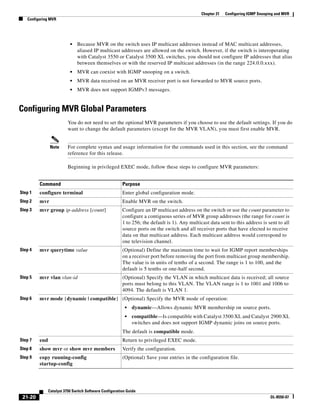
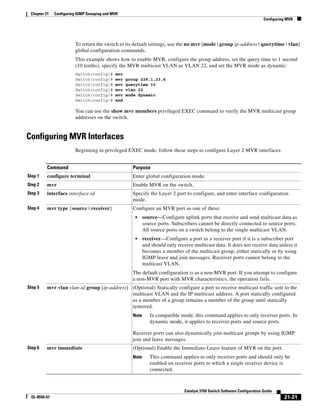
  • 395.
    16-9 Catalyst 3750 SwitchSoftware Configuration Guide OL-8550-07 Chapter 16 Configuring MSTP Understanding RSTP Port Roles and the Active Topology The RSTP provides rapid convergence of the spanning tree by assigning port roles and by learning the active topology. The RSTP builds upon the IEEE 802.1D STP to select the switch with the highest switch priority (lowest numerical priority value) as the root switch as described in the “Spanning-Tree Topology and BPDUs” section on page 15-3. Then the RSTP assigns one of these port roles to individual ports: • Root port—Provides the best path (lowest cost) when the switch forwards packets to the root switch. • Designated port—Connects to the designated switch, which incurs the lowest path cost when forwarding packets from that LAN to the root switch. The port through which the designated switch is attached to the LAN is called the designated port. • Alternate port—Offers an alternate path toward the root switch to that provided by the current root port. • Backup port—Acts as a backup for the path provided by a designated port toward the leaves of the spanning tree. A backup port can exist only when two ports are connected in a loopback by a point-to-point link or when a switch has two or more connections to a shared LAN segment. • Disabled port—Has no role within the operation of the spanning tree. A port with the root or a designated port role is included in the active topology. A port with the alternate or backup port role is excluded from the active topology. In a stable topology with consistent port roles throughout the network, the RSTP ensures that every root port and designated port immediately transition to the forwarding state while all alternate and backup ports are always in the discarding state (equivalent to blocking in IEEE 802.1D). The port state controls the operation of the forwarding and learning processes. Table 16-2 provides a comparison of IEEE 802.1D and RSTP port states. To be consistent with Cisco STP implementations, this guide defines the port state as blocking instead of discarding. Designated ports start in the listening state. Rapid Convergence The RSTP provides for rapid recovery of connectivity following the failure of a switch, a switch port, or a LAN. It provides rapid convergence for edge ports, new root ports, and ports connected through point-to-point links as follows: • Edge ports—If you configure a port as an edge port on an RSTP switch by using the spanning-tree portfast interface configuration command, the edge port immediately transitions to the forwarding state. An edge port is the same as a Port Fast-enabled port, and you should enable it only on ports that connect to a single end station. Table 16-2 Port State Comparison Operational Status STP Port State (IEEE 802.1D) RSTP Port State Is Port Included in the Active Topology? Enabled Blocking Discarding No Enabled Listening Discarding No Enabled Learning Learning Yes Enabled Forwarding Forwarding Yes Disabled Disabled Discarding No
  • 396.
    16-10 Catalyst 3750 SwitchSoftware Configuration Guide OL-8550-07 Chapter 16 Configuring MSTP Understanding RSTP • Root ports—If the RSTP selects a new root port, it blocks the old root port and immediately transitions the new root port to the forwarding state. • Point-to-point links—If you connect a port to another port through a point-to-point link and the local port becomes a designated port, it negotiates a rapid transition with the other port by using the proposal-agreement handshake to ensure a loop-free topology. As shown in Figure 16-4, Switch A is connected to Switch B through a point-to-point link, and all of the ports are in the blocking state. Assume that the priority of Switch A is a smaller numerical value than the priority of Switch B. Switch A sends a proposal message (a configuration BPDU with the proposal flag set) to Switch B, proposing itself as the designated switch. After receiving the proposal message, Switch B selects as its new root port the port from which the proposal message was received, forces all nonedge ports to the blocking state, and sends an agreement message (a BPDU with the agreement flag set) through its new root port. After receiving Switch B’s agreement message, Switch A also immediately transitions its designated port to the forwarding state. No loops in the network are formed because Switch B blocked all of its nonedge ports and because there is a point-to-point link between Switches A and B. When Switch C is connected to Switch B, a similar set of handshaking messages are exchanged. Switch C selects the port connected to Switch B as its root port, and both ends immediately transition to the forwarding state. With each iteration of this handshaking process, one more switch joins the active topology. As the network converges, this proposal-agreement handshaking progresses from the root toward the leaves of the spanning tree. The switch learns the link type from the port duplex mode: a full-duplex port is considered to have a point-to-point connection; a half-duplex port is considered to have a shared connection. You can override the default setting that is controlled by the duplex setting by using the spanning-tree link-type interface configuration command. Figure 16-4 Proposal and Agreement Handshaking for Rapid Convergence ProposalSwitch A Switch B FF RPDP FF RPDP FF RPDP FF RPDP Switch C 88760 AgreementRoot Designated switch Root Designated switch Proposal Root Designated switch Agreement DP = designated port RP = root port F = forwarding
  • 397.
    16-11 Catalyst 3750 SwitchSoftware Configuration Guide OL-8550-07 Chapter 16 Configuring MSTP Understanding RSTP Synchronization of Port Roles When the switch receives a proposal message on one of its ports and that port is selected as the new root port, the RSTP forces all other ports to synchronize with the new root information. The switch is synchronized with superior root information received on the root port if all other ports are synchronized. An individual port on the switch is synchronized if • That port is in the blocking state. • It is an edge port (a port configured to be at the edge of the network). If a designated port is in the forwarding state and is not configured as an edge port, it transitions to the blocking state when the RSTP forces it to synchronize with new root information. In general, when the RSTP forces a port to synchronize with root information and the port does not satisfy any of the above conditions, its port state is set to blocking. After ensuring that all of the ports are synchronized, the switch sends an agreement message to the designated switch corresponding to its root port. When the switches connected by a point-to-point link are in agreement about their port roles, the RSTP immediately transitions the port states to forwarding. The sequence of events is shown in Figure 16-5. Figure 16-5 Sequence of Events During Rapid Convergence 2. Block 9. Forward 1. Proposal4. Agreement 6. Proposal Root port Designated port 8. Agreement 10. Agreement Edge port 7. Proposal 5. Forward 3. Block 11. Forward 88761
  • 398.
    16-12 Catalyst 3750 SwitchSoftware Configuration Guide OL-8550-07 Chapter 16 Configuring MSTP Understanding RSTP Bridge Protocol Data Unit Format and Processing The RSTP BPDU format is the same as the IEEE 802.1D BPDU format except that the protocol version is set to 2. A new 1-byte Version 1 Length field is set to zero, which means that no version 1 protocol information is present. Table 16-3 shows the RSTP flag fields. The sending switch sets the proposal flag in the RSTP BPDU to propose itself as the designated switch on that LAN. The port role in the proposal message is always set to the designated port. The sending switch sets the agreement flag in the RSTP BPDU to accept the previous proposal. The port role in the agreement message is always set to the root port. The RSTP does not have a separate topology change notification (TCN) BPDU. It uses the topology change (TC) flag to show the topology changes. However, for interoperability with IEEE 802.1D switches, the RSTP switch processes and generates TCN BPDUs. The learning and forwarding flags are set according to the state of the sending port. Processing Superior BPDU Information If a port receives superior root information (lower switch ID, lower path cost, and so forth) than currently stored for the port, the RSTP triggers a reconfiguration. If the port is proposed and is selected as the new root port, RSTP forces all the other ports to synchronize. If the BPDU received is an RSTP BPDU with the proposal flag set, the switch sends an agreement message after all of the other ports are synchronized. If the BPDU is an IEEE 802.1D BPDU, the switch does not set the proposal flag and starts the forward-delay timer for the port. The new root port requires twice the forward-delay time to transition to the forwarding state. If the superior information received on the port causes the port to become a backup or alternate port, RSTP sets the port to the blocking state but does not send the agreement message. The designated port continues sending BPDUs with the proposal flag set until the forward-delay timer expires, at which time the port transitions to the forwarding state. Table 16-3 RSTP BPDU Flags Bit Function 0 Topology change (TC) 1 Proposal 2–3: 00 01 10 11 Port role: Unknown Alternate port Root port Designated port 4 Learning 5 Forwarding 6 Agreement 7 Topology change acknowledgement (TCA)
  • 399.
    16-13 Catalyst 3750 SwitchSoftware Configuration Guide OL-8550-07 Chapter 16 Configuring MSTP Configuring MSTP Features Processing Inferior BPDU Information If a designated port receives an inferior BPDU (higher switch ID, higher path cost, and so forth than currently stored for the port) with a designated port role, it immediately replies with its own information. Topology Changes This section describes the differences between the RSTP and the IEEE 802.1D in handling spanning-tree topology changes. • Detection—Unlike IEEE 802.1D in which any transition between the blocking and the forwarding state causes a topology change, only transitions from the blocking to the forwarding state cause a topology change with RSTP (only an increase in connectivity is considered a topology change). State changes on an edge port do not cause a topology change. When an RSTP switch detects a topology change, it deletes the learned information on all of its nonedge ports except on those from which it received the TC notification. • Notification—Unlike IEEE 802.1D, which uses TCN BPDUs, the RSTP does not use them. However, for IEEE 802.1D interoperability, an RSTP switch processes and generates TCN BPDUs. • Acknowledgement—When an RSTP switch receives a TCN message on a designated port from an IEEE 802.1D switch, it replies with an IEEE 802.1D configuration BPDU with the TCA bit set. However, if the TC-while timer (the same as the topology-change timer in IEEE 802.1D) is active on a root port connected to an IEEE 802.1D switch and a configuration BPDU with the TCA bit set is received, the TC-while timer is reset. This behavior is only required to support IEEE 802.1D switches. The RSTP BPDUs never have the TCA bit set. • Propagation—When an RSTP switch receives a TC message from another switch through a designated or root port, it propagates the change to all of its nonedge, designated ports and to the root port (excluding the port on which it is received). The switch starts the TC-while timer for all such ports and flushes the information learned on them. • Protocol migration—For backward compatibility with IEEE 802.1D switches, RSTP selectively sends IEEE 802.1D configuration BPDUs and TCN BPDUs on a per-port basis. When a port is initialized, the migrate-delay timer is started (specifies the minimum time during which RSTP BPDUs are sent), and RSTP BPDUs are sent. While this timer is active, the switch processes all BPDUs received on that port and ignores the protocol type. If the switch receives an IEEE 802.1D BPDU after the port migration-delay timer has expired, it assumes that it is connected to an IEEE 802.1D switch and starts using only IEEE 802.1D BPDUs. However, if the RSTP switch is using IEEE 802.1D BPDUs on a port and receives an RSTP BPDU after the timer has expired, it restarts the timer and starts using RSTP BPDUs on that port. Configuring MSTP Features These sections contain this configuration information: • Default MSTP Configuration, page 16-14 • MSTP Configuration Guidelines, page 16-14 • Specifying the MST Region Configuration and Enabling MSTP, page 16-15 (required) • Configuring the Root Switch, page 16-17 (optional)
  • 400.
    16-14 Catalyst 3750 SwitchSoftware Configuration Guide OL-8550-07 Chapter 16 Configuring MSTP Configuring MSTP Features • Configuring a Secondary Root Switch, page 16-18 (optional) • Configuring Port Priority, page 16-19 (optional) • Configuring Path Cost, page 16-20 (optional) • Configuring the Switch Priority, page 16-21 (optional) • Configuring the Hello Time, page 16-22 (optional) • Configuring the Forwarding-Delay Time, page 16-23 (optional) • Configuring the Maximum-Aging Time, page 16-23 (optional) • Configuring the Maximum-Hop Count, page 16-24 (optional) • Specifying the Link Type to Ensure Rapid Transitions, page 16-24 (optional) • Designating the Neighbor Type, page 16-25 (optional) • Restarting the Protocol Migration Process, page 16-25 (optional) Default MSTP Configuration Table 16-4 shows the default MSTP configuration. For information about the supported number of spanning-tree instances, see the “Supported Spanning-Tree Instances” section on page 15-9. MSTP Configuration Guidelines These are the configuration guidelines for MSTP: • When you enable MST by using the spanning-tree mode mst global configuration command, RSTP is automatically enabled. • For two or more switches to be in the same MST region, they must have the same VLAN-to-instance map, the same configuration revision number, and the same name. Table 16-4 Default MSTP Configuration Feature Default Setting Spanning-tree mode PVST+ (Rapid PVST+ and MSTP are disabled). Switch priority (configurable on a per-CIST port basis) 32768. Spanning-tree port priority (configurable on a per-CIST port basis) 128. Spanning-tree port cost (configurable on a per-CIST port basis) 1000 Mbps: 4. 100 Mbps: 19. 10 Mbps: 100. Hello time 2 seconds. Forward-delay time 15 seconds. Maximum-aging time 20 seconds. Maximum hop count 20 hops.
  • 401.
    16-15 Catalyst 3750 SwitchSoftware Configuration Guide OL-8550-07 Chapter 16 Configuring MSTP Configuring MSTP Features • The switch supports up to 65 MST instances. The number of VLANs that can be mapped to a particular MST instance is unlimited. • PVST+, rapid PVST+, and MSTP are supported, but only one version can be active at any time. (For example, all VLANs run PVST+, all VLANs run rapid PVST+, or all VLANs run MSTP.) For more information, see the “Spanning-Tree Interoperability and Backward Compatibility” section on page 15-10. For information on the recommended trunk port configuration, see the “Interaction with Other Features” section on page 12-16. • VTP propagation of the MST configuration is not supported. However, you can manually configure the MST configuration (region name, revision number, and VLAN-to-instance mapping) on each switch within the MST region by using the command-line interface (CLI) or through the SNMP support. • For load balancing across redundant paths in the network to work, all VLAN-to-instance mapping assignments must match; otherwise, all traffic flows on a single link. • All MST boundary ports must be forwarding for load balancing between a PVST+ and an MST cloud or between a rapid-PVST+ and an MST cloud. For this to occur, the IST master of the MST cloud should also be the root of the CST. If the MST cloud consists of multiple MST regions, one of the MST regions must contain the CST root, and all of the other MST regions must have a better path to the root contained within the MST cloud than a path through the PVST+ or rapid-PVST+ cloud. You might have to manually configure the switches in the clouds. • Partitioning the network into a large number of regions is not recommended. However, if this situation is unavoidable, we recommend that you partition the switched LAN into smaller LANs interconnected by routers or non-Layer 2 devices. • For configuration guidelines about UplinkFast and BackboneFast, see the “Optional Spanning-Tree Configuration Guidelines” section on page 17-10. Specifying the MST Region Configuration and Enabling MSTP For two or more switches to be in the same MST region, they must have the same VLAN-to-instance mapping, the same configuration revision number, and the same name. A region can have one member or multiple members with the same MST configuration; each member must be capable of processing RSTP BPDUs. There is no limit to the number of MST regions in a network, but each region can only support up to 65 spanning-tree instances. You can assign a VLAN to only one spanning-tree instance at a time. Beginning in privileged EXEC mode, follow these steps to specify the MST region configuration and enable MSTP. This procedure is required. Command Purpose Step 1 configure terminal Enter global configuration mode. Step 2 spanning-tree mst configuration Enter MST configuration mode.
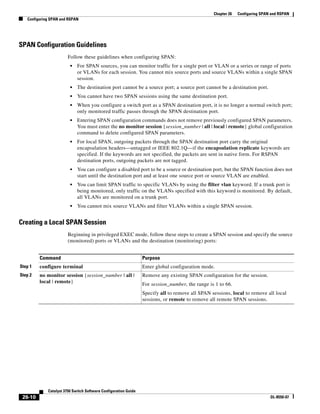
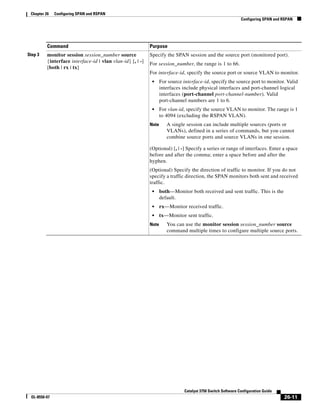
  • 402.
    16-16 Catalyst 3750 SwitchSoftware Configuration Guide OL-8550-07 Chapter 16 Configuring MSTP Configuring MSTP Features To return to the default MST region configuration, use the no spanning-tree mst configuration global configuration command. To return to the default VLAN-to-instance map, use the no instance instance-id [vlan vlan-range] MST configuration command. To return to the default name, use the no name MST configuration command. To return to the default revision number, use the no revision MST configuration command. To re-enable PVST+, use the no spanning-tree mode or the spanning-tree mode pvst global configuration command. This example shows how to enter MST configuration mode, map VLANs 10 to 20 to MST instance 1, name the region region1, set the configuration revision to 1, display the pending configuration, apply the changes, and return to global configuration mode: Switch(config)# spanning-tree mst configuration Switch(config-mst)# instance 1 vlan 10-20 Switch(config-mst)# name region1 Switch(config-mst)# revision 1 Switch(config-mst)# show pending Pending MST configuration Name [region1] Revision 1 Instance Vlans Mapped -------- --------------------- Step 3 instance instance-id vlan vlan-range Map VLANs to an MST instance. • For instance-id, the range is 0 to 4094. • For vlan vlan-range, the range is 1 to 4094. When you map VLANs to an MST instance, the mapping is incremental, and the VLANs specified in the command are added to or removed from the VLANs that were previously mapped. To specify a VLAN range, use a hyphen; for example, instance 1 vlan 1-63 maps VLANs 1 through 63 to MST instance 1. To specify a VLAN series, use a comma; for example, instance 1 vlan 10, 20, 30 maps VLANs 10, 20, and 30 to MST instance 1. Step 4 name name Specify the configuration name. The name string has a maximum length of 32 characters and is case sensitive. Step 5 revision version Specify the configuration revision number. The range is 0 to 65535. Step 6 show pending Verify your configuration by displaying the pending configuration. Step 7 exit Apply all changes, and return to global configuration mode. Step 8 spanning-tree mode mst Enable MSTP. RSTP is also enabled. Caution Changing spanning-tree modes can disrupt traffic because all spanning-tree instances are stopped for the previous mode and restarted in the new mode. You cannot run both MSTP and PVST+ or both MSTP and rapid PVST+ at the same time. Step 9 end Return to privileged EXEC mode. Step 10 show running-config Verify your entries. Step 11 copy running-config startup-config (Optional) Save your entries in the configuration file. Command Purpose
  • 403.
    16-17 Catalyst 3750 SwitchSoftware Configuration Guide OL-8550-07 Chapter 16 Configuring MSTP Configuring MSTP Features 0 1-9,21-4094 1 10-20 ------------------------------- Switch(config-mst)# exit Switch(config)# Configuring the Root Switch The switch maintains a spanning-tree instance for the group of VLANs mapped to it. A switch ID, consisting of the switch priority and the switch MAC address, is associated with each instance. For a group of VLANs, the switch with the lowest switch ID becomes the root switch. To configure a switch to become the root, use the spanning-tree mst instance-id root global configuration command to modify the switch priority from the default value (32768) to a significantly lower value so that the switch becomes the root switch for the specified spanning-tree instance. When you enter this command, the switch checks the switch priorities of the root switches. Because of the extended system ID support, the switch sets its own priority for the specified instance to 24576 if this value will cause this switch to become the root for the specified spanning-tree instance. If any root switch for the specified instance has a switch priority lower than 24576, the switch sets its own priority to 4096 less than the lowest switch priority. (4096 is the value of the least-significant bit of a 4-bit switch priority value as shown in Table 15-1 on page 15-4.) If your network consists of switches that both do and do not support the extended system ID, it is unlikely that the switch with the extended system ID support will become the root switch. The extended system ID increases the switch priority value every time the VLAN number is greater than the priority of the connected switches running older software. The root switch for each spanning-tree instance should be a backbone or distribution switch. Do not configure an access switch as the spanning-tree primary root. Use the diameter keyword, which is available only for MST instance 0, to specify the Layer 2 network diameter (that is, the maximum number of switch hops between any two end stations in the Layer 2 network). When you specify the network diameter, the switch automatically sets an optimal hello time, forward-delay time, and maximum-age time for a network of that diameter, which can significantly reduce the convergence time. You can use the hello keyword to override the automatically calculated hello time. Note After configuring the switch as the root switch, we recommend that you avoid manually configuring the hello time, forward-delay time, and maximum-age time through the spanning-tree mst hello-time, spanning-tree mst forward-time, and the spanning-tree mst max-age global configuration commands.
  • 404.
    16-18 Catalyst 3750 SwitchSoftware Configuration Guide OL-8550-07 Chapter 16 Configuring MSTP Configuring MSTP Features Beginning in privileged EXEC mode, follow these steps to configure a switch as the root switch. This procedure is optional. To return the switch to its default setting, use the no spanning-tree mst instance-id root global configuration command. Configuring a Secondary Root Switch When you configure a switch with the extended system ID support as the secondary root, the switch priority is modified from the default value (32768) to 28672. The switch is then likely to become the root switch for the specified instance if the primary root switch fails. This is assuming that the other network switches use the default switch priority of 32768 and therefore are unlikely to become the root switch. You can execute this command on more than one switch to configure multiple backup root switches. Use the same network diameter and hello-time values that you used when you configured the primary root switch with the spanning-tree mst instance-id root primary global configuration command. Command Purpose Step 1 configure terminal Enter global configuration mode. Step 2 spanning-tree mst instance-id root primary [diameter net-diameter [hello-time seconds]] Configure a switch as the root switch. • For instance-id, you can specify a single instance, a range of instances separated by a hyphen, or a series of instances separated by a comma. The range is 0 to 4094. • (Optional) For diameter net-diameter, specify the maximum number of switches between any two end stations. The range is 2 to 7. This keyword is available only for MST instance 0. • (Optional) For hello-time seconds, specify the interval in seconds between the generation of configuration messages by the root switch. The range is 1 to 10 seconds; the default is 2 seconds. Step 3 end Return to privileged EXEC mode. Step 4 show spanning-tree mst instance-id Verify your entries. Step 5 copy running-config startup-config (Optional) Save your entries in the configuration file.
  • 405.
    16-19 Catalyst 3750 SwitchSoftware Configuration Guide OL-8550-07 Chapter 16 Configuring MSTP Configuring MSTP Features Beginning in privileged EXEC mode, follow these steps to configure a switch as the secondary root switch. This procedure is optional. To return the switch to its default setting, use the no spanning-tree mst instance-id root global configuration command. Configuring Port Priority If a loop occurs, the MSTP uses the port priority when selecting an interface to put into the forwarding state. You can assign higher priority values (lower numerical values) to interfaces that you want selected first and lower priority values (higher numerical values) that you want selected last. If all interfaces have the same priority value, the MSTP puts the interface with the lowest interface number in the forwarding state and blocks the other interfaces. Beginning in privileged EXEC mode, follow these steps to configure the MSTP port priority of an interface. This procedure is optional. Command Purpose Step 1 configure terminal Enter global configuration mode. Step 2 spanning-tree mst instance-id root secondary [diameter net-diameter [hello-time seconds]] Configure a switch as the secondary root switch. • For instance-id, you can specify a single instance, a range of instances separated by a hyphen, or a series of instances separated by a comma. The range is 0 to 4094. • (Optional) For diameter net-diameter, specify the maximum number of switches between any two end stations. The range is 2 to 7. This keyword is available only for MST instance 0. • (Optional) For hello-time seconds, specify the interval in seconds between the generation of configuration messages by the root switch. The range is 1 to 10 seconds; the default is 2 seconds. Use the same network diameter and hello-time values that you used when configuring the primary root switch. See the “Configuring the Root Switch” section on page 16-17. Step 3 end Return to privileged EXEC mode. Step 4 show spanning-tree mst instance-id Verify your entries. Step 5 copy running-config startup-config (Optional) Save your entries in the configuration file. Command Purpose Step 1 configure terminal Enter global configuration mode. Step 2 interface interface-id Specify an interface to configure, and enter interface configuration mode. Valid interfaces include physical ports and port-channel logical interfaces. The port-channel range is 1 to 6.
  • 406.
    16-20 Catalyst 3750 SwitchSoftware Configuration Guide OL-8550-07 Chapter 16 Configuring MSTP Configuring MSTP Features Note The show spanning-tree mst interface interface-id privileged EXEC command displays information only if the port is in a link-up operative state. Otherwise, you can use the show running-config interface privileged EXEC command to confirm the configuration. To return the interface to its default setting, use the no spanning-tree mst instance-id port-priority interface configuration command. Configuring Path Cost The MSTP path cost default value is derived from the media speed of an interface. If a loop occurs, the MSTP uses cost when selecting an interface to put in the forwarding state. You can assign lower cost values to interfaces that you want selected first and higher cost values that you want selected last. If all interfaces have the same cost value, the MSTP puts the interface with the lowest interface number in the forwarding state and blocks the other interfaces. Beginning in privileged EXEC mode, follow these steps to configure the MSTP cost of an interface. This procedure is optional. Step 3 spanning-tree mst instance-id port-priority priority Configure the port priority. • For instance-id, you can specify a single instance, a range of instances separated by a hyphen, or a series of instances separated by a comma. The range is 0 to 4094. • For priority, the range is 0 to 240 in increments of 16. The default is 128. The lower the number, the higher the priority. The priority values are 0, 16, 32, 48, 64, 80, 96, 112, 128, 144, 160, 176, 192, 208, 224, and 240. All other values are rejected. Step 4 end Return to privileged EXEC mode. Step 5 show spanning-tree mst interface interface-id or show spanning-tree mst instance-id Verify your entries. Step 6 copy running-config startup-config (Optional) Save your entries in the configuration file. Command Purpose Command Purpose Step 1 configure terminal Enter global configuration mode. Step 2 interface interface-id Specify an interface to configure, and enter interface configuration mode. Valid interfaces include physical ports and port-channel logical interfaces. The port-channel range is 1 to 6.
  • 407.
    16-21 Catalyst 3750 SwitchSoftware Configuration Guide OL-8550-07 Chapter 16 Configuring MSTP Configuring MSTP Features Note The show spanning-tree mst interface interface-id privileged EXEC command displays information only for ports that are in a link-up operative state. Otherwise, you can use the show running-config privileged EXEC command to confirm the configuration. To return the interface to its default setting, use the no spanning-tree mst instance-id cost interface configuration command. Configuring the Switch Priority You can configure the switch priority and make it more likely that the switch will be chosen as the root switch. Note Exercise care when using this command. For most situations, we recommend that you use the spanning-tree mst instance-id root primary and the spanning-tree mst instance-id root secondary global configuration commands to modify the switch priority. Step 3 spanning-tree mst instance-id cost cost Configure the cost. If a loop occurs, the MSTP uses the path cost when selecting an interface to place into the forwarding state. A lower path cost represents higher-speed transmission. • For instance-id, you can specify a single instance, a range of instances separated by a hyphen, or a series of instances separated by a comma. The range is 0 to 4094. • For cost, the range is 1 to 200000000; the default value is derived from the media speed of the interface. Step 4 end Return to privileged EXEC mode. Step 5 show spanning-tree mst interface interface-id or show spanning-tree mst instance-id Verify your entries. Step 6 copy running-config startup-config (Optional) Save your entries in the configuration file. Command Purpose
  • 408.
    16-22 Catalyst 3750 SwitchSoftware Configuration Guide OL-8550-07 Chapter 16 Configuring MSTP Configuring MSTP Features Beginning in privileged EXEC mode, follow these steps to configure the switch priority. This procedure is optional. To return the switch to its default setting, use the no spanning-tree mst instance-id priority global configuration command. Configuring the Hello Time You can configure the interval between the generation of configuration messages by the root switch by changing the hello time. Beginning in privileged EXEC mode, follow these steps to configure the hello time for all MST instances. This procedure is optional. To return the switch to its default setting, use the no spanning-tree mst hello-time global configuration command. Command Purpose Step 1 configure terminal Enter global configuration mode. Step 2 spanning-tree mst instance-id priority priority Configure the switch priority. • For instance-id, you can specify a single instance, a range of instances separated by a hyphen, or a series of instances separated by a comma. The range is 0 to 4094. • For priority, the range is 0 to 61440 in increments of 4096; the default is 32768. The lower the number, the more likely the switch will be chosen as the root switch. Priority values are 0, 4096, 8192, 12288, 16384, 20480, 24576, 28672, 32768, 36864, 40960, 45056, 49152, 53248, 57344, and 61440. All other values are rejected. Step 3 end Return to privileged EXEC mode. Step 4 show spanning-tree mst instance-id Verify your entries. Step 5 copy running-config startup-config (Optional) Save your entries in the configuration file. Command Purpose Step 1 configure terminal Enter global configuration mode. Step 2 spanning-tree mst hello-time seconds Configure the hello time for all MST instances. The hello time is the interval between the generation of configuration messages by the root switch. These messages mean that the switch is alive. For seconds, the range is 1 to 10; the default is 2. Step 3 end Return to privileged EXEC mode. Step 4 show spanning-tree mst Verify your entries. Step 5 copy running-config startup-config (Optional) Save your entries in the configuration file.
  • 409.
    16-23 Catalyst 3750 SwitchSoftware Configuration Guide OL-8550-07 Chapter 16 Configuring MSTP Configuring MSTP Features Configuring the Forwarding-Delay Time Beginning in privileged EXEC mode, follow these steps to configure the forwarding-delay time for all MST instances. This procedure is optional. To return the switch to its default setting, use the no spanning-tree mst forward-time global configuration command. Configuring the Maximum-Aging Time Beginning in privileged EXEC mode, follow these steps to configure the maximum-aging time for all MST instances. This procedure is optional. To return the switch to its default setting, use the no spanning-tree mst max-age global configuration command. Command Purpose Step 1 configure terminal Enter global configuration mode. Step 2 spanning-tree mst forward-time seconds Configure the forward time for all MST instances. The forward delay is the number of seconds a port waits before changing from its spanning-tree learning and listening states to the forwarding state. For seconds, the range is 4 to 30; the default is 15. Step 3 end Return to privileged EXEC mode. Step 4 show spanning-tree mst Verify your entries. Step 5 copy running-config startup-config (Optional) Save your entries in the configuration file. Command Purpose Step 1 configure terminal Enter global configuration mode. Step 2 spanning-tree mst max-age seconds Configure the maximum-aging time for all MST instances. The maximum-aging time is the number of seconds a switch waits without receiving spanning-tree configuration messages before attempting a reconfiguration. For seconds, the range is 6 to 40; the default is 20. Step 3 end Return to privileged EXEC mode. Step 4 show spanning-tree mst Verify your entries. Step 5 copy running-config startup-config (Optional) Save your entries in the configuration file.
  • 410.
    16-24 Catalyst 3750 SwitchSoftware Configuration Guide OL-8550-07 Chapter 16 Configuring MSTP Configuring MSTP Features Configuring the Maximum-Hop Count Beginning in privileged EXEC mode, follow these steps to configure the maximum-hop count for all MST instances. This procedure is optional. To return the switch to its default setting, use the no spanning-tree mst max-hops global configuration command. Specifying the Link Type to Ensure Rapid Transitions If you connect a port to another port through a point-to-point link and the local port becomes a designated port, the RSTP negotiates a rapid transition with the other port by using the proposal-agreement handshake to ensure a loop-free topology as described in the “Rapid Convergence” section on page 16-9. By default, the link type is controlled from the duplex mode of the interface: a full-duplex port is considered to have a point-to-point connection; a half-duplex port is considered to have a shared connection. If you have a half-duplex link physically connected point-to-point to a single port on a remote switch running MSTP, you can override the default setting of the link type and enable rapid transitions to the forwarding state. Beginning in privileged EXEC mode, follow these steps to override the default link-type setting. This procedure is optional. To return the port to its default setting, use the no spanning-tree link-type interface configuration command. Command Purpose Step 1 configure terminal Enter global configuration mode. Step 2 spanning-tree mst max-hops hop-count Specify the number of hops in a region before the BPDU is discarded, and the information held for a port is aged. For hop-count, the range is 1 to 255; the default is 20. Step 3 end Return to privileged EXEC mode. Step 4 show spanning-tree mst Verify your entries. Step 5 copy running-config startup-config (Optional) Save your entries in the configuration file. Command Purpose Step 1 configure terminal Enter global configuration mode. Step 2 interface interface-id Specify an interface to configure, and enter interface configuration mode. Valid interfaces include physical ports, VLANs, and port-channel logical interfaces. The VLAN ID range is 1 to 4094. The port-channel range is 1 to 6. Step 3 spanning-tree link-type point-to-point Specify that the link type of a port is point-to-point. Step 4 end Return to privileged EXEC mode. Step 5 show spanning-tree mst interface interface-id Verify your entries. Step 6 copy running-config startup-config (Optional) Save your entries in the configuration file.
  • 411.
    16-25 Catalyst 3750 SwitchSoftware Configuration Guide OL-8550-07 Chapter 16 Configuring MSTP Configuring MSTP Features Designating the Neighbor Type A topology could contain both prestandard and IEEE 802.1s standard compliant devices. By default, ports can automatically detect prestandard devices, but they can still receive both standard and prestandard BPDUs. When there is a mismatch between a device and its neighbor, only the CIST runs on the interface. You can choose to set a port to send only prestandard BPDUs. The prestandard flag appears in all the show commands, even if the port is in STP compatibility mode. Beginning in privileged EXEC mode, follow these steps to override the default link-type setting. This procedure is optional. To return the port to its default setting, use the no spanning-tree mst prestandard interface configuration command. Restarting the Protocol Migration Process A switch running MSTP supports a built-in protocol migration mechanism that enables it to interoperate with legacy IEEE 802.1D switches. If this switch receives a legacy IEEE 802.1D configuration BPDU (a BPDU with the protocol version set to 0), it sends only IEEE 802.1D BPDUs on that port. An MSTP switch also can detect that a port is at the boundary of a region when it receives a legacy BPDU, an MST BPDU (Version 3) associated with a different region, or an RST BPDU (Version 2). However, the switch does not automatically revert to the MSTP mode if it no longer receives IEEE 802.1D BPDUs because it cannot detect whether the legacy switch has been removed from the link unless the legacy switch is the designated switch. A switch also might continue to assign a boundary role to a port when the switch to which it is connected has joined the region. To restart the protocol migration process (force the renegotiation with neighboring switches) on the switch, use the clear spanning-tree detected-protocols privileged EXEC command. To restart the protocol migration process on a specific interface, use the clear spanning-tree detected-protocols interface interface-id privileged EXEC command. Command Purpose Step 1 configure terminal Enter global configuration mode. Step 2 interface interface-id Specify an interface to configure, and enter interface configuration mode. Valid interfaces include physical ports. Step 3 spanning-tree mst pre-standard Specify that the port can send only prestandard BPDUs. Step 4 end Return to privileged EXEC mode. Step 5 show spanning-tree mst interface interface-id Verify your entries. Step 6 copy running-config startup-config (Optional) Save your entries in the configuration file.
  • 412.
    16-26 Catalyst 3750 SwitchSoftware Configuration Guide OL-8550-07 Chapter 16 Configuring MSTP Displaying the MST Configuration and Status Displaying the MST Configuration and Status To display the spanning-tree status, use one or more of the privileged EXEC commands in Table 16-5: For information about other keywords for the show spanning-tree privileged EXEC command, see the command reference for this release. Table 16-5 Commands for Displaying MST Status Command Purpose show spanning-tree mst configuration Displays the MST region configuration. show spanning-tree mst configuration digest Displays the MD5 digest included in the current MSTCI. show spanning-tree mst instance-id Displays MST information for the specified instance. show spanning-tree mst interface interface-id Displays MST information for the specified interface.
  • 413.
    C H AP T E R 17-1 Catalyst 3750 Switch Software Configuration Guide OL-8550-07 17 Configuring Optional Spanning-Tree Features This chapter describes how to configure optional spanning-tree features on the Catalyst 2960 switch. You can configure all of these features when your switch is running the per-VLAN spanning-tree plus (PVST+). You can configure only the noted features when your switch is running the Multiple Spanning Tree Protocol (MSTP) or the rapid per-VLAN spanning-tree plus (rapid-PVST+) protocol. For information on configuring the PVST+ and rapid PVST+, see Chapter 15, “Configuring STP.” For information about the Multiple Spanning Tree Protocol (MSTP) and how to map multiple VLANs to the same spanning-tree instance, see Chapter 16, “Configuring MSTP.” Note For complete syntax and usage information for the commands used in this chapter, see the command reference for this release. This chapter consists of these sections: • Understanding Optional Spanning-Tree Features, page 17-1 • Configuring Optional Spanning-Tree Features, page 17-9 • Displaying the Spanning-Tree Status, page 17-16 Understanding Optional Spanning-Tree Features These sections contain this conceptual information: • Understanding Port Fast, page 17-2 • Understanding BPDU Guard, page 17-2 • Understanding BPDU Filtering, page 17-3 • Understanding UplinkFast, page 17-3 • Understanding BackboneFast, page 17-5 • Understanding EtherChannel Guard, page 17-7 • Understanding Root Guard, page 17-8 • Understanding Loop Guard, page 17-9
  • 414.
    17-2 Catalyst 3750 SwitchSoftware Configuration Guide OL-8550-07 Chapter 17 Configuring Optional Spanning-Tree Features Understanding Optional Spanning-Tree Features Understanding Port Fast Port Fast immediately brings an interface configured as an access or trunk port to the forwarding state from a blocking state, bypassing the listening and learning states. You can use Port Fast on interfaces connected to a single workstation or server, as shown in Figure 17-1, to allow those devices to immediately connect to the network, rather than waiting for the spanning tree to converge. Interfaces connected to a single workstation or server should not receive bridge protocol data units (BPDUs). An interface with Port Fast enabled goes through the normal cycle of spanning-tree status changes when the switch is restarted. Note Because the purpose of Port Fast is to minimize the time interfaces must wait for spanning-tree to converge, it is effective only when used on interfaces connected to end stations. If you enable Port Fast on an interface connecting to another switch, you risk creating a spanning-tree loop. You can enable this feature by using the spanning-tree portfast interface configuration or the spanning-tree portfast default global configuration command. Figure 17-1 Port Fast-Enabled Interfaces Understanding BPDU Guard The BPDU guard feature can be globally enabled on the switch or can be enabled per port, but the feature operates with some differences. At the global level, you enable BPDU guard on Port Fast-enabled ports by using the spanning-tree portfast bpduguard default global configuration command. Spanning tree shuts down ports that are in a Port Fast-operational state if any BPDU is received on them. In a valid configuration, Port Fast-enabled ports do not receive BPDUs. Receiving a BPDU on a Port Fast-enabled port means an invalid configuration, such as the connection of an unauthorized device, and the BPDU guard feature puts the port in the error-disabled state. When this happens, the switch shuts down the entire port on which the violation occurred. To prevent the port from shutting down, you can use the errdisable detect cause bpduguard shutdown vlan global configuration command to shut down just the offending VLAN on the port where the violation occurred. WorkstationsWorkstations Server Port Fast-enabled portPort Fast-enabled ports 101225
  • 415.
    17-3 Catalyst 3750 SwitchSoftware Configuration Guide OL-8550-07 Chapter 17 Configuring Optional Spanning-Tree Features Understanding Optional Spanning-Tree Features At the interface level, you enable BPDU guard on any port by using the spanning-tree bpduguard enable interface configuration command without also enabling the Port Fast feature. When the port receives a BPDU, it is put in the error-disabled state. The BPDU guard feature provides a secure response to invalid configurations because you must manually put the interface back in service. Use the BPDU guard feature in a service-provider network to prevent an access port from participating in the spanning tree. Understanding BPDU Filtering The BPDU filtering feature can be globally enabled on the switch or can be enabled per interface, but the feature operates with some differences. At the global level, you can enable BPDU filtering on Port Fast-enabled interfaces by using the spanning-tree portfast bpdufilter default global configuration command. This command prevents interfaces that are in a Port Fast-operational state from sending or receiving BPDUs. The interfaces still send a few BPDUs at link-up before the switch begins to filter outbound BPDUs. You should globally enable BPDU filtering on a switch so that hosts connected to these interfaces do not receive BPDUs. If a BPDU is received on a Port Fast-enabled interface, the interface loses its Port Fast-operational status, and BPDU filtering is disabled. At the interface level, you can enable BPDU filtering on any interface by using the spanning-tree bpdufilter enable interface configuration command without also enabling the Port Fast feature. This command prevents the interface from sending or receiving BPDUs. Caution Enabling BPDU filtering on an interface is the same as disabling spanning tree on it and can result in spanning-tree loops. You can enable the BPDU filtering feature for the entire switch or for an interface. Understanding UplinkFast Switches in hierarchical networks can be grouped into backbone switches, distribution switches, and access switches. Figure 17-2 shows a complex network where distribution switches and access switches each have at least one redundant link that spanning tree blocks to prevent loops.
  • 416.
    17-4 Catalyst 3750 SwitchSoftware Configuration Guide OL-8550-07 Chapter 17 Configuring Optional Spanning-Tree Features Understanding Optional Spanning-Tree Features Figure 17-2 Switches in a Hierarchical Network If a switch loses connectivity, it begins using the alternate paths as soon as the spanning tree selects a new root port. By enabling UplinkFast with the spanning-tree uplinkfast global configuration command, you can accelerate the choice of a new root port when a link or switch fails or when the spanning tree reconfigures itself. The root port transitions to the forwarding state immediately without going through the listening and learning states, as it would with the normal spanning-tree procedures. When the spanning tree reconfigures the new root port, other interfaces flood the network with multicast packets, one for each address that was learned on the interface. You can limit these bursts of multicast traffic by reducing the max-update-rate parameter (the default for this parameter is 150 packets per second). However, if you enter zero, station-learning frames are not generated, so the spanning-tree topology converges more slowly after a loss of connectivity. Note UplinkFast is most useful in wiring-closet switches at the access or edge of the network. It is not appropriate for backbone devices. This feature might not be useful for other types of applications. UplinkFast provides fast convergence after a direct link failure and achieves load balancing between redundant Layer 2 links using uplink groups. An uplink group is a set of Layer 2 interfaces (per VLAN), only one of which is forwarding at any given time. Specifically, an uplink group consists of the root port (which is forwarding) and a set of blocked ports, except for self-looping ports. The uplink group provides an alternate path in case the currently forwarding link fails. Figure 17-3 shows an example topology with no link failures. Switch A, the root switch, is connected directly to Switch B over link L1 and to Switch C over link L2. The Layer 2 interface on Switch C that is connected directly to Switch B is in a blocking state. 101231 Active link Blocked link Root bridge Backbone switches Distribution switches Access switches
  • 417.
    17-5 Catalyst 3750 SwitchSoftware Configuration Guide OL-8550-07 Chapter 17 Configuring Optional Spanning-Tree Features Understanding Optional Spanning-Tree Features Figure 17-3 UplinkFast Example Before Direct Link Failure If Switch C detects a link failure on the currently active link L2 on the root port (a direct link failure), UplinkFast unblocks the blocked interface on Switch C and transitions it to the forwarding state without going through the listening and learning states, as shown in Figure 17-4. This change takes approximately 1 to 5 seconds. Figure 17-4 UplinkFast Example After Direct Link Failure Understanding BackboneFast BackboneFast detects indirect failures in the core of the backbone. BackboneFast is a complementary technology to the UplinkFast feature, which responds to failures on links directly connected to access switches. BackboneFast optimizes the maximum-age timer, which controls the amount of time the switch stores protocol information received on an interface. When a switch receives an inferior BPDU from the designated port of another switch, the BPDU is a signal that the other switch might have lost its path to the root, and BackboneFast tries to find an alternate path to the root. BackboneFast, which is enabled by using the spanning-tree backbonefast global configuration command, starts when a root port or blocked interface on a switch receives inferior BPDUs from its designated switch. An inferior BPDU identifies a switch that declares itself as both the root bridge and the designated switch. When a switch receives an inferior BPDU, it means that a link to which the switch is not directly connected (an indirect link) has failed (that is, the designated switch has lost its connection to the root switch). Under spanning-tree rules, the switch ignores inferior BPDUs for the configured maximum aging time specified by the spanning-tree vlan vlan-id max-age global configuration command. L1 L2 L3 Switch C Switch A (Root) Switch B Blocked port 43575 L1 L2 L3 Switch C Switch A (Root) Switch B UplinkFast transitions port directly to forwarding state. Link failure 43576
  • 418.
    17-6 Catalyst 3750 SwitchSoftware Configuration Guide OL-8550-07 Chapter 17 Configuring Optional Spanning-Tree Features Understanding Optional Spanning-Tree Features The switch tries to find if it has an alternate path to the root switch. If the inferior BPDU arrives on a blocked interface, the root port and other blocked interfaces on the switch become alternate paths to the root switch. (Self-looped ports are not considered alternate paths to the root switch.) If the inferior BPDU arrives on the root port, all blocked interfaces become alternate paths to the root switch. If the inferior BPDU arrives on the root port and there are no blocked interfaces, the switch assumes that it has lost connectivity to the root switch, causes the maximum aging time on the root port to expire, and becomes the root switch according to normal spanning-tree rules. If the switch has alternate paths to the root switch, it uses these alternate paths to send a root link query (RLQ) request. The switch sends the RLQ request on all alternate paths and waits for an RLQ reply from other switches in the network. If the switch discovers that it still has an alternate path to the root, it expires the maximum aging time on the interface that received the inferior BPDU. If all the alternate paths to the root switch indicate that the switch has lost connectivity to the root switch, the switch expires the maximum aging time on the interface that received the RLQ reply. If one or more alternate paths can still connect to the root switch, the switch makes all interfaces on which it received an inferior BPDU its designated ports and moves them from the blocking state (if they were in the blocking state), through the listening and learning states, and into the forwarding state. Figure 17-5 shows an example topology with no link failures. Switch A, the root switch, connects directly to Switch B over link L1 and to Switch C over link L2. The Layer 2 interface on Switch C that connects directly to Switch B is in the blocking state. Figure 17-5 BackboneFast Example Before Indirect Link Failure If link L1 fails as shown in Figure 17-6, Switch C cannot detect this failure because it is not connected directly to link L1. However, because Switch B is directly connected to the root switch over L1, it detects the failure, elects itself the root, and begins sending BPDUs to Switch C, identifying itself as the root. When Switch C receives the inferior BPDUs from Switch B, Switch C assumes that an indirect failure has occurred. At that point, BackboneFast allows the blocked interface on Switch C to move immediately to the listening state without waiting for the maximum aging time for the interface to expire. BackboneFast then transitions the Layer 2 interface on Switch C to the forwarding state, providing a path from Switch B to Switch A. The root-switch election takes approximately 30 seconds, twice the Forward Delay time if the default Forward Delay time of 15 seconds is set. Figure 17-6 shows how BackboneFast reconfigures the topology to account for the failure of link L1. L1 L2 L3 Switch C Switch A (Root) Switch B Blocked port 44963
  • 419.
    17-7 Catalyst 3750 SwitchSoftware Configuration Guide OL-8550-07 Chapter 17 Configuring Optional Spanning-Tree Features Understanding Optional Spanning-Tree Features Figure 17-6 BackboneFast Example After Indirect Link Failure If a new switch is introduced into a shared-medium topology as shown in Figure 17-7, BackboneFast is not activated because the inferior BPDUs did not come from the recognized designated switch (Switch B). The new switch begins sending inferior BPDUs that indicate it is the root switch. However, the other switches ignore these inferior BPDUs, and the new switch learns that Switch B is the designated switch to Switch A, the root switch. Figure 17-7 Adding a Switch in a Shared-Medium Topology Understanding EtherChannel Guard You can use EtherChannel guard to detect an EtherChannel misconfiguration between the switch and a connected device. A misconfiguration can occur if the switch interfaces are configured in an EtherChannel, but the interfaces on the other device are not. A misconfiguration can also occur if the channel parameters are not the same at both ends of the EtherChannel. For EtherChannel configuration guidelines, see the “EtherChannel Configuration Guidelines” section on page 35-9. If the switch detects a misconfiguration on the other device, EtherChannel guard places the switch interfaces in the error-disabled state, and displays an error message. You can enable this feature by using the spanning-tree etherchannel guard misconfig global configuration command. L1 L2 L3 Switch C Switch A (Root) Switch B Link failure 44964 BackboneFast changes port through listening and learning states to forwarding state. Switch A (Root) Switch C Switch B (Designated bridge) Added switch 44965 Blocked port
  • 420.
    17-8 Catalyst 3750 SwitchSoftware Configuration Guide OL-8550-07 Chapter 17 Configuring Optional Spanning-Tree Features Understanding Optional Spanning-Tree Features Understanding Root Guard The Layer 2 network of a service provider (SP) can include many connections to switches that are not owned by the SP. In such a topology, the spanning tree can reconfigure itself and select a customer switch as the root switch, as shown in Figure 17-8. You can avoid this situation by enabling root guard on SP switch interfaces that connect to switches in your customer’s network. If spanning-tree calculations cause an interface in the customer network to be selected as the root port, root guard then places the interface in the root-inconsistent (blocked) state to prevent the customer’s switch from becoming the root switch or being in the path to the root. If a switch outside the SP network becomes the root switch, the interface is blocked (root-inconsistent state), and spanning tree selects a new root switch. The customer’s switch does not become the root switch and is not in the path to the root. If the switch is operating in multiple spanning-tree (MST) mode, root guard forces the interface to be a designated port. If a boundary port is blocked in an internal spanning-tree (IST) instance because of root guard, the interface also is blocked in all MST instances. A boundary port is an interface that connects to a LAN, the designated switch of which is either an IEEE 802.1D switch or a switch with a different MST region configuration. Root guard enabled on an interface applies to all the VLANs to which the interface belongs. VLANs can be grouped and mapped to an MST instance. You can enable this feature by using the spanning-tree guard root interface configuration command. Caution Misuse of the root-guard feature can cause a loss of connectivity. Figure 17-8 Root Guard in a Service-Provider Network 101232 Desired root switch Customer network Potential spanning-tree root without root guard enabled Enable the root-guard feature on these interfaces to prevent switches in the customer network from becoming the root switch or being in the path to the root. Service-provider network
  • 421.
    17-9 Catalyst 3750 SwitchSoftware Configuration Guide OL-8550-07 Chapter 17 Configuring Optional Spanning-Tree Features Configuring Optional Spanning-Tree Features Understanding Loop Guard You can use loop guard to prevent alternate or root ports from becoming designated ports because of a failure that leads to a unidirectional link. This feature is most effective when it is enabled on the entire switched network. Loop guard prevents alternate and root ports from becoming designated ports, and spanning tree does not send BPDUs on root or alternate ports. You can enable this feature by using the spanning-tree loopguard default global configuration command. When the switch is operating in PVST+ or rapid-PVST+ mode, loop guard prevents alternate and root ports from becoming designated ports, and spanning tree does not send BPDUs on root or alternate ports. When the switch is operating in MST mode, BPDUs are not sent on nonboundary ports only if the interface is blocked by loop guard in all MST instances. On a boundary port, loop guard blocks the interface in all MST instances. Configuring Optional Spanning-Tree Features These sections contain this configuration information: • Default Optional Spanning-Tree Configuration, page 17-9 • Optional Spanning-Tree Configuration Guidelines, page 17-10 • Enabling Port Fast, page 17-10 (optional) • Enabling BPDU Guard, page 17-11 (optional) • Enabling BPDU Filtering, page 17-12 (optional) • Enabling UplinkFast for Use with Redundant Links, page 17-13 (optional) • Enabling BackboneFast, page 17-13 (optional) • Enabling EtherChannel Guard, page 17-14 (optional) • Enabling Root Guard, page 17-15 (optional) • Enabling Loop Guard, page 17-15 (optional) Default Optional Spanning-Tree Configuration Table 17-1 shows the default optional spanning-tree configuration. Table 17-1 Default Optional Spanning-Tree Configuration Feature Default Setting Port Fast, BPDU filtering, BPDU guard Globally disabled (unless they are individually configured per interface). UplinkFast Globally disabled. BackboneFast Globally disabled. EtherChannel guard Globally enabled. Root guard Disabled on all interfaces. Loop guard Disabled on all interfaces.
  • 422.
    17-10 Catalyst 3750 SwitchSoftware Configuration Guide OL-8550-07 Chapter 17 Configuring Optional Spanning-Tree Features Configuring Optional Spanning-Tree Features Optional Spanning-Tree Configuration Guidelines You can configure PortFast, BPDU guard, BPDU filtering, EtherChannel guard, root guard, or loop guard if your switch is running PVST+, rapid PVST+, or MSTP. You can configure the UplinkFast or the BackboneFast feature for rapid PVST+ or for the MSTP, but the feature remains disabled (inactive) until you change the spanning-tree mode to PVST+. Enabling Port Fast An interface with the Port Fast feature enabled is moved directly to the spanning-tree forwarding state without waiting for the standard forward-time delay. Caution Use Port Fast only when connecting a single end station to an access or trunk port. Enabling this feature on an interface connected to a switch or hub could prevent spanning tree from detecting and disabling loops in your network, which could cause broadcast storms and address-learning problems. If you enable the voice VLAN feature, the Port Fast feature is automatically enabled. When you disable voice VLAN, the Port Fast feature is not automatically disabled. For more information, see Chapter 14, “Configuring Voice VLAN.” You can enable this feature if your switch is running PVST+, rapid PVST+, or MSTP. Beginning in privileged EXEC mode, follow these steps to enable Port Fast. This procedure is optional. Command Purpose Step 1 configure terminal Enter global configuration mode. Step 2 interface interface-id Specify an interface to configure, and enter interface configuration mode. Step 3 spanning-tree portfast [trunk] Enable Port Fast on an access port connected to a single workstation or server. By specifying the trunk keyword, you can enable Port Fast on a trunk port. Note To enable Port Fast on trunk ports, you must use the spanning-tree portfast trunk interface configuration command. The spanning-tree portfast command will not work on trunk ports. Caution Make sure that there are no loops in the network between the trunk port and the workstation or server before you enable Port Fast on a trunk port. By default, Port Fast is disabled on all interfaces. Step 4 end Return to privileged EXEC mode. Step 5 show spanning-tree interface interface-id portfast Verify your entries. Step 6 copy running-config startup-config (Optional) Save your entries in the configuration file.
  • 423.
    17-11 Catalyst 3750 SwitchSoftware Configuration Guide OL-8550-07 Chapter 17 Configuring Optional Spanning-Tree Features Configuring Optional Spanning-Tree Features Note You can use the spanning-tree portfast default global configuration command to globally enable the Port Fast feature on all nontrunking ports. To disable the Port Fast feature, use the spanning-tree portfast disable interface configuration command. Enabling BPDU Guard When you globally enable BPDU guard on ports that are Port Fast-enabled (the ports are in a Port Fast-operational state), spanning tree continues to run on the ports. They remain up unless they receive a BPDU. In a valid configuration, Port Fast-enabled ports do not receive BPDUs. Receiving a BPDU on a Port Fast-enabled port means an invalid configuration, such as the connection of an unauthorized device, and the BPDU guard feature puts the port in the error-disabled state. When this happens, the switch shuts down the entire port on which the violation occurred. To prevent the port from shutting down, you can use the errdisable detect cause bpduguard shutdown vlan global configuration command to shut down just the offending VLAN on the port where the violation occurred. The BPDU guard feature provides a secure response to invalid configurations because you must manually put the port back in service. Use the BPDU guard feature in a service-provider network to prevent an access port from participating in the spanning tree. Caution Configure Port Fast only on ports that connect to end stations; otherwise, an accidental topology loop could cause a data packet loop and disrupt switch and network operation. You also can use the spanning-tree bpduguard enable interface configuration command to enable BPDU guard on any port without also enabling the Port Fast feature. When the port receives a BPDU, it is put it in the error-disabled state. You can enable the BPDU guard feature if your switch is running PVST+, rapid PVST+, or MSTP. Beginning in privileged EXEC mode, follow these steps to globally enable the BPDU guard feature. This procedure is optional. Command Purpose Step 1 configure terminal Enter global configuration mode. Step 2 spanning-tree portfast bpduguard default Globally enable BPDU guard. By default, BPDU guard is disabled. Step 3 interface interface-id Specify the interface connected to an end station, and enter interface configuration mode. Step 4 spanning-tree portfast Enable the Port Fast feature. Step 5 end Return to privileged EXEC mode. Step 6 show running-config Verify your entries. Step 7 copy running-config startup-config (Optional) Save your entries in the configuration file.
  • 424.
    17-12 Catalyst 3750 SwitchSoftware Configuration Guide OL-8550-07 Chapter 17 Configuring Optional Spanning-Tree Features Configuring Optional Spanning-Tree Features To disable BPDU guard, use the no spanning-tree portfast bpduguard default global configuration command. You can override the setting of the no spanning-tree portfast bpduguard default global configuration command by using the spanning-tree bpduguard enable interface configuration command. Enabling BPDU Filtering When you globally enable BPDU filtering on Port Fast-enabled interfaces, it prevents interfaces that are in a Port Fast-operational state from sending or receiving BPDUs. The interfaces still send a few BPDUs at link-up before the switch begins to filter outbound BPDUs. You should globally enable BPDU filtering on a switch so that hosts connected to these interfaces do not receive BPDUs. If a BPDU is received on a Port Fast-enabled interface, the interface loses its Port Fast-operational status, and BPDU filtering is disabled. Caution Configure Port Fast only on interfaces that connect to end stations; otherwise, an accidental topology loop could cause a data packet loop and disrupt switch and network operation. You can also use the spanning-tree bpdufilter enable interface configuration command to enable BPDU filtering on any interface without also enabling the Port Fast feature. This command prevents the interface from sending or receiving BPDUs. Caution Enabling BPDU filtering on an interface is the same as disabling spanning tree on it and can result in spanning-tree loops. You can enable the BPDU filtering feature if your switch is running PVST+, rapid PVST+, or MSTP. Beginning in privileged EXEC mode, follow these steps to globally enable the BPDU filtering feature. This procedure is optional. To disable BPDU filtering, use the no spanning-tree portfast bpdufilter default global configuration command. You can override the setting of the no spanning-tree portfast bpdufilter default global configuration command by using the spanning-tree bpdufilter enable interface configuration command. Command Purpose Step 1 configure terminal Enter global configuration mode. Step 2 spanning-tree portfast bpdufilter default Globally enable BPDU filtering. By default, BPDU filtering is disabled. Step 3 interface interface-id Specify the interface connected to an end station, and enter interface configuration mode. Step 4 spanning-tree portfast Enable the Port Fast feature. Step 5 end Return to privileged EXEC mode. Step 6 show running-config Verify your entries. Step 7 copy running-config startup-config (Optional) Save your entries in the configuration file.
  • 425.
    17-13 Catalyst 3750 SwitchSoftware Configuration Guide OL-8550-07 Chapter 17 Configuring Optional Spanning-Tree Features Configuring Optional Spanning-Tree Features Enabling UplinkFast for Use with Redundant Links UplinkFast cannot be enabled on VLANs that have been configured with a switch priority. To enable UplinkFast on a VLAN with switch priority configured, first restore the switch priority on the VLAN to the default value by using the no spanning-tree vlan vlan-id priority global configuration command. Note When you enable UplinkFast, it affects all VLANs on the switch. You cannot configure UplinkFast on an individual VLAN. You can configure the UplinkFast feature for rapid PVST+ or for the MSTP, but the feature remains disabled (inactive) until you change the spanning-tree mode to PVST+. Beginning in privileged EXEC mode, follow these steps to enable UplinkFast. This procedure is optional. When UplinkFast is enabled, the switch priority of all VLANs is set to 49152. If you change the path cost to a value less than 3000 and you enable UplinkFast or UplinkFast is already enabled, the path cost of all interfaces and VLAN trunks is increased by 3000 (if you change the path cost to 3000 or above, the path cost is not altered). The changes to the switch priority and the path cost reduce the chance that a switch will become the root switch. When UplinkFast is disabled, the switch priorities of all VLANs and path costs of all interfaces are set to default values if you did not modify them from their defaults. To return the update packet rate to the default setting, use the no spanning-tree uplinkfast max-update-rate global configuration command. To disable UplinkFast, use the no spanning-tree uplinkfast command. Enabling BackboneFast You can enable BackboneFast to detect indirect link failures and to start the spanning-tree reconfiguration sooner. Note If you use BackboneFast, you must enable it on all switches in the network. BackboneFast is not supported on Token Ring VLANs. This feature is supported for use with third-party switches. Command Purpose Step 1 configure terminal Enter global configuration mode. Step 2 spanning-tree uplinkfast [max-update-rate pkts-per-second] Enable UplinkFast. (Optional) For pkts-per-second, the range is 0 to 32000 packets per second; the default is 150. If you set the rate to 0, station-learning frames are not generated, and the spanning-tree topology converges more slowly after a loss of connectivity. Step 3 end Return to privileged EXEC mode. Step 4 show spanning-tree summary Verify your entries. Step 5 copy running-config startup-config (Optional) Save your entries in the configuration file.
  • 426.
    17-14 Catalyst 3750 SwitchSoftware Configuration Guide OL-8550-07 Chapter 17 Configuring Optional Spanning-Tree Features Configuring Optional Spanning-Tree Features You can configure the BackboneFast feature for rapid PVST+ or for the MSTP, but the feature remains disabled (inactive) until you change the spanning-tree mode to PVST+. Beginning in privileged EXEC mode, follow these steps to enable BackboneFast. This procedure is optional. To disable the BackboneFast feature, use the no spanning-tree backbonefast global configuration command. Enabling EtherChannel Guard You can enable EtherChannel guard to detect an EtherChannel misconfiguration if your switch is running PVST+, rapid PVST+, or MSTP. Beginning in privileged EXEC mode, follow these steps to enable EtherChannel guard. This procedure is optional. To disable the EtherChannel guard feature, use the no spanning-tree etherchannel guard misconfig global configuration command. You can use the show interfaces status err-disabled privileged EXEC command to show which switch ports are disabled because of an EtherChannel misconfiguration. On the remote device, you can enter the show etherchannel summary privileged EXEC command to verify the EtherChannel configuration. After the configuration is corrected, enter the shutdown and no shutdown interface configuration commands on the port-channel interfaces that were misconfigured. Command Purpose Step 1 configure terminal Enter global configuration mode. Step 2 spanning-tree backbonefast Enable BackboneFast. Step 3 end Return to privileged EXEC mode. Step 4 show spanning-tree summary Verify your entries. Step 5 copy running-config startup-config (Optional) Save your entries in the configuration file. Command Purpose Step 1 configure terminal Enter global configuration mode. Step 2 spanning-tree etherchannel guard misconfig Enable EtherChannel guard. Step 3 end Return to privileged EXEC mode. Step 4 show spanning-tree summary Verify your entries. Step 5 copy running-config startup-config (Optional) Save your entries in the configuration file.
  • 427.
    17-15 Catalyst 3750 SwitchSoftware Configuration Guide OL-8550-07 Chapter 17 Configuring Optional Spanning-Tree Features Configuring Optional Spanning-Tree Features Enabling Root Guard Root guard enabled on an interface applies to all the VLANs to which the interface belongs. Do not enable the root guard on interfaces to be used by the UplinkFast feature. With UplinkFast, the backup interfaces (in the blocked state) replace the root port in the case of a failure. However, if root guard is also enabled, all the backup interfaces used by the UplinkFast feature are placed in the root-inconsistent state (blocked) and are prevented from reaching the forwarding state. Note You cannot enable both root guard and loop guard at the same time. You can enable this feature if your switch is running PVST+, rapid PVST+, or MSTP. Beginning in privileged EXEC mode, follow these steps to enable root guard on an interface. This procedure is optional. To disable root guard, use the no spanning-tree guard interface configuration command. Enabling Loop Guard You can use loop guard to prevent alternate or root ports from becoming designated ports because of a failure that leads to a unidirectional link. This feature is most effective when it is configured on the entire switched network. Loop guard operates only on interfaces that are considered point-to-point by the spanning tree. Note You cannot enable both loop guard and root guard at the same time. You can enable this feature if your switch is running PVST+, rapid PVST+, or MSTP. Beginning in privileged EXEC mode, follow these steps to enable loop guard. This procedure is optional. Command Purpose Step 1 configure terminal Enter global configuration mode. Step 2 interface interface-id Specify an interface to configure, and enter interface configuration mode. Step 3 spanning-tree guard root Enable root guard on the interface. By default, root guard is disabled on all interfaces. Step 4 end Return to privileged EXEC mode. Step 5 show running-config Verify your entries. Step 6 copy running-config startup-config (Optional) Save your entries in the configuration file. Command Purpose Step 1 show spanning-tree active or show spanning-tree mst Verify which interfaces are alternate or root ports. Step 2 configure terminal Enter global configuration mode.
  • 428.
    17-16 Catalyst 3750 SwitchSoftware Configuration Guide OL-8550-07 Chapter 17 Configuring Optional Spanning-Tree Features Displaying the Spanning-Tree Status To globally disable loop guard, use the no spanning-tree loopguard default global configuration command. You can override the setting of the no spanning-tree loopguard default global configuration command by using the spanning-tree guard loop interface configuration command. Displaying the Spanning-Tree Status To display the spanning-tree status, use one or more of the privileged EXEC commands in Table 17-2: You can clear spanning-tree counters by using the clear spanning-tree [interface interface-id] privileged EXEC command. For information about other keywords for the show spanning-tree privileged EXEC command, see the command reference for this release. Step 3 spanning-tree loopguard default Enable loop guard. By default, loop guard is disabled. Step 4 end Return to privileged EXEC mode. Step 5 show running-config Verify your entries. Step 6 copy running-config startup-config (Optional) Save your entries in the configuration file. Command Purpose Table 17-2 Commands for Displaying the Spanning-Tree Status Command Purpose show spanning-tree active Displays spanning-tree information on active interfaces only. show spanning-tree detail Displays a detailed summary of interface information. show spanning-tree interface interface-id Displays spanning-tree information for the specified interface. show spanning-tree mst interface interface-id Displays MST information for the specified interface. show spanning-tree summary [totals] Displays a summary of interface states or displays the total lines of the spanning-tree state section.
  • 429.
    C H AP T E R 18-1 Catalyst 3750 Switch Software Configuration Guide OL-8550-07 18 Configuring Flex Links and the MAC Address-Table Move Update Feature Note To use Flex Links and the MAC address-table move update feature, the switch must be running the LAN Base image. This chapter describes how to configure Flex Links, a pair of interfaces on the Catalyst 2960 switch that provide a mutual backup. It also describes how to configure the MAC address-table move update feature, also referred to as the Flex Links bidirectional fast convergence feature. Note For complete syntax and usage information for the commands used in this chapter, see the command reference for this release. The chapter consists of these sections: • Understanding Flex Links and the MAC Address-Table Move Update, page 18-1 • Configuring Flex Links and the MAC Address-Table Move Update, page 18-7 • Monitoring Flex Links and the MAC Address-Table Move Update, page 18-14 Understanding Flex Links and the MAC Address-Table Move Update This section contains this information: • Flex Links, page 18-2 • VLAN Flex Link Load Balancing and Support, page 18-2 • Flex Link Multicast Fast Convergence, page 18-3 • MAC Address-Table Move Update, page 18-6
  • 430.
    18-2 Catalyst 3750 SwitchSoftware Configuration Guide OL-8550-07 Chapter 18 Configuring Flex Links and the MAC Address-Table Move Update Feature Understanding Flex Links and the MAC Address-Table Move Update Flex Links Flex Links are a pair of a Layer 2 interfaces (switch ports or port channels) where one interface is configured to act as a backup to the other. The feature provides an alternative solution to the Spanning Tree Protocol (STP). Users can disable STP and still retain basic link redundancy. Flex Links are typically configured in service provider or enterprise networks where customers do not want to run STP on the switch. If the switch is running STP, Flex Links is not necessary because STP already provides link-level redundancy or backup. You configure Flex Links on one Layer 2 interface (the active link) by assigning another Layer 2 interface as the Flex Link or backup link. When one of the links is up and forwarding traffic, the other link is in standby mode, ready to begin forwarding traffic if the other link shuts down. At any given time, only one of the interfaces is in the linkup state and forwarding traffic. If the primary link shuts down, the standby link starts forwarding traffic. When the active link comes back up, it goes into standby mode and does not forward traffic. STP is disabled on Flex Link interfaces. In Figure 18-1, ports 1 and 2 on switch A are connected to uplink switches B and C. Because they are configured as Flex Links, only one of the interfaces is forwarding traffic; the other is in standby mode. If port 1 is the active link, it begins forwarding traffic between port 1 and switch B; the link between port 2 (the backup link) and switch C is not forwarding traffic. If port 1 goes down, port 2 comes up and starts forwarding traffic to switch C. When port 1 comes back up, it goes into standby mode and does not forward traffic; port 2 continues forwarding traffic. You can also choose to configure a preemption mechanism, specifying the preferred port for forwarding traffic. For example, in the example in Figure 18-1, you can configure the Flex Links pair with preemption mode. In the scenario shown, when port 1 comes back up and has more bandwidth than port 2, port 1 begins forwarding traffic after 60 seconds. Port 2 becomes the standby port. You do this by entering the interface configuration switchport backup interface preemption mode bandwidth and switchport backup interface preemption delay commands. Figure 18-1 Flex Links Configuration Example If a primary (forwarding) link goes down, a trap notifies the network management stations. If the standby link goes down, a trap notifies the users. Flex Links are supported only on Layer 2 ports and port channels, not on VLANs. VLAN Flex Link Load Balancing and Support VLAN Flex Link load-balancing allows you to configure a Flex Link pair so that both ports simultaneously forward the traffic for some mutually exclusive VLANs. For example, if Flex Link ports are configured for 1-100 VLANs, the traffic of the first 50 VLANs can be forwarded on one port and the rest on the other port. If one of the ports fail, the other active port forwards all the traffic. When the failed Switch A Uplink switch B Port 1 Port 2 Uplink switch C 116082
  • 431.
    18-3 Catalyst 3750 SwitchSoftware Configuration Guide OL-8550-07 Chapter 18 Configuring Flex Links and the MAC Address-Table Move Update Feature Understanding Flex Links and the MAC Address-Table Move Update port comes back up, it resumes forwarding traffic in the preferred VLANs. This way, apart from providing the redundancy, this Flex Link pair can be used for load balancing. Also, Flex Link VLAN load-balancing does not impose any restrictions on uplink switches. Figure 18-2 VLAN Flex Links Load Balancing Configuration Example Flex Link Multicast Fast Convergence Note To use Flex Link Multicast Fast Convergence, the switch must be running the LAN Base image. Flex Link Multicast Fast Convergence reduces the multicast traffic convergence time after a Flex Link failure. This is implemented by a combination of these solutions: • Learning the Other Flex Link Port as the mrouter Port, page 18-3 • Generating IGMP Reports, page 18-4 • Leaking IGMP Reports, page 18-4 • Configuration Examples, page 18-4 Learning the Other Flex Link Port as the mrouter Port In a typical multicast network, there is a querier for each VLAN. A switch deployed at the edge of a network has one of its Flex Link ports receiving queries. Flex Link ports are also always forwarding at any given time. A port that receives queries is added as an mrouter port on the switch. An mrouter port is part of all the multicast groups learned by the switch. After a changeover, queries are received by the other Flex Link port. The other Flex Link port is then learned as the mrouter port. After changeover, multicast traffic then flows through the other Flex Link port. To achieve faster convergence of traffic, both Flex Link ports are learned as mrouter ports whenever either Flex Link port is learned as the mrouter port. Both Flex Link ports are always part of multicast groups. Though both Flex Link ports are part of the groups in normal operation mode, all traffic on the backup port is blocked. So the normal multicast data flow is not affected by the addition of the backup port as an mrouter port. When the changeover happens, the backup port is unblocked, allowing the traffic to flow. In this case, the upstream multicast data flows as soon as the backup port is unblocked. Switch A Uplink switch B gi2/0/6 Forwarding (1-50) gi2/0/8 Forwarding (51-100) Uplink switch C 201398
  • 432.
    18-4 Catalyst 3750 SwitchSoftware Configuration Guide OL-8550-07 Chapter 18 Configuring Flex Links and the MAC Address-Table Move Update Feature Understanding Flex Links and the MAC Address-Table Move Update Generating IGMP Reports When the backup link comes up after the changeover, the upstream new distribution switch does not start forwarding multicast data, because the port on the upstream router, which is connected to the blocked Flex Link port, is not part of any multicast group. The reports for the multicast groups were not forwarded by the downstream switch because the backup link is blocked. The data does not flow on this port, until it learns the multicast groups, which occurs only after it receives reports. The reports are sent by hosts when a general query is received, and a general query is sent within 60 seconds in normal scenarios. When the backup link starts forwarding, to achieve faster convergence of multicast data, the downstream switch immediately sends proxy reports for all the learned groups on this port without waiting for a general query. Leaking IGMP Reports To achieve multicast traffic convergence with minimal loss, a redundant data path must be set up before the Flex Link active link goes down. This can be achieved by leaking only IGMP report packets on the Flex Link backup link. These leaked IGMP report messages are processed by upstream distribution routers, so multicast data traffic gets forwarded to the backup interface. Because all incoming traffic on the backup interface is dropped at the ingress of the access switch, no duplicate multicast traffic is received by the host. When the Flex Link active link fails, the access switch starts accepting traffic from the backup link immediately. The only disadvantage of this scheme is that it consumes bandwidth on the link between the distribution switches and on the backup link between the distribution and access switches. This feature is disabled by default and can be configured by using the switchport backup interface interface-id multicast fast-convergence command. When this feature has been enabled at changeover, the switch does not generate the proxy reports on the backup port, which became the forwarding port. Configuration Examples These are configuration examples for learning the other Flex Link port as the mrouter port when Flex Link is configured on Gigabit Ethernet0/11 and Gigabit Ethernet0/12, with output for the show interfaces switchport backup command: Switch# configure terminal Enter configuration commands, one per line. End with CNTL/Z. Switch(config)# interface gigabitehernet0/11 Switch(config-if)# switchport trunk encapsulation dot1q Switch(config-if)# switchport mode trunk Switch(config-if)# switchport backup interface gigabitehernet0/12 Switch(config-if)# exit Switch(config)# interface gigabitehernet0/12 Switch(config-if)# switchport trunk encapsulation dot1q Switch(config-if)# switchport mode trunk Switch(config-if)# end Switch# show interfaces switchport backup detail Switch Backup Interface Pairs: Active Interface Backup Interface State GigabitEthernet0/11 GigabitEthernet0/12 Active Up/Backup Standby Preemption Mode : off Multicast Fast Convergence : Off Bandwidth : 100000 Kbit (Gi0/11), 100000 Kbit (Gi0/12) Mac Address Move Update Vlan : auto
  • 433.
    18-5 Catalyst 3750 SwitchSoftware Configuration Guide OL-8550-07 Chapter 18 Configuring Flex Links and the MAC Address-Table Move Update Feature Understanding Flex Links and the MAC Address-Table Move Update This output shows a querier for VLANs 1 and 401, with their queries reaching the switch through Gigabit Ethernet0/11: Switch# show ip igmp snooping querier Vlan IP Address IGMP Version Port ------------------------------------------------------------- 1 1.1.1.1 v2 Gi0/11 401 41.41.41.1 v2 Gi0/11 Here is output for the show ip igmp snooping mrouter command for VLANs 1 and 401: Switch# show ip igmp snooping mrouter Vlan ports ---- ----- 1 Gi0/11(dynamic), Gi0/12(dynamic) 401 Gi0/11(dynamic), Gi0/12(dynamic) Similarly, both Flex Link ports are part of learned groups. In this example, Gigabit Ethernet0/11 is a receiver/host in VLAN 1, which is interested in two multicast groups: Switch# show ip igmp snooping groups Vlan Group Type Version Port List ----------------------------------------------------------------------- 1 228.1.5.1 igmp v2 Gi0/11, Gi0/12, Gi0/11 1 228.1.5.2 igmp v2 Gi0/11, Gi0/12, Gi0/11 When a host responds to the general query, the switch forwards this report on all the mrouter ports. In this example, when a host sends a report for the group 228.1.5.1, it is forwarded only on Gigabit Ethernet0/11, because the backup port Gigabit Ethernet0/12 is blocked. When the active link, Gigabit Ethernet0/11, goes down, the backup port, Gigabit Ethernet0/12, begins forwarding. As soon as this port starts forwarding, the switch sends proxy reports for the groups 228.1.5.1 and 228.1.5.2 on behalf of the host. The upstream router learns the groups and starts forwarding multicast data. This is the default behavior of Flex Link. This behavior changes when the user configures fast convergence using the switchport backup interface gigabitEthernet 0/12 multicast fast-convergence command. This example shows turning on this feature: Switch# configure terminal Enter configuration commands, one per line. End with CNTL/Z. Switch(config)# interface gigabitethernet 0/11 Switch(config-if)# switchport backup interface gigabitethernet 0/12 multicast fast-convergence Switch(config-if)# exit Switch# show interfaces switchport backup detail Switch Backup Interface Pairs: Active Interface Backup Interface State ------------------------------------------------------------------------ GigabitEthernet0/11 GigabitEthernet0/12 Active Up/Backup Standby Preemption Mode : off Multicast Fast Convergence : On Bandwidth : 100000 Kbit (Gi0/11), 100000 Kbit (Gi0/12) Mac Address Move Update Vlan : auto This output shows a querier for VLAN 1 and 401 with their queries reaching the switch through Gigabit Ethernet0/11: Switch# show ip igmp snooping querier Vlan IP Address IGMP Version Port ------------------------------------------------------------- 1 1.1.1.1 v2 Gi0/11 401 41.41.41.1 v2 Gi0/11
  • 434.
    18-6 Catalyst 3750 SwitchSoftware Configuration Guide OL-8550-07 Chapter 18 Configuring Flex Links and the MAC Address-Table Move Update Feature Understanding Flex Links and the MAC Address-Table Move Update This is output for the show ip igmp snooping mrouter command for VLAN 1 and 401: Switch# show ip igmp snooping mrouter Vlan ports ---- ----- 1 Gi0/11(dynamic), Gi0/12(dynamic) 401 Gi0/11(dynamic), Gi0/12(dynamic) Similarly, both the Flex Link ports are a part of the learned groups. In this example, Gigabit Ethernet0/11 is a receiver/host in VLAN 1, which is interested in two multicast groups: Switch# show ip igmp snooping groups Vlan Group Type Version Port List ----------------------------------------------------------------------- 1 228.1.5.1 igmp v2 Gi0/11, Gi0/12, Gi0/11 1 228.1.5.2 igmp v2 Gi0/11, Gi0/12, Gi0/11 Whenever a host responds to the general query, the switch forwards this report on all the mrouter ports. When you turn on this feature through the command-line port, and when a report is forwarded by the switch on GigabitEthernet0/11, it is also leaked to the backup port GigabitEthernet0/12. The upstream router learns the groups and starts forwarding multicast data, which is dropped at the ingress because GigabitEthernet0/12 is blocked. When the active link, GigabitEthernet0/11, goes down, the backup port, GigabitEthernet0/12, begins forwarding. You do not need to send any proxy reports because the multicast data is already being forwarded by the upstream router. By leaking reports to the backup port, a redundant multicast path has been set up, and the time taken for the multicast traffic convergence is minimal. MAC Address-Table Move Update The MAC address-table move update feature allows the switch to provide rapid bidirectional convergence when a primary (forwarding) link goes down and the standby link begins forwarding traffic. In Figure 18-3, switch A is an access switch, and ports 1 and 2 on switch A are connected to uplink switches B and D through a Flex Link pair. Port 1 is forwarding traffic, and port 2 is in the backup state. Traffic from the PC to the server is forwarded from port 1 to port 3. The MAC address of the PC has been learned on port 3 of switch C. Traffic from the server to the PC is forwarded from port 3 to port 1. If the MAC address-table move update feature is not configured and port 1 goes down, port 2 starts forwarding traffic. However, for a short time, switch C keeps forwarding traffic from the server to the PC through port 3, and the PC does not get the traffic because port 1 is down. If switch C removes the MAC address of the PC on port 3 and relearns it on port 4, traffic can then be forwarded from the server to the PC through port 2. If the MAC address-table move update feature is configured and enabled on the switches in Figure 18-3 and port 1 goes down, port 2 starts forwarding traffic from the PC to the server. The switch sends a MAC address-table move update packet from port 2. Switch C gets this packet on port 4 and immediately learns the MAC address of the PC on port 4, which reduces the reconvergence time. You can configure the access switch, switch A, to send MAC address-table move update messages. You can also configure the uplink switches B, C, and D to get and process the MAC address-table move update messages. When switch C gets a MAC address-table move update message from switch A, switch C learns the MAC address of the PC on port 4. Switch C updates the MAC address table, including the forwarding table entry for the PC.
  • 435.
    18-7 Catalyst 3750 SwitchSoftware Configuration Guide OL-8550-07 Chapter 18 Configuring Flex Links and the MAC Address-Table Move Update Feature Configuring Flex Links and the MAC Address-Table Move Update Switch A does not need to wait for the MAC address-table update. The switch detects a failure on port 1 and immediately starts forwarding server traffic from port 2, the new forwarding port. This change occurs in 100 milliseconds (ms). The PC is directly connected to switch A, and the connection status does not change. Switch A does not need to update the PC entry in the MAC address table. Figure 18-3 MAC Address-Table Move Update Example Configuring Flex Links and the MAC Address-Table Move Update These sections contain this information: • Default Configuration, page 18-8 • Configuration Guidelines, page 18-8 • Configuring Flex Links, page 18-9 • Configuring VLAN Load Balancing on Flex Links, page 18-11 • Configuring the MAC Address-Table Move Update Feature, page 18-12 Switch C Port 3 Port 1 Port 2 Port 4 Switch A Switch B Switch D Server PC 141223
  • 436.
    18-8 Catalyst 3750 SwitchSoftware Configuration Guide OL-8550-07 Chapter 18 Configuring Flex Links and the MAC Address-Table Move Update Feature Configuring Flex Links and the MAC Address-Table Move Update Default Configuration The Flex Links are not configured, and there are no backup interfaces defined. The preemption mode is off. The preemption delay is 35 seconds. The MAC address-table move update feature is not configured on the switch. Configuration Guidelines Follow these guidelines to configure Flex Links: • You can configure up to 16 backup links. • You can configure only one Flex Link backup link for any active link, and it must be a different interface from the active interface. • An interface can belong to only one Flex Link pair. An interface can be a backup link for only one active link. An active link cannot belong to another Flex Link pair. • Neither of the links can be a port that belongs to an EtherChannel. However, you can configure two port channels (EtherChannel logical interfaces) as Flex Links, and you can configure a port channel and a physical interface as Flex Links, with either the port channel or the physical interface as the active link. • A backup link does not have to be the same type (Fast Ethernet, Gigabit Ethernet, or port channel) as the active link. However, you should configure both Flex Links with similar characteristics so that there are no loops or changes in behavior if the standby link begins to forward traffic. • STP is disabled on Flex Link ports. A Flex Link port does not participate in STP, even if the VLANs present on the port are configured for STP. When STP is not enabled, be sure that there are no loops in the configured topology. Once the Flex Link configurations are removed, STP is re-enabled on the ports. Follow these guidelines to configure VLAN load balancing on the Flex Links feature: • For Flex Link VLAN load balancing, you must choose the preferred VLANs on the backup interface. • You cannot configure a preemption mechanism and VLAN load balancing for the same Flex Links pair. Follow these guidelines to configure the MAC address-table move update feature: • You can enable and configure this feature on the access switch to send the MAC address-table move updates. • You can enable and configure this feature on the uplink switches to receive the MAC address-table move updates.
  • 437.
    18-9 Catalyst 3750 SwitchSoftware Configuration Guide OL-8550-07 Chapter 18 Configuring Flex Links and the MAC Address-Table Move Update Feature Configuring Flex Links and the MAC Address-Table Move Update Configuring Flex Links Beginning in privileged EXEC mode, follow these steps to configure a pair of Flex Links: To disable a Flex Link backup interface, use the no switchport backup interface interface-id interface configuration command. This example shows how to configure an interface with a backup interface and to verify the configuration: Switch# configure terminal Switch(conf)# interface gigabitethernet0/1 Switch(conf-if)# switchport backup interface gigabitethernet0/2 Switch(conf-if)# end Switch# show interfaces switchport backup Switch Backup Interface Pairs: Active Interface Backup Interface State ------------------------------------------------------------------------ GigabitEthernet0/1 GigabitEthernet0/3 Active Standby/Backup Up Vlans Preferred on Active Interface: 1-3,5-4094 Vlans Preferred on Backup Interface: 4 Beginning in privileged EXEC mode, follow these steps to configure a preemption scheme for a pair of Flex Links: Command Purpose Step 1 configure terminal Enter global configuration mode. Step 2 interface interface-id Specify the interface, and enter interface configuration mode. The interface can be a physical Layer 2 interface or a port channel (logical interface). The port-channel range is 1 to 6. Step 3 switchport backup interface interface-id Configure a physical Layer 2 interface (or port channel) as part of a Flex Link pair with the interface. When one link is forwarding traffic, the other interface is in standby mode. Step 4 end Return to privileged EXEC mode. Step 5 show interfaces [interface-id] switchport backup Verify the configuration. Step 6 copy running-config startup config (Optional) Save your entries in the switch startup configuration file. Command Purpose Step 1 configure terminal Enter global configuration mode. Step 2 interface interface-id Specify the interface, and enter interface configuration mode. The interface can be a physical Layer 2 interface or a port channel (logical interface). The port-channel range is 1 to 6.
  • 438.
    18-10 Catalyst 3750 SwitchSoftware Configuration Guide OL-8550-07 Chapter 18 Configuring Flex Links and the MAC Address-Table Move Update Feature Configuring Flex Links and the MAC Address-Table Move Update To remove a preemption scheme, use the no switchport backup interface interface-id preemption mode interface configuration command. To reset the delay time to the default, use the no switchport backup interface interface-id preemption delay interface configuration command. This example shows how to configure the preemption mode as forced for a backup interface pair and to verify the configuration: Switch# configure terminal Switch(conf)# interface gigabitethernet0/1 Switch(conf-if)#switchport backup interface gigabitethernet0/2 preemption mode forced Switch(conf-if)#switchport backup interface gigabitethernet0/2 preemption delay 50 Switch(conf-if)# end Switch# show interfaces switchport backup detail Active Interface Backup Interface State ------------------------------------------------------------------------ GigabitEthernet0/21 GigabitEthernet0/2 Active Up/Backup Standby Interface Pair : Gi0/1, Gi0/2 Preemption Mode : forced Preemption Delay : 50 seconds Bandwidth : 100000 Kbit (Gi0/1), 100000 Kbit (Gi0/2) Mac Address Move Update Vlan : auto Step 3 switchport backup interface interface-id Configure a physical Layer 2 interface (or port channel) as part of a Flex Links pair with the interface. When one link is forwarding traffic, the other interface is in standby mode. Step 4 switchport backup interface interface-id preemption mode [forced | bandwidth | off] Configure a preemption mechanism and delay for a Flex Link interface pair. You can configure the preemption as: • Forced—the active interface always preempts the backup. • Bandwidth—the interface with the higher bandwidth always acts as the active interface. • Off—no preemption happens from active to backup. Step 5 switchport backup interface interface-id preemption delay delay-time Configure the time delay until a port preempts another port. Note Setting a delay time only works with forced and bandwidth modes. Step 6 end Return to privileged EXEC mode. Step 7 show interfaces [interface-id] switchport backup Verify the configuration. Step 8 copy running-config startup config (Optional) Save your entries in the switch startup configuration file. Command Purpose
  • 439.
    18-11 Catalyst 3750 SwitchSoftware Configuration Guide OL-8550-07 Chapter 18 Configuring Flex Links and the MAC Address-Table Move Update Feature Configuring Flex Links and the MAC Address-Table Move Update Configuring VLAN Load Balancing on Flex Links Beginning in privileged EXEC mode, follow these steps to configure VLAN load balancing on Flex Links: To disable the VLAN load balancing feature, use the no switchport backup interface interface-id prefer vlan vlan-range interface configuration command. In the following example, VLANs 1 to 50, 60, and 100 to 120 are configured on the switch: Switch(config)#interface gigabitethernet 0/6 Switch(config-if)#switchport backup interface gigabitethernet 0/8 prefer vlan 60,100-120 When both interfaces are up, Gi0/8 forwards traffic for VLANs 60 and 100 to 120, and Gi0/6 forwards traffic for VLANs 1 to 50. Switch#show interfaces switchport backup Switch Backup Interface Pairs: Active Interface Backup Interface State ------------------------------------------------------------------------ GigabitEthernet0/6 GigabitEthernet0/8 Active Up/Backup Up Vlans Preferred on Active Interface: 1-50 Vlans Preferred on Backup Interface: 60, 100-120 When a Flex Link interface goes down (LINK_DOWN), VLANs preferred on this interface are moved to the peer interface of the Flex Link pair. In this example, if interface Gi0/6 goes down, Gi0/8 carries all VLANs of the Flex Link pair. Switch#show interfaces switchport backup Switch Backup Interface Pairs: Active Interface Backup Interface State ------------------------------------------------------------------------ GigabitEthernet0/6 GigabitEthernet0/8 Active Down/Backup Up Vlans Preferred on Active Interface: 1-50 Vlans Preferred on Backup Interface: 60, 100-120 Command Purpose Step 1 configure terminal Enter global configuration mode. Step 2 interface interface-id Specify the interface, and enter interface configuration mode. The interface can be a physical Layer 2 interface or a port channel (logical interface). The port-channel range is 1 to 6. Step 3 switchport backup interface interface-id prefer vlan vlan-range Configure a physical Layer 2 interface (or port channel) as part of a Flex Links pair with the interface, and specify the VLANs carried on the interface. The VLAN ID range is 1 to 4094. Step 4 end Return to privileged EXEC mode. Step 5 show interfaces [interface-id] switchport backup Verify the configuration. Step 6 copy running-config startup config (Optional) Save your entries in the switch startup configuration file.
  • 440.
    18-12 Catalyst 3750 SwitchSoftware Configuration Guide OL-8550-07 Chapter 18 Configuring Flex Links and the MAC Address-Table Move Update Feature Configuring Flex Links and the MAC Address-Table Move Update When a Flex Link interface comes up, VLANs preferred on this interface are blocked on the peer interface and moved to the forwarding state on the interface that has just come up. In this example, if interface Gi0/6 comes up, VLANs preferred on this interface are blocked on the peer interface Gi0/8 and forwarded on Gi0/6. Switch#show interfaces switchport backup Switch Backup Interface Pairs: Active Interface Backup Interface State ------------------------------------------------------------------------ GigabitEthernet0/6 GigabitEthernet0/8 Active Up/Backup Up Vlans Preferred on Active Interface: 1-50 Vlans Preferred on Backup Interface: 60, 100-120 Switch#show interfaces switchport backup detail Switch Backup Interface Pairs: Active Interface Backup Interface State ------------------------------------------------------------------------ FastEthernet0/3 FastEthernet0/4 Active Down/Backup Up Vlans Preferred on Active Interface: 1-2,5-4094 Vlans Preferred on Backup Interface: 3-4 Preemption Mode : off Bandwidth : 10000 Kbit (Fa0/3), 100000 Kbit (Fa0/4) Mac Address Move Update Vlan : auto Configuring the MAC Address-Table Move Update Feature This section contains this information: • Configuring a switch to send MAC address-table move updates • Configuring a switch to get MAC address-table move updates Beginning in privileged EXEC mode, follow these steps to configure an access switch to send MAC address-table move updates: Command Purpose Step 1 configure terminal Enter global configuration mode. Step 2 interface interface-id Specify the interface, and enter interface configuration mode. The interface can be a physical Layer 2 interface or a port channel (logical interface). The port-channel range is 1 to 6. Step 3 switchport backup interface interface-id or switchport backup interface interface-id mmu primary vlan vlan-id Configure a physical Layer 2 interface (or port channel), as part of a Flex Link pair with the interface. The MAC address-table move update VLAN is the lowest VLAN ID on the interface. Configure a physical Layer 2 interface (or port channel) and specify the VLAN ID on the interface, which is used for sending the MAC address-table move update. When one link is forwarding traffic, the other interface is in standby mode.
  • 441.
    18-13 Catalyst 3750 SwitchSoftware Configuration Guide OL-8550-07 Chapter 18 Configuring Flex Links and the MAC Address-Table Move Update Feature Configuring Flex Links and the MAC Address-Table Move Update To disable the MAC address-table move update feature, use the no mac address-table move update transmit interface configuration command. To display the MAC address-table move update information, use the show mac address-table move update privileged EXEC command. This example shows how to configure an access switch to send MAC address-table move update messages: Switch(conf)# interface gigabitethernet0/1 Switch(conf-if)# switchport backup interface gigabitethernet0/2 mmu primary vlan 2 Switch(conf-if)# exit Switch(conf)# mac address-table move update transmit Switch(conf)# end This example shows how to verify the configuration: Switch# show mac-address-table move update Switch-ID : 010b.4630.1780 Dst mac-address : 0180.c200.0010 Vlans/Macs supported : 1023/8320 Default/Current settings: Rcv Off/On, Xmt Off/On Max packets per min : Rcv 40, Xmt 60 Rcv packet count : 5 Rcv conforming packet count : 5 Rcv invalid packet count : 0 Rcv packet count this min : 0 Rcv threshold exceed count : 0 Rcv last sequence# this min : 0 Rcv last interface : Po2 Rcv last src-mac-address : 000b.462d.c502 Rcv last switch-ID : 0403.fd6a.8700 Xmt packet count : 0 Xmt packet count this min : 0 Xmt threshold exceed count : 0 Xmt pak buf unavail cnt : 0 Xmt last interface : None Beginning in privileged EXEC mode, follow these steps to configure a switch to get and process MAC address-table move update messages: Step 4 end Return to global configuration mode. Step 5 mac address-table move update transmit Enable the access switch to send MAC address-table move updates to other switches in the network if the primary link goes down and the switch starts forwarding traffic through the standby link. Step 6 end Return to privileged EXEC mode. Step 7 show mac address-table move update Verify the configuration. Step 8 copy running-config startup config (Optional) Save your entries in the switch startup configuration file. Command Purpose Command Purpose Step 1 configure terminal Enter global configuration mode. Step 2 mac address-table move update receive Enable the switch to get and process the MAC address-table move updates. Step 3 end Return to privileged EXEC mode.
  • 442.
    18-14 Catalyst 3750 SwitchSoftware Configuration Guide OL-8550-07 Chapter 18 Configuring Flex Links and the MAC Address-Table Move Update Feature Monitoring Flex Links and the MAC Address-Table Move Update To disable the MAC address-table move update feature, use the no mac address-table move update receive configuration command. To display the MAC address-table move update information, use the show mac address-table move update privileged EXEC command. This example shows how to configure a switch to get and process MAC address-table move update messages: Switch# configure terminal Switch(conf)# mac address-table move update receive Switch(conf)# end Monitoring Flex Links and the MAC Address-Table Move Update Table 18-1 shows the privileged EXEC commands for monitoring the Flex Links configuration and the MAC address-table move update information. Step 4 show mac address-table move update Verify the configuration. Step 5 copy running-config startup config (Optional) Save your entries in the switch startup configuration file. Command Purpose Table 18-1 Flex Links and MAC Address-Table Move Update Monitoring Commands Command Purpose show interfaces [interface-id] switchport backup Displays the Flex Link backup interface configured for an interface or all the configured Flex Links and the state of each active and backup interface (up or standby mode). When VLAN load balancing is enabled, the output displays the preferred VLANS on Active and Backup interfaces. show mac address-table move update Displays the MAC address-table move update information on the switch.
  • 443.
    C H AP T E R 19-1 Catalyst 3750 Switch Software Configuration Guide OL-8550-07 19 Configuring DHCP Features and IP Source Guard Note To use DHCP features, the switch must be running the LAN Base image. This chapter describes how to configure DHCP snooping and option-82 data insertion, and the DHCP server port-based address allocation features on the Catalyst 2960 switch. It also describes how to configure the IP source guard feature. Note For complete syntax and usage information for the commands used in this chapter, see the command reference for this release, and see the “DHCP Commands” section in the Cisco IOS IP Command Reference, Volume 1 of 3: Addressing and Services, Release 12.2 from the Cisco.com page under Documentation > Cisco IOS Software > 12.2 Mainline > Command References. This chapter consists of these sections: • Understanding DHCP Snooping, page 19-1 • Configuring DHCP Snooping, page 19-7 • Displaying DHCP Snooping Information, page 19-12 • Understanding IP Source Guard, page 19-12 • Configuring IP Source Guard, page 19-13 • Displaying IP Source Guard Information, page 19-16 • Understanding DHCP Server Port-Based Address Allocation, page 19-16 • Configuring DHCP Server Port-Based Address Allocation, page 19-16 • Displaying DHCP Server Port-Based Address Allocation, page 19-19 Understanding DHCP Snooping DHCP is widely used in LAN environments to dynamically assign host IP addresses from a centralized server, which significantly reduces the overhead of administration of IP addresses. DHCP also helps conserve the limited IP address space because IP addresses no longer need to be permanently assigned to hosts; only those hosts that are connected to the network consume IP addresses. These sections contain this information: • DHCP Server, page 19-2
  • 444.
    19-2 Catalyst 3750 SwitchSoftware Configuration Guide OL-8550-07 Chapter 19 Configuring DHCP Features and IP Source Guard Understanding DHCP Snooping • DHCP Relay Agent, page 19-2 • DHCP Snooping, page 19-2 • Option-82 Data Insertion, page 19-3 • DHCP Snooping Binding Database, page 19-5 For information about the DHCP client, see the “Configuring DHCP” section of the “IP Addressing and Services” section of the Cisco IOS IP Configuration Guide, Release 12.2 from the Cisco.com page under Documentation > Cisco IOS Software > 12.2 Mainline > Configuration Guides. DHCP Server The DHCP server assigns IP addresses from specified address pools on a switch or router to DHCP clients and manages them. If the DHCP server cannot give the DHCP client the requested configuration parameters from its database, it forwards the request to one or more secondary DHCP servers defined by the network administrator. DHCP Relay Agent A DHCP relay agent is a Layer 3 device that forwards DHCP packets between clients and servers. Relay agents forward requests and replies between clients and servers when they are not on the same physical subnet. Relay agent forwarding is different from the normal Layer 2 forwarding, in which IP datagrams are switched transparently between networks. Relay agents receive DHCP messages and generate new DHCP messages to send on output interfaces. DHCP Snooping DHCP snooping is a DHCP security feature that provides network security by filtering untrusted DHCP messages and by building and maintaining a DHCP snooping binding database, also referred to as a DHCP snooping binding table. DHCP snooping acts like a firewall between untrusted hosts and DHCP servers. You use DHCP snooping to differentiate between untrusted interfaces connected to the end user and trusted interfaces connected to the DHCP server or another switch. Note For DHCP snooping to function properly, all DHCP servers must be connected to the switch through trusted interfaces. An untrusted DHCP message is a message that is received from outside the network or firewall. When you use DHCP snooping in a service-provider environment, an untrusted message is sent from a device that is not in the service-provider network, such as a customer’s switch. Messages from unknown devices are untrusted because they can be sources of traffic attacks. The DHCP snooping binding database has the MAC address, the IP address, the lease time, the binding type, the VLAN number, and the interface information that corresponds to the local untrusted interfaces of a switch. It does not have information regarding hosts interconnected with a trusted interface. In a service-provider network, a trusted interface is connected to a port on a device in the same network. An untrusted interface is connected to an untrusted interface in the network or to an interface on a device that is not in the network.
  • 445.
    19-3 Catalyst 3750 SwitchSoftware Configuration Guide OL-8550-07 Chapter 19 Configuring DHCP Features and IP Source Guard Understanding DHCP Snooping When a switch receives a packet on an untrusted interface and the interface belongs to a VLAN in which DHCP snooping is enabled, the switch compares the source MAC address and the DHCP client hardware address. If the addresses match (the default), the switch forwards the packet. If the addresses do not match, the switch drops the packet. The switch drops a DHCP packet when one of these situations occurs: • A packet from a DHCP server, such as a DHCPOFFER, DHCPACK, DHCPNAK, or DHCPLEASEQUERY packet, is received from outside the network or firewall. • A packet is received on an untrusted interface, and the source MAC address and the DHCP client hardware address do not match. • The switch receives a DHCPRELEASE or DHCPDECLINE broadcast message that has a MAC address in the DHCP snooping binding database, but the interface information in the binding database does not match the interface on which the message was received. • A DHCP relay agent forwards a DHCP packet that includes a relay-agent IP address that is not 0.0.0.0, or the relay agent forwards a packet that includes option-82 information to an untrusted port. If the switch is an aggregation switch supporting DHCP snooping and is connected to an edge switch that is inserting DHCP option-82 information, the switch drops packets with option-82 information when packets are received on an untrusted interface. If DHCP snooping is enabled and packets are received on a trusted port, the aggregation switch does not learn the DHCP snooping bindings for connected devices and cannot build a complete DHCP snooping binding database. When an aggregation switch can be connected to an edge switch through an untrusted interface and you enter the ip dhcp snooping information option allow-untrusted global configuration command, the aggregation switch accepts packets with option-82 information from the edge switch. The aggregation switch learns the bindings for hosts connected through an untrusted switch interface. The DHCP security features can still be enabled on the aggregation switch while the switch receives packets with option-82 information on untrusted input interfaces to which hosts are connected. The port on the edge switch that connects to the aggregation switch must be configured as a trusted interface. Option-82 Data Insertion In residential, metropolitan Ethernet-access environments, DHCP can centrally manage the IP address assignments for a large number of subscribers. When the DHCP option-82 feature is enabled on the switch, a subscriber device is identified by the switch port through which it connects to the network (in addition to its MAC address). Multiple hosts on the subscriber LAN can be connected to the same port on the access switch and are uniquely identified. Note The DHCP option-82 feature is supported only when DHCP snooping is globally enabled and on the VLANs to which subscriber devices using this feature are assigned.
  • 446.
    19-4 Catalyst 3750 SwitchSoftware Configuration Guide OL-8550-07 Chapter 19 Configuring DHCP Features and IP Source Guard Understanding DHCP Snooping Figure 19-1 is an example of a metropolitan Ethernet network in which a centralized DHCP server assigns IP addresses to subscribers connected to the switch at the access layer. Because the DHCP clients and their associated DHCP server do not reside on the same IP network or subnet, a DHCP relay agent (the Catalyst switch) is configured with a helper address to enable broadcast forwarding and to transfer DHCP messages between the clients and the server. Figure 19-1 DHCP Relay Agent in a Metropolitan Ethernet Network When you enable the DHCP snooping information option 82 on the switch, this sequence of events occurs: • The host (DHCP client) generates a DHCP request and broadcasts it on the network. • When the switch receives the DHCP request, it adds the option-82 information in the packet. The remote-ID suboption is the switch MAC address, and the circuit-ID suboption is the port identifier, vlan-mod-port, from which the packet is received. • If the IP address of the relay agent is configured, the switch adds this IP address in the DHCP packet. • The switch forwards the DHCP request that includes the option-82 field to the DHCP server. • The DHCP server receives the packet. If the server is option-82-capable, it can use the remote ID, the circuit ID, or both to assign IP addresses and implement policies, such as restricting the number of IP addresses that can be assigned to a single remote ID or circuit ID. Then the DHCP server echoes the option-82 field in the DHCP reply. • The DHCP server unicasts the reply to the switch if the request was relayed to the server by the switch. The switch verifies that it originally inserted the option-82 data by inspecting the remote ID and possibly the circuit ID fields. The switch removes the option-82 field and forwards the packet to the switch port that connects to the DHCP client that sent the DHCP request. When the described sequence of events occurs, the values in these fields in Figure 19-2 do not change: • Circuit-ID suboption fields – Suboption type – Length of the suboption type – Circuit-ID type – Length of the circuit-ID type Subscribers Catalyst switch (DHCP relay agent) Host A (DHCP client) Access layer DHCP server Host B (DHCP client) 98813 VLAN 10
  • 447.
    19-5 Catalyst 3750 SwitchSoftware Configuration Guide OL-8550-07 Chapter 19 Configuring DHCP Features and IP Source Guard Understanding DHCP Snooping • Remote-ID suboption fields – Suboption type – Length of the suboption type – Remote-ID type – Length of the remote-ID type In the port field of the circuit-ID suboption, the port numbers start at 3. For example, on a switch with 24 10/100 ports and small form-factor pluggable (SFP) module slots, port 3 is the Fast Ethernet 0/1 port, port 4 is the Fast Ethernet 0/2 port, and so forth. Port 27 is the SFP module slot 0/1, and so forth. Figure 19-2 shows the packet formats for the remote-ID suboption and the circuit-ID suboption. The switch uses the packet formats when you globally enable DHCP snooping and enter the ip dhcp snooping information option global configuration command. Figure 19-2 Suboption Packet Formats DHCP Snooping Binding Database When DHCP snooping is enabled, the switch uses the DHCP snooping binding database to store information about untrusted interfaces. The database can have up to 8192 bindings. Each database entry (binding) has an IP address, an associated MAC address, the lease time (in hexadecimal format), the interface to which the binding applies, and the VLAN to which the interface belongs. The database agent stores the bindings in a file at a configured location. At the end of each entry is a checksum that accounts for all the bytes from the start of the file through all the bytes associated with the entry. Each entry is 72 bytes, followed by a space and then the checksum value. Length Length Circuit ID type Suboption type Circuit ID Suboption Frame Format Remote ID Suboption Frame Format 6 bytes MAC address 1 byte 1 byte 1 byte Suboption type 1 byte Length Length Remote ID type 1 byte 1 byte 1 byte1 byte 116300 4061 6082 Module Port 1 byte 1 byte2 bytes VLAN
  • 448.
    19-6 Catalyst 3750 SwitchSoftware Configuration Guide OL-8550-07 Chapter 19 Configuring DHCP Features and IP Source Guard Understanding DHCP Snooping To keep the bindings when the switch reloads, you must use the DHCP snooping database agent. If the agent is disabled, dynamic ARP inspection or IP source guard is enabled, and the DHCP snooping binding database has dynamic bindings, the switch loses its connectivity. If the agent is disabled and only DHCP snooping is enabled, the switch does not lose its connectivity, but DHCP snooping might not prevent DHCP spoofing attacks. When reloading, the switch reads the binding file to build the DHCP snooping binding database. The switch updates the file when the database changes. When a switch learns of new bindings or when it loses bindings, the switch immediately updates the entries in the database. The switch also updates the entries in the binding file. The frequency at which the file is updated is based on a configurable delay, and the updates are batched. If the file is not updated in a specified time (set by the write-delay and abort-timeout values), the update stops. This is the format of the file with bindings: <initial-checksum> TYPE DHCP-SNOOPING VERSION 1 BEGIN <entry-1> <checksum-1> <entry-2> <checksum-1-2> ... ... <entry-n> <checksum-1-2-..-n> END Each entry in the file is tagged with a checksum value that the switch uses to verify the entries when it reads the file. The initial-checksum entry on the first line distinguishes entries associated with the latest file update from entries associated with a previous file update. This is an example of a binding file: 2bb4c2a1 TYPE DHCP-SNOOPING VERSION 1 BEGIN 192.1.168.1 3 0003.47d8.c91f 2BB6488E interface-id 21ae5fbb 192.1.168.3 3 0003.44d6.c52f 2BB648EB interface-id 1bdb223f 192.1.168.2 3 0003.47d9.c8f1 2BB648AB interface-id 584a38f0 END When the switch starts and the calculated checksum value equals the stored checksum value, the switch reads entries from the binding file and adds the bindings to its DHCP snooping binding database. The switch ignores an entry when one of these situations occurs: • The switch reads the entry and the calculated checksum value does not equal the stored checksum value. The entry and the ones following it are ignored. • An entry has an expired lease time (the switch might not remove a binding entry when the lease time expires). • The interface in the entry no longer exists on the system. • The interface is a routed interface or a DHCP snooping-trusted interface.
  • 449.
    19-7 Catalyst 3750 SwitchSoftware Configuration Guide OL-8550-07 Chapter 19 Configuring DHCP Features and IP Source Guard Configuring DHCP Snooping Configuring DHCP Snooping These sections contain this configuration information: • Default DHCP Snooping Configuration, page 19-7 • DHCP Snooping Configuration Guidelines, page 19-7 • Configuring the DHCP Relay Agent, page 19-9 • Enabling DHCP Snooping and Option 82, page 19-9 • Enabling the DHCP Snooping Binding Database Agent, page 19-11 Default DHCP Snooping Configuration Table 19-1 shows the default DHCP snooping configuration. DHCP Snooping Configuration Guidelines These are the configuration guidelines for DHCP snooping. • You must globally enable DHCP snooping on the switch. • DHCP snooping is not active until DHCP snooping is enabled on a VLAN. Table 19-1 Default DHCP Snooping Configuration Feature Default Setting DHCP server Enabled in Cisco IOS software, requires configuration1 1. The switch responds to DHCP requests only if it is configured as a DHCP server. DHCP relay agent Enabled2 2. The switch relays DHCP packets only if the IP address of the DHCP server is configured on the SVI of the DHCP client. DHCP packet forwarding address None configured Checking the relay agent information Enabled (invalid messages are dropped)2 DHCP relay agent forwarding policy Replace the existing relay agent information2 DHCP snooping enabled globally Disabled DHCP snooping information option Enabled DHCP snooping option to accept packets on untrusted input interfaces3 3. Use this feature when the switch is an aggregation switch that receives packets with option-82 information from an edge switch. Disabled DHCP snooping limit rate None configured DHCP snooping trust Untrusted DHCP snooping VLAN Disabled DHCP snooping MAC address verification Enabled DHCP snooping binding database agent Enabled in Cisco IOS software, requires configuration. This feature is operational only when a destination is configured.
  • 450.
    19-8 Catalyst 3750 SwitchSoftware Configuration Guide OL-8550-07 Chapter 19 Configuring DHCP Features and IP Source Guard Configuring DHCP Snooping • Before globally enabling DHCP snooping on the switch, make sure that the devices acting as the DHCP server and the DHCP relay agent are configured and enabled. • When you globally enable DHCP snooping on the switch, these Cisco IOS commands are not available until snooping is disabled. If you enter these commands, the switch returns an error message, and the configuration is not applied. – ip dhcp relay information check global configuration command – ip dhcp relay information policy global configuration command – ip dhcp relay information trust-all global configuration command – ip dhcp relay information trusted interface configuration command • Before configuring the DHCP snooping information option on your switch, be sure to configure the device that is acting as the DHCP server. For example, you must specify the IP addresses that the DHCP server can assign or exclude, or you must configure DHCP options for these devices. • If the DHCP relay agent is enabled but DHCP snooping is disabled, the DHCP option-82 data insertion feature is not supported. • If a switch port is connected to a DHCP server, configure a port as trusted by entering the ip dhcp snooping trust interface configuration command. • If a switch port is connected to a DHCP client, configure a port as untrusted by entering the no ip dhcp snooping trust interface configuration command. • Follow these guidelines when configuring the DHCP snooping binding database: – Because both NVRAM and the flash memory have limited storage capacity, we recommend that you store the binding file on a TFTP server. – For network-based URLs (such as TFTP and FTP), you must create an empty file at the configured URL before the switch can write bindings to the binding file at that URL. See the documentation for your TFTP server to determine whether you must first create an empty file on the server; some TFTP servers cannot be configured this way. – To ensure that the lease time in the database is accurate, we recommend that you enable and configure NTP. For more information, see the “Configuring NTP” section on page 6-3. – If NTP is configured, the switch writes binding changes to the binding file only when the switch system clock is synchronized with NTP. • Do not enter the ip dhcp snooping information option allow-untrusted command on an aggregation switch to which an untrusted device is connected. If you enter this command, an untrusted device might spoof the option-82 information. • You can display DHCP snooping statistics by entering the show ip dhcp snooping statistics user EXEC command, and you can clear the snooping statistics counters by entering the clear ip dhcp snooping statistics privileged EXEC command. Note Do not enable Dynamic Host Configuration Protocol (DHCP) snooping on RSPAN VLANs. If DHCP snooping is enabled on RSPAN VLANs, DHCP packets might not reach the RSPAN destination port.
  • 451.
    19-9 Catalyst 3750 SwitchSoftware Configuration Guide OL-8550-07 Chapter 19 Configuring DHCP Features and IP Source Guard Configuring DHCP Snooping Configuring the DHCP Relay Agent Beginning in privileged EXEC mode, follow these steps to enable the DHCP relay agent on the switch: To disable the DHCP server and relay agent, use the no service dhcp global configuration command. See the “Configuring DHCP” section of the “IP Addressing and Services” section of the Cisco IOS IP Configuration Guide, Release 12.2 from the Cisco.com page under Documentation > Cisco IOS Software > 12.2 Mainline > Configuration Guides for these procedures: • Checking (validating) the relay agent information • Configuring the relay agent forwarding policy Enabling DHCP Snooping and Option 82 Beginning in privileged EXEC mode, follow these steps to enable DHCP snooping on the switch: Command Purpose Step 1 configure terminal Enter global configuration mode. Step 2 service dhcp Enable the DHCP server and relay agent on your switch. By default, this feature is enabled. Step 3 end Return to privileged EXEC mode. Step 4 show running-config Verify your entries. Step 5 copy running-config startup-config (Optional) Save your entries in the configuration file. Command Purpose Step 1 configure terminal Enter global configuration mode. Step 2 ip dhcp snooping Enable DHCP snooping globally. Step 3 ip dhcp snooping vlan vlan-range Enable DHCP snooping on a VLAN or range of VLANs. The range is 1 to 4094. You can enter a single VLAN ID identified by VLAN ID number, a series of VLAN IDs separated by commas, a range of VLAN IDs separated by hyphens, or a range of VLAN IDs separated by entering the starting and ending VLAN IDs separated by a space. Step 4 ip dhcp snooping information option Enable the switch to insert and remove DHCP relay information (option-82 field) in forwarded DHCP request messages to the DHCP server. This is the default setting. Step 5 ip dhcp snooping information option allow-untrusted (Optional) If the switch is an aggregation switch connected to an edge switch, enable the switch to accept incoming DHCP snooping packets with option-82 information from the edge switch. The default setting is disabled. Note Enter this command only on aggregation switches that are connected to trusted devices. Step 6 interface interface-id Specify the interface to be configured, and enter interface configuration mode.
  • 452.
    19-10 Catalyst 3750 SwitchSoftware Configuration Guide OL-8550-07 Chapter 19 Configuring DHCP Features and IP Source Guard Configuring DHCP Snooping To disable DHCP snooping, use the no ip dhcp snooping global configuration command. To disable DHCP snooping on a VLAN or range of VLANs, use the no ip dhcp snooping vlan vlan-range global configuration command. To disable the insertion and removal of the option-82 field, use the no ip dhcp snooping information option global configuration command. To configure an aggregation switch to drop incoming DHCP snooping packets with option-82 information from an edge switch, use the no ip dhcp snooping information option allow-untrusted global configuration command. This example shows how to enable DHCP snooping globally and on VLAN 10 and to configure a rate limit of 100 packets per second on a port: Switch(config)# ip dhcp snooping Switch(config)# ip dhcp snooping vlan 10 Switch(config)# ip dhcp snooping information option Switch(config)# interface gigabitethernet0/1 Switch(config-if)# ip dhcp snooping limit rate 100 Enabling the Cisco IOS DHCP Server Database For procedures to enable and configure the Cisco IOS DHCP server database, see the “DHCP Configuration Task List” section in the “Configuring DHCP” chapter of the Cisco IOS IP Configuration Guide, Release 12.2 from the Cisco.com page under Documentation > Cisco IOS Software > 12.2 Mainline > Configuration Guides. Step 7 ip dhcp snooping trust (Optional) Configure the interface as trusted or untrusted. You can use the no keyword to configure an interface to receive messages from an untrusted client. The default setting is untrusted. Step 8 ip dhcp snooping limit rate rate (Optional) Configure the number of DHCP packets per second that an interface can receive. The range is 1 to 2048. By default, no rate limit is configured. Note We recommend an untrusted rate limit of not more than 100 packets per second. If you configure rate limiting for trusted interfaces, you might need to increase the rate limit if the port is a trunk port assigned to more than one VLAN on which DHCP snooping is enabled. Step 9 exit Return to global configuration mode. Step 10 ip dhcp snooping verify mac-address (Optional) Configure the switch to verify that the source MAC address in a DHCP packet that is received on untrusted ports matches the client hardware address in the packet. The default is to verify that the source MAC address matches the client hardware address in the packet. Step 11 end Return to privileged EXEC mode. Step 12 show running-config Verify your entries. Step 13 copy running-config startup-config (Optional) Save your entries in the configuration file. Command Purpose
  • 453.
    19-11 Catalyst 3750 SwitchSoftware Configuration Guide OL-8550-07 Chapter 19 Configuring DHCP Features and IP Source Guard Configuring DHCP Snooping Enabling the DHCP Snooping Binding Database Agent Beginning in privileged EXEC mode, follow these steps to enable and configure the DHCP snooping binding database agent on the switch: To stop using the database agent and binding files, use the no ip dhcp snooping database global configuration command. To reset the timeout or delay values, use the ip dhcp snooping database timeout seconds or the ip dhcp snooping database write-delay seconds global configuration command. To clear the statistics of the DHCP snooping binding database agent, use the clear ip dhcp snooping database statistics privileged EXEC command. To renew the database, use the renew ip dhcp snooping database privileged EXEC command. To delete binding entries from the DHCP snooping binding database, use the no ip dhcp snooping binding mac-address vlan vlan-id ip-address interface interface-id privileged EXEC command. Enter this command for each entry that you want to delete. Command Purpose Step 1 configure terminal Enter global configuration mode. Step 2 ip dhcp snooping database {flash:/filename | ftp://user:password@host/filename | http://[[username:password]@]{hostna me | host-ip}[/directory] /image-name.tar | rcp://user@host/filename}| tftp://host/filename Specify the URL for the database agent or the binding file by using one of these forms: • flash:/filename • ftp://user:password@host/filename • http://[[username:password]@]{hostname | host-ip}[/directory] /image-name.tar • rcp://user@host/filename • tftp://host/filename Step 3 ip dhcp snooping database timeout seconds Specify (in seconds) how long to wait for the database transfer process to finish before stopping the process. The default is 300 seconds. The range is 0 to 86400. Use 0 to define an infinite duration, which means to continue trying the transfer indefinitely. Step 4 ip dhcp snooping database write-delay seconds Specify the duration for which the transfer should be delayed after the binding database changes. The range is from 15 to 86400 seconds. The default is 300 seconds (5 minutes). Step 5 end Return to privileged EXEC mode. Step 6 ip dhcp snooping binding mac-address vlan vlan-id ip-address interface interface-id expiry seconds (Optional) Add binding entries to the DHCP snooping binding database. The vlan-id range is from 1 to 4904. The seconds range is from 1 to 4294967295. Enter this command for each entry that you add. Note Use this command when you are testing or debugging the switch. Step 7 show ip dhcp snooping database [detail] Display the status and statistics of the DHCP snooping binding database agent. Step 8 copy running-config startup-config (Optional) Save your entries in the configuration file.
  • 454.
    19-12 Catalyst 3750 SwitchSoftware Configuration Guide OL-8550-07 Chapter 19 Configuring DHCP Features and IP Source Guard Displaying DHCP Snooping Information Displaying DHCP Snooping Information To display the DHCP snooping information, use the privileged EXEC commands in Table 19-2: Note If DHCP snooping is enabled and an interface changes to the down state, the switch does not delete the statically configured bindings. Understanding IP Source Guard IP source guard is a security feature that restricts IP traffic on nonrouted, Layer 2 interfaces by filtering traffic based on the DHCP snooping binding database and on manually configured IP source bindings. You can use IP source guard to prevent traffic attacks caused when a host tries to use the IP address of its neighbor. You can enable IP source guard when DHCP snooping is enabled on an untrusted interface. After IP source guard is enabled on an interface, the switch blocks all IP traffic received on the interface, except for DHCP packets allowed by DHCP snooping. A port access control list (ACL) is applied to the interface. The port ACL allows only IP traffic with a source IP address in the IP source binding table and denies all other traffic. Note The port ACL takes precedence over any router ACLs or VLAN maps that affect the same interface. The IP source binding table has bindings that are learned by DHCP snooping or are manually configured (static IP source bindings). An entry in this table has an IP address with its associated MAC address and VLAN number. The switch uses the IP source binding table only when IP source guard is enabled. IP source guard is supported only on Layer 2 ports, including access and trunk ports.You can configure IP source guard with source IP address filtering or with source IP and MAC address filtering. Table 19-2 Commands for Displaying DHCP Information Command Purpose show ip dhcp snooping Displays the DHCP snooping configuration for a switch show ip dhcp snooping binding Displays only the dynamically configured bindings in the DHCP snooping binding database, also referred to as a binding table. show ip dhcp snooping database Displays the DHCP snooping binding database status and statistics. show ip dhcp snooping statistics Displays the DHCP snooping statistics in summary or detail form.
  • 455.
    19-13 Catalyst 3750 SwitchSoftware Configuration Guide OL-8550-07 Chapter 19 Configuring DHCP Features and IP Source Guard Configuring IP Source Guard These sections contain this information: • Source IP Address Filtering, page 19-13 • Source IP and MAC Address Filtering, page 19-13 Source IP Address Filtering When IP source guard is enabled with this option, IP traffic is filtered based on the source IP address. The switch forwards IP traffic when the source IP address matches an entry in the DHCP snooping binding database or a binding in the IP source binding table. When a DHCP snooping binding or static IP source binding is added, changed, or deleted on an interface, the switch modifies the port ACL using the IP source binding changes, and re-applies the port ACL to the interface. If you enable IP source guard on an interface on which IP source bindings (dynamically learned by DHCP snooping or manually configured) are not configured, the switch creates and applies a port ACL that denies all IP traffic on the interface. If you disable IP source guard, the switch removes the port ACL from the interface. Source IP and MAC Address Filtering When IP source guard is enabled with this option, IP traffic is filtered based on the source IP and MAC addresses. The switch forwards traffic only when the source IP and MAC addresses match an entry in the IP source binding table. When IP source guard with source IP and MAC address filtering is enabled, the switch filters IP and non-IP traffic. If the source MAC address of an IP or non-IP packet matches a valid IP source binding, the switch forwards the packet. The switch drops all other types of packets except DHCP packets. The switch uses port security to filter source MAC addresses. The interface can shut down when a port-security violation occurs. Configuring IP Source Guard These sections contain this configuration information: • Default IP Source Guard Configuration, page 19-13 • IP Source Guard Configuration Guidelines, page 19-14 • Enabling IP Source Guard, page 19-14 Default IP Source Guard Configuration By default, IP source guard is disabled.
  • 456.
    19-14 Catalyst 3750 SwitchSoftware Configuration Guide OL-8550-07 Chapter 19 Configuring DHCP Features and IP Source Guard Configuring IP Source Guard IP Source Guard Configuration Guidelines These are the configuration guidelines for IP source guard: • You can configure static IP bindings only on nonrouted ports. If you enter the ip source binding mac-address vlan vlan-id ip-address interface interface-id global configuration command on a routed interface, this error message appears: Static IP source binding can only be configured on switch port. • When IP source guard with source IP filtering is enabled on an interface, DHCP snooping must be enabled on the access VLAN to which the interface belongs. • If you are enabling IP source guard on a trunk interface with multiple VLANs and DHCP snooping is enabled on all the VLANs, the source IP address filter is applied on all the VLANs. Note If IP source guard is enabled and you enable or disable DHCP snooping on a VLAN on the trunk interface, the switch might not properly filter traffic. • When IP source guard with source IP and MAC address filtering is enabled, DHCP snooping and port security must be enabled on the interface. You must also enter the ip dhcp snooping information option global configuration command and ensure that the DHCP server supports option 82. When IP source guard is enabled with MAC address filtering, the DHCP host MAC address is not learned until the host is granted a lease. When forwarding packets from the server to the host, DHCP snooping uses the option-82 data to identify the host port. • When configuring IP source guard on interfaces on which a private VLAN is configured, port security is not supported. • IP source guard is not supported on EtherChannels. • You can enable this feature when IEEE 802.1x port-based authentication is enabled. • If the number of ternary content addressable memory (TCAM) entries exceeds the maximum available, the CPU usage increases. Enabling IP Source Guard Beginning in privileged EXEC mode, follow these steps to enable and configure IP source guard on an interface. Command Purpose Step 1 configure terminal Enter global configuration mode. Step 2 interface interface-id Specify the interface to be configured, and enter interface configuration mode.
  • 457.
    19-15 Catalyst 3750 SwitchSoftware Configuration Guide OL-8550-07 Chapter 19 Configuring DHCP Features and IP Source Guard Configuring IP Source Guard To disable IP source guard with source IP address filtering, use the no ip verify source interface configuration command. To delete a static IP source binding entry, use the no ip source global configuration command. This example shows how to enable IP source guard with source IP and MAC filtering on VLANs 10 and 11: Switch# configure terminal Enter configuration commands, one per line. End with CNTL/Z. Switch(config)# interface gigabitethernet0/1 Switch(config-if)# ip verify source port-security Switch(config-if)# exit Switch(config)# ip source binding 0100.0022.0010 vlan 10 10.0.0.2 interface gigabitethernet0/1 Switch(config)# ip source binding 0100.0230.0002 vlan 11 10.0.0.4 interface gigabitethernet0/1 Switch(config)# end Step 3 ip verify source or ip verify source port-security Enable IP source guard with source IP address filtering. Enable IP source guard with source IP and MAC address filtering. Note When you enable both IP Source Guard and Port Security by using the ip verify source port-security interface configuration command, there are two caveats: • The DHCP server must support option 82, or the client is not assigned an IP address. • The MAC address in the DHCP packet is not learned as a secure address. The MAC address of the DHCP client is learned as a secure address only when the switch receives non-DHCP data traffic. Step 4 exit Return to global configuration mode. Step 5 ip source binding mac-address vlan vlan-id ip-address inteface interface-id Add a static IP source binding. Enter this command for each static binding. Step 6 end Return to privileged EXEC mode. Step 7 show ip verify source [interface interface-id] Display the IP source guard configuration for all interfaces or for a specific interface. Step 8 show ip source binding [ip-address] [mac-address] [dhcp-snooping | static] [inteface interface-id] [vlan vlan-id] Display the IP source bindings on the switch, on a specific VLAN, or on a specific interface. Step 9 copy running-config startup-config (Optional) Save your entries in the configuration file. Command Purpose
  • 458.
    19-16 Catalyst 3750 SwitchSoftware Configuration Guide OL-8550-07 Chapter 19 Configuring DHCP Features and IP Source Guard Displaying IP Source Guard Information Displaying IP Source Guard Information To display the IP source guard information, use one or more of the privileged EXEC commands in Table 19-3: Understanding DHCP Server Port-Based Address Allocation DHCP server port-based address allocation is a feature that enables DHCP to maintain the same IP address on an Ethernet switch port regardless of the attached device client identifier or client hardware address. When Ethernet switches are deployed in the network, they offer connectivity to the directly connected devices. In some environments, such as on a factory floor, if a device fails, the replacement device must be working immediately in the existing network. With the current DHCP implementation, there is no guarantee that DHCP would offer the same IP address to the replacement device. Control, monitoring, and other software expect a stable IP address associated with each device. If a device is replaced, the address assignment should remain stable even though the DHCP client has changed. When configured, the DHCP server port-based address allocation feature ensures that the same IP address is always offered to the same connected port even as the client identifier or client hardware address changes in the DHCP messages received on that port. The DHCP protocol recognizes DHCP clients by the client identifier option in the DHCP packet. Clients that do not include the client identifier option are identified by the client hardware address. When you configure this feature, the port name of the interface overrides the client identifier or hardware address and the actual point of connection, the switch port, becomes the client identifier. In all cases, by connecting the Ethernet cable to the same port, the same IP address is allocated through DHCP to the attached device. The DHCP server port-based address allocation feature is only supported on a Cisco IOS DHCP server and not a third-party server. Configuring DHCP Server Port-Based Address Allocation This section contains this configuration information: • Default Port-Based Address Allocation Configuration, page 19-16 • Port-Based Address Allocation Configuration Guidelines, page 19-17 • Enabling DHCP Server Port-Based Address Allocation, page 19-17 Default Port-Based Address Allocation Configuration By default, DHCP server port-based address allocation is disabled. Table 19-3 Commands for Displaying IP Source Guard Information Command Purpose show ip source binding Display the IP source bindings on a switch. show ip verify source Display the IP source guard configuration on the switch.
  • 459.
    19-17 Catalyst 3750 SwitchSoftware Configuration Guide OL-8550-07 Chapter 19 Configuring DHCP Features and IP Source Guard Configuring DHCP Server Port-Based Address Allocation Port-Based Address Allocation Configuration Guidelines These are the configuration guidelines for DHCP port-based address allocation: • Only one IP address can be assigned per port. • Reserved addresses (preassigned) cannot be cleared by using the clear ip dhcp binding global configuration command. • Preassigned addresses are automatically excluded from normal dynamic IP address assignment. Preassigned addresses cannot be used in host pools, but there can be multiple preassigned addresses per DHCP address pool. Enabling DHCP Server Port-Based Address Allocation Beginning in privileged EXEC mode, follow these steps to globally enable port-based address allocation and to automatically generate a subscriber identifier on an interface. After enabling DHCP port-based address allocation on the switch, use the ip dhcp pool global configuration command to preassign IP addresses and to associate them to clients. Beginning in privileged EXEC mode follow these steps to preassign an IP address and to associate it to a client identified by the interface name. Command Purpose Step 1 configure terminal Enter global configuration mode. Step 2 ip dhcp use subscriber-id client-id Configure the DHCP server to globally use the subscriber identifier as the client identifier on all incoming DHCP messages. Step 3 ip dhcp subscriber-id interface-name Automatically generate a subscriber identifier based on the short name of the interface. A subscriber identifier configured on a specific interface takes precedence over this command. Step 4 interface interface-id Specify the interface to be configured, and enter interface configuration mode. Step 5 ip dhcp server use subscriber-id client-id Configure the DHCP server to use the subscriber identifier as the client identifier on all incoming DHCP messages on the interface. Step 6 end Return to privileged EXEC mode. Step 7 show running config Verify your entries. Step 8 copy running-config startup-config (Optional) Save your entries in the configuration file.
  • 460.
    19-18 Catalyst 3750 SwitchSoftware Configuration Guide OL-8550-07 Chapter 19 Configuring DHCP Features and IP Source Guard Configuring DHCP Server Port-Based Address Allocation To disable DHCP port-based address allocation, use the no ip dhcp use subscriber-id client-id global configuration command. To disable the automatic generation of a subscriber identifier, use the no ip dhcp subscriber-id interface-name global configuration command. To disable the subscriber identifier on an interface, use the no ip dhcp server use subscriber-id client-id interface configuration command. To remove an IP address reservation from a DHCP pool, use the no address ip-address client-id string DHCP pool configuration command. In this example, a subscriber identifier is automatically generated, and the DHCP server ignores any client identifier fields in the DHCP messages and uses the subscriber identifier instead. The subscriber identifier is based on the short name of the interface and the client preassigned IP address 10.1.1.7. switch# show running config Building configuration... Current configuration : 4899 bytes ! version 12.2 ! hostname switch ! no aaa new-model clock timezone EST 0 ip subnet-zero ip dhcp relay information policy removal pad no ip dhcp use vrf connected ip dhcp use subscriber-id client-id ip dhcp subscriber-id interface-name ip dhcp excluded-address 10.1.1.1 10.1.1.3 ! ip dhcp pool dhcppool network 10.1.1.0 255.255.255.0 address 10.1.1.7 client-id “Et1/0” ascii <output truncated> This example shows that the preassigned address was correctly reserved in the DHCP pool: switch# show ip dhcp pool dhcppool Pool dhcp pool: Utilization mark (high/low) : 100 / 0 Command Purpose Step 1 configure terminal Enter global configuration mode. Step 2 ip dhcp pool poolname Enter DHCP pool configuration mode, and define the name for the DHCP pool. The pool name can be a symbolic string (such as Engineering) or an integer (such as 0). Step 3 network network-number [mask | /prefix-length] Specify the subnet network number and mask of the DHCP address pool. Step 4 address ip-address client-id string [ascii] Reserve an IP address for a DHCP client identified by the interface name. string—can be an ASCII value or a hexadecimal value. Step 5 end Return to privileged EXEC mode. Step 6 show ip dhcp pool Verify DHCP pool configuration. Step 7 copy running-config startup-config (Optional) Save your entries in the configuration file.
  • 461.
    19-19 Catalyst 3750 SwitchSoftware Configuration Guide OL-8550-07 Chapter 19 Configuring DHCP Features and IP Source Guard Displaying DHCP Server Port-Based Address Allocation Subnet size (first/next) : 0 / 0 Total addresses : 254 Leased addresses : 0 Excluded addresses : 4 Pending event : none 1 subnet is currently in the pool: Current index IP address range Leased/Excluded/Total 10.1.1.1 10.1.1.1 - 10.1.1.254 0 / 4 / 254 1 reserved address is currently in the pool Address Client 10.1.1.7 Et1/0 For more information about configuring the DHCP server port-based address allocation feature, go to Cisco.com, and enter Cisco IOS IP Addressing Services in the Search field to access the Cisco IOS software documentation. You can also access the documentation at this URL: http://www.cisco.com/en/US/docs/ios/ipaddr/command/reference/iad_book.html Displaying DHCP Server Port-Based Address Allocation To display the DHCP server port-based address allocation information, use one or more of the privileged EXEC commands