Excel training that “sticks” by 
Laura Winger
 Formulas 
 Formatting, Filtering and Finance 
 Sorting and Pivot Tables 
 Stats and Graphs 
 Access Basics 
 PowerPoint Tricks 
 Macro Basics 
 Syntax & Comments 
 Variables 
 If Statement & Reserved Words 
 Controls 
 Cells in Excel 
 Loops 
 Recording 
“It is when the tools of 
production are 
transparent, that we are 
inspired to create.” 
- Chris Anderson, 
The Long Tail 
Microsoft Excel Excellence 2
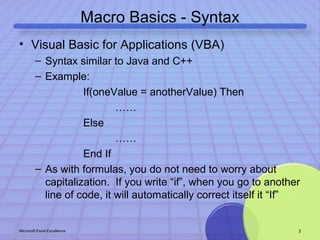
Macro Basics - Syntax 
• Visual Basic for Applications (VBA) 
– Syntax similar to Java and C++ 
– Example: 
If(oneValue = anotherValue) Then 
…… 
Else 
…… 
End If 
– As with formulas, you do not need to worry about 
capitalization. If you write “if”, when you go to another 
line of code, it will automatically correct itself it “If” 
Microsoft Excel Excellence 3
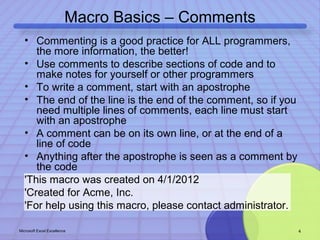
Macro Basics – Comments 
• Commenting is a good practice for ALL programmers, 
the more information, the better! 
• Use comments to describe sections of code and to 
make notes for yourself or other programmers 
• To write a comment, start with an apostrophe 
• The end of the line is the end of the comment, so if you 
need multiple lines of comments, each line must start 
with an apostrophe 
• A comment can be on its own line, or at the end of a 
line of code 
• Anything after the apostrophe is seen as a comment by 
the code 
'This macro was created on 4/1/2012 
'Created for Acme, Inc. 
'For help using this macro, please contact administrator. 
Microsoft Excel Excellence 4
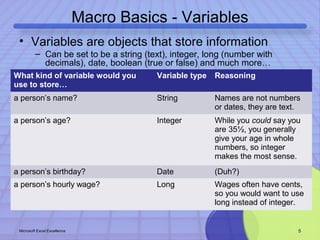
Macro Basics - Variables 
• Variables are objects that store information 
– Can be set to be a string (text), integer, long (number with 
decimals), date, boolean (true or false) and much more… 
What kind of variable would you 
use to store… 
Variable type Reasoning 
a person’s name? String Names are not numbers 
or dates, they are text. 
a person’s age? Integer While you could say you 
are 35½, you generally 
give your age in whole 
numbers, so integer 
makes the most sense. 
a person’s birthday? Date (Duh?) 
a person’s hourly wage? Long Wages often have cents, 
so you would want to use 
long instead of integer. 
Microsoft Excel Excellence 5
Macro Basics - Variables 
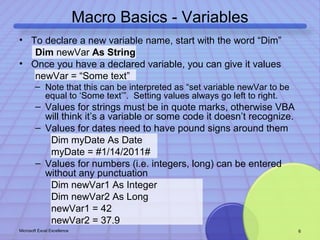
• To declare a new variable name, start with the word “Dim” 
Dim newVar As String 
• Once you have a declared variable, you can give it values 
newVar = “Some text” 
– Note that this can be interpreted as “set variable newVar to be 
equal to ‘Some text’”. Setting values always go left to right. 
– Values for strings must be in quote marks, otherwise VBA 
will think it’s a variable or some code it doesn’t recognize. 
– Values for dates need to have pound signs around them 
Dim myDate As Date 
myDate = #1/14/2011# 
– Values for numbers (i.e. integers, long) can be entered 
without any punctuation 
Dim newVar1 As Integer 
Dim newVar2 As Long 
newVar1 = 42 
newVar2 = 37.9 
Microsoft Excel Excellence 6
Macro Basics - Variables 
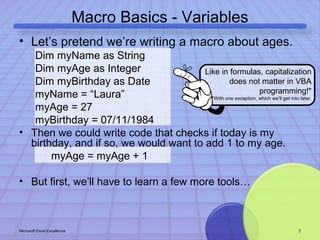
• Let’s pretend we’re writing a macro about ages. 
Dim myName as String 
Dim myAge as Integer 
Dim myBirthday as Date 
myName = “Laura” 
myAge = 27 
myBirthday = 07/11/1984 
Like in formulas, capitalization 
does not matter in VBA 
programming!* 
*With one exception, which we’ll get into later. 
• Then we could write code that checks if today is my 
birthday, and if so, we would want to add 1 to my age. 
myAge = myAge + 1 
• But first, we’ll have to learn a few more tools… 
Microsoft Excel Excellence 7
Macro Basics – If Statement 
• If statements follow If, Then, Else format 
– Else is optional 
– Must end with an “End If” statement* 
*Unless done in one line 
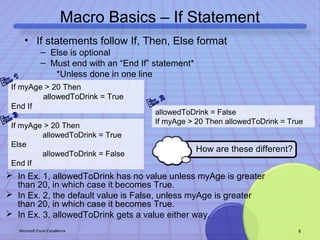
If myAge > 20 Then 
allowedToDrink = True 
End If 
allowedToDrink = False 
If myAge If myAge > 20 Then > 20 Then allowedToDrink = True 
allowedToDrink = True 
Else 
allowedToDrink = False 
End If 
How are these different? 
 In Ex. 1, allowedToDrink has no value unless myAge is greater 
than 20, in which case it becomes True. 
 In Ex. 2, the default value is False, unless myAge is greater 
than 20, in which case it becomes True. 
 In Ex. 3, allowedToDrink gets a value either way. 
Microsoft Excel Excellence 8
Macro Basics – Reserved Words 
• Reserved words are special words that VBA has listed in its dictionary; 
these words alone cannot be declared or used as variables. 
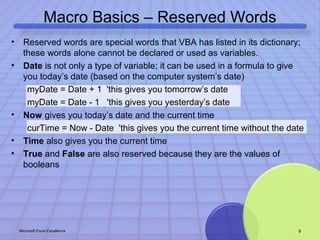
• Date is not only a type of variable; it can be used in a formula to give 
you today’s date (based on the computer system’s date) 
myDate = Date + 1 'this gives you tomorrow’s date 
myDate = Date - 1 'this gives you yesterday’s date 
• Now gives you today’s date and the current time 
curTime = Now - Date 'this gives you the current time without the date 
• Time also gives you the current time 
• True and False are also reserved because they are the values of 
booleans 
Microsoft Excel Excellence 9
Macro Basics – If Statement 
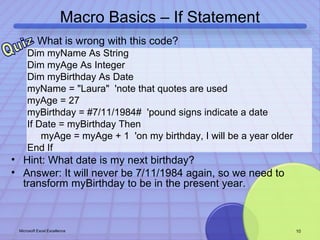
– What is wrong with this code? 
Dim myName As String 
Dim myAge As Integer 
Dim myBirthday As Date 
myName = "Laura" 'note that quotes are used 
myAge = 27 
myBirthday = #7/11/1984# 'pound signs indicate a date 
If Date = myBirthday Then 
myAge = myAge + 1 'on my birthday, I will be a year older 
End If 
• Hint: What date is my next birthday? 
• Answer: It will never be 7/11/1984 again, so we need to 
transform myBirthday to be in the present year. 
Microsoft Excel Excellence 10
Macro Basics - Variables 
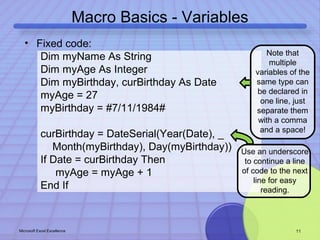
• Fixed code: 
Dim myName As String 
Dim myAge As Integer 
Dim myBirthday, curBirthday As Date 
myAge = 27 
myBirthday = #7/11/1984# 
curBirthday = DateSerial(Year(Date), _ 
Month(myBirthday), Day(myBirthday)) 
If Date = curBirthday Then 
myAge = myAge + 1 
End If 
Note that 
multiple 
variables of the 
same type can 
be declared in 
one line, just 
separate them 
with a comma 
and a space! 
Use an underscore 
to continue a line 
of code to the next 
line for easy 
reading. 
Microsoft Excel Excellence 11
Macro Basics - Variables 
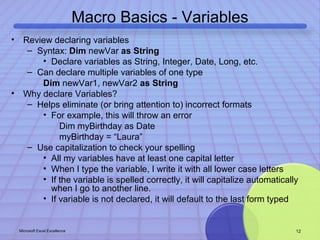
• Review declaring variables 
– Syntax: Dim newVar as String 
• Declare variables as String, Integer, Date, Long, etc. 
– Can declare multiple variables of one type 
Dim newVar1, newVar2 as String 
• Why declare Variables? 
– Helps eliminate (or bring attention to) incorrect formats 
• For example, this will throw an error 
Dim myBirthday as Date 
myBirthday = “Laura” 
– Use capitalization to check your spelling 
• All my variables have at least one capital letter 
• When I type the variable, I write it with all lower case letters 
• If the variable is spelled correctly, it will capitalize automatically 
when I go to another line. 
• If variable is not declared, it will default to the last form typed 
Microsoft Excel Excellence 12
Macro Basics – Creating a Macro 
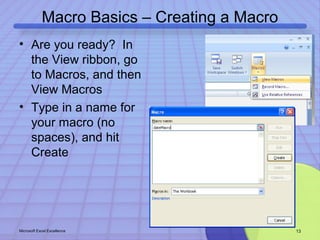
• Are you ready? In 
the View ribbon, go 
to Macros, and then 
View Macros 
• Type in a name for 
your macro (no 
spaces), and hit 
Create 
Microsoft Excel Excellence 13
Macro Basics - Variables 
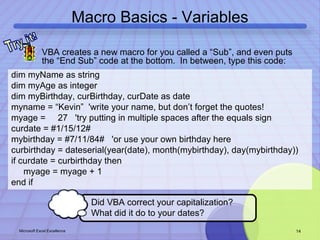
• VBA creates a new macro for you called a “Sub”, and even puts 
the “End Sub” code at the bottom. In between, type this code: 
dim myName as string 
dim myAge as integer 
dim myBirthday, curBirthday, curDate as date 
myname = “Kevin” 'write your name, but don’t forget the quotes! 
myage = 27 'try putting in multiple spaces after the equals sign 
curdate = #1/15/12# 
mybirthday = #7/11/84# 'or use your own birthday here 
curbirthday = dateserial(year(date), month(mybirthday), day(mybirthday)) 
if curdate = curbirthday then 
myage = myage + 1 
end if 
Did VBA correct your capitalization? 
What did it do to your dates? 
Microsoft Excel Excellence 14
Congratulations! 
You just wrote your 
first VBA macro! 
Now take 
a break 
and 
celebrate!
Macro Basics – Controls 
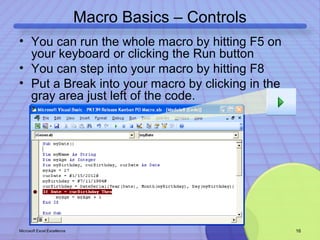
• You can run the whole macro by hitting F5 on 
your keyboard or clicking the Run button 
• You can step into your macro by hitting F8 
• Put a Break into your macro by clicking in the 
gray area just left of the code. 
Microsoft Excel Excellence 16
Macro Basics – Controls 
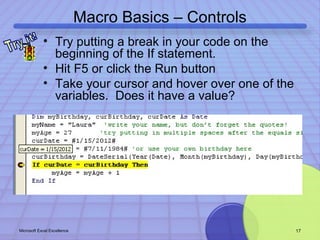
• Try putting a break in your code on the 
beginning of the If statement. 
• Hit F5 or click the Run button 
• Take your cursor and hover over one of the 
variables. Does it have a value? 
Microsoft Excel Excellence 17
Macro Basics – Controls 
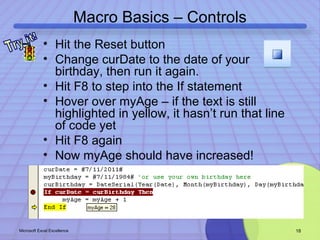
• Hit the Reset button 
• Change curDate to the date of your 
birthday, then run it again. 
• Hit F8 to step into the If statement 
• Hover over myAge – if the text is still 
highlighted in yellow, it hasn’t run that line 
of code yet 
• Hit F8 again 
• Now myAge should have increased! 
Microsoft Excel Excellence 18
Macro Basics – Controls 
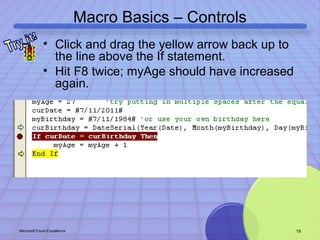
• Click and drag the yellow arrow back up to 
the line above the If statement. 
• Hit F8 twice; myAge should have increased 
again. 
Microsoft Excel Excellence 19
Macro Basics – Cells in Excel 
• There are many ways to call cells, but for our purpose, 
we’re going to use just one 
• Syntax: Cells([row], [column]) 
• The row and column can be hard-coded or use variables 
• The Value of a cell is either the text, or if there’s a 
formula, what the formula evaluates to 
– Call the Value with this syntax: 
Cells([row], [column]).Value 
• You can set the Value of a cell like this: 
Cells([row], [column]).Value = 1 
• You can get the Value of a cell and store it in a variable: 
newVar1 = Cells([row], [column]).Value 
Microsoft Excel Excellence 20
Macro Basics – Cells in Excel 
• Identify and change values and formats of cells 
Cells([row], [column]).Activate 
ActiveCell.Value = “Hello” 
Range("A1:B2").Select 
– Selection.Interior.ColorIndex = 9 
– Cells([row], [column]).Interior.ColorIndex = 9 
Microsoft Excel Excellence 21
Macro Basics – User Input 
• Message Boxes can be used to alert the user of a critical issue, 
or to get boolean feedback from the user 
• Syntax: MsgBox([Prompt], [Buttons], [Title]...) 
• Only the Prompt is required, the rest are optional 
• The Prompt is the text you want displayed in the message box. 
• For a message: 
MsgBox("You have started a macro. Press OK to continue.") 
• To get feedback: 
myVariable = MsgBox("Are you well today?", vbYesNo) 
• Input Boxes are used to get data from the user 
• Syntax: InputBox([Prompt], [Title]...) 
• Again, only the Prompt is required 
• To get a value from the user: 
myAge = InputBox(“How old are you?”) 
Microsoft Excel Excellence 22
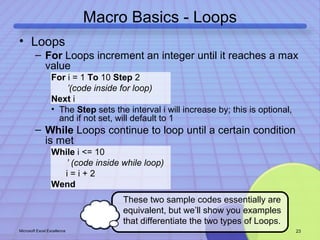
Macro Basics - Loops 
• Loops 
– For Loops increment an integer until it reaches a max 
value 
For i = 1 To 10 Step 2 
’(code inside for loop) 
Next i 
• The Step sets the interval i will increase by; this is optional, 
and if not set, will default to 1 
– While Loops continue to loop until a certain condition 
is met 
While i <= 10 
’ (code inside while loop) 
i = i + 2 
Wend 
These two sample codes essentially are 
equivalent, but we’ll show you examples 
that differentiate the two types of Loops. 
Microsoft Excel Excellence 23
Want more? 
Contact Laura Winger about Excel 
training that actually sticks!

Excel Excellence (Microsoft Excel training that "sticks"): Macros

  • 1.
    Excel training that“sticks” by Laura Winger
  • 2.
     Formulas Formatting, Filtering and Finance  Sorting and Pivot Tables  Stats and Graphs  Access Basics  PowerPoint Tricks  Macro Basics  Syntax & Comments  Variables  If Statement & Reserved Words  Controls  Cells in Excel  Loops  Recording “It is when the tools of production are transparent, that we are inspired to create.” - Chris Anderson, The Long Tail Microsoft Excel Excellence 2
  • 3.
    Macro Basics -Syntax • Visual Basic for Applications (VBA) – Syntax similar to Java and C++ – Example: If(oneValue = anotherValue) Then …… Else …… End If – As with formulas, you do not need to worry about capitalization. If you write “if”, when you go to another line of code, it will automatically correct itself it “If” Microsoft Excel Excellence 3
  • 4.
    Macro Basics –Comments • Commenting is a good practice for ALL programmers, the more information, the better! • Use comments to describe sections of code and to make notes for yourself or other programmers • To write a comment, start with an apostrophe • The end of the line is the end of the comment, so if you need multiple lines of comments, each line must start with an apostrophe • A comment can be on its own line, or at the end of a line of code • Anything after the apostrophe is seen as a comment by the code 'This macro was created on 4/1/2012 'Created for Acme, Inc. 'For help using this macro, please contact administrator. Microsoft Excel Excellence 4
  • 5.
    Macro Basics -Variables • Variables are objects that store information – Can be set to be a string (text), integer, long (number with decimals), date, boolean (true or false) and much more… What kind of variable would you use to store… Variable type Reasoning a person’s name? String Names are not numbers or dates, they are text. a person’s age? Integer While you could say you are 35½, you generally give your age in whole numbers, so integer makes the most sense. a person’s birthday? Date (Duh?) a person’s hourly wage? Long Wages often have cents, so you would want to use long instead of integer. Microsoft Excel Excellence 5
  • 6.
    Macro Basics -Variables • To declare a new variable name, start with the word “Dim” Dim newVar As String • Once you have a declared variable, you can give it values newVar = “Some text” – Note that this can be interpreted as “set variable newVar to be equal to ‘Some text’”. Setting values always go left to right. – Values for strings must be in quote marks, otherwise VBA will think it’s a variable or some code it doesn’t recognize. – Values for dates need to have pound signs around them Dim myDate As Date myDate = #1/14/2011# – Values for numbers (i.e. integers, long) can be entered without any punctuation Dim newVar1 As Integer Dim newVar2 As Long newVar1 = 42 newVar2 = 37.9 Microsoft Excel Excellence 6
  • 7.
    Macro Basics -Variables • Let’s pretend we’re writing a macro about ages. Dim myName as String Dim myAge as Integer Dim myBirthday as Date myName = “Laura” myAge = 27 myBirthday = 07/11/1984 Like in formulas, capitalization does not matter in VBA programming!* *With one exception, which we’ll get into later. • Then we could write code that checks if today is my birthday, and if so, we would want to add 1 to my age. myAge = myAge + 1 • But first, we’ll have to learn a few more tools… Microsoft Excel Excellence 7
  • 8.
    Macro Basics –If Statement • If statements follow If, Then, Else format – Else is optional – Must end with an “End If” statement* *Unless done in one line If myAge > 20 Then allowedToDrink = True End If allowedToDrink = False If myAge If myAge > 20 Then > 20 Then allowedToDrink = True allowedToDrink = True Else allowedToDrink = False End If How are these different?  In Ex. 1, allowedToDrink has no value unless myAge is greater than 20, in which case it becomes True.  In Ex. 2, the default value is False, unless myAge is greater than 20, in which case it becomes True.  In Ex. 3, allowedToDrink gets a value either way. Microsoft Excel Excellence 8
  • 9.
    Macro Basics –Reserved Words • Reserved words are special words that VBA has listed in its dictionary; these words alone cannot be declared or used as variables. • Date is not only a type of variable; it can be used in a formula to give you today’s date (based on the computer system’s date) myDate = Date + 1 'this gives you tomorrow’s date myDate = Date - 1 'this gives you yesterday’s date • Now gives you today’s date and the current time curTime = Now - Date 'this gives you the current time without the date • Time also gives you the current time • True and False are also reserved because they are the values of booleans Microsoft Excel Excellence 9
  • 10.
    Macro Basics –If Statement – What is wrong with this code? Dim myName As String Dim myAge As Integer Dim myBirthday As Date myName = "Laura" 'note that quotes are used myAge = 27 myBirthday = #7/11/1984# 'pound signs indicate a date If Date = myBirthday Then myAge = myAge + 1 'on my birthday, I will be a year older End If • Hint: What date is my next birthday? • Answer: It will never be 7/11/1984 again, so we need to transform myBirthday to be in the present year. Microsoft Excel Excellence 10
  • 11.
    Macro Basics -Variables • Fixed code: Dim myName As String Dim myAge As Integer Dim myBirthday, curBirthday As Date myAge = 27 myBirthday = #7/11/1984# curBirthday = DateSerial(Year(Date), _ Month(myBirthday), Day(myBirthday)) If Date = curBirthday Then myAge = myAge + 1 End If Note that multiple variables of the same type can be declared in one line, just separate them with a comma and a space! Use an underscore to continue a line of code to the next line for easy reading. Microsoft Excel Excellence 11
  • 12.
    Macro Basics -Variables • Review declaring variables – Syntax: Dim newVar as String • Declare variables as String, Integer, Date, Long, etc. – Can declare multiple variables of one type Dim newVar1, newVar2 as String • Why declare Variables? – Helps eliminate (or bring attention to) incorrect formats • For example, this will throw an error Dim myBirthday as Date myBirthday = “Laura” – Use capitalization to check your spelling • All my variables have at least one capital letter • When I type the variable, I write it with all lower case letters • If the variable is spelled correctly, it will capitalize automatically when I go to another line. • If variable is not declared, it will default to the last form typed Microsoft Excel Excellence 12
  • 13.
    Macro Basics –Creating a Macro • Are you ready? In the View ribbon, go to Macros, and then View Macros • Type in a name for your macro (no spaces), and hit Create Microsoft Excel Excellence 13
  • 14.
    Macro Basics -Variables • VBA creates a new macro for you called a “Sub”, and even puts the “End Sub” code at the bottom. In between, type this code: dim myName as string dim myAge as integer dim myBirthday, curBirthday, curDate as date myname = “Kevin” 'write your name, but don’t forget the quotes! myage = 27 'try putting in multiple spaces after the equals sign curdate = #1/15/12# mybirthday = #7/11/84# 'or use your own birthday here curbirthday = dateserial(year(date), month(mybirthday), day(mybirthday)) if curdate = curbirthday then myage = myage + 1 end if Did VBA correct your capitalization? What did it do to your dates? Microsoft Excel Excellence 14
  • 15.
    Congratulations! You justwrote your first VBA macro! Now take a break and celebrate!
  • 16.
    Macro Basics –Controls • You can run the whole macro by hitting F5 on your keyboard or clicking the Run button • You can step into your macro by hitting F8 • Put a Break into your macro by clicking in the gray area just left of the code. Microsoft Excel Excellence 16
  • 17.
    Macro Basics –Controls • Try putting a break in your code on the beginning of the If statement. • Hit F5 or click the Run button • Take your cursor and hover over one of the variables. Does it have a value? Microsoft Excel Excellence 17
  • 18.
    Macro Basics –Controls • Hit the Reset button • Change curDate to the date of your birthday, then run it again. • Hit F8 to step into the If statement • Hover over myAge – if the text is still highlighted in yellow, it hasn’t run that line of code yet • Hit F8 again • Now myAge should have increased! Microsoft Excel Excellence 18
  • 19.
    Macro Basics –Controls • Click and drag the yellow arrow back up to the line above the If statement. • Hit F8 twice; myAge should have increased again. Microsoft Excel Excellence 19
  • 20.
    Macro Basics –Cells in Excel • There are many ways to call cells, but for our purpose, we’re going to use just one • Syntax: Cells([row], [column]) • The row and column can be hard-coded or use variables • The Value of a cell is either the text, or if there’s a formula, what the formula evaluates to – Call the Value with this syntax: Cells([row], [column]).Value • You can set the Value of a cell like this: Cells([row], [column]).Value = 1 • You can get the Value of a cell and store it in a variable: newVar1 = Cells([row], [column]).Value Microsoft Excel Excellence 20
  • 21.
    Macro Basics –Cells in Excel • Identify and change values and formats of cells Cells([row], [column]).Activate ActiveCell.Value = “Hello” Range("A1:B2").Select – Selection.Interior.ColorIndex = 9 – Cells([row], [column]).Interior.ColorIndex = 9 Microsoft Excel Excellence 21
  • 22.
    Macro Basics –User Input • Message Boxes can be used to alert the user of a critical issue, or to get boolean feedback from the user • Syntax: MsgBox([Prompt], [Buttons], [Title]...) • Only the Prompt is required, the rest are optional • The Prompt is the text you want displayed in the message box. • For a message: MsgBox("You have started a macro. Press OK to continue.") • To get feedback: myVariable = MsgBox("Are you well today?", vbYesNo) • Input Boxes are used to get data from the user • Syntax: InputBox([Prompt], [Title]...) • Again, only the Prompt is required • To get a value from the user: myAge = InputBox(“How old are you?”) Microsoft Excel Excellence 22
  • 23.
    Macro Basics -Loops • Loops – For Loops increment an integer until it reaches a max value For i = 1 To 10 Step 2 ’(code inside for loop) Next i • The Step sets the interval i will increase by; this is optional, and if not set, will default to 1 – While Loops continue to loop until a certain condition is met While i <= 10 ’ (code inside while loop) i = i + 2 Wend These two sample codes essentially are equivalent, but we’ll show you examples that differentiate the two types of Loops. Microsoft Excel Excellence 23
  • 24.
    Want more? ContactLaura Winger about Excel training that actually sticks!

Editor's Notes

  • #3 Add waterfall charts? (i.e. OverMax 17 week segmentation)