Cascading Style Sheets (CSS) – Part II Svetlin Nakov Telerik Mobile Development Course mobiledevcourse.telerik.com Technical Trainer http:// www.nakov.com
Table of Contents (Part II) The Box Model Alignment, Z-Index, Margin, Padding Positioning and Floating Elements Visibility, Display, Overflow CSS Development Tools
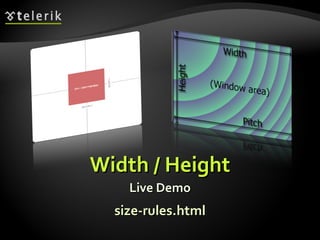
Width and Height width  – defines numerical value for the width of element, e.g.  200px height  – defines numerical value for the height of element, e.g.  100px By default the height of an element is defined by its content Inline elements do not apply height, unless you change their  display  style.
Width / Height Live Demo size-rules.html
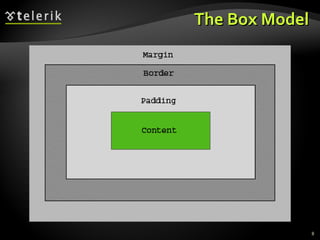
Margin and Padding margin  and  padding  define the spacing around the element Numerical value, e.g.  10px  or  -5px Can be defined for each of the four sides separately -  margin-top ,  padding-left , … margin  is the spacing outside of the border padding  is the spacing between the border and the content What are collapsing margins?
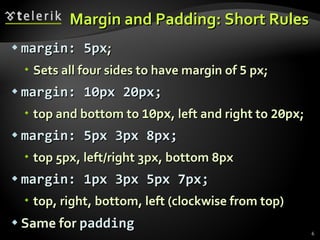
Margin and Padding: Short Rules margin: 5px ; Sets all four sides to have margin of  5  px; margin: 10px 20px; top and bottom to  10px , left and right to  20px ; margin: 5px 3px 8px; top 5px, left/right 3px, bottom 8px margin: 1px 3px 5px 7px; top, right, bottom, left (clockwise from top) Same for  padding
Margins and Paddings Live Demo margins-paddings-rules.html
The Box Model
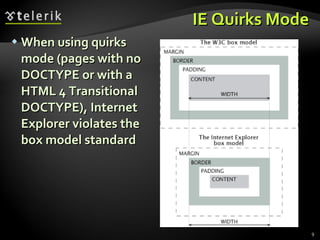
IE Quirks Mode When using quirks mode (pages with no DOCTYPE or with a HTML 4 Transitional DOCTYPE), Internet Explorer violates the box model standard
Positioning position : defines the positioning of the element in the page content flow The value is one of: static  (default) relative  – relative position according to where the element would appear with static position absolute  – position according to the innermost positioned parent element fixed  – same as  absolute, but ignores page scrolling
Positioning (2) Margin VS relative positioning Fixed and absolutely positioned elements do not influence the page normal flow and usually stay on top of other elements Their position and size is ignored when calculating the size of parent element or position of surrounding elements Overlaid according to their z-index Inline fixed or absolutely positioned elements can apply height like block-level elements
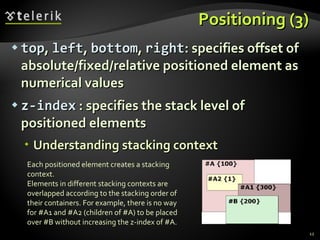
Positioning (3) top ,  left ,  bottom ,  right : specifies offset of absolute/fixed/relative positioned element as numerical values z-index  : specifies the stack level of positioned elements Understanding stacking context Each positioned element creates a stacking context . Elements in different stacking contexts are overlapped according to the stacking order of their containers .  For example, there is no way for #A1 and #A2 (children of #A) to be placed over #B without increasing the z-index of #A.
Positioning Live Demo positioning-rules.html
Inline element positioning vertical-align : sets the vertical-alignment of an inline element, according to the line height Values:  baseline ,  sub ,  super ,  top ,  text-top ,  middle ,  bottom ,  text-bottom  or numeric Also used for content of table cells (which apply  middle  alignment by default)
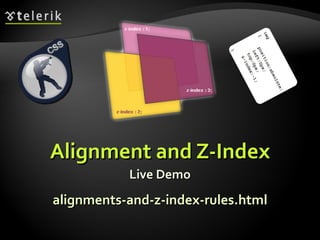
Alignment and Z-Index Live Demo alignments-and-z-index-rules.html
Float float : the element “floats” to one side left : places the element on the left and following content on the right right : places the element on the right and following content on the left floated elements should come before the content that will wrap around them in the code margins of floated elements do not collapse floated inline elements can apply height
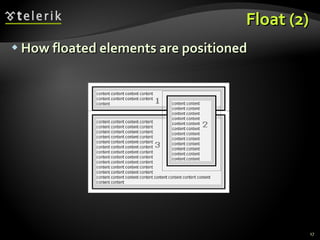
Float (2) How floated elements are positioned
Clear clear Sets the sides of the element where other floating elements are NOT allowed Used to &quot;drop&quot; elements below floated ones or expand a container, which contains only floated children Possible values:  left ,  right ,  both Clearing floats additional element ( <div> ) with a clear style
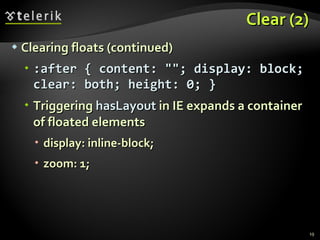
Clear (2) Clearing floats (continued) :after { content: &quot;&quot;; display: block; clear: both; height: 0; } Triggering  hasLayout  in IE expands a container of floated elements display: inline-block; zoom: 1;
Floating Elements Live Demo float-rules.html
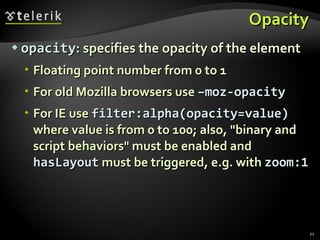
Opacity opacity : specifies the opacity of the element Floating point number from 0 to 1 For old Mozilla browsers use  –moz-opacity For IE use  filter:alpha(opacity=value)  where value is from 0 to 100; also, &quot;binary and script behaviors&quot; must be enabled and  hasLayout  must be triggered, e.g. with  zoom:1
Opacity Live Demo opacity-rule.html
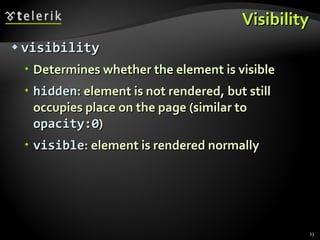
Visibility visibility Determines whether the element is visible hidden : element is not rendered, but still occupies place on the page (similar to  opacity:0 ) visible : element is rendered normally
Visibility Live Demo visibility-rule.html
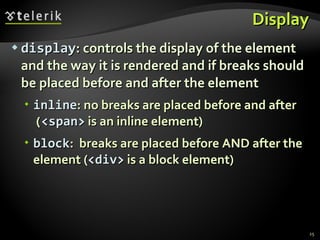
Display display : controls the display of the element and the way it is rendered and if breaks should be placed before and after the element inline : no breaks are placed before and after  ( <span>  is an inline element) block :  breaks are placed before AND after the element  ( <div>  is a block element)
Display (2) display : controls the display of the element and the way it is rendered and if breaks should be placed before and after the element none : element is hidden and its dimensions are not used to calculate the surrounding elements rendering (differs from  visibility:   hidden !) There are some more possible values, but not all browsers support them Specific displays like  table-cell  and  table-row
Display Live Demo display-rule.html
Overflow overflow : defines the behavior of element when content needs more space than you have specified by the size properties or for other reasons. Values:  visible  (default) – content spills out of the element auto  - show scrollbars if needed scroll  – always show scrollbars hidden  – any content that cannot fit is clipped
Overflow Live Demo overflow-rule.html
Other CSS Properties cursor :  specifies the look of the mouse cursor when placed over the element Values:  crosshair ,  help ,  pointer ,  progress ,  move ,  hair ,  col-resize ,  row-resize ,  text ,  wait ,  copy ,  drop , and others white-space  – controls the line breaking of text. Value is one of: nowrap  – keeps the text on one line normal  (default) – browser decides whether to brake the lines if needed
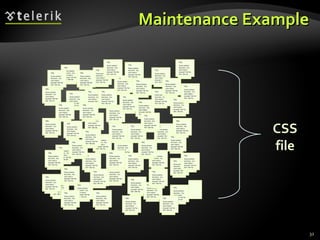
Benefits of using CSS More powerful formatting than using presentation tags Your pages load faster, because browsers cache the  . css  files Increased accessibility, because rules can be defined according given media Pages are easier to maintain and update
Maintenance Example Title Some random text here.  You can’t read it anyway!  Har har har!  Use Css. Title Some random text here.  You can’t read it anyway!  Har har har!  Use Css. Title Some random text here.  You can’t read it anyway!  Har har har!  Use Css. Title Some random text here.  You can’t read it anyway!  Har har har!  Use Css. Title Some random text here.  You can’t read it anyway!  Har har har!  Use Css. Title Some random text here.  You can’t read it anyway!  Har har har!  Use Css. Title Some random text here.  You can’t read it anyway!  Har har har!  Use Css. Title Some random text here.  You can’t read it anyway!  Har har har!  Use Css. Title Some random text here.  You can’t read it anyway!  Har har har!  Use Css. Title Some random text here.  You can’t read it anyway!  Har har har!  Use Css. Title Some random text here.  You can’t read it anyway!  Har har har!  Use Css. Title Some random text here.  You can’t read it anyway!  Har har har!  Use Css. Title Some random text here.  You can’t read it anyway!  Har har har!  Use Css. Title Some random text here.  You can’t read it anyway!  Har har har!  Use Css. Title Some random text here.  You can’t read it anyway!  Har har har!  Use Css. Title Some random text here.  You can’t read it anyway!  Har har har!  Use Css. Title Some random text here.  You can’t read it anyway!  Har har har!  Use Css. Title Some random text here.  You can’t read it anyway!  Har har har!  Use Css. Title Some random text here.  You can’t read it anyway!  Har har har!  Use Css. Title Some random text here.  You can’t read it anyway!  Har har har!  Use Css. Title Some random text here.  You can’t read it anyway!  Har har har!  Use Css. Title Some random text here.  You can’t read it anyway!  Har har har!  Use Css. Title Some random text here.  You can’t read it anyway!  Har har har!  Use Css. Title Some random text here.  You can’t read it anyway!  Har har har!  Use Css. Title Some random text here.  You can’t read it anyway!  Har har har!  Use Css. Title Some random text here.  You can’t read it anyway!  Har har har!  Use Css. Title Some random text here.  You can’t read it anyway!  Har har har!  Use Css. Title Some random text here.  You can’t read it anyway!  Har har har!  Use Css. Title Some random text here.  You can’t read it anyway!  Har har har!  Use Css. Title Some random text here.  You can’t read it anyway!  Har har har!  Use Css. Title Some random text here.  You can’t read it anyway!  Har har har!  Use Css. Title Some random text here.  You can’t read it anyway!  Har har har!  Use Css. Title Some random text here.  You can’t read it anyway!  Har har har!  Use Css. Title Some random text here.  You can’t read it anyway!  Har har har!  Use Css. Title Some random text here.  You can’t read it anyway!  Har har har!  Use Css. Title Some random text here.  You can’t read it anyway!  Har har har!  Use Css. Title Some random text here.  You can’t read it anyway!  Har har har!  Use Css. Title Some random text here.  You can’t read it anyway!  Har har har!  Use Css. Title Some random text here.  You can’t read it anyway!  Har har har!  Use Css. Title Some random text here.  You can’t read it anyway!  Har har har!  Use Css. Title Some random text here.  You can’t read it anyway!  Har har har!  Use Css. Title Some random text here.  You can’t read it anyway!  Har har har!  Use Css. Title Some random text here.  You can’t read it anyway!  Har har har!  Use Css. Title Some random text here.  You can’t read it anyway!  Har har har!  Use Css. Title Some random text here.  You can’t read it anyway!  Har har har!  Use Css. Title Some random text here.  You can’t read it anyway!  Har har har!  Use Css. Title Some random text here.  You can’t read it anyway!  Har har har!  Use Css. Title Some random text here.  You can’t read it anyway!  Har har har!  Use Css. Title Some random text here.  You can’t read it anyway!  Har har har!  Use Css. Title Some random text here.  You can’t read it anyway!  Har har har!  Use Css. Title Some random text here.  You can’t read it anyway!  Har har har!  Use Css. Title Some random text here.  You can’t read it anyway!  Har har har!  Use Css. Title Some random text here.  You can’t read it anyway!  Har har har!  Use Css. Title Some random text here.  You can’t read it anyway!  Har har har!  Use Css. Title Some random text here.  You can’t read it anyway!  Har har har!  Use Css. Title Some random text here.  You can’t read it anyway!  Har har har!  Use Css. Title Some random text here.  You can’t read it anyway!  Har har har!  Use Css. Title Some random text here.  You can’t read it anyway!  Har har har!  Use Css. Title Some random text here.  You can’t read it anyway!  Har har har!  Use Css. CSS file
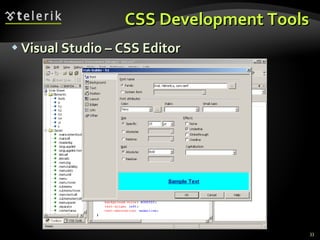
CSS Development Tools Visual Studio – CSS Editor
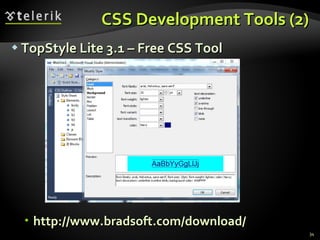
CSS Development Tools (2) TopStyle Lite 3.1 – Free CSS Tool http://www.bradsoft.com/download/
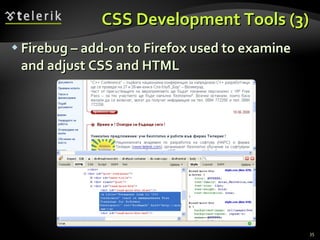
CSS Development Tools (3) Firebug  –  add-on to Firefox used to examine and adjust CSS and HTML
CSS Development Tools (4) IE Developer Toolbar  –  add-on to IE used to examine CSS and HTML (press [F12])
CSS Reference A list of all CSS 2.1 properties is available at  http://www.w3.org/TR/CSS2/propidx.html
CSS – Part II Questions? http://frontendcourse.telerik.com
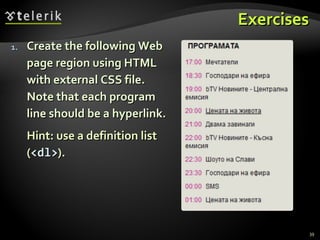
Exercises Create the following Web page region using HTML with external CSS file. Note that each program line should be a hyperlink. Hint: use a definition list ( < dl > ).
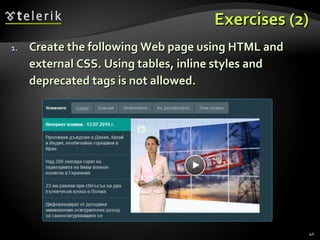
Exercises (2) Create the following Web page using HTML and external CSS. Using tables, inline styles and deprecated tags is not allowed.
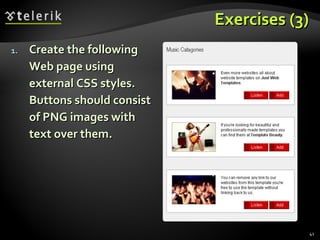
Exercises (3) Create the following Web page using external CSS styles. Buttons should consist of PNG images with text over them.
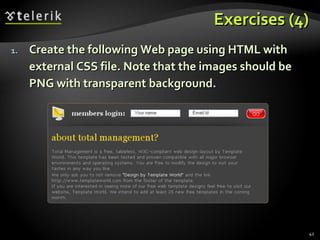
Exercises (4) Create the following Web page using HTML with external CSS file. Note that the images should be PNG with transparent background.
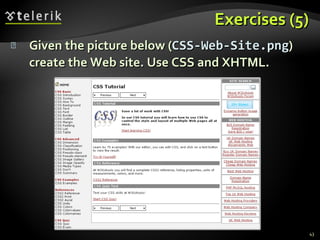
Exercises (5) Given the picture below ( CSS-Web-Site.png ) create the Web site. Use CSS and XHTML.

CSS Part II

  • 1.
    Cascading Style Sheets(CSS) – Part II Svetlin Nakov Telerik Mobile Development Course mobiledevcourse.telerik.com Technical Trainer http:// www.nakov.com
  • 2.
    Table of Contents(Part II) The Box Model Alignment, Z-Index, Margin, Padding Positioning and Floating Elements Visibility, Display, Overflow CSS Development Tools
  • 3.
    Width and Heightwidth – defines numerical value for the width of element, e.g. 200px height – defines numerical value for the height of element, e.g. 100px By default the height of an element is defined by its content Inline elements do not apply height, unless you change their display style.
  • 4.
    Width / HeightLive Demo size-rules.html
  • 5.
    Margin and Paddingmargin and padding define the spacing around the element Numerical value, e.g. 10px or -5px Can be defined for each of the four sides separately - margin-top , padding-left , … margin is the spacing outside of the border padding is the spacing between the border and the content What are collapsing margins?
  • 6.
    Margin and Padding:Short Rules margin: 5px ; Sets all four sides to have margin of 5 px; margin: 10px 20px; top and bottom to 10px , left and right to 20px ; margin: 5px 3px 8px; top 5px, left/right 3px, bottom 8px margin: 1px 3px 5px 7px; top, right, bottom, left (clockwise from top) Same for padding
  • 7.
    Margins and PaddingsLive Demo margins-paddings-rules.html
  • 8.
  • 9.
    IE Quirks ModeWhen using quirks mode (pages with no DOCTYPE or with a HTML 4 Transitional DOCTYPE), Internet Explorer violates the box model standard
  • 10.
    Positioning position :defines the positioning of the element in the page content flow The value is one of: static (default) relative – relative position according to where the element would appear with static position absolute – position according to the innermost positioned parent element fixed – same as absolute, but ignores page scrolling
  • 11.
    Positioning (2) MarginVS relative positioning Fixed and absolutely positioned elements do not influence the page normal flow and usually stay on top of other elements Their position and size is ignored when calculating the size of parent element or position of surrounding elements Overlaid according to their z-index Inline fixed or absolutely positioned elements can apply height like block-level elements
  • 12.
    Positioning (3) top, left , bottom , right : specifies offset of absolute/fixed/relative positioned element as numerical values z-index : specifies the stack level of positioned elements Understanding stacking context Each positioned element creates a stacking context . Elements in different stacking contexts are overlapped according to the stacking order of their containers . For example, there is no way for #A1 and #A2 (children of #A) to be placed over #B without increasing the z-index of #A.
  • 13.
    Positioning Live Demopositioning-rules.html
  • 14.
    Inline element positioningvertical-align : sets the vertical-alignment of an inline element, according to the line height Values: baseline , sub , super , top , text-top , middle , bottom , text-bottom or numeric Also used for content of table cells (which apply middle alignment by default)
  • 15.
    Alignment and Z-IndexLive Demo alignments-and-z-index-rules.html
  • 16.
    Float float :the element “floats” to one side left : places the element on the left and following content on the right right : places the element on the right and following content on the left floated elements should come before the content that will wrap around them in the code margins of floated elements do not collapse floated inline elements can apply height
  • 17.
    Float (2) Howfloated elements are positioned
  • 18.
    Clear clear Setsthe sides of the element where other floating elements are NOT allowed Used to &quot;drop&quot; elements below floated ones or expand a container, which contains only floated children Possible values: left , right , both Clearing floats additional element ( <div> ) with a clear style
  • 19.
    Clear (2) Clearingfloats (continued) :after { content: &quot;&quot;; display: block; clear: both; height: 0; } Triggering hasLayout in IE expands a container of floated elements display: inline-block; zoom: 1;
  • 20.
    Floating Elements LiveDemo float-rules.html
  • 21.
    Opacity opacity :specifies the opacity of the element Floating point number from 0 to 1 For old Mozilla browsers use –moz-opacity For IE use filter:alpha(opacity=value) where value is from 0 to 100; also, &quot;binary and script behaviors&quot; must be enabled and hasLayout must be triggered, e.g. with zoom:1
  • 22.
    Opacity Live Demoopacity-rule.html
  • 23.
    Visibility visibility Determineswhether the element is visible hidden : element is not rendered, but still occupies place on the page (similar to opacity:0 ) visible : element is rendered normally
  • 24.
    Visibility Live Demovisibility-rule.html
  • 25.
    Display display :controls the display of the element and the way it is rendered and if breaks should be placed before and after the element inline : no breaks are placed before and after ( <span> is an inline element) block : breaks are placed before AND after the element ( <div> is a block element)
  • 26.
    Display (2) display: controls the display of the element and the way it is rendered and if breaks should be placed before and after the element none : element is hidden and its dimensions are not used to calculate the surrounding elements rendering (differs from visibility: hidden !) There are some more possible values, but not all browsers support them Specific displays like table-cell and table-row
  • 27.
    Display Live Demodisplay-rule.html
  • 28.
    Overflow overflow :defines the behavior of element when content needs more space than you have specified by the size properties or for other reasons. Values: visible (default) – content spills out of the element auto - show scrollbars if needed scroll – always show scrollbars hidden – any content that cannot fit is clipped
  • 29.
    Overflow Live Demooverflow-rule.html
  • 30.
    Other CSS Propertiescursor : specifies the look of the mouse cursor when placed over the element Values: crosshair , help , pointer , progress , move , hair , col-resize , row-resize , text , wait , copy , drop , and others white-space – controls the line breaking of text. Value is one of: nowrap – keeps the text on one line normal (default) – browser decides whether to brake the lines if needed
  • 31.
    Benefits of usingCSS More powerful formatting than using presentation tags Your pages load faster, because browsers cache the . css files Increased accessibility, because rules can be defined according given media Pages are easier to maintain and update
  • 32.
    Maintenance Example TitleSome random text here. You can’t read it anyway! Har har har! Use Css. Title Some random text here. You can’t read it anyway! Har har har! Use Css. Title Some random text here. You can’t read it anyway! Har har har! Use Css. Title Some random text here. You can’t read it anyway! Har har har! Use Css. Title Some random text here. You can’t read it anyway! Har har har! Use Css. Title Some random text here. You can’t read it anyway! Har har har! Use Css. Title Some random text here. You can’t read it anyway! Har har har! Use Css. Title Some random text here. You can’t read it anyway! Har har har! Use Css. Title Some random text here. You can’t read it anyway! Har har har! Use Css. Title Some random text here. You can’t read it anyway! Har har har! Use Css. Title Some random text here. You can’t read it anyway! Har har har! Use Css. Title Some random text here. You can’t read it anyway! Har har har! Use Css. Title Some random text here. You can’t read it anyway! Har har har! Use Css. Title Some random text here. You can’t read it anyway! Har har har! Use Css. Title Some random text here. You can’t read it anyway! Har har har! Use Css. Title Some random text here. You can’t read it anyway! Har har har! Use Css. Title Some random text here. You can’t read it anyway! Har har har! Use Css. Title Some random text here. You can’t read it anyway! Har har har! Use Css. Title Some random text here. You can’t read it anyway! Har har har! Use Css. Title Some random text here. You can’t read it anyway! Har har har! Use Css. Title Some random text here. You can’t read it anyway! Har har har! Use Css. Title Some random text here. You can’t read it anyway! Har har har! Use Css. Title Some random text here. You can’t read it anyway! Har har har! Use Css. Title Some random text here. You can’t read it anyway! Har har har! Use Css. Title Some random text here. You can’t read it anyway! Har har har! Use Css. Title Some random text here. You can’t read it anyway! Har har har! Use Css. Title Some random text here. You can’t read it anyway! Har har har! Use Css. Title Some random text here. You can’t read it anyway! Har har har! Use Css. Title Some random text here. You can’t read it anyway! Har har har! Use Css. Title Some random text here. You can’t read it anyway! Har har har! Use Css. Title Some random text here. You can’t read it anyway! Har har har! Use Css. Title Some random text here. You can’t read it anyway! Har har har! Use Css. Title Some random text here. You can’t read it anyway! Har har har! Use Css. Title Some random text here. You can’t read it anyway! Har har har! Use Css. Title Some random text here. You can’t read it anyway! Har har har! Use Css. Title Some random text here. You can’t read it anyway! Har har har! Use Css. Title Some random text here. You can’t read it anyway! Har har har! Use Css. Title Some random text here. You can’t read it anyway! Har har har! Use Css. Title Some random text here. You can’t read it anyway! Har har har! Use Css. Title Some random text here. You can’t read it anyway! Har har har! Use Css. Title Some random text here. You can’t read it anyway! Har har har! Use Css. Title Some random text here. You can’t read it anyway! Har har har! Use Css. Title Some random text here. You can’t read it anyway! Har har har! Use Css. Title Some random text here. You can’t read it anyway! Har har har! Use Css. Title Some random text here. You can’t read it anyway! Har har har! Use Css. Title Some random text here. You can’t read it anyway! Har har har! Use Css. Title Some random text here. You can’t read it anyway! Har har har! Use Css. Title Some random text here. You can’t read it anyway! Har har har! Use Css. Title Some random text here. You can’t read it anyway! Har har har! Use Css. Title Some random text here. You can’t read it anyway! Har har har! Use Css. Title Some random text here. You can’t read it anyway! Har har har! Use Css. Title Some random text here. You can’t read it anyway! Har har har! Use Css. Title Some random text here. You can’t read it anyway! Har har har! Use Css. Title Some random text here. You can’t read it anyway! Har har har! Use Css. Title Some random text here. You can’t read it anyway! Har har har! Use Css. Title Some random text here. You can’t read it anyway! Har har har! Use Css. Title Some random text here. You can’t read it anyway! Har har har! Use Css. Title Some random text here. You can’t read it anyway! Har har har! Use Css. Title Some random text here. You can’t read it anyway! Har har har! Use Css. CSS file
  • 33.
    CSS Development ToolsVisual Studio – CSS Editor
  • 34.
    CSS Development Tools(2) TopStyle Lite 3.1 – Free CSS Tool http://www.bradsoft.com/download/
  • 35.
    CSS Development Tools(3) Firebug – add-on to Firefox used to examine and adjust CSS and HTML
  • 36.
    CSS Development Tools(4) IE Developer Toolbar – add-on to IE used to examine CSS and HTML (press [F12])
  • 37.
    CSS Reference Alist of all CSS 2.1 properties is available at http://www.w3.org/TR/CSS2/propidx.html
  • 38.
    CSS – PartII Questions? http://frontendcourse.telerik.com
  • 39.
    Exercises Create thefollowing Web page region using HTML with external CSS file. Note that each program line should be a hyperlink. Hint: use a definition list ( < dl > ).
  • 40.
    Exercises (2) Createthe following Web page using HTML and external CSS. Using tables, inline styles and deprecated tags is not allowed.
  • 41.
    Exercises (3) Createthe following Web page using external CSS styles. Buttons should consist of PNG images with text over them.
  • 42.
    Exercises (4) Createthe following Web page using HTML with external CSS file. Note that the images should be PNG with transparent background.
  • 43.
    Exercises (5) Giventhe picture below ( CSS-Web-Site.png ) create the Web site. Use CSS and XHTML.