Web Technology
The Women University Multan
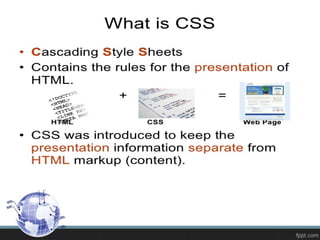
Cascading style sheet
• Cascading Style Sheets (CSS) is a simple mechanism for
adding style
1. Fonts
2. Colors
3. Spacing
to Web documents
Developed By
Håkon Wium Lie
Syntax
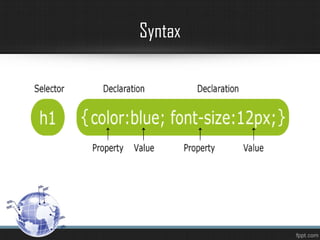
 A CSS rule-set consists of a selector and a declaration block:
 The selector points to the HTML element you want to style.
 The declaration block contains one or more declarations
separated by semicolons.
 Each declaration includes a CSS property name and a value,
separated by a colon.
 A CSS declaration always ends with a semicolon, and
declaration blocks are surrounded by curly braces.
 In the following example all <p> elements will be center-
aligned, with a red text color:
Syntax
Sources of Style
 External
 Internal
 Inline
Inline style sheet
• Inline styles are CSS styles that are applied to one
element, directly in the page's HTML, using the style
attribute
• The inline style uses the HTML "style" attribute. This
allows CSS properties on a "per tag" basis.
How to Write an Inline Style
 You write your style property similar to
how you would in a style sheet, but it
needs to be all one line.
 Separate multiple properties with a
semi-colon just as you would in a style
sheet
Advantages of Inline Styles
1. Inline styles are easy and quick to add you
2. Do not need to worry about writing the
proper CSS
3. You don't need to create a whole new
document
4. just add the style attribute that is valid on
nearly every HTML element.
Disadvantages of Inline Styles
• They can over-ride things you didn't intend
them to
• They cause problems and make the
pages a lot more work to maintain
Inline Styles Are Not Best Practice
Inline styles don't separate content
from design
Inline styles cause more maintenance
headaches
inline styles make your pages bigger
Inline styles are not as accessible
Inline Style Sheet
• An inline CSS is used to apply a unique style to a
single HTML element.
• An inline CSS uses the style attribute of an HTML
element.
• Example
<h1 style="color:blue;">This is a Blue Heading</h1>
Syntax use to create an inline style
<element-name style="property: value;">
In the above: element-name refers to the targetted HTML element
• property refers to a CSS property
• value refers to an associated CSS value
• Multiple CSS property/value pairs can be used in the same style attribute.
This is demonstrated by the following syntax:
<element-name style="property: value; property: value; property:
value;">
Here's a few things to remember about inline CSS
syntax:
• The property and its associated value are separated by
a colon (:)
• Each property/value pair ends with a semi-colon (;)
• When using multiple word values, the multiple word
string must be enclosed in single quotation marks to
avoid prematurely ending the style attribute
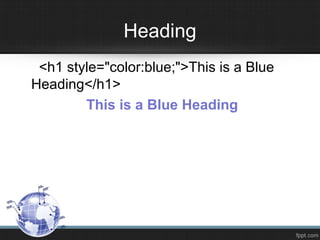
Heading
<h1 style="color:blue;">This is a Blue
Heading</h1>
This is a Blue Heading
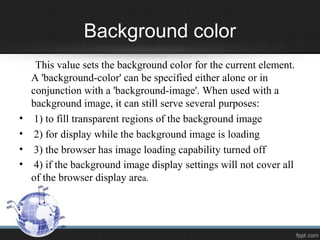
Background color
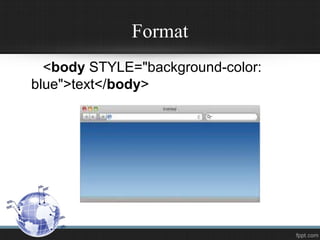
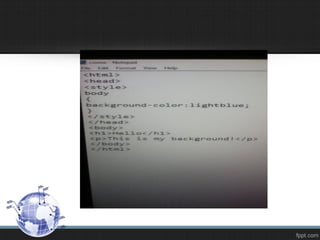
This value sets the background color for the current element.
A 'background-color' can be specified either alone or in
conjunction with a 'background-image'. When used with a
background image, it can still serve several purposes:
• 1) to fill transparent regions of the background image
• 2) for display while the background image is loading
• 3) the browser has image loading capability turned off
• 4) if the background image display settings will not cover all
of the browser display area.
Format
<body STYLE="background-color:
blue">text</body>
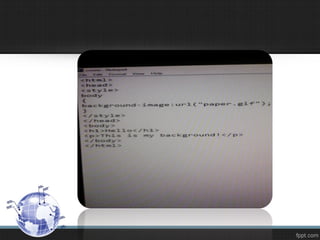
Background Image
• This value indicates the URL source for the graphic. If this
property is present
• 'background-repeat‘
• 'background-attachment'
• 'background-position'
Background Image
<body STYLE="background-image:
url(image.gif)">text</body>
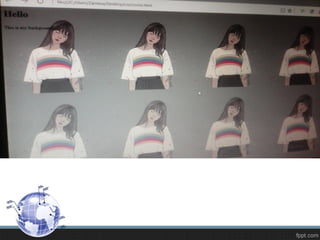
Background repeat
• If a 'background-image' is specified, this value
specifies how the image is repeated if the
image is not large enough to cover the entire
element. All image rendering covers the
content and padding areas of the element's
box.
Allowed Values
• Repeat
Image is repeated (tiled) both vertically and
horizontally.
• repeat-x
Image is repeated (tiled) horizontally only (to
the left and right) of the originating position.
Allowed Values
• repeat-y
Image is repeated (tiled) vertically only
(upwards and downwards) of the originating
position.
• no-repeat
Image is not repeated. Only a single
occurrence of the background image behind
the current element is used, at the specified
position.
Format
<body STYLE="background-image:
url(http://www.foo.com/image.gif);
background-repeat: repeat-y">text</body>
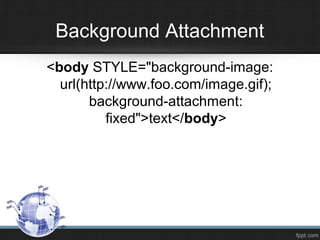
Background Attachment
• if a 'background-image' is specified, this value
indicates whether or not the background image will
move when the browser window is scrolled to view
text outside the current display area.
• Fixed
• Scroll
Background Attachment
<body STYLE="background-image:
url(http://www.foo.com/image.gif);
background-attachment:
fixed">text</body>
Background Position
• The values for this property translate to space separated X/Y
coordinates of the browser window. Minimum values are at
the upper-left corner of the display area and maximum values
are at the lower-right corner. These values are normally
represented as a pair, but omitting a value is legal - the
missing value is assumed to be the y-axis coordinate and is set
to the default 'center' value.
Background Position
• Allowed Values
• X% Y%
• X Y
• (left|center|right) (top|center|bottom)
Format
• <body STYLE="background-image:
url(http://www.foo.com/image.gif);
background-position: center
top">text</body>
Font color
• This property describes the color of text within an element.
Values for the property outside the specified ranges will be
clipped or truncated to create a valid value.
Description:
This is a representation of the values for Red/Green/Blue
used to determine a final display color.
• <body STYLE="color: blue">text</body>
text
Font size
This attribute is used to change font size in
pixels
percentage
points
<h1 style="font-size: 11px; >Hello</h1>
Font Style
• Attribute use to change font Style
E.g
• Italic
• Bold
• Underlin
<h1font style= Italic>Hello</p1>
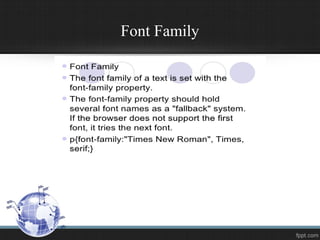
Font Family
Alignment of Text
• Alignment of text include
• Right
• Left
• Center
• <h1 align=center>Hello</h1>
Decoration of text
• Decoration of text
• Blink
• Underline
• Overline
• <h1text decoration:underline>Hello</h1>
Hello
Hyperlink
• a link from a hypertext document to another
location, activated by clicking on a highlighted
word or image.
Hyperlinks
a:link - a normal, unvisited link
a:visited - a link the user has visited
a:hover - a link when the user mouses
over it
a:active - a link the moment it is clicked
Hyperlinks
• <a href="http://www.csscreator.com/"
style="link, visited {color: red; text-
decoration: none; } hover {text-decoration:
none; color: blue; }" >Css Creator</a>
Underline/overline
• Underline/Overline
• <a href="http://www.csscreator.com/"
style="link, visited {color: red; text-
decoration: none; } hover {text-decoration:
underline; color: blue; }" >Css Creator</a>
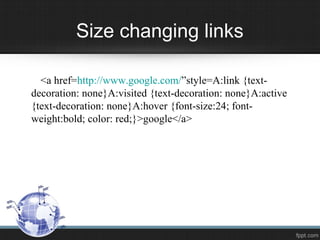
Size changing links
<a href=http://www.google.com/”style=A:link {text-
decoration: none}A:visited {text-decoration: none}A:active
{text-decoration: none}A:hover {font-size:24; font-
weight:bold; color: red;}>google</a>
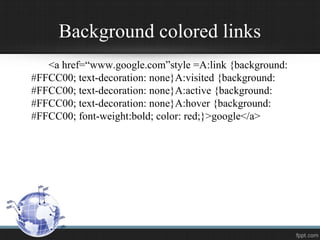
Background colored links
<a href=“www.google.com”style =A:link {background:
#FFCC00; text-decoration: none}A:visited {background:
#FFCC00; text-decoration: none}A:active {background:
#FFCC00; text-decoration: none}A:hover {background:
#FFCC00; font-weight:bold; color: red;}>google</a>
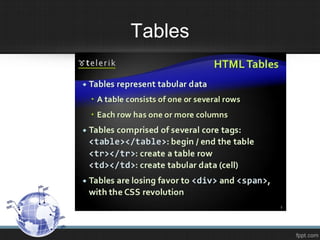
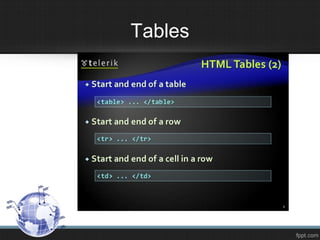
Tables
Tables
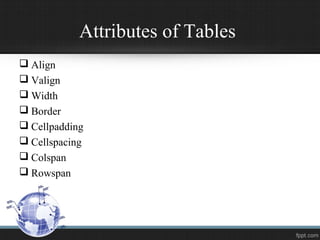
Attributes of Tables
 Align
 Valign
 Width
 Border
 Cellpadding
 Cellspacing
 Colspan
 Rowspan
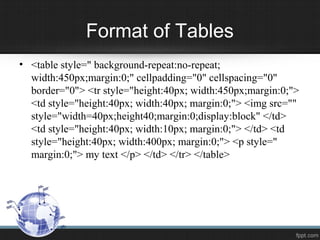
Format of Tables
• <table style=" background-repeat:no-repeat;
width:450px;margin:0;" cellpadding="0" cellspacing="0"
border="0"> <tr style="height:40px; width:450px;margin:0;">
<td style="height:40px; width:40px; margin:0;"> <img src=""
style="width=40px;height40;margin:0;display:block" </td>
<td style="height:40px; width:10px; margin:0;"> </td> <td
style="height:40px; width:400px; margin:0;"> <p style="
margin:0;"> my text </p> </td> </tr> </table>
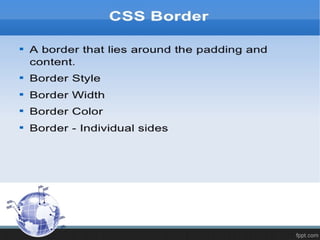
• Border-width
• border-color
• Border-style
Css and borders
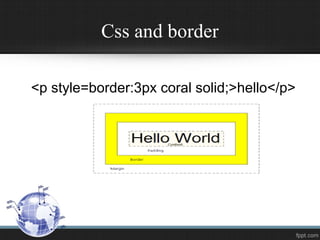
Css and border
<p style=border:3px coral solid;>hello</p>
list
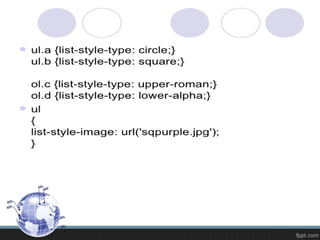
• The CSS list properties allow you to:
• Set different list item markers for ordered lists
• Set different list item markers for unordered lists
• Set an image as the list item marker
• Add background colors to lists and list items
List Types
• Order list
• Unorderlist
• Image list
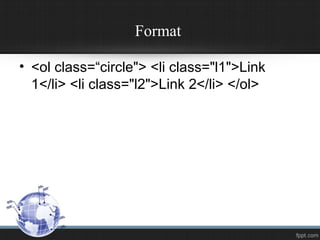
Format
• <ol class=“circle"> <li class="l1">Link
1</li> <li class="l2">Link 2</li> </ol>
Web technology

Web technology

  • 1.
  • 3.
  • 5.
    Cascading style sheet •Cascading Style Sheets (CSS) is a simple mechanism for adding style 1. Fonts 2. Colors 3. Spacing to Web documents
  • 6.
  • 9.
    Syntax  A CSSrule-set consists of a selector and a declaration block:  The selector points to the HTML element you want to style.  The declaration block contains one or more declarations separated by semicolons.  Each declaration includes a CSS property name and a value, separated by a colon.  A CSS declaration always ends with a semicolon, and declaration blocks are surrounded by curly braces.  In the following example all <p> elements will be center- aligned, with a red text color:
  • 10.
  • 11.
    Sources of Style External  Internal  Inline
  • 12.
    Inline style sheet •Inline styles are CSS styles that are applied to one element, directly in the page's HTML, using the style attribute • The inline style uses the HTML "style" attribute. This allows CSS properties on a "per tag" basis.
  • 13.
    How to Writean Inline Style  You write your style property similar to how you would in a style sheet, but it needs to be all one line.  Separate multiple properties with a semi-colon just as you would in a style sheet
  • 14.
    Advantages of InlineStyles 1. Inline styles are easy and quick to add you 2. Do not need to worry about writing the proper CSS 3. You don't need to create a whole new document 4. just add the style attribute that is valid on nearly every HTML element.
  • 15.
    Disadvantages of InlineStyles • They can over-ride things you didn't intend them to • They cause problems and make the pages a lot more work to maintain
  • 16.
    Inline Styles AreNot Best Practice Inline styles don't separate content from design Inline styles cause more maintenance headaches inline styles make your pages bigger Inline styles are not as accessible
  • 17.
    Inline Style Sheet •An inline CSS is used to apply a unique style to a single HTML element. • An inline CSS uses the style attribute of an HTML element. • Example <h1 style="color:blue;">This is a Blue Heading</h1>
  • 18.
    Syntax use tocreate an inline style <element-name style="property: value;"> In the above: element-name refers to the targetted HTML element • property refers to a CSS property • value refers to an associated CSS value • Multiple CSS property/value pairs can be used in the same style attribute. This is demonstrated by the following syntax: <element-name style="property: value; property: value; property: value;">
  • 19.
    Here's a fewthings to remember about inline CSS syntax: • The property and its associated value are separated by a colon (:) • Each property/value pair ends with a semi-colon (;) • When using multiple word values, the multiple word string must be enclosed in single quotation marks to avoid prematurely ending the style attribute
  • 20.
    Heading <h1 style="color:blue;">This isa Blue Heading</h1> This is a Blue Heading
  • 23.
    Background color This valuesets the background color for the current element. A 'background-color' can be specified either alone or in conjunction with a 'background-image'. When used with a background image, it can still serve several purposes: • 1) to fill transparent regions of the background image • 2) for display while the background image is loading • 3) the browser has image loading capability turned off • 4) if the background image display settings will not cover all of the browser display area.
  • 24.
  • 27.
    Background Image • Thisvalue indicates the URL source for the graphic. If this property is present • 'background-repeat‘ • 'background-attachment' • 'background-position'
  • 28.
  • 31.
    Background repeat • Ifa 'background-image' is specified, this value specifies how the image is repeated if the image is not large enough to cover the entire element. All image rendering covers the content and padding areas of the element's box.
  • 32.
    Allowed Values • Repeat Imageis repeated (tiled) both vertically and horizontally. • repeat-x Image is repeated (tiled) horizontally only (to the left and right) of the originating position.
  • 33.
    Allowed Values • repeat-y Imageis repeated (tiled) vertically only (upwards and downwards) of the originating position. • no-repeat Image is not repeated. Only a single occurrence of the background image behind the current element is used, at the specified position.
  • 34.
  • 35.
    Background Attachment • ifa 'background-image' is specified, this value indicates whether or not the background image will move when the browser window is scrolled to view text outside the current display area. • Fixed • Scroll
  • 36.
  • 37.
    Background Position • Thevalues for this property translate to space separated X/Y coordinates of the browser window. Minimum values are at the upper-left corner of the display area and maximum values are at the lower-right corner. These values are normally represented as a pair, but omitting a value is legal - the missing value is assumed to be the y-axis coordinate and is set to the default 'center' value.
  • 38.
    Background Position • AllowedValues • X% Y% • X Y • (left|center|right) (top|center|bottom)
  • 39.
  • 41.
    Font color • Thisproperty describes the color of text within an element. Values for the property outside the specified ranges will be clipped or truncated to create a valid value. Description: This is a representation of the values for Red/Green/Blue used to determine a final display color. • <body STYLE="color: blue">text</body> text
  • 42.
    Font size This attributeis used to change font size in pixels percentage points <h1 style="font-size: 11px; >Hello</h1>
  • 43.
    Font Style • Attributeuse to change font Style E.g • Italic • Bold • Underlin <h1font style= Italic>Hello</p1>
  • 44.
  • 46.
    Alignment of Text •Alignment of text include • Right • Left • Center • <h1 align=center>Hello</h1>
  • 47.
    Decoration of text •Decoration of text • Blink • Underline • Overline • <h1text decoration:underline>Hello</h1> Hello
  • 48.
    Hyperlink • a linkfrom a hypertext document to another location, activated by clicking on a highlighted word or image.
  • 49.
    Hyperlinks a:link - anormal, unvisited link a:visited - a link the user has visited a:hover - a link when the user mouses over it a:active - a link the moment it is clicked
  • 50.
    Hyperlinks • <a href="http://www.csscreator.com/" style="link,visited {color: red; text- decoration: none; } hover {text-decoration: none; color: blue; }" >Css Creator</a>
  • 51.
    Underline/overline • Underline/Overline • <ahref="http://www.csscreator.com/" style="link, visited {color: red; text- decoration: none; } hover {text-decoration: underline; color: blue; }" >Css Creator</a>
  • 52.
    Size changing links <ahref=http://www.google.com/”style=A:link {text- decoration: none}A:visited {text-decoration: none}A:active {text-decoration: none}A:hover {font-size:24; font- weight:bold; color: red;}>google</a>
  • 53.
    Background colored links <ahref=“www.google.com”style =A:link {background: #FFCC00; text-decoration: none}A:visited {background: #FFCC00; text-decoration: none}A:active {background: #FFCC00; text-decoration: none}A:hover {background: #FFCC00; font-weight:bold; color: red;}>google</a>
  • 55.
  • 56.
  • 57.
    Attributes of Tables Align  Valign  Width  Border  Cellpadding  Cellspacing  Colspan  Rowspan
  • 58.
    Format of Tables •<table style=" background-repeat:no-repeat; width:450px;margin:0;" cellpadding="0" cellspacing="0" border="0"> <tr style="height:40px; width:450px;margin:0;"> <td style="height:40px; width:40px; margin:0;"> <img src="" style="width=40px;height40;margin:0;display:block" </td> <td style="height:40px; width:10px; margin:0;"> </td> <td style="height:40px; width:400px; margin:0;"> <p style=" margin:0;"> my text </p> </td> </tr> </table>
  • 60.
    • Border-width • border-color •Border-style Css and borders
  • 61.
    Css and border <pstyle=border:3px coral solid;>hello</p>
  • 63.
    list • The CSSlist properties allow you to: • Set different list item markers for ordered lists • Set different list item markers for unordered lists • Set an image as the list item marker • Add background colors to lists and list items
  • 64.
    List Types • Orderlist • Unorderlist • Image list
  • 66.
    Format • <ol class=“circle"><li class="l1">Link 1</li> <li class="l2">Link 2</li> </ol>

Editor's Notes