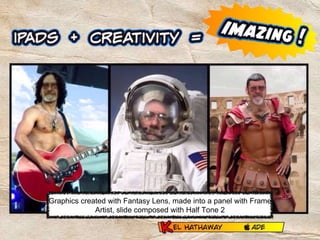
Graphics created with Fantasy Lens, made into a panel with Frame
Artist, slide composed with Half Tone 2
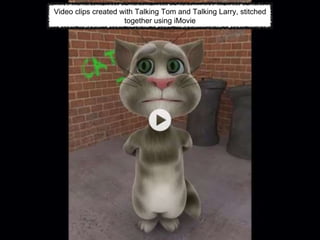
Video clips created with Talking Tom and Talking Larry, stitched
together using iMovie
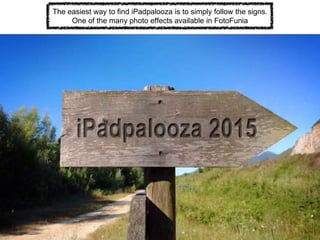
The easiest way to find iPadpalooza is to simply follow the signs.
One of the many photo effects available in FotoFunia
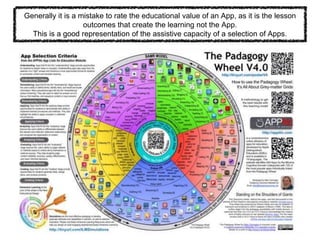
Generally it is a mistake to rate the educational value of an App, as it is the lesson
outcomes that create the learning not the App.
This is a good representation of the assistive capacity of a selection of Apps.
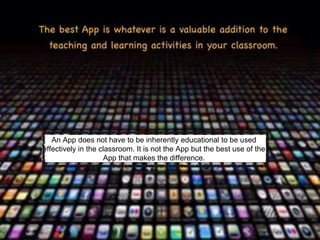
An App does not have to be inherently educational to be used
effectively in the classroom. It is not the App but the best use of the
App that makes the difference.
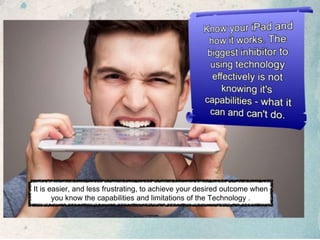
It is easier, and less frustrating, to achieve your desired outcome when
you know the capabilities and limitations of the Technology .
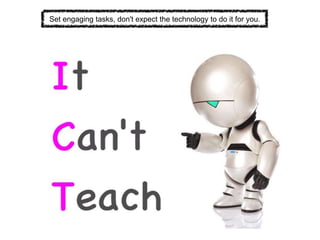
Set engaging tasks, don't expect the technology to do it for you.
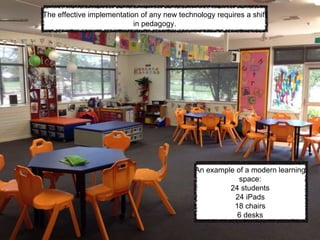
The effective implementation of any new technology requires a shift
in pedagogy.
An example of a modern learning
space:
24 students
24 iPads
18 chairs
6 desks
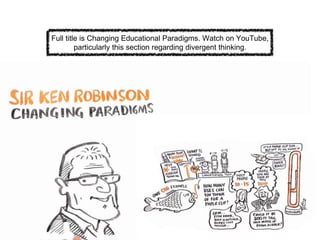
Full title is Changing Educational Paradigms. Watch on YouTube,
particularly this section regarding divergent thinking.
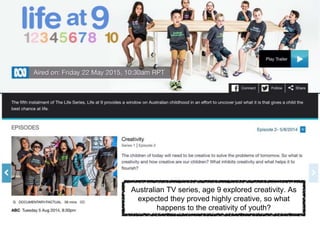
Australian TV series, age 9 explored creativity. As
expected they proved highly creative, so what
happens to the creativity of youth?
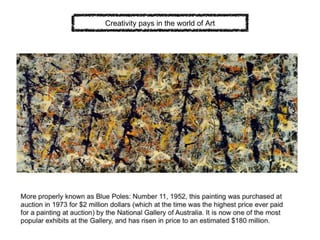
Creativity pays in the world of Art
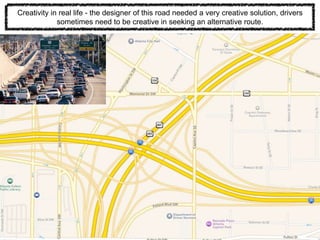
Creativity in real life - the designer of this road needed a very creative solution, drivers
sometimes need to be creative in seeking an alternative route.
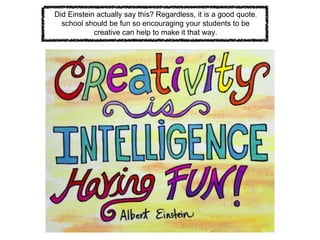
Did Einstein actually say this? Regardless, it is a good quote,
school should be fun so encouraging your students to be
creative can help to make it that way.
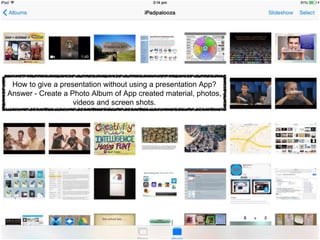
How to give a presentation without using a presentation App?
Answer - Create a Photo Album of App created material, photos,
videos and screen shots.
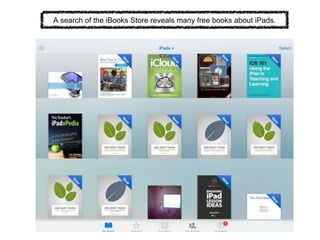
A search of the iBooks Store reveals many free books about iPads.
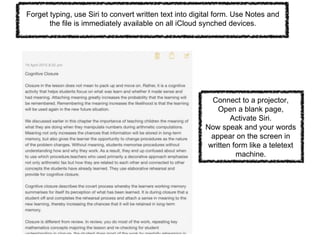
Forget typing, use Siri to convert written text into digital form. Use Notes and
the file is immediately available on all iCloud synched devices.
Connect to a projector,
Open a blank page,
Activate Siri.
Now speak and your words
appear on the screen in
written form like a teletext
machine.
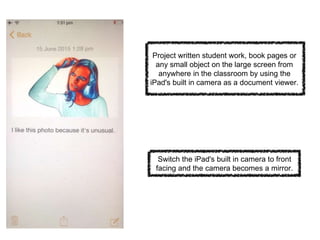
Project written student work, book pages or
any small object on the large screen from
anywhere in the classroom by using the
iPad's built in camera as a document viewer.
Switch the iPad's built in camera to front
facing and the camera becomes a mirror.
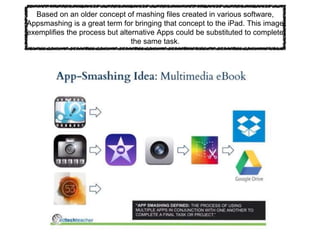
Based on an older concept of mashing files created in various software,
Appsmashing is a great term for bringing that concept to the iPad. This image
exemplifies the process but alternative Apps could be substituted to complete
the same task.
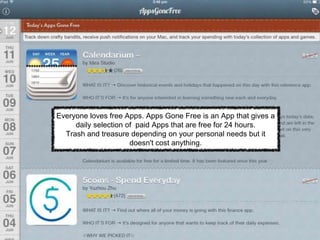
Everyone loves free Apps. Apps Gone Free is an App that gives a
daily selection of paid Apps that are free for 24 hours.
Trash and treasure depending on your personal needs but it
doesn't cost anything.
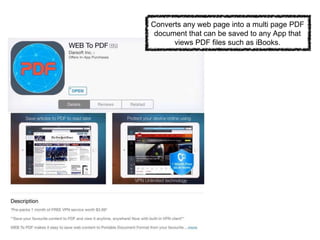
Converts any web page into a multi page PDF
document that can be saved to any App that
views PDF files such as iBooks.
Need an App that performs a particular function?
Having trouble finding something in the App Store?
Google it instead. The App Store searches file names while Google
searches the text of the entire page making it more likely to find the
functionality you are looking for.
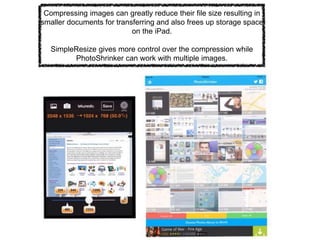
Compressing images can greatly reduce their file size resulting in
smaller documents for transferring and also frees up storage space
on the iPad.
SimpleResize gives more control over the compression while
PhotoShrinker can work with multiple images.
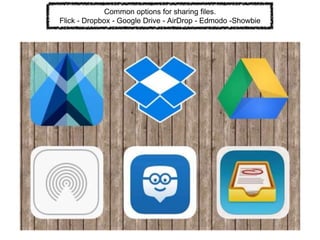
Common options for sharing files.
Flick - Dropbox - Google Drive - AirDrop - Edmodo -Showbie
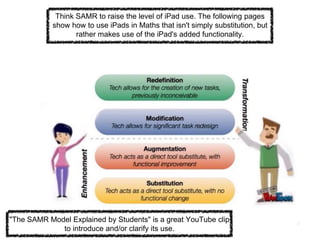
Think SAMR to raise the level of iPad use. The following pages
show how to use iPads in Maths that isn't simply substitution, but
rather makes use of the iPad's added functionality.
"The SAMR Model Explained by Students" is a great YouTube clip
to introduce and/or clarify its use.
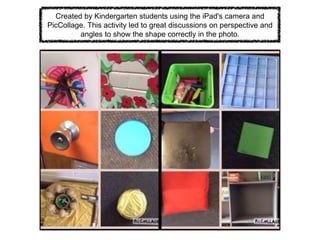
Created by Kindergarten students using the iPad's camera and
PicCollage. This activity led to great discussions on perspective and
angles to show the shape correctly in the photo.
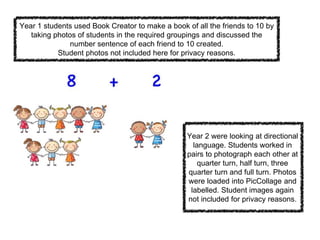
Year 1 students used Book Creator to make a book of all the friends to 10 by
taking photos of students in the required groupings and discussed the
number sentence of each friend to 10 created.
Student photos not included here for privacy reasons.
Year 2 were looking at directional
language. Students worked in
pairs to photograph each other at
quarter turn, half turn, three
quarter turn and full turn. Photos
were loaded into PicCollage and
labelled. Student images again
not included for privacy reasons.
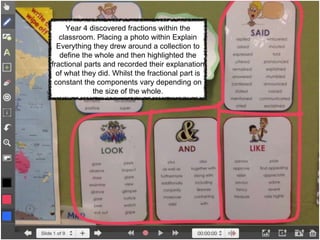
Year 4 discovered fractions within the
classroom. Placing a photo within Explain
Everything they drew around a collection to
define the whole and then highlighted the
fractional parts and recorded their explanation
of what they did. Whilst the fractional part is
constant the components vary depending on
the size of the whole.
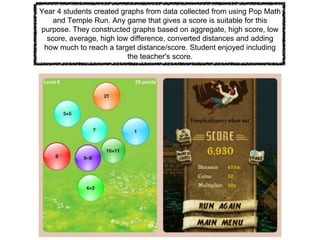
Year 4 students created graphs from data collected from using Pop Math
and Temple Run. Any game that gives a score is suitable for this
purpose. They constructed graphs based on aggregate, high score, low
score, average, high low difference, converted distances and adding
how much to reach a target distance/score. Student enjoyed including
the teacher's score.
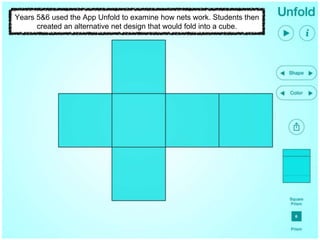
Years 5&6 used the App Unfold to examine how nets work. Students then
created an alternative net design that would fold into a cube.
Using Explain Everything - set up the full solution then undo each
section, start recording and press redo to make each line appear
while explaining the method in a single take.
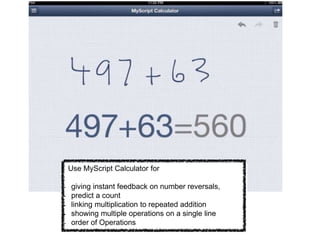
Use MyScript Calculator for
- giving instant feedback on number reversals,
- predict a count
- linking multiplication to repeated addition
- showing multiple operations on a single line
- order of Operations
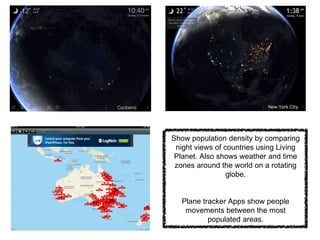
Show population density by comparing
night views of countries using Living
Planet. Also shows weather and time
zones around the world on a rotating
globe.
Plane tracker Apps show people
movements between the most
populated areas.
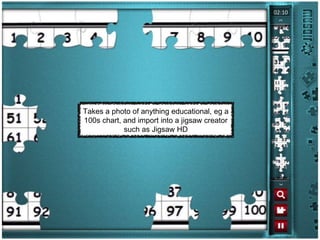
Takes a photo of anything educational, eg a
100s chart, and import into a jigsaw creator
such as Jigsaw HD
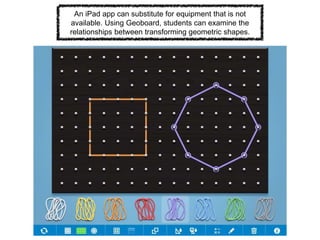
An iPad app can substitute for equipment that is not
available. Using Geoboard, students can examine the
relationships between transforming geometric shapes.
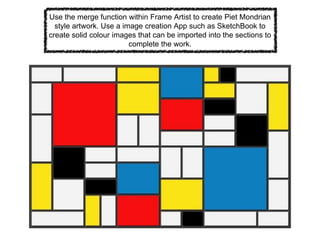
Use the merge function within Frame Artist to create Piet Mondrian
style artwork. Use a image creation App such as SketchBook to
create solid colour images that can be imported into the sections to
complete the work.
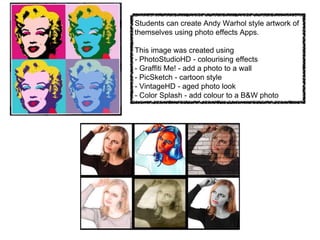
Students can create Andy Warhol style artwork of
themselves using photo effects Apps.
This image was created using
- PhotoStudioHD - colourising effects
- Graffiti Me! - add a photo to a wall
- PicSketch - cartoon style
- VintageHD - aged photo look
- Color Splash - add colour to a B&W photo
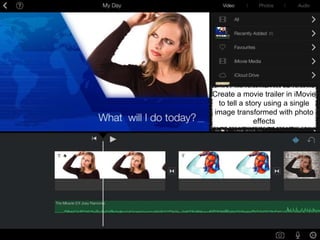
Create a movie trailer in iMovie
to tell a story using a single
image transformed with photo
effects
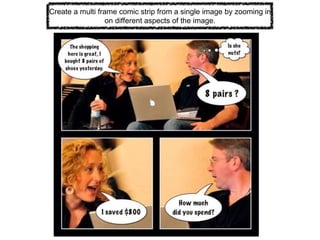
Create a multi frame comic strip from a single image by zooming in
on different aspects of the image.
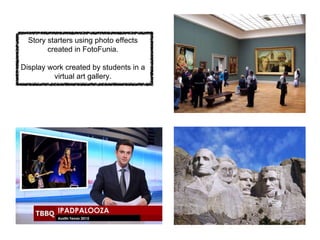
Story starters using photo effects
created in FotoFunia.
Display work created by students in a
virtual art gallery.
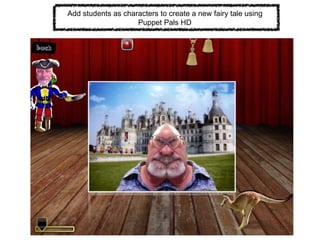
Add students as characters to create a new fairy tale using
Puppet Pals HD
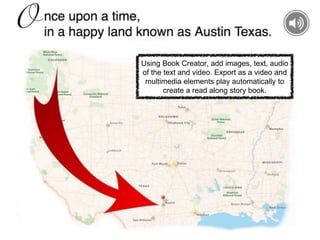
Using Book Creator, add images, text, audio
of the text and video. Export as a video and
multimedia elements play automatically to
create a read along story book.
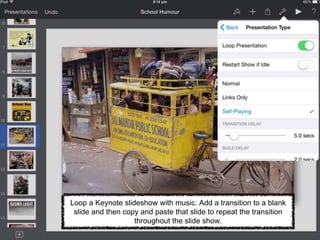
Loop a Keynote slideshow with music. Add a transition to a blank
slide and then copy and paste that slide to repeat the transition
throughout the slide show.
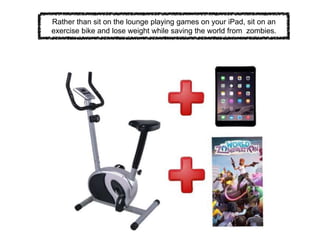
Rather than sit on the lounge playing games on your iPad, sit on an
exercise bike and lose weight while saving the world from zombies.
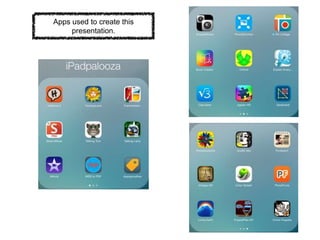
Apps used to create this
presentation.
Video clips created with Talking Tom and Talking Larry, stitched
together using iMovie
Video clips created with Talking Tom and Talking Larry, stitched
together using iMovie

Creative i pad use

  • 1.
    Graphics created withFantasy Lens, made into a panel with Frame Artist, slide composed with Half Tone 2
  • 2.
    Video clips createdwith Talking Tom and Talking Larry, stitched together using iMovie
  • 3.
    The easiest wayto find iPadpalooza is to simply follow the signs. One of the many photo effects available in FotoFunia
  • 4.
    Generally it isa mistake to rate the educational value of an App, as it is the lesson outcomes that create the learning not the App. This is a good representation of the assistive capacity of a selection of Apps.
  • 5.
    An App doesnot have to be inherently educational to be used effectively in the classroom. It is not the App but the best use of the App that makes the difference.
  • 6.
    It is easier,and less frustrating, to achieve your desired outcome when you know the capabilities and limitations of the Technology .
  • 7.
    Set engaging tasks,don't expect the technology to do it for you.
  • 8.
    The effective implementationof any new technology requires a shift in pedagogy. An example of a modern learning space: 24 students 24 iPads 18 chairs 6 desks
  • 9.
    Full title isChanging Educational Paradigms. Watch on YouTube, particularly this section regarding divergent thinking.
  • 10.
    Australian TV series,age 9 explored creativity. As expected they proved highly creative, so what happens to the creativity of youth?
  • 11.
    Creativity pays inthe world of Art
  • 12.
    Creativity in reallife - the designer of this road needed a very creative solution, drivers sometimes need to be creative in seeking an alternative route.
  • 13.
    Did Einstein actuallysay this? Regardless, it is a good quote, school should be fun so encouraging your students to be creative can help to make it that way.
  • 14.
    How to givea presentation without using a presentation App? Answer - Create a Photo Album of App created material, photos, videos and screen shots.
  • 15.
    A search ofthe iBooks Store reveals many free books about iPads.
  • 16.
    Forget typing, useSiri to convert written text into digital form. Use Notes and the file is immediately available on all iCloud synched devices. Connect to a projector, Open a blank page, Activate Siri. Now speak and your words appear on the screen in written form like a teletext machine.
  • 17.
    Project written studentwork, book pages or any small object on the large screen from anywhere in the classroom by using the iPad's built in camera as a document viewer. Switch the iPad's built in camera to front facing and the camera becomes a mirror.
  • 18.
    Based on anolder concept of mashing files created in various software, Appsmashing is a great term for bringing that concept to the iPad. This image exemplifies the process but alternative Apps could be substituted to complete the same task.
  • 19.
    Everyone loves freeApps. Apps Gone Free is an App that gives a daily selection of paid Apps that are free for 24 hours. Trash and treasure depending on your personal needs but it doesn't cost anything.
  • 20.
    Converts any webpage into a multi page PDF document that can be saved to any App that views PDF files such as iBooks.
  • 21.
    Need an Appthat performs a particular function? Having trouble finding something in the App Store? Google it instead. The App Store searches file names while Google searches the text of the entire page making it more likely to find the functionality you are looking for.
  • 22.
    Compressing images cangreatly reduce their file size resulting in smaller documents for transferring and also frees up storage space on the iPad. SimpleResize gives more control over the compression while PhotoShrinker can work with multiple images.
  • 23.
    Common options forsharing files. Flick - Dropbox - Google Drive - AirDrop - Edmodo -Showbie
  • 24.
    Think SAMR toraise the level of iPad use. The following pages show how to use iPads in Maths that isn't simply substitution, but rather makes use of the iPad's added functionality. "The SAMR Model Explained by Students" is a great YouTube clip to introduce and/or clarify its use.
  • 25.
    Created by Kindergartenstudents using the iPad's camera and PicCollage. This activity led to great discussions on perspective and angles to show the shape correctly in the photo.
  • 26.
    Year 1 studentsused Book Creator to make a book of all the friends to 10 by taking photos of students in the required groupings and discussed the number sentence of each friend to 10 created. Student photos not included here for privacy reasons. Year 2 were looking at directional language. Students worked in pairs to photograph each other at quarter turn, half turn, three quarter turn and full turn. Photos were loaded into PicCollage and labelled. Student images again not included for privacy reasons.
  • 27.
    Year 4 discoveredfractions within the classroom. Placing a photo within Explain Everything they drew around a collection to define the whole and then highlighted the fractional parts and recorded their explanation of what they did. Whilst the fractional part is constant the components vary depending on the size of the whole.
  • 28.
    Year 4 studentscreated graphs from data collected from using Pop Math and Temple Run. Any game that gives a score is suitable for this purpose. They constructed graphs based on aggregate, high score, low score, average, high low difference, converted distances and adding how much to reach a target distance/score. Student enjoyed including the teacher's score.
  • 29.
    Years 5&6 usedthe App Unfold to examine how nets work. Students then created an alternative net design that would fold into a cube.
  • 30.
    Using Explain Everything- set up the full solution then undo each section, start recording and press redo to make each line appear while explaining the method in a single take.
  • 31.
    Use MyScript Calculatorfor - giving instant feedback on number reversals, - predict a count - linking multiplication to repeated addition - showing multiple operations on a single line - order of Operations
  • 32.
    Show population densityby comparing night views of countries using Living Planet. Also shows weather and time zones around the world on a rotating globe. Plane tracker Apps show people movements between the most populated areas.
  • 33.
    Takes a photoof anything educational, eg a 100s chart, and import into a jigsaw creator such as Jigsaw HD
  • 34.
    An iPad appcan substitute for equipment that is not available. Using Geoboard, students can examine the relationships between transforming geometric shapes.
  • 35.
    Use the mergefunction within Frame Artist to create Piet Mondrian style artwork. Use a image creation App such as SketchBook to create solid colour images that can be imported into the sections to complete the work.
  • 36.
    Students can createAndy Warhol style artwork of themselves using photo effects Apps. This image was created using - PhotoStudioHD - colourising effects - Graffiti Me! - add a photo to a wall - PicSketch - cartoon style - VintageHD - aged photo look - Color Splash - add colour to a B&W photo
  • 37.
    Create a movietrailer in iMovie to tell a story using a single image transformed with photo effects
  • 38.
    Create a multiframe comic strip from a single image by zooming in on different aspects of the image.
  • 39.
    Story starters usingphoto effects created in FotoFunia. Display work created by students in a virtual art gallery.
  • 40.
    Add students ascharacters to create a new fairy tale using Puppet Pals HD
  • 41.
    Using Book Creator,add images, text, audio of the text and video. Export as a video and multimedia elements play automatically to create a read along story book.
  • 42.
    Loop a Keynoteslideshow with music. Add a transition to a blank slide and then copy and paste that slide to repeat the transition throughout the slide show.
  • 43.
    Rather than siton the lounge playing games on your iPad, sit on an exercise bike and lose weight while saving the world from zombies.
  • 44.
    Apps used tocreate this presentation.
  • 45.
    Video clips createdwith Talking Tom and Talking Larry, stitched together using iMovie
  • 46.
    Video clips createdwith Talking Tom and Talking Larry, stitched together using iMovie