Jyothi P
http://drupal.org/u/jyothi-p
Creating Custom Chrome
Extensions
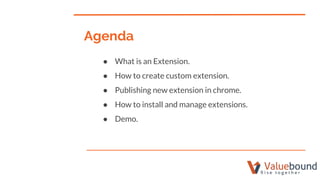
● What is an Extension.
● How to create custom extension.
● Publishing new extension in chrome.
● How to install and manage extensions.
● Demo.
Agenda
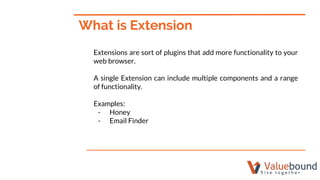
What is Extension
Extensions are sort of plugins that add more functionality to your
web browser.
A single Extension can include multiple components and a range
of functionality.
Examples:
- Honey
- Email Finder
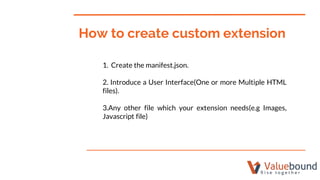
How to create custom extension
1. Create the manifest.json.
2. Introduce a User Interface(One or more Multiple HTML
files).
3.Any other file which your extension needs(e.g Images,
Javascript file)
Create manifest.json
Example:{
"name": "Getting Started Example",
"version": "1.0",
"description": "Build an Extension!",
"manifest_version": 2
}
Manifest.json the metadata file in json format
Background Pages: Every extension has invisible background pages.
Registering background pages in manifest json
"background": {
"scripts": ["background.js"],
"persistent": false/true
}
Content Script:
Content Script is javascript file, the code is run within the context of
current webpage.
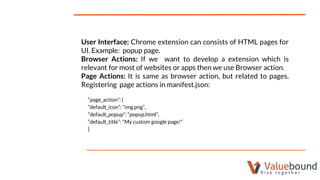
User Interface: Chrome extension can consists of HTML pages for
UI. Example: popup page.
Browser Actions: If we want to develop a extension which is
relevant for most of websites or apps then we use Browser action.
Page Actions: It is same as browser action, but related to pages.
Registering page actions in manifest.json:
“page_action”: {
“default_icon”: “img.png”,
“default_popup”: “popup.html”,
“default_title”: “My custom google page!”
}
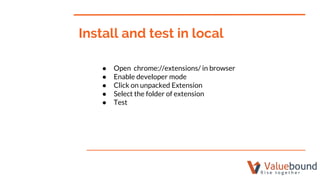
Install and test in local
● Open chrome://extensions/ in browser
● Enable developer mode
● Click on unpacked Extension
● Select the folder of extension
● Test
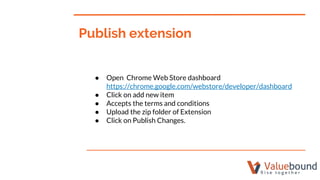
Publish extension
● Open Chrome Web Store dashboard
https://chrome.google.com/webstore/developer/dashboard
● Click on add new item
● Accepts the terms and conditions
● Upload the zip folder of Extension
● Click on Publish Changes.
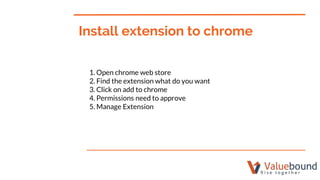
Install extension to chrome
1. Open chrome web store
2. Find the extension what do you want
3. Click on add to chrome
4. Permissions need to approve
5. Manage Extension
Demo
THANKS!
QUESTIONS?

Creating custom chrome extensions

  • 1.
  • 2.
    ● What isan Extension. ● How to create custom extension. ● Publishing new extension in chrome. ● How to install and manage extensions. ● Demo. Agenda
  • 3.
    What is Extension Extensionsare sort of plugins that add more functionality to your web browser. A single Extension can include multiple components and a range of functionality. Examples: - Honey - Email Finder
  • 4.
    How to createcustom extension 1. Create the manifest.json. 2. Introduce a User Interface(One or more Multiple HTML files). 3.Any other file which your extension needs(e.g Images, Javascript file)
  • 5.
    Create manifest.json Example:{ "name": "GettingStarted Example", "version": "1.0", "description": "Build an Extension!", "manifest_version": 2 } Manifest.json the metadata file in json format
  • 6.
    Background Pages: Everyextension has invisible background pages. Registering background pages in manifest json "background": { "scripts": ["background.js"], "persistent": false/true } Content Script: Content Script is javascript file, the code is run within the context of current webpage.
  • 7.
    User Interface: Chromeextension can consists of HTML pages for UI. Example: popup page. Browser Actions: If we want to develop a extension which is relevant for most of websites or apps then we use Browser action. Page Actions: It is same as browser action, but related to pages. Registering page actions in manifest.json: “page_action”: { “default_icon”: “img.png”, “default_popup”: “popup.html”, “default_title”: “My custom google page!” }
  • 8.
    Install and testin local ● Open chrome://extensions/ in browser ● Enable developer mode ● Click on unpacked Extension ● Select the folder of extension ● Test
  • 9.
    Publish extension ● OpenChrome Web Store dashboard https://chrome.google.com/webstore/developer/dashboard ● Click on add new item ● Accepts the terms and conditions ● Upload the zip folder of Extension ● Click on Publish Changes.
  • 10.
    Install extension tochrome 1. Open chrome web store 2. Find the extension what do you want 3. Click on add to chrome 4. Permissions need to approve 5. Manage Extension
  • 11.
  • 12.