Creating A Web Gallery Using Lightbox2
(CSS,JavaScript,HTML)
Web Design 2
Mr. Downs
3/3/2010
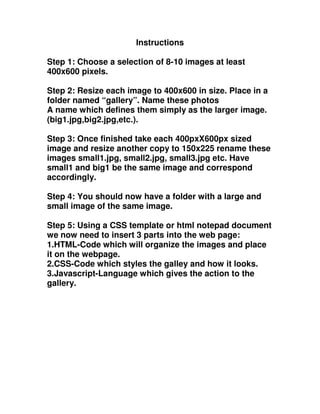
Instructions
Step 1: Choose a selection of 8-10 images at least
400x600 pixels.
Step 2: Resize each image to 400x600 in size. Place in a
folder named “gallery”. Name these photos
A name which defines them simply as the larger image.
(big1.jpg,big2.jpg,etc.).
Step 3: Once finished take each 400pxX600px sized
image and resize another copy to 150x225 rename these
images small1.jpg, small2.jpg, small3.jpg etc. Have
small1 and big1 be the same image and correspond
accordingly.
Step 4: You should now have a folder with a large and
small image of the same image.
Step 5: Using a CSS template or html notepad document
we now need to insert 3 parts into the web page:
1.HTML-Code which will organize the images and place
it on the webpage.
2.CSS-Code which styles the galley and how it looks.
3.Javascript-Language which gives the action to the
gallery.
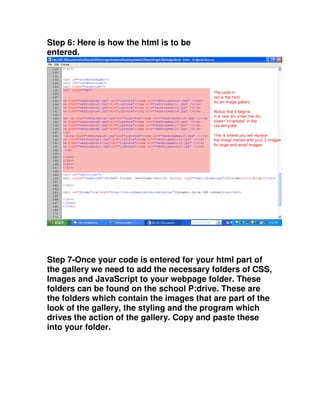
Step 6: Here is how the html is to be
entered.
Step 7-Once your code is entered for your html part of
the gallery we need to add the necessary folders of CSS,
Images and JavaScript to your webpage folder. These
folders can be found on the school P:drive. These are
the folders which contain the images that are part of the
look of the gallery, the styling and the program which
drives the action of the gallery. Copy and paste these
into your folder.
Here is what the folders look like. Notice there are 3-
css,images and js(javascript) You will need these in
your folder for your gallery to work.
What is JavaScript?
“JavaScript is an object-oriented[4] scripting language used to
enable programmatic access to objects within both the client
application and other applications. It is primarily used in the
form of client-side JavaScript, implemented as an integrated
component of the web browser, allowing the development of
enhanced user interfaces and dynamic websites.”
-Wikipedia
What the folders look like.
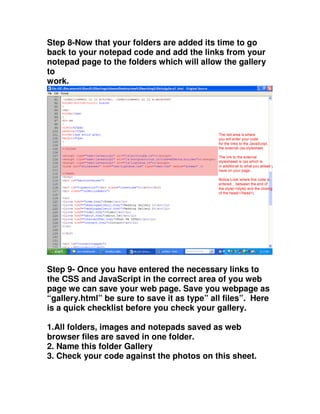
Step 8-Now that your folders are added its time to go
back to your notepad code and add the links from your
notepad page to the folders which will allow the gallery
to
work.
Step 9- Once you have entered the necessary links to
the CSS and JavaScript in the correct area of you web
page we can save your web page. Save you webpage as
“gallery.html” be sure to save it as type” all files”. Here
is a quick checklist before you check your gallery.
1.All folders, images and notepads saved as web
browser files are saved in one folder.
2. Name this folder Gallery
3. Check your code against the photos on this sheet.
Creating a web gallery lightbox2 final

Creating a web gallery lightbox2 final

  • 1.
    Creating A WebGallery Using Lightbox2 (CSS,JavaScript,HTML) Web Design 2 Mr. Downs 3/3/2010
  • 2.
    Instructions Step 1: Choosea selection of 8-10 images at least 400x600 pixels. Step 2: Resize each image to 400x600 in size. Place in a folder named “gallery”. Name these photos A name which defines them simply as the larger image. (big1.jpg,big2.jpg,etc.). Step 3: Once finished take each 400pxX600px sized image and resize another copy to 150x225 rename these images small1.jpg, small2.jpg, small3.jpg etc. Have small1 and big1 be the same image and correspond accordingly. Step 4: You should now have a folder with a large and small image of the same image. Step 5: Using a CSS template or html notepad document we now need to insert 3 parts into the web page: 1.HTML-Code which will organize the images and place it on the webpage. 2.CSS-Code which styles the galley and how it looks. 3.Javascript-Language which gives the action to the gallery.
  • 3.
    Step 6: Hereis how the html is to be entered. Step 7-Once your code is entered for your html part of the gallery we need to add the necessary folders of CSS, Images and JavaScript to your webpage folder. These folders can be found on the school P:drive. These are the folders which contain the images that are part of the look of the gallery, the styling and the program which drives the action of the gallery. Copy and paste these into your folder.
  • 4.
    Here is whatthe folders look like. Notice there are 3- css,images and js(javascript) You will need these in your folder for your gallery to work. What is JavaScript? “JavaScript is an object-oriented[4] scripting language used to enable programmatic access to objects within both the client application and other applications. It is primarily used in the form of client-side JavaScript, implemented as an integrated component of the web browser, allowing the development of enhanced user interfaces and dynamic websites.” -Wikipedia What the folders look like.
  • 5.
    Step 8-Now thatyour folders are added its time to go back to your notepad code and add the links from your notepad page to the folders which will allow the gallery to work. Step 9- Once you have entered the necessary links to the CSS and JavaScript in the correct area of you web page we can save your web page. Save you webpage as “gallery.html” be sure to save it as type” all files”. Here is a quick checklist before you check your gallery. 1.All folders, images and notepads saved as web browser files are saved in one folder. 2. Name this folder Gallery 3. Check your code against the photos on this sheet.