Contents Page Production Processes
on Photoshop
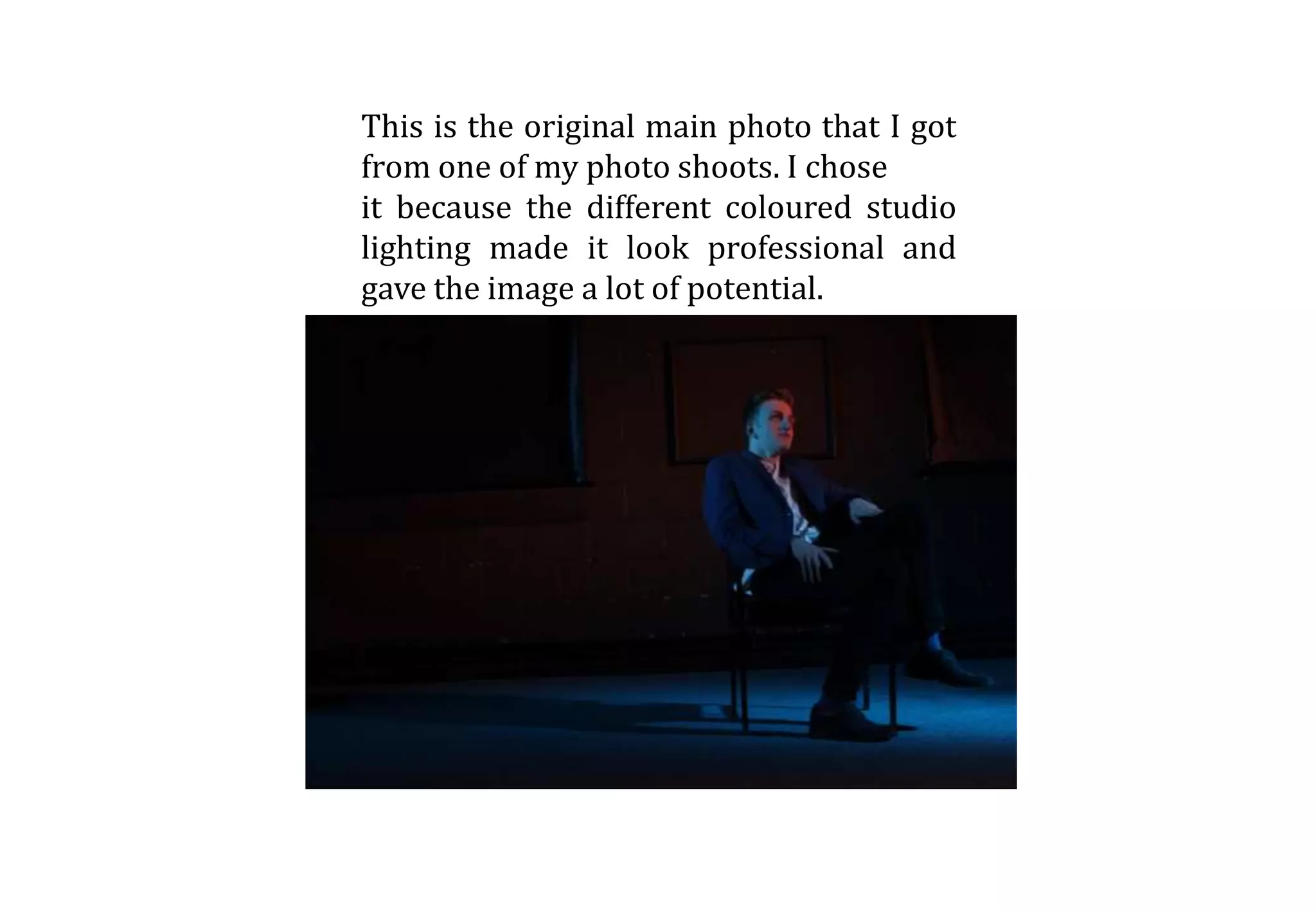
This is the original main photo that I got
from one of my photo shoots. I chose
it because the different coloured studio
lighting made it look professional and
gave the image a lot of potential.
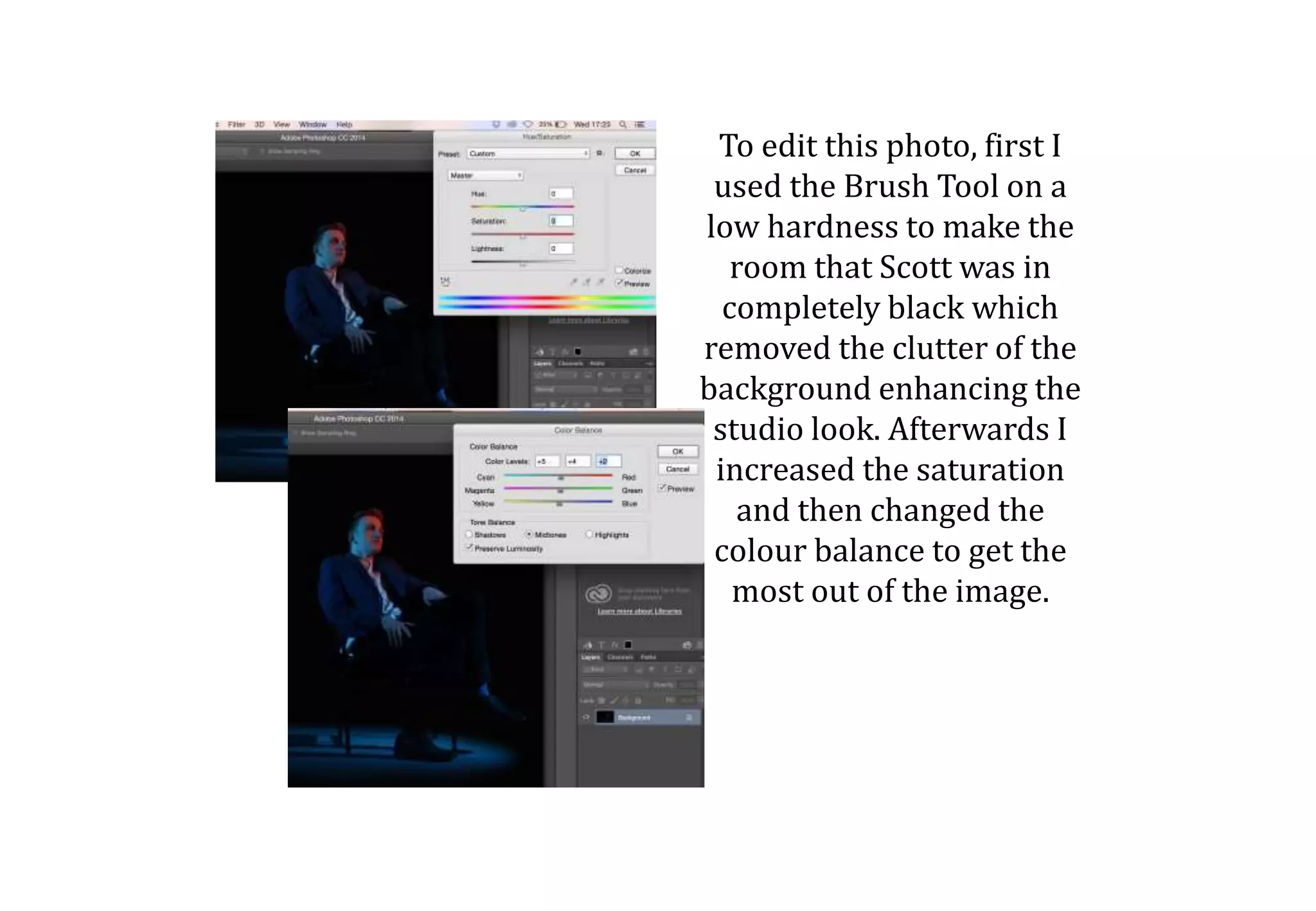
To edit this photo, first I
used the Brush Tool on a
low hardness to make the
room that Scott was in
completely black which
removed the clutter of the
background enhancing the
studio look. Afterwards I
increased the saturation
and then changed the
colour balance to get the
most out of the image.
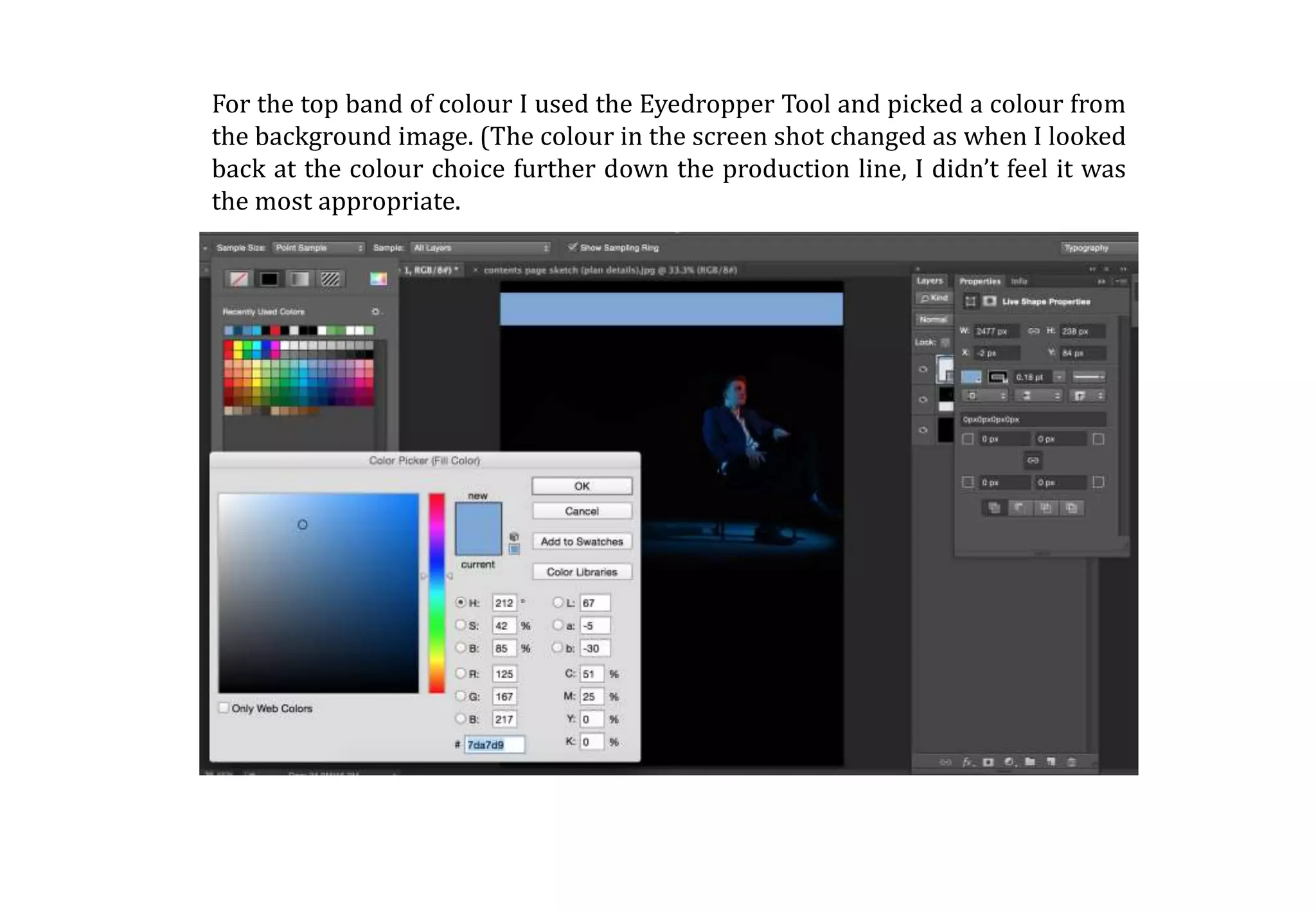
For the top band of colour I used the Eyedropper Tool and picked a colour from
the background image. (The colour in the screen shot changed as when I looked
back at the colour choice further down the production line, I didn’t feel it was
the most appropriate.
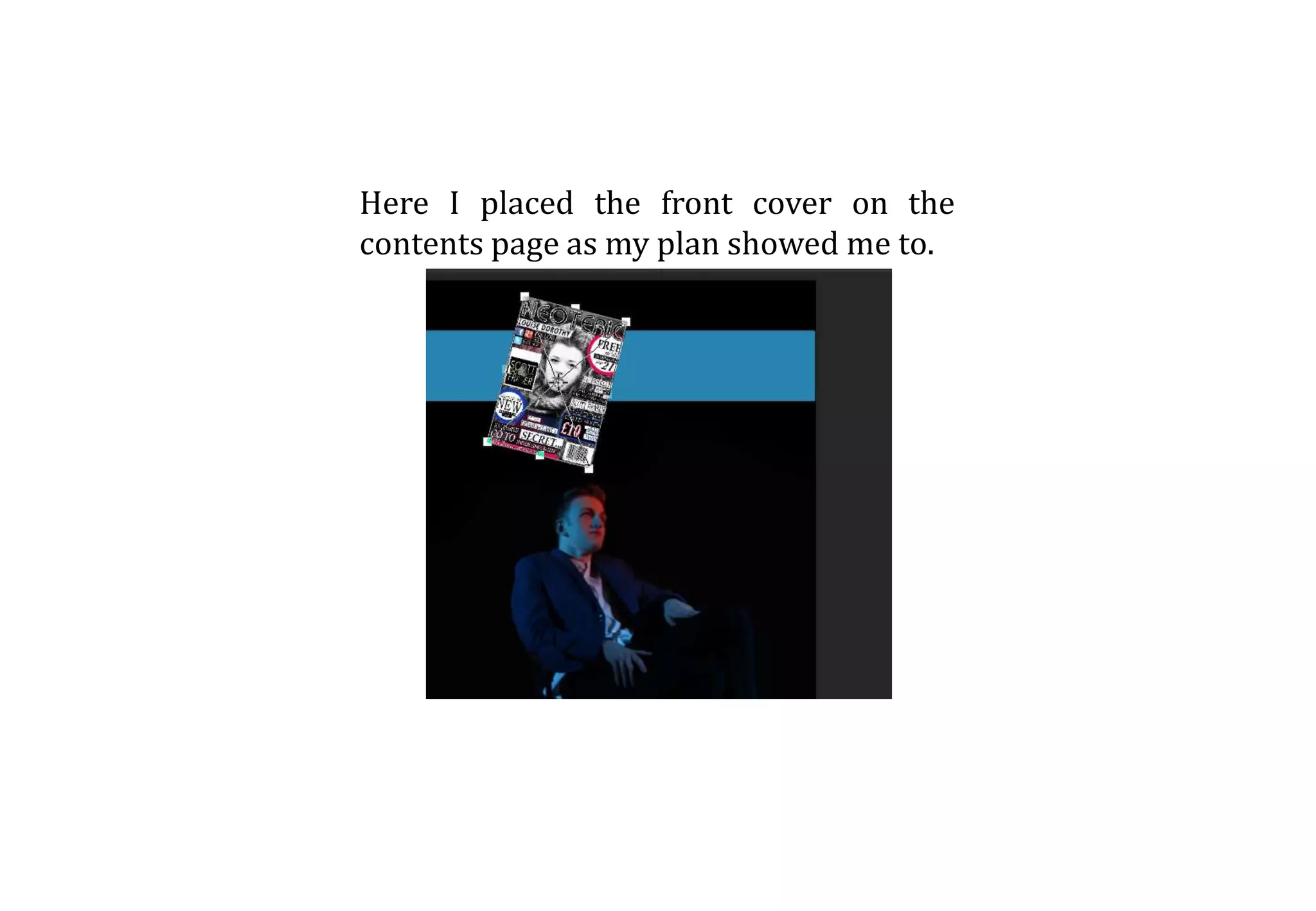
Here I placed the front cover on the
contents page as my plan showed me to.
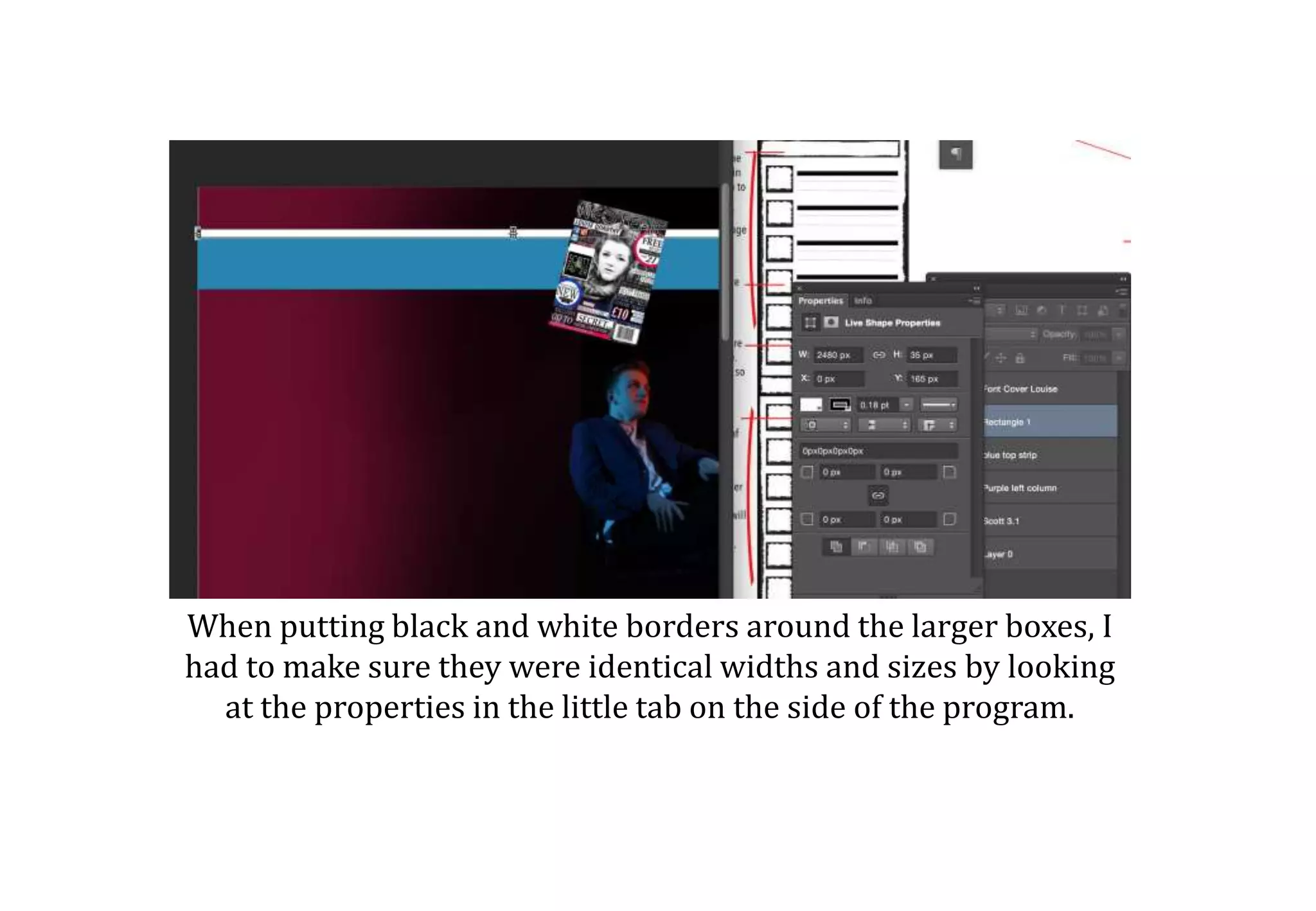
When putting black and white borders around the larger boxes, I
had to make sure they were identical widths and sizes by looking
at the properties in the little tab on the side of the program.
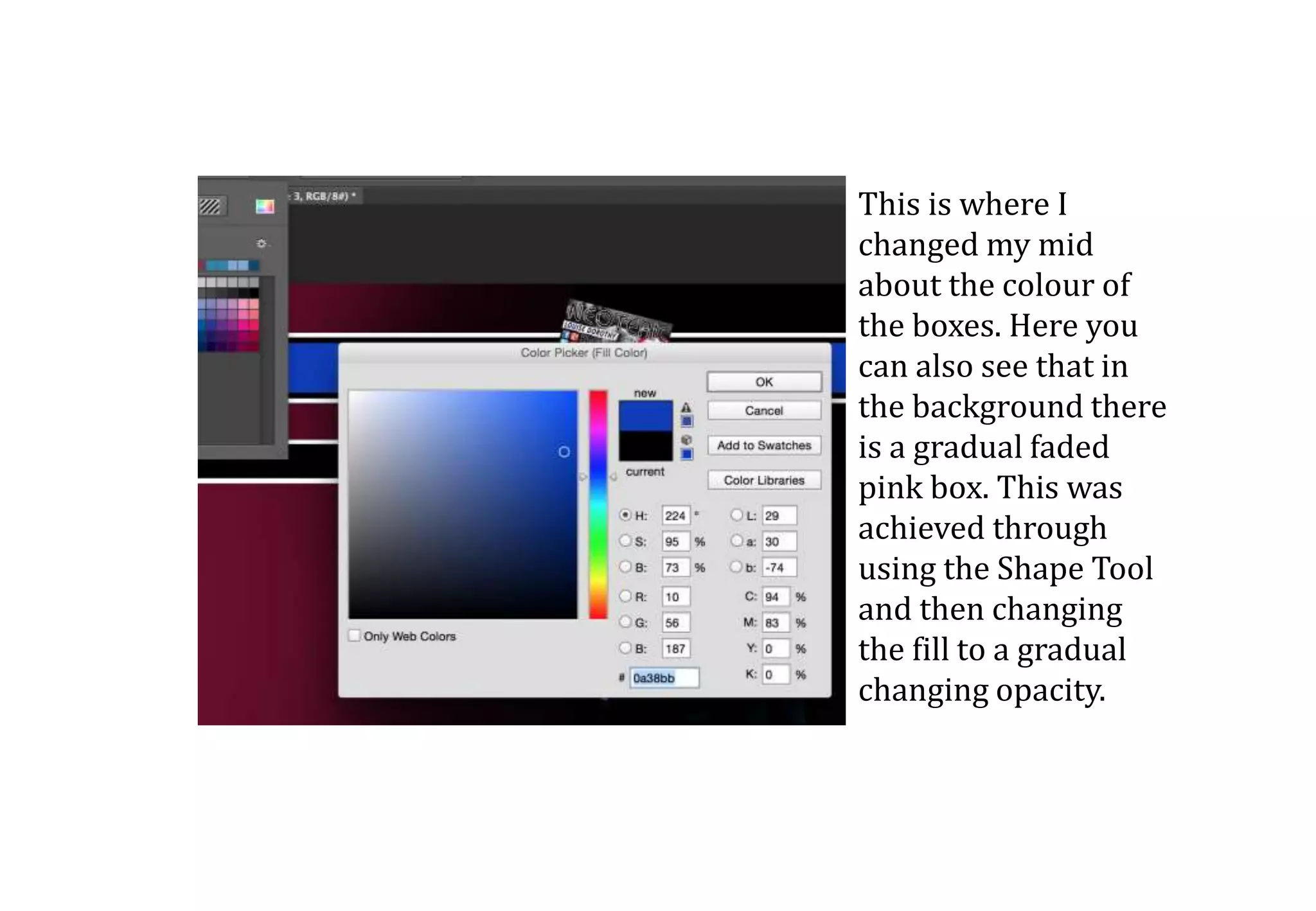
This is where I
changed my mid
about the colour of
the boxes. Here you
can also see that in
the background there
is a gradual faded
pink box. This was
achieved through
using the Shape Tool
and then changing
the fill to a gradual
changing opacity.
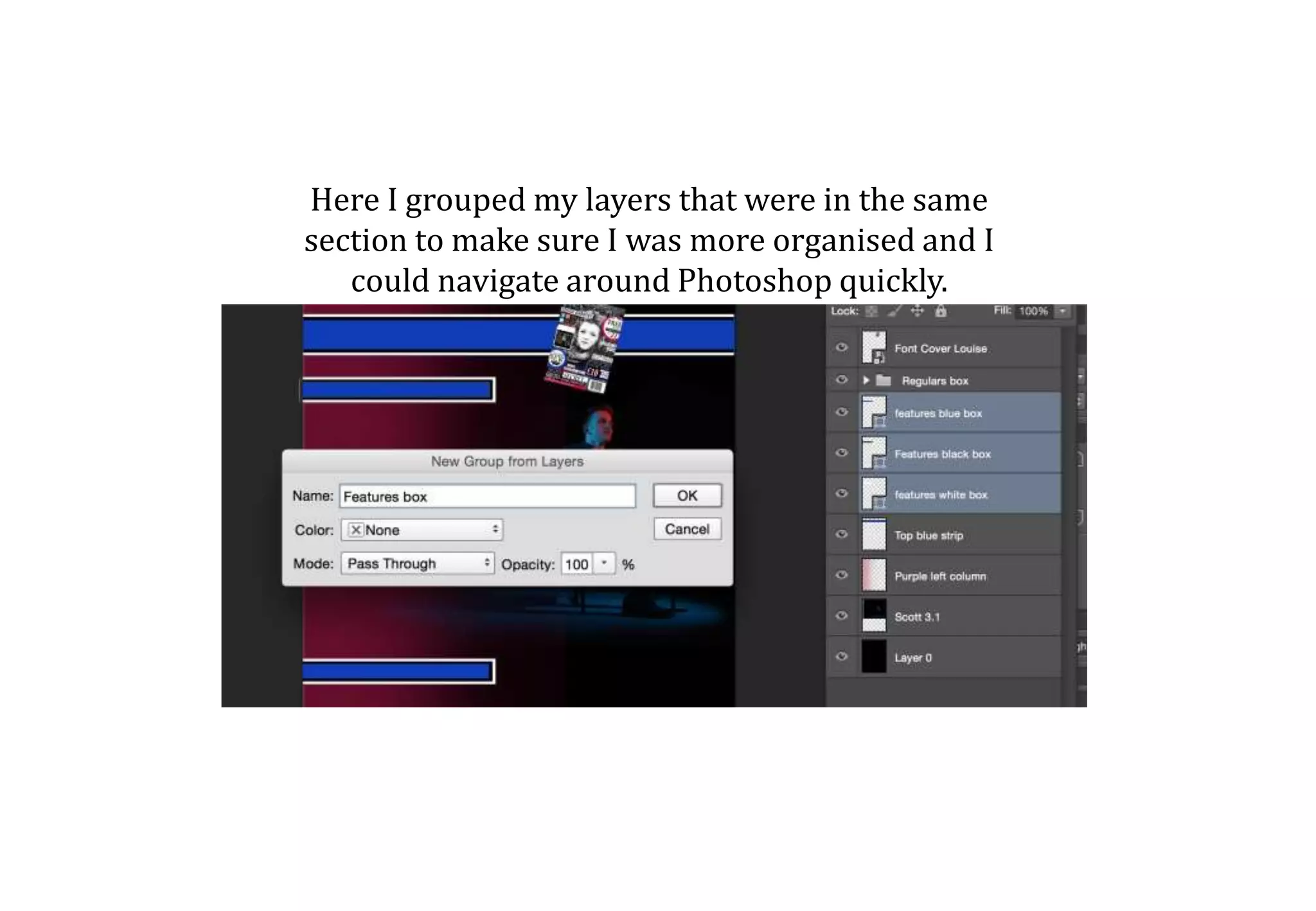
Here I grouped my layers that were in the same
section to make sure I was more organised and I
could navigate around Photoshop quickly.
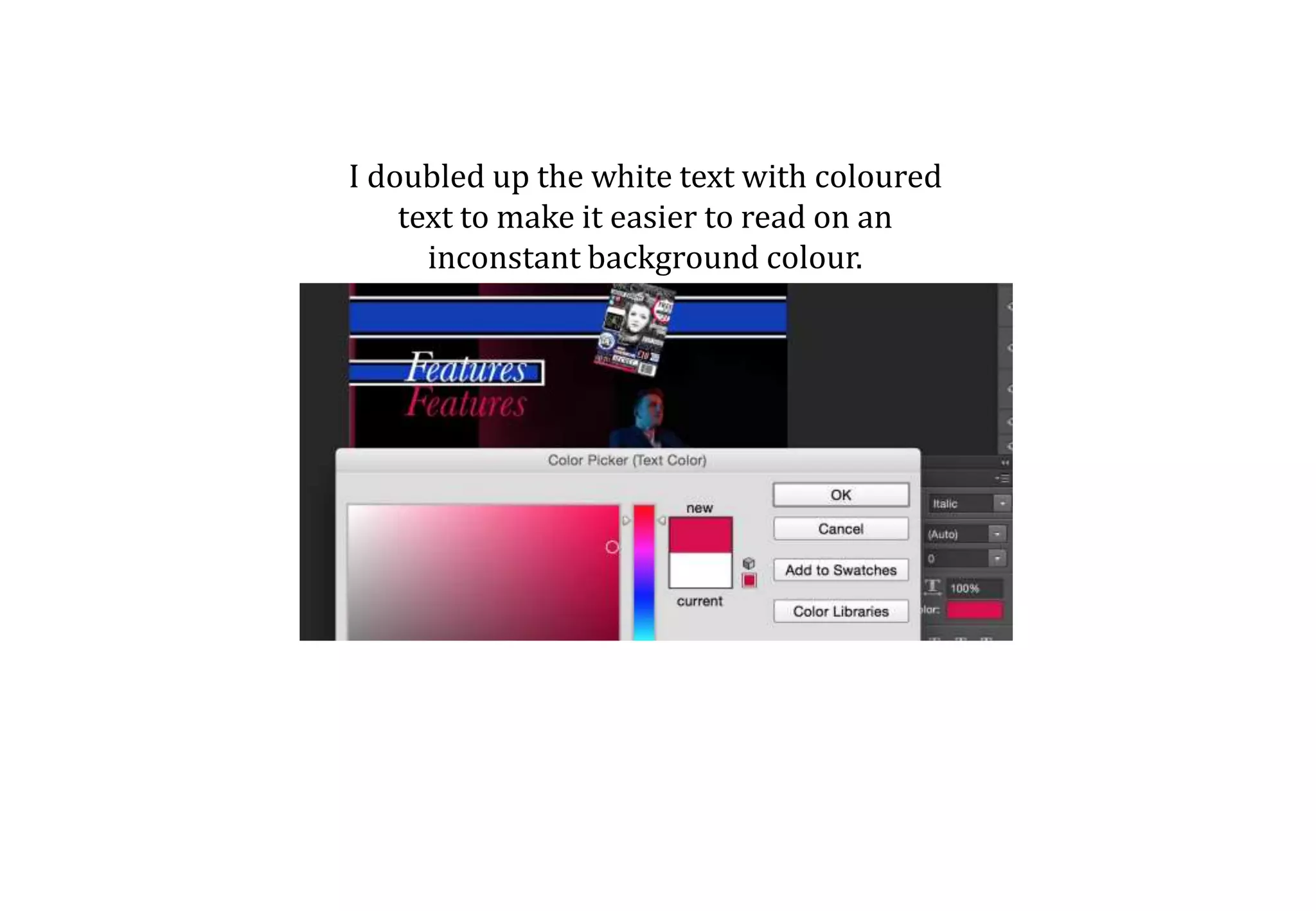
I doubled up the white text with coloured
text to make it easier to read on an
inconstant background colour.
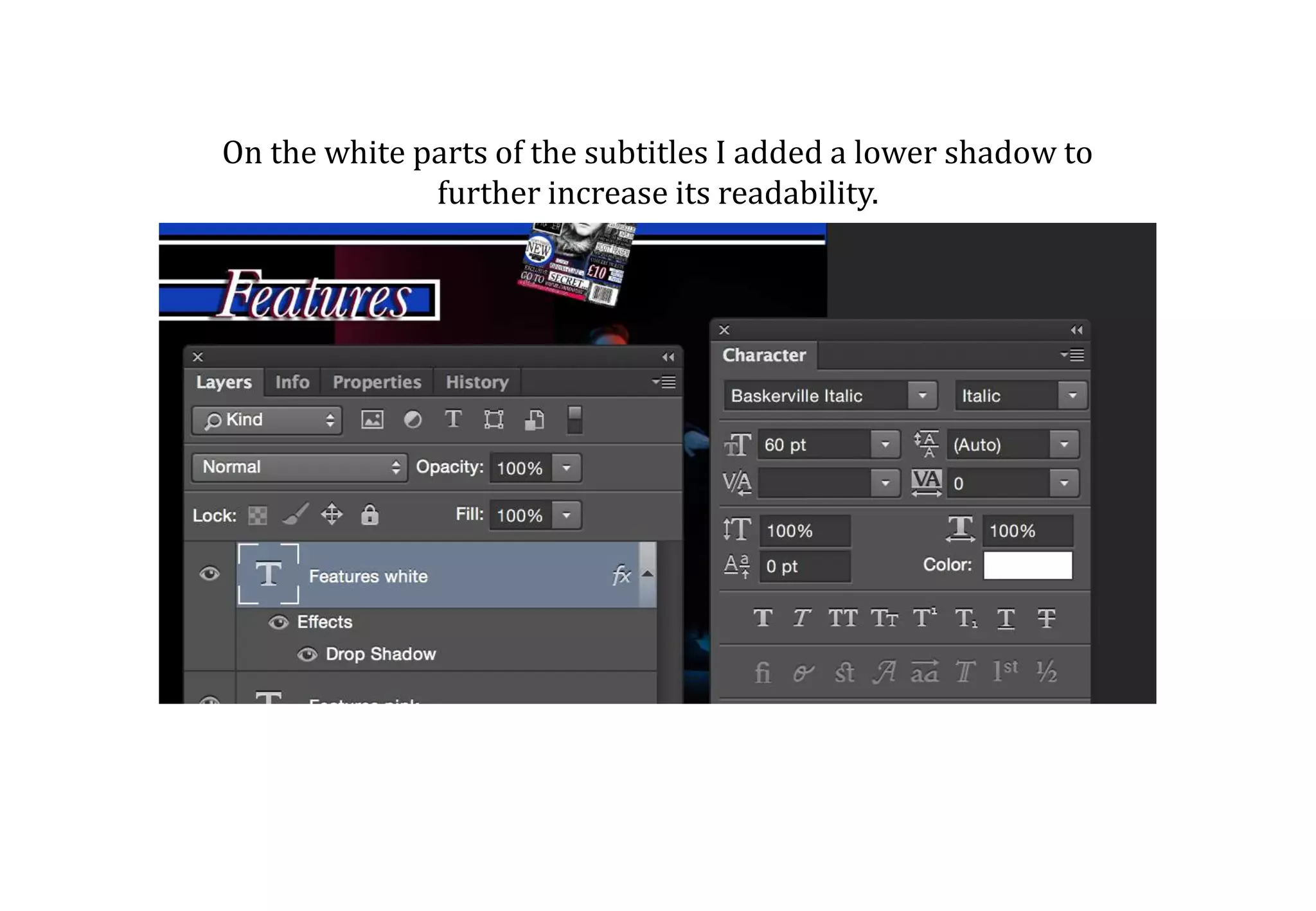
On the white parts of the subtitles I added a lower shadow to
further increase its readability.
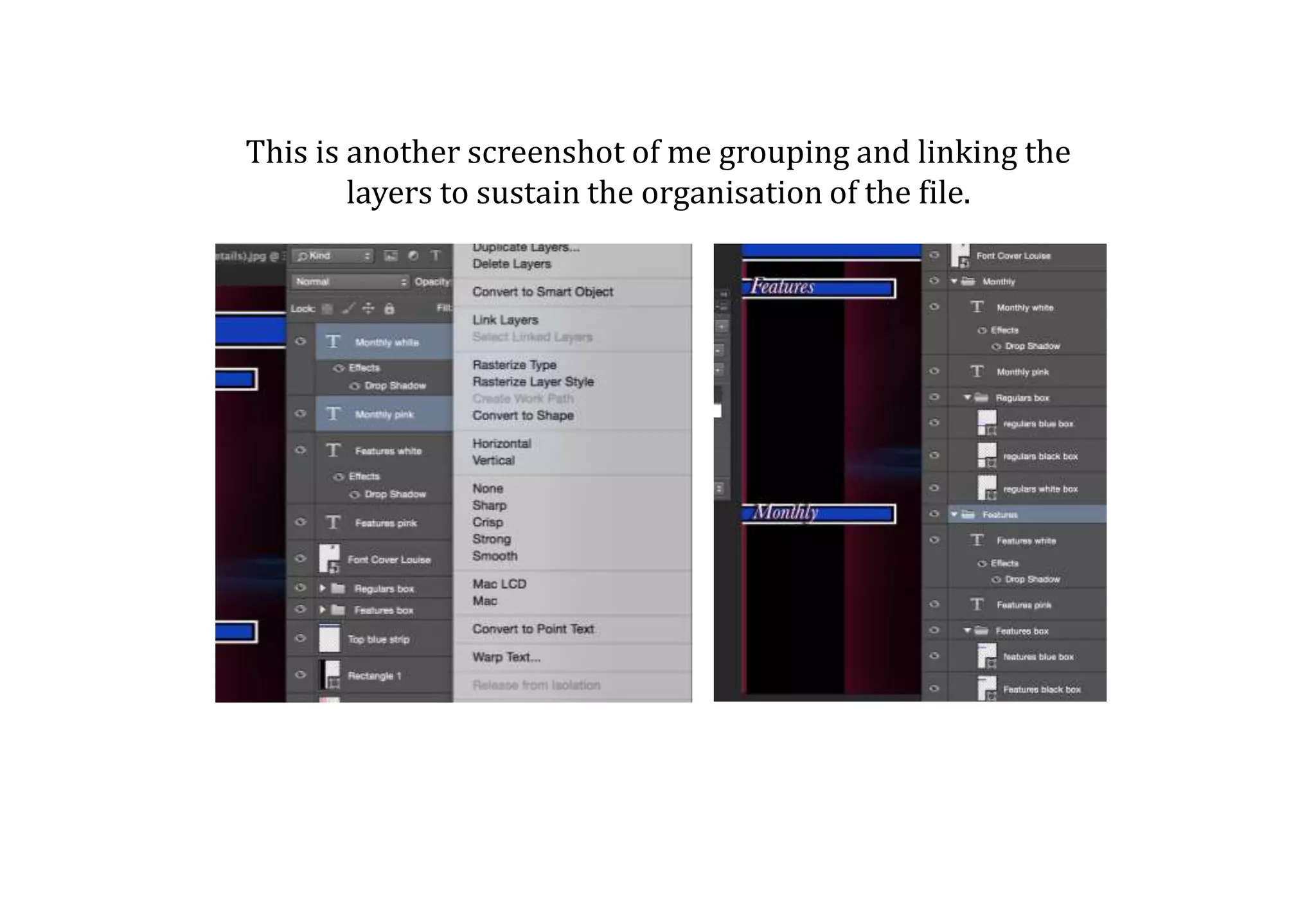
This is another screenshot of me grouping and linking the
layers to sustain the organisation of the file.
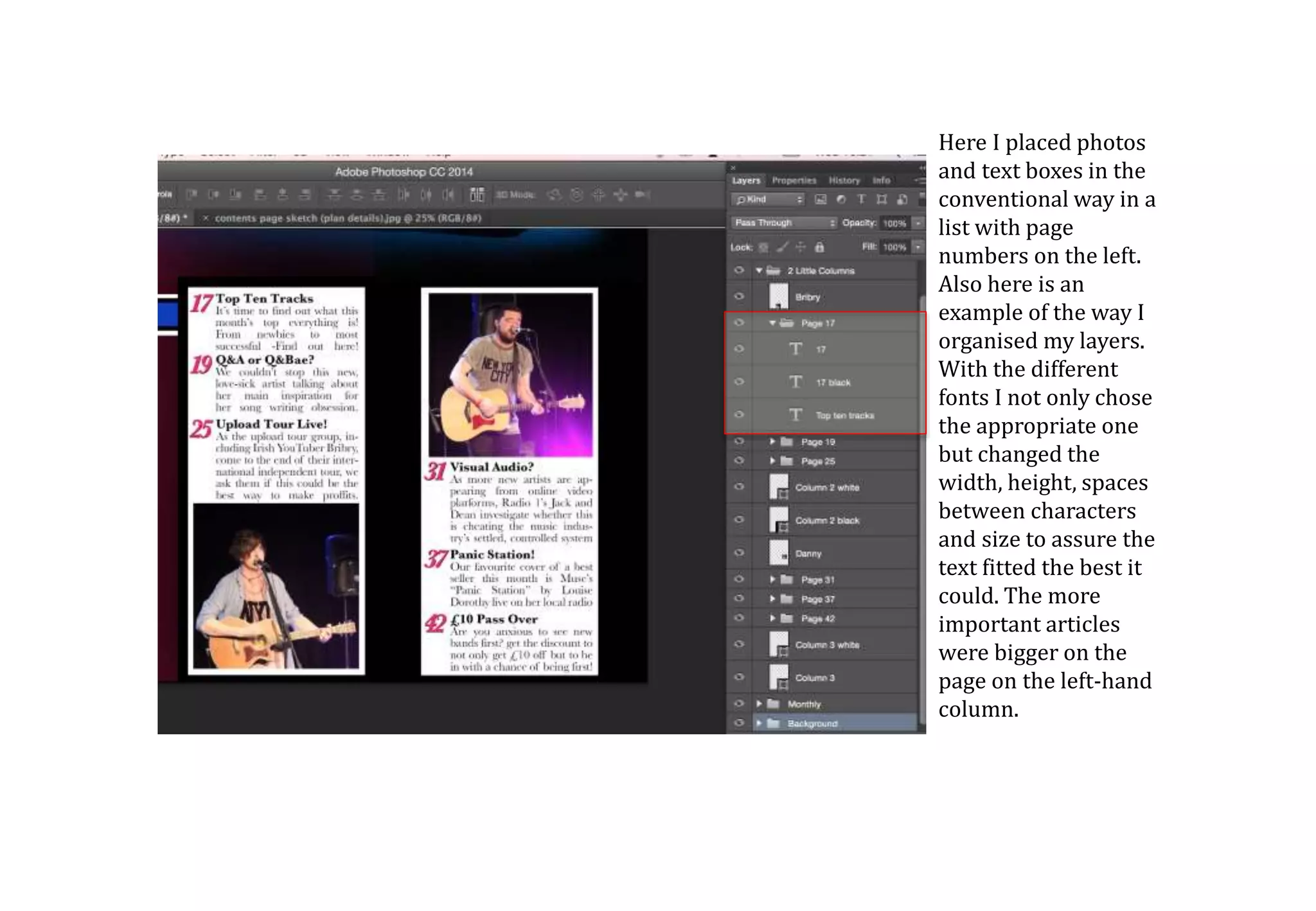
Here I placed photos
and text boxes in the
conventional way in a
list with page
numbers on the left.
Also here is an
example of the way I
organised my layers.
With the different
fonts I not only chose
the appropriate one
but changed the
width, height, spaces
between characters
and size to assure the
text fitted the best it
could. The more
important articles
were bigger on the
page on the left-hand
column.
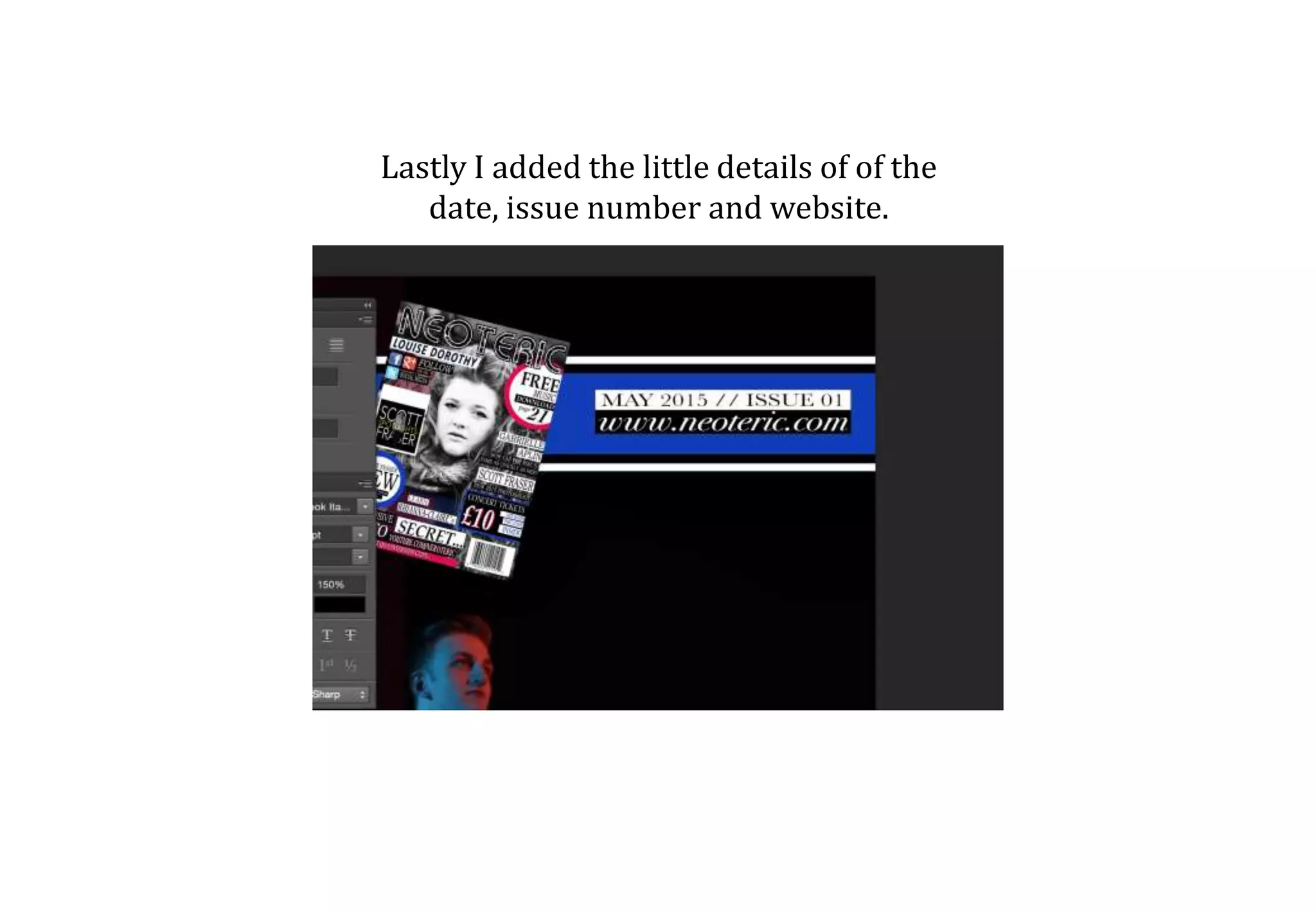
Lastly I added the little details of of the
date, issue number and website.
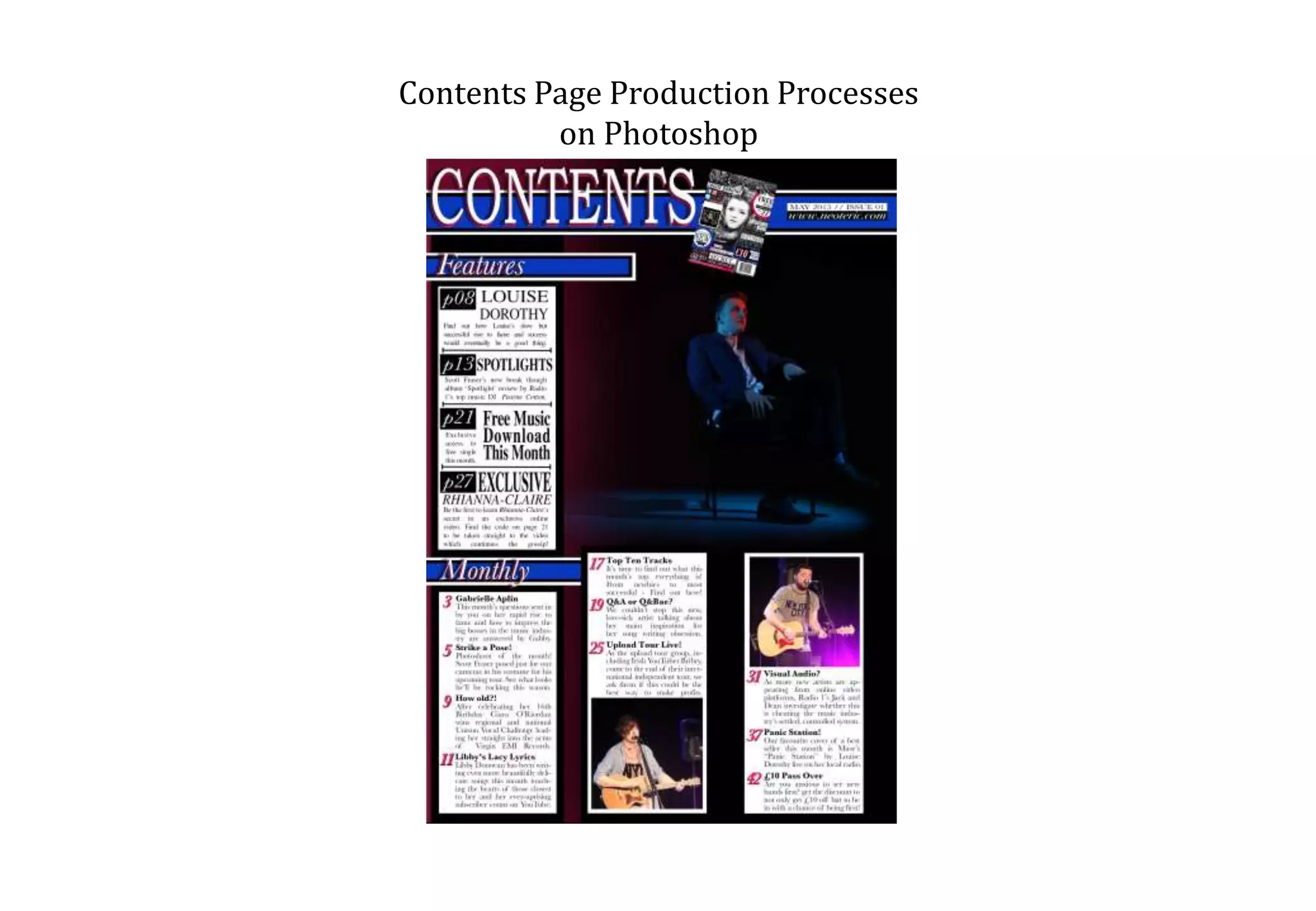
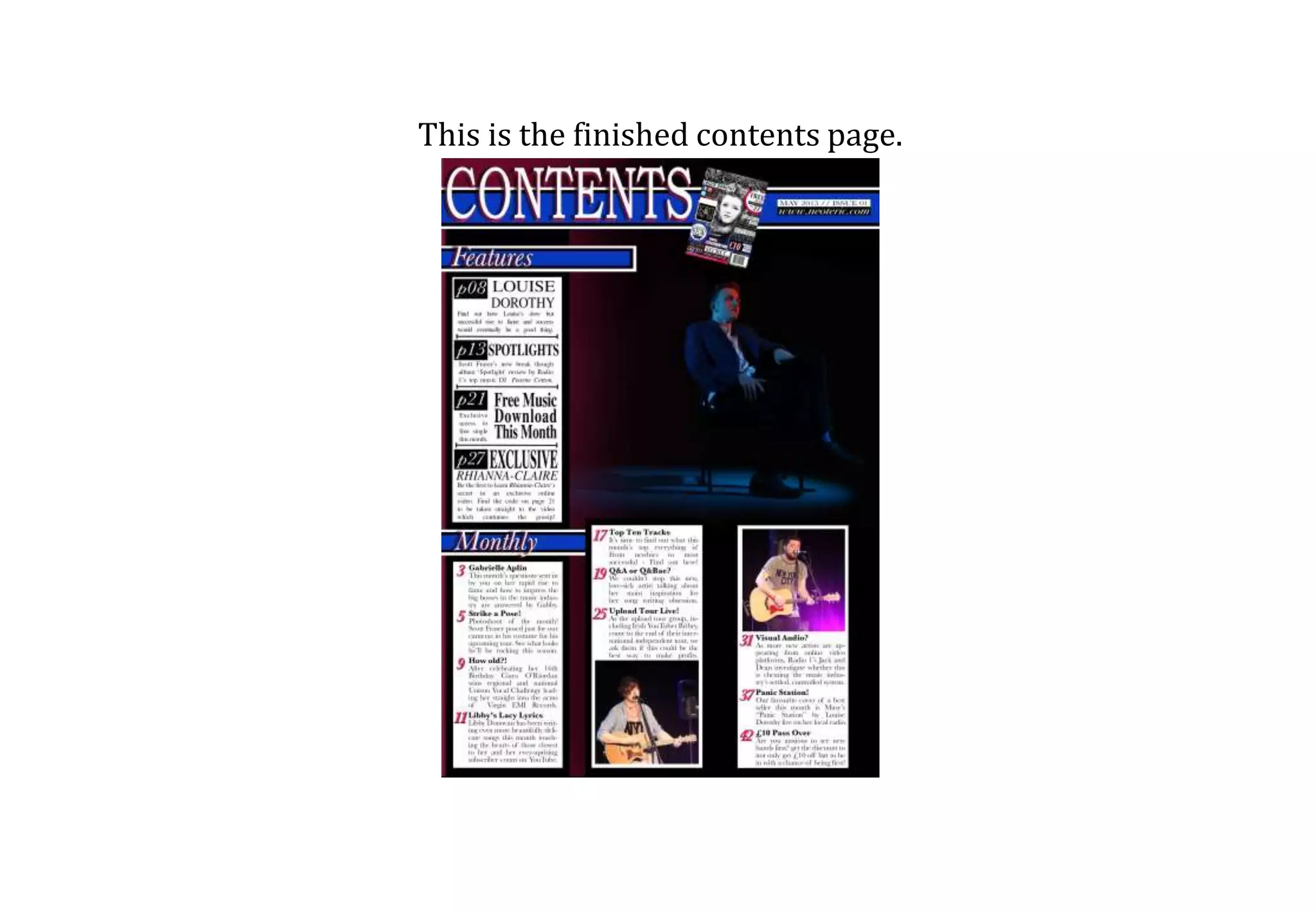
This is the finished contents page.

Contents Page Processes

  • 1.
    Contents Page ProductionProcesses on Photoshop
  • 2.
    This is theoriginal main photo that I got from one of my photo shoots. I chose it because the different coloured studio lighting made it look professional and gave the image a lot of potential.
  • 3.
    To edit thisphoto, first I used the Brush Tool on a low hardness to make the room that Scott was in completely black which removed the clutter of the background enhancing the studio look. Afterwards I increased the saturation and then changed the colour balance to get the most out of the image.
  • 4.
    For the topband of colour I used the Eyedropper Tool and picked a colour from the background image. (The colour in the screen shot changed as when I looked back at the colour choice further down the production line, I didn’t feel it was the most appropriate.
  • 5.
    Here I placedthe front cover on the contents page as my plan showed me to.
  • 6.
    When putting blackand white borders around the larger boxes, I had to make sure they were identical widths and sizes by looking at the properties in the little tab on the side of the program.
  • 7.
    This is whereI changed my mid about the colour of the boxes. Here you can also see that in the background there is a gradual faded pink box. This was achieved through using the Shape Tool and then changing the fill to a gradual changing opacity.
  • 8.
    Here I groupedmy layers that were in the same section to make sure I was more organised and I could navigate around Photoshop quickly.
  • 9.
    I doubled upthe white text with coloured text to make it easier to read on an inconstant background colour.
  • 10.
    On the whiteparts of the subtitles I added a lower shadow to further increase its readability.
  • 11.
    This is anotherscreenshot of me grouping and linking the layers to sustain the organisation of the file.
  • 12.
    Here I placedphotos and text boxes in the conventional way in a list with page numbers on the left. Also here is an example of the way I organised my layers. With the different fonts I not only chose the appropriate one but changed the width, height, spaces between characters and size to assure the text fitted the best it could. The more important articles were bigger on the page on the left-hand column.
  • 13.
    Lastly I addedthe little details of of the date, issue number and website.
  • 14.
    This is thefinished contents page.