1
ASSIGNMENT FRONT SHEET
Qualification Edexcel BTEC Level 5 HND Diploma in Computing and Systems Development
Unit number and title Unit 2: Computer Systems
Assignment due 9/3/2017 Assignment submitted 3/3/2017
Learner’s name Phạm Hoàng Bảo Assessor name Michael Omar
Learner declaration:
I certify that the work submitted for this assignment is my own and research sources are fully acknowledged.
Learner signature Date
Grading grid
P1.1 P1.2 P1.3 P2.1 P2.2 P3.1 P3.2 P4.1 P4.2 M1 M2 M3 D1 D2 D3
2
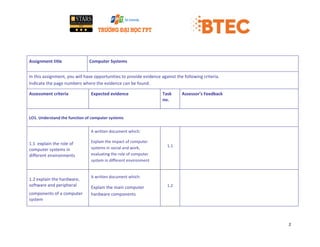
Assignment title Computer Systems
In this assignment, you will have opportunities to provide evidence against the following criteria.
Indicate the page numbers where the evidence can be found.
Assessment criteria Expected evidence Task
no.
Assessor’s Feedback
LO1. Understand the function of computer systems
1.1 explain the role of
computer systems in
different environments
A written document which:
Explain the impact of computer
systems in social and work,
evaluating the role of computer
system in different environment
1.1
1.2 explain the hardware,
software and peripheral
components of a computer
system
A written document which:
Explain the main computer
hardware components
1.2
3
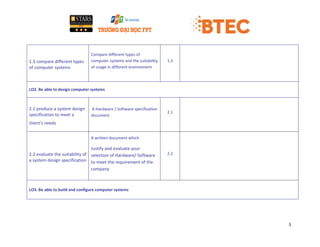
1.3 compare different types
of computer systems
Compare different types of
computer systems and the suitability
of usage in different environment
1.3
LO2. Be able to design computer systems
2.1 produce a system design
specification to meet a
client’s needs
A Hardware / Software specification
document
2.1
2.2 evaluate the suitability of
a system design specification
A written document which
Justify and evaluate your
selection of Hardware/ Software
to meet the requirement of the
company
2.2
LO3. Be able to build and configure computer systems
4
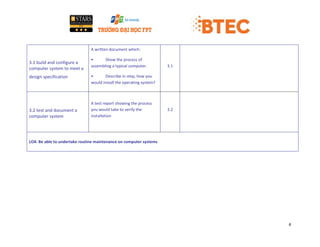
3.1 build and configure a
computer system to meet a
design specification
A written document which:
• Show the process of
assembling a typical computer.
• Describe in step, how you
would install the operating system?
3.1
3.2 test and document a
computer system
A test report showing the process
you would take to verify the
installation
3.2
LO4. Be able to undertake routine maintenance on computer systems
5
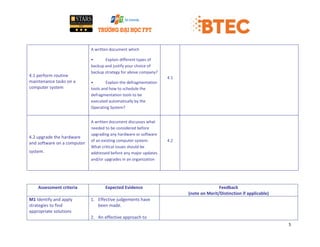
4.1 perform routine
maintenance tasks on a
computer system
A written document which
• Explain different types of
backup and justify your choice of
backup strategy for above company?
• Explain the defragmentation
tools and how to schedule the
defragmentation tools to be
executed automatically by the
Operating System?
4.1
4.2 upgrade the hardware
and software on a computer
system.
A written document discusses what
needed to be considered before
upgrading any hardware or software
of an existing computer system.
What critical issues should be
addressed before any major updates
and/or upgrades in an organization
4.2
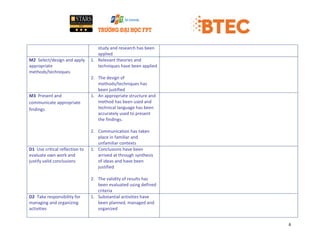
Assessment criteria Expected Evidence Feedback
(note on Merit/Distinction if applicable)
M1 Identify and apply
strategies to find
appropriate solutions
1. Effective judgements have
been made.
2. An effective approach to
6
study and research has been
applied
M2 Select/design and apply
appropriate
methods/techniques
1. Relevant theories and
techniques have been applied
2. The design of
methods/techniques has
been justified
M3 Present and
communicate appropriate
findings
1. An appropriate structure and
method has been used and
technical language has been
accurately used to present
the findings.
2. Communication has taken
place in familiar and
unfamiliar contexts
D1 Use critical reflection to
evaluate own work and
justify valid conclusions
1. Conclusions have been
arrived at through synthesis
of ideas and have been
justified
2. The validity of results has
been evaluated using defined
criteria
D2 Take responsibility for
managing and organizing
activities
1. Substantial activities have
been planned, managed and
organized
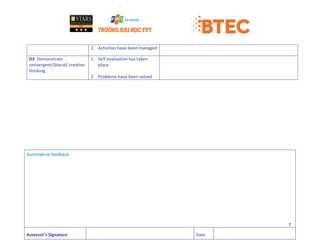
7
2. Activities have been managed
D3 Demonstrate
convergent/lateral/ creative
thinking
1. Self-evaluation has taken
place
2. Problems have been solved
Summative feedback
Assessor’s Signature Date
8
INTRODUCTION
Before getting into the detail, it is essential to understand the concept of Computer System. Computer System is a
general purpose device which can be programmed to carry out a finite set of arithmetic or logical operations.
Since a sequence of operation can be readily changed, the computer can solve more than one kind of problems.
In this assignment I will work on the following four different phases. Each phase will cover the related content in
detail. In the first part we will understand the function of computer system. In this part, I will discuss the role of
computer system in different environments. Hardware, software and peripheral components of a computer
system. Comparing different types of computer system.
The second learning outcome is be able to design computer system in this I will produce a system design
specification to meet the client’s need. Then I will evaluate the suitability of a system design specification.
Third learning outcome is be able to build and configure computer system. I this will build and configure a
computer system to meet a design specification, then it will be test and document a computer system.
Fourth learning outcome is be able to undertake routine maintenance on computer system. In this I will discuss
performing routine maintenance tasks on a computer system and upgrade the hardware and software on a
computer system.
In this assignment, each issue & process would be discussed in detail to understand the basic concept.
9
LO1. Understand the function of computer systems
1.1 THE ROLE OF COMPUTER SYSTEM IN DIFFERENT ENVIRONMETS
In this modern day computer system is used everywhere, example at Home, Business, Networking, Real-time,
Communication. At home the computer is used for normal works like for searching information on internet,
playing games and etc, for that we don’t require a high speed computer.
In business computer plays a big role, all business there is a finance department, the main activities of the finance
department is to record all the business transaction, to control the finance cash flow and etc , for that the need a
computer.
The Networking is all about computers, For Networking computer is important. Without computer, Networking is
impossible and we cannot share resources (i.e. files, videos, sounds, pictures, etc) and communication between
two or more people will not be possible. For Networking we need at least 2 computers.
We use computer system in Real-time. Real-time is a process in which people can communicate without any
deadline. We can share our videos and etc. Sometimes people use computer as a TV. We can access to live
information from a television station through a computer. Real-time can also refer to event simulated by a
computer at same speed that they would occur in real life.
Communication is now done worldwide using computer system. Today most of the computers are capable of
communication, like we can send a message, documents, picture and etc to our friend on the other side of the
planet. An instant messenger program allows two different computers to converse by typing in text or they can
even voice chat with each other.
10
1.2 THE HARDWARE, SOFTWARE, AND PERIPHERALS COMPONENTS OF A
COMPUTER SYSTEM
1. Computer Hardware
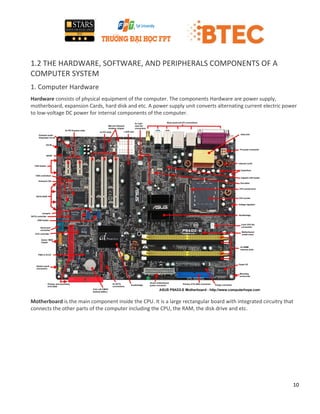
Hardware consists of physical equipment of the computer. The components Hardware are power supply,
motherboard, expansion Cards, hard disk and etc. A power supply unit converts alternating current electric power
to low-voltage DC power for internal components of the computer.
Motherboard is the main component inside the CPU. It is a large rectangular board with integrated circuitry that
connects the other parts of the computer including the CPU, the RAM, the disk drive and etc.
11
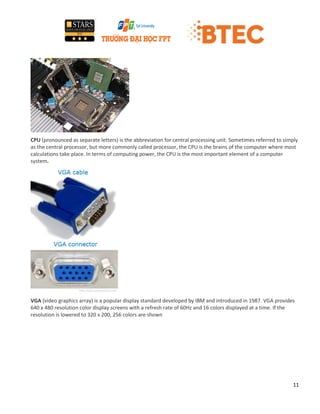
CPU (pronounced as separate letters) is the abbreviation for central processing unit. Sometimes referred to simply
as the central processor, but more commonly called processor, the CPU is the brains of the computer where most
calculations take place. In terms of computing power, the CPU is the most important element of a computer
system.
VGA (video graphics array) is a popular display standard developed by IBM and introduced in 1987. VGA provides
640 x 480 resolution color display screens with a refresh rate of 60Hz and 16 colors displayed at a time. If the
resolution is lowered to 320 x 200, 256 colors are shown
12
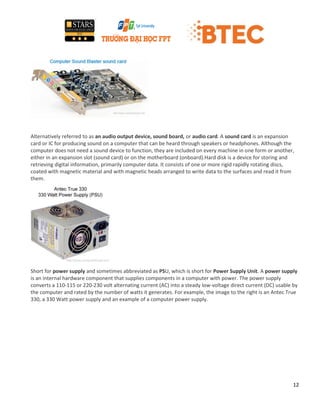
Alternatively referred to as an audio output device, sound board, or audio card. A sound card is an expansion
card or IC for producing sound on a computer that can be heard through speakers or headphones. Although the
computer does not need a sound device to function, they are included on every machine in one form or another,
either in an expansion slot (sound card) or on the motherboard (onboard).Hard disk is a device for storing and
retrieving digital information, primarily computer data. It consists of one or more rigid rapidly rotating discs,
coated with magnetic material and with magnetic heads arranged to write data to the surfaces and read it from
them.
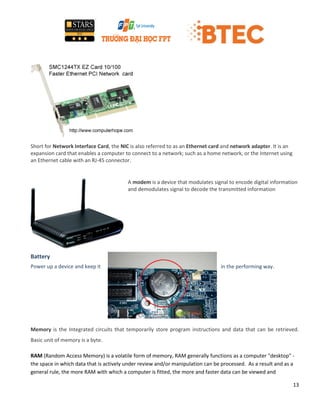
Short for power supply and sometimes abbreviated as PSU, which is short for Power Supply Unit. A power supply
is an internal hardware component that supplies components in a computer with power. The power supply
converts a 110-115 or 220-230 volt alternating current (AC) into a steady low-voltage direct current (DC) usable by
the computer and rated by the number of watts it generates. For example, the image to the right is an Antec True
330, a 330 Watt power supply and an example of a computer power supply.
13
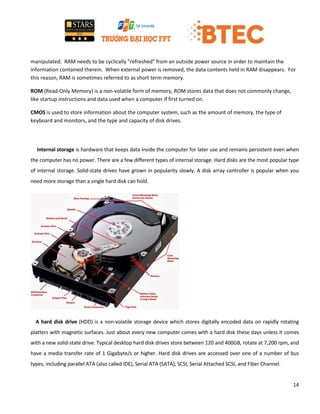
Short for Network Interface Card, the NIC is also referred to as an Ethernet card and network adapter. It is an
expansion card that enables a computer to connect to a network; such as a home network, or the Internet using
an Ethernet cable with an RJ-45 connector.
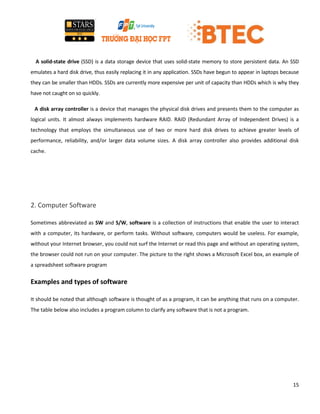
A modem is a device that modulates signal to encode digital information
and demodulates signal to decode the transmitted information
Battery
in the performing way.Power up a device and keep it
Memory is the Integrated circuits that temporarily store program instructions and data that can be retrieved.
Basic unit of memory is a byte.
RAM (Random Access Memory) is a volatile form of memory, RAM generally functions as a computer "desktop" -
the space in which data that is actively under review and/or manipulation can be processed. As a result and as a
general rule, the more RAM with which a computer is fitted, the more and faster data can be viewed and
14
manipulated. RAM needs to be cyclically "refreshed" from an outside power source in order to maintain the
information contained therein. When external power is removed, the data contents held in RAM disappears. For
this reason, RAM is sometimes referred to as short term memory.
ROM (Read-Only Memory) is a non-volatile form of memory, ROM stores data that does not commonly change,
like startup instructions and data used when a computer if first turned on.
CMOS is used to store information about the computer system, such as the amount of memory, the type of
keyboard and monitors, and the type and capacity of disk drives.
Internal storage is hardware that keeps data inside the computer for later use and remains persistent even when
the computer has no power. There are a few different types of internal storage. Hard disks are the most popular type
of internal storage. Solid-state drives have grown in popularity slowly. A disk array controller is popular when you
need more storage than a single hard disk can hold.
A hard disk drive (HDD) is a non-volatile storage device which stores digitally encoded data on rapidly rotating
platters with magnetic surfaces. Just about every new computer comes with a hard disk these days unless it comes
with a new solid-state drive. Typical desktop hard disk drives store between 120 and 400GB, rotate at 7,200 rpm, and
have a media transfer rate of 1 Gigabyte/s or higher. Hard disk drives are accessed over one of a number of bus
types, including parallel ATA (also called IDE), Serial ATA (SATA), SCSI, Serial Attached SCSI, and Fiber Channel.
15
A solid-state drive (SSD) is a data storage device that uses solid-state memory to store persistent data. An SSD
emulates a hard disk drive, thus easily replacing it in any application. SSDs have begun to appear in laptops because
they can be smaller than HDDs. SSDs are currently more expensive per unit of capacity than HDDs which is why they
have not caught on so quickly.
A disk array controller is a device that manages the physical disk drives and presents them to the computer as
logical units. It almost always implements hardware RAID. RAID (Redundant Array of Independent Drives) is a
technology that employs the simultaneous use of two or more hard disk drives to achieve greater levels of
performance, reliability, and/or larger data volume sizes. A disk array controller also provides additional disk
cache.
2. Computer Software
Sometimes abbreviated as SW and S/W, software is a collection of instructions that enable the user to interact
with a computer, its hardware, or perform tasks. Without software, computers would be useless. For example,
without your Internet browser, you could not surf the Internet or read this page and without an operating system,
the browser could not run on your computer. The picture to the right shows a Microsoft Excel box, an example of
a spreadsheet software program
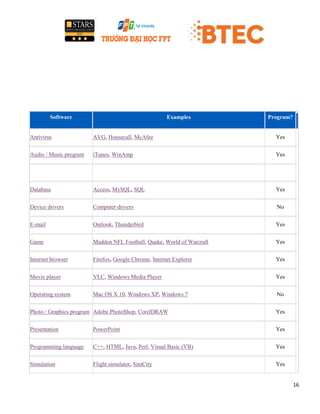
Examples and types of software
It should be noted that although software is thought of as a program, it can be anything that runs on a computer.
The table below also includes a program column to clarify any software that is not a program.
16
Software Examples Program?
Antivirus AVG, Housecall, McAfee Yes
Audio / Music program iTunes, WinAmp Yes
Database Access, MySQL, SQL Yes
Device drivers Computer drivers No
E-mail Outlook, Thunderbird Yes
Game Madden NFL Football, Quake, World of Warcraft Yes
Internet browser Firefox, Google Chrome, Internet Explorer Yes
Movie player VLC, Windows Media Player Yes
Operating system Mac OS X 10, Windows XP, Windows 7 No
Photo / Graphics program Adobe PhotoShop, CorelDRAW Yes
Presentation PowerPoint Yes
Programming language C++, HTML, Java, Perl, Visual Basic (VB) Yes
Simulation Flight simulator, SimCity Yes
17
.
3. Peripheral
Peripheral is a device connected to a host computer, but not part of it, and is more or less dependent on the host.
These are input/output devices. Peripherals are: Keyboard, Mouse, Monitor, Speaker and etc.
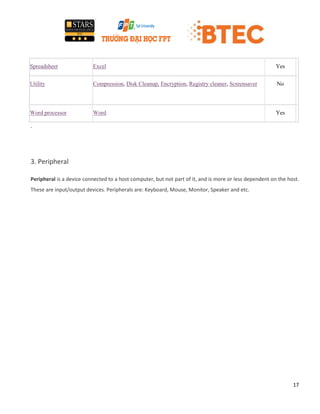
Spreadsheet Excel Yes
Utility Compression, Disk Cleanup, Encryption, Registry cleaner, Screensaver No
Word processor Word Yes
18
Input Device
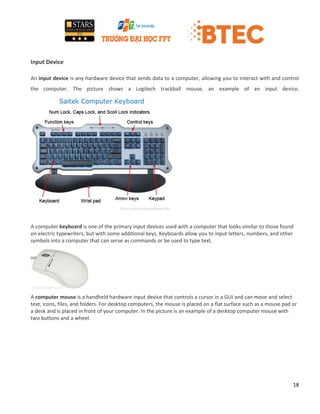
An input device is any hardware device that sends data to a computer, allowing you to interact with and control
the computer. The picture shows a Logitech trackball mouse, an example of an input device.
A computer keyboard is one of the primary input devices used with a computer that looks similar to those found
on electric typewriters, but with some additional keys. Keyboards allow you to input letters, numbers, and other
symbols into a computer that can serve as commands or be used to type text.
A computer mouse is a handheld hardware input device that controls a cursor in a GUI and can move and select
text, icons, files, and folders. For desktop computers, the mouse is placed on a flat surface such as a mouse pad or
a desk and is placed in front of your computer. In the picture is an example of a desktop computer mouse with
two buttons and a wheel.
19
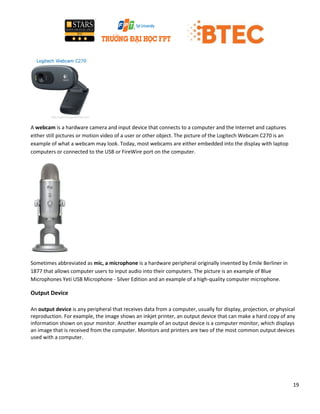
A webcam is a hardware camera and input device that connects to a computer and the Internet and captures
either still pictures or motion video of a user or other object. The picture of the Logitech Webcam C270 is an
example of what a webcam may look. Today, most webcams are either embedded into the display with laptop
computers or connected to the USB or FireWire port on the computer.
Sometimes abbreviated as mic, a microphone is a hardware peripheral originally invented by Emile Berliner in
1877 that allows computer users to input audio into their computers. The picture is an example of Blue
Microphones Yeti USB Microphone - Silver Edition and an example of a high-quality computer microphone.
Output Device
An output device is any peripheral that receives data from a computer, usually for display, projection, or physical
reproduction. For example, the image shows an inkjet printer, an output device that can make a hard copy of any
information shown on your monitor. Another example of an output device is a computer monitor, which displays
an image that is received from the computer. Monitors and printers are two of the most common output devices
used with a computer.
20
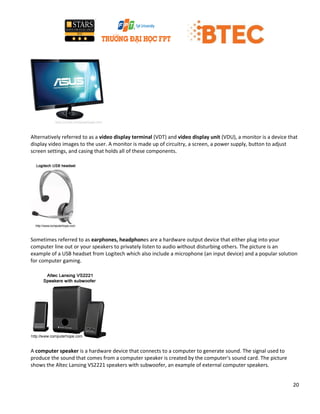
Alternatively referred to as a video display terminal (VDT) and video display unit (VDU), a monitor is a device that
display video images to the user. A monitor is made up of circuitry, a screen, a power supply, button to adjust
screen settings, and casing that holds all of these components.
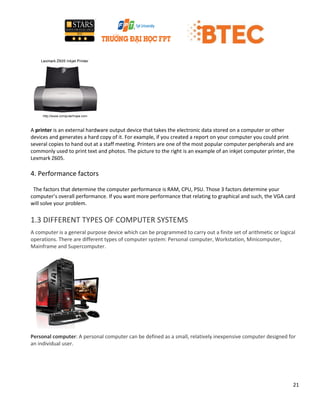
Sometimes referred to as earphones, headphones are a hardware output device that either plug into your
computer line out or your speakers to privately listen to audio without disturbing others. The picture is an
example of a USB headset from Logitech which also include a microphone (an input device) and a popular solution
for computer gaming.
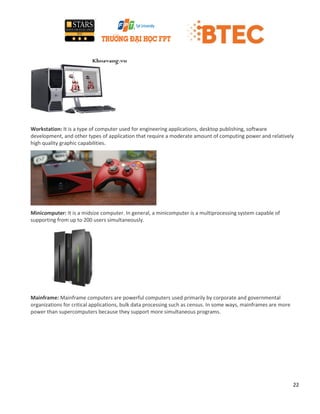
A computer speaker is a hardware device that connects to a computer to generate sound. The signal used to
produce the sound that comes from a computer speaker is created by the computer's sound card. The picture
shows the Altec Lansing VS2221 speakers with subwoofer, an example of external computer speakers.
21
A printer is an external hardware output device that takes the electronic data stored on a computer or other
devices and generates a hard copy of it. For example, if you created a report on your computer you could print
several copies to hand out at a staff meeting. Printers are one of the most popular computer peripherals and are
commonly used to print text and photos. The picture to the right is an example of an inkjet computer printer, the
Lexmark Z605.
4. Performance factors
The factors that determine the computer performance is RAM, CPU, PSU. Those 3 factors determine your
computer’s overall performance. If you want more performance that relating to graphical and such, the VGA card
will solve your problem.
1.3 DIFFERENT TYPES OF COMPUTER SYSTEMS
A computer is a general purpose device which can be programmed to carry out a finite set of arithmetic or logical
operations. There are different types of computer system: Personal computer, Workstation, Minicomputer,
Mainframe and Supercomputer.
Personal computer: A personal computer can be defined as a small, relatively inexpensive computer designed for
an individual user.
22
Workstation: It is a type of computer used for engineering applications, desktop publishing, software
development, and other types of application that require a moderate amount of computing power and relatively
high quality graphic capabilities.
Minicomputer: It is a midsize computer. In general, a minicomputer is a multiprocessing system capable of
supporting from up to 200 users simultaneously.
Mainframe: Mainframe computers are powerful computers used primarily by corporate and governmental
organizations for critical applications, bulk data processing such as census. In some ways, mainframes are more
power than supercomputers because they support more simultaneous programs.
23
Supercomputer: Supercomputer is a board term for one of the fastest computer currently available.
Supercomputers are employed for specialized application that requires immense amounts of mathematical
calculations.
24
LO2. Be able to design computer systems
2.1 A SYSTEM DESIGN SPECIFICATION TO MEET A CLIENT’S NEEDS
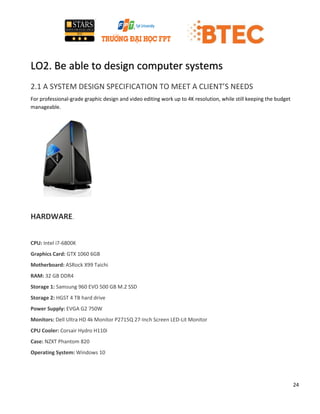
For professional-grade graphic design and video editing work up to 4K resolution, while still keeping the budget
manageable.
HARDWARE.
CPU: Intel i7-6800K
Graphics Card: GTX 1060 6GB
Motherboard: ASRock X99 Taichi
RAM: 32 GB DDR4
Storage 1: Samsung 960 EVO 500 GB M.2 SSD
Storage 2: HGST 4 TB hard drive
Power Supply: EVGA G2 750W
Monitors: Dell Ultra HD 4k Monitor P2715Q 27-Inch Screen LED-Lit Monitor
CPU Cooler: Corsair Hydro H110i
Case: NZXT Phantom 820
Operating System: Windows 10
25
SOFTWARE
Window 10 Ultimate 64bit
Avast Antivirus Pro
Adobe Photoshop CC 2014
Adobe Premiere Pro CC (2014)
PaintShop Pro X7 Ultimate
CCLeaner
Peripheral: Mouse and keyboard
2.2 EVALUATE THE SUITABILITY OF A SYSTEM DESIGN SPECIFICATION
CPU and Motherboard
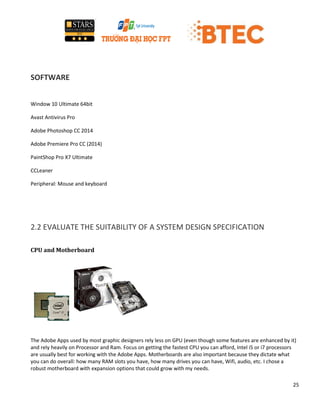
The Adobe Apps used by most graphic designers rely less on GPU (even though some features are enhanced by it)
and rely heavily on Processor and Ram. Focus on getting the fastest CPU you can afford, Intel i5 or i7 processors
are usually best for working with the Adobe Apps. Motherboards are also important because they dictate what
you can do overall: how many RAM slots you have, how many drives you can have, Wifi, audio, etc. I chose a
robust motherboard with expansion options that could grow with my needs.
26
RAM/Memory
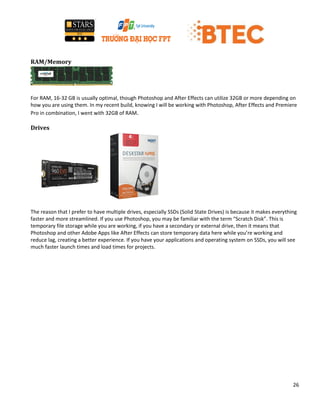
For RAM, 16-32 GB is usually optimal, though Photoshop and After Effects can utilize 32GB or more depending on
how you are using them. In my recent build, knowing I will be working with Photoshop, After Effects and Premiere
Pro in combination, I went with 32GB of RAM.
Drives
The reason that I prefer to have multiple drives, especially SSDs (Solid State Drives) is because it makes everything
faster and more streamlined. If you use Photoshop, you may be familiar with the term “Scratch Disk”. This is
temporary file storage while you are working, if you have a secondary or external drive, then it means that
Photoshop and other Adobe Apps like After Effects can store temporary data here while you’re working and
reduce lag, creating a better experience. If you have your applications and operating system on SSDs, you will see
much faster launch times and load times for projects.
27
Graphics Cards
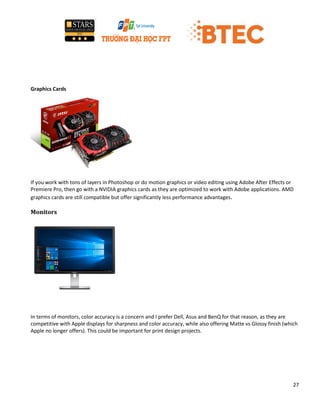
If you work with tons of layers in Photoshop or do motion graphics or video editing using Adobe After Effects or
Premiere Pro, then go with a NVIDIA graphics cards as they are optimized to work with Adobe applications. AMD
graphics cards are still compatible but offer significantly less performance advantages.
Monitors
In terms of monitors, color accuracy is a concern and I prefer Dell, Asus and BenQ for that reason, as they are
competitive with Apple displays for sharpness and color accuracy, while also offering Matte vs Glossy finish (which
Apple no longer offers). This could be important for print design projects.
28
LO3. Be able to build and configure computer systems
3.1 BUILD AND CONFIGURE A COMPUTER SYSTEM TO MEET A DESIGN
SPECIFICATION
Part 1: Building Your Computer
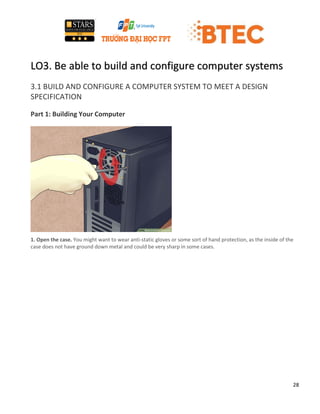
1. Open the case. You might want to wear anti-static gloves or some sort of hand protection, as the inside of the
case does not have ground down metal and could be very sharp in some cases.
29
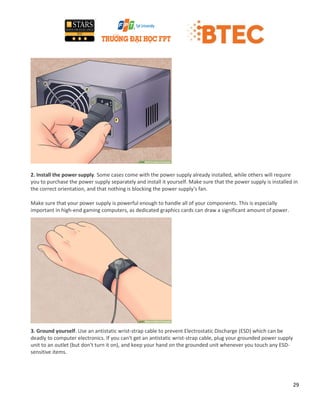
2. Install the power supply. Some cases come with the power supply already installed, while others will require
you to purchase the power supply separately and install it yourself. Make sure that the power supply is installed in
the correct orientation, and that nothing is blocking the power supply's fan.
Make sure that your power supply is powerful enough to handle all of your components. This is especially
important in high-end gaming computers, as dedicated graphics cards can draw a significant amount of power.
3. Ground yourself. Use an antistatic wrist-strap cable to prevent Electrostatic Discharge (ESD) which can be
deadly to computer electronics. If you can't get an antistatic wrist-strap cable, plug your grounded power supply
unit to an outlet (but don't turn it on), and keep your hand on the grounded unit whenever you touch any ESD-
sensitive items.
30
Part 2: Installing the Motherboard
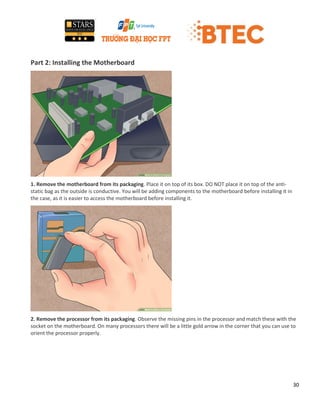
1. Remove the motherboard from its packaging. Place it on top of its box. DO NOT place it on top of the anti-
static bag as the outside is conductive. You will be adding components to the motherboard before installing it in
the case, as it is easier to access the motherboard before installing it.
2. Remove the processor from its packaging. Observe the missing pins in the processor and match these with the
socket on the motherboard. On many processors there will be a little gold arrow in the corner that you can use to
orient the processor properly.
31
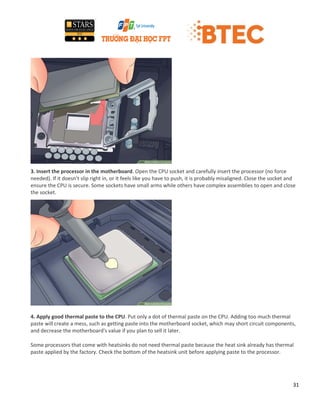
3. Insert the processor in the motherboard. Open the CPU socket and carefully insert the processor (no force
needed). If it doesn't slip right in, or it feels like you have to push, it is probably misaligned. Close the socket and
ensure the CPU is secure. Some sockets have small arms while others have complex assemblies to open and close
the socket.
4. Apply good thermal paste to the CPU. Put only a dot of thermal paste on the CPU. Adding too much thermal
paste will create a mess, such as getting paste into the motherboard socket, which may short circuit components,
and decrease the motherboard's value if you plan to sell it later.
Some processors that come with heatsinks do not need thermal paste because the heat sink already has thermal
paste applied by the factory. Check the bottom of the heatsink unit before applying paste to the processor.
32
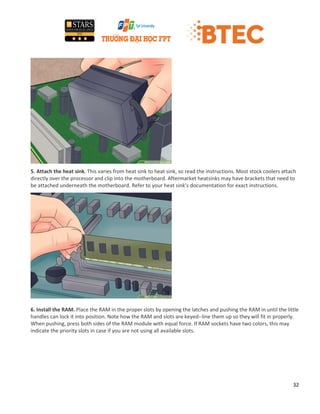
5. Attach the heat sink. This varies from heat sink to heat sink, so read the instructions. Most stock coolers attach
directly over the processor and clip into the motherboard. Aftermarket heatsinks may have brackets that need to
be attached underneath the motherboard. Refer to your heat sink’s documentation for exact instructions.
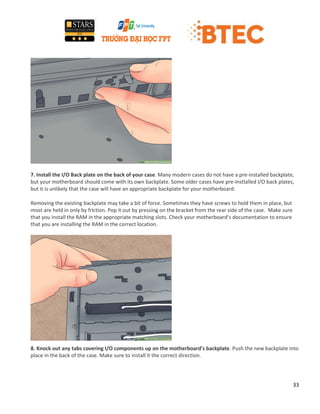
6. Install the RAM. Place the RAM in the proper slots by opening the latches and pushing the RAM in until the little
handles can lock it into position. Note how the RAM and slots are keyed--line them up so they will fit in properly.
When pushing, press both sides of the RAM module with equal force. If RAM sockets have two colors, this may
indicate the priority slots in case if you are not using all available slots.
33
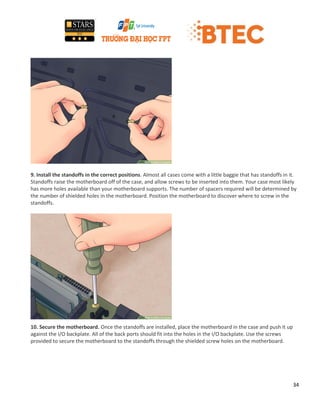
7. Install the I/O Back plate on the back of your case. Many modern cases do not have a pre-installed backplate,
but your motherboard should come with its own backplate. Some older cases have pre-instlalled I/O back plates,
but it is unlikely that the case will have an appropriate backplate for your motherboard.
Removing the existing backplate may take a bit of force. Sometimes they have screws to hold them in place, but
most are held in only by friction. Pop it out by pressing on the bracket from the rear side of the case. Make sure
that you install the RAM in the appropriate matching slots. Check your motherboard’s documentation to ensure
that you are installing the RAM in the correct location.
8. Knock out any tabs covering I/O components up on the motherboard's backplate. Push the new backplate into
place in the back of the case. Make sure to install it the correct direction.
34
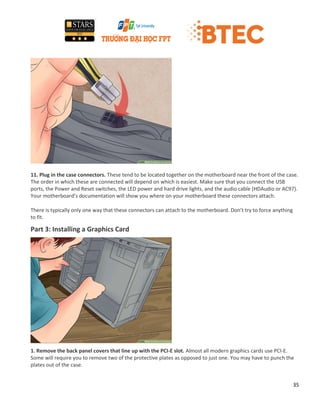
9. Install the standoffs in the correct positions. Almost all cases come with a little baggie that has standoffs in it.
Standoffs raise the motherboard off of the case, and allow screws to be inserted into them. Your case most likely
has more holes available than your motherboard supports. The number of spacers required will be determined by
the number of shielded holes in the motherboard. Position the motherboard to discover where to screw in the
standoffs.
10. Secure the motherboard. Once the standoffs are installed, place the motherboard in the case and push it up
against the I/O backplate. All of the back ports should fit into the holes in the I/O backplate. Use the screws
provided to secure the motherboard to the standoffs through the shielded screw holes on the motherboard.
35
11. Plug in the case connectors. These tend to be located together on the motherboard near the front of the case.
The order in which these are connected will depend on which is easiest. Make sure that you connect the USB
ports, the Power and Reset switches, the LED power and hard drive lights, and the audio cable (HDAudio or AC97).
Your motherboard’s documentation will show you where on your motherboard these connectors attach.
There is typically only one way that these connectors can attach to the motherboard. Don’t try to force anything
to fit.
Part 3: Installing a Graphics Card
1. Remove the back panel covers that line up with the PCI-E slot. Almost all modern graphics cards use PCI-E.
Some will require you to remove two of the protective plates as opposed to just one. You may have to punch the
plates out of the case.
36
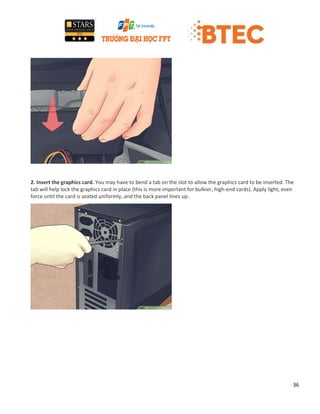
2. Insert the graphics card. You may have to bend a tab on the slot to allow the graphics card to be inserted. The
tab will help lock the graphics card in place (this is more important for bulkier, high-end cards). Apply light, even
force until the card is seated uniformly, and the back panel lines up.
37
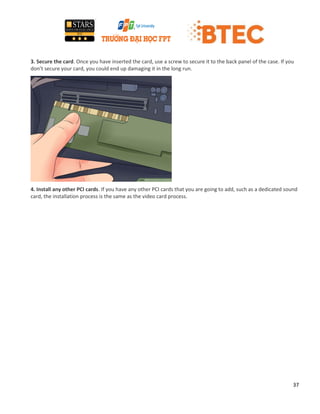
3. Secure the card. Once you have inserted the card, use a screw to secure it to the back panel of the case. If you
don’t secure your card, you could end up damaging it in the long run.
4. Install any other PCI cards. If you have any other PCI cards that you are going to add, such as a dedicated sound
card, the installation process is the same as the video card process.
38
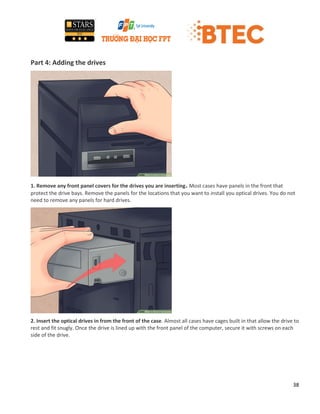
Part 4: Adding the drives
1. Remove any front panel covers for the drives you are inserting. Most cases have panels in the front that
protect the drive bays. Remove the panels for the locations that you want to install you optical drives. You do not
need to remove any panels for hard drives.
2. Insert the optical drives in from the front of the case. Almost all cases have cages built in that allow the drive to
rest and fit snugly. Once the drive is lined up with the front panel of the computer, secure it with screws on each
side of the drive.
39
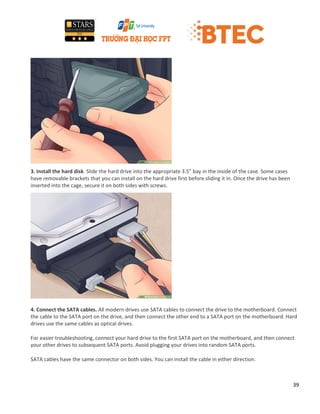
3. Install the hard disk. Slide the hard drive into the appropriate 3.5” bay in the inside of the case. Some cases
have removable brackets that you can install on the hard drive first before sliding it in. Once the drive has been
inserted into the cage, secure it on both sides with screws.
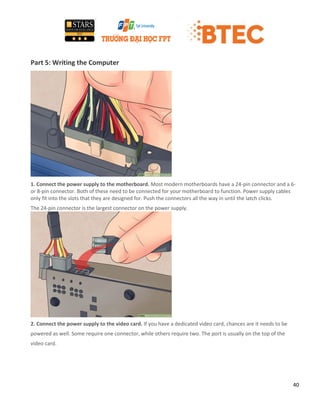
4. Connect the SATA cables. All modern drives use SATA cables to connect the drive to the motherboard. Connect
the cable to the SATA port on the drive, and then connect the other end to a SATA port on the motherboard. Hard
drives use the same cables as optical drives.
For easier troubleshooting, connect your hard drive to the first SATA port on the motherboard, and then connect
your other drives to subsequent SATA ports. Avoid plugging your drives into random SATA ports.
SATA cables have the same connector on both sides. You can install the cable in either direction.
40
Part 5: Writing the Computer
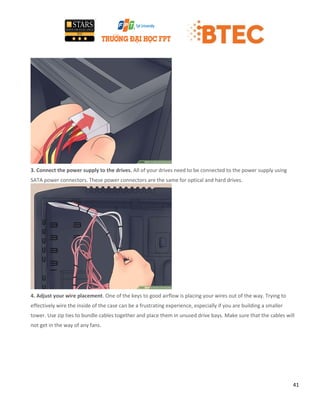
1. Connect the power supply to the motherboard. Most modern motherboards have a 24-pin connector and a 6-
or 8-pin connector. Both of these need to be connected for your motherboard to function. Power supply cables
only fit into the slots that they are designed for. Push the connectors all the way in until the latch clicks.
The 24-pin connector is the largest connector on the power supply.
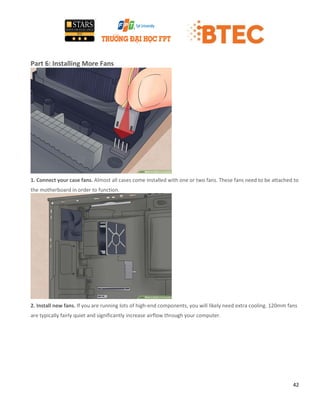
2. Connect the power supply to the video card. If you have a dedicated video card, chances are it needs to be
powered as well. Some require one connector, while others require two. The port is usually on the top of the
video card.
41
3. Connect the power supply to the drives. All of your drives need to be connected to the power supply using
SATA power connectors. These power connectors are the same for optical and hard drives.
4. Adjust your wire placement. One of the keys to good airflow is placing your wires out of the way. Trying to
effectively wire the inside of the case can be a frustrating experience, especially if you are building a smaller
tower. Use zip ties to bundle cables together and place them in unused drive bays. Make sure that the cables will
not get in the way of any fans.
42
Part 6: Installing More Fans
1. Connect your case fans. Almost all cases come installed with one or two fans. These fans need to be attached to
the motherboard in order to function.
2. Install new fans. If you are running lots of high-end components, you will likely need extra cooling. 120mm fans
are typically fairly quiet and significantly increase airflow through your computer.
43
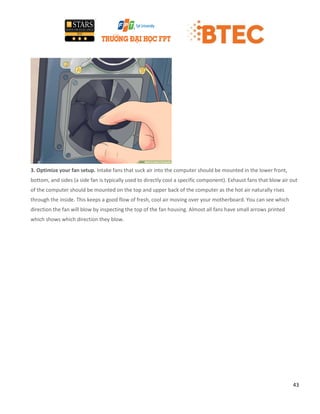
3. Optimize your fan setup. Intake fans that suck air into the computer should be mounted in the lower front,
bottom, and sides (a side fan is typically used to directly cool a specific component). Exhaust fans that blow air out
of the computer should be mounted on the top and upper back of the computer as the hot air naturally rises
through the inside. This keeps a good flow of fresh, cool air moving over your motherboard. You can see which
direction the fan will blow by inspecting the top of the fan housing. Almost all fans have small arrows printed
which shows which direction they blow.
44
Part 7: Booting It Up
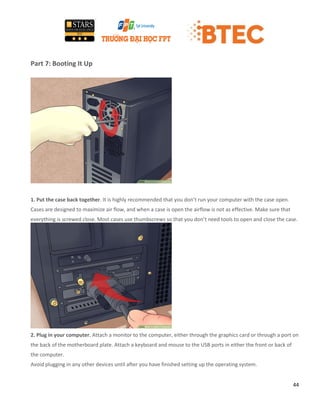
1. Put the case back together. It is highly recommended that you don’t run your computer with the case open.
Cases are designed to maximize air flow, and when a case is open the airflow is not as effective. Make sure that
everything is screwed close. Most cases use thumbscrews so that you don’t need tools to open and close the case.
2. Plug in your computer. Attach a monitor to the computer, either through the graphics card or through a port on
the back of the motherboard plate. Attach a keyboard and mouse to the USB ports in either the front or back of
the computer.
Avoid plugging in any other devices until after you have finished setting up the operating system.
45
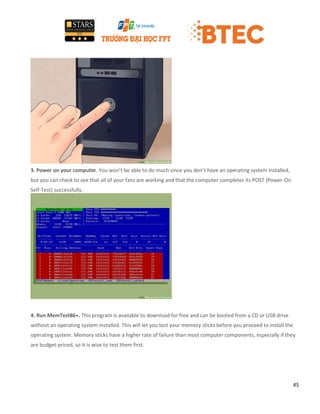
3. Power on your computer. You won’t be able to do much since you don’t have an operating system installed,
but you can check to see that all of your fans are working and that the computer completes its POST (Power-On
Self-Test) successfully.
4. Run MemTest86+. This program is available to download for free and can be booted from a CD or USB drive
without an operating system installed. This will let you test your memory sticks before you proceed to install the
operating system. Memory sticks have a higher rate of failure than most computer components, especially if they
are budget-priced, so it is wise to test them first.
46
You may have to set your computer to boot from CD or USB first, instead of booting from the hard drive. Enter
your BIOS settings when you first start the computer, and then navigate to the Boot menu. Select the appropriate
drive that you want to boot from.
5. Update BIOS or UEFI firmware
The motherboard may or may not have the latest BIOS or UEFI firmware and IME (Intel Management Engine)
installed. While it's not necessary to have the latest BIOS or UEFI firmware and IME, it is a good thing to have.
Note, some BIOS or UEFI do not do an ME update.
Enter BIOS or UEFI by tapping the delete key immediately on starting the computer. Update the BIOS or UEFI
firmware and ME from the Internet flash utility in the BIOS or UEFI itself, if it has this utility.
If there is no Internet flash utility, the BIOS or UEFI probably has a USB flash utility. First on another PC download
the latest BIOS or UEFI firmware (with included ME in some cases) from the motherboard manufacturer's website,
unzip the file, and then copy the unzipped file(s) to a USB flash drive. Then use the BIOS or UEFI's USB flash utility
to update to the new BIOS or UEFI file on the USB flash drive.
DO NOT POWER OFF THE PC, OR REMOVE THE USB FLASH DRIVE if using that method, till the update(s) are
completes.
6. Change BIOS or UEFI settings to prepare for operating system (OS) installation
Enter BIOS or UEFI by tapping the delete key immediately on starting the computer.
First confirm from the BIOS or UEFI the components you installed in the PC. If you look around in the BIOS or UEFI,
it will list the motherboard, CPU, memory size, hard drive, DVD drive. It will also tell you which motherboard
connectors have been used for the hard drive, DVD drive and sometimes the memory sticks. This a good first test
that it's all good.
Then make the following changes:
Newer motherboards and some other hardware devices use UEFI boot mode where UEFI is a software layer
between the firmware (BIOS) and the OS. Current versions of Linux and Windows also support UEFI. It's the
current standard for booting an OS and has advantages, so if your hardware and OS support it you should use it.
However if you have dual or multi-boot operating systems installed or planned to be installed and one of those
47
was/is to be installed without UEFI then don't use UEFI. To use UEFI boot mode, in the boot menu, under boot
order priority make the First Boot Device your UEFI CD/DVD drive or UEFI USB flash drive depending on your OS
installation media. In some new BIOS's you don't see the UEFI prefix listed before a storage device as an option in
the boot order devices, that means UEFI boot mode may be automatically tried first anyway for the storage device
you select, but also make sure to see the next step. To not use UEFI boot mode, set the same boot order priority
that is CD/DVD drive or USB flash drive as the First Boot Device but without the UEFI prefix.
Also to use UEFI boot mode, in the Boot menu or sometimes it's in the Advanced menu or another menu, under a
heading like CSM Configuration, for boot mode for the Storage Device, Video and other PCI/PCI Express devices
select UEFI. If you can select UEFI with CSM/legacy support do that instead, this will give you the most flexibility
for using different devices connected to the PC for example a video card which may not have UEFI boot mode. The
BIOS or UEFI on some motherboards may require you to select the operating system. Here select Other OS,
however in a few cases you may have to select Windows 8/8.1/10 in order to use UEFI mode even if you're
installing Linux. For a Linux installation, or if you want a dual boot system now or in the future, keep 'Secure Boot'
disabled. To not use UEFI, for boot mode for the Storage Device, Video and for PCI/PCI Express devices select
CSM/legacy support.
You don't need motherboard branding displayed on start-up so disable it in the boot section.
Under Integrated Graphics Configuration or other similar heading make Primary Graphics Adapter - 'Onboard' or
'Integrated Graphics' or 'IGD' or some similar abbreviation, unless you are installing a separate video card in which
case it should be PCI Express Graphics or 'PEG' or a similar abbreviation.
Make other changes to BIOS or UEFI as desired. Look through each menu and change as desired.
Before exiting the BIOS or UEFI, insert OS installation DVD in DVD drive or USB flash drive into your USB port, then
save BIOS or UEFI settings and exit. You may have to use a USB 2.0 port, instead of a USB 3.0 port, depending on
your chipset to ensure a UEFI boot. On restarting the PC, the OS installation will automatically boot up.
48
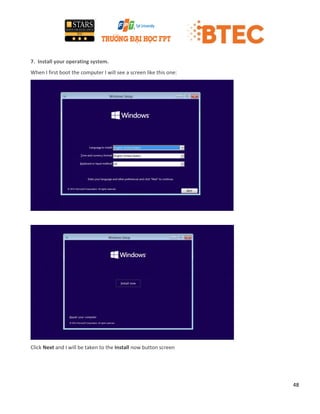
7. Install your operating system.
When I first boot the computer I will see a screen like this one:
Click Next and I will be taken to the Install now button screen
49
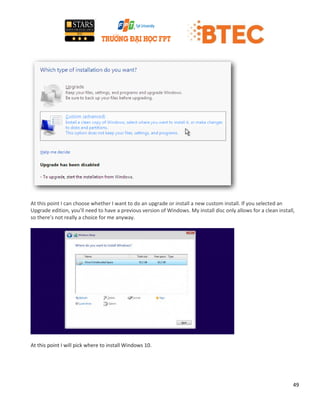
At this point I can choose whether I want to do an upgrade or install a new custom install. If you selected an
Upgrade edition, you’ll need to have a previous version of Windows. My install disc only allows for a clean install,
so there’s not really a choice for me anyway.
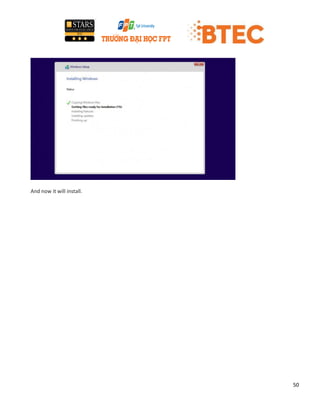
At this point I will pick where to install Windows 10.
50
And now it will install.
51
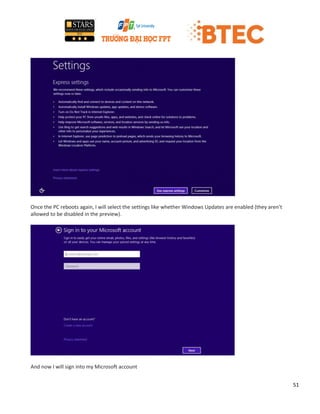
Once the PC reboots again, I will select the settings like whether Windows Updates are enabled (they aren’t
allowed to be disabled in the preview).
And now I will sign into my Microsoft account
52
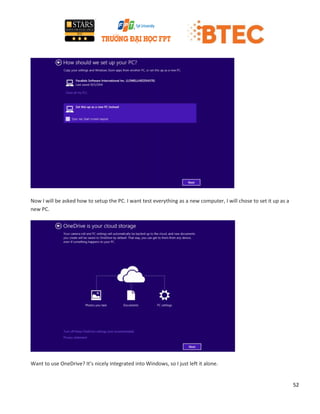
Now I will be asked how to setup the PC. I want test everything as a new computer, I will chose to set it up as a
new PC.
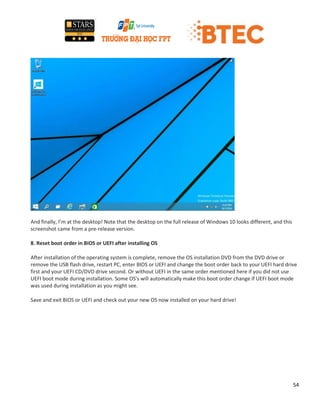
Want to use OneDrive? It’s nicely integrated into Windows, so I just left it alone.
53
And now a colorful screen that tells me things are happening.
54
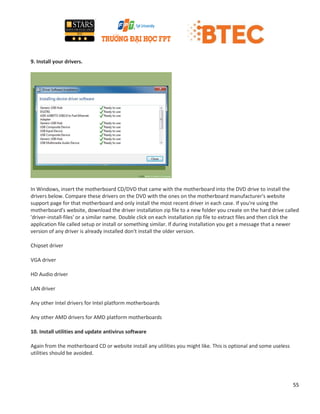
And finally, I’m at the desktop! Note that the desktop on the full release of Windows 10 looks different, and this
screenshot came from a pre-release version.
8. Reset boot order in BIOS or UEFI after installing OS
After installation of the operating system is complete, remove the OS installation DVD from the DVD drive or
remove the USB flash drive, restart PC, enter BIOS or UEFI and change the boot order back to your UEFI hard drive
first and your UEFI CD/DVD drive second. Or without UEFI in the same order mentioned here if you did not use
UEFI boot mode during installation. Some OS's will automatically make this boot order change if UEFI boot mode
was used during installation as you might see.
Save and exit BIOS or UEFI and check out your new OS now installed on your hard drive!
55
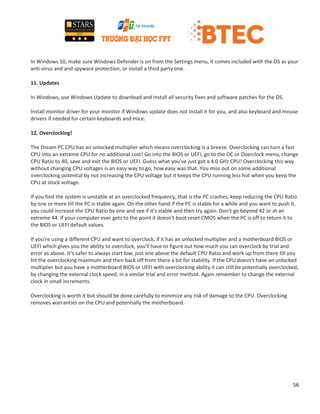
9. Install your drivers.
In Windows, insert the motherboard CD/DVD that came with the motherboard into the DVD drive to install the
drivers below. Compare these drivers on the DVD with the ones on the motherboard manufacturer's website
support page for that motherboard and only install the most recent driver in each case. If you're using the
motherboard's website, download the driver installation zip file to a new folder you create on the hard drive called
'driver-install-files' or a similar name. Double click on each installation zip file to extract files and then click the
application file called setup or install or something similar. If during installation you get a message that a newer
version of any driver is already installed don't install the older version.
Chipset driver
VGA driver
HD Audio driver
LAN driver
Any other Intel drivers for Intel platform motherboards
Any other AMD drivers for AMD platform motherboards
10. Install utilities and update antivirus software
Again from the motherboard CD or website install any utilities you might like. This is optional and some useless
utilities should be avoided.
56
In Windows 10, make sure Windows Defender is on from the Settings menu, it comes included with the OS as your
anti-virus and and spyware protection, or install a third party one.
11. Updates
In Windows, use Windows Update to download and install all security fixes and software patches for the OS.
Install monitor driver for your monitor if Windows update does not install it for you, and also keyboard and mouse
drivers if needed for certain keyboards and mice.
12. Overclocking!
The Dream PC CPU has an unlocked multiplier which means overclocking is a breeze. Overclocking can turn a fast
CPU into an extreme CPU for no additional cost! Go into the BIOS or UEFI, go to the OC or Overclock menu, change
CPU Ratio to 40, save and exit the BIOS or UEFI. Guess what you've just got a 4.0 GHz CPU! Overclocking this way
without changing CPU voltages is an easy way to go, how easy was that. You miss out on some additional
overclocking potential by not increasing the CPU voltage but it keeps the CPU running less hot when you keep the
CPU at stock voltage.
If you find the system is unstable at an overclocked frequency, that is the PC crashes, keep reducing the CPU Ratio
by one or more till the PC is stable again. On the other hand if the PC is stable for a while and you want to push it,
you could increase the CPU Ratio by one and see if it's stable and then try again. Don't go beyond 42 or at an
extreme 44. If your computer ever gets to the point it doesn't boot reset CMOS when the PC is off to return it to
the BIOS or UEFI default values.
If you're using a different CPU and want to overclock, if it has an unlocked multiplier and a motherboard BIOS or
UEFI which gives you the ability to overclock, you'll have to figure out how much you can overclock by trial and
error as above. It's safer to always start low, just one above the default CPU Ratio and work up from there till you
hit the overclocking maximum and then back off from there a bit for stability. If the CPU doesn't have an unlocked
multiplier but you have a motherboard BIOS or UEFI with overclocking ability it can still be potentially overclocked,
by changing the external clock speed, in a similar trial and error method. Again remember to change the external
clock in small increments.
Overclocking is worth it but should be done carefully to minimize any risk of damage to the CPU. Overclocking
removes warranties on the CPU and potentially the motherboard.
57
3.2 TEST AND DOCUMENT A COMPUTER SYSTEM
In order to confirm the installation, I have run 2 tests. In the first boot, the computer runs smoothly, no error
occurred for the operating system. I continue to run the computer continuously for 12 hours, ending the process
despite the heat but hard drives CPU and RAM are not even an error, finish my Test 1 shutdown. In the 2nd test I
turned on the video editing software, it run quite fast, took only 3 minutes, pretty good in my opinion because the
demo was a big one. Photoshop boot up very fast, I also opened some design programs, as well as the other
programs the class mainly use, I only took up an acceptable amount of RAM and CPU, but still doesn’t show any
sign of shuttering or crashing. I think this should be suitable to your expectation. I end up the report here.
LO4. Be able to undertake routine maintenance on
computer systems
4.1 PERFORM ROUTINE MANITENANCE TASKS ON A COMPUTER
SYSTEM
1. Maintain the hardware and the software
There are two types of Maintenance:
Software Maintenance
Hardware Maintenance
Software Maintenance: We will upgrade the software if any update is available. We will update scheduling
maintenance tasks, we will also do clean-up, back-up and we will do maintain other third party utility software
e.g.: compression utilities, spyware removal. If there is any software error we will fix it with in 1 day and we will do
a monthly maintenance for all the computers.
Hardware Maintenance: Upgrade the hardware like installing and configure new peripherals e.g.: printers,
scanners and etc. Installing additional or replacement devices e.g.: hard drive, memory, graphic, sound, optical
media. We will monthly do the cleaning of the hardware.
58
2. Different types of backup
For quite some time, there have been three basic types of backups: full, incremental and differential. More
recently though, data backup software vendors have introduced some newer types of backups that you might not
be familiar with. Before I do though, I am going to give you a quick crash course in full, incremental and differential
backups.
Full backups
A full backup is exactly what the name implies. It is a full copy of your entire data set. Although full backups
arguably provide the best protection, most organizations only use them on a periodic basis because they are time
consuming, and often require a large number of tapes or disk.
Incremental backup
Because full backups are so time consuming, incremental backups were introduced as a way of decreasing the
amount of time that it takes to do a backup. Incremental backups only backup the data that has changed since the
previous backup.
For example, suppose that you created a full backups on Monday, and used incremental backups for the rest of
the week. Tuesday's backup would only contain the data that has changed since Monday. Wednesday's backup
would only contain the data that has changed since Tuesday.
The primary disadvantage to incremental backups is that they can be time-consuming to restore. Going back to my
previous example, suppose that you wanted to restore the backup from Wednesday. To do so, you would have to
first restore Monday's full backup. After that, you would have to restore Tuesday's tape, followed by
Wednesday's. If any of the tapes happen to be missing or damaged, then you will not be able to perform the full
restoration.
Differential backups
A differential backup is similar to an incremental backup in that it starts with a full backup, and subsequent
backups only contain data that has changed. The difference is that while an incremental backup only includes the
data that has changed since the previous backup, a differential backup contains all of the data that has changed
since the last full backup.
Suppose for example that you wanted to create a full backups on Monday and differential backups for the rest of
the week. Tuesday's backup would contain all of the data that has changed since Monday. It would therefore be
identical to an incremental backup at this point. On Wednesday, however, the differential backup would backup
any data that had changed since Monday.
The advantage that differential backups have over incremental is shorter restore times. Restoring a differential
backup never requires more than two tape sets. Incremental backups on the other hand, may require a great
59
number of tape sets. Of course the tradeoff is that as time progresses, a differential backup tape can grow to
contain much more data than an incremental backup tape.
Synthetic full backup
A synthetic full backup is a variation of an incremental backup. Like any other incremental backup, the actual
backup process involves taking a full backup, followed by a series of incremental backups. But synthetic backups
take things one step further.
What makes a synthetic backup different from an incremental backup is that the backup server actually produces
full backups. It does this by combining the existing full backups with the data from the incremental backups. The
end result is a full backup that is indistinguishable from a full backup that has been created in the traditional way.
As you can imagine, the primary advantage to synthetic full backups is greatly reduced restore times. Restoring a
synthetic full backup doesn't require the backup operator to restore multiple tape sets as an incremental backup
does. Synthetic full backups provide all of the advantages of a true full backup, but offer the decreased backup
times and decrease bandwidth usage of an incremental backup.
Incremental-forever backup
Incremental-forever backups are often used by disk-to-disk-to-tape backup systems. The basic idea is that like an
incremental backup, and incremental-forever backup begins by taking a full backup of the data set. After that
point, only incremental backups are taken.
What makes an incremental-forever backup different from a normal incremental backup is the availability of data.
As you will recall, restoring an incremental backup requires the tape containing the full backup, and every
subsequent backup up to the backup that you want to restore. While this is also true for an incremental-forever
backup, the backup server typically stores all of the backup sets on either a large disk array or in a tape library. It
automates the restoration process so that you don't have to figure out which tape sets need to be restored. In
essence, the process of restoring the incremental data becomes completely transparent and mimics the process of
restoring a full backup.
3. The Best Backup
Your company's need for risk management, total volume of data assets, and other factors can all have an impact
on the approach to backups that's right for you. Your company is best served with a weekly full backup and daily
differential backups.
4. Disk Defragmenter
Disk gets fragmented as users create and delete files and folders, download files from internet, or install/uninstall
programs. When a file or a folder is deleted from the hard disk, the space that was occupied by it will be used to
60
store any new files. When a file gets saved, it uses the first contiguous free space that is large enough for the file
and the remaining part of the file is saved in the next available free space.
The fragmented disk brings down the performance of the system as it takes a long time to retrieve the fragmented
data from the disk even if the CPU or the memory is more than sufficient. Hence, periodic disk defragmentation is
necessary to keep up the performance of the system. Desktop Central provides option to run the disk
defragmenter tool on multiple machines simultaneously. It supports the following options:
 Verbose: Displays the complete analysis and disk defragmentation reports
 Analyze: Analyzes the volume and displays a summary of the analysis report.
 Force Defragmentation: Forces disk defragmentation regardless of whether it needs to be defragmented.
5. Schedule the defragmentation tools to be executed automatically by the
Operating System
1. Open Control Panel
2. Double-click Scheduled Tasks
3. Double-click Add Scheduled Task
4. On the Scheduled Task Wizard dialog, click Next
5. Click Browse
6. In the Select Program to Schedule dialog, navigate to the windowssystem32 folder
7. Select defrag.exe
8. Click Open
9. In the Scheduled Task Wizard dialog, type a name for the scheduled task (Disk Defragmenter, for instance)
10. Under Perform this task, select how often you wish Disk Defragmenter to run
11. Click Next
12. Set the time at which you wish the Disk Defragmenter scheduled task to run. This should be a time when your
computer is on, but not in heavy use.
13. Select the frequency at which you want the Disk Defragmenter scheduled task to run (Every Day, Weekdays, or
Every <N> days, where <N> is the number of days between scheduled runs)
14. Click Next
15. Enter a user name under which the Disk Defragmenter scheduled task will run. Note: This user must be an
administrator on the local machine.
16. Enter the password for the user you entered in the previous step
17. Confirm the password for the user
18. Click Next
19. Check Open advanced properties for this task when I click Finish
20. Click Finish
21. In the Run text box, you should see the full path and command for defrag.exe. By default, this path is
C:WINDOWSSYSTEM32defrag.exe
22. Append the drive letter for the drive you wish to defragment to the command in the Run text box. In a default
installation, your Run command will look like this:
C:WINDOWSSYSTEM32defrag.exe C:
23. Click OK
61
24. In the Set Account Information dialog, enter and confirm the password for the user listed in Run as
25. Click OK
Disk Defragmenter will now run as the specified user on the schedule you specified when you created the
scheduled task.
4.2 Upgrade the hardware and software on a computer system
1. Hardware Upgrades
Upgrading your desktop computer is an excellent idea. You can extend the lifespan of a PC indefinitely by changing
out components over time. Absolutely everything can be replaced.
Computers are complex, however, and this can lead to headaches when trying to upgrade. Nothing is more
frustrating than finding out that you have a compatibility issue while you’re in the process of installing new
hardware. Let’s review 4 potential trouble spots you should check before digging into your desktop’s internals.
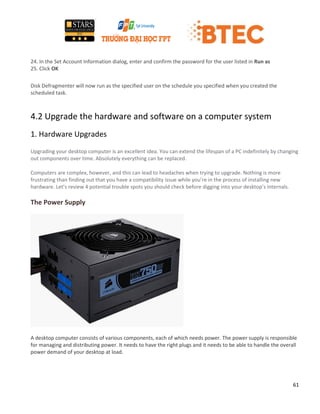
The Power Supply
A desktop computer consists of various components, each of which needs power. The power supply is responsible
for managing and distributing power. It needs to have the right plugs and it needs to be able to handle the overall
power demand of your desktop at load.
62
Some of the power connections in desktops have remained the same over time, but some haven’t. The most
recent examples of new connections are SATA and PCI Express. If you own a computer that is more than five years
old it may not support them, and that means you won’t be able to use a SATA hard drive or a PCI Express video
card without an adapter. Always makes sure that your power supply has the connectors required to accept any
new hardware you might purchase. 5 Things to Consider When You Install a SATA Hard Drive 5 Things to Consider
When You Install a SATA Hard Drive Before you install a SATA hard drive, here are a few things to consider so you
don't mess anything up.
Overall power draw can sometimes be an issue, as well. Video cards are the primary troublemaker. Be sure to
check the power requirements specified by the manufacturer before buying a new video card. If your current
supply is below the requirements you should upgrade it before installing new hardware.
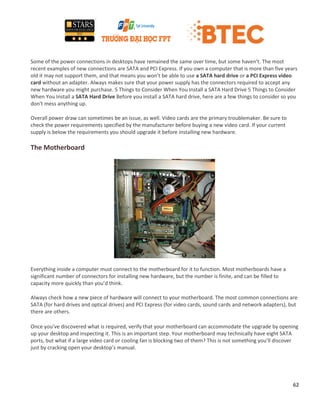
The Motherboard
Everything inside a computer must connect to the motherboard for it to function. Most motherboards have a
significant number of connectors for installing new hardware, but the number is finite, and can be filled to
capacity more quickly than you’d think.
Always check how a new piece of hardware will connect to your motherboard. The most common connections are
SATA (for hard drives and optical drives) and PCI Express (for video cards, sound cards and network adapters), but
there are others.
Once you’ve discovered what is required, verify that your motherboard can accommodate the upgrade by opening
up your desktop and inspecting it. This is an important step. Your motherboard may technically have eight SATA
ports, but what if a large video card or cooling fan is blocking two of them? This is not something you’ll discover
just by cracking open your desktop’s manual.
63
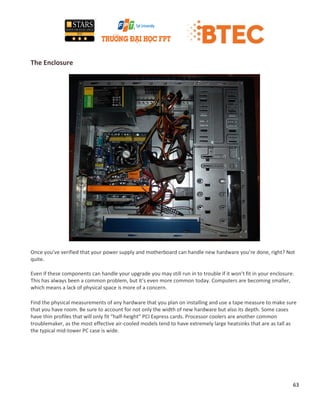
The Enclosure
Once you’ve verified that your power supply and motherboard can handle new hardware you’re done, right? Not
quite.
Even if these components can handle your upgrade you may still run in to trouble if it won’t fit in your enclosure.
This has always been a common problem, but it’s even more common today. Computers are becoming smaller,
which means a lack of physical space is more of a concern.
Find the physical measurements of any hardware that you plan on installing and use a tape measure to make sure
that you have room. Be sure to account for not only the width of new hardware but also its depth. Some cases
have thin profiles that will only fit “half-height” PCI Express cards. Processor coolers are another common
troublemaker, as the most effective air-cooled models tend to have extremely large heatsinks that are as tall as
the typical mid-tower PC case is wide.
64
2. Software Upgrades
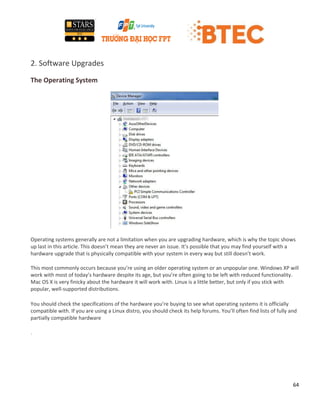
The Operating System
Operating systems generally are not a limitation when you are upgrading hardware, which is why the topic shows
up last in this article. This doesn’t mean they are never an issue. It’s possible that you may find yourself with a
hardware upgrade that is physically compatible with your system in every way but still doesn’t work.
This most commonly occurs because you’re using an older operating system or an unpopular one. Windows XP will
work with most of today’s hardware despite its age, but you’re often going to be left with reduced functionality.
Mac OS X is very finicky about the hardware it will work with. Linux is a little better, but only if you stick with
popular, well-supported distributions.
You should check the specifications of the hardware you’re buying to see what operating systems it is officially
compatible with. If you are using a Linux distro, you should check its help forums. You’ll often find lists of fully and
partially compatible hardware
.
65
Conclusion
Until now, we have come to end of this report. To summarize, we have understood the function of computer
systems and how to design, build and configure computer system. Moreover we are able to undertake routine
maintenance on the computer system. In more detail:
In task 1, we have seen computers in different environment. Also we had saw computer systems, computer
hardware, computer software, computer peripherals and performance factor. In peripherals we have seen input
and output devices and usage. After that we had saw different types of computers and usage. In that part we
could see Personal computer, Minicomputer, Main frame computer and Super computer
In task 2, we have seen about a system design specification to meet a client’s need and how to evaluate the
suitability of the system design specification
In task 3, we have seen how to build and configure a computer system to meet a design specification, test and
document the computer system
In task 4, we have seen how to perform routine maintenance tasks on a computer system and upgrade the
hardware and software on the computer system.
66
References
http://www.computerhope.com/
http://www.wikihow.com/Main-Page
https://www.amazon.com/
https://en.wikipedia.org/wiki/Main_Page
http://searchdatabackup.techtarget.com/tip/Data-backup-types-explained-Full-incremental-differential-and-
incremental-forever-backup
https://support.microsoft.com/en-us/help/555098
http://www.makeuseof.com/
.

Computer systems assignment frontsheet

  • 1.
    1 ASSIGNMENT FRONT SHEET QualificationEdexcel BTEC Level 5 HND Diploma in Computing and Systems Development Unit number and title Unit 2: Computer Systems Assignment due 9/3/2017 Assignment submitted 3/3/2017 Learner’s name Phạm Hoàng Bảo Assessor name Michael Omar Learner declaration: I certify that the work submitted for this assignment is my own and research sources are fully acknowledged. Learner signature Date Grading grid P1.1 P1.2 P1.3 P2.1 P2.2 P3.1 P3.2 P4.1 P4.2 M1 M2 M3 D1 D2 D3
  • 2.
    2 Assignment title ComputerSystems In this assignment, you will have opportunities to provide evidence against the following criteria. Indicate the page numbers where the evidence can be found. Assessment criteria Expected evidence Task no. Assessor’s Feedback LO1. Understand the function of computer systems 1.1 explain the role of computer systems in different environments A written document which: Explain the impact of computer systems in social and work, evaluating the role of computer system in different environment 1.1 1.2 explain the hardware, software and peripheral components of a computer system A written document which: Explain the main computer hardware components 1.2
  • 3.
    3 1.3 compare differenttypes of computer systems Compare different types of computer systems and the suitability of usage in different environment 1.3 LO2. Be able to design computer systems 2.1 produce a system design specification to meet a client’s needs A Hardware / Software specification document 2.1 2.2 evaluate the suitability of a system design specification A written document which Justify and evaluate your selection of Hardware/ Software to meet the requirement of the company 2.2 LO3. Be able to build and configure computer systems
  • 4.
    4 3.1 build andconfigure a computer system to meet a design specification A written document which: • Show the process of assembling a typical computer. • Describe in step, how you would install the operating system? 3.1 3.2 test and document a computer system A test report showing the process you would take to verify the installation 3.2 LO4. Be able to undertake routine maintenance on computer systems
  • 5.
    5 4.1 perform routine maintenancetasks on a computer system A written document which • Explain different types of backup and justify your choice of backup strategy for above company? • Explain the defragmentation tools and how to schedule the defragmentation tools to be executed automatically by the Operating System? 4.1 4.2 upgrade the hardware and software on a computer system. A written document discusses what needed to be considered before upgrading any hardware or software of an existing computer system. What critical issues should be addressed before any major updates and/or upgrades in an organization 4.2 Assessment criteria Expected Evidence Feedback (note on Merit/Distinction if applicable) M1 Identify and apply strategies to find appropriate solutions 1. Effective judgements have been made. 2. An effective approach to
  • 6.
    6 study and researchhas been applied M2 Select/design and apply appropriate methods/techniques 1. Relevant theories and techniques have been applied 2. The design of methods/techniques has been justified M3 Present and communicate appropriate findings 1. An appropriate structure and method has been used and technical language has been accurately used to present the findings. 2. Communication has taken place in familiar and unfamiliar contexts D1 Use critical reflection to evaluate own work and justify valid conclusions 1. Conclusions have been arrived at through synthesis of ideas and have been justified 2. The validity of results has been evaluated using defined criteria D2 Take responsibility for managing and organizing activities 1. Substantial activities have been planned, managed and organized
  • 7.
    7 2. Activities havebeen managed D3 Demonstrate convergent/lateral/ creative thinking 1. Self-evaluation has taken place 2. Problems have been solved Summative feedback Assessor’s Signature Date
  • 8.
    8 INTRODUCTION Before getting intothe detail, it is essential to understand the concept of Computer System. Computer System is a general purpose device which can be programmed to carry out a finite set of arithmetic or logical operations. Since a sequence of operation can be readily changed, the computer can solve more than one kind of problems. In this assignment I will work on the following four different phases. Each phase will cover the related content in detail. In the first part we will understand the function of computer system. In this part, I will discuss the role of computer system in different environments. Hardware, software and peripheral components of a computer system. Comparing different types of computer system. The second learning outcome is be able to design computer system in this I will produce a system design specification to meet the client’s need. Then I will evaluate the suitability of a system design specification. Third learning outcome is be able to build and configure computer system. I this will build and configure a computer system to meet a design specification, then it will be test and document a computer system. Fourth learning outcome is be able to undertake routine maintenance on computer system. In this I will discuss performing routine maintenance tasks on a computer system and upgrade the hardware and software on a computer system. In this assignment, each issue & process would be discussed in detail to understand the basic concept.
  • 9.
    9 LO1. Understand thefunction of computer systems 1.1 THE ROLE OF COMPUTER SYSTEM IN DIFFERENT ENVIRONMETS In this modern day computer system is used everywhere, example at Home, Business, Networking, Real-time, Communication. At home the computer is used for normal works like for searching information on internet, playing games and etc, for that we don’t require a high speed computer. In business computer plays a big role, all business there is a finance department, the main activities of the finance department is to record all the business transaction, to control the finance cash flow and etc , for that the need a computer. The Networking is all about computers, For Networking computer is important. Without computer, Networking is impossible and we cannot share resources (i.e. files, videos, sounds, pictures, etc) and communication between two or more people will not be possible. For Networking we need at least 2 computers. We use computer system in Real-time. Real-time is a process in which people can communicate without any deadline. We can share our videos and etc. Sometimes people use computer as a TV. We can access to live information from a television station through a computer. Real-time can also refer to event simulated by a computer at same speed that they would occur in real life. Communication is now done worldwide using computer system. Today most of the computers are capable of communication, like we can send a message, documents, picture and etc to our friend on the other side of the planet. An instant messenger program allows two different computers to converse by typing in text or they can even voice chat with each other.
  • 10.
    10 1.2 THE HARDWARE,SOFTWARE, AND PERIPHERALS COMPONENTS OF A COMPUTER SYSTEM 1. Computer Hardware Hardware consists of physical equipment of the computer. The components Hardware are power supply, motherboard, expansion Cards, hard disk and etc. A power supply unit converts alternating current electric power to low-voltage DC power for internal components of the computer. Motherboard is the main component inside the CPU. It is a large rectangular board with integrated circuitry that connects the other parts of the computer including the CPU, the RAM, the disk drive and etc.
  • 11.
    11 CPU (pronounced asseparate letters) is the abbreviation for central processing unit. Sometimes referred to simply as the central processor, but more commonly called processor, the CPU is the brains of the computer where most calculations take place. In terms of computing power, the CPU is the most important element of a computer system. VGA (video graphics array) is a popular display standard developed by IBM and introduced in 1987. VGA provides 640 x 480 resolution color display screens with a refresh rate of 60Hz and 16 colors displayed at a time. If the resolution is lowered to 320 x 200, 256 colors are shown
  • 12.
    12 Alternatively referred toas an audio output device, sound board, or audio card. A sound card is an expansion card or IC for producing sound on a computer that can be heard through speakers or headphones. Although the computer does not need a sound device to function, they are included on every machine in one form or another, either in an expansion slot (sound card) or on the motherboard (onboard).Hard disk is a device for storing and retrieving digital information, primarily computer data. It consists of one or more rigid rapidly rotating discs, coated with magnetic material and with magnetic heads arranged to write data to the surfaces and read it from them. Short for power supply and sometimes abbreviated as PSU, which is short for Power Supply Unit. A power supply is an internal hardware component that supplies components in a computer with power. The power supply converts a 110-115 or 220-230 volt alternating current (AC) into a steady low-voltage direct current (DC) usable by the computer and rated by the number of watts it generates. For example, the image to the right is an Antec True 330, a 330 Watt power supply and an example of a computer power supply.
  • 13.
    13 Short for NetworkInterface Card, the NIC is also referred to as an Ethernet card and network adapter. It is an expansion card that enables a computer to connect to a network; such as a home network, or the Internet using an Ethernet cable with an RJ-45 connector. A modem is a device that modulates signal to encode digital information and demodulates signal to decode the transmitted information Battery in the performing way.Power up a device and keep it Memory is the Integrated circuits that temporarily store program instructions and data that can be retrieved. Basic unit of memory is a byte. RAM (Random Access Memory) is a volatile form of memory, RAM generally functions as a computer "desktop" - the space in which data that is actively under review and/or manipulation can be processed. As a result and as a general rule, the more RAM with which a computer is fitted, the more and faster data can be viewed and
  • 14.
    14 manipulated. RAM needsto be cyclically "refreshed" from an outside power source in order to maintain the information contained therein. When external power is removed, the data contents held in RAM disappears. For this reason, RAM is sometimes referred to as short term memory. ROM (Read-Only Memory) is a non-volatile form of memory, ROM stores data that does not commonly change, like startup instructions and data used when a computer if first turned on. CMOS is used to store information about the computer system, such as the amount of memory, the type of keyboard and monitors, and the type and capacity of disk drives. Internal storage is hardware that keeps data inside the computer for later use and remains persistent even when the computer has no power. There are a few different types of internal storage. Hard disks are the most popular type of internal storage. Solid-state drives have grown in popularity slowly. A disk array controller is popular when you need more storage than a single hard disk can hold. A hard disk drive (HDD) is a non-volatile storage device which stores digitally encoded data on rapidly rotating platters with magnetic surfaces. Just about every new computer comes with a hard disk these days unless it comes with a new solid-state drive. Typical desktop hard disk drives store between 120 and 400GB, rotate at 7,200 rpm, and have a media transfer rate of 1 Gigabyte/s or higher. Hard disk drives are accessed over one of a number of bus types, including parallel ATA (also called IDE), Serial ATA (SATA), SCSI, Serial Attached SCSI, and Fiber Channel.
  • 15.
    15 A solid-state drive(SSD) is a data storage device that uses solid-state memory to store persistent data. An SSD emulates a hard disk drive, thus easily replacing it in any application. SSDs have begun to appear in laptops because they can be smaller than HDDs. SSDs are currently more expensive per unit of capacity than HDDs which is why they have not caught on so quickly. A disk array controller is a device that manages the physical disk drives and presents them to the computer as logical units. It almost always implements hardware RAID. RAID (Redundant Array of Independent Drives) is a technology that employs the simultaneous use of two or more hard disk drives to achieve greater levels of performance, reliability, and/or larger data volume sizes. A disk array controller also provides additional disk cache. 2. Computer Software Sometimes abbreviated as SW and S/W, software is a collection of instructions that enable the user to interact with a computer, its hardware, or perform tasks. Without software, computers would be useless. For example, without your Internet browser, you could not surf the Internet or read this page and without an operating system, the browser could not run on your computer. The picture to the right shows a Microsoft Excel box, an example of a spreadsheet software program Examples and types of software It should be noted that although software is thought of as a program, it can be anything that runs on a computer. The table below also includes a program column to clarify any software that is not a program.
  • 16.
    16 Software Examples Program? AntivirusAVG, Housecall, McAfee Yes Audio / Music program iTunes, WinAmp Yes Database Access, MySQL, SQL Yes Device drivers Computer drivers No E-mail Outlook, Thunderbird Yes Game Madden NFL Football, Quake, World of Warcraft Yes Internet browser Firefox, Google Chrome, Internet Explorer Yes Movie player VLC, Windows Media Player Yes Operating system Mac OS X 10, Windows XP, Windows 7 No Photo / Graphics program Adobe PhotoShop, CorelDRAW Yes Presentation PowerPoint Yes Programming language C++, HTML, Java, Perl, Visual Basic (VB) Yes Simulation Flight simulator, SimCity Yes
  • 17.
    17 . 3. Peripheral Peripheral isa device connected to a host computer, but not part of it, and is more or less dependent on the host. These are input/output devices. Peripherals are: Keyboard, Mouse, Monitor, Speaker and etc. Spreadsheet Excel Yes Utility Compression, Disk Cleanup, Encryption, Registry cleaner, Screensaver No Word processor Word Yes
  • 18.
    18 Input Device An inputdevice is any hardware device that sends data to a computer, allowing you to interact with and control the computer. The picture shows a Logitech trackball mouse, an example of an input device. A computer keyboard is one of the primary input devices used with a computer that looks similar to those found on electric typewriters, but with some additional keys. Keyboards allow you to input letters, numbers, and other symbols into a computer that can serve as commands or be used to type text. A computer mouse is a handheld hardware input device that controls a cursor in a GUI and can move and select text, icons, files, and folders. For desktop computers, the mouse is placed on a flat surface such as a mouse pad or a desk and is placed in front of your computer. In the picture is an example of a desktop computer mouse with two buttons and a wheel.
  • 19.
    19 A webcam isa hardware camera and input device that connects to a computer and the Internet and captures either still pictures or motion video of a user or other object. The picture of the Logitech Webcam C270 is an example of what a webcam may look. Today, most webcams are either embedded into the display with laptop computers or connected to the USB or FireWire port on the computer. Sometimes abbreviated as mic, a microphone is a hardware peripheral originally invented by Emile Berliner in 1877 that allows computer users to input audio into their computers. The picture is an example of Blue Microphones Yeti USB Microphone - Silver Edition and an example of a high-quality computer microphone. Output Device An output device is any peripheral that receives data from a computer, usually for display, projection, or physical reproduction. For example, the image shows an inkjet printer, an output device that can make a hard copy of any information shown on your monitor. Another example of an output device is a computer monitor, which displays an image that is received from the computer. Monitors and printers are two of the most common output devices used with a computer.
  • 20.
    20 Alternatively referred toas a video display terminal (VDT) and video display unit (VDU), a monitor is a device that display video images to the user. A monitor is made up of circuitry, a screen, a power supply, button to adjust screen settings, and casing that holds all of these components. Sometimes referred to as earphones, headphones are a hardware output device that either plug into your computer line out or your speakers to privately listen to audio without disturbing others. The picture is an example of a USB headset from Logitech which also include a microphone (an input device) and a popular solution for computer gaming. A computer speaker is a hardware device that connects to a computer to generate sound. The signal used to produce the sound that comes from a computer speaker is created by the computer's sound card. The picture shows the Altec Lansing VS2221 speakers with subwoofer, an example of external computer speakers.
  • 21.
    21 A printer isan external hardware output device that takes the electronic data stored on a computer or other devices and generates a hard copy of it. For example, if you created a report on your computer you could print several copies to hand out at a staff meeting. Printers are one of the most popular computer peripherals and are commonly used to print text and photos. The picture to the right is an example of an inkjet computer printer, the Lexmark Z605. 4. Performance factors The factors that determine the computer performance is RAM, CPU, PSU. Those 3 factors determine your computer’s overall performance. If you want more performance that relating to graphical and such, the VGA card will solve your problem. 1.3 DIFFERENT TYPES OF COMPUTER SYSTEMS A computer is a general purpose device which can be programmed to carry out a finite set of arithmetic or logical operations. There are different types of computer system: Personal computer, Workstation, Minicomputer, Mainframe and Supercomputer. Personal computer: A personal computer can be defined as a small, relatively inexpensive computer designed for an individual user.
  • 22.
    22 Workstation: It isa type of computer used for engineering applications, desktop publishing, software development, and other types of application that require a moderate amount of computing power and relatively high quality graphic capabilities. Minicomputer: It is a midsize computer. In general, a minicomputer is a multiprocessing system capable of supporting from up to 200 users simultaneously. Mainframe: Mainframe computers are powerful computers used primarily by corporate and governmental organizations for critical applications, bulk data processing such as census. In some ways, mainframes are more power than supercomputers because they support more simultaneous programs.
  • 23.
    23 Supercomputer: Supercomputer isa board term for one of the fastest computer currently available. Supercomputers are employed for specialized application that requires immense amounts of mathematical calculations.
  • 24.
    24 LO2. Be ableto design computer systems 2.1 A SYSTEM DESIGN SPECIFICATION TO MEET A CLIENT’S NEEDS For professional-grade graphic design and video editing work up to 4K resolution, while still keeping the budget manageable. HARDWARE. CPU: Intel i7-6800K Graphics Card: GTX 1060 6GB Motherboard: ASRock X99 Taichi RAM: 32 GB DDR4 Storage 1: Samsung 960 EVO 500 GB M.2 SSD Storage 2: HGST 4 TB hard drive Power Supply: EVGA G2 750W Monitors: Dell Ultra HD 4k Monitor P2715Q 27-Inch Screen LED-Lit Monitor CPU Cooler: Corsair Hydro H110i Case: NZXT Phantom 820 Operating System: Windows 10
  • 25.
    25 SOFTWARE Window 10 Ultimate64bit Avast Antivirus Pro Adobe Photoshop CC 2014 Adobe Premiere Pro CC (2014) PaintShop Pro X7 Ultimate CCLeaner Peripheral: Mouse and keyboard 2.2 EVALUATE THE SUITABILITY OF A SYSTEM DESIGN SPECIFICATION CPU and Motherboard The Adobe Apps used by most graphic designers rely less on GPU (even though some features are enhanced by it) and rely heavily on Processor and Ram. Focus on getting the fastest CPU you can afford, Intel i5 or i7 processors are usually best for working with the Adobe Apps. Motherboards are also important because they dictate what you can do overall: how many RAM slots you have, how many drives you can have, Wifi, audio, etc. I chose a robust motherboard with expansion options that could grow with my needs.
  • 26.
    26 RAM/Memory For RAM, 16-32GB is usually optimal, though Photoshop and After Effects can utilize 32GB or more depending on how you are using them. In my recent build, knowing I will be working with Photoshop, After Effects and Premiere Pro in combination, I went with 32GB of RAM. Drives The reason that I prefer to have multiple drives, especially SSDs (Solid State Drives) is because it makes everything faster and more streamlined. If you use Photoshop, you may be familiar with the term “Scratch Disk”. This is temporary file storage while you are working, if you have a secondary or external drive, then it means that Photoshop and other Adobe Apps like After Effects can store temporary data here while you’re working and reduce lag, creating a better experience. If you have your applications and operating system on SSDs, you will see much faster launch times and load times for projects.
  • 27.
    27 Graphics Cards If youwork with tons of layers in Photoshop or do motion graphics or video editing using Adobe After Effects or Premiere Pro, then go with a NVIDIA graphics cards as they are optimized to work with Adobe applications. AMD graphics cards are still compatible but offer significantly less performance advantages. Monitors In terms of monitors, color accuracy is a concern and I prefer Dell, Asus and BenQ for that reason, as they are competitive with Apple displays for sharpness and color accuracy, while also offering Matte vs Glossy finish (which Apple no longer offers). This could be important for print design projects.
  • 28.
    28 LO3. Be ableto build and configure computer systems 3.1 BUILD AND CONFIGURE A COMPUTER SYSTEM TO MEET A DESIGN SPECIFICATION Part 1: Building Your Computer 1. Open the case. You might want to wear anti-static gloves or some sort of hand protection, as the inside of the case does not have ground down metal and could be very sharp in some cases.
  • 29.
    29 2. Install thepower supply. Some cases come with the power supply already installed, while others will require you to purchase the power supply separately and install it yourself. Make sure that the power supply is installed in the correct orientation, and that nothing is blocking the power supply's fan. Make sure that your power supply is powerful enough to handle all of your components. This is especially important in high-end gaming computers, as dedicated graphics cards can draw a significant amount of power. 3. Ground yourself. Use an antistatic wrist-strap cable to prevent Electrostatic Discharge (ESD) which can be deadly to computer electronics. If you can't get an antistatic wrist-strap cable, plug your grounded power supply unit to an outlet (but don't turn it on), and keep your hand on the grounded unit whenever you touch any ESD- sensitive items.
  • 30.
    30 Part 2: Installingthe Motherboard 1. Remove the motherboard from its packaging. Place it on top of its box. DO NOT place it on top of the anti- static bag as the outside is conductive. You will be adding components to the motherboard before installing it in the case, as it is easier to access the motherboard before installing it. 2. Remove the processor from its packaging. Observe the missing pins in the processor and match these with the socket on the motherboard. On many processors there will be a little gold arrow in the corner that you can use to orient the processor properly.
  • 31.
    31 3. Insert theprocessor in the motherboard. Open the CPU socket and carefully insert the processor (no force needed). If it doesn't slip right in, or it feels like you have to push, it is probably misaligned. Close the socket and ensure the CPU is secure. Some sockets have small arms while others have complex assemblies to open and close the socket. 4. Apply good thermal paste to the CPU. Put only a dot of thermal paste on the CPU. Adding too much thermal paste will create a mess, such as getting paste into the motherboard socket, which may short circuit components, and decrease the motherboard's value if you plan to sell it later. Some processors that come with heatsinks do not need thermal paste because the heat sink already has thermal paste applied by the factory. Check the bottom of the heatsink unit before applying paste to the processor.
  • 32.
    32 5. Attach theheat sink. This varies from heat sink to heat sink, so read the instructions. Most stock coolers attach directly over the processor and clip into the motherboard. Aftermarket heatsinks may have brackets that need to be attached underneath the motherboard. Refer to your heat sink’s documentation for exact instructions. 6. Install the RAM. Place the RAM in the proper slots by opening the latches and pushing the RAM in until the little handles can lock it into position. Note how the RAM and slots are keyed--line them up so they will fit in properly. When pushing, press both sides of the RAM module with equal force. If RAM sockets have two colors, this may indicate the priority slots in case if you are not using all available slots.
  • 33.
    33 7. Install theI/O Back plate on the back of your case. Many modern cases do not have a pre-installed backplate, but your motherboard should come with its own backplate. Some older cases have pre-instlalled I/O back plates, but it is unlikely that the case will have an appropriate backplate for your motherboard. Removing the existing backplate may take a bit of force. Sometimes they have screws to hold them in place, but most are held in only by friction. Pop it out by pressing on the bracket from the rear side of the case. Make sure that you install the RAM in the appropriate matching slots. Check your motherboard’s documentation to ensure that you are installing the RAM in the correct location. 8. Knock out any tabs covering I/O components up on the motherboard's backplate. Push the new backplate into place in the back of the case. Make sure to install it the correct direction.
  • 34.
    34 9. Install thestandoffs in the correct positions. Almost all cases come with a little baggie that has standoffs in it. Standoffs raise the motherboard off of the case, and allow screws to be inserted into them. Your case most likely has more holes available than your motherboard supports. The number of spacers required will be determined by the number of shielded holes in the motherboard. Position the motherboard to discover where to screw in the standoffs. 10. Secure the motherboard. Once the standoffs are installed, place the motherboard in the case and push it up against the I/O backplate. All of the back ports should fit into the holes in the I/O backplate. Use the screws provided to secure the motherboard to the standoffs through the shielded screw holes on the motherboard.
  • 35.
    35 11. Plug inthe case connectors. These tend to be located together on the motherboard near the front of the case. The order in which these are connected will depend on which is easiest. Make sure that you connect the USB ports, the Power and Reset switches, the LED power and hard drive lights, and the audio cable (HDAudio or AC97). Your motherboard’s documentation will show you where on your motherboard these connectors attach. There is typically only one way that these connectors can attach to the motherboard. Don’t try to force anything to fit. Part 3: Installing a Graphics Card 1. Remove the back panel covers that line up with the PCI-E slot. Almost all modern graphics cards use PCI-E. Some will require you to remove two of the protective plates as opposed to just one. You may have to punch the plates out of the case.
  • 36.
    36 2. Insert thegraphics card. You may have to bend a tab on the slot to allow the graphics card to be inserted. The tab will help lock the graphics card in place (this is more important for bulkier, high-end cards). Apply light, even force until the card is seated uniformly, and the back panel lines up.
  • 37.
    37 3. Secure thecard. Once you have inserted the card, use a screw to secure it to the back panel of the case. If you don’t secure your card, you could end up damaging it in the long run. 4. Install any other PCI cards. If you have any other PCI cards that you are going to add, such as a dedicated sound card, the installation process is the same as the video card process.
  • 38.
    38 Part 4: Addingthe drives 1. Remove any front panel covers for the drives you are inserting. Most cases have panels in the front that protect the drive bays. Remove the panels for the locations that you want to install you optical drives. You do not need to remove any panels for hard drives. 2. Insert the optical drives in from the front of the case. Almost all cases have cages built in that allow the drive to rest and fit snugly. Once the drive is lined up with the front panel of the computer, secure it with screws on each side of the drive.
  • 39.
    39 3. Install thehard disk. Slide the hard drive into the appropriate 3.5” bay in the inside of the case. Some cases have removable brackets that you can install on the hard drive first before sliding it in. Once the drive has been inserted into the cage, secure it on both sides with screws. 4. Connect the SATA cables. All modern drives use SATA cables to connect the drive to the motherboard. Connect the cable to the SATA port on the drive, and then connect the other end to a SATA port on the motherboard. Hard drives use the same cables as optical drives. For easier troubleshooting, connect your hard drive to the first SATA port on the motherboard, and then connect your other drives to subsequent SATA ports. Avoid plugging your drives into random SATA ports. SATA cables have the same connector on both sides. You can install the cable in either direction.
  • 40.
    40 Part 5: Writingthe Computer 1. Connect the power supply to the motherboard. Most modern motherboards have a 24-pin connector and a 6- or 8-pin connector. Both of these need to be connected for your motherboard to function. Power supply cables only fit into the slots that they are designed for. Push the connectors all the way in until the latch clicks. The 24-pin connector is the largest connector on the power supply. 2. Connect the power supply to the video card. If you have a dedicated video card, chances are it needs to be powered as well. Some require one connector, while others require two. The port is usually on the top of the video card.
  • 41.
    41 3. Connect thepower supply to the drives. All of your drives need to be connected to the power supply using SATA power connectors. These power connectors are the same for optical and hard drives. 4. Adjust your wire placement. One of the keys to good airflow is placing your wires out of the way. Trying to effectively wire the inside of the case can be a frustrating experience, especially if you are building a smaller tower. Use zip ties to bundle cables together and place them in unused drive bays. Make sure that the cables will not get in the way of any fans.
  • 42.
    42 Part 6: InstallingMore Fans 1. Connect your case fans. Almost all cases come installed with one or two fans. These fans need to be attached to the motherboard in order to function. 2. Install new fans. If you are running lots of high-end components, you will likely need extra cooling. 120mm fans are typically fairly quiet and significantly increase airflow through your computer.
  • 43.
    43 3. Optimize yourfan setup. Intake fans that suck air into the computer should be mounted in the lower front, bottom, and sides (a side fan is typically used to directly cool a specific component). Exhaust fans that blow air out of the computer should be mounted on the top and upper back of the computer as the hot air naturally rises through the inside. This keeps a good flow of fresh, cool air moving over your motherboard. You can see which direction the fan will blow by inspecting the top of the fan housing. Almost all fans have small arrows printed which shows which direction they blow.
  • 44.
    44 Part 7: BootingIt Up 1. Put the case back together. It is highly recommended that you don’t run your computer with the case open. Cases are designed to maximize air flow, and when a case is open the airflow is not as effective. Make sure that everything is screwed close. Most cases use thumbscrews so that you don’t need tools to open and close the case. 2. Plug in your computer. Attach a monitor to the computer, either through the graphics card or through a port on the back of the motherboard plate. Attach a keyboard and mouse to the USB ports in either the front or back of the computer. Avoid plugging in any other devices until after you have finished setting up the operating system.
  • 45.
    45 3. Power onyour computer. You won’t be able to do much since you don’t have an operating system installed, but you can check to see that all of your fans are working and that the computer completes its POST (Power-On Self-Test) successfully. 4. Run MemTest86+. This program is available to download for free and can be booted from a CD or USB drive without an operating system installed. This will let you test your memory sticks before you proceed to install the operating system. Memory sticks have a higher rate of failure than most computer components, especially if they are budget-priced, so it is wise to test them first.
  • 46.
    46 You may haveto set your computer to boot from CD or USB first, instead of booting from the hard drive. Enter your BIOS settings when you first start the computer, and then navigate to the Boot menu. Select the appropriate drive that you want to boot from. 5. Update BIOS or UEFI firmware The motherboard may or may not have the latest BIOS or UEFI firmware and IME (Intel Management Engine) installed. While it's not necessary to have the latest BIOS or UEFI firmware and IME, it is a good thing to have. Note, some BIOS or UEFI do not do an ME update. Enter BIOS or UEFI by tapping the delete key immediately on starting the computer. Update the BIOS or UEFI firmware and ME from the Internet flash utility in the BIOS or UEFI itself, if it has this utility. If there is no Internet flash utility, the BIOS or UEFI probably has a USB flash utility. First on another PC download the latest BIOS or UEFI firmware (with included ME in some cases) from the motherboard manufacturer's website, unzip the file, and then copy the unzipped file(s) to a USB flash drive. Then use the BIOS or UEFI's USB flash utility to update to the new BIOS or UEFI file on the USB flash drive. DO NOT POWER OFF THE PC, OR REMOVE THE USB FLASH DRIVE if using that method, till the update(s) are completes. 6. Change BIOS or UEFI settings to prepare for operating system (OS) installation Enter BIOS or UEFI by tapping the delete key immediately on starting the computer. First confirm from the BIOS or UEFI the components you installed in the PC. If you look around in the BIOS or UEFI, it will list the motherboard, CPU, memory size, hard drive, DVD drive. It will also tell you which motherboard connectors have been used for the hard drive, DVD drive and sometimes the memory sticks. This a good first test that it's all good. Then make the following changes: Newer motherboards and some other hardware devices use UEFI boot mode where UEFI is a software layer between the firmware (BIOS) and the OS. Current versions of Linux and Windows also support UEFI. It's the current standard for booting an OS and has advantages, so if your hardware and OS support it you should use it. However if you have dual or multi-boot operating systems installed or planned to be installed and one of those
  • 47.
    47 was/is to beinstalled without UEFI then don't use UEFI. To use UEFI boot mode, in the boot menu, under boot order priority make the First Boot Device your UEFI CD/DVD drive or UEFI USB flash drive depending on your OS installation media. In some new BIOS's you don't see the UEFI prefix listed before a storage device as an option in the boot order devices, that means UEFI boot mode may be automatically tried first anyway for the storage device you select, but also make sure to see the next step. To not use UEFI boot mode, set the same boot order priority that is CD/DVD drive or USB flash drive as the First Boot Device but without the UEFI prefix. Also to use UEFI boot mode, in the Boot menu or sometimes it's in the Advanced menu or another menu, under a heading like CSM Configuration, for boot mode for the Storage Device, Video and other PCI/PCI Express devices select UEFI. If you can select UEFI with CSM/legacy support do that instead, this will give you the most flexibility for using different devices connected to the PC for example a video card which may not have UEFI boot mode. The BIOS or UEFI on some motherboards may require you to select the operating system. Here select Other OS, however in a few cases you may have to select Windows 8/8.1/10 in order to use UEFI mode even if you're installing Linux. For a Linux installation, or if you want a dual boot system now or in the future, keep 'Secure Boot' disabled. To not use UEFI, for boot mode for the Storage Device, Video and for PCI/PCI Express devices select CSM/legacy support. You don't need motherboard branding displayed on start-up so disable it in the boot section. Under Integrated Graphics Configuration or other similar heading make Primary Graphics Adapter - 'Onboard' or 'Integrated Graphics' or 'IGD' or some similar abbreviation, unless you are installing a separate video card in which case it should be PCI Express Graphics or 'PEG' or a similar abbreviation. Make other changes to BIOS or UEFI as desired. Look through each menu and change as desired. Before exiting the BIOS or UEFI, insert OS installation DVD in DVD drive or USB flash drive into your USB port, then save BIOS or UEFI settings and exit. You may have to use a USB 2.0 port, instead of a USB 3.0 port, depending on your chipset to ensure a UEFI boot. On restarting the PC, the OS installation will automatically boot up.
  • 48.
    48 7. Install youroperating system. When I first boot the computer I will see a screen like this one: Click Next and I will be taken to the Install now button screen
  • 49.
    49 At this pointI can choose whether I want to do an upgrade or install a new custom install. If you selected an Upgrade edition, you’ll need to have a previous version of Windows. My install disc only allows for a clean install, so there’s not really a choice for me anyway. At this point I will pick where to install Windows 10.
  • 50.
    50 And now itwill install.
  • 51.
    51 Once the PCreboots again, I will select the settings like whether Windows Updates are enabled (they aren’t allowed to be disabled in the preview). And now I will sign into my Microsoft account
  • 52.
    52 Now I willbe asked how to setup the PC. I want test everything as a new computer, I will chose to set it up as a new PC. Want to use OneDrive? It’s nicely integrated into Windows, so I just left it alone.
  • 53.
    53 And now acolorful screen that tells me things are happening.
  • 54.
    54 And finally, I’mat the desktop! Note that the desktop on the full release of Windows 10 looks different, and this screenshot came from a pre-release version. 8. Reset boot order in BIOS or UEFI after installing OS After installation of the operating system is complete, remove the OS installation DVD from the DVD drive or remove the USB flash drive, restart PC, enter BIOS or UEFI and change the boot order back to your UEFI hard drive first and your UEFI CD/DVD drive second. Or without UEFI in the same order mentioned here if you did not use UEFI boot mode during installation. Some OS's will automatically make this boot order change if UEFI boot mode was used during installation as you might see. Save and exit BIOS or UEFI and check out your new OS now installed on your hard drive!
  • 55.
    55 9. Install yourdrivers. In Windows, insert the motherboard CD/DVD that came with the motherboard into the DVD drive to install the drivers below. Compare these drivers on the DVD with the ones on the motherboard manufacturer's website support page for that motherboard and only install the most recent driver in each case. If you're using the motherboard's website, download the driver installation zip file to a new folder you create on the hard drive called 'driver-install-files' or a similar name. Double click on each installation zip file to extract files and then click the application file called setup or install or something similar. If during installation you get a message that a newer version of any driver is already installed don't install the older version. Chipset driver VGA driver HD Audio driver LAN driver Any other Intel drivers for Intel platform motherboards Any other AMD drivers for AMD platform motherboards 10. Install utilities and update antivirus software Again from the motherboard CD or website install any utilities you might like. This is optional and some useless utilities should be avoided.
  • 56.
    56 In Windows 10,make sure Windows Defender is on from the Settings menu, it comes included with the OS as your anti-virus and and spyware protection, or install a third party one. 11. Updates In Windows, use Windows Update to download and install all security fixes and software patches for the OS. Install monitor driver for your monitor if Windows update does not install it for you, and also keyboard and mouse drivers if needed for certain keyboards and mice. 12. Overclocking! The Dream PC CPU has an unlocked multiplier which means overclocking is a breeze. Overclocking can turn a fast CPU into an extreme CPU for no additional cost! Go into the BIOS or UEFI, go to the OC or Overclock menu, change CPU Ratio to 40, save and exit the BIOS or UEFI. Guess what you've just got a 4.0 GHz CPU! Overclocking this way without changing CPU voltages is an easy way to go, how easy was that. You miss out on some additional overclocking potential by not increasing the CPU voltage but it keeps the CPU running less hot when you keep the CPU at stock voltage. If you find the system is unstable at an overclocked frequency, that is the PC crashes, keep reducing the CPU Ratio by one or more till the PC is stable again. On the other hand if the PC is stable for a while and you want to push it, you could increase the CPU Ratio by one and see if it's stable and then try again. Don't go beyond 42 or at an extreme 44. If your computer ever gets to the point it doesn't boot reset CMOS when the PC is off to return it to the BIOS or UEFI default values. If you're using a different CPU and want to overclock, if it has an unlocked multiplier and a motherboard BIOS or UEFI which gives you the ability to overclock, you'll have to figure out how much you can overclock by trial and error as above. It's safer to always start low, just one above the default CPU Ratio and work up from there till you hit the overclocking maximum and then back off from there a bit for stability. If the CPU doesn't have an unlocked multiplier but you have a motherboard BIOS or UEFI with overclocking ability it can still be potentially overclocked, by changing the external clock speed, in a similar trial and error method. Again remember to change the external clock in small increments. Overclocking is worth it but should be done carefully to minimize any risk of damage to the CPU. Overclocking removes warranties on the CPU and potentially the motherboard.
  • 57.
    57 3.2 TEST ANDDOCUMENT A COMPUTER SYSTEM In order to confirm the installation, I have run 2 tests. In the first boot, the computer runs smoothly, no error occurred for the operating system. I continue to run the computer continuously for 12 hours, ending the process despite the heat but hard drives CPU and RAM are not even an error, finish my Test 1 shutdown. In the 2nd test I turned on the video editing software, it run quite fast, took only 3 minutes, pretty good in my opinion because the demo was a big one. Photoshop boot up very fast, I also opened some design programs, as well as the other programs the class mainly use, I only took up an acceptable amount of RAM and CPU, but still doesn’t show any sign of shuttering or crashing. I think this should be suitable to your expectation. I end up the report here. LO4. Be able to undertake routine maintenance on computer systems 4.1 PERFORM ROUTINE MANITENANCE TASKS ON A COMPUTER SYSTEM 1. Maintain the hardware and the software There are two types of Maintenance: Software Maintenance Hardware Maintenance Software Maintenance: We will upgrade the software if any update is available. We will update scheduling maintenance tasks, we will also do clean-up, back-up and we will do maintain other third party utility software e.g.: compression utilities, spyware removal. If there is any software error we will fix it with in 1 day and we will do a monthly maintenance for all the computers. Hardware Maintenance: Upgrade the hardware like installing and configure new peripherals e.g.: printers, scanners and etc. Installing additional or replacement devices e.g.: hard drive, memory, graphic, sound, optical media. We will monthly do the cleaning of the hardware.
  • 58.
    58 2. Different typesof backup For quite some time, there have been three basic types of backups: full, incremental and differential. More recently though, data backup software vendors have introduced some newer types of backups that you might not be familiar with. Before I do though, I am going to give you a quick crash course in full, incremental and differential backups. Full backups A full backup is exactly what the name implies. It is a full copy of your entire data set. Although full backups arguably provide the best protection, most organizations only use them on a periodic basis because they are time consuming, and often require a large number of tapes or disk. Incremental backup Because full backups are so time consuming, incremental backups were introduced as a way of decreasing the amount of time that it takes to do a backup. Incremental backups only backup the data that has changed since the previous backup. For example, suppose that you created a full backups on Monday, and used incremental backups for the rest of the week. Tuesday's backup would only contain the data that has changed since Monday. Wednesday's backup would only contain the data that has changed since Tuesday. The primary disadvantage to incremental backups is that they can be time-consuming to restore. Going back to my previous example, suppose that you wanted to restore the backup from Wednesday. To do so, you would have to first restore Monday's full backup. After that, you would have to restore Tuesday's tape, followed by Wednesday's. If any of the tapes happen to be missing or damaged, then you will not be able to perform the full restoration. Differential backups A differential backup is similar to an incremental backup in that it starts with a full backup, and subsequent backups only contain data that has changed. The difference is that while an incremental backup only includes the data that has changed since the previous backup, a differential backup contains all of the data that has changed since the last full backup. Suppose for example that you wanted to create a full backups on Monday and differential backups for the rest of the week. Tuesday's backup would contain all of the data that has changed since Monday. It would therefore be identical to an incremental backup at this point. On Wednesday, however, the differential backup would backup any data that had changed since Monday. The advantage that differential backups have over incremental is shorter restore times. Restoring a differential backup never requires more than two tape sets. Incremental backups on the other hand, may require a great
  • 59.
    59 number of tapesets. Of course the tradeoff is that as time progresses, a differential backup tape can grow to contain much more data than an incremental backup tape. Synthetic full backup A synthetic full backup is a variation of an incremental backup. Like any other incremental backup, the actual backup process involves taking a full backup, followed by a series of incremental backups. But synthetic backups take things one step further. What makes a synthetic backup different from an incremental backup is that the backup server actually produces full backups. It does this by combining the existing full backups with the data from the incremental backups. The end result is a full backup that is indistinguishable from a full backup that has been created in the traditional way. As you can imagine, the primary advantage to synthetic full backups is greatly reduced restore times. Restoring a synthetic full backup doesn't require the backup operator to restore multiple tape sets as an incremental backup does. Synthetic full backups provide all of the advantages of a true full backup, but offer the decreased backup times and decrease bandwidth usage of an incremental backup. Incremental-forever backup Incremental-forever backups are often used by disk-to-disk-to-tape backup systems. The basic idea is that like an incremental backup, and incremental-forever backup begins by taking a full backup of the data set. After that point, only incremental backups are taken. What makes an incremental-forever backup different from a normal incremental backup is the availability of data. As you will recall, restoring an incremental backup requires the tape containing the full backup, and every subsequent backup up to the backup that you want to restore. While this is also true for an incremental-forever backup, the backup server typically stores all of the backup sets on either a large disk array or in a tape library. It automates the restoration process so that you don't have to figure out which tape sets need to be restored. In essence, the process of restoring the incremental data becomes completely transparent and mimics the process of restoring a full backup. 3. The Best Backup Your company's need for risk management, total volume of data assets, and other factors can all have an impact on the approach to backups that's right for you. Your company is best served with a weekly full backup and daily differential backups. 4. Disk Defragmenter Disk gets fragmented as users create and delete files and folders, download files from internet, or install/uninstall programs. When a file or a folder is deleted from the hard disk, the space that was occupied by it will be used to
  • 60.
    60 store any newfiles. When a file gets saved, it uses the first contiguous free space that is large enough for the file and the remaining part of the file is saved in the next available free space. The fragmented disk brings down the performance of the system as it takes a long time to retrieve the fragmented data from the disk even if the CPU or the memory is more than sufficient. Hence, periodic disk defragmentation is necessary to keep up the performance of the system. Desktop Central provides option to run the disk defragmenter tool on multiple machines simultaneously. It supports the following options:  Verbose: Displays the complete analysis and disk defragmentation reports  Analyze: Analyzes the volume and displays a summary of the analysis report.  Force Defragmentation: Forces disk defragmentation regardless of whether it needs to be defragmented. 5. Schedule the defragmentation tools to be executed automatically by the Operating System 1. Open Control Panel 2. Double-click Scheduled Tasks 3. Double-click Add Scheduled Task 4. On the Scheduled Task Wizard dialog, click Next 5. Click Browse 6. In the Select Program to Schedule dialog, navigate to the windowssystem32 folder 7. Select defrag.exe 8. Click Open 9. In the Scheduled Task Wizard dialog, type a name for the scheduled task (Disk Defragmenter, for instance) 10. Under Perform this task, select how often you wish Disk Defragmenter to run 11. Click Next 12. Set the time at which you wish the Disk Defragmenter scheduled task to run. This should be a time when your computer is on, but not in heavy use. 13. Select the frequency at which you want the Disk Defragmenter scheduled task to run (Every Day, Weekdays, or Every <N> days, where <N> is the number of days between scheduled runs) 14. Click Next 15. Enter a user name under which the Disk Defragmenter scheduled task will run. Note: This user must be an administrator on the local machine. 16. Enter the password for the user you entered in the previous step 17. Confirm the password for the user 18. Click Next 19. Check Open advanced properties for this task when I click Finish 20. Click Finish 21. In the Run text box, you should see the full path and command for defrag.exe. By default, this path is C:WINDOWSSYSTEM32defrag.exe 22. Append the drive letter for the drive you wish to defragment to the command in the Run text box. In a default installation, your Run command will look like this: C:WINDOWSSYSTEM32defrag.exe C: 23. Click OK
  • 61.
    61 24. In theSet Account Information dialog, enter and confirm the password for the user listed in Run as 25. Click OK Disk Defragmenter will now run as the specified user on the schedule you specified when you created the scheduled task. 4.2 Upgrade the hardware and software on a computer system 1. Hardware Upgrades Upgrading your desktop computer is an excellent idea. You can extend the lifespan of a PC indefinitely by changing out components over time. Absolutely everything can be replaced. Computers are complex, however, and this can lead to headaches when trying to upgrade. Nothing is more frustrating than finding out that you have a compatibility issue while you’re in the process of installing new hardware. Let’s review 4 potential trouble spots you should check before digging into your desktop’s internals. The Power Supply A desktop computer consists of various components, each of which needs power. The power supply is responsible for managing and distributing power. It needs to have the right plugs and it needs to be able to handle the overall power demand of your desktop at load.
  • 62.
    62 Some of thepower connections in desktops have remained the same over time, but some haven’t. The most recent examples of new connections are SATA and PCI Express. If you own a computer that is more than five years old it may not support them, and that means you won’t be able to use a SATA hard drive or a PCI Express video card without an adapter. Always makes sure that your power supply has the connectors required to accept any new hardware you might purchase. 5 Things to Consider When You Install a SATA Hard Drive 5 Things to Consider When You Install a SATA Hard Drive Before you install a SATA hard drive, here are a few things to consider so you don't mess anything up. Overall power draw can sometimes be an issue, as well. Video cards are the primary troublemaker. Be sure to check the power requirements specified by the manufacturer before buying a new video card. If your current supply is below the requirements you should upgrade it before installing new hardware. The Motherboard Everything inside a computer must connect to the motherboard for it to function. Most motherboards have a significant number of connectors for installing new hardware, but the number is finite, and can be filled to capacity more quickly than you’d think. Always check how a new piece of hardware will connect to your motherboard. The most common connections are SATA (for hard drives and optical drives) and PCI Express (for video cards, sound cards and network adapters), but there are others. Once you’ve discovered what is required, verify that your motherboard can accommodate the upgrade by opening up your desktop and inspecting it. This is an important step. Your motherboard may technically have eight SATA ports, but what if a large video card or cooling fan is blocking two of them? This is not something you’ll discover just by cracking open your desktop’s manual.
  • 63.
    63 The Enclosure Once you’veverified that your power supply and motherboard can handle new hardware you’re done, right? Not quite. Even if these components can handle your upgrade you may still run in to trouble if it won’t fit in your enclosure. This has always been a common problem, but it’s even more common today. Computers are becoming smaller, which means a lack of physical space is more of a concern. Find the physical measurements of any hardware that you plan on installing and use a tape measure to make sure that you have room. Be sure to account for not only the width of new hardware but also its depth. Some cases have thin profiles that will only fit “half-height” PCI Express cards. Processor coolers are another common troublemaker, as the most effective air-cooled models tend to have extremely large heatsinks that are as tall as the typical mid-tower PC case is wide.
  • 64.
    64 2. Software Upgrades TheOperating System Operating systems generally are not a limitation when you are upgrading hardware, which is why the topic shows up last in this article. This doesn’t mean they are never an issue. It’s possible that you may find yourself with a hardware upgrade that is physically compatible with your system in every way but still doesn’t work. This most commonly occurs because you’re using an older operating system or an unpopular one. Windows XP will work with most of today’s hardware despite its age, but you’re often going to be left with reduced functionality. Mac OS X is very finicky about the hardware it will work with. Linux is a little better, but only if you stick with popular, well-supported distributions. You should check the specifications of the hardware you’re buying to see what operating systems it is officially compatible with. If you are using a Linux distro, you should check its help forums. You’ll often find lists of fully and partially compatible hardware .
  • 65.
    65 Conclusion Until now, wehave come to end of this report. To summarize, we have understood the function of computer systems and how to design, build and configure computer system. Moreover we are able to undertake routine maintenance on the computer system. In more detail: In task 1, we have seen computers in different environment. Also we had saw computer systems, computer hardware, computer software, computer peripherals and performance factor. In peripherals we have seen input and output devices and usage. After that we had saw different types of computers and usage. In that part we could see Personal computer, Minicomputer, Main frame computer and Super computer In task 2, we have seen about a system design specification to meet a client’s need and how to evaluate the suitability of the system design specification In task 3, we have seen how to build and configure a computer system to meet a design specification, test and document the computer system In task 4, we have seen how to perform routine maintenance tasks on a computer system and upgrade the hardware and software on the computer system.
  • 66.