Computers in Your World
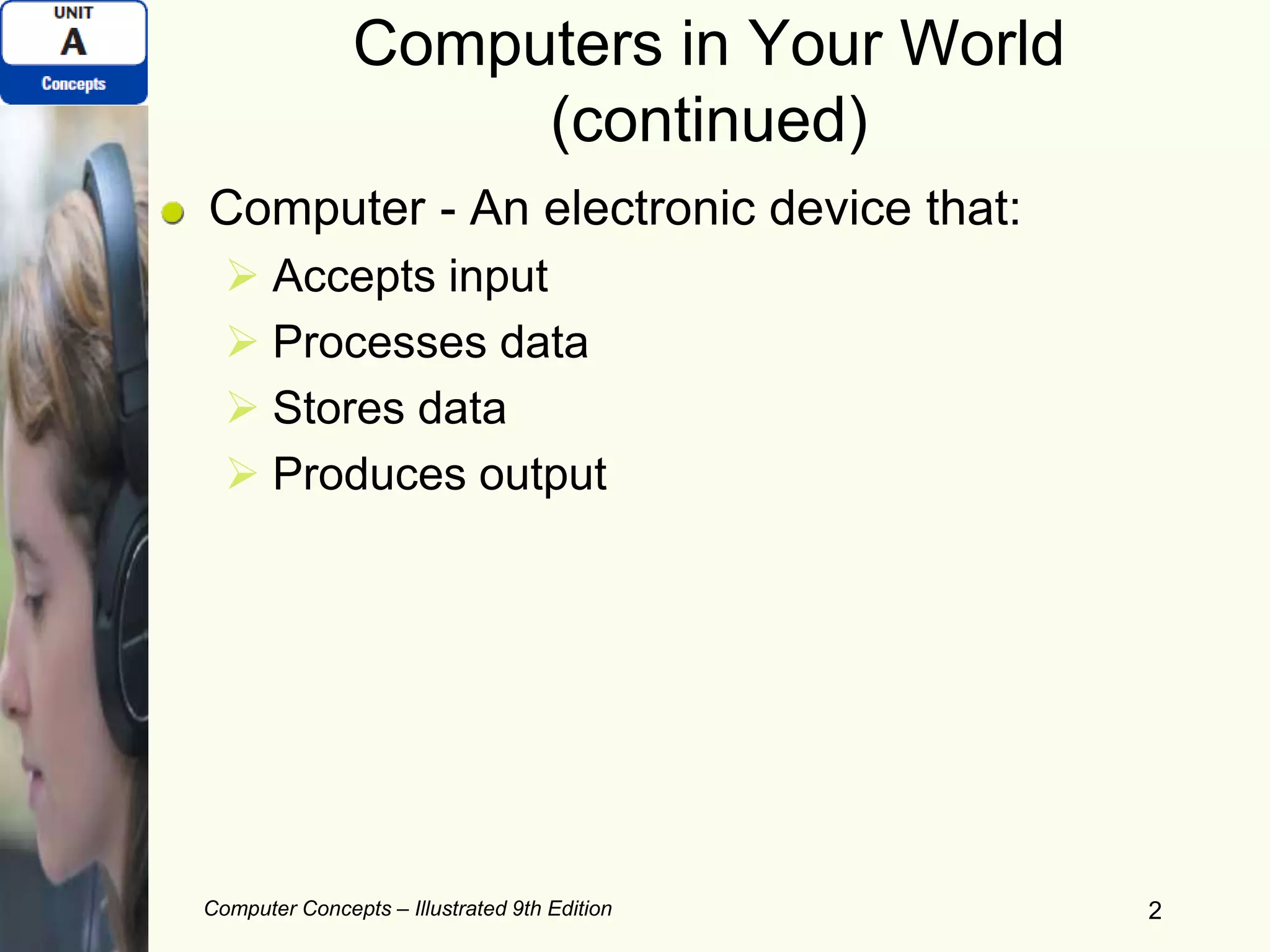
Digital revolution – Change brought on by use
of digital technology/devices
Digital technology as a part of daily life
Computer Concepts – Illustrated 9th Edition 1
Figure A-1: Computers are a part of daily life
Computers in Your World
(continued)
Computer - An electronic device that:
 Accepts input
 Processes data
 Stores data
 Produces output
Computer Concepts – Illustrated 9th Edition 2
Computers in Your World
(continued)
Computer system includes:
 Hardware - Electronic and mechanical parts
 System Unit – Houses important components
 Peripheral devices – Hardware to expand
functionality
 Software – Programs/codes of instructions
Computer Concepts – Illustrated 9th Edition 3
Computers in Your World
(continued)
Input devices:
 Keyboard
 Mouse
 Touch screen, etc.
Output devices:
 Monitor
 Printer
 Speakers, etc.
Computer Concepts – Illustrated 9th Edition 4
How Computers Work
Turn on/power up/booting a computer:
 May need to enter user ID and password
Computer program/software:
 Instructions telling a computer how to carry
out processing tasks
Computer Concepts – Illustrated 9th Edition 5
Computer Concepts – Illustrated 9th Edition 66
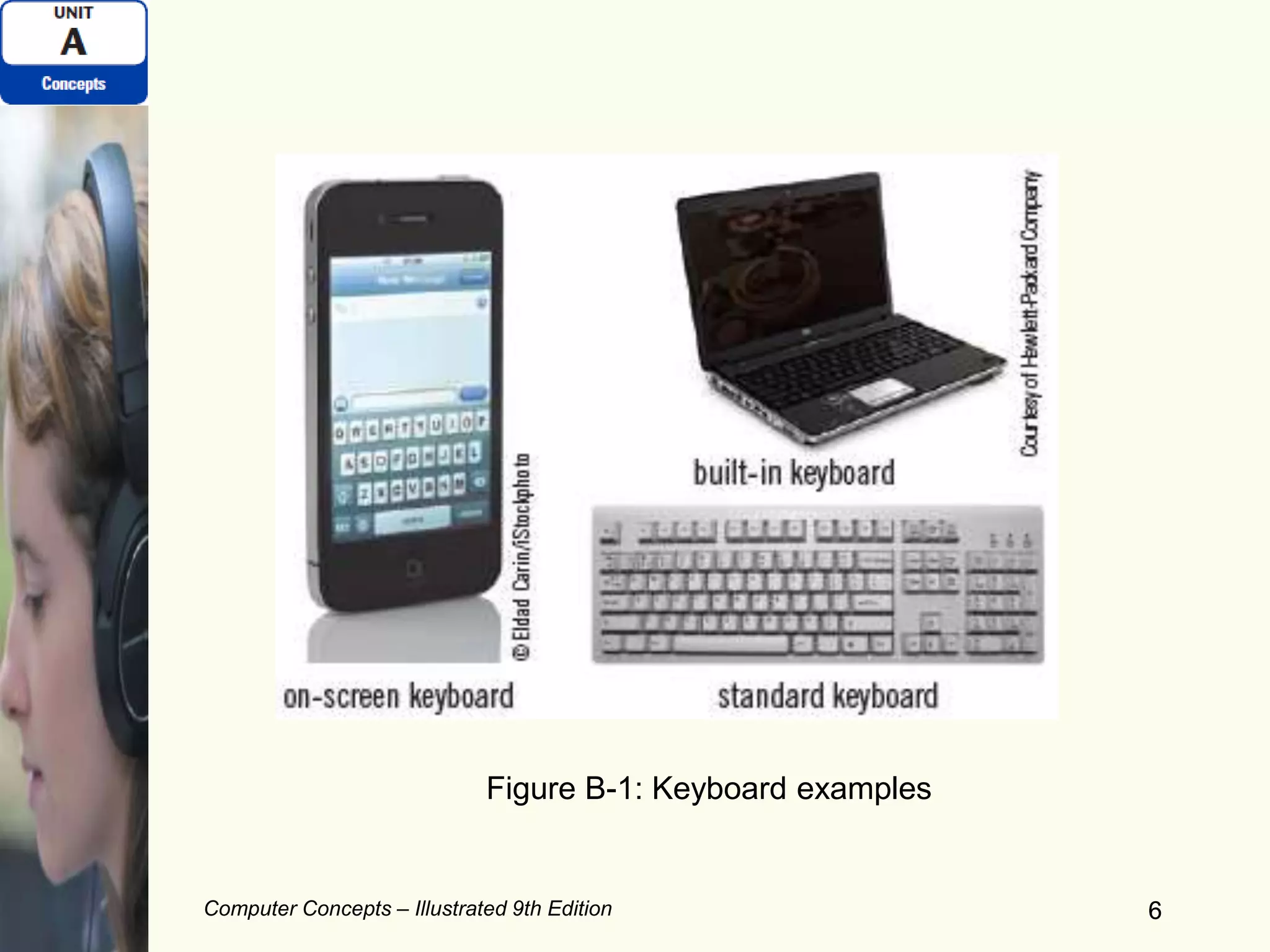
Figure B-1: Keyboard examples
Computer Concepts – Illustrated 9th Edition 7
Input Devices (continued)
Other pointing devices:
 Pointing stick
 Touchpad (also called a trackpad)
 Trackball
 Touch screen
Other ways to input data:
 Scanner
 Microphone
 Digital camera
Computer Concepts – Illustrated 9th Edition 8
Display Devices
Monitor:
 Standalone display device
 Found with desktop computers
Screen:
 Area where output is displayed
• Monitors attached to desktop computers have
screens
• Notebook computers have screens, but not
monitors
Computer Concepts – Illustrated 9th Edition 9
Display Devices (continued)
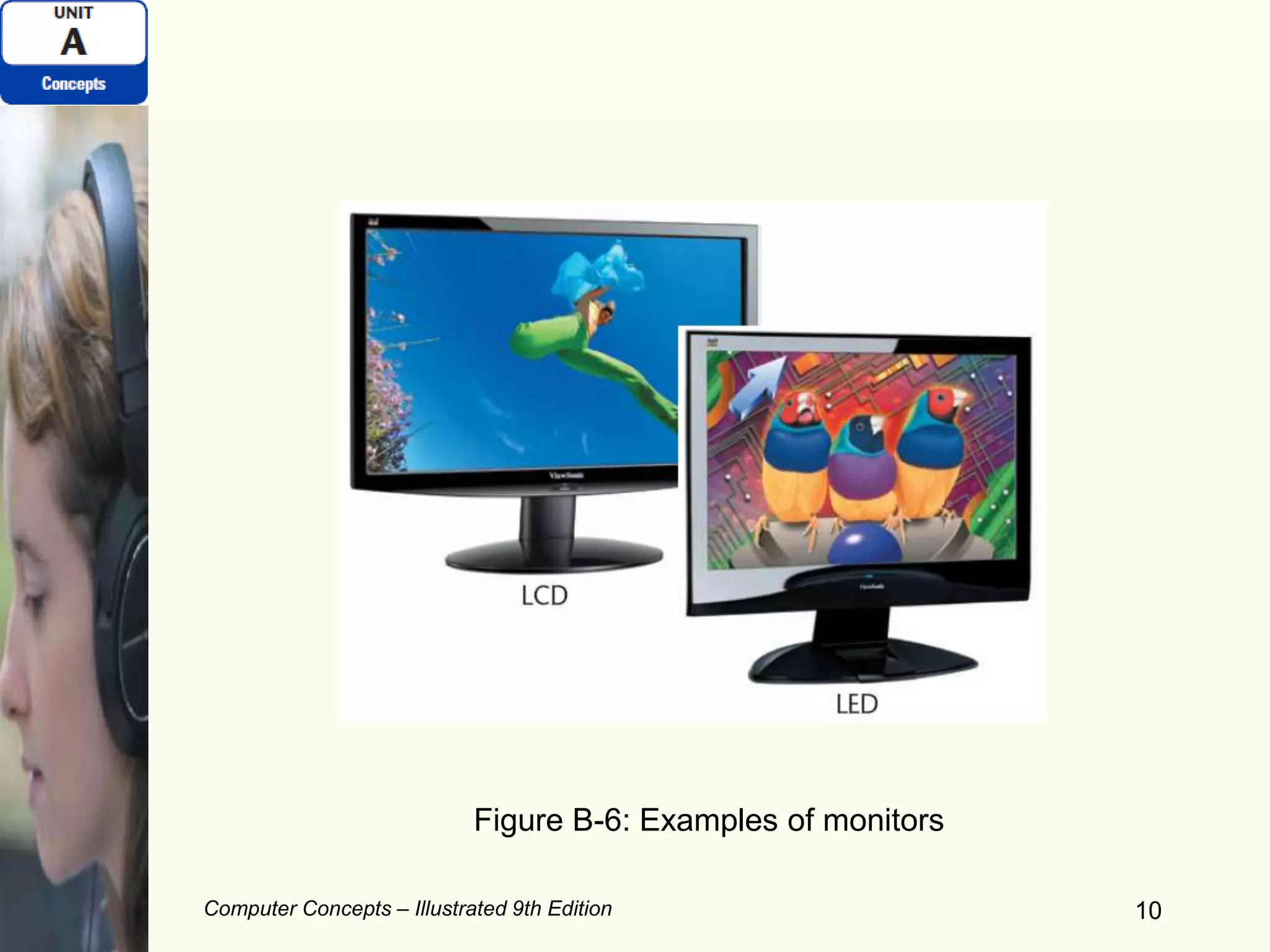
LCD (liquid crystal display):
 Manipulates light within a layer of liquid crystal
cells
 Also called flat-panel displays
LED (light emitting diodes)
OLED (organic light emitting diodes):
 Used by most handheld devices
 Draws less power than LCD screens
 Can be seen from any angle
Computer Concepts – Illustrated 9th Edition 10
Figure B-6: Examples of monitors
Computer Concepts – Illustrated 9th Edition 11
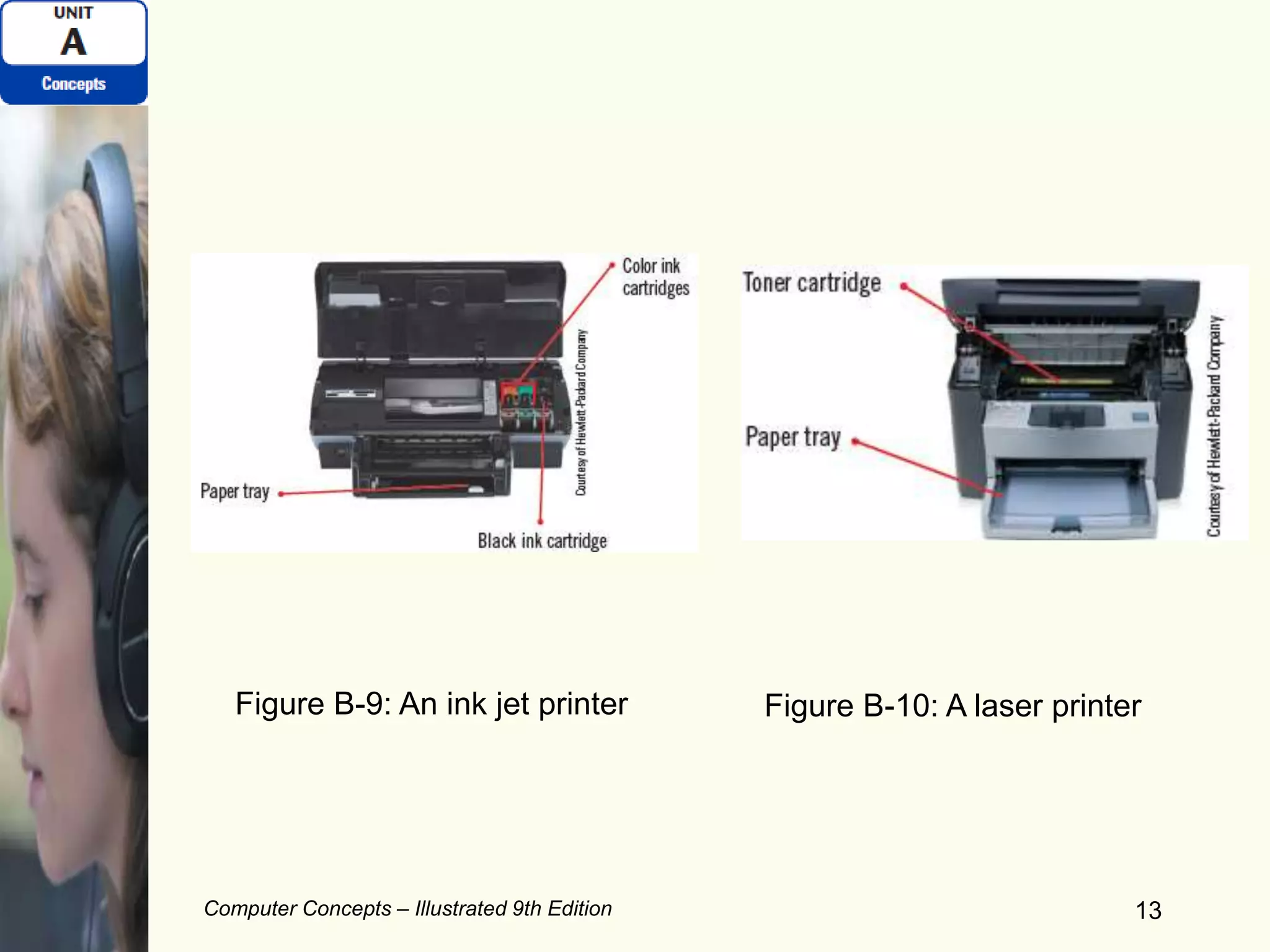
Printers (continued)
Printer resolution:
 Determines the quality of printed output
 Measured in dots per inch (or dpi)
Printer speed:
 Pages per minute (ppm)
Duplex printer:
 Prints on both sides of paper
Network-enabled printer
Photo printer
Computer Concepts – Illustrated 9th Edition 12
Printers (continued)
Printer resolution:
 Determines the quality of printed output
 Measured in dots per inch (or dpi)
Printer speed:
 Pages per minute (ppm)
Duplex printer:
 Prints on both sides of paper
Network-enabled printer
Photo printer
Computer Concepts – Illustrated 9th Edition 13
Figure B-9: An ink jet printer Figure B-10: A laser printer
Computer Concepts – Illustrated 9th Edition 14
Data Storage – An Overview
Storage technology - Data storage system:
 Allows for a computer or digital device to store
and retrieve data
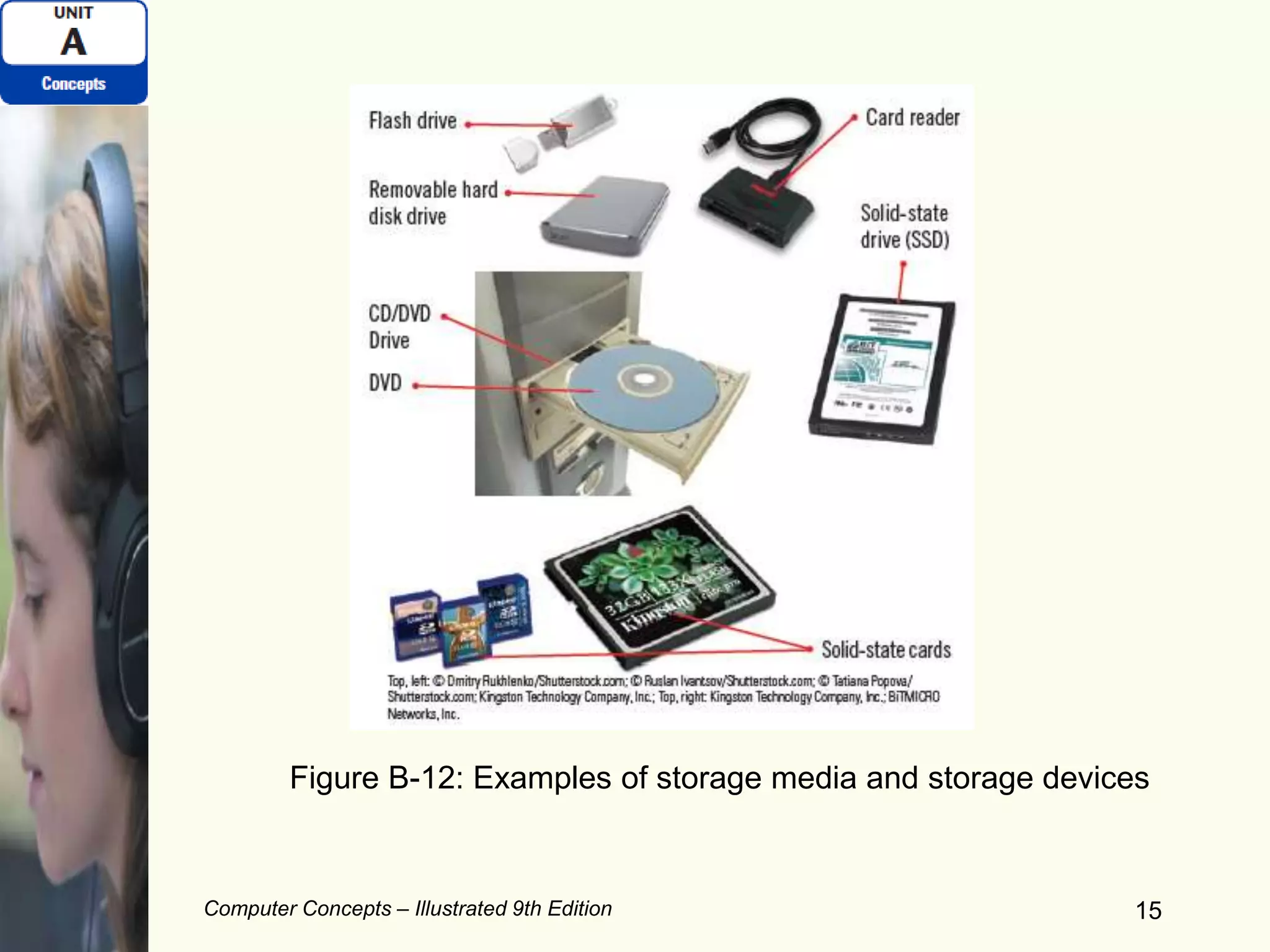
Storage medium:
 Holds data – Hard drive, tape, memory card,
flash drive, CD, DVD, etc.
Storage device:
 Stores and retrieves data from its storage
medium – CD/DVD drive.
Computer Concepts – Illustrated 9th Edition 15
Figure B-12: Examples of storage media and storage devices
Computer Concepts – Illustrated 9th Edition 16
Data Storage – An Overview
(continued)
Hard drives – Internal or External:
 Main storage system for PCs
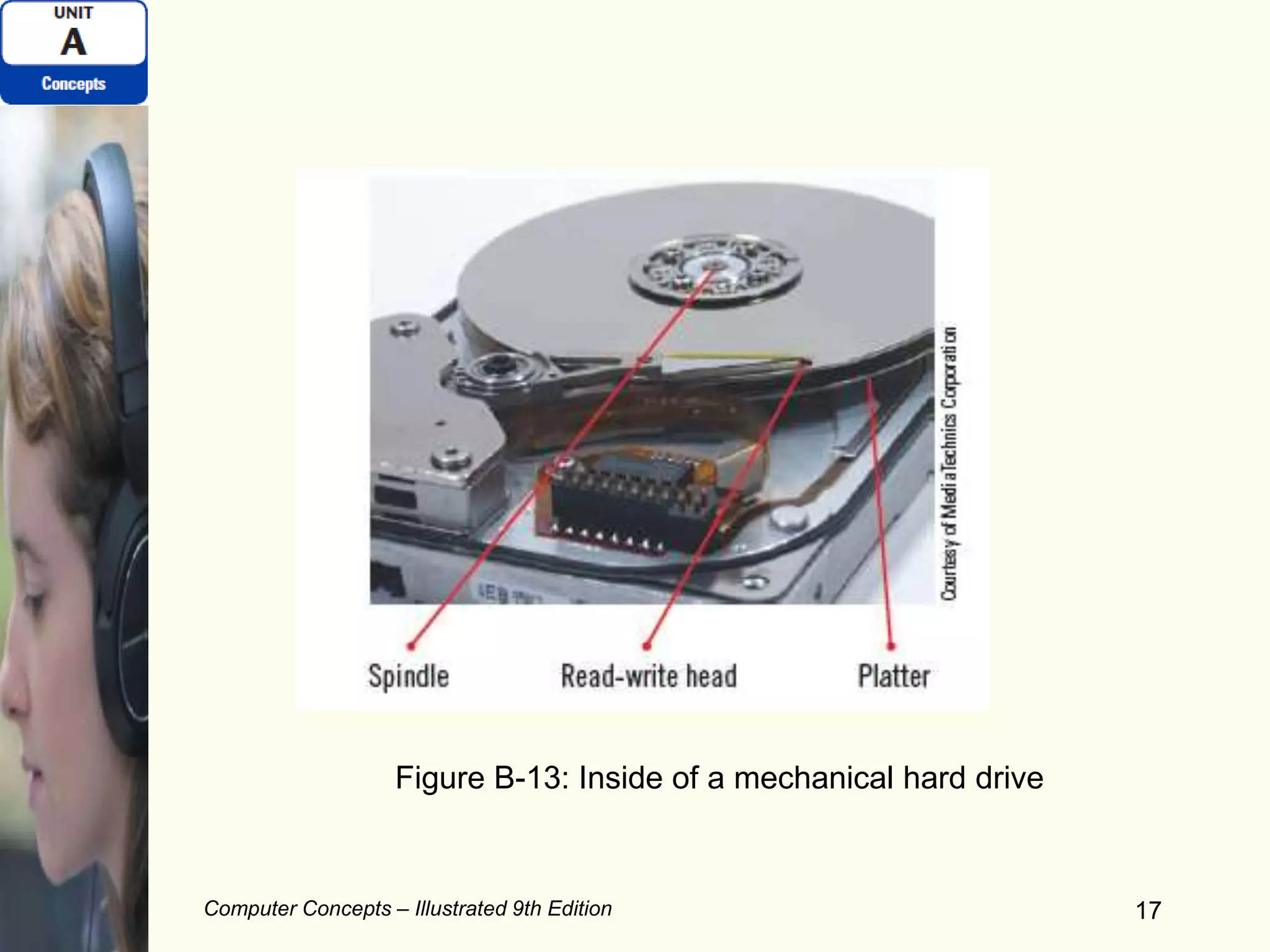
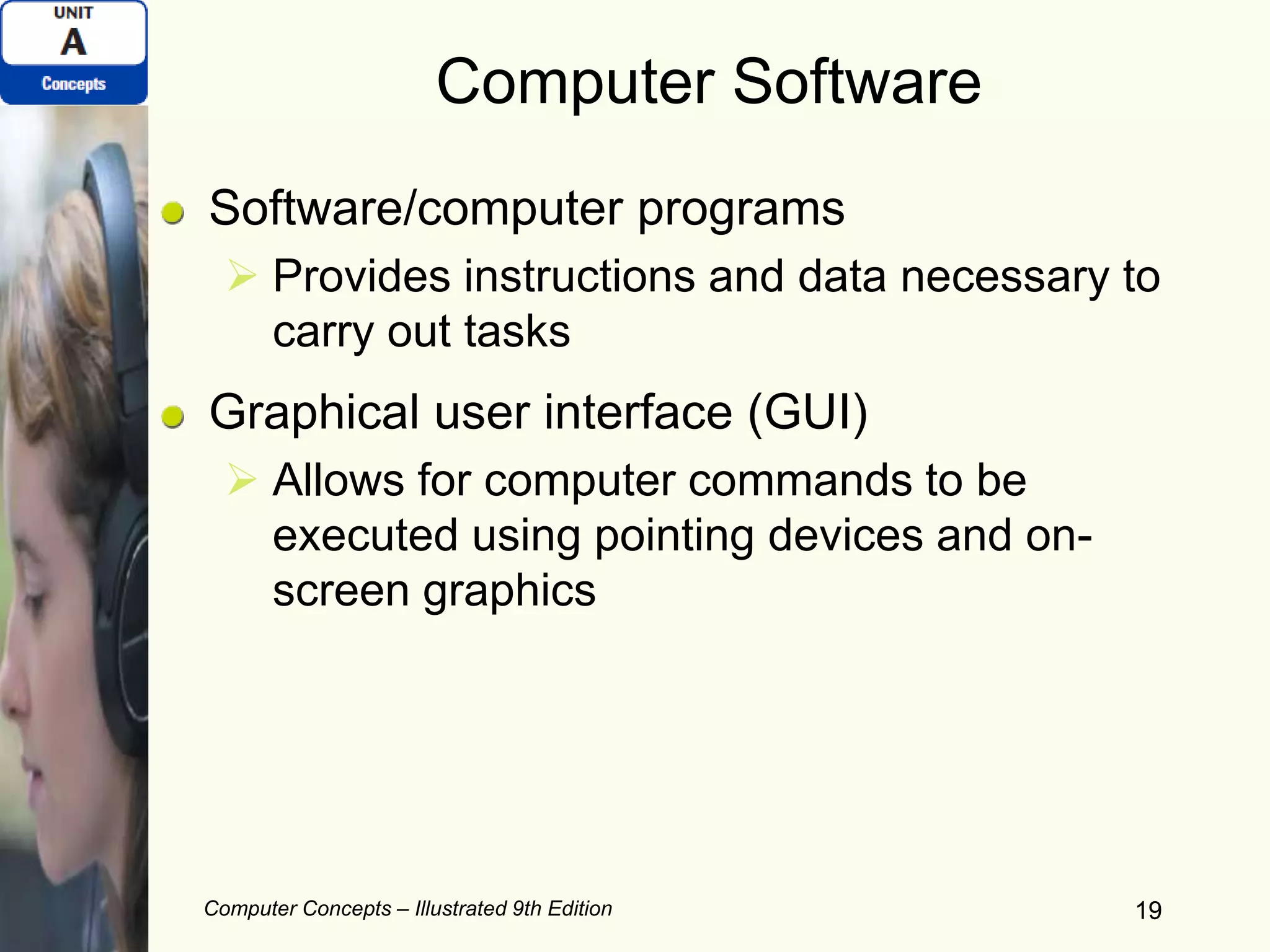
 Mechanical or solid state drives (SSD)
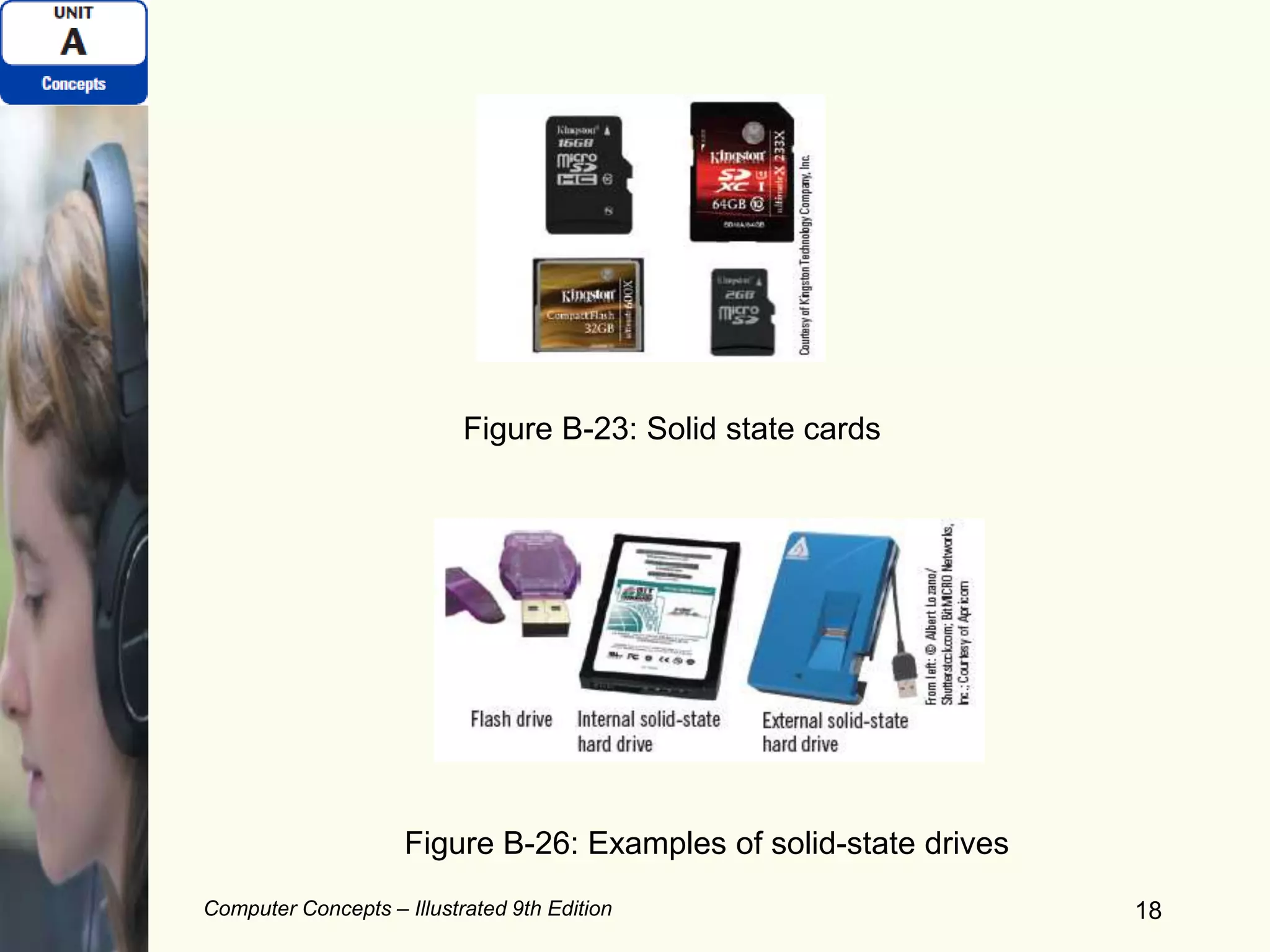
• Solid state technology – No moving parts
Additional storage devices:
 USB flash drives
 CD/DVD/BD drives
 Solid-state card readers
Computer Concepts – Illustrated 9th Edition 17
Figure B-13: Inside of a mechanical hard drive
Computer Concepts – Illustrated 9th Edition 18
Figure B-23: Solid state cards
Figure B-26: Examples of solid-state drives
Computer Concepts – Illustrated 9th Edition 19
Computer Software
Software/computer programs
 Provides instructions and data necessary to
carry out tasks
Graphical user interface (GUI)
 Allows for computer commands to be
executed using pointing devices and on-
screen graphics
19
Computer Concepts – Illustrated 9th Edition 20
Computer Software (continued)
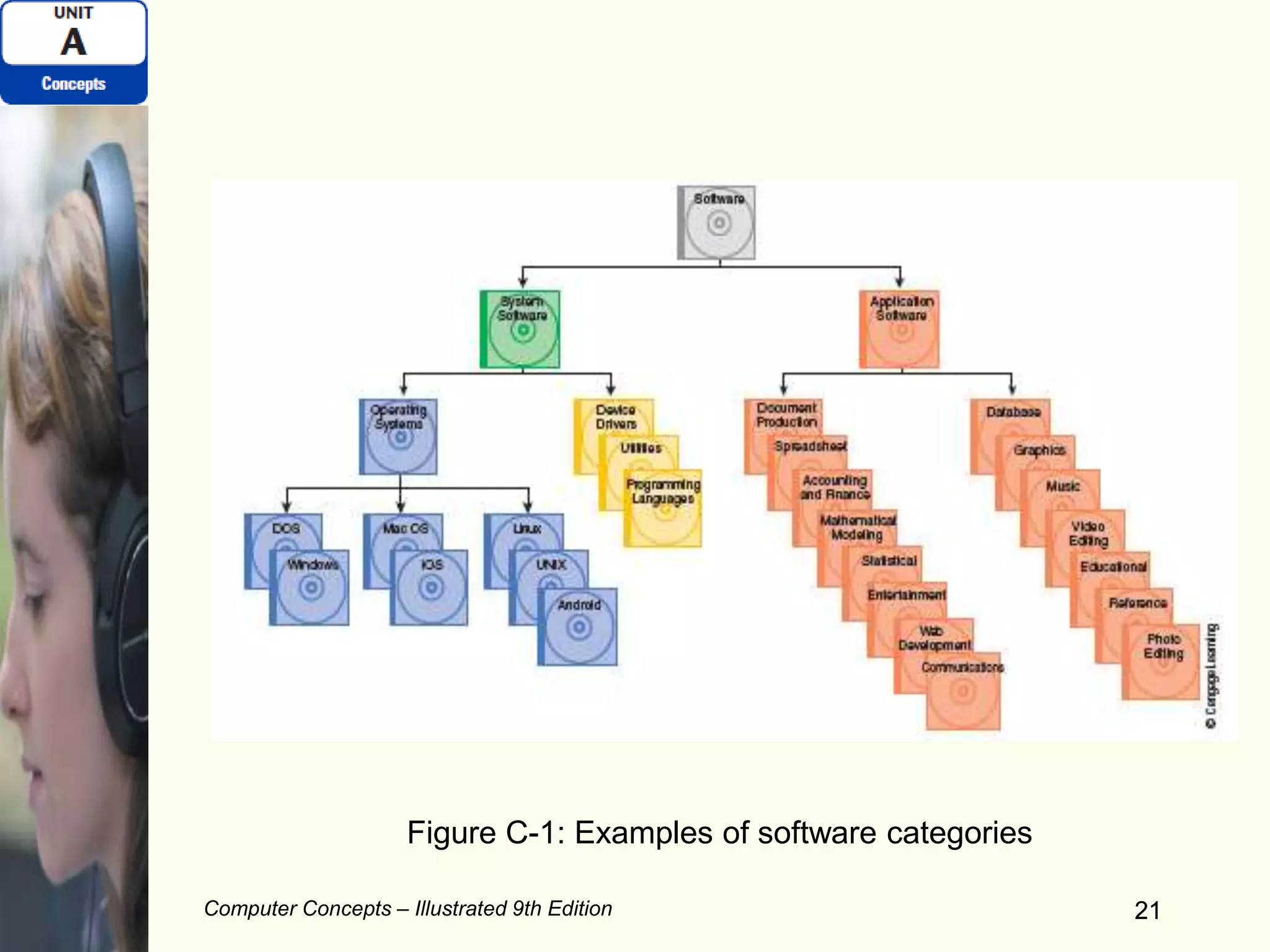
Two major categories of software:
 System software – used by the computer to
perform computer-specific tasks
• Operating systems
• Utilities
• Device drivers
 Application software – allows users to
complete tasks on a computer
• Document production
• Communications
20
Computer Concepts – Illustrated 9th Edition 2121
Figure C-1: Examples of software categories
Computer Concepts – Illustrated 9th Edition 22
Computer Software (continued)
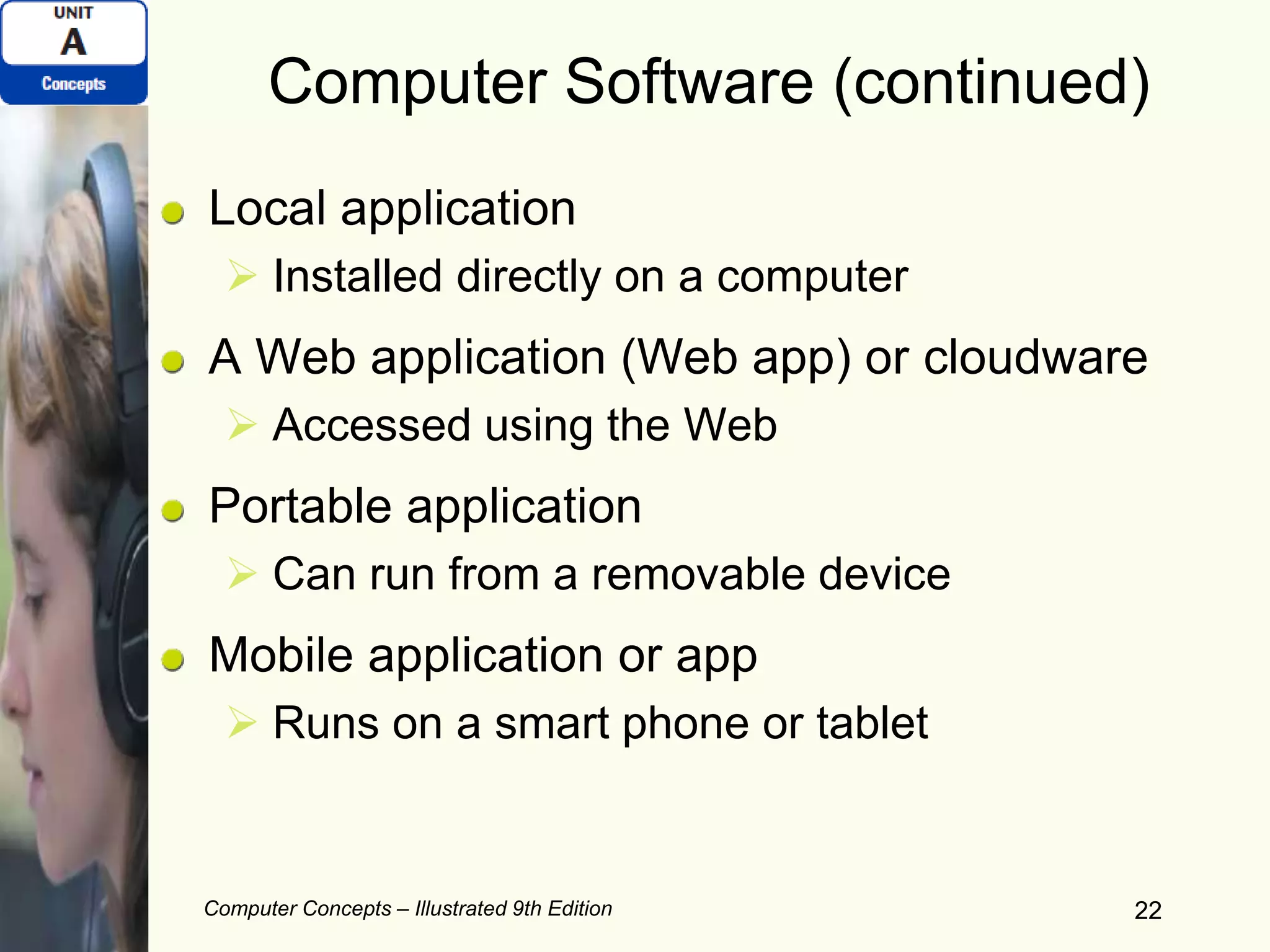
Local application
 Installed directly on a computer
A Web application (Web app) or cloudware
 Accessed using the Web
Portable application
 Can run from a removable device
Mobile application or app
 Runs on a smart phone or tablet
22
Computer Concepts – Illustrated 9th Edition 23
Computer Software (continued)
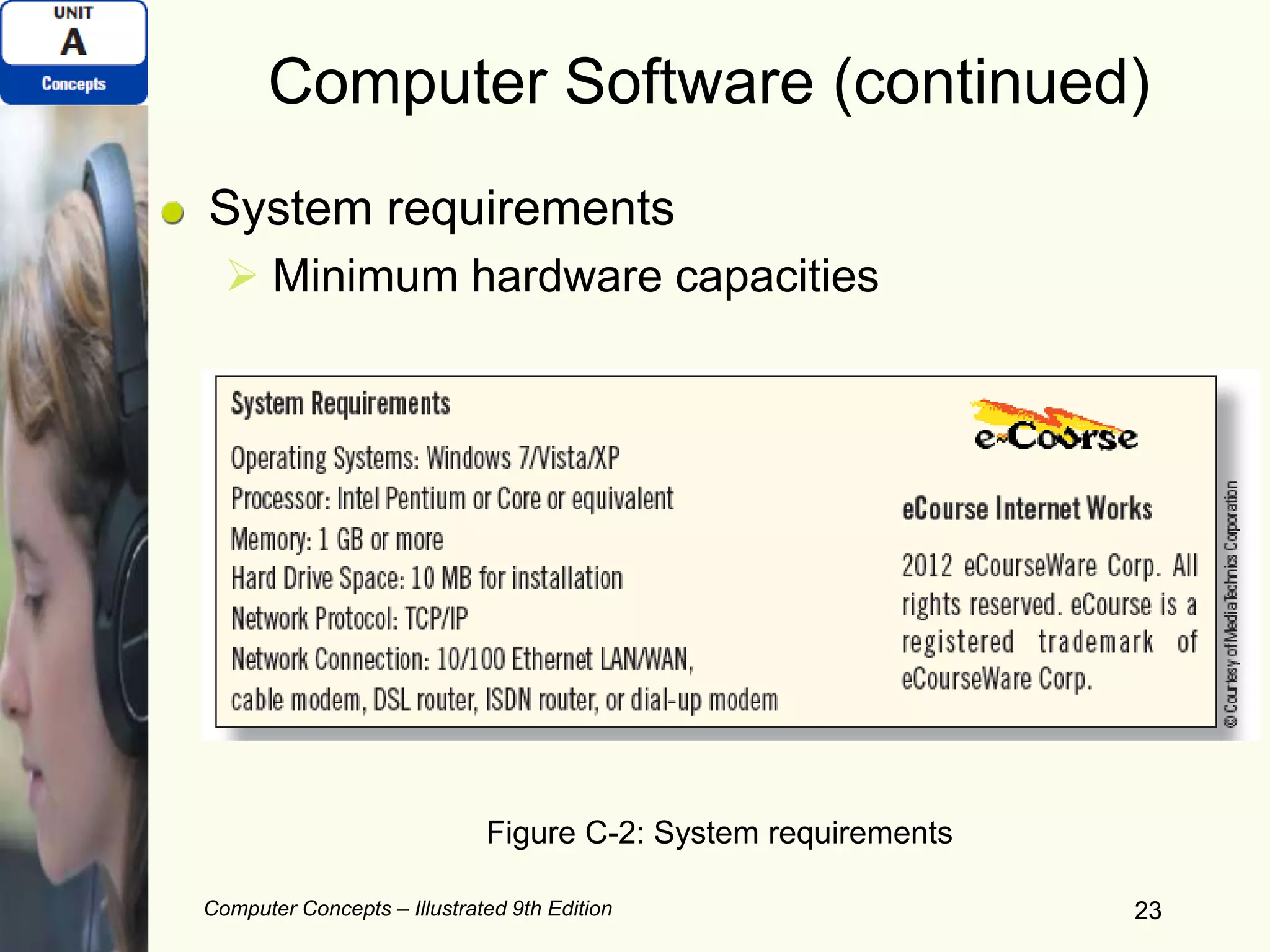
System requirements
 Minimum hardware capacities
23
Figure C-2: System requirements
Computer Concepts – Illustrated 9th Edition 24
Licenses and Copyrights
Copyright
 Legal protection of an author’s original work
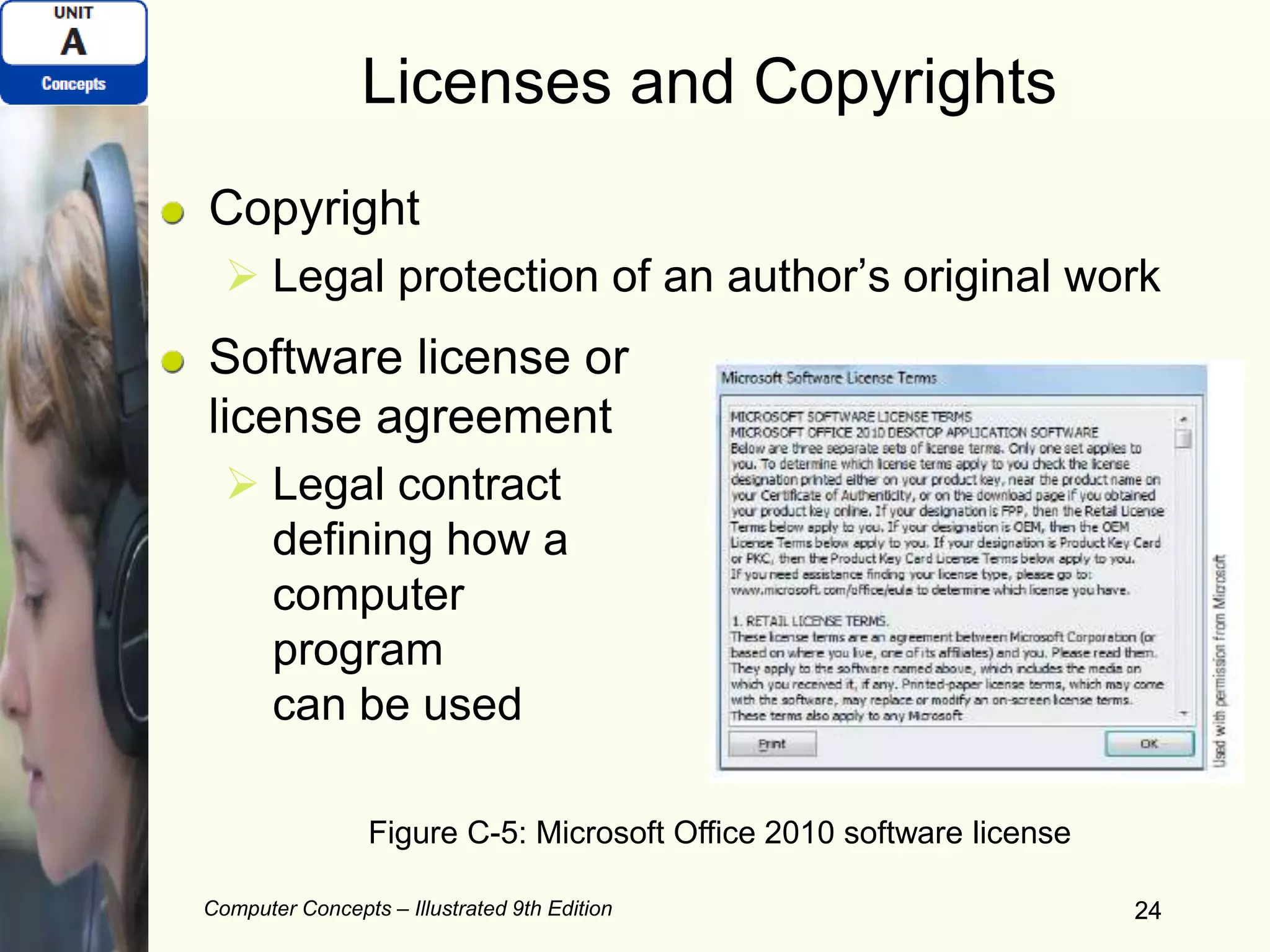
Software license or
license agreement
 Legal contract
defining how a
computer
program
can be used
24
Figure C-5: Microsoft Office 2010 software license
Computer Concepts – Illustrated 9th Edition 25
Licenses and Copyrights (continued)
Legal software categories:
 Public domain software – not protected by
copyright
 Proprietary software – copyright restricts use
Types of software licenses:
 Single-user license
 Site license
 Multiple-user license
 Concurrent-use license
25
Computer Concepts – Illustrated 9th Edition 26
Licenses and Copyrights (continued)
Commercial software – purchase right to use
 Demoware – use for a trial period
Shareware – try first and then can purchase
Freeware – free to use but still need a license
Open source – program
code/instructions available
for modification
26
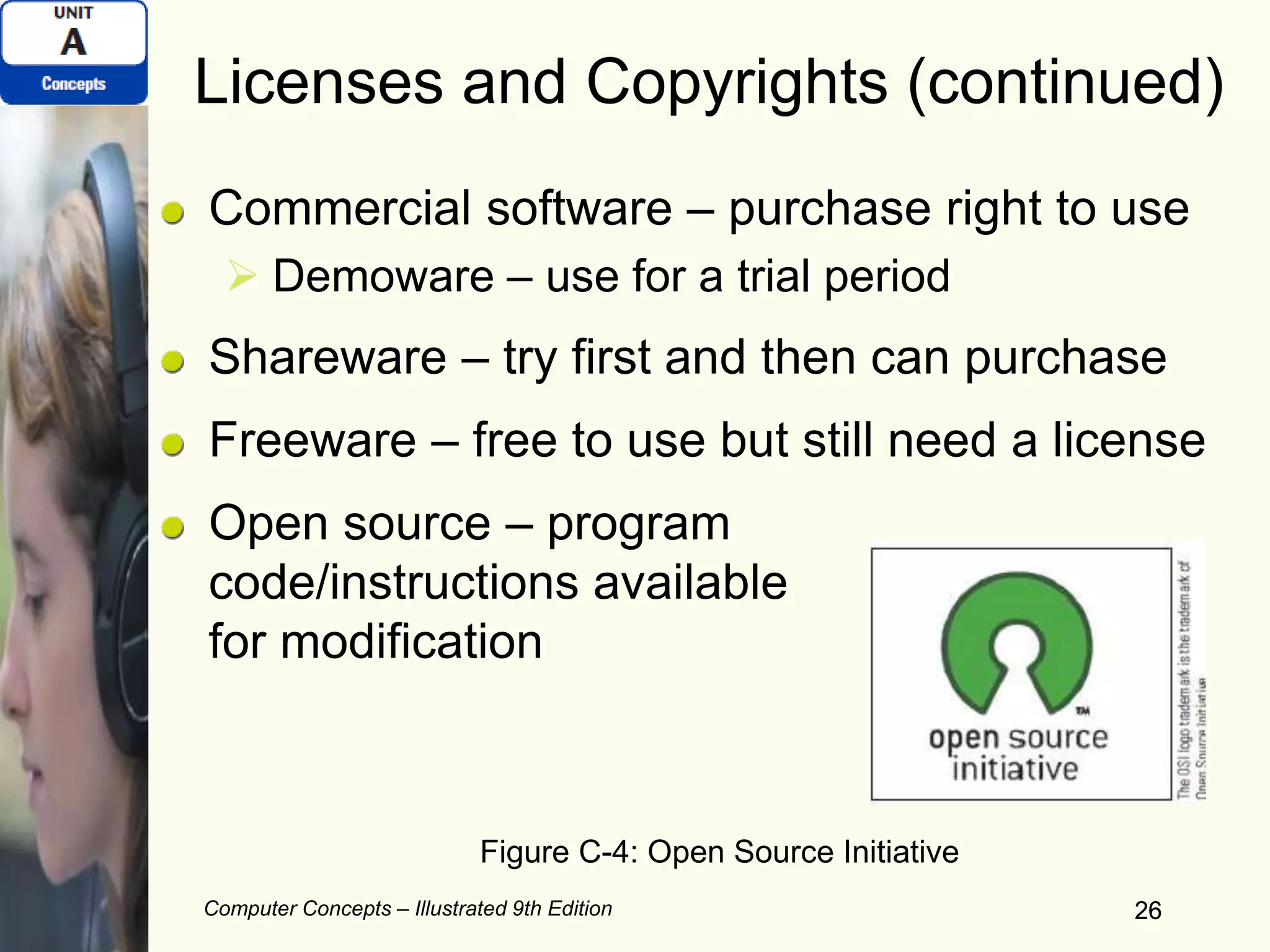
Figure C-4: Open Source Initiative
Computer Concepts – Illustrated 9th Edition 27
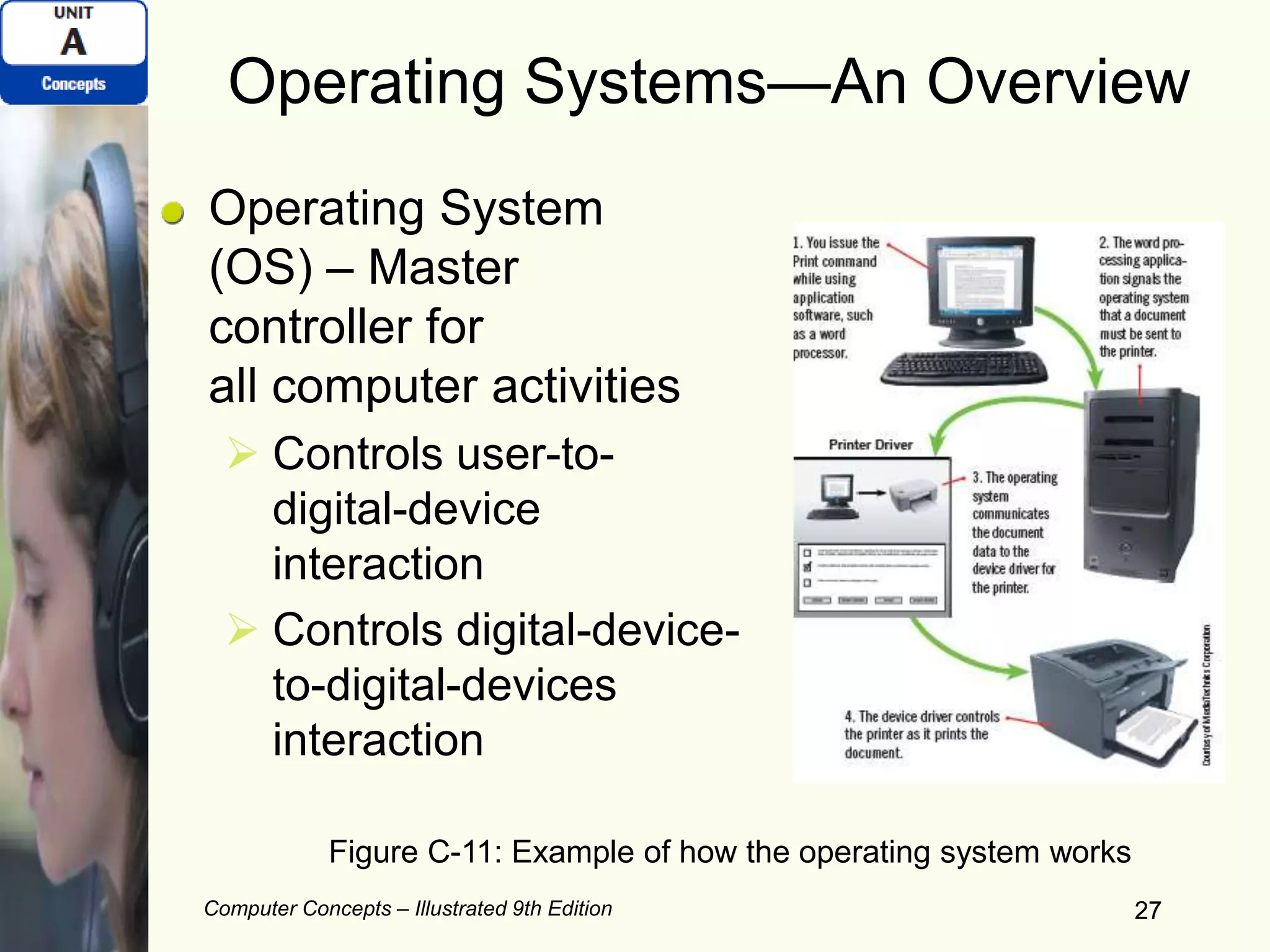
Operating Systems—An Overview
Operating System
(OS) – Master
controller for
all computer activities
 Controls user-to-
digital-device
interaction
 Controls digital-device-
to-digital-devices
interaction
27
Figure C-11: Example of how the operating system works
Computer Concepts – Illustrated 9th Edition 28
Operating Systems—An Overview
(continued)
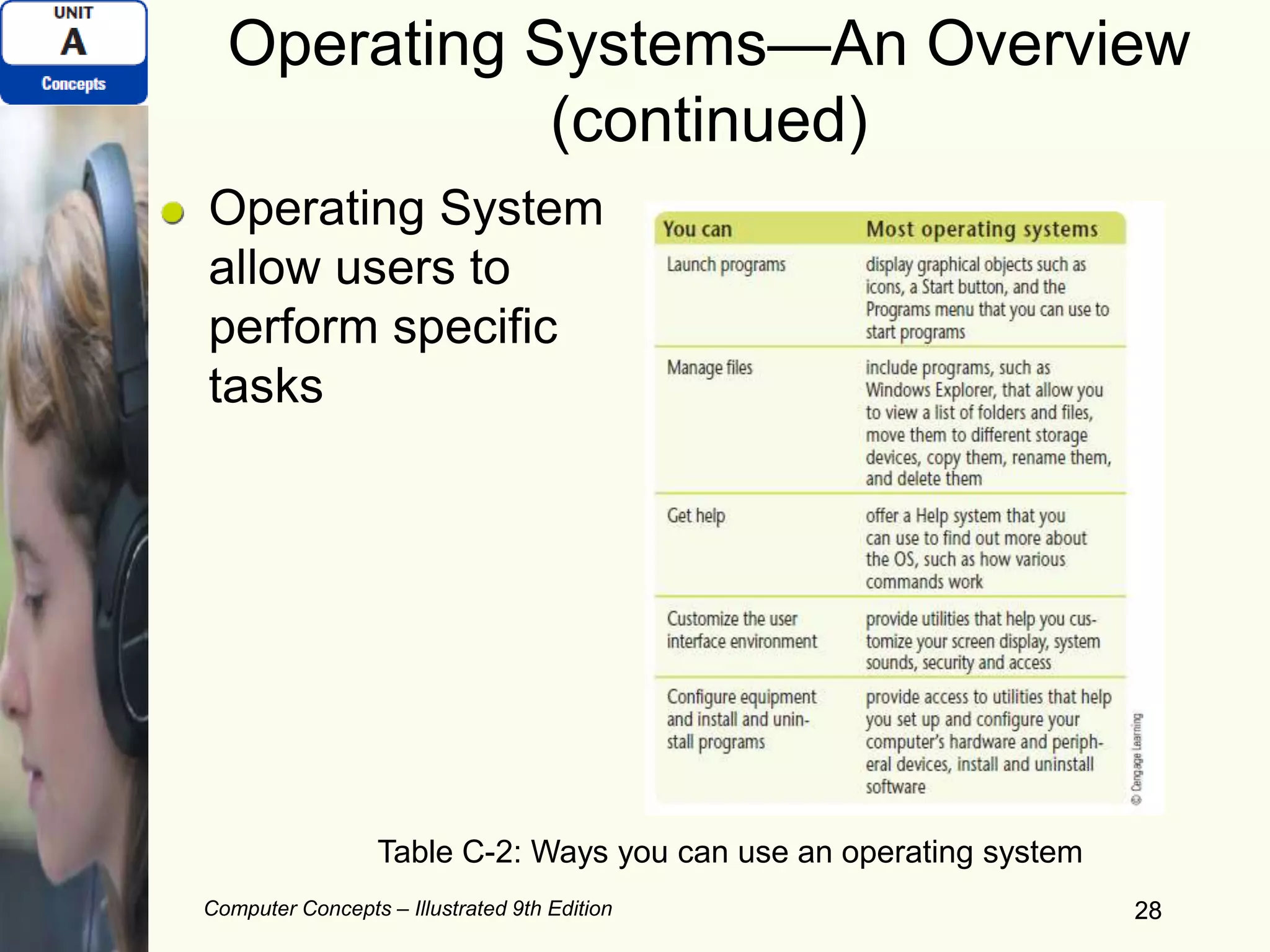
Operating System
allow users to
perform specific
tasks
28
Table C-2: Ways you can use an operating system
Computer Concepts – Illustrated 9th Edition 29
Office Productivity Software
Office productivity software
 Designed to be used in an office
 Integrates word processing, spreadsheet,
database, drawing, presentation capabilities
29
Computer Concepts – Illustrated 9th Edition 30
Office Productivity Software
(continued)
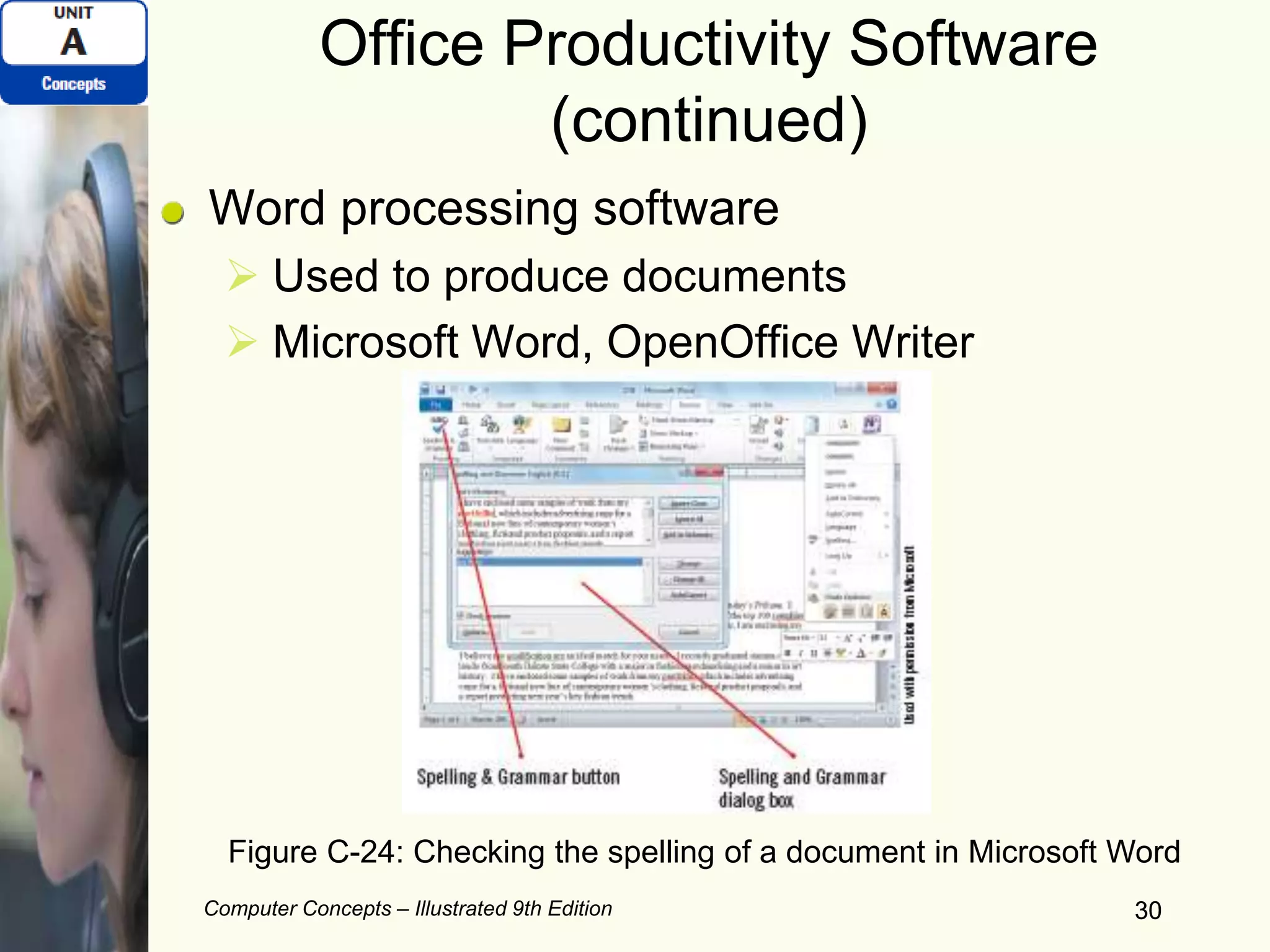
Word processing software
 Used to produce documents
 Microsoft Word, OpenOffice Writer
30
Figure C-24: Checking the spelling of a document in Microsoft Word
Computer Concepts – Illustrated 9th Edition 31
Office Productivity Software
(continued)
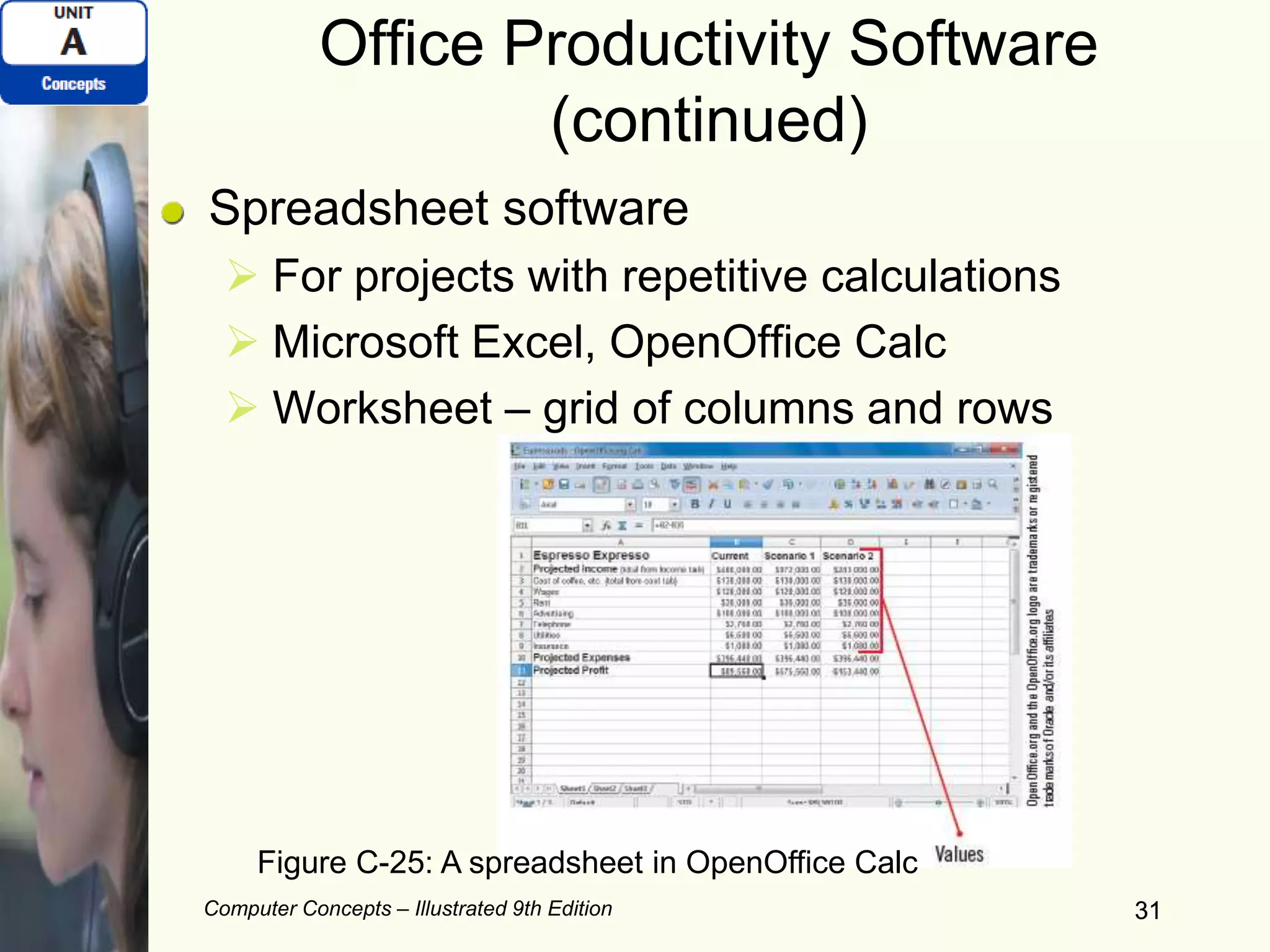
Spreadsheet software
 For projects with repetitive calculations
 Microsoft Excel, OpenOffice Calc
 Worksheet – grid of columns and rows
31
Figure C-25: A spreadsheet in OpenOffice Calc
Computer Concepts – Illustrated 9th Edition 32
Office Productivity Software
(continued)
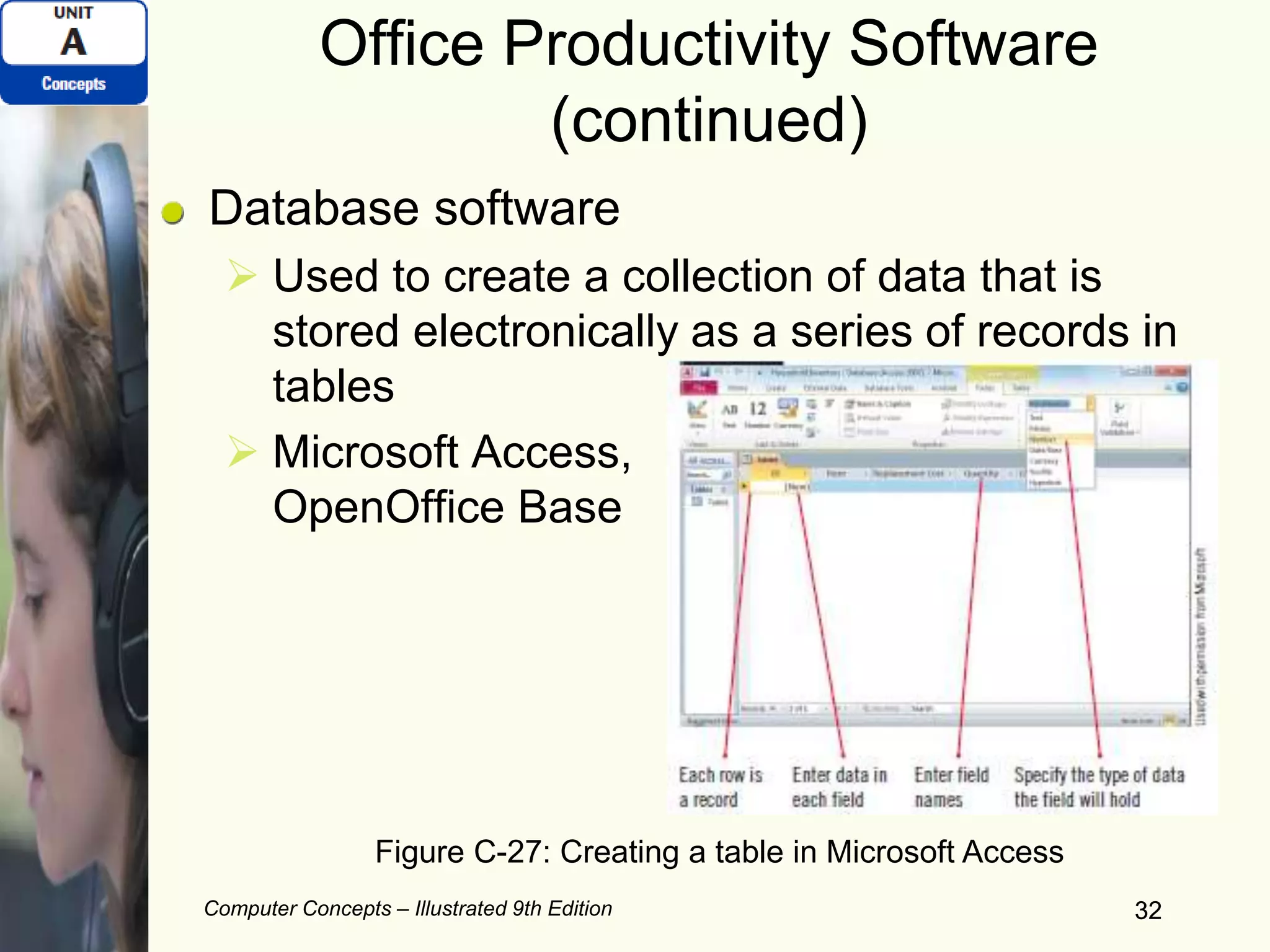
Database software
 Used to create a collection of data that is
stored electronically as a series of records in
tables
 Microsoft Access,
OpenOffice Base
32
Figure C-27: Creating a table in Microsoft Access
Computer Concepts – Illustrated 9th Edition 33
Office Productivity Software
(continued)
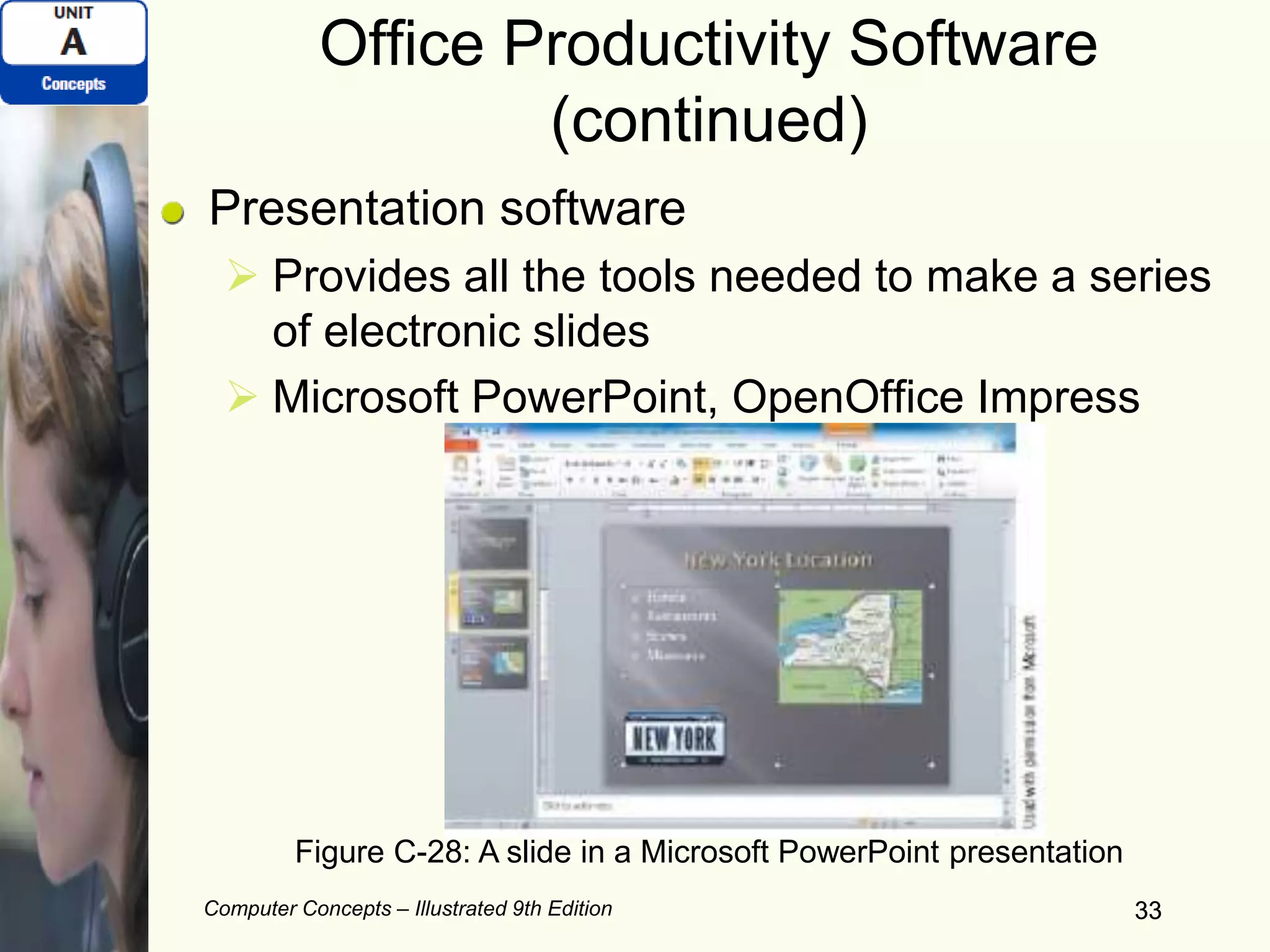
Presentation software
 Provides all the tools needed to make a series
of electronic slides
 Microsoft PowerPoint, OpenOffice Impress
33
Figure C-28: A slide in a Microsoft PowerPoint presentation
Computer Concepts – Illustrated 9th Edition 34
Graphics Software
Graphics
 Picture, drawing, sketch, photograph, image,
or icon on screen or printed output
Graphics software
 Helps you create, display, modify, manipulate,
and print graphics
34
Computer Concepts – Illustrated 9th Edition 35
Graphics Software (continued)
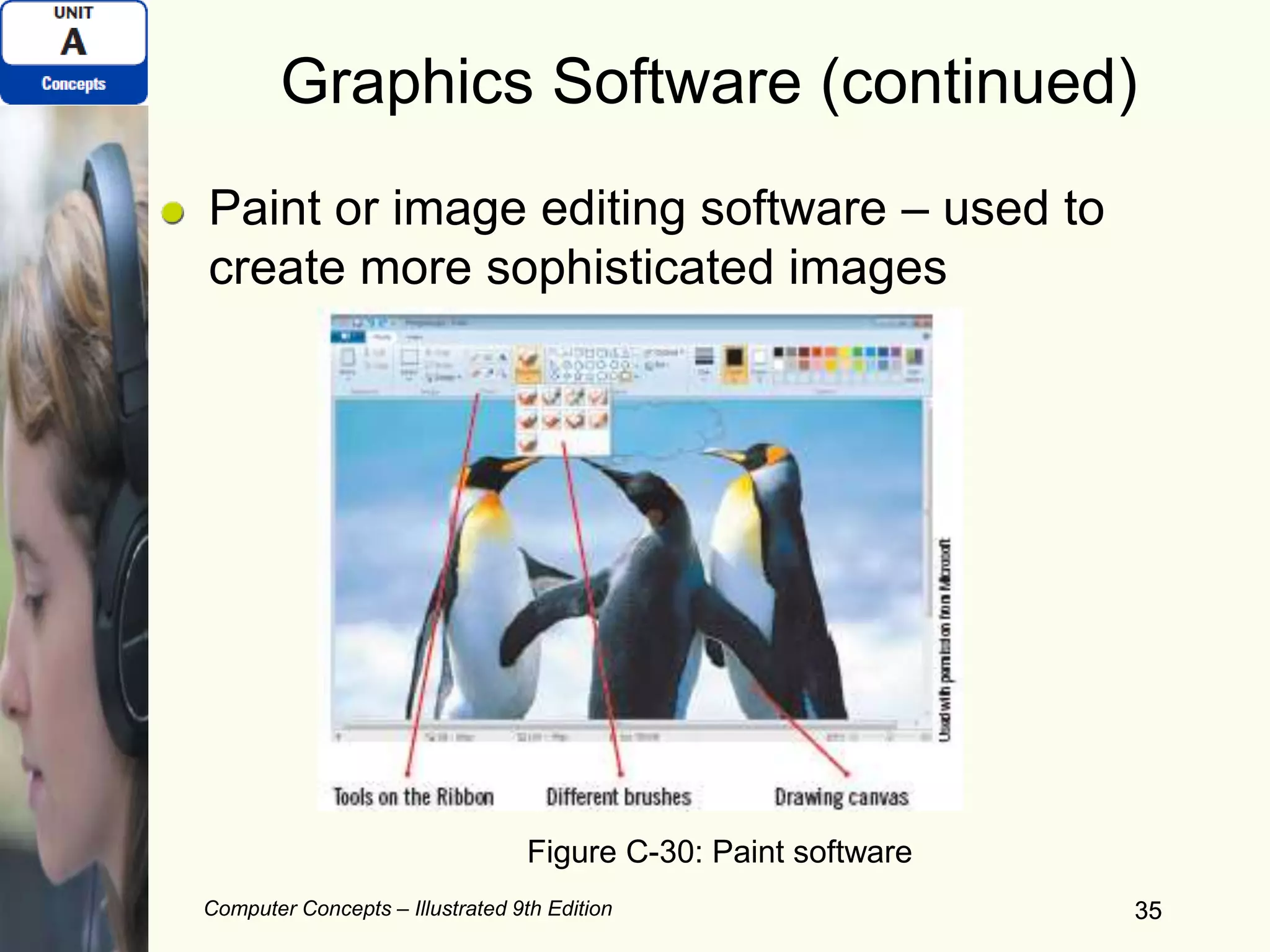
Paint or image editing software – used to
create more sophisticated images
35
Figure C-30: Paint software
Computer Concepts – Illustrated 9th Edition 36
Graphics Software (continued)
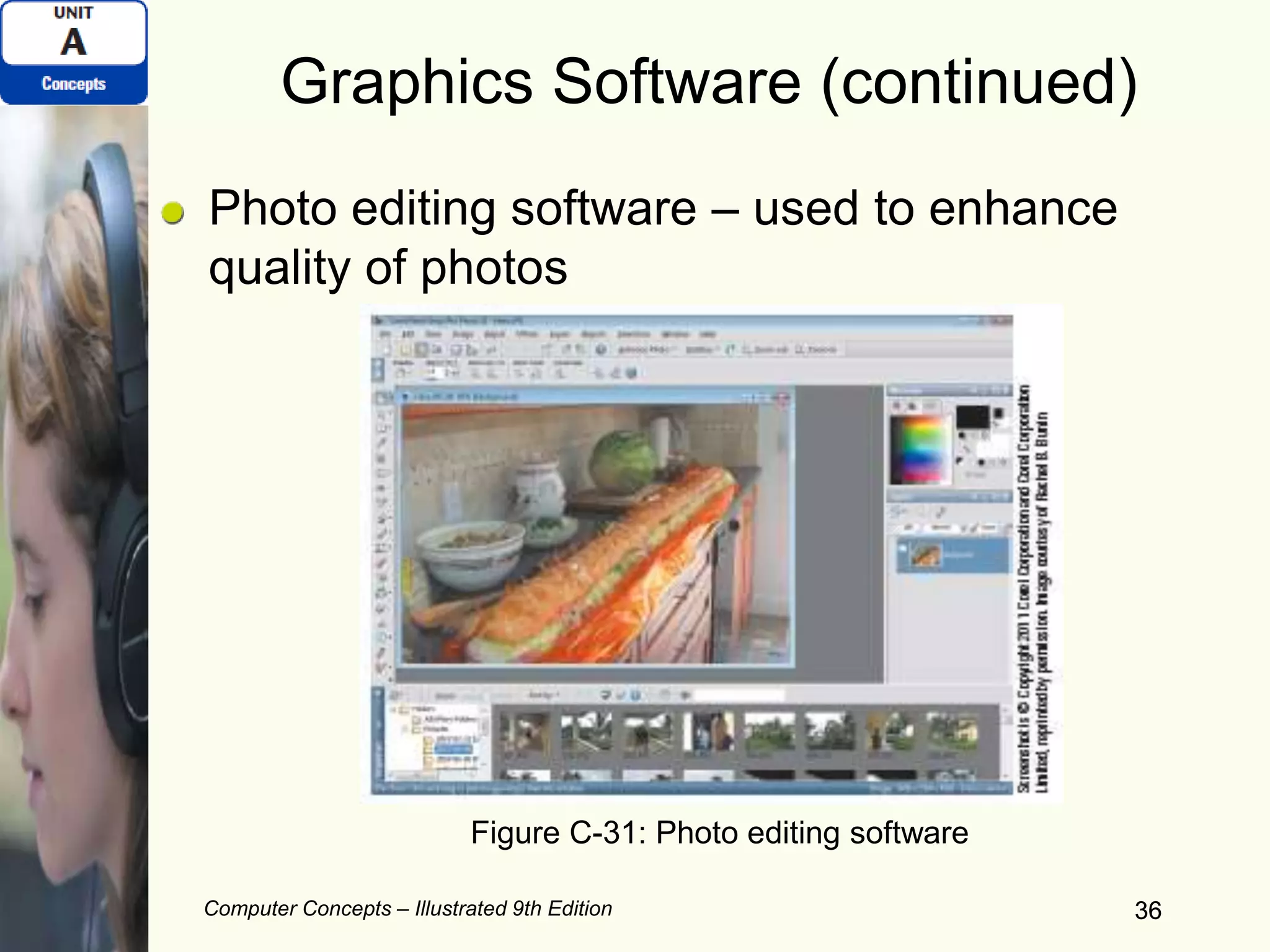
Photo editing software – used to enhance
quality of photos
36
Figure C-31: Photo editing software
Computer Concepts – Illustrated 9th Edition 37
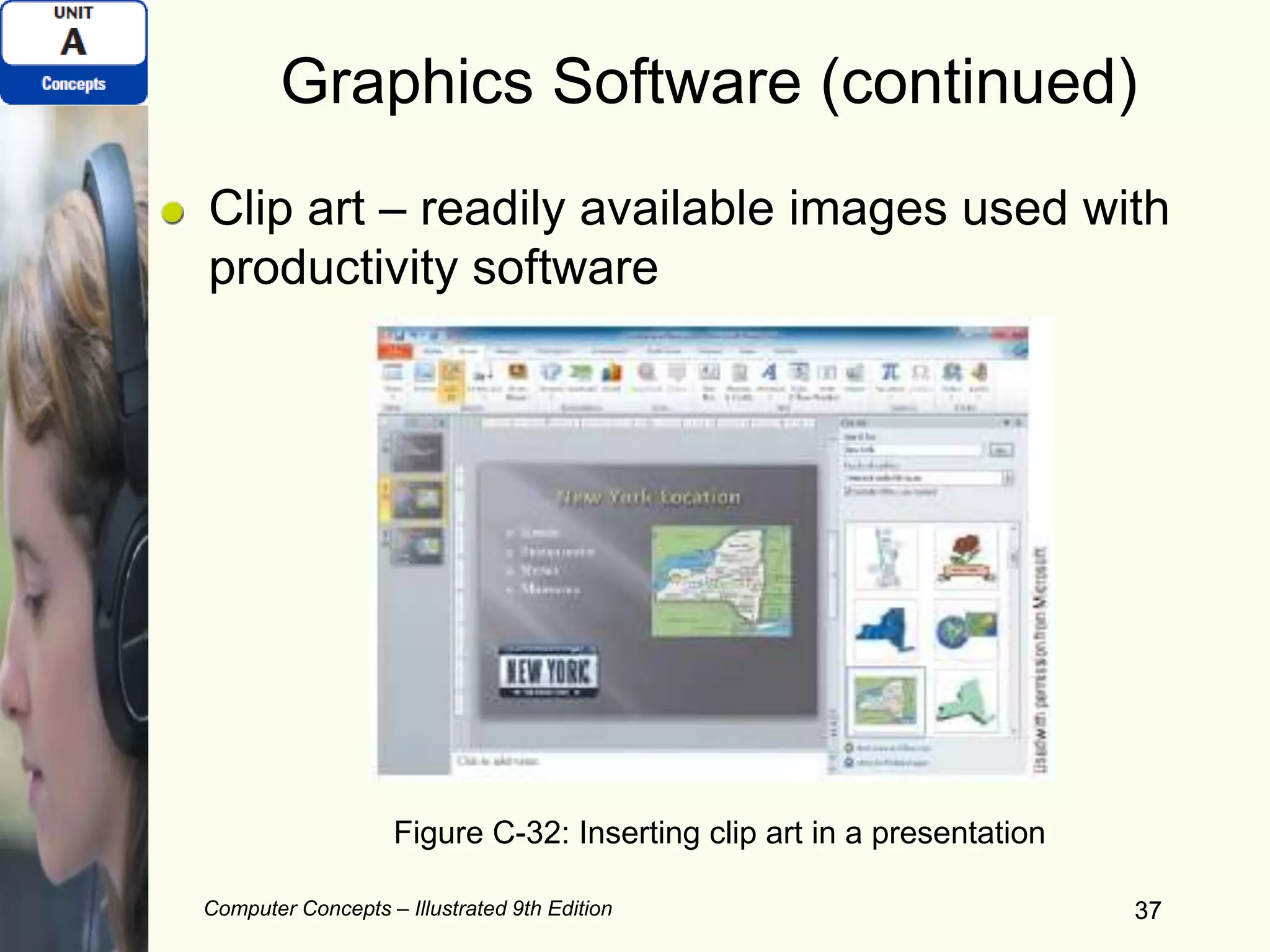
Graphics Software (continued)
Clip art – readily available images used with
productivity software
37
Figure C-32: Inserting clip art in a presentation
Computer Concepts – Illustrated 9th Edition 38
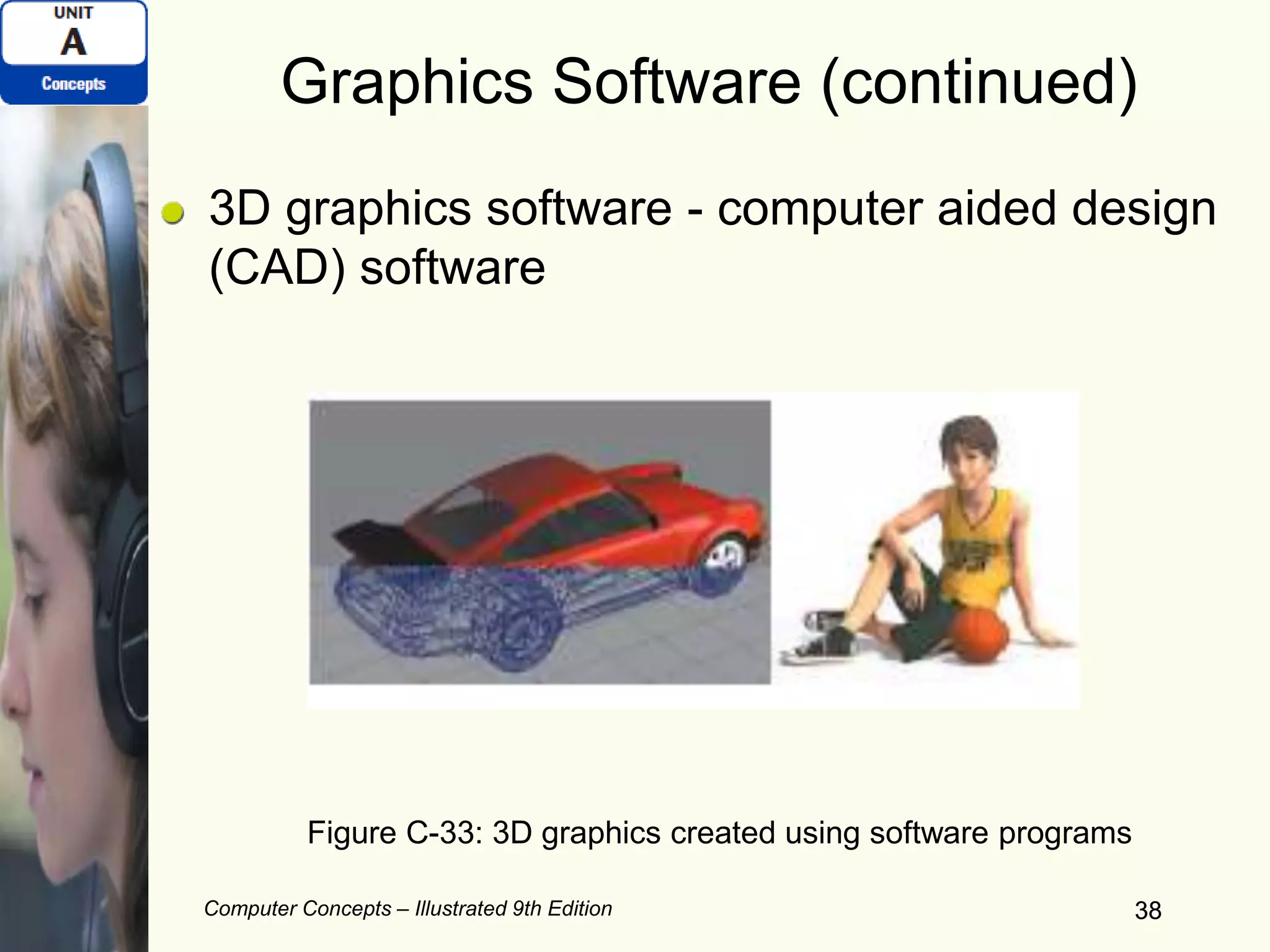
Graphics Software (continued)
3D graphics software - computer aided design
(CAD) software
38
Figure C-33: 3D graphics created using software programs

Computer concepts nballsgtc

  • 1.
    Computers in YourWorld Digital revolution – Change brought on by use of digital technology/devices Digital technology as a part of daily life Computer Concepts – Illustrated 9th Edition 1 Figure A-1: Computers are a part of daily life
  • 2.
    Computers in YourWorld (continued) Computer - An electronic device that:  Accepts input  Processes data  Stores data  Produces output Computer Concepts – Illustrated 9th Edition 2
  • 3.
    Computers in YourWorld (continued) Computer system includes:  Hardware - Electronic and mechanical parts  System Unit – Houses important components  Peripheral devices – Hardware to expand functionality  Software – Programs/codes of instructions Computer Concepts – Illustrated 9th Edition 3
  • 4.
    Computers in YourWorld (continued) Input devices:  Keyboard  Mouse  Touch screen, etc. Output devices:  Monitor  Printer  Speakers, etc. Computer Concepts – Illustrated 9th Edition 4
  • 5.
    How Computers Work Turnon/power up/booting a computer:  May need to enter user ID and password Computer program/software:  Instructions telling a computer how to carry out processing tasks Computer Concepts – Illustrated 9th Edition 5
  • 6.
    Computer Concepts –Illustrated 9th Edition 66 Figure B-1: Keyboard examples
  • 7.
    Computer Concepts –Illustrated 9th Edition 7 Input Devices (continued) Other pointing devices:  Pointing stick  Touchpad (also called a trackpad)  Trackball  Touch screen Other ways to input data:  Scanner  Microphone  Digital camera
  • 8.
    Computer Concepts –Illustrated 9th Edition 8 Display Devices Monitor:  Standalone display device  Found with desktop computers Screen:  Area where output is displayed • Monitors attached to desktop computers have screens • Notebook computers have screens, but not monitors
  • 9.
    Computer Concepts –Illustrated 9th Edition 9 Display Devices (continued) LCD (liquid crystal display):  Manipulates light within a layer of liquid crystal cells  Also called flat-panel displays LED (light emitting diodes) OLED (organic light emitting diodes):  Used by most handheld devices  Draws less power than LCD screens  Can be seen from any angle
  • 10.
    Computer Concepts –Illustrated 9th Edition 10 Figure B-6: Examples of monitors
  • 11.
    Computer Concepts –Illustrated 9th Edition 11 Printers (continued) Printer resolution:  Determines the quality of printed output  Measured in dots per inch (or dpi) Printer speed:  Pages per minute (ppm) Duplex printer:  Prints on both sides of paper Network-enabled printer Photo printer
  • 12.
    Computer Concepts –Illustrated 9th Edition 12 Printers (continued) Printer resolution:  Determines the quality of printed output  Measured in dots per inch (or dpi) Printer speed:  Pages per minute (ppm) Duplex printer:  Prints on both sides of paper Network-enabled printer Photo printer
  • 13.
    Computer Concepts –Illustrated 9th Edition 13 Figure B-9: An ink jet printer Figure B-10: A laser printer
  • 14.
    Computer Concepts –Illustrated 9th Edition 14 Data Storage – An Overview Storage technology - Data storage system:  Allows for a computer or digital device to store and retrieve data Storage medium:  Holds data – Hard drive, tape, memory card, flash drive, CD, DVD, etc. Storage device:  Stores and retrieves data from its storage medium – CD/DVD drive.
  • 15.
    Computer Concepts –Illustrated 9th Edition 15 Figure B-12: Examples of storage media and storage devices
  • 16.
    Computer Concepts –Illustrated 9th Edition 16 Data Storage – An Overview (continued) Hard drives – Internal or External:  Main storage system for PCs  Mechanical or solid state drives (SSD) • Solid state technology – No moving parts Additional storage devices:  USB flash drives  CD/DVD/BD drives  Solid-state card readers
  • 17.
    Computer Concepts –Illustrated 9th Edition 17 Figure B-13: Inside of a mechanical hard drive
  • 18.
    Computer Concepts –Illustrated 9th Edition 18 Figure B-23: Solid state cards Figure B-26: Examples of solid-state drives
  • 19.
    Computer Concepts –Illustrated 9th Edition 19 Computer Software Software/computer programs  Provides instructions and data necessary to carry out tasks Graphical user interface (GUI)  Allows for computer commands to be executed using pointing devices and on- screen graphics 19
  • 20.
    Computer Concepts –Illustrated 9th Edition 20 Computer Software (continued) Two major categories of software:  System software – used by the computer to perform computer-specific tasks • Operating systems • Utilities • Device drivers  Application software – allows users to complete tasks on a computer • Document production • Communications 20
  • 21.
    Computer Concepts –Illustrated 9th Edition 2121 Figure C-1: Examples of software categories
  • 22.
    Computer Concepts –Illustrated 9th Edition 22 Computer Software (continued) Local application  Installed directly on a computer A Web application (Web app) or cloudware  Accessed using the Web Portable application  Can run from a removable device Mobile application or app  Runs on a smart phone or tablet 22
  • 23.
    Computer Concepts –Illustrated 9th Edition 23 Computer Software (continued) System requirements  Minimum hardware capacities 23 Figure C-2: System requirements
  • 24.
    Computer Concepts –Illustrated 9th Edition 24 Licenses and Copyrights Copyright  Legal protection of an author’s original work Software license or license agreement  Legal contract defining how a computer program can be used 24 Figure C-5: Microsoft Office 2010 software license
  • 25.
    Computer Concepts –Illustrated 9th Edition 25 Licenses and Copyrights (continued) Legal software categories:  Public domain software – not protected by copyright  Proprietary software – copyright restricts use Types of software licenses:  Single-user license  Site license  Multiple-user license  Concurrent-use license 25
  • 26.
    Computer Concepts –Illustrated 9th Edition 26 Licenses and Copyrights (continued) Commercial software – purchase right to use  Demoware – use for a trial period Shareware – try first and then can purchase Freeware – free to use but still need a license Open source – program code/instructions available for modification 26 Figure C-4: Open Source Initiative
  • 27.
    Computer Concepts –Illustrated 9th Edition 27 Operating Systems—An Overview Operating System (OS) – Master controller for all computer activities  Controls user-to- digital-device interaction  Controls digital-device- to-digital-devices interaction 27 Figure C-11: Example of how the operating system works
  • 28.
    Computer Concepts –Illustrated 9th Edition 28 Operating Systems—An Overview (continued) Operating System allow users to perform specific tasks 28 Table C-2: Ways you can use an operating system
  • 29.
    Computer Concepts –Illustrated 9th Edition 29 Office Productivity Software Office productivity software  Designed to be used in an office  Integrates word processing, spreadsheet, database, drawing, presentation capabilities 29
  • 30.
    Computer Concepts –Illustrated 9th Edition 30 Office Productivity Software (continued) Word processing software  Used to produce documents  Microsoft Word, OpenOffice Writer 30 Figure C-24: Checking the spelling of a document in Microsoft Word
  • 31.
    Computer Concepts –Illustrated 9th Edition 31 Office Productivity Software (continued) Spreadsheet software  For projects with repetitive calculations  Microsoft Excel, OpenOffice Calc  Worksheet – grid of columns and rows 31 Figure C-25: A spreadsheet in OpenOffice Calc
  • 32.
    Computer Concepts –Illustrated 9th Edition 32 Office Productivity Software (continued) Database software  Used to create a collection of data that is stored electronically as a series of records in tables  Microsoft Access, OpenOffice Base 32 Figure C-27: Creating a table in Microsoft Access
  • 33.
    Computer Concepts –Illustrated 9th Edition 33 Office Productivity Software (continued) Presentation software  Provides all the tools needed to make a series of electronic slides  Microsoft PowerPoint, OpenOffice Impress 33 Figure C-28: A slide in a Microsoft PowerPoint presentation
  • 34.
    Computer Concepts –Illustrated 9th Edition 34 Graphics Software Graphics  Picture, drawing, sketch, photograph, image, or icon on screen or printed output Graphics software  Helps you create, display, modify, manipulate, and print graphics 34
  • 35.
    Computer Concepts –Illustrated 9th Edition 35 Graphics Software (continued) Paint or image editing software – used to create more sophisticated images 35 Figure C-30: Paint software
  • 36.
    Computer Concepts –Illustrated 9th Edition 36 Graphics Software (continued) Photo editing software – used to enhance quality of photos 36 Figure C-31: Photo editing software
  • 37.
    Computer Concepts –Illustrated 9th Edition 37 Graphics Software (continued) Clip art – readily available images used with productivity software 37 Figure C-32: Inserting clip art in a presentation
  • 38.
    Computer Concepts –Illustrated 9th Edition 38 Graphics Software (continued) 3D graphics software - computer aided design (CAD) software 38 Figure C-33: 3D graphics created using software programs