www.bankersadda.com | www.careerpower.in | www.careeradda.co.in
COMPUTER CAPSULE - IBPS PO 2014
.
INTRODUCTION
 A Computer is a general purpose device that can
be programmed to carry out a set of arithmetic or
logical operations automatically. Since a sequence
of operations can be readily changed, the
computer can solve more than one kind of
problem.
 A general purpose computer has four main
components: the arithmetic logic unit (ALU), the
control unit, the memory, and the input and
output devices (collectively termed I/O).
 The data that is fed into a computer processor
received into the computer by a keyboard or other
sources is called Input.
This Computer Capsule has been prepared by Career Power Institute Delhi (Formerly Known as Bank
Power). This document consists of all important notes for IBPS PO Exam 2014.
www.bankersadda.com | www.careerpower.in | www.careeradda.co.in
 A computer is an electronic device that accepts
data from the user (input), processes the data by
performing calculations and operations on it and
generates the desired Output.
 The device which is used with a computer to
display or store data is called Peripherals.
 The mechanical, magnetic, electronic and
electrical components that comprises a computer
system such as the Central Processing Unit (CPU),
monitor, keyboard, etc. is known as Hardware.
 A set of instructions that tells the computer about
the tasks to be performed and how these tasks are
to performed, is known as Software.
 An unprocessed collection or representation of
raw facts represented in a manner suitable for
communication, interpretation or processing by
humans or by automatic means, is known as Data.
 The result of processing, manipulating and
organising data in a way that adds to the
knowledge of the person receiving it, is known as
Information.
 The smallest unit of information, a computer can
understand and process, is known as Bit.
 The primary goal of computer is to process
information that it receives and output the results.
The process of control and alter information is
known as. Processing.
 Which number system computer used to store
data and perform calculation?
Binary Number System.
 Computer Speed, Accuracy, Diligence, Storage
Capability, Automation, Remembrance Power
and Versatility are the main Characteristics of
Computer.
 Self Intelligence, Decision-Making power,
Learning power, Self care, Feelings are the
Limitations of Computer.
 A mainframe computer is a much larger
computer that typically fills a room and may cost
many hundreds or thousands of times as much as
a personal computer. They are designed to
perform large numbers of calculations for
governments and large enterprises.
 Read-only memory (ROM) is a storage medium
used in computers and other electronic devices.
Data stored in ROM can only be modified slowly
or with difficulty, or not at all.
ROM is non-volatile and the contents are retained
even after the power is switched off.
It only allows reading.
The types of ROM include PROM, EPROM and
EEPROM.
 Random Access Memory (RAM), allows the
computer to store data for immediate for
immediate manipulation and to keep track of
what is currently being processed.
RAM is referred to as volatile memory and is lost
when the power is turned off.
It allows reading and writing.
The two main types of RAM are static RAM and
dynamic RAM.
 SRAM retains data as long as power is provided
to the memory chip and need not be refreshed
periodically. SRAM stands for Static Random
Access Memory.
 The data on DRAM continues to move in and out
of the memory as long as power is available and
must be continually refreshed to maintain the
data. DRAM stands for Dynamic Random Access
Memory.
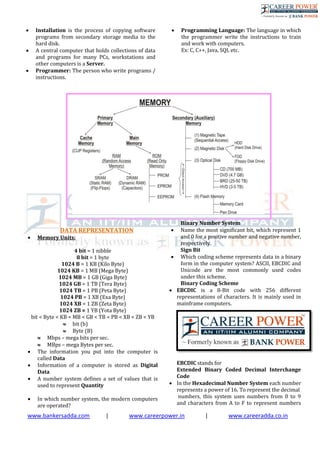
 Primary memory is computer memory that a
processor or computer accesses first or directly.
For example: RAM, and Cache Memory.
 Secondary memory (or secondary storage) is
the slowest and cheapest form of memory. It
cannot be processed directly by the CPU.
Secondary memory devices include magnetic
disks like hard drives and floppy disks, optical
disks such as CDs and CDROMs, and magnetic
tapes, which were the first forms of secondary
memory.
 Virtual memory is memory on the hard disk that
the CPU uses as an extended RAM.
www.bankersadda.com | www.careerpower.in | www.careeradda.co.in
 Installation is the process of copying software
programs from secondary storage media to the
hard disk.
 A central computer that holds collections of data
and programs for many PCs, workstations and
other computers is a Server.
 Programmer: The person who write programs /
instructions.
 Programming Language: The language in which
the programmer write the instructions to train
and work with computers.
Ex: C, C++, Java, SQL etc.
DATA REPRESENTATION
 Memory Units:
4 bit = 1 nibble
8 bit = 1 byte
1024 B = 1 KB (Kilo Byte)
1024 KB = 1 MB (Mega Byte)
1024 MB = 1 GB (Giga Byte)
1024 GB = 1 TB (Tera Byte)
1024 TB = 1 PB (Peta Byte)
1024 PB = 1 XB (Exa Byte)
1024 XB = 1 ZB (Zeta Byte)
1024 ZB = 1 YB (Yota Byte)
bit < Byte < KB < MB < GB < TB < PB < XB < ZB < YB
 bit (b)
 Byte (B)
 Mbps – mega bits per sec.
 MBps – mega Bytes per sec.
 The information you put into the computer is
called Data
 Information of a computer is stored as Digital
Data
 A number system defines a set of values that is
used to represent Quantity
 In which number system, the modern computers
are operated?
Binary Number System
 Name the most significant bit, which represent 1
and 0 for a positive number and negative number,
respectively.
Sign Bit
 Which coding scheme represents data in a binary
form in the computer system? ASCII, EBCDIC and
Unicode are the most commonly used codes
under this scheme.
Binary Coding Scheme
 EBCDIC is a 8-Bit code with 256 different
representations of characters. It is mainly used in
mainframe computers.
EBCDIC stands for
Extended Binary Coded Decimal Interchange
Code
 In the Hexadecimal Number System each number
represents a power of 16. To represent the decimal
numbers, this system uses numbers from 0 to 9
and characters from A to F to represent numbers
www.bankersadda.com | www.careerpower.in | www.careeradda.co.in
10-15, respectively. It is commonly used as a
shortcut notation for groups of four binary digits
 BCD is a method that represents the decimal digits
with the help of binary digits. It takes advantage
that one decimal numeral can be represented by 4-
bit pattern. BCD stands for Binary Coded Decimal
 This coding system is used to represent the interval
storage area of the computers. In this system, every
character is represented by a combination of bits.
Binary Coding System
 The Base or Radix of the decimal number system is
10
 The arithmetic operations (addition, subtraction,
multiplication and division) performed on the
binary numbers is called Binary Arithmetic
 What is the standard code the computer industry
created to represent characters? American
Standard Code for Information Interchange
(ASCII)
ASCII is a code used for standardizing the storage
and transfer of information amongst various
computing devices.
 It is required for representing more than 64
characters. At present, the mostly used coding
systems are ASCII and EBCDIC
 Which code is also known as Reflected Code?
Gray Code
 The 7-bit ASCII code is widely used for Two (0 or
1)
 In the binary language, each letter of the alphabet,
each number and each special character is made
up of a unique combination of Eight Bits.
Decimal, Binary, Octal and Hexadecimal
Equivalents
Decimal Binary Octal Hexadecimal
0 0000 000 0
1 0001 001 1
2 0010 002 2
3 0011 003 3
4 0100 004 4
5 0101 005 5
6 0110 006 6
7 0111 007 7
8 1000 010 8
9 1001 011 9
10 1010 012 A
11 1011 013 B
12 1100 014 C
13 1101 015 D
14 1110 016 E
15 1111 017 F
GENERATIONS OF COMPUTER
 Which was the first general purpose computer,
designed to handle both numeric and textual
information? Universal Automatic Computer
(UNIVAC) (1951)
 First Generation (1940-1956) Vacuum Tubes:
The first computers used vacuum tubes for
circuitry and magnetic drums for memory, and
were often enormous, taking up entire rooms.
The UNIVAC and ENIAC computers are examples
of first-generation computing devices.
In first generation of computer, this operating
system allowed only one program to run at a time
and a number of input jobs are grouped for
processing. It is known as Batch Processing.
 Second Generation (1956-1963) Transistors:
Transistors replaced vacuum tubes and ushered in
the second generation of computers.
 Third Generation (1964-1971) Integrated
Circuits:
The development of the integrated circuit was the
hallmark of the third generation of computers.
Transistors were miniaturized and placed on
silicon chips, called semiconductors, which
drastically increased the speed and efficiency of
computers.
 Fourth Generation (1971-Present)
Microprocessors:
The microprocessor brought the fourth generation
of computers, as thousands of integrated circuits
were built onto a single silicon chip.
What in the first generation filled an entire room
could now fit in the palm of the hand
Fourth generation computers also saw the
development of GUIs, the mouse and handheld
devices
 Fifth Generation (Present and Beyond)
Artificial Intelligence:
Fifth generation computing devices, based on
artificial intelligence, are still in development,
though there are some applications, such as voice
recognition, that are being used today.
 In 1981 IBM introduced its first computer for the
home user, and in 1984 Apple introduced the
Macintosh.
COMPUTER ORGANISATION
 An Arithmetic Logic Unit (ALU) is a digital circuit
that performs integer arithmetic and logical
operations. The ALU is a fundamental building
block of the central processing unit of a computer.
 Control Unit is responsible for controlling the
overall operations of computer. It coordinates the
sequence of execution of instructions and controls
the overall functioning of the computer.
 The first computer architecture was introduced by
John Von Neumann (1970)
 Personal computers use a number of chips
mounted on a main circuit board called
Motherboard.
 The CPU is fabricated as a single Integrated Circuit
(IC) chip. It is also known as the Microprocessor.
www.bankersadda.com | www.careerpower.in | www.careeradda.co.in
 Multiprocessing is the use of two or more central
processing units (CPUs) within a single computer
system. The term also refers to the ability of a
system to support more than one processor
and/or the ability to allocate tasks between them.
 The organisation and interconnection of the
various components of a computer system is
known as Computer Architecture.
 A CPU can directly understand the Machine
Language.
INPUT & OUTPUT DEVICES
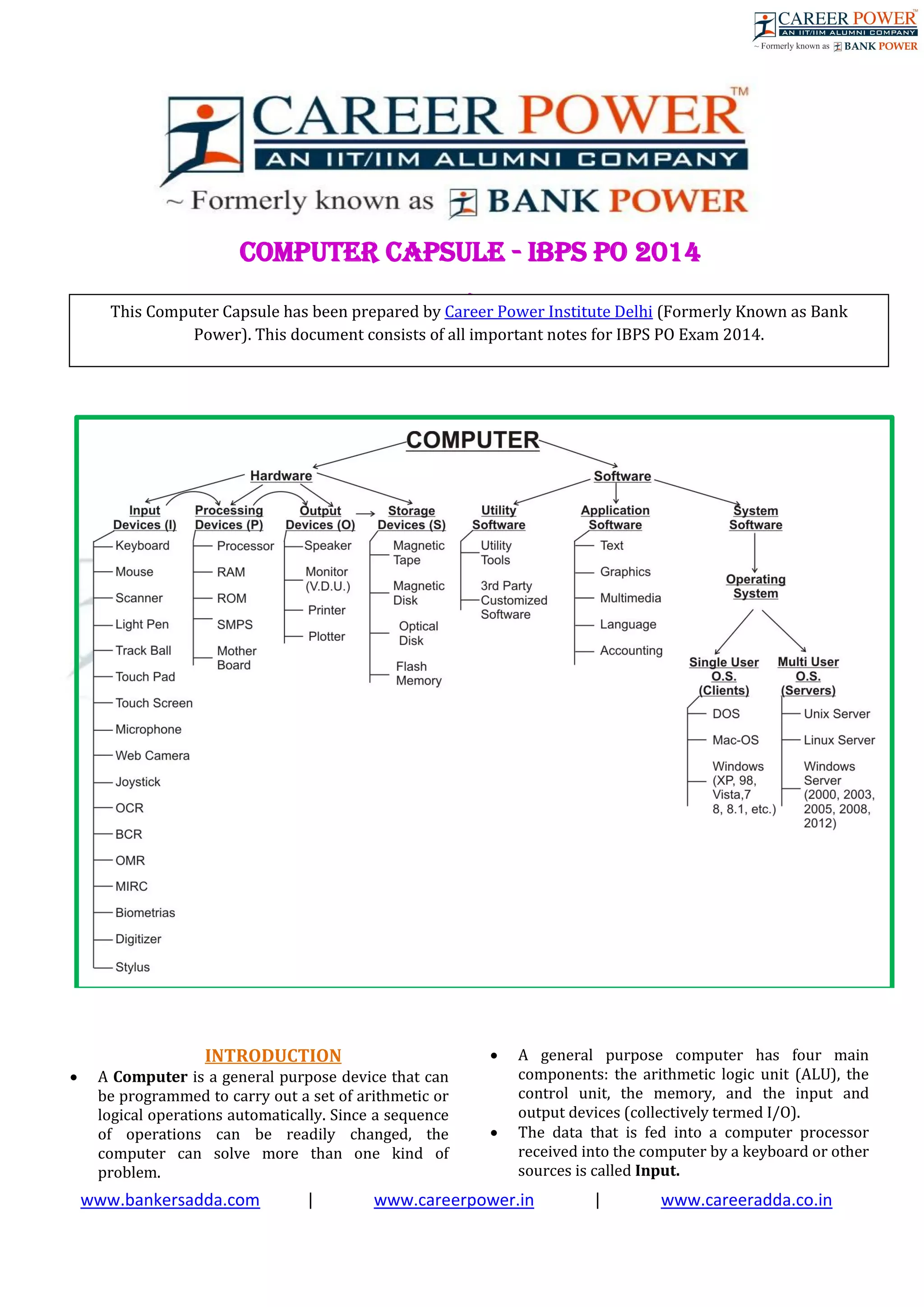
 An input device is any peripheral (piece of
computer hardware equipment) used to provide
data and control signals to a computer. They are
the devices that feed data into a computer.
Examples of input devices include keyboards,
mouse, scanners, digital cameras and joysticks.
 The keys include the letter keys (0, 1, 2, ..., 9; A, B,
Z), which are generally laid out in the same style
as in typewriters are known as Alphanumeric
Keys.
 'Caps lock' and 'Num lock' keys are called as
Toggle Keys because when pressed, they change
their status from one state to another.
 Numeric Keypad is a keypad located on the right
hand side of the keyboard. It consists of digits and
mathematical operators.
 A Modifier key is a special key (or combination)
on a computer keyboard that temporarily
modifies the normal action of another key when
pressed together. By themselves, modifier keys
usually do nothing; that is, pressing any of the
Shift, Alt, or Ctrl keys alone does not (generally)
trigger any action from the computer.
 A Mouse is the most popular input device which is
used today for interactive processing and for the
one line entry of data for batch processing.
 Drag and Drop refers to the action of clicking and
holding down the mouse button, while moving the
mouse and then releasing the mouse button.
The first computer mouse was invented by
Douglas Engelbart.
 Joystick is the device that moves in all directions
and controls the movement of a pointer.
 A Touch Screen is a type of display screen device
that is placed on the computer monitor to allow
direct selection or activation of the computer
when the user touches the screen.
 Light Pen is the pen shaped device, which can
sense light and is used to point at spots on a video
screen.
 A technology enables a high-speed reading of large
quantities of data and transferring these data to
the computer without using a keyboard. It is
referred as Optical Mark Reader (OMR).
It uses a beam of light that is reflected on the
paper with marks, to capture presence and
absence of marks.
 MICR reads the characters by examining their
shapes in a matrix form and the information is
then passed `on to the computer. MICR stands for
Magnetic Ink Character Reader.
It provides a high level of security and is therefore
used by the banking industry for faster processing
of the cheques
 It is a machine readable code, which is
represented by parallel vertical lines with varying
widths. For reading these bar-coded data, a device
is used, which is known as a Bar Code Reader
(BCR)
 Optical Character Recognition (OCR) is used to
scan the document containing text.
It is the mechanical or electronic conversion of
scanned or photographed images of typewritten
or printed text into machine-encoded/computer-
readable text.
 A keyboard is a typewriter-style device, which
uses an arrangement of buttons or keys, to act as
mechanical levers or electronic switches.
Most of the commonly available personal
computers have a keyboard, popularly known as
Qwerty.
 The keys labelled Fl to F12 on the keyboard are
called Function Keys.
 An output device is any piece of computer
hardware equipment used to communicate the
results of data processing carried out by an
information processing system (such as a
computer) which converts the electronically
g
e
n
e
r
a
t
e
d
i
n
f
o
r
m
a
t
i
o
n
i
n
t
o
h
u
www.bankersadda.com | www.careerpower.in | www.careeradda.co.in
man-readable form
 The printed form of output is referred as Hard
Copy.
 The form of output displayed on the screen is
referred as Soft Copy.
 The device that prints information from the
computer onto the paper is Printer.
 Pages Per Minute (PPM) is the unit used to count
the speed of the printer.
 On the basis of technology, printers are
categorised into Impact and Non- Impact
Printers.
 Impact printers create an image by using some
mechanism to physically press an inked ribbon
against the page, causing the ink to be deposited
on the page in the shape desired.
Examples of Impact Printers are Character
Printers and Dot Matrix Printers.
 Non – Impact Printers do not touch the paper
when creating an image.
Examples of Non - Impact Printers are Inkjet
printers, Laser printers, Solid ink printers, Dye-
sublimation, Thermal wax printers, Thermal auto
chrome printers.
 A pen based output device, attached to a computer
for making vector graphics, that is, images created
by a series of many straight lines is known as
Plotters.
 The number of pixels displayed on a screen is
known as Resolution.
 A Monitor is a TV-like display attached to the
computer on which the output can be displayed
and viewed. It can either be a monochrome
display or a colour display.
HARDWARE AND SOFTWARE BASICS
 The set of instructions, which control the
sequence of operations, are known as Program. It
is a sequence of instructions, written to perform a
specified task with a computer.
 A Software instructs the computer what to do and
how to do it. It is a set of instructions that tells the
computer about the tasks to be performed and how
these tasks are to performed.
 One or more defects or problems that prevent the
software from working as intended of working at
all are called Bug.
 Software that contributes to the control and
performance of the computer system and permits
the user to use the system more conveniently is
termed as System Software.
 Antivirus Software is used to scan the hard disk
to remove the virus from them.
 The assembly language program is translated into
machine code by a separate program known as an
Assembler.
 A Backup, or the process of backing up, refers to
the copying and archiving of computer data so it
may be used to restore the original after a data
loss event. It contains a copy of every program
data and system file on a computer.
 An Operating System controls the way in which
the computer system functions and provides a
means by which users can interact with the
computer.
 Loading of the Operating System is known as
Booting. Restarting a computer that is already on,
is referred to as Warm Booting.
 Basic Input – Output System (BIOS) is the part
of operating system that manages the essential
peripherals such as the keyboard, screen, disk
drives and parallel and serial ports.
 An Integrated Software is a single application
that combines major features of several types of
application.
 An Application Software is the program that
makes the computer useful to the users.
 Computer hardware is the collection of physical
elements that constitutes a computer system.
 Computer hardware refers to the physical parts
or components of a computer such as the monitor,
mouse, keyboard, computer data storage, hard
drive disk (HDD), system unit (graphic cards,
sound cards, memory, motherboard and chips),
etc. all of which are physical objects that can be
touched.
 The motherboard is the main component of
computer. It is a large rectangular board with
integrated circuitry that connects the other parts
of the computer including the CPU, the RAM, the
disk drives(CD, DVD, hard disk, or any others) as
well as any peripherals connected via the ports or
the expansion slots.
 Here are some common individual computer
hardware components that you'll often find inside
a modern computer case:
 Motherboard
 Central Processing Unit (CPU)
 Random Access Memory (RAM)
 Power Supply
 Video Card
 Hard Drive (HDD)
 Solid-State Drive (SSD)
 Optical Drive (e.g. BD/DVD/CD drive)
Card Reader (SD/SDHC, CF, etc)
 Here are some common hardware that you might
find connected to the outside of a computer:
 Monitor
 Keyboard
 Mouse
 Battery Backup (UPS)
 Printer
 Speaker
 Here are some less common computer hardware,
(either because these pieces are now usually
integrated into other devices or because they've
been replaced with newer technology):
 Sound Card
www.bankersadda.com | www.careerpower.in | www.careeradda.co.in
 Network Interface Card (NIC)
 Expansion Card (Firewire, USB,
Thunderbolt, etc.)
 Hard Drive Controller Card
 Analog Modem
 Scanner
 Floppy Disk Drive
 Joystick
 Webcam
 Microphone
 Tape Drive
 Zip Drive
 The following hardware are referred to as
network hardware and various pieces are often
part of a home or business network:
 Digital Modem (e.g. Cable Modem, DSL
Modem, etc.)
 Router
 Network Switch
 Access Point
 Repeater
 Bridge
 Print Server
 Firewall
INTERNET
 The Internet is a global system of interconnected
computer networks that use the standard Internet
protocol suite (TCP/IP) to link several billion
devices worldwide.
 It is a network of networks that consists of
millions of private, public, academic, business, and
government networks, of local to global scope,
that are linked by a broad array of electronic,
wireless, and optical networking technologies.
 The World Wide Web (abbreviated as WWW or
W3, commonly known as the Web) is a system of
interlinked hypertext documents that are accessed
via the Internet.
 A Website, is a set of related web pages served
from a single web domain.
 A Home page, index page, or main page is a
page on a website. A home page usually refers to:
 The initial or main web page of a website,
sometimes called the "front page" (by
analogy with newspapers).
 The first page that appears upon opening
a web browser program, which is also
sometimes called the start page. This
'start page' can be a website or it can be a
page with various browser functions such
as the visual display of websites that are
often visited in the web browser.
 The web page or local file that
automatically loads when a web browser
starts or when the browser's "home"
button is pressed; this is also called a
"home page". The user can specify the URL
of the page to be loaded, or alternatively
choose e.g. to re-load the most recent web
page browsed.
 A personal web page, for example at a web
hosting service or a university web site,
that typically is stored in the home
directory of the user.
 A Hyperlink is a reference to data that the reader
can directly follow either by clicking or by
hovering or that is followed automatically
 A web browser (commonly referred to as a
browser) is a software application for retrieving,
presenting and traversing information resources
on the World Wide Web.
 The Uniform Resource Locator, abbreviated as
URL is a specific character string that constitutes a
reference to a resource. In most web browsers, the
URL of a web page is displayed on top inside an
address bar.
An example of a typical URL would be
"http://www.bankersadda.com".
 Downloading means to receive data to a local
system from a remote system, or to initiate such a
data transfer
 Uploading refers to the sending of data from a
local system to a remote system such as a server
or another client with the intent that the remote
system should store a copy of the data being
transferred
 An Internet Protocol address (also known as an
IP address) is a numerical label assigned to each
www.bankersadda.com | www.careerpower.in | www.careeradda.co.in
device (e.g., computer, printer) participating in a
computer network.
It acts as an identifier for a computer. It is a
unique address for every computer.
 An email attachment is a computer file sent along
with an email message. One or more files can be
attached to any email message, and be sent along
with it to the recipient.
 Hotmail was co - founded by an Indian American
entrepreneur Sabeer Bhatia along with Jack Smith
in July of 1996
 CC (Carbon Copy) in e – mail indicates those who
are to receive a copy of a message addressed
primarily to another. The list of CCed recipients is
visible to all other recipients of the message.
 An additional BCC (blind carbon copy) field is
available for hidden notification; recipients listed
in the BCC field receive a copy of the message, but
are not shown on any other recipient's copy
(including other BCC recipients)
 The Drafts folder retains copies of messages that
you have started but are not yet ready to send.
 The first email was sent by Ray Tomlinson to
himself in 1971.
Domain Types
Type Description
Com Commercial and for profit
organizations
Edu Education Provider, college,
Universities
Gov Federal Government Agencies
Mil US military sites
Net Internet infrastructure and service
providers
Org Miscellaneous and non-profit
organizations
DATA COMMUNICATION
&
NETWORKING
 Data Communication deals with the
transmission of digital data from one device to
another. Data is transferred through a pathway
called as communication channel which can be
physical wire connecting the devices or may be
unguided media like laser, microwave etc.
 A communication channel has a source or
transmitter at one side and a designation or
receiver at another side of the network. The
source of data origination is single but there may
be multiple receivers.
A communication channel is of 3 types:
 Simplex: In this, communication is
unidirectional i.e. one of the two devices
can transmit the data and the other can
only receive the data. For eg. Radio
broadcasting, television broadcasting etc.
 Half duplex: In this communication is
bidirectional. Either of the devices can act
as transmitter or receiver but only one
device can transmit the data at one time.
For eg. Walkie talkie.
 Full Duplex: Here also communication is
in both directions and both the devices
can simultaneously transmit the data. For
eg. Telephone conversation.
 Different types of network are: LAN, MAN and
WAN.
 A LAN (local area network) is a group of
computers and network devices connected
together, usually within the same building. By
definition, the connections must be high speed
and relatively inexpensive (e.g., token ring or
Ethernet).
 A MAN (metropolitan area network) is a larger
network that usually spans several buildings in
the same city or town.
 A WAN (wide area network), in comparison to a
MAN, is not restricted to a geographical location,
although it might be confined within the bounds
of a state or country. A WAN connects several
LANs, and may be limited to an enterprise (a
corporation or an organization) or accessible to
the public. The technology is high speed and
relatively expensive. The Internet is an example of
a worldwide public WAN.
 Now let’s have a look at some basic differences
between these three...
Area:
LAN: Covers small area.
WAN: Covers large geographical area
MAN: Covers larger than LAN but smaller than
WAN
Error Rates:
LAN: Lowest
WAN: Highest
MAN: Moderate
Transmission speed:
LAN: High Speed
WAN: Low Speed
MAN: Moderate speed
Cost:
LAN: Uses inexpensive equipment
www.bankersadda.com | www.careerpower.in | www.careeradda.co.in
WAN: Uses most expensive equipment
(Connecting systems via internet)
MAN: Uses moderately expensive equipment
(Connecting two systems in different buildings)
 The Open Systems Interconnection model (OSI)
is a conceptual model that characterizes and
standardizes the internal functions of a
communication system by partitioning it into
abstraction layers. The model is a product of the
Open Systems Interconnection project at the
International Organization for
Standardization (ISO).
Seven layers of OSI Model are:
 Application Layer
 Presentation Layer
 Session Layer
 Transport Layer
 Network Layer
 Data link Layer
 Physical Layer
 Network topology is the arrangement of the
various elements (links, nodes, etc.) of a computer
network. There are two basic categories of
network topologies:
 Physical topologies and logical topologies.
Physical topology is the placement of the various
components of a network, including device
location and cable installation, while logical
topology illustrates how data flows within a
network, regardless of its physical design.
Various types of topologies are:
 Bus Topology
 Star Topology
 Ring Topology
 Mesh Topology
 Tree Topology
 Hybrid Topology
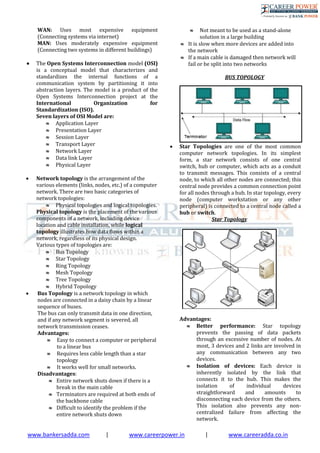
 Bus Topology is a network topology in which
nodes are connected in a daisy chain by a linear
sequence of buses.
The bus can only transmit data in one direction,
and if any network segment is severed, all
network transmission ceases.
Advantages:
 Easy to connect a computer or peripheral
to a linear bus
 Requires less cable length than a star
topology
 It works well for small networks.
Disadvantages:
 Entire network shuts down if there is a
break in the main cable
 Terminators are required at both ends of
the backbone cable
 Difficult to identify the problem if the
entire network shuts down
 Not meant to be used as a stand-alone
solution in a large building
 It is slow when more devices are added into
the network
 If a main cable is damaged then network will
fail or be split into two networks
BUS TOPOLOGY
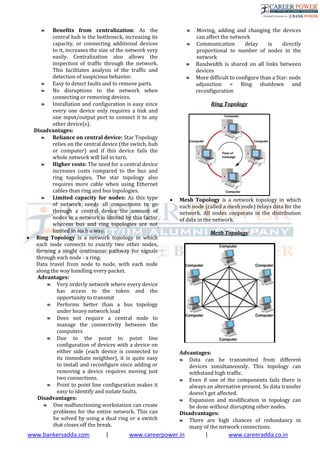
 Star Topologies are one of the most common
computer network topologies. In its simplest
form, a star network consists of one central
switch, hub or computer, which acts as a conduit
to transmit messages. This consists of a central
node, to which all other nodes are connected; this
central node provides a common connection point
for all nodes through a hub. In star topology, every
node (computer workstation or any other
peripheral) is connected to a central node called a
hub or switch.
Star Topology
Advantages:
 Better performance: Star topology
prevents the passing of data packets
through an excessive number of nodes. At
most, 3 devices and 2 links are involved in
any communication between any two
devices.
 Isolation of devices: Each device is
inherently isolated by the link that
connects it to the hub. This makes the
isolation of individual devices
straightforward and amounts to
disconnecting each device from the others.
This isolation also prevents any non-
centralized failure from affecting the
network.
www.bankersadda.com | www.careerpower.in | www.careeradda.co.in
 Benefits from centralization: As the
central hub is the bottleneck, increasing its
capacity, or connecting additional devices
to it, increases the size of the network very
easily. Centralization also allows the
inspection of traffic through the network.
This facilitates analysis of the traffic and
detection of suspicious behavior.
 Easy to detect faults and to remove parts.
 No disruptions to the network when
connecting or removing devices.
 Installation and configuration is easy since
every one device only requires a link and
one input/output port to connect it to any
other device(s).
Disadvantages:
 Reliance on central device: Star Topology
relies on the central device (the switch, hub
or computer) and if this device fails the
whole network will fail in turn.
 Higher costs: The need for a central device
increases costs compared to the bus and
ring topologies. The star topology also
requires more cable when using Ethernet
cables than ring and bus topologies.
 Limited capacity for nodes: As this type
of network needs all connections to go
through a central device the amount of
nodes in a network is limited by this factor
whereas bus and ring topologies are not
limited in such a way.
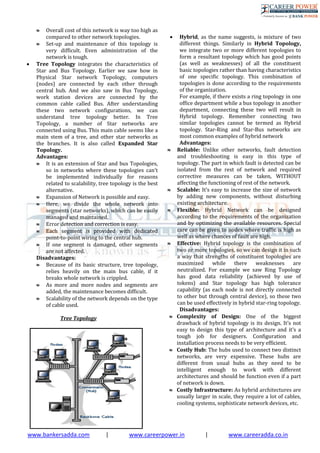
 Ring Topology is a network topology in which
each node connects to exactly two other nodes,
forming a single continuous pathway for signals
through each node - a ring.
Data travel from node to node, with each node
along the way handling every packet.
Advantages:
 Very orderly network where every device
has access to the token and the
opportunity to transmit
 Performs better than a bus topology
under heavy network load
 Does not require a central node to
manage the connectivity between the
computers
 Due to the point to point line
configuration of devices with a device on
either side (each device is connected to
its immediate neighbor), it is quite easy
to install and reconfigure since adding or
removing a device requires moving just
two connections.
 Point to point line configuration makes it
easy to identify and isolate faults.
Disadvantages:
 One malfunctioning workstation can create
problems for the entire network. This can
be solved by using a dual ring or a switch
that closes off the break.
 Moving, adding and changing the devices
can affect the network
 Communication delay is directly
proportional to number of nodes in the
network
 Bandwidth is shared on all links between
devices
 More difficult to configure than a Star: node
adjunction = Ring shutdown and
reconfiguration
Ring Topology
 Mesh Topology is a network topology in which
each node (called a mesh node) relays data for the
network. All nodes cooperate in the distribution
of data in the network.
.
Mesh Topology
Advantages:
 Data can be transmitted from different
devices simultaneously. This topology can
withstand high traffic.
 Even if one of the components fails there is
always an alternative present. So data transfer
doesn’t get affected.
 Expansion and modification in topology can
be done without disrupting other nodes.
Disadvantages:
 There are high chances of redundancy in
many of the network connections.
www.bankersadda.com | www.careerpower.in | www.careeradda.co.in
 Overall cost of this network is way too high as
compared to other network topologies.
 Set-up and maintenance of this topology is
very difficult. Even administration of the
network is tough.
 Tree Topology integrates the characteristics of
Star and Bus Topology. Earlier we saw how in
Physical Star network Topology, computers
(nodes) are connected by each other through
central hub. And we also saw in Bus Topology,
work station devices are connected by the
common cable called Bus. After understanding
these two network configurations, we can
understand tree topology better. In Tree
Topology, a number of Star networks are
connected using Bus. This main cable seems like a
main stem of a tree, and other star networks as
the branches. It is also called Expanded Star
Topology.
Advantages:
 It is an extension of Star and bus Topologies,
so in networks where these topologies can't
be implemented individually for reasons
related to scalability, tree topology is the best
alternative.
 Expansion of Network is possible and easy.
 Here, we divide the whole network into
segments (star networks), which can be easily
managed and maintained.
 Error detection and correction is easy.
 Each segment is provided with dedicated
point-to-point wiring to the central hub.
 If one segment is damaged, other segments
are not affected.
Disadvantages:
 Because of its basic structure, tree topology,
relies heavily on the main bus cable, if it
breaks whole network is crippled.
 As more and more nodes and segments are
added, the maintenance becomes difficult.
 Scalability of the network depends on the type
of cable used.
Tree Topology
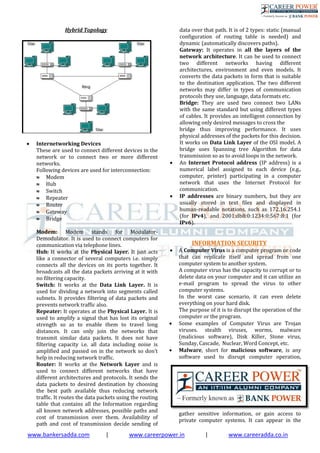
 Hybrid, as the name suggests, is mixture of two
different things. Similarly in Hybrid Topology,
we integrate two or more different topologies to
form a resultant topology which has good points
(as well as weaknesses) of all the constituent
basic topologies rather than having characteristics
of one specific topology. This combination of
topologies is done according to the requirements
of the organization.
For example, if there exists a ring topology in one
office department while a bus topology in another
department, connecting these two will result in
Hybrid topology. Remember connecting two
similar topologies cannot be termed as Hybrid
topology. Star-Ring and Star-Bus networks are
most common examples of hybrid network
Advantages:
 Reliable: Unlike other networks, fault detection
and troubleshooting is easy in this type of
topology. The part in which fault is detected can be
isolated from the rest of network and required
corrective measures can be taken, WITHOUT
affecting the functioning of rest of the network.
 Scalable: It’s easy to increase the size of network
by adding new components, without disturbing
existing architecture.
 Flexible: Hybrid Network can be designed
according to the requirements of the organization
and by optimizing the available resources. Special
care can be given to nodes where traffic is high as
well as where chances of fault are high.
 Effective: Hybrid topology is the combination of
two or more topologies, so we can design it in such
a way that strengths of constituent topologies are
maximized while there weaknesses are
neutralized. For example we saw Ring Topology
has good data reliability (achieved by use of
tokens) and Star topology has high tolerance
capability (as each node is not directly connected
to other but through central device), so these two
can be used effectively in hybrid star-ring topology.
Disadvantages:
 Complexity of Design: One of the biggest
drawback of hybrid topology is its design. It’s not
easy to design this type of architecture and it’s a
tough job for designers. Configuration and
installation process needs to be very efficient.
 Costly Hub: The hubs used to connect two distinct
networks, are very expensive. These hubs are
different from usual hubs as they need to be
intelligent enough to work with different
architectures and should be function even if a part
of network is down.
 Costly Infrastructure: As hybrid architectures are
usually larger in scale, they require a lot of cables,
cooling systems, sophisticate network devices, etc.
www.bankersadda.com | www.careerpower.in | www.careeradda.co.in
Hybrid Topology
 Internetworking Devices
These are used to connect different devices in the
network or to connect two or more different
networks.
Following devices are used for interconnection:
 Modem
 Hub
 Switch
 Repeater
 Router
 Gateway
 Bridge
Modem: Modem stands for Modulator-
Demodulator. It is used to connect computers for
communication via telephone lines.
Hub: It works at the Physical layer. It just acts
like a connector of several computers i.e. simply
connects all the devices on its ports together. It
broadcasts all the data packets arriving at it with
no filtering capacity.
Switch: It works at the Data Link Layer. It is
used for dividing a network into segments called
subnets. It provides filtering of data packets and
prevents network traffic also.
Repeater: It operates at the Physical Layer. It is
used to amplify a signal that has lost its original
strength so as to enable them to travel long
distances. It can only join the networks that
transmit similar data packets. It does not have
filtering capacity i.e. all data including noise is
amplified and passed on in the network so don’t
help in reducing network traffic.
Router: It works at the Network Layer and is
used to connect different networks that have
different architectures and protocols. It sends the
data packets to desired destination by choosing
the best path available thus reducing network
traffic. It routes the data packets using the routing
table that contains all the Information regarding
all known network addresses, possible paths and
cost of transmission over them. Availability of
path and cost of transmission decide sending of
data over that path. It is of 2 types: static (manual
configuration of routing table is needed) and
dynamic (automatically discovers paths).
Gateway: It operates in all the layers of the
network architecture. It can be used to connect
two different networks having different
architectures, environment and even models. It
converts the data packets in form that is suitable
to the destination application. The two different
networks may differ in types of communication
protocols they use, language, data formats etc.
Bridge: They are used two connect two LANs
with the same standard but using different types
of cables. It provides an intelligent connection by
allowing only desired messages to cross the
bridge thus improving performance. It uses
physical addresses of the packets for this decision.
It works on Data Link Layer of the OSI model. A
bridge uses Spanning tree Algorithm for data
transmission so as to avoid loops in the network.
 An Internet Protocol address (IP address) is a
numerical label assigned to each device (e.g.,
computer, printer) participating in a computer
network that uses the Internet Protocol for
communication.
 IP addresses are binary numbers, but they are
usually stored in text files and displayed in
human-readable notations, such as 172.16.254.1
(for IPv4), and 2001:db8:0:1234:0:567:8:1 (for
IPv6).
INFORMATION SECURITY
 A Computer Virus is a computer program or code
that can replicate itself and spread from one
computer system to another system.
A computer virus has the capacity to corrupt or to
delete data on your computer and it can utilize an
e-mail program to spread the virus to other
computer systems.
In the worst case scenario, it can even delete
everything on your hard disk.
The purpose of it is to disrupt the operation of the
computer or the program.
 Some examples of Computer Virus are Trojan
viruses. stealth viruses, worms, malware
(malicious software), Disk Killer, Stone virus,
Sunday, Cascade, Nuclear, Word Concept, etc.
 Malware, short for malicious software, is any
software used to disrupt computer operation,
gather sensitive information, or gain access to
private computer systems. It can appear in the
www.bankersadda.com | www.careerpower.in | www.careeradda.co.in
form of executable code, scripts, active content,
and other software.
 Antivirus Software is used to scan the hard disk
to remove the virus from them.
Some of the famous anti – viruses available are
Avast!, Norton, Avira, Kaspersky, AVG, etc.
 The Creeper virus was the first virus detected on
ARPANET, in the early 1970s.
 A person who* uses his or her expertise to gain
access to other people’s computers to get
information illegally or do damage is a Hacker.
 Authorization is the function of specifying access
rights to resources related to information security
and computer security in general and to access
control in particular. More formally, "to authorize"
is to define an access policy.
 Authentication is the act of confirming the truth
of an attribute of a single piece of data or entity. It
might involve confirming the identity of a person
by validating their identity documents, verifying
the validity of a website with a digital certificate,
tracing the age of an artifact by carbon dating, or
ensuring that a product is what its packaging and
labelling claim to be. In other words,
Authentication often involves verifying the
validity of at least one form of identification.
 Phishing is the attempt to acquire sensitive
information such as usernames, passwords, and
credit card details (and sometimes, indirectly,
money) by masquerading as a trustworthy entity
in an electronic communication.
 A Spoofing attack is a situation in which one
person or program successfully represents oneself
as another by falsifying data and thereby gaining
an illegitimate advantage.
 Browser Sniffing is a set of techniques used in
websites and web applications in order to
determine the web browser that a visitor is using,
and to serve browser-appropriate content to the
visitor.
MICROSOFT OFFICE
 Microsoft Office is an office suite of desktop
applications, servers and services for the
Microsoft Windows and OS X operating systems.
It was first announced by Bill Gates of Microsoft
on August 1, 1988 at COMDEX in Las Vegas.
 MS office primarily includes Word, Excel,
PowerPoint, Access and Outlook.
It also includes OneNote, Groove, InfoPath and
Publisher.
MS WORD
 Microsoft Word is a word processor developed by
Microsoft.
 It is used for creating, editing, formatting, storing,
retrieving and printing of a text document.
 Microsoft Word's native file formats are denoted
either by a .doc or .docx file extension.
 A Cursor is an indicator used to show the position
on a computer monitor or other display device
that will respond to input from a text input or
pointing device.
Basic Keys
Common Tasks
Ctrl + Shift +
Spacebar
Create a non breaking space
Ctrl + B Make letters bold
Ctrl + I Make letters italic
Ctrl + U Make letters underline
Ctrl + Shift+ < Decrease font size one value
Ctrl + Shift +
>
Increase the font size one
value
Ctrl + [ Increase the font size by 1
point
Ctrl + ] Decrease the font size by 1
point
Ctrl +
Spacebar
Remove paragraph or
character formatting.
Ctrl + C Copy the selected text or
object
Ctrl + X Cut the selected text or
object
Ctrl + V Paste text or an object
Ctrl + Alt + V Paste special
Ctrl + Shift +
V
Paste formatting only
Ctrl + Z Undo the last action
Ctrl + Y Redo the last action
 To create a document, we use New command at
the menu.
 Save as is used to save a document for the first
time. It is also used to change the destination of
the saved file in the computer.
 Print Preview is used to see the document before
the printout is taken.
 Cut and Paste options are used to move the data
from one part of the document to another.
Control Keys + Function keys
Ctrl+F2 Choose the print preview
command (Microsoft office Button)
Ctrl+F3 Cut on the spike
Ctrl+F4 Close the window
Ctrl+F6 Go to the next window
Ctrl+F9 Insert an empty field
Ctrl+F10 Maximise the document window
Ctrl+F11 Lock a field
Ctrl+F12 Choose the Open command
(Microsoft Office Button)
 Portrait and Landscape options are available in
Orientation category of Page Setup.
www.bankersadda.com | www.careerpower.in | www.careeradda.co.in
 Alignment refers to the position of text between
the margins.
 Auto complete is a feature in word that
automatically completes the spelling of days of the
week and months of the year that have more than
five letters in their names.
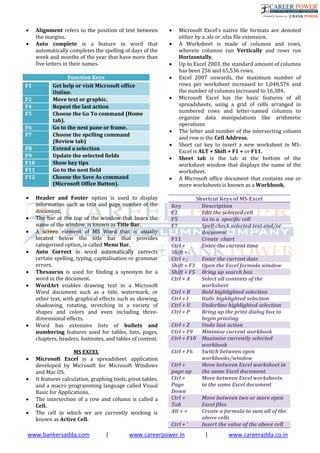
Function Keys
F1 Get help or visit Microsoft office
Online.
F2 Move text or graphic.
F4 Repeat the last action
F5 Choose the Go To command (Home
tab).
F6 Go to the nest pane or frame.
F7 Choose the spelling command
(Review tab)
F8 Extend a selection
F9 Update the selected fields
F10 Show key tips
F11 Go to the nest field
F12 Choose the Save As command
(Microsoft Office Button).
 Header and Footer option is used to display
information such as title and page number of the
document.
 The bar at the top of the window that bears the
name of the window, is known as Title Bar.
 A screen element of MS Word that is usually
located below the title bar that provides
categorised option, is called Menu Bar.
 Auto Correct in word automatically corrects
certain spelling, typing, capitalisation or grammar
errors.
 Thesaurus is used for finding a synonym for a
word in the document.
 WordArt enables drawing text in a Microsoft
Word document such as a title, watermark, or
other text, with graphical effects such as skewing,
shadowing, rotating, stretching in a variety of
shapes and colors and even including three-
dimensional effects.
 Word has extensive lists of bullets and
numbering features used for tables, lists, pages,
chapters, headers, footnotes, and tables of content.
MS EXCEL
 Microsoft Excel is a spreadsheet application
developed by Microsoft for Microsoft Windows
and Mac OS.
 It features calculation, graphing tools, pivot tables,
and a macro programming language called Visual
Basic for Applications.
 The intersection of a row and column is called a
Cell.
 The cell in which we are currently working is
known as Active Cell.
 Microsoft Excel's native file formats are denoted
either by a .xls or .xlsx file extension.
 A Worksheet is made of columns and rows,
wherein columns run Vertically and rows run
Horizontally.
 Up to Excel 2003, the standard amount of columns
has been 256 and 65,536 rows.
 Excel 2007 onwards, the maximum number of
rows per worksheet increased to 1,048,576 and
the number of columns increased to 16,384.
 Microsoft Excel has the basic features of all
spreadsheets, using a grid of cells arranged in
numbered rows and letter-named columns to
organize data manipulations like arithmetic
operations
 The letter and number of the intersecting column
and row is the Cell Address.
 Short cut key to insert a new worksheet in MS-
Excel is ALT + Shift + F1 + or F11.
 Sheet tab is the tab at the bottom of the
worksheet window that displays the name of the
worksheet.
 A Microsoft office document that contains one or
more worksheets is known as a Workbook.
Shortcut Keys of MS-Excel
Key Description
F2 Edit the selected cell
F5 Go to a specific cell
F7 Spell check selected text and/or
document
F11 Create chart
Ctrl +
Shift + ;
Enter the current time
Ctrl + ; Enter the current date
Shift + F3 Open the Excel formula window
Shift + F5 Bring up search box.
Ctrl + A Select all contents of the
worksheet
Ctrl + B Bold highlighted selection
Ctrl + I Italic highlighted selection
Ctrl + U Underline highlighted selection
Ctrl + P Bring up the print dialog box to
begin printing
Ctrl + Z Undo last action
Ctrl + F9 Minimise current workbook
Ctrl + F10 Maximise currently selected
workbook
Ctrl + F6 Switch between open
workbooks/window
Ctrl +
page up
Move between Excel worksheet in
the same Excel document.
Ctrl +
Page
Down
Move between Excel worksheets
in the same Excel document
Ctrl +
Tab
Move between two or more open
Excel files
Alt + = Create a formula to sum all of the
above cells
Ctrl + ’ Insert the value of the above cell
www.bankersadda.com | www.careerpower.in | www.careeradda.co.in
into cell currently selected.
Ctrl +
Arrow
key
Move to next section to text
Ctrl +
Space
Select entire column
Shift +
Space
Select entire row
MICROSOFT POWERPOINT
 Microsoft PowerPoint is a slide show
presentation program developed by Microsoft.
 PowerPoint presentations consist of a number of
individual pages or "slides".
 Microsoft PowerPoint's native file formats are
denoted either by a .ppt or .pptx file extension.
 PowerPoint provides three types of movements:
 Entrance, emphasis, and exit of elements
on a slide itself are controlled by what
PowerPoint calls Custom Animations.
 Transitions, on the other hand, are
movements between slides. These can be
animated in a variety of ways.
 Custom animation can be used to create
small story boards by animating pictures
to enter, exit or move.
DATABASE MANAGEMENT SYSTEM
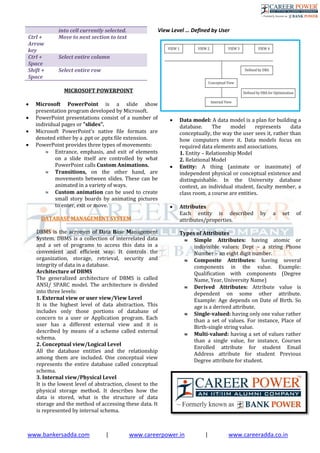
DBMS is the acronym of Data Base Management
System. DBMS is a collection of interrelated data
and a set of programs to access this data in a
convenient and efficient way. It controls the
organization, storage, retrieval, security and
integrity of data in a database.
Architecture of DBMS
The generalized architecture of DBMS is called
ANSI/ SPARC model. The architecture is divided
into three levels:
1. External view or user view/View Level
It is the highest level of data abstraction. This
includes only those portions of database of
concern to a user or Application program. Each
user has a different external view and it is
described by means of a scheme called external
schema.
2. Conceptual view/Logical Level
All the database entities and the relationship
among them are included. One conceptual view
represents the entire database called conceptual
schema.
3. Internal view/Physical Level
It is the lowest level of abstraction, closest to the
physical storage method. It describes how the
data is stored, what is the structure of data
storage and the method of accessing these data. It
is represented by internal schema.
View Level … Defined by User
 Data model: A data model is a plan for building a
database. The model represents data
conceptually, the way the user sees it, rather than
how computers store it. Data models focus on
required data elements and associations.
1. Entity – Relationship Model
2. Relational Model
 Entity: A thing (animate or inanimate) of
independent physical or conceptual existence and
distinguishable. In the University database
context, an individual student, faculty member, a
class room, a course are entities.
 Attributes
Each entity is described by a set of
attributes/properties.
Types of Attributes
 Simple Attributes: having atomic or
indivisible values: Dept – a string Phone
Number – an eight digit number.
 Composite Attributes: having several
components in the value. Example:
Qualification with components (Degree
Name, Year, University Name)
 Derived Attributes: Attribute value is
dependent on some other attribute.
Example: Age depends on Date of Birth. So
age is a derived attribute.
 Single-valued: having only one value rather
than a set of values. For instance, Place of
Birth-single string value.
 Multi-valued: having a set of values rather
than a single value, for instance, Courses
Enrolled attribute for student Email
Address attribute for student Previous
Degree attribute for student.
www.bankersadda.com | www.careerpower.in | www.careeradda.co.in
 Attributes can be: simple single-valued,
simple multi-valued, composite single-
valued or composite multi-valued.
NOTE:
Diagrammatic Notation for Entities
entity – rectangle
attribute – ellipse connected to rectangle
multi-valued attribute – double ellipse
composite attribute- ellipse connected to ellipse
Keys in DBMS:
 A super key of an entity set is a set of one or more
attributes whose values uniquely determine each
entity.
 A candidate key of an entity set is a set of fields
from which primary key can be selected. It is an
attribute or a set of attributes that can act as a
primary key for a table to uniquely identify each
record in a table.
Although several candidate keys may exist, one of
the candidate keys is selected to be the primary
key.
 Primary key is a candidate key that is most
appropriate to become main key of the table. It is
a key that uniquely identifies each record in the
table.
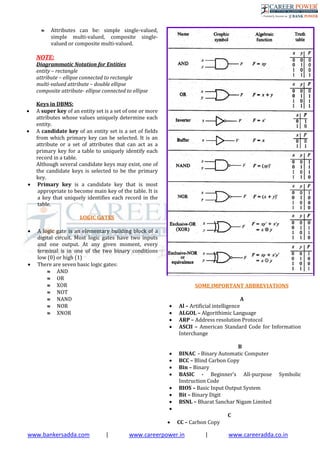
LOGIC GATES
 A logic gate is an elementary building block of a
digital circuit. Most logic gates have two inputs
and one output. At any given moment, every
terminal is in one of the two binary conditions
low (0) or high (1)
 There are seven basic logic gates:
 AND
 OR
 XOR
 NOT
 NAND
 NOR
 XNOR
SOME IMPORTANT ABBREVIATIONS
A
 Al – Artificial intelligence
 ALGOL – Algorithimic Language
 ARP – Address resolution Protocol
 ASCII – American Standard Code for Information
Interchange
B
 BINAC - Binary Automatic Computer
 BCC – Blind Carbon Copy
 Bin – Binary
 BASIC - Beginner’s All-purpose Symbolic
Instruction Code
 BIOS – Basic Input Output System
 Bit – Binary Digit
 BSNL – Bharat Sanchar Nigam Limited

C
 CC – Carbon Copy
www.bankersadda.com | www.careerpower.in | www.careeradda.co.in
 CAD – Computer Aided Design
 COBOL – Common Business Oriented Language
 CD – Compact Disc
 CRT – Cathode Ray Tube
 CDR – Compact Disc Recordable
 CDROM – Compact Disc Read Only Memory
 CDRW – Compact Disc Rewritable
 CDR/W – Compact Disk Read/Write
D
 DBA – Data Base Administrator
 DBMS – Data Base Management System
 DNS – Domain Name System
 DPI – Dots Per Inch
 DRAM – Dynamic Random Access Memory
 DVD – Digital Video Disc/Digital Versatile Disc
 DVDR – DVD Recordable
 DVDROM – DVD Read Only Memory
 DVDRW – DVD Rewritable
 DVR – Digital Video Recorder
 DOS – Disk Operating System
E
 EBCDIC – Extended Binary Coded Decimal
Interchange Code
 e-Commerce – Electronic Commerce
 EDP – Electronic Data Processing
 EEPROM – Electronically Erasable Programmable
Read Only Memory
 ELM/e-Mail – Electronic Mail
 ENIAC - Electronic Numerical Integrator and
Computer
 EOF - End Of File
 EPROM - Erasable Programmable Read Only
Memory
 EXE - Executable
F
 FAX - Far Away Xerox/ facsimile
 FDC - Floppy Disk Controller
 FDD - Floppy Disk Drive
 FORTRAN - Formula Translation
 FS - File System
 FTP - File Transfer Protocol
G
 Gb - Gigabit
 GB - Gigabyte
 GIF - Graphics Interchange Format
 GSM - Global System for Mobile Communication
H
 HDD - Hard Disk Drive
 HP - Hewlett Packard
 HTML - Hyper Text Markup Language
 HTTP - Hyper Text Transfer Protocol
I
 IBM - International Business Machine
 IM - Instant Message
 IMAP - Internet Message Access Protocol
 ISP - Internet Service Provider
J
 JPEG - Joint Photographic Experts Group
K
 Kb - Kilobit
 KB - Kilobyte
 KHz - Kilohertz
 Kbps - Kilobit Per Second
L
 LCD – Liquid Crystal Display
 LED – Light Emitting Diode
 LPI – Lines Per Inch
 LIS – Large Scale Integration
M
 Mb – Megabit
 MB – Megabyte
 MPEG – Moving Picture Experts Group
 MMS – Multimedia Message Service
 MICR – Magnetic Ink Character reader
 MIPS – Million Instructions Per Second
www.bankersadda.com | www.careerpower.in | www.careeradda.co.in
N
 NIC – Network Interface Card
 NOS – Network Operating System
O
 OMR – Optical Mark Reader
 OOP – Object Oriented Programming
 OSS – Open Source Software
P
 PAN – Personal Area Network
 PC – Personal Computer
 PDA - Personal Digital Assistant
 PDF – Portable Document Format
 POS – Point Of Sale
 PNG - Portable Network Graphics
 PPM – Pages Per Minute
 PPP – Point-to-Point Protocol
 PROM – Programmable Read Only Memory
 PSTN – Public Switched Telephone Network
 POST – Power On Self Test
 PING – Packet Internet Gopher
R
 RAM – Random Access Memory
 RDBMS – Relational Data Base Management
System
 RIP – Routing Information Protocol
 RTF – Rich Text Format
S
 SMTP – Simple Mail Transfer Protocol
 SQL – Structured Query Language
 SRAM – Synchronous Random Access Memory
 SNMP – Simple Network Management Protocol
 SIM – Subscriber Identification Module
T
 TCP – Transmission Control Protocol
 TB – Tera Bytes
U
 UPS – Uninterrupted Power Supply
 URI – Uniform Resource Identifier
 URL – Uniform Resource Locator
 USB - Uniform Serial Bus
 ULSI - Ultra Large Scale Integration
 UNIVAC - Universal Automatic Computer
V
 VAR – Variable
 VGA – Video Graphics Array
 VSNL – Videsh Sanchar Nigam Limited
 VDU – Visual Display Unit
W
 Wi-Fi – Wireless Fidelity
 WLAN – Wireless Local Area Network
 WPA – Wi-Fi Protected Access
 WWW – World Wide Web
 WORM – Write Once Read Memory
X
 XHTML – eXtensible Hyper text Markup Language
 XML - eXtensible Markup language
Z
 ZB – Zeta Byte
GLOSSARY
A
 Access time - The amount of time it takes for
requested information to be delivered from disks
and memory.
 Antivirus software - A program designed to look
for and destroy viruses that may infect the memory
of a computer or files stored on a computer.
 Artificial intelligence (AI) - Computer systems
that attempt to imitate human processes for
analyzing and solving problems.
 Accumulator - A local storage area called a
Register, in which the result of an arithmetic or
logic operation is formed.
B
 BIT - It is basic unit of computers. It has two values
1 & 0 only.
 BYTE - Combination of 8 Bits.
www.bankersadda.com | www.careerpower.in | www.careeradda.co.in
 Basic Input Output System (BIOS) - Also known
as ROM BIOS. It provides a abstraction layer for the
hardware, i.e., a consistent way for application
programs and operating system to interact with
input/output devices.
 Bug - A software bug is an error, flaw, failure, or
fault in a computer program or system produces an
incorrect or unexpected result.
 Bus - A pathway along which electronic signals
travel between the components of a computer
system.
C
 Cookie - A packet of information that travels
between a browser and the web server.
 Crash - Your computer or application no longer
works correctly and so you “loose” all the work
you’ve done since the last time you saved.
 Command - An instruction that causes a program
or computer to perform a function.
 Cache - It is a memory storage area that keeps
frequent use data readily available to the computer
so that the computer does not retrieve them from
slow storage devices.
 Clock Speed - The speed of computer is measured
in clock speed. High clock speed is synonymous
with high processing capability. It is measured in
Megahertz (MHz).
 Column - A vertical block of cells in a table or
spreadsheet.
D
 Delete - To remove an item of data from a file or to
remove a file from the disk.
 Debugging - Locating and eliminating defects in a
program.
 Desktop - The electronic work area on a display
screen.
 Dots Per Inch (DPI) - It is defined as the measure
of the resolution of a printer and scanner, or
monitor.
 Domain Name - A unique name that identifies a
particular website and represents the name of the
server where the web pages reside.
E
 Edit - To make certain changes in existing data.
 Ethernet Card - A network adapter that enables a
computer to connect to an ethernet.
F
 Fax - A shortened form of the word facsimile. A
copy of a document transmitted electronically from
one machine to another.
 File transfer protocol (FTP) - A set of guidelines
or standards that establish the format in which
files can be transmitted from one computer to
another.
 Firewall - A security system usually consisting of
hardware and software that prevents unauthorized
persons from accessing certain parts of a program,
database, or network.
 Flash Memory - It is a type of non-volatile
computer storage chip that can be electrically
erased and reprogrammed. It was developed by
EEPROM.
G
 Gateway - A machine that links two networks
using different protocols.
 Gigabyte - A measurement of the storage capacity
of a device. One gigabyte represents 1024
megabytes.
 Google – search engine on the web.
 Gopher - A protocol used for locating and
transferring information on the internet. It is an
internet search tool that allows users to access
textual information.
 GUI - Graphical User Interface uses icons and
menus to carry out commands such as opening
files, delete files, move files etc..
 Graphic Interchange Format (GIF) - A simple file
format for pictures and photographs, that are
compressed so that they can be sent quickly.
H
 Hard copy - Text or graphics printed on paper;
also called a printout.
 Hard disk - A rigid type of magnetic medium that
can store large amounts of information.
 Hyperlink - An image or portion of text on a
webpage which is linked to another webpage.
 Hub - A network device that connects multiple
computers on a LAN so that they can communicate
with another network and the internet.
 Header - Repetitive information that appears at
the top (the head) of every page of a document.
 Hypertext transfer protocol (HTTP) - The
protocol used on the World Wide Web that permits
Web clients (Web browsers) to communicate with
Web servers
I
 Icons - In a graphical user interface (GUI), a small,
pictorial, on screen representation of an object,
such as a document, program, folder or disk drive.
 Instant messaging (IM) - A chat program that lets
people communicate over the Internet in real time.
 Internet protocol (IP) address - A unique set of
numbers that identifies a computer over a
network.
www.bankersadda.com | www.careerpower.in | www.careeradda.co.in
 Internet service provider (ISP) - An organization
that provides access to the Internet for a fee.
 Intranet - A private network established by an
organization for the exclusive use of its employees.
Firewalls prevent outsiders from gaining access to
an organization’s intranet
J
 JPEG - Joint Photographic Experts Group. A format
for storing complex graphics in compressed form.
 Justification - Aligning lines of text at the left
margin, the right margin, both margins, or the
centre. Text aligned at both margins is considered
fully justified.
K
 Keyboard - The device used to enter information
into a computer.
 Kilobyte - A measurement of the storage capacity
of a device. One kilobyte represents 1024 bytes.
L
 LAN - A local area network (LAN) is a computer
network that interconnects computers within a
limited area such as a home, school, computer
laboratory, or office building, using network media.
 Laptop computer - A portable computer. Also
known as a notebook computer.
 Landscape Orientation – The positioning of the
page so that the information is printed across the
long dimension of the page.
 Liveware - It is a term to describe the human
system, opposed to hardware or software in a
computer.
M
 Macro virus - A type of virus that attaches itself to
documents or word processing templates.
 Malware - Software that disrupts normal
computer functions or sends a user’s personal data
without the user’s authorization.
 Memory - The part of a computer that stores
information.
 Memory Cell - A circuit in memory that represents
a single bit of information.
 Mass Storage - Storage systems that provide
access to hundreds of billions of bytes of stored
data. They are often referred to as Archival Storage
because of the very large volumes of historical or
backup data they can store.
 MIPS - An acronym derived from millions of
instructions per second. Used to measure the speed
of a processor.
 Morphing - The transformation of one image into
another image.
 Mobile Commerce (m-Commerce) - A form of e-
commerce that has the ability to conduct monetary
transactions via a mobile device such as a cell
phone.
 Mozilla - a web browser and successor to Netscape
Communicator.
 Multitasking - The ability of a computer to execute
more than one program at a time.
N
 NIBBLE - Combination of four bits.
 Network - A system of interconnected computers.
They are of three types i. e. LAN, MAN, WAN.
 Network Interface Card (NIC) - This is a part of
the computer that allows it to talk to other
computers via a network protocol like TCP/IP.
 Node - A computer which is attached to the
network. Each node has its own address on the
network so that it can be uniquely identified and
can communicate with other nodes on the same or
different network.
O
 Offline - Refers to the state in which a computer is
temporarily or permanently unable to
communicate with another computer.
 Online - Refers to the state in which a computer is
ready to communicate with other computers.
 Open source software - Software that makes the
underlying source code available to all users at no
charge.
 Operating system (OS) - Software that manages
the internal functions and controls the operations
of a computer.
P
 Palmtop computer - A portable computer smaller
than a notebook (or laptop) computer that fits on
the palm of your hand. Also called a handheld
computer.
 Password - A user’s secret identification code,
required to access stored material. A procedure
www.bankersadda.com | www.careerpower.in | www.careeradda.co.in
intended to prevent information from being
accessed by unauthorized persons.
 Piracy - The illegal copying of software or other
creative works.
 Peripherals - A connectable device that has an
auxiliary function outside the permanent system
configuration such as plotters, printers and graphic
displays.
 Phishing - A type of computer fraud that tries to
trick users into revealing their passwords and
other confidential information.
 Pixel - A smallest picture element of a digital
image. The smaller the pixels, the higher the
resolution.
 Port - An electrical connection on the computer
into which a cable can be plugged so that the
computer can communicate with other devices
such as printer or modem.
 Protocol - A set of rules and regulations that
coordinates the exchange of information over the
network.
 Portrait orientation - Positioning paper so that
information is printed across the short dimension
of the paper.
Q
 Query - An alternate pipe form of operating
system, which handles data in the form of
messages rather than bytes.
 Qwerty - It is one of the standard computer
keyboard, with the character Q, W, E, R, T, Y on the
top row of letters on the keyboard.
R
 Response time - The time a computer takes to
execute a command.
 Retrieve - To call up information from memory or
storage so that it can be processed in some way.
 Record - A collection of all the information
pertaining to a particular subject.
 Row - A horizontal block of cells in a table or
spreadsheet.
 Resolution - Measurement of the degree of
sharpness of a displayed image. It is defined as
number of pixels per square inch on a computer
generated display.
 Register - A temporary storage unit for quick,
direct accessibility of a small amount of data for
processing.
S
 Save As – Give the file a name and/or store the file
in a certain place.
 Save - Tell the computer to create a file on disk
that has the information you’ve put into the
document.
 Scroll bar - Allows you to move around through
your document.
 Shut down - To quit all applications and turn off
the computer.
 Spam - unwanted repetitious messages, such as
unsolicited bulk e-mail.
 Scanner - An input device that can copy a printed
page into a computer’s memory, thus doing away
with the need to type the copy.
 Screen saver - A program that changes the screen
display while the user is away from the computer.
 Server - A computer that manages a shared
resource and provides a set of shared user services
to the clients.
 Search Engine - Software that searches, gathers
and identifies information from a database based
on an index, keywords or titles.
 Spam - Unwanted repetitious messages, such as
unsolicited bulk e-mail.
 Soft copy - Information shown on the display
screen.
 Sort - To arrange fields, records, or files in a
predetermined sequence.
 Surfing the Net - Browsing through various Web
sites on the Internet in search of interesting things.
T
 Trash - Place where you put files and folders that
you want to delete or get rid of.
 Topology - The structure of the network, including
physical connections such as wiring schemes and
logical interactions between network devices.
 Track - A ring on a disk where data can be written.
 Telnet - A protocol for remote computing on the
internet that allows a computer to act as a remote
terminal on another machine, anywhere on the
internet.
 Touchpad - The device on a laptop computer that
takes the place of a mouse.
 Touch screen technology - The technology that
permits a user to perform a function simply by
touching the screen on an appropriate spot.
U
 Uninterrupted Power Supply (UPS) - A Battery
powered backup system that provides enough
electricity to a computer during a power outage so
that a user can save files before shutting down the
computer.
 Universal Serial Bus (USB) - A common standard
for connecting multiple peripherals to a computer
as needed.
 Upload - To transfer information from a client
computer to a host computer.
V
 Virus - A piece of computer code designed as a
prank or malicious act to spread from one
computer to another by attaching itself to other
programs.
www.bankersadda.com | www.careerpower.in | www.careeradda.co.in
W
 WAP - Wireless Application Protocol is a
specification for a set of communication protocol
used to allow wireless devices to access the
internet and other utilities.
 Web browser - Software that permits a user with
a click of a mouse to locate, display, and download
text, video, audio, and graphics stored in a host
computer on the Web.
The most common Web browsers now in use are
Internet Explorer, Google Chrome and Mozilla
Firefox.
 Web site - One or more related pages created by
an individual or an organization and posted on the
World Wide Web.
 Wi-Fi (Wireless fidelity) - A process that permits
high-speed wireless transmission of data.
 Word processing - The electronic process of
creating, formatting, editing, proofreading, and
printing documents.
 Workstation - A desktop computer that runs
applications and serves as an access point in a local
area network.
Z
 Zombie - A computer that has been hijacked by a
cracker without the owner’s knowledge and used
to perform malicious tasks on the Internet.
BankersAdda wishes you all a very Best of Luck..!!

Computer capsule ibps_po_2014

  • 1.
    www.bankersadda.com | www.careerpower.in| www.careeradda.co.in COMPUTER CAPSULE - IBPS PO 2014 . INTRODUCTION  A Computer is a general purpose device that can be programmed to carry out a set of arithmetic or logical operations automatically. Since a sequence of operations can be readily changed, the computer can solve more than one kind of problem.  A general purpose computer has four main components: the arithmetic logic unit (ALU), the control unit, the memory, and the input and output devices (collectively termed I/O).  The data that is fed into a computer processor received into the computer by a keyboard or other sources is called Input. This Computer Capsule has been prepared by Career Power Institute Delhi (Formerly Known as Bank Power). This document consists of all important notes for IBPS PO Exam 2014.
  • 2.
    www.bankersadda.com | www.careerpower.in| www.careeradda.co.in  A computer is an electronic device that accepts data from the user (input), processes the data by performing calculations and operations on it and generates the desired Output.  The device which is used with a computer to display or store data is called Peripherals.  The mechanical, magnetic, electronic and electrical components that comprises a computer system such as the Central Processing Unit (CPU), monitor, keyboard, etc. is known as Hardware.  A set of instructions that tells the computer about the tasks to be performed and how these tasks are to performed, is known as Software.  An unprocessed collection or representation of raw facts represented in a manner suitable for communication, interpretation or processing by humans or by automatic means, is known as Data.  The result of processing, manipulating and organising data in a way that adds to the knowledge of the person receiving it, is known as Information.  The smallest unit of information, a computer can understand and process, is known as Bit.  The primary goal of computer is to process information that it receives and output the results. The process of control and alter information is known as. Processing.  Which number system computer used to store data and perform calculation? Binary Number System.  Computer Speed, Accuracy, Diligence, Storage Capability, Automation, Remembrance Power and Versatility are the main Characteristics of Computer.  Self Intelligence, Decision-Making power, Learning power, Self care, Feelings are the Limitations of Computer.  A mainframe computer is a much larger computer that typically fills a room and may cost many hundreds or thousands of times as much as a personal computer. They are designed to perform large numbers of calculations for governments and large enterprises.  Read-only memory (ROM) is a storage medium used in computers and other electronic devices. Data stored in ROM can only be modified slowly or with difficulty, or not at all. ROM is non-volatile and the contents are retained even after the power is switched off. It only allows reading. The types of ROM include PROM, EPROM and EEPROM.  Random Access Memory (RAM), allows the computer to store data for immediate for immediate manipulation and to keep track of what is currently being processed. RAM is referred to as volatile memory and is lost when the power is turned off. It allows reading and writing. The two main types of RAM are static RAM and dynamic RAM.  SRAM retains data as long as power is provided to the memory chip and need not be refreshed periodically. SRAM stands for Static Random Access Memory.  The data on DRAM continues to move in and out of the memory as long as power is available and must be continually refreshed to maintain the data. DRAM stands for Dynamic Random Access Memory.  Primary memory is computer memory that a processor or computer accesses first or directly. For example: RAM, and Cache Memory.  Secondary memory (or secondary storage) is the slowest and cheapest form of memory. It cannot be processed directly by the CPU. Secondary memory devices include magnetic disks like hard drives and floppy disks, optical disks such as CDs and CDROMs, and magnetic tapes, which were the first forms of secondary memory.  Virtual memory is memory on the hard disk that the CPU uses as an extended RAM.
  • 3.
    www.bankersadda.com | www.careerpower.in| www.careeradda.co.in  Installation is the process of copying software programs from secondary storage media to the hard disk.  A central computer that holds collections of data and programs for many PCs, workstations and other computers is a Server.  Programmer: The person who write programs / instructions.  Programming Language: The language in which the programmer write the instructions to train and work with computers. Ex: C, C++, Java, SQL etc. DATA REPRESENTATION  Memory Units: 4 bit = 1 nibble 8 bit = 1 byte 1024 B = 1 KB (Kilo Byte) 1024 KB = 1 MB (Mega Byte) 1024 MB = 1 GB (Giga Byte) 1024 GB = 1 TB (Tera Byte) 1024 TB = 1 PB (Peta Byte) 1024 PB = 1 XB (Exa Byte) 1024 XB = 1 ZB (Zeta Byte) 1024 ZB = 1 YB (Yota Byte) bit < Byte < KB < MB < GB < TB < PB < XB < ZB < YB  bit (b)  Byte (B)  Mbps – mega bits per sec.  MBps – mega Bytes per sec.  The information you put into the computer is called Data  Information of a computer is stored as Digital Data  A number system defines a set of values that is used to represent Quantity  In which number system, the modern computers are operated? Binary Number System  Name the most significant bit, which represent 1 and 0 for a positive number and negative number, respectively. Sign Bit  Which coding scheme represents data in a binary form in the computer system? ASCII, EBCDIC and Unicode are the most commonly used codes under this scheme. Binary Coding Scheme  EBCDIC is a 8-Bit code with 256 different representations of characters. It is mainly used in mainframe computers. EBCDIC stands for Extended Binary Coded Decimal Interchange Code  In the Hexadecimal Number System each number represents a power of 16. To represent the decimal numbers, this system uses numbers from 0 to 9 and characters from A to F to represent numbers
  • 4.
    www.bankersadda.com | www.careerpower.in| www.careeradda.co.in 10-15, respectively. It is commonly used as a shortcut notation for groups of four binary digits  BCD is a method that represents the decimal digits with the help of binary digits. It takes advantage that one decimal numeral can be represented by 4- bit pattern. BCD stands for Binary Coded Decimal  This coding system is used to represent the interval storage area of the computers. In this system, every character is represented by a combination of bits. Binary Coding System  The Base or Radix of the decimal number system is 10  The arithmetic operations (addition, subtraction, multiplication and division) performed on the binary numbers is called Binary Arithmetic  What is the standard code the computer industry created to represent characters? American Standard Code for Information Interchange (ASCII) ASCII is a code used for standardizing the storage and transfer of information amongst various computing devices.  It is required for representing more than 64 characters. At present, the mostly used coding systems are ASCII and EBCDIC  Which code is also known as Reflected Code? Gray Code  The 7-bit ASCII code is widely used for Two (0 or 1)  In the binary language, each letter of the alphabet, each number and each special character is made up of a unique combination of Eight Bits. Decimal, Binary, Octal and Hexadecimal Equivalents Decimal Binary Octal Hexadecimal 0 0000 000 0 1 0001 001 1 2 0010 002 2 3 0011 003 3 4 0100 004 4 5 0101 005 5 6 0110 006 6 7 0111 007 7 8 1000 010 8 9 1001 011 9 10 1010 012 A 11 1011 013 B 12 1100 014 C 13 1101 015 D 14 1110 016 E 15 1111 017 F GENERATIONS OF COMPUTER  Which was the first general purpose computer, designed to handle both numeric and textual information? Universal Automatic Computer (UNIVAC) (1951)  First Generation (1940-1956) Vacuum Tubes: The first computers used vacuum tubes for circuitry and magnetic drums for memory, and were often enormous, taking up entire rooms. The UNIVAC and ENIAC computers are examples of first-generation computing devices. In first generation of computer, this operating system allowed only one program to run at a time and a number of input jobs are grouped for processing. It is known as Batch Processing.  Second Generation (1956-1963) Transistors: Transistors replaced vacuum tubes and ushered in the second generation of computers.  Third Generation (1964-1971) Integrated Circuits: The development of the integrated circuit was the hallmark of the third generation of computers. Transistors were miniaturized and placed on silicon chips, called semiconductors, which drastically increased the speed and efficiency of computers.  Fourth Generation (1971-Present) Microprocessors: The microprocessor brought the fourth generation of computers, as thousands of integrated circuits were built onto a single silicon chip. What in the first generation filled an entire room could now fit in the palm of the hand Fourth generation computers also saw the development of GUIs, the mouse and handheld devices  Fifth Generation (Present and Beyond) Artificial Intelligence: Fifth generation computing devices, based on artificial intelligence, are still in development, though there are some applications, such as voice recognition, that are being used today.  In 1981 IBM introduced its first computer for the home user, and in 1984 Apple introduced the Macintosh. COMPUTER ORGANISATION  An Arithmetic Logic Unit (ALU) is a digital circuit that performs integer arithmetic and logical operations. The ALU is a fundamental building block of the central processing unit of a computer.  Control Unit is responsible for controlling the overall operations of computer. It coordinates the sequence of execution of instructions and controls the overall functioning of the computer.  The first computer architecture was introduced by John Von Neumann (1970)  Personal computers use a number of chips mounted on a main circuit board called Motherboard.  The CPU is fabricated as a single Integrated Circuit (IC) chip. It is also known as the Microprocessor.
  • 5.
    www.bankersadda.com | www.careerpower.in| www.careeradda.co.in  Multiprocessing is the use of two or more central processing units (CPUs) within a single computer system. The term also refers to the ability of a system to support more than one processor and/or the ability to allocate tasks between them.  The organisation and interconnection of the various components of a computer system is known as Computer Architecture.  A CPU can directly understand the Machine Language. INPUT & OUTPUT DEVICES  An input device is any peripheral (piece of computer hardware equipment) used to provide data and control signals to a computer. They are the devices that feed data into a computer. Examples of input devices include keyboards, mouse, scanners, digital cameras and joysticks.  The keys include the letter keys (0, 1, 2, ..., 9; A, B, Z), which are generally laid out in the same style as in typewriters are known as Alphanumeric Keys.  'Caps lock' and 'Num lock' keys are called as Toggle Keys because when pressed, they change their status from one state to another.  Numeric Keypad is a keypad located on the right hand side of the keyboard. It consists of digits and mathematical operators.  A Modifier key is a special key (or combination) on a computer keyboard that temporarily modifies the normal action of another key when pressed together. By themselves, modifier keys usually do nothing; that is, pressing any of the Shift, Alt, or Ctrl keys alone does not (generally) trigger any action from the computer.  A Mouse is the most popular input device which is used today for interactive processing and for the one line entry of data for batch processing.  Drag and Drop refers to the action of clicking and holding down the mouse button, while moving the mouse and then releasing the mouse button. The first computer mouse was invented by Douglas Engelbart.  Joystick is the device that moves in all directions and controls the movement of a pointer.  A Touch Screen is a type of display screen device that is placed on the computer monitor to allow direct selection or activation of the computer when the user touches the screen.  Light Pen is the pen shaped device, which can sense light and is used to point at spots on a video screen.  A technology enables a high-speed reading of large quantities of data and transferring these data to the computer without using a keyboard. It is referred as Optical Mark Reader (OMR). It uses a beam of light that is reflected on the paper with marks, to capture presence and absence of marks.  MICR reads the characters by examining their shapes in a matrix form and the information is then passed `on to the computer. MICR stands for Magnetic Ink Character Reader. It provides a high level of security and is therefore used by the banking industry for faster processing of the cheques  It is a machine readable code, which is represented by parallel vertical lines with varying widths. For reading these bar-coded data, a device is used, which is known as a Bar Code Reader (BCR)  Optical Character Recognition (OCR) is used to scan the document containing text. It is the mechanical or electronic conversion of scanned or photographed images of typewritten or printed text into machine-encoded/computer- readable text.  A keyboard is a typewriter-style device, which uses an arrangement of buttons or keys, to act as mechanical levers or electronic switches. Most of the commonly available personal computers have a keyboard, popularly known as Qwerty.  The keys labelled Fl to F12 on the keyboard are called Function Keys.  An output device is any piece of computer hardware equipment used to communicate the results of data processing carried out by an information processing system (such as a computer) which converts the electronically g e n e r a t e d i n f o r m a t i o n i n t o h u
  • 6.
    www.bankersadda.com | www.careerpower.in| www.careeradda.co.in man-readable form  The printed form of output is referred as Hard Copy.  The form of output displayed on the screen is referred as Soft Copy.  The device that prints information from the computer onto the paper is Printer.  Pages Per Minute (PPM) is the unit used to count the speed of the printer.  On the basis of technology, printers are categorised into Impact and Non- Impact Printers.  Impact printers create an image by using some mechanism to physically press an inked ribbon against the page, causing the ink to be deposited on the page in the shape desired. Examples of Impact Printers are Character Printers and Dot Matrix Printers.  Non – Impact Printers do not touch the paper when creating an image. Examples of Non - Impact Printers are Inkjet printers, Laser printers, Solid ink printers, Dye- sublimation, Thermal wax printers, Thermal auto chrome printers.  A pen based output device, attached to a computer for making vector graphics, that is, images created by a series of many straight lines is known as Plotters.  The number of pixels displayed on a screen is known as Resolution.  A Monitor is a TV-like display attached to the computer on which the output can be displayed and viewed. It can either be a monochrome display or a colour display. HARDWARE AND SOFTWARE BASICS  The set of instructions, which control the sequence of operations, are known as Program. It is a sequence of instructions, written to perform a specified task with a computer.  A Software instructs the computer what to do and how to do it. It is a set of instructions that tells the computer about the tasks to be performed and how these tasks are to performed.  One or more defects or problems that prevent the software from working as intended of working at all are called Bug.  Software that contributes to the control and performance of the computer system and permits the user to use the system more conveniently is termed as System Software.  Antivirus Software is used to scan the hard disk to remove the virus from them.  The assembly language program is translated into machine code by a separate program known as an Assembler.  A Backup, or the process of backing up, refers to the copying and archiving of computer data so it may be used to restore the original after a data loss event. It contains a copy of every program data and system file on a computer.  An Operating System controls the way in which the computer system functions and provides a means by which users can interact with the computer.  Loading of the Operating System is known as Booting. Restarting a computer that is already on, is referred to as Warm Booting.  Basic Input – Output System (BIOS) is the part of operating system that manages the essential peripherals such as the keyboard, screen, disk drives and parallel and serial ports.  An Integrated Software is a single application that combines major features of several types of application.  An Application Software is the program that makes the computer useful to the users.  Computer hardware is the collection of physical elements that constitutes a computer system.  Computer hardware refers to the physical parts or components of a computer such as the monitor, mouse, keyboard, computer data storage, hard drive disk (HDD), system unit (graphic cards, sound cards, memory, motherboard and chips), etc. all of which are physical objects that can be touched.  The motherboard is the main component of computer. It is a large rectangular board with integrated circuitry that connects the other parts of the computer including the CPU, the RAM, the disk drives(CD, DVD, hard disk, or any others) as well as any peripherals connected via the ports or the expansion slots.  Here are some common individual computer hardware components that you'll often find inside a modern computer case:  Motherboard  Central Processing Unit (CPU)  Random Access Memory (RAM)  Power Supply  Video Card  Hard Drive (HDD)  Solid-State Drive (SSD)  Optical Drive (e.g. BD/DVD/CD drive) Card Reader (SD/SDHC, CF, etc)  Here are some common hardware that you might find connected to the outside of a computer:  Monitor  Keyboard  Mouse  Battery Backup (UPS)  Printer  Speaker  Here are some less common computer hardware, (either because these pieces are now usually integrated into other devices or because they've been replaced with newer technology):  Sound Card
  • 7.
    www.bankersadda.com | www.careerpower.in| www.careeradda.co.in  Network Interface Card (NIC)  Expansion Card (Firewire, USB, Thunderbolt, etc.)  Hard Drive Controller Card  Analog Modem  Scanner  Floppy Disk Drive  Joystick  Webcam  Microphone  Tape Drive  Zip Drive  The following hardware are referred to as network hardware and various pieces are often part of a home or business network:  Digital Modem (e.g. Cable Modem, DSL Modem, etc.)  Router  Network Switch  Access Point  Repeater  Bridge  Print Server  Firewall INTERNET  The Internet is a global system of interconnected computer networks that use the standard Internet protocol suite (TCP/IP) to link several billion devices worldwide.  It is a network of networks that consists of millions of private, public, academic, business, and government networks, of local to global scope, that are linked by a broad array of electronic, wireless, and optical networking technologies.  The World Wide Web (abbreviated as WWW or W3, commonly known as the Web) is a system of interlinked hypertext documents that are accessed via the Internet.  A Website, is a set of related web pages served from a single web domain.  A Home page, index page, or main page is a page on a website. A home page usually refers to:  The initial or main web page of a website, sometimes called the "front page" (by analogy with newspapers).  The first page that appears upon opening a web browser program, which is also sometimes called the start page. This 'start page' can be a website or it can be a page with various browser functions such as the visual display of websites that are often visited in the web browser.  The web page or local file that automatically loads when a web browser starts or when the browser's "home" button is pressed; this is also called a "home page". The user can specify the URL of the page to be loaded, or alternatively choose e.g. to re-load the most recent web page browsed.  A personal web page, for example at a web hosting service or a university web site, that typically is stored in the home directory of the user.  A Hyperlink is a reference to data that the reader can directly follow either by clicking or by hovering or that is followed automatically  A web browser (commonly referred to as a browser) is a software application for retrieving, presenting and traversing information resources on the World Wide Web.  The Uniform Resource Locator, abbreviated as URL is a specific character string that constitutes a reference to a resource. In most web browsers, the URL of a web page is displayed on top inside an address bar. An example of a typical URL would be "http://www.bankersadda.com".  Downloading means to receive data to a local system from a remote system, or to initiate such a data transfer  Uploading refers to the sending of data from a local system to a remote system such as a server or another client with the intent that the remote system should store a copy of the data being transferred  An Internet Protocol address (also known as an IP address) is a numerical label assigned to each
  • 8.
    www.bankersadda.com | www.careerpower.in| www.careeradda.co.in device (e.g., computer, printer) participating in a computer network. It acts as an identifier for a computer. It is a unique address for every computer.  An email attachment is a computer file sent along with an email message. One or more files can be attached to any email message, and be sent along with it to the recipient.  Hotmail was co - founded by an Indian American entrepreneur Sabeer Bhatia along with Jack Smith in July of 1996  CC (Carbon Copy) in e – mail indicates those who are to receive a copy of a message addressed primarily to another. The list of CCed recipients is visible to all other recipients of the message.  An additional BCC (blind carbon copy) field is available for hidden notification; recipients listed in the BCC field receive a copy of the message, but are not shown on any other recipient's copy (including other BCC recipients)  The Drafts folder retains copies of messages that you have started but are not yet ready to send.  The first email was sent by Ray Tomlinson to himself in 1971. Domain Types Type Description Com Commercial and for profit organizations Edu Education Provider, college, Universities Gov Federal Government Agencies Mil US military sites Net Internet infrastructure and service providers Org Miscellaneous and non-profit organizations DATA COMMUNICATION & NETWORKING  Data Communication deals with the transmission of digital data from one device to another. Data is transferred through a pathway called as communication channel which can be physical wire connecting the devices or may be unguided media like laser, microwave etc.  A communication channel has a source or transmitter at one side and a designation or receiver at another side of the network. The source of data origination is single but there may be multiple receivers. A communication channel is of 3 types:  Simplex: In this, communication is unidirectional i.e. one of the two devices can transmit the data and the other can only receive the data. For eg. Radio broadcasting, television broadcasting etc.  Half duplex: In this communication is bidirectional. Either of the devices can act as transmitter or receiver but only one device can transmit the data at one time. For eg. Walkie talkie.  Full Duplex: Here also communication is in both directions and both the devices can simultaneously transmit the data. For eg. Telephone conversation.  Different types of network are: LAN, MAN and WAN.  A LAN (local area network) is a group of computers and network devices connected together, usually within the same building. By definition, the connections must be high speed and relatively inexpensive (e.g., token ring or Ethernet).  A MAN (metropolitan area network) is a larger network that usually spans several buildings in the same city or town.  A WAN (wide area network), in comparison to a MAN, is not restricted to a geographical location, although it might be confined within the bounds of a state or country. A WAN connects several LANs, and may be limited to an enterprise (a corporation or an organization) or accessible to the public. The technology is high speed and relatively expensive. The Internet is an example of a worldwide public WAN.  Now let’s have a look at some basic differences between these three... Area: LAN: Covers small area. WAN: Covers large geographical area MAN: Covers larger than LAN but smaller than WAN Error Rates: LAN: Lowest WAN: Highest MAN: Moderate Transmission speed: LAN: High Speed WAN: Low Speed MAN: Moderate speed Cost: LAN: Uses inexpensive equipment
  • 9.
    www.bankersadda.com | www.careerpower.in| www.careeradda.co.in WAN: Uses most expensive equipment (Connecting systems via internet) MAN: Uses moderately expensive equipment (Connecting two systems in different buildings)  The Open Systems Interconnection model (OSI) is a conceptual model that characterizes and standardizes the internal functions of a communication system by partitioning it into abstraction layers. The model is a product of the Open Systems Interconnection project at the International Organization for Standardization (ISO). Seven layers of OSI Model are:  Application Layer  Presentation Layer  Session Layer  Transport Layer  Network Layer  Data link Layer  Physical Layer  Network topology is the arrangement of the various elements (links, nodes, etc.) of a computer network. There are two basic categories of network topologies:  Physical topologies and logical topologies. Physical topology is the placement of the various components of a network, including device location and cable installation, while logical topology illustrates how data flows within a network, regardless of its physical design. Various types of topologies are:  Bus Topology  Star Topology  Ring Topology  Mesh Topology  Tree Topology  Hybrid Topology  Bus Topology is a network topology in which nodes are connected in a daisy chain by a linear sequence of buses. The bus can only transmit data in one direction, and if any network segment is severed, all network transmission ceases. Advantages:  Easy to connect a computer or peripheral to a linear bus  Requires less cable length than a star topology  It works well for small networks. Disadvantages:  Entire network shuts down if there is a break in the main cable  Terminators are required at both ends of the backbone cable  Difficult to identify the problem if the entire network shuts down  Not meant to be used as a stand-alone solution in a large building  It is slow when more devices are added into the network  If a main cable is damaged then network will fail or be split into two networks BUS TOPOLOGY  Star Topologies are one of the most common computer network topologies. In its simplest form, a star network consists of one central switch, hub or computer, which acts as a conduit to transmit messages. This consists of a central node, to which all other nodes are connected; this central node provides a common connection point for all nodes through a hub. In star topology, every node (computer workstation or any other peripheral) is connected to a central node called a hub or switch. Star Topology Advantages:  Better performance: Star topology prevents the passing of data packets through an excessive number of nodes. At most, 3 devices and 2 links are involved in any communication between any two devices.  Isolation of devices: Each device is inherently isolated by the link that connects it to the hub. This makes the isolation of individual devices straightforward and amounts to disconnecting each device from the others. This isolation also prevents any non- centralized failure from affecting the network.
  • 10.
    www.bankersadda.com | www.careerpower.in| www.careeradda.co.in  Benefits from centralization: As the central hub is the bottleneck, increasing its capacity, or connecting additional devices to it, increases the size of the network very easily. Centralization also allows the inspection of traffic through the network. This facilitates analysis of the traffic and detection of suspicious behavior.  Easy to detect faults and to remove parts.  No disruptions to the network when connecting or removing devices.  Installation and configuration is easy since every one device only requires a link and one input/output port to connect it to any other device(s). Disadvantages:  Reliance on central device: Star Topology relies on the central device (the switch, hub or computer) and if this device fails the whole network will fail in turn.  Higher costs: The need for a central device increases costs compared to the bus and ring topologies. The star topology also requires more cable when using Ethernet cables than ring and bus topologies.  Limited capacity for nodes: As this type of network needs all connections to go through a central device the amount of nodes in a network is limited by this factor whereas bus and ring topologies are not limited in such a way.  Ring Topology is a network topology in which each node connects to exactly two other nodes, forming a single continuous pathway for signals through each node - a ring. Data travel from node to node, with each node along the way handling every packet. Advantages:  Very orderly network where every device has access to the token and the opportunity to transmit  Performs better than a bus topology under heavy network load  Does not require a central node to manage the connectivity between the computers  Due to the point to point line configuration of devices with a device on either side (each device is connected to its immediate neighbor), it is quite easy to install and reconfigure since adding or removing a device requires moving just two connections.  Point to point line configuration makes it easy to identify and isolate faults. Disadvantages:  One malfunctioning workstation can create problems for the entire network. This can be solved by using a dual ring or a switch that closes off the break.  Moving, adding and changing the devices can affect the network  Communication delay is directly proportional to number of nodes in the network  Bandwidth is shared on all links between devices  More difficult to configure than a Star: node adjunction = Ring shutdown and reconfiguration Ring Topology  Mesh Topology is a network topology in which each node (called a mesh node) relays data for the network. All nodes cooperate in the distribution of data in the network. . Mesh Topology Advantages:  Data can be transmitted from different devices simultaneously. This topology can withstand high traffic.  Even if one of the components fails there is always an alternative present. So data transfer doesn’t get affected.  Expansion and modification in topology can be done without disrupting other nodes. Disadvantages:  There are high chances of redundancy in many of the network connections.
  • 11.
    www.bankersadda.com | www.careerpower.in| www.careeradda.co.in  Overall cost of this network is way too high as compared to other network topologies.  Set-up and maintenance of this topology is very difficult. Even administration of the network is tough.  Tree Topology integrates the characteristics of Star and Bus Topology. Earlier we saw how in Physical Star network Topology, computers (nodes) are connected by each other through central hub. And we also saw in Bus Topology, work station devices are connected by the common cable called Bus. After understanding these two network configurations, we can understand tree topology better. In Tree Topology, a number of Star networks are connected using Bus. This main cable seems like a main stem of a tree, and other star networks as the branches. It is also called Expanded Star Topology. Advantages:  It is an extension of Star and bus Topologies, so in networks where these topologies can't be implemented individually for reasons related to scalability, tree topology is the best alternative.  Expansion of Network is possible and easy.  Here, we divide the whole network into segments (star networks), which can be easily managed and maintained.  Error detection and correction is easy.  Each segment is provided with dedicated point-to-point wiring to the central hub.  If one segment is damaged, other segments are not affected. Disadvantages:  Because of its basic structure, tree topology, relies heavily on the main bus cable, if it breaks whole network is crippled.  As more and more nodes and segments are added, the maintenance becomes difficult.  Scalability of the network depends on the type of cable used. Tree Topology  Hybrid, as the name suggests, is mixture of two different things. Similarly in Hybrid Topology, we integrate two or more different topologies to form a resultant topology which has good points (as well as weaknesses) of all the constituent basic topologies rather than having characteristics of one specific topology. This combination of topologies is done according to the requirements of the organization. For example, if there exists a ring topology in one office department while a bus topology in another department, connecting these two will result in Hybrid topology. Remember connecting two similar topologies cannot be termed as Hybrid topology. Star-Ring and Star-Bus networks are most common examples of hybrid network Advantages:  Reliable: Unlike other networks, fault detection and troubleshooting is easy in this type of topology. The part in which fault is detected can be isolated from the rest of network and required corrective measures can be taken, WITHOUT affecting the functioning of rest of the network.  Scalable: It’s easy to increase the size of network by adding new components, without disturbing existing architecture.  Flexible: Hybrid Network can be designed according to the requirements of the organization and by optimizing the available resources. Special care can be given to nodes where traffic is high as well as where chances of fault are high.  Effective: Hybrid topology is the combination of two or more topologies, so we can design it in such a way that strengths of constituent topologies are maximized while there weaknesses are neutralized. For example we saw Ring Topology has good data reliability (achieved by use of tokens) and Star topology has high tolerance capability (as each node is not directly connected to other but through central device), so these two can be used effectively in hybrid star-ring topology. Disadvantages:  Complexity of Design: One of the biggest drawback of hybrid topology is its design. It’s not easy to design this type of architecture and it’s a tough job for designers. Configuration and installation process needs to be very efficient.  Costly Hub: The hubs used to connect two distinct networks, are very expensive. These hubs are different from usual hubs as they need to be intelligent enough to work with different architectures and should be function even if a part of network is down.  Costly Infrastructure: As hybrid architectures are usually larger in scale, they require a lot of cables, cooling systems, sophisticate network devices, etc.
  • 12.
    www.bankersadda.com | www.careerpower.in| www.careeradda.co.in Hybrid Topology  Internetworking Devices These are used to connect different devices in the network or to connect two or more different networks. Following devices are used for interconnection:  Modem  Hub  Switch  Repeater  Router  Gateway  Bridge Modem: Modem stands for Modulator- Demodulator. It is used to connect computers for communication via telephone lines. Hub: It works at the Physical layer. It just acts like a connector of several computers i.e. simply connects all the devices on its ports together. It broadcasts all the data packets arriving at it with no filtering capacity. Switch: It works at the Data Link Layer. It is used for dividing a network into segments called subnets. It provides filtering of data packets and prevents network traffic also. Repeater: It operates at the Physical Layer. It is used to amplify a signal that has lost its original strength so as to enable them to travel long distances. It can only join the networks that transmit similar data packets. It does not have filtering capacity i.e. all data including noise is amplified and passed on in the network so don’t help in reducing network traffic. Router: It works at the Network Layer and is used to connect different networks that have different architectures and protocols. It sends the data packets to desired destination by choosing the best path available thus reducing network traffic. It routes the data packets using the routing table that contains all the Information regarding all known network addresses, possible paths and cost of transmission over them. Availability of path and cost of transmission decide sending of data over that path. It is of 2 types: static (manual configuration of routing table is needed) and dynamic (automatically discovers paths). Gateway: It operates in all the layers of the network architecture. It can be used to connect two different networks having different architectures, environment and even models. It converts the data packets in form that is suitable to the destination application. The two different networks may differ in types of communication protocols they use, language, data formats etc. Bridge: They are used two connect two LANs with the same standard but using different types of cables. It provides an intelligent connection by allowing only desired messages to cross the bridge thus improving performance. It uses physical addresses of the packets for this decision. It works on Data Link Layer of the OSI model. A bridge uses Spanning tree Algorithm for data transmission so as to avoid loops in the network.  An Internet Protocol address (IP address) is a numerical label assigned to each device (e.g., computer, printer) participating in a computer network that uses the Internet Protocol for communication.  IP addresses are binary numbers, but they are usually stored in text files and displayed in human-readable notations, such as 172.16.254.1 (for IPv4), and 2001:db8:0:1234:0:567:8:1 (for IPv6). INFORMATION SECURITY  A Computer Virus is a computer program or code that can replicate itself and spread from one computer system to another system. A computer virus has the capacity to corrupt or to delete data on your computer and it can utilize an e-mail program to spread the virus to other computer systems. In the worst case scenario, it can even delete everything on your hard disk. The purpose of it is to disrupt the operation of the computer or the program.  Some examples of Computer Virus are Trojan viruses. stealth viruses, worms, malware (malicious software), Disk Killer, Stone virus, Sunday, Cascade, Nuclear, Word Concept, etc.  Malware, short for malicious software, is any software used to disrupt computer operation, gather sensitive information, or gain access to private computer systems. It can appear in the
  • 13.
    www.bankersadda.com | www.careerpower.in| www.careeradda.co.in form of executable code, scripts, active content, and other software.  Antivirus Software is used to scan the hard disk to remove the virus from them. Some of the famous anti – viruses available are Avast!, Norton, Avira, Kaspersky, AVG, etc.  The Creeper virus was the first virus detected on ARPANET, in the early 1970s.  A person who* uses his or her expertise to gain access to other people’s computers to get information illegally or do damage is a Hacker.  Authorization is the function of specifying access rights to resources related to information security and computer security in general and to access control in particular. More formally, "to authorize" is to define an access policy.  Authentication is the act of confirming the truth of an attribute of a single piece of data or entity. It might involve confirming the identity of a person by validating their identity documents, verifying the validity of a website with a digital certificate, tracing the age of an artifact by carbon dating, or ensuring that a product is what its packaging and labelling claim to be. In other words, Authentication often involves verifying the validity of at least one form of identification.  Phishing is the attempt to acquire sensitive information such as usernames, passwords, and credit card details (and sometimes, indirectly, money) by masquerading as a trustworthy entity in an electronic communication.  A Spoofing attack is a situation in which one person or program successfully represents oneself as another by falsifying data and thereby gaining an illegitimate advantage.  Browser Sniffing is a set of techniques used in websites and web applications in order to determine the web browser that a visitor is using, and to serve browser-appropriate content to the visitor. MICROSOFT OFFICE  Microsoft Office is an office suite of desktop applications, servers and services for the Microsoft Windows and OS X operating systems. It was first announced by Bill Gates of Microsoft on August 1, 1988 at COMDEX in Las Vegas.  MS office primarily includes Word, Excel, PowerPoint, Access and Outlook. It also includes OneNote, Groove, InfoPath and Publisher. MS WORD  Microsoft Word is a word processor developed by Microsoft.  It is used for creating, editing, formatting, storing, retrieving and printing of a text document.  Microsoft Word's native file formats are denoted either by a .doc or .docx file extension.  A Cursor is an indicator used to show the position on a computer monitor or other display device that will respond to input from a text input or pointing device. Basic Keys Common Tasks Ctrl + Shift + Spacebar Create a non breaking space Ctrl + B Make letters bold Ctrl + I Make letters italic Ctrl + U Make letters underline Ctrl + Shift+ < Decrease font size one value Ctrl + Shift + > Increase the font size one value Ctrl + [ Increase the font size by 1 point Ctrl + ] Decrease the font size by 1 point Ctrl + Spacebar Remove paragraph or character formatting. Ctrl + C Copy the selected text or object Ctrl + X Cut the selected text or object Ctrl + V Paste text or an object Ctrl + Alt + V Paste special Ctrl + Shift + V Paste formatting only Ctrl + Z Undo the last action Ctrl + Y Redo the last action  To create a document, we use New command at the menu.  Save as is used to save a document for the first time. It is also used to change the destination of the saved file in the computer.  Print Preview is used to see the document before the printout is taken.  Cut and Paste options are used to move the data from one part of the document to another. Control Keys + Function keys Ctrl+F2 Choose the print preview command (Microsoft office Button) Ctrl+F3 Cut on the spike Ctrl+F4 Close the window Ctrl+F6 Go to the next window Ctrl+F9 Insert an empty field Ctrl+F10 Maximise the document window Ctrl+F11 Lock a field Ctrl+F12 Choose the Open command (Microsoft Office Button)  Portrait and Landscape options are available in Orientation category of Page Setup.
  • 14.
    www.bankersadda.com | www.careerpower.in| www.careeradda.co.in  Alignment refers to the position of text between the margins.  Auto complete is a feature in word that automatically completes the spelling of days of the week and months of the year that have more than five letters in their names. Function Keys F1 Get help or visit Microsoft office Online. F2 Move text or graphic. F4 Repeat the last action F5 Choose the Go To command (Home tab). F6 Go to the nest pane or frame. F7 Choose the spelling command (Review tab) F8 Extend a selection F9 Update the selected fields F10 Show key tips F11 Go to the nest field F12 Choose the Save As command (Microsoft Office Button).  Header and Footer option is used to display information such as title and page number of the document.  The bar at the top of the window that bears the name of the window, is known as Title Bar.  A screen element of MS Word that is usually located below the title bar that provides categorised option, is called Menu Bar.  Auto Correct in word automatically corrects certain spelling, typing, capitalisation or grammar errors.  Thesaurus is used for finding a synonym for a word in the document.  WordArt enables drawing text in a Microsoft Word document such as a title, watermark, or other text, with graphical effects such as skewing, shadowing, rotating, stretching in a variety of shapes and colors and even including three- dimensional effects.  Word has extensive lists of bullets and numbering features used for tables, lists, pages, chapters, headers, footnotes, and tables of content. MS EXCEL  Microsoft Excel is a spreadsheet application developed by Microsoft for Microsoft Windows and Mac OS.  It features calculation, graphing tools, pivot tables, and a macro programming language called Visual Basic for Applications.  The intersection of a row and column is called a Cell.  The cell in which we are currently working is known as Active Cell.  Microsoft Excel's native file formats are denoted either by a .xls or .xlsx file extension.  A Worksheet is made of columns and rows, wherein columns run Vertically and rows run Horizontally.  Up to Excel 2003, the standard amount of columns has been 256 and 65,536 rows.  Excel 2007 onwards, the maximum number of rows per worksheet increased to 1,048,576 and the number of columns increased to 16,384.  Microsoft Excel has the basic features of all spreadsheets, using a grid of cells arranged in numbered rows and letter-named columns to organize data manipulations like arithmetic operations  The letter and number of the intersecting column and row is the Cell Address.  Short cut key to insert a new worksheet in MS- Excel is ALT + Shift + F1 + or F11.  Sheet tab is the tab at the bottom of the worksheet window that displays the name of the worksheet.  A Microsoft office document that contains one or more worksheets is known as a Workbook. Shortcut Keys of MS-Excel Key Description F2 Edit the selected cell F5 Go to a specific cell F7 Spell check selected text and/or document F11 Create chart Ctrl + Shift + ; Enter the current time Ctrl + ; Enter the current date Shift + F3 Open the Excel formula window Shift + F5 Bring up search box. Ctrl + A Select all contents of the worksheet Ctrl + B Bold highlighted selection Ctrl + I Italic highlighted selection Ctrl + U Underline highlighted selection Ctrl + P Bring up the print dialog box to begin printing Ctrl + Z Undo last action Ctrl + F9 Minimise current workbook Ctrl + F10 Maximise currently selected workbook Ctrl + F6 Switch between open workbooks/window Ctrl + page up Move between Excel worksheet in the same Excel document. Ctrl + Page Down Move between Excel worksheets in the same Excel document Ctrl + Tab Move between two or more open Excel files Alt + = Create a formula to sum all of the above cells Ctrl + ’ Insert the value of the above cell
  • 15.
    www.bankersadda.com | www.careerpower.in| www.careeradda.co.in into cell currently selected. Ctrl + Arrow key Move to next section to text Ctrl + Space Select entire column Shift + Space Select entire row MICROSOFT POWERPOINT  Microsoft PowerPoint is a slide show presentation program developed by Microsoft.  PowerPoint presentations consist of a number of individual pages or "slides".  Microsoft PowerPoint's native file formats are denoted either by a .ppt or .pptx file extension.  PowerPoint provides three types of movements:  Entrance, emphasis, and exit of elements on a slide itself are controlled by what PowerPoint calls Custom Animations.  Transitions, on the other hand, are movements between slides. These can be animated in a variety of ways.  Custom animation can be used to create small story boards by animating pictures to enter, exit or move. DATABASE MANAGEMENT SYSTEM DBMS is the acronym of Data Base Management System. DBMS is a collection of interrelated data and a set of programs to access this data in a convenient and efficient way. It controls the organization, storage, retrieval, security and integrity of data in a database. Architecture of DBMS The generalized architecture of DBMS is called ANSI/ SPARC model. The architecture is divided into three levels: 1. External view or user view/View Level It is the highest level of data abstraction. This includes only those portions of database of concern to a user or Application program. Each user has a different external view and it is described by means of a scheme called external schema. 2. Conceptual view/Logical Level All the database entities and the relationship among them are included. One conceptual view represents the entire database called conceptual schema. 3. Internal view/Physical Level It is the lowest level of abstraction, closest to the physical storage method. It describes how the data is stored, what is the structure of data storage and the method of accessing these data. It is represented by internal schema. View Level … Defined by User  Data model: A data model is a plan for building a database. The model represents data conceptually, the way the user sees it, rather than how computers store it. Data models focus on required data elements and associations. 1. Entity – Relationship Model 2. Relational Model  Entity: A thing (animate or inanimate) of independent physical or conceptual existence and distinguishable. In the University database context, an individual student, faculty member, a class room, a course are entities.  Attributes Each entity is described by a set of attributes/properties. Types of Attributes  Simple Attributes: having atomic or indivisible values: Dept – a string Phone Number – an eight digit number.  Composite Attributes: having several components in the value. Example: Qualification with components (Degree Name, Year, University Name)  Derived Attributes: Attribute value is dependent on some other attribute. Example: Age depends on Date of Birth. So age is a derived attribute.  Single-valued: having only one value rather than a set of values. For instance, Place of Birth-single string value.  Multi-valued: having a set of values rather than a single value, for instance, Courses Enrolled attribute for student Email Address attribute for student Previous Degree attribute for student.
  • 16.
    www.bankersadda.com | www.careerpower.in| www.careeradda.co.in  Attributes can be: simple single-valued, simple multi-valued, composite single- valued or composite multi-valued. NOTE: Diagrammatic Notation for Entities entity – rectangle attribute – ellipse connected to rectangle multi-valued attribute – double ellipse composite attribute- ellipse connected to ellipse Keys in DBMS:  A super key of an entity set is a set of one or more attributes whose values uniquely determine each entity.  A candidate key of an entity set is a set of fields from which primary key can be selected. It is an attribute or a set of attributes that can act as a primary key for a table to uniquely identify each record in a table. Although several candidate keys may exist, one of the candidate keys is selected to be the primary key.  Primary key is a candidate key that is most appropriate to become main key of the table. It is a key that uniquely identifies each record in the table. LOGIC GATES  A logic gate is an elementary building block of a digital circuit. Most logic gates have two inputs and one output. At any given moment, every terminal is in one of the two binary conditions low (0) or high (1)  There are seven basic logic gates:  AND  OR  XOR  NOT  NAND  NOR  XNOR SOME IMPORTANT ABBREVIATIONS A  Al – Artificial intelligence  ALGOL – Algorithimic Language  ARP – Address resolution Protocol  ASCII – American Standard Code for Information Interchange B  BINAC - Binary Automatic Computer  BCC – Blind Carbon Copy  Bin – Binary  BASIC - Beginner’s All-purpose Symbolic Instruction Code  BIOS – Basic Input Output System  Bit – Binary Digit  BSNL – Bharat Sanchar Nigam Limited  C  CC – Carbon Copy
  • 17.
    www.bankersadda.com | www.careerpower.in| www.careeradda.co.in  CAD – Computer Aided Design  COBOL – Common Business Oriented Language  CD – Compact Disc  CRT – Cathode Ray Tube  CDR – Compact Disc Recordable  CDROM – Compact Disc Read Only Memory  CDRW – Compact Disc Rewritable  CDR/W – Compact Disk Read/Write D  DBA – Data Base Administrator  DBMS – Data Base Management System  DNS – Domain Name System  DPI – Dots Per Inch  DRAM – Dynamic Random Access Memory  DVD – Digital Video Disc/Digital Versatile Disc  DVDR – DVD Recordable  DVDROM – DVD Read Only Memory  DVDRW – DVD Rewritable  DVR – Digital Video Recorder  DOS – Disk Operating System E  EBCDIC – Extended Binary Coded Decimal Interchange Code  e-Commerce – Electronic Commerce  EDP – Electronic Data Processing  EEPROM – Electronically Erasable Programmable Read Only Memory  ELM/e-Mail – Electronic Mail  ENIAC - Electronic Numerical Integrator and Computer  EOF - End Of File  EPROM - Erasable Programmable Read Only Memory  EXE - Executable F  FAX - Far Away Xerox/ facsimile  FDC - Floppy Disk Controller  FDD - Floppy Disk Drive  FORTRAN - Formula Translation  FS - File System  FTP - File Transfer Protocol G  Gb - Gigabit  GB - Gigabyte  GIF - Graphics Interchange Format  GSM - Global System for Mobile Communication H  HDD - Hard Disk Drive  HP - Hewlett Packard  HTML - Hyper Text Markup Language  HTTP - Hyper Text Transfer Protocol I  IBM - International Business Machine  IM - Instant Message  IMAP - Internet Message Access Protocol  ISP - Internet Service Provider J  JPEG - Joint Photographic Experts Group K  Kb - Kilobit  KB - Kilobyte  KHz - Kilohertz  Kbps - Kilobit Per Second L  LCD – Liquid Crystal Display  LED – Light Emitting Diode  LPI – Lines Per Inch  LIS – Large Scale Integration M  Mb – Megabit  MB – Megabyte  MPEG – Moving Picture Experts Group  MMS – Multimedia Message Service  MICR – Magnetic Ink Character reader  MIPS – Million Instructions Per Second
  • 18.
    www.bankersadda.com | www.careerpower.in| www.careeradda.co.in N  NIC – Network Interface Card  NOS – Network Operating System O  OMR – Optical Mark Reader  OOP – Object Oriented Programming  OSS – Open Source Software P  PAN – Personal Area Network  PC – Personal Computer  PDA - Personal Digital Assistant  PDF – Portable Document Format  POS – Point Of Sale  PNG - Portable Network Graphics  PPM – Pages Per Minute  PPP – Point-to-Point Protocol  PROM – Programmable Read Only Memory  PSTN – Public Switched Telephone Network  POST – Power On Self Test  PING – Packet Internet Gopher R  RAM – Random Access Memory  RDBMS – Relational Data Base Management System  RIP – Routing Information Protocol  RTF – Rich Text Format S  SMTP – Simple Mail Transfer Protocol  SQL – Structured Query Language  SRAM – Synchronous Random Access Memory  SNMP – Simple Network Management Protocol  SIM – Subscriber Identification Module T  TCP – Transmission Control Protocol  TB – Tera Bytes U  UPS – Uninterrupted Power Supply  URI – Uniform Resource Identifier  URL – Uniform Resource Locator  USB - Uniform Serial Bus  ULSI - Ultra Large Scale Integration  UNIVAC - Universal Automatic Computer V  VAR – Variable  VGA – Video Graphics Array  VSNL – Videsh Sanchar Nigam Limited  VDU – Visual Display Unit W  Wi-Fi – Wireless Fidelity  WLAN – Wireless Local Area Network  WPA – Wi-Fi Protected Access  WWW – World Wide Web  WORM – Write Once Read Memory X  XHTML – eXtensible Hyper text Markup Language  XML - eXtensible Markup language Z  ZB – Zeta Byte GLOSSARY A  Access time - The amount of time it takes for requested information to be delivered from disks and memory.  Antivirus software - A program designed to look for and destroy viruses that may infect the memory of a computer or files stored on a computer.  Artificial intelligence (AI) - Computer systems that attempt to imitate human processes for analyzing and solving problems.  Accumulator - A local storage area called a Register, in which the result of an arithmetic or logic operation is formed. B  BIT - It is basic unit of computers. It has two values 1 & 0 only.  BYTE - Combination of 8 Bits.
  • 19.
    www.bankersadda.com | www.careerpower.in| www.careeradda.co.in  Basic Input Output System (BIOS) - Also known as ROM BIOS. It provides a abstraction layer for the hardware, i.e., a consistent way for application programs and operating system to interact with input/output devices.  Bug - A software bug is an error, flaw, failure, or fault in a computer program or system produces an incorrect or unexpected result.  Bus - A pathway along which electronic signals travel between the components of a computer system. C  Cookie - A packet of information that travels between a browser and the web server.  Crash - Your computer or application no longer works correctly and so you “loose” all the work you’ve done since the last time you saved.  Command - An instruction that causes a program or computer to perform a function.  Cache - It is a memory storage area that keeps frequent use data readily available to the computer so that the computer does not retrieve them from slow storage devices.  Clock Speed - The speed of computer is measured in clock speed. High clock speed is synonymous with high processing capability. It is measured in Megahertz (MHz).  Column - A vertical block of cells in a table or spreadsheet. D  Delete - To remove an item of data from a file or to remove a file from the disk.  Debugging - Locating and eliminating defects in a program.  Desktop - The electronic work area on a display screen.  Dots Per Inch (DPI) - It is defined as the measure of the resolution of a printer and scanner, or monitor.  Domain Name - A unique name that identifies a particular website and represents the name of the server where the web pages reside. E  Edit - To make certain changes in existing data.  Ethernet Card - A network adapter that enables a computer to connect to an ethernet. F  Fax - A shortened form of the word facsimile. A copy of a document transmitted electronically from one machine to another.  File transfer protocol (FTP) - A set of guidelines or standards that establish the format in which files can be transmitted from one computer to another.  Firewall - A security system usually consisting of hardware and software that prevents unauthorized persons from accessing certain parts of a program, database, or network.  Flash Memory - It is a type of non-volatile computer storage chip that can be electrically erased and reprogrammed. It was developed by EEPROM. G  Gateway - A machine that links two networks using different protocols.  Gigabyte - A measurement of the storage capacity of a device. One gigabyte represents 1024 megabytes.  Google – search engine on the web.  Gopher - A protocol used for locating and transferring information on the internet. It is an internet search tool that allows users to access textual information.  GUI - Graphical User Interface uses icons and menus to carry out commands such as opening files, delete files, move files etc..  Graphic Interchange Format (GIF) - A simple file format for pictures and photographs, that are compressed so that they can be sent quickly. H  Hard copy - Text or graphics printed on paper; also called a printout.  Hard disk - A rigid type of magnetic medium that can store large amounts of information.  Hyperlink - An image or portion of text on a webpage which is linked to another webpage.  Hub - A network device that connects multiple computers on a LAN so that they can communicate with another network and the internet.  Header - Repetitive information that appears at the top (the head) of every page of a document.  Hypertext transfer protocol (HTTP) - The protocol used on the World Wide Web that permits Web clients (Web browsers) to communicate with Web servers I  Icons - In a graphical user interface (GUI), a small, pictorial, on screen representation of an object, such as a document, program, folder or disk drive.  Instant messaging (IM) - A chat program that lets people communicate over the Internet in real time.  Internet protocol (IP) address - A unique set of numbers that identifies a computer over a network.
  • 20.
    www.bankersadda.com | www.careerpower.in| www.careeradda.co.in  Internet service provider (ISP) - An organization that provides access to the Internet for a fee.  Intranet - A private network established by an organization for the exclusive use of its employees. Firewalls prevent outsiders from gaining access to an organization’s intranet J  JPEG - Joint Photographic Experts Group. A format for storing complex graphics in compressed form.  Justification - Aligning lines of text at the left margin, the right margin, both margins, or the centre. Text aligned at both margins is considered fully justified. K  Keyboard - The device used to enter information into a computer.  Kilobyte - A measurement of the storage capacity of a device. One kilobyte represents 1024 bytes. L  LAN - A local area network (LAN) is a computer network that interconnects computers within a limited area such as a home, school, computer laboratory, or office building, using network media.  Laptop computer - A portable computer. Also known as a notebook computer.  Landscape Orientation – The positioning of the page so that the information is printed across the long dimension of the page.  Liveware - It is a term to describe the human system, opposed to hardware or software in a computer. M  Macro virus - A type of virus that attaches itself to documents or word processing templates.  Malware - Software that disrupts normal computer functions or sends a user’s personal data without the user’s authorization.  Memory - The part of a computer that stores information.  Memory Cell - A circuit in memory that represents a single bit of information.  Mass Storage - Storage systems that provide access to hundreds of billions of bytes of stored data. They are often referred to as Archival Storage because of the very large volumes of historical or backup data they can store.  MIPS - An acronym derived from millions of instructions per second. Used to measure the speed of a processor.  Morphing - The transformation of one image into another image.  Mobile Commerce (m-Commerce) - A form of e- commerce that has the ability to conduct monetary transactions via a mobile device such as a cell phone.  Mozilla - a web browser and successor to Netscape Communicator.  Multitasking - The ability of a computer to execute more than one program at a time. N  NIBBLE - Combination of four bits.  Network - A system of interconnected computers. They are of three types i. e. LAN, MAN, WAN.  Network Interface Card (NIC) - This is a part of the computer that allows it to talk to other computers via a network protocol like TCP/IP.  Node - A computer which is attached to the network. Each node has its own address on the network so that it can be uniquely identified and can communicate with other nodes on the same or different network. O  Offline - Refers to the state in which a computer is temporarily or permanently unable to communicate with another computer.  Online - Refers to the state in which a computer is ready to communicate with other computers.  Open source software - Software that makes the underlying source code available to all users at no charge.  Operating system (OS) - Software that manages the internal functions and controls the operations of a computer. P  Palmtop computer - A portable computer smaller than a notebook (or laptop) computer that fits on the palm of your hand. Also called a handheld computer.  Password - A user’s secret identification code, required to access stored material. A procedure
  • 21.
    www.bankersadda.com | www.careerpower.in| www.careeradda.co.in intended to prevent information from being accessed by unauthorized persons.  Piracy - The illegal copying of software or other creative works.  Peripherals - A connectable device that has an auxiliary function outside the permanent system configuration such as plotters, printers and graphic displays.  Phishing - A type of computer fraud that tries to trick users into revealing their passwords and other confidential information.  Pixel - A smallest picture element of a digital image. The smaller the pixels, the higher the resolution.  Port - An electrical connection on the computer into which a cable can be plugged so that the computer can communicate with other devices such as printer or modem.  Protocol - A set of rules and regulations that coordinates the exchange of information over the network.  Portrait orientation - Positioning paper so that information is printed across the short dimension of the paper. Q  Query - An alternate pipe form of operating system, which handles data in the form of messages rather than bytes.  Qwerty - It is one of the standard computer keyboard, with the character Q, W, E, R, T, Y on the top row of letters on the keyboard. R  Response time - The time a computer takes to execute a command.  Retrieve - To call up information from memory or storage so that it can be processed in some way.  Record - A collection of all the information pertaining to a particular subject.  Row - A horizontal block of cells in a table or spreadsheet.  Resolution - Measurement of the degree of sharpness of a displayed image. It is defined as number of pixels per square inch on a computer generated display.  Register - A temporary storage unit for quick, direct accessibility of a small amount of data for processing. S  Save As – Give the file a name and/or store the file in a certain place.  Save - Tell the computer to create a file on disk that has the information you’ve put into the document.  Scroll bar - Allows you to move around through your document.  Shut down - To quit all applications and turn off the computer.  Spam - unwanted repetitious messages, such as unsolicited bulk e-mail.  Scanner - An input device that can copy a printed page into a computer’s memory, thus doing away with the need to type the copy.  Screen saver - A program that changes the screen display while the user is away from the computer.  Server - A computer that manages a shared resource and provides a set of shared user services to the clients.  Search Engine - Software that searches, gathers and identifies information from a database based on an index, keywords or titles.  Spam - Unwanted repetitious messages, such as unsolicited bulk e-mail.  Soft copy - Information shown on the display screen.  Sort - To arrange fields, records, or files in a predetermined sequence.  Surfing the Net - Browsing through various Web sites on the Internet in search of interesting things. T  Trash - Place where you put files and folders that you want to delete or get rid of.  Topology - The structure of the network, including physical connections such as wiring schemes and logical interactions between network devices.  Track - A ring on a disk where data can be written.  Telnet - A protocol for remote computing on the internet that allows a computer to act as a remote terminal on another machine, anywhere on the internet.  Touchpad - The device on a laptop computer that takes the place of a mouse.  Touch screen technology - The technology that permits a user to perform a function simply by touching the screen on an appropriate spot. U  Uninterrupted Power Supply (UPS) - A Battery powered backup system that provides enough electricity to a computer during a power outage so that a user can save files before shutting down the computer.  Universal Serial Bus (USB) - A common standard for connecting multiple peripherals to a computer as needed.  Upload - To transfer information from a client computer to a host computer. V  Virus - A piece of computer code designed as a prank or malicious act to spread from one computer to another by attaching itself to other programs.
  • 22.
    www.bankersadda.com | www.careerpower.in| www.careeradda.co.in W  WAP - Wireless Application Protocol is a specification for a set of communication protocol used to allow wireless devices to access the internet and other utilities.  Web browser - Software that permits a user with a click of a mouse to locate, display, and download text, video, audio, and graphics stored in a host computer on the Web. The most common Web browsers now in use are Internet Explorer, Google Chrome and Mozilla Firefox.  Web site - One or more related pages created by an individual or an organization and posted on the World Wide Web.  Wi-Fi (Wireless fidelity) - A process that permits high-speed wireless transmission of data.  Word processing - The electronic process of creating, formatting, editing, proofreading, and printing documents.  Workstation - A desktop computer that runs applications and serves as an access point in a local area network. Z  Zombie - A computer that has been hijacked by a cracker without the owner’s knowledge and used to perform malicious tasks on the Internet. BankersAdda wishes you all a very Best of Luck..!!