Basic Computer vocabulary
Table of Contents
   What is a Computer
   Computer Hardware
   Examples of Computer Hardware
   Computer Software
   Computer Input Devices
   Computer Output Devices
   General Understanding of how your computer works
   Basic Computer Quiz
   Answers to Basic Computer Quiz
   Basic Computer Terms and Definitions
Definition of Computer
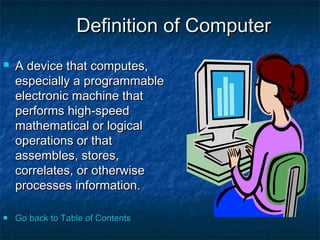
   A device that computes,
    especially a programmable
    electronic machine that
    performs high-speed
    mathematical or logical
    operations or that
    assembles, stores,
    correlates, or otherwise
    processes information.

   Go back to Table of Contents
Computers Have Two Main Parts

            1.   Computer Hardware

            2.   Computer Software
What is Computer Hardware?
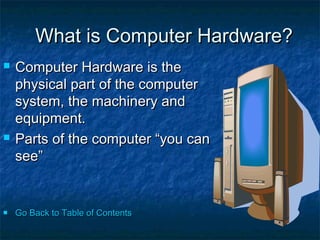
   Computer Hardware is the
    physical part of the computer
    system, the machinery and
    equipment.
   Parts of the computer “you can
    see”


   Go Back to Table of Contents
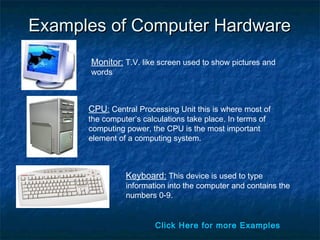
Examples of Computer Hardware
      Monitor: T.V. like screen used to show pictures and
      words


      CPU: Central Processing Unit this is where most of
      the computer’s calculations take place. In terms of
      computing power, the CPU is the most important
      element of a computing system.


                Keyboard: This device is used to type
                information into the computer and contains the
                numbers 0-9.


                         Click Here for more Examples
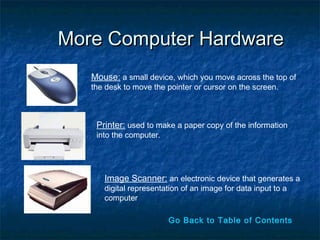
More Computer Hardware
   Mouse: a small device, which you move across the top of
   the desk to move the pointer or cursor on the screen.


    Printer: used to make a paper copy of the information
    into the computer.


      Image Scanner: an electronic device that generates a
      digital representation of an image for data input to a
      computer

                         Go Back to Table of Contents
What is Computer Software?
   Computer Software are programs that tell the
    computer what to do.
                    Examples
   Microsoft Word-word processing program
   Microsoft PowerPoint-presentation program
   Microsoft Excel-work book program used to
    track, calculate, and analyze numeric data

   Go Back to Table of Contents
Computer Input Devices
   Computer Devices that input information in the
    computer

                        Examples
   Key Board
   Mouse
   Scanner
   Digital Camera

   Go Back to Table of Contents
Computer Output Devices
   Computer Devices that output information
    from the computer.

                Examples
   Monitor
   Printer

   Go Back to Table of Contents
General Understanding of how
                your computer works!
   Overview
    To understand anything it helps to break it down into it's basic
    components. Then you need to know how each component
    works. Finally you look at how all the components work
    together to achieve the desired end product or result.
    Motherboard
    It is the main circuit board inside the CPU case. It holds the
    microprocessor, memory and other crucial circuits and
    components that control the operation of the Personal
    Computer. Every device inside or connected to a Personal
    Computer finds it's way to this board.
   Memory
    The mother board takes the input you give it like mouse
    clicks , and produces output for you like displaying or
    printing a file. It can't do this without memory. The PC
    operating system used by the PC is copied from storage
    to memory at power up. The OS copy in memory then
    runs the PC. Memory is volatile which means that when
    your PC is turned off the contents of memory are lost. It
    is completely blank and must reloaded each time the PC
    is powered up.

     Storage
    Storage is non-volatile which means it retains information
    even when it is powered off. It stores programs which run
    the PC as well as data, which is a digital form of
    everything you use like documents, music, pictures, etc

   Input Devices
    The keyboard and mouse are the main input devices you
    use to control your PC.
   Output Devices
    When you send inputs into the PC, it processes them and
    produces useful output for you. The primary output devices
    are the video display, printer and speakers.
    Software
    Some people want to use the power of their computer to
    create works of art, others want to create music , or play
    games, surf the web, or play the stock market. Whatever
    you want to do with your computer, software is the key to
    doing it.
    What happens when your PC is powered on?
    With a simple push of a button, your computer comes to
    life.


   Go Back to Table of Contents
Basic Computer Quiz
1.     What is Computer Hardware?

2.     What is Computer Software?

3.     Can you operate a Computer with out the Computer Software?

4.     How can Computer Software help your business?

5.     What are Computer Input devices?

6.     What are Computer Output devices?

7.     Where is the Mother Board located?

8.     Name a couple of Computer Software.

9.     Define Internet

10.     How would the Internet help your business?
      Go Back to the Table of Contents
Answers to Basic Computer Quiz
1.   Computer Hardware is the physical part of the computer system, the
     machinery and equipment. For example: Monitor, Key Board, Printer and
     more.
2.   Computer Software are programs that tell the computer what to do. For
     Example: Microsoft Word, Microsoft PowerPoint and more.
3.   No. You need Computer Software to operate a computer, with out the
     computer software the computer will be nothing more than just computer
     hardware.
4.   There are computer software that can help your business, for example,
     Accounting software can help you do taxes and pay roll faster than by
     hand. The computer soft ware will calculate numbers for you.
5.   Input Computer Devices are computer devices that input information into
     the computer for example, the mouse, keyboard and scanner.
6.   Output Computer Devices are computer devices that output information
     from the computer like the printer and the monitor.
7.   Mother Board is the main circuit board inside the CPU case. It holds the
     microprocessor, memory and other crucial circuits and components that
     control the operation of the Personal Computer.
8. Computer Software comes in many programs. Here are a few that you might
   be familiar with, Microsoft Word, for word processing documents, Microsoft
   PowerPoint for creating professional graphic slide presentations and
   Microsoft Access for creating database.


9. Internet:  A world wide network that connects millions of computers to share
   and exchange data, business, news, opinions, and research results.  The
   Internet is not the same as the World Wide Web  (WWW). The World Wide

                                                      
    Web is a service that is provided on the Internet.


10. The internet can advertise your business and network all over the world.
   This will help your marketing and boost sales and networking for your
   business.

   Go Back to Table of Contents
Basic Computer Terms and Definitions
CPU: This computer component has several names: Central Processing Unit,
  microprocessor or processor. This unit is the brain of the computer processes and
  executes instructions in a software program. The CPU’s primary functions include
  retrieving instructions from the computer’s memory, including random access
  memory, comprehending and executing instructions, and directing the input and
  output activity of the computer.   

Desktop: The first screen that you see when any Windows operating system screen is
  up and running. One of the main purposes of the Desktop is to make it easier to
  access different application programs, files and documents.

File: Unit for storing information that may include a word-processing document, a
    spreadsheet, a picture, a graphic, musical piece, or even part of an application
    program. Examples of "files" include text files which could be a letter or report and
    graphic files which could be a picture. Each file has a name because the data or
    information created in a software program is saved with a file name.

Folder:  Method for organizing files that is related by topic, by purpose, by type, by
   program, or even by a project that you are working on. NOTE: When an application
   program is loaded onto your computer, it will group similar applications in a folder.
   As you add or create files, you can organize them however you want.
Hyperlink: Allows you to move from one web page document to another. 
  It can be text which is usually underlined or a graphic.  When you move
  your mouse over a hyperlink, the mouse cursor usually becomes a
  hand which indicates a hyperlink is present.  Once you click on
  the link, you move to another web page document or to another place
  on the same web page.

Icon: A small picture that represents processing options such as
   programs, documents, and shortcuts.  When you click on the icon, the
   file or program will open.  The most easily recognized icon is the
   Recycle Bin which is the graphic below. 

  Input: Commonly known as data and refers to numbers, letters, words,
    images, video, music and even sounds. Other computer input includes
    commands and user response. A command directs the computer to
    execute tasks or perform certain activities. One example of a
    command is a command buttons OK, Cancel and Help seen on the Shut
    Down Windows dialog box.

  Internet:   A world wide network that connects millions of computers to
    share and exchange data, news, opinions, and research results.  The
    Internet is not the same as the World Wide Web  (WWW).  The World
    Wide Web is a service that is provided on the Internet. 

Keyboard: The keyboard is an input device that allows you to enter
  letters, numbers and symbols into your computer. The keyboard keys
  include the alphanumeric keys (letters and numbers), numeric keypad,
Files and Folders : Think of a computer folder as being similar to a filing cabinet
   folder, whereas a computer file is similar to the pieces of paper that are placed in the
   folders.

Graphic User Interface (GUI ): Combines text and graphics to make software easier
  to use. Graphical User Interface features include icons, windows, menus, and
  buttons.
 
Hard Copy : Usually refers to a printout on paper.
 
Hard Drive:   The purpose of the hard drive is to store information.  This device that
  allows the computer to permanently retain and store data like the operating system,
  programs and information data.  The hard drive holds more data than a diskette and
  accesses information faster than on diskettes.  Storage refers to the capability of
  storing things, and as for the computer, it is information.

Hardware:  Refers to any component of the computer system that you can like the
  monitor, keyboard, mouse, printer, computer unit, scanner, speakers and even the
  components inside of the computer unit if you opened the box up. 
Menu: List of options that may be commands or other options from which you can
  choose from. The following illustration is the File Menu Bar command menu list.

Mouse: Besides a keyboard, a mouse is the most common input device for a computer. 
  The mouse is a small, palm-sized input device that you move across a flat surface,
  such as a desktop, to control the movement of the pointer on the screen. Technically,
  there are many operations that are much easier to perform with a mouse than a
  keyboard because you can just point and click to select an item on a screen or
  choose an item from a list of options. 

Mouse Commands:  Before examining the various commands, you must understand
  how to execute each mouse command. The mouse commands include move, point,
  click, deselect, double-click, drag, and right-click.

My Computer: An icon that opens into a folder of icons for all of the resources on the
   computer like the hard drive and printer. 

Operating System: Software that acts as an interface between you, the application
  software (like word processing or accessing the Internet), and the computer
  components. This includes interpreting and carrying out basic instructions that
  operate a computer like recognizing information from the keyboard and mouse,
  sending information to the monitor, printer, or speakers and scanners, storing
  information to the hard drive and removable drives. Common operating systems
  include Windows XP, Windows 2000, Windows ME, and MAC OS.
RAM: This is an acronym for Random Access Memory.  This memory is a
  work area or a temporary storage space where the computer places
  program information so that it can execute the program instructions
  and information.  When the program or file is closed, the data or
  programs are removed from RAM.  The amount of RAM you have on
  your computer is crucial in determining how many programs can be
  opened (running) and how much data is available for each program. 
  RAM is available in MB or megabytes. An example is 256MB of RAM.
 
Select: A single left mouse click to select a file or folder icon. 
 
Software: Instructions that provide the computer with step-by-step actions
  that need to be executed to complete a specific task.  A computer will
  not function with software.


  Go Back to Table of Contents

English basic computer vocabulary

  • 1.
  • 2.
    Table of Contents  What is a Computer  Computer Hardware  Examples of Computer Hardware  Computer Software  Computer Input Devices  Computer Output Devices  General Understanding of how your computer works  Basic Computer Quiz  Answers to Basic Computer Quiz  Basic Computer Terms and Definitions
  • 3.
    Definition of Computer  A device that computes, especially a programmable electronic machine that performs high-speed mathematical or logical operations or that assembles, stores, correlates, or otherwise processes information.  Go back to Table of Contents
  • 4.
    Computers Have TwoMain Parts 1. Computer Hardware 2. Computer Software
  • 5.
    What is ComputerHardware?  Computer Hardware is the physical part of the computer system, the machinery and equipment.  Parts of the computer “you can see”  Go Back to Table of Contents
  • 6.
    Examples of ComputerHardware Monitor: T.V. like screen used to show pictures and words CPU: Central Processing Unit this is where most of the computer’s calculations take place. In terms of computing power, the CPU is the most important element of a computing system. Keyboard: This device is used to type information into the computer and contains the numbers 0-9. Click Here for more Examples
  • 7.
    More Computer Hardware Mouse: a small device, which you move across the top of the desk to move the pointer or cursor on the screen. Printer: used to make a paper copy of the information into the computer. Image Scanner: an electronic device that generates a digital representation of an image for data input to a computer Go Back to Table of Contents
  • 8.
    What is ComputerSoftware?  Computer Software are programs that tell the computer what to do. Examples  Microsoft Word-word processing program  Microsoft PowerPoint-presentation program  Microsoft Excel-work book program used to track, calculate, and analyze numeric data  Go Back to Table of Contents
  • 9.
    Computer Input Devices  Computer Devices that input information in the computer Examples  Key Board  Mouse  Scanner  Digital Camera  Go Back to Table of Contents
  • 10.
    Computer Output Devices  Computer Devices that output information from the computer. Examples  Monitor  Printer  Go Back to Table of Contents
  • 11.
    General Understanding ofhow your computer works!  Overview To understand anything it helps to break it down into it's basic components. Then you need to know how each component works. Finally you look at how all the components work together to achieve the desired end product or result. Motherboard It is the main circuit board inside the CPU case. It holds the microprocessor, memory and other crucial circuits and components that control the operation of the Personal Computer. Every device inside or connected to a Personal Computer finds it's way to this board.
  • 12.
    Memory The mother board takes the input you give it like mouse clicks , and produces output for you like displaying or printing a file. It can't do this without memory. The PC operating system used by the PC is copied from storage to memory at power up. The OS copy in memory then runs the PC. Memory is volatile which means that when your PC is turned off the contents of memory are lost. It is completely blank and must reloaded each time the PC is powered up.  Storage Storage is non-volatile which means it retains information even when it is powered off. It stores programs which run the PC as well as data, which is a digital form of everything you use like documents, music, pictures, etc  Input Devices The keyboard and mouse are the main input devices you use to control your PC.
  • 13.
    Output Devices When you send inputs into the PC, it processes them and produces useful output for you. The primary output devices are the video display, printer and speakers. Software Some people want to use the power of their computer to create works of art, others want to create music , or play games, surf the web, or play the stock market. Whatever you want to do with your computer, software is the key to doing it. What happens when your PC is powered on? With a simple push of a button, your computer comes to life.  Go Back to Table of Contents
  • 14.
    Basic Computer Quiz 1. What is Computer Hardware? 2. What is Computer Software? 3. Can you operate a Computer with out the Computer Software? 4. How can Computer Software help your business? 5. What are Computer Input devices? 6. What are Computer Output devices? 7. Where is the Mother Board located? 8. Name a couple of Computer Software. 9. Define Internet 10. How would the Internet help your business? Go Back to the Table of Contents
  • 15.
    Answers to BasicComputer Quiz 1. Computer Hardware is the physical part of the computer system, the machinery and equipment. For example: Monitor, Key Board, Printer and more. 2. Computer Software are programs that tell the computer what to do. For Example: Microsoft Word, Microsoft PowerPoint and more. 3. No. You need Computer Software to operate a computer, with out the computer software the computer will be nothing more than just computer hardware. 4. There are computer software that can help your business, for example, Accounting software can help you do taxes and pay roll faster than by hand. The computer soft ware will calculate numbers for you. 5. Input Computer Devices are computer devices that input information into the computer for example, the mouse, keyboard and scanner. 6. Output Computer Devices are computer devices that output information from the computer like the printer and the monitor. 7. Mother Board is the main circuit board inside the CPU case. It holds the microprocessor, memory and other crucial circuits and components that control the operation of the Personal Computer.
  • 16.
    8. Computer Softwarecomes in many programs. Here are a few that you might be familiar with, Microsoft Word, for word processing documents, Microsoft PowerPoint for creating professional graphic slide presentations and Microsoft Access for creating database. 9. Internet:  A world wide network that connects millions of computers to share and exchange data, business, news, opinions, and research results.  The Internet is not the same as the World Wide Web  (WWW). The World Wide   Web is a service that is provided on the Internet. 10. The internet can advertise your business and network all over the world. This will help your marketing and boost sales and networking for your business.  Go Back to Table of Contents
  • 17.
    Basic Computer Termsand Definitions CPU: This computer component has several names: Central Processing Unit, microprocessor or processor. This unit is the brain of the computer processes and executes instructions in a software program. The CPU’s primary functions include retrieving instructions from the computer’s memory, including random access memory, comprehending and executing instructions, and directing the input and output activity of the computer.    Desktop: The first screen that you see when any Windows operating system screen is up and running. One of the main purposes of the Desktop is to make it easier to access different application programs, files and documents. File: Unit for storing information that may include a word-processing document, a spreadsheet, a picture, a graphic, musical piece, or even part of an application program. Examples of "files" include text files which could be a letter or report and graphic files which could be a picture. Each file has a name because the data or information created in a software program is saved with a file name. Folder:  Method for organizing files that is related by topic, by purpose, by type, by program, or even by a project that you are working on. NOTE: When an application program is loaded onto your computer, it will group similar applications in a folder. As you add or create files, you can organize them however you want.
  • 18.
    Hyperlink: Allows youto move from one web page document to another.  It can be text which is usually underlined or a graphic.  When you move your mouse over a hyperlink, the mouse cursor usually becomes a hand which indicates a hyperlink is present.  Once you click on the link, you move to another web page document or to another place on the same web page. Icon: A small picture that represents processing options such as programs, documents, and shortcuts.  When you click on the icon, the file or program will open.  The most easily recognized icon is the Recycle Bin which is the graphic below.    Input: Commonly known as data and refers to numbers, letters, words, images, video, music and even sounds. Other computer input includes commands and user response. A command directs the computer to execute tasks or perform certain activities. One example of a command is a command buttons OK, Cancel and Help seen on the Shut Down Windows dialog box.   Internet:   A world wide network that connects millions of computers to share and exchange data, news, opinions, and research results.  The Internet is not the same as the World Wide Web  (WWW).  The World Wide Web is a service that is provided on the Internet.  Keyboard: The keyboard is an input device that allows you to enter letters, numbers and symbols into your computer. The keyboard keys include the alphanumeric keys (letters and numbers), numeric keypad,
  • 19.
    Files and Folders: Think of a computer folder as being similar to a filing cabinet folder, whereas a computer file is similar to the pieces of paper that are placed in the folders. Graphic User Interface (GUI ): Combines text and graphics to make software easier to use. Graphical User Interface features include icons, windows, menus, and buttons.   Hard Copy : Usually refers to a printout on paper.   Hard Drive:   The purpose of the hard drive is to store information.  This device that allows the computer to permanently retain and store data like the operating system, programs and information data.  The hard drive holds more data than a diskette and accesses information faster than on diskettes.  Storage refers to the capability of storing things, and as for the computer, it is information. Hardware:  Refers to any component of the computer system that you can like the monitor, keyboard, mouse, printer, computer unit, scanner, speakers and even the components inside of the computer unit if you opened the box up. 
  • 20.
    Menu: List ofoptions that may be commands or other options from which you can choose from. The following illustration is the File Menu Bar command menu list. Mouse: Besides a keyboard, a mouse is the most common input device for a computer.  The mouse is a small, palm-sized input device that you move across a flat surface, such as a desktop, to control the movement of the pointer on the screen. Technically, there are many operations that are much easier to perform with a mouse than a keyboard because you can just point and click to select an item on a screen or choose an item from a list of options.  Mouse Commands:  Before examining the various commands, you must understand how to execute each mouse command. The mouse commands include move, point, click, deselect, double-click, drag, and right-click. My Computer: An icon that opens into a folder of icons for all of the resources on the computer like the hard drive and printer.  Operating System: Software that acts as an interface between you, the application software (like word processing or accessing the Internet), and the computer components. This includes interpreting and carrying out basic instructions that operate a computer like recognizing information from the keyboard and mouse, sending information to the monitor, printer, or speakers and scanners, storing information to the hard drive and removable drives. Common operating systems include Windows XP, Windows 2000, Windows ME, and MAC OS.
  • 21.
    RAM: This isan acronym for Random Access Memory.  This memory is a work area or a temporary storage space where the computer places program information so that it can execute the program instructions and information.  When the program or file is closed, the data or programs are removed from RAM.  The amount of RAM you have on your computer is crucial in determining how many programs can be opened (running) and how much data is available for each program.  RAM is available in MB or megabytes. An example is 256MB of RAM.   Select: A single left mouse click to select a file or folder icon.    Software: Instructions that provide the computer with step-by-step actions that need to be executed to complete a specific task.  A computer will not function with software. Go Back to Table of Contents