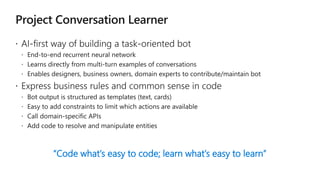
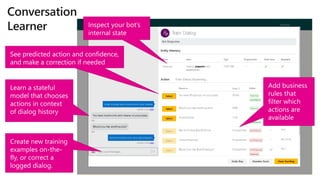
“Code what’s easy to code; learn what’s easy to learn”
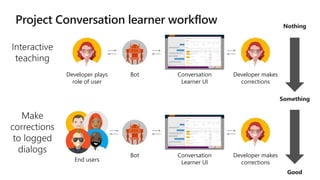
Nothing
Something
Good
Developer plays
role of user
Bot Conversation
Learner UI
Developer makes
corrections
End users
Bot Conversation
Learner UI
Developer makes
corrections
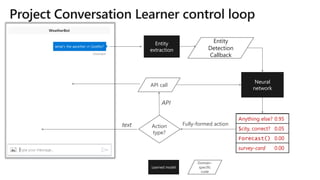
text Action
type?
Fully-formed action
Learned model
Domain-
specific
code
Entity
Detection
Callback
Entity
extraction
Neural
network
Forecast() 0.93
$city, correct? 0.07
Anything else? 0.00
survey-card 0.00
Anything else? 0.95
$city, correct? 0.05
Forecast() 0.00
survey-card 0.00
WeatherBot
API
API call
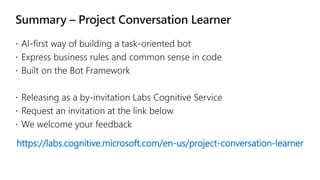
https://labs.cognitive.microsoft.com/en-us/project-conversation-learner
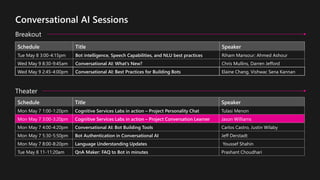
Schedule Title Speaker
Mon May 7 1:00-1:20pm Cognitive Services Labs in action – Project Personality Chat Tulasi Menon
Mon May 7 3:00-3:20pm Cognitive Services Labs in action – Project Conversation Learner Jason Williams
Mon May 7 4:00-4:20pm Conversational AI: Bot Building Tools Carlos Castro, Justin Wilaby
Mon May 7 5:30-5:50pm Bot Authentication in Conversational AI Jeff Derstadt
Mon May 7 8:00-8:20pm Language Understanding Updates Youssef Shahin
Tue May 8 11-11:20am QnA Maker: FAQ to Bot in minutes Prashant Choudhari
Schedule Title Speaker
Tue May 8 3:00-4:15pm Bot intelligence, Speech Capabilities, and NLU best practices Riham Mansour; Ahmed Ashour
Wed May 9 8:30-9:45am Conversational AI: What's New? Chris Mullins, Darren Jefford
Wed May 9 2:45-4:00pm Conversational AI: Best Practices for Building Bots Elaine Chang, Vishwac Sena Kannan
Breakout
Theater
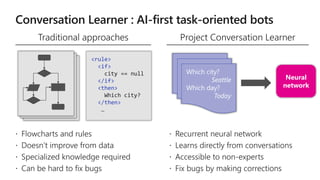
<rule>
<if>
city == null
</if>
<then>
Which city?
</then>
…
Neural
network
Use the “Decrease List Level” and “Increase List Level” tools
on the Home menu to change text levels.
Try this:
1. Place your cursor in the line of text that says “Segoe UI, size
20pt for second level”
2. Next click the Home tab, and then on the “Decrease List
level” tool. Notice how the line moves up one level.
3. Now try placing your cursor in one of the top “Main topic…”
line of text. Click the “Increase List Level” tool and see how
the text is pushed in one level.
Use these 2 tools to adjust your text levels as you work
www.microsoft.com
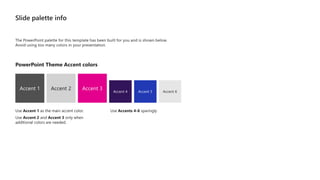
PowerPoint Theme Accent colors
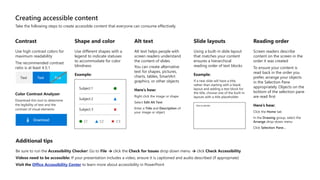
Creating accessible content
Take the following steps to create accessible content that everyone can consume effectively.
Contrast
Use high contrast colors for
maximum readability
The recommended contrast
ratio is at least 4.5:1
Text Text
Color Contrast Analyzer
Download this tool to determine
the legibility of text and the
contrast of visual elements
Download
Shape and color
Use different shapes with a
legend to indicate statuses
to accommodate for color
blindness
Example:
Alt text
Alt text helps people with
screen readers understand
the content of slides
You can create alternative
text for shapes, pictures,
charts, tables, SmartArt
graphics, or other objects
Here’s how:
Right click the image or shape
Select Edit Alt Text
Enter a Title and Description of
your image or object
Slide layouts
Using a built-in slide layout
that matches your content
ensures a hierarchical
reading order of text blocks
Example:
If a new slide will have a title,
rather than starting with a blank
layout and adding a text block for
the title, choose one of the built-in
layouts with a title placeholder
Reading order
Screen readers describe
content on the screen in the
order it was created
To ensure your content is
read back in the order you
prefer, arrange your objects
in the Selection Pane
appropriately. Objects on the
bottom of the selection pane
are read first
Here’s how:
Click the Home tab
In the Drawing group, select the
Arrange drop-down menu
Click Selection Pane…
Additional tips
Be sure to run the Accessibility Checker! Go to File click the Check for Issues drop down menu click Check Accessibility
Videos need to be accessible: If your presentation includes a video, ensure it is captioned and audio described (if appropriate)
Visit the Office Accessibility Center to learn more about accessibility in PowerPoint
Looking for photography resources?
Explore the library on Brand Central.
Looking for illustration resources?
Explore the library on Brand Central.
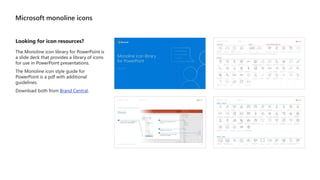
Microsoft monoline icons
Looking for icon resources?
The Monoline icon library for PowerPoint is
a slide deck that provides a library of icons
for use in PowerPoint presentations.
The Monoline icon style guide for
PowerPoint is a pdf with additional
guidelines.
Download both from Brand Central.
Cognitive Services Labs in action - Project Conversation Learner

Cognitive Services Labs in action - Project Conversation Learner

  • 3.
    “Code what’s easyto code; learn what’s easy to learn”
  • 4.
    Nothing Something Good Developer plays role ofuser Bot Conversation Learner UI Developer makes corrections End users Bot Conversation Learner UI Developer makes corrections
  • 6.
    text Action type? Fully-formed action Learnedmodel Domain- specific code Entity Detection Callback Entity extraction Neural network Forecast() 0.93 $city, correct? 0.07 Anything else? 0.00 survey-card 0.00 Anything else? 0.95 $city, correct? 0.05 Forecast() 0.00 survey-card 0.00 WeatherBot API API call
  • 8.
  • 9.
    Schedule Title Speaker MonMay 7 1:00-1:20pm Cognitive Services Labs in action – Project Personality Chat Tulasi Menon Mon May 7 3:00-3:20pm Cognitive Services Labs in action – Project Conversation Learner Jason Williams Mon May 7 4:00-4:20pm Conversational AI: Bot Building Tools Carlos Castro, Justin Wilaby Mon May 7 5:30-5:50pm Bot Authentication in Conversational AI Jeff Derstadt Mon May 7 8:00-8:20pm Language Understanding Updates Youssef Shahin Tue May 8 11-11:20am QnA Maker: FAQ to Bot in minutes Prashant Choudhari Schedule Title Speaker Tue May 8 3:00-4:15pm Bot intelligence, Speech Capabilities, and NLU best practices Riham Mansour; Ahmed Ashour Wed May 9 8:30-9:45am Conversational AI: What's New? Chris Mullins, Darren Jefford Wed May 9 2:45-4:00pm Conversational AI: Best Practices for Building Bots Elaine Chang, Vishwac Sena Kannan Breakout Theater
  • 14.
    <rule> <if> city == null </if> <then> Whichcity? </then> … Neural network
  • 19.
    Use the “DecreaseList Level” and “Increase List Level” tools on the Home menu to change text levels. Try this: 1. Place your cursor in the line of text that says “Segoe UI, size 20pt for second level” 2. Next click the Home tab, and then on the “Decrease List level” tool. Notice how the line moves up one level. 3. Now try placing your cursor in one of the top “Main topic…” line of text. Click the “Increase List Level” tool and see how the text is pushed in one level. Use these 2 tools to adjust your text levels as you work
  • 20.
  • 23.
  • 24.
    Creating accessible content Takethe following steps to create accessible content that everyone can consume effectively. Contrast Use high contrast colors for maximum readability The recommended contrast ratio is at least 4.5:1 Text Text Color Contrast Analyzer Download this tool to determine the legibility of text and the contrast of visual elements Download Shape and color Use different shapes with a legend to indicate statuses to accommodate for color blindness Example: Alt text Alt text helps people with screen readers understand the content of slides You can create alternative text for shapes, pictures, charts, tables, SmartArt graphics, or other objects Here’s how: Right click the image or shape Select Edit Alt Text Enter a Title and Description of your image or object Slide layouts Using a built-in slide layout that matches your content ensures a hierarchical reading order of text blocks Example: If a new slide will have a title, rather than starting with a blank layout and adding a text block for the title, choose one of the built-in layouts with a title placeholder Reading order Screen readers describe content on the screen in the order it was created To ensure your content is read back in the order you prefer, arrange your objects in the Selection Pane appropriately. Objects on the bottom of the selection pane are read first Here’s how: Click the Home tab In the Drawing group, select the Arrange drop-down menu Click Selection Pane… Additional tips Be sure to run the Accessibility Checker! Go to File click the Check for Issues drop down menu click Check Accessibility Videos need to be accessible: If your presentation includes a video, ensure it is captioned and audio described (if appropriate) Visit the Office Accessibility Center to learn more about accessibility in PowerPoint
  • 25.
    Looking for photographyresources? Explore the library on Brand Central.
  • 26.
    Looking for illustrationresources? Explore the library on Brand Central.
  • 27.
    Microsoft monoline icons Lookingfor icon resources? The Monoline icon library for PowerPoint is a slide deck that provides a library of icons for use in PowerPoint presentations. The Monoline icon style guide for PowerPoint is a pdf with additional guidelines. Download both from Brand Central.