Subject: Using PowerPoint:
basic and advanced concepts
Compulsory cross-disciplinary core courses
ACTIVITY 3 > Block 3
Professor:
Javier Narciso Romero
University Professor
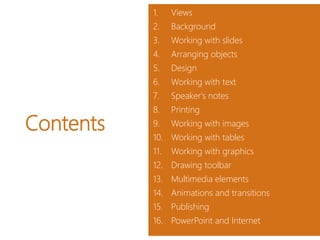
Contents
1. Views
2. Background
3. Working with slides
4. Arranging objects
5. Design
6. Working with text
7. Speaker's notes
8. Printing
9. Working with images
10. Working with tables
11. Working with graphics
12. Drawing toolbar
13. Multimedia elements
14. Animations and transitions
15. Publishing
16. PowerPoint and Internet
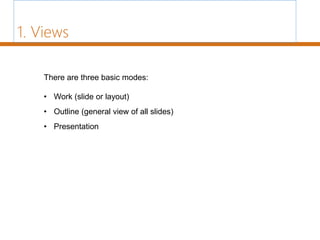
There are three basic modes:
• Work (slide or layout)
• Outline (general view of all slides)
• Presentation
1. Views
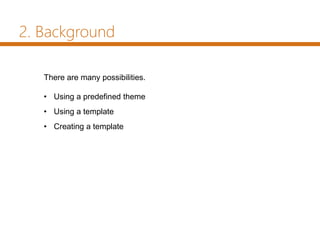
There are many possibilities.
• Using a predefined theme
• Using a template
• Creating a template
2. Background
• Inserting a new slide
• Selecting slides (inserting slides from another presentation)
• Copying a slide
• Duplicating a slide
• Moving slides
• Deleting slides
3. Working with slides
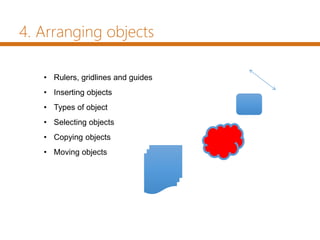
• Rulers, gridlines and guides
• Inserting objects
• Types of object
• Selecting objects
• Copying objects
• Moving objects
4. Arranging objects
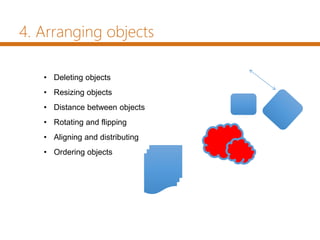
• Deleting objects
• Resizing objects
• Distance between objects
• Rotating and flipping
• Aligning and distributing
• Ordering objects
4. Arranging objects
• Applying a theme
• Slide background
• Colour schemes
• Quick styles
• Slide numbering
• Slide template
• Creating and modifying slide designs
5. Design
• Applying a theme
• Slide background
• Colour schemes
• Quick styles
• Slide numbering
• Slide template
• Creating and modifying slide designs
5. Design
• Inserting text
• Adding new text
• Deleting text
• Spell check
• Changing aspects of text
• Font and character spacing
• Font and spacing between lines and characters
6. Working with text
• Aligning paragraphs
• Indents
• Deleting text
• Tabs
• Bullets and numbering
• Customising bullets
• Search and replace
6. Working with text
• Creating notes
• Notes page and printing
• Note template
• Viewing notes during a presentation
• Moderator view
7. Speaker's notes
• Printing
• Print preview
• Print options
• What and how to print?
• Document template
• Slide size
• Header and footer
• The printer
8. Printing
• Inserting images
• Image characteristics
• Changing image characteristics
• Resizing and cropping
• Image styles
• Photo album
9. Working with images
• Creating tables
• Deleting a table, row or column
• Inserting columns or rows
• Fundamental aspects of tables
• Selection in tables
• Table borders
• Fill colour
• Merging and splitting cells
• Fill effects
10. Working with tables
• Creating and deleting graphics
• Graphic tools
• Changing graphic type and design
• Graphic format
11. Working with graphics
• Drawing a shape
• Types of shape
• Working with shapes
• Text in shapes
• Shape styles
• Grouping and ungrouping
12. Drawing toolbar
• Inserting sound
• Sound reproduction
• Changing the play icon
• Markers in audio
• Editing sound
• Inserting and playing videos
13. Multimedia elements
• Animating text and objects
• Animations pane
• Order of animations
• Slide transition
14. Animations and
transitions
• Packaging for CD
• Exporting to Word, PDF or video
• Tips for screening
15. Publishing
• Introduction
• SkyDrive
• Preparing to share
• SkyDrive as a service
• Inside SkyDrive
• Microsoft email account
• SkyDrive as a desktop application
• SkyDrive compared to similar services
16. PowerPoint and Internet
• SkyDrive on mobile phones
• Sharing: email address
• Sharing: online presentation
• Sharing: inviting people
• Sharing: links and social networks
• PowerPoint Web App
• PowerPoint on mobile phones
• Saving to SharePoint
16. PowerPoint and Internet
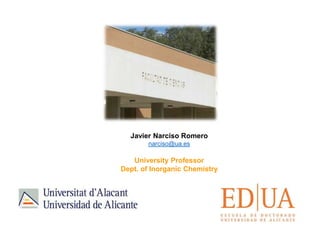
Javier Narciso Romero
narciso@ua.es
University Professor
Dept. of Inorganic Chemistry

Using PowerPoint: basic and advanced concepts

  • 1.
    Subject: Using PowerPoint: basicand advanced concepts Compulsory cross-disciplinary core courses ACTIVITY 3 > Block 3
  • 2.
  • 3.
    Contents 1. Views 2. Background 3.Working with slides 4. Arranging objects 5. Design 6. Working with text 7. Speaker's notes 8. Printing 9. Working with images 10. Working with tables 11. Working with graphics 12. Drawing toolbar 13. Multimedia elements 14. Animations and transitions 15. Publishing 16. PowerPoint and Internet
  • 4.
    There are threebasic modes: • Work (slide or layout) • Outline (general view of all slides) • Presentation 1. Views
  • 5.
    There are manypossibilities. • Using a predefined theme • Using a template • Creating a template 2. Background
  • 6.
    • Inserting anew slide • Selecting slides (inserting slides from another presentation) • Copying a slide • Duplicating a slide • Moving slides • Deleting slides 3. Working with slides
  • 7.
    • Rulers, gridlinesand guides • Inserting objects • Types of object • Selecting objects • Copying objects • Moving objects 4. Arranging objects
  • 8.
    • Deleting objects •Resizing objects • Distance between objects • Rotating and flipping • Aligning and distributing • Ordering objects 4. Arranging objects
  • 9.
    • Applying atheme • Slide background • Colour schemes • Quick styles • Slide numbering • Slide template • Creating and modifying slide designs 5. Design
  • 10.
    • Applying atheme • Slide background • Colour schemes • Quick styles • Slide numbering • Slide template • Creating and modifying slide designs 5. Design
  • 11.
    • Inserting text •Adding new text • Deleting text • Spell check • Changing aspects of text • Font and character spacing • Font and spacing between lines and characters 6. Working with text
  • 12.
    • Aligning paragraphs •Indents • Deleting text • Tabs • Bullets and numbering • Customising bullets • Search and replace 6. Working with text
  • 13.
    • Creating notes •Notes page and printing • Note template • Viewing notes during a presentation • Moderator view 7. Speaker's notes
  • 14.
    • Printing • Printpreview • Print options • What and how to print? • Document template • Slide size • Header and footer • The printer 8. Printing
  • 15.
    • Inserting images •Image characteristics • Changing image characteristics • Resizing and cropping • Image styles • Photo album 9. Working with images
  • 16.
    • Creating tables •Deleting a table, row or column • Inserting columns or rows • Fundamental aspects of tables • Selection in tables • Table borders • Fill colour • Merging and splitting cells • Fill effects 10. Working with tables
  • 17.
    • Creating anddeleting graphics • Graphic tools • Changing graphic type and design • Graphic format 11. Working with graphics
  • 18.
    • Drawing ashape • Types of shape • Working with shapes • Text in shapes • Shape styles • Grouping and ungrouping 12. Drawing toolbar
  • 19.
    • Inserting sound •Sound reproduction • Changing the play icon • Markers in audio • Editing sound • Inserting and playing videos 13. Multimedia elements
  • 20.
    • Animating textand objects • Animations pane • Order of animations • Slide transition 14. Animations and transitions
  • 21.
    • Packaging forCD • Exporting to Word, PDF or video • Tips for screening 15. Publishing
  • 22.
    • Introduction • SkyDrive •Preparing to share • SkyDrive as a service • Inside SkyDrive • Microsoft email account • SkyDrive as a desktop application • SkyDrive compared to similar services 16. PowerPoint and Internet
  • 23.
    • SkyDrive onmobile phones • Sharing: email address • Sharing: online presentation • Sharing: inviting people • Sharing: links and social networks • PowerPoint Web App • PowerPoint on mobile phones • Saving to SharePoint 16. PowerPoint and Internet
  • 24.
    Javier Narciso Romero narciso@ua.es UniversityProfessor Dept. of Inorganic Chemistry

Editor's Notes

  • #4 Ojo, se ha eliminado ap. 7 (casos prácticos) porque no había diapos sobre esto. El doc. Sobre ello se integrará en la web.
  • #25 Poner foto del Edif. Germán Bernácer