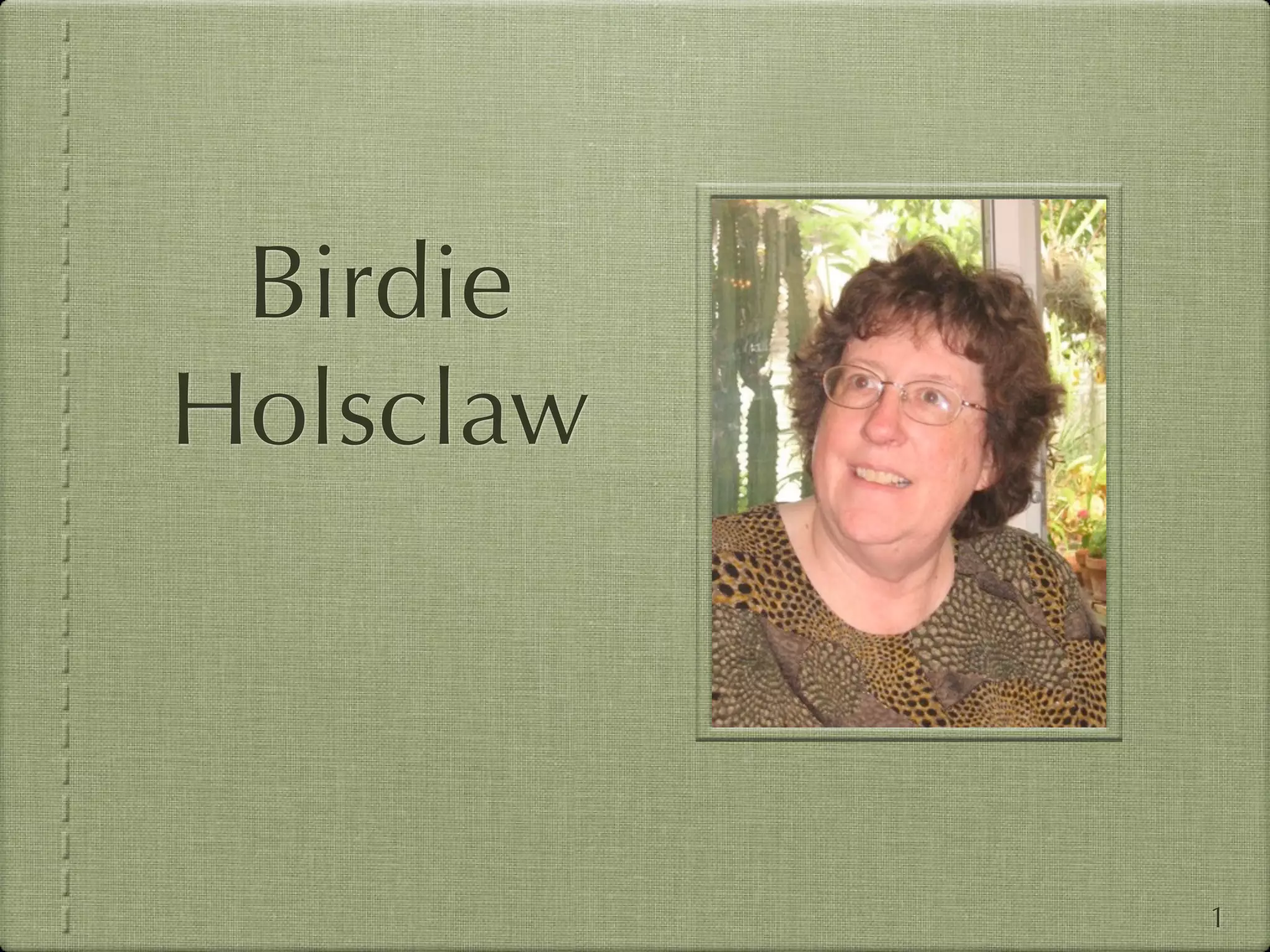
Birdie
Holsclaw


           1
The Birdie Monk
Holsclaw Memorial Fund
http://www.rootsweb.ancestry.com/~coccgs/
            Council-birdie.htm

                    or

         http://bit.ly/birdie-fund
                                            2
Cloud Computing &
Genealogical Collaboration:
 How Technology Can Help Us Work Together

        The First Birdie Monk Holsclaw Memorial Lecture
  National Genealogical Society Family History Conference 2011


                       Jordan Jones


                                                                 3
Roadmap

• What is Cloud Computing?

• How Can Genealogists Use the Cloud?

• What Are the Risks?

• Are You Already Using the Cloud?


                                        4
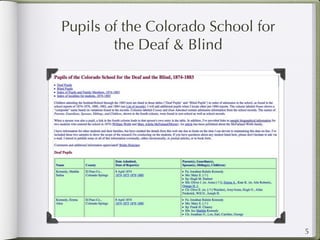
Pupils of the Colorado School for
        the Deaf & Blind


                                    5
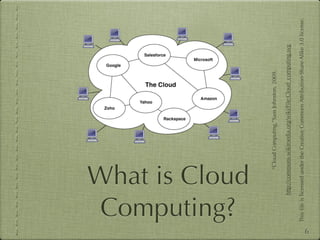
Computing?
    What is Cloud


                         “Cloud Computing,”Sam Johnston, 2009.

              http://commons.wikimedia.org/wiki/File:Cloud_computing.svg

    This file is licensed under the Creative Commons Attribution-Share Alike 3.0 license.
6
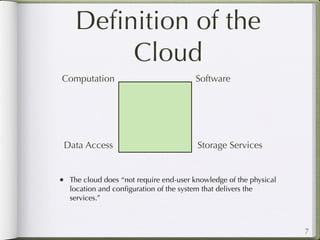
Definition of the
        Cloud
Computation                               Software


 Data Access                              Storage Services


• The cloud does “not require end-user knowledge of the physical
   location and configuration of the system that delivers the
   services.”


                                                                   7
In Other Words ...

• Previously, everyone who wanted to host a website or manage a
   lot of data had to buy servers, configure, and maintain them, or
   arrange for someone else to do this.

• Now, a layer of abstraction has been built, allowing servers,
   software, databases and storage to be commoditized, delivered,
   and maintained in bulk.

• The cloud allows people to know less and less about the systems
   they use, because it “just works.” (Most of the time.)


                                                                     8
Aspects of the Cloud
• Accessible APIs (application programmer’s interfaces)

• Cost containment

• Device and location independence

• Scalability

• Reliability

• Maintenance and upgrades


                                                          9
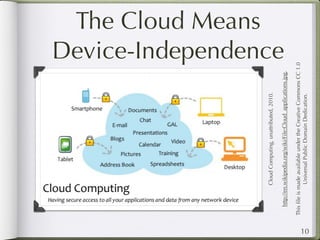
The Cloud Means


                 Cloud Computing, unattributed, 2010.
                                                                    Device-Independence


        http://en.wikipedia.org/wiki/File:Cloud_applications.jpg,

     This file is made available under the Creative Commons CC 1.0
                  Universal Public Domain Dedication.
10
How Can
Genealogists Use
  the Cloud?
                   11
Genealogical Uses
  for the Cloud
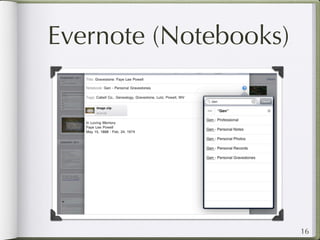
• Digital Memory
• Collaborative Authoring
• Remote Backup
• File and Folder Sync
• Voice Services
• Operating System


                            12
Digital Memory


                 13
Digital Memory
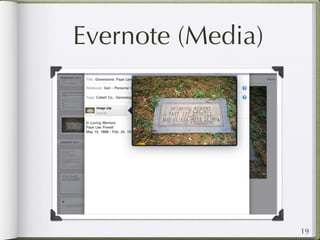
• Store multimedia         • Quick and easy
  (digital audio, video,
  images, text, files)        • access (platform
                                ubiquity)
• Replaces “taking
  notes”                     • web clipping
• Annotation                 • note taking
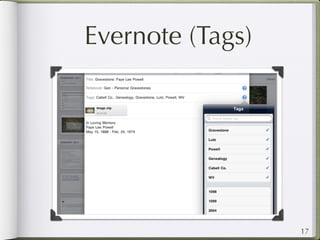
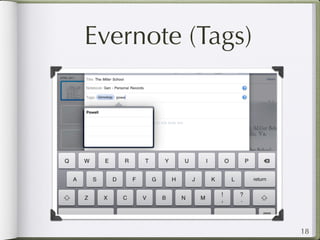
• Tagging                    • tasks and reminders
• Privacy                    • social media


                                                     14
Digital Memory for
   Genealogists
• Capture information where you are (courthouse,
  cemetery, interviewing family)

• Quickly store that information and make it
  available on multiple machines, or even share it
  with other genealogists

• Can completely get rid of paper notes you take in
  repositories, or it has for me

• Can function as a research log and research plan
• Can be set up to work with social media, or to be
  private

                                                      15
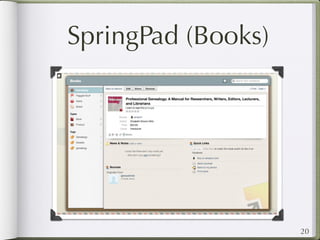
Evernote (Notebooks)


                       16
Evernote (Tags)


                  17
Evernote (Tags)


                  18
Evernote (Media)


                   19
SpringPad (Books)


                    20
Collaborative
 Authoring

                21
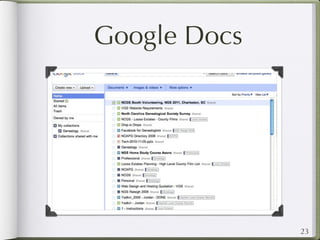
Google Docs
• Native editing          • Create dynamic forms
  interface                 and surveys

• Upload many file         • http://
  formats                   googledocs.blogspot.
                            com/
• Upload entire folders
• Share authoring and
  editing rights with
  one person or
  everyone


                                                   22
Google Docs


              23
Zoho
• Like Google, Zoho has   • Meetings
  a suite of web tools
                          • Project Planning
  • Chat
                          • Wiki
  • Docs

  • Discussions

  • E-mail


                                               24
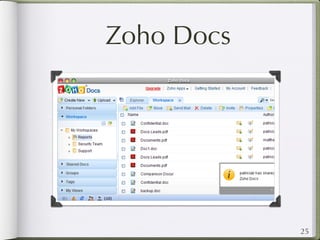
Zoho Docs


            25
Other Competition
  for Google Docs
• Microsoft Office Live www.officelive.com/
• Apple www.iwork.com
• Evernote
• File Sharing (but not online editing):
   • Dropbox.com
   • Box.net


                                            26
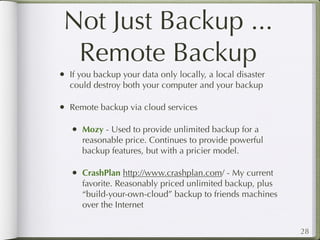
Remote Backup


                27
Not Just Backup ...
 Remote Backup
•   If you backup your data only locally, a local disaster
    could destroy both your computer and your backup

•   Remote backup via cloud services

    •   Mozy - Used to provide unlimited backup for a
        reasonable price. Continues to provide powerful
        backup features, but with a pricier model.

    •   CrashPlan http://www.crashplan.com/ - My current
        favorite. Reasonably priced unlimited backup, plus
        “build-your-own-cloud” backup to friends machines
        over the Internet


                                                             28
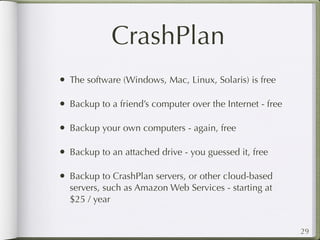
CrashPlan
• The software (Windows, Mac, Linux, Solaris) is free

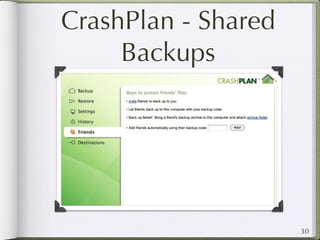
• Backup to a friend’s computer over the Internet - free

• Backup your own computers - again, free

• Backup to an attached drive - you guessed it, free

• Backup to CrashPlan servers, or other cloud-based
  servers, such as Amazon Web Services - starting at
  $25 / year


                                                           29
CrashPlan - Shared
     Backups


                     30
File and Folder Sync


                       31
Sync
• Keep files in sync between multiple machines

  • Windows

  • Mac OS

  • Linux

  • Mobile devices (iOS, Android)


                                                32
Dropbox
• Syncs with any single folder on your hard drive, and
  its subfolders

• Automatically keeps the Dropbox folder synced to
  the cloud and then down to your configured systems

• 2 GB of free; up to 100 GB or more in paid accounts

• Windows, Mac, and Linux, as well as the iOS,
  BlackBerry, and Android mobile operating systems


                                                         33
SugarSync
• Provides both sync and backup

• Can sync any files or folders on your system (not just
  a single folder and everything below it)

• Especially good with multimedia, such as audio and
  image files, automatically streaming audio and
  making images viewable in albums

• 5GB free; up to 250 GB in paid accounts

• Windows, Mac, and Linux, as well as the iOS,

                                                          34
Zumo Drive
• Both file- and folder-level sharing is available.

• Syncs photos with iPhoto, Picasa, or the Windows
  Pictures folder, and also provides a cloud-based
  photo album.

• 2 GB is free; up to 500 GB is available in the paid
  plan.

• Windows, Mac, Linux, iPhone, Android and Palm
  Pre.


                                                        35
Voice Services


                 36
Google Voice
• Free account to receive visual voicemail (automated
  transcription) and actual phone calls, routed to one
  or more phones, as you configure based on day of
  the week and time

• Make Internet calls to the US or Canada for free
  through 2011, with the ability to record incoming
  calls; perfect for recording research interviews

• Now integrates with Sprint, meaning that Sprint users
  can change the number of their cell phone to be
  their Google Voice number, or vice versa

                                                          37
Operating System


                   38
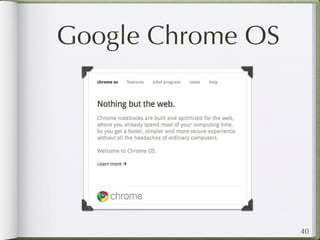
Google Chrome OS
• Operating System designed for the cloud

• Minimal local disk drive

• All content files saved to the cloud

• Designed for the convergence of cloud and mobile

• All your content is anywhere you can log into the OS

• Completes the migration away from desktop
  machines that started with the first laptop in 1983

                                                         39
Google Chrome OS


                   40
What Are the Risks?


                      41
Security and
           Resiliency
• Nothing in life (or on the Internet) is guaranteed

• Servers can go down, even with planned redundancy
  and resilience, as we saw with Amazon Web Services
  in the last couple of weeks

• Dozens of cloud-based websites rely on a small
  number of major cloud players (Amazon, RackSpace)

• There can be privacy concerns, as have recently
  surfaced with Dropbox, Evernote, and others


                                                       42
However ...
• You are much more likely to lose files because you didn’t back
   them up than because your remote backup service failed.

• You are much more likely to undergo a catastrophic failure of
   your personal hard drive than that a cloud service will fail.
   Additionally, the cloud service will be more likely to have a
   working backup.

• If you are concerned about privacy, you can encrypt your data
   before sending it to the cloud to backup or share.

• In terms of managing risk, using the cloud is preferable to not
   using it


                                                                    43
Are You Already
Using the Cloud?

                   44
Do You Use?
• Google Products: Google Docs, Gmail, Picasa, GoogleMaps

• Yahoo Products: Yahoo, Flickr

• AmericanAncestors.com uses Amazon S3 (Simple Storage
   Solution) to deliver records images

• FamilySearch.org uses Amazon EC2 (Electronic Compute Cloud)
   and other Amazon cloud services to dynamically add servers
   during peak load times and to quickly deliver new versions of its
   website


                                                                       45
Thank You
These slides will be available at:

www.genealogymedia.com/talks/


                                     46

Cloud Computing and Genealogical Collaboration

  • 1.
  • 2.
    The Birdie Monk HolsclawMemorial Fund http://www.rootsweb.ancestry.com/~coccgs/ Council-birdie.htm or http://bit.ly/birdie-fund 2
  • 3.
    Cloud Computing & GenealogicalCollaboration: How Technology Can Help Us Work Together The First Birdie Monk Holsclaw Memorial Lecture National Genealogical Society Family History Conference 2011 Jordan Jones 3
  • 4.
    Roadmap • What isCloud Computing? • How Can Genealogists Use the Cloud? • What Are the Risks? • Are You Already Using the Cloud? 4
  • 5.
    Pupils of theColorado School for the Deaf & Blind 5
  • 6.
    Computing? What is Cloud “Cloud Computing,”Sam Johnston, 2009. http://commons.wikimedia.org/wiki/File:Cloud_computing.svg This file is licensed under the Creative Commons Attribution-Share Alike 3.0 license. 6
  • 7.
    Definition of the Cloud Computation Software Data Access Storage Services • The cloud does “not require end-user knowledge of the physical location and configuration of the system that delivers the services.” 7
  • 8.
    In Other Words... • Previously, everyone who wanted to host a website or manage a lot of data had to buy servers, configure, and maintain them, or arrange for someone else to do this. • Now, a layer of abstraction has been built, allowing servers, software, databases and storage to be commoditized, delivered, and maintained in bulk. • The cloud allows people to know less and less about the systems they use, because it “just works.” (Most of the time.) 8
  • 9.
    Aspects of theCloud • Accessible APIs (application programmer’s interfaces) • Cost containment • Device and location independence • Scalability • Reliability • Maintenance and upgrades 9
  • 10.
    The Cloud Means Cloud Computing, unattributed, 2010. Device-Independence http://en.wikipedia.org/wiki/File:Cloud_applications.jpg, This file is made available under the Creative Commons CC 1.0 Universal Public Domain Dedication. 10
  • 11.
  • 12.
    Genealogical Uses for the Cloud • Digital Memory • Collaborative Authoring • Remote Backup • File and Folder Sync • Voice Services • Operating System 12
  • 13.
  • 14.
    Digital Memory • Storemultimedia • Quick and easy (digital audio, video, images, text, files) • access (platform ubiquity) • Replaces “taking notes” • web clipping • Annotation • note taking • Tagging • tasks and reminders • Privacy • social media 14
  • 15.
    Digital Memory for Genealogists • Capture information where you are (courthouse, cemetery, interviewing family) • Quickly store that information and make it available on multiple machines, or even share it with other genealogists • Can completely get rid of paper notes you take in repositories, or it has for me • Can function as a research log and research plan • Can be set up to work with social media, or to be private 15
  • 16.
  • 17.
  • 18.
  • 19.
  • 20.
  • 21.
  • 22.
    Google Docs • Nativeediting • Create dynamic forms interface and surveys • Upload many file • http:// formats googledocs.blogspot. com/ • Upload entire folders • Share authoring and editing rights with one person or everyone 22
  • 23.
  • 24.
    Zoho • Like Google,Zoho has • Meetings a suite of web tools • Project Planning • Chat • Wiki • Docs • Discussions • E-mail 24
  • 25.
  • 26.
    Other Competition for Google Docs • Microsoft Office Live www.officelive.com/ • Apple www.iwork.com • Evernote • File Sharing (but not online editing): • Dropbox.com • Box.net 26
  • 27.
  • 28.
    Not Just Backup... Remote Backup • If you backup your data only locally, a local disaster could destroy both your computer and your backup • Remote backup via cloud services • Mozy - Used to provide unlimited backup for a reasonable price. Continues to provide powerful backup features, but with a pricier model. • CrashPlan http://www.crashplan.com/ - My current favorite. Reasonably priced unlimited backup, plus “build-your-own-cloud” backup to friends machines over the Internet 28
  • 29.
    CrashPlan • The software(Windows, Mac, Linux, Solaris) is free • Backup to a friend’s computer over the Internet - free • Backup your own computers - again, free • Backup to an attached drive - you guessed it, free • Backup to CrashPlan servers, or other cloud-based servers, such as Amazon Web Services - starting at $25 / year 29
  • 30.
  • 31.
  • 32.
    Sync • Keep filesin sync between multiple machines • Windows • Mac OS • Linux • Mobile devices (iOS, Android) 32
  • 33.
    Dropbox • Syncs withany single folder on your hard drive, and its subfolders • Automatically keeps the Dropbox folder synced to the cloud and then down to your configured systems • 2 GB of free; up to 100 GB or more in paid accounts • Windows, Mac, and Linux, as well as the iOS, BlackBerry, and Android mobile operating systems 33
  • 34.
    SugarSync • Provides bothsync and backup • Can sync any files or folders on your system (not just a single folder and everything below it) • Especially good with multimedia, such as audio and image files, automatically streaming audio and making images viewable in albums • 5GB free; up to 250 GB in paid accounts • Windows, Mac, and Linux, as well as the iOS, 34
  • 35.
    Zumo Drive • Bothfile- and folder-level sharing is available. • Syncs photos with iPhoto, Picasa, or the Windows Pictures folder, and also provides a cloud-based photo album. • 2 GB is free; up to 500 GB is available in the paid plan. • Windows, Mac, Linux, iPhone, Android and Palm Pre. 35
  • 36.
  • 37.
    Google Voice • Freeaccount to receive visual voicemail (automated transcription) and actual phone calls, routed to one or more phones, as you configure based on day of the week and time • Make Internet calls to the US or Canada for free through 2011, with the ability to record incoming calls; perfect for recording research interviews • Now integrates with Sprint, meaning that Sprint users can change the number of their cell phone to be their Google Voice number, or vice versa 37
  • 38.
  • 39.
    Google Chrome OS •Operating System designed for the cloud • Minimal local disk drive • All content files saved to the cloud • Designed for the convergence of cloud and mobile • All your content is anywhere you can log into the OS • Completes the migration away from desktop machines that started with the first laptop in 1983 39
  • 40.
  • 41.
    What Are theRisks? 41
  • 42.
    Security and Resiliency • Nothing in life (or on the Internet) is guaranteed • Servers can go down, even with planned redundancy and resilience, as we saw with Amazon Web Services in the last couple of weeks • Dozens of cloud-based websites rely on a small number of major cloud players (Amazon, RackSpace) • There can be privacy concerns, as have recently surfaced with Dropbox, Evernote, and others 42
  • 43.
    However ... • Youare much more likely to lose files because you didn’t back them up than because your remote backup service failed. • You are much more likely to undergo a catastrophic failure of your personal hard drive than that a cloud service will fail. Additionally, the cloud service will be more likely to have a working backup. • If you are concerned about privacy, you can encrypt your data before sending it to the cloud to backup or share. • In terms of managing risk, using the cloud is preferable to not using it 43
  • 44.
    Are You Already Usingthe Cloud? 44
  • 45.
    Do You Use? •Google Products: Google Docs, Gmail, Picasa, GoogleMaps • Yahoo Products: Yahoo, Flickr • AmericanAncestors.com uses Amazon S3 (Simple Storage Solution) to deliver records images • FamilySearch.org uses Amazon EC2 (Electronic Compute Cloud) and other Amazon cloud services to dynamically add servers during peak load times and to quickly deliver new versions of its website 45
  • 46.
    Thank You These slideswill be available at: www.genealogymedia.com/talks/ 46