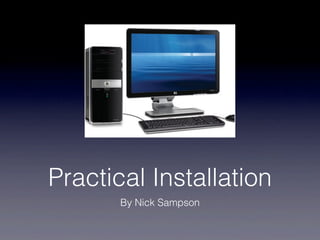
Practical Installation
       By Nick Sampson
Backing Up

• It is important to back up a
  computer because if
  something goes wrong whilst
  you are updating the
  computer or changing some
  of the components, you will
  have your work saved so it
  won’t really be lost.
Properties


• In this image, you can see
  that there is only 1GB of
  RAM on the computer at the
  moment, which means that it
  will need to be upgraded.
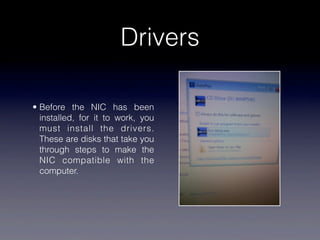
Drivers

• Before the NIC has been
  installed, for it to work, you
  must install the drivers.
  These are disks that take you
  through steps to make the
  NIC compatible with the
  computer.
Installing Drivers 1


• This is one of the very simple
  steps of installing the drivers.
  All this one is asking is that
  you select your language.
Installing Drivers 2

• The next step of the setup
  wizard is to turn off the
  computer and install the NIC
  into a DCIe slot. Then, after
  you have installed it and the
  computer is turned on, you
  will be able to connect to the
  Internet wirelessly.
Protecting Components

• Whilst you are not using a
  component, you should store
  it in an antistatic bag, which
  prevents antistatic discharge
  when they are put into the
  motherboard.
Motherboard
                                 This is the space
                                 for the RAMs.


• This is an image of the
  motherboard before we have
  upgraded it. As you can see,
  there isn’t a NIC. We are
  going to put in a NIC and
  upgrade the RAM.
                                 These are the
                                 DCIe slots, which
                                 is where we are
                                 going to plug the
                                 NICs in.
Updating RAM

• Although this image looks
  like nothing has changed,
  this photo was taken after
  the RAM was installed, which
  meant that there was 1.5GB
  of RAM instead of just 1GB
  of RAM.
Installing NIC
• In this image, you can see
  that the NIC has been
  installed. It has been pushed
  right into the DCIe slots so
  that the copper from the NIC
  connects to the copper in
  the DCIe slot. If it wasn’t
  pushed down, then the
  copper wouldn’t connect and
  the NIC wouldn’t work.
Updated Properties

• Once the RAM has been
  installed, if you look at the
  properties, you will see that
  the Installed memory has
  increased from 1GB to
  1.5GB.

Cisco Unit 3 P5

  • 1.
    Practical Installation By Nick Sampson
  • 2.
    Backing Up • Itis important to back up a computer because if something goes wrong whilst you are updating the computer or changing some of the components, you will have your work saved so it won’t really be lost.
  • 3.
    Properties • In thisimage, you can see that there is only 1GB of RAM on the computer at the moment, which means that it will need to be upgraded.
  • 4.
    Drivers • Before theNIC has been installed, for it to work, you must install the drivers. These are disks that take you through steps to make the NIC compatible with the computer.
  • 5.
    Installing Drivers 1 •This is one of the very simple steps of installing the drivers. All this one is asking is that you select your language.
  • 6.
    Installing Drivers 2 •The next step of the setup wizard is to turn off the computer and install the NIC into a DCIe slot. Then, after you have installed it and the computer is turned on, you will be able to connect to the Internet wirelessly.
  • 7.
    Protecting Components • Whilstyou are not using a component, you should store it in an antistatic bag, which prevents antistatic discharge when they are put into the motherboard.
  • 8.
    Motherboard This is the space for the RAMs. • This is an image of the motherboard before we have upgraded it. As you can see, there isn’t a NIC. We are going to put in a NIC and upgrade the RAM. These are the DCIe slots, which is where we are going to plug the NICs in.
  • 9.
    Updating RAM • Althoughthis image looks like nothing has changed, this photo was taken after the RAM was installed, which meant that there was 1.5GB of RAM instead of just 1GB of RAM.
  • 10.
    Installing NIC • Inthis image, you can see that the NIC has been installed. It has been pushed right into the DCIe slots so that the copper from the NIC connects to the copper in the DCIe slot. If it wasn’t pushed down, then the copper wouldn’t connect and the NIC wouldn’t work.
  • 11.
    Updated Properties • Oncethe RAM has been installed, if you look at the properties, you will see that the Installed memory has increased from 1GB to 1.5GB.

Editor's Notes