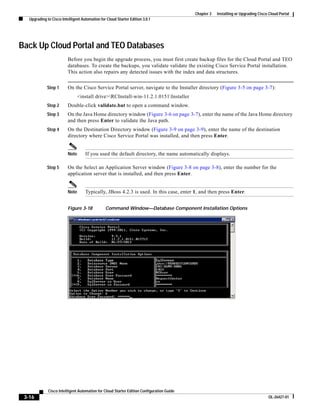
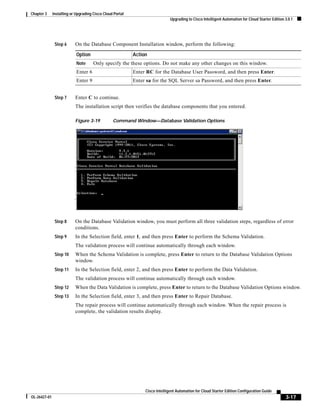
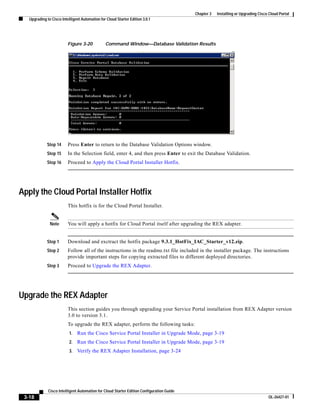
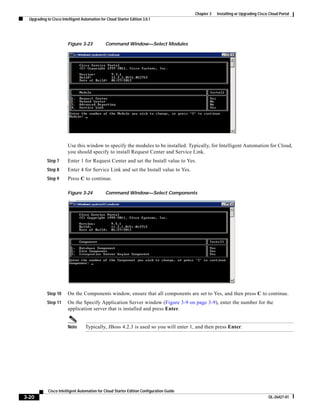
Cisco Intelligent Automation for Cloud
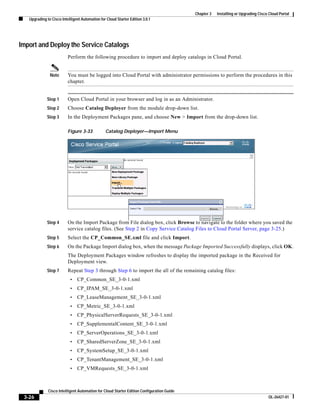
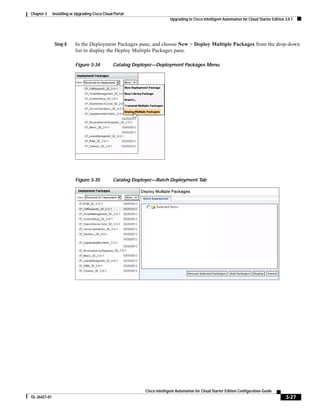
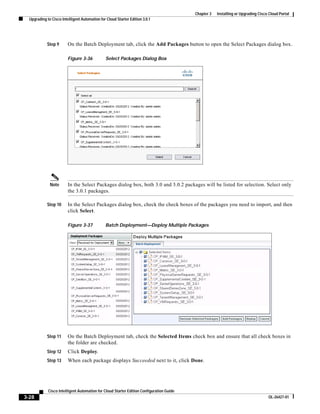
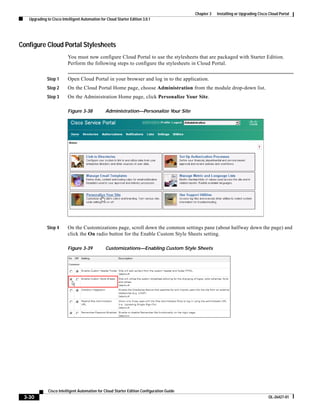
Starter Edition Configuration Guide
Release 3.0.1
June 2012


Americas Headquarters
Cisco Systems, Inc.
170 West Tasman Drive
San Jose, CA 95134-1706
USA
http://www.cisco.com
Tel: 408 526-4000
       800 553-NETS (6387)
Fax: 408 527-0883


Text Part Number: OL-26427-01
THE SPECIFICATIONS AND INFORMATION REGARDING THE PRODUCTS IN THIS MANUAL ARE SUBJECT TO CHANGE WITHOUT NOTICE. ALL
STATEMENTS, INFORMATION, AND RECOMMENDATIONS IN THIS MANUAL ARE BELIEVED TO BE ACCURATE BUT ARE PRESENTED WITHOUT
WARRANTY OF ANY KIND, EXPRESS OR IMPLIED. USERS MUST TAKE FULL RESPONSIBILITY FOR THEIR APPLICATION OF ANY PRODUCTS.

THE SOFTWARE LICENSE AND LIMITED WARRANTY FOR THE ACCOMPANYING PRODUCT ARE SET FORTH IN THE INFORMATION PACKET THAT
SHIPPED WITH THE PRODUCT AND ARE INCORPORATED HEREIN BY THIS REFERENCE. IF YOU ARE UNABLE TO LOCATE THE SOFTWARE LICENSE
OR LIMITED WARRANTY, CONTACT YOUR CISCO REPRESENTATIVE FOR A COPY.

The Cisco implementation of TCP header compression is an adaptation of a program developed by the University of California, Berkeley (UCB) as part of UCB’s public
domain version of the UNIX operating system. All rights reserved. Copyright © 1981, Regents of the University of California.

NOTWITHSTANDING ANY OTHER WARRANTY HEREIN, ALL DOCUMENT FILES AND SOFTWARE OF THESE SUPPLIERS ARE PROVIDED “AS IS” WITH
ALL FAULTS. CISCO AND THE ABOVE-NAMED SUPPLIERS DISCLAIM ALL WARRANTIES, EXPRESSED OR IMPLIED, INCLUDING, WITHOUT
LIMITATION, THOSE OF MERCHANTABILITY, FITNESS FOR A PARTICULAR PURPOSE AND NONINFRINGEMENT OR ARISING FROM A COURSE OF
DEALING, USAGE, OR TRADE PRACTICE.

IN NO EVENT SHALL CISCO OR ITS SUPPLIERS BE LIABLE FOR ANY INDIRECT, SPECIAL, CONSEQUENTIAL, OR INCIDENTAL DAMAGES, INCLUDING,
WITHOUT LIMITATION, LOST PROFITS OR LOSS OR DAMAGE TO DATA ARISING OUT OF THE USE OR INABILITY TO USE THIS MANUAL, EVEN IF CISCO
OR ITS SUPPLIERS HAVE BEEN ADVISED OF THE POSSIBILITY OF SUCH DAMAGES.

Cisco and the Cisco logo are trademarks or registered trademarks of Cisco and/or its affiliates in the U.S. and other countries. To view a list of Cisco trademarks, go to this
URL: www.cisco.com/go/trademarks. Third-party trademarks mentioned are the property of their respective owners. The use of the word partner does not imply a partnership
relationship between Cisco and any other company. (1110R)

Any Internet Protocol (IP) addresses and phone numbers used in this document are not intended to be actual addresses and phone numbers. Any examples, command display
output, network topology diagrams, and other figures included in the document are shown for illustrative purposes only. Any use of actual IP addresses or phone numbers in
illustrative content is unintentional and coincidental.

Cisco Intelligent Automation for Cloud Starter Edition Configuration Guide
© 2012 Cisco Systems, Inc. All rights reserved.
CONTENTS

               Preface    ix

                   Organization    ix

                   Conventions    xii

                   Product Documentation xiii
                       Documentation Formats xiii
                       Guides and Release Notes xiii
                       Online Help xiii
                       Product Naming Conventions xiii
                            Other Naming Conventions xiii
                   Obtaining Documentation and Submitting a Service Request              xiv


CHAPTER   1    Solution Prerequisites      1-1

                   Minimum System Requirements 1-2
                       Minimum Hardware Requirements for Platform Elements                 1-2
                       Minimum Software Requirements 1-3
                   Default Ports and Protocols    1-4

                   Limitations and Scalability   1-5

                   Customer Environment 1-6
                       Starter Edition Software Installation Preparation 1-6
                       Networks 1-7
                       Storage Management Preparation 1-7
                       Cisco UCS and Bare Metal Operating System Provisioning Preparation                  1-8
                           Cisco UCS Manager 1-8
                           Cisco UCS Manager Pools 1-8
                           Cisco UCS Manager Service Profile Templates and Policies 1-9
                       VMware Software Preparation 1-9
                       Directory and Mail Server Preparation 1-10
                       Organizations and Users Preparation 1-10


CHAPTER   2    Configuring Tidal Enterprise Orchestrator           2-1

                   Import the Automation Packs in Tidal Enterprise Orchestrator 2-2
                       Core Automation Pack 2-3
                       Common Activities Automation Pack 2-8
                       Intelligent Automation for Compute Automation Pack 2-9

                                                 Cisco Intelligent Automation for Cloud Starter Edition Configuration Guide
 OL-26427-01                                                                                                                  i
Contents


                                    Intelligent Automation for Cloud Starter Automation Pack 2-13
                                    Manually Set Extended Target Properties for Linux 2-19
                                         Configure Extended Target Properties for Cisco Cloud Portal Integration API 2-19
                                         Configure Extended Target Properties for Cisco Cloud Portal Request Center API 2-22
                                    Refresh Tidal Enterprise Orchestrator Server Web Service 2-23


CHAPTER   3              Installing or Upgrading Cisco Cloud Portal                   3-1

                               Installing Cisco Cloud Portal and the REX Adapter 3-2
                                         If You Are Using Oracle Database Enterprise Edition 11g R2 Server 3-2
                                    Prerequisite for the REX Adapter Installation 3-2
                                    Locate the REX Adapter Installation Files 3-2
                                    Basic Procedure for Installation 3-3
                                    Install Cloud Portal with the Microsoft SQL Server Database Server 3-3
                                         Create the RequestCenter and Datamart Databases 3-3
                                         Enable Snapshots 3-5
                                         Run the Cisco Service Portal Installer 3-7
                               Upgrading to Cisco Intelligent Automation for Cloud Starter Edition 3.0.1 3-15
                                   Back Up Cloud Portal and TEO Databases 3-16
                                   Apply the Cloud Portal Installer Hotfix 3-18
                                   Upgrade the REX Adapter 3-18
                                       Run the Cisco Service Portal Installer in Upgrade Mode 3-19
                                       Verify the REX Adapter Installation 3-24
                                   Apply the Cloud Portal Hotfix 3-25
                                   Deploy Service Catalog Packages 3-25
                                       Copy Service Catalog Files to Cloud Portal Server 3-25
                                       Import and Deploy the Service Catalogs 3-26
                                   Deploy Portal Packages 3-29
                                       Copy StarterEditionPortlets_9.3.1.zip and Extract Files 3-29
                                       Configure Cloud Portal Stylesheets 3-30
                                       Import and Deploy Portal Pages 3-33
                                   Set Permissions for Portal Pages and Portlets 3-34
                                       Set Permissions for the Cisco IAC Starter Edition Administration Portal Pages 3-34
                                       Set Permissions for the My Workspace Portal Pages 3-36
                                       Set Permissions for the System Portal Page 3-36
                                       Set Permissions for the Portlets 3-37
                                   Configure Cloud Provider Technical Administrator Organization 3-38
                                       Add Starter Edition Roles to the Cisco Intelligent Automation For Cloud Roles Group     3-38
                                       Modify the Default Email Notification Templates 3-41
                                   Configure Agent Properties 3-44


              Cisco Intelligent Automation for Cloud Starter Edition Configuration Guide
   ii                                                                                                                    OL-26427-01
Contents


                            Set Username and Password for REX Set REX Agent Properties 3-44
                            Start “REX Set REX Agent Properties” and “REX Set REX HTTP Properties” Agents                       3-45
                            Set REX Agent Configuration 3-45
                            Set HTTP Agent Configuration 3-48
                            Start All Other Agents 3-50


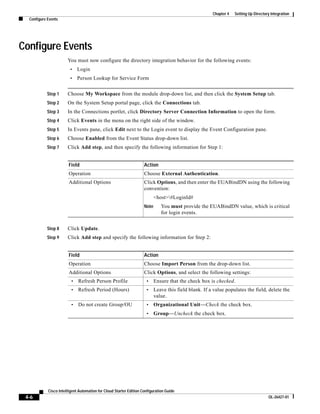
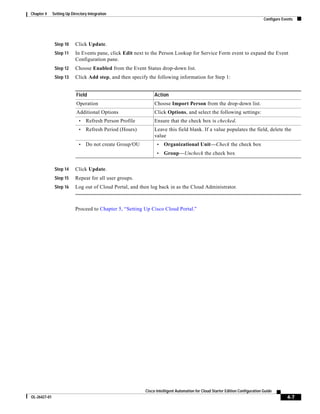
CHAPTER   4    Setting Up Directory Integration         4-1

                   Create User Groups for the Cloud Portal Roles              4-2

                   Configure Datasource Information         4-2

                   Configure and Test Mappings        4-4

                   Configure Events    4-6


CHAPTER   5    Setting Up Cisco Cloud Portal         5-1

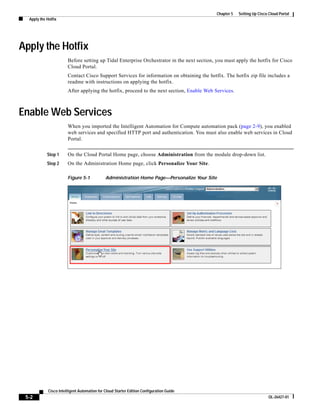
                   Apply the Hotfix   5-2

                   Enable Web Services       5-2

                   Create a Local User for the REX Adapter         5-3

                   Create a Local User for nsAPI      5-5

                   Create a Dropbox for Data Synchronization            5-6


CHAPTER   6    Deploying Catalogs, Portals, and Agents                6-1

                   Deploy Starter Edition Service Catalogs 6-2
                       Copy Service Catalog Files to Cloud Portal Server              6-2
                       Import and Deploy Service Catalogs 6-3
                   Import and Deploy Portal Packages 6-6
                       Copy StarterEditionPortlets_9.3.1.zip and Extract Files              6-6
                       Configure Cloud Portal Stylesheets 6-7
                       Import and Deploy Portal Pages 6-10
                   Modify Maximum Numbers for Tabs, Portals, and Portlets                   6-11

                   Modify Column Settings for the Site Homepage                6-13

                   Add Portal Access to My Workspace           6-14

                   Set Permissions for Portal Pages and Portlets 6-16
                       Cisco IAC Starter Edition Administration Portal Pages                6-16
                       My Workspace Portal Pages 6-18
                       System Portal Page 6-18
                       Portlets 6-19
                   Configure Agent Properties 6-20
                       Set Up REX User Account 6-21


                                                   Cisco Intelligent Automation for Cloud Starter Edition Configuration Guide
 OL-26427-01                                                                                                                           iii
Contents


                                    Set Username and Password for REX Set REX Agent Properties 6-23
                                    Start “REX Set REX Agent Properties” and “REX Set HTTP Agent Properties” Agents        6-24
                                    Set REX Agent Configuration 6-24
                                    Set HTTP Agent Configuration 6-27
                                    Start All Other Agents 6-28


CHAPTER   7              Running the Starter Edition Quick Setup Wizard                    7-1

                               Overview       7-2

                               Prerequisites        7-2

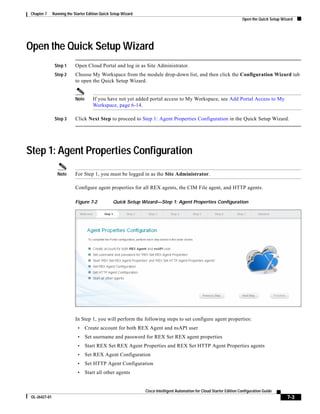
                               Open the Quick Setup Wizard            7-3

                               Step 1: Agent Properties Configuration 7-3
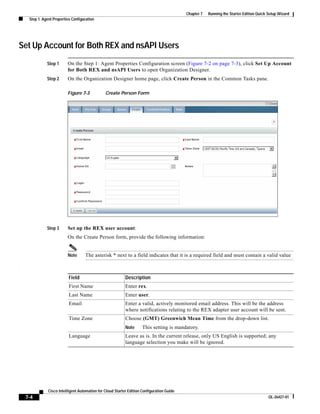
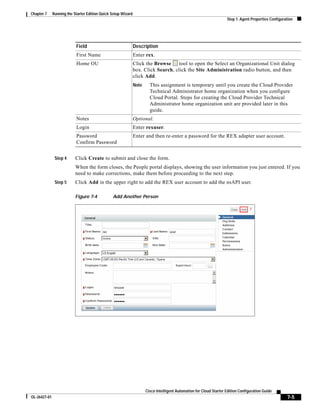
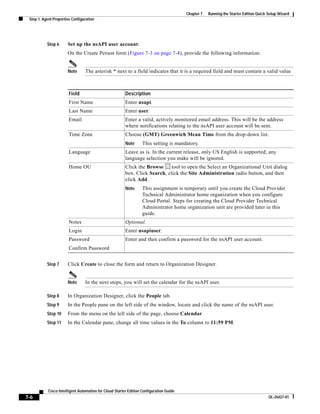
                                   Set Up Account for Both REX and nsAPI Users 7-4
                                   Set username and password for REX Set REX Agent Properties 7-8
                                   Start REX Set REX Agent Properties and REX Set HTTP Agent Properties       7-8
                                   Set REX Agent Configuration 7-9
                                   Set HTTP Agent Configuration 7-12
                                   Start All Other Agents 7-13
                               Step 2: Create Cloud Administration 7-14
                                   Create the Cloud Administration Home Organization             7-14
                                   Add Cloud Administrators 7-15
                               Step 3: Connect Cloud Infrastructure 7-17
                                   Connect VMware vCenter Server 7-18
                                   Connect Cisco UCS Manager 7-19
                                   Connect Cisco Server Provisioner 7-20
                                        Obtain the Authorization APID 7-21
                               Step 4: Set Provisioning Settings            7-22

                               Step 5: Register Blades and Templates 7-25
                                   Register a Cisco UCS Blade 7-26
                                   Register a Service Profile Template 7-27
                                   Register an Operating System Template 7-29
                                   Register a VM Template 7-30
                               Step 6: Add Networks 7-32
                                   Add a Community Network 7-32
                                   Add an Infrastructure Network 7-34
                               Step 7: Set Up Shared Zone           7-35


CHAPTER   8              Setting Up the Cloud Administration                   8-1

                               Add Starter Edition Roles to the Cisco Intelligent Automation for Cloud Roles Group   8-2


              Cisco Intelligent Automation for Cloud Starter Edition Configuration Guide
  iv                                                                                                                        OL-26427-01
Contents


                   Assign Additional Permissions for the Cloud Administrator Role 8-4
                       Read/Write Permissions for Organization Unit, Person, and Queue               8-4
                       Read/Write Permissions for Role 8-5
                       Service Queue Management Permissions 8-6
                   Assign Email Addresses for Queue Notifications         8-6

                   Modify the Default Email Notification Templates         8-8

                   Create the Cloud Provider Technical Administrator Home Organization              8-10

                   Enable Directory Integration (Optional)      8-11

                   Add Cloud Provider Technical Administrators 8-12
                       Add Cloud Administrators Through a Directory Service 8-12
                       Manually Add Cloud Administrators (Without Directory Service)              8-13
                           Create a New User to Add a Cloud Administrator 8-13
                           Add the nsAPI User as a Cloud Administrator 8-15
                   Add REX Adapter User as a Cloud Administrator          8-16


CHAPTER   9    Setting Up the Cloud Infrastructure        9-1

                   Connect the Cloud Platform Elements 9-2
                       Define the VMware vCenter Server Platform Element 9-2
                       Define the Cisco UCS Manager Platform Element 9-3
                       Define the Cisco Server Provisioner Platform Element 9-4
                           Obtain the Authorization APID 9-5
                   Set Provisioning Settings   9-7

                   Add Required Networks 9-9
                       Infrastructure Network 9-9
                       Community Network 9-12
                   Set Up the Shared Server Zone       9-14
                   Register One or More VM Templates          9-17

                   Register One or More Cisco UCS Blades         9-19

                   Register One or More Cisco UCS Service Profile Templates             9-21


CHAPTER   10   Post-Configuration Options       10-1

                   Register Additional Templates 10-2
                       Register an Operating System Template 10-2
                       Register Additional VM Templates 10-3
                       Register Additional Service Profile Templates 10-3
                   Register Additional Blades and Manage Blade Pools             10-3
                       Register Additional Cisco UCS Blades 10-4
                       Manage Blade Pools 10-4

                                                Cisco Intelligent Automation for Cloud Starter Edition Configuration Guide
 OL-26427-01                                                                                                                       v
Contents


                               Modify Standards for Service Options 10-6
                                  View Standards Settings 10-6
                                  Add, Modify, or Delete a Lease Term Standard 10-7
                                       Add a New Lease Term Standard 10-8
                                       Modify a Lease Term Standard 10-10
                                       Delete a Lease Term Standard 10-11
                                  Add, Modify, or Delete an Operating System Standard                      10-12
                                       Add an Operating System Standard 10-12
                                       Modify an Operating System Standard 10-13
                                       Delete an Operating System Standard 10-13
                                  Add, Modify, or Delete a Server Size Standard 10-14
                                       Add a Server Size Standard 10-14
                                       Modify a Server Size Standard 10-15
                                       Delete a Server Size Standard 10-15
                               Add Additional Networks 10-16
                                   Add a User Network 10-16
                                   Add a Management Network                10-18

                               Remove Reserved Portlet Buttons from the My Workspace Toolbar                       10-20


CHAPTER    11            Setting Up an Organization and Adding Users                         11-1

                               Create an Organization         11-2

                               Create a New User to Add as an Organization Technical Administrator                    11-5

                               Assign Additional Permissions for the Organization Technical Administrator Role               11-7
                                   Read/Write Permission for Role 11-7
                                   Read/Write Permission for Person 11-8
                               Add a Server Owner          11-9


APPENDIX      A          Solution Prerequisites Checklists                 A-1

                               Minimum Hardware Requirements for Platform Elements                        A-2

                               Minimum Software Requirements               A-3

                               Default Ports and Protocols           A-4

                               Limitations and Scalability          A-5

                               Starter Edition Software Installation Requirements                   A-5
                               Network Requirements           A-6

                               Storage Management Requirements                   A-6

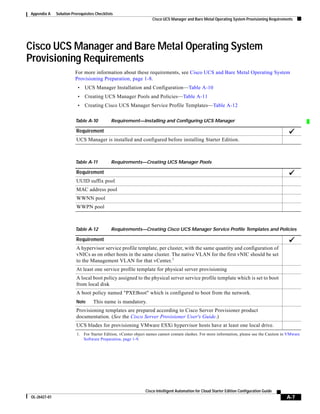
                               Cisco UCS Manager and Bare Metal Operating System Provisioning Requirements                    A-7

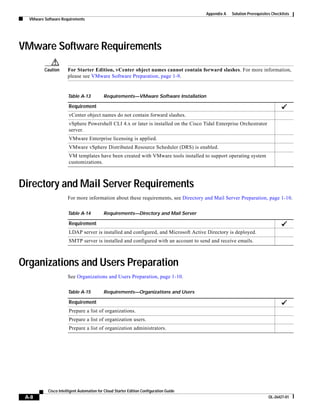
                               VMware Software Requirements                A-8

                               Directory and Mail Server Requirements                  A-8

              Cisco Intelligent Automation for Cloud Starter Edition Configuration Guide
  vi                                                                                                                                OL-26427-01
Contents


                      Organizations and Users Preparation            A-8


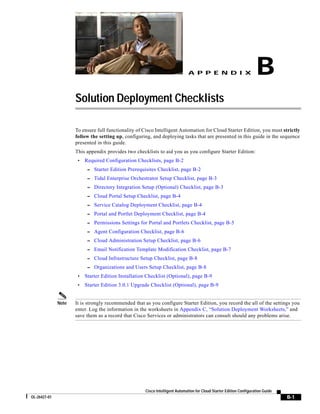
APPENDIX       B   Solution Deployment Checklists          B-1

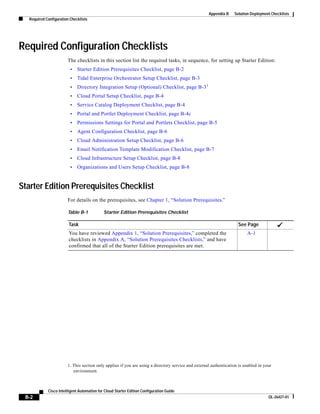
                      Required Configuration Checklists B-2
                          Starter Edition Prerequisites Checklist B-2
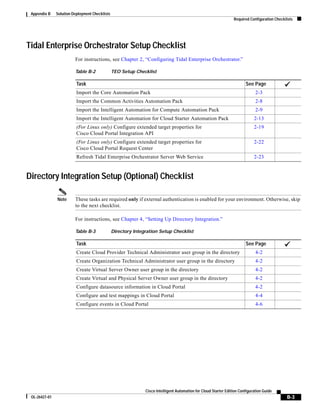
                          Tidal Enterprise Orchestrator Setup Checklist B-3
                          Directory Integration Setup (Optional) Checklist B-3
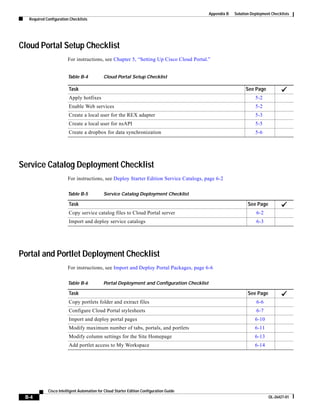
                          Cloud Portal Setup Checklist B-4
                          Service Catalog Deployment Checklist B-4
                          Portal and Portlet Deployment Checklist B-4
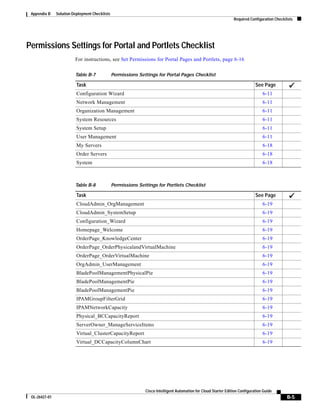
                          Permissions Settings for Portal and Portlets Checklist B-5
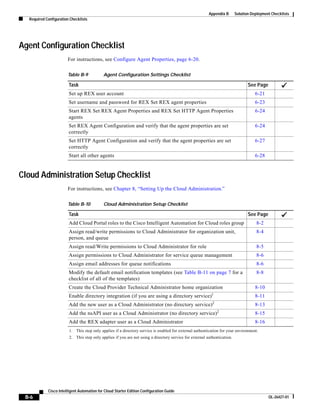
                          Agent Configuration Checklist B-6
                          Cloud Administration Setup Checklist B-6
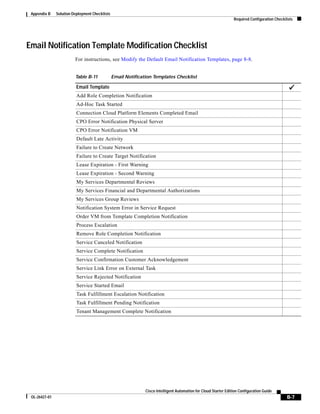
                          Email Notification Template Modification Checklist B-7
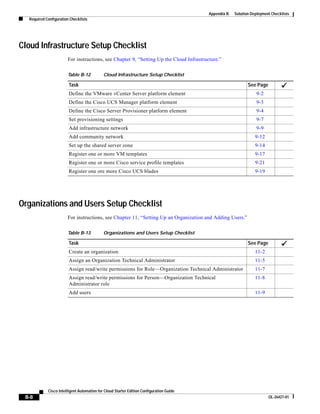
                          Cloud Infrastructure Setup Checklist B-8
                          Organizations and Users Setup Checklist B-8
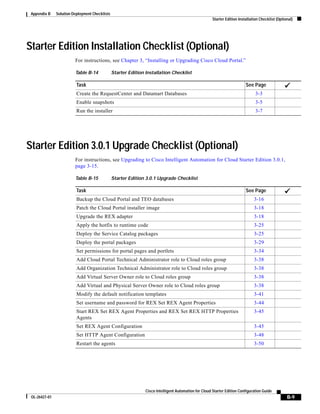
                      Starter Edition Installation Checklist (Optional)          B-9

                      Starter Edition 3.0.1 Upgrade Checklist (Optional)           B-9


APPENDIX       C   Solution Deployment Worksheets            C-1

                      Hardware Specifications      C-2

                      Software Specifications     C-3

                      Database Connection Settings       C-4

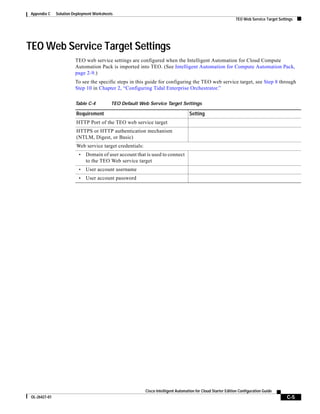
                      TEO Web Service Target Settings          C-5

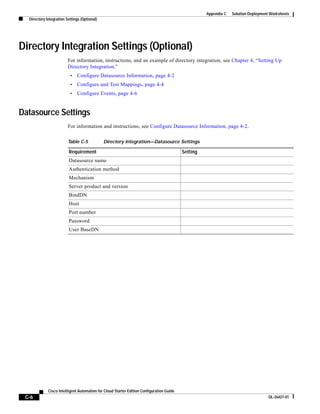
                      Directory Integration Settings (Optional)            C-6
                          Datasource Settings C-6
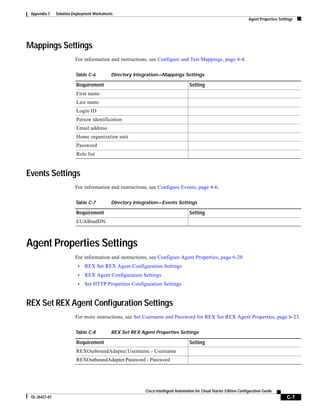
                          Mappings Settings C-7
                          Events Settings C-7
                      Agent Properties Settings C-7
                         REX Set REX Agent Configuration Settings C-7
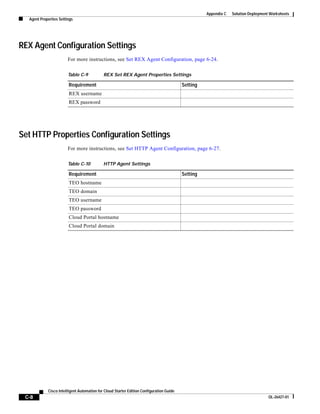
                         REX Agent Configuration Settings C-8
                         Set HTTP Properties Configuration Settings C-8
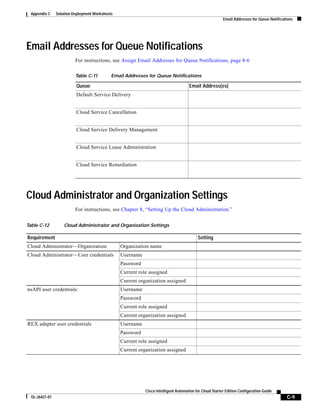
                      Email Addresses for Queue Notifications              C-9

                      Cloud Administrator and Organization Settings              C-9

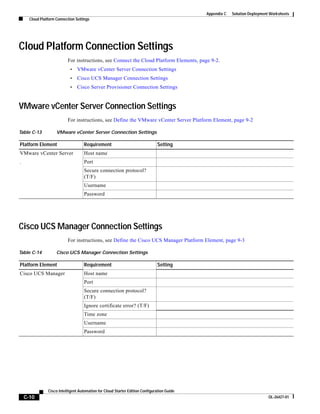
                      Cloud Platform Connection Settings C-10
                          VMware vCenter Server Connection Settings C-10
                          Cisco UCS Manager Connection Settings C-10
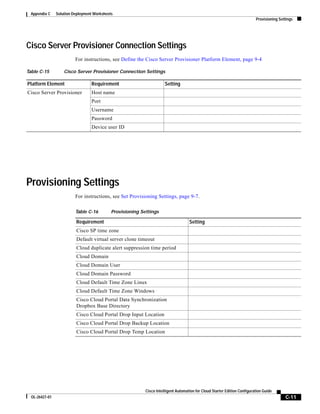
                          Cisco Server Provisioner Connection Settings C-11


                                                     Cisco Intelligent Automation for Cloud Starter Edition Configuration Guide
 OL-26427-01                                                                                                                           vii
Contents


                               Provisioning Settings        C-11

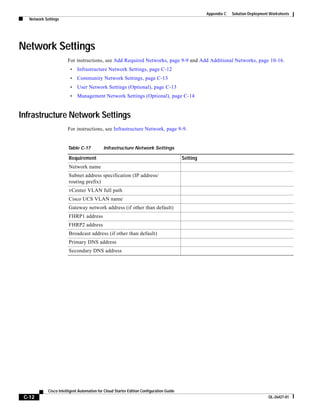
                               Network Settings C-12
                                  Infrastructure Network Settings C-12
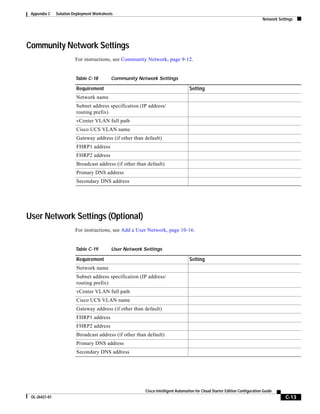
                                  Community Network Settings C-13
                                  User Network Settings (Optional) C-13
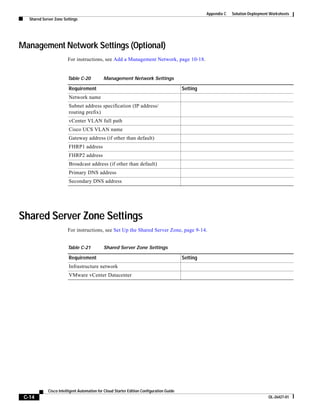
                                  Management Network Settings (Optional)                     C-14

                               Shared Server Zone Settings            C-14

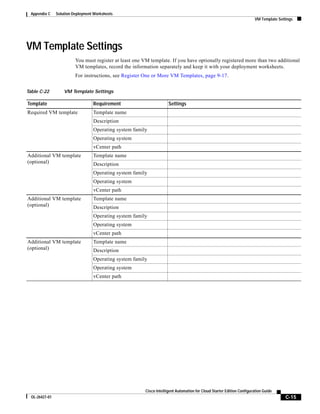
                               VM Template Settings           C-15

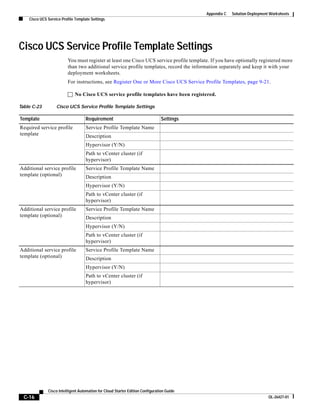
                               Cisco UCS Service Profile Template Settings                 C-16

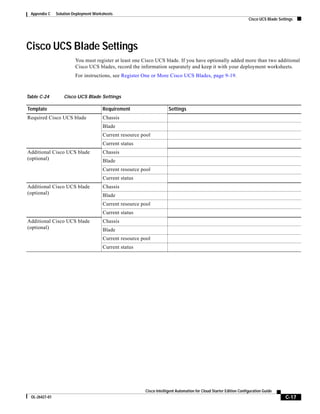
                               Cisco UCS Blade Settings            C-17

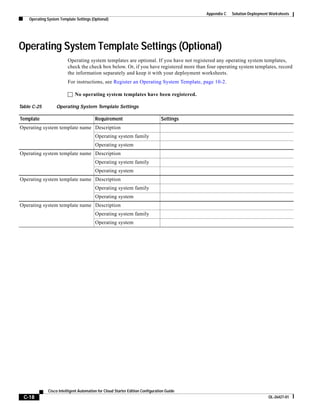
                               Operating System Template Settings (Optional)                 C-18
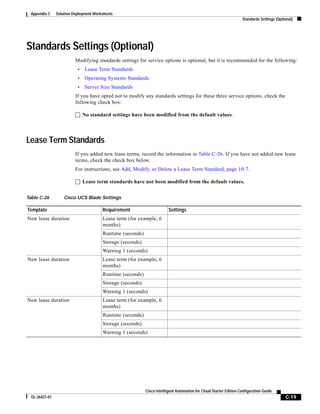
                               Standards Settings (Optional) C-19
                                   Lease Term Standards C-19
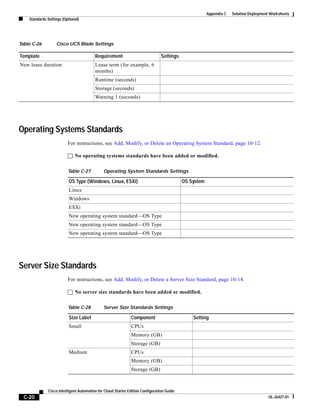
                                   Operating Systems Standards C-20
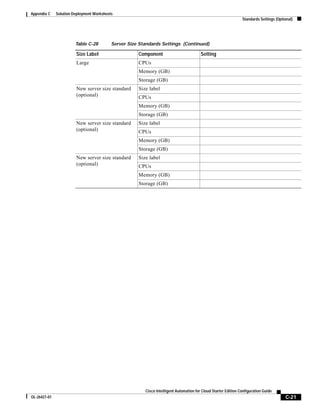
                                   Server Size Standards C-20


APPENDIX      D          Constructing Paths Using Cisco UCS Manager and VMware vSphere              D-1

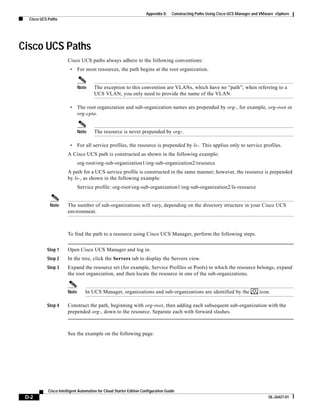
                               Cisco UCS Paths        D-2

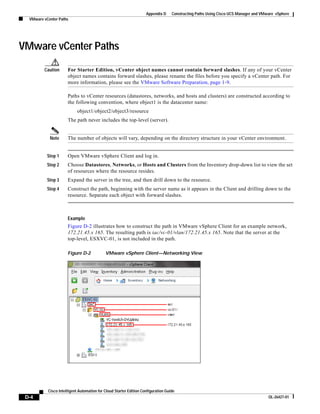
                               VMware vCenter Paths           D-4

INDEX


              Cisco Intelligent Automation for Cloud Starter Edition Configuration Guide
  viii                                                                                                    OL-26427-01
Preface

               The Cisco Intelligent Automation for Cloud Starter Edition Configuration Guide provides instructions
               for installing and configuring Starter Edition. It includes information about preparing your environment
               with the prerequisite application servers and software, installing the Starter Edition content, configuring
               Cisco Cloud Portal and setting up your cloud environment.


Organization
               This guide includes the following sections:

               Chapter 1     Solution Prerequisites            Provides information about preparing your environment
                                                               with the prerequisite servers and software prior to
                                                               installing Starter Edition.
                                                               Note       You must review this chapter in its entirety before
                                                                          installing Starter Edition to ensure that all
                                                                          requirements are fulfilled. Use the checklists in
                                                                          Appendix A, “Solution Prerequisites Checklists,”
                                                                          to ensure that your environment meets all
                                                                          requirements.

               Chapter 2     Configuring Tidal Enterprise Guides you through the necessary tasks to import
                             Orchestrator                 Automation Packs into Tidal Enterprise Orchestrator and
                                                          set extended target properties for Linux (if applicable).

               Chapter 3     Installing or Upgrading           Provides instructions for installing Cisco Cloud Portal and
                             Cisco Cloud Portal                the required REX adapter.
                                                               Note       Follow the steps in this chapter only if:

                                                                      •   Cisco Cloud Portal is not already installed in your
                                                                          environment; or
                                                                      •   Cloud Portal is installed without the REX adapter.


                                                Cisco Intelligent Automation for Cloud Starter Edition Configuration Guide
 OL-26427-01                                                                                                                 ix
Preface


               Chapter 4         Setting Up Directory                  Provides instructions for integrating your directory service
                                 Integration                           into Starter Edition.
                                                                       Note      Refer this chapter only if you are using a directory
                                                                                 service to import user and organization
                                                                                 information.

               Chapter 5         Setting Up Cisco Cloud                Guides you through the necessary tasks to prepare Cisco
                                 Portal                                Cloud Portal for configuration, including applying
                                                                       hotfixes and creating initial administrator user accounts.

               Chapter 6         Deploying Catalogs, Portals, Provides steps for deploying service catalogs, importing
                                 and Agents                   and configuring portal pages, and configuring agents in
                                                              Cloud Portal.

               Chapter 7         Running the Starter Edition           Guides you through setting up and configuring vital
                                 Quick Setup Wizard                    components of Cisco Intelligent Automation for Cloud
                                                                       Starter Edition. It saves you time by providing access to
                                                                       the various forms and services from one location

               Chapter 8         Setting Up the Cloud                  Provides steps for establishing the Cloud Provider
                                 Administration                        Technical Administrator home organization and adding
                                                                       Cloud Administrators.

               Chapter 9         Setting Up the Cloud                  Provides steps for setting up platform elements for
                                 Infrastructure                        VMware vCenter Server, Cisco UCS Manager, and Cisco
                                                                       Server Provisioning; adding networks; and setting up a
                                                                       shared server zone.

               Chapter 10        Post-Configuration Options            Provides steps for optional tasks, such as adding addition
                                                                       templates and networks, registering Cisco UCS blades,
                                                                       and modifying standards.

               Chapter 11        Setting Up an Organization            Guides you through creating an organization, assigning an
                                 and Adding Users                      Organization Technical Administrator, assigning
                                                                       permissions, and adding Server Owners.

               Appendix A Solution Prerequisites                       Provides a means for ensuring that your environment
                          Checklists                                   meets all of the requirements for setting up and using
                                                                       Starter Edition.

               Appendix B Solution Deployment                          Guides you through each step in the configuration process.
                          Checklists                                   The checklists include each set of instructions in this
                                                                       guide, in sequence, that you check off as you move along.
                                                                       It is strongly recommended that you utilize the checklists.


    Cisco Intelligent Automation for Cloud Starter Edition Configuration Guide
x                                                                                                                          OL-26427-01
Preface


              Appendix C Solution Deployment             Provides logs for the settings you specify as you configure
                         Worksheets                      Starter Edition. It is strongly recommended that you fill
                                                         out the worksheets completely and save them for Cisco
                                                         Services or other administrators to reference in the event
                                                         that problems arise.

              Appendix D Constructing Paths Using        Provides instructions on how to identify the paths to
                         Cisco UCS Manager and           VMware vCenter and UCS Manager resources that you
                         VMware vSphere                  must enter when performing certain tasks.


                                          Cisco Intelligent Automation for Cloud Starter Edition Configuration Guide
OL-26427-01                                                                                                            xi
Preface


Conventions
                      This guide uses the following conventions:

                       Convention                  Indication
                       bold font                   Commands and keywords and user-entered text appear in bold font.
                       italic font                 Document titles, new or emphasized terms, and arguments for which you supply
                                                   values are in italic font.
                       [ ]                         Elements in square brackets are optional.
                       {x | y | z }                Required alternative keywords are grouped in braces and separated by
                                                   vertical bars.
                       [x|y|z]                     Optional alternative keywords are grouped in brackets and separated by
                                                   vertical bars.
                       string                      A nonquoted set of characters. Do not use quotation marks around the string or
                                                   the string will include the quotation marks.
                       courier    font             Terminal sessions and information the system displays appear in courier font.
                       < >                         Nonprinting characters such as passwords are in angle brackets.
                       [ ]                         Default responses to system prompts are in square brackets.
                       !, #                        An exclamation point (!) or a pound sign (#) at the beginning of a line of code
                                                   indicates a comment line.


            Note      Means reader take note.


            Tip       Means the following information will help you solve a problem.


         Caution      Means reader be careful. In this situation, you might perform an action that could result in equipment
                      damage or loss of data.


       Timesaver      Means the described action saves time. You can save time by performing the action described in
                      the paragraph.


        Warning       Means reader be warned. In this situation, you might perform an action that could result in
                      bodily injury.


           Cisco Intelligent Automation for Cloud Starter Edition Configuration Guide
 xii                                                                                                                    OL-26427-01
Preface


Product Documentation

Documentation Formats
               Documentation is provided in the following electronic formats:
                •   Adobe® Acrobat® PDF files
                •   Online help
               You must have Adobe® Reader® installed to read the PDF files. Adobe Reader installation programs for
               common operating systems are available for free download from the Adobe Web site at www.adobe.com.


Guides and Release Notes
               You can download the following documentation for Cisco Intelligent Automation for Cloud Starter
               Edition from cisco.com:
                •   Cisco Intelligent Automation for Cloud 3.0.1 Release Notes
                •   Cisco Intelligent Automation for Cloud 3.0.1 User Guide


Online Help
               Online help is available for Tidal Enterprise Orchestrator and Cisco Cloud Portal.
               For Tidal Enterprise Orchestrator, you can access online help using the following methods:
                •   Click the Help button on any dialog in the application to open the help topic in a pane to the right
                    of the dialog.
                •   In the Tidal Enterprise Orchestrator console:
                     – Click the Help Pane        tool on the toolbar to open the help topic in a pane to the right of the
                        console results pane.
                     – Click Help on the menu bar.
               For Cisco Cloud Portal, access online help by clicking the question mark               icon in the upper right corner
               of the window.


Product Naming Conventions
               The following product naming conventions are used throughout this document and in the Starter Edition
               user interface:
                •   Tidal Enterprise Orchestrator and TEO are synonymous with Cisco Process Orchestrator
                •   Cisco Service Portal is synonymous with Cisco Cloud Portal


Other Naming Conventions
               “Cloud Administrator” and “Administrator” are synonymous with “Cloud Provider Technical
               Administrator”


                                                Cisco Intelligent Automation for Cloud Starter Edition Configuration Guide
 OL-26427-01                                                                                                                 xiii
Preface


Obtaining Documentation and Submitting a Service Request
                  For information on obtaining documentation, submitting a service request, and gathering additional
                  information, see the monthly What’s New in Cisco Product Documentation, which also lists all new and
                  revised Cisco technical documentation, at:
                  http://www.cisco.com/en/US/docs/general/whatsnew/whatsnew.html
                  Subscribe to the What’s New in Cisco Product Documentation as a RSS feed and set content to be delivered
                  directly to your desktop using a reader application. The RSS feeds are a free service and Cisco currently
                  supports RSS Version 2.0.


       Cisco Intelligent Automation for Cloud Starter Edition Configuration Guide
 xiv                                                                                                           OL-26427-01
CH A P T E R                     1
                     Solution Prerequisites


              Note   Before you begin configuring and deploying Starter Edition, you MUST review this entire chapter to
                     ensure that your datacenter infrastructure is properly configured. If any of the requirements presented
                     in this chapter are not met, deployment may fail.

                     This chapter provides information on required datacenter infrastructure configuration, and operating
                     system and application server software required for installing and deploying Cisco Intelligent
                     Automation for Cloud Starter Edition.
                     It includes the following sections:
                      •   Minimum System Requirements
                      •   Default Ports and Protocols
                      •   Limitations and Scalability
                      •   Customer Environment


                                                        Cisco Intelligent Automation for Cloud Starter Edition Configuration Guide
OL-26427-01                                                                                                                          1-1
Chapter 1    Solution Prerequisites
     Minimum System Requirements


Minimum System Requirements
                             Before installing Starter Edition, it is recommended that you verify that your datacenter infrastructure
                             meets the minimum hardware and software requirements. The requirements in this section provide the
                             minimum prerequisites necessary to install and deploy Starter Edition.


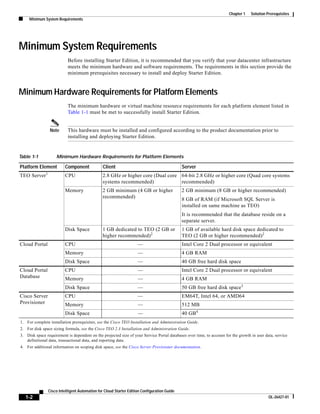
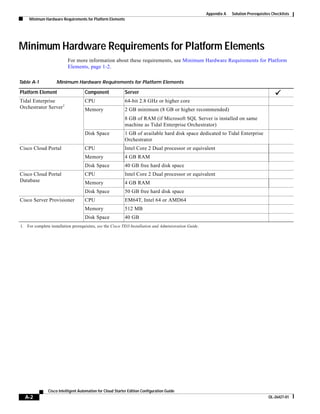
Minimum Hardware Requirements for Platform Elements
                             The minimum hardware or virtual machine resource requirements for each platform element listed in
                             Table 1-1 must be met to successfully install Starter Edition.


                   Note      This hardware must be installed and configured according to the product documentation prior to
                             installing and deploying Starter Edition.


Table 1-1             Minimum Hardware Requirements for Platform Elements

Platform Element           Component             Client                                        Server
              1
TEO Server                 CPU                   2.8 GHz or higher core (Dual core 64-bit 2.8 GHz or higher core (Quad core systems
                                                 systems recommended)              recommended)
                           Memory                2 GB minimum (4 GB or higher                  2 GB minimum (8 GB or higher recommended)
                                                 recommended)
                                                                                               8 GB of RAM (if Microsoft SQL Server is
                                                                                               installed on same machine as TEO)
                                                                                               It is recommended that the database reside on a
                                                                                               separate server.
                           Disk Space            1 GB dedicated to TEO (2 GB or                1 GB of available hard disk space dedicated to
                                                 higher recommended)2                          TEO (2 GB or higher recommended)2
Cloud Portal               CPU                                        —                        Intel Core 2 Dual processor or equivalent
                           Memory                                     —                        4 GB RAM
                           Disk Space                                 —                        40 GB free hard disk space
Cloud Portal               CPU                                        —                        Intel Core 2 Dual processor or equivalent
Database                   Memory                                     —                        4 GB RAM
                           Disk Space                                 —                        50 GB free hard disk space3
Cisco Server               CPU                                        —                        EM64T, Intel 64, or AMD64
Provisioner                Memory                                     —                        512 MB
                           Disk Space                                 —                        40 GB4
1. For complete installation prerequisites, see the Cisco TEO Installation and Administration Guide.
2. For disk space sizing formula, see the Cisco TEO 2.3 Installation and Administration Guide.
3. Disk space requirement is dependent on the projected size of your Service Portal databases over time, to account for the growth in user data, service
   definitional data, transactional data, and reporting data.
4. For additional information on scoping disk space, see the Cisco Server Provisioner documentation.


                  Cisco Intelligent Automation for Cloud Starter Edition Configuration Guide
   1-2                                                                                                                                       OL-26427-01
Chapter 1     Solution Prerequisites
                                                                                                                   Minimum System Requirements


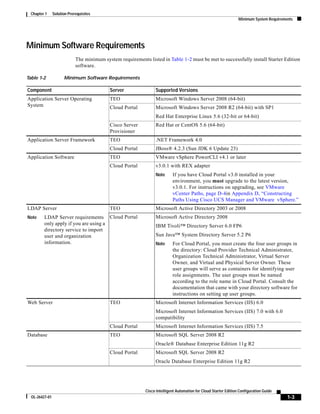
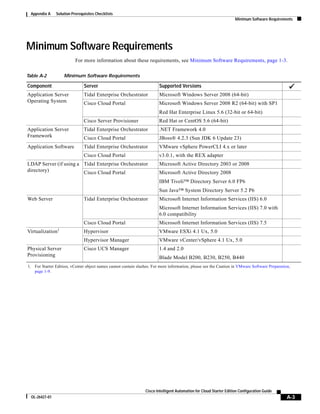
Minimum Software Requirements
                             The minimum system requirements listed in Table 1-2 must be met to successfully install Starter Edition
                             software.

Table 1-2             Minimum Software Requirements

Component                                   Server                Supported Versions
Application Server Operating                TEO                   Microsoft Windows Server 2008 (64-bit)
System                                      Cloud Portal          Microsoft Windows Server 2008 R2 (64-bit) with SP1
                                                                  Red Hat Enterprise Linux 5.6 (32-bit or 64-bit)
                                            Cisco Server          Red Hat or CentOS 5.6 (64-bit)
                                            Provisioner
Application Server Framework                TEO                   .NET Framework 4.0
                                            Cloud Portal          JBoss® 4.2.3 (Sun JDK 6 Update 23)
Application Software                        TEO                   VMware vSphere PowerCLI v4.1 or later
                                            Cloud Portal          v3.0.1 with REX adapter
                                                                  Note      If you have Cloud Portal v3.0 installed in your
                                                                            environment, you must upgrade to the latest version,
                                                                            v3.0.1. For instructions on upgrading, see VMware
                                                                            vCenter Paths, page D-4in Appendix D, “Constructing
                                                                            Paths Using Cisco UCS Manager and VMware vSphere.”
LDAP Server                                 TEO                   Microsoft Active Directory 2003 or 2008
Note     LDAP Server requirements Cloud Portal                    Microsoft Active Directory 2008
         only apply if you are using a                            IBM Tivoli™ Directory Server 6.0 FP6
         directory service to import
         user and organization                                    Sun Java™ System Directory Server 5.2 P6
         information.                                             Note      For Cloud Portal, you must create the four user groups in
                                                                            the directory: Cloud Provider Technical Administrator,
                                                                            Organization Technical Administrator, Virtual Server
                                                                            Owner, and Virtual and Physical Server Owner. These
                                                                            user groups will serve as containers for identifying user
                                                                            role assignments. The user groups must be named
                                                                            according to the role name in Cloud Portal. Consult the
                                                                            documentation that came with your directory software for
                                                                            instructions on setting up user groups.
Web Server                                  TEO                   Microsoft Internet Information Services (IIS) 6.0
                                                                  Microsoft Internet Information Services (IIS) 7.0 with 6.0
                                                                  compatibility
                                            Cloud Portal          Microsoft Internet Information Services (IIS) 7.5
Database                                    TEO                   Microsoft SQL Server 2008 R2
                                                                  Oracle® Database Enterprise Edition 11g R2
                                            Cloud Portal          Microsoft SQL Server 2008 R2
                                                                  Oracle Database Enterprise Edition 11g R2


                                                             Cisco Intelligent Automation for Cloud Starter Edition Configuration Guide
  OL-26427-01                                                                                                                              1-3
Chapter 1   Solution Prerequisites
    Default Ports and Protocols


Table 1-2            Minimum Software Requirements

Component                                     Server                     Supported Versions
Web Browser                                   TEO                        Microsoft Internet Explorer 6 or higher
                                                                         Mozilla Firefox 3.5x or 3.6x
                                              Cloud Portal               Microsoft Internet Explorer 7 or 8
                                                                         Mozilla Firefox 3.6x
                 1                                           2
Virtualization                                Hypervisor                 VMware ESXi 4.1 Ux, 5.0
                                              Hypervisor                 VMware vCenter/vSphere 4.1 Ux, 5.0
                                              Manager
Physical Server                               Cisco UCS                  1.4 and 2.0
Provisioning                                  Manager
                                                                         Blade Model B200, B230, B250, B440
1. For Starter Edition, vCenter object names cannot contain slashes. For more information, please see the Caution in VMware Software Preparation,
   page 1-9.
2. For specific ESXi/vCenter compatibility, refer to interoperability guidelines on VMware.com.


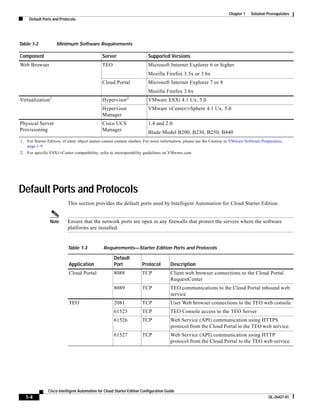
Default Ports and Protocols
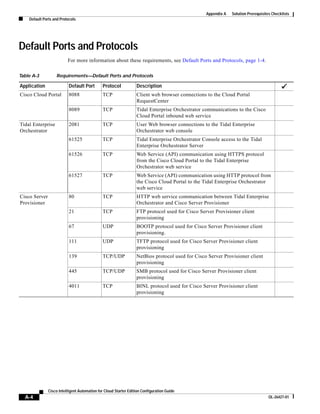
                          This section provides the default ports used by Intelligent Automation for Cloud Starter Edition.


                Note      Ensure that the network ports are open in any firewalls that protect the servers where the software
                          platforms are installed.


                          Table 1-3            Requirements—Starter Edition Ports and Protocols

                                                     Default
                           Application               Port             Protocol        Description
                           Cloud Portal              8088             TCP             Client web browser connections to the Cloud Portal
                                                                                      RequestCenter
                                                     8089             TCP             TEO communications to the Cloud Portal inbound web
                                                                                      service
                           TEO                       2081             TCP             User Web browser connections to the TEO web console
                                                     61525            TCP             TEO Console access to the TEO Server
                                                     61526            TCP             Web Service (API) communication using HTTPS
                                                                                      protocol from the Cloud Portal to the TEO web service.
                                                     61527            TCP             Web Service (API) communication using HTTP
                                                                                      protocol from the Cloud Portal to the TEO web service.


               Cisco Intelligent Automation for Cloud Starter Edition Configuration Guide
   1-4                                                                                                                                   OL-26427-01
Chapter 1     Solution Prerequisites
                                                                                                                             Limitations and Scalability


                            Table 1-3          Requirements—Starter Edition Ports and Protocols (Continued)

                                                     Default
                            Application              Port           Protocol         Description
                            Cisco Server             80             TCP              HTTP web service communication between TEO and
                            Provisioner1                                             Cisco Server Provisioner
                                                     21             TCP              FTP protocol used for Cisco Server Provisioner client
                                                                                     provisioning
                                                     67             UDP              BOOTP protocol used for Cisco Server Provisioner
                                                                                     client provisioning.
                                                     111            UDP              TFTP protocol used for Cisco Server Provisioner client
                                                                                     provisioning
                                                     139            TCP/UDP          NetBios protocol used for Cisco Server Provisioner
                                                                                     client provisioning
                                                     445            TCP/UDP          SMB protocol used for Cisco Server Provisioner client
                                                                                     provisioning
                                                     4011           TCP              BINL protocol used for Cisco Server Provisioner client
                                                                                     provisioning
                             1. See the LinMin Bare Metal Provisioning 6.2 User’s Guide for additional information.


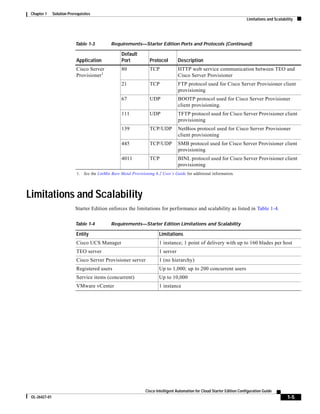
Limitations and Scalability
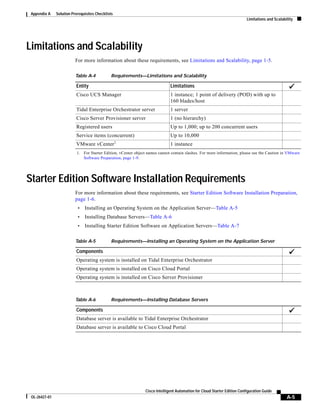
                            Starter Edition enforces the limitations for performance and scalability as listed in Table 1-4.

                            Table 1-4          Requirements—Starter Edition Limitations and Scalability

                            Entity                                        Limitations
                            Cisco UCS Manager                             1 instance; 1 point of delivery with up to 160 blades per host
                            TEO server                                    1 server
                            Cisco Server Provisioner server               1 (no hierarchy)
                            Registered users                              Up to 1,000; up to 200 concurrent users
                            Service items (concurrent)                    Up to 10,000
                            VMware vCenter                                1 instance


                                                                  Cisco Intelligent Automation for Cloud Starter Edition Configuration Guide
 OL-26427-01                                                                                                                                        1-5
Chapter 1   Solution Prerequisites
   Customer Environment


Customer Environment
                          To ensure a successful installation of Starter Edition, customers should perform the tasks in the
                          following sections to prepare their environment prior to installing Starter Edition.
                           •   Starter Edition Software Installation Preparation, page 1-6
                           •   Networks, page 1-7
                           •   Storage Management Preparation, page 1-7
                           •   Cisco UCS and Bare Metal Operating System Provisioning Preparation, page 1-8
                           •   VMware Software Preparation, page 1-9
                           •   Directory and Mail Server Preparation, page 1-10
                           •   Organizations and Users Preparation, page 1-10


Starter Edition Software Installation Preparation
                          Prepare your environment by installing prerequisite software.
                           •   Prepare application servers by installing the operating system (including software prerequisites such
                               as .NET framework, Java, JBoss) on the following solution components:
                                – TEO
                                – Cloud Portal
                                – Cisco Server Provisioner
                           •   Install database management servers that are available to following solution components:
                                – TEO
                                – Cloud Portal
                           •   Install each of the following:
                                – TEO on a targeted application server—see the Tidal Enterprise Orchestrator Installation and
                                   Administration Guide
                                – Cloud Portal on a targeted application server—see the Service Portal System Administrator
                                   Guide
                                – Cisco Server Provisioner on a targeted application server—see the Cisco Server Provisioner
                                   User’s Guide


            Cisco Intelligent Automation for Cloud Starter Edition Configuration Guide
 1-6                                                                                                                        OL-26427-01
Chapter 1     Solution Prerequisites
                                                                                                                            Customer Environment


Networks

               Caution      For Starter Edition, vCenter object names cannot contain forward slashes. If any of your vCenter
                            object names contains forward slashes, please rename the files before you specify a vCenter path. For
                            more information, please see the VMware Software Preparation, page 1-9.

                            Prepare your networks to include the following requirements:
                             •   A VLAN for Cisco Server Provisioner to use as its private PXE VLAN. These networks are required
                                 for the shared server zone and should be set up in UCS Manager and in vCenter. For more
                                 information, see the Cisco Server Provisioner User’s Guide.
                             •   A VLAN for use as an infrastructure network. Infrastructure networks represent the management
                                 network the host will use to communicate with your vCenter Platform Element.
                             •   At least one VLAN to use as a destination network for provisioning servers. You can define a
                                 destination network as a community, user, or management network when you create the network in
                                 Cloud Portal. You must define at least one community network. Community networks can be used
                                 by anyone. User networks can be assigned to specific owners. A management network within the
                                 cloud system may be used to manage cloud servers, for example, for remote access and monitoring.


Storage Management Preparation

               Caution      For Starter Edition, vCenter object names cannot contain forward slashes. If any of your vCenter
                            object names contains forward slashes, please rename the files before you specify a vCenter path. For
                            more information, please see the VMware Software Preparation, page 1-9.

                            Prepare your storage management system using the following checklist and information:
                             •   Install and configure SAN storage or iSCSI storage required for DRS clusters. For iSCSI or NFS
                                 storage solutions, VMware 4.1 and higher supports DHCP. It is important that any of these solutions
                                 use DHCP, otherwise static IP information, wherever it is applicable, will have to be configured
                                 manually after the automated process is complete.
                             •   Create the storage volumes that will be used for the datastore clusters.
                             •   Configure LUN access in your storage management system and assign WWN pools (see Cisco UCS
                                 Manager Pools, page 1-8)
                            vCenter datastores map to or reference specific LUNs. These mappings will replicate to a new host if the
                            host blade has been given the same LUN access as all the other hosts in the cluster. This is accomplished
                            through WWN pools.
                            LUN configuration can be assigned to any WWN that is within a specific range. For a new host to be
                            assigned WWNs that are within that range, ensure that it is coming from the pre-defined pool. Whenever
                            a service profile is created from a service profile template for a blade, specify that the template generate
                            WWN assignments from a specific pre-defined pool in Cisco UCS Manager. Datastore access should be
                            automatically be in sync with all the other hosts in that cluster when the service profile template is used
                            to provision the blade.


                                                             Cisco Intelligent Automation for Cloud Starter Edition Configuration Guide
 OL-26427-01                                                                                                                                 1-7
Chapter 1   Solution Prerequisites
   Customer Environment


Cisco UCS and Bare Metal Operating System Provisioning Preparation
                          Prepare your Cisco UCS environment according to requirements for the following:
                           •   Cisco UCS Manager
                           •   Cisco UCS Manager Pools
                           •   Cisco UCS Manager Service Profile Templates and Policies


Cisco UCS Manager
                          Cisco UCS Manager must be installed and configured before installing Starter Edition.


             Note         See the Cisco UCS Manager Documentation on Cisco.com for instructions on installing and configuring
                          the application.


Cisco UCS Manager Pools
                          Cisco UCS Manager utilizes different types of pools to control assignment of unique identifiers (such as
                          UUIDs, MACs and WWNs) to blade servers. These pools must be created and assigned to Service
                          Profiles.
                          You must create the following pools:
                           •   UUID Suffix Pool—Used to uniquely identifies each blade server.
                           •   MAC Address Pool—Used to assign a unique MAC address to each vNIC assigned to a blade.
                           •   WWNN (World Wide Node Name) Pool—Assigned to a node in a Fibre Channel fabric, and used
                               to assign unique WWNNs to each blade in a range that will allow appropriate LUN access
                           •   WWPN (World Wide Port Names) Pool—Assigned to specific ports in a Fibre Channel fabric, and
                               used to assign unique WWPNs to each blade in a range that will allow appropriate LUN access


                               Note   See the Cisco UCS Manager Documentation for instructions on creating the pools.


            Cisco Intelligent Automation for Cloud Starter Edition Configuration Guide
  1-8                                                                                                                     OL-26427-01
Chapter 1     Solution Prerequisites
                                                                                                                            Customer Environment


Cisco UCS Manager Service Profile Templates and Policies
                            Cisco UCS service profile templates are used for duplicating or deploying multiple UCS service profiles
                            with the same configuration. By associating pools with a template, you ensure that a WWN or MAC
                            Address, for example, will always be within a pre-specified range.
                            Cisco recommends that a separate service profile template be created for each vCenter cluster.


               Caution      For Starter Edition, vCenter object names cannot contain forward slashes. If any of your vCenter
                            object names contains forward slashes, please rename the files before you specify a vCenter path. For
                            more information, please see the VMware Software Preparation, page 1-9.


                 Note       When you register a service profile template through the portal page, you will be prompted to associate
                            it with a vCenter cluster if you have selected it to be a Hypervisor template.

                            The templates must meet the following requirements:
                             •   At least one hypervisor service profile template for each vCenter cluster with the same quantity and
                                 configuration of vNICs as on other hosts in the same cluster. The native VLAN for the first vNIC
                                 should be set to the Management VLAN for that vCenter
                             •   At least one service profile template for physical server provisioning
                             •   A local boot policy assigned to the physical server service profile template which is set to that will
                                 boot to local disk
                             •   A boot policy named "PXEBoot" which is configured to boot from the network.


                                 Note    This name is mandatory.

                             •   Provisioning templates are prepared according to Cisco Server Provisioner product documentation.
                                 (See the [link Cisco Server Provisioner User's Guide].)
                             •   UCS blades for provisioning VMware ESXi hypervisor hosts have at least one local drive.


VMware Software Preparation

               Caution      For Starter Edition, vCenter object names cannot contain forward slashes. Starter Edition uses
                            forward slashes as delimiters in object paths and parses vCenter paths by display name. Forward slashes
                            in vCenter object names break the parsing process. If any of your vCenter object names contains forward
                            slashes, please rename the files before you specify a vCenter path.

                            In Starter Edition, commissioning a new ESXi host is performed when moving a blade in the
                            Maintenance pool to the Virtual pool. The orchestration process involves provisioning (installing) ESXi
                            on to a blade, adding it to the vSphere infrastructure, copying the configuration from one of the existing
                            hosts in a cluster and applying it to the new host using VMware host profiles and exiting Host
                            Maintenance mode.


                                                             Cisco Intelligent Automation for Cloud Starter Edition Configuration Guide
 OL-26427-01                                                                                                                                 1-9
Chapter 1   Solution Prerequisites
   Customer Environment


                          Supported installation media for ESXi
                          Provisioning of the ESXi Hypervisor OS always uses the first local drive installed in the blade. For
                          Starter Edition, only local installs of the ESXi Hypervisor OS are supported.

                          Supported VMware Versions
                          The following VMware software should be installed:
                           •   vSphere Powershell CLI 4.x or later should be installed on the Cisco TEO server to support the
                               activities for adding a new ESXi host to a cluster.
                          Prepare your VMware environment for virtual provisioning using the following checklist:
                           •   Install and configure VMware vCenter:
                                – Apply enterprise licensing and enable VMware vSphere Distributed Resource Scheduler (DRS).
                                – Determine and create the datacenter, clusters, hosts, datastores, networks, and resource pools to
                                   which all commissioned hosts and VMs will be deployed.
                           •   Define at least one VM template with VMware tools.


             Note         Provisioned hosts will have evaluation licensing only. You will need to add licensing manually in the
                          vSphere Client.


             Note         See the ESX and vCenter Server Installation Guide for information about installing and configuring your
                          VMware environment.


Directory and Mail Server Preparation
                          To prepare your directory and email environment, ensure that the following conditions are met:
                           •   LDAP server installed and configured, and Microsoft Active Directory deployed
                           •   SMTP server installed and configured with an account to send and receive emails


Organizations and Users Preparation
                          Prepare a list of organizations, organization users, and organization administrators to configure in Cloud
                          Portal.


            Cisco Intelligent Automation for Cloud Starter Edition Configuration Guide
 1-10                                                                                                                       OL-26427-01
CH A P T E R                     2
                     Configuring Tidal Enterprise Orchestrator


              Note   Before you can configure and deploy Starter Edition, you MUST review Chapter 1, “Solution
                     Prerequisites.” to ensure that your datacenter infrastructure is properly configured and that all of the
                     prerequisite installations of Tidal Enterprise Orchestrator, such as vSphere drop-down list Powershell
                     CLI, are in place. If any of the requirements presented in this chapter are not met, deployment may
                     fail.

                     This chapter guides you through setting up Tidal Enterprise Orchestrator. It includes the following steps:
                      •   Import the Automation Packs in Tidal Enterprise Orchestrator
                      •   Manually Set Extended Target Properties for Linux
                      •   Refresh Tidal Enterprise Orchestrator Server Web Service


                                                     Cisco Intelligent Automation for Cloud Starter Edition Configuration Guide
OL-26427-01                                                                                                                       2-1
Chapter 2   Configuring Tidal Enterprise Orchestrator
  Import the Automation Packs in Tidal Enterprise Orchestrator


Import the Automation Packs in Tidal Enterprise Orchestrator
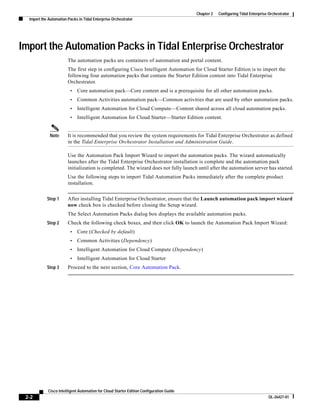
                        The automation packs are containers of automation and portal content.
                        The first step in configuring Cisco Intelligent Automation for Cloud Starter Edition is to import the
                        following four automation packs that contain the Starter Edition content into Tidal Enterprise
                        Orchestrator.
                         •   Core automation pack—Core content and is a prerequisite for all other automation packs.
                         •   Common Activities automation pack—Common activities that are used by other automation packs.
                         •   Intelligent Automation for Cloud Compute—Content shared across all cloud automation packs.
                         •   Intelligent Automation for Cloud Starter—Starter Edition content.


             Note       It is recommended that you review the system requirements for Tidal Enterprise Orchestrator as defined
                        in the Tidal Enterprise Orchestrator Installation and Administration Guide.

                        Use the Automation Pack Import Wizard to import the automation packs. The wizard automatically
                        launches after the Tidal Enterprise Orchestrator installation is complete and the automation pack
                        initialization is completed. The wizard does not fully launch until after the automation server has started.
                        Use the following steps to import Tidal Automation Packs immediately after the complete product
                        installation.


            Step 1      After installing Tidal Enterprise Orchestrator, ensure that the Launch automation pack import wizard
                        now check box is checked before closing the Setup wizard.
                        The Select Automation Packs dialog box displays the available automation packs.
            Step 2      Check the following check boxes, and then click OK to launch the Automation Pack Import Wizard:
                         •   Core (Checked by default)
                         •   Common Activities (Dependency)
                         •   Intelligent Automation for Cloud Compute (Dependency)
                         •   Intelligent Automation for Cloud Starter
            Step 3      Proceed to the next section, Core Automation Pack.


            Cisco Intelligent Automation for Cloud Starter Edition Configuration Guide
 2-2                                                                                                                              OL-26427-01
Chapter 2     Configuring Tidal Enterprise Orchestrator
                                                                                       Import the Automation Packs in Tidal Enterprise Orchestrator


Core Automation Pack
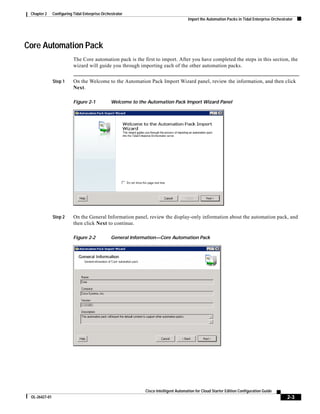
                           The Core automation pack is the first to import. After you have completed the steps in this section, the
                           wizard will guide you through importing each of the other automation packs.


               Step 1      On the Welcome to the Automation Pack Import Wizard panel, review the information, and then click
                           Next.

                           Figure 2-1            Welcome to the Automation Pack Import Wizard Panel


               Step 2      On the General Information panel, review the display-only information about the automation pack, and
                           then click Next to continue.

                           Figure 2-2            General Information—Core Automation Pack


                                                               Cisco Intelligent Automation for Cloud Starter Edition Configuration Guide
 OL-26427-01                                                                                                                                   2-3
Chapter 2   Configuring Tidal Enterprise Orchestrator
 Import the Automation Packs in Tidal Enterprise Orchestrator


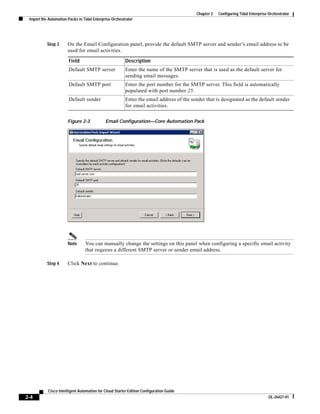
           Step 3      On the Email Configuration panel, provide the default SMTP server and sender’s email address to be
                       used for email activities.

                       Field                            Description
                       Default SMTP server              Enter the name of the SMTP server that is used as the default server for
                                                        sending email messages.
                       Default SMTP port                Enter the port number for the SMTP server. This field is automatically
                                                        populated with port number 25.
                       Default sender                   Enter the email address of the sender that is designated as the default sender
                                                        for email activities.


                       Figure 2-3            Email Configuration—Core Automation Pack


                       Note      You can manually change the settings on this panel when configuring a specific email activity
                                 that requires a different SMTP server or sender email address.

           Step 4      Click Next to continue.


           Cisco Intelligent Automation for Cloud Starter Edition Configuration Guide
2-4                                                                                                                               OL-26427-01
Chapter 2     Configuring Tidal Enterprise Orchestrator
                                                                                     Import the Automation Packs in Tidal Enterprise Orchestrator


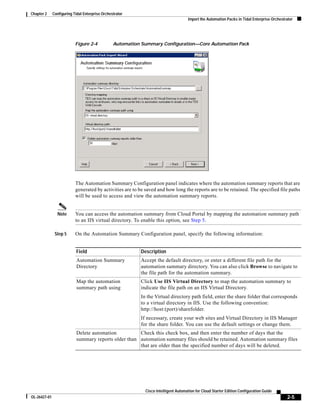
                           Figure 2-4            Automation Summary Configuration—Core Automation Pack


                           The Automation Summary Configuration panel indicates where the automation summary reports that are
                           generated by activities are to be saved and how long the reports are to be retained. The specified file paths
                           will be used to access and view the automation summary reports.


                Note       You can access the automation summary from Cloud Portal by mapping the automation summary path
                           to an IIS virtual directory. To enable this option, see Step 5.

               Step 5      On the Automation Summary Configuration panel, specify the following information:


                            Field                          Description
                            Automation Summary             Accept the default directory, or enter a different file path for the
                            Directory                      automation summary directory. You can also click Browse to navigate to
                                                           the file path for the automation summary.
                            Map the automation             Click Use IIS Virtual Directory to map the automation summary to
                            summary path using             indicate the file path on an IIS Virtual Directory.
                                                           In the Virtual directory path field, enter the share folder that corresponds
                                                           to a virtual directory in IIS. Use the following convention:
                                                           http://host:(port)/sharefolder.
                                                           If necessary, create your web sites and Virtual Directory in IIS Manager
                                                           for the share folder. You can use the default settings or change them.
                            Delete automation          Check this check box, and then enter the number of days that the
                            summary reports older than automation summary files should be retained. Automation summary files
                                                       that are older than the specified number of days will be deleted.


                                                             Cisco Intelligent Automation for Cloud Starter Edition Configuration Guide
OL-26427-01                                                                                                                                  2-5
Chapter 2   Configuring Tidal Enterprise Orchestrator
 Import the Automation Packs in Tidal Enterprise Orchestrator


           Step 6      Click Next to continue.

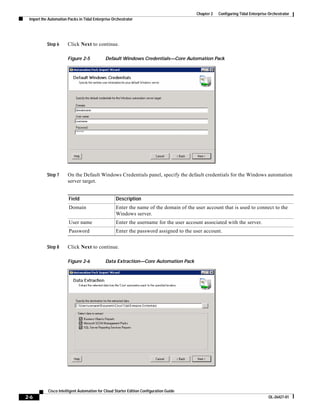
                       Figure 2-5            Default Windows Credentials—Core Automation Pack


           Step 7      On the Default Windows Credentials panel, specify the default credentials for the Windows automation
                       server target.


                       Field                       Description
                       Domain                      Enter the name of the domain of the user account that is used to connect to the
                                                   Windows server.
                       User name                   Enter the username for the user account associated with the server.
                       Password                    Enter the password assigned to the user account.


           Step 8      Click Next to continue.

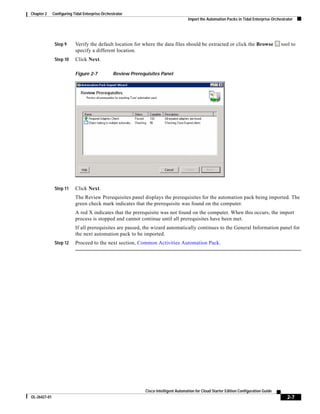
                       Figure 2-6            Data Extraction—Core Automation Pack


           Cisco Intelligent Automation for Cloud Starter Edition Configuration Guide
2-6                                                                                                                              OL-26427-01
Chapter 2     Configuring Tidal Enterprise Orchestrator
                                                                                       Import the Automation Packs in Tidal Enterprise Orchestrator


               Step 9      Verify the default location for where the data files should be extracted or click the Browse                     tool to
                           specify a different location.
               Step 10     Click Next.

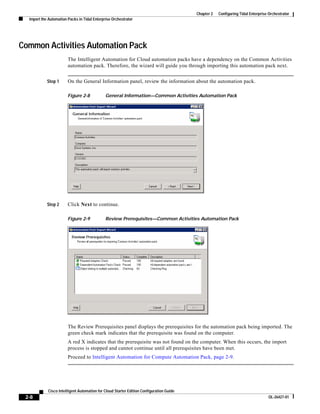
                           Figure 2-7            Review Prerequisites Panel


               Step 11     Click Next.
                           The Review Prerequisites panel displays the prerequisites for the automation pack being imported. The
                           green check mark indicates that the prerequisite was found on the computer.
                           A red X indicates that the prerequisite was not found on the computer. When this occurs, the import
                           process is stopped and cannot continue until all prerequisites have been met.
                           If all prerequisites are passed, the wizard automatically continues to the General Information panel for
                           the next automation pack to be imported.
               Step 12     Proceed to the next section, Common Activities Automation Pack.


                                                               Cisco Intelligent Automation for Cloud Starter Edition Configuration Guide
OL-26427-01                                                                                                                                    2-7
Chapter 2   Configuring Tidal Enterprise Orchestrator
  Import the Automation Packs in Tidal Enterprise Orchestrator


Common Activities Automation Pack
                        The Intelligent Automation for Cloud automation packs have a dependency on the Common Activities
                        automation pack. Therefore, the wizard will guide you through importing this automation pack next.


            Step 1      On the General Information panel, review the information about the automation pack.

                        Figure 2-8            General Information—Common Activities Automation Pack


            Step 2      Click Next to continue.

                        Figure 2-9            Review Prerequisites—Common Activities Automation Pack


                        The Review Prerequisites panel displays the prerequisites for the automation pack being imported. The
                        green check mark indicates that the prerequisite was found on the computer.
                        A red X indicates that the prerequisite was not found on the computer. When this occurs, the import
                        process is stopped and cannot continue until all prerequisites have been met.
                        Proceed to Intelligent Automation for Compute Automation Pack, page 2-9.


            Cisco Intelligent Automation for Cloud Starter Edition Configuration Guide
 2-8                                                                                                                              OL-26427-01
Chapter 2     Configuring Tidal Enterprise Orchestrator
                                                                                       Import the Automation Packs in Tidal Enterprise Orchestrator


Intelligent Automation for Compute Automation Pack
                            The Intelligent Automation for Cloud Starter automation pack has a dependency on the Intelligent
                            Automation for Compute automation pack.


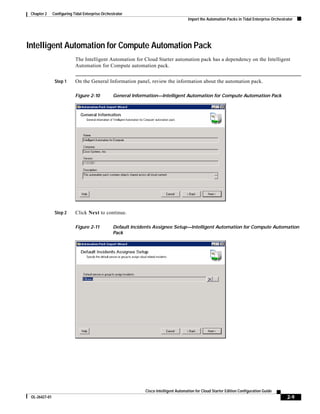
                Step 1      On the General Information panel, review the information about the automation pack.

                            Figure 2-10           General Information—Intelligent Automation for Compute Automation Pack


                Step 2      Click Next to continue.

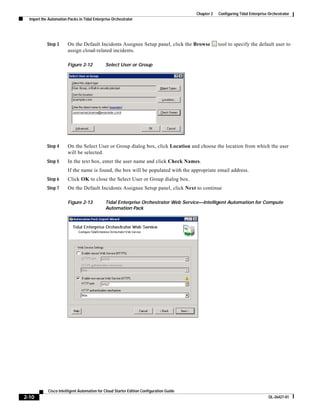
                            Figure 2-11           Default Incidents Assignee Setup—Intelligent Automation for Compute Automation
                                                  Pack


                                                               Cisco Intelligent Automation for Cloud Starter Edition Configuration Guide
 OL-26427-01                                                                                                                                   2-9
Chapter 2   Configuring Tidal Enterprise Orchestrator
  Import the Automation Packs in Tidal Enterprise Orchestrator


            Step 3      On the Default Incidents Assignee Setup panel, click the Browse              tool to specify the default user to
                        assign cloud-related incidents.

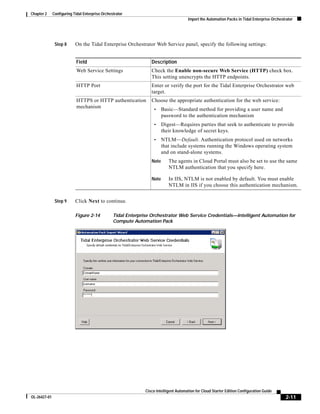
                        Figure 2-12           Select User or Group


            Step 4      On the Select User or Group dialog box, click Location and choose the location from which the user
                        will be selected.
            Step 5      In the text box, enter the user name and click Check Names.
                        If the name is found, the box will be populated with the appropriate email address.
            Step 6      Click OK to close the Select User or Group dialog box.
            Step 7      On the Default Incidents Assignee Setup panel, click Next to continue

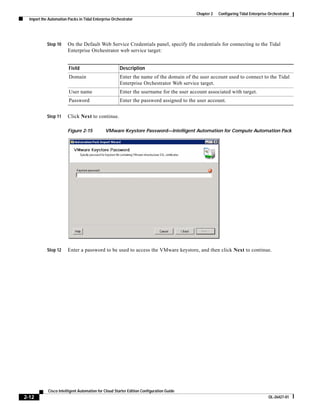
                        Figure 2-13           Tidal Enterprise Orchestrator Web Service—Intelligent Automation for Compute
                                              Automation Pack


            Cisco Intelligent Automation for Cloud Starter Edition Configuration Guide
2-10                                                                                                                              OL-26427-01
Chapter 2     Configuring Tidal Enterprise Orchestrator
                                                                                       Import the Automation Packs in Tidal Enterprise Orchestrator


               Step 8      On the Tidal Enterprise Orchestrator Web Service panel, specify the following settings:


                            Field                                 Description
                            Web Service Settings                  Check the Enable non-secure Web Service (HTTP) check box.
                                                                  This setting unencrypts the HTTP endpoints.
                            HTTP Port                             Enter or verify the port for the Tidal Enterprise Orchestrator web
                                                                  target.
                            HTTPS or HTTP authentication          Choose the appropriate authentication for the web service:
                            mechanism
                                                                   •     Basic—Standard method for providing a user name and
                                                                         password to the authentication mechanism
                                                                   •     Digest—Requires parties that seek to authenticate to provide
                                                                         their knowledge of secret keys.
                                                                   •     NTLM—Default. Authentication protocol used on networks
                                                                         that include systems running the Windows operating system
                                                                         and on stand-alone systems.
                                                                  Note      The agents in Cloud Portal must also be set to use the same
                                                                            NTLM authentication that you specify here.

                                                                  Note      In IIS, NTLM is not enabled by default. You must enable
                                                                            NTLM in IIS if you choose this authentication mechanism.


               Step 9      Click Next to continue.

                           Figure 2-14           Tidal Enterprise Orchestrator Web Service Credentials—Intelligent Automation for
                                                 Compute Automation Pack


                                                               Cisco Intelligent Automation for Cloud Starter Edition Configuration Guide
OL-26427-01                                                                                                                                    2-11
Chapter 2   Configuring Tidal Enterprise Orchestrator
  Import the Automation Packs in Tidal Enterprise Orchestrator


            Step 10     On the Default Web Service Credentials panel, specify the credentials for connecting to the Tidal
                        Enterprise Orchestrator web service target:


                        Field                         Description
                        Domain                        Enter the name of the domain of the user account used to connect to the Tidal
                                                      Enterprise Orchestrator Web service target.
                        User name                     Enter the username for the user account associated with target.
                        Password                      Enter the password assigned to the user account.


            Step 11     Click Next to continue.

                        Figure 2-15           VMware Keystore Password—Intelligent Automation for Compute Automation Pack


            Step 12     Enter a password to be used to access the VMware keystore, and then click Next to continue.


            Cisco Intelligent Automation for Cloud Starter Edition Configuration Guide
2-12                                                                                                                              OL-26427-01
Chapter 2     Configuring Tidal Enterprise Orchestrator
                                                                                       Import the Automation Packs in Tidal Enterprise Orchestrator


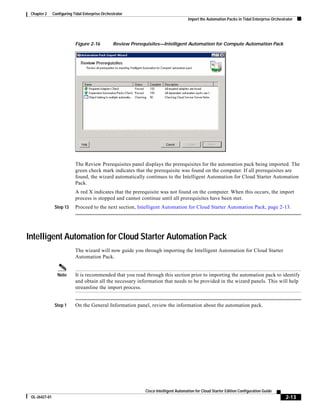
                            Figure 2-16           Review Prerequisites—Intelligent Automation for Compute Automation Pack


                            The Review Prerequisites panel displays the prerequisites for the automation pack being imported. The
                            green check mark indicates that the prerequisite was found on the computer. If all prerequisites are
                            found, the wizard automatically continues to the Intelligent Automation for Cloud Starter Automation
                            Pack.
                            A red X indicates that the prerequisite was not found on the computer. When this occurs, the import
                            process is stopped and cannot continue until all prerequisites have been met.
                Step 13     Proceed to the next section, Intelligent Automation for Cloud Starter Automation Pack, page 2-13.


Intelligent Automation for Cloud Starter Automation Pack
                            The wizard will now guide you through importing the Intelligent Automation for Cloud Starter
                            Automation Pack.


                 Note       It is recommended that you read through this section prior to importing the automation pack to identify
                            and obtain all the necessary information that needs to be provided in the wizard panels. This will help
                            streamline the import process.


                Step 1      On the General Information panel, review the information about the automation pack.


                                                               Cisco Intelligent Automation for Cloud Starter Edition Configuration Guide
 OL-26427-01                                                                                                                                   2-13
Chapter 2   Configuring Tidal Enterprise Orchestrator
  Import the Automation Packs in Tidal Enterprise Orchestrator


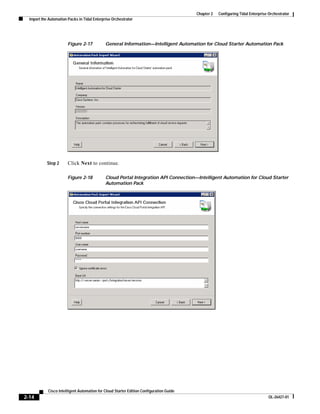
                        Figure 2-17           General Information—Intelligent Automation for Cloud Starter Automation Pack


            Step 2      Click Next to continue.

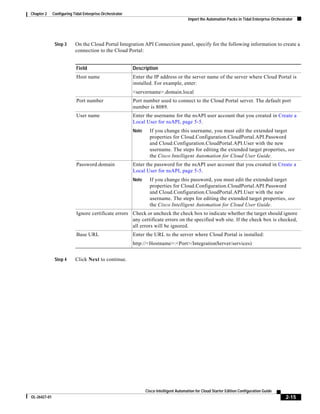
                        Figure 2-18           Cloud Portal Integration API Connection—Intelligent Automation for Cloud Starter
                                              Automation Pack


            Cisco Intelligent Automation for Cloud Starter Edition Configuration Guide
2-14                                                                                                                              OL-26427-01
Chapter 2     Configuring Tidal Enterprise Orchestrator
                                                                                         Import the Automation Packs in Tidal Enterprise Orchestrator


               Step 3      On the Cloud Portal Integration API Connection panel, specify for the following information to create a
                           connection to the Cloud Portal:


                            Field                         Description
                            Host name                     Enter the IP address or the server name of the server where Cloud Portal is
                                                          installed. For example, enter:
                                                          <servername>.domain.local
                            Port number                   Port number used to connect to the Cloud Portal server. The default port
                                                          number is 8089.
                            User name                     Enter the username for the nsAPI user account that you created in Create a
                                                          Local User for nsAPI, page 5-5.
                                                          Note     If you change this username, you must edit the extended target
                                                                   properties for Cloud.Configuration.CloudPortal.API.Password
                                                                   and Cloud.Configuration.CloudPortal.API.User with the new
                                                                   username. The steps for editing the extended target properties, see
                                                                   the Cisco Intelligent Automation for Cloud User Guide.
                            Password.domain               Enter the password for the nsAPI user account that you created in Create a
                                                          Local User for nsAPI, page 5-5.
                                                          Note     If you change this password, you must edit the extended target
                                                                   properties for Cloud.Configuration.CloudPortal.API.Password
                                                                   and Cloud.Configuration.CloudPortal.API.User with the new
                                                                   username. The steps for editing the extended target properties, see
                                                                   the Cisco Intelligent Automation for Cloud User Guide.
                            Ignore certificate errors Check or uncheck the check box to indicate whether the target should ignore
                                                      any certificate errors on the specified web site. If the check box is checked,
                                                      all errors will be ignored.
                            Base URL                      Enter the URL to the server where Cloud Portal is installed:
                                                          http://<Hostname>:<Port>/IntegrationServer/services)


               Step 4      Click Next to continue.


                                                                 Cisco Intelligent Automation for Cloud Starter Edition Configuration Guide
OL-26427-01                                                                                                                                      2-15
Chapter 2   Configuring Tidal Enterprise Orchestrator
  Import the Automation Packs in Tidal Enterprise Orchestrator


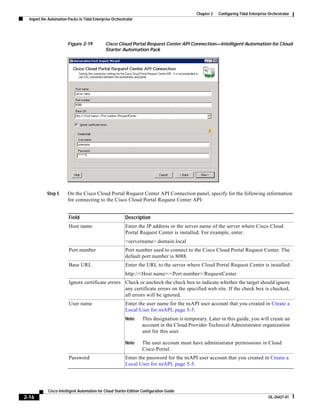
                        Figure 2-19           Cisco Cloud Portal Request Center API Connection—Intelligent Automation for Cloud
                                              Starter Automation Pack


            Step 5      On the Cisco Cloud Portal Request Center API Connection panel, specify for the following information
                        for connecting to the Cisco Cloud Portal Request Center API:


                        Field                            Description
                        Host name                        Enter the IP address or the server name of the server where Cisco Cloud
                                                         Portal Request Center is installed. For example, enter:
                                                         <servername>.domain.local
                        Port number                      Port number used to connect to the Cisco Cloud Portal Request Center. The
                                                         default port number is 8088.
                        Base URL                         Enter the URL to the server where Cloud Portal Request Center is installed:
                                                         http://<Host name>:<Port number>/RequestCenter
                        Ignore certificate errors Check or uncheck the check box to indicate whether the target should ignore
                                                  any certificate errors on the specified web site. If the check box is checked,
                                                  all errors will be ignored.
                        User name                        Enter the user name for the nsAPI user account that you created in Create a
                                                         Local User for nsAPI, page 5-5.
                                                         Note      This designation is temporary. Later in this guide, you will create an
                                                                   account in the Cloud Provider Technical Administrator organization
                                                                   unit for this user.

                                                         Note      The user account must have administrator permissions in Cloud
                                                                   Cisco Portal.
                        Password                         Enter the password for the nsAPI user account that you created in Create a
                                                         Local User for nsAPI, page 5-5.


            Cisco Intelligent Automation for Cloud Starter Edition Configuration Guide
2-16                                                                                                                                 OL-26427-01
Chapter 2     Configuring Tidal Enterprise Orchestrator
                                                                                       Import the Automation Packs in Tidal Enterprise Orchestrator


               Step 6      Click Next to continue.

                           Figure 2-20           Configure Process Database Grooming—Intelligent Automation for Cloud Starter
                                                 Automation Pack


               Step 7      On Configure Process Database Grooming panel, specify the number of days to keep process instances
                           in the database. After the specified number of day, the process instances will be deleted from the
                           database.
               Step 8      Click Next to continue.

                           Figure 2-21           Data Extraction—Intelligent Automation for Cloud Starter Automation Pack


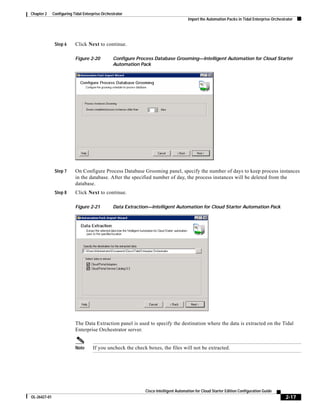
                           The Data Extraction panel is used to specify the destination where the data is extracted on the Tidal
                           Enterprise Orchestrator server.


                           Note      If you uncheck the check boxes, the files will not be extracted.


                                                               Cisco Intelligent Automation for Cloud Starter Edition Configuration Guide
OL-26427-01                                                                                                                                    2-17
Chapter 2   Configuring Tidal Enterprise Orchestrator
  Import the Automation Packs in Tidal Enterprise Orchestrator


            Step 9      On the Data Extraction panel, accept the default location, or click the Browse               tool to specify a
                        different location to extract the files, and then click Next.

                        Figure 2-22           Review Prerequisites—Intelligent Automation for Cloud Starter Automation Pack


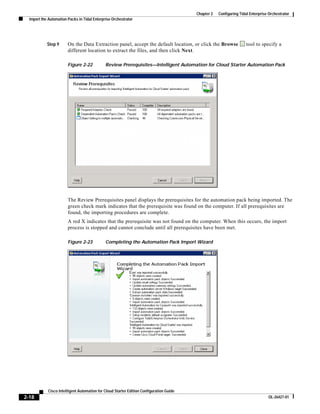
                        The Review Prerequisites panel displays the prerequisites for the automation pack being imported. The
                        green check mark indicates that the prerequisite was found on the computer. If all prerequisites are
                        found, the importing procedures are complete.
                        A red X indicates that the prerequisite was not found on the computer. When this occurs, the import
                        process is stopped and cannot conclude until all prerequisites have been met.

                        Figure 2-23           Completing the Automation Pack Import Wizard


            Cisco Intelligent Automation for Cloud Starter Edition Configuration Guide
2-18                                                                                                                              OL-26427-01
Chapter 2     Configuring Tidal Enterprise Orchestrator
                                                                                       Import the Automation Packs in Tidal Enterprise Orchestrator


                 Step 10     After the objects have been imported, review the information on the Completing the Automation Pack
                             Import Wizard panel to verify that it is correct, and then click Close to close the wizard.
                 Step 11     If you are running Cloud Portal on a Linux operating system, you must manually set extended target
                             properties; proceed to the next section, Manually Set Extended Target Properties for Linux. If you are
                             not running Cloud Portal on a Linux operating system, proceed to Refresh Tidal Enterprise Orchestrator
                             Server Web Service.


Manually Set Extended Target Properties for Linux

                  Note       This section pertains only to Linux. If you are not running Cloud Portal on a Linux platform, skip to the
                             next section, Refresh Tidal Enterprise Orchestrator Server Web Service, page 2-23.

                             If you are running Cloud Portal on a Linux operating system, you must manually configure extended
                             properties for the following targets:
                              •     Cisco Cloud Portal Request Center API
                              •     Cisco Cloud Portal Integration API


                                    Note    You must create the Cloud Portal Request Center API target before you create the Cisco
                                            Cloud Portal Integration API.

                             For each target, you must manually configure the following extended properties:
                              •     Cloud.Configuration.CloudPortal.IsUnix
                              •     Cloud.Configuration.CloudPortal.UnixTarget


                             Note      The Required Value       icon displayed on a tab or page indicates that the field is required and
                                       is missing a value.


Configure Extended Target Properties for Cisco Cloud Portal Integration API
                             Before you can configure the extended target properties, for Cisco Cloud Portal Integration API, you
                             must first create a Linux target and a default runtime user for the target.

Create a Runtime User for the Linux Target

                 Step 1      In the Tidal Enterprise Orchestrator Console, click Definitions in the panel on the left to display the
                             Definitions workspace.
                 Step 2      Right-click Runtime Users in the Definitions panel and choose New > Runtime User.


                                                               Cisco Intelligent Automation for Cloud Starter Edition Configuration Guide
  OL-26427-01                                                                                                                                  2-19
Chapter 2   Configuring Tidal Enterprise Orchestrator
  Import the Automation Packs in Tidal Enterprise Orchestrator


                        Figure 2-24           Runtime Users View—Add New Runtime User


            Step 3      In the New Runtime User Properties dialog box, click the General tab, and specify the following
                        information:


                        Field                            Description
                        Display name                     Enter a descriptive display name for the new runtime user.
                        User name                        Enter the user name for the new runtime user. The user must have write
                                                         access to the on the Linux server drop-box location.
                        Password                         Check the Password check box, and then enter the password.
                        Description                      Optional.


            Cisco Intelligent Automation for Cloud Starter Edition Configuration Guide
2-20                                                                                                                              OL-26427-01
Chapter 2     Configuring Tidal Enterprise Orchestrator
                                                                                       Import the Automation Packs in Tidal Enterprise Orchestrator


                             Figure 2-25           Runtime Users View—New Runtime User Dialog Box


                 Step 4      Click OK.
                 Step 5      Proceed to the next section, Create a Target for the Linux Server, to create a target for the Linux server.


Create a Target for the Linux Server

                 Step 1      In the Definitions workspace, right-click Targets and choose New > Unix/Linux System.
                 Step 2      In the New Unix/Linux System Properties dialog box, click the General tab, and then enter a descriptive
                             display name.
                 Step 3      Click the Connection tab.
                 Step 4      Enter the fully qualified host name for the Linux target.
                 Step 5      Uncheck the Prompt prefix check box.


                                                               Cisco Intelligent Automation for Cloud Starter Edition Configuration Guide
  OL-26427-01                                                                                                                                  2-21
Chapter 2   Configuring Tidal Enterprise Orchestrator
    Import the Automation Packs in Tidal Enterprise Orchestrator


              Step 6      From the Default runtime user drop-down list, choose the runtime user you created in Create a Runtime
                          User for the Linux Target.
              Step 7      Click the Advanced tab.
              Step 8      From the Use patterns common for the following device drop-down list, choose the Linux target you
                          have just created, and then click OK.
              Step 9      Proceed to the next section, Configure the Extended Target Properties for Both Cloud Portal Web Service
                          Targets, to configure the extended target properties for Cloud Portal web service targets.


Configure the Extended Target Properties for Both Cloud Portal Web Service Targets

              Step 1      In the Definitions workspace in the Tidal Enterprise Orchestrator Console, click Targets.
              Step 2      Right-click Cisco Cloud Portal Integration API in the list and choose Properties.
              Step 3      In the Properties dialog box, click the Extended Properties tab.
              Step 4      In the Cisco Cloud Portal Integration API Properties box, select
                          Cloud.Configuration.CloudPortal.IsUnix, and then click Edit.
              Step 5      In the Target Property Value dialog box, choose true from the Value drop-down list, and then click OK.
              Step 6      Select Cloud.Configuration.CloudPortal.UnixTarget, and then click Edit.
              Step 7      On the Target Property Value dialog box, click the Browse             tool next to the Value field to open the
                          Select Target dialog box.
              Step 8      In the Select Target dialog box, select the Linux target that you created in Create a Target for the Linux
                          Server, page 2-21, and then click OK.
              Step 9      Proceed to the next section, Configure Extended Target Properties for Cisco Cloud Portal Request Center
                          API.


Configure Extended Target Properties for Cisco Cloud Portal Request Center API

              Step 1      In the Definitions workspace in the Tidal Enterprise Orchestrator Console, click Targets.
              Step 2      Right-click Cisco Cloud Portal Request Center API in the list and choose Properties.
              Step 3      In the Properties dialog box, click the Extended Properties tab.
              Step 4      In the Cisco Cloud Portal Request Center API Properties box, select
                          Cloud.Configuration.CloudPortal.IsUnix, and then click Edit.
              Step 5      In the Target Property Value dialog box, choose true from the Value drop-down list, and then click OK.
              Step 6      In the Properties dialog box, select Cloud.Configuration.CloudPortal.UnixTarget, and then click
                          Edit.
              Step 7      Click the Browse           tool next to the Value field to open the Select Target dialog box.
              Step 8      In the Select Target dialog box, select the Linux target that you created in Create a Target for the Linux
                          Server, page 2-21, and then click OK.
              Step 9      Proceed to the next section, Refresh Tidal Enterprise Orchestrator Server Web Service.


              Cisco Intelligent Automation for Cloud Starter Edition Configuration Guide
  2-22                                                                                                                               OL-26427-01
Chapter 2     Configuring Tidal Enterprise Orchestrator
                                                                                       Import the Automation Packs in Tidal Enterprise Orchestrator


Refresh Tidal Enterprise Orchestrator Server Web Service
                            After installing the automation packs, you must refresh the Tidal Enterprise Orchestrator Server web
                            service. This action allows all of the installed processes to be initialized in Tidal Enterprise Orchestrator
                            web service.


                Step 1      In the Tidal Enterprise Orchestrator Console, click File > Server Properties to open the Server
                            Properties dialog box.
                Step 2      Click the Web Service tab.

                            Figure 2-26           Server Properties Dialog Box—Web Service Tab


                Step 3      Click Refresh Web Service and then click OK.


                            Proceed to one of the following chapters:

                             Chapter 3, “Installing or Upgrading        Proceed to Chapter 3 only if:
                             Cisco Cloud Portal”
                                                                         •   Cisco Service Portal (Cloud Portal) and the required REX
                                                                             adapter are not installed in your environment.
                                                                         •   Cloud Portal is installed, but the required REX adapter is
                                                                             not installed.
                             Chapter 4, “Setting Up Directory           Skip to Chapter 4 only if you are using a directory service to
                             Integration”                               import user and organization information. Otherwise, skip
                                                                        Chapter 4.
                             Chapter 5, “Setting Up Cisco Cloud         Skip to Chapter 5 only if:
                             Portal”
                                                                         •   Cisco Cloud Portal and the required REX adapter are
                                                                             installed in your environment, and
                                                                         •   You are not using a directory service, or you are using a
                                                                             directory service and have configured it following the
                                                                             directions provided in Chapter 4, “Setting Up Directory
                                                                             Integration.”


                                                               Cisco Intelligent Automation for Cloud Starter Edition Configuration Guide
 OL-26427-01                                                                                                                                   2-23
Chapter 2   Configuring Tidal Enterprise Orchestrator
  Import the Automation Packs in Tidal Enterprise Orchestrator


            Cisco Intelligent Automation for Cloud Starter Edition Configuration Guide
2-24                                                                                                                              OL-26427-01
CH A P T E R                     3
                     Installing or Upgrading Cisco Cloud Portal


              Note   You cannot install the REX adapter without first importing the Automation Packs into Tidal Enterprise
                     Orchestrator as directed in Chapter 2, “Configuring Tidal Enterprise Orchestrator.” The files required for
                     installing the REX adapter are shipped with the Intelligent Automation for Cloud Starter automation
                     pack and can only be unpacked when the automation pack is imported.

                     Follow the instructions in this chapter only if:
                      •   You have not yet installed Cisco Cloud Portal. See Installing Cisco Cloud Portal and the REX
                          Adapter, page 3-2 for information.
                      •   Cisco Service Portal is already installed in your environment, but the REX adapter is not installed.
                          See Upgrading to Cisco Intelligent Automation for Cloud Starter Edition 3.0.1, page 3-15 to
                          upgrade your Service Portal installation with the REX adapter.


              Note   In the following chapters, this guide refers to Cisco Service Portal as “Cisco Cloud Portal” and “Cloud
                     Portal.” Cloud Portal is synonymous with Service Portal when it is configured with the REX adapter for
                     use with Cisco Intelligent Automation for Cloud Starter Edition.

                     If you already have Cloud Portal and the REX adapter installed, skip to one of the following
                     chapters:


                     Chapter 4, “Setting Up Directory Skip to Chapter 4, “Setting Up Directory Integration,” only if you
                     Integration”                     are using a directory service to import user and organization
                                                      information. Otherwise, skip Chapter 5, “Setting Up Cisco Cloud
                                                      Portal”.
                     Chapter 5, “Setting Up Cisco        Skip to Chapter 5, “Setting Up Cisco Cloud Portal,” only if:
                     Cloud Portal”
                                                          •    You are not using a directory service, or
                                                          •    You are using a directory service and have configured it
                                                               following the directions provided in Chapter 4, “Setting Up
                                                               Directory Integration.”


                                                      Cisco Intelligent Automation for Cloud Starter Edition Configuration Guide
OL-26427-01                                                                                                                        3-1
Chapter 3   Installing or Upgrading Cisco Cloud Portal
   Installing Cisco Cloud Portal and the REX Adapter


Installing Cisco Cloud Portal and the REX Adapter
               Note      The images of command windows in this chapter show were captured during an installation of Starter
                         Edition 3.0.1 on Windows with Microsoft SQL Server. Command windows for installations with
                         Oracle® Database Enterprise Edition are similar.

                         This section applies only if Cisco Service Portal and REX adapter are not yet installed in your
                         environment. It provides important about the installation. This section also includes full instructions for
                         the installation with Microsoft SQL Server as the database server. (For the Oracle database server, see
                         If You Are Using Oracle Database Enterprise Edition 11g R2 Server.)
                         After installation, configure Cloud Portal and the REX adapter agents following the instructions in this
                         guide.


If You Are Using Oracle Database Enterprise Edition 11g R2 Server
                         After reading this section for information on what you need for the installation, see the Cisco Service
                         Portal 9.3.2 Installation Guide and the documentation that came with your Oracle database software for
                         full instructions.
                         It is strongly suggested that you also review the installation instructions inInstall Cloud Portal with the
                         Microsoft SQL Server Database Server, page 3-3, as the instructions are similar.
                         After installation, return this guide, and proceed to one of the following chapters:
                          •    Chapter 4, “Setting Up Directory Integration”—Proceed to Chapter 4 only if you are using a
                               directory service to import user and organization information.
                          •    Chapter 5, “Setting Up Cisco Cloud Portal”—Skip to Chapter 5 only if you are using a directory
                               service and have configured it following the instructions in Chapter 4, “Setting Up Directory
                               Integration.”


Prerequisite for the REX Adapter Installation
                         Before you install Cloud Portal and the REX adapter, you must first import and configure the Starter
                         Edition Automation Packs in TEO. (See Chapter 2, “Configuring Tidal Enterprise Orchestrator.”) The
                         files required for installing the REX adapter included in the Intelligent Automation for Cloud Starter
                         Automation Pack.


Locate the REX Adapter Installation Files
                         Although you install the REX adapter during Cloud Portal installation, the REX installer is in a separate
                         location from those of Cloud Portal.
                         When you import the Intelligent Automation for Cloud Starter Automation Pack, the REX adapter
                         installation zip file is extracted by default to the following location on the Tidal Enterprise Orchestrator
                         server:
                               <installation drive>:Users<username>DocumentsCiscoTidal Enterprise
                               OrchestratorDataCloud Portal Adapters<REX installer directory><REX installer files>


              Cisco Intelligent Automation for Cloud Starter Edition Configuration Guide
  3-2                                                                                                                               OL-26427-01
Chapter 3     Installing or Upgrading Cisco Cloud Portal
                                                                                                   Installing Cisco Cloud Portal and the REX Adapter


Basic Procedure for Installation
                            Installing Cloud Portal and the REX adapter involves three basic steps, whether you are using SQL
                            Server or Oracle Database server:


                Step 1      Create the RequestCenter and Datamart databases on the database server.
                Step 2      Enable snapshots on the database server.
                Step 3      Run the Cisco Service Portal installer, which includes the option for installing the REX adapter.


                            The following section provides full instructions for installing Cloud Portal and the REX adapter when
                            SQL Server is the database server.


Install Cloud Portal with the Microsoft SQL Server Database Server
                            Install Cloud Portal and the REX adapter according to the instructions in this section. Perform the
                            following three sets of tasks in sequence:
                             1.   Create the RequestCenter and Datamart Databases, page 3-3
                             2.   Enable Snapshots, page 3-5
                             3.   Run the Cisco Service Portal Installer, page 3-7


Create the RequestCenter and Datamart Databases

                Step 1      in Microsoft SQL Server Management Studio, right-click Databases in Object Explorer and choose New
                            Database....

                            Figure 3-1            SQL Server—New Database


                                                               Cisco Intelligent Automation for Cloud Starter Edition Configuration Guide
 OL-26427-01                                                                                                                                    3-3
Chapter 3   Installing or Upgrading Cisco Cloud Portal
 Installing Cisco Cloud Portal and the REX Adapter


           Step 2      In the New Database dialog box, enter Datamart in the Database name text field.
           Step 3      In the Owner field, enter DMUser.
           Step 4      In the Database files area, click in the Initial Size (MB) field in the first row, and change the value to 500.
           Step 5      Click OK.

                       Figure 3-2            SQL Server—New Database Dialog Box


           Step 6      In the Object Explorer pane, right-click Databases and choose New Database....


                       Note      You must create the RequestCenter database before you enable snapshots (covered in the next
                                 section, Enable Snapshots). You cannot combine the two tasks.

           Step 7      In the New Database dialog box, enter RequestCenter (with no space between the words) in the
                       Database name text field.
           Step 8      In the Owner field, enter RCUser.
           Step 9      In the Database files area, click in the Initial Size (MB) field in the first row, and change the value to 500.
           Step 10     Click OK.
           Step 11     To see the new databases in the navigation pane, right-click Databases and choose Refresh.


            Cisco Intelligent Automation for Cloud Starter Edition Configuration Guide
3-4                                                                                                                               OL-26427-01
Chapter 3     Installing or Upgrading Cisco Cloud Portal
                                                                                                   Installing Cisco Cloud Portal and the REX Adapter


Enable Snapshots

                 Note       You must create the RequestCenter database before you enable snapshots. You cannot combine the two
                            tasks.

                            Before you run the Cisco Cloud Portal installer, you must first enable snapshots.


                Step 1      In SQL Server Management Studio, expand Databases in Object Explorer.
                Step 2      Right-click RequestCenter and choose Properties.
                Step 3      In the Database Properties - RequestCenter dialog box, click Options in the Select a Page pane.
                Step 4      In the Options view, scroll down to the State area, and change the Restrict Access value from
                            MULTI_USER to SINGLE_USER.

                            Figure 3-3            SQL Server—Restrict Access in the RequestCenter Database


                Step 5      When an alert appears informing you that to change the database properties, SQL Server must close all
                            other connections to the database, click Yes.
                Step 6      Click OK to close the Database Properties - RequestCenter dialog box.


                                                               Cisco Intelligent Automation for Cloud Starter Edition Configuration Guide
 OL-26427-01                                                                                                                                    3-5
Chapter 3   Installing or Upgrading Cisco Cloud Portal
 Installing Cisco Cloud Portal and the REX Adapter


           Step 7      Click New Query, enter the following, and then click Execute:
                             ALTER DATABASE RequestCenter SET COMMITTED_SNAPTSHOT ON

                       Figure 3-4            SQL Server—Query Snapshots


           Step 8      Close the Query window.
           Step 9      Click Connect in the toolbar immediately above Object Explorer, and choose Database Engine to
                       reconnect.
           Step 10     Return to Options view in the Database Properties - RequestCenter dialog box (see Step 2 and Step 3),
                       and change the Restrict Access value back to MULTI-USER.
           Step 11     Click OK.


            Cisco Intelligent Automation for Cloud Starter Edition Configuration Guide
3-6                                                                                                                               OL-26427-01
Chapter 3     Installing or Upgrading Cisco Cloud Portal
                                                                                                    Installing Cisco Cloud Portal and the REX Adapter


Run the Cisco Service Portal Installer

                Step 1      On the Cisco service Portal server, navigate to the Installer directory:
                                  <install drive>RCInstall-win-11.2.1.0151Installer

                            Figure 3-5            Cisco Service Portal Installer Directory—Setup.bat File


                Step 2      Double-click setup.bat to open a command window.

                            Figure 3-6            Command Window—Java Home Directory


                Step 3      In the Java Home Directory window, enter the name of the Java Home directory and press Enter to
                            validate the Java path.
                            or
                            Press Enter to accept the default value as shown in the brackets.


                                                                Cisco Intelligent Automation for Cloud Starter Edition Configuration Guide
 OL-26427-01                                                                                                                                     3-7
Chapter 3   Installing or Upgrading Cisco Cloud Portal
 Installing Cisco Cloud Portal and the REX Adapter


                       Figure 3-7            Command Window—Type of Installation


           Step 4      In the Type of Installation window, enter 1 for New Installation, and press Enter.

                       Figure 3-8            Command Window—Destination Directory


           Step 5      In the Destination Directory window, enter the name of the destination directory where Cisco Service
                       Portal was installed, press Enter, and then press Enter again to confirm the destination directory.
                       or
                       Press Enter to accept the default value as shown in the brackets, and then press Enter again to confirm
                       the destination directory.


            Cisco Intelligent Automation for Cloud Starter Edition Configuration Guide
3-8                                                                                                                               OL-26427-01
Chapter 3     Installing or Upgrading Cisco Cloud Portal
                                                                                                 Installing Cisco Cloud Portal and the REX Adapter


                           Figure 3-9            Command Window—Application Server


               Step 6      In the Application Server window, enter the option number for the type of application server, and press
                           Enter.

                           Figure 3-10           Command Window—Module


               Step 7      In the Module window, enter 4 to include Service Link in the installation, and then press Enter to change
                           the Install value to Yes.


                           Note      Request Center installation is enabled by default. Do not disable.

               Step 8      Press C to continue.


                                                             Cisco Intelligent Automation for Cloud Starter Edition Configuration Guide
OL-26427-01                                                                                                                                   3-9
Chapter 3   Installing or Upgrading Cisco Cloud Portal
  Installing Cisco Cloud Portal and the REX Adapter


                        Figure 3-11           Command Window—Database Platform


            Step 9      In the Database Platform window, enter the option number for the database platform, and then press
                        Enter.

                        Figure 3-12           Command Window—Web Server Configuration


            Step 10     In the Web Server Configuration window, review the Web Server host name to verify that it is correct,
                        and then press Enter to continue.
            Step 11     In the Web Server Configuration window, review the Web Server port number to verify that it is correct,
                        and then press Enter to continue.


             Cisco Intelligent Automation for Cloud Starter Edition Configuration Guide
3-10                                                                                                                               OL-26427-01
Chapter 3     Installing or Upgrading Cisco Cloud Portal
                                                                                                   Installing Cisco Cloud Portal and the REX Adapter


                           Note      The asterisk (*) in the left margin indicates that it is a required field, even if the default value
                                     shown in brackets is the correct configuration.


                           Figure 3-13           Command Window—Database Component Installation Options


               Step 12     In the Database Component Installation Options window, specify the following information:


                            Option No.       Option                      Action
                            Note      Do not make any other changes in this window.
                            3                Database Server             Press Enter to accept the default database server.
                            6                Database User               Enter RC for the RequestCenter database user password and
                                             Password                    press Enter.
                            9                SqlServer sa Password       Enter SA for the system administrator password and press
                                                                         Enter.


                                                               Cisco Intelligent Automation for Cloud Starter Edition Configuration Guide
OL-26427-01                                                                                                                                     3-11
Chapter 3   Installing or Upgrading Cisco Cloud Portal
  Installing Cisco Cloud Portal and the REX Adapter


            Step 13     Press C to continue.

                        Figure 3-14           Command Window—Verifying Connection Information


                        The installation script then verifies the database components that you entered. After verification, the
                        Installer automatically proceeds to the Installation Options window.

                        Figure 3-15           Command Window—Installation Options


             Cisco Intelligent Automation for Cloud Starter Edition Configuration Guide
3-12                                                                                                                               OL-26427-01
Chapter 3     Installing or Upgrading Cisco Cloud Portal
                                                                                                  Installing Cisco Cloud Portal and the REX Adapter


               Step 14     In the Installation Options window, specify the following information:


                            Option No.       Option                           Action
                            Note      Do not make any other changes in this window.
                            1                SMTP Server                      Enter the SMTP server, and press Enter.
                            2                Sender Address                   Enter the Sender address, and press Enter.
                            22               Service Link Database URL        Enter the Service Link Base URL, and press Enter.
                                                                              or
                                                                              Press Enter to accept the default value as shown in the
                                                                              brackets.
                            26               Include Custom Adapters?         Press Enter to set the value to Yes.
                                                                              Option number 27 appears.
                            27               Custom adapter archive path      Enter the full path to the rexAdapter_301.zip file, and
                                                                              press Enter. For example:
                                                                                         <install drive>rexAdapter_301.zip

                           Figure 3-16           Command Window—Installation Options Window—Custom Content Path


                                                              Cisco Intelligent Automation for Cloud Starter Edition Configuration Guide
OL-26427-01                                                                                                                                    3-13
Chapter 3   Installing or Upgrading Cisco Cloud Portal
  Installing Cisco Cloud Portal and the REX Adapter


            Step 15     Press C to continue.
                        The Installer begins extracting and installing files.

                        Figure 3-17           Command Window—Installation Complete


            Step 16     When installation is complete, press Enter to exit the window.


                        Installation of Cloud Portal is complete. Skip to one of the following chapters to begin setting up and
                        configuring Starter Edition:
                         •    Chapter 4, “Setting Up Directory Integration”—Proceed to Chapter 4 only if you are using a
                              directory service for external authentication.
                         •    Chapter 5, “Setting Up Cisco Cloud Portal”—Skip to Chapter 5 only if you are not using a directory
                              service for external authentication.


             Cisco Intelligent Automation for Cloud Starter Edition Configuration Guide
3-14                                                                                                                               OL-26427-01
Chapter 3     Installing or Upgrading Cisco Cloud Portal
                                                                             Upgrading to Cisco Intelligent Automation for Cloud Starter Edition 3.0.1


Upgrading to Cisco Intelligent Automation for Cloud
Starter Edition 3.0.1
                 Note       TEO 2.3.1 includes the installer package that you need to upgrade your current installation of Starter
                            Edition 3.0 to 3.0.1.

                            To upgrade to Cisco Intelligent Automation for Cloud Starter Edition 3.0.1, you must perform the
                            following steps:
                            This section guides you through the the following steps in the upgrade process:
                             1.   Back Up Cloud Portal and TEO Databases
                             2.   Apply the Cloud Portal Installer Hotfix
                             3.   Upgrade the REX Adapter
                             4.   Apply the Cloud Portal Hotfix
                             5.   Deploy Service Catalog Packages
                             6.   Deploy Portal Packages
                             7.   Set Permissions for Portal Pages and Portlets
                             8.   Configure Cloud Provider Technical Administrator Organization
                             9.   Configure Agent Properties


                 Note       The images of command windows in this chapter show were captured during an installation of Starter
                            Edition 3.0.1 on Windows with Microsoft SQL Server. Command windows for installations with
                            Oracle® Database Enterprise Edition are similar.


                                                               Cisco Intelligent Automation for Cloud Starter Edition Configuration Guide
 OL-26427-01                                                                                                                                     3-15
Chapter 3   Installing or Upgrading Cisco Cloud Portal
   Upgrading to Cisco Intelligent Automation for Cloud Starter Edition 3.0.1


Back Up Cloud Portal and TEO Databases
                          Before you begin the upgrade process, you must first create backup files for the Cloud Portal and TEO
                          databases. To create the backups, you validate validate the existing Cisco Service Portal installation.
                          This action also repairs any detected issues with the index and data structures.


             Step 1       On the Cisco Service Portal server, navigate to the Installer directory (Figure 3-5 on page 3-7):
                                 <install drive>RCInstall-win-11.2.1.0151Installer
             Step 2       Double-click validate.bat to open a command window.
             Step 3       On the Java Home directory window (Figure 3-6 on page 3-7), enter the name of the Java Home directory
                          and then press Enter to validate the Java path.
             Step 4       On the Destination Directory window (Figure 3-9 on page 3-9), enter the name of the destination
                          directory where Cisco Service Portal was installed, and then press Enter.


                          Note      If you used the default directory, the name automatically displays.

             Step 5       On the Select an Application Server window (Figure 3-8 on page 3-8), enter the number for the
                          application server that is installed, and then press Enter.


                          Note      Typically, JBoss 4.2.3 is used. In this case, enter 1, and then press Enter.


                          Figure 3-18           Command Window—Database Component Installation Options


              Cisco Intelligent Automation for Cloud Starter Edition Configuration Guide
 3-16                                                                                                                               OL-26427-01
Chapter 3     Installing or Upgrading Cisco Cloud Portal
                                                                              Upgrading to Cisco Intelligent Automation for Cloud Starter Edition 3.0.1


               Step 6      On the Database Component Installation window, perform the following:

                            Option                         Action
                            Note      Only specify the these options. Do not make any other changes on this window.
                            Enter 6                        Enter RC for the Database User Password, and then press Enter.
                            Enter 9                        Enter sa for the SQL Server sa Password, and then press Enter.


               Step 7      Enter C to continue.
                           The installation script then verifies the database components that you entered.

                           Figure 3-19           Command Window—Database Validation Options


               Step 8      On the Database Validation window, you must perform all three validation steps, regardless of error
                           conditions.
               Step 9      In the Selection field, enter 1, and then press Enter to perform the Schema Validation.
                           The validation process will continue automatically through each window.
               Step 10     When the Schema Validation is complete, press Enter to return to the Database Validation Options
                           window.
               Step 11     In the Selection field, enter 2, and then press Enter to perform the Data Validation.
                           The validation process will continue automatically through each window.
               Step 12     When the Data Validation is complete, press Enter to return to the Database Validation Options window.
               Step 13     In the Selection field, enter 3, and then press Enter to Repair Database.
                           The repair process will continue automatically through each window. When the repair process is
                           complete, the validation results display.


                                                                Cisco Intelligent Automation for Cloud Starter Edition Configuration Guide
OL-26427-01                                                                                                                                       3-17
Chapter 3   Installing or Upgrading Cisco Cloud Portal
   Upgrading to Cisco Intelligent Automation for Cloud Starter Edition 3.0.1


                          Figure 3-20           Command Window—Database Validation Results


             Step 14      Press Enter to return to the Database Validation Options window.
             Step 15      In the Selection field, enter 4, and then press Enter to exit the Database Validation.
             Step 16      Proceed to Apply the Cloud Portal Installer Hotfix.


Apply the Cloud Portal Installer Hotfix
                          This hotfix is for the Cloud Portal Installer.


               Note       You will apply a hotfix for Cloud Portal itself after upgrading the REX adapter.


             Step 1       Download and exctract the hotfix package 9.3.1_HotFix_IAC_Starter_v12.zip.
             Step 2       Follow all of the instructions in the readme.txt file included in the installer package. The instructions
                          provide important steps for copying extracted files to different deployed directories.
             Step 3       Proceed to Upgrade the REX Adapter.


Upgrade the REX Adapter
                          This section guides you through upgrading your Service Portal installation from REX Adapter version
                          3.0 to version 3.1.
                          To upgrade the REX adapter, perform the following tasks:
                           1.   Run the Cisco Service Portal Installer in Upgrade Mode, page 3-19
                           2.   Run the Cisco Service Portal Installer in Upgrade Mode, page 3-19
                           3.   Verify the REX Adapter Installation, page 3-24


              Cisco Intelligent Automation for Cloud Starter Edition Configuration Guide
 3-18                                                                                                                               OL-26427-01
Chapter 3     Installing or Upgrading Cisco Cloud Portal
                                                                              Upgrading to Cisco Intelligent Automation for Cloud Starter Edition 3.0.1


Run the Cisco Service Portal Installer in Upgrade Mode
                            You must now run the Cisco Service Portal installer in upgrade mode.


                Step 1      On the Cisco Service Portal server, navigate to the Installer directory (Figure 3-5 on page 3-7). For
                            example:
                                  [install drive]RCInstall-win-11.2.1.0151Installer

                            Figure 3-21           Cisco Service Portal Installer Directory—Setup.bat File


                Step 2      Double-click setup.bat to open a command window.
                Step 3      On the Specify Java Home Directory window (Figure 3-6 on page 3-7), enter the name of the Java Home
                            directory and press Enter to validate the Java path.

                            Figure 3-22           Command Window—Installation Options


                Step 4      Enter 2 to Upgrade Existing Installation and press Enter.
                Step 5      When prompted “Have you run the Validation Utility on this database?”, enter Yes, and then press Enter.
                Step 6      On the Specify Destination Directory window (Figure 3-8 on page 3-8), enter the name of the destination
                            directory where Cisco Service Portal was installed and press Enter.


                                                                Cisco Intelligent Automation for Cloud Starter Edition Configuration Guide
 OL-26427-01                                                                                                                                      3-19
Chapter 3   Installing or Upgrading Cisco Cloud Portal
  Upgrading to Cisco Intelligent Automation for Cloud Starter Edition 3.0.1


                         Figure 3-23           Command Window—Select Modules


                         Use this window to specify the modules to be installed. Typically, for Intelligent Automation for Cloud,
                         you should specify to install Request Center and Service Link.
            Step 7       Enter 1 for Request Center and set the Install value to Yes.
            Step 8       Enter 4 for Service Link and set the Install value to Yes.
            Step 9       Press C to continue.

                         Figure 3-24           Command Window—Select Components


            Step 10      On the Components window, ensure that all components are set to Yes, and then press C to continue.
            Step 11      On the Specify Application Server window (Figure 3-9 on page 3-9), enter the number for the
                         application server that is installed and press Enter.


                         Note      Typically, JBoss 4.2.3 is used so you will enter 1, and then press Enter.


             Cisco Intelligent Automation for Cloud Starter Edition Configuration Guide
3-20                                                                                                                               OL-26427-01
Chapter 3     Installing or Upgrading Cisco Cloud Portal
                                                                           Upgrading to Cisco Intelligent Automation for Cloud Starter Edition 3.0.1


                           Figure 3-25           Command Window—Web Server Configuration


               Step 12     On the Web Server Configuration window, review the Web Server host name to verify that it is correct,
                           and then press Enter to continue.

                           Figure 3-26           Command Window—Web Server Port


               Step 13     Review the Web Server port number to verify that it is correct, and then press Enter to continue.

                           Figure 3-27           Command Window—Database Component Installation Options


                                                             Cisco Intelligent Automation for Cloud Starter Edition Configuration Guide
OL-26427-01                                                                                                                                    3-21
Chapter 3   Installing or Upgrading Cisco Cloud Portal
  Upgrading to Cisco Intelligent Automation for Cloud Starter Edition 3.0.1


            Step 14      On the Database Component Installation Options window (Figure 3-13 on page 3-11), enter the
                         Database User Password (Option 6) and SQL Server sa Password (Option 9), and then press Enter.

                         Figure 3-28           Command Window—Configuration Options to Include Custom Adapters


            Step 15      Enter 26 to Include custom adapters and set the value to Yes.
            Step 16      Press Enter to continue.

                         Figure 3-29           Command Window—Configuration Options to Specify Custom Adapter Archive Path


             Cisco Intelligent Automation for Cloud Starter Edition Configuration Guide
3-22                                                                                                                               OL-26427-01
Chapter 3     Installing or Upgrading Cisco Cloud Portal
                                                                               Upgrading to Cisco Intelligent Automation for Cloud Starter Edition 3.0.1


                   Step 17     Enter 27 to specify the Custom adapter archive path and press Enter.

                               Figure 3-30           Command Window—Custom Content Archive Path
!


                   Step 18     On the Custom Content Archive window, enter the path to location where the rexAdapter_301.zip file
                               was copied when the TEO automation packs were imported, and press Enter.


                               Note      You must include the entire file name with the .zip extension in the path, as shown in
                                         Figure 3-30.

                   Step 19     On the Component Installation Options window (Figure 3-29 on page 3-22), review the information and
                               the press C to start the upgrade.

                               Figure 3-31           Command Window—Upgrade Completion


                   Step 20     When the installation has completed, press Enter to exit the Upgrade window.
                   Step 21     Proceed to Verify the REX Adapter Installation.


                                                                 Cisco Intelligent Automation for Cloud Starter Edition Configuration Guide
    OL-26427-01                                                                                                                                    3-23
Chapter 3   Installing or Upgrading Cisco Cloud Portal
   Upgrading to Cisco Intelligent Automation for Cloud Starter Edition 3.0.1


Verify the REX Adapter Installation
                          It is strongly recommended that you verify the REX adapter is installed in Cloud Portal.


             Step 1       Open Cloud Portal in your browser and log in as an administrator.
             Step 2       From the modules drop-down list, choose Service Links.
             Step 3       Click the Manage Integrations tab.
             Step 4       Click Adapters and verify that the REX adapter displays in the list of adapters.

                          Figure 3-32           Cloud Portal—Verify REX Adapter


             Step 5       Proceed to Apply the Cloud Portal Hotfix.


              Cisco Intelligent Automation for Cloud Starter Edition Configuration Guide
 3-24                                                                                                                               OL-26427-01
Chapter 3     Installing or Upgrading Cisco Cloud Portal
                                                                           Upgrading to Cisco Intelligent Automation for Cloud Starter Edition 3.0.1


Apply the Cloud Portal Hotfix
                Step 1      Download and exctract the hotfix package 9.3.2_HotFix_IAC_Starter_v09.zip.
                Step 2      Follow all of the instructions in the readme.txt file included in the installer package. The instructions
                            provide important steps for copying extracted files to different deployed directories.
                Step 3      Proceed to Deploy Service Catalog Packages.


Deploy Service Catalog Packages
                            The Starter Edition service catalog content is included in files that were extracted when the Intelligent
                            Automation for Cloud Starter automation pack was imported to TEO. These files must be imported and
                            deployed in Cloud Portal for the Starter Edition upgrade.
                            To deploy service catalog packages, perform the following tasks:
                             1.   Copy Service Catalog Files to Cloud Portal Server
                             2.   Import and Deploy the Service Catalogs


Copy Service Catalog Files to Cloud Portal Server

                Step 1      On the Tidal Enterprise Orchestrator (TEO) server, navigate to the location where the files were
                            extracted during the automation pack import process when TEO was first installed. By default, the files
                            are copied to the following location on the server:
                                  C:Users[username]DocumentsCiscoTidal Enterprise OrchestratorExtracted DataCisco Cloud
                                  Portal Service Catalog 9.3
                Step 2      Copy the following files to a folder on the Cloud Portal server:
                             •    CP_Common_SE_3-0-1.xml
                             •    CP_IPAM_SE_3-0-1.xml
                             •    CP_LeaseManagement_SE_3-0-1.xml
                             •    CP_Metric_SE_3-0-1.xml
                             •    CP_PhysicalServerRequests_SE_3-0-1.xml
                             •    CP_SupplementalContent_SE_3-0-1.xml
                             •    CP_ServerOperations_SE_3-0-1.xml
                             •    CP_SharedServerZone_SE_3-0-1.xml
                             •    CP_SystemSetup_SE_3-0-1.xml
                             •    CP_TenantManagement_SE_3-0-1.xml
                             •    CP_VMRequests_SE_3-0-1.xml
                Step 3      Proceed to Import and Deploy the Service Catalogs.


                                                             Cisco Intelligent Automation for Cloud Starter Edition Configuration Guide
 OL-26427-01                                                                                                                                   3-25
Chapter 3   Installing or Upgrading Cisco Cloud Portal
   Upgrading to Cisco Intelligent Automation for Cloud Starter Edition 3.0.1


Import and Deploy the Service Catalogs
                          Perform the following procedure to import and deploy catalogs in Cloud Portal.


               Note       You must be logged into Cloud Portal with administrator permissions to perform the procedures in this
                          chapter.


             Step 1       Open Cloud Portal in your browser and log in as an Administrator.
             Step 2       Choose Catalog Deployer from the module drop-down list.
             Step 3       In the Deployment Packages pane, and choose New > Import from the drop-down list.

                          Figure 3-33           Catalog Deployer—Import Menu


             Step 4       On the Import Package from File dialog box, click Browse to navigate to the folder where you saved the
                          service catalog files. (See Step 2 in Copy Service Catalog Files to Cloud Portal Server, page 3-25.)
             Step 5       Select the CP_Common_SE.xml file and click Import.
             Step 6       On the Package Import dialog box, when the message Package Imported Successfully displays, click OK.
                          The Deployment Packages window refreshes to display the imported package in the Received for
                          Deployment view.
             Step 7       Repeat Step 3 through Step 6 to import the all of the remaining catalog files:
                           •   CP_Common_SE_3-0-1.xml
                           •   CP_IPAM_SE_3-0-1.xml
                           •   CP_LeaseManagement_SE_3-0-1.xml
                           •   CP_Metric_SE_3-0-1.xml
                           •   CP_PhysicalServerRequests_SE_3-0-1.xml
                           •   CP_SupplementalContent_SE_3-0-1.xml
                           •   CP_ServerOperations_SE_3-0-1.xml
                           •   CP_SharedServerZone_SE_3-0-1.xml
                           •   CP_SystemSetup_SE_3-0-1.xml
                           •   CP_TenantManagement_SE_3-0-1.xml
                           •   CP_VMRequests_SE_3-0-1.xml


              Cisco Intelligent Automation for Cloud Starter Edition Configuration Guide
 3-26                                                                                                                               OL-26427-01
Chapter 3     Installing or Upgrading Cisco Cloud Portal
                                                                           Upgrading to Cisco Intelligent Automation for Cloud Starter Edition 3.0.1


               Step 8      In the Deployment Packages pane, and choose New > Deploy Multiple Packages from the drop-down
                           list to display the Deploy Multiple Packages pane.

                           Figure 3-34           Catalog Deployer—Deployment Packages Menu


                           Figure 3-35           Catalog Deployer—Batch Deployment Tab


                                                             Cisco Intelligent Automation for Cloud Starter Edition Configuration Guide
OL-26427-01                                                                                                                                    3-27
Chapter 3   Installing or Upgrading Cisco Cloud Portal
  Upgrading to Cisco Intelligent Automation for Cloud Starter Edition 3.0.1


            Step 9       On the Batch Deployment tab, click the Add Packages button to open the Select Packages dialog box.

                         Figure 3-36           Select Packages Dialog Box


              Note       In the Select Packages dialog box, both 3.0 and 3.0.2 packages will be listed for selection. Select only
                         the 3.0.1 packages.

            Step 10      In the Select Packages dialog box, check the check boxes of the packages you need to import, and then
                         click Select.

                         Figure 3-37           Batch Deployment—Deploy Multiple Packages


            Step 11      On the Batch Deployment tab, check the Selected Items check box and ensure that all check boxes in
                         the folder are checked.
            Step 12      Click Deploy.
            Step 13      When each package displays Succeeded next to it, click Done.


             Cisco Intelligent Automation for Cloud Starter Edition Configuration Guide
3-28                                                                                                                               OL-26427-01
Chapter 3     Installing or Upgrading Cisco Cloud Portal
                                                                             Upgrading to Cisco Intelligent Automation for Cloud Starter Edition 3.0.1


                Step 14     Proceed to Deploy Portal Packages.


Deploy Portal Packages
                            The Starter Edition portal and portlet content is included in files that were extracted when the Intelligent
                            Automation for Cloud StartStarterEditionPortlets_9.3.1.ziper automation pack was imported to TEO.
                            These files must be imported and deployed in Cloud Portal for the Starter Edition upgrade. After
                            deployment, you must also configure the portals and portlets.
                            To deploy portal packages, perform the following tasks::
                             1.   Copy StarterEditionPortlets_9.3.1.zip and Extract Files
                             2.   Configure Cloud Portal Stylesheets
                             3.   Import and Deploy Portal Pages


Copy StarterEditionPortlets_9.3.1.zip and Extract Files
                            The Intelligent Automation for Cloud Starter automation pack includes the file
                            StarterEditionPortlets_9.3.1.zip, which was extracted to the Tidal Enterprise Orchestrator server when
                            you imported the automation pack. (See Intelligent Automation for Cloud Starter Automation Pack,
                            page 2-13.) StarterEditionPortlets_9.3.1.zip contains the files you need to deploy portlets, JavaScripts,
                            images, and stylesheets to Cloud Portal.


                Step 1      On the Tidal Enterprise Orchestrator server, navigate to the following folder where
                            StarterEditionPortlets_9.3.1.zip was extracted. The default location is:
                                  C:Users[username]DocumentsCiscoTidal Enterprise OrchestratorExtracted Data
                                  Cloud Portal Service Catalog 9.3
                Step 2      Extract StarterEditionPortlets_9.3.1.zip to a temporary location. It will create a
                            StarterEditionPortlets_9.3.1 folder.
                Step 3      Stop the Request Center and Service Link services:
                             a.   Click Start > Control Panel > Administrative Tools > Services.
                             b.   In the Services window, right-click CiscoServicePortal Request Center and choose Stop.
                             c.   In the Services window, right-click CiscoServicePortal Service Link and choose Stop.
                             d.   Close the Services window.
                Step 4      In the StarterEditionPortlets_9.3.1 folder, locate RequestCenter_war.zip, and then extract it to the
                            following directory:
                                  <CiscoServicePortal>jboss-4.2.3.GAserverRequestCenterdeployRequestCenter.ear
                                  RequestCenter.war
                Step 5      Restart the CiscoServicePortal Request Center and CiscoServicePortal Service Link services.
                Step 6      Proceed to Configure Cloud Portal Stylesheets.


                                                               Cisco Intelligent Automation for Cloud Starter Edition Configuration Guide
 OL-26427-01                                                                                                                                     3-29
Chapter 3   Installing or Upgrading Cisco Cloud Portal
   Upgrading to Cisco Intelligent Automation for Cloud Starter Edition 3.0.1


Configure Cloud Portal Stylesheets
                          You must now configure Cloud Portal to use the stylesheets that are packaged with Starter Edition.
                          Perform the following steps to configure the stylesheets in Cloud Portal.


             Step 1       Open Cloud Portal in your browser and log in to the application.
             Step 2       On the Cloud Portal Home page, choose Administration from the module drop-down list.
             Step 3       On the Administration Home page, click Personalize Your Site.

                          Figure 3-38           Administration—Personalize Your Site


             Step 4       On the Customizations page, scroll down the common settings pane (about halfway down the page) and
                          click the On radio button for the Enable Custom Style Sheets setting.

                          Figure 3-39           Customizations—Enabling Custom Style Sheets


              Cisco Intelligent Automation for Cloud Starter Edition Configuration Guide
 3-30                                                                                                                               OL-26427-01
Chapter 3     Installing or Upgrading Cisco Cloud Portal
                                                                               Upgrading to Cisco Intelligent Automation for Cloud Starter Edition 3.0.1


               Step 5      Click Update at the bottom of the page to save the settings.
               Step 6      Click Custom Styles in the right menu.

                           Figure 3-40           Custom Styles


                           Note      The asterisk * next to a field indicates that it is a required field and must contain a valid value.

               Step 7      Click Add to open the Custom Style Properties window.

                           Figure 3-41           Custom Styles—Custom Style Properties


               Step 8      In the Name field, enter Cisco Intelligent Automation for Cloud Starter Edition.
               Step 9      Check the Make this Style the default for the entire site check box.


                                                                 Cisco Intelligent Automation for Cloud Starter Edition Configuration Guide
OL-26427-01                                                                                                                                        3-31
Chapter 3   Installing or Upgrading Cisco Cloud Portal
  Upgrading to Cisco Intelligent Automation for Cloud Starter Edition 3.0.1


            Step 10      In the Style Directory field, click Browse to open the Custom Directory dialog box.

                         Figure 3-42           Custom Styles—Custom Directory


            Step 11      Click the StarterEdition radio button, and click OK.
            Step 12      On the Custom Style Properties window, click Create to add the custom style.

                         Figure 3-43           Custom Style Properties—Associated Organization Units


            Step 13      On the Custom Style Properties page, navigate to the Associated Organizational Units area.
            Step 14      Click Add to open the Search for Organizational Units dialog box.


             Cisco Intelligent Automation for Cloud Starter Edition Configuration Guide
3-32                                                                                                                               OL-26427-01
Chapter 3     Installing or Upgrading Cisco Cloud Portal
                                                                              Upgrading to Cisco Intelligent Automation for Cloud Starter Edition 3.0.1


                Step 15     Click Search to browse for the organizational units to which to associate the custom style properties.
                            You can use the wildcard * to search for all organizational units or to narrow the search results.

                            Figure 3-44           Search for Organizational Units


                Step 16     Check the Site Administration check box, and then click Add.
                Step 17     Proceed to Import and Deploy Portal Pages.


Import and Deploy Portal Pages
                            Deploy the Starter Edition portal page content by importing it from the All_Portal_Pages.xml portal
                            page file, located in the StarterEditionPortlets_9.3.1 folder.


                Step 1      In Cloud Portal, choose Portal Designer from the module drop-down list.
                Step 2      On the Portal Designer Home page, click the Portal Pages tab.
                Step 3      In the left navigation pane, click Actions and choose Import from the drop-down list.

                            Figure 3-45           Portal Designer—Import Portal Pages Menu


                                                                Cisco Intelligent Automation for Cloud Starter Edition Configuration Guide
 OL-26427-01                                                                                                                                      3-33
Chapter 3   Installing or Upgrading Cisco Cloud Portal
   Upgrading to Cisco Intelligent Automation for Cloud Starter Edition 3.0.1


             Step 4       On the Import Portal Pages dialog box, click the Overwrite radio button in the Conflict Resolution field.

                          Figure 3-46           Import Portal Pages


             Step 5       In the Import from File field, click Browse to navigate to the StarterEditionPortlets folder that you
                          extracted in Copy StarterEditionPortlets_9.3.1.zip and Extract Files, page 3-29.
                          a.    On the Choose File to Upload dialog box, select the All_Portal_Pages.xml file and click Open.
                          b.    On the Import Portal Pages dialog box, click Import.
                          c.    Close the Import Complete dialog box.
             Step 6       Refresh your browser to view the imported portal page.
             Step 7       Proceed to Set Permissions for Portal Pages and Portlets.


Set Permissions for Portal Pages and Portlets
                          After you import the portal pages, you must set read-only permissions for the portal pages and portlets
                          from the Portal Designer module in Cloud Portal.
                          To set permissions for portal pages and portlets, perform the following tasks:
                           1.   Set Permissions for the Cisco IAC Starter Edition Administration Portal Pages
                           2.   Set Permissions for the My Workspace Portal Pages
                           3.   Set Permissions for the System Portal Page
                           4.   Set Permissions for the Portlets


Set Permissions for the Cisco IAC Starter Edition Administration Portal Pages
                          Set permissions for the following portal pages:
                           •    Starter Edition Quick Setup Wizard
                           •    Network Management
                           •    Organization Management
                           •    System Resources
                           •    System Setup
                           •    User Management


             Step 1       In Portal Designer, click the Portal Pages tab.


              Cisco Intelligent Automation for Cloud Starter Edition Configuration Guide
 3-34                                                                                                                               OL-26427-01
Chapter 3     Installing or Upgrading Cisco Cloud Portal
                                                                            Upgrading to Cisco Intelligent Automation for Cloud Starter Edition 3.0.1


               Step 2      In the left navigation pane, expand the Cisco IAC Starter Edition folder and select the Network
                           Management portal page.
               Step 3      Click the Permissions tab.

                           Figure 3-47           Portal Designer—Permissions


               Step 4      Click Add Permission to expand the Add Permission area of the page.

                           Figure 3-48           Portal Designer—Add Permission to Portal Page


               Step 5      From the Object Type drop-down list, choose Role, and then click Search to display a list of user roles.
               Step 6      Select Cloud Provider Technical Administrator.
               Step 7      From the Permissions drop-down list, choose Read Only, and then click Add.
               Step 8      Repeat Step 2 through Step 7 for the remaining portal pages in the Cisco IAC Starter Edition folder,
                           setting read/write role permissions as shown in the following table.

                            Portal Page                                     User Role with Read Only Permissions
                            Configuration Wizard                            Cloud Provider Technical Administrator
                            Network Management                              Cloud Provider Technical Administrator
                            Organization Management                         Cloud Provider Technical Administrator
                            System Resources                                Cloud Provider Technical Administrator


                                                              Cisco Intelligent Automation for Cloud Starter Edition Configuration Guide
OL-26427-01                                                                                                                                     3-35
Chapter 3   Installing or Upgrading Cisco Cloud Portal
   Upgrading to Cisco Intelligent Automation for Cloud Starter Edition 3.0.1


                          Portal Page                                            User Role with Read Only Permissions
                          System Setup                                           Cloud Provider Technical Administrator
                          User Management                                        Cloud Provider Technical Administrator
                                                                                 Organization Technical Administrator


             Step 9       Proceed to Set Permissions for the My Workspace Portal Pages.


Set Permissions for the My Workspace Portal Pages
                          Assign read-only permissions to each user role for the My Workspace portal pages.


             Step 1       In Portal Designer, click the Portal Pages tab.
             Step 2       In the left navigation pane, expand the My Workspace folder and select the My Servers portal page.
             Step 3       Click the Permissions tab (Figure 3-47 on page 3-35).
             Step 4       Click Add Permission to expand the Add Permission area of the page (Figure 3-48 on page 3-35).
             Step 5       From the Object Type drop-down list, choose Role, and then click Search to display a list of available
                          user roles.
             Step 6       Select Virtual Server Owner, Virtual and Physical Server Owner, Organization Technical
                          Administrator, and Cloud Provider Technical Administrator.


                          Note      To select multiple roles, press and hold Shift while clicking each role in the list.

             Step 7       From the Permissions drop-down list, choose Read Only, and then click Add.
             Step 8       Repeat Step 2 through Step 7 for the Order Servers portal page.
             Step 9       Proceed to Set Permissions for the System Portal Page.


Set Permissions for the System Portal Page
                          Assign read-only permissions to each user role for the System portal pages.


             Step 1       In Portal Designer, click the Portal Pages tab.
             Step 2       In the left navigation pane, expand the System folder and select the Site Homepage portal page.
             Step 3       Click the Permissions tab (Figure 3-47 on page 3-35).
             Step 4       Click Add Permission to expand the Add Permission area of the page (Figure 3-48 on page 3-35).
             Step 5       From the Object Type drop-down list, choose Role, and then click Search to display a list of available
                          user roles.
             Step 6       Select Virtual Server Owner, Virtual and Physical Server Owner, Organization Technical
                          Administrator, and Cloud Provider Technical Administrator.


                          Note      To select multiple roles, press and hold Shift while clicking each role in the list.


              Cisco Intelligent Automation for Cloud Starter Edition Configuration Guide
 3-36                                                                                                                                  OL-26427-01
Chapter 3     Installing or Upgrading Cisco Cloud Portal
                                                                          Upgrading to Cisco Intelligent Automation for Cloud Starter Edition 3.0.1


                Step 7      From the Permissions drop-down list, choose Read Only, and then click Add.
                Step 8      Proceed to Set Permissions for the Portlets.


Set Permissions for the Portlets
                            You must also set read-only permissions for user roles specified in the following steps for all of the
                            portlets that you imported.


                Step 1      In the Portal Designer module, click the Portlets tab.
                Step 2      In the left navigation pane, expand the HTML folder and select the CloudAdmin_OrgManagement
                            portlet.
                Step 3      Click the Permissions tab (Figure 3-47 on page 3-35).
                Step 4      Click Add Permission to expand the Add Permission area of the page (Figure 3-48 on page 3-35).
                Step 5      From the Object Type drop-down list, choose Role, and then click Search to display a list of the roles
                            that are available.
                Step 6      Select Cloud Provider Technical Administrator.
                Step 7      From the Permissions drop-down list, choose Read Only, and then click Add.
                Step 8      Repeat Step 3 through Step 7 for the remaining portlets in the HTML folder. The following table lists
                            the specific roles that you will assign read-only permissions for each portlet.

                             Portlet                                            User Role
                             CloudAdmin_OrgManagement                           Cloud Provider Technical Administrator
                             CloudAdmin_SystemSetup                             Cloud Provider Technical Administrator
                             Configuration_Wizard                               Cloud Provider Technical Administrator
                             Homepage_Welcome                                   Cloud Provider Technical Administrator
                                                                                Organization Technical Administrator
                                                                                Virtual Server Owner
                                                                                Virtual and Physical Server Owner
                             OrderPage_KnowledgeCenter                          Virtual Server Owner
                                                                                Virtual and Physical Server Owner
                             OrderPage_OrderPhysicalandVirtualMachine Organization Technical Administrator
                                                                                Virtual and Physical Server Owner
                             OrderPage_OrderVirtualMachine                      Virtual Server Owner
                             OrgAdmin_UserManagement                            Cloud Provider Technical Administrator
                                                                                Organizational Technical Administrator


                                                            Cisco Intelligent Automation for Cloud Starter Edition Configuration Guide
 OL-26427-01                                                                                                                                  3-37
Chapter 3   Installing or Upgrading Cisco Cloud Portal
   Upgrading to Cisco Intelligent Automation for Cloud Starter Edition 3.0.1


             Step 9       Repeat Step 2 through Step 8 for the portlets in the JavaScript folder. The following table lists the
                          specific roles that you will assign read-only permissions for each portlet.

                          Portlet                                                     User Role
                          BladePoolManagementPhysicalPie                              Cloud Provider Technical Administrator
                          BladePoolManagementPie                                      Cloud Provider Technical Administrator
                          CloudAdmin_ManageServiceItems                               Cloud Provider Technical Administrator
                                                                                      Organization Technical Administrator
                          IPAMGroupFilterGrid                                         Cloud Provider Technical Administrator
                          IPAMNetworkCapacity                                         Cloud Provider Technical Administrator
                          Physical_BCCapacityReport                                   Cloud Provider Technical Administrator
                          ServerOwner_ManageServiceItems                              Virtual Server Owner
                                                                                      Virtual and Physical Server Owner
                          Virtual_ClusterCapacityReport                               Cloud Provider Technical Administrator
                          Virtual_DCCapacityColumnChart                               Cloud Provider Technical Administrator


             Step 10      Proceed to Configure Cloud Provider Technical Administrator Organization.


Configure Cloud Provider Technical Administrator Organization
                          The next step in the upgrade is to configure settings for the Cloud Provider Technical Administrator
                          Organization. You will make the following modifications:
                           1.    Add Starter Edition Roles to the Cisco Intelligent Automation For Cloud Roles Group
                           2.    Modify the Default Email Notification Templates


Add Starter Edition Roles to the Cisco Intelligent Automation For Cloud Roles Group
                          Add the four Starter Edition roles—Cloud Provider Technical Administrator, Organization Technical
                          Administrator, Virtual and Physical Server Owner, and Virtual Server Owner—to the pre-defined Cisco
                          Intelligent Automation for Cloud Roles group. Adding the roles to the Roles group makes it easier to
                          find them if you need to make changes.
                          To add the Starter Edition roles to the Cisco Intelligent Automation for Cloud Roles group, perform the
                          following steps.


             Step 1       Open Cloud Portal and log in as the Site Administrator.
             Step 2       Choose Organization Designer from the module drop-down list, and then click the Roles tab.
                          The Role Hierarchy pane appears on the left side of the Roles window.


                          Note      The asterisk * next to a field indicates that it is a required field and must contain a valid value.

             Step 3       Click Cisco Intelligent Automation for Cloud Roles in the Role Hierarchy pane.


              Cisco Intelligent Automation for Cloud Starter Edition Configuration Guide
 3-38                                                                                                                                      OL-26427-01
Chapter 3     Installing or Upgrading Cisco Cloud Portal
                                                                            Upgrading to Cisco Intelligent Automation for Cloud Starter Edition 3.0.1


                           Figure 3-49           Organization Designer—Cisco Intelligent Automation for Cloud Roles Group Before
                                                 Adding the Sub-roles


               Step 4      In the Sub Roles pane, click Add to open the Select Role dialog box.
               Step 5      Click Search to browse for the role you want to add. You can use the wildcard * to search for all
                           organizational units or to narrow the search results.
               Step 6      Check the following check boxes, and then click Add.
                            •    Cloud Provider Technical Administrator
                            •    Organization Technical Administrator
                            •    Virtual and Physical Server Owner
                            •    Virtual Server Owner


                                                              Cisco Intelligent Automation for Cloud Starter Edition Configuration Guide
OL-26427-01                                                                                                                                     3-39
Chapter 3   Installing or Upgrading Cisco Cloud Portal
  Upgrading to Cisco Intelligent Automation for Cloud Starter Edition 3.0.1


                         Figure 3-50           Organization Designer—Cisco Intelligent Automation for Cloud Roles Group After
                                               Adding the Sub-roles


            Step 7       Proceed to Modify the Default Email Notification Templates.


             Cisco Intelligent Automation for Cloud Starter Edition Configuration Guide
3-40                                                                                                                               OL-26427-01
Chapter 3     Installing or Upgrading Cisco Cloud Portal
                                                                              Upgrading to Cisco Intelligent Automation for Cloud Starter Edition 3.0.1


Modify the Default Email Notification Templates
                            Starter Edition includes a set of default email notification templates that you customize for an
                            organization. The cloud system sends the email notifications in response to events such as orders and
                            system errors.
                            Before users can start ordering cloud services, you must configure the email notification templates with
                            the relevant sender and recipient addresses.
                            To modify the default email notification templates, perform the following steps.


                Step 1      Choose My Workspace from the module drop-down list, and then click the System Setup tab.
                Step 2      On the System Setup portal page, click the System Settings tab to open the portlet.

                            Figure 3-51           System Settings Portlet


                                                                Cisco Intelligent Automation for Cloud Starter Edition Configuration Guide
 OL-26427-01                                                                                                                                      3-41
Chapter 3   Installing or Upgrading Cisco Cloud Portal
  Upgrading to Cisco Intelligent Automation for Cloud Starter Edition 3.0.1


            Step 3       On the System Settings portlet, click Modify Email Templates to open the form.

                         Figure 3-52           Email Templates Form


            Step 4       On the Request Center tab in the Email Templates panel, click Add Role Completion Notification in
                         the list.
            Step 5       In the General pane, modify any or all of the following attributes:

                         Field                  Action
                         Name                   Enter the name of the template.
                         Subject                Enter the subject of the notification.
                         From                   Enter a valid address to use as the sender.
                         To(s)                  Enter one or more valid recipient email addresses. For multiple recipients, separate
                                                email addresses using semi-colons.
                                                Note      You can use namespace variables in this field. For information on using
                                                          namespaces, see the Cisco Service Portal Namespace Users Guide.
                         Language               Leave as is. In the current release, only US English is supported; any language
                                                selection you make will be ignored.
                         Type                   Click the Request Center radio button.


             Cisco Intelligent Automation for Cloud Starter Edition Configuration Guide
3-42                                                                                                                               OL-26427-01
Chapter 3     Installing or Upgrading Cisco Cloud Portal
                                                                            Upgrading to Cisco Intelligent Automation for Cloud Starter Edition 3.0.1


               Step 6      For the editing window, click one of the following radio buttons to choose an editor.
                            •    HTML Part (shown in Figure 3-52 on page 3-42)
                            •    Text Part (shown in Figure 3-53 on page 3-43)
               Step 7      In the editing panel, modify default content and add optional content as needed.

                           Figure 3-53           Notification Template—Editing Panel


               Step 8      Click Update.
               Step 9      Repeat Step 4 through Step 8 for the following email templates on the Request Center tab:
                            •    Add Role Completion Notification
                            •    Ad-Hoc Task Started
                            •    Connection Cloud Platform Elements Completed Email
                            •    CPO Error Notification Physical Server
                            •    CPO Error Notification VM
                            •    Default Late Activity
                            •    Failure to Create Network
                            •    Failure to Create Target Notification
                            •    Lease Expiration - First Warning
                            •    Lease Expiration - Second Warning
                            •    My Services Departmental Reviews


                                                              Cisco Intelligent Automation for Cloud Starter Edition Configuration Guide
OL-26427-01                                                                                                                                     3-43
Chapter 3   Installing or Upgrading Cisco Cloud Portal
   Upgrading to Cisco Intelligent Automation for Cloud Starter Edition 3.0.1


                           •    My Services Financial and Departmental Authorizations
                           •    My Services Group Reviews
                           •    Notification System Error in Service Request
                           •    Order VM from Template Completion Notification
                           •    Process Escalation
                           •    Remove Role Completion Notification
                           •    Service Canceled Notification
                           •    Service Complete Notification
                           •    Service Confirmation Customer Acknowledgement
                           •    Service Link Error on External Task
                           •    Service Rejected Notification
                           •    Service Started Email
                           •    Task Fulfillment Escalation Notification
                           •    Task Fulfillment Pending Notification
                           •    Tenant Management Complete Notification
             Step 10      Proceed to Configure Agent Properties.


Configure Agent Properties
                          To configure agent properties for all REX agents and HTTP agents, perform the following steps:
                           1.
                           2.   Set Username and Password for REX Set REX Agent Properties
                           3.   Start “REX Set REX Agent Properties” and “REX Set REX HTTP Properties” Agents
                           4.   Set REX Agent Configuration
                           5.   Set HTTP Agent Configuration
                           6.   Start All Other Agents


Set Username and Password for REX Set REX Agent Properties

             Step 1       On the Step 1: Agent Properties Configuration portlet, click Set username and password for REX Set
                          REX Agent Properties to open the Manage Integrations portal page.
             Step 2       In the Agents pane, click REX Set REX Agent Properties > Outbound Properties.


              Cisco Intelligent Automation for Cloud Starter Edition Configuration Guide
 3-44                                                                                                                               OL-26427-01
Chapter 3     Installing or Upgrading Cisco Cloud Portal
                                                                             Upgrading to Cisco Intelligent Automation for Cloud Starter Edition 3.0.1


                            Figure 3-54           REX Set REX Agent Properties


                Step 3      In the REXOutboundAdapter.Username field, enter the REX login name that you created in the Create
                            Person form.
                Step 4      In the REXOutboundAdapter.Password field, enter the REX password in the Create Person form.
                Step 5      Click Save.
                Step 6      Proceed to Start “REX Set REX Agent Properties” and “REX Set REX HTTP Properties” Agents.


Start “REX Set REX Agent Properties” and “REX Set REX HTTP Properties” Agents

                Step 1      Choose Service Link from the module drop-down list, and then click the Control Agents tab.
                Step 2      On the Control Agents portal page, select both REX Set REX Agent Properties and REX Set HTTP
                            Agent Properties by pressing and holding Shift, and clicking the red icons beside the agent names.
                Step 3      Click Start Selected.
                            The red icons turn to green, indicating that they are now sending and receiving.
                Step 4      Proceed to Set REX Agent Configuration.


Set REX Agent Configuration
                            Configure all of the REX agent properties, and then verify that the agents are configured correctly.


                Step 1      Choose My Workspace from the module drop-down list, and then click the System Setup tab.
                Step 2      On the System Setup portal, click the System Settings tab to open the portlet.


                                                               Cisco Intelligent Automation for Cloud Starter Edition Configuration Guide
 OL-26427-01                                                                                                                                     3-45
Chapter 3   Installing or Upgrading Cisco Cloud Portal
  Upgrading to Cisco Intelligent Automation for Cloud Starter Edition 3.0.1


            Step 3       On the System Settings portlet (Figure 3-51 on page 3-41), click Set REX Agent Configuration to open
                         the form.

                         Figure 3-55           Set REX Agent Configuration Form


            Step 4       On the Set REX Agent Configuration form, enter the REX account login name, and then enter and
                         re-enter the REX account password.
            Step 5       Click Submit Order to submit the form and display the Order Confirmation page for the service that
                         you ordered. Do not close the order confirmation.

                         Figure 3-56           Set REX Agent Configuration—Order Confirmation


             Cisco Intelligent Automation for Cloud Starter Edition Configuration Guide
3-46                                                                                                                               OL-26427-01
Chapter 3     Installing or Upgrading Cisco Cloud Portal
                                                                           Upgrading to Cisco Intelligent Automation for Cloud Starter Edition 3.0.1


               Step 6      In the Requisition Details pane, click the requisition number to open the requisition summary page.

                           Figure 3-57           Set REX Agent Configuration—Order Summary


               Step 7      Click Comments & History in the menu on the right side of the window.

                           Figure 3-58           Set REX Agent Configuration—Comments and History


                                                             Cisco Intelligent Automation for Cloud Starter Edition Configuration Guide
OL-26427-01                                                                                                                                    3-47
Chapter 3   Installing or Upgrading Cisco Cloud Portal
   Upgrading to Cisco Intelligent Automation for Cloud Starter Edition 3.0.1


             Step 8       In the System History pane, look for errors.
                          If the REX agents are configured correctly, you will see a message for each agent stating that is was
                          updated successfully.
             Step 9       Click X in the upper right corner to close the Comments and History window.
             Step 10      Proceed to Set HTTP Agent Configuration.


Set HTTP Agent Configuration
                          To configure all of the HTTP agent properties, and then verify that the agents are configured correctly,
                          perform the following steps.


             Step 1       Choose My Workspace from the module drop-down list, and then click the System Setup tab.
             Step 2       On the System Setup portal, click the System Settings tab to open the portlet.
             Step 3       On the System Settings portlet (Figure 3-51 on page 3-41), click Set REX Agent Configuration to open
                          the form.

                          Figure 3-59           Set HTTP Agent Configuration Form


              Cisco Intelligent Automation for Cloud Starter Edition Configuration Guide
 3-48                                                                                                                               OL-26427-01
Chapter 3     Installing or Upgrading Cisco Cloud Portal
                                                                          Upgrading to Cisco Intelligent Automation for Cloud Starter Edition 3.0.1


               Step 4      On the Set HTTP Agent Configuration, provide following information:

                            Field                                         Action
                            Process Orchestrator Hostname                 Enter the fully qualified hostname or IP address of the
                                                                          Tidal Enterprise Orchestrator (TEO) server. For example,
                                                                          teo01.xyzco.com or 192.168.100.101.
                            Process Orchestrator Username                 Enter the Windows username that will be used to connect
                                                                          to the TEO server.
                            Process Orchestrator Password                 Enter and then re-enter the password associated with the
                            Confirm Process Orchestrator Password         TEO username.
                            Process Orchestrator Domain                   Enter the Windows domain for the TEO user.
                            Cloud Portal Hostname                         Enter the fully qualified hostname or IP address of Cloud
                                                                          Portal. For example, cp01.xyzco.com or 192.168.100.102.


               Step 5      Click Submit Order to submit the form and display the Order Confirmation page for the service that
                           you ordered. Do not close the order confirmation.
               Step 6      In the Requisition Details pane on the Order Confirmation page (Figure 3-56 on page 3-46), click the
                           requisition number to open the requisition summary page.
               Step 7      Click Comments & History in the menu on the right side of the window (Figure 3-57 on page 3-47).
               Step 8      In the System History pane on the Comments and History page (Figure 3-58 on page 3-47), look for
                           errors. If the HTTP agents are configured correctly, you will see a message that the agent was updated
                           successfully.
               Step 9      Click X in the upper right corner to close the Comments and History window.
               Step 10     Proceed to Start All Other Agents.


                                                            Cisco Intelligent Automation for Cloud Starter Edition Configuration Guide
OL-26427-01                                                                                                                                   3-49
Chapter 3   Installing or Upgrading Cisco Cloud Portal
   Upgrading to Cisco Intelligent Automation for Cloud Starter Edition 3.0.1


Start All Other Agents

             Step 1       Choose Service Link from the module drop-down list, and then click the Control Agents tab.
             Step 2       Select all agents by pressing and holding Shift, clicking the red icons beside the first and then last agent
                          name, and then click Start Selected.
                          The red icons turn to green, indicating that they are now sending and receiving.
             Step 3       If the Agents table spans multiple pages, scroll to the additional pages, and repeat Step 2.


                          The upgrade is now complete. You do not need to make further updates or changes, or perform any of
                          the configurations presented in this guide.
                          To make changes to your current Starter Edition configuration, see the Cisco Intelligent Automation for
                          Cloud Starter Edition User Guide (last revised June 2012).


              Cisco Intelligent Automation for Cloud Starter Edition Configuration Guide
 3-50                                                                                                                               OL-26427-01
CH A P T E R                     4
                     Setting Up Directory Integration


              Note   Before you can perform the tasks in this chapter, you MUST complete all of the tasks, in sequence, that
                     are presented in the previous chapters. You cannot proceed unless you have installed the REX adapter
                     and performed necessary initial configurations for Tidal Enterprise Orchestrator and Cisco Cloud Portal.

                     Cisco Cloud Portal can integrate with directory servers to synchronize user information. This
                     synchronization can be initiated whenever a user logs on or is selected or during Person Lookup in Cloud
                     Portal.
                     Prior to configuring integration in Cloud Portal, you must have a directory server installed and populated
                     with corporate data.


              Note   See the Cisco Service Portal Directory Integration User and API Guide for prerequisites and complete
                     instructions on configuring directory integration.

                     This appendix guides you through setting up directory integration. It includes the following sections:
                      •   Create User Groups for the Cloud Portal Roles, page 4-2
                      •   Configure Datasource Information, page 4-2
                      •   Configure and Test Mappings, page 4-4
                      •   Configure Events, page 4-6


                                                       Cisco Intelligent Automation for Cloud Starter Edition Configuration Guide
OL-26427-01                                                                                                                         4-1
Chapter 4   Setting Up Directory Integration
  Create User Groups for the Cloud Portal Roles


Create User Groups for the Cloud Portal Roles
                        Before you set up directory integration in Cloud Portal, you must first create user groups in the directory
                        for the four Cloud Portal roles. These user groups will be the containers for identifying user role
                        assignments.
                        Set up a user group for each of the following roles, using the exact role names as shown:
                         •    Cloud Provider Technical Administrator
                         •    Organization Technical Administrator
                         •    Virtual Server Owner
                         •    Virtual and Physical Server Owner
                        Consult the documentation that came with your directory software for instructions on setting up user
                        groups.


Configure Datasource Information
                        Perform the following steps to add a datasource and test the connection.


            Step 1      Choose My Workspace from the module drop-down list, and then click the System Setup tab.
            Step 2      On the System Setup portal page, click the Connections tab.

                        Figure 4-1            Connections Portlet


             Cisco Intelligent Automation for Cloud Starter Edition Configuration Guide
 4-2                                                                                                                        OL-26427-01
Chapter 4     Setting Up Directory Integration
                                                                                                                   Configure Datasource Information


              Step 3      In the Connections portlet, click Directory Server Connection Information.
              Step 4      On the Directory Server Connection Information form, click Add to open the Datasource Configuration
                          pane.

                          Figure 4-2             Directory Integration—Datasources Form


                          Note      The asterisk * next to a field indicates that it is a required field and must contain a valid value.

              Step 5      In the Add or Edit a Datasource area, enter a name for the datasource.
              Step 6      Optional. Enter a description of the datasource.
              Step 7      Expand Select protocol and server product, and then specify the following:


                           Drop-down List                 Setting
                           Protocol                       LDAP
                           Server Product                 Choose your server product (Sun One, MS Active Directory, or IBM Tivoli
                                                          Directory Server) from the drop-down list.


                                                               Cisco Intelligent Automation for Cloud Starter Edition Configuration Guide
OL-26427-01                                                                                                                                     4-3
Chapter 4   Setting Up Directory Integration
  Configure and Test Mappings


           Step 8      Expand Connection Information, and then specify the following required datasource information in the
                       definition area.


                        Datasource                         Setting
                        Authentication Method              Simple (plain text username and password)
                        Mechanism                          Non SSL
                        BindDN                             The bind-distinguished name (BindDN) value looks like the following
                                                           example:
                                                           CN=Frank Donohue,OU=XYZco-Dups,OU=Users,OU=San-Jose,
                                                           OU=California,OU=USA,DC=XYZcohost,DC=local
                                                           To query the BindDN value, open a command prompt on the Windows
                                                           server and execute the following command:
                                                                 dsquery user -name "[name]*"
                        Host                               Fully qualified hostname or IP address of the LDAP directory server. For
                                                           example: XYZcohost.local
                        Port Number                        389
                        Password                           Password for the user specified as the BindDN
                        User BaseDN                        The directory from which to start searching for persons in the directory.
                                                           For example: DC=XYZcohost,DC=local


           Step 9      Click Update.
           Step 10     Check the check box next to the newly added datasource and click Test Connection. The Test Status
                       column displays OK if the connection is successful.
           Step 11     Proceed to the next section, Configure and Test Mappings.


Configure and Test Mappings
                       Perform the following steps to map the Cloud Portal data to the directory server data, and then test the
                       mapping. It is recommended that you test the mappings to ensure proper functionality.


           Step 1      Choose My Workspace from the module drop-down list, and then click the System Setup tab.
           Step 2      On the System Setup portal page, click the Connections tab.
           Step 3      In the Connections portlet, click Directory Server Connection Information to open the form.
           Step 4      Click Mappings in the menu on the right side of the window.
           Step 5      Click Add to display the Mapping Configuration pane.


            Cisco Intelligent Automation for Cloud Starter Edition Configuration Guide
 4-4                                                                                                                            OL-26427-01
Chapter 4     Setting Up Directory Integration
                                                                                                                       Configure and Test Mappings


                           Note       The asterisk * next to a field indicates that it is a required field and must contain a valid value.

               Step 6      In the Add or edit a mapping name area, enter a name for the datasource.
               Step 7      Enter the required information in the text fields. The following table provides examples of datasource
                           mappings for person data.


                            Person Data                          Example Mapping Attribute
                            First Name                           givenName
                            Last Name                            sn
                            Login ID                             sAMAccountName
                            Personal Identification              sAMAccountName
                            Email Address                        #sAMAccountName#@XYZco.com1
                                                                 or
                                                                 mailto:#sAMAccountName#@XYZco.com1
                            Home Organization Unit               expr:#company#=(.+)?(#company#):XYZco.com1
                            Password                             sAMAccountName
                            Role List                            expr:#desciption#=(.+)?(#description#):Site Administrator
                            1. Change XYZco.com to your own company domain.


               Step 8      Expand Optional Personal Data Mappings at the bottom of the Mapping Configuration pane to display
                           the Personal Data fields.
               Step 9      Enter mapping attributes for Role list that assigns appropriate user role to one of the four directory user
                           groups (see LDAP requirement, Table 1-2 in Chapter 1, “Solution Prerequisites”) using the user regular
                           expressions. For an example of the correct syntax, see Home Organization Unit in the preceding table.
               Step 10     Click Update.
               Step 11     Test the mapping using the Test Mapping tool. This tool must be enabled in Cloud Portal prior to testing
                           mappings. For more information, see the Cisco Service Portal Directory Integration User and API
                           Guide.
               Step 12     Proceed to the next section, Configure Events.


                                                               Cisco Intelligent Automation for Cloud Starter Edition Configuration Guide
OL-26427-01                                                                                                                                    4-5
Chapter 4   Setting Up Directory Integration
  Configure Events


Configure Events
                       You must now configure the directory integration behavior for the following events:
                        •    Login
                        •    Person Lookup for Service Form


           Step 1      Choose My Workspace from the module drop-down list, and then click the System Setup tab.
           Step 2      On the System Setup portal page, click the Connections tab.
           Step 3      In the Connections portlet, click Directory Server Connection Information to open the form.
           Step 4      Click Events in the menu on the right side of the window.
           Step 5      In Events pane, click Edit next to the Login event to display the Event Configuration pane.
           Step 6      Choose Enabled from the Event Status drop-down list.
           Step 7      Click Add step, and then specify the following information for Step 1:


                        Field                                       Action
                        Operation                                   Choose External Authentication.
                        Additional Options                          Click Options, and then enter the EUABindDN using the following
                                                                    convention:
                                                                           <host>#LoginId#
                                                                    Note      You must provide the EUABindDN value, which is critical
                                                                              for login events.


           Step 8      Click Update.
           Step 9      Click Add step and specify the following information for Step 2:


                        Field                                       Action
                        Operation                                   Choose Import Person from the drop-down list.
                        Additional Options                          Click Options, and select the following settings:
                         •   Refresh Person Profile                  •     Ensure that the check box is checked.
                         •   Refresh Period (Hours)                  •     Leave this field blank. If a value populates the field, delete the
                                                                           value.
                         •   Do not create Group/OU                  •     Organizational Unit—Check the check box.
                                                                     •     Group—Uncheck the check box.


            Cisco Intelligent Automation for Cloud Starter Edition Configuration Guide
 4-6                                                                                                                                  OL-26427-01
Chapter 4     Setting Up Directory Integration
                                                                                                                               Configure Events


               Step 10     Click Update.
               Step 11     In Events pane, click Edit next to the Person Lookup for Service Form event to expand the Event
                           Configuration pane.
               Step 12     Choose Enabled from the Event Status drop-down list.
               Step 13     Click Add step, and then specify the following information for Step 1:


                            Field                              Action
                            Operation                          Choose Import Person from the drop-down list.
                            Additional Options                 Click Options, and select the following settings:
                             •   Refresh Person Profile        Ensure that the check box is checked.
                             •   Refresh Period (Hours)        Leave this field blank. If a value populates the field, delete the
                                                               value
                             •   Do not create Group/OU         •   Organizational Unit—Check the check box
                                                                •   Group—Uncheck the check box


               Step 14     Click Update.
               Step 15     Repeat for all user groups.
               Step 16     Log out of Cloud Portal, and then log back in as the Cloud Administrator.


                           Proceed to Chapter 5, “Setting Up Cisco Cloud Portal.”


                                                          Cisco Intelligent Automation for Cloud Starter Edition Configuration Guide
OL-26427-01                                                                                                                                4-7
Chapter 4   Setting Up Directory Integration
 Configure Events


           Cisco Intelligent Automation for Cloud Starter Edition Configuration Guide
4-8                                                                                                                    OL-26427-01
CH A P T E R                     5
                     Setting Up Cisco Cloud Portal


              Note   Before you can perform the tasks in this chapter, you MUST complete all of the tasks, in sequence, that
                     are presented in the previous chapters. You cannot proceed unless you have installed the REX adapter
                     and performed necessary initial configurations for Tidal Enterprise Orchestrator and Cisco Cloud Portal.

                     This chapter guides you through preparing Cisco Cloud Portal for configuration. It includes the
                     following sections:
                      •   Apply the Hotfix
                      •   Enable Web Services
                      •   Create a Local User for the REX Adapter
                      •   Create a Local User for nsAPI
                      •   Create a Dropbox for Data Synchronization


              Note   Perform every task this chapter exactly as instructed and in the sequence that is presented. Do not skip
                     sections.


                                                     Cisco Intelligent Automation for Cloud Starter Edition Configuration Guide
OL-26427-01                                                                                                                       5-1
Chapter 5   Setting Up Cisco Cloud Portal
  Apply the Hotfix


Apply the Hotfix
                        Before setting up Tidal Enterprise Orchestrator in the next section, you must apply the hotfix for Cisco
                        Cloud Portal.
                        Contact Cisco Support Services for information on obtaining the hotfix. The hotfix zip file includes a
                        readme with instructions on applying the hotfix.
                        After applying the hotfix, proceed to the next section, Enable Web Services.


Enable Web Services
                        When you imported the Intelligent Automation for Compute automation pack (page 2-9), you enabled
                        web services and specified HTTP port and authentication. You must also enable web services in Cloud
                        Portal.


            Step 1      On the Cloud Portal Home page, choose Administration from the module drop-down list.
            Step 2      On the Administration Home page, click Personalize Your Site.

                        Figure 5-1            Administration Home Page—Personalize Your Site


             Cisco Intelligent Automation for Cloud Starter Edition Configuration Guide
 5-2                                                                                                                      OL-26427-01
Chapter 5     Setting Up Cisco Cloud Portal
                                                                                                           Create a Local User for the REX Adapter


               Step 3      On the Customizations page, scroll down to the bottom of the page, and click the On radio button for
                           the Enable Web services setting. Click Update immediately under the Web services setting.

                           Figure 5-2          Customizations—Enabling Web Services


               Step 4      Proceed to the next section, Create a Local User for the REX Adapter.


Create a Local User for the REX Adapter
                           Create a user account with Site Administration permissions that will be used exclusively for the REX
                           adapter.


                Note       If you are using a directory service to import user and organization information, you can still create this
                           local user account by using the following steps, whether the directory is enabled or not.


               Step 1      Choose Organization Designer from the module drop-down list, and then click Create Person in the
                           Common Tasks pane on the left side of the window.

                           Figure 5-3          Organization Designer—Create Person Form


                                                             Cisco Intelligent Automation for Cloud Starter Edition Configuration Guide
 OL-26427-01                                                                                                                                  5-3
Chapter 5   Setting Up Cisco Cloud Portal
     Create a Local User for the REX Adapter


               Step 2      On the Create Person form, provide the following information:


                           Note      The asterisk * next to a field indicates that it is a required field and must contain a valid value

.

                           Field                            Description
                           First Name                       Enter rex.
                           Last Name                        Enter user.
                           Email                            Enter a valid, actively monitored email address. This will be the address
                                                            where notifications relating to the REX adapter user account will be sent.
                           Time Zone                        Choose (GMT) Greenwich Mean Time from the drop-down list.
                                                            Note      This setting is mandatory.
                           Language                         Leave as is. In the current release, only US English is supported; any
                                                            language selection you make will be ignored.
                           Home OU                          Click the Browse     tool to open the Select an Organizational Unit dialog
                                                            box. Click Search, click the Site Administration radio button, and then
                                                            click Add.
                                                            Note      This assignment is temporary until you create the Cloud Provider
                                                                      Technical Administrator home organization when you configure
                                                                      Cloud Portal. Steps for creating the Cloud Provider Technical
                                                                      Administrator home organization unit are provided later in this
                                                                      guide.
                           Notes                            Optional.
                           Login                            Enter rexuser.
                           Password                         Enter and then confirm a password for the REX adapter user account.
                           Confirm Password


               Step 3      Click Create.
               Step 4      Proceed to the next section, Create a Local User for nsAPI.


               Cisco Intelligent Automation for Cloud Starter Edition Configuration Guide
    5-4                                                                                                                             OL-26427-01
Chapter 5     Setting Up Cisco Cloud Portal
                                                                                                                        Create a Local User for nsAPI


Create a Local User for nsAPI
                            Create a user account exclusively for use when configuring Cloud Portal API. You will need these
                            credentials for Cisco Cloud Portal Integration API Connection when you import the Intelligent
                            Automation for Cloud automation pack later in this chapter.


                Step 1      Choose Organization Designer from the module drop-down list, and then click Create Person in the
                            Common Tasks pane on the left side of the window.

                Step 2      On the Create Person form (Figure 5-3), provide the following information:


                            Note      The asterisk * next to a field indicates that it is a required field and must contain a valid value.


                            Field                        Description
                            First Name                   Enter nsapi.
                            Last Name                    Enter user.
                            Email                        Enter a valid, actively monitored email address. This will be the address
                                                         where notifications relating to the nsAPI user account will be sent.
                            Time Zone                    Choose (GMT) Greenwich Mean Time from the drop-down list.
                                                         Note     This setting is mandatory.
                            Language                     Leave as is. In the current release, only US English is supported; any
                                                         language selection you make will be ignored.
                            Home OU                      Click the Browse     tool to open the Select an Organizational Unit dialog
                                                         box. Click Search, click the Site Administration radio button, and then
                                                         click Add.
                                                         Note     This assignment is temporary until you create the Cloud Provider
                                                                  Technical Administrator home organization when you configure
                                                                  Cloud Portal. Steps for creating the Cloud Provider Technical
                                                                  Administrator home organization unit are provided later in this
                                                                  guide.
                            Notes                        Optional.
                            Login                        Enter nsapiuser.
                            Password                     Enter and then confirm a password for the nsAPI user account.
                            Confirm Password


                Step 3      Click Create.


                            Note      In the next steps, you will set the calendar for the nsAPI user.

                Step 4      In Organization Designer, click the People tab.
                Step 5      In the People pane on the left side of the window, locate and click the name of the nsAPI user.


                                                                Cisco Intelligent Automation for Cloud Starter Edition Configuration Guide
 OL-26427-01                                                                                                                                     5-5
Chapter 5   Setting Up Cisco Cloud Portal
  Create a Dropbox for Data Synchronization


            Step 6     From the menu on the left side of the screen, choose Calendar.
            Step 7     In the Calendar pane, change all time values in the To column to 11:59 PM.

                       Figure 5-4             Organization Designer—Calendar


            Step 8     Click Update.
            Step 9     Proceed to the next section, Create a Dropbox for Data Synchronization.


Create a Dropbox for Data Synchronization
                       Create a dropbox that Cloud Portal and Tidal Enterprise Orchestrator will use to exchange information.


            Step 1     Create the dropbox folder:
                         •   Windows: Create a folder called c:dropbox on Cloud Portal, and then share it with Tidal Enterprise
                             Orchestrator.
                         •   Linux: Create a folder called dropbox on Cloud Portal. Tidal Enterprise Orchestrator will access the
                             dropbox for data synchronization via SFTP.
                       Ensure the dropbox folder is read/write accessible for everyone.
            Step 2     In the dropbox folder, create three sub-folders using the following suggested names:
                         •   input
                         •   backup
                         •   temp
            Step 3     Proceed to Chapter 6, “Deploying Catalogs, Portals, and Agents.”


            Cisco Intelligent Automation for Cloud Starter Edition Configuration Guide
 5-6                                                                                                                      OL-26427-01
CH A P T E R                     6
                     Deploying Catalogs, Portals, and Agents


              Note   Before you can perform the tasks in this chapter, you MUST complete all of the tasks, in sequence, that
                     are presented in the previous chapters. You cannot proceed unless you have installed the REX adapter
                     and performed necessary initial configurations for Cisco Cloud Portal.

                     This chapter walks you through importing, deploying, and configuring important components of Starter
                     Edition—catalogs, portals, and agents. It includes the following sections:
                      •   Deploy Starter Edition Service Catalogs
                      •   Import and Deploy Portal Packages
                      •   Modify Maximum Numbers for Tabs, Portals, and Portlets
                      •   Modify Column Settings for the Site Homepage
                      •   Add Portal Access to My Workspace
                      •   Set Permissions for Portal Pages and Portlets
                      •   Configure Agent Properties


                                                       Cisco Intelligent Automation for Cloud Starter Edition Configuration Guide
OL-26427-01                                                                                                                         6-1
Chapter 6   Deploying Catalogs, Portals, and Agents
  Deploy Starter Edition Service Catalogs


Deploy Starter Edition Service Catalogs
              Note      The REX adapter must be installed on the Cloud Portal server before you import and deploy the service
                        catalogs. If you have not installed the REX adapter, see Chapter 2, “Configuring Tidal Enterprise
                        Orchestrator.”

                        The Starter Edition service catalog and portal content is included in files that are extracted when the
                        Intelligent Automation for Cloud Starter automation pack is imported. These files must be imported and
                        deployed in Cloud Portal.
                        In this section, you will perform the following tasks in sequence:
                         •    Copy Service Catalog Files to Cloud Portal Server
                         •    Import and Deploy Service Catalogs


Copy Service Catalog Files to Cloud Portal Server
                        The Starter Edition service catalog files that are extracted when the Intelligent Automation for Cloud
                        Starter automation pack is imported must be copied from the Tidal Enterprise Orchestrator server to the
                        Cloud Portal server to facilitate importing and deploying Starter Edition in Cloud Portal.


            Step 1      On the Tidal Enterprise Orchestrator server, navigate to the location where the files were extracted
                        during the automation pack import process. By default, the files are copied to the following location on
                        the server:
                              C:Users[username]DocumentsCiscoTidal Enterprise OrchestratorExtracted DataCisco Cloud
                              Portal Service Catalog 9.3
            Step 2      Copy the following files to a folder on the Cloud Portal server:
                         •    CP_Common_SE_3-0-1.xml
                         •    CP_IPAM_SE_3-0-1.xml
                         •    CP_LeaseManagement_SE_3-0-1.xml
                         •    CP_Metric_SE_3-0-1.xml
                         •    CP_PhysicalServerRequests_SE_3-0-1.xml
                         •    CP_Sandbox_SE_3-0-1.xml
                         •    CP_ServerOperations_SE_3-0-1.xml
                         •    CP_SharedServerZone_SE_3-0-1.xml
                         •    CP_SystemSetup_SE_3-0-1.xml
                         •    CP_TenantManagement_SE_3-0-1.xml
                         •    CP_VMRequests_SE_3-0-1.xml
            Step 3      Proceed to the next section, Import and Deploy Service Catalogs.


             Cisco Intelligent Automation for Cloud Starter Edition Configuration Guide
 6-2                                                                                                                             OL-26427-01
Chapter 6     Deploying Catalogs, Portals, and Agents
                                                                                                           Deploy Starter Edition Service Catalogs


Import and Deploy Service Catalogs
                            Perform the following procedure to import and deploy catalogs in Cloud Portal.


                 Note       You must be logged into Cloud Portal with administrator permissions to perform the procedures in this
                            chapter.


                Step 1      Open Cloud Portal in your browser and log in as an Administrator.
                Step 2      Choose Catalog Deployer from the module drop-down list.
                Step 3      In the Deployment Packages pane, and choose New > Import from the drop-down list.

                            Figure 6-1           Catalog Deployer—Import Menu


                Step 4      On the Import Package from File dialog box, click Browse to navigate to the folder where you saved the
                            service catalog files. (See Step 2 in Copy Service Catalog Files to Cloud Portal Server, page 6-2.)
                Step 5      Select the CP_Common_SE.xml file and click Import.
                Step 6      On the Package Import dialog box, when the message Package Imported Successfully displays, click OK.
                            The Deployment Packages window refreshes to display the imported package in the Received for
                            Deployment view.
                Step 7      Repeat Step 3 through Step 6 to import the all of the remaining catalog files:
                             •   CP_Common_SE_3-0-1.xml
                             •   CP_IPAM_SE_3-0-1.xml
                             •   CP_LeaseManagement_SE_3-0-1.xml
                             •   CP_Metric_SE_3-0-1.xml
                             •   CP_PhysicalServerRequests_SE_3-0-1.xml
                             •   CP_Sandbox_SE_3-0-1.xml
                             •   CP_ServerOperations_SE_3-0-1.xml
                             •   CP_SharedServerZone_SE_3-0-1.xml
                             •   CP_SystemSetup_SE_3-0-1.xml
                             •   CP_TenantManagement_SE_3-0-1.xml
                             •   CP_VMRequests_SE_3-0-1.xml


                                                             Cisco Intelligent Automation for Cloud Starter Edition Configuration Guide
 OL-26427-01                                                                                                                                  6-3
Chapter 6   Deploying Catalogs, Portals, and Agents
 Deploy Starter Edition Service Catalogs


           Step 8      In the Deployment Packages pane, and choose New > Deploy Multiple Packages from the drop-down
                       list.

                       Figure 6-2            Catalog Deployer—Deploy Multiple Packages Menu


           Step 9      On the Batch Deployment tab, click Add Packages (Figure 6-3 on page 6-4).

                       Figure 6-3            Catalog Deployer—Batch Deployment


           Step 10     On the Select Packages dialog box, check the check boxes of the packages you need to import, and then
                       click Select.


            Cisco Intelligent Automation for Cloud Starter Edition Configuration Guide
6-4                                                                                                                             OL-26427-01
Chapter 6     Deploying Catalogs, Portals, and Agents
                                                                                                           Deploy Starter Edition Service Catalogs


                           Figure 6-4           Select Packages


               Step 11     On the Batch Deployment tab, check the Selected Items check box and ensure that all check boxes in
                           the folder are checked (Figure 6-5 on page 6-5).

                           Figure 6-5           Batch Deployment—Deploy Multiple Packages


               Step 12     Click Deploy.
               Step 13     When each package displays Succeeded next to it, click Done.
               Step 14     Proceed to the next section, Import and Deploy Portal Packages.


                                                             Cisco Intelligent Automation for Cloud Starter Edition Configuration Guide
OL-26427-01                                                                                                                                   6-5
Chapter 6   Deploying Catalogs, Portals, and Agents
   Import and Deploy Portal Packages


Import and Deploy Portal Packages
                        Starter Edition ships with packaged stylesheets, image files, portlets and portal pages to provide an
                        easy-to-use portal for ordering services. This section guides you through deploying Starter Edition
                        content in Cloud Portal.
                        In this section, you will perform the following tasks in sequence:
                         •    Copy StarterEditionPortlets_9.3.1.zip and extract files
                         •    Configure Cloud Portal Stylesheets
                         •    Import Portal Pages


Copy StarterEditionPortlets_9.3.1.zip and Extract Files
                        The Intelligent Automation for Cloud Starter automation pack includes the file
                        StarterEditionPortlets_9.3.1.zip, which was extracted to the Tidal Enterprise Orchestrator server when
                        you imported the automation pack. (See Intelligent Automation for Cloud Starter Automation Pack,
                        page 2-13.) StarterEditionPortlets.zip contains the files you need to deploy portlets, JavaScripts, images,
                        and stylesheets to Cloud Portal.


            Step 1      On the Tidal Enterprise Orchestrator server, navigate to the following folder where
                        StarterEditionPortlets_9.3.1.zip was extracted. The default location is:
                              C:Users[username]DocumentsCiscoTidal Enterprise OrchestratorExtracted Data
                              Cloud Portal Service Catalog 9.3
            Step 2      Extract StarterEditionPortlets_9.3.1.zip to a temporary location. It will create a
                        StarterEditionPortlets_9.3.1 folder.
            Step 3      Stop the Request Center and Service Link services:
                         a.   Click Start > Control Panel > Administrative Tools > Services.
                         b.   In the Services window, right-click CiscoServicePortal Request Center and choose Stop.
                         c.   In the Services window, right-click CiscoServicePortal Service Link and choose Stop.
                         d.   Close the Services window.
            Step 4      In the StarterEditionPortlets_9.3.1 folder, locate RequestCenter_war.zip, and then extract it to the
                        following directory:
                              <CiscoServicePortal>jboss-4.2.3.GAserverRequestCenterdeployRequestCenter.ear
                              RequestCenter.war
            Step 5      Restart the CiscoServicePortal Request Center and CiscoServicePortal Service Link services.
            Step 6      Proceed to the next section, Configure Cloud Portal Stylesheets.


             Cisco Intelligent Automation for Cloud Starter Edition Configuration Guide
 6-6                                                                                                                             OL-26427-01
Chapter 6     Deploying Catalogs, Portals, and Agents
                                                                                                                Import and Deploy Portal Packages


Configure Cloud Portal Stylesheets
                            You must now configure Cloud Portal to use the stylesheets that are packaged with Starter Edition.
                            Perform the following steps to configure the stylesheets in Cloud Portal.


                Step 1      Open Cloud Portal in your browser and log in to the application.
                Step 2      On the Cloud Portal Home page, choose Administration from the module drop-down list.
                Step 3      On the Administration Home page, click Personalize Your Site.

                            Figure 6-6           Administration—Personalize Your Site


                Step 4      On the Customizations page, scroll down the common settings pane (about halfway down the page) and
                            click the On radio button for the Enable Custom Style Sheets setting.

                            Figure 6-7           Customizations—Enabling Custom Style Sheets


                Step 5      Click Update at the bottom of the page to save the settings.


                                                              Cisco Intelligent Automation for Cloud Starter Edition Configuration Guide
 OL-26427-01                                                                                                                                  6-7
Chapter 6   Deploying Catalogs, Portals, and Agents
 Import and Deploy Portal Packages


          Step 6      Click Custom Styles in the right menu.

                      Figure 6-8            Custom Styles


                      Note      The asterisk * next to a field indicates that it is a required field and must contain a valid value.

          Step 7      Click Add to open the Custom Style Properties window.

                      Figure 6-9            Custom Styles—Custom Style Properties


          Step 8      In the Name field, enter Cisco Intelligent Automation for Cloud Starter Edition.
          Step 9      Check the Make this Style the default for the entire site check box.
          Step 10     In the Style Directory field, click Browse.


           Cisco Intelligent Automation for Cloud Starter Edition Configuration Guide
6-8                                                                                                                            OL-26427-01
Chapter 6     Deploying Catalogs, Portals, and Agents
                                                                                                               Import and Deploy Portal Packages


                           Figure 6-10          Custom Styles—Custom Directory


               Step 11     Click the StarterEdition radio button, and then click OK.
               Step 12     On the Custom Style Properties window, click Create to add the custom style.

                           Figure 6-11          Custom Style Properties—Associated Organization Units


               Step 13     On the Custom Style Properties page, navigate to the Associated Organizational Units area.
               Step 14     Click Add to open the Search for Organizational Units dialog box.


                                                             Cisco Intelligent Automation for Cloud Starter Edition Configuration Guide
OL-26427-01                                                                                                                                  6-9
Chapter 6   Deploying Catalogs, Portals, and Agents
   Import and Deploy Portal Packages


            Step 15     Click Search to browse for the organizational units to which to associate the custom style properties.
                        You can use the wildcard * to search for all organizational units or to narrow the search results.

                        Figure 6-12           Search for Organizational Units


            Step 16     Check the Site Administration check box, and then click Add.
            Step 17     Proceed to the next section, Import and Deploy Portal Pages.


Import and Deploy Portal Pages
                        Deploy the Starter Edition portal page content by importing it from the All_Portal_Pages.xml portal
                        page file, located in the StarterEditionPortlets_9.3.1 folder.


            Step 1      In Cloud Portal, choose Portal Designer from the module drop-down list.
            Step 2      On the Portal Designer Home page, click the Portal Pages tab.
            Step 3      In the left navigation pane, click Actions and choose Import from the drop-down list.

                        Figure 6-13           Portal Designer—Import Portal Pages Menu


             Cisco Intelligent Automation for Cloud Starter Edition Configuration Guide
 6-10                                                                                                                            OL-26427-01
Chapter 6      Deploying Catalogs, Portals, and Agents
                                                                                           Modify Maximum Numbers for Tabs, Portals, and Portlets


                Step 4      On the Import Portal Pages dialog box, click the Overwrite radio button in the Conflict Resolution field.

                            Figure 6-14          Import Portal Pages


                Step 5      In the Import from File field, click Browse to navigate to the StarterEditionPortlets folder that you
                            extracted in Copy StarterEditionPortlets_9.3.1.zip and Extract Files, page 6-6.
                            a.   On the Choose File to Upload dialog box, select the All_Portal_Pages.xml file and click Open.
                            b.   On the Import Portal Pages dialog box, click Import.
                            c.   Close the Import Complete dialog box.
                Step 6      Refresh your browser to view the imported portal page.
                Step 7      Proceed to the next section, Modify Maximum Numbers for Tabs, Portals, and Portlets.


Modify Maximum Numbers for Tabs, Portals, and Portlets
                            The portal pages and portlets that you imported and deployed will be accessible in the My Workspace
                            module in the form of tabs. Before you add tabs in My Workspace for portal access, you must first
                            modify the maximum number of tabs, portal pages, and portlets that can be displayed.


                Step 1      In Cloud Portal, choose Portal Designer from the module drop-down list, and then click the Portal
                            Settings tab.

                            Figure 6-15          Portal Designer—Modify Maximum Numbers of Tabs, Portal Pages, and Portlets


                                                               Cisco Intelligent Automation for Cloud Starter Edition Configuration Guide
 OL-26427-01                                                                                                                                 6-11
Chapter 6   Deploying Catalogs, Portals, and Agents
  Modify Maximum Numbers for Tabs, Portals, and Portlets


           Step 2      Click the cell in the Value column for each of the following settings and enter the corresponding value.

                        Field                                                                        Value
                        Maximum Number of Tabs in Portal                                             10
                        Maximum Number of Portlets on a Tab                                          6
                        Maximum Number of Grid Portlets on a Tab                                     6
                        Maximum Number of Private Pages in Portal                                    2
                        nsAPI Page Size                                                              20


           Step 3      Click Update.
           Step 4      Proceed to the next section, Modify Column Settings for the Site Homepage.


            Cisco Intelligent Automation for Cloud Starter Edition Configuration Guide
6-12                                                                                                                            OL-26427-01
Chapter 6      Deploying Catalogs, Portals, and Agents
                                                                                                     Modify Column Settings for the Site Homepage


Modify Column Settings for the Site Homepage
                            The columns setting for Site Homepage must be set to 3. Check the column settings and modify, if
                            necessary.


                Step 1      In Portal Designer, click the Portal Pages tab.
                Step 2      In the left navigation pane, expand the System folder and select the Site Homepage portal page.

                            Figure 6-16          Portal Designer—Modify Maximum Numbers of Tabs, Portal Pages, and Portlets


                Step 3      In the Portal Page Information pane, locate the Layout drop-down list.
                            If the Layout is not set to 3 Columns, choose 3 Columns.
                Step 4      Click Save.
                Step 5      Proceed to the next section, Add Portal Access to My Workspace.


                                                              Cisco Intelligent Automation for Cloud Starter Edition Configuration Guide
 OL-26427-01                                                                                                                                 6-13
Chapter 6   Deploying Catalogs, Portals, and Agents
   Add Portal Access to My Workspace


Add Portal Access to My Workspace
                        Add access, in the form of tabs, to the portal pages and portlets in My Workspace.


              Note      Cloud Portal 9.3.2 ships with reserved portlets for searching, orders, and approvals. The portlets can be
                        added to individual portal pages in My Workspace by clicking buttons on the toolbar. The reserved
                        portlet buttons appear by default. If a user adds a reserved portlet to a portal page, it cannot be removed
                        or edited. However, you can hide the reserved portlet buttons from the toolbar. For instructions on
                        removing the buttons, see Remove Reserved Portlet Buttons from the My Workspace Toolbar,
                        page 10-20.


            Step 1      Open Cloud Portal and log in to the application as an administrator.
            Step 2      Choose the My Workspace from the module drop-down list.

                        Figure 6-17           My Workspace—Adding Pages to Portal


            Step 3      Click + to expand the Open Page dialog box.

                        Figure 6-18           My Workspace—Open Page


             Cisco Intelligent Automation for Cloud Starter Edition Configuration Guide
 6-14                                                                                                                            OL-26427-01
Chapter 6     Deploying Catalogs, Portals, and Agents
                                                                                                             Add Portal Access to My Workspace


               Step 4      Expand the Cisco IAC Starter Edition folder.
               Step 5      Select a portlet and click Open to add a tab for the portlet.
               Step 6      Click + to expand the Open Page dialog box.

                           Figure 6-19          My Workspace—Open Page


               Step 7      Repeat Step 5 for each portlet in the CIAC Starter Edition folder.
               Step 8      Expand the My Workspace folder, and repeat Step 5 for the My Servers and Order Servers portlets.
               Step 9      Proceed to the next section, Set Permissions for Portal Pages and Portlets.


                                                            Cisco Intelligent Automation for Cloud Starter Edition Configuration Guide
OL-26427-01                                                                                                                               6-15
Chapter 6   Deploying Catalogs, Portals, and Agents
   Set Permissions for Portal Pages and Portlets


Set Permissions for Portal Pages and Portlets
                         After you import the portal pages, you must add read-only permissions for the portal pages using the
                         Portal Designer.
                         In this section, you will set permissions for the following portal pages and portlets:
                          •    Cisco IAC Starter Edition Administration Portal Pages
                          •    My Workspace Portal Pages
                          •    System Portal Page
                          •    Portlets


Cisco IAC Starter Edition Administration Portal Pages
                         Set permissions for the following portal pages:
                          •    Configuration Wizard
                          •    Network Management
                          •    Organization Management
                          •    System Resources
                          •    System Setup
                          •    User Management


             Step 1      In Portal Designer, click the Portal Pages tab.
             Step 2      In the left navigation pane, expand the Cisco IAC Starter Edition folder and select the Network
                         Management portal page.
             Step 3      Click the Permissions tab.

                         Figure 6-20           Portal Designer—Permissions


              Cisco Intelligent Automation for Cloud Starter Edition Configuration Guide
 6-16                                                                                                                             OL-26427-01
Chapter 6     Deploying Catalogs, Portals, and Agents
                                                                                                     Set Permissions for Portal Pages and Portlets


               Step 4      Click Add Permission to expand the Add Permission area of the page.

                           Figure 6-21          Portal Designer—Add Permission to Portal Page


               Step 5      From the Object Type drop-down list, choose Role, and then click Search to display a list of user roles.
               Step 6      Select Cloud Provider Technical Administrator.
               Step 7      From the Permissions drop-down list, choose Read Only, and then click Add.
               Step 8      Repeat Step 2 through Step 7 for the remaining portal pages in the Cisco IAC Starter Edition folder,
                           setting read/write role permissions as shown in the following table.

                           Portal Page                                     User Role with Read/Write Permissions
                           Configuration Wizard                            Cloud Provider Technical Administrator
                           Network Management                              Cloud Provider Technical Administrator
                           Organization Management                         Cloud Provider Technical Administrator
                           System Resources                                Cloud Provider Technical Administrator
                           System Setup                                    Cloud Provider Technical Administrator
                           User Management                                 Cloud Provider Technical Administrator
                                                                           Organization Technical Administrator


               Step 9      Proceed to the next section, My Workspace Portal Pages.


                                                             Cisco Intelligent Automation for Cloud Starter Edition Configuration Guide
OL-26427-01                                                                                                                                   6-17
Chapter 6   Deploying Catalogs, Portals, and Agents
   Set Permissions for Portal Pages and Portlets


My Workspace Portal Pages
                         Assign read-only permissions to each user role for the My Workspace portal pages.


             Step 1      In Portal Designer, click the Portal Pages tab.
             Step 2      In the left navigation pane, expand the My Workspace folder and select the My Servers portal page.
             Step 3      Click the Permissions tab (Figure 6-20 on page 6-16).
             Step 4      Click Add Permission to expand the Add Permission area of the page (Figure 6-21 on page 6-17).
             Step 5      From the Object Type drop-down list, choose Role, and then click Search to display a list of available
                         user roles.
             Step 6      Select Virtual Server Owner, Virtual and Physical Server Owner, Organization Technical
                         Administrator, and Cloud Provider Technical Administrator.


                         Note      To select multiple roles, press and hold Shift while clicking each role in the list.

             Step 7      From the Permissions drop-down list, choose Read Only, and then click Add.
             Step 8      Repeat Step 2 through Step 7 for the Order Servers portal page.
             Step 9      Proceed to the next section, System Portal Page.


System Portal Page
                         Assign read-only permissions to each user role for the System portal pages.


             Step 1      In Portal Designer, click the Portal Pages tab.
             Step 2      In the left navigation pane, expand the System folder and select the Site Homepage portal page.
             Step 3      Click the Permissions tab (Figure 6-20 on page 6-16).
             Step 4      Click Add Permission to expand the Add Permission area of the page (Figure 6-21 on page 6-17).
             Step 5      From the Object Type drop-down list, choose Role, and then click Search to display a list of available
                         user roles.
             Step 6      Select Virtual Server Owner, Virtual and Physical Server Owner, Organization Technical
                         Administrator, and Cloud Provider Technical Administrator.


                         Note      To select multiple roles, press and hold Shift while clicking each role in the list.

             Step 7      From the Permissions drop-down list, choose Read Only, and then click Add.
             Step 8      Proceed to the next section, Portlets.


              Cisco Intelligent Automation for Cloud Starter Edition Configuration Guide
 6-18                                                                                                                             OL-26427-01
Chapter 6     Deploying Catalogs, Portals, and Agents
                                                                                                    Set Permissions for Portal Pages and Portlets


Portlets
                            You must also set read-only permissions for user roles specified in the following steps for all of the
                            portlets that you imported.


                Step 1      In the Portal Designer module, click the Portlets tab.
                Step 2      In the left navigation pane, expand the HTML folder and select the CloudAdmin_OrgManagement
                            portlet.
                Step 3      Click the Permissions tab.
                Step 4      Click Add Permission to expand the Add Permission area of the page (Figure 6-21 on page 6-17).
                Step 5      From the Object Type drop-down list, choose Role, and then click Search to display a list of the roles
                            that are available.
                Step 6      Select Cloud Provider Technical Administrator.
                Step 7      From the Permissions drop-down list, choose Read Only, and then click Add.
                Step 8      Repeat Step 3 through Step 7 for the remaining portlets in the HTML folder. The following table lists
                            the specific roles that you will assign read-only permissions for each portlet.

                            Portlet                                             User Role
                            CloudAdmin_OrgManagement                            Cloud Provider Technical Administrator
                            CloudAdmin_SystemSetup                              Cloud Provider Technical Administrator
                            Configuration_Wizard                                Cloud Provider Technical Administrator
                            Homepage_Welcome                                    Cloud Provider Technical Administrator
                                                                                Organization Technical Administrator
                                                                                Virtual Server Owner
                                                                                Virtual and Physical Server Owner
                            OrderPage_KnowledgeCenter                           Virtual Server Owner
                                                                                Virtual and Physical Server Owner
                            OrderPage_OrderPhysicalandVirtualMachine Organization Technical Administrator
                                                                                Virtual and Physical Server Owner
                            OrderPage_OrderVirtualMachine                       Virtual Server Owner
                            OrgAdmin_UserManagement                             Cloud Provider Technical Administrator
                                                                                Organizational Technical Administrator


                                                            Cisco Intelligent Automation for Cloud Starter Edition Configuration Guide
 OL-26427-01                                                                                                                                 6-19
Chapter 6   Deploying Catalogs, Portals, and Agents
   Configure Agent Properties


             Step 9     Repeat Step 2 through Step 8 for the portlets in the JavaScript folder. The following table lists the
                        specific roles that you will assign read-only permissions for each portlet.

                         Portlet                                                     User Role
                         BladePoolManagementPhysicalPie                              Cloud Provider Technical Administrator
                         BladePoolManagementPie                                      Cloud Provider Technical Administrator
                         CloudAdmin_ManageServiceItems                               Cloud Provider Technical Administrator
                                                                                     Organization Technical Administrator
                         IPAMGroupFilterGrid                                         Cloud Provider Technical Administrator
                         IPAMNetworkCapacity                                         Cloud Provider Technical Administrator
                         Physical_BCCapacityReport                                   Cloud Provider Technical Administrator
                         ServerOwner_ManageServiceItems                              Virtual Server Owner
                                                                                     Virtual and Physical Server Owner
                         Virtual_ClusterCapacityReport                               Cloud Provider Technical Administrator
                         Virtual_DCCapacityColumnChart                               Cloud Provider Technical Administrator


             Step 10    Proceed to the next section, Configure Agent Properties.


Configure Agent Properties
                        Configure agent properties for all REX agents and HTTP agents in the following sections:
                          •     Set up REX user account
                          •     Set username and password for REX Set REX agent properties
                          •     Start REX Set REX Agent Properties and REX Set HTTP Agent Properties agents
                          •     Set REX Agent Configuration
                          •     Set HTTP Agent Configuration
                          •     Start all other agents


              Note      The CIM File Agent will be automatically configured when you set provisioning settings later in the
                        setup and configuration process.


             Cisco Intelligent Automation for Cloud Starter Edition Configuration Guide
 6-20                                                                                                                                   OL-26427-01
Chapter 6     Deploying Catalogs, Portals, and Agents
                                                                                                                        Configure Agent Properties


Set Up REX User Account
                Step 1      Choose Organization Designer from the module drop-down list.
                Step 2      On the Organization Designer home page, click Create Person in the Common Tasks pane.

                            Figure 6-22          Create Person Form


                                                              Cisco Intelligent Automation for Cloud Starter Edition Configuration Guide
 OL-26427-01                                                                                                                                  6-21
Chapter 6   Deploying Catalogs, Portals, and Agents
      Configure Agent Properties


                Step 3     On the Create Person form, provide the following information:


                           Note      The asterisk * next to a field indicates that it is a required field and must contain a valid value

.

                            Field                            Description
                            First Name                       Enter rex.
                            Last Name                        Enter user.
                            Email                            Enter a valid, actively monitored email address. This will be the address
                                                             where notifications relating to the REX adapter user account will be sent.
                            Time Zone                        Choose (GMT) Greenwich Mean Time from the drop-down list.
                                                             Note      This setting is mandatory.
                            Language                         Leave as is. In the current release, only US English is supported; any
                                                             language selection you make will be ignored.
                            Home OU                          Click the Browse     tool to open the Select an Organizational Unit dialog
                                                             box. Click Search, click the Site Administration radio button, and then
                                                             click Add.
                                                             Note      This assignment is temporary until you create the Cloud Provider
                                                                       Technical Administrator home organization when you configure
                                                                       Cloud Portal. Steps for creating the Cloud Provider Technical
                                                                       Administrator home organization unit are provided later in this
                                                                       guide.
                            Notes                            Optional.
                            Login                            Enter rexuser.
                            Password                         Enter and then re-enter a password for the REX adapter user account.
                            Confirm Password


                Step 4     Click Create to submit the form.
                Step 5     Proceed to the next section, Set Username and Password for REX Set REX Agent Properties.


                Cisco Intelligent Automation for Cloud Starter Edition Configuration Guide
    6-22                                                                                                                               OL-26427-01
Chapter 6     Deploying Catalogs, Portals, and Agents
                                                                                                                        Configure Agent Properties


Set Username and Password for REX Set REX Agent Properties
                Step 1      Choose Service Link from the module drop-down list, and then click the Manage Integrations tab.
                Step 2      In the Agents tab on the left, expand REX Set REX Agent Properties and click Outbound Properties.

                            Figure 6-23          REX Set REX Agent Properties


                Step 3      In the REXOutboundAdapter.Username field, enter the REX login name that you created in the Create
                            Person form.
                Step 4      In the REXOutboundAdapter.Password field, enter the REX password in the Create Person form.
                Step 5      Click Save.
                Step 6      Proceed to the next section, Start “REX Set REX Agent Properties” and “REX Set HTTP Agent
                            Properties” Agents.


                                                              Cisco Intelligent Automation for Cloud Starter Edition Configuration Guide
 OL-26427-01                                                                                                                                  6-23
Chapter 6   Deploying Catalogs, Portals, and Agents
   Configure Agent Properties


Start “REX Set REX Agent Properties” and “REX Set HTTP Agent Properties”
Agents
             Step 1     Choose Service Link from the module drop-down list, and then click the Control Agents tab.
             Step 2     Select both REX Set REX Agent Properties and REX Set HTTP Agent Properties by pressing and
                        holding Shift, and clicking the red icons beside the agent names.
             Step 3     Click Start Selected.
                        The red icons turn to green, indicating that they are now sending and receiving.
             Step 4     Proceed to the next section, Set REX Agent Configuration.


Set REX Agent Configuration
                        Configure all of the REX agent properties, and then verify that the agents are configured correctly.


             Step 1     Choose My Workspace from the module drop-down list, and then click the System Setup tab.
             Step 2     On the System Setup portal, click the System Settings tab to open the portlet.
             Step 3     On the Agent Properties Configuration portlet, click Set REX Agent Configuration to open the form.

                        Figure 6-24           Set REX Agent Configuration Form


             Cisco Intelligent Automation for Cloud Starter Edition Configuration Guide
 6-24                                                                                                                            OL-26427-01
Chapter 6     Deploying Catalogs, Portals, and Agents
                                                                                                                       Configure Agent Properties


               Step 4      Enter the REX account login name, and then enter and re-enter the REX account password.
               Step 5      Click Submit Order to submit the form and display the Order Confirmation page for the service that
                           you ordered. Do not close the order confirmation.

                           Figure 6-25          Set REX Agent Configuration—Order Confirmation


                                                             Cisco Intelligent Automation for Cloud Starter Edition Configuration Guide
OL-26427-01                                                                                                                                  6-25
Chapter 6   Deploying Catalogs, Portals, and Agents
  Configure Agent Properties


            Step 6     In the Requisition Details pane, click the requisition number to open the requisition summary page.

                       Figure 6-26           Set REX Agent Configuration—Order Summary


            Step 7     Click Comments & History in the menu on the right side of the window.

                       Figure 6-27           Set REX Agent Configuration—Comments and History


            Cisco Intelligent Automation for Cloud Starter Edition Configuration Guide
6-26                                                                                                                            OL-26427-01
Chapter 6     Deploying Catalogs, Portals, and Agents
                                                                                                                        Configure Agent Properties


                Step 8      In the System History pane, look for errors.
                            If the REX agents are configured correctly, you will see a message for each agent stating that is was
                            updated successfully.
                Step 9      Click X in the upper right corner to close the Comments and History window.
                Step 10     Proceed to the next section, Set HTTP Agent Configuration.


Set HTTP Agent Configuration
                            Configure all of the HTTP agent properties, and then verify that the agents are configured correctly.


                Step 1      Choose My Workspace from the module drop-down list, and then click the System Setup tab.
                Step 2      On the System Setup portal, click the System Settings tab to open the portlet.
                Step 3      On the System Settings portlet, click Set REX Agent Configuration to open the form.

                            Figure 6-28          Set HTTP Agent Configuration Form


                                                              Cisco Intelligent Automation for Cloud Starter Edition Configuration Guide
 OL-26427-01                                                                                                                                  6-27
Chapter 6   Deploying Catalogs, Portals, and Agents
   Configure Agent Properties


             Step 4     On the Set HTTP Agent Configuration, provide following information:

                         Field                                                  Action
                         Process Orchestrator Hostname                          Enter the fully qualified hostname or IP address of the
                                                                                Tidal Enterprise Orchestrator (TEO) server. For example,
                                                                                teo01.xyzco.com or 192.168.100.101.
                         Process Orchestrator Username                          Enter the Windows username that will be used to connect
                                                                                to the TEO server.
                         Process Orchestrator Password                          Enter and then re-enter the password associated with the
                         Confirm Process Orchestrator Password                  TEO username.
                         Process Orchestrator Domain                            Enter the Windows domain for the TEO user.
                         Cloud Portal Hostname                                  Enter the fully qualified hostname or IP address of Cloud
                                                                                Portal. For example, cp01.xyzco.com or 192.168.100.102.


             Step 5     Click Submit Order to submit the form and display the Order Confirmation page for the service that
                        you ordered. Do not close the order confirmation.
             Step 6     In the Requisition Details pane on the Order Confirmation page (Figure 6-25 on page 6-25), click the
                        requisition number to open the requisition summary page.
             Step 7     Click Comments & History in the menu on the right side of the window (Figure 6-26 on page 6-26).
             Step 8     In the System History pane on the Comments and History page (Figure 6-27 on page 6-26), look for
                        errors. If the HTTP agents are configured correctly, you will see a message that the agent was updated
                        successfully.
             Step 9     Click X in the upper right corner to close the Comments and History window.
             Step 10    Proceed to the next section, Start All Other Agents.


Start All Other Agents
             Step 1     Choose Service Link from the module drop-down list, and then click the Control Agents tab.
             Step 2     Select all agents by pressing and holding Shift, clicking the red icons beside the first and then last agent
                        name.
             Step 3     Click Start Selected.
                        The red icons turn to green, indicating that they are now sending and receiving.
             Step 4     Scroll to additional pages, and repeat Step 2 and Step 3.


             Cisco Intelligent Automation for Cloud Starter Edition Configuration Guide
 6-28                                                                                                                                  OL-26427-01
CH A P T E R                     7
              Running the Starter Edition Quick Setup Wizard

              The Cisco Intelligent Automation for Cloud Starter Edition Quick Setup Wizard is a portal that guides
              you through initial setup and configuration of vital components of Starter Edition. It reduces
              configuration time by providing access to the various forms and services from one location.
              This chapter provides instructions for using the Quick Setup Wizard and completing the forms. It
              contains the following sections:
               •   Overview
               •   Prerequisites
               •   Open the Quick Setup Wizard
               •   Step 1: Agent Properties Configuration
               •   Step 2: Create Cloud Administration
               •   Step 3: Connect Cloud Infrastructure
               •   Step 4: Set Provisioning Settings
               •   Step 5: Register Blades and Templates
               •   Step 6: Add Networks
               •   Step 7: Set Up Shared Zone


                                                Cisco Intelligent Automation for Cloud Starter Edition Configuration Guide
OL-26427-01                                                                                                                  7-1
Chapter 7   Running the Starter Edition Quick Setup Wizard
  Overview


Overview
                        The Quick Setup Wizard is a portal in My Workspace that walks you through a sequence of critical steps
                        to set up and configure Starter Edition.

                        Figure 7-1            Starter Edition Quick Setup Wizard


                        The Quick Setup Wizard contains seven steps that provide access to forms for configuring requirements.
                              1.   Agent Properties Configuration
                              2.   Cloud Administration
                              3.   Connect Cloud Infrastructure
                              4.   Set Provisioning Settings
                              5.   Register Blades and Templates
                              6.   Add Network
                              7.   Set Up Shared Zone


Prerequisites
                        Before you begin using the Quick Setup Wizard, you must ensure that you meet the following
                        prerequisites:
                         •    You have installed the hotfix. (See Apply the Hotfix, page 5-2.)
                         •    You have installed or upgraded Cisco Cloud Portal with the REX adapter. (See Chapter 3, “Installing
                              or Upgrading Cisco Cloud Portal.”)
                        If you have followed the sequence of steps presented in this guide, as strongly recommended, you should
                        already have these requirements in place.


             Cisco Intelligent Automation for Cloud Starter Edition Configuration Guide
 7-2                                                                                                                                    OL-26427-01
Chapter 7     Running the Starter Edition Quick Setup Wizard
                                                                                                                        Open the Quick Setup Wizard


Open the Quick Setup Wizard
                Step 1      Open Cloud Portal and log in as Site Administrator.
                Step 2      Choose My Workspace from the module drop-down list, and then click the Configuration Wizard tab
                            to open the Quick Setup Wizard.


                            Note      If you have not yet added portal access to My Workspace, see Add Portal Access to My
                                      Workspace, page 6-14.

                Step 3      Click Next Step to proceed to Step 1: Agent Properties Configuration in the Quick Setup Wizard.


Step 1: Agent Properties Configuration
                 Note       For Step 1, you must be logged in as the Site Administrator.

                            Configure agent properties for all REX agents, the CIM File agent, and HTTP agents.

                            Figure 7-2           Quick Setup Wizard—Step 1: Agent Properties Configuration


                            In Step 1, you will perform the following steps to set configure agent properties:
                             •     Create account for both REX Agent and nsAPI user
                             •     Set username and password for REX Set REX agent properties
                             •     Start REX Set REX Agent Properties and REX Set HTTP Agent Properties agents
                             •     Set REX Agent Configuration
                             •     Set HTTP Agent Configuration
                             •     Start all other agents


                                                                Cisco Intelligent Automation for Cloud Starter Edition Configuration Guide
 OL-26427-01                                                                                                                                    7-3
Chapter 7   Running the Starter Edition Quick Setup Wizard
     Step 1: Agent Properties Configuration


Set Up Account for Both REX and nsAPI Users
               Step 1      On the Step 1: Agent Properties Configuration screen (Figure 7-2 on page 7-3), click Set Up Account
                           for Both REX and nsAPI Users to open Organization Designer.
               Step 2      On the Organization Designer home page, click Create Person in the Common Tasks pane.

                           Figure 7-3            Create Person Form


               Step 3      Set up the REX user account:
                           On the Create Person form, provide the following information:


                           Note      The asterisk * next to a field indicates that it is a required field and must contain a valid value

.

                            Field                            Description
                            First Name                       Enter rex.
                            Last Name                        Enter user.
                            Email                            Enter a valid, actively monitored email address. This will be the address
                                                             where notifications relating to the REX adapter user account will be sent.
                            Time Zone                        Choose (GMT) Greenwich Mean Time from the drop-down list.
                                                             Note      This setting is mandatory.
                            Language                         Leave as is. In the current release, only US English is supported; any
                                                             language selection you make will be ignored.


                Cisco Intelligent Automation for Cloud Starter Edition Configuration Guide
    7-4                                                                                                                                    OL-26427-01
Chapter 7     Running the Starter Edition Quick Setup Wizard
                                                                                                                     Step 1: Agent Properties Configuration


                           Field                               Description
                           First Name                          Enter rex.
                           Home OU                             Click the Browse     tool to open the Select an Organizational Unit dialog
                                                               box. Click Search, click the Site Administration radio button, and then
                                                               click Add.
                                                               Note     This assignment is temporary until you create the Cloud Provider
                                                                        Technical Administrator home organization when you configure
                                                                        Cloud Portal. Steps for creating the Cloud Provider Technical
                                                                        Administrator home organization unit are provided later in this
                                                                        guide.
                           Notes                               Optional.
                           Login                               Enter rexuser.
                           Password                            Enter and then re-enter a password for the REX adapter user account.
                           Confirm Password


               Step 4      Click Create to submit and close the form.
                           When the form closes, the People portal displays, showing the user information you just entered. If you
                           need to make corrections, make them before proceeding to the next step.
               Step 5      Click Add in the upper right to add the REX user account to add the nsAPI user.

                           Figure 7-4           Add Another Person


                                                                      Cisco Intelligent Automation for Cloud Starter Edition Configuration Guide
OL-26427-01                                                                                                                                            7-5
Chapter 7   Running the Starter Edition Quick Setup Wizard
 Step 1: Agent Properties Configuration


           Step 6      Set up the nsAPI user account:
                       On the Create Person form (Figure 7-3 on page 7-4), provide the following information:


                       Note      The asterisk * next to a field indicates that it is a required field and must contain a valid value


                        Field                            Description
                        First Name                       Enter nsapi.
                        Last Name                        Enter user.
                        Email                            Enter a valid, actively monitored email address. This will be the address
                                                         where notifications relating to the nsAPI user account will be sent.
                        Time Zone                        Choose (GMT) Greenwich Mean Time from the drop-down list.
                                                         Note      This setting is mandatory.
                        Language                         Leave as is. In the current release, only US English is supported; any
                                                         language selection you make will be ignored.
                        Home OU                          Click the Browse     tool to open the Select an Organizational Unit dialog
                                                         box. Click Search, click the Site Administration radio button, and then
                                                         click Add.
                                                         Note      This assignment is temporary until you create the Cloud Provider
                                                                   Technical Administrator home organization when you configure
                                                                   Cloud Portal. Steps for creating the Cloud Provider Technical
                                                                   Administrator home organization unit are provided later in this
                                                                   guide.
                        Notes                            Optional.
                        Login                            Enter nsapiuser.
                        Password                         Enter and then confirm a password for the nsAPI user account.
                        Confirm Password


           Step 7      Click Create to close the form and return to Organization Designer.


                       Note      In the next steps, you will set the calendar for the nsAPI user.

           Step 8      In Organization Designer, click the People tab.
           Step 9      In the People pane on the left side of the window, locate and click the name of the nsAPI user.
           Step 10     From the menu on the left side of the page, choose Calendar.
           Step 11     In the Calendar pane, change all time values in the To column to 11:59 PM.


            Cisco Intelligent Automation for Cloud Starter Edition Configuration Guide
7-6                                                                                                                                    OL-26427-01
Chapter 7     Running the Starter Edition Quick Setup Wizard
                                                                                                              Step 1: Agent Properties Configuration


                           Figure 7-5           Organization Designer—Calendar


               Step 12     Click Update.
               Step 13     Click Create to submit the form and return to the Quick Setup Wizard.


                                                               Cisco Intelligent Automation for Cloud Starter Edition Configuration Guide
OL-26427-01                                                                                                                                     7-7
Chapter 7   Running the Starter Edition Quick Setup Wizard
  Step 1: Agent Properties Configuration


Set username and password for REX Set REX Agent Properties
            Step 1      On the Step 1: Agent Properties Configuration screen, click Set username and password for REX Set
                        REX Agent Properties to open the Manage Integrations portal page.
            Step 2      In the Agents pane, click REX Set REX Agent Properties > Outbound Properties.

                        Figure 7-6            REX Set REX Agent Properties


            Step 3      In the REXOutboundAdapter.Username field, enter the REX login name that you created in the Create
                        Person form.
            Step 4      In the REXOutboundAdapter.Password field, enter the REX password in the Create Person form.
            Step 5      Click Save to save the information and return to the Quick Setup Wizard.


Start REX Set REX Agent Properties and REX Set HTTP Agent Properties
            Step 1      On the Step 1: Agent Properties Configuration screen, click Start 'REX Set REX Agent Properties'
                        and 'REX Set HTTP Agent Properties' agents to open the Control Agents portal.
            Step 2      Select both REX Set REX Agent Properties and REX Set HTTP Agent Properties by pressing and
                        holding Shift, and clicking the red icons beside the agent names.
            Step 3      Click Start Selected.
                        The red icons turn to green, indicating that they are now sending and receiving.
            Step 4      Proceed to the next section, Set REX Agent Configuration.


             Cisco Intelligent Automation for Cloud Starter Edition Configuration Guide
 7-8                                                                                                                                    OL-26427-01
Chapter 7     Running the Starter Edition Quick Setup Wizard
                                                                                                               Step 1: Agent Properties Configuration


Set REX Agent Configuration
                            Configure all of the REX agent properties, and then verify that the agents are configured correctly.


                Step 1      On the Step 1: Agent Properties Configuration screen, click Set REX Agent Configuration to open the
                            form.

                            Figure 7-7           Set REX Agent Configuration Form


                                                                Cisco Intelligent Automation for Cloud Starter Edition Configuration Guide
 OL-26427-01                                                                                                                                     7-9
Chapter 7   Running the Starter Edition Quick Setup Wizard
  Step 1: Agent Properties Configuration


            Step 2      Enter the REX account login name, and then enter and re-enter the REX account password.
            Step 3      Click Submit Order to submit the form and display the Order Confirmation page for the service that
                        you ordered. Do not close the order confirmation.

                        Figure 7-8            Set REX Agent Configuration—Order Confirmation


            Step 4      In the Requisition Details pane on the Order Confirmation page, click the requisition number to open the
                        requisition summary page.


             Cisco Intelligent Automation for Cloud Starter Edition Configuration Guide
7-10                                                                                                                                    OL-26427-01
Chapter 7     Running the Starter Edition Quick Setup Wizard
                                                                                                              Step 1: Agent Properties Configuration


                           Figure 7-9           Set REX Agent Configuration—Order Summary


               Step 5      Click Comments & History in the menu on the right side of the window.

                           Figure 7-10          Set REX Agent Configuration—Comments and History


                                                               Cisco Intelligent Automation for Cloud Starter Edition Configuration Guide
OL-26427-01                                                                                                                                     7-11
Chapter 7   Running the Starter Edition Quick Setup Wizard
   Step 1: Agent Properties Configuration


             Step 6      In the System History pane on the Comments and History page, look for errors. If the REX agents are
                         configured correctly, you will see a message for each agent stating that is was updated successfully.
             Step 7      Close the Comments and History window and return to the Quick Setup Wizard.


Set HTTP Agent Configuration
                         Configure all of the HTTP agent properties, and then verify that the agents are configured correctly.


             Step 1      On the Step 1: Agent Properties Configuration screen, click Set HTTP Agent Configuration to open
                         the form.

                         Figure 7-11           Set HTTP Agent Configuration Form


              Cisco Intelligent Automation for Cloud Starter Edition Configuration Guide
 7-12                                                                                                                                    OL-26427-01
Chapter 7     Running the Starter Edition Quick Setup Wizard
                                                                                                               Step 1: Agent Properties Configuration


                Step 2      Enter the following information:

                            Field                                             Action
                            Process Orchestrator Hostname                     Enter the name of the host where TEO is installed.
                            Process Orchestrator Username                     Enter the TEO username that will be used for Cisco Cloud
                                                                              Portal to communicate with Cisco Process Orchestrator via
                                                                              web services. Do not include domain qualification.
                            Process Orchestrator Password                     Enter and then re-enter the password for the TEO user.
                            Confirm Process Orchestrator Password
                            Process Orchestrator Domain                       Enter the domain of TEO.
                            Cloud Portal Hostname                             Enter the name of the host where Cloud Portal is installed.


                Step 3      Click Submit Order to submit the form and display the Order Confirmation page for the service that
                            you ordered. Do not close the order confirmation.
                Step 4      In the Requisition Details pane on the Order Confirmation page (Figure 7-8 on page 7-10), click the
                            requisition number to open the requisition summary page.
                Step 5      Click Comments & History in the menu on the right side of the window (Figure 7-9 on page 7-11).
                Step 6      In the System History pane on the Comments and History page (Figure 7-10 on page 7-11), look for
                            errors. If the HTTP agents are configured correctly, you will see a message that the agent was updated
                            successfully.
                Step 7      Close the Comments and History window and return to the Quick Setup Wizard.


Start All Other Agents
                Step 1      On the Step 1: Agent Properties Configuration screen, click Start all other agents to open the Control
                            Agents portal page.
                Step 2      While pressing and holding Shift, click the first agent in the list, and then click the last agent in the list
                            to select all of the agents, and then click Start Selected.
                            All of the red icons change to green.
                Step 3      Close the Control Agents portal page to return to the Quick Setup Wizard.
                Step 4      Click Next Step to proceed to the Step 2: Create Cloud Administration of the Quick Setup Wizard.


                                                                Cisco Intelligent Automation for Cloud Starter Edition Configuration Guide
 OL-26427-01                                                                                                                                     7-13
Chapter 7   Running the Starter Edition Quick Setup Wizard
   Step 2: Create Cloud Administration


Step 2: Create Cloud Administration
               Note      For Step 2, you must be logged in as the Site Administrator.

                         Create the home organization for Cloud Provider Technical Administrators.
                         Follow the order of tasks in the sequence presented in Step 2:
                          •   Cloud Administration
                          •   Add Cloud Administrators

                         Figure 7-12          Quick Setup Wizard—Step 2: Cloud Administration


Create the Cloud Administration Home Organization
             Step 1      On the Step 2: Create Cloud Administration Organization screen (Figure 7-12), click Manually set up
                         account for REX user to open the Add Cloud Administration Organization form.
             Step 2      On the Add Cloud Administration Organization form, enter the following information:

                          Field                           Action
                          vCenter Resource Pool           Enter the full path to the resource pool that will manage the virtual machines
                                                          for the organization using the following convention:
                                                               object1/object2/object3/resource1
                          Datastore Full Path             Enter the full path to the VMware vCenter datastore that will store the virtual
                                                          machines deployed by users in the organization:
                                                               object1/object2/object3/resource1
                          1. The number of objects in a path may vary from what is shown in the examples, depending on the directory structure in your
                             vCenter environment. For help constructing the vCenter cluster and datastore full paths, see Appendix D “Constructing Paths
                             Using Cisco UCS Manager and VMware vSphere.”


             Cisco Intelligent Automation for Cloud Starter Edition Configuration Guide
 7-14                                                                                                                                     OL-26427-01
Chapter 7     Running the Starter Edition Quick Setup Wizard
                                                                                                                  Step 2: Create Cloud Administration


                Step 3      Click Submit Order to submit the form and return to the Quick Setup Wizard.
                Step 4      Proceed to Add Cloud Administrators.


Add Cloud Administrators
                            Add Cloud Provider Technical Administrators to the home organization unit you created in the preceding
                            step of the Quick Setup Wizard.


                Step 1      On the Step 2: Add Cloud Administrators screen, click Add Cloud Administrator to open the form.

                            Figure 7-13          Add Cloud Administrator Form


                                                                Cisco Intelligent Automation for Cloud Starter Edition Configuration Guide
 OL-26427-01                                                                                                                                     7-15
Chapter 7   Running the Starter Edition Quick Setup Wizard
  Step 2: Create Cloud Administration


            Step 2      In the Add Cloud Administrator form, choose Create New User from the Action drop-down list.

                        Figure 7-14          Add Cloud Administrator Form


            Step 3      Provide the following information:

                         Field                           Action
                         First Name                      Enter the first and last name of the new Cloud Administrator.
                         Last Name
                         Login                           Enter a unique login identifier for the Cloud Administrator.
                         Email                           Enter the new Cloud Administrator’s email address.
                         Time Zone                       From the drop-down list, choose the time zone associated with the new
                                                         Cloud Administrator's primary address.
                         Password                        Enter and then re-enter the password for the new Cloud Administrator.
                         Confirm Password


            Step 4      Click Submit Order to create the new Cloud Administrator and return to the Quick Setup Wizard.
            Step 5      Log out of Cloud Portal as Site Administrator and close the browser. See Step 3: Connect Cloud
                        Infrastructure for the next steps.


                        Note      You must close the browser to clear the Site Administrator credentials. You must be logged in
                                  as a Cloud Administrator to access Step 3 through Step 7.


            Cisco Intelligent Automation for Cloud Starter Edition Configuration Guide
7-16                                                                                                                                   OL-26427-01
Chapter 7     Running the Starter Edition Quick Setup Wizard
                                                                                                                 Step 3: Connect Cloud Infrastructure


Step 3: Connect Cloud Infrastructure
                 Note       Before beginning Step 3, you must log out, close your browser, and then log back in as a Cloud Provider
                            Technical Administrator.

                            Define the connection information for the platform elements that will be used in Starter Edition. This
                            information will be used by Tidal Enterprise Orchestrator to integrate with the various components
                            involved in the cloud provisioning processes.
                            In Step 3, you will define the connections for the following platform elements:
                             •   VMware vCenter Server
                             •   Cisco UCS Manager
                             •   Cisco Server Provisioner

                            Figure 7-15          Quick Setup Wizard—Step 3: Connect Cloud Infrastructure


                            If directory integration is enabled for your environment, you must also define the connection information
                            for the LDAP server that will used for the directory server in Starter Edition.


                                                                Cisco Intelligent Automation for Cloud Starter Edition Configuration Guide
 OL-26427-01                                                                                                                                     7-17
Chapter 7   Running the Starter Edition Quick Setup Wizard
   Step 3: Connect Cloud Infrastructure


Connect VMware vCenter Server
             Step 1      Open Cloud Portal and log in as a Cloud Administrator.
             Step 2      On the Site Homepage, choose My Workspace from the module drop-down list and click the
                         Configuration Wizard tab.


                         Note       If you have not yet added tabs portal access to My Workspace, see Add Portal Access to My
                                    Workspace, page 6-14.

             Step 3      On the Wizard Welcome screen (Figure 7-1 on page 7-2), click Next Step to skip directly to Step 3:
                         Connect Cloud Infrastructure.
             Step 4      In the Step 3: Connect Cloud Infrastructure screen, click Set Up Connect Cloud Infrastructure to open
                         the Connect Cloud Infrastructure form.

                         Figure 7-16           Connect Cloud Infrastructure Form


             Step 5      On the Connect Cloud Infrastructure form, choose VMware vCenter Server from the Platform Element
                         Type drop-down list.


                         Note       The asterisk * next to a field indicates that it is a required field and must contain a valid value.


              Cisco Intelligent Automation for Cloud Starter Edition Configuration Guide
 7-18                                                                                                                                    OL-26427-01
Chapter 7     Running the Starter Edition Quick Setup Wizard
                                                                                                                       Step 3: Connect Cloud Infrastructure


                Step 6      Specify the following connection information for the VMware vCenter Server:

                            Field                                    Action
                            Host Name                                Enter the IP address or the name of the server that hosts the VMware
                                                                     vCenter Server. For example: test-esxvc-01.domain.local
                            Port                                     Enter the TCP/IP port used to connect to the VMware vCenter Server.
                                                                     By default, port 443 is used.
                            Description                              Optional. Enter information that describes the VMware vCenter server.
                            Secure Connection Protocol               Click the True or False radio button to indicate whether secure
                                                                     connection protocol is used to connect to the server. True is selected by
                                                                     default.
                            User Name                                Enter the account name to use when connecting to the VMware vCenter
                                                                     Server.
                            Enter Password                           Enter and then re-enter the password assigned to the account used to
                            Re-enter Password                        connect to the VMware vCenter Server.


                Step 7      Click Submit Order to submit and close the form and return to the Quick Setup Wizard.


Connect Cisco UCS Manager
                Step 1      In the Step 3: Connect Cloud Infrastructure screen, click Set Up Connect Cloud Infrastructure to
                            re-open the Connect Cloud Infrastructure form.
                Step 2      From the Platform Element Type drop-down list, choose Cisco UCS Manager.


                            Note      The asterisk * next to a field indicates that it is a required field and must contain a valid value.

                Step 3      Specify the following connection information for the Cisco UCS Manager server:

                            Field                               Action
                            Host Name                           Enter the host name or IP address for the Cisco UCS Manager server.
                                                                For example: test-ucs-000.domain.local
                            Port                                Enter the TCP/IP port used to connect to the Cisco UCS Manager server.
                                                                By default, the following ports are used:
                                                                 •   Port 443—SSL protocol
                                                                 •   Port 80—HTTP connection
                            Description                         Optional. Enter information that describes the Cisco UCS Manager server.


                                                                      Cisco Intelligent Automation for Cloud Starter Edition Configuration Guide
 OL-26427-01                                                                                                                                           7-19
Chapter 7   Running the Starter Edition Quick Setup Wizard
   Step 3: Connect Cloud Infrastructure


                          Field                            Action
                          Secure Connection                Click the True or False radio button to indicate whether secure connection
                          Protocol                         protocol is used to connect to the server. True is selected by default.
                          Ignore Certificate Error Click the True or False radio button to indicate whether certificate error
                                                   messages should be ignored. True is selected by default.
                          Time Zone                        Choose the time zone that is used on the Cisco UCS Manager server from the
                                                           drop-down list.
                          User Name                        Enter the account name to use when connecting to the Cisco UCS Manager
                                                           server.
                          Enter Password                   Enter and then re-enter the password assigned to the account used to connect
                          Re-enter Password                to the Cisco UCS Manager server.


             Step 4      Click Submit Order to submit and close the form and return to the Quick Setup Wizard.


Connect Cisco Server Provisioner
             Step 1      In the Step 3: Connect Cloud Infrastructure screen, click Set Up Connect Cloud Infrastructure to
                         re-open the Connect Cloud Infrastructure form.
             Step 2      From the Platform Element Type drop-down list, choose Cisco Server Provisioner.


                         Note       The asterisk * next to a field indicates that it is a required field and must contain a valid value.

             Step 3      Specify the following connection information for the Cisco Server Provisioner server:

                          Field                    Action
                          Host Name                Enter the host name or IP address for the Cisco Server Provisioner server.
                                                   For example: test-sp-01.domain.local
                          Port                     Enter the TCP/IP port used to connect to the Cisco Server Provisioner server.
                                                   By default, Port 80 is used for HTTP connection.
                          Description              Optional. Enter information that describes the Cisco Server Provisioner server.
                          User Name                Enter the account name to use when connecting to the Cisco Server Provisioner
                                                   server.
                          Device User ID           Enter the authorization APID assigned to the user account.
                                                   Note      For information on obtaining an authorization APID, see the following
                                                             section, Obtain the Authorization APID.
                          Enter password           Enter the password assigned to the account used to connect to the Cisco Server
                                                   Provisioner server.
                          Re-enter                 Re-enter the password to confirm it.
                          password


              Cisco Intelligent Automation for Cloud Starter Edition Configuration Guide
 7-20                                                                                                                                    OL-26427-01
Chapter 7     Running the Starter Edition Quick Setup Wizard
                                                                                                                 Step 3: Connect Cloud Infrastructure


                Step 4      Click Submit Order to submit and close the form and return to the Quick Setup Wizard.
                Step 5      Click Next Step to proceed to Step 4: Set Provisioning Settings.


Obtain the Authorization APID
                            Cisco Server Provisioner API access is restricted to known IP addresses and requires authorization
                            tokens called APIDs. Authorization APIDs are created and managed via a script available only to the
                            root user on the Cisco Server Provisioner server. After providing a user name, password and the IP
                            address of the server running your application that interacts with the Cisco Server Provisioner API, you
                            will be issued an Authorization APID.
                            When you create a Cisco Server Provisioner User runtime account, you must provide the Authorization
                            APID for the user account that is accessing the Cisco Server Provisioner server.


                Step 1      Log in as root on the Cisco Server Provisioner host machine, and run the following commands on the
                            command line:
                                 cd /home/tftpboot/bin
                                 sh lbmp-API_APID_management.sh
                Step 2      To add an Authorization APID, use the following example:
                                 Select APID Action:
                                 ----> type response and press enter, "q" will quit the process
                                 add, change, delete, quit; a/c/d/q: a
                                 ----> type response and press enter, "q" will quit the process
                                 Calling IP address: 192.168.0.106
                                 Choose a User name for this server
                                 ----> type response and press enter, "q" will quit the process
                                 Calling user name: cloud_manager
                                 Choose a User password for this server
                                 Avoid special characters, more than 8 letters and numbers work best
                                 ----> type response and press enter, "q" will quit the process
                                 Calling user password: cQ4w9tSb
                            IP APIDs list:
                            key: 1 IP: 192.168.0.106 APID: 203073805ccd0c6f700d3246955bcb34
                            LAST AUTH: not_activated USER: cloud_manager:cQ4w9tSb


                                                                Cisco Intelligent Automation for Cloud Starter Edition Configuration Guide
 OL-26427-01                                                                                                                                     7-21
Chapter 7   Running the Starter Edition Quick Setup Wizard
   Step 4: Set Provisioning Settings


Step 4: Set Provisioning Settings
               Note       For Step 4, you must remain logged in as a Cloud Provider Technical Administrator.

                          Specify the settings for bare metal and virtual machine provisioning, and then verify that provisioning
                          is configured correctly.

                          Figure 7-17          Quick Setup Wizard—Step 4: Set Provisioning Settings


             Step 1       On the Step 4: Set Provisioning Settings screen, click Set Provisioning Settings to open the form.


              Cisco Intelligent Automation for Cloud Starter Edition Configuration Guide
 7-22                                                                                                                                    OL-26427-01
Chapter 7     Running the Starter Edition Quick Setup Wizard
                                                                                                                    Step 4: Set Provisioning Settings


                           Figure 7-18          Set Provisioning Settings Form


                           Note      The asterisk * next to a field indicates that it is a required field and must contain a valid value.

               Step 2      On the Server Provisioning Settings form, specify the following information:

                           Field                                      Action
                           Cisco SP time zone                         Choose the default time zone for the Cisco Server Provisioner
                                                                      server from the drop-down list.
                           Enter a default virtual server clone       Enter the default number of minutes before a VMware clone
                           timeout                                    operation will time out.
                           Enter a cloud duplicate alert              Enter the default number of hours to suppress duplicate alerts
                           suppression time period                    related to cloud automation.


                                                               Cisco Intelligent Automation for Cloud Starter Edition Configuration Guide
OL-26427-01                                                                                                                                     7-23
Chapter 7   Running the Starter Edition Quick Setup Wizard
  Step 4: Set Provisioning Settings


                         Field                                          Action
                         Cloud Domain                                   Enter the domain name that commissioned servers will use.
                         Cloud Domain User                              Enter the domain username.
                         Cloud Domain Password                          Enter the domain user’s password.
                         Cloud Default Time Zone Linux                  Choose the default time zone for the Linux server from the
                                                                        drop-down list.1
                         Cloud Default Time Zone Windows Choose the default time zone for the Windows server from the
                                                         drop-down list.1
                         Cisco Cloud Portal Data                        Enter the UNC path (Windows) or SFTP (UNIX or Linux) path
                         Synchronization Dropbox Base                   to the directory where Tidal Enterprise Orchestrator will create
                         Directory                                      files for import by the Cloud Portal service item import agent.
                                                                        This directory is the parent directory for the Cisco Cloud Portal
                                                                        Input, Backup, and Temp directory locations.
                         Cisco Cloud Portal Drop Input                  Enter the name of the input folder that you created for the Data
                         Location                                       Synchronization Dropbox.
                         Cisco Cloud Portal Drop Backup                 Enter the name of the backup folder that you created for the Data
                         Location                                       Synchronization Dropbox.
                         Cisco Cloud Portal Drop Temp                   Enter the name of the temporary folder that you created for the
                         Location                                       Data Synchronization Dropbox.
                         1. See the VMware documentation for valid time zone values.


            Step 3       Click Submit Order to submit the form and display the Order Confirmation page for the service that
                         you just ordered. Do not close the order confirmation.
            Step 4       In the Requisition Details pane, click the requisition number to open the requisition summary page.
            Step 5       Click Comments & History in the menu on the right side of the window.
            Step 6       In the System History pane, look for errors. If the bare metal and virtual machine provisioning settings
                         are configured correctly, you will see a message that the agent was updated successfully.
            Step 7       Close the Comments and History window and return to the Quick Setup Wizard.
            Step 8       Click Next Step to proceed to Step 5: Register Blades and Templates.


             Cisco Intelligent Automation for Cloud Starter Edition Configuration Guide
7-24                                                                                                                                    OL-26427-01
Chapter 7      Running the Starter Edition Quick Setup Wizard
                                                                                                               Step 5: Register Blades and Templates


Step 5: Register Blades and Templates
                 Note       For Step 5, you must remain logged in as a Cloud Provider Technical Administrator.

                            For physical provisioning, register a UCS blade, a service profile template and an operating system
                            template. For virtual provisioning, register a VM template.

                            Figure 7-19          Quick Setup Wizard—Step 5: Register Blades and Templates


                                                                Cisco Intelligent Automation for Cloud Starter Edition Configuration Guide
 OL-26427-01                                                                                                                                    7-25
Chapter 7   Running the Starter Edition Quick Setup Wizard
   Step 5: Register Blades and Templates


Register a Cisco UCS Blade

              Note      Before you can register a blade, it must already be installed in a UCS chassis.


             Step 1     Step 5: Register Blades and Templates screen, click Register Cisco UCS Blade to open the form.

                        Figure 7-20           Register Cisco UCS Blade Form


                        Note      The asterisk * next to a field indicates that it is a required field and must contain a valid value.

             Step 2     On the Register Cisco UCS Blade form, specify the following information:

                         Field                       Action
                         Chassis                     Enter the number of the UCS chassis where the blade is installed.
                         Blade                       Enter the blade number within the UCS chassis.


             Step 3     Click Submit Order to submit the form and return to the Quick Setup Wizard.


             Cisco Intelligent Automation for Cloud Starter Edition Configuration Guide
 7-26                                                                                                                                   OL-26427-01
Chapter 7     Running the Starter Edition Quick Setup Wizard
                                                                                                               Step 5: Register Blades and Templates


Register a Service Profile Template
                            Register an existing service profile template from Cisco UCS to be available for user selection when
                            deploying physical servers, or for administrators to select when deploying hypervisor hosts. Hypervisor
                            related templates are available only to Cloud Provider Technical Administrators.


                 Note       The template must already be defined in Cisco UCS Manager.

                            Perform the following steps to register a Cisco UCS service profile template.


                Step 1      On the Step 5: Register Blades and Templates screen, click Register Service Profile Template to open
                            the form.

                            Figure 7-21          Register Service Profile Template Form


                                                                Cisco Intelligent Automation for Cloud Starter Edition Configuration Guide
 OL-26427-01                                                                                                                                    7-27
Chapter 7   Running the Starter Edition Quick Setup Wizard
  Step 5: Register Blades and Templates


                       Note      The asterisk * next to a field indicates that it is a required field and must contain a valid value.

            Step 2     On the Register Service Profile Template form, specify the following information:

                        Field                                        Action
                        Service Profile Template Name                Enter the name of the service profile template exactly as defined in
                                                                     Cisco UCS Manager. This name will display in the portal selection
                                                                     drop-down lists.


                                                                     Caution       For Starter Edition, vCenter object names cannot
                                                                                   contain forward slashes. If any of your vCenter object
                                                                                   names contains forward slashes, please rename the files
                                                                                   before you specify a vCenter path. For more
                                                                                   information, please see the VMware Software
                                                                                   Preparation, page 1-9.

                        Service Profile Template                     Optional. Enter information that describes the service profile
                        Description                                  template.
                        Is This a Hypervisor Template?               Click the YES or NO radio button to indicate whether the template
                                                                     is a hypervisor template.
                                                                     If you click NO, skip to Step 3.
                                                                     If you click YES, you must provide the vCenter cluster path to
                                                                     which this service profile applies. (See the following item in this
                                                                     table.)
                                                                     Note      Hypervisor templates are only available to Cloud
                                                                               Administrators. All other templates are available to all
                                                                               users.
                        vCenter Cluster                              Hypervisor only. Enter the full path to the vCenter cluster to which
                                                                     this hypervisor service profile template applies. For example:
                                                                            Datacenter/IA-vCenter/Cluster


                                                                     Caution       For Starter Edition, vCenter object names cannot
                                                                                   contain forward slashes. If any of your vCenter object
                                                                                   names contains forward slashes, please rename the files
                                                                                   before you specify a vCenter path. For more
                                                                                   information, please see the VMware Software
                                                                                   Preparation, page 1-9.

                                                                     For help constructing the vCenter cluster path, see Appendix D
                                                                     “Constructing Paths Using Cisco UCS Manager and VMware
                                                                     vSphere.”


            Step 3     Click Submit Order to submit the form and return to Step 5: Register Blades and Templates.


            Cisco Intelligent Automation for Cloud Starter Edition Configuration Guide
7-28                                                                                                                                    OL-26427-01
Chapter 7     Running the Starter Edition Quick Setup Wizard
                                                                                                               Step 5: Register Blades and Templates


Register an Operating System Template
                            Register an existing bare metal operating system template from Cisco Server Provisioner. After the
                            template is registered, it will be available to all users when deploying cloud servers. The template must
                            already be defined in Cisco Server Provisioner.


                Step 1      On the Step 5: Register Blades and Templates screen, click Register Operating System Template.

                            Figure 7-22          Register Operating System Template Form


                Step 2      Specify the following information:

                            Field Name                                        Description
                            Operating System Template Name                    Enter the name of the operating system template exactly as
                                                                              shown in Cisco Server Provisioner. This name will display
                                                                              in the portal selection drop-down lists.
                            Operating System Template Description             Optional.
                            Operating System Family                           Choose the operating system category for the template
                                                                              from the drop-down list.
                            Operating System                                  Choose the operating system for the template from the
                                                                              drop-down list.


                Step 3      Click Submit Order to submit the form and return to Step 5: Register Blades and Templates.


                                                                Cisco Intelligent Automation for Cloud Starter Edition Configuration Guide
 OL-26427-01                                                                                                                                    7-29
Chapter 7   Running the Starter Edition Quick Setup Wizard
   Step 5: Register Blades and Templates


Register a VM Template
                        You must register at least one VM template. Registered VM templates are available to users to select
                        when they deploy virtual machines.


             Step 1     On the Step 5: Register Blades and Templates screen, click Register VM Template to open the form.

                        Figure 7-23           Register VM Template Form


             Cisco Intelligent Automation for Cloud Starter Edition Configuration Guide
 7-30                                                                                                                                   OL-26427-01
Chapter 7     Running the Starter Edition Quick Setup Wizard
                                                                                                               Step 5: Register Blades and Templates


                Step 2      On the Register VM Template form, specify the following information:

Field                                Action
VM Template Name                     Enter a short name for the VM template. This name will display in the portal selection
                                     drop-down lists.
VM Template Description              Enter information that describes the VM template.
Operating System Family              Choose the operating system category for the template from the drop-down list.
Operating System                     Choose the operating system for the template from the drop-down list.
VM Template Path in                  Enter the fully qualified path in vCenter for the template, including the template name.
vCenter

                                     Caution      For Starter Edition, vCenter object names cannot contain forward slashes. If
                                                  any of your vCenter object names contains forward slashes, please rename the files
                                                  before you specify a vCenter path. For more information, please see the VMware
                                                  Software Preparation, page 1-9.

                                     For help constructing the vCenter template path, see Appendix D “Constructing Paths Using
                                     Cisco UCS Manager and VMware vSphere.”


                Step 3      Click Submit Order to submit the form and return to the Quick Setup Wizard.
                Step 4      Click Next Step to proceed to Step 6: Add Networks.


                                                                Cisco Intelligent Automation for Cloud Starter Edition Configuration Guide
 OL-26427-01                                                                                                                                    7-31
Chapter 7   Running the Starter Edition Quick Setup Wizard
   Step 6: Add Networks


Step 6: Add Networks
              Note        For Step 6, you must remain logged in as a Cloud Provider Technical Administrator.

                          In this section, you will add two types of networks:
                           •   Infrastructure network—A network used for bare metal provisioning
                           •   Community network—The network to which all users can deploy servers

                          Figure 7-24         Quick Setup Wizard—Step 6: Add Network


Add a Community Network
                          Define one default community user network to which all users can deploy servers. A community network
                          is available to users from all organizations without exception.


            Step 1        On the Step 6: Add Network screen (Figure 7-24), click Add Network. to open the form.
            Step 2        On the Add Network form, specify the following information:

                          Field                                      Action
                          Network Name                               Enter a short network name that will be shown to users in
                                                                     drop-down lists.
                          Subnet Address Specification               Enter the network for this subnet in CIDR notation. Enter only an
                                                                     IPv4 type of IP address. For example, 192.0.2.0/24.
                                                                     Note      Only /24 subnets are supported.
                          Is this a Community Network?               Choose Yes from the drop-down list.
                          Network Type                               Choose User from the drop-down list to add a user network.


             Cisco Intelligent Automation for Cloud Starter Edition Configuration Guide
 7-32                                                                                                                                   OL-26427-01
Chapter 7     Running the Starter Edition Quick Setup Wizard
                                                                                                                               Step 6: Add Networks


                           Field                                  Action
                           vCenter Network                        Enter the full path of the corresponding vCenter VLAN.
                                                                  Note      For help constructing a vCenter path, see Appendix D
                                                                            “Constructing Paths Using Cisco UCS Manager and
                                                                            VMware vSphere.”
                           UCS Network                            Enter the name of the corresponding UCS VLAN.
                           Subnet Mask                            Display only. The subnet mask is generated from the prefix if the
                                                                  vCenter network you specified on this form.
                           Gateway/Address                        Use the default gateway network that is populated from the subnet
                                                                  address or enter a different gateway network address (for example,
                                                                  192.0.2.1).
                                                                  This IP address will not be assigned to any server deployed by the
                                                                  system.
                           FHRP1Address                           Enter the FHRP (First Hop Redundancy Protocol) gateway 1
                                                                  network IP address, or keep the default value.
                                                                  This IP address will not be assigned to any server deployed by the
                                                                  system.
                           FHRP2Address                           Enter the Enter the FHRP gateway 2 network IP address, or keep the
                                                                  default value.
                                                                  This IP address will not be assigned to any server deployed by the
                                                                  system.
                           Broadcast Address                      Use the default broadcast address that is populated from the subnet
                                                                  address or enter a different broadcast network address. For example,
                                                                  192.0.2.255.
                                                                  This IP address will not be assigned to any server deployed by the
                                                                  system.
                           Primary DNS Address                    Enter one of the following:
                                                                   •     The valid primary DNS address for servers on this network
                                                                   •     A dummy primary DNS address. For example, 1.1.1.1.
                                                                  This IP address will not be assigned to any server deployed by the
                                                                  system.
                           Secondary DNS Address                  Enter one of the following:
                                                                   •     The valid secondary DNS address for servers on this network
                                                                   •     A dummy secondary DNS address. For example, 1.1.1.1.
                                                                  This IP address will not be assigned to any server deployed by the
                                                                  system.


               Step 3      Click Submit Order to submit the form and return to the Quick Setup Wizard.


                                                               Cisco Intelligent Automation for Cloud Starter Edition Configuration Guide
OL-26427-01                                                                                                                                    7-33
Chapter 7   Running the Starter Edition Quick Setup Wizard
   Step 6: Add Networks


Add an Infrastructure Network
            Step 1        On the Step 6: Add Network screen (Figure 7-24), click Add Network to open the form.
            Step 2        On the Add Network form, specify the following information:

                          Field                                      Action
                          Network Name                               Enter a short network name that will be shown to users in
                                                                     drop-down lists.
                          Subnet Address Specification               Enter the network for this subnet in CIDR notation. Enter only an
                                                                     IPv4 type of IP address. For example, 192.0.2.0/24.
                                                                     Note      Only /24 subnets are supported.
                          Is this a Community Network?               Choose No from the drop-down list.
                          Network Type                               Choose Infrastructure from the drop-down list to add a user
                                                                     network.
                          vCenter Network                            Enter the full path of the corresponding VMware vCenter VLAN.
                                                                     Note      For help constructing a vCenter network path, see
                                                                               Appendix D “Constructing Paths Using Cisco UCS
                                                                               Manager and VMware vSphere.”
                          UCS Network                                Enter the name of the corresponding Cisco UCS VLAN.
                                                                     Note      For help constructing a Cisco UCS network path, see
                                                                               Appendix D “Constructing Paths Using Cisco UCS
                                                                               Manager and VMware vSphere.”
                          Subnet Mask                                Display only. The subnet mask is generated from the prefix if the
                                                                     vCenter network you specified on this form.
                          Gateway/Address                            Use the default gateway network that is populated from the subnet
                                                                     address or enter a different gateway network address (for example,
                                                                     192.0.2.1).
                                                                     This IP address will not be assigned to any server deployed by the
                                                                     system.
                          FHRP1Address                               Enter the FHRP (First Hop Redundancy Protocol) gateway 1
                                                                     network IP address, or keep the default value.
                                                                     This IP address will not be assigned to any server deployed by the
                                                                     system.
                          FHRP2Address                               Enter the Enter the FHRP gateway 2 network IP address, or keep the
                                                                     default value.
                                                                     This IP address will not be assigned to any server deployed by the
                                                                     system.
                          Broadcast Address                          Use the default broadcast address that is populated from the subnet
                                                                     address or enter a different broadcast network address. For example,
                                                                     192.0.2.255.
                                                                     This IP address will not be assigned to any server deployed by the
                                                                     system.


             Cisco Intelligent Automation for Cloud Starter Edition Configuration Guide
 7-34                                                                                                                                   OL-26427-01
Chapter 7      Running the Starter Edition Quick Setup Wizard
                                                                                                                           Step 7: Set Up Shared Zone


                            Field                                  Action
                            Primary DNS Address                    Enter one of the following:
                                                                    •    The valid primary DNS address for servers on this network
                                                                    •    A dummy primary DNS address. For example, 1.1.1.1.
                                                                   This IP address will not be assigned to any server deployed by the
                                                                   system.
                            Secondary DNS Address                  Enter one of the following:
                                                                    •    The valid secondary DNS address for servers on this network.
                                                                    •    A dummy secondary DNS address. For example, 1.1.1.1.
                                                                   This IP address will not be assigned to any server deployed by the
                                                                   system.


                Step 3      Click Submit Order to submit the form and return to the Quick Setup Wizard.
                Step 4      Click Next Step to proceed to Step 7: Set Up Shared Zone.


Step 7: Set Up Shared Zone
                 Note       For Step 7, you must remain logged in as a Cloud Provider Technical Administrator.

                            Define the attributes for the datacenter zone in which all end-user cloud servers are deployed, such as
                            provisioning networks and vCenter datacenter.

                            Figure 7-25          Quick Setup Wizard—Step 7: Set Up Shared Zone


                                                                Cisco Intelligent Automation for Cloud Starter Edition Configuration Guide
 OL-26427-01                                                                                                                                     7-35
Chapter 7   Running the Starter Edition Quick Setup Wizard
  Step 7: Set Up Shared Zone


            Step 1     On the Step 7: Set Up Shared Zone screen (Figure 7-25 on page 7-35), click Set Up Shared Server Zone
                       to open the form.

                       Figure 7-26           Set Up Shared Server Zone Form


            Step 2     On the Set Up Shared Server Zone form, specify the following information on the form:

                        Field                                 Action
                        VMware vCenter                        Display only. Name of VMware vCenter managing shared zone virtual
                                                              machines. This is the platform element that you defined in Step 3:
                                                              Connect Cloud Infrastructure, page 7-17 in Step 3: Connect Cloud
                                                              Infrastructure.
                        Cisco UCS Manager                     Display only. Name of Cisco UCS Manager managing shared zone
                                                              physical machines. This is the platform element that you defined in
                                                              Connect Cisco UCS Manager, page 7-19 in Step 3: Connect Cloud
                                                              Infrastructure.
                        Cisco Server Provisioner              Display only. Name of Cisco Server Provisioner server that performs
                                                              bare metal provisioning of physical and virtual servers in the shared
                                                              zone. This is the platform element that you defined in Connect Cisco
                                                              Server Provisioner, page 7-20 in Step 3: Connect Cloud Infrastructure.
                        Infrastructure Network                From the drop-down list, choose the bare metal provisioning network to
                                                              be used in the shared zone.


            Cisco Intelligent Automation for Cloud Starter Edition Configuration Guide
7-36                                                                                                                                   OL-26427-01
Chapter 7     Running the Starter Edition Quick Setup Wizard
                                                                                                                           Step 7: Set Up Shared Zone


                           Field                               Action
                           vCenter Provisioning                Display only. The dedicated vCenter network where the network
                           Network                             provisioning engine, Cisco Server Provisioner, temporarily places
                                                               machines while their operating systems is deployed.
                           UCS Manager Provisioning            Display only. The dedicated UCS Manager network where the network
                           Network                             provisioning engine, Cisco Server Provisioner, temporarily places
                                                               machines while their operating systems is deployed.
                           VMware vCenter                      Enter the complete vCenter path to the datacenter that manages the
                           Datacenter                          virtual machines.
                                                               For help constructing the vCenter datacenter path, see Appendix D
                                                               “Constructing Paths Using Cisco UCS Manager and VMware vSphere.”


               Step 3      Click Submit Order to return to Step 7: Set Up Shared Zone.
               Step 4      Click Finished to complete the Wizard.

                           Figure 7-27          Quick Setup Wizard—Finished


                                                                Cisco Intelligent Automation for Cloud Starter Edition Configuration Guide
OL-26427-01                                                                                                                                      7-37
Chapter 7   Running the Starter Edition Quick Setup Wizard
  Step 7: Set Up Shared Zone


            Cisco Intelligent Automation for Cloud Starter Edition Configuration Guide
7-38                                                                                                                                   OL-26427-01
CH A P T E R                     8
                     Setting Up the Cloud Administration


              Note   Before you can perform the tasks in this chapter, you MUST complete all of the tasks, in sequence, that
                     are presented in the previous chapters.

                     After performing the set up and deployment tasks covered in the previous chapters, you must now create
                     a home organization for Cloud Administrators, and then add a Cloud Administrator. This chapter guides
                     you through those processes. It includes the following tasks:
                      •   Add Starter Edition Roles to the Cisco Intelligent Automation for Cloud Roles Group
                      •   Assign Additional Permissions for the Cloud Administrator Role
                      •   Assign Email Addresses for Queue Notifications
                      •   Modify the Default Email Notification Templates
                      •   Create the Cloud Provider Technical Administrator Home Organization
                      •   Enable Directory Integration (Optional)
                      •   Add Cloud Provider Technical Administrators
                      •   Add REX Adapter User as a Cloud Administrator


              Note   Perform every task this chapter exactly as instructed and in the sequence that is presented. Do not skip
                     sections.


                                                     Cisco Intelligent Automation for Cloud Starter Edition Configuration Guide
OL-26427-01                                                                                                                       8-1
Chapter 8   Setting Up the Cloud Administration
  Add Starter Edition Roles to the Cisco Intelligent Automation for Cloud Roles Group


Add Starter Edition Roles to the Cisco Intelligent Automation for
Cloud Roles Group
                        Add the four Starter Edition roles—Cloud Provider Technical Administrator, Organization Technical
                        Administrator, Virtual and Physical Server Owner, and Virtual Server Owner—as sub-roles to the Cisco
                        Intelligent Automation for Cloud Roles group. Organizing the roles in a group make it easier to find them
                        if you need to make changes.
                        Roles groups are listed in the Role Hierarchy pane on the Roles page in Organization Designer. Without
                        the roles group, you must search for or page through a long list of roles to find the ones you need.
                        The Cisco Intelligent Automation for Cloud Roles group ships empty with Starter Edition. Use the
                        following steps to add the four roles to the group.
                        After you create the Role Group, you will have access to each role in the Role Hierarchy pane, as show
                        in.Figure 8-2.


            Step 1      Open Cloud Portal and log in as the Site Administrator.
            Step 2      Choose Organization Designer from the module drop-down list, and then click the Roles tab.
                        The Role Hierarchy pane appears on the left side of the Roles window.


                        Note       The asterisk * next to a field indicates that it is a required field and must contain a valid value.

            Step 3      Click Cisco Intelligent Automation for Cloud Roles in the Role Hierarchy pane.

                        Figure 8-1             Organization Designer—Cisco Intelligent Automation for Cloud Roles Group in
                                               Hierarchy Pane


             Cisco Intelligent Automation for Cloud Starter Edition Configuration Guide
 8-2                                                                                                                            OL-26427-01
Chapter 8     Setting Up the Cloud Administration
                                                                 Add Starter Edition Roles to the Cisco Intelligent Automation for Cloud Roles Group


               Step 4      In the Sub Roles pane, click Add to open the Select Role dialog box.
               Step 5      Click Search to browse for the role you want to add. You can use the wildcard * to search for all
                           organizational units or to narrow the search results.
               Step 6      Check the following check boxes, and then click Add
                            •     Cloud Provider Technical Administrator
                            •     Organization Technical Administrator
                            •     Virtual and Physical Server Owner
                            •     Virtual Server Owner


                           Note      The asterisk * next to a field indicates that it is a required field and must contain a valid value.


                           Figure 8-2           Organization Designer—Cisco Intelligent Automation for Cloud Roles Group in
                                                Hierarchy Pane After Adding the Sub-roles


               Step 7      Proceed to Assign Additional Permissions for the Cloud Administrator Role.


                                                              Cisco Intelligent Automation for Cloud Starter Edition Configuration Guide
OL-26427-01                                                                                                                                     8-3
Chapter 8   Setting Up the Cloud Administration
  Assign Additional Permissions for the Cloud Administrator Role


Assign Additional Permissions for the Cloud Administrator Role
                        Starter Edition ships with permissions assigned to certain roles. However, you must manually assign
                        additional permissions to the Cloud Administrator role.


Read/Write Permissions for Organization Unit, Person, and Queue
            Step 1      Choose Organization Designer from the module drop-down list, and then click the Roles tab.
            Step 2      Expand Cisco Intelligent Automation for Cloud Roles in the Role Hierarchy pane, and select Cloud
                        Provider Technical Administrator (Figure 8-2 on page 8-3).
            Step 3      From the right menu, select Permissions to open the Permissions Assigned to This Role pane.
            Step 4      Click Add Permission.
            Step 5      On the Add [Additional] Permissions pane, select the following filters, and then click Add:

                        Field                                       Action
                        Object Type                                 Choose Organizational Unit from the drop-down list.
                        Permissions for this type                   Choose Read/Write from the drop-down list.
                        Assign permission to                        Click the All objects of this type radio button.

                        Figure 8-3            Organization Designer—Add [Additional] Permission


            Step 6      Repeat Step 1 through Step 5 for the Person and Queue object types.
            Step 7      Proceed to the next section, Read/Write Permissions for Role.


            Cisco Intelligent Automation for Cloud Starter Edition Configuration Guide
 8-4                                                                                                                               OL-26427-01
Chapter 8     Setting Up the Cloud Administration
                                                                                    Assign Additional Permissions for the Cloud Administrator Role


Read/Write Permissions for Role
                Step 1      Choose Organization Designer from the module drop-down list, and then click the Roles tab.
                Step 2      Expand Cisco Intelligent Automation for Cloud Roles in the Role Hierarchy pane, and select Cloud
                            Provider Technical Administrator (Figure 8-2 on page 8-3).
                Step 3      From the right menu, select Permissions to open the Permissions Assigned to This Role pane.
                Step 4      Click Add Permission.
                Step 5      On the Add [Additional] Permission pane (Figure 8-3 on page 8-4), select the following filters:

                            Field                                Action
                            Object Type                          Choose Role from the drop-down list.
                            Permissions for this type            Choose Read/Write from the drop-down list.
                            Assign permission to                 Click the Selected Objects radio button.


                Step 6      In the Roles pane, check the check boxes for the following objects only:
                             •   Cisco Automation for Cloud Roles
                             •   Cloud Provider Technical Administrator
                             •   Organization Technical Administrator
                             •   Virtual and Physical Server Owner
                             •   Virtual Server Owner

                            Figure 8-4           Organization Designer—Add Read/Write Permission


                Step 7      Click Add.
                Step 8      Proceed to the next section, Service Queue Management Permissions.


                                                              Cisco Intelligent Automation for Cloud Starter Edition Configuration Guide
 OL-26427-01                                                                                                                                  8-5
Chapter 8   Setting Up the Cloud Administration
  Assign Email Addresses for Queue Notifications


Service Queue Management Permissions
                       These settings allow the Cloud Provider Technical Administrator Role permissions to manage the cloud
                       service queue, which includes cancellation, delivery, leases, and remediation of services.


            Step 1     Choose Organization Designer from the module drop-down list, and then click the Roles tab.
            Step 2     Expand Cisco Intelligent Automation for Cloud Roles in the Role Hierarchy pane, and select Cloud
                       Provider Technical Administrator (Figure 8-2 on page 8-3).
            Step 3     From the right menu, select Permissions to open the Permissions Assigned to This Role pane
                       (Figure 8-1 on page 8-2).
            Step 4     Click Add Permission.
            Step 5     On the Add [Additional] Permission pane (Figure 8-3 on page 8-4), select the following filters:

                        Field                                       Action
                        Object Type                                 Choose Queue from the drop-down list.
                        Permissions for this type                   Choose Access Queue from the drop-down list.
                        Assign permission to                        Click the Selected Objects radio button.


            Step 6     In the Queues pane, check the check boxes for the following objects:
                         •   Cloud Service Cancellation
                         •   Cloud Service Delivery Management
                         •   Cloud Service Lease Administration
                         •   Cloud Service Remediation
                         •   Default Service Delivery
            Step 7     Click Add.
            Step 8     Proceed to the next section, Assign Email Addresses for Queue Notifications.


Assign Email Addresses for Queue Notifications
                       You must update the queue configuration settings with email addresses that will receive email
                       notifications for changes in service queues.
                       A queue is a repository for administrative tasks that need to be performed, such as monitoring service
                       delivery, lease instances, and failed service remediation. Tasks are automatically added to the queue by
                       the Cloud system. Users with permissions can see the queues, assign tasks, and take action on the tasks
                       in Service Manager.


            Cisco Intelligent Automation for Cloud Starter Edition Configuration Guide
 8-6                                                                                                                              OL-26427-01
Chapter 8     Setting Up the Cloud Administration
                                                                                                  Assign Email Addresses for Queue Notifications


                           Starter Edition ships with five pre-configure queues:
                            •   Default Service Delivery—Tasks that are currently un-assigned
                            •   Cloud Service Cancellation—Tasks related to services that have been cancelled
                            •   Cloud Service Delivery Management—Tasks related to services that fail after they are first ordered,
                                and resubmission of failed services after they are remediated
                            •   Cloud Service Lease Administration—Tasks related to lease instances
                            •   Cloud Service Remediation—Tasks related to services that fail after they are first ordered, and
                                resubmission of failed services after they are remediated remediation queue.
                           Cloud Provider Technical Administrators monitor, assign, or address tasks added to the queues. Those
                           users with access to the queues can perform the tasks added the queues. When a task is added to a queue
                           or is assigned or reassigned to a user, the designated users receive email notifications.


                Note       For information on working with queues, see the Intelligent Automation for Cloud User Guide 3.0.

                           To prepare the queues for use, you must specify the email addresses of the users who receive email
                           notifications when a task is added to a queue. If you skip this task, no one will receive notifications of
                           changes to the queues.


                Note       You must configure email addresses for each queue.

                           To specify email addresses to queues, perform the following steps.


               Step 1      Log in to Cloud Portal as an administrator.
               Step 2      Choose Organization Designer from the module drop-down list, and then click the Queues tab.
               Step 3      In the Queues pane, select the Default Service Delivery queue.
               Step 4      From the menu on the right side of the window, click Contact to display the Contact pane.
                           Before configuration, the Contacts panel lists one test email address (typically,
                           <queuename@domain.com).
               Step 5      Click in the Value field and edit the email address.
               Step 6      Click Update.
               Step 7      Repeat Step 1 through Step 6 to add additional email addresses to the queue.
               Step 8      Repeat Step 3 through Step 6 for the remaining queues.
               Step 9      Proceed to the next section, Modify the Default Email Notification Templates.


                                                            Cisco Intelligent Automation for Cloud Starter Edition Configuration Guide
OL-26427-01                                                                                                                                 8-7
Chapter 8   Setting Up the Cloud Administration
  Modify the Default Email Notification Templates


Modify the Default Email Notification Templates
                        Starter Edition includes a set of default email notification templates that you customize for an
                        organization. The cloud system sends the email notifications in response to events such as orders and
                        system errors.
                        Before users can start ordering cloud services, you must configure the email notification templates with
                        the relevant sender and recipient addresses.
                        To modify the default email notification templates, perform the following steps.


            Step 1      Choose My Workspace from the module drop-down list, and then click the System Setup tab.
            Step 2      On the System Setup portal page, click the System Settings tab.
            Step 3      On the System Settings portlet, click Modify Email Templates to open the form.

                        Figure 8-5           Email Templates Form


            Cisco Intelligent Automation for Cloud Starter Edition Configuration Guide
 8-8                                                                                                                        OL-26427-01
Chapter 8     Setting Up the Cloud Administration
                                                                                                        Modify the Default Email Notification Templates


               Step 4      On the Request Center tab in the Email Templates panel, click Add Role Completion Notification in
                           the list.
               Step 5      In the General pane, modify any or all of the following attributes:

                           Field                    Action
                           Name                     Enter the name of the template.
                           Subject                  Enter the subject of the notification.
                           From                     Enter a valid address to use as the sender.
                           To(s)                    Enter one or more valid recipient email addresses. For multiple recipients, separate
                                                    email addresses using semi-colons.
                                                    Note     You can use namespace variables in this field. For information on using
                                                             namespaces, see the Cisco Service Portal Namespace Users Guide.
                           Language                 Leave as is. In the current release, only US English is supported; any language
                                                    selection you make will be ignored.
                           Type                     Click the Request Center radio button.


               Step 6      For the editing window, click one of the following radio buttons to choose an editor.
                            •   HTML Part (shown in Figure 8-5 on page 8-8)
                            •   Text Part (shown in Figure 8-6 on page 8-9)
               Step 7      In the editing panel, modify default content and add optional content as needed.

                           Figure 8-6           Notification Template—Editing Panel


                                                                   Cisco Intelligent Automation for Cloud Starter Edition Configuration Guide
OL-26427-01                                                                                                                                        8-9
Chapter 8   Setting Up the Cloud Administration
    Create the Cloud Provider Technical Administrator Home Organization


              Step 8     Click Update.
              Step 9     Repeat Step 4 through Step 8 for the following email templates on the Request Center tab:
              Step 10    Proceed to the next section, Create the Cloud Provider Technical Administrator Home Organization.

•   Add Role Completion Notification                                           •   Notification System Error in Service Request
•   Ad-Hoc Task Started                                                        •   Order VM from Template Completion Notification
•   Connection Cloud Platform Elements Completed Email                         •   Process Escalation
•   CPO Error Notification Physical Server                                     •   Remove Role Completion Notification
•   CPO Error Notification VM                                                  •   Service Canceled Notification
•   Default Late Activity                                                      •   Service Complete Notification
•   Failure to Create Network                                                  •   Service Confirmation Customer Acknowledgement
•   Failure to Create Target Notification                                      •   Service Link Error on External Task
•   Lease Expiration - First Warning                                           •   Service Rejected Notification
•   Lease Expiration - Second Warning                                          •   Service Started Email
•   My Services Departmental Reviews                                           •   Task Fulfillment Escalation Notification
•   My Services Financial and Departmental Authorizations                      •   Task Fulfillment Pending Notification
•   My Services Group Reviews                                                  •   Tenant Management Complete Notification


Create the Cloud Provider Technical Administrator Home
Organization
              Step 1     Choose My Workspace from the module drop-down list, and then click the System Setup tab.
              Step 2     On the System Setup portal page, click the Administrators tab.
              Step 3     Click Create Cloud Administration Organization.


                         Note      The asterisk * next to a field indicates that it is a required field and must contain a valid value.


              Cisco Intelligent Automation for Cloud Starter Edition Configuration Guide
 8-10                                                                                                                                  OL-26427-01
Chapter 8     Setting Up the Cloud Administration
                                                                                                                  Enable Directory Integration (Optional)


               Caution      In Starter Edition, vCenter object names cannot contain forward slashes. Starter Edition uses forward
                            slashes as delimiters in determining paths and parses vCenter paths by display name. Forward slashes in
                            vCenter object names break the parsing process.

                Step 4      On the Add Cloud Administration Organization form, enter the following information:

                            Field                           Action
                            vCenter Resource Pool           Enter the full path to the resource pool that will manage the virtual machines
                                                            for the organization using the following convention:
                                                                 object1/object2/object3/resource1
                            Datastore Full Path             Enter the full path to the VMware vCenter datastore that will store the virtual
                                                            machines deployed by users in the organization:
                                                                 object1/object2/object3/resource1
                             1. The number of objects in a path may vary from what is shown in the examples, depending on the directory structure in your
                                vCenter environment. For help constructing the vCenter cluster and datastore full paths, see Appendix D “Constructing Paths
                                Using Cisco UCS Manager and VMware vSphere.”


                Step 5      Click Submit Order.
                Step 6      If you are using a directory service, proceed to Enable Directory Integration (Optional). Otherwise,
                            proceed to Add Cloud Provider Technical Administrators, page 8-12.


Enable Directory Integration (Optional)
                            If you are using a directory and have completed the steps to set it up in Chapter 4, “Setting Up Directory
                            Integration,” you have not yet enabled directory integration. Follow the steps in this section to enable
                            directory integration.


               Caution      Before you enable directory integration, you must have all user groups configured, as directed in
                            Chapter 4, “Setting Up Directory Integration.” If you do not have all user groups configured before you
                            enable directory integration, you will not be able to log back in to Cloud Portal.


                Step 1      Choose Administration from the module drop-down list, and then click Personalize Your Site.
                Step 2      On the Customizations page, scroll down to the Common Settings area and turn the Enable Directory
                            Integration setting On.
                Step 3      Click the Update button at the bottom of the page.


                                                                   Cisco Intelligent Automation for Cloud Starter Edition Configuration Guide
 OL-26427-01                                                                                                                                        8-11
Chapter 8   Setting Up the Cloud Administration
   Add Cloud Provider Technical Administrators


Add Cloud Provider Technical Administrators
                        Use one of the two following procedures to add a Cloud Administrator. The method you choose depends
                        on whether you are using a directory service to import, authenticate, authorize users.
                         •    Add Cloud Administrators Through a Directory Service—Refer to this section for information on
                              how Cloud Administrators are imported and granted authorization during directory integration.
                         •    Manually Add Cloud Administrators (Without Directory Service)—Follow this procedure if you are
                              not using a directory service.
                         •    Add the nsAPI User as a Cloud Administrator, page 8-15—Follow this procedure to add an nsAPI
                              regardless of whether you are using a directory service.


Add Cloud Administrators Through a Directory Service

              Note      This section applies only if you are using a directory service to import user and organization data.


              Note      Before you proceed, directory integration must be set up. For instructions on setting up directory
                        integration, see Chapter 4, “Setting Up Directory Integration.”

                        After you set up directory integration, users are automatically imported when they log in, and their Cloud
                        Portal roles are automatically assigned based on the user groups to which they were added in the
                        directory. User roles are assigned when you define group role-mappings during directory integration
                        setup (as shown in Configure and Test Mappings, page 4-4 in Chapter 4, “Setting Up Directory
                        Integration”).
                        You assign the Cloud Administrator role to a user from the directory, rather than from Cloud Portal, by
                        adding the user to the Cloud Administrator user group in the directory.
                        There are two tasks you must perform in your directory service before continuing to the next section.
                         •    Add the nsAPI user that you created in Create a Local User for nsAPI, page 5-5, to the Cloud
                              Administrator user group.
                         •    Identify the user who will perform the procedures in the following chapter to set up and configure
                              the cloud infrastructure, and add that user to the Cloud Administrator user group.
                        Skip to Add REX Adapter User as a Cloud Administrator.


             Cisco Intelligent Automation for Cloud Starter Edition Configuration Guide
 8-12                                                                                                                        OL-26427-01
Chapter 8     Setting Up the Cloud Administration
                                                                                                       Add Cloud Provider Technical Administrators


Manually Add Cloud Administrators (Without Directory Service)

                 Note       If you are using a directory service to import the Cloud Administrator, see the information in the
                            following section, Add Cloud Administrators Through a Directory Service, page 8-12.

                            There are two procedures for adding a Cloud Administrator. The procedure you use depends on whether
                            the user already exists in the system.
                             •   Create a New User to Add a Cloud Administrator, page 8-13
                             •   Add the nsAPI User as a Cloud Administrator, page 8-15


Create a New User to Add a Cloud Administrator

                Step 1      Choose My Workspace from the module drop-down list, and then click the System Setup tab to open
                            the portal.
                            The Cloud Administrators portlet is displayed by default.

                            Figure 8-7           Cloud Administrators Portlet


                                                               Cisco Intelligent Automation for Cloud Starter Edition Configuration Guide
 OL-26427-01                                                                                                                                  8-13
Chapter 8   Setting Up the Cloud Administration
  Add Cloud Provider Technical Administrators


           Step 2      In the Cloud Administrators portlet, click Add Cloud Administrator to open the form.

                       Figure 8-8            Add Cloud Administrator Form


           Step 3      On the Add Cloud Administrator form, choose Create New User from the Action drop-down list to
                       display the fields for creating a new user as a Cloud Administrator.

                       Figure 8-9            Add Cloud Administrator Form—Create New User


            Cisco Intelligent Automation for Cloud Starter Edition Configuration Guide
8-14                                                                                                                        OL-26427-01
Chapter 8     Setting Up the Cloud Administration
                                                                                                       Add Cloud Provider Technical Administrators


                Step 4      Provide the following information:

                            Field                        Action
                            First Name                   Enter the first and last name of the new Cloud Administrator.
                            Last Name
                            Login                        Enter a unique login identifier for the Cloud Administrator.
                            Email                        Enter the new Cloud Administrator’s email address.
                            Time Zone                    From the drop-down list, choose the time zone associated with the new
                                                         Cloud Administrator's primary address.
                            Password                     Enter and then re-enter the password for the new Cloud Administrator.
                            Confirm Password


                Step 5      Click Submit Order.
                Step 6      To create more Cloud Administrators, repeat these steps, or proceed to the next section, Add the nsAPI
                            User as a Cloud Administrator.


Add the nsAPI User as a Cloud Administrator
                            In Create a Local User for nsAPI, page 5-5, you created a nsAPI user. You must now add the user as a
                            Cloud Administrator.


                Step 1      Choose My Workspace from the module drop-down list, and then click the System Setup tab to open
                            the portal.
                            The Cloud Administrators portlet (Figure 8-7 on page 8-13) is displayed by default.
                Step 2      In the Cloud Administrators portlet, click Add Cloud Administrator to open the form.
                Step 3      In the Add Cloud Administrator form (Figure 8-9 on page 8-14), choose Select Exiting User from the
                            Action drop-down list.
                Step 4      Click Select to open the Select Person dialog box.

                            Figure 8-10          Select Person Dialog Box


                                                               Cisco Intelligent Automation for Cloud Starter Edition Configuration Guide
 OL-26427-01                                                                                                                                  8-15
Chapter 8   Setting Up the Cloud Administration
   Add REX Adapter User as a Cloud Administrator


            Step 5      Enter the First Name or Last Name of the nsAPI user, or enter a wildcard *, and click Search to find the
                        nsAPI user.
            Step 6      In the Search Results area, click the radio button next to the name of the nsAPI user, and then click OK.
                        Properties for the user display on the form.
            Step 7      Click Submit Order.
                        Proceed to Add REX Adapter User as a Cloud Administrator, page 8-16.


Add REX Adapter User as a Cloud Administrator
                        Before you can add the networks, you must re-assign the REX user that you created in Chapter 5 (see
                        Create a Local User for the REX Adapter, page 5-3) from a Site Administrator role to a Cloud
                        Administrator.


            Step 1      Choose My Workspace from the module drop-down list, and then click the System Setup tab to open
                        the portal.
                        The Cloud Administrators portlet (Figure 8-7 on page 8-13) is displayed by default.
            Step 2      On the Cloud Administrators portlet, click Add Cloud Administrator to open the form.
            Step 3      On the Add Cloud Administrator form (Figure 8-8 on page 8-14), choose Select Exiting User from the
                        Action drop-down list.
            Step 4      Click Select to open the Select Person dialog box (Figure 8-10 on page 8-15).
            Step 5      Enter the First Name or Last Name of the REX adapter user, or enter a wildcard *, and click Search to
                        find the REX adapter user.
            Step 6      In the Search Results area, click the radio button next to the name of the REX adapter user, and then
                        click OK.
                        Properties for the user display on the form.
            Step 7      Click Submit Order.
            Step 8      Proceed to Chapter 9, “Setting Up the Cloud Infrastructure.”


             Cisco Intelligent Automation for Cloud Starter Edition Configuration Guide
 8-16                                                                                                                        OL-26427-01
CH A P T E R                     9
                     Setting Up the Cloud Infrastructure


              Note   Before you can perform the tasks in this chapter, you MUST complete all of the tasks, in sequence, that
                     are presented in the previous chapters. You cannot proceed unless you have set up the Cloud
                     Administrator organization and added Cloud Administrators.

                     You must now set up your cloud environment with data. This chapter provides instructions for setting up
                     your cloud environment. It includes the following sections:
                      •   Connect the Cloud Platform Elements
                      •   Set Provisioning Settings
                      •   Add Required Networks
                      •   Set Up the Shared Server Zone
                      •   Register One or More VM Templates
                      •   Register One or More Cisco UCS Blades
                      •   Register One or More Cisco UCS Service Profile Templates


              Note   Perform every task this chapter exactly as instructed and in the sequence that is presented. Do not skip
                     sections.


                                                      Cisco Intelligent Automation for Cloud Starter Edition Configuration Guide
OL-26427-01                                                                                                                        9-1
Chapter 9   Setting Up the Cloud Infrastructure
  Connect the Cloud Platform Elements


Connect the Cloud Platform Elements
                       You must first define the connection information for the platform elements that will be used in Starter
                       Edition. This information will be used by the Orchestrator to integrate with the various components
                       involved in the cloud provisioning processes.
                       In this section, you will define the connections for the following platform elements:
                        •    VMware vCenter Server
                        •    Cisco UCS Manager
                        •    Cisco Server Provisioner
                       You must also define the connection information for the LDAP server that will used for the directory
                       server in Starter Edition.


Define the VMware vCenter Server Platform Element

          Caution      For Starter Edition, vCenter object names cannot contain forward slashes. If any of your vCenter
                       object names contains forward slashes, please rename the files before you specify a vCenter path. For
                       more information, please see the VMware Software Preparation, page 1-9.

                       Perform the following steps to define connection information for VMware vCenter.


           Step 1      Open Cisco Cloud Portal and log in as a Cloud Administrator.
           Step 2      Choose My Workspace from the module drop-down list and click the System Setup tab.
           Step 3      On the System Setup portal page, click the Connections tab.
           Step 4      In the Connections portlet (Figure 4-1 on page 4-2), click Connect Cloud Infrastructure.

                       Figure 9-1            Connect Cloud Infrastructure Form


            Cisco Intelligent Automation for Cloud Starter Edition Configuration Guide
 9-2                                                                                                                       OL-26427-01
Chapter 9     Setting Up the Cloud Infrastructure
                                                                                                                 Connect the Cloud Platform Elements


                Step 5      On the Connect Cloud Infrastructure form, choose VMware vCenter Server from the Platform Element
                            Type drop-down list.


                            Note       The asterisk * next to a field indicates that it is a required field and must contain a valid value.

                Step 6      Specify the following connection information for the VMware vCenter Server:

                             Field                             Action
                             Host Name                         Enter the IP address or the name of the server that hosts the VMware
                                                               vCenter Server. For example: test-esxvc-01.domain.local
                             Port                              Enter the TCP/IP port used to connect to the VMware vCenter Server.
                                                               By default, port 443 is used.
                             Description                       Optional. Enter information that describes the VMware vCenter server.
                             Secure Connection Protocol        Click the True or False radio button to indicate whether secure
                                                               connection protocol is used to connect to the server. True is selected by
                                                               default.
                             User Name                         Enter the account name to use when connecting to the VMware vCenter
                                                               Server.
                             Enter password                    Enter the password assigned to the account used to connect to the
                                                               VMware vCenter Server.
                             Re-enter password                 Re-enter the password to confirm it.


                Step 7      Click Submit Order.
                Step 8      Proceed to the next section, Define the Cisco UCS Manager Platform Element.


Define the Cisco UCS Manager Platform Element

                  Note      You must be logged in as the Cloud Provider Technical Administrator to perform this task.

                            Perform the following steps to define the connection information for the Cisco UCS Manager that will
                            be used in Starter Edition.


                Step 1      Choose My Workspace from the module drop-down list and click the System Setup tab.
                Step 2      On the System Setup portal page, click the Define Connection tab to open the portlet (Figure 9-1 on
                            page 9-3).
                Step 3      Click Connect Cloud Infrastructure to open the Connect Cloud Infrastructure form Figure 9-1 on
                            page 9-2).
                Step 4      From the Platform Element Type drop-down list, choose Cisco UCS Manager.


                                                                Cisco Intelligent Automation for Cloud Starter Edition Configuration Guide
 OL-26427-01                                                                                                                                     9-3
Chapter 9   Setting Up the Cloud Infrastructure
  Connect the Cloud Platform Elements


           Step 5      Specify the following connection information for the Cisco UCS Manager server:

                        Field                            Action
                        Host Name                        Enter the host name or IP address for the Cisco UCS Manager server.
                                                         For example: test-ucs-000.domain.local
                        Port                             Enter the TCP/IP port used to connect to the Cisco UCS Manager server.
                                                         By default, the following ports are used:
                                                          •   Port 443—SSL protocol
                                                          •   Port 80—HTTP connection
                        Description                      Optional. Enter information that describes the Cisco UCS Manager server.
                        Secure Connection                Click the True or False radio button to indicate whether secure connection
                        Protocol                         protocol is used to connect to the server. True is selected by default.
                        Ignore Certificate Error Click the True or False radio button to indicate whether certificate error
                                                 messages should be ignored. True is selected by default.
                        Time Zone                        Choose the time zone that is used on the Cisco UCS Manager server from the
                                                         drop-down list.
                        User Name                        Enter the account name to use when connecting to the Cisco UCS Manager
                                                         server.
                        Enter password                   Enter the password assigned to the account used to connect to the Cisco UCS
                                                         Manager server.
                        Re-enter password                Re-enter the password to confirm it.


           Step 6      Click Submit Order.
           Step 7      Proceed to the next section, Define the Cisco Server Provisioner Platform Element.


Define the Cisco Server Provisioner Platform Element

             Note      You must be logged in as the Cloud Provider Technical Administrator to perform this task.

                       Perform the following steps to define the connection information for the Cisco Server Provisioner that
                       will be used in Starter Edition.


           Step 1      Choose My Workspace from the module drop-down list and click the System Setup tab.
           Step 2      On the System Setup portal page, click the Define Connection tab to open the portlet (Figure 9-1 on
                       page 9-3).
           Step 3      Click Connect Cloud Infrastructure to open the Connect Cloud Infrastructure form Figure 9-1 on
                       page 9-2).
           Step 4      From the Platform Element Type drop-down list, choose Cisco Server Provisioner.


            Cisco Intelligent Automation for Cloud Starter Edition Configuration Guide
 9-4                                                                                                                              OL-26427-01
Chapter 9     Setting Up the Cloud Infrastructure
                                                                                                                   Connect the Cloud Platform Elements


                Step 5      Specify the following connection information for the Cisco Server Provisioner server:

                             Field                   Action
                             Host Name               Enter the host name or IP address for the Cisco Server Provisioner server.
                                                     For example: test-sp-01.domain.local
                             Port                    Enter the TCP/IP port used to connect to the Cisco Server Provisioner server.
                                                     By default, Port 80 is used for HTTP connection.
                             Description             Optional. Enter information that describes the Cisco Server Provisioner server.
                             User Name               Enter the account name to use when connecting to the Cisco Server Provisioner
                                                     server.
                             Device User ID          Enter the authorization APID assigned to the user account.
                                                     Note     For information on obtaining an authorization APID, see Obtain the
                                                              Authorization APID, page 9-5.
                             Enter password          Enter the password assigned to the account used to connect to the Cisco Server
                                                     Provisioner server.
                             Re-enter                Re-enter the password to confirm it.
                             password


                Step 6      Click Submit Order.
                Step 7      Proceed to the next section, Obtain the Authorization APID.


Obtain the Authorization APID
                            Cisco Server Provisioner API access is restricted to known IP addresses and requires authorization
                            tokens called APIDs. Authorization APIDs are created and managed via a script available only to the
                            root user on the Cisco Server Provisioner server. After providing a user name, password and the IP
                            address of the server running your application that interacts with the Cisco Server Provisioner API, you
                            will be issued an Authorization APID.
                            When you create a Cisco Server Provisioner User runtime account, you must provide the Authorization
                            APID for the user account that is accessing the Cisco Server Provisioner server.


                Step 1      Log in as root on the Cisco Server Provisioner host machine, and run the following commands on the
                            command line:
                                  cd /home/tftpboot/bin
                                  sh lbmp-API_APID_management.sh


                                                                  Cisco Intelligent Automation for Cloud Starter Edition Configuration Guide
 OL-26427-01                                                                                                                                       9-5
Chapter 9   Setting Up the Cloud Infrastructure
 Connect the Cloud Platform Elements


          Step 2      To add an Authorization APID, use the following example:
                            Select APID Action:
                            ----> type response and press enter, "q" will quit the process
                            add, change, delete, quit; a/c/d/q: a
                            ----> type response and press enter, "q" will quit the process
                            Calling IP address: 192.168.0.106
                            Choose a User name for this server
                            ----> type response and press enter, "q" will quit the process
                            Calling user name: cloud_manager
                            Choose a User password for this server
                            Avoid special characters, more than 8 letters and numbers work best
                            ----> type response and press enter, "q" will quit the process
                            Calling user password: cQ4w9tSb
                      IP APIDs list:
                      key: 1 IP: 192.168.0.106 APID: 203073805ccd0c6f700d3246955bcb34
                      LAST AUTH: not_activated USER: cloud_manager:cQ4w9tSb
          Step 3      Proceed to the next section, Set Provisioning Settings.


           Cisco Intelligent Automation for Cloud Starter Edition Configuration Guide
9-6                                                                                                                        OL-26427-01
Chapter 9     Setting Up the Cloud Infrastructure
                                                                                                                               Set Provisioning Settings


Set Provisioning Settings
                            Specify the settings for bare metal and virtual machine provisioning, and then verify that the bare metal
                            and virtual machine provisioning settings are configured correctly.


                  Note      Setting provisioning settings automatically sets CIM File agent properties.


                Step 1      Choose My Workspace from the module drop-down list and click the System Setup tab.
                Step 2      On the System Setup portal page, click the System Settings tab.
                Step 3      In the System Settings portlet, click Set Provisioning Settings.

                            Figure 9-2               Set Provisioning Settings Form


                                                                   Cisco Intelligent Automation for Cloud Starter Edition Configuration Guide
 OL-26427-01                                                                                                                                        9-7
Chapter 9   Setting Up the Cloud Infrastructure
 Set Provisioning Settings


                       Note      The asterisk * next to a field indicates that it is a required field and must contain a valid value.

           Step 4      On the Server Provisioning Settings form, specify the following information:

                        Field                                          Action
                        Cisco SP time zone                             Choose the default time zone for the Cisco Server Provisioner
                                                                       server from the drop-down list.
                        Enter a default virtual server clone           Enter the default number of minutes before a VMware clone
                        timeout                                        operation will time out.
                        Enter a cloud duplicate alert                  Enter the default number of hours to suppress duplicate alerts
                        suppression time period                        related to cloud automation.
                        Cloud Domain                                   Enter the domain name that commissioned servers will use.
                        Cloud Domain User                              Enter the domain username.
                        Cloud Domain Password                          Enter the domain user’s password.
                        Cloud Default Time Zone Linux                  Choose the default time zone for the Linux server from the
                                                                       drop-down list.1
                        Cloud Default Time Zone Windows Choose the default time zone for the Windows server from the
                                                        drop-down list.1
                        Cisco Cloud Portal Data                        Enter the UNC path (Windows) or SFTP (UNIX or Linux) path
                        Synchronization Dropbox Base                   to the directory where Tidal Enterprise Orchestrator will create
                        Directory                                      files for import by the Cloud Portal service item import agent.
                                                                       This directory is the parent directory for the Cisco Cloud Portal
                                                                       Input, Backup, and Temp directory locations.
                        Cisco Cloud Portal Drop Input                  Enter the name of the input folder created for the Data
                        Location                                       Synchronization Dropbox.
                        Cisco Cloud Portal Drop Backup                 Enter the name of the backup folder created for the Data
                        Location                                       Synchronization Dropbox.
                        Cisco Cloud Portal Drop Temp                   Enter the name of the temporary folder created for the Data
                        Location                                       Synchronization Dropbox.
                        1. See the VMware documentation for valid time zone values.


           Step 5      Click Submit Order to submit the form and display the Order Confirmation page for the service that
                       you ordered. Do not close the order confirmation.
           Step 6      In the Requisition Details pane on the Order Confirmation page, click the requisition number to open the
                       requisition summary page.
           Step 7      Click Comments & History in the menu on the right side of the window.
           Step 8      In the System History pane on the Comments and History page, look for errors. If provisioning settings
                       are configured correctly, you will see a message for each setting that it was updated successfully.
           Step 9      Click X in the upper right corner to close the Comments and History window.
           Step 10     Proceed to the next section, Add Required Networks.


            Cisco Intelligent Automation for Cloud Starter Edition Configuration Guide
9-8                                                                                                                                OL-26427-01
Chapter 9     Setting Up the Cloud Infrastructure
                                                                                                                                Add Required Networks


Add Required Networks
                            In this section, you will add two types of networks:
                              •   Infrastructure Network—A network used for bare metal provisioning
                              •   Community Network—The network to which all users can deploy servers


Infrastructure Network
                            Infrastructure networks are the destination for UCS blades that have been assigned to the virtual pool.
                            Post-provisioning, ESXi hosts are assigned to an infrastructure network. Infrastructure networks
                            represent the management network the host will use to communicate with your vCenter platform
                            element. Registration of at least one Infrastructure network is required for ESXi hosts as well as to assign
                            provisioning networks in the shared server zone.


                  Note      For provisioning infrastructure networks, all that is required is that the Subnet Address Specification is
                            valid. Only the VLAN information is used, so this infrastructure network can be selected for use with
                            Cisco Server Provisioner platform element when setting up the shared server zone (covered in the next
                            section in this chapter).


                Step 1      Open Cloud Portal and log in as a Cloud Provider Technical Administrator.
                Step 2      Choose My Workspace from the module drop-down list and click the System Setup tab.
                Step 3      On the System Setup portal page, click the Networks tab.


                            Figure 9-3               Networks Portlet


                                                                  Cisco Intelligent Automation for Cloud Starter Edition Configuration Guide
 OL-26427-01                                                                                                                                      9-9
Chapter 9   Setting Up the Cloud Infrastructure
  Add Required Networks


           Step 4     In the Networks portlet (Figure 9-3 on page 9-9), click Add Network to open the form.

                      Figure 9-4            Add Network Form


           Cisco Intelligent Automation for Cloud Starter Edition Configuration Guide
9-10                                                                                                                      OL-26427-01
Chapter 9     Setting Up the Cloud Infrastructure
                                                                                                                             Add Required Networks


                           Note       The asterisk * next to a field indicates that it is a required field and must contain a valid value.

               Step 5      On the Add Network form, specify the following information: will change

                            Field                                 Action
                            *Required                             Enter a short network name that will be shown to users in
                            Network Name                          drop-down lists.

                            Subnet Address Specification          Enter the network for this subnet in CIDR notation. Enter only an
                                                                  IPv4 type of IP address. For example, 192.0.2.0/24.
                                                                  Note      Only /24 subnets are supported.
                            Is this a Community Network?          Choose No from the drop-down list.
                            Network Type                          Choose Infrastructure from the drop-down list to add a user
                                                                  network.
                            vCenter Network                       Enter the full path of the corresponding VMware vCenter VLAN.


                                                                  Caution      For Starter Edition, vCenter object names cannot
                                                                               contain forward slashes. If any of your vCenter object
                                                                               names contains forward slashes, please rename the files
                                                                               before you specify a vCenter path. For more information,
                                                                               please see the VMware Software Preparation, page 1-9.

                                                                  Note      For help constructing a vCenter network path, see
                                                                            Appendix D “Constructing Paths Using Cisco UCS
                                                                            Manager and VMware vSphere.”
                            UCS Network                           Enter the name of the corresponding Cisco UCS VLAN.
                                                                  Note      For help constructing a Cisco UCS network path, see
                                                                            Appendix D “Constructing Paths Using Cisco UCS
                                                                            Manager and VMware vSphere.”
                            Subnet Mask                           Display only. The subnet mask is generated from the prefix if the
                                                                  vCenter network you specified on this form.
                            Gateway Address                       Use the default gateway network that is populated from the subnet
                                                                  address or enter a different gateway network address (for example,
                                                                  192.0.2.1). This IP address will not be assigned to any server
                                                                  deployed by the system.
                            FHRP1Address                          Enter the FHRP (First Hop Redundancy Protocol) gateway 1
                                                                  network IP address, or keep the default value. This IP address will
                                                                  not be assigned to any server deployed by the system.
                            FHRP2Address                          Enter the Enter the FHRP gateway 2 network IP address, or keep the
                                                                  default value. This IP address will not be assigned to any server
                                                                  deployed by the system.
                            Broadcast Address                     Use the default broadcast address that is populated from the subnet
                                                                  address or enter a different broadcast network address. For example,
                                                                  192.0.2.255. This IP address will not be assigned to any server
                                                                  deployed by the system.


                                                               Cisco Intelligent Automation for Cloud Starter Edition Configuration Guide
OL-26427-01                                                                                                                                   9-11
Chapter 9   Setting Up the Cloud Infrastructure
   Add Required Networks


                        Field                                       Action
                        Primary DNS Address                         Enter one of the following:
                                                                     •     The valid primary DNS address for servers on this network
                                                                     •     A dummy primary DNS address. For example, 1.1.1.1.
                                                                    This IP address will not be assigned to any server deployed by the
                                                                    system.
                        Secondary DNS Address                       Enter one of the following:
                                                                     •     The valid secondary DNS address for servers on this network.
                                                                     •     A dummy secondary DNS address. For example, 1.1.1.1.
                                                                    This IP address will not be assigned to any server deployed by the
                                                                    system.


            Step 6     Click Submit Order.
            Step 7     Proceed to the next section, Community Network.


Community Network
                       You must register at least one community network. Community networks are available to any cloud user
                       for deploying servers.


            Step 1     Open Cloud Portal and log in as a Cloud Provider Technical Administrator.
            Step 2     Choose My Workspace from the module drop-down list and click the System Setup tab.
            Step 3     On the System Setup portal page, click the Networks tab.


                       Note      The asterisk * next to a field indicates that it is a required field and must contain a valid value.

            Step 4     In the Networks portlet (Figure 9-3 on page 9-9), click Add Network to open the form.
            Step 5     On the Add Network form (Figure 9-4 on page 9-10), specify the following information:

                        Field                                       Action
                        Network Name                                Enter a short network name that will be shown to users in
                                                                    drop-down lists.
                        Subnet Address Specification                Enter the network for this subnet in CIDR notation. Enter only an
                                                                    IPv4 type of IP address. For example, 192.0.2.0/24.
                                                                    Note      Only /24 subnets are supported.
                        Is this a Community Network?                Choose Yes from the drop-down list.
                        Network Type                                Choose User from the drop-down list to add a user network.


            Cisco Intelligent Automation for Cloud Starter Edition Configuration Guide
 9-12                                                                                                                                OL-26427-01
Chapter 9     Setting Up the Cloud Infrastructure
                                                                                                                        Add Required Networks


                            Field                            Action
                            vCenter Network                  Enter the full path of the corresponding vCenter VLAN.


                                                             Caution      For Starter Edition, vCenter object names cannot
                                                                          contain forward slashes. If any of your vCenter object
                                                                          names contains forward slashes, please rename the files
                                                                          before you specify a vCenter path. For more information,
                                                                          please see the VMware Software Preparation, page 1-9.

                                                             Note      For help constructing a vCenter path, see Appendix D
                                                                       “Constructing Paths Using Cisco UCS Manager and
                                                                       VMware vSphere.”
                            UCS Network                      Enter the name of the corresponding UCS VLAN.
                            Subnet Mask                      Display only. The subnet mask is generated from the prefix if the
                                                             vCenter network you specified on this form.
                            Gateway Address                  Use the default gateway network that is populated from the subnet
                                                             address or enter a different gateway network address (for example,
                                                             192.0.2.1). This IP address will not be assigned to any server
                                                             deployed by the system.
                            FHRP1Address                     Enter the FHRP (First Hop Redundancy Protocol) gateway 1
                                                             network IP address, or keep the default value. This IP address will
                                                             not be assigned to any server deployed by the system.
                            FHRP2Address                     Enter the Enter the FHRP gateway 2 network IP address, or keep the
                                                             default value. This IP address will not be assigned to any server
                                                             deployed by the system.
                            Broadcast Address                Use the default broadcast address that is populated from the subnet
                                                             address or enter a different broadcast network address. For example,
                                                             192.0.2.255. This IP address will not be assigned to any server
                                                             deployed by the system.
                            Primary DNS Address              Enter one of the following:
                                                              •     The valid primary DNS address for servers on this network
                                                              •     A dummy primary DNS address. For example, 1.1.1.1.
                                                             This IP address will not be assigned to any server deployed by the
                                                             system.
                            Secondary DNS Address            Enter one of the following:
                                                              •     The valid secondary DNS address for servers on this network
                                                              •     A dummy secondary DNS address. For example, 1.1.1.1.
                                                             This IP address will not be assigned to any server deployed by the
                                                             system.


               Step 6      Click Submit Order.
               Step 7      Proceed to the next section, Set Up the Shared Server Zone.


                                                          Cisco Intelligent Automation for Cloud Starter Edition Configuration Guide
OL-26427-01                                                                                                                              9-13
Chapter 9   Setting Up the Cloud Infrastructure
   Set Up the Shared Server Zone


Set Up the Shared Server Zone
                        After you have defined the infrastructure and community networks, you must define the shared server
                        zone. The shared server zone includes the attributes for the datacenter zone in which all end-user cloud
                        servers are deployed, such as provisioning networks and vCenter datacenter.


            Step 1      Choose My Workspace from the module drop-down list and click the System Setup tab.
            Step 2      On the System Setup portal page, click the Shared Zone tab to open the portlet.

                        Figure 9-5            Shared Zone Portlet


             Cisco Intelligent Automation for Cloud Starter Edition Configuration Guide
 9-14                                                                                                                       OL-26427-01
Chapter 9     Setting Up the Cloud Infrastructure
                                                                                                                        Set Up the Shared Server Zone


               Step 3      Click Set Up Shared Server Zone.

                           Figure 9-6               Set Up Shared Server Zone Form


               Step 4      On the Set Up Shared Server Zone form, specify the following information:

                            Field                              Action
                            VMware vCenter                     Display only. Name of VMware vCenter managing shared zone virtual
                                                               machines. This is the platform element that you defined in Define the
                                                               Cisco UCS Manager Platform Element, page 9-3.
                            Cisco UCS Manager                  Display only. Name of Cisco UCS Manager managing shared zone
                                                               physical machines. This is the platform element that you defined in
                                                               Define the Cisco UCS Manager Platform Element, page 9-3.
                            Cisco Server Provisioner           Display only. Name of Cisco Server Provisioner server that performs
                                                               bare metal provisioning of physical and virtual servers in the shared
                                                               zone. This is the platform element that you defined in Define the Cisco
                                                               UCS Manager Platform Element, page 9-3.
                            Infrastructure Network             From the drop-down list, choose the bare metal provisioning network to
                                                               be used in the shared zone.


                                                                 Cisco Intelligent Automation for Cloud Starter Edition Configuration Guide
OL-26427-01                                                                                                                                      9-15
Chapter 9   Setting Up the Cloud Infrastructure
  Set Up the Shared Server Zone


                        Field                                 Action
                        vCenter Provisioning                  Display only. The dedicated vCenter network where the network
                        Network                               provisioning engine, Cisco Server Provisioner, temporarily places
                                                              machines while their operating systems is deployed.
                        UCS Manager Provisioning              Display only. The dedicated UCS Manager network where the network
                        Network                               provisioning engine, Cisco Server Provisioner, temporarily places
                                                              machines while their operating systems is deployed.
                        VMware vCenter                        Enter the complete vCenter path to the datacenter that manages the
                        Datacenter                            virtual machines.


                                                              Caution       For Starter Edition, vCenter object names cannot contain
                                                                            forward slashes. If any of your vCenter object names
                                                                            contains forward slashes, please rename the files before you
                                                                            specify a vCenter path. For more information, please see the
                                                                            VMware Software Preparation, page 1-9.

                                                              For help constructing the vCenter datacenter path, see Appendix D
                                                              “Constructing Paths Using Cisco UCS Manager and VMware vSphere.”


           Step 5      Click Submit Order.
           Step 6      Proceed to the next section, Register One or More VM Templates.


            Cisco Intelligent Automation for Cloud Starter Edition Configuration Guide
9-16                                                                                                                                OL-26427-01
Chapter 9     Setting Up the Cloud Infrastructure
                                                                                                                   Register One or More VM Templates


Register One or More VM Templates
                           You must register at least one VM template. Registered VM templates are available to users to select
                           when they deploy virtual machines.


               Step 1      Choose My Workspace from the module drop-down list and click the System Setup tab.
               Step 2      On the System Setup portal page, click the Templates tab to open the portlet.

                           Figure 9-7               Templates Portlet


                                                                  Cisco Intelligent Automation for Cloud Starter Edition Configuration Guide
OL-26427-01                                                                                                                                     9-17
Chapter 9   Setting Up the Cloud Infrastructure
    Register One or More VM Templates


             Step 3      Click Register VM Template.

                         Figure 9-8            Register VM Template Form


                         Note      The asterisk * next to a field indicates that it is a required field and must contain a valid value.

             Step 4      On the Register VM Template form, specify the following information:

Field                              Action
VM Template Name                   Enter a short name for the VM template. This name will display in the portal selection
                                   drop-down lists.
VM Template Description            Enter information that describes the VM template.
Operating System Family            Choose the operating system category for the template from the drop-down list.
Operating System                   Choose the operating system for the template from the drop-down list.
VM Template Path in                Enter the fully qualified path in vCenter for the template, including the template name.
vCenter

                                   Caution      For Starter Edition, vCenter object names cannot contain forward slashes. If
                                                any of your vCenter object names contains forward slashes, please rename the files
                                                before you specify a vCenter path. For more information, please see the VMware
                                                Software Preparation, page 1-9.

                                   For help constructing the vCenter template path, see Appendix D “Constructing Paths Using
                                   Cisco UCS Manager and VMware vSphere.”


              Cisco Intelligent Automation for Cloud Starter Edition Configuration Guide
 9-18                                                                                                                           OL-26427-01
Chapter 9      Setting Up the Cloud Infrastructure
                                                                                                                 Register One or More Cisco UCS Blades


                Step 5      Click Submit Order.
                Step 6      Proceed to the next section, Register One or More Cisco UCS Blades.


Register One or More Cisco UCS Blades
                            You must register at least one Cisco UCS blade that users can select when they commission physical
                            servers.


                  Note      Before you can register a blade, it must already be installed in a UCS chassis.


                Step 1      Choose My Workspace from the module drop-down list and click the System Setup tab.
                Step 2      On the System Setup portal page, click the Blades and Pools tab to open the portlet.

                            Figure 9-9               Blades & Pools Portlet


                                                                   Cisco Intelligent Automation for Cloud Starter Edition Configuration Guide
 OL-26427-01                                                                                                                                      9-19
Chapter 9   Setting Up the Cloud Infrastructure
  Register One or More Cisco UCS Blades


           Step 3      On the Blades & Pools portlet, click Register Cisco UCS Blade.

                       Figure 9-10           Register Cisco UCS Blade Form


                       Note      The asterisk * next to a field indicates that it is a required field and must contain a valid value.

           Step 4      On the Register Cisco UCS Blade form, specify the following information:

                        Field                       Action
                        Chassis                     Enter the number of the UCS chassis where the blade is installed.
                        Blade                       Enter the blade number within the UCS chassis.


           Step 5      Click Submit Order.
           Step 6      Proceed to the next section, Register One or More Cisco UCS Service Profile Templates.


            Cisco Intelligent Automation for Cloud Starter Edition Configuration Guide
9-20                                                                                                                           OL-26427-01
Chapter 9      Setting Up the Cloud Infrastructure
                                                                                              Register One or More Cisco UCS Service Profile Templates


Register One or More Cisco UCS Service Profile Templates
                            You must register at least one Cisco UCS service profile template in Cisco UCS Manager. Registered
                            templates are available to users when they deploy physical servers, or for administrators to select when
                            they deploy hypervisor hosts.


                  Note      The template must already be defined in Cisco UCS Manager.

                            Perform the following steps to register a Cisco UCS service profile template.


                Step 1      Choose My Workspace from the module drop-down list and click the System Setup tab.
                Step 2      On the System Setup portal page, click the Templates tab to open the portlet (Figure 9-7 on page 9-17).
                Step 3      Click Register Service Profile Template.

                            Figure 9-11              Register Service Profile Template Form


                                                                   Cisco Intelligent Automation for Cloud Starter Edition Configuration Guide
 OL-26427-01                                                                                                                                      9-21
Chapter 9   Setting Up the Cloud Infrastructure
  Register One or More Cisco UCS Service Profile Templates


                       Note      The asterisk * next to a field indicates that it is a required field and must contain a valid value.

            Step 4     On the Register Service Profile Template form, specify the following information:

                        Field                                        Action
                        Service Profile Template Name                Enter the name of the service profile template exactly as defined in
                                                                     Cisco UCS Manager. This name will display in the portal selection
                                                                     drop-down lists.
                        Service Profile Template                     Optional. Enter information that describes the service profile
                        Description                                  template.
                        Is This a Hypervisor Template?               Click the YES or NO radio button to indicate whether the template
                                                                     is a hypervisor template.
                                                                     If you click NO, skip to Step 5.
                                                                     If you click YES, you must provide the vCenter cluster path to
                                                                     which this service profile applies. (See the following item in this
                                                                     table.)
                                                                     Note      Hypervisor templates are only available to Cloud
                                                                               Administrators. All other templates are available to all
                                                                               users.
                        vCenter Cluster                              Hypervisor only. Enter the full path to the vCenter cluster to which
                                                                     this hypervisor service profile template applies. For example:
                                                                            Datacenter/IA-vCenter/Cluster


                                                                     Caution       For Starter Edition, vCenter object names cannot
                                                                                   contain forward slashes. If any of your vCenter object
                                                                                   names contains forward slashes, please rename the files
                                                                                   before you specify a vCenter path. For more
                                                                                   information, please see the VMware Software
                                                                                   Preparation, page 1-9.

                                                                     Note      For help constructing the vCenter cluster path, see
                                                                               Appendix D “Constructing Paths Using Cisco UCS
                                                                               Manager and VMware vSphere.”


            Step 5     Click Submit Order.


                       At this point, you can proceed to Chapter 10, “Post-Configuration Options,” for optional configuration
                       of templates, Cisco UCS blades, additional permissions, standards, and email templates.
                       Otherwise, proceed to Chapter 11, “Setting Up an Organization and Adding Users” for required
                       configurations.


            Cisco Intelligent Automation for Cloud Starter Edition Configuration Guide
9-22                                                                                                                                  OL-26427-01
CH A P T E R                     10
                     Post-Configuration Options


              Note   Before you can configure any of the optional settings presented in this chapter, you MUST complete all
                     of the tasks, in sequence, that are presented in the previous chapters.

                     After you have performed the steps outlined in Chapter 9, “Setting Up the Cloud Infrastructure,” for
                     configuring platform elements, provisioning, networks, VM template, and shared server zone, you can
                     then optionally perform any of the following tasks:
                      •   Register Additional Templates, page 10-2
                           – Register an Operating System Template, page 10-2
                           – Register Additional VM Templates, page 10-3
                           – Register Additional Service Profile Templates, page 10-3
                      •   Register Additional Blades and Manage Blade Pools, page 10-3
                      •   Modify Standards for Service Options, page 10-6
                      •   Add Additional Networks, page 10-16
                      •   Remove Reserved Portlet Buttons from the My Workspace Toolbar, page 10-20


                                                    Cisco Intelligent Automation for Cloud Starter Edition Configuration Guide
OL-26427-01                                                                                                                      10-1
Chapter 10   Post-Configuration Options
   Register Additional Templates


Register Additional Templates
                        Register an Operating System template, Service Profile template, and additional VM templates for users
                        to select when they deploy virtual machines and physical servers.


Register an Operating System Template
                        Register an existing bare metal operating system template from Cisco Server Provisioner. After the
                        template is registered, it will be available to all users when deploying cloud servers.


              Note      The template must already be defined in Cisco Server Provisioner.


             Step 1     Choose My Workspace from the module drop-down list and click the System Setup tab.
             Step 2     On the System Setup portal page, click the Templates tab to open the portlet.
             Step 3     On the Templates portlet (Figure 9-7 on page 9-17), click Register Operating System Template to
                        open the form.

                        Figure 10-1           Register Operating System Template Form


             Cisco Intelligent Automation for Cloud Starter Edition Configuration Guide
 10-2                                                                                                                  OL-26427-01
Chapter 10    Post-Configuration Options
                                                                                            Register Additional Blades and Manage Blade Pools


               Step 4     Specify the following information:

                           Field Name                                    Description
                           Operating System Template Name                Enter the name of the operating system template exactly as
                                                                         shown in Cisco Server Provisioner. This name will display
                                                                         in the portal selection drop-down lists.
                           Operating System Template Description         Optional. Enter information that describes the operating
                                                                         system template.
                           Operating System Family                       Choose the operating system category for the template
                                                                         from the drop-down list.
                           Operating System                              Choose the operating system for the template from the
                                                                         drop-down list.


               Step 5     Click Submit Order.


Register Additional VM Templates
                          In Chapter 9, “Setting Up the Cloud Infrastructure,” you registered a VM template for users to select
                          when they deploy virtual machines.
                          You can optionally register additional VM templates to also make available for deploying virtual
                          machines. To register additional virtual templates, follow the instructions in Register One or More VM
                          Templates, page 9-17.


Register Additional Service Profile Templates
                          In Chapter 9, “Setting Up the Cloud Infrastructure,” you registered a service profile template for users
                          to select when they deploy physical servers, or for administrators to select when they deploy hypervisor
                          hosts.
                          You can optionally register additional service profile templates to also make available for deploying
                          virtual machines. To register additional service profile templates, follow the instructions in Register One
                          or More Cisco UCS Service Profile Templates, page 9-21.


Register Additional Blades and Manage Blade Pools
                          Register at least one Cisco UCS blade for use in the Cloud system for functions such as provisioning
                          VMware ESXi hosts and commissioning physical servers. You must register the UCS blade before users
                          can begin commissioning physical servers. Registered blades are automatically placed in the
                          maintenance pool and are available for users when they commission physical servers.
                          You can move UCS blades to and from physical and hypervisor pools, or put blades into maintenance
                          mode. This enables you to control the balance of resource capacity allocated to each type of cloud use.


                                                           Cisco Intelligent Automation for Cloud Starter Edition Configuration Guide
 OL-26427-01                                                                                                                             10-3
Chapter 10   Post-Configuration Options
   Register Additional Blades and Manage Blade Pools


Register Additional Cisco UCS Blades
                        In Chapter 9, “Setting Up the Cloud Infrastructure,” you registered a Cisco UCS blade, required for
                        commissioning physical servers. To register additional blades, follow the directions in Register One or
                        More Cisco UCS Blades, page 9-19.


              Note      Before you can register a blade, it must already be installed in a UCS chassis.


Manage Blade Pools
                        Use the Manage Blade Pools service to move UCS blades to and from physical and hypervisor pools, or
                        to place blades into maintenance mode. This service enables you to control the balance of resource
                        capacity allocated for each type of cloud activity.


            Step 1      Choose My Workspace from the module drop-down list and click the System Setup tab.
            Step 2      On the System Setup portal page, click the Blades and Pools tab to open the portlet.
            Step 3      On the Blades & Pools portlet (Figure 9-9 on page 9-19), click Manage Blade Pools to open the form.

                        Figure 10-2           Manage Blade Pools Form


             Cisco Intelligent Automation for Cloud Starter Edition Configuration Guide
 10-4                                                                                                                    OL-26427-01
Chapter 10    Post-Configuration Options
                                                                                        Register Additional Blades and Manage Blade Pools


              Step 4     On the Manage Blade Pools form, specify the following information:

                          Field Name                  Description
                          UCS Manager                 Display only. The UCS Manager used for the cloud environment.
                          Chassis                     Choose the number of the UCS chassis where the blade is installed from
                                                      the drop-down list.
                          Blade                       Choose the number of the blade within the UCS chassis from the
                                                      drop-down list.
                          Resource Pool               Display only. Type of resource pool the blade is currently assigned.
                                                      The following types of resource pools are available:
                                                       •     Maintenance—Holding area for blades that have been registered
                                                             but not identified for a specific purpose. These blades are owned
                                                             and managed by the Cloud Administrator and are not available to
                                                             Server Owners.
                                                       •     Virtual—Includes blades that have been identified for hosting
                                                             virtual servers and have been provisioned with ESXi.
                                                      Note      Blades in this pool never carry a status of Available. The status
                                                                will always be In Use or Pending.

                                                       •     Physical—Includes blades that have been identified for use by
                                                             Server Owners.
                          Status                      Display only. Current availability status of the blade.
                                                      Note      The blade must be Available to be commissioned for use or to
                                                                move it to another resource pool.

                                                      The following states may display:
                                                       •     Available—Unassigned and not currently in use; the blade is
                                                             available for physical server provisioning or ESXi provisioning.
                                                       •     In Use—Assigned for use by either a Server Owner (running
                                                             Windows or Linux) or assigned for use by the Cloud Administrator
                                                             as an ESXi host.
                                                       •     Pending—Blade is in transition.
                          New Resource Pool           Choose the resource pool to which the blade will be moved (Physical or
                                                      Virtual) from the drop-down list.


              Step 5     Click Submit Order.


                                                       Cisco Intelligent Automation for Cloud Starter Edition Configuration Guide
OL-26427-01                                                                                                                          10-5
Chapter 10   Post-Configuration Options
   Modify Standards for Service Options


Modify Standards for Service Options
                        Service option standards are the options that appear in drop-down lists for users to choose when ordering
                        servers. Using the Standards service, you can control the available lease term options by adding or
                        modifying of these service option standards.
                        This section provides instructions for the following tasks:
                          •   View Standards Settings, page 10-6
                          •   Add, Modify, or Delete a Lease Term Standard, page 10-7
                          •   Add, Modify, or Delete an Operating System Standard, page 10-12
                          •   Add, Modify, or Delete a Server Size Standard, page 10-14
                        You can add, modify, or delete the lease term, operating system, and server size standards for ordering
                        servers. The values you set will appear as choices for users when ordering servers.


View Standards Settings
                        View the default standard settings for lease term, operating systems, and server size to determine
                        whether you want to change the values.


             Step 1     Choose My Workspace from the module drop-down list, and then click the System Setup tab.
             Step 2     On the System Setup portal page, click the Standards tab to open the portlet.

                        Figure 10-3           Standards Portlet


             Cisco Intelligent Automation for Cloud Starter Edition Configuration Guide
 10-6                                                                                                                    OL-26427-01
Chapter 10    Post-Configuration Options
                                                                                                                Modify Standards for Service Options


               Step 3     On the Standards portlet, click Define Order Standards.
               Step 4     In the Standard panel on the left, click Lease Terms in the Service Options folder on the left, and note
                          the settings.


                                Note        Lease term settings are defined in seconds. If you add or modify a lease term standard, you
                                            will need to know the number of seconds in the new lease duration. The table in Step 7 of
                                            Add a New Lease Term Standard, page 10-8, lists seconds in hour and day units to help you
                                            calculate the values.

               Step 5     Repeat Step 1 through Step 4 for OS Systems and Server Size.


                          To add, modify, or delete a standards, see the following sections:
                            •   Add, Modify, or Delete a Lease Term Standard
                            •   Add, Modify, or Delete an Operating System Standard, page 10-12
                            •   Add, Modify, or Delete a Server Size Standard, page 10-14


Add, Modify, or Delete a Lease Term Standard
                          Lease term standards define the lease duration options that users can choose from drop-down lists when
                          they order servers.
                          A lease is a service option that sets a duration (for example, three months) on a server from the time it
                          is commissioned. During the lease period, the server is active and accessible to users. When the lease
                          term expires, the server is automatically decommissioned and placed into storage for a defined length of
                          time. (When a server is decommissioned, it has not been deleted, but it is not accessible to users.) When
                          the storage period expires, the server is deleted and its data is lost.


                Note      A Server Owner can extend the lease on the server while it is active, or re-commission the server while
                          it is in storage. Instructions for extending a lease and commissioning a server are provided in the Cisco
                          Intelligent Automation for Cloud Starter Edition User Guide.

                          Each lease term standard has four settings:
                            •   Term—The name of the option describing the duration of the lease. For example, 90 days. This value
                                appears in the drop-down list for users to choose, so it must be clear and descriptive.
                            •   Runtime Seconds—The duration of the lease, defined in seconds. The runtime value must always
                                match the defined term. For example, a 30 day lease has a runtime value is 2592000 seconds. This
                                value is hidden from users.


                                Note        The table in Step 7 of Add a New Lease Term Standard, page 10-8, lists seconds in hour and
                                            day units to help you determine values for lease terms.


                                                                Cisco Intelligent Automation for Cloud Starter Edition Configuration Guide
 OL-26427-01                                                                                                                                    10-7
Chapter 10   Post-Configuration Options
   Modify Standards for Service Options


                          •    Storage Seconds—The time period during which the server is stored after the lease expires. The
                               default setting is 864000 seconds, or 10 days. This value is hidden from users.
                          •    Warning1Seconds—The number of seconds before the lease expiration date when the first
                               expiration warning notification is sent to the server owner. The default setting is 604800 seconds, or
                               7 days after commission. This value is hidden from users.
                          •    Warning2Seconds—The number of seconds before the lease expiration date when the second
                               expiration warning notification is sent to the server owner. The default setting is 86400 seconds, or
                               1 day before expiration. This value is hidden from users.
                        Starter Edition ships with five pre-configured lease term standards: 30 days, 90 days, 6 months (180
                        days), 1 year, and No Lease. You can accept, modify, or delete a default lease term standard, and you can
                        add a new standard.
                        This section provides instructions for the following modifications:
                          •    Add a New Lease Term Standard, page 10-8
                          •    Modify a Lease Term Standard, page 10-10
                          •    Delete a Lease Term Standard, page 10-11


Add a New Lease Term Standard

             Step 1     Choose My Workspace from the module drop-down list, and then click the System Setup tab.
             Step 2     On the System Setup portal page, click the Standards tab to open the portlet.
             Step 3     In the Standards portlet (Figure 10-3 on page 10-6), click Define Order Standards.
             Step 4     Click Lease Terms in the Service Options folder on the left.
             Step 5     Click Add New. An empty row appears.
             Step 6     In the Standard Data table, click inside the Term field in the new row and enter a label for a unit of time
                        (for example, 60 days). This entry will appear to users in the drop-down list on the order forms.


                        Note      It is recommended that you avoid using months, because the numbers of days in months vary.
                                  Because lease durations are defined in seconds, and the seconds values would not be consistent
                                  from month to month. It is recommended that you use four-week units instead of months.


             Cisco Intelligent Automation for Cloud Starter Edition Configuration Guide
 10-8                                                                                                                        OL-26427-01
Chapter 10    Post-Configuration Options
                                                                                                         Modify Standards for Service Options


                         Figure 10-4       Add a Standard—Lease Term


              Step 7     Click inside the Runtime Seconds field and enter the number of seconds in the Term duration you defined
                         in Step 5. Do not include commas in the value.
                         The Runtime Seconds value must match the Term you have entered. For example, the runtime value for
                         a 60-day lease term is 5184000 seconds. Use the figures in the following table to calculate the Term
                         duration in seconds.


                          Duration                                                Runtime Value (Seconds)
                          12 hours                                                43200
                          1 day                                                   86400
                          7 days                                                  604800
                          28 days                                                 2419200
                          180 days (about 6 months)                               15552000
                          365 days (1 year)                                       31536000


                                                         Cisco Intelligent Automation for Cloud Starter Edition Configuration Guide
OL-26427-01                                                                                                                              10-9
Chapter 10   Post-Configuration Options
   Modify Standards for Service Options


             Step 8     In the Storage Seconds field, enter the amount of time, in seconds, during which the decommissioned
                        server is held in storage. When this defined storage duration expires, the server will be deleted.


                        Note      The suggested Storage Seconds value is 864000, or 10 days.

             Step 9     In the Warning1Seconds field, enter the amount of time, in seconds, before the lease expiration date
                        when the first notification of expiration is automatically sent to the server owner.


                        Note      The suggested Warning1Seconds value is 604800, or 7 days before lease expiration.

             Step 10    In the Warning2Seconds field, enter the amount of time, in seconds, before the lease expiration date
                        when the second notification of expiration is automatically sent to the server owner.


                        Note      Depending on the width of your screen, you may need to scroll to the right to see the
                                  Warning2Seconds field.


                        Note      The suggested Warning2Seconds value is 86400, or 1 day before lease expiration.

             Step 11    Click Save.


Modify a Lease Term Standard

              Note      The Term label and the Runtime Seconds value must match. Do not modify either without modifying
                        the other.


             Step 1     Choose My Workspace from the module drop-down list, and then click the System Setup tab.
             Step 2     On the System Setup portal page, click the Standards tab.
             Step 3     In the Standards portlet (Figure 10-3 on page 10-6), click Define Order Standards.
             Step 4     Click Lease Terms in the Service Options folder on the left.
             Step 5     In the Standard Data column, click inside the Term field in the appropriate row and change the label (for
                        example, 8 weeks). This entry will appear to users in the drop-down list on the order forms.


                        Note      It is recommended that you avoid using months, because the numbers of days in months vary.
                                  Because lease durations are defined in seconds, and the seconds values would not be consistent
                                  from month to month. It is recommended that you use four-week units instead of months.


             Cisco Intelligent Automation for Cloud Starter Edition Configuration Guide
 10-10                                                                                                                    OL-26427-01
Chapter 10    Post-Configuration Options
                                                                                                            Modify Standards for Service Options


               Step 6     Use the figures in the table Step 7 of Add a New Lease Term Standard, page 10-8, to calculate a duration
                          in seconds.


                          Note      The runtime must match the number of seconds in the Term you have entered. Do not include
                                    commas in the value.

               Step 7     For Storage Seconds, Warning1Seconds, and Warning2Seconds, you can change the values, or accept
                          the default values:
                            •    Storage Seconds—864000 (10 days)
                            •    Warning1Seconds—604800 (7 days)
                            •    Warning2Seconds—86400 (1 day)


                          Note      Depending on the width of your screen, you may need to scroll to the right to see the
                                    Warning2Seconds field.

               Step 8     Click Save.


Delete a Lease Term Standard

                Note      Do not delete or modify the No Lease standard unless you want to enforce leases on servers. If you delete
                          the No Lease standard, users will not be able order servers without leases.


               Step 1     Choose My Workspace from the module drop-down list, and then click the System Setup tab.
               Step 2     On the System Setup portal page, click the Standards tab.
               Step 3     In the Standards portlet (Figure 10-3 on page 10-6), click Define Order Standards.
               Step 4     Click Lease Terms in the Service Options folder on the left.
               Step 5     In the Standard Data column, click inside the Term field for the standard that you want to delete.
               Step 6     Click Delete, and then confirm the deletion.
               Step 7     Click Save.


                                                            Cisco Intelligent Automation for Cloud Starter Edition Configuration Guide
 OL-26427-01                                                                                                                               10-11
Chapter 10   Post-Configuration Options
   Modify Standards for Service Options


Add, Modify, or Delete an Operating System Standard
                        Starter Edition ships with five pre-defined operating system standards that users can choose when
                        commissioning virtual machines with operating systems installed and that administrators use to register
                        VM templates:
                          •   Linux—CentOS 5/6 64-bit
                          •   Linux—Red Hat Enterprise Linux 6 64-bit
                          •   Windows—Windows Server 2008 R2 64-bit
                          •   VMware ESXi—ESXi 4.1
                          •   ESXi—ESXi 5.0
                        You can accept or modify default operating system standards, and add new standards.
                        This section provides instructions for the following modifications:
                          •   Add an Operating System Standard, page 10-12
                          •   Modify an Operating System Standard, page 10-13
                          •   Delete an Operating System Standard, page 10-13


Add an Operating System Standard

             Step 1     Choose My Workspace from the module drop-down list, and then click the System Setup tab.
             Step 2     On the System Setup portal page, click the Standards tab.
             Step 3     In the Standards portlet (Figure 10-3 on page 10-6), click Define Order Standards.
             Step 4     Click OS Systems in the Service Options folder on the left.
             Step 5     Click Add New. An empty row appears.

                        Figure 10-5           Add a Standard—Operating Systems


             Cisco Intelligent Automation for Cloud Starter Edition Configuration Guide
 10-12                                                                                                                   OL-26427-01
Chapter 10    Post-Configuration Options
                                                                                                          Modify Standards for Service Options


               Step 6     In the Standard Data column, click inside the OS Type field in the new row and enter the OS Type
                          (Windows, Linux, or VMware ESXi). This entry will appear to users in drop-down lists on the order
                          forms.
               Step 7     In the OS System field, enter the name of the operating system and the version number.
               Step 8     Click Save.


Modify an Operating System Standard

               Step 1     Choose My Workspace from the module drop-down list, and then click the System Setup tab.
               Step 2     On the System Setup portal page, click the Standards tab.
               Step 3     In the Standards portlet (Figure 10-3 on page 10-6), click Define Order Standards.
               Step 4     Click OS Systems in the Service Options folder on the left.
               Step 5     In the Standard Data column, click inside the OS System field in the new row and edit the value.
               Step 6     Click Save.


Delete an Operating System Standard

               Step 1     Choose My Workspace from the module drop-down list, and then click the System Setup tab.
               Step 2     On the System Setup portal page, click the Standards tab.
               Step 3     In the Standards portlet (Figure 10-3 on page 10-6), click Define Order Standards.
               Step 4     Click OS Systems in the Service Options folder on the left.
               Step 5     In the Standard Data column, click inside the OS System field for the standard that you want to delete.
               Step 6     Click Delete, and then confirm the deletion.
               Step 7     Click Save.


                                                          Cisco Intelligent Automation for Cloud Starter Edition Configuration Guide
 OL-26427-01                                                                                                                             10-13
Chapter 10     Post-Configuration Options
   Modify Standards for Service Options


Add, Modify, or Delete a Server Size Standard
                        Starter Edition ships with four pre-defined server size standards that users can choose when
                        commissioning servers: Small, Medium, Large, and Extra Large. Each standard defines the CPU,
                        Memory GB, and Storage GB, as shown in Table 10-1.

                        Table 10-1           Default Server Sizes

                         Server Size                      CPUs                            Memory (GB)                Storage (GB)
                         Small                            2                               2                          20
                         Medium                           4                               2                          60
                         Large                            6                               4                          80
                         Extra Large                      8                               16                         60


                        You can accept, modify, or delete a server size standard, and you can add a new standard.
                        This section provides instructions for the following modifications:
                          •   Add a Server Size Standard, page 10-14
                          •   Modify a Server Size Standard, page 10-15
                          •   Delete a Server Size Standard, page 10-15


Add a Server Size Standard

             Step 1     Choose My Workspace from the module drop-down list, and then click the System Setup tab.
             Step 2     On the System Setup portal page, click the Standards tab.
             Step 3     In the Standards portlet (Figure 10-3 on page 10-6), click Define Order Standards.
             Step 4     Click Server Size in the Service Options folder on the left.
             Step 5     Click Add New. An empty row appears.

                        Figure 10-6           Add a Standard—Server Size


             Cisco Intelligent Automation for Cloud Starter Edition Configuration Guide
 10-14                                                                                                                               OL-26427-01
Chapter 10    Post-Configuration Options
                                                                                                            Modify Standards for Service Options


               Step 6     In the Standard Data column, click inside the Server Size field in the new row and enter the a label for
                          the new size (for example, Extra Small). This entry will appear to users in drop-down lists on the order
                          forms.
               Step 7     Enter the values for CPUs, Memory GB, and Storage GB in the appropriate fields.


                          Note      Depending on the width of your screen, you may need to scroll to the right to see the Storage GB
                                    field.

               Step 8     Click Save.


Modify a Server Size Standard

               Step 1     Choose My Workspace from the module drop-down list, and then click the System Setup tab.
               Step 2     On the System Setup portal page, click the Standards tab.
               Step 3     In the Standards portlet (Figure 10-3 on page 10-6), click Define Order Standards.
               Step 4     Click Server Size in the Service Options folder on the left.
               Step 5     In the Standard Data table, click in any of the fields to set new values.
               Step 6     Click Save.


Delete a Server Size Standard

               Step 1     Choose My Workspace from the module drop-down list, and then click the System Setup tab.
               Step 2     On the System Setup portal page, click the Standards tab.
               Step 3     In the Standards portlet (Figure 10-3 on page 10-6), click Define Order Standards.
               Step 4     Click Server Size in the Service Options folder on the left.
               Step 5     In the Standard Data column, click inside the Server Size field for the standard that you want to delete.
               Step 6     Click Delete, and then confirm the deletion.
               Step 7     Click Save.


                                                            Cisco Intelligent Automation for Cloud Starter Edition Configuration Guide
 OL-26427-01                                                                                                                               10-15
Chapter 10   Post-Configuration Options
  Add Additional Networks


Add Additional Networks
             Note      You must be logged in as a Cloud Provider Technical Administrator to add a network.

                       In Chapter 9, “Add Required Networks,” you set up an infrastructure network and a community network.
                       You can now optionally add user and management networks.
                        •     Add a User Network, page 10-16
                        •     Add a Management Network, page 10-18


Add a User Network
                       Define a shared or controlled-access network within the cloud system for users in an organization to
                       deploy servers. A user network can be dedicated to one organization or shared across organizations.


           Step 1      Open Cloud Portal and log in as a Cloud Provider Technical Administrator.
           Step 2      Choose My Workspace from the module drop-down list and click the System Setup tab.
           Step 3      On the System Setup portal page, click the Networks tab to open the form.
           Step 4      On the Add Network form (Figure 9-4 on page 9-10), specify the following information:


                       Note      The asterisk * next to a field indicates that it is a required field and must contain a valid value.


                        Field Name                                 Description
                        Network Name                               Enter a short, descriptive network name that will be shown in
                                                                   portal drop-down selection lists.
                        Subnet Address Specification               Enter the network for this subnet in CIDR notation, for example,
                                                                   192.0.2.0/24. Enter only an IPv4 type of IP address.
                                                                   Note      Only /24 subnets are supported.
                        Is this a Community Network?               Ensure that this setting is No.
                                                                   The Yes setting locks the network type to User. Ensure that No is
                                                                   selected to allow creation of an explicit access user network.
                        Network Type                               Choose User from the drop-down list to add a user network.


            Cisco Intelligent Automation for Cloud Starter Edition Configuration Guide
10-16                                                                                                                             OL-26427-01
Chapter 10    Post-Configuration Options
                                                                                                              Add Additional Networks


                          Field Name                 Description
                          vCenter Network            Enter the full path of the corresponding vCenter port group. “Port
                                                     group” is the vCenter term for VLAN.


                                                     Caution      For Starter Edition, vCenter object names cannot
                                                                  contain forward slashes. If any of your vCenter object
                                                                  names contains forward slashes, please rename the files
                                                                  before you specify a vCenter path. For more
                                                                  information, please see the VMware Software
                                                                  Preparation, page 1-9.

                                                     Note      For help constructing a vCenter path, see Appendix D
                                                               “Constructing Paths Using Cisco UCS Manager and
                                                               VMware vSphere.”
                          UCS Network                Enter the name of the corresponding UCS VLAN.
                          Subnet Mask                Display only. The subnet mask resulting from the prefix of the
                                                     UCS network you specified on this form.
                          Gateway Address            Use the default gateway network that is populated from the subnet
                                                     address or enter a different gateway network address (for
                                                     example, 192.0.2.1). This IP address will not be assigned to any
                                                     server deployed by the system.
                          FHRP1Address               Use the default FHRP (First Hop Redundancy Protocol) gateway
                                                     1 network address enter a different FHRP1 address (for example,
                                                     192.0.2.2). This IP address will not be assigned to any server
                                                     deployed by the system.
                          FHRP2Address               Use the default FHRP (First Hop Redundancy Protocol) gateway
                                                     2 network address enter a different FHRP1 address (for example,
                                                     192.0.2.3). This IP address will not be assigned to any server
                                                     deployed by the system.
                          Broadcast Address          Use the default broadcast address that is populated from the
                                                     subnet address or enter a different broadcast network address (for
                                                     example, 192.0.2.255). This IP address will not be assigned to any
                                                     server deployed by the system.
                          Primary DNS Address        Enter the primary DNS address for servers on this network. This
                                                     IP address will not be assigned to any server deployed by the
                                                     system.
                          Secondary DNS Address      Enter the secondary DNS address for servers on this network.
                                                     This IP address will not be assigned to any server deployed by the
                                                     system.


              Step 5     Click Submit Order.


                                                  Cisco Intelligent Automation for Cloud Starter Edition Configuration Guide
OL-26427-01                                                                                                                     10-17
Chapter 10   Post-Configuration Options
  Add Additional Networks


Add a Management Network
                       A management network can optionally be assigned to a user network. A management network within the
                       cloud system may be used to manage cloud servers, for example, for remote access and monitoring.


           Step 1      Open Cloud Portal and log in as a Cloud Provider Technical Administrator.
           Step 2      Choose My Workspace from the module drop-down list and click the System Setup tab.
           Step 3      On the System Setup portal page, click the Networks tab.
           Step 4      In the Networks portlet (Figure 9-3 on page 9-9), click Add Network to open the form.
           Step 5      On the Add Network form (Figure 9-4 on page 9-10), specify the following information:


                       Note      The asterisk * next to a field indicates that it is a required field and must contain a valid value.


                        Field Name                                  Description
                        Network Name                                Enter a short, descriptive network name that will be shown in portal
                                                                    drop-down selection lists.
                        Subnet Address Specification                Enter the network for this subnet in CIDR notation, for example,
                                                                    192.0.2.0/24. Enter only an IPv4 type of IP address.
                                                                    Note      Only /24 and smaller subnets are supported.
                        Is this a Community Network?                Ensure that this setting is No.
                        Network Type                                Choose Management from the drop-down list to add a management
                                                                    network.
                        vCenter Network                             Enter the full path of the corresponding vCenter VLAN.


                                                                    Caution      For Starter Edition, vCenter object names cannot
                                                                                 contain forward slashes. If any of your vCenter object
                                                                                 names contains forward slashes, please rename the files
                                                                                 before you specify a vCenter path. For more information,
                                                                                 please see the VMware Software Preparation, page 1-9.

                                                                    Note      For help constructing a vCenter path, see Appendix D
                                                                              “Constructing Paths Using Cisco UCS Manager and
                                                                              VMware vSphere.”
                        UCS Network                                 Enter the name of the corresponding UCS VLAN.
                        Subnet Mask                                 Display only. The subnet mask resulting from the prefix of the UCS
                                                                    network you specified on this form.
                        Gateway Address                             Use the default gateway network that is populated from the subnet
                                                                    address or enter a different gateway network address (for example,
                                                                    192.0.2.1). This IP address will not be assigned to any server
                                                                    deployed by the system.


            Cisco Intelligent Automation for Cloud Starter Edition Configuration Guide
10-18                                                                                                                              OL-26427-01
Chapter 10    Post-Configuration Options
                                                                                                                   Add Additional Networks


                          Field Name                      Description
                          FHRP1Address                    Use the default FHRP (First Hop Redundancy Protocol) gateway 1
                                                          network address enter a different FHRP1 address (for example,
                                                          192.0.2.2). This IP address will not be assigned to any server
                                                          deployed by the system.
                          FHRP2Address                    Use the default FHRP (First Hop Redundancy Protocol) gateway 2
                                                          network address enter a different FHRP1 address (for example,
                                                          192.0.2.3). This IP address will not be assigned to any server
                                                          deployed by the system.
                          Broadcast Address               Use the default broadcast address that is populated from the subnet
                                                          address or enter a different broadcast network address (for example,
                                                          192.0.2.255). This IP address will not be assigned to any server
                                                          deployed by the system.
                          Primary DNS Address             Enter the primary DNS address for servers on this network. This IP
                                                          address will not be assigned to any server deployed by the system.
                          Secondary DNS Address           Enter the secondary DNS address for servers on this network. This
                                                          IP address will not be assigned to any server deployed by the
                                                          system.


              Step 6     Click Submit Order.
              Step 7     Proceed to Chapter 11, “Setting Up an Organization and Adding Users.”


                                                       Cisco Intelligent Automation for Cloud Starter Edition Configuration Guide
OL-26427-01                                                                                                                          10-19
Chapter 10   Post-Configuration Options
  Remove Reserved Portlet Buttons from the My Workspace Toolbar


Remove Reserved Portlet Buttons from the My Workspace
Toolbar
                       Reserved portlets are out-of-the-box portlets that ship with Cisco Cloud Portal. Reserved portlets can be
                       added to portal pages by clicking buttons in the toolbar in the My Workspace module. Unless you hide
                       them, these buttons appear by default.

                       Figure 10-7           My Workspace—Reserved Portlet Buttons


                       There are three reserved portlets:


                        Reserved Portlet Button           Description
                        Search                            Adds a Search portlet to the current portal page. It allows you to search for
                                                          services by service name.
                        Orders                            Adds an Orders portlet to the current portal page that displays a list of
                                                          recent orders.
                        Approval                          Adds an Approvals portlet to the current portal page that displays a list of
                                                          tasks needing approvals


                       When you click a reserved portlet button, it adds a portlet to the portal page you are currently viewing,
                       as shown in Figure 10-8 on page 10-21.


            Cisco Intelligent Automation for Cloud Starter Edition Configuration Guide
10-20                                                                                                                           OL-26427-01
Chapter 10    Post-Configuration Options
                                                                            Remove Reserved Portlet Buttons from the My Workspace Toolbar


                         Figure 10-8       My Workspace—Search Portlet


                         Reserved portlets cannot be removed from a portal page or edited once they are added. However,
                         you can set any or all of them to “inactive” to remove the buttons from the toolbar.
                         To inactivate the reserved portlets, perform the following steps.


              Step 1     Choose Portal Designer from the module drop-down list, and then click the Portlets tab.
              Step 2     Expand Reserved Portlets in the left pane and click any of the portlets in the folder.
              Step 3     In the Content Portlet Information pane, click the Inactive radio button.
              Step 4     Click Save.
              Step 5     Repeat Step 1 through Step 4 for other reserved portlets that you want to inactivate.


               Note      To reactivate a reserved portlets, follow Step 1 through Step 2, click the Active radio button, and then
                         click Save.


                                                         Cisco Intelligent Automation for Cloud Starter Edition Configuration Guide
OL-26427-01                                                                                                                           10-21
Chapter 10   Post-Configuration Options
  Remove Reserved Portlet Buttons from the My Workspace Toolbar


            Cisco Intelligent Automation for Cloud Starter Edition Configuration Guide
10-22                                                                                                               OL-26427-01
CH A P T E R                     11
                     Setting Up an Organization and Adding Users


              Note   Before you can configure any of the optional settings presented in this chapter, you MUST complete all
                     of the tasks presented in Chapter 9, “Setting Up the Cloud Infrastructure.”

                     This chapter guides you through setting up organizations and users. It includes the following sections:
                      •   Create an Organization
                      •   Create a New User to Add as an Organization Technical Administrator
                      •   Assign Additional Permissions for the Organization Technical Administrator Role
                      •   Add a Server Owner


              Note   Perform every task this chapter exactly as instructed and in the sequence that is presented. Do not skip
                     sections.


                                                     Cisco Intelligent Automation for Cloud Starter Edition Configuration Guide
OL-26427-01                                                                                                                       11-1
Chapter 11   Setting Up an Organization and Adding Users
   Create an Organization


Create an Organization
                        You must first define a new organization of cloud users.


             Step 1     Choose My Workspace from the module drop-down list and click the Organization Management tab.

                        Figure 11-1           Organization Management Portal


             Step 2     On the Organization Management portal page, click Create Organization to open the form.


                        Note       The asterisk * next to a field indicates that it is a required field and must contain a valid value.

             Step 3     Specify the following information on the Create Organization form:

                            Field Name                          Description
                            Organization Name                    A descriptive name for the organization.
                            Organization Description            Any relevant information about the organization that a user with
                                                                organization management permissions would need to know.


             Cisco Intelligent Automation for Cloud Starter Edition Configuration Guide
 11-2                                                                                                                                 OL-26427-01
Chapter 11    Setting Up an Organization and Adding Users
                                                                                                                           Create an Organization


                          Field Name                        Description
                          VMware vCenter Resource           The full path to the resource pool that will manage the virtual machines
                          Pool                              for the organization.


                                                            Caution     For Starter Edition, vCenter object names cannot
                                                                        contain forward slashes. If any of your vCenter object
                                                                        names contains forward slashes, please rename the files
                                                                        before you specify a vCenter path. For more information,
                                                                        please see the VMware Software Preparation, page 1-9.

                                                            For help constructing the vCenter cluster path, see Appendix D
                                                            “Constructing Paths Using Cisco UCS Manager and VMware
                                                            vSphere.”
                          VMware vCenter Datastore          The full path to the VMware vCenter datastore that will store the virtual
                                                            machines deployed by users in the organization.


                                                            Caution     For Starter Edition, vCenter object names cannot
                                                                        contain forward slashes. If any of your vCenter object
                                                                        names contains forward slashes, please rename the files
                                                                        before you specify a vCenter path. For more information,
                                                                        please see the VMware Software Preparation, page 1-9.

                                                            For help constructing the vCenter cluster path, see Appendix D
                                                            “Constructing Paths Using Cisco UCS Manager and VMware
                                                            vSphere.”


                                                            Cisco Intelligent Automation for Cloud Starter Edition Configuration Guide
OL-26427-01                                                                                                                                  11-3
Chapter 11   Setting Up an Organization and Adding Users
  Create an Organization


                       Figure 11-2           Create Organization Form


            Step 4     Click Submit Order.
            Step 5     Proceed to the next section, Create a New User to Add as an Organization Technical Administrator.


            Cisco Intelligent Automation for Cloud Starter Edition Configuration Guide
11-4                                                                                                                                 OL-26427-01
Chapter 11     Setting Up an Organization and Adding Users
                                                                             Create a New User to Add as an Organization Technical Administrator


Create a New User to Add as an Organization Technical
Administrator
                          If you are not using a directory service, perform the following steps to assign an existing user as an
                          Organization Technical Administrator for an organization.
                          Organization Technical Administrator are employees of the organization with some administrative
                          access and control over their organization’s environment. The Organization Technical Administrators
                          manage an organization’s user accounts, virtual data centers, and organization-specific service catalogs
                          in Cisco Cloud Portal. They also add Server Owners, or users, within the organization (see Add a Server
                          Owner, page 11-9).


                Note      If the information shown in Figure 11-3 appears on the Add Organization Technical Administrator form,
                          it is strongly recommended that you do not proceed with the Add Organization Technical Administrator
                          service. In this case, the external directory has already defined the user with an organization and role.
                          Any changes you make will be overridden by the definitions set in the directory.


                          Figure 11-3           Directory Authorization Notation


               Step 1     Choose My Workspace from the module drop-down list, and then click the Organization Management
                          tab to open the portal.
               Step 2     On the Organization Management portal page, click Add Organization Technical Administrator to
                          open the form.
               Step 3     On the Add Organization Technical Administrator form, choose the organization to which you want to
                          add the new user as an Organization Technical Administrator.
               Step 4     Choose Create New User from the Action drop-down list.


                                                              Cisco Intelligent Automation for Cloud Starter Edition Configuration Guide
 OL-26427-01                                                                                                                                11-5
Chapter 11   Setting Up an Organization and Adding Users
  Create a New User to Add as an Organization Technical Administrator


                       Figure 11-4           Add Organization Technical Administrator Form—Create New User


            Step 5     Provide the following information:

                        Field                            Action
                        First Name                       Enter the first and last name of the new Organization Technical
                        Last Name                        Administrator.
                        Login                            Enter a unique login identifier for the new Organization Technical
                                                         Administrator.
                        Email                            Enter the new Organization Technical Administrator’s email address.
                        Time Zone                        From the drop-down list, choose the time zone associated with the new new
                                                         Organization Technical Administrator's primary address.
                        Password                         Enter and then re-enter the password for the new Organization Technical
                        Confirm Password                 Administrator.


            Step 6     Click Submit Order.
            Step 7     Proceed to the next section, Assign Additional Permissions for the Organization Technical
                       Administrator Role.


            Cisco Intelligent Automation for Cloud Starter Edition Configuration Guide
11-6                                                                                                                                 OL-26427-01
Chapter 11    Setting Up an Organization and Adding Users
                                                                 Assign Additional Permissions for the Organization Technical Administrator Role


Assign Additional Permissions for the Organization Technical
Administrator Role
                          Starter Edition ships with permissions assigned to certain roles. However, you must manually assign
                          additional permissions to the Organization Technical Administrator role.


Read/Write Permission for Role
                          The setting allows an Organization Technical Administrator to add other Organization Technical
                          Administrators.


               Step 1     Choose Organization Designer from the module drop-down list, and then click the Roles tab.
               Step 2     Expand Cisco Intelligent Automation for Cloud Roles in the Role Hierarchy pane, and click
                          Organization Technical Administrator.
               Step 3     In the right menu, select Permissions to open the Permissions Assigned to This Role pane.
               Step 4     Click Add Permission.
               Step 5     Add [Additional] Permission form, choose the following filters from the drop-down lists:
                            •   Object Type—Role
                            •   Permissions for this type—Read/Write
                            •   Assign permission to—Selected Objects
               Step 6     In the Roles pane, check the check box beside Organization Technical Administrator.

                          Figure 11-5           Organization Designer—Add “Read/Write” Permission for Role


                                                             Cisco Intelligent Automation for Cloud Starter Edition Configuration Guide
 OL-26427-01                                                                                                                                11-7
Chapter 11   Setting Up an Organization and Adding Users
   Assign Additional Permissions for the Organization Technical Administrator Role


             Step 7      Click Add.
             Step 8      Proceed to the next section, Read/Write Permission for Person.


Read/Write Permission for Person
                         The setting allows an Organization Technical Administrator to assign other Organization Technical
                         Administrators and to manage people within the organization.


             Step 1      Choose Organization Designer from the module drop-down list, and then click the Roles tab.
             Step 2      Expand Cisco Intelligent Automation for Cloud Roles in the Role Hierarchy pane, and select
                         Organization Technical Administrator.
             Step 3      From the right menu, select Permissions to open the Permissions Assigned to This Role pane.
             Step 4      Click Add Permission to open the Add [Additional] Permission form.
             Step 5      Select the following filters:
                          •   Object Type—Person
                          •   Permissions for this type—Read/Write
                          •   Assign permission to—All objects of this type

                         Figure 11-6          Organization Designer—Add “Read/Write” Permission for Person


             Step 6      Click Add.
             Step 7      Proceed to the next section, Add a Server Owner.


             Cisco Intelligent Automation for Cloud Starter Edition Configuration Guide
 11-8                                                                                                                                 OL-26427-01
Chapter 11    Setting Up an Organization and Adding Users
                                                                                                                             Add a Server Owner


Add a Server Owner
                         Cloud Portal users consist of Server Owners, who are employees of an organization who order and
                         provision servers. There are two kinds of Server Owners:
                           •   Virtual and Physical Server Owner—Orders and provisions virtual machines and physical servers.
                           •   Virtual Server Owner—Orders and provisions virtual machines only.
                         Both users are created using the same form. To add users, perform the following steps:


              Step 1     Choose My Workspace from the module drop-down list and click the User Management tab.

                         Figure 11-7           User Management Portal


                                                            Cisco Intelligent Automation for Cloud Starter Edition Configuration Guide
OL-26427-01                                                                                                                                11-9
Chapter 11   Setting Up an Organization and Adding Users
  Add a Server Owner


           Step 2      On the User Management portal page, click Add User to open the form.

                       Figure 11-8          Add User Form


           Step 3      On the Add User form, choose the organization to which you want to add the new user as a Server Owner.
           Step 4      Choose Create New User from the Action drop-down list.


           Cisco Intelligent Automation for Cloud Starter Edition Configuration Guide
11-10                                                                                                                               OL-26427-01
Chapter 11    Setting Up an Organization and Adding Users
                                                                                                                                   Add a Server Owner


                         Note      The asterisk * next to a field indicates that it is a required field and must contain a valid value.

              Step 5     Provide the following information:

                          Field                             Action
                          First Name                        Enter the first and last name of the new Server Owner.
                          Last Name
                          Login                             Enter a unique login identifier for the new Server Owner.
                          Email                             Enter the new Server Owner’s email address.
                          Roles                             Click one of theclick one of the following radio buttons to indicate the role
                                                            to be assigned to the user:
                                                             •   Virtual Server Owner—User can order virtual servers.
                                                             •   Virtual and Physical Server Owner—User can order both virtual and
                                                                 physical servers.
                          Time Zone                         From the drop-down list, choose the time zone associated with the new new
                                                            Server Owner's primary address.
                          Password                          Enter and then re-enter the password for the new Server Owner.
                          Confirm Password


              Step 6     In the Roles field, click one of the following radio buttons to indicate the role to be assigned to the user:
                           •    Virtual Server Owner—User can order virtual servers.
                           •    Virtual and Physical Server Owner—User can order both virtual and physical servers.
              Step 7     Click Submit Order.


                                                                  Cisco Intelligent Automation for Cloud Starter Edition Configuration Guide
OL-26427-01                                                                                                                                     11-11
Chapter 11   Setting Up an Organization and Adding Users
  Add a Server Owner


           Cisco Intelligent Automation for Cloud Starter Edition Configuration Guide
11-12                                                                                                                               OL-26427-01
A P P E N D I X                         A
              Solution Prerequisites Checklists

              Chapter 1, “Solution Prerequisites,” specifies all of the requirements that you must meet before installing
              Cisco Intelligent Automation for Cloud Starter Edition.
              Use the following checklists to help ensure that all of the prerequisites are met before the installation:
               •   Minimum Hardware Requirements for Platform Elements, page A-2
               •   Minimum Software Requirements, page A-3
               •   Default Ports and Protocols, page A-4
               •   Limitations and Scalability, page A-5
               •   Starter Edition Software Installation Requirements, page A-5
               •   Network Requirements, page A-6
               •   Storage Management Requirements, page A-6
               •   Cisco UCS Manager and Bare Metal Operating System Provisioning Requirements, page A-7
               •   VMware Software Requirements, page A-8
               •   Directory and Mail Server Requirements, page A-8
               •   Organizations and Users Preparation, page A-8


                                               Cisco Intelligent Automation for Cloud Starter Edition Configuration Guide
OL-26427-01                                                                                                                 A-1
Appendix A   Solution Prerequisites Checklists
     Minimum Hardware Requirements for Platform Elements


Minimum Hardware Requirements for Platform Elements
                          For more information about these requirements, see Minimum Hardware Requirements for Platform
                          Elements, page 1-2.

Table A-1           Minimum Hardware Requirements for Platform Elements

Platform Element                    Component              Server
Tidal Enterprise                    CPU                    64-bit 2.8 GHz or higher core
Orchestrator Server1                Memory                 2 GB minimum (8 GB or higher recommended)
                                                           8 GB of RAM (if Microsoft SQL Server is installed on same
                                                           machine as Tidal Enterprise Orchestrator)
                                    Disk Space             1 GB of available hard disk space dedicated to Tidal Enterprise
                                                           Orchestrator
Cisco Cloud Portal                  CPU                    Intel Core 2 Dual processor or equivalent
                                    Memory                 4 GB RAM
                                    Disk Space             40 GB free hard disk space
Cisco Cloud Portal                  CPU                    Intel Core 2 Dual processor or equivalent
Database                            Memory                 4 GB RAM
                                    Disk Space             50 GB free hard disk space
Cisco Server Provisioner            CPU                    EM64T, Intel 64 or AMD64
                                    Memory                 512 MB
                                    Disk Space             40 GB
1. For complete installation prerequisites, see the Cisco TEO Installation and Administration Guide.


               Cisco Intelligent Automation for Cloud Starter Edition Configuration Guide
  A-2                                                                                                                                    OL-26427-01
Appendix A     Solution Prerequisites Checklists
                                                                                                                     Minimum Software Requirements


Minimum Software Requirements
                           For more information about these requirements, see Minimum Software Requirements, page 1-3.

Table A-2            Minimum Software Requirements

Component                       Server                                  Supported Versions
Application Server              Tidal Enterprise Orchestrator            Microsoft Windows Server 2008 (64-bit)
Operating System                Cisco Cloud Portal                      Microsoft Windows Server 2008 R2 (64-bit) with SP1
                                                                        Red Hat Enterprise Linux 5.6 (32-bit or 64-bit)
                                Cisco Server Provisioner                Red Hat or CentOS 5.6 (64-bit)
Application Server              Tidal Enterprise Orchestrator           .NET Framework 4.0
Framework                       Cisco Cloud Portal                      JBoss® 4.2.3 (Sun JDK 6 Update 23)
Application Software            Tidal Enterprise Orchestrator           VMware vSphere PowerCLI 4.x or later
                                Cisco Cloud Portal                      v3.0.1, with the REX adapter
LDAP Server (if using a Tidal Enterprise Orchestrator                    Microsoft Active Directory 2003 or 2008
directory)              Cisco Cloud Portal                              Microsoft Active Directory 2008
                                                                        IBM Tivoli™ Directory Server 6.0 FP6
                                                                        Sun Java™ System Directory Server 5.2 P6
Web Server                      Tidal Enterprise Orchestrator            Microsoft Internet Information Services (IIS) 6.0
                                                                        Microsoft Internet Information Services (IIS) 7.0 with
                                                                        6.0 compatibility
                                Cisco Cloud Portal                      Microsoft Internet Information Services (IIS) 7.5
                 1
Virtualization                  Hypervisor                              VMware ESXi 4.1 Ux, 5.0
                                Hypervisor Manager                      VMware vCenter/vSphere 4.1 Ux, 5.0
Physical Server                 Cisco UCS Manager                       1.4 and 2.0
Provisioning
                                                                        Blade Model B200, B230, B250, B440
1. For Starter Edition, vCenter object names cannot contain slashes. For more information, please see the Caution in VMware Software Preparation,
   page 1-9.


                                                                 Cisco Intelligent Automation for Cloud Starter Edition Configuration Guide
  OL-26427-01                                                                                                                                  A-3
Appendix A   Solution Prerequisites Checklists
    Default Ports and Protocols


Default Ports and Protocols
                          For more information about these requirements, see Default Ports and Protocols, page 1-4.

Table A-3          Requirements—Default Ports and Protocols

Application                Default Port       Protocol            Description
Cisco Cloud Portal         8088               TCP                 Client web browser connections to the Cloud Portal
                                                                  RequestCenter
                           8089               TCP                 Tidal Enterprise Orchestrator communications to the Cisco
                                                                  Cloud Portal inbound web service
Tidal Enterprise           2081               TCP                 User Web browser connections to the Tidal Enterprise
Orchestrator                                                      Orchestrator web console
                           61525              TCP                 Tidal Enterprise Orchestrator Console access to the Tidal
                                                                  Enterprise Orchestrator Server
                           61526              TCP                 Web Service (API) communication using HTTPS protocol
                                                                  from the Cisco Cloud Portal to the Tidal Enterprise
                                                                  Orchestrator web service
                           61527              TCP                 Web Service (API) communication using HTTP protocol from
                                                                  the Cisco Cloud Portal to the Tidal Enterprise Orchestrator
                                                                  web service
Cisco Server               80                 TCP                 HTTP web service communication between Tidal Enterprise
Provisioner                                                       Orchestrator and Cisco Server Provisioner
                           21                 TCP                 FTP protocol used for Cisco Server Provisioner client
                                                                  provisioning
                           67                 UDP                 BOOTP protocol used for Cisco Server Provisioner client
                                                                  provisioning.
                           111                UDP                 TFTP protocol used for Cisco Server Provisioner client
                                                                  provisioning
                           139                TCP/UDP             NetBios protocol used for Cisco Server Provisioner client
                                                                  provisioning
                           445                TCP/UDP             SMB protocol used for Cisco Server Provisioner client
                                                                  provisioning
                           4011               TCP                 BINL protocol used for Cisco Server Provisioner client
                                                                  provisioning


               Cisco Intelligent Automation for Cloud Starter Edition Configuration Guide
  A-4                                                                                                                              OL-26427-01
Appendix A    Solution Prerequisites Checklists
                                                                                                                           Limitations and Scalability


Limitations and Scalability
                          For more information about these requirements, see Limitations and Scalability, page 1-5.

                          Table A-4            Requirements—Limitations and Scalability

                          Entity                                              Limitations
                          Cisco UCS Manager                                   1 instance; 1 point of delivery (POD) with up to
                                                                              160 blades/host
                          Tidal Enterprise Orchestrator server                1 server
                          Cisco Server Provisioner server                     1 (no hierarchy)
                          Registered users                                    Up to 1,000; up to 200 concurrent users
                          Service items (concurrent)                          Up to 10,000
                                                   1
                          VMware vCenter                                      1 instance
                           1. For Starter Edition, vCenter object names cannot contain slashes. For more information, please see the Caution in VMware
                              Software Preparation, page 1-9.


Starter Edition Software Installation Requirements
                          For more information about these requirements, see Starter Edition Software Installation Preparation,
                          page 1-6.
                           •   Installing an Operating System on the Application Server—Table A-5
                           •   Installing Database Servers—Table A-6
                           •   Installing Starter Edition Software on Application Servers—Table A-7

                          Table A-5            Requirements—Installing an Operating System on the Application Server

                          Components
                          Operating system is installed on Tidal Enterprise Orchestrator
                          Operating system is installed on Cisco Cloud Portal
                          Operating system is installed on Cisco Server Provisioner


                          Table A-6            Requirements—Installing Database Servers

                          Components
                          Database server is available to Tidal Enterprise Orchestrator
                          Database server is available to Cisco Cloud Portal


                                                                Cisco Intelligent Automation for Cloud Starter Edition Configuration Guide
 OL-26427-01                                                                                                                                      A-5
Appendix A   Solution Prerequisites Checklists
  Network Requirements


                      Table A-7            Requirements—Installing Starter Edition Software on Application Servers

                         Components
                         Tidal Enterprise Orchestrator is installed on a targeted application server
                         Cisco Cloud Portal is installed on a targeted application server
                         Cisco Server Provisioner is installed a targeted application server


Network Requirements
                      For more information about these requirements, see Networks, page 1-7.

                      Table A-8            Requirements—Networks

                         Requirement
                         A VLAN for Cisco Server Provisioner to use as its private PXE VLAN, set up in UCS
                         Manager and in vCenter1,2
                         A VLAN for use as an infrastructure network
                         At least one VLAN to use as a destination network for provisioning servers
                      1. For more information, see the [link Cisco Server Provisioner User’s Guide].
                      2. For Starter Edition, vCenter object names cannot contain slashes. For more information, please see
                         the Caution in VMware Software Preparation, page 1-9.


Storage Management Requirements
                      For more information about these requirements, see Storage Management Preparation, page 1-7.

                      Table A-9            Requirements—Storage Management

                         Requirement
                         Create storage and configure as datastores.


           Cisco Intelligent Automation for Cloud Starter Edition Configuration Guide
 A-6                                                                                                                          OL-26427-01
Appendix A    Solution Prerequisites Checklists
                                                                   Cisco UCS Manager and Bare Metal Operating System Provisioning Requirements


Cisco UCS Manager and Bare Metal Operating System
Provisioning Requirements
                         For more information about these requirements, see Cisco UCS and Bare Metal Operating System
                         Provisioning Preparation, page 1-8.
                          •   UCS Manager Installation and Configuration—Table A-10
                          •   Creating UCS Manager Pools and Policies—Table A-11
                          •   Creating Cisco UCS Manager Service Profile Templates—Table A-12

                         Table A-10           Requirement—Installing and Configuring UCS Manager

                         Requirement
                         UCS Manager is installed and configured before installing Starter Edition.


                         Table A-11           Requirements—Creating UCS Manager Pools

                         Requirement
                         UUID suffix pool
                         MAC address pool
                         WWNN pool
                         WWPN pool


                         Table A-12           Requirements—Creating Cisco UCS Manager Service Profile Templates and Policies

                         Requirement
                         A hypervisor service profile template, per cluster, with the same quantity and configuration of
                         vNICs as on other hosts in the same cluster. The native VLAN for the first vNIC should be set
                         to the Management VLAN for that vCenter.1
                         At least one service profile template for physical server provisioning
                         A local boot policy assigned to the physical server service profile template which is set to boot
                         from local disk
                         A boot policy named "PXEBoot" which is configured to boot from the network.
                         Note      This name is mandatory.
                         Provisioning templates are prepared according to Cisco Server Provisioner product
                         documentation. (See the Cisco Server Provisioner User's Guide.)
                         UCS blades for provisioning VMware ESXi hypervisor hosts have at least one local drive.
                          1. For Starter Edition, vCenter object names cannot contain slashes. For more information, please see the Caution in VMware
                             Software Preparation, page 1-9.


                                                               Cisco Intelligent Automation for Cloud Starter Edition Configuration Guide
OL-26427-01                                                                                                                                  A-7
Appendix A   Solution Prerequisites Checklists
  VMware Software Requirements


VMware Software Requirements
         Caution      For Starter Edition, vCenter object names cannot contain forward slashes. For more information,
                      please see VMware Software Preparation, page 1-9.


                      Table A-13           Requirements—VMware Software Installation

                       Requirement
                       vCenter object names do not contain forward slashes.
                       vSphere Powershell CLI 4.x or later is installed on the Cisco Tidal Enterprise Orchestrator
                       server.
                       VMware Enterprise licensing is applied.
                       VMware vSphere Distributed Resource Scheduler (DRS) is enabled.
                       VM templates have been created with VMware tools installed to support operating system
                       customizations.


Directory and Mail Server Requirements
                      For more information about these requirements, see Directory and Mail Server Preparation, page 1-10.

                      Table A-14           Requirements—Directory and Mail Server

                       Requirement
                       LDAP server is installed and configured, and Microsoft Active Directory is deployed.
                       SMTP server is installed and configured with an account to send and receive emails.


Organizations and Users Preparation
                      See Organizations and Users Preparation, page 1-10.

                      Table A-15           Requirements—Organizations and Users

                       Requirement
                       Prepare a list of organizations.
                       Prepare a list of organization users.
                       Prepare a list of organization administrators.


           Cisco Intelligent Automation for Cloud Starter Edition Configuration Guide
 A-8                                                                                                                      OL-26427-01
A P P E N D I X                         B
                     Solution Deployment Checklists

                     To ensure full functionality of Cisco Intelligent Automation for Cloud Starter Edition, you must strictly
                     follow the setting up, configuring, and deploying tasks that are presented in this guide in the sequence
                     presented in this guide.
                     This appendix provides two checklists to aid you as you configure Starter Edition:
                      •   Required Configuration Checklists, page B-2
                           – Starter Edition Prerequisites Checklist, page B-2
                           – Tidal Enterprise Orchestrator Setup Checklist, page B-3
                           – Directory Integration Setup (Optional) Checklist, page B-3
                           – Cloud Portal Setup Checklist, page B-4
                           – Service Catalog Deployment Checklist, page B-4
                           – Portal and Portlet Deployment Checklist, page B-4
                           – Permissions Settings for Portal and Portlets Checklist, page B-5
                           – Agent Configuration Checklist, page B-6
                           – Cloud Administration Setup Checklist, page B-6
                           – Email Notification Template Modification Checklist, page B-7
                           – Cloud Infrastructure Setup Checklist, page B-8
                           – Organizations and Users Setup Checklist, page B-8
                      •   Starter Edition Installation Checklist (Optional), page B-9
                      •   Starter Edition 3.0.1 Upgrade Checklist (Optional), page B-9


              Note   It is strongly recommended that as you configure Starter Edition, you record the all of the settings you
                     enter. Log the information in the worksheets in Appendix C, “Solution Deployment Worksheets,” and
                     save them as a record that Cisco Services or administrators can consult should any problems arise.


                                                      Cisco Intelligent Automation for Cloud Starter Edition Configuration Guide
OL-26427-01                                                                                                                        B-1
Appendix B    Solution Deployment Checklists
   Required Configuration Checklists


Required Configuration Checklists
                        The checklists in this section list the required tasks, in sequence, for setting up Starter Edition:
                          •   Starter Edition Prerequisites Checklist, page B-2
                          •   Tidal Enterprise Orchestrator Setup Checklist, page B-3
                          •   Directory Integration Setup (Optional) Checklist, page B-31
                          •   Cloud Portal Setup Checklist, page B-4
                          •   Service Catalog Deployment Checklist, page B-4
                          •   Portal and Portlet Deployment Checklist, page B-4c
                          •   Permissions Settings for Portal and Portlets Checklist, page B-5
                          •   Agent Configuration Checklist, page B-6
                          •   Cloud Administration Setup Checklist, page B-6
                          •   Email Notification Template Modification Checklist, page B-7
                          •   Cloud Infrastructure Setup Checklist, page B-8
                          •   Organizations and Users Setup Checklist, page B-8


Starter Edition Prerequisites Checklist
                        For details on the prerequisites, see Chapter 1, “Solution Prerequisites.”

                        Table B-1            Starter Edition Prerequisites Checklist

                         Task                                                                                        See Page
                         You have reviewed Appendix 1, “Solution Prerequisites,” completed the                            A-1
                         checklists in Appendix A, “Solution Prerequisites Checklists,” and have
                         confirmed that all of the Starter Edition prerequisites are met.


                        1. This section only applies if you are using a directory service and external authentication is enabled in your
                           environment.


             Cisco Intelligent Automation for Cloud Starter Edition Configuration Guide
 B-2                                                                                                                                  OL-26427-01
Appendix B    Solution Deployment Checklists
                                                                                                                  Required Configuration Checklists


Tidal Enterprise Orchestrator Setup Checklist
                         For instructions, see Chapter 2, “Configuring Tidal Enterprise Orchestrator.”

                         Table B-2              TEO Setup Checklist

                          Task                                                                                           See Page
                          Import the Core Automation Pack                                                                      2-3
                          Import the Common Activities Automation Pack                                                         2-8
                          Import the Intelligent Automation for Compute Automation Pack                                        2-9
                          Import the Intelligent Automation for Cloud Starter Automation Pack                                 2-13
                          (For Linux only) Configure extended target properties for                                           2-19
                          Cisco Cloud Portal Integration API
                          (For Linux only) Configure extended target properties for                                           2-22
                          Cisco Cloud Portal Request Center
                          Refresh Tidal Enterprise Orchestrator Server Web Service                                            2-23


Directory Integration Setup (Optional) Checklist

               Note      These tasks are required only if external authentication is enabled for your environment. Otherwise, skip
                         to the next checklist.

                         For instructions, see Chapter 4, “Setting Up Directory Integration.”

                         Table B-3              Directory Integration Setup Checklist

                          Task                                                                                           See Page
                          Create Cloud Provider Technical Administrator user group in the directory                            4-2
                          Create Organization Technical Administrator user group in the directory                              4-2
                          Create Virtual Server Owner user group in the directory                                              4-2
                          Create Virtual and Physical Server Owner user group in the directory                                 4-2
                          Configure datasource information in Cloud Portal                                                     4-2
                          Configure and test mappings in Cloud Portal                                                          4-4
                          Configure events in Cloud Portal                                                                     4-6


                                                               Cisco Intelligent Automation for Cloud Starter Edition Configuration Guide
 OL-26427-01                                                                                                                                   B-3
Appendix B   Solution Deployment Checklists
  Required Configuration Checklists


Cloud Portal Setup Checklist
                       For instructions, see Chapter 5, “Setting Up Cisco Cloud Portal.”


                       Table B-4            Cloud Portal Setup Checklist

                        Task                                                                                   See Page
                        Apply hotfixes                                                                              5-2
                        Enable Web services                                                                         5-2
                        Create a local user for the REX adapter                                                     5-3
                        Create a local user for nsAPI                                                               5-5
                        Create a dropbox for data synchronization                                                   5-6


Service Catalog Deployment Checklist
                       For instructions, see Deploy Starter Edition Service Catalogs, page 6-2

                       Table B-5            Service Catalog Deployment Checklist

                        Task                                                                                    See Page
                        Copy service catalog files to Cloud Portal server                                            6-2
                        Import and deploy service catalogs                                                           6-3


Portal and Portlet Deployment Checklist
                       For instructions, see Import and Deploy Portal Packages, page 6-6

                       Table B-6            Portal Deployment and Configuration Checklist

                        Task                                                                                    See Page
                        Copy portlets folder and extract files                                                       6-6
                        Configure Cloud Portal stylesheets                                                           6-7
                        Import and deploy portal pages                                                              6-10
                        Modify maximum number of tabs, portals, and portlets                                        6-11
                        Modify column settings for the Site Homepage                                                6-13
                        Add portlet access to My Workspace                                                          6-14


            Cisco Intelligent Automation for Cloud Starter Edition Configuration Guide
 B-4                                                                                                                       OL-26427-01
Appendix B    Solution Deployment Checklists
                                                                                                                  Required Configuration Checklists


Permissions Settings for Portal and Portlets Checklist
                         For instructions, see Set Permissions for Portal Pages and Portlets, page 6-16

                         Table B-7              Permissions Settings for Portal Pages Checklist

                          Task                                                                                                 See Page
                          Configuration Wizard                                                                                     6-11
                          Network Management                                                                                       6-11
                          Organization Management                                                                                  6-11
                          System Resources                                                                                         6-11
                          System Setup                                                                                             6-11
                          User Management                                                                                          6-11
                          My Servers                                                                                               6-18
                          Order Servers                                                                                            6-18
                          System                                                                                                   6-18


                         Table B-8              Permissions Settings for Portlets Checklist

                          Task                                                                                                 See Page
                          CloudAdmin_OrgManagement                                                                                 6-19
                          CloudAdmin_SystemSetup                                                                                   6-19
                          Configuration_Wizard                                                                                     6-19
                          Homepage_Welcome                                                                                         6-19
                          OrderPage_KnowledgeCenter                                                                                6-19
                          OrderPage_OrderPhysicalandVirtualMachine                                                                 6-19
                          OrderPage_OrderVirtualMachine                                                                            6-19
                          OrgAdmin_UserManagement                                                                                  6-19
                          BladePoolManagementPhysicalPie                                                                           6-19
                          BladePoolManagementPie                                                                                   6-19
                          BladePoolManagementPie                                                                                   6-19
                          IPAMGroupFilterGrid                                                                                      6-19
                          IPAMNetworkCapacity                                                                                      6-19
                          Physical_BCCapacityReport                                                                                6-19
                          ServerOwner_ManageServiceItems                                                                           6-19
                          Virtual_ClusterCapacityReport                                                                            6-19
                          Virtual_DCCapacityColumnChart                                                                            6-19


                                                               Cisco Intelligent Automation for Cloud Starter Edition Configuration Guide
 OL-26427-01                                                                                                                                   B-5
Appendix B       Solution Deployment Checklists
  Required Configuration Checklists


Agent Configuration Checklist
                       For instructions, see Configure Agent Properties, page 6-20.

                       Table B-9            Agent Configuration Settings Checklist

                        Task                                                                                                     See Page
                        Set up REX user account                                                                                      6-21
                        Set username and password for REX Set REX agent properties                                                   6-23
                        Start REX Set REX Agent Properties and REX Set HTTP Agent Properties                                         6-24
                        agents
                        Set REX Agent Configuration and verify that the agent properties are set                                     6-24
                        correctly
                        Set HTTP Agent Configuration and verify that the agent properties are set                                    6-27
                        correctly
                        Start all other agents                                                                                       6-28


Cloud Administration Setup Checklist
                       For instructions, see Chapter 8, “Setting Up the Cloud Administration.”

                       Table B-10           Cloud Administration Setup Checklist

                        Task                                                                                                     See Page
                        Add Cloud Portal roles to the Cisco Intelligent Automation for Cloud roles group                              8-2
                        Assign read/write permissions to Cloud Administrator for organization unit,                                   8-4
                        person, and queue
                        Assign read/Write permissions to Cloud Administrator for role                                                 8-5
                        Assign permissions to Cloud Administrator for service queue management                                        8-6
                        Assign email addresses for queue notifications                                                                8-6
                        Modify the default email notification templates (see Table B-11 on page 7 for a                               8-8
                        checklist of all of the templates)
                        Create the Cloud Provider Technical Administrator home organization                                          8-10
                                                                                                           1
                        Enable directory integration (if you are using a directory service)                                          8-11
                                                                                                           2
                        Add the new user as a Cloud Administrator (no directory service)                                             8-13
                                                                                                               2
                        Add the nsAPI user as a Cloud Administrator (no directory service)                                           8-15
                        Add the REX adapter user as a Cloud Administrator                                                            8-16
                        1. This step only applies if a directory service is enabled for external authentication for your environment.
                        2. This step only applies if you are not using a directory service for external authentication.


            Cisco Intelligent Automation for Cloud Starter Edition Configuration Guide
 B-6                                                                                                                                        OL-26427-01
Appendix B    Solution Deployment Checklists
                                                                                                                  Required Configuration Checklists


Email Notification Template Modification Checklist
                         For instructions, see Modify the Default Email Notification Templates, page 8-8.


                         Table B-11             Email Notification Templates Checklist

                          Email Template
                          Add Role Completion Notification
                          Ad-Hoc Task Started
                          Connection Cloud Platform Elements Completed Email
                          CPO Error Notification Physical Server
                          CPO Error Notification VM
                          Default Late Activity
                          Failure to Create Network
                          Failure to Create Target Notification
                          Lease Expiration - First Warning
                          Lease Expiration - Second Warning
                          My Services Departmental Reviews
                          My Services Financial and Departmental Authorizations
                          My Services Group Reviews
                          Notification System Error in Service Request
                          Order VM from Template Completion Notification
                          Process Escalation
                          Remove Role Completion Notification
                          Service Canceled Notification
                          Service Complete Notification
                          Service Confirmation Customer Acknowledgement
                          Service Link Error on External Task
                          Service Rejected Notification
                          Service Started Email
                          Task Fulfillment Escalation Notification
                          Task Fulfillment Pending Notification
                          Tenant Management Complete Notification


                                                               Cisco Intelligent Automation for Cloud Starter Edition Configuration Guide
 OL-26427-01                                                                                                                                   B-7
Appendix B   Solution Deployment Checklists
  Required Configuration Checklists


Cloud Infrastructure Setup Checklist
                       For instructions, see Chapter 9, “Setting Up the Cloud Infrastructure.”

                       Table B-12           Cloud Infrastructure Setup Checklist

                        Task                                                                                 See Page
                        Define the VMware vCenter Server platform element                                         9-2
                        Define the Cisco UCS Manager platform element                                             9-3
                        Define the Cisco Server Provisioner platform element                                      9-4
                        Set provisioning settings                                                                 9-7
                        Add infrastructure network                                                                9-9
                        Add community network                                                                    9-12
                        Set up the shared server zone                                                            9-14
                        Register one or more VM templates                                                        9-17
                        Register one or more Cisco service profile templates                                     9-21
                        Register one ore more Cisco UCS blades                                                   9-19


Organizations and Users Setup Checklist
                       For instructions, see Chapter 11, “Setting Up an Organization and Adding Users.”

                       Table B-13           Organizations and Users Setup Checklist

                        Task                                                                                 See Page
                        Create an organization                                                                   11-2
                        Assign an Organization Technical Administrator                                           11-5
                        Assign read/write permissions for Role—Organization Technical Administrator              11-7
                        Assign read/write permissions for Person—Organization Technical                          11-8
                        Administrator role
                        Add users                                                                                11-9


            Cisco Intelligent Automation for Cloud Starter Edition Configuration Guide
 B-8                                                                                                                    OL-26427-01
Appendix B    Solution Deployment Checklists
                                                                                                       Starter Edition Installation Checklist (Optional)


Starter Edition Installation Checklist (Optional)
                         For instructions, see Chapter 3, “Installing or Upgrading Cisco Cloud Portal.”

                         Table B-14             Starter Edition Installation Checklist

                          Task                                                                                             See Page
                          Create the RequestCenter and Datamart Databases                                                        3-3
                          Enable snapshots                                                                                       3-5
                          Run the installer                                                                                      3-7


Starter Edition 3.0.1 Upgrade Checklist (Optional)
                         For instructions, see Upgrading to Cisco Intelligent Automation for Cloud Starter Edition 3.0.1,
                         page 3-15.

                         Table B-15             Starter Edition 3.0.1 Upgrade Checklist

                          Task                                                                                             See Page
                          Backup the Cloud Portal and TEO databases                                                             3-16
                          Patch the Cloud Portal installer image                                                                3-18
                          Upgrade the REX adapter                                                                               3-18
                          Apply the hotfix to runtime code                                                                      3-25
                          Deploy the Service Catalog packages                                                                   3-25
                          Deploy the portal packages                                                                            3-29
                          Set permissions for portal pages and portlets                                                         3-34
                          Add Cloud Portal Technical Administrator role to Cloud roles group                                    3-38
                          Add Organization Technical Administrator role to Cloud roles group                                    3-38
                          Add Virtual Server Owner role to Cloud roles group                                                    3-38
                          Add Virtual and Physical Server Owner role to Cloud roles group                                       3-38
                          Modify the default notification templates                                                             3-41
                          Set username and password for REX Set REX Agent Properties                                            3-44
                          Start REX Set REX Agent Properties and REX Set REX HTTP Properties                                    3-45
                          Agents
                          Set REX Agent Configuration                                                                           3-45
                          Set HTTP Agent Configuration                                                                          3-48
                          Restart the agents                                                                                    3-50


                                                                Cisco Intelligent Automation for Cloud Starter Edition Configuration Guide
 OL-26427-01                                                                                                                                        B-9
Appendix B   Solution Deployment Checklists
  Starter Edition 3.0.1 Upgrade Checklist (Optional)


             Cisco Intelligent Automation for Cloud Starter Edition Configuration Guide
B-10                                                                                                                     OL-26427-01
A P P E N D I X                         C
              Solution Deployment Worksheets

              Use the worksheets provided in this appendix to keep a current record of your settings. Update the
              worksheets periodically for administration changes and for accuracy when diagnosing problems that
              might arise.
              This appendix provides the following worksheets:
               •   Hardware Specifications, page C-2
               •   Software Specifications, page C-3
               •   Database Connection Settings, page C-4
               •   TEO Web Service Target Settings, page C-5
               •   Directory Integration Settings (Optional), page C-6
               •   Agent Properties Settings, page C-7
               •   Email Addresses for Queue Notifications, page C-9
               •   Cloud Administrator and Organization Settings, page C-9
               •   Cloud Platform Connection Settings, page C-10
               •   Provisioning Settings, page C-11
               •   Network Settings, page C-12
               •   Shared Server Zone Settings, page C-14
               •   VM Template Settings, page C-15
               •   Cisco UCS Service Profile Template Settings, page C-16
               •   Cisco UCS Blade Settings, page C-17
               •   Operating System Template Settings (Optional), page C-18
               •   Standards Settings (Optional), page C-19


                                              Cisco Intelligent Automation for Cloud Starter Edition Configuration Guide
OL-26427-01                                                                                                                C-1
Appendix C   Solution Deployment Worksheets
    Hardware Specifications


Hardware Specifications
                          For minimum requirements for hardware components, see Minimum Hardware Requirements for
                          Platform Elements, page 1-2.

Table C-1          Hardware Specifications for Platform Elements

Platform Element                 Component                   Client                           Server
TEO Server                       CPU
                                 Memory
                                 Disk space
Cloud Portal                     CPU                                               —
                                 Memory                                            —
                                 Disk space                                        —
Cloud Portal Database            CPU                                               —
                                 Memory                                            —
                                 Disk space                                        —
Cisco Server Provisioner         CPU                                               —
                                 Memory                                            —
                                 Disk space                                        —


               Cisco Intelligent Automation for Cloud Starter Edition Configuration Guide
  C-2                                                                                                                       OL-26427-01
Appendix C     Solution Deployment Worksheets
                                                                                                                          Software Specifications


Software Specifications
                          For minimum requirements for software components, see Minimum Software Requirements, page 1-3.


Table C-2           Minimum Software Requirements

Component                                    Server                            Version
Application Server Operating System TEO
                                             Cloud Portal
                                             Cisco Server Provisioner
Application Server Framework                 TEO
                                             Cloud Portal
Application Software                         TEO
                                             Cloud Portal
LDAP Server                                  TEO
                                             Cloud Portal
                                             Note     LDAP server requirements apply only if your environment has been
                                                      enabled for external authentication.
Web server                                   TEO
                                             Cloud Portal
Database                                     TEO
                                             Cloud Portal
Web browser                                  TEO
                                             Cloud Portal
Virtualization                               Hypervisor
                                             Hypervisor Manager
Physical Server Provisioning                 Cisco UCS Manager


                                                             Cisco Intelligent Automation for Cloud Starter Edition Configuration Guide
  OL-26427-01                                                                                                                                C-3
Appendix C   Solution Deployment Worksheets
    Database Connection Settings


Database Connection Settings
Table C-3         Database Connection Settings

Component                          Server                                          Version
Database Specifications            Type (Oracle or Microsoft SQL)
                                   Version
                                   Host
                                   Port
TEO credentials                    Database or Windows
                                   authentication?
                                   Username
                                   Password
                                   Domain
RequestCenter credentials          Database or Windows
                                   authentication?
                                   Username
                                   Password
                                   Domain
Datamart credentials               Database or Windows
                                   authentication?
                                   Username
                                   Password
                                   Domain


              Cisco Intelligent Automation for Cloud Starter Edition Configuration Guide
  C-4                                                                                                                        OL-26427-01
Appendix C     Solution Deployment Worksheets
                                                                                                               TEO Web Service Target Settings


TEO Web Service Target Settings
                         TEO web service settings are configured when the Intelligent Automation for Cloud Compute
                         Automation Pack is imported into TEO. (See Intelligent Automation for Compute Automation Pack,
                         page 2-9.)
                         To see the specific steps in this guide for configuring the TEO web service target, see Step 8 through
                         Step 10 in Chapter 2, “Configuring Tidal Enterprise Orchestrator.”

                         Table C-4          TEO Default Web Service Target Settings

                         Requirement                                                Setting
                         HTTP Port of the TEO web service target
                         HTTPS or HTTP authentication mechanism
                         (NTLM, Digest, or Basic)
                         Web service target credentials:
                           •   Domain of user account that is used to connect
                               to the TEO Web service target
                           •   User account username
                           •   User account password


                                                           Cisco Intelligent Automation for Cloud Starter Edition Configuration Guide
 OL-26427-01                                                                                                                              C-5
Appendix C   Solution Deployment Worksheets
  Directory Integration Settings (Optional)


Directory Integration Settings (Optional)
                         For information, instructions, and an example of directory integration, see Chapter 4, “Setting Up
                         Directory Integration.”
                          •   Configure Datasource Information, page 4-2
                          •   Configure and Test Mappings, page 4-4
                          •   Configure Events, page 4-6


Datasource Settings
                         For information and instructions, see Configure Datasource Information, page 4-2.

                         Table C-5            Directory Integration—Datasource Settings

                         Requirement                                                      Setting
                         Datasource name
                         Authentication method
                         Mechanism
                         Server product and version
                         BindDN
                         Host
                         Port number
                         Password
                         User BaseDN


             Cisco Intelligent Automation for Cloud Starter Edition Configuration Guide
 C-6                                                                                                                                OL-26427-01
Appendix C    Solution Deployment Worksheets
                                                                                                                      Agent Properties Settings


Mappings Settings
                         For information and instructions, see Configure and Test Mappings, page 4-4.

                         Table C-6          Directory Integration—Mappings Settings

                         Requirement                                               Setting
                         First name
                         Last name
                         Login ID
                         Person identification
                         Email address
                         Home organization unit
                         Password
                         Role list


Events Settings
                         For information and instructions, see Configure Events, page 4-6.

                         Table C-7          Directory Integration—Events Settings

                         Requirement                                               Setting
                         EUABindDN


Agent Properties Settings
                         For information and instructions, see Configure Agent Properties, page 6-20
                          •   REX Set REX Agent Configuration Settings
                          •   REX Agent Configuration Settings
                          •   Set HTTP Properties Configuration Settings


REX Set REX Agent Configuration Settings
                         For more instructions, see Set Username and Password for REX Set REX Agent Properties, page 6-23.

                         Table C-8          REX Set REX Agent Properties Settings

                         Requirement                                               Setting
                         REXOutboundAdapter.Username - Username
                         REXOutboundAdapter.Password - Password


                                                          Cisco Intelligent Automation for Cloud Starter Edition Configuration Guide
 OL-26427-01                                                                                                                               C-7
Appendix C   Solution Deployment Worksheets
  Agent Properties Settings


REX Agent Configuration Settings
                        For more instructions, see Set REX Agent Configuration, page 6-24.

                        Table C-9           REX Set REX Agent Properties Settings

                        Requirement                                                      Setting
                        REX username
                        REX password


Set HTTP Properties Configuration Settings
                        For more instructions, see Set HTTP Agent Configuration, page 6-27.

                        Table C-10          HTTP Agent Settings

                        Requirement                                                      Setting
                        TEO hostname
                        TEO domain
                        TEO username
                        TEO password
                        Cloud Portal hostname
                        Cloud Portal domain


            Cisco Intelligent Automation for Cloud Starter Edition Configuration Guide
 C-8                                                                                                                               OL-26427-01
Appendix C     Solution Deployment Worksheets
                                                                                                         Email Addresses for Queue Notifications


Email Addresses for Queue Notifications
                          For instructions, see Assign Email Addresses for Queue Notifications, page 8-6

                          Table C-11         Email Addresses for Queue Notifications

                          Queue                                                      Email Address(es)
                          Default Service Delivery


                          Cloud Service Cancellation


                          Cloud Service Delivery Management


                          Cloud Service Lease Administration


                          Cloud Service Remediation


Cloud Administrator and Organization Settings
                          For instructions, see Chapter 8, “Setting Up the Cloud Administration.”


Table C-12          Cloud Administrator and Organization Settings

Requirement                                                                               Setting
Cloud Administrator—Organization                 Organization name
Cloud Administrator—User credentials             Username
                                                 Password
                                                 Current role assigned
                                                 Current organization assigned
nsAPI user credentials:                          Username
                                                 Password
                                                 Current role assigned
                                                 Current organization assigned
REX adapter user credentials                     Username
                                                 Password
                                                 Current role assigned
                                                 Current organization assigned


                                                            Cisco Intelligent Automation for Cloud Starter Edition Configuration Guide
  OL-26427-01                                                                                                                               C-9
Appendix C   Solution Deployment Worksheets
      Cloud Platform Connection Settings


Cloud Platform Connection Settings
                           For instructions, see Connect the Cloud Platform Elements, page 9-2.
                             •   VMware vCenter Server Connection Settings
                             •   Cisco UCS Manager Connection Settings
                             •   Cisco Server Provisioner Connection Settings


VMware vCenter Server Connection Settings
                           For instructions, see Define the VMware vCenter Server Platform Element, page 9-2

Table C-13           VMware vCenter Server Connection Settings

Platform Element                     Requirement                               Setting
VMware vCenter Server                Host name
.                                    Port
                                     Secure connection protocol?
                                     (T/F)
                                     Username
                                     Password


Cisco UCS Manager Connection Settings
                           For instructions, see Define the Cisco UCS Manager Platform Element, page 9-3

Table C-14           Cisco UCS Manager Connection Settings

Platform Element                     Requirement                               Setting
Cisco UCS Manager                    Host name
                                     Port
                                     Secure connection protocol?
                                     (T/F)
                                     Ignore certificate error? (T/F)
                                     Time zone
                                     Username
                                     Password


                Cisco Intelligent Automation for Cloud Starter Edition Configuration Guide
    C-10                                                                                                                     OL-26427-01
Appendix C     Solution Deployment Worksheets
                                                                                                                            Provisioning Settings


Cisco Server Provisioner Connection Settings
                          For instructions, see Define the Cisco Server Provisioner Platform Element, page 9-4

Table C-15          Cisco Server Provisioner Connection Settings

Platform Element                  Requirement                          Setting
Cisco Server Provisioner          Host name
                                  Port
                                  Username
                                  Password
                                  Device user ID


Provisioning Settings
                          For instructions, see Set Provisioning Settings, page 9-7.

                          Table C-16         Provisioning Settings

                          Requirement                                                Setting
                          Cisco SP time zone
                          Default virtual server clone timeout
                          Cloud duplicate alert suppression time period
                          Cloud Domain
                          Cloud Domain User
                          Cloud Domain Password
                          Cloud Default Time Zone Linux
                          Cloud Default Time Zone Windows
                          Cisco Cloud Portal Data Synchronization
                          Dropbox Base Directory
                          Cisco Cloud Portal Drop Input Location
                          Cisco Cloud Portal Drop Backup Location
                          Cisco Cloud Portal Drop Temp Location


                                                            Cisco Intelligent Automation for Cloud Starter Edition Configuration Guide
  OL-26427-01                                                                                                                               C-11
Appendix C   Solution Deployment Worksheets
   Network Settings


Network Settings
                        For instructions, see Add Required Networks, page 9-9 and Add Additional Networks, page 10-16.
                         •    Infrastructure Network Settings, page C-12
                         •    Community Network Settings, page C-13
                         •    User Network Settings (Optional), page C-13
                         •    Management Network Settings (Optional), page C-14


Infrastructure Network Settings
                        For instructions, see Infrastructure Network, page 9-9.


                        Table C-17           Infrastructure Network Settings

                         Requirement                                                      Setting
                         Network name
                         Subnet address specification (IP address/
                         routing prefix)
                         vCenter VLAN full path
                         Cisco UCS VLAN name
                         Gateway network address (if other than default)
                         FHRP1 address
                         FHRP2 address
                         Broadcast address (if other than default)
                         Primary DNS address
                         Secondary DNS address


             Cisco Intelligent Automation for Cloud Starter Edition Configuration Guide
 C-12                                                                                                                               OL-26427-01
Appendix C    Solution Deployment Worksheets
                                                                                                                              Network Settings


Community Network Settings
                         For instructions, see Community Network, page 9-12.


                         Table C-18         Community Network Settings

                         Requirement                                               Setting
                         Network name
                         Subnet address specification (IP address/
                         routing prefix)
                         vCenter VLAN full path
                         Cisco UCS VLAN name
                         Gateway address (if other than default)
                         FHRP1 address
                         FHRP2 address
                         Broadcast address (if other than default)
                         Primary DNS address
                         Secondary DNS address


User Network Settings (Optional)
                         For instructions, see Add a User Network, page 10-16.


                         Table C-19         User Network Settings

                         Requirement                                               Setting
                         Network name
                         Subnet address specification (IP address/
                         routing prefix)
                         vCenter VLAN full path
                         Cisco UCS VLAN name
                         Gateway address (if other than default)
                         FHRP1 address
                         FHRP2 address
                         Broadcast address (if other than default)
                         Primary DNS address
                         Secondary DNS address


                                                          Cisco Intelligent Automation for Cloud Starter Edition Configuration Guide
 OL-26427-01                                                                                                                              C-13
Appendix C   Solution Deployment Worksheets
   Shared Server Zone Settings


Management Network Settings (Optional)
                        For instructions, see Add a Management Network, page 10-18.


                        Table C-20           Management Network Settings

                         Requirement                                                      Setting
                         Network name
                         Subnet address specification (IP address/
                         routing prefix)
                         vCenter VLAN full path
                         Cisco UCS VLAN name
                         Gateway address (if other than default)
                         FHRP1 address
                         FHRP2 address
                         Broadcast address (if other than default)
                         Primary DNS address
                         Secondary DNS address


Shared Server Zone Settings
                        For instructions, see Set Up the Shared Server Zone, page 9-14.


                        Table C-21           Shared Server Zone Settings

                         Requirement                                                      Setting
                         Infrastructure network
                         VMware vCenter Datacenter


             Cisco Intelligent Automation for Cloud Starter Edition Configuration Guide
 C-14                                                                                                                               OL-26427-01
Appendix C     Solution Deployment Worksheets
                                                                                                                         VM Template Settings


VM Template Settings
                          You must register at least one VM template. If you have optionally registered more than two additional
                          VM templates, record the information separately and keep it with your deployment worksheets.
                          For instructions, see Register One or More VM Templates, page 9-17.


Table C-22          VM Template Settings

Template                           Requirement                        Settings
Required VM template               Template name
                                   Description
                                   Operating system family
                                   Operating system
                                   vCenter path
Additional VM template             Template name
(optional)                         Description
                                   Operating system family
                                   Operating system
                                   vCenter path
Additional VM template             Template name
(optional)                         Description
                                   Operating system family
                                   Operating system
                                   vCenter path
Additional VM template             Template name
(optional)                         Description
                                   Operating system family
                                   Operating system
                                   vCenter path


                                                         Cisco Intelligent Automation for Cloud Starter Edition Configuration Guide
  OL-26427-01                                                                                                                            C-15
Appendix C   Solution Deployment Worksheets
    Cisco UCS Service Profile Template Settings


Cisco UCS Service Profile Template Settings
                         You must register at least one Cisco UCS service profile template. If you have optionally registered more
                         than two additional service profile templates, record the information separately and keep it with your
                         deployment worksheets.
                         For instructions, see Register One or More Cisco UCS Service Profile Templates, page 9-21.

                         No Cisco UCS service profile templates have been registered.

Table C-23         Cisco UCS Service Profile Template Settings

Template                            Requirement                                 Settings
Required service profile            Service Profile Template Name
template                            Description
                                    Hypervisor (Y/N)
                                    Path to vCenter cluster (if
                                    hypervisor)
Additional service profile          Service Profile Template Name
template (optional)                 Description
                                    Hypervisor (Y/N)
                                    Path to vCenter cluster (if
                                    hypervisor)
Additional service profile          Service Profile Template Name
template (optional)                 Description
                                    Hypervisor (Y/N)
                                    Path to vCenter cluster (if
                                    hypervisor)
Additional service profile          Service Profile Template Name
template (optional)                 Description
                                    Hypervisor (Y/N)
                                    Path to vCenter cluster (if
                                    hypervisor)


              Cisco Intelligent Automation for Cloud Starter Edition Configuration Guide
  C-16                                                                                                                     OL-26427-01
Appendix C     Solution Deployment Worksheets
                                                                                                                      Cisco UCS Blade Settings


Cisco UCS Blade Settings
                          You must register at least one Cisco UCS blade. If you have optionally added more than two additional
                          Cisco UCS blades, record the information separately and keep it with your deployment worksheets.
                          For instructions, see Register One or More Cisco UCS Blades, page 9-19.


Table C-24          Cisco UCS Blade Settings

Template                                Requirement                    Settings
Required Cisco UCS blade                Chassis
                                        Blade
                                        Current resource pool
                                        Current status
Additional Cisco UCS blade              Chassis
(optional)                              Blade
                                        Current resource pool
                                        Current status
Additional Cisco UCS blade              Chassis
(optional)                              Blade
                                        Current resource pool
                                        Current status
Additional Cisco UCS blade              Chassis
(optional)                              Blade
                                        Current resource pool
                                        Current status


                                                          Cisco Intelligent Automation for Cloud Starter Edition Configuration Guide
  OL-26427-01                                                                                                                             C-17
Appendix C   Solution Deployment Worksheets
    Operating System Template Settings (Optional)


Operating System Template Settings (Optional)
                         Operating system templates are optional. If you have not registered any operating system templates,
                         check the check box below. Or, if you have registered more than four operating system templates, record
                         the information separately and keep it with your deployment worksheets.
                         For instructions, see Register an Operating System Template, page 10-2.

                         No operating system templates have been registered.

Table C-25         Operating System Template Settings

Template                                 Requirement                            Settings
Operating system template name Description
                                         Operating system family
                                         Operating system
Operating system template name Description
                                         Operating system family
                                         Operating system
Operating system template name Description
                                         Operating system family
                                         Operating system
Operating system template name Description
                                         Operating system family
                                         Operating system


              Cisco Intelligent Automation for Cloud Starter Edition Configuration Guide
  C-18                                                                                                                     OL-26427-01
Appendix C     Solution Deployment Worksheets
                                                                                                                    Standards Settings (Optional)


Standards Settings (Optional)
                          Modifying standards settings for service options is optional, but it is recommended for the following:
                           •   Lease Term Standards
                           •   Operating Systems Standards
                           •   Server Size Standards
                          If you have opted not to modify any standards settings for these three service options, check the
                          following check box:

                          No standard settings have been modified from the default values.


Lease Term Standards
                          If you added new lease terms, record the information in Table C-26. If you have not added new lease
                          terms, check the check box below.
                          For instructions, see Add, Modify, or Delete a Lease Term Standard, page 10-7.

                          Lease term standards have not been modified from the default values.


Table C-26          Cisco UCS Blade Settings

Template                                Requirement                      Settings
New lease duration                      Lease term (for example, 6
                                        months)
                                        Runtime (seconds)
                                        Storage (seconds)
                                        Warning 1 (seconds)
New lease duration                      Lease term (for example, 6
                                        months)
                                        Runtime (seconds)
                                        Storage (seconds)
                                        Warning 1 (seconds)
New lease duration                      Lease term (for example, 6
                                        months)
                                        Runtime (seconds)
                                        Storage (seconds)
                                        Warning 1 (seconds)


                                                            Cisco Intelligent Automation for Cloud Starter Edition Configuration Guide
  OL-26427-01                                                                                                                               C-19
Appendix C   Solution Deployment Worksheets
    Standards Settings (Optional)


Table C-26         Cisco UCS Blade Settings

Template                                  Requirement                            Settings
New lease duration                        Lease term (for example, 6
                                          months)
                                          Runtime (seconds)
                                          Storage (seconds)
                                          Warning 1 (seconds)


Operating Systems Standards
                          For instructions, see Add, Modify, or Delete an Operating System Standard, page 10-12.

                          No operating systems standards have been added or modified.


                          Table C-27           Operating System Standards Settings

                           OS Type (Windows, Linux, ESXi)                                   OS System
                           Linux
                           Windows
                           ESXi
                           New operating system standard—OS Type
                           New operating system standard—OS Type
                           New operating system standard—OS Type


Server Size Standards
                          For instructions, see Add, Modify, or Delete a Server Size Standard, page 10-14.

                          No server size standards have been added or modified.


                          Table C-28           Server Size Standards Settings

                           Size Label                          Component                        Setting
                           Small                               CPUs
                                                               Memory (GB)
                                                               Storage (GB)
                           Medium                              CPUs
                                                               Memory (GB)
                                                               Storage (GB)


               Cisco Intelligent Automation for Cloud Starter Edition Configuration Guide
  C-20                                                                                                                                  OL-26427-01
Appendix C    Solution Deployment Worksheets
                                                                                                                 Standards Settings (Optional)


                        Table C-28         Server Size Standards Settings (Continued)

                        Size Label                    Component                          Setting
                        Large                         CPUs
                                                      Memory (GB)
                                                      Storage (GB)
                        New server size standard      Size label
                        (optional)                    CPUs
                                                      Memory (GB)
                                                      Storage (GB)
                        New server size standard      Size label
                        (optional)                    CPUs
                                                      Memory (GB)
                                                      Storage (GB)
                        New server size standard      Size label
                        (optional)                    CPUs
                                                      Memory (GB)
                                                      Storage (GB)


                                                         Cisco Intelligent Automation for Cloud Starter Edition Configuration Guide
OL-26427-01                                                                                                                              C-21
Appendix C   Solution Deployment Worksheets
  Standards Settings (Optional)


             Cisco Intelligent Automation for Cloud Starter Edition Configuration Guide
C-22                                                                                                                      OL-26427-01
A P P E N D I X                         D
                     Constructing Paths Using Cisco UCS Manager
                     and VMware vSphere

                     This appendix provides guidelines for determining paths for input when setting up and configuring
                     resources in Cisco Cloud Portal.
                      •   Cisco UCS Paths, page D-2
                      •   VMware vCenter Paths, page D-4


              Note   To follow the instructions in this appendix, you must have access to Cisco UCS Manager and
                     VMware vSphere Client.


                                                      Cisco Intelligent Automation for Cloud Starter Edition Configuration Guide
OL-26427-01                                                                                                                        D-1
Appendix D     Constructing Paths Using Cisco UCS Manager and VMware vSphere
  Cisco UCS Paths


Cisco UCS Paths
                       Cisco UCS paths always adhere to the following conventions:
                        •     For most resources, the path begins at the root organization.


                              Note    The exception to this convention are VLANs, which have no “path”; when referring to a
                                      UCS VLAN, you only need to provide the name of the VLAN.

                        •     The root organization and sub-organization names are prepended by org-, for example, org-root or
                              org-cpta.


                              Note    The resource is never prepended by org-.

                        •     For all service profiles, the resource is prepended by ls-. This applies only to service profiles.
                       A Cisco UCS path is constructed as shown in the following example:
                              org-root/org-sub-organization1/org-sub-organization2/resource
                       A path for a UCS service profile is constructed in the same manner; however, the resource is prepended
                       by ls-, as shown in the following example:
                              Service profile: org-root/org-sub-organization1/org-sub-organization2/ls-resource


             Note      The number of sub-organizations will vary, depending on the directory structure in your Cisco UCS
                       environment.


                       To find the path to a resource using Cisco UCS Manager, perform the following steps.


           Step 1      Open Cisco UCS Manager and log in.
           Step 2      In the tree, click the Servers tab to display the Servers view.
           Step 3      Expand the resource set (for example, Service Profiles or Pools) to which the resource belongs, expand
                       the root organization, and then locate the resource in one of the sub-organizations.


                       Note      In UCS Manager, organizations and sub-organizations are identified by the                       icon.

           Step 4      Construct the path, beginning with org-root, then adding each subsequent sub-organization with the
                       prepended org-, down to the resource. Separate each with forward slashes.


                       See the example on the following page.


            Cisco Intelligent Automation for Cloud Starter Edition Configuration Guide
 D-2                                                                                                                                  OL-26427-01
Appendix D    Constructing Paths Using Cisco UCS Manager and VMware vSphere
                                                                                                                                 Cisco UCS Paths


                        Example
                        Figure D-1 illustrates how to determine the Cisco UCS path for an example Cisco UCS blade,
                        chassis-3-blade-7-1, which is located in a sub-organization of the Service Profiles root organization.
                        Because it is a service profile, the blade resource
                        The resulting path is org-root/org-cpta/org-blades/ls-chassis-3-blade-7-1. Note that the two levels
                        containing the root are not included in the path, and that because the resource is a service profile, its
                        name is prepended by -ls in the path.

                        Figure D-1         UCS Manager—Servers View


                                                            Cisco Intelligent Automation for Cloud Starter Edition Configuration Guide
OL-26427-01                                                                                                                                 D-3
Appendix D     Constructing Paths Using Cisco UCS Manager and VMware vSphere
  VMware vCenter Paths


VMware vCenter Paths
         Caution      For Starter Edition, vCenter object names cannot contain forward slashes. If any of your vCenter
                      object names contains forward slashes, please rename the files before you specify a vCenter path. For
                      more information, please see the VMware Software Preparation, page 1-9.

                      Paths to vCenter resources (datastores, networks, and hosts and clusters) are constructed according to
                      the following convention, where object1 is the datacenter name:
                            object1/object2/object3/resource
                      The path never includes the top-level (server).


            Note      The number of objects will vary, depending on the directory structure in your vCenter environment.


           Step 1     Open VMware vSphere Client and log in.
           Step 2     Choose Datastores, Networks, or Hosts and Clusters from the Inventory drop-down list to view the set
                      of resources where the resource resides.
           Step 3     Expand the server in the tree, and then drill down to the resource.
           Step 4     Construct the path, beginning with the server name as it appears in the Client and drilling down to the
                      resource. Separate each object with forward slashes.


                      Example
                      Figure D-2 illustrates how to construct the path in VMware vSphere Client for an example network,
                      172.21.45.x 165. The resulting path is iac/vc-01/vlan/172.21.45.x 165. Note that the server at the
                      top-level, ESXVC-01, is not included in the path.

                      Figure D-2            VMware vSphere Client—Networking View


           Cisco Intelligent Automation for Cloud Starter Edition Configuration Guide
 D-4                                                                                                                                 OL-26427-01
INDEX


                                                                                   default
A
                                                                                         recipient for Cloud incidents, specifying                      2-10
All_Portal_Pages.xml            3-33, 6-10                                         default incident assignee, specifying                   2-9
approver for Cloud incidents, specifying           2-10                            default ports, protocols         1-4
Automation Pack Import Wizard                2-2                                   deploying
automation packs                                                                         catalog files      3-26, 6-3
      selecting to import        2-2                                                     catalog files, mulitple          3-27, 6-4
automation summary reports, specifying path               2-5                            portal pages       3-33, 6-10


B                                                                                  E
batch deployment         6-4                                                       environment checklist
                                                                                         software preparation            1-6

C                                                                                  extracted data location          2-6, 2-17


catalog files     3-26, 6-3
Cisco Cloud Portal
                                                                                   G
      copying service catalog files          6-2                                   grooming settings, TEO process database                        2-17
Cisco Cloud Portal Integration API settings           2-14
Cisco Cloud Portal Request Center API settings               2-16
Cisco IAC Starter Edition Administration portal pages
                                                                                   H
      permissions      3-34, 6-16                                                  hardware requirements            1-2
Cloud incidents and approvals
      specifying default        2-10
                                                                                   I
Cloud Portal
      stylesheets    3-30, 6-7                                                     importing
Connections portlet                                                                      catalog files      3-26, 6-3
      define VMware vCenter server platform element                  4-2           importing automation packs                  2-2
custom styles       3-31, 6-8                                                            Common Activities Automation Pack                        2-8
                                                                                         Intelligent Automation for Cloud Starter Automation
                                                                                         Pack 2-13
D                                                                                        Intelligent Automation for Compute                      2-9

database grooming         2-17                                                           selecting automation packs                  2-2


                                                                    Cisco Intelligent Automation for Cloud Starter Edition Configuration Guide
    OL-26427-01                                                                                                                                                IN-1
Index


Intelligent Automation for Compute Automation Pack
                                                                                    P
     VMware keystore password                  2-11
                                                                                    permissions
                                                                                             Cisco IAC Starter Edition Administration portal
L                                                                                            pages 3-34, 6-16
                                                                                             My Workspace portal pages               3-36, 6-18
lease term standards          10-7
                                                                                             portal pages and portlets        6-16 to ??
     adding     10-8
                                                                                             portlets    3-37, 6-19
     calculating number of seconds               10-9
                                                                                             System portal page         3-36, 6-18
     deleting    10-11
                                                                                    platform element
     modifying      10-10
                                                                                             VMware vCenter Server            4-2
limitations for Start Edition          1-5
                                                                                    Portal Designer
                                                                                             importing and deploying portal pages                 3-33, 6-10
M                                                                                   portal pages
                                                                                             deploying     3-33, 6-10
My Workspace
                                                                                             permissions      3-34, ?? to 3-36, 6-16, ?? to 6-18
     adding portlet access to          6-14
                                                                                    portlets
     adding portlet tabs        6-14
                                                                                             adding access to in My Workspace                 6-14
My Workspace portal pages
                                                                                             BladePoolManagementPhysicalPie                   3-38, 6-20
     permissions        3-36, 6-18
                                                                                             BladePoolManagementPie              3-38, 6-20
                                                                                             CloudAdmin_ManageServiceItems                    3-38, 6-20
N                                                                                            CloudAdmin_OrgManagement                    3-37, 6-19
                                                                                             CloudAdmin_SystemSetup                 3-37, 6-19
networks
                                                                                             Configuration_Wizard           3-37, 6-19
     infrastructure      9-9
                                                                                             Connections         4-2
Networks portlet        9-9
                                                                                             Homepage_Welcome              3-37, 6-19
NSAPI user
                                                                                             IPAMGroupFilterGrid            3-38, 6-20
     assigning as user for Cloud Portal integration API
     connection 2-15                                                                         IPAMNetworkCapacity             3-38, 6-20
     assigning as user for Cloud Portal Request Center API                                   Networks      9-9
     connection 2-16                                                                         OrderPage_KnowledgeCenter                  3-37, 6-19
     creating    5-5                                                                         OrderPage_OrderPhysicalandVirtualMachine                       3-37,
                                                                                             6-19
                                                                                             OrderPage_OrderVirtualMachine                  3-37, 6-19
O
                                                                                             OrgAdmin_UserManagement                  3-37, 6-19
operating system standards             10-12                                                 permissions      3-37, 6-19
     adding     10-12                                                                        Physical_BCCapacityReport               3-38, 6-20
     deleting    10-13                                                                       Shared Zone         9-14
     modifying      10-13                                                                    Standards     10-6, 10-7, 10-8, 10-10, 10-11, 10-12, 10-13, 10-14,
                                                                                             10-15
                                                                                             Templates      9-17


                Cisco Intelligent Automation for Cloud Starter Edition Configuration Guide
    IN-2                                                                                                                                              OL-26427-01
Index


      Virtual_ClusterCapacityReport                     3-38, 6-20                              server size      10-14
      Virtual_DCCapacityColumnChart                           3-38, 6-20                        server size, adding            10-14
ports                                                                                           server size, deleting            10-15
      default     1-4                                                                           server size, modifying             10-15
                                                                                                viewing settings          10-6
                                                                                           Standards portlet          10-6, 10-7, 10-8, 10-10, 10-11, 10-12, 10-13,
R                                                                                          10-14, 10-15

refreshing TEO server web service                      2-23                                Starter Edition

requestcenterwar.zip            3-29, 6-6
                                                                                                automation packs, importing                     2-2
                                                                                                catalog files, deploying               3-26, 3-27, 6-3, 6-4
                                                                                                catalog files, importing               3-26, 6-3
S                                                                                               importing service catalog files                   6-2

scalability for Starter Edition                1-5                                              limitations and scalability               1-5

seconds                                                                                         service catalog files           6-2

      calculating number of for lease terms                      10-9                           stylesheets      3-30, 6-7

server size standards           10-14                                                      StarterEditionPortlets folder               3-34, 6-11

      adding      10-14                                                                    stylesheets      3-30, 6-7

      deleting     10-15                                                                   System portal page

      modifying         10-15                                                                   permissions          3-36, 6-18

Shared Zone portlet             9-14                                                       system requirements            1-2

software requirements             1-3                                                           hardware       1-2

specifiying                                                                                     software      1-3

      TEO web service credentials                    2-11
specifying                                                                                 T
      Cisco Cloud Portal Integration API Connection                        2-14
      Cisco Cloud Portal Request Center API                                                templates
      Connection 2-16                                                                           VM templates            9-17
      Cloud incidents approver                 2-10                                        Templates portlet          9-17
      default cloud incident assignee                   2-9                                Tidal Enterprise Orchestrator                 2-6, 2-17
      VMware keystore password                       2-12                                       automation packs, importing                     2-2
standards                                                                                       automation summary settings                     2-5
      lease term        10-7                                                                    Cisco Cloud Portal Integration API Connection,
      lease term, adding          10-8                                                          specifying 2-14

      lease term, deleting             10-11                                                    Cisco Cloud Portal Request Center API Connection,
                                                                                                specifying 2-16
      lease term, modifying              10-10
                                                                                                default email settings            2-4
      operating system           10-12
                                                                                                default Windows credentials                  2-6
      operating system, adding                 10-12
                                                                                                process database grooming settings                      2-17
      operating system, deleting                10-13
                                                                                                refreshing web service                2-23
      operating system, modifying                    10-13
                                                                                                web service credentials, specifying                     2-11

                                                                           Cisco Intelligent Automation for Cloud Starter Edition Configuration Guide
    OL-26427-01                                                                                                                                                 IN-3
Index


V

VM templates       9-17
VMware keystore password           2-11
VMware keystore password, specifying              2-12
VMware vCenter Server platform element                4-2


W

web service
     configuring    2-10


Z

zip file
     requestcenterwar.zip       3-29, 6-6


              Cisco Intelligent Automation for Cloud Starter Edition Configuration Guide
    IN-4                                                                                   OL-26427-01

Step 02 ciac-se -3_0_1_configuration_guide

  • 1.
    Cisco Intelligent Automationfor Cloud Starter Edition Configuration Guide Release 3.0.1 June 2012 Americas Headquarters Cisco Systems, Inc. 170 West Tasman Drive San Jose, CA 95134-1706 USA http://www.cisco.com Tel: 408 526-4000 800 553-NETS (6387) Fax: 408 527-0883 Text Part Number: OL-26427-01
  • 2.
    THE SPECIFICATIONS ANDINFORMATION REGARDING THE PRODUCTS IN THIS MANUAL ARE SUBJECT TO CHANGE WITHOUT NOTICE. ALL STATEMENTS, INFORMATION, AND RECOMMENDATIONS IN THIS MANUAL ARE BELIEVED TO BE ACCURATE BUT ARE PRESENTED WITHOUT WARRANTY OF ANY KIND, EXPRESS OR IMPLIED. USERS MUST TAKE FULL RESPONSIBILITY FOR THEIR APPLICATION OF ANY PRODUCTS. THE SOFTWARE LICENSE AND LIMITED WARRANTY FOR THE ACCOMPANYING PRODUCT ARE SET FORTH IN THE INFORMATION PACKET THAT SHIPPED WITH THE PRODUCT AND ARE INCORPORATED HEREIN BY THIS REFERENCE. IF YOU ARE UNABLE TO LOCATE THE SOFTWARE LICENSE OR LIMITED WARRANTY, CONTACT YOUR CISCO REPRESENTATIVE FOR A COPY. The Cisco implementation of TCP header compression is an adaptation of a program developed by the University of California, Berkeley (UCB) as part of UCB’s public domain version of the UNIX operating system. All rights reserved. Copyright © 1981, Regents of the University of California. NOTWITHSTANDING ANY OTHER WARRANTY HEREIN, ALL DOCUMENT FILES AND SOFTWARE OF THESE SUPPLIERS ARE PROVIDED “AS IS” WITH ALL FAULTS. CISCO AND THE ABOVE-NAMED SUPPLIERS DISCLAIM ALL WARRANTIES, EXPRESSED OR IMPLIED, INCLUDING, WITHOUT LIMITATION, THOSE OF MERCHANTABILITY, FITNESS FOR A PARTICULAR PURPOSE AND NONINFRINGEMENT OR ARISING FROM A COURSE OF DEALING, USAGE, OR TRADE PRACTICE. IN NO EVENT SHALL CISCO OR ITS SUPPLIERS BE LIABLE FOR ANY INDIRECT, SPECIAL, CONSEQUENTIAL, OR INCIDENTAL DAMAGES, INCLUDING, WITHOUT LIMITATION, LOST PROFITS OR LOSS OR DAMAGE TO DATA ARISING OUT OF THE USE OR INABILITY TO USE THIS MANUAL, EVEN IF CISCO OR ITS SUPPLIERS HAVE BEEN ADVISED OF THE POSSIBILITY OF SUCH DAMAGES. Cisco and the Cisco logo are trademarks or registered trademarks of Cisco and/or its affiliates in the U.S. and other countries. To view a list of Cisco trademarks, go to this URL: www.cisco.com/go/trademarks. Third-party trademarks mentioned are the property of their respective owners. The use of the word partner does not imply a partnership relationship between Cisco and any other company. (1110R) Any Internet Protocol (IP) addresses and phone numbers used in this document are not intended to be actual addresses and phone numbers. Any examples, command display output, network topology diagrams, and other figures included in the document are shown for illustrative purposes only. Any use of actual IP addresses or phone numbers in illustrative content is unintentional and coincidental. Cisco Intelligent Automation for Cloud Starter Edition Configuration Guide © 2012 Cisco Systems, Inc. All rights reserved.
  • 3.
    CONTENTS Preface ix Organization ix Conventions xii Product Documentation xiii Documentation Formats xiii Guides and Release Notes xiii Online Help xiii Product Naming Conventions xiii Other Naming Conventions xiii Obtaining Documentation and Submitting a Service Request xiv CHAPTER 1 Solution Prerequisites 1-1 Minimum System Requirements 1-2 Minimum Hardware Requirements for Platform Elements 1-2 Minimum Software Requirements 1-3 Default Ports and Protocols 1-4 Limitations and Scalability 1-5 Customer Environment 1-6 Starter Edition Software Installation Preparation 1-6 Networks 1-7 Storage Management Preparation 1-7 Cisco UCS and Bare Metal Operating System Provisioning Preparation 1-8 Cisco UCS Manager 1-8 Cisco UCS Manager Pools 1-8 Cisco UCS Manager Service Profile Templates and Policies 1-9 VMware Software Preparation 1-9 Directory and Mail Server Preparation 1-10 Organizations and Users Preparation 1-10 CHAPTER 2 Configuring Tidal Enterprise Orchestrator 2-1 Import the Automation Packs in Tidal Enterprise Orchestrator 2-2 Core Automation Pack 2-3 Common Activities Automation Pack 2-8 Intelligent Automation for Compute Automation Pack 2-9 Cisco Intelligent Automation for Cloud Starter Edition Configuration Guide OL-26427-01 i
  • 4.
    Contents Intelligent Automation for Cloud Starter Automation Pack 2-13 Manually Set Extended Target Properties for Linux 2-19 Configure Extended Target Properties for Cisco Cloud Portal Integration API 2-19 Configure Extended Target Properties for Cisco Cloud Portal Request Center API 2-22 Refresh Tidal Enterprise Orchestrator Server Web Service 2-23 CHAPTER 3 Installing or Upgrading Cisco Cloud Portal 3-1 Installing Cisco Cloud Portal and the REX Adapter 3-2 If You Are Using Oracle Database Enterprise Edition 11g R2 Server 3-2 Prerequisite for the REX Adapter Installation 3-2 Locate the REX Adapter Installation Files 3-2 Basic Procedure for Installation 3-3 Install Cloud Portal with the Microsoft SQL Server Database Server 3-3 Create the RequestCenter and Datamart Databases 3-3 Enable Snapshots 3-5 Run the Cisco Service Portal Installer 3-7 Upgrading to Cisco Intelligent Automation for Cloud Starter Edition 3.0.1 3-15 Back Up Cloud Portal and TEO Databases 3-16 Apply the Cloud Portal Installer Hotfix 3-18 Upgrade the REX Adapter 3-18 Run the Cisco Service Portal Installer in Upgrade Mode 3-19 Verify the REX Adapter Installation 3-24 Apply the Cloud Portal Hotfix 3-25 Deploy Service Catalog Packages 3-25 Copy Service Catalog Files to Cloud Portal Server 3-25 Import and Deploy the Service Catalogs 3-26 Deploy Portal Packages 3-29 Copy StarterEditionPortlets_9.3.1.zip and Extract Files 3-29 Configure Cloud Portal Stylesheets 3-30 Import and Deploy Portal Pages 3-33 Set Permissions for Portal Pages and Portlets 3-34 Set Permissions for the Cisco IAC Starter Edition Administration Portal Pages 3-34 Set Permissions for the My Workspace Portal Pages 3-36 Set Permissions for the System Portal Page 3-36 Set Permissions for the Portlets 3-37 Configure Cloud Provider Technical Administrator Organization 3-38 Add Starter Edition Roles to the Cisco Intelligent Automation For Cloud Roles Group 3-38 Modify the Default Email Notification Templates 3-41 Configure Agent Properties 3-44 Cisco Intelligent Automation for Cloud Starter Edition Configuration Guide ii OL-26427-01
  • 5.
    Contents Set Username and Password for REX Set REX Agent Properties 3-44 Start “REX Set REX Agent Properties” and “REX Set REX HTTP Properties” Agents 3-45 Set REX Agent Configuration 3-45 Set HTTP Agent Configuration 3-48 Start All Other Agents 3-50 CHAPTER 4 Setting Up Directory Integration 4-1 Create User Groups for the Cloud Portal Roles 4-2 Configure Datasource Information 4-2 Configure and Test Mappings 4-4 Configure Events 4-6 CHAPTER 5 Setting Up Cisco Cloud Portal 5-1 Apply the Hotfix 5-2 Enable Web Services 5-2 Create a Local User for the REX Adapter 5-3 Create a Local User for nsAPI 5-5 Create a Dropbox for Data Synchronization 5-6 CHAPTER 6 Deploying Catalogs, Portals, and Agents 6-1 Deploy Starter Edition Service Catalogs 6-2 Copy Service Catalog Files to Cloud Portal Server 6-2 Import and Deploy Service Catalogs 6-3 Import and Deploy Portal Packages 6-6 Copy StarterEditionPortlets_9.3.1.zip and Extract Files 6-6 Configure Cloud Portal Stylesheets 6-7 Import and Deploy Portal Pages 6-10 Modify Maximum Numbers for Tabs, Portals, and Portlets 6-11 Modify Column Settings for the Site Homepage 6-13 Add Portal Access to My Workspace 6-14 Set Permissions for Portal Pages and Portlets 6-16 Cisco IAC Starter Edition Administration Portal Pages 6-16 My Workspace Portal Pages 6-18 System Portal Page 6-18 Portlets 6-19 Configure Agent Properties 6-20 Set Up REX User Account 6-21 Cisco Intelligent Automation for Cloud Starter Edition Configuration Guide OL-26427-01 iii
  • 6.
    Contents Set Username and Password for REX Set REX Agent Properties 6-23 Start “REX Set REX Agent Properties” and “REX Set HTTP Agent Properties” Agents 6-24 Set REX Agent Configuration 6-24 Set HTTP Agent Configuration 6-27 Start All Other Agents 6-28 CHAPTER 7 Running the Starter Edition Quick Setup Wizard 7-1 Overview 7-2 Prerequisites 7-2 Open the Quick Setup Wizard 7-3 Step 1: Agent Properties Configuration 7-3 Set Up Account for Both REX and nsAPI Users 7-4 Set username and password for REX Set REX Agent Properties 7-8 Start REX Set REX Agent Properties and REX Set HTTP Agent Properties 7-8 Set REX Agent Configuration 7-9 Set HTTP Agent Configuration 7-12 Start All Other Agents 7-13 Step 2: Create Cloud Administration 7-14 Create the Cloud Administration Home Organization 7-14 Add Cloud Administrators 7-15 Step 3: Connect Cloud Infrastructure 7-17 Connect VMware vCenter Server 7-18 Connect Cisco UCS Manager 7-19 Connect Cisco Server Provisioner 7-20 Obtain the Authorization APID 7-21 Step 4: Set Provisioning Settings 7-22 Step 5: Register Blades and Templates 7-25 Register a Cisco UCS Blade 7-26 Register a Service Profile Template 7-27 Register an Operating System Template 7-29 Register a VM Template 7-30 Step 6: Add Networks 7-32 Add a Community Network 7-32 Add an Infrastructure Network 7-34 Step 7: Set Up Shared Zone 7-35 CHAPTER 8 Setting Up the Cloud Administration 8-1 Add Starter Edition Roles to the Cisco Intelligent Automation for Cloud Roles Group 8-2 Cisco Intelligent Automation for Cloud Starter Edition Configuration Guide iv OL-26427-01
  • 7.
    Contents Assign Additional Permissions for the Cloud Administrator Role 8-4 Read/Write Permissions for Organization Unit, Person, and Queue 8-4 Read/Write Permissions for Role 8-5 Service Queue Management Permissions 8-6 Assign Email Addresses for Queue Notifications 8-6 Modify the Default Email Notification Templates 8-8 Create the Cloud Provider Technical Administrator Home Organization 8-10 Enable Directory Integration (Optional) 8-11 Add Cloud Provider Technical Administrators 8-12 Add Cloud Administrators Through a Directory Service 8-12 Manually Add Cloud Administrators (Without Directory Service) 8-13 Create a New User to Add a Cloud Administrator 8-13 Add the nsAPI User as a Cloud Administrator 8-15 Add REX Adapter User as a Cloud Administrator 8-16 CHAPTER 9 Setting Up the Cloud Infrastructure 9-1 Connect the Cloud Platform Elements 9-2 Define the VMware vCenter Server Platform Element 9-2 Define the Cisco UCS Manager Platform Element 9-3 Define the Cisco Server Provisioner Platform Element 9-4 Obtain the Authorization APID 9-5 Set Provisioning Settings 9-7 Add Required Networks 9-9 Infrastructure Network 9-9 Community Network 9-12 Set Up the Shared Server Zone 9-14 Register One or More VM Templates 9-17 Register One or More Cisco UCS Blades 9-19 Register One or More Cisco UCS Service Profile Templates 9-21 CHAPTER 10 Post-Configuration Options 10-1 Register Additional Templates 10-2 Register an Operating System Template 10-2 Register Additional VM Templates 10-3 Register Additional Service Profile Templates 10-3 Register Additional Blades and Manage Blade Pools 10-3 Register Additional Cisco UCS Blades 10-4 Manage Blade Pools 10-4 Cisco Intelligent Automation for Cloud Starter Edition Configuration Guide OL-26427-01 v
  • 8.
    Contents Modify Standards for Service Options 10-6 View Standards Settings 10-6 Add, Modify, or Delete a Lease Term Standard 10-7 Add a New Lease Term Standard 10-8 Modify a Lease Term Standard 10-10 Delete a Lease Term Standard 10-11 Add, Modify, or Delete an Operating System Standard 10-12 Add an Operating System Standard 10-12 Modify an Operating System Standard 10-13 Delete an Operating System Standard 10-13 Add, Modify, or Delete a Server Size Standard 10-14 Add a Server Size Standard 10-14 Modify a Server Size Standard 10-15 Delete a Server Size Standard 10-15 Add Additional Networks 10-16 Add a User Network 10-16 Add a Management Network 10-18 Remove Reserved Portlet Buttons from the My Workspace Toolbar 10-20 CHAPTER 11 Setting Up an Organization and Adding Users 11-1 Create an Organization 11-2 Create a New User to Add as an Organization Technical Administrator 11-5 Assign Additional Permissions for the Organization Technical Administrator Role 11-7 Read/Write Permission for Role 11-7 Read/Write Permission for Person 11-8 Add a Server Owner 11-9 APPENDIX A Solution Prerequisites Checklists A-1 Minimum Hardware Requirements for Platform Elements A-2 Minimum Software Requirements A-3 Default Ports and Protocols A-4 Limitations and Scalability A-5 Starter Edition Software Installation Requirements A-5 Network Requirements A-6 Storage Management Requirements A-6 Cisco UCS Manager and Bare Metal Operating System Provisioning Requirements A-7 VMware Software Requirements A-8 Directory and Mail Server Requirements A-8 Cisco Intelligent Automation for Cloud Starter Edition Configuration Guide vi OL-26427-01
  • 9.
    Contents Organizations and Users Preparation A-8 APPENDIX B Solution Deployment Checklists B-1 Required Configuration Checklists B-2 Starter Edition Prerequisites Checklist B-2 Tidal Enterprise Orchestrator Setup Checklist B-3 Directory Integration Setup (Optional) Checklist B-3 Cloud Portal Setup Checklist B-4 Service Catalog Deployment Checklist B-4 Portal and Portlet Deployment Checklist B-4 Permissions Settings for Portal and Portlets Checklist B-5 Agent Configuration Checklist B-6 Cloud Administration Setup Checklist B-6 Email Notification Template Modification Checklist B-7 Cloud Infrastructure Setup Checklist B-8 Organizations and Users Setup Checklist B-8 Starter Edition Installation Checklist (Optional) B-9 Starter Edition 3.0.1 Upgrade Checklist (Optional) B-9 APPENDIX C Solution Deployment Worksheets C-1 Hardware Specifications C-2 Software Specifications C-3 Database Connection Settings C-4 TEO Web Service Target Settings C-5 Directory Integration Settings (Optional) C-6 Datasource Settings C-6 Mappings Settings C-7 Events Settings C-7 Agent Properties Settings C-7 REX Set REX Agent Configuration Settings C-7 REX Agent Configuration Settings C-8 Set HTTP Properties Configuration Settings C-8 Email Addresses for Queue Notifications C-9 Cloud Administrator and Organization Settings C-9 Cloud Platform Connection Settings C-10 VMware vCenter Server Connection Settings C-10 Cisco UCS Manager Connection Settings C-10 Cisco Server Provisioner Connection Settings C-11 Cisco Intelligent Automation for Cloud Starter Edition Configuration Guide OL-26427-01 vii
  • 10.
    Contents Provisioning Settings C-11 Network Settings C-12 Infrastructure Network Settings C-12 Community Network Settings C-13 User Network Settings (Optional) C-13 Management Network Settings (Optional) C-14 Shared Server Zone Settings C-14 VM Template Settings C-15 Cisco UCS Service Profile Template Settings C-16 Cisco UCS Blade Settings C-17 Operating System Template Settings (Optional) C-18 Standards Settings (Optional) C-19 Lease Term Standards C-19 Operating Systems Standards C-20 Server Size Standards C-20 APPENDIX D Constructing Paths Using Cisco UCS Manager and VMware vSphere D-1 Cisco UCS Paths D-2 VMware vCenter Paths D-4 INDEX Cisco Intelligent Automation for Cloud Starter Edition Configuration Guide viii OL-26427-01
  • 11.
    Preface The Cisco Intelligent Automation for Cloud Starter Edition Configuration Guide provides instructions for installing and configuring Starter Edition. It includes information about preparing your environment with the prerequisite application servers and software, installing the Starter Edition content, configuring Cisco Cloud Portal and setting up your cloud environment. Organization This guide includes the following sections: Chapter 1 Solution Prerequisites Provides information about preparing your environment with the prerequisite servers and software prior to installing Starter Edition. Note You must review this chapter in its entirety before installing Starter Edition to ensure that all requirements are fulfilled. Use the checklists in Appendix A, “Solution Prerequisites Checklists,” to ensure that your environment meets all requirements. Chapter 2 Configuring Tidal Enterprise Guides you through the necessary tasks to import Orchestrator Automation Packs into Tidal Enterprise Orchestrator and set extended target properties for Linux (if applicable). Chapter 3 Installing or Upgrading Provides instructions for installing Cisco Cloud Portal and Cisco Cloud Portal the required REX adapter. Note Follow the steps in this chapter only if: • Cisco Cloud Portal is not already installed in your environment; or • Cloud Portal is installed without the REX adapter. Cisco Intelligent Automation for Cloud Starter Edition Configuration Guide OL-26427-01 ix
  • 12.
    Preface Chapter 4 Setting Up Directory Provides instructions for integrating your directory service Integration into Starter Edition. Note Refer this chapter only if you are using a directory service to import user and organization information. Chapter 5 Setting Up Cisco Cloud Guides you through the necessary tasks to prepare Cisco Portal Cloud Portal for configuration, including applying hotfixes and creating initial administrator user accounts. Chapter 6 Deploying Catalogs, Portals, Provides steps for deploying service catalogs, importing and Agents and configuring portal pages, and configuring agents in Cloud Portal. Chapter 7 Running the Starter Edition Guides you through setting up and configuring vital Quick Setup Wizard components of Cisco Intelligent Automation for Cloud Starter Edition. It saves you time by providing access to the various forms and services from one location Chapter 8 Setting Up the Cloud Provides steps for establishing the Cloud Provider Administration Technical Administrator home organization and adding Cloud Administrators. Chapter 9 Setting Up the Cloud Provides steps for setting up platform elements for Infrastructure VMware vCenter Server, Cisco UCS Manager, and Cisco Server Provisioning; adding networks; and setting up a shared server zone. Chapter 10 Post-Configuration Options Provides steps for optional tasks, such as adding addition templates and networks, registering Cisco UCS blades, and modifying standards. Chapter 11 Setting Up an Organization Guides you through creating an organization, assigning an and Adding Users Organization Technical Administrator, assigning permissions, and adding Server Owners. Appendix A Solution Prerequisites Provides a means for ensuring that your environment Checklists meets all of the requirements for setting up and using Starter Edition. Appendix B Solution Deployment Guides you through each step in the configuration process. Checklists The checklists include each set of instructions in this guide, in sequence, that you check off as you move along. It is strongly recommended that you utilize the checklists. Cisco Intelligent Automation for Cloud Starter Edition Configuration Guide x OL-26427-01
  • 13.
    Preface Appendix C Solution Deployment Provides logs for the settings you specify as you configure Worksheets Starter Edition. It is strongly recommended that you fill out the worksheets completely and save them for Cisco Services or other administrators to reference in the event that problems arise. Appendix D Constructing Paths Using Provides instructions on how to identify the paths to Cisco UCS Manager and VMware vCenter and UCS Manager resources that you VMware vSphere must enter when performing certain tasks. Cisco Intelligent Automation for Cloud Starter Edition Configuration Guide OL-26427-01 xi
  • 14.
    Preface Conventions This guide uses the following conventions: Convention Indication bold font Commands and keywords and user-entered text appear in bold font. italic font Document titles, new or emphasized terms, and arguments for which you supply values are in italic font. [ ] Elements in square brackets are optional. {x | y | z } Required alternative keywords are grouped in braces and separated by vertical bars. [x|y|z] Optional alternative keywords are grouped in brackets and separated by vertical bars. string A nonquoted set of characters. Do not use quotation marks around the string or the string will include the quotation marks. courier font Terminal sessions and information the system displays appear in courier font. < > Nonprinting characters such as passwords are in angle brackets. [ ] Default responses to system prompts are in square brackets. !, # An exclamation point (!) or a pound sign (#) at the beginning of a line of code indicates a comment line. Note Means reader take note. Tip Means the following information will help you solve a problem. Caution Means reader be careful. In this situation, you might perform an action that could result in equipment damage or loss of data. Timesaver Means the described action saves time. You can save time by performing the action described in the paragraph. Warning Means reader be warned. In this situation, you might perform an action that could result in bodily injury. Cisco Intelligent Automation for Cloud Starter Edition Configuration Guide xii OL-26427-01
  • 15.
    Preface Product Documentation Documentation Formats Documentation is provided in the following electronic formats: • Adobe® Acrobat® PDF files • Online help You must have Adobe® Reader® installed to read the PDF files. Adobe Reader installation programs for common operating systems are available for free download from the Adobe Web site at www.adobe.com. Guides and Release Notes You can download the following documentation for Cisco Intelligent Automation for Cloud Starter Edition from cisco.com: • Cisco Intelligent Automation for Cloud 3.0.1 Release Notes • Cisco Intelligent Automation for Cloud 3.0.1 User Guide Online Help Online help is available for Tidal Enterprise Orchestrator and Cisco Cloud Portal. For Tidal Enterprise Orchestrator, you can access online help using the following methods: • Click the Help button on any dialog in the application to open the help topic in a pane to the right of the dialog. • In the Tidal Enterprise Orchestrator console: – Click the Help Pane tool on the toolbar to open the help topic in a pane to the right of the console results pane. – Click Help on the menu bar. For Cisco Cloud Portal, access online help by clicking the question mark icon in the upper right corner of the window. Product Naming Conventions The following product naming conventions are used throughout this document and in the Starter Edition user interface: • Tidal Enterprise Orchestrator and TEO are synonymous with Cisco Process Orchestrator • Cisco Service Portal is synonymous with Cisco Cloud Portal Other Naming Conventions “Cloud Administrator” and “Administrator” are synonymous with “Cloud Provider Technical Administrator” Cisco Intelligent Automation for Cloud Starter Edition Configuration Guide OL-26427-01 xiii
  • 16.
    Preface Obtaining Documentation andSubmitting a Service Request For information on obtaining documentation, submitting a service request, and gathering additional information, see the monthly What’s New in Cisco Product Documentation, which also lists all new and revised Cisco technical documentation, at: http://www.cisco.com/en/US/docs/general/whatsnew/whatsnew.html Subscribe to the What’s New in Cisco Product Documentation as a RSS feed and set content to be delivered directly to your desktop using a reader application. The RSS feeds are a free service and Cisco currently supports RSS Version 2.0. Cisco Intelligent Automation for Cloud Starter Edition Configuration Guide xiv OL-26427-01
  • 17.
    CH A PT E R 1 Solution Prerequisites Note Before you begin configuring and deploying Starter Edition, you MUST review this entire chapter to ensure that your datacenter infrastructure is properly configured. If any of the requirements presented in this chapter are not met, deployment may fail. This chapter provides information on required datacenter infrastructure configuration, and operating system and application server software required for installing and deploying Cisco Intelligent Automation for Cloud Starter Edition. It includes the following sections: • Minimum System Requirements • Default Ports and Protocols • Limitations and Scalability • Customer Environment Cisco Intelligent Automation for Cloud Starter Edition Configuration Guide OL-26427-01 1-1
  • 18.
    Chapter 1 Solution Prerequisites Minimum System Requirements Minimum System Requirements Before installing Starter Edition, it is recommended that you verify that your datacenter infrastructure meets the minimum hardware and software requirements. The requirements in this section provide the minimum prerequisites necessary to install and deploy Starter Edition. Minimum Hardware Requirements for Platform Elements The minimum hardware or virtual machine resource requirements for each platform element listed in Table 1-1 must be met to successfully install Starter Edition. Note This hardware must be installed and configured according to the product documentation prior to installing and deploying Starter Edition. Table 1-1 Minimum Hardware Requirements for Platform Elements Platform Element Component Client Server 1 TEO Server CPU 2.8 GHz or higher core (Dual core 64-bit 2.8 GHz or higher core (Quad core systems systems recommended) recommended) Memory 2 GB minimum (4 GB or higher 2 GB minimum (8 GB or higher recommended) recommended) 8 GB of RAM (if Microsoft SQL Server is installed on same machine as TEO) It is recommended that the database reside on a separate server. Disk Space 1 GB dedicated to TEO (2 GB or 1 GB of available hard disk space dedicated to higher recommended)2 TEO (2 GB or higher recommended)2 Cloud Portal CPU — Intel Core 2 Dual processor or equivalent Memory — 4 GB RAM Disk Space — 40 GB free hard disk space Cloud Portal CPU — Intel Core 2 Dual processor or equivalent Database Memory — 4 GB RAM Disk Space — 50 GB free hard disk space3 Cisco Server CPU — EM64T, Intel 64, or AMD64 Provisioner Memory — 512 MB Disk Space — 40 GB4 1. For complete installation prerequisites, see the Cisco TEO Installation and Administration Guide. 2. For disk space sizing formula, see the Cisco TEO 2.3 Installation and Administration Guide. 3. Disk space requirement is dependent on the projected size of your Service Portal databases over time, to account for the growth in user data, service definitional data, transactional data, and reporting data. 4. For additional information on scoping disk space, see the Cisco Server Provisioner documentation. Cisco Intelligent Automation for Cloud Starter Edition Configuration Guide 1-2 OL-26427-01
  • 19.
    Chapter 1 Solution Prerequisites Minimum System Requirements Minimum Software Requirements The minimum system requirements listed in Table 1-2 must be met to successfully install Starter Edition software. Table 1-2 Minimum Software Requirements Component Server Supported Versions Application Server Operating TEO Microsoft Windows Server 2008 (64-bit) System Cloud Portal Microsoft Windows Server 2008 R2 (64-bit) with SP1 Red Hat Enterprise Linux 5.6 (32-bit or 64-bit) Cisco Server Red Hat or CentOS 5.6 (64-bit) Provisioner Application Server Framework TEO .NET Framework 4.0 Cloud Portal JBoss® 4.2.3 (Sun JDK 6 Update 23) Application Software TEO VMware vSphere PowerCLI v4.1 or later Cloud Portal v3.0.1 with REX adapter Note If you have Cloud Portal v3.0 installed in your environment, you must upgrade to the latest version, v3.0.1. For instructions on upgrading, see VMware vCenter Paths, page D-4in Appendix D, “Constructing Paths Using Cisco UCS Manager and VMware vSphere.” LDAP Server TEO Microsoft Active Directory 2003 or 2008 Note LDAP Server requirements Cloud Portal Microsoft Active Directory 2008 only apply if you are using a IBM Tivoli™ Directory Server 6.0 FP6 directory service to import user and organization Sun Java™ System Directory Server 5.2 P6 information. Note For Cloud Portal, you must create the four user groups in the directory: Cloud Provider Technical Administrator, Organization Technical Administrator, Virtual Server Owner, and Virtual and Physical Server Owner. These user groups will serve as containers for identifying user role assignments. The user groups must be named according to the role name in Cloud Portal. Consult the documentation that came with your directory software for instructions on setting up user groups. Web Server TEO Microsoft Internet Information Services (IIS) 6.0 Microsoft Internet Information Services (IIS) 7.0 with 6.0 compatibility Cloud Portal Microsoft Internet Information Services (IIS) 7.5 Database TEO Microsoft SQL Server 2008 R2 Oracle® Database Enterprise Edition 11g R2 Cloud Portal Microsoft SQL Server 2008 R2 Oracle Database Enterprise Edition 11g R2 Cisco Intelligent Automation for Cloud Starter Edition Configuration Guide OL-26427-01 1-3
  • 20.
    Chapter 1 Solution Prerequisites Default Ports and Protocols Table 1-2 Minimum Software Requirements Component Server Supported Versions Web Browser TEO Microsoft Internet Explorer 6 or higher Mozilla Firefox 3.5x or 3.6x Cloud Portal Microsoft Internet Explorer 7 or 8 Mozilla Firefox 3.6x 1 2 Virtualization Hypervisor VMware ESXi 4.1 Ux, 5.0 Hypervisor VMware vCenter/vSphere 4.1 Ux, 5.0 Manager Physical Server Cisco UCS 1.4 and 2.0 Provisioning Manager Blade Model B200, B230, B250, B440 1. For Starter Edition, vCenter object names cannot contain slashes. For more information, please see the Caution in VMware Software Preparation, page 1-9. 2. For specific ESXi/vCenter compatibility, refer to interoperability guidelines on VMware.com. Default Ports and Protocols This section provides the default ports used by Intelligent Automation for Cloud Starter Edition. Note Ensure that the network ports are open in any firewalls that protect the servers where the software platforms are installed. Table 1-3 Requirements—Starter Edition Ports and Protocols Default Application Port Protocol Description Cloud Portal 8088 TCP Client web browser connections to the Cloud Portal RequestCenter 8089 TCP TEO communications to the Cloud Portal inbound web service TEO 2081 TCP User Web browser connections to the TEO web console 61525 TCP TEO Console access to the TEO Server 61526 TCP Web Service (API) communication using HTTPS protocol from the Cloud Portal to the TEO web service. 61527 TCP Web Service (API) communication using HTTP protocol from the Cloud Portal to the TEO web service. Cisco Intelligent Automation for Cloud Starter Edition Configuration Guide 1-4 OL-26427-01
  • 21.
    Chapter 1 Solution Prerequisites Limitations and Scalability Table 1-3 Requirements—Starter Edition Ports and Protocols (Continued) Default Application Port Protocol Description Cisco Server 80 TCP HTTP web service communication between TEO and Provisioner1 Cisco Server Provisioner 21 TCP FTP protocol used for Cisco Server Provisioner client provisioning 67 UDP BOOTP protocol used for Cisco Server Provisioner client provisioning. 111 UDP TFTP protocol used for Cisco Server Provisioner client provisioning 139 TCP/UDP NetBios protocol used for Cisco Server Provisioner client provisioning 445 TCP/UDP SMB protocol used for Cisco Server Provisioner client provisioning 4011 TCP BINL protocol used for Cisco Server Provisioner client provisioning 1. See the LinMin Bare Metal Provisioning 6.2 User’s Guide for additional information. Limitations and Scalability Starter Edition enforces the limitations for performance and scalability as listed in Table 1-4. Table 1-4 Requirements—Starter Edition Limitations and Scalability Entity Limitations Cisco UCS Manager 1 instance; 1 point of delivery with up to 160 blades per host TEO server 1 server Cisco Server Provisioner server 1 (no hierarchy) Registered users Up to 1,000; up to 200 concurrent users Service items (concurrent) Up to 10,000 VMware vCenter 1 instance Cisco Intelligent Automation for Cloud Starter Edition Configuration Guide OL-26427-01 1-5
  • 22.
    Chapter 1 Solution Prerequisites Customer Environment Customer Environment To ensure a successful installation of Starter Edition, customers should perform the tasks in the following sections to prepare their environment prior to installing Starter Edition. • Starter Edition Software Installation Preparation, page 1-6 • Networks, page 1-7 • Storage Management Preparation, page 1-7 • Cisco UCS and Bare Metal Operating System Provisioning Preparation, page 1-8 • VMware Software Preparation, page 1-9 • Directory and Mail Server Preparation, page 1-10 • Organizations and Users Preparation, page 1-10 Starter Edition Software Installation Preparation Prepare your environment by installing prerequisite software. • Prepare application servers by installing the operating system (including software prerequisites such as .NET framework, Java, JBoss) on the following solution components: – TEO – Cloud Portal – Cisco Server Provisioner • Install database management servers that are available to following solution components: – TEO – Cloud Portal • Install each of the following: – TEO on a targeted application server—see the Tidal Enterprise Orchestrator Installation and Administration Guide – Cloud Portal on a targeted application server—see the Service Portal System Administrator Guide – Cisco Server Provisioner on a targeted application server—see the Cisco Server Provisioner User’s Guide Cisco Intelligent Automation for Cloud Starter Edition Configuration Guide 1-6 OL-26427-01
  • 23.
    Chapter 1 Solution Prerequisites Customer Environment Networks Caution For Starter Edition, vCenter object names cannot contain forward slashes. If any of your vCenter object names contains forward slashes, please rename the files before you specify a vCenter path. For more information, please see the VMware Software Preparation, page 1-9. Prepare your networks to include the following requirements: • A VLAN for Cisco Server Provisioner to use as its private PXE VLAN. These networks are required for the shared server zone and should be set up in UCS Manager and in vCenter. For more information, see the Cisco Server Provisioner User’s Guide. • A VLAN for use as an infrastructure network. Infrastructure networks represent the management network the host will use to communicate with your vCenter Platform Element. • At least one VLAN to use as a destination network for provisioning servers. You can define a destination network as a community, user, or management network when you create the network in Cloud Portal. You must define at least one community network. Community networks can be used by anyone. User networks can be assigned to specific owners. A management network within the cloud system may be used to manage cloud servers, for example, for remote access and monitoring. Storage Management Preparation Caution For Starter Edition, vCenter object names cannot contain forward slashes. If any of your vCenter object names contains forward slashes, please rename the files before you specify a vCenter path. For more information, please see the VMware Software Preparation, page 1-9. Prepare your storage management system using the following checklist and information: • Install and configure SAN storage or iSCSI storage required for DRS clusters. For iSCSI or NFS storage solutions, VMware 4.1 and higher supports DHCP. It is important that any of these solutions use DHCP, otherwise static IP information, wherever it is applicable, will have to be configured manually after the automated process is complete. • Create the storage volumes that will be used for the datastore clusters. • Configure LUN access in your storage management system and assign WWN pools (see Cisco UCS Manager Pools, page 1-8) vCenter datastores map to or reference specific LUNs. These mappings will replicate to a new host if the host blade has been given the same LUN access as all the other hosts in the cluster. This is accomplished through WWN pools. LUN configuration can be assigned to any WWN that is within a specific range. For a new host to be assigned WWNs that are within that range, ensure that it is coming from the pre-defined pool. Whenever a service profile is created from a service profile template for a blade, specify that the template generate WWN assignments from a specific pre-defined pool in Cisco UCS Manager. Datastore access should be automatically be in sync with all the other hosts in that cluster when the service profile template is used to provision the blade. Cisco Intelligent Automation for Cloud Starter Edition Configuration Guide OL-26427-01 1-7
  • 24.
    Chapter 1 Solution Prerequisites Customer Environment Cisco UCS and Bare Metal Operating System Provisioning Preparation Prepare your Cisco UCS environment according to requirements for the following: • Cisco UCS Manager • Cisco UCS Manager Pools • Cisco UCS Manager Service Profile Templates and Policies Cisco UCS Manager Cisco UCS Manager must be installed and configured before installing Starter Edition. Note See the Cisco UCS Manager Documentation on Cisco.com for instructions on installing and configuring the application. Cisco UCS Manager Pools Cisco UCS Manager utilizes different types of pools to control assignment of unique identifiers (such as UUIDs, MACs and WWNs) to blade servers. These pools must be created and assigned to Service Profiles. You must create the following pools: • UUID Suffix Pool—Used to uniquely identifies each blade server. • MAC Address Pool—Used to assign a unique MAC address to each vNIC assigned to a blade. • WWNN (World Wide Node Name) Pool—Assigned to a node in a Fibre Channel fabric, and used to assign unique WWNNs to each blade in a range that will allow appropriate LUN access • WWPN (World Wide Port Names) Pool—Assigned to specific ports in a Fibre Channel fabric, and used to assign unique WWPNs to each blade in a range that will allow appropriate LUN access Note See the Cisco UCS Manager Documentation for instructions on creating the pools. Cisco Intelligent Automation for Cloud Starter Edition Configuration Guide 1-8 OL-26427-01
  • 25.
    Chapter 1 Solution Prerequisites Customer Environment Cisco UCS Manager Service Profile Templates and Policies Cisco UCS service profile templates are used for duplicating or deploying multiple UCS service profiles with the same configuration. By associating pools with a template, you ensure that a WWN or MAC Address, for example, will always be within a pre-specified range. Cisco recommends that a separate service profile template be created for each vCenter cluster. Caution For Starter Edition, vCenter object names cannot contain forward slashes. If any of your vCenter object names contains forward slashes, please rename the files before you specify a vCenter path. For more information, please see the VMware Software Preparation, page 1-9. Note When you register a service profile template through the portal page, you will be prompted to associate it with a vCenter cluster if you have selected it to be a Hypervisor template. The templates must meet the following requirements: • At least one hypervisor service profile template for each vCenter cluster with the same quantity and configuration of vNICs as on other hosts in the same cluster. The native VLAN for the first vNIC should be set to the Management VLAN for that vCenter • At least one service profile template for physical server provisioning • A local boot policy assigned to the physical server service profile template which is set to that will boot to local disk • A boot policy named "PXEBoot" which is configured to boot from the network. Note This name is mandatory. • Provisioning templates are prepared according to Cisco Server Provisioner product documentation. (See the [link Cisco Server Provisioner User's Guide].) • UCS blades for provisioning VMware ESXi hypervisor hosts have at least one local drive. VMware Software Preparation Caution For Starter Edition, vCenter object names cannot contain forward slashes. Starter Edition uses forward slashes as delimiters in object paths and parses vCenter paths by display name. Forward slashes in vCenter object names break the parsing process. If any of your vCenter object names contains forward slashes, please rename the files before you specify a vCenter path. In Starter Edition, commissioning a new ESXi host is performed when moving a blade in the Maintenance pool to the Virtual pool. The orchestration process involves provisioning (installing) ESXi on to a blade, adding it to the vSphere infrastructure, copying the configuration from one of the existing hosts in a cluster and applying it to the new host using VMware host profiles and exiting Host Maintenance mode. Cisco Intelligent Automation for Cloud Starter Edition Configuration Guide OL-26427-01 1-9
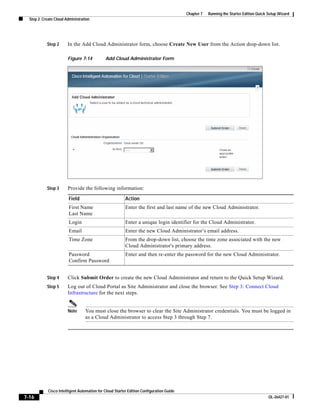
  • 26.
    Chapter 1 Solution Prerequisites Customer Environment Supported installation media for ESXi Provisioning of the ESXi Hypervisor OS always uses the first local drive installed in the blade. For Starter Edition, only local installs of the ESXi Hypervisor OS are supported. Supported VMware Versions The following VMware software should be installed: • vSphere Powershell CLI 4.x or later should be installed on the Cisco TEO server to support the activities for adding a new ESXi host to a cluster. Prepare your VMware environment for virtual provisioning using the following checklist: • Install and configure VMware vCenter: – Apply enterprise licensing and enable VMware vSphere Distributed Resource Scheduler (DRS). – Determine and create the datacenter, clusters, hosts, datastores, networks, and resource pools to which all commissioned hosts and VMs will be deployed. • Define at least one VM template with VMware tools. Note Provisioned hosts will have evaluation licensing only. You will need to add licensing manually in the vSphere Client. Note See the ESX and vCenter Server Installation Guide for information about installing and configuring your VMware environment. Directory and Mail Server Preparation To prepare your directory and email environment, ensure that the following conditions are met: • LDAP server installed and configured, and Microsoft Active Directory deployed • SMTP server installed and configured with an account to send and receive emails Organizations and Users Preparation Prepare a list of organizations, organization users, and organization administrators to configure in Cloud Portal. Cisco Intelligent Automation for Cloud Starter Edition Configuration Guide 1-10 OL-26427-01
  • 27.
    CH A PT E R 2 Configuring Tidal Enterprise Orchestrator Note Before you can configure and deploy Starter Edition, you MUST review Chapter 1, “Solution Prerequisites.” to ensure that your datacenter infrastructure is properly configured and that all of the prerequisite installations of Tidal Enterprise Orchestrator, such as vSphere drop-down list Powershell CLI, are in place. If any of the requirements presented in this chapter are not met, deployment may fail. This chapter guides you through setting up Tidal Enterprise Orchestrator. It includes the following steps: • Import the Automation Packs in Tidal Enterprise Orchestrator • Manually Set Extended Target Properties for Linux • Refresh Tidal Enterprise Orchestrator Server Web Service Cisco Intelligent Automation for Cloud Starter Edition Configuration Guide OL-26427-01 2-1
  • 28.
    Chapter 2 Configuring Tidal Enterprise Orchestrator Import the Automation Packs in Tidal Enterprise Orchestrator Import the Automation Packs in Tidal Enterprise Orchestrator The automation packs are containers of automation and portal content. The first step in configuring Cisco Intelligent Automation for Cloud Starter Edition is to import the following four automation packs that contain the Starter Edition content into Tidal Enterprise Orchestrator. • Core automation pack—Core content and is a prerequisite for all other automation packs. • Common Activities automation pack—Common activities that are used by other automation packs. • Intelligent Automation for Cloud Compute—Content shared across all cloud automation packs. • Intelligent Automation for Cloud Starter—Starter Edition content. Note It is recommended that you review the system requirements for Tidal Enterprise Orchestrator as defined in the Tidal Enterprise Orchestrator Installation and Administration Guide. Use the Automation Pack Import Wizard to import the automation packs. The wizard automatically launches after the Tidal Enterprise Orchestrator installation is complete and the automation pack initialization is completed. The wizard does not fully launch until after the automation server has started. Use the following steps to import Tidal Automation Packs immediately after the complete product installation. Step 1 After installing Tidal Enterprise Orchestrator, ensure that the Launch automation pack import wizard now check box is checked before closing the Setup wizard. The Select Automation Packs dialog box displays the available automation packs. Step 2 Check the following check boxes, and then click OK to launch the Automation Pack Import Wizard: • Core (Checked by default) • Common Activities (Dependency) • Intelligent Automation for Cloud Compute (Dependency) • Intelligent Automation for Cloud Starter Step 3 Proceed to the next section, Core Automation Pack. Cisco Intelligent Automation for Cloud Starter Edition Configuration Guide 2-2 OL-26427-01
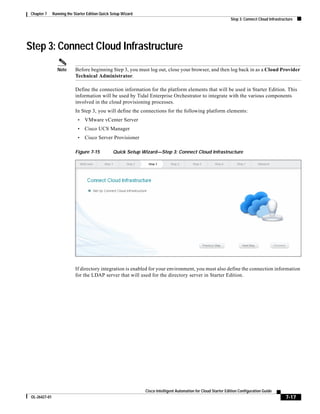
  • 29.
    Chapter 2 Configuring Tidal Enterprise Orchestrator Import the Automation Packs in Tidal Enterprise Orchestrator Core Automation Pack The Core automation pack is the first to import. After you have completed the steps in this section, the wizard will guide you through importing each of the other automation packs. Step 1 On the Welcome to the Automation Pack Import Wizard panel, review the information, and then click Next. Figure 2-1 Welcome to the Automation Pack Import Wizard Panel Step 2 On the General Information panel, review the display-only information about the automation pack, and then click Next to continue. Figure 2-2 General Information—Core Automation Pack Cisco Intelligent Automation for Cloud Starter Edition Configuration Guide OL-26427-01 2-3
  • 30.
    Chapter 2 Configuring Tidal Enterprise Orchestrator Import the Automation Packs in Tidal Enterprise Orchestrator Step 3 On the Email Configuration panel, provide the default SMTP server and sender’s email address to be used for email activities. Field Description Default SMTP server Enter the name of the SMTP server that is used as the default server for sending email messages. Default SMTP port Enter the port number for the SMTP server. This field is automatically populated with port number 25. Default sender Enter the email address of the sender that is designated as the default sender for email activities. Figure 2-3 Email Configuration—Core Automation Pack Note You can manually change the settings on this panel when configuring a specific email activity that requires a different SMTP server or sender email address. Step 4 Click Next to continue. Cisco Intelligent Automation for Cloud Starter Edition Configuration Guide 2-4 OL-26427-01
  • 31.
    Chapter 2 Configuring Tidal Enterprise Orchestrator Import the Automation Packs in Tidal Enterprise Orchestrator Figure 2-4 Automation Summary Configuration—Core Automation Pack The Automation Summary Configuration panel indicates where the automation summary reports that are generated by activities are to be saved and how long the reports are to be retained. The specified file paths will be used to access and view the automation summary reports. Note You can access the automation summary from Cloud Portal by mapping the automation summary path to an IIS virtual directory. To enable this option, see Step 5. Step 5 On the Automation Summary Configuration panel, specify the following information: Field Description Automation Summary Accept the default directory, or enter a different file path for the Directory automation summary directory. You can also click Browse to navigate to the file path for the automation summary. Map the automation Click Use IIS Virtual Directory to map the automation summary to summary path using indicate the file path on an IIS Virtual Directory. In the Virtual directory path field, enter the share folder that corresponds to a virtual directory in IIS. Use the following convention: http://host:(port)/sharefolder. If necessary, create your web sites and Virtual Directory in IIS Manager for the share folder. You can use the default settings or change them. Delete automation Check this check box, and then enter the number of days that the summary reports older than automation summary files should be retained. Automation summary files that are older than the specified number of days will be deleted. Cisco Intelligent Automation for Cloud Starter Edition Configuration Guide OL-26427-01 2-5
  • 32.
    Chapter 2 Configuring Tidal Enterprise Orchestrator Import the Automation Packs in Tidal Enterprise Orchestrator Step 6 Click Next to continue. Figure 2-5 Default Windows Credentials—Core Automation Pack Step 7 On the Default Windows Credentials panel, specify the default credentials for the Windows automation server target. Field Description Domain Enter the name of the domain of the user account that is used to connect to the Windows server. User name Enter the username for the user account associated with the server. Password Enter the password assigned to the user account. Step 8 Click Next to continue. Figure 2-6 Data Extraction—Core Automation Pack Cisco Intelligent Automation for Cloud Starter Edition Configuration Guide 2-6 OL-26427-01
  • 33.
    Chapter 2 Configuring Tidal Enterprise Orchestrator Import the Automation Packs in Tidal Enterprise Orchestrator Step 9 Verify the default location for where the data files should be extracted or click the Browse tool to specify a different location. Step 10 Click Next. Figure 2-7 Review Prerequisites Panel Step 11 Click Next. The Review Prerequisites panel displays the prerequisites for the automation pack being imported. The green check mark indicates that the prerequisite was found on the computer. A red X indicates that the prerequisite was not found on the computer. When this occurs, the import process is stopped and cannot continue until all prerequisites have been met. If all prerequisites are passed, the wizard automatically continues to the General Information panel for the next automation pack to be imported. Step 12 Proceed to the next section, Common Activities Automation Pack. Cisco Intelligent Automation for Cloud Starter Edition Configuration Guide OL-26427-01 2-7
  • 34.
    Chapter 2 Configuring Tidal Enterprise Orchestrator Import the Automation Packs in Tidal Enterprise Orchestrator Common Activities Automation Pack The Intelligent Automation for Cloud automation packs have a dependency on the Common Activities automation pack. Therefore, the wizard will guide you through importing this automation pack next. Step 1 On the General Information panel, review the information about the automation pack. Figure 2-8 General Information—Common Activities Automation Pack Step 2 Click Next to continue. Figure 2-9 Review Prerequisites—Common Activities Automation Pack The Review Prerequisites panel displays the prerequisites for the automation pack being imported. The green check mark indicates that the prerequisite was found on the computer. A red X indicates that the prerequisite was not found on the computer. When this occurs, the import process is stopped and cannot continue until all prerequisites have been met. Proceed to Intelligent Automation for Compute Automation Pack, page 2-9. Cisco Intelligent Automation for Cloud Starter Edition Configuration Guide 2-8 OL-26427-01
  • 35.
    Chapter 2 Configuring Tidal Enterprise Orchestrator Import the Automation Packs in Tidal Enterprise Orchestrator Intelligent Automation for Compute Automation Pack The Intelligent Automation for Cloud Starter automation pack has a dependency on the Intelligent Automation for Compute automation pack. Step 1 On the General Information panel, review the information about the automation pack. Figure 2-10 General Information—Intelligent Automation for Compute Automation Pack Step 2 Click Next to continue. Figure 2-11 Default Incidents Assignee Setup—Intelligent Automation for Compute Automation Pack Cisco Intelligent Automation for Cloud Starter Edition Configuration Guide OL-26427-01 2-9
  • 36.
    Chapter 2 Configuring Tidal Enterprise Orchestrator Import the Automation Packs in Tidal Enterprise Orchestrator Step 3 On the Default Incidents Assignee Setup panel, click the Browse tool to specify the default user to assign cloud-related incidents. Figure 2-12 Select User or Group Step 4 On the Select User or Group dialog box, click Location and choose the location from which the user will be selected. Step 5 In the text box, enter the user name and click Check Names. If the name is found, the box will be populated with the appropriate email address. Step 6 Click OK to close the Select User or Group dialog box. Step 7 On the Default Incidents Assignee Setup panel, click Next to continue Figure 2-13 Tidal Enterprise Orchestrator Web Service—Intelligent Automation for Compute Automation Pack Cisco Intelligent Automation for Cloud Starter Edition Configuration Guide 2-10 OL-26427-01
  • 37.
    Chapter 2 Configuring Tidal Enterprise Orchestrator Import the Automation Packs in Tidal Enterprise Orchestrator Step 8 On the Tidal Enterprise Orchestrator Web Service panel, specify the following settings: Field Description Web Service Settings Check the Enable non-secure Web Service (HTTP) check box. This setting unencrypts the HTTP endpoints. HTTP Port Enter or verify the port for the Tidal Enterprise Orchestrator web target. HTTPS or HTTP authentication Choose the appropriate authentication for the web service: mechanism • Basic—Standard method for providing a user name and password to the authentication mechanism • Digest—Requires parties that seek to authenticate to provide their knowledge of secret keys. • NTLM—Default. Authentication protocol used on networks that include systems running the Windows operating system and on stand-alone systems. Note The agents in Cloud Portal must also be set to use the same NTLM authentication that you specify here. Note In IIS, NTLM is not enabled by default. You must enable NTLM in IIS if you choose this authentication mechanism. Step 9 Click Next to continue. Figure 2-14 Tidal Enterprise Orchestrator Web Service Credentials—Intelligent Automation for Compute Automation Pack Cisco Intelligent Automation for Cloud Starter Edition Configuration Guide OL-26427-01 2-11
  • 38.
    Chapter 2 Configuring Tidal Enterprise Orchestrator Import the Automation Packs in Tidal Enterprise Orchestrator Step 10 On the Default Web Service Credentials panel, specify the credentials for connecting to the Tidal Enterprise Orchestrator web service target: Field Description Domain Enter the name of the domain of the user account used to connect to the Tidal Enterprise Orchestrator Web service target. User name Enter the username for the user account associated with target. Password Enter the password assigned to the user account. Step 11 Click Next to continue. Figure 2-15 VMware Keystore Password—Intelligent Automation for Compute Automation Pack Step 12 Enter a password to be used to access the VMware keystore, and then click Next to continue. Cisco Intelligent Automation for Cloud Starter Edition Configuration Guide 2-12 OL-26427-01
  • 39.
    Chapter 2 Configuring Tidal Enterprise Orchestrator Import the Automation Packs in Tidal Enterprise Orchestrator Figure 2-16 Review Prerequisites—Intelligent Automation for Compute Automation Pack The Review Prerequisites panel displays the prerequisites for the automation pack being imported. The green check mark indicates that the prerequisite was found on the computer. If all prerequisites are found, the wizard automatically continues to the Intelligent Automation for Cloud Starter Automation Pack. A red X indicates that the prerequisite was not found on the computer. When this occurs, the import process is stopped and cannot continue until all prerequisites have been met. Step 13 Proceed to the next section, Intelligent Automation for Cloud Starter Automation Pack, page 2-13. Intelligent Automation for Cloud Starter Automation Pack The wizard will now guide you through importing the Intelligent Automation for Cloud Starter Automation Pack. Note It is recommended that you read through this section prior to importing the automation pack to identify and obtain all the necessary information that needs to be provided in the wizard panels. This will help streamline the import process. Step 1 On the General Information panel, review the information about the automation pack. Cisco Intelligent Automation for Cloud Starter Edition Configuration Guide OL-26427-01 2-13
  • 40.
    Chapter 2 Configuring Tidal Enterprise Orchestrator Import the Automation Packs in Tidal Enterprise Orchestrator Figure 2-17 General Information—Intelligent Automation for Cloud Starter Automation Pack Step 2 Click Next to continue. Figure 2-18 Cloud Portal Integration API Connection—Intelligent Automation for Cloud Starter Automation Pack Cisco Intelligent Automation for Cloud Starter Edition Configuration Guide 2-14 OL-26427-01
  • 41.
    Chapter 2 Configuring Tidal Enterprise Orchestrator Import the Automation Packs in Tidal Enterprise Orchestrator Step 3 On the Cloud Portal Integration API Connection panel, specify for the following information to create a connection to the Cloud Portal: Field Description Host name Enter the IP address or the server name of the server where Cloud Portal is installed. For example, enter: <servername>.domain.local Port number Port number used to connect to the Cloud Portal server. The default port number is 8089. User name Enter the username for the nsAPI user account that you created in Create a Local User for nsAPI, page 5-5. Note If you change this username, you must edit the extended target properties for Cloud.Configuration.CloudPortal.API.Password and Cloud.Configuration.CloudPortal.API.User with the new username. The steps for editing the extended target properties, see the Cisco Intelligent Automation for Cloud User Guide. Password.domain Enter the password for the nsAPI user account that you created in Create a Local User for nsAPI, page 5-5. Note If you change this password, you must edit the extended target properties for Cloud.Configuration.CloudPortal.API.Password and Cloud.Configuration.CloudPortal.API.User with the new username. The steps for editing the extended target properties, see the Cisco Intelligent Automation for Cloud User Guide. Ignore certificate errors Check or uncheck the check box to indicate whether the target should ignore any certificate errors on the specified web site. If the check box is checked, all errors will be ignored. Base URL Enter the URL to the server where Cloud Portal is installed: http://<Hostname>:<Port>/IntegrationServer/services) Step 4 Click Next to continue. Cisco Intelligent Automation for Cloud Starter Edition Configuration Guide OL-26427-01 2-15
  • 42.
    Chapter 2 Configuring Tidal Enterprise Orchestrator Import the Automation Packs in Tidal Enterprise Orchestrator Figure 2-19 Cisco Cloud Portal Request Center API Connection—Intelligent Automation for Cloud Starter Automation Pack Step 5 On the Cisco Cloud Portal Request Center API Connection panel, specify for the following information for connecting to the Cisco Cloud Portal Request Center API: Field Description Host name Enter the IP address or the server name of the server where Cisco Cloud Portal Request Center is installed. For example, enter: <servername>.domain.local Port number Port number used to connect to the Cisco Cloud Portal Request Center. The default port number is 8088. Base URL Enter the URL to the server where Cloud Portal Request Center is installed: http://<Host name>:<Port number>/RequestCenter Ignore certificate errors Check or uncheck the check box to indicate whether the target should ignore any certificate errors on the specified web site. If the check box is checked, all errors will be ignored. User name Enter the user name for the nsAPI user account that you created in Create a Local User for nsAPI, page 5-5. Note This designation is temporary. Later in this guide, you will create an account in the Cloud Provider Technical Administrator organization unit for this user. Note The user account must have administrator permissions in Cloud Cisco Portal. Password Enter the password for the nsAPI user account that you created in Create a Local User for nsAPI, page 5-5. Cisco Intelligent Automation for Cloud Starter Edition Configuration Guide 2-16 OL-26427-01
  • 43.
    Chapter 2 Configuring Tidal Enterprise Orchestrator Import the Automation Packs in Tidal Enterprise Orchestrator Step 6 Click Next to continue. Figure 2-20 Configure Process Database Grooming—Intelligent Automation for Cloud Starter Automation Pack Step 7 On Configure Process Database Grooming panel, specify the number of days to keep process instances in the database. After the specified number of day, the process instances will be deleted from the database. Step 8 Click Next to continue. Figure 2-21 Data Extraction—Intelligent Automation for Cloud Starter Automation Pack The Data Extraction panel is used to specify the destination where the data is extracted on the Tidal Enterprise Orchestrator server. Note If you uncheck the check boxes, the files will not be extracted. Cisco Intelligent Automation for Cloud Starter Edition Configuration Guide OL-26427-01 2-17
  • 44.
    Chapter 2 Configuring Tidal Enterprise Orchestrator Import the Automation Packs in Tidal Enterprise Orchestrator Step 9 On the Data Extraction panel, accept the default location, or click the Browse tool to specify a different location to extract the files, and then click Next. Figure 2-22 Review Prerequisites—Intelligent Automation for Cloud Starter Automation Pack The Review Prerequisites panel displays the prerequisites for the automation pack being imported. The green check mark indicates that the prerequisite was found on the computer. If all prerequisites are found, the importing procedures are complete. A red X indicates that the prerequisite was not found on the computer. When this occurs, the import process is stopped and cannot conclude until all prerequisites have been met. Figure 2-23 Completing the Automation Pack Import Wizard Cisco Intelligent Automation for Cloud Starter Edition Configuration Guide 2-18 OL-26427-01
  • 45.
    Chapter 2 Configuring Tidal Enterprise Orchestrator Import the Automation Packs in Tidal Enterprise Orchestrator Step 10 After the objects have been imported, review the information on the Completing the Automation Pack Import Wizard panel to verify that it is correct, and then click Close to close the wizard. Step 11 If you are running Cloud Portal on a Linux operating system, you must manually set extended target properties; proceed to the next section, Manually Set Extended Target Properties for Linux. If you are not running Cloud Portal on a Linux operating system, proceed to Refresh Tidal Enterprise Orchestrator Server Web Service. Manually Set Extended Target Properties for Linux Note This section pertains only to Linux. If you are not running Cloud Portal on a Linux platform, skip to the next section, Refresh Tidal Enterprise Orchestrator Server Web Service, page 2-23. If you are running Cloud Portal on a Linux operating system, you must manually configure extended properties for the following targets: • Cisco Cloud Portal Request Center API • Cisco Cloud Portal Integration API Note You must create the Cloud Portal Request Center API target before you create the Cisco Cloud Portal Integration API. For each target, you must manually configure the following extended properties: • Cloud.Configuration.CloudPortal.IsUnix • Cloud.Configuration.CloudPortal.UnixTarget Note The Required Value icon displayed on a tab or page indicates that the field is required and is missing a value. Configure Extended Target Properties for Cisco Cloud Portal Integration API Before you can configure the extended target properties, for Cisco Cloud Portal Integration API, you must first create a Linux target and a default runtime user for the target. Create a Runtime User for the Linux Target Step 1 In the Tidal Enterprise Orchestrator Console, click Definitions in the panel on the left to display the Definitions workspace. Step 2 Right-click Runtime Users in the Definitions panel and choose New > Runtime User. Cisco Intelligent Automation for Cloud Starter Edition Configuration Guide OL-26427-01 2-19
  • 46.
    Chapter 2 Configuring Tidal Enterprise Orchestrator Import the Automation Packs in Tidal Enterprise Orchestrator Figure 2-24 Runtime Users View—Add New Runtime User Step 3 In the New Runtime User Properties dialog box, click the General tab, and specify the following information: Field Description Display name Enter a descriptive display name for the new runtime user. User name Enter the user name for the new runtime user. The user must have write access to the on the Linux server drop-box location. Password Check the Password check box, and then enter the password. Description Optional. Cisco Intelligent Automation for Cloud Starter Edition Configuration Guide 2-20 OL-26427-01
  • 47.
    Chapter 2 Configuring Tidal Enterprise Orchestrator Import the Automation Packs in Tidal Enterprise Orchestrator Figure 2-25 Runtime Users View—New Runtime User Dialog Box Step 4 Click OK. Step 5 Proceed to the next section, Create a Target for the Linux Server, to create a target for the Linux server. Create a Target for the Linux Server Step 1 In the Definitions workspace, right-click Targets and choose New > Unix/Linux System. Step 2 In the New Unix/Linux System Properties dialog box, click the General tab, and then enter a descriptive display name. Step 3 Click the Connection tab. Step 4 Enter the fully qualified host name for the Linux target. Step 5 Uncheck the Prompt prefix check box. Cisco Intelligent Automation for Cloud Starter Edition Configuration Guide OL-26427-01 2-21
  • 48.
    Chapter 2 Configuring Tidal Enterprise Orchestrator Import the Automation Packs in Tidal Enterprise Orchestrator Step 6 From the Default runtime user drop-down list, choose the runtime user you created in Create a Runtime User for the Linux Target. Step 7 Click the Advanced tab. Step 8 From the Use patterns common for the following device drop-down list, choose the Linux target you have just created, and then click OK. Step 9 Proceed to the next section, Configure the Extended Target Properties for Both Cloud Portal Web Service Targets, to configure the extended target properties for Cloud Portal web service targets. Configure the Extended Target Properties for Both Cloud Portal Web Service Targets Step 1 In the Definitions workspace in the Tidal Enterprise Orchestrator Console, click Targets. Step 2 Right-click Cisco Cloud Portal Integration API in the list and choose Properties. Step 3 In the Properties dialog box, click the Extended Properties tab. Step 4 In the Cisco Cloud Portal Integration API Properties box, select Cloud.Configuration.CloudPortal.IsUnix, and then click Edit. Step 5 In the Target Property Value dialog box, choose true from the Value drop-down list, and then click OK. Step 6 Select Cloud.Configuration.CloudPortal.UnixTarget, and then click Edit. Step 7 On the Target Property Value dialog box, click the Browse tool next to the Value field to open the Select Target dialog box. Step 8 In the Select Target dialog box, select the Linux target that you created in Create a Target for the Linux Server, page 2-21, and then click OK. Step 9 Proceed to the next section, Configure Extended Target Properties for Cisco Cloud Portal Request Center API. Configure Extended Target Properties for Cisco Cloud Portal Request Center API Step 1 In the Definitions workspace in the Tidal Enterprise Orchestrator Console, click Targets. Step 2 Right-click Cisco Cloud Portal Request Center API in the list and choose Properties. Step 3 In the Properties dialog box, click the Extended Properties tab. Step 4 In the Cisco Cloud Portal Request Center API Properties box, select Cloud.Configuration.CloudPortal.IsUnix, and then click Edit. Step 5 In the Target Property Value dialog box, choose true from the Value drop-down list, and then click OK. Step 6 In the Properties dialog box, select Cloud.Configuration.CloudPortal.UnixTarget, and then click Edit. Step 7 Click the Browse tool next to the Value field to open the Select Target dialog box. Step 8 In the Select Target dialog box, select the Linux target that you created in Create a Target for the Linux Server, page 2-21, and then click OK. Step 9 Proceed to the next section, Refresh Tidal Enterprise Orchestrator Server Web Service. Cisco Intelligent Automation for Cloud Starter Edition Configuration Guide 2-22 OL-26427-01
  • 49.
    Chapter 2 Configuring Tidal Enterprise Orchestrator Import the Automation Packs in Tidal Enterprise Orchestrator Refresh Tidal Enterprise Orchestrator Server Web Service After installing the automation packs, you must refresh the Tidal Enterprise Orchestrator Server web service. This action allows all of the installed processes to be initialized in Tidal Enterprise Orchestrator web service. Step 1 In the Tidal Enterprise Orchestrator Console, click File > Server Properties to open the Server Properties dialog box. Step 2 Click the Web Service tab. Figure 2-26 Server Properties Dialog Box—Web Service Tab Step 3 Click Refresh Web Service and then click OK. Proceed to one of the following chapters: Chapter 3, “Installing or Upgrading Proceed to Chapter 3 only if: Cisco Cloud Portal” • Cisco Service Portal (Cloud Portal) and the required REX adapter are not installed in your environment. • Cloud Portal is installed, but the required REX adapter is not installed. Chapter 4, “Setting Up Directory Skip to Chapter 4 only if you are using a directory service to Integration” import user and organization information. Otherwise, skip Chapter 4. Chapter 5, “Setting Up Cisco Cloud Skip to Chapter 5 only if: Portal” • Cisco Cloud Portal and the required REX adapter are installed in your environment, and • You are not using a directory service, or you are using a directory service and have configured it following the directions provided in Chapter 4, “Setting Up Directory Integration.” Cisco Intelligent Automation for Cloud Starter Edition Configuration Guide OL-26427-01 2-23
  • 50.
    Chapter 2 Configuring Tidal Enterprise Orchestrator Import the Automation Packs in Tidal Enterprise Orchestrator Cisco Intelligent Automation for Cloud Starter Edition Configuration Guide 2-24 OL-26427-01
  • 51.
    CH A PT E R 3 Installing or Upgrading Cisco Cloud Portal Note You cannot install the REX adapter without first importing the Automation Packs into Tidal Enterprise Orchestrator as directed in Chapter 2, “Configuring Tidal Enterprise Orchestrator.” The files required for installing the REX adapter are shipped with the Intelligent Automation for Cloud Starter automation pack and can only be unpacked when the automation pack is imported. Follow the instructions in this chapter only if: • You have not yet installed Cisco Cloud Portal. See Installing Cisco Cloud Portal and the REX Adapter, page 3-2 for information. • Cisco Service Portal is already installed in your environment, but the REX adapter is not installed. See Upgrading to Cisco Intelligent Automation for Cloud Starter Edition 3.0.1, page 3-15 to upgrade your Service Portal installation with the REX adapter. Note In the following chapters, this guide refers to Cisco Service Portal as “Cisco Cloud Portal” and “Cloud Portal.” Cloud Portal is synonymous with Service Portal when it is configured with the REX adapter for use with Cisco Intelligent Automation for Cloud Starter Edition. If you already have Cloud Portal and the REX adapter installed, skip to one of the following chapters: Chapter 4, “Setting Up Directory Skip to Chapter 4, “Setting Up Directory Integration,” only if you Integration” are using a directory service to import user and organization information. Otherwise, skip Chapter 5, “Setting Up Cisco Cloud Portal”. Chapter 5, “Setting Up Cisco Skip to Chapter 5, “Setting Up Cisco Cloud Portal,” only if: Cloud Portal” • You are not using a directory service, or • You are using a directory service and have configured it following the directions provided in Chapter 4, “Setting Up Directory Integration.” Cisco Intelligent Automation for Cloud Starter Edition Configuration Guide OL-26427-01 3-1
  • 52.
    Chapter 3 Installing or Upgrading Cisco Cloud Portal Installing Cisco Cloud Portal and the REX Adapter Installing Cisco Cloud Portal and the REX Adapter Note The images of command windows in this chapter show were captured during an installation of Starter Edition 3.0.1 on Windows with Microsoft SQL Server. Command windows for installations with Oracle® Database Enterprise Edition are similar. This section applies only if Cisco Service Portal and REX adapter are not yet installed in your environment. It provides important about the installation. This section also includes full instructions for the installation with Microsoft SQL Server as the database server. (For the Oracle database server, see If You Are Using Oracle Database Enterprise Edition 11g R2 Server.) After installation, configure Cloud Portal and the REX adapter agents following the instructions in this guide. If You Are Using Oracle Database Enterprise Edition 11g R2 Server After reading this section for information on what you need for the installation, see the Cisco Service Portal 9.3.2 Installation Guide and the documentation that came with your Oracle database software for full instructions. It is strongly suggested that you also review the installation instructions inInstall Cloud Portal with the Microsoft SQL Server Database Server, page 3-3, as the instructions are similar. After installation, return this guide, and proceed to one of the following chapters: • Chapter 4, “Setting Up Directory Integration”—Proceed to Chapter 4 only if you are using a directory service to import user and organization information. • Chapter 5, “Setting Up Cisco Cloud Portal”—Skip to Chapter 5 only if you are using a directory service and have configured it following the instructions in Chapter 4, “Setting Up Directory Integration.” Prerequisite for the REX Adapter Installation Before you install Cloud Portal and the REX adapter, you must first import and configure the Starter Edition Automation Packs in TEO. (See Chapter 2, “Configuring Tidal Enterprise Orchestrator.”) The files required for installing the REX adapter included in the Intelligent Automation for Cloud Starter Automation Pack. Locate the REX Adapter Installation Files Although you install the REX adapter during Cloud Portal installation, the REX installer is in a separate location from those of Cloud Portal. When you import the Intelligent Automation for Cloud Starter Automation Pack, the REX adapter installation zip file is extracted by default to the following location on the Tidal Enterprise Orchestrator server: <installation drive>:Users<username>DocumentsCiscoTidal Enterprise OrchestratorDataCloud Portal Adapters<REX installer directory><REX installer files> Cisco Intelligent Automation for Cloud Starter Edition Configuration Guide 3-2 OL-26427-01
  • 53.
    Chapter 3 Installing or Upgrading Cisco Cloud Portal Installing Cisco Cloud Portal and the REX Adapter Basic Procedure for Installation Installing Cloud Portal and the REX adapter involves three basic steps, whether you are using SQL Server or Oracle Database server: Step 1 Create the RequestCenter and Datamart databases on the database server. Step 2 Enable snapshots on the database server. Step 3 Run the Cisco Service Portal installer, which includes the option for installing the REX adapter. The following section provides full instructions for installing Cloud Portal and the REX adapter when SQL Server is the database server. Install Cloud Portal with the Microsoft SQL Server Database Server Install Cloud Portal and the REX adapter according to the instructions in this section. Perform the following three sets of tasks in sequence: 1. Create the RequestCenter and Datamart Databases, page 3-3 2. Enable Snapshots, page 3-5 3. Run the Cisco Service Portal Installer, page 3-7 Create the RequestCenter and Datamart Databases Step 1 in Microsoft SQL Server Management Studio, right-click Databases in Object Explorer and choose New Database.... Figure 3-1 SQL Server—New Database Cisco Intelligent Automation for Cloud Starter Edition Configuration Guide OL-26427-01 3-3
  • 54.
    Chapter 3 Installing or Upgrading Cisco Cloud Portal Installing Cisco Cloud Portal and the REX Adapter Step 2 In the New Database dialog box, enter Datamart in the Database name text field. Step 3 In the Owner field, enter DMUser. Step 4 In the Database files area, click in the Initial Size (MB) field in the first row, and change the value to 500. Step 5 Click OK. Figure 3-2 SQL Server—New Database Dialog Box Step 6 In the Object Explorer pane, right-click Databases and choose New Database.... Note You must create the RequestCenter database before you enable snapshots (covered in the next section, Enable Snapshots). You cannot combine the two tasks. Step 7 In the New Database dialog box, enter RequestCenter (with no space between the words) in the Database name text field. Step 8 In the Owner field, enter RCUser. Step 9 In the Database files area, click in the Initial Size (MB) field in the first row, and change the value to 500. Step 10 Click OK. Step 11 To see the new databases in the navigation pane, right-click Databases and choose Refresh. Cisco Intelligent Automation for Cloud Starter Edition Configuration Guide 3-4 OL-26427-01
  • 55.
    Chapter 3 Installing or Upgrading Cisco Cloud Portal Installing Cisco Cloud Portal and the REX Adapter Enable Snapshots Note You must create the RequestCenter database before you enable snapshots. You cannot combine the two tasks. Before you run the Cisco Cloud Portal installer, you must first enable snapshots. Step 1 In SQL Server Management Studio, expand Databases in Object Explorer. Step 2 Right-click RequestCenter and choose Properties. Step 3 In the Database Properties - RequestCenter dialog box, click Options in the Select a Page pane. Step 4 In the Options view, scroll down to the State area, and change the Restrict Access value from MULTI_USER to SINGLE_USER. Figure 3-3 SQL Server—Restrict Access in the RequestCenter Database Step 5 When an alert appears informing you that to change the database properties, SQL Server must close all other connections to the database, click Yes. Step 6 Click OK to close the Database Properties - RequestCenter dialog box. Cisco Intelligent Automation for Cloud Starter Edition Configuration Guide OL-26427-01 3-5
  • 56.
    Chapter 3 Installing or Upgrading Cisco Cloud Portal Installing Cisco Cloud Portal and the REX Adapter Step 7 Click New Query, enter the following, and then click Execute: ALTER DATABASE RequestCenter SET COMMITTED_SNAPTSHOT ON Figure 3-4 SQL Server—Query Snapshots Step 8 Close the Query window. Step 9 Click Connect in the toolbar immediately above Object Explorer, and choose Database Engine to reconnect. Step 10 Return to Options view in the Database Properties - RequestCenter dialog box (see Step 2 and Step 3), and change the Restrict Access value back to MULTI-USER. Step 11 Click OK. Cisco Intelligent Automation for Cloud Starter Edition Configuration Guide 3-6 OL-26427-01
  • 57.
    Chapter 3 Installing or Upgrading Cisco Cloud Portal Installing Cisco Cloud Portal and the REX Adapter Run the Cisco Service Portal Installer Step 1 On the Cisco service Portal server, navigate to the Installer directory: <install drive>RCInstall-win-11.2.1.0151Installer Figure 3-5 Cisco Service Portal Installer Directory—Setup.bat File Step 2 Double-click setup.bat to open a command window. Figure 3-6 Command Window—Java Home Directory Step 3 In the Java Home Directory window, enter the name of the Java Home directory and press Enter to validate the Java path. or Press Enter to accept the default value as shown in the brackets. Cisco Intelligent Automation for Cloud Starter Edition Configuration Guide OL-26427-01 3-7
  • 58.
    Chapter 3 Installing or Upgrading Cisco Cloud Portal Installing Cisco Cloud Portal and the REX Adapter Figure 3-7 Command Window—Type of Installation Step 4 In the Type of Installation window, enter 1 for New Installation, and press Enter. Figure 3-8 Command Window—Destination Directory Step 5 In the Destination Directory window, enter the name of the destination directory where Cisco Service Portal was installed, press Enter, and then press Enter again to confirm the destination directory. or Press Enter to accept the default value as shown in the brackets, and then press Enter again to confirm the destination directory. Cisco Intelligent Automation for Cloud Starter Edition Configuration Guide 3-8 OL-26427-01
  • 59.
    Chapter 3 Installing or Upgrading Cisco Cloud Portal Installing Cisco Cloud Portal and the REX Adapter Figure 3-9 Command Window—Application Server Step 6 In the Application Server window, enter the option number for the type of application server, and press Enter. Figure 3-10 Command Window—Module Step 7 In the Module window, enter 4 to include Service Link in the installation, and then press Enter to change the Install value to Yes. Note Request Center installation is enabled by default. Do not disable. Step 8 Press C to continue. Cisco Intelligent Automation for Cloud Starter Edition Configuration Guide OL-26427-01 3-9
  • 60.
    Chapter 3 Installing or Upgrading Cisco Cloud Portal Installing Cisco Cloud Portal and the REX Adapter Figure 3-11 Command Window—Database Platform Step 9 In the Database Platform window, enter the option number for the database platform, and then press Enter. Figure 3-12 Command Window—Web Server Configuration Step 10 In the Web Server Configuration window, review the Web Server host name to verify that it is correct, and then press Enter to continue. Step 11 In the Web Server Configuration window, review the Web Server port number to verify that it is correct, and then press Enter to continue. Cisco Intelligent Automation for Cloud Starter Edition Configuration Guide 3-10 OL-26427-01
  • 61.
    Chapter 3 Installing or Upgrading Cisco Cloud Portal Installing Cisco Cloud Portal and the REX Adapter Note The asterisk (*) in the left margin indicates that it is a required field, even if the default value shown in brackets is the correct configuration. Figure 3-13 Command Window—Database Component Installation Options Step 12 In the Database Component Installation Options window, specify the following information: Option No. Option Action Note Do not make any other changes in this window. 3 Database Server Press Enter to accept the default database server. 6 Database User Enter RC for the RequestCenter database user password and Password press Enter. 9 SqlServer sa Password Enter SA for the system administrator password and press Enter. Cisco Intelligent Automation for Cloud Starter Edition Configuration Guide OL-26427-01 3-11
  • 62.
    Chapter 3 Installing or Upgrading Cisco Cloud Portal Installing Cisco Cloud Portal and the REX Adapter Step 13 Press C to continue. Figure 3-14 Command Window—Verifying Connection Information The installation script then verifies the database components that you entered. After verification, the Installer automatically proceeds to the Installation Options window. Figure 3-15 Command Window—Installation Options Cisco Intelligent Automation for Cloud Starter Edition Configuration Guide 3-12 OL-26427-01
  • 63.
    Chapter 3 Installing or Upgrading Cisco Cloud Portal Installing Cisco Cloud Portal and the REX Adapter Step 14 In the Installation Options window, specify the following information: Option No. Option Action Note Do not make any other changes in this window. 1 SMTP Server Enter the SMTP server, and press Enter. 2 Sender Address Enter the Sender address, and press Enter. 22 Service Link Database URL Enter the Service Link Base URL, and press Enter. or Press Enter to accept the default value as shown in the brackets. 26 Include Custom Adapters? Press Enter to set the value to Yes. Option number 27 appears. 27 Custom adapter archive path Enter the full path to the rexAdapter_301.zip file, and press Enter. For example: <install drive>rexAdapter_301.zip Figure 3-16 Command Window—Installation Options Window—Custom Content Path Cisco Intelligent Automation for Cloud Starter Edition Configuration Guide OL-26427-01 3-13
  • 64.
    Chapter 3 Installing or Upgrading Cisco Cloud Portal Installing Cisco Cloud Portal and the REX Adapter Step 15 Press C to continue. The Installer begins extracting and installing files. Figure 3-17 Command Window—Installation Complete Step 16 When installation is complete, press Enter to exit the window. Installation of Cloud Portal is complete. Skip to one of the following chapters to begin setting up and configuring Starter Edition: • Chapter 4, “Setting Up Directory Integration”—Proceed to Chapter 4 only if you are using a directory service for external authentication. • Chapter 5, “Setting Up Cisco Cloud Portal”—Skip to Chapter 5 only if you are not using a directory service for external authentication. Cisco Intelligent Automation for Cloud Starter Edition Configuration Guide 3-14 OL-26427-01
  • 65.
    Chapter 3 Installing or Upgrading Cisco Cloud Portal Upgrading to Cisco Intelligent Automation for Cloud Starter Edition 3.0.1 Upgrading to Cisco Intelligent Automation for Cloud Starter Edition 3.0.1 Note TEO 2.3.1 includes the installer package that you need to upgrade your current installation of Starter Edition 3.0 to 3.0.1. To upgrade to Cisco Intelligent Automation for Cloud Starter Edition 3.0.1, you must perform the following steps: This section guides you through the the following steps in the upgrade process: 1. Back Up Cloud Portal and TEO Databases 2. Apply the Cloud Portal Installer Hotfix 3. Upgrade the REX Adapter 4. Apply the Cloud Portal Hotfix 5. Deploy Service Catalog Packages 6. Deploy Portal Packages 7. Set Permissions for Portal Pages and Portlets 8. Configure Cloud Provider Technical Administrator Organization 9. Configure Agent Properties Note The images of command windows in this chapter show were captured during an installation of Starter Edition 3.0.1 on Windows with Microsoft SQL Server. Command windows for installations with Oracle® Database Enterprise Edition are similar. Cisco Intelligent Automation for Cloud Starter Edition Configuration Guide OL-26427-01 3-15
  • 66.
    Chapter 3 Installing or Upgrading Cisco Cloud Portal Upgrading to Cisco Intelligent Automation for Cloud Starter Edition 3.0.1 Back Up Cloud Portal and TEO Databases Before you begin the upgrade process, you must first create backup files for the Cloud Portal and TEO databases. To create the backups, you validate validate the existing Cisco Service Portal installation. This action also repairs any detected issues with the index and data structures. Step 1 On the Cisco Service Portal server, navigate to the Installer directory (Figure 3-5 on page 3-7): <install drive>RCInstall-win-11.2.1.0151Installer Step 2 Double-click validate.bat to open a command window. Step 3 On the Java Home directory window (Figure 3-6 on page 3-7), enter the name of the Java Home directory and then press Enter to validate the Java path. Step 4 On the Destination Directory window (Figure 3-9 on page 3-9), enter the name of the destination directory where Cisco Service Portal was installed, and then press Enter. Note If you used the default directory, the name automatically displays. Step 5 On the Select an Application Server window (Figure 3-8 on page 3-8), enter the number for the application server that is installed, and then press Enter. Note Typically, JBoss 4.2.3 is used. In this case, enter 1, and then press Enter. Figure 3-18 Command Window—Database Component Installation Options Cisco Intelligent Automation for Cloud Starter Edition Configuration Guide 3-16 OL-26427-01
  • 67.
    Chapter 3 Installing or Upgrading Cisco Cloud Portal Upgrading to Cisco Intelligent Automation for Cloud Starter Edition 3.0.1 Step 6 On the Database Component Installation window, perform the following: Option Action Note Only specify the these options. Do not make any other changes on this window. Enter 6 Enter RC for the Database User Password, and then press Enter. Enter 9 Enter sa for the SQL Server sa Password, and then press Enter. Step 7 Enter C to continue. The installation script then verifies the database components that you entered. Figure 3-19 Command Window—Database Validation Options Step 8 On the Database Validation window, you must perform all three validation steps, regardless of error conditions. Step 9 In the Selection field, enter 1, and then press Enter to perform the Schema Validation. The validation process will continue automatically through each window. Step 10 When the Schema Validation is complete, press Enter to return to the Database Validation Options window. Step 11 In the Selection field, enter 2, and then press Enter to perform the Data Validation. The validation process will continue automatically through each window. Step 12 When the Data Validation is complete, press Enter to return to the Database Validation Options window. Step 13 In the Selection field, enter 3, and then press Enter to Repair Database. The repair process will continue automatically through each window. When the repair process is complete, the validation results display. Cisco Intelligent Automation for Cloud Starter Edition Configuration Guide OL-26427-01 3-17
  • 68.
    Chapter 3 Installing or Upgrading Cisco Cloud Portal Upgrading to Cisco Intelligent Automation for Cloud Starter Edition 3.0.1 Figure 3-20 Command Window—Database Validation Results Step 14 Press Enter to return to the Database Validation Options window. Step 15 In the Selection field, enter 4, and then press Enter to exit the Database Validation. Step 16 Proceed to Apply the Cloud Portal Installer Hotfix. Apply the Cloud Portal Installer Hotfix This hotfix is for the Cloud Portal Installer. Note You will apply a hotfix for Cloud Portal itself after upgrading the REX adapter. Step 1 Download and exctract the hotfix package 9.3.1_HotFix_IAC_Starter_v12.zip. Step 2 Follow all of the instructions in the readme.txt file included in the installer package. The instructions provide important steps for copying extracted files to different deployed directories. Step 3 Proceed to Upgrade the REX Adapter. Upgrade the REX Adapter This section guides you through upgrading your Service Portal installation from REX Adapter version 3.0 to version 3.1. To upgrade the REX adapter, perform the following tasks: 1. Run the Cisco Service Portal Installer in Upgrade Mode, page 3-19 2. Run the Cisco Service Portal Installer in Upgrade Mode, page 3-19 3. Verify the REX Adapter Installation, page 3-24 Cisco Intelligent Automation for Cloud Starter Edition Configuration Guide 3-18 OL-26427-01
  • 69.
    Chapter 3 Installing or Upgrading Cisco Cloud Portal Upgrading to Cisco Intelligent Automation for Cloud Starter Edition 3.0.1 Run the Cisco Service Portal Installer in Upgrade Mode You must now run the Cisco Service Portal installer in upgrade mode. Step 1 On the Cisco Service Portal server, navigate to the Installer directory (Figure 3-5 on page 3-7). For example: [install drive]RCInstall-win-11.2.1.0151Installer Figure 3-21 Cisco Service Portal Installer Directory—Setup.bat File Step 2 Double-click setup.bat to open a command window. Step 3 On the Specify Java Home Directory window (Figure 3-6 on page 3-7), enter the name of the Java Home directory and press Enter to validate the Java path. Figure 3-22 Command Window—Installation Options Step 4 Enter 2 to Upgrade Existing Installation and press Enter. Step 5 When prompted “Have you run the Validation Utility on this database?”, enter Yes, and then press Enter. Step 6 On the Specify Destination Directory window (Figure 3-8 on page 3-8), enter the name of the destination directory where Cisco Service Portal was installed and press Enter. Cisco Intelligent Automation for Cloud Starter Edition Configuration Guide OL-26427-01 3-19
  • 70.
    Chapter 3 Installing or Upgrading Cisco Cloud Portal Upgrading to Cisco Intelligent Automation for Cloud Starter Edition 3.0.1 Figure 3-23 Command Window—Select Modules Use this window to specify the modules to be installed. Typically, for Intelligent Automation for Cloud, you should specify to install Request Center and Service Link. Step 7 Enter 1 for Request Center and set the Install value to Yes. Step 8 Enter 4 for Service Link and set the Install value to Yes. Step 9 Press C to continue. Figure 3-24 Command Window—Select Components Step 10 On the Components window, ensure that all components are set to Yes, and then press C to continue. Step 11 On the Specify Application Server window (Figure 3-9 on page 3-9), enter the number for the application server that is installed and press Enter. Note Typically, JBoss 4.2.3 is used so you will enter 1, and then press Enter. Cisco Intelligent Automation for Cloud Starter Edition Configuration Guide 3-20 OL-26427-01
  • 71.
    Chapter 3 Installing or Upgrading Cisco Cloud Portal Upgrading to Cisco Intelligent Automation for Cloud Starter Edition 3.0.1 Figure 3-25 Command Window—Web Server Configuration Step 12 On the Web Server Configuration window, review the Web Server host name to verify that it is correct, and then press Enter to continue. Figure 3-26 Command Window—Web Server Port Step 13 Review the Web Server port number to verify that it is correct, and then press Enter to continue. Figure 3-27 Command Window—Database Component Installation Options Cisco Intelligent Automation for Cloud Starter Edition Configuration Guide OL-26427-01 3-21
  • 72.
    Chapter 3 Installing or Upgrading Cisco Cloud Portal Upgrading to Cisco Intelligent Automation for Cloud Starter Edition 3.0.1 Step 14 On the Database Component Installation Options window (Figure 3-13 on page 3-11), enter the Database User Password (Option 6) and SQL Server sa Password (Option 9), and then press Enter. Figure 3-28 Command Window—Configuration Options to Include Custom Adapters Step 15 Enter 26 to Include custom adapters and set the value to Yes. Step 16 Press Enter to continue. Figure 3-29 Command Window—Configuration Options to Specify Custom Adapter Archive Path Cisco Intelligent Automation for Cloud Starter Edition Configuration Guide 3-22 OL-26427-01
  • 73.
    Chapter 3 Installing or Upgrading Cisco Cloud Portal Upgrading to Cisco Intelligent Automation for Cloud Starter Edition 3.0.1 Step 17 Enter 27 to specify the Custom adapter archive path and press Enter. Figure 3-30 Command Window—Custom Content Archive Path ! Step 18 On the Custom Content Archive window, enter the path to location where the rexAdapter_301.zip file was copied when the TEO automation packs were imported, and press Enter. Note You must include the entire file name with the .zip extension in the path, as shown in Figure 3-30. Step 19 On the Component Installation Options window (Figure 3-29 on page 3-22), review the information and the press C to start the upgrade. Figure 3-31 Command Window—Upgrade Completion Step 20 When the installation has completed, press Enter to exit the Upgrade window. Step 21 Proceed to Verify the REX Adapter Installation. Cisco Intelligent Automation for Cloud Starter Edition Configuration Guide OL-26427-01 3-23
  • 74.
    Chapter 3 Installing or Upgrading Cisco Cloud Portal Upgrading to Cisco Intelligent Automation for Cloud Starter Edition 3.0.1 Verify the REX Adapter Installation It is strongly recommended that you verify the REX adapter is installed in Cloud Portal. Step 1 Open Cloud Portal in your browser and log in as an administrator. Step 2 From the modules drop-down list, choose Service Links. Step 3 Click the Manage Integrations tab. Step 4 Click Adapters and verify that the REX adapter displays in the list of adapters. Figure 3-32 Cloud Portal—Verify REX Adapter Step 5 Proceed to Apply the Cloud Portal Hotfix. Cisco Intelligent Automation for Cloud Starter Edition Configuration Guide 3-24 OL-26427-01
  • 75.
    Chapter 3 Installing or Upgrading Cisco Cloud Portal Upgrading to Cisco Intelligent Automation for Cloud Starter Edition 3.0.1 Apply the Cloud Portal Hotfix Step 1 Download and exctract the hotfix package 9.3.2_HotFix_IAC_Starter_v09.zip. Step 2 Follow all of the instructions in the readme.txt file included in the installer package. The instructions provide important steps for copying extracted files to different deployed directories. Step 3 Proceed to Deploy Service Catalog Packages. Deploy Service Catalog Packages The Starter Edition service catalog content is included in files that were extracted when the Intelligent Automation for Cloud Starter automation pack was imported to TEO. These files must be imported and deployed in Cloud Portal for the Starter Edition upgrade. To deploy service catalog packages, perform the following tasks: 1. Copy Service Catalog Files to Cloud Portal Server 2. Import and Deploy the Service Catalogs Copy Service Catalog Files to Cloud Portal Server Step 1 On the Tidal Enterprise Orchestrator (TEO) server, navigate to the location where the files were extracted during the automation pack import process when TEO was first installed. By default, the files are copied to the following location on the server: C:Users[username]DocumentsCiscoTidal Enterprise OrchestratorExtracted DataCisco Cloud Portal Service Catalog 9.3 Step 2 Copy the following files to a folder on the Cloud Portal server: • CP_Common_SE_3-0-1.xml • CP_IPAM_SE_3-0-1.xml • CP_LeaseManagement_SE_3-0-1.xml • CP_Metric_SE_3-0-1.xml • CP_PhysicalServerRequests_SE_3-0-1.xml • CP_SupplementalContent_SE_3-0-1.xml • CP_ServerOperations_SE_3-0-1.xml • CP_SharedServerZone_SE_3-0-1.xml • CP_SystemSetup_SE_3-0-1.xml • CP_TenantManagement_SE_3-0-1.xml • CP_VMRequests_SE_3-0-1.xml Step 3 Proceed to Import and Deploy the Service Catalogs. Cisco Intelligent Automation for Cloud Starter Edition Configuration Guide OL-26427-01 3-25
  • 76.
    Chapter 3 Installing or Upgrading Cisco Cloud Portal Upgrading to Cisco Intelligent Automation for Cloud Starter Edition 3.0.1 Import and Deploy the Service Catalogs Perform the following procedure to import and deploy catalogs in Cloud Portal. Note You must be logged into Cloud Portal with administrator permissions to perform the procedures in this chapter. Step 1 Open Cloud Portal in your browser and log in as an Administrator. Step 2 Choose Catalog Deployer from the module drop-down list. Step 3 In the Deployment Packages pane, and choose New > Import from the drop-down list. Figure 3-33 Catalog Deployer—Import Menu Step 4 On the Import Package from File dialog box, click Browse to navigate to the folder where you saved the service catalog files. (See Step 2 in Copy Service Catalog Files to Cloud Portal Server, page 3-25.) Step 5 Select the CP_Common_SE.xml file and click Import. Step 6 On the Package Import dialog box, when the message Package Imported Successfully displays, click OK. The Deployment Packages window refreshes to display the imported package in the Received for Deployment view. Step 7 Repeat Step 3 through Step 6 to import the all of the remaining catalog files: • CP_Common_SE_3-0-1.xml • CP_IPAM_SE_3-0-1.xml • CP_LeaseManagement_SE_3-0-1.xml • CP_Metric_SE_3-0-1.xml • CP_PhysicalServerRequests_SE_3-0-1.xml • CP_SupplementalContent_SE_3-0-1.xml • CP_ServerOperations_SE_3-0-1.xml • CP_SharedServerZone_SE_3-0-1.xml • CP_SystemSetup_SE_3-0-1.xml • CP_TenantManagement_SE_3-0-1.xml • CP_VMRequests_SE_3-0-1.xml Cisco Intelligent Automation for Cloud Starter Edition Configuration Guide 3-26 OL-26427-01
  • 77.
    Chapter 3 Installing or Upgrading Cisco Cloud Portal Upgrading to Cisco Intelligent Automation for Cloud Starter Edition 3.0.1 Step 8 In the Deployment Packages pane, and choose New > Deploy Multiple Packages from the drop-down list to display the Deploy Multiple Packages pane. Figure 3-34 Catalog Deployer—Deployment Packages Menu Figure 3-35 Catalog Deployer—Batch Deployment Tab Cisco Intelligent Automation for Cloud Starter Edition Configuration Guide OL-26427-01 3-27
  • 78.
    Chapter 3 Installing or Upgrading Cisco Cloud Portal Upgrading to Cisco Intelligent Automation for Cloud Starter Edition 3.0.1 Step 9 On the Batch Deployment tab, click the Add Packages button to open the Select Packages dialog box. Figure 3-36 Select Packages Dialog Box Note In the Select Packages dialog box, both 3.0 and 3.0.2 packages will be listed for selection. Select only the 3.0.1 packages. Step 10 In the Select Packages dialog box, check the check boxes of the packages you need to import, and then click Select. Figure 3-37 Batch Deployment—Deploy Multiple Packages Step 11 On the Batch Deployment tab, check the Selected Items check box and ensure that all check boxes in the folder are checked. Step 12 Click Deploy. Step 13 When each package displays Succeeded next to it, click Done. Cisco Intelligent Automation for Cloud Starter Edition Configuration Guide 3-28 OL-26427-01
  • 79.
    Chapter 3 Installing or Upgrading Cisco Cloud Portal Upgrading to Cisco Intelligent Automation for Cloud Starter Edition 3.0.1 Step 14 Proceed to Deploy Portal Packages. Deploy Portal Packages The Starter Edition portal and portlet content is included in files that were extracted when the Intelligent Automation for Cloud StartStarterEditionPortlets_9.3.1.ziper automation pack was imported to TEO. These files must be imported and deployed in Cloud Portal for the Starter Edition upgrade. After deployment, you must also configure the portals and portlets. To deploy portal packages, perform the following tasks:: 1. Copy StarterEditionPortlets_9.3.1.zip and Extract Files 2. Configure Cloud Portal Stylesheets 3. Import and Deploy Portal Pages Copy StarterEditionPortlets_9.3.1.zip and Extract Files The Intelligent Automation for Cloud Starter automation pack includes the file StarterEditionPortlets_9.3.1.zip, which was extracted to the Tidal Enterprise Orchestrator server when you imported the automation pack. (See Intelligent Automation for Cloud Starter Automation Pack, page 2-13.) StarterEditionPortlets_9.3.1.zip contains the files you need to deploy portlets, JavaScripts, images, and stylesheets to Cloud Portal. Step 1 On the Tidal Enterprise Orchestrator server, navigate to the following folder where StarterEditionPortlets_9.3.1.zip was extracted. The default location is: C:Users[username]DocumentsCiscoTidal Enterprise OrchestratorExtracted Data Cloud Portal Service Catalog 9.3 Step 2 Extract StarterEditionPortlets_9.3.1.zip to a temporary location. It will create a StarterEditionPortlets_9.3.1 folder. Step 3 Stop the Request Center and Service Link services: a. Click Start > Control Panel > Administrative Tools > Services. b. In the Services window, right-click CiscoServicePortal Request Center and choose Stop. c. In the Services window, right-click CiscoServicePortal Service Link and choose Stop. d. Close the Services window. Step 4 In the StarterEditionPortlets_9.3.1 folder, locate RequestCenter_war.zip, and then extract it to the following directory: <CiscoServicePortal>jboss-4.2.3.GAserverRequestCenterdeployRequestCenter.ear RequestCenter.war Step 5 Restart the CiscoServicePortal Request Center and CiscoServicePortal Service Link services. Step 6 Proceed to Configure Cloud Portal Stylesheets. Cisco Intelligent Automation for Cloud Starter Edition Configuration Guide OL-26427-01 3-29
  • 80.
    Chapter 3 Installing or Upgrading Cisco Cloud Portal Upgrading to Cisco Intelligent Automation for Cloud Starter Edition 3.0.1 Configure Cloud Portal Stylesheets You must now configure Cloud Portal to use the stylesheets that are packaged with Starter Edition. Perform the following steps to configure the stylesheets in Cloud Portal. Step 1 Open Cloud Portal in your browser and log in to the application. Step 2 On the Cloud Portal Home page, choose Administration from the module drop-down list. Step 3 On the Administration Home page, click Personalize Your Site. Figure 3-38 Administration—Personalize Your Site Step 4 On the Customizations page, scroll down the common settings pane (about halfway down the page) and click the On radio button for the Enable Custom Style Sheets setting. Figure 3-39 Customizations—Enabling Custom Style Sheets Cisco Intelligent Automation for Cloud Starter Edition Configuration Guide 3-30 OL-26427-01
  • 81.
    Chapter 3 Installing or Upgrading Cisco Cloud Portal Upgrading to Cisco Intelligent Automation for Cloud Starter Edition 3.0.1 Step 5 Click Update at the bottom of the page to save the settings. Step 6 Click Custom Styles in the right menu. Figure 3-40 Custom Styles Note The asterisk * next to a field indicates that it is a required field and must contain a valid value. Step 7 Click Add to open the Custom Style Properties window. Figure 3-41 Custom Styles—Custom Style Properties Step 8 In the Name field, enter Cisco Intelligent Automation for Cloud Starter Edition. Step 9 Check the Make this Style the default for the entire site check box. Cisco Intelligent Automation for Cloud Starter Edition Configuration Guide OL-26427-01 3-31
  • 82.
    Chapter 3 Installing or Upgrading Cisco Cloud Portal Upgrading to Cisco Intelligent Automation for Cloud Starter Edition 3.0.1 Step 10 In the Style Directory field, click Browse to open the Custom Directory dialog box. Figure 3-42 Custom Styles—Custom Directory Step 11 Click the StarterEdition radio button, and click OK. Step 12 On the Custom Style Properties window, click Create to add the custom style. Figure 3-43 Custom Style Properties—Associated Organization Units Step 13 On the Custom Style Properties page, navigate to the Associated Organizational Units area. Step 14 Click Add to open the Search for Organizational Units dialog box. Cisco Intelligent Automation for Cloud Starter Edition Configuration Guide 3-32 OL-26427-01
  • 83.
    Chapter 3 Installing or Upgrading Cisco Cloud Portal Upgrading to Cisco Intelligent Automation for Cloud Starter Edition 3.0.1 Step 15 Click Search to browse for the organizational units to which to associate the custom style properties. You can use the wildcard * to search for all organizational units or to narrow the search results. Figure 3-44 Search for Organizational Units Step 16 Check the Site Administration check box, and then click Add. Step 17 Proceed to Import and Deploy Portal Pages. Import and Deploy Portal Pages Deploy the Starter Edition portal page content by importing it from the All_Portal_Pages.xml portal page file, located in the StarterEditionPortlets_9.3.1 folder. Step 1 In Cloud Portal, choose Portal Designer from the module drop-down list. Step 2 On the Portal Designer Home page, click the Portal Pages tab. Step 3 In the left navigation pane, click Actions and choose Import from the drop-down list. Figure 3-45 Portal Designer—Import Portal Pages Menu Cisco Intelligent Automation for Cloud Starter Edition Configuration Guide OL-26427-01 3-33
  • 84.
    Chapter 3 Installing or Upgrading Cisco Cloud Portal Upgrading to Cisco Intelligent Automation for Cloud Starter Edition 3.0.1 Step 4 On the Import Portal Pages dialog box, click the Overwrite radio button in the Conflict Resolution field. Figure 3-46 Import Portal Pages Step 5 In the Import from File field, click Browse to navigate to the StarterEditionPortlets folder that you extracted in Copy StarterEditionPortlets_9.3.1.zip and Extract Files, page 3-29. a. On the Choose File to Upload dialog box, select the All_Portal_Pages.xml file and click Open. b. On the Import Portal Pages dialog box, click Import. c. Close the Import Complete dialog box. Step 6 Refresh your browser to view the imported portal page. Step 7 Proceed to Set Permissions for Portal Pages and Portlets. Set Permissions for Portal Pages and Portlets After you import the portal pages, you must set read-only permissions for the portal pages and portlets from the Portal Designer module in Cloud Portal. To set permissions for portal pages and portlets, perform the following tasks: 1. Set Permissions for the Cisco IAC Starter Edition Administration Portal Pages 2. Set Permissions for the My Workspace Portal Pages 3. Set Permissions for the System Portal Page 4. Set Permissions for the Portlets Set Permissions for the Cisco IAC Starter Edition Administration Portal Pages Set permissions for the following portal pages: • Starter Edition Quick Setup Wizard • Network Management • Organization Management • System Resources • System Setup • User Management Step 1 In Portal Designer, click the Portal Pages tab. Cisco Intelligent Automation for Cloud Starter Edition Configuration Guide 3-34 OL-26427-01
  • 85.
    Chapter 3 Installing or Upgrading Cisco Cloud Portal Upgrading to Cisco Intelligent Automation for Cloud Starter Edition 3.0.1 Step 2 In the left navigation pane, expand the Cisco IAC Starter Edition folder and select the Network Management portal page. Step 3 Click the Permissions tab. Figure 3-47 Portal Designer—Permissions Step 4 Click Add Permission to expand the Add Permission area of the page. Figure 3-48 Portal Designer—Add Permission to Portal Page Step 5 From the Object Type drop-down list, choose Role, and then click Search to display a list of user roles. Step 6 Select Cloud Provider Technical Administrator. Step 7 From the Permissions drop-down list, choose Read Only, and then click Add. Step 8 Repeat Step 2 through Step 7 for the remaining portal pages in the Cisco IAC Starter Edition folder, setting read/write role permissions as shown in the following table. Portal Page User Role with Read Only Permissions Configuration Wizard Cloud Provider Technical Administrator Network Management Cloud Provider Technical Administrator Organization Management Cloud Provider Technical Administrator System Resources Cloud Provider Technical Administrator Cisco Intelligent Automation for Cloud Starter Edition Configuration Guide OL-26427-01 3-35
  • 86.
    Chapter 3 Installing or Upgrading Cisco Cloud Portal Upgrading to Cisco Intelligent Automation for Cloud Starter Edition 3.0.1 Portal Page User Role with Read Only Permissions System Setup Cloud Provider Technical Administrator User Management Cloud Provider Technical Administrator Organization Technical Administrator Step 9 Proceed to Set Permissions for the My Workspace Portal Pages. Set Permissions for the My Workspace Portal Pages Assign read-only permissions to each user role for the My Workspace portal pages. Step 1 In Portal Designer, click the Portal Pages tab. Step 2 In the left navigation pane, expand the My Workspace folder and select the My Servers portal page. Step 3 Click the Permissions tab (Figure 3-47 on page 3-35). Step 4 Click Add Permission to expand the Add Permission area of the page (Figure 3-48 on page 3-35). Step 5 From the Object Type drop-down list, choose Role, and then click Search to display a list of available user roles. Step 6 Select Virtual Server Owner, Virtual and Physical Server Owner, Organization Technical Administrator, and Cloud Provider Technical Administrator. Note To select multiple roles, press and hold Shift while clicking each role in the list. Step 7 From the Permissions drop-down list, choose Read Only, and then click Add. Step 8 Repeat Step 2 through Step 7 for the Order Servers portal page. Step 9 Proceed to Set Permissions for the System Portal Page. Set Permissions for the System Portal Page Assign read-only permissions to each user role for the System portal pages. Step 1 In Portal Designer, click the Portal Pages tab. Step 2 In the left navigation pane, expand the System folder and select the Site Homepage portal page. Step 3 Click the Permissions tab (Figure 3-47 on page 3-35). Step 4 Click Add Permission to expand the Add Permission area of the page (Figure 3-48 on page 3-35). Step 5 From the Object Type drop-down list, choose Role, and then click Search to display a list of available user roles. Step 6 Select Virtual Server Owner, Virtual and Physical Server Owner, Organization Technical Administrator, and Cloud Provider Technical Administrator. Note To select multiple roles, press and hold Shift while clicking each role in the list. Cisco Intelligent Automation for Cloud Starter Edition Configuration Guide 3-36 OL-26427-01
  • 87.
    Chapter 3 Installing or Upgrading Cisco Cloud Portal Upgrading to Cisco Intelligent Automation for Cloud Starter Edition 3.0.1 Step 7 From the Permissions drop-down list, choose Read Only, and then click Add. Step 8 Proceed to Set Permissions for the Portlets. Set Permissions for the Portlets You must also set read-only permissions for user roles specified in the following steps for all of the portlets that you imported. Step 1 In the Portal Designer module, click the Portlets tab. Step 2 In the left navigation pane, expand the HTML folder and select the CloudAdmin_OrgManagement portlet. Step 3 Click the Permissions tab (Figure 3-47 on page 3-35). Step 4 Click Add Permission to expand the Add Permission area of the page (Figure 3-48 on page 3-35). Step 5 From the Object Type drop-down list, choose Role, and then click Search to display a list of the roles that are available. Step 6 Select Cloud Provider Technical Administrator. Step 7 From the Permissions drop-down list, choose Read Only, and then click Add. Step 8 Repeat Step 3 through Step 7 for the remaining portlets in the HTML folder. The following table lists the specific roles that you will assign read-only permissions for each portlet. Portlet User Role CloudAdmin_OrgManagement Cloud Provider Technical Administrator CloudAdmin_SystemSetup Cloud Provider Technical Administrator Configuration_Wizard Cloud Provider Technical Administrator Homepage_Welcome Cloud Provider Technical Administrator Organization Technical Administrator Virtual Server Owner Virtual and Physical Server Owner OrderPage_KnowledgeCenter Virtual Server Owner Virtual and Physical Server Owner OrderPage_OrderPhysicalandVirtualMachine Organization Technical Administrator Virtual and Physical Server Owner OrderPage_OrderVirtualMachine Virtual Server Owner OrgAdmin_UserManagement Cloud Provider Technical Administrator Organizational Technical Administrator Cisco Intelligent Automation for Cloud Starter Edition Configuration Guide OL-26427-01 3-37
  • 88.
    Chapter 3 Installing or Upgrading Cisco Cloud Portal Upgrading to Cisco Intelligent Automation for Cloud Starter Edition 3.0.1 Step 9 Repeat Step 2 through Step 8 for the portlets in the JavaScript folder. The following table lists the specific roles that you will assign read-only permissions for each portlet. Portlet User Role BladePoolManagementPhysicalPie Cloud Provider Technical Administrator BladePoolManagementPie Cloud Provider Technical Administrator CloudAdmin_ManageServiceItems Cloud Provider Technical Administrator Organization Technical Administrator IPAMGroupFilterGrid Cloud Provider Technical Administrator IPAMNetworkCapacity Cloud Provider Technical Administrator Physical_BCCapacityReport Cloud Provider Technical Administrator ServerOwner_ManageServiceItems Virtual Server Owner Virtual and Physical Server Owner Virtual_ClusterCapacityReport Cloud Provider Technical Administrator Virtual_DCCapacityColumnChart Cloud Provider Technical Administrator Step 10 Proceed to Configure Cloud Provider Technical Administrator Organization. Configure Cloud Provider Technical Administrator Organization The next step in the upgrade is to configure settings for the Cloud Provider Technical Administrator Organization. You will make the following modifications: 1. Add Starter Edition Roles to the Cisco Intelligent Automation For Cloud Roles Group 2. Modify the Default Email Notification Templates Add Starter Edition Roles to the Cisco Intelligent Automation For Cloud Roles Group Add the four Starter Edition roles—Cloud Provider Technical Administrator, Organization Technical Administrator, Virtual and Physical Server Owner, and Virtual Server Owner—to the pre-defined Cisco Intelligent Automation for Cloud Roles group. Adding the roles to the Roles group makes it easier to find them if you need to make changes. To add the Starter Edition roles to the Cisco Intelligent Automation for Cloud Roles group, perform the following steps. Step 1 Open Cloud Portal and log in as the Site Administrator. Step 2 Choose Organization Designer from the module drop-down list, and then click the Roles tab. The Role Hierarchy pane appears on the left side of the Roles window. Note The asterisk * next to a field indicates that it is a required field and must contain a valid value. Step 3 Click Cisco Intelligent Automation for Cloud Roles in the Role Hierarchy pane. Cisco Intelligent Automation for Cloud Starter Edition Configuration Guide 3-38 OL-26427-01
  • 89.
    Chapter 3 Installing or Upgrading Cisco Cloud Portal Upgrading to Cisco Intelligent Automation for Cloud Starter Edition 3.0.1 Figure 3-49 Organization Designer—Cisco Intelligent Automation for Cloud Roles Group Before Adding the Sub-roles Step 4 In the Sub Roles pane, click Add to open the Select Role dialog box. Step 5 Click Search to browse for the role you want to add. You can use the wildcard * to search for all organizational units or to narrow the search results. Step 6 Check the following check boxes, and then click Add. • Cloud Provider Technical Administrator • Organization Technical Administrator • Virtual and Physical Server Owner • Virtual Server Owner Cisco Intelligent Automation for Cloud Starter Edition Configuration Guide OL-26427-01 3-39
  • 90.
    Chapter 3 Installing or Upgrading Cisco Cloud Portal Upgrading to Cisco Intelligent Automation for Cloud Starter Edition 3.0.1 Figure 3-50 Organization Designer—Cisco Intelligent Automation for Cloud Roles Group After Adding the Sub-roles Step 7 Proceed to Modify the Default Email Notification Templates. Cisco Intelligent Automation for Cloud Starter Edition Configuration Guide 3-40 OL-26427-01
  • 91.
    Chapter 3 Installing or Upgrading Cisco Cloud Portal Upgrading to Cisco Intelligent Automation for Cloud Starter Edition 3.0.1 Modify the Default Email Notification Templates Starter Edition includes a set of default email notification templates that you customize for an organization. The cloud system sends the email notifications in response to events such as orders and system errors. Before users can start ordering cloud services, you must configure the email notification templates with the relevant sender and recipient addresses. To modify the default email notification templates, perform the following steps. Step 1 Choose My Workspace from the module drop-down list, and then click the System Setup tab. Step 2 On the System Setup portal page, click the System Settings tab to open the portlet. Figure 3-51 System Settings Portlet Cisco Intelligent Automation for Cloud Starter Edition Configuration Guide OL-26427-01 3-41
  • 92.
    Chapter 3 Installing or Upgrading Cisco Cloud Portal Upgrading to Cisco Intelligent Automation for Cloud Starter Edition 3.0.1 Step 3 On the System Settings portlet, click Modify Email Templates to open the form. Figure 3-52 Email Templates Form Step 4 On the Request Center tab in the Email Templates panel, click Add Role Completion Notification in the list. Step 5 In the General pane, modify any or all of the following attributes: Field Action Name Enter the name of the template. Subject Enter the subject of the notification. From Enter a valid address to use as the sender. To(s) Enter one or more valid recipient email addresses. For multiple recipients, separate email addresses using semi-colons. Note You can use namespace variables in this field. For information on using namespaces, see the Cisco Service Portal Namespace Users Guide. Language Leave as is. In the current release, only US English is supported; any language selection you make will be ignored. Type Click the Request Center radio button. Cisco Intelligent Automation for Cloud Starter Edition Configuration Guide 3-42 OL-26427-01
  • 93.
    Chapter 3 Installing or Upgrading Cisco Cloud Portal Upgrading to Cisco Intelligent Automation for Cloud Starter Edition 3.0.1 Step 6 For the editing window, click one of the following radio buttons to choose an editor. • HTML Part (shown in Figure 3-52 on page 3-42) • Text Part (shown in Figure 3-53 on page 3-43) Step 7 In the editing panel, modify default content and add optional content as needed. Figure 3-53 Notification Template—Editing Panel Step 8 Click Update. Step 9 Repeat Step 4 through Step 8 for the following email templates on the Request Center tab: • Add Role Completion Notification • Ad-Hoc Task Started • Connection Cloud Platform Elements Completed Email • CPO Error Notification Physical Server • CPO Error Notification VM • Default Late Activity • Failure to Create Network • Failure to Create Target Notification • Lease Expiration - First Warning • Lease Expiration - Second Warning • My Services Departmental Reviews Cisco Intelligent Automation for Cloud Starter Edition Configuration Guide OL-26427-01 3-43
  • 94.
    Chapter 3 Installing or Upgrading Cisco Cloud Portal Upgrading to Cisco Intelligent Automation for Cloud Starter Edition 3.0.1 • My Services Financial and Departmental Authorizations • My Services Group Reviews • Notification System Error in Service Request • Order VM from Template Completion Notification • Process Escalation • Remove Role Completion Notification • Service Canceled Notification • Service Complete Notification • Service Confirmation Customer Acknowledgement • Service Link Error on External Task • Service Rejected Notification • Service Started Email • Task Fulfillment Escalation Notification • Task Fulfillment Pending Notification • Tenant Management Complete Notification Step 10 Proceed to Configure Agent Properties. Configure Agent Properties To configure agent properties for all REX agents and HTTP agents, perform the following steps: 1. 2. Set Username and Password for REX Set REX Agent Properties 3. Start “REX Set REX Agent Properties” and “REX Set REX HTTP Properties” Agents 4. Set REX Agent Configuration 5. Set HTTP Agent Configuration 6. Start All Other Agents Set Username and Password for REX Set REX Agent Properties Step 1 On the Step 1: Agent Properties Configuration portlet, click Set username and password for REX Set REX Agent Properties to open the Manage Integrations portal page. Step 2 In the Agents pane, click REX Set REX Agent Properties > Outbound Properties. Cisco Intelligent Automation for Cloud Starter Edition Configuration Guide 3-44 OL-26427-01
  • 95.
    Chapter 3 Installing or Upgrading Cisco Cloud Portal Upgrading to Cisco Intelligent Automation for Cloud Starter Edition 3.0.1 Figure 3-54 REX Set REX Agent Properties Step 3 In the REXOutboundAdapter.Username field, enter the REX login name that you created in the Create Person form. Step 4 In the REXOutboundAdapter.Password field, enter the REX password in the Create Person form. Step 5 Click Save. Step 6 Proceed to Start “REX Set REX Agent Properties” and “REX Set REX HTTP Properties” Agents. Start “REX Set REX Agent Properties” and “REX Set REX HTTP Properties” Agents Step 1 Choose Service Link from the module drop-down list, and then click the Control Agents tab. Step 2 On the Control Agents portal page, select both REX Set REX Agent Properties and REX Set HTTP Agent Properties by pressing and holding Shift, and clicking the red icons beside the agent names. Step 3 Click Start Selected. The red icons turn to green, indicating that they are now sending and receiving. Step 4 Proceed to Set REX Agent Configuration. Set REX Agent Configuration Configure all of the REX agent properties, and then verify that the agents are configured correctly. Step 1 Choose My Workspace from the module drop-down list, and then click the System Setup tab. Step 2 On the System Setup portal, click the System Settings tab to open the portlet. Cisco Intelligent Automation for Cloud Starter Edition Configuration Guide OL-26427-01 3-45
  • 96.
    Chapter 3 Installing or Upgrading Cisco Cloud Portal Upgrading to Cisco Intelligent Automation for Cloud Starter Edition 3.0.1 Step 3 On the System Settings portlet (Figure 3-51 on page 3-41), click Set REX Agent Configuration to open the form. Figure 3-55 Set REX Agent Configuration Form Step 4 On the Set REX Agent Configuration form, enter the REX account login name, and then enter and re-enter the REX account password. Step 5 Click Submit Order to submit the form and display the Order Confirmation page for the service that you ordered. Do not close the order confirmation. Figure 3-56 Set REX Agent Configuration—Order Confirmation Cisco Intelligent Automation for Cloud Starter Edition Configuration Guide 3-46 OL-26427-01
  • 97.
    Chapter 3 Installing or Upgrading Cisco Cloud Portal Upgrading to Cisco Intelligent Automation for Cloud Starter Edition 3.0.1 Step 6 In the Requisition Details pane, click the requisition number to open the requisition summary page. Figure 3-57 Set REX Agent Configuration—Order Summary Step 7 Click Comments & History in the menu on the right side of the window. Figure 3-58 Set REX Agent Configuration—Comments and History Cisco Intelligent Automation for Cloud Starter Edition Configuration Guide OL-26427-01 3-47
  • 98.
    Chapter 3 Installing or Upgrading Cisco Cloud Portal Upgrading to Cisco Intelligent Automation for Cloud Starter Edition 3.0.1 Step 8 In the System History pane, look for errors. If the REX agents are configured correctly, you will see a message for each agent stating that is was updated successfully. Step 9 Click X in the upper right corner to close the Comments and History window. Step 10 Proceed to Set HTTP Agent Configuration. Set HTTP Agent Configuration To configure all of the HTTP agent properties, and then verify that the agents are configured correctly, perform the following steps. Step 1 Choose My Workspace from the module drop-down list, and then click the System Setup tab. Step 2 On the System Setup portal, click the System Settings tab to open the portlet. Step 3 On the System Settings portlet (Figure 3-51 on page 3-41), click Set REX Agent Configuration to open the form. Figure 3-59 Set HTTP Agent Configuration Form Cisco Intelligent Automation for Cloud Starter Edition Configuration Guide 3-48 OL-26427-01
  • 99.
    Chapter 3 Installing or Upgrading Cisco Cloud Portal Upgrading to Cisco Intelligent Automation for Cloud Starter Edition 3.0.1 Step 4 On the Set HTTP Agent Configuration, provide following information: Field Action Process Orchestrator Hostname Enter the fully qualified hostname or IP address of the Tidal Enterprise Orchestrator (TEO) server. For example, teo01.xyzco.com or 192.168.100.101. Process Orchestrator Username Enter the Windows username that will be used to connect to the TEO server. Process Orchestrator Password Enter and then re-enter the password associated with the Confirm Process Orchestrator Password TEO username. Process Orchestrator Domain Enter the Windows domain for the TEO user. Cloud Portal Hostname Enter the fully qualified hostname or IP address of Cloud Portal. For example, cp01.xyzco.com or 192.168.100.102. Step 5 Click Submit Order to submit the form and display the Order Confirmation page for the service that you ordered. Do not close the order confirmation. Step 6 In the Requisition Details pane on the Order Confirmation page (Figure 3-56 on page 3-46), click the requisition number to open the requisition summary page. Step 7 Click Comments & History in the menu on the right side of the window (Figure 3-57 on page 3-47). Step 8 In the System History pane on the Comments and History page (Figure 3-58 on page 3-47), look for errors. If the HTTP agents are configured correctly, you will see a message that the agent was updated successfully. Step 9 Click X in the upper right corner to close the Comments and History window. Step 10 Proceed to Start All Other Agents. Cisco Intelligent Automation for Cloud Starter Edition Configuration Guide OL-26427-01 3-49
  • 100.
    Chapter 3 Installing or Upgrading Cisco Cloud Portal Upgrading to Cisco Intelligent Automation for Cloud Starter Edition 3.0.1 Start All Other Agents Step 1 Choose Service Link from the module drop-down list, and then click the Control Agents tab. Step 2 Select all agents by pressing and holding Shift, clicking the red icons beside the first and then last agent name, and then click Start Selected. The red icons turn to green, indicating that they are now sending and receiving. Step 3 If the Agents table spans multiple pages, scroll to the additional pages, and repeat Step 2. The upgrade is now complete. You do not need to make further updates or changes, or perform any of the configurations presented in this guide. To make changes to your current Starter Edition configuration, see the Cisco Intelligent Automation for Cloud Starter Edition User Guide (last revised June 2012). Cisco Intelligent Automation for Cloud Starter Edition Configuration Guide 3-50 OL-26427-01
  • 101.
    CH A PT E R 4 Setting Up Directory Integration Note Before you can perform the tasks in this chapter, you MUST complete all of the tasks, in sequence, that are presented in the previous chapters. You cannot proceed unless you have installed the REX adapter and performed necessary initial configurations for Tidal Enterprise Orchestrator and Cisco Cloud Portal. Cisco Cloud Portal can integrate with directory servers to synchronize user information. This synchronization can be initiated whenever a user logs on or is selected or during Person Lookup in Cloud Portal. Prior to configuring integration in Cloud Portal, you must have a directory server installed and populated with corporate data. Note See the Cisco Service Portal Directory Integration User and API Guide for prerequisites and complete instructions on configuring directory integration. This appendix guides you through setting up directory integration. It includes the following sections: • Create User Groups for the Cloud Portal Roles, page 4-2 • Configure Datasource Information, page 4-2 • Configure and Test Mappings, page 4-4 • Configure Events, page 4-6 Cisco Intelligent Automation for Cloud Starter Edition Configuration Guide OL-26427-01 4-1
  • 102.
    Chapter 4 Setting Up Directory Integration Create User Groups for the Cloud Portal Roles Create User Groups for the Cloud Portal Roles Before you set up directory integration in Cloud Portal, you must first create user groups in the directory for the four Cloud Portal roles. These user groups will be the containers for identifying user role assignments. Set up a user group for each of the following roles, using the exact role names as shown: • Cloud Provider Technical Administrator • Organization Technical Administrator • Virtual Server Owner • Virtual and Physical Server Owner Consult the documentation that came with your directory software for instructions on setting up user groups. Configure Datasource Information Perform the following steps to add a datasource and test the connection. Step 1 Choose My Workspace from the module drop-down list, and then click the System Setup tab. Step 2 On the System Setup portal page, click the Connections tab. Figure 4-1 Connections Portlet Cisco Intelligent Automation for Cloud Starter Edition Configuration Guide 4-2 OL-26427-01
  • 103.
    Chapter 4 Setting Up Directory Integration Configure Datasource Information Step 3 In the Connections portlet, click Directory Server Connection Information. Step 4 On the Directory Server Connection Information form, click Add to open the Datasource Configuration pane. Figure 4-2 Directory Integration—Datasources Form Note The asterisk * next to a field indicates that it is a required field and must contain a valid value. Step 5 In the Add or Edit a Datasource area, enter a name for the datasource. Step 6 Optional. Enter a description of the datasource. Step 7 Expand Select protocol and server product, and then specify the following: Drop-down List Setting Protocol LDAP Server Product Choose your server product (Sun One, MS Active Directory, or IBM Tivoli Directory Server) from the drop-down list. Cisco Intelligent Automation for Cloud Starter Edition Configuration Guide OL-26427-01 4-3
  • 104.
    Chapter 4 Setting Up Directory Integration Configure and Test Mappings Step 8 Expand Connection Information, and then specify the following required datasource information in the definition area. Datasource Setting Authentication Method Simple (plain text username and password) Mechanism Non SSL BindDN The bind-distinguished name (BindDN) value looks like the following example: CN=Frank Donohue,OU=XYZco-Dups,OU=Users,OU=San-Jose, OU=California,OU=USA,DC=XYZcohost,DC=local To query the BindDN value, open a command prompt on the Windows server and execute the following command: dsquery user -name "[name]*" Host Fully qualified hostname or IP address of the LDAP directory server. For example: XYZcohost.local Port Number 389 Password Password for the user specified as the BindDN User BaseDN The directory from which to start searching for persons in the directory. For example: DC=XYZcohost,DC=local Step 9 Click Update. Step 10 Check the check box next to the newly added datasource and click Test Connection. The Test Status column displays OK if the connection is successful. Step 11 Proceed to the next section, Configure and Test Mappings. Configure and Test Mappings Perform the following steps to map the Cloud Portal data to the directory server data, and then test the mapping. It is recommended that you test the mappings to ensure proper functionality. Step 1 Choose My Workspace from the module drop-down list, and then click the System Setup tab. Step 2 On the System Setup portal page, click the Connections tab. Step 3 In the Connections portlet, click Directory Server Connection Information to open the form. Step 4 Click Mappings in the menu on the right side of the window. Step 5 Click Add to display the Mapping Configuration pane. Cisco Intelligent Automation for Cloud Starter Edition Configuration Guide 4-4 OL-26427-01
  • 105.
    Chapter 4 Setting Up Directory Integration Configure and Test Mappings Note The asterisk * next to a field indicates that it is a required field and must contain a valid value. Step 6 In the Add or edit a mapping name area, enter a name for the datasource. Step 7 Enter the required information in the text fields. The following table provides examples of datasource mappings for person data. Person Data Example Mapping Attribute First Name givenName Last Name sn Login ID sAMAccountName Personal Identification sAMAccountName Email Address #sAMAccountName#@XYZco.com1 or mailto:#sAMAccountName#@XYZco.com1 Home Organization Unit expr:#company#=(.+)?(#company#):XYZco.com1 Password sAMAccountName Role List expr:#desciption#=(.+)?(#description#):Site Administrator 1. Change XYZco.com to your own company domain. Step 8 Expand Optional Personal Data Mappings at the bottom of the Mapping Configuration pane to display the Personal Data fields. Step 9 Enter mapping attributes for Role list that assigns appropriate user role to one of the four directory user groups (see LDAP requirement, Table 1-2 in Chapter 1, “Solution Prerequisites”) using the user regular expressions. For an example of the correct syntax, see Home Organization Unit in the preceding table. Step 10 Click Update. Step 11 Test the mapping using the Test Mapping tool. This tool must be enabled in Cloud Portal prior to testing mappings. For more information, see the Cisco Service Portal Directory Integration User and API Guide. Step 12 Proceed to the next section, Configure Events. Cisco Intelligent Automation for Cloud Starter Edition Configuration Guide OL-26427-01 4-5
  • 106.
    Chapter 4 Setting Up Directory Integration Configure Events Configure Events You must now configure the directory integration behavior for the following events: • Login • Person Lookup for Service Form Step 1 Choose My Workspace from the module drop-down list, and then click the System Setup tab. Step 2 On the System Setup portal page, click the Connections tab. Step 3 In the Connections portlet, click Directory Server Connection Information to open the form. Step 4 Click Events in the menu on the right side of the window. Step 5 In Events pane, click Edit next to the Login event to display the Event Configuration pane. Step 6 Choose Enabled from the Event Status drop-down list. Step 7 Click Add step, and then specify the following information for Step 1: Field Action Operation Choose External Authentication. Additional Options Click Options, and then enter the EUABindDN using the following convention: <host>#LoginId# Note You must provide the EUABindDN value, which is critical for login events. Step 8 Click Update. Step 9 Click Add step and specify the following information for Step 2: Field Action Operation Choose Import Person from the drop-down list. Additional Options Click Options, and select the following settings: • Refresh Person Profile • Ensure that the check box is checked. • Refresh Period (Hours) • Leave this field blank. If a value populates the field, delete the value. • Do not create Group/OU • Organizational Unit—Check the check box. • Group—Uncheck the check box. Cisco Intelligent Automation for Cloud Starter Edition Configuration Guide 4-6 OL-26427-01
  • 107.
    Chapter 4 Setting Up Directory Integration Configure Events Step 10 Click Update. Step 11 In Events pane, click Edit next to the Person Lookup for Service Form event to expand the Event Configuration pane. Step 12 Choose Enabled from the Event Status drop-down list. Step 13 Click Add step, and then specify the following information for Step 1: Field Action Operation Choose Import Person from the drop-down list. Additional Options Click Options, and select the following settings: • Refresh Person Profile Ensure that the check box is checked. • Refresh Period (Hours) Leave this field blank. If a value populates the field, delete the value • Do not create Group/OU • Organizational Unit—Check the check box • Group—Uncheck the check box Step 14 Click Update. Step 15 Repeat for all user groups. Step 16 Log out of Cloud Portal, and then log back in as the Cloud Administrator. Proceed to Chapter 5, “Setting Up Cisco Cloud Portal.” Cisco Intelligent Automation for Cloud Starter Edition Configuration Guide OL-26427-01 4-7
  • 108.
    Chapter 4 Setting Up Directory Integration Configure Events Cisco Intelligent Automation for Cloud Starter Edition Configuration Guide 4-8 OL-26427-01
  • 109.
    CH A PT E R 5 Setting Up Cisco Cloud Portal Note Before you can perform the tasks in this chapter, you MUST complete all of the tasks, in sequence, that are presented in the previous chapters. You cannot proceed unless you have installed the REX adapter and performed necessary initial configurations for Tidal Enterprise Orchestrator and Cisco Cloud Portal. This chapter guides you through preparing Cisco Cloud Portal for configuration. It includes the following sections: • Apply the Hotfix • Enable Web Services • Create a Local User for the REX Adapter • Create a Local User for nsAPI • Create a Dropbox for Data Synchronization Note Perform every task this chapter exactly as instructed and in the sequence that is presented. Do not skip sections. Cisco Intelligent Automation for Cloud Starter Edition Configuration Guide OL-26427-01 5-1
  • 110.
    Chapter 5 Setting Up Cisco Cloud Portal Apply the Hotfix Apply the Hotfix Before setting up Tidal Enterprise Orchestrator in the next section, you must apply the hotfix for Cisco Cloud Portal. Contact Cisco Support Services for information on obtaining the hotfix. The hotfix zip file includes a readme with instructions on applying the hotfix. After applying the hotfix, proceed to the next section, Enable Web Services. Enable Web Services When you imported the Intelligent Automation for Compute automation pack (page 2-9), you enabled web services and specified HTTP port and authentication. You must also enable web services in Cloud Portal. Step 1 On the Cloud Portal Home page, choose Administration from the module drop-down list. Step 2 On the Administration Home page, click Personalize Your Site. Figure 5-1 Administration Home Page—Personalize Your Site Cisco Intelligent Automation for Cloud Starter Edition Configuration Guide 5-2 OL-26427-01
  • 111.
    Chapter 5 Setting Up Cisco Cloud Portal Create a Local User for the REX Adapter Step 3 On the Customizations page, scroll down to the bottom of the page, and click the On radio button for the Enable Web services setting. Click Update immediately under the Web services setting. Figure 5-2 Customizations—Enabling Web Services Step 4 Proceed to the next section, Create a Local User for the REX Adapter. Create a Local User for the REX Adapter Create a user account with Site Administration permissions that will be used exclusively for the REX adapter. Note If you are using a directory service to import user and organization information, you can still create this local user account by using the following steps, whether the directory is enabled or not. Step 1 Choose Organization Designer from the module drop-down list, and then click Create Person in the Common Tasks pane on the left side of the window. Figure 5-3 Organization Designer—Create Person Form Cisco Intelligent Automation for Cloud Starter Edition Configuration Guide OL-26427-01 5-3
  • 112.
    Chapter 5 Setting Up Cisco Cloud Portal Create a Local User for the REX Adapter Step 2 On the Create Person form, provide the following information: Note The asterisk * next to a field indicates that it is a required field and must contain a valid value . Field Description First Name Enter rex. Last Name Enter user. Email Enter a valid, actively monitored email address. This will be the address where notifications relating to the REX adapter user account will be sent. Time Zone Choose (GMT) Greenwich Mean Time from the drop-down list. Note This setting is mandatory. Language Leave as is. In the current release, only US English is supported; any language selection you make will be ignored. Home OU Click the Browse tool to open the Select an Organizational Unit dialog box. Click Search, click the Site Administration radio button, and then click Add. Note This assignment is temporary until you create the Cloud Provider Technical Administrator home organization when you configure Cloud Portal. Steps for creating the Cloud Provider Technical Administrator home organization unit are provided later in this guide. Notes Optional. Login Enter rexuser. Password Enter and then confirm a password for the REX adapter user account. Confirm Password Step 3 Click Create. Step 4 Proceed to the next section, Create a Local User for nsAPI. Cisco Intelligent Automation for Cloud Starter Edition Configuration Guide 5-4 OL-26427-01
  • 113.
    Chapter 5 Setting Up Cisco Cloud Portal Create a Local User for nsAPI Create a Local User for nsAPI Create a user account exclusively for use when configuring Cloud Portal API. You will need these credentials for Cisco Cloud Portal Integration API Connection when you import the Intelligent Automation for Cloud automation pack later in this chapter. Step 1 Choose Organization Designer from the module drop-down list, and then click Create Person in the Common Tasks pane on the left side of the window. Step 2 On the Create Person form (Figure 5-3), provide the following information: Note The asterisk * next to a field indicates that it is a required field and must contain a valid value. Field Description First Name Enter nsapi. Last Name Enter user. Email Enter a valid, actively monitored email address. This will be the address where notifications relating to the nsAPI user account will be sent. Time Zone Choose (GMT) Greenwich Mean Time from the drop-down list. Note This setting is mandatory. Language Leave as is. In the current release, only US English is supported; any language selection you make will be ignored. Home OU Click the Browse tool to open the Select an Organizational Unit dialog box. Click Search, click the Site Administration radio button, and then click Add. Note This assignment is temporary until you create the Cloud Provider Technical Administrator home organization when you configure Cloud Portal. Steps for creating the Cloud Provider Technical Administrator home organization unit are provided later in this guide. Notes Optional. Login Enter nsapiuser. Password Enter and then confirm a password for the nsAPI user account. Confirm Password Step 3 Click Create. Note In the next steps, you will set the calendar for the nsAPI user. Step 4 In Organization Designer, click the People tab. Step 5 In the People pane on the left side of the window, locate and click the name of the nsAPI user. Cisco Intelligent Automation for Cloud Starter Edition Configuration Guide OL-26427-01 5-5
  • 114.
    Chapter 5 Setting Up Cisco Cloud Portal Create a Dropbox for Data Synchronization Step 6 From the menu on the left side of the screen, choose Calendar. Step 7 In the Calendar pane, change all time values in the To column to 11:59 PM. Figure 5-4 Organization Designer—Calendar Step 8 Click Update. Step 9 Proceed to the next section, Create a Dropbox for Data Synchronization. Create a Dropbox for Data Synchronization Create a dropbox that Cloud Portal and Tidal Enterprise Orchestrator will use to exchange information. Step 1 Create the dropbox folder: • Windows: Create a folder called c:dropbox on Cloud Portal, and then share it with Tidal Enterprise Orchestrator. • Linux: Create a folder called dropbox on Cloud Portal. Tidal Enterprise Orchestrator will access the dropbox for data synchronization via SFTP. Ensure the dropbox folder is read/write accessible for everyone. Step 2 In the dropbox folder, create three sub-folders using the following suggested names: • input • backup • temp Step 3 Proceed to Chapter 6, “Deploying Catalogs, Portals, and Agents.” Cisco Intelligent Automation for Cloud Starter Edition Configuration Guide 5-6 OL-26427-01
  • 115.
    CH A PT E R 6 Deploying Catalogs, Portals, and Agents Note Before you can perform the tasks in this chapter, you MUST complete all of the tasks, in sequence, that are presented in the previous chapters. You cannot proceed unless you have installed the REX adapter and performed necessary initial configurations for Cisco Cloud Portal. This chapter walks you through importing, deploying, and configuring important components of Starter Edition—catalogs, portals, and agents. It includes the following sections: • Deploy Starter Edition Service Catalogs • Import and Deploy Portal Packages • Modify Maximum Numbers for Tabs, Portals, and Portlets • Modify Column Settings for the Site Homepage • Add Portal Access to My Workspace • Set Permissions for Portal Pages and Portlets • Configure Agent Properties Cisco Intelligent Automation for Cloud Starter Edition Configuration Guide OL-26427-01 6-1
  • 116.
    Chapter 6 Deploying Catalogs, Portals, and Agents Deploy Starter Edition Service Catalogs Deploy Starter Edition Service Catalogs Note The REX adapter must be installed on the Cloud Portal server before you import and deploy the service catalogs. If you have not installed the REX adapter, see Chapter 2, “Configuring Tidal Enterprise Orchestrator.” The Starter Edition service catalog and portal content is included in files that are extracted when the Intelligent Automation for Cloud Starter automation pack is imported. These files must be imported and deployed in Cloud Portal. In this section, you will perform the following tasks in sequence: • Copy Service Catalog Files to Cloud Portal Server • Import and Deploy Service Catalogs Copy Service Catalog Files to Cloud Portal Server The Starter Edition service catalog files that are extracted when the Intelligent Automation for Cloud Starter automation pack is imported must be copied from the Tidal Enterprise Orchestrator server to the Cloud Portal server to facilitate importing and deploying Starter Edition in Cloud Portal. Step 1 On the Tidal Enterprise Orchestrator server, navigate to the location where the files were extracted during the automation pack import process. By default, the files are copied to the following location on the server: C:Users[username]DocumentsCiscoTidal Enterprise OrchestratorExtracted DataCisco Cloud Portal Service Catalog 9.3 Step 2 Copy the following files to a folder on the Cloud Portal server: • CP_Common_SE_3-0-1.xml • CP_IPAM_SE_3-0-1.xml • CP_LeaseManagement_SE_3-0-1.xml • CP_Metric_SE_3-0-1.xml • CP_PhysicalServerRequests_SE_3-0-1.xml • CP_Sandbox_SE_3-0-1.xml • CP_ServerOperations_SE_3-0-1.xml • CP_SharedServerZone_SE_3-0-1.xml • CP_SystemSetup_SE_3-0-1.xml • CP_TenantManagement_SE_3-0-1.xml • CP_VMRequests_SE_3-0-1.xml Step 3 Proceed to the next section, Import and Deploy Service Catalogs. Cisco Intelligent Automation for Cloud Starter Edition Configuration Guide 6-2 OL-26427-01
  • 117.
    Chapter 6 Deploying Catalogs, Portals, and Agents Deploy Starter Edition Service Catalogs Import and Deploy Service Catalogs Perform the following procedure to import and deploy catalogs in Cloud Portal. Note You must be logged into Cloud Portal with administrator permissions to perform the procedures in this chapter. Step 1 Open Cloud Portal in your browser and log in as an Administrator. Step 2 Choose Catalog Deployer from the module drop-down list. Step 3 In the Deployment Packages pane, and choose New > Import from the drop-down list. Figure 6-1 Catalog Deployer—Import Menu Step 4 On the Import Package from File dialog box, click Browse to navigate to the folder where you saved the service catalog files. (See Step 2 in Copy Service Catalog Files to Cloud Portal Server, page 6-2.) Step 5 Select the CP_Common_SE.xml file and click Import. Step 6 On the Package Import dialog box, when the message Package Imported Successfully displays, click OK. The Deployment Packages window refreshes to display the imported package in the Received for Deployment view. Step 7 Repeat Step 3 through Step 6 to import the all of the remaining catalog files: • CP_Common_SE_3-0-1.xml • CP_IPAM_SE_3-0-1.xml • CP_LeaseManagement_SE_3-0-1.xml • CP_Metric_SE_3-0-1.xml • CP_PhysicalServerRequests_SE_3-0-1.xml • CP_Sandbox_SE_3-0-1.xml • CP_ServerOperations_SE_3-0-1.xml • CP_SharedServerZone_SE_3-0-1.xml • CP_SystemSetup_SE_3-0-1.xml • CP_TenantManagement_SE_3-0-1.xml • CP_VMRequests_SE_3-0-1.xml Cisco Intelligent Automation for Cloud Starter Edition Configuration Guide OL-26427-01 6-3
  • 118.
    Chapter 6 Deploying Catalogs, Portals, and Agents Deploy Starter Edition Service Catalogs Step 8 In the Deployment Packages pane, and choose New > Deploy Multiple Packages from the drop-down list. Figure 6-2 Catalog Deployer—Deploy Multiple Packages Menu Step 9 On the Batch Deployment tab, click Add Packages (Figure 6-3 on page 6-4). Figure 6-3 Catalog Deployer—Batch Deployment Step 10 On the Select Packages dialog box, check the check boxes of the packages you need to import, and then click Select. Cisco Intelligent Automation for Cloud Starter Edition Configuration Guide 6-4 OL-26427-01
  • 119.
    Chapter 6 Deploying Catalogs, Portals, and Agents Deploy Starter Edition Service Catalogs Figure 6-4 Select Packages Step 11 On the Batch Deployment tab, check the Selected Items check box and ensure that all check boxes in the folder are checked (Figure 6-5 on page 6-5). Figure 6-5 Batch Deployment—Deploy Multiple Packages Step 12 Click Deploy. Step 13 When each package displays Succeeded next to it, click Done. Step 14 Proceed to the next section, Import and Deploy Portal Packages. Cisco Intelligent Automation for Cloud Starter Edition Configuration Guide OL-26427-01 6-5
  • 120.
    Chapter 6 Deploying Catalogs, Portals, and Agents Import and Deploy Portal Packages Import and Deploy Portal Packages Starter Edition ships with packaged stylesheets, image files, portlets and portal pages to provide an easy-to-use portal for ordering services. This section guides you through deploying Starter Edition content in Cloud Portal. In this section, you will perform the following tasks in sequence: • Copy StarterEditionPortlets_9.3.1.zip and extract files • Configure Cloud Portal Stylesheets • Import Portal Pages Copy StarterEditionPortlets_9.3.1.zip and Extract Files The Intelligent Automation for Cloud Starter automation pack includes the file StarterEditionPortlets_9.3.1.zip, which was extracted to the Tidal Enterprise Orchestrator server when you imported the automation pack. (See Intelligent Automation for Cloud Starter Automation Pack, page 2-13.) StarterEditionPortlets.zip contains the files you need to deploy portlets, JavaScripts, images, and stylesheets to Cloud Portal. Step 1 On the Tidal Enterprise Orchestrator server, navigate to the following folder where StarterEditionPortlets_9.3.1.zip was extracted. The default location is: C:Users[username]DocumentsCiscoTidal Enterprise OrchestratorExtracted Data Cloud Portal Service Catalog 9.3 Step 2 Extract StarterEditionPortlets_9.3.1.zip to a temporary location. It will create a StarterEditionPortlets_9.3.1 folder. Step 3 Stop the Request Center and Service Link services: a. Click Start > Control Panel > Administrative Tools > Services. b. In the Services window, right-click CiscoServicePortal Request Center and choose Stop. c. In the Services window, right-click CiscoServicePortal Service Link and choose Stop. d. Close the Services window. Step 4 In the StarterEditionPortlets_9.3.1 folder, locate RequestCenter_war.zip, and then extract it to the following directory: <CiscoServicePortal>jboss-4.2.3.GAserverRequestCenterdeployRequestCenter.ear RequestCenter.war Step 5 Restart the CiscoServicePortal Request Center and CiscoServicePortal Service Link services. Step 6 Proceed to the next section, Configure Cloud Portal Stylesheets. Cisco Intelligent Automation for Cloud Starter Edition Configuration Guide 6-6 OL-26427-01
  • 121.
    Chapter 6 Deploying Catalogs, Portals, and Agents Import and Deploy Portal Packages Configure Cloud Portal Stylesheets You must now configure Cloud Portal to use the stylesheets that are packaged with Starter Edition. Perform the following steps to configure the stylesheets in Cloud Portal. Step 1 Open Cloud Portal in your browser and log in to the application. Step 2 On the Cloud Portal Home page, choose Administration from the module drop-down list. Step 3 On the Administration Home page, click Personalize Your Site. Figure 6-6 Administration—Personalize Your Site Step 4 On the Customizations page, scroll down the common settings pane (about halfway down the page) and click the On radio button for the Enable Custom Style Sheets setting. Figure 6-7 Customizations—Enabling Custom Style Sheets Step 5 Click Update at the bottom of the page to save the settings. Cisco Intelligent Automation for Cloud Starter Edition Configuration Guide OL-26427-01 6-7
  • 122.
    Chapter 6 Deploying Catalogs, Portals, and Agents Import and Deploy Portal Packages Step 6 Click Custom Styles in the right menu. Figure 6-8 Custom Styles Note The asterisk * next to a field indicates that it is a required field and must contain a valid value. Step 7 Click Add to open the Custom Style Properties window. Figure 6-9 Custom Styles—Custom Style Properties Step 8 In the Name field, enter Cisco Intelligent Automation for Cloud Starter Edition. Step 9 Check the Make this Style the default for the entire site check box. Step 10 In the Style Directory field, click Browse. Cisco Intelligent Automation for Cloud Starter Edition Configuration Guide 6-8 OL-26427-01
  • 123.
    Chapter 6 Deploying Catalogs, Portals, and Agents Import and Deploy Portal Packages Figure 6-10 Custom Styles—Custom Directory Step 11 Click the StarterEdition radio button, and then click OK. Step 12 On the Custom Style Properties window, click Create to add the custom style. Figure 6-11 Custom Style Properties—Associated Organization Units Step 13 On the Custom Style Properties page, navigate to the Associated Organizational Units area. Step 14 Click Add to open the Search for Organizational Units dialog box. Cisco Intelligent Automation for Cloud Starter Edition Configuration Guide OL-26427-01 6-9
  • 124.
    Chapter 6 Deploying Catalogs, Portals, and Agents Import and Deploy Portal Packages Step 15 Click Search to browse for the organizational units to which to associate the custom style properties. You can use the wildcard * to search for all organizational units or to narrow the search results. Figure 6-12 Search for Organizational Units Step 16 Check the Site Administration check box, and then click Add. Step 17 Proceed to the next section, Import and Deploy Portal Pages. Import and Deploy Portal Pages Deploy the Starter Edition portal page content by importing it from the All_Portal_Pages.xml portal page file, located in the StarterEditionPortlets_9.3.1 folder. Step 1 In Cloud Portal, choose Portal Designer from the module drop-down list. Step 2 On the Portal Designer Home page, click the Portal Pages tab. Step 3 In the left navigation pane, click Actions and choose Import from the drop-down list. Figure 6-13 Portal Designer—Import Portal Pages Menu Cisco Intelligent Automation for Cloud Starter Edition Configuration Guide 6-10 OL-26427-01
  • 125.
    Chapter 6 Deploying Catalogs, Portals, and Agents Modify Maximum Numbers for Tabs, Portals, and Portlets Step 4 On the Import Portal Pages dialog box, click the Overwrite radio button in the Conflict Resolution field. Figure 6-14 Import Portal Pages Step 5 In the Import from File field, click Browse to navigate to the StarterEditionPortlets folder that you extracted in Copy StarterEditionPortlets_9.3.1.zip and Extract Files, page 6-6. a. On the Choose File to Upload dialog box, select the All_Portal_Pages.xml file and click Open. b. On the Import Portal Pages dialog box, click Import. c. Close the Import Complete dialog box. Step 6 Refresh your browser to view the imported portal page. Step 7 Proceed to the next section, Modify Maximum Numbers for Tabs, Portals, and Portlets. Modify Maximum Numbers for Tabs, Portals, and Portlets The portal pages and portlets that you imported and deployed will be accessible in the My Workspace module in the form of tabs. Before you add tabs in My Workspace for portal access, you must first modify the maximum number of tabs, portal pages, and portlets that can be displayed. Step 1 In Cloud Portal, choose Portal Designer from the module drop-down list, and then click the Portal Settings tab. Figure 6-15 Portal Designer—Modify Maximum Numbers of Tabs, Portal Pages, and Portlets Cisco Intelligent Automation for Cloud Starter Edition Configuration Guide OL-26427-01 6-11
  • 126.
    Chapter 6 Deploying Catalogs, Portals, and Agents Modify Maximum Numbers for Tabs, Portals, and Portlets Step 2 Click the cell in the Value column for each of the following settings and enter the corresponding value. Field Value Maximum Number of Tabs in Portal 10 Maximum Number of Portlets on a Tab 6 Maximum Number of Grid Portlets on a Tab 6 Maximum Number of Private Pages in Portal 2 nsAPI Page Size 20 Step 3 Click Update. Step 4 Proceed to the next section, Modify Column Settings for the Site Homepage. Cisco Intelligent Automation for Cloud Starter Edition Configuration Guide 6-12 OL-26427-01
  • 127.
    Chapter 6 Deploying Catalogs, Portals, and Agents Modify Column Settings for the Site Homepage Modify Column Settings for the Site Homepage The columns setting for Site Homepage must be set to 3. Check the column settings and modify, if necessary. Step 1 In Portal Designer, click the Portal Pages tab. Step 2 In the left navigation pane, expand the System folder and select the Site Homepage portal page. Figure 6-16 Portal Designer—Modify Maximum Numbers of Tabs, Portal Pages, and Portlets Step 3 In the Portal Page Information pane, locate the Layout drop-down list. If the Layout is not set to 3 Columns, choose 3 Columns. Step 4 Click Save. Step 5 Proceed to the next section, Add Portal Access to My Workspace. Cisco Intelligent Automation for Cloud Starter Edition Configuration Guide OL-26427-01 6-13
  • 128.
    Chapter 6 Deploying Catalogs, Portals, and Agents Add Portal Access to My Workspace Add Portal Access to My Workspace Add access, in the form of tabs, to the portal pages and portlets in My Workspace. Note Cloud Portal 9.3.2 ships with reserved portlets for searching, orders, and approvals. The portlets can be added to individual portal pages in My Workspace by clicking buttons on the toolbar. The reserved portlet buttons appear by default. If a user adds a reserved portlet to a portal page, it cannot be removed or edited. However, you can hide the reserved portlet buttons from the toolbar. For instructions on removing the buttons, see Remove Reserved Portlet Buttons from the My Workspace Toolbar, page 10-20. Step 1 Open Cloud Portal and log in to the application as an administrator. Step 2 Choose the My Workspace from the module drop-down list. Figure 6-17 My Workspace—Adding Pages to Portal Step 3 Click + to expand the Open Page dialog box. Figure 6-18 My Workspace—Open Page Cisco Intelligent Automation for Cloud Starter Edition Configuration Guide 6-14 OL-26427-01
  • 129.
    Chapter 6 Deploying Catalogs, Portals, and Agents Add Portal Access to My Workspace Step 4 Expand the Cisco IAC Starter Edition folder. Step 5 Select a portlet and click Open to add a tab for the portlet. Step 6 Click + to expand the Open Page dialog box. Figure 6-19 My Workspace—Open Page Step 7 Repeat Step 5 for each portlet in the CIAC Starter Edition folder. Step 8 Expand the My Workspace folder, and repeat Step 5 for the My Servers and Order Servers portlets. Step 9 Proceed to the next section, Set Permissions for Portal Pages and Portlets. Cisco Intelligent Automation for Cloud Starter Edition Configuration Guide OL-26427-01 6-15
  • 130.
    Chapter 6 Deploying Catalogs, Portals, and Agents Set Permissions for Portal Pages and Portlets Set Permissions for Portal Pages and Portlets After you import the portal pages, you must add read-only permissions for the portal pages using the Portal Designer. In this section, you will set permissions for the following portal pages and portlets: • Cisco IAC Starter Edition Administration Portal Pages • My Workspace Portal Pages • System Portal Page • Portlets Cisco IAC Starter Edition Administration Portal Pages Set permissions for the following portal pages: • Configuration Wizard • Network Management • Organization Management • System Resources • System Setup • User Management Step 1 In Portal Designer, click the Portal Pages tab. Step 2 In the left navigation pane, expand the Cisco IAC Starter Edition folder and select the Network Management portal page. Step 3 Click the Permissions tab. Figure 6-20 Portal Designer—Permissions Cisco Intelligent Automation for Cloud Starter Edition Configuration Guide 6-16 OL-26427-01
  • 131.
    Chapter 6 Deploying Catalogs, Portals, and Agents Set Permissions for Portal Pages and Portlets Step 4 Click Add Permission to expand the Add Permission area of the page. Figure 6-21 Portal Designer—Add Permission to Portal Page Step 5 From the Object Type drop-down list, choose Role, and then click Search to display a list of user roles. Step 6 Select Cloud Provider Technical Administrator. Step 7 From the Permissions drop-down list, choose Read Only, and then click Add. Step 8 Repeat Step 2 through Step 7 for the remaining portal pages in the Cisco IAC Starter Edition folder, setting read/write role permissions as shown in the following table. Portal Page User Role with Read/Write Permissions Configuration Wizard Cloud Provider Technical Administrator Network Management Cloud Provider Technical Administrator Organization Management Cloud Provider Technical Administrator System Resources Cloud Provider Technical Administrator System Setup Cloud Provider Technical Administrator User Management Cloud Provider Technical Administrator Organization Technical Administrator Step 9 Proceed to the next section, My Workspace Portal Pages. Cisco Intelligent Automation for Cloud Starter Edition Configuration Guide OL-26427-01 6-17
  • 132.
    Chapter 6 Deploying Catalogs, Portals, and Agents Set Permissions for Portal Pages and Portlets My Workspace Portal Pages Assign read-only permissions to each user role for the My Workspace portal pages. Step 1 In Portal Designer, click the Portal Pages tab. Step 2 In the left navigation pane, expand the My Workspace folder and select the My Servers portal page. Step 3 Click the Permissions tab (Figure 6-20 on page 6-16). Step 4 Click Add Permission to expand the Add Permission area of the page (Figure 6-21 on page 6-17). Step 5 From the Object Type drop-down list, choose Role, and then click Search to display a list of available user roles. Step 6 Select Virtual Server Owner, Virtual and Physical Server Owner, Organization Technical Administrator, and Cloud Provider Technical Administrator. Note To select multiple roles, press and hold Shift while clicking each role in the list. Step 7 From the Permissions drop-down list, choose Read Only, and then click Add. Step 8 Repeat Step 2 through Step 7 for the Order Servers portal page. Step 9 Proceed to the next section, System Portal Page. System Portal Page Assign read-only permissions to each user role for the System portal pages. Step 1 In Portal Designer, click the Portal Pages tab. Step 2 In the left navigation pane, expand the System folder and select the Site Homepage portal page. Step 3 Click the Permissions tab (Figure 6-20 on page 6-16). Step 4 Click Add Permission to expand the Add Permission area of the page (Figure 6-21 on page 6-17). Step 5 From the Object Type drop-down list, choose Role, and then click Search to display a list of available user roles. Step 6 Select Virtual Server Owner, Virtual and Physical Server Owner, Organization Technical Administrator, and Cloud Provider Technical Administrator. Note To select multiple roles, press and hold Shift while clicking each role in the list. Step 7 From the Permissions drop-down list, choose Read Only, and then click Add. Step 8 Proceed to the next section, Portlets. Cisco Intelligent Automation for Cloud Starter Edition Configuration Guide 6-18 OL-26427-01
  • 133.
    Chapter 6 Deploying Catalogs, Portals, and Agents Set Permissions for Portal Pages and Portlets Portlets You must also set read-only permissions for user roles specified in the following steps for all of the portlets that you imported. Step 1 In the Portal Designer module, click the Portlets tab. Step 2 In the left navigation pane, expand the HTML folder and select the CloudAdmin_OrgManagement portlet. Step 3 Click the Permissions tab. Step 4 Click Add Permission to expand the Add Permission area of the page (Figure 6-21 on page 6-17). Step 5 From the Object Type drop-down list, choose Role, and then click Search to display a list of the roles that are available. Step 6 Select Cloud Provider Technical Administrator. Step 7 From the Permissions drop-down list, choose Read Only, and then click Add. Step 8 Repeat Step 3 through Step 7 for the remaining portlets in the HTML folder. The following table lists the specific roles that you will assign read-only permissions for each portlet. Portlet User Role CloudAdmin_OrgManagement Cloud Provider Technical Administrator CloudAdmin_SystemSetup Cloud Provider Technical Administrator Configuration_Wizard Cloud Provider Technical Administrator Homepage_Welcome Cloud Provider Technical Administrator Organization Technical Administrator Virtual Server Owner Virtual and Physical Server Owner OrderPage_KnowledgeCenter Virtual Server Owner Virtual and Physical Server Owner OrderPage_OrderPhysicalandVirtualMachine Organization Technical Administrator Virtual and Physical Server Owner OrderPage_OrderVirtualMachine Virtual Server Owner OrgAdmin_UserManagement Cloud Provider Technical Administrator Organizational Technical Administrator Cisco Intelligent Automation for Cloud Starter Edition Configuration Guide OL-26427-01 6-19
  • 134.
    Chapter 6 Deploying Catalogs, Portals, and Agents Configure Agent Properties Step 9 Repeat Step 2 through Step 8 for the portlets in the JavaScript folder. The following table lists the specific roles that you will assign read-only permissions for each portlet. Portlet User Role BladePoolManagementPhysicalPie Cloud Provider Technical Administrator BladePoolManagementPie Cloud Provider Technical Administrator CloudAdmin_ManageServiceItems Cloud Provider Technical Administrator Organization Technical Administrator IPAMGroupFilterGrid Cloud Provider Technical Administrator IPAMNetworkCapacity Cloud Provider Technical Administrator Physical_BCCapacityReport Cloud Provider Technical Administrator ServerOwner_ManageServiceItems Virtual Server Owner Virtual and Physical Server Owner Virtual_ClusterCapacityReport Cloud Provider Technical Administrator Virtual_DCCapacityColumnChart Cloud Provider Technical Administrator Step 10 Proceed to the next section, Configure Agent Properties. Configure Agent Properties Configure agent properties for all REX agents and HTTP agents in the following sections: • Set up REX user account • Set username and password for REX Set REX agent properties • Start REX Set REX Agent Properties and REX Set HTTP Agent Properties agents • Set REX Agent Configuration • Set HTTP Agent Configuration • Start all other agents Note The CIM File Agent will be automatically configured when you set provisioning settings later in the setup and configuration process. Cisco Intelligent Automation for Cloud Starter Edition Configuration Guide 6-20 OL-26427-01
  • 135.
    Chapter 6 Deploying Catalogs, Portals, and Agents Configure Agent Properties Set Up REX User Account Step 1 Choose Organization Designer from the module drop-down list. Step 2 On the Organization Designer home page, click Create Person in the Common Tasks pane. Figure 6-22 Create Person Form Cisco Intelligent Automation for Cloud Starter Edition Configuration Guide OL-26427-01 6-21
  • 136.
    Chapter 6 Deploying Catalogs, Portals, and Agents Configure Agent Properties Step 3 On the Create Person form, provide the following information: Note The asterisk * next to a field indicates that it is a required field and must contain a valid value . Field Description First Name Enter rex. Last Name Enter user. Email Enter a valid, actively monitored email address. This will be the address where notifications relating to the REX adapter user account will be sent. Time Zone Choose (GMT) Greenwich Mean Time from the drop-down list. Note This setting is mandatory. Language Leave as is. In the current release, only US English is supported; any language selection you make will be ignored. Home OU Click the Browse tool to open the Select an Organizational Unit dialog box. Click Search, click the Site Administration radio button, and then click Add. Note This assignment is temporary until you create the Cloud Provider Technical Administrator home organization when you configure Cloud Portal. Steps for creating the Cloud Provider Technical Administrator home organization unit are provided later in this guide. Notes Optional. Login Enter rexuser. Password Enter and then re-enter a password for the REX adapter user account. Confirm Password Step 4 Click Create to submit the form. Step 5 Proceed to the next section, Set Username and Password for REX Set REX Agent Properties. Cisco Intelligent Automation for Cloud Starter Edition Configuration Guide 6-22 OL-26427-01
  • 137.
    Chapter 6 Deploying Catalogs, Portals, and Agents Configure Agent Properties Set Username and Password for REX Set REX Agent Properties Step 1 Choose Service Link from the module drop-down list, and then click the Manage Integrations tab. Step 2 In the Agents tab on the left, expand REX Set REX Agent Properties and click Outbound Properties. Figure 6-23 REX Set REX Agent Properties Step 3 In the REXOutboundAdapter.Username field, enter the REX login name that you created in the Create Person form. Step 4 In the REXOutboundAdapter.Password field, enter the REX password in the Create Person form. Step 5 Click Save. Step 6 Proceed to the next section, Start “REX Set REX Agent Properties” and “REX Set HTTP Agent Properties” Agents. Cisco Intelligent Automation for Cloud Starter Edition Configuration Guide OL-26427-01 6-23
  • 138.
    Chapter 6 Deploying Catalogs, Portals, and Agents Configure Agent Properties Start “REX Set REX Agent Properties” and “REX Set HTTP Agent Properties” Agents Step 1 Choose Service Link from the module drop-down list, and then click the Control Agents tab. Step 2 Select both REX Set REX Agent Properties and REX Set HTTP Agent Properties by pressing and holding Shift, and clicking the red icons beside the agent names. Step 3 Click Start Selected. The red icons turn to green, indicating that they are now sending and receiving. Step 4 Proceed to the next section, Set REX Agent Configuration. Set REX Agent Configuration Configure all of the REX agent properties, and then verify that the agents are configured correctly. Step 1 Choose My Workspace from the module drop-down list, and then click the System Setup tab. Step 2 On the System Setup portal, click the System Settings tab to open the portlet. Step 3 On the Agent Properties Configuration portlet, click Set REX Agent Configuration to open the form. Figure 6-24 Set REX Agent Configuration Form Cisco Intelligent Automation for Cloud Starter Edition Configuration Guide 6-24 OL-26427-01
  • 139.
    Chapter 6 Deploying Catalogs, Portals, and Agents Configure Agent Properties Step 4 Enter the REX account login name, and then enter and re-enter the REX account password. Step 5 Click Submit Order to submit the form and display the Order Confirmation page for the service that you ordered. Do not close the order confirmation. Figure 6-25 Set REX Agent Configuration—Order Confirmation Cisco Intelligent Automation for Cloud Starter Edition Configuration Guide OL-26427-01 6-25
  • 140.
    Chapter 6 Deploying Catalogs, Portals, and Agents Configure Agent Properties Step 6 In the Requisition Details pane, click the requisition number to open the requisition summary page. Figure 6-26 Set REX Agent Configuration—Order Summary Step 7 Click Comments & History in the menu on the right side of the window. Figure 6-27 Set REX Agent Configuration—Comments and History Cisco Intelligent Automation for Cloud Starter Edition Configuration Guide 6-26 OL-26427-01
  • 141.
    Chapter 6 Deploying Catalogs, Portals, and Agents Configure Agent Properties Step 8 In the System History pane, look for errors. If the REX agents are configured correctly, you will see a message for each agent stating that is was updated successfully. Step 9 Click X in the upper right corner to close the Comments and History window. Step 10 Proceed to the next section, Set HTTP Agent Configuration. Set HTTP Agent Configuration Configure all of the HTTP agent properties, and then verify that the agents are configured correctly. Step 1 Choose My Workspace from the module drop-down list, and then click the System Setup tab. Step 2 On the System Setup portal, click the System Settings tab to open the portlet. Step 3 On the System Settings portlet, click Set REX Agent Configuration to open the form. Figure 6-28 Set HTTP Agent Configuration Form Cisco Intelligent Automation for Cloud Starter Edition Configuration Guide OL-26427-01 6-27
  • 142.
    Chapter 6 Deploying Catalogs, Portals, and Agents Configure Agent Properties Step 4 On the Set HTTP Agent Configuration, provide following information: Field Action Process Orchestrator Hostname Enter the fully qualified hostname or IP address of the Tidal Enterprise Orchestrator (TEO) server. For example, teo01.xyzco.com or 192.168.100.101. Process Orchestrator Username Enter the Windows username that will be used to connect to the TEO server. Process Orchestrator Password Enter and then re-enter the password associated with the Confirm Process Orchestrator Password TEO username. Process Orchestrator Domain Enter the Windows domain for the TEO user. Cloud Portal Hostname Enter the fully qualified hostname or IP address of Cloud Portal. For example, cp01.xyzco.com or 192.168.100.102. Step 5 Click Submit Order to submit the form and display the Order Confirmation page for the service that you ordered. Do not close the order confirmation. Step 6 In the Requisition Details pane on the Order Confirmation page (Figure 6-25 on page 6-25), click the requisition number to open the requisition summary page. Step 7 Click Comments & History in the menu on the right side of the window (Figure 6-26 on page 6-26). Step 8 In the System History pane on the Comments and History page (Figure 6-27 on page 6-26), look for errors. If the HTTP agents are configured correctly, you will see a message that the agent was updated successfully. Step 9 Click X in the upper right corner to close the Comments and History window. Step 10 Proceed to the next section, Start All Other Agents. Start All Other Agents Step 1 Choose Service Link from the module drop-down list, and then click the Control Agents tab. Step 2 Select all agents by pressing and holding Shift, clicking the red icons beside the first and then last agent name. Step 3 Click Start Selected. The red icons turn to green, indicating that they are now sending and receiving. Step 4 Scroll to additional pages, and repeat Step 2 and Step 3. Cisco Intelligent Automation for Cloud Starter Edition Configuration Guide 6-28 OL-26427-01
  • 143.
    CH A PT E R 7 Running the Starter Edition Quick Setup Wizard The Cisco Intelligent Automation for Cloud Starter Edition Quick Setup Wizard is a portal that guides you through initial setup and configuration of vital components of Starter Edition. It reduces configuration time by providing access to the various forms and services from one location. This chapter provides instructions for using the Quick Setup Wizard and completing the forms. It contains the following sections: • Overview • Prerequisites • Open the Quick Setup Wizard • Step 1: Agent Properties Configuration • Step 2: Create Cloud Administration • Step 3: Connect Cloud Infrastructure • Step 4: Set Provisioning Settings • Step 5: Register Blades and Templates • Step 6: Add Networks • Step 7: Set Up Shared Zone Cisco Intelligent Automation for Cloud Starter Edition Configuration Guide OL-26427-01 7-1
  • 144.
    Chapter 7 Running the Starter Edition Quick Setup Wizard Overview Overview The Quick Setup Wizard is a portal in My Workspace that walks you through a sequence of critical steps to set up and configure Starter Edition. Figure 7-1 Starter Edition Quick Setup Wizard The Quick Setup Wizard contains seven steps that provide access to forms for configuring requirements. 1. Agent Properties Configuration 2. Cloud Administration 3. Connect Cloud Infrastructure 4. Set Provisioning Settings 5. Register Blades and Templates 6. Add Network 7. Set Up Shared Zone Prerequisites Before you begin using the Quick Setup Wizard, you must ensure that you meet the following prerequisites: • You have installed the hotfix. (See Apply the Hotfix, page 5-2.) • You have installed or upgraded Cisco Cloud Portal with the REX adapter. (See Chapter 3, “Installing or Upgrading Cisco Cloud Portal.”) If you have followed the sequence of steps presented in this guide, as strongly recommended, you should already have these requirements in place. Cisco Intelligent Automation for Cloud Starter Edition Configuration Guide 7-2 OL-26427-01
  • 145.
    Chapter 7 Running the Starter Edition Quick Setup Wizard Open the Quick Setup Wizard Open the Quick Setup Wizard Step 1 Open Cloud Portal and log in as Site Administrator. Step 2 Choose My Workspace from the module drop-down list, and then click the Configuration Wizard tab to open the Quick Setup Wizard. Note If you have not yet added portal access to My Workspace, see Add Portal Access to My Workspace, page 6-14. Step 3 Click Next Step to proceed to Step 1: Agent Properties Configuration in the Quick Setup Wizard. Step 1: Agent Properties Configuration Note For Step 1, you must be logged in as the Site Administrator. Configure agent properties for all REX agents, the CIM File agent, and HTTP agents. Figure 7-2 Quick Setup Wizard—Step 1: Agent Properties Configuration In Step 1, you will perform the following steps to set configure agent properties: • Create account for both REX Agent and nsAPI user • Set username and password for REX Set REX agent properties • Start REX Set REX Agent Properties and REX Set HTTP Agent Properties agents • Set REX Agent Configuration • Set HTTP Agent Configuration • Start all other agents Cisco Intelligent Automation for Cloud Starter Edition Configuration Guide OL-26427-01 7-3
  • 146.
    Chapter 7 Running the Starter Edition Quick Setup Wizard Step 1: Agent Properties Configuration Set Up Account for Both REX and nsAPI Users Step 1 On the Step 1: Agent Properties Configuration screen (Figure 7-2 on page 7-3), click Set Up Account for Both REX and nsAPI Users to open Organization Designer. Step 2 On the Organization Designer home page, click Create Person in the Common Tasks pane. Figure 7-3 Create Person Form Step 3 Set up the REX user account: On the Create Person form, provide the following information: Note The asterisk * next to a field indicates that it is a required field and must contain a valid value . Field Description First Name Enter rex. Last Name Enter user. Email Enter a valid, actively monitored email address. This will be the address where notifications relating to the REX adapter user account will be sent. Time Zone Choose (GMT) Greenwich Mean Time from the drop-down list. Note This setting is mandatory. Language Leave as is. In the current release, only US English is supported; any language selection you make will be ignored. Cisco Intelligent Automation for Cloud Starter Edition Configuration Guide 7-4 OL-26427-01
  • 147.
    Chapter 7 Running the Starter Edition Quick Setup Wizard Step 1: Agent Properties Configuration Field Description First Name Enter rex. Home OU Click the Browse tool to open the Select an Organizational Unit dialog box. Click Search, click the Site Administration radio button, and then click Add. Note This assignment is temporary until you create the Cloud Provider Technical Administrator home organization when you configure Cloud Portal. Steps for creating the Cloud Provider Technical Administrator home organization unit are provided later in this guide. Notes Optional. Login Enter rexuser. Password Enter and then re-enter a password for the REX adapter user account. Confirm Password Step 4 Click Create to submit and close the form. When the form closes, the People portal displays, showing the user information you just entered. If you need to make corrections, make them before proceeding to the next step. Step 5 Click Add in the upper right to add the REX user account to add the nsAPI user. Figure 7-4 Add Another Person Cisco Intelligent Automation for Cloud Starter Edition Configuration Guide OL-26427-01 7-5
  • 148.
    Chapter 7 Running the Starter Edition Quick Setup Wizard Step 1: Agent Properties Configuration Step 6 Set up the nsAPI user account: On the Create Person form (Figure 7-3 on page 7-4), provide the following information: Note The asterisk * next to a field indicates that it is a required field and must contain a valid value Field Description First Name Enter nsapi. Last Name Enter user. Email Enter a valid, actively monitored email address. This will be the address where notifications relating to the nsAPI user account will be sent. Time Zone Choose (GMT) Greenwich Mean Time from the drop-down list. Note This setting is mandatory. Language Leave as is. In the current release, only US English is supported; any language selection you make will be ignored. Home OU Click the Browse tool to open the Select an Organizational Unit dialog box. Click Search, click the Site Administration radio button, and then click Add. Note This assignment is temporary until you create the Cloud Provider Technical Administrator home organization when you configure Cloud Portal. Steps for creating the Cloud Provider Technical Administrator home organization unit are provided later in this guide. Notes Optional. Login Enter nsapiuser. Password Enter and then confirm a password for the nsAPI user account. Confirm Password Step 7 Click Create to close the form and return to Organization Designer. Note In the next steps, you will set the calendar for the nsAPI user. Step 8 In Organization Designer, click the People tab. Step 9 In the People pane on the left side of the window, locate and click the name of the nsAPI user. Step 10 From the menu on the left side of the page, choose Calendar. Step 11 In the Calendar pane, change all time values in the To column to 11:59 PM. Cisco Intelligent Automation for Cloud Starter Edition Configuration Guide 7-6 OL-26427-01
  • 149.
    Chapter 7 Running the Starter Edition Quick Setup Wizard Step 1: Agent Properties Configuration Figure 7-5 Organization Designer—Calendar Step 12 Click Update. Step 13 Click Create to submit the form and return to the Quick Setup Wizard. Cisco Intelligent Automation for Cloud Starter Edition Configuration Guide OL-26427-01 7-7
  • 150.
    Chapter 7 Running the Starter Edition Quick Setup Wizard Step 1: Agent Properties Configuration Set username and password for REX Set REX Agent Properties Step 1 On the Step 1: Agent Properties Configuration screen, click Set username and password for REX Set REX Agent Properties to open the Manage Integrations portal page. Step 2 In the Agents pane, click REX Set REX Agent Properties > Outbound Properties. Figure 7-6 REX Set REX Agent Properties Step 3 In the REXOutboundAdapter.Username field, enter the REX login name that you created in the Create Person form. Step 4 In the REXOutboundAdapter.Password field, enter the REX password in the Create Person form. Step 5 Click Save to save the information and return to the Quick Setup Wizard. Start REX Set REX Agent Properties and REX Set HTTP Agent Properties Step 1 On the Step 1: Agent Properties Configuration screen, click Start 'REX Set REX Agent Properties' and 'REX Set HTTP Agent Properties' agents to open the Control Agents portal. Step 2 Select both REX Set REX Agent Properties and REX Set HTTP Agent Properties by pressing and holding Shift, and clicking the red icons beside the agent names. Step 3 Click Start Selected. The red icons turn to green, indicating that they are now sending and receiving. Step 4 Proceed to the next section, Set REX Agent Configuration. Cisco Intelligent Automation for Cloud Starter Edition Configuration Guide 7-8 OL-26427-01
  • 151.
    Chapter 7 Running the Starter Edition Quick Setup Wizard Step 1: Agent Properties Configuration Set REX Agent Configuration Configure all of the REX agent properties, and then verify that the agents are configured correctly. Step 1 On the Step 1: Agent Properties Configuration screen, click Set REX Agent Configuration to open the form. Figure 7-7 Set REX Agent Configuration Form Cisco Intelligent Automation for Cloud Starter Edition Configuration Guide OL-26427-01 7-9
  • 152.
    Chapter 7 Running the Starter Edition Quick Setup Wizard Step 1: Agent Properties Configuration Step 2 Enter the REX account login name, and then enter and re-enter the REX account password. Step 3 Click Submit Order to submit the form and display the Order Confirmation page for the service that you ordered. Do not close the order confirmation. Figure 7-8 Set REX Agent Configuration—Order Confirmation Step 4 In the Requisition Details pane on the Order Confirmation page, click the requisition number to open the requisition summary page. Cisco Intelligent Automation for Cloud Starter Edition Configuration Guide 7-10 OL-26427-01
  • 153.
    Chapter 7 Running the Starter Edition Quick Setup Wizard Step 1: Agent Properties Configuration Figure 7-9 Set REX Agent Configuration—Order Summary Step 5 Click Comments & History in the menu on the right side of the window. Figure 7-10 Set REX Agent Configuration—Comments and History Cisco Intelligent Automation for Cloud Starter Edition Configuration Guide OL-26427-01 7-11
  • 154.
    Chapter 7 Running the Starter Edition Quick Setup Wizard Step 1: Agent Properties Configuration Step 6 In the System History pane on the Comments and History page, look for errors. If the REX agents are configured correctly, you will see a message for each agent stating that is was updated successfully. Step 7 Close the Comments and History window and return to the Quick Setup Wizard. Set HTTP Agent Configuration Configure all of the HTTP agent properties, and then verify that the agents are configured correctly. Step 1 On the Step 1: Agent Properties Configuration screen, click Set HTTP Agent Configuration to open the form. Figure 7-11 Set HTTP Agent Configuration Form Cisco Intelligent Automation for Cloud Starter Edition Configuration Guide 7-12 OL-26427-01
  • 155.
    Chapter 7 Running the Starter Edition Quick Setup Wizard Step 1: Agent Properties Configuration Step 2 Enter the following information: Field Action Process Orchestrator Hostname Enter the name of the host where TEO is installed. Process Orchestrator Username Enter the TEO username that will be used for Cisco Cloud Portal to communicate with Cisco Process Orchestrator via web services. Do not include domain qualification. Process Orchestrator Password Enter and then re-enter the password for the TEO user. Confirm Process Orchestrator Password Process Orchestrator Domain Enter the domain of TEO. Cloud Portal Hostname Enter the name of the host where Cloud Portal is installed. Step 3 Click Submit Order to submit the form and display the Order Confirmation page for the service that you ordered. Do not close the order confirmation. Step 4 In the Requisition Details pane on the Order Confirmation page (Figure 7-8 on page 7-10), click the requisition number to open the requisition summary page. Step 5 Click Comments & History in the menu on the right side of the window (Figure 7-9 on page 7-11). Step 6 In the System History pane on the Comments and History page (Figure 7-10 on page 7-11), look for errors. If the HTTP agents are configured correctly, you will see a message that the agent was updated successfully. Step 7 Close the Comments and History window and return to the Quick Setup Wizard. Start All Other Agents Step 1 On the Step 1: Agent Properties Configuration screen, click Start all other agents to open the Control Agents portal page. Step 2 While pressing and holding Shift, click the first agent in the list, and then click the last agent in the list to select all of the agents, and then click Start Selected. All of the red icons change to green. Step 3 Close the Control Agents portal page to return to the Quick Setup Wizard. Step 4 Click Next Step to proceed to the Step 2: Create Cloud Administration of the Quick Setup Wizard. Cisco Intelligent Automation for Cloud Starter Edition Configuration Guide OL-26427-01 7-13
  • 156.
    Chapter 7 Running the Starter Edition Quick Setup Wizard Step 2: Create Cloud Administration Step 2: Create Cloud Administration Note For Step 2, you must be logged in as the Site Administrator. Create the home organization for Cloud Provider Technical Administrators. Follow the order of tasks in the sequence presented in Step 2: • Cloud Administration • Add Cloud Administrators Figure 7-12 Quick Setup Wizard—Step 2: Cloud Administration Create the Cloud Administration Home Organization Step 1 On the Step 2: Create Cloud Administration Organization screen (Figure 7-12), click Manually set up account for REX user to open the Add Cloud Administration Organization form. Step 2 On the Add Cloud Administration Organization form, enter the following information: Field Action vCenter Resource Pool Enter the full path to the resource pool that will manage the virtual machines for the organization using the following convention: object1/object2/object3/resource1 Datastore Full Path Enter the full path to the VMware vCenter datastore that will store the virtual machines deployed by users in the organization: object1/object2/object3/resource1 1. The number of objects in a path may vary from what is shown in the examples, depending on the directory structure in your vCenter environment. For help constructing the vCenter cluster and datastore full paths, see Appendix D “Constructing Paths Using Cisco UCS Manager and VMware vSphere.” Cisco Intelligent Automation for Cloud Starter Edition Configuration Guide 7-14 OL-26427-01
  • 157.
    Chapter 7 Running the Starter Edition Quick Setup Wizard Step 2: Create Cloud Administration Step 3 Click Submit Order to submit the form and return to the Quick Setup Wizard. Step 4 Proceed to Add Cloud Administrators. Add Cloud Administrators Add Cloud Provider Technical Administrators to the home organization unit you created in the preceding step of the Quick Setup Wizard. Step 1 On the Step 2: Add Cloud Administrators screen, click Add Cloud Administrator to open the form. Figure 7-13 Add Cloud Administrator Form Cisco Intelligent Automation for Cloud Starter Edition Configuration Guide OL-26427-01 7-15
  • 158.
    Chapter 7 Running the Starter Edition Quick Setup Wizard Step 2: Create Cloud Administration Step 2 In the Add Cloud Administrator form, choose Create New User from the Action drop-down list. Figure 7-14 Add Cloud Administrator Form Step 3 Provide the following information: Field Action First Name Enter the first and last name of the new Cloud Administrator. Last Name Login Enter a unique login identifier for the Cloud Administrator. Email Enter the new Cloud Administrator’s email address. Time Zone From the drop-down list, choose the time zone associated with the new Cloud Administrator's primary address. Password Enter and then re-enter the password for the new Cloud Administrator. Confirm Password Step 4 Click Submit Order to create the new Cloud Administrator and return to the Quick Setup Wizard. Step 5 Log out of Cloud Portal as Site Administrator and close the browser. See Step 3: Connect Cloud Infrastructure for the next steps. Note You must close the browser to clear the Site Administrator credentials. You must be logged in as a Cloud Administrator to access Step 3 through Step 7. Cisco Intelligent Automation for Cloud Starter Edition Configuration Guide 7-16 OL-26427-01
  • 159.
    Chapter 7 Running the Starter Edition Quick Setup Wizard Step 3: Connect Cloud Infrastructure Step 3: Connect Cloud Infrastructure Note Before beginning Step 3, you must log out, close your browser, and then log back in as a Cloud Provider Technical Administrator. Define the connection information for the platform elements that will be used in Starter Edition. This information will be used by Tidal Enterprise Orchestrator to integrate with the various components involved in the cloud provisioning processes. In Step 3, you will define the connections for the following platform elements: • VMware vCenter Server • Cisco UCS Manager • Cisco Server Provisioner Figure 7-15 Quick Setup Wizard—Step 3: Connect Cloud Infrastructure If directory integration is enabled for your environment, you must also define the connection information for the LDAP server that will used for the directory server in Starter Edition. Cisco Intelligent Automation for Cloud Starter Edition Configuration Guide OL-26427-01 7-17
  • 160.
    Chapter 7 Running the Starter Edition Quick Setup Wizard Step 3: Connect Cloud Infrastructure Connect VMware vCenter Server Step 1 Open Cloud Portal and log in as a Cloud Administrator. Step 2 On the Site Homepage, choose My Workspace from the module drop-down list and click the Configuration Wizard tab. Note If you have not yet added tabs portal access to My Workspace, see Add Portal Access to My Workspace, page 6-14. Step 3 On the Wizard Welcome screen (Figure 7-1 on page 7-2), click Next Step to skip directly to Step 3: Connect Cloud Infrastructure. Step 4 In the Step 3: Connect Cloud Infrastructure screen, click Set Up Connect Cloud Infrastructure to open the Connect Cloud Infrastructure form. Figure 7-16 Connect Cloud Infrastructure Form Step 5 On the Connect Cloud Infrastructure form, choose VMware vCenter Server from the Platform Element Type drop-down list. Note The asterisk * next to a field indicates that it is a required field and must contain a valid value. Cisco Intelligent Automation for Cloud Starter Edition Configuration Guide 7-18 OL-26427-01
  • 161.
    Chapter 7 Running the Starter Edition Quick Setup Wizard Step 3: Connect Cloud Infrastructure Step 6 Specify the following connection information for the VMware vCenter Server: Field Action Host Name Enter the IP address or the name of the server that hosts the VMware vCenter Server. For example: test-esxvc-01.domain.local Port Enter the TCP/IP port used to connect to the VMware vCenter Server. By default, port 443 is used. Description Optional. Enter information that describes the VMware vCenter server. Secure Connection Protocol Click the True or False radio button to indicate whether secure connection protocol is used to connect to the server. True is selected by default. User Name Enter the account name to use when connecting to the VMware vCenter Server. Enter Password Enter and then re-enter the password assigned to the account used to Re-enter Password connect to the VMware vCenter Server. Step 7 Click Submit Order to submit and close the form and return to the Quick Setup Wizard. Connect Cisco UCS Manager Step 1 In the Step 3: Connect Cloud Infrastructure screen, click Set Up Connect Cloud Infrastructure to re-open the Connect Cloud Infrastructure form. Step 2 From the Platform Element Type drop-down list, choose Cisco UCS Manager. Note The asterisk * next to a field indicates that it is a required field and must contain a valid value. Step 3 Specify the following connection information for the Cisco UCS Manager server: Field Action Host Name Enter the host name or IP address for the Cisco UCS Manager server. For example: test-ucs-000.domain.local Port Enter the TCP/IP port used to connect to the Cisco UCS Manager server. By default, the following ports are used: • Port 443—SSL protocol • Port 80—HTTP connection Description Optional. Enter information that describes the Cisco UCS Manager server. Cisco Intelligent Automation for Cloud Starter Edition Configuration Guide OL-26427-01 7-19
  • 162.
    Chapter 7 Running the Starter Edition Quick Setup Wizard Step 3: Connect Cloud Infrastructure Field Action Secure Connection Click the True or False radio button to indicate whether secure connection Protocol protocol is used to connect to the server. True is selected by default. Ignore Certificate Error Click the True or False radio button to indicate whether certificate error messages should be ignored. True is selected by default. Time Zone Choose the time zone that is used on the Cisco UCS Manager server from the drop-down list. User Name Enter the account name to use when connecting to the Cisco UCS Manager server. Enter Password Enter and then re-enter the password assigned to the account used to connect Re-enter Password to the Cisco UCS Manager server. Step 4 Click Submit Order to submit and close the form and return to the Quick Setup Wizard. Connect Cisco Server Provisioner Step 1 In the Step 3: Connect Cloud Infrastructure screen, click Set Up Connect Cloud Infrastructure to re-open the Connect Cloud Infrastructure form. Step 2 From the Platform Element Type drop-down list, choose Cisco Server Provisioner. Note The asterisk * next to a field indicates that it is a required field and must contain a valid value. Step 3 Specify the following connection information for the Cisco Server Provisioner server: Field Action Host Name Enter the host name or IP address for the Cisco Server Provisioner server. For example: test-sp-01.domain.local Port Enter the TCP/IP port used to connect to the Cisco Server Provisioner server. By default, Port 80 is used for HTTP connection. Description Optional. Enter information that describes the Cisco Server Provisioner server. User Name Enter the account name to use when connecting to the Cisco Server Provisioner server. Device User ID Enter the authorization APID assigned to the user account. Note For information on obtaining an authorization APID, see the following section, Obtain the Authorization APID. Enter password Enter the password assigned to the account used to connect to the Cisco Server Provisioner server. Re-enter Re-enter the password to confirm it. password Cisco Intelligent Automation for Cloud Starter Edition Configuration Guide 7-20 OL-26427-01
  • 163.
    Chapter 7 Running the Starter Edition Quick Setup Wizard Step 3: Connect Cloud Infrastructure Step 4 Click Submit Order to submit and close the form and return to the Quick Setup Wizard. Step 5 Click Next Step to proceed to Step 4: Set Provisioning Settings. Obtain the Authorization APID Cisco Server Provisioner API access is restricted to known IP addresses and requires authorization tokens called APIDs. Authorization APIDs are created and managed via a script available only to the root user on the Cisco Server Provisioner server. After providing a user name, password and the IP address of the server running your application that interacts with the Cisco Server Provisioner API, you will be issued an Authorization APID. When you create a Cisco Server Provisioner User runtime account, you must provide the Authorization APID for the user account that is accessing the Cisco Server Provisioner server. Step 1 Log in as root on the Cisco Server Provisioner host machine, and run the following commands on the command line: cd /home/tftpboot/bin sh lbmp-API_APID_management.sh Step 2 To add an Authorization APID, use the following example: Select APID Action: ----> type response and press enter, "q" will quit the process add, change, delete, quit; a/c/d/q: a ----> type response and press enter, "q" will quit the process Calling IP address: 192.168.0.106 Choose a User name for this server ----> type response and press enter, "q" will quit the process Calling user name: cloud_manager Choose a User password for this server Avoid special characters, more than 8 letters and numbers work best ----> type response and press enter, "q" will quit the process Calling user password: cQ4w9tSb IP APIDs list: key: 1 IP: 192.168.0.106 APID: 203073805ccd0c6f700d3246955bcb34 LAST AUTH: not_activated USER: cloud_manager:cQ4w9tSb Cisco Intelligent Automation for Cloud Starter Edition Configuration Guide OL-26427-01 7-21
  • 164.
    Chapter 7 Running the Starter Edition Quick Setup Wizard Step 4: Set Provisioning Settings Step 4: Set Provisioning Settings Note For Step 4, you must remain logged in as a Cloud Provider Technical Administrator. Specify the settings for bare metal and virtual machine provisioning, and then verify that provisioning is configured correctly. Figure 7-17 Quick Setup Wizard—Step 4: Set Provisioning Settings Step 1 On the Step 4: Set Provisioning Settings screen, click Set Provisioning Settings to open the form. Cisco Intelligent Automation for Cloud Starter Edition Configuration Guide 7-22 OL-26427-01
  • 165.
    Chapter 7 Running the Starter Edition Quick Setup Wizard Step 4: Set Provisioning Settings Figure 7-18 Set Provisioning Settings Form Note The asterisk * next to a field indicates that it is a required field and must contain a valid value. Step 2 On the Server Provisioning Settings form, specify the following information: Field Action Cisco SP time zone Choose the default time zone for the Cisco Server Provisioner server from the drop-down list. Enter a default virtual server clone Enter the default number of minutes before a VMware clone timeout operation will time out. Enter a cloud duplicate alert Enter the default number of hours to suppress duplicate alerts suppression time period related to cloud automation. Cisco Intelligent Automation for Cloud Starter Edition Configuration Guide OL-26427-01 7-23
  • 166.
    Chapter 7 Running the Starter Edition Quick Setup Wizard Step 4: Set Provisioning Settings Field Action Cloud Domain Enter the domain name that commissioned servers will use. Cloud Domain User Enter the domain username. Cloud Domain Password Enter the domain user’s password. Cloud Default Time Zone Linux Choose the default time zone for the Linux server from the drop-down list.1 Cloud Default Time Zone Windows Choose the default time zone for the Windows server from the drop-down list.1 Cisco Cloud Portal Data Enter the UNC path (Windows) or SFTP (UNIX or Linux) path Synchronization Dropbox Base to the directory where Tidal Enterprise Orchestrator will create Directory files for import by the Cloud Portal service item import agent. This directory is the parent directory for the Cisco Cloud Portal Input, Backup, and Temp directory locations. Cisco Cloud Portal Drop Input Enter the name of the input folder that you created for the Data Location Synchronization Dropbox. Cisco Cloud Portal Drop Backup Enter the name of the backup folder that you created for the Data Location Synchronization Dropbox. Cisco Cloud Portal Drop Temp Enter the name of the temporary folder that you created for the Location Data Synchronization Dropbox. 1. See the VMware documentation for valid time zone values. Step 3 Click Submit Order to submit the form and display the Order Confirmation page for the service that you just ordered. Do not close the order confirmation. Step 4 In the Requisition Details pane, click the requisition number to open the requisition summary page. Step 5 Click Comments & History in the menu on the right side of the window. Step 6 In the System History pane, look for errors. If the bare metal and virtual machine provisioning settings are configured correctly, you will see a message that the agent was updated successfully. Step 7 Close the Comments and History window and return to the Quick Setup Wizard. Step 8 Click Next Step to proceed to Step 5: Register Blades and Templates. Cisco Intelligent Automation for Cloud Starter Edition Configuration Guide 7-24 OL-26427-01
  • 167.
    Chapter 7 Running the Starter Edition Quick Setup Wizard Step 5: Register Blades and Templates Step 5: Register Blades and Templates Note For Step 5, you must remain logged in as a Cloud Provider Technical Administrator. For physical provisioning, register a UCS blade, a service profile template and an operating system template. For virtual provisioning, register a VM template. Figure 7-19 Quick Setup Wizard—Step 5: Register Blades and Templates Cisco Intelligent Automation for Cloud Starter Edition Configuration Guide OL-26427-01 7-25
  • 168.
    Chapter 7 Running the Starter Edition Quick Setup Wizard Step 5: Register Blades and Templates Register a Cisco UCS Blade Note Before you can register a blade, it must already be installed in a UCS chassis. Step 1 Step 5: Register Blades and Templates screen, click Register Cisco UCS Blade to open the form. Figure 7-20 Register Cisco UCS Blade Form Note The asterisk * next to a field indicates that it is a required field and must contain a valid value. Step 2 On the Register Cisco UCS Blade form, specify the following information: Field Action Chassis Enter the number of the UCS chassis where the blade is installed. Blade Enter the blade number within the UCS chassis. Step 3 Click Submit Order to submit the form and return to the Quick Setup Wizard. Cisco Intelligent Automation for Cloud Starter Edition Configuration Guide 7-26 OL-26427-01
  • 169.
    Chapter 7 Running the Starter Edition Quick Setup Wizard Step 5: Register Blades and Templates Register a Service Profile Template Register an existing service profile template from Cisco UCS to be available for user selection when deploying physical servers, or for administrators to select when deploying hypervisor hosts. Hypervisor related templates are available only to Cloud Provider Technical Administrators. Note The template must already be defined in Cisco UCS Manager. Perform the following steps to register a Cisco UCS service profile template. Step 1 On the Step 5: Register Blades and Templates screen, click Register Service Profile Template to open the form. Figure 7-21 Register Service Profile Template Form Cisco Intelligent Automation for Cloud Starter Edition Configuration Guide OL-26427-01 7-27
  • 170.
    Chapter 7 Running the Starter Edition Quick Setup Wizard Step 5: Register Blades and Templates Note The asterisk * next to a field indicates that it is a required field and must contain a valid value. Step 2 On the Register Service Profile Template form, specify the following information: Field Action Service Profile Template Name Enter the name of the service profile template exactly as defined in Cisco UCS Manager. This name will display in the portal selection drop-down lists. Caution For Starter Edition, vCenter object names cannot contain forward slashes. If any of your vCenter object names contains forward slashes, please rename the files before you specify a vCenter path. For more information, please see the VMware Software Preparation, page 1-9. Service Profile Template Optional. Enter information that describes the service profile Description template. Is This a Hypervisor Template? Click the YES or NO radio button to indicate whether the template is a hypervisor template. If you click NO, skip to Step 3. If you click YES, you must provide the vCenter cluster path to which this service profile applies. (See the following item in this table.) Note Hypervisor templates are only available to Cloud Administrators. All other templates are available to all users. vCenter Cluster Hypervisor only. Enter the full path to the vCenter cluster to which this hypervisor service profile template applies. For example: Datacenter/IA-vCenter/Cluster Caution For Starter Edition, vCenter object names cannot contain forward slashes. If any of your vCenter object names contains forward slashes, please rename the files before you specify a vCenter path. For more information, please see the VMware Software Preparation, page 1-9. For help constructing the vCenter cluster path, see Appendix D “Constructing Paths Using Cisco UCS Manager and VMware vSphere.” Step 3 Click Submit Order to submit the form and return to Step 5: Register Blades and Templates. Cisco Intelligent Automation for Cloud Starter Edition Configuration Guide 7-28 OL-26427-01
  • 171.
    Chapter 7 Running the Starter Edition Quick Setup Wizard Step 5: Register Blades and Templates Register an Operating System Template Register an existing bare metal operating system template from Cisco Server Provisioner. After the template is registered, it will be available to all users when deploying cloud servers. The template must already be defined in Cisco Server Provisioner. Step 1 On the Step 5: Register Blades and Templates screen, click Register Operating System Template. Figure 7-22 Register Operating System Template Form Step 2 Specify the following information: Field Name Description Operating System Template Name Enter the name of the operating system template exactly as shown in Cisco Server Provisioner. This name will display in the portal selection drop-down lists. Operating System Template Description Optional. Operating System Family Choose the operating system category for the template from the drop-down list. Operating System Choose the operating system for the template from the drop-down list. Step 3 Click Submit Order to submit the form and return to Step 5: Register Blades and Templates. Cisco Intelligent Automation for Cloud Starter Edition Configuration Guide OL-26427-01 7-29
  • 172.
    Chapter 7 Running the Starter Edition Quick Setup Wizard Step 5: Register Blades and Templates Register a VM Template You must register at least one VM template. Registered VM templates are available to users to select when they deploy virtual machines. Step 1 On the Step 5: Register Blades and Templates screen, click Register VM Template to open the form. Figure 7-23 Register VM Template Form Cisco Intelligent Automation for Cloud Starter Edition Configuration Guide 7-30 OL-26427-01
  • 173.
    Chapter 7 Running the Starter Edition Quick Setup Wizard Step 5: Register Blades and Templates Step 2 On the Register VM Template form, specify the following information: Field Action VM Template Name Enter a short name for the VM template. This name will display in the portal selection drop-down lists. VM Template Description Enter information that describes the VM template. Operating System Family Choose the operating system category for the template from the drop-down list. Operating System Choose the operating system for the template from the drop-down list. VM Template Path in Enter the fully qualified path in vCenter for the template, including the template name. vCenter Caution For Starter Edition, vCenter object names cannot contain forward slashes. If any of your vCenter object names contains forward slashes, please rename the files before you specify a vCenter path. For more information, please see the VMware Software Preparation, page 1-9. For help constructing the vCenter template path, see Appendix D “Constructing Paths Using Cisco UCS Manager and VMware vSphere.” Step 3 Click Submit Order to submit the form and return to the Quick Setup Wizard. Step 4 Click Next Step to proceed to Step 6: Add Networks. Cisco Intelligent Automation for Cloud Starter Edition Configuration Guide OL-26427-01 7-31
  • 174.
    Chapter 7 Running the Starter Edition Quick Setup Wizard Step 6: Add Networks Step 6: Add Networks Note For Step 6, you must remain logged in as a Cloud Provider Technical Administrator. In this section, you will add two types of networks: • Infrastructure network—A network used for bare metal provisioning • Community network—The network to which all users can deploy servers Figure 7-24 Quick Setup Wizard—Step 6: Add Network Add a Community Network Define one default community user network to which all users can deploy servers. A community network is available to users from all organizations without exception. Step 1 On the Step 6: Add Network screen (Figure 7-24), click Add Network. to open the form. Step 2 On the Add Network form, specify the following information: Field Action Network Name Enter a short network name that will be shown to users in drop-down lists. Subnet Address Specification Enter the network for this subnet in CIDR notation. Enter only an IPv4 type of IP address. For example, 192.0.2.0/24. Note Only /24 subnets are supported. Is this a Community Network? Choose Yes from the drop-down list. Network Type Choose User from the drop-down list to add a user network. Cisco Intelligent Automation for Cloud Starter Edition Configuration Guide 7-32 OL-26427-01
  • 175.
    Chapter 7 Running the Starter Edition Quick Setup Wizard Step 6: Add Networks Field Action vCenter Network Enter the full path of the corresponding vCenter VLAN. Note For help constructing a vCenter path, see Appendix D “Constructing Paths Using Cisco UCS Manager and VMware vSphere.” UCS Network Enter the name of the corresponding UCS VLAN. Subnet Mask Display only. The subnet mask is generated from the prefix if the vCenter network you specified on this form. Gateway/Address Use the default gateway network that is populated from the subnet address or enter a different gateway network address (for example, 192.0.2.1). This IP address will not be assigned to any server deployed by the system. FHRP1Address Enter the FHRP (First Hop Redundancy Protocol) gateway 1 network IP address, or keep the default value. This IP address will not be assigned to any server deployed by the system. FHRP2Address Enter the Enter the FHRP gateway 2 network IP address, or keep the default value. This IP address will not be assigned to any server deployed by the system. Broadcast Address Use the default broadcast address that is populated from the subnet address or enter a different broadcast network address. For example, 192.0.2.255. This IP address will not be assigned to any server deployed by the system. Primary DNS Address Enter one of the following: • The valid primary DNS address for servers on this network • A dummy primary DNS address. For example, 1.1.1.1. This IP address will not be assigned to any server deployed by the system. Secondary DNS Address Enter one of the following: • The valid secondary DNS address for servers on this network • A dummy secondary DNS address. For example, 1.1.1.1. This IP address will not be assigned to any server deployed by the system. Step 3 Click Submit Order to submit the form and return to the Quick Setup Wizard. Cisco Intelligent Automation for Cloud Starter Edition Configuration Guide OL-26427-01 7-33
  • 176.
    Chapter 7 Running the Starter Edition Quick Setup Wizard Step 6: Add Networks Add an Infrastructure Network Step 1 On the Step 6: Add Network screen (Figure 7-24), click Add Network to open the form. Step 2 On the Add Network form, specify the following information: Field Action Network Name Enter a short network name that will be shown to users in drop-down lists. Subnet Address Specification Enter the network for this subnet in CIDR notation. Enter only an IPv4 type of IP address. For example, 192.0.2.0/24. Note Only /24 subnets are supported. Is this a Community Network? Choose No from the drop-down list. Network Type Choose Infrastructure from the drop-down list to add a user network. vCenter Network Enter the full path of the corresponding VMware vCenter VLAN. Note For help constructing a vCenter network path, see Appendix D “Constructing Paths Using Cisco UCS Manager and VMware vSphere.” UCS Network Enter the name of the corresponding Cisco UCS VLAN. Note For help constructing a Cisco UCS network path, see Appendix D “Constructing Paths Using Cisco UCS Manager and VMware vSphere.” Subnet Mask Display only. The subnet mask is generated from the prefix if the vCenter network you specified on this form. Gateway/Address Use the default gateway network that is populated from the subnet address or enter a different gateway network address (for example, 192.0.2.1). This IP address will not be assigned to any server deployed by the system. FHRP1Address Enter the FHRP (First Hop Redundancy Protocol) gateway 1 network IP address, or keep the default value. This IP address will not be assigned to any server deployed by the system. FHRP2Address Enter the Enter the FHRP gateway 2 network IP address, or keep the default value. This IP address will not be assigned to any server deployed by the system. Broadcast Address Use the default broadcast address that is populated from the subnet address or enter a different broadcast network address. For example, 192.0.2.255. This IP address will not be assigned to any server deployed by the system. Cisco Intelligent Automation for Cloud Starter Edition Configuration Guide 7-34 OL-26427-01
  • 177.
    Chapter 7 Running the Starter Edition Quick Setup Wizard Step 7: Set Up Shared Zone Field Action Primary DNS Address Enter one of the following: • The valid primary DNS address for servers on this network • A dummy primary DNS address. For example, 1.1.1.1. This IP address will not be assigned to any server deployed by the system. Secondary DNS Address Enter one of the following: • The valid secondary DNS address for servers on this network. • A dummy secondary DNS address. For example, 1.1.1.1. This IP address will not be assigned to any server deployed by the system. Step 3 Click Submit Order to submit the form and return to the Quick Setup Wizard. Step 4 Click Next Step to proceed to Step 7: Set Up Shared Zone. Step 7: Set Up Shared Zone Note For Step 7, you must remain logged in as a Cloud Provider Technical Administrator. Define the attributes for the datacenter zone in which all end-user cloud servers are deployed, such as provisioning networks and vCenter datacenter. Figure 7-25 Quick Setup Wizard—Step 7: Set Up Shared Zone Cisco Intelligent Automation for Cloud Starter Edition Configuration Guide OL-26427-01 7-35
  • 178.
    Chapter 7 Running the Starter Edition Quick Setup Wizard Step 7: Set Up Shared Zone Step 1 On the Step 7: Set Up Shared Zone screen (Figure 7-25 on page 7-35), click Set Up Shared Server Zone to open the form. Figure 7-26 Set Up Shared Server Zone Form Step 2 On the Set Up Shared Server Zone form, specify the following information on the form: Field Action VMware vCenter Display only. Name of VMware vCenter managing shared zone virtual machines. This is the platform element that you defined in Step 3: Connect Cloud Infrastructure, page 7-17 in Step 3: Connect Cloud Infrastructure. Cisco UCS Manager Display only. Name of Cisco UCS Manager managing shared zone physical machines. This is the platform element that you defined in Connect Cisco UCS Manager, page 7-19 in Step 3: Connect Cloud Infrastructure. Cisco Server Provisioner Display only. Name of Cisco Server Provisioner server that performs bare metal provisioning of physical and virtual servers in the shared zone. This is the platform element that you defined in Connect Cisco Server Provisioner, page 7-20 in Step 3: Connect Cloud Infrastructure. Infrastructure Network From the drop-down list, choose the bare metal provisioning network to be used in the shared zone. Cisco Intelligent Automation for Cloud Starter Edition Configuration Guide 7-36 OL-26427-01
  • 179.
    Chapter 7 Running the Starter Edition Quick Setup Wizard Step 7: Set Up Shared Zone Field Action vCenter Provisioning Display only. The dedicated vCenter network where the network Network provisioning engine, Cisco Server Provisioner, temporarily places machines while their operating systems is deployed. UCS Manager Provisioning Display only. The dedicated UCS Manager network where the network Network provisioning engine, Cisco Server Provisioner, temporarily places machines while their operating systems is deployed. VMware vCenter Enter the complete vCenter path to the datacenter that manages the Datacenter virtual machines. For help constructing the vCenter datacenter path, see Appendix D “Constructing Paths Using Cisco UCS Manager and VMware vSphere.” Step 3 Click Submit Order to return to Step 7: Set Up Shared Zone. Step 4 Click Finished to complete the Wizard. Figure 7-27 Quick Setup Wizard—Finished Cisco Intelligent Automation for Cloud Starter Edition Configuration Guide OL-26427-01 7-37
  • 180.
    Chapter 7 Running the Starter Edition Quick Setup Wizard Step 7: Set Up Shared Zone Cisco Intelligent Automation for Cloud Starter Edition Configuration Guide 7-38 OL-26427-01
  • 181.
    CH A PT E R 8 Setting Up the Cloud Administration Note Before you can perform the tasks in this chapter, you MUST complete all of the tasks, in sequence, that are presented in the previous chapters. After performing the set up and deployment tasks covered in the previous chapters, you must now create a home organization for Cloud Administrators, and then add a Cloud Administrator. This chapter guides you through those processes. It includes the following tasks: • Add Starter Edition Roles to the Cisco Intelligent Automation for Cloud Roles Group • Assign Additional Permissions for the Cloud Administrator Role • Assign Email Addresses for Queue Notifications • Modify the Default Email Notification Templates • Create the Cloud Provider Technical Administrator Home Organization • Enable Directory Integration (Optional) • Add Cloud Provider Technical Administrators • Add REX Adapter User as a Cloud Administrator Note Perform every task this chapter exactly as instructed and in the sequence that is presented. Do not skip sections. Cisco Intelligent Automation for Cloud Starter Edition Configuration Guide OL-26427-01 8-1
  • 182.
    Chapter 8 Setting Up the Cloud Administration Add Starter Edition Roles to the Cisco Intelligent Automation for Cloud Roles Group Add Starter Edition Roles to the Cisco Intelligent Automation for Cloud Roles Group Add the four Starter Edition roles—Cloud Provider Technical Administrator, Organization Technical Administrator, Virtual and Physical Server Owner, and Virtual Server Owner—as sub-roles to the Cisco Intelligent Automation for Cloud Roles group. Organizing the roles in a group make it easier to find them if you need to make changes. Roles groups are listed in the Role Hierarchy pane on the Roles page in Organization Designer. Without the roles group, you must search for or page through a long list of roles to find the ones you need. The Cisco Intelligent Automation for Cloud Roles group ships empty with Starter Edition. Use the following steps to add the four roles to the group. After you create the Role Group, you will have access to each role in the Role Hierarchy pane, as show in.Figure 8-2. Step 1 Open Cloud Portal and log in as the Site Administrator. Step 2 Choose Organization Designer from the module drop-down list, and then click the Roles tab. The Role Hierarchy pane appears on the left side of the Roles window. Note The asterisk * next to a field indicates that it is a required field and must contain a valid value. Step 3 Click Cisco Intelligent Automation for Cloud Roles in the Role Hierarchy pane. Figure 8-1 Organization Designer—Cisco Intelligent Automation for Cloud Roles Group in Hierarchy Pane Cisco Intelligent Automation for Cloud Starter Edition Configuration Guide 8-2 OL-26427-01
  • 183.
    Chapter 8 Setting Up the Cloud Administration Add Starter Edition Roles to the Cisco Intelligent Automation for Cloud Roles Group Step 4 In the Sub Roles pane, click Add to open the Select Role dialog box. Step 5 Click Search to browse for the role you want to add. You can use the wildcard * to search for all organizational units or to narrow the search results. Step 6 Check the following check boxes, and then click Add • Cloud Provider Technical Administrator • Organization Technical Administrator • Virtual and Physical Server Owner • Virtual Server Owner Note The asterisk * next to a field indicates that it is a required field and must contain a valid value. Figure 8-2 Organization Designer—Cisco Intelligent Automation for Cloud Roles Group in Hierarchy Pane After Adding the Sub-roles Step 7 Proceed to Assign Additional Permissions for the Cloud Administrator Role. Cisco Intelligent Automation for Cloud Starter Edition Configuration Guide OL-26427-01 8-3
  • 184.
    Chapter 8 Setting Up the Cloud Administration Assign Additional Permissions for the Cloud Administrator Role Assign Additional Permissions for the Cloud Administrator Role Starter Edition ships with permissions assigned to certain roles. However, you must manually assign additional permissions to the Cloud Administrator role. Read/Write Permissions for Organization Unit, Person, and Queue Step 1 Choose Organization Designer from the module drop-down list, and then click the Roles tab. Step 2 Expand Cisco Intelligent Automation for Cloud Roles in the Role Hierarchy pane, and select Cloud Provider Technical Administrator (Figure 8-2 on page 8-3). Step 3 From the right menu, select Permissions to open the Permissions Assigned to This Role pane. Step 4 Click Add Permission. Step 5 On the Add [Additional] Permissions pane, select the following filters, and then click Add: Field Action Object Type Choose Organizational Unit from the drop-down list. Permissions for this type Choose Read/Write from the drop-down list. Assign permission to Click the All objects of this type radio button. Figure 8-3 Organization Designer—Add [Additional] Permission Step 6 Repeat Step 1 through Step 5 for the Person and Queue object types. Step 7 Proceed to the next section, Read/Write Permissions for Role. Cisco Intelligent Automation for Cloud Starter Edition Configuration Guide 8-4 OL-26427-01
  • 185.
    Chapter 8 Setting Up the Cloud Administration Assign Additional Permissions for the Cloud Administrator Role Read/Write Permissions for Role Step 1 Choose Organization Designer from the module drop-down list, and then click the Roles tab. Step 2 Expand Cisco Intelligent Automation for Cloud Roles in the Role Hierarchy pane, and select Cloud Provider Technical Administrator (Figure 8-2 on page 8-3). Step 3 From the right menu, select Permissions to open the Permissions Assigned to This Role pane. Step 4 Click Add Permission. Step 5 On the Add [Additional] Permission pane (Figure 8-3 on page 8-4), select the following filters: Field Action Object Type Choose Role from the drop-down list. Permissions for this type Choose Read/Write from the drop-down list. Assign permission to Click the Selected Objects radio button. Step 6 In the Roles pane, check the check boxes for the following objects only: • Cisco Automation for Cloud Roles • Cloud Provider Technical Administrator • Organization Technical Administrator • Virtual and Physical Server Owner • Virtual Server Owner Figure 8-4 Organization Designer—Add Read/Write Permission Step 7 Click Add. Step 8 Proceed to the next section, Service Queue Management Permissions. Cisco Intelligent Automation for Cloud Starter Edition Configuration Guide OL-26427-01 8-5
  • 186.
    Chapter 8 Setting Up the Cloud Administration Assign Email Addresses for Queue Notifications Service Queue Management Permissions These settings allow the Cloud Provider Technical Administrator Role permissions to manage the cloud service queue, which includes cancellation, delivery, leases, and remediation of services. Step 1 Choose Organization Designer from the module drop-down list, and then click the Roles tab. Step 2 Expand Cisco Intelligent Automation for Cloud Roles in the Role Hierarchy pane, and select Cloud Provider Technical Administrator (Figure 8-2 on page 8-3). Step 3 From the right menu, select Permissions to open the Permissions Assigned to This Role pane (Figure 8-1 on page 8-2). Step 4 Click Add Permission. Step 5 On the Add [Additional] Permission pane (Figure 8-3 on page 8-4), select the following filters: Field Action Object Type Choose Queue from the drop-down list. Permissions for this type Choose Access Queue from the drop-down list. Assign permission to Click the Selected Objects radio button. Step 6 In the Queues pane, check the check boxes for the following objects: • Cloud Service Cancellation • Cloud Service Delivery Management • Cloud Service Lease Administration • Cloud Service Remediation • Default Service Delivery Step 7 Click Add. Step 8 Proceed to the next section, Assign Email Addresses for Queue Notifications. Assign Email Addresses for Queue Notifications You must update the queue configuration settings with email addresses that will receive email notifications for changes in service queues. A queue is a repository for administrative tasks that need to be performed, such as monitoring service delivery, lease instances, and failed service remediation. Tasks are automatically added to the queue by the Cloud system. Users with permissions can see the queues, assign tasks, and take action on the tasks in Service Manager. Cisco Intelligent Automation for Cloud Starter Edition Configuration Guide 8-6 OL-26427-01
  • 187.
    Chapter 8 Setting Up the Cloud Administration Assign Email Addresses for Queue Notifications Starter Edition ships with five pre-configure queues: • Default Service Delivery—Tasks that are currently un-assigned • Cloud Service Cancellation—Tasks related to services that have been cancelled • Cloud Service Delivery Management—Tasks related to services that fail after they are first ordered, and resubmission of failed services after they are remediated • Cloud Service Lease Administration—Tasks related to lease instances • Cloud Service Remediation—Tasks related to services that fail after they are first ordered, and resubmission of failed services after they are remediated remediation queue. Cloud Provider Technical Administrators monitor, assign, or address tasks added to the queues. Those users with access to the queues can perform the tasks added the queues. When a task is added to a queue or is assigned or reassigned to a user, the designated users receive email notifications. Note For information on working with queues, see the Intelligent Automation for Cloud User Guide 3.0. To prepare the queues for use, you must specify the email addresses of the users who receive email notifications when a task is added to a queue. If you skip this task, no one will receive notifications of changes to the queues. Note You must configure email addresses for each queue. To specify email addresses to queues, perform the following steps. Step 1 Log in to Cloud Portal as an administrator. Step 2 Choose Organization Designer from the module drop-down list, and then click the Queues tab. Step 3 In the Queues pane, select the Default Service Delivery queue. Step 4 From the menu on the right side of the window, click Contact to display the Contact pane. Before configuration, the Contacts panel lists one test email address (typically, <queuename@domain.com). Step 5 Click in the Value field and edit the email address. Step 6 Click Update. Step 7 Repeat Step 1 through Step 6 to add additional email addresses to the queue. Step 8 Repeat Step 3 through Step 6 for the remaining queues. Step 9 Proceed to the next section, Modify the Default Email Notification Templates. Cisco Intelligent Automation for Cloud Starter Edition Configuration Guide OL-26427-01 8-7
  • 188.
    Chapter 8 Setting Up the Cloud Administration Modify the Default Email Notification Templates Modify the Default Email Notification Templates Starter Edition includes a set of default email notification templates that you customize for an organization. The cloud system sends the email notifications in response to events such as orders and system errors. Before users can start ordering cloud services, you must configure the email notification templates with the relevant sender and recipient addresses. To modify the default email notification templates, perform the following steps. Step 1 Choose My Workspace from the module drop-down list, and then click the System Setup tab. Step 2 On the System Setup portal page, click the System Settings tab. Step 3 On the System Settings portlet, click Modify Email Templates to open the form. Figure 8-5 Email Templates Form Cisco Intelligent Automation for Cloud Starter Edition Configuration Guide 8-8 OL-26427-01
  • 189.
    Chapter 8 Setting Up the Cloud Administration Modify the Default Email Notification Templates Step 4 On the Request Center tab in the Email Templates panel, click Add Role Completion Notification in the list. Step 5 In the General pane, modify any or all of the following attributes: Field Action Name Enter the name of the template. Subject Enter the subject of the notification. From Enter a valid address to use as the sender. To(s) Enter one or more valid recipient email addresses. For multiple recipients, separate email addresses using semi-colons. Note You can use namespace variables in this field. For information on using namespaces, see the Cisco Service Portal Namespace Users Guide. Language Leave as is. In the current release, only US English is supported; any language selection you make will be ignored. Type Click the Request Center radio button. Step 6 For the editing window, click one of the following radio buttons to choose an editor. • HTML Part (shown in Figure 8-5 on page 8-8) • Text Part (shown in Figure 8-6 on page 8-9) Step 7 In the editing panel, modify default content and add optional content as needed. Figure 8-6 Notification Template—Editing Panel Cisco Intelligent Automation for Cloud Starter Edition Configuration Guide OL-26427-01 8-9
  • 190.
    Chapter 8 Setting Up the Cloud Administration Create the Cloud Provider Technical Administrator Home Organization Step 8 Click Update. Step 9 Repeat Step 4 through Step 8 for the following email templates on the Request Center tab: Step 10 Proceed to the next section, Create the Cloud Provider Technical Administrator Home Organization. • Add Role Completion Notification • Notification System Error in Service Request • Ad-Hoc Task Started • Order VM from Template Completion Notification • Connection Cloud Platform Elements Completed Email • Process Escalation • CPO Error Notification Physical Server • Remove Role Completion Notification • CPO Error Notification VM • Service Canceled Notification • Default Late Activity • Service Complete Notification • Failure to Create Network • Service Confirmation Customer Acknowledgement • Failure to Create Target Notification • Service Link Error on External Task • Lease Expiration - First Warning • Service Rejected Notification • Lease Expiration - Second Warning • Service Started Email • My Services Departmental Reviews • Task Fulfillment Escalation Notification • My Services Financial and Departmental Authorizations • Task Fulfillment Pending Notification • My Services Group Reviews • Tenant Management Complete Notification Create the Cloud Provider Technical Administrator Home Organization Step 1 Choose My Workspace from the module drop-down list, and then click the System Setup tab. Step 2 On the System Setup portal page, click the Administrators tab. Step 3 Click Create Cloud Administration Organization. Note The asterisk * next to a field indicates that it is a required field and must contain a valid value. Cisco Intelligent Automation for Cloud Starter Edition Configuration Guide 8-10 OL-26427-01
  • 191.
    Chapter 8 Setting Up the Cloud Administration Enable Directory Integration (Optional) Caution In Starter Edition, vCenter object names cannot contain forward slashes. Starter Edition uses forward slashes as delimiters in determining paths and parses vCenter paths by display name. Forward slashes in vCenter object names break the parsing process. Step 4 On the Add Cloud Administration Organization form, enter the following information: Field Action vCenter Resource Pool Enter the full path to the resource pool that will manage the virtual machines for the organization using the following convention: object1/object2/object3/resource1 Datastore Full Path Enter the full path to the VMware vCenter datastore that will store the virtual machines deployed by users in the organization: object1/object2/object3/resource1 1. The number of objects in a path may vary from what is shown in the examples, depending on the directory structure in your vCenter environment. For help constructing the vCenter cluster and datastore full paths, see Appendix D “Constructing Paths Using Cisco UCS Manager and VMware vSphere.” Step 5 Click Submit Order. Step 6 If you are using a directory service, proceed to Enable Directory Integration (Optional). Otherwise, proceed to Add Cloud Provider Technical Administrators, page 8-12. Enable Directory Integration (Optional) If you are using a directory and have completed the steps to set it up in Chapter 4, “Setting Up Directory Integration,” you have not yet enabled directory integration. Follow the steps in this section to enable directory integration. Caution Before you enable directory integration, you must have all user groups configured, as directed in Chapter 4, “Setting Up Directory Integration.” If you do not have all user groups configured before you enable directory integration, you will not be able to log back in to Cloud Portal. Step 1 Choose Administration from the module drop-down list, and then click Personalize Your Site. Step 2 On the Customizations page, scroll down to the Common Settings area and turn the Enable Directory Integration setting On. Step 3 Click the Update button at the bottom of the page. Cisco Intelligent Automation for Cloud Starter Edition Configuration Guide OL-26427-01 8-11
  • 192.
    Chapter 8 Setting Up the Cloud Administration Add Cloud Provider Technical Administrators Add Cloud Provider Technical Administrators Use one of the two following procedures to add a Cloud Administrator. The method you choose depends on whether you are using a directory service to import, authenticate, authorize users. • Add Cloud Administrators Through a Directory Service—Refer to this section for information on how Cloud Administrators are imported and granted authorization during directory integration. • Manually Add Cloud Administrators (Without Directory Service)—Follow this procedure if you are not using a directory service. • Add the nsAPI User as a Cloud Administrator, page 8-15—Follow this procedure to add an nsAPI regardless of whether you are using a directory service. Add Cloud Administrators Through a Directory Service Note This section applies only if you are using a directory service to import user and organization data. Note Before you proceed, directory integration must be set up. For instructions on setting up directory integration, see Chapter 4, “Setting Up Directory Integration.” After you set up directory integration, users are automatically imported when they log in, and their Cloud Portal roles are automatically assigned based on the user groups to which they were added in the directory. User roles are assigned when you define group role-mappings during directory integration setup (as shown in Configure and Test Mappings, page 4-4 in Chapter 4, “Setting Up Directory Integration”). You assign the Cloud Administrator role to a user from the directory, rather than from Cloud Portal, by adding the user to the Cloud Administrator user group in the directory. There are two tasks you must perform in your directory service before continuing to the next section. • Add the nsAPI user that you created in Create a Local User for nsAPI, page 5-5, to the Cloud Administrator user group. • Identify the user who will perform the procedures in the following chapter to set up and configure the cloud infrastructure, and add that user to the Cloud Administrator user group. Skip to Add REX Adapter User as a Cloud Administrator. Cisco Intelligent Automation for Cloud Starter Edition Configuration Guide 8-12 OL-26427-01
  • 193.
    Chapter 8 Setting Up the Cloud Administration Add Cloud Provider Technical Administrators Manually Add Cloud Administrators (Without Directory Service) Note If you are using a directory service to import the Cloud Administrator, see the information in the following section, Add Cloud Administrators Through a Directory Service, page 8-12. There are two procedures for adding a Cloud Administrator. The procedure you use depends on whether the user already exists in the system. • Create a New User to Add a Cloud Administrator, page 8-13 • Add the nsAPI User as a Cloud Administrator, page 8-15 Create a New User to Add a Cloud Administrator Step 1 Choose My Workspace from the module drop-down list, and then click the System Setup tab to open the portal. The Cloud Administrators portlet is displayed by default. Figure 8-7 Cloud Administrators Portlet Cisco Intelligent Automation for Cloud Starter Edition Configuration Guide OL-26427-01 8-13
  • 194.
    Chapter 8 Setting Up the Cloud Administration Add Cloud Provider Technical Administrators Step 2 In the Cloud Administrators portlet, click Add Cloud Administrator to open the form. Figure 8-8 Add Cloud Administrator Form Step 3 On the Add Cloud Administrator form, choose Create New User from the Action drop-down list to display the fields for creating a new user as a Cloud Administrator. Figure 8-9 Add Cloud Administrator Form—Create New User Cisco Intelligent Automation for Cloud Starter Edition Configuration Guide 8-14 OL-26427-01
  • 195.
    Chapter 8 Setting Up the Cloud Administration Add Cloud Provider Technical Administrators Step 4 Provide the following information: Field Action First Name Enter the first and last name of the new Cloud Administrator. Last Name Login Enter a unique login identifier for the Cloud Administrator. Email Enter the new Cloud Administrator’s email address. Time Zone From the drop-down list, choose the time zone associated with the new Cloud Administrator's primary address. Password Enter and then re-enter the password for the new Cloud Administrator. Confirm Password Step 5 Click Submit Order. Step 6 To create more Cloud Administrators, repeat these steps, or proceed to the next section, Add the nsAPI User as a Cloud Administrator. Add the nsAPI User as a Cloud Administrator In Create a Local User for nsAPI, page 5-5, you created a nsAPI user. You must now add the user as a Cloud Administrator. Step 1 Choose My Workspace from the module drop-down list, and then click the System Setup tab to open the portal. The Cloud Administrators portlet (Figure 8-7 on page 8-13) is displayed by default. Step 2 In the Cloud Administrators portlet, click Add Cloud Administrator to open the form. Step 3 In the Add Cloud Administrator form (Figure 8-9 on page 8-14), choose Select Exiting User from the Action drop-down list. Step 4 Click Select to open the Select Person dialog box. Figure 8-10 Select Person Dialog Box Cisco Intelligent Automation for Cloud Starter Edition Configuration Guide OL-26427-01 8-15
  • 196.
    Chapter 8 Setting Up the Cloud Administration Add REX Adapter User as a Cloud Administrator Step 5 Enter the First Name or Last Name of the nsAPI user, or enter a wildcard *, and click Search to find the nsAPI user. Step 6 In the Search Results area, click the radio button next to the name of the nsAPI user, and then click OK. Properties for the user display on the form. Step 7 Click Submit Order. Proceed to Add REX Adapter User as a Cloud Administrator, page 8-16. Add REX Adapter User as a Cloud Administrator Before you can add the networks, you must re-assign the REX user that you created in Chapter 5 (see Create a Local User for the REX Adapter, page 5-3) from a Site Administrator role to a Cloud Administrator. Step 1 Choose My Workspace from the module drop-down list, and then click the System Setup tab to open the portal. The Cloud Administrators portlet (Figure 8-7 on page 8-13) is displayed by default. Step 2 On the Cloud Administrators portlet, click Add Cloud Administrator to open the form. Step 3 On the Add Cloud Administrator form (Figure 8-8 on page 8-14), choose Select Exiting User from the Action drop-down list. Step 4 Click Select to open the Select Person dialog box (Figure 8-10 on page 8-15). Step 5 Enter the First Name or Last Name of the REX adapter user, or enter a wildcard *, and click Search to find the REX adapter user. Step 6 In the Search Results area, click the radio button next to the name of the REX adapter user, and then click OK. Properties for the user display on the form. Step 7 Click Submit Order. Step 8 Proceed to Chapter 9, “Setting Up the Cloud Infrastructure.” Cisco Intelligent Automation for Cloud Starter Edition Configuration Guide 8-16 OL-26427-01
  • 197.
    CH A PT E R 9 Setting Up the Cloud Infrastructure Note Before you can perform the tasks in this chapter, you MUST complete all of the tasks, in sequence, that are presented in the previous chapters. You cannot proceed unless you have set up the Cloud Administrator organization and added Cloud Administrators. You must now set up your cloud environment with data. This chapter provides instructions for setting up your cloud environment. It includes the following sections: • Connect the Cloud Platform Elements • Set Provisioning Settings • Add Required Networks • Set Up the Shared Server Zone • Register One or More VM Templates • Register One or More Cisco UCS Blades • Register One or More Cisco UCS Service Profile Templates Note Perform every task this chapter exactly as instructed and in the sequence that is presented. Do not skip sections. Cisco Intelligent Automation for Cloud Starter Edition Configuration Guide OL-26427-01 9-1
  • 198.
    Chapter 9 Setting Up the Cloud Infrastructure Connect the Cloud Platform Elements Connect the Cloud Platform Elements You must first define the connection information for the platform elements that will be used in Starter Edition. This information will be used by the Orchestrator to integrate with the various components involved in the cloud provisioning processes. In this section, you will define the connections for the following platform elements: • VMware vCenter Server • Cisco UCS Manager • Cisco Server Provisioner You must also define the connection information for the LDAP server that will used for the directory server in Starter Edition. Define the VMware vCenter Server Platform Element Caution For Starter Edition, vCenter object names cannot contain forward slashes. If any of your vCenter object names contains forward slashes, please rename the files before you specify a vCenter path. For more information, please see the VMware Software Preparation, page 1-9. Perform the following steps to define connection information for VMware vCenter. Step 1 Open Cisco Cloud Portal and log in as a Cloud Administrator. Step 2 Choose My Workspace from the module drop-down list and click the System Setup tab. Step 3 On the System Setup portal page, click the Connections tab. Step 4 In the Connections portlet (Figure 4-1 on page 4-2), click Connect Cloud Infrastructure. Figure 9-1 Connect Cloud Infrastructure Form Cisco Intelligent Automation for Cloud Starter Edition Configuration Guide 9-2 OL-26427-01
  • 199.
    Chapter 9 Setting Up the Cloud Infrastructure Connect the Cloud Platform Elements Step 5 On the Connect Cloud Infrastructure form, choose VMware vCenter Server from the Platform Element Type drop-down list. Note The asterisk * next to a field indicates that it is a required field and must contain a valid value. Step 6 Specify the following connection information for the VMware vCenter Server: Field Action Host Name Enter the IP address or the name of the server that hosts the VMware vCenter Server. For example: test-esxvc-01.domain.local Port Enter the TCP/IP port used to connect to the VMware vCenter Server. By default, port 443 is used. Description Optional. Enter information that describes the VMware vCenter server. Secure Connection Protocol Click the True or False radio button to indicate whether secure connection protocol is used to connect to the server. True is selected by default. User Name Enter the account name to use when connecting to the VMware vCenter Server. Enter password Enter the password assigned to the account used to connect to the VMware vCenter Server. Re-enter password Re-enter the password to confirm it. Step 7 Click Submit Order. Step 8 Proceed to the next section, Define the Cisco UCS Manager Platform Element. Define the Cisco UCS Manager Platform Element Note You must be logged in as the Cloud Provider Technical Administrator to perform this task. Perform the following steps to define the connection information for the Cisco UCS Manager that will be used in Starter Edition. Step 1 Choose My Workspace from the module drop-down list and click the System Setup tab. Step 2 On the System Setup portal page, click the Define Connection tab to open the portlet (Figure 9-1 on page 9-3). Step 3 Click Connect Cloud Infrastructure to open the Connect Cloud Infrastructure form Figure 9-1 on page 9-2). Step 4 From the Platform Element Type drop-down list, choose Cisco UCS Manager. Cisco Intelligent Automation for Cloud Starter Edition Configuration Guide OL-26427-01 9-3
  • 200.
    Chapter 9 Setting Up the Cloud Infrastructure Connect the Cloud Platform Elements Step 5 Specify the following connection information for the Cisco UCS Manager server: Field Action Host Name Enter the host name or IP address for the Cisco UCS Manager server. For example: test-ucs-000.domain.local Port Enter the TCP/IP port used to connect to the Cisco UCS Manager server. By default, the following ports are used: • Port 443—SSL protocol • Port 80—HTTP connection Description Optional. Enter information that describes the Cisco UCS Manager server. Secure Connection Click the True or False radio button to indicate whether secure connection Protocol protocol is used to connect to the server. True is selected by default. Ignore Certificate Error Click the True or False radio button to indicate whether certificate error messages should be ignored. True is selected by default. Time Zone Choose the time zone that is used on the Cisco UCS Manager server from the drop-down list. User Name Enter the account name to use when connecting to the Cisco UCS Manager server. Enter password Enter the password assigned to the account used to connect to the Cisco UCS Manager server. Re-enter password Re-enter the password to confirm it. Step 6 Click Submit Order. Step 7 Proceed to the next section, Define the Cisco Server Provisioner Platform Element. Define the Cisco Server Provisioner Platform Element Note You must be logged in as the Cloud Provider Technical Administrator to perform this task. Perform the following steps to define the connection information for the Cisco Server Provisioner that will be used in Starter Edition. Step 1 Choose My Workspace from the module drop-down list and click the System Setup tab. Step 2 On the System Setup portal page, click the Define Connection tab to open the portlet (Figure 9-1 on page 9-3). Step 3 Click Connect Cloud Infrastructure to open the Connect Cloud Infrastructure form Figure 9-1 on page 9-2). Step 4 From the Platform Element Type drop-down list, choose Cisco Server Provisioner. Cisco Intelligent Automation for Cloud Starter Edition Configuration Guide 9-4 OL-26427-01
  • 201.
    Chapter 9 Setting Up the Cloud Infrastructure Connect the Cloud Platform Elements Step 5 Specify the following connection information for the Cisco Server Provisioner server: Field Action Host Name Enter the host name or IP address for the Cisco Server Provisioner server. For example: test-sp-01.domain.local Port Enter the TCP/IP port used to connect to the Cisco Server Provisioner server. By default, Port 80 is used for HTTP connection. Description Optional. Enter information that describes the Cisco Server Provisioner server. User Name Enter the account name to use when connecting to the Cisco Server Provisioner server. Device User ID Enter the authorization APID assigned to the user account. Note For information on obtaining an authorization APID, see Obtain the Authorization APID, page 9-5. Enter password Enter the password assigned to the account used to connect to the Cisco Server Provisioner server. Re-enter Re-enter the password to confirm it. password Step 6 Click Submit Order. Step 7 Proceed to the next section, Obtain the Authorization APID. Obtain the Authorization APID Cisco Server Provisioner API access is restricted to known IP addresses and requires authorization tokens called APIDs. Authorization APIDs are created and managed via a script available only to the root user on the Cisco Server Provisioner server. After providing a user name, password and the IP address of the server running your application that interacts with the Cisco Server Provisioner API, you will be issued an Authorization APID. When you create a Cisco Server Provisioner User runtime account, you must provide the Authorization APID for the user account that is accessing the Cisco Server Provisioner server. Step 1 Log in as root on the Cisco Server Provisioner host machine, and run the following commands on the command line: cd /home/tftpboot/bin sh lbmp-API_APID_management.sh Cisco Intelligent Automation for Cloud Starter Edition Configuration Guide OL-26427-01 9-5
  • 202.
    Chapter 9 Setting Up the Cloud Infrastructure Connect the Cloud Platform Elements Step 2 To add an Authorization APID, use the following example: Select APID Action: ----> type response and press enter, "q" will quit the process add, change, delete, quit; a/c/d/q: a ----> type response and press enter, "q" will quit the process Calling IP address: 192.168.0.106 Choose a User name for this server ----> type response and press enter, "q" will quit the process Calling user name: cloud_manager Choose a User password for this server Avoid special characters, more than 8 letters and numbers work best ----> type response and press enter, "q" will quit the process Calling user password: cQ4w9tSb IP APIDs list: key: 1 IP: 192.168.0.106 APID: 203073805ccd0c6f700d3246955bcb34 LAST AUTH: not_activated USER: cloud_manager:cQ4w9tSb Step 3 Proceed to the next section, Set Provisioning Settings. Cisco Intelligent Automation for Cloud Starter Edition Configuration Guide 9-6 OL-26427-01
  • 203.
    Chapter 9 Setting Up the Cloud Infrastructure Set Provisioning Settings Set Provisioning Settings Specify the settings for bare metal and virtual machine provisioning, and then verify that the bare metal and virtual machine provisioning settings are configured correctly. Note Setting provisioning settings automatically sets CIM File agent properties. Step 1 Choose My Workspace from the module drop-down list and click the System Setup tab. Step 2 On the System Setup portal page, click the System Settings tab. Step 3 In the System Settings portlet, click Set Provisioning Settings. Figure 9-2 Set Provisioning Settings Form Cisco Intelligent Automation for Cloud Starter Edition Configuration Guide OL-26427-01 9-7
  • 204.
    Chapter 9 Setting Up the Cloud Infrastructure Set Provisioning Settings Note The asterisk * next to a field indicates that it is a required field and must contain a valid value. Step 4 On the Server Provisioning Settings form, specify the following information: Field Action Cisco SP time zone Choose the default time zone for the Cisco Server Provisioner server from the drop-down list. Enter a default virtual server clone Enter the default number of minutes before a VMware clone timeout operation will time out. Enter a cloud duplicate alert Enter the default number of hours to suppress duplicate alerts suppression time period related to cloud automation. Cloud Domain Enter the domain name that commissioned servers will use. Cloud Domain User Enter the domain username. Cloud Domain Password Enter the domain user’s password. Cloud Default Time Zone Linux Choose the default time zone for the Linux server from the drop-down list.1 Cloud Default Time Zone Windows Choose the default time zone for the Windows server from the drop-down list.1 Cisco Cloud Portal Data Enter the UNC path (Windows) or SFTP (UNIX or Linux) path Synchronization Dropbox Base to the directory where Tidal Enterprise Orchestrator will create Directory files for import by the Cloud Portal service item import agent. This directory is the parent directory for the Cisco Cloud Portal Input, Backup, and Temp directory locations. Cisco Cloud Portal Drop Input Enter the name of the input folder created for the Data Location Synchronization Dropbox. Cisco Cloud Portal Drop Backup Enter the name of the backup folder created for the Data Location Synchronization Dropbox. Cisco Cloud Portal Drop Temp Enter the name of the temporary folder created for the Data Location Synchronization Dropbox. 1. See the VMware documentation for valid time zone values. Step 5 Click Submit Order to submit the form and display the Order Confirmation page for the service that you ordered. Do not close the order confirmation. Step 6 In the Requisition Details pane on the Order Confirmation page, click the requisition number to open the requisition summary page. Step 7 Click Comments & History in the menu on the right side of the window. Step 8 In the System History pane on the Comments and History page, look for errors. If provisioning settings are configured correctly, you will see a message for each setting that it was updated successfully. Step 9 Click X in the upper right corner to close the Comments and History window. Step 10 Proceed to the next section, Add Required Networks. Cisco Intelligent Automation for Cloud Starter Edition Configuration Guide 9-8 OL-26427-01
  • 205.
    Chapter 9 Setting Up the Cloud Infrastructure Add Required Networks Add Required Networks In this section, you will add two types of networks: • Infrastructure Network—A network used for bare metal provisioning • Community Network—The network to which all users can deploy servers Infrastructure Network Infrastructure networks are the destination for UCS blades that have been assigned to the virtual pool. Post-provisioning, ESXi hosts are assigned to an infrastructure network. Infrastructure networks represent the management network the host will use to communicate with your vCenter platform element. Registration of at least one Infrastructure network is required for ESXi hosts as well as to assign provisioning networks in the shared server zone. Note For provisioning infrastructure networks, all that is required is that the Subnet Address Specification is valid. Only the VLAN information is used, so this infrastructure network can be selected for use with Cisco Server Provisioner platform element when setting up the shared server zone (covered in the next section in this chapter). Step 1 Open Cloud Portal and log in as a Cloud Provider Technical Administrator. Step 2 Choose My Workspace from the module drop-down list and click the System Setup tab. Step 3 On the System Setup portal page, click the Networks tab. Figure 9-3 Networks Portlet Cisco Intelligent Automation for Cloud Starter Edition Configuration Guide OL-26427-01 9-9
  • 206.
    Chapter 9 Setting Up the Cloud Infrastructure Add Required Networks Step 4 In the Networks portlet (Figure 9-3 on page 9-9), click Add Network to open the form. Figure 9-4 Add Network Form Cisco Intelligent Automation for Cloud Starter Edition Configuration Guide 9-10 OL-26427-01
  • 207.
    Chapter 9 Setting Up the Cloud Infrastructure Add Required Networks Note The asterisk * next to a field indicates that it is a required field and must contain a valid value. Step 5 On the Add Network form, specify the following information: will change Field Action *Required Enter a short network name that will be shown to users in Network Name drop-down lists. Subnet Address Specification Enter the network for this subnet in CIDR notation. Enter only an IPv4 type of IP address. For example, 192.0.2.0/24. Note Only /24 subnets are supported. Is this a Community Network? Choose No from the drop-down list. Network Type Choose Infrastructure from the drop-down list to add a user network. vCenter Network Enter the full path of the corresponding VMware vCenter VLAN. Caution For Starter Edition, vCenter object names cannot contain forward slashes. If any of your vCenter object names contains forward slashes, please rename the files before you specify a vCenter path. For more information, please see the VMware Software Preparation, page 1-9. Note For help constructing a vCenter network path, see Appendix D “Constructing Paths Using Cisco UCS Manager and VMware vSphere.” UCS Network Enter the name of the corresponding Cisco UCS VLAN. Note For help constructing a Cisco UCS network path, see Appendix D “Constructing Paths Using Cisco UCS Manager and VMware vSphere.” Subnet Mask Display only. The subnet mask is generated from the prefix if the vCenter network you specified on this form. Gateway Address Use the default gateway network that is populated from the subnet address or enter a different gateway network address (for example, 192.0.2.1). This IP address will not be assigned to any server deployed by the system. FHRP1Address Enter the FHRP (First Hop Redundancy Protocol) gateway 1 network IP address, or keep the default value. This IP address will not be assigned to any server deployed by the system. FHRP2Address Enter the Enter the FHRP gateway 2 network IP address, or keep the default value. This IP address will not be assigned to any server deployed by the system. Broadcast Address Use the default broadcast address that is populated from the subnet address or enter a different broadcast network address. For example, 192.0.2.255. This IP address will not be assigned to any server deployed by the system. Cisco Intelligent Automation for Cloud Starter Edition Configuration Guide OL-26427-01 9-11
  • 208.
    Chapter 9 Setting Up the Cloud Infrastructure Add Required Networks Field Action Primary DNS Address Enter one of the following: • The valid primary DNS address for servers on this network • A dummy primary DNS address. For example, 1.1.1.1. This IP address will not be assigned to any server deployed by the system. Secondary DNS Address Enter one of the following: • The valid secondary DNS address for servers on this network. • A dummy secondary DNS address. For example, 1.1.1.1. This IP address will not be assigned to any server deployed by the system. Step 6 Click Submit Order. Step 7 Proceed to the next section, Community Network. Community Network You must register at least one community network. Community networks are available to any cloud user for deploying servers. Step 1 Open Cloud Portal and log in as a Cloud Provider Technical Administrator. Step 2 Choose My Workspace from the module drop-down list and click the System Setup tab. Step 3 On the System Setup portal page, click the Networks tab. Note The asterisk * next to a field indicates that it is a required field and must contain a valid value. Step 4 In the Networks portlet (Figure 9-3 on page 9-9), click Add Network to open the form. Step 5 On the Add Network form (Figure 9-4 on page 9-10), specify the following information: Field Action Network Name Enter a short network name that will be shown to users in drop-down lists. Subnet Address Specification Enter the network for this subnet in CIDR notation. Enter only an IPv4 type of IP address. For example, 192.0.2.0/24. Note Only /24 subnets are supported. Is this a Community Network? Choose Yes from the drop-down list. Network Type Choose User from the drop-down list to add a user network. Cisco Intelligent Automation for Cloud Starter Edition Configuration Guide 9-12 OL-26427-01
  • 209.
    Chapter 9 Setting Up the Cloud Infrastructure Add Required Networks Field Action vCenter Network Enter the full path of the corresponding vCenter VLAN. Caution For Starter Edition, vCenter object names cannot contain forward slashes. If any of your vCenter object names contains forward slashes, please rename the files before you specify a vCenter path. For more information, please see the VMware Software Preparation, page 1-9. Note For help constructing a vCenter path, see Appendix D “Constructing Paths Using Cisco UCS Manager and VMware vSphere.” UCS Network Enter the name of the corresponding UCS VLAN. Subnet Mask Display only. The subnet mask is generated from the prefix if the vCenter network you specified on this form. Gateway Address Use the default gateway network that is populated from the subnet address or enter a different gateway network address (for example, 192.0.2.1). This IP address will not be assigned to any server deployed by the system. FHRP1Address Enter the FHRP (First Hop Redundancy Protocol) gateway 1 network IP address, or keep the default value. This IP address will not be assigned to any server deployed by the system. FHRP2Address Enter the Enter the FHRP gateway 2 network IP address, or keep the default value. This IP address will not be assigned to any server deployed by the system. Broadcast Address Use the default broadcast address that is populated from the subnet address or enter a different broadcast network address. For example, 192.0.2.255. This IP address will not be assigned to any server deployed by the system. Primary DNS Address Enter one of the following: • The valid primary DNS address for servers on this network • A dummy primary DNS address. For example, 1.1.1.1. This IP address will not be assigned to any server deployed by the system. Secondary DNS Address Enter one of the following: • The valid secondary DNS address for servers on this network • A dummy secondary DNS address. For example, 1.1.1.1. This IP address will not be assigned to any server deployed by the system. Step 6 Click Submit Order. Step 7 Proceed to the next section, Set Up the Shared Server Zone. Cisco Intelligent Automation for Cloud Starter Edition Configuration Guide OL-26427-01 9-13
  • 210.
    Chapter 9 Setting Up the Cloud Infrastructure Set Up the Shared Server Zone Set Up the Shared Server Zone After you have defined the infrastructure and community networks, you must define the shared server zone. The shared server zone includes the attributes for the datacenter zone in which all end-user cloud servers are deployed, such as provisioning networks and vCenter datacenter. Step 1 Choose My Workspace from the module drop-down list and click the System Setup tab. Step 2 On the System Setup portal page, click the Shared Zone tab to open the portlet. Figure 9-5 Shared Zone Portlet Cisco Intelligent Automation for Cloud Starter Edition Configuration Guide 9-14 OL-26427-01
  • 211.
    Chapter 9 Setting Up the Cloud Infrastructure Set Up the Shared Server Zone Step 3 Click Set Up Shared Server Zone. Figure 9-6 Set Up Shared Server Zone Form Step 4 On the Set Up Shared Server Zone form, specify the following information: Field Action VMware vCenter Display only. Name of VMware vCenter managing shared zone virtual machines. This is the platform element that you defined in Define the Cisco UCS Manager Platform Element, page 9-3. Cisco UCS Manager Display only. Name of Cisco UCS Manager managing shared zone physical machines. This is the platform element that you defined in Define the Cisco UCS Manager Platform Element, page 9-3. Cisco Server Provisioner Display only. Name of Cisco Server Provisioner server that performs bare metal provisioning of physical and virtual servers in the shared zone. This is the platform element that you defined in Define the Cisco UCS Manager Platform Element, page 9-3. Infrastructure Network From the drop-down list, choose the bare metal provisioning network to be used in the shared zone. Cisco Intelligent Automation for Cloud Starter Edition Configuration Guide OL-26427-01 9-15
  • 212.
    Chapter 9 Setting Up the Cloud Infrastructure Set Up the Shared Server Zone Field Action vCenter Provisioning Display only. The dedicated vCenter network where the network Network provisioning engine, Cisco Server Provisioner, temporarily places machines while their operating systems is deployed. UCS Manager Provisioning Display only. The dedicated UCS Manager network where the network Network provisioning engine, Cisco Server Provisioner, temporarily places machines while their operating systems is deployed. VMware vCenter Enter the complete vCenter path to the datacenter that manages the Datacenter virtual machines. Caution For Starter Edition, vCenter object names cannot contain forward slashes. If any of your vCenter object names contains forward slashes, please rename the files before you specify a vCenter path. For more information, please see the VMware Software Preparation, page 1-9. For help constructing the vCenter datacenter path, see Appendix D “Constructing Paths Using Cisco UCS Manager and VMware vSphere.” Step 5 Click Submit Order. Step 6 Proceed to the next section, Register One or More VM Templates. Cisco Intelligent Automation for Cloud Starter Edition Configuration Guide 9-16 OL-26427-01
  • 213.
    Chapter 9 Setting Up the Cloud Infrastructure Register One or More VM Templates Register One or More VM Templates You must register at least one VM template. Registered VM templates are available to users to select when they deploy virtual machines. Step 1 Choose My Workspace from the module drop-down list and click the System Setup tab. Step 2 On the System Setup portal page, click the Templates tab to open the portlet. Figure 9-7 Templates Portlet Cisco Intelligent Automation for Cloud Starter Edition Configuration Guide OL-26427-01 9-17
  • 214.
    Chapter 9 Setting Up the Cloud Infrastructure Register One or More VM Templates Step 3 Click Register VM Template. Figure 9-8 Register VM Template Form Note The asterisk * next to a field indicates that it is a required field and must contain a valid value. Step 4 On the Register VM Template form, specify the following information: Field Action VM Template Name Enter a short name for the VM template. This name will display in the portal selection drop-down lists. VM Template Description Enter information that describes the VM template. Operating System Family Choose the operating system category for the template from the drop-down list. Operating System Choose the operating system for the template from the drop-down list. VM Template Path in Enter the fully qualified path in vCenter for the template, including the template name. vCenter Caution For Starter Edition, vCenter object names cannot contain forward slashes. If any of your vCenter object names contains forward slashes, please rename the files before you specify a vCenter path. For more information, please see the VMware Software Preparation, page 1-9. For help constructing the vCenter template path, see Appendix D “Constructing Paths Using Cisco UCS Manager and VMware vSphere.” Cisco Intelligent Automation for Cloud Starter Edition Configuration Guide 9-18 OL-26427-01
  • 215.
    Chapter 9 Setting Up the Cloud Infrastructure Register One or More Cisco UCS Blades Step 5 Click Submit Order. Step 6 Proceed to the next section, Register One or More Cisco UCS Blades. Register One or More Cisco UCS Blades You must register at least one Cisco UCS blade that users can select when they commission physical servers. Note Before you can register a blade, it must already be installed in a UCS chassis. Step 1 Choose My Workspace from the module drop-down list and click the System Setup tab. Step 2 On the System Setup portal page, click the Blades and Pools tab to open the portlet. Figure 9-9 Blades & Pools Portlet Cisco Intelligent Automation for Cloud Starter Edition Configuration Guide OL-26427-01 9-19
  • 216.
    Chapter 9 Setting Up the Cloud Infrastructure Register One or More Cisco UCS Blades Step 3 On the Blades & Pools portlet, click Register Cisco UCS Blade. Figure 9-10 Register Cisco UCS Blade Form Note The asterisk * next to a field indicates that it is a required field and must contain a valid value. Step 4 On the Register Cisco UCS Blade form, specify the following information: Field Action Chassis Enter the number of the UCS chassis where the blade is installed. Blade Enter the blade number within the UCS chassis. Step 5 Click Submit Order. Step 6 Proceed to the next section, Register One or More Cisco UCS Service Profile Templates. Cisco Intelligent Automation for Cloud Starter Edition Configuration Guide 9-20 OL-26427-01
  • 217.
    Chapter 9 Setting Up the Cloud Infrastructure Register One or More Cisco UCS Service Profile Templates Register One or More Cisco UCS Service Profile Templates You must register at least one Cisco UCS service profile template in Cisco UCS Manager. Registered templates are available to users when they deploy physical servers, or for administrators to select when they deploy hypervisor hosts. Note The template must already be defined in Cisco UCS Manager. Perform the following steps to register a Cisco UCS service profile template. Step 1 Choose My Workspace from the module drop-down list and click the System Setup tab. Step 2 On the System Setup portal page, click the Templates tab to open the portlet (Figure 9-7 on page 9-17). Step 3 Click Register Service Profile Template. Figure 9-11 Register Service Profile Template Form Cisco Intelligent Automation for Cloud Starter Edition Configuration Guide OL-26427-01 9-21
  • 218.
    Chapter 9 Setting Up the Cloud Infrastructure Register One or More Cisco UCS Service Profile Templates Note The asterisk * next to a field indicates that it is a required field and must contain a valid value. Step 4 On the Register Service Profile Template form, specify the following information: Field Action Service Profile Template Name Enter the name of the service profile template exactly as defined in Cisco UCS Manager. This name will display in the portal selection drop-down lists. Service Profile Template Optional. Enter information that describes the service profile Description template. Is This a Hypervisor Template? Click the YES or NO radio button to indicate whether the template is a hypervisor template. If you click NO, skip to Step 5. If you click YES, you must provide the vCenter cluster path to which this service profile applies. (See the following item in this table.) Note Hypervisor templates are only available to Cloud Administrators. All other templates are available to all users. vCenter Cluster Hypervisor only. Enter the full path to the vCenter cluster to which this hypervisor service profile template applies. For example: Datacenter/IA-vCenter/Cluster Caution For Starter Edition, vCenter object names cannot contain forward slashes. If any of your vCenter object names contains forward slashes, please rename the files before you specify a vCenter path. For more information, please see the VMware Software Preparation, page 1-9. Note For help constructing the vCenter cluster path, see Appendix D “Constructing Paths Using Cisco UCS Manager and VMware vSphere.” Step 5 Click Submit Order. At this point, you can proceed to Chapter 10, “Post-Configuration Options,” for optional configuration of templates, Cisco UCS blades, additional permissions, standards, and email templates. Otherwise, proceed to Chapter 11, “Setting Up an Organization and Adding Users” for required configurations. Cisco Intelligent Automation for Cloud Starter Edition Configuration Guide 9-22 OL-26427-01
  • 219.
    CH A PT E R 10 Post-Configuration Options Note Before you can configure any of the optional settings presented in this chapter, you MUST complete all of the tasks, in sequence, that are presented in the previous chapters. After you have performed the steps outlined in Chapter 9, “Setting Up the Cloud Infrastructure,” for configuring platform elements, provisioning, networks, VM template, and shared server zone, you can then optionally perform any of the following tasks: • Register Additional Templates, page 10-2 – Register an Operating System Template, page 10-2 – Register Additional VM Templates, page 10-3 – Register Additional Service Profile Templates, page 10-3 • Register Additional Blades and Manage Blade Pools, page 10-3 • Modify Standards for Service Options, page 10-6 • Add Additional Networks, page 10-16 • Remove Reserved Portlet Buttons from the My Workspace Toolbar, page 10-20 Cisco Intelligent Automation for Cloud Starter Edition Configuration Guide OL-26427-01 10-1
  • 220.
    Chapter 10 Post-Configuration Options Register Additional Templates Register Additional Templates Register an Operating System template, Service Profile template, and additional VM templates for users to select when they deploy virtual machines and physical servers. Register an Operating System Template Register an existing bare metal operating system template from Cisco Server Provisioner. After the template is registered, it will be available to all users when deploying cloud servers. Note The template must already be defined in Cisco Server Provisioner. Step 1 Choose My Workspace from the module drop-down list and click the System Setup tab. Step 2 On the System Setup portal page, click the Templates tab to open the portlet. Step 3 On the Templates portlet (Figure 9-7 on page 9-17), click Register Operating System Template to open the form. Figure 10-1 Register Operating System Template Form Cisco Intelligent Automation for Cloud Starter Edition Configuration Guide 10-2 OL-26427-01
  • 221.
    Chapter 10 Post-Configuration Options Register Additional Blades and Manage Blade Pools Step 4 Specify the following information: Field Name Description Operating System Template Name Enter the name of the operating system template exactly as shown in Cisco Server Provisioner. This name will display in the portal selection drop-down lists. Operating System Template Description Optional. Enter information that describes the operating system template. Operating System Family Choose the operating system category for the template from the drop-down list. Operating System Choose the operating system for the template from the drop-down list. Step 5 Click Submit Order. Register Additional VM Templates In Chapter 9, “Setting Up the Cloud Infrastructure,” you registered a VM template for users to select when they deploy virtual machines. You can optionally register additional VM templates to also make available for deploying virtual machines. To register additional virtual templates, follow the instructions in Register One or More VM Templates, page 9-17. Register Additional Service Profile Templates In Chapter 9, “Setting Up the Cloud Infrastructure,” you registered a service profile template for users to select when they deploy physical servers, or for administrators to select when they deploy hypervisor hosts. You can optionally register additional service profile templates to also make available for deploying virtual machines. To register additional service profile templates, follow the instructions in Register One or More Cisco UCS Service Profile Templates, page 9-21. Register Additional Blades and Manage Blade Pools Register at least one Cisco UCS blade for use in the Cloud system for functions such as provisioning VMware ESXi hosts and commissioning physical servers. You must register the UCS blade before users can begin commissioning physical servers. Registered blades are automatically placed in the maintenance pool and are available for users when they commission physical servers. You can move UCS blades to and from physical and hypervisor pools, or put blades into maintenance mode. This enables you to control the balance of resource capacity allocated to each type of cloud use. Cisco Intelligent Automation for Cloud Starter Edition Configuration Guide OL-26427-01 10-3
  • 222.
    Chapter 10 Post-Configuration Options Register Additional Blades and Manage Blade Pools Register Additional Cisco UCS Blades In Chapter 9, “Setting Up the Cloud Infrastructure,” you registered a Cisco UCS blade, required for commissioning physical servers. To register additional blades, follow the directions in Register One or More Cisco UCS Blades, page 9-19. Note Before you can register a blade, it must already be installed in a UCS chassis. Manage Blade Pools Use the Manage Blade Pools service to move UCS blades to and from physical and hypervisor pools, or to place blades into maintenance mode. This service enables you to control the balance of resource capacity allocated for each type of cloud activity. Step 1 Choose My Workspace from the module drop-down list and click the System Setup tab. Step 2 On the System Setup portal page, click the Blades and Pools tab to open the portlet. Step 3 On the Blades & Pools portlet (Figure 9-9 on page 9-19), click Manage Blade Pools to open the form. Figure 10-2 Manage Blade Pools Form Cisco Intelligent Automation for Cloud Starter Edition Configuration Guide 10-4 OL-26427-01
  • 223.
    Chapter 10 Post-Configuration Options Register Additional Blades and Manage Blade Pools Step 4 On the Manage Blade Pools form, specify the following information: Field Name Description UCS Manager Display only. The UCS Manager used for the cloud environment. Chassis Choose the number of the UCS chassis where the blade is installed from the drop-down list. Blade Choose the number of the blade within the UCS chassis from the drop-down list. Resource Pool Display only. Type of resource pool the blade is currently assigned. The following types of resource pools are available: • Maintenance—Holding area for blades that have been registered but not identified for a specific purpose. These blades are owned and managed by the Cloud Administrator and are not available to Server Owners. • Virtual—Includes blades that have been identified for hosting virtual servers and have been provisioned with ESXi. Note Blades in this pool never carry a status of Available. The status will always be In Use or Pending. • Physical—Includes blades that have been identified for use by Server Owners. Status Display only. Current availability status of the blade. Note The blade must be Available to be commissioned for use or to move it to another resource pool. The following states may display: • Available—Unassigned and not currently in use; the blade is available for physical server provisioning or ESXi provisioning. • In Use—Assigned for use by either a Server Owner (running Windows or Linux) or assigned for use by the Cloud Administrator as an ESXi host. • Pending—Blade is in transition. New Resource Pool Choose the resource pool to which the blade will be moved (Physical or Virtual) from the drop-down list. Step 5 Click Submit Order. Cisco Intelligent Automation for Cloud Starter Edition Configuration Guide OL-26427-01 10-5
  • 224.
    Chapter 10 Post-Configuration Options Modify Standards for Service Options Modify Standards for Service Options Service option standards are the options that appear in drop-down lists for users to choose when ordering servers. Using the Standards service, you can control the available lease term options by adding or modifying of these service option standards. This section provides instructions for the following tasks: • View Standards Settings, page 10-6 • Add, Modify, or Delete a Lease Term Standard, page 10-7 • Add, Modify, or Delete an Operating System Standard, page 10-12 • Add, Modify, or Delete a Server Size Standard, page 10-14 You can add, modify, or delete the lease term, operating system, and server size standards for ordering servers. The values you set will appear as choices for users when ordering servers. View Standards Settings View the default standard settings for lease term, operating systems, and server size to determine whether you want to change the values. Step 1 Choose My Workspace from the module drop-down list, and then click the System Setup tab. Step 2 On the System Setup portal page, click the Standards tab to open the portlet. Figure 10-3 Standards Portlet Cisco Intelligent Automation for Cloud Starter Edition Configuration Guide 10-6 OL-26427-01
  • 225.
    Chapter 10 Post-Configuration Options Modify Standards for Service Options Step 3 On the Standards portlet, click Define Order Standards. Step 4 In the Standard panel on the left, click Lease Terms in the Service Options folder on the left, and note the settings. Note Lease term settings are defined in seconds. If you add or modify a lease term standard, you will need to know the number of seconds in the new lease duration. The table in Step 7 of Add a New Lease Term Standard, page 10-8, lists seconds in hour and day units to help you calculate the values. Step 5 Repeat Step 1 through Step 4 for OS Systems and Server Size. To add, modify, or delete a standards, see the following sections: • Add, Modify, or Delete a Lease Term Standard • Add, Modify, or Delete an Operating System Standard, page 10-12 • Add, Modify, or Delete a Server Size Standard, page 10-14 Add, Modify, or Delete a Lease Term Standard Lease term standards define the lease duration options that users can choose from drop-down lists when they order servers. A lease is a service option that sets a duration (for example, three months) on a server from the time it is commissioned. During the lease period, the server is active and accessible to users. When the lease term expires, the server is automatically decommissioned and placed into storage for a defined length of time. (When a server is decommissioned, it has not been deleted, but it is not accessible to users.) When the storage period expires, the server is deleted and its data is lost. Note A Server Owner can extend the lease on the server while it is active, or re-commission the server while it is in storage. Instructions for extending a lease and commissioning a server are provided in the Cisco Intelligent Automation for Cloud Starter Edition User Guide. Each lease term standard has four settings: • Term—The name of the option describing the duration of the lease. For example, 90 days. This value appears in the drop-down list for users to choose, so it must be clear and descriptive. • Runtime Seconds—The duration of the lease, defined in seconds. The runtime value must always match the defined term. For example, a 30 day lease has a runtime value is 2592000 seconds. This value is hidden from users. Note The table in Step 7 of Add a New Lease Term Standard, page 10-8, lists seconds in hour and day units to help you determine values for lease terms. Cisco Intelligent Automation for Cloud Starter Edition Configuration Guide OL-26427-01 10-7
  • 226.
    Chapter 10 Post-Configuration Options Modify Standards for Service Options • Storage Seconds—The time period during which the server is stored after the lease expires. The default setting is 864000 seconds, or 10 days. This value is hidden from users. • Warning1Seconds—The number of seconds before the lease expiration date when the first expiration warning notification is sent to the server owner. The default setting is 604800 seconds, or 7 days after commission. This value is hidden from users. • Warning2Seconds—The number of seconds before the lease expiration date when the second expiration warning notification is sent to the server owner. The default setting is 86400 seconds, or 1 day before expiration. This value is hidden from users. Starter Edition ships with five pre-configured lease term standards: 30 days, 90 days, 6 months (180 days), 1 year, and No Lease. You can accept, modify, or delete a default lease term standard, and you can add a new standard. This section provides instructions for the following modifications: • Add a New Lease Term Standard, page 10-8 • Modify a Lease Term Standard, page 10-10 • Delete a Lease Term Standard, page 10-11 Add a New Lease Term Standard Step 1 Choose My Workspace from the module drop-down list, and then click the System Setup tab. Step 2 On the System Setup portal page, click the Standards tab to open the portlet. Step 3 In the Standards portlet (Figure 10-3 on page 10-6), click Define Order Standards. Step 4 Click Lease Terms in the Service Options folder on the left. Step 5 Click Add New. An empty row appears. Step 6 In the Standard Data table, click inside the Term field in the new row and enter a label for a unit of time (for example, 60 days). This entry will appear to users in the drop-down list on the order forms. Note It is recommended that you avoid using months, because the numbers of days in months vary. Because lease durations are defined in seconds, and the seconds values would not be consistent from month to month. It is recommended that you use four-week units instead of months. Cisco Intelligent Automation for Cloud Starter Edition Configuration Guide 10-8 OL-26427-01
  • 227.
    Chapter 10 Post-Configuration Options Modify Standards for Service Options Figure 10-4 Add a Standard—Lease Term Step 7 Click inside the Runtime Seconds field and enter the number of seconds in the Term duration you defined in Step 5. Do not include commas in the value. The Runtime Seconds value must match the Term you have entered. For example, the runtime value for a 60-day lease term is 5184000 seconds. Use the figures in the following table to calculate the Term duration in seconds. Duration Runtime Value (Seconds) 12 hours 43200 1 day 86400 7 days 604800 28 days 2419200 180 days (about 6 months) 15552000 365 days (1 year) 31536000 Cisco Intelligent Automation for Cloud Starter Edition Configuration Guide OL-26427-01 10-9
  • 228.
    Chapter 10 Post-Configuration Options Modify Standards for Service Options Step 8 In the Storage Seconds field, enter the amount of time, in seconds, during which the decommissioned server is held in storage. When this defined storage duration expires, the server will be deleted. Note The suggested Storage Seconds value is 864000, or 10 days. Step 9 In the Warning1Seconds field, enter the amount of time, in seconds, before the lease expiration date when the first notification of expiration is automatically sent to the server owner. Note The suggested Warning1Seconds value is 604800, or 7 days before lease expiration. Step 10 In the Warning2Seconds field, enter the amount of time, in seconds, before the lease expiration date when the second notification of expiration is automatically sent to the server owner. Note Depending on the width of your screen, you may need to scroll to the right to see the Warning2Seconds field. Note The suggested Warning2Seconds value is 86400, or 1 day before lease expiration. Step 11 Click Save. Modify a Lease Term Standard Note The Term label and the Runtime Seconds value must match. Do not modify either without modifying the other. Step 1 Choose My Workspace from the module drop-down list, and then click the System Setup tab. Step 2 On the System Setup portal page, click the Standards tab. Step 3 In the Standards portlet (Figure 10-3 on page 10-6), click Define Order Standards. Step 4 Click Lease Terms in the Service Options folder on the left. Step 5 In the Standard Data column, click inside the Term field in the appropriate row and change the label (for example, 8 weeks). This entry will appear to users in the drop-down list on the order forms. Note It is recommended that you avoid using months, because the numbers of days in months vary. Because lease durations are defined in seconds, and the seconds values would not be consistent from month to month. It is recommended that you use four-week units instead of months. Cisco Intelligent Automation for Cloud Starter Edition Configuration Guide 10-10 OL-26427-01
  • 229.
    Chapter 10 Post-Configuration Options Modify Standards for Service Options Step 6 Use the figures in the table Step 7 of Add a New Lease Term Standard, page 10-8, to calculate a duration in seconds. Note The runtime must match the number of seconds in the Term you have entered. Do not include commas in the value. Step 7 For Storage Seconds, Warning1Seconds, and Warning2Seconds, you can change the values, or accept the default values: • Storage Seconds—864000 (10 days) • Warning1Seconds—604800 (7 days) • Warning2Seconds—86400 (1 day) Note Depending on the width of your screen, you may need to scroll to the right to see the Warning2Seconds field. Step 8 Click Save. Delete a Lease Term Standard Note Do not delete or modify the No Lease standard unless you want to enforce leases on servers. If you delete the No Lease standard, users will not be able order servers without leases. Step 1 Choose My Workspace from the module drop-down list, and then click the System Setup tab. Step 2 On the System Setup portal page, click the Standards tab. Step 3 In the Standards portlet (Figure 10-3 on page 10-6), click Define Order Standards. Step 4 Click Lease Terms in the Service Options folder on the left. Step 5 In the Standard Data column, click inside the Term field for the standard that you want to delete. Step 6 Click Delete, and then confirm the deletion. Step 7 Click Save. Cisco Intelligent Automation for Cloud Starter Edition Configuration Guide OL-26427-01 10-11
  • 230.
    Chapter 10 Post-Configuration Options Modify Standards for Service Options Add, Modify, or Delete an Operating System Standard Starter Edition ships with five pre-defined operating system standards that users can choose when commissioning virtual machines with operating systems installed and that administrators use to register VM templates: • Linux—CentOS 5/6 64-bit • Linux—Red Hat Enterprise Linux 6 64-bit • Windows—Windows Server 2008 R2 64-bit • VMware ESXi—ESXi 4.1 • ESXi—ESXi 5.0 You can accept or modify default operating system standards, and add new standards. This section provides instructions for the following modifications: • Add an Operating System Standard, page 10-12 • Modify an Operating System Standard, page 10-13 • Delete an Operating System Standard, page 10-13 Add an Operating System Standard Step 1 Choose My Workspace from the module drop-down list, and then click the System Setup tab. Step 2 On the System Setup portal page, click the Standards tab. Step 3 In the Standards portlet (Figure 10-3 on page 10-6), click Define Order Standards. Step 4 Click OS Systems in the Service Options folder on the left. Step 5 Click Add New. An empty row appears. Figure 10-5 Add a Standard—Operating Systems Cisco Intelligent Automation for Cloud Starter Edition Configuration Guide 10-12 OL-26427-01
  • 231.
    Chapter 10 Post-Configuration Options Modify Standards for Service Options Step 6 In the Standard Data column, click inside the OS Type field in the new row and enter the OS Type (Windows, Linux, or VMware ESXi). This entry will appear to users in drop-down lists on the order forms. Step 7 In the OS System field, enter the name of the operating system and the version number. Step 8 Click Save. Modify an Operating System Standard Step 1 Choose My Workspace from the module drop-down list, and then click the System Setup tab. Step 2 On the System Setup portal page, click the Standards tab. Step 3 In the Standards portlet (Figure 10-3 on page 10-6), click Define Order Standards. Step 4 Click OS Systems in the Service Options folder on the left. Step 5 In the Standard Data column, click inside the OS System field in the new row and edit the value. Step 6 Click Save. Delete an Operating System Standard Step 1 Choose My Workspace from the module drop-down list, and then click the System Setup tab. Step 2 On the System Setup portal page, click the Standards tab. Step 3 In the Standards portlet (Figure 10-3 on page 10-6), click Define Order Standards. Step 4 Click OS Systems in the Service Options folder on the left. Step 5 In the Standard Data column, click inside the OS System field for the standard that you want to delete. Step 6 Click Delete, and then confirm the deletion. Step 7 Click Save. Cisco Intelligent Automation for Cloud Starter Edition Configuration Guide OL-26427-01 10-13
  • 232.
    Chapter 10 Post-Configuration Options Modify Standards for Service Options Add, Modify, or Delete a Server Size Standard Starter Edition ships with four pre-defined server size standards that users can choose when commissioning servers: Small, Medium, Large, and Extra Large. Each standard defines the CPU, Memory GB, and Storage GB, as shown in Table 10-1. Table 10-1 Default Server Sizes Server Size CPUs Memory (GB) Storage (GB) Small 2 2 20 Medium 4 2 60 Large 6 4 80 Extra Large 8 16 60 You can accept, modify, or delete a server size standard, and you can add a new standard. This section provides instructions for the following modifications: • Add a Server Size Standard, page 10-14 • Modify a Server Size Standard, page 10-15 • Delete a Server Size Standard, page 10-15 Add a Server Size Standard Step 1 Choose My Workspace from the module drop-down list, and then click the System Setup tab. Step 2 On the System Setup portal page, click the Standards tab. Step 3 In the Standards portlet (Figure 10-3 on page 10-6), click Define Order Standards. Step 4 Click Server Size in the Service Options folder on the left. Step 5 Click Add New. An empty row appears. Figure 10-6 Add a Standard—Server Size Cisco Intelligent Automation for Cloud Starter Edition Configuration Guide 10-14 OL-26427-01
  • 233.
    Chapter 10 Post-Configuration Options Modify Standards for Service Options Step 6 In the Standard Data column, click inside the Server Size field in the new row and enter the a label for the new size (for example, Extra Small). This entry will appear to users in drop-down lists on the order forms. Step 7 Enter the values for CPUs, Memory GB, and Storage GB in the appropriate fields. Note Depending on the width of your screen, you may need to scroll to the right to see the Storage GB field. Step 8 Click Save. Modify a Server Size Standard Step 1 Choose My Workspace from the module drop-down list, and then click the System Setup tab. Step 2 On the System Setup portal page, click the Standards tab. Step 3 In the Standards portlet (Figure 10-3 on page 10-6), click Define Order Standards. Step 4 Click Server Size in the Service Options folder on the left. Step 5 In the Standard Data table, click in any of the fields to set new values. Step 6 Click Save. Delete a Server Size Standard Step 1 Choose My Workspace from the module drop-down list, and then click the System Setup tab. Step 2 On the System Setup portal page, click the Standards tab. Step 3 In the Standards portlet (Figure 10-3 on page 10-6), click Define Order Standards. Step 4 Click Server Size in the Service Options folder on the left. Step 5 In the Standard Data column, click inside the Server Size field for the standard that you want to delete. Step 6 Click Delete, and then confirm the deletion. Step 7 Click Save. Cisco Intelligent Automation for Cloud Starter Edition Configuration Guide OL-26427-01 10-15
  • 234.
    Chapter 10 Post-Configuration Options Add Additional Networks Add Additional Networks Note You must be logged in as a Cloud Provider Technical Administrator to add a network. In Chapter 9, “Add Required Networks,” you set up an infrastructure network and a community network. You can now optionally add user and management networks. • Add a User Network, page 10-16 • Add a Management Network, page 10-18 Add a User Network Define a shared or controlled-access network within the cloud system for users in an organization to deploy servers. A user network can be dedicated to one organization or shared across organizations. Step 1 Open Cloud Portal and log in as a Cloud Provider Technical Administrator. Step 2 Choose My Workspace from the module drop-down list and click the System Setup tab. Step 3 On the System Setup portal page, click the Networks tab to open the form. Step 4 On the Add Network form (Figure 9-4 on page 9-10), specify the following information: Note The asterisk * next to a field indicates that it is a required field and must contain a valid value. Field Name Description Network Name Enter a short, descriptive network name that will be shown in portal drop-down selection lists. Subnet Address Specification Enter the network for this subnet in CIDR notation, for example, 192.0.2.0/24. Enter only an IPv4 type of IP address. Note Only /24 subnets are supported. Is this a Community Network? Ensure that this setting is No. The Yes setting locks the network type to User. Ensure that No is selected to allow creation of an explicit access user network. Network Type Choose User from the drop-down list to add a user network. Cisco Intelligent Automation for Cloud Starter Edition Configuration Guide 10-16 OL-26427-01
  • 235.
    Chapter 10 Post-Configuration Options Add Additional Networks Field Name Description vCenter Network Enter the full path of the corresponding vCenter port group. “Port group” is the vCenter term for VLAN. Caution For Starter Edition, vCenter object names cannot contain forward slashes. If any of your vCenter object names contains forward slashes, please rename the files before you specify a vCenter path. For more information, please see the VMware Software Preparation, page 1-9. Note For help constructing a vCenter path, see Appendix D “Constructing Paths Using Cisco UCS Manager and VMware vSphere.” UCS Network Enter the name of the corresponding UCS VLAN. Subnet Mask Display only. The subnet mask resulting from the prefix of the UCS network you specified on this form. Gateway Address Use the default gateway network that is populated from the subnet address or enter a different gateway network address (for example, 192.0.2.1). This IP address will not be assigned to any server deployed by the system. FHRP1Address Use the default FHRP (First Hop Redundancy Protocol) gateway 1 network address enter a different FHRP1 address (for example, 192.0.2.2). This IP address will not be assigned to any server deployed by the system. FHRP2Address Use the default FHRP (First Hop Redundancy Protocol) gateway 2 network address enter a different FHRP1 address (for example, 192.0.2.3). This IP address will not be assigned to any server deployed by the system. Broadcast Address Use the default broadcast address that is populated from the subnet address or enter a different broadcast network address (for example, 192.0.2.255). This IP address will not be assigned to any server deployed by the system. Primary DNS Address Enter the primary DNS address for servers on this network. This IP address will not be assigned to any server deployed by the system. Secondary DNS Address Enter the secondary DNS address for servers on this network. This IP address will not be assigned to any server deployed by the system. Step 5 Click Submit Order. Cisco Intelligent Automation for Cloud Starter Edition Configuration Guide OL-26427-01 10-17
  • 236.
    Chapter 10 Post-Configuration Options Add Additional Networks Add a Management Network A management network can optionally be assigned to a user network. A management network within the cloud system may be used to manage cloud servers, for example, for remote access and monitoring. Step 1 Open Cloud Portal and log in as a Cloud Provider Technical Administrator. Step 2 Choose My Workspace from the module drop-down list and click the System Setup tab. Step 3 On the System Setup portal page, click the Networks tab. Step 4 In the Networks portlet (Figure 9-3 on page 9-9), click Add Network to open the form. Step 5 On the Add Network form (Figure 9-4 on page 9-10), specify the following information: Note The asterisk * next to a field indicates that it is a required field and must contain a valid value. Field Name Description Network Name Enter a short, descriptive network name that will be shown in portal drop-down selection lists. Subnet Address Specification Enter the network for this subnet in CIDR notation, for example, 192.0.2.0/24. Enter only an IPv4 type of IP address. Note Only /24 and smaller subnets are supported. Is this a Community Network? Ensure that this setting is No. Network Type Choose Management from the drop-down list to add a management network. vCenter Network Enter the full path of the corresponding vCenter VLAN. Caution For Starter Edition, vCenter object names cannot contain forward slashes. If any of your vCenter object names contains forward slashes, please rename the files before you specify a vCenter path. For more information, please see the VMware Software Preparation, page 1-9. Note For help constructing a vCenter path, see Appendix D “Constructing Paths Using Cisco UCS Manager and VMware vSphere.” UCS Network Enter the name of the corresponding UCS VLAN. Subnet Mask Display only. The subnet mask resulting from the prefix of the UCS network you specified on this form. Gateway Address Use the default gateway network that is populated from the subnet address or enter a different gateway network address (for example, 192.0.2.1). This IP address will not be assigned to any server deployed by the system. Cisco Intelligent Automation for Cloud Starter Edition Configuration Guide 10-18 OL-26427-01
  • 237.
    Chapter 10 Post-Configuration Options Add Additional Networks Field Name Description FHRP1Address Use the default FHRP (First Hop Redundancy Protocol) gateway 1 network address enter a different FHRP1 address (for example, 192.0.2.2). This IP address will not be assigned to any server deployed by the system. FHRP2Address Use the default FHRP (First Hop Redundancy Protocol) gateway 2 network address enter a different FHRP1 address (for example, 192.0.2.3). This IP address will not be assigned to any server deployed by the system. Broadcast Address Use the default broadcast address that is populated from the subnet address or enter a different broadcast network address (for example, 192.0.2.255). This IP address will not be assigned to any server deployed by the system. Primary DNS Address Enter the primary DNS address for servers on this network. This IP address will not be assigned to any server deployed by the system. Secondary DNS Address Enter the secondary DNS address for servers on this network. This IP address will not be assigned to any server deployed by the system. Step 6 Click Submit Order. Step 7 Proceed to Chapter 11, “Setting Up an Organization and Adding Users.” Cisco Intelligent Automation for Cloud Starter Edition Configuration Guide OL-26427-01 10-19
  • 238.
    Chapter 10 Post-Configuration Options Remove Reserved Portlet Buttons from the My Workspace Toolbar Remove Reserved Portlet Buttons from the My Workspace Toolbar Reserved portlets are out-of-the-box portlets that ship with Cisco Cloud Portal. Reserved portlets can be added to portal pages by clicking buttons in the toolbar in the My Workspace module. Unless you hide them, these buttons appear by default. Figure 10-7 My Workspace—Reserved Portlet Buttons There are three reserved portlets: Reserved Portlet Button Description Search Adds a Search portlet to the current portal page. It allows you to search for services by service name. Orders Adds an Orders portlet to the current portal page that displays a list of recent orders. Approval Adds an Approvals portlet to the current portal page that displays a list of tasks needing approvals When you click a reserved portlet button, it adds a portlet to the portal page you are currently viewing, as shown in Figure 10-8 on page 10-21. Cisco Intelligent Automation for Cloud Starter Edition Configuration Guide 10-20 OL-26427-01
  • 239.
    Chapter 10 Post-Configuration Options Remove Reserved Portlet Buttons from the My Workspace Toolbar Figure 10-8 My Workspace—Search Portlet Reserved portlets cannot be removed from a portal page or edited once they are added. However, you can set any or all of them to “inactive” to remove the buttons from the toolbar. To inactivate the reserved portlets, perform the following steps. Step 1 Choose Portal Designer from the module drop-down list, and then click the Portlets tab. Step 2 Expand Reserved Portlets in the left pane and click any of the portlets in the folder. Step 3 In the Content Portlet Information pane, click the Inactive radio button. Step 4 Click Save. Step 5 Repeat Step 1 through Step 4 for other reserved portlets that you want to inactivate. Note To reactivate a reserved portlets, follow Step 1 through Step 2, click the Active radio button, and then click Save. Cisco Intelligent Automation for Cloud Starter Edition Configuration Guide OL-26427-01 10-21
  • 240.
    Chapter 10 Post-Configuration Options Remove Reserved Portlet Buttons from the My Workspace Toolbar Cisco Intelligent Automation for Cloud Starter Edition Configuration Guide 10-22 OL-26427-01
  • 241.
    CH A PT E R 11 Setting Up an Organization and Adding Users Note Before you can configure any of the optional settings presented in this chapter, you MUST complete all of the tasks presented in Chapter 9, “Setting Up the Cloud Infrastructure.” This chapter guides you through setting up organizations and users. It includes the following sections: • Create an Organization • Create a New User to Add as an Organization Technical Administrator • Assign Additional Permissions for the Organization Technical Administrator Role • Add a Server Owner Note Perform every task this chapter exactly as instructed and in the sequence that is presented. Do not skip sections. Cisco Intelligent Automation for Cloud Starter Edition Configuration Guide OL-26427-01 11-1
  • 242.
    Chapter 11 Setting Up an Organization and Adding Users Create an Organization Create an Organization You must first define a new organization of cloud users. Step 1 Choose My Workspace from the module drop-down list and click the Organization Management tab. Figure 11-1 Organization Management Portal Step 2 On the Organization Management portal page, click Create Organization to open the form. Note The asterisk * next to a field indicates that it is a required field and must contain a valid value. Step 3 Specify the following information on the Create Organization form: Field Name Description Organization Name A descriptive name for the organization. Organization Description Any relevant information about the organization that a user with organization management permissions would need to know. Cisco Intelligent Automation for Cloud Starter Edition Configuration Guide 11-2 OL-26427-01
  • 243.
    Chapter 11 Setting Up an Organization and Adding Users Create an Organization Field Name Description VMware vCenter Resource The full path to the resource pool that will manage the virtual machines Pool for the organization. Caution For Starter Edition, vCenter object names cannot contain forward slashes. If any of your vCenter object names contains forward slashes, please rename the files before you specify a vCenter path. For more information, please see the VMware Software Preparation, page 1-9. For help constructing the vCenter cluster path, see Appendix D “Constructing Paths Using Cisco UCS Manager and VMware vSphere.” VMware vCenter Datastore The full path to the VMware vCenter datastore that will store the virtual machines deployed by users in the organization. Caution For Starter Edition, vCenter object names cannot contain forward slashes. If any of your vCenter object names contains forward slashes, please rename the files before you specify a vCenter path. For more information, please see the VMware Software Preparation, page 1-9. For help constructing the vCenter cluster path, see Appendix D “Constructing Paths Using Cisco UCS Manager and VMware vSphere.” Cisco Intelligent Automation for Cloud Starter Edition Configuration Guide OL-26427-01 11-3
  • 244.
    Chapter 11 Setting Up an Organization and Adding Users Create an Organization Figure 11-2 Create Organization Form Step 4 Click Submit Order. Step 5 Proceed to the next section, Create a New User to Add as an Organization Technical Administrator. Cisco Intelligent Automation for Cloud Starter Edition Configuration Guide 11-4 OL-26427-01
  • 245.
    Chapter 11 Setting Up an Organization and Adding Users Create a New User to Add as an Organization Technical Administrator Create a New User to Add as an Organization Technical Administrator If you are not using a directory service, perform the following steps to assign an existing user as an Organization Technical Administrator for an organization. Organization Technical Administrator are employees of the organization with some administrative access and control over their organization’s environment. The Organization Technical Administrators manage an organization’s user accounts, virtual data centers, and organization-specific service catalogs in Cisco Cloud Portal. They also add Server Owners, or users, within the organization (see Add a Server Owner, page 11-9). Note If the information shown in Figure 11-3 appears on the Add Organization Technical Administrator form, it is strongly recommended that you do not proceed with the Add Organization Technical Administrator service. In this case, the external directory has already defined the user with an organization and role. Any changes you make will be overridden by the definitions set in the directory. Figure 11-3 Directory Authorization Notation Step 1 Choose My Workspace from the module drop-down list, and then click the Organization Management tab to open the portal. Step 2 On the Organization Management portal page, click Add Organization Technical Administrator to open the form. Step 3 On the Add Organization Technical Administrator form, choose the organization to which you want to add the new user as an Organization Technical Administrator. Step 4 Choose Create New User from the Action drop-down list. Cisco Intelligent Automation for Cloud Starter Edition Configuration Guide OL-26427-01 11-5
  • 246.
    Chapter 11 Setting Up an Organization and Adding Users Create a New User to Add as an Organization Technical Administrator Figure 11-4 Add Organization Technical Administrator Form—Create New User Step 5 Provide the following information: Field Action First Name Enter the first and last name of the new Organization Technical Last Name Administrator. Login Enter a unique login identifier for the new Organization Technical Administrator. Email Enter the new Organization Technical Administrator’s email address. Time Zone From the drop-down list, choose the time zone associated with the new new Organization Technical Administrator's primary address. Password Enter and then re-enter the password for the new Organization Technical Confirm Password Administrator. Step 6 Click Submit Order. Step 7 Proceed to the next section, Assign Additional Permissions for the Organization Technical Administrator Role. Cisco Intelligent Automation for Cloud Starter Edition Configuration Guide 11-6 OL-26427-01
  • 247.
    Chapter 11 Setting Up an Organization and Adding Users Assign Additional Permissions for the Organization Technical Administrator Role Assign Additional Permissions for the Organization Technical Administrator Role Starter Edition ships with permissions assigned to certain roles. However, you must manually assign additional permissions to the Organization Technical Administrator role. Read/Write Permission for Role The setting allows an Organization Technical Administrator to add other Organization Technical Administrators. Step 1 Choose Organization Designer from the module drop-down list, and then click the Roles tab. Step 2 Expand Cisco Intelligent Automation for Cloud Roles in the Role Hierarchy pane, and click Organization Technical Administrator. Step 3 In the right menu, select Permissions to open the Permissions Assigned to This Role pane. Step 4 Click Add Permission. Step 5 Add [Additional] Permission form, choose the following filters from the drop-down lists: • Object Type—Role • Permissions for this type—Read/Write • Assign permission to—Selected Objects Step 6 In the Roles pane, check the check box beside Organization Technical Administrator. Figure 11-5 Organization Designer—Add “Read/Write” Permission for Role Cisco Intelligent Automation for Cloud Starter Edition Configuration Guide OL-26427-01 11-7
  • 248.
    Chapter 11 Setting Up an Organization and Adding Users Assign Additional Permissions for the Organization Technical Administrator Role Step 7 Click Add. Step 8 Proceed to the next section, Read/Write Permission for Person. Read/Write Permission for Person The setting allows an Organization Technical Administrator to assign other Organization Technical Administrators and to manage people within the organization. Step 1 Choose Organization Designer from the module drop-down list, and then click the Roles tab. Step 2 Expand Cisco Intelligent Automation for Cloud Roles in the Role Hierarchy pane, and select Organization Technical Administrator. Step 3 From the right menu, select Permissions to open the Permissions Assigned to This Role pane. Step 4 Click Add Permission to open the Add [Additional] Permission form. Step 5 Select the following filters: • Object Type—Person • Permissions for this type—Read/Write • Assign permission to—All objects of this type Figure 11-6 Organization Designer—Add “Read/Write” Permission for Person Step 6 Click Add. Step 7 Proceed to the next section, Add a Server Owner. Cisco Intelligent Automation for Cloud Starter Edition Configuration Guide 11-8 OL-26427-01
  • 249.
    Chapter 11 Setting Up an Organization and Adding Users Add a Server Owner Add a Server Owner Cloud Portal users consist of Server Owners, who are employees of an organization who order and provision servers. There are two kinds of Server Owners: • Virtual and Physical Server Owner—Orders and provisions virtual machines and physical servers. • Virtual Server Owner—Orders and provisions virtual machines only. Both users are created using the same form. To add users, perform the following steps: Step 1 Choose My Workspace from the module drop-down list and click the User Management tab. Figure 11-7 User Management Portal Cisco Intelligent Automation for Cloud Starter Edition Configuration Guide OL-26427-01 11-9
  • 250.
    Chapter 11 Setting Up an Organization and Adding Users Add a Server Owner Step 2 On the User Management portal page, click Add User to open the form. Figure 11-8 Add User Form Step 3 On the Add User form, choose the organization to which you want to add the new user as a Server Owner. Step 4 Choose Create New User from the Action drop-down list. Cisco Intelligent Automation for Cloud Starter Edition Configuration Guide 11-10 OL-26427-01
  • 251.
    Chapter 11 Setting Up an Organization and Adding Users Add a Server Owner Note The asterisk * next to a field indicates that it is a required field and must contain a valid value. Step 5 Provide the following information: Field Action First Name Enter the first and last name of the new Server Owner. Last Name Login Enter a unique login identifier for the new Server Owner. Email Enter the new Server Owner’s email address. Roles Click one of theclick one of the following radio buttons to indicate the role to be assigned to the user: • Virtual Server Owner—User can order virtual servers. • Virtual and Physical Server Owner—User can order both virtual and physical servers. Time Zone From the drop-down list, choose the time zone associated with the new new Server Owner's primary address. Password Enter and then re-enter the password for the new Server Owner. Confirm Password Step 6 In the Roles field, click one of the following radio buttons to indicate the role to be assigned to the user: • Virtual Server Owner—User can order virtual servers. • Virtual and Physical Server Owner—User can order both virtual and physical servers. Step 7 Click Submit Order. Cisco Intelligent Automation for Cloud Starter Edition Configuration Guide OL-26427-01 11-11
  • 252.
    Chapter 11 Setting Up an Organization and Adding Users Add a Server Owner Cisco Intelligent Automation for Cloud Starter Edition Configuration Guide 11-12 OL-26427-01
  • 253.
    A P PE N D I X A Solution Prerequisites Checklists Chapter 1, “Solution Prerequisites,” specifies all of the requirements that you must meet before installing Cisco Intelligent Automation for Cloud Starter Edition. Use the following checklists to help ensure that all of the prerequisites are met before the installation: • Minimum Hardware Requirements for Platform Elements, page A-2 • Minimum Software Requirements, page A-3 • Default Ports and Protocols, page A-4 • Limitations and Scalability, page A-5 • Starter Edition Software Installation Requirements, page A-5 • Network Requirements, page A-6 • Storage Management Requirements, page A-6 • Cisco UCS Manager and Bare Metal Operating System Provisioning Requirements, page A-7 • VMware Software Requirements, page A-8 • Directory and Mail Server Requirements, page A-8 • Organizations and Users Preparation, page A-8 Cisco Intelligent Automation for Cloud Starter Edition Configuration Guide OL-26427-01 A-1
  • 254.
    Appendix A Solution Prerequisites Checklists Minimum Hardware Requirements for Platform Elements Minimum Hardware Requirements for Platform Elements For more information about these requirements, see Minimum Hardware Requirements for Platform Elements, page 1-2. Table A-1 Minimum Hardware Requirements for Platform Elements Platform Element Component Server Tidal Enterprise CPU 64-bit 2.8 GHz or higher core Orchestrator Server1 Memory 2 GB minimum (8 GB or higher recommended) 8 GB of RAM (if Microsoft SQL Server is installed on same machine as Tidal Enterprise Orchestrator) Disk Space 1 GB of available hard disk space dedicated to Tidal Enterprise Orchestrator Cisco Cloud Portal CPU Intel Core 2 Dual processor or equivalent Memory 4 GB RAM Disk Space 40 GB free hard disk space Cisco Cloud Portal CPU Intel Core 2 Dual processor or equivalent Database Memory 4 GB RAM Disk Space 50 GB free hard disk space Cisco Server Provisioner CPU EM64T, Intel 64 or AMD64 Memory 512 MB Disk Space 40 GB 1. For complete installation prerequisites, see the Cisco TEO Installation and Administration Guide. Cisco Intelligent Automation for Cloud Starter Edition Configuration Guide A-2 OL-26427-01
  • 255.
    Appendix A Solution Prerequisites Checklists Minimum Software Requirements Minimum Software Requirements For more information about these requirements, see Minimum Software Requirements, page 1-3. Table A-2 Minimum Software Requirements Component Server Supported Versions Application Server Tidal Enterprise Orchestrator Microsoft Windows Server 2008 (64-bit) Operating System Cisco Cloud Portal Microsoft Windows Server 2008 R2 (64-bit) with SP1 Red Hat Enterprise Linux 5.6 (32-bit or 64-bit) Cisco Server Provisioner Red Hat or CentOS 5.6 (64-bit) Application Server Tidal Enterprise Orchestrator .NET Framework 4.0 Framework Cisco Cloud Portal JBoss® 4.2.3 (Sun JDK 6 Update 23) Application Software Tidal Enterprise Orchestrator VMware vSphere PowerCLI 4.x or later Cisco Cloud Portal v3.0.1, with the REX adapter LDAP Server (if using a Tidal Enterprise Orchestrator Microsoft Active Directory 2003 or 2008 directory) Cisco Cloud Portal Microsoft Active Directory 2008 IBM Tivoli™ Directory Server 6.0 FP6 Sun Java™ System Directory Server 5.2 P6 Web Server Tidal Enterprise Orchestrator Microsoft Internet Information Services (IIS) 6.0 Microsoft Internet Information Services (IIS) 7.0 with 6.0 compatibility Cisco Cloud Portal Microsoft Internet Information Services (IIS) 7.5 1 Virtualization Hypervisor VMware ESXi 4.1 Ux, 5.0 Hypervisor Manager VMware vCenter/vSphere 4.1 Ux, 5.0 Physical Server Cisco UCS Manager 1.4 and 2.0 Provisioning Blade Model B200, B230, B250, B440 1. For Starter Edition, vCenter object names cannot contain slashes. For more information, please see the Caution in VMware Software Preparation, page 1-9. Cisco Intelligent Automation for Cloud Starter Edition Configuration Guide OL-26427-01 A-3
  • 256.
    Appendix A Solution Prerequisites Checklists Default Ports and Protocols Default Ports and Protocols For more information about these requirements, see Default Ports and Protocols, page 1-4. Table A-3 Requirements—Default Ports and Protocols Application Default Port Protocol Description Cisco Cloud Portal 8088 TCP Client web browser connections to the Cloud Portal RequestCenter 8089 TCP Tidal Enterprise Orchestrator communications to the Cisco Cloud Portal inbound web service Tidal Enterprise 2081 TCP User Web browser connections to the Tidal Enterprise Orchestrator Orchestrator web console 61525 TCP Tidal Enterprise Orchestrator Console access to the Tidal Enterprise Orchestrator Server 61526 TCP Web Service (API) communication using HTTPS protocol from the Cisco Cloud Portal to the Tidal Enterprise Orchestrator web service 61527 TCP Web Service (API) communication using HTTP protocol from the Cisco Cloud Portal to the Tidal Enterprise Orchestrator web service Cisco Server 80 TCP HTTP web service communication between Tidal Enterprise Provisioner Orchestrator and Cisco Server Provisioner 21 TCP FTP protocol used for Cisco Server Provisioner client provisioning 67 UDP BOOTP protocol used for Cisco Server Provisioner client provisioning. 111 UDP TFTP protocol used for Cisco Server Provisioner client provisioning 139 TCP/UDP NetBios protocol used for Cisco Server Provisioner client provisioning 445 TCP/UDP SMB protocol used for Cisco Server Provisioner client provisioning 4011 TCP BINL protocol used for Cisco Server Provisioner client provisioning Cisco Intelligent Automation for Cloud Starter Edition Configuration Guide A-4 OL-26427-01
  • 257.
    Appendix A Solution Prerequisites Checklists Limitations and Scalability Limitations and Scalability For more information about these requirements, see Limitations and Scalability, page 1-5. Table A-4 Requirements—Limitations and Scalability Entity Limitations Cisco UCS Manager 1 instance; 1 point of delivery (POD) with up to 160 blades/host Tidal Enterprise Orchestrator server 1 server Cisco Server Provisioner server 1 (no hierarchy) Registered users Up to 1,000; up to 200 concurrent users Service items (concurrent) Up to 10,000 1 VMware vCenter 1 instance 1. For Starter Edition, vCenter object names cannot contain slashes. For more information, please see the Caution in VMware Software Preparation, page 1-9. Starter Edition Software Installation Requirements For more information about these requirements, see Starter Edition Software Installation Preparation, page 1-6. • Installing an Operating System on the Application Server—Table A-5 • Installing Database Servers—Table A-6 • Installing Starter Edition Software on Application Servers—Table A-7 Table A-5 Requirements—Installing an Operating System on the Application Server Components Operating system is installed on Tidal Enterprise Orchestrator Operating system is installed on Cisco Cloud Portal Operating system is installed on Cisco Server Provisioner Table A-6 Requirements—Installing Database Servers Components Database server is available to Tidal Enterprise Orchestrator Database server is available to Cisco Cloud Portal Cisco Intelligent Automation for Cloud Starter Edition Configuration Guide OL-26427-01 A-5
  • 258.
    Appendix A Solution Prerequisites Checklists Network Requirements Table A-7 Requirements—Installing Starter Edition Software on Application Servers Components Tidal Enterprise Orchestrator is installed on a targeted application server Cisco Cloud Portal is installed on a targeted application server Cisco Server Provisioner is installed a targeted application server Network Requirements For more information about these requirements, see Networks, page 1-7. Table A-8 Requirements—Networks Requirement A VLAN for Cisco Server Provisioner to use as its private PXE VLAN, set up in UCS Manager and in vCenter1,2 A VLAN for use as an infrastructure network At least one VLAN to use as a destination network for provisioning servers 1. For more information, see the [link Cisco Server Provisioner User’s Guide]. 2. For Starter Edition, vCenter object names cannot contain slashes. For more information, please see the Caution in VMware Software Preparation, page 1-9. Storage Management Requirements For more information about these requirements, see Storage Management Preparation, page 1-7. Table A-9 Requirements—Storage Management Requirement Create storage and configure as datastores. Cisco Intelligent Automation for Cloud Starter Edition Configuration Guide A-6 OL-26427-01
  • 259.
    Appendix A Solution Prerequisites Checklists Cisco UCS Manager and Bare Metal Operating System Provisioning Requirements Cisco UCS Manager and Bare Metal Operating System Provisioning Requirements For more information about these requirements, see Cisco UCS and Bare Metal Operating System Provisioning Preparation, page 1-8. • UCS Manager Installation and Configuration—Table A-10 • Creating UCS Manager Pools and Policies—Table A-11 • Creating Cisco UCS Manager Service Profile Templates—Table A-12 Table A-10 Requirement—Installing and Configuring UCS Manager Requirement UCS Manager is installed and configured before installing Starter Edition. Table A-11 Requirements—Creating UCS Manager Pools Requirement UUID suffix pool MAC address pool WWNN pool WWPN pool Table A-12 Requirements—Creating Cisco UCS Manager Service Profile Templates and Policies Requirement A hypervisor service profile template, per cluster, with the same quantity and configuration of vNICs as on other hosts in the same cluster. The native VLAN for the first vNIC should be set to the Management VLAN for that vCenter.1 At least one service profile template for physical server provisioning A local boot policy assigned to the physical server service profile template which is set to boot from local disk A boot policy named "PXEBoot" which is configured to boot from the network. Note This name is mandatory. Provisioning templates are prepared according to Cisco Server Provisioner product documentation. (See the Cisco Server Provisioner User's Guide.) UCS blades for provisioning VMware ESXi hypervisor hosts have at least one local drive. 1. For Starter Edition, vCenter object names cannot contain slashes. For more information, please see the Caution in VMware Software Preparation, page 1-9. Cisco Intelligent Automation for Cloud Starter Edition Configuration Guide OL-26427-01 A-7
  • 260.
    Appendix A Solution Prerequisites Checklists VMware Software Requirements VMware Software Requirements Caution For Starter Edition, vCenter object names cannot contain forward slashes. For more information, please see VMware Software Preparation, page 1-9. Table A-13 Requirements—VMware Software Installation Requirement vCenter object names do not contain forward slashes. vSphere Powershell CLI 4.x or later is installed on the Cisco Tidal Enterprise Orchestrator server. VMware Enterprise licensing is applied. VMware vSphere Distributed Resource Scheduler (DRS) is enabled. VM templates have been created with VMware tools installed to support operating system customizations. Directory and Mail Server Requirements For more information about these requirements, see Directory and Mail Server Preparation, page 1-10. Table A-14 Requirements—Directory and Mail Server Requirement LDAP server is installed and configured, and Microsoft Active Directory is deployed. SMTP server is installed and configured with an account to send and receive emails. Organizations and Users Preparation See Organizations and Users Preparation, page 1-10. Table A-15 Requirements—Organizations and Users Requirement Prepare a list of organizations. Prepare a list of organization users. Prepare a list of organization administrators. Cisco Intelligent Automation for Cloud Starter Edition Configuration Guide A-8 OL-26427-01
  • 261.
    A P PE N D I X B Solution Deployment Checklists To ensure full functionality of Cisco Intelligent Automation for Cloud Starter Edition, you must strictly follow the setting up, configuring, and deploying tasks that are presented in this guide in the sequence presented in this guide. This appendix provides two checklists to aid you as you configure Starter Edition: • Required Configuration Checklists, page B-2 – Starter Edition Prerequisites Checklist, page B-2 – Tidal Enterprise Orchestrator Setup Checklist, page B-3 – Directory Integration Setup (Optional) Checklist, page B-3 – Cloud Portal Setup Checklist, page B-4 – Service Catalog Deployment Checklist, page B-4 – Portal and Portlet Deployment Checklist, page B-4 – Permissions Settings for Portal and Portlets Checklist, page B-5 – Agent Configuration Checklist, page B-6 – Cloud Administration Setup Checklist, page B-6 – Email Notification Template Modification Checklist, page B-7 – Cloud Infrastructure Setup Checklist, page B-8 – Organizations and Users Setup Checklist, page B-8 • Starter Edition Installation Checklist (Optional), page B-9 • Starter Edition 3.0.1 Upgrade Checklist (Optional), page B-9 Note It is strongly recommended that as you configure Starter Edition, you record the all of the settings you enter. Log the information in the worksheets in Appendix C, “Solution Deployment Worksheets,” and save them as a record that Cisco Services or administrators can consult should any problems arise. Cisco Intelligent Automation for Cloud Starter Edition Configuration Guide OL-26427-01 B-1
  • 262.
    Appendix B Solution Deployment Checklists Required Configuration Checklists Required Configuration Checklists The checklists in this section list the required tasks, in sequence, for setting up Starter Edition: • Starter Edition Prerequisites Checklist, page B-2 • Tidal Enterprise Orchestrator Setup Checklist, page B-3 • Directory Integration Setup (Optional) Checklist, page B-31 • Cloud Portal Setup Checklist, page B-4 • Service Catalog Deployment Checklist, page B-4 • Portal and Portlet Deployment Checklist, page B-4c • Permissions Settings for Portal and Portlets Checklist, page B-5 • Agent Configuration Checklist, page B-6 • Cloud Administration Setup Checklist, page B-6 • Email Notification Template Modification Checklist, page B-7 • Cloud Infrastructure Setup Checklist, page B-8 • Organizations and Users Setup Checklist, page B-8 Starter Edition Prerequisites Checklist For details on the prerequisites, see Chapter 1, “Solution Prerequisites.” Table B-1 Starter Edition Prerequisites Checklist Task See Page You have reviewed Appendix 1, “Solution Prerequisites,” completed the A-1 checklists in Appendix A, “Solution Prerequisites Checklists,” and have confirmed that all of the Starter Edition prerequisites are met. 1. This section only applies if you are using a directory service and external authentication is enabled in your environment. Cisco Intelligent Automation for Cloud Starter Edition Configuration Guide B-2 OL-26427-01
  • 263.
    Appendix B Solution Deployment Checklists Required Configuration Checklists Tidal Enterprise Orchestrator Setup Checklist For instructions, see Chapter 2, “Configuring Tidal Enterprise Orchestrator.” Table B-2 TEO Setup Checklist Task See Page Import the Core Automation Pack 2-3 Import the Common Activities Automation Pack 2-8 Import the Intelligent Automation for Compute Automation Pack 2-9 Import the Intelligent Automation for Cloud Starter Automation Pack 2-13 (For Linux only) Configure extended target properties for 2-19 Cisco Cloud Portal Integration API (For Linux only) Configure extended target properties for 2-22 Cisco Cloud Portal Request Center Refresh Tidal Enterprise Orchestrator Server Web Service 2-23 Directory Integration Setup (Optional) Checklist Note These tasks are required only if external authentication is enabled for your environment. Otherwise, skip to the next checklist. For instructions, see Chapter 4, “Setting Up Directory Integration.” Table B-3 Directory Integration Setup Checklist Task See Page Create Cloud Provider Technical Administrator user group in the directory 4-2 Create Organization Technical Administrator user group in the directory 4-2 Create Virtual Server Owner user group in the directory 4-2 Create Virtual and Physical Server Owner user group in the directory 4-2 Configure datasource information in Cloud Portal 4-2 Configure and test mappings in Cloud Portal 4-4 Configure events in Cloud Portal 4-6 Cisco Intelligent Automation for Cloud Starter Edition Configuration Guide OL-26427-01 B-3
  • 264.
    Appendix B Solution Deployment Checklists Required Configuration Checklists Cloud Portal Setup Checklist For instructions, see Chapter 5, “Setting Up Cisco Cloud Portal.” Table B-4 Cloud Portal Setup Checklist Task See Page Apply hotfixes 5-2 Enable Web services 5-2 Create a local user for the REX adapter 5-3 Create a local user for nsAPI 5-5 Create a dropbox for data synchronization 5-6 Service Catalog Deployment Checklist For instructions, see Deploy Starter Edition Service Catalogs, page 6-2 Table B-5 Service Catalog Deployment Checklist Task See Page Copy service catalog files to Cloud Portal server 6-2 Import and deploy service catalogs 6-3 Portal and Portlet Deployment Checklist For instructions, see Import and Deploy Portal Packages, page 6-6 Table B-6 Portal Deployment and Configuration Checklist Task See Page Copy portlets folder and extract files 6-6 Configure Cloud Portal stylesheets 6-7 Import and deploy portal pages 6-10 Modify maximum number of tabs, portals, and portlets 6-11 Modify column settings for the Site Homepage 6-13 Add portlet access to My Workspace 6-14 Cisco Intelligent Automation for Cloud Starter Edition Configuration Guide B-4 OL-26427-01
  • 265.
    Appendix B Solution Deployment Checklists Required Configuration Checklists Permissions Settings for Portal and Portlets Checklist For instructions, see Set Permissions for Portal Pages and Portlets, page 6-16 Table B-7 Permissions Settings for Portal Pages Checklist Task See Page Configuration Wizard 6-11 Network Management 6-11 Organization Management 6-11 System Resources 6-11 System Setup 6-11 User Management 6-11 My Servers 6-18 Order Servers 6-18 System 6-18 Table B-8 Permissions Settings for Portlets Checklist Task See Page CloudAdmin_OrgManagement 6-19 CloudAdmin_SystemSetup 6-19 Configuration_Wizard 6-19 Homepage_Welcome 6-19 OrderPage_KnowledgeCenter 6-19 OrderPage_OrderPhysicalandVirtualMachine 6-19 OrderPage_OrderVirtualMachine 6-19 OrgAdmin_UserManagement 6-19 BladePoolManagementPhysicalPie 6-19 BladePoolManagementPie 6-19 BladePoolManagementPie 6-19 IPAMGroupFilterGrid 6-19 IPAMNetworkCapacity 6-19 Physical_BCCapacityReport 6-19 ServerOwner_ManageServiceItems 6-19 Virtual_ClusterCapacityReport 6-19 Virtual_DCCapacityColumnChart 6-19 Cisco Intelligent Automation for Cloud Starter Edition Configuration Guide OL-26427-01 B-5
  • 266.
    Appendix B Solution Deployment Checklists Required Configuration Checklists Agent Configuration Checklist For instructions, see Configure Agent Properties, page 6-20. Table B-9 Agent Configuration Settings Checklist Task See Page Set up REX user account 6-21 Set username and password for REX Set REX agent properties 6-23 Start REX Set REX Agent Properties and REX Set HTTP Agent Properties 6-24 agents Set REX Agent Configuration and verify that the agent properties are set 6-24 correctly Set HTTP Agent Configuration and verify that the agent properties are set 6-27 correctly Start all other agents 6-28 Cloud Administration Setup Checklist For instructions, see Chapter 8, “Setting Up the Cloud Administration.” Table B-10 Cloud Administration Setup Checklist Task See Page Add Cloud Portal roles to the Cisco Intelligent Automation for Cloud roles group 8-2 Assign read/write permissions to Cloud Administrator for organization unit, 8-4 person, and queue Assign read/Write permissions to Cloud Administrator for role 8-5 Assign permissions to Cloud Administrator for service queue management 8-6 Assign email addresses for queue notifications 8-6 Modify the default email notification templates (see Table B-11 on page 7 for a 8-8 checklist of all of the templates) Create the Cloud Provider Technical Administrator home organization 8-10 1 Enable directory integration (if you are using a directory service) 8-11 2 Add the new user as a Cloud Administrator (no directory service) 8-13 2 Add the nsAPI user as a Cloud Administrator (no directory service) 8-15 Add the REX adapter user as a Cloud Administrator 8-16 1. This step only applies if a directory service is enabled for external authentication for your environment. 2. This step only applies if you are not using a directory service for external authentication. Cisco Intelligent Automation for Cloud Starter Edition Configuration Guide B-6 OL-26427-01
  • 267.
    Appendix B Solution Deployment Checklists Required Configuration Checklists Email Notification Template Modification Checklist For instructions, see Modify the Default Email Notification Templates, page 8-8. Table B-11 Email Notification Templates Checklist Email Template Add Role Completion Notification Ad-Hoc Task Started Connection Cloud Platform Elements Completed Email CPO Error Notification Physical Server CPO Error Notification VM Default Late Activity Failure to Create Network Failure to Create Target Notification Lease Expiration - First Warning Lease Expiration - Second Warning My Services Departmental Reviews My Services Financial and Departmental Authorizations My Services Group Reviews Notification System Error in Service Request Order VM from Template Completion Notification Process Escalation Remove Role Completion Notification Service Canceled Notification Service Complete Notification Service Confirmation Customer Acknowledgement Service Link Error on External Task Service Rejected Notification Service Started Email Task Fulfillment Escalation Notification Task Fulfillment Pending Notification Tenant Management Complete Notification Cisco Intelligent Automation for Cloud Starter Edition Configuration Guide OL-26427-01 B-7
  • 268.
    Appendix B Solution Deployment Checklists Required Configuration Checklists Cloud Infrastructure Setup Checklist For instructions, see Chapter 9, “Setting Up the Cloud Infrastructure.” Table B-12 Cloud Infrastructure Setup Checklist Task See Page Define the VMware vCenter Server platform element 9-2 Define the Cisco UCS Manager platform element 9-3 Define the Cisco Server Provisioner platform element 9-4 Set provisioning settings 9-7 Add infrastructure network 9-9 Add community network 9-12 Set up the shared server zone 9-14 Register one or more VM templates 9-17 Register one or more Cisco service profile templates 9-21 Register one ore more Cisco UCS blades 9-19 Organizations and Users Setup Checklist For instructions, see Chapter 11, “Setting Up an Organization and Adding Users.” Table B-13 Organizations and Users Setup Checklist Task See Page Create an organization 11-2 Assign an Organization Technical Administrator 11-5 Assign read/write permissions for Role—Organization Technical Administrator 11-7 Assign read/write permissions for Person—Organization Technical 11-8 Administrator role Add users 11-9 Cisco Intelligent Automation for Cloud Starter Edition Configuration Guide B-8 OL-26427-01
  • 269.
    Appendix B Solution Deployment Checklists Starter Edition Installation Checklist (Optional) Starter Edition Installation Checklist (Optional) For instructions, see Chapter 3, “Installing or Upgrading Cisco Cloud Portal.” Table B-14 Starter Edition Installation Checklist Task See Page Create the RequestCenter and Datamart Databases 3-3 Enable snapshots 3-5 Run the installer 3-7 Starter Edition 3.0.1 Upgrade Checklist (Optional) For instructions, see Upgrading to Cisco Intelligent Automation for Cloud Starter Edition 3.0.1, page 3-15. Table B-15 Starter Edition 3.0.1 Upgrade Checklist Task See Page Backup the Cloud Portal and TEO databases 3-16 Patch the Cloud Portal installer image 3-18 Upgrade the REX adapter 3-18 Apply the hotfix to runtime code 3-25 Deploy the Service Catalog packages 3-25 Deploy the portal packages 3-29 Set permissions for portal pages and portlets 3-34 Add Cloud Portal Technical Administrator role to Cloud roles group 3-38 Add Organization Technical Administrator role to Cloud roles group 3-38 Add Virtual Server Owner role to Cloud roles group 3-38 Add Virtual and Physical Server Owner role to Cloud roles group 3-38 Modify the default notification templates 3-41 Set username and password for REX Set REX Agent Properties 3-44 Start REX Set REX Agent Properties and REX Set REX HTTP Properties 3-45 Agents Set REX Agent Configuration 3-45 Set HTTP Agent Configuration 3-48 Restart the agents 3-50 Cisco Intelligent Automation for Cloud Starter Edition Configuration Guide OL-26427-01 B-9
  • 270.
    Appendix B Solution Deployment Checklists Starter Edition 3.0.1 Upgrade Checklist (Optional) Cisco Intelligent Automation for Cloud Starter Edition Configuration Guide B-10 OL-26427-01
  • 271.
    A P PE N D I X C Solution Deployment Worksheets Use the worksheets provided in this appendix to keep a current record of your settings. Update the worksheets periodically for administration changes and for accuracy when diagnosing problems that might arise. This appendix provides the following worksheets: • Hardware Specifications, page C-2 • Software Specifications, page C-3 • Database Connection Settings, page C-4 • TEO Web Service Target Settings, page C-5 • Directory Integration Settings (Optional), page C-6 • Agent Properties Settings, page C-7 • Email Addresses for Queue Notifications, page C-9 • Cloud Administrator and Organization Settings, page C-9 • Cloud Platform Connection Settings, page C-10 • Provisioning Settings, page C-11 • Network Settings, page C-12 • Shared Server Zone Settings, page C-14 • VM Template Settings, page C-15 • Cisco UCS Service Profile Template Settings, page C-16 • Cisco UCS Blade Settings, page C-17 • Operating System Template Settings (Optional), page C-18 • Standards Settings (Optional), page C-19 Cisco Intelligent Automation for Cloud Starter Edition Configuration Guide OL-26427-01 C-1
  • 272.
    Appendix C Solution Deployment Worksheets Hardware Specifications Hardware Specifications For minimum requirements for hardware components, see Minimum Hardware Requirements for Platform Elements, page 1-2. Table C-1 Hardware Specifications for Platform Elements Platform Element Component Client Server TEO Server CPU Memory Disk space Cloud Portal CPU — Memory — Disk space — Cloud Portal Database CPU — Memory — Disk space — Cisco Server Provisioner CPU — Memory — Disk space — Cisco Intelligent Automation for Cloud Starter Edition Configuration Guide C-2 OL-26427-01
  • 273.
    Appendix C Solution Deployment Worksheets Software Specifications Software Specifications For minimum requirements for software components, see Minimum Software Requirements, page 1-3. Table C-2 Minimum Software Requirements Component Server Version Application Server Operating System TEO Cloud Portal Cisco Server Provisioner Application Server Framework TEO Cloud Portal Application Software TEO Cloud Portal LDAP Server TEO Cloud Portal Note LDAP server requirements apply only if your environment has been enabled for external authentication. Web server TEO Cloud Portal Database TEO Cloud Portal Web browser TEO Cloud Portal Virtualization Hypervisor Hypervisor Manager Physical Server Provisioning Cisco UCS Manager Cisco Intelligent Automation for Cloud Starter Edition Configuration Guide OL-26427-01 C-3
  • 274.
    Appendix C Solution Deployment Worksheets Database Connection Settings Database Connection Settings Table C-3 Database Connection Settings Component Server Version Database Specifications Type (Oracle or Microsoft SQL) Version Host Port TEO credentials Database or Windows authentication? Username Password Domain RequestCenter credentials Database or Windows authentication? Username Password Domain Datamart credentials Database or Windows authentication? Username Password Domain Cisco Intelligent Automation for Cloud Starter Edition Configuration Guide C-4 OL-26427-01
  • 275.
    Appendix C Solution Deployment Worksheets TEO Web Service Target Settings TEO Web Service Target Settings TEO web service settings are configured when the Intelligent Automation for Cloud Compute Automation Pack is imported into TEO. (See Intelligent Automation for Compute Automation Pack, page 2-9.) To see the specific steps in this guide for configuring the TEO web service target, see Step 8 through Step 10 in Chapter 2, “Configuring Tidal Enterprise Orchestrator.” Table C-4 TEO Default Web Service Target Settings Requirement Setting HTTP Port of the TEO web service target HTTPS or HTTP authentication mechanism (NTLM, Digest, or Basic) Web service target credentials: • Domain of user account that is used to connect to the TEO Web service target • User account username • User account password Cisco Intelligent Automation for Cloud Starter Edition Configuration Guide OL-26427-01 C-5
  • 276.
    Appendix C Solution Deployment Worksheets Directory Integration Settings (Optional) Directory Integration Settings (Optional) For information, instructions, and an example of directory integration, see Chapter 4, “Setting Up Directory Integration.” • Configure Datasource Information, page 4-2 • Configure and Test Mappings, page 4-4 • Configure Events, page 4-6 Datasource Settings For information and instructions, see Configure Datasource Information, page 4-2. Table C-5 Directory Integration—Datasource Settings Requirement Setting Datasource name Authentication method Mechanism Server product and version BindDN Host Port number Password User BaseDN Cisco Intelligent Automation for Cloud Starter Edition Configuration Guide C-6 OL-26427-01
  • 277.
    Appendix C Solution Deployment Worksheets Agent Properties Settings Mappings Settings For information and instructions, see Configure and Test Mappings, page 4-4. Table C-6 Directory Integration—Mappings Settings Requirement Setting First name Last name Login ID Person identification Email address Home organization unit Password Role list Events Settings For information and instructions, see Configure Events, page 4-6. Table C-7 Directory Integration—Events Settings Requirement Setting EUABindDN Agent Properties Settings For information and instructions, see Configure Agent Properties, page 6-20 • REX Set REX Agent Configuration Settings • REX Agent Configuration Settings • Set HTTP Properties Configuration Settings REX Set REX Agent Configuration Settings For more instructions, see Set Username and Password for REX Set REX Agent Properties, page 6-23. Table C-8 REX Set REX Agent Properties Settings Requirement Setting REXOutboundAdapter.Username - Username REXOutboundAdapter.Password - Password Cisco Intelligent Automation for Cloud Starter Edition Configuration Guide OL-26427-01 C-7
  • 278.
    Appendix C Solution Deployment Worksheets Agent Properties Settings REX Agent Configuration Settings For more instructions, see Set REX Agent Configuration, page 6-24. Table C-9 REX Set REX Agent Properties Settings Requirement Setting REX username REX password Set HTTP Properties Configuration Settings For more instructions, see Set HTTP Agent Configuration, page 6-27. Table C-10 HTTP Agent Settings Requirement Setting TEO hostname TEO domain TEO username TEO password Cloud Portal hostname Cloud Portal domain Cisco Intelligent Automation for Cloud Starter Edition Configuration Guide C-8 OL-26427-01
  • 279.
    Appendix C Solution Deployment Worksheets Email Addresses for Queue Notifications Email Addresses for Queue Notifications For instructions, see Assign Email Addresses for Queue Notifications, page 8-6 Table C-11 Email Addresses for Queue Notifications Queue Email Address(es) Default Service Delivery Cloud Service Cancellation Cloud Service Delivery Management Cloud Service Lease Administration Cloud Service Remediation Cloud Administrator and Organization Settings For instructions, see Chapter 8, “Setting Up the Cloud Administration.” Table C-12 Cloud Administrator and Organization Settings Requirement Setting Cloud Administrator—Organization Organization name Cloud Administrator—User credentials Username Password Current role assigned Current organization assigned nsAPI user credentials: Username Password Current role assigned Current organization assigned REX adapter user credentials Username Password Current role assigned Current organization assigned Cisco Intelligent Automation for Cloud Starter Edition Configuration Guide OL-26427-01 C-9
  • 280.
    Appendix C Solution Deployment Worksheets Cloud Platform Connection Settings Cloud Platform Connection Settings For instructions, see Connect the Cloud Platform Elements, page 9-2. • VMware vCenter Server Connection Settings • Cisco UCS Manager Connection Settings • Cisco Server Provisioner Connection Settings VMware vCenter Server Connection Settings For instructions, see Define the VMware vCenter Server Platform Element, page 9-2 Table C-13 VMware vCenter Server Connection Settings Platform Element Requirement Setting VMware vCenter Server Host name . Port Secure connection protocol? (T/F) Username Password Cisco UCS Manager Connection Settings For instructions, see Define the Cisco UCS Manager Platform Element, page 9-3 Table C-14 Cisco UCS Manager Connection Settings Platform Element Requirement Setting Cisco UCS Manager Host name Port Secure connection protocol? (T/F) Ignore certificate error? (T/F) Time zone Username Password Cisco Intelligent Automation for Cloud Starter Edition Configuration Guide C-10 OL-26427-01
  • 281.
    Appendix C Solution Deployment Worksheets Provisioning Settings Cisco Server Provisioner Connection Settings For instructions, see Define the Cisco Server Provisioner Platform Element, page 9-4 Table C-15 Cisco Server Provisioner Connection Settings Platform Element Requirement Setting Cisco Server Provisioner Host name Port Username Password Device user ID Provisioning Settings For instructions, see Set Provisioning Settings, page 9-7. Table C-16 Provisioning Settings Requirement Setting Cisco SP time zone Default virtual server clone timeout Cloud duplicate alert suppression time period Cloud Domain Cloud Domain User Cloud Domain Password Cloud Default Time Zone Linux Cloud Default Time Zone Windows Cisco Cloud Portal Data Synchronization Dropbox Base Directory Cisco Cloud Portal Drop Input Location Cisco Cloud Portal Drop Backup Location Cisco Cloud Portal Drop Temp Location Cisco Intelligent Automation for Cloud Starter Edition Configuration Guide OL-26427-01 C-11
  • 282.
    Appendix C Solution Deployment Worksheets Network Settings Network Settings For instructions, see Add Required Networks, page 9-9 and Add Additional Networks, page 10-16. • Infrastructure Network Settings, page C-12 • Community Network Settings, page C-13 • User Network Settings (Optional), page C-13 • Management Network Settings (Optional), page C-14 Infrastructure Network Settings For instructions, see Infrastructure Network, page 9-9. Table C-17 Infrastructure Network Settings Requirement Setting Network name Subnet address specification (IP address/ routing prefix) vCenter VLAN full path Cisco UCS VLAN name Gateway network address (if other than default) FHRP1 address FHRP2 address Broadcast address (if other than default) Primary DNS address Secondary DNS address Cisco Intelligent Automation for Cloud Starter Edition Configuration Guide C-12 OL-26427-01
  • 283.
    Appendix C Solution Deployment Worksheets Network Settings Community Network Settings For instructions, see Community Network, page 9-12. Table C-18 Community Network Settings Requirement Setting Network name Subnet address specification (IP address/ routing prefix) vCenter VLAN full path Cisco UCS VLAN name Gateway address (if other than default) FHRP1 address FHRP2 address Broadcast address (if other than default) Primary DNS address Secondary DNS address User Network Settings (Optional) For instructions, see Add a User Network, page 10-16. Table C-19 User Network Settings Requirement Setting Network name Subnet address specification (IP address/ routing prefix) vCenter VLAN full path Cisco UCS VLAN name Gateway address (if other than default) FHRP1 address FHRP2 address Broadcast address (if other than default) Primary DNS address Secondary DNS address Cisco Intelligent Automation for Cloud Starter Edition Configuration Guide OL-26427-01 C-13
  • 284.
    Appendix C Solution Deployment Worksheets Shared Server Zone Settings Management Network Settings (Optional) For instructions, see Add a Management Network, page 10-18. Table C-20 Management Network Settings Requirement Setting Network name Subnet address specification (IP address/ routing prefix) vCenter VLAN full path Cisco UCS VLAN name Gateway address (if other than default) FHRP1 address FHRP2 address Broadcast address (if other than default) Primary DNS address Secondary DNS address Shared Server Zone Settings For instructions, see Set Up the Shared Server Zone, page 9-14. Table C-21 Shared Server Zone Settings Requirement Setting Infrastructure network VMware vCenter Datacenter Cisco Intelligent Automation for Cloud Starter Edition Configuration Guide C-14 OL-26427-01
  • 285.
    Appendix C Solution Deployment Worksheets VM Template Settings VM Template Settings You must register at least one VM template. If you have optionally registered more than two additional VM templates, record the information separately and keep it with your deployment worksheets. For instructions, see Register One or More VM Templates, page 9-17. Table C-22 VM Template Settings Template Requirement Settings Required VM template Template name Description Operating system family Operating system vCenter path Additional VM template Template name (optional) Description Operating system family Operating system vCenter path Additional VM template Template name (optional) Description Operating system family Operating system vCenter path Additional VM template Template name (optional) Description Operating system family Operating system vCenter path Cisco Intelligent Automation for Cloud Starter Edition Configuration Guide OL-26427-01 C-15
  • 286.
    Appendix C Solution Deployment Worksheets Cisco UCS Service Profile Template Settings Cisco UCS Service Profile Template Settings You must register at least one Cisco UCS service profile template. If you have optionally registered more than two additional service profile templates, record the information separately and keep it with your deployment worksheets. For instructions, see Register One or More Cisco UCS Service Profile Templates, page 9-21. No Cisco UCS service profile templates have been registered. Table C-23 Cisco UCS Service Profile Template Settings Template Requirement Settings Required service profile Service Profile Template Name template Description Hypervisor (Y/N) Path to vCenter cluster (if hypervisor) Additional service profile Service Profile Template Name template (optional) Description Hypervisor (Y/N) Path to vCenter cluster (if hypervisor) Additional service profile Service Profile Template Name template (optional) Description Hypervisor (Y/N) Path to vCenter cluster (if hypervisor) Additional service profile Service Profile Template Name template (optional) Description Hypervisor (Y/N) Path to vCenter cluster (if hypervisor) Cisco Intelligent Automation for Cloud Starter Edition Configuration Guide C-16 OL-26427-01
  • 287.
    Appendix C Solution Deployment Worksheets Cisco UCS Blade Settings Cisco UCS Blade Settings You must register at least one Cisco UCS blade. If you have optionally added more than two additional Cisco UCS blades, record the information separately and keep it with your deployment worksheets. For instructions, see Register One or More Cisco UCS Blades, page 9-19. Table C-24 Cisco UCS Blade Settings Template Requirement Settings Required Cisco UCS blade Chassis Blade Current resource pool Current status Additional Cisco UCS blade Chassis (optional) Blade Current resource pool Current status Additional Cisco UCS blade Chassis (optional) Blade Current resource pool Current status Additional Cisco UCS blade Chassis (optional) Blade Current resource pool Current status Cisco Intelligent Automation for Cloud Starter Edition Configuration Guide OL-26427-01 C-17
  • 288.
    Appendix C Solution Deployment Worksheets Operating System Template Settings (Optional) Operating System Template Settings (Optional) Operating system templates are optional. If you have not registered any operating system templates, check the check box below. Or, if you have registered more than four operating system templates, record the information separately and keep it with your deployment worksheets. For instructions, see Register an Operating System Template, page 10-2. No operating system templates have been registered. Table C-25 Operating System Template Settings Template Requirement Settings Operating system template name Description Operating system family Operating system Operating system template name Description Operating system family Operating system Operating system template name Description Operating system family Operating system Operating system template name Description Operating system family Operating system Cisco Intelligent Automation for Cloud Starter Edition Configuration Guide C-18 OL-26427-01
  • 289.
    Appendix C Solution Deployment Worksheets Standards Settings (Optional) Standards Settings (Optional) Modifying standards settings for service options is optional, but it is recommended for the following: • Lease Term Standards • Operating Systems Standards • Server Size Standards If you have opted not to modify any standards settings for these three service options, check the following check box: No standard settings have been modified from the default values. Lease Term Standards If you added new lease terms, record the information in Table C-26. If you have not added new lease terms, check the check box below. For instructions, see Add, Modify, or Delete a Lease Term Standard, page 10-7. Lease term standards have not been modified from the default values. Table C-26 Cisco UCS Blade Settings Template Requirement Settings New lease duration Lease term (for example, 6 months) Runtime (seconds) Storage (seconds) Warning 1 (seconds) New lease duration Lease term (for example, 6 months) Runtime (seconds) Storage (seconds) Warning 1 (seconds) New lease duration Lease term (for example, 6 months) Runtime (seconds) Storage (seconds) Warning 1 (seconds) Cisco Intelligent Automation for Cloud Starter Edition Configuration Guide OL-26427-01 C-19
  • 290.
    Appendix C Solution Deployment Worksheets Standards Settings (Optional) Table C-26 Cisco UCS Blade Settings Template Requirement Settings New lease duration Lease term (for example, 6 months) Runtime (seconds) Storage (seconds) Warning 1 (seconds) Operating Systems Standards For instructions, see Add, Modify, or Delete an Operating System Standard, page 10-12. No operating systems standards have been added or modified. Table C-27 Operating System Standards Settings OS Type (Windows, Linux, ESXi) OS System Linux Windows ESXi New operating system standard—OS Type New operating system standard—OS Type New operating system standard—OS Type Server Size Standards For instructions, see Add, Modify, or Delete a Server Size Standard, page 10-14. No server size standards have been added or modified. Table C-28 Server Size Standards Settings Size Label Component Setting Small CPUs Memory (GB) Storage (GB) Medium CPUs Memory (GB) Storage (GB) Cisco Intelligent Automation for Cloud Starter Edition Configuration Guide C-20 OL-26427-01
  • 291.
    Appendix C Solution Deployment Worksheets Standards Settings (Optional) Table C-28 Server Size Standards Settings (Continued) Size Label Component Setting Large CPUs Memory (GB) Storage (GB) New server size standard Size label (optional) CPUs Memory (GB) Storage (GB) New server size standard Size label (optional) CPUs Memory (GB) Storage (GB) New server size standard Size label (optional) CPUs Memory (GB) Storage (GB) Cisco Intelligent Automation for Cloud Starter Edition Configuration Guide OL-26427-01 C-21
  • 292.
    Appendix C Solution Deployment Worksheets Standards Settings (Optional) Cisco Intelligent Automation for Cloud Starter Edition Configuration Guide C-22 OL-26427-01
  • 293.
    A P PE N D I X D Constructing Paths Using Cisco UCS Manager and VMware vSphere This appendix provides guidelines for determining paths for input when setting up and configuring resources in Cisco Cloud Portal. • Cisco UCS Paths, page D-2 • VMware vCenter Paths, page D-4 Note To follow the instructions in this appendix, you must have access to Cisco UCS Manager and VMware vSphere Client. Cisco Intelligent Automation for Cloud Starter Edition Configuration Guide OL-26427-01 D-1
  • 294.
    Appendix D Constructing Paths Using Cisco UCS Manager and VMware vSphere Cisco UCS Paths Cisco UCS Paths Cisco UCS paths always adhere to the following conventions: • For most resources, the path begins at the root organization. Note The exception to this convention are VLANs, which have no “path”; when referring to a UCS VLAN, you only need to provide the name of the VLAN. • The root organization and sub-organization names are prepended by org-, for example, org-root or org-cpta. Note The resource is never prepended by org-. • For all service profiles, the resource is prepended by ls-. This applies only to service profiles. A Cisco UCS path is constructed as shown in the following example: org-root/org-sub-organization1/org-sub-organization2/resource A path for a UCS service profile is constructed in the same manner; however, the resource is prepended by ls-, as shown in the following example: Service profile: org-root/org-sub-organization1/org-sub-organization2/ls-resource Note The number of sub-organizations will vary, depending on the directory structure in your Cisco UCS environment. To find the path to a resource using Cisco UCS Manager, perform the following steps. Step 1 Open Cisco UCS Manager and log in. Step 2 In the tree, click the Servers tab to display the Servers view. Step 3 Expand the resource set (for example, Service Profiles or Pools) to which the resource belongs, expand the root organization, and then locate the resource in one of the sub-organizations. Note In UCS Manager, organizations and sub-organizations are identified by the icon. Step 4 Construct the path, beginning with org-root, then adding each subsequent sub-organization with the prepended org-, down to the resource. Separate each with forward slashes. See the example on the following page. Cisco Intelligent Automation for Cloud Starter Edition Configuration Guide D-2 OL-26427-01
  • 295.
    Appendix D Constructing Paths Using Cisco UCS Manager and VMware vSphere Cisco UCS Paths Example Figure D-1 illustrates how to determine the Cisco UCS path for an example Cisco UCS blade, chassis-3-blade-7-1, which is located in a sub-organization of the Service Profiles root organization. Because it is a service profile, the blade resource The resulting path is org-root/org-cpta/org-blades/ls-chassis-3-blade-7-1. Note that the two levels containing the root are not included in the path, and that because the resource is a service profile, its name is prepended by -ls in the path. Figure D-1 UCS Manager—Servers View Cisco Intelligent Automation for Cloud Starter Edition Configuration Guide OL-26427-01 D-3
  • 296.
    Appendix D Constructing Paths Using Cisco UCS Manager and VMware vSphere VMware vCenter Paths VMware vCenter Paths Caution For Starter Edition, vCenter object names cannot contain forward slashes. If any of your vCenter object names contains forward slashes, please rename the files before you specify a vCenter path. For more information, please see the VMware Software Preparation, page 1-9. Paths to vCenter resources (datastores, networks, and hosts and clusters) are constructed according to the following convention, where object1 is the datacenter name: object1/object2/object3/resource The path never includes the top-level (server). Note The number of objects will vary, depending on the directory structure in your vCenter environment. Step 1 Open VMware vSphere Client and log in. Step 2 Choose Datastores, Networks, or Hosts and Clusters from the Inventory drop-down list to view the set of resources where the resource resides. Step 3 Expand the server in the tree, and then drill down to the resource. Step 4 Construct the path, beginning with the server name as it appears in the Client and drilling down to the resource. Separate each object with forward slashes. Example Figure D-2 illustrates how to construct the path in VMware vSphere Client for an example network, 172.21.45.x 165. The resulting path is iac/vc-01/vlan/172.21.45.x 165. Note that the server at the top-level, ESXVC-01, is not included in the path. Figure D-2 VMware vSphere Client—Networking View Cisco Intelligent Automation for Cloud Starter Edition Configuration Guide D-4 OL-26427-01
  • 297.
    INDEX default A recipient for Cloud incidents, specifying 2-10 All_Portal_Pages.xml 3-33, 6-10 default incident assignee, specifying 2-9 approver for Cloud incidents, specifying 2-10 default ports, protocols 1-4 Automation Pack Import Wizard 2-2 deploying automation packs catalog files 3-26, 6-3 selecting to import 2-2 catalog files, mulitple 3-27, 6-4 automation summary reports, specifying path 2-5 portal pages 3-33, 6-10 B E batch deployment 6-4 environment checklist software preparation 1-6 C extracted data location 2-6, 2-17 catalog files 3-26, 6-3 Cisco Cloud Portal G copying service catalog files 6-2 grooming settings, TEO process database 2-17 Cisco Cloud Portal Integration API settings 2-14 Cisco Cloud Portal Request Center API settings 2-16 Cisco IAC Starter Edition Administration portal pages H permissions 3-34, 6-16 hardware requirements 1-2 Cloud incidents and approvals specifying default 2-10 I Cloud Portal stylesheets 3-30, 6-7 importing Connections portlet catalog files 3-26, 6-3 define VMware vCenter server platform element 4-2 importing automation packs 2-2 custom styles 3-31, 6-8 Common Activities Automation Pack 2-8 Intelligent Automation for Cloud Starter Automation Pack 2-13 D Intelligent Automation for Compute 2-9 database grooming 2-17 selecting automation packs 2-2 Cisco Intelligent Automation for Cloud Starter Edition Configuration Guide OL-26427-01 IN-1
  • 298.
    Index Intelligent Automation forCompute Automation Pack P VMware keystore password 2-11 permissions Cisco IAC Starter Edition Administration portal L pages 3-34, 6-16 My Workspace portal pages 3-36, 6-18 lease term standards 10-7 portal pages and portlets 6-16 to ?? adding 10-8 portlets 3-37, 6-19 calculating number of seconds 10-9 System portal page 3-36, 6-18 deleting 10-11 platform element modifying 10-10 VMware vCenter Server 4-2 limitations for Start Edition 1-5 Portal Designer importing and deploying portal pages 3-33, 6-10 M portal pages deploying 3-33, 6-10 My Workspace permissions 3-34, ?? to 3-36, 6-16, ?? to 6-18 adding portlet access to 6-14 portlets adding portlet tabs 6-14 adding access to in My Workspace 6-14 My Workspace portal pages BladePoolManagementPhysicalPie 3-38, 6-20 permissions 3-36, 6-18 BladePoolManagementPie 3-38, 6-20 CloudAdmin_ManageServiceItems 3-38, 6-20 N CloudAdmin_OrgManagement 3-37, 6-19 CloudAdmin_SystemSetup 3-37, 6-19 networks Configuration_Wizard 3-37, 6-19 infrastructure 9-9 Connections 4-2 Networks portlet 9-9 Homepage_Welcome 3-37, 6-19 NSAPI user IPAMGroupFilterGrid 3-38, 6-20 assigning as user for Cloud Portal integration API connection 2-15 IPAMNetworkCapacity 3-38, 6-20 assigning as user for Cloud Portal Request Center API Networks 9-9 connection 2-16 OrderPage_KnowledgeCenter 3-37, 6-19 creating 5-5 OrderPage_OrderPhysicalandVirtualMachine 3-37, 6-19 OrderPage_OrderVirtualMachine 3-37, 6-19 O OrgAdmin_UserManagement 3-37, 6-19 operating system standards 10-12 permissions 3-37, 6-19 adding 10-12 Physical_BCCapacityReport 3-38, 6-20 deleting 10-13 Shared Zone 9-14 modifying 10-13 Standards 10-6, 10-7, 10-8, 10-10, 10-11, 10-12, 10-13, 10-14, 10-15 Templates 9-17 Cisco Intelligent Automation for Cloud Starter Edition Configuration Guide IN-2 OL-26427-01
  • 299.
    Index Virtual_ClusterCapacityReport 3-38, 6-20 server size 10-14 Virtual_DCCapacityColumnChart 3-38, 6-20 server size, adding 10-14 ports server size, deleting 10-15 default 1-4 server size, modifying 10-15 viewing settings 10-6 Standards portlet 10-6, 10-7, 10-8, 10-10, 10-11, 10-12, 10-13, R 10-14, 10-15 refreshing TEO server web service 2-23 Starter Edition requestcenterwar.zip 3-29, 6-6 automation packs, importing 2-2 catalog files, deploying 3-26, 3-27, 6-3, 6-4 catalog files, importing 3-26, 6-3 S importing service catalog files 6-2 scalability for Starter Edition 1-5 limitations and scalability 1-5 seconds service catalog files 6-2 calculating number of for lease terms 10-9 stylesheets 3-30, 6-7 server size standards 10-14 StarterEditionPortlets folder 3-34, 6-11 adding 10-14 stylesheets 3-30, 6-7 deleting 10-15 System portal page modifying 10-15 permissions 3-36, 6-18 Shared Zone portlet 9-14 system requirements 1-2 software requirements 1-3 hardware 1-2 specifiying software 1-3 TEO web service credentials 2-11 specifying T Cisco Cloud Portal Integration API Connection 2-14 Cisco Cloud Portal Request Center API templates Connection 2-16 VM templates 9-17 Cloud incidents approver 2-10 Templates portlet 9-17 default cloud incident assignee 2-9 Tidal Enterprise Orchestrator 2-6, 2-17 VMware keystore password 2-12 automation packs, importing 2-2 standards automation summary settings 2-5 lease term 10-7 Cisco Cloud Portal Integration API Connection, lease term, adding 10-8 specifying 2-14 lease term, deleting 10-11 Cisco Cloud Portal Request Center API Connection, specifying 2-16 lease term, modifying 10-10 default email settings 2-4 operating system 10-12 default Windows credentials 2-6 operating system, adding 10-12 process database grooming settings 2-17 operating system, deleting 10-13 refreshing web service 2-23 operating system, modifying 10-13 web service credentials, specifying 2-11 Cisco Intelligent Automation for Cloud Starter Edition Configuration Guide OL-26427-01 IN-3
  • 300.
    Index V VM templates 9-17 VMware keystore password 2-11 VMware keystore password, specifying 2-12 VMware vCenter Server platform element 4-2 W web service configuring 2-10 Z zip file requestcenterwar.zip 3-29, 6-6 Cisco Intelligent Automation for Cloud Starter Edition Configuration Guide IN-4 OL-26427-01