Workstation Setup
Getting started
Lesson Objectives
• After completing the lesson, you will be able to
• Login to Enterprise Chef
• View your Organization in Enterprise Chef
• Describe Knife, the Chef command line utility
• Use Knife on your Workstation
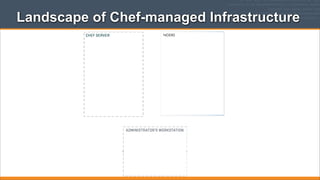
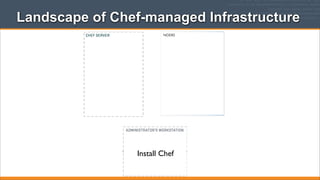
Landscape of Chef-managed Infrastructure
NODES
Landscape of Chef-managed Infrastructure
NODES

Install Chef
Install Chef
• Install Chef (if not already installed)
• http://www.opscode.com/chef/install
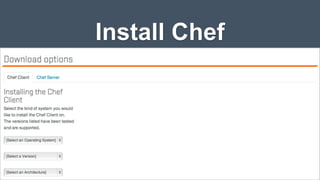
Install Chef
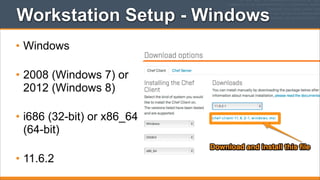
Workstation Setup - Windows
• Windows
• 2008 (Windows 7) or
2012 (Windows 8)
• i686 (32-bit) or x86_64
(64-bit)
• 11.6.2
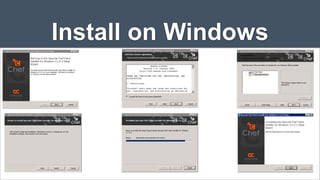
Install on Windows
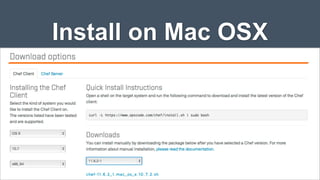
Install on Mac OSX
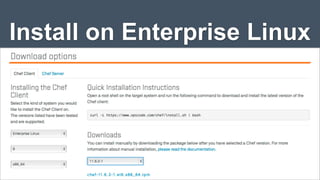
Install on Enterprise Linux
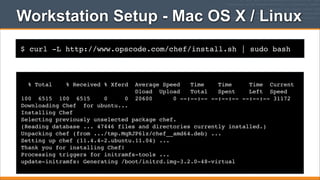
Workstation Setup - Mac OS X / Linux
$ curl -L http://www.opscode.com/chef/install.sh | sudo bash

% Total

% Received % Xferd

Average Speed
Time
Time
Time Current
Dload Upload
Total
Spent
Left Speed
20600
0 --:--:-- --:--:-- --:--:-- 31172

100 6515 100 6515
0
0
Downloading Chef for ubuntu...
Installing Chef
Selecting previously unselected package chef.
(Reading database ... 47446 files and directories currently installed.)
Unpacking chef (from .../tmp.MqRJP6lz/chef__amd64.deb) ...
Setting up chef (11.4.4-2.ubuntu.11.04) ...
Thank you for installing Chef!
Processing triggers for initramfs-tools ...
update-initramfs: Generating /boot/initrd.img-3.2.0-48-virtual
What just happened?
• Chef and all of its dependencies installed via an
operating system-specific package ("omnibus installer")
• Installation includes
• The Ruby language - used by Chef
• knife - Command line tool for administrators
• chef-client - Client application
• ohai - System profiler
• ...and more
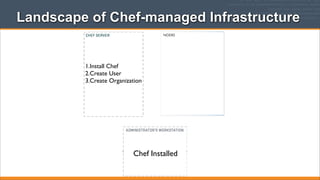
Landscape of Chef-managed Infrastructure
NODES

1.Install Chef
2.Create User
3.Create Organization

Chef Installed
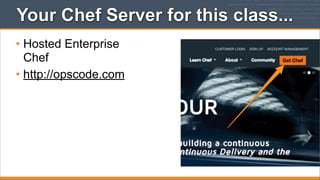
Your Chef Server for this class...
• Hosted Enterprise
Chef
• http://opscode.com
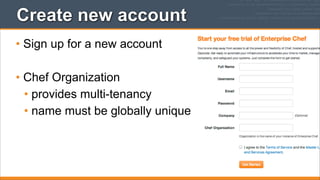
Create new account
• Sign up for a new account
• Chef Organization
• provides multi-tenancy
• name must be globally unique
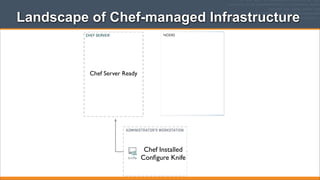
Landscape of Chef-managed Infrastructure
NODES

Chef Server Ready

Chef Installed
Configure Knife
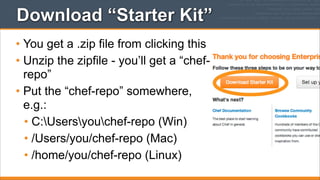
Download “Starter Kit”
• You get a .zip file from clicking this
• Unzip the zipfile - you’ll get a “chefrepo”
• Put the “chef-repo” somewhere,
e.g.:
• C:Usersyouchef-repo (Win)
• /Users/you/chef-repo (Mac)
• /home/you/chef-repo (Linux)
Knife is the command-line tool for Chef
• Knife provides an interface between a local Chef repository and the
Chef Server
• Knife lets you manage:
• Nodes
• Cookbooks and recipes
• Roles
• Stores of JSON data (data bags), including encrypted data
• Environments
• Cloud resources, including provisioning
• The installation of Chef on management workstations
• Searching of indexed data on the Chef Server
Legend
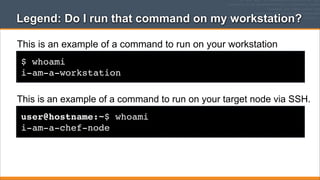
Legend: Do I run that command on my workstation?
This is an example of a command to run on your workstation
$ whoami
i-am-a-workstation

This is an example of a command to run on your target node via SSH.
user@hostname:~$ whoami
i-am-a-chef-node
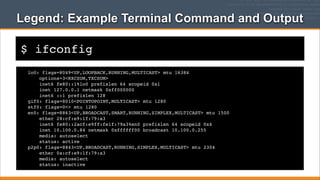
Legend: Example Terminal Command and Output
$ ifconfig
lo0: flags=8049<UP,LOOPBACK,RUNNING,MULTICAST> mtu 16384
!
options=3<RXCSUM,TXCSUM>
!
inet6 fe80::1%lo0 prefixlen 64 scopeid 0x1
!
inet 127.0.0.1 netmask 0xff000000
!
inet6 ::1 prefixlen 128
gif0: flags=8010<POINTOPOINT,MULTICAST> mtu 1280
stf0: flags=0<> mtu 1280
en0: flags=8863<UP,BROADCAST,SMART,RUNNING,SIMPLEX,MULTICAST> mtu 1500
!
ether 28:cf:e9:1f:79:a3
!
inet6 fe80::2acf:e9ff:fe1f:79a3%en0 prefixlen 64 scopeid 0x4
!
inet 10.100.0.84 netmask 0xffffff00 broadcast 10.100.0.255
!
media: autoselect
!
status: active
p2p0: flags=8843<UP,BROADCAST,RUNNING,SIMPLEX,MULTICAST> mtu 2304
!
ether 0a:cf:e9:1f:79:a3
!
media: autoselect
!
status: inactive
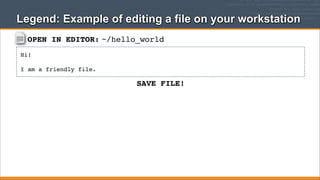
Legend: Example of editing a file on your workstation
OPEN IN EDITOR: ~/hello_world
Hi!
I am a friendly file.

SAVE FILE!
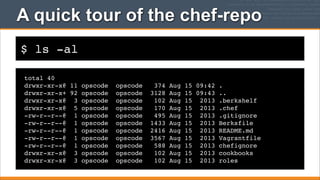
A quick tour of the chef-repo
• Every infrastructure managed with Chef has a Chef
Repository (“chef-repo”)
• Type all commands in this class from the chef-repo
directory
• Let’s see what’s inside the chef-repo...
Verify that knife is working
$ cd chef-repo

[~/chef-repo]$
A quick tour of the chef-repo
$ ls -al
total 40
drwxr-xr-x@ 11 opscode
drwxr-xr-x+ 92 opscode
drwxr-xr-x@ 3 opscode
drwxr-xr-x@ 5 opscode
-rw-r--r--@ 1 opscode
drwxr-xr-x@ 3 opscode

opscode
opscode
opscode
opscode
opscode
opscode
opscode
opscode
opscode
opscode
opscode

374
3128
102
170
495
1433
2416
3567
588
102
102

Aug
Aug
Aug
Aug
Aug
Aug
Aug
Aug
Aug
Aug
Aug

15 09:42 .
15 09:43 ..
15 2013 .berkshelf
15 2013 .chef
15 2013 .gitignore
15 2013 Berksfile
15 2013 README.md
15 2013 Vagrantfile
15 2013 chefignore
15 2013 cookbooks
15 2013 roles
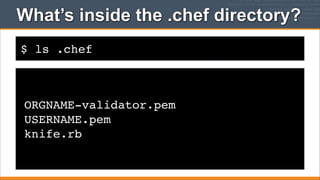
What’s inside the .chef directory?
$ ls .chef

ORGNAME-validator.pem
USERNAME.pem
knife.rb
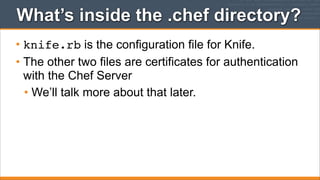
What’s inside the .chef directory?
• knife.rb is the configuration file for Knife.
• The other two files are certificates for authentication
with the Chef Server
• We’ll talk more about that later.
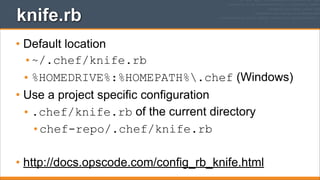
knife.rb
• Default location
•~/.chef/knife.rb
• %HOMEDRIVE%:%HOMEPATH%.chef (Windows)
• Use a project specific configuration
• .chef/knife.rb of the current directory
•chef-repo/.chef/knife.rb
• http://docs.opscode.com/config_rb_knife.html
knife.rb
OPEN IN EDITOR: chef-repo/.chef/knife.rb
current_dir = File.dirname(__FILE__)
log_level
:info
log_location
STDOUT
node_name
"USERNAME"
client_key
"#{current_dir}/USERNAME.pem"
validation_client_name
"ORGNAME-validator"
validation_key
"#{current_dir}/ORGNAME-validator.pem"
chef_server_url
"https://api.opscode.com/organizations/ORGNAME"
cache_type
'BasicFile'
cache_options( :path => "#{ENV['HOME']}/.chef/checksums" )
cookbook_path
["#{current_dir}/../cookbooks"]
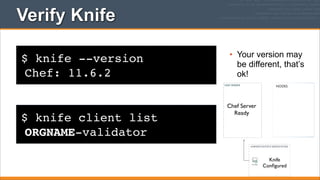
Verify Knife
$ knife --version
Chef: 11.6.2

• Your version may
be different, that’s
ok!
NODES

$ knife client list
ORGNAME-validator

Chef Server
Ready

Knife
Configured
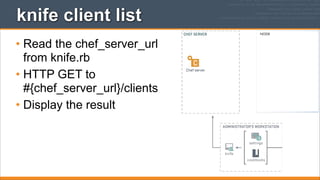
knife client list
NODE

• Read the chef_server_url
from knife.rb
• HTTP GET to
#{chef_server_url}/clients
• Display the result
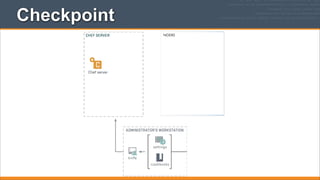
Checkpoint
NODES
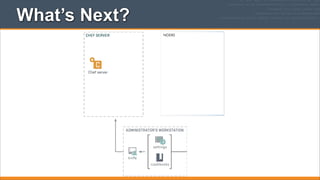
What’s Next?
NODES
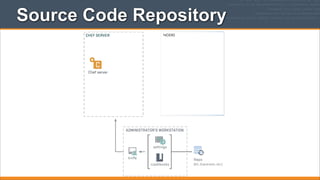
Source Code Repository
NODES
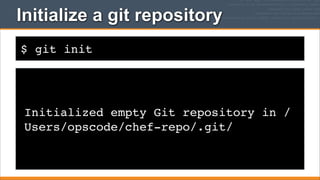
Initialize a git repository
$ git init

Initialized empty Git repository in /
Users/opscode/chef-repo/.git/
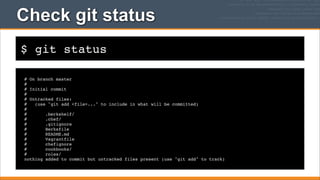
Check git status
$ git status
# On branch master
#
# Initial commit
#
# Untracked files:
#
(use "git add <file>..." to include in what will be committed)
#
#
.berkshelf/
#
.chef/
#
.gitignore
#
Berksfile
#
README.md
#
Vagrantfile
#
chefignore
#
cookbooks/
#
roles/
nothing added to commit but untracked files present (use "git add" to track)
Add all files to git
$ git add .

[~/chef-repo]$
Add files to git
$ git commit -m "add the starter kit from Chef"
[master (root-commit) 2af68fb] add the starter kit from Chef
13 files changed, 360 insertions(+)
create mode 100644 .berkshelf/config.json
create mode 100644 .chef/knife.rb
create mode 100644 .gitignore
create mode 100644 Berksfile
create mode 100644 README.md
create mode 100644 Vagrantfile
create mode 100644 chefignore
create mode 100644 cookbooks/starter/attributes/default.rb
create mode 100644 cookbooks/starter/files/default/sample.txt
create mode 100644 cookbooks/starter/metadata.rb
create mode 100644 cookbooks/starter/recipes/default.rb
create mode 100644 cookbooks/starter/templates/default/sample.erb
create mode 100644 roles/starter.rb
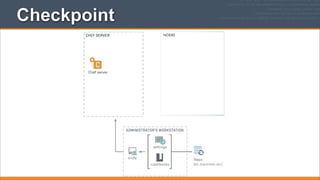
Checkpoint
NODES
Organization Setup
Setup an Organization
Lesson Objectives
• After completing the lesson, you will be able to
• Explain the purpose of Organizations
• Manage your Chef Organization
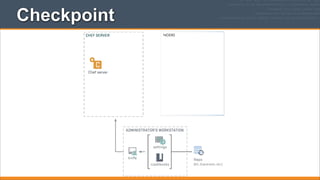
Checkpoint
NODES
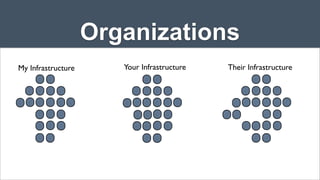
Organizations
My Infrastructure

Your Infrastructure

Their Infrastructure
Organizations
• Provide multi-tenancy in Enterprise Chef
• Nothing is shared between Organizations - they're
completely independent
• May represent different
• Companies
• Business Units
• Departments
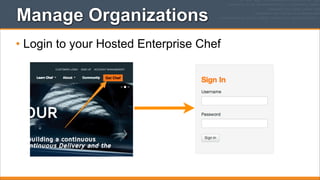
Manage Organizations
• Login to your Hosted Enterprise Chef
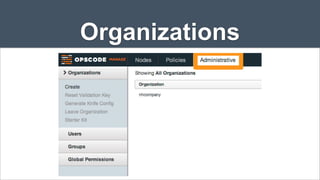
Organizations
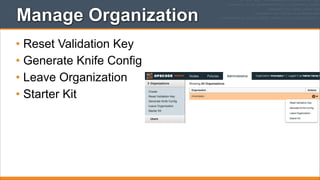
Manage Organization
• Reset Validation Key
• Generate Knife Config
• Leave Organization
• Starter Kit
Review Questions
• What is an Organization?
• How do you regenerate the Starter Kit for your
Organization?
End of Module 2
• By now, you should be able to:
• Login to Enterprise Chef
• View your Organization in Enterprise Chef
• Describe Knife, the Chef command line utility
• Use Knife on your Workstation
• Explain the purpose of Organizations
• Manage your Chef Organization
Module 3
• Set up a Node
• Write your first Cookbook
Training Node
• The labs require a node to be managed
• We allow for three different options
• Bring your own Node
• Launch an instance of a public AMI on EC2
• Use the Chef Fundamentals training lab
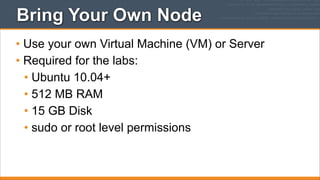
Bring Your Own Node
• Use your own Virtual Machine (VM) or Server
• Required for the labs:
• Ubuntu 10.04+
• 512 MB RAM
• 15 GB Disk
• sudo or root level permissions
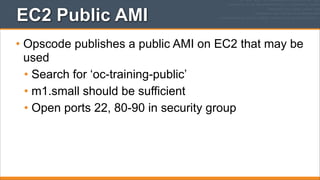
EC2 Public AMI
• Opscode publishes a public AMI on EC2 that may be
used
• Search for ‘oc-training-public’
• m1.small should be sufficient
• Open ports 22, 80-90 in security group
Chef Fundamentals Webinar Lab
• A limited number of Training Labs will be made
available for use during next week's webinar
• Watch your email for further instructions
What Questions Do You Have?
Nathen Harvey
Technical Community Manager, Opscode
nharvey@opscode.com
@nathenharvey

Chef Fundamentals Training Series Module 2: Workstation Setup

  • 1.
  • 2.
    Lesson Objectives • Aftercompleting the lesson, you will be able to • Login to Enterprise Chef • View your Organization in Enterprise Chef • Describe Knife, the Chef command line utility • Use Knife on your Workstation
  • 3.
    Landscape of Chef-managedInfrastructure NODES
  • 4.
    Landscape of Chef-managedInfrastructure NODES Install Chef
  • 5.
    Install Chef • InstallChef (if not already installed) • http://www.opscode.com/chef/install
  • 6.
  • 7.
    Workstation Setup -Windows • Windows • 2008 (Windows 7) or 2012 (Windows 8) • i686 (32-bit) or x86_64 (64-bit) • 11.6.2
  • 8.
  • 9.
  • 10.
  • 11.
    Workstation Setup -Mac OS X / Linux $ curl -L http://www.opscode.com/chef/install.sh | sudo bash % Total % Received % Xferd Average Speed Time Time Time Current Dload Upload Total Spent Left Speed 20600 0 --:--:-- --:--:-- --:--:-- 31172 100 6515 100 6515 0 0 Downloading Chef for ubuntu... Installing Chef Selecting previously unselected package chef. (Reading database ... 47446 files and directories currently installed.) Unpacking chef (from .../tmp.MqRJP6lz/chef__amd64.deb) ... Setting up chef (11.4.4-2.ubuntu.11.04) ... Thank you for installing Chef! Processing triggers for initramfs-tools ... update-initramfs: Generating /boot/initrd.img-3.2.0-48-virtual
  • 12.
    What just happened? •Chef and all of its dependencies installed via an operating system-specific package ("omnibus installer") • Installation includes • The Ruby language - used by Chef • knife - Command line tool for administrators • chef-client - Client application • ohai - System profiler • ...and more
  • 13.
    Landscape of Chef-managedInfrastructure NODES 1.Install Chef 2.Create User 3.Create Organization Chef Installed
  • 14.
    Your Chef Serverfor this class... • Hosted Enterprise Chef • http://opscode.com
  • 15.
    Create new account •Sign up for a new account • Chef Organization • provides multi-tenancy • name must be globally unique
  • 16.
    Landscape of Chef-managedInfrastructure NODES Chef Server Ready Chef Installed Configure Knife
  • 17.
    Download “Starter Kit” •You get a .zip file from clicking this • Unzip the zipfile - you’ll get a “chefrepo” • Put the “chef-repo” somewhere, e.g.: • C:Usersyouchef-repo (Win) • /Users/you/chef-repo (Mac) • /home/you/chef-repo (Linux)
  • 18.
    Knife is thecommand-line tool for Chef • Knife provides an interface between a local Chef repository and the Chef Server • Knife lets you manage: • Nodes • Cookbooks and recipes • Roles • Stores of JSON data (data bags), including encrypted data • Environments • Cloud resources, including provisioning • The installation of Chef on management workstations • Searching of indexed data on the Chef Server
  • 19.
  • 20.
    Legend: Do Irun that command on my workstation? This is an example of a command to run on your workstation $ whoami i-am-a-workstation This is an example of a command to run on your target node via SSH. user@hostname:~$ whoami i-am-a-chef-node
  • 21.
    Legend: Example TerminalCommand and Output $ ifconfig lo0: flags=8049<UP,LOOPBACK,RUNNING,MULTICAST> mtu 16384 ! options=3<RXCSUM,TXCSUM> ! inet6 fe80::1%lo0 prefixlen 64 scopeid 0x1 ! inet 127.0.0.1 netmask 0xff000000 ! inet6 ::1 prefixlen 128 gif0: flags=8010<POINTOPOINT,MULTICAST> mtu 1280 stf0: flags=0<> mtu 1280 en0: flags=8863<UP,BROADCAST,SMART,RUNNING,SIMPLEX,MULTICAST> mtu 1500 ! ether 28:cf:e9:1f:79:a3 ! inet6 fe80::2acf:e9ff:fe1f:79a3%en0 prefixlen 64 scopeid 0x4 ! inet 10.100.0.84 netmask 0xffffff00 broadcast 10.100.0.255 ! media: autoselect ! status: active p2p0: flags=8843<UP,BROADCAST,RUNNING,SIMPLEX,MULTICAST> mtu 2304 ! ether 0a:cf:e9:1f:79:a3 ! media: autoselect ! status: inactive
  • 22.
    Legend: Example ofediting a file on your workstation OPEN IN EDITOR: ~/hello_world Hi! I am a friendly file. SAVE FILE!
  • 23.
    A quick tourof the chef-repo • Every infrastructure managed with Chef has a Chef Repository (“chef-repo”) • Type all commands in this class from the chef-repo directory • Let’s see what’s inside the chef-repo...
  • 24.
    Verify that knifeis working $ cd chef-repo [~/chef-repo]$
  • 25.
    A quick tourof the chef-repo $ ls -al total 40 drwxr-xr-x@ 11 opscode drwxr-xr-x+ 92 opscode drwxr-xr-x@ 3 opscode drwxr-xr-x@ 5 opscode -rw-r--r--@ 1 opscode -rw-r--r--@ 1 opscode -rw-r--r--@ 1 opscode -rw-r--r--@ 1 opscode -rw-r--r--@ 1 opscode drwxr-xr-x@ 3 opscode drwxr-xr-x@ 3 opscode opscode opscode opscode opscode opscode opscode opscode opscode opscode opscode opscode 374 3128 102 170 495 1433 2416 3567 588 102 102 Aug Aug Aug Aug Aug Aug Aug Aug Aug Aug Aug 15 09:42 . 15 09:43 .. 15 2013 .berkshelf 15 2013 .chef 15 2013 .gitignore 15 2013 Berksfile 15 2013 README.md 15 2013 Vagrantfile 15 2013 chefignore 15 2013 cookbooks 15 2013 roles
  • 26.
    What’s inside the.chef directory? $ ls .chef ORGNAME-validator.pem USERNAME.pem knife.rb
  • 27.
    What’s inside the.chef directory? • knife.rb is the configuration file for Knife. • The other two files are certificates for authentication with the Chef Server • We’ll talk more about that later.
  • 28.
    knife.rb • Default location •~/.chef/knife.rb •%HOMEDRIVE%:%HOMEPATH%.chef (Windows) • Use a project specific configuration • .chef/knife.rb of the current directory •chef-repo/.chef/knife.rb • http://docs.opscode.com/config_rb_knife.html
  • 29.
    knife.rb OPEN IN EDITOR:chef-repo/.chef/knife.rb current_dir = File.dirname(__FILE__) log_level :info log_location STDOUT node_name "USERNAME" client_key "#{current_dir}/USERNAME.pem" validation_client_name "ORGNAME-validator" validation_key "#{current_dir}/ORGNAME-validator.pem" chef_server_url "https://api.opscode.com/organizations/ORGNAME" cache_type 'BasicFile' cache_options( :path => "#{ENV['HOME']}/.chef/checksums" ) cookbook_path ["#{current_dir}/../cookbooks"]
  • 30.
    Verify Knife $ knife--version Chef: 11.6.2 • Your version may be different, that’s ok! NODES $ knife client list ORGNAME-validator Chef Server Ready Knife Configured
  • 31.
    knife client list NODE •Read the chef_server_url from knife.rb • HTTP GET to #{chef_server_url}/clients • Display the result
  • 32.
  • 33.
  • 34.
  • 35.
    Initialize a gitrepository $ git init Initialized empty Git repository in / Users/opscode/chef-repo/.git/
  • 36.
    Check git status $git status # On branch master # # Initial commit # # Untracked files: # (use "git add <file>..." to include in what will be committed) # # .berkshelf/ # .chef/ # .gitignore # Berksfile # README.md # Vagrantfile # chefignore # cookbooks/ # roles/ nothing added to commit but untracked files present (use "git add" to track)
  • 37.
    Add all filesto git $ git add . [~/chef-repo]$
  • 38.
    Add files togit $ git commit -m "add the starter kit from Chef" [master (root-commit) 2af68fb] add the starter kit from Chef 13 files changed, 360 insertions(+) create mode 100644 .berkshelf/config.json create mode 100644 .chef/knife.rb create mode 100644 .gitignore create mode 100644 Berksfile create mode 100644 README.md create mode 100644 Vagrantfile create mode 100644 chefignore create mode 100644 cookbooks/starter/attributes/default.rb create mode 100644 cookbooks/starter/files/default/sample.txt create mode 100644 cookbooks/starter/metadata.rb create mode 100644 cookbooks/starter/recipes/default.rb create mode 100644 cookbooks/starter/templates/default/sample.erb create mode 100644 roles/starter.rb
  • 39.
  • 40.
  • 41.
    Lesson Objectives • Aftercompleting the lesson, you will be able to • Explain the purpose of Organizations • Manage your Chef Organization
  • 42.
  • 43.
  • 44.
    Organizations • Provide multi-tenancyin Enterprise Chef • Nothing is shared between Organizations - they're completely independent • May represent different • Companies • Business Units • Departments
  • 45.
    Manage Organizations • Loginto your Hosted Enterprise Chef
  • 46.
  • 47.
    Manage Organization • ResetValidation Key • Generate Knife Config • Leave Organization • Starter Kit
  • 48.
    Review Questions • Whatis an Organization? • How do you regenerate the Starter Kit for your Organization?
  • 49.
    End of Module2 • By now, you should be able to: • Login to Enterprise Chef • View your Organization in Enterprise Chef • Describe Knife, the Chef command line utility • Use Knife on your Workstation • Explain the purpose of Organizations • Manage your Chef Organization
  • 50.
    Module 3 • Setup a Node • Write your first Cookbook
  • 51.
    Training Node • Thelabs require a node to be managed • We allow for three different options • Bring your own Node • Launch an instance of a public AMI on EC2 • Use the Chef Fundamentals training lab
  • 52.
    Bring Your OwnNode • Use your own Virtual Machine (VM) or Server • Required for the labs: • Ubuntu 10.04+ • 512 MB RAM • 15 GB Disk • sudo or root level permissions
  • 53.
    EC2 Public AMI •Opscode publishes a public AMI on EC2 that may be used • Search for ‘oc-training-public’ • m1.small should be sufficient • Open ports 22, 80-90 in security group
  • 54.
    Chef Fundamentals WebinarLab • A limited number of Training Labs will be made available for use during next week's webinar • Watch your email for further instructions
  • 55.
    What Questions DoYou Have? Nathen Harvey Technical Community Manager, Opscode nharvey@opscode.com @nathenharvey