Managing a Microsoft Windows Server 2003 Environment Chapter 8: Implementing and Managing Printers
Objectives Understand Windows Server 2003 printing terms and concepts Install and share printer resources Configure and manage installed printers Publish printers in Active Directory Troubleshoot printer problems
Windows Server 2003 Printing Concepts These concepts are required for configuring and troubleshooting Windows Server 2003 printing: Print device Printer Print driver Print server Print client
Windows Server 2003 Printing Concepts (continued) For efficient printing, network has following hardware requirements: One or more computers as print servers Sufficient space on a hard drive for the print server Sufficient RAM beyond that of minimum Windows Server 2003 requirements
Understanding Network Printing User sends job to local printer Job is spooled on local computer Directed to specific port, e.g., LPT1 User sends job to network printer Print client generates a print file Print file is rendered Print job is spooled on client machine
Understanding Network Printing (continued) If remote printer ready, print file is transmitted to Server service  Network print server processes print file (router, print provider, print processor, and print monitor)
Installing and Sharing Printer Resources The following sections discuss: Installing a local printer  Sharing printers for access to network users Connecting to an existing network printer
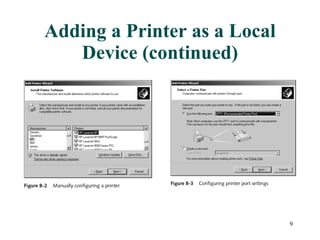
Adding a Printer as a Local Device Smaller networks may share print devices connected directly to a local port Need administrator privileges to install Use Add Printer Wizard for Windows Server 2003, configuration options include: Make, model, driver, port, default status, sharing Printers can be detected by Plug & Play or manually configured
Adding a Printer as a Local Device (continued)
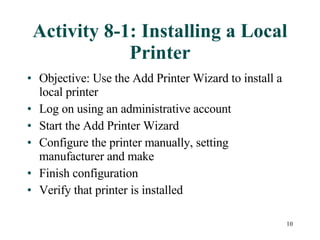
Activity 8-1: Installing a Local Printer Objective: Use the Add Printer Wizard to install a local printer Log on using an administrative account Start the Add Printer Wizard  Configure the printer manually, setting manufacturer and make Finish configuration  Verify that printer is installed
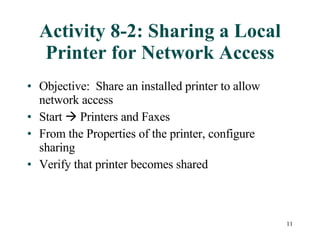
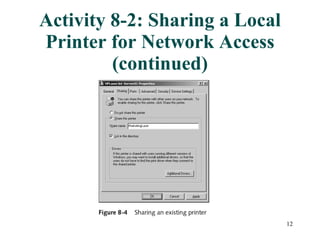
Activity 8-2: Sharing a Local Printer for Network Access Objective:  Share an installed printer to allow network access Start    Printers and Faxes From the Properties of the printer, configure sharing  Verify that printer becomes shared
Activity 8-2: Sharing a Local Printer for Network Access (continued)
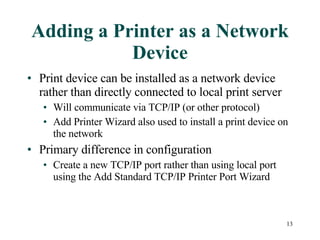
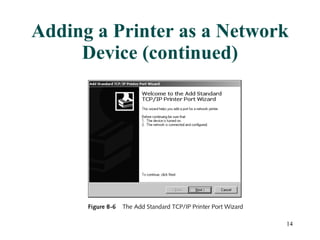
Adding a Printer as a Network Device Print device can be installed as a network device rather than directly connected to local print server Will communicate via TCP/IP (or other protocol)  Add Printer Wizard also used to install a print device on the network Primary difference in configuration  Create a new TCP/IP port rather than using local port using the Add Standard TCP/IP Printer Port Wizard
Adding a Printer as a Network Device (continued)
Activity 8-3: Installing a Network Printer Objective: Install a network printer using the Add Printer Wizard and by browsing the network Start    Printers and Faxes Open Add Printer Wizard and add partner’s network printer Verify that the new printer appears, then delete it As an alternate method, connect to the printer through the shared resources of the network and verify that it installs correctly
Configuring and Managing Printer Resources Initial configuration of a printer done at installation through Add Printer Wizard Additional configuration can be done through Properties of installed printer
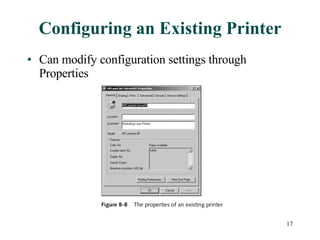
Configuring an Existing Printer Can modify configuration settings through Properties
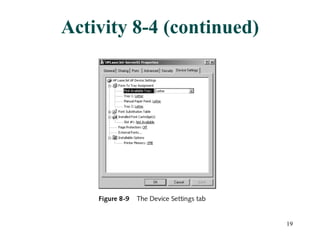
Activity 8-4: Exploring Printer Properties Objective: Explore the configurable properties for an installed printer Start    Printers and Faxes Open the Properties of the printer Browse the tabs and attributes available in the Properties menus Especially note the Sharing and Security tabs
Activity 8-4 (continued)
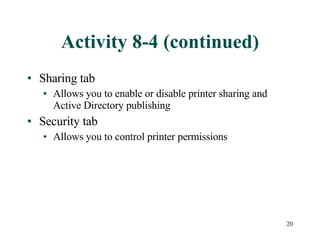
Activity 8-4 (continued) Sharing tab Allows you to enable or disable printer sharing and Active Directory publishing Security tab Allows you to control printer permissions
Activity 8-4 (continued)
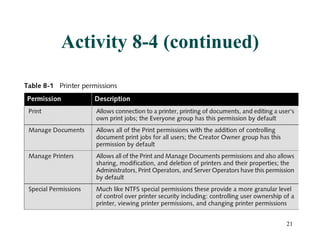
Activity 8-5: Configuring Printer Permissions Objective: Configure printer security permissions Start    Printers and Faxes Open the Properties of the printer    Security tab Add and remove permissions for various groups Test that printing is available as requested for some groups but not for others
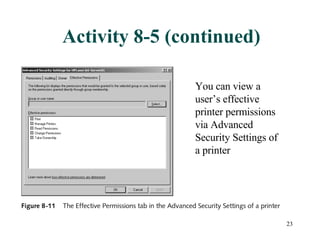
Activity 8-5 (continued) You can view a user’s effective printer permissions via Advanced Security Settings of a printer
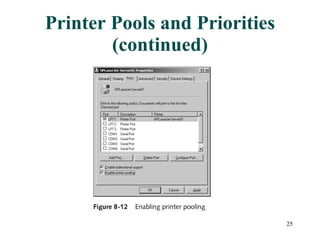
Printer Pools and Priorities A printer pool is a single printer connected to a number of print devices Multiple physical print devices function as a single logical printer High-volume environments Reduced printing time Configured on Ports tab of printer’s Properties
Printer Pools and Priorities (continued)
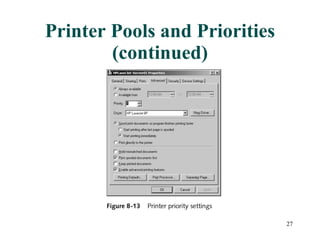
Printer Pools and Priorities (continued) The priority of a printer is set from the Advanced tab of the printer’s Properties Priority is a number from 1 (lowest) to 99 (highest) To ensure that a specific user always has the highest priority, allow only that user access to the highest priority printer
Printer Pools and Priorities (continued)
Activity 8-6: Configuring Printer Pooling Objective:  Configure two printers to use the printer pooling feature in Windows Server 2003 Start    Printers and Faxes    Add Printer Use the Add Printer Wizard to install and configure a new printer to LPT2 From the Properties of the installed printer, enable printer pooling from the Ports tab and add an existing printer to the pool
Setting Up and Updating Client Computers After printer is installed and configured Set up client computers to print to the print server Clients running Windows 2000, Windows Server 2003, or Windows XP automatically download print driver upon connection Windows 95, 98, ME and NT 4.0 download if available, otherwise can be manually added Older Windows versions and non-Windows must have print driver manually installed
Activity 8-7: Installing Additional Print Drivers Objective: Install additional print drivers for the Windows 98 operating system Start    Printers and Faxes Printer Properties    Sharing tab    Additional Drivers Follow directions in the exercise to install the desired driver
Managing Print Queues Print jobs are queued while waiting for an available printer to be ready To view print queue, double-click the printer icon in the Printers and Faxes tool Users with Print permission can pause, resume, restart, or cancel printing of their own documents Users with Manage Documents permission can pause, resume, restart or cancel printing of other users’ documents
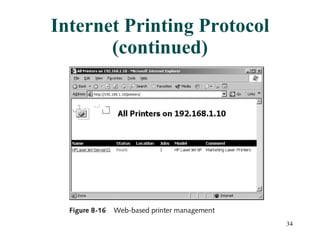
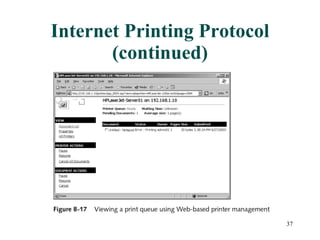
Internet Printing Protocol The Internet Printing Protocol (IPP) specification allows printers to be managed via a Web browser URL of the form http:// printservername /printers IPP support is build into Windows Server 2003 but requires Internet Information Services (IIS) IIS not installed by default
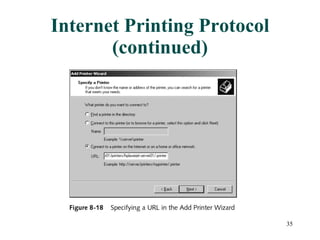
Internet Printing Protocol (continued) Clients running Windows 2000, XP and Server 2003 can connect to existing printers using Web interface or Add Printer Wizard Add Printer Wizard URL is  http://printservername/printers/printername/.printer
Internet Printing Protocol (continued)
Internet Printing Protocol (continued) Benefits of using IPP Simplifies administrative management of printers from any system on the network Does not require printers to be installed on local client system Can print to other locations over the Internet, allows users access to remote printers
Internet Printing Protocol (continued)
Printer Command-Line Utilities Windows Server 2003 provides a number of built-in VBScript files  Allow printers to be managed from command line Because the utilities are VBScripts, they must be invoked using Windows Script Host (WSH) Command-line version is cscript.exe
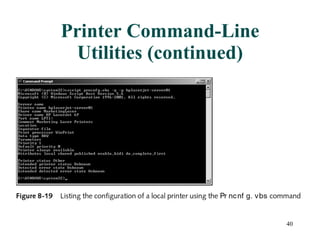
Printer Command-Line Utilities (continued) Example command to display current configuration of a printer named HPLaserJet-Server01 cscript prncnfg.vbs –g –p hplaserjet-server01
Printer Command-Line Utilities (continued)
Print Spooler Jobs are spooled on the hard disk of the print server by default For Windows Server 2003, spooling occurs in the WINDOWS/system32/spool/PRINTERS folder by default Not optimal for high-volume printing because it is located in the same volume as the Windows operating system files
Print Spooler (continued) For best performance Move the print spool folder to a different partition On a dedicated disk optimally
Activity 8-8: Changing the Location of the Spool Folder Objective: Move the print spool folder to a different volume to improve printing performance Start    Printers and Faxes File menu    Server Properties    Advanced tab Complete the process of moving the folder following the directions in the exercise
Publishing Printers in Active Directory Shared printers can be published into Active Directory to help users find network printer resources Windows 2000- and Windows Server 2003-compatible printers installed on a domain print server are automatically published On earlier Windows versions, can be published manually Use VBScript pubprn.vbs to automate process
Activity 8-9: Publishing Printers in Active Directory Objective: Configure printer publishing settings and publish printers manually in Active Directory Start    Administrative Tools    Active Directory Users and Computers    View menu Configure the searchable features of a printer and find it by its features Unpublish the printer, search again, and observe the results
Troubleshooting Printer Problems Print jobs will not print Ensure printer is online, there is enough disk space for spool folder, not out of paper Printer output appears garbled Ensure that you have the correct drivers Users receive an Access Denied message when attempting to print Review and correct permissions
Troubleshooting Printer Problems (continued) Users cannot find an existing printer when searching Active Directory Ensure printer is published Printer only works at certain times of the day Change printer availability or direct user to a different printer Windows 95/98/ME users cannot connect to a printer Make required drivers available
Troubleshooting Printer Problems (continued) Print jobs become stuck in the print queue Restart from the print server Print device failure  Redirect print jobs if necessary
Activity 8-10: Configuring the Spooler Service Objective: View and configure properties of the spooler service Start    My Computer    Manage Follow directions in exercise to view and configure various properties
Summary Components of a printing system include print devices (local and network), printers, print drivers, print servers, print clients A printer is a configurable object that controls the connection to a print device Main tool for installing printers is the Add Printer Wizard Printer configuration options can be modified through the Properties of the printer
Summary (continued) Printer permissions include: Print, Manage documents, Manage printers, Special permissions Printer priorities can be set from 1 to 99 A printer pool is a single printer connected to a number of print devices A print queue contains jobs that are waiting to print Can be managed by users with appropriate permissions
Summary (continued) Alternatives to managing printers via the Printers and Faxes tool: Internet Printing Protocol Printer command-line utilities (VBScripts) Spool folder should be located carefully Shared printers can be published into Active Directory for ease in locating appropriate features Common printer problems and standard fixes are used for troubleshooting

Chapter08 Implementing And Managing Printers

  • 1.
    Managing a MicrosoftWindows Server 2003 Environment Chapter 8: Implementing and Managing Printers
  • 2.
    Objectives Understand WindowsServer 2003 printing terms and concepts Install and share printer resources Configure and manage installed printers Publish printers in Active Directory Troubleshoot printer problems
  • 3.
    Windows Server 2003Printing Concepts These concepts are required for configuring and troubleshooting Windows Server 2003 printing: Print device Printer Print driver Print server Print client
  • 4.
    Windows Server 2003Printing Concepts (continued) For efficient printing, network has following hardware requirements: One or more computers as print servers Sufficient space on a hard drive for the print server Sufficient RAM beyond that of minimum Windows Server 2003 requirements
  • 5.
    Understanding Network PrintingUser sends job to local printer Job is spooled on local computer Directed to specific port, e.g., LPT1 User sends job to network printer Print client generates a print file Print file is rendered Print job is spooled on client machine
  • 6.
    Understanding Network Printing(continued) If remote printer ready, print file is transmitted to Server service Network print server processes print file (router, print provider, print processor, and print monitor)
  • 7.
    Installing and SharingPrinter Resources The following sections discuss: Installing a local printer Sharing printers for access to network users Connecting to an existing network printer
  • 8.
    Adding a Printeras a Local Device Smaller networks may share print devices connected directly to a local port Need administrator privileges to install Use Add Printer Wizard for Windows Server 2003, configuration options include: Make, model, driver, port, default status, sharing Printers can be detected by Plug & Play or manually configured
  • 9.
    Adding a Printeras a Local Device (continued)
  • 10.
    Activity 8-1: Installinga Local Printer Objective: Use the Add Printer Wizard to install a local printer Log on using an administrative account Start the Add Printer Wizard Configure the printer manually, setting manufacturer and make Finish configuration Verify that printer is installed
  • 11.
    Activity 8-2: Sharinga Local Printer for Network Access Objective: Share an installed printer to allow network access Start  Printers and Faxes From the Properties of the printer, configure sharing Verify that printer becomes shared
  • 12.
    Activity 8-2: Sharinga Local Printer for Network Access (continued)
  • 13.
    Adding a Printeras a Network Device Print device can be installed as a network device rather than directly connected to local print server Will communicate via TCP/IP (or other protocol) Add Printer Wizard also used to install a print device on the network Primary difference in configuration Create a new TCP/IP port rather than using local port using the Add Standard TCP/IP Printer Port Wizard
  • 14.
    Adding a Printeras a Network Device (continued)
  • 15.
    Activity 8-3: Installinga Network Printer Objective: Install a network printer using the Add Printer Wizard and by browsing the network Start  Printers and Faxes Open Add Printer Wizard and add partner’s network printer Verify that the new printer appears, then delete it As an alternate method, connect to the printer through the shared resources of the network and verify that it installs correctly
  • 16.
    Configuring and ManagingPrinter Resources Initial configuration of a printer done at installation through Add Printer Wizard Additional configuration can be done through Properties of installed printer
  • 17.
    Configuring an ExistingPrinter Can modify configuration settings through Properties
  • 18.
    Activity 8-4: ExploringPrinter Properties Objective: Explore the configurable properties for an installed printer Start  Printers and Faxes Open the Properties of the printer Browse the tabs and attributes available in the Properties menus Especially note the Sharing and Security tabs
  • 19.
  • 20.
    Activity 8-4 (continued)Sharing tab Allows you to enable or disable printer sharing and Active Directory publishing Security tab Allows you to control printer permissions
  • 21.
  • 22.
    Activity 8-5: ConfiguringPrinter Permissions Objective: Configure printer security permissions Start  Printers and Faxes Open the Properties of the printer  Security tab Add and remove permissions for various groups Test that printing is available as requested for some groups but not for others
  • 23.
    Activity 8-5 (continued)You can view a user’s effective printer permissions via Advanced Security Settings of a printer
  • 24.
    Printer Pools andPriorities A printer pool is a single printer connected to a number of print devices Multiple physical print devices function as a single logical printer High-volume environments Reduced printing time Configured on Ports tab of printer’s Properties
  • 25.
    Printer Pools andPriorities (continued)
  • 26.
    Printer Pools andPriorities (continued) The priority of a printer is set from the Advanced tab of the printer’s Properties Priority is a number from 1 (lowest) to 99 (highest) To ensure that a specific user always has the highest priority, allow only that user access to the highest priority printer
  • 27.
    Printer Pools andPriorities (continued)
  • 28.
    Activity 8-6: ConfiguringPrinter Pooling Objective: Configure two printers to use the printer pooling feature in Windows Server 2003 Start  Printers and Faxes  Add Printer Use the Add Printer Wizard to install and configure a new printer to LPT2 From the Properties of the installed printer, enable printer pooling from the Ports tab and add an existing printer to the pool
  • 29.
    Setting Up andUpdating Client Computers After printer is installed and configured Set up client computers to print to the print server Clients running Windows 2000, Windows Server 2003, or Windows XP automatically download print driver upon connection Windows 95, 98, ME and NT 4.0 download if available, otherwise can be manually added Older Windows versions and non-Windows must have print driver manually installed
  • 30.
    Activity 8-7: InstallingAdditional Print Drivers Objective: Install additional print drivers for the Windows 98 operating system Start  Printers and Faxes Printer Properties  Sharing tab  Additional Drivers Follow directions in the exercise to install the desired driver
  • 31.
    Managing Print QueuesPrint jobs are queued while waiting for an available printer to be ready To view print queue, double-click the printer icon in the Printers and Faxes tool Users with Print permission can pause, resume, restart, or cancel printing of their own documents Users with Manage Documents permission can pause, resume, restart or cancel printing of other users’ documents
  • 32.
    Internet Printing ProtocolThe Internet Printing Protocol (IPP) specification allows printers to be managed via a Web browser URL of the form http:// printservername /printers IPP support is build into Windows Server 2003 but requires Internet Information Services (IIS) IIS not installed by default
  • 33.
    Internet Printing Protocol(continued) Clients running Windows 2000, XP and Server 2003 can connect to existing printers using Web interface or Add Printer Wizard Add Printer Wizard URL is http://printservername/printers/printername/.printer
  • 34.
  • 35.
  • 36.
    Internet Printing Protocol(continued) Benefits of using IPP Simplifies administrative management of printers from any system on the network Does not require printers to be installed on local client system Can print to other locations over the Internet, allows users access to remote printers
  • 37.
  • 38.
    Printer Command-Line UtilitiesWindows Server 2003 provides a number of built-in VBScript files Allow printers to be managed from command line Because the utilities are VBScripts, they must be invoked using Windows Script Host (WSH) Command-line version is cscript.exe
  • 39.
    Printer Command-Line Utilities(continued) Example command to display current configuration of a printer named HPLaserJet-Server01 cscript prncnfg.vbs –g –p hplaserjet-server01
  • 40.
  • 41.
    Print Spooler Jobsare spooled on the hard disk of the print server by default For Windows Server 2003, spooling occurs in the WINDOWS/system32/spool/PRINTERS folder by default Not optimal for high-volume printing because it is located in the same volume as the Windows operating system files
  • 42.
    Print Spooler (continued)For best performance Move the print spool folder to a different partition On a dedicated disk optimally
  • 43.
    Activity 8-8: Changingthe Location of the Spool Folder Objective: Move the print spool folder to a different volume to improve printing performance Start  Printers and Faxes File menu  Server Properties  Advanced tab Complete the process of moving the folder following the directions in the exercise
  • 44.
    Publishing Printers inActive Directory Shared printers can be published into Active Directory to help users find network printer resources Windows 2000- and Windows Server 2003-compatible printers installed on a domain print server are automatically published On earlier Windows versions, can be published manually Use VBScript pubprn.vbs to automate process
  • 45.
    Activity 8-9: PublishingPrinters in Active Directory Objective: Configure printer publishing settings and publish printers manually in Active Directory Start  Administrative Tools  Active Directory Users and Computers  View menu Configure the searchable features of a printer and find it by its features Unpublish the printer, search again, and observe the results
  • 46.
    Troubleshooting Printer ProblemsPrint jobs will not print Ensure printer is online, there is enough disk space for spool folder, not out of paper Printer output appears garbled Ensure that you have the correct drivers Users receive an Access Denied message when attempting to print Review and correct permissions
  • 47.
    Troubleshooting Printer Problems(continued) Users cannot find an existing printer when searching Active Directory Ensure printer is published Printer only works at certain times of the day Change printer availability or direct user to a different printer Windows 95/98/ME users cannot connect to a printer Make required drivers available
  • 48.
    Troubleshooting Printer Problems(continued) Print jobs become stuck in the print queue Restart from the print server Print device failure Redirect print jobs if necessary
  • 49.
    Activity 8-10: Configuringthe Spooler Service Objective: View and configure properties of the spooler service Start  My Computer  Manage Follow directions in exercise to view and configure various properties
  • 50.
    Summary Components ofa printing system include print devices (local and network), printers, print drivers, print servers, print clients A printer is a configurable object that controls the connection to a print device Main tool for installing printers is the Add Printer Wizard Printer configuration options can be modified through the Properties of the printer
  • 51.
    Summary (continued) Printerpermissions include: Print, Manage documents, Manage printers, Special permissions Printer priorities can be set from 1 to 99 A printer pool is a single printer connected to a number of print devices A print queue contains jobs that are waiting to print Can be managed by users with appropriate permissions
  • 52.
    Summary (continued) Alternativesto managing printers via the Printers and Faxes tool: Internet Printing Protocol Printer command-line utilities (VBScripts) Spool folder should be located carefully Shared printers can be published into Active Directory for ease in locating appropriate features Common printer problems and standard fixes are used for troubleshooting