Ch3: Managing Network Access
• Network access defines what access/rights a user has to local
resources, i.e. the scope of access users can have to the resources.
• A powerful feature of networking is the ability to allow or
protect access to files and folders.
• Network administrator can create shared files/folders on a
network so that users with appropriate access rights can access
them.
• There are two types of file systems used by local partitions:
 FAT(which includes FAT-16 and FAT-32)
 NTFS
 FAT partitions don’t support local security option while NTFS
partitions also support local security options.
 NTFS permissions are cumulative type, based on group member’s
access type, i.e. if the user has denied access and allowed access
through group, denied permissions override allowed permissions.
 Windows server OS offers six levels of NTFS permissions:
1) full control
2) modify
3) read and execute
4) list folder contents
5) read
6) write
 Level 1 – Full control:
 If we select full control permission, all permissions will be checked by
default.
 If we unchecked any lower level permission (such as read, or others) the
full control allow check box will be automatically unchecked.
 Level 2 – Modify:
 If we select modify permission the following will be checked/allowed:
o Read and execute
o List folder content
o Read
o Write
 Level 3 – Read and Execute:
 If we select the read and execute permission the following will be allowed
automatically:
o List folder contents
o Read permission
 Level 4 – List Folder Contents:
 This permission allows the following rights:
o List the content of folders.
o See files/folders attributes.
 Level 5 – Read:
 This permission allows the following rights:
o List the content of folder
o Read the data in a folder’s files
 Level 6 – Write:
 This permission allows the following rights:
o Create new folder/file
o Write data to the file
o Overwrite a file(modify a file)
o Change files/folder’s attribute
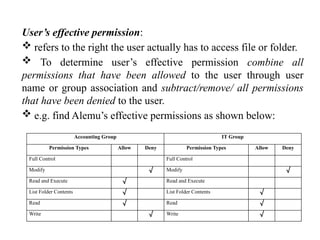
User’s effective permission:
 refers to the right the user actually has to access file or folder.
 To determine user’s effective permission combine all
permissions that have been allowed to the user through user
name or group association and subtract/remove/ all permissions
that have been denied to the user.
 e.g. find Alemu’s effective permissions as shown below:
Accounting Group IT Group
Permission Types Allow Deny Permission Types Allow Deny
Full Control Full Control
Modify √ Modify √
Read and Execute √ Read and Execute
List Folder Contents √ List Folder Contents √
Read √ Read √
Write √ Write √
Permission inheritance:
 By default parent folders permissions are applied to any files and sub folders in the
folder.
This is called inherited permission.
When you move or copy NTFS files, the permissions that have been set for those files
might be changed:
o If we move a file from one folder to another folder on the same NTFS volume, the
file will retain the original NTFS permissions (NTFS permissions of the source
folder).
o If we move file from one folder to other folder b/n different NTFS volumes, the file
is treated as a copy and will have the same permissions as the destination folder.
o If we copy a file from one folder to another folder on the same NTFS volume or
on different volume the file will have the same permission as the destination folder.
o If we copy/move a folder or file to a FAT partition, it will not retain any NTFS
permission.
Managing Network Printing:
 A network administrator can create 3 types of printer:
o a local printer, which is directly attached to the local computer,
o a network printer which is attached to another computer on the
network, or
o a print device that has its own network card and attaches
directly to the network similar to the computers.
 The computer on which we run the Add Printer wizard and create
the printer automatically becomes the print server for that printer.
 Once printer has been set up, printer properties allow us to
configure options such as the printer name, whether or not the
printer is shared, and printer security issues.
 The printer properties dialog box has a minimum of six tabs:
General, Sharing, Ports, Security, Device Settings, and Advanced.
a. General tab – contains information about the printer such as name of the
printer, the location, and the comment about the printer.
 It also lets us to set printing preferences and print test pages to check
our printer connectivity.
 This dialog box will allow us to specify the layout of the paper
(orientation: portrait or vertical, Landscape or horizontal), number of
page per sheet, and page order.
b. Configuring sharing properties – allows us to specify whether the printer
will be configured as a local printer or as a shared network printer.
c. Configuring Port properties – will allow us to configure all of the ports that
have been defined for printer use.
 Port is defined as the interface that allows the computer to communicate
with the print device.
 Windows server OS supports local ports/physical ports/ and logical ports
which can be: Parallel ports, Serial ports, USB ports, Infrared and TCP/IP
ports.
 Local ports are used when the printer attaches directly to the computer.
 Logical ports are used when the printer is attached to the network by
installing a network card in the printer.
 The advantage of network printers is that they are faster than local printers
and can be located anywhere on the network.
 Printer pooling – is the process of redirecting print jobs to another printer.
 Printer pools are used to associate multiple physical print devices with a
single logical printer.
 The advantage of configuring and using a printer pool is that the first
available print device will print our job.
d. Security Properties – Print Permission – The network
administrator can allow or deny access to a printer using
security tab from printer properties dialog box.
• Followings are the print permissions assigned by windows server:
 print,
 manage printers, and
 manage documents.
e. Configuring Advanced network print properties – The
advanced tab of the printer properties allows us to configure the
following options:
 Printer availability
 Printer priority
 Spooling properties
 Separator page
i. Printer Availability configuration – specifies when a printer
will service print jobs.
• It has two options: Always Available (default) and Available from
 print,
 manage printers, and
 manage documents.
ii. Printer Priority configuration – allows us to configure if we
have multiple printers that use a single print device.
• We might use this option when two or more groups share a
printer and we need to control the priority in which print jobs
are serviced by the print device.
• In the advanced tab of the printer properties dialog box, we can
set the priority value to a number from 1 to 99, with 1 as the
lowest priority and 99 as the highest priority.
iii. Spooling – means that print jobs are saved to disk into a printer
queue before they are sent to the printer.
• When we configure spooling options, we specify whether print
jobs are spooled or sent directly to the printer.
Separator pages – used at the beginning of each document to be
printed to identify the user who submitted the print job and to
separate print jobs/documents.
• If our printer is not shared, a separator page is generally a
waste of paper.
• If the printer is shared by many users, the separator page can
be useful for distributing finished print jobs.
End of Chapter 3

Chapter 3pppppppppppppppppppppppppppp.pptx

  • 1.
    Ch3: Managing NetworkAccess • Network access defines what access/rights a user has to local resources, i.e. the scope of access users can have to the resources. • A powerful feature of networking is the ability to allow or protect access to files and folders. • Network administrator can create shared files/folders on a network so that users with appropriate access rights can access them. • There are two types of file systems used by local partitions:  FAT(which includes FAT-16 and FAT-32)  NTFS
  • 2.
     FAT partitionsdon’t support local security option while NTFS partitions also support local security options.  NTFS permissions are cumulative type, based on group member’s access type, i.e. if the user has denied access and allowed access through group, denied permissions override allowed permissions.  Windows server OS offers six levels of NTFS permissions: 1) full control 2) modify 3) read and execute 4) list folder contents 5) read 6) write
  • 3.
     Level 1– Full control:  If we select full control permission, all permissions will be checked by default.  If we unchecked any lower level permission (such as read, or others) the full control allow check box will be automatically unchecked.  Level 2 – Modify:  If we select modify permission the following will be checked/allowed: o Read and execute o List folder content o Read o Write  Level 3 – Read and Execute:  If we select the read and execute permission the following will be allowed automatically: o List folder contents o Read permission
  • 4.
     Level 4– List Folder Contents:  This permission allows the following rights: o List the content of folders. o See files/folders attributes.  Level 5 – Read:  This permission allows the following rights: o List the content of folder o Read the data in a folder’s files  Level 6 – Write:  This permission allows the following rights: o Create new folder/file o Write data to the file o Overwrite a file(modify a file) o Change files/folder’s attribute
  • 5.
    User’s effective permission: refers to the right the user actually has to access file or folder.  To determine user’s effective permission combine all permissions that have been allowed to the user through user name or group association and subtract/remove/ all permissions that have been denied to the user.  e.g. find Alemu’s effective permissions as shown below: Accounting Group IT Group Permission Types Allow Deny Permission Types Allow Deny Full Control Full Control Modify √ Modify √ Read and Execute √ Read and Execute List Folder Contents √ List Folder Contents √ Read √ Read √ Write √ Write √
  • 6.
    Permission inheritance:  Bydefault parent folders permissions are applied to any files and sub folders in the folder. This is called inherited permission. When you move or copy NTFS files, the permissions that have been set for those files might be changed: o If we move a file from one folder to another folder on the same NTFS volume, the file will retain the original NTFS permissions (NTFS permissions of the source folder). o If we move file from one folder to other folder b/n different NTFS volumes, the file is treated as a copy and will have the same permissions as the destination folder. o If we copy a file from one folder to another folder on the same NTFS volume or on different volume the file will have the same permission as the destination folder. o If we copy/move a folder or file to a FAT partition, it will not retain any NTFS permission.
  • 7.
    Managing Network Printing: A network administrator can create 3 types of printer: o a local printer, which is directly attached to the local computer, o a network printer which is attached to another computer on the network, or o a print device that has its own network card and attaches directly to the network similar to the computers.  The computer on which we run the Add Printer wizard and create the printer automatically becomes the print server for that printer.  Once printer has been set up, printer properties allow us to configure options such as the printer name, whether or not the printer is shared, and printer security issues.  The printer properties dialog box has a minimum of six tabs: General, Sharing, Ports, Security, Device Settings, and Advanced.
  • 8.
    a. General tab– contains information about the printer such as name of the printer, the location, and the comment about the printer.  It also lets us to set printing preferences and print test pages to check our printer connectivity.  This dialog box will allow us to specify the layout of the paper (orientation: portrait or vertical, Landscape or horizontal), number of page per sheet, and page order. b. Configuring sharing properties – allows us to specify whether the printer will be configured as a local printer or as a shared network printer. c. Configuring Port properties – will allow us to configure all of the ports that have been defined for printer use.  Port is defined as the interface that allows the computer to communicate with the print device.
  • 9.
     Windows serverOS supports local ports/physical ports/ and logical ports which can be: Parallel ports, Serial ports, USB ports, Infrared and TCP/IP ports.  Local ports are used when the printer attaches directly to the computer.  Logical ports are used when the printer is attached to the network by installing a network card in the printer.  The advantage of network printers is that they are faster than local printers and can be located anywhere on the network.  Printer pooling – is the process of redirecting print jobs to another printer.  Printer pools are used to associate multiple physical print devices with a single logical printer.  The advantage of configuring and using a printer pool is that the first available print device will print our job.
  • 10.
    d. Security Properties– Print Permission – The network administrator can allow or deny access to a printer using security tab from printer properties dialog box. • Followings are the print permissions assigned by windows server:  print,  manage printers, and  manage documents. e. Configuring Advanced network print properties – The advanced tab of the printer properties allows us to configure the following options:  Printer availability  Printer priority  Spooling properties  Separator page
  • 11.
    i. Printer Availabilityconfiguration – specifies when a printer will service print jobs. • It has two options: Always Available (default) and Available from  print,  manage printers, and  manage documents. ii. Printer Priority configuration – allows us to configure if we have multiple printers that use a single print device. • We might use this option when two or more groups share a printer and we need to control the priority in which print jobs are serviced by the print device. • In the advanced tab of the printer properties dialog box, we can set the priority value to a number from 1 to 99, with 1 as the lowest priority and 99 as the highest priority.
  • 12.
    iii. Spooling –means that print jobs are saved to disk into a printer queue before they are sent to the printer. • When we configure spooling options, we specify whether print jobs are spooled or sent directly to the printer. Separator pages – used at the beginning of each document to be printed to identify the user who submitted the print job and to separate print jobs/documents. • If our printer is not shared, a separator page is generally a waste of paper. • If the printer is shared by many users, the separator page can be useful for distributing finished print jobs. End of Chapter 3