Copyright @ IT Series www.itseries.com.pk
CHAPTER 7: Forms and Reports
COMPUTER SCIENCE
12
(MS Access and C)
Copyright @ IT Series www.itseries.com.pk
• Form
• Types of Forms
• Create Form by Wizard
• Create Form in Design View
• Editing Forms
• Controls
• Sub Form & its Creation
• Conditional Formatting
• Reports
• Switch Board
Topics
Copyright @ IT Series www.itseries.com.pk
possible to perform mathematical operation on character values
 A window that consists of visual components
 Forms are used to interact with database through GUI
 Form is constructed from collection of individual design elements
 These elements are called controls or control objects or tools
 Examples are Buttons, Check Box, List Box, Radio Button
Uses of Form
 Add data in the database
 Modify data in the database
 Delete data from the database
 Retrieve and view data from the database
 Search the required data from the database
Form
Copyright @ IT Series www.itseries.com.pk
possible to perform mathematical operation on character values
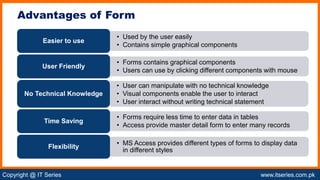
Advantages of Form
• Used by the user easily
• Contains simple graphical components
Easier to use
• Forms contains graphical components
• Users can use by clicking different components with mouse
User Friendly
• User can manipulate with no technical knowledge
• Visual components enable the user to interact
• User interact without writing technical statement
No Technical Knowledge
• Forms require less time to enter data in tables
• Access provide master detail form to enter many records
Time Saving
• MS Access provides different types of forms to display data
in different styles
Flexibility
Copyright @ IT Series www.itseries.com.pk
possible to perform mathematical operation on character values
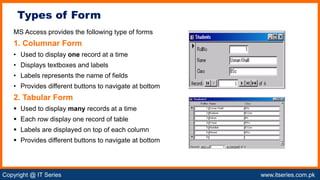
MS Access provides the following type of forms
1. Columnar Form
• Used to display one record at a time
• Displays textboxes and labels
• Labels represents the name of fields
• Provides different buttons to navigate at bottom
2. Tabular Form
 Used to display many records at a time
 Each row display one record of table
 Labels are displayed on top of each column
 Provides different buttons to navigate at bottom
Types of Form
Copyright @ IT Series www.itseries.com.pk
possible to perform mathematical operation on character values
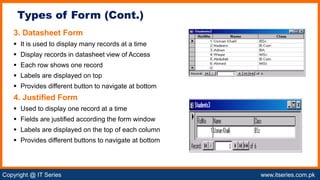
3. Datasheet Form
 It is used to display many records at a time
 Display records in datasheet view of Access
 Each row shows one record
 Labels are displayed on top
 Provides different button to navigate at bottom
4. Justified Form
 Used to display one record at a time
 Fields are justified according the form window
 Labels are displayed on the top of each column
 Provides different buttons to navigate at bottom
Types of Form (Cont.)
Copyright @ IT Series www.itseries.com.pk
possible to perform mathematical operation on character values
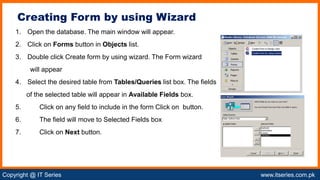
1. Open the database. The main window will appear.
2. Click on Forms button in Objects list.
3. Double click Create form by using wizard. The Form wizard
will appear
4. Select the desired table from Tables/Queries list box. The fields
of the selected table will appear in Available Fields box.
5. Click on any field to include in the form Click on button.
6. The field will move to Selected Fields box
7. Click on Next button.
Creating Form by using Wizard
Copyright @ IT Series www.itseries.com.pk
possible to perform mathematical operation on character values
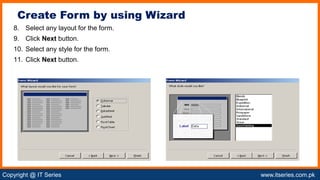
8. Select any layout for the form.
9. Click Next button.
10. Select any style for the form.
11. Click Next button.
Create Form by using Wizard
Copyright @ IT Series www.itseries.com.pk
possible to perform mathematical operation on character values
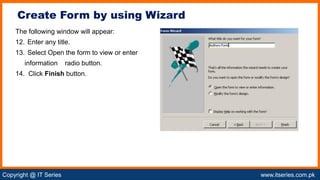
The following window will appear:
12. Enter any title.
13. Select Open the form to view or enter
information radio button.
14. Click Finish button.
Create Form by using Wizard
Copyright @ IT Series www.itseries.com.pk
possible to perform mathematical operation on character values
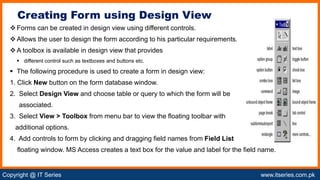
Forms can be created in design view using different controls.
Allows the user to design the form according to his particular requirements.
A toolbox is available in design view that provides
 different control such as textboxes and buttons etc.
 The following procedure is used to create a form in design view:
1. Click New button on the form database window.
2. Select Design View and choose table or query to which the form will be
associated.
3. Select View > Toolbox from menu bar to view the floating toolbar with
additional options.
4. Add controls to form by clicking and dragging field names from Field List
floating window. MS Access creates a text box for the value and label for the field name.
Creating Form using Design View
Copyright @ IT Series www.itseries.com.pk
possible to perform mathematical operation on character values
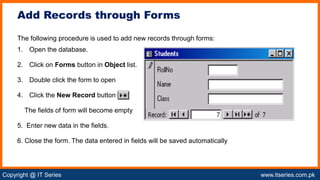
The following procedure is used to add new records through forms:
1. Open the database.
2. Click on Forms button in Object list.
3. Double click the form to open
4. Click the New Record button
The fields of form will become empty
5. Enter new data in the fields.
6. Close the form. The data entered in fields will be saved automatically
Add Records through Forms
Copyright @ IT Series www.itseries.com.pk
possible to perform mathematical operation on character values
The following procedure is used to edit records through forms:
1. Open the database.
2. Click on Forms button in Object list.
3. Double click the form to open.
4. Go to the record to be edited by using navigation buttons at the bottom.
5. Change the contents of the fields.
6. Close the form. The changes will be updated automatically.
Editing Form
Copyright @ IT Series www.itseries.com.pk
possible to perform mathematical operation on character valuesss
Options for Editing in Forms
• Displays a series of lines and dots in design view
• Option can turned on and off by selecting View > Grid
Grid Lines
• Used to align form object to grid
• Option can be turned on and off from Format > snap to grid
Snap to Grid
• Click and drag the handles on the edges and corner of the
element with mouse
Resizing the object
• Right Click on the object with the mouse
• Selecting Change to Option
• Select an available object type from the list
Change Form Object
• Each form object and its corresponding label are bounded
• Both move together when any of them is moved with mouse
• User can change the position of the object
Label / Object Alignment
Copyright @ IT Series www.itseries.com.pk
possible to perform mathematical operation on character values
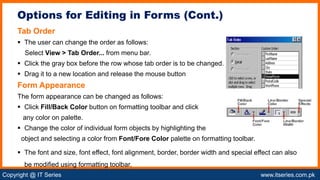
Tab Order
 The user can change the order as follows:
Select View > Tab Order... from menu bar.
 Click the gray box before the row whose tab order is to be changed.
 Drag it to a new location and release the mouse button
Form Appearance
The form appearance can be changed as follows:
 Click Fill/Back Color button on formatting toolbar and click
any color on palette.
 Change the color of individual form objects by highlighting the
object and selecting a color from Font/Fore Color palette on formatting toolbar.
 The font and size, font effect, font alignment, border, border width and special effect can also
be modified using formatting toolbar.
Options for Editing in Forms (Cont.)
Copyright @ IT Series www.itseries.com.pk
possible to perform mathematical operation on character values
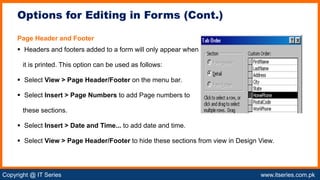
Page Header and Footer
 Headers and footers added to a form will only appear when
it is printed. This option can be used as follows:
 Select View > Page Header/Footer on the menu bar.
 Select Insert > Page Numbers to add Page numbers to
these sections.
 Select Insert > Date and Time... to add date and time.
 Select View > Page Header/Footer to hide these sections from view in Design View.
Options for Editing in Forms (Cont.)
Copyright @ IT Series www.itseries.com.pk
possible to perform mathematical operation on character values
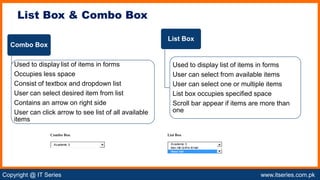
List Box & Combo Box
Combo Box List Box
Academic 3 Academic 3
Ben Hill Griffin III Hall
Reed Hall
Combo Box
Used to display list of items in forms
Occupies less space
Consist of textbox and dropdown list
User can select desired item from list
Contains an arrow on right side
User can click arrow to see list of all available
items
List Box
Used to display list of items in forms
User can select from available items
User can select one or multiple items
List box occupies specified space
Scroll bar appear if items are more than
one
Copyright @ IT Series www.itseries.com.pk
possible to perform mathematical operation on character values
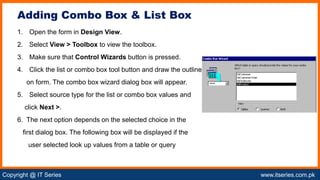
1. Open the form in Design View.
2. Select View > Toolbox to view the toolbox.
3. Make sure that Control Wizards button is pressed.
4. Click the list or combo box tool button and draw the outline
on form. The combo box wizard dialog box will appear.
5. Select source type for the list or combo box values and
click Next >.
6. The next option depends on the selected choice in the
first dialog box. The following box will be displayed if the
user selected look up values from a table or query
Adding Combo Box & List Box
Copyright @ IT Series www.itseries.com.pk
possible to perform mathematical operation on character values
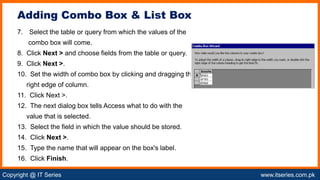
7. Select the table or query from which the values of the
combo box will come.
8. Click Next > and choose fields from the table or query.
9. Click Next >.
10. Set the width of combo box by clicking and dragging the
right edge of column.
11. Click Next >.
12. The next dialog box tells Access what to do with the
value that is selected.
13. Select the field in which the value should be stored.
14. Click Next >.
15. Type the name that will appear on the box's label.
16. Click Finish.
Adding Combo Box & List Box
Copyright @ IT Series www.itseries.com.pk
possible to perform mathematical operation on character values
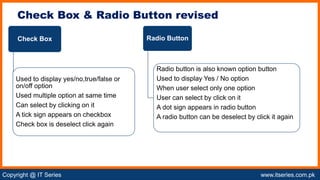
Check Box & Radio Button revised
Check Box
Used to display yes/no,true/false or
on/off option
Used multiple option at same time
Can select by clicking on it
A tick sign appears on checkbox
Check box is deselect click again
Radio Button
Radio button is also known option button
Used to display Yes / No option
When user select only one option
User can select by click on it
A dot sign appears in radio button
A radio button can be deselect by click it again
Copyright @ IT Series www.itseries.com.pk
possible to perform mathematical operation on character values
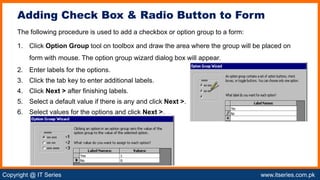
The following procedure is used to add a checkbox or option group to a form:
1. Click Option Group tool on toolbox and draw the area where the group will be placed on
form with mouse. The option group wizard dialog box will appear.
2. Enter labels for the options.
3. Click the tab key to enter additional labels.
4. Click Next > after finishing labels.
5. Select a default value if there is any and click Next >.
6. Select values for the options and click Next >.
Adding Check Box & Radio Button to Form
Copyright @ IT Series www.itseries.com.pk
possible to perform mathematical operation on character values
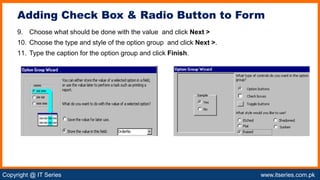
9. Choose what should be done with the value and click Next >
10. Choose the type and style of the option group and click Next >.
11. Type the caption for the option group and click Finish.
Adding Check Box & Radio Button to Form
Copyright @ IT Series www.itseries.com.pk
possible to perform mathematical operation on character values
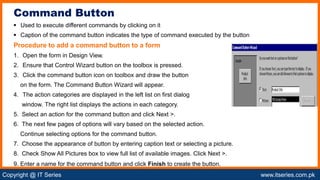
 Used to execute different commands by clicking on it
 Caption of the command button indicates the type of command executed by the button
Procedure to add a command button to a form
1. Open the form in Design View.
2. Ensure that Control Wizard button on the toolbox is pressed.
3. Click the command button icon on toolbox and draw the button
on the form. The Command Button Wizard will appear.
4. The action categories are displayed in the left list on first dialog
window. The right list displays the actions in each category.
5. Select an action for the command button and click Next >.
6. The next few pages of options will vary based on the selected action.
Continue selecting options for the command button.
7. Choose the appearance of button by entering caption text or selecting a picture.
8. Check Show All Pictures box to view full list of available images. Click Next >.
9. Enter a name for the command button and click Finish to create the button.
Command Button
Copyright @ IT Series www.itseries.com.pk
possible to perform mathematical operation on character values
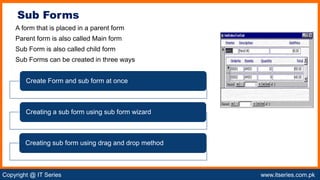
A form that is placed in a parent form
Parent form is also called Main form
Sub Form is also called child form
Sub Forms can be created in three ways
Sub Forms
Create Form and sub form at once
Creating a sub form using sub form wizard
Creating sub form using drag and drop method
Copyright @ IT Series www.itseries.com.pk
possible to perform mathematical operation on character values
This method is used if no form has already been created
Main form and sub form can be created automatically
Using the form wizard if:
Table relationships are set properly
OR
A query involving multiple tables is selected
Create Form & Sub Forms at Once
Copyright @ IT Series www.itseries.com.pk
possible to perform mathematical operation on character values
The following procedure is used to create a sub form within a form:
1. Double click Create form by using wizard on database window.
2. Select the first table or query from which the main form will display data from
Tables/Queries menu.
3. Select fields that should appear on form by highlighting the field names in Available
4. Fields list on left and clicking single arrow > button OR click double arrows >> to choose
all of the fields.
5. Select another table or query from Tables/Queries drop-down menu and choose the
fields that should appear on form.
6. Click Next after selecting all fields.
7. Select Form with sub form(s) if the forms should appear on same page
8. Click Next.
Create Form & Sub Forms at Once (Cont.)
Copyright @ IT Series www.itseries.com.pk
possible to perform mathematical operation on character values
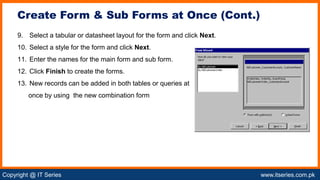
9. Select a tabular or datasheet layout for the form and click Next.
10. Select a style for the form and click Next.
11. Enter the names for the main form and sub form.
12. Click Finish to create the forms.
13. New records can be added in both tables or queries at
once by using the new combination form
Create Form & Sub Forms at Once (Cont.)
Copyright @ IT Series www.itseries.com.pk
possible to perform mathematical operation on character values
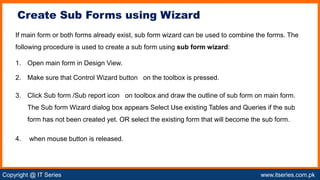
If main form or both forms already exist, sub form wizard can be used to combine the forms. The
following procedure is used to create a sub form using sub form wizard:
1. Open main form in Design View.
2. Make sure that Control Wizard button on the toolbox is pressed.
3. Click Sub form /Sub report icon on toolbox and draw the outline of sub form on main form.
The Sub form Wizard dialog box appears Select Use existing Tables and Queries if the sub
form has not been created yet. OR select the existing form that will become the sub form.
4. when mouse button is released.
Create Sub Forms using Wizard
Copyright @ IT Series www.itseries.com.pk
possible to perform mathematical operation on character values
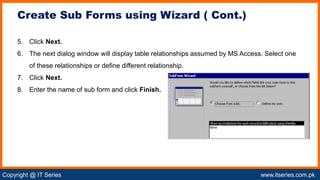
5. Click Next.
6. The next dialog window will display table relationships assumed by MS Access. Select one
of these relationships or define different relationship.
7. Click Next.
8. Enter the name of sub form and click Finish.
Create Sub Forms using Wizard ( Cont.)
Copyright @ IT Series www.itseries.com.pk
possible to perform mathematical operation on character values
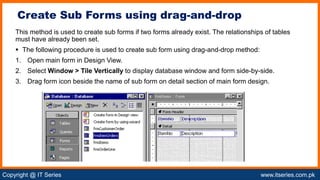
This method is used to create sub forms if two forms already exist. The relationships of tables
must have already been set.
 The following procedure is used to create sub form using drag-and-drop method:
1. Open main form in Design View.
2. Select Window > Tile Vertically to display database window and form side-by-side.
3. Drag form icon beside the name of sub form on detail section of main form design.
Create Sub Forms using drag-and-drop
Copyright @ IT Series www.itseries.com.pk
possible to perform mathematical operation on character values
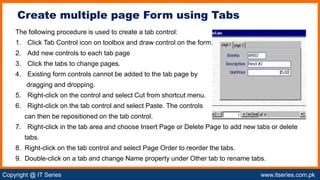
The following procedure is used to create a tab control:
1. Click Tab Control icon on toolbox and draw control on the form.
2. Add new controls to each tab page
3. Click the tabs to change pages.
4. Existing form controls cannot be added to the tab page by
dragging and dropping.
5. Right-click on the control and select Cut from shortcut menu.
6. Right-click on the tab control and select Paste. The controls
can then be repositioned on the tab control.
7. Right-click in the tab area and choose Insert Page or Delete Page to add new tabs or delete
tabs.
8. Right-click on the tab control and select Page Order to reorder the tabs.
9. Double-click on a tab and change Name property under Other tab to rename tabs.
Create multiple page Form using Tabs
Copyright @ IT Series www.itseries.com.pk
possible to perform mathematical operation on character values
 Special type of formatting.
 It is performed when a particular condition is met.
 This formatting depends on control's value
 It can be added to textboxes, lists and combo boxes.
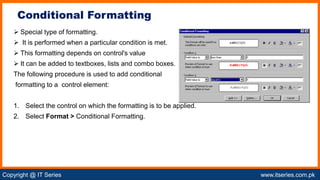
The following procedure is used to add conditional
formatting to a control element:
1. Select the control on which the formatting is to be applied.
2. Select Format > Conditional Formatting.
Conditional Formatting
Copyright @ IT Series www.itseries.com.pk
possible to perform mathematical operation on character values
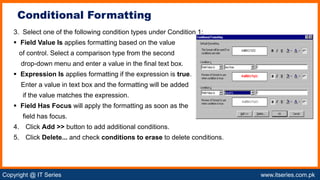
3. Select one of the following condition types under Condition 1:
 Field Value Is applies formatting based on the value
of control. Select a comparison type from the second
drop-down menu and enter a value in the final text box.
 Expression Is applies formatting if the expression is true.
Enter a value in text box and the formatting will be added
if the value matches the expression.
 Field Has Focus will apply the formatting as soon as the
field has focus.
4. Click Add >> button to add additional conditions.
5. Click Delete... and check conditions to erase to delete conditions.
Conditional Formatting
Copyright @ IT Series www.itseries.com.pk
possible to perform mathematical operation on character values
A textbox can be used as password field by modifying the properties of the textbox.
 Each character should appear as an asterisk as the user types information in textbox.
 The asterisks appear in the textbox as the user types in it
Actual characters will be saved in the database instead of asterisks.
The following procedure is used to use a textbox as password field:
1. Select the text field in Design View.
2. Click Properties.
3. Select Data tab.
4. Click in Input Mask field and click button [...].
5. Choose Password from list of input masks and click Finish.
Tex Box using Password
Copyright @ IT Series www.itseries.com.pk
possible to perform mathematical operation on character values
The type of a control can be changed without deleting it.
The change of type saves time.
 the user does not have to delete a control and create a new control of different type.
Only limited controls can be converted to other type of controls.
The following procedure is used to change the type of a control:
1. Select the control on the form in Design View.
2. Choose Format > Change To from the menu bar.
3. Select one of the control types that is not grayed out
Change type of control
Copyright @ IT Series www.itseries.com.pk
possible to perform mathematical operation on character values
The following procedure is used to define composite primary keys:
 Move the mouse over the gray column next to the field names and note that it becomes an
arrow.
 Click the mouse, hold it down and drag it over all fields that should be primary keys and
release the button.
 Click the primary key button.
Multiple Primary Key
Copyright @ IT Series www.itseries.com.pk
possible to perform mathematical operation on character values
 Output of database application
 User can generate different types of reports by manipulating database
 Information on the reports can be arranged in different styles
 Information displayed on the report can be from multiple tables or queries
 Reports may contain graphs and charts
 User cannot edit the data displayed on the reports
 Reports are generated for printing purpose
 Reports can also be stored on the disk
Reports & its uses
Copyright @ IT Series www.itseries.com.pk
possible to perform mathematical operation on character values
Uses of Reports
Reports present the required information in formatted style
Reports provide flexibility to present the same data in different ways
Reports can display information with graphics and charts
Reports are very important in making important decisions
Reports can be used to improve the database application
Reports can display the result of query
Copyright @ IT Series www.itseries.com.pk
possible to perform mathematical operation on character values
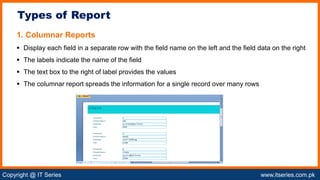
1. Columnar Reports
 Display each field in a separate row with the field name on the left and the field data on the right
 The labels indicate the name of the field
 The text box to the right of label provides the values
 The columnar report spreads the information for a single record over many rows
Types of Report
Copyright @ IT Series www.itseries.com.pk
possible to perform mathematical operation on character values
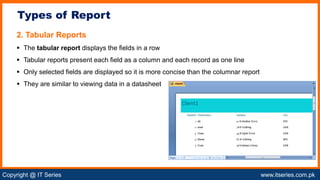
2. Tabular Reports
 The tabular report displays the fields in a row
 Tabular reports present each field as a column and each record as one line
 Only selected fields are displayed so it is more concise than the columnar report
 They are similar to viewing data in a datasheet
Types of Report
Copyright @ IT Series www.itseries.com.pk
possible to perform mathematical operation on character values
Form Report
Basic purpose is to input data in tables Basic purpose of reports is to display data from tables
Data in form can be deleted Data in report cannot be deleted
Data in form can be modified Data in reports cannot be modified
Forms are used on computer screen only Reports are normally used to print on paper
Data in form cannot be formatted Data in report can be formatted in different styles
User can add new data through form User cannot add new data through report
Difference Between Form & Report
Copyright @ IT Series www.itseries.com.pk
possible to perform mathematical operation on character values
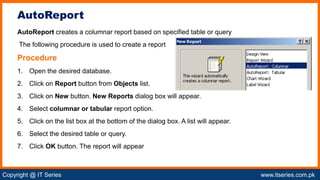
AutoReport creates a columnar report based on specified table or query
The following procedure is used to create a report
Procedure
1. Open the desired database.
2. Click on Report button from Objects list.
3. Click on New button. New Reports dialog box will appear.
4. Select columnar or tabular report option.
5. Click on the list box at the bottom of the dialog box. A list will appear.
6. Select the desired table or query.
7. Click OK button. The report will appear
AutoReport
Copyright @ IT Series www.itseries.com.pk
possible to perform mathematical operation on character values
The AutoReport is not saved to the database automatically.
The following procedure is used to save the report:
1. Select File > Close. You are prompted to save the report.
2. Click Yes. The Save As dialog box will appear.
3. Enter a name and click OK. The report is saved to the Database Window
Saving and Closing AutoReport
Copyright @ IT Series www.itseries.com.pk
possible to perform mathematical operation on character values
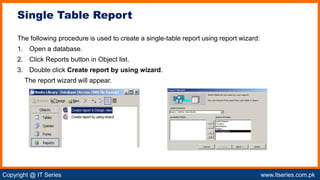
The following procedure is used to create a single-table report using report wizard:
1. Open a database.
2. Click Reports button in Object list.
3. Double click Create report by using wizard.
The report wizard will appear.
Single Table Report
Copyright @ IT Series www.itseries.com.pk
possible to perform mathematical operation on character values
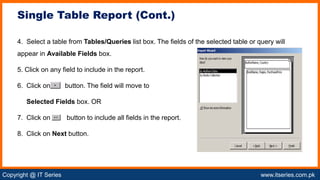
4. Select a table from Tables/Queries list box. The fields of the selected table or query will
appear in Available Fields box.
5. Click on any field to include in the report.
6. Click on button. The field will move to
Selected Fields box. OR
7. Click on button to include all fields in the report.
8. Click on Next button.
Single Table Report (Cont.)
Copyright @ IT Series www.itseries.com.pk
possible to perform mathematical operation on character values
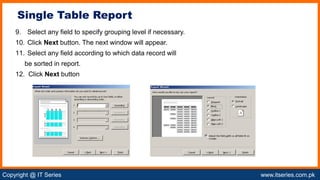
9. Select any field to specify grouping level if necessary.
10. Click Next button. The next window will appear.
11. Select any field according to which data record will
be sorted in report.
12. Click Next button
Single Table Report
Copyright @ IT Series www.itseries.com.pk
possible to perform mathematical operation on character values
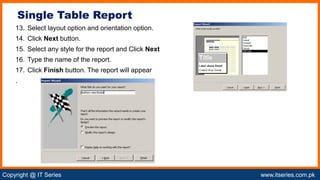
13. Select layout option and orientation option.
14. Click Next button.
15. Select any style for the report and Click Next
16. Type the name of the report.
17. Click Finish button. The report will appear
.
Single Table Report
Copyright @ IT Series www.itseries.com.pk
possible to perform mathematical operation on character values
The following procedure is used to create a two-table report using report wizard:
1. Open a database.
2. Click on Reports button in Object list.
3. Double click Create report by using wizard. The report wizard will appear.
4. Select a table from Tables/Queries list box. The fields of the selected table or query
will appear in Available Fields box.
5. Click on any field to include in the report
6. Click on button. The field will move to Selected Fields box. OR
7. Click on button to include all fields in the report.
8. Select the second table from Tables/Queries list box.
9. Move the fields of second table in Selected Fields box.
Two Table Report
Copyright @ IT Series www.itseries.com.pk
possible to perform mathematical operation on character values
10. Click on Next button.
11. Select any field to specify grouping level if necessary.
12. Click Next button. The next window will appear.
13. Select any field according to which data record will be sorted in report.
14. Click Next button.
15. Select layout option and orientation option. Click Next button.
16. Select any style for the report.
17. Type the name of the report.
18. Click Finish button. The report will appear on the screen.
Two Table Report (Cont.)
Copyright @ IT Series www.itseries.com.pk
possible to perform mathematical operation on character values
The following procedure is used to create a report in Design View:
1. Click New button on Reports Database Window.
2. Highlight Design View and choose the data source of report from drop-down menu.
3. Click OK.
4. A blank grid with a Field Box and form element toolbar will appear. It is similar to Design
View for forms.
5. Design the report. For example, double-click the title bar of Field Box to add all fields to the
report at once.
6. Use the handles on the elements to resize them.
7. Move them to different locations.
8. Modify the look of the report by using options on formatting toolbar.
9. Click Print View button at the top left corner of the screen to preview the report.
Create Report using design view
Copyright @ IT Series www.itseries.com.pk
possible to perform mathematical operation on character values
The following procedure is used to print reports:
1. Select File > Page Setup to modify page margins, size, orientation and column setup.
2. Select File > Print from the menu bar OR click Print button on toolbar.
Printed Reports
Copyright @ IT Series www.itseries.com.pk
possible to perform mathematical operation on character values
The process of linking in MS Access creates a link to an object in another database. The table is
not copied to the current database
The following procedure is used to create a link:
1. Open the destination database.
2. Select File > Get External > Link Tables... from the menu bar.
3. Choose the database in which the table is located and click Link. A window listing the tables
in the database will appear.
4. Highlight the table or tables that should be linked and click OK. A link to the table will appear
in Database Window as a small table icon preceded by small right arrow.
Linking
Copyright @ IT Series www.itseries.com.pk
possible to perform mathematical operation on character values
 Switch Board is a form that is used to navigate database
 It perform different tasks in database application
 It contains user defined commands with buttons, labels, images or hyperlinks
 Commands invoke different actions to carry out various tasks such as
 Opening forms
 Running queries
 Printing reports etc.
Creating Switch Board
The following procedure is used to create a switchboard in MS Access:
1. Open the Access database.
2. Select Tools > Database Utilities > Switchboard Manager.
3. If no Switchboard form exists, Access will display a message telling you that no Switchboard
exists and will ask if you want to create one.
4. Click Yes to display Switchboard Manager screen
Switch Board
Copyright @ IT Series www.itseries.com.pk
possible to perform mathematical operation on character values
5. Click Edit to edit options.
6. Change Switchboard default name from Main Switchboard to any other name.
7. Click New to display Edit Switchboard Item dialog box.
8. Type a brief description of the first item to be added in Text field.
9. Select the appropriate option from the drop-down list in Command field.
10. If you choose Open Form In Edit Mode, the Switchboard Manager will display a list of
database's forms.
11. Choose the form and click OK.
12. Repeat this process until all items are added to Switchboard form.
13. Click Close.
Switch Board (Cont.)
Copyright @ IT Series www.itseries.com.pk
possible to perform mathematical operation on character values
The following procedure is used to run switchboard in MS Access:
1. Right-click on database window and choose Startup from context menu.
2. Click drop-down arrow for Display Form/Page option.
3. Choose Switchboard and click OK. The next time you open the database, MS Access will
run the Switchboard form.
Running Switch Board
Copyright @ IT Series www.itseries.com.pk

Chapter07 – Microsoft Access Forms and Reports.pdf

  • 1.
    Copyright @ ITSeries www.itseries.com.pk CHAPTER 7: Forms and Reports COMPUTER SCIENCE 12 (MS Access and C)
  • 2.
    Copyright @ ITSeries www.itseries.com.pk • Form • Types of Forms • Create Form by Wizard • Create Form in Design View • Editing Forms • Controls • Sub Form & its Creation • Conditional Formatting • Reports • Switch Board Topics
  • 3.
    Copyright @ ITSeries www.itseries.com.pk possible to perform mathematical operation on character values  A window that consists of visual components  Forms are used to interact with database through GUI  Form is constructed from collection of individual design elements  These elements are called controls or control objects or tools  Examples are Buttons, Check Box, List Box, Radio Button Uses of Form  Add data in the database  Modify data in the database  Delete data from the database  Retrieve and view data from the database  Search the required data from the database Form
  • 4.
    Copyright @ ITSeries www.itseries.com.pk possible to perform mathematical operation on character values Advantages of Form • Used by the user easily • Contains simple graphical components Easier to use • Forms contains graphical components • Users can use by clicking different components with mouse User Friendly • User can manipulate with no technical knowledge • Visual components enable the user to interact • User interact without writing technical statement No Technical Knowledge • Forms require less time to enter data in tables • Access provide master detail form to enter many records Time Saving • MS Access provides different types of forms to display data in different styles Flexibility
  • 5.
    Copyright @ ITSeries www.itseries.com.pk possible to perform mathematical operation on character values MS Access provides the following type of forms 1. Columnar Form • Used to display one record at a time • Displays textboxes and labels • Labels represents the name of fields • Provides different buttons to navigate at bottom 2. Tabular Form  Used to display many records at a time  Each row display one record of table  Labels are displayed on top of each column  Provides different buttons to navigate at bottom Types of Form
  • 6.
    Copyright @ ITSeries www.itseries.com.pk possible to perform mathematical operation on character values 3. Datasheet Form  It is used to display many records at a time  Display records in datasheet view of Access  Each row shows one record  Labels are displayed on top  Provides different button to navigate at bottom 4. Justified Form  Used to display one record at a time  Fields are justified according the form window  Labels are displayed on the top of each column  Provides different buttons to navigate at bottom Types of Form (Cont.)
  • 7.
    Copyright @ ITSeries www.itseries.com.pk possible to perform mathematical operation on character values 1. Open the database. The main window will appear. 2. Click on Forms button in Objects list. 3. Double click Create form by using wizard. The Form wizard will appear 4. Select the desired table from Tables/Queries list box. The fields of the selected table will appear in Available Fields box. 5. Click on any field to include in the form Click on button. 6. The field will move to Selected Fields box 7. Click on Next button. Creating Form by using Wizard
  • 8.
    Copyright @ ITSeries www.itseries.com.pk possible to perform mathematical operation on character values 8. Select any layout for the form. 9. Click Next button. 10. Select any style for the form. 11. Click Next button. Create Form by using Wizard
  • 9.
    Copyright @ ITSeries www.itseries.com.pk possible to perform mathematical operation on character values The following window will appear: 12. Enter any title. 13. Select Open the form to view or enter information radio button. 14. Click Finish button. Create Form by using Wizard
  • 10.
    Copyright @ ITSeries www.itseries.com.pk possible to perform mathematical operation on character values Forms can be created in design view using different controls. Allows the user to design the form according to his particular requirements. A toolbox is available in design view that provides  different control such as textboxes and buttons etc.  The following procedure is used to create a form in design view: 1. Click New button on the form database window. 2. Select Design View and choose table or query to which the form will be associated. 3. Select View > Toolbox from menu bar to view the floating toolbar with additional options. 4. Add controls to form by clicking and dragging field names from Field List floating window. MS Access creates a text box for the value and label for the field name. Creating Form using Design View
  • 11.
    Copyright @ ITSeries www.itseries.com.pk possible to perform mathematical operation on character values The following procedure is used to add new records through forms: 1. Open the database. 2. Click on Forms button in Object list. 3. Double click the form to open 4. Click the New Record button The fields of form will become empty 5. Enter new data in the fields. 6. Close the form. The data entered in fields will be saved automatically Add Records through Forms
  • 12.
    Copyright @ ITSeries www.itseries.com.pk possible to perform mathematical operation on character values The following procedure is used to edit records through forms: 1. Open the database. 2. Click on Forms button in Object list. 3. Double click the form to open. 4. Go to the record to be edited by using navigation buttons at the bottom. 5. Change the contents of the fields. 6. Close the form. The changes will be updated automatically. Editing Form
  • 13.
    Copyright @ ITSeries www.itseries.com.pk possible to perform mathematical operation on character valuesss Options for Editing in Forms • Displays a series of lines and dots in design view • Option can turned on and off by selecting View > Grid Grid Lines • Used to align form object to grid • Option can be turned on and off from Format > snap to grid Snap to Grid • Click and drag the handles on the edges and corner of the element with mouse Resizing the object • Right Click on the object with the mouse • Selecting Change to Option • Select an available object type from the list Change Form Object • Each form object and its corresponding label are bounded • Both move together when any of them is moved with mouse • User can change the position of the object Label / Object Alignment
  • 14.
    Copyright @ ITSeries www.itseries.com.pk possible to perform mathematical operation on character values Tab Order  The user can change the order as follows: Select View > Tab Order... from menu bar.  Click the gray box before the row whose tab order is to be changed.  Drag it to a new location and release the mouse button Form Appearance The form appearance can be changed as follows:  Click Fill/Back Color button on formatting toolbar and click any color on palette.  Change the color of individual form objects by highlighting the object and selecting a color from Font/Fore Color palette on formatting toolbar.  The font and size, font effect, font alignment, border, border width and special effect can also be modified using formatting toolbar. Options for Editing in Forms (Cont.)
  • 15.
    Copyright @ ITSeries www.itseries.com.pk possible to perform mathematical operation on character values Page Header and Footer  Headers and footers added to a form will only appear when it is printed. This option can be used as follows:  Select View > Page Header/Footer on the menu bar.  Select Insert > Page Numbers to add Page numbers to these sections.  Select Insert > Date and Time... to add date and time.  Select View > Page Header/Footer to hide these sections from view in Design View. Options for Editing in Forms (Cont.)
  • 16.
    Copyright @ ITSeries www.itseries.com.pk possible to perform mathematical operation on character values List Box & Combo Box Combo Box List Box Academic 3 Academic 3 Ben Hill Griffin III Hall Reed Hall Combo Box Used to display list of items in forms Occupies less space Consist of textbox and dropdown list User can select desired item from list Contains an arrow on right side User can click arrow to see list of all available items List Box Used to display list of items in forms User can select from available items User can select one or multiple items List box occupies specified space Scroll bar appear if items are more than one
  • 17.
    Copyright @ ITSeries www.itseries.com.pk possible to perform mathematical operation on character values 1. Open the form in Design View. 2. Select View > Toolbox to view the toolbox. 3. Make sure that Control Wizards button is pressed. 4. Click the list or combo box tool button and draw the outline on form. The combo box wizard dialog box will appear. 5. Select source type for the list or combo box values and click Next >. 6. The next option depends on the selected choice in the first dialog box. The following box will be displayed if the user selected look up values from a table or query Adding Combo Box & List Box
  • 18.
    Copyright @ ITSeries www.itseries.com.pk possible to perform mathematical operation on character values 7. Select the table or query from which the values of the combo box will come. 8. Click Next > and choose fields from the table or query. 9. Click Next >. 10. Set the width of combo box by clicking and dragging the right edge of column. 11. Click Next >. 12. The next dialog box tells Access what to do with the value that is selected. 13. Select the field in which the value should be stored. 14. Click Next >. 15. Type the name that will appear on the box's label. 16. Click Finish. Adding Combo Box & List Box
  • 19.
    Copyright @ ITSeries www.itseries.com.pk possible to perform mathematical operation on character values Check Box & Radio Button revised Check Box Used to display yes/no,true/false or on/off option Used multiple option at same time Can select by clicking on it A tick sign appears on checkbox Check box is deselect click again Radio Button Radio button is also known option button Used to display Yes / No option When user select only one option User can select by click on it A dot sign appears in radio button A radio button can be deselect by click it again
  • 20.
    Copyright @ ITSeries www.itseries.com.pk possible to perform mathematical operation on character values The following procedure is used to add a checkbox or option group to a form: 1. Click Option Group tool on toolbox and draw the area where the group will be placed on form with mouse. The option group wizard dialog box will appear. 2. Enter labels for the options. 3. Click the tab key to enter additional labels. 4. Click Next > after finishing labels. 5. Select a default value if there is any and click Next >. 6. Select values for the options and click Next >. Adding Check Box & Radio Button to Form
  • 21.
    Copyright @ ITSeries www.itseries.com.pk possible to perform mathematical operation on character values 9. Choose what should be done with the value and click Next > 10. Choose the type and style of the option group and click Next >. 11. Type the caption for the option group and click Finish. Adding Check Box & Radio Button to Form
  • 22.
    Copyright @ ITSeries www.itseries.com.pk possible to perform mathematical operation on character values  Used to execute different commands by clicking on it  Caption of the command button indicates the type of command executed by the button Procedure to add a command button to a form 1. Open the form in Design View. 2. Ensure that Control Wizard button on the toolbox is pressed. 3. Click the command button icon on toolbox and draw the button on the form. The Command Button Wizard will appear. 4. The action categories are displayed in the left list on first dialog window. The right list displays the actions in each category. 5. Select an action for the command button and click Next >. 6. The next few pages of options will vary based on the selected action. Continue selecting options for the command button. 7. Choose the appearance of button by entering caption text or selecting a picture. 8. Check Show All Pictures box to view full list of available images. Click Next >. 9. Enter a name for the command button and click Finish to create the button. Command Button
  • 23.
    Copyright @ ITSeries www.itseries.com.pk possible to perform mathematical operation on character values A form that is placed in a parent form Parent form is also called Main form Sub Form is also called child form Sub Forms can be created in three ways Sub Forms Create Form and sub form at once Creating a sub form using sub form wizard Creating sub form using drag and drop method
  • 24.
    Copyright @ ITSeries www.itseries.com.pk possible to perform mathematical operation on character values This method is used if no form has already been created Main form and sub form can be created automatically Using the form wizard if: Table relationships are set properly OR A query involving multiple tables is selected Create Form & Sub Forms at Once
  • 25.
    Copyright @ ITSeries www.itseries.com.pk possible to perform mathematical operation on character values The following procedure is used to create a sub form within a form: 1. Double click Create form by using wizard on database window. 2. Select the first table or query from which the main form will display data from Tables/Queries menu. 3. Select fields that should appear on form by highlighting the field names in Available 4. Fields list on left and clicking single arrow > button OR click double arrows >> to choose all of the fields. 5. Select another table or query from Tables/Queries drop-down menu and choose the fields that should appear on form. 6. Click Next after selecting all fields. 7. Select Form with sub form(s) if the forms should appear on same page 8. Click Next. Create Form & Sub Forms at Once (Cont.)
  • 26.
    Copyright @ ITSeries www.itseries.com.pk possible to perform mathematical operation on character values 9. Select a tabular or datasheet layout for the form and click Next. 10. Select a style for the form and click Next. 11. Enter the names for the main form and sub form. 12. Click Finish to create the forms. 13. New records can be added in both tables or queries at once by using the new combination form Create Form & Sub Forms at Once (Cont.)
  • 27.
    Copyright @ ITSeries www.itseries.com.pk possible to perform mathematical operation on character values If main form or both forms already exist, sub form wizard can be used to combine the forms. The following procedure is used to create a sub form using sub form wizard: 1. Open main form in Design View. 2. Make sure that Control Wizard button on the toolbox is pressed. 3. Click Sub form /Sub report icon on toolbox and draw the outline of sub form on main form. The Sub form Wizard dialog box appears Select Use existing Tables and Queries if the sub form has not been created yet. OR select the existing form that will become the sub form. 4. when mouse button is released. Create Sub Forms using Wizard
  • 28.
    Copyright @ ITSeries www.itseries.com.pk possible to perform mathematical operation on character values 5. Click Next. 6. The next dialog window will display table relationships assumed by MS Access. Select one of these relationships or define different relationship. 7. Click Next. 8. Enter the name of sub form and click Finish. Create Sub Forms using Wizard ( Cont.)
  • 29.
    Copyright @ ITSeries www.itseries.com.pk possible to perform mathematical operation on character values This method is used to create sub forms if two forms already exist. The relationships of tables must have already been set.  The following procedure is used to create sub form using drag-and-drop method: 1. Open main form in Design View. 2. Select Window > Tile Vertically to display database window and form side-by-side. 3. Drag form icon beside the name of sub form on detail section of main form design. Create Sub Forms using drag-and-drop
  • 30.
    Copyright @ ITSeries www.itseries.com.pk possible to perform mathematical operation on character values The following procedure is used to create a tab control: 1. Click Tab Control icon on toolbox and draw control on the form. 2. Add new controls to each tab page 3. Click the tabs to change pages. 4. Existing form controls cannot be added to the tab page by dragging and dropping. 5. Right-click on the control and select Cut from shortcut menu. 6. Right-click on the tab control and select Paste. The controls can then be repositioned on the tab control. 7. Right-click in the tab area and choose Insert Page or Delete Page to add new tabs or delete tabs. 8. Right-click on the tab control and select Page Order to reorder the tabs. 9. Double-click on a tab and change Name property under Other tab to rename tabs. Create multiple page Form using Tabs
  • 31.
    Copyright @ ITSeries www.itseries.com.pk possible to perform mathematical operation on character values  Special type of formatting.  It is performed when a particular condition is met.  This formatting depends on control's value  It can be added to textboxes, lists and combo boxes. The following procedure is used to add conditional formatting to a control element: 1. Select the control on which the formatting is to be applied. 2. Select Format > Conditional Formatting. Conditional Formatting
  • 32.
    Copyright @ ITSeries www.itseries.com.pk possible to perform mathematical operation on character values 3. Select one of the following condition types under Condition 1:  Field Value Is applies formatting based on the value of control. Select a comparison type from the second drop-down menu and enter a value in the final text box.  Expression Is applies formatting if the expression is true. Enter a value in text box and the formatting will be added if the value matches the expression.  Field Has Focus will apply the formatting as soon as the field has focus. 4. Click Add >> button to add additional conditions. 5. Click Delete... and check conditions to erase to delete conditions. Conditional Formatting
  • 33.
    Copyright @ ITSeries www.itseries.com.pk possible to perform mathematical operation on character values A textbox can be used as password field by modifying the properties of the textbox.  Each character should appear as an asterisk as the user types information in textbox.  The asterisks appear in the textbox as the user types in it Actual characters will be saved in the database instead of asterisks. The following procedure is used to use a textbox as password field: 1. Select the text field in Design View. 2. Click Properties. 3. Select Data tab. 4. Click in Input Mask field and click button [...]. 5. Choose Password from list of input masks and click Finish. Tex Box using Password
  • 34.
    Copyright @ ITSeries www.itseries.com.pk possible to perform mathematical operation on character values The type of a control can be changed without deleting it. The change of type saves time.  the user does not have to delete a control and create a new control of different type. Only limited controls can be converted to other type of controls. The following procedure is used to change the type of a control: 1. Select the control on the form in Design View. 2. Choose Format > Change To from the menu bar. 3. Select one of the control types that is not grayed out Change type of control
  • 35.
    Copyright @ ITSeries www.itseries.com.pk possible to perform mathematical operation on character values The following procedure is used to define composite primary keys:  Move the mouse over the gray column next to the field names and note that it becomes an arrow.  Click the mouse, hold it down and drag it over all fields that should be primary keys and release the button.  Click the primary key button. Multiple Primary Key
  • 36.
    Copyright @ ITSeries www.itseries.com.pk possible to perform mathematical operation on character values  Output of database application  User can generate different types of reports by manipulating database  Information on the reports can be arranged in different styles  Information displayed on the report can be from multiple tables or queries  Reports may contain graphs and charts  User cannot edit the data displayed on the reports  Reports are generated for printing purpose  Reports can also be stored on the disk Reports & its uses
  • 37.
    Copyright @ ITSeries www.itseries.com.pk possible to perform mathematical operation on character values Uses of Reports Reports present the required information in formatted style Reports provide flexibility to present the same data in different ways Reports can display information with graphics and charts Reports are very important in making important decisions Reports can be used to improve the database application Reports can display the result of query
  • 38.
    Copyright @ ITSeries www.itseries.com.pk possible to perform mathematical operation on character values 1. Columnar Reports  Display each field in a separate row with the field name on the left and the field data on the right  The labels indicate the name of the field  The text box to the right of label provides the values  The columnar report spreads the information for a single record over many rows Types of Report
  • 39.
    Copyright @ ITSeries www.itseries.com.pk possible to perform mathematical operation on character values 2. Tabular Reports  The tabular report displays the fields in a row  Tabular reports present each field as a column and each record as one line  Only selected fields are displayed so it is more concise than the columnar report  They are similar to viewing data in a datasheet Types of Report
  • 40.
    Copyright @ ITSeries www.itseries.com.pk possible to perform mathematical operation on character values Form Report Basic purpose is to input data in tables Basic purpose of reports is to display data from tables Data in form can be deleted Data in report cannot be deleted Data in form can be modified Data in reports cannot be modified Forms are used on computer screen only Reports are normally used to print on paper Data in form cannot be formatted Data in report can be formatted in different styles User can add new data through form User cannot add new data through report Difference Between Form & Report
  • 41.
    Copyright @ ITSeries www.itseries.com.pk possible to perform mathematical operation on character values AutoReport creates a columnar report based on specified table or query The following procedure is used to create a report Procedure 1. Open the desired database. 2. Click on Report button from Objects list. 3. Click on New button. New Reports dialog box will appear. 4. Select columnar or tabular report option. 5. Click on the list box at the bottom of the dialog box. A list will appear. 6. Select the desired table or query. 7. Click OK button. The report will appear AutoReport
  • 42.
    Copyright @ ITSeries www.itseries.com.pk possible to perform mathematical operation on character values The AutoReport is not saved to the database automatically. The following procedure is used to save the report: 1. Select File > Close. You are prompted to save the report. 2. Click Yes. The Save As dialog box will appear. 3. Enter a name and click OK. The report is saved to the Database Window Saving and Closing AutoReport
  • 43.
    Copyright @ ITSeries www.itseries.com.pk possible to perform mathematical operation on character values The following procedure is used to create a single-table report using report wizard: 1. Open a database. 2. Click Reports button in Object list. 3. Double click Create report by using wizard. The report wizard will appear. Single Table Report
  • 44.
    Copyright @ ITSeries www.itseries.com.pk possible to perform mathematical operation on character values 4. Select a table from Tables/Queries list box. The fields of the selected table or query will appear in Available Fields box. 5. Click on any field to include in the report. 6. Click on button. The field will move to Selected Fields box. OR 7. Click on button to include all fields in the report. 8. Click on Next button. Single Table Report (Cont.)
  • 45.
    Copyright @ ITSeries www.itseries.com.pk possible to perform mathematical operation on character values 9. Select any field to specify grouping level if necessary. 10. Click Next button. The next window will appear. 11. Select any field according to which data record will be sorted in report. 12. Click Next button Single Table Report
  • 46.
    Copyright @ ITSeries www.itseries.com.pk possible to perform mathematical operation on character values 13. Select layout option and orientation option. 14. Click Next button. 15. Select any style for the report and Click Next 16. Type the name of the report. 17. Click Finish button. The report will appear . Single Table Report
  • 47.
    Copyright @ ITSeries www.itseries.com.pk possible to perform mathematical operation on character values The following procedure is used to create a two-table report using report wizard: 1. Open a database. 2. Click on Reports button in Object list. 3. Double click Create report by using wizard. The report wizard will appear. 4. Select a table from Tables/Queries list box. The fields of the selected table or query will appear in Available Fields box. 5. Click on any field to include in the report 6. Click on button. The field will move to Selected Fields box. OR 7. Click on button to include all fields in the report. 8. Select the second table from Tables/Queries list box. 9. Move the fields of second table in Selected Fields box. Two Table Report
  • 48.
    Copyright @ ITSeries www.itseries.com.pk possible to perform mathematical operation on character values 10. Click on Next button. 11. Select any field to specify grouping level if necessary. 12. Click Next button. The next window will appear. 13. Select any field according to which data record will be sorted in report. 14. Click Next button. 15. Select layout option and orientation option. Click Next button. 16. Select any style for the report. 17. Type the name of the report. 18. Click Finish button. The report will appear on the screen. Two Table Report (Cont.)
  • 49.
    Copyright @ ITSeries www.itseries.com.pk possible to perform mathematical operation on character values The following procedure is used to create a report in Design View: 1. Click New button on Reports Database Window. 2. Highlight Design View and choose the data source of report from drop-down menu. 3. Click OK. 4. A blank grid with a Field Box and form element toolbar will appear. It is similar to Design View for forms. 5. Design the report. For example, double-click the title bar of Field Box to add all fields to the report at once. 6. Use the handles on the elements to resize them. 7. Move them to different locations. 8. Modify the look of the report by using options on formatting toolbar. 9. Click Print View button at the top left corner of the screen to preview the report. Create Report using design view
  • 50.
    Copyright @ ITSeries www.itseries.com.pk possible to perform mathematical operation on character values The following procedure is used to print reports: 1. Select File > Page Setup to modify page margins, size, orientation and column setup. 2. Select File > Print from the menu bar OR click Print button on toolbar. Printed Reports
  • 51.
    Copyright @ ITSeries www.itseries.com.pk possible to perform mathematical operation on character values The process of linking in MS Access creates a link to an object in another database. The table is not copied to the current database The following procedure is used to create a link: 1. Open the destination database. 2. Select File > Get External > Link Tables... from the menu bar. 3. Choose the database in which the table is located and click Link. A window listing the tables in the database will appear. 4. Highlight the table or tables that should be linked and click OK. A link to the table will appear in Database Window as a small table icon preceded by small right arrow. Linking
  • 52.
    Copyright @ ITSeries www.itseries.com.pk possible to perform mathematical operation on character values  Switch Board is a form that is used to navigate database  It perform different tasks in database application  It contains user defined commands with buttons, labels, images or hyperlinks  Commands invoke different actions to carry out various tasks such as  Opening forms  Running queries  Printing reports etc. Creating Switch Board The following procedure is used to create a switchboard in MS Access: 1. Open the Access database. 2. Select Tools > Database Utilities > Switchboard Manager. 3. If no Switchboard form exists, Access will display a message telling you that no Switchboard exists and will ask if you want to create one. 4. Click Yes to display Switchboard Manager screen Switch Board
  • 53.
    Copyright @ ITSeries www.itseries.com.pk possible to perform mathematical operation on character values 5. Click Edit to edit options. 6. Change Switchboard default name from Main Switchboard to any other name. 7. Click New to display Edit Switchboard Item dialog box. 8. Type a brief description of the first item to be added in Text field. 9. Select the appropriate option from the drop-down list in Command field. 10. If you choose Open Form In Edit Mode, the Switchboard Manager will display a list of database's forms. 11. Choose the form and click OK. 12. Repeat this process until all items are added to Switchboard form. 13. Click Close. Switch Board (Cont.)
  • 54.
    Copyright @ ITSeries www.itseries.com.pk possible to perform mathematical operation on character values The following procedure is used to run switchboard in MS Access: 1. Right-click on database window and choose Startup from context menu. 2. Click drop-down arrow for Display Form/Page option. 3. Choose Switchboard and click OK. The next time you open the database, MS Access will run the Switchboard form. Running Switch Board
  • 55.
    Copyright @ ITSeries www.itseries.com.pk