4-1
ANSYS, Inc. Proprietary
© 2009 ANSYS, Inc. All rights reserved.
April 28, 2009
Inventory #002598
Chapter 4
Solver Settings
Introduction to CFX
Solver Settings
4-2
ANSYS, Inc. Proprietary
© 2009 ANSYS, Inc. All rights reserved.
April 28, 2009
Inventory #002598
Training ManualOverview
• Initialization
• Solver Control
• Output Control
• Solver Manager
Note: This chapter considers solver settings for steady-state simulations.
Settings specific to transient simulation are discussed in a later chapter.
Solver Settings
4-3
ANSYS, Inc. Proprietary
© 2009 ANSYS, Inc. All rights reserved.
April 28, 2009
Inventory #002598
Training Manual
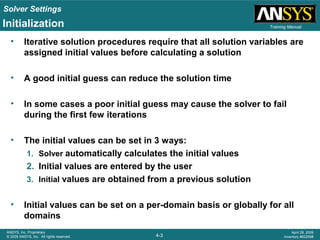
• Iterative solution procedures require that all solution variables are
assigned initial values before calculating a solution
• A good initial guess can reduce the solution time
• In some cases a poor initial guess may cause the solver to fail
during the first few iterations
• The initial values can be set in 3 ways:
1. Solver automatically calculates the initial values
2. Initial values are entered by the user
3. Initial values are obtained from a previous solution
• Initial values can be set on a per-domain basis or globally for all
domains
Initialization
Solver Settings
4-4
ANSYS, Inc. Proprietary
© 2009 ANSYS, Inc. All rights reserved.
April 28, 2009
Inventory #002598
Training ManualInitialization – Setting Initial Values
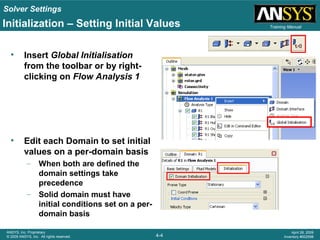
• Insert Global Initialisation
from the toolbar or by right-
clicking on Flow Analysis 1
• Edit each Domain to set initial
values on a per-domain basis
– When both are defined the
domain settings take
precedence
– Solid domain must have
initial conditions set on a per-
domain basis
Solver Settings
4-5
ANSYS, Inc. Proprietary
© 2009 ANSYS, Inc. All rights reserved.
April 28, 2009
Inventory #002598
Training ManualInitialization – Setting Initial Values
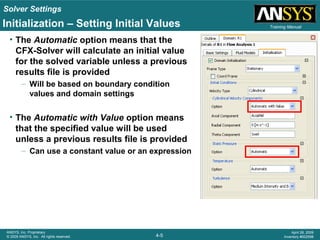
• The Automatic option means that the
CFX-Solver will calculate an initial value
for the solved variable unless a previous
results file is provided
– Will be based on boundary condition
values and domain settings
• The Automatic with Value option means
that the specified value will be used
unless a previous results file is provided
– Can use a constant value or an expression
Solver Settings
4-6
ANSYS, Inc. Proprietary
© 2009 ANSYS, Inc. All rights reserved.
April 28, 2009
Inventory #002598
Training ManualInitialization – Using a Previous Solution
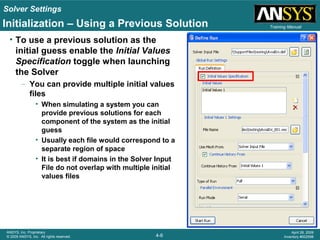
• To use a previous solution as the
initial guess enable the Initial Values
Specification toggle when launching
the Solver
– You can provide multiple initial values
files
• When simulating a system you can
provide previous solutions for each
component of the system as the initial
guess
• Usually each file would correspond to a
separate region of space
• It is best if domains in the Solver Input
File do not overlap with multiple initial
values files
Solver Settings
4-7
ANSYS, Inc. Proprietary
© 2009 ANSYS, Inc. All rights reserved.
April 28, 2009
Inventory #002598
Training Manual
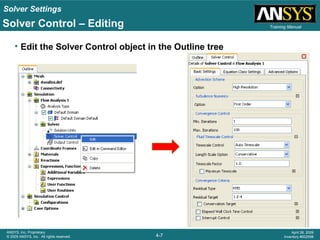
• Edit the Solver Control object in the Outline tree
Solver Control – Editing
Solver Settings
4-8
ANSYS, Inc. Proprietary
© 2009 ANSYS, Inc. All rights reserved.
April 28, 2009
Inventory #002598
Training Manual
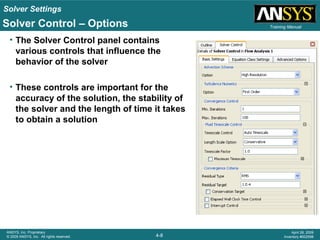
• The Solver Control panel contains
various controls that influence the
behavior of the solver
• These controls are important for the
accuracy of the solution, the stability of
the solver and the length of time it takes
to obtain a solution
Solver Control – Options
Solver Settings
4-9
ANSYS, Inc. Proprietary
© 2009 ANSYS, Inc. All rights reserved.
April 28, 2009
Inventory #002598
Training ManualSolver Control – Advection Scheme
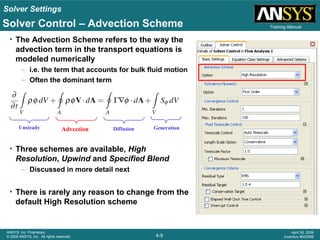
• The Advection Scheme refers to the way the
advection term in the transport equations is
modeled numerically
– i.e. the term that accounts for bulk fluid motion
– Often the dominant term
• Three schemes are available, High
Resolution, Upwind and Specified Blend
– Discussed in more detail next
• There is rarely any reason to change from the
default High Resolution scheme
Unsteady Advection Diffusion Generation
Solver Settings
4-10
ANSYS, Inc. Proprietary
© 2009 ANSYS, Inc. All rights reserved.
April 28, 2009
Inventory #002598
Training ManualSolver Control – Advection Scheme Theory
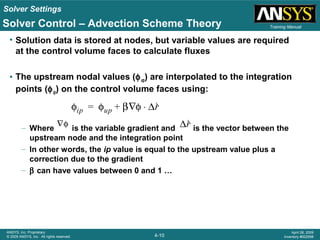
• Solution data is stored at nodes, but variable values are required
at the control volume faces to calculate fluxes
• The upstream nodal values (φup) are interpolated to the integration
points (φip) on the control volume faces using:
– Where is the variable gradient and is the vector between the
upstream node and the integration point
– In other words, the ip value is equal to the upstream value plus a
correction due to the gradient
– β can have values between 0 and 1 …
φip φup β φ∇ ∆r⋅+=
∇φ φip φup β φ∇ ∆r⋅+=
Solver Settings
4-11
ANSYS, Inc. Proprietary
© 2009 ANSYS, Inc. All rights reserved.
April 28, 2009
Inventory #002598
Training ManualSolver Control – Advection Scheme Theory
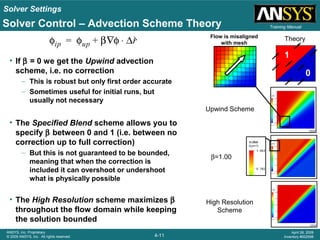
• If β = 0 we get the Upwind advection
scheme, i.e. no correction
– This is robust but only first order accurate
– Sometimes useful for initial runs, but
usually not necessary
• The Specified Blend scheme allows you to
specify β between 0 and 1 (i.e. between no
correction up to full correction)
– But this is not guaranteed to be bounded,
meaning that when the correction is
included it can overshoot or undershoot
what is physically possible
• The High Resolution scheme maximizes β
throughout the flow domain while keeping
the solution bounded
φip φup β φ∇ ∆r⋅+= Theory
High Resolution
Scheme
Upwind Scheme
β=1.00
Flow is misaligned
with mesh
0
1
Solver Settings
4-12
ANSYS, Inc. Proprietary
© 2009 ANSYS, Inc. All rights reserved.
April 28, 2009
Inventory #002598
Training ManualSolver Control – Turbulence Numerics
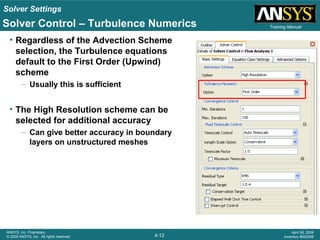
• Regardless of the Advection Scheme
selection, the Turbulence equations
default to the First Order (Upwind)
scheme
– Usually this is sufficient
• The High Resolution scheme can be
selected for additional accuracy
– Can give better accuracy in boundary
layers on unstructured meshes
Solver Settings
4-13
ANSYS, Inc. Proprietary
© 2009 ANSYS, Inc. All rights reserved.
April 28, 2009
Inventory #002598
Training ManualSolver Control – Convergence Control
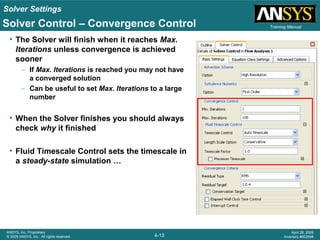
• The Solver will finish when it reaches Max.
Iterations unless convergence is achieved
sooner
– If Max. Iterations is reached you may not have
a converged solution
– Can be useful to set Max. Iterations to a large
number
• When the Solver finishes you should always
check why it finished
• Fluid Timescale Control sets the timescale in
a steady-state simulation …
Solver Settings
4-14
ANSYS, Inc. Proprietary
© 2009 ANSYS, Inc. All rights reserved.
April 28, 2009
Inventory #002598
Training Manual
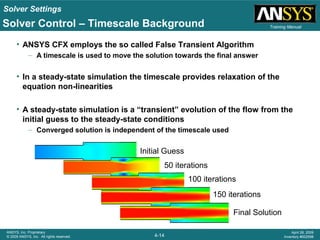
• ANSYS CFX employs the so called False Transient Algorithm
– A timescale is used to move the solution towards the final answer
• In a steady-state simulation the timescale provides relaxation of the
equation non-linearities
• A steady-state simulation is a “transient” evolution of the flow from the
initial guess to the steady-state conditions
– Converged solution is independent of the timescale used
Initial Guess
50 iterations
100 iterations
150 iterations
Final Solution
Solver Control – Timescale Background
Solver Settings
4-15
ANSYS, Inc. Proprietary
© 2009 ANSYS, Inc. All rights reserved.
April 28, 2009
Inventory #002598
Training Manual
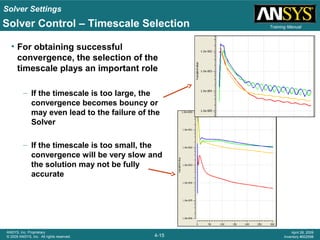
• For obtaining successful
convergence, the selection of the
timescale plays an important role
– If the timescale is too large, the
convergence becomes bouncy or
may even lead to the failure of the
Solver
– If the timescale is too small, the
convergence will be very slow and
the solution may not be fully
accurate
Solver Control – Timescale Selection
Solver Settings
4-16
ANSYS, Inc. Proprietary
© 2009 ANSYS, Inc. All rights reserved.
April 28, 2009
Inventory #002598
Training ManualSolver Control – Timescale Selection
• For advection dominated flow, a fraction of the fluid residence time is
often a good estimate for the timescale
– A timescale of 1
/3 of (Length Scale / Velocity Scale) is often optimal
– May need a smaller timescale for the first few iterations and for complex
physics, transonic flow,…..
• For rotating machines, 1/ω (ω in rad/s) is a good choice
• For buoyancy driven flows, the timescale should be based on a
function of gravity, thermal expansivity, temperature difference and
length scale (see documentation)
Solver Settings
4-17
ANSYS, Inc. Proprietary
© 2009 ANSYS, Inc. All rights reserved.
April 28, 2009
Inventory #002598
Training Manual
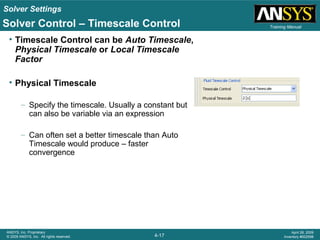
• Timescale Control can be Auto Timescale,
Physical Timescale or Local Timescale
Factor
• Physical Timescale
– Specify the timescale. Usually a constant but
can also be variable via an expression
– Can often set a better timescale than Auto
Timescale would produce – faster
convergence
Solver Control – Timescale Control
Solver Settings
4-18
ANSYS, Inc. Proprietary
© 2009 ANSYS, Inc. All rights reserved.
April 28, 2009
Inventory #002598
Training ManualSolver Control – Timescale Control
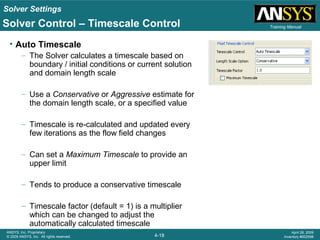
• Auto Timescale
– The Solver calculates a timescale based on
boundary / initial conditions or current solution
and domain length scale
– Use a Conservative or Aggressive estimate for
the domain length scale, or a specified value
– Timescale is re-calculated and updated every
few iterations as the flow field changes
– Can set a Maximum Timescale to provide an
upper limit
– Tends to produce a conservative timescale
– Timescale factor (default = 1) is a multiplier
which can be changed to adjust the
automatically calculated timescale
Solver Settings
4-19
ANSYS, Inc. Proprietary
© 2009 ANSYS, Inc. All rights reserved.
April 28, 2009
Inventory #002598
Training Manual
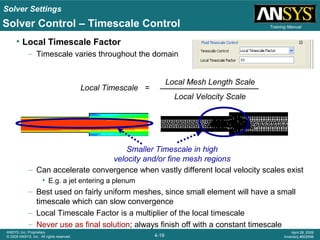
• Local Timescale Factor
– Timescale varies throughout the domain
– Can accelerate convergence when vastly different local velocity scales exist
• E.g. a jet entering a plenum
– Best used on fairly uniform meshes, since small element will have a small
timescale which can slow convergence
– Local Timescale Factor is a multiplier of the local timescale
– Never use as final solution; always finish off with a constant timescale
Local Timescale =
Local Mesh Length Scale
Local Velocity Scale
Smaller Timescale in high
velocity and/or fine mesh regions
Solver Control – Timescale Control
Solver Settings
4-20
ANSYS, Inc. Proprietary
© 2009 ANSYS, Inc. All rights reserved.
April 28, 2009
Inventory #002598
Training ManualSolver Control – Convergence Criteria
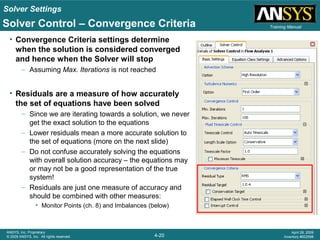
• Convergence Criteria settings determine
when the solution is considered converged
and hence when the Solver will stop
– Assuming Max. Iterations is not reached
• Residuals are a measure of how accurately
the set of equations have been solved
– Since we are iterating towards a solution, we never
get the exact solution to the equations
– Lower residuals mean a more accurate solution to
the set of equations (more on the next slide)
– Do not confuse accurately solving the equations
with overall solution accuracy – the equations may
or may not be a good representation of the true
system!
– Residuals are just one measure of accuracy and
should be combined with other measures:
• Monitor Points (ch. 8) and Imbalances (below)
Solver Settings
4-21
ANSYS, Inc. Proprietary
© 2009 ANSYS, Inc. All rights reserved.
April 28, 2009
Inventory #002598
Training Manual
• The continuous governing equations are discretized into a set of linear
equations that can be solved. The set of linear equations can be written in
the form:
[A] [Φ] = [b]
where [A] is the coefficient matrix and [Φ] is the solution variable
• If the equation were solved exactly we would have:
[A] [Φ] - [b] = [0]
• The residual vector [R] is the error in the numerical solution:
[A] [Φ] - [b] = [R]
• Since each control volume has a residual we usually look at the RMS
average or the maximum normalized residual
Solver Control – Residuals Theory
Solver Settings
4-22
ANSYS, Inc. Proprietary
© 2009 ANSYS, Inc. All rights reserved.
April 28, 2009
Inventory #002598
Training Manual
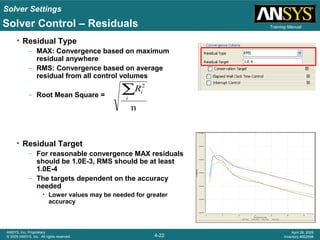
• Residual Type
– MAX: Convergence based on maximum
residual anywhere
– RMS: Convergence based on average
residual from all control volumes
– Root Mean Square =
• Residual Target
– For reasonable convergence MAX residuals
should be 1.0E-3, RMS should be at least
1.0E-4
– The targets dependent on the accuracy
needed
• Lower values may be needed for greater
accuracy
n
2
∑i
iR
Solver Control – Residuals
Solver Settings
4-23
ANSYS, Inc. Proprietary
© 2009 ANSYS, Inc. All rights reserved.
April 28, 2009
Inventory #002598
Training ManualSolver Control – Conservation Target
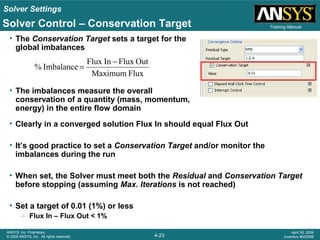
• The Conservation Target sets a target for the
global imbalances
• The imbalances measure the overall
conservation of a quantity (mass, momentum,
energy) in the entire flow domain
FluxMaximum
OutFluxInFlux
Imbalance%
−
=
• Clearly in a converged solution Flux In should equal Flux Out
• It’s good practice to set a Conservation Target and/or monitor the
imbalances during the run
• When set, the Solver must meet both the Residual and Conservation Target
before stopping (assuming Max. Iterations is not reached)
• Set a target of 0.01 (1%) or less
– Flux In – Flux Out < 1%
Solver Settings
4-24
ANSYS, Inc. Proprietary
© 2009 ANSYS, Inc. All rights reserved.
April 28, 2009
Inventory #002598
Training Manual
• Elapsed Time Control
– Can specify the maximum wall clock time
for a run
– Solver will stop after this amount of time
regardless of whether it has converged
• Interrupt Control
– Can specify other criteria for stopping
the Solver based on logical CEL
expressions
– When the expression returns true the
solver will stop
• Any value >= 0.5 is true
Solver Control – Elapsed Time and Interrupt Control
– Examples
• If temperature exceeds a specified value
if(areaAve(T)@wall>200[C],1,0)
• If mesh quality drops below a specified value in a moving mesh case
– More on logical expressions in the CEL lecture
Solver Settings
4-25
ANSYS, Inc. Proprietary
© 2009 ANSYS, Inc. All rights reserved.
April 28, 2009
Inventory #002598
Training Manual
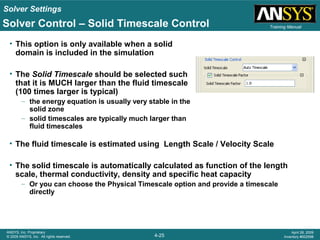
• This option is only available when a solid
domain is included in the simulation
• The Solid Timescale should be selected such
that it is MUCH larger than the fluid timescale
(100 times larger is typical)
– the energy equation is usually very stable in the
solid zone
– solid timescales are typically much larger than
fluid timescales
Solver Control – Solid Timescale Control
• The fluid timescale is estimated using Length Scale / Velocity Scale
• The solid timescale is automatically calculated as function of the length
scale, thermal conductivity, density and specific heat capacity
– Or you can choose the Physical Timescale option and provide a timescale
directly
Solver Settings
4-26
ANSYS, Inc. Proprietary
© 2009 ANSYS, Inc. All rights reserved.
April 28, 2009
Inventory #002598
Training Manual
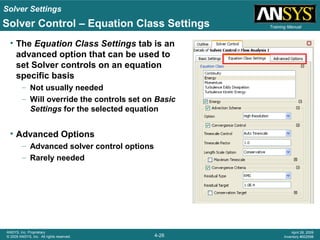
• The Equation Class Settings tab is an
advanced option that can be used to
set Solver controls on an equation
specific basis
– Not usually needed
– Will override the controls set on Basic
Settings for the selected equation
• Advanced Options
– Advanced solver control options
– Rarely needed
Solver Control – Equation Class Settings
Solver Settings
4-27
ANSYS, Inc. Proprietary
© 2009 ANSYS, Inc. All rights reserved.
April 28, 2009
Inventory #002598
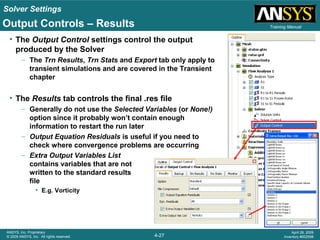
Training ManualOutput Controls – Results
• The Output Control settings control the output
produced by the Solver
– The Trn Results, Trn Stats and Export tab only apply to
transient simulations and are covered in the Transient
chapter
• The Results tab controls the final .res file
– Generally do not use the Selected Variables (or None!)
option since it probably won’t contain enough
information to restart the run later
– Output Equation Residuals is useful if you need to
check where convergence problems are occurring
– Extra Output Variables List
contains variables that are not
written to the standard results
file
• E.g. Vorticity
Solver Settings
4-28
ANSYS, Inc. Proprietary
© 2009 ANSYS, Inc. All rights reserved.
April 28, 2009
Inventory #002598
Training Manual
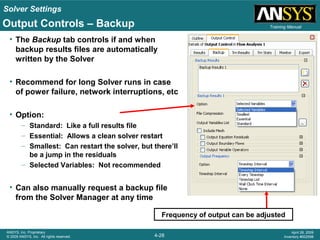
Frequency of output can be adjusted
Output Controls – Backup
• The Backup tab controls if and when
backup results files are automatically
written by the Solver
• Recommend for long Solver runs in case
of power failure, network interruptions, etc
• Option:
– Standard: Like a full results file
– Essential: Allows a clean solver restart
– Smallest: Can restart the solver, but there’ll
be a jump in the residuals
– Selected Variables: Not recommended
• Can also manually request a backup file
from the Solver Manager at any time
Solver Settings
4-29
ANSYS, Inc. Proprietary
© 2009 ANSYS, Inc. All rights reserved.
April 28, 2009
Inventory #002598
Training Manual
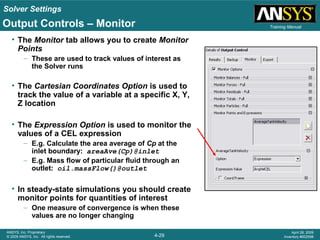
• The Monitor tab allows you to create Monitor
Points
– These are used to track values of interest as
the Solver runs
• The Cartesian Coordinates Option is used to
track the value of a variable at a specific X, Y,
Z location
• The Expression Option is used to monitor the
values of a CEL expression
– E.g. Calculate the area average of Cp at the
inlet boundary: areaAve(Cp)@inlet
– E.g. Mass flow of particular fluid through an
outlet: oil.massFlow()@outlet
• In steady-state simulations you should create
monitor points for quantities of interest
– One measure of convergence is when these
values are no longer changing
Output Controls – Monitor
Solver Settings
4-30
ANSYS, Inc. Proprietary
© 2009 ANSYS, Inc. All rights reserved.
April 28, 2009
Inventory #002598
Training Manual
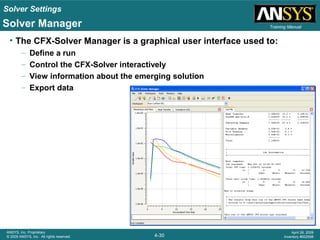
• The CFX-Solver Manager is a graphical user interface used to:
– Define a run
– Control the CFX-Solver interactively
– View information about the emerging solution
– Export data
Solver Manager
Solver Settings
4-31
ANSYS, Inc. Proprietary
© 2009 ANSYS, Inc. All rights reserved.
April 28, 2009
Inventory #002598
Training Manual
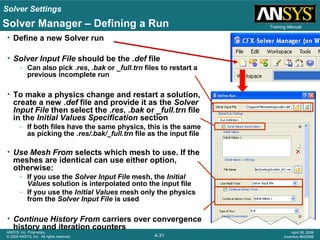
• Define a new Solver run
• Solver Input File should be the .def file
– Can also pick .res, .bak or _full.trn files to restart a
previous incomplete run
• To make a physics change and restart a solution,
create a new .def file and provide it as the Solver
Input File then select the .res, .bak or _full.trn file
in the Initial Values Specification section
– If both files have the same physics, this is the same
as picking the .res/.bak/_full.trn file as the input file
• Use Mesh From selects which mesh to use. If the
meshes are identical can use either option,
otherwise:
– If you use the Solver Input File mesh, the Initial
Values solution is interpolated onto the input file
– If you use the Initial Values mesh only the physics
from the Solver Input File is used
• Continue History From carriers over convergence
history and iteration counters
Solver Manager – Defining a Run
Solver Settings
4-32
ANSYS, Inc. Proprietary
© 2009 ANSYS, Inc. All rights reserved.
April 28, 2009
Inventory #002598
Training ManualSolver Manager – Defining a Parallel Run
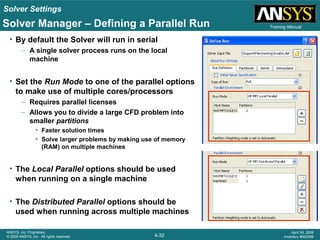
• By default the Solver will run in serial
– A single solver process runs on the local
machine
• Set the Run Mode to one of the parallel options
to make use of multiple cores/processors
– Requires parallel licenses
– Allows you to divide a large CFD problem into
smaller partitions
• Faster solution times
• Solve larger problems by making use of memory
(RAM) on multiple machines
• The Local Parallel options should be used
when running on a single machine
• The Distributed Parallel options should be
used when running across multiple machines
Solver Settings
4-33
ANSYS, Inc. Proprietary
© 2009 ANSYS, Inc. All rights reserved.
April 28, 2009
Inventory #002598
Training Manual
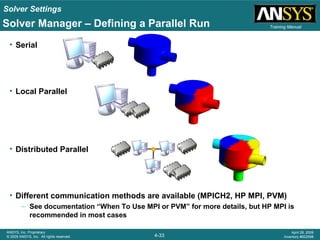
• Serial
• Local Parallel
• Distributed Parallel
• Different communication methods are available (MPICH2, HP MPI, PVM)
– See documentation “When To Use MPI or PVM” for more details, but HP MPI is
recommended in most cases
Solver Manager – Defining a Parallel Run
Solver Settings
4-34
ANSYS, Inc. Proprietary
© 2009 ANSYS, Inc. All rights reserved.
April 28, 2009
Inventory #002598
Training Manual
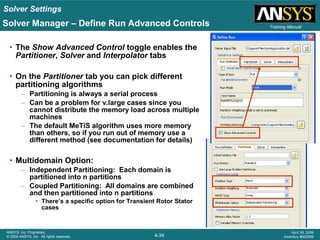
• The Show Advanced Control toggle enables the
Partitioner, Solver and Interpolator tabs
• On the Partitioner tab you can pick different
partitioning algorithms
– Partitioning is always a serial process
– Can be a problem for v.large cases since you
cannot distribute the memory load across multiple
machines
– The default MeTiS algorithm uses more memory
than others, so if you run out of memory use a
different method (see documentation for details)
• Multidomain Option:
– Independent Partitioning: Each domain is
partitioned into n partitions
– Coupled Partitioning: All domains are combined
and then partitioned into n partitions
• There’s a specific option for Transient Rotor Stator
cases
Solver Manager – Define Run Advanced Controls
Solver Settings
4-35
ANSYS, Inc. Proprietary
© 2009 ANSYS, Inc. All rights reserved.
April 28, 2009
Inventory #002598
Training Manual
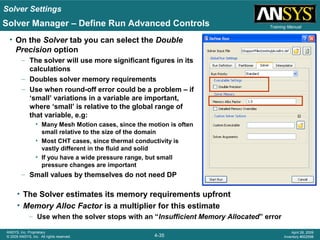
• On the Solver tab you can select the Double
Precision option
– The solver will use more significant figures in its
calculations
– Doubles solver memory requirements
– Use when round-off error could be a problem – if
‘small’ variations in a variable are important,
where ‘small’ is relative to the global range of
that variable, e.g:
• Many Mesh Motion cases, since the motion is often
small relative to the size of the domain
• Most CHT cases, since thermal conductivity is
vastly different in the fluid and solid
• If you have a wide pressure range, but small
pressure changes are important
– Small values by themselves do not need DP
Solver Manager – Define Run Advanced Controls
• The Solver estimates its memory requirements upfront
• Memory Alloc Factor is a multiplier for this estimate
– Use when the solver stops with an “Insufficient Memory Allocated” error
Solver Settings
4-36
ANSYS, Inc. Proprietary
© 2009 ANSYS, Inc. All rights reserved.
April 28, 2009
Inventory #002598
Training ManualSolver Manager – Interactive Solver Control
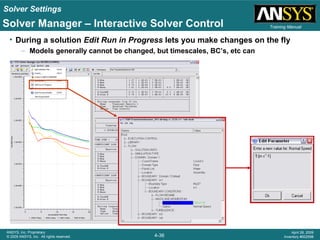
• During a solution Edit Run in Progress lets you make changes on the fly
– Models generally cannot be changed, but timescales, BC’s, etc can
Solver Settings
4-37
ANSYS, Inc. Proprietary
© 2009 ANSYS, Inc. All rights reserved.
April 28, 2009
Inventory #002598
Training Manual
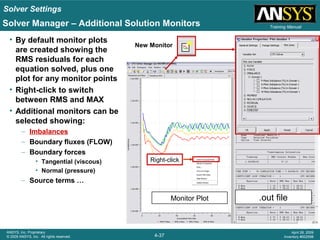
.out fileMonitor Plot
Solver Manager – Additional Solution Monitors
Right-click
• By default monitor plots
are created showing the
RMS residuals for each
equation solved, plus one
plot for any monitor points
• Right-click to switch
between RMS and MAX
• Additional monitors can be
selected showing:
– Imbalances
– Boundary fluxes (FLOW)
– Boundary forces
• Tangential (viscous)
• Normal (pressure)
– Source terms …
New Monitor
Solver Settings
4-38
ANSYS, Inc. Proprietary
© 2009 ANSYS, Inc. All rights reserved.
April 28, 2009
Inventory #002598
Training Manual
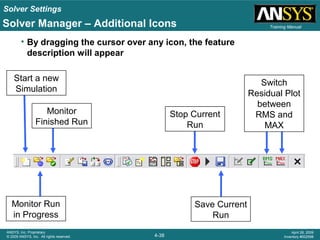
Start a new
Simulation
Monitor Run
in Progress
Monitor
Finished Run
Stop Current
Run
Save Current
Run
Switch
Residual Plot
between
RMS and
MAX
• By dragging the cursor over any icon, the feature
description will appear
Solver Manager – Additional Icons

Cfx12 04 solver

  • 1.
    4-1 ANSYS, Inc. Proprietary ©2009 ANSYS, Inc. All rights reserved. April 28, 2009 Inventory #002598 Chapter 4 Solver Settings Introduction to CFX
  • 2.
    Solver Settings 4-2 ANSYS, Inc.Proprietary © 2009 ANSYS, Inc. All rights reserved. April 28, 2009 Inventory #002598 Training ManualOverview • Initialization • Solver Control • Output Control • Solver Manager Note: This chapter considers solver settings for steady-state simulations. Settings specific to transient simulation are discussed in a later chapter.
  • 3.
    Solver Settings 4-3 ANSYS, Inc.Proprietary © 2009 ANSYS, Inc. All rights reserved. April 28, 2009 Inventory #002598 Training Manual • Iterative solution procedures require that all solution variables are assigned initial values before calculating a solution • A good initial guess can reduce the solution time • In some cases a poor initial guess may cause the solver to fail during the first few iterations • The initial values can be set in 3 ways: 1. Solver automatically calculates the initial values 2. Initial values are entered by the user 3. Initial values are obtained from a previous solution • Initial values can be set on a per-domain basis or globally for all domains Initialization
  • 4.
    Solver Settings 4-4 ANSYS, Inc.Proprietary © 2009 ANSYS, Inc. All rights reserved. April 28, 2009 Inventory #002598 Training ManualInitialization – Setting Initial Values • Insert Global Initialisation from the toolbar or by right- clicking on Flow Analysis 1 • Edit each Domain to set initial values on a per-domain basis – When both are defined the domain settings take precedence – Solid domain must have initial conditions set on a per- domain basis
  • 5.
    Solver Settings 4-5 ANSYS, Inc.Proprietary © 2009 ANSYS, Inc. All rights reserved. April 28, 2009 Inventory #002598 Training ManualInitialization – Setting Initial Values • The Automatic option means that the CFX-Solver will calculate an initial value for the solved variable unless a previous results file is provided – Will be based on boundary condition values and domain settings • The Automatic with Value option means that the specified value will be used unless a previous results file is provided – Can use a constant value or an expression
  • 6.
    Solver Settings 4-6 ANSYS, Inc.Proprietary © 2009 ANSYS, Inc. All rights reserved. April 28, 2009 Inventory #002598 Training ManualInitialization – Using a Previous Solution • To use a previous solution as the initial guess enable the Initial Values Specification toggle when launching the Solver – You can provide multiple initial values files • When simulating a system you can provide previous solutions for each component of the system as the initial guess • Usually each file would correspond to a separate region of space • It is best if domains in the Solver Input File do not overlap with multiple initial values files
  • 7.
    Solver Settings 4-7 ANSYS, Inc.Proprietary © 2009 ANSYS, Inc. All rights reserved. April 28, 2009 Inventory #002598 Training Manual • Edit the Solver Control object in the Outline tree Solver Control – Editing
  • 8.
    Solver Settings 4-8 ANSYS, Inc.Proprietary © 2009 ANSYS, Inc. All rights reserved. April 28, 2009 Inventory #002598 Training Manual • The Solver Control panel contains various controls that influence the behavior of the solver • These controls are important for the accuracy of the solution, the stability of the solver and the length of time it takes to obtain a solution Solver Control – Options
  • 9.
    Solver Settings 4-9 ANSYS, Inc.Proprietary © 2009 ANSYS, Inc. All rights reserved. April 28, 2009 Inventory #002598 Training ManualSolver Control – Advection Scheme • The Advection Scheme refers to the way the advection term in the transport equations is modeled numerically – i.e. the term that accounts for bulk fluid motion – Often the dominant term • Three schemes are available, High Resolution, Upwind and Specified Blend – Discussed in more detail next • There is rarely any reason to change from the default High Resolution scheme Unsteady Advection Diffusion Generation
  • 10.
    Solver Settings 4-10 ANSYS, Inc.Proprietary © 2009 ANSYS, Inc. All rights reserved. April 28, 2009 Inventory #002598 Training ManualSolver Control – Advection Scheme Theory • Solution data is stored at nodes, but variable values are required at the control volume faces to calculate fluxes • The upstream nodal values (φup) are interpolated to the integration points (φip) on the control volume faces using: – Where is the variable gradient and is the vector between the upstream node and the integration point – In other words, the ip value is equal to the upstream value plus a correction due to the gradient – β can have values between 0 and 1 … φip φup β φ∇ ∆r⋅+= ∇φ φip φup β φ∇ ∆r⋅+=
  • 11.
    Solver Settings 4-11 ANSYS, Inc.Proprietary © 2009 ANSYS, Inc. All rights reserved. April 28, 2009 Inventory #002598 Training ManualSolver Control – Advection Scheme Theory • If β = 0 we get the Upwind advection scheme, i.e. no correction – This is robust but only first order accurate – Sometimes useful for initial runs, but usually not necessary • The Specified Blend scheme allows you to specify β between 0 and 1 (i.e. between no correction up to full correction) – But this is not guaranteed to be bounded, meaning that when the correction is included it can overshoot or undershoot what is physically possible • The High Resolution scheme maximizes β throughout the flow domain while keeping the solution bounded φip φup β φ∇ ∆r⋅+= Theory High Resolution Scheme Upwind Scheme β=1.00 Flow is misaligned with mesh 0 1
  • 12.
    Solver Settings 4-12 ANSYS, Inc.Proprietary © 2009 ANSYS, Inc. All rights reserved. April 28, 2009 Inventory #002598 Training ManualSolver Control – Turbulence Numerics • Regardless of the Advection Scheme selection, the Turbulence equations default to the First Order (Upwind) scheme – Usually this is sufficient • The High Resolution scheme can be selected for additional accuracy – Can give better accuracy in boundary layers on unstructured meshes
  • 13.
    Solver Settings 4-13 ANSYS, Inc.Proprietary © 2009 ANSYS, Inc. All rights reserved. April 28, 2009 Inventory #002598 Training ManualSolver Control – Convergence Control • The Solver will finish when it reaches Max. Iterations unless convergence is achieved sooner – If Max. Iterations is reached you may not have a converged solution – Can be useful to set Max. Iterations to a large number • When the Solver finishes you should always check why it finished • Fluid Timescale Control sets the timescale in a steady-state simulation …
  • 14.
    Solver Settings 4-14 ANSYS, Inc.Proprietary © 2009 ANSYS, Inc. All rights reserved. April 28, 2009 Inventory #002598 Training Manual • ANSYS CFX employs the so called False Transient Algorithm – A timescale is used to move the solution towards the final answer • In a steady-state simulation the timescale provides relaxation of the equation non-linearities • A steady-state simulation is a “transient” evolution of the flow from the initial guess to the steady-state conditions – Converged solution is independent of the timescale used Initial Guess 50 iterations 100 iterations 150 iterations Final Solution Solver Control – Timescale Background
  • 15.
    Solver Settings 4-15 ANSYS, Inc.Proprietary © 2009 ANSYS, Inc. All rights reserved. April 28, 2009 Inventory #002598 Training Manual • For obtaining successful convergence, the selection of the timescale plays an important role – If the timescale is too large, the convergence becomes bouncy or may even lead to the failure of the Solver – If the timescale is too small, the convergence will be very slow and the solution may not be fully accurate Solver Control – Timescale Selection
  • 16.
    Solver Settings 4-16 ANSYS, Inc.Proprietary © 2009 ANSYS, Inc. All rights reserved. April 28, 2009 Inventory #002598 Training ManualSolver Control – Timescale Selection • For advection dominated flow, a fraction of the fluid residence time is often a good estimate for the timescale – A timescale of 1 /3 of (Length Scale / Velocity Scale) is often optimal – May need a smaller timescale for the first few iterations and for complex physics, transonic flow,….. • For rotating machines, 1/ω (ω in rad/s) is a good choice • For buoyancy driven flows, the timescale should be based on a function of gravity, thermal expansivity, temperature difference and length scale (see documentation)
  • 17.
    Solver Settings 4-17 ANSYS, Inc.Proprietary © 2009 ANSYS, Inc. All rights reserved. April 28, 2009 Inventory #002598 Training Manual • Timescale Control can be Auto Timescale, Physical Timescale or Local Timescale Factor • Physical Timescale – Specify the timescale. Usually a constant but can also be variable via an expression – Can often set a better timescale than Auto Timescale would produce – faster convergence Solver Control – Timescale Control
  • 18.
    Solver Settings 4-18 ANSYS, Inc.Proprietary © 2009 ANSYS, Inc. All rights reserved. April 28, 2009 Inventory #002598 Training ManualSolver Control – Timescale Control • Auto Timescale – The Solver calculates a timescale based on boundary / initial conditions or current solution and domain length scale – Use a Conservative or Aggressive estimate for the domain length scale, or a specified value – Timescale is re-calculated and updated every few iterations as the flow field changes – Can set a Maximum Timescale to provide an upper limit – Tends to produce a conservative timescale – Timescale factor (default = 1) is a multiplier which can be changed to adjust the automatically calculated timescale
  • 19.
    Solver Settings 4-19 ANSYS, Inc.Proprietary © 2009 ANSYS, Inc. All rights reserved. April 28, 2009 Inventory #002598 Training Manual • Local Timescale Factor – Timescale varies throughout the domain – Can accelerate convergence when vastly different local velocity scales exist • E.g. a jet entering a plenum – Best used on fairly uniform meshes, since small element will have a small timescale which can slow convergence – Local Timescale Factor is a multiplier of the local timescale – Never use as final solution; always finish off with a constant timescale Local Timescale = Local Mesh Length Scale Local Velocity Scale Smaller Timescale in high velocity and/or fine mesh regions Solver Control – Timescale Control
  • 20.
    Solver Settings 4-20 ANSYS, Inc.Proprietary © 2009 ANSYS, Inc. All rights reserved. April 28, 2009 Inventory #002598 Training ManualSolver Control – Convergence Criteria • Convergence Criteria settings determine when the solution is considered converged and hence when the Solver will stop – Assuming Max. Iterations is not reached • Residuals are a measure of how accurately the set of equations have been solved – Since we are iterating towards a solution, we never get the exact solution to the equations – Lower residuals mean a more accurate solution to the set of equations (more on the next slide) – Do not confuse accurately solving the equations with overall solution accuracy – the equations may or may not be a good representation of the true system! – Residuals are just one measure of accuracy and should be combined with other measures: • Monitor Points (ch. 8) and Imbalances (below)
  • 21.
    Solver Settings 4-21 ANSYS, Inc.Proprietary © 2009 ANSYS, Inc. All rights reserved. April 28, 2009 Inventory #002598 Training Manual • The continuous governing equations are discretized into a set of linear equations that can be solved. The set of linear equations can be written in the form: [A] [Φ] = [b] where [A] is the coefficient matrix and [Φ] is the solution variable • If the equation were solved exactly we would have: [A] [Φ] - [b] = [0] • The residual vector [R] is the error in the numerical solution: [A] [Φ] - [b] = [R] • Since each control volume has a residual we usually look at the RMS average or the maximum normalized residual Solver Control – Residuals Theory
  • 22.
    Solver Settings 4-22 ANSYS, Inc.Proprietary © 2009 ANSYS, Inc. All rights reserved. April 28, 2009 Inventory #002598 Training Manual • Residual Type – MAX: Convergence based on maximum residual anywhere – RMS: Convergence based on average residual from all control volumes – Root Mean Square = • Residual Target – For reasonable convergence MAX residuals should be 1.0E-3, RMS should be at least 1.0E-4 – The targets dependent on the accuracy needed • Lower values may be needed for greater accuracy n 2 ∑i iR Solver Control – Residuals
  • 23.
    Solver Settings 4-23 ANSYS, Inc.Proprietary © 2009 ANSYS, Inc. All rights reserved. April 28, 2009 Inventory #002598 Training ManualSolver Control – Conservation Target • The Conservation Target sets a target for the global imbalances • The imbalances measure the overall conservation of a quantity (mass, momentum, energy) in the entire flow domain FluxMaximum OutFluxInFlux Imbalance% − = • Clearly in a converged solution Flux In should equal Flux Out • It’s good practice to set a Conservation Target and/or monitor the imbalances during the run • When set, the Solver must meet both the Residual and Conservation Target before stopping (assuming Max. Iterations is not reached) • Set a target of 0.01 (1%) or less – Flux In – Flux Out < 1%
  • 24.
    Solver Settings 4-24 ANSYS, Inc.Proprietary © 2009 ANSYS, Inc. All rights reserved. April 28, 2009 Inventory #002598 Training Manual • Elapsed Time Control – Can specify the maximum wall clock time for a run – Solver will stop after this amount of time regardless of whether it has converged • Interrupt Control – Can specify other criteria for stopping the Solver based on logical CEL expressions – When the expression returns true the solver will stop • Any value >= 0.5 is true Solver Control – Elapsed Time and Interrupt Control – Examples • If temperature exceeds a specified value if(areaAve(T)@wall>200[C],1,0) • If mesh quality drops below a specified value in a moving mesh case – More on logical expressions in the CEL lecture
  • 25.
    Solver Settings 4-25 ANSYS, Inc.Proprietary © 2009 ANSYS, Inc. All rights reserved. April 28, 2009 Inventory #002598 Training Manual • This option is only available when a solid domain is included in the simulation • The Solid Timescale should be selected such that it is MUCH larger than the fluid timescale (100 times larger is typical) – the energy equation is usually very stable in the solid zone – solid timescales are typically much larger than fluid timescales Solver Control – Solid Timescale Control • The fluid timescale is estimated using Length Scale / Velocity Scale • The solid timescale is automatically calculated as function of the length scale, thermal conductivity, density and specific heat capacity – Or you can choose the Physical Timescale option and provide a timescale directly
  • 26.
    Solver Settings 4-26 ANSYS, Inc.Proprietary © 2009 ANSYS, Inc. All rights reserved. April 28, 2009 Inventory #002598 Training Manual • The Equation Class Settings tab is an advanced option that can be used to set Solver controls on an equation specific basis – Not usually needed – Will override the controls set on Basic Settings for the selected equation • Advanced Options – Advanced solver control options – Rarely needed Solver Control – Equation Class Settings
  • 27.
    Solver Settings 4-27 ANSYS, Inc.Proprietary © 2009 ANSYS, Inc. All rights reserved. April 28, 2009 Inventory #002598 Training ManualOutput Controls – Results • The Output Control settings control the output produced by the Solver – The Trn Results, Trn Stats and Export tab only apply to transient simulations and are covered in the Transient chapter • The Results tab controls the final .res file – Generally do not use the Selected Variables (or None!) option since it probably won’t contain enough information to restart the run later – Output Equation Residuals is useful if you need to check where convergence problems are occurring – Extra Output Variables List contains variables that are not written to the standard results file • E.g. Vorticity
  • 28.
    Solver Settings 4-28 ANSYS, Inc.Proprietary © 2009 ANSYS, Inc. All rights reserved. April 28, 2009 Inventory #002598 Training Manual Frequency of output can be adjusted Output Controls – Backup • The Backup tab controls if and when backup results files are automatically written by the Solver • Recommend for long Solver runs in case of power failure, network interruptions, etc • Option: – Standard: Like a full results file – Essential: Allows a clean solver restart – Smallest: Can restart the solver, but there’ll be a jump in the residuals – Selected Variables: Not recommended • Can also manually request a backup file from the Solver Manager at any time
  • 29.
    Solver Settings 4-29 ANSYS, Inc.Proprietary © 2009 ANSYS, Inc. All rights reserved. April 28, 2009 Inventory #002598 Training Manual • The Monitor tab allows you to create Monitor Points – These are used to track values of interest as the Solver runs • The Cartesian Coordinates Option is used to track the value of a variable at a specific X, Y, Z location • The Expression Option is used to monitor the values of a CEL expression – E.g. Calculate the area average of Cp at the inlet boundary: areaAve(Cp)@inlet – E.g. Mass flow of particular fluid through an outlet: oil.massFlow()@outlet • In steady-state simulations you should create monitor points for quantities of interest – One measure of convergence is when these values are no longer changing Output Controls – Monitor
  • 30.
    Solver Settings 4-30 ANSYS, Inc.Proprietary © 2009 ANSYS, Inc. All rights reserved. April 28, 2009 Inventory #002598 Training Manual • The CFX-Solver Manager is a graphical user interface used to: – Define a run – Control the CFX-Solver interactively – View information about the emerging solution – Export data Solver Manager
  • 31.
    Solver Settings 4-31 ANSYS, Inc.Proprietary © 2009 ANSYS, Inc. All rights reserved. April 28, 2009 Inventory #002598 Training Manual • Define a new Solver run • Solver Input File should be the .def file – Can also pick .res, .bak or _full.trn files to restart a previous incomplete run • To make a physics change and restart a solution, create a new .def file and provide it as the Solver Input File then select the .res, .bak or _full.trn file in the Initial Values Specification section – If both files have the same physics, this is the same as picking the .res/.bak/_full.trn file as the input file • Use Mesh From selects which mesh to use. If the meshes are identical can use either option, otherwise: – If you use the Solver Input File mesh, the Initial Values solution is interpolated onto the input file – If you use the Initial Values mesh only the physics from the Solver Input File is used • Continue History From carriers over convergence history and iteration counters Solver Manager – Defining a Run
  • 32.
    Solver Settings 4-32 ANSYS, Inc.Proprietary © 2009 ANSYS, Inc. All rights reserved. April 28, 2009 Inventory #002598 Training ManualSolver Manager – Defining a Parallel Run • By default the Solver will run in serial – A single solver process runs on the local machine • Set the Run Mode to one of the parallel options to make use of multiple cores/processors – Requires parallel licenses – Allows you to divide a large CFD problem into smaller partitions • Faster solution times • Solve larger problems by making use of memory (RAM) on multiple machines • The Local Parallel options should be used when running on a single machine • The Distributed Parallel options should be used when running across multiple machines
  • 33.
    Solver Settings 4-33 ANSYS, Inc.Proprietary © 2009 ANSYS, Inc. All rights reserved. April 28, 2009 Inventory #002598 Training Manual • Serial • Local Parallel • Distributed Parallel • Different communication methods are available (MPICH2, HP MPI, PVM) – See documentation “When To Use MPI or PVM” for more details, but HP MPI is recommended in most cases Solver Manager – Defining a Parallel Run
  • 34.
    Solver Settings 4-34 ANSYS, Inc.Proprietary © 2009 ANSYS, Inc. All rights reserved. April 28, 2009 Inventory #002598 Training Manual • The Show Advanced Control toggle enables the Partitioner, Solver and Interpolator tabs • On the Partitioner tab you can pick different partitioning algorithms – Partitioning is always a serial process – Can be a problem for v.large cases since you cannot distribute the memory load across multiple machines – The default MeTiS algorithm uses more memory than others, so if you run out of memory use a different method (see documentation for details) • Multidomain Option: – Independent Partitioning: Each domain is partitioned into n partitions – Coupled Partitioning: All domains are combined and then partitioned into n partitions • There’s a specific option for Transient Rotor Stator cases Solver Manager – Define Run Advanced Controls
  • 35.
    Solver Settings 4-35 ANSYS, Inc.Proprietary © 2009 ANSYS, Inc. All rights reserved. April 28, 2009 Inventory #002598 Training Manual • On the Solver tab you can select the Double Precision option – The solver will use more significant figures in its calculations – Doubles solver memory requirements – Use when round-off error could be a problem – if ‘small’ variations in a variable are important, where ‘small’ is relative to the global range of that variable, e.g: • Many Mesh Motion cases, since the motion is often small relative to the size of the domain • Most CHT cases, since thermal conductivity is vastly different in the fluid and solid • If you have a wide pressure range, but small pressure changes are important – Small values by themselves do not need DP Solver Manager – Define Run Advanced Controls • The Solver estimates its memory requirements upfront • Memory Alloc Factor is a multiplier for this estimate – Use when the solver stops with an “Insufficient Memory Allocated” error
  • 36.
    Solver Settings 4-36 ANSYS, Inc.Proprietary © 2009 ANSYS, Inc. All rights reserved. April 28, 2009 Inventory #002598 Training ManualSolver Manager – Interactive Solver Control • During a solution Edit Run in Progress lets you make changes on the fly – Models generally cannot be changed, but timescales, BC’s, etc can
  • 37.
    Solver Settings 4-37 ANSYS, Inc.Proprietary © 2009 ANSYS, Inc. All rights reserved. April 28, 2009 Inventory #002598 Training Manual .out fileMonitor Plot Solver Manager – Additional Solution Monitors Right-click • By default monitor plots are created showing the RMS residuals for each equation solved, plus one plot for any monitor points • Right-click to switch between RMS and MAX • Additional monitors can be selected showing: – Imbalances – Boundary fluxes (FLOW) – Boundary forces • Tangential (viscous) • Normal (pressure) – Source terms … New Monitor
  • 38.
    Solver Settings 4-38 ANSYS, Inc.Proprietary © 2009 ANSYS, Inc. All rights reserved. April 28, 2009 Inventory #002598 Training Manual Start a new Simulation Monitor Run in Progress Monitor Finished Run Stop Current Run Save Current Run Switch Residual Plot between RMS and MAX • By dragging the cursor over any icon, the feature description will appear Solver Manager – Additional Icons

Editor's Notes

  • #15 Although Steady State problems are independent of time, the solver treats the problem as a transient case as it proceeds from the initial condition to the final answer Incorporating time allows the solver to gradually approach the solution