Student Notes:
CATIA V5 Automation
Copyright DASSAULT SYSTEMES 1
Copyright
DASSAULT
SYSTEMES
CATIA V5
Automation
CATIA V5 Training
Foils
Version 5 Release 19
January 2009
EDU_CAT_EN_VBA_AF_V5R19
Student Notes:
CATIA V5 Automation
Copyright DASSAULT SYSTEMES 2
Copyright
DASSAULT
SYSTEMES
About this course
Objectives of the course
Upon completion of this course, you will be able to create automation
scripts, programs, and macros in CATIA V5, using Visual Basic and other
automation tools available in CATIA V5.
Targeted audience
Application developers
Prerequisites
Students attending this course should have knowledge of CATIA V5
Interactive and Visual Basic
8 hours
Student Notes:
CATIA V5 Automation
Copyright DASSAULT SYSTEMES 3
Copyright
DASSAULT
SYSTEMES
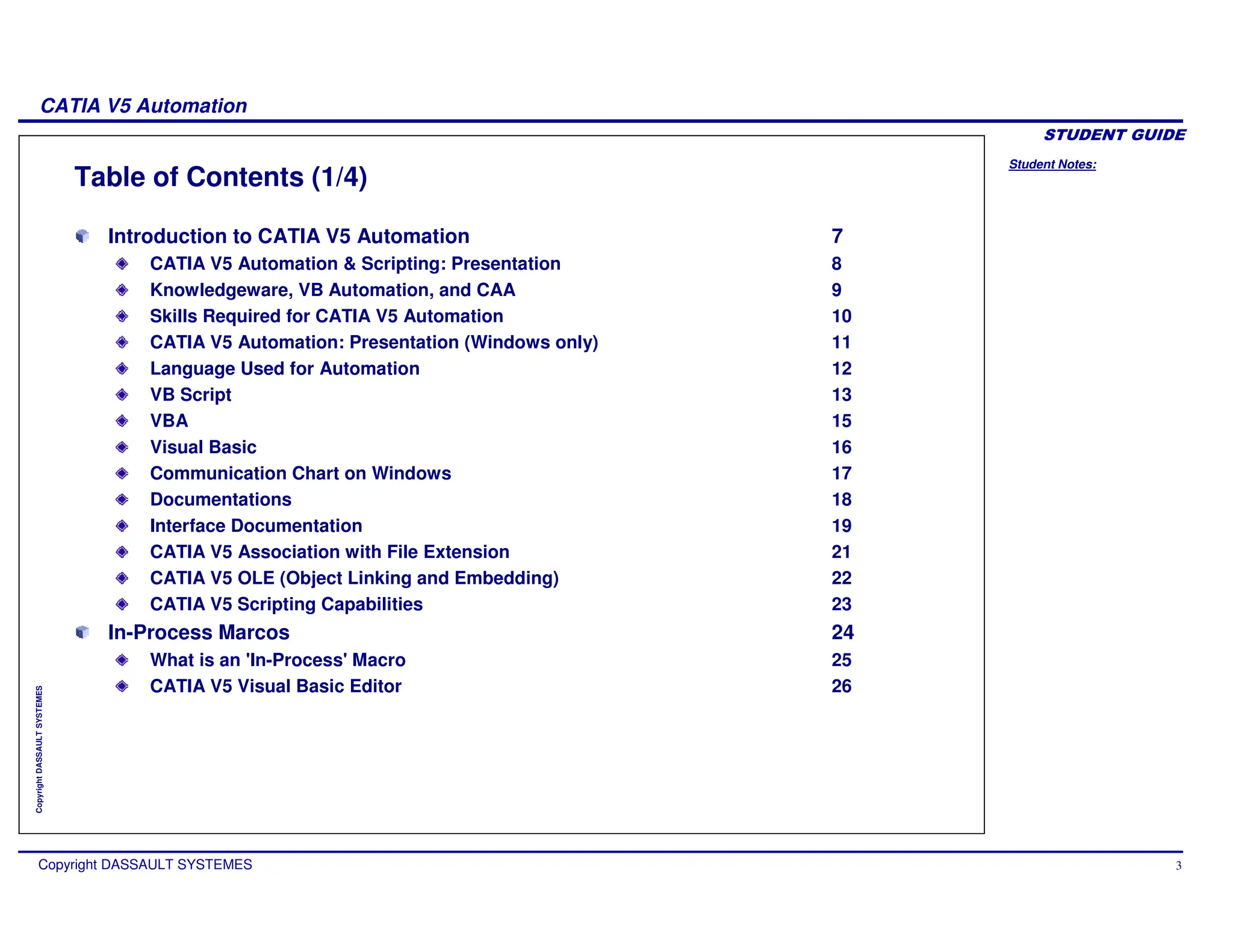
Table of Contents (1/4)
Introduction to CATIA V5 Automation 7
CATIA V5 Automation & Scripting: Presentation 8
Knowledgeware, VB Automation, and CAA 9
Skills Required for CATIA V5 Automation 10
CATIA V5 Automation: Presentation (Windows only) 11
Language Used for Automation 12
VB Script 13
VBA 15
Visual Basic 16
Communication Chart on Windows 17
Documentations 18
Interface Documentation 19
CATIA V5 Association with File Extension 21
CATIA V5 OLE (Object Linking and Embedding) 22
CATIA V5 Scripting Capabilities 23
In-Process Marcos 24
What is an 'In-Process' Macro 25
CATIA V5 Visual Basic Editor 26
Student Notes:
CATIA V5 Automation
Copyright DASSAULT SYSTEMES 4
Copyright
DASSAULT
SYSTEMES
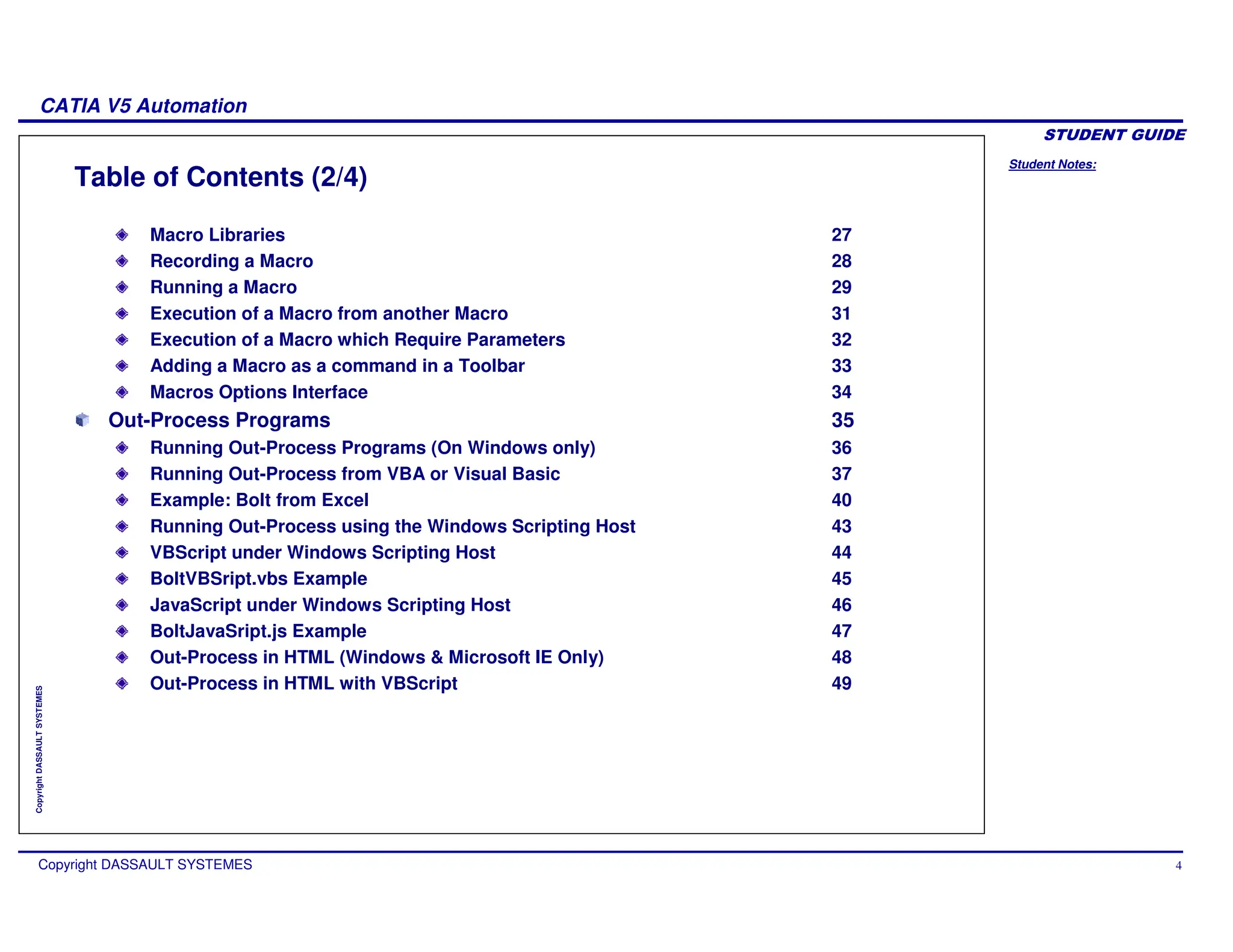
Table of Contents (2/4)
Macro Libraries 27
Recording a Macro 28
Running a Macro 29
Execution of a Macro from another Macro 31
Execution of a Macro which Require Parameters 32
Adding a Macro as a command in a Toolbar 33
Macros Options Interface 34
Out-Process Programs 35
Running Out-Process Programs (On Windows only) 36
Running Out-Process from VBA or Visual Basic 37
Example: Bolt from Excel 40
Running Out-Process using the Windows Scripting Host 43
VBScript under Windows Scripting Host 44
BoltVBSript.vbs Example 45
JavaScript under Windows Scripting Host 46
BoltJavaSript.js Example 47
Out-Process in HTML (Windows & Microsoft IE Only) 48
Out-Process in HTML with VBScript 49
Student Notes:
CATIA V5 Automation
Copyright DASSAULT SYSTEMES 5
Copyright
DASSAULT
SYSTEMES
Table of Contents (3/4)
Out-Process in HTML with JavaScript 50
VBA / VB Programming Basics 51
Programming Generalities 52
VBA / VB Common Controls 57
VB Programming Techniques 70
Scripting with CATIA V5 77
CATIA V5 Object Architecture 78
Scripting Infrastructure Features 95
Scripting Sketches 104
Scripting Part Design Features 107
Scripting Shape Design Features 110
Scripting Assembly Design Features 113
Scripting Drafting Features 118
Accessing Elements 122
Automatic Selections 123
Scanning the Containers 124
Access to a Specific Element 125
Graphic Selections 126
Student Notes:
CATIA V5 Automation
Copyright DASSAULT SYSTEMES 6
Copyright
DASSAULT
SYSTEMES
Table of Contents (4/4)
Graphic Selection using 'Selection' 127
Graphic Selections using SelectElement2 129
Creating Panels from Macros 130
Input box 131
Panels in an ActiveX component (Windows Only) 132
Miscellaneous Information 133
Obfuscating and Converting Macros 137
Obfuscate VBScript Macros 138
Multi-Product Support 142
Registering CATIA and Type Libraries 144
Converting a Macro to a Visual Basic Program 145
Converting a Visual Basic programm to a CATIA Macro 146
Macros on UNIX / Windows 147
Calling an other Automation Server 148
Calling WSH from VBScript 149
Calling Excel 151
Drawing a Chart in EXCEL 152
Student Notes:
CATIA V5 Automation
Copyright DASSAULT SYSTEMES 7
Copyright
DASSAULT
SYSTEMES
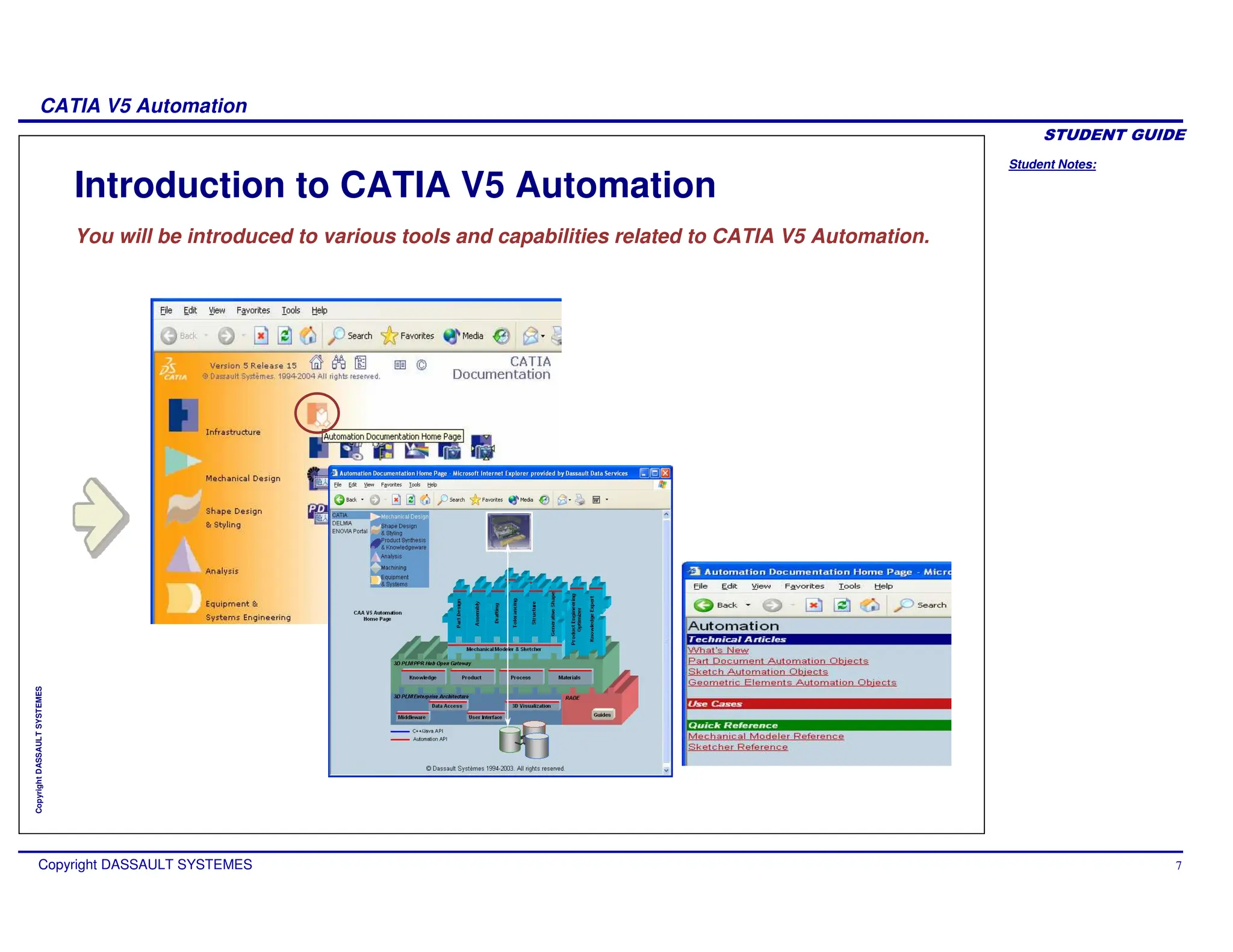
Introduction to CATIA V5 Automation
You will be introduced to various tools and capabilities related to CATIA V5 Automation.
Student Notes:
CATIA V5 Automation
Copyright DASSAULT SYSTEMES 8
Copyright
DASSAULT
SYSTEMES
CATIA V5 Automation & Scripting: Presentation
On both Windows and UNIX
The scripting allows you to program CATIA in a very simple way with macros on
both Windows and UNIX platforms.
CATIA uses the common part on MS-VBScript to have the same macros running
on both the platforms.
On Windows platforms
Automation allows CATIA to share objects with other external applications such
as Word/Excel or Visual Basic programs.
CATIA can use the Word/Excel objects as well as Word/Excel can use the CATIA
Objects.
Student Notes:
CATIA V5 Automation
Copyright DASSAULT SYSTEMES 9
Copyright
DASSAULT
SYSTEMES
Knowledgeware, VB Automation, and CAA
VB Automation
Knowledgeware
Needs CATIA licenses
Low interaction with final user (no window interface)
Based on geometry
May be integrated to VB Automation
CAA V5
Need licenses
High skills in programming (C++)
Usually for specific-domain solution
Student Notes:
CATIA V5 Automation
Copyright DASSAULT SYSTEMES 10
Copyright
DASSAULT
SYSTEMES
Skills Required for CATIA V5 Automation
VBA (Visual Basic for Applications) or Visual Basic 6 basics
Basic language
Object programming
Event programming
Knowledge of the CATIA workbench in which you are going to program
Infrastructure
Surfaces
Analysis etc.
Student Notes:
CATIA V5 Automation
Copyright DASSAULT SYSTEMES 11
Copyright
DASSAULT
SYSTEMES
CATIA V5 Automation: Presentation (Windows only)
Automation allows communication between several process.
CATIA V5
On Windows Visual Basic For
Applications (for ex:Word/Excel)
COM (Component Object Model) is the “Microsoft” standard to share objects between
several applications.
Automation is a “Microsoft” technology to use COM objects in an interpreted environment.
ActiveX component is a “Microsoft” standard to share objects between several
applications even in an interpreted environment.
OLE (Object Linking and Embedding) means that the document can be linked in the
document of an other application OLE and can be edited in that other application (In place
editing).
Interfaces
COM
Visual Basic
Visual Basic Script (for Macros)
Student Notes:
CATIA V5 Automation
Copyright DASSAULT SYSTEMES 12
Copyright
DASSAULT
SYSTEMES
Language Used for Automation
Three possible languages:
Visual Basic 6
VBA
VB Script / CATScript
Student Notes:
CATIA V5 Automation
Copyright DASSAULT SYSTEMES 13
Copyright
DASSAULT
SYSTEMES
VB Script (1/2)
VBScript (Visual Basic Script) is a subset of VBA. It is a simple interpreted Basic language
Only Windows/Unix « compatible » language
Can call CATIA Objects
Directly launchable from a saved macro
Weak help to programming
Very ‘light’ internal editor
No type is used. The system tries dynamically to call methods and properties of
objects.
Sequential programming
Poor User Interface tools
Student Notes:
CATIA V5 Automation
Copyright DASSAULT SYSTEMES 14
Copyright
DASSAULT
SYSTEMES
VB Script (2/2)
Poor User Interface : Examples
Message box
Input box
File Selection Box
No more …
Student Notes:
CATIA V5 Automation
Copyright DASSAULT SYSTEMES 15
Copyright
DASSAULT
SYSTEMES
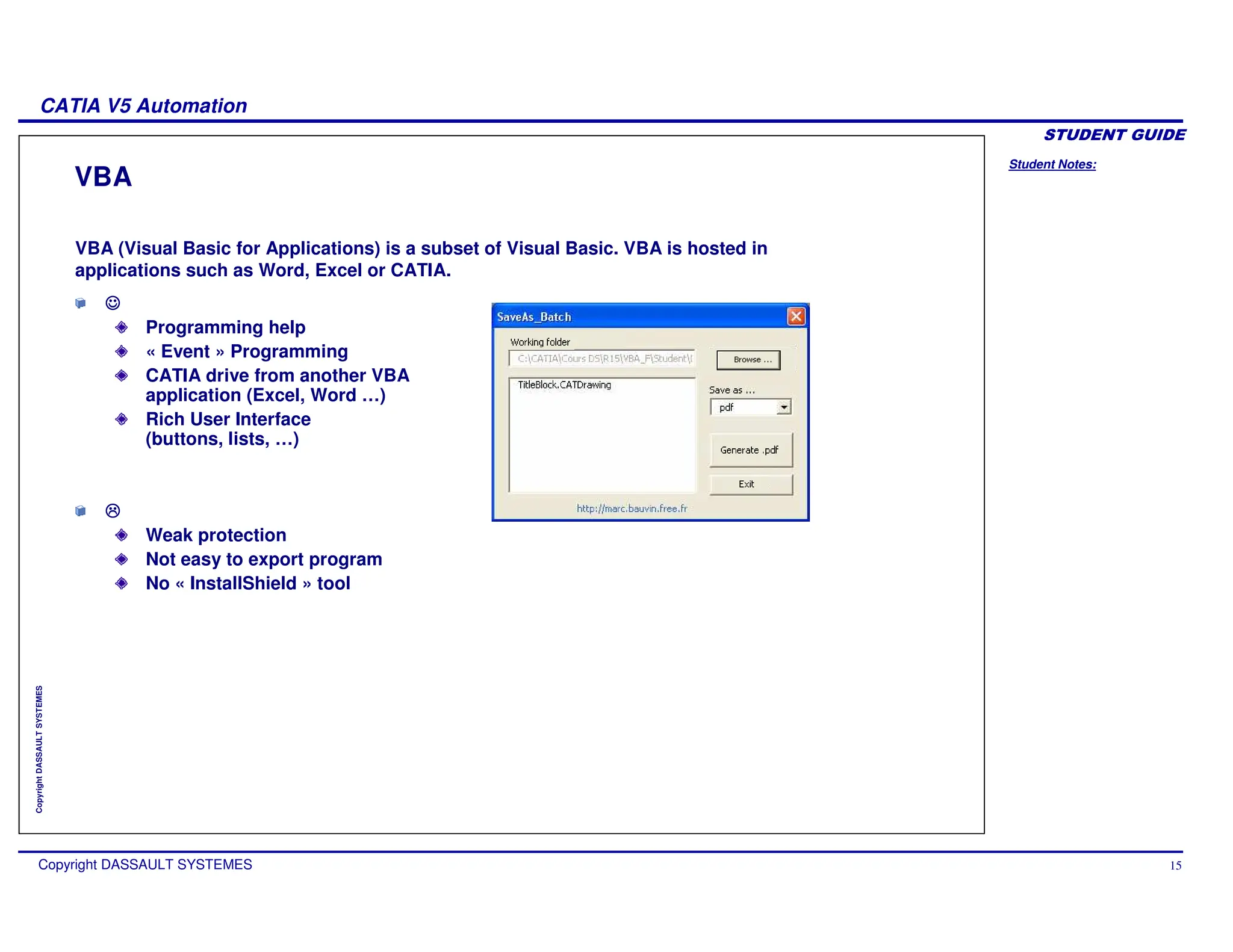
VBA
Programming help
« Event » Programming
CATIA drive from another VBA
application (Excel, Word …)
Rich User Interface
(buttons, lists, …)
Weak protection
Not easy to export program
No « InstallShield » tool
VBA (Visual Basic for Applications) is a subset of Visual Basic. VBA is hosted in
applications such as Word, Excel or CATIA.
Student Notes:
CATIA V5 Automation
Copyright DASSAULT SYSTEMES 16
Copyright
DASSAULT
SYSTEMES
Visual Basic
Visual Basic is the full version
All the advantages of VBA + …
More extended set of instructions
Code protection (compiled program)
Can create ActiveX and Servers
provides an added documentation called “Books on line” (VB 5.0)
Packaging and deployment assistant
Needs an additional installation
Microsoft licensed software
Student Notes:
CATIA V5 Automation
Copyright DASSAULT SYSTEMES 17
Copyright
DASSAULT
SYSTEMES
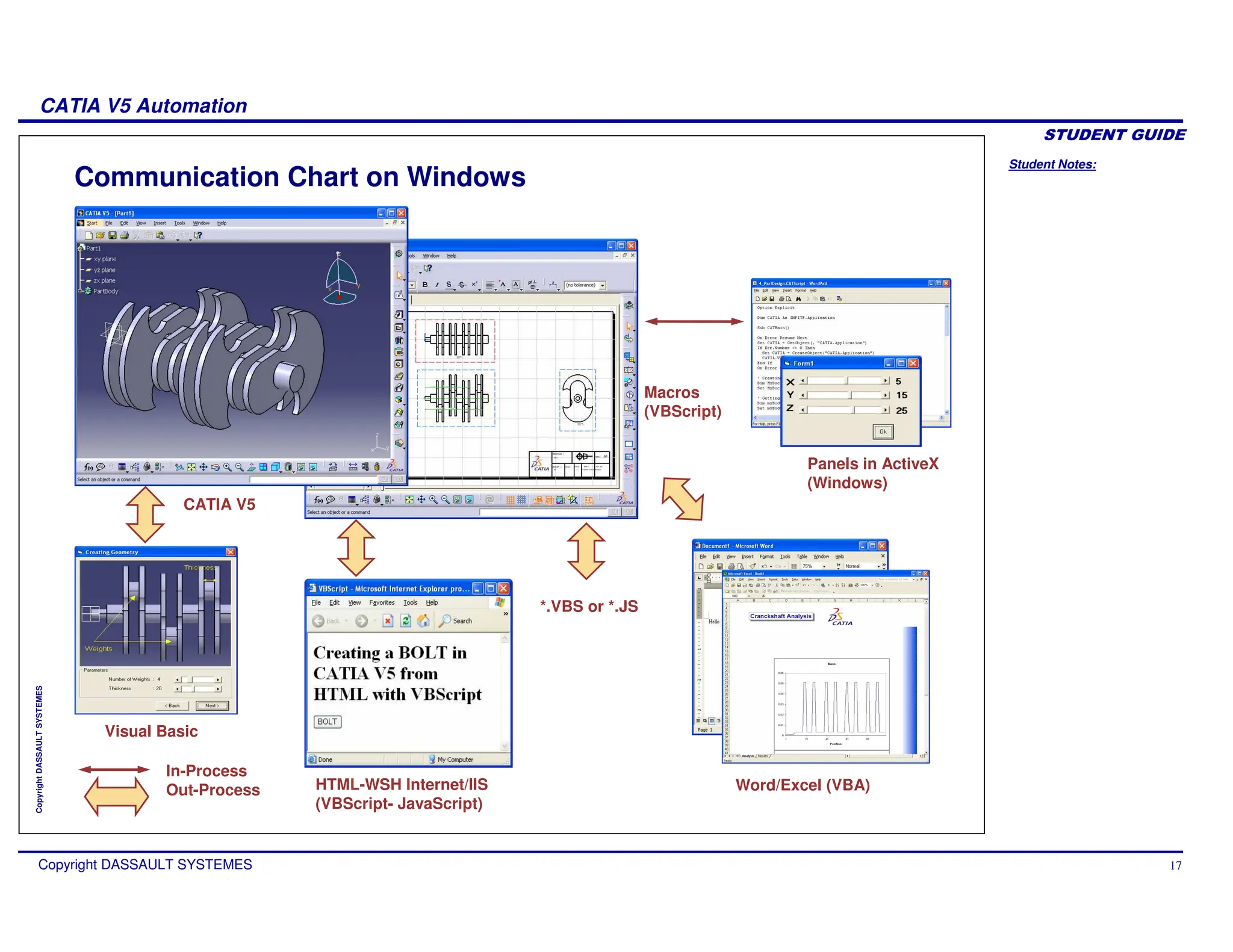
Communication Chart on Windows
CATIA V5
In-Process
Out-Process
Visual Basic
Macros
(VBScript)
Word/Excel (VBA)
HTML-WSH Internet/IIS
(VBScript- JavaScript)
*.VBS or *.JS
Panels in ActiveX
(Windows)
Student Notes:
CATIA V5 Automation
Copyright DASSAULT SYSTEMES 18
Copyright
DASSAULT
SYSTEMES
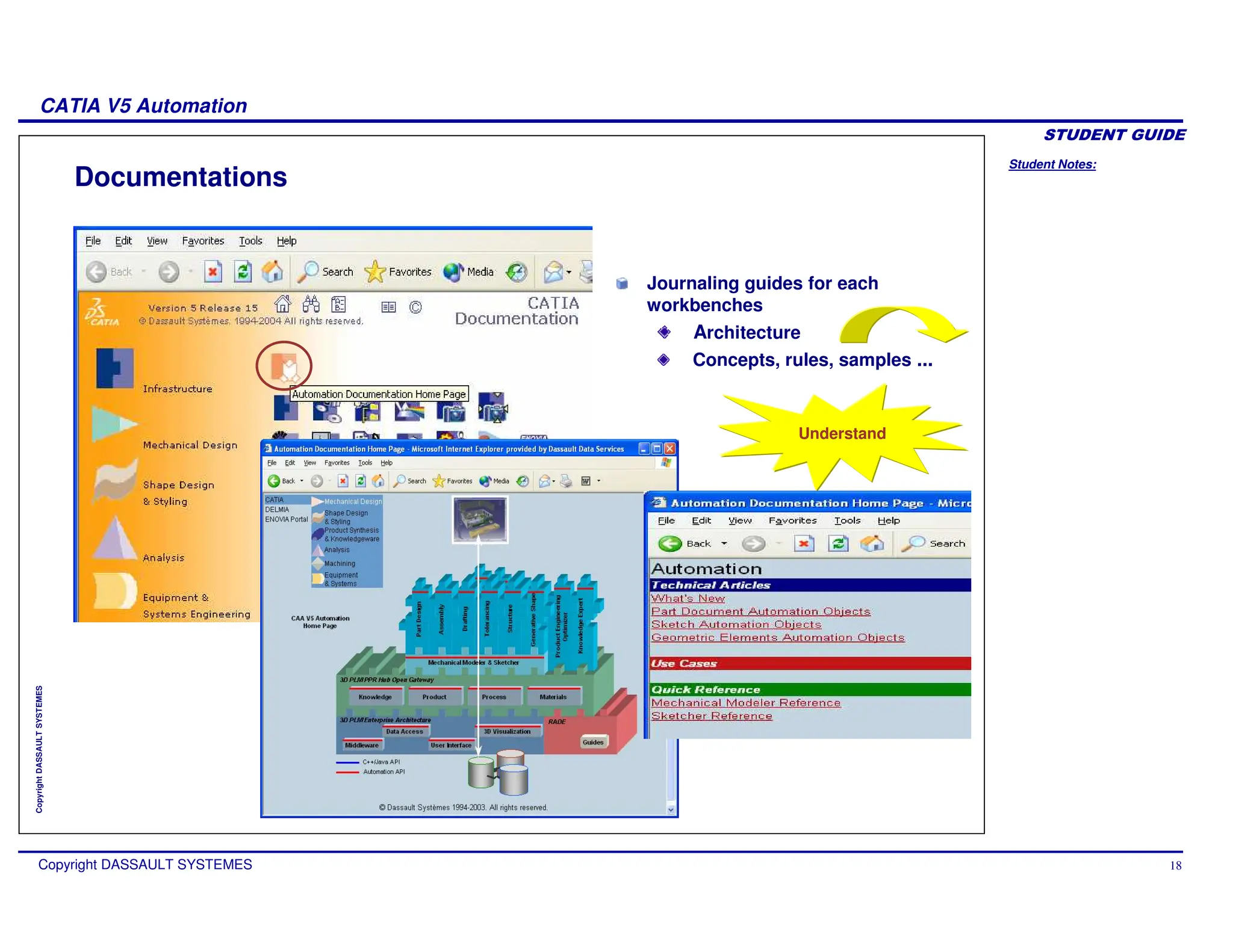
Documentations
Journaling guides for each
workbenches
Architecture
Concepts, rules, samples ...
Understand
Student Notes:
CATIA V5 Automation
Copyright DASSAULT SYSTEMES 19
Copyright
DASSAULT
SYSTEMES
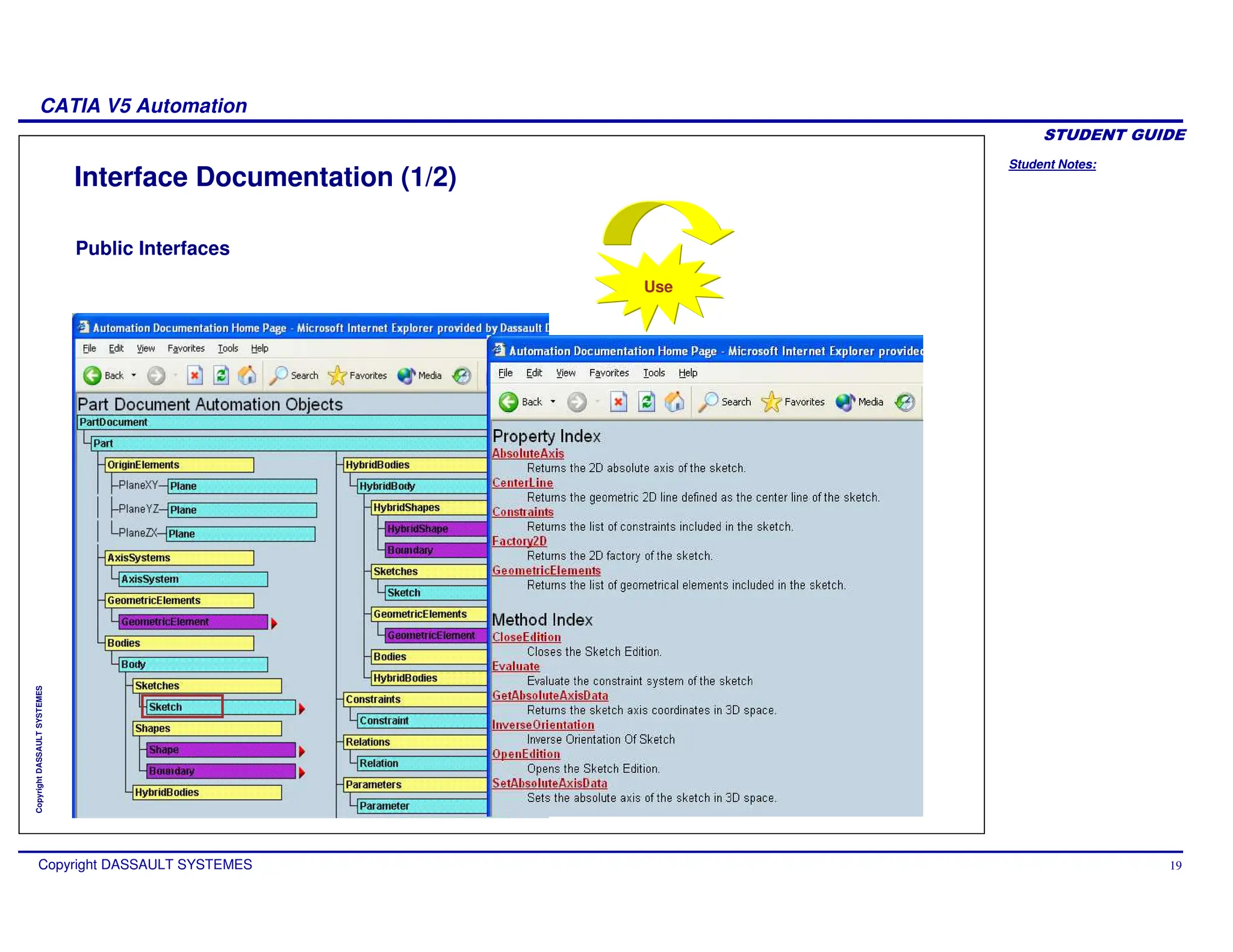
Interface Documentation (1/2)
Public Interfaces
Use
Student Notes:
CATIA V5 Automation
Copyright DASSAULT SYSTEMES 20
Copyright
DASSAULT
SYSTEMES
Interface Documentation (2/2)
Additional Information
The documentation is also available in the CATIA code installation directory.
Look for …Bxxintel_acodebinV5Automation.chm
and create a shortcut on your Desktop.
In the documentation, you will find helpful ‘Use cases’.
Student Notes:
CATIA V5 Automation
Copyright DASSAULT SYSTEMES 21
Copyright
DASSAULT
SYSTEMES
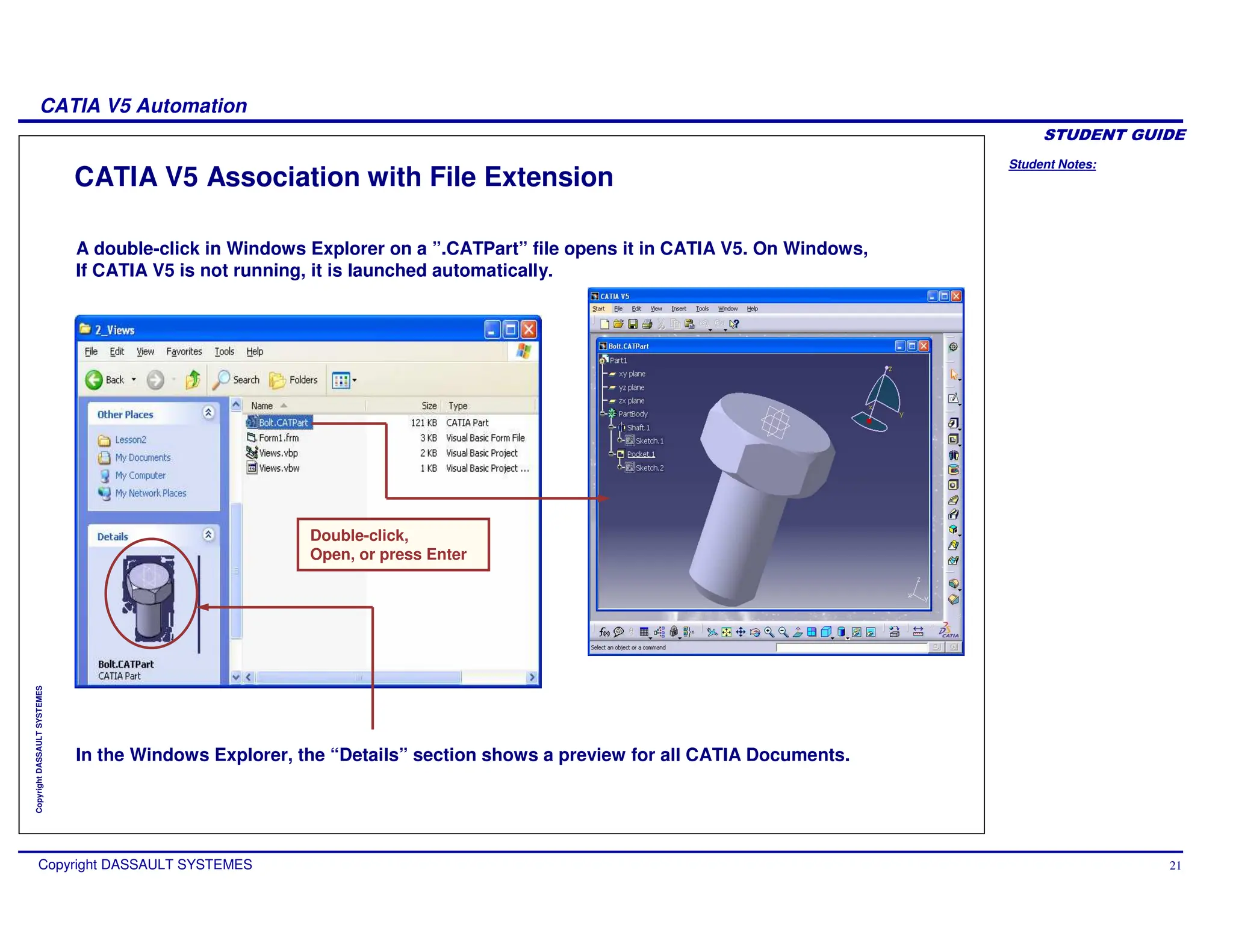
CATIA V5 Association with File Extension
A double-click in Windows Explorer on a ”.CATPart” file opens it in CATIA V5. On Windows,
If CATIA V5 is not running, it is launched automatically.
Double-click,
Open, or press Enter
In the Windows Explorer, the “Details” section shows a preview for all CATIA Documents.
Student Notes:
CATIA V5 Automation
Copyright DASSAULT SYSTEMES 22
Copyright
DASSAULT
SYSTEMES
CATIA V5 OLE (Object Linking and Embedding)
A double-click on the
picture lets you edit the
bolt in CATIA V5
Drag and Drop in
an OLE container
Student Notes:
CATIA V5 Automation
Copyright DASSAULT SYSTEMES 23
Copyright
DASSAULT
SYSTEMES
CATIA V5 Scripting Capabilities
IN process application:
This is done from the Tools + Macro in CATIA menu. When the Macro is running, CATIA is
deactivated. You cannot store variables in a macro between two calls. Access with VBScript
(Microsoft) and VBA on Windows, and with VBScript (Winsoft) on Unix.
OUT process application (Windows only)
This is based on AUTOMATION. A foreign process can call CATIA, create or modify
geometry, decode, measure or pilot CATIA. CATIA is still running. For each action of the
application, we have to check if CATIA is in the good state to synchronize the two
processes. This kind of applications can be developed in:
Visual Basic
Windows Scripting Host (VBScript , JScript)
Windows Explorer HTML (VBScript , JScript)
or Any other COM applications.
Student Notes:
CATIA V5 Automation
Copyright DASSAULT SYSTEMES 24
Copyright
DASSAULT
SYSTEMES
In-Process Macros
You will learn how to record and run the In-Process macros.
Student Notes:
CATIA V5 Automation
Copyright DASSAULT SYSTEMES 25
Copyright
DASSAULT
SYSTEMES
What is an ‘In-Process’ Macro
We call In-process because the script interpretation is performed in the same
process as CATIA.
A list shows the Macro available. We can run, edit, rename or delete existing script, or create a new
one.
The list of libraries of script proposed into the panel above is modifiable through the window of
libraries.
Student Notes:
CATIA V5 Automation
Copyright DASSAULT SYSTEMES 26
Copyright
DASSAULT
SYSTEMES
CATIA V5 Visual Basic Editor
With CATIA Visual Basic
Editor, We can edit existing
macro or create a new one,
Insert graphic form, debug and
Run VBA project.
Student Notes:
CATIA V5 Automation
Copyright DASSAULT SYSTEMES 27
Copyright
DASSAULT
SYSTEMES
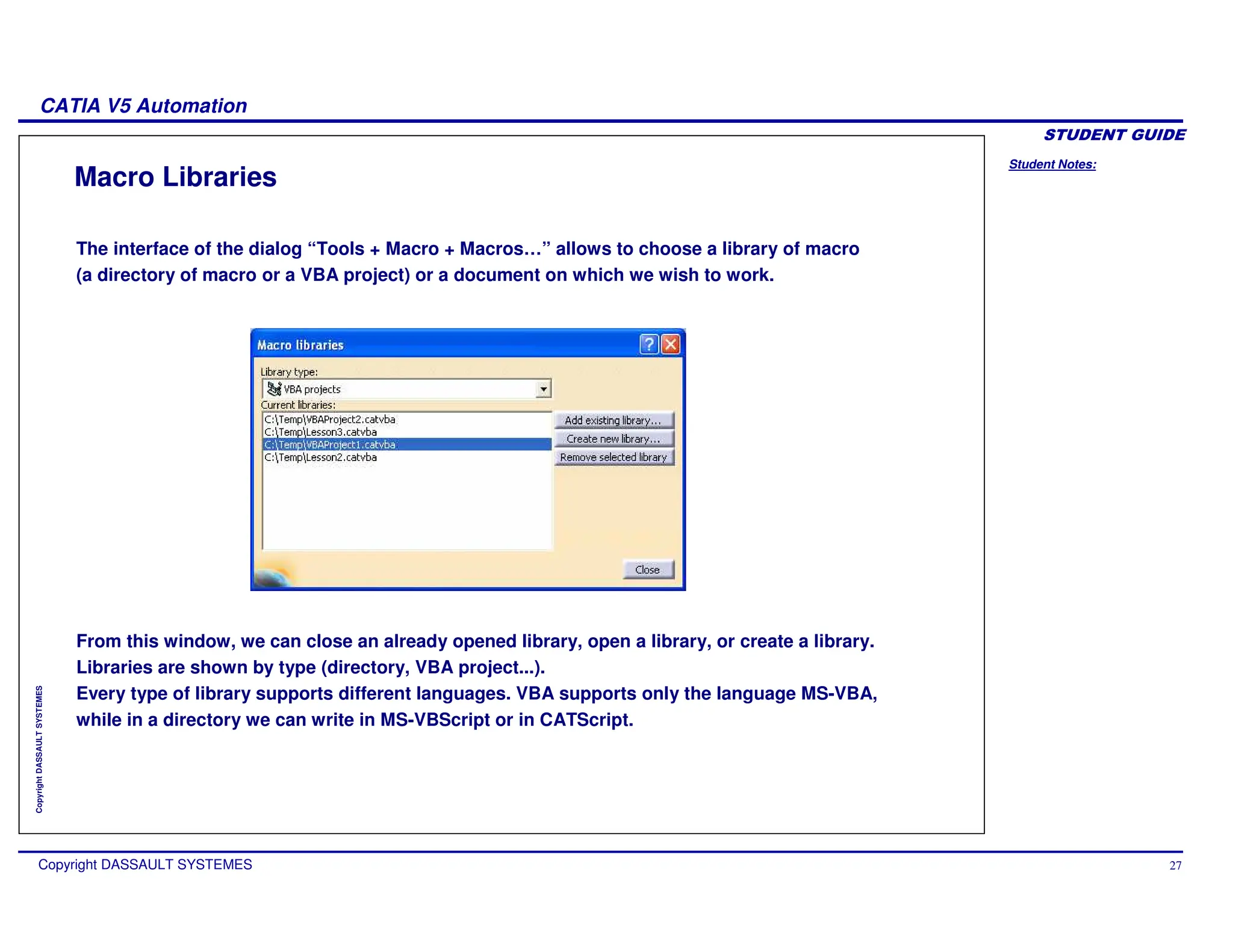
Macro Libraries
The interface of the dialog “Tools + Macro + Macros…” allows to choose a library of macro
(a directory of macro or a VBA project) or a document on which we wish to work.
From this window, we can close an already opened library, open a library, or create a library.
Libraries are shown by type (directory, VBA project...).
Every type of library supports different languages. VBA supports only the language MS-VBA,
while in a directory we can write in MS-VBScript or in CATScript.
Student Notes:
CATIA V5 Automation
Copyright DASSAULT SYSTEMES 28
Copyright
DASSAULT
SYSTEMES
Recording a Macro
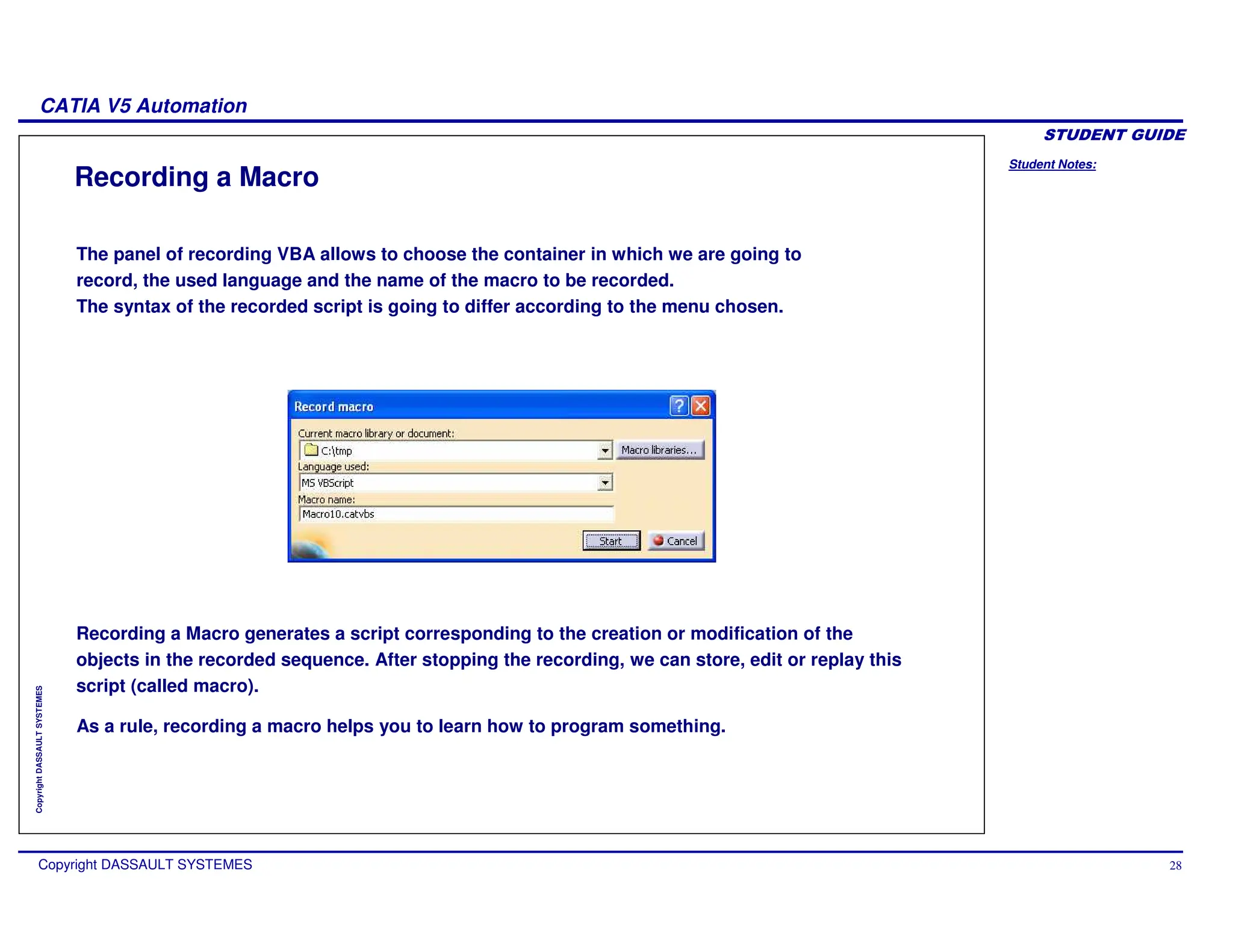
Recording a Macro generates a script corresponding to the creation or modification of the
objects in the recorded sequence. After stopping the recording, we can store, edit or replay this
script (called macro).
The panel of recording VBA allows to choose the container in which we are going to
record, the used language and the name of the macro to be recorded.
The syntax of the recorded script is going to differ according to the menu chosen.
As a rule, recording a macro helps you to learn how to program something.
Student Notes:
CATIA V5 Automation
Copyright DASSAULT SYSTEMES 29
Copyright
DASSAULT
SYSTEMES
Running a Macro (1/2)
CNEXT -batch -macro E:UsersMacrosMacroToRun.CATScript
CNEXT -macro E:UsersMacrosMacroToRun.CATScript
You can run a macro interactively from the “Macro” menu
You can run a macro interactively from an icon in a toolbar
You can execute a macro as soon as CATIA is started :
You can start CATIA in batch mode to execute a macro
Student Notes:
CATIA V5 Automation
Copyright DASSAULT SYSTEMES 30
Copyright
DASSAULT
SYSTEMES
Running a Macro (2/2)
The syntax to execute macros in text files using the CNEXT -macro command line, has
been expanded to allow replaying macro which are in VBA projects, in V5 documents,
and are written in VBScript, CATScript or VBA.
Here is a complete summary of the Supported Syntax:
Previously available options:
CNEXT -macro X.CATScript // Replays file X.CATScript (CATScript file)
CNEXT -macro X.catvbs // Replays file X.catvbs (pure VBScript file)
New options:
CNEXT -macro X.catvba Y // Replays macro Y in the VBA project X.catvba
CNEXT -macro X.CATPart Y // Replays macro Y in the V5 document X.CATPart
Student Notes:
CATIA V5 Automation
Copyright DASSAULT SYSTEMES 31
Copyright
DASSAULT
SYSTEMES
Execution of a Macro from another Macro
CATIA V5 offer the capability through an Automation function to execute a Macro from another
Macro. The function lets the user invoke another scripted function, contained in another macro
library, potentially written in another scripting language. A support enum CATSysLibraryType is
used to let the developer describe the kind of library the function to call is contained in.
(Example from VBScript)
Dim args2(1)
args2(0) = 3
args2(1) = 2
Dim addResult
addResult = CATIA.SystemService.ExecuteScript ( "E:MacrosMath",
catScriptLibraryTypeDirectory, "IntegerMath.catvbs", "Add", args2 )
MsgBox addResult
Dim args2(1)
args2(0) = 3
args2(1) = 2
Dim addResult
addResult = CATIA.SystemService.ExecuteScript ( "E:MacrosMath",
catScriptLibraryTypeDirectory, "IntegerMath.catvbs", "Add", args2 )
MsgBox addResult
Dim args()
CATIA.SystemService.ExecuteScript "E:PartsPart1.CATPart", catScriptLibraryTypeDocument,
"Statistics.catvbs", "PrintReport", args
Dim args()
CATIA.SystemService.ExecuteScript "E:PartsPart1.CATPart", catScriptLibraryTypeDocument,
"Statistics.catvbs", "PrintReport", args
To call an Add function that is defined in a “E:MacrosMath” directory library, in a file
“IntegerMath.catvbs”, one would write:
To call an PrintReport() sub that is defined in a “E:PartsPart1.CATPart” V5 document library,
in a file “Statistics.catvbs”, one would write:
Student Notes:
CATIA V5 Automation
Copyright DASSAULT SYSTEMES 32
Copyright
DASSAULT
SYSTEMES
Execution of a Macro which Require Parameters
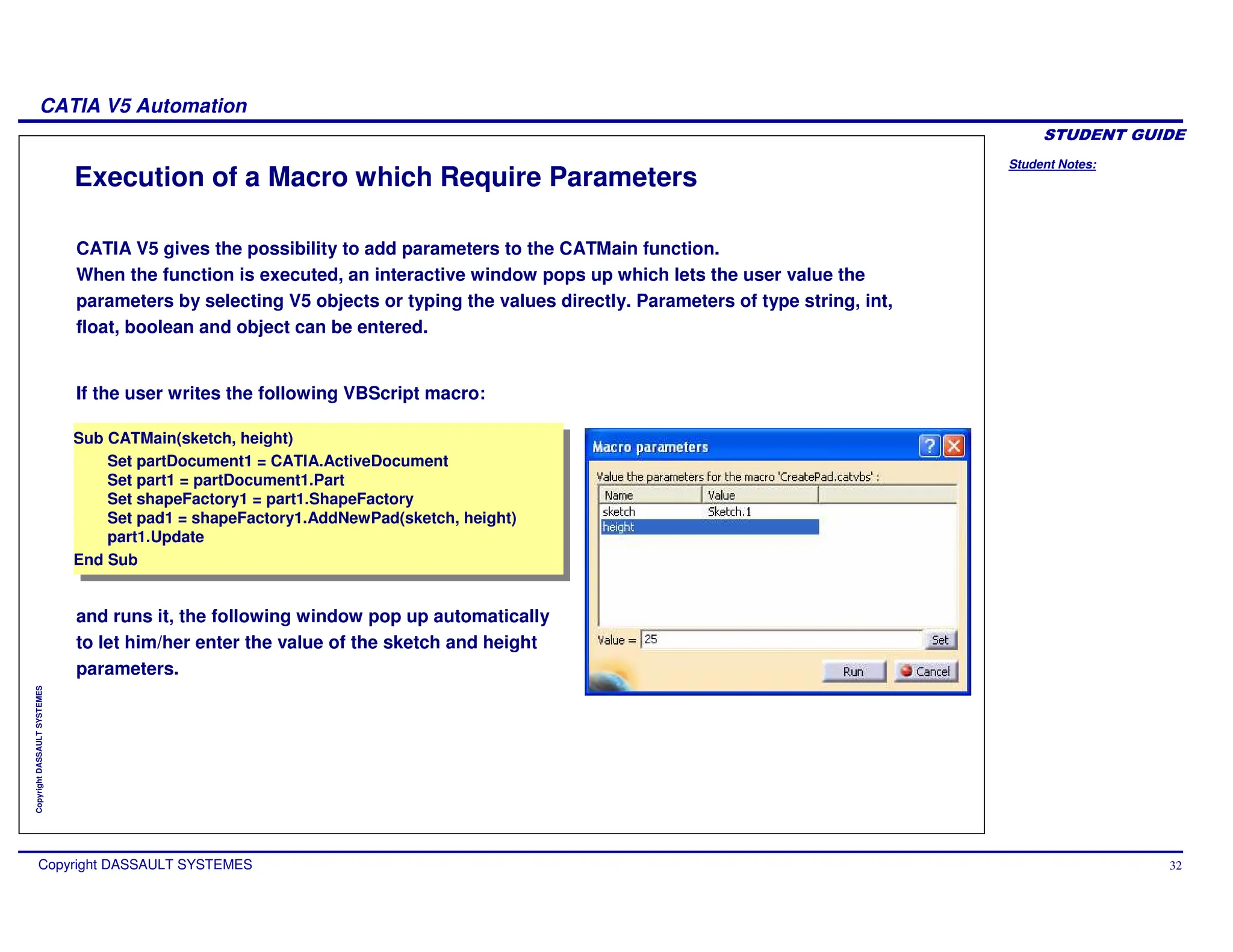
CATIA V5 gives the possibility to add parameters to the CATMain function.
When the function is executed, an interactive window pops up which lets the user value the
parameters by selecting V5 objects or typing the values directly. Parameters of type string, int,
float, boolean and object can be entered.
Sub CATMain(sketch, height)
Set partDocument1 = CATIA.ActiveDocument
Set part1 = partDocument1.Part
Set shapeFactory1 = part1.ShapeFactory
Set pad1 = shapeFactory1.AddNewPad(sketch, height)
part1.Update
End Sub
Sub CATMain(sketch, height)
Set partDocument1 = CATIA.ActiveDocument
Set part1 = partDocument1.Part
Set shapeFactory1 = part1.ShapeFactory
Set pad1 = shapeFactory1.AddNewPad(sketch, height)
part1.Update
End Sub
If the user writes the following VBScript macro:
and runs it, the following window pop up automatically
to let him/her enter the value of the sketch and height
parameters.
Student Notes:
CATIA V5 Automation
Copyright DASSAULT SYSTEMES 33
Copyright
DASSAULT
SYSTEMES
Adding a Macro as a command in a Toolbar
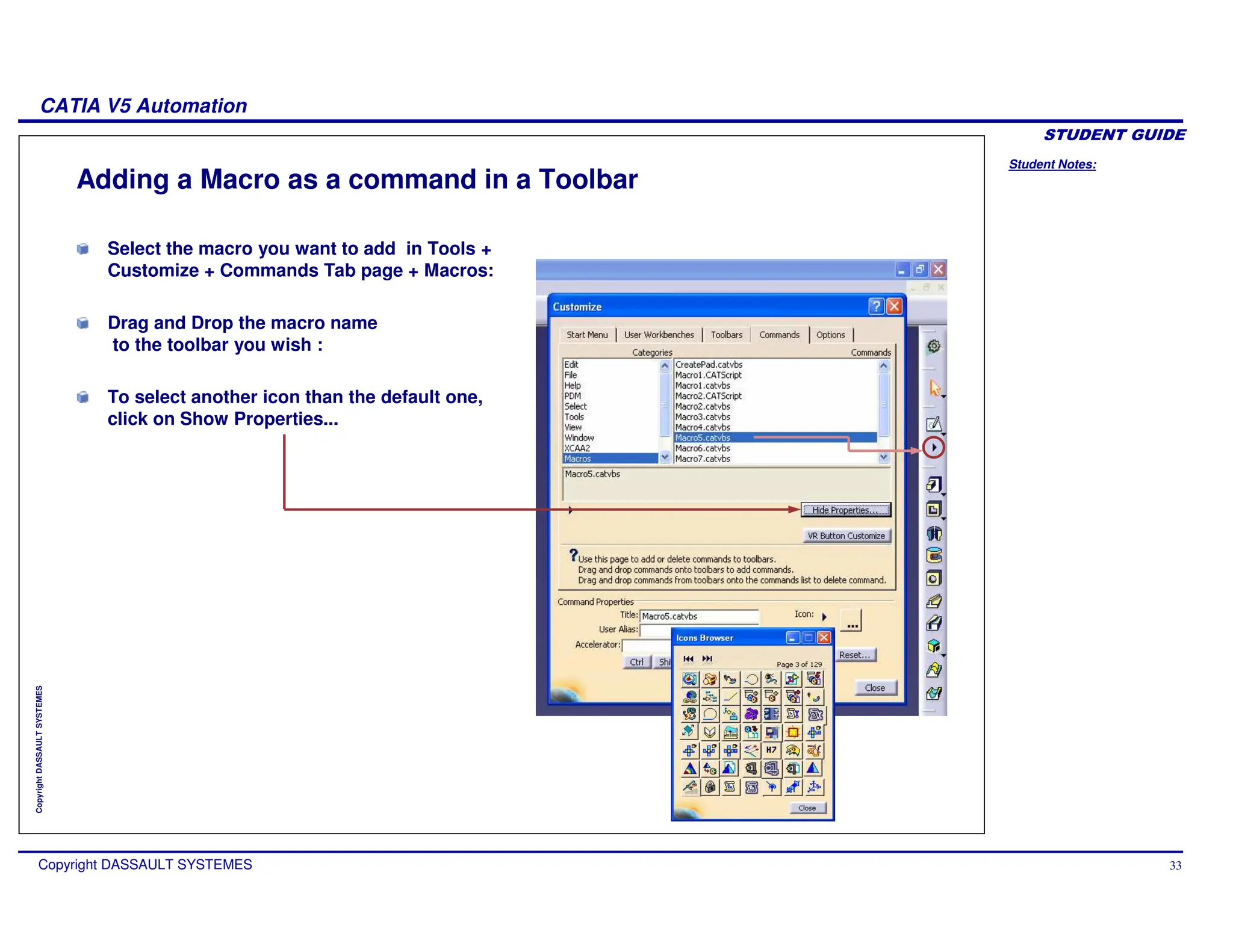
Select the macro you want to add in Tools +
Customize + Commands Tab page + Macros:
Drag and Drop the macro name
to the toolbar you wish :
To select another icon than the default one,
click on Show Properties...
Student Notes:
CATIA V5 Automation
Copyright DASSAULT SYSTEMES 34
Copyright
DASSAULT
SYSTEMES
Macros Options Interface
The panel of the dialog “Tools + Options + Macros” allows to choose according to the language,
the Editor who will be launched to edit a macro, and to specify external typelibs to take into
account in the replay of scripts.
With the new interface, all the typelibs V5 of the runtime view are automatically taken into
account. This option serves only for declaring typelibs except runtime view (Excel for example).
Student Notes:
CATIA V5 Automation
Copyright DASSAULT SYSTEMES 35
Copyright
DASSAULT
SYSTEMES
Out-Process Programs
You will learn methods to create and execute Out-Process programs for CATIA V5
Automation.
Student Notes:
CATIA V5 Automation
Copyright DASSAULT SYSTEMES 36
Copyright
DASSAULT
SYSTEMES
Running Out-Process Programs (On Windows only)
The script is running in another application running in another process, such as:
Visual Basic
VBA (in Excel or Word)
Using WSH (Windows Scripting Host) with VBScript or JavaScript
Using HTML with VBScript or JavaScript
CATIA can be scripted from any other COM Application.
Student Notes:
CATIA V5 Automation
Copyright DASSAULT SYSTEMES 37
Copyright
DASSAULT
SYSTEMES
Running Out-Process from VBA or Visual Basic (1/3)
VBA and Visual Basic provide useful tools :
For this, you can declare all the typelib files (*.tlb) provided by Dassault Systemes.
The typelib files contain the declarations of all the objects, methods and properties of the
Exposed objects.
Student Notes:
CATIA V5 Automation
Copyright DASSAULT SYSTEMES 38
Copyright
DASSAULT
SYSTEMES
Running Out-Process from VBA or Visual Basic (2/3)
Type definition allows type checking and “early binding”.
Helpful completion gives you all the properties and methods of an object and gives
you the argument types of a method.
Browser Object describes all the exported objects.
Student Notes:
CATIA V5 Automation
Copyright DASSAULT SYSTEMES 39
Copyright
DASSAULT
SYSTEMES
Running Out-Process from VBA or Visual Basic (3/3)
Here are the statements to launch CATIA V5 from VBA or Visual Basic.
If CATIA is already running :
If the typelib INFITF.tbl is referenced, we can declare CATIA as INFITF.Application.
[...]
Dim CATIA as Object
Set CATIA = GetObject(, “CATIA.Application”)
[...]
[...]
Dim CATIA as Object
Set CATIA = GetObject(, “CATIA.Application”)
[...]
First arg. is left blank
If CATIA is not already running :
[...]
Dim CATIA as Object
Set CATIA = CreateObject(“CATIA.Application”)
CATIA.Visible = True
[...]
[...]
Dim CATIA as Object
Set CATIA = CreateObject(“CATIA.Application”)
CATIA.Visible = True
[...] This macro starts CATIA
Student Notes:
CATIA V5 Automation
Copyright DASSAULT SYSTEMES 40
Copyright
DASSAULT
SYSTEMES
Example: Bolt from Excel (1/3)
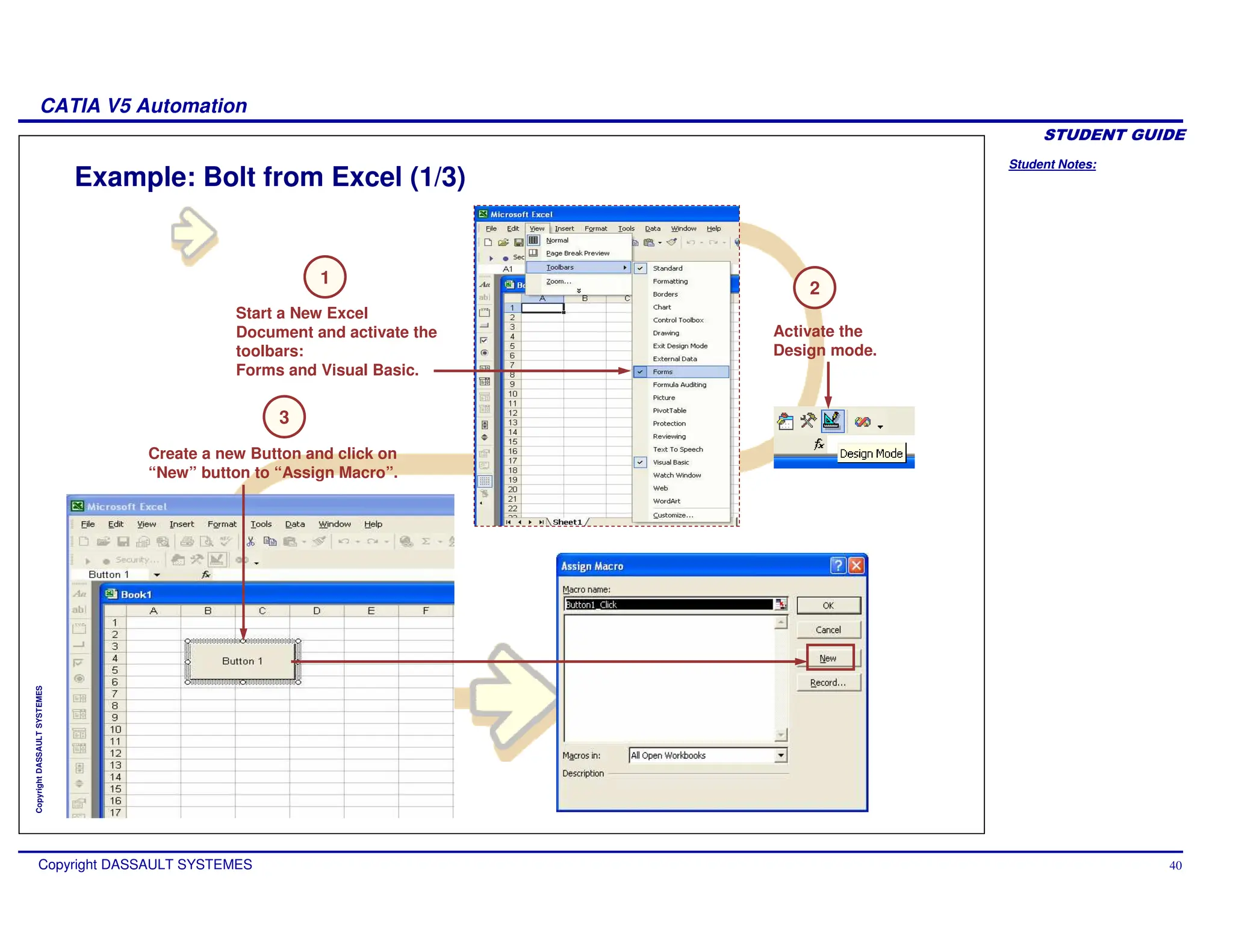
Start a New Excel
Document and activate the
toolbars:
Forms and Visual Basic.
Activate the
Design mode.
Create a new Button and click on
“New” button to “Assign Macro”.
3
2
1
Student Notes:
CATIA V5 Automation
Copyright DASSAULT SYSTEMES 41
Copyright
DASSAULT
SYSTEMES
Example: Bolt from Excel (2/3)
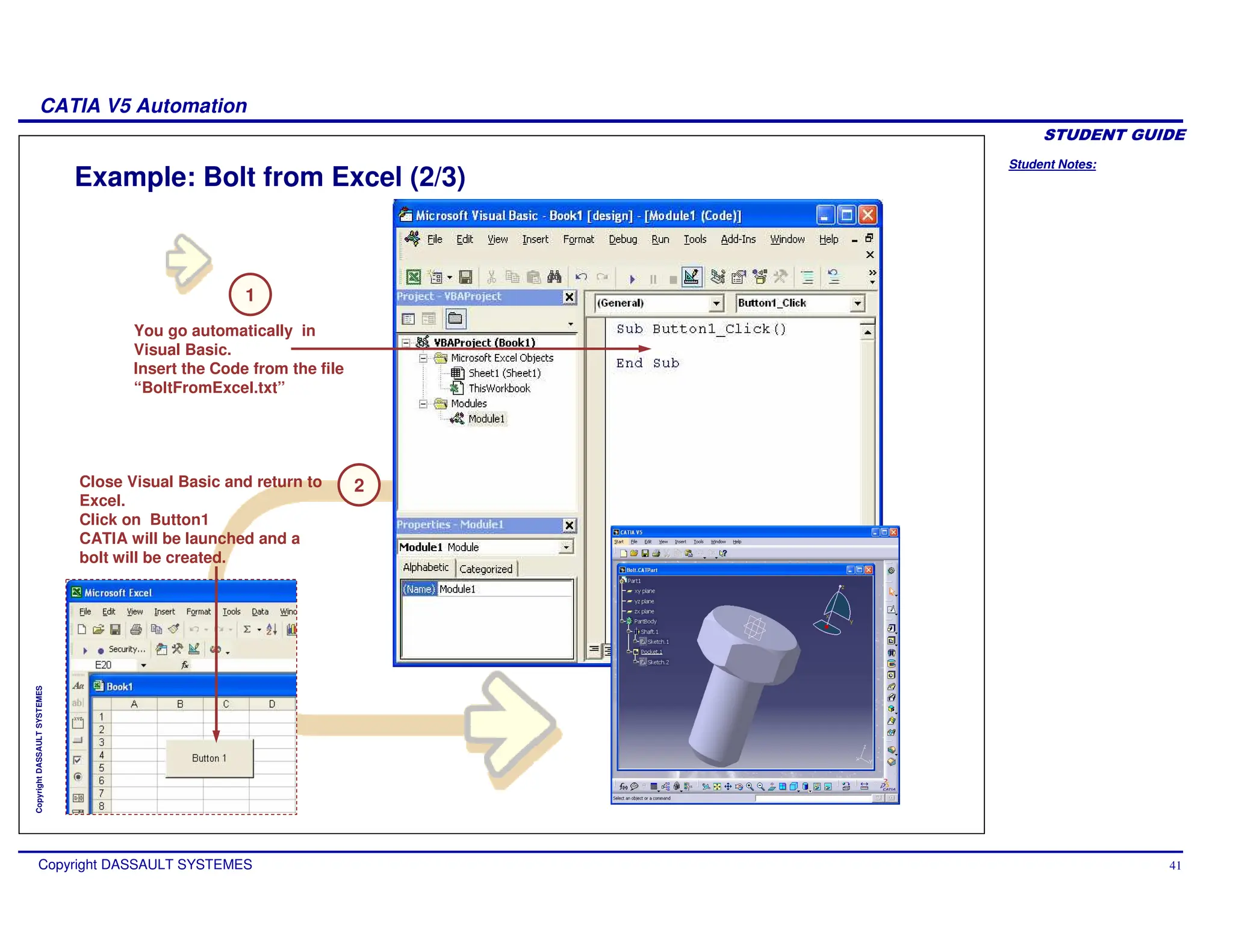
You go automatically in
Visual Basic.
Insert the Code from the file
“BoltFromExcel.txt”
Close Visual Basic and return to
Excel.
Click on Button1
CATIA will be launched and a
bolt will be created.
1
2
Student Notes:
CATIA V5 Automation
Copyright DASSAULT SYSTEMES 42
Copyright
DASSAULT
SYSTEMES
Example: Bolt from Excel (3/3)
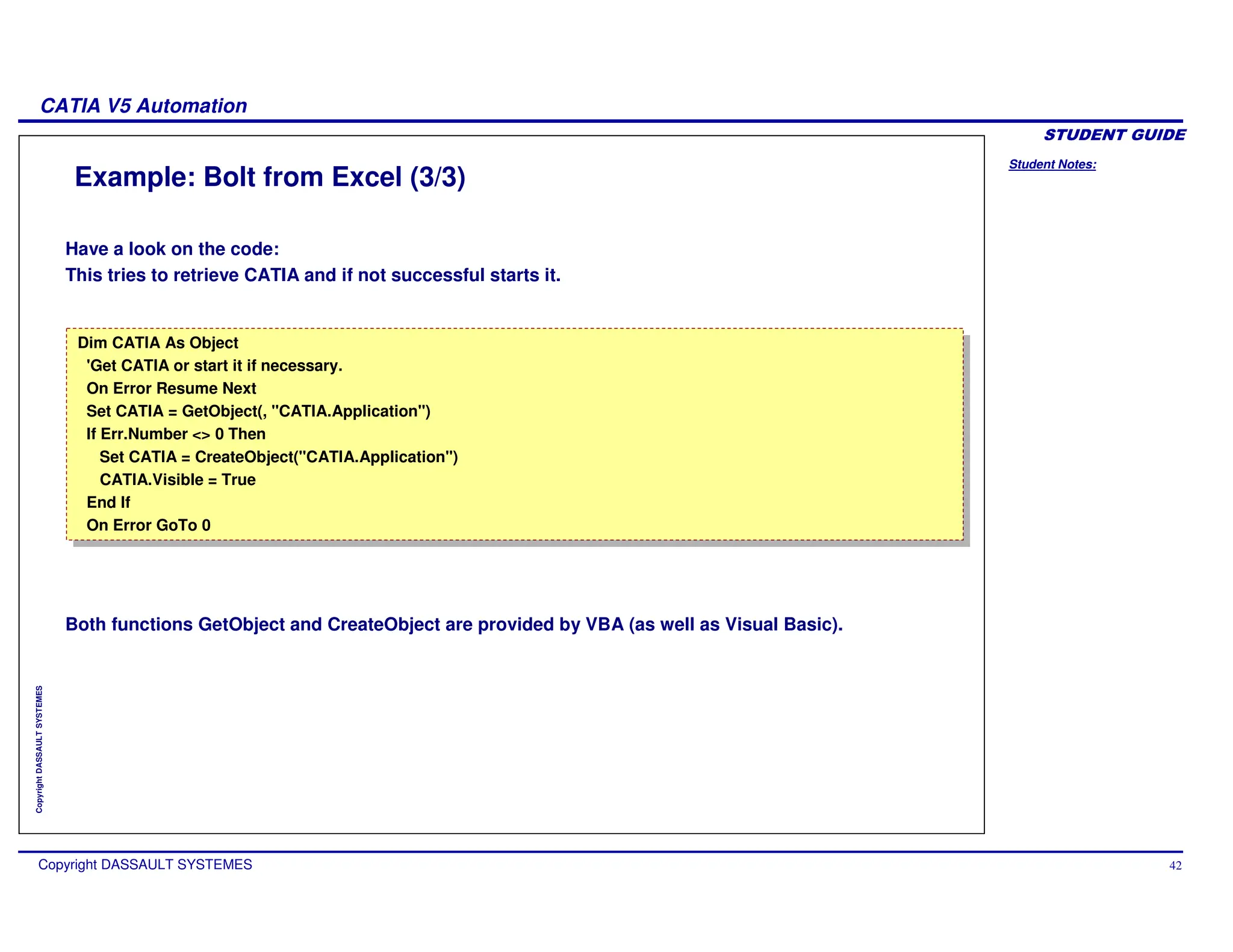
Have a look on the code:
This tries to retrieve CATIA and if not successful starts it.
Both functions GetObject and CreateObject are provided by VBA (as well as Visual Basic).
Dim CATIA As Object
'Get CATIA or start it if necessary.
On Error Resume Next
Set CATIA = GetObject(, "CATIA.Application")
If Err.Number <> 0 Then
Set CATIA = CreateObject("CATIA.Application")
CATIA.Visible = True
End If
On Error GoTo 0
Dim CATIA As Object
'Get CATIA or start it if necessary.
On Error Resume Next
Set CATIA = GetObject(, "CATIA.Application")
If Err.Number <> 0 Then
Set CATIA = CreateObject("CATIA.Application")
CATIA.Visible = True
End If
On Error GoTo 0
Student Notes:
CATIA V5 Automation
Copyright DASSAULT SYSTEMES 43
Copyright
DASSAULT
SYSTEMES
Running Out-Process using the Windows Scripting Host
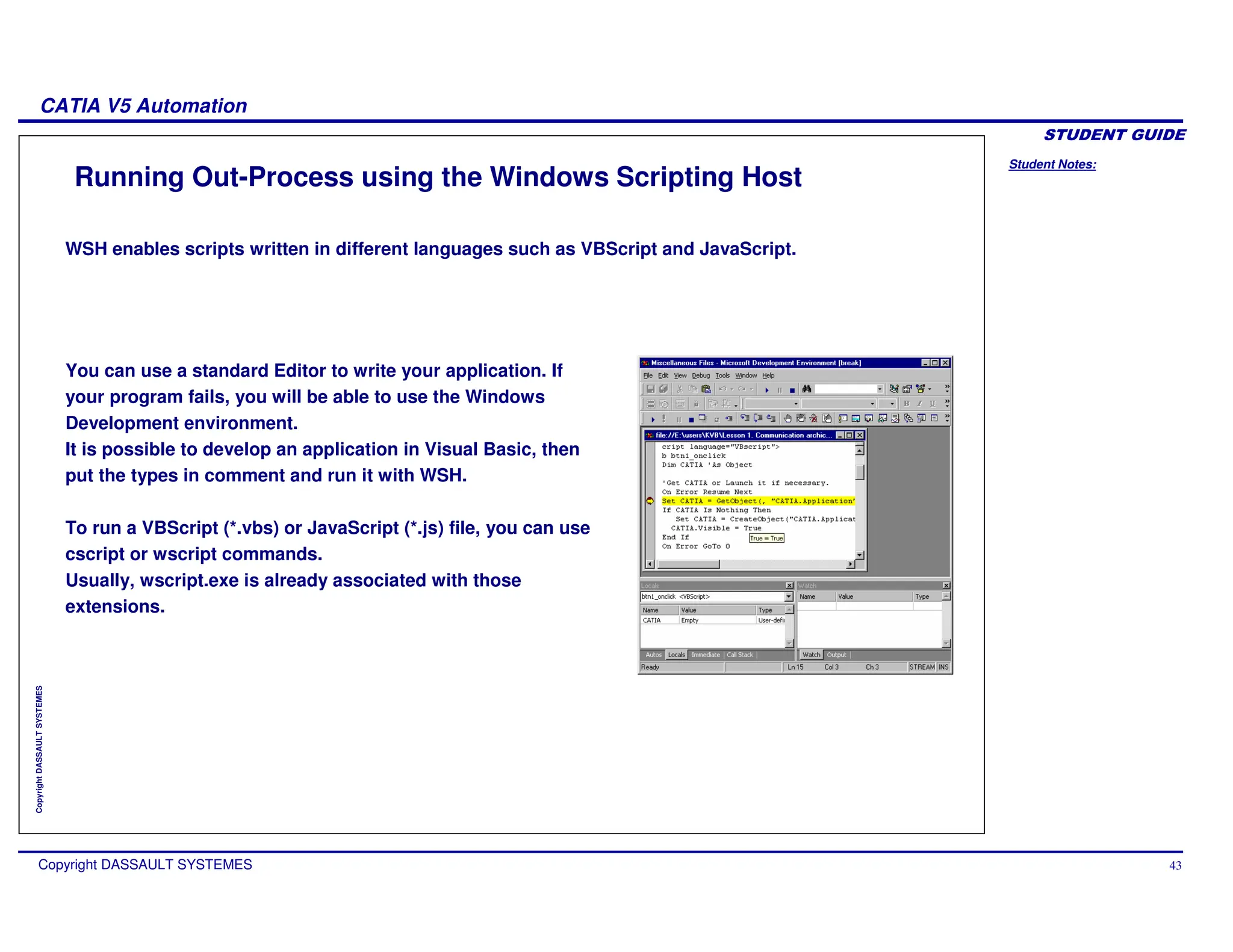
WSH enables scripts written in different languages such as VBScript and JavaScript.
You can use a standard Editor to write your application. If
your program fails, you will be able to use the Windows
Development environment.
It is possible to develop an application in Visual Basic, then
put the types in comment and run it with WSH.
To run a VBScript (*.vbs) or JavaScript (*.js) file, you can use
cscript or wscript commands.
Usually, wscript.exe is already associated with those
extensions.
Student Notes:
CATIA V5 Automation
Copyright DASSAULT SYSTEMES 44
Copyright
DASSAULT
SYSTEMES
VBScript under Windows Scripting Host
On Error Resume Next
Set CATIA = Wscript.GetObject(,"CATIA.Application")
If Err.Number <> 0 Then
Set CATIA = Wscript.CreateObject("CATIA.Application")
CATIA.Visible = True
End If
On Error Resume Next
Set CATIA = Wscript.GetObject(,"CATIA.Application")
If Err.Number <> 0 Then
Set CATIA = Wscript.CreateObject("CATIA.Application")
CATIA.Visible = True
End If
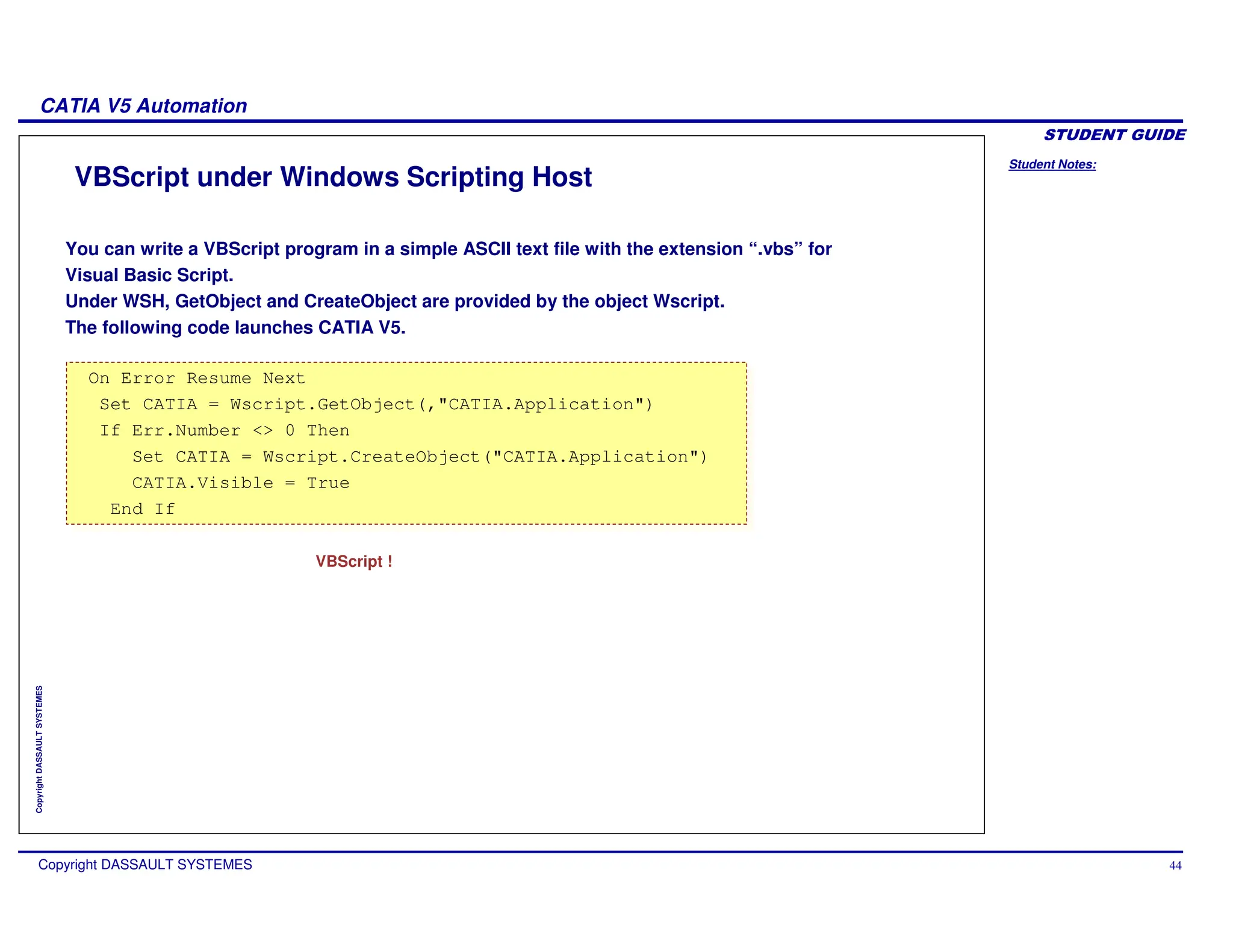
You can write a VBScript program in a simple ASCII text file with the extension “.vbs” for
Visual Basic Script.
Under WSH, GetObject and CreateObject are provided by the object Wscript.
The following code launches CATIA V5.
VBScript !
Student Notes:
CATIA V5 Automation
Copyright DASSAULT SYSTEMES 45
Copyright
DASSAULT
SYSTEMES
BoltVBSript.vbs Example
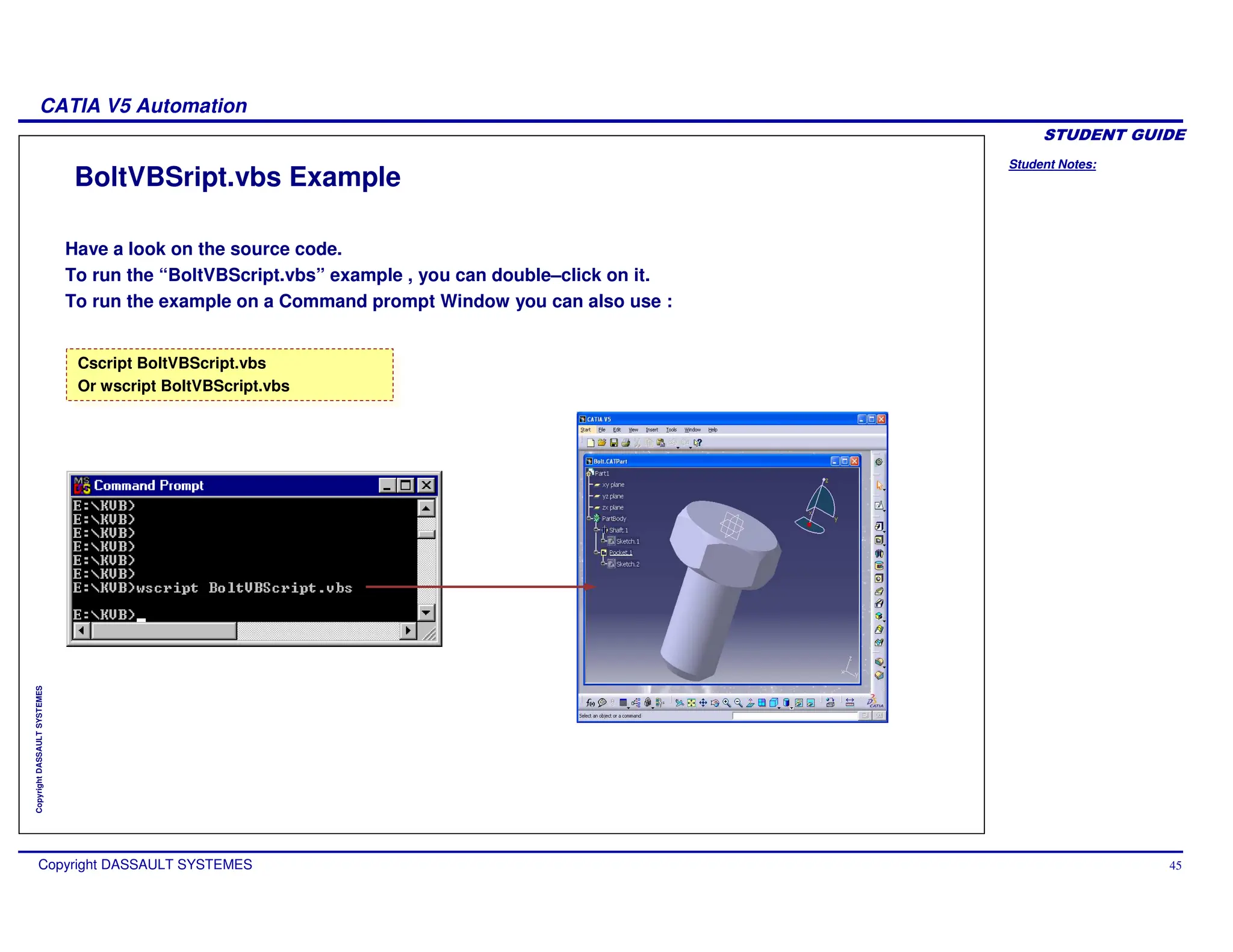
Have a look on the source code.
To run the “BoltVBScript.vbs” example , you can double–click on it.
To run the example on a Command prompt Window you can also use :
Cscript BoltVBScript.vbs
Or wscript BoltVBScript.vbs
Cscript BoltVBScript.vbs
Or wscript BoltVBScript.vbs
Student Notes:
CATIA V5 Automation
Copyright DASSAULT SYSTEMES 46
Copyright
DASSAULT
SYSTEMES
JavaScript under Windows Scripting Host
In the same way as VBScript, you can write a JavaScript program in a simple ASCII text file
with the extension “.js” for JavaScript.
Under WSH, GetObject and CreateObject are provided by the object Wscript.
The following code launches CATIA V5.
CATIA = WScript.GetObject(,"CATIA.Application");
if ( CATIA == null) {
CATIA = WScript.CreateObject("CATIA.Application");
CATIA.Visible = true;
}
CATIA = WScript.GetObject(,"CATIA.Application");
if ( CATIA == null) {
CATIA = WScript.CreateObject("CATIA.Application");
CATIA.Visible = true;
}
Java Script !
Student Notes:
CATIA V5 Automation
Copyright DASSAULT SYSTEMES 47
Copyright
DASSAULT
SYSTEMES
BoltJavaSript.js Example
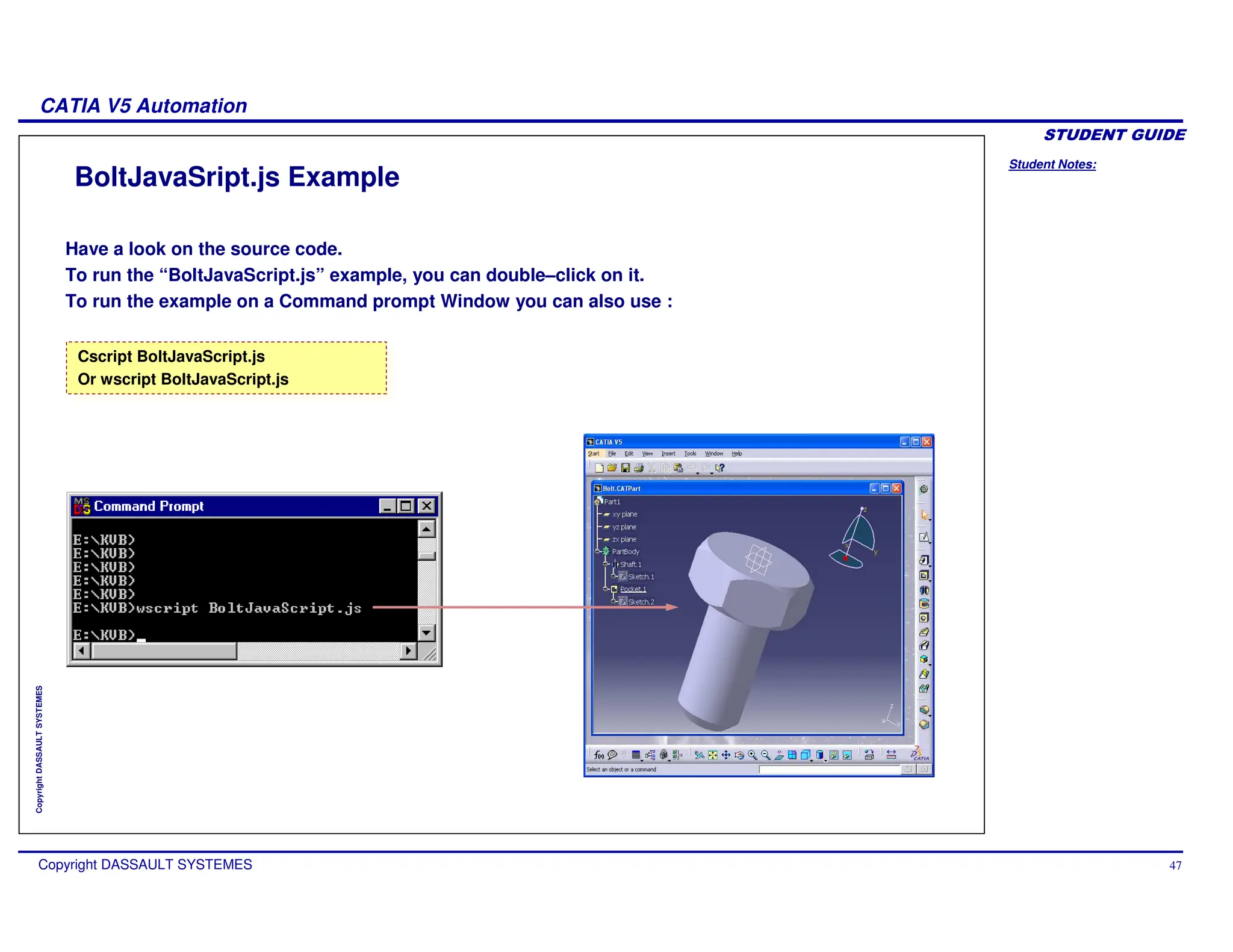
Have a look on the source code.
To run the “BoltJavaScript.js” example, you can double–click on it.
To run the example on a Command prompt Window you can also use :
Cscript BoltJavaScript.js
Or wscript BoltJavaScript.js
Cscript BoltJavaScript.js
Or wscript BoltJavaScript.js
Student Notes:
CATIA V5 Automation
Copyright DASSAULT SYSTEMES 48
Copyright
DASSAULT
SYSTEMES
Out-Process in HTML (Windows & Microsoft IE Only)
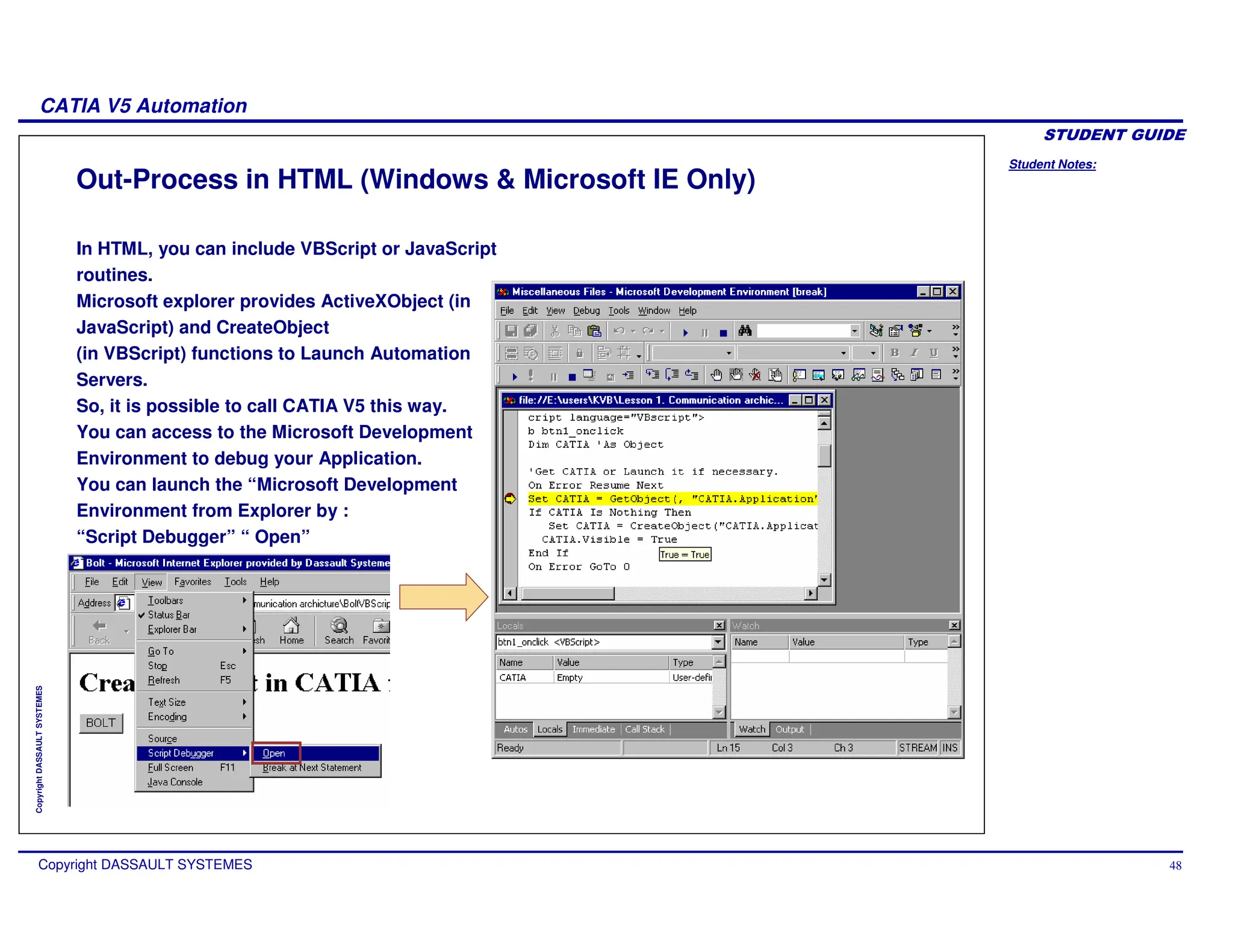
In HTML, you can include VBScript or JavaScript
routines.
Microsoft explorer provides ActiveXObject (in
JavaScript) and CreateObject
(in VBScript) functions to Launch Automation
Servers.
So, it is possible to call CATIA V5 this way.
You can access to the Microsoft Development
Environment to debug your Application.
You can launch the “Microsoft Development
Environment from Explorer by :
“Script Debugger” “ Open”
Student Notes:
CATIA V5 Automation
Copyright DASSAULT SYSTEMES 49
Copyright
DASSAULT
SYSTEMES
Out-Process in HTML with VBScript
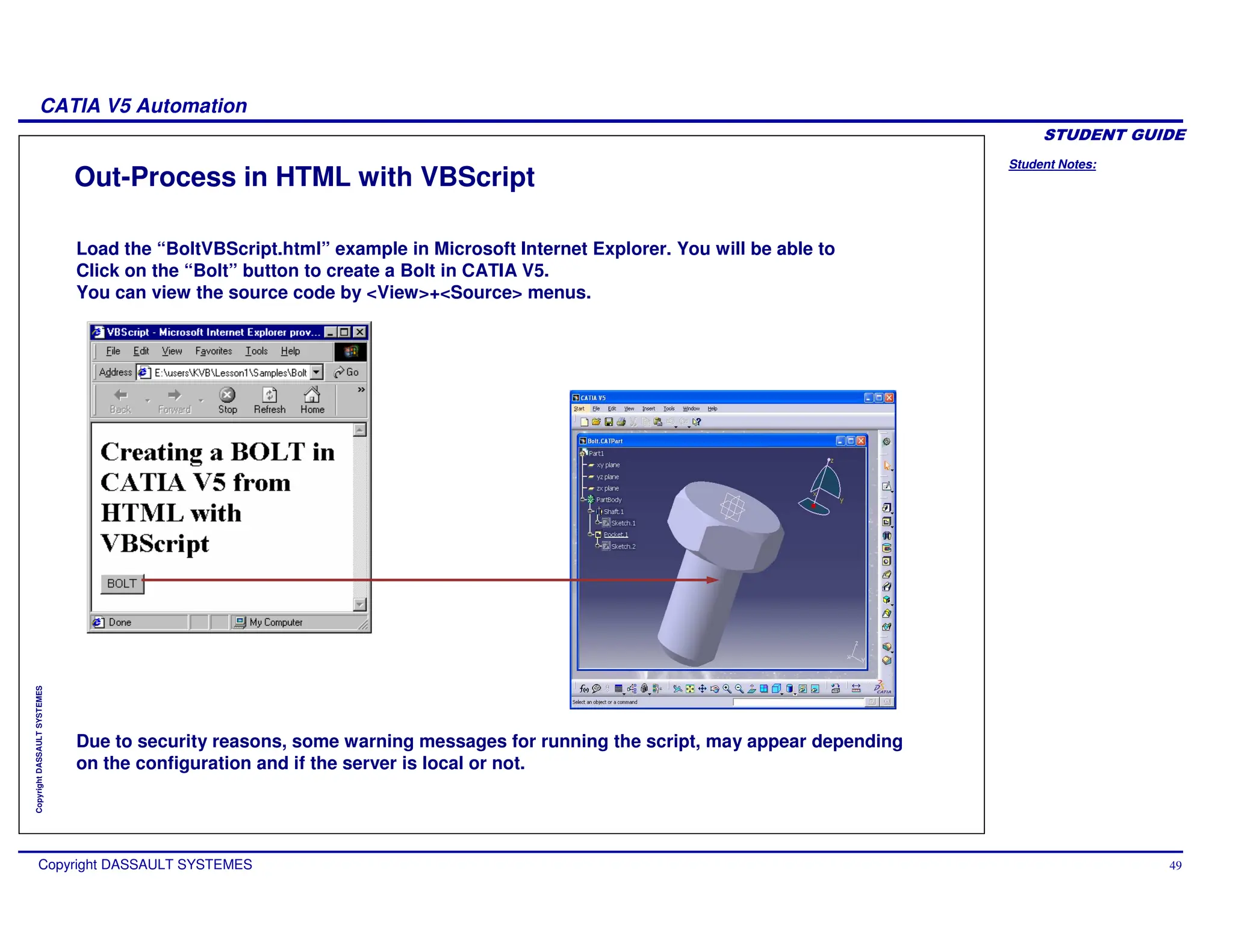
Load the “BoltVBScript.html” example in Microsoft Internet Explorer. You will be able to
Click on the “Bolt” button to create a Bolt in CATIA V5.
You can view the source code by <View>+<Source> menus.
Due to security reasons, some warning messages for running the script, may appear depending
on the configuration and if the server is local or not.
Student Notes:
CATIA V5 Automation
Copyright DASSAULT SYSTEMES 50
Copyright
DASSAULT
SYSTEMES
Out-Process in HTML with JavaScript
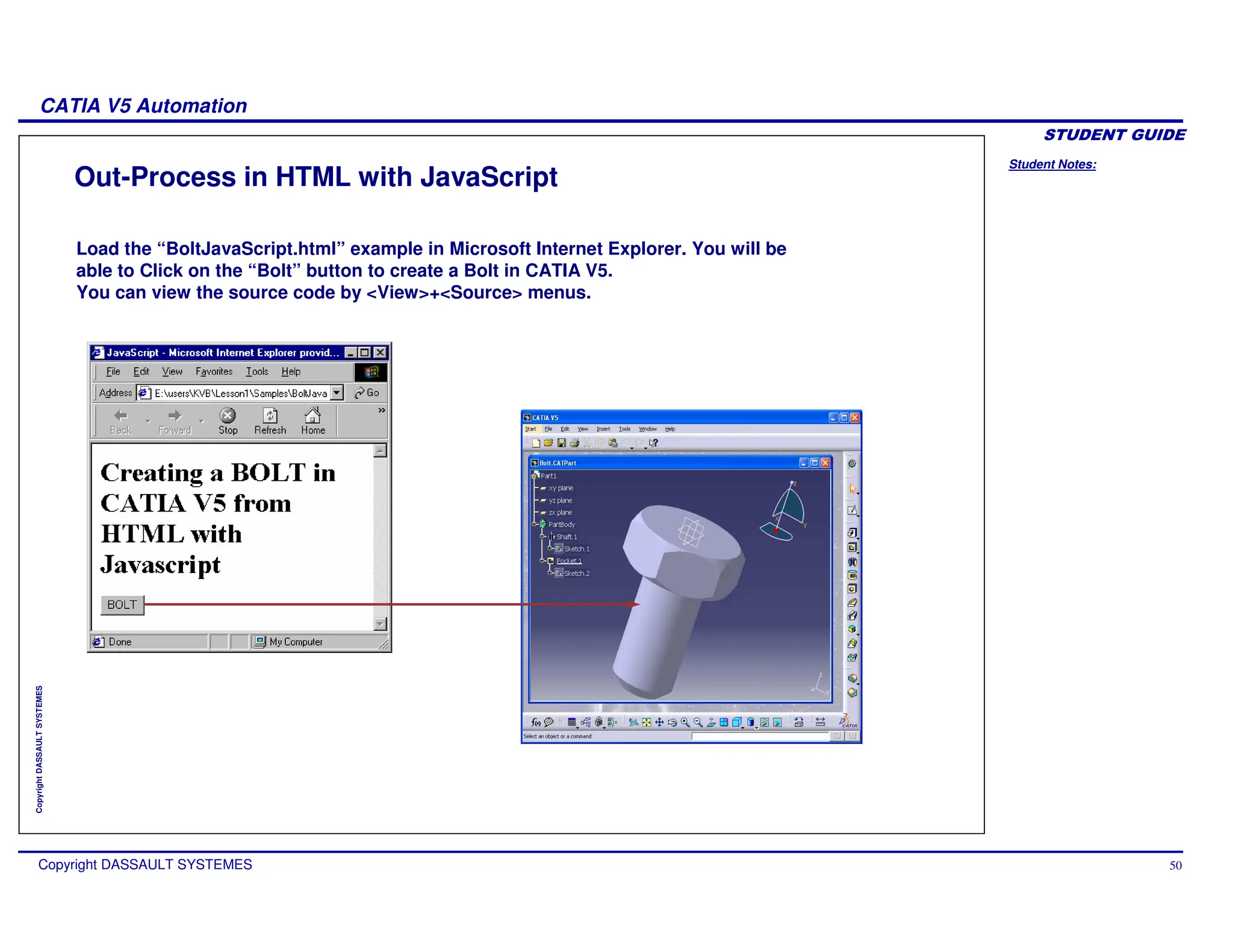
Load the “BoltJavaScript.html” example in Microsoft Internet Explorer. You will be
able to Click on the “Bolt” button to create a Bolt in CATIA V5.
You can view the source code by <View>+<Source> menus.
Student Notes:
CATIA V5 Automation
Copyright DASSAULT SYSTEMES 51
Copyright
DASSAULT
SYSTEMES
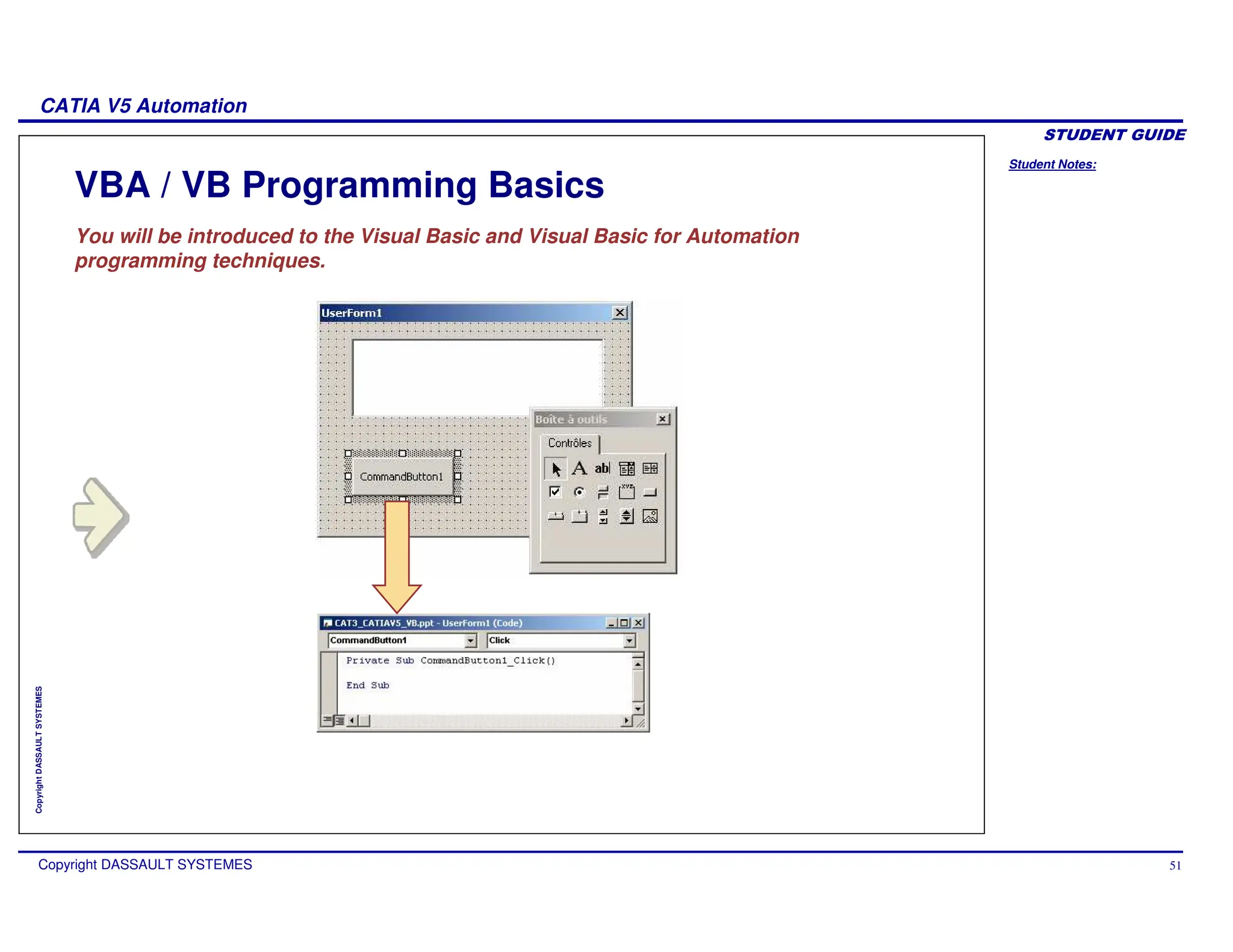
VBA / VB Programming Basics
You will be introduced to the Visual Basic and Visual Basic for Automation
programming techniques.
Student Notes:
CATIA V5 Automation
Copyright DASSAULT SYSTEMES 52
Copyright
DASSAULT
SYSTEMES
Programming Generalities (1/5)
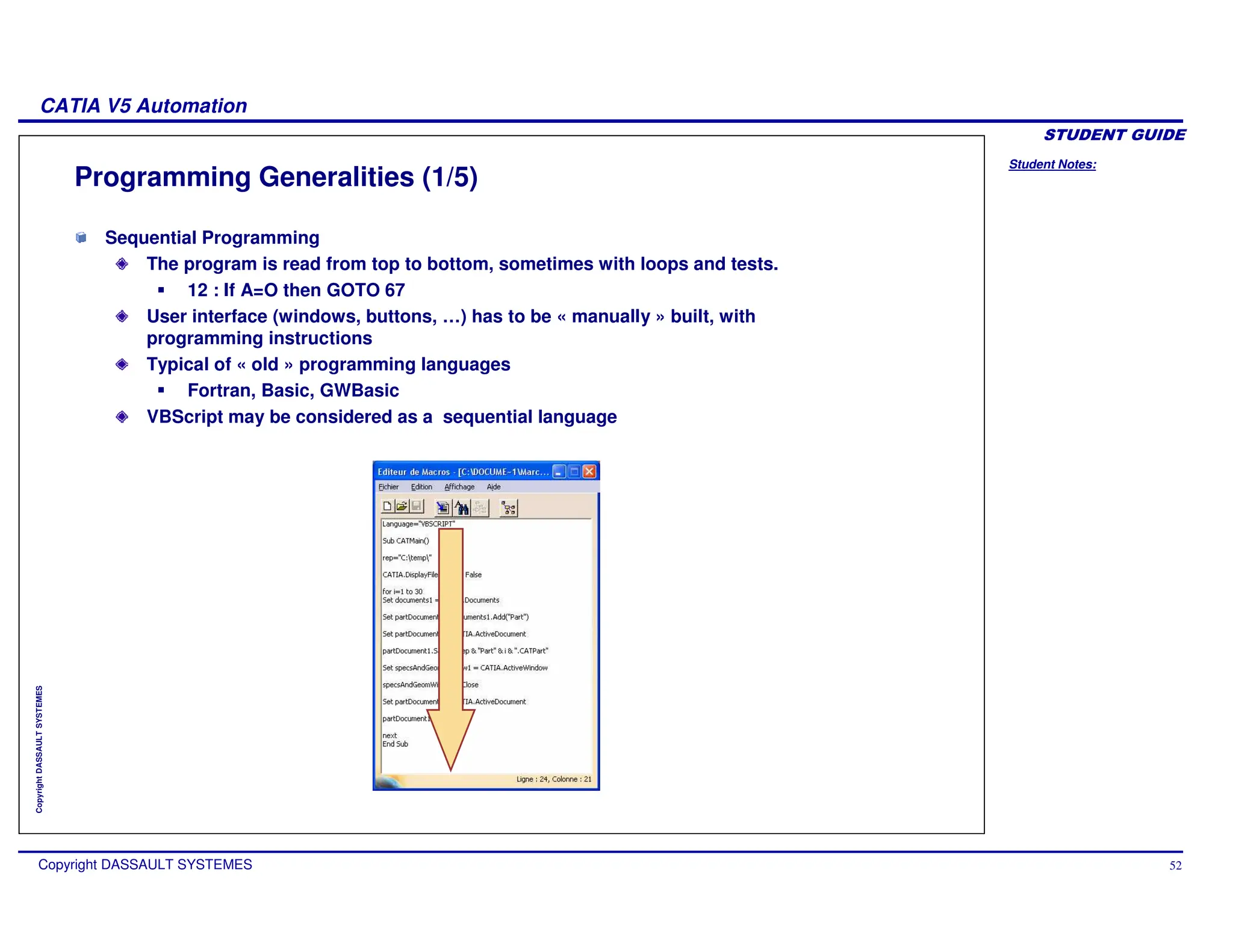
Sequential Programming
The program is read from top to bottom, sometimes with loops and tests.
12 : If A=O then GOTO 67
User interface (windows, buttons, …) has to be « manually » built, with
programming instructions
Typical of « old » programming languages
Fortran, Basic, GWBasic
VBScript may be considered as a sequential language
Student Notes:
CATIA V5 Automation
Copyright DASSAULT SYSTEMES 53
Copyright
DASSAULT
SYSTEMES
Programming Generalities (2/5)
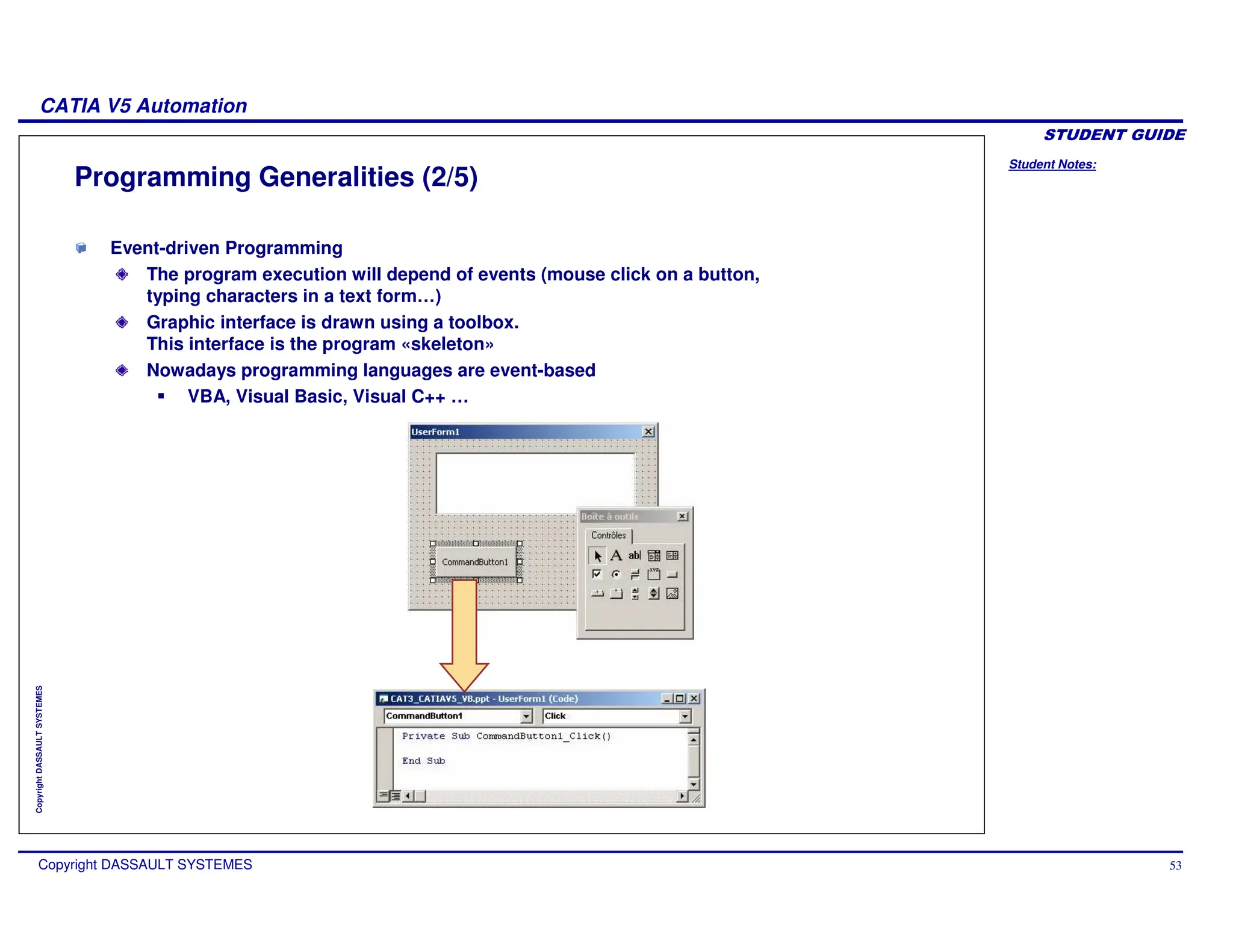
Event-driven Programming
The program execution will depend of events (mouse click on a button,
typing characters in a text form…)
Graphic interface is drawn using a toolbox.
This interface is the program «skeleton»
Nowadays programming languages are event-based
VBA, Visual Basic, Visual C++ …
Student Notes:
CATIA V5 Automation
Copyright DASSAULT SYSTEMES 54
Copyright
DASSAULT
SYSTEMES
Programming Generalities (3/5)
Object Programming
In the application, all is Object
These Objects have Properties that you can read or set
These Objects have Methods which will modify their behavior
An example …
Student Notes:
CATIA V5 Automation
Copyright DASSAULT SYSTEMES 55
Copyright
DASSAULT
SYSTEMES
Programming Generalities (4/5)
An example : Bernard owns a garage in Suresnes …
As we have to work with its garage, we need to assign it to a «type», and a «variable
name» :
Dim myGarage As Garage
set myGarage = Bernard.Garage
To get its address (Proprerty of myGarage Object), I can get this :
myGarage.Address
Bernard has a Collection of cars
To get one special car :
Set myCar = myGarage.Cars.Item(2)
Set myCar = myGarage.Cars.Item(’Golf_2’)
Student Notes:
CATIA V5 Automation
Copyright DASSAULT SYSTEMES 56
Copyright
DASSAULT
SYSTEMES
Programming Generalities (5/5)
To select a fuel, I get a Property :
myCar.Fuel = ‘Petrol’
If I do not remember its colour :
Colour = myCar.Colour
To accelerate, I have a method which has the speed I want to reach (the speed is an
argument) :
myCar.Accelerate (110)
The same method may return an object or an information
(here the fuel consumption) :
myConsumption = myCar.Accelerate (110)
Student Notes:
CATIA V5 Automation
Copyright DASSAULT SYSTEMES 57
Copyright
DASSAULT
SYSTEMES
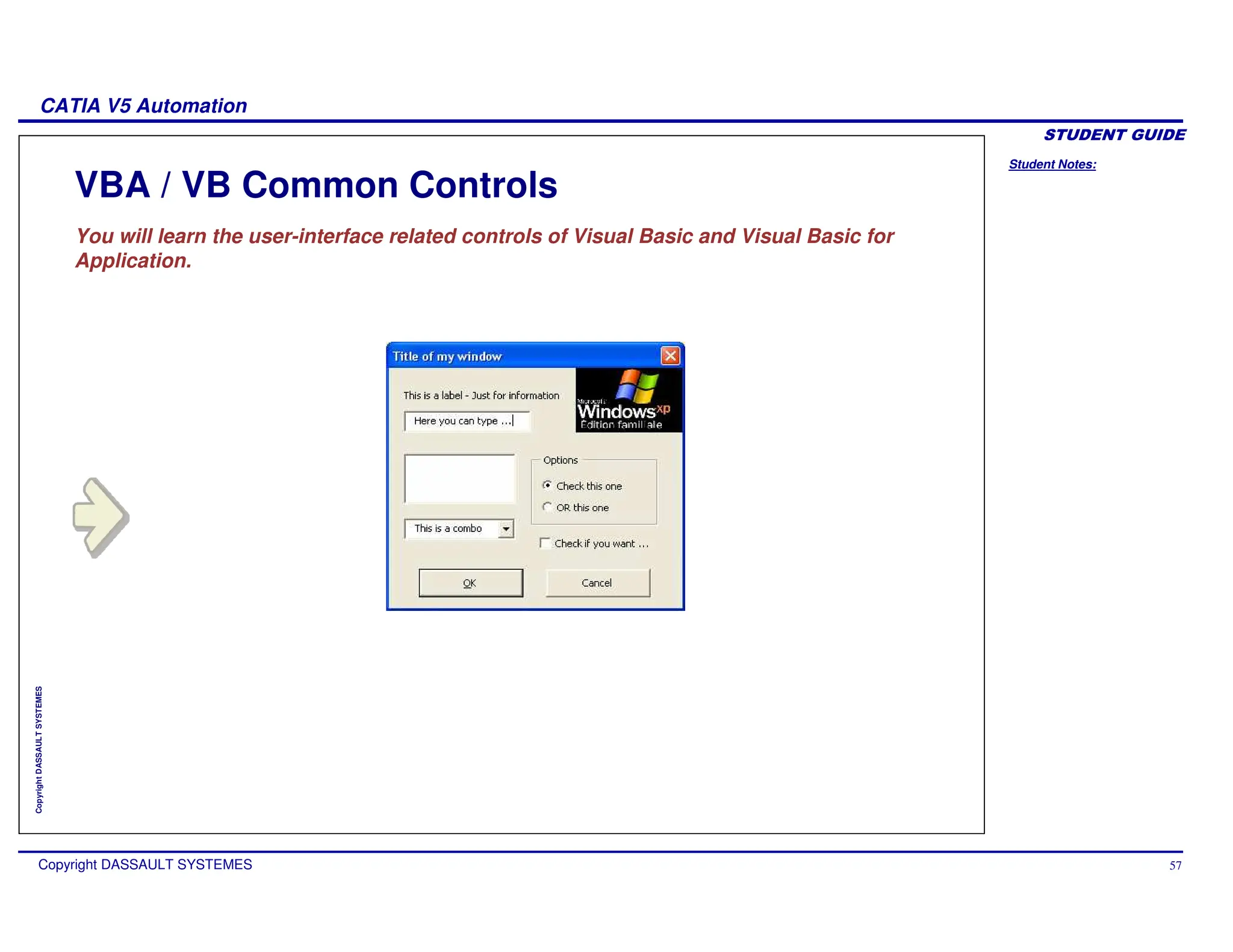
VBA / VB Common Controls
You will learn the user-interface related controls of Visual Basic and Visual Basic for
Application.
Student Notes:
CATIA V5 Automation
Copyright DASSAULT SYSTEMES 58
Copyright
DASSAULT
SYSTEMES
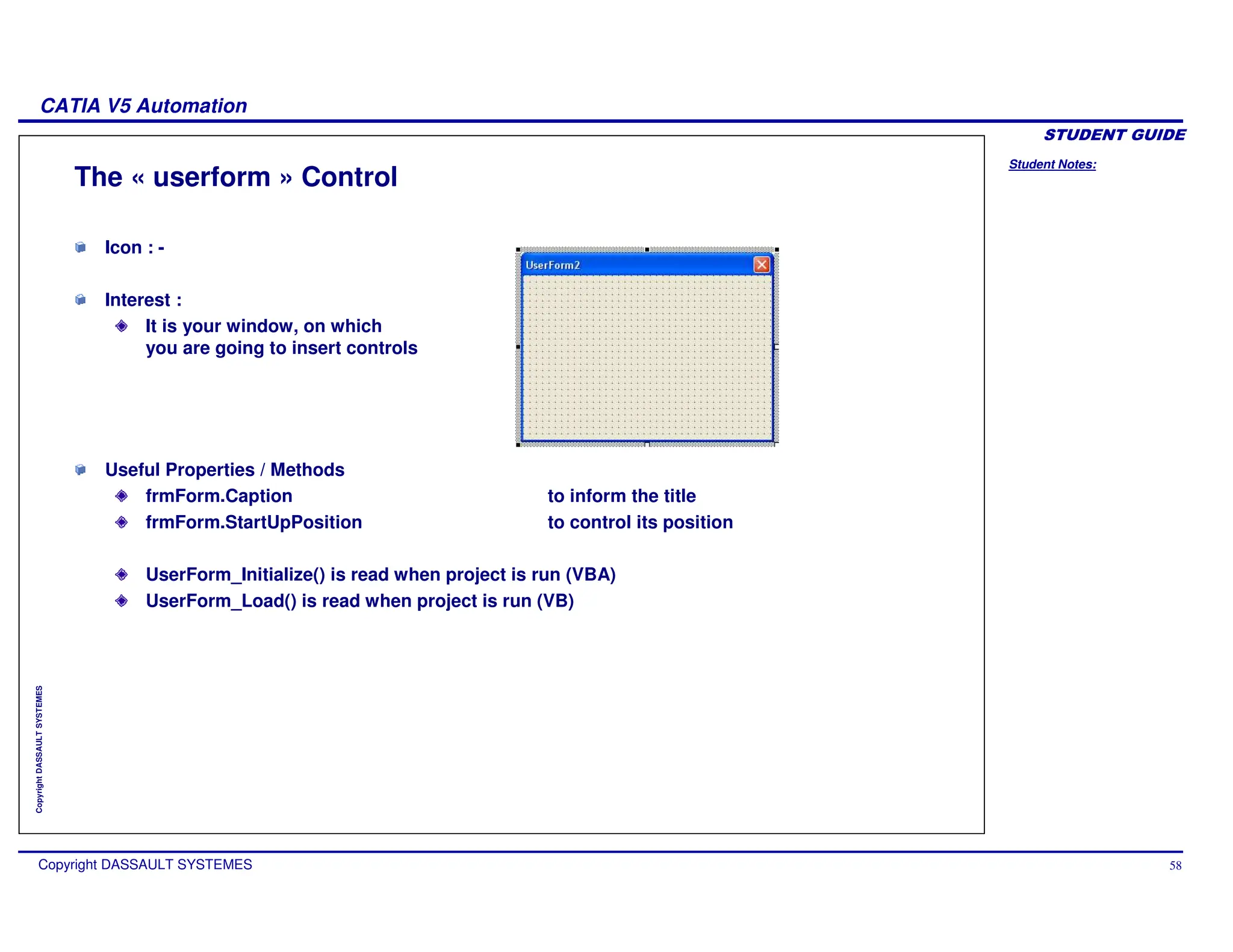
The « userform » Control
Icon : -
Interest :
It is your window, on which
you are going to insert controls
Useful Properties / Methods
frmForm.Caption to inform the title
frmForm.StartUpPosition to control its position
UserForm_Initialize() is read when project is run (VBA)
UserForm_Load() is read when project is run (VB)
Student Notes:
CATIA V5 Automation
Copyright DASSAULT SYSTEMES 59
Copyright
DASSAULT
SYSTEMES
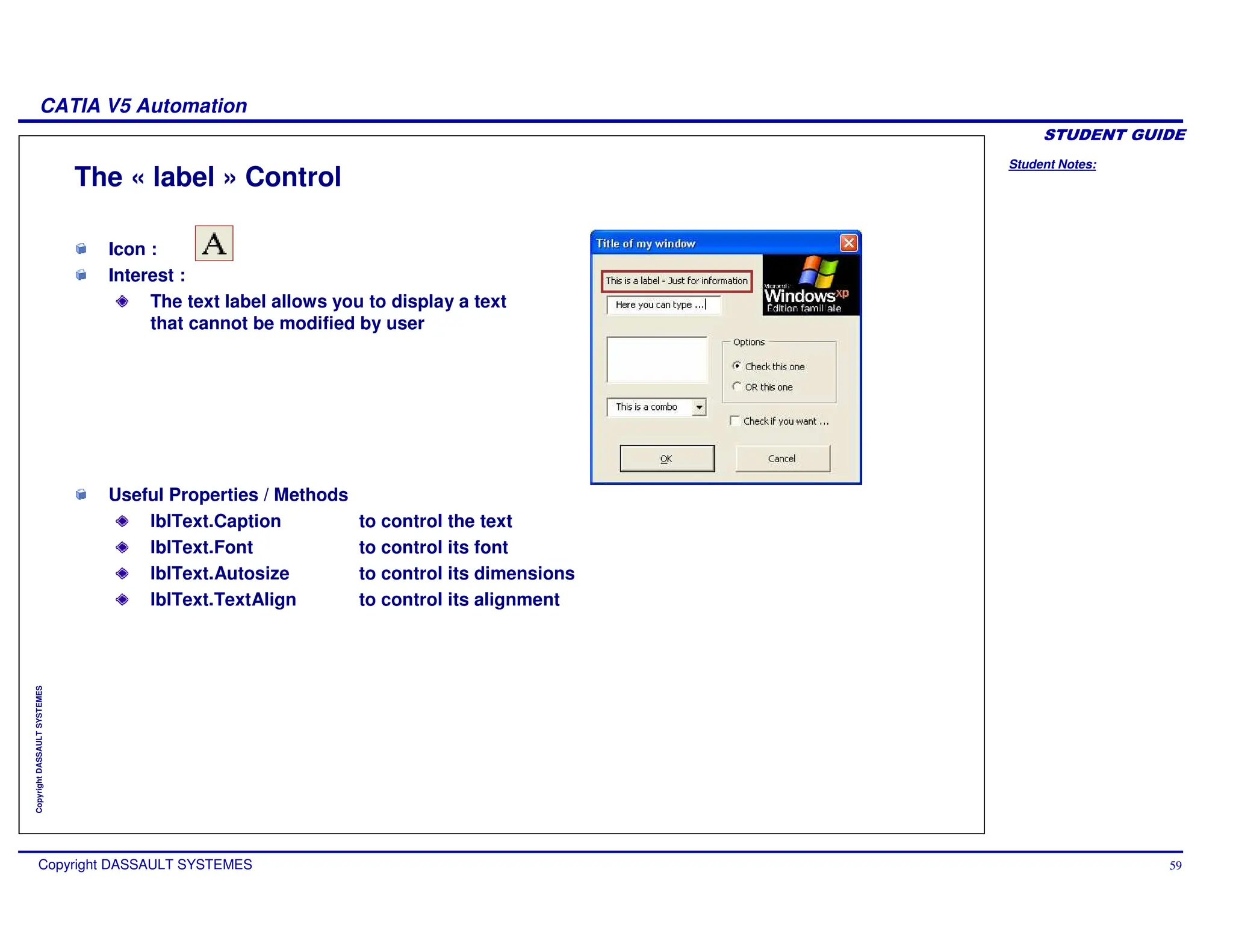
The « label » Control
Icon :
Interest :
The text label allows you to display a text
that cannot be modified by user
Useful Properties / Methods
lblText.Caption to control the text
lblText.Font to control its font
lblText.Autosize to control its dimensions
lblText.TextAlign to control its alignment
Student Notes:
CATIA V5 Automation
Copyright DASSAULT SYSTEMES 60
Copyright
DASSAULT
SYSTEMES
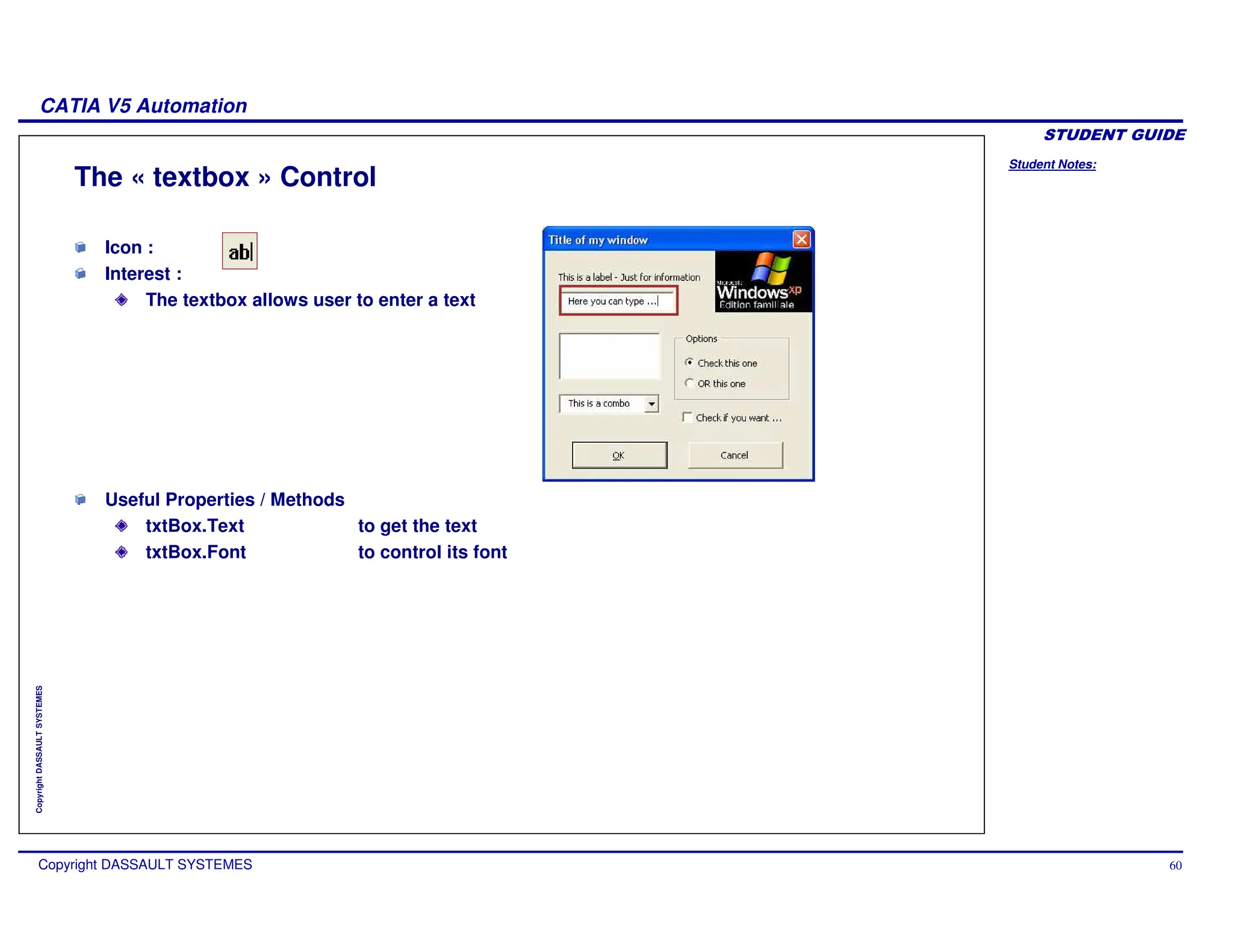
The « textbox » Control
Icon :
Interest :
The textbox allows user to enter a text
Useful Properties / Methods
txtBox.Text to get the text
txtBox.Font to control its font
Student Notes:
CATIA V5 Automation
Copyright DASSAULT SYSTEMES 61
Copyright
DASSAULT
SYSTEMES
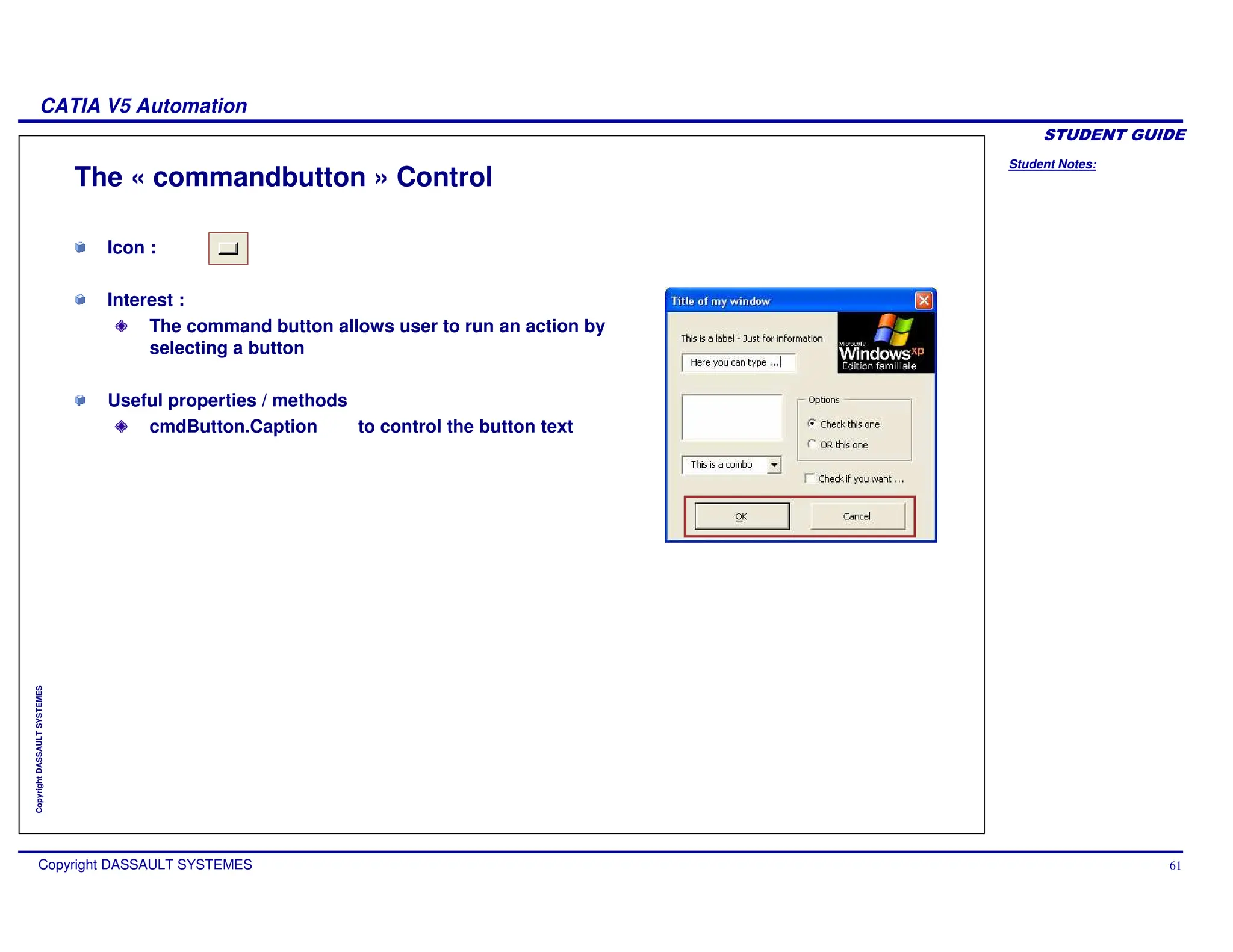
Icon :
Interest :
The command button allows user to run an action by
selecting a button
Useful properties / methods
cmdButton.Caption to control the button text
The « commandbutton » Control
Student Notes:
CATIA V5 Automation
Copyright DASSAULT SYSTEMES 62
Copyright
DASSAULT
SYSTEMES
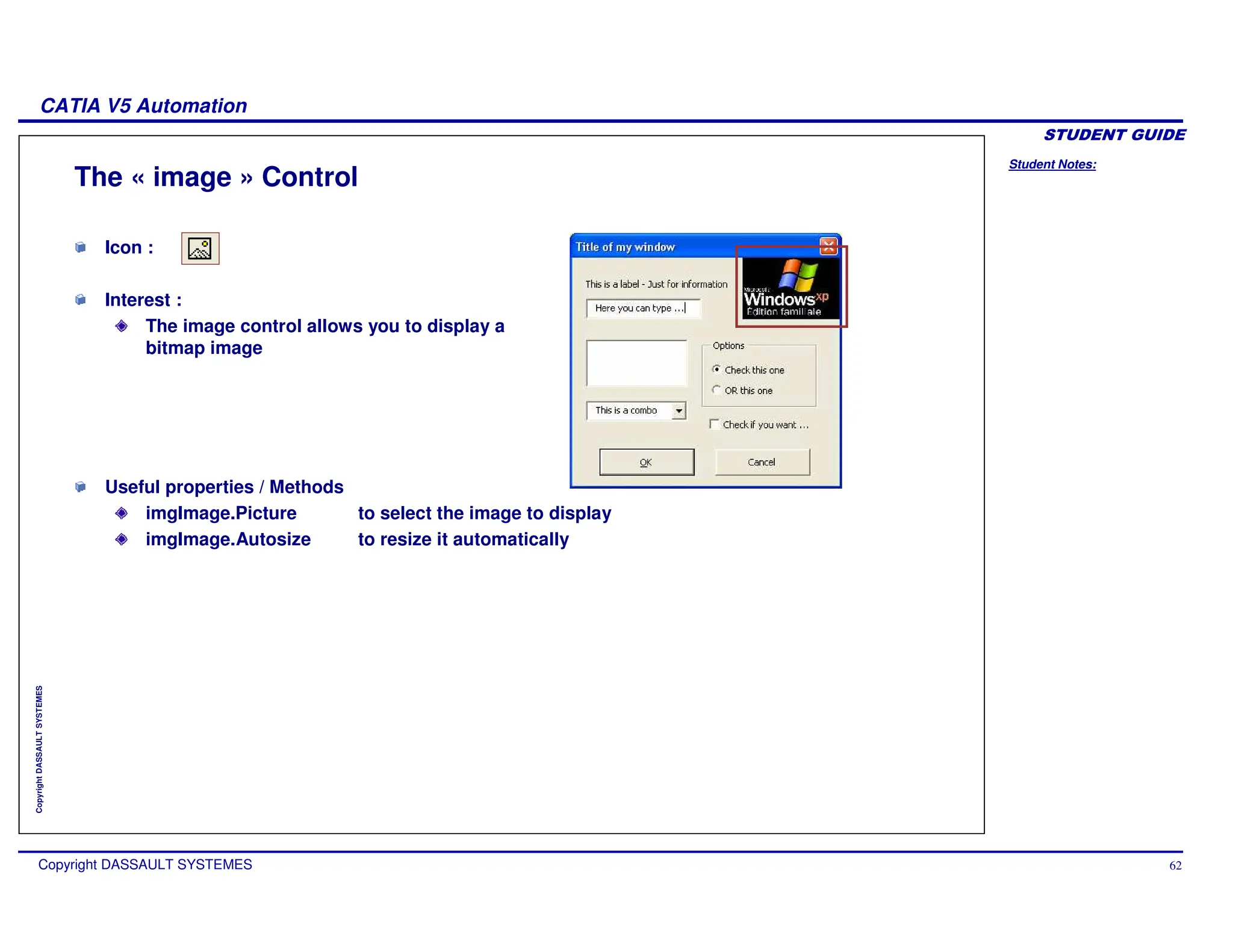
Icon :
Interest :
The image control allows you to display a
bitmap image
The « image » Control
Useful properties / Methods
imgImage.Picture to select the image to display
imgImage.Autosize to resize it automatically
Student Notes:
CATIA V5 Automation
Copyright DASSAULT SYSTEMES 63
Copyright
DASSAULT
SYSTEMES
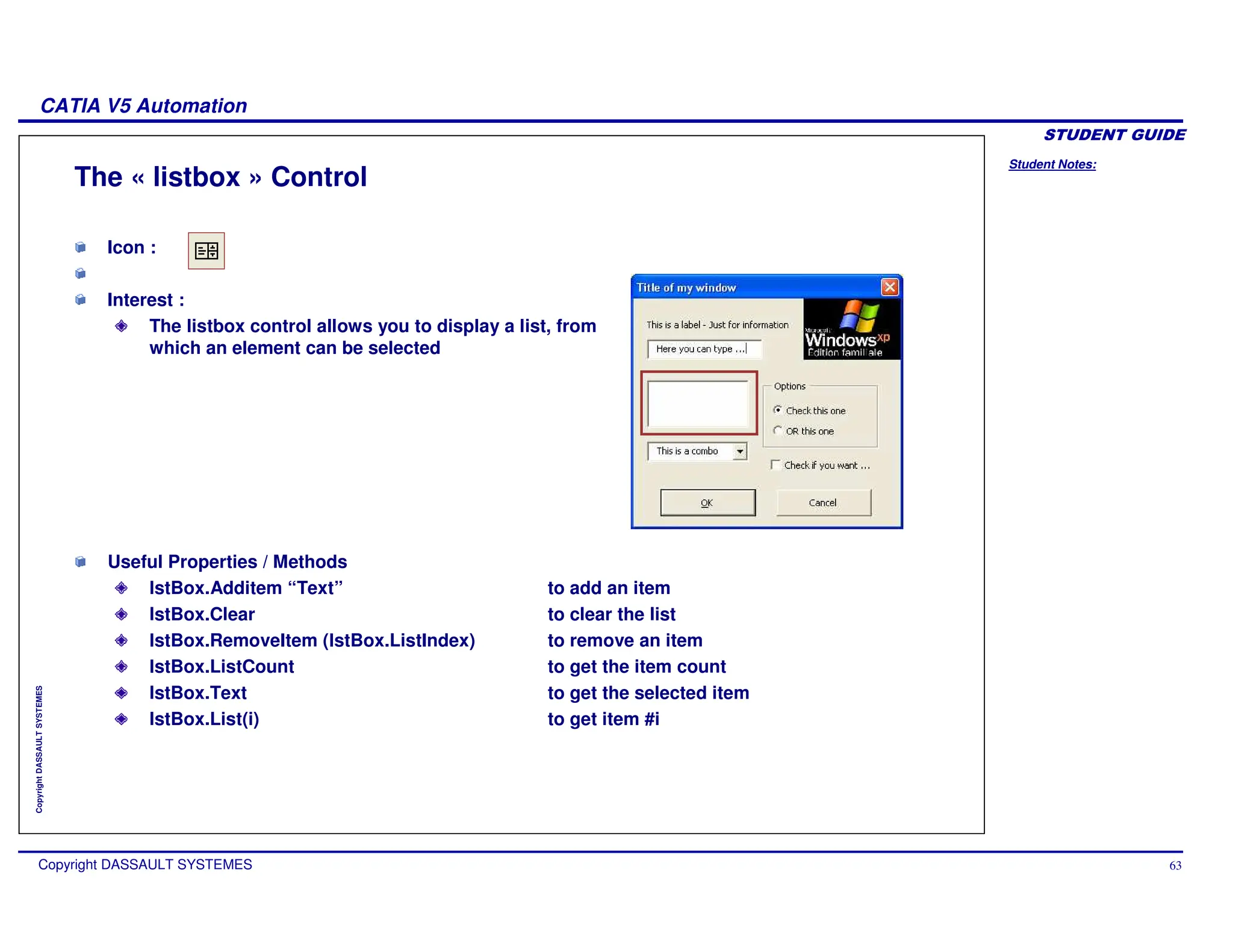
The « listbox » Control
Icon :
Interest :
The listbox control allows you to display a list, from
which an element can be selected
Useful Properties / Methods
lstBox.Additem “Text” to add an item
lstBox.Clear to clear the list
lstBox.RemoveItem (lstBox.ListIndex) to remove an item
lstBox.ListCount to get the item count
lstBox.Text to get the selected item
lstBox.List(i) to get item #i
Student Notes:
CATIA V5 Automation
Copyright DASSAULT SYSTEMES 64
Copyright
DASSAULT
SYSTEMES
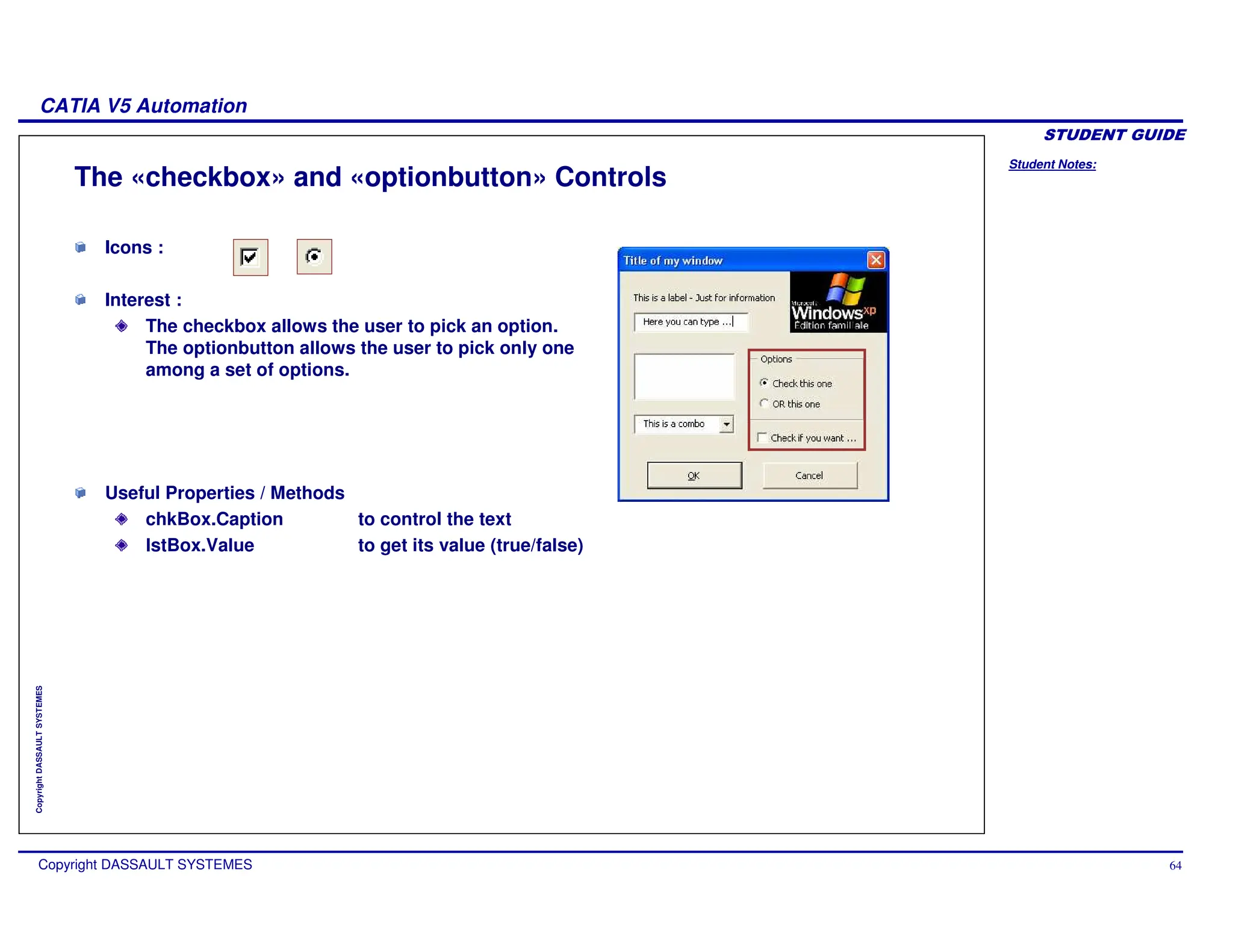
The «checkbox» and «optionbutton» Controls
Icons :
Interest :
The checkbox allows the user to pick an option.
The optionbutton allows the user to pick only one
among a set of options.
Useful Properties / Methods
chkBox.Caption to control the text
lstBox.Value to get its value (true/false)
Student Notes:
CATIA V5 Automation
Copyright DASSAULT SYSTEMES 65
Copyright
DASSAULT
SYSTEMES
Managing Data/Variables (1/3)
Naming variables
It must be less than 255 characters
Special characters are forbidden : space ‘.’ & ...
It must not begin with a number
‘myCar’ and ‘intRadius3’ are ok
‘my Car’ and ‘2Radius’ are not ok
Declaring variables with “Dim” is helpful for programming (it allows
‘completion’), and saves memory at running
Dim myCar as String
Dim myCar$
Dim A1 as Integer
Dim A1%
Student Notes:
CATIA V5 Automation
Copyright DASSAULT SYSTEMES 66
Copyright
DASSAULT
SYSTEMES
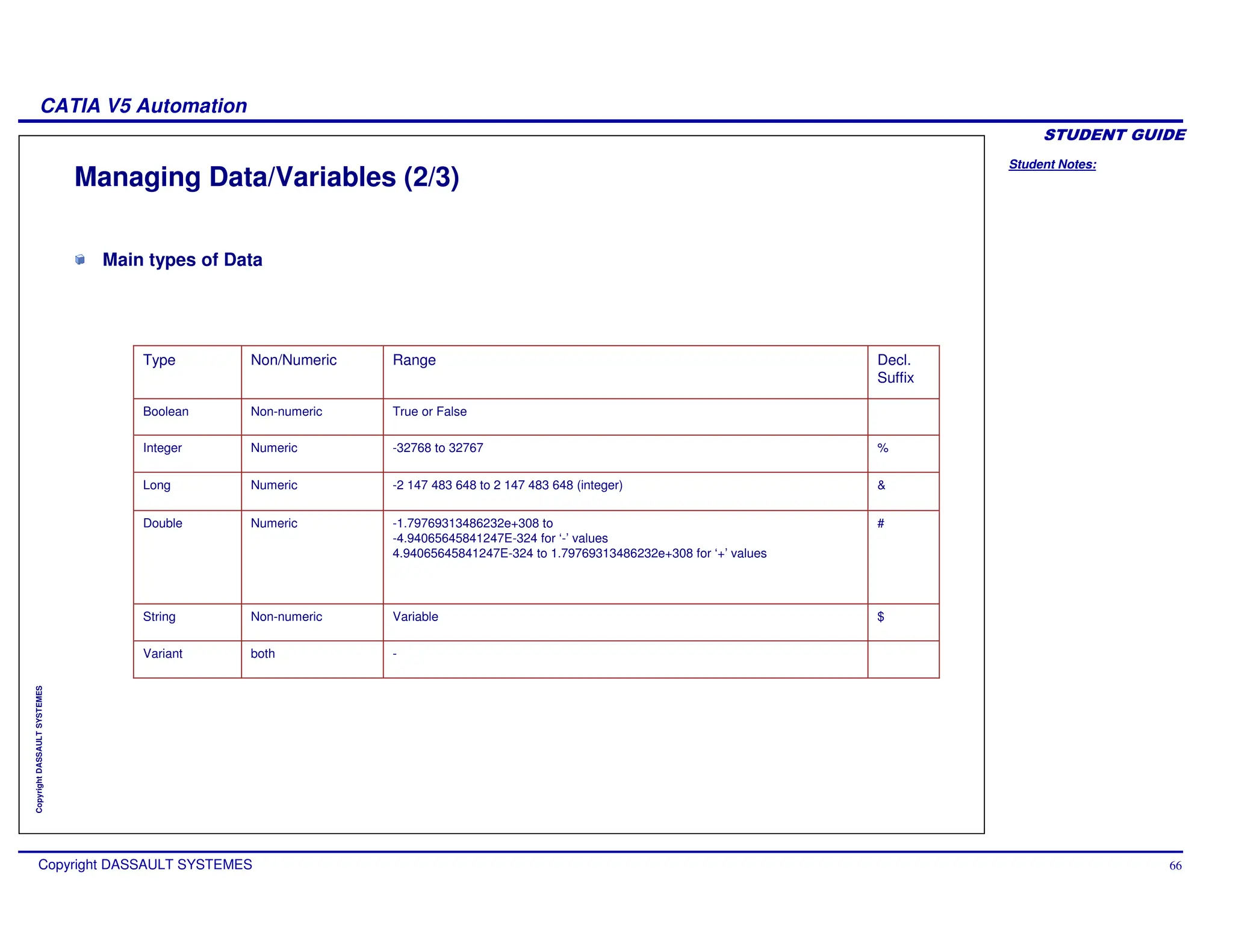
Managing Data/Variables (2/3)
-
both
Variant
Decl.
Suffix
Range
Non/Numeric
Type
$
#
&
%
Variable
Non-numeric
String
-1.79769313486232e+308 to
-4.94065645841247E-324 for ‘-’ values
4.94065645841247E-324 to 1.79769313486232e+308 for ‘+’ values
Numeric
Double
-2 147 483 648 to 2 147 483 648 (integer)
Numeric
Long
-32768 to 32767
Numeric
Integer
True or False
Non-numeric
Boolean
Main types of Data
Student Notes:
CATIA V5 Automation
Copyright DASSAULT SYSTEMES 67
Copyright
DASSAULT
SYSTEMES
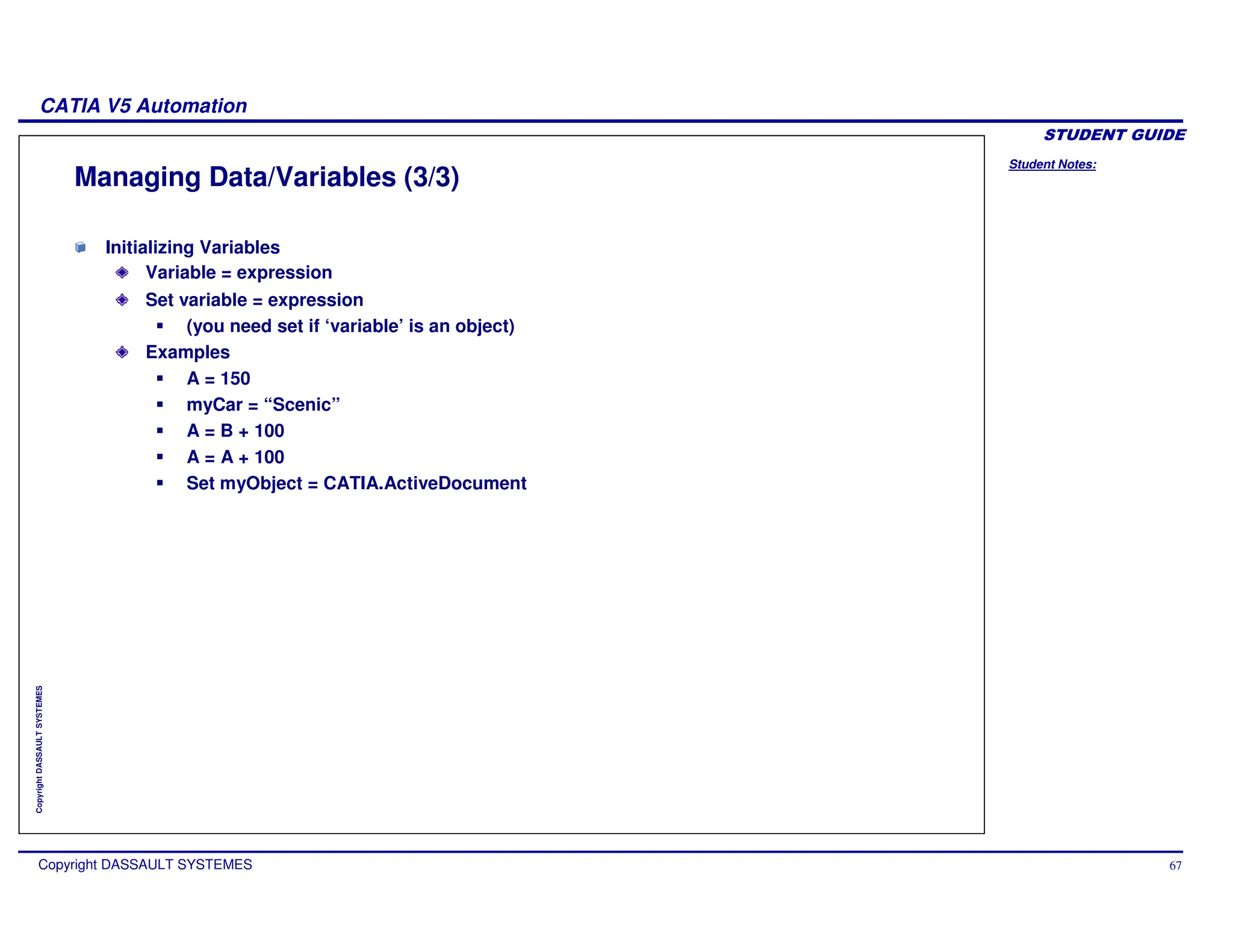
Managing Data/Variables (3/3)
Initializing Variables
Variable = expression
Set variable = expression
(you need set if ‘variable’ is an object)
Examples
A = 150
myCar = “Scenic”
A = B + 100
A = A + 100
Set myObject = CATIA.ActiveDocument
Student Notes:
CATIA V5 Automation
Copyright DASSAULT SYSTEMES 68
Copyright
DASSAULT
SYSTEMES
Standard VBA/VB window: « msgbox »
Syntax #1
msgbox message
To display a single message (or variable)
example :
msgbox “This is a message”
Syntax #2
value = msgbox (message,[param.],[Title])
To ask a question, and get the result
example :
a1=msgBox("Are you
sure?",vbOKCancel+vbCritical,"Question")
Student Notes:
CATIA V5 Automation
Copyright DASSAULT SYSTEMES 69
Copyright
DASSAULT
SYSTEMES
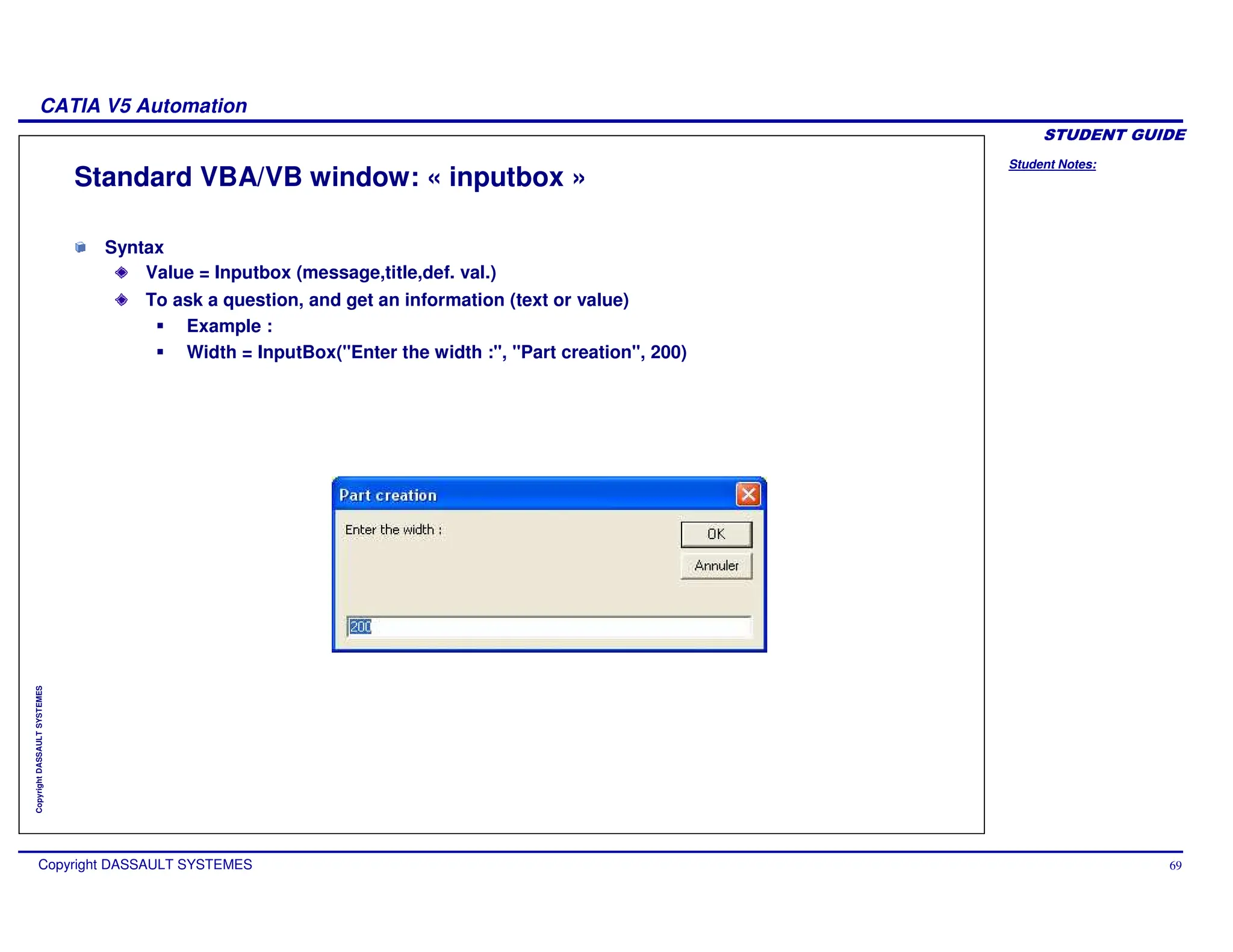
Standard VBA/VB window: « inputbox »
Syntax
Value = Inputbox (message,title,def. val.)
To ask a question, and get an information (text or value)
Example :
Width = InputBox("Enter the width :", "Part creation", 200)
Student Notes:
CATIA V5 Automation
Copyright DASSAULT SYSTEMES 70
Copyright
DASSAULT
SYSTEMES
VB Programming Techniques
You will learn Visual Basic Programming Techniques which are required for CATIA V5
Automation and Scripting.
Student Notes:
CATIA V5 Automation
Copyright DASSAULT SYSTEMES 71
Copyright
DASSAULT
SYSTEMES
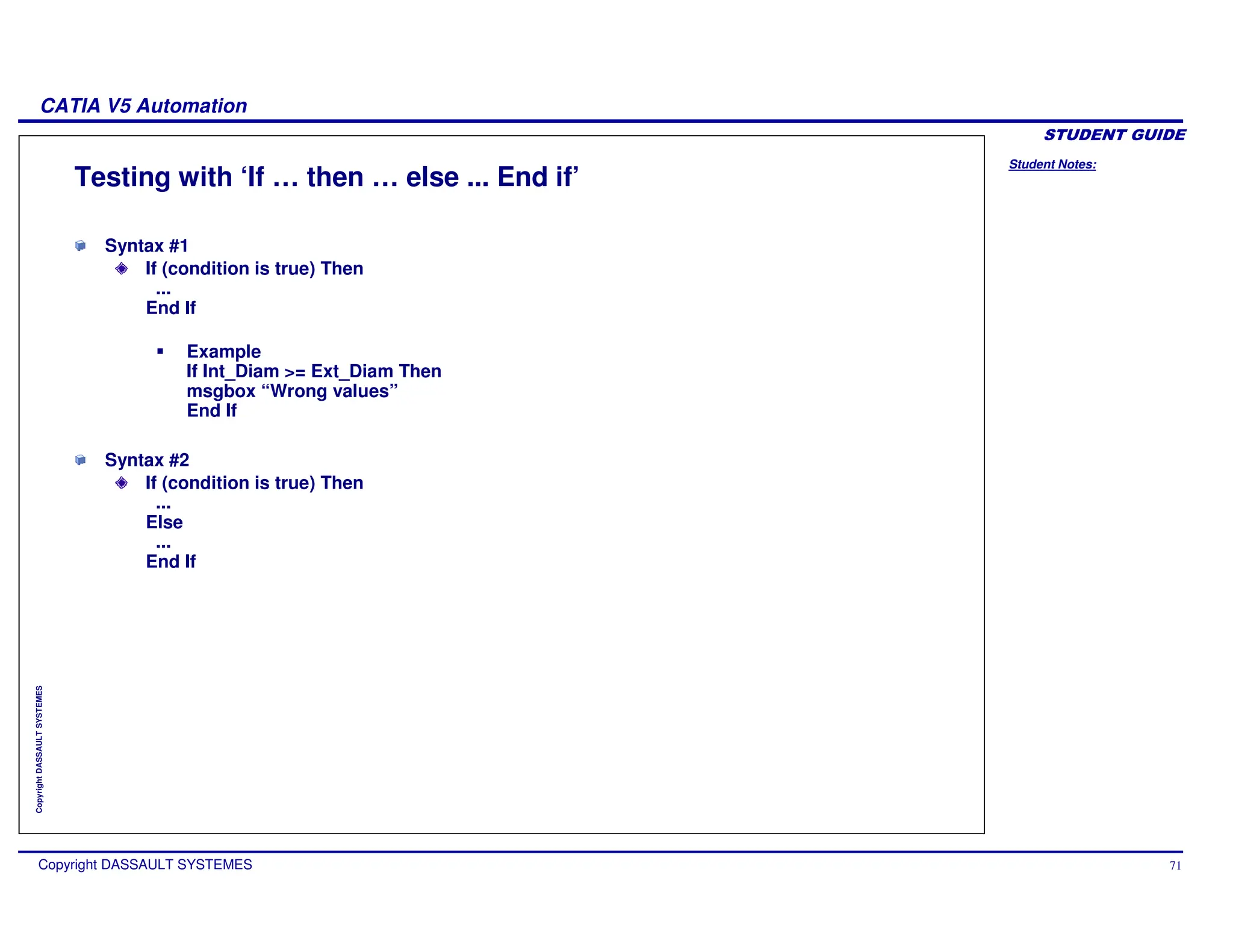
Testing with ‘If … then … else ... End if’
Syntax #1
If (condition is true) Then
...
End If
Example
If Int_Diam >= Ext_Diam Then
msgbox “Wrong values”
End If
Syntax #2
If (condition is true) Then
...
Else
...
End If
Student Notes:
CATIA V5 Automation
Copyright DASSAULT SYSTEMES 72
Copyright
DASSAULT
SYSTEMES
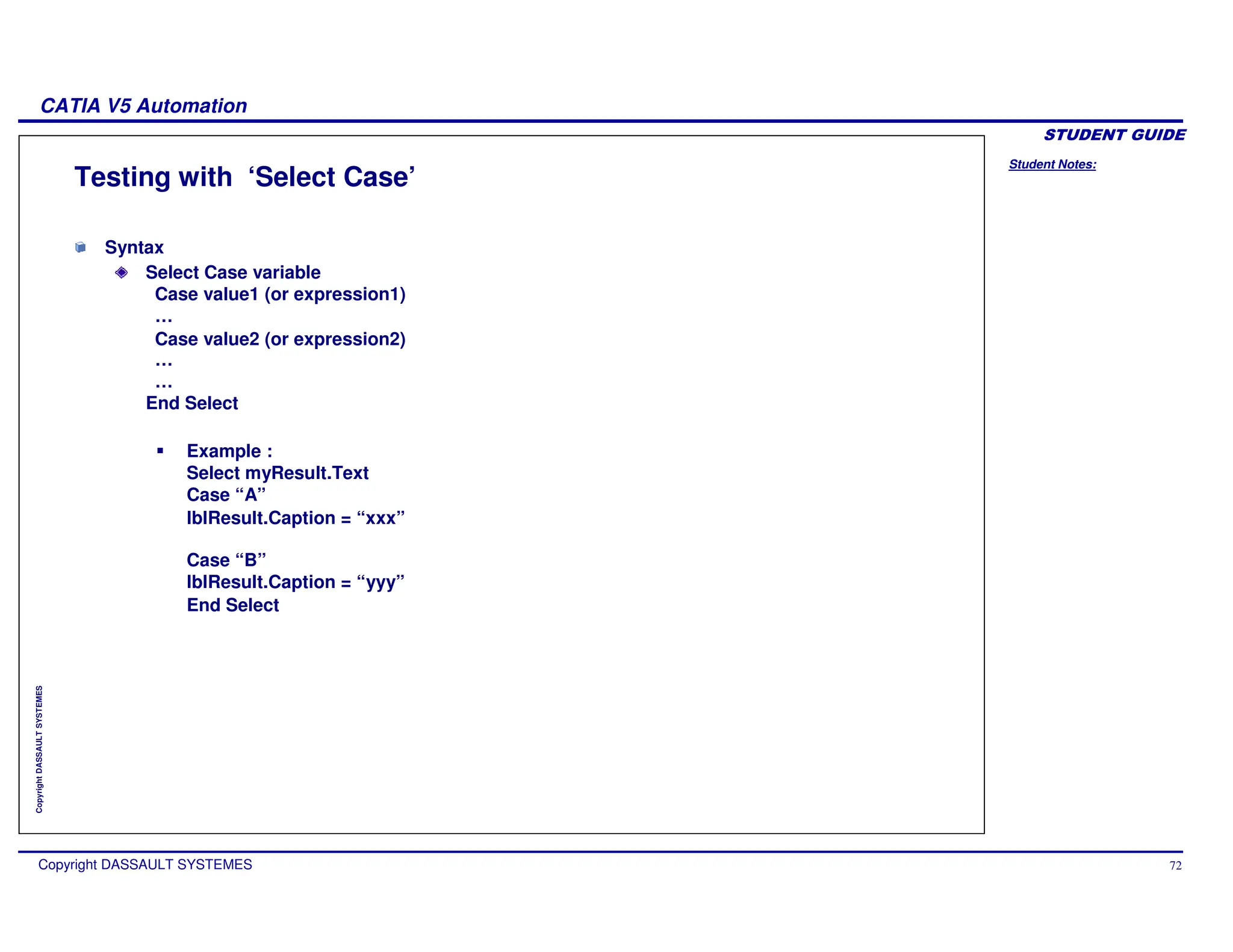
Testing with ‘Select Case’
Syntax
Select Case variable
Case value1 (or expression1)
…
Case value2 (or expression2)
…
…
End Select
Example :
Select myResult.Text
Case “A”
lblResult.Caption = “xxx”
Case “B”
lblResult.Caption = “yyy”
End Select
Student Notes:
CATIA V5 Automation
Copyright DASSAULT SYSTEMES 73
Copyright
DASSAULT
SYSTEMES
Loops with ‘For… Next and Do’…Loop
Syntax
For i = x To y [Step z]
...
Next [i]
Example :
For incr = 0 to 10
msgbox “Increment is ” + incr
Next
Syntax
Do While (condition is true)
...
Loop
Example :
Do While i <10
lblOut.Caption=i
i=i+1
Next
Student Notes:
CATIA V5 Automation
Copyright DASSAULT SYSTEMES 74
Copyright
DASSAULT
SYSTEMES
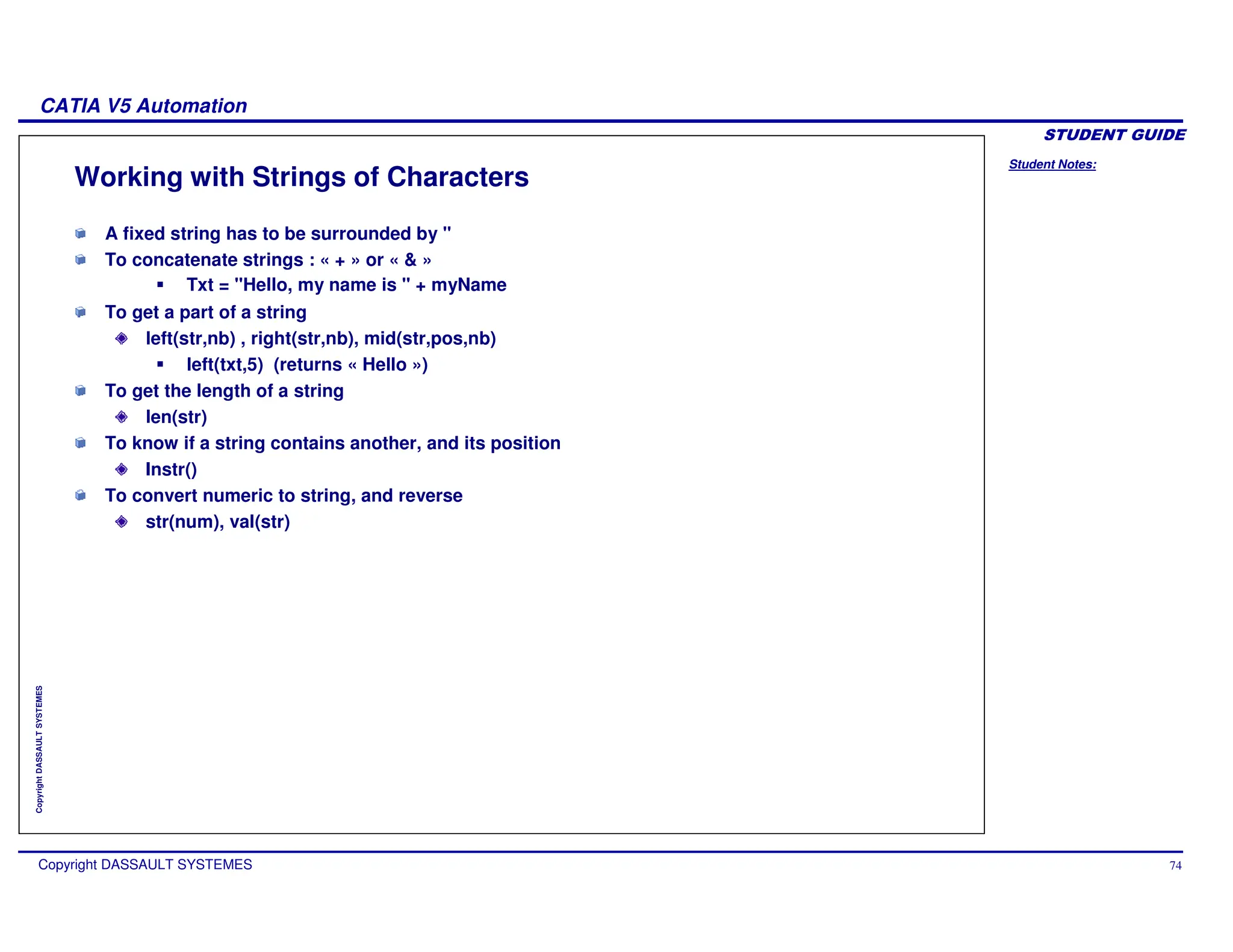
Working with Strings of Characters
A fixed string has to be surrounded by "
To concatenate strings : « + » or « & »
Txt = "Hello, my name is " + myName
To get a part of a string
left(str,nb) , right(str,nb), mid(str,pos,nb)
left(txt,5) (returns « Hello »)
To get the length of a string
len(str)
To know if a string contains another, and its position
Instr()
To convert numeric to string, and reverse
str(num), val(str)
Student Notes:
CATIA V5 Automation
Copyright DASSAULT SYSTEMES 75
Copyright
DASSAULT
SYSTEMES
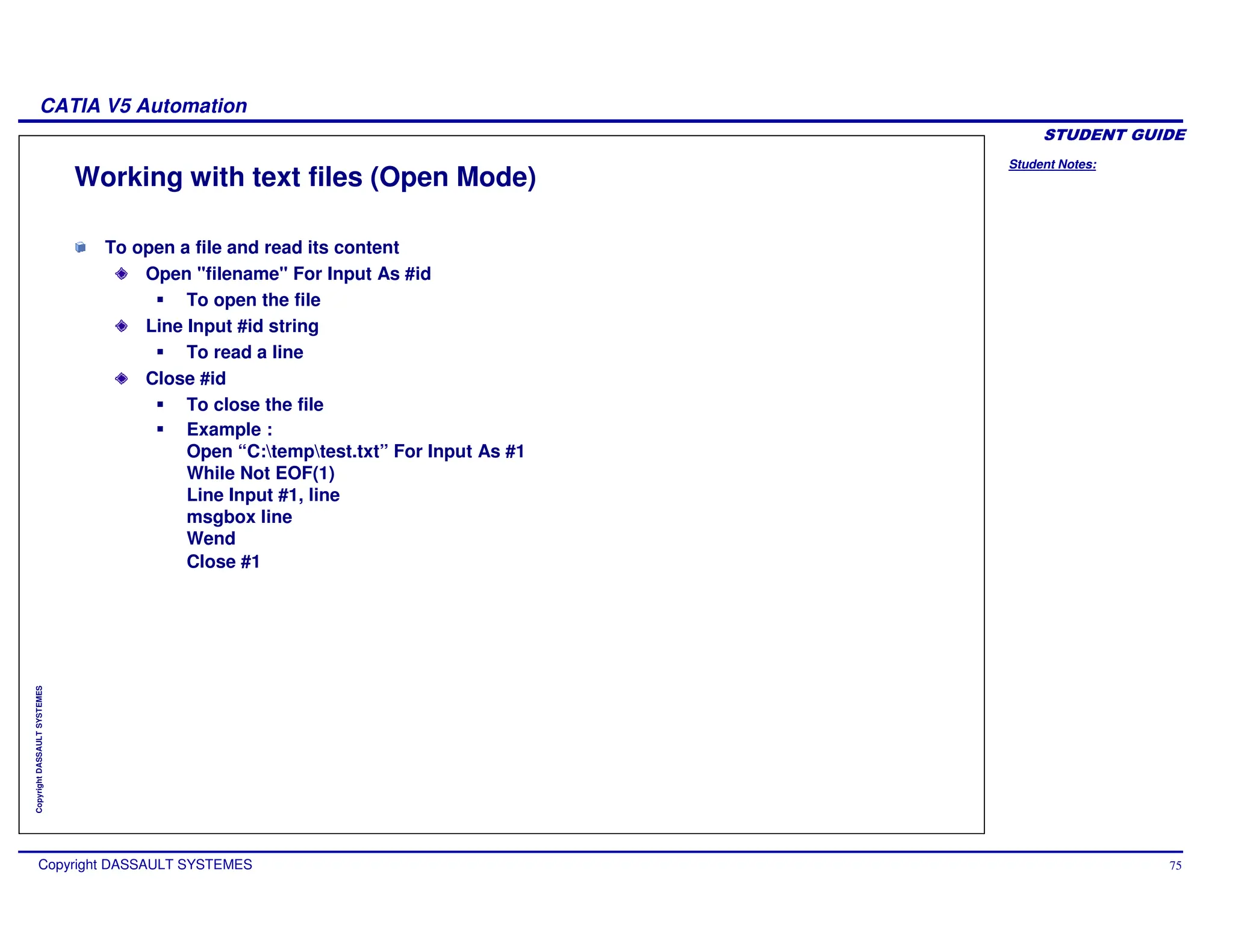
Working with text files (Open Mode)
To open a file and read its content
Open "filename" For Input As #id
To open the file
Line Input #id string
To read a line
Close #id
To close the file
Example :
Open “C:temptest.txt” For Input As #1
While Not EOF(1)
Line Input #1, line
msgbox line
Wend
Close #1
Student Notes:
CATIA V5 Automation
Copyright DASSAULT SYSTEMES 76
Copyright
DASSAULT
SYSTEMES
Working with text files (Write Mode)
To open a new file and write
Open "filename" For Output As #id
To open the file
Print #id ,string
To write a line
Close #id
To close the file
Example :
Open “C:temptestw.txt” For Output As #2
For i = 1 to 100
Print #2, i
Next
Close #2
Student Notes:
CATIA V5 Automation
Copyright DASSAULT SYSTEMES 77
Copyright
DASSAULT
SYSTEMES
In this lesson you will learn various CATIA V5 scripting techniques. You will also see
some examples of scripting with some CATIA Features.
Scripting with CATIA V5
Student Notes:
CATIA V5 Automation
Copyright DASSAULT SYSTEMES 78
Copyright
DASSAULT
SYSTEMES
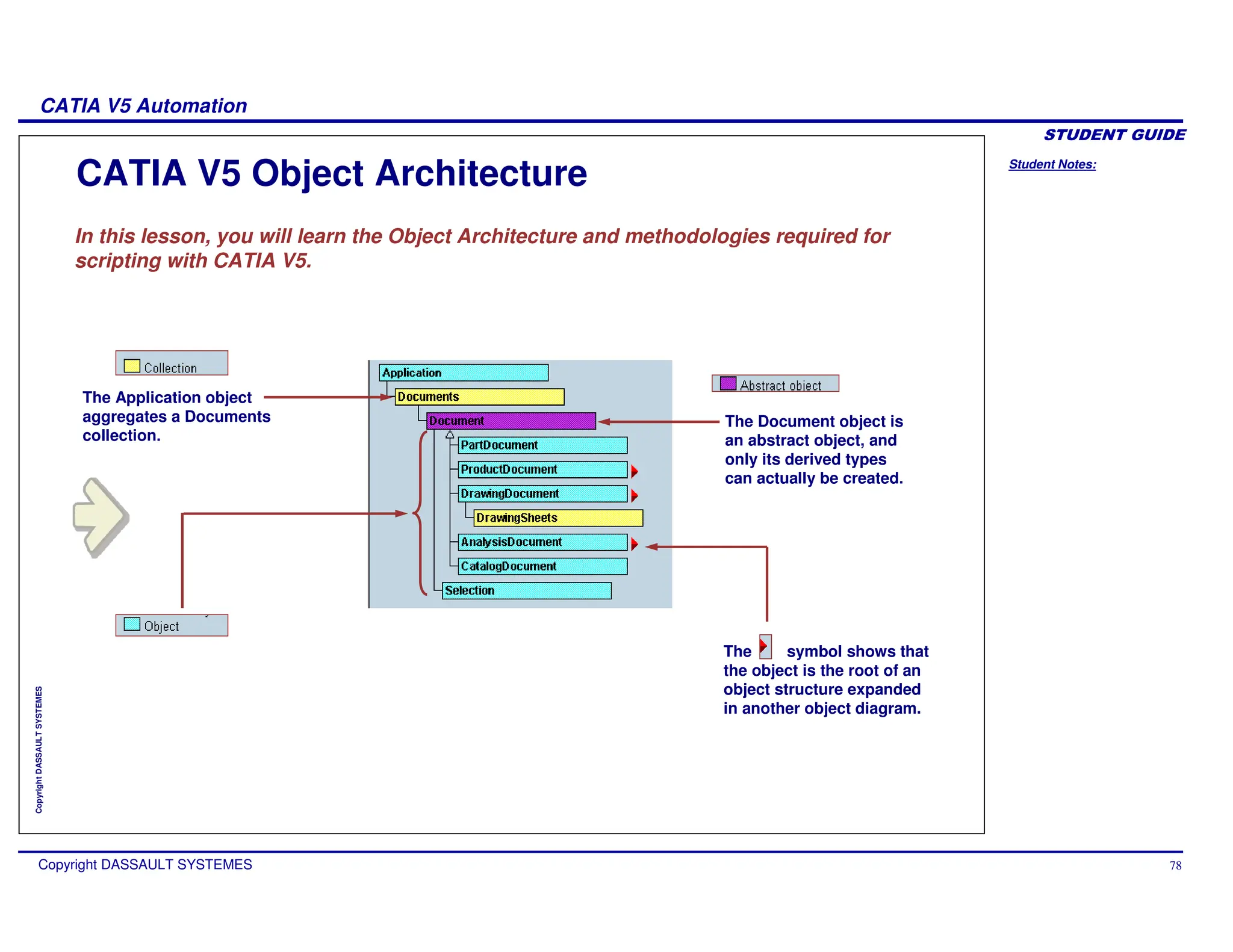
In this lesson, you will learn the Object Architecture and methodologies required for
scripting with CATIA V5.
CATIA V5 Object Architecture
The Application object
aggregates a Documents
collection.
The Document object is
an abstract object, and
only its derived types
can actually be created.
The symbol shows that
the object is the root of an
object structure expanded
in another object diagram.
Student Notes:
CATIA V5 Automation
Copyright DASSAULT SYSTEMES 79
Copyright
DASSAULT
SYSTEMES
Introduction to objects
CATIA V5 exposes models to create documents, parts, surfaces, wireframes, products,
drawings and many other objects available in the CATIA workbenches.
Those exposed objects provide properties and methods to read and modify all existing
objects.
All exposed objects seen in interactive, can be scripted from macros or from out-process
programs.
Table of contents
About Objects, Properties and Methods
About Inheritance and Aggregation
Objects diagrams
Architecture of the Exposed Objects
Student Notes:
CATIA V5 Automation
Copyright DASSAULT SYSTEMES 80
Copyright
DASSAULT
SYSTEMES
About Objects, Collections, Properties, and Methods
Scripting languages such as Visual Basic rely on objects. With CATIA, documents,
windows, viewers, parts, sketches, pads, … even lines and curves are represented
as objects in Visual Basic.
Object: an entity.
Ex: Document, Pad, Line, …
Property: a characteristic of an object.
DocName = CATIA.ActiveDocument.FullName
Method: an action on an object
CATIA.ActiveDocument.SaveAs “MyNewName”
Collection: a list of objects.
The CATIA collections index begins at 1, and not 0 :
For i=1 to CATIA.Documents.Count
msgbox CATIA.Documents.Item(i).Name
Next
We can also access a collection with the name of the object:
Example: msgbox CATIA.Documents.Item("Product1.CATProduct").Name
We add objects to the collections with the method add :
set myPartDoc = CATIA.Documents.add("Part")
Student Notes:
CATIA V5 Automation
Copyright DASSAULT SYSTEMES 81
Copyright
DASSAULT
SYSTEMES
About Inheritance and Aggregation
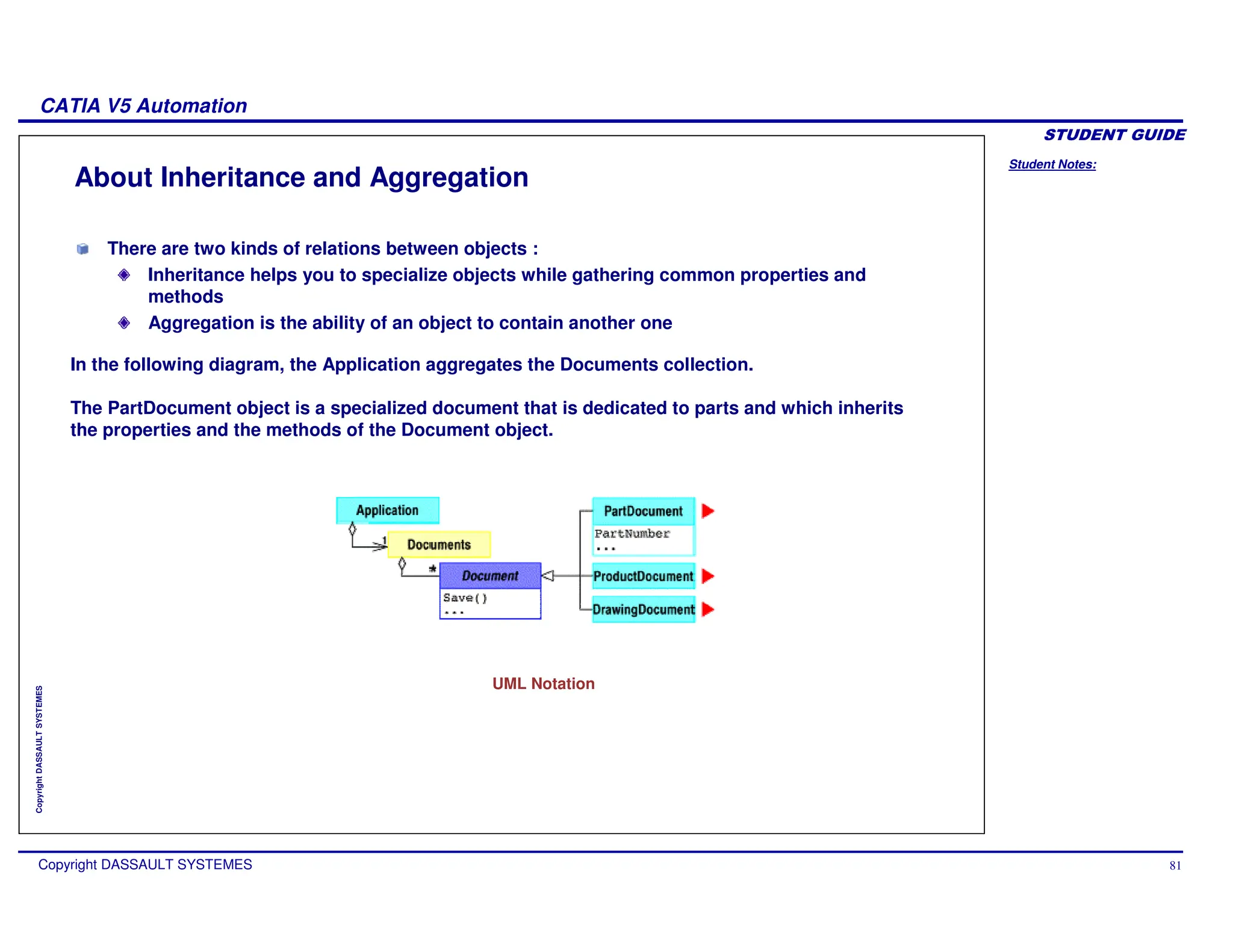
In the following diagram, the Application aggregates the Documents collection.
The PartDocument object is a specialized document that is dedicated to parts and which inherits
the properties and the methods of the Document object.
UML Notation
There are two kinds of relations between objects :
Inheritance helps you to specialize objects while gathering common properties and
methods
Aggregation is the ability of an object to contain another one
Student Notes:
CATIA V5 Automation
Copyright DASSAULT SYSTEMES 82
Copyright
DASSAULT
SYSTEMES
Object Diagrams
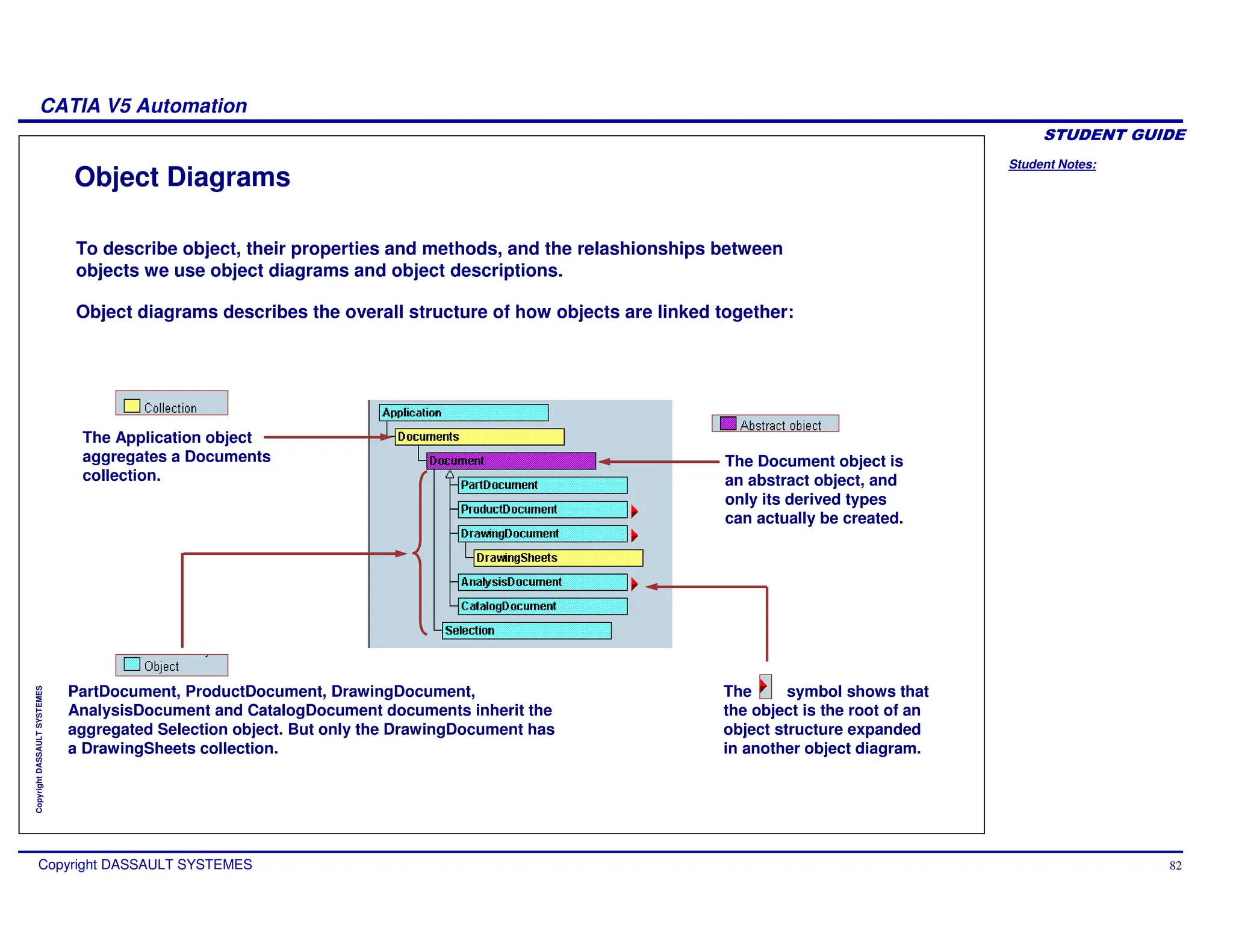
PartDocument, ProductDocument, DrawingDocument,
AnalysisDocument and CatalogDocument documents inherit the
aggregated Selection object. But only the DrawingDocument has
a DrawingSheets collection.
The Application object
aggregates a Documents
collection.
The Document object is
an abstract object, and
only its derived types
can actually be created.
The symbol shows that
the object is the root of an
object structure expanded
in another object diagram.
To describe object, their properties and methods, and the relashionships between
objects we use object diagrams and object descriptions.
Object diagrams describes the overall structure of how objects are linked together:
Student Notes:
CATIA V5 Automation
Copyright DASSAULT SYSTEMES 83
Copyright
DASSAULT
SYSTEMES
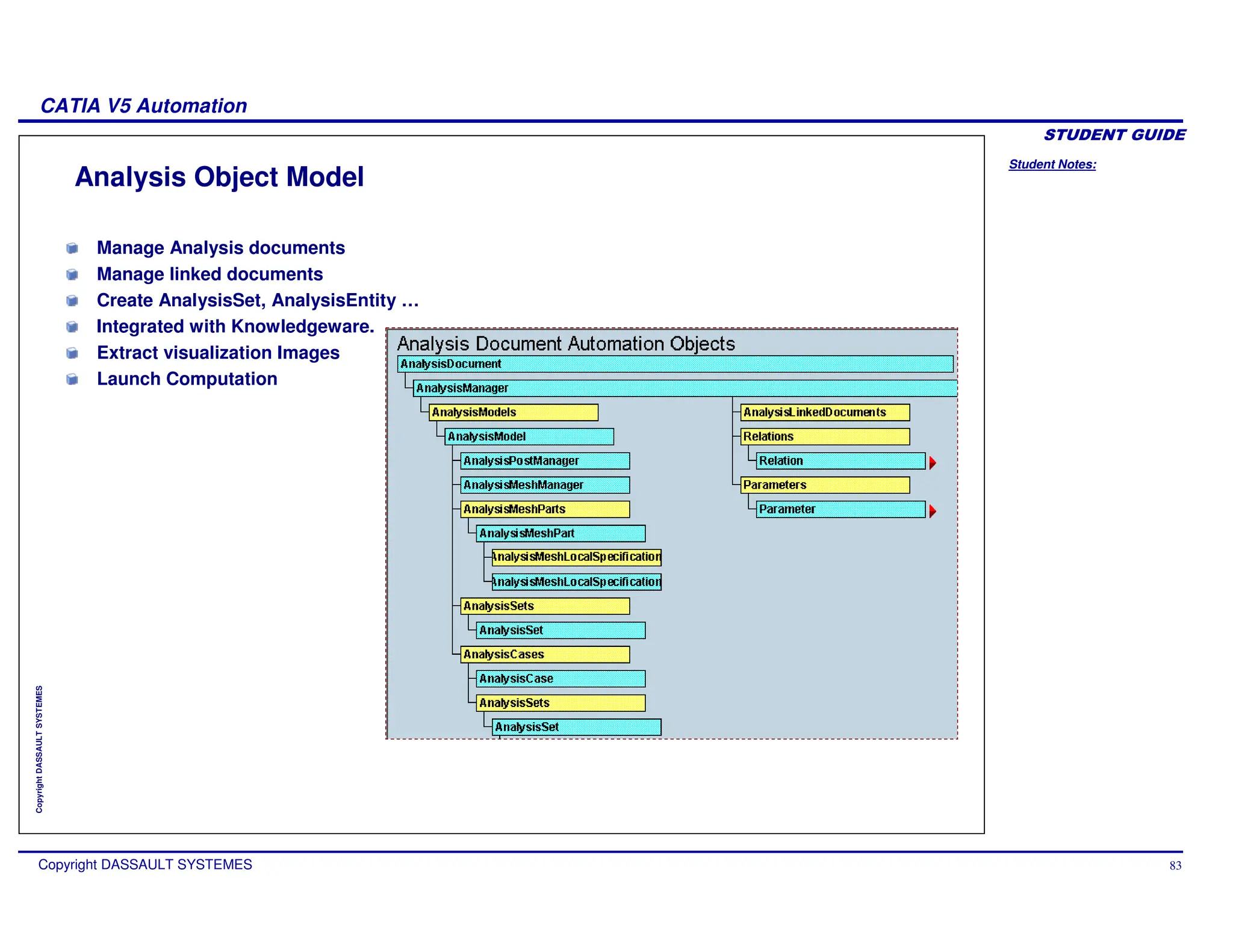
Analysis Object Model
Manage Analysis documents
Manage linked documents
Create AnalysisSet, AnalysisEntity …
Integrated with Knowledgeware.
Extract visualization Images
Launch Computation
Student Notes:
CATIA V5 Automation
Copyright DASSAULT SYSTEMES 84
Copyright
DASSAULT
SYSTEMES
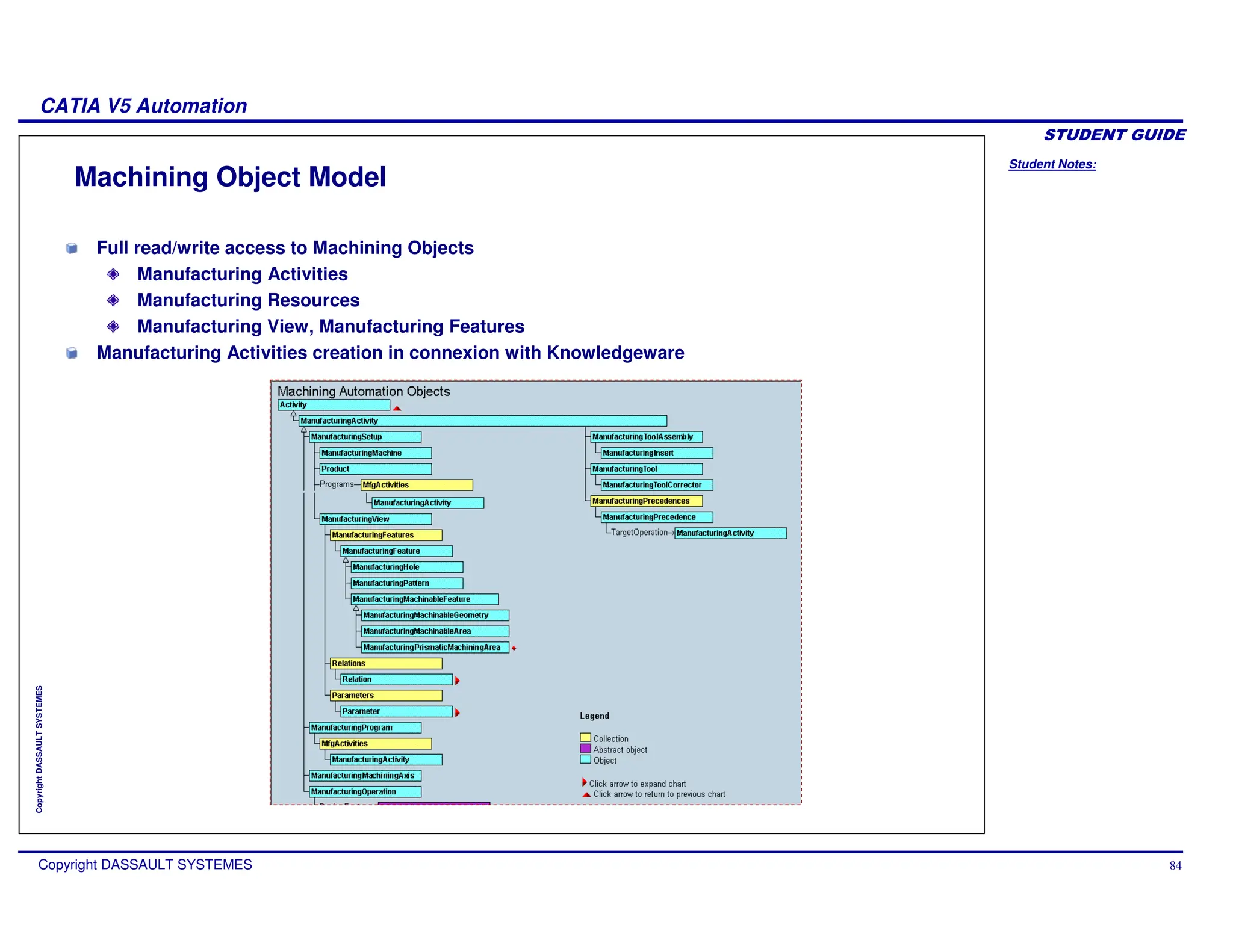
Machining Object Model
Full read/write access to Machining Objects
Manufacturing Activities
Manufacturing Resources
Manufacturing View, Manufacturing Features
Manufacturing Activities creation in connexion with Knowledgeware
Student Notes:
CATIA V5 Automation
Copyright DASSAULT SYSTEMES 85
Copyright
DASSAULT
SYSTEMES
Programming Method
Some tips about Sub and Function
About the use of “Set” and “Call”
About SafeArray variant
Resolution of object
Student Notes:
CATIA V5 Automation
Copyright DASSAULT SYSTEMES 86
Copyright
DASSAULT
SYSTEMES
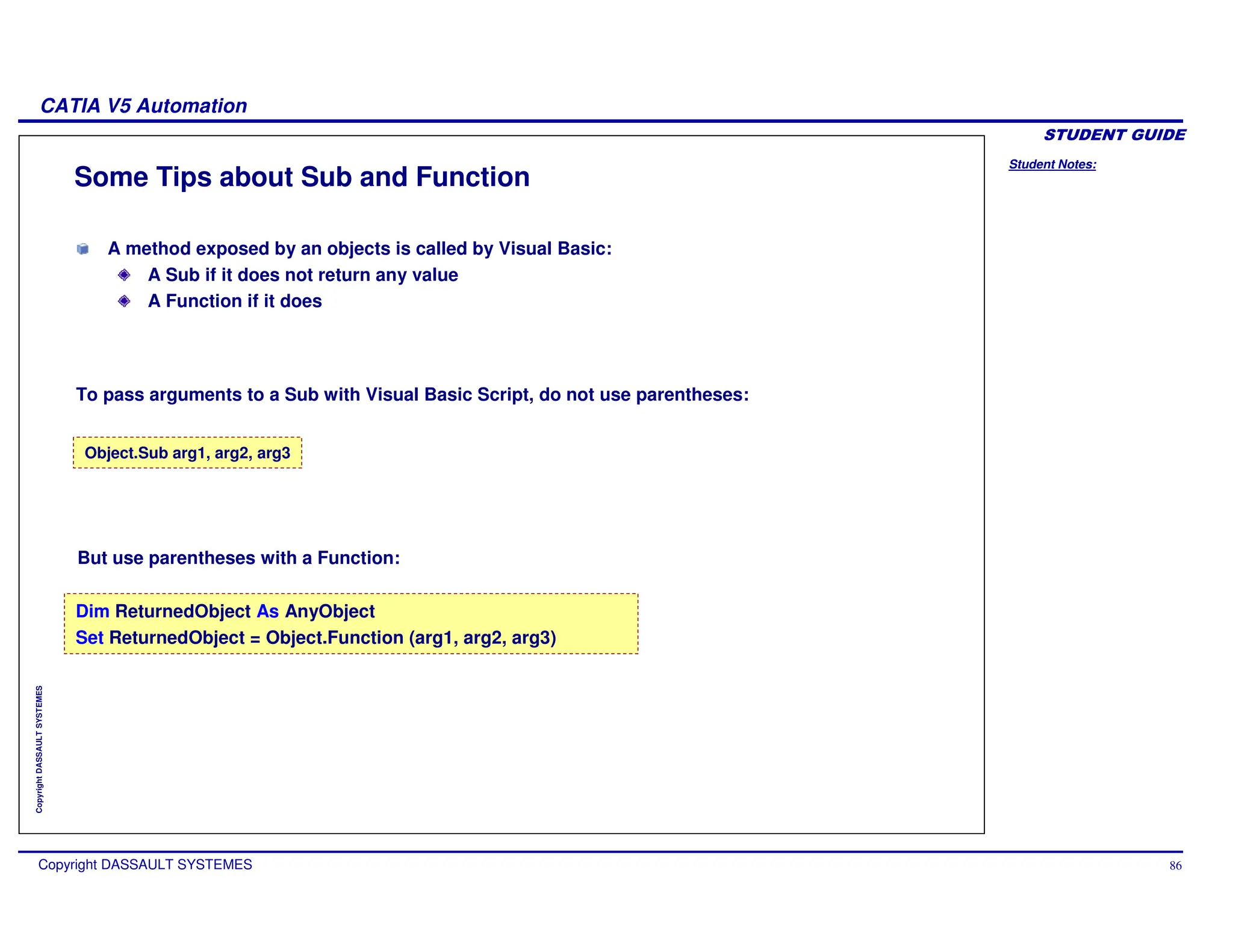
Some Tips about Sub and Function
Dim ReturnedObject As AnyObject
Set ReturnedObject = Object.Function (arg1, arg2, arg3)
Object.Sub arg1, arg2, arg3
But use parentheses with a Function:
A method exposed by an objects is called by Visual Basic:
A Sub if it does not return any value
A Function if it does
To pass arguments to a Sub with Visual Basic Script, do not use parentheses:
Student Notes:
CATIA V5 Automation
Copyright DASSAULT SYSTEMES 87
Copyright
DASSAULT
SYSTEMES
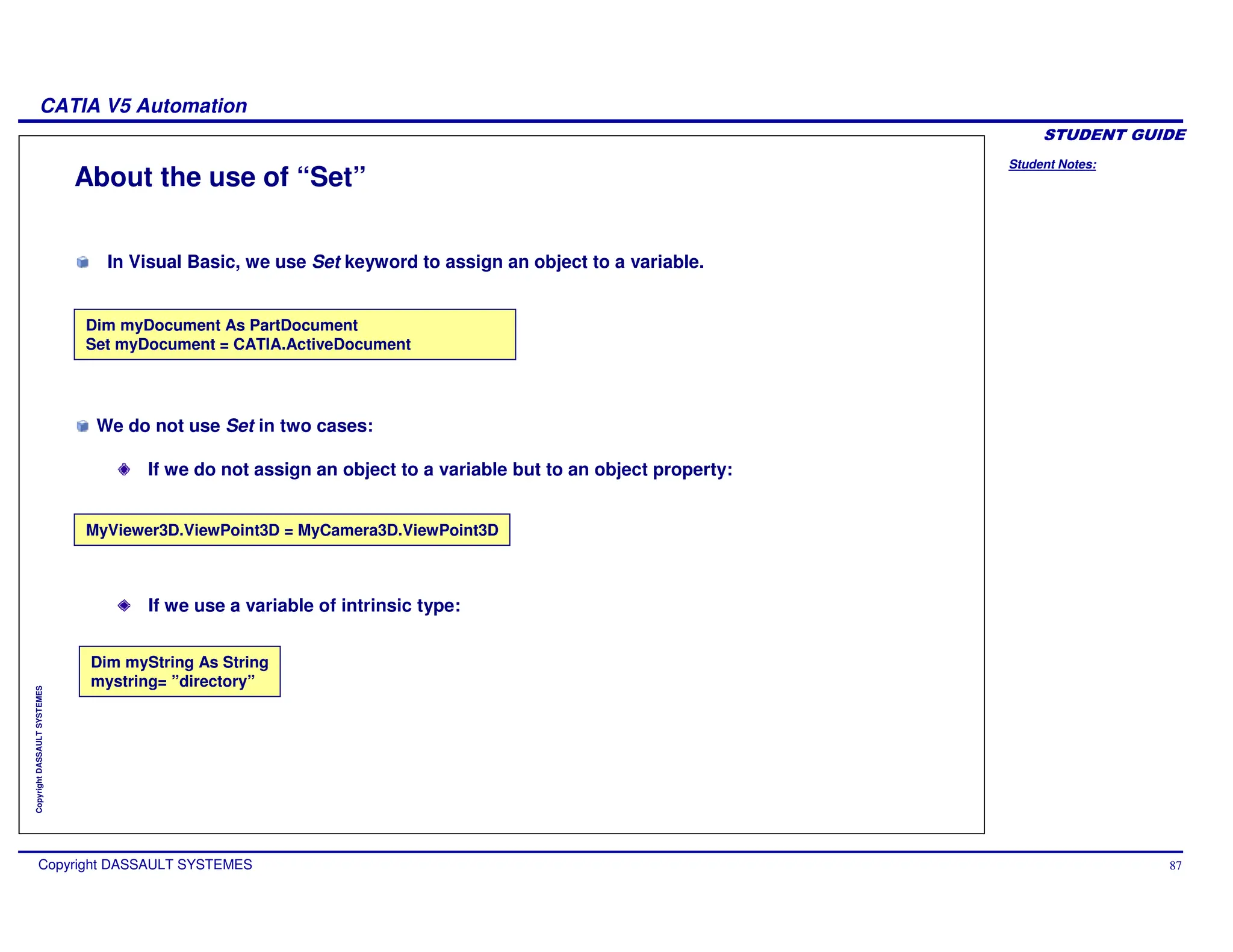
About the use of “Set”
Dim myDocument As PartDocument
Set myDocument = CATIA.ActiveDocument
Dim myString As String
mystring= ”directory”
MyViewer3D.ViewPoint3D = MyCamera3D.ViewPoint3D
If we use a variable of intrinsic type:
In Visual Basic, we use Set keyword to assign an object to a variable.
We do not use Set in two cases:
If we do not assign an object to a variable but to an object property:
Student Notes:
CATIA V5 Automation
Copyright DASSAULT SYSTEMES 88
Copyright
DASSAULT
SYSTEMES
About the use of “Call”
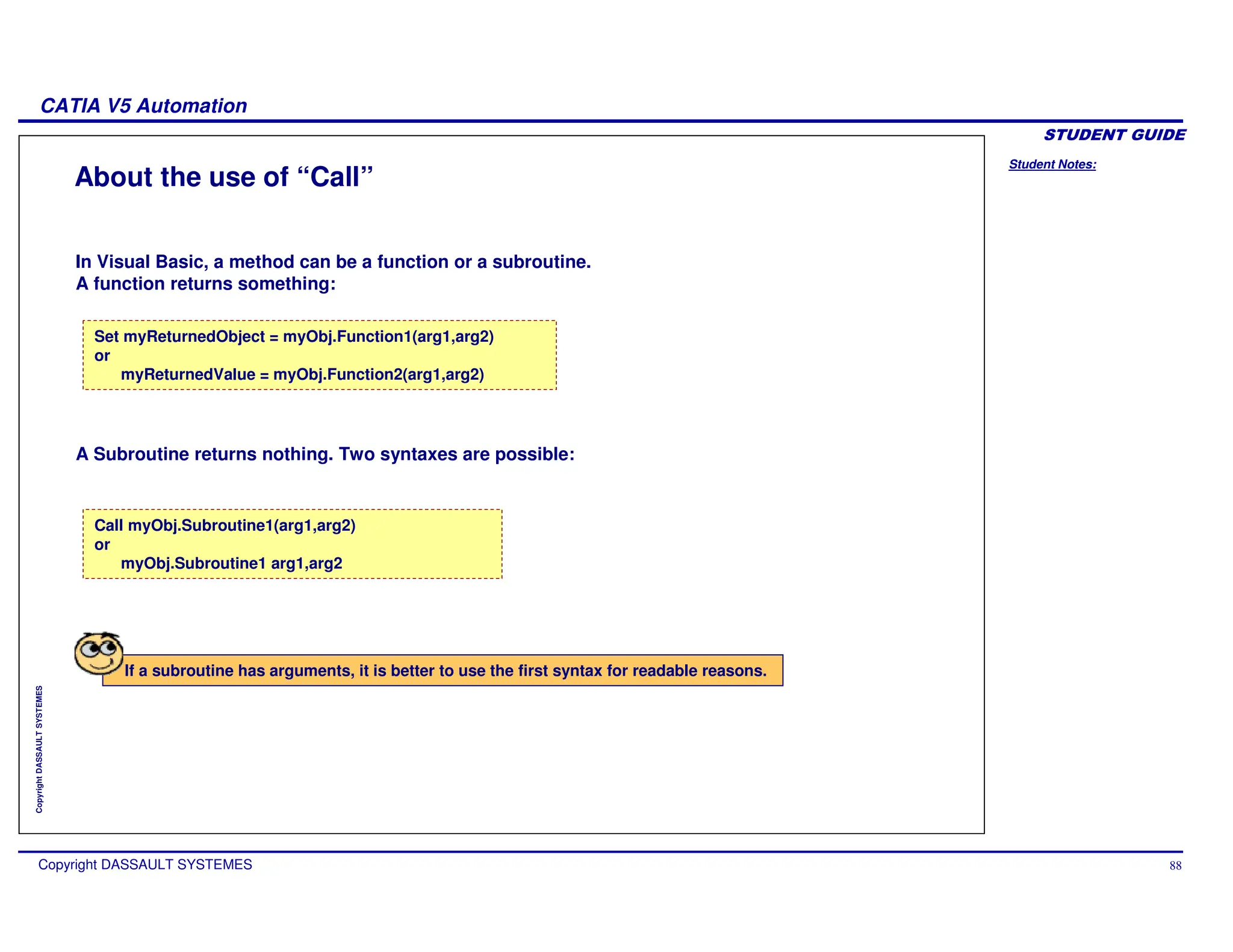
Set myReturnedObject = myObj.Function1(arg1,arg2)
or
myReturnedValue = myObj.Function2(arg1,arg2)
Call myObj.Subroutine1(arg1,arg2)
or
myObj.Subroutine1 arg1,arg2
In Visual Basic, a method can be a function or a subroutine.
A function returns something:
A Subroutine returns nothing. Two syntaxes are possible:
If a subroutine has arguments, it is better to use the first syntax for readable reasons.
Student Notes:
CATIA V5 Automation
Copyright DASSAULT SYSTEMES 89
Copyright
DASSAULT
SYSTEMES
About SafeArray Variant (1/2)
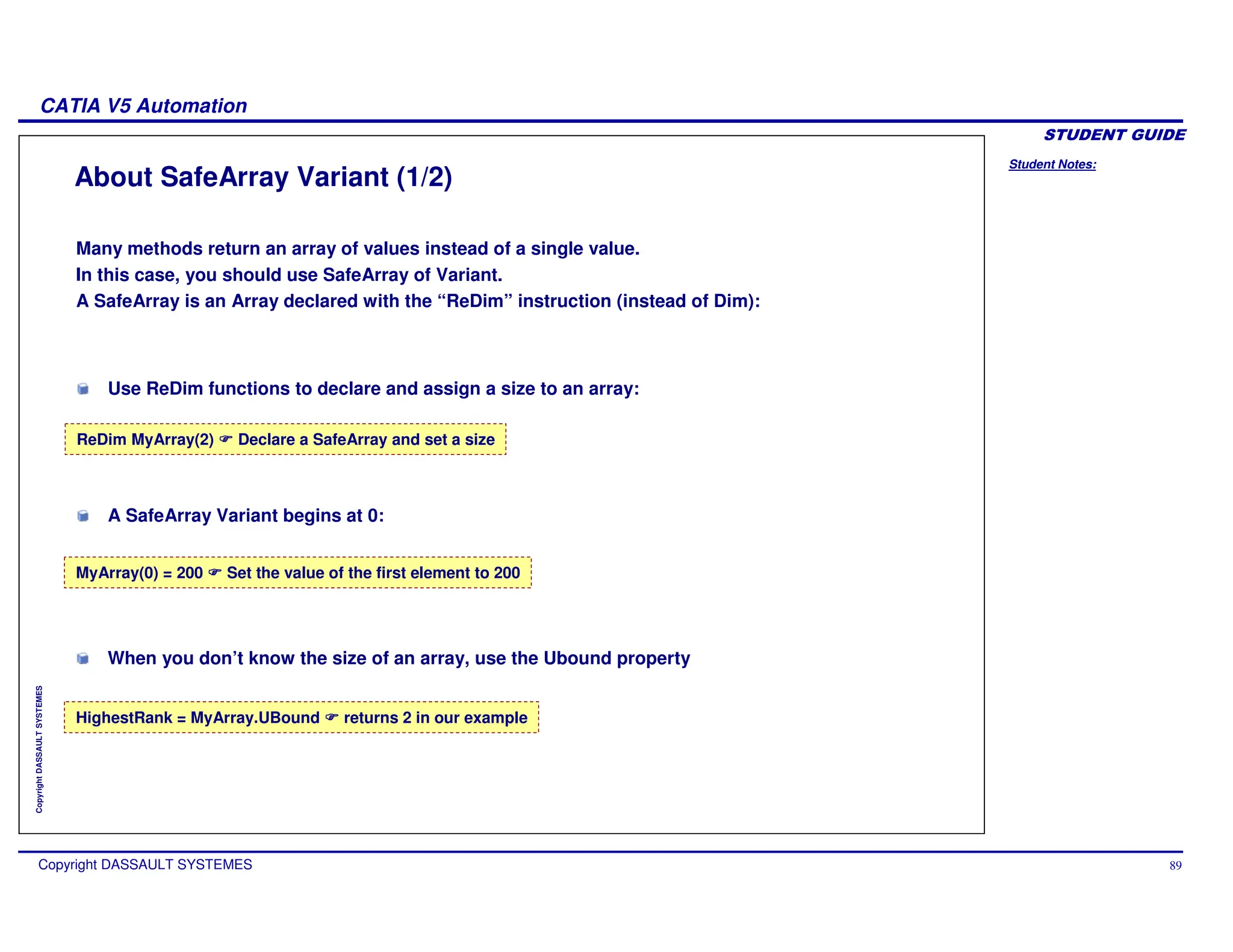
Many methods return an array of values instead of a single value.
In this case, you should use SafeArray of Variant.
A SafeArray is an Array declared with the “ReDim” instruction (instead of Dim):
ReDim MyArray(2) Declare a SafeArray and set a size
HighestRank = MyArray.UBound returns 2 in our example
MyArray(0) = 200 Set the value of the first element to 200
When you don’t know the size of an array, use the Ubound property
Use ReDim functions to declare and assign a size to an array:
A SafeArray Variant begins at 0:
Student Notes:
CATIA V5 Automation
Copyright DASSAULT SYSTEMES 90
Copyright
DASSAULT
SYSTEMES
About SafeArray Variant (2/2)
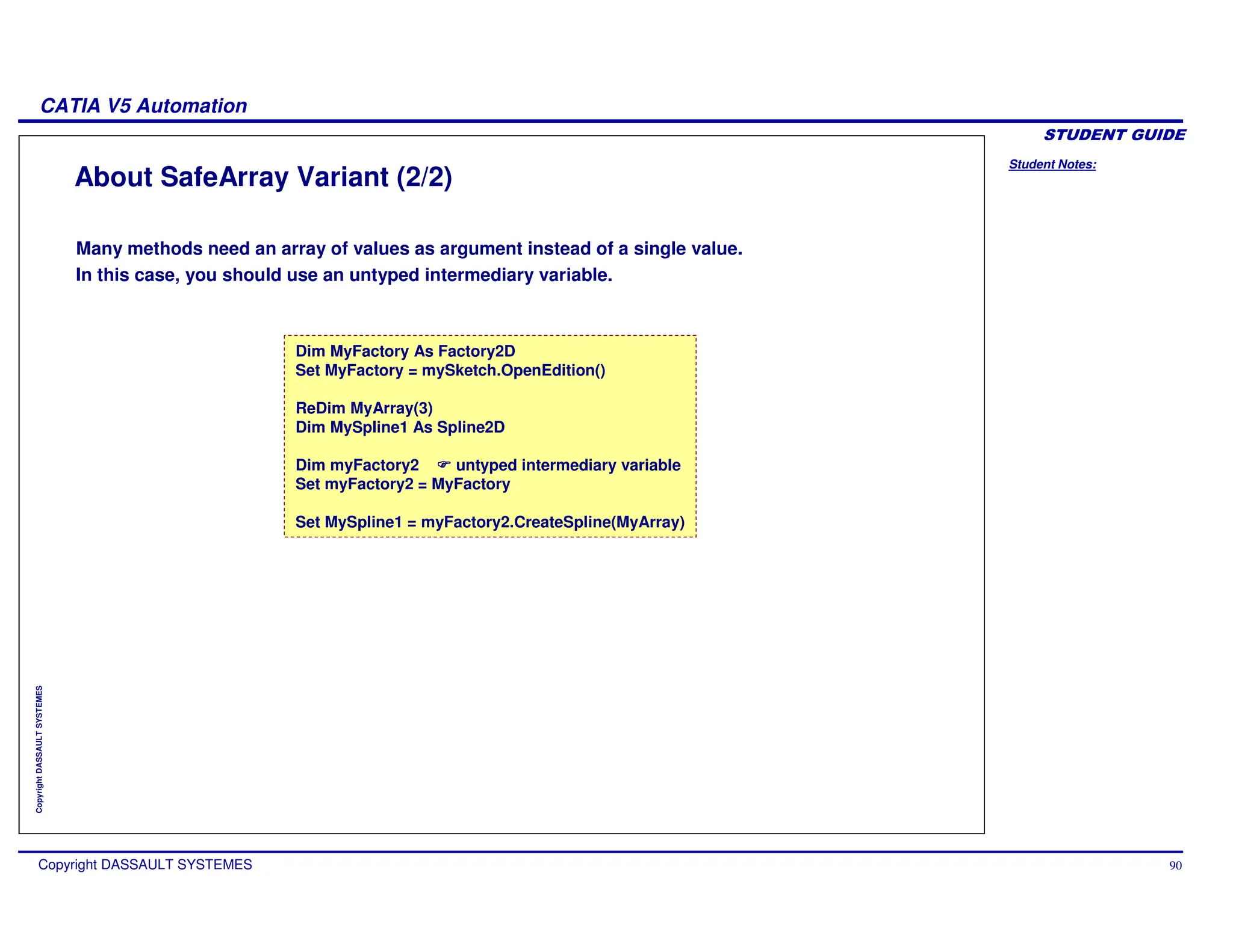
Many methods need an array of values as argument instead of a single value.
In this case, you should use an untyped intermediary variable.
Dim MyFactory As Factory2D
Set MyFactory = mySketch.OpenEdition()
ReDim MyArray(3)
Dim MySpline1 As Spline2D
Dim myFactory2 untyped intermediary variable
Set myFactory2 = MyFactory
Set MySpline1 = myFactory2.CreateSpline(MyArray)
Student Notes:
CATIA V5 Automation
Copyright DASSAULT SYSTEMES 91
Copyright
DASSAULT
SYSTEMES
Resolution of Object References (1/2)
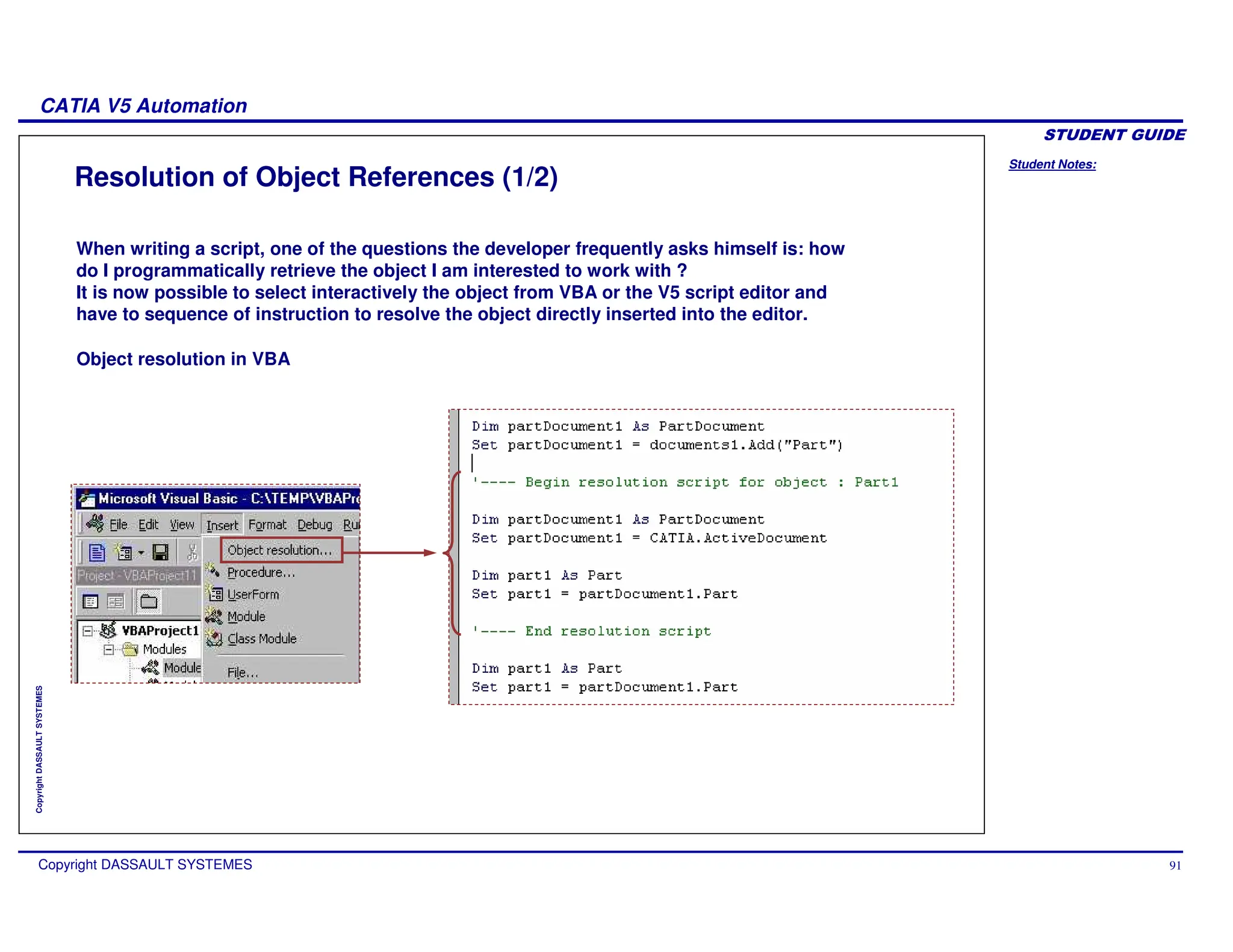
When writing a script, one of the questions the developer frequently asks himself is: how
do I programmatically retrieve the object I am interested to work with ?
It is now possible to select interactively the object from VBA or the V5 script editor and
have to sequence of instruction to resolve the object directly inserted into the editor.
Object resolution in VBA
Student Notes:
CATIA V5 Automation
Copyright DASSAULT SYSTEMES 92
Copyright
DASSAULT
SYSTEMES
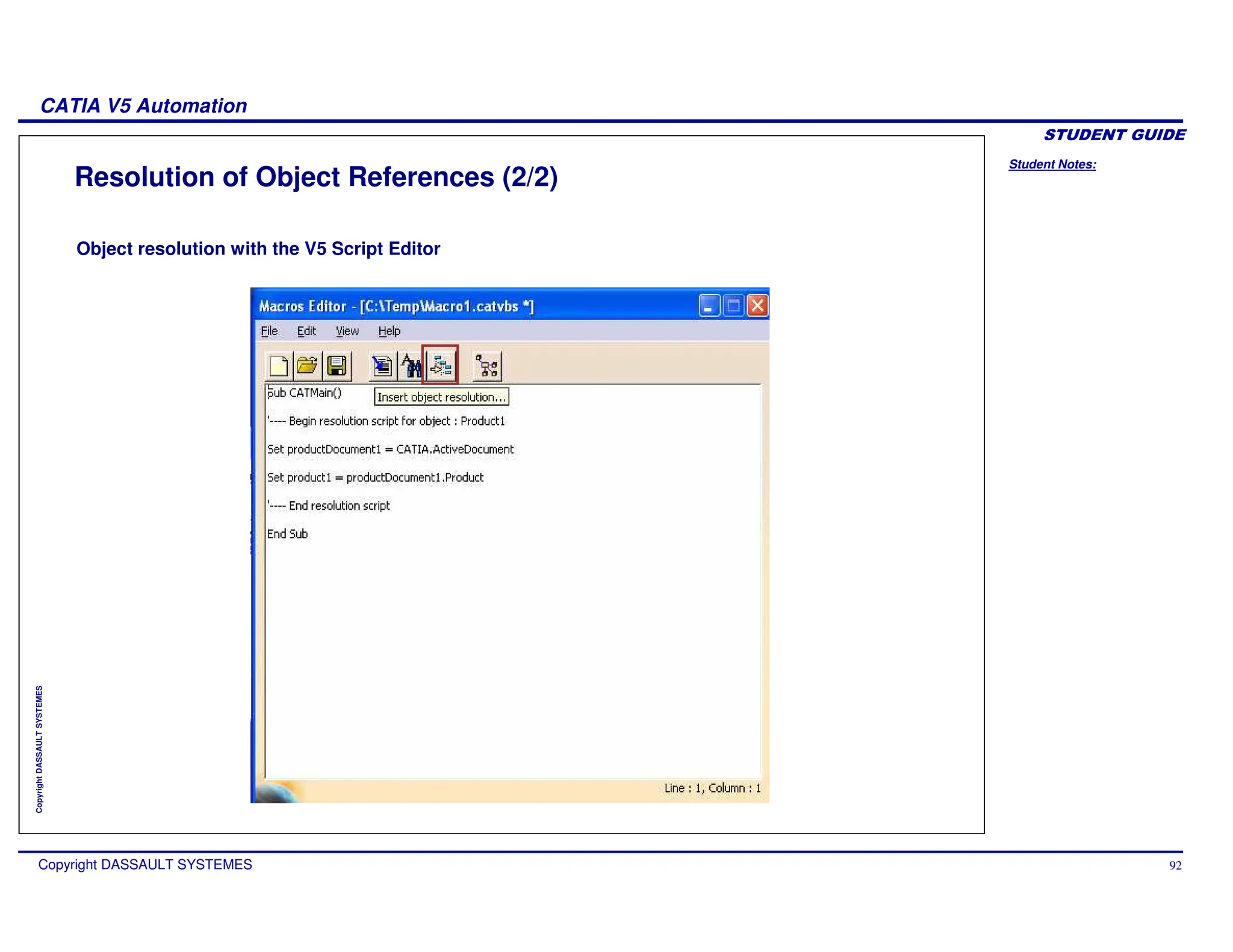
Resolution of Object References (2/2)
Object resolution with the V5 Script Editor
Student Notes:
CATIA V5 Automation
Copyright DASSAULT SYSTEMES 93
Copyright
DASSAULT
SYSTEMES
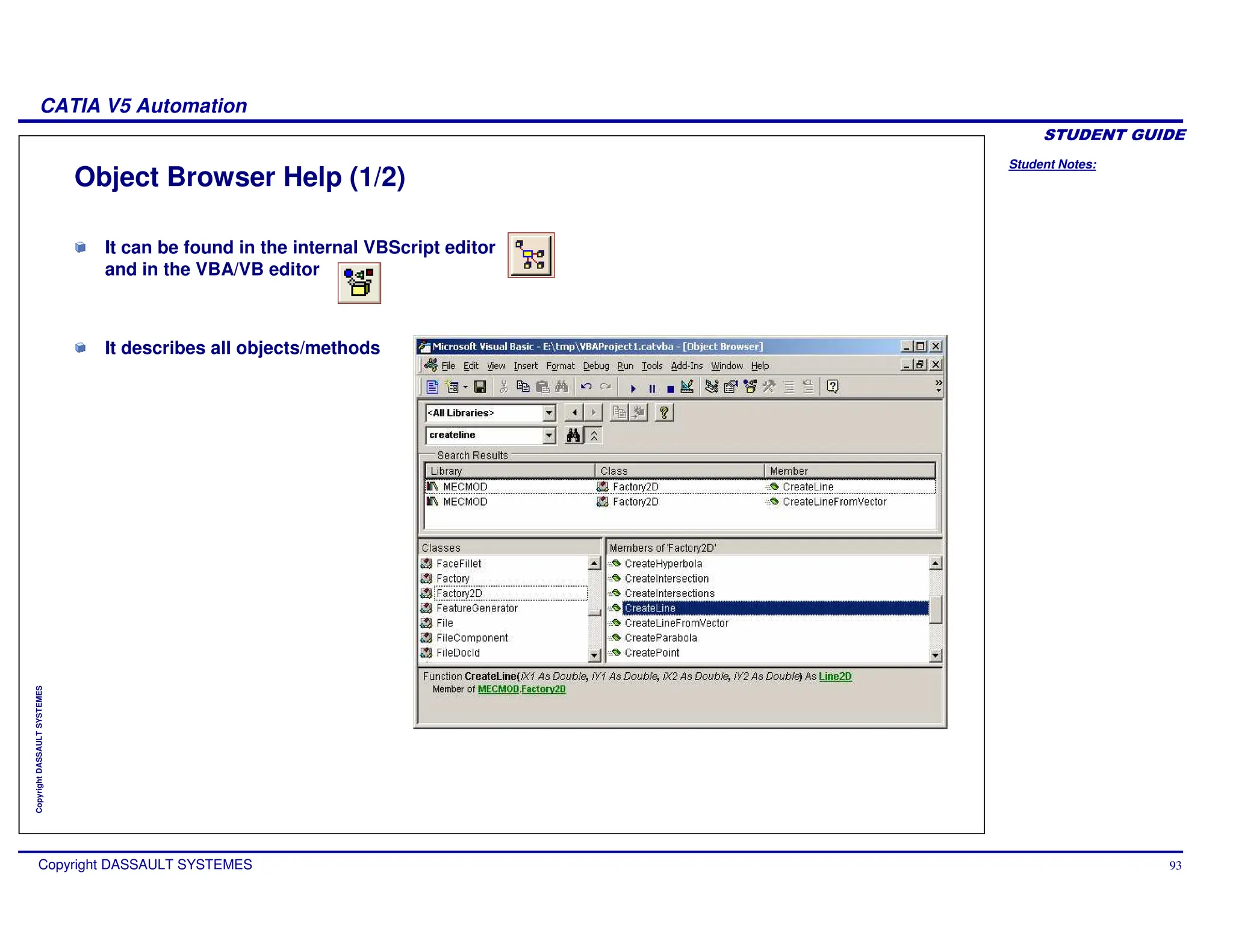
It can be found in the internal VBScript editor
and in the VBA/VB editor
It describes all objects/methods
Object Browser Help (1/2)
Student Notes:
CATIA V5 Automation
Copyright DASSAULT SYSTEMES 94
Copyright
DASSAULT
SYSTEMES
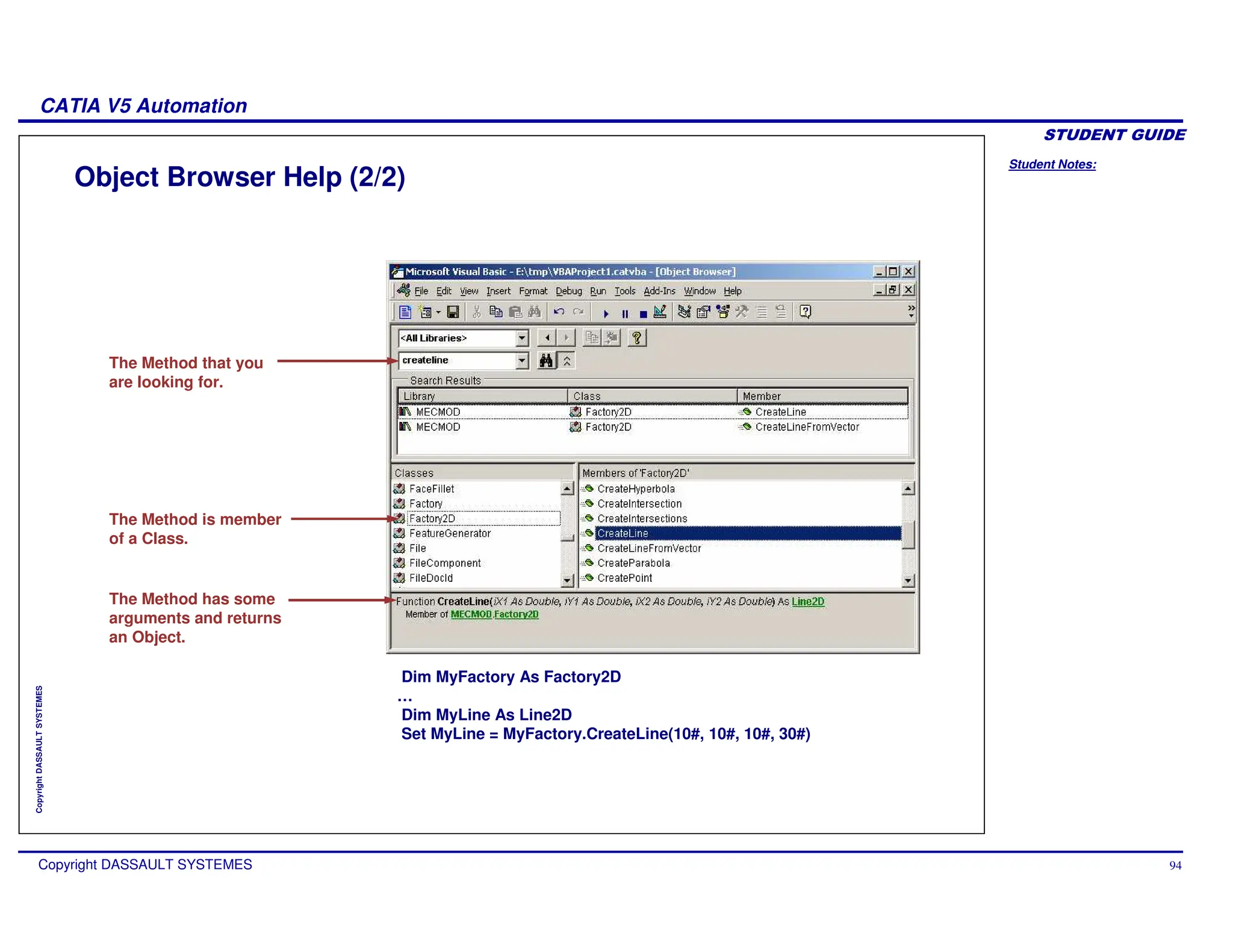
Object Browser Help (2/2)
The Method that you
are looking for.
The Method is member
of a Class.
The Method has some
arguments and returns
an Object.
Dim MyFactory As Factory2D
…
Dim MyLine As Line2D
Set MyLine = MyFactory.CreateLine(10#, 10#, 10#, 30#)
Student Notes:
CATIA V5 Automation
Copyright DASSAULT SYSTEMES 95
Copyright
DASSAULT
SYSTEMES
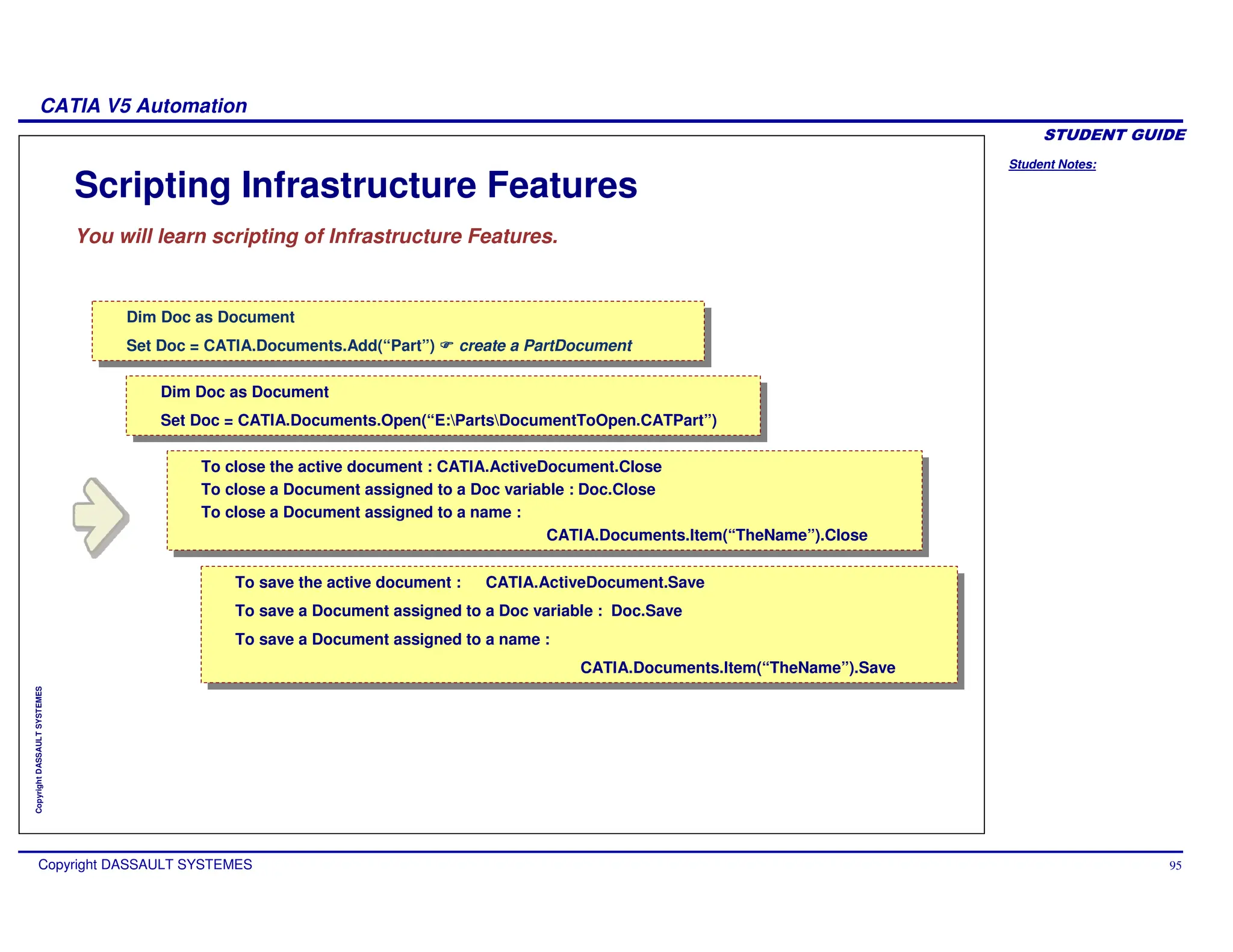
Scripting Infrastructure Features
You will learn scripting of Infrastructure Features.
Dim Doc as Document
Set Doc = CATIA.Documents.Add(“Part”) create a PartDocument
Dim Doc as Document
Set Doc = CATIA.Documents.Add(“Part”) create a PartDocument
Dim Doc as Document
Set Doc = CATIA.Documents.Open(“E:PartsDocumentToOpen.CATPart”)
Dim Doc as Document
Set Doc = CATIA.Documents.Open(“E:PartsDocumentToOpen.CATPart”)
Dim Doc as Document
Set Doc = CATIA.Documents.Add(“Part”) create a PartDocument
Dim Doc as Document
Set Doc = CATIA.Documents.Add(“Part”) create a PartDocument
To save the active document : CATIA.ActiveDocument.Save
To save a Document assigned to a Doc variable : Doc.Save
To save a Document assigned to a name :
CATIA.Documents.Item(“TheName”).Save
To save the active document : CATIA.ActiveDocument.Save
To save a Document assigned to a Doc variable : Doc.Save
To save a Document assigned to a name :
CATIA.Documents.Item(“TheName”).Save
To close the active document : CATIA.ActiveDocument.Close
To close a Document assigned to a Doc variable : Doc.Close
To close a Document assigned to a name :
CATIA.Documents.Item(“TheName”).Close
To close the active document : CATIA.ActiveDocument.Close
To close a Document assigned to a Doc variable : Doc.Close
To close a Document assigned to a name :
CATIA.Documents.Item(“TheName”).Close
Student Notes:
CATIA V5 Automation
Copyright DASSAULT SYSTEMES 96
Copyright
DASSAULT
SYSTEMES
Scripting Infrastructure Features Overview
Documents and Windows
The CATIA Application object aggregates two main collection objects:
Documents and Windows.
The Documents collection aggregates any number of Document(s) since the
multiplicity is set to *. The Document object is an abstract object, and only its
derived type can actually be created, that is the PartDocument,
ProductDocument and DrawingDocument.
The Windows collection aggregates number of Window(s), which themselves
aggregate one Viewers collection which aggregates any number of Viewer(s).
The binary association between the Window and the Document objects means
that the Document object is the parent of the Window object.
Student Notes:
CATIA V5 Automation
Copyright DASSAULT SYSTEMES 97
Copyright
DASSAULT
SYSTEMES
Infrastructure Object Architecture
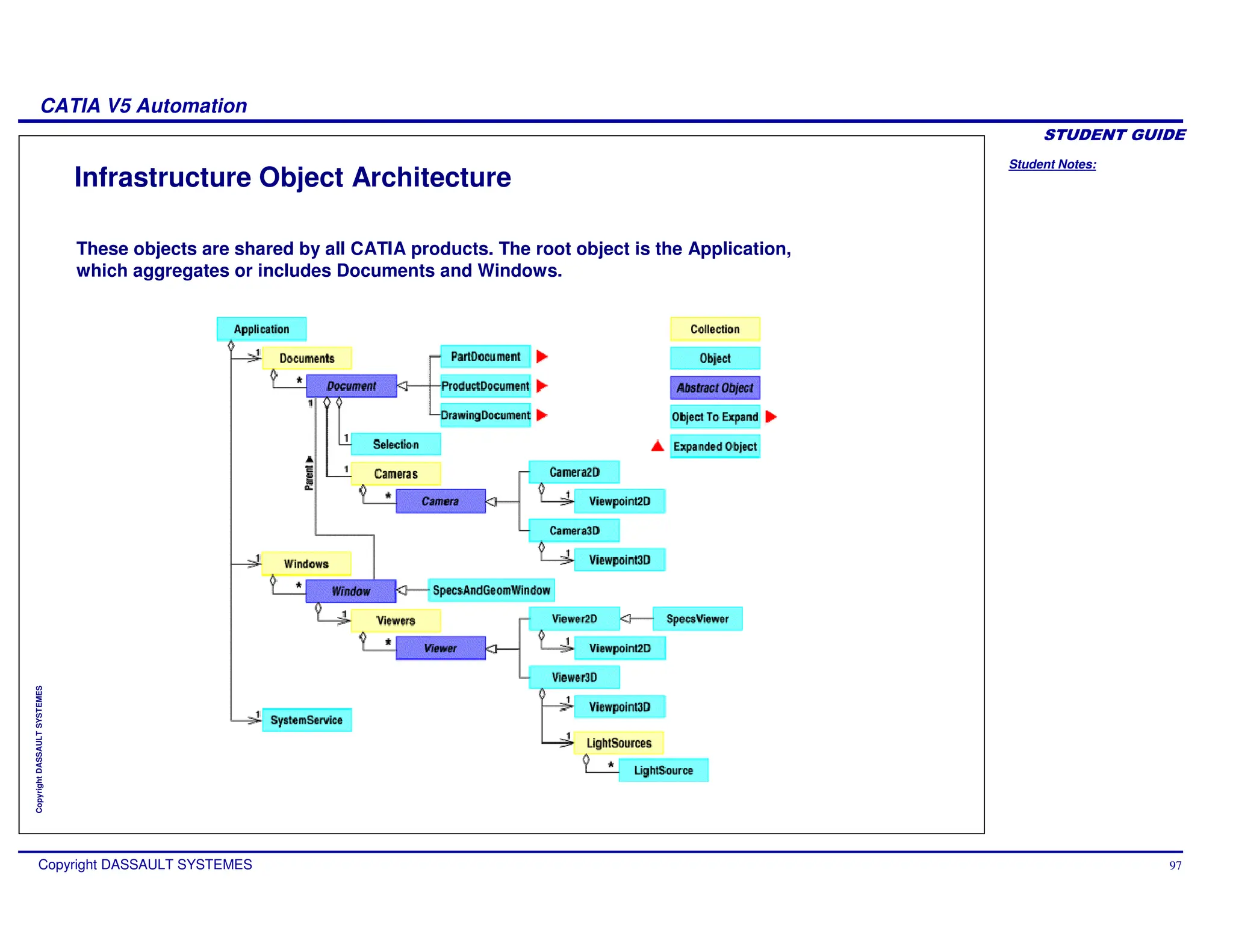
These objects are shared by all CATIA products. The root object is the Application,
which aggregates or includes Documents and Windows.
Student Notes:
CATIA V5 Automation
Copyright DASSAULT SYSTEMES 98
Copyright
DASSAULT
SYSTEMES
Application and Document
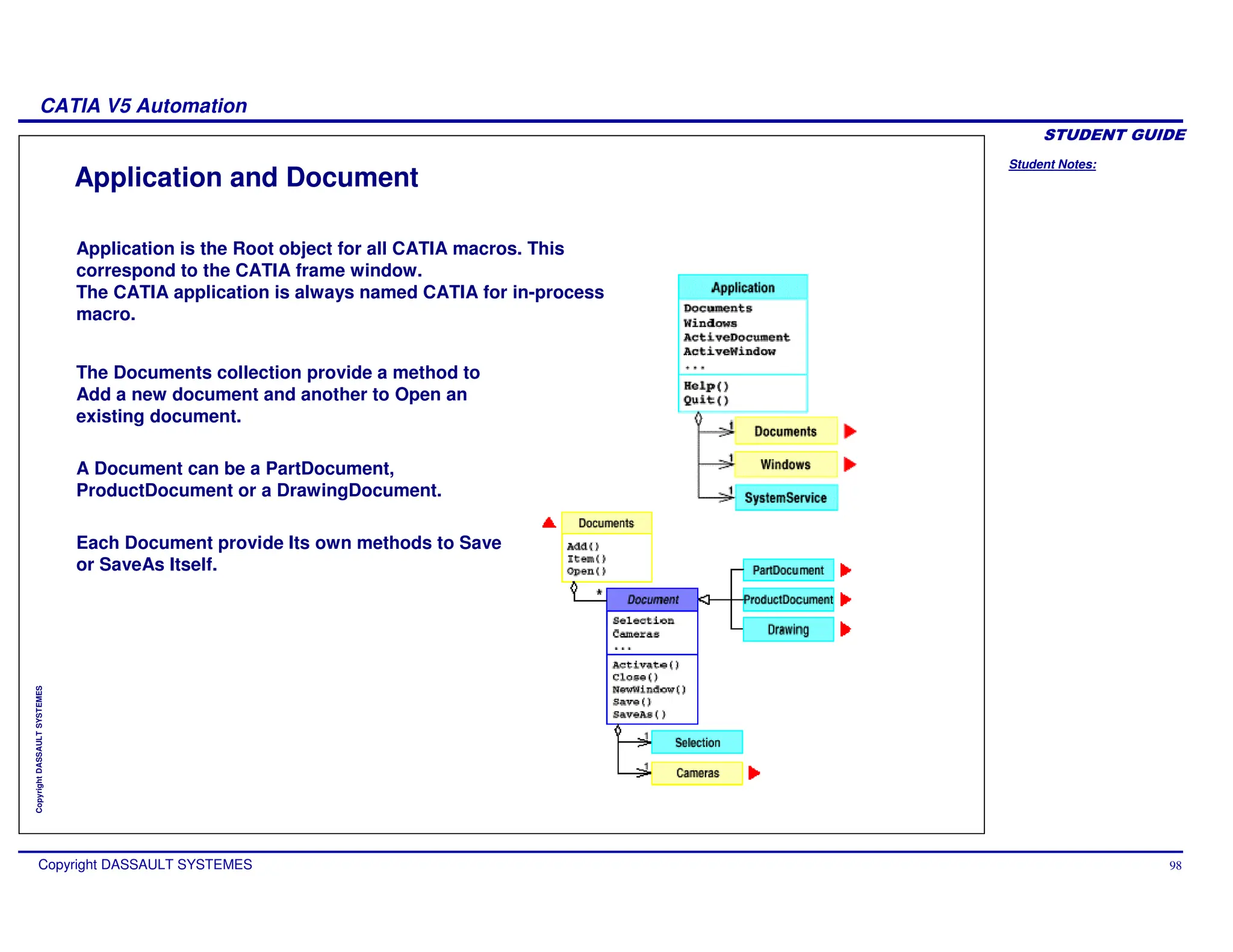
Application is the Root object for all CATIA macros. This
correspond to the CATIA frame window.
The CATIA application is always named CATIA for in-process
macro.
The Documents collection provide a method to
Add a new document and another to Open an
existing document.
A Document can be a PartDocument,
ProductDocument or a DrawingDocument.
Each Document provide Its own methods to Save
or SaveAs Itself.
Student Notes:
CATIA V5 Automation
Copyright DASSAULT SYSTEMES 99
Copyright
DASSAULT
SYSTEMES
Creating and Opening a Document
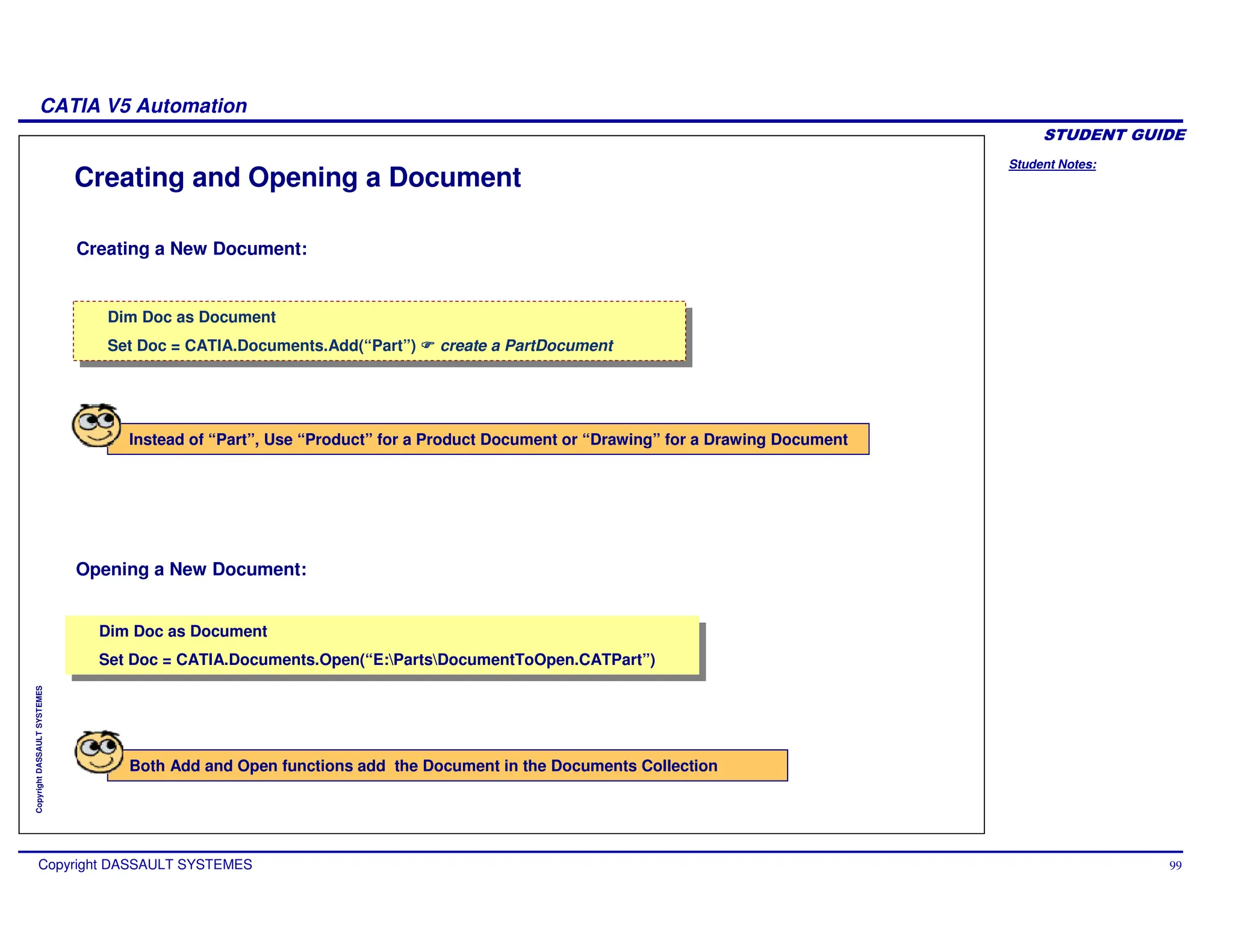
Creating a New Document:
Opening a New Document:
Dim Doc as Document
Set Doc = CATIA.Documents.Add(“Part”) create a PartDocument
Dim Doc as Document
Set Doc = CATIA.Documents.Add(“Part”) create a PartDocument
Dim Doc as Document
Set Doc = CATIA.Documents.Open(“E:PartsDocumentToOpen.CATPart”)
Dim Doc as Document
Set Doc = CATIA.Documents.Open(“E:PartsDocumentToOpen.CATPart”)
Instead of “Part”, Use “Product” for a Product Document or “Drawing” for a Drawing Document
Both Add and Open functions add the Document in the Documents Collection
Student Notes:
CATIA V5 Automation
Copyright DASSAULT SYSTEMES 100
Copyright
DASSAULT
SYSTEMES
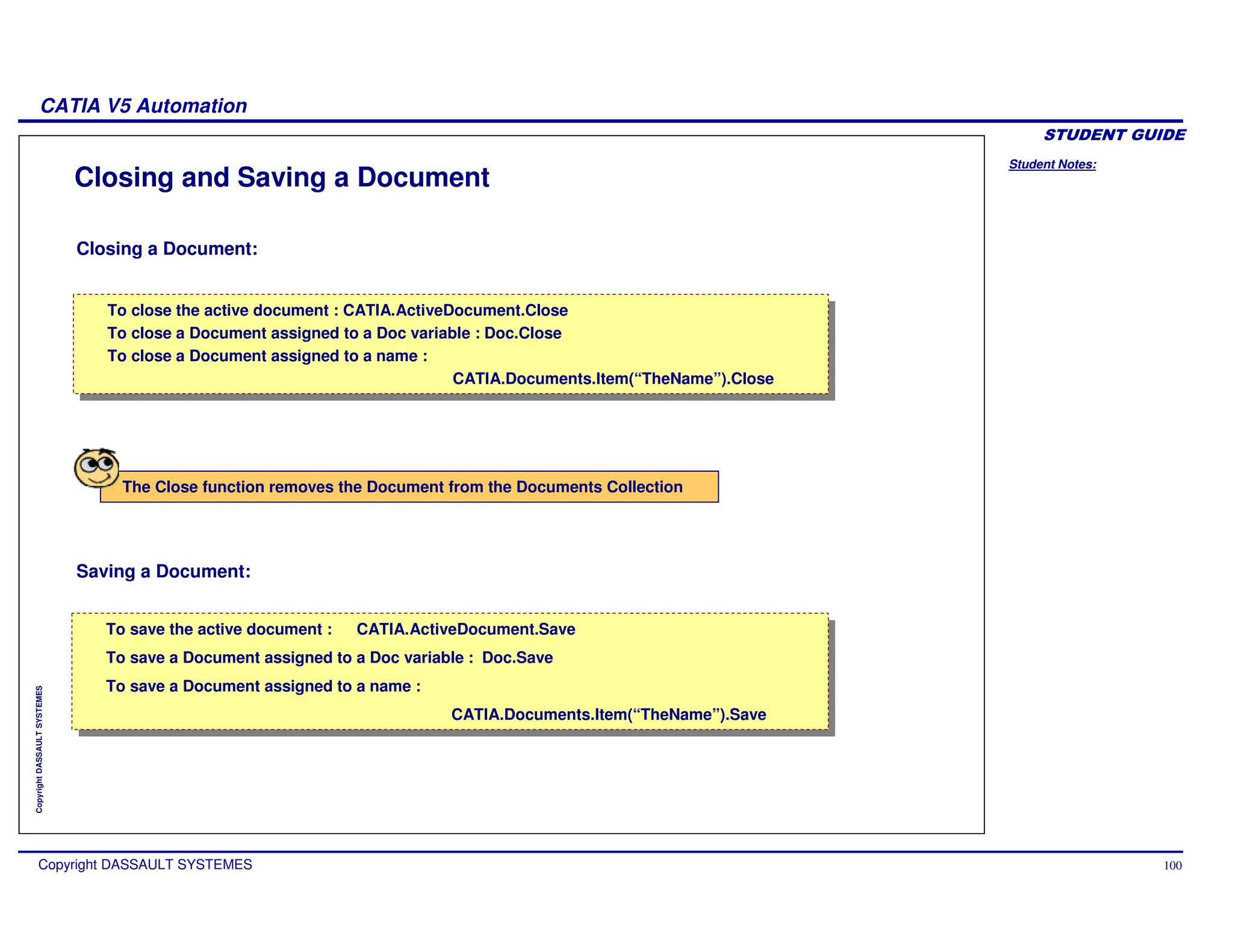
Closing and Saving a Document
Closing a Document:
Saving a Document:
To save the active document : CATIA.ActiveDocument.Save
To save a Document assigned to a Doc variable : Doc.Save
To save a Document assigned to a name :
CATIA.Documents.Item(“TheName”).Save
To save the active document : CATIA.ActiveDocument.Save
To save a Document assigned to a Doc variable : Doc.Save
To save a Document assigned to a name :
CATIA.Documents.Item(“TheName”).Save
To close the active document : CATIA.ActiveDocument.Close
To close a Document assigned to a Doc variable : Doc.Close
To close a Document assigned to a name :
CATIA.Documents.Item(“TheName”).Close
To close the active document : CATIA.ActiveDocument.Close
To close a Document assigned to a Doc variable : Doc.Close
To close a Document assigned to a name :
CATIA.Documents.Item(“TheName”).Close
The Close function removes the Document from the Documents Collection
Student Notes:
CATIA V5 Automation
Copyright DASSAULT SYSTEMES 101
Copyright
DASSAULT
SYSTEMES
Windows Collection
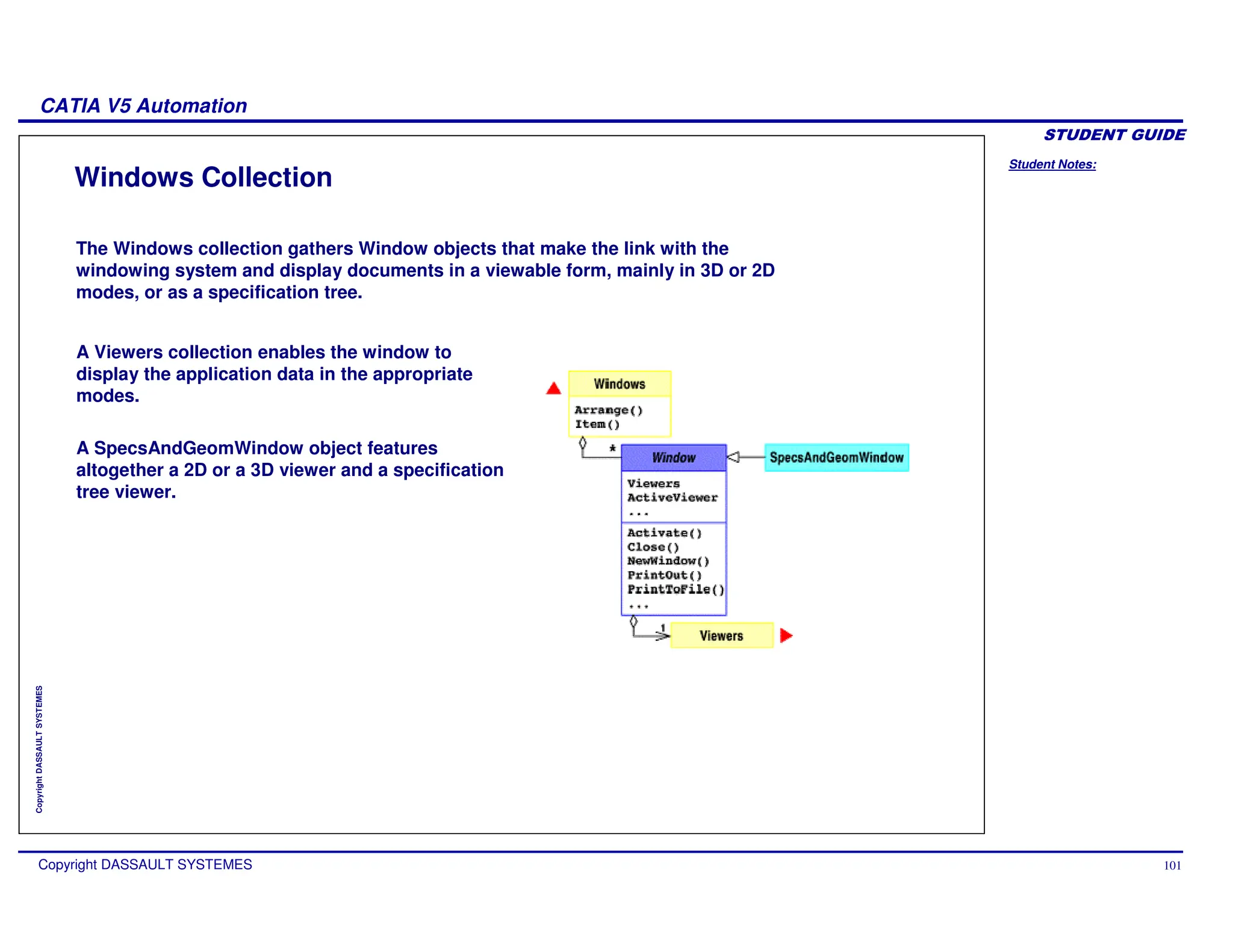
The Windows collection gathers Window objects that make the link with the
windowing system and display documents in a viewable form, mainly in 3D or 2D
modes, or as a specification tree.
A Viewers collection enables the window to
display the application data in the appropriate
modes.
A SpecsAndGeomWindow object features
altogether a 2D or a 3D viewer and a specification
tree viewer.
Student Notes:
CATIA V5 Automation
Copyright DASSAULT SYSTEMES 102
Copyright
DASSAULT
SYSTEMES
Viewers and Viewpoints
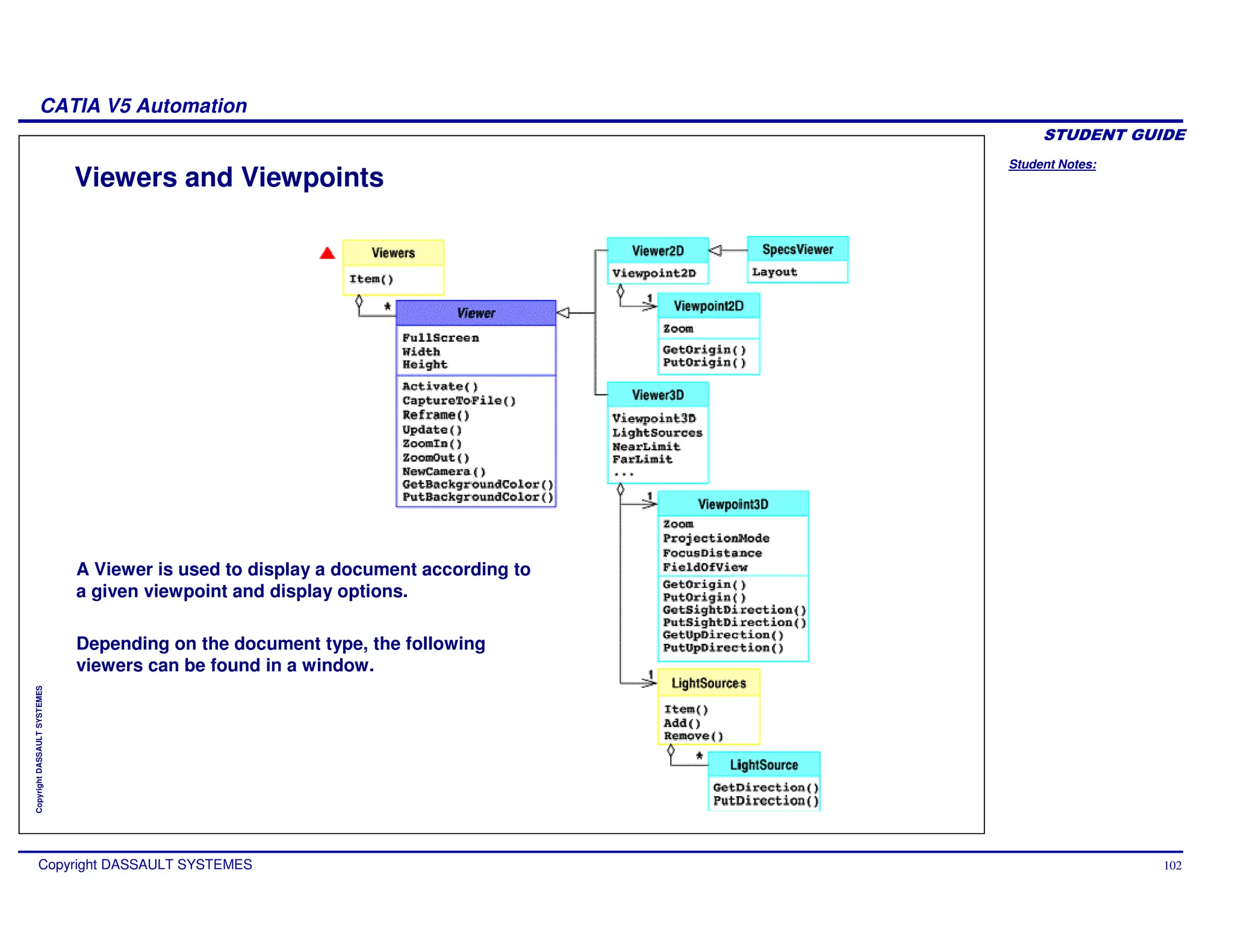
A Viewer is used to display a document according to
a given viewpoint and display options.
Depending on the document type, the following
viewers can be found in a window.
Student Notes:
CATIA V5 Automation
Copyright DASSAULT SYSTEMES 103
Copyright
DASSAULT
SYSTEMES
Cameras
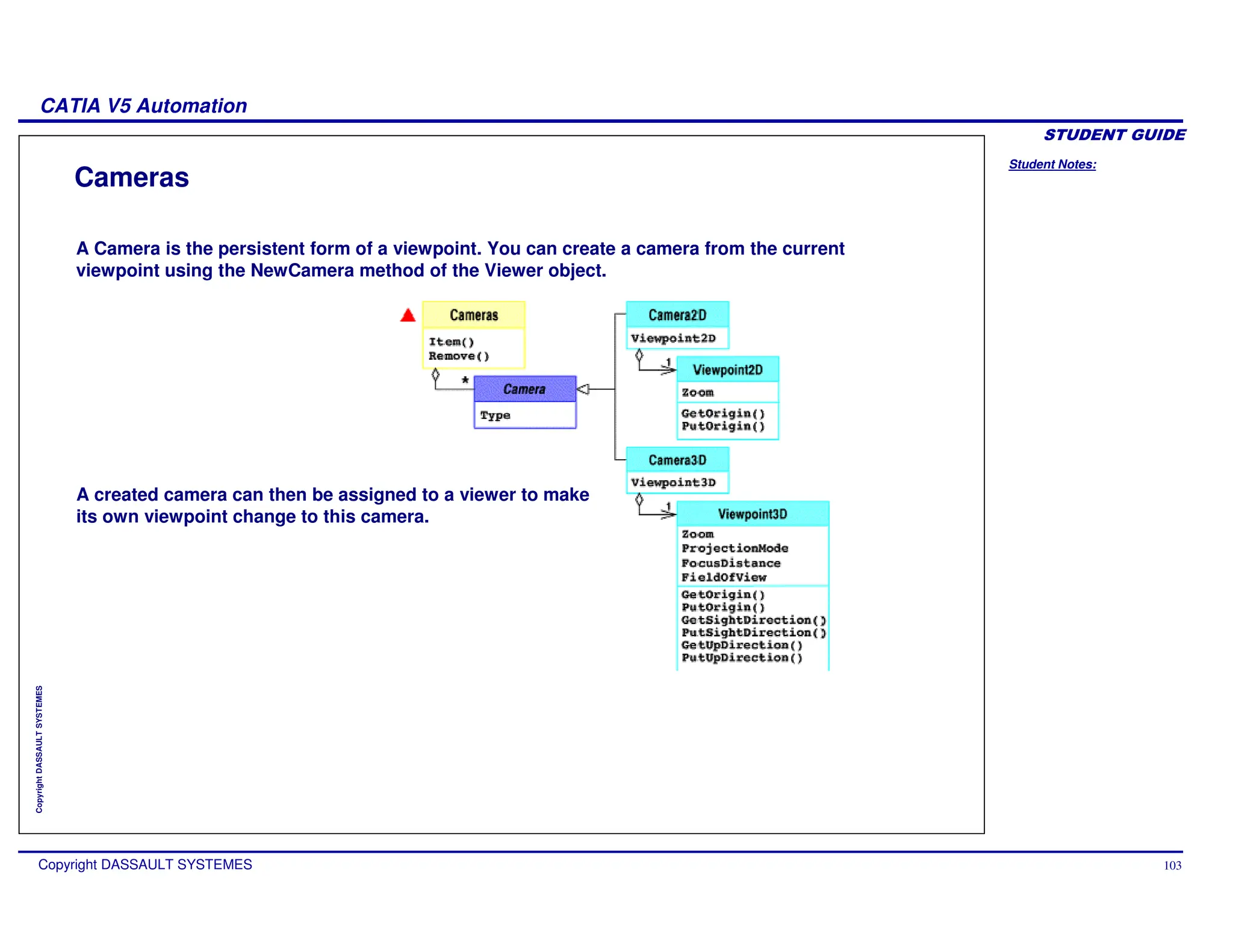
A Camera is the persistent form of a viewpoint. You can create a camera from the current
viewpoint using the NewCamera method of the Viewer object.
A created camera can then be assigned to a viewer to make
its own viewpoint change to this camera.
Student Notes:
CATIA V5 Automation
Copyright DASSAULT SYSTEMES 104
Copyright
DASSAULT
SYSTEMES
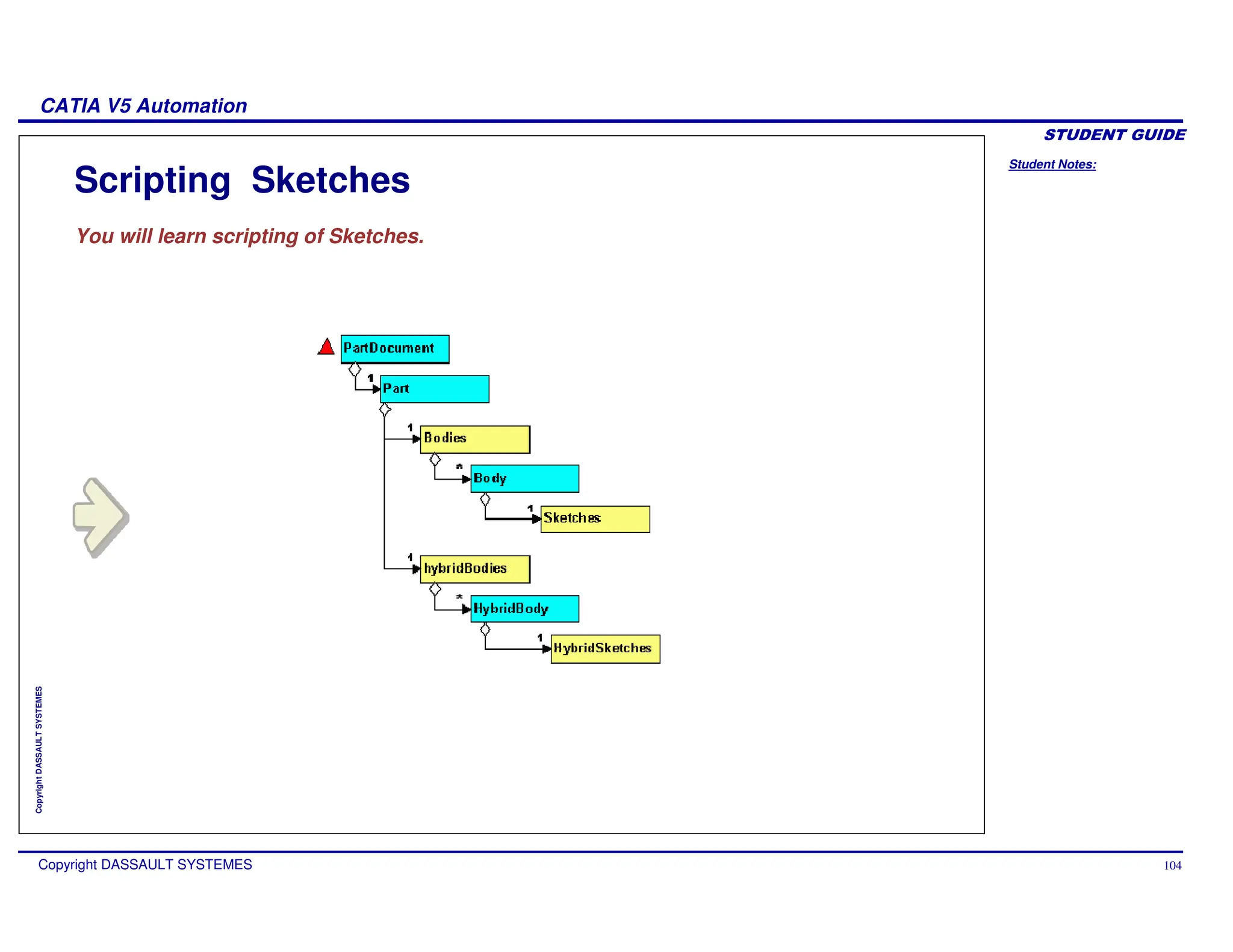
Scripting Sketches
You will learn scripting of Sketches.
Student Notes:
CATIA V5 Automation
Copyright DASSAULT SYSTEMES 105
Copyright
DASSAULT
SYSTEMES
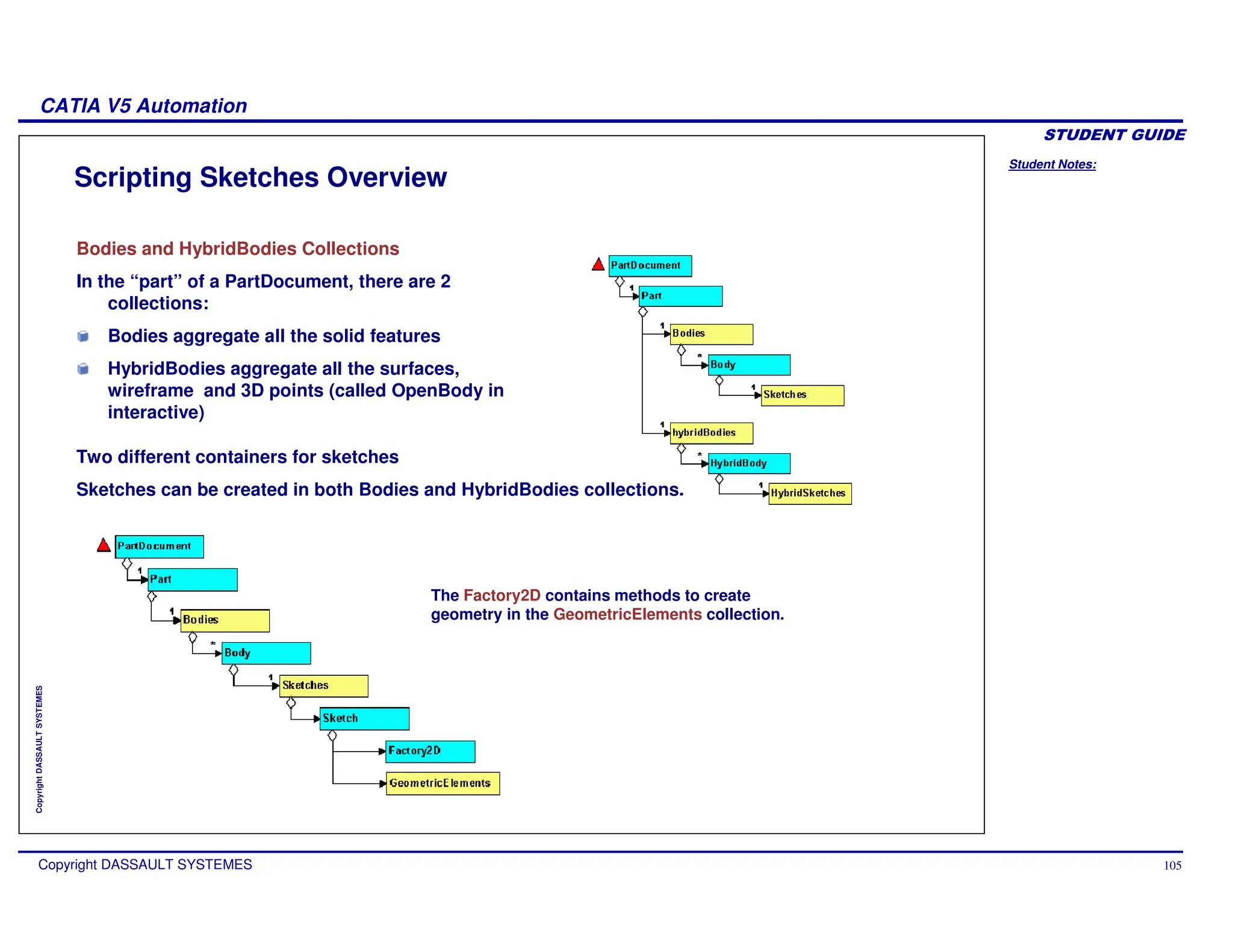
Scripting Sketches Overview
Bodies and HybridBodies Collections
In the “part” of a PartDocument, there are 2
collections:
Bodies aggregate all the solid features
HybridBodies aggregate all the surfaces,
wireframe and 3D points (called OpenBody in
interactive)
Two different containers for sketches
Sketches can be created in both Bodies and HybridBodies collections.
The Factory2D contains methods to create
geometry in the GeometricElements collection.
Student Notes:
CATIA V5 Automation
Copyright DASSAULT SYSTEMES 106
Copyright
DASSAULT
SYSTEMES
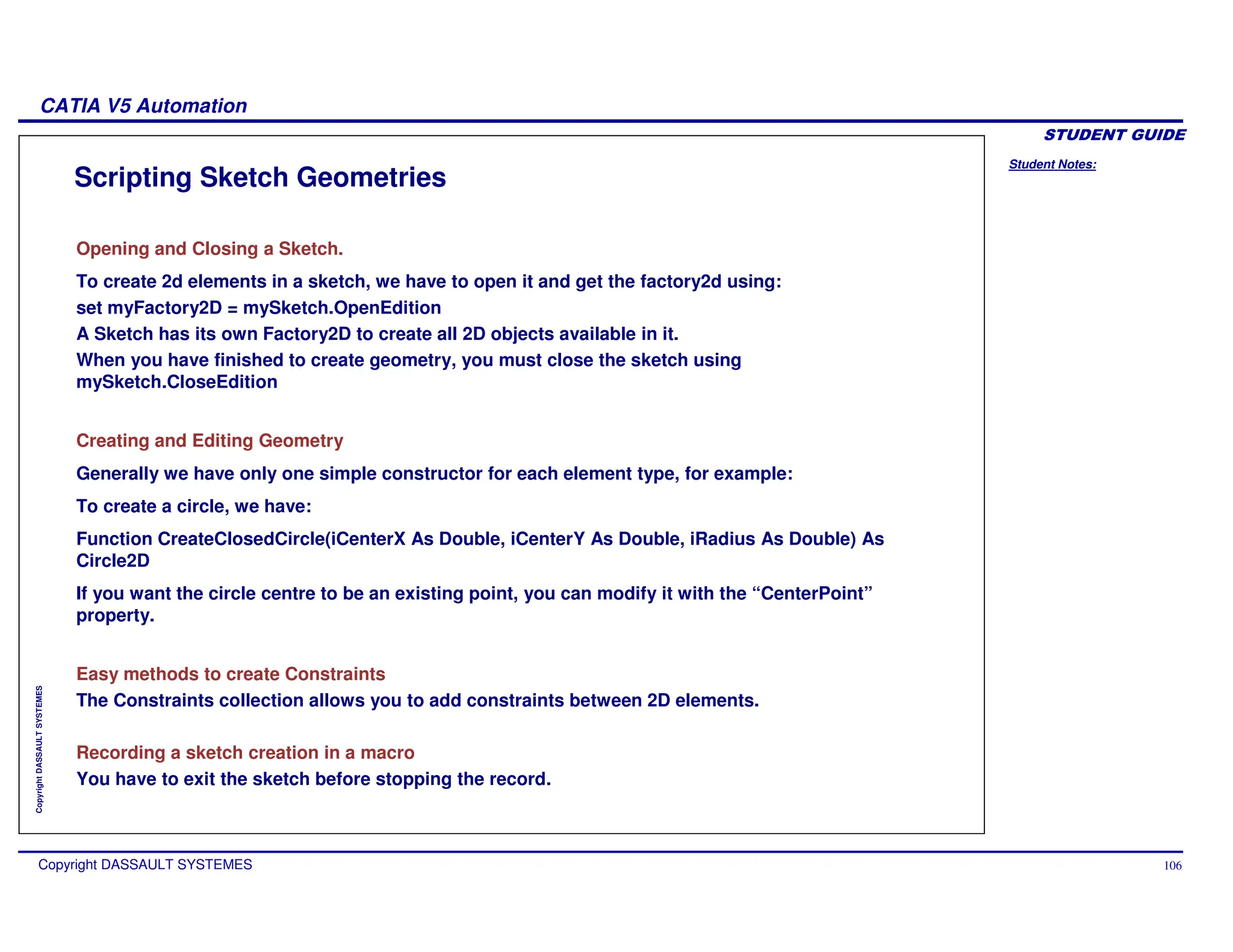
Scripting Sketch Geometries
Opening and Closing a Sketch.
To create 2d elements in a sketch, we have to open it and get the factory2d using:
set myFactory2D = mySketch.OpenEdition
A Sketch has its own Factory2D to create all 2D objects available in it.
When you have finished to create geometry, you must close the sketch using
mySketch.CloseEdition
Creating and Editing Geometry
Generally we have only one simple constructor for each element type, for example:
To create a circle, we have:
Function CreateClosedCircle(iCenterX As Double, iCenterY As Double, iRadius As Double) As
Circle2D
If you want the circle centre to be an existing point, you can modify it with the “CenterPoint”
property.
Easy methods to create Constraints
The Constraints collection allows you to add constraints between 2D elements.
Recording a sketch creation in a macro
You have to exit the sketch before stopping the record.
Student Notes:
CATIA V5 Automation
Copyright DASSAULT SYSTEMES 107
Copyright
DASSAULT
SYSTEMES
Scripting Part Design Features
You will learn scripting of ‘Part Design Features’
Student Notes:
CATIA V5 Automation
Copyright DASSAULT SYSTEMES 108
Copyright
DASSAULT
SYSTEMES
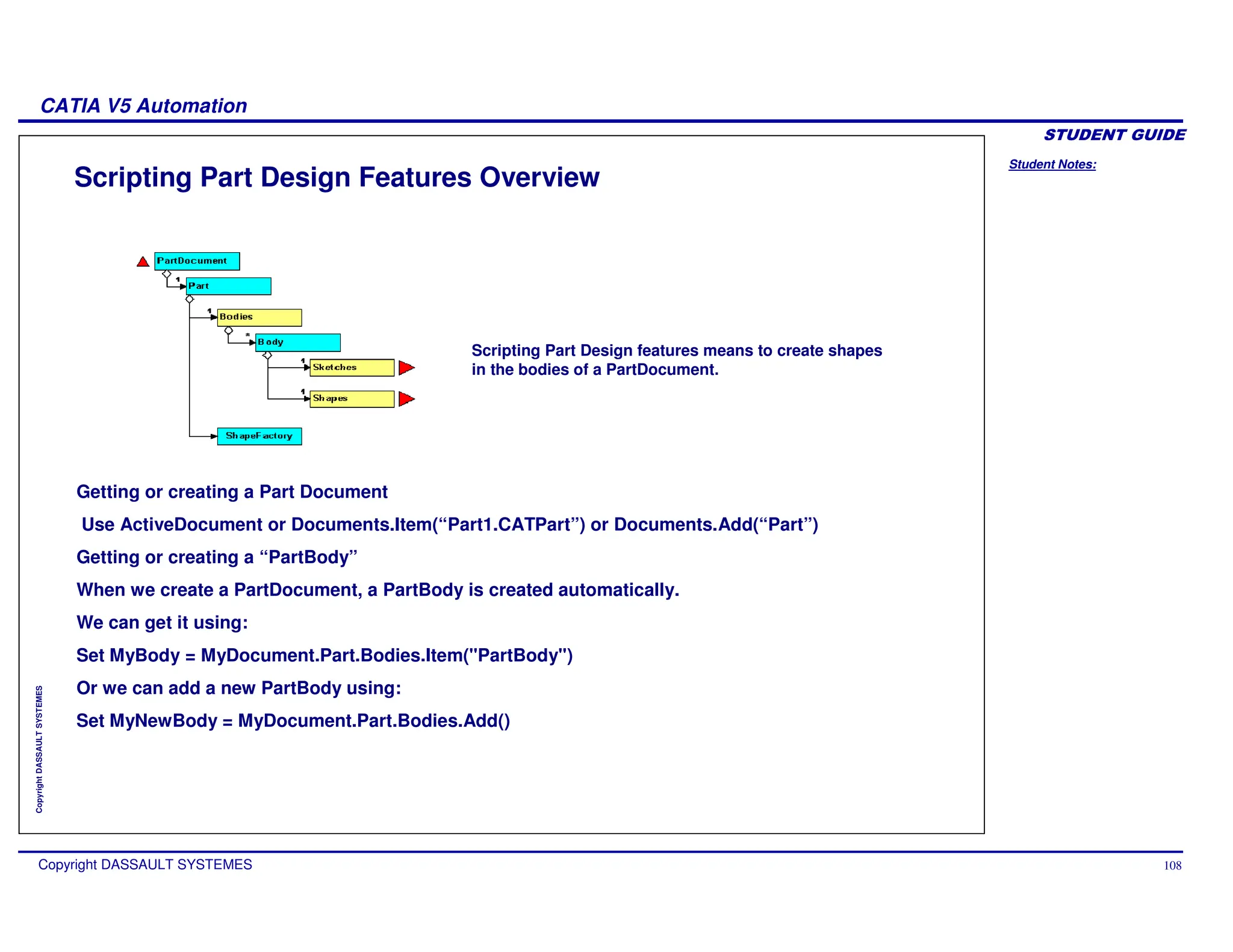
Scripting Part Design Features Overview
Scripting Part Design features means to create shapes
in the bodies of a PartDocument.
Getting or creating a Part Document
Use ActiveDocument or Documents.Item(“Part1.CATPart”) or Documents.Add(“Part”)
Getting or creating a “PartBody”
When we create a PartDocument, a PartBody is created automatically.
We can get it using:
Set MyBody = MyDocument.Part.Bodies.Item("PartBody")
Or we can add a new PartBody using:
Set MyNewBody = MyDocument.Part.Bodies.Add()
Student Notes:
CATIA V5 Automation
Copyright DASSAULT SYSTEMES 109
Copyright
DASSAULT
SYSTEMES
Scripting Functions for Part Design Features
The ShapeFactory
The ShapeFactory object is in the Part.
It allows you to create Pads, Shafts, Grooves, Holes, etc in the “active” Body.
You can redefine the “active” body using the InWorkObject property.
Boolean Operations
If you need to make a boolean operation with another Body, you can add a new body with:
MyDocument.Part.Bodies.Add
Then call AddNewAdd, AddNewIntersect, AddNewTrim or AddNewRemove method.
References
Some functions need references to objects instead of the object itself. References are used to bind
an object to an other.
You can use:
Dim myRef as Reference
Set myRef = Part.CreateReferenceFromGeometry(myGeometry) to create a reference on
myGeometry object.
Student Notes:
CATIA V5 Automation
Copyright DASSAULT SYSTEMES 110
Copyright
DASSAULT
SYSTEMES
Scripting Shape Design Features
You will learn scripting of Shape Design Features
Student Notes:
CATIA V5 Automation
Copyright DASSAULT SYSTEMES 111
Copyright
DASSAULT
SYSTEMES
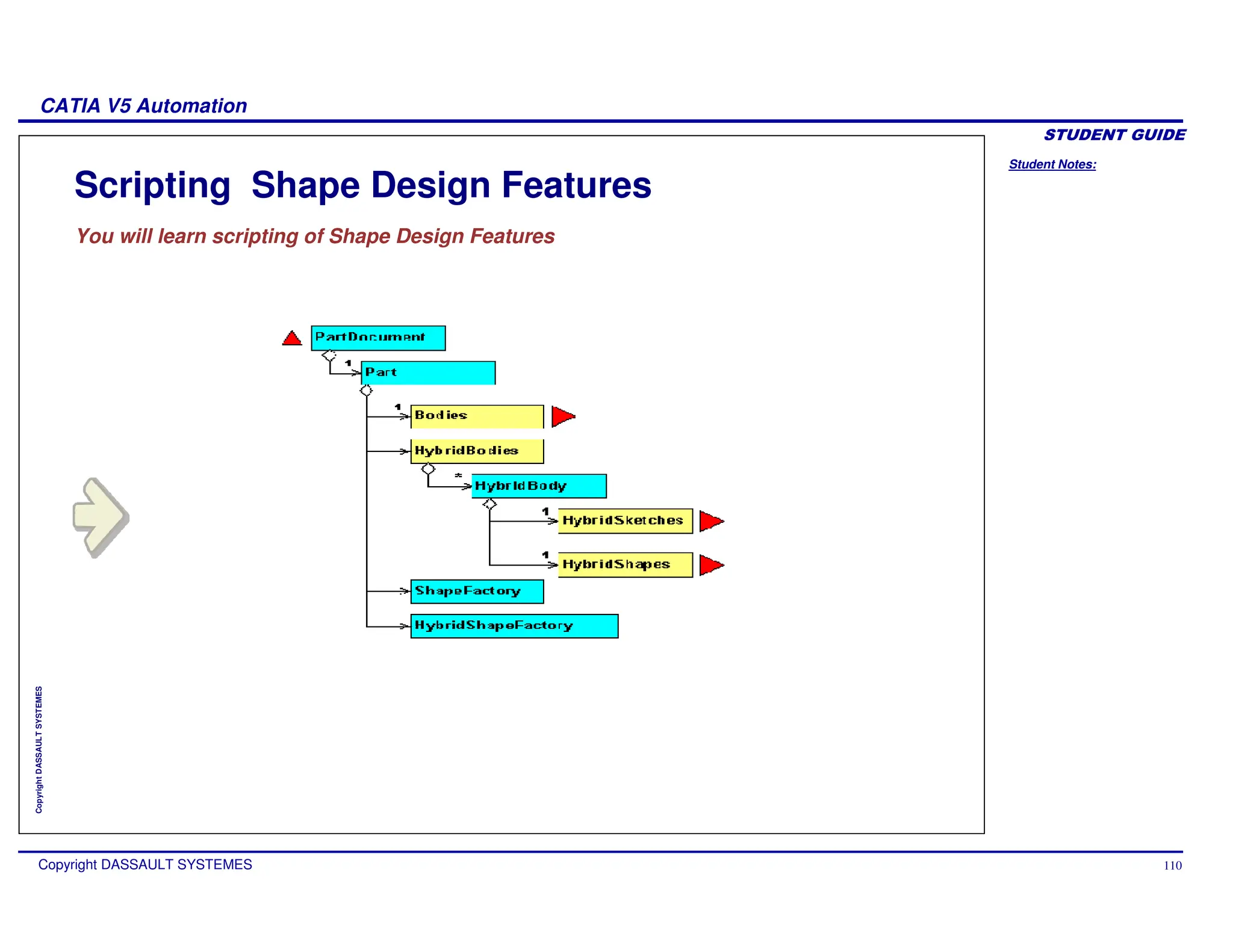
Scripting Shape Design Features Overview
Why Hybrid ?
In Generative Shape Design, some elements are called “hybrid” because they can
be surfaces, lines or points.
The HybridBody is called OpenBody in interactive.
Creating an HybridBody.
When we create a PartDocument in Shape Design, an HybridBody is created
automatically.
If we are in a Part Design context, no Open_Body is created.
Scripting Shape Design features means to create
HybridShapes in the HybridBodies of a PartDocument.
Student Notes:
CATIA V5 Automation
Copyright DASSAULT SYSTEMES 112
Copyright
DASSAULT
SYSTEMES
Scripting Functions for Shape Design features
The HybridShapeFactory
The HybridShapeFactory is in the Part object.
It allows you to create in the “active” HybridBody” 3D points, 3D lines, surfaces
such as extrusions, sweeps, etc.
You can redefine the “active” HybridBody using the InWorkObject property.
AppendHybridShape
To make your 3D lines or shapes visible, you have to use the AppendHybridShape
method onto the HybridBody.
Student Notes:
CATIA V5 Automation
Copyright DASSAULT SYSTEMES 113
Copyright
DASSAULT
SYSTEMES
Scripting Assembly Design Features
You will learn scripting of Assembly Design Features.
Student Notes:
CATIA V5 Automation
Copyright DASSAULT SYSTEMES 114
Copyright
DASSAULT
SYSTEMES
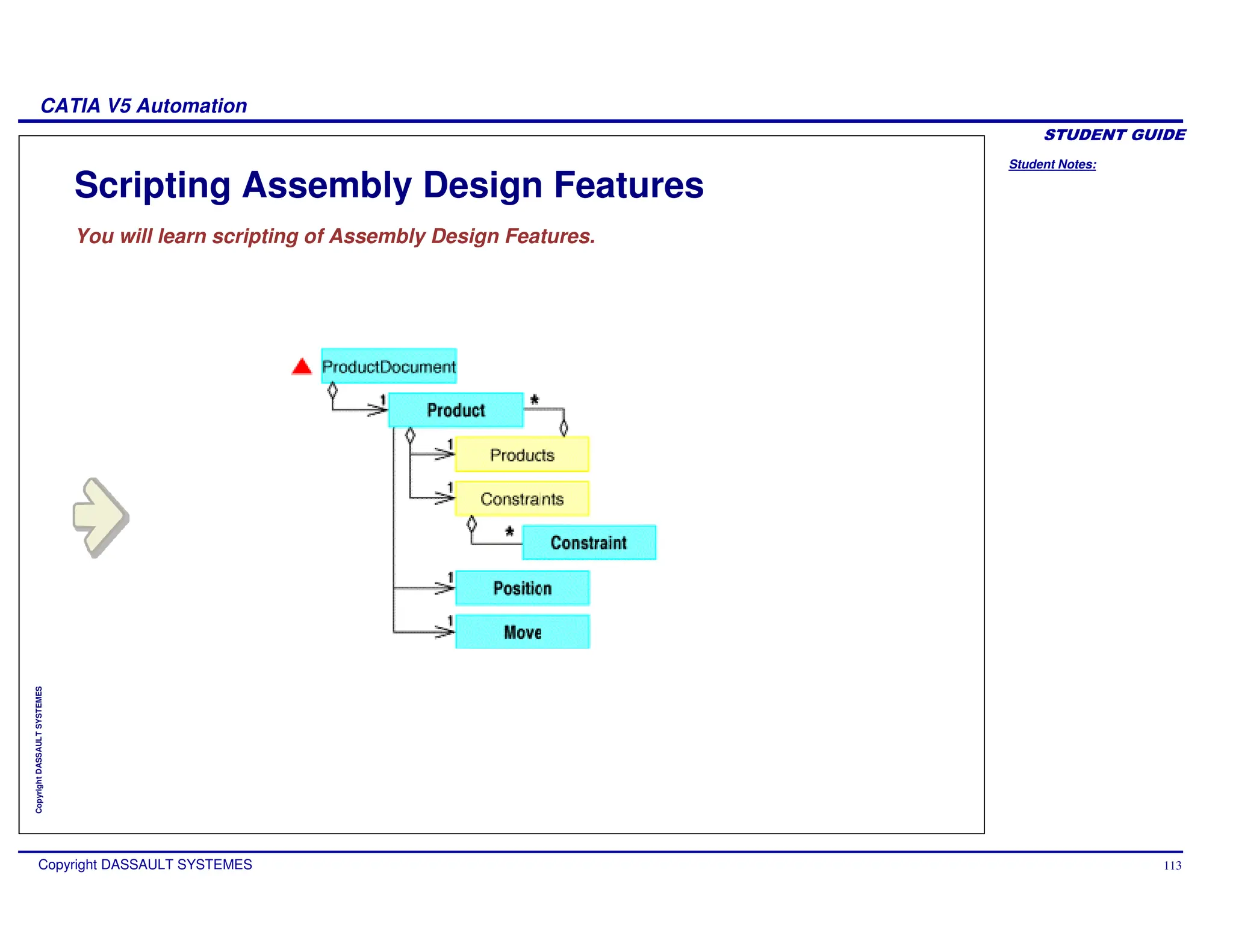
Assembly Design – Object Model
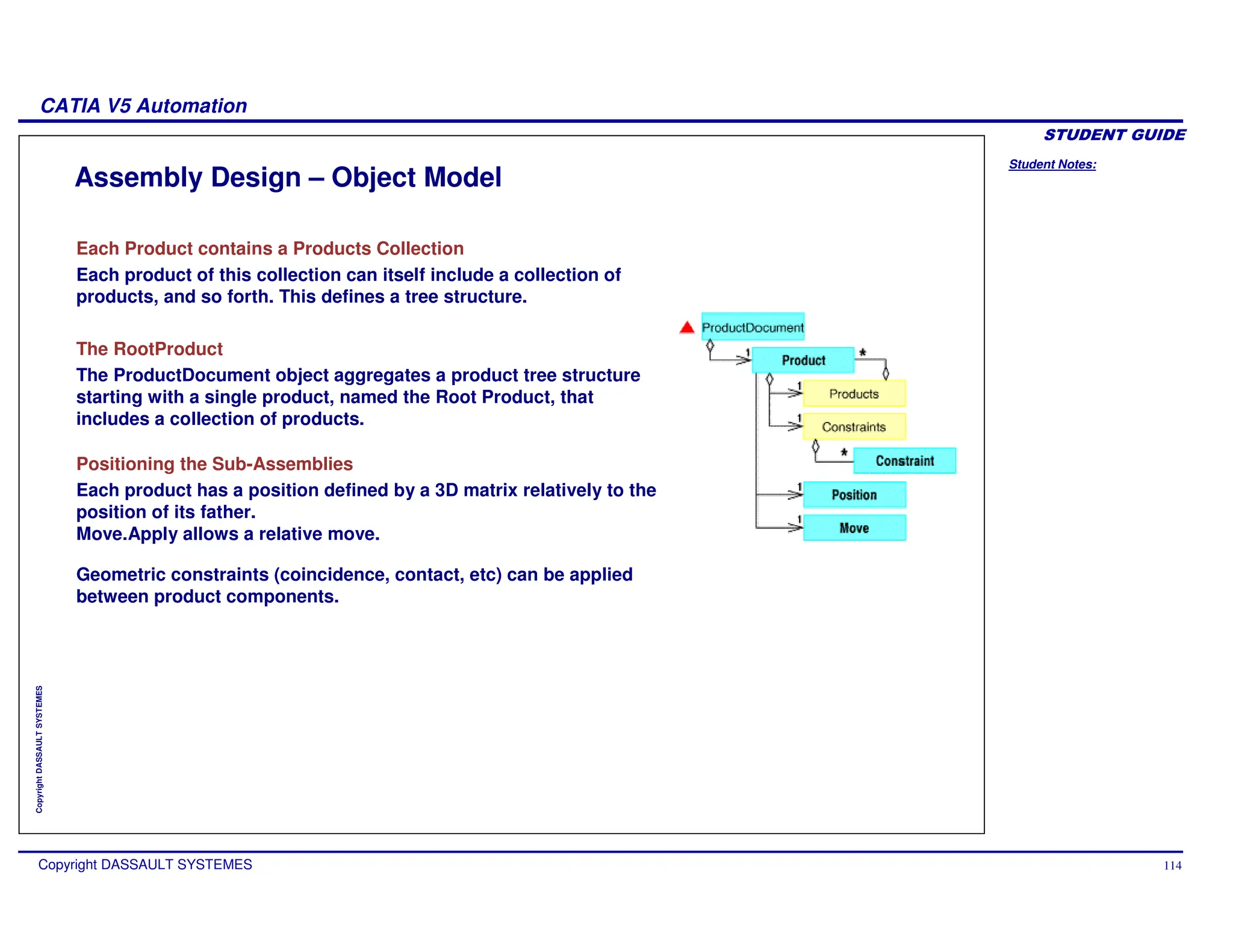
Each Product contains a Products Collection
Each product of this collection can itself include a collection of
products, and so forth. This defines a tree structure.
The RootProduct
The ProductDocument object aggregates a product tree structure
starting with a single product, named the Root Product, that
includes a collection of products.
Positioning the Sub-Assemblies
Each product has a position defined by a 3D matrix relatively to the
position of its father.
Move.Apply allows a relative move.
Geometric constraints (coincidence, contact, etc) can be applied
between product components.
Student Notes:
CATIA V5 Automation
Copyright DASSAULT SYSTEMES 115
Copyright
DASSAULT
SYSTEMES
Assembly Design - Definitions
Definitions
ReferenceProduct : Each product owns a ReferenceProduct that can be another
Product or the hidden Product of an other document.(for example a PartDocument).
(eg: a wheel).
Component : Is an instance of a ReferenceProduct, (eg: the front wheel of car). A
component owns its own characteristics related to how it is integrated in the assembly
(for example: its relative location).
Product.PartNumber : The name of the Reference.
Product.Name : Name of the Instance.
Student Notes:
CATIA V5 Automation
Copyright DASSAULT SYSTEMES 116
Copyright
DASSAULT
SYSTEMES
Functions for Scripting Assembly Design Features (1/2)
Adding Products
Product collections can be built with following methods:
AddNewProduct(“PartNumber”)
Creates both a Reference Product to the product and a component in the
Product Document
AddNewComponent(“DocumentType”, “PartNumber”)
Creates both a Reference Product to the product and a component in the
Product Document. The Reference Product is a new document
AddComponent(ReferenceProduct)
Creates a product component from a Reference Product already existing in the
Product Document
AddExternalComponent(ProductDocument)
Creates a product component from a product reference already existing as
root product of another Product Document
AddComponentsFromFiles(“Document”(), “DocumentType”)
Creates a product component using an external file.
Student Notes:
CATIA V5 Automation
Copyright DASSAULT SYSTEMES 117
Copyright
DASSAULT
SYSTEMES
Functions for Scripting Assembly Design Features (2/2)
Master Shape Representation
Each product can have a different Master Shape Representation that defines its
geometry, material properties and used to display or print it
This representation is shared by all the components pointing to this product reference. It
can be a :
CATIA V4 model
CATIA V5 Part
VRML File
or whatever format supported by CATIA V5
Bill Of Material
We can generate a Bill Of Material directly in a text or HTML file using the ExtractBOM
method.
Instantiating a Product
To instantiate a product, you have to use AddComponent() using the ReferenceProduct of
the existing product as argument.
Student Notes:
CATIA V5 Automation
Copyright DASSAULT SYSTEMES 118
Copyright
DASSAULT
SYSTEMES
Scripting Drafting Features
You will learn scripting of Drafting Features.
Student Notes:
CATIA V5 Automation
Copyright DASSAULT SYSTEMES 119
Copyright
DASSAULT
SYSTEMES
Scripting Drafting Features Overview
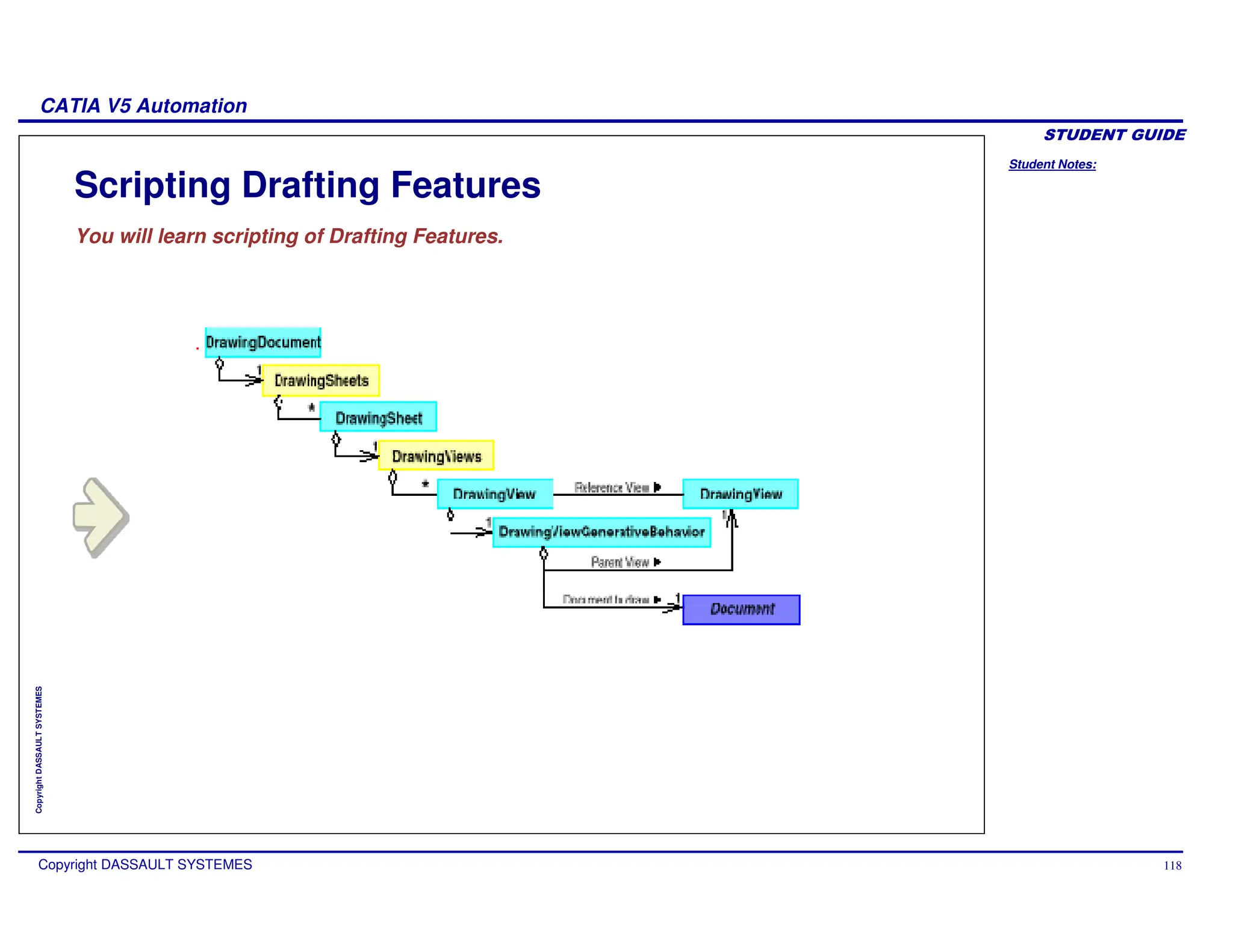
DrawingSheets and DrawingViews
The DrawingDocument object aggregate a DrawingSheets collection.
Each DrawingSheet of this collection aggregates a DrawingViews collection.
Main View and Background View.
A drawing contains at least 2 views: The background view and the Main View that
is the view in which you can draw just after creating a drawing.
Drafting features regroup all the 2D features.
Generative Drafting represent 3D objects in the drawing and Interactive Drafting
represent 2D features directly created in the 2D views.
Student Notes:
CATIA V5 Automation
Copyright DASSAULT SYSTEMES 120
Copyright
DASSAULT
SYSTEMES
Function for Scripting Drafting Features (1/2)
The ActiveSheet
The active sheet can be found in the DrawingSheets collection
The ActiveView
The active view can be found in the DrawingViews collection
The Front View and the Others
A DrawingView can be the “Front View” or an other view relatively to the “Front View”.
DrawingViewGenerativeBehavior can define both behaviour:
DefineFrontView() defines the “Front View” and its direction.
DefineProjectionView() defines an other view relatively to the “Front View”
Other methods allow to create other types of views such as Section Views, Detail
Views, etc.
Student Notes:
CATIA V5 Automation
Copyright DASSAULT SYSTEMES 121
Copyright
DASSAULT
SYSTEMES
Function for Scripting Drafting Features (2/2)
Generative Views
DrawingView owns a “Document” property that allows you to specify the associated 3D
document from which the “generative view” is created.
Interactive Views
DrawingView owns a “Factory2D” property that allows you to create 2D features. This
kind of view is called an “Interactive View”.
Filling the Title block
The Texts collection allows you to create 2D texts in the drawing
Extract Dimensions
A DrawingSheet has the method called GenerateDimension() that generates dimensions
automatically in all the views from the 3D geometry.
Student Notes:
CATIA V5 Automation
Copyright DASSAULT SYSTEMES 122
Copyright
DASSAULT
SYSTEMES
Accessing Elements
You will learn methods of accessing the geometric elements using scripts.
Student Notes:
CATIA V5 Automation
Copyright DASSAULT SYSTEMES 123
Copyright
DASSAULT
SYSTEMES
Automatic Selections
Sometimes, graphic selections are not necessary and we just want to get all
objects of a certain type using some selection filters.
We can do that just by scanning the containers and testing some criteria
We can scan for instance:
All the documents or a specific document.
All the sketches or a specific sketch
All the geometric elements of a sketch
All the Shapes
All the HybridShapes
Student Notes:
CATIA V5 Automation
Copyright DASSAULT SYSTEMES 124
Copyright
DASSAULT
SYSTEMES
Scanning the Containers
We can scan all the collections with a simple loop
For i = 1 to myDocuments.Count
… myDocuments.Item(i)…
Next
Every container like Documents, Shapes, HybridShapes, Sketches,
GeometricElements, Texts (in a drawing) … can be scanned like this.
Student Notes:
CATIA V5 Automation
Copyright DASSAULT SYSTEMES 125
Copyright
DASSAULT
SYSTEMES
Access to a Specific Element
Access in a collection with the name.
We can access to a specific element of a collection by its name.
… Documents.item(“ItsName”) …
Or it can be the Father of an element that we know.
myElem.Parent.Parent… ‘ We can get all its parents until CATIA.Application.
For example, if you have a 2D point in a sketch:
Point2D.Parent is the GeometricElements Collection
Point2D.Parent.Parent is the sketcher
Access with Selection.Search()
We can access to a specific element using Search() of the “Selection” object.
The results will be added to the selected objects.
We can use Selection.FindObject() to scan the results.
Student Notes:
CATIA V5 Automation
Copyright DASSAULT SYSTEMES 126
Copyright
DASSAULT
SYSTEMES
Graphic Selections
Macros and Out-Process applications need a service so that the user can make
Graphic selections.
There are two ways to make graphic selections.
1. We can selected the object before entering the macro (or program).
2. We can call a function inside a macro (or program) to ask for an acquisition.
Student Notes:
CATIA V5 Automation
Copyright DASSAULT SYSTEMES 127
Copyright
DASSAULT
SYSTEMES
Graphic Selection using “Selection” (1/2)
If we don’t care about the order of the selected elements,
the user can make only one selection.
Then we can call FindObject several times for each type of object.
If we care about the order of the selected elements with the same type,
we must call several FindObject with the same type to get the first element then the
others…
We will ask for several acquisitions.
In application like Word or Excel, the selections always precede the
commands.
We can read the selection Object but the geometric element must be selected before
starting the command.
Student Notes:
CATIA V5 Automation
Copyright DASSAULT SYSTEMES 128
Copyright
DASSAULT
SYSTEMES
Graphic Selections using “Selection” (2/2)
Do
Set xObj = xSel.FindObject(MyType)
If (Err.Number <> 0) Then
Err.Clear
Exit Do
Else
… xObj is selected
End If
Loop
Do
Set xObj = xSel.FindObject(MyType)
If (Err.Number <> 0) Then
Err.Clear
Exit Do
Else
… xObj is selected
End If
Loop
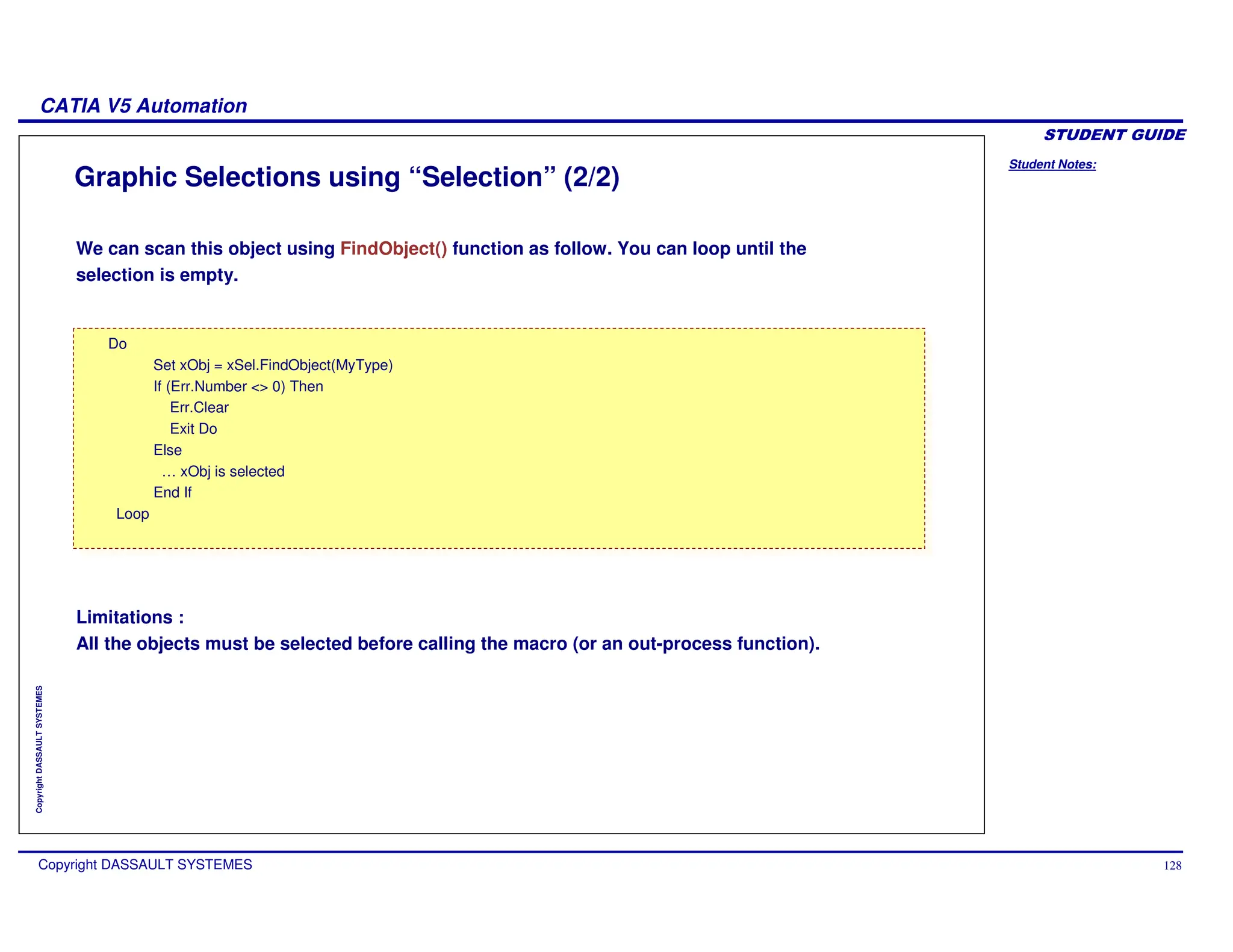
We can scan this object using FindObject() function as follow. You can loop until the
selection is empty.
Limitations :
All the objects must be selected before calling the macro (or an out-process function).
Student Notes:
CATIA V5 Automation
Copyright DASSAULT SYSTEMES 129
Copyright
DASSAULT
SYSTEMES
Graphic Selections using SelectElement2
Dim InputObjectType(1)
InputObjectType(0)="HybridShapeCircle"
InputObjectType(1)="Face"
Status= CATIA.ActiveDocument.Selection.SelectElement2(InputObjectType, "Select a circle or a face",
True)
Dim InputObjectType(1)
InputObjectType(0)="HybridShapeCircle"
InputObjectType(1)="Face"
Status= CATIA.ActiveDocument.Selection.SelectElement2(InputObjectType, "Select a circle or a face",
True)
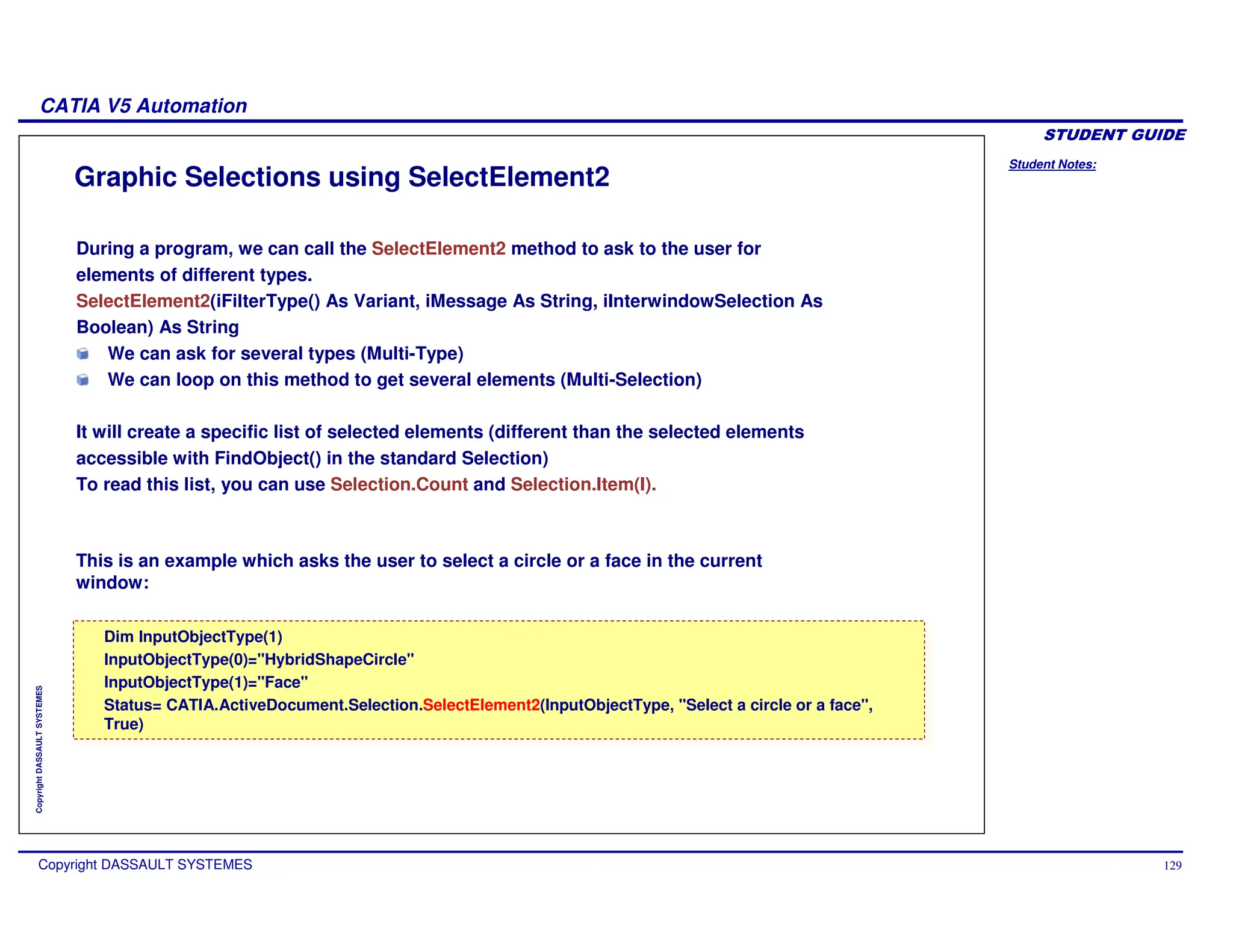
During a program, we can call the SelectElement2 method to ask to the user for
elements of different types.
SelectElement2(iFilterType() As Variant, iMessage As String, iInterwindowSelection As
Boolean) As String
We can ask for several types (Multi-Type)
We can loop on this method to get several elements (Multi-Selection)
It will create a specific list of selected elements (different than the selected elements
accessible with FindObject() in the standard Selection)
To read this list, you can use Selection.Count and Selection.Item(I).
This is an example which asks the user to select a circle or a face in the current
window:
Student Notes:
CATIA V5 Automation
Copyright DASSAULT SYSTEMES 130
Copyright
DASSAULT
SYSTEMES
Creating Panels from Macros
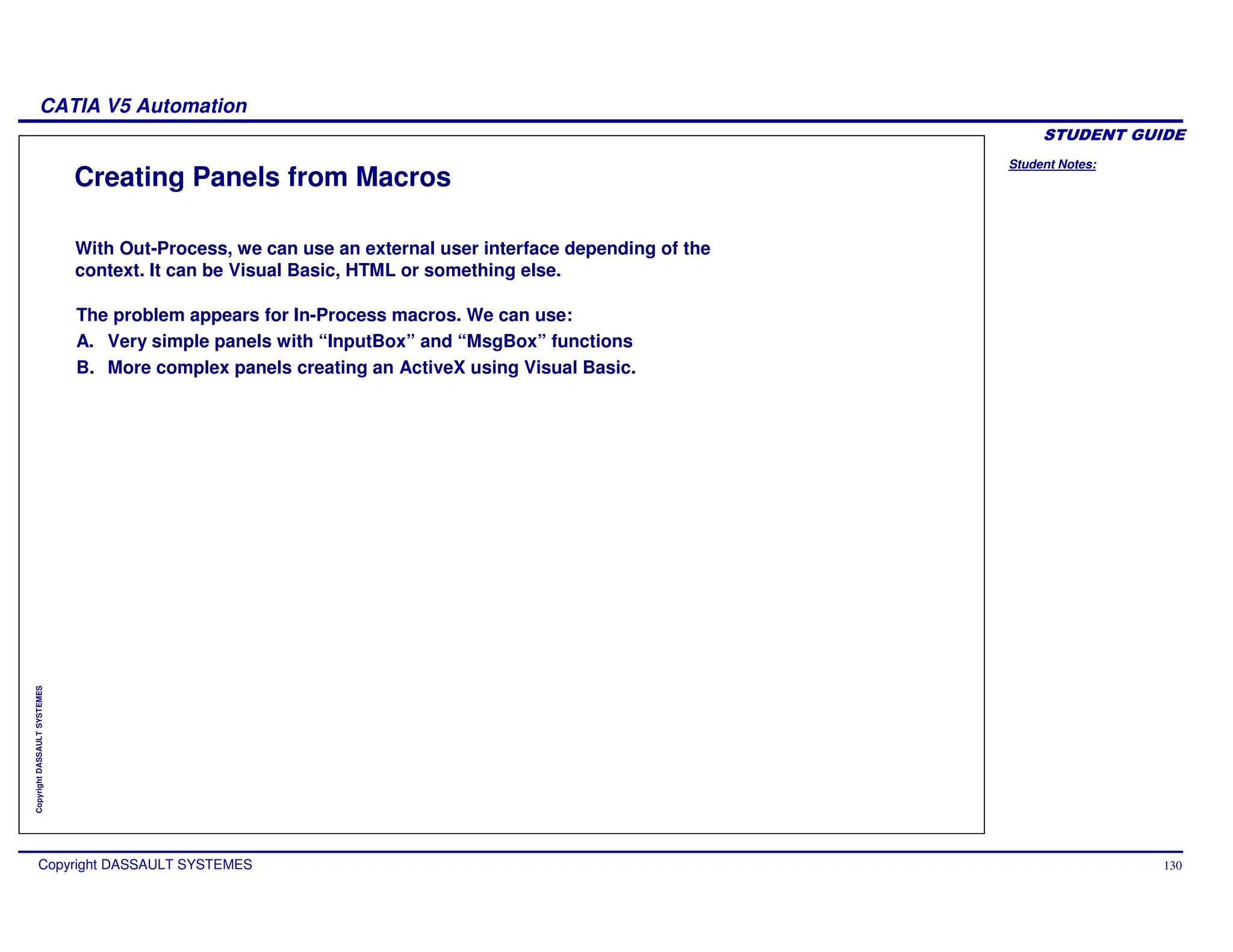
The problem appears for In-Process macros. We can use:
A. Very simple panels with “InputBox” and “MsgBox” functions
B. More complex panels creating an ActiveX using Visual Basic.
With Out-Process, we can use an external user interface depending of the
context. It can be Visual Basic, HTML or something else.
Student Notes:
CATIA V5 Automation
Copyright DASSAULT SYSTEMES 131
Copyright
DASSAULT
SYSTEMES
Input box
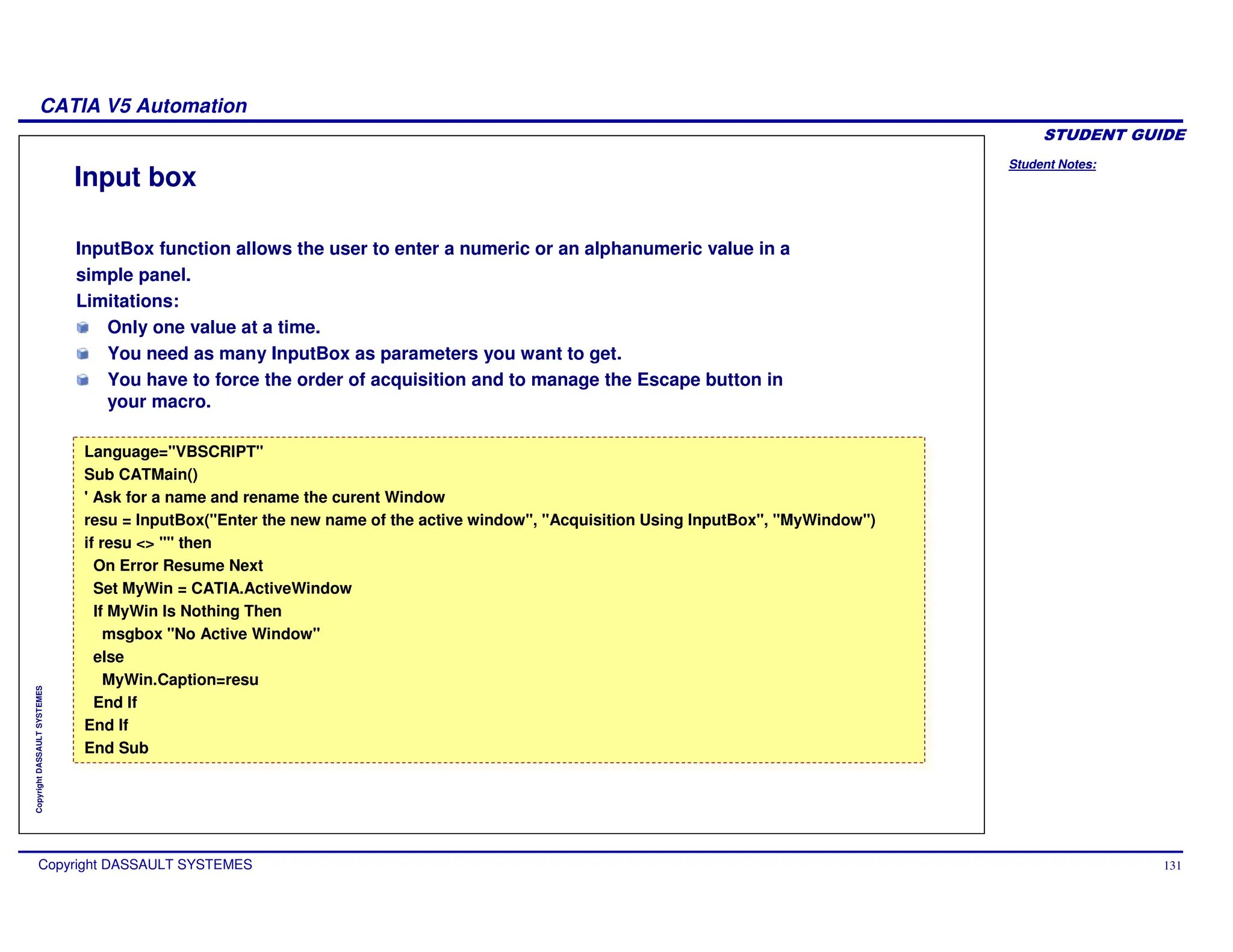
InputBox function allows the user to enter a numeric or an alphanumeric value in a
simple panel.
Limitations:
Only one value at a time.
You need as many InputBox as parameters you want to get.
You have to force the order of acquisition and to manage the Escape button in
your macro.
Language="VBSCRIPT"
Sub CATMain()
' Ask for a name and rename the curent Window
resu = InputBox("Enter the new name of the active window", "Acquisition Using InputBox", "MyWindow")
if resu <> "" then
On Error Resume Next
Set MyWin = CATIA.ActiveWindow
If MyWin Is Nothing Then
msgbox "No Active Window"
else
MyWin.Caption=resu
End If
End If
End Sub
Language="VBSCRIPT"
Sub CATMain()
' Ask for a name and rename the curent Window
resu = InputBox("Enter the new name of the active window", "Acquisition Using InputBox", "MyWindow")
if resu <> "" then
On Error Resume Next
Set MyWin = CATIA.ActiveWindow
If MyWin Is Nothing Then
msgbox "No Active Window"
else
MyWin.Caption=resu
End If
End If
End Sub
Student Notes:
CATIA V5 Automation
Copyright DASSAULT SYSTEMES 132
Copyright
DASSAULT
SYSTEMES
Panels in an ActiveX component (Windows Only)
a) The ActiveX can get the CATIA session and call CATIA objects.
We can, by this way, display or compute intermediate results or we can reuse a selection for
several actions.
b) Several panels of your application(s) can be gathered in one ActiveX component
c) For a large user application, an out-process model is recommended
An other solution is to create panels in an ActiveX component.
An ActiveX can be called from a CATIA Macro.
This ActiveX can display panels.
The Macro calls a method which displays the panel and waits for the end of the
acquisition. The method returns a status and the parameter values.
Student Notes:
CATIA V5 Automation
Copyright DASSAULT SYSTEMES 133
Copyright
DASSAULT
SYSTEMES
Miscellaneous Information (1/4)
About Numbers, Literals, and Units
Call MyFaceFillet.Radius.ValuateFromString(“5.08mm”)
Call MyHole.Diameter.ValuateFromString(“2in”)
Numerical values stored in internally system units. Nevertheless, the user interface can be set to
display and get values from the end user according to another unit system which better matches its
needs or habits.
All the objects that inherit of ‘Dimension’ such as Length, are called “Literal”.
On theses objects, you can use:
ValueAsString to read a system value within the user system coordinates.
ValuateFromString allows the value stored in your object to be valuated using a user unit.
Student Notes:
CATIA V5 Automation
Copyright DASSAULT SYSTEMES 134
Copyright
DASSAULT
SYSTEMES
Resizing CATIA Window
Opening and printing a Document on the Default Printer
Miscellaneous Information (2/4)
Dimensions in pixels.
The position of a Window is determined
by the position of its top left corner.
CATIA.Width = 500
CATIA.Height = 400
CATIA.Left = 150
CATIA.Top = 50
CATIA.Width = 500
CATIA.Height = 400
CATIA.Left = 150
CATIA.Top = 50
Dim Doc as Document
Set Doc = CATIA.Documents.Open(“E:PartsPartToPrint.CATPart”)
CATIA.ActiveWindow.PrintOut Print the Document
CATIA.ActiveDocument.Close Close the Document
Dim Doc as Document
Set Doc = CATIA.Documents.Open(“E:PartsPartToPrint.CATPart”)
CATIA.ActiveWindow.PrintOut Print the Document
CATIA.ActiveDocument.Close Close the Document
Student Notes:
CATIA V5 Automation
Copyright DASSAULT SYSTEMES 135
Copyright
DASSAULT
SYSTEMES
Miscellaneous Information (3/4)
Scripting Knowledgeware Features
It is possible to create:
Parameters
Rules
Check
Design Tables and Select Configurations
Opening and Converting a Document in VRML
Dim Doc as Document
Set Doc = CATIA.Documents.Open(“E:PartsPartToConvert.CATPart”)
Call Doc.ExportData(“E:DocName", "wrl")
Dim Doc as Document
Set Doc = CATIA.Documents.Open(“E:PartsPartToConvert.CATPart”)
Call Doc.ExportData(“E:DocName", "wrl")
Student Notes:
CATIA V5 Automation
Copyright DASSAULT SYSTEMES 136
Copyright
DASSAULT
SYSTEMES
Miscellaneous Information (4/4)
Measures
The measures are provided by the “Analyze” object of a Product.
We have to create a product
How to measure the Centre of Gravity
Analyze.GetGravityCenter() method get the coordinates of the gravity centre.
How to measure the Mass
Analyze.Mass return the Mass of the Product
Student Notes:
CATIA V5 Automation
Copyright DASSAULT SYSTEMES 137
Copyright
DASSAULT
SYSTEMES
Obfuscating and Converting Macros
You will learn to hide the source code of the macros and convert them into an encrypted
format.
Student Notes:
CATIA V5 Automation
Copyright DASSAULT SYSTEMES 138
Copyright
DASSAULT
SYSTEMES
Obfuscate VBScript Macros (1/4)
CATIA V5 includes an infrastructure to obfuscate scripts based on the MS Script Encoder.
The main characteristic of this component are as follows:
It lets V5 scripts interoperate with other scripts which have chosen the same
obfuscation scheme.
It is developed and marketed by Microsoft, so it is widely available and well known.
The encoding algorithm is quite weak though. However, Microsoft says that the encoder
is not as much a technical protection as a legal protection.
The Scripts can be encoded on Windows only. However, encoded scripts can be replayed
on the UNIX and Windows.
Only VBScript scripts can be encoded. For other languages, there are other schemes
Available (project passwords for VBA, ...)
For the obfuscation to be available, the MS Script encode must have been installed.
Student Notes:
CATIA V5 Automation
Copyright DASSAULT SYSTEMES 139
Copyright
DASSAULT
SYSTEMES
Obfuscate VBScript Macros (2/4)
In the obfuscate window, click the "Ok" button.
A new "Compare.obfuscated.catvbs" macro is created.
This macro can be replayed on Windows or UNIX without the MS Script Encoder installed.
To obfuscate a Macro:
Select the Tools->Macros->Macros menu item.
In the macro panel, select the macro you want to obfuscate (for instance,
Compare.catvbs) and click the "obfuscate..." button.
Student Notes:
CATIA V5 Automation
Copyright DASSAULT SYSTEMES 140
Copyright
DASSAULT
SYSTEMES
Obfuscate VBScript Macros (3/4)
Here is the text for the "Compare.catvbs" macro before obfuscation:
Here is the text of the obfuscated macro:
Sub CATMain()
Set doc1 = CATIA.Documents.Item(1)
Set doc2 = CATIA.Documents.Item(1)
Set doc3 = CATIA.Documents.Item(2)
If doc1 Is doc2 Then
MsgBox "doc1 == doc2"
End If
If doc1 Is doc3 Then
MsgBox "Gasp"
End If
End Sub
Sub CATMain()
Set doc1 = CATIA.Documents.Item(1)
Set doc2 = CATIA.Documents.Item(1)
Set doc3 = CATIA.Documents.Item(2)
If doc1 Is doc2 Then
MsgBox "doc1 == doc2"
End If
If doc1 Is doc3 Then
MsgBox "Gasp"
End If
End Sub
#@~^CgEAAA==j!4~;b:Hlbxvb@#@&?nY,NG^8P',/b:qbc9Gm!: xO/ (D+h`
8b@#@&?nO,NW^+,'~ZzP&b
GW1E: xDdR&Yn:vFb@#@&?+D~NKm&,x~ZzK&b fG^!:nxDdR&Ynhv
#@#@&@#@&(0,[Kmq,qkPNKmy~K4+U@#@&ddTAWX~J9Wm8~x',NKm+J@#@&Ax[P&W@#@&
@#@&(6PNG^8P(/,[Kmf,K4+x@#@&i/TAG6,J!CkwJ@#@&2
NP&W@#@&@#@&Ax[Pj;(@#@&n0IAAA==^#~@
#@~^CgEAAA==j!4~;b:Hlbxvb@#@&?nY,NG^8P',/b:qbc9Gm!: xO/ (D+h`
8b@#@&?nO,NW^+,'~ZzP&b
GW1E: xDdR&Yn:vFb@#@&?+D~NKm&,x~ZzK&b fG^!:nxDdR&Ynhv
#@#@&@#@&(0,[Kmq,qkPNKmy~K4+U@#@&ddTAWX~J9Wm8~x',NKm+J@#@&Ax[P&W@#@&
@#@&(6PNG^8P(/,[Kmf,K4+x@#@&i/TAG6,J!CkwJ@#@&2
NP&W@#@&@#@&Ax[Pj;(@#@&n0IAAA==^#~@
Student Notes:
CATIA V5 Automation
Copyright DASSAULT SYSTEMES 141
Copyright
DASSAULT
SYSTEMES
Obfuscate VBScript Macros (4/4)
Advanced Features
A special '**Start Encode** tag can be placed in the script to tell the obfuscator to only
Partially encode a script. This can be useful to leave a copyright notice unencrypted.
For instance:
Here is the text after obfuscation:
before obfuscation:
' Copyright 2004 MyCompany. All rights reserved
'**Start Encode**
Sub CATMain()
' My secret algorithm goes here
End Sub
before obfuscation:
' Copyright 2004 MyCompany. All rights reserved
'**Start Encode**
Sub CATMain()
' My secret algorithm goes here
End Sub
' Copyright 2004 MyCompany. All rights reserved
'**Start Encode**
#@~^PQAAAA==@&@&?;(P;bKtlbU`
*@&vPtX~d mD OPmVoK.rY4:,oG+d~4+.+@&3x9Pj;(@&txE
AAA==^#~@
' Copyright 2004 MyCompany. All rights reserved
'**Start Encode**
#@~^PQAAAA==@&@&?;(P;bKtlbU`
*@&vPtX~d mD OPmVoK.rY4:,oG+d~4+.+@&3x9Pj;(@&txE
AAA==^#~@
Student Notes:
CATIA V5 Automation
Copyright DASSAULT SYSTEMES 142
Copyright
DASSAULT
SYSTEMES
Multi-Product Support (1/2)
DS is now a multi-product company. However, until V5 R9 all the products were
registered under the same keys in the Windows registry as far as the scripting was
concerned. This made it impossible to develop solutions which relied on several V5
products glued together by scripting code. From the V5R9 scripting infrastructure
changes this.
The root object (an instance of the VB Application class) used to be always registered
under the name CATIA, a confusing name for DELMIA or DMU users. Since V5R9,
when recording a script, the root object name has the same name as the application.
For instance, if you record a script which creates a part in DELMIA, you will get:
Sub CATMain()
Set documents1 = DELMIA.Documents
Set partDocument1 = documents1.Add("Part")
End Sub
Sub CATMain()
Set documents1 = DELMIA.Documents
Set partDocument1 = documents1.Add("Part")
End Sub
Student Notes:
CATIA V5 Automation
Copyright DASSAULT SYSTEMES 143
Copyright
DASSAULT
SYSTEMES
Multi-Product Support (2/2)
For compatibility with previously recorded scripts, and interoperability of scripts recorded in other
DS products, the names "CATIA", "DELMIA" and "DMU" all refer to the root object (an instance of
the VB Application class) and can be used in place of each other.
Out-process: Each of the main V5 applications which use scripting (CATIA, DELMIA, ENOVIA) now
have a separate entry in the windows registry. The command:
DMU /RegServer
Will create an DMU.Application entry in the registry.
In the same way,
DELMIA /RegServer
will create a DELMIA.Application in the registry.
To instantiate a DMU and a DELMIA application from a CATIA VBScript, one would write:
Dim DMUApp
Set DMUApp = CreateObject ("DMU.Application")
Dim DELMIAApp
Set DELMIAApp = CreateObject ("DELMIA.Application")
Dim DMUApp
Set DMUApp = CreateObject ("DMU.Application")
Dim DELMIAApp
Set DELMIAApp = CreateObject ("DELMIA.Application")
Student Notes:
CATIA V5 Automation
Copyright DASSAULT SYSTEMES 144
Copyright
DASSAULT
SYSTEMES
Registering CATIA and Type Libraries
Set CATIA= CreateObject(“CATIA.Application”)
> cnext /RegServer
> cnext /UnregServer
B. To register the corresponding CATIA Type Libraries, you must first run a macro. Then, you
will be able to check in the “Project/References ” menu of Visual Basic (or VBA) that the
location of the *.tlb files has changed.
These commands must be typed in a command window and in the folder:
“.intel_acodebin” of the chosen CATIA version.
To register an other version, you can type:
A. When CATIA V5 is installed, it is registered in the “registry” of “Windows”, so
that it is possible to use this instruction:
If you have several versions of CATIA and If you want to change of version, you can
unregister CATIA in a command window typing :
Student Notes:
CATIA V5 Automation
Copyright DASSAULT SYSTEMES 145
Copyright
DASSAULT
SYSTEMES
Converting a Macro to a Visual Basic Program
Dim myDocument as PartDocument
Instead of
Dim myDocument as AnyObject
Dim myDocument ‘as Document
Dim myPartDocument as PartDocument
Set myPartDocument = CATIA.ActiveDocument
Set myPart = myPartDocument.Part
Instead of
Set myPart = CATIA.ActiveDocument.Part
Because Part is a property of a PartDocument but not of a Document.
a) If we have inheritance, we must create an intermediate variable to define the
correct type for the “Inheritance branch” we choose.
At first you need to start CATIA from your VB program.
A. If you don’t want to use the type definitions (Like Macros)
a) Comment all the CATIA objects’ types.2)
B. If you want to use the type definitions (for completion)
a) Rename the variables to have better understanding names.
b) Give the right type for objects if necessary:
Student Notes:
CATIA V5 Automation
Copyright DASSAULT SYSTEMES 146
Copyright
DASSAULT
SYSTEMES
A. Be Careful
From a Visual Basic program, you cannot reuse the graphical Forms.
The user interface is reduced to MsgBox and InputBox panels. (ActiveX on
Windows)
B. Don’t care about the objects’ type definitions
They are not used in macros and they are automatically commented at run time.
C. Review some Syntaxes
a) Don’t use # for constants. Replace 10# by 10.0
b) Prefer the syntax with Call keyword for subroutines which use arguments:
c) Use simply Next in stead of Next I for loops
d) Don’t use the type definitions in the arguments of your own subroutines.
e) Don’t use For each loop syntax on Basic Script (UNIX).
Converting a Visual Basic programm to a CATIA Macro
Call mySubroutine(Arg1,Arg2)
You can easily develop your program using Microsoft Visual Basic, then
convert it into a CATIA macro when it is finished.
Student Notes:
CATIA V5 Automation
Copyright DASSAULT SYSTEMES 147
Copyright
DASSAULT
SYSTEMES
Macros on UNIX / Windows
For example:
Dim myDocument as Document
Or
Dim myDocument as PartDocument
Dim myDocument as Document.
Set myDocument = CATIA.ActiveDocument
A. Windows Macros (VBScript) don’t use the Object Types
The types are automatically commented at run time.
B. Visual Basic programs can use types
We can define the real type or an abstract type.
It depends on the kind of properties we want to access.
To access to myDocument.Part, we must define myDocument as PartDocument.
C. UNIX Macros (Basic Script) use types
These are not always the same types as those used in Visual Basic.
On UNIX, we must define the object type returned by the function or property used to
assign the variable.
Example: “CATIA.ActiveDocument” returns a “Document”. So we must type:
Student Notes:
CATIA V5 Automation
Copyright DASSAULT SYSTEMES 148
Copyright
DASSAULT
SYSTEMES
Calling an other Automation Server
You will learn to call other automation servers like ‘MS – Word, Excel, PowerPoint’ etc
using your automation scripts.
Student Notes:
CATIA V5 Automation
Copyright DASSAULT SYSTEMES 149
Copyright
DASSAULT
SYSTEMES
Calling WSH from VBScript
CATIA provides an object called FileSystem to be able to do the same on both UNIX and
Windows Platforms.
In VBScript macros, you are not able to use file system functions such as open,
close and print #n. To access file system functions on Windows, you can use WSH
(Windows Scripting Host).
The Attached Macro “read.CATScript”, read coordinates in the file
“E:Test.DAT” and create 3D points.
The service is created with the follwing code:
Set o = CreateObject("Scripting.FileSystemObject")
Then we can open a file using:
Set fil = o.GetFile("e:test.dat")
The file is read using a TextStream:
Set ts = fil.OpenAsTextStream(1)' (For Reading)
We can read each lines with:
ts.ReadLine
And close the stream with:
ts.Close
Student Notes:
CATIA V5 Automation
Copyright DASSAULT SYSTEMES 150
Copyright
DASSAULT
SYSTEMES
Calling Word
You can call Word from VBScript as well as from VBA or Visual Basic.
The best way to develop Word functions is to try it in Word itself. You will be able to
use the Visual Basic Editor with its help (“F1”), completion, Object Browser and
debugger.
You can also record macros to see what functions you have to use.
Here is a sample that opens a new document and writes “Hello Word!”.
Dim Wr As Word.Application
On Error Resume Next
Set Wr = GetObject(, "Word.Application")
If Err <> o Then
Set Wr = CreateObject("Word.Application")
Wr.Visible = True
End If
Set d = Wr.Documents.Add (DocumentType:=wdNewBlankDocument)
d.Range.Text = "Hello Word!"
Dim Wr As Word.Application
On Error Resume Next
Set Wr = GetObject(, "Word.Application")
If Err <> o Then
Set Wr = CreateObject("Word.Application")
Wr.Visible = True
End If
Set d = Wr.Documents.Add (DocumentType:=wdNewBlankDocument)
d.Range.Text = "Hello Word!"
Student Notes:
CATIA V5 Automation
Copyright DASSAULT SYSTEMES 151
Copyright
DASSAULT
SYSTEMES
Calling Excel
You can call Excel from VBScript as well as from VBA or Visual Basic.
The best way to develop Excel functions is to try it inside Excel. You will be able to
use the Visual Basic Editor with its help (“F1”), completion, Object Browser and
debugger.
You can also record macros to see which functions you have to use.
Here is a sample that opens a new sheet and writes “Hello” in the cell “B2”.
Dim xl As Excel.Application
On Error Resume Next
Set xl = GetObject(, "Excel.Application")
If Err <> o Then
Set xl = CreateObject("Excel.Application")
xl.Visible = True
End If
xl.Workbooks.Add ‘ Add a new WorkBook
Range("B2").Select ‘ Select the cell “B2”
ActiveCell.FormulaR1C1 = "Hello"
Dim xl As Excel.Application
On Error Resume Next
Set xl = GetObject(, "Excel.Application")
If Err <> o Then
Set xl = CreateObject("Excel.Application")
xl.Visible = True
End If
xl.Workbooks.Add ‘ Add a new WorkBook
Range("B2").Select ‘ Select the cell “B2”
ActiveCell.FormulaR1C1 = "Hello"
Student Notes:
CATIA V5 Automation
Copyright DASSAULT SYSTEMES 152
Copyright
DASSAULT
SYSTEMES
Drawing a Chart in EXCEL
To draw a chart in Excel, you have to create a chart using:
Charts.Add
Fill cells with values and associate them to the chart using:
ActiveChart.SetSourceData
Then position the chart in one sheet using:
ActiveChart.Location
Then, you can modify the properties of the chart.
See the example .StudentDataLesson4SampleTestWordExcelProject1.vbp for
more details.
Student Notes:
CATIA V5 Automation
Copyright DASSAULT SYSTEMES 153
Copyright
DASSAULT
SYSTEMES
In-Process and Out-Process Macros.
Recording / Creating of macros using various scripting languages like VB /
VBA etc.
Scripting various features like Sketches, Part Design Features, Surfaces,
Drawings etc.
Calling other automation servers.
To Sum Up
In this course you have seen:

CATIA V5 Automation VB script.........pdf

  • 1.
    Student Notes: CATIA V5Automation Copyright DASSAULT SYSTEMES 1 Copyright DASSAULT SYSTEMES CATIA V5 Automation CATIA V5 Training Foils Version 5 Release 19 January 2009 EDU_CAT_EN_VBA_AF_V5R19
  • 2.
    Student Notes: CATIA V5Automation Copyright DASSAULT SYSTEMES 2 Copyright DASSAULT SYSTEMES About this course Objectives of the course Upon completion of this course, you will be able to create automation scripts, programs, and macros in CATIA V5, using Visual Basic and other automation tools available in CATIA V5. Targeted audience Application developers Prerequisites Students attending this course should have knowledge of CATIA V5 Interactive and Visual Basic 8 hours
  • 3.
    Student Notes: CATIA V5Automation Copyright DASSAULT SYSTEMES 3 Copyright DASSAULT SYSTEMES Table of Contents (1/4) Introduction to CATIA V5 Automation 7 CATIA V5 Automation & Scripting: Presentation 8 Knowledgeware, VB Automation, and CAA 9 Skills Required for CATIA V5 Automation 10 CATIA V5 Automation: Presentation (Windows only) 11 Language Used for Automation 12 VB Script 13 VBA 15 Visual Basic 16 Communication Chart on Windows 17 Documentations 18 Interface Documentation 19 CATIA V5 Association with File Extension 21 CATIA V5 OLE (Object Linking and Embedding) 22 CATIA V5 Scripting Capabilities 23 In-Process Marcos 24 What is an 'In-Process' Macro 25 CATIA V5 Visual Basic Editor 26
  • 4.
    Student Notes: CATIA V5Automation Copyright DASSAULT SYSTEMES 4 Copyright DASSAULT SYSTEMES Table of Contents (2/4) Macro Libraries 27 Recording a Macro 28 Running a Macro 29 Execution of a Macro from another Macro 31 Execution of a Macro which Require Parameters 32 Adding a Macro as a command in a Toolbar 33 Macros Options Interface 34 Out-Process Programs 35 Running Out-Process Programs (On Windows only) 36 Running Out-Process from VBA or Visual Basic 37 Example: Bolt from Excel 40 Running Out-Process using the Windows Scripting Host 43 VBScript under Windows Scripting Host 44 BoltVBSript.vbs Example 45 JavaScript under Windows Scripting Host 46 BoltJavaSript.js Example 47 Out-Process in HTML (Windows & Microsoft IE Only) 48 Out-Process in HTML with VBScript 49
  • 5.
    Student Notes: CATIA V5Automation Copyright DASSAULT SYSTEMES 5 Copyright DASSAULT SYSTEMES Table of Contents (3/4) Out-Process in HTML with JavaScript 50 VBA / VB Programming Basics 51 Programming Generalities 52 VBA / VB Common Controls 57 VB Programming Techniques 70 Scripting with CATIA V5 77 CATIA V5 Object Architecture 78 Scripting Infrastructure Features 95 Scripting Sketches 104 Scripting Part Design Features 107 Scripting Shape Design Features 110 Scripting Assembly Design Features 113 Scripting Drafting Features 118 Accessing Elements 122 Automatic Selections 123 Scanning the Containers 124 Access to a Specific Element 125 Graphic Selections 126
  • 6.
    Student Notes: CATIA V5Automation Copyright DASSAULT SYSTEMES 6 Copyright DASSAULT SYSTEMES Table of Contents (4/4) Graphic Selection using 'Selection' 127 Graphic Selections using SelectElement2 129 Creating Panels from Macros 130 Input box 131 Panels in an ActiveX component (Windows Only) 132 Miscellaneous Information 133 Obfuscating and Converting Macros 137 Obfuscate VBScript Macros 138 Multi-Product Support 142 Registering CATIA and Type Libraries 144 Converting a Macro to a Visual Basic Program 145 Converting a Visual Basic programm to a CATIA Macro 146 Macros on UNIX / Windows 147 Calling an other Automation Server 148 Calling WSH from VBScript 149 Calling Excel 151 Drawing a Chart in EXCEL 152
  • 7.
    Student Notes: CATIA V5Automation Copyright DASSAULT SYSTEMES 7 Copyright DASSAULT SYSTEMES Introduction to CATIA V5 Automation You will be introduced to various tools and capabilities related to CATIA V5 Automation.
  • 8.
    Student Notes: CATIA V5Automation Copyright DASSAULT SYSTEMES 8 Copyright DASSAULT SYSTEMES CATIA V5 Automation & Scripting: Presentation On both Windows and UNIX The scripting allows you to program CATIA in a very simple way with macros on both Windows and UNIX platforms. CATIA uses the common part on MS-VBScript to have the same macros running on both the platforms. On Windows platforms Automation allows CATIA to share objects with other external applications such as Word/Excel or Visual Basic programs. CATIA can use the Word/Excel objects as well as Word/Excel can use the CATIA Objects.
  • 9.
    Student Notes: CATIA V5Automation Copyright DASSAULT SYSTEMES 9 Copyright DASSAULT SYSTEMES Knowledgeware, VB Automation, and CAA VB Automation Knowledgeware Needs CATIA licenses Low interaction with final user (no window interface) Based on geometry May be integrated to VB Automation CAA V5 Need licenses High skills in programming (C++) Usually for specific-domain solution
  • 10.
    Student Notes: CATIA V5Automation Copyright DASSAULT SYSTEMES 10 Copyright DASSAULT SYSTEMES Skills Required for CATIA V5 Automation VBA (Visual Basic for Applications) or Visual Basic 6 basics Basic language Object programming Event programming Knowledge of the CATIA workbench in which you are going to program Infrastructure Surfaces Analysis etc.
  • 11.
    Student Notes: CATIA V5Automation Copyright DASSAULT SYSTEMES 11 Copyright DASSAULT SYSTEMES CATIA V5 Automation: Presentation (Windows only) Automation allows communication between several process. CATIA V5 On Windows Visual Basic For Applications (for ex:Word/Excel) COM (Component Object Model) is the “Microsoft” standard to share objects between several applications. Automation is a “Microsoft” technology to use COM objects in an interpreted environment. ActiveX component is a “Microsoft” standard to share objects between several applications even in an interpreted environment. OLE (Object Linking and Embedding) means that the document can be linked in the document of an other application OLE and can be edited in that other application (In place editing). Interfaces COM Visual Basic Visual Basic Script (for Macros)
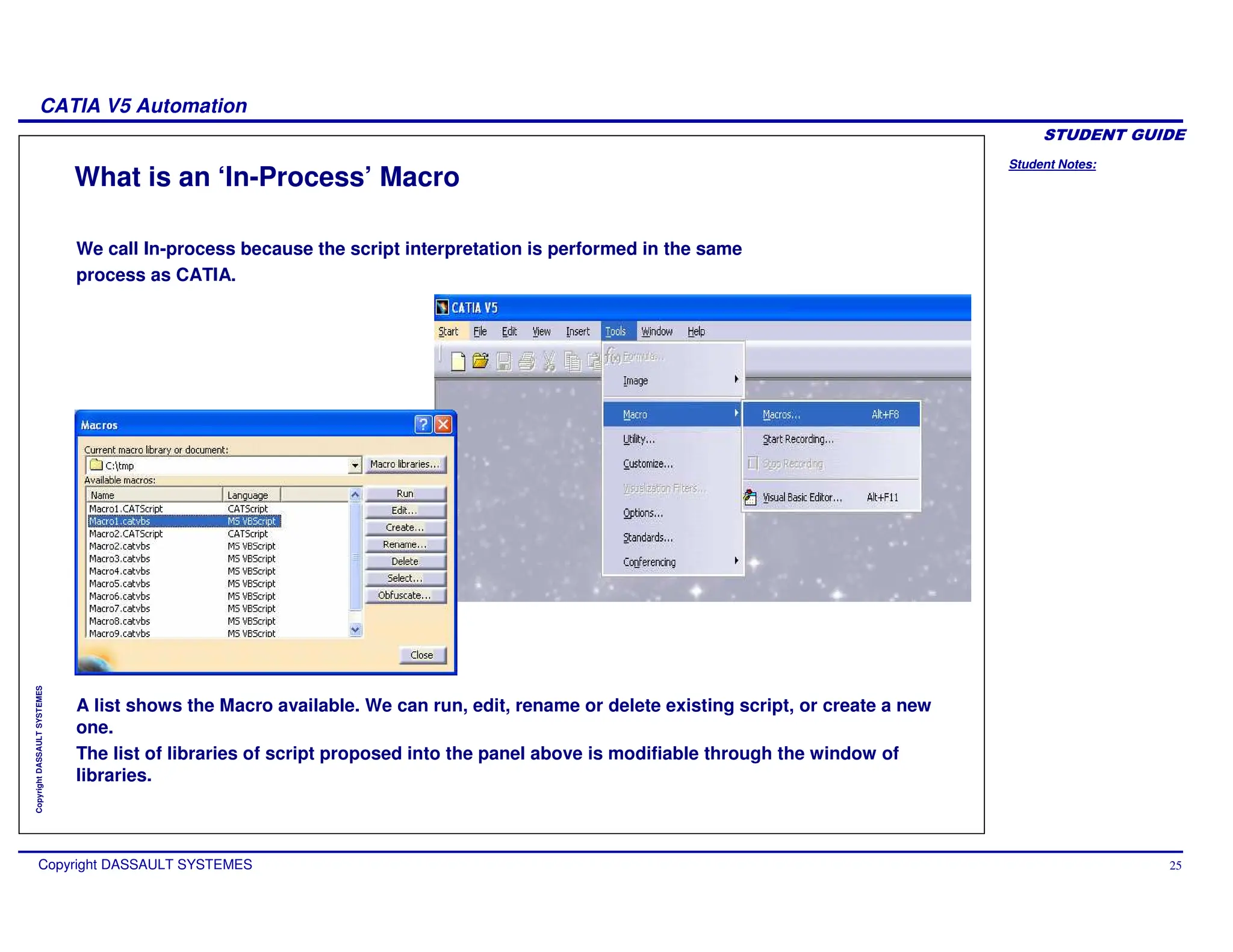
  • 12.
    Student Notes: CATIA V5Automation Copyright DASSAULT SYSTEMES 12 Copyright DASSAULT SYSTEMES Language Used for Automation Three possible languages: Visual Basic 6 VBA VB Script / CATScript
  • 13.
    Student Notes: CATIA V5Automation Copyright DASSAULT SYSTEMES 13 Copyright DASSAULT SYSTEMES VB Script (1/2) VBScript (Visual Basic Script) is a subset of VBA. It is a simple interpreted Basic language Only Windows/Unix « compatible » language Can call CATIA Objects Directly launchable from a saved macro Weak help to programming Very ‘light’ internal editor No type is used. The system tries dynamically to call methods and properties of objects. Sequential programming Poor User Interface tools
  • 14.
    Student Notes: CATIA V5Automation Copyright DASSAULT SYSTEMES 14 Copyright DASSAULT SYSTEMES VB Script (2/2) Poor User Interface : Examples Message box Input box File Selection Box No more …
  • 15.
    Student Notes: CATIA V5Automation Copyright DASSAULT SYSTEMES 15 Copyright DASSAULT SYSTEMES VBA Programming help « Event » Programming CATIA drive from another VBA application (Excel, Word …) Rich User Interface (buttons, lists, …) Weak protection Not easy to export program No « InstallShield » tool VBA (Visual Basic for Applications) is a subset of Visual Basic. VBA is hosted in applications such as Word, Excel or CATIA.
  • 16.
    Student Notes: CATIA V5Automation Copyright DASSAULT SYSTEMES 16 Copyright DASSAULT SYSTEMES Visual Basic Visual Basic is the full version All the advantages of VBA + … More extended set of instructions Code protection (compiled program) Can create ActiveX and Servers provides an added documentation called “Books on line” (VB 5.0) Packaging and deployment assistant Needs an additional installation Microsoft licensed software
  • 17.
    Student Notes: CATIA V5Automation Copyright DASSAULT SYSTEMES 17 Copyright DASSAULT SYSTEMES Communication Chart on Windows CATIA V5 In-Process Out-Process Visual Basic Macros (VBScript) Word/Excel (VBA) HTML-WSH Internet/IIS (VBScript- JavaScript) *.VBS or *.JS Panels in ActiveX (Windows)
  • 18.
    Student Notes: CATIA V5Automation Copyright DASSAULT SYSTEMES 18 Copyright DASSAULT SYSTEMES Documentations Journaling guides for each workbenches Architecture Concepts, rules, samples ... Understand
  • 19.
    Student Notes: CATIA V5Automation Copyright DASSAULT SYSTEMES 19 Copyright DASSAULT SYSTEMES Interface Documentation (1/2) Public Interfaces Use
  • 20.
    Student Notes: CATIA V5Automation Copyright DASSAULT SYSTEMES 20 Copyright DASSAULT SYSTEMES Interface Documentation (2/2) Additional Information The documentation is also available in the CATIA code installation directory. Look for …Bxxintel_acodebinV5Automation.chm and create a shortcut on your Desktop. In the documentation, you will find helpful ‘Use cases’.
  • 21.
    Student Notes: CATIA V5Automation Copyright DASSAULT SYSTEMES 21 Copyright DASSAULT SYSTEMES CATIA V5 Association with File Extension A double-click in Windows Explorer on a ”.CATPart” file opens it in CATIA V5. On Windows, If CATIA V5 is not running, it is launched automatically. Double-click, Open, or press Enter In the Windows Explorer, the “Details” section shows a preview for all CATIA Documents.
  • 22.
    Student Notes: CATIA V5Automation Copyright DASSAULT SYSTEMES 22 Copyright DASSAULT SYSTEMES CATIA V5 OLE (Object Linking and Embedding) A double-click on the picture lets you edit the bolt in CATIA V5 Drag and Drop in an OLE container
  • 23.
    Student Notes: CATIA V5Automation Copyright DASSAULT SYSTEMES 23 Copyright DASSAULT SYSTEMES CATIA V5 Scripting Capabilities IN process application: This is done from the Tools + Macro in CATIA menu. When the Macro is running, CATIA is deactivated. You cannot store variables in a macro between two calls. Access with VBScript (Microsoft) and VBA on Windows, and with VBScript (Winsoft) on Unix. OUT process application (Windows only) This is based on AUTOMATION. A foreign process can call CATIA, create or modify geometry, decode, measure or pilot CATIA. CATIA is still running. For each action of the application, we have to check if CATIA is in the good state to synchronize the two processes. This kind of applications can be developed in: Visual Basic Windows Scripting Host (VBScript , JScript) Windows Explorer HTML (VBScript , JScript) or Any other COM applications.
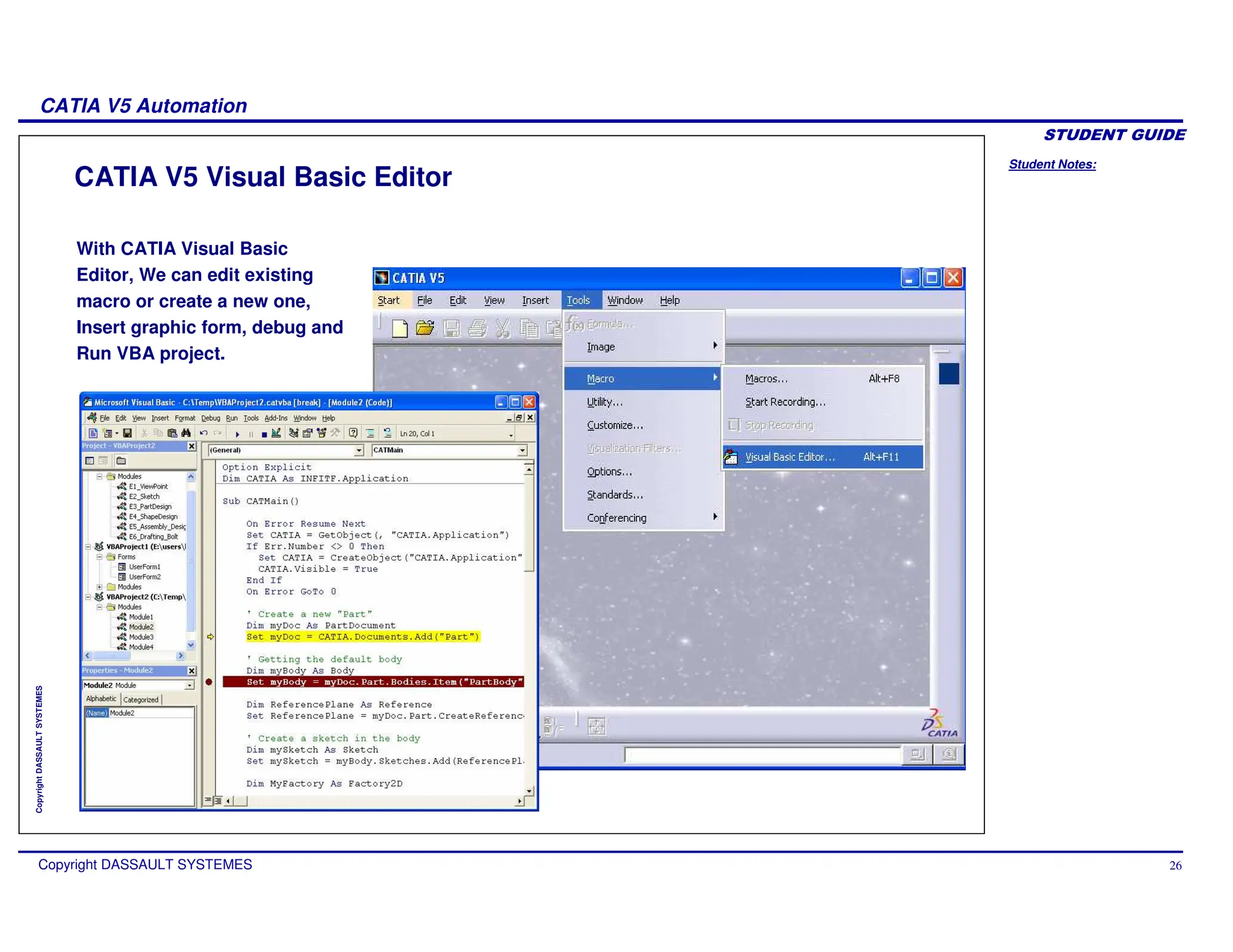
  • 24.
    Student Notes: CATIA V5Automation Copyright DASSAULT SYSTEMES 24 Copyright DASSAULT SYSTEMES In-Process Macros You will learn how to record and run the In-Process macros.
  • 25.
    Student Notes: CATIA V5Automation Copyright DASSAULT SYSTEMES 25 Copyright DASSAULT SYSTEMES What is an ‘In-Process’ Macro We call In-process because the script interpretation is performed in the same process as CATIA. A list shows the Macro available. We can run, edit, rename or delete existing script, or create a new one. The list of libraries of script proposed into the panel above is modifiable through the window of libraries.
  • 26.
    Student Notes: CATIA V5Automation Copyright DASSAULT SYSTEMES 26 Copyright DASSAULT SYSTEMES CATIA V5 Visual Basic Editor With CATIA Visual Basic Editor, We can edit existing macro or create a new one, Insert graphic form, debug and Run VBA project.
  • 27.
    Student Notes: CATIA V5Automation Copyright DASSAULT SYSTEMES 27 Copyright DASSAULT SYSTEMES Macro Libraries The interface of the dialog “Tools + Macro + Macros…” allows to choose a library of macro (a directory of macro or a VBA project) or a document on which we wish to work. From this window, we can close an already opened library, open a library, or create a library. Libraries are shown by type (directory, VBA project...). Every type of library supports different languages. VBA supports only the language MS-VBA, while in a directory we can write in MS-VBScript or in CATScript.
  • 28.
    Student Notes: CATIA V5Automation Copyright DASSAULT SYSTEMES 28 Copyright DASSAULT SYSTEMES Recording a Macro Recording a Macro generates a script corresponding to the creation or modification of the objects in the recorded sequence. After stopping the recording, we can store, edit or replay this script (called macro). The panel of recording VBA allows to choose the container in which we are going to record, the used language and the name of the macro to be recorded. The syntax of the recorded script is going to differ according to the menu chosen. As a rule, recording a macro helps you to learn how to program something.
  • 29.
    Student Notes: CATIA V5Automation Copyright DASSAULT SYSTEMES 29 Copyright DASSAULT SYSTEMES Running a Macro (1/2) CNEXT -batch -macro E:UsersMacrosMacroToRun.CATScript CNEXT -batch -macro E:UsersMacrosMacroToRun.CATScript CNEXT -macro E:UsersMacrosMacroToRun.CATScript CNEXT -macro E:UsersMacrosMacroToRun.CATScript You can run a macro interactively from the “Macro” menu You can run a macro interactively from an icon in a toolbar You can execute a macro as soon as CATIA is started : You can start CATIA in batch mode to execute a macro
  • 30.
    Student Notes: CATIA V5Automation Copyright DASSAULT SYSTEMES 30 Copyright DASSAULT SYSTEMES Running a Macro (2/2) The syntax to execute macros in text files using the CNEXT -macro command line, has been expanded to allow replaying macro which are in VBA projects, in V5 documents, and are written in VBScript, CATScript or VBA. Here is a complete summary of the Supported Syntax: Previously available options: CNEXT -macro X.CATScript // Replays file X.CATScript (CATScript file) CNEXT -macro X.catvbs // Replays file X.catvbs (pure VBScript file) New options: CNEXT -macro X.catvba Y // Replays macro Y in the VBA project X.catvba CNEXT -macro X.CATPart Y // Replays macro Y in the V5 document X.CATPart
  • 31.
    Student Notes: CATIA V5Automation Copyright DASSAULT SYSTEMES 31 Copyright DASSAULT SYSTEMES Execution of a Macro from another Macro CATIA V5 offer the capability through an Automation function to execute a Macro from another Macro. The function lets the user invoke another scripted function, contained in another macro library, potentially written in another scripting language. A support enum CATSysLibraryType is used to let the developer describe the kind of library the function to call is contained in. (Example from VBScript) Dim args2(1) args2(0) = 3 args2(1) = 2 Dim addResult addResult = CATIA.SystemService.ExecuteScript ( "E:MacrosMath", catScriptLibraryTypeDirectory, "IntegerMath.catvbs", "Add", args2 ) MsgBox addResult Dim args2(1) args2(0) = 3 args2(1) = 2 Dim addResult addResult = CATIA.SystemService.ExecuteScript ( "E:MacrosMath", catScriptLibraryTypeDirectory, "IntegerMath.catvbs", "Add", args2 ) MsgBox addResult Dim args() CATIA.SystemService.ExecuteScript "E:PartsPart1.CATPart", catScriptLibraryTypeDocument, "Statistics.catvbs", "PrintReport", args Dim args() CATIA.SystemService.ExecuteScript "E:PartsPart1.CATPart", catScriptLibraryTypeDocument, "Statistics.catvbs", "PrintReport", args To call an Add function that is defined in a “E:MacrosMath” directory library, in a file “IntegerMath.catvbs”, one would write: To call an PrintReport() sub that is defined in a “E:PartsPart1.CATPart” V5 document library, in a file “Statistics.catvbs”, one would write:
  • 32.
    Student Notes: CATIA V5Automation Copyright DASSAULT SYSTEMES 32 Copyright DASSAULT SYSTEMES Execution of a Macro which Require Parameters CATIA V5 gives the possibility to add parameters to the CATMain function. When the function is executed, an interactive window pops up which lets the user value the parameters by selecting V5 objects or typing the values directly. Parameters of type string, int, float, boolean and object can be entered. Sub CATMain(sketch, height) Set partDocument1 = CATIA.ActiveDocument Set part1 = partDocument1.Part Set shapeFactory1 = part1.ShapeFactory Set pad1 = shapeFactory1.AddNewPad(sketch, height) part1.Update End Sub Sub CATMain(sketch, height) Set partDocument1 = CATIA.ActiveDocument Set part1 = partDocument1.Part Set shapeFactory1 = part1.ShapeFactory Set pad1 = shapeFactory1.AddNewPad(sketch, height) part1.Update End Sub If the user writes the following VBScript macro: and runs it, the following window pop up automatically to let him/her enter the value of the sketch and height parameters.
  • 33.
    Student Notes: CATIA V5Automation Copyright DASSAULT SYSTEMES 33 Copyright DASSAULT SYSTEMES Adding a Macro as a command in a Toolbar Select the macro you want to add in Tools + Customize + Commands Tab page + Macros: Drag and Drop the macro name to the toolbar you wish : To select another icon than the default one, click on Show Properties...
  • 34.
    Student Notes: CATIA V5Automation Copyright DASSAULT SYSTEMES 34 Copyright DASSAULT SYSTEMES Macros Options Interface The panel of the dialog “Tools + Options + Macros” allows to choose according to the language, the Editor who will be launched to edit a macro, and to specify external typelibs to take into account in the replay of scripts. With the new interface, all the typelibs V5 of the runtime view are automatically taken into account. This option serves only for declaring typelibs except runtime view (Excel for example).
  • 35.
    Student Notes: CATIA V5Automation Copyright DASSAULT SYSTEMES 35 Copyright DASSAULT SYSTEMES Out-Process Programs You will learn methods to create and execute Out-Process programs for CATIA V5 Automation.
  • 36.
    Student Notes: CATIA V5Automation Copyright DASSAULT SYSTEMES 36 Copyright DASSAULT SYSTEMES Running Out-Process Programs (On Windows only) The script is running in another application running in another process, such as: Visual Basic VBA (in Excel or Word) Using WSH (Windows Scripting Host) with VBScript or JavaScript Using HTML with VBScript or JavaScript CATIA can be scripted from any other COM Application.
  • 37.
    Student Notes: CATIA V5Automation Copyright DASSAULT SYSTEMES 37 Copyright DASSAULT SYSTEMES Running Out-Process from VBA or Visual Basic (1/3) VBA and Visual Basic provide useful tools : For this, you can declare all the typelib files (*.tlb) provided by Dassault Systemes. The typelib files contain the declarations of all the objects, methods and properties of the Exposed objects.
  • 38.
    Student Notes: CATIA V5Automation Copyright DASSAULT SYSTEMES 38 Copyright DASSAULT SYSTEMES Running Out-Process from VBA or Visual Basic (2/3) Type definition allows type checking and “early binding”. Helpful completion gives you all the properties and methods of an object and gives you the argument types of a method. Browser Object describes all the exported objects.
  • 39.
    Student Notes: CATIA V5Automation Copyright DASSAULT SYSTEMES 39 Copyright DASSAULT SYSTEMES Running Out-Process from VBA or Visual Basic (3/3) Here are the statements to launch CATIA V5 from VBA or Visual Basic. If CATIA is already running : If the typelib INFITF.tbl is referenced, we can declare CATIA as INFITF.Application. [...] Dim CATIA as Object Set CATIA = GetObject(, “CATIA.Application”) [...] [...] Dim CATIA as Object Set CATIA = GetObject(, “CATIA.Application”) [...] First arg. is left blank If CATIA is not already running : [...] Dim CATIA as Object Set CATIA = CreateObject(“CATIA.Application”) CATIA.Visible = True [...] [...] Dim CATIA as Object Set CATIA = CreateObject(“CATIA.Application”) CATIA.Visible = True [...] This macro starts CATIA
  • 40.
    Student Notes: CATIA V5Automation Copyright DASSAULT SYSTEMES 40 Copyright DASSAULT SYSTEMES Example: Bolt from Excel (1/3) Start a New Excel Document and activate the toolbars: Forms and Visual Basic. Activate the Design mode. Create a new Button and click on “New” button to “Assign Macro”. 3 2 1
  • 41.
    Student Notes: CATIA V5Automation Copyright DASSAULT SYSTEMES 41 Copyright DASSAULT SYSTEMES Example: Bolt from Excel (2/3) You go automatically in Visual Basic. Insert the Code from the file “BoltFromExcel.txt” Close Visual Basic and return to Excel. Click on Button1 CATIA will be launched and a bolt will be created. 1 2
  • 42.
    Student Notes: CATIA V5Automation Copyright DASSAULT SYSTEMES 42 Copyright DASSAULT SYSTEMES Example: Bolt from Excel (3/3) Have a look on the code: This tries to retrieve CATIA and if not successful starts it. Both functions GetObject and CreateObject are provided by VBA (as well as Visual Basic). Dim CATIA As Object 'Get CATIA or start it if necessary. On Error Resume Next Set CATIA = GetObject(, "CATIA.Application") If Err.Number <> 0 Then Set CATIA = CreateObject("CATIA.Application") CATIA.Visible = True End If On Error GoTo 0 Dim CATIA As Object 'Get CATIA or start it if necessary. On Error Resume Next Set CATIA = GetObject(, "CATIA.Application") If Err.Number <> 0 Then Set CATIA = CreateObject("CATIA.Application") CATIA.Visible = True End If On Error GoTo 0
  • 43.
    Student Notes: CATIA V5Automation Copyright DASSAULT SYSTEMES 43 Copyright DASSAULT SYSTEMES Running Out-Process using the Windows Scripting Host WSH enables scripts written in different languages such as VBScript and JavaScript. You can use a standard Editor to write your application. If your program fails, you will be able to use the Windows Development environment. It is possible to develop an application in Visual Basic, then put the types in comment and run it with WSH. To run a VBScript (*.vbs) or JavaScript (*.js) file, you can use cscript or wscript commands. Usually, wscript.exe is already associated with those extensions.
  • 44.
    Student Notes: CATIA V5Automation Copyright DASSAULT SYSTEMES 44 Copyright DASSAULT SYSTEMES VBScript under Windows Scripting Host On Error Resume Next Set CATIA = Wscript.GetObject(,"CATIA.Application") If Err.Number <> 0 Then Set CATIA = Wscript.CreateObject("CATIA.Application") CATIA.Visible = True End If On Error Resume Next Set CATIA = Wscript.GetObject(,"CATIA.Application") If Err.Number <> 0 Then Set CATIA = Wscript.CreateObject("CATIA.Application") CATIA.Visible = True End If You can write a VBScript program in a simple ASCII text file with the extension “.vbs” for Visual Basic Script. Under WSH, GetObject and CreateObject are provided by the object Wscript. The following code launches CATIA V5. VBScript !
  • 45.
    Student Notes: CATIA V5Automation Copyright DASSAULT SYSTEMES 45 Copyright DASSAULT SYSTEMES BoltVBSript.vbs Example Have a look on the source code. To run the “BoltVBScript.vbs” example , you can double–click on it. To run the example on a Command prompt Window you can also use : Cscript BoltVBScript.vbs Or wscript BoltVBScript.vbs Cscript BoltVBScript.vbs Or wscript BoltVBScript.vbs
  • 46.
    Student Notes: CATIA V5Automation Copyright DASSAULT SYSTEMES 46 Copyright DASSAULT SYSTEMES JavaScript under Windows Scripting Host In the same way as VBScript, you can write a JavaScript program in a simple ASCII text file with the extension “.js” for JavaScript. Under WSH, GetObject and CreateObject are provided by the object Wscript. The following code launches CATIA V5. CATIA = WScript.GetObject(,"CATIA.Application"); if ( CATIA == null) { CATIA = WScript.CreateObject("CATIA.Application"); CATIA.Visible = true; } CATIA = WScript.GetObject(,"CATIA.Application"); if ( CATIA == null) { CATIA = WScript.CreateObject("CATIA.Application"); CATIA.Visible = true; } Java Script !
  • 47.
    Student Notes: CATIA V5Automation Copyright DASSAULT SYSTEMES 47 Copyright DASSAULT SYSTEMES BoltJavaSript.js Example Have a look on the source code. To run the “BoltJavaScript.js” example, you can double–click on it. To run the example on a Command prompt Window you can also use : Cscript BoltJavaScript.js Or wscript BoltJavaScript.js Cscript BoltJavaScript.js Or wscript BoltJavaScript.js
  • 48.
    Student Notes: CATIA V5Automation Copyright DASSAULT SYSTEMES 48 Copyright DASSAULT SYSTEMES Out-Process in HTML (Windows & Microsoft IE Only) In HTML, you can include VBScript or JavaScript routines. Microsoft explorer provides ActiveXObject (in JavaScript) and CreateObject (in VBScript) functions to Launch Automation Servers. So, it is possible to call CATIA V5 this way. You can access to the Microsoft Development Environment to debug your Application. You can launch the “Microsoft Development Environment from Explorer by : “Script Debugger” “ Open”
  • 49.
    Student Notes: CATIA V5Automation Copyright DASSAULT SYSTEMES 49 Copyright DASSAULT SYSTEMES Out-Process in HTML with VBScript Load the “BoltVBScript.html” example in Microsoft Internet Explorer. You will be able to Click on the “Bolt” button to create a Bolt in CATIA V5. You can view the source code by <View>+<Source> menus. Due to security reasons, some warning messages for running the script, may appear depending on the configuration and if the server is local or not.
  • 50.
    Student Notes: CATIA V5Automation Copyright DASSAULT SYSTEMES 50 Copyright DASSAULT SYSTEMES Out-Process in HTML with JavaScript Load the “BoltJavaScript.html” example in Microsoft Internet Explorer. You will be able to Click on the “Bolt” button to create a Bolt in CATIA V5. You can view the source code by <View>+<Source> menus.
  • 51.
    Student Notes: CATIA V5Automation Copyright DASSAULT SYSTEMES 51 Copyright DASSAULT SYSTEMES VBA / VB Programming Basics You will be introduced to the Visual Basic and Visual Basic for Automation programming techniques.
  • 52.
    Student Notes: CATIA V5Automation Copyright DASSAULT SYSTEMES 52 Copyright DASSAULT SYSTEMES Programming Generalities (1/5) Sequential Programming The program is read from top to bottom, sometimes with loops and tests. 12 : If A=O then GOTO 67 User interface (windows, buttons, …) has to be « manually » built, with programming instructions Typical of « old » programming languages Fortran, Basic, GWBasic VBScript may be considered as a sequential language
  • 53.
    Student Notes: CATIA V5Automation Copyright DASSAULT SYSTEMES 53 Copyright DASSAULT SYSTEMES Programming Generalities (2/5) Event-driven Programming The program execution will depend of events (mouse click on a button, typing characters in a text form…) Graphic interface is drawn using a toolbox. This interface is the program «skeleton» Nowadays programming languages are event-based VBA, Visual Basic, Visual C++ …
  • 54.
    Student Notes: CATIA V5Automation Copyright DASSAULT SYSTEMES 54 Copyright DASSAULT SYSTEMES Programming Generalities (3/5) Object Programming In the application, all is Object These Objects have Properties that you can read or set These Objects have Methods which will modify their behavior An example …
  • 55.
    Student Notes: CATIA V5Automation Copyright DASSAULT SYSTEMES 55 Copyright DASSAULT SYSTEMES Programming Generalities (4/5) An example : Bernard owns a garage in Suresnes … As we have to work with its garage, we need to assign it to a «type», and a «variable name» : Dim myGarage As Garage set myGarage = Bernard.Garage To get its address (Proprerty of myGarage Object), I can get this : myGarage.Address Bernard has a Collection of cars To get one special car : Set myCar = myGarage.Cars.Item(2) Set myCar = myGarage.Cars.Item(’Golf_2’)
  • 56.
    Student Notes: CATIA V5Automation Copyright DASSAULT SYSTEMES 56 Copyright DASSAULT SYSTEMES Programming Generalities (5/5) To select a fuel, I get a Property : myCar.Fuel = ‘Petrol’ If I do not remember its colour : Colour = myCar.Colour To accelerate, I have a method which has the speed I want to reach (the speed is an argument) : myCar.Accelerate (110) The same method may return an object or an information (here the fuel consumption) : myConsumption = myCar.Accelerate (110)
  • 57.
    Student Notes: CATIA V5Automation Copyright DASSAULT SYSTEMES 57 Copyright DASSAULT SYSTEMES VBA / VB Common Controls You will learn the user-interface related controls of Visual Basic and Visual Basic for Application.
  • 58.
    Student Notes: CATIA V5Automation Copyright DASSAULT SYSTEMES 58 Copyright DASSAULT SYSTEMES The « userform » Control Icon : - Interest : It is your window, on which you are going to insert controls Useful Properties / Methods frmForm.Caption to inform the title frmForm.StartUpPosition to control its position UserForm_Initialize() is read when project is run (VBA) UserForm_Load() is read when project is run (VB)
  • 59.
    Student Notes: CATIA V5Automation Copyright DASSAULT SYSTEMES 59 Copyright DASSAULT SYSTEMES The « label » Control Icon : Interest : The text label allows you to display a text that cannot be modified by user Useful Properties / Methods lblText.Caption to control the text lblText.Font to control its font lblText.Autosize to control its dimensions lblText.TextAlign to control its alignment
  • 60.
    Student Notes: CATIA V5Automation Copyright DASSAULT SYSTEMES 60 Copyright DASSAULT SYSTEMES The « textbox » Control Icon : Interest : The textbox allows user to enter a text Useful Properties / Methods txtBox.Text to get the text txtBox.Font to control its font
  • 61.
    Student Notes: CATIA V5Automation Copyright DASSAULT SYSTEMES 61 Copyright DASSAULT SYSTEMES Icon : Interest : The command button allows user to run an action by selecting a button Useful properties / methods cmdButton.Caption to control the button text The « commandbutton » Control
  • 62.
    Student Notes: CATIA V5Automation Copyright DASSAULT SYSTEMES 62 Copyright DASSAULT SYSTEMES Icon : Interest : The image control allows you to display a bitmap image The « image » Control Useful properties / Methods imgImage.Picture to select the image to display imgImage.Autosize to resize it automatically
  • 63.
    Student Notes: CATIA V5Automation Copyright DASSAULT SYSTEMES 63 Copyright DASSAULT SYSTEMES The « listbox » Control Icon : Interest : The listbox control allows you to display a list, from which an element can be selected Useful Properties / Methods lstBox.Additem “Text” to add an item lstBox.Clear to clear the list lstBox.RemoveItem (lstBox.ListIndex) to remove an item lstBox.ListCount to get the item count lstBox.Text to get the selected item lstBox.List(i) to get item #i
  • 64.
    Student Notes: CATIA V5Automation Copyright DASSAULT SYSTEMES 64 Copyright DASSAULT SYSTEMES The «checkbox» and «optionbutton» Controls Icons : Interest : The checkbox allows the user to pick an option. The optionbutton allows the user to pick only one among a set of options. Useful Properties / Methods chkBox.Caption to control the text lstBox.Value to get its value (true/false)
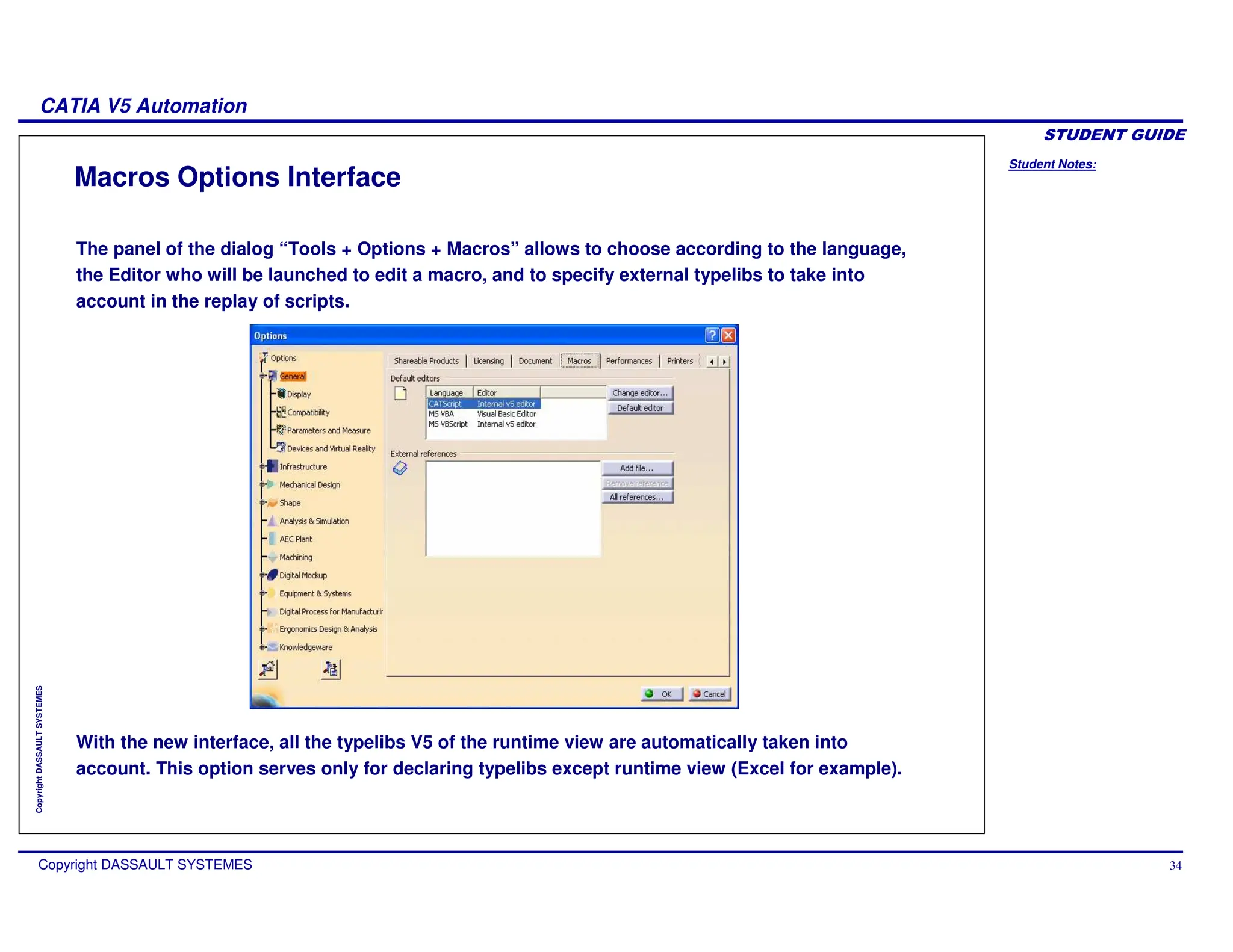
  • 65.
    Student Notes: CATIA V5Automation Copyright DASSAULT SYSTEMES 65 Copyright DASSAULT SYSTEMES Managing Data/Variables (1/3) Naming variables It must be less than 255 characters Special characters are forbidden : space ‘.’ & ... It must not begin with a number ‘myCar’ and ‘intRadius3’ are ok ‘my Car’ and ‘2Radius’ are not ok Declaring variables with “Dim” is helpful for programming (it allows ‘completion’), and saves memory at running Dim myCar as String Dim myCar$ Dim A1 as Integer Dim A1%
  • 66.
    Student Notes: CATIA V5Automation Copyright DASSAULT SYSTEMES 66 Copyright DASSAULT SYSTEMES Managing Data/Variables (2/3) - both Variant Decl. Suffix Range Non/Numeric Type $ # & % Variable Non-numeric String -1.79769313486232e+308 to -4.94065645841247E-324 for ‘-’ values 4.94065645841247E-324 to 1.79769313486232e+308 for ‘+’ values Numeric Double -2 147 483 648 to 2 147 483 648 (integer) Numeric Long -32768 to 32767 Numeric Integer True or False Non-numeric Boolean Main types of Data
  • 67.
    Student Notes: CATIA V5Automation Copyright DASSAULT SYSTEMES 67 Copyright DASSAULT SYSTEMES Managing Data/Variables (3/3) Initializing Variables Variable = expression Set variable = expression (you need set if ‘variable’ is an object) Examples A = 150 myCar = “Scenic” A = B + 100 A = A + 100 Set myObject = CATIA.ActiveDocument
  • 68.
    Student Notes: CATIA V5Automation Copyright DASSAULT SYSTEMES 68 Copyright DASSAULT SYSTEMES Standard VBA/VB window: « msgbox » Syntax #1 msgbox message To display a single message (or variable) example : msgbox “This is a message” Syntax #2 value = msgbox (message,[param.],[Title]) To ask a question, and get the result example : a1=msgBox("Are you sure?",vbOKCancel+vbCritical,"Question")
  • 69.
    Student Notes: CATIA V5Automation Copyright DASSAULT SYSTEMES 69 Copyright DASSAULT SYSTEMES Standard VBA/VB window: « inputbox » Syntax Value = Inputbox (message,title,def. val.) To ask a question, and get an information (text or value) Example : Width = InputBox("Enter the width :", "Part creation", 200)
  • 70.
    Student Notes: CATIA V5Automation Copyright DASSAULT SYSTEMES 70 Copyright DASSAULT SYSTEMES VB Programming Techniques You will learn Visual Basic Programming Techniques which are required for CATIA V5 Automation and Scripting.
  • 71.
    Student Notes: CATIA V5Automation Copyright DASSAULT SYSTEMES 71 Copyright DASSAULT SYSTEMES Testing with ‘If … then … else ... End if’ Syntax #1 If (condition is true) Then ... End If Example If Int_Diam >= Ext_Diam Then msgbox “Wrong values” End If Syntax #2 If (condition is true) Then ... Else ... End If
  • 72.
    Student Notes: CATIA V5Automation Copyright DASSAULT SYSTEMES 72 Copyright DASSAULT SYSTEMES Testing with ‘Select Case’ Syntax Select Case variable Case value1 (or expression1) … Case value2 (or expression2) … … End Select Example : Select myResult.Text Case “A” lblResult.Caption = “xxx” Case “B” lblResult.Caption = “yyy” End Select
  • 73.
    Student Notes: CATIA V5Automation Copyright DASSAULT SYSTEMES 73 Copyright DASSAULT SYSTEMES Loops with ‘For… Next and Do’…Loop Syntax For i = x To y [Step z] ... Next [i] Example : For incr = 0 to 10 msgbox “Increment is ” + incr Next Syntax Do While (condition is true) ... Loop Example : Do While i <10 lblOut.Caption=i i=i+1 Next
  • 74.
    Student Notes: CATIA V5Automation Copyright DASSAULT SYSTEMES 74 Copyright DASSAULT SYSTEMES Working with Strings of Characters A fixed string has to be surrounded by " To concatenate strings : « + » or « & » Txt = "Hello, my name is " + myName To get a part of a string left(str,nb) , right(str,nb), mid(str,pos,nb) left(txt,5) (returns « Hello ») To get the length of a string len(str) To know if a string contains another, and its position Instr() To convert numeric to string, and reverse str(num), val(str)
  • 75.
    Student Notes: CATIA V5Automation Copyright DASSAULT SYSTEMES 75 Copyright DASSAULT SYSTEMES Working with text files (Open Mode) To open a file and read its content Open "filename" For Input As #id To open the file Line Input #id string To read a line Close #id To close the file Example : Open “C:temptest.txt” For Input As #1 While Not EOF(1) Line Input #1, line msgbox line Wend Close #1
  • 76.
    Student Notes: CATIA V5Automation Copyright DASSAULT SYSTEMES 76 Copyright DASSAULT SYSTEMES Working with text files (Write Mode) To open a new file and write Open "filename" For Output As #id To open the file Print #id ,string To write a line Close #id To close the file Example : Open “C:temptestw.txt” For Output As #2 For i = 1 to 100 Print #2, i Next Close #2
  • 77.
    Student Notes: CATIA V5Automation Copyright DASSAULT SYSTEMES 77 Copyright DASSAULT SYSTEMES In this lesson you will learn various CATIA V5 scripting techniques. You will also see some examples of scripting with some CATIA Features. Scripting with CATIA V5
  • 78.
    Student Notes: CATIA V5Automation Copyright DASSAULT SYSTEMES 78 Copyright DASSAULT SYSTEMES In this lesson, you will learn the Object Architecture and methodologies required for scripting with CATIA V5. CATIA V5 Object Architecture The Application object aggregates a Documents collection. The Document object is an abstract object, and only its derived types can actually be created. The symbol shows that the object is the root of an object structure expanded in another object diagram.
  • 79.
    Student Notes: CATIA V5Automation Copyright DASSAULT SYSTEMES 79 Copyright DASSAULT SYSTEMES Introduction to objects CATIA V5 exposes models to create documents, parts, surfaces, wireframes, products, drawings and many other objects available in the CATIA workbenches. Those exposed objects provide properties and methods to read and modify all existing objects. All exposed objects seen in interactive, can be scripted from macros or from out-process programs. Table of contents About Objects, Properties and Methods About Inheritance and Aggregation Objects diagrams Architecture of the Exposed Objects
  • 80.
    Student Notes: CATIA V5Automation Copyright DASSAULT SYSTEMES 80 Copyright DASSAULT SYSTEMES About Objects, Collections, Properties, and Methods Scripting languages such as Visual Basic rely on objects. With CATIA, documents, windows, viewers, parts, sketches, pads, … even lines and curves are represented as objects in Visual Basic. Object: an entity. Ex: Document, Pad, Line, … Property: a characteristic of an object. DocName = CATIA.ActiveDocument.FullName Method: an action on an object CATIA.ActiveDocument.SaveAs “MyNewName” Collection: a list of objects. The CATIA collections index begins at 1, and not 0 : For i=1 to CATIA.Documents.Count msgbox CATIA.Documents.Item(i).Name Next We can also access a collection with the name of the object: Example: msgbox CATIA.Documents.Item("Product1.CATProduct").Name We add objects to the collections with the method add : set myPartDoc = CATIA.Documents.add("Part")
  • 81.
    Student Notes: CATIA V5Automation Copyright DASSAULT SYSTEMES 81 Copyright DASSAULT SYSTEMES About Inheritance and Aggregation In the following diagram, the Application aggregates the Documents collection. The PartDocument object is a specialized document that is dedicated to parts and which inherits the properties and the methods of the Document object. UML Notation There are two kinds of relations between objects : Inheritance helps you to specialize objects while gathering common properties and methods Aggregation is the ability of an object to contain another one
  • 82.
    Student Notes: CATIA V5Automation Copyright DASSAULT SYSTEMES 82 Copyright DASSAULT SYSTEMES Object Diagrams PartDocument, ProductDocument, DrawingDocument, AnalysisDocument and CatalogDocument documents inherit the aggregated Selection object. But only the DrawingDocument has a DrawingSheets collection. The Application object aggregates a Documents collection. The Document object is an abstract object, and only its derived types can actually be created. The symbol shows that the object is the root of an object structure expanded in another object diagram. To describe object, their properties and methods, and the relashionships between objects we use object diagrams and object descriptions. Object diagrams describes the overall structure of how objects are linked together:
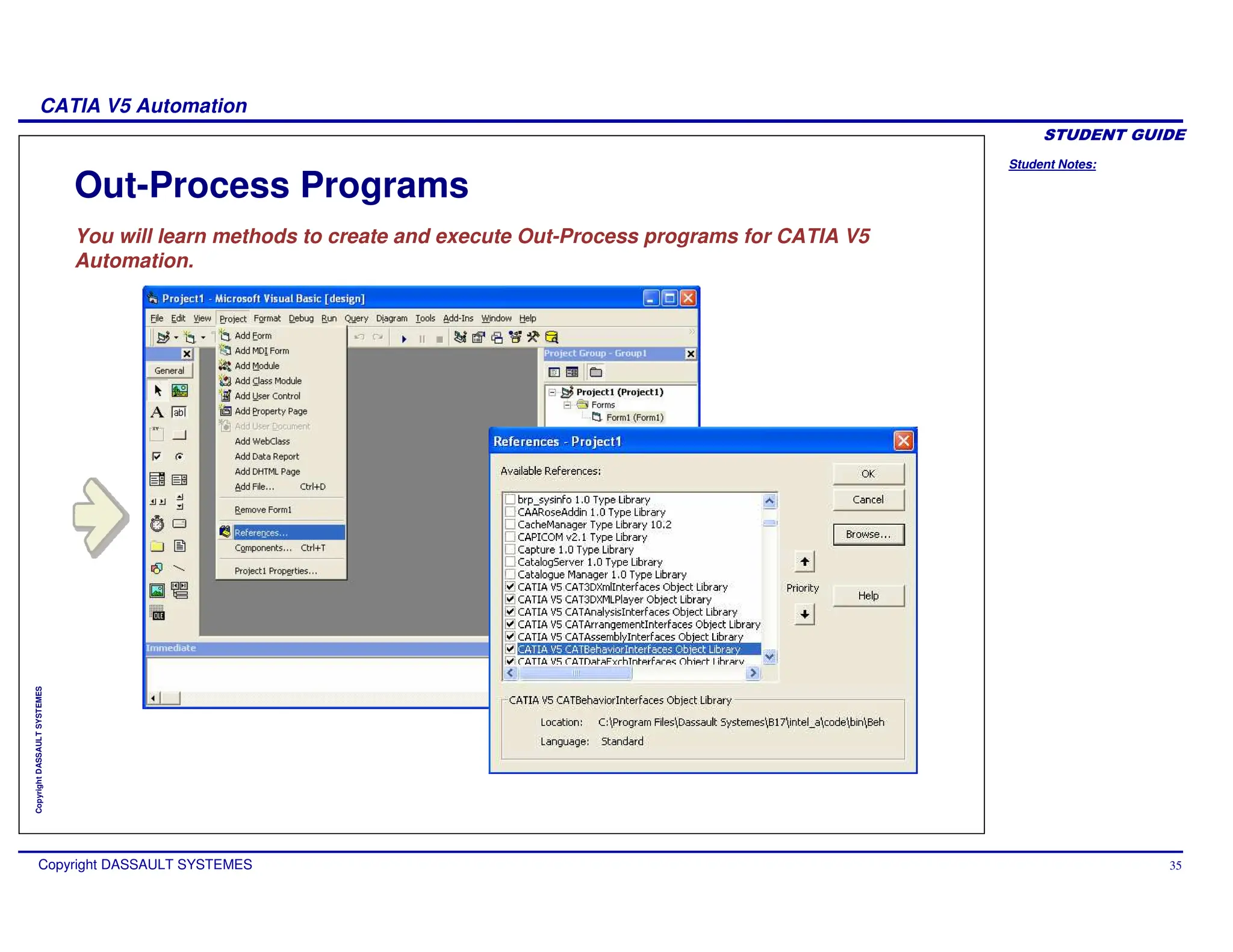
  • 83.
    Student Notes: CATIA V5Automation Copyright DASSAULT SYSTEMES 83 Copyright DASSAULT SYSTEMES Analysis Object Model Manage Analysis documents Manage linked documents Create AnalysisSet, AnalysisEntity … Integrated with Knowledgeware. Extract visualization Images Launch Computation
  • 84.
    Student Notes: CATIA V5Automation Copyright DASSAULT SYSTEMES 84 Copyright DASSAULT SYSTEMES Machining Object Model Full read/write access to Machining Objects Manufacturing Activities Manufacturing Resources Manufacturing View, Manufacturing Features Manufacturing Activities creation in connexion with Knowledgeware
  • 85.
    Student Notes: CATIA V5Automation Copyright DASSAULT SYSTEMES 85 Copyright DASSAULT SYSTEMES Programming Method Some tips about Sub and Function About the use of “Set” and “Call” About SafeArray variant Resolution of object
  • 86.
    Student Notes: CATIA V5Automation Copyright DASSAULT SYSTEMES 86 Copyright DASSAULT SYSTEMES Some Tips about Sub and Function Dim ReturnedObject As AnyObject Set ReturnedObject = Object.Function (arg1, arg2, arg3) Object.Sub arg1, arg2, arg3 But use parentheses with a Function: A method exposed by an objects is called by Visual Basic: A Sub if it does not return any value A Function if it does To pass arguments to a Sub with Visual Basic Script, do not use parentheses:
  • 87.
    Student Notes: CATIA V5Automation Copyright DASSAULT SYSTEMES 87 Copyright DASSAULT SYSTEMES About the use of “Set” Dim myDocument As PartDocument Set myDocument = CATIA.ActiveDocument Dim myString As String mystring= ”directory” MyViewer3D.ViewPoint3D = MyCamera3D.ViewPoint3D If we use a variable of intrinsic type: In Visual Basic, we use Set keyword to assign an object to a variable. We do not use Set in two cases: If we do not assign an object to a variable but to an object property:
  • 88.
    Student Notes: CATIA V5Automation Copyright DASSAULT SYSTEMES 88 Copyright DASSAULT SYSTEMES About the use of “Call” Set myReturnedObject = myObj.Function1(arg1,arg2) or myReturnedValue = myObj.Function2(arg1,arg2) Call myObj.Subroutine1(arg1,arg2) or myObj.Subroutine1 arg1,arg2 In Visual Basic, a method can be a function or a subroutine. A function returns something: A Subroutine returns nothing. Two syntaxes are possible: If a subroutine has arguments, it is better to use the first syntax for readable reasons.
  • 89.
    Student Notes: CATIA V5Automation Copyright DASSAULT SYSTEMES 89 Copyright DASSAULT SYSTEMES About SafeArray Variant (1/2) Many methods return an array of values instead of a single value. In this case, you should use SafeArray of Variant. A SafeArray is an Array declared with the “ReDim” instruction (instead of Dim): ReDim MyArray(2) Declare a SafeArray and set a size HighestRank = MyArray.UBound returns 2 in our example MyArray(0) = 200 Set the value of the first element to 200 When you don’t know the size of an array, use the Ubound property Use ReDim functions to declare and assign a size to an array: A SafeArray Variant begins at 0:
  • 90.
    Student Notes: CATIA V5Automation Copyright DASSAULT SYSTEMES 90 Copyright DASSAULT SYSTEMES About SafeArray Variant (2/2) Many methods need an array of values as argument instead of a single value. In this case, you should use an untyped intermediary variable. Dim MyFactory As Factory2D Set MyFactory = mySketch.OpenEdition() ReDim MyArray(3) Dim MySpline1 As Spline2D Dim myFactory2 untyped intermediary variable Set myFactory2 = MyFactory Set MySpline1 = myFactory2.CreateSpline(MyArray)
  • 91.
    Student Notes: CATIA V5Automation Copyright DASSAULT SYSTEMES 91 Copyright DASSAULT SYSTEMES Resolution of Object References (1/2) When writing a script, one of the questions the developer frequently asks himself is: how do I programmatically retrieve the object I am interested to work with ? It is now possible to select interactively the object from VBA or the V5 script editor and have to sequence of instruction to resolve the object directly inserted into the editor. Object resolution in VBA
  • 92.
    Student Notes: CATIA V5Automation Copyright DASSAULT SYSTEMES 92 Copyright DASSAULT SYSTEMES Resolution of Object References (2/2) Object resolution with the V5 Script Editor
  • 93.
    Student Notes: CATIA V5Automation Copyright DASSAULT SYSTEMES 93 Copyright DASSAULT SYSTEMES It can be found in the internal VBScript editor and in the VBA/VB editor It describes all objects/methods Object Browser Help (1/2)
  • 94.
    Student Notes: CATIA V5Automation Copyright DASSAULT SYSTEMES 94 Copyright DASSAULT SYSTEMES Object Browser Help (2/2) The Method that you are looking for. The Method is member of a Class. The Method has some arguments and returns an Object. Dim MyFactory As Factory2D … Dim MyLine As Line2D Set MyLine = MyFactory.CreateLine(10#, 10#, 10#, 30#)
  • 95.
    Student Notes: CATIA V5Automation Copyright DASSAULT SYSTEMES 95 Copyright DASSAULT SYSTEMES Scripting Infrastructure Features You will learn scripting of Infrastructure Features. Dim Doc as Document Set Doc = CATIA.Documents.Add(“Part”) create a PartDocument Dim Doc as Document Set Doc = CATIA.Documents.Add(“Part”) create a PartDocument Dim Doc as Document Set Doc = CATIA.Documents.Open(“E:PartsDocumentToOpen.CATPart”) Dim Doc as Document Set Doc = CATIA.Documents.Open(“E:PartsDocumentToOpen.CATPart”) Dim Doc as Document Set Doc = CATIA.Documents.Add(“Part”) create a PartDocument Dim Doc as Document Set Doc = CATIA.Documents.Add(“Part”) create a PartDocument To save the active document : CATIA.ActiveDocument.Save To save a Document assigned to a Doc variable : Doc.Save To save a Document assigned to a name : CATIA.Documents.Item(“TheName”).Save To save the active document : CATIA.ActiveDocument.Save To save a Document assigned to a Doc variable : Doc.Save To save a Document assigned to a name : CATIA.Documents.Item(“TheName”).Save To close the active document : CATIA.ActiveDocument.Close To close a Document assigned to a Doc variable : Doc.Close To close a Document assigned to a name : CATIA.Documents.Item(“TheName”).Close To close the active document : CATIA.ActiveDocument.Close To close a Document assigned to a Doc variable : Doc.Close To close a Document assigned to a name : CATIA.Documents.Item(“TheName”).Close
  • 96.
    Student Notes: CATIA V5Automation Copyright DASSAULT SYSTEMES 96 Copyright DASSAULT SYSTEMES Scripting Infrastructure Features Overview Documents and Windows The CATIA Application object aggregates two main collection objects: Documents and Windows. The Documents collection aggregates any number of Document(s) since the multiplicity is set to *. The Document object is an abstract object, and only its derived type can actually be created, that is the PartDocument, ProductDocument and DrawingDocument. The Windows collection aggregates number of Window(s), which themselves aggregate one Viewers collection which aggregates any number of Viewer(s). The binary association between the Window and the Document objects means that the Document object is the parent of the Window object.
  • 97.
    Student Notes: CATIA V5Automation Copyright DASSAULT SYSTEMES 97 Copyright DASSAULT SYSTEMES Infrastructure Object Architecture These objects are shared by all CATIA products. The root object is the Application, which aggregates or includes Documents and Windows.
  • 98.
    Student Notes: CATIA V5Automation Copyright DASSAULT SYSTEMES 98 Copyright DASSAULT SYSTEMES Application and Document Application is the Root object for all CATIA macros. This correspond to the CATIA frame window. The CATIA application is always named CATIA for in-process macro. The Documents collection provide a method to Add a new document and another to Open an existing document. A Document can be a PartDocument, ProductDocument or a DrawingDocument. Each Document provide Its own methods to Save or SaveAs Itself.
  • 99.
    Student Notes: CATIA V5Automation Copyright DASSAULT SYSTEMES 99 Copyright DASSAULT SYSTEMES Creating and Opening a Document Creating a New Document: Opening a New Document: Dim Doc as Document Set Doc = CATIA.Documents.Add(“Part”) create a PartDocument Dim Doc as Document Set Doc = CATIA.Documents.Add(“Part”) create a PartDocument Dim Doc as Document Set Doc = CATIA.Documents.Open(“E:PartsDocumentToOpen.CATPart”) Dim Doc as Document Set Doc = CATIA.Documents.Open(“E:PartsDocumentToOpen.CATPart”) Instead of “Part”, Use “Product” for a Product Document or “Drawing” for a Drawing Document Both Add and Open functions add the Document in the Documents Collection
  • 100.
    Student Notes: CATIA V5Automation Copyright DASSAULT SYSTEMES 100 Copyright DASSAULT SYSTEMES Closing and Saving a Document Closing a Document: Saving a Document: To save the active document : CATIA.ActiveDocument.Save To save a Document assigned to a Doc variable : Doc.Save To save a Document assigned to a name : CATIA.Documents.Item(“TheName”).Save To save the active document : CATIA.ActiveDocument.Save To save a Document assigned to a Doc variable : Doc.Save To save a Document assigned to a name : CATIA.Documents.Item(“TheName”).Save To close the active document : CATIA.ActiveDocument.Close To close a Document assigned to a Doc variable : Doc.Close To close a Document assigned to a name : CATIA.Documents.Item(“TheName”).Close To close the active document : CATIA.ActiveDocument.Close To close a Document assigned to a Doc variable : Doc.Close To close a Document assigned to a name : CATIA.Documents.Item(“TheName”).Close The Close function removes the Document from the Documents Collection
  • 101.
    Student Notes: CATIA V5Automation Copyright DASSAULT SYSTEMES 101 Copyright DASSAULT SYSTEMES Windows Collection The Windows collection gathers Window objects that make the link with the windowing system and display documents in a viewable form, mainly in 3D or 2D modes, or as a specification tree. A Viewers collection enables the window to display the application data in the appropriate modes. A SpecsAndGeomWindow object features altogether a 2D or a 3D viewer and a specification tree viewer.
  • 102.
    Student Notes: CATIA V5Automation Copyright DASSAULT SYSTEMES 102 Copyright DASSAULT SYSTEMES Viewers and Viewpoints A Viewer is used to display a document according to a given viewpoint and display options. Depending on the document type, the following viewers can be found in a window.
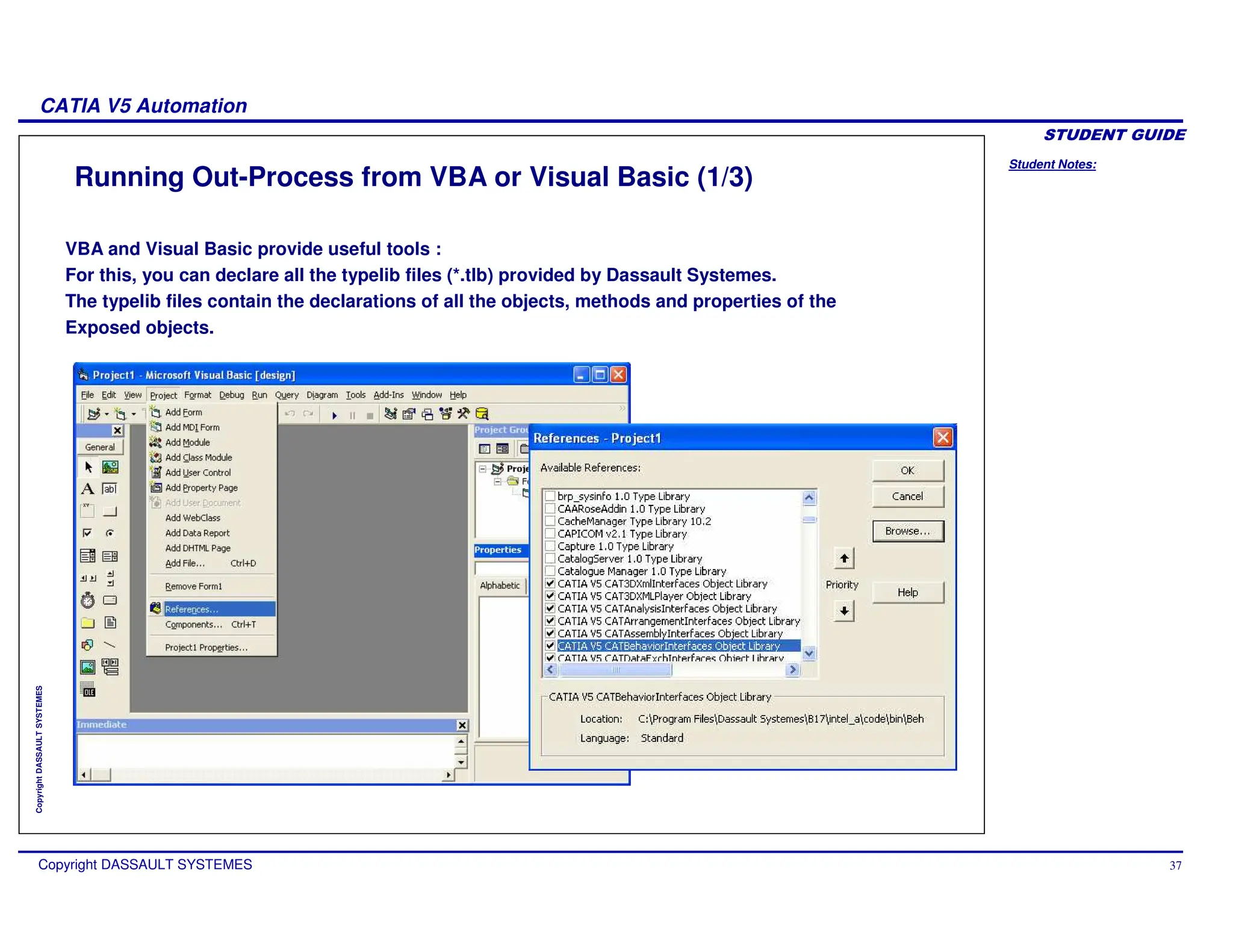
  • 103.
    Student Notes: CATIA V5Automation Copyright DASSAULT SYSTEMES 103 Copyright DASSAULT SYSTEMES Cameras A Camera is the persistent form of a viewpoint. You can create a camera from the current viewpoint using the NewCamera method of the Viewer object. A created camera can then be assigned to a viewer to make its own viewpoint change to this camera.
  • 104.
    Student Notes: CATIA V5Automation Copyright DASSAULT SYSTEMES 104 Copyright DASSAULT SYSTEMES Scripting Sketches You will learn scripting of Sketches.
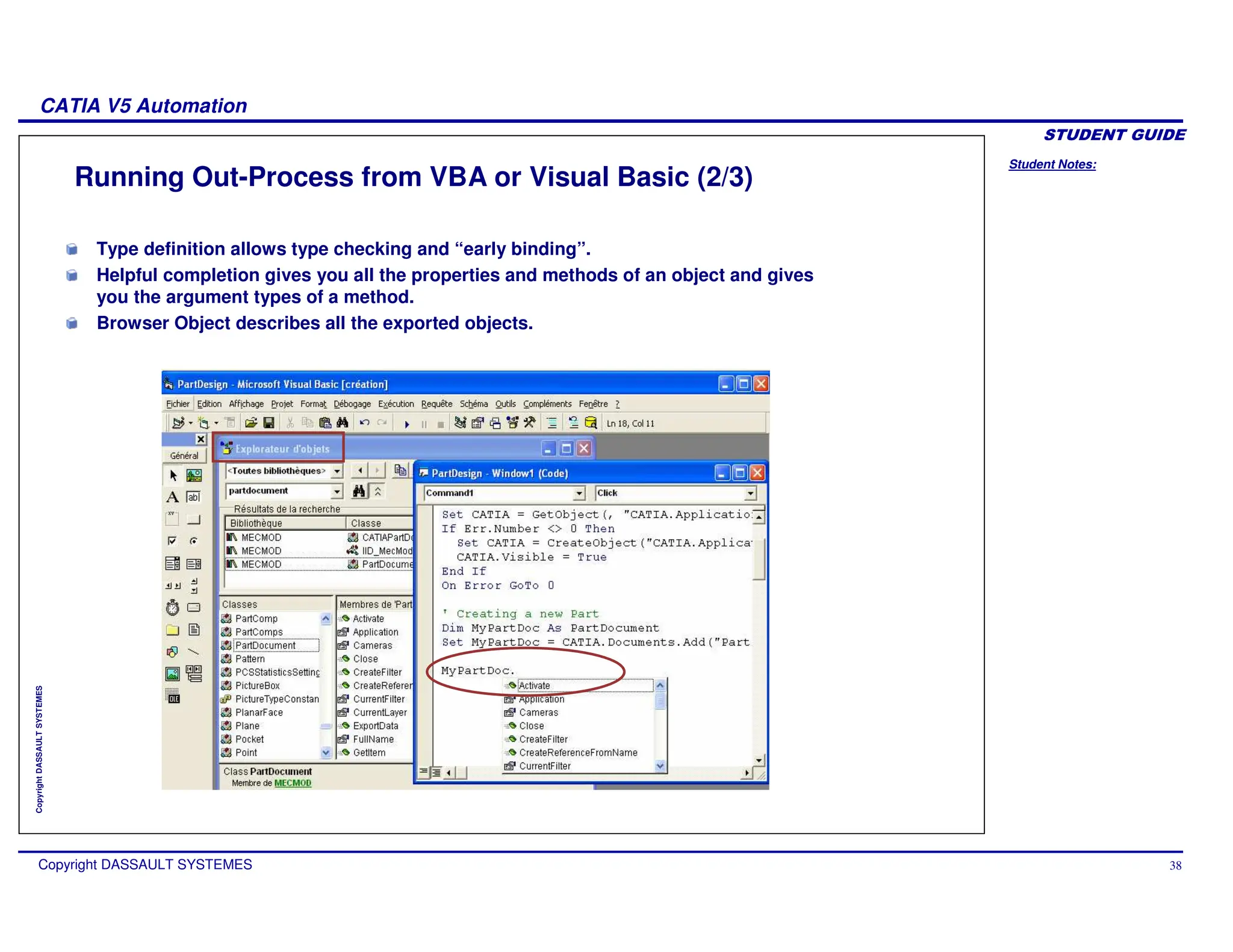
  • 105.
    Student Notes: CATIA V5Automation Copyright DASSAULT SYSTEMES 105 Copyright DASSAULT SYSTEMES Scripting Sketches Overview Bodies and HybridBodies Collections In the “part” of a PartDocument, there are 2 collections: Bodies aggregate all the solid features HybridBodies aggregate all the surfaces, wireframe and 3D points (called OpenBody in interactive) Two different containers for sketches Sketches can be created in both Bodies and HybridBodies collections. The Factory2D contains methods to create geometry in the GeometricElements collection.
  • 106.
    Student Notes: CATIA V5Automation Copyright DASSAULT SYSTEMES 106 Copyright DASSAULT SYSTEMES Scripting Sketch Geometries Opening and Closing a Sketch. To create 2d elements in a sketch, we have to open it and get the factory2d using: set myFactory2D = mySketch.OpenEdition A Sketch has its own Factory2D to create all 2D objects available in it. When you have finished to create geometry, you must close the sketch using mySketch.CloseEdition Creating and Editing Geometry Generally we have only one simple constructor for each element type, for example: To create a circle, we have: Function CreateClosedCircle(iCenterX As Double, iCenterY As Double, iRadius As Double) As Circle2D If you want the circle centre to be an existing point, you can modify it with the “CenterPoint” property. Easy methods to create Constraints The Constraints collection allows you to add constraints between 2D elements. Recording a sketch creation in a macro You have to exit the sketch before stopping the record.
  • 107.
    Student Notes: CATIA V5Automation Copyright DASSAULT SYSTEMES 107 Copyright DASSAULT SYSTEMES Scripting Part Design Features You will learn scripting of ‘Part Design Features’
  • 108.
    Student Notes: CATIA V5Automation Copyright DASSAULT SYSTEMES 108 Copyright DASSAULT SYSTEMES Scripting Part Design Features Overview Scripting Part Design features means to create shapes in the bodies of a PartDocument. Getting or creating a Part Document Use ActiveDocument or Documents.Item(“Part1.CATPart”) or Documents.Add(“Part”) Getting or creating a “PartBody” When we create a PartDocument, a PartBody is created automatically. We can get it using: Set MyBody = MyDocument.Part.Bodies.Item("PartBody") Or we can add a new PartBody using: Set MyNewBody = MyDocument.Part.Bodies.Add()
  • 109.
    Student Notes: CATIA V5Automation Copyright DASSAULT SYSTEMES 109 Copyright DASSAULT SYSTEMES Scripting Functions for Part Design Features The ShapeFactory The ShapeFactory object is in the Part. It allows you to create Pads, Shafts, Grooves, Holes, etc in the “active” Body. You can redefine the “active” body using the InWorkObject property. Boolean Operations If you need to make a boolean operation with another Body, you can add a new body with: MyDocument.Part.Bodies.Add Then call AddNewAdd, AddNewIntersect, AddNewTrim or AddNewRemove method. References Some functions need references to objects instead of the object itself. References are used to bind an object to an other. You can use: Dim myRef as Reference Set myRef = Part.CreateReferenceFromGeometry(myGeometry) to create a reference on myGeometry object.
  • 110.
    Student Notes: CATIA V5Automation Copyright DASSAULT SYSTEMES 110 Copyright DASSAULT SYSTEMES Scripting Shape Design Features You will learn scripting of Shape Design Features
  • 111.
    Student Notes: CATIA V5Automation Copyright DASSAULT SYSTEMES 111 Copyright DASSAULT SYSTEMES Scripting Shape Design Features Overview Why Hybrid ? In Generative Shape Design, some elements are called “hybrid” because they can be surfaces, lines or points. The HybridBody is called OpenBody in interactive. Creating an HybridBody. When we create a PartDocument in Shape Design, an HybridBody is created automatically. If we are in a Part Design context, no Open_Body is created. Scripting Shape Design features means to create HybridShapes in the HybridBodies of a PartDocument.
  • 112.
    Student Notes: CATIA V5Automation Copyright DASSAULT SYSTEMES 112 Copyright DASSAULT SYSTEMES Scripting Functions for Shape Design features The HybridShapeFactory The HybridShapeFactory is in the Part object. It allows you to create in the “active” HybridBody” 3D points, 3D lines, surfaces such as extrusions, sweeps, etc. You can redefine the “active” HybridBody using the InWorkObject property. AppendHybridShape To make your 3D lines or shapes visible, you have to use the AppendHybridShape method onto the HybridBody.
  • 113.
    Student Notes: CATIA V5Automation Copyright DASSAULT SYSTEMES 113 Copyright DASSAULT SYSTEMES Scripting Assembly Design Features You will learn scripting of Assembly Design Features.
  • 114.
    Student Notes: CATIA V5Automation Copyright DASSAULT SYSTEMES 114 Copyright DASSAULT SYSTEMES Assembly Design – Object Model Each Product contains a Products Collection Each product of this collection can itself include a collection of products, and so forth. This defines a tree structure. The RootProduct The ProductDocument object aggregates a product tree structure starting with a single product, named the Root Product, that includes a collection of products. Positioning the Sub-Assemblies Each product has a position defined by a 3D matrix relatively to the position of its father. Move.Apply allows a relative move. Geometric constraints (coincidence, contact, etc) can be applied between product components.
  • 115.
    Student Notes: CATIA V5Automation Copyright DASSAULT SYSTEMES 115 Copyright DASSAULT SYSTEMES Assembly Design - Definitions Definitions ReferenceProduct : Each product owns a ReferenceProduct that can be another Product or the hidden Product of an other document.(for example a PartDocument). (eg: a wheel). Component : Is an instance of a ReferenceProduct, (eg: the front wheel of car). A component owns its own characteristics related to how it is integrated in the assembly (for example: its relative location). Product.PartNumber : The name of the Reference. Product.Name : Name of the Instance.
  • 116.
    Student Notes: CATIA V5Automation Copyright DASSAULT SYSTEMES 116 Copyright DASSAULT SYSTEMES Functions for Scripting Assembly Design Features (1/2) Adding Products Product collections can be built with following methods: AddNewProduct(“PartNumber”) Creates both a Reference Product to the product and a component in the Product Document AddNewComponent(“DocumentType”, “PartNumber”) Creates both a Reference Product to the product and a component in the Product Document. The Reference Product is a new document AddComponent(ReferenceProduct) Creates a product component from a Reference Product already existing in the Product Document AddExternalComponent(ProductDocument) Creates a product component from a product reference already existing as root product of another Product Document AddComponentsFromFiles(“Document”(), “DocumentType”) Creates a product component using an external file.
  • 117.
    Student Notes: CATIA V5Automation Copyright DASSAULT SYSTEMES 117 Copyright DASSAULT SYSTEMES Functions for Scripting Assembly Design Features (2/2) Master Shape Representation Each product can have a different Master Shape Representation that defines its geometry, material properties and used to display or print it This representation is shared by all the components pointing to this product reference. It can be a : CATIA V4 model CATIA V5 Part VRML File or whatever format supported by CATIA V5 Bill Of Material We can generate a Bill Of Material directly in a text or HTML file using the ExtractBOM method. Instantiating a Product To instantiate a product, you have to use AddComponent() using the ReferenceProduct of the existing product as argument.
  • 118.
    Student Notes: CATIA V5Automation Copyright DASSAULT SYSTEMES 118 Copyright DASSAULT SYSTEMES Scripting Drafting Features You will learn scripting of Drafting Features.
  • 119.
    Student Notes: CATIA V5Automation Copyright DASSAULT SYSTEMES 119 Copyright DASSAULT SYSTEMES Scripting Drafting Features Overview DrawingSheets and DrawingViews The DrawingDocument object aggregate a DrawingSheets collection. Each DrawingSheet of this collection aggregates a DrawingViews collection. Main View and Background View. A drawing contains at least 2 views: The background view and the Main View that is the view in which you can draw just after creating a drawing. Drafting features regroup all the 2D features. Generative Drafting represent 3D objects in the drawing and Interactive Drafting represent 2D features directly created in the 2D views.
  • 120.
    Student Notes: CATIA V5Automation Copyright DASSAULT SYSTEMES 120 Copyright DASSAULT SYSTEMES Function for Scripting Drafting Features (1/2) The ActiveSheet The active sheet can be found in the DrawingSheets collection The ActiveView The active view can be found in the DrawingViews collection The Front View and the Others A DrawingView can be the “Front View” or an other view relatively to the “Front View”. DrawingViewGenerativeBehavior can define both behaviour: DefineFrontView() defines the “Front View” and its direction. DefineProjectionView() defines an other view relatively to the “Front View” Other methods allow to create other types of views such as Section Views, Detail Views, etc.
  • 121.
    Student Notes: CATIA V5Automation Copyright DASSAULT SYSTEMES 121 Copyright DASSAULT SYSTEMES Function for Scripting Drafting Features (2/2) Generative Views DrawingView owns a “Document” property that allows you to specify the associated 3D document from which the “generative view” is created. Interactive Views DrawingView owns a “Factory2D” property that allows you to create 2D features. This kind of view is called an “Interactive View”. Filling the Title block The Texts collection allows you to create 2D texts in the drawing Extract Dimensions A DrawingSheet has the method called GenerateDimension() that generates dimensions automatically in all the views from the 3D geometry.
  • 122.
    Student Notes: CATIA V5Automation Copyright DASSAULT SYSTEMES 122 Copyright DASSAULT SYSTEMES Accessing Elements You will learn methods of accessing the geometric elements using scripts.
  • 123.
    Student Notes: CATIA V5Automation Copyright DASSAULT SYSTEMES 123 Copyright DASSAULT SYSTEMES Automatic Selections Sometimes, graphic selections are not necessary and we just want to get all objects of a certain type using some selection filters. We can do that just by scanning the containers and testing some criteria We can scan for instance: All the documents or a specific document. All the sketches or a specific sketch All the geometric elements of a sketch All the Shapes All the HybridShapes
  • 124.
    Student Notes: CATIA V5Automation Copyright DASSAULT SYSTEMES 124 Copyright DASSAULT SYSTEMES Scanning the Containers We can scan all the collections with a simple loop For i = 1 to myDocuments.Count … myDocuments.Item(i)… Next Every container like Documents, Shapes, HybridShapes, Sketches, GeometricElements, Texts (in a drawing) … can be scanned like this.
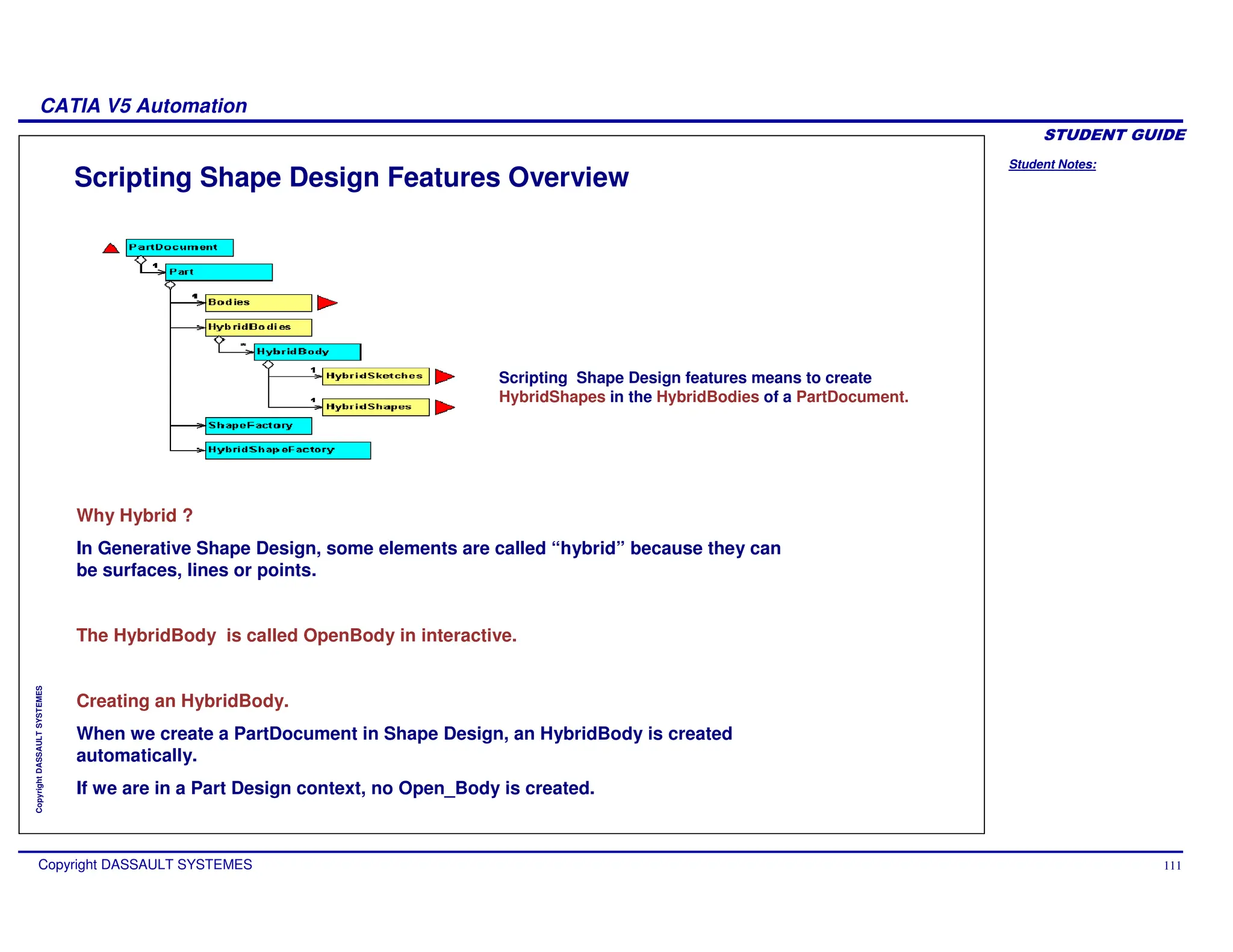
  • 125.
    Student Notes: CATIA V5Automation Copyright DASSAULT SYSTEMES 125 Copyright DASSAULT SYSTEMES Access to a Specific Element Access in a collection with the name. We can access to a specific element of a collection by its name. … Documents.item(“ItsName”) … Or it can be the Father of an element that we know. myElem.Parent.Parent… ‘ We can get all its parents until CATIA.Application. For example, if you have a 2D point in a sketch: Point2D.Parent is the GeometricElements Collection Point2D.Parent.Parent is the sketcher Access with Selection.Search() We can access to a specific element using Search() of the “Selection” object. The results will be added to the selected objects. We can use Selection.FindObject() to scan the results.
  • 126.
    Student Notes: CATIA V5Automation Copyright DASSAULT SYSTEMES 126 Copyright DASSAULT SYSTEMES Graphic Selections Macros and Out-Process applications need a service so that the user can make Graphic selections. There are two ways to make graphic selections. 1. We can selected the object before entering the macro (or program). 2. We can call a function inside a macro (or program) to ask for an acquisition.
  • 127.
    Student Notes: CATIA V5Automation Copyright DASSAULT SYSTEMES 127 Copyright DASSAULT SYSTEMES Graphic Selection using “Selection” (1/2) If we don’t care about the order of the selected elements, the user can make only one selection. Then we can call FindObject several times for each type of object. If we care about the order of the selected elements with the same type, we must call several FindObject with the same type to get the first element then the others… We will ask for several acquisitions. In application like Word or Excel, the selections always precede the commands. We can read the selection Object but the geometric element must be selected before starting the command.
  • 128.
    Student Notes: CATIA V5Automation Copyright DASSAULT SYSTEMES 128 Copyright DASSAULT SYSTEMES Graphic Selections using “Selection” (2/2) Do Set xObj = xSel.FindObject(MyType) If (Err.Number <> 0) Then Err.Clear Exit Do Else … xObj is selected End If Loop Do Set xObj = xSel.FindObject(MyType) If (Err.Number <> 0) Then Err.Clear Exit Do Else … xObj is selected End If Loop We can scan this object using FindObject() function as follow. You can loop until the selection is empty. Limitations : All the objects must be selected before calling the macro (or an out-process function).
  • 129.
    Student Notes: CATIA V5Automation Copyright DASSAULT SYSTEMES 129 Copyright DASSAULT SYSTEMES Graphic Selections using SelectElement2 Dim InputObjectType(1) InputObjectType(0)="HybridShapeCircle" InputObjectType(1)="Face" Status= CATIA.ActiveDocument.Selection.SelectElement2(InputObjectType, "Select a circle or a face", True) Dim InputObjectType(1) InputObjectType(0)="HybridShapeCircle" InputObjectType(1)="Face" Status= CATIA.ActiveDocument.Selection.SelectElement2(InputObjectType, "Select a circle or a face", True) During a program, we can call the SelectElement2 method to ask to the user for elements of different types. SelectElement2(iFilterType() As Variant, iMessage As String, iInterwindowSelection As Boolean) As String We can ask for several types (Multi-Type) We can loop on this method to get several elements (Multi-Selection) It will create a specific list of selected elements (different than the selected elements accessible with FindObject() in the standard Selection) To read this list, you can use Selection.Count and Selection.Item(I). This is an example which asks the user to select a circle or a face in the current window:
  • 130.
    Student Notes: CATIA V5Automation Copyright DASSAULT SYSTEMES 130 Copyright DASSAULT SYSTEMES Creating Panels from Macros The problem appears for In-Process macros. We can use: A. Very simple panels with “InputBox” and “MsgBox” functions B. More complex panels creating an ActiveX using Visual Basic. With Out-Process, we can use an external user interface depending of the context. It can be Visual Basic, HTML or something else.
  • 131.
    Student Notes: CATIA V5Automation Copyright DASSAULT SYSTEMES 131 Copyright DASSAULT SYSTEMES Input box InputBox function allows the user to enter a numeric or an alphanumeric value in a simple panel. Limitations: Only one value at a time. You need as many InputBox as parameters you want to get. You have to force the order of acquisition and to manage the Escape button in your macro. Language="VBSCRIPT" Sub CATMain() ' Ask for a name and rename the curent Window resu = InputBox("Enter the new name of the active window", "Acquisition Using InputBox", "MyWindow") if resu <> "" then On Error Resume Next Set MyWin = CATIA.ActiveWindow If MyWin Is Nothing Then msgbox "No Active Window" else MyWin.Caption=resu End If End If End Sub Language="VBSCRIPT" Sub CATMain() ' Ask for a name and rename the curent Window resu = InputBox("Enter the new name of the active window", "Acquisition Using InputBox", "MyWindow") if resu <> "" then On Error Resume Next Set MyWin = CATIA.ActiveWindow If MyWin Is Nothing Then msgbox "No Active Window" else MyWin.Caption=resu End If End If End Sub
  • 132.
    Student Notes: CATIA V5Automation Copyright DASSAULT SYSTEMES 132 Copyright DASSAULT SYSTEMES Panels in an ActiveX component (Windows Only) a) The ActiveX can get the CATIA session and call CATIA objects. We can, by this way, display or compute intermediate results or we can reuse a selection for several actions. b) Several panels of your application(s) can be gathered in one ActiveX component c) For a large user application, an out-process model is recommended An other solution is to create panels in an ActiveX component. An ActiveX can be called from a CATIA Macro. This ActiveX can display panels. The Macro calls a method which displays the panel and waits for the end of the acquisition. The method returns a status and the parameter values.
  • 133.
    Student Notes: CATIA V5Automation Copyright DASSAULT SYSTEMES 133 Copyright DASSAULT SYSTEMES Miscellaneous Information (1/4) About Numbers, Literals, and Units Call MyFaceFillet.Radius.ValuateFromString(“5.08mm”) Call MyHole.Diameter.ValuateFromString(“2in”) Numerical values stored in internally system units. Nevertheless, the user interface can be set to display and get values from the end user according to another unit system which better matches its needs or habits. All the objects that inherit of ‘Dimension’ such as Length, are called “Literal”. On theses objects, you can use: ValueAsString to read a system value within the user system coordinates. ValuateFromString allows the value stored in your object to be valuated using a user unit.
  • 134.
    Student Notes: CATIA V5Automation Copyright DASSAULT SYSTEMES 134 Copyright DASSAULT SYSTEMES Resizing CATIA Window Opening and printing a Document on the Default Printer Miscellaneous Information (2/4) Dimensions in pixels. The position of a Window is determined by the position of its top left corner. CATIA.Width = 500 CATIA.Height = 400 CATIA.Left = 150 CATIA.Top = 50 CATIA.Width = 500 CATIA.Height = 400 CATIA.Left = 150 CATIA.Top = 50 Dim Doc as Document Set Doc = CATIA.Documents.Open(“E:PartsPartToPrint.CATPart”) CATIA.ActiveWindow.PrintOut Print the Document CATIA.ActiveDocument.Close Close the Document Dim Doc as Document Set Doc = CATIA.Documents.Open(“E:PartsPartToPrint.CATPart”) CATIA.ActiveWindow.PrintOut Print the Document CATIA.ActiveDocument.Close Close the Document
  • 135.
    Student Notes: CATIA V5Automation Copyright DASSAULT SYSTEMES 135 Copyright DASSAULT SYSTEMES Miscellaneous Information (3/4) Scripting Knowledgeware Features It is possible to create: Parameters Rules Check Design Tables and Select Configurations Opening and Converting a Document in VRML Dim Doc as Document Set Doc = CATIA.Documents.Open(“E:PartsPartToConvert.CATPart”) Call Doc.ExportData(“E:DocName", "wrl") Dim Doc as Document Set Doc = CATIA.Documents.Open(“E:PartsPartToConvert.CATPart”) Call Doc.ExportData(“E:DocName", "wrl")
  • 136.
    Student Notes: CATIA V5Automation Copyright DASSAULT SYSTEMES 136 Copyright DASSAULT SYSTEMES Miscellaneous Information (4/4) Measures The measures are provided by the “Analyze” object of a Product. We have to create a product How to measure the Centre of Gravity Analyze.GetGravityCenter() method get the coordinates of the gravity centre. How to measure the Mass Analyze.Mass return the Mass of the Product
  • 137.
    Student Notes: CATIA V5Automation Copyright DASSAULT SYSTEMES 137 Copyright DASSAULT SYSTEMES Obfuscating and Converting Macros You will learn to hide the source code of the macros and convert them into an encrypted format.
  • 138.
    Student Notes: CATIA V5Automation Copyright DASSAULT SYSTEMES 138 Copyright DASSAULT SYSTEMES Obfuscate VBScript Macros (1/4) CATIA V5 includes an infrastructure to obfuscate scripts based on the MS Script Encoder. The main characteristic of this component are as follows: It lets V5 scripts interoperate with other scripts which have chosen the same obfuscation scheme. It is developed and marketed by Microsoft, so it is widely available and well known. The encoding algorithm is quite weak though. However, Microsoft says that the encoder is not as much a technical protection as a legal protection. The Scripts can be encoded on Windows only. However, encoded scripts can be replayed on the UNIX and Windows. Only VBScript scripts can be encoded. For other languages, there are other schemes Available (project passwords for VBA, ...) For the obfuscation to be available, the MS Script encode must have been installed.
  • 139.
    Student Notes: CATIA V5Automation Copyright DASSAULT SYSTEMES 139 Copyright DASSAULT SYSTEMES Obfuscate VBScript Macros (2/4) In the obfuscate window, click the "Ok" button. A new "Compare.obfuscated.catvbs" macro is created. This macro can be replayed on Windows or UNIX without the MS Script Encoder installed. To obfuscate a Macro: Select the Tools->Macros->Macros menu item. In the macro panel, select the macro you want to obfuscate (for instance, Compare.catvbs) and click the "obfuscate..." button.
  • 140.
    Student Notes: CATIA V5Automation Copyright DASSAULT SYSTEMES 140 Copyright DASSAULT SYSTEMES Obfuscate VBScript Macros (3/4) Here is the text for the "Compare.catvbs" macro before obfuscation: Here is the text of the obfuscated macro: Sub CATMain() Set doc1 = CATIA.Documents.Item(1) Set doc2 = CATIA.Documents.Item(1) Set doc3 = CATIA.Documents.Item(2) If doc1 Is doc2 Then MsgBox "doc1 == doc2" End If If doc1 Is doc3 Then MsgBox "Gasp" End If End Sub Sub CATMain() Set doc1 = CATIA.Documents.Item(1) Set doc2 = CATIA.Documents.Item(1) Set doc3 = CATIA.Documents.Item(2) If doc1 Is doc2 Then MsgBox "doc1 == doc2" End If If doc1 Is doc3 Then MsgBox "Gasp" End If End Sub #@~^CgEAAA==j!4~;b:Hlbxvb@#@&?nY,NG^8P',/b:qbc9Gm!: xO/ (D+h` 8b@#@&?nO,NW^+,'~ZzP&b GW1E: xDdR&Yn:vFb@#@&?+D~NKm&,x~ZzK&b fG^!:nxDdR&Ynhv #@#@&@#@&(0,[Kmq,qkPNKmy~K4+U@#@&ddTAWX~J9Wm8~x',NKm+J@#@&Ax[P&W@#@& @#@&(6PNG^8P(/,[Kmf,K4+x@#@&i/TAG6,J!CkwJ@#@&2 NP&W@#@&@#@&Ax[Pj;(@#@&n0IAAA==^#~@ #@~^CgEAAA==j!4~;b:Hlbxvb@#@&?nY,NG^8P',/b:qbc9Gm!: xO/ (D+h` 8b@#@&?nO,NW^+,'~ZzP&b GW1E: xDdR&Yn:vFb@#@&?+D~NKm&,x~ZzK&b fG^!:nxDdR&Ynhv #@#@&@#@&(0,[Kmq,qkPNKmy~K4+U@#@&ddTAWX~J9Wm8~x',NKm+J@#@&Ax[P&W@#@& @#@&(6PNG^8P(/,[Kmf,K4+x@#@&i/TAG6,J!CkwJ@#@&2 NP&W@#@&@#@&Ax[Pj;(@#@&n0IAAA==^#~@
  • 141.
    Student Notes: CATIA V5Automation Copyright DASSAULT SYSTEMES 141 Copyright DASSAULT SYSTEMES Obfuscate VBScript Macros (4/4) Advanced Features A special '**Start Encode** tag can be placed in the script to tell the obfuscator to only Partially encode a script. This can be useful to leave a copyright notice unencrypted. For instance: Here is the text after obfuscation: before obfuscation: ' Copyright 2004 MyCompany. All rights reserved '**Start Encode** Sub CATMain() ' My secret algorithm goes here End Sub before obfuscation: ' Copyright 2004 MyCompany. All rights reserved '**Start Encode** Sub CATMain() ' My secret algorithm goes here End Sub ' Copyright 2004 MyCompany. All rights reserved '**Start Encode** #@~^PQAAAA==@&@&?;(P;bKtlbU` *@&vPtX~d mD OPmVoK.rY4:,oG+d~4+.+@&3x9Pj;(@&txE AAA==^#~@ ' Copyright 2004 MyCompany. All rights reserved '**Start Encode** #@~^PQAAAA==@&@&?;(P;bKtlbU` *@&vPtX~d mD OPmVoK.rY4:,oG+d~4+.+@&3x9Pj;(@&txE AAA==^#~@
  • 142.
    Student Notes: CATIA V5Automation Copyright DASSAULT SYSTEMES 142 Copyright DASSAULT SYSTEMES Multi-Product Support (1/2) DS is now a multi-product company. However, until V5 R9 all the products were registered under the same keys in the Windows registry as far as the scripting was concerned. This made it impossible to develop solutions which relied on several V5 products glued together by scripting code. From the V5R9 scripting infrastructure changes this. The root object (an instance of the VB Application class) used to be always registered under the name CATIA, a confusing name for DELMIA or DMU users. Since V5R9, when recording a script, the root object name has the same name as the application. For instance, if you record a script which creates a part in DELMIA, you will get: Sub CATMain() Set documents1 = DELMIA.Documents Set partDocument1 = documents1.Add("Part") End Sub Sub CATMain() Set documents1 = DELMIA.Documents Set partDocument1 = documents1.Add("Part") End Sub
  • 143.
    Student Notes: CATIA V5Automation Copyright DASSAULT SYSTEMES 143 Copyright DASSAULT SYSTEMES Multi-Product Support (2/2) For compatibility with previously recorded scripts, and interoperability of scripts recorded in other DS products, the names "CATIA", "DELMIA" and "DMU" all refer to the root object (an instance of the VB Application class) and can be used in place of each other. Out-process: Each of the main V5 applications which use scripting (CATIA, DELMIA, ENOVIA) now have a separate entry in the windows registry. The command: DMU /RegServer Will create an DMU.Application entry in the registry. In the same way, DELMIA /RegServer will create a DELMIA.Application in the registry. To instantiate a DMU and a DELMIA application from a CATIA VBScript, one would write: Dim DMUApp Set DMUApp = CreateObject ("DMU.Application") Dim DELMIAApp Set DELMIAApp = CreateObject ("DELMIA.Application") Dim DMUApp Set DMUApp = CreateObject ("DMU.Application") Dim DELMIAApp Set DELMIAApp = CreateObject ("DELMIA.Application")
  • 144.
    Student Notes: CATIA V5Automation Copyright DASSAULT SYSTEMES 144 Copyright DASSAULT SYSTEMES Registering CATIA and Type Libraries Set CATIA= CreateObject(“CATIA.Application”) > cnext /RegServer > cnext /UnregServer B. To register the corresponding CATIA Type Libraries, you must first run a macro. Then, you will be able to check in the “Project/References ” menu of Visual Basic (or VBA) that the location of the *.tlb files has changed. These commands must be typed in a command window and in the folder: “.intel_acodebin” of the chosen CATIA version. To register an other version, you can type: A. When CATIA V5 is installed, it is registered in the “registry” of “Windows”, so that it is possible to use this instruction: If you have several versions of CATIA and If you want to change of version, you can unregister CATIA in a command window typing :
  • 145.
    Student Notes: CATIA V5Automation Copyright DASSAULT SYSTEMES 145 Copyright DASSAULT SYSTEMES Converting a Macro to a Visual Basic Program Dim myDocument as PartDocument Instead of Dim myDocument as AnyObject Dim myDocument ‘as Document Dim myPartDocument as PartDocument Set myPartDocument = CATIA.ActiveDocument Set myPart = myPartDocument.Part Instead of Set myPart = CATIA.ActiveDocument.Part Because Part is a property of a PartDocument but not of a Document. a) If we have inheritance, we must create an intermediate variable to define the correct type for the “Inheritance branch” we choose. At first you need to start CATIA from your VB program. A. If you don’t want to use the type definitions (Like Macros) a) Comment all the CATIA objects’ types.2) B. If you want to use the type definitions (for completion) a) Rename the variables to have better understanding names. b) Give the right type for objects if necessary:
  • 146.
    Student Notes: CATIA V5Automation Copyright DASSAULT SYSTEMES 146 Copyright DASSAULT SYSTEMES A. Be Careful From a Visual Basic program, you cannot reuse the graphical Forms. The user interface is reduced to MsgBox and InputBox panels. (ActiveX on Windows) B. Don’t care about the objects’ type definitions They are not used in macros and they are automatically commented at run time. C. Review some Syntaxes a) Don’t use # for constants. Replace 10# by 10.0 b) Prefer the syntax with Call keyword for subroutines which use arguments: c) Use simply Next in stead of Next I for loops d) Don’t use the type definitions in the arguments of your own subroutines. e) Don’t use For each loop syntax on Basic Script (UNIX). Converting a Visual Basic programm to a CATIA Macro Call mySubroutine(Arg1,Arg2) You can easily develop your program using Microsoft Visual Basic, then convert it into a CATIA macro when it is finished.
  • 147.
    Student Notes: CATIA V5Automation Copyright DASSAULT SYSTEMES 147 Copyright DASSAULT SYSTEMES Macros on UNIX / Windows For example: Dim myDocument as Document Or Dim myDocument as PartDocument Dim myDocument as Document. Set myDocument = CATIA.ActiveDocument A. Windows Macros (VBScript) don’t use the Object Types The types are automatically commented at run time. B. Visual Basic programs can use types We can define the real type or an abstract type. It depends on the kind of properties we want to access. To access to myDocument.Part, we must define myDocument as PartDocument. C. UNIX Macros (Basic Script) use types These are not always the same types as those used in Visual Basic. On UNIX, we must define the object type returned by the function or property used to assign the variable. Example: “CATIA.ActiveDocument” returns a “Document”. So we must type:
  • 148.
    Student Notes: CATIA V5Automation Copyright DASSAULT SYSTEMES 148 Copyright DASSAULT SYSTEMES Calling an other Automation Server You will learn to call other automation servers like ‘MS – Word, Excel, PowerPoint’ etc using your automation scripts.
  • 149.
    Student Notes: CATIA V5Automation Copyright DASSAULT SYSTEMES 149 Copyright DASSAULT SYSTEMES Calling WSH from VBScript CATIA provides an object called FileSystem to be able to do the same on both UNIX and Windows Platforms. In VBScript macros, you are not able to use file system functions such as open, close and print #n. To access file system functions on Windows, you can use WSH (Windows Scripting Host). The Attached Macro “read.CATScript”, read coordinates in the file “E:Test.DAT” and create 3D points. The service is created with the follwing code: Set o = CreateObject("Scripting.FileSystemObject") Then we can open a file using: Set fil = o.GetFile("e:test.dat") The file is read using a TextStream: Set ts = fil.OpenAsTextStream(1)' (For Reading) We can read each lines with: ts.ReadLine And close the stream with: ts.Close
  • 150.
    Student Notes: CATIA V5Automation Copyright DASSAULT SYSTEMES 150 Copyright DASSAULT SYSTEMES Calling Word You can call Word from VBScript as well as from VBA or Visual Basic. The best way to develop Word functions is to try it in Word itself. You will be able to use the Visual Basic Editor with its help (“F1”), completion, Object Browser and debugger. You can also record macros to see what functions you have to use. Here is a sample that opens a new document and writes “Hello Word!”. Dim Wr As Word.Application On Error Resume Next Set Wr = GetObject(, "Word.Application") If Err <> o Then Set Wr = CreateObject("Word.Application") Wr.Visible = True End If Set d = Wr.Documents.Add (DocumentType:=wdNewBlankDocument) d.Range.Text = "Hello Word!" Dim Wr As Word.Application On Error Resume Next Set Wr = GetObject(, "Word.Application") If Err <> o Then Set Wr = CreateObject("Word.Application") Wr.Visible = True End If Set d = Wr.Documents.Add (DocumentType:=wdNewBlankDocument) d.Range.Text = "Hello Word!"
  • 151.
    Student Notes: CATIA V5Automation Copyright DASSAULT SYSTEMES 151 Copyright DASSAULT SYSTEMES Calling Excel You can call Excel from VBScript as well as from VBA or Visual Basic. The best way to develop Excel functions is to try it inside Excel. You will be able to use the Visual Basic Editor with its help (“F1”), completion, Object Browser and debugger. You can also record macros to see which functions you have to use. Here is a sample that opens a new sheet and writes “Hello” in the cell “B2”. Dim xl As Excel.Application On Error Resume Next Set xl = GetObject(, "Excel.Application") If Err <> o Then Set xl = CreateObject("Excel.Application") xl.Visible = True End If xl.Workbooks.Add ‘ Add a new WorkBook Range("B2").Select ‘ Select the cell “B2” ActiveCell.FormulaR1C1 = "Hello" Dim xl As Excel.Application On Error Resume Next Set xl = GetObject(, "Excel.Application") If Err <> o Then Set xl = CreateObject("Excel.Application") xl.Visible = True End If xl.Workbooks.Add ‘ Add a new WorkBook Range("B2").Select ‘ Select the cell “B2” ActiveCell.FormulaR1C1 = "Hello"
  • 152.
    Student Notes: CATIA V5Automation Copyright DASSAULT SYSTEMES 152 Copyright DASSAULT SYSTEMES Drawing a Chart in EXCEL To draw a chart in Excel, you have to create a chart using: Charts.Add Fill cells with values and associate them to the chart using: ActiveChart.SetSourceData Then position the chart in one sheet using: ActiveChart.Location Then, you can modify the properties of the chart. See the example .StudentDataLesson4SampleTestWordExcelProject1.vbp for more details.
  • 153.
    Student Notes: CATIA V5Automation Copyright DASSAULT SYSTEMES 153 Copyright DASSAULT SYSTEMES In-Process and Out-Process Macros. Recording / Creating of macros using various scripting languages like VB / VBA etc. Scripting various features like Sketches, Part Design Features, Surfaces, Drawings etc. Calling other automation servers. To Sum Up In this course you have seen: