Joe Casabona
• Web Developer. Writer. Nerd*.
– *Computer, Device, Star Wars
• Yankee Fan
• Responsive Design with WordPress
– Out Dec 2013
– www.rwdwp.com
– Discount Code for 35% off: RWDWP

site: Casabona.org | twitter: @jcasabona | email: joe@casabona.org
slides/resources: casabona.org/events/blogcon-13
Phil Erb
http://philerb.com
Twitter: @philerb
Systems Admin & Programmer
University of Scranton
Co-Founder & Director of Technology
Solve the Net
Lover of WordPress
WordPress Theme Customization
Themes: A Primer
• A WordPress Theme:
– Provides control over the look and presentation of
the material on your website.

• The Codex!
– Your best friend during development
– codex.wordpress.org
Important Files

Tip: Don’t Modify the Core!
style.css
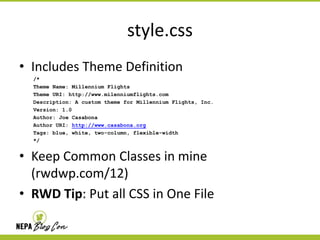
• Includes Theme Definition
/*
Theme Name: Millennium Flights
Theme URI: http://www.milenniumflights.com
Description: A custom theme for Millennium Flights, Inc.
Version: 1.0
Author: Joe Casabona
Author URI: http://www.casabona.org
Tags: blue, white, two-column, flexible-width
*/

• Keep Common Classes in mine
(rwdwp.com/12)
• RWD Tip: Put all CSS in One File
functions.php
• Place misc PHP functions, code, and variables
• Considered a “plugin” file for your theme
• Remember “Separation of Concerns”
– Themes should only effect display, not content or
functionality

• Uses: Actions, Filters, side-wide functions
• RWD Tip: Use this file for server-side
detection
index.php
• The backbone of WordPress themes
• Everything that doesn’t have its own template
file will use index.php
• Used to display a list of posts or content.
• DO NOT remove The Loop from this page
header.php and footer.php
• Template Files to use throughout the theme
• get_header() and get_footer()
• wp_head() and wp_footer()
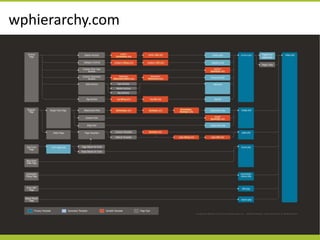
The WordPress Hierarchy
wphierarchy.com
Template Files
• Sophisticated Display Controls
• Only required files: style.css and index.php
• Custom templates down to the single post
level
• Example: Custom Post Type named“classes”
single-classes.php  single.php  index.php
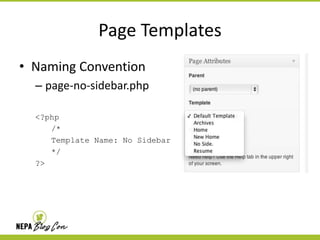
Page Templates
• Naming Convention
– page-no-sidebar.php
<?php
/*
Template Name: No Sidebar
*/
?>
The Loop
Defined
• The Loop is used by WordPress to display each
of your posts. Using the Loop, WordPress
processes each of the posts to be displayed on
the current page and formats them according
to how they match specified criteria within the
Loop tags. Any HTML or PHP code placed in
the Loop will be repeated on each post
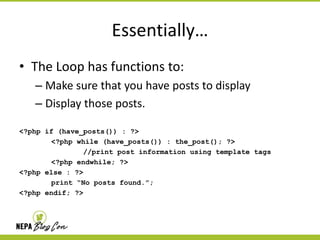
Essentially…
• The Loop has functions to:
– Make sure that you have posts to display
– Display those posts.
<?php if (have_posts()) : ?>
<?php while (have_posts()) : the_post(); ?>
//print post information using template tags
<?php endwhile; ?>
<?php else : ?>
print “No posts found.”;
<?php endif; ?>
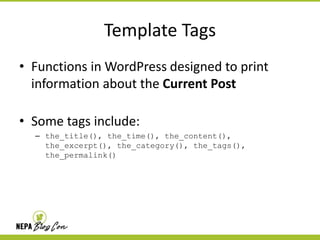
Template Tags
• Functions in WordPress designed to print
information about the Current Post
• Some tags include:
– the_title(), the_time(), the_content(),
the_excerpt(), the_category(), the_tags(),
the_permalink()
If time permits…
Let’s Look at a Live Theme!
Securing Your WordPress Site
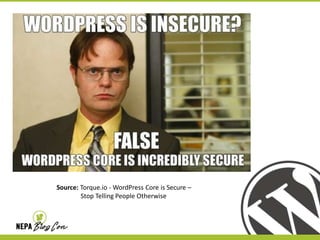
Source: Torque.io - WordPress Core is Secure –
Stop Telling People Otherwise
Yes … but …
The code may be secure, but there
are always things to improve
Backup ALL the Things
My hosting provider does that,
why should I?
How do I backup WordPress?
Services
– ValutPress

Plugins
– BackupBuddy
– BackWPUp

The good old fashioned way
mysqldump -udbuser mydb > db.sql
zip -r backup.zip /webfolder/ db.sql
Backup Best Practices
Create a backup schedule that makes sense for
your site.
Get an off-site copy
Test your backups
Secure the Server
To the extent that you can
Use strong passwords
FTP, SSH, and control panels will get
hackers access to your sites
Use SFTP instead of FTP,
if possible
Understand file permissions
“777” makes everything work …
for other people too.
Install an SSL certificate
Securing Core
Secure the login process
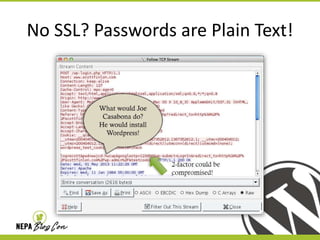
Wait, my password is sent over the
Internet in plain text???
Don’t use “admin”
Stronger Authentication
Use strong passwords
Force Strong Passwords
Limit the number of bad logins
Login Lockdown
Use multi-factor authentication
Google Authetnicator
Duo Two-Factor Authentication
Always use SSL encryption
for login forms and personal info
No SSL? Passwords are Plain Text!
Only give users the
access they need
This includes YOU
Don’t always run as admin
Don’t let your database
be predictable
Change the database table prefix
Plugins, Themes, and Updates
Only use trusted sources
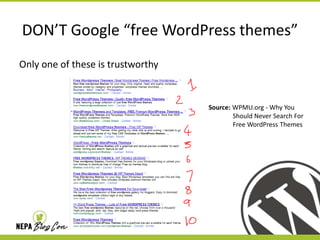
DON’T Google “free WordPress themes”
Only one of these is trustworthy

Source: WPMU.org - Why You
Should Never Search For
Free WordPress Themes
Keep core, plugins, and
themes up to date
Security Services, Plugins & Tools
Security Tools
Sucuri
Site scanner, monitoring, and security plugin
Better WP Security
Wordfence
Updates and Management
ManageWP
InfiniteWP
WP Remote
Use a good hosting provider!
Keep Yourself Secure Too!
If your computer is hacked,
your site could be next!
Install OS and application updates
Run antivirus software
Use encrypted protocols (HTTPS, SFTP)
Use strong passwords for everything
Keep your ear to the
WordPress community
The products and the issues are ever evolving.
Where to get the news
WPSecure.net
Sucuri’s blog
WP Updates Notifier plugin

Check out more on the NEPAWP
Resources page
Questions? Comments?
Statements of Disgust?
References & Links
• VaultPress
http://vaultpress.com/
• BackupBuddy
http://ithemes.com/purchase/backupbuddy/
• BackWPUp
http://wordpress.org/plugins/backwpup/
• Codex: Administration over SSL
http://codex.wordpress.org/
Administration_Over_SSL
References & Links
• How to Change the WordPress Database
http://www.wpbeginner.com/wp-tutorials/how-to-changethe-wordpress-database-prefix-to-improve-security/
• Login Lockdown
http://wordpress.org/plugins/login-lockdown/
• Force Strong Passwords
http://wordpress.org/plugins/force-strong-passwords/
• Google Authetnicator
http://wordpress.org/plugins/google-authenticator/
• Duo Two-Factor Authentication
http://wordpress.org/plugins/duo-wordpress/
References & Links
• WPMU.org: Why You Should Never Search For Free WordPress
Themes
http://wpmu.org/why-you-should-never-search-for-freewordpress-themes-in-google-or-anywhere-else/

• Sucuri
http://www.sucuri.net/
http://wordpress.org/plugins/sucuri-scanner/
• Better WP Security
http://wordpress.org/plugins/better-wp-security/
• Wordfence
http://wordpress.org/plugins/wordfence/
References & Links
• WPSecure.net
http://wpsecure.net/
• WP Updates Notifier
http://wordpress.org/plugins/wp-updates-notifier/
• Sucuri blog
http://blog.sucuri.net/category/wordpress

NEPA BlogCon 2013 - WordPress Customization & Security

  • 1.
    Joe Casabona • WebDeveloper. Writer. Nerd*. – *Computer, Device, Star Wars • Yankee Fan • Responsive Design with WordPress – Out Dec 2013 – www.rwdwp.com – Discount Code for 35% off: RWDWP site: Casabona.org | twitter: @jcasabona | email: joe@casabona.org slides/resources: casabona.org/events/blogcon-13
  • 2.
    Phil Erb http://philerb.com Twitter: @philerb SystemsAdmin & Programmer University of Scranton Co-Founder & Director of Technology Solve the Net Lover of WordPress
  • 3.
  • 4.
    Themes: A Primer •A WordPress Theme: – Provides control over the look and presentation of the material on your website. • The Codex! – Your best friend during development – codex.wordpress.org
  • 5.
  • 6.
    style.css • Includes ThemeDefinition /* Theme Name: Millennium Flights Theme URI: http://www.milenniumflights.com Description: A custom theme for Millennium Flights, Inc. Version: 1.0 Author: Joe Casabona Author URI: http://www.casabona.org Tags: blue, white, two-column, flexible-width */ • Keep Common Classes in mine (rwdwp.com/12) • RWD Tip: Put all CSS in One File
  • 7.
    functions.php • Place miscPHP functions, code, and variables • Considered a “plugin” file for your theme • Remember “Separation of Concerns” – Themes should only effect display, not content or functionality • Uses: Actions, Filters, side-wide functions • RWD Tip: Use this file for server-side detection
  • 8.
    index.php • The backboneof WordPress themes • Everything that doesn’t have its own template file will use index.php • Used to display a list of posts or content. • DO NOT remove The Loop from this page
  • 9.
    header.php and footer.php •Template Files to use throughout the theme • get_header() and get_footer() • wp_head() and wp_footer()
  • 10.
  • 11.
  • 12.
    Template Files • SophisticatedDisplay Controls • Only required files: style.css and index.php • Custom templates down to the single post level • Example: Custom Post Type named“classes” single-classes.php  single.php  index.php
  • 13.
    Page Templates • NamingConvention – page-no-sidebar.php <?php /* Template Name: No Sidebar */ ?>
  • 14.
  • 15.
    Defined • The Loopis used by WordPress to display each of your posts. Using the Loop, WordPress processes each of the posts to be displayed on the current page and formats them according to how they match specified criteria within the Loop tags. Any HTML or PHP code placed in the Loop will be repeated on each post
  • 16.
    Essentially… • The Loophas functions to: – Make sure that you have posts to display – Display those posts. <?php if (have_posts()) : ?> <?php while (have_posts()) : the_post(); ?> //print post information using template tags <?php endwhile; ?> <?php else : ?> print “No posts found.”; <?php endif; ?>
  • 17.
    Template Tags • Functionsin WordPress designed to print information about the Current Post • Some tags include: – the_title(), the_time(), the_content(), the_excerpt(), the_category(), the_tags(), the_permalink()
  • 18.
    If time permits… Let’sLook at a Live Theme!
  • 19.
  • 20.
    Source: Torque.io -WordPress Core is Secure – Stop Telling People Otherwise
  • 21.
    Yes … but… The code may be secure, but there are always things to improve
  • 22.
    Backup ALL theThings My hosting provider does that, why should I?
  • 23.
    How do Ibackup WordPress? Services – ValutPress Plugins – BackupBuddy – BackWPUp The good old fashioned way mysqldump -udbuser mydb > db.sql zip -r backup.zip /webfolder/ db.sql
  • 24.
    Backup Best Practices Createa backup schedule that makes sense for your site. Get an off-site copy Test your backups
  • 25.
    Secure the Server Tothe extent that you can
  • 26.
    Use strong passwords FTP,SSH, and control panels will get hackers access to your sites
  • 27.
    Use SFTP insteadof FTP, if possible
  • 28.
    Understand file permissions “777”makes everything work … for other people too.
  • 29.
    Install an SSLcertificate
  • 30.
  • 31.
    Secure the loginprocess Wait, my password is sent over the Internet in plain text???
  • 32.
  • 33.
    Stronger Authentication Use strongpasswords Force Strong Passwords Limit the number of bad logins Login Lockdown Use multi-factor authentication Google Authetnicator Duo Two-Factor Authentication
  • 34.
    Always use SSLencryption for login forms and personal info
  • 35.
    No SSL? Passwordsare Plain Text!
  • 36.
    Only give usersthe access they need This includes YOU Don’t always run as admin
  • 37.
    Don’t let yourdatabase be predictable Change the database table prefix
  • 38.
  • 39.
  • 40.
    DON’T Google “freeWordPress themes” Only one of these is trustworthy Source: WPMU.org - Why You Should Never Search For Free WordPress Themes
  • 41.
    Keep core, plugins,and themes up to date
  • 42.
  • 43.
    Security Tools Sucuri Site scanner,monitoring, and security plugin Better WP Security Wordfence
  • 44.
  • 45.
    Use a goodhosting provider!
  • 46.
  • 47.
    If your computeris hacked, your site could be next! Install OS and application updates Run antivirus software Use encrypted protocols (HTTPS, SFTP) Use strong passwords for everything
  • 48.
    Keep your earto the WordPress community The products and the issues are ever evolving.
  • 49.
    Where to getthe news WPSecure.net Sucuri’s blog WP Updates Notifier plugin Check out more on the NEPAWP Resources page
  • 50.
  • 51.
    References & Links •VaultPress http://vaultpress.com/ • BackupBuddy http://ithemes.com/purchase/backupbuddy/ • BackWPUp http://wordpress.org/plugins/backwpup/ • Codex: Administration over SSL http://codex.wordpress.org/ Administration_Over_SSL
  • 52.
    References & Links •How to Change the WordPress Database http://www.wpbeginner.com/wp-tutorials/how-to-changethe-wordpress-database-prefix-to-improve-security/ • Login Lockdown http://wordpress.org/plugins/login-lockdown/ • Force Strong Passwords http://wordpress.org/plugins/force-strong-passwords/ • Google Authetnicator http://wordpress.org/plugins/google-authenticator/ • Duo Two-Factor Authentication http://wordpress.org/plugins/duo-wordpress/
  • 53.
    References & Links •WPMU.org: Why You Should Never Search For Free WordPress Themes http://wpmu.org/why-you-should-never-search-for-freewordpress-themes-in-google-or-anywhere-else/ • Sucuri http://www.sucuri.net/ http://wordpress.org/plugins/sucuri-scanner/ • Better WP Security http://wordpress.org/plugins/better-wp-security/ • Wordfence http://wordpress.org/plugins/wordfence/
  • 54.
    References & Links •WPSecure.net http://wpsecure.net/ • WP Updates Notifier http://wordpress.org/plugins/wp-updates-notifier/ • Sucuri blog http://blog.sucuri.net/category/wordpress