Emergency 

WordPress
Troubleshooting
WordPress DC Meetup
November 20, 2018
1
Tiffany Bridge

Automattic
Who am I?
Who Are You?
Session Goals
• Understand the use of basic technical tools for
troubleshooting
• Understand the basic components of WordPress
• Identify emergency troubleshooting techniques
• Identify basic preventative maintenance items
• Anticipate current WordPress issues
Your Emergency
Toolkit
Browser Developer Tools
Text Editor
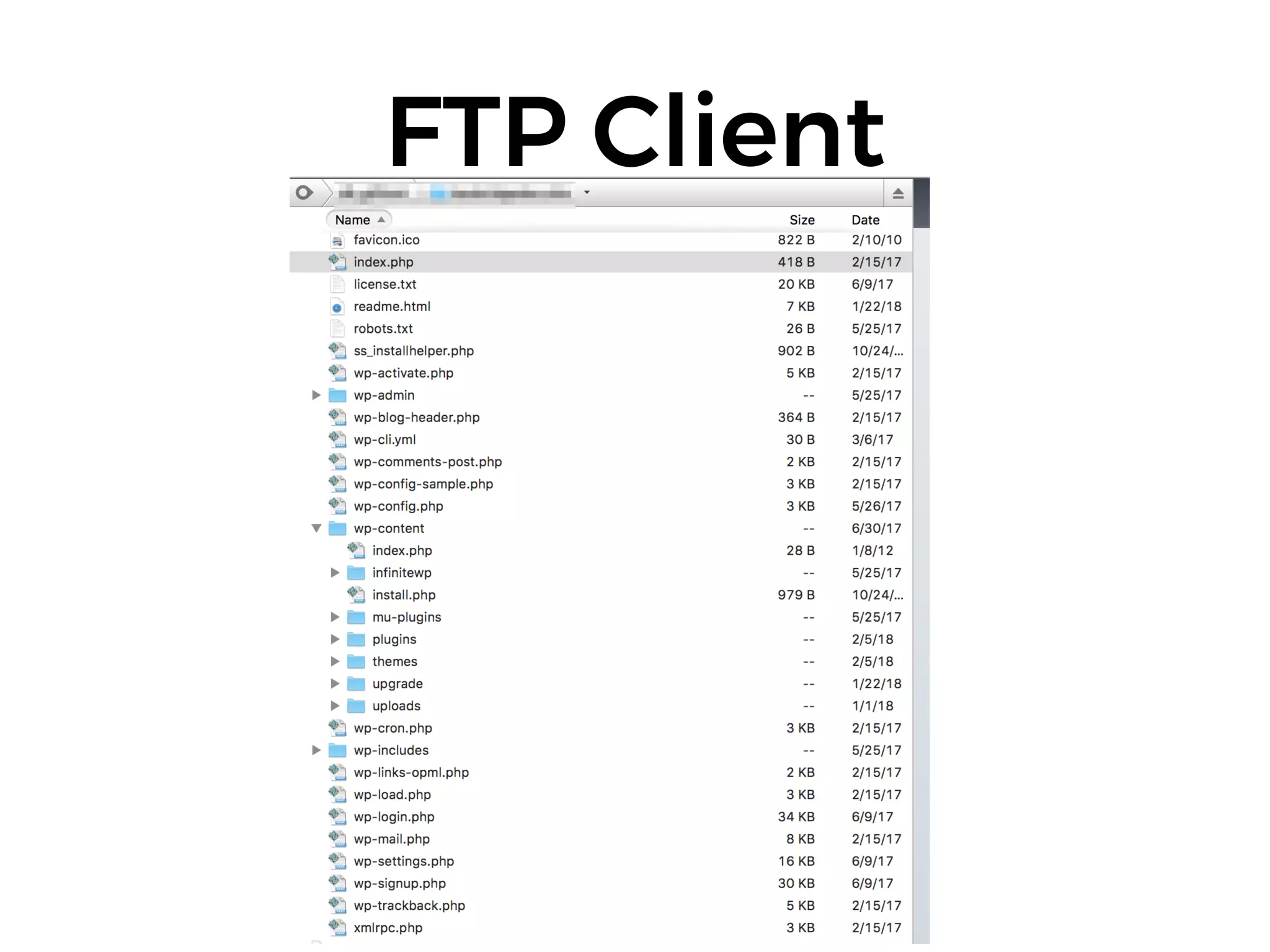
FTP Client
PHP MyAdmin
And finally, your friend
and mine…
WordPress 101
The Best Thing About
WordPress…
The Worst Thing About
WordPress…
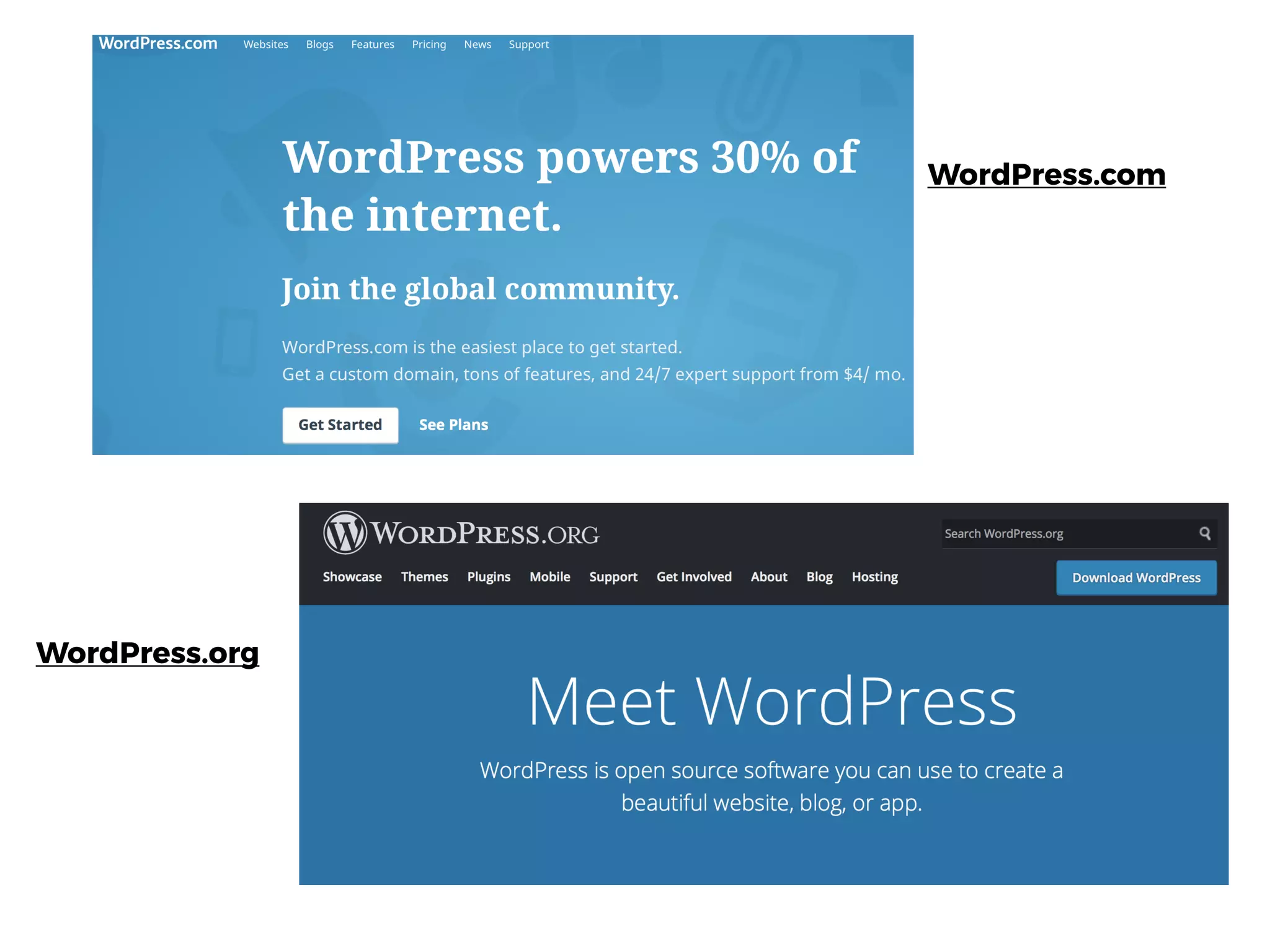
WordPress.com
WordPress.org
WordPress.com
WordPress.org
Anatomy of a WordPress
Site
Core
WordPress
Theme

(CSS/HTML/

PHP/JS)
Database

(Usually MySQL)
Plugins
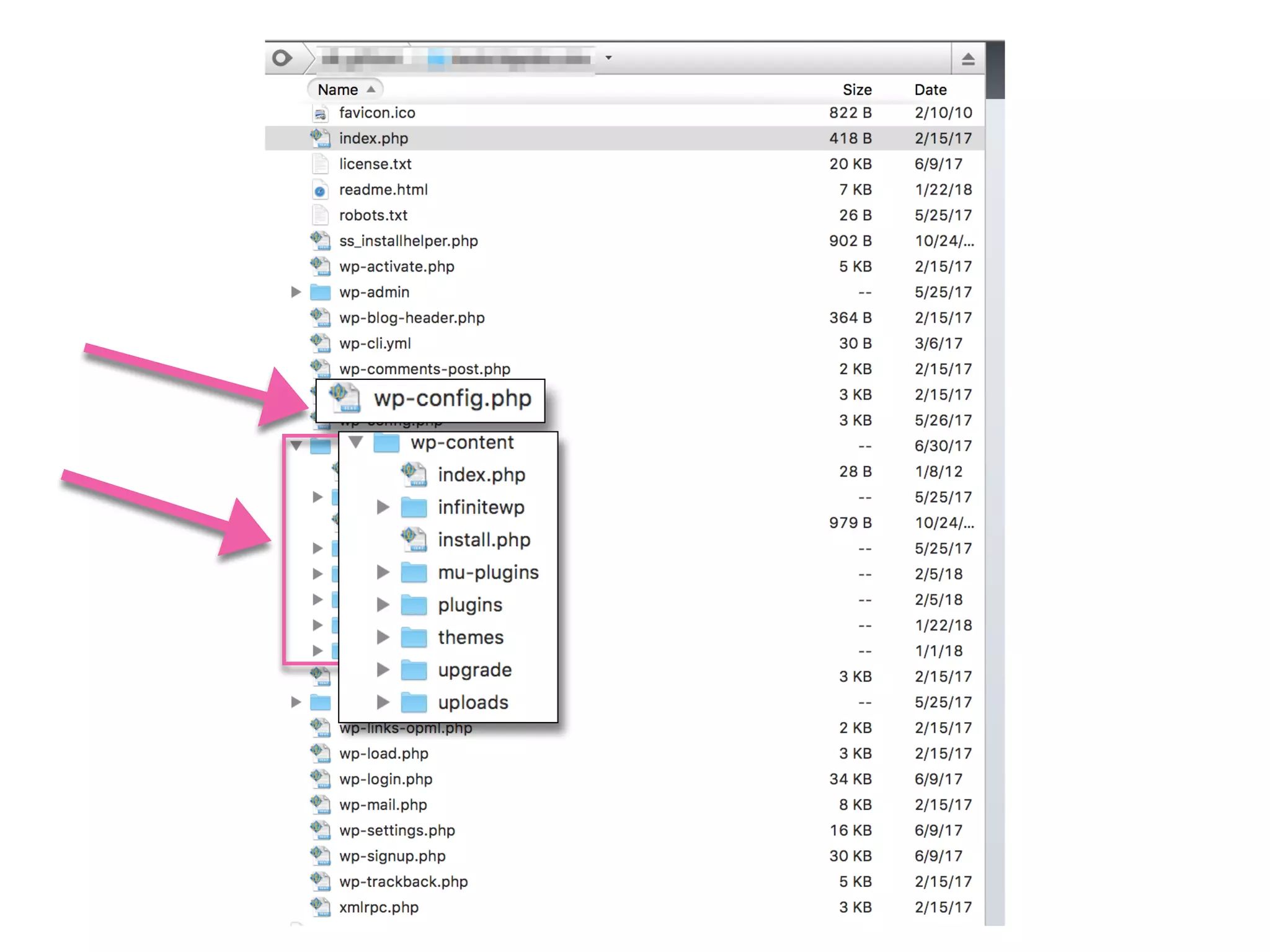
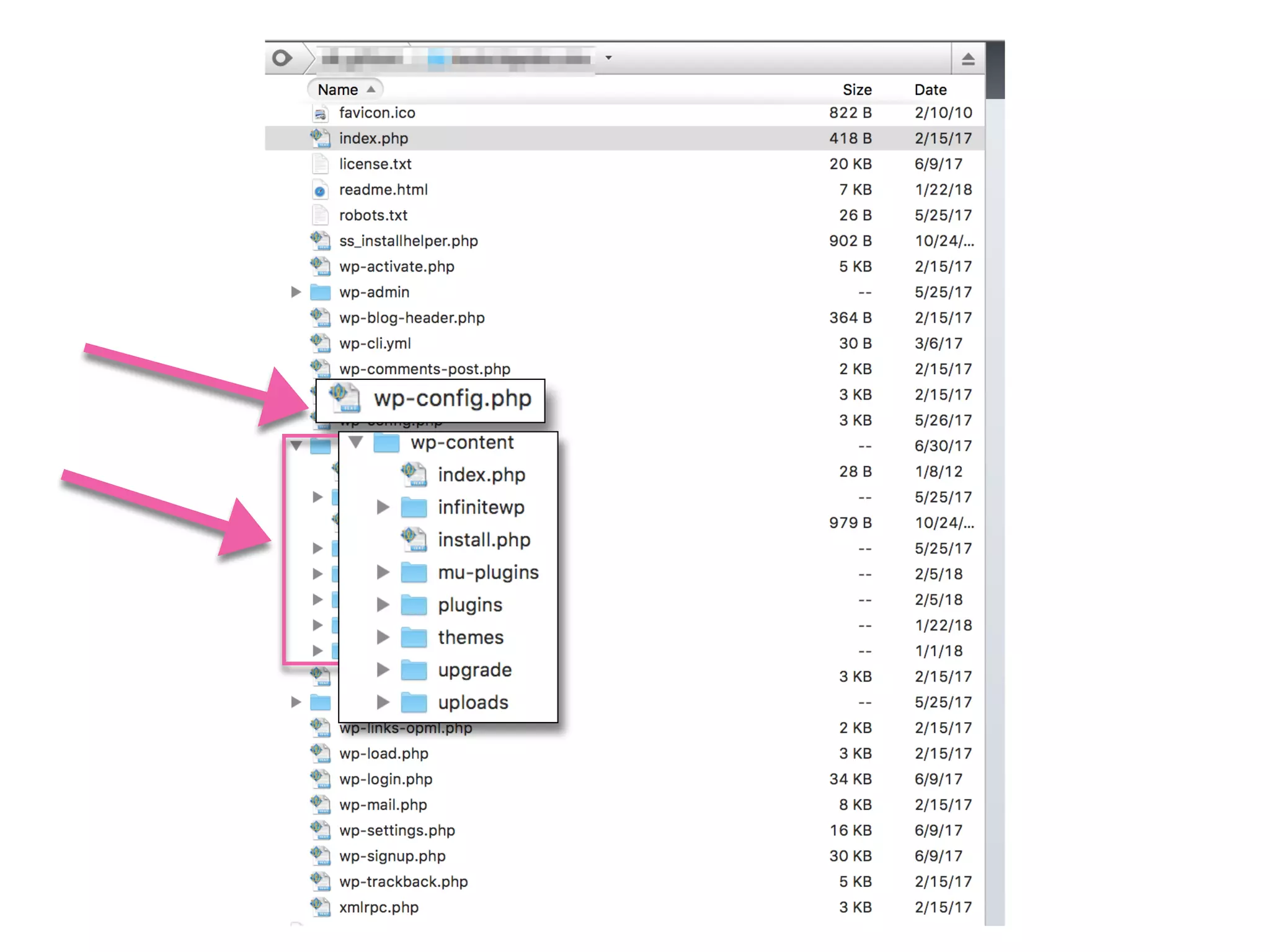
Key WordPress Files
wp-config.php
Common WordPress
Emergencies
Oh $#&^, I’ve Been
Hacked!
“But what would a hacker
want with my site?”
Photo Credits: 

Bitcoin Image courtesy Andre Francois via unsplash.com

Bot image courtesy Alex Knight vis unsplash.com

Spam Wall via Flickr user freezelight, via Creative Commons License
And now… statistics!
Small business websites are attacked 

on average 58 times per day
Source: SiteLock Security
70% of WordPress sites have an exploitable vulnerability
Source: Sucuri
How do I know I’ve been
hacked?
Cleaning Up a Hack
Scan for Malware
Clean Infected Files
By Hand
…or Restore From Backup
You do have backups, don’t you?
Then Lock ‘em Out!
Remember our old friend, wp-config.php?
(We call this the White Screen of Death.)
Causes of the WSOD
• PHP has run out of memory
• Failed core/plugins update has caused instability
• Database errors
• Theme problems
First Things First
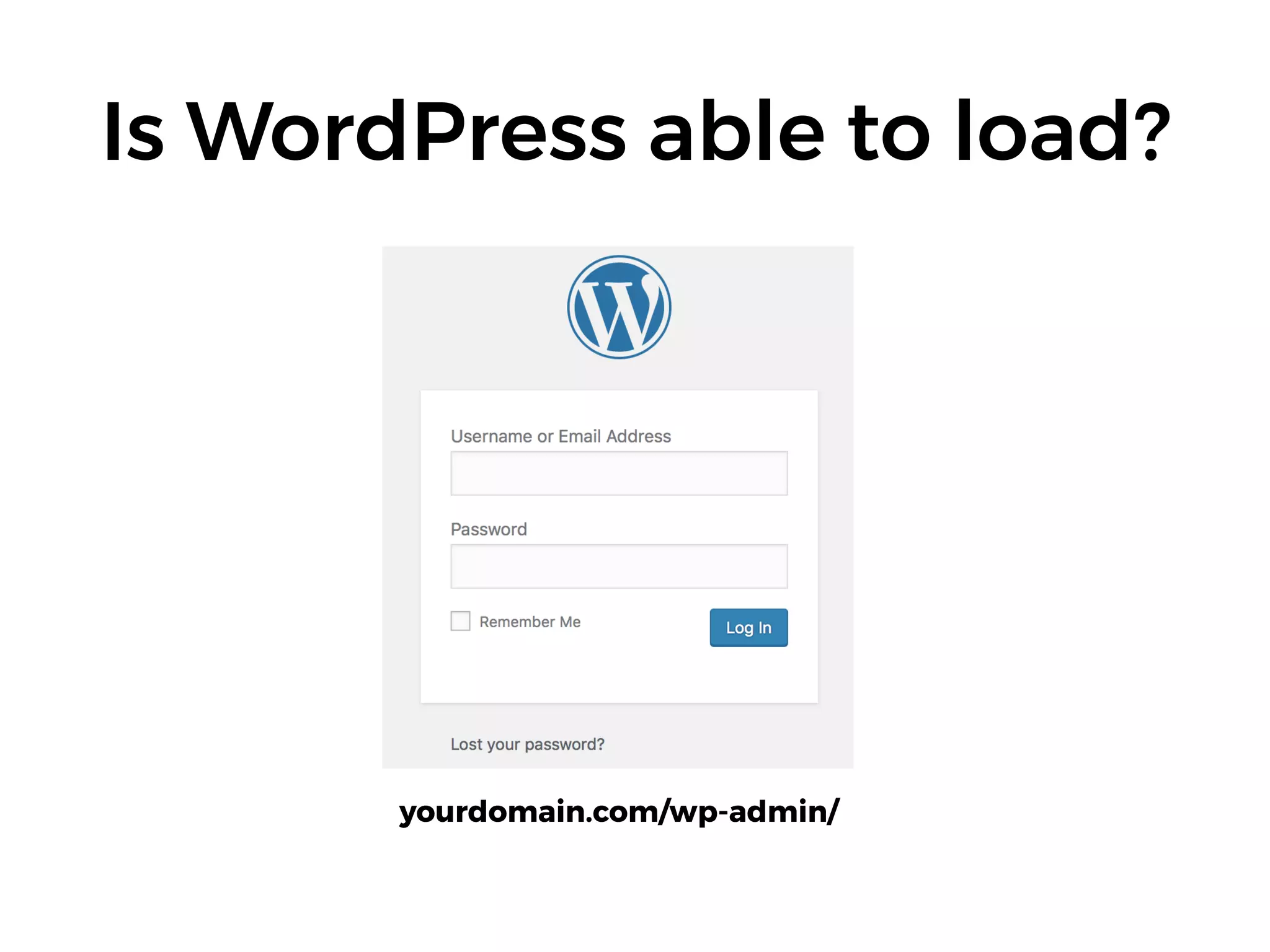
Is WordPress able to load?
yourdomain.com/wp-admin/
What were you doing
when the WSOD started?
Try the easy stuff first.
• Migrating the site? Check the database for
references to the development URL. (phpMyAdmin
or a DB search-and-replace plugin)
• Updating plugins/themes? Disable the ones you just
updated.
• Editing a file? Check your syntax, or undo your
change.
• Caching plugin? Try dumping cache.
If your /wp-admin/ looks
like this:
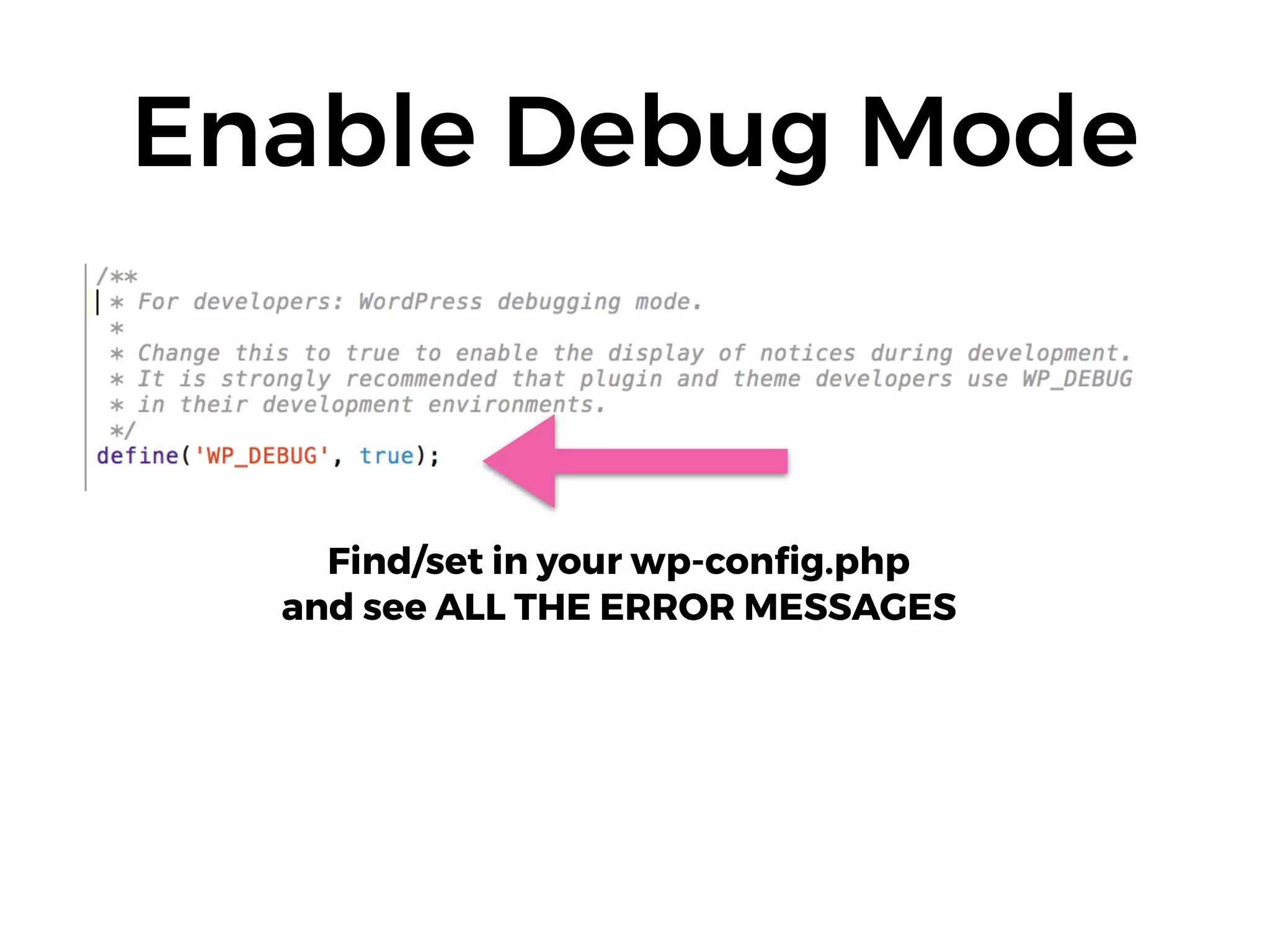
Enable Debug Mode
Find/set in your wp-config.php 

and see ALL THE ERROR MESSAGES
What do we do with error
messages?
On-Page Errors
Try the easy stuff first.
• Migrating the site? Check the database for
references to the development URL. (phpMyAdmin
or a DB search-and-replace plugin)
• Updating plugins/themes? Disable the ones you just
updated.
• Editing a file? Check your syntax, or undo your
change.
• Caching plugin? Try dumping cache.
Developer Tools
Other Things to Check
• Are your plugins still being supported/updated?
(Especially the free ones)
• Check PHP version compatibility
Preventative
Maintenance
An ounce of prevention is worth hours of Googling error messages.
- Ancient WordPress Proverb
Above all else…
WordPress Backups
And then…
• Security/malware scanning plugin
• Caching plugin
• Regular update schedule
• WordPress hardening techniques
• 2-Factor Authentication
Security Plugins
Caching Plugins
A Word About

Plugin Hygiene
• Is it regularly updated/
tested?
• How does the plugin
creator make money?
(Free is often expensive)
Update on a Schedule
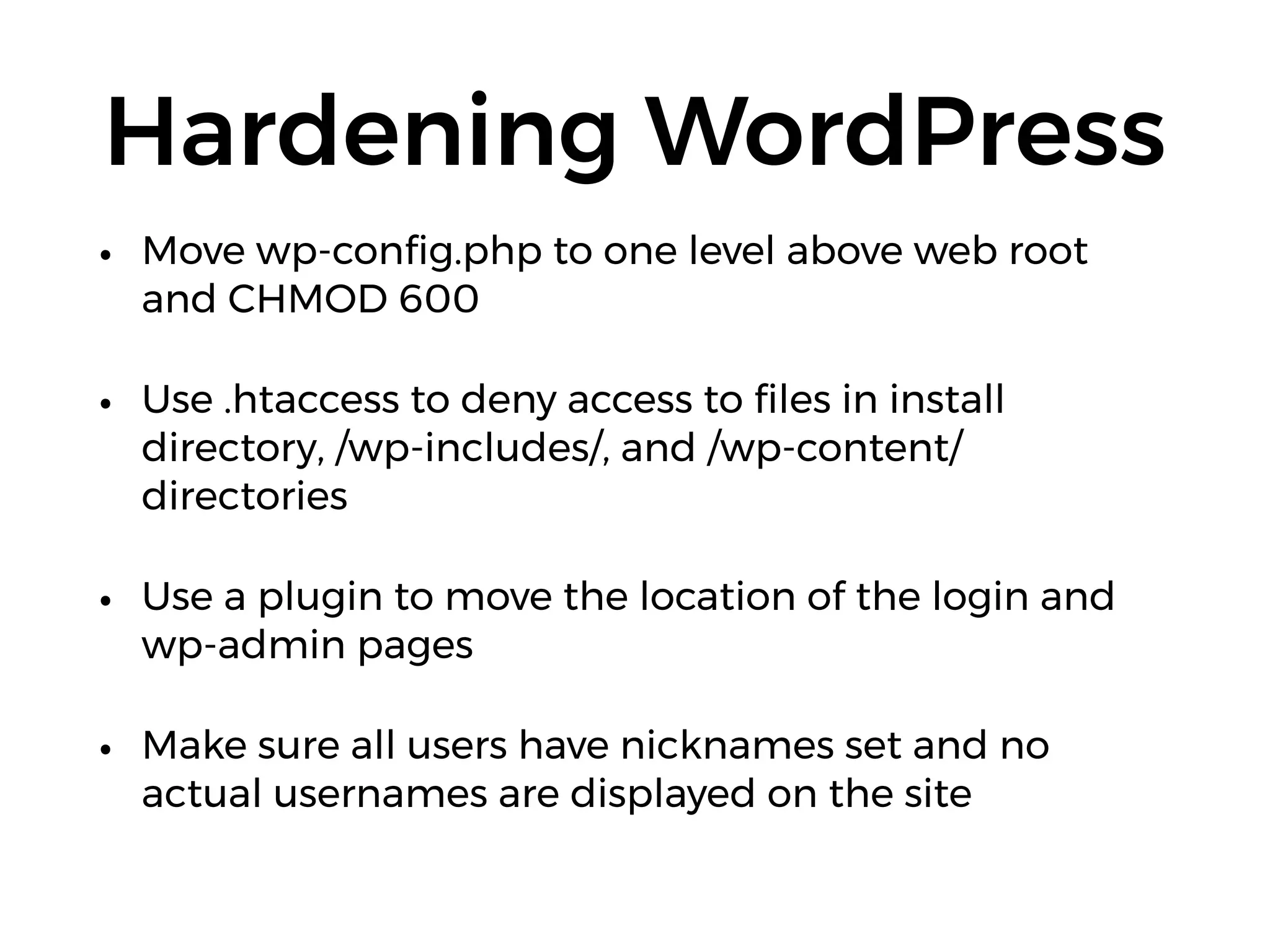
Hardening WordPress
• Move wp-config.php to one level above web root
and CHMOD 600
• Use .htaccess to deny access to files in install
directory, /wp-includes/, and /wp-content/
directories
• Use a plugin to move the location of the login and
wp-admin pages
• Make sure all users have nicknames set and no
actual usernames are displayed on the site
Two-Factor
Authentication
1. Decide on your second factor: Google, Yubikey,
Authy, SMS, phone call, or user’s choice?
2. Pick the 2FA plugin that supports it
3. Install it
Choosing a Host
Friends don’t let friends use cheap shared
hosting
Key Features
• Regular, automatic backups (you should still do your
own)
• One-click staging sites
• Automatic WordPress core updates
• Let’s Encrypt SSL support included
• BONUS: Automated migration tools
This Year’s
Emergencies
All the (foreseeable) ways your site can break in
2018
NEXT WEEK: 

WordPress 5.0 & Gutenberg
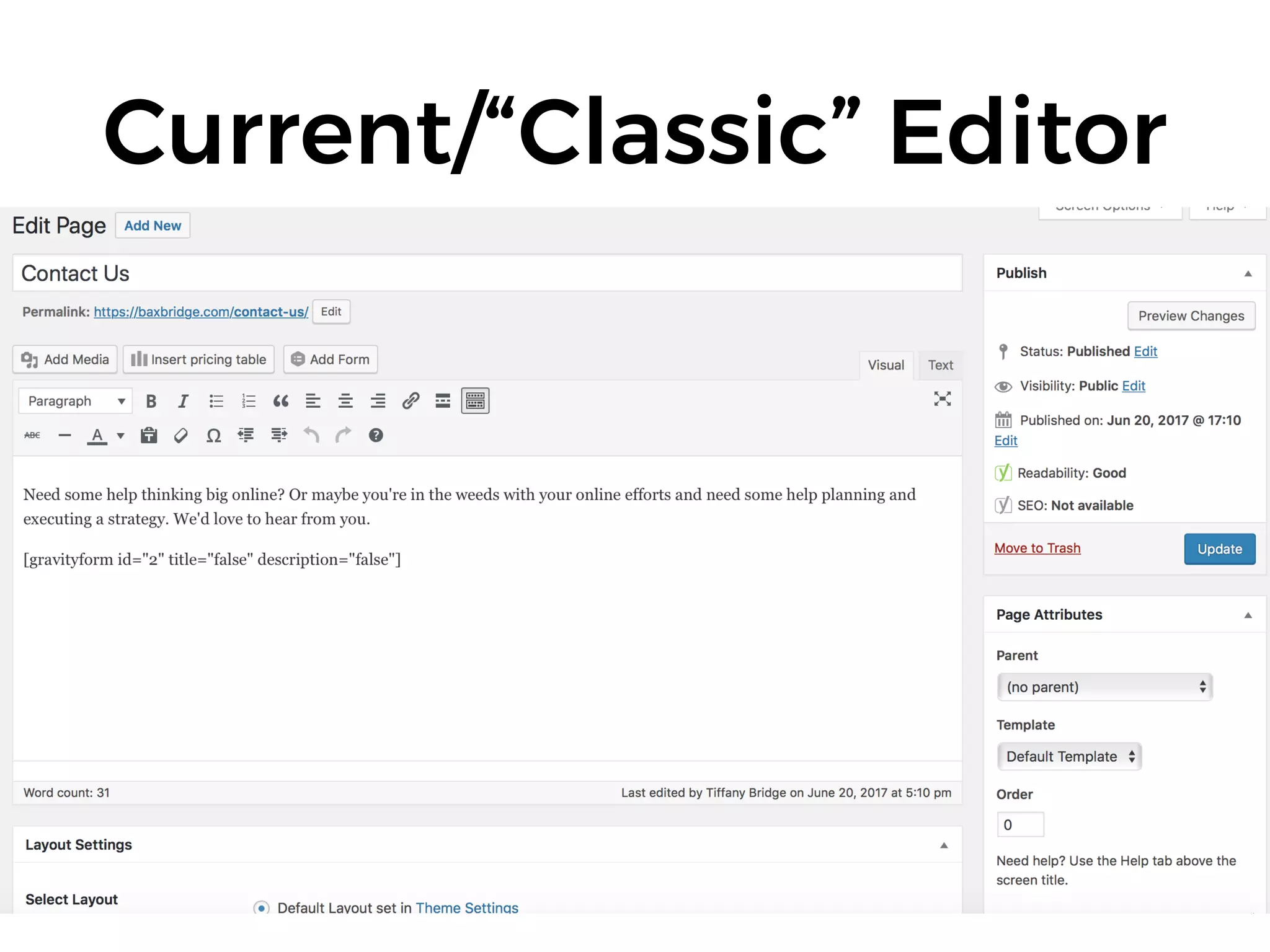
Current/“Classic” Editor
WordPress 2.1, 2007
Blocks Editor - “Gutenberg”
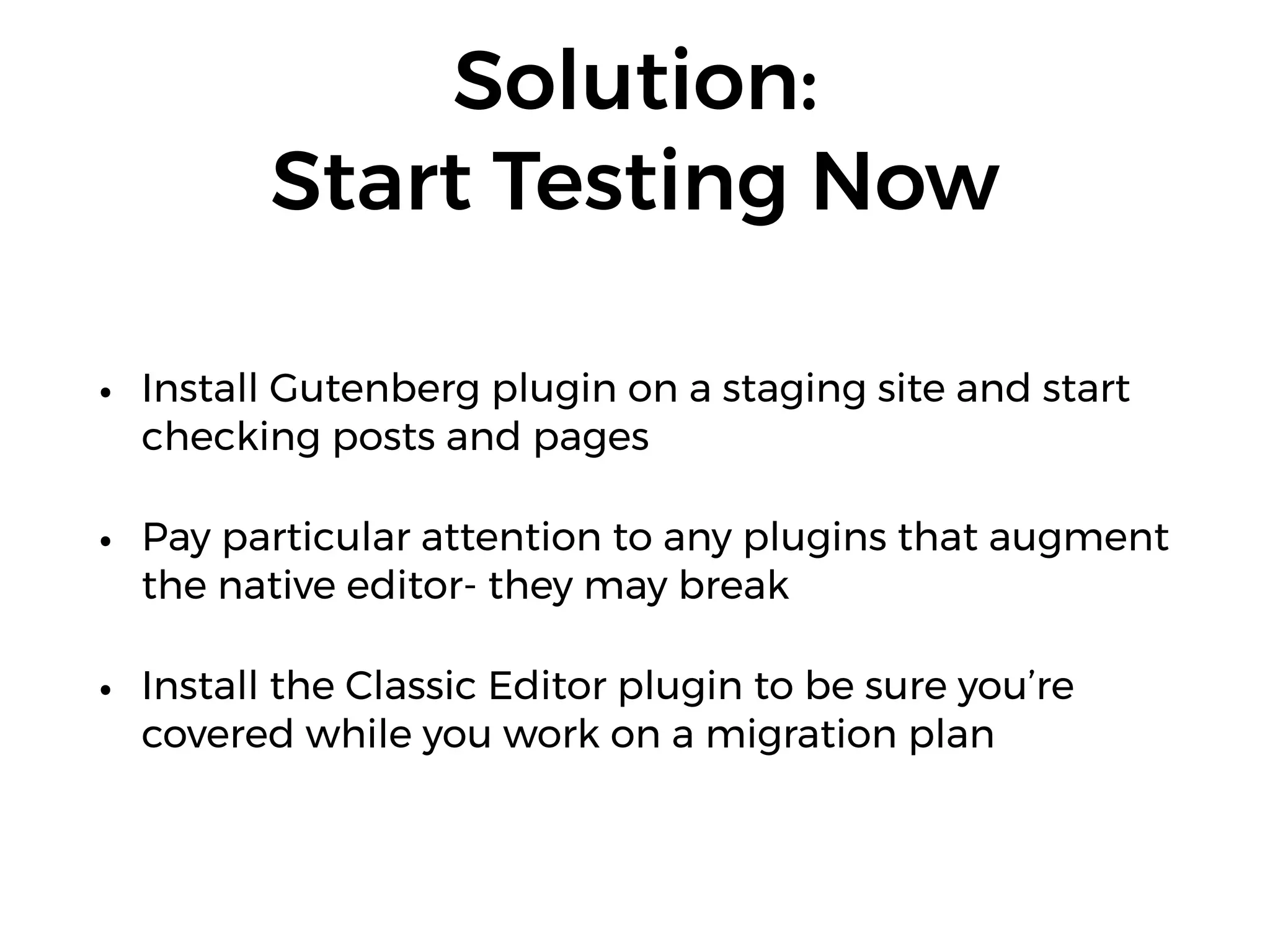
Solution: 

Start Testing Now
• Install Gutenberg plugin on a staging site and start
checking posts and pages
• Pay particular attention to any plugins that augment
the native editor- they may break
• Install the Classic Editor plugin to be sure you’re
covered while you work on a migration plan
December 2018: PHP 5
Support Ends
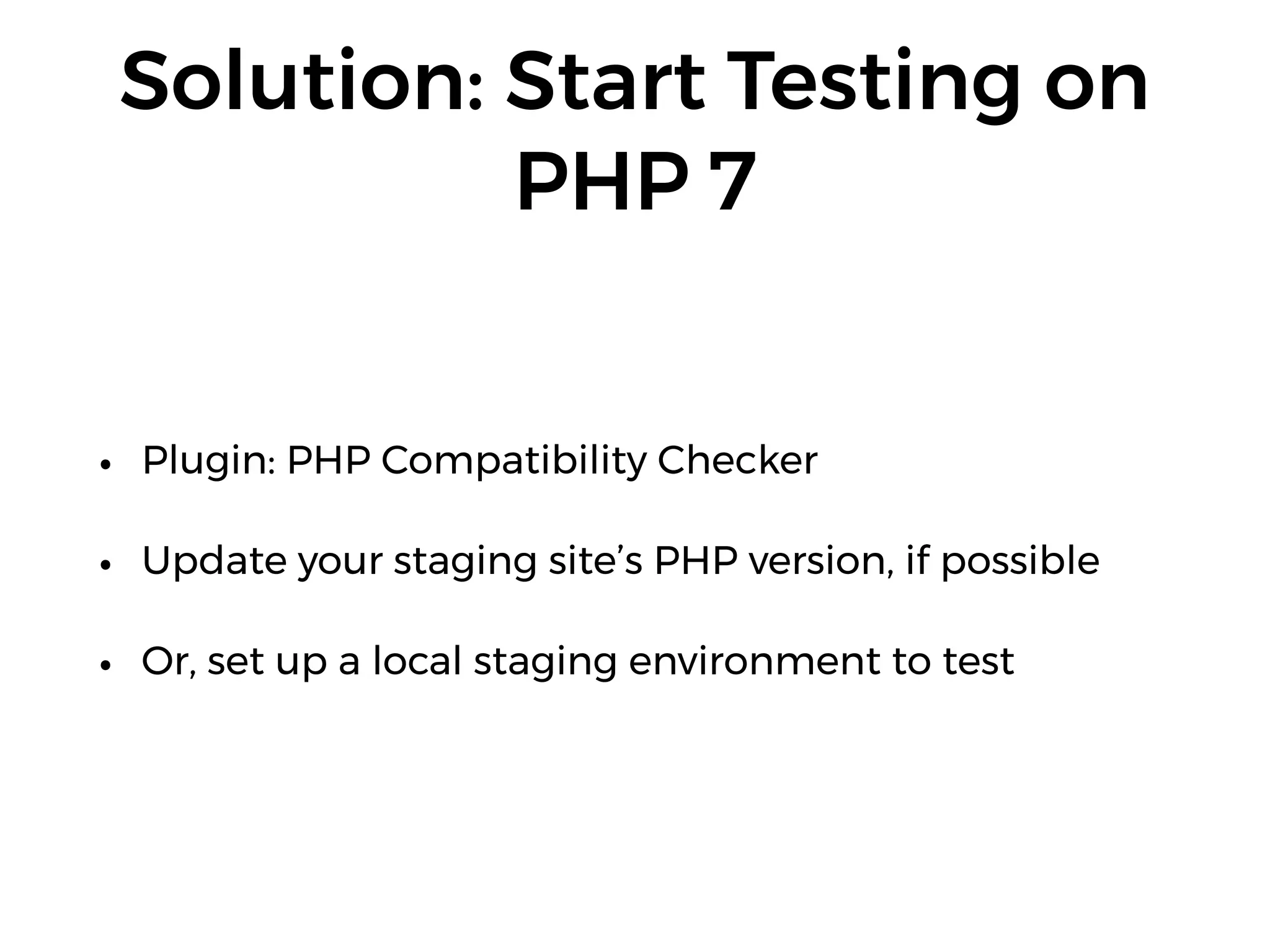
Solution: Start Testing on
PHP 7
• Plugin: PHP Compatibility Checker
• Update your staging site’s PHP version, if possible
• Or, set up a local staging environment to test
Have the Cavalry on
Speed-Dial
Know Who To Call
• Specialist hosts (Pressable, WP Engine, SiteGround)
• Maintenance companies (WP Buffs, GoWP)
• WordPress Consultants
Questions?
Where to find me
• Twitter: @tiffany
• Email: tiffany@baxbridge.com
• Blog: tiff.is
• LinkedIn: https://www.linkedin.com/in/tbaxbridge/
• WordPress Slack: @baxbridge

Emergency WordPress Troubleshooting