Canvas LMS
Lee County Schools
Time to Play
Go to your Dashboard and…..
Navigation
Buttons
• Dashboard
• Courses
• Calendar
• Inbox
• Canvas
Commons
• Help
• To Do
• Coming Up
• Recent
Feedback
Start a
New
course
Courses
Calendar
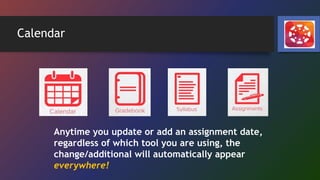
Calendar
Anytime you update or add an assignment date,
regardless of which tool you are using, the
change/additional will automatically appear
everywhere!
Messages
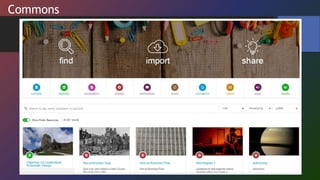
Commons
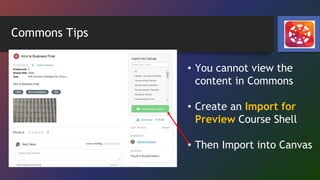
Commons Tips
• You cannot view the
content in Commons
• Create an Import for
Preview Course Shell
• Then Import into Canvas
HELP?!?!
Time to Play
From your Dashboard…..
Getting Started
• Set Notification Preferences
• Course must be PUBLISHED for students to access.
• Course level
• Module Level
• Item Level
• Build your course so that it fits you and your students.
Build your course with Modules
Modules are
like Hanging
File Holders
containing all
your materials
and resources.
Build your course with Modules
Add an Item to your Module
Practice with a Content Page
• Rich Content Editor
• HTML Editor
• Links
• Files
• Images
5 Tools to Add Content
Rich Content Editor
• Text
• Tables
• Hyperlinks
• Images
• Math Equations
• Record Video
HTML to Embed Web Tools
Just copy the HTML Code and paste into the content space.
Links – Files - Images
• Links to course content such as pages or discussions
• File Uploads
• Images – JPEG or PNG
Practice with a Discussion
Quiz Tips
• Don’t Build Quizzes
• Build Question Banks
Question Banks allow flexibility
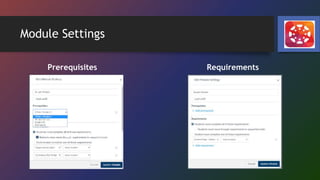
Module Settings
Prerequisites Requirements
Setup PowerSchool Gradebook Passback
• Open ASSIGNMENTS
• Must have categories created
in PowerTeacher Pro
• Then import these
“Assignment Groups” into
Canvas
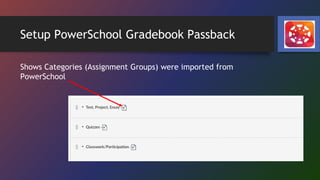
Setup PowerSchool Gradebook Passback
Shows Categories (Assignment Groups) were imported from
PowerSchool
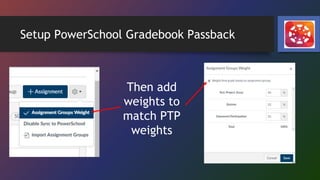
Setup PowerSchool Gradebook Passback
Then add
weights to
match PTP
weights
Setup PowerSchool Gradebook Passback
Questions
• How do I import content into a course?
• How do I use Cloud Assignments?
• How do I Sync Grades to PowerSchools?

Canvas camp presentation